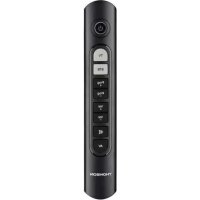
ROCZ107 - Remote control THOMSON - Free user manual and instructions
Find the device manual for free ROCZ107 THOMSON in PDF.



| Product Type | Universal Remote Control |
| Brand | Thomson |
| Model | ROCZ107 |
| Power Supply | 2 AAA batteries (LR03 / Micro) |
| Recommended Battery Type | Alkaline |
| Code Memory | Up to 350 codes in internal memory |
| Compatible Devices | TV and STB (set-top boxes) |
| Infrared Range | Approx. 10 meters (depending on conditions) |
| Number of Keys | Approximately 20 keys (including device selection, volume, channels, etc.) |
| Learning Function | Yes, allows transferring functions from an original remote |
| Punch-Through Function | Yes, for channel search and volume |
| Macro Power Function | Yes, turns two devices on/off simultaneously |
| Auto Shut-off | Yes, after 15 seconds of continuous key press (battery saving) |
| Code Search | Manual and automatic |
| Code Recognition | Yes, by LED flashing |
| Operating Temperature | Not specified, standard household use |
| Dimensions (approx.) | Approximately 20 × 5 × 2.5 cm (estimate) |
| Weight (approx.) | Approximately 100 g (with batteries, estimate) |
| Material | ABS plastic |
| Color | Black (standard) |
| Care and Cleaning | Wipe with a soft, dry cloth. Do not use abrasive or harsh cleaning products. |
| Safety | Do not expose to moisture, direct heat, or sunlight. Keep out of reach of children. |
| Spare Parts and Repairability | Not applicable (no spare parts available, device not user-serviceable) |
Frequently Asked Questions - ROCZ107 THOMSON
User questions about ROCZ107 THOMSON
0 question about this device. Answer the ones you know or ask your own.
Ask a new question about this device
Download the instructions for your Remote control in PDF format for free! Find your manual ROCZ107 - THOMSON and take your electronic device back in hand. On this page are published all the documents necessary for the use of your device. ROCZ107 by THOMSON.
USER MANUAL ROCZ107 THOMSON
Compatiblewithmost TVs/STBs
THOMSON
GB Operating Instructions2
F Moded'employoi7
D Bedienungsanleitung12
E Instrucciones de uso 17
Istruzioniperl'uso22
P Manualdeinstruções27
RUSPykoBOIDCTBOIO O 32
NL Gebruiksaanwijzing37
PL Instrukcjaobsfugi42
H Hasznalatiutmutato47
GR O8nyiecxpnoan52
CZ Navodk p ouziti57
SK Návodnapoužitie62
TR Kullanmakilavuzu67
s Bruksanvisning 72
FIN Kayttöohje 77
RO Manualdeutilizare 82
Characteristics - Caracteristicques - Eigenschaften - Caracteristicas
Caratteristiche - Caracteristicas - Texhnueckne xapaKTepeuCTnKn - Eigenschappen - Dane techniczne - Karakterisztika - xapakTnpioTuKa Technické udaje - Charakteristiky - Karakterisitik - Data - Ominaisuudet - Caracteristica
Weight = 45 grams SBC = 45 rpaMM
Poids = 45 gramsGewicht = 45 grams
Gewicht = 45 Gramm Cięzar =45g
Peso = 45 gram oS Suly = 45 gram m
Peso = 45 gr a mmi Bapoc 45 ypaumapia
Thankyouforyourdecisionfora H amaproduct. Takeourtimeandreadthefollowinginstructions andinformationcompletely.Pleasekeepthese instructionsina safeplaceforfuturereference.
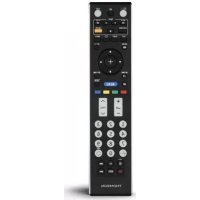
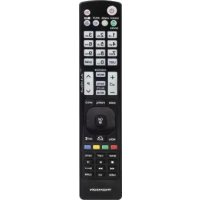
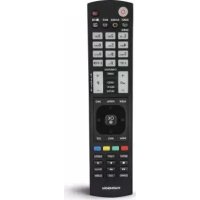
Functionbuttons
1.ON/OFF/LEDIndicator
2.Deviceselectionkeys
3.Prog+/-- C channelSelection
4.Vol+/-Volumesettings
5.Mute
6.AV-SelectexternalAVsource
1.ExplanationoftheNotesymbol

Note
This symbolisusedtoindicateadditional informationorimportantnotes.
2.PackageContents
- U universalRemoteControl(URC)
- T hisoperatinginstructions
3.Safetynotes
D on otusetheUniversalRemoteControlinmo-istorwetenvinmentsandavoidspray-water contact.
D on otexposetheUniversalRemoteControlto heatsourcesordirectsunlight.
D on otdroptheUniversalRemoteControl.
- N everopentheUniversalRemoteControl. Itcontainsnouser-serviceableparts.
- A swithallelectricaldevices,keeptheUniversal RemoteControlawayfromchildren.
4. Gettingstarted- installing Batteries

Note
Alkalinebatteriesare r ecommended. Use 2 "AAA" (LR 03/Micro) type batteries.
- Removethebatterycompartmentlidonthe backofyourURC(A).
- Checktherequiredbatterypolarityandinsertbatteriesaccordingtothe" + / - marks insidethecompartment(B).
Closebatterycompartmentlid(C).

Note:Codesaver
Thisremotecontrolsaveshestesettingsduring batterychange.

Note:Batterysavingfunction
Theremotecontrolswitchesoffautomatically when a button is pressed down for more than 15seconds.Thisconservesbatterypowerif theremotecontrolgetsstuckina posi t i o n where the buttons are continually pressed down,suchasbetweenofacushions.
5.Setup

Note
To obtain a proper infrared (IR) transmission, allways point your Remote control in the approximated direction of the device you want to control.
Noentryforapprox.30secondswilltimeout theSetupmode.TheLEDindicatorshowssix flashesandturnsoff.
If you want to control a device, it's not possible while the Universal Remote Control is intheSetupMode.ExittheSetupmode and select the device you want to controlling the devices selection keys.
5.1Manualcodesearch
YourUniversalRemoteControlisequippedwithan internalmemory, w hichispreloadedwithupto 350codesperdevicetypeforthemostcommon TV/STB devices. You can zap through these codes untilthedeviceyouwanttocontrolshowsa reaction. This mightbethatthedeviceyouwantto controlswitchesoff(POWERkey)orchangesthe channel(Prog+/-keys).
5.1.1Turnonthedeviceyouwanttocontrol
5.1.2Pressandholdthedevicebuttonwhichyou wanttocontrol(e.g.TV)for3 secondsuntil theLEDison.
5.1.3 Pressthe "POWER" ortheProg+/-keytozap through the preloaded codesuntilthedevic youwanttocontrolreacts.
5.1.4PressMUTEtosavethecodeandexitthe codesearch.TheLEDindicatorturnsoff.

Note
Internalmemorylimitationsallowonlyupto350 mostcommondevicecodestobepreloaded. Duetothextensivenumberofdifferentavail- ableTV/STBdevicesonthemarket,itmaybepos- siblethanlythemostcommonmainfunctions are a available.lfso,repeatsteps5.2.1to5.2.5to find a more compatible code. No code may be availaIeforsomespecialdevicemodels.
5.2AutoCodeSearch
AutoCodeSearchuseshestesamepreloadedcodes astheManualCodeSearch(5.2)butyourUniversal RemoteControlscannsthroughthecodesautomaticallyuntilthedeviceyouwanttocontrolshows a reaction.Thismighthethethedeviceyouwant tocontrolswitchesoff(POWERkey)orchangesthe channel(Prog+/-keys).
5.2.1 Turnonthe device you want to control.
5.2.2Pressandholdthedeviceth按钮which youwanttocontrol(e.g.TV)untiltheLED indicatorflashonceandthenkeepon.
5.2.3 PresstheProg+/-keysor POWERtostartthe AutoCodeSearch.TheLEDindicatorflashes oncefollowedbypermanentlight.The UniversalRemoteControlhasa I atencyof6 secondsbefore t hefirstscanstarts.

Note:ScanSpeedSettings
ScanSpeedSettingscanbesetateeither1or 3 s econds.Thedefaultsettingforthescan timepersinglecodeis1 s ec.IfthisFeelsuncomfortable, you can switch to 3 sec. scan timepersinglecode.Toswitchbetweenthe scantimes,pressProg+orProg-duringthe 6 s ec-latencybefore AUTOCodeSearchstarts scanning.
5.2.4TheLEDindicatorconfirmsearchsinglecode scanwithasingleflash.
5.2.5PressMUTEtosavethecodeandexitthe codesearch.TheLEDindicatorturnsoff.

Note
- When all codes are searched without success, the Universal Remote Control exits AutoCode Search and returnsto operational mode automatically. Currently stored code is not changed.
5.3CodeIdentification
TheCodeidentificationoffersyouthepossibility, to determine analreadyenteredcode.
5.3.1 Pressandholdthedevicebuttonuntilthe LEDindicatorflashonceandthenkeepon.
5.3.2Pressbutton"AV"twotimes.
5.3.3LEDindicatorflashestimesmeansthecode. Likecode1234,LEDindicatorwillflashonce andpauseapprox.2s,flashtwotimesand pauseapprox.2s,flash3 t imesandpause approx.2s,thenflash4 t imesandpause approx.2s. (Number 0 and number 1 both will flash once, but number 0 will flash very fast).
6.SpecialFunctions
6.1PunchThroughChannel
ThePunchThroughChannelallowstheProg+or Prog-commandstobypassthecurrentlycontrolled deviceandswitchthechannelsonas econddevice. Allothercommandssremainuninfluenced.
Toactivate the punch through channel setting:
- P ressdesireddevicemodekey(e.g.TV).
- P ressandhold"Prog+"key.
- P ressdesireddevicemodekey(e.g.SAT).
- R elease"Prog+"(theindicatorflashesonceif thesettingisactivated).
Todeactivatethepunchthroughchannelsetting:
- P ressdesireddevicemodekey(e.g.TV).
- P ressandhold"Prog-"key.
- P ressdesiredevicemodekey(e.g.SAT).
- R elease"Prog-"(theindicatorisflashingtwice ifthesettingisd deactivated).
6.2PunchThroughVolume
ThePunchThroughVolumeallows the VOL+ or VOL- commandstobypassthecurrentlycontrolled device and adjust the volumeona s econddevice. All other commands remain uninfluenced.
Toactivate the punch through volumesetting:
- P ressdesireddevicemodekey(e.g.TV).
- P ressandhold"VOL+ "key.
- P ressdesireddevicemodekey(e.g.SAT).
- R release"VOL+"(theindicatorflashesonceif thesettingisactivated).
Todeactivatethepunchthroughvolumesetting:
- P ressdesireddevicemodekey(e.g.TV).
- P ressandhold"VOL-"key.
- Pressdesireddevicemodekey(e.g.SAT).
- R release"VOL-(theindicatorisflashingtwiceif thesettingisdeactivated).
6.3 MacroPower
Macro PowerenablesyoutoturntwoTV/STB deviceson/offsimultaneously.
Toactivatethemacro powersetting:
- P ressdesireddevicemodekey(e.g.TV).
- P ressandhold"POWER"key.
- Pressdesireddevicemodekey(e.g.SAT).
- R release"POWER"(theindicatorflashesonceif thesettingisactivated).
Todeactivatethemacro powersetting:
- P ressdesireddevicemodekey(e.g.TV).
- P ressandhold"POWER"key.
- Pressdesireddevicemodekey(e.g.SAT).
- R elease"POWER"(theindicatorisflashing twiceifthesettingisdeactivated).
7.LEARNMODE
Thisremotecontrolisequippedwitha lea r n i ng function. Thus, you could learn functionsof your originalremotethisremotecontrol.
7.1BEFORESTARTINGLEARNMODE
- T hebatteriesintheworemotecontrolshaveto beingoodcondition.Replacethemifnecessary.
- P lacetheremotecontrolswiththeinfrared diodessothattheypointtowardseachother.
- W here necessaryadjusttheheightofboth remotessothatinfrareddiodesare p properly aligned.
T hedistancebetweenthemeretoecontrolsshould beabout3 cm.
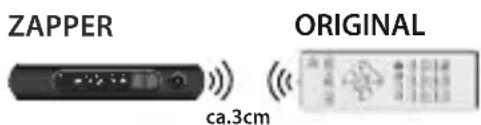

Note
- D o n otmovetheremotecontrolsduring the learningprocedure.
- Ensure that the room is not lit by fluorescents tubes or low energy consumption lamps since suchlightsourcescouldinterfere with the copying.
- The 2 remote controls must be at least 1m eterawayfromanylightsource.
- D uringlearningmode,ifnokeyisselectedfor more than30seconds,thelearningmodewill exitautomatically or ifnotherremotesignalisreceived.
- E achfunctionkeywillholdonlyone command.A n ewcommandtobelearnedwill automaticallyreplacethepreviousone.
- I t is n ot possibletolearnanynewfunctionsto theTVandSTB key.
7.2ENTERLEARNMODE
- To teach a new function to the remote control, prestshedeviceselectionbuttonforthe relevantdevice(TVorSTB).
- Pressandholdthe[MUTE]and[VOL+]keys for approx.3 secondsuntiltheLEDwillbelit.
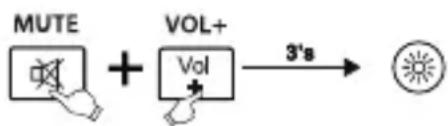
3.TheUniversalRemoteControlisnowreadyto learnnewcommands.
7.3LEARNINGOFKEYS
- Pressandreleasesdesiredkeyon the originalremotecontrolwhichyouwantthe commandtobelearned.TheLEDatyour UniversalRemoteControlwillflashtoconfirm thattheinformationhasbeenreceived.
- Then press and release the target key on the Universal Remote Control you want learned.
-
If the LED flashes 3 times and then remain on, the command has been learned successfully.
4.Repeatthesestepstolearnotherkeyfunctions. -
Press the TV or STB button to save all learnt functionsandtoexitthelearningmode.

Note
Whilereplacingthebatteries,theremotecontrolwill keep the functionsofthelearnedkeys.
7.4CLEARINGOFLEARNEDKEYS
7.4.1CLEARINGOFONELEARNEDKEY
- Pressandhold[MUTE]and[VOL-]keysfor 3 secondsuntiltheLEDwillbelit.
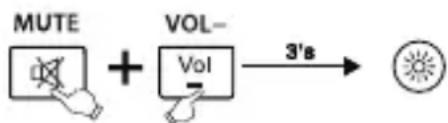
- Pressandreleasesdesiredkeyatthe UniversalRemoteControlwhichyouwantto clearthelearnedcommand.IftheLEDflashes 3 times, the learned command has been clearedsuccessfully.
7.4.2CLEARINGOFALLLEARNEDKEYS
- Pressandholdthe[MUTE]and[POWER]keys forapprox.6suntiltheLEDindicatorflashfour times, then meansthecommandhasbeen clearedsuccessfully.
8.Maintenance
- D o n otmixnewandusedbatteriesfor poweringtheUniversalRemoteControl,asold batteriestendtoleakandmaycausepower drain.
D on otusecorrosiveorabrasivecleanerson yourUniversalRemoteControl. - K eeptheUniversalRemoteControldustfreeby wipingitwitha soft, drycloth.
9.Troubleshooting
Q.MyUniversalRemoteControldoesnotworkatall!
A. Check your TV/STB device. If the device's main switch is turned off, your URC cannot operate your device.
A. Check whether your batteries are inserted properly and are in the correct +/- position.
A. Check whether you have pressed the corresponding device modekeyforyourdevice.
A. If the batteries are low, replace the batteries.
10. Service and Support
Ifyouhavequestionsontheproduct,youare welcometocontactHamaProductConsulting.
Hotline:+499091502-0
For further support informationpleasevisit:
www.hama.com
11.RecyclingInformation
Noteonenvironmentalprotection:
AftertheimplementationoftheEuropean Directive2012/19/EUand2006/66/EUnthenationallegalsystem,thefollowing applies:Electricandecronicdevicesas wellasbatteryismustnotbedisposedof
withhouseholdwaste.Consumers are bligedby lawtoreturnelectricalandelectronicdevicesas wellasbatteriesattheendoftheirservicelivesto thepubliccollectingpointsetupforthispurpose or point of sale. Details to this are defined by the nationallawoftherespectivecountry. T hissymbol ontheproduct, theinstructionmanualorthe package indicates that a product is subject to these regulations.Byrecycling,reusingthematerialsor otherformsofutilisingolddevices/Batteries,you are m akinganimportantcontributiontoprotecting ourenvironment.
6.2Punch-Throughdevolumen
NotaemProteçaoAmbiental:
Aposa Implementedadirectiva comunitaria2012/19/EUe 2 006/66/EUnosystemalegalnacional,oseguinte aplicase-osaparelhoselctricose electronicos,bemcomobaterias,nao
6.1PunchThroughkavaλiou
Hotline:+499091502-0(Alm/Ing)
Digerdestekbilgileriicin,bkz.: www.hama.com
Hotline: +499091502-0 (ty/eng)
Duhittarmersupport-informationhar:
www.hama.com
Thomsonisa t trademarkofTechnicolor(S.A.) or its affliates used under license by HAMA GmbH & Co KG in 86652 Monheim / Germany
www.thomson-av-accessories.eu

- THOMSON
- Functionbuttons
- 1.ExplanationoftheNotesymbol
- Note
- 2.PackageContents
- 3.Safetynotes
- Gettingstarted- installing Batteries
- Note:Codesaver
- Note:Batterysavingfunction
- 5.Setup
- 5.1Manualcodesearch
- 5.2AutoCodeSearch
- Note:ScanSpeedSettings
- 5.3CodeIdentification
- 6.SpecialFunctions
- 6.1PunchThroughChannel
- 6.2PunchThroughVolume
- MacroPower
- 7.LEARNMODE
- 7.1BEFORESTARTINGLEARNMODE
- 7.2ENTERLEARNMODE
- 7.3LEARNINGOFKEYS
- 7.4CLEARINGOFLEARNEDKEYS
- 7.4.1CLEARINGOFONELEARNEDKEY
- 7.4.2CLEARINGOFALLLEARNEDKEYS
- 8.Maintenance
- 9.Troubleshooting
- Service and Support
- 11.RecyclingInformation
- Noteonenvironmentalprotection:
- 6.2Punch-Throughdevolumen
- NotaemProteçaoAmbiental:
- 6.1PunchThroughkavaλiou
Brand : THOMSON
Model : ROCZ107
Category : Remote control