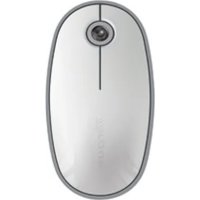
AMB08EU - Mouse TARGUS - Free user manual and instructions
Find the device manual for free AMB08EU TARGUS in PDF.



| Product type | Wireless Bluetooth laser mouse |
| Brand | Targus |
| Model | AMB08EU |
| Connection technology | Bluetooth |
| Sensor | Laser |
| Wireless range | Up to 10 meters (33 feet) |
| Power source | 2 AA batteries (included) |
| Battery life | Approximately 60 minutes remaining before red warning |
| Low battery indicator | Scroll wheel flashes red |
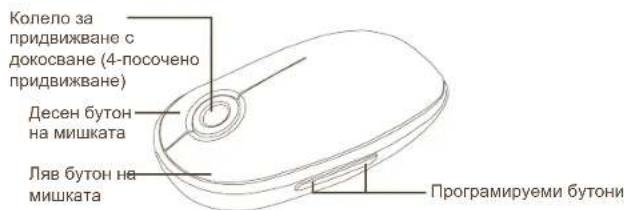
| Scroll wheel | Tactile, 4-direction scrolling, quick scroll |
| Programmable buttons | Yes (via Targus software) |
| Compatible operating systems | Mac OS X 10.4 or later |
| System requirements | Computer with Bluetooth |
| Configuration software | Downloadable from targus.com |
| Weight (with batteries) | Approximately 100 g |
| Dimensions (L x W x H) | Approximately 10 x 6 x 3 cm |
| Color | Black (assumed) |
| Maintenance | Clean with a soft, dry cloth |
| Precautions | Do not expose to moisture or liquids |
Frequently Asked Questions - AMB08EU TARGUS
User questions about AMB08EU TARGUS
0 question about this device. Answer the ones you know or ask your own.
Ask a new question about this device
Download the instructions for your Mouse in PDF format for free! Find your manual AMB08EU - TARGUS and take your electronic device back in hand. On this page are published all the documents necessary for the use of your device. AMB08EU by TARGUS.
USER MANUAL AMB08EU TARGUS
LASER RADIATION. DO NOT STARE INTO THE BEAM OR VIEW DIRECTLY WITH OPTICAL INSTRUMENTS. CLASS I LASER PRODUCT.
NEVER POINT A LASER BEAM INTO A PERSON'S EYES OR VIEW A LASER BEAM DIRECTLY, AS PROLONGED EXPOSURE CAN BE HAZARDOUS TO THE EYES.
MOMENTARY EXPOSURE FROM A LASER POINTER, SUCH AS AN INADVERTENT SWEEP OF THE LIGHT ACROSS A PERSON'S EYES, MAY CAUSE TEMPORARY FLASH BLINDNESS SIMILAR TO THE EFFECT OF A CAMERA FLASH BULB. ALTHOUGH THIS CONDITION IS TEMPORARY, IT CAN BECOME MORE DANGEROUS IF THE EXPOSED PERSON IS ENGAGED IN A VISION-CRITICAL ACTIVITY SUCH AS DRIVING.
Bluetooth® Laser Mouse
Targus Bluetooth Laser Mouse
Introduction
Congratulations on your purchase of the Targus Bluetooth Laser Mouse. This mouse uses Bluetooth wireless technology which provides a seamless connection up to 33 ft (10 m) away.
System Requirements
Hardware
- Bluetooth-enabled notebook or desktop computer
Operating System
Mac OS X 10.4 or later
Bluetooth® Laser Mouse
Installing the Batteries
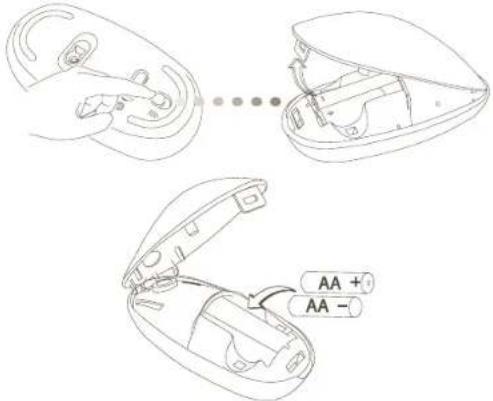
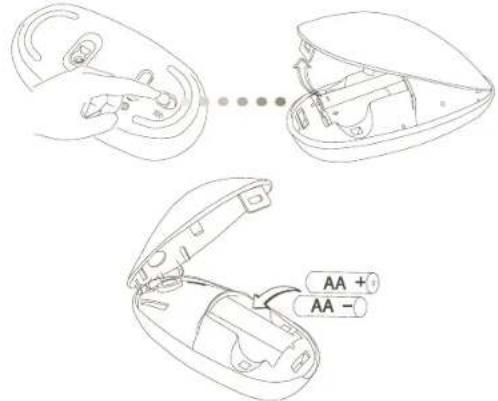
- Please use the two AA batteries that are included.
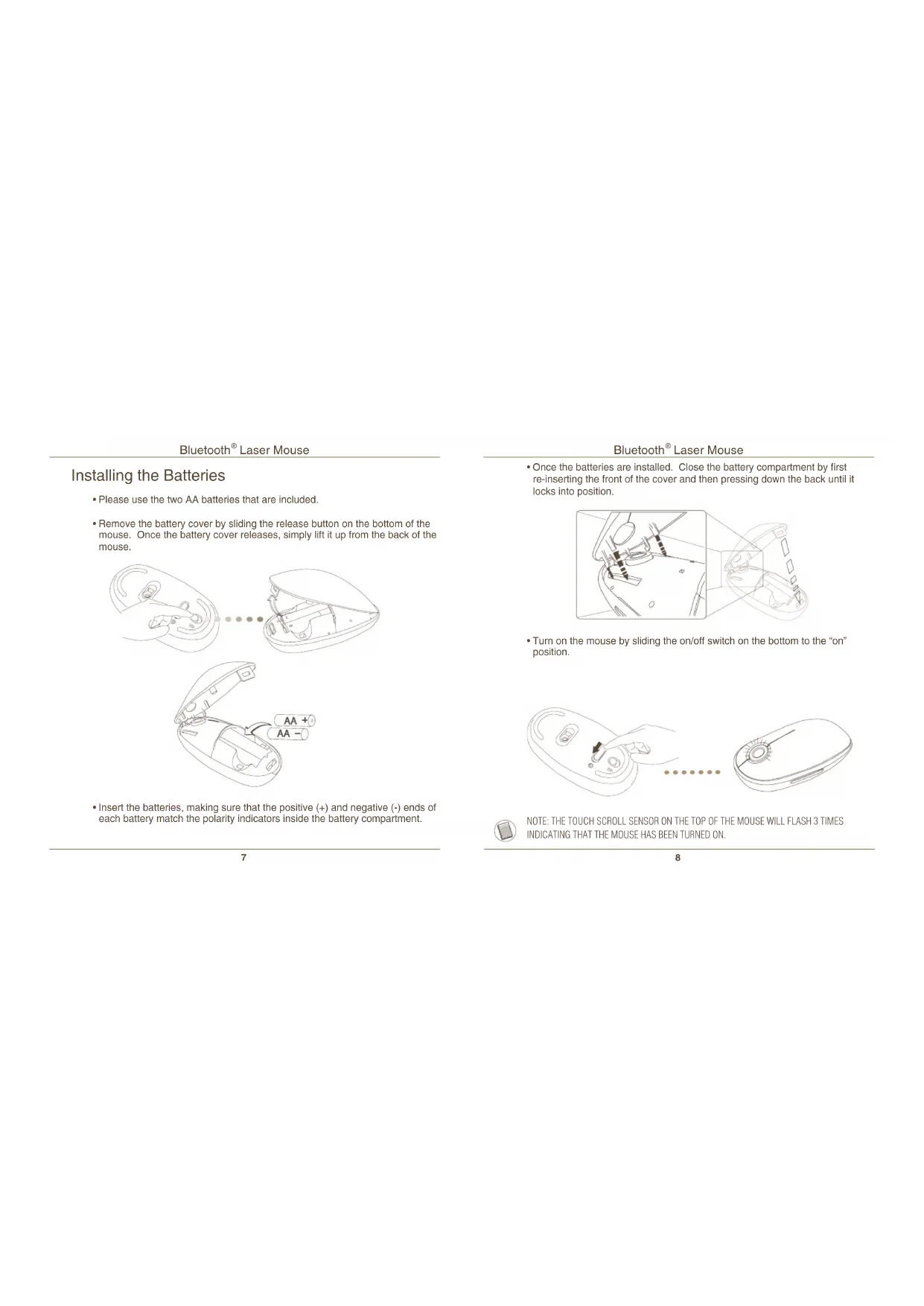
- Remove the battery cover by sliding the release button on the bottom of the mouse. Once the battery cover releases, simply lift it up from the back of the mouse.
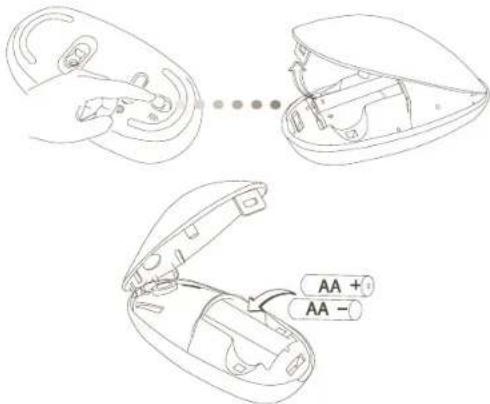
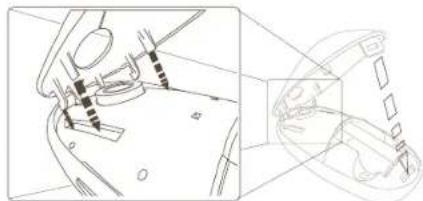
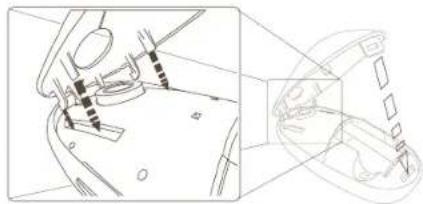
- Insert the batteries, making sure that the positive (+) and negative (-) ends of each battery match the polarity indicators inside the battery compartment.
Bluetooth® Laser Mouse
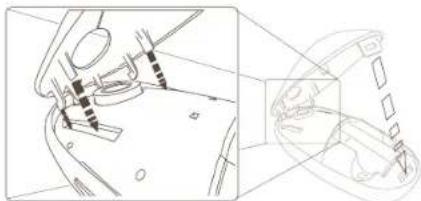
- Once the batteries are installed. Close the battery compartment by first re-inserting the front of the cover and then pressing down the back until it locks into position.
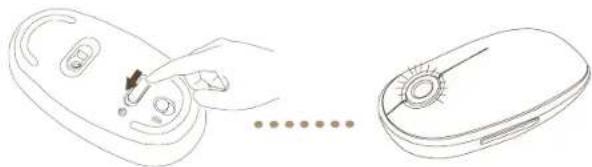
- Turn on the mouse by sliding the on/off switch on the bottom to the "on" position.
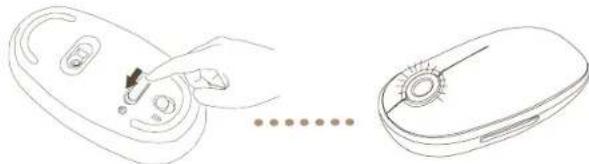

NOTE: THE TOUCH SCROLL SENSOR ON THE TOP OF THE MOUSE WILL FLASH 3 TIMES INDICATING THAT THE MOUSE HAS BEEN TURNED ON.
Low Battery Power Indicator

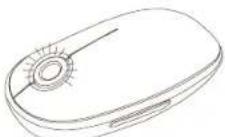
NOTE: WHEN THE BATTERY POWER IS LOW, THE TOUCH SCROLL WILL FLASH RED.
PLEASE REPLACE THE BATTERIES.
When 60 minutes of power remains, a red indicator light will glow for 8 seconds.
When only 30 minutes of power remains, the red indicator light will blink continuously.
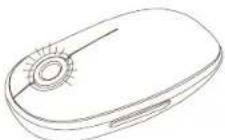
Using the Mouse
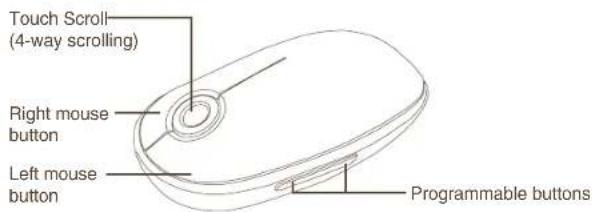
Using the Touch Scroll
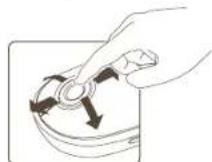
- Slide your finger over the Touch Scroll sensing area to use the 4-way scrolling function.
- Quickly slide your finger (either up or down) over the Touch Scroll to activate the quick scrolling function.
- Press any button to disable the quick scrolling function.

NOTE: PLEASE REMOVE THE PROTECTIVE PLASTIC FILM ON THE TOUCH SCROLL BEFORE USING THE DEVICE.
Initial Configuration
Before you can begin using your Bluetooth mouse, you will first need to perform some initial setup steps.

NOTE: PLEASE USE THE LATEST BLUETOOTH DEVICE DRIVER. INSTRUCTION SCREENS MIGHT VARY DEPENDING ON THE VERSION OF YOUR BLUETOOTH DEVICE DRIVER.
Bluetooth Software: Mac
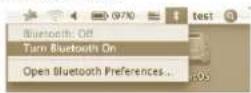
- Go to the Bluetooth icon located on your desktop or in the system bar and click the icon to begin setup. Select "Turn Bluetooth On" to activate the Bluetooth function on your Mac.
Bluetooth® Laser Mouse
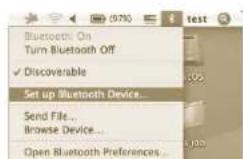
- Scroll down the list and select "Set up Bluetooth Device..."
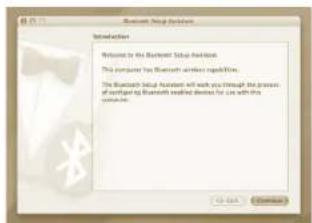
- The Bluetooth Setup Assistant will begin. Please follow the on-screen instructions.
Bluetooth® Laser Mouse
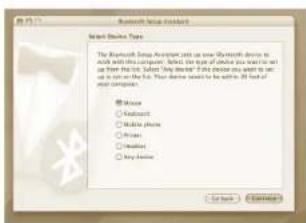
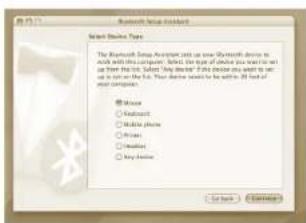
- Select "mouse" and click continue to proceed with setup. Your mouse will need to be in "discovery" mode to connect. To enable "discovery" mode, turn on the mouse and after 3 seconds press any button on the mouse to enter into discovery mode.
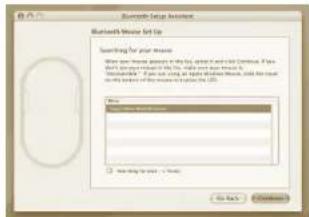
- Your computer will begin to search for the mouse. Once the mouse is found, it will show up in the list. Highlight your mouse and press continue.
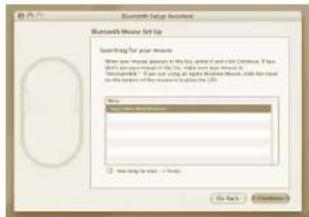
Bluetooth® Laser Mouse
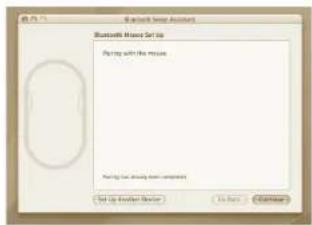
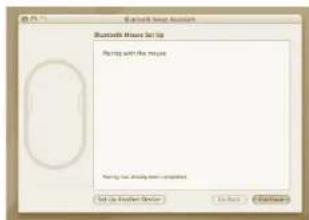
- The Bluetooth mouse will now begin pairing. Click continue to proceed.
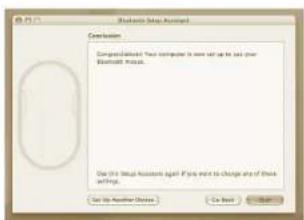
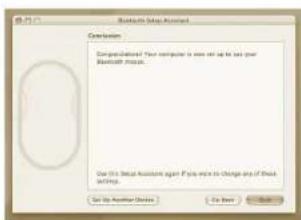
- Congratulations. Your Bluetooth mouse is setup and ready to use. You can choose to setup another device or click Quit to exit setup.
Bluetooth Laser Mouse
Installing Software for Programmable Buttons
Installing the software enables configuration of the programmable buttons.
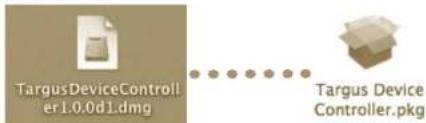
The latest software (Model # AMB08) can be downloaded from the official Targus web site: http://www.targus.com/uk/Downloads/AMB08EU.dmg
Double click the setup icon to launch the installation software.
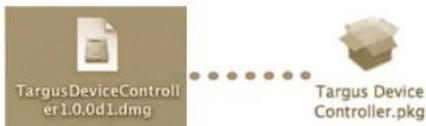
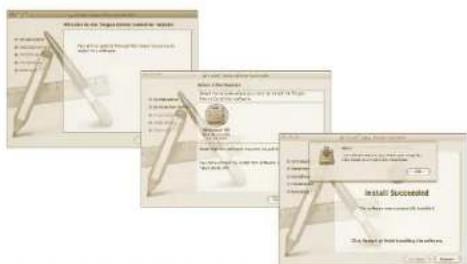
Follow the on-screen instructions to complete the installation.
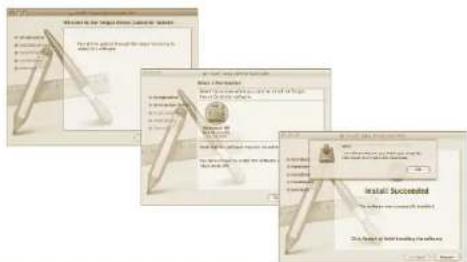
Bluetooth® Laser Mouse
After the software is successfully installed, restart your computer to finish installing the software.
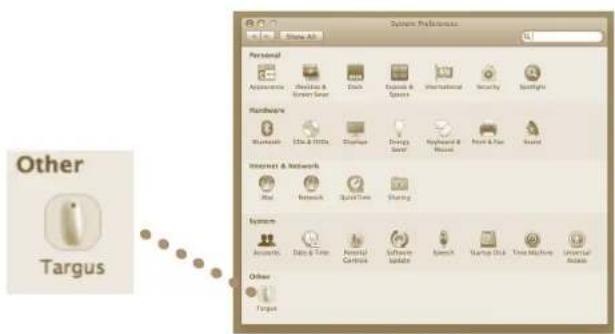
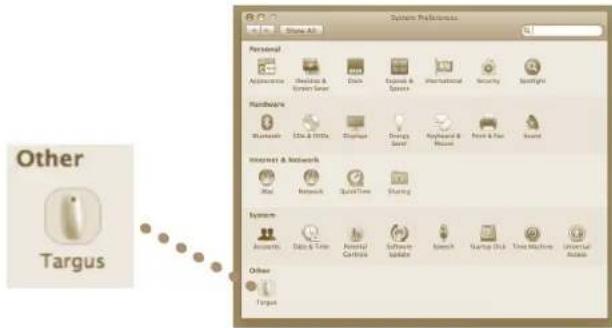
A Targus icon will appear in the System Preferences window.
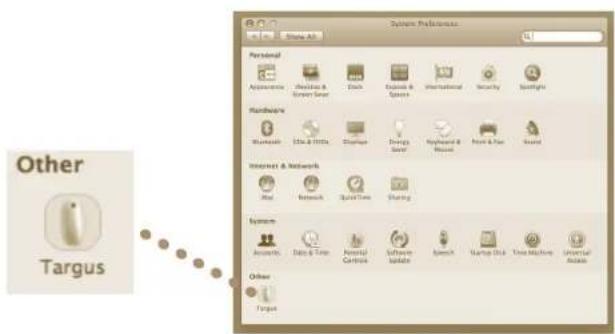
Bluetooth Laser Mouse
Programming the Buttons
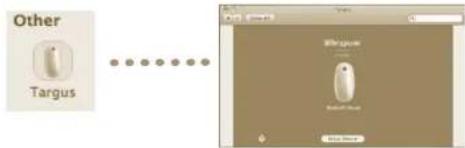
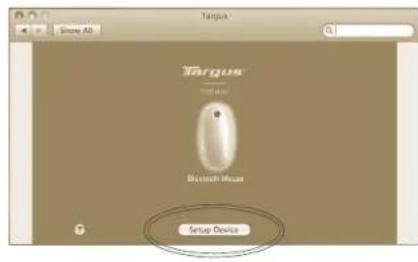
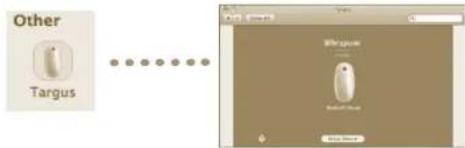
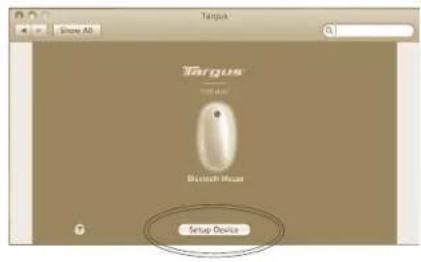
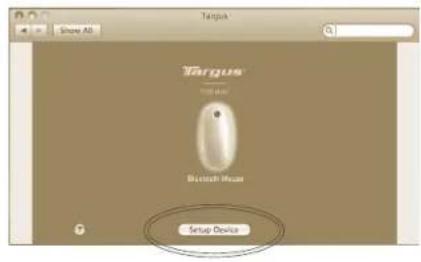
Click on the Targus logo to launch the device application.

Click to highlight the image of the device and then press "Setup Device" to launch the configuration software.
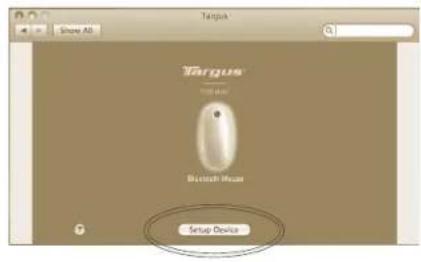
Bluetooth® Laser Mouse
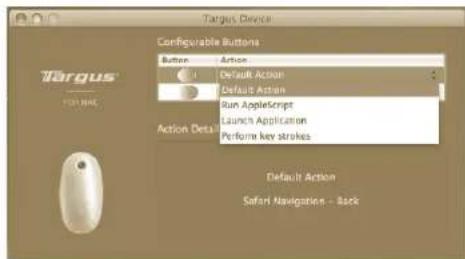
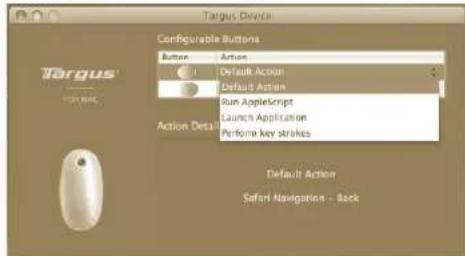
Click the arrows on the right-side of the drop down lists to configure each button.
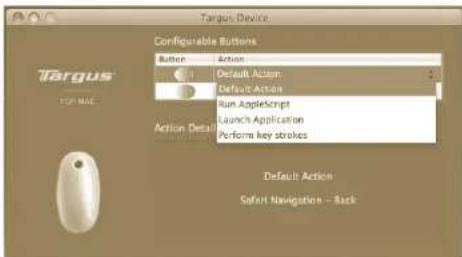
Each button can be programmed to any of the following types of functions:
| Default Action Set the | buttons to a specific function. |
| Run JavaScript Set the | the buttons to load an JavaScript |
| Launch Application | Set the buttons to launch specific application installed in the computer. |
| Perform key strokes | Set the button to recall key strokes. |
| Predefined functions | Set the button to map pre-set actions |
Close the application window to apply the changes.
Bluetooth Laser Mouse
Troubleshooting
The mouse is not working.
- Make sure the batteries are installed correctly. The positive (+) and negative (-) ends of each battery must match the positive (+) and negative (-) connections in the battery compartment.
Make sure the batteries are charged. Replace if necessary. - Verify that the computer is Bluetooth enabled.
-
Verify that the device drivers are installed:
-
Click "Apple Logo -> System Preference -> Hardware -> Bluetooth"
- Check under "Bluetooth Devices" that a "Targus Bluetooth Laser Mouse" is installed.
- Paired devices are always displayed in "Bluetooth" windows, even if the mouse is out of range or not powered up.

BHIMAHNE
JI3EPHA PAINALJRA. HE CE B3NPAIte B JbUa IN HE
JIIEAITE DNPEKTHOCONTNUHINHCTPYMEHTN.
JI3EPEH NPOyKT KLIAC I
HNKORA HE HACOUBAITE NA3EPEH JbU B OHTNE HA
Jpyr, KAKTO IN HE ILEAITE DNPEKTHOB JIA3EPEH
JbU, TbI KATO PIOBbIXNTEJIHOTO IN3JAIGAH
MOXJE DA E BPEIDHO 3A OHTNE.
MOMEHTHO TIOJIAHAHE HA CBETJINHATA OT
JI3EPHA IOKA3AJKA, KATO HANPIMEP CUYAHOTO
IPEMHHABAE HA JbUa IPE3 OHTNE PPIN YNOTPEBA,
MOXJE DA PNCHINBPEMEHHO 3ACJENRABE,
IPOO5HO HA EFEKTA OT CBETKABUNCA HA
ΦOTOANPAT. BbPKEY HE TOBA CbCTOHRNE E
BPEMEHHO, TO MOXJE DA E ONACHO, AKO JINIETO
N3IOXEOHO HA JbUa IN3BbPLUBA DEHOCCT, 3A KORTO
POJRTA HA 3PEHNETO E KPINTUHA, KATO HAPPMEP
YIPABJIEHNE HA ABTOMOBNJ.
Бezична мшka Targus Bluetooth®
BbBeHeHne
P3pAbeHnna 3a 3akynybaHETO Ha 6e3xHnHata Mmua Ka Targus c Bluetooth.
BHeNHaTaMa MHka N3nONBa 6e3XnHaTexHoNOrIa Bluetooth, oCnpyBaLa
HnepeKbChATA Bp3kBa O6xbat Or 33 ft (10 m).
CnCTeMHN n3nCKBaHn
Hardware
- PpeHocmMnn Hactoeh KOMnIOTp c Bluetooth
OnepaONHa cnCTema
Mac OS X (10.4 no No-Bncoka Bepnna)
MOHTIPAHe Ha 6aTePmnte
- N3non3BaIte BKNIOUOeHInTe DBe 6aTeepu AA.
- OCTpahaneta Kana Ka H a TnEHNeto 3a 6atepein n ocbo6dete 6ytoHa ot DOnHATA cTpaHa H MmKata.Cne KaTo kanaKbTe ce ocbo6do, npocTo ro NobuntheoT OOnHATA cTpaHa H MmKata.
- OoctabeTe 6aTePnTE, Kato ce yBePte He NoonoxTeHNHRT (+) in oTpiatEnHnR (-) noHocn Ha 6aTePnTa cBbNaDat C kya3aTeNTE 3a noJrnnET B OTdeneHnTe 3a 6aTePn.
Bluetooth Laser Mouse
CJeI KATO NOCTABNTE 6atepHTNE.3aTbOpeTe OTDeJIeHHeTO 3a 6atepNI, NOCTABRNI NpBPO npeHATA qACT H KANA H HAITCKAIK KOtAO UPAKHe HA MRCTO.
BKNIOHETe MIMKATA KATO NtB3Hete npeBknOHTaTeN 3a BkN./n3Kn.OT DOnHATA CTpHaB NOJIOXEHNE "BKn."

3A6EJEXKAA: BYTOHb3A 0B6OXOJAHE C DOKOCBAHE PIPMMRBA 2POI BnTcIEBKNIOUBAHE HA MIIUKATA,3A DA NOKAKJE,CE 3AXPAHAHETO E BKJIOHEHO.
HnDnKaTOp 3a HnCKO HnBO Ha 6aTepeyra

3AENEKKA: KORATO 3AXPAHBAHETO OT BATEPNA IMA HNCKO HNO, KOJIENOTO 3A INPEBbPTAHE HA MIIKKATA CBETN B UEPBEHO.CMEHETE BATEPNTTE.
Korato octaHAT 60 MNHyTN 3axpaHbAHe, 3aedcTBA 3a 8 cekyHn YepBeHa HNdkatopHa CBETnHa.
Korato octahe 3axpaHbAe cAmo 3a 30 MMHyTN, YepBeHaTa HndnKaToPA CBeTnHa 3anOyBa da npMmRrBa HnpeKbChATO.
N3noJ3BaHe Ha MmKkaTa
I3noJ3BaHe Ha KOJIeNoTo 3a npuDvIXBaHe C DOKOCBaHe
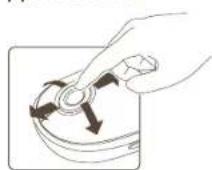
PnB3HETe npbcta cn HAD cEH3OpHATA oBnact HA KnoTTo 3a npDnBnKBAHe, 3a da nIINON3BaTe yHKNJIa 3A-4NoCooHNO pNpDnBnKAHe.
-ПиБЗНЕБзрпОпсStСн (Harope ИИн HAOpy) 南KoJIeNToIa 3pIbIbIbIbIbIbIbIbIbIbIbIbIbIbIbIbIbIbIbIbIbIbIbIbIbIbIbIbIbIbIbIbIbIbIbIbIbIbIbIbIbIbIbIbIbIbIbIbIbIbIcHyHKUJIaT3a6B3O pINDbIKBaHe,3aJa aKTHBUNPATE
HATNCHETe PPOB30BEHOTOH,3a da DEAKTBIBAPATEyHKMRTA 3b p30o PNDAIBXBAHE

3A5EENKKA:OTCTPAHETEAUHTHO TIOIJAICTMACOBO FOINOOT YCTPOINCTBOTO 3A PIPUNBIXBAHE C DOKOCBAHE IPEIN DA ITO H3NON3BATE.
HaJHIO KOHpynpaHe
IpeDu da 3anoHHe Ta u3noJbate Bluteoth MMkata, e Heo6xOIMO Ha Hapabnte HKON HAcTPOKn.

3A5EENKKA: INIIOJI3BAIHTE HAI-HOB IPAIBEP 3A YCTPOICTBO BLUETOOTH. EKPAHNTC INHCTPYKIM MOAT IA CE PA3JINHABAT, B 3ABNCMOCT OT BEPCNRTA HA IPAIBEPA HA YCTPOICTBOTO BLUETOOTH.
CodTyep 3a Bluetooth: Mac
- OTNDeHaIKOHATA BluTeoth Ha HAcToHnHa KOMNtBp Hn B CnCTeMHaTae HeHTa IIpaKaHete Bpyx Hc, 3a Da CTaptnPate. N36epete "Turn BleuTooth on"(BkIOBaHe Ha Bluetooth), 3a da AKTNbPate FyHKnrtAe Bluetooth Ha Mac.
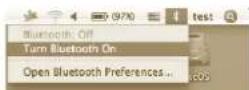
Bluetooth® Laser Mouse
2.Пидьнжerte ce HANOBy cnmcbka n36peTe "Set up Bluetooth device..." (Hactpoika Ha Bluetooth yctpoictBO)
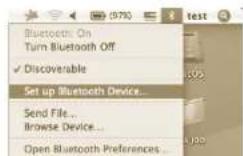
- Cstnpa cBbTeHnKa 3a HacTpoiKa Ha Bluetooth. CneBaIe HNCTpyKuInTe Ha ekpaHa.

Bluetooth® Laser Mouse
4.И36peTe"Mnka"I npakHeTe 3a npodbnjkeHne,3a da npabBte HactpoKata.Mnikata Tp8Ba"da OKPne"peKMHa CBp3BaHe.3a da AKTHBPATE peKMnHa "OKPnBaHe",BKIOyHee MInkata NcEi3 cekHyHn HATNCHEt PnpOBnEBn 6yTOH,3a Da BnEETe BPEKMHa OkTPBaHe.
- Komnotbpt3aonObaDa TaBpCN Mmukata.CneHAMnpAeTO n ce noKbBaMnCk.B.MapKnpaTe Mmukata HnatChete 6yToHa 3a npOkaKeHe.
Bluetooth® Laser Mouse
- Mmukata Bluetooth 3anoBa cBp3aHe. Hatnche 6yToHa 3a npDblkeHne.
- 03dpabneHHMnKkata Bluteoth n Hactpoeha MoxTe da a nnnon3BaTe. MoXeTe da n6epete da Hactpoite dpyro yctpoiCTBO nn da HATNCHTe "NxOaD" 3a da n1ne3eote ot HactpoKe.
Bluetooth Laser Mouse
HcTanipaneHa coΦTyep 3a ynpabneHne Ha yCTpoiCTBOTO
HCTanipapheoHa cointyepa papea Kaonfumpypapae Ha nporpaMpyem 6ytoHN.
HaHHOBITEcoFTEyep(AMBO8#HaMoDena)MOKe Da6bDeNTERHeOfOuHuaHnHyaye6caHTHaTargus:
http://www.targus.com/uk/Downloads/AMB08EU.dmg
UpaKHTe DBykpatHO Bbpxy IKohata, 3a Da CTapTnpate IHCTanipaHe Ha coDfTyepa.
CneBaaTe HNCTpyKunnte Ha ekpaHa 3a 3abpbwBaHe Ha INHCTaNaTnTa.
Bluetooth® Laser Mouse
CnE ycnueHOTo HCTaHpaHe Ha coFtyepa, pectaptnpaTe KOMNIObpa, 3a Da npNKIOHTe C HCTanaUNTA.
B npo3opeua 3a cnTeMHn npeIIOuHTAHnCe nOBA hKOHaTa Ha Targus.
Bluetooth Laser Mouse
IporpamnpaHe Ha 6yToHInTe
UpaKHeBbpyEm6nemataHaTargus,3a da cIaptnpate H3non3BaHTo Ha yCTPOCTBOTO.
UppaKeHTe,3a Da oTkoHTE o6pa3a Ha yCTpoIcTB0To HATiCHETe "Setu Device" (HaCtpoKa Ha ycTpoIcTB0To), 3a Da CTapTHpate coOpTyepa 3a KOHdRpyPnAe.
Bluetooth® Laser Mouse
UpaKHTe Bbpxy CTpeKATA OT DaChATA CTpHa HA naaunte cnncbun, 3a da KOHmpympate BCEknto Bytonite.
BceKbIyToH MoKe Da 6bIe nporpaMpaH C HraKo OT CnEHNTE TINOBe FyHKU:
Tto TnpdBupo System Preferences (PpOtnHoeic yia to ouotma) 8eepavioTe to eikovio Targus.
Bluetooth Laser Mouse
PpoypaumiooswKoupiow
Kavte kai oto loyotuto Targus yia ekkivn th epapoyns oukeuic.
KAVTE KAI VIA VA ETNIIEETE TNY EIKVA TNC OUKEUNC KAI, OTN OUVEXEA THEATE PUDsE Device (PUθμIση ΜΟΑΚΕΝΙς) VIA EKKIVNΩ NCS PUIθβIαns TAPApETpuw Tou Aoyiαjoukou.
Bluetooth® Laser Mouse
Kavte Kaik Ota Bael Otn Deia Tuaav aattuooeuv Aotuv ia vpuioie Tnapaetpouc Kkoumu
Mropeite va npoypauiote kabe koumtia via otioovntore attoous aokolououc turous aeitoupyiwv:
Mac OSX 10.4 or later
Instalacija baterija
- Molimo koristite dvije AA baterije prilozene u paketu.
- Skinite plokopac spremnika za baterije takdo da pritsnete dugme za oslobadanje koje se nalazi s donje strane miša i pogumetePoklopac prema naprijed. Kad sePoklopac oslobodi, odvojite ga Jednostavnim podizanjem prema gore.
- Umetnite baterije pazeci da se positivni (+) i negativni (-) polovi svake baterijePoklapaju s indicatorima polova u spremniku za baterije.
Bluetooth Laser Mouse
Kada ste umetnuli baterjie, zalvorile spremnik takto slo cete najprije umetniti prednji dio poklopca u predvidene utore, a zatim pritsnutri straznji dio dok ne sjedne na prevideno mesto.
KoHpyaInepeHaanpaObToB
PereT hK npriCTyHb K pAbote C mblbIO Bluetooth, Heo6xoJIMMO bIOnHNTM PRd NOgROTBHTeBhBIX DeETCBN.

PIMMEAHHE:NCIOB3VTE CAMBI COBPEMEHHBIN DPAIBEP
DII BLUETOOTH. B 3ABMCIOCTN OT BEPCNI DPAIBEPA DIA
YCTPOICTBA C ΦHILNEI BLUETOOTH 3KPAHBI C INHCTPYKLJRMN
MOTY HECKOJIbKO OTNIHATCB.
PporpamMHOe oecneueHHe:Mac
JHnne no 306paekEHNO yctpoCTBA, 3aTeM hAKMNTE "HaCPToHT paBOTy ycptocTa" (Setup Device) dIaI aNycka npOrpAMMHO oBeceHHe Ira KOnHpyaun.
Bluetooth® Laser Mouse
UeKHTne no cTpeKAM BpackpbBaHOxCnCckxCnpaba,YTO6b3aAdtB KOHpypaIIO IIA KAXDOI KHONKI.

JaKaKdoi KhoNk MoKHO 3aDabT NIO6yO n3 CneDyOuXn TINOB yHKm;

- Targus Bluetooth Laser Mouse
- Introduction
- System Requirements
- Hardware
- Operating System
- Bluetooth® Laser Mouse
- Installing the Batteries
- Low Battery Power Indicator
- Using the Mouse
- Using the Touch Scroll
- Initial Configuration
- Bluetooth Software: Mac
- Bluetooth Laser Mouse
- Installing Software for Programmable Buttons
- Programming the Buttons
- Troubleshooting
- The mouse is not working.
- BHIMAHNE
- Бezична мшka Targus Bluetooth®
- BbBeHeHne
- CnCTeMHN n3nCKBaHn
- MOHTIPAHe Ha 6aTePmnte
- HnDnKaTOp 3a HnCKO HnBO Ha 6aTepeyra
- N3noJ3BaHe Ha MmKkaTa
- I3noJ3BaHe Ha KOJIeNoTo 3a npuDvIXBaHe C DOKOCBaHe
- HaJHIO KOHpynpaHe
- CodTyep 3a Bluetooth: Mac
- HcTanipaneHa coΦTyep 3a ynpabneHne Ha yCTpoiCTBOTO
- IporpamnpaHe Ha 6yToHInTe
- PpoypaumiooswKoupiow
- Instalacija baterija
- KoHpyaInepeHaanpaObToB
- PporpamMHOe oecneueHHe:Mac
Brand : TARGUS
Model : AMB08EU
Category : Mouse