
ZenWifi AX XD6 - Wireless Router ASUS - Free user manual and instructions
Find the device manual for free ZenWifi AX XD6 ASUS in PDF.
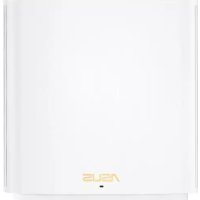



| Product type | Wireless router WiFi 6 (AX) |
| Brand | Asus |
| Model | ZenWifi AX XD6 |
| Wireless technology | WiFi 6 (802.11ax) |
| Network ports | 1 WAN RJ-45 port, 3 LAN RJ-45 ports |
| Power supply | 12V DC power adapter, 2A max |
| Operating temperature | 0 to 40 °C |
| Storage temperature | 0 to 70 °C |
| Operating humidity | 50 to 90 % RH |
| Storage humidity | 20 to 90 % RH |
| Main features | AiMesh system, Ethernet backhaul, access point mode, ASUS Router app |
| LED indicators | Blue (ready for setup), White (online), Yellow (weak signal), Red (no internet / node disconnected) |
| Configuration | Via ASUS Router app or web interface http://router.asus.com |
| Maintenance and cleaning | Disconnect the device, clean with a soft dry cloth. Do not use liquid or abrasive products. |
| Safety | Use only the provided adapter. Do not expose to water or excessive humidity. Avoid heat sources. |
| Spare parts and repairability | No user-serviceable parts. In case of failure, contact Asus support. |
Frequently Asked Questions - ZenWifi AX XD6 ASUS
User questions about ZenWifi AX XD6 ASUS
0 question about this device. Answer the ones you know or ask your own.
Ask a new question about this device
Download the instructions for your Wireless Router in PDF format for free! Find your manual ZenWifi AX XD6 - ASUS and take your electronic device back in hand. On this page are published all the documents necessary for the use of your device. ZenWifi AX XD6 by ASUS.
USER MANUAL ZenWifi AX XD6 ASUS
EAST Networking Solutions
FARTHEST-EASY-SECURE-TRUSTED
ASUS ZenWiFi XD6
AX5400 Dual Band WiFi Router
Model: XD6
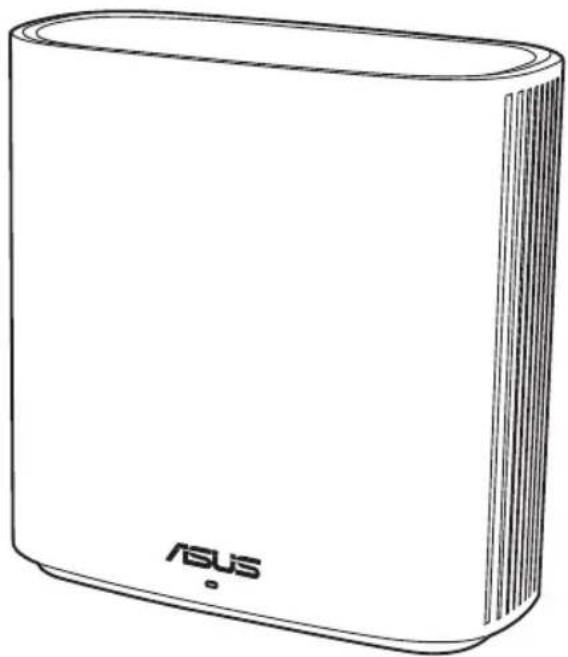
Quick Start Guide
U18146/First Edition/April 2021

Table of contents
English 3
Bulgarian 8
Croatian 13
Czech 18
Danish 23
Dutch 28
Estonian 33
French 38
Finnish 43
German 53
Greek 53
Hungarian 58
Italian 63
Lithuanian 68
Latvian 73
Norwegian 78
Portuguese 83
Polish 88
Russian 93
Romanian 98
Spanish 103
Serbian 108
Slovak 113
Slovene 118
Swedish 123
Turkish 128
Ukrainian 133
138
143
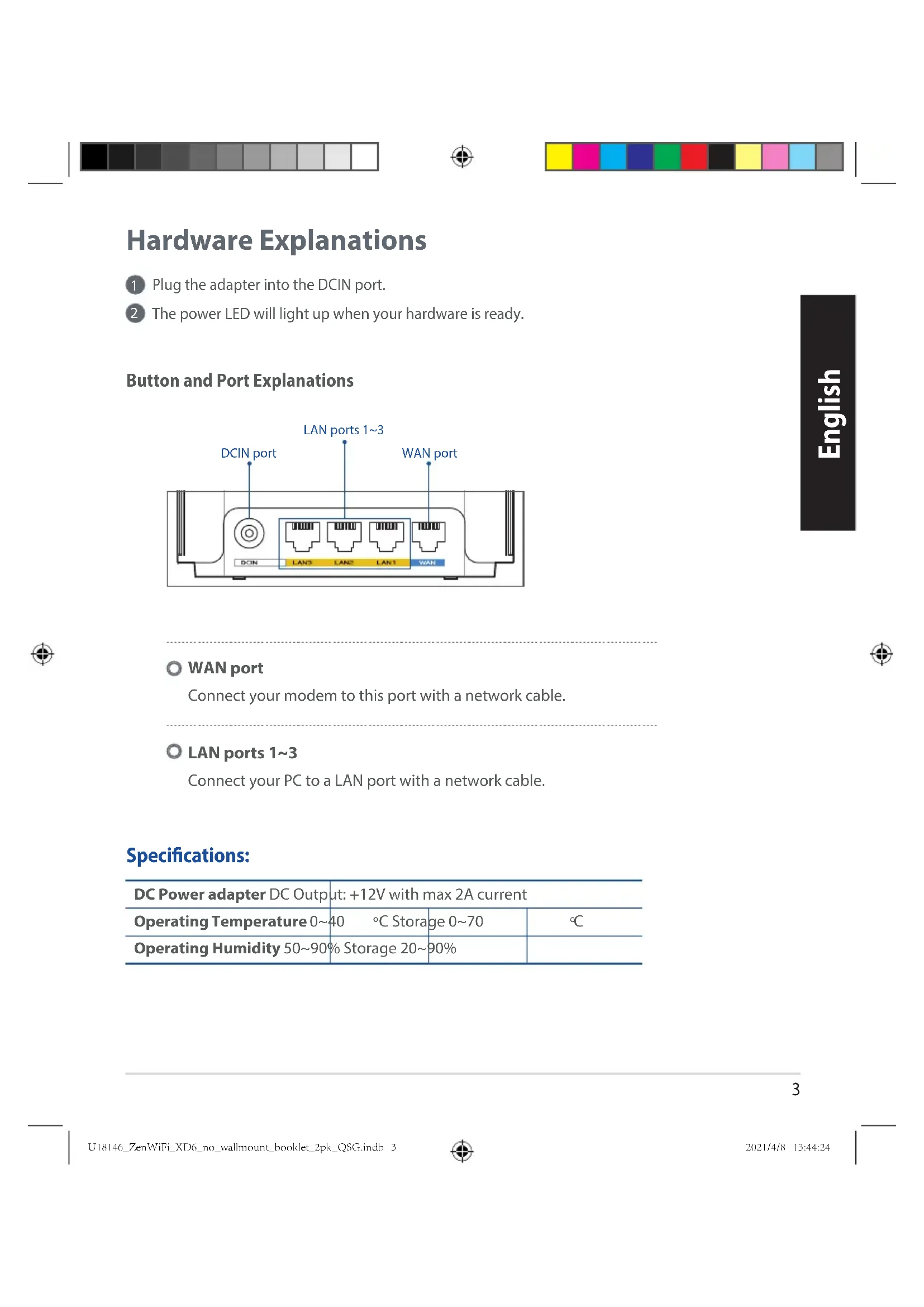
Hardware Explanations
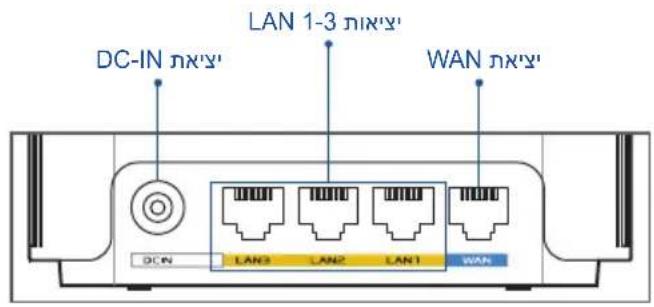
Plug the adapter into the DCIN port. The power LED will light up when your hardware is ready.
Button and Port Explanations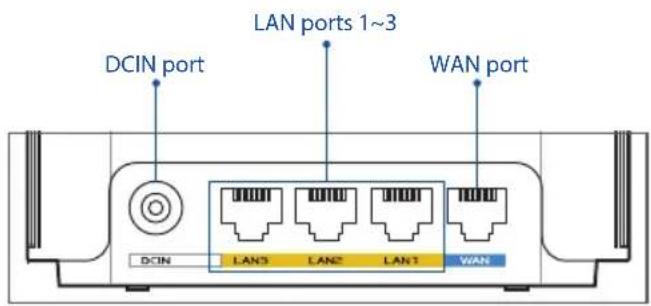

WAN port
Connect your modem to this port with a network cable.
LAN ports 1~3
Connect your PC to a LAN port with a network cable.
Specifications:
| DC Power adapter DC Output: +12V with max 2A current | |||
| Operating Temperature 0~40 °C Storage 0~70 | °C | ||
| Operating Humidity 50~90% Storage 20~90% | |||
Before Setup
Preparing to set up an AiMesh WiFi system
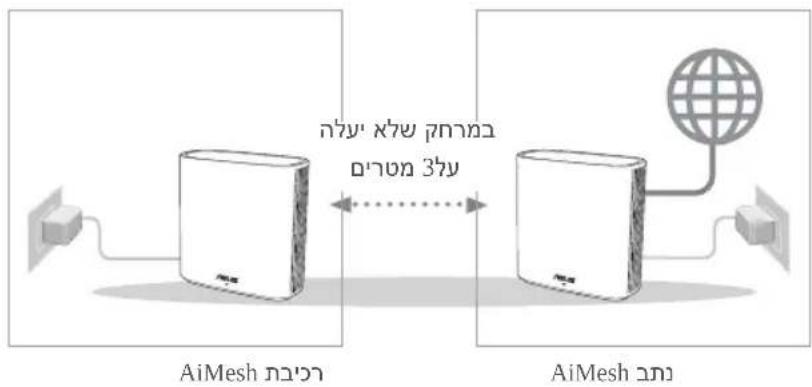
Find two ZenWiFi XD6 units and power them on. Use a network cable to connect your optical modem to the WAN port of either ZenWiFi XD6. This ZenWiFi XD6 will be the AiMesh router, and the other ZenWiFi XD6 will be the AiMesh node. The LED turns solid blue to indicate that the ZenWiFi XD6 is ready for setup.
AiMesh router / AiMesh node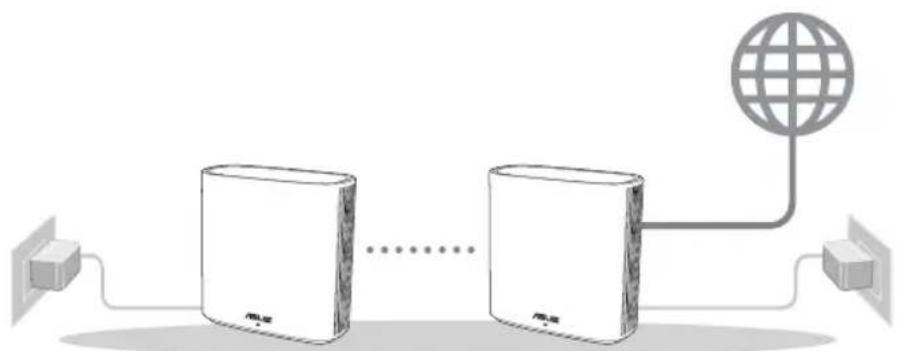
AiMesh Setup Steps
ASUS Router App
Download the free ASUS Router app to set up and manage your router(s).

ASUS Router


GET IT ON Google Play


Download on the App Store



AiMesh Setup Steps
01 Prepare
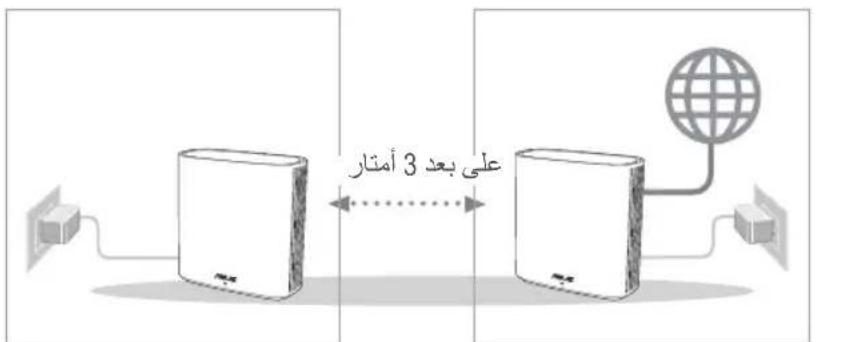
Place your ZenWiFi XD6 router and node within 3 meters of each other during the setup process.
AiMesh router / AiMesh node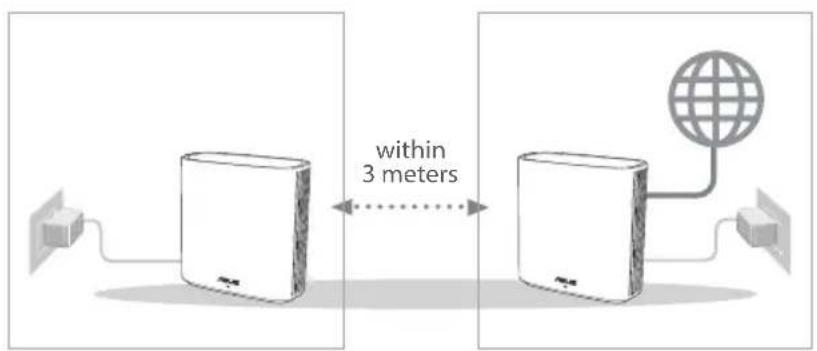

02 AiMesh node
Keep your AiMesh node powered on and standby for AiMesh system settings.
03 Launching ASUS Router APP
Launch ASUS Router APP, and then follow the on-screen instructions to finish the AiMesh setup.

Troubleshooting
If your AiMesh router cannot find any AiMesh node nearby or synchronization fails, please check the following and try again.
a Move your AiMesh node closer to the AiMesh router ideally. Ensure that it is within 3 meters. b Your AiMesh node is powered on.
Relocation
Locate the AiMesh router and node at the best place.

NOTES: To minimize interference, keep the routers away from devices like cordless phones, Bluetooth devices and microwave ovens.
We recommend that you place the routers in an open or spacious location.
ZenWiFi XD6 LED indications
Solid blue:
Your ZenWiFi XD6 is ready for setup.
Solid white:
Your ZenWiFi XD6 is online and works well.
Solid yellow:
The signal between your ZenWiFi XD6 router and the node is weak.
Solid red:
Your ZenWiFi XD6 router has no Internet connection. / Your node is disconnected from the router.
FAQ
Frequently Asked Questions
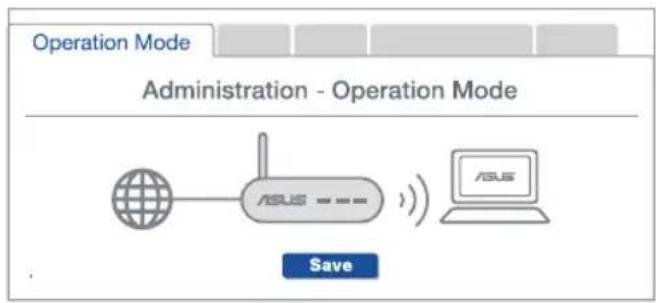
Q1: Does the AiMesh router support Access Point mode?
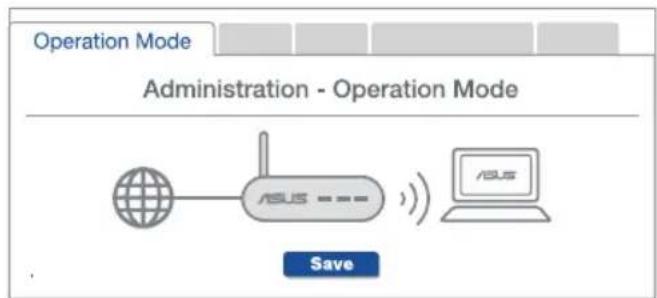
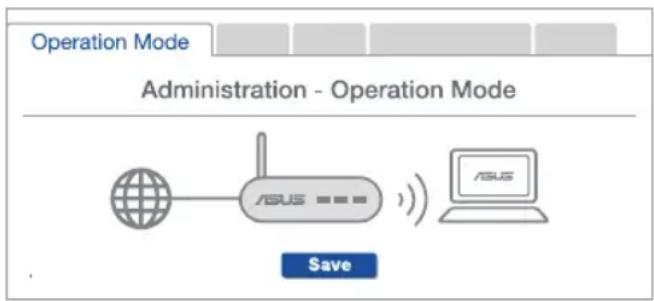
A: Yes. You can choose to set the AiMesh router as router mode or access point mode. Please go to web GUI (http://router.asus.com), and go to the page Administration > Operation Mode.
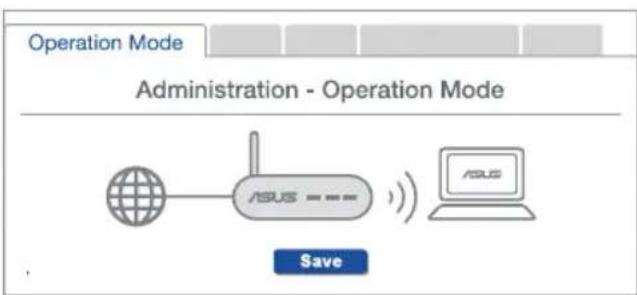
Q2: Could I setup wired connection between AiMesh routers (Ethernet backhaul)?
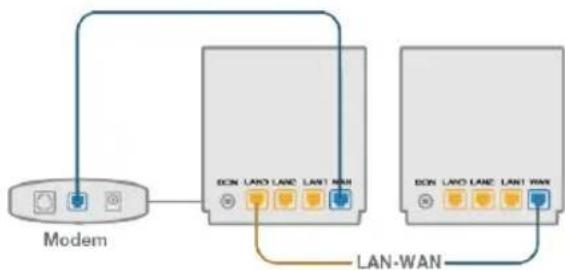
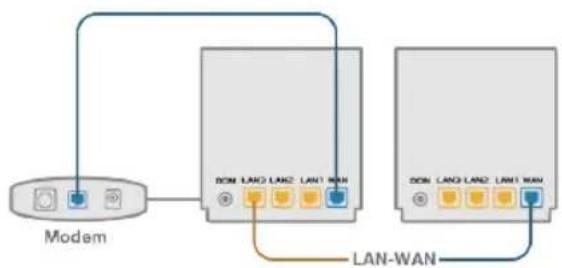
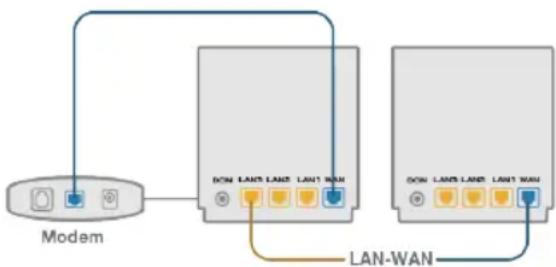
A: Yes. AiMesh system supports both wireless and wired connection between AiMesh router and node to maximize throughput and stability. AiMesh analyzes the wireless signal strength for each frequency band available, and then determines automatically whether a wireless or wired connection is best to serve as the inter-router connection backbone.
1 Follow the setup steps to establish a connection between the AiMesh router and node via WiFi first.
Place the node in the ideal locations for best coverage. Run an Ethernet cable from the LAN port of the AiMesh router to the WAN port of AiMesh node.
3 AiMesh system will auto-select the best path for data transmission, whether wired or wireless.
06acheHHa 6yToHnTe n nopTobete
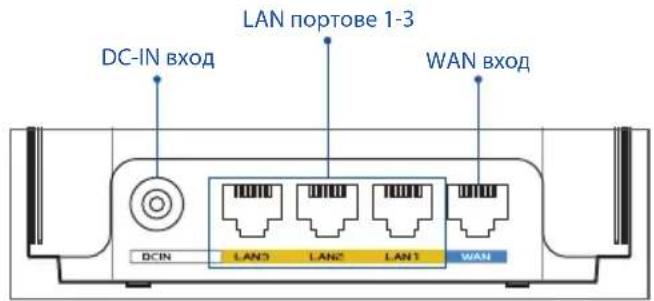
WANbxoA
Connect your modem to this port via an Ethernet cable.
LAN ports 1-3
Connect your computer to the LAN port via an Ethernet cable.
Technical specifications:
| Адампета зaxphaнвае с прав тok | Изхов за прав тok: +12V с макс. 2A тok | ||
| РавOTа Temпература 0~40 | °C CBхра | He- Нe | 0~70°C |
| Влажност ри павота 50~90% | % CBхрае- | 20~90% | |
PRELIMINARY SETUP
Preparation for AiMesh WiFi system installation
1. Unpack the two ZenWiFi XD6 units and plug them in. 2. Use an Ethernet cable to connect your optical modem to the WAN port of the ZenWiFi XD6. This ZenWiFi XD6 will function as the AiMesh router, and the other ZenWiFi XD6 will be the AiMesh node. 3. The LED should light up solidly to indicate that the ZenWiFi XD6 is ready for setup.
AiMesh node AiMesh router Steps for AiMesh installation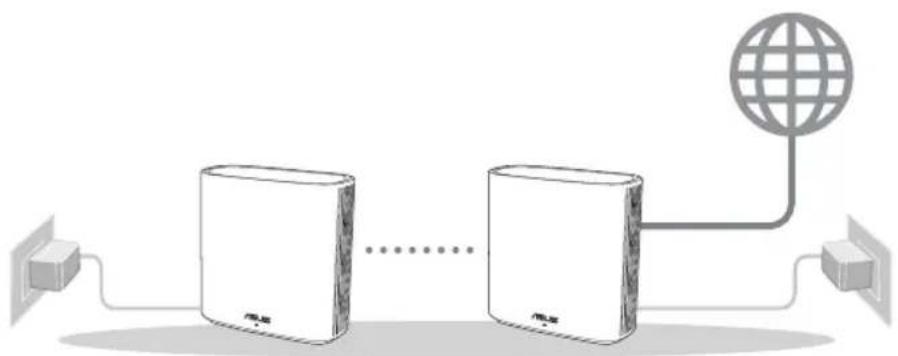
ASUS ROUTER APP
Download the free ASUS Router app to configure and manage your router(s).
ASUS Router




Steps for AiMesh installation
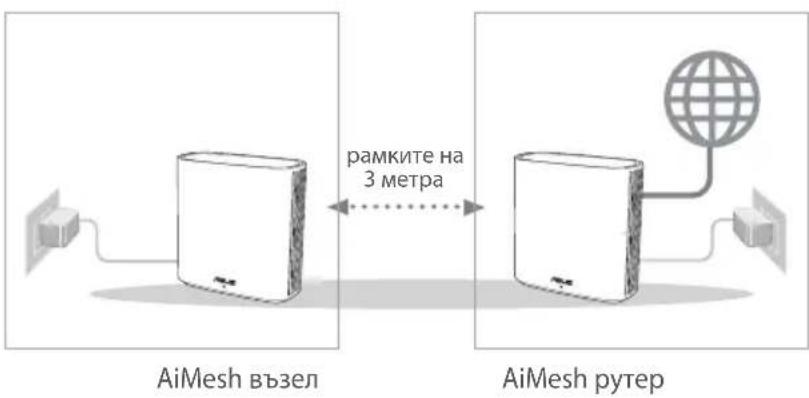
01 Preparation
Place the ZenWiFi XD6 routers at a distance of 3 meters from each other during the setup process.

02 AiMesh Setup
Keep the power on and ready for AiMesh system setup.
03 Launch the ASUS Router App
Launch the ASUS Router app, then follow the on-screen instructions to complete the AiMesh setup.
Download on the App Store
FREQUENTLY ASKED QUESTIONS
Download on the App Store
Download on the App Store
AiMesh Setup Guide
01 Prepare
FREQUENTLY ASKED QUESTIONS
Q1: Does the AiMesh router support Access Point mode?
Download on the App Store
AiMesh Setup Steps
01 Preparation
Place the ZenWiFi XD6 and your device within 3 meters of each other during the setup process.
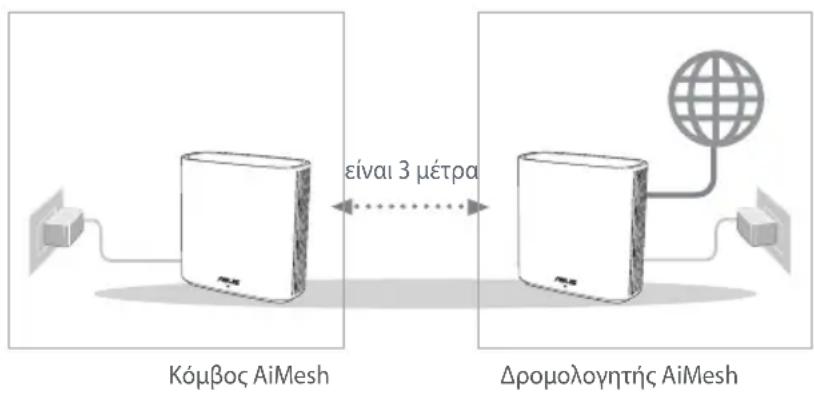

02 AiMesh Node
Keep it in operation mode for the AiMesh system settings.
03 Launching the ASUS Router App
Launch the ASUS Router app and then follow the on-screen instructions to complete the AiMesh setup.
Download on the AppStore
OSS OFTE STILTE SPØRSMÄL
Q1: Does the AiMesh router support access point mode?
A: Yes. You can choose to set the AiMesh router in router mode
or access point mode. Go to the web interface (http://router.asus.com), and go to Administration > Operation Mode.
Q2: Can I set up a wired connection between AiMesh routers (Ethernet backhaul)?
Preparation and setup of the AiMesh Wi-Fi system
1 Find the two ZenWiFi XD6 units and plug them in. Using a network cable, connect one to the WAN port of any ZenWiFi XD6. This ZenWiFi XD6 will be the AiMesh router, and the other ZenWiFi XD6 will be the AiMesh node. 3 The LED indicator with a solid light indicates that the ZenWiFi XD6 is ready for use.
AiMesh router AiMesh node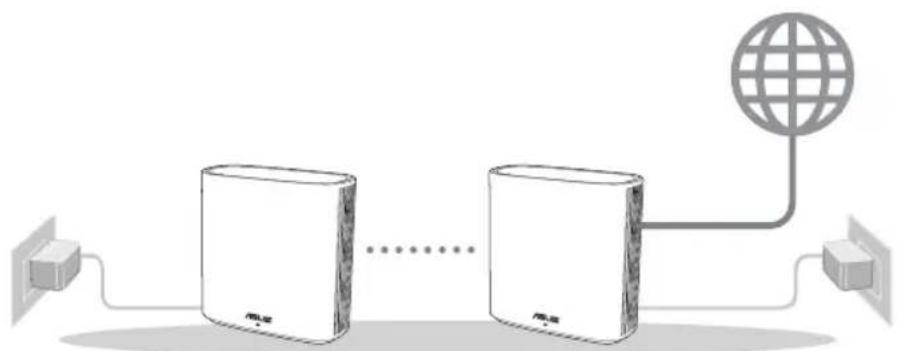
ASUS Router app setup
ASUS Router app
Download on the App Store
Troubleshooting
If the AiMesh router cannot find an AiMesh node or an error occurs during synchronization, follow the instructions below and retry.

Move the AiMesh node closer to the AiMesh router. Make sure they are within a distance of no more than 3 meters.

AiMesh nodes are powered on.
Move
Improve performance
Find the best location for the AiMesh router and nodes.

NOTE: Reduce interference from wireless devices, such as cordless phones, Bluetooth devices, and microwave ovens. It is recommended to place the router in an open and spacious area.
ZenWiFi XD6 indicator

Solid:
Router is ready for setup.

Solid white:

Download on the App Store
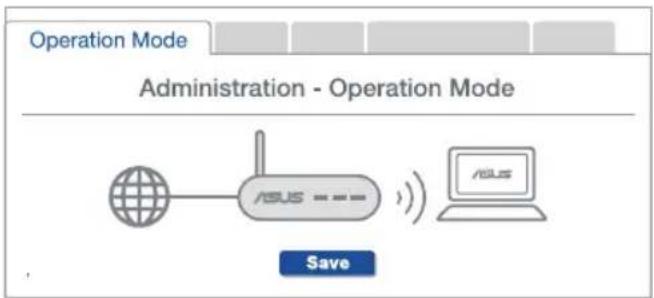
Q: Does the ASUS router support AiMesh in Access Point mode?
A: Yes. You can install the AiMesh router in Router mode or Access Point mode. Go to the graphical web interface (http://router.asus.com) and go to Administration > Operation Mode.
AiMesh WiFi


ASUS
ASUS Router APP

ASUS Router


GET IT ON
Google Play


Download on the
AppStore




AiMesh
1
3 3 3 3 3 3 3 3 3 3 3 3 3 3 3 3 3 3 3 3 3 3 3 3 3 3 3 3 3 3 3 3
AiMesh AiMesh

AiMesh
2
AiMesh 1
ASUS 3
ASUS Router App AiMesh

(uaa) Troubleshooting
AiMesh

Connect the AiMesh system via Bluetooth and use the ASUS router app for setup.
LED ZenWiFi XD6
:
ZenWiFi XD6

XD6

Vertical placement!

ZenWiFi XD6
1, 2, 3 + 1, 2, 4 + 1, 3, 4 = 6

ZenWiFi XD6




glial 1
FAQ
"Jgai" AiMesh jgs
1
Jgglalabagj g jg jg AiaMesh g jg jg jg jg jg jg jg .A I (http://router.asus.com) 100000000000000000000000000000000000000000000000000000000000
? (i) AiiMesh j
:2
Aimesh 5uui AImesh 5uui A: A
.5iWiFiJdAimesh 1
LAN 2
3




nnnn by on
.DC-IN 7xnnn

n nn nnnnnnnnnnnnnnnnnnnnnnnnnnn

nixy
WAN

JN 1
LAN 1-3

LAN
:079n
| 2A kWh DC+12V w/m3 | (DC) n°790 | ||
| °C~0 | 40°C~0 | ionx70 kWh w/m3 | |
| 90%~50 | ionx90%~20 kWh w/m3 | ||




nann 94
AiMesh WiFi
ZenWiFi XD6

ZenWiFi XD6 WAN
AiMesh ZenWiFi XD6, AiMesh ZenWiFi XD6
ZenWiFi XD6


AiMesh AiMesh AiMesh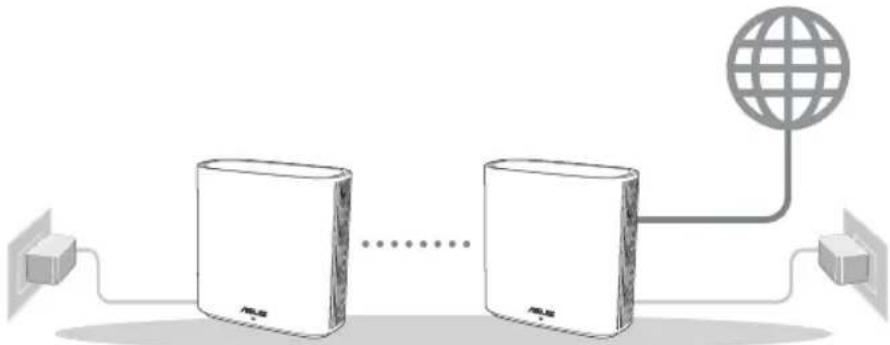
ASUS ROUTER
ASUS Router
ASUS Router

GET IT ON Google Play

Download on the App Store

AiMesh
pn 01
AiMesh
AiMesh 02
ASUS Router 03
N 701111111111111111111111111111111111
AiMesh



#
N
JU 0100
W
AiMesh 3
AiMesh


Dipn
AiMesh

ZenWiFi XD6

ZenWiFi XD6


ZenWiFi XD6
ZenWiFi XD6
146




nixi nihxu
nixi
?AP) nnnn nn AImesh nn
:1u
n nn nnnn nn nnnn nn nnnn nn nnnn nn nnnn nn nnnn nn nnnn nn nnnn nn nnnn nn nnnn nn nnnn nn nnnn nn nnnn nn nnnn nn nnnn nn nnnn nn nnnn nn nnnn nn nnnn nn nnnn nn nnnn nn nnnn nn nnnn nn nnnn nn nnnn nn nannn nn nnnn nn nnnn nn nnnn nn nnnn nn nnnn nn nnnn nn nnnn nn nnnn nn nnnn nn nnnn nn nnnn nn nnnn nn nnnn nn nnnn nn nnnn nn nnnn nn
http://router.asus.
TnXnvi,com
) Administration
Operation < ( nyn
(nyox) Mode
?(wnnnn) AiMesh n nn n nn n nn
:2v
AiMesh nnnn nn nnnn AiMesh noyn .n nn nnnn nn nn nn nn nn nn nn nn nn nn nn nn nn nn nn nn nn nn nn nn nn nn nn nn nn nn nn nn nn nn nn nn nn nn nn nn nn nn nn nn nn nn nn nn nn nn nn nn nn nn nn nn nn nn nn nn nn nn nn nn nn nn nn nn nn nn nn nn nn nn nn nn nn nn nn nn nn nn nn nn nn nn nn nn nn nn nn nn nn nn nn nn nn nn
.
WiFi nixnX AiMesh
1
nnnnnnnnnnnnnnnnn
.
ynnn nn
AiMesh LAN
AiMesh nn LAN-n
n nn nnnnnnnnnnnnnnnnnnnnnnnnnnnnnnnnnnnnnnnnnnnnnnnnnnnnnnnnnnnnnnnnnnnnnnnnnnnnnnnnnnnnnnnnnnnnnnnnnnnnnnnnnnn
17, 17
JINHIN
2
3

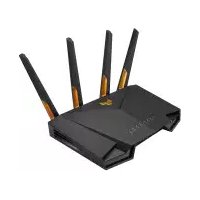
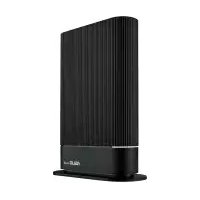
- ASUS ZENWIFI XD
- TABLE OF CONTENTS
- HARDWARE EXPLANATIONS
- WAN PORT
- LAN PORTS
- BEFORE SETUP
- ASUS ROUTER APP
- AIMESH SETUP STEPS
- PREPARE
- AIMESH NODE
- LAUNCHING ASUS ROUTER APP
- TROUBLESHOOTING
- RELOCATION
- ZENWIFI XD6 LED INDICATIONS
- FAQ
- FREQUENTLY ASKED QUESTIONS
- Q1: DOES THE AIMESH ROUTER SUPPORT ACCESS POINT MODE
- Q2: COULD I SETUP WIRED CONNECTION BETWEEN AIMESH ROUTERS (ETHERNET BACKHAUL)
- ACHEHHA 6YTOHNTE N NOPTOBETE
- WANBXOA
- TECHNICAL SPECIFICATIONS
- PRELIMINARY SETUP
- STEPS FOR AIMESH INSTALLATION
- PREPARATION
- AIMESH SETUP
- LAUNCH THE ASUS ROUTER APP
- AIMESH SETUP GUIDE
- LAUNCHING THE ASUS ROUTER APP
- OSS OFTE STILTE SPØRSMÄL
- MOVE
- IMPROVE PERFORMANCE
- ZENWIFI XD6 INDICATOR
- AIMESH
- (UAA) TROUBLESHOOTING
- GLIAL
- NNNN BY ON
- NANN
- AIMESH WIFI
- ASUS ROUTER
- DIPN
- ZENWIFI XD
- NIXI NIHXU
- NIXI
Brand : ASUS
Model : ZenWifi AX XD6
Category : Wireless Router