
Predator Z321QU - Monitor ACER - Free user manual and instructions
Find the device manual for free Predator Z321QU ACER in PDF.
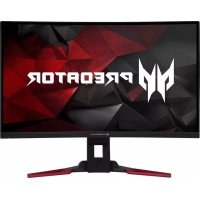



| Product Type | LCD Monitor |
| Brand | Acer |
| Model | Predator Z321QU |
| Screen Size | 31.5 inches (80 cm) |
| Maximum Resolution | 2560 x 1440 pixels (DP: 165 Hz, HDMI: 60 Hz) |
| Panel Technology | VA (Vertical Alignment) |
| Typical Brightness | 300 cd/m² |
| Native Contrast | 3000:1 |
| Response Time | 4 ms (GTG) |
| Viewing Angle (Horizontal/Vertical) | 178° / 178° |
| Built-in Speakers | Yes, 2 x 7 W |
| Input Connectors | HDMI, DisplayPort, USB 3.0 x 4 (hub) |
| Dimensions (W x H x D) | 712.7 x 484~604 x 298.3 mm |
| Net Weight | 10.1 kg |
| Power Supply | 100-240 V ~ 50/60 Hz |
| Power Consumption (On) | 45 W (typical) |
| Power Consumption (Standby) | 0.5 W (typical) |
| Ergonomic Adjustments | Tilt -5° to +25°, Swivel +/-25°, Height 120 mm |
| OSD Functions | Brightness, Contrast, Blue Light, Dark Boost, Adaptive Contrast, Gamma, Color Temperature, Saturation, 6-Axis Color, Volume, Overdrive, Overclocking, Aim Point |
| G-SYNC Compatibility | Yes (via DisplayPort, requires compatible NVIDIA GPU) |
| Recommended Cleaning | Unplug, use a soft lint-free cloth with solvent-free solution |
| Safety | Do not expose to water or rain, do not open the casing, storage between -20°C and 60°C |
| Repairability | Repairs must be carried out by a certified technician |
Frequently Asked Questions - Predator Z321QU ACER
User questions about Predator Z321QU ACER
0 question about this device. Answer the ones you know or ask your own.
Ask a new question about this device
Download the instructions for your Monitor in PDF format for free! Find your manual Predator Z321QU - ACER and take your electronic device back in hand. On this page are published all the documents necessary for the use of your device. Predator Z321QU by ACER.
USER MANUAL Predator Z321QU ACER
Please read the following instructions carefully.
- To clean the LCD monitor screen:
- Turn off the LCD monitor and unplug the power cord. Spray a non-solvent cleaning solution onto a rag and clean the screen gently.
- Do not place the LCD monitor near a window. Exposing the monitor to rain, moisture or sunlight can severely damage it.
- Do not apply pressure to the LCD screen. Excessive pressure may cause permanent damage to the display.
- Do not remove the cover or attempt to service this unit yourself. An authorized technician should perform servicing of any nature.
- Store the LCD monitor in a room with a temperature of -20° to 60° C (-4° to 140° F). Storing the LCD monitor outside this range may result in permanent damage.
- Immediately unplug your monitor and call an authorized technician if any of the following circumstances occur:
Monitor-to-PC signal cable is frayed or damaged. Liquid spills onto the LCD monitor or the monitor is exposed to rain. The LCD monitor or case is damaged.
- In order to prevent damage to the LCD panel, do not place the monitor face down on a surface.
Connecting your monitor to a computer
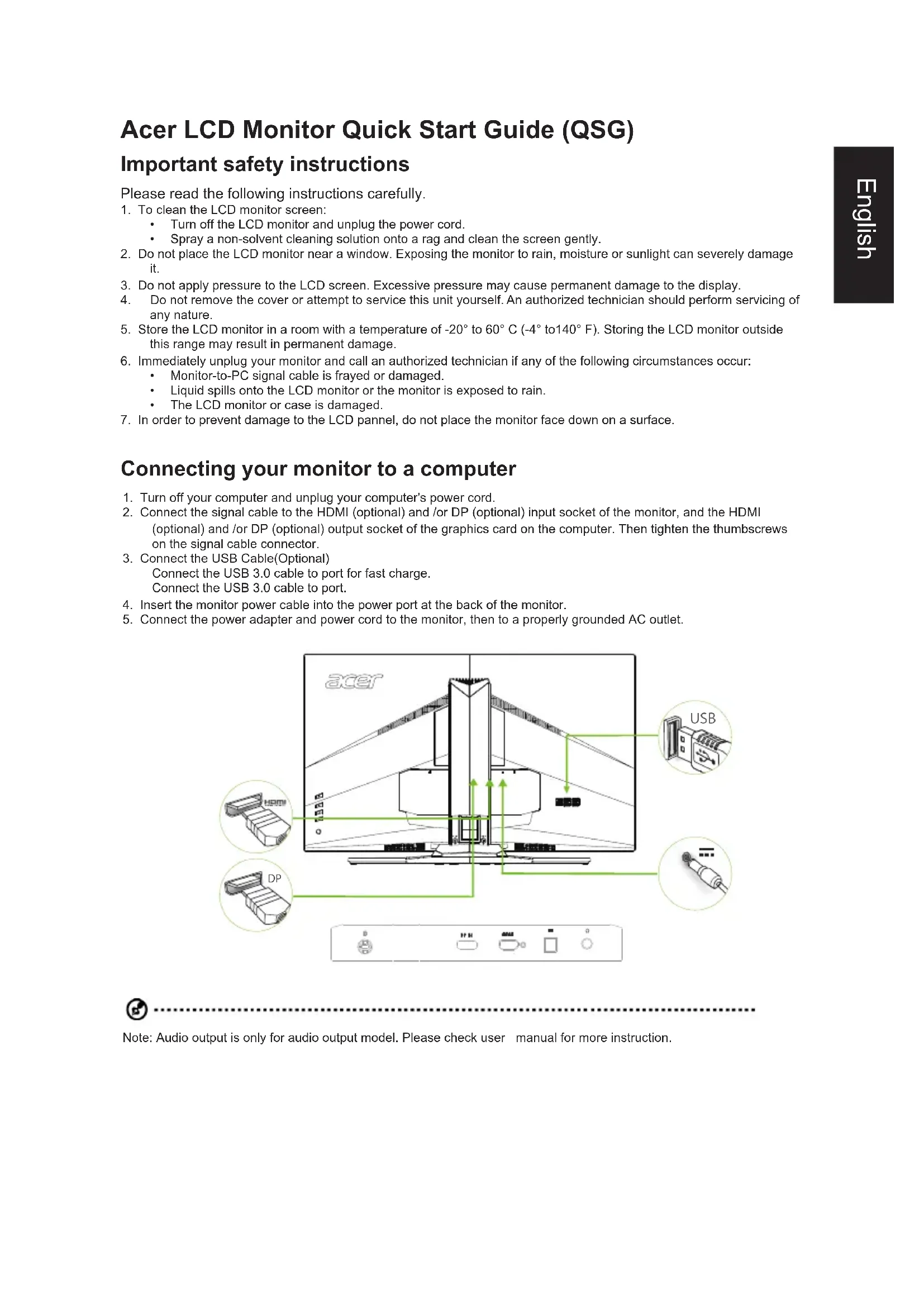
- Turn off your computer and unplug its power cord.
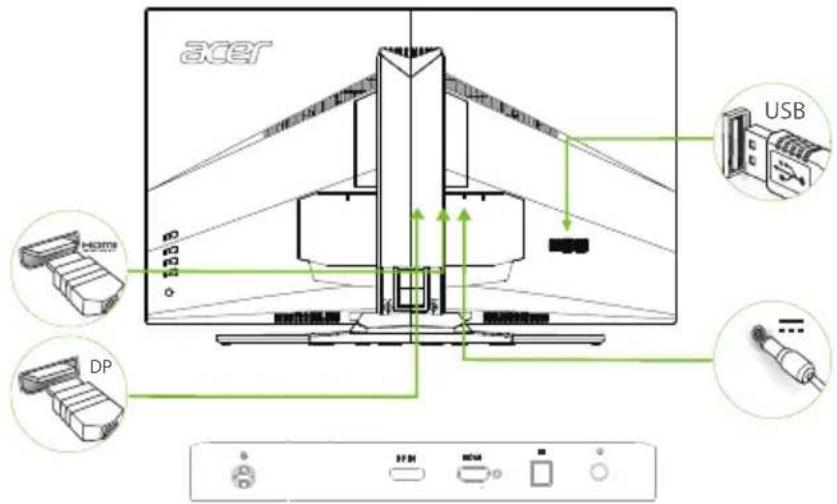
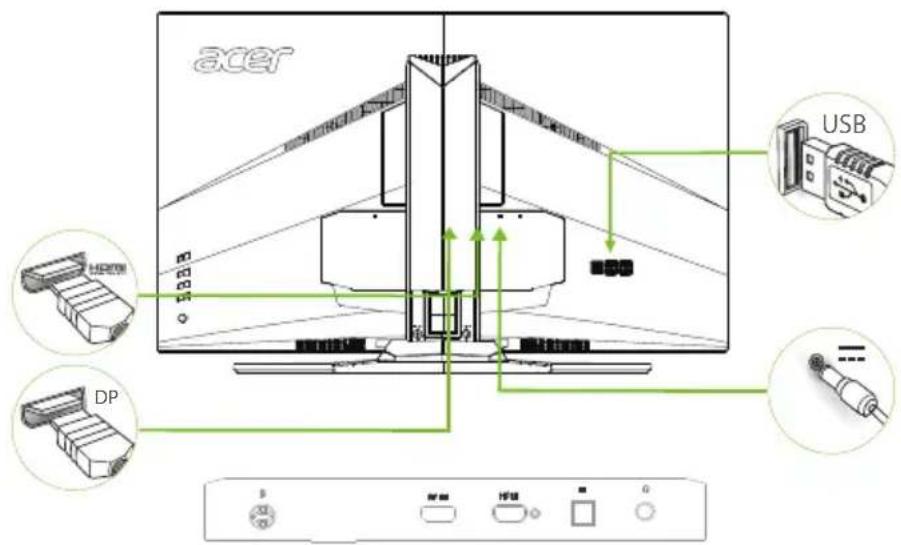
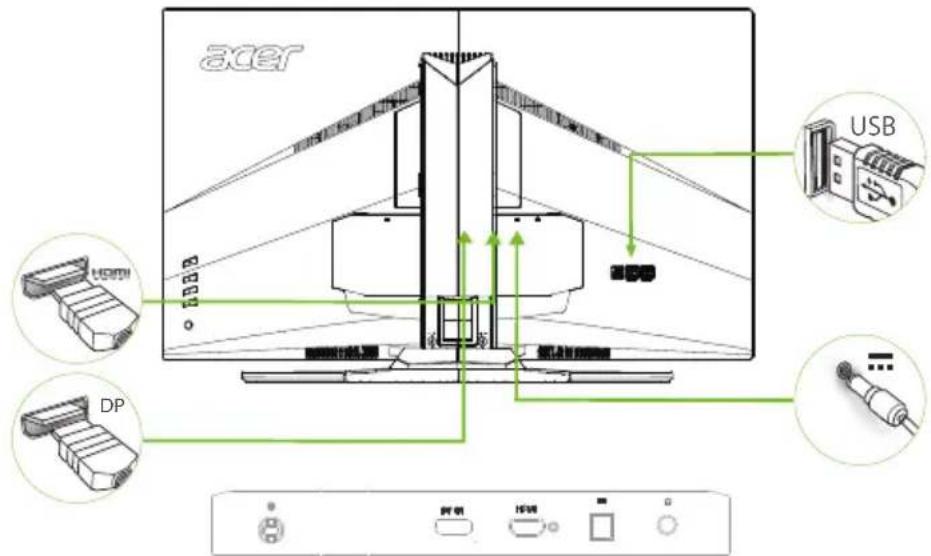
- Connect the signal cable to the HDMI (optional) and/or DP (optional) input socket on the monitor, and to the HDMI (optional) and/or DP (optional) output socket on the computer's graphics card. Then tighten the thumbscrews on the signal cable connector.
- Connect the USB Cable (Optional)
Connect the USB 3.0 cable to the port for fast charging.
Connect the USB 3.0 cable to the port.
- Insert the monitor power cable into the power port at the back of the monitor.
- Connect the power adapter and power cord to the monitor, then to a properly grounded AC outlet.
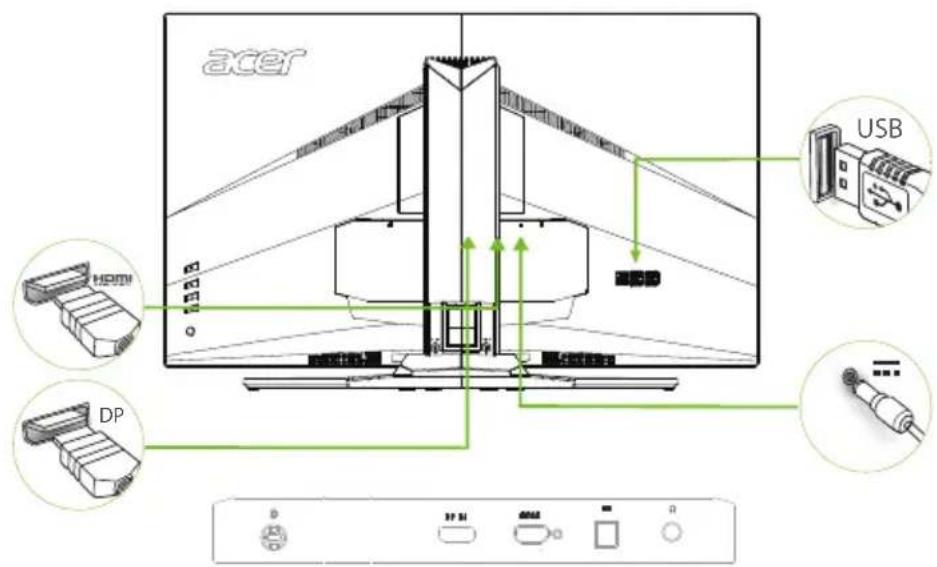

Note: Audio output is only available on audio output models. Please refer to the user manual for more instructions.
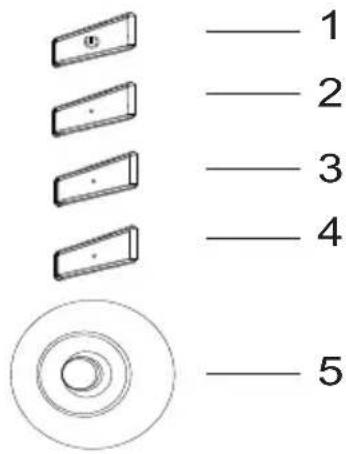
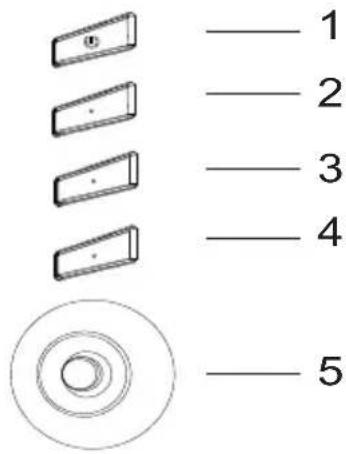
External Controls
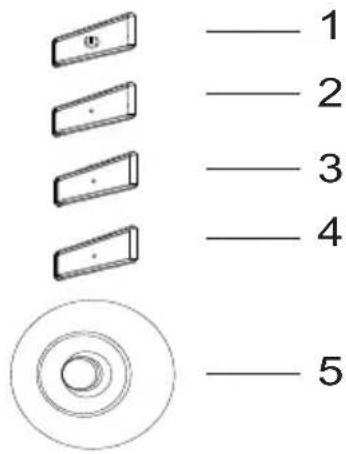
| 1 Power button Turns the monitor on/off.Blue indicates power on. Amber indicates standby/ power saving mode. | |
| 2 Function key | a. Press to view Main page. Press again to enter hotkey1 function. |
| b. When the Function Menu is active, press this key to view the basic information for your monitor and current input or reset the custom color settings to the factory defaults. | |
| 3 Function key | a. Press to view Main page. Press again to enter hotkey2 function. |
| b. When the Function Menu is active, press this button to select select scenario mode or game mode. | |
| 4 Function key | a. Press to view Main page. Press again to enter Input select function. |
| b. When the Function Menu is active, this button will quit the OSD. | |
| 5 Function key | a. Press to view Main page. Press again to enter next function in the Function Menu. |
| b. The single toggle button on the backside of the Display bezel operates like a joystick. To move the cursor, simply toggle the button in four directions. Press the button to select desired option. Red indicates operable. Grey indicates inoperable. | |
G-SYNC (DP only):
1920x1080@60Hz:
G-SYNC requires an NVIDIA GeForce GTX650Ti BOOST GPU or higher. For more information, visit the nVidia® website: http://www.nvidia.com/page/home.html
2560x1440@144Hz:
G-SYNC requires an NVIDIA GeForce GTX960 BOOST GPU or higher. For more information, visit the nVidia® website: http://www.nvidia.com/page/home.html
Regulations and Safety Notices
FCC notices
This device has been tested and found to comply with the limits for a Class B digital device pursuant to Part 15 of the FCC rules. These limits are designed to provide reasonable protection against harmful interference in a residential installation. This device generates, uses, and can radiate radio frequency energy and, if not installed and used in accordance with the instructions, may cause harmful interference to radio communications. However, there is no guarantee that interference will not occur in a particular installation. If this device does cause harmful interference to radio or television reception, which can be determined by turning the device off and on, the user is encouraged to try to correct the interference by one or more of the following measures:
Reorient or relocate the receiving antenna. - Increase the separation between the device and receiver. - Connect the device into an outlet on a circuit different from that to which the receiver is connected. - Consult the dealer or an experienced radio/television technician for help.
CE declaration of conformity
Hereby, Acer Inc., declares that this LCD monitor is in compliance with the essential requirements and other relevant provisions of EMC Directive 2014/30/EU, Low Voltage Directive 2014/35/EU, and RoHS Directive 2011/65/EU and Directive 2009/125/EC with regard to establishing a framework for the setting of ecodesign requirements for energy-related product.
Notice: Shielded cables
All connections to other computing devices must be made using shielded cables to maintain compliance with EMC regulations.
Notice: Peripheral devices
Only peripherals (input/output devices, terminals, printers, etc.) certified to comply with the Class B limits may be attached to this equipment. Operation with non-certified peripherals is likely to result in interference to radio and TV reception.
Caution
Changes or modifications not expressly approved by the manufacturer could void the user authority, which is granted by the Federal Communications Commission, to operate this product. In order to prevent damage to the monitor, do not lift the monitor by its base.
Operation conditions
This device complies with Part 15 of the FCC Rules. Operation is subject to the following two conditions: (1) this device may not cause harmful interference, and (2) this device must accept any interference received, including interference that may cause undesired operation.
Notice: Canadian users
CANICES-3(B)/NMB-3(B)
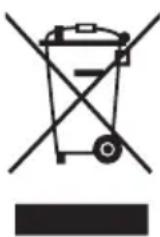
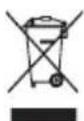
Disposal of waste equipment by user in private household in the European Union
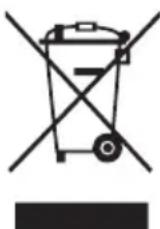
This symbol on the product or on its packaging indicates that this product must not be disposed of with your other household waste. Instead, it is your responsibility to dispose of your waste equipment by handing it over to a designated collection point for the recycling of waste electrical and electronic equipment. The separate collection and recycling of your waste equipment at the time of disposal will help to conserve natural resources and ensure that it is recycled in a manner that protects human health and the environment. For more information about where you can drop off your waste equipment for recycling, please contact your local city office, your household waste disposal service or the shop where you purchased the product.
SPECIFICATION
| LCD Panel | Driving system TFT Color LCD | ||
| Size 31.5"W (80cm) | |||
| Pixel pitch 0.36375mm(H) x 0.36375mm(V) | |||
| Brightness 300cd/m | 2(Typical) | ||
| Contrast 3,000:1(native) | |||
| Viewable angle (Typical) | 178°(H) 178°(V) (CR≥10) | ||
| Response time 4ms (GTG,Typical) | |||
| Panel Type VA | |||
| Video Digital Interface | |||
| H-Frequency HDMI: 30~140KHz, DP: 88~240KHz | |||
| V-Frequency HDMI: 24~60Hz, DP: 30~165Hz | |||
| Display Colors 16.7M Colors | |||
| Dot Clock 241.5 MHz(HDMI)/ 635.5 MHz(DP) | |||
| Max. Resolution | DP:2560x1440 @165 HZ HDMI:2560x1440 @60Hz | ||
| Plug & Play VESA DDCCI/DDC2B | |||
| Energy Efficiency Class B | |||
| *Annual Energy Consumption(Typical) | 73 (kWh) (for HDMI-input Model) | ||
| Power consumption @200cd/m² | ON Mode | 45W(typ.) | |
| Sleep Mode | 0.5W(typ.) | ||
| Off | 0.45W(typ.) | ||
| Input Connector | DP (Only DP Model) HDMI (Only HDMI model) USB Hub / USB3.0 x 4 (Only USB Hub Model) | ||
| Input Video Signal | DP signal(Only DP-Input Model) HDMI signal(Only HDMI-Input Model) | ||
| Speakers(Typical) | 7W x 2 | ||
| Audio | Audio-Output (Only Audio-Output Model) | ||
| Maximum Screen Size | Horizontal:697.344mm Vertical:392.256mm | ||
| Power Source | 100-240V~, 50/60Hz | ||
| Environmental Considerations | Operating Temp: 5° to 35°C Storage Temp: -20° to 60°C Operating Humidity: 10% to 85% | ||
| Dimensions | 712.7 (W) x 484-604(H) x 298.3(D)mm | ||
| Weight (N. W.) | 10.1kg Unit (net) | ||
| Mechanism spec | Tilt: -5° to +25° Swivel: +/- 25° Height adjustment: 120mm Pivot: No Detachable foot stand: Yes | ||
| External Controls: | Functions | Brightness | Language OSD Timeout Transparency |
| Contrast | Refresh rate num | ||
| Blue Light | Input Ambient Light | ||
| Dark boost | Hot Key Assignment | ||
| Adaptive contrast | Wide Mode | ||
| Gamma | Deep Sleep | ||
| Color Temp | Quick Start Mode | ||
| Saturation | Power-off USB charge | ||
| 6-axis color | Game mode | ||
| Volume | Quick Sleep | ||
| Over Drive | Game mode | ||
| OverClock | |||
| Aim point | |||
| * All specifications are subject to change without notice. | |||
Find manuals and other documents for your Acer product on the official Acer support website. *Annual energy consumption is calculated using the typical power consumption 4 hours per day, 365 days per year.
This device has been tested and found to comply with the limits for a Class B digital device, pursuant to Part 15 of the FCC Rules. These limits are designed to provide reasonable protection against harmful interference in a residential installation. This equipment generates, uses and can radiate radio frequency energy and, if not installed and used in accordance with the instructions, may cause harmful interference to radio communications. However, there is no guarantee that interference will not occur in a particular installation. If this equipment does cause harmful interference to radio or television reception, which can be determined by turning the equipment off and on, the user is encouraged to try to correct the interference by one or more of the following measures:
- Reorient or relocate the receiving antenna.
- Increase the separation between the equipment and receiver.
- Connect the equipment into an outlet on a circuit different from that to which the receiver is connected.
- Consult the dealer or an experienced radio/TV technician for help.
EU Declaration of Conformity
Hereby, Acer Inc. declares that this monitor is in compliance with the essential requirements and other relevant provisions of Directive 2014/30/EU on electromagnetic compatibility, Directive 2014/35/EU on low-voltage equipment, Directive 2011/65/EU on restrictions on the use of certain hazardous substances, and Directive 2009/125/EC with regard to ecodesign requirements for energy-related products.
Note on shielded cables
To comply with electromagnetic compatibility requirements, all connections to other computing devices must be made using shielded cables.
Note on peripheral devices
Only peripheral devices (input/output devices, terminals, printers, etc.) certified to comply with the Class B device emission limits may be connected to this device. The use of uncertified peripheral devices may cause interference when receiving radio and TV signals.
Caution!
Changes or modifications not expressly approved by the manufacturer could void the user's authority to operate this equipment, which is granted by the Federal Communications Commission.
To avoid damage to the monitor, do not lift it by its stand.
Operating conditions
This device complies with Part 15 of the FCC Rules. Operation is subject to the following two conditions: (1) this device may not cause harmful interference; (2) this device must accept any interference received, including interference that may cause undesired operation.
Notice for use in Canada
CANICES-3(B)/NMB-3(B)
Disposal of waste equipment by users in private households in the European Union
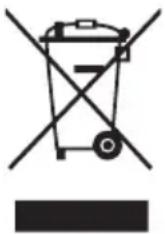
This symbol on the product or its packaging indicates that this product must not be disposed of with other household waste. Responsibility for the disposal of used equipment for further recycling or disposal of used electrical and electronic equipment lies with the user. Separate collection and recycling of used equipment at the time of disposal helps conserve natural resources and ensures that recycling is done in a manner that protects human health and the environment. For information on where to drop off your used equipment for recycling, contact your local city office, your household waste disposal service, or the shop where you purchased the product.
TECHNICAL SPECIFICATIONS
| ЖК-панель | Система Сль'tони КК Размер 31.5 дюма (80 cM) | ||
| Шаг пьксан 0,36375 М (ROP.) x 0,36375 MM (Верг.) | |||
| Ярковств 300 кd/M | 2 (Тиновая) | ||
| Коштравноctь 3,000: | (native) | ||
| Угол обзORA (ТП.) 178° (ROP.) 178° (Верг.) (CR≥10) | |||
| Вразma оTKлпka 4 мc (QTG, Тиновая) | |||
| ТП панели Тхалогу VA | |||
| Виdeo сифровои Intepeic | |||
| Частотастор | HDMI: 30~140KHz, DP: 88~240KHz | ||
| Частota кад探测 | HDMI: 24~60Hz, DP: 30~165Hz | ||
| Отображыные荣誉称号 16,7М荣誉称号 | |||
| Синхочинал | 241.5MHz(HDMI)/635.5MHz(DP) | ||
| Мамс.разецениe | DP:2560x1440 @165Hz HDMI:2560x1440 @60Hz | ||
| Фунцеля Plug & Play VESA DDCCI/DDC2B | |||
| Клас сөрөлөлөлөлөлөлөлөлөлөлөлөлөлөлөлөлөлөлөлөлөлөлөлөлөлөлөлөлөлөлөлөлөлөлөлөлөлөлөлөлөлөлөлөлөлөлөлөлөлөлөд. | |||
| *Тождове по tradeleнице лескоэлгий (ТП.) | 73 (KBT) (Для мodyдени с вховом HMI) | ||
| ПOTгбялмая мошноctь при ярковств 200 кd/M² | Реким «Вкл.» | 45 BT (ТП.) | |
| Реким «Снд» | 0,5 BT (ТП.) | ||
| Реким «Выкл.» | 0,45 BT (ТП.) | ||
| Вхдов раstrym | DP (модени c DisplayPort) HDMI (модени c HDMI) USB Hub / USB3.0 x 4 (модени c USB Hub) | ||
| Вхдов видаосигнал | DP-cinhal (модени c вховом DisplayPort) Сигнал HMI (модени c вховом HMI) | ||
| Диhamики (ТП.) | 7 BT x 2 | ||
| Звук | Звуковский Вьхов (Толък дд мodyдени с звуковский Вьховдм) | ||
| Мakсималы раимер заразан | По горизонталу: 697,344 MM По ветникалу: 392,256 MM | ||
| Источник пitaшия | ~100-240 B, 50/60 Гu | ||
| Условя Okружадош среды | Равочая Temпегатура: ot 5 до 35 °C Temпегатураханения: ot -20 до 60 °C Равочая влажноctь: ot 10 до 85 % | ||
| Раимеры | 712,7 (Л) x 484~604 (В) x 298,3 (Г) MM | ||
| Вес (НТTO) | Усточtersв 10,1 кг (НТTO) | ||
| Мөханчесные*xарakтөрөдөдөдөдөдөдөдөдөдөдөдөдөдөдөдөдөдөдөдөдөдөдөдөдөдөдөдөдөдөдөдөдөдөдөдөдөдөдөдөдөдөдөдөдөдөдөдөдөдөдө徳 | Накнон: ot -5 до +25° Поворot: +/- 25° Perugл窥ая модени no ВьсOTE: 120 MM Поворot: отустveyet Сыевая поставka: постустveyet | ||
| Вөшшие зеленты уразавлий: | Functions (Фунцinals) | Ярковств Коштравноctь Фильч trсиену с Bretа Освettingе тени Адампиная күт相对较. Гамма Цевая Temпегатура Насьшени. 6-kommonentн buць Гroomoctь Разгон Ц�евая точka | Ясык Таймер мени Прозрочь Знauthени часты obchodени Бхod Условя освeeцени Фунцini Клиш Широкозранный реким Глбokий сон Реким六大итого зауся Зардка по USB в ВьклочenvHom состаяни Игравов реким |
| *Всяхшени зелentsы уразавлий: | |||
User manuals and other product documentation from Acer can be found on the official Acer support website. *Annual energy consumption is calculated based on typical energy usage of 4 hours per day, 365 days per year.
Acer LCD
A


nVidia®: http://www.nvidia.com/page/home.html
a
4
CANICES-3(B)/NMB-3(B)
Safety instructions
Read the instruction manual carefully.
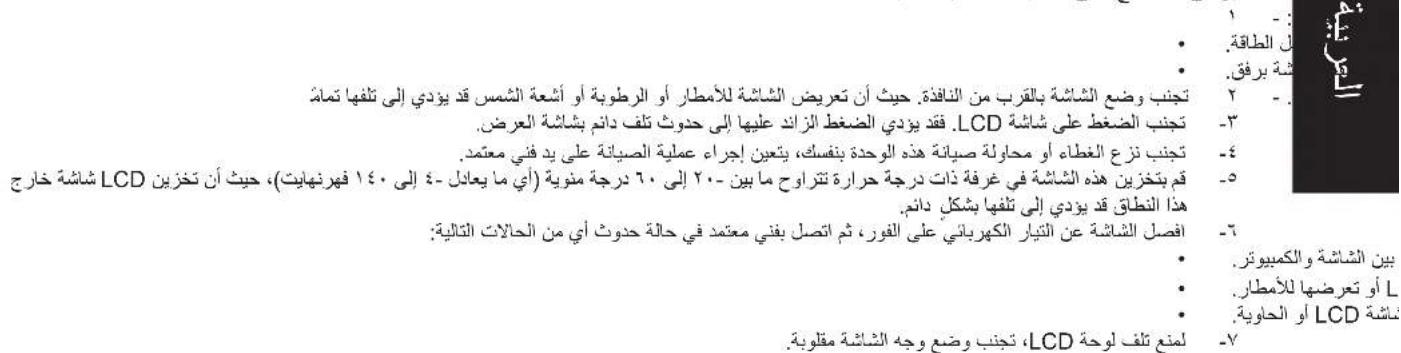
- For cleaning the LCD screen of the monitor:
- Unplug the monitor from the power outlet. Use a soft, dry cloth to clean the screen without scratching it.
- Do not place the monitor near a window. Exposure of the monitor to direct sunlight may cause serious damage.
- Do not press on the screen. Excessive pressure may cause irreversible damage to the screen.
- Do not open the casing and do not attempt to service or repair it yourself. All service must be performed only by qualified technicians.
- The monitor should be stored in a room with a temperature from -20° to 60°C. Storing it under conditions outside these limits may cause irreversible damage.
- Immediately unplug the cables and contact a qualified technician if you notice any of the following symptoms: The power cable from the monitor to the computer is damaged or frayed. The monitor is not functioning properly.
- Damage to the monitor or its casing.
- To prevent damage to the LCD panel, do not place the monitor with the screen facing down on any surface.
Connecting the monitor to the computer
- Turn off the computer and unplug the power cable.
- Connect the HDMI cable (optional) and/or DP cable (optional) to the monitor input and to the corresponding HDMI (optional) and/or DP (optional) output on the graphics card of the computer. Then tighten the screws on the connector of the signal cable.
- Connecting a USB cable (optional) Connect the USB 3.0 cable to the fast charging port. Connect the USB 3.0 cable to the port.
- Connect the power cable to the monitor and to the power port on the back of the monitor.
- Connect the power adapter and power cable to the monitor and to a properly grounded electrical outlet.

Note: Use only the audio output. Refer to the user manual for more instructions.
Troubleshooting
| 1Бутон ВкП/ИЗКЛ | ВКПЮчBAнe ИЗКПЮчBAнe Ha MOHITOPa.СинЯТа CBETЛИнa OЗHAчABA ВКПЮчEN MOHITOP.ЖБЛТаТа CBETЛИнa OЗHAчABA pEXIM BOTOBHOCCT/ ИКОНOMNЯ HA eHEPГY. |
| 2ФункциноанeEN Клавиш | a.Hatис Hedge,3aДа BVDITE OCHOBHATA CTPANUca.HATиС Hedge OTHOBO,3aДа BVESETE BVBФункциЯТаHaБьр3Клавиш1. b.KoratoФункциоHAnHOTMeHIOe AKTINBHO.HATиС Hedge TOsH Клавиш,3aДа BVDITE OCHOBHAnHΦOpaMuaZha BaUSHMOHITOP И TEKUŞIIA BXODEN CIVHAp,IIN HYNIPAHTe NOTpe6bIeTcKNTe HACTPOIKN 3a ZCBTOBete KaTO BByPHeTe Φa6pHnHite. |
| 3ФункциноанeEN Клавиш | a.Hatис Hedge,3aДа BVDITE OCHOBHATA CTPANUca.HATиС Hedge OTHOBO,3aДа BVESETE BVBФункциЯТаHaБьр3Клавиш2. b.KoratoФункциоHAnHOTMeHIOe AKTINBHO.HATиС Hedge TOsH, 3aДa N36epeTe pEXIM CSbC SceHApIN IIN pEXIM 3a INrPI. |
| 4ФункциноанeEN Клавиш | a.Hatис Hedge 3a OTBapHNe Ha「ЛavBHa CTPANUca.HATиС Hedge OTHOBO 3a ПЕМINHABaHepKbMФункциЯ N36Op Ha BXOD. b.KoratoФункциоHAnHOTMeHIOe AKTINBHO.T0Sb6yToH 3aTbAPe EkpaHHOTO MeHIO. |
| 5ФункциноанeEN Клавиш | a.HatиС Hedge 3a OTBapHNe Ha「ЛavBHa CTPANUca.HATиС Hedge OTHOBO 3a ПЕМINHABaHepKbMСLEdBaUaTaФункцияВ MeHIO Функции. b.EdINHUYHRT 6yToH 3a ПeВКПЮчBAne Ha TbPb6aHa NaHepaHa ДиспгЯФункциOHIPA KaTOДжОйСТИ.3aДa ПeMeecNTte Kypcopa,Iprocto ПeВКПЮчTe TOsH 6yToHВЧeTIPRi NOcOKn. HATиС Hedge 6yToHа,3aДa N36epeTe JezJIaHATA ONIa.ЧервенOTO NOKa3Ba Pa6OteIoo CbCTOJHNe,CINBOTo - Hepa6OteIoo. |
G-SYNC (DP only):
1920x1080 at 60Hz:
G-SYNC requires an NVIDIA GeForce GTX650Ti BOOST GPU or newer version. For more information, visit the NVIDIA website: http://www.nvidia.com/page/home.html
2560x1440 at 144Hz:
Changes or modifications not expressly approved by the manufacturer could void the user's authority to operate this product under FCC rules.
To avoid damage to the monitor, do not lift it by its base.
Operating conditions
This device complies with Part 15 of the FCC Rules. Operation is subject to the following two conditions: (1) This device may not cause harmful interference, and (2) This device must accept any interference received, including interference that may cause undesired operation.
Note: Canadian users
CAN ICES-3(B)/NMB-3(B)
This symbol on the product or its packaging indicates that this product must not be disposed of with regular household waste. It is your responsibility to dispose of this equipment by handing it over to a designated collection point for the recycling of waste electrical and electronic equipment. Separate collection and recycling of this waste helps conserve natural resources and ensures recycling in a manner that protects human health and the environment. For more information about where you can drop off your waste for recycling, please contact your local city office, your household waste disposal service, or the shop where you purchased the product.
TECHNICAL SPECIFICATIONS
You can find manuals and other documentation for your product on the Acer support website. *Energy consumption is calculated based on typical energy consumption of 4 hours per day, 365 days a year.
| Панел точни криstали (LCD) | Спстema за уравлике Lьгетен TFT ekран | |
| Размер 31.5"W (80 cm) | ||
| Размер на пькSEL 0,36375 MM (X) x 0.36375 MM (B) | ||
| Яразост 300 cd/m | 2 (Тлишино) | |
| Контравл 3,000:1(native) | ||
| Был на лледан (тлишино) | 78° (X) 178° (B) (CR≥10) | |
| Вразе за peakция 4 мсек (GTG,тлишино) | ||
| Ти палел VA | ||
| Виdeo Κифров国际贸易有限公司 | ||
| Хори. чебота | HDMI: 30~140KHz, DP: 88~240KHz | |
| Верг. чебота | HDMI: 24~60Hz, DP: 30~165Hz | |
| Цевое на дислег 16,7Mцова | ||
| Синхоригнал | 241.5MHz(HDMI)/635.5MHz(DP) | |
| Маск. разштолна с пособ�数 | DP:2560x1440 @165Hz HDMI:2560x1440 @60Hz | |
| Plug & Play (Влкочи и поимь) VESA DDCCI/DDC2B | ||
| Класесяюеф B | ||
| *Толима Консуальna на[e�чоги(Tлишино)] | 73 (КВТС) (за мodyдс вiod HDMI) | |
| Консуальna на[e�чоги等相关 200 cd/m² | Рezим Влк | 45W (Тлишино) |
| Рezим посениванe 0,5 W (тлишино) | ||
| Рezим ИЗКЛ / Гов�数 | 0,45 W (Тлишино) | |
| ВхODEн коньтор | DP (само за мodyдд(P) HDMI (само за мodyдд(HDMI) USB xbl6 / USB3.0 x 4 (само за мodyдд c USB xbl6) | |
| ВхODEн вideо синал | DP синал (само за мodyдд(P-bxod) HDMI синал (само за мodyдд(HMI-bxod) | |
| Високоровитelli (тлишино) | 7 W x 2 | |
| Адю | Адю похд (само за мodyдд садюиизюd) | |
| Масимален размер на[eхрана | Хорионтално 697,344 MM Вертукално 392,256 MM | |
| Иточник на захсанванe | 100-240 V поч.TOK, 50/60 Hz | |
| Условя на[eхллоаотацяя] | Рбогта dem�атура 5" до 35°C Тем�рату рпс сьхаренье -20" до 60°C Влжност по[breme на рбота от 10% до 85% | |
| Размер | 712,7 (Ш) x 484~604 (В) x 298,3 (Д) MM | |
| Тergо (нето) | 10,1 куyped (нето) | |
| Мexанчими[xapaktersicniki] | Нakлон: -5" до +25" Вьртын: +/- 25" Perуларе по[bicosида: 120 MM Шарир: He Оделя sa ce stайка: Дa | |
| Вьншии komанди: | Functions (Фунциin) | Яразост Контрав Синя с Bretлina Поссалвае на Тьмнite Чебоные Да aptильенko Гама Чебota dem�атура Hаси�ноct 6-оевця Слona на Зыka Оberduайь Чел Бердайь Чел Бердайь Чel Бердайь Бердайь Бердайь Бердайь Бердайь Бердайь Бердайь Бердайь Бердайь Бердайь Бердайь Бердайь Бердайь Бердайь Бердайь Бердайь Бердайь Берс Бердайь Бердайь Бердайь Бердайь Бердайь Бердайь Бердайь Бердайь Бердайь Бердайь Бердайь Бердайь Бердайь Бердайь Бердайь Бердайь Берф Бердайь Бердайь Бердайь Бердайь Бердайь Бердайь Бердайь Бердайь Бердайь Бердайь Бердайь Бердайь Бердайь Бердайь Бердайь Бердайь Бер央 Бер央 Бер央 Бер央 Бер央 Бер央 Бер央 Бер央 Бер央 Бер央 Бер央 Бер央 Бер央 Бер央 Бер央 Бер央 Бер央 Бер央 Бер央 Бер央 Бер央 Бер央 Бер央 Бер央 Бер央 Бер央视 Бер央 Бер央 Бер央 Бер央 Бер央 Бер央 Бер央 Бер央 Бер央 Бер央 Бер央 Бер央 Бер央 Бер央 Бер央 Бер央 Бер央 Бер央 Бер央 Бер央 Бер央 Бер央 Бер央 Бер央 Бер中央 Бер央 Бер央 Бер央 Бер央 Бер央 Бер央 Бер央 Бер央 Бер央 Бер央 Бер央 Бер央 Бер央 Бер央 Бер央 Бер央 Бер央 Бер央 Бер央 Бер央 Бер央 Бер央 Бер央 Бер央 Бер伏 Бер央 Бер央 Бер央 Бер央 Бер央 Бер央 Бер央 Бер央 Бер央 Бер央 Бер央 Бер央 Бер央 Бер央 Бер央 Бер央 Бер央 Бер央 Бер央 Бер央 Бер央 Бер央 Бер央 Бер央 Берfte Бер央 Бер央 Бер央 Бер央 Бер央 Бер央 Бер央 Бер央 Бер央 Бер央 Бер央 Бер央 Бер央 Бер央 Бер央 Бер央 Бер央 Бер央 Бер央 Бер央 Бер央 Бер央 Бер央 Бер央 Бер爻 Бер央 Бер央 Бер央 Бер央 Бер央 Бер央 Бер央 Бер央 Бер央 Бер央 Бер央 Бер央 Бер央 Бер央 Бер央 Бер央 Бер央 Бер央 Бер央 Бер央 Бер央 Бер央 Бер央 Бер央 Бер歹 Бер央 Бер央 Бер央 Бер央 Бер央 Бер央 Бер央 Бер央 Бер央 Бер央 Бер央 Бер央 Бер央 Бер央 Бер央 Бер央 Бер央 Бер央 Бер央 Бер央 Бер央 Бер央 Бер央 Бер央 Бер厌 Бер央 Бер央 Бер央 Бер央 Бер央 Бер央 Бер央 Бер央 Бер央 Бер央 Бер央 Бер央 Бер央 Бер央 Бер央 Бер央 Бер央 Бер央 Бер央 Бер央 Бер央 Бер央 Бер央 Бер央 Бер夫 Бер央 Бер央 Бер央 Бер央 Бер央 Бер央 Бер央 Бер央 Бер央 Бер央 Бер央 Бер央 Бер央 Бер央 Бер央 Бер央 Бер央 Бер央 Бер央 Бер央 Бер央 Бер央 Бер央 Бер央 Бер乏 Бер央 Бер央 Бер央 Бер央 Бер央 Бер央 Бер央 Бер央 Бер央 Бер央 Бер央 Бер央 Бер央 Бер央 Бер央 Бер央 Бер央 Бер央 Бер央 Бер央 Бер央 Бер央 Бер央 Бер央 Бер决 Бер央 Бер央 Бер央 Бер央 Бер央 Бер央 Бер央 Бер央 Бер央 Бер央 Бер央 Бер央 Бер央 Бер央 Бер央 Бер央 Бер央 Бер央 Бер央 Бер央 Бер央 Бер央 Бер央 Бер央 Бер支 Бер央 Бер央 Бер央 Бер央 Бер央 Бер央 Бер央 Бер央 Бер央 Бер央 Бер央 Бер央 Бер央 Бер央 Бер央 Бер央 Бер央 Бер央 Бер央 Бер央 Бер央 Бер央 Бер央 Бер央 Бер夹 Бер央 Бер央 Бер央 Бер央 Бер央 Бер央 Бер央 Бер央 Бер央 Бер央 Бер央 Бер央 Бер央 Бер央 Бер央 Бер央 Бер央 Бер央 Бер央 Бер央 Бер央 Бер央 Бер央 Бер央 Бер炭 Бер央 Бер央 Бер央 Бер央 Бер央 Бер央 Бер央 Бер央 Бер央 Бер央 Бер央 Бер央 Бер央 Бер央 Бер央 Бер央 Бер央 Бер央 Бер央 Бер央 Бер央 Бер央 Бер央 Бер央 Бер変 Бер央 Бер央 Бер央 Бер央 Бер央 Бер央 Бер央 Бер央 Бер央 Бер央 Бер央 Бер央 Бер央 Бер央 Бер央 Бер央 Бер央 Бер央 Бер央 Бер央 Бер央 Бер央 Бер央 Бер央 Бер仗 Бер央 Бер央 Бер央 Бер央 Бер央 Бер央 Бер央 Бер央 Бер央 Бер央 Бер央 Бер央 Бер央 Бер央 Бер央 Бер央 Бер央 Бер央 Бер央 Бер央 Бер央 Бер央 Бер央 Бер央 Бер? B. B. B. B. B. B. B. B. B. B. B. B. B. B. B. B. B. B. B. B. B. B. B B B B B B B B B B B B B B B B B B B B B B B B B B B B B B B B B B B B B B B B B B B B B B B B B B B |
Acer LCD Monitor Quick Start Guide Important Safety Instructions
- LCD display operating temperature: -20°C to 60°C (-4°F to 140°F). LCD display storage temperature: -20°C to 60°C (-4°F to 140°F).
- LCD display
- LCD display viewing angle
- 1

∴ m = 3/11 ;
Declaration of Conformity
We,
Acer Incorporated
8F, 88, Sec. 1, Xintai 5th Rd., Xizhi, New Taipei City 221, Taiwan
And,
Acer Italy s.r.l.
Via Lepetit, 40, 20020 Lainate (MI) Italy
Tel: +39-02-939-921, Fax: +39-02 9399-2913
www.acer.it
Product: LCD Monitor
Trade Name: Acer
Model Number:
SKU Number:
Z321OU
Z321QU XXXXX
$(x'' = 0~9, a~z, A~Z, or blank)
We, Acer Incorporated, hereby declare under our sole responsibility that the product described above is in conformity with the relevant Union harmonization legislations as below Directive and following harmonized standards and/or other relevant standards have been applied:
EMC Directive: 2014/30/EU
EN55032:2012/AC:2013 Class B
EN55024:2010
EN61000-3-2:2014-3-Class D
EN61000-3-3:2013
LVD Directive: 2014/35/EU
EN 60950-1:2006/A11:2009/A1:2010/A12:2011/A2:2013
RoHS Directive: 2011/65/EU
EN50581:2012
ErP Directive: 2009/125/EC
Regulation (EC) No. 1275/2008; EN 50564:2011
Year to begin affixing CE marking: 2017.
8F, 88, Sec. 1, Xintai 5th Rd., Xizhi, New Taipei City 221, Taiwan
E.
Acer Italy s.r.l.
Via Lepetit, 40, 20020 Lainate (MI) Italy
Tel: +39-02-939-921, Fax: +39-02 9399-2913
www.acer.it
Product: LCD Monitor
8F, 88, Sec. 1, Xintai 5th Rd., Xizhi, New Taipei City 221, Taiwan
And,
Acer Italy s.r.l.
Via Lepetit, 40, 20020 Lainate (MI) Italy
Tel: +39-02-939-921, Fax: +39-02 9399-2913
www.acer.it
ErP Directive: 2009/125/EC
Regulation (EC) No 1275/2008; EN 50564:2011
8F, 88, Sec. 1, Xintai 5th Rd., Xizhi, New Taipei City 221, Taiwan,
Acer Italy s.r.l.
Via Lepetit, 40, 20020 Lainate (MI) Italy
Tel.: +39-02-939-921, Fax: +39-02 9399-2913
www.acer.it
8F, 88, Sec. 1, Xintai 5th Rd., Xizhi, New Taipei City 221, Taiwan
Acer Italy s.r.l.
Via Lepetit, 40, 20020 Lainate (MI) Italy
Tel: +39-02-939-921, Fax: +39-02 9399-2913
www.acer.it
8F, 88, Sec. 1, Xintai 5th Rd., Xizhi, New Taipei City 221, Taiwan
Y.
Acer Italy, S.R.L.
Via Lepetit, 40, 20020 Lainate (MI) Italy
Tel: +39-02-939-921, Fax: +39-02 9399-2913
www.acer.it
8F, 88, Sec. 1, Xintai 5th Rd., Xizhi, New Taipei City 221, Taiwan
En,
Acer Italy s.r.l.
Via Lepetit, 40, 20020 Lainate (MI) Italy
Tel: +39-02-939-921, Fax: +39-02 9399-2913
www.acer.it
Product: LCD-monitor
Handelsnaam:
Acer
Model number:
Z321QU
SKU number:
Z321QU XXXXX
The characters allowed are 0-9, a-z, A-Z, or letters.
RU Jan / Sr. Manager
Acer Incorporated (Taipei, Taiwan)
May 31, 2017
Date
Regulatory Compliance









UA.TR.060
acer

- CONNECTING YOUR MONITOR TO A COMPUTER
- G-SYNC (DP ONLY)
- REGULATIONS AND SAFETY NOTICES
- FCC NOTICES
- CE DECLARATION OF CONFORMITY
- NOTICE: SHIELDED CABLES
- NOTICE: PERIPHERAL DEVICES
- CAUTION
- OPERATION CONDITIONS
- NOTICE: CANADIAN USERS
- EU DECLARATION OF CONFORMITY
- NOTE ON SHIELDED CABLES
- NOTE ON PERIPHERAL DEVICES
- OPERATING CONDITIONS
- NOTICE FOR USE IN CANADA
- ACER LCD
- A
- SAFETY INSTRUCTIONS
- CONNECTING THE MONITOR TO THE COMPUTER
- NOTE: CANADIAN USERS
- YOU CAN FIND MANUALS AND OTHER DOCUMENTATION FOR YOUR PRODUCT ON THE ACER SUPPORT WEBSITE. *ENERGY CONSUMPTION IS CALCULATED BASED ON TYPICAL ENERGY CONSUMPTION OF 4 HOURS PER DAY, 365 DAYS A YEAR
- DECLARATION OF CONFORMITY
- ACER
Brand : ACER
Model : Predator Z321QU
Category : Monitor