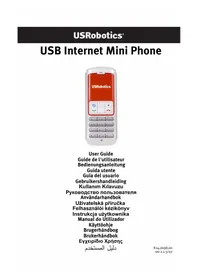
USB Internet Mini Phone 9602 - Phone US ROBOTICS - Free user manual and instructions
Find the device manual for free USB Internet Mini Phone 9602 US ROBOTICS in PDF.



User questions about USB Internet Mini Phone 9602 US ROBOTICS
0 question about this device. Answer the ones you know or ask your own.
Ask a new question about this device
Download the instructions for your Phone in PDF format for free! Find your manual USB Internet Mini Phone 9602 - US ROBOTICS and take your electronic device back in hand. On this page are published all the documents necessary for the use of your device. USB Internet Mini Phone 9602 by US ROBOTICS.
USER MANUAL USB Internet Mini Phone 9602 US ROBOTICS
U.S. Robotics Corporation
935 National Parkway
Schaumburg, Illinois
60173-5157
USA
No part of this documentation may be reproduced in any form or by any means or used to make any derivative work (such as a translation, transformation, or adaptation) without written permission from U.S. Robotics Corporation. U.S. Robotics Corporation reserves the right to revise this documentation and to make changes in the products and/or content of this document from time to time without obligation to provide notification of such revision or change. U.S. Robotics Corporation provides this documentation without warranty of any kind, either implied or expressed, including, but not limited to, implied warranties of merchantability and fitness for a particular purpose. If there is any software on removable media described in this documentation, it is furnished under a license agreement included with the product as a separate document, in the hard copy documentation, or on the removable media in a directory named LICENSE. If you are unable to locate a copy, please contact USRobotics and a copy will be provided to you.
UNITED STATES GOVERNMENT LEGEND If you are a United States government agency, then this documentation and the software described herein are provided to you subject to the following:
All technical data and computer software are commercial in nature and developed solely at private expense. Software is delivered as "Commercial Computer Software" as defined in DFARS 252.227-7014 (June 1995) or as a "commercial item" as defined in FAR 2.101(a) and as such is provided with only such rights as are provided in USRobotics standard commercial license for the Software. Technical data is provided with limited rights only as provided in DFAR 252.227-7015 (Nov 1995) or FAR 52.227-14 (June 1987) whichever is applicable. You agree not to remove or deface any portion of any legend provided on any licensed program or documentation contained in, or delivered to you in conjunction with, this Administrator Guide.
Copyright © 2006 U.S. Robotics Corporation. All rights reserved. U.S. Robotics and the USRobotics logo are registered trademarks of U.S. Robotics Corporation. Other product names are for identification purposes only and may be trademarks of their respective companies. Product specifications subject to change without notice.
Contents
English
Installation. 1
Operation. 8
Troubleshooting. 12
Support. 16
Regulatory and Warranty 18
Français
YcTpaHHe HeNCpPaBHOCTe 181
Texnueckajnoepkka. 185
CootBcTbue cTaHdapTaM n rapaHTn 187
Svenska
Installation. 193
Anvandning. 200
Felsökning. 205
Support. 209
To use the USRobotics USB Internet Mini Phone and Skype™ Internet telephony service, your computer system and environment must meet the following minimum requirements:
- Windows® Vista, XP, or 2000
400 MHz processor speed - USB 1.1 or USB 2.0 port
- 15 MB available disk space
128 MB RAM
High speed Internet connection
CD-ROM Drive - Sk y p e s o f t w a r e
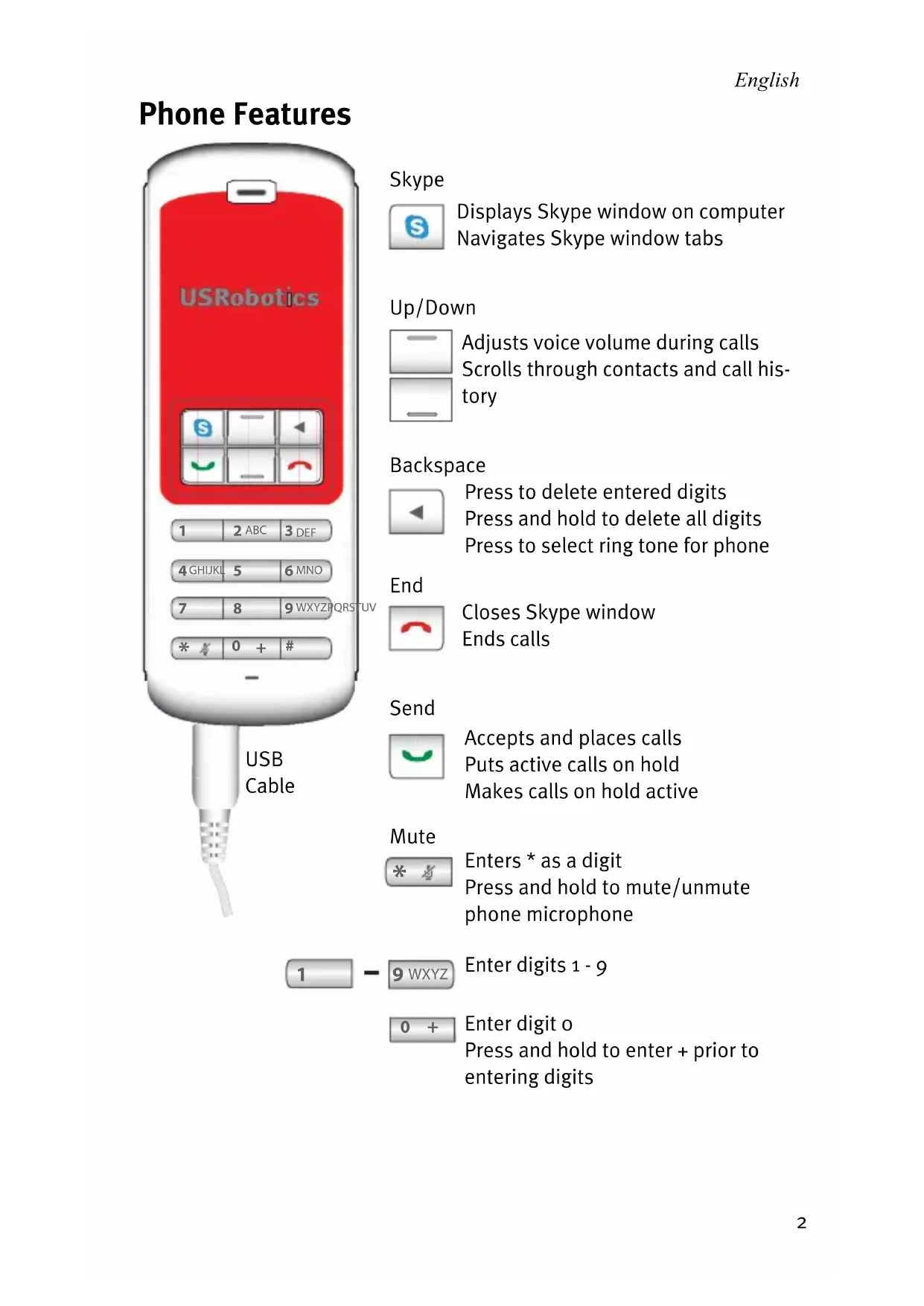
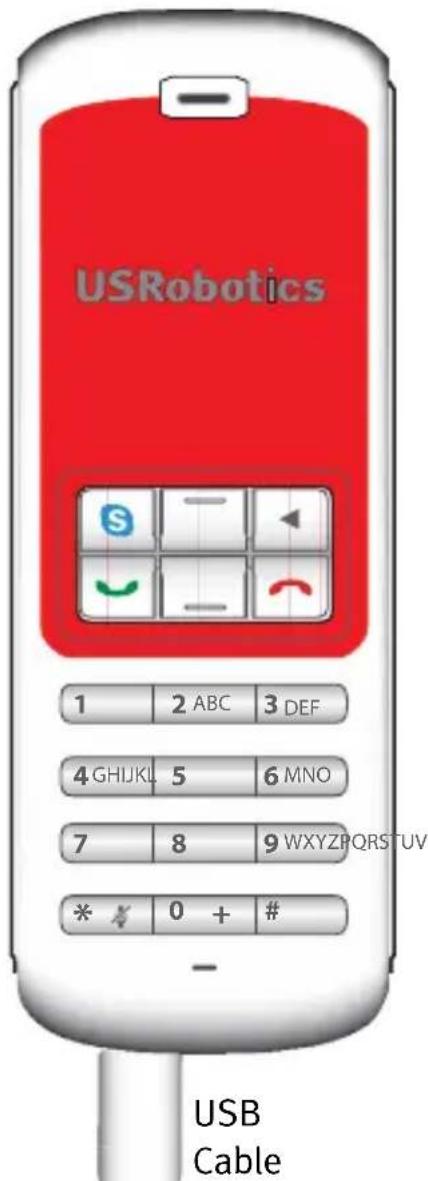
Phone Features
Skype

Displays Skype window on computer Navigates Skype window tabs
Up/Down
Adjusts voice volume during calls. Scrolls through contacts and call history
Backspace

Press to delete entered digits Press and hold to delete all digits Press to select ring tone for phone
End

Closes Skype window Ends calls
Send

Accepts and places calls Puts active calls on hold Makes calls on hold active
Mute
Enters * as a digit Press and hold to mute/unmute phone microphone

Enter digits 1-9
Enter digit o Press and hold to enter ^+ prior to entering digits
Warning:
Skype is not a telephony replacement service. Any VoIP service used in conjunction with the USRobotics USB Internet Mini Phone cannot be used for calls to emergency services or emergency telephone numbers (311, 911, 112, 999, etc.). Use a land line for calls to emergency services, such as police, fire, or ambulance.
Installation Instructions
1. Clear your screen.
Balloons such as the one shown below may interfere with those that show the progress of your Internet Mini Phone installation.
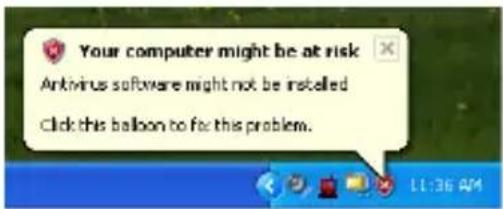
Close any balloon in your system tray.
2. Install the USRobotics USB Internet Mini Phone
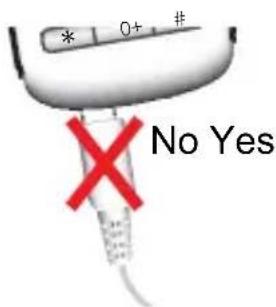
A. Insert the USB cord into the Internet Mini Phone. Make sure it clicks into place so that no metal on the connector is visible.
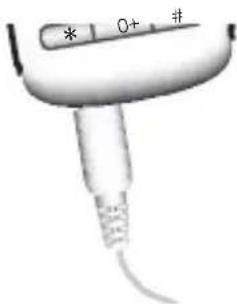
English
B. Connect the other end of the USB cord to your computer's USB port.
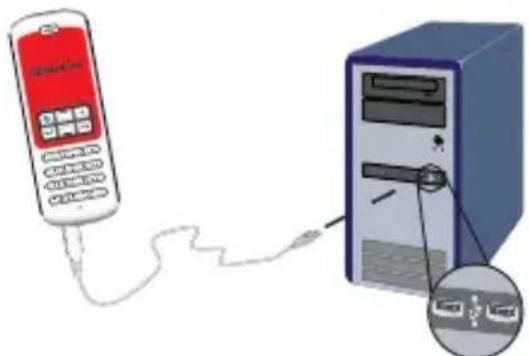
Wait for an indication that installation is complete. If you are prompted to reboot your computer, click Yes.
- Insert the Installation CD-ROM.
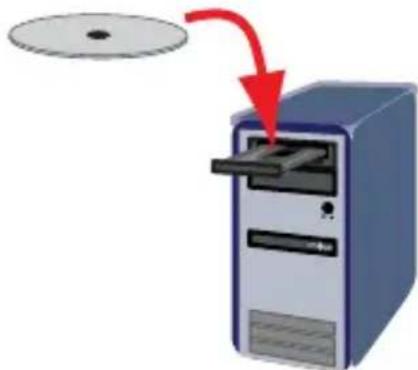
Note: If the CD does not start automatically, double click the CD drive icon:
Windows Vista: Click Start > Computer, then double click the CD drive icon.
Windows XP: Click Start, select My Computer, then double click the CD drive icon.
Windows 2000: Double click My Computer on the desktop then double click the CD drive icon.
English
4. Install Skype
If Skype is already installed on your computer, go to Step 5.
A. If prompted, select your language and accept the End User License Agreement.
B. Select Install Skype.
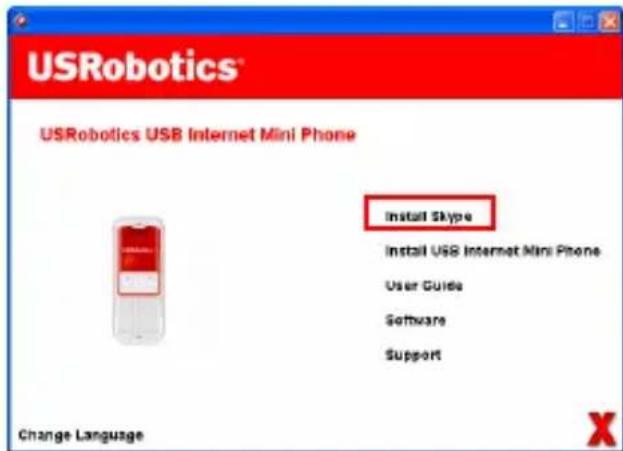
C. Follow the instructions to install Skype.
5. Install the USRobotics USB Internet Mini Phone Software
A. Select Install USRobotics USB Internet Mini Phone.
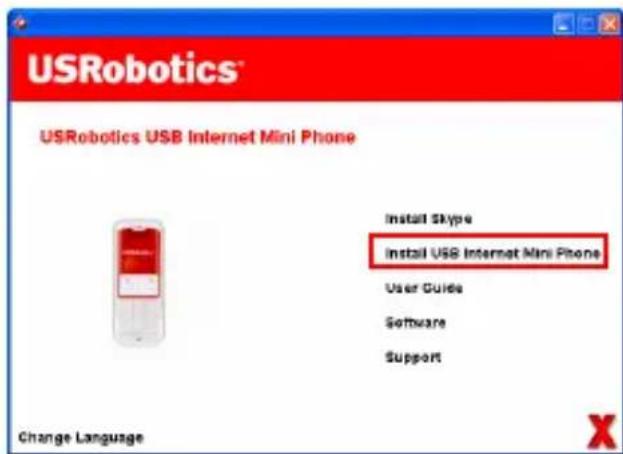
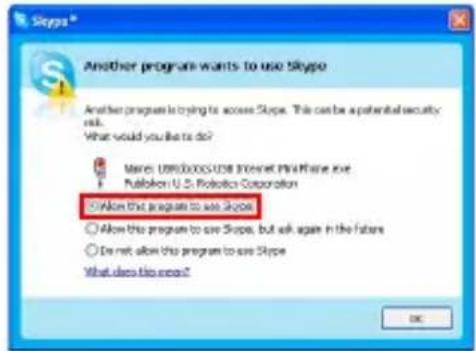
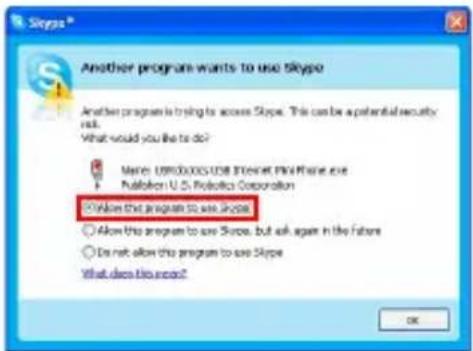
B. Follow the instructions to install the USRobotics USB Internet Mini Phone. When you see the screen below, select Allow this program to use Skype.
C. If multiple sound cards are installed on your computer, make sure that the correct sound card is selected as the Windows default device:
Windows Vista: Click Windows Start Click Control Panel.

Click Hardware and Sound > Sound.
Select the Playback device and the Recording device that you want to use for your cojputer sounds.
Select Set Default.
Click OK to close the Sound window.
Windows XP: Click Start, select Control Panel, then double click Sounds and Audio Devices.
Click Audio and select the desired sound card as the Windows Sound playback and Sound recording Default device.
Windows 2000: Double click My Computer on the desktop, double click Control Panel, then double click Sounds and Multimedia.
Click Audio and select the desired sound card as the Windows Sound Playback and Sound Recording Preferred device.
English
- Verify the installation by making a test call.
A. Open the Skype window.
B. Select Tools, Options. Then select Sound Devices.
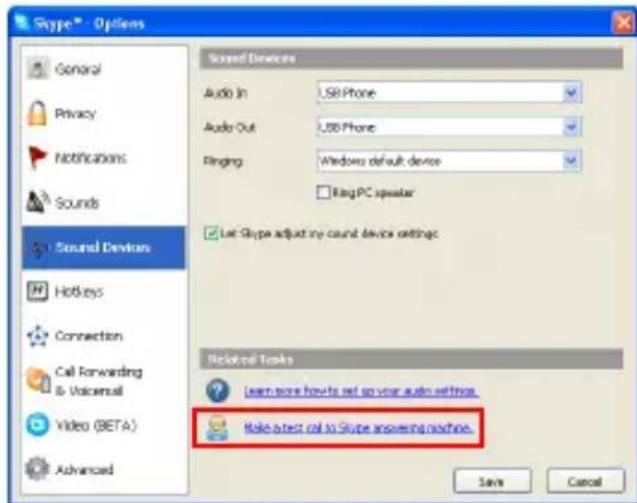
C. In the Skype - Options window, click Make a test call to Skype answering machine and follow the instructions.
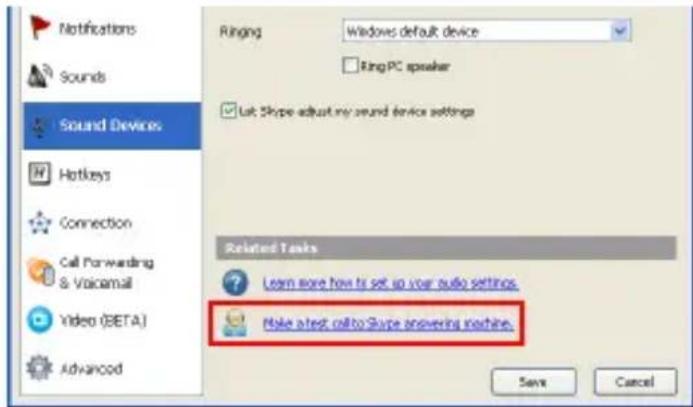
Note: Incoming calls ring your Windows default sound device. If you prefer your Internet Mini Phone to ring instead of your Windows default sound device, refer to the Operation section.
Congratulations. You have successfully completed the installation procedure. Please register your USRobotics USB Internet Mini Phone at www.usr.com/productreg/.
English
Operation
System tray icons
A red phone icon in the system tray indicates that your Internet Mini Phone is properly installed.
A grey phone icon in the system tray indicates that your Internet Mini Phone is not properly connected. If you see this icon, check the USB cable.
A green Skype icon in the system tray indicates that you are logged into Skype. Double click the Skype icon to open the Skype window. Refer to on-line Skype help by clicking Help in the Skype window.
Internet Mini Phone keys
You can use the keypad on the phone to dial digits, control the volume, put a call on hold, set the ring tone, select a contact from your contact list, and more. Refer to "Phone Features" on page 2 for key functions.
Placing a call
Using your contact list
Press the Skype key on your Internet Mini Phone or double click the Skype icon in the system tray.
If you do not have any contacts in your contact list, click Add Contact or Search and follow the prompts to create a contact.
Select a contact in the Skype contact list and click send in Skype or press send on your Internet Mini Phone to call the contact.
When you are done, click end in Skype or press end on your Internet Mini Phone
Using speed dial
Open the Skype window and select the Contacts tab.
Right-click a contact and click Set Speed-Dial.
Enter a one or two digit speed-dial number and click OK to assign it to the contact.
To call a contact, enter that contact's speed dial digit(s). Press or click send to call.
Calling from call history
Open the Skype window and select the History tab. You can use the Skype key on your Internet Mini Phone to select a tab.
Scroll through your call history and select a call.
Press or click send to call.
Calling a traditional landline or mobile phone
You can call traditional landline or mobile numbers using SkypeOut. First, go to www.skype.com and buy "Skype Credit."
To dial a landline or mobile phone, first press oo or + on the Internet Mini Phone keypad.
Then, enter the country code and phone number that you are calling. (Go to http://support.skype.com for information on international dialing.)
Press or click send.
English
Receiving a call
When Skype indicates an incoming call, click send in Skype or press send on the Internet Mini Phone keypad to answer the call. You can also click end in Skype or press end on the phone to reject the call.
Placing a call on hold
If you receive a call while you are already talking on another call, you can place the first call on hold to take the second call.
Press send to place the first call on hold.
The first call is placed on hold and the second call becomes active.
Talk to the second caller. When you are done, press end.
Press send to resume the first call.
You can also right-click the call tabs in Skype to place a call on hold and then resume the call.
Muting a call
Press and hold the key to mute the microphone. The Internet Mini Phone blinks to show that it is muted. Press it again to unmute the microphone.
Audio settings Internet Mini Phone utility settings
Double click the phone icon in the system tray to display the Internet Mini Phone utility.
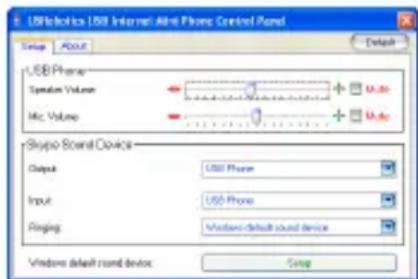
Use the controls under USB phone to adjust call audio. The microphone sensitivity adjusts automatically and cannot be set using the slider.
Specify whether calls are directed to your sound card or your Internet Mini Phone with the Output and Input pulldown menus under Skype Sound Device.
Specify whether your Internet Mini Phone or computer speakers ring for incoming calls with the Ringing pull-down menu.
Windows Vista or XP: Click the Ringing pull-down menu and select USB Phone.
Windows 2000: Click the Ringing pull-down menu and select USB Audio Device.
Note: The Internet Mini Phone initially uses the default Windows sound device for ringing. Typically, this is your sound card. Using your sound card and speakers for ringing allows you to use Skype ring tones.
The Setup button at the bottom of the Internet Mini Phone utility window is a shortcut to the Windows audio properties control panel. You can use this control panel to select which sound device is used as the Windows default. Typically, this is set to your computer's sound card.
Skype audio settings
The Internet Mini Phone utility overrides audio settings made in the Skype Sound Devices window.
English
Troubleshooting
I do not see a phone icon in my system tray
The Internet Mini Phone utility must be running for the icon to appear in the system tray. Click Start and select the Internet Mini Phone from the programs list. If the USB Internet Mini Phone is not in the programs list, you must install the utility. Repeat the installation procedure.
The USRobotics USB Internet Mini Phone system tray icon is grey
Solution
Make sure the USB cable is connected to the phone and your computer. The USB connector should snap into the phone when you connect it. When it is inserted properly, the metal part of the USB connector should not be visible from the front of the phone.
When I press the phone keys nothing happens Solution
Make sure the USB cable of the phone is securely connected to a USB port on your computer.
Solution
Make sure that Skype is running and that you are logged in.
Solution
In Skype, select Tools then Options.
Click Privacy and then Manage other programs' access to Skype.
Select USROBOTICS USB INTERNET MINI PHONE.exe and click Change.
English
Select Allow this program to use Skype and click OK. Click OK and Save.
Solution
There may have been an error during the installation process. Unplug the phone from your computer, uninstall the software, and repeat the installation procedure.
When I receive a call, my phone blinks but I do not hear it ring
Solution
The Internet Mini Phone utility allows you to specify where an incoming call's ring tone is played. Double-click the phone icon in the system tray.
Windows Vista or XP: Click the Ringing pull-down menu and select USB Phone.
Windows 2000: Click the Ringing pull-down menu and select USB Audio Device.
Solution
If the ringing device is your sound card, make sure that your speakers are switched on and no headset is plugged into your speaker or sound card.
My phone does not play the ring tone that I selected in Skype
Solution
Ring tones that are selected in Skype do not play through the USRobotics USB Internet Mini Phone. You can select a ring tone on the phone by pressing the top right key on the keypad.
Solution
You can play Skype ring tones through your sound card. Double click the phone icon in the system tray. In the Inter
English
net Mini Phone utility, click the Ringing pull-down menu and select your sound card.
My computer sounds and music are playing back through the phone instead of my speakers
Solution
In the Internet Mini Phone utility, click Setup. In the Windows audio control panel, click Audio and set the sound playback default device to be your sound card.
Solution
Windows Vista automatically selects the new phone as your speakers (that is, default audio playback device). To select you original speakers again, follow these steps:
Click Windows Start
Click Control Panel.
Click Hardware and Sound > Sound.
Select the playback device that you want to use for your computer sounds.
Click Set Default. A green checkmark appears next to the selected device.
Click OK to close the Sound window.
Skype does not open when I press the Skype key on my phone
Solution
Skype must be running and you must be logged in to a Skype account. Start Skype by clicking Start and then selecting Skype. If you do not have a Skype account, follow the on-screen instructions to create a Skype user account.
I cannot hear any sound through the phone or the caller cannot hear my voice
Solution
Make sure the USB cable is connected to the Internet Mini Phone and your computer.
Solution
Windows Vista or XP: In the Internet Mini Phone utility, make sure the Skype Sound Device is set to USB Phone for both Input and Output.
Windows 2000: In the Internet Mini Phone utility, make sure the Skype Sound Device is set to USB Audio Device for both Input and Output.
Solution
Open Skype.
Select Tools, Options. Then select Sound Devices.
Windows Vista or XP: Select USB Phone for Audio In and Audio Out.
Windows 2000: Select USB Audio Device for Audio In and Audio Out.
I can no longer use my system microphone
Solution
Windows Vista automatically selects the new phone as your microphone. To select your original microphone again, follow these steps:
Click Windows Start

Click Control Panel.
Click Hardware and Sound > Sound.
Click the Recording tab.
English
Select the recording device that you want to use for your computer recording.
Click Set Default.
A green checkmark appears next to the selected device.
Click OK to close the Sound window.
English
Support
If you experience any problems with your Skype software, refer to http://support.skype.com
To obtain support for your USB Internet Mini Phone:
- Know your model and serial number. The model number of your phone is 9602. If you ever need to call for technical support, you will need your phone's serial number. Please write your serial number below.
| Model Number Serial Number | |
| 9602 | |
- Go to the Support section of the USRobotics Web site at www.usr.com/support/.
Many of the most common difficulties that users experience have been addressed in the FAQ and Troubleshooting Web pages for your product.
3. Submit your technical support question using an on-line form, or contact the USRobotics Technical Support Department.
United States www.usr.com/emailsupport
Canada www.usr.com/emailsupport
Austria / Österreich/Ausztria www.usr.com/emailsupport/de
Belgium / Belgie www.usr.com/emailsupport/nl
Belgium/ Belgique www.usr.com/emailsupport/be
Czech Republic / Česká republika www.usr.com/emailsupport/cz
Denmark www.usr.com/emailsupport/ea
Finland www.usr.com/emailsupport/ea
France www.usr.com/emailsupport/fr
Germany / Deutschland www.usr.com/emailsupport/de
Greece / Eλλαδα www.usr.com/emailsupport/gr
Italy / Italia www.usr.com/emailsupport/it
Luxembourg / Luxembourg www.usr.com/emailsupport/be
Middle East/Africa www.usr.com/emailsupport/me
Netherlands / Nederland www.usr.com/emailsupport/nl
Norway www.usr.com/emailsupport/ea
Poland / Polska www.usr.com/emailsupport/pl
Portugal www.usr.com/emailsupport/pt
Russia / Pocca www.usr.com/emailsupport/ru
Spain / España www.usr.com/emailsupport/es
Sweden / Sverige www.usr.com/emailsupport/se
Switzerland / Schweiz / Suisse / Svizzera www.usr.com/emailsupport/de
Turkey/ Türkiye www.usr.com/emailsupport/tk
United Arab Emirates www.usr.com/emailsupport/me
United Kingdom www.usr.com/emailsupport/uk
For current support contact information, go to the following Web site:
http://www.usr.com/support/.
English
Regulatory and Warranty
Regulatory Information
Skype is not a telephony replacement service. Any VoIP service used in conjunction with the USB Internet Mini Phone cannot be used for calls to emergency services or emergency telephone numbers (311, 911, 112, 999, etc.). Use a landline telephone for calls to emergency services, such as police, fire, or ambulance.
Declaration of Conformity
U.S. Robotics Corporation
935 National Parkway
Schaumburg, IL 60173
U.S.A.
declares that this product conforms to the FCC's specifications:
Part 15, Class B
Operation of this device is subject to the following conditions:
1) this device may not cause harmful electromagnetic interference, and
2) this device must accept any interference received including interference that may cause undesired operations.
This equipment complies with FCC Part 15 for Home and Office use.
Caution to the User: Any changes or modifications not expressly approved by the party responsible for compliance could void the user's authority to operate the equipment.
Radio and Television Interference:
This equipment has been tested and found to comply with the limits for a Class B digital device, pursuant to Part 15 of the FCC Rules. These limits are designed to provide reasonable protection against harmful interference in a residential installation. This equipment generates, uses and can radiate radio frequency energy. If this equipment is not installed and used in accordance with the manufacturer's instructions, it may cause harmful interference to radio communications. However, there is no guarantee that interference will not occur in a particular installation. If this equipment does cause harmful interference to radio or television reception, which can be determined by turning the equipment off and on, the user is encouraged to try to correct the interference by one or more of the following measures:
- "Reorient or relocate the receiving antenna.
- "Increase the separation between the equipment and receiver.
- "Connect the equipment to an outlet on a circuit different from that to which the receiver is connected.
- "Consult the dealer or an experienced radio/TV technician for help.
UL Listing/CUL Listing:
This information technology equipment is UL Listed and C-UL Listed for both the US and Canadian markets respectively for the uses described in the User Guide. Use this product only with UL Listed Information Technology Equipment (ITE).
For Canadian Users
Industry Canada (IC)
This digital apparatus does not exceed the Class B limits for radio noise emissions from digital apparatus set out in the interference-causing equipment standard entitled Digital Apparatus, ICES-oo3 of Industry Canada.
Users should ensure for their own protection that the electrical ground connections of the power utility, telephone lines, and internal metallic water pipe system, if present, are connected together. This precaution may be particularly important in rural areas.
Caution: Users should not attempt to make electrical ground connections by themselves, but should contact the appropriate inspection authority or an electrician, as appropriate.
(C)
CE Compliance
Declaration of Conformity
We, U.S. Robotics Corporation of 935 National Parkway, Schaumburg, Illinois, 60173-5157 USA, declare under our sole responsibility that the product, USRobotics USB Internet Mini Phone, Model 9602, to which this declaration relates, is in conformity with the following standards and/or other normative documents.
EN55022
EN55024
We hereby declare that the above named product is in conformity with the essential requirements and other relevant provisions of Directive 89/336/EC.
An electronic copy of the original CE Declaration of Conformity is available at U.S.
Robotics website: http://www.usr.com/
English
U.S. Robotics Corporation Two (2) Year Limited Warranty
1.0 GENERAL TERMS:
1.1 This Limited Warranty is extended only to the original end-user purchaser (CUS-TOMER) and is not transferable.
1.2 No agent, reseller, or business partner of U.S. Robotics Corporation (U.S. ROBOTICS) is authorised to modify the terms of this Limited Warranty on behalf of U.S. ROBOTICS.
1.3 This Limited Warranty expressly excludes any product that has not been purchased as new from U.S. ROBOTICS or its authorised reseller.
1.4 This Limited Warranty is only applicable in the country or territory where the product is intended for use (As indicated by the Product Model Number and any local telecommunication approval stickers affixed to the product).
1.5 U.S. ROBOTICS warrants to the CUSTOMER that this product will be free from defects in workmanship and materials, under normal use and service, for TWO (2) YEARS from the date of purchase from U.S. ROBOTICS or its authorised reseller.
1.6 U.S. ROBOTICS sole obligation under this warranty shall be, at U.S. ROBOTICS sole discretion, to repair the defective product or part with new or reconditioned parts; or to exchange the defective product or part with a new or reconditioned product or part that is the same or similar; or if neither of the two foregoing options is reasonably available, U.S. ROBOTICS may, at its sole discretion, provide a refund to the CUSTOMER not to exceed the latest published U.S. ROBOTICS recommended retail purchase price of the product, less any applicable service fees. All products or parts that are exchanged for replacement will become the property of U.S. ROBOTICS.
1.7 U.S. ROBOTICS warrants any replacement product or part for NINETY (go) DAYS from the date the product or part is shipped to Customer.
1.8 U.S. ROBOTICS makes no warranty or representation that this product will meet CUSTOMER requirements or work in combination with any hardware or software products provided by third parties.
1.9 U.S. ROBOTICS makes no warranty or representation that the operation of the software products provided with this product will be uninterrupted or error free, or that all defects in software products will be corrected.
1.10 U.S. ROBOTICS shall not be responsible for any software or other CUSTOMER data or information contained in or stored on this product.
2.0 CUSTOMER OBLIGATIONS:
2.1 CUSTOMER assumes full responsibility that this product meets CUSTOMER specifications and requirements.
2.2 CUSTOMER is specifically advised to make a backup copy of all software provided with this product.
2.3 CUSTOMER assumes full responsibility to properly install and configure this product and to ensure proper installation, configuration, operation and compatibility with the operating environment in which this product is to function.
2.4 CUSTOMER must furnish U.S. ROBOTICS a dated Proof of Purchase (copy of original purchase receipt from U.S. ROBOTICS or its authorised reseller) for any warranty claims to be authorised.
3.0 OBTAINING WARRANTY SERVICE:
3.1 CUSTOMER must contact U.S. ROBOTICS Technical Support or an authorised U.S. ROBOTICS Service Centre within the applicable warranty period to obtain warranty service authorisation.
3.2 Customer must provide Product Model Number, Product Serial Number and dated Proof of Purchase (copy of original purchase receipt from U.S. ROBOTICS or its authorised reseller) to obtain warranty service authorisation.
3.3 For information on how to contact U.S. ROBOTICS Technical Support or an authorised U.S. ROBOTICS Service Centre, please see the U.S. ROBOTICS corporate Web site at: www.usr.com
3.4 CUSTOMER should have the following information / items readily available when contacting U.S. ROBOTICS Technical Support:
Product Model Number
- Product Serial Number
Dated Proof of Purchase
CUSTOMER contact name & telephone number
CUSTOMER Computer Operating System version
U.S. ROBOTICS Installation CD-ROM
U.S. ROBOTICS Installation Guide
4.0 WARRANTY REPLACEMENT:
4.1 In the event U.S. ROBOTICS Technical Support or its authorised U.S. ROBOTICS Service Centre determines the product or part has a malfunction or failure attributable directly to faulty workmanship and/or materials; and the product is within the TWO (2) YEAR warranty term; and the CUSTOMER will include a copy of the dated Proof of Purchase (original purchase receipt from U.S. ROBOTICS or its authorised reseller) with the product or part with the returned product or part, then U.S. ROBOTICS will issue CUSTOMER a Return Material Authorisation (RMA) and instructions for the return of the product to the authorised U.S. ROBOTICS Drop Zone.
4.2 Any product or part returned to U.S. ROBOTICS without an RMA issued by U.S. ROBOTICS or its authorised U.S. ROBOTICS Service Centre will be returned.
4.3 CUSTOMER agrees to pay shipping charges to return the product or part to the authorised U.S. ROBOTICS Return Centre; to insure the product or assume the risk of loss or damage which may occur in transit; and to use a shipping container equivalent to the original packaging.
4.4 Responsibility for loss or damage does not transfer to U.S. ROBOTICS until the returned product or part is received as an authorised return at an authorised U.S. ROBOTICS Return Centre.
4.5 Authorised CUSTOMER returns will be unpacked, visually inspected, and matched to the Product Model Number and Product Serial Number for which the RMA was authorised. The enclosed Proof of Purchase will be inspected for date of purchase and place of purchase. U.S. ROBOTICS may deny warranty service if visual inspection
English
of the returned product or part does not match the CUSTOMER supplied information for which the RMA was issued.
4.6 Once a CUSTOMER return has been unpacked, visually inspected, and tested U.S. ROBOTICS will, at its sole discretion, repair or replace, using new or reconditioned product or parts, to whatever extent it deems necessary to restore the product or part to operating condition.
4.7 U.S. ROBOTICS will make reasonable effort to ship repaired or replaced product or part to CUSTOMER, at U.S. ROBOTICS expense, not later than TWENTY ONE (21) DAYS after U.S. ROBOTICS receives the authorised CUSTOMER return at an authorised U.S. ROBOTICS Return Centre.
4.8 U.S. ROBOTICS shall not be liable for any damages caused by delay in delivering or furnishing repaired or replaced product or part.
5.0 LIMITATIONS:
5.1 THIRD-PARTY SOFTWARE: This U.S. ROBOTICS product may include or be bundled with third-party software, the use of which is governed by separate end-user license agreements provided by third-party software vendors. This U.S. ROBOTICS Limited Warranty does not apply to such third-party software. For the applicable warranty refer to the end-user license agreement governing the use of such software.
5.2 DAMAGE DUE TO MISUSE, NEGLECT, NON-COMPLIANCE, IMPROPER INSTALLATION, AND/OR ENVIRONMENTAL FACTORS: To the extent permitted by applicable law, this U.S. ROBOTICS Limited Warranty does not apply to normal wear and tear; damage or loss of data due to interoperability with current and/or future versions of operating system or other current and/or future software and hardware; alterations (by persons other than U.S. ROBOTICS or authorised U.S. ROBOTICS Service Centres); damage caused by operator error or non-compliance with instructions as set out in the user documentation or other accompanying documentation; damage caused by acts of nature such as lightning, storms, floods, fires, and earthquakes, etc. Products evidencing the product serial number has been tampered with or removed; misuse, neglect, and improper handling; damage caused by undue physical, temperature, or electrical stress; counterfeit products; damage or loss of data caused by a computer virus, worm, Trojan horse, or memory content corruption; failures of the product which result from accident, abuse, misuse (including but not limited to improper installation, connection to incorrect voltages, and power points); failures caused by products not supplied by U.S. ROBOTICS; damage cause by moisture, corrosive environments, high voltage surges, shipping, abnormal working conditions; or the use of the product outside the borders of the country or territory intended for use (As indicated by the Product Model Number and any local telecommunication approval stickers affixed to the product).
5.3 TO THE FULL EXTENT ALLOWED BY LAW, THE FOREGOING WARRANTYES AND REMEDIES ARE EXCLUSIVE AND ARE IN LIEU OF ALL OTHER WARRANTYES, TERMS, OR CONDITIONS, EXPRESS OR IMPLIED, EITHER IN FACT OR BY OPERATION OF LAW, STATUTORY OR OTHERWISE, INCLUDING WARRANTYES, TERMS, OR CONDITIONS OF MERCHANTABILITY, FITNESS FOR A PARTICULAR PURPOSE, SATISFACTORY QUALITY, CORRESPONDENCE WITH DESCRIPTION, AND NON-INFRINGEMENT, ALL OF WHICH ARE EXPRESSLY DISCLAIMED. U.S. ROBOTICS NEITHER ASSUMES NOR AUTHORISES ANY OTHER PERSON TO ASSUME FOR IT ANY OTHER LIABILITY IN CONNECTION WITH THE SALE, INSTALLATION, MAINTENANCE, WARRANTY, OR USE OF ITS PRODUCTS.
5.4 LIMITATION OF LIABILITY. TO THE FULL EXTENT ALLOWED BY LAW, U.S. ROBOTICS ALSO EXCULES FOR ITSELF AND ITS SUPPLIERS ANY LIABILITY, WHETHER BASED IN CONTRACT OR TORT (INCLUDING NEGLIGENCE), FOR INCIDENTAL, CONSEQUENTIAL, INDIRECT, SPECIAL, OR PUNITIVE DAMAGES OF ANY KIND, OR FOR LOSS OF REVENUE OR PROFITS, LOSS OF BUSINESS, LOSS OF INFORMATION OR DATA, OR OTHER FINANCIAL LOSS ASING OUT OF OR IN CONNECTION WITH THE SALE, INSTALLATION, MAINTENANCE, USE, PERFORMANCE, FAILURE, OR INTERRUPTION OF ITS PRODUCTS, EVEN IF U.S. ROBOTICS OR ITS AUTHORISED RESELLER HAS BEEN ADVISED OF THE POSSIBILITY OF SUCH DAMAGES, AND LIMITS ITS LIABILITY TO REPAIR, REPLACEMENT, OR REFUND OF THE PURCHASE PRICE PAID, AT U.S. ROBOTICS OPTION. THIS DISCLAIMER OF LIABILITY FOR DAMAGES WILL NOT BE AFFECTED IF ANY REMEDY PROVIDED HEREIN SHALL FAIL OF ITS ESSENTIAL PURPOSE.
6.0 DISCLAIMER:
Some countries, states, territories or provinces do not allow the exclusion or limitation of implied warranties or the limitation of incidental or consequential damages for certain products supplied to consumers, or the limitation of liability for personal injury, so the above limitations and exclusions may be limited in their application to CUSTOMER. When the implied warranties are not allowed by law to be excluded in their entirety, they will be limited to the TWO (2) YEAR duration of this written warranty. This warranty gives CUSTOMER specific legal rights, which may vary depending on local law.
7.0 GOVERNING LAW:
This Limited Warranty shall be governed by the laws of the State of Illinois, U.S.A. excluding its conflicts of laws principles and excluding the United Nations Convention on Contracts for the International Sale of Goods.
U.S. Robotics Corporation
935 National Parkway
Schaumburg, IL, 60173
U.S.A.
Installation
Contenu de la boîte
- USRobotics USB Internet Mini Phone
Cable U S B
• C D - R O M d ' i n s t a l - Guide d'installation
Configuration requise
Canada www.usr.com/emailsupport
Autriche www.usr.com/emailsupport/de
Belgique (Flamand) www.usr.com/emailsupport/bn
Portugal www.usr.com/emailsupport/pt
Russia www.usr.com/emailsupport/ru
Espagne www.usr.com/emailsupport/es
Section 15, Classe B
4.0 REMPLACEMENT SOUS GARANTIE :
http://www.usr.com/support/.
935 National Parkway
Schaumburg, IL 60173
USA
U.S. Robotics Corporation 935 National Parkway Schaumburg, IL, 60173 U.S.A.
Installazione
Canada www.usr.com/emailsupport
Austria www.usr.com/emailsupport/de
Belgio (area fiamminga) www.usr.com/emailsupport/bn
Belgio (area francese) www.usr.com/emailsupport/be
Repubblica Ceca www.usr.com/emailsupport/cz
Danimarca www.usr.com/emailsupport/ea
Finlandia www.usr.com/emailsupport/ea
Francia www.usr.com/emailsupport/fr
Germania www.usr.com/emailsupport/de
Grecia www.usr.com/emailsupport/gr
Ungheria www.usr.com/emailsupport/hu
Irlanda www.usr.com/emailsupport/uk
Italy www.usr.com/emailsupport/it
Lussemburgo www.usr.com/emailsupport/be
Medio Oriente e Africa www.usr.com/emailsupport/me
Paesi Bassi www.usr.com/emailsupport/bn
Norvegia www.usr.com/emailsupport/ea
Polonia www.usr.com/emailsupport/pl
Portogallo www.usr.com/emailsupport/pt
Russia www.usr.com/emailsupport/ru
Spagna www.usr.com/emailsupport/es
Svezia www.usr.com/emailsupport/se
Swizzera www.usr.com/emailsupport/de
Turchia www.usr.com/emailsupport/tk
Emirati Arabi Uniti www.usr.com/emailsupport/me
Regno Unito www.usr.com/emailsupport/uk
http://www.usr.com/support/.
U.S. Robotics Corporation
935 National Parkway
Schaumburg, IL 60173
U.S.A.
Industry Canada (IC)
U.S. Robotics Corporation 935 National Parkway Schaumburg, IL, 60173 U.S.A.
Instalación
Italy www.usr.com/emailsupport/it
Luxemburgo www.usr.com/emailsupport/be
Oriente Medio/Afrika www.usr.com/emailsupport/me
Paises Bajos www.usr.com/emailsupport/bn
Noruega www.usr.com/emailsupport/ea
Polonia www.usr.com/emailsupport/pl
Portugal www.usr.com/emailsupport/pt
Rusia www.usr.com/emailsupport/ru
Espana www.usr.com/emailsupport/es
Suecia www.usr.com/emailsupport/se
Suiza www.usr.com/emailsupport/de
Turquía www.usr.com/emailsupport/tk
Emiratos Arabes Unidos www.usr.com/emailsupport/me
Reino Unido www.usr.com/emailsupport/uk
http://www.usr.com/support/.
U.S. Robotics Corporation
935 National Parkway
Schaumburg, IL, 60173
EE.UU.
Industry Canada (IC)
Allow this program to use Skype (Dit programme Skype lately gebruiken).
Selecteer Standaardverbinding.
935 National Parkway
Schaumburg, IL, 60173
Verenigde Staten
Industry Canada (IC)
U.S. Robotics Corporation
935 National Parkway
Schaumburg, IL, 60173
VS
Türkce
Kurulum
Ambalaj iceriigi
- USRobotics USB Internet Mini Phone
- USB Kablosu
- Kurulum CD-ROM'u
- Kurulum Kilavuzu
U.S. www.usr.com/emailsupport
Kanada www.usr.com/emailsupport
Avusturya www.usr.com/emailsupport/de
Belçika (Flamanca) www.usr.com/emailsupport/bn
Belcika (Fransizca) www.usr.com/emailsupport/be
Çek Cumhuriyeti www.usr.com/emailsupport/cz
Danimarka www.usr.com/emailsupport/ea
Finlandiya www.usr.com/emailsupport/ea
Fransa www.usr.com/emailsupport/fr
Almanya www.usr.com/emailsupport/de
Yunanistan www.usr.com/emailsupport/gr
Macaristan www.usr.com/emailsupport/hu
Irlanda www.usr.com/emailsupport/uk
italya www.usr.com/emailsupport/it
Lüksembourg www.usr.com/emailsupport/be
Orta Doğu/Afrika www.usr.com/emailsupport/me
Hollanda www.usr.com/emailsupport/bn
Norveç www.usr.com/emailsupport/ea
Polonya www.usr.com/emailsupport/pl
Portekiz www.usr.com/emailsupport/pt
Rusya www.usr.com/emailsupport/ru
Ispanya www.usr.com/emailsupport/es
isveç www.usr.com/emailsupport/se
Isvicire www.usr.com/emailsupport/de
Türkiye www.usr.com/emailsupport/tk
BAE www.usr.com/emailsupport/me
Ingilterere www.usr.com/emailsupport/uk
http://www.usr.com/support/.
U.S. Robotics Corporation
935 National Parkway
Schaumburg, IL 60173
ABD
Industry Canada (IC)
U.S. Robotics Corporation
935 National Parkway
Schaumburg, IL, 60173
U.S.A.
yctaHObka
KoMnJIeKT NOCTaBKn
- USRobotics USB Internet Mini Phone
- Ka6eIb USB
- YCTaHOBOHbI KOMNaKT-ДИСК
PykoBoIDCTBO no yctaHOBKe
Tpe6obHnK cnCTeme
Haxmte KhoNky OK, yTo6bl 3aKpbITb OKHO NaCTpoiKN 3ByKOB.
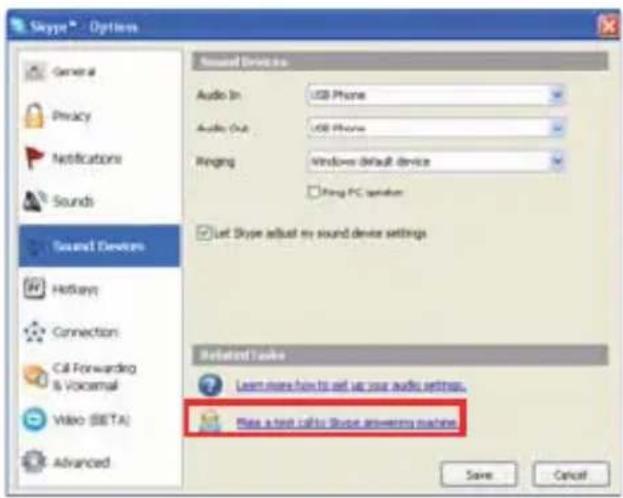
C. B okhe napametpoB Skype bblbepnTe Make a test call to Skype answering machine (CdeIaTb TeCTOBbI 3BOHOK Ha aBTOOTBeTcNk Skype) n cJeDyIe NHCTpyKzIaM Ha 3KpaHe.
Приимechаиме.При BXODЯШ X Bbl3OBaX 3BOHIT 3ByKOBoE yctpoiCTBO Windows no ymoJIaHIO. EcII Heo6xOДIMO,чTo6bl 3BOHINl Internet Mini Phone,a He 3ByKOBoe yctpoiCTBO Windows no ymoJIaHIO,cm. pa3deI "ИспOLSb3OBaHne".
Pycckn
Поздравляем! Роцедура установки вьлочи на устшно. 3aperистрируITE USRobotics USB Internet Mini Phone на Be6-y3ne www.usr.com/productreg/.
Pycckn
ИспOLSване
3nauchnHa nanei 3aaday
Kpacnbl 3NaUOK C TeJefoHOM Ha NaHeJI 3aJaU O3NaUaeT, UTo Internet Mini Phone yCTaHOBJeH npaBnIbHo. 3eJeHbN 3NaUOK C TeJefoHOM Ha NaHeJI 3aJaU O3NaUaeT, UTo Internet Mini Phone IOdCoEduHEn HePpaBnIbHo. Ppr OTO6paJKeHn 3TOrO 3NaUka npoBepbTe Ka6eNb USB.
3eIeHbI 3NaUOK Skype Ha nanei 3aJaU O3NaUaET, UTO OcyuIecTBJIeH BXoD B nporpaMMy Skype. IBaJDbI UeIKHnTe 3NaUOK Skype, UTo6bl OTKpbITb OKHO Skype. Cm. INTEpaKTINBHyO cnpaBky nporpaMMbI Skype, HaxaB Help (CnpaBka) B OKHe nporpaMMbI Skype.
Klavn Internet Mini Phone
KnaBnAtpy TelefoHa MOxHO nCNoJb3OBaTb dJa Ha6opa znp, peryInpOBKn rPOMKOCTN, ydepxaHnBa Bbl3OBA, 3aDaHnA MeIoDn 3BOHka, Bbl6opa KOHTaKaI3 cPiCKa KOHTaKTOB n T.I. FyHKuN KnaBnS CM. B pa3dene "FyHKcNn TelefoHa" Ha cTp. 170.
BbINOJIHeHne Bbl3OBa
Испобзовные сиздаюв
Hajmte KnaBnuy Skype Ha Internet Mini Phone nIy DBeJbI 3NaQK Skype Ha naHeN 3aJaU. Ecn B cncKe KOHTaKTOB HeT HN OndHOKOHTaKTa, Bb6epTe Add Contact (O6aNTb KOHTaKT) nIi Search (Ponck) n cJeDyTe 3anpocam dIra CO3dAnnya KOHTaKTa.
YTo6bI cDJIaTb Bbl3OB, BBeI NTe HOMepa 6bICTpOro Ha6opa. YTo6bI cDJIaTb Bbl3OB, HaxMNTe KHOJky OTnpaBKn.
BbIIOJIHeHne Bbl3OBA C NOMOUsIO NCTOpNn Bbl3OBOB
OTKpoIe OKHO npoIpaMMbI Skype n BbIbepnTe BKJaDKy History (NcTOpn).ДЯ BbIbopa BKJaDKn MOxHo NCNoJIb3OBAtB KnaBnSy Skype Ha TepeOHe Internet Mini Phone.
IpocmOTpnte nCTOpHOBuB130BOB IN BbI6epNTe Bbl3OB. UTo6bl CdeNaTb Bbl3OB, HaxMnte KHOKNy OTnpaBKn.
BbINOJIHHeNHe Bbl3OBA Ha 06bIyHbI INPOBOJHOH NIM MO6nJIbHbI TeJeΦoH
C nOMoUHnIpoRpaMMbI SkypeOut moXHo BblIOJHnTb Bbl3OB Ha 06bIuHbI npoBOdHOJ nn Mo6nJIbHbI TepeOH. ChauHa nepeiDHTe Ha cTpaHnUy no aApecy www.skype.com n 3aKaJnte KapToUky "Skype Credit".
EcnBbI3OB npHnMaetcra, KOrda nocTynae tse Odn H Bbl3OB, MoXHO NoCTaBNTb NepBbIn Bbl3OB Ha ydepkaHne, YTO6bl npHnAeTb BTOPOB Bbl3OB.
HaKmTe KhONky nepeDaun, YTo6bI nocTaBnTb Ha yDepXaHne NepBbI Bbl3OB.
Первий 3BOHOK CTaBNTcЯ Ha удержанe, a BTOpoI CTaHOBNTcЯakTINBhblM.
OTBETbTe BTOpOMy a6OHeHTy. N0 3aBepSeHn pa3ROBOPa HaxMnte KHONky 3aBepSeHn Bbl3OBA.
Haxmnte KhoNky nepeJaun, YTO6bI BO306HOBNTb NepBbI Bbl3OB.
UyBCTBNTeJIbHOCTb MnkpofoHa HacTpbanBaetc aBTOMaTnueCKn I He MoKeT 6bITb 3aDaHa C NOMOuH o peryIaTopa.
YkaKHTe HappaBJIeHne BbI3OBOB Ha 3ByKOByo KapTu nn Internet Mini Phone nomooupackpbBaHOxxCa MeHIO Output (BbIXoD) n Input (BxoD) B o6JaCTn 3ByKOBOrO ycTpoiCtBa Skype.
BpackpbBaIOUeMcMeHIO 3BOHka yKaJnte Internet Mini Phone nIIN dInHaMnK INOMbHTepa 3BOHrT npN BXODAUX Bbl3OBax.
TeIefoH He BocnpOn3BODNT MeIoDnIO 3BOHka, BbI6paHHyIO B Skype
PeweHne
MeIoDn 3BOHka, BbIbpaHHbIe B Skype, He BocPon3BODaTcra TepeoHom USRobotics USB Internet Mini Phone. MoXHo BbIbpaTb MeIoDnIO 3BOHka Ha TepeOHe, HaxaB npaByIO BepxHIO KJIaBnUy Ha KlaBnAType.
PeeHne
MeIoDN 3BOHka Skype MOxHO BOCpON3BOIDnTb C NOMOuIIO 3ByKOBoi KaPTbI. IBaJDbI UeJIKNHTe 3HaUOK C TeJeΦoHOM Ha NaHeJIu 3aJaU. B nporpaMme Internet Mini Phone OTKpoIte paKpbIbAioUochecMaHIO Ringing (3BOHok) n BbIbepInTe 3ByKOByo KapTu.
3Bykn KOMnbIOTepa N My3bIka BOCnpon3BODJTCr TeJefoHOM, a He Yepe3 dNHaMnKn
PeweHne
Hajmte KhoNky OK, yTo6bI 3aKpbITb OKHO HacTpoiKn 3ByKOB.
IporpaMMHoe oBecneueHne Skype He OTKpbBaetc npn HaxaTn KnaBnShn Skype Ha TeJefoHe
PeseHne
Bo3moJHo, nporpaMMHoe obecneueHne Skype 3aNyUeHO, Heo6xOdImo BOiTN B nporpaMMy C
Pycckn
nOMOu yeTHoN 3aHncn Skype. 3aNyctnte nporpaMMHoe oBecneueHne Skype, haxaB KhoNky Nyck n Bb6paB Skype. Ppi OTCyTCTBn yyeTHoN 3aHncn Skype cIeDyIte nHcTpPyKzIam Ha ekpaHe, YTO6bl CO3daTb yyeTHyIO 3aHncb IOnb3OBaTeIg Skype.
B TepeoHe He cIbIweH 3ByK nIIN Bbl3bIBaIOuN a6OHeHT He cJIbIwNT rOJoc
PeeHne
YbEInTeScb, YTo Ka6eIb USB nOdknIoUeH K Internet Mini Phone n KompbIoTepy.
PeeHne
HeB03MOXHO nCNoJIb3OBaTb MKNPOOoh CnCTeMbI
Windows Vista aBToMaTnueckN BbIbnpaET HObBi TeJeOH B KaueCTBe MnkpoOHa. YTo6bl ChOba BbIbpaTb IcXoHbI MnkpoOH, BbIPOJHNTe CJIeDyHOUne DeiCTBnA.
B cncTeMe Windows haxmte KhoNky Nyck
BbI6epnte PAnelb ynpaBneHn.
BbI6epnte O6OpydoBaHne n 3ByK > 3ByK.
BbI6epnte BkJaKy 3aInscb.
BbIbePte yctpoiCTBO 3aIncn, KOtOpoe Heo6xOdmo NCNoJIb3OBaTb DnJ 3aIncn Ha KOMNbIOTepe.
BbI6epTe 3aDaTb no yMOnyauHnIO.
PraDOM C Bbl6paHHbIM yCTpoiCTBOM NOBNTc3eJeHa raNoUka.
Haxmte KhoNky OK, yTo6bI 3aKpbITb OKHO HacTpoiKN 3ByKOB.
TexHnuecka noDdepXka
Ecni npi nCnoB3OBAHn npoRpaMMbI Skype BO3NkJI npo6JIeMbI, nepeiDnte Ha Be6-y3eI no aDpecy: http://support.skype.com
U.S. www.usr.com/emailsupport
KaHaJaawww.usr.com/emailsupport
AByctpnra www.usr.com/emailsupport/de BeIbIyra (pIaMaHndckn) www.usr.com/emailsupport/bn
Белов (фразузкн) www.usr.com/emailsupport/be
Yeščka Pecny6nka www.usr.com/emailsupport/cz
Даня www.usr.com/emailsupport/ea
ФИNHЯндя www.usr.com/emailsupport/ea
Фразец www.usr.com/emailsupport/fr
Герману www.usr.com/emailsupport/de
Tpeuww.usr.com/emailsupport/gr
Benhrgn www.usr.com/emailsupport/hu
IrpnaHnna www.usr.com/emailsupport/uk
Итania www.usr.com/emailsupport/it
Люкемыpr www.usr.com/emailsupport/be
Блжний ВocToK/Aфрпka www.usr.com/emailsupport/me
HndepnaHdbI www.usr.com/emailssupport/bn
HopBerne www.usr.com/emailsupport/ea
Польша www.usr.com/emailsupport/pl
Португлес www.usr.com/emailsupport/pt
Poccnaywww.usr.com/emailsupport/ru
Истеня www.usr.com/emailsupport/es
www.usr.com/emailsupport/se
Шевцарnia www.usr.com/emailsupport/de
Typcnw. www.usr.com/emailsupport/tk
OA3www.usr.com/emailsupport/me
Belenko6pntaHnra www.usr.com/emailsupport/uk
Для пооченьяTekушей KOHTaKTHOINHΦopMaци п подөрхke устюства пocetinte Be6-y3eI по aDpecy: http://www.usr.com/support/.
CootbeteBne cTaHdapTaM n rapaHTn
HΦopMaζηo COOTBeTCTBn CTaHdapTaM
Skype He MoXeT NOJHOCTbI O3aMeHHTb O6bIcHyIO CnyK6y TeNeΦoHn. IIO6yU yCnyr VolP, nCnoJIb3YeMyIO COBMeCTHO c USB Internet Mini Phone, HeIb3a npIMeHrTb DnI BbI3OBA CnyK6 3KCTpeHHoN NOMOuN IIN Ha6opA HOMePoB 3KCTpeHHoro BbI3OBA (311, 911, 112, 999 n T.D.). DnI BbI3OBA CnyK6 3KCTpeHHoN NOMOuN (MNIuN, POKapHaN CnyK6a IIN CnyK6a CKopoN NOMOuN) INCNoJIb3yIte PNOBOdHoi TeNeΦoH.
3aYBJIeHne O COOTBeTcTBn CTAHdapTaM
U.S. Robotics Corporation
935 National Parkway
Schaumburg, IL 60173
U.S.A.
I3roTOBnteJIb rapaHTnpyeT, yTo DaHHbI INpOdyKT OTBeuayet TexHnueCKIM Tpe6oBaHnmaFCC:
YacTb 15, Klaacc B
Pn 3Kcnpnyataun 3Toro yctpoiCTBa DOJXHbI CO6nOdaTbcra CneDyUoune ycNoBna:
1)Данhoe yctpoiCTBO He DoJXHO YBJIaTbCЯ NCTOCHNKOM 3JIeKTPOMaTHHbIX NOMEX,
2)Данhoe yctpoiCTBOdoJxHo pa6OtaTbBycnoBnX NOMEX,BKIOUyA Te,TO MOryt Bbl3bIBaTb c60N Bpa6Ote.
Данhoe obopydOBaHne COOTBETCTByet Tpe6OBAHnM YacTn 15 npabn FCC n IpeHa3HaYeHO DnI NcNoJIb3OBAHnY DOMa N B OΦnce.
IpeDynpexdHne IJnIOb3OBaTeJI. IIO6bIe N3MeHeHna IIN MoNΦnKaUIn, He OIO6peHHbIe IprMo CTOpOHoi, OTBETCTBeHHoN 3a COOTBEcTcBnE TexHnueckm YcNOBnM, MOrY T pNBecTn K JInuEHNIO IOJIb3OBaTeJI npab Ha 3KcnPyatauIO DaHHoro o6OpydoBaHnI.
Pomexn Tele- npaonnpema
Данhoe устюпговьоги И пиз haHO COOTBETCTBYUOM Tpe6obAHnM,прдяВлЯЕмьIM KцфpoBbIM ySTpoIcTBaM knaCa B,corlachoч.Tp6eHax OecneHTb 3aunTy OT HekeJIaTeIbHbIX IN BpeIbIX NOMEX B JINbIX NOMeHnx.HactoJee obopyOBOAHne rehepyet,ICNoJIb3yET IMOKeT I3IyATb paIOBOHbI. B cnyae yCTaHOBNKn I ekCIIpyATAuN C HapUWeHNEM IHCTpyKUn pON3BOIDTeJIy UcTPOIcTB MOKET CTaTB NCTOCHNKOM CNJIbHbIX NOMex IЯ paIOOnPnema.ODHko IN B cnyae yCTaHOBNKn C CO6JIIODeHNEM IHCTpyKUn OTCYCTBHe NOMEx He rapaHTnpyETcA.EcIn daHoe yCtpoIcTB CO3daet NomExn paINO- IN TeJIeBN3IOHHOMy pIneMy, YTO MOXHO ONpeIeNTb NYTeM BbIKIQUeHry IN BkIIoueHry UcTPOIcTBa, NOpItaITecb yCTpaHHTb NOMEXN ODNHM n3 CNeDyUOx CNOCOB.
- IpeepnentpyTe nI npemecnte npemHyIO aHTHHy.
- YBeJIHcIe paCCTOaHHe MeKdY yCTpOiCTBOM I npIeMHNKOM.
- IoKJIIOHTe yCTpOiCTBO IN npHEmHK K pa3HbIM BETBAM CETN 3JIeKTPoINTuHnI.
Pycckn
O6paTnTeCb 3a NOMOuK CBOeMy NOCTaBUnKy IIN K CneuaJIncTy B o6naCTn paIIO N TeJeBnDeHn.
Pernctpaun UL/Pernctpaun CUL.
CoOTBcTbNtpe6oBaHnA M CE
3aBHeHne O COOTBeTCTBnN CTaHdApTaM
Kopnapaia U.S. Robotics Corporation, aDpoc KToPo9 935 National Parkway, Schaumburg, Illinois, 60173-5157 USA, c noJHO OTBeTCTBHeHOctbIO 3aBJIaET, cyTo npOyKT USRobotics USB Internet Mini Phone, moJeB 9602, B OTHoWeHHKOToPOrO DeIcTBtTeNbHO HAcTOAue 3aABJeHne, POJIHOCTbIO COOTBeTCTByeTpeuNCleHHbIM CTAHApTaM I/IIH HopMaTINBbIM DOKUMeHTaM.
EN55022
EN55024
HaCTOaIM MbI 3aBnE, yTO BbIeHa3BaHHoe yCTPOINCTBO yIOBJIeTBOPaET OCHOBbIM Tpe6oBAHnA M n DpyrIM COOTBeTCTByIOUIm NIOJoxeHNm DInpeKTNBbl 89/336/EC.
KoNnI NcXoHOrO DoKymeHTa "3aBHeHne O COOTBeTCTBnI CtAnDapTaM CE" (В злЕКТрОнHOM BnIe) ИМeETcЯ Na Be6-y3Ie U.S Robotics no aIpecy: http://www.usr.com/
OrpaHnueHHa rapaHTna KOpnpaCnU.S.Robotics,DeiCTbYIOuA B TeueHne DByx(2)IeT
6.0 OTKA3 OT O8a3ATEJIbCTB
B HeKOTopbIX cTpaHax, pernoHax IIN aDMNHcTpaTnBHO-TeppiTOpnaJIbHbIX
6bpa3OBaHNrX He donyckaiOTcN NCKIIOUeHn IIN OpapHueHn DeiCTBnI
IPOda3yMeBaEMoI rapaHTn, IIOo OpapHueHn B Clyuae IOBOOHbIX IIN KOCBEHHbIX
y6bITKOB, DeIcTBYIOUIE B OTHOSeHn ONpeJeLEHHbIX N3DeJIn, PpeOCTaBHeHHbIX
NOTpe6nteJIam, IIOo OpapHueHne OTBeTCTBHeHOctn B Clyuae IOLOyeHn TpaBMbl,
IO3tOMy yka3aHHbIe BblIe OpapHueHn MOyT He OTHCnTbcR K IOKyPATEJIIO. Ecnn
3aKOHOdaTeJIbCTBOM He donyckaeTcN OTKa3 OT IOpa3ymeBaEmbIX rapaHTn B NOJHom
0bEme, OHn OpapHuaIBaOTc NepNOdom DeIcTBn DaHHo NcMbHeHn rapaHTn,
coCTabJIHOUsIM DBA (2) IODA. DaHHa rapaHTn ppeOCTaBnReT IOKyPATEJIIO
ONpeJeLEHHbIe IOpNDUeCKNe IpaBa, KOToPbIE MOyT MeHArTbcR B 3aBNCIMocTn OT
IIOJOKeHm MeCTHOrO 3aKOHOdaTeJIbCTBa
7.0ДЕИCTBYIOUIEE3AKOHODATEJIbCTBO.
Данна orpaанчehная rapaHTnpeYnpyeTc3aKohm WtTaTaNInHoic, CUSA, 3a NCKIIOUChEHNEM clyuaeB, KOrda OHO npOTnBOpeuNT UOpNduYeCKM HOpMaM IN KoHBeHcIM OpraHn3aunn ObbeDINHeHHbIX Haun o KOHTpaKaTAX Ha MeJdUnHyTO ToproBJIIO TOBapamN.
U.S. Robotics Corporation
935 National Parkway
Schaumburg, IL, 60173
U.S.A.
Installation
U.S. Robotics Corporation
935 National Parkway
Schaumburg, IL 60173
USA
Industry Canada (IC)
1.0 ALLMÄNNA VILLKOR:
U.S. Robotics Corporation 935 National Parkway Schaumburg, IL, 60173 U.S.A.
Instalace
Obsah baleni
- USRobotics USB Internet Mini Phone
- Kabel USB
- l n s t a l a Ční disk CD-ROM
Instalačni príručka
Systémové požadavky
U.S. Robotics Corporation
935 National Parkway
Schaumburg, IL, 60173
U.S.A.
Industry Canada (IC)
U.S. Robotics Corporation
935 National Parkway
Schaumburg, IL, 60173
U.S.A.
Telepítés
A csomag tartalma
A U.S. www.usr.com/emailsupport
Kanada www.usr.com/emailsupport
Ausztria www.usr.com/emailsupport/de
Belgium (flamand) www.usr.com/emailsupport/bn
Belgium (francia) www.usr.com/emailsupport/be
Portugal www.usr.com/emailsupport/pt
A U.S. Robotics Corporation
935 National Parkway
Schaumburg, IL 60173
USA.
Industry Canada (IC)
4.0 GARANCIÁLIS CSERE:
U.S. Robotics Corporation
935 National Parkway
Schaumburg, IL, 60173
U.S.A.
Instalacja
- Zainstaluj program Skype
U.S. www.usr.com/emailsupport
Kanada www.usr.com/emailsupport
Austria www.usr.com/emailsupport/de
Belgia (flamandzki) www.usr.com/emailsupport/bn
Belgia (francuski) www.usr.com/emailsupport/be
Czechy www.usr.com/emailsupport/cz
Dania www.usr.com/emailsupport/ea
Finlandia www.usr.com/emailsupport/ea
U.S. Robotics Corporation
935 National Parkway
Schaumburg, IL 60173
U.S.A.
Industry Canada (IC)
3.0 SERWIS GWARANCYJNY
4.0 WYMIANA GWARANCYJNA
U.S. Robotics Corporation
935 National Parkway
Schaumburg, IL, 60173
U.S.A.
InstALAÇÃO
Fecha a janela do Skype Termina as chamadas
Enviar

Portugal www.usr.com/emailsupport/pt
Russia www.usr.com/emailsupport/ru
Espanha www.usr.com/emailsupport/es
Suécia www.usr.com/emailsupport/se
Suiça www.usr.com/emailsupport/de
Turquia www.usr.com/emailsupport/tk
EAU www.usr.com/emailsupport/me
Reino Unido www.usr.com/emailsupport/uk
http://www.usr.com/support/.
Regulamentos e Garantia
A U.S. Robotics Corporation, sita em 935 National Parkway Schaumburg, IL 60173 E.U.A.
U.S. Robotics Corporation 935 National Parkway Schaumburg, IL, 60173 E.U.A.
Asennus
Pakkausen sisälto
- USRobotics USB Internet Mini Phone
U S B - k a a p e l i
• A s e n n u s - C D - l e v
A s e n n u s o p a s
U.S. Robotics Corporation
935 National Parkway
Schaumburg, IL 60173
USA
Industry Canada (IC)
This digital apparatus does not exceed the Class B limits for radio noise emissions from digital apparatus set out in the interference-causing equipment standard entitled Digital Apparatus, ICES-003 of Industry Canada.
Users should ensure for their own protection that the electrical ground connections of the power utility, telephone lines, and internal metallic water pipe system, if present, are connected together. This precaution may be particularly important in rural areas.
Caution: Users should not attempt to make electrical ground connections by themselves, but should contact the appropriate inspection authority or an electrician, as appropriate.
CE-yhdenmukaisuus
U.S. Robotics Corporation 935 National Parkway Schaumburg, IL, 60173 U.S.A.
Installation
Pakkens indhold
- USRobotics USB Internet Mini Phone
- USB-kabel
- Installations-cd
- Installationshandbog
Systemkrav
a test call to Skype answering machine
(Foretag et testopkald til Skypes telefonsvarer),
Canada www.usr.com/emailsupport
strig www.usr.com/emailsupport/de
Belgien (flamsk) www.usr.com/emailsupport/bn
Belgien (fransk) www.usr.com/emailsupport/be
Tjekkiet www.usr.com/emailsupport/cz
Danmark www.usr.com/emailsupport/ea
Finland www.usr.com/emailsupport/ea
Frankrig www.usr.com/emailsupport/fr
Tyskland www.usr.com/emailsupport/de
Italian www.usr.com/emailsupport/it
Luxembourg www.usr.com/emailsupport/be
Mellemøsten/Afrika www.usr.com/emailsupport/me
Holland www.usr.com/emailsupport/bn
Norge www.usr.com/emailsupport/ea
Polen www.usr.com/emailsupport/pl
Portugal www.usr.com/emailsupport/pt
Rusland www.usr.com/emailsupport/ru
U.S. Robotics Corporation
935 National Parkway
Schaumburg, IL 60173
USA
Industry Canada (IC)
This digital apparatus does not exceed the Class B limits for radio noise emissions from digital apparatus set out in the interference-causing equipment standard entitled Digital Apparatus, ICES-003 of Industry Canada.
Users should ensure for their own protection that the electrical ground connections of the power utility, telephone lines, and internal metallic water pipe system, if present, are connected together. This precaution may be particularly important in rural areas.
Caution: Users should not attempt to make electrical ground connections by themselves, but should contact the appropriate inspection authority or an electrician, as appropriate.
CE-kompatibilitet
3.0 REPARATIONER I HENHOLD TIL GARANTIEN:
U.S. Robotics Corporation 935 National Parkway Schaumburg, Illinois, 60173 USA
Dansk
Installing
Innhold
- USRobotics USB Internet Mini Phone
- USB-kabel
- Installerings-CD
- Installeringsveiledning
Systemkrav
Canada www.usr.com/emailsupport
sterrike www.usr.com/emailsupport/de
Belgia (flamsk) www.usr.com/emailsupport/bn
Belgia (fransk) www.usr.com/emailsupport/be
Den tsjekkiske republick www.usr.com/emailsupport/cz
Danmark www.usr.com/emailsupport/ea
Finland www.usr.com/emailsupport/ea
Frankrike www.usr.com/emailsupport/fr
Tyskland www.usr.com/emailsupport/de
Hellas www.usr.com/emailsupport/gr
Ungarn www.usr.com/emailsupport/hu
Irland www.usr.com/emailsupport/uk
Italy www.usr.com/emailsupport/it
Luxembourg www.usr.com/emailsupport/be
Midtøsten/Afrika www.usr.com/emailsupport/me
Nederland www.usr.com/emailsupport/bn
Norge www.usr.com/emailsupport/ea
Polen www.usr.com/emailsupport/pl
Portugal www.usr.com/emailsupport/pt
Russland www.usr.com/emailsupport/ru
Spania www.usr.com/emailsupport/es
Sverige www.usr.com/emailsupport/se
Sveits www.usr.com/emailsupport/de
Tyrkia www.usr.com/emailsupport/tk
De forente arabiske emirater www.usr.com/emailsupport/me
Storbritannia www.usr.com/emailsupport/uk
Du finner den nyeste informasjonen om kontakter for tekisk stotte på folgLende nettsted:
http://www.usr.com/support/.
Norsk
U.S. Robotics Corporation 935 National Parkway Schaumburg, IL 60173 USA
UL-registry / CUL-registry:
Industry Canada (IC)
This digital apparatus does not exceed the Class B limits for radio noise emissions from digital apparatus set out in the interference-causing equipment standard entitled Digital Apparatus, ICES-003 of Industry Canada.
Users should ensure for their own protection that the electrical ground connections of the power utility, telephone lines, and internal metallic water pipe system, if present, are connected together. This precaution may be particularly important in rural areas.
Caution: Users should not attempt to make electrical ground connections by themselves, but should contact the appropriate inspection authority or an electrician, as appropriate.
#
CE-samsvar
Samsvarserklæring
Vi - U.S. Robotics Corporation med adresse 935 National Parkway, Schaumburg, Illinois, 60173-5157 USA - erklærer under eneansvar at Produktet, USRobotics USB Internet Mini Phone, modell 9602, somijke erklæringen gjelder, er i samsvar med følgende standarder og/eller andre normgivende dokumenter:
EN55022
EN55024
Vi erklærer herved at det ovennevnte produktet er i overensstemmelse med alle de vesentlige kravene og andre aktuelle bestemmelsei direktiv 89/336/EC.
En elektronisk kopi av den originale CE-samsvarserklæringen er tilgengelig på nettstedet til U.S. Robotics: http://www.usr.com/
Norsk
U.S. Robotics Corporations to (2) Års begrensegaranti
1.0 GENERELLE VILKÄR:
U.S. Robotics Corporation 935 National Parkway Schaumburg, IL, 60173 USA
Norsk
EykataoTaon
Ouyyapia www.usr.com/emailsupport/hu
Ipλavδia www.usr.com/emailsupport/uk
Iraia www.usr.com/emailsupport/it
Aouεμβούργo www.usr.com/emailsupport/be
Méon Avatoλη/Αφρική www.usr.com/emailsupport/me
Oλλαδία www.usr.com/emailsupport/bn
Nopβηγια www.usr.com/emailsupport/ea
Pioawvia www.usr.com/emailsupport/pl
Pnoptoyaiia www.usr.com/emailsupport/pt
Pwoiawww.usr.com/emailsupport/ru
Iotavia www.usr.com/emailsupport/es
Zounδia www.usr.com/emailsupport/se
Eλβετία www.usr.com/emailsupport/de
Toupkiawww.usr.com/emailsupport/tk
H U.S. Robotics Corporation
935 National Parkway
Schaumburg, IL 60173
U.S.A.
Industry Canada (IC)
Autn n i ouokkeun utepbaivei ta opia tnc Katnyopiac B yia ekTIOU Tcogopou paoonmuatwv Tou kaOopiOvraI OTO PPOTUU Tou apopa oTov EoTIAOIOPOu Ppokaei TApEeOaEs, eTtAo Digital Apparatus, ICES-003, Tns Industry Canada.
Oi xpnoTeG 0a Tne i va diaoqaIouv, yia Tn Dikn Touc PpOtaia, tn ouvdo n Tns nEKTpiKng Yeiwns Tnc movadac Ioxuoc M To EOWTEPIKO uotnma
muTAAIKW OwAnVWOeWv UbpueunC, evuTTapxEi. Autn n PPOpuAeN mTropEi va
Exi idaiTepn onmaia otic aypotike C TepioXeC.
Ppoox: OI xpnoTeC dev 0a TpeTc va ETIeipouv va kavouv Tc ouvdeoeic Tc yeiwoan c ano muovtouc, aaa a TpeTc av ENIkoivwovu v e Tnv apoia EITOTIKn apxn n kaTIOv nAektpoLoyo.
CE
Δλωσιμόρωσης CE
Δnλωσιμμόρφωσης
U.S. Robotics Corporation
935 National Parkway
Schaumburg, IL, 60173
H.IA.
Eλληνικα
USRobotics USB Internet Mini Phone
USB
y
山
Control Panel (b) Start fWindows XP Sounds and Audio J (p) Devices
JgSsBbll CwB (G) Audio q j J. J. J. J. J. J. J. J. J. J. J. J. J. J. J. J. J. J. J. J. J. J. J. J. J. J. J. J. J. J. J. J. J. J. J. J. J. J. J. J. J. J. J. J. J. J. J. J. J. J. J
j) My Computer j:Windows 2000 Control j. j. (j) Sounds and j. j. (j) Panel
jLgS yIbll CwB (C) Audio q j J. Windows
a
Skype
Sound .(C) Options (D) Tools
(Devices
Make (Skype Options
(a) a test call to Skype answering machine
Skpe
i 1
Internet Mini Jnnn nn nnnn nn nnnnnnnnnnnnnnnnnnnnnnnnnnnnnnnnnnnnnnnnnnnnnnnnnnnnnnnnnnnnnnnnnnnnnnnnnnnnnnnnnnnnnnnnnnnnnnnnnnnnnnnnnnnnnnnnn
Windows j Phone
J 1
Jy jy Jy y
USRobotics USB Internet Mini Phone
. www.usr.com/productreg/
puii i joo
Internet Mini Phone
Internet Mini Phone 1
Skype
Skype .Skype
Skype ( ) Help Skype
Internet Mini Phone
slll 11111111111111111111111111111111111111
四边形 1,2,3
Jauy1 Cgaaia
Internet Mini Phone Skype
Skype
Add f q q J
Search ( ) Contact
sendSkypeJlsl! jg Jlsl 12
Internet Mini Phone 0 Skype (J)
Jaiy
Skype (e) end
Internet Mini Phone
ylll
.()ContactsSkype
) Set Speed-Dial gJg J
(
()OKg qg jn gJg Jg
Jaiy
b
JUJI (JU) Send q JI J
Clllal Cilg jn Jaiy
siky. History SKype
Internet Mini Phone Skype
a a
JU (J) Send 0
Jaa 1
pduuul uuaa aaiy auiy y duiy buiy
Skype" www.skype.com .SkypeOut
Credit
+00 100 bai jia
Internet Mini Phone
()
http://support.skype.com
(.
.(J)SendgjrlJlwr!
aolso
Skype Skype Skype
J 1
I (Skype) Skype Sound Devices
) Allow this program to use Skype Save (OK (Skpe
J 1
n nn nnnnnnnnnnnnnnnnnnnnnnnnnnnnnnnnnnnnnnnnnnnnnnnnnnnnnnnnnnnnnnnnnnnnnnnnnnnnnnnnnnnnnnnnnnnnnnnnnnnnnnnnnnnnnnn
lll lnnn nnnn nnnn nnnn nnnn nnnn nnnn nnnn nnnn nnnn nnnn nnnn nnnn nnnn nnnn nnnn nnnn nnnn nnnn nnnn nnnn nnnn nnnn nnnn nnnn nnnn nnnn nnnn nnnn nnnn nnnn nnnn nnnn nnnn nannn nnnn nnnn nnnn nnnn nnnn nnnn nnnn nnnn nnnn nnnn nnnn nnnn nnnn nnnn nnnn nnnn nnnn nnnn nnnn nnne
()RingingXPWindowsVista.(USB)PhoneUSB
USB (R) Ringing:Windows 2000. (USB Audio Device
i 1
Skpe
USRobotics USB Skype f ddddall lnnn n 1
Ie biaa yllle Ie rnaia .Internet Mini Phone
Jz j 1 Jy jSkpe n nn Jy j 1 1 1 1 1 1 1 1 1 1 1 1 1 1 1 1 1 1 1 1 1 1 1 1 1 1 1
G
:USB Internet Mini Phone
j 1 j 1 j 1 j 1 j 1 j 1 j 1 j 1 j 1 j 1 j 1 j 1 j 1 j 1 j 1 j 1 j 1 j 1 j 1 j 1 j 1 j 1 j 1 j 1 j 1 j 1 j 1 j 1 j 1 j 1 j 1 j 1 j 1 j 1 j
U.S. Robotics Corporation 935 National Parkway Schaumburg, IL 60173
U.S.A.
FCC 15
aai baj jiaai
y 1
Jzllg 100 jj 12
:
10 1 1 1 1 1 1 1 1 1 1 1 1 1 1 1 1 1 1 1 1 1 1 1 1 1 1 1 1 1 1 1 1 1 1 1 1 1 1 1 1 1 1 1 1 1 1
JyL
Jy j 111111111111111111
Jy j 1 y 1 1 1 1 1 1 1 1 1 1 1 1 1 1 1 1 1 1
:CUL/UL
C-UL, UL p g y sia iia cagallg jy. UL Listd Information Technology Equipment (ITE) g g
125
(IC)
E 1003 154 111 111 111 111 111 111 111 111 111 111 111 111 111 111 111 111 111 111 111 1
C
CE
gill
U.S. Robotics Corporation of 935 National Parkway, Schaumburg, Illinois, 60173-5157 4522 USA USRobotics USB Internet Mini Phone 1/2/2008 USA
EN55022
EN55024
C 89/336/EC U.S.Robotics CE http://www.usr.com/
U.S. Robotics Corporation
bgt = 1
gog (jao) jol gill pssuill lbae sglal 1-1
Jg
U.S. Robotics Corporation 4
A 1 (U.S. ROBOTICS)
U.S. ROBOTICS
J 1
aillgLgSgU.S.ROBOTICS
lgN < 2
u) U.S. ROBOTICS 1
L 8 (do) LgS g U.S. ROBOTICS
iLoai Liocly
:Jaaai 1 aui 1 Jgaoi
U.S. ROBOTICS 1-1
a aas aeae 1e Jaaee
111111111111111111111111
U.S. ROBOTICS
Jolall aois oiaic Jgauu
U.S. ROBOTICS 5
U.S ROBOTICS U.S ROBOTICS
www.usr.com:
Jglll jn 10a Jll /Logell J
U.S.ROBOTICS
1111111
iial Juaaia
1
aia jaii
J 1
U.S.ROBOTICS
U.SRBOTICS
:Jai
JgU 1-2
a
Lc aay jai lolc Lgao jaoaal yls g. Lolgl /g aciaaall y 1
o o Lx Jl) jy sll i y n no d aas uu u u u u u u u u u u u u u u u u u u u u u u u u u u u u u u u u u u u u u u u u u u u u u u u u u u uu uuuu U.S.ROBOTICS 5
J! g Lg (RMA) g RAA U.S.ROBOTICS 5
RMA Loo U.S.ROBOTICS 2001 2001 2001 2001 2001 2001 2001 2001 2001 2001 2001 2001 2001 2001 2001 2001 2001 2001 2001 2001 200
gaaag aagag gagagagagagagagagagagagagagagagagagagagagagagagagagagagagagagagagagagagagagagagagagagagagagagagagagagagagagagagagagagagagagagagagagagagagagagagagagagagagagagagagag
a aaii i 153 aigil aigin u U.S. ROBOTICS 4u Jn A-2
an + 1 = an + a_n
AeIglll Ii:THIRD-PARTY SOFTWARE 1-0
Oie pLsWII Jb. Third-party gU.S.Robotics
Third- cIyIgai yIaiaiaiaiaiaiaiaiaiaiaiaiaiaiaiaiaiaiaiaiaiaiaiaiaiaiaiaiaiaiaiaiaiaiaiaiaiaiaiaiaiaiaiaiaiaiaiaiaiaiaiaiaiaiaiaiaiaiaiaiaiaiaiaiaiaiaiaiaiaiaiaiaiaiaiaiaiaiaiaiaiaiaiaiaiaiaiaiaiaiaiaiaiaiaiaiaiaiaiaia
Jg 1000000000000000000000000000000000000000000000000000000000000000000000000000000000000000000000000000
g 1 g 1 g 1 g 1 g 1 g 1 g 1 g 1 g 1 g 1 g 1 g 1 g 1 g 1 g 1 g 1 g 1 g 1 g 1 g 1 g 1 g 1 g 1 g 1 g 1 g 1 g 1 g 1 g 1 g 1 g 1 g 1 g 1 g 1 g
a 1 a 1 1 1 1 1 1 1 1 1 1 1 1 1 1 1 1 1 1 1 1 1 1
U.S. Robotics Corporation
935 National Parkway
Schaumburg, IL, 60173
U.S.A.