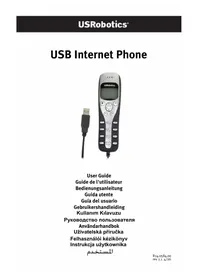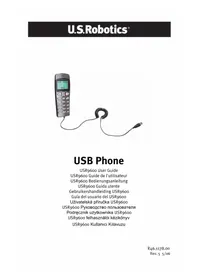
USB Internet Phone 9600 - Phone US ROBOTICS - Free user manual and instructions
Find the device manual for free USB Internet Phone 9600 US ROBOTICS in PDF.



User questions about USB Internet Phone 9600 US ROBOTICS
0 question about this device. Answer the ones you know or ask your own.
Ask a new question about this device
Download the instructions for your Phone in PDF format for free! Find your manual USB Internet Phone 9600 - US ROBOTICS and take your electronic device back in hand. On this page are published all the documents necessary for the use of your device. USB Internet Phone 9600 by US ROBOTICS.
USER MANUAL USB Internet Phone 9600 US ROBOTICS
U.S. Robotics Corporation
935 National Parkway
Schaumburg, Illinois
60173-5157
USA
No part of this documentation may be reproduced in any form or by any means or used to make any derivative work (such as a translation, transformation, or adaptation) without written permission from U.S. Robotics Corporation. U.S. Robotics Corporation reserves the right to revise this documentation and to make changes in the products and/or content of this document from time to time without obligation to provide notification of such revision or change. U.S. Robotics Corporation provides this documentation without warranty of any kind, either implied or expressed, including, but not limited to, implied warranties of merchantability and fitness for a particular purpose. If there is any software on removable media described in this documentation, it is furnished under a license agreement included with the product as a separate document, in the hard copy documentation, or on the removable media in a directory named LICENSE. If you are unable to locate a copy, please contact U.S. Robotics and a copy will be provided to you.
UNITED STATES GOVERNMENT LEGEND If you are a United States government agency, then this documentation and the software described herein are provided to you subject to the following:
All technical data and computer software are commercial in nature and developed solely at private expense. Software is delivered as "Commercial Computer Software" as defined in DFARS 252.227-7014 (June 1995) or as a "commercial item" as defined in FAR 2.101(a) and as such is provided with only such rights as are provided in U.S. Robotics standard commercial license for the Software. Technical data is provided with limited rights only as provided in DFAR 252.227-7015 (Nov 1995) or FAR 52.227-14 (June 1987) whichever is applicable. You agree not to remove or deface any portion of any legend provided on any licensed program or documentation contained in, or delivered to you in conjunction with, this Quick Installation Guide.
Copyright © 2005 U.S. Robotics Corporation. All rights reserved. U.S. Robotics and the U.S. Robotics logo are registered trademarks of U.S. Robotics Corporation. Other product names are for identification purposes only and may be trademarks of their respective companies. Product specifications subject to change without notice.
Package Contents
USR9600 USB Phone Installation Guide Installation CD-ROM
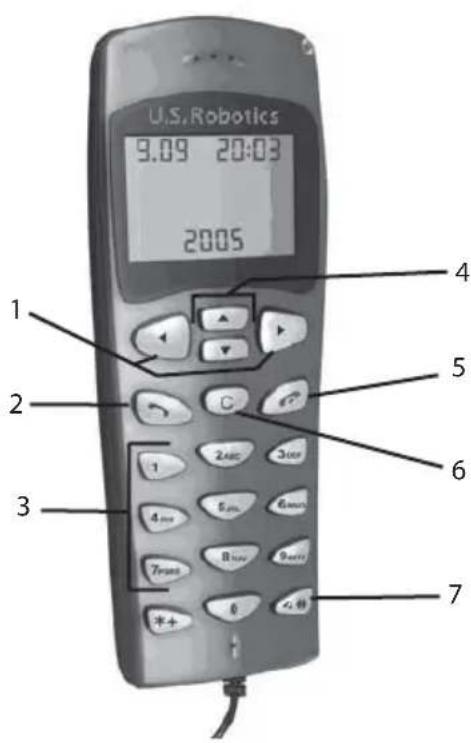
Physical Features:
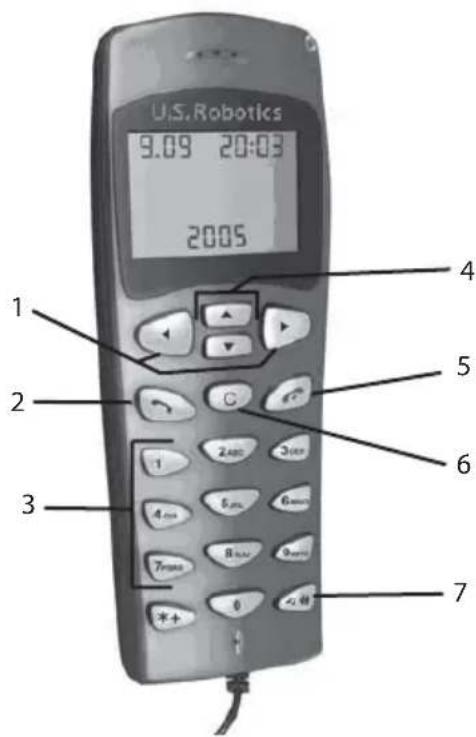
- LEFT and RIGHT: Use these buttons to switch between the tabs of the Skype software
- SEND: Press this button to place a call.
- 0-9: Use these numbers to enter a telephone number or to enter a speed dial entry.
- UP and DOWN: Use these buttons to scroll through the list of contact entries and calls in the Skype software.
5.END:Press this button to end a call or to cancel an action. - CLEAR: Press this button to clear any numbers you have entered for a call
-
: You can press this button repeatedly to cycle through the various ringtones.
USB Phone Installation
Prepare for Installation

Attention: Skype is not a telephony replacement service. Any VoIP service used in conjunction with the USB Internet Phone cannot be used for calls to emergency services or emergency telephone numbers (311, 911, 112, 999, etc.). Use a landline telephone for call ergency services, such as police, fire, or ambulance.

Note: It is important that you have your serial number written down before you install the USB Phone. You can find your serial number on the bottom label of the USB Phone. If you ever need to call our Technical Support department, you will need this number to receive assistance.
| Model Number Serial Number |
| USR9600 |

Note: Be sure to find out what letter your CD-ROM drives uses before you begin installing your new product. You will need to know this to properly install your software.

Note: The keypad functions of the USB phone only work with Skype. The USB phone audio sound drivers are compatible with most Internet-based voice communication applications.
Step One: Install the Skype software

Note: This is a Windows-based installation. If you have previously installed the Skype software, proceed to Step Two.
- Insert your U.S. Robotics Installation CD-ROM into the CD-ROM drive of your computer.

Note: If your CD-ROM does not automatically launch, click Windows Start, Run, type D:\setup (or the appropriate letter of your CD-ROM drive), and click OK.
- The Installation CD Graphic User Interface (GUI) will appear on your screen. If prompted, select your preferred language. You will be asked to read the license agreement. Read the agreement and click Yes.
- Click Install Skype. You must have a connection to the Internet since you will need to download this software from the Skype Web site. Follow the on-screen instructions to install and launch the Skype software. You may be prompted to reboot your computer.
- After the software is installed, you will need to create a Skype account. Follow the on-screen instructions. When you are finished creating an account, you may see a message stating a device was not found. Click OK.
Step Two: Connect your USB Phone
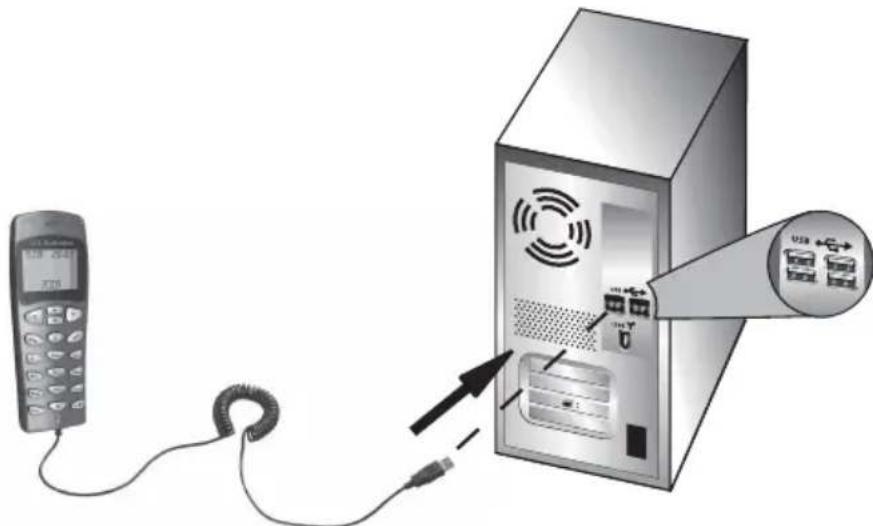
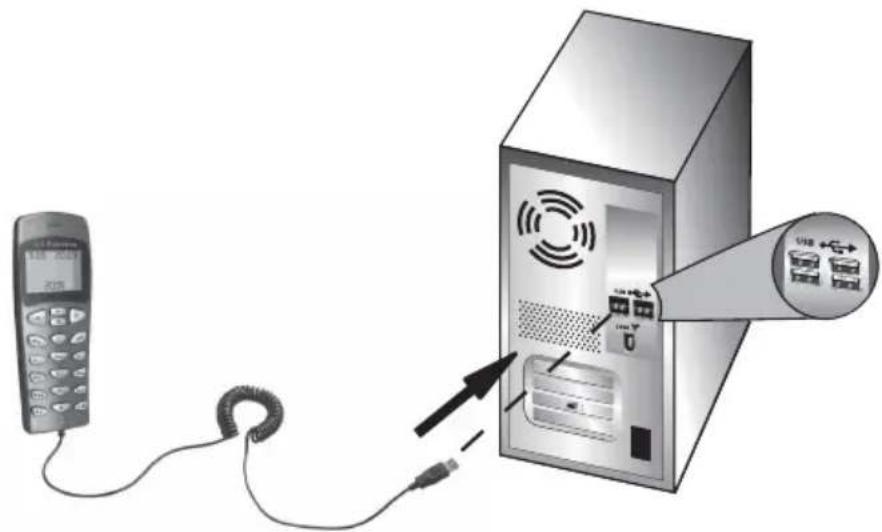
Connect the USB plug of the USB Phone to an available USB port on your computer.
Step Three: Install the USB Phone
- On the Installation CD-ROM GUI, click Install USB Phone. Follow the on-screen instructions to install the USB Phone software.
After installing the software, you will be prompted that another program wants to access Skype. Select Allow this program to use Skype and click OK. - When finished, restart your computer.
Congratulations! The installation procedure is now complete. If you experience any problems, refer to the Troubleshooting section in this guide.
Launch a Web browser and register your product at www.usr.com/productreg
Placing a telephone call
Calling another Skype user:
You will first need to have a list of contacts in the Skype software. In the Skype software, click Add a contact and follow the on-screen instructions to create a contact list. After you have created a contact list, perform the following steps to place a call:
- Press the left arrow button on the phone to open the Skype software.
- Scroll through your contact list using the up and down arrow buttons on the phone.
- Select the contact you want to call and press the SEND button on the phone.
- When you are finished, press the END button on the phone to end the call.
Receiving a telephone call
When you receive a call, press the SEND button on the phone to answer the call. When finished with the call, press the END button on the phone to end the call.
Setting up speed dial
Perform the following steps to set up the speed dial feature:
- Double-click the Skype software icon.
- Right-click on a contact and click Assign Speed-Dial.
- Enter a speed dial key for the selected contact and click OK.
- When you want to call that contact, enter the speed dial key on the phone and press the Send button.
Settings
Volume
To adjust the volume of the phone, double-click the USB Phone icon in the system tray by your clock on your computer desktop or right-click the USB Phone icon and click Volume Controls. In the USB Phone utility, you can adjust the volume of the phone's speaker and microphone by moving the slider bar to the right or to the left. Moving either slider bar to the left will lower the volume and moving either to the right will increase the volume.
Advanced
Right-click the USB Phone icon and click Advanced. This will open the Advanced properties window. In this window you can configure the following options:
- Select or deselect the Outgoing call displays skype window. If you select this feature, a Skype window will appear when you place a call.
- Select or deselect the Run when Windows starts feature. If you select this feature, the USB Phone utility will automatically launch when your computer is turned on.
- Choose one of the 10 different Ring styles. You can also change the ring tone by pressing the # key in the bottom right corner of the phone.
When you are finished adjusting these settings, click OK for the changes to take effect.
Select Language
Right-click the USB Phone icon and click Select Language. In this window you can select the language in which you want the USB Phone menus to be displayed.
Troubleshooting
This product uses the Skype API but is not endorsed or certified by Skype.
My computer is not detecting the USB Phone.
Possible Solution:
Make sure the USB cable of the phone is securely connected to a USB port on your computer.
Possible Solution:
There may have been an error during the installation process. Unplug the phone from your computer and repeat the installation procedure.
I want to use my USB Phone and speakers at the same time.
Possible Solution:
To use the USB Phone and your computer's speakers at the same time, perform the following steps :
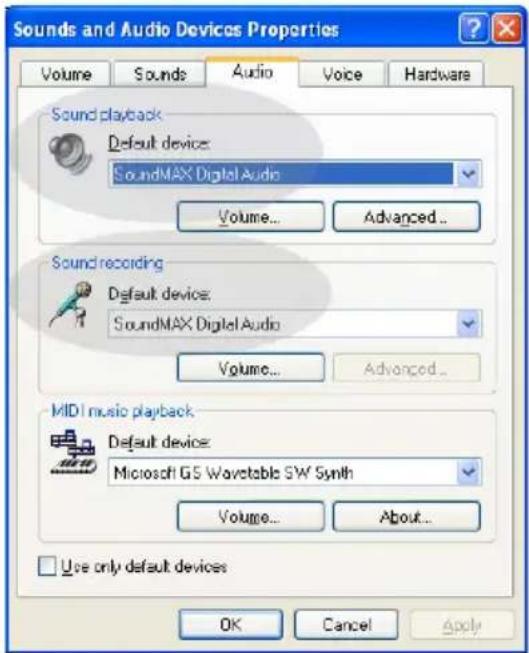
Click Windows Start, Control Panel, and then double-click Sounds and Audio Devices. Click the Audio tab and select your sound card as the default device for Sound playback. Click the Voice tab and select USB Audio Device as the default device for Voice playback. Next, double-click the Skype software icon in the system tray by your clock on your computer desktop. Click Tools and then Options. Click Sound Devices and then make sure USB Audio Device is selected for both Audio In and Audio Out.
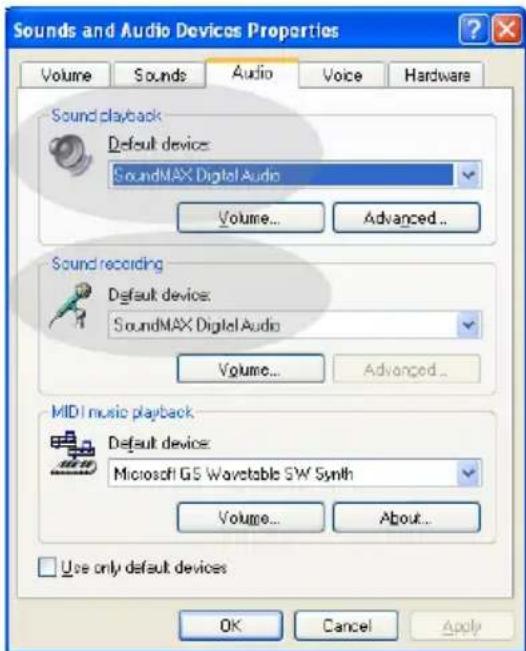
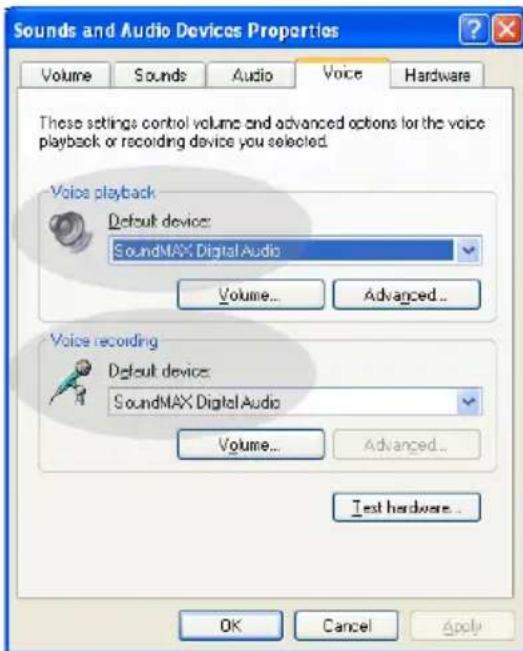

Note: These instructions may be slightly different depending on your operating system, since some versions of Windows do not have a Voice tab. If this is the case, you will only need to make the changes in the Audio tab.
I want to use the USB Phone for all of my computer sounds.
Possible Solution:
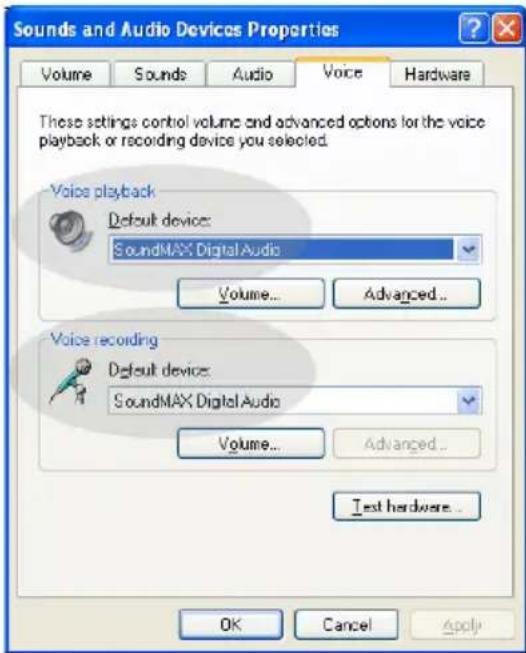
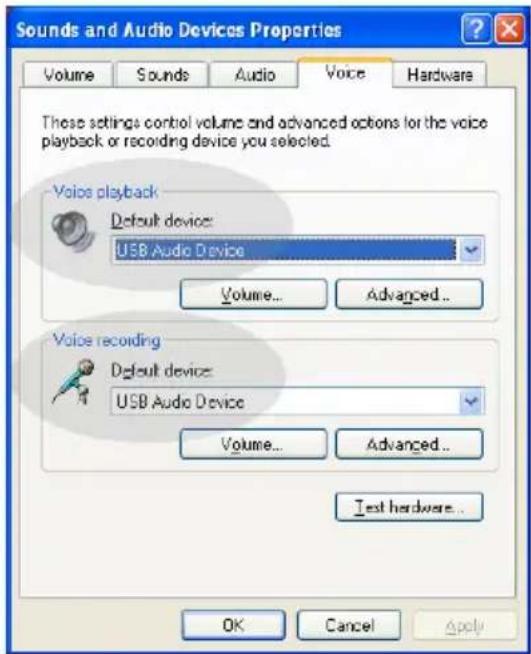
Your computer may not be using the USB Phone as the primary voice device. Click Windows Start, Control Panel, and then Sounds and Audio Devices. Click the Voice tab and then make sure USB Audio Device is selected for both Voice playback and Voice recording. (This may be slightly different depending on your operating system.)
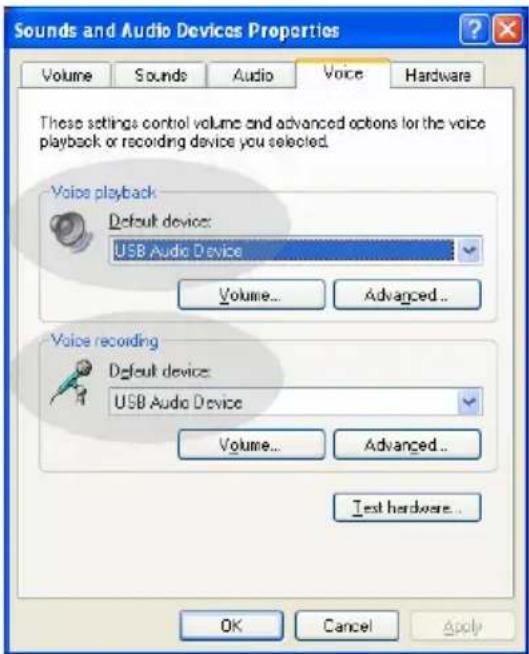
During a call, the sound is played through the speakers of my computer. Possible Solution:
Double-click the Skype software icon in the system tray by your clock on your computer desktop. Click Tools and then Options. Click Sound Devices and then make sure USB Audio Device is selected for both Audio In and Audio Out.
The USB Phone's microphone does not work (the caller cannot hear me) after resuming the computer from "Standby" or "Hibernate" mode.
Possible Solution:
Unplug the USB Phone from the port and plug it back in again.
If you experience any problems with your Skype software, refer to http://support.skype.com
We are constantly striving to provide users with the most helpful information. For the most updated configuration and troubleshooting information, visit the U.S. Robotics Web site at http://www.usr.com/support
Support
If you experience any problems with your Skype software, refer to http://support.skype.com
To obtain support for your USB Phone:
- Know your model and serial number. The model number of your phone is 9600. If you ever need to call for technical support, you will need your phone's serial number. Please write your serial below.
| Model Number Serial Number | |
| 9600 | |
- Go to the Support section of the USRobotics Web site at www.usr.com/support/.
Many of the most common difficulties that users experience have been addressed in the FAQ and Troubleshooting Web pages for your product.
- Submit your technical support question using an on-line form, or contact the USRobotics Technical Support Department.
| U.S. www.usr.com/emailsupport (888) 216-2850 | ||
| Canada www.usr.com/emailsupport (888) 216-2850 | ||
| Austria www.usr.com/emailsupport/de 07110 900 116 | ||
| Belgium (Flemish) www.usr.com/emailsupport/bn 070 23 35 45 | ||
| Belgium (French) www.usr.com/emailsupport/be 070 23 35 46 | ||
| Czech Republic www.usr.com/emailsupport/cz | ||
| Denmark | www.usr.com/emailsupport/ea | 38323011 |
| Finland | www.usr.com/emailsupport/ea | 08 |
| France | www.usr.com/emailsupport/fr | 0825 070 693 |
| Germany | www.usr.com/emailsupport/de 0180 567 1548 | |
| Greece | http://www.usr.com/emailsupport/gr | |
| Hungary | www.usr.com/emailsupport/hu 0180 567 1548 | |
| Ireland www.usr.com/emailsupport/uk 1890 252 130 | ||
| Italy | www.usr.com/emailsupport/it | 026 943 0339 |
| Luxembourg | www.usr.com/emailsupport/be 342 080 8318 | |
| Middle East/Africa | www.usr.com/emailsupport/me | 870 844 4546 |
| Netherlands | www.usr.com/emailsupport/bn 0900 202 5857 | |
| Norway | www.usr.com/emailsupport/ea 23 16 22 37 | |
| Poland | www.usr.com/emailsupport/pl | |
| Portugal | www.usr.com/emailsupport/pt | 21 415 4034 |
| Russia | www.usr.com/emailsupport/ru | 8 800 200 20 01 |
| Spain | www.usr.com/emailsupport/es | 902 117964 |
| Sweden | www.usr.com/emailsupport/se | 08 5016 3205 |
| Switzerland | www.usr.com/emailsupport/de 0848 840 200 | |
| Turkey | www.usr.com/emailsupport/tk | |
| UAE www.usr.com/emailsupport/me | 0800 877 63 | |
| UK | www.usr.com/emailsupport/uk | 0870 844 4546 |
For current support contact information, go to the following Web site: http://www.usr.com/support/.
Regulatory and Warranty
Regulatory Information
Skype is not a telephony replacement service. Any VoIP service used in conjunction with the USB Internet Phone cannot be used for calls to emergency services or emergency telephone numbers (311, 911, 112, 999, etc.). Use a landline telephone for calls to emergency services, such as police, fire, or ambulance.
Declaration of Conformity
U.S. Robotics Corporation 935 National Parkway Schaumburg, IL 60173 U.S.A.
declares that this product conforms to the FCC's specifications: Part 15, Class B
Operation of this device is subject to the following conditions:
1) this device may not cause harmful electromagnetic interference, and
2) this device must accept any interference received including interference that may cause undesired operations.
This equipment complies with FCC Part 15 for Home and Office use.
Caution to the User: Any changes or modifications not expressly approved by the party responsible for compliance could void the user's authority to operate the equipment.
Radio and Television Interference:
This equipment has been tested and found to comply with the limits for a Class B digital device, pursuant to Part 15 of the FCC Rules. These limits are designed to provide reasonable protection against harmful interference in a residential installation. This equipment generates, uses and can radiate radio frequency energy. If this equipment is not installed and used in accordance with the manufacturer's instructions, it may cause harmful interference to radio communications. However, there is no guarantee that interference will not occur in a particular installation. If this equipment does cause harmful interference to radio or television reception, which can be determined by turning the equipment off and on, the user is encouraged to try to correct the interference by one or more of the following measures:
- Reorient or relocate the receiving antenna.
- Increase the separation between the equipment and receiver.
- Connect the equipment to an outlet on a circuit different from that to which the receiver is connected.
- Consult the dealer or an experienced radio/TV technician for help.
UL Listing/CUL Listing:
For External products:
This information technology equipment is UL Listed and C-UL Listed for both the US and Canadian markets respectively for the uses described in the User Guide. Use this product with UL Listed Information Technology Equipment (ITE) only.
For Internal products:
This information technology equipment is UL Listed and C-UL Listed for both the US and Canadian markets respectively for use with UL-Listed personal computers that have installation instructions detailing user installation of card accessories. Use this equipment in UL Listed (ITE) only.
For Laptop/Notebook products:
This information technology equipment is UL Listed and C-UL Listed for both the US and Canadian markets respectively for use only with UL Listed laptop or notebook computers. Use this equipment in UL Listed (ITE) only.
For Canadian Users
Industry Canada (IC)
This digital apparatus does not exceed the Class B limits for radio noise emissions from digital apparatus set out in the interference-causing equipment standard entitled Digital Apparatus, ICES-003 of Industry Canada. Users should ensure for their own protection that the electrical ground connections of the power utility, telephone lines, and internal metallic water pipe system, if present, are connected together. This precaution may be particularly important in rural areas.
Caution: Users should not attempt to make electrical ground connections by themselves, but should contact the appropriate inspection authority or an electrician, as appropriate.
(
Declaration of Conformity
We, U.S. Robotics Corporation of 935 National Parkway, Schaumburg, Illinois, 60173-5157 USA, declare under our sole responsibility that the products, USRobotics USB Phones, Models 9600 and 9600A, to which this declaration relates, are in conformity with the following standards and/or other normative documents.
EN55022
EN55024
We hereby declare that the above named products are in conformity with the essential requirements and other relevant provisions of Directive 89/336/EC.
U.S. Robotics Corporation Two (2) Year Limited Warranty
1.0 GENERAL TERMS:
1.1 This Limited Warranty is extended only to the original end-user purchaser (CUSTOMER) and is not transferable.
1.2 No agent, reseller, or business partner of U.S. Robotics Corporation (U.S. ROBOTICS) is authorised to modify the terms of this Limited Warranty on behalf of U.S. ROBOTICS.
1.3 This Limited Warranty expressly excludes any product that has not been purchased as new from U.S. ROBOTICS or its authorised reseller.
1.4 This Limited Warranty is only applicable in the country or territory where the product is intended for use (As indicated by the Product Model Number and any local telecommunication approval stickers affixed to the product).
1.5 U.S. ROBOTICS warrants to the CUSTOMER that this product will be free from defects in workmanship and materials, under normal use and service, for TWO (2) YEARS from the date of purchase from U.S. ROBOTICS or its authorised reseller.
1.6 U.S. ROBOTICS sole obligation under this warranty shall be, at U.S. ROBOTICS sole discretion, to repair the defective product or part with new or reconditioned parts; or to exchange the defective product or part with a new or reconditioned product or part that is the same or similar; or if neither of the two foregoing options is reasonably available, U.S. ROBOTICS may, at its sole discretion, provide a refund to the CUSTOMER not to exceed the latest published U.S. ROBOTICS recommended retail purchase price of the product, less any applicable service fees. All products or parts that are exchanged for replacement will become the property of U.S. ROBOTICS.
1.7 U.S. ROBOTICS warrants any replacement product or part for NINETY (90) DAYS from the date the product or part is shipped to Customer.
1.8 U.S. ROBOTICS makes no warranty or representation that this product will meet CUSTOMER requirements or work in combination with any hardware or software products provided by third parties.
1.9 U.S. ROBOTICS makes no warranty or representation that the operation of the software products provided with this product will be uninterrupted or error free, or that all defects in software products will be corrected.
1.10 U.S. ROBOTICS shall not be responsible for any software or other CUSTOMER data or information contained in or stored on this product.
2.0 CUSTOMER OBLIGATIONS:
2.1 CUSTOMER assumes full responsibility that this product meets CUSTOMER specifications and requirements.
2.2 CUSTOMER is specifically advised to make a backup copy of all software provided with this product.
2.3 CUSTOMER assumes full responsibility to properly install and configure this product and to ensure proper installation, configuration, operation and compatibility with the operating environment in which this product is to function.
2.4 CUSTOMER must furnish U.S. ROBOTICS a dated Proof of Purchase (copy of original purchase receipt from U.S. ROBOTICS or its authorised reseller) for any warranty claims to be authorised.
3.0 OBTAINING WARRANTY SERVICE:
3.1 CUSTOMER must contact U.S. ROBOTICS Technical Support or an authorised U.S. ROBOTICS Service Centre within the applicable warranty period to obtain warranty service authorisation.
3.2 Customer must provide Product Model Number, Product Serial Number and dated Proof of Purchase (copy of original purchase receipt from U.S. ROBOTICS or its authorised reseller) to obtain warranty service authorisation.
3.3 For information on how to contact U.S. ROBOTICS Technical Support or an authorised U.S. ROBOTICS Service Centre, please see the U.S. ROBOTICS corporate Web site at: www.usr.com
3.4 CUSTOMER should have the following information / items readily available when contacting U.S. ROBOTICS Technical Support:
Product Model Number
Product Serial Number
Dated Proof of Purchase
CUSTOMER contact name & telephone number
- CUSTOMER Computer Operating System version
U.S. ROBOTICS Installation CD-ROM
U.S. ROBOTICS Installation Guide
4.0 WARRANTY REPLACEMENT:
4.1 In the event U.S. ROBOTICS Technical Support or its authorised U.S. ROBOTICS Service Centre determines the product or part has a malfunction or failure attributable directly to faulty workmanship and/or materials; and the product is within the TWO (2) YEAR WARRANTY term; and the CUSTOMER will include a copy of the dated Proof of Purchase (original purchase receipt from U.S. ROBOTICS or its authorised reseller) with the product or part with the returned product or part, then U.S. ROBOTICS will issue CUSTOMER a Return Material Authorisation (RMA) and instructions for the return of the product to the authorised U.S. ROBOTICS Drop Zone.
4.2 Any product or part returned to U.S. ROBOTICS without an RMA issued by U.S. ROBOTICS or its authorised U.S. ROBOTICS Service Centre will be returned.
4.3 CUSTOMER agrees to pay shipping charges to return the product or part to the authorised U.S. ROBOTICS Return Centre; to insure the product or assume the risk of loss or damage which may occur in transit; and to use a shipping container equivalent to the original packaging.
4.4 Responsibility for loss or damage does not transfer to U.S. ROBOTICS until the returned product or part is received as an authorised return at an authorised U.S. ROBOTICS Return Centre.
4.5 Authorised CUSTOMER returns will be unpacked, visually inspected, and matched to the Product Model Number and Product Serial Number for which the RMA was authorised. The enclosed Proof of Purchase will be inspected for date of purchase and place of purchase. U.S. ROBOTICS may deny warranty service if visual inspection of the returned product or part does not match the CUSTOMER supplied information for which the RMA was issued.
4.6 Once a CUSTOMER return has been unpacked, visually inspected, and tested U.S. ROBOTICS will, at its sole discretion, repair or replace, using new or reconditioned product or parts, to whatever extent it deems necessary to restore the product or part to operating condition.
4.7 U.S. ROBOTICS will make reasonable effort to ship repaired or replaced product or part to CUSTOMER, at U.S. ROBOTICS expense, not later than TWENTY ONE (21) DAYS after U.S. ROBOTICS receives the authorised CUSTOMER return at an authorised U.S. ROBOTICS Return Centre.
4.8 U.S. ROBOTICS shall not be liable for any damages caused by delay in delivering or furnishing repaired or replaced product or part.
5.0 LIMITATIONS:
5.1 THIRD-PARTY SOFTWARE: This U.S. ROBOTICS product may include or be bundled with third-party software, the use of which is governed by separate end-user license agreements provided by third-party software vendors. This U.S. ROBOTICS Limited Warranty does not apply to such third-party software. For the applicable warranty refer to the end-user license agreement governing the use of such software.
5.2 DAMAGE DUE TO MISUSE, NEGLECT, NON-COMPLIANCE, IMPROPER INSTALLATION, AND/OR ENVIRONMENTAL FACTORS: To the extent permitted by applicable law, this U.S. ROBOTICS Limited Warranty does not apply to normal wear and tear; damage or loss of data due to interoperability with current and/or future versions of operating system or other current and/or future software and hardware; alterations (by persons other than U.S.
ROBOTICS or authorised U.S. ROBOTICS Service Centres); damage caused by operator error or non-compliance with instructions as set out in the user documentation or other accompanying documentation; damage caused by acts of nature such as lightning, storms, floods, fires, and earthquakes, etc. Products evidencing the product serial number has been tampered with or removed; misuse, neglect, and improper handling; damage caused by undue physical, temperature, or electrical stress; counterfeit products; damage or loss of data caused by a computer virus, worm, Trojan horse, or memory content corruption; failures of the product which result from accident, abuse, misuse (including but not limited to improper installation, connection to incorrect voltages, and power points); failures caused by products not supplied by U.S. ROBOTICS; damage caused by moisture, corrosive environments, high voltage surges, shipping, abnormal working conditions; or the use of the product outside the borders of the country or territory intended for use (As indicated by the Product Model Number and any local telecommunication approval stickers affixed to the product).
5.3 TO THE FULL EXTENT ALLOWED BY LAW, THE FOREGOING WARRANTYES AND REMEDIES ARE EXCLUSIVE AND ARE IN LIEU OF ALL OTHER WARRANTYES, TERMS, OR CONDITIONS, EXPRESS OR IMPLIED, EITHER IN FACT OR BY OPERATION OF LAW, STATUTORY OR OTHERWISE, INCLUDING WARRANTYES, TERMS, OR CONDITIONS OF MERCHANTABILITY, FITNESS FOR A PARTICULAR PURPOSE, SATISFACTORY QUALITY, CORRESPONDENCE WITH DESCRIPTION, AND NON-INFRINGEMENT, ALL OF WHICH ARE EXPRESSLY DISCLAIMED. U.S. ROBOTICS NEITHER ASSUMES NOR AUTHORISES ANY OTHER PERSON TO ASSUME FOR IT ANY OTHER LIABILITY IN CONNECTION WITH THE SALE, INSTALLATION, MAINTENANCE, WARRANTY, OR USE OF ITS PRODUCTS.
5.4 LIMITATION OF LIABILITY. TO THE FULL EXTENT ALLOWED BY LAW, U.S. ROBOTICS ALSO EXCULES FOR ITSELF AND ITS SUPPLIERS ANY LIABILITY, WHETHER BASED IN CONTRACT OR TORT (INCLUDING NEGLIGENCE), FOR INCIDENTAL, CONSEQUENTIAL, INDIRECT, SPECIAL, OR PUNITIVE DAMAGES OF ANY KIND, OR FOR LOSS OF REVENUE OR PROFITS, LOSS OF BUSINESS, LOSS OF INFORMATION OR DATA, OR OTHER FINANCIAL LOSS ARISING OUT OF OR IN CONNECTION WITH THE SALE, INSTALLATION, MAINTENANCE, USE, PERFORMANCE, FAILURE, OR INTERRUPTION OF ITS PRODUCTS, EVEN IF U.S. ROBOTICS OR ITS AUTHORISED RESELLER HAS BEEN ADVISED OF THE POSSIBILITY OF SUCH DAMAGES, AND LIMITS ITS LIABILITY TO REPAIR, REPLACEMENT, OR REFUND OF THE PURCHASE PRICE PAID, AT U.S. ROBOTICS OPTION. THIS DISCLAIMER OF LIABILITY FOR DAMAGES WILL NOT BE AFFECTED IF ANY REMEDY PROVIDED HEREIN SHALL FAIL OF ITS ESSENTIAL PURPOSE.
6.o DISCLAIMER:
Some countries, states, territories or provinces do not allow the exclusion or limitation of implied warranties or the limitation of incidental or consequential damages for certain products supplied to consumers, or the limitation of liability for personal injury, so the above limitations and exclusions may be limited in their application to CUSTOMER. When the implied warranties are not allowed by law to be excluded in their entirety, they will be limited to the TWO (2) YEAR duration of this written warranty. This warranty gives CUSTOMER specific legal rights, which may vary depending on local law.
7.0 GOVERNING LAW:
This Limited Warranty shall be governed by the laws of the State of Illinois, U.S.A. excluding its conflicts of laws principles and excluding the United Nations Convention on Contracts for the International Sale of Goods.
U.S. Robotics Corporation
935 National Parkway
Schaumburg, IL, 60173
U.S.A.
U.S.Robotics
U.S. Robotics Corporation
935 National Parkway
Schaumburg, Illinois
60173-5157
Etats-Unis
4.0 REMPLACEMENT SOUS GARANTIE :
935 National Parkway
Schaumburg, Illinois
60173-5157
USA
Italian www.usr.com/emailsupport/it 0269430339
Luxemburg www.usr.com/emailsupport/be 3420808318
Naher Osten/Afrika www.usr.com/emailsupport/me 870 844 4546
Niederlande www.usr.com/emailsupport/bn 0900 202 5857
Norwegen www.usr.com/emailsupport/ea 23 16 22 37
Polen www.usr.com/emailsupport/pl
Portugal www.usr.com/emailsupport/pt 21415 4034
Russland www.usr.com/emailsupport/ru 88002002001
Spanien www.usr.com/emailsupport/es 902 117964
Schweden www.usr.com/emailsupport/se 0850163205
Schweiz www.usr.com/emailsupport/de084884o200
Turkei www.usr.com/emailsupport/tk
VAE www.usr.com/emailsupport/me 0800 877 63
935 National Parkway
Schaumburg, IL 60173
USA
U.S. Robotics Corporation
935 National Parkway
Schaumburg, IL, 60173
U.S.A.
U.S.Robotics
U.S. Robotics Corporation
935 National Parkway
Schaumburg, Illinois
60173-5157
USA
http://www.usr.com/support/.
U.S. Robotics Corporation 935 National Parkway Schaumburg, IL 60173 U.S.A.
Industry Canada (IC)
U.S. Robotics Corporation
935 National Parkway
Schaumburg, IL, 60173
U.S.A.
U.S.Robotics
U.S. Robotics Corporation
935 National Parkway
Schaumburg, Illinois
60173-5157
VS
U.S. Robotics Corporation
935 National Parkway
Schaumburg, IL, 60173
Verenigde Staten
Industry Canada (IC)
U.S. Robotics Corporation
935 National Parkway
Schaumburg, IL, 60173
VS
U.S.Robotics
U.S. Robotics Corporation
935 National Parkway
Schaumburg, Illinois
60173-5157
EE.UU.
http://www.usr.com/support/.
Industry Canada (IC)
U.S. Robotics Corporation
935 National Parkway
Schaumburg, IL, 60173
EE.UU.
U.S.Robotics
U.S. Robotics Corporation
935 National Parkway
Schaumburg, Illinois
60173-5157
USA
http://www.usr.com/support/.
U.S. Robotics Corporation
935 National Parkway
Schaumburg, IL 60173
U.S.A.
Industry Canada (IC)
U.S. Robotics Corporation
935 National Parkway
Schaumburg, IL, 60173
U.S.A.
U.S.Robotics
USR9600PykoBoIDCTBONoIb3OBaTeJa-Pycckn
Kopnpaun U.S. Robotics
935 National Parkway
Schaumburg, Illinois
60173-5157
USA
HnkaKaayacTb 3ToI DOKyMeHTaUH He NODNEXKNT BOCPON3BedeHIO B KAKO 6bl To Hn 6blno fOpMe n KaKIMn 6bl To Hn 6blNO CnOCoBAMn IIN NcNOL3OBAHIO DnRA BbINOHNHeHn Dpynx pa60 (taKx KaK nepeBoD, n3MeHHeHne nn aadTaun) 6e3 nncbMeHHoro pa3peuHnepopauu H.S. Robotics. Kopnpaun U.S. Robotics octabnert 3a coob npabo Bpemot Bpemehn yTOHn TaHHydo kOyMeHTuBHO B N3MeHHeHn B npOdykTBn H/nn CoedjXaHne daHHORo DOkymeHTa 6e3 o8aTeNbCTBa YBeOMnTb O Takoro pOda yTOUHeHnx Hn N3MeHeHnx. Kopnpaun U.S. Robotics npEOCTABnE T dHHy DOkymeHTaUH 6e3 rapaHTn KAKO 6bl To Hn 6blNo PoA, nOpa3yMaEBaEMOn Hn BBipaxEHHOYBO, BKIOUa, HO He ORpaHUnBaBC TaKOB, IOpa3yMaEBaEMbIe rapaHTn KOMMepuecko npirodHOCTn COOTBEcTBn KOHKPeTHOH CEIn. Ecn Ha CmEHHom HocHTeNe codepxntc KaKoe-1nbo nporpamMHoe oBeCneHHe, ONcaHHO B DaHHo DOkymeHTaUN, TO OHO NOCTABnEeTCB COOTBETCTBN C JInueH3IOHHBM COrIIaWeHEm, BKIOUeHHBM B KOMNJIeKT NoCTaBKn KAK OTdeNBHy NeaTHbI DOKyMeHT n6o KaФai B KATAJore LICENSE Ha CmEHHom HocHTeNe. Ecn 3K3eMnIrp DOkymeHTa OTCYCTByet, o6patntecb c 3anpocom O eropooctabJeHn Bkopnpaun U.S. Robotics.
IPIMUEAHNE IINI PPABNTIELCTBA CUSA. Hnke n3noxehbl ycnobna npedocTabneHnOncBbAembx 3decbdoKymeHTaunn nporpaMMHoro oecneueHn PabNTELbCTBeHHbIM ypeXdHnM CUSA.
BceTexHnueckne DaHHbIe n IporpaMMHoe obecneHeJeBnIOTcKOMMepueckmN pOdykTaMn npa3pa6oTaHbI NCKnIOHTeNbHO Ha uactHbIe CpeCTBa. IporpaMMHoe obecneHeJeNoCTabJIeTcKaK "KomMepueckoe IporpaMMHoe obecneHeHe B COOTBeCTBmC co ctaTbeFDFARS 252.227-7014 (HIOHB 1995) HnK KOMMepueckn IpOdyKT B COOTBeCTBmC co ctaTbe FAR2.101(a), npedocTabMebl TOnbKO C TeMn PpabAMn, KOtOpBie N3IOKeHbI B CTaHdApTHOM KOMMepueckCM NlueH3NOHOM CoIIaWeHIM U.S.Robotics Ha IporpaMMHoe obecneHeHe. TexHnueckne DaHHbIe npedocTabJOTcToIbKO cOrpaHnueHHbIMn PpabAMn B COOTBeCTBmC co ctaTbe DFAR 252.227-7015 (HO86pb1995) Hn FAR 52.227-14 (HIOHB1987). BbI cornaWaeTeCb He ydaIaNr He nckkaTb HnkakHe qacTN KaIX bI To Hn 6blno 3ameAHn OTHOCHTeNbHO KaNX-ln6o LnueH3NOHHbIX IporpaMM HnN DOKymeHTOB, CODepKaunxscB HactoUeM KpATKOM pykoBOCTBe No yctAHOBKe HnN npedocTabJIeHHbIX Bam BmecTe C HmM.
© Kopnopaunu U.S. Robotics, 2005. Bce npaba 3aunuheb. U.S. Robotics n norotn U.S. Robotics rahtc oxpahmIMTOBapHbIMN3hakamU.S.Robotics Corporation.OctalnbHe HaBaHnnpOdyKToB INoIb3yOTcTOnbKO DnA OTOXdCTBneHn mOryT ABnTbc TropOBbIMM MapkAm COOTBeTCTBYOUX BlaedbceB.CneuΦkaunn npOdyKaT mOryT n3MeHnTbc8e3 npedBapntbHorO yBeOMnHeHn.
KOMNJIeKT NOCTaBKn
USR9600 USB Phone
YCTaHOBOUHbI KOMNaKT-DnCK
PykoBoDCTBO no yctaHOBKe
Функционьньie BO3MOXHOCTN:
- LEFT (BЛЕВО) n RIGHT (ВПАБО): этн
КНОПКИ служаТ Дд пееклоченя мжду
ВКладампрогамMbI Skype
2.SEND (OTNIPABNTb):HaXMMTe 3Ty KHONKy, TTO6bl CdeNaTb Bbl3OB.
3.0-9: ΘTN KONK N CNYKAT DnB BBOda HOMePOB TeNeFOHOB INN HOMePOB 6bICTporo Ha6opa. - UP (BBEPX) n DOWN (BHN3): ΘΤΟΚΗΝΑ ΚΥχατίνη προσΜΟΤρα ΣΝΙΝΑ KOΗΤΑΚΤΟΒ έν BBΙΙΟΒΑ B ΠρορρΑΜΜΕ Skype.
5.END (3ABEPWNTb):HaXMMTe 3Ty KONky, YTO6bl 3aBepWNTb Bbl3OB INN OTMeHNtB DeIeCTBne. - CLEAR (OuHCTNTb): HaxMMte 3Ty KhoNky, YTO6bl ydaJIITb BCE uΦpbl HOMepa TeJeΦoHa, KOToPbIe 6bln BBeDeHbl
-
: HaxmTe 3Ty KhoNky HeckoJbKO pa3, YTo6bl npocMOTpeTb MeNoDn 3BOHka.
YcTaHOBka USB Phone
Poirotobka K yctaHOBke

BHHMaHHe: Skype He MoXeT NOHocTbIO 3aMeHnITb O6bIHyO cIyK6by TepeHOnn. IIO6yHO ycnyr VoIP, nCNoNb3yEmyHO COBMecTHo C USB
Phone, HeJIb3Я npIMeHЯТь ДЯ Bbl3OBA cnyx6 3KCTpeHNoI nOMoUи nII NaHabopa HomepoB 3KCTpeHnHO R bI3OBA (311, 911, 112, 999 n T.d.).ДЯ Bbl3OBA cnyx6 3KCTpeHNoI nOMoUи (MnInuY, noXapHa r cnyx6a nII n cnyx6a ckopoI nOMoUи) IcnoIb3yIte npOBodHoi TeNeΦoH.

PpmeaHne.63aTeBHO 3aHnHTe cepHbH HOpE n3dEnna nepeyctahOBKO USB Phone.CepHbH HOpE n3dEnna yka3aH Ha 3TNKeTke,paCnoJIOXeHHo HA HxKHe naHenn USB Phone.YTo6bl noIyHTb nomOuB B OTDeNe TexHnuecko nOndepKKn, Heo6xoDIMO npedocABNTb 3TOT Homep.
| Homep系列产品 | Серийный Homep |
| USR9600 |

IpimueaHne.IpeyCTaHOBKOHOBOYcTPOINCTBa npOBepbTe,kaKa86yKBa IcnoJIb3yeTcIgO3HaueHnIuCKoBOda CD-ROM.3To Heo6xOIM0 3HaTb dIpy IpaBnIbHOYcTaHOBKnIporpAMMHorO oecneHEnr.

PpHMeaHne. FyHKuN KJIaBnaTpyb USB phone BO3MOxHb JINMb npn HAnuHn nporpaMMHOro oBeCneHn Skype. 3BykoBbI dpaBepb USB phone coBmecTmblc 60JbUnHCTBOM INHTepHET-ppNJIOXeHn rOLOCOBO CBra3n.
Uar 1. YctahOBITE nporpamMHOe obecneueHne Skype

PpmeHne. YcTaHOBka B CnCTeMe Windows. Ecnn nporpaMMHoe oBeceueHne Skye yke ycTaHOBneHo, nepexoDnte K wary 2.
BCTaBbTe yCTaHOBouHbI KOMnAaT-Dnck U.S. Robotics B DnCKoBOd CD-ROM KOMnbHTopea.

Ipimechae. Ecnn dNcK CD-ROM He 3aynckaeTc aBToMaTnueckn, Ha nanei 3aau Windows haxmTe KhoNky Start (Pyck), Bb6epnte Run (BbInonHnItb) n BBedTe D:\setup (nnn dpuyo 6ykbv, o603naaOuSyo dNCKOBOD CD-ROM), a 3aTEM haxmTe KhoNky OK.
Ha 3kpahe oTO6pa3ntcra paqneckn nHTeppeic noIb3oBaTeJIa (GUI) yCTaHOBOUHOro KOMNaKT-DnCKa. Bbl6epnte Heo6xOdImbI ra3bIK, ecII NOBNTcra COOTBeTCTByuSNI 3anpoc. IocNe 3toro notpe6yETc npouHTaTB JInueH3NOHoe corlaWeHne. IpOHTte corlaWeHne n HaxMnte KhoNky Yes (Ja).
HaXMMTe KhoNky Install Skype (YcTaHOBnTB Skype). 3aRpy3nTb DaHHoe nporpamMHOe o6ecneHHe c Be6-y3Ja Skype, Heo6xOIMo IMetb DoCTyn K cETn INTEpHET. CNeIyIte yka3aHnM Ha ekpaHe dIy UcTaHOBKn n 3aNyCKa nporpamMHOrO o6ecneHnskype. CnCTema npedloKNT nepe3arpy3nTb KOMnbIoTeP.
Iocne yctahOBKn nporpaMMHOrO oecneueHn Heo6xOIMo CO3daTb yteTHyIO 3aNcB Skype.CJeDynte HNCTpyKzmaH Ha3kpaHe. Iocne co3dAnH yTeHO 3aNcN IOABNTc COo6uHHe O TOM, YTO yCTpOHTBO He HauDeHo.HaKMnTe KhoNky OK.
War 2:Подклочене USB Phone
IopdoeHnTe Kaebb USB Teleoha USB Phone K DocTyHnHomy npTy USB KomnbHToepa.
山War 3: YctaHobka USB Phone
B OKHe rpaФnueckOrO nHTeppeIca NOJb3OBaTeJIy yCTaHOBOUHORO KOMnAKT-DnCKa (GUI) haxmnte Install USB Phone (YcTaHOBtB USB Phone). CJeDyIte INCHtpKzIaM Ha 3KpaHe, YTO6bl yCTaHOBtB nporpaMMHoe obecneHene USB Phone.
- После установки поррамного обеспецни повпся заразочи достуна к Skype досядругов поррамь. Выберпte Allow this program to use Skype (Позьогинь зтой поррамme Исноьзоват Skype) и нажмтЕ конку OK.
- P0 OKOHaHn pa60TbI nepe3arpy3nte KOMNbIOTep.
P03dpabJem! PpoeDpyyctaHOBKn 3aBepweHa. Ecnn IMeIoTc TpydHocTn,
6paTntecb K pa3dny "Ponck yCtpanHeHne HncnpaBHOcTe" daHHoro pyKOBOdCTBa.
3anycntte 6o3peBaTeIb INTepHeTa n 3apeHcTpnpyIte CBOe yctpoictBO no aDpcy
www.usr.com/productreg
Bbl0B
Bb3OB dpyroro nonb3oBaTeJy Skype:
Дян haayana Bam noHaIOb6nTc CnUCOK KOHTaKOB B nporpaMme Skype. B nporpaMme Skype HaxmTe Add a contact (O6abNTb KOHTaKT) n CJIeNyIte INHCTpyKUmaH Ha 3KpaHe, YTO6bl CO3daTb CNUCOK KOHTaKOB. IocNe TOrO, KaK CNUCOK KOHTaKOB IOTOB, BblNOJHInTe CJeDyUoUne DeIcTBn, YTO6bl CdelaTb BB3OB:
- Haxmte KhoIky TelefoHa co CtpeIkoB BneBO dIy 3anyca nporpaMMbI Skype.
- C NOMOJIbIO KHOJOK TeNEoHa CO CTpeJIkAMN BBePx I BHn3 MOxHO IpOCMaTpNBaTb CINCOK KOHTAKTOB.
- Bb6epnte KOHTaKT, KOToPbI Heo6xOIMo Bb1BaTb, I HaXMTe KhoNky TeJefoHa SEND (OTnPABNTb).
- По завершени нахшITE Кногу телегона END (3ABEPUHTb) дя завершени Bbl3OBA.
Понусаньы.
Komnbhotep He paacno3Haet Telefoh USB Phone.
Bo3MOxHbI cnoc6 ycTpaHeHHa:
Y6eIntecb, yTo Ka6enb USB TeJeOHa HaJeXHo NOpKnIOueH K nopTy USB KOMNbiOTepa.
Bo3MoKhbI cnoc6 ycTpaHHeHn:
Bo3MOxHOb, Bo Bpem yCTaHOBKn npOn3oUJna OUs6ka. OTcoeHNHTe TeJeOH ot KOMNbHOtepa nOBTOPnTe npOeDpy yCTaHOBKn.
OndOBpeMeHHoe nCNoJIb3OBaHHe TeJefoHa USB Phone n DnHaMnKOB.
Bo3MOxHbI cnoc6 ycTpaHeHHa:
YTo6bI hCNoJIb3OBAt bTeNeΦoH USB Phone n DnHaMnK KOMNbIOTepa OJHOBpeMeHHO, BbIOnHHTe CJeDyUOuNE DeICTBnI:
B Windows HabKMITE Nyc, NaHEnb ynpabHeHnA, a 3aTe MDbAxDbl UeJKNHTe 3ByKn HauynoyctpoiCTBa . IpeenDiTe Ha BknaIky "3ByKn" n BbI6epnte 3ByKOByIO pIaTy B KaueCTBe yCTpoiCTBa no yMOUHnIO dNBA Bocnpo3BeDEHnra 3ByKa. IpeenDiTe Ha BknaIky "Toloc" n BbI6epnte 3ByKOByIO pIaTy B KaueCTBe yCTpoiCTBa no yMOUHnIO dNPA Bocnpo3BeDEHnra rOloca 3aTeM DbaXdbI UeJKNHTe KHOJIKO MbluN 3HaQOK nporpamMbI Skype Ha naHenn 3aJaU oKOIO qacOB Ha paBoHem cToJe. BbI6epnte CepBnC, a 3aTe OBOiCTBa. HaxmTE KHOJIky 3ByKOBbIe yCTpoiCTBa n y6eINTEcb, YTO napamETp 3ByKOBoe yCTpoiCTBO USB BblpaH kak dJa Bxod aydno, TAK IN dJa BbxOD aydno.

PnmeaHne. 3TN INCTpyKuMOrTy CnEgKa OTNnUaTbcra B 3aBnCmOcTn OT onepauHOHHo cncTeMbI, TAK KaB HeKOtOpbIX Bepcnx Windows BKnAdka "ToNoc" OTCyTCTByeT. B 3TOM cnyae N3MeHeHn IOTpe6yeTcR BHeCTn TOJbKO Ha BKnAdKe "3ByKn".
IcnoIb3OBAHne TelefoHa USB Phone nBceX 3ByKOB KOMnIbTepa.
Bo3MoXhBc nocO6 ycTpaHeHnA:
Tenefoh USB Phone MokeT He
HcnoIb3OBaTbCBA KaueCTBe OCHOBHO
roIocOBOrO yCTPOINCTBa. B Windows haxMITE
Ipyck, PAnHeNb ynpabIneHnA, a 3aTeM 3ByKn
n ayNooyctPOinCTBa. IpeenDHTe Ha BKnaIDKy
"ToIoc" n y6eInTEcb, YTO npamETp 3ByKOBoe
yCTPOINCTBO USB Bbl6paH KaK dJa
BocnpoIN3BeDeHne rOloca, TAK n dJa
3annCb roNoCa. (MoKeT CnErKa OTnNuATbcR
B 3aBNCIMOCtN OT ONepaUHOHOn CNCTEmbl).
Bo BpeMa Bbl3Oba 3ByK BocnpOn3BOJNTcN3 DnHaMnKa
KOMnbIOTepa.
Bo3MOxHbI cnoc6 ycTpaHeHHa:
Двжды шелкнITE кноки Мьши 3нayok nporpaMMbl Skype Ha naHeJN 3адч Okою часов ha pa6ochem CTone. Быберпte CepBnC, a 3aTeM CBoICTBa. Habmite KhoNKy 3BykoBbie yctpoiCTBa n y6eHITecb, YTO napamTp 3BykoBoe ycTpoiCTBO USB Bbl6paH Кak ДЯ Bxod aydno,ТAK И ДЯ BbIXOd aydno.
MnKpOΦoH TeJeΦoHa USB He pa6oTaET (a6OHeT MeHr He cIbIweT) nocJIe BbIXoDa KOMNbIoTepa n3 peXmMa "Standby" (OxuDahnra) nJIH "Hibernate" cnJzero peXmMa.
Bo3MoKhbI cnocO6 ycTpaHeHn:
OTcoeHnHTe Teneoh USB ot nopTa n cHOba ero noCoeHNHTe.
Ecnn nmeoTc Tpydnoctn c nporpaMMo Skype, nepeiDnte Ha Be6-y3en no aDpecy: http://support.skype.com
Mbl noctoHNO CTpeMMc npedocTaBnTb nOb30BaTeJAM camyIO none3HyIO HOpMaUIO. IJI na noyuHn DaonohnteBHO IHOpMaUN NO cMOI NOceJHe KOHpyaun i noncky u yctpaHEnIO HeNCnPabHOCTe NocTe U.S.Robotics no aDpccy:
http://www.usr.com/support
TexHnueckajnoDepkka
Ecn npn nCnoB3OBAHn npoPamMbI Skype BO3NkN npo6neMbI, nepeynTe Ha Be6-y3eI no aDpecy:
http://support.skype.com
YTo6bI nOlyuHTb TexHnueckyIO NOdEepKky dIyycTpoiCTBa USB Phone, BbINOHTe cJeDyUoee.
- Y3haIte HOMep MoJeN I cepHbI HOMep ycTpoiCTBa.Homep MoJeN TepeOHa - 9600. Ppn o6paueHN B OTdeI TexHnuecko IopdEprKKn Heo6xOIMo 6ydt yka3aTb cepHbI HOMep TepeOHa. 3aPiuHTe cepHbI HOMep HIXe.
| Homep mojen | CepniHbI Homep |
| 9600 |
U.S. Robotics Corporation
935 National Parkway
Schaumburg, IL 60173
U.S.A.
rapaHTnpyeT, YTO DAHHbI npOyKT OTBeHaet TexHnueckm Tpe6oBaHnM FCC:
Yactb 15,Knacc B
Pn3cknnyataun 3T0rO yctpoiactba doJXhboCo6nOdaTbocneDuOnue ycNoBna:
1) daHHoe yCTpoiCTBO He DOJIKNHO ABNtBcA NCTOCHNKOM 3JEKtpOMaTHHbIX NOMEX,
2) daHHoe ycTpoiCTBO doJXHO pa6oTaB yCNoBnX NOMEX, BKnIOUaY Te, YTO MOry Bb3bBAbTc60N B pa6oTe.
DahHoe o6OpUOBAHHe COOTBeTCTByeT Tpe6oBaHnM Yactn 15 npaBnFCC n ppeHa3NaYeHO dna NCNoJIb3OBAHnI DOMA N B OΦnce.
IpeynpexkneHn IIN NOB3OBaTeN: INMHeHn NIM MOHnKaun, He OIObpeHHbE pRMO CTPOHO, OTBeTCTBeHHo 3a COOTBeTCTBnE TEXHnueCKm ycNOBnM, MOrY T PnIBeCTn K JInSeHHIO NOB3OBaTeJr npab Ha 3KcNpyatauio daHHoro obOpdyobAHn.
Pomexu TeJe- npaDnOpnpema
Данhoe yctpoiCTBO npoTeCTNPOBaHO n npu3HaHO COOTBeCTBvUOUM Tpe6OBaHnM, npeIbYBnEMyK
CnФPobMbIM yCTpoiCTBAM KlaCCA B, corNaCHO uactn 15 npabIN FCC. 3TN orpaHneHn BBeDeHbI dIra TORO,
yTObI B pa3ymhBxipedeJax o6ecneHTb 3aunTy OT HeKeJIaTeNbHbIX IN BpeHbIX NOMEX BKnblix NOMeHnX.
HactoIuee obOpudOBaHne reHeeppyet, nCNoIb3yET n MoKet n3nyaTb paDIOBOHbI. B clyuae ycTaHOBNk n
3KcNpyatauC hApuyehnEM INCHtpykCm npOn3BOJnteJIy, yCTpoiCTBO MoKet Co3DaBaTb NOMEX dIra
pArnoPnEma. Ondako n B cnUyae YcTAHOBKn C cO6NIDeHmE INCHtpykCm OTCyTCTBne NOMex He
rapaHTnpyETc. EcIn daHoe yCTpoiCTBO co3daET NOMExn pAdNO- n TeJeBu3INOHOMy npiEmy, YTO MOxHO
ONpeHNITb nyTem BBKluOHeHn IN BKJIouHeHn yCTpoiCTBa, nONbItaNTecb yCTpaHtB NOMEXn ODNHM N3
cNeDuOxN CNOCo6OB.
- IapeopneHTnpyTe nIIN npemecnte npneMHyO aHTEHy.
YBeJIInHbTe paCToHHe MEKdy yCTpoiCTBOM IN PnEMHkOM. - POKHHTe yCTPOINpHMK pa3HBIM BETBAM CETn 3NEKTponNTAHIA.
- O6paTnTeCb 3a nOmoUbK CBoEmy NoCTabuNky uIn K CneuaNIncty B o6NaCTn paDnO n TeNeBnDEHn.
Pernctpaunu UL/Pernctpaunu CUL:
ДЯВHEMHXyCTPOINCTB:
IaHHOe NT-OBOpOBAHHe AByIeTc3 apernctppOBAHbIM UL n CUL COOTBcTBEHNO dIra pbIHKO B CIIA n KaHaDbI dnnnCNoJIb3OBAHnB U cIeX, OINCAHHbIX B pyKOBODCTBe noJIb3OBATeJI.
ДяВиутpenHHxуCTpoINCTB:
JaHHoe 6OBpyoBaHHe INHΦopMaHOnHOH TeXHOrN IABJREc3 aperncTpnpoBaHbIM UL n CUL COOTBeTCTBHeHNO dIra pblKOB CSHA n KaHaDbI n PpeHa3NaYeHO dIra nCNoJIb3OBAHnC nepcoHaJIbHbIMN KOMNbIOTePam, 3apeNCTpnpoBaHHbIMn UL n NMeHoUmm NoDpo6hie INHCTpykun no yctaHOBke DONOHNtEbnbIX nIaT.
I npTaBbIX KOMbIOTePOB HooTyKOB:
Dahnoe obopyoBaHne nHopmaOnHOHnTexHONrnn ABJIeTc3apeNCTpnpOBaHHbIM UL nCUL COOTBETCTBeHHO dIy pIHKB CUSA n KaHaDbI n npEHa3HaueHo dIy nCNOJb3OBaHHra TOnbKO c nopTaTHBbIMN KOMbIOTePAMn HoyToyKaMn, 3apeNCTpnpOBaHHbIMN UL.
BHMaHHe. NOnb3OBaTeHn He DoJIxHbI npeINpNHMaTb NOnbITOK CAMOCToTeNbHO BbIOJNHTb 3eKTPuYeCKne 3a3emJIeHn. IInr 3TOrO OHn DoJIxHbI o6paTaBcB COOTBeTcByUOyU CnyKy By INN K 3NeKTPuKy.
(20
3aBHeHne o COOTBeTcTBn cTaHdapTaM
Kopnpaun U.S. Robotics, aDpec KOTopo9 935 National Parkway, Schaumburg, Illinois, 60173-5157 USA, c NOHON OTBETCTBEHHOCTBHO 3aABNPT, YTO yCTPOINCTBA U.S. Robotics MOEN 9600 N 9600A, B OTHOHeHN KOTOpbIX DeTCTBNTENbHO HACTOJIeE 3aABNHeHNE, NOHOCTBHO COOTBETCTBYOT INpeuNCHeHHbIM CTaHApTaM I/ IJIN HOPMaTHBbIM DOKyMeHTAM.
EN55022
EN55024
HactoIIM KopnopaU.S.Robotics 3aBnEET,TO BbIeHa3BaHHbIe yCTpoIcTba yOBoIeTBOPAOT OCHOBHbIM Tpe6oAHm I DpyrM COOTBETCTByIOuIM NIOKeHNM DupeKTHBbl 89/336/EC.
OrpaHnueHHa rapaHTna Kopnpauu U.S. Robotics, deiCTbYIOuaB TeueHne DByx (2) neT
1.0 OBUHNE NOLOXEHNIA
1.1 DAnHaa OrpaHueHHa rapaHTn DaIeCTBntbHa TOnbKO dIy nepBOHaayabHO KOHeHOro Nolb3OBaTeJI (NOKYNTATEJI), KOTOpBn npNo6pen daHHoe n3dEne, H He noDJIeKHT nepeJa dyuHM JNuam.
1.2 Hn OoHn n3 npdeCTaBHTeNei, npdaBcOu INI IN DeIOBbIX napTHePOB KOpnpaU U.S. Robotics (U.S. ROBOTICS) He ynoHOMOueH u3MeHraTb ycNoBna DaHHoN OrpaHueHHoR rapaHTtn O T MeHn KOpnpaU N U.S. ROBOTICS.
1.3 DAnHaa OrpaHueHHa rapaHTn Hn np KAKnx o6ctOraTeBCTbax He paCnpocTpaHareTc Ha n3deJIy, KOtOpIe He 6bln npNo6peTeHb B KaueCTbe HObIx y Kopnapauu U.S. ROBOTICS nn ee ABTopn3oBaHHoro npodabua.
1.4 DAnHg OraPunueHHa rapaHTnA DeIcTBye TOnbKO B CTpaHe NIN pEINOHe, DnN CNOJb3OBAHnB KOTOpbIX npEnHa3NaueHO DaHHoe N3dJIne (Kak yka3aHO B HOMepe MOeIN N3dJIeN Ha BCex MapKnpOBkax C 06o3HaehnEM MeCThBix TEleKOMMyHnKaUIOHHbIX DoNYCKOB, IMeHOuXCR Ha N3dJIIn).
1.5 U.S. ROBOTICS rapaHTnpyET NOKYNTATEJIO OTCYCTBNE DepeKTOB, CB83aHHbIX C MaTePnAJaMn n 13ROTOBJIeHHeM, npn o6bUHbI yCNOBnX kCnIIyatauIN uO6cNyKbAHnB TeueHne DBYX (2) JET c MOpenta nokynk B U.S. ROBOTICS nIn y ee ABTopn3OBaHHoro npoabua.
1.6 NcknHouTeIbHbIM 063aTeIbCTBOM U.S. ROBOTICS B pamkax daHHoR rapaHTn RAJREcT O63aTeIbCTBO, no ycmOTpeHHIO U.S. ROBOTICS, OTpemOHtnpOBaTB HeNCnPabHOe I3dJIne IIN DeTALB, NCIOb3yR HOBBe IIN BOCCTAHOBHeHHie DeTALN, INI 3aMeHHbHeNCnPabHOe I3dJIne IIN DeTALB Ha HOBOE INI BOCCTAHOBHeHHoe 3KBBaJIeHTHOe INI aHaONuHoe I3dJIne IIN DeTALB, INI, ecNI HN ODNH IN3 BblJeONUcaHHbIX BapNAHOB BbINOHNb HeBO3MOxHO, KopnpaUNA U.S. ROBOTICS MoKTe, NO CBOEmY ycmOTpeHHIO, BO3MecNTITb
IOKVNPATEJIIO CTOnMocTb npno6peTeHn H3dEIna, He npBbIshaOuYcAmo nocJeHne peKOMeHDoBaHHo p03NCHHOU cEHb, ONy6nKOBaHHoB N PeHTN KOpNopauue N U.S. ROBOTICS, 3a BbyETOM CTOnMOCTn npOBeDEHHOr pEmOHtA. Bce 3aMeHeHHbIe H3dEIna N DeTaNN CTAHOBrTc Co6CTBeHHOCbIO KOpNopauu N U.S. ROBOTICS.
1.7 U.S. ROBOTICS npedoctabneta rapaHTno Ha Bce 3aMeHeHHbte n3dennn nn dTeann Ha cpoK DEBHOCTO (90) DHEc mOmeHt a doctabkn n3dennn nn dTeann IOKyIATEJIIO.
1.8 U.S. ROBOTICS He npedoctabnert Hkaknx rapaHTn n He npHmae Hkaknx npTeH3n OTHOCteBHO TORO, yTO daHHe u3dene He OTBeuayet Tpe6oBaHm IOKyPATEJ, a TaKx eOTHCuTeJIbHO nx pa60tB B COeTaHH C npyHMn annapaTHbIMn JIn nporpaMMbIMn npOdyKTAMn, npedocTabneHHbIMn CTOpOHHMN KOMNAHMRN.
1.9 U.S. ROBOTICS He npedoctabnert Hkaknx rapaHTm n He npHMaet Hkaknx npTeH3m OTHOCteBHO TORO, yTO pa6oTa nporpammbix npOyKToB, NOCTabnREmbix C daHHbIM n3dennem, 6ydt 6e30u6oHoh n 6ecnepeboHoi nn Yo BCE own6Kn B nporpammbix npOyKtax 6dyT nCnpabJeHbl.
1.10 U.S. ROBOTICS He Hecet OTBETCTBEHNOCTn Hn 3a KaKoe nporpaMMHOe OecneHeHne IIN DpyrHe DaHHbIe INHOFpMaUIO NOKyATEJI, HaxOJaUncE rJIN XpaHraUncE B DAHHOM I3denn.
6.0 OTKA3 OT OBJ3ATEJBCTB
B HeKOTopbIX cTpaHax, pernoHax iIN aDMHHNCTpaTNBHO-TeppNTOpnAJIbHbIX o6pa3OBAHnx HE donyCKaIOcTcNCKIQUeHHe IIN ORpAHueHNE DeICTBna NOpa3yMeBaEMo rapaHTnn, IN6o ORpAHueHne B CNYae N6OCHbIX ININ KOCBeHHbIX y6bITKOB, DEiCTByUOuNE B OTHOWeHN ONpeDeJeHHbIX M3DEnn, PpeOCTABNeHHbIX NOTpe6ntEAM, IN6o ORpAHueHne OTBETCTBEHHOCTN B CNYae NOpyeHn TpaBMbl, NO3OMy Yka3AHHe Bblwe ORpAHueHne MOrT He OTHocITbcK IOKYPATEJIIO. Ecn 3akoHOdaTeNbCTBOM He DOnyCKaETcR OTKa3OT NpOpa3yMeBaEMbIX rapaHTn B NONHom ObbeM, OIN ORpAHueHbaIOcTpeNOOM DeIcTBn DaHHo NcMbHeHnpraHTn COCTabJIOUIM DBA (2) IODA. DaHHa RapaHTn PpeOCTaBnE TOKYPATEJIIO ONpeDEHeHbIE OpiDnueckne npaba, KOtOpbIE MOrYT MeHrTbcR B 3aBNCmOCTN OT NpOJOKeHm MeCTHoro 3aKOHOdATEJIbCTBa
7.0ДЕИСТBYIOUIEE3AKOHODATEЛьСТВО.
DaanHaa orpaHnueHHa rapaHTna peryInpuyetyc3aKoHaMn 7tata NnHoic, CIIA, 3a nckNoeHem cnyaeb, KOrda OHO npToHBOpEHT HOpNInueckm HopMaN KoHBeHcIM OpraHn3aCm O6beHNHeHHbIX Haum o KOHTpaKaTAX Ha MeXdyHapOndHyTO TropOBnIO TOBapAmN.
U.S. Robotics Corporation
935 National Parkway
Schaumburg, IL, 60173
U.S.A.
U.S.Robotics
U.S. Robotics Corporation
935 National Parkway
Schaumburg, Illinois
60173-5157
USA
http://www.usr.com/support/.
U.S. Robotics Corporation. 935 National Parkway Schaumburg, IL 60173 USA
Industry Canada (IC)
3.0 SERWIS GWARANCYJNY
4.0 WYMIANA GWARANCYJNA
DO NAPRAWY, WYMIANY LUB REFUNDOWANIA
CENY ZAKUPU, WEDŁUG UZNANIA U.S. ROBOTICS. NINIEJSZA KLAUZULA ZRZECZENIA SIE
ODPOWIEDZIALNOSCI ZA SZKODY NIE BEDZIE
MIEc ZASTOSOWANIA, JESLI ZADEN ZE SRODKOW ZARADCZYCH PRZEDSTAWIONYCH W
NINIEJSZYM DOKUMENCIE NIE SPEŁNI SWOJEGO PODSTAWOWEGO ZADANIA.
6.0 ZASTRZEÇENIE
U.S. Robotics Corporation
935 National Parkway
Schaumburg, IL, 60173
U.S.A.
U.S.Robotics
U.S. Robotics Corporation
(935 National Parkway
Schaumburg, Illinois
60173-5157
USA
www.usr.com/productreg
http://www.usr.com/support/.
A U.S. Robotics Corporation
935 National Parkway
Schaumburg, IL 60173
USA
Industry Canada (IC)
4.0 GARANCIÁLIS CSERE:
U.S. Robotics Corporation
935 National Parkway
Schaumburg, IL, 60173
U.S.A.
U.S.Robotics
U.S. Robotics Corporation
935 National Parkway
Schaumburg, Illinois
60173-5157
USA
U.S. Robotics Corporation
935 National Parkway
Schaumburg, IL 60173
ABD
Industry Canada (IC)
U.S. Robotics Corporation
935 National Parkway
Schaumburg, IL, 60173
U.S.A.