USB Internet Phone 9601 - Phone US ROBOTICS - Free user manual and instructions
Find the device manual for free USB Internet Phone 9601 US ROBOTICS in PDF.



User questions about USB Internet Phone 9601 US ROBOTICS
0 question about this device. Answer the ones you know or ask your own.
Ask a new question about this device
Download the instructions for your Phone in PDF format for free! Find your manual USB Internet Phone 9601 - US ROBOTICS and take your electronic device back in hand. On this page are published all the documents necessary for the use of your device. USB Internet Phone 9601 by US ROBOTICS.
USER MANUAL USB Internet Phone 9601 US ROBOTICS
U.S. Robotics Corporation
935 National Parkway
Schaumburg, Illinois
60173-5157
USA
No part of this documentation may be reproduced in any form or by any means or used to make any derivative work (such as a translation, transformation, or adaptation) without written permission from U.S. Robotics Corporation. U.S. Robotics Corporation reserves the right to revise this documentation and to make changes in the products and/or content of this document from time to time without obligation to provide notification of such revision or change. U.S. Robotics Corporation provides this documentation without warranty of any kind, either implied or expressed, including, but not limited to, implied warranties of merchantability and fitness for a particular purpose. If there is any software on removable media described in this documentation, it is furnished under a license agreement included with the product as a separate document, in the hard copy documentation, or on the removable media in a directory named LICENSE. If you are unable to locate a copy, please contact USRobotics and a copy will be provided to you.
UNITED STATES GOVERNMENT LEGEND If you are a United States government agency, then this documentation and the software described herein are provided to you subject to the following:
All technical data and computer software are commercial in nature and developed solely at private expense. Software is delivered as "Commercial Computer Software" as defined in DFARS 252.227-7014 (June 1995) or as a "commercial item" as defined in FAR 2.101(a) and as such is provided with only such rights as are provided in USRobotics standard commercial license for the Software. Technical data is provided with limited rights only as provided in DFAR 252.227-7015 (Nov 1995) or FAR 52.227-14 (June 1987) whichever is applicable. You agree not to remove or deface any portion of any legend provided on any licensed program or documentation contained in, or delivered to you in conjunction with, this Administrator Guide.
Copyright © 2006 U.S. Robotics Corporation. All rights reserved. U.S. Robotics and the USRobotics logo are registered trademarks of U.S. Robotics Corporation. Other product names are for identification purposes only and may be trademarks of their respective companies. Product specifications subject to change without notice.
Contents
English
Installation. 1
Operation. 8
Troubleshooting 14
Support 18
Regulatory and Warranty 20
Français
Installation. 27
Fonctionnement 34
Dépannage 40
Assistance 44
Installation Package Contents
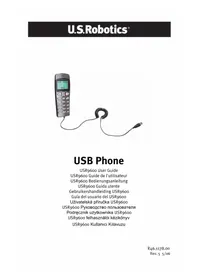
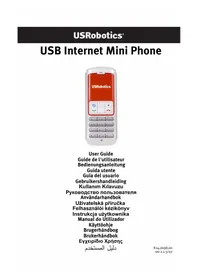
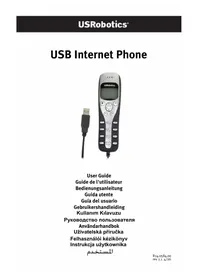
USRobotics USB Internet Phone
- Installation CD-ROM
Use r Gu i d e
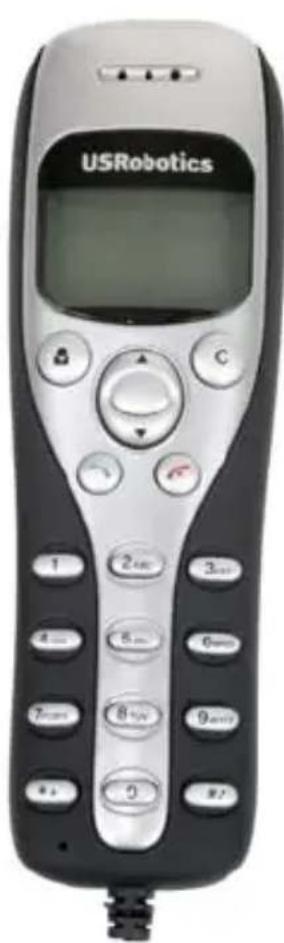
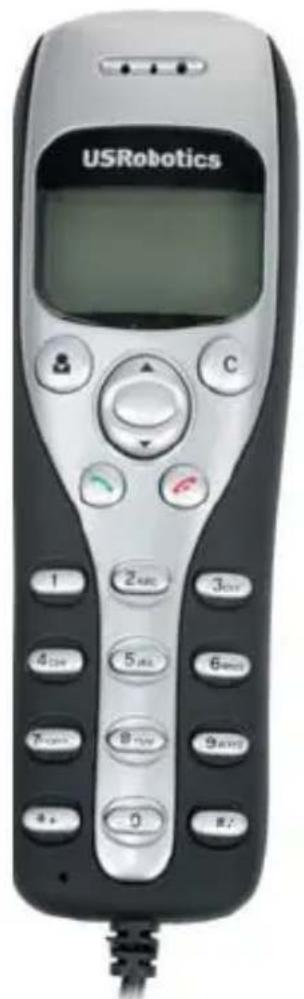
Physical Features
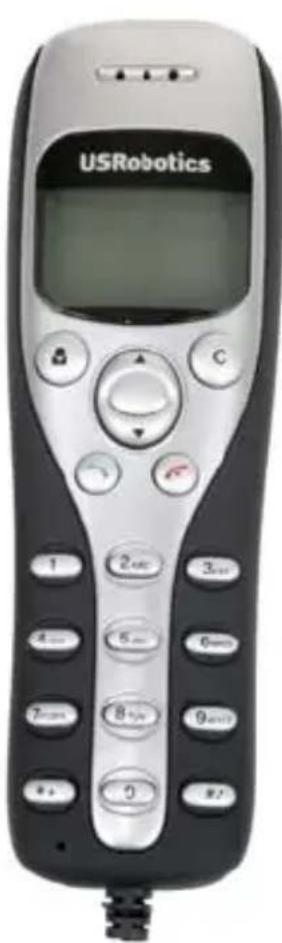

Clear:
- Deletes digits when you dial a number
- Displays the Skype window on your computer when the phone is idle
- Mutes the microphone during a call
Contacts: Displays your contact list
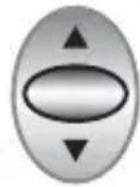
Arrows:
- Scrolls through call and contact lists
- Adjusts volume during a call
Send:
- Places a call to the selected contact or dialed phone number
- Answers an incoming call
- Puts an active call on hold

End: Ends a call or cancels an action
(
9wxyz
0-9: Enters digits for phone number or Speed-Dial number
Cycles through the ringtones
*+
^ + Enters the plus (+) needed to precede dialed digits
Also enters as a dialed character
Headset jack: Allows use of a corded headset with a standard 2.5mm stereo plug.
System Requirements
To use the USRobotics USB Internet Phone and Skype™ Internet telephony service, your computer system and environment must meet the following minimum requirements:
- Operating system: Windows® 2000 or XP
- Processor speed: 400 MHz
- USB port: USB 1.1 or USB 2.0
Available disk space: 15 MB
RAM: 128 MB
High speed Internet connection
• ČD - R O M d r i v e
• Skуpe soft ware
Installation Instructions
Warning: Skype is not a telephony replacement service.
Any VoIP service used in conjunction with the USB Internet Phone cannot be used for calls to emergency services or emergency telephone numbers (311, 911, 112, 999, etc.). Use a landline telephone for calls to emergency services, such as police, fire, or ambulance.
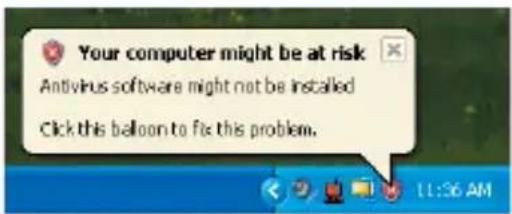
1. Clear your screen.
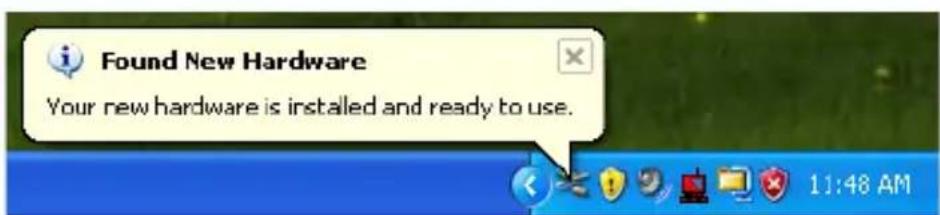
Balloons such as the one shown below may interfere with those that show the progress of your USB Internet Phone installation.
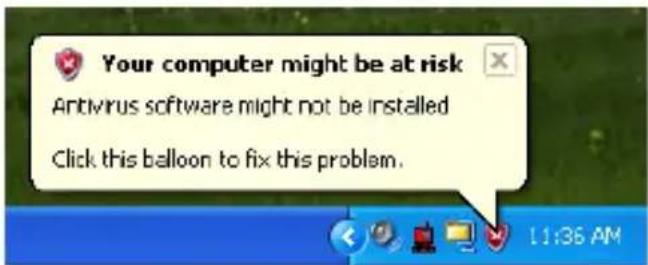
Close any balloon in your system tray.
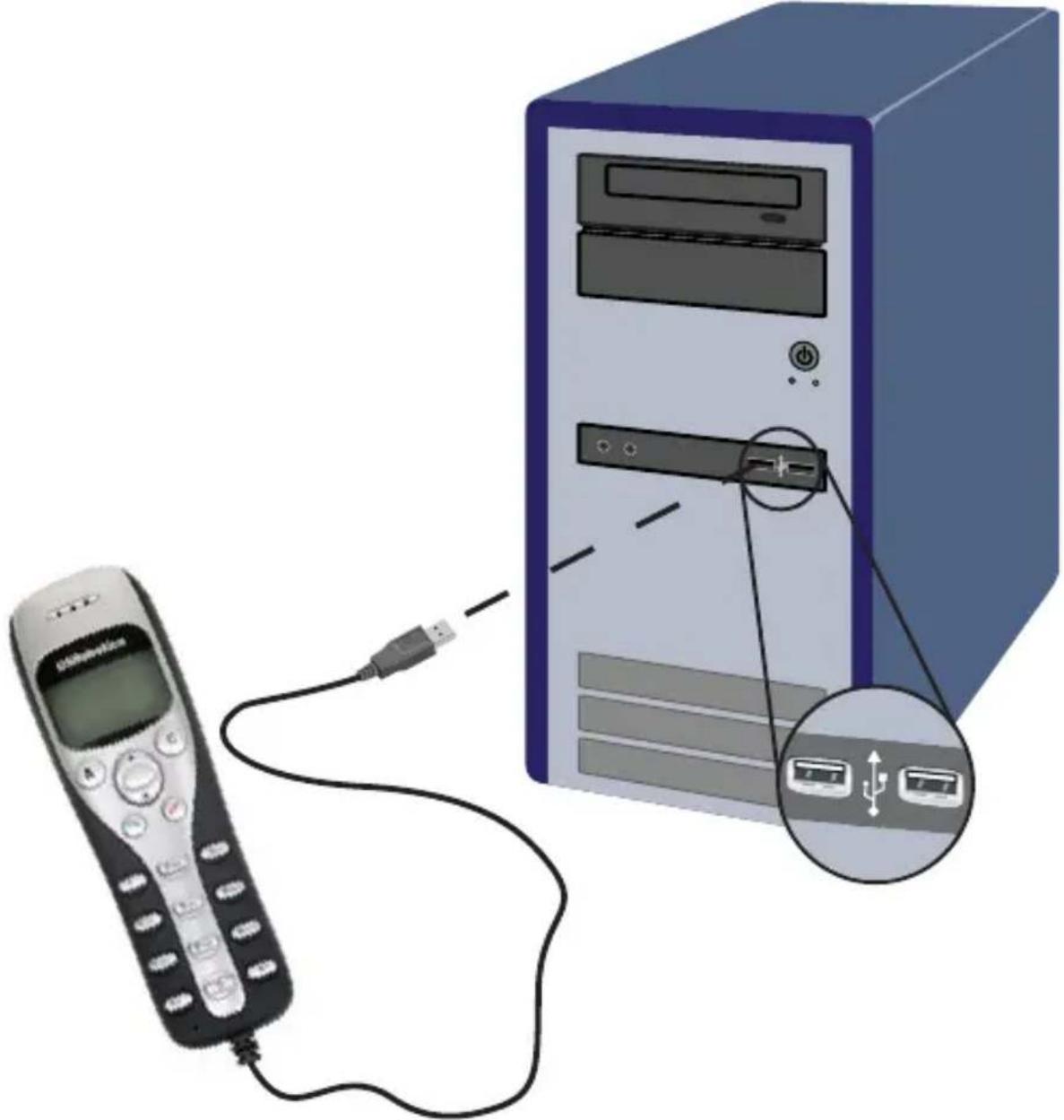
2. Connect the USB Internet Phone to your computer's USB port.
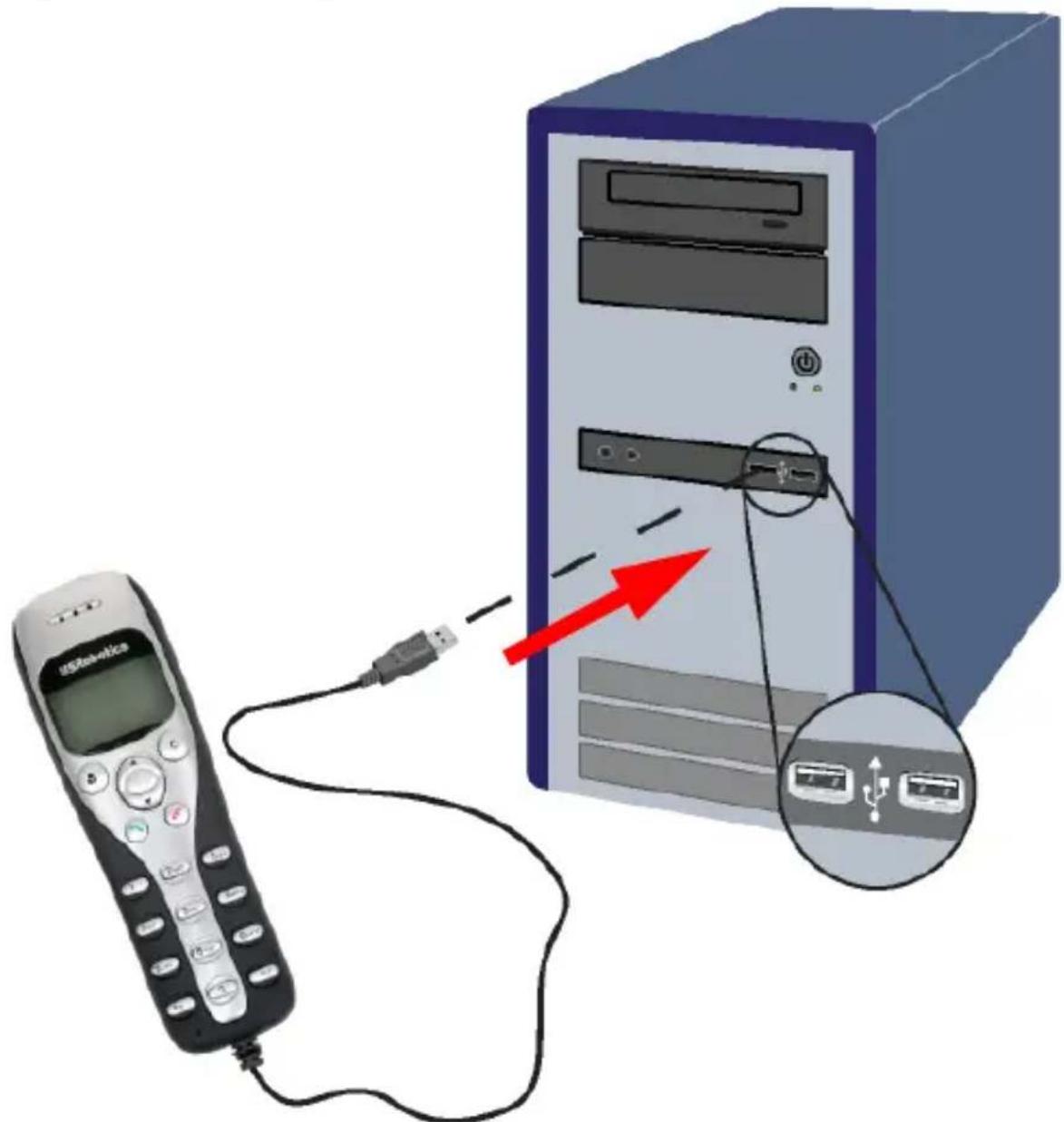
Wait for an indication that installation is complete. If you are prompted to reboot your computer, click Yes.
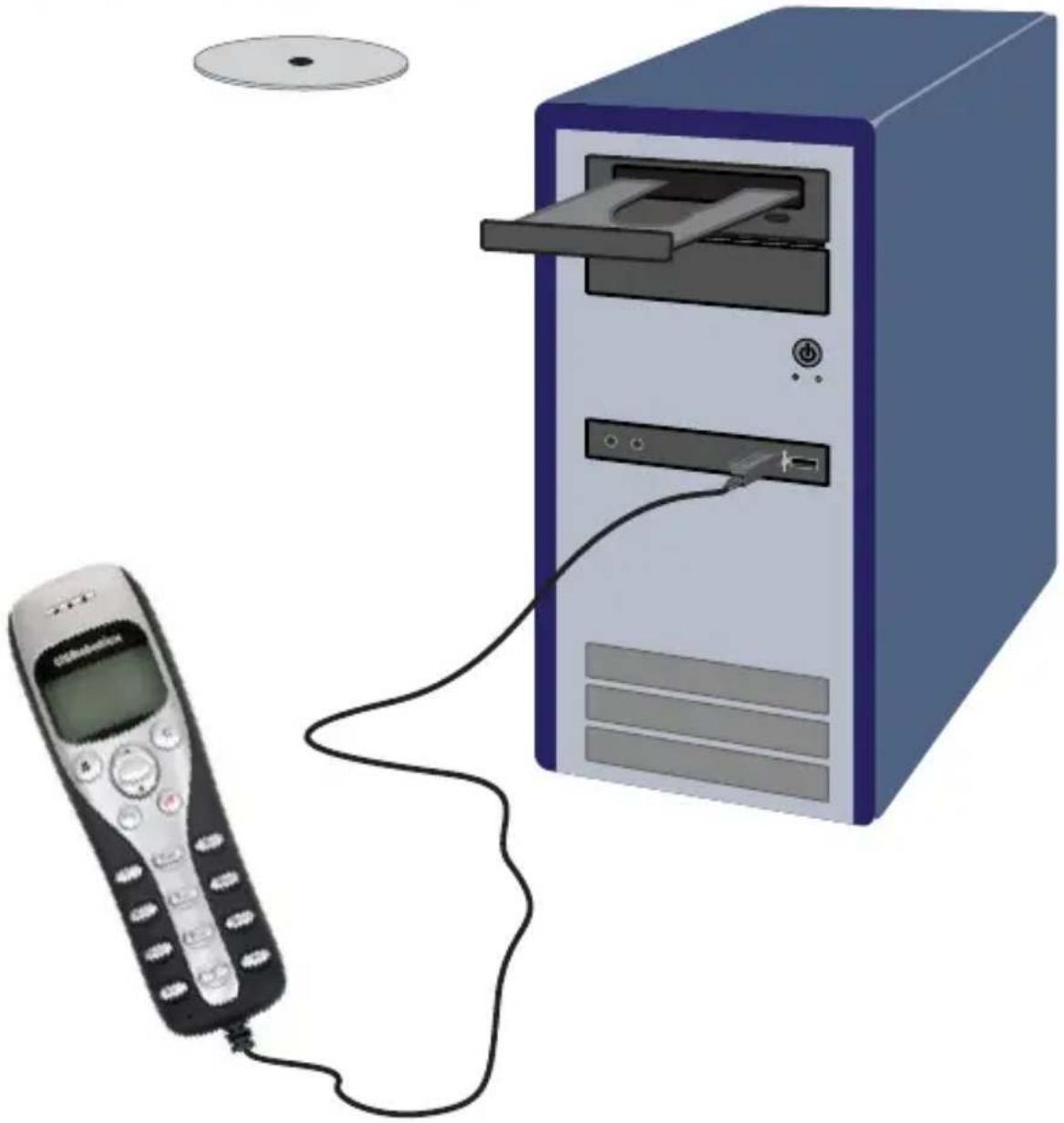
3. Insert the USRobotics Installation CD-ROM.
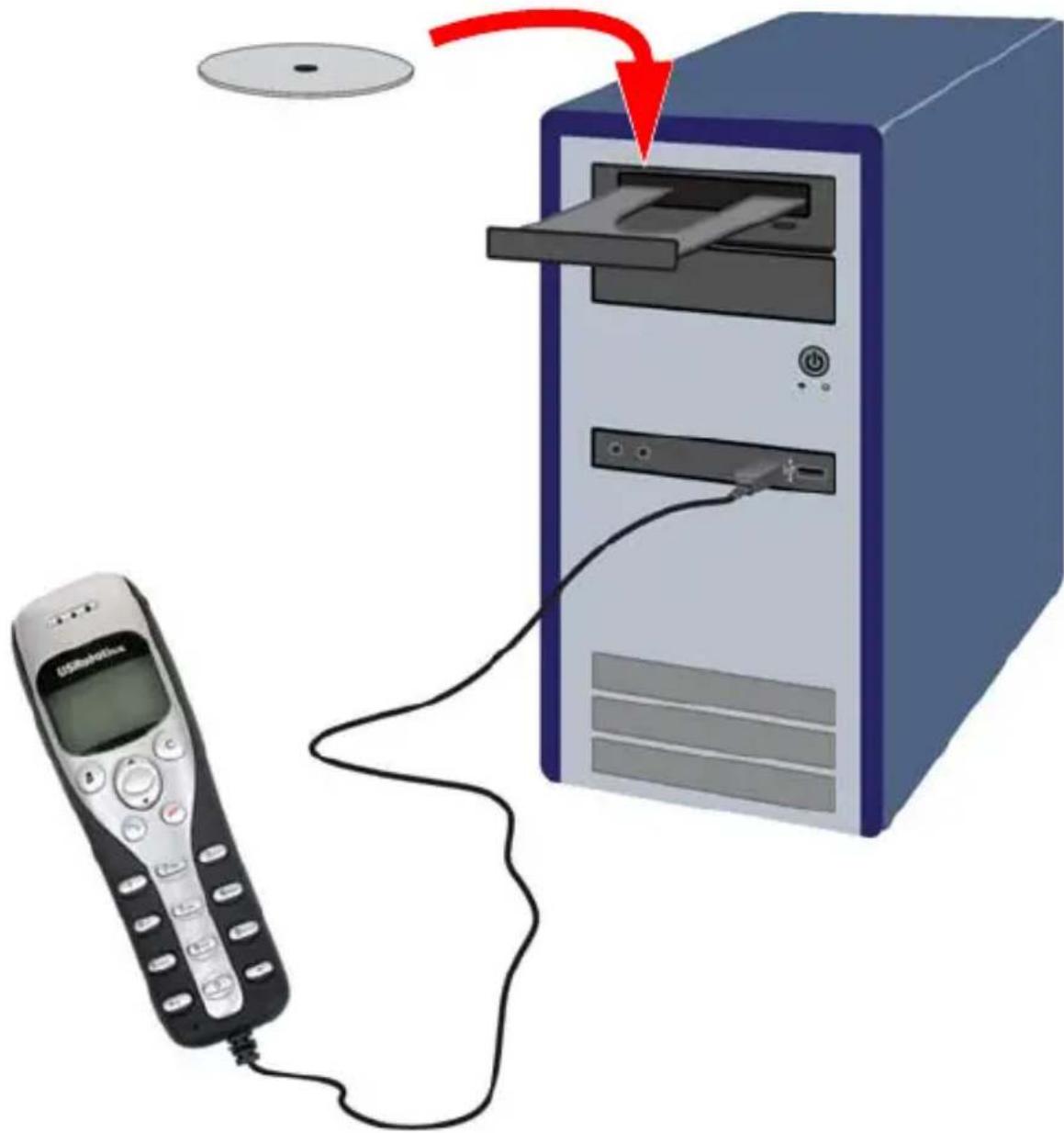
The CD didn't start automatically?
From the Start menu, select My Computer and double-click the CD drive.
4. Install Skype
If Skype is already installed on your computer, go to step 5.
A. If prompted, select your language and accept the End User License Agreement.
B. Select Install Skype.

C. Follow the instructions to install Skype.
5. Install the USB Internet Phone
A. Select Install USB Internet Phone.
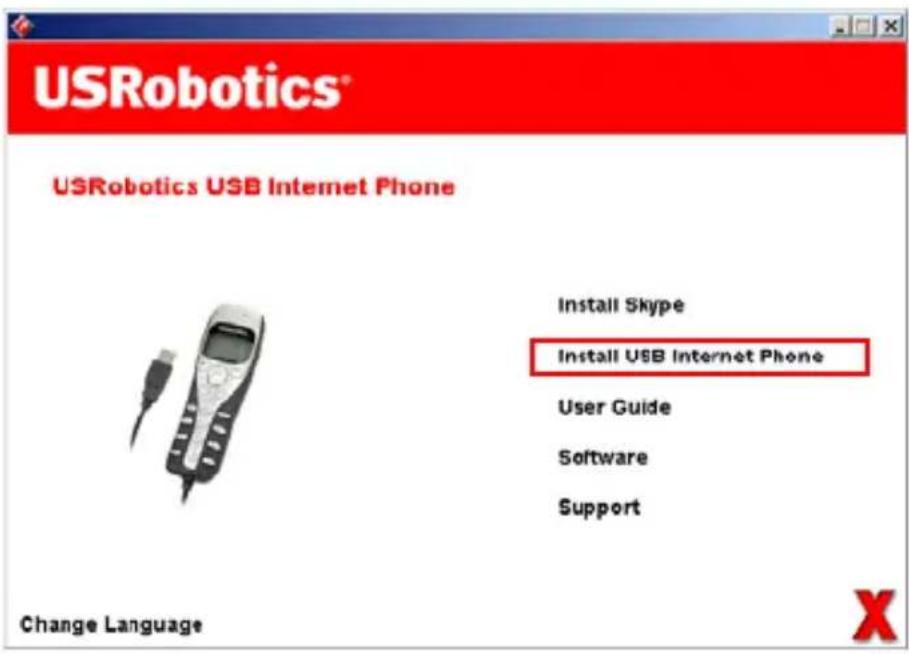
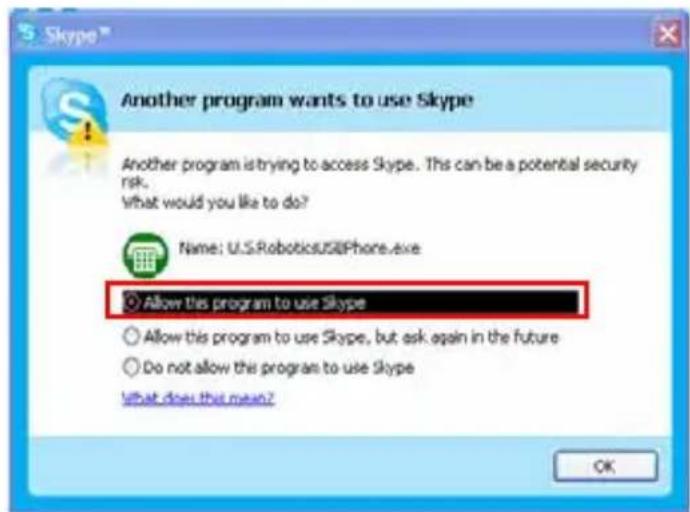
B. Follow the instructions to install the USB Internet Phone.
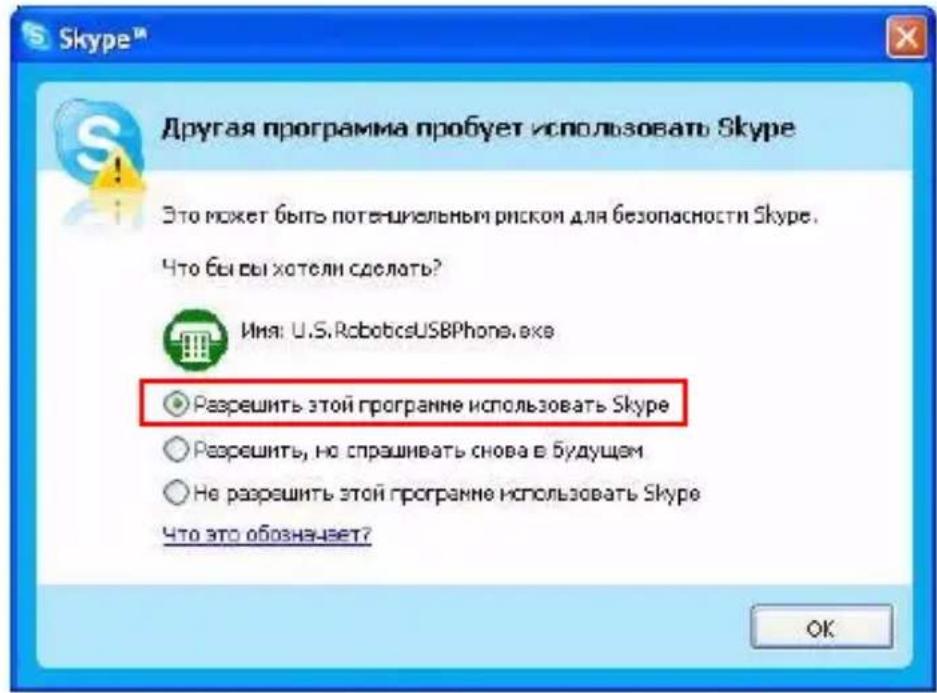
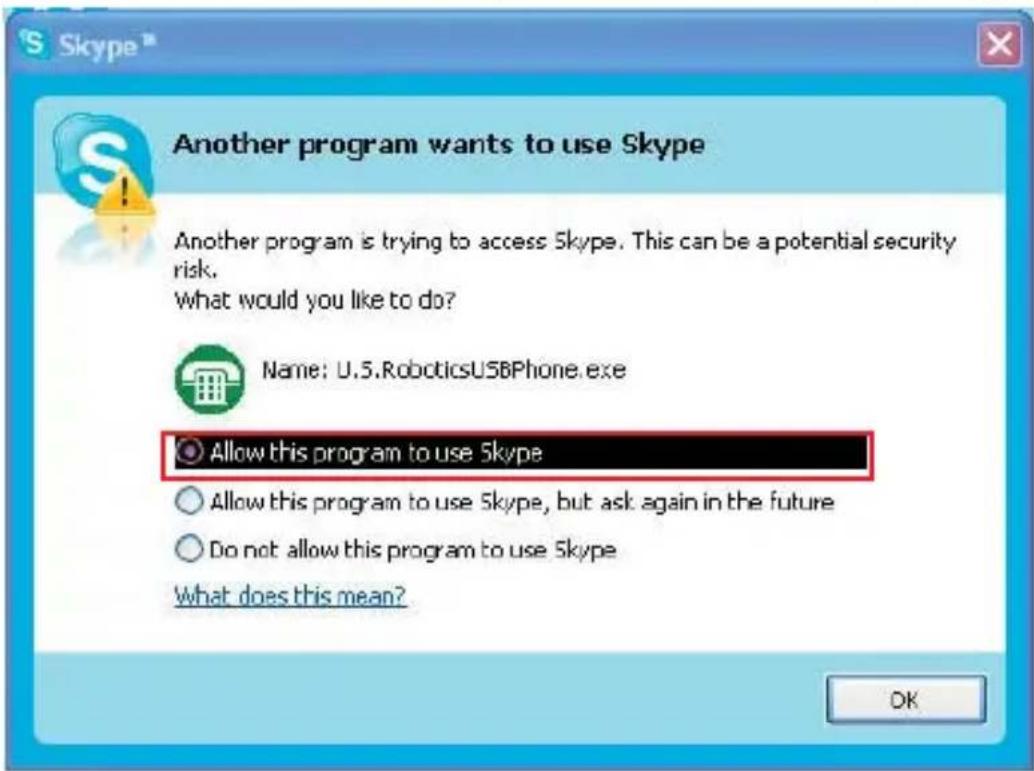
Make sure that Allow this program to use Skype is selected.
A green phone icon should appear in your system tray near the clock. If the phone icon remains red or grey, refer to "Troubleshooting" on page 14 for more information.
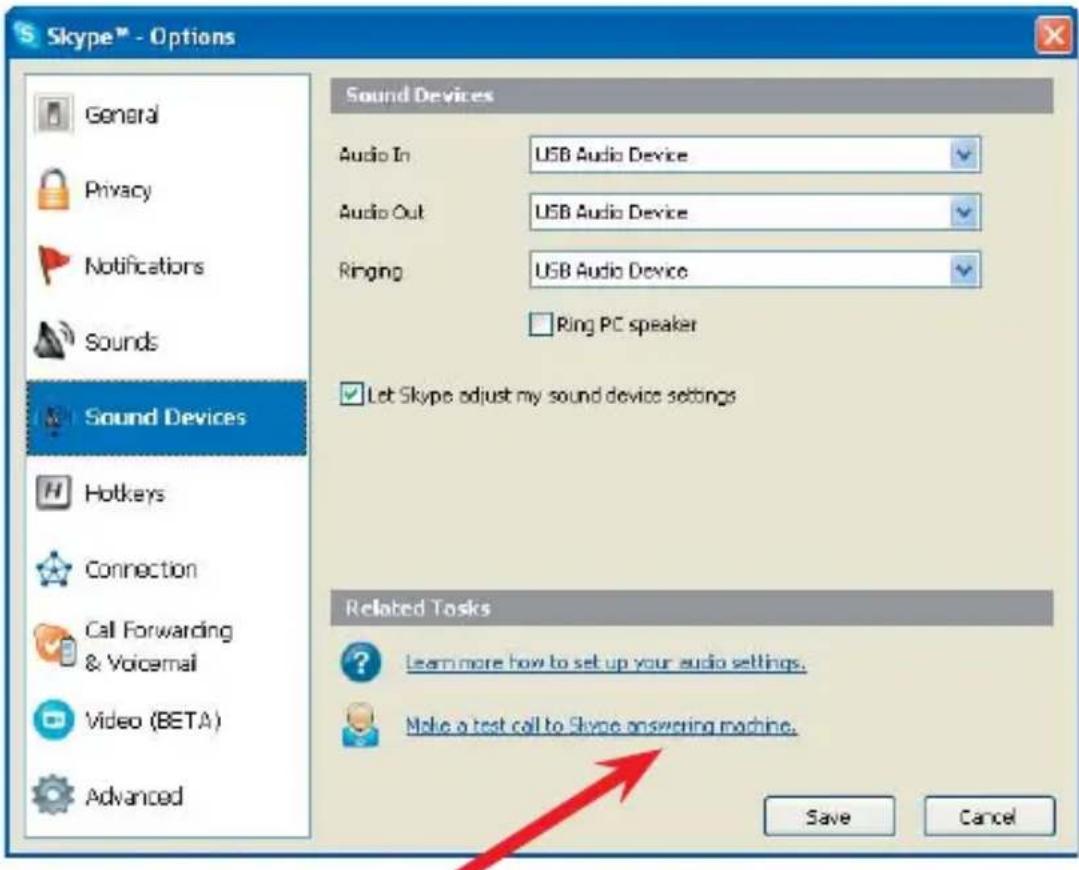
6. Verify the installation by making a test call.
A. From your Windows Start menu, select Programs, then select Skype and start the Skype program.
B. Select Tools, Options. Then select Sound Devices.
C. In the Skype program, click Make a test call to Skype answering machine and follow the on-screen instructions.

Congratulations!
You have installed the USRobotics USB Internet Phone. Please open your Web browser and register your phone at www.usr.com/productreg/.
Operation
Volume
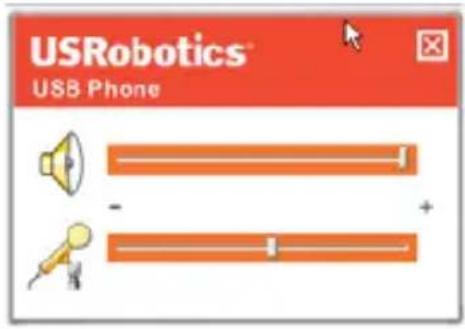
To adjust the volume of the phone, double-click the USB
Internet Phone icon in the system tray by your clock on your computer desktop. You can also right-click the USB Internet Phone icon and click Volume Controls. You can then adjust the volume of the phone's speaker by moving the slider bar to the right or to the left.
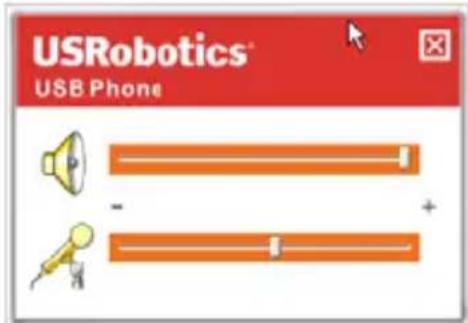
The microphone sensitivity automatically adjusts to the volume of your voice.
Advanced
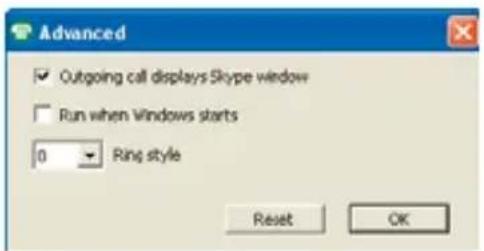
Right-click the USB Internet Phone icon and click Advanced. This will open the Advanced properties window.
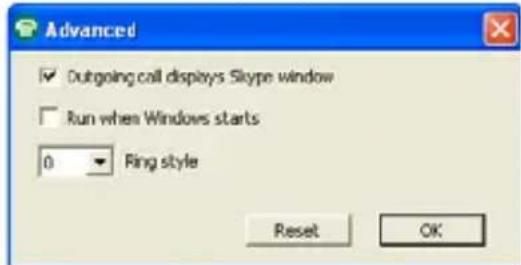
In this window you can configure the following options:
-
S e l e c t o r d e s e l e c t t h o dow. If you select this feature, a Skype window will appear when you place a call.
-
Select or deselect the Run when Windows starts feature. If you select this feature, the USB Internet Phone utility will automatically launch when your computer is turned on.
- Choose one of the 10 different Ring styles. You can also change the ring tone by pressing the #key in the bottom right corner of the phone.
- C l i c k Reset to restore the USRobotics USB Inter Phone's advanced settings to factory defaults.
When you are finished adjusting these settings, click OK for the changes to take effect.
Select Language
Right-click the USB Internet Phone icon and click Select Language. In this window you can select the language in which you want the USB Internet Phone menus to be displayed.
Placing a call to a contact using the Skype window on your computer
Press the clear button on your phone or double-click
the Skype button on your computer.
(Optional) Click Add Contact or Search and follow the prompts to create a contact.
Select a contact in the Skype window and press send to call the contact.

When you are done, press end in the Skype window.
Placing a call using the phone
Calling from your contact list
Press the contacts button on your phone.
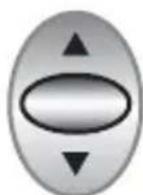
Use the arrows to highlight a contact.
On-line contact: Off-line contact:
Press the send button (green) to call the contact.
When you are done, press the end button (red).
Using speed-dial
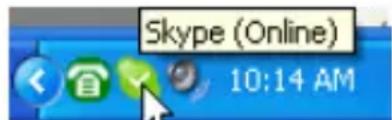
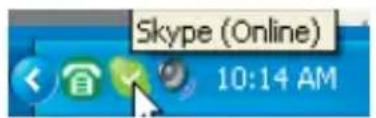
On your computer, double click the Skype button in your
system tray. Skype (Online) 10:14 AM
In the Skype window, right-click a contact and click Set Speed-Dial.
Enter a one or two digit speed-dial number and click OK to assign it to the contact.
On your phone, enter the speed-dial number and press send. to call the contact.
When you are done, press end.

Calling from call history
Use the arrows to scroll through your call history
and select a call.
Press send to place a call.
When you are done, press end.

Calling a traditional landline or mobile phone
You can call traditional landline or mobile numbers using SkypeOut™. First, go to www.skype.com and buy “Skype Credit.” Then just dial.
To dial a landline or mobile phone, first press oo or + on the telephone keypad.
Then, enter the country code and phone number that you are calling. (Go to http://support.skype.com for information on international dialing.)
Press send.

When you are done, press end.

Receiving a call
When the phone rings, press send to answer the call.
When you are done, press end.

Placing a call on hold
If you receive a call when you are already engaged in another call, you can place the first call on hold to take the second call.
Press send to take the incoming call and place the first call on hold.
Press the contact button to switch to the incoming call.
Press send to talk.
Press end to end the active call.
Icons
| Description Phone Display | |
| Not logged on to Skype | |
| Phone connected, U.S. Robotics USB Phone software not running | |
| Idle state, U.S. Robotics USB Phone software and Skype software running | 14:35 Let's Skype |
| Incoming call In idle state | |
| In call list | |
| Outgoing call Connecting | |
| In call list | |
| Missed call In idle state | |
| In call list | |
| Contact on-line | |
| Contact off-line | |
| SkypeOut |
Troubleshooting
The USB Internet Phone system tray icon is red Possible Solution

Reconnect the USB Internet Phone.
The USB Internet Phone system tray icon is grey

Possible Solution:
From your Windows Start menu, select Programs,
Skype, and start the Skype program.
Possible Solution:
In the Skype utility, select Tools then Options.
Click Privacy and then Manage other programs' access to Skype.
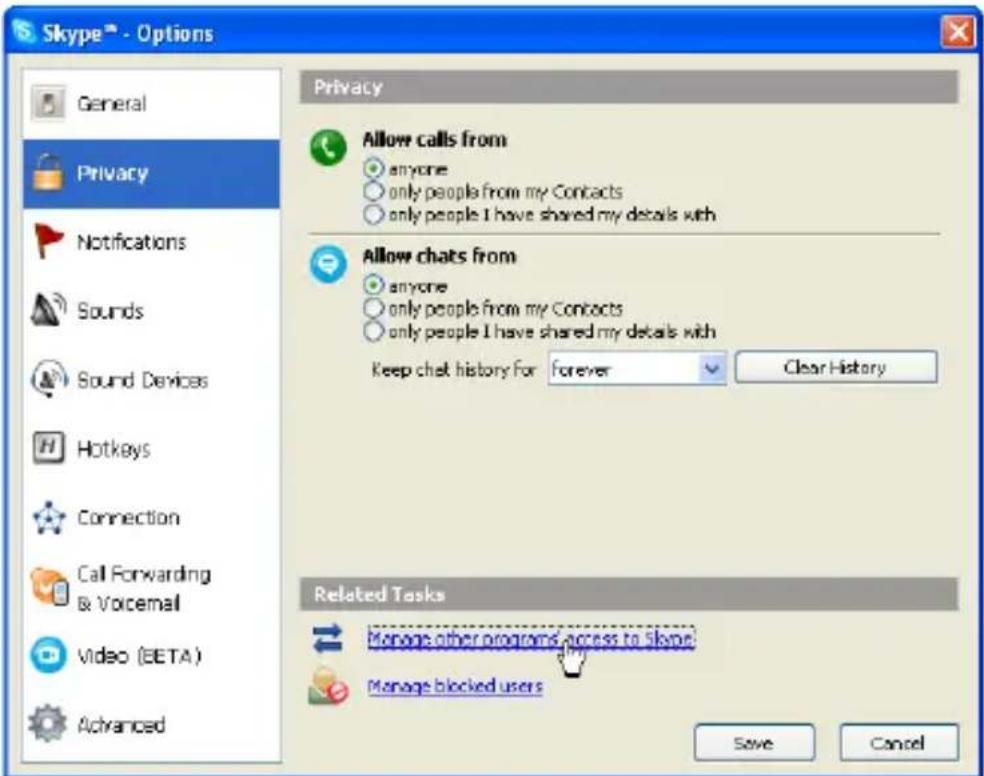
Select U.S.ROBOTICSUSBPHONE.exe and click Change.
Select Allow this program to use Skype and click OK.

My USB Internet Phone shows that it is connected to my computer but the buttons on the phone don’t do anything.
Possible Solution
Make sure that the USB Internet Phone utility and the Skype program are both running. Follow the installation steps in this guide if the utilities have not been installed.
My computer is not detecting the USB Internet Phone.
Possible Solution:
Make sure the USB cable of the phone is securely connected to a USB port on your computer.
Possible Solution:
There may have been an error during the installation process. Unplug the phone from your computer, uninstall the software, and repeat the installation procedure.
The USB Internet Phone does not work (the caller cannot hear me) after resuming the computer from "Standby" or "Hibernate" mode.
Possible Solution:
Unplug the USB Internet Phone from the port and plug it back in again.
I am not able to hear any sound through my headset.
Possible Solution:
Make sure you are using a headset with a standard 2.5 mm stereo plug.
I am not able to hear any sound through the USB Internet Phone.
Possible Solution:
Skype may not be set to use the USB Internet Phone.
From your Windows Start menu, select Programs, then select Skype and start the Skype program.
Select Tools, Options. Then select Sound Devices.
Select USB Audio Device for all three settings: Audio In, Audio Out, and Ringing.
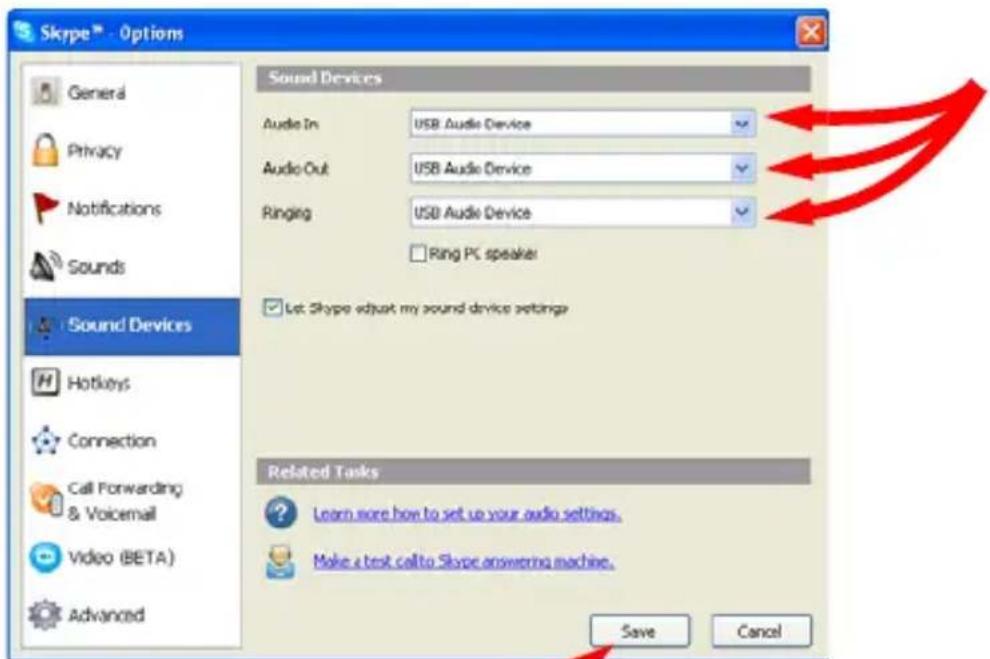
Then click Save.
Support
If you experience any problems with your Skype software, refer to http://support.skype.com
To obtain support for your USB Internet Phone:
- Know your model and serial number. The model number of your phone is 9601. If you ever need to call for technical support, you will need your phone's serial number. Please write your serial below.
| Model Number Serial Number | |
| 9601 | |
- Go to the Support section of the USRobotics Web site at www.usr.com/support/.
Many of the most common difficulties that users experience have been addressed in the FAQ and Troubleshooting Web pages for your product.
3. Submit your technical support question using an on-line form, or contact the USRobotics Technical Support Department.
U.S. www.usr.com/emailsupport (888) 216-2850
Canada www.usr.com/emailsupport (888) 216-2850
Austria www.usr.com/emailsupport/de 07110
Belgium (Flemish) www.usr.com/emailsupport/bn 070 23 35 45
Belgium (French) www.usr.com/emailsupport/be 070 23 35 46
Czech Republic www.usr.com/emailsupport/cz
Denmark www.usr.com/emailsupport/ea 38323011
Finland www.usr.com/emailsupport/ea 08 0091 3100
France www.usr.com/emailsupport/fr0825 070 693
Germany www.usr.com/emailsupport/de 0180 567 1548
Hungary www.usr.com/emailsupport/hu 0180 567 1548
Ireland www.usr.com/emailsupport/uk 1890 252 130
Italy www.usr.com/emailsupport/it 026 943 0339
Luxembourg www.usr.com/emailsupport/be 342 080 8318
Middle East/Africa www.usr.com/emailsupport/me 870 844 4546
Netherlands www.usr.com/emailsupport/bn 0900 202 5857
Norway www.usr.com/emailsupport/ea 23 16 22 37
Poland www.usr.com/emailsupport/pl
Portugal www.usr.com/emailsupport/pt 214154034
Russia www.usr.com/emailsupport/ru 88002002001
Spain www.usr.com/emailsupport/es 902 117964
Sweden www.usr.com/emailsupport/se 0850163205
Switzerland www.usr.com/emailsupport/de 0848 840 200
Turkey www.usr.com/emailsupport/tk
UAE www.usr.com/emailsupport/me 08oo 877 63
UK www.usr.com/emailsupport/uk 0870 844 4546
For current support contact information, go to the following Web site:
http://www.usr.com/support/.
Regulatory and Warranty
Regulatory Information
Skype is not a telephony replacement service. Any VoIP service used in conjunction with the USB Internet Phone cannot be used for calls to emergency services or emergency telephone numbers (311, 911, 112, 999, etc.). Use a landline telephone for calls to emergency services, such as police, fire, or ambulance.
Declaration of Conformity
U.S. Robotics Corporation
935 National Parkway
Schaumburg, IL 60173
U.S.A.
declares that this product conforms to the FCC's specifications:
Part 15, Class B
Operation of this device is subject to the following conditions:
1) this device may not cause harmful electromagnetic interference, and
2) this device must accept any interference received including interference that may cause undesired operations.
This equipment complies with FCC Part 15 for Home and Office use.
Caution to the User: Any changes or modifications not expressly approved by the party responsible for compliance could void the user's authority to operate the equipment.
Radio and Television Interference:
This equipment has been tested and found to comply with the limits for a Class B digital device, pursuant to Part 15 of the FCC Rules. These limits are designed to provide reasonable protection against harmful interference in a residential installation. This equipment generates, uses and can radiate radio frequency energy. If this equipment is not installed and used in accordance with the manufacturer's instructions, it may cause harmful interference to radio communications. However, there is no guarantee that interference will not occur in a particular installation. If this equipment does cause harmful interference to radio or television reception, which can be determined by turning the equipment off and on, the user is encouraged to try to correct the interference by one or more of the following measures:
- Reorient or relocate the receiving antenna.
- Increase the separation between the equipment and receiver.
- Connect the equipment to an outlet on a circuit different from that to which the receiver is connected.
- Consult the dealer or an experienced radio/TV technician for help.
UL Listing/CUL Listing:
For External products:
This information technology equipment is UL Listed and C-UL Listed for both the US and Canadian markets respectively for the uses described in the User Guide. Use this product with UL Listed Information Technoloy Equipment (ITE) only.
For Internal products:
This information technology equipment is UL Listed and C-UL Listed for both the US and Canadian markets respectively for use with UL Listed personal computers that have installation instructions detailing user installation of card accessories. Use this equipment in UL Listed (ITE) only.
For Laptop/Notebook products:
This information technology equipment is UL Listed and C-UL Listed for both the US and Canadian markets respectively for use only with UL Listed laptop or notebook computers. Use this equipment in UL Listed (ITE) only.
For Canadian Users
Industry Canada (IC)
This digital apparatus does not exceed the Class B limits for radio noise emissions from digital apparatus set out in the interference-causing equipment standard entitled Digital Apparatus, ICES-003 of Industry Canada.
Users should ensure for their own protection that the electrical ground connections of the power utility, telephone lines, and internal metallic water pipe system, if present, are connected together. This precaution may be particularly important in rural areas.
Caution: Users should not attempt to make electrical ground connections by themselves, but should contact the appropriate inspection authority or an electrician, as appropriate.
C
Declaration of Conformity
We, U.S. Robotics Corporation of 935 National Parkway, Schaumburg, Illinois, 60173-5157 USA, declare under our sole responsibility that the products, USRobotics USB Phones, Models 96o1 and 96o1A, to which this declaration relates, are in conformity with the following standards and/or other normative documents.
EN55022
EN55024
We hereby declare that the above named products are in conformity with the essential requirements and other relevant provisions of Directive 89/336/EC.
U.S. Robotics Corporation Two (2) Year Limited Warranty
1.0 GENERAL TERMS:
1.1 This Limited Warranty is extended only to the original end-user purchaser (CUS-TOMER) and is not transferable.
1.2 No agent, reseller, or business partner of U.S. Robotics Corporation (U.S. ROBOTICS) is authorised to modify the terms of this Limited Warranty on behalf of U.S. ROBOTICS.
1.3 This Limited Warranty expressly excludes any product that has not been purchased as new from U.S. ROBOTICS or its authorised reseller.
1.4 This Limited Warranty is only applicable in the country or territory where the product is intended for use (As indicated by the Product Model Number and any local telecommunication approval stickers affixed to the product).
1.5 U.S. ROBOTICS warrants to the CUSTOMER that this product will be free from defects in workmanship and materials, under normal use and service, for TWO (2) YEARS from the date of purchase from U.S. ROBOTICS or its authorised reseller.
1.6 U.S. ROBOTICS sole obligation under this warranty shall be, at U.S. ROBOTICS sole discretion, to repair the defective product or part with new or reconditioned parts; or to exchange the defective product or part with a new or reconditioned product or part that is the same or similar; or if neither of the two foregoing options is reasonably available, U.S. ROBOTICS may, at its sole discretion, provide a refund to the CUSTOMER not to exceed the latest published U.S. ROBOTICS recommended retail purchase price of the product, less any applicable service fees. All products or parts that are exchanged for replacement will become the property of U.S. ROBOTICS.
1.7 U.S. ROBOTICS warrants any replacement product or part for NINETY (go) DAYS from the date the product or part is shipped to Customer.
1.8 U.S. ROBOTICS makes no warranty or representation that this product will meet CUSTOMER requirements or work in combination with any hardware or software products provided by third parties.
1.9 U.S. ROBOTICS makes no warranty or representation that the operation of the software products provided with this product will be uninterrupted or error free, or that all defects in software products will be corrected.
1.10 U.S. ROBOTICS shall not be responsible for any software or other CUSTOMER data or information contained in or stored on this product.
2.0 CUSTOMER OBLIGATIONS:
2.1 CUSTOMER assumes full responsibility that this product meets CUSTOMER specifications and requirements.
2.2 CUSTOMER is specifically advised to make a backup copy of all software provided with this product.
2.3 CUSTOMER assumes full responsibility to properly install and configure this product and to ensure proper installation, configuration, operation and compatibility with the operating environment in which this product is to function.
2.4 CUSTOMER must furnish U.S. ROBOTICS a dated Proof of Purchase (copy of original purchase receipt from U.S. ROBOTICS or its authorised reseller) for any warranty claims to be authorised.
3.0 OBTAINING WARRANTY SERVICE:
3.1 CUSTOMER must contact U.S. ROBOTICS Technical Support or an authorised U.S. ROBOTICS Service Centre within the applicable warranty period to obtain warranty service authorisation.
3.2 Customer must provide Product Model Number, Product Serial Number and dated Proof of Purchase (copy of original purchase receipt from U.S. ROBOTICS or its authorised reseller) to obtain warranty service authorisation.
3.3 For information on how to contact U.S. ROBOTICS Technical Support or an authorised U.S. ROBOTICS Service Centre, please see the U.S. ROBOTICS corporate Web site at: www.usr.com
3.4 CUSTOMER should have the following information / items readily available when contacting U.S. ROBOTICS Technical Support:
Product Model Number
- Product Serial Number
Dated Proof of Purchase
- CUSTOMER contact name & telephone number
CUSTOMER Computer Operating System version
U.S. ROBOTICS Installation CD-ROM
U.S. ROBOTICS Installation Guide
4.0 WARRANTY REPLACEMENT:
4.1 In the event U.S. ROBOTICS Technical Support or its authorised U.S. ROBOTICS Service Centre determines the product or part has a malfunction or failure attributable directly to faulty workmanship and/or materials; and the product is within the TWO (2) YEAR warranty term; and the CUSTOMER will include a copy of the dated Proof of Purchase (original purchase receipt from U.S. ROBOTICS or its authorised reseller) with the product or part with the returned product or part, then U.S. ROBOTICS will issue CUSTOMER a Return Material Authorisation (RMA) and instructions for the return of the product to the authorised U.S. ROBOTICS Drop Zone.
4.2 Any product or part returned to U.S. ROBOTICS without an RMA issued by U.S. ROBOTICS or its authorised U.S. ROBOTICS Service Centre will be returned.
4.3 CUSTOMER agrees to pay shipping charges to return the product or part to the authorised U.S. ROBOTICS Return Centre; to insure the product or assume the risk of loss or damage which may occur in transit; and to use a shipping container equivalent to the original packaging.
4.4 Responsibility for loss or damage does not transfer to U.S. ROBOTICS until the returned product or part is received as an authorised return at an authorised U.S. ROBOTICS Return Centre.
4.5 Authorised CUSTOMER returns will be unpacked, visually inspected, and matched to the Product Model Number and Product Serial Number for which the RMA was authorised. The enclosed Proof of Purchase will be inspected for date of purchase and place of purchase. U.S. ROBOTICS may deny warranty service if visual inspection of the returned product or part does not match the CUSTOMER supplied information for which the RMA was issued.
4.6 Once a CUSTOMER return has been unpacked, visually inspected, and tested U.S. ROBOTICS will, at its sole discretion, repair or replace, using new or reconditioned
product or parts, to whatever extent it deems necessary to restore the product or part to operating condition.
4.7 U.S. ROBOTICS will make reasonable effort to ship repaired or replaced product or part to CUSTOMER, at U.S. ROBOTICS expense, not later than TWENTY ONE (21) DAYS after U.S. ROBOTICS receives the authorised CUSTOMER return at an authorised U.S. ROBOTICS Return Centre.
4.8 U.S. ROBOTICS shall not be liable for any damages caused by delay in delivering or furnishing repaired or replaced product or part.
5.0 LIMITATIONS:
5.1 THIRD-PARTY SOFTWARE: This U.S. ROBOTICS product may include or be bundled with third-party software, the use of which is governed by separate end-user license agreements provided by third-party software vendors. This U.S. ROBOTICS Limited Warranty does not apply to such third-party software. For the applicable warranty refer to the end-user license agreement governing the use of such software.
5.2 DAMAGE DUE TO MISUSE, NEGLECT, NON-COMPLIANCE, IMPROPER INSTALLATION, AND/OR ENVIRONMENTAL FACTORS: To the extent permitted by applicable law, this U.S. ROBOTICS Limited Warranty does not apply to normal wear and tear; damage or loss of data due to interoperability with current and/or future versions of operating system or other current and/or future software and hardware; alterations (by persons other than U.S. ROBOTICS or authorised U.S. ROBOTICS Service Centres); damage caused by operator error or non-compliance with instructions as set out in the user documentation or other accompanying documentation; damage caused by acts of nature such as lightning, storms, floods, fires, and earthquakes, etc. Products evidencing the product serial number has been tampered with or removed; misuse, neglect, and improper handling; damage caused by undue physical, temperature, or electrical stress; counterfeit products; damage or loss of data caused by a computer virus, worm, Trojan horse, or memory content corruption; failures of the product which result from accident, abuse, misuse (including but not limited to improper installation, connection to incorrect voltages, and power points); failures caused by products not supplied by U.S. ROBOTICS; damage cause by moisture, corrosive environments, high voltage surges, shipping, abnormal working conditions; or the use of the product outside the borders of the country or territory intended for use (As indicated by the Product Model Number and any local telecommunication approval stickers affixed to the product).
5.3 TO THE FULL EXTENT ALLOWED BY LAW, THE FOREGOING WARRANTYES AND REMEDI ES ARE EXCLUSIVE AND ARE IN LIEU OF ALL OTHER WARRANTYES, TERMS, OR CONDITIONS, EXPRESS OR IMPLIED, EITHER IN FACT OR BY OPERATION OF LAW, STATUTORY OR OTHERWISE, INCLUDING WARRANTYES, TERMS, OR CONDITIONS OF MERCHANTABILITIES, FITNESS FOR A PARTICULAR PURPOSE, SATISFACTORY QUALITY, CORRESPONDENCE WITH DESCRIPTION, AND NON-INFRINGEMENT, ALL OF WHICH ARE EXPRESSLY DISCLAIMED. U.S. ROBOTICS NEITHER ASSUMES NOR AUTHORISES ANY OTHER PERSON TO ASSUME FOR IT ANY OTHER LIABILITY IN CONNECTION WITH THE SALE, INSTALLATION, MAINTENANCE, WARRANTY, OR USE OF ITS PRODUCTS.
5.4 LIMITATION OF LIABILITY. TO THE FULL EXTENT ALLOWED BY LAW, U.S. ROBOTICS ALSO EXCUSES FOR ITSELF AND ITS SUPPLIERS ANY LIABILITY, WHETHER BASED IN CONTRACT OR TORT (INCLUDING NEGLIGENCE), FOR INCIDENTAL, CONSEQUENTIAL, INDIRECT, SPECIAL, OR PUNITIVE DAMAGES OF ANY KIND, OR FOR LOSS OF REVENUE OR PROFITS, LOSS OF BUSINESS, LOSS OF INFORMATION OR DATA, OR OTHER FINAN
CIAL LOSS ARISING OUT OF OR IN CONNECTION WITH THE SALE, INSTALLATION, MAINTENANCE, USE, PERFORMANCE, FAILURE, OR INTERRUPTION OF ITS PRODUCTS, EVEN IF U.S. ROBOTICS OR ITS AUTHORISED RESELLER HAS BEEN ADVISED OF THE POSSIBILITY OF SUCH DAMAGES, AND LIMITS ITS LIABILITY TO REPAIR, REPLACEMENT, OR REFUND OF THE PURCHASE PRICE PAID, AT U.S. ROBOTICS OPTION. THIS DISCLAIMER OF LIABILITY FOR DAMAGES WILL NOT BE AFFECTED IF ANY REMEDY PROVIDED HEREIN SHALL FAIL OF ITS ESSENTIAL PURPOSE.
6.0 DISCLAIMER:
Some countries, states, territories or provinces do not allow the exclusion or limitation of implied warranties or the limitation of incidental or consequential damages for certain products supplied to consumers, or the limitation of liability for personal injury, so the above limitations and exclusions may be limited in their application to CUSTOMER. When the implied warranties are not allowed by law to be excluded in their entirety, they will be limited to the TWO (2) YEAR duration of this written warranty. This warranty gives CUSTOMER specific legal rights, which may vary depending on local law.
7.0 GOVERNING LAW:
This Limited Warranty shall be governed by the laws of the State of Illinois, U.S.A. excluding its conflicts of laws principles and excluding the United Nations Convention on Contracts for the International Sale of Goods.
U.S. Robotics Corporation
935 National Parkway
Schaumburg, IL, 60173
U.S.A.
4.0 REMPLACEMENT SOUS GARANTIE :
U.S. Robotics Corporation
935 National Parkway
Schaumburg, IL, 60173
Etats-Unis
Installation
Packungsinhalt
Italian www.usr.com/emailsupport/it 026 943 0339
Luxemburg www.usr.com/emailsupport/be 3420808318
Naher Osten/Afrika www.usr.com/emailsupport/me 870 844 4546
Niederlande www.usr.com/emailsupport/bn 0900 202 5857
Norwegen www.usr.com/emailsupport/ea 23 16 22 37
Polen www.usr.com/emailsupport/pl
Portugal www.usr.com/emailsupport/pt 21415 4034
Russland www.usr.com/emailsupport/ru 88002002001
Spanien www.usr.com/emailsupport/es 902 117964
Schweden www.usr.com/emailsupport/se0850163205
935 National Parkway
Schaumburg, IL 60173
USA
U.S. Robotics Corporation 935 National Parkway Schaumburg, IL, 60173 U.S.A.
Installazione
http://www.usr.com/support/.
U.S. Robotics Corporation 935 National Parkway Schaumburg, IL 60173 U.S.A.
Industry Canada (IC)
U.S. Robotics Corporation 935 National Parkway Schaumburg, IL, 60173 U.S.A.
Instalación
Portugal www.usr.com/emailsupport/pt 21
Rusia www.usr.com/emailsupport/ru 8 800 200 20 01
Espana www.usr.com/emailsupport/es 902
Suecia www.usr.com/emailsupport/se 0850163205
Suiza www.usr.com/emailsupport/de0848840200
Turquía www.usr.com/emailsupport/tk
UAE www.usr.com/emailsupport/me 08oo 877 63
Reino Unido www.usr.com/emailsupport/uk 087o 844 4546
415
http://www.usr.com/support/.
U.S. Robotics Corporation
935 National Parkway
Schaumburg, IL 60173
EE.UU.
Industry Canada (IC)
Installatie-instructions
Industry Canada (IC)
U.S. Robotics Corporation
935 National Parkway
Schaumburg, IL, 60173
VS
USB Internet Phone aygütimin bilgisayarima®, Oldugu,görünüyor,®,®,®,®,®,®,®,®,®,®,®,®,®,®,®,®,®,®,®,®,®,®,®,®,®,®,®,®,®,®,®,®,®,®,®,®,®,®,®,®,®,®,®,®,®,®,®,®,®,®,®,®,®,®,®,®,®,®,®,®,®,®,®,®,®,®,®,®,®,®,®,®,®,®,®,®,®,®,®,®,®,®,®,®,®,®,®,®,®,®,®,®,®,®,®,®,®,®,®,®,®. ançak Telefonun tuşlari calısmıyor.
Olası Çozüm
U.S. Robotics Corporation
935 National Parkway
Schaumburg, IL 60173
ABD
Industry Canada (IC)
U.S. Robotics Corporation
935 National Parkway
Schaumburg, IL, 60173
U.S.A.
yctahOBka
KoMnJIeKT NOCTaBKn
USRobotics USB Internet Phone
- YctaHOBOUHbI KOMnAKT-DnCK
-PykoBoDCTBO NOIb3OBaTeJIa
KoHTaKTbI: OTo6paXeHHe cNnCKa KOHTaKTbIX JnUc
CTpeJkn:
- PpOKpyTka CnNCKOB Bbl3OBB IN KOHTaKTHbIX JINU
Hactpoika rpoMkOCTN BO BpeMa Bbl3Oba
Ipepa:
HaipabJIeHne Bbl3Oba Ha Bbl6paHHoe KOHTaKTHOE JIuO NJIu Ha6npaembI HOMep TeJePOna
OTBET Ha BXOJAAH BbI3OB
- Ydepkahne aKTNBHOrO Bbl3OBA

3aBepseHne: 3aBepseHneBbI3OBA IIN OTMeHa DeiCTBnA


0-9:BvOuIeP TepeHoro Homepa nn Homepa 6bictporo Habopa

Ecnn 3NaUOK C TeNeΦoHOM
OCTaETcKpaCHbIM NII IN cepbIM,ДЯ NOJyHeHNA DOJONHTeJIbHbIX CBeDeHn CM. pa3JeN "YcTpaHHeH HeNCpPaBHOCTe" Ha cTp. 196.
Hajmte KhoNky nepedaun , TTo6bl cdeIaTb Bbl3OB.
I0 3aBepseHn pa3roBopa HaxMnte KhoNky
3aBepseHnBbl30Ba
В.okне порpaMMbl Skype.
Haprablenne Bbl3OBA C NOMOJIbIO Tepepona
BbINOJIHeHne Bbl3OBA C NOMOuCnNcKa KOHTaKTHbIX JIu
Haxmnte KhoNky KOHTaKTOB Ha TeJefoHe. ⅡЯ BbIeJIeHnЯ KOHTaKTHOrO Iuca NcNoJb3yIte
CTpeJIKN
KoHTaKTHoe IInO DoCTynHO:

KoHTaKTHoe IInO HeIoCTyINHO:

EcIn Bbl3OB npHnMaetcra, KOrda nocTynae t eue Odn H Bbl3OB, MoXHO nOCTaBnTb nepBbI Bbl3OB Ha ydepkaHne, UTO6bl npHnAryt b BTOPOB Bbl3OB.
Haxmnte KhoNky nepedaun , uTo6bl npnHrB BXOJaIi Bbl3OB, a nepBbI Bbl3OB nocTaBNTb Ha ydepXaHne.
HaXMMTe KHONky KOHTaKTOB , YTO6blIpeKeJIHOuHTbCra Ha BXOJaUIM Bbl3OB.
Для pa3roBopa NaXMnte KHONky nepeaun .Для 3aBepseHЯ aKTHBHO r OBa NaXMnte KHONKy
3aBepseHnA
3начки
Bo3MOxHbI cNoCo6 yCTpaHeHnA:
B yтinue Skype BBiберпe Сервс, 3aTeM Hactrpoи.
Bb6epnte Be30nacHocTB, a 3aTeM YnpabJIbTb DocTynom B Skype dpyrnx nporpaMM.

Выберп Te U.S.ROBOTICSUSBPHONE.exe n Haxmnte N3MeHnTb.
BbIbePte Pa3peuNTb 3Toi nporpaMe nCnoJIb3OBaTb Skype N HaXMMTe KHONKy OK.
Yc troi cTBO USB Internet Phone noka3bIbaeT, YTO NOdkJIOUeHO K KOMNbIOTepy xOdHaKO KHONKn Ha TelefoHe He pa6oTaIoT.
Bo3mOxHbI cNoCo6 yCTpaHeHnA:
YbEiNTecb, yTo yTnIInTa USB Internet Phone n nporpaMma Skype pa6oTaIoT. EcIn yTnIInTbI He yCTaHOBJIeHbI, BbINOJHInTe 7aRn No yCTaHOBKe, OINCAHHbIe B DaHHOM pyKOBOdCTBe.
Komnblotep He paclno3haet USB Internet Phone.
Bo3mOxHbI cNoCo6 yCTpaHeHnA:
Y6eIntecb, yTo Ka6eIb USB TelefoHa HadexHo nOdknHueH K npTy USB kOmnbHTepa.
Bo3MOxHbI cNoCo6 yCTpaHeHn:
Bo3MOxHNO, Bo BpeM yCTaHOBKn npOn3OuJa OUn6Ka. OToCoeDInHnTe TeIePOn OT KOMNbIoTepa, yCTaHOBnTe npOrpaMMHoe oBeCneueHne n IOBTopnTe pOceDpy yCTaHOBKn.
YcTpoIcTBo USB Internet Phone He pa6oTaET (a6OHeHT MeHЯ He cJIbIuNT) NocIe BbIXOda KOMNbIOTepa n3 peXnMa OxNJaHnЯ nIi CnIaTeRo peXnMa.
Bo3MOxHbI cNoCo6 yCTpaHeHnA:
OTcoeHnTe USB Internet Phone ot npTa n cHOba ero PndCoeHNHe.
He cIbIweH 3ByK B HayshnKax.
Bo3MOxHbI cNoCo6 yCTpaHeHn:
y6eIntecb, yTO nCNoJIb3yHOTcH HayuHNKn CO CTaHdapTHbIM CTepeopa3beMOM 2,5 MM.
He cIbIweH 3ByK B TeJefohe USB Internet Phone.
Bo3MOxHbI cNoCo6 yCTpaHeHn:
Bo3MOxHo, nporpaMa Skype He hacTpoeHa Ha nCNoIb3OBaHne TelefoHa USB Internet Phone.
B MeHIO Windows Nyck BbI6epNte (Bce nporpammbi), Skype, 3aTeM 3anycTnTe nporpammy Skype.
BbI6epnte CepBnC, HacTroPkn. 3aTeM BbI6epnte AydnooyctpoiCTBa.
BbI6epnte AynocctpoCTBO USB IJIa BCex Tpex napametpoB:BxOaYnO,BbIXoAynO n 3BOHOK.
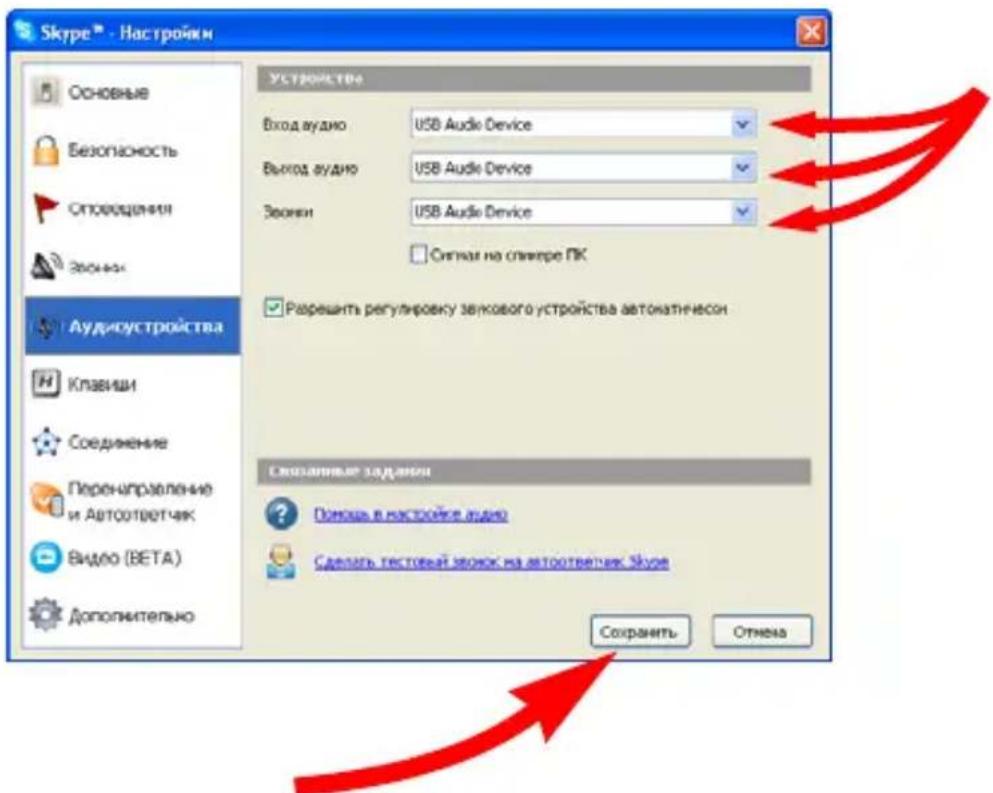
3aTeM HaxMnte KHONKy CoxpaHnTb.
TexHnuecka noDpejka
Ecni npi nCnoJb3OBAHn npoRpaMMbl Skype BO3HKnI npo6JIeMbI,pepeiDnte Ha Be6-y3eI no aIpecy: http://support.skype.com
U.S. Robotics Corporation
935 National Parkway
Schaumburg, IL 60173
U.S.A.
rapaHTnpyeT, yTO daHHbI npOdyKT OTBeueaET TexHnueckm Tpe6oBaHnA M FCC: 15, KnaC B
Pn 3KcNpyataun 3TOO yCTPOINCTBA DOJXHb CO6JIOnaTbcra CNeDyHOuNE ycNOBnA: 1) daHHoe yCTPOINCTBO He DOJXHO RBNaTbcra NCTOCHNKOM 3JIeKTPOMaHHTbIX NOMEX, 2) daHHoe yCTPOINCTBO DOJXHO pa6OTaTB B YCNOBnAX NOMEX, BKJIOnaYaTe, YTO MOryt Bbl3blBaTb c60n B pa6ote.
Данhoe obopyдоване cootbetctbyet Tpe6obahnmaчacn 15 npabn FCC nпретн3нayeho Дя ИспьзOBAHЯ Дома ИВофиce.
IpeDynpexJeHne IJn NOB3OBeTEn: NMeHHeN HIN MoNΦKauN, He ODo6peHHbIE nprMo CTOpOHo, OTBeCTBeHHo 3a COOTBeTCTBnE TexHnueCKm YcNoBnM, MOryt npNBecTN K NiSeHnIO NOB3OBeTEn npab Ha 3KcNpyatauNo DaHHoro ObopyoBaHn.
Pomexn TeJe- npaonnpneMa
Данhoe устюпостBO npOTecTирOBaHO И пиЗHAHO COOTBeTCTByUOuIM Tpe6OBAHnM,npedbЯВЯEMbIM K zuΦpoBbIM ystpoIcTBam KnaCCa B, corlaCHO qacTN 15 npabINFCC.3TN OgrapHueHn BVeDeHbI DnI TOR0, YTO6bI B pa3ymbIX npedeJax o6eCneHTb3aunTy OT HeKeJATElbHbIX N BpeHbIX NOMEX B XnIbIX NOMeUHnX. HactoJeeobopydOBaHnE rHepePpyet, nCNoJIb3yET I MOxET n3LyUaTb paIOBOHnB. B clyuae yCTaHOBKN I kCnIpyatauN C hapUWeHem INCTpyKcN I pON3BOIDNTeJIY, yCTPOIcTBOMOxETCO3DABaTb NOMEx I Jn PAIOpNiMa. Ondako I B clyuae yCTaHOBKn CcoJIIOHeHem INCTpyKcN OTCyTCTBNe NOMex He rapaHTnpyETc. EcnI daHHOySTPOIcTBO CO3daET NOMExn PaINO- I TeJIeBn3IOHOMy pIneMy, YTO MoJHO ONpeDEHITb NytEm BvIKlIOUeHnI IN BKIOUeHnY uCTpoIcTBA, NOnbItaTIteCB yCTpaHHTbNOMexn ODNHM n3 CLeNyIOuNX CNOOCOB.
- IpeepnntyIte nI npemecnte npneMHyO aHTehHy.
- YBeJIHbTe paCCTOJHHe MeKdY yCTPOIcTBOM n IpHemHKOM.
- POnKIOUHTe yCTPOIcTBO I npHmHK K pa3HbIM BETBAM CETN 3JIeKTPoNTaHnA.
- 06paTntecb 3a nOmoUbIO K CBOeMy NocTaBUnKy IIN K CneuAnIInCTy B oNactn paDnO IN TeJIeBnDEHnR.
6.0 OTKA3 OT OBJ3ATEJIbCTB
B HeKoTOpbIX CtpaHax, perNoHax IIN aDMnHnCTpaTbNHO-TeppnTOPnaJIbHbIX
Obpa3OBaHnX He DoNYcKaIOTcNCKIIOUeHn IIN OrpaHnueHn DeIcTBnA
NOpa3yMeBaEMo rapaHTn, IIN BO OrpaHnueHn B clyuae N6OoHbIX IIN KOCBeHHbIX
y6bITKOB, DeIcTBYIOUIE B OTHOSeHn ONpeJeIeHHbIX N3DeIIN, PpeIOCTaJIeHHbIX
NOTpe6bITeJIaM, IIN BO OrpaHnueHne OTBeTCTBEHNOCTN B clyuae NOnyueHn TpaBMbl,
PONtOMy yka3aHHbIe BblIe OraHnueHn MOryT He OTHCnTbcK IOKyPIATEJIIO. Ecln
3aKOHOaTeJIbCTBOM He DOnyCKaETcN OTka3 OT NOpa3yMeBaEmbIX rapaHTn B NOJHom
ObIeMe, OHOrpaHnuaIOTc NepNOdOM DeIcTBnA daHHoN NcMbEmHo rapaHTn,
CocTabJIOUIM DBA (2) ITDA. DaHHa rapaHTn ppeIOCTaJIeR TOKyPIATEJIIO
ONpeJeIeHHbIe IOpNDUeCKne npaba, KOToPbIe MOryT MeHrTbcR B 3aBNCIMOCtN OT
PONJOKeHm MeCTHOr 3aKOHOaTeJIbCTBa
U.S. Robotics Corporation
935 National Parkway
Schaumburg, IL, 60173
U.S.A.
Italian www.usr.com/emailsupport/it 026 943 0339
Luxemburg www.usr.com/emailsupport/be 342 080 8318
Mellanostern/Afrika www.usr.com/emailsupport/me 870 844 4546
Nederländerna www.usr.com/emailsupport/bn 0900 202 5857
Norge www.usr.com/emailsupport/ea 23 16 22 37
Polen www.usr.com/emailsupport/pl
Portugal www.usr.com/emailsupport/pt 214154034
Ryssland www.usr.com/emailsupport/ru 8 800 200 200 1
Spanien www.usr.com/emailsupport/es 902 117964
Sverige www.usr.com/emailsupport/se 0850163205
Schweiz www.usr.com/emailsupport/de084884o200
Turkiet www.usr.com/emailsupport/tk
Förenade Arabemiraten www.usr.com/emailsupport/me 0800 877 63
Storbritannien www.usr.com/emailsupport/uk 0870 844 4546
U.S. Robotics Corporation
935 National Parkway
Schaumburg, IL 60173
USA
Industry Canada (IC)
This digital apparatus does not exceed the Class B limits for radio noise emissions from digital apparatus set out in the interference-causing equipment standard entitled Digital Apparatus, ICES-003 of Industry Canada.
1.0 ALLMÄNNA VILLKOR:
U.S. Robotics Corporation 935 National Parkway Schaumburg, IL, 60173 U.S.A.
Instalace
Obsah baleni
http://www.usr.com/support/.
U.S. Robotics Corporation
935 National Parkway
Schaumburg, IL 60173
U.S.A.
prohlasuje, ze tento produkt vyhovuje technickym požadavkum FCC: Cást 15, Trida B
Provoz tohoto zaireni se ridi nasledujicimi podminkami:
Industry Canada (IC)
U.S. Robotics Corporation
1.0 OBEÇNÉ PODMÍNKY:
U.S. Robotics Corporation
935 National Parkway
Schaumburg, IL, 60173
U.S.A.
A U.S. Robotics Corporation
935 National Parkway
Schaumburg, IL 60173
USA
Industry Canada (IC)
4.0 GARANCIÁLIS CSERE:
U.S. Robotics Corporation
935 National Parkway
Schaumburg, IL, 60173
U.S.A.
Telepítés
A csomag tartalma
USRobotics USB Internet Phone
- T e l e p i t öCD-ROM
Felhasznaloi kezikonyv
Fizikai jellemzők

Törlés:
www.usr.com/emailsupport/ea
38323011
Finlandia www.usr.com/emailsupport/ea 08 0091 3100
U.S. Robotics Corporation. 935 National Parkway Schaumburg, IL 60173 USA
Industry Canada (IC)
3.0 SERWIS GWARANCJNY
4.0 WYMIANA GWARANCYJNA
U.S. Robotics Corporation
935 National Parkway
Schaumburg, IL, 60173
U.S.A.
USRobotics USB Internet Phone
aal all jall

:
pilaiey
Skype
Jy
- 10.10 10:30:40
J 1

:
Jus
aalaaal
:
10
32y 1
JyI 1

101 101 101

“0-9


gii 15j 10
4.116
444444
2.5 1
USRobotics USB Internet Phone
XP Windows® 2000
jra 2
,USB,USB:USB
10: all
1Y:(gJgS)RAM
aJ 1
abgaiall j
Skype
VoIP a d y j g y. h a h h h h h h h h h h h h h h h h h h h h h h h h h h h h h h h h h h h h h h h h h h h h h h h h h h h h h h h h h h h h h h h h h h h h h h h h h h h h h h h h h h h h h h h h h h h h h h h h h h h hh
.
P 1
1
USB Internet Phone
.USB
Jie 1
.()Yes

Found New Hardware
Your new hardware is installed and ready to use.


11:48AM
.USRobotics
y
Allow this program to use Skype
.(Skype

Make a test call to Skype (Skype ) answering machine (Skype
!
USB Internet Phone.
USB Cnnn nnnn nn nnnn nnnn nnnn nnnn nnnn nnnn nnnn nnnn nnnn nnnn nnnn nnnn nnnn nnnn nnnn nnnn nnnn nnnn nnnn nnnn nnnn nnnn nnnn nnnn nnnn nnnn nnnn nnnn nnnn nnnn nnnn nnnn nnnn nnnn nnne
.
a
USB Internet Phone 11111111111111111111111111111111111111111111111
i
Outgoing call displays skype window 1
(,) (skype y)
(
J) Run when Windows starts (Windows 5.1). (Windows 6.1)
. J. U.S.B. Internet Phone (2011)
. Ring styles (2011)
. Ring styles (2011)
USB Internet Phone (a) Select Language (a) USB Internet (a)
Skype j! pJy Jll 8g J! aLs e!
C C
Search (J) Add Contact (J)
JSkpe Jy
Skype
iillglll 1
JauyI Cg Jauy

i11 111 111 111
Juaai Juii
p

:

:
JaaJIa JaaJIaJI (JaaJI) JaaJI JaaJI biaJaaJI

(y)cijjbcbiol
eall
Skpe jj
Skype (Online)

10:14 AM
Set g q j 1 J 1 1 1 1 1 1 1 1 1 1 1 1 1 1 1 1 1 1 1 1 1
(8) Speed-Dial
()OK
Jaiy

J 1
J

cgljlc biol cglj1
Clll
aalssaae aee
aalaae

eaiie 1c biai (ei)
Jaa 1
p 1
www.skype.com .SkypeOutTM
.Ke"Skype Credit
+00 8 bai jia jbi
.
.()Options (Tools Skype
Manage other programs' Privacy (Skype) access to Skype

Change U.S.ROBOTICSUSBPHONE.exe
) Allow this program to use Skype .OK (Skype
JLJL USB Internet Phone
X
:Jaiall
USB Internet Cnnnlll lalal. Skpe Jn Phone
.USB Internet Phone
:Jaiall
.USB USB
:Jaiall
J 1
Sound Devices (A) Options (AD) Tools
()
(USB Audio Device
“”g"j"

Save
(1)
Skype
http://support.skype.com
:USB Internet Phone
.9601 5i jj jj jj jj j j j j j j j j j j j j j j j j j j j j j j j j j j j j j j j j j j j j j j j j j j j j j j j j j
U.S. Robotics Corporation
National Parkway 935
Schaumburg, IL 60173
U.S.A
FCC
21110s jai
y 1
j 1
y
1
jai jia jia jia jia jia jia jia jia jia jia jia jia jia jia jia jia jia jia jia jia jia jia jia jia jia jia jia jia jia jia jia jia jia jia jia jia jia jia jia jia jia jia jia jia
:
10 10 10 10 10 10 10 10 10 10 10 10 10 10 10 10 10 10 10 10 10 10 10 10 10 10 10 10 10 10 10 10 10 10 2 FCC A C C C C C C C C C C C C C C C C C C C C C C C C C C C C C C C C C C C C C C C C C C C C C C C C C C C C C C C C C C C C C C C C C C C C C C C C C C C C C C C C C C C C C C C C C C C C C C C C C C
Jy
J14j4j4j4j4j4j4j4j4j4j4j4j4j4j4j4j4j4j4j4j4j4j4
Jyj y jay jay jay jay jay jay jay jay jay jay jay jay jay jay jay jay jay jay jay jay jay jay jay jay jay jay jay jay jay jay jay jay jay jay jay jay jay jay jay jay jay
J 1
:CUL UU
jai jiall alil aill
C-ULUL
U.S. Robotics Corporation of 935 National Parkway, San Francisco, USA
Schaumburg, Illinois, 60173-5157 USA
U.S. Robotics Inc A9601, 9601 U.S.
.
EN55022
EN55024
U.S. Robotics Corporation
.89/336/EC
aolol oolgoll
U.S. Robotics Corporation
2016 logy 3 - 1
gag (jocill) 1081 gill pssuill lbaa gdo jaoall iie 1-1
Jg
U.S.Robotics Corporation 5
A
U.S. ROBOTICS
0000000000000000000000000000000000000000000
U.S. ROBOTICS
11 11 11 11 11 11 11 11 11 11 11 11 11 11
J 15
()
u 11111111111111111111111111111111111
45 10
U.S. ROBOTICS
U.S. ROBOTICS 1-1
JgIgXo! 100s1jLgDydsjLgllg
p 1
LgU.S.ROBOTICS Ls
y
Jgjg .do1Ic aaoa oos yu .U.S. ROBOTICS 45
U.S.ROBOTICS 1
Lo (9.) Jusu Juaa s j g U.S.Robotics 5
J 1
Joc Jooell oolbino gao Lgolj n u U.S.Robotics 5, jx A-1
1 1
aal jll Jn jn n nn nnnn U.S. ROBOTICS 5, paa 9-1
0000000000000000000000000000000000000000000
JLL
scloglo g l lilg jol y U.S.ROBOTICS 5 Joo
aic iio 1i0s
:Joo1lo1j-
aillbioog Jaaell ciaolgo gicilll iia juc aIolSll Jaoell Jcn 1-
0000 1
ciill lio 2o oai
Sllg 111 111 111 111 111 111 111 1
J 1
1.9d 的
u) U.S. ROBOTICS 1
LbU 8 (a)ll LgS g U.S. ROBOTICS aR
JLaJIlaicI
:Juaai 1 aou
U.S. ROBOTICS 1-
TThird-Party SOFTWARE 1-0
O plssn21 n3rd-party gol U.S.Robotics
Third-gol yIgolaliao jusuU.S.ROBOTICS Lpssy party
J. Third-party U.S.RobOTICS
g 1000000000000000000000000000000000000000000000000000000000000000000000000000000000000000000000000000
A1 = A2 + 1
1 1 1 1 1 1 1 1 1 1 1 1 1 1 1 1 1 1 1 1 1 1 1 1 1 1 1 1 1 1 1 1 1 1 1 1 1 1 1 1 1 1 1
SL1gJALI -V
U.S. Robotics Corporation
935 National Parkway
Schaumburg, IL, 60173
U.S.A.
gJ1JgJgJgJg
a aaln no gao gao jg 10
aagaaagagagagagagagagagagagagagagagagagagagagagagagagagagagagagagagagagagagagagagagagagagagagagagagagagagagagagagagagagagagagagagagagagagagagagagagagagagagagagagagagagag
afo 23 a1 gJla:aw81 gao a>go
JLxJg> j4 1y aolal J aLull oLj
y 1
Jiaw 1g
Jgss JlaI/laLwUuUaIgUg
ooLulglc
:CUL9 UL
a1b1c1d1a
C-ULg UL g
"pssll Jls" 8g5ll cIolssuLogas g
:1s11 1111
C-ULg UL 1
a jaii i jgagj 0j g po plsswU Uig jill lcl aic
LULU
jgjjgjjgajgaa jgsa
C-ULg UL g
935 National Parkway, U.S. Robotics Corporation Schaumburg, Illinois, 60173-5157 USA
[2] L. J. Li, M. Y. Zhang, U.S. Robotics Gigabit Ethernet CardBus NIC
EN60950
EN55022
EN55024
1999/5/EC 1
11 1111111111111111111
Directive 1999/5/EC