ManualGo.com
Entea 19031 - Keyboard TRUST - Free user manual and instructions
Find the device manual for free Entea 19031 TRUST in PDF.



Download the instructions for your Keyboard in PDF format for free! Find your manual Entea 19031 - TRUST and take your electronic device back in hand. On this page are published all the documents necessary for the use of your device. Entea 19031 by TRUST.
USER MANUAL Entea 19031 TRUST
Bluetooth KeyboardBluetooth KeyboardEnter the passkey “xxxxxx” on“Bluetooth Keyboard”, followed by thereturn or enter key.Cancel“Bluetooth Keyboard” wouldlike to pair with your iPad.
Type the following code into your device This will verify that you are connecting to the correct device xxxxxxxx Note:After you type this code, you might need to press Enter, OK, or similar button on your device.Bluetooth KeyboardBluetooth KeyboardThis device has been successfully added to this computer Windows is now checking for drivers and will install them ifnecessary. You may need to wait for this to finish before your deviceis ready to use.Bluetooth KeyboardBluetoothKeyboard
Add a device2.4G ReceiverBCM20702A0Bluetooth keyboardDell 14T25EHP 2B1258S MonitorDevices Devices Select a deviceBluetooth KeyboardKeyboardDevices A B Settings Devices Start Share Search Change PC settingsNotifications Power KeyboardNetwork Muted Unavailable PC settings PersonalizeUsersNotificationsSearchShareGeneralPrivacyDevicesEase of Access A B C Devices Select a device Trust BT Touchpad MouseDevices Enter a pass code into your keyboard Type this passcode into your keyboard, and then press Enter on the keyboard.XXXXXXXX
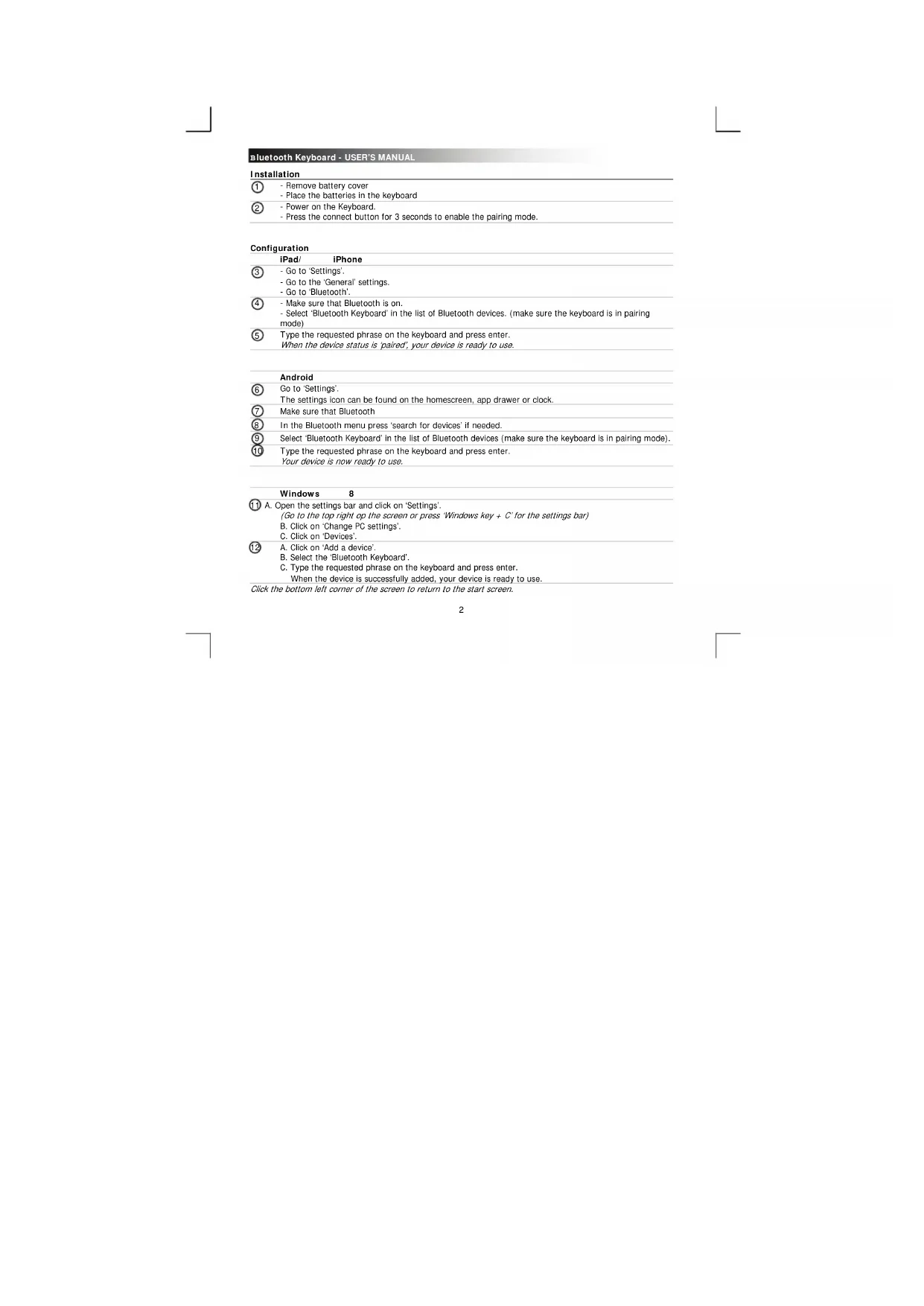
Installation - Remove battery cover - Place the batteries in the keyboard - Power on the Keyboard. - Press the connect button for 3 seconds to enable the pairing mode.
Configuration iPad/ iPhone - Go to ‘Settings’. - Go to the ‘General’ settings. - Go to ‘Bluetooth’. - Make sure that Bluetooth is on. - Select ‘Bluetooth Keyboard’ in the list of Bluetooth devices. (make sure the keyboard is in pairing mode)
ype the requested phrase on the keyboard and press enter. When the device status is ‘paired’, your device is ready to use.
he settings icon can be found on the homescreen, app drawer or clock. Make sure that Bluetooth In the Bluetooth menu press ‘search for devices’ if needed. Select ‘Bluetooth Keyboard’ in the list of Bluetooth devices (make sure the keyboard is in pairing mode).
ype the requested phrase on the keyboard and press enter. Your device is now ready to use.
A. Click on ‘Add a device’. B. Select the ‘Bluetooth Keyboard’. C. Type the requested phrase on the keyboard and press enter. When the device is successfully added, your device is ready to use. Click the bottom left corner of the screen to return to the start screen.
Select ‘Bluetooth Keyboard’ in the list of Bluetooth devices (make sure the keyboard is in pairing mode).
ype the requested phrase on the keyboard and press enter.
When the device is successfully added, your device is ready to use.
Media Keys Android iOS Windows Remark Previous track √ √ √ Only working in original music app Next track √ √ √ Play/ Pause √ √ √ Mute √ √ Volume - √ √ √ Volume + √ √ √ Keyboard √ Search √ √ √ Home √ / Home √ √ Special keys in blue can be used by pressing the ‘fn’ + special key.Bluetooth Keyboard - USER’S MANUAL
Trouble shooting Problem Solution
- Make sure that the keyboard is in pairing mode. Press and hold the connect button for 3 seconds to activate the pairing mode. - If a passcode is requested. Type the requested phrase on the keyboard and press enter. - Move the Bluetooth keyboard closer to your device. (maximum distance 10m under ideal circumstances) - The keyboard can only be connected with one device simultaneously. - Replace the batteries. PC only - Reinstall/ update the drivers of your Bluetooth device and reboot your system. (PC only) No all typed characters are showing on the screen - Move the Bluetooth keyboard closer to your device. - Replace the batteries - Reinstall/ update the drivers of your Bluetooth device and reboot your system. - If you are using the product around large metal surfaces, remove the metal surface or move you product away from the metal surface. - Move the Bluetooth keyboard away from other wireless devices (like Wireless network routers) - The keyboard goes into sleep mode after some time of not using.
fter pressing a key the keyboard will wake up. This make take a couple of seconds. How can I pair my keyboard with a different device. - Follow the installation from step 2. The keyboard shows different characters on my device. - Change the keyboard language settings of your device. The media keys are not working - When using an alternative music player, the media keys may not work. If your problem is not solved, please contact the helpdesk at www.trust.com/19029/faqBluetooth Keyboard - USER’S MANUAL