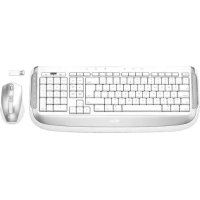
Laser Desk for Mac - Keyboard TRUST - Free user manual and instructions
Find the device manual for free Laser Desk for Mac TRUST in PDF.



| Product type | Wireless keyboard |
| Brand | Trust |
| Model | Laser Desk for Mac |
| Connection | Wireless (USB receiver) |
| Power source | AA batteries (non-rechargeable included, NiMH rechargeable recommended) |
| Special keys | Volume, iTunes, Play/Pause, Next/Previous track, Eject, Finder, Spotlight, Dashboard, Launch email/browser, Brightness control |
| Programmable keys | Yes, via Trust Keyboard software |
| Compatible operating system | Mac OS X |
| Included software | CD-ROM with drivers and configuration software |
| Laser class | Class II (do not look directly into beam) |
| Wireless range | Approximately 10 meters (may vary depending on environment) |
| Care and cleaning | Clean with a dry cloth |
| Safety | Do not open or repair yourself. Do not use in humid environment. Keep away from pacemakers. |
| Warranty | 2 years from date of purchase |
| General information | Visit www.trust.com/15907 for FAQ, drivers and manuals. Register at www.trust.com/register for complete after-sales service. |
Frequently Asked Questions - Laser Desk for Mac TRUST
User questions about Laser Desk for Mac TRUST
0 question about this device. Answer the ones you know or ask your own.
Ask a new question about this device
Download the instructions for your Keyboard in PDF format for free! Find your manual Laser Desk for Mac - TRUST and take your electronic device back in hand. On this page are published all the documents necessary for the use of your device. Laser Desk for Mac by TRUST.
USER MANUAL Laser Desk for Mac TRUST
natural_image
Illustration of a 247 micro keyboard and mouse with abstract sound wave graphics (no text or symbols)Wireless Laser Desk Set
User's manual - Version 1.0


Trust
text_image
i A B C D E G H I J FTrust
1
natural_image
Close-up of a device's internal panel showing a rectangular component with a white arrow pointing to a button (no text or symbols visible)
natural_image
Cross-sectional view of a toilet with an upward arrow indicating flow or movement (no text or symbols present)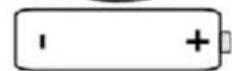

3
text_image
CONNECT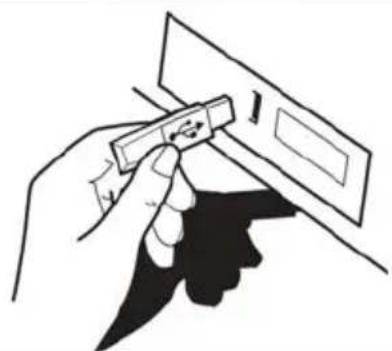
natural_image
Illustration of a hand holding a tool over a document or paper (no text or symbols visible)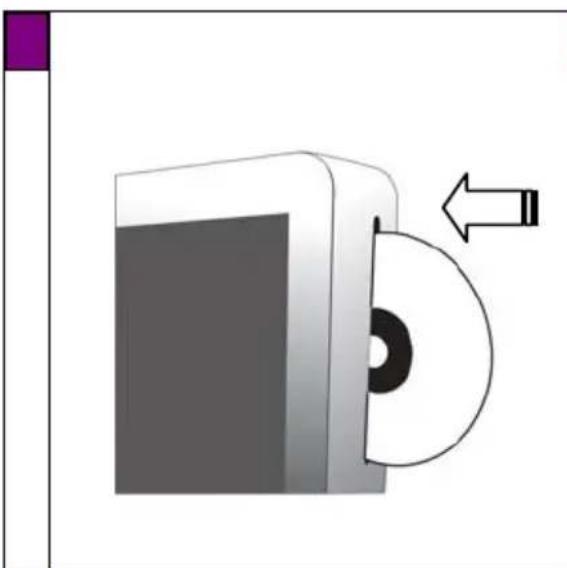
natural_image
Diagram of a CD or DVD device with an arrow indicating direction (no text or symbols present)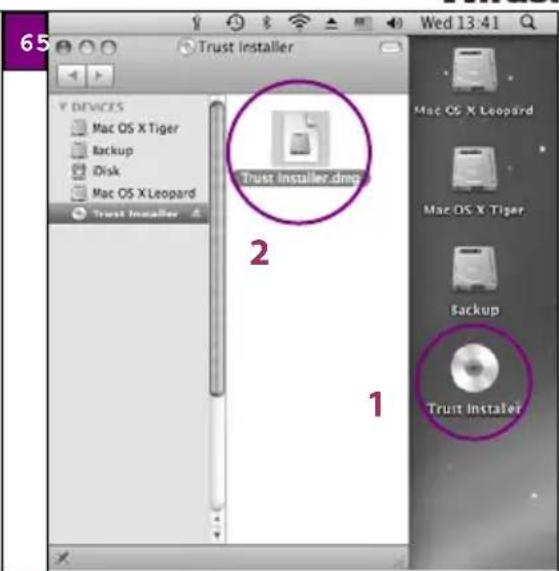
text_image
65 Trust Installer Trust Installer.dmg 1 2 3 4 5 Mac OS X Leopard Mac OS X Tiger Backup Truist Installer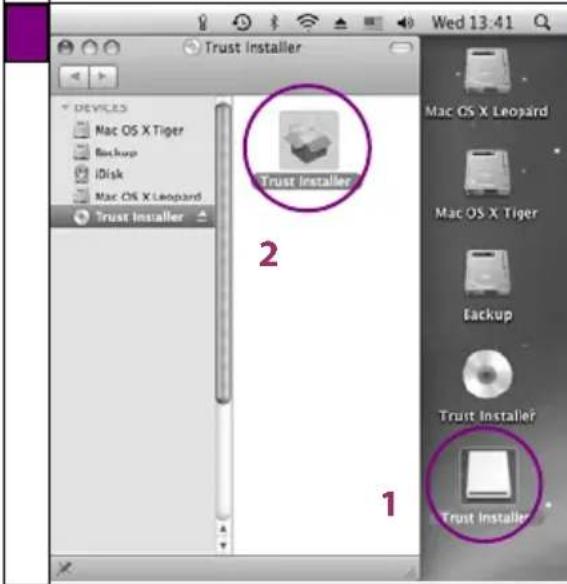
text_image
Trust Installer 2 1 Trust Installer Mac OS X Leopard Mac OS X Tiger Backup iDisk Mac OS X Leopard Trust Installer Trust Installer Wed 13:41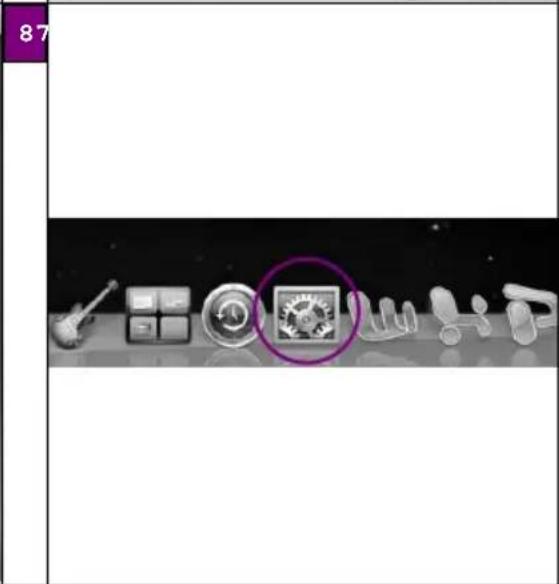
text_image
87Trust

text_image
System Preferences 9 Show All Personal Appearance Desktop & Screen Saver Back Engine & Spaces International Security Springs Hardware Bluetooth CDs & DVDs Displays Energy Saver Keyboard & Mouse Print & Fax Sound Internet & Network Max Software Quick Time Sharing System Accounts Date & Time Potential Controls Software Update Speech Startbox Disk Time Machine Universal Access Other Trust Mouse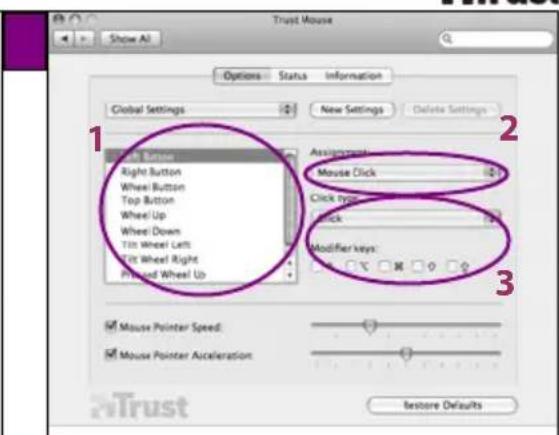
text_image
Trust Mouse Show All Options Starts Information Global Settings New Settings Delete Settings 1 2 3 3 Brush Right Button Wheel Button Top Button Wheel Up Wheel Down Tilt Wheel Left Fitz Wheel Right Piloted Wheel Up Assignment Mouse Click Click type: Click Modifier keys: Mouse Pointer Speed: Mouse Pointer Acceleration Restore Defaults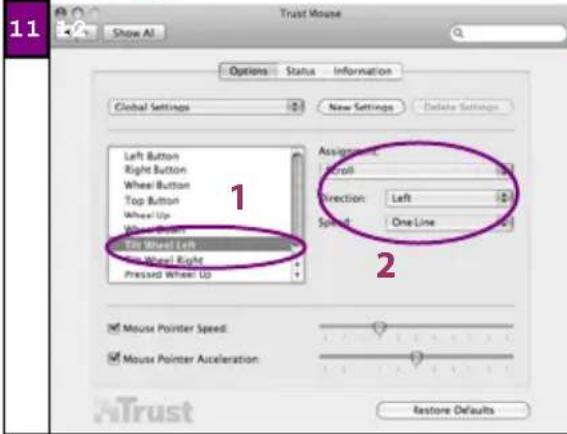
text_image
Trust Mouse Show All Options Status Information Global Settings New Settings Delete Settings 1 Left Button Right Button Wheel Button Top Button Wheel Up Pressed Wheel Up 250 Wheel Left 250 Wheel Right Pressed Wheel Up Assignment: Scroll Direction: Left Spread: One Line 2 Mouse Pointer Speed: Mouse Pointer Acceleration: Restore Defaults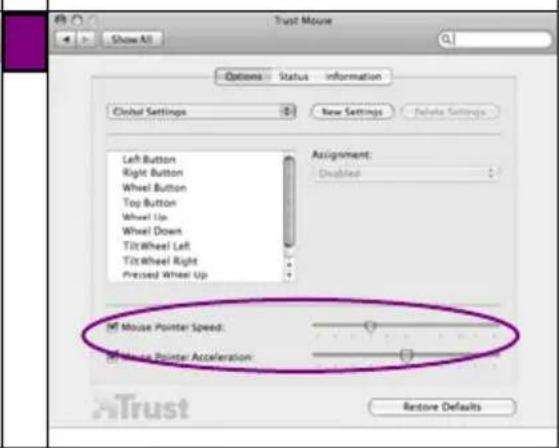
text_image
Trust Mouse Show All Options Status Information Global Settings New Settings Delete Settings Left Button Right Button Wheel Button Top Button Wheel Up Wheel Down Tilt Wheel Left Tilt Wheel Right Pressed Wheel Up Assignment: Disabled If Mouse Pointer Speed: If Mouse Pointer Acceleration: Restore Defaults ATrustTrust
Trust
text_image
13 System Preferences Show All Personal Appetector Desktop & Screen Server Disk Legend & Sources International Security Spontight Hardware Bluetooth CDs & InDs Displays Energy Server Keyboard & Mouse Print & Ice Sound Internet & Network Map Network Quick Time Sharing System Accounts Data & Time Potential Controls Software Update Speech Startup Disk Time Machine Universal Access Options Trust Keyboard Trust Keyboard Show All 15 Truist Keyboard Options Status Information Global Settings New Settings Delete Settings Finder Email Web Search Dashboard iPhoto Sleep Eject iTunes Assignment: Disabled 5 International keyboard layout Generic Use Mac layout for Command and Option keys Restore Defaults Truist Keyboard Options Status Information Global Settings New Settings Delete Settings Finder Email Web Search Dashboard iPhoto Sleep Eject iTunes Assignment: Disabled 5 International keyboard layout Generic Restore DefaultsTrust
Информация за продукта
| 13 | Åbn Trust-tastatur (Trust Keyboard) |
Tilpas tastaturets indstillinger
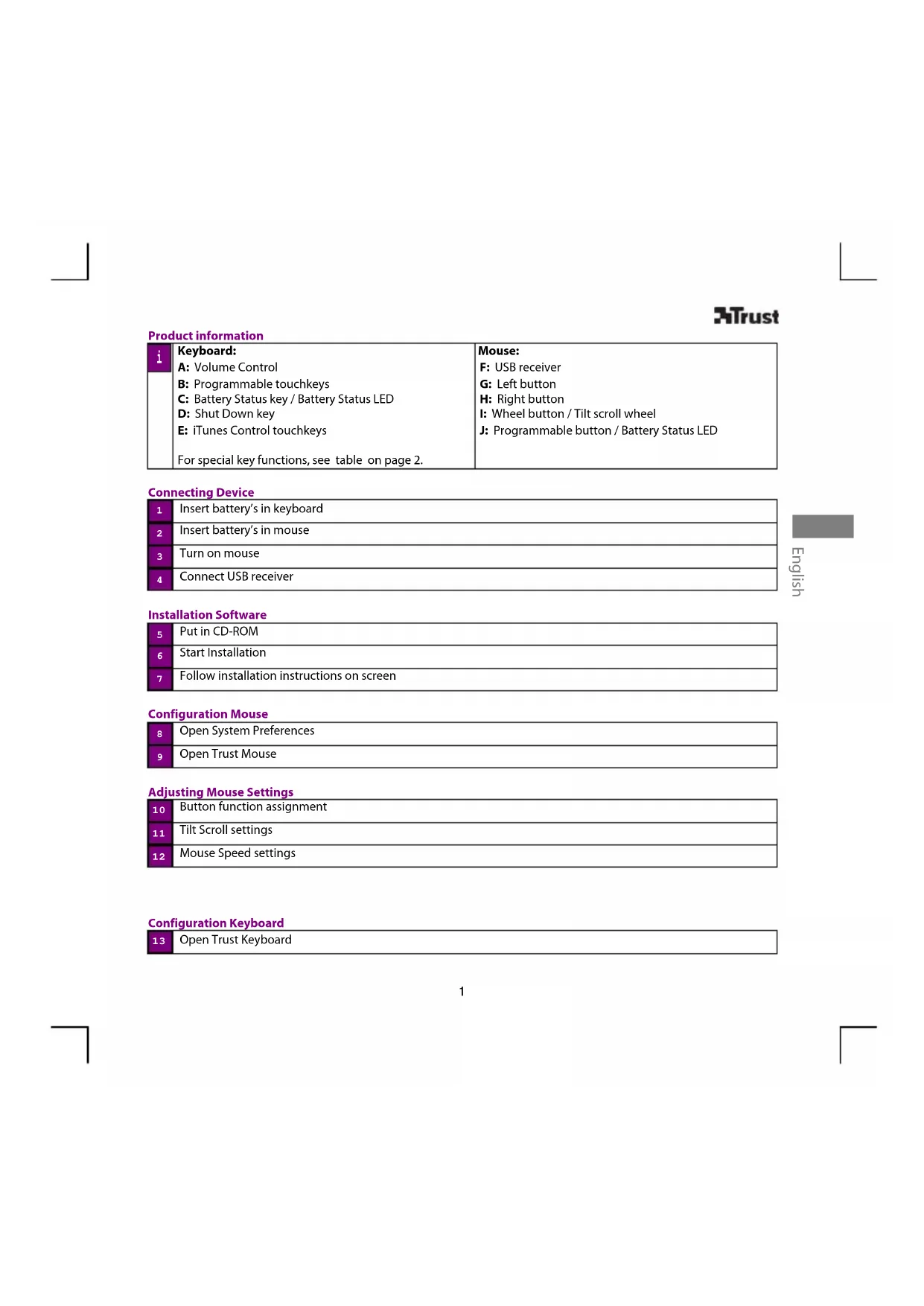
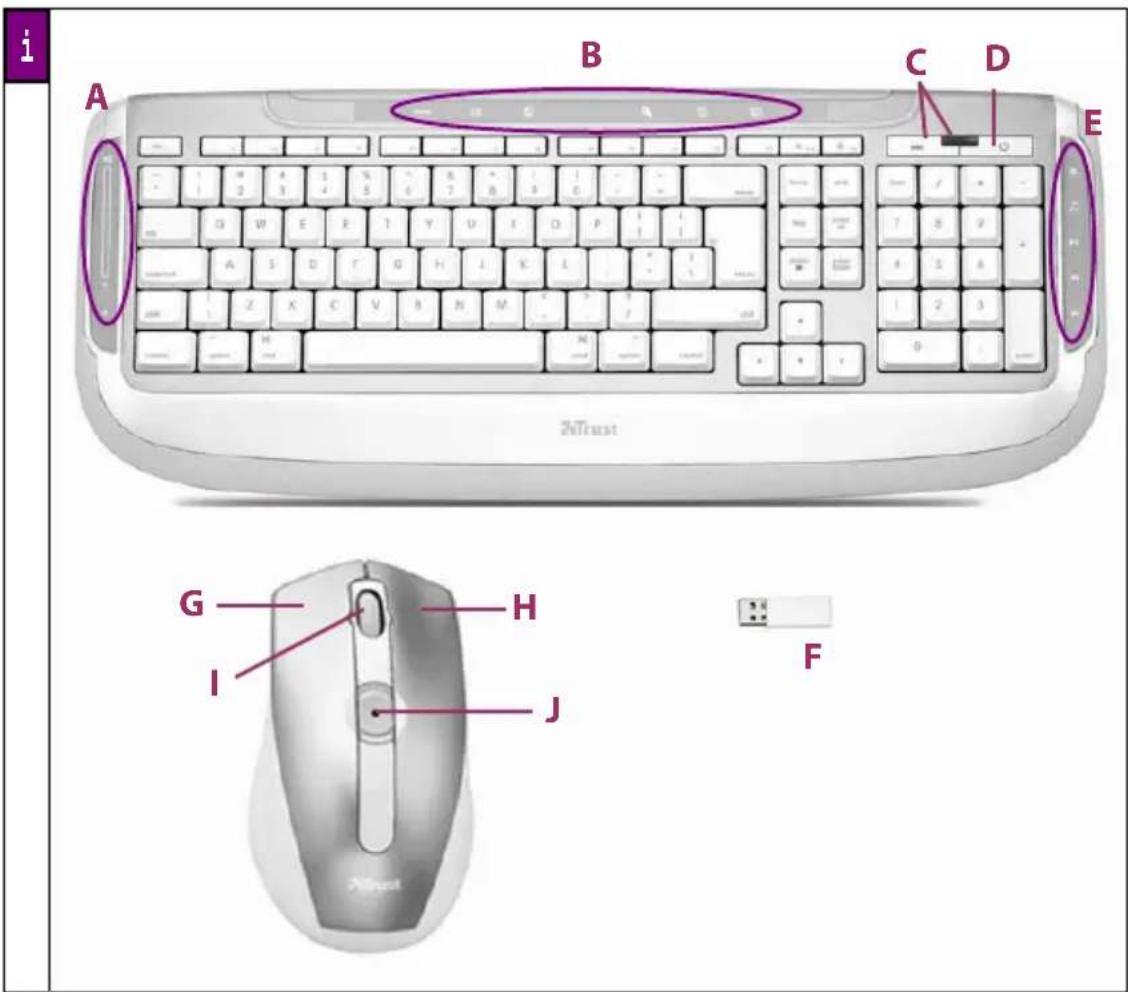
| i | Keyboard:A: Volume ControlB: Programmable touchkeysC: Battery Status key / Battery Status LEDD: Shut Down keyE: iTunes Control touchkeysFor special key functions, see table on page 2. | Mouse:F: USB receiverG: Left buttonH: Right buttonI: Wheel button / Tilt scroll wheelJ: Programmable button / Battery Status LED |
Connecting Device
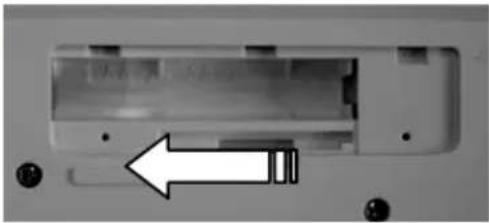
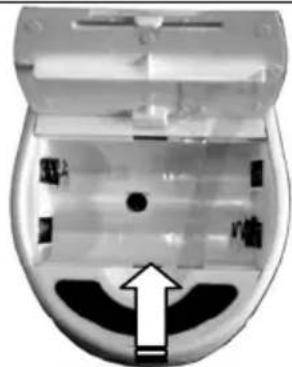
| 1 | Insert battery's in keyboard |
| 2 | Insert battery's in mouse |
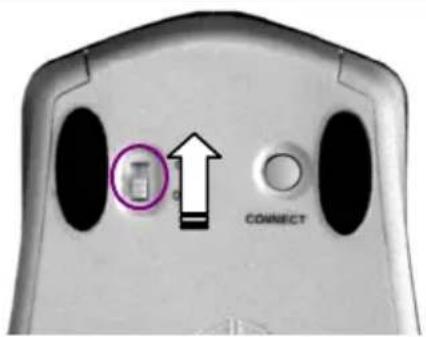
| 3 | Turn on mouse |
| 4 | Connect USB receiver |
Installation Software
| 5 | Put in CD-ROM |
| 6 | Start Installation |
| 7 | Follow installation instructions on screen |
Configuration Mouse
| 8 | Open System Preferences |
| 9 | Open Trust Mouse |
Adjusting Mouse Settings
| 10 | Button function assignment |
| 11 | Tilt Scroll settings |
| 12 | Mouse Speed settings |
Configuration Keyboard
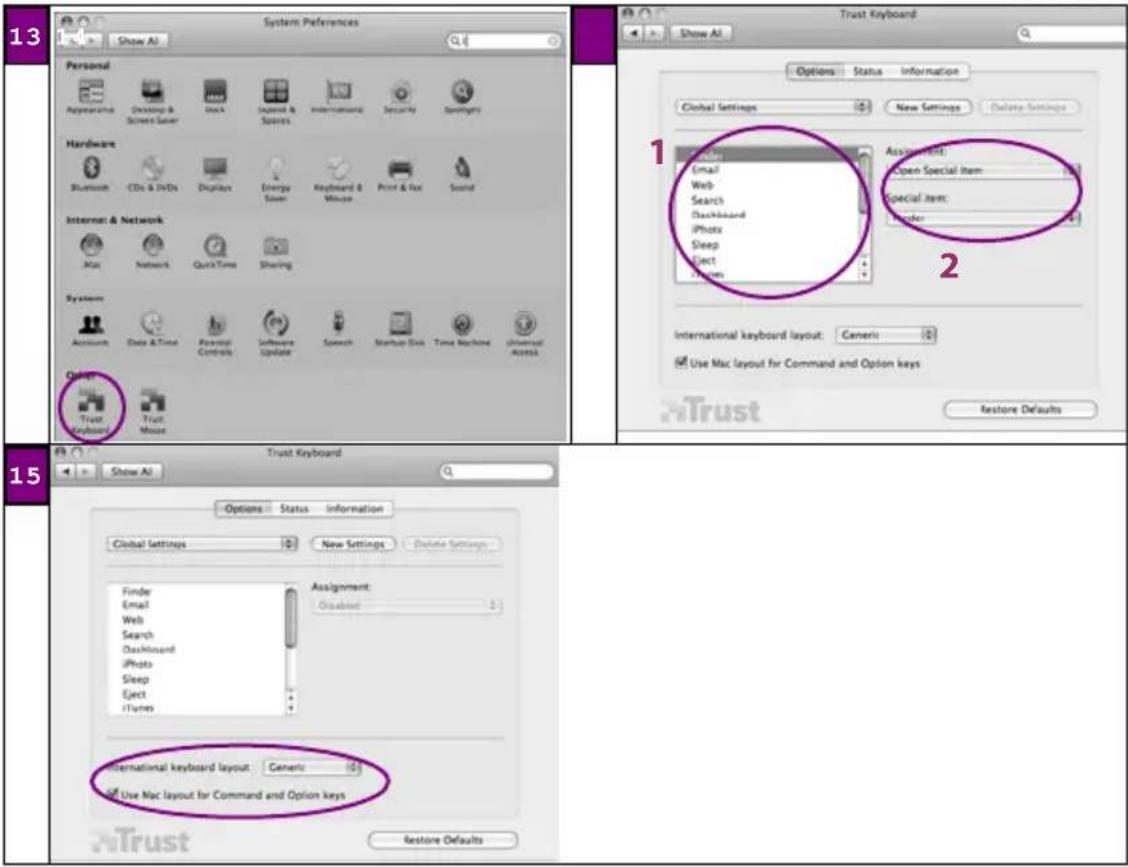
| 13 | Open Trust Keyboard |
Adjusting Keyboard Settings
| 14 | Touchkey function assignment |
| 15 | Keyboard Layout settings |
Special function keys
| Volume up | Start E-mail program | ||
| Volume down | Start Internet Browser | ||
| Mute | Spotlight | ||
| Eject | Dashboard | ||
| iTunes | iPhoto | ||
| Play / Pause | Increase screen brightness | ||
| Previous track | Reduce screen brightness | ||
| Next track | battery level checker (green = ok) | ||
| finder | Finder | Shut down |
Special characters
- The keyboard country layout settings in Mac OS should correspond with the keyboard layout of your Trust keyboard. Layout of the Trust keyboard is specified by a sticker on the Box. To set the keyboard Layout in Mac OS X: Go to: System Preferences → International
- The Option key gives access to special characters like the € sign.
Wireless performance
- Reduced wireless performance can be caused by:
- Metal objects close to or between the adapter and the other device.
- Empty batteries.
- Other wireless devices close by.
- The reception is limited when the signal must pass through concrete walls and floors.
- Solution
- Use an extension cable to move the adapter to a different location.
- Replace the batteries.
Trust
Energy
- For the best performance, use rechargeable AA NiMH batteries.
• To save energy, turn the device off after use. - Never recharge the batteries provided and never throw them onto a fire.
- Observe local regulations when disposing of batteries.
Warnings
- LASER CLASS II device. Never look directly into the beam!

Wireless
- There are an increasing number of wireless products (video, audio, computer, etc.) which work in the same frequency range as this device. It may, therefore, be possible that the functionality of this product is limited by or is limiting for other wireless products. This can only be avoided by paying attention to the distance between products and, where possible, by changing channels.
- Be careful when using wireless devices if you have a pacemaker or are dependent on other life-saving, sensitive electronic equipment, because this device transmits radio signals.
Trouble shooting: See www.trust.com/15907 for up-to-date FAQs, drivers and instruction manuals. For extensive service, register at www.trust.com/register.
Safety instructions: Before use, read safety information at www.trust.com/safety. Only use this device as indicated in the user's guide. Device is intended for home or office use, except when otherwise indicated. Do not open or repair this device. Do not use the device in a damp environment. Clean the device with a dry cloth.
CE: This device meets the essential requirements and other relevant conditions of the applicable European directives. The Declaration of Conformity (DoC) is available at www.trust.com/15907/manuals.
WEEE: If possible, dispose of the device at a recycling centre. Do not dispose of the device with the household waste. Warranty & copyright: This device has a two-year product warranty which is valid from the date of purchase. See www.trust.com/warranty for more information. It is forbidden to reproduce any part of this instruction manual without the permission of Trust International B.V.
Trust
Trust
DECLARATION OF CONFORMITY
We, the manufacturer / importer,
Trust International
Declare that the product
Kind of product Deskset for Mac
Type designation Wireless Laser Desk Set for Mac
Item No. 15907 (plus all other country layout versions with same type designation)
Is in compliance with the essential requirements and other relevant provisions of the following directives:
Low-Voltage Directive (72/23/EC)
R&TTE Directive (1999/5/EC)
The products is compatible with the following norms / standards:
EN60950 (2001)
EN 300328 (V1.6.1)
EN 300489-1 (V1.4.1)
EN 301489-17 (V1.2.1)
Intended use: indoor
Restrictions for usage:
none
Manufacturer/Authorised representative
This class 1 wireless device meets the essential requirements and other relevant conditions of R&TTE Directive 1999/5/EC. Be careful when using wireless devices if you have a pacemaker or are dependent on other life-saving, sensitive electronic equipment, because this device transmits radio signals.
www.trust.com/mac
© 2008 Trust International B.V., P.O. Box 8043, 3301 CA Dordrecht, The Netherlands. All rights reserved. All brand names are registered trademarks of their respective owners. Specifications are subject to change without prior notice. Mac and the Mac logo are trademarks of Apple Inc. in the US and other countries. Made in China.