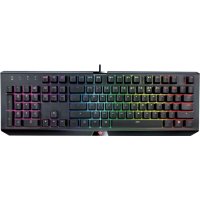
GXT 890 CADA - Keyboard TRUST - Free user manual and instructions
Find the device manual for free GXT 890 CADA TRUST in PDF.

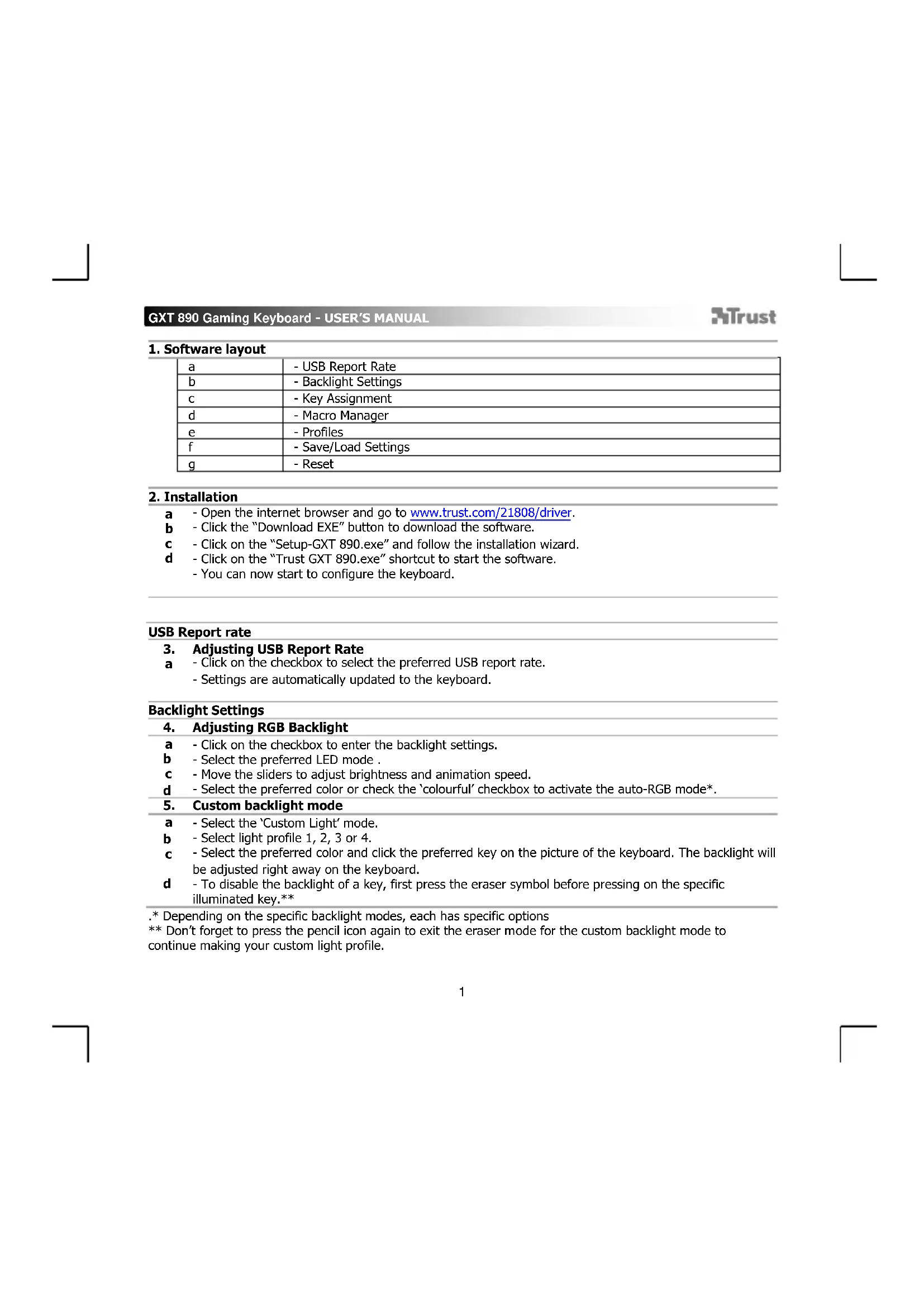


| Product type | Wired gaming keyboard |
| Brand | Trust |
| Model | GXT 890 CADA |
| Dimensions (approx.) | 440 x 130 x 30 mm |
| Weight (approx.) | 800 g |
| Power supply | USB, 5 V / 500 mA |
| Backlighting | Per-key RGB, multiple modes (static, breathing, rainbow, custom) |
| USB report rate | Adjustable (125 / 250 / 500 / 1000 Hz) |
| Key assignment | Customizable via software (single keys, multimedia commands, macros) |
| Macro manager | Yes, recording key sequences with delays and repetitions |
| Profiles | 3 storable and loadable profiles |
| Software compatibility | Windows (download driver from trust.com) |
| Maintenance and cleaning | Use a soft, slightly damp cloth; do not use abrasive products |
| Safety | Do not expose to moisture or liquids; unplug before cleaning |
| Spare parts and repairability | Not applicable (product not user serviceable) |
| General information | Gaming keyboard with customizable RGB backlighting, dedicated software for advanced configuration |
Frequently Asked Questions - GXT 890 CADA TRUST
User questions about GXT 890 CADA TRUST
0 question about this device. Answer the ones you know or ask your own.
Ask a new question about this device
Download the instructions for your Keyboard in PDF format for free! Find your manual GXT 890 CADA - TRUST and take your electronic device back in hand. On this page are published all the documents necessary for the use of your device. GXT 890 CADA by TRUST.
USER MANUAL GXT 890 CADA TRUST
Frequently asked questions: www.trust.com/21808/FAQ

Trust
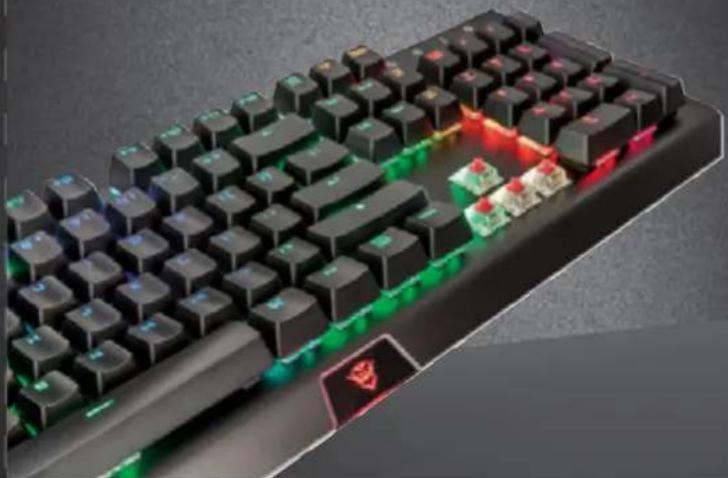
CADA
PC LAPTOP MECHANICAL
GXT 890 Gaming Keyboard - USER'S MANUAL
Trust
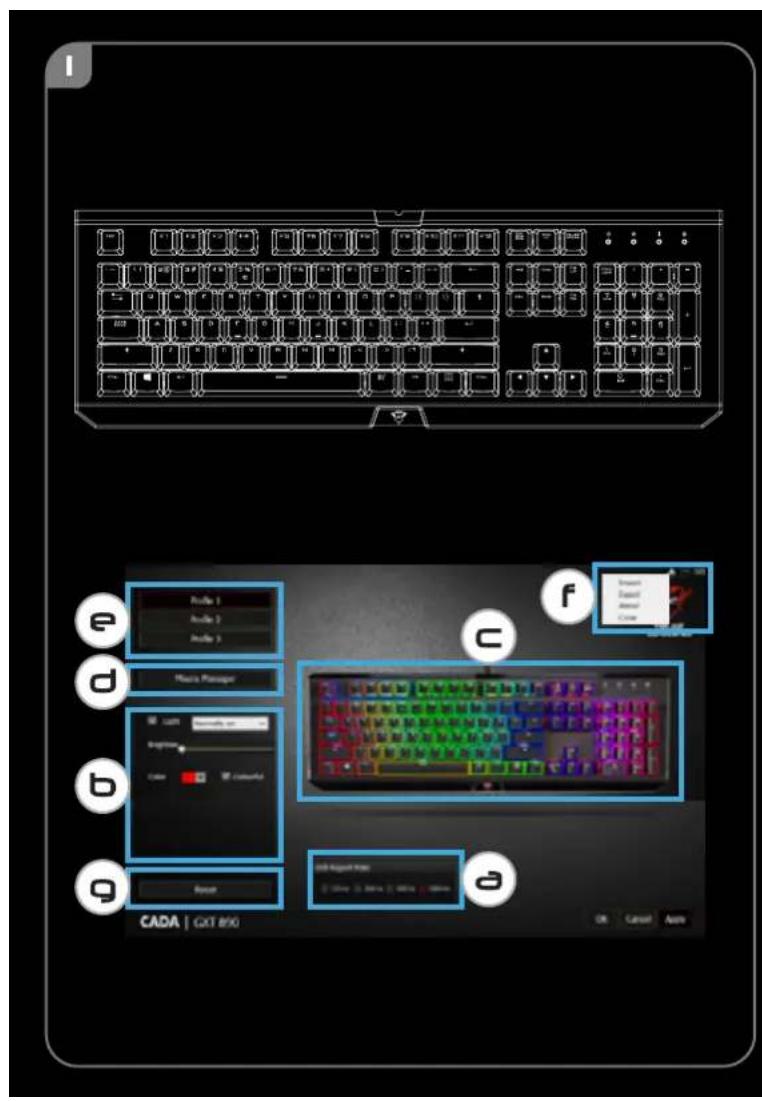
1. Software layout
| a | - USB Report Rate |
| b | - Backlight Settings |
| c | - Key Assignment |
| d | - Macro Manager |
| e | - Profiles |
| f | - Save/Load Settings |
| g | - Reset |
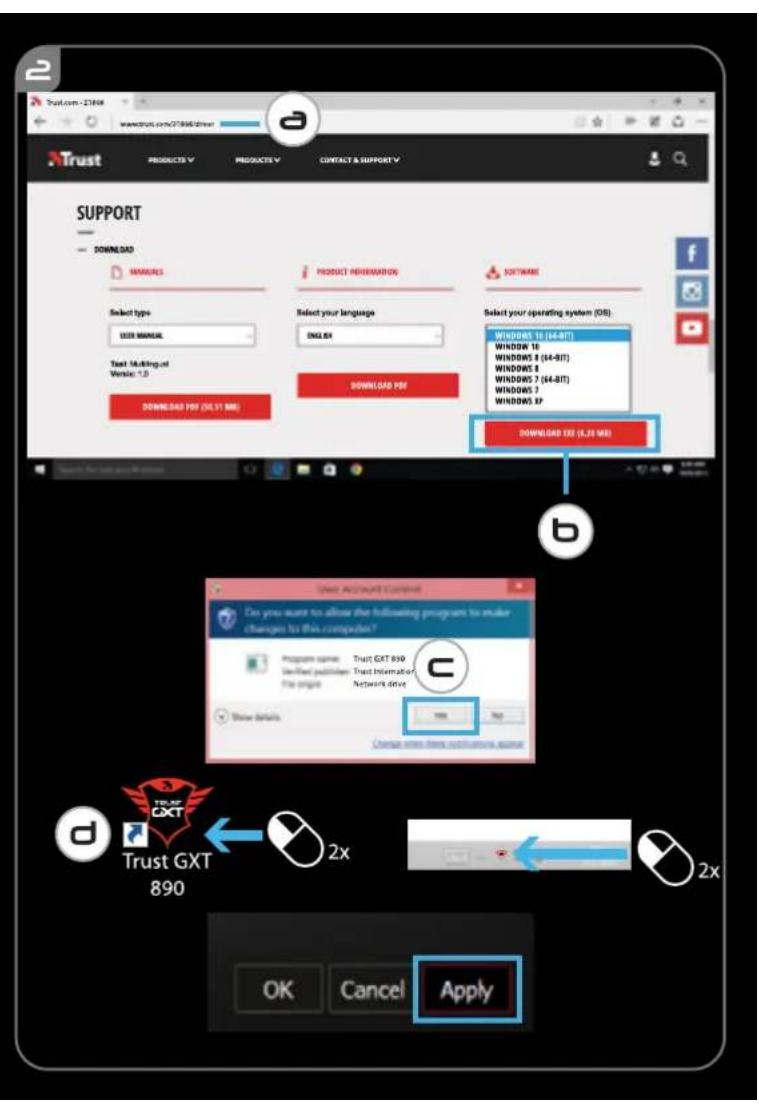
2. Installation
a - Open the internet browser and go to www.trust.com/21808/driver.
b - Click the "Download EXE" button to download the software.
c - Click on the "Setup-GXT 890.exe" and follow the installation wizard.
d - Click on the "Trust GXT 890.exe" shortcut to start the software.
- You can now start to configure the keyboard.
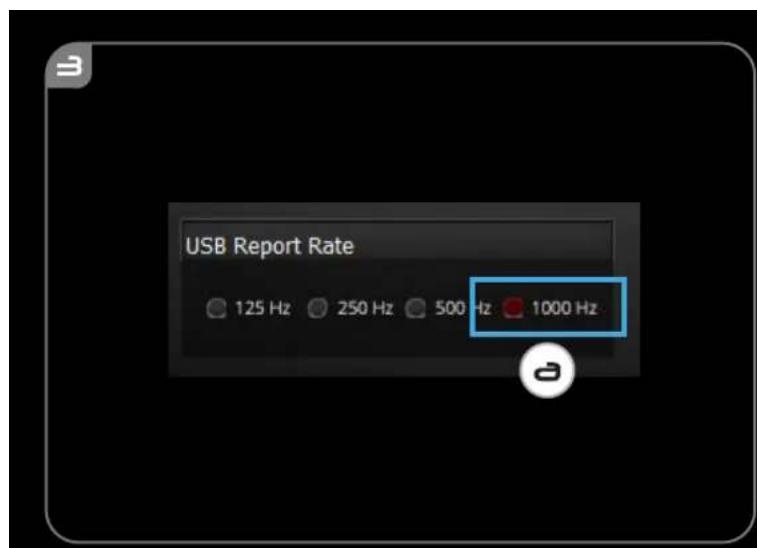
USB Report rate
- Adjusting USB Report Rate
a - Click on the checkbox to select the preferred USB report rate.
- Settings are automatically updated to the keyboard.
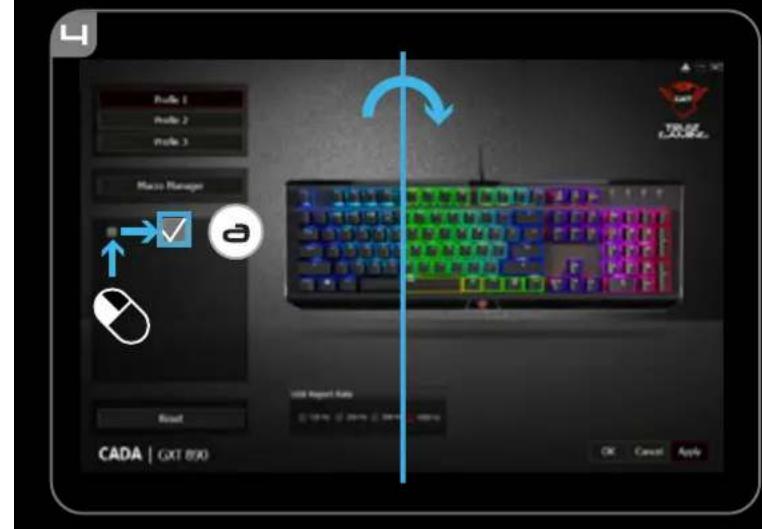
Backlight Settings
- Adjusting RGB Backlight
a - Click on the checkbox to enter the backlight settings.
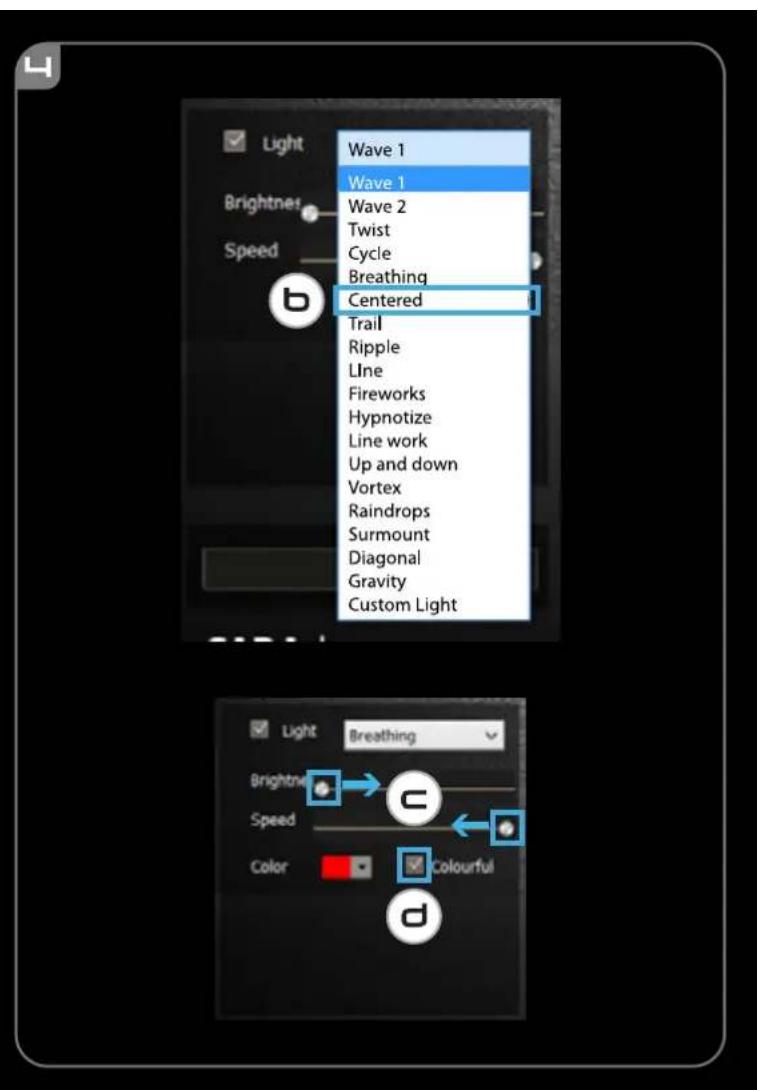
b - Select the preferred LED mode
c -Move the sliders to adjust brightness and animation speed.
d - Select the preferred color or check the 'colourful' checkbox to activate the auto-RGB mode*.
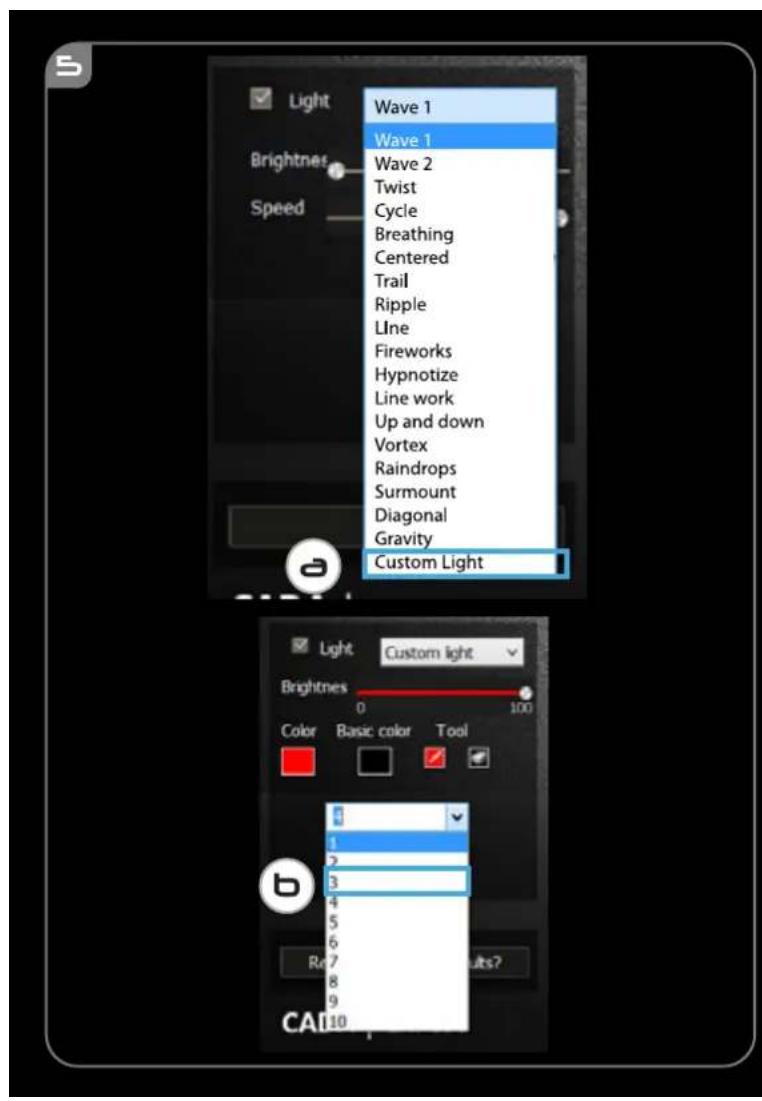
5.Custom backlight mode
a - Select the 'Custom Light' mode.
b - Select light profile 1, 2, 3 or 4.
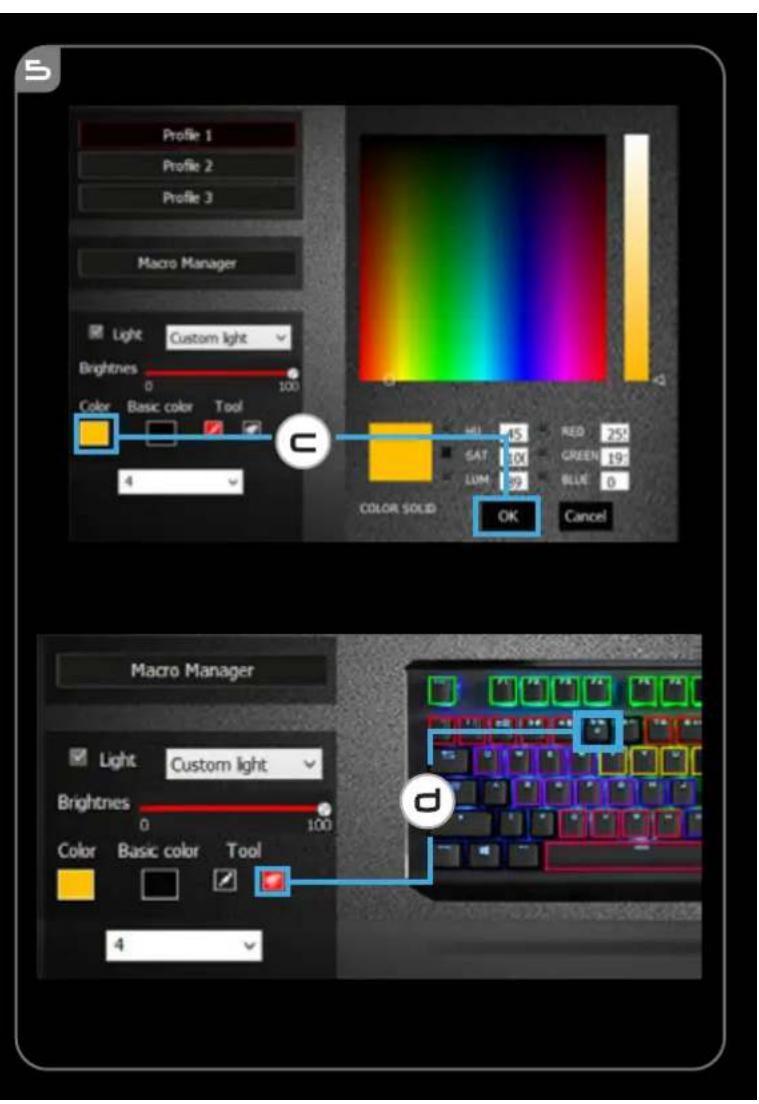
c - Select the preferred color and click the preferred key on the picture of the keyboard. The backlight will be adjusted right away on the keyboard.
d - To disable the backlight of a key, first press the eraser symbol before pressing on the specific illuminated key.**
Key Assignment
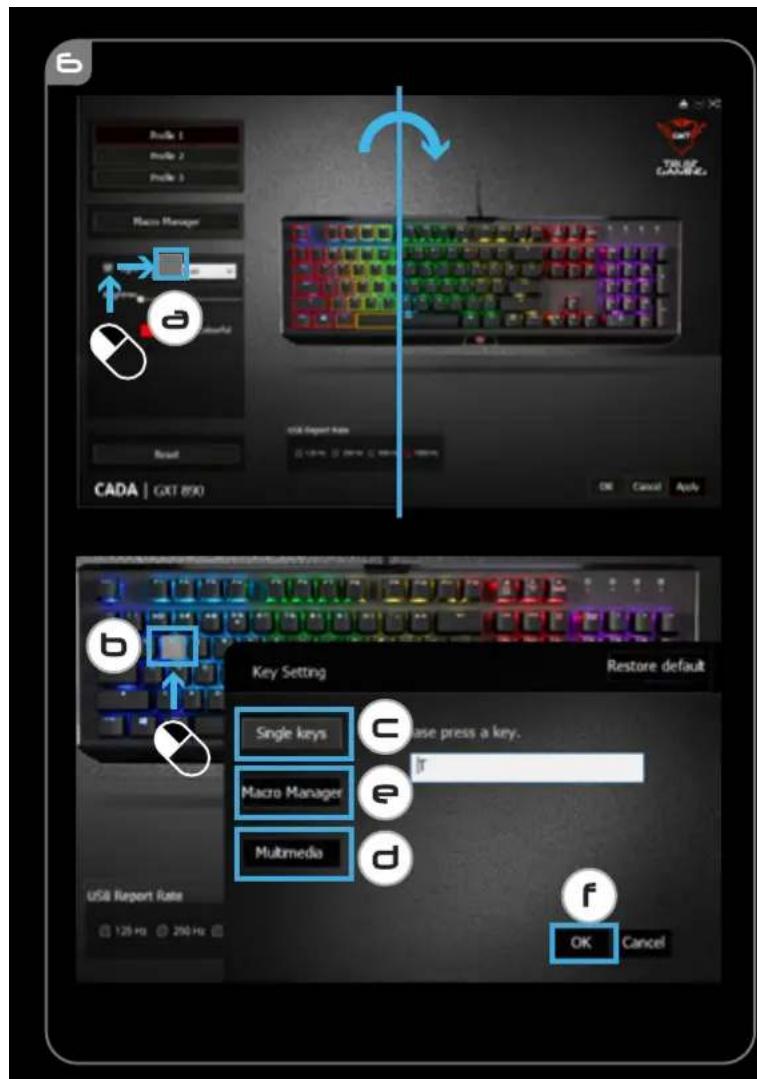
6. Key Assignment
a - Uncheck the 'light' checkbox to make changes to the key assignments.
b - Click on the key you wish to re-assign.
- Click on 'Single keys', press on the preferred key to assign the selected key.
d - Click on 'Multimedia', select the preferred command from the drop down menu.
- Click on 'Macro Manager' to add or adjust macro sequences. For more information about macro sequences see 7.
f - Click on OK, then click on Apply to save all changes you just made.
Macro Settings
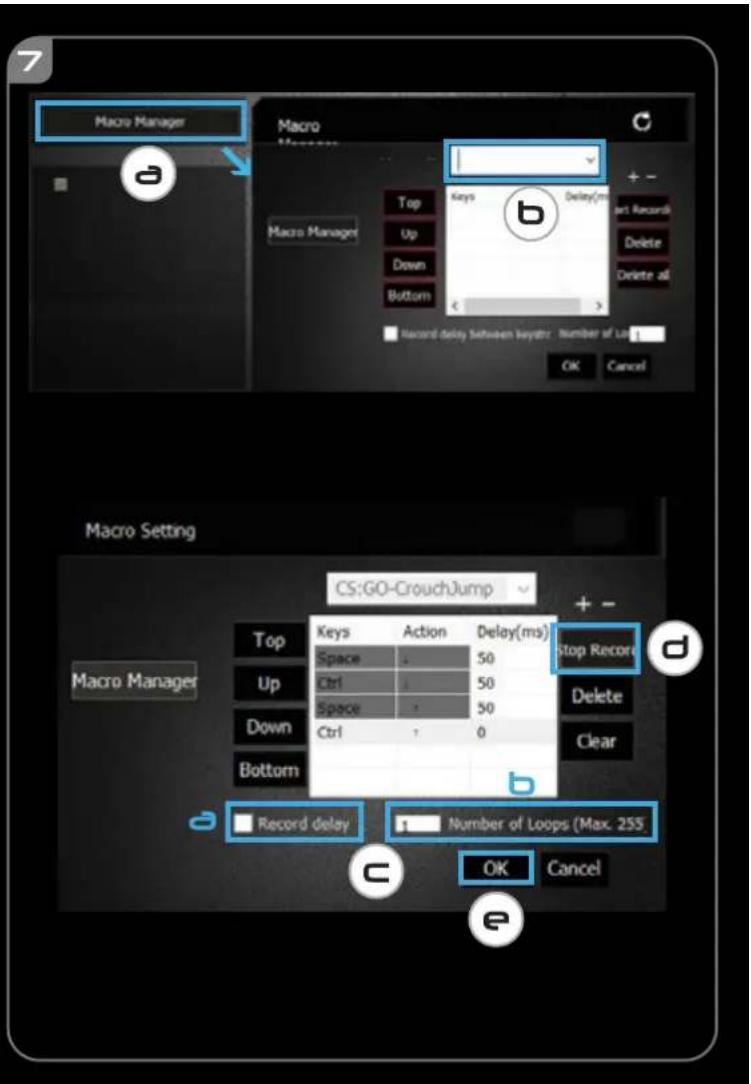
- Create a Macro (Store a sequence of keys in the software)
a - Click on 'Macro manager'.
b - Enter the name for your macro in the input field and press the ^+ symbol to add the macro.
c - Check a to record the delay between keystrokes b enter the required macro repeats.
d - Click 'Start Recording' to start recording the macro. Enter your preferred macro sequence. Click 'Stop Recording' to stop recording the macro.
e - Click on OK to save the macro.
Profile Settings
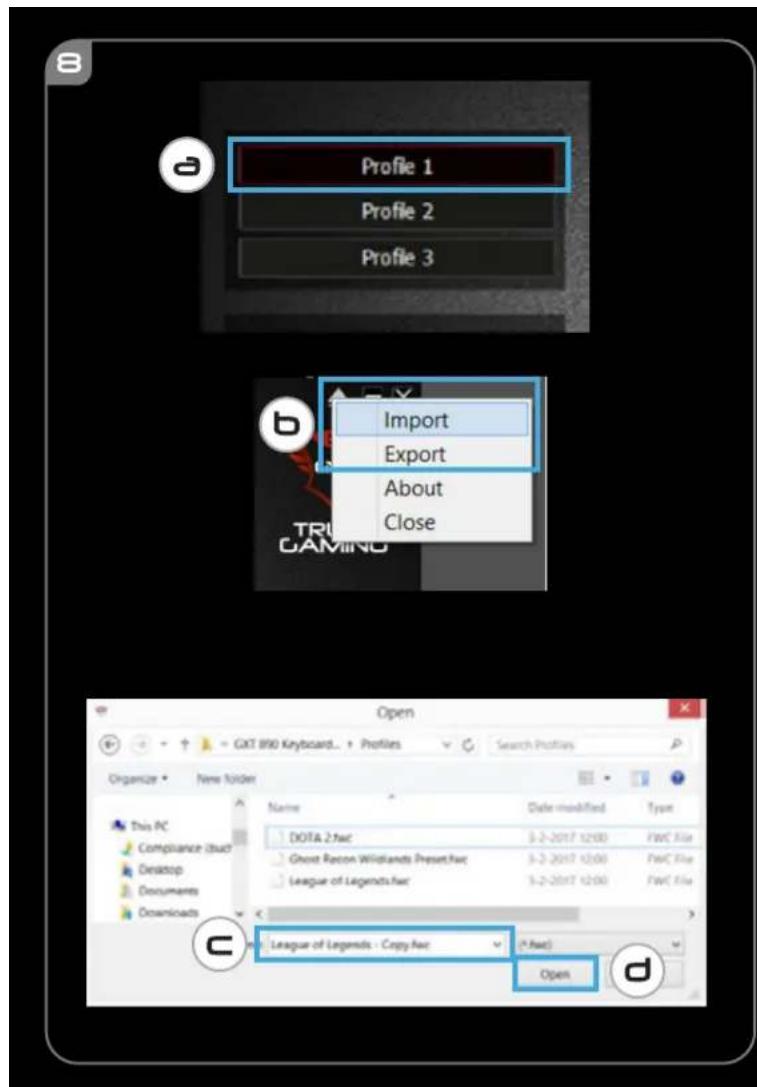
- Select, Save or Load a profile
a - Select one of the 3 profiles.
b - Click on 'EXPORT' to save a keyboard profile, Click on 'IMPORT' to load a keyboard profile.
c - Enter a name for the keyboard setup you want to save, or choose the preferred profile to load.
d - Click on 'Save' to save the keyboard profile, click on 'Open' to load the keyboard profile.
- Click on 'Apply' Your setup is now saved.
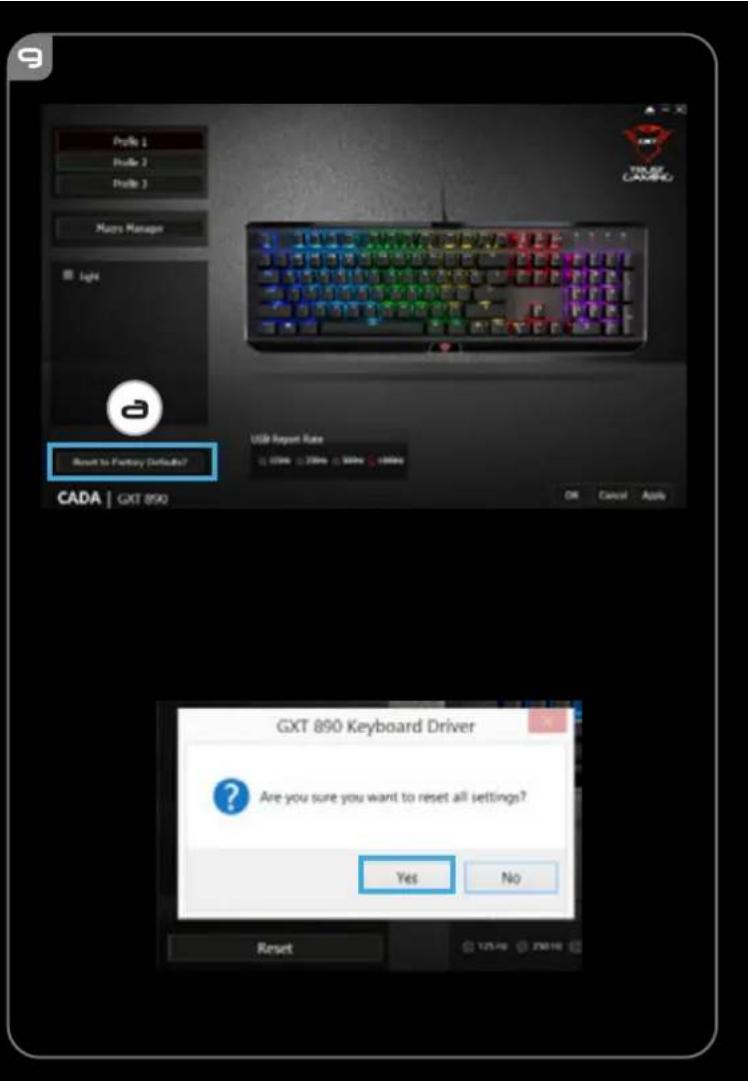
a - Click on 'Reset to Factory Defaults?' to reset all profiles to factory default.
GXT 890 Gaming Keyboard - USER'S MANUAL
ATrust
Brand : TRUST
Model : GXT 890 CADA
Category : Keyboard