E1500 - Router LINKSYS - Free user manual and instructions
Find the device manual for free E1500 LINKSYS in PDF.


User questions about E1500 LINKSYS
0 question about this device. Answer the ones you know or ask your own.
Ask a new question about this device
Download the instructions for your Router in PDF format for free! Find your manual E1500 - LINKSYS and take your electronic device back in hand. On this page are published all the documents necessary for the use of your device. E1500 by LINKSYS.
USER MANUAL E1500 LINKSYS
Where to find more help....3
How to set up your router....3
How to start Cisco Connect 3
Use Cisco Connect to manage your router 3
How to manually set up your router. . . . . . . . . . . . . . . . . . . . . . . . . . . . . 3
Advanced Configuration
How to open the browser-based utility .....4
Setup > Basic Setup....5
Language 5
Internet Setup 5
Wireless > Basic Wireless Settings .....6
Wireless Settings 6
Wireless Security
Wireless > Wireless Security . . . . . . . . . . . . . . . . . . . . . . . . . . . . . . . . . . . . . . . . . . . . . . . . . 8
Personal options 8
Office options 8
Option settings 8
Troubleshooting
How to run Cisco Connect after setup .....11
Your router was not successfully set up .....12
Get Windows XP Service Pack 3 message .....12
Your Internet cable is not plugged in message .....13
Cannot access your router message .....14
Device not found message ..... 15
Specifications
Linksys E1200....17
Linksys E1500....18
Linksys E2500....19
Linksys E3200....20
Linksys E4200....21
Product overview
E1200/E1500/E2500/E3200
Back view

text_image
USB 1 2 Ethernet 3 4 Internet Internet port Power port Ethernet ports Wi-Fi Protected Setup button Power indicatorUSB port (E3200 only)Your router's appearance may vary
- USB port (E3200 only)—To easily share disk storage with other users on your network or on the Internet, connect a USB drive to this port.
- Ethernet ports—Connect Ethernet cables (also called network cables) to these Fast Ethernet (10/100, for E1200 and E1500) or Gigabit (10/100/1000, for E2500 and E3200) ports, color coded blue, and to other wired Ethernet network devices on your network.
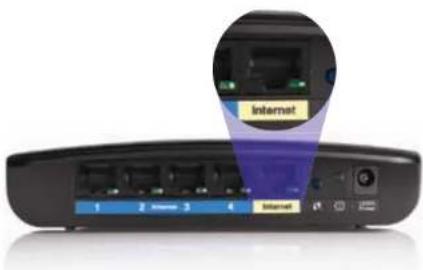
- Internet port—Connect an Ethernet cable (also called a network or Internet cable) to this port, color coded yellow, and to your modem.
Wi-Fi Protected Setup™ button—Press this button to easily configure wireless security on Wi-Fi Protected Setup-enabled network devices. For more information, see "Wireless Security" on page 8.
- Power indicator—Stays on steadily while power is connected and following a successful Wi-Fi Protected Setup connection. Flashes slowly during bootup, during firmware upgrades, and during a Wi-Fi Protected Setup connection. Flashes quickly when there is a Wi-Fi Protected Setup error.
• Power—Connect the included AC power adapter to this port.
CAUTION
Use only the adapter that came with your router.
• Power button—Press | (on) to turn on the router.
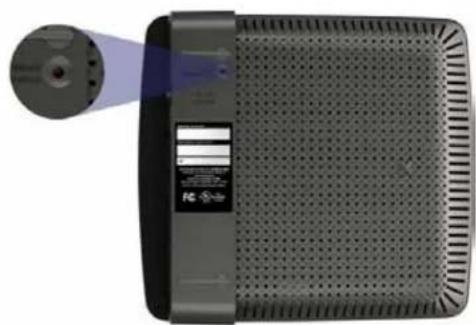
Bottom view
natural_image
Exterior view of a black rectangular electronic device with ventilation grille and indicator light (no visible text or symbols)Your router's appearance may vary
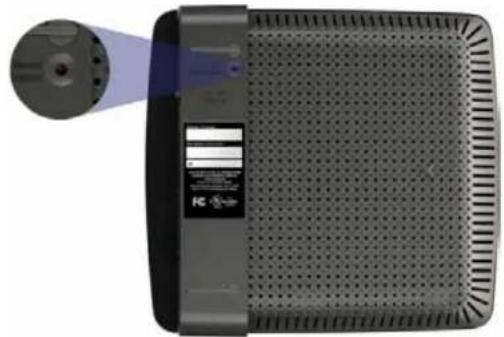
- Reset button—Press and hold this button for 5-10 seconds (until the port lights flash at the same time) to reset the router to its factory defaults. You can also restore the defaults using the browser-based utility.
E4200
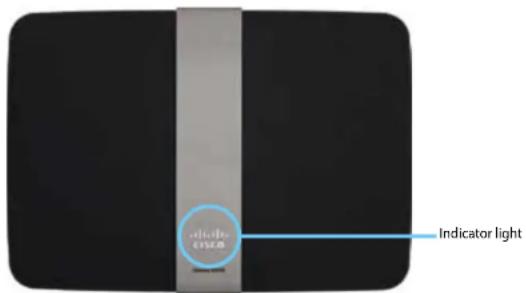
Top view
text_image
dude dude Indicator light- Indicator light—Stays on steadily while power is connected and following a successful Wi-Fi Protected Setup connection. Pulses slowly during bootup, during firmware upgrades, and during a Wi-Fi Protected Setup connection. Flashes quickly when there is a Wi-Fi Protected Setup error.
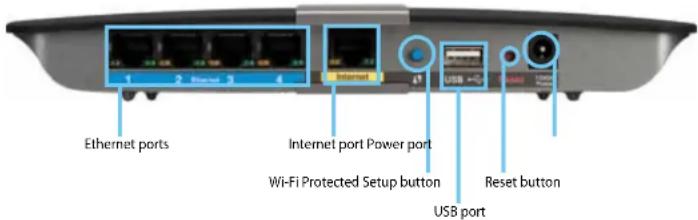
Back view
text_image
Ethernet ports Internet port Power port Wi-Fi Protected Setup button Reset button USB port- Ethernet ports—Connect Ethernet cables (also called network cables) to these Gigabit (10/100/1000) ports, color coded blue, and to other wired Ethernet network devices on your network.
- Internet port—Connect an Ethernet cable (also called a network or Internet cable) to this port, color coded yellow, and to your modem.
- Wi-Fi Protected Setup™ button—Press this button to easily configure wireless security on Wi-Fi Protected Setup-enabled network devices. For more information, see "Wireless Security" on page 8.
- USB port—To easily share disk storage with other users on your network or on the Internet, connect a USB drive to this port.
- Reset button—Press and hold this button for 5-10 seconds (until the port lights flash at the same time) to reset the router to its factory defaults. You can also restore the defaults using the browser-based utility.
- Power—Connect the included AC power adapter to this port.
CAUTION
Use only the adapter that came with your router.
• Power button—Press | (on) to turn on the router.
Setting Up Your E-Series Router
Where to find more help
In addition to this User Guide, you can find help at these locations:
- Linksys.com/support (documentation, downloads, FAQs, technical support, live chat, forums)
- Setup CD (Troubleshooting Guide, legal and regulatory notices)
- Cisco Connect help (run Cisco Connect, then click Learn More where available)
- Browser-based utility context-sensitive help (open the utility, then click Help in the right-side column.)
How to set up your router
The easiest and fastest way to set up your router is to run the Cisco Connect setup software.
How to start Cisco Connect
When you run the setup CD, Cisco Connect (your router's setup software) is automatically installed onto your computer. You can then use Cisco Connect to easily manage your router.
NOTE:
If you lose your setup CD, you can download the software from Linksys.com/support.
To start Cisco Connect for the first time:
- Insert the CD into your CD or DVD drive.
-
Click Set up your Linksys Router.
If you do not see this: -
For Windows, click Start, Computer, then double-click the CD drive and the Setup icon.
-
For Mac, double-click the CD icon on your desktop, then double-click the Setup icon.
-
Follow the on-screen instructions to complete your router setup.
Use Cisco Connect to manage your router
After your router has been set up and Cisco Connect has been installed, you can use Cisco Connect to easily manage many of your router's settings such as:
- Connect devices to your network
• Test your Internet connection speed - Configure parental controls
- Set up guest access
- Change your router's name and password
How to manually set up your router
After setting up the router with the setup software (located on the CD), the router will be ready for use. If you would like to change its advanced settings, or if the software does not run, use the router's browser-based utility. You can access the utility with a web browser on a computer connected to the router. For more information on using the utility, see "How to open the browser-based utility" on page 4.
Advanced Configuration
How to open the browser-based utility
To access some advanced settings, you need to open the browser-based utility.
To open the browser-based utility:
- Run Cisco Connect, click Change under Router settings, click Advanced settings, then click OK.
-or-
Open a web browser on a computer connected to your network, then go to 192.168.1.1.
The router prompts you for a user name and password.

text_image
Authentication Required A certificate and password are being requested by http://82.3681.1. User Name: Password: OK Cancel- Enter the user name and password, then click OK. The utility's main menu opens.
TIPS
If you set up your router without using Cisco Connect, your router's default password is admin. (You can leave the user name blank.)
If you used Cisco Connect to set up your router, you can see your router's user name and password by running Cisco Connect, then clicking Router settings.

text_image
Setup Name: Windows Sample Type: Normal Description: Normal Application Status: Normal Name: 1 Description: Normal Description: Normal Description: Normal Description: Normal Description: Normal Description: Normal Description: Normal Description: Normal Description: Normal Description: Normal Description: Normal Description: Normal Description: Normal Description: Normal Description: Normal Description: Normal Description: Normal Description: Normal Description: Normal Description: Normal Description: Normal Description: Normal Description: Normal Description: Normal Description: Normal Description: Neutral Description: Normal Description: Normal Description: Normal Description: Normal Description: Normal Description: Normal Description: Normal Description: Normal Description: Normal Description: Normal Description: Normal Description: Normal Description: Normal Description: Normal Description: Normal Description: Normal Description: Normal Description: Normal Description: Normal Description: Normal Description: Normal Description: Normal Description: Normal Description: Normal Description: Special Description: Normal Description: Normal Description: Normal Description: Normal Description: Normal Description: Normal Description: Normal Description: Normal Description: Normal Description: Normal Description: Normal Description: Normal Description: Normal Description: Normal Description: Normal Description: Normal Description: Normal Description: Normal Description: Normal Description: Normal Description: Normal Description: Normal Description: Normal Description: Normal Description: Standard Description: Standard Description: Standard Description: Standard Description: Standard Description: Standard Description: Standard Description: Standard Description: Standard Description: Standard Description: Standard Description: Standard Description: Standard Description: Standard Description: Standard Description: Standard Description: Standard Description: Standard Description: Standard Description: Standard Description: Standard Description: Standard Description: Standard Description: Standard Description: StandardSetup > Basic Setup
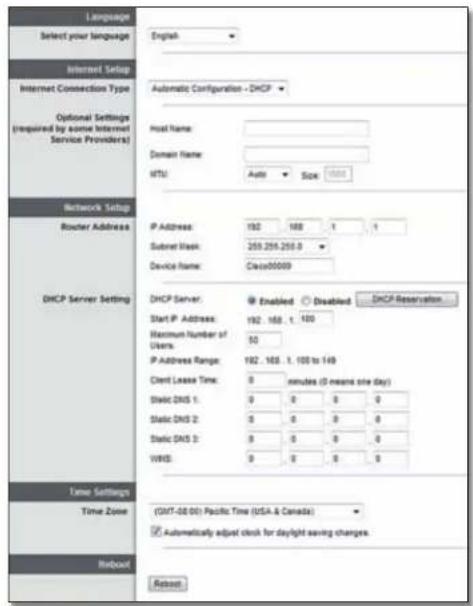
The first screen that appears is the Basic Setup screen. This allows you to change the router's general settings.
text_image
Language Select your language English Internet Setup Internet Connection Type Automatic Configuration - DHCP Optional Settings (required by some Internet Service Providers) Host Name: Domain Name: MTU Auto Size 1000 Network Setup Router Address IP Address: 192 168 1 1 Subnet Mask: 259.255.258.0 Device Name: Class00009 DHCP Server: Enabled Disabled DHCP Reservation Start IP Address: 192 .168 .1 .168 Maximum Number of Users: 50 IP Address Range: 192 .168 .1 .105 to 149 Client Lease Time: 0 minutes (3 means one day) Static DNS 1: 0 0 0 0 Static DNS 2: 0 0 0 0 Static DNS 3: 0 0 0 0 VWS: 0 0 0 0 Time Settings Time Zone (GWT-08:00) Pacific Time (USA & Canada) Automatically adjust clock for daylight saving charges Rebound RefreshLanguage
Select your language To use a different language, select one from the dropdown menu. The language of the browser-based utility will change five seconds after you select another language.
Internet Setup
The Internet Setup section configures the router to your Internet connection. Most of this information can be obtained through your Internet Service Provider (ISP).
Internet Connection Type
Select the type of Internet connection your ISP provides from the drop-down menu. The available types are:
• Automatic Configuration - DHCP
- Static IP
- PPPoE
.PPTP
·L2TP
• Telstra Cable
Automatic Configuration - DHCP
The default Internet Connection Type is Automatic Configuration - DHCP (Dynamic Host Configuration Protocol). Keep the default only if your ISP supports DHCP or if you connect using a dynamic IP address. (This option usually applies to cable connections.)
Static IP
If you are required to use a fixed IP address to connect to the Internet, select Static IP.
PPPoE
If you have a DSL connection, check whether your ISP uses Point-to-Point Protocol over Ethernet (PPPoE). If so, select PPPoE.
PPTP
Point-to-Point Tunneling Protocol (PPTP) is a service that generally applies to connections in Europe. If your PPTP connection supports DHCP or a dynamic IP address, then select Obtain an IP Address Automatically. If you are required to use a fixed IP address to connect to the Internet, then select Specify an IP Address and configure the options below.
L2TP
Layer 2 Tunneling Protocol (L2TP) is a service that generally applies to connections in Israel.
Telstra Cable
Telstra Cable is a service that generally applies to connections in Australia.
Connect on Demand or Keep Alive
The Connect on Demand and Keep Alive options let you choose whether the router connects to the Internet only as needed (useful if your ISP charges for connect time), or if the router should always be connected. Select the appropriate option.
Wireless > Basic Wireless Settings
The basic settings for wireless networking are set on this screen.
NOTE
After you set up the wireless network(s), set up the wireless security settings.
Wireless Settings

text_image
Network Mode: Mixed Network Name (SSD): Cisco00056 Channel Width: 20 MHz Only Channel: Auto SSD Broadcast: Enabled DisabledNetwork Mode Select the wireless standards your network will support.
- Mixed If you have Wireless-N (2.4 GHz), Wireless-G, and Wireless-B devices in your network, keep the default, Mixed.
- Wireless-B/G Only If you have both Wireless-B and Wireless-G (2.4 GHz) devices in your network, select Wireless-B/G Only.
- Wireless-B Only If you have only Wireless-B devices, select Wireless-B Only.
- Wireless-G Only If you have only Wireless-G devices, select Wireless-G Only.
- Wireless-N Only If you have only Wireless-N (2.4 GHz) devices, select Wireless-N Only.
- Disabled If you have no Wireless-B, Wireless-G, and Wireless-N (2.4 GHz) devices in your network, select Disabled.
NOTE
If you have a dual-band router, you can select Mixed, Wireless-A Only, Wireless-N Only, or Disabled for the 5 GHz band.
If you are not sure which mode to use, keep the default, Mixed.
Network Name (SSID) The Service Set Identifier (SSID) is the network name shared by all devices in a wireless network. It is case-sensitive and must not exceed 32 keyboard characters. The default is Cisco followed by the last 5 digits of the router's serial number, which is found on the bottom of the router. If you used the setup software for installation, then the default Network Name is changed to an easy-to-remember name.
NOTE
If you restore the router's factory default settings (by pressing the Reset button or using the Administration > Factory Defaults screen), the Network Name will return to its default value. Change the Network Name back to its original name, or you will have to reconnect all devices on your wireless network to the new network name.
Channel Width For best performance in a network using Wireless-B, Wireless-G and Wireless-N (2.4 GHz) devices, select Auto (20 MHz or 40 MHz). For a channel width of 20 MHz, keep the default, 20 MHz only.
Channel Select the channel from the drop-down list for Wireless-B, Wireless-G, and Wireless-N (2.4 GHz) networking. If you are not sure which channel to select, then keep the default, Auto.
SSID Broadcast When wireless clients survey the local area for wireless networks to associate with, they will detect the SSID broadcast by the router. To broadcast the router's SSID, keep the default, Enabled. If you do not want to broadcast the router's SSID, then select Disabled.
Wireless Security
Wireless > Wireless Security
The wireless security settings configure the security of your wireless network(s). The router supports the following wireless security options: WPA2/WPA Mixed Mode, WPA2 Personal, WPA Personal, WPA2/WPA Enterprise Mixed Mode, WPA2 Enterprise, WPA Enterprise, WEP, and RADIUS. (WPA stands for Wi-Fi Protected Access. WEP stands for Wireless Equivalent Privacy. RADIUS stands for Remote Authentication Dial-In User Service.)
Personal options
| Security Option Strength | |
| WPA2 Personal Strongest | |
| WPA2/WPA Mixed Mode | WPA2: StrongestWPA: Strong |
| WPA Personal Strong | |
| WEP Basic | |
Office options
The office options are available for networks that use a RADIUS server for authentication. The office options are stronger than the personal options because WPA2 or WPA provides encryption while RADIUS provides authentication.
| Security Option Strength | |
| WPA2 Enterprise Strongest | |
| WPA2/WPA Enterprise Mixed Mode | WPA2: StrongestWPA: Strong |
| WPA Enterprise | Strong |
| RADIUS | Basic |
Option settings
WPA2/WPA Mixed Mode, WPA2 Personal, WPA Personal
NOTES
If you select WPA2/WPA Mixed Mode as your Security Mode, each device in your wireless network MUST use WPA2/WPA and the same passphrase.
If you select WPA2 Personal as your Security Mode, each device in your wireless network MUST use WPA2 Personal and the same passphrase.
If you select WPA Personal as your Security Mode, each device in your wireless network MUST use WPA Personal and the same passphrase.
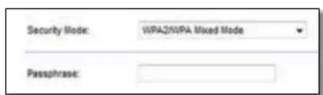
Passphrase Enter a passphrase of 8-63 characters. The default is password. If you used the setup software for installation, then the default is changed to a unique passphrase, which you can find by running Cisco Connect, then clicking Router settings.
WPA2/WPA Enterprise Mixed Mode, WPA2 Enterprise, WPA Enterprise
These option is used in coordination with a RADIUS server. (These should only be used when a RADIUS server is connected to the router.)
NOTES
If you select WPA2/WPA Enterprise Mixed Mode as your Security Mode, each device in your wireless network MUST use WPA2/WPA Enterprise and the same shared key.
If you select WPA2 Enterprise as your Security Mode, each device in your wireless network MUST use WPA2 Enterprise and the same shared key.
If you select WPA Enterprise as your Security Mode, each device in your wireless network MUST use WPA Enterprise and the same shared key.

text_image
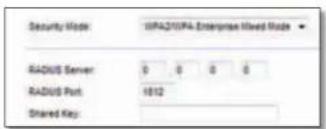
Security Mode: WPA2/WPA Enterprise Mixed Mode RADIUS Server: 0 0 0 0 RADIUS Port: 1812 Shared Key:RADIUS Server Enter the IP address of the RADIUS server.
RADIUS Port Enter the port number of the RADIUS server. The default is 1812. Shared Key Enter the key shared between the router and the server.
WEP
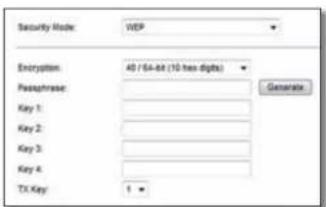
WEP is a basic encryption method, which is not as secure as WPA.
NOTE:
If you select WEP as your Security Mode, each device in your wireless network MUST use WEP and the same encryption and shared key.
text_image
Security Mode: WEP Encryption: 40 / 64-bit (10 less digits) Passphrase: Key 1: Key 2: Key 3: Key 4: TX Key: 1 ▼ GenerateEncryption Select a level of WEP encryption, (40/64-bit 10 hex digits) or 104/128-bit (26 hex digits). The default is 40/64-bit (10 hex digits).
Passphrase Enter a passphrase to automatically generate WEP keys. Then click Generate.
Key 1-4 If you did not enter a passphrase, enter the WEP key(s) manually.
TX Key Select a default TX (Transmit) Key to use. The default is 1.
RADIUS
This option features WEP used in coordination with a RADIUS server. (This should only be used when a RADIUS server is connected to the router.)
NOTE:
If you select RADIUS as your Security Mode, each device in your wireless network MUST use RADIUS and the same encryption and shared key.

text_image
Security Wede: RADIUS RADIUS Server: 0 0 0 0 RADIUS Port: 1012 Shared Key: Encryption: 40 / 84-bit (10 hex digits) Passphrase: Key 1: Key 2: Key 3: Key 4: TX Key: 1 GenerateRADIUS Server Enter the IP address of the RADIUS server.
RADIUS Port Enter the port number of the RADIUS server. The default is 1812.
Shared Secret Enter the key shared between the router and the server.
Encryption Select a level of WEP encryption, (40/64-bit 10 hex digits) or 104/128-bit (26 hex digits). The default is 40/64-bit (10 hex digits).
Passphrase Enter a passphrase to automatically generate WEP keys. Then click Generate.
Key 1-4 If you did not enter a passphrase, enter the WEP key(s) manually.
TX Key Select a default TX (Transmit) Key to use. The default is 1.
Disabled
If you choose to disable wireless security, you will be informed that wireless security is disabled when you first attempt to access the Internet. You will given the option to enable wireless security, or confirm that you understand the risks but still wish to proceed without wireless security.

Troubleshooting
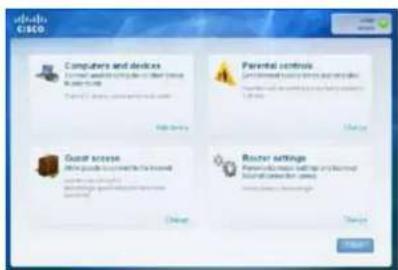
This chapter can help you solve common setup issues and connect to the Internet. Your router's CD includes Cisco Connect, the router setup software that makes it easy to connect network devices, change router settings, control guest access, enable parental controls, and connect to the Internet. Cisco Connect is also installed onto your computer during setup. If Cisco Connect is prevented from completing the setup, this chapter will guide you through finding solutions.
text_image
Cisco Computers and devices Internal and external tools to select to help us. Parental controls Generalized virtual systems and other tools Guest access Guest access to the next system Guest access to the next system Router settings Personal mode to switch to the next system Router settings to switch to the next systemYou can find more help from our award-winning customer support at linksys.com/support.
How to run Cisco Connect after setup
When you run the setup CD, Cisco Connect is automatically installed onto your computer. You can then use Cisco Connect to easily manage your network.
To start Cisco Connect on a Windows computer:
- Click Start, All Programs, then click Cisco Connect.

The Cisco Connect main menu opens.
To start Cisco Connect on a Mac OS X computer:
- Open Finder and click Applications in the left panel.

- Double-click the Cisco Connect icon.

The Cisco Connect main menu opens.
Your router was not successfully set up
text_image
Out Customer Support Team can help You're looking like and something is up. Please need to have a service for downloading your job in the customer's search representation. The only job is not able to help you to get things that we provide it to create your customer needs to be useful. You can have a service for your job in the CCTV.com. You can do so much more than you.If Cisco Connect did not complete the setup, you can try the following:
- Press and hold the Reset button on your router with a paperclip or pin for 10-15 seconds, then run the Setup program again on the router's CD.
natural_image
Exterior view of a portable electronic device with a circular lens and ventilation grille (no visible text or symbols)
text_image
Back panel of a network device showing ports, switches, and a highlighted switch with red annotationYour router's appearance may vary
- Temporarily disable your computer's firewall (see the security software's instructions for help), then run the Setup program again on the router's CD.
- If you have another computer, use that computer to run the Setup program again on the router's CD.
Get Windows XP Service Pack 3 message
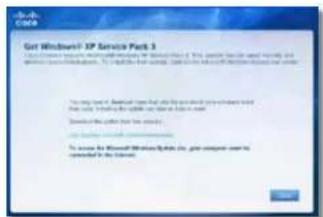
On Windows XP computers, Cisco Connect requires Service Pack 3 in order to work. If you receive a "Get Windows Service Pack 3" message when setting up your router for the first time, follow these troubleshooting steps.
text_image
Get Windows-IP Service Pack 3 To ensure the best performance, we can be able to create a new IP service. To improve the best performance, we can be able to create a new IP service.If the currently installed Service Pack is older than version 3, you need to download and install Service Pack 3.
TIP
To temporarily connect to the Internet and download the required Service Pack, you can use the included Ethernet cable to connect your computer directly to your modem.
To install Service Pack 3:
- Click the link in the Cisco Connect error message or connect to the Microsoft Update website (update.microsoft.com/windowsupdate).
- Follow the instructions on the website or contact Microsoft if you need further help.
- After downloading and installing Service Pack 3, run the Setup program on your router's CD.
Your Internet cable is not plugged in
message
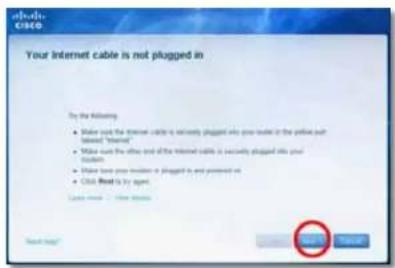
If you get a "Your Internet cable is not plugged in" message when trying to set up your router, follow these troubleshooting steps.

text_image
You the following: • Does you use your computer cable to ensure plugged into your user in the case to put out a new "Internet" • Have used the user and/or the internet cable to ensure plugged into your user • Have used your computer to plug or switch on • Use a new cable to open. Copyright: • You can accessTo fix the problem:
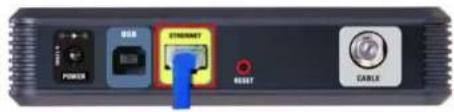
- Make sure that an Ethernet or Internet cable (or a cable like the one supplied with your router) is securely connected to the yellow Internet port on the back of the router and to the appropriate port on your modem. This port on the modem is usually labeled Ethernet, but may be named Internet or WAN.
text_image
Internet 1 2 Xmnm 3 4 InternetBack view of router
text_image
USB ETROMET POWER RESET CABLEBack view of cable modem

Back view of DSL modem
- Make sure that your modem is connected to power and is turned on. If it has a power switch, make sure that it is set to the ON or I position.
- If your Internet service is cable, verify that the cable modem's CABLE port is connected to the coaxial cable provided by your ISP.
Or, if your Internet service is DSL, make sure that the DSL phone line is connected to the modem's DSL port.
- If your computer was previously connected to your modem with a USB cable, disconnect the USB cable.
- Return to the Cisco Connect window and click Next to try again. If the window has already been closed, run the Setup program again on the router's CD.
text_image
CISCO Your Internet cable is not plugged in By the following: • Make out the Internet cable is securely plugged into your user in the website (or website "Internet") • Make out the other and if the Internet cable is securely plugged into your user. • Make out your user in a plugged in and pressed out • Click Next is by agent. Next pageCannot access your router message
If you cannot access your router because your computer is not connected to your network, follow these troubleshooting steps.
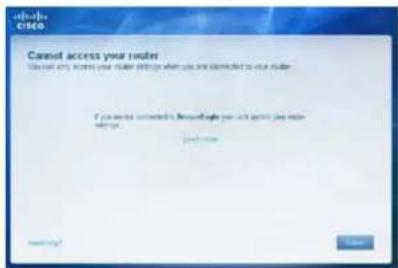
text_image
Cannot access your route You can only come your route settings when you are cancelled to your route. If you want a much easier (beaus) route you can't access your route settings. Cancel thisTo access your router, you must be connected to your own network. If you currently have wireless Internet access, the problem may be that you have accidentally connected to a different wireless network.
To fix the problem on Windows computers:
- On your Windows desktop, right-click the wireless icon in the system tray.

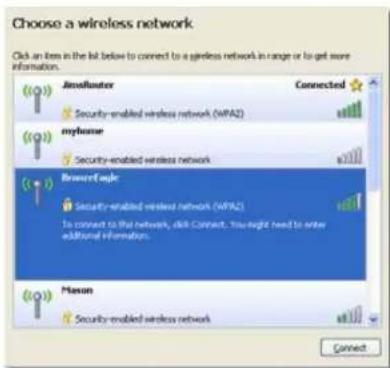
- Click View Available Wireless Networks. A list of available networks appears.
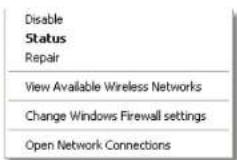
- Click your own network name, then click Connect. In the example below, the computer was connected to another wireless network named JimsRouter. The name of the Linksys E-Series network, BronzeEagle in this example, is shown selected.
text_image
Choose a wireless network Click an item in the list below to connect to a wireless network in range or to get more information. Amolluster Connected Security-enabled wireless network (WPAZ) myhome Security-enabled wireless network Browser Eagle Security-enabled wireless network (WPAZ) To connect to the network, click Connect. You might need to enter additional information. Photon Security-enabled wireless network Connect- If you are prompted to enter a network key, type your password (Security Key) into the Network key and Confirm network key fields, then click Connect.

text_image
Wireless Network Connection The network 'BronzeEagle' requires a network key (also called a WEP key or WPA key). A network key helps prevent unknown intrudes from connecting to this network. Type the key, and then click Connect. Network key: ••••••••••••• Confirm network key: ••••••••••••• Connect CancelYour computer connects to the network, and you should now be able to access the router.
To fix the problem on Mac computers:
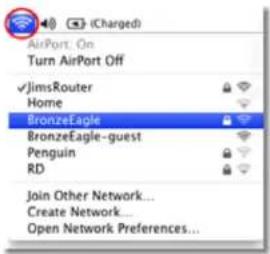
- In the menu bar across the top of the screen, click the AirPort icon. A list of wireless networks appears. Cisco Connect has automatically assigned your network a name.
In the example below, the computer was connected to another wireless network named JimsRouter. The name of the Linksys E-Series network, BronzeEagle in this example, is shown selected.
text_image
AirPort: On Turn AirPort Off ✓JimsRouter Home BronzeEagle BronzeEagle-guest Penguin RD Join Other Network... Create Network Open Network Preferences...- Click the wireless network name of your Linksys E-Series router (BronzeEagle in the example).
- Type your wireless network password (Security Key) into the Password field, then click OK.

text_image
The network "BronzeEagle" requires a WPA password. Password: ******** Show password Remember this network Cancel OKDevice not found message
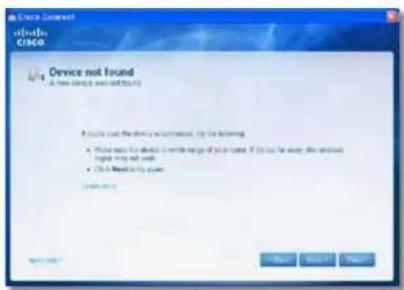
If you get a "Device not found" message when trying to connect a network device (such as an iPhone, iPod, or smartphone), follow these troubleshooting steps.
text_image
in Studio CRSCO Device not found A new device is not found? If you can use the device recommendation, try the following: • What easy to do it, or what enough to use your computer. If you can use this device. • Click Next to this device. CancelTIP
For a stronger signal during initial setup, move your wireless devices near your router. Long distances make it harder for the router to detect the devices.
To fix the problem:
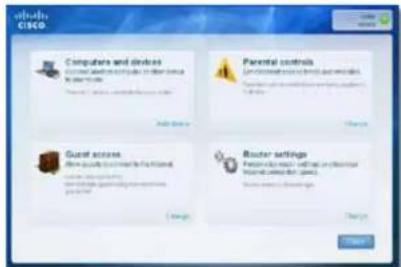
- Run Cisco Connect.
text_image
CIBCO Computers and devices Control and device to compute the network Proportable network Parental controls User access Guest access Other details to create the network User access to the network Router settings User access to the network Router settings (if any) User access to the network CancelLinksys E-Series
Troubleshooting
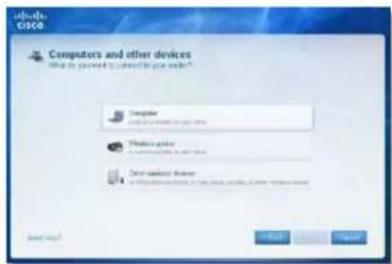
- Click Computers and devices. The Computers and other devices window appears.
- Click Other Wireless devices.

text_image
Computers and other devices About the device to access to your website Computer Windows policy Other desktop drives Send to: OK Cancel Cancel- Enable your wireless network device's Wi-Fi connection, then search for your wireless network name. See your device documentation for help.
NOTE
Your wireless device must support WPA/WPA2.
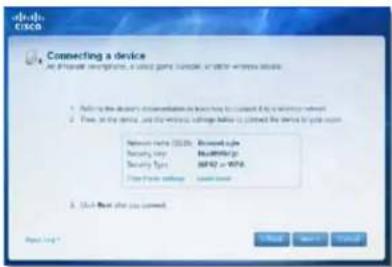
- On the wireless network device, select the network name of your router and enter the password (Security Key).
- In Cisco Connect, click Next.
text_image
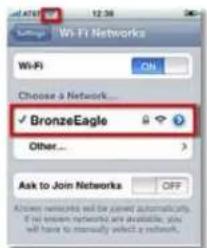
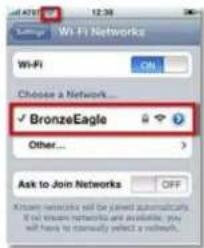
dros CSCO Connecting a device My project configuration, a closed port terminal, an other software device 1. Push to the device's documentation in order to connect if it is necessary network 2. Push to the device, and the wireless settings help to connect the device to your own Network name: DOS-01 - DOS-02 Security type: DOS-03 Security Type: DOS-04 = DOS-05 Filter traffic settings: Local server 3. (Do not say that you cannot) Next step: OK Next > CancelExample: On your Smartphone or other wireless device, locate the Wi-Fi menu and search for available wireless networks. In this example, using the network information provided by Cisco Connect shown in the previous screen, click BronzeEagle.

text_image
Wi-Fi settings Wi-Fi Connected to JmaRouter Network notification Notify me when an open network is available Wi-Fi networks BronzeEagle-guest BronzeEagle WPS Available, secured with WPA/WFA2 WPI Wi-Fi Networks Wi-Fi Choose a Network... ✓ BronzeEagle Other... Ask to Join Networks OK Express networks will be current automatically if we linkzen networks and available, you will have to manually select a network.Android
iPhone
- Enter the password (Security Key) provided by Cisco Connect. In this example, the security key is B6eM9UkCjz.
NOTE
The password is case sensitive. Make sure that you enter letters in the correct case.
- When your wireless device is successfully connected to your wireless network, enter a name for the device in Cisco Connect, then click Finish.

text_image
Name your device Show that you want to be able to access your device, with your name and password.Specifications
Linksys E1200
Model Name Linksys E1200
Description Wireless-N Router
Model Number E1200
Standards 802.11n, 802.11g, 802.11b, 802.3u
Ports Power, Internet, and Ethernet (1-4)
Buttons Reset, Wi-Fi Protected Setup™
LEDs Power/Wi-Fi Protected Setup, Internet, Ethernet (1-4)
Cabling Type CAT 5e
Transmitted Power 802.11n (20 MHz):
15.0 ± 1.5dBm @ CH6, MCS 0\~4, MCS 8\~12
13.5 ± 1.5dBm @ CH6, MCS 5\~7, MCS 13\~15
802.11n (40 MHz):
14.0 ± 1.5dBm @ CH6, MCS 0\~4, MCS 8\~12
13.5 ± 1.5dBm @ CH6, MCS 5\~7, MCS 13\~15
802.11g:
14.5 ± 1.5dBm @ CH6, all rates
802.11b:
16.5 ± 1.5dBm @ CH6, all rates
Antenna Gain ≤2.5 dBi, ≤4.0 dBi (2 antennas)
UPnP Supported
Wireless Security Wi-Fi Protected Access™ 2 (WPA2), WEP, wireless MAC filtering
Security Key Bits Up to 128-bit encryption
Environmental
Dimensions 188.7 × 151.7 × 31.2 mm
(7.43" × 5.97" × 1.23")
Unit Weight 252.7g (8.91 oz.)
Power
12V, 0.5A
Certifications
FCC, UL/cUL, ICES-003, RSS210,
CE, Wi-Fi (IEEE 802.11b/g/n),
WPA2™, WMM®, Wi-Fi Protected
Setup, Windows 7
Operating Temp.
0 to 40°C (32 to 104°F)
Storage Temp.
-20 to 60°C (-4 to 140°F)
Operating Humidity
10 to 80% non-condensing
Storage Humidity
5 to 90% non-condensing
NOTES
For regulatory, warranty, and safety information, see the CD that came with your router or go to Linksys.com/support.
Specifications are subject to change without notice.
Maximum performance derived from IEEE Standard 802.11 specifications. Actual performance can vary, including lower wireless network capacity, data throughput rate, range and coverage. Performance depends on many factors, conditions and variables, including distance from the access point, volume of network traffic, building materials and construction, operating system used, mix of wireless products used, interference and other adverse conditions.
Linksys E1500
Model Name Linksys E1500
Description Wireless-N Router with SpeedBoost
Model Number E1500
Standards 802.11n, 802.11g, 802.11b, 802.3u
Ports Power, Internet, and Ethernet (1-4)
Buttons Reset, Wi-Fi Protected Setup
LEDs Power/Wi-Fi Protected Setup, Internet, Ethernet (1-4)
Cabling Type CAT 5e
Transmitted Power 802.11n (20 MHz):
17.0 ± 1.5 dBm @ CH6, MCS 0\~4, MCS 8\~12
16.0 ± 1.5 dBm @ CH6, MCS 5\~7, MCS 13\~15
802.11n (40 MHz):
15.5 ± 1.5 dBm @ CH6, MCS 0\~4, MCS 8\~12
14.0 ± 1.5 dBm @ CH6, MCS 5\~7, MCS 13\~15
802.11g:
18.0 ± 1.5 dBm @ CH6, 6 Mbps
17.0 ± 1.5 dBm @ CH6, 54 Mbps
802.11b:
18.0 ± 1.5 dBm @ CH6, all rates
Antenna Gain ≤3.0 dBi, ≤4.0 dBi, ≤4.5 dBi
(3 antennas)
UPnP Supported
Wireless Security Wi-Fi Protected Access 2 (WPA2), WEP, wireless MAC filtering
Security Key Bits Up to 128-bit encryption
Environmental
Dimensions 188.7 × 151.7 × 31.2 mm (7.43" × 5.97" × 1.23")
Unit Weight 254.1g (8.96 oz.)
Power 12V, 0.5A
Certifications FCC, UL/cUL, ICES-003, RSS210, CE, Wi-Fi (IEEE 802.11b/g/n), WPA2, WMM, Wi-Fi Protected Setup, Windows 7
Operating Temp. 0 to 40°C (32 to 104°F)
Storage Temp. -20 to 60°C (-4 to 140°F)
Operating Humidity 10 to 80% non-condensing
Storage Humidity 5 to 90% non-condensing
NOTES
For regulatory, warranty, and safety information, see the CD that came with your router or go to Linksys.com/support.
Specifications are subject to change without notice.
Maximum performance derived from IEEE Standard 802.11 specifications. Actual performance can vary, including lower wireless network capacity, data throughput rate, range and coverage. Performance depends on many factors, conditions and variables, including distance from the access point, volume of network traffic, building materials and construction, operating system used, mix of wireless products used, interference and other adverse conditions.
Linksys E2500
Model Name Linksys E2500
Description Advanced Dual-Band N Router
Model Number E2500
Standards 802.11n, 802.11a, 802.11g, 802.11b, 802.3, 802.3u, 802.3ab
# of Antennas 4 total, 2 internal antennas per each 2.4 GHz & 5 GHz radio band
Detachable (y/n) No
Modulation 802.11b: CCK, QPSK, BPSK
802.11g: OFDM
802.11a: OFDM
802.11n: BPSK, QPSK, 16-QAM,
64-QAM
Receive Sensitivity 2.4 GHz
(Typical) 802.11b: -87 dBm @ 11 Mbps
802.11g: -70 dBm @ 54 Mbps
802.11n 20 MHz: -70 dBm @ MCS15
802.11n 40 MHz: -66 dBm @ MCS15
5 GHz
802.11a:-70 dBm @ 54 Mbps
802.11n 20 MHz: -66 dBm @ MCS23
802.11n 40 MHz: -62 dBm @ MCS23
Antenna Gain in dBi 2.4 GHz:
Antenna 1 (right rear): ≤2.94 dBi
Antenna 2 (front right): ≤3.78 dBi
5 GHz:
Antenna 1 (right front): ≤5.86 dBi
Antenna 2 (front left): ≤4.88 dBi
UPnP Supported
Security features WEP, WPA, WPA2
Security key bits Up to 128-bit encryption
Environmental
| Dimensions | 225 x 35 x 180 mm |
| (8.86" x 1.38" x 7.09") |
| Unit Weight | 452 g (15.94 oz) |
| Power | 12V, 1A |
| Certifications | FCC, IC, CE, Wi-Fi A/B/G/N |
| Operating Temp. | 0 to 40°C (32 to 104°F) |
| Storage Temp. | -20 to 60°C (-4 to 140°F) |
| Operating Humidity non-condensing | 10 to 80%, relative humidity, |
| Storage Humidity | 5 to 90% non-condensing |
NOTES
For regulatory, warranty, and safety information, see the CD that came with your router or go to Linksys.com/support.
Specifications are subject to change without notice.
Maximum performance derived from IEEE Standard 802.11 specifications. Actual performance can vary, including lower wireless network capacity, data throughput rate, range and coverage. Performance depends on many factors, conditions and variables, including distance from the access point, volume of network traffic, building materials and construction, operating system used, mix of wireless products used, interference and other adverse conditions.
Linksys E3200
Model Name Linksys E3200
Description High Performance Dual-Band N Router
Model Number E3200
Standards 802.11n, 802.11a, 802.11g, 802.11b, 802.3, 802.3u, 802.3ab
# of Antennas 6 total, 3 internal antennas per each 2.4 GHz & 5 GHz radio band
Detachable (y/n) No
Switch Port Speed 10/100/1000 Mbps
Ports Internet, Ethernet (1-4), USB, Power
Buttons Reset, Wi-Fi Protected Setup
LEDs Power, Ethernet (1-4)
Modulation 802.11b: CCK, QPSK, BPSK
802.11g: OFDM
802.11a: OFDM
802.11n: BPSK, QPSK, 16-QAM, 64-QAM
Receive Sensitivity 2.4 GHz
802.11b: -87 dBm @ 11 Mbps (Typical)
802.11g: -77 dBm @ 54 Mbps (Typical)
802.11n (20 MHz): -71 dBm @ MCS15 (Typical)
802.11n (40 MHz): -68 dBm @ MCS15 (Typical)
5 GHz
802.11a: -75 dBm @ 54 Mbps (Typical)
802.11n 20 MHz: -70 dBm @ MCS15 (Typical)
802.11n 40 MHz: -67 dBm @ MCS15 (Typical)
Antenna Gain 2.4 GHz (Dipole Antennas)
Antenna 1 ≤ 3 dBi
Antenna 2 ≤ 4 dBi
Antenna 3 ≤ 4 dBi
5 GHz (Dipole Antennas)
Antenna 1 ≤ 4.5 dBi
Antenna 2 ≤ 4.5 dBi
Antenna 3 ≤ 4.5 dBi
UPnP
Supported
Security features WEP, WPA, WPA2
Security key bits Up to 128-bit encryption
Storage File System Support FAT, and NTFS, and HFS+
Environmental
Dimensions 170 x 25 x 190 mm (6.69" x 0.98" x 7.48")
Unit Weight 216 g (7.62 oz)
Power 12V, 2A
Certifications FCC, IC, CE, Wi-Fi A/B/G/N
Operating Temp. 0 to 40°C (32 to 104°F)
Storage Temp. -20 to 60°C (-4 to 140°F)
Operating Humidity non-condensing 10 to 80% relative humidity,
Storage Humidity 5 to 90% non-condensing
NOTES
For regulatory, warranty, and safety information, see the CD that came with your router or go to Linksys.com/support.
Specifications are subject to change without notice.
Maximum performance derived from IEEE Standard 802.11 specifications. Actual performance can vary, including lower wireless network capacity, data throughput rate, range and coverage. Performance depends on many factors, conditions and variables, including distance from the access point, volume of network traffic, building materials and construction, operating system used, mix of wireless products used, interference and other adverse conditions.
Linksys E4200
Model Name Linksys E4200
Description Maximum Performance Wireless-N Router
Model Number E4200
Standards 802.11n, 802.11a, 802.11g, 802.11b, 802.3, 802.3u, 802.3ab
Radio Frequency 2.4 and 5 GHz
Switch Port Speed 10/100/1000 Mbps (Gigabit Ethernet)
Ports Power, USB, Internet, Ethernet (1-4)
Buttons Reset, Wi-Fi Protected Setup
LEDs Top panel: Power
Back panel: Internet, Ethernet (1-4)
Number of Antennas 6 total, 3 internal antennas per each 2.4 GHz and 5 GHz radio band
Detachable (y/n) No
Modulations 802.11b: CCK, QPSK, BPSK
802.11g: OFDM
802.11a: OFDM
802.11n: BPSK, QPSK, 16-QAM, 64-QAM
Receive Sensitivity 2.4 GHz
802.11b: -87 dBm @ 11 Mbps (Typical)
802.11g: -77 dBm @ 54 Mbps (Typical)
802.11n: 20 MHz: -71 dBm @ MCS15 (Typical)
802.11n: 40 MHz: -68 dBm @ MCS15 (Typical)
5 GHz
802.11a:-71 dBm @ 54 Mbps (Typical)
802.11n: 20 MHz: -70 dBm @ MCS23 (Typical)
802.11n: 40 MHz: -68 dBm @ MCS23 (Typical)
Antenna Gain in dBi 2.4 GHz (3 internal PIFA antennas)
PIFA 1 ≤ 3.6 dBi (Right)
PIFA 2 ≤ 3.8 dBi (Left)
PIFA 3 ≤ 3.8 dBi (Front)
5 GHz (3 internal PIFA antennas)
PIFA 1 ≤ 4.8 dBi (Right)
PIFA 2 ≤ 5.3 dBi (Left)
PIFA 3 ≤ 5.2 dBi (Front)
Supported File Systems
for Storage Device FAT32, NTFS, and HSF+
UPnP Supported
Security Features
WEP, WPA, WPA2
Security Key Bits
Up to 128-bit encryption
Environmental
Dimensions
225 x 25 x 160 mm
(8.86" x 0.98" x 6.30")
Unit Weight
355 g (12.52 oz)
Power
12V, 2A
Certifications
FCC, IC, CE, Wi-Fi a/b/g/n,
Windows 7
Operating Temp.
0 to 40°C (32 to 104°F)
Storage Temp.
-20 to 60°C (-4 to 140°F)
Operating Humidity non-condensing
10 to 80% relative humidity,
Storage Humidity
5 to 90% non-condensing
NOTES
For regulatory, warranty, and safety information, see the CD that came with your router or go to Linksys.com/support.
Specifications are subject to change without notice.
Maximum performance derived from IEEE Standard 802.11 specifications. Actual performance can vary, including lower wireless network capacity, data throughput rate, range and coverage. Performance depends on many factors, conditions and variables, including distance from the access point, volume of network traffic, building materials and construction, operating system used, mix of wireless products used, interference and other adverse conditions.
Visit linksys.com/support for award-winning technical support

Cisco, the Cisco logo, and Linksys are trademarks or registered trademarks of Cisco and/or its affiliates in the United States and other countries. A listing of Cisco's trademarks can be found at www.cisco.com/go/trademarks. All other trademarks mentioned in this document are the property of their respective owners.
© 2011 Cisco and/or its affiliates. All rights reserved.
3425-TBD
E-Series

جدول المحتويات
الأمان اللاسلكي
natural_image
Exterior view of a black rectangular electronic device with perforated surface and indicator light (no visible text or symbols)text_image
Setup Name: Design: Form1 Form2 Form3 Form4 Form5 Form6 Form7 Form8 Form9 Form10 Form11 Form12 Form13 Form14 Form15 Form16 Form17 Form18 Form19 Form20 Form21 Form22 Form23 Form24 Form25 Form26 Form27 Form28 Form29 Form30 Form31 Form32 Form33 Form34 Form35 Form36 Form37 Form38 Form39 Form40 Form41 Form42 Form43 Form44 Form45 Form46 Form47 Form48 Form49 Form50 Form51 Form52 Form53 Form54 Form55 Form56 Form57 Form58 Form59 Form60 Form61 Form62 Form63 Form64 Form65 Form66 Form67 Form68 Form69 Form70 Form71 Form72 Form73 Form74 Form75 Form76 Form77 Form78 Form79 Form80 Form81 Form82 Form83 Form84 Form85 Form86 Form87 Form88 Form89 Form90 Form91 Form92 Form93 Form94 Form95 Form96 Form97 Form98 Form99 Form100text_image
Authorization Required A certificate and password are being requested to http://10.368.1.1. User Name: Password: OK Cancel(اللغة) Language
text_image
Language Select your language English Internet Setup Internet Connection Type Automatics Configuration - DHCP Optional Settings (required by some Internet Service Providers) Host Name: Domain Name: Mfty Auto Size Configuration = DHCP Network Setting Router Address IP Address: 162 168 1 1 Submit Hash: 259.230.259.0 Device Name: Class000009 DHCP Server DHCP Server: Enabled Disabled DHCP Reservation Start IP Address: 162.168 1.168 Maximum Number of Users: 10 IP Address Range: 162.168 1.168 to 149 Client Lease Time: 0 minutes (all means one day) State DNS 1: 0 0 0 0 State DNS 2: 0 0 0 0 State DNS 3: 0 0 0 0 HND: 0 0 0 0 Time Settings Time Zone (DHT-00.00) Pacific Time (USA & Canada) Automatically adjust clock for daylight saving changes RefreshBasic Wireless Settings < (اللاستك) Wireless (العذاداتلاستكية Agricultural
text_image
Network Mode Mixed Network Name (SSD) Cass00058 Channel Width 20 MHz Only Channel Auto SSD Broadcast Enabled Disabledإذا حديدت Security Mode (widestركة) WPA Enterprise (widestركة) WPA Enterprise (widestركة) WPA Enterprise (widestركة) WPA Enterprise (widestركة) WPA Enterprise (widestركة) WPA Enterprise (widestركة) WPA Enterprise (widestركة) WPA Enterprise (widestركة) WPA Enterprise (widestركة) WPA Enterprise (widestركة) WPA Enterprise (widestركة) WPA Enterprise
text_image
Security Mode: UPA20UPA Enterprise Mixed Mode RADIUS Server 0 0 0 0 RADIUS Port 1812 Shared Key:text_image
disco CSCO Computers and devices Computer and device to compute in other terms to ensure that the computer is available. Parental controls Get instructions for this process and will be used. Guest access Allow questions to create a virtual network Provide resources to ensure that the computer is available. Router settings Provide requests to access or access via the computer Use computers for your access. Connect Connect OKtext_image
Get Windows XP Service Pack 3 This is an open book with the following: 1. This version contains a new product that is used to create a new product in the Windows OS. 2. The product is also used to create a new product in the Windows OS. This is an open book with the following: • It is not currently available for any other product or service. • It is currently available for any other product or service. • It is currently available for any other product or service. • It is currently available for any other product or service. • It is currently available for any other product or service. • It is currently available for any other product or service. • It is currently available for any other product or service. • It is currently available for any other product or service. • It is currently available for any other product or service. • It is currently available for all other products or services. • It is currently available for all other products or services. • It is currently available for all other products or services. • It is currently available for all other products or services. • It is currently available for all other products or services. • It is currently available for all other products or services. • It is currently available for all other products or services. • It is currently available for all other products or services. • It is currently available for all other products or services. • It includes a list of items that are currently available for all other products or services. • It includes a list of items that are currently available for all other products or services. • It includes a list of items that are currently available for all other products or services. • It includes a list of items that are currently available for all other products or services. • It includes a list of items that are currently available for all other products or services. • It includes a list of items that are currently available for all other products or services. - Includes a list of items that are currently available for all other products or services. - Includes a list of items that are currently available for all other products or services. - Includes a list of items that are currently available for all other products or services. - Includes a list of items that are currently available for all other products or services. - Includes a list of items that are currently available for all other products or services. - Includes a list of items that are currently available for all other products or services - Includes a list of items that are currently available for all other products or services. - Includes a list of items that are currently available for all other products or services. - Includes a list of items that are currently available for all other products or services. - Includes a list of items that are currently available for all other products or services. - Includes a list of items that are currently available for all other products or services. - Includes a list of items that are currently available for all other products/other services. - Includes a list of items that are currently available for all other products/other services. - Includes a list of items that are currently available for all other products/other services. - Includes a list of items that are currently available for all other products/other services. - Includes a list of items that are currently available for all other products/other services. - Includes a list of items that are currently available for all other products/other services. - Includes a list of items that have been installed in the Windows OS - Includes a list of items that have been installed in the Windows OS - Includes a list of items that have been installed in the Windows OS - Includes a list of items that have been installed in the Windows OS - Includes a list of items that have been installed in the Windows OS - Includes a list of items that have been installed in the Windows OS - Includes a list of items that have been installed in the Windows OS - Includes a list of items that have been registered in the Windows OS - Includes a list of items that have been registered in the Windows OS - Includes a list of items that have been registered in the Windows OS - Includes a list of items that have been registered in the Windows OS - Includes a list of items that have been registered in the Windows OS - Includes a list of items that have been registered in the Windows OS - Includes a list of items that have been registered in the Windows OS - Includes a listof business software (e.g., business software, e.g., software, etc.) and business software (e.g., software, etc.) and business software (e.g., software, etc.) and business software (e.g., software, etc.) and business software (e.g., software, etc.) and business software (e.g., software, etc.) and business software (e.g., software, etc.) and business software (e.g., software, etc.) and business software (e.g., software, etc.) and business software (e.g., software, etc.) and business software (e.e., software, etc.) and business software (e.g., software, etc.) and business software (e.g., software, etc.) and business software (e.g., software, etc.) and business software (e.g., software, etc.) and business software (e.g., software, etc.) and business software (e.g., software, etc.) and business software (e.g., software, etc.) and business software (e.g., software, etc.) and business software (e.g. software, etc.) and business software (e.g., software, etc.) and business software (e.g., software, etc.) and business software (e.g., software, etc.) and business software (e.g., software, etc.) and business software (e.g., software, etc.) and business software (e.g., software, etc.) and business software (e.g., software, etc.) and business software (e.g., software, etc.) and business software (e.g., system, etc.), and it has been installed in the Windows OS.text_image
Our Customer Support Team can help Your Help? You need to help your customers. We need to help you to help your customers. Please check up your customer support team and help you to help your customers. You can help you to help your customers. You can help you to help your customers. You can help you to help your customers. You can help you to help your customers. You can help you to help your customers. You can help you to help your customers. You can help you to help your customers. You can help you to help your customers. You can help you to help your customers. You can help you to help your customers. You can help you to help your customers. You can helps you to help your customers. You can help you to help your customers. You can help you to help your customers. You can help you to help your customers. You can help you to help your customers. You can help you to help your customers. You can help you to help your customers. You can help you to help your customers. You can help you to help your customers. You can help you to help your customers. You can help you to help your customers. You can help us to help your customers. You can help us to help your customers. You can help us to help your customers. You can help us to help your customers. You can help us to help your customers. You can help us to help your customers. You can help us to help your customers. You can help us to help your customers. You can help us to help your customers. You can help us to help your customers. You can help us to help your customers. You can help us, but not what you want you? You can help us, but not what you want you? You can help us, but not what you want you? You can help us, but not what you want you? You can help us, but not what you want you? You can help us, but not what you want you? You can help us, but not what you want you? You can help us, but not what you want you? You can help us, but not what you want you? You can help you, but not what you want you? You can help us, but not what you want you? You can help us, but not what you want you? You can help us, but not what you want you? You can help us, but not what you want you? You can help us, but not what you want you? You can help us, but not what you want you? You can help us, but not what you want you? You can help us, but not how it is going out? You can help us? You can help us? You can help us? You can help us? You can help us? You can help us? You can help us? You can help us? You can help us? You can help us? You can help us? You can help us? You can help us? You can help us? You can help us? You can help us? You can help us? You can help us? You can help us? You can help us? You can help you? You can help you? You can help you? You can help you? You can help you? You can help you? You can help you? You can help you? You can help you? You can help you? You can help you? You can help you? You can help you? You can help you? You can help you? You can help you? You can help you? You can help you? You can help you? You can help you? You can helpyou? You can helpyou? You can helpyou? You can helpyou? You can helpyou? You can helpyou? You can helpyou? You can helpyou? You can helpyou? You can helpyou? You can helpyou? You can helpyou? You can helpyou? You can helpyou? You can helpyou? You can helpyou? You can helpyou? You can helpyou? You can helpyou? You can helpyou? You can helpounatural_image
Front and back views of a network device showing ventilation slots, ports, and an external rear panel with USB port (no text or symbols visible)text_image
Your Internet cable is not plugged in To the following: • Make sure the Internet cable is currently plugged into your user in the internet port. • User(s) "Internet" • Make sure the other and if the Internet cable is currently plugged into your user. • Share user your user is plugged in and password on • Click Next is by up again Close up? < Close up> Cancel CancelYour Internet cable is not plugged in رسالة (كبل)
إنترنت غير متصل
text_image
Your Internet cable is not plugged in Up the following: • Will just the Internet cable to ensure plugged and your home to the next page used "Internet" • Will just the Internet cable to ensure plugged and your home to the next page • Have you your own a plugged in and powered it • Only Need any user. Loading: Next > Next?لاصلاح hairstyle:
text_image
Choose a wireless network Click an item in the list below to connect to a wireless network in range or to get more information. Amplifier Connected Security-enabled wireless network (WPAZ) myhome Security-enabled wireless network BrowseExpt Security-enabled wireless network (WPAZ) To connect to the network, click Connect. You might need to enter additional information. Mianan Security-enabled wireless network Connecttext_image
Wireless Network Connection The network "BronzeEagle" requires a network key (also called a WEP key or WPA key). A network key helps prevent unknown intruders from connecting to this network. Type the key, and then click Connect. Network key: ************ Confirm network key: ************ Connect Canceltext_image
Disk Cisco Cannot access your router You can access your router settings when you are connected to your router If you want to connect to a double-up or double-off your router settings Next step Downloadtext_image
Cisco Cloud indiso cisco Device not found A new device will not find it. Please have the device to account for the beginning. • Write sure that this device will be able to get your user. If you can say, then choose. • Stop up and wait. • Click Next to your user. Next step OK Cancel Helptelmiح
text_image
disks CSCO Computers and devices Command when to use a device to allow your user to access the computer Parental controls Command when to use a device to allow your user to access the computer Guest access Allow questions to use the computer Router settings Command when to use a device to allow your user to access the computer Diskstext_image
The network "Bronzetagle" requires a WPA password. Password: ********** Show password Remember this network Cancel OKtext_image
Wi-Fi settings Wi-Fi Connected to JmsRouter Network notification Notify me when an open network is available Wi-Fi networks BronzeEagle-guest BronzeEagle WPS Available, secured with WPA/WPA2 PORAndroid
text_image
Wi-Fi Networks Choose a Network... ✓ BronzeEagle Other... Ask to Join Networks OFFiPhone
text_image
Name your device Name: your device is called software or your device, with any other items listed. Name is named that will be used to directly test the device. It currently. None please check any user's name. C:\Users\12349\10000000000000000000000000000000000000000000000000000000000000000000000000000000000000000000000000000 Read best! Next Next NextComputers and (ajah#e #kmiwo#r###) (i###h###) Computers and devices (anfr frwoc) (other devices) (ajah#e ###kmiwo#r###) (Other Wireless devices) (anfr frwoc)
text_image
Cisco Computers and other devices What do you want to choose this device? Computer Wireless audio Other audio devicestext_image
Adobe Cisco Connecting a device Use a network configuration, a local game console, or other wireless devices. 1. Apply to the device to accommodate a key type in contact with a wireless network. 2. Then, at the device, and the wireless settings below it can be opened the device to your own. Network name: DOS Cisco Security type: No/No/No/No Setting type: BF10 - 5710 Total Power settings: Local power 3. Click Next only you learned. Copyright*المعطيات البيئية
31.2 × 151.7 × 188.7
(Wi-Fi Protected Setup™)Wi-Fi
Wi-Fi whose FMي بتنمية
,802.3 ,802.11b ,802.11g ,802.11a ,802.11n
802.3ab .802.3u
Съобщение Your Internet cable is not plugged in
Съобщение Cannot access your router
natural_image
Exterior view of a black rectangular electronic device with ventilation grille and indicator light (no text or symbols visible)text_image
Authentication Required A certificate and password are being requested by https://5810811. Name Name: Password: OK Canceltext_image
Language Select your language English Internet Setup Internet Connection Type Automatic Configuration - DHCP Optional Settings (required by some Internet Service Providers) Host name: Domest Name: Aff: Auto Size Network Setup Router Address IP Address: 192 198 1 1 Submit Rlass: 205 206 208 Device Name: Caco00009 DHCP Server DHCP Server Enabled Disabled DHCP Reservation... Start IP Address: 192 198 1 199 Maximum Number of Users: 40 IP Address Range: 192 198 1 199 to 199 Client Lease Time: 0 minutes of means one day. State DNS 1: 0 0 0 0 State DNS 2: 0 0 0 0 State DNS 3: 0 0 0 0 WIND: 0 0 0 0 Time Settings Time Zone (DWT-56.55) Pacific Time (USA & Canada) Automatically adjust clock for daylight saving changes Refresh RefreshLanguage (Език)
Static IP (Статичен IP)
text_image
Network Mode: Mixed Network Name (SSO) Cisco00066 Channel Width: 20 MHz Only Channel: Auto SSO Broadcast Enabled DisabledWPA2/WPA Mixed Mode (WPA2/WPA смесен режим), WPA2 Personal (WPA2 лична), WPA Personal (WPA лична)
ЗАБЕЛЕЖКИ
text_image
Security Mode: WPA20WPA Enterprise Mixed Route RADIUS Server 0 0 0 0 RADIUS Port 1812 Shared Key:text_image
Cisco Computers and devices Computer and devices to offer control to ensure that the computer is available Parental controls Guest access Guest access to computer to monitor Guest access to computer to monitor Routier settings Routier settings to monitor computer to monitor Routier settings to monitor computer to monitortext_image
Our Customer Support Teams can help Use email to access the team's services and your support team. Please call us to ensure that the following services are to be able to use the Customer Support Team: • You may have to access the other services at www.casp.com or any other service. You should use your customers to your support team. • Please check up the customer support team with your support team.natural_image
Exterior view of a black rectangular electronic device with a circular lens and display screen (no visible text or symbols)
natural_image
Back panel of a computer interface showing ports, buttons, and a highlighted indicator (no readable text or symbols)text_image
Get Windows XP Service Pack 3 To create a new version, we will create a new version on the following: This will be installed in the Internet Explorer window. To create a new version, we will create a new version on the following: This will be installed in the Internet Explorer window. To create a new version, we will create a new version on the following: This will be installed in the Internet Explorer window.text_image
Your Internet cable is not plugged in To be following: • Does not use the Internet cable to ensure plugged and/or make it off the next page • Does not use the next or next Internet cable to ensure plugged into your window. • Does not use your computer to plug-in or put out on. • Do not help your cable. Backlog: Next > Nexttext_image
obatic cisco Your Internet cable is not plugged in By the following: • Make out the Internet cable to correctly plugged into your home in the online port. • Made out the other ports of the Internet cable to correctly plugged into your home. • Make out your mode to plug and are preferred as • Close next to any type. Close next: Close next: Name: C2101 Canceltext_image
CSCO Cannot access your routes You have only some your route options when you are corrected to your route. If you want to complete a successful route you can access your route options. Canceltext_image
Choose a wireless network Click an item in the list below to connect to a wireless network in range or to get more information. Amalister Connected Security-enabled wireless network (WPA2) myhome Security-enabled wireless network Bronvet Eagle Security-enabled wireless network (WPA2) To connect to the network, click Connect. You might need to write additional information. Planar Security-enabled wireless network Connecttext_image
Wireless Network Connection The network 'BronzeBagle' requires a network key (also called a WEP key or WPA key). A network key helps prevent unknown intruders from connecting to this network. Type the key, and then click Connect. Network key: ••••••••••••• Confirm network key: ••••••••••••• Connect Canceltext_image
The network "BronzeEagle" requires a WPA password. Password: ******** Show password Remember this network Cancel OKtext_image
in Casia Connect vibulo cisco Device not found A new device will be found. Please use the device to connect, if you have been • While ways to do this, we will need to go on your website. If you can't say, the website http://www.casia.net/10.1.1348 • Do it need to try your website. Next step OK Apply CancelСЪВЕТ
text_image
Cisco Computers and devices A computer will continue to offer a service user for 15.000 Primary server configuration options App store Parental controls Limit desktop access to users and users Application Client Server access Other quick access to the Internet System security Server access Router settings Personal network access to your network Network security for users Router settings Change CancelLinksys E-Series
text_image
Computers and other devices Find it selected by the build-in project file® Computer Windows project Other projects available Start Next OK Canceltext_image
dUAL Connecting a device An example version, a key game language in other software settings. 1. Setting the device to create a device that can be connected to other software settings. 2. Push, in the format, and the wireless settings before being connected to the device by your user. Network name (USB): Microsoft Corp Security Type: Microsoft Corp Security Type: MSN2 or MSN Connect from settings: Local name 3. Click Next after you connect: Next step? Next Step! Next Step!text_image
Wi-Fi settings Connected to JamsRouter Network notification Notify me when an open network is available Wi-Fi networks BronzeEagle-guest BronzeEagle WPS Available, secured with WPA/WPA2 PSKAndroid
text_image
Wi-Fi Networks Wi-Fi Choose a Network... ✓ BronzeEagle Other... Ask to Join Networks OK OKiPhone
text_image
Name your device New: 304.00 (85% to 100%) Form is required to be used to identify the device. For example, there will only use a device to test. Cancel Cancel OKТехнически данни
Linksys E1200
Име на модела Linksys E1200
15,0 ± 1,5 dBm @ CH6, MCS 0\~4, MCS 8\~12
13,5 ± 1,5 dBm @ CH6, MCS 5\~7, MCS 13\~15
802.11n (40 MHz):
14,0 ± 1,5 dBm @ CH6, MCS 0\~4, MCS 8\~12
13,5 ± 1,5 dBm @ CH6, MCS 5\~7, MCS 13\~15
802.11g:
17,0 ± 1,5 dBm @ CH6, MCS 0\~4, MCS 8\~12
16,0 ± 1,5 dBm @ CH6, MCS 5\~7, MCS 13\~15
802.11n (40 MHz):
15,5 ± 1,5 dBm @ CH6, MCS 0\~4, MCS 8\~12
14,0 ± 1,5 dBm @ CH6, MCS 5\~7, MCS 13\~15
802.11g:
18,0 ± 1.5 dBm @ CH6, 6 Mbps
17,0 ± 1.5 dBm @ CH6, 54 Mbps
802.11b:
18,0 ± 1,5 dBm @ CH6, всички скорости
FCC, IC, CE, Wi-Fi a/b/g/n,
Работна температура
Mensagem Your Internet cable is not plugged in
natural_image
Exterior view of a black rectangular electronic device with ventilation grille and indicator lights (no visible text or symbols)text_image
Authentication Required A username and password are being requested by http://582.168.1.1 User Name: Password: OK Canceltext_image
Language Select your language English Internet Setup Internet Connection Type Automatic Configuration - DHCP Optional Settings (required by some Internet Service Providers) Host Name: Domain Name: MTU Auto Size Network Setup Router Address IP Address: 182 168 1 1 Subset Mask: 265.206.206.0 Device Name: Caused0009 DHCP Server Is Enabled Disabled DHCP Reservation Start IP Address: 182.168.1.100 Maximum Number of Users: 50 IP Address Range: 182.168.1.100 to 149 Client Lease Time: 0 minutes (3 means one day) Static DNS 1: 0 0 0 0 Static DNS 2: 0 0 0 0 Static DNS 3: 0 0 0 0 VMS: 0 0 0 0 Time Settings Time Zone (GNT-08:00) Pacific Time (USA & Canada) Automatically adjust clock for daylight saving charges. Redecid RedecidLanguage (Idioma)
Telstra Cable (Cabo Telstra)
text_image
Network Mode: Mixed Network Name (SSD): Cisco00066 Channel Width: 20 MHz Only Channel: Auto SSD Broadcast Enabled DisabledWPA2/WPA Mixed Mode (Modo misto WPA2/WPA), WPA2 Personal (WPA2 pessoal), WPA Personal (WPA pessoal)
OBSERVAÇÕES
WPA2/WPA Enterprise Mixed Mode, WPA2 Enterprise, WPA Enterprise
text_image
Security Mode: WPA2/WPA Enterprise Mixed Mode RADIUS Server: 0 0 0 0 RADIUS Port: 1812 Shared Key:text_image
Security Mode: WIP Encryption: 40 / 64-68 (12 hex digits) Paragraphs Key 1: Key 2: Key 3: Key 4: TSI Key: 1 Generatetext_image
abdi CSCO Computers and devices Control and computer of abdi devices to test driver Apply the computer's drive. Parental controls Uninternal access links and websites Active access Change Guest access Please go to something else. Inform Create user access Create your computer access Cluster settings Personalized server settings and first user Internet configuration Change Changetext_image
Our Customer Support Team can help Your team has the following help: Please use a tool to switch for the customer's role in your team and its customer support. In addition, this will be used to allow your own customer's role to help you. If you need to access your own customer's role to your team. http://www.cisco.com/soc.org/10.0008 C:\Users\10.0008\2016\2017natural_image
Exterior view of a black rectangular electronic device with ventilation grille and indicator lights (no visible text or symbols)
natural_image
Back view of a computer interface with ports, buttons, and a highlighted indicator (no readable text or symbols)text_image
Get Windows XP Service Pack 3 This version is required to install the version of the Web. The software's desktop security and system configuration. It is also available to include Windows XP services for use. This version is installed based on the Web and other your computer work. It will be installed in the Internet Explorer window to ensure that it is available to Download the website for this version. To access the Microsoft Windows Server, your computer will be supplemented by the Web.Para instalar Service Pack 3:
text_image
You Internet cable is not plugged in To the following: • Make sure the Internet cable is securely plugged into your user in the website and Internet "Internet" • Make sure the other end of the Internet cable is securely plugged into your user • Make sure your user is plugged in any password on • Click Next to your app User needs 1 - New access Next help? OK Cancel Applytext_image
Your Internet cable is not plugged in Try the following: • Make sure the Internet cable is currently plugged into your reader in the yellow port followed "Internet" • Make sure the other and other Internet cable is currently plugged into your reader. • Make sure your reader it plugged in and powered us. • Click Next to try again Close next Close next Power info OK Cancel Applytext_image
Cannot access your router You can only access your router settings when you are connected to your router. If you want to switch in Microsoft, you can't switch your home settings. Start new Name: Nally? OKtext_image
Choose a wireless network Click an item in the list below to connect to a wireless network in range or to get more information. JinsRouter Connected Security-enabled wireless network (WPA2) myhome Security-enabled wireless network Bronzeagle Security-enabled wireless network (WPA2) Is connect to this network, click Connect. You might need to enter additional information. Mason Security-enabled wireless network Connecttext_image
Wireless Network Connection The network 'BronzeEagle' requires a network key (also called a WEP key or WPA key). A network key helps prevent unknown intrudes from connecting to this network. Type the key, and then click Connect. Network key: ••••••••••••• Confirm network key: ••••••••••••• Connect Canceltext_image
The network "BronzeEagle" requires a WPA password. Password: ******** Show password Remember this network Cancel OKtext_image
Device not found A now would wait not found If you're sure the device is connected by the following: • Make sure the device to better range of your user. If it has the best, then save original size and size. • Click Next to buy again LockdownDICA
- Execute o Cisco Connect.

text_image
Other Cisco Computers and devices Connect and/or console to other devices to your router Parental controls Under-Internal access lines and interfaces Connect to the network or being supported by the router Add ports Guest access Make guidance to Connect for the internal Connect with a port Router settings Reconstructing router connections and help your internal connection to the router Connect to a network Change Change ChangeLinksys E-Series
text_image
Cisco Computers and other devices What can you want to connect to your server? Computer How much you want to use this device Microsoft Groups How much you want to use this device Other desktops (optional) How much you want to use this device to use this device Read away? OK Canceltext_image
Connecting a device No Phosphate smartphone, a single game Console or other wireless device. 1. Refer to the device's documentation in each way to connect this a wireless network. 2. Thus, on the device, use the wireless settings better to connect the device to your home. Phosphate name (SOS): Broadcast Security Type: Wi-FiWiPo Security Type: Wi-FiPo First three settings: Local type 3. Click Next after you connect!text_image
Wi-Fi settings WI-FI Connected to JmsRouter Network notification Notify me when an open network is available Wi-Fi networks BronzeEagle-guest BronzeEagle WPS Available, secured with WPA/WPA2 PDSAndroid

text_image
Settings Wi-Fi Networks ON Choose a Network... ✓ BronzeEagle Other... Ask to Join Networks OFF Known networks will be joined automatically. If you know networks are available, you will have to manually select a network.iPhone
LEDs Energia/Wi-Fi Protected Setup, Internet, Ethernet (1-4)
15,0 ± 1,5 dBm @ CH6, MCS 0\~4, MCS 8\~12
13,5 ± 1,5 dBm @ CH6, MCS 5\~7, MCS 13\~15
802.11n (40 MHz):
14,0 ± 1,5 dBm @ CH6, MCS 0\~4, MCS 8\~12
13,5 ± 1,5 dBm @ CH6, MCS 5\~7, MCS 13\~15
802.11g:
14,5 ± 1,5 dBm @ CH6, todas as taxas
802.11b:
16,5 ± 1,5 dBm @ CH6, todas as taxas
Ganho de antena ≤2,5 dBi, ≤4,0 dBi (2 antenas)
UPnP Suportado
WPA2™, WMM®, Wi-Fi Protected
Setup, Windows 7
Temp. operacional
De 0 °C a 40 °C (de 32 °F a 104 °F)
Temp. de armazenamento
De -20 °C a 60 °C (de -4 °F a 140 °F)
Umidade operacional
LEDs Energia/Wi-Fi Protected Setup, Internet, Ethernet (1-4)
17,0 ± 1,5 dBm @ CH6, MCS 0\~4, MCS 8\~12
16,0 ± 1,5 dBm @ CH6, MCS 5\~7, MCS 13\~15
802.11n (40 MHz):
15,5 ± 1,5 dBm @ CH6, MCS 0\~4, MCS 8\~12
14,0 ± 1,5 dBm @ CH6, MCS 5\~7, MCS 13\~15
802.11g:
18,0 ± 1,5 dBm @ CH6, 6 Mbps
17,0 ± 1,5 dBm @ CH6, 54 Mbps
802.11b:
18,0 ± 1,5 dBm @ CH6, todas as taxas
Ganho de antena ≤3,0 dBi, ≤4,0 dBi (3 antenas)
UPnP Suportado
WPA2, WMM, Wi-Fi Protected
Setup, Windows 7
Temp. operacional De 0°C a 40°C (de 32°F a 104°F)
Temp. de armazenamento De -20 °C a 60 °C (de -4 °F a 140 °F)
natural_image
Exterior view of a black rectangular electronic device with a circular lens and indicator light (no visible text or symbols)text_image
Authentication Request A username and password are being requested by http://5813681.1. User Name: Password: OK Canceltext_image
Electro Corp Setup Name: 100000000000000000000000000000000000000000000000000000000000000000000000000000000000000000000000 Design Description Name: Description Type: Description Number: Description Address: Description Name: Description Address: Description Name: Description Address: Description Name: Description Address: Description Name: Description Address: Description Name: Description Address: Description Name: Description Address: Description Name: Description Address: Description Name: Description Address: Description Name: Description Address: Description Name: Description Address: Description Name: Description Address: Description Name: Description Address: Description Name: Description Address: Description Name: Description Address: Description Name: Description Address: Description Name: Description Address: Description Name: Description Address: 123456789 Description Address: 123456789 Description Address: 123456789 Description Address: 123456789 Description Address: 123456789 Description Address: 123456789 Description Address: 123456789 Description Address: 123456789 Description License Description License Description License Description License Description License Description License Description License Description License Description License Description License Description License Description License Description License Description License Description License Description License Description License Description License Description License Description License Description License Description License Description License Description License Description License Description License Description License Description License Description License Description License Description License Description License Description License Description Licensetext_image
Language Select your language English Internet Setup Internet Connection Type Automatic Configuration - DHCP Optional Settings (required by some Internet Service Providers) Host Name: Domain Name: MTU Auto Size 1100 Network Setup Router Address IP Address: 182 169 1 1 Socket Mask: 255.265.265.0 Device Name: Causd00009 DHCP Server Enabled Disabled DHCP Reservation Start IP Address: 182.182.1.100 Maximum Number of Users: 50 IP Address Range: 182.182.1.100 to 149 Client Lease Time: 0 minutes (0 means one day) Static DNS 1: 0 0 0 0 Static DNS 2: 0 0 0 0 Static DNS 3: 0 0 0 0 WWD: 0 0 0 0 Time Settings Time Zone (GWT-08:00) Psacho Time (USA & Canada) ✓ Automatically adjust clock for daylight saving changes. Reload ReloadLanguage (Jazyk)
text_image
Network Mode: Mixed Network Name (SSD): Cisco00066 Channel Width: 20 MHz Only Channel: Auto SSD Broadcast: Enabled DisabledWPA2/WPA Mixed Mode, WPA2 Personal, WPA Personal
POZNÁMKY
WPA2/WPA Enterprise Mixed Mode, WPA2 Enterprise, WPA Enterprise
text_image
Security Mode: WEP Encryption: 40 / 64-68 (10 hex digits) Passphrase: Key 1: Key 2: Key 3: Key 4: TX Key: 1 ▼ Generatetext_image
Security Mode: RADIUS RADIUS Server: 0 0 0 0 RADIUS Port: 1812 Shared Key: Encryption: 40 / 54-bit (10 hex lights) Pass/Inse: Key 1: Key 2: Key 3: Key 4: TX Key: 1 GenerateRADIUS Server (Server RADIUS) Zadejte adresu IP serveru RADIUS.
text_image
Other Cisco Computers and devices Connect another computer of other devices to the client. Please call to a client or another client for your device. Parental controls Load internal access drives and web links Provide remote access via network access to a device. Add devices Change Guest access Have guide to connect the internal Guest access to the client. Router settings Remove user access rights and help your user access to the client. Update how to access them. Change Changetext_image
Our Customer Support team can help You can help you to support your team. Please use a server for the customer service, or if they want to access your support team. The user will also be offered to deliver your support team. My own support is required to provide your support team. http://www.csc.org/10.123.com Customer Support - Your Servicenatural_image
Exterior view of a black rectangular electronic device with ventilation grille and indicator light (no visible text or symbols)
text_image
Back panel of a network device with labeled ports and a highlighted indicator boxtext_image
Get Windows XP Service Pack 3 Please check the following: You can access to this version of the Web Pack 3. The installation should be checked and will be completed. Please check the Web Pack 3. You can access to this version of the Web Pack 3. You can check the Web Pack 3. You can access to this version of the Web Pack 3. You can check the Web Pack 3. You can access to this version of the Web Pack 3. You can check the Web Pack 3. You can access to this version of the Web Pack 3. You can check the Web Pack 3. You can access to this version of the Web Pack 3. You can check the Web Pack 3. You can access to the Web Pack 3. You can access to the Web Pack 3. You can access to the Web Pack 3. You can access to the Web Pack 3. You can access to the Web Pack 3. You can access to the Web Pack 3. You can access to the Web Pack 3. You can access to the Web Pack 3. You can access to the Web Pack 3. You can access to the Web Pack 3. You can access the Web Pack 3. You can access the Web Pack 3. You can access the Web Pack 3. You can access the Web Pack 3. You can access the Web Pack 3. You can access the Web Pack 3. You can access the Web Pack 3. You can access the Web Pack 3. You can access the Web Pack 3. You can access the Web Pack 3. You can access the Web Pack 3. You can access to the Web Pack 3. You can access the Web Pack 3. You can access the Web Pack 3. You can access the Web Pack 3. You can access the Web Pack 3. You can access the Web Pack 3. You can access the Web Pack 3. You can access the Web Pack 3. You can access the Web Pack 3. You can access the Web Pack 3. You can use the Web Pack 3. You can use the Web Pack 3. You can use the Web Pack 3. You can use the Web Pack 3. You can use the Web Pack 3. You can use the Web Pack 3. You can use the Web Pack 3. You can use the Web Pack 3. You can use the Web Pack 3. You can use the Web Pack 3. You can use the Web Pack 3. You can use it on or on your own website (http://www.wk.net) or any other platform or service.text_image
Your Internet cable is not plugged in To the following: • Make sure the Internet cable is currently plugged into your mode in the yellow port labeled "Internet" • Make sure the other and if the Internet cable is currently plugged into your mode. • Make sure your mode is plugged into any power on • Click Next to by type. Last time > Your devicetext_image
Your Internet cable is not plugged in By the following: • More use the Internet cable to secure plugged into your cable in the portal. Just followed "Internet" • More use the other and the Internet cable to secure plugged into your cables. • More use your cable to plugged it and powered on • Click Next to any other. Cancel more 10 times before Next step Buy or Canceltext_image
Cannot access your router You can have access your router settings when you are customized in your router. If you are not connected to Broadcom, you can update your router settings. Save more Close help!text_image
Choose a wireless network Click an item in the list below to connect to a wireless network in range or to get more information. JinsRoutes Connected Security-enabled wireless network (MPA2) myheme Security-enabled wireless network Bronzeagle Security-enabled wireless network (MPA2) To connect to the network, click Connect - You might need to enter additional information Mason Security-enabled wireless network Connecttext_image
Wireless Network Connection The network 'BronzeEagle' requires a network key (also called a WEP key or WPA key). A network key helps prevent unknown intrudes from connecting to this network. Type the key, and then click Connect. Network key: ••••••••••••• Confirm network key: •••••••••••• Connect Canceltext_image
(Charged) AirPort: On Turn AirPort Off ✓JimsRouter Home BronzeEagle BronzeEagle - guest Penguin RD Join Other Network... Create Network... Open Network Preferences...text_image
The network "BronzeEagle" requires a WPA password. Password: ********** Show password Remember this network Cancel OKtext_image
Device not found A new device will not found If you're sure the device is connected, to the following: • Make sure the device to within range of your user. If this is not any, the version • Sign if any user needs. • Find Meets by your sign Backcheck Next Page Next Finish- Spustte software Cisco Connect.

text_image
About Cisco Computers and devices Connected and/or computer to other device in 2018.10.29 Change in the computer system will be available. Parental controls Unintended access levels and websites Parental controls for information and data solutions Change Guest access Guest access to connect the internal Guest access to the internal Guest access to the internal Router settings Router settings for details and key points Router settings for details and key points Change ChangeLinksys řady E
Odstraňování potíží
text_image
dodo CSCO Computers and other devices What do you want to be connected to your website? Computer Microsoft Windows 2.0.0.01.00 Windows projects Microsoft Windows 2.0.0.01.00 Other Windows devices Microsoft Windows 2.0.0.01.00 (or other software) Read help? Help Canceltext_image
dvalb CISCO Connecting a device As Phosoft console, a video game console is also wireless device. 1. Refer to the product demonstration to start here by connecting it to a wireless network. 2. Then, on the device, use the wireless settings below to connect the device to your devices. Network name (SOS) Security Type: DOS/AGN Security Type: MSF2 or NPS Find choice settings: Learn here 3. Click Next after this connection.text_image
Wi-Fi settings Wi-Fi Connected to JimsRouter Network notification Notify me when an open network is available Wi-Fi networks BronzeEagle-guest BronzeEagle WPS Available, secured with WPA/WPA2 PSKAndroid

text_image
Wi-Fi Networks Choose a Network... ✓ BronzeEagle Other... Ask to Join Networks OFF Known networks will be joined automatically. I don't know networks are available, you will have to correctly select a network.iPhone
text_image
Name your device Show that your device is connected to your reader. Shift go to a name Enter a name that will be selected to switch the device. For example, there's please in favor of this. Closed 0 Use more information about.Technické údaje
Linksys E1200
15,0 ± 1,5 dBm @ CH6, MCS 0\~4, MCS 8\~12
13,5 ± 1,5 dBm @ CH6, MCS 5\~7, MCS 13\~15
802.11n (40 MHz):
14,0 ± 1,5 dBm @ CH6, MCS 0\~4, MCS 8\~12
13,5 ± 1,5 dBm @ CH6, MCS 5\~7, MCS 13\~15
802.11g:
WPA2™, WMM®, Wi-Fi Protected Setup, Windows 7
17,0 ± 1,5 dBm @ CH6, MCS 0\~4, MCS 8\~12
16,0 ± 1,5 dBm @ CH6, MCS 5\~7, MCS 13\~15
802.11n (40 MHz):
15,5 ± 1,5 dBm @ CH6, MCS 0\~4, MCS 8\~12
14,0 ± 1,5 dBm @ CH6, MCS 5\~7, MCS 13\~15
802.11g:
18,0 ± 1,5 dBm @ CH6, 6 Mb/s
17,0 ± 1,5 dBm @ CH6, 54 Mb/s
802.11b:
WPA2, WMM, Wi-Fi Protected
Setup, Windows 7
FCC, IC, CE, Wi-Fi a/b/g/n,
Windows 7
Provozní teplota
0 až 40 °C
Skladovací teplota
-20 až 60 °C
Provozní vlhkost
Meldung Your Internet cable is not plugged in
natural_image
Exterior view of a black rectangular electronic device with perforated surface and indicator light (no visible text or symbols)text_image
Authentication Required A username and password are being requested by http://81.881.1. User Name: Password: OK Canceltext_image
Language Select your language English Internet Setup Internet Connection Type Automatic Configuration - DHCP Optional Settings (required by some Internet Service Providers) Host Name: Domain Name: MTU: Auto Size Network Setup Router Address IP Address: 162 168 1 1 Submit Mesh: 269.269.269.0 Device Name: Coca00009 DHCP Server Enabled Glassified DHCP Reservation Start IP Address: 162 168 1 100 Maximum Number of Users: 50 IP Address Range: 162 168 1 100 to 149 Client Lease Time: 0 minutes (0 means one day) Static DNS 1: 0 0 0 0 Static DNS 2: 0 0 0 0 Static DNS 3: 0 0 0 0 WRG: 0 0 0 0 Time Settings Time Zone (GNT-08:00) Pacific Time (USA & Canada) Automatically adjust clock for daylight saving charges. Reload ReloadLanguage (Sprache)
text_image
Network Mode: Mixed Network Name (SSD): Cisco00068 Channel Width: 20 MHz Only Channel: Auto SSD Broadcast: Enabled Disabledtext_image
Security Mode: WPA2WPA Enterprise Mixed Mode RADIUS Server: 0 0 0 0 RADIUS Port: 1812 Shared Key:text_image
Security Mode: WEP Encryption: 40 / 84-88 (10 hex digits) Passphrase: Key 1: Key 2: Key 3: Key 4: TX Key: 1 ▼ Generatetext_image
Database CISCO Computers and devices Connect another computer to other devices to the server. Status: 1. Status is connected to a server. Parental controls Unconnected access brain and web sites. Parental settings, settings, and settings are available to the server. Host devices Guest access Home guest is connected to the server. Guest access is connected to the server. Router settings Personal settings, settings, and settings are available to the server. Hosts are connected to a server. Change Change Change Canceltext_image
Our Customer Support Team can help Please use a help for the customer service and what is a customer support recommendation. You may have you to be allowed to replace or replace your own phone. You can apply, or when you can choose to apply, or use your help. Please change your help to your phone. Last time: 10 minutes Helpnatural_image
Exterior view of a black rectangular electronic device with perforated grille and indicator lights (no visible text or symbols)
text_image
1 2 Home 2 4 USB = 0text_image
Get Windows XP Service Pack 3 Copyright: Windows XP Service Pack 3. This is recommended to be completed and will not be completed or complete. It should be done in the Windows OS. For example, it is also to be completed or complete.text_image
Your Internet cable is not plugged in To the following: • Make sure the Internet cable is instantly plugged into your reader in the yellow and white filed "Internet" • Make sure the other and if the Internet cable is instantly plugged into your reader. • Make sure your reader is plugged in and prevent it. • Click Next to its open. Last session: 1. New details Issue Date: Next 3 Finishtext_image
Your Internet cable is not plugged in To the following: • Make sure the Internet cable is securing plugged into your own in the yellow port (followed "Internet") • Make sure the other and other Internet ports is secured plugged into your own • Make sure your own is plugged in and powered on. • Click Next to again User name: 1 Web address Next step: Save Use Add Canceltext_image
Cannot access your router YOU CAN’t get access your router message when you are connected to your router. If you are not connected to Facebook, you can't update your router settings. Cancel router Ready here!text_image
Choose a wireless network Click an less in the list before to connect to a wireless network to range or to get more information. JimuzRouter Connected Myhome Security-enabled wireless network (WPAS) BronzeEagle: Security-enabled wireless network (WPAS) To connect to the network, click Connected - You might need to enter additional information. Mason Security-enabled wireless network Connecttext_image
Wireless Network Connection The network "BronzeB Eagle" requires a network key (also called a WEP key or WPA key). A network key helps prevent unknown intrudes from connecting to this network. Type the key, and then click Connect. Network key: ************ Confirm network key: ************ Connect Canceltext_image
(Charged) AirPort: On Turn AirPort Off ✓JimsRouter Home BronzeEagle BronzeEagle - guest Penguin RD Join Other Network... Create Network... Open Network Preferences...text_image
The network "BronzeEagle" requires a WPA password. Password: ********** Show password Remember this network Cancel OKtext_image
Device not found A file is saved as not found If you're sure the device is connected by the following: • Make size the device to within range of your memory. If this has any, the variable is required to add some • Close Next to try new Save thisTIPP
text_image
CISCO Computers and devices Connect and/or complete or other devices to build a device. To be done to create a new device. Add device Parental controls Unlimited access features and websites For the next session of these services are available in the device. Change Guest access More details to connect for internal Home access to the device Show that your computer is open to the system Community. Change Router settings Focus on local settings and test your internal settings for their access. Please have to be installed. Change CancelLinksys E-Serie
Fehlerbehebung
text_image
Cisco Computers and other devices WHAT OR YOU ARE TO CORRECT BY YOUR NAME? Computer otherwise computer in your home Resources folder a resource folder in your home Other wireless devices as a platform is available to other wireless devices. Next step? OK Canceltext_image
dsclo CISCO Connecting a device No PhosNet switches, a white server CSCO, or a wireless device 1. Refer to the device's connection to have been connected to a wireless network. 2. Thus, on the device, you are wireless settings below to connected the devices to your mode. Network security (SOS): DOS-600000000000000000000000000000000000000000000000000000000000000000000000000000000000000000000000000 Security Type: DOS-600184 Security Type: DOS-601395 MOS-62 - WTA Print User settings: Learn more 3. Click Next after user connectiontext_image
Wi-Fi settings Connected to JimaRouter Network notification Notify me when an open network is available Wi-Fi networks BronzeEagle-guest BronzeEagle WPS Available, secured with WPA/WPA2 PSK 1:37 pm 12:30 Wi-Fi Networks Wi-Fi ON Choose a Network... ✓ BronzeEagle Other... Ask to Join Networks OFF Know networks will be joined automatically. If no known network do not availability you will have to manually select a network.Android
iPhone
text_image
Cisco Cloud disco CSCO Name your device Show that your device is connected to your reader, let's give it a name. Enter a name that will be used to boost the device. For example, this is used in TCP server PC. C:\Users\Windows\Pro The name is currently closed.Spezifikationen
Linksys E1200
Modellname Linksys E1200
Beschreibung Wireless-N Router
Modellnummer E1200
Standards 802.11n, 802.11g, 802.11b, 802.3u
Ports Stromanschluss, Internet, Ethernet (1 - 4)
Tasten Reset, Wi-Fi Protected Setup™
LEDs Netzstrom/Wi-Fi Protected Setup, Internet, Ethernet (1-4)
Kabeltyp Kat. 5e
WPA2™, WMM®, Wi-Fi Protected
Setup, Windows 7
LEDs Netzstrom/Wi-Fi Protected Setup, Internet, Ethernet (1-4)
Kabeltyp Kat. 5e
FCC, IC, CE, Wi-Fi a/b/g/n,
Betriebstemperatur
0 bis 40 °C
Lagertemperatur
-20 bis 60 °C
natural_image
Top-down view of a portable electronic device with a circular lens and indicator light (no visible text or symbols)text_image
Authentication Required A customer and password are being requested to https://8138811. User Name: Amount: OK Canceltext_image
Screenshot of a software setup window showing configuration options and file paths for a system named 'CNC-100'.text_image
Language Select your language English Internet Setup Internet Connection Type Automatic Configuration - DHCP Optional Settings (required by some Internet Service Providers) Host name: Domain Name: MTo Auto Size Network Setup Router Address IP Address: 192 198 1 1 Subnet Name: 205 206 207.0 Device Name: Class00009 DHCP Server Dutch IP Address: 192 198 1 100 Maximum Number of Users: 50 IP Address Range: 192 198 1 100 to 149 Client License Time: 0 minutes (if reduces one day) State DNS 1: 0 0 0 0 State DNS 2: 0 0 0 0 State DNS 3: 0 0 0 0 HWD: 0 0 0 0 Time Settings Time Zone (SMT-06:00) Pacific Time (USA & Canada) Automatically adjusted pitch for daylight seeing charges Bluetooth RefreshLanguage (Sprog)
WPA2/WPA Mixed Mode, WPA2 Personal, WPA Personal
NOTER
WPA2/WPA Enterprise Mixed Mode, WPA2 Enterprise, WPA Enterprise
text_image
CSCO Computers and devices Customs on the computer to allow access to your own. Customs on the computer to allow access to your own. Parental controls Get focused on the system and/or use of the system. Customs on the computer to allow access to your own. Guest access Allow guide to access to the server Customs on the computer to allow access to your own. Router settings Partially open the network for the professional System, always for users. Customs on the computer to allow access to your own. Change Canceltext_image
Our Customer Support Team can help Use mobile to use social media platforms.natural_image
Exterior view of a black rectangular electronic device with perforated grille and indicator light (no visible text or symbols)
natural_image
Back view of a network device showing ports, switches, and a red button (no readable text or symbols)text_image
Get Windows XP Service Pack 3 The version of Windows XP Service Pack is the version being installed and will not be converted to Windows XP Service Pack. The version is currently closed. It is already closed.text_image
Your Internet cable is not plugged in To the following: • Hello or more than another cable is currently plugged into your order in that part of the window. "Hello" • More than the other end of the Internet cable is currently plugged into your window. • There are you next a plugged in any previous do. • Use Next-by again. Next help? Help? ApplySådan retter du problemet:
text_image
You Internet cable is not plugged in By the following: • Make sure the Internet cable is currently plugged into your model in the online port (labeled "Internet") • Make sure the other end of the Internet cable is currently plugged into your model. • Make sure your mode or plug into it and password on • Click Next to try again Next page OK Canceltext_image
Cannot access your route You want to access your router settings when you are connected to your route If you want to access your router settings you want to access your router settings Accessiontext_image
Choose a wireless network Click an item in the list below to connect to a wireless network in range or to get more information. Amalander Connected Security-enabled wireless network (MPAZ) myhome Security-enabled wireless network BrouscEagle Security-enabled wireless network (MPAZ) To connect to the network, click Connect... You might need to write additional information. Phasos Security-enabled wireless network Connecttext_image
Wireless Network Connection The network 'BronzeEagle' requires a network key (also called a WEP key or WPA key). A network key helps prevent unknown intrudes from connecting to this network. Type the key, and then click Connect: Network key: •••••••••••••• Confirm network key: ••••••••••••• Connect Canceltext_image
The network "BronzeEagle" requires a WPA password. Password: ******** Show password Remember this network Cancel OKtext_image
Cisco Cloud dutelo cisco Device not found A new device will not found. If you have the device to connect to this beginning. • This was to detect a network of your users. If it is not sure, the website night or next will be used. • Click Next to this device.TIP
text_image
dischts CISCO Computers and devices A server operating system for other functions is required to be available in the main system. Parental controls Can be installed to the main system with a network is required to be available in the main system. Guest access How much access is needed for the network is required to be available in the main system. Router settings Personal settings are needed to provide the network is required to be available in the main system. Change CancelLinksys E-serien
Fejlfinding
text_image
Cisco Computers and other devices Windows desktops to connect to your device® Computer Microsoft Windows Windows audio Other audio video Google Clouds Google Clouds Google Cloudstext_image
dshc case Connecting a device All providers managing, or write part, computer, or other wireless devices. 1. Send to the device's configuration to be able to connect if it is linked to network. 2. Push, on the phone, and the wireless settings below to connect the device to your code. Network name (2003): Microsoft SQL Security type: Microsoft SQL Security Type: Microsoft SQL File path settings: Local file 3. (SLA free chat you come) Next Page? Next Page? Next Pagetext_image
Wi-Fi settings Connected to JamsRouter Network notification Notify me when an open network is available Wi-Fi networks BronzeEagle-guest BronzeEagle WiFi Available, secured with WPA/WPA2 PMIAndroid

text_image
Wi-Fi Networks Choose a Network... ✓ BronzeEagle Other... Ask to Join Networks OFF Klarna networks will be joined automatically. If I'm online networks are available, you will have to currently select a network.iPhone
text_image
Adobe CSCO Name your device Name: https://adtech.com/ CSCO Name: https://adtech.com/ CSCO Name: https://adtech.com/ CSCOSpecifikationer
Linksys E1200
LED'er Power (strøm)/Wi-Fi Protected Setup, Internet, Ethernet (1-4)
15,0 ± 1,5 dBm @ CH6, MCS 0\~4, MCS 8\~12
13,5 ± 1,5 dBm @ CH6, MCS 5\~7, MCS 13\~15
802.11n (40 MHz):
14,0 ± 1,5 dBm @ CH6, MCS 0\~4, MCS 8\~12
13,5 ± 1,5 dBm @ CH6, MCS 5\~7, MCS 13\~15
802.11g:
14,5 ± 1,5 dBm @ CH6, alle hastigheder
802.11b:
16,5 ± 1,5 dBm @ CH6, alle hastigheder
WPA2™, WMM®, Wi-Fi Protected
Setup, Windows 7
LED'er Power (strøm)/Wi-Fi Protected Setup, Internet, Ethernet (1-4)
17,0 ± 1,5 dBm @ CH6, MCS 0\~4, MCS 8\~12
16,0 ± 1,5 dBm @ CH6, MCS 5\~7, MCS 13\~15
802.11n (40 MHz):
15,5 ± 1,5 dBm @ CH6, MCS 0\~4, MCS 8\~12
14,0 ± 1,5 dBm @ CH6, MCS 5\~7, MCS 13\~15
802.11g:
18,0 ± 1,5 dBm @ CH6, 6 Mbps
17,0 ± 1,5 dBm @ CH6, 54 Mbps
802.11b:
18,0 ± 1,5 dBm @ CH6, alle hastigheder
Antenneforstærkning ≤3,0 dBi, ≤4,0 dBi, ≤4,5 dBi (3 antenner)
UPnP Understøttet
Trådløs sikkerhed Wi-Fi Protected Access 2 (WPA2), WEP, trådløs MAC-filtrering
LED'er Power (strøm), Ethernet (1-4)
Modulering 802.11b: CCK, QPSK, BPSK
802.11g: OFDM
802.11a: OFDM
802.11n: BPSK, QPSK, 16-QAM, 64-QAM
Porte Power (strøm), USB, Internet, Ethernet (1-4)
Knapper Reset (nulstil), Wi-Fi Protected Setup
LED'er Toppanel: Power (strøm)
Bagpanel: Internet, Ethernet (1-4)
Antal antenner 6 i alt, 3 interne antenner for
natural_image
Exterior view of a black rectangular electronic device with perforated surface and indicator light (no visible text or symbols)text_image
Authentication Required A username and password are being requested by http://88.88.1.1. User Name: Password: OK Canceltext_image
Language Select your language English Internet Setup Internet Connection Type Automatic Configuration - DHCP Optional Settings (required by some Internet Service Providers) Host Name: Domain Name: MTU Auto Size 1100 Network Setup Router Address IP Address: 182 168 1 1 Subset Mask: 255.255.255.0 Device Name: Ccsod00009 DHCP Server Enabled Disabled DHCP Reservation Start IP Address: 182.182.1.100 Maximum Number of Users: 50 IP Address Range: 182.182.1.100 to 149 Client Lease Time: 0 minutes (0 means one day) Static DNS 1: 0 0 0 0 Static DNS 2: 0 0 0 0 Static DNS 3: 0 0 0 0 WWD: 0 0 0 0 Time Settings Time Zone (GWT-08:00) Pacific Time (USA & Canada) Automatically adjust clock for daylight saving changes. Reload ReloadLanguage (Idioma)
text_image
Network Mode: Mixed Network Name (SSD): Cisco00056 Channel Width: 20 MHz Only Channel: Auto SSD Broadcast: Enabled Disabledtext_image
Security Mode: VBP Encryption 40/64-88 (10 hex digits) Passphrase Key 1: Key 2: Key 3: Key 4: TX Key: 1 GenerateEncryption (Encriptación) Seleccione un nivel de encriptación WEP. 40/64 bits (10 hex digits) (40/64 bits, 10 dígitos hexadecimales) o 104/128 bits (26 hex digits) (104/128 bits, 26 dígitos hexadecimales). El valor predeterminado es 40/64 bits (10 hex digits) (40/64 bits, 10 dígitos hexadecimales).
text_image
Cisco Computers and devices Connect another computer to other devices in the server. Please call to a client or server for your access. Post access Parental controls Unlimited access drives and web sites Please call to a client or server for your access. Change Guest access Allow requests to complete the network Please continue to access the server. Router settings Please provide more details and better access to the server. Please use a network switch Change Resettext_image
Our Customer Support team can help Your team will not support help up. Please just can provide the information on your team with a customer support team. You may have you to access your team to help you. You should use your team to help you. http://www.china.com/10.12345687/10.12345688/10.12345689/10.12345689/10.12345689/10.12345689/10.12345689/10.12345689/10.12345689/10.12345689/10.12345689/10.natural_image
Exterior view of a portable electronic device with ventilation grille and indicator light (no visible text or symbols)
text_image
Back panel of a network device showing ports, indicators, and a highlighted switch with red annotationtext_image
Get Windows XP Service Pack 3 This version is required to include the version of the Service Pack. The version is standard security and Software is recommended to be used to create a new version. This version is also known as You may require a specific version or file set out your own version. How much, we can use this version to get your own version. Download this version here. To access the Windows Update via your computer and to communicate your system.text_image
Your Internet cable is not plugged in Try the following: • Make over the Internet cable to instantly plugged into your mode in the online part labeled "Windows" • Make over the other end of the Internet cable to quickly plugged into your mode • Make over your mode to plugged in and prevent it • Click Next to any again Learn more than you abouttext_image
Your Internet cable is not plugged in To the following: • Make sure the Internet cable is securing plugged into your own in the yellow on? defined "Internet" • Make sure the other and other Internet cable is secured plugged into your own. • Make sure your own is plugged in and powered on. • Click Next to try again. User name: 1. New sites Next page Add Delete Canceltext_image
Cannot access your router You can't miss access your router message when you are corrected to your router. If you are not connected to Cisco.com, you can't spin your router settings. Custom server New help!text_image
Choose a wireless network Click an fan in the list below to connect to a wireless network in range or to get more information. JinsRouter Connected Security-enabled wireless network (WPA2) myhome Security-enabled wireless network BronzeAgin Security-enabled wireless network (WPA2) To connect to the network, click Connect. You might need to enter additional information Mason Security-enabled wireless network Connecttext_image
Wireless Network Connection The network "BronzeBagle" requires a network key (also called a WEP key or WPA key). A network key helps prevent unknown intruders from connecting to this network. Type the key, and then click Connect. Network key: ••••••••••••• Confirm network key: ••••••••••••• Connect Canceltext_image
(Charged) AirPort: On Turn AirPort Off ✓JimsRouter Home BronzeEagle BronzeEagle - guest Penguin RD Join Other Network... Create Network... Open Network Preferences...text_image
The network "BronzeEagle" requires a WPA password. Password: ********** Show password Remember this network Cancel OKtext_image
Device not found • A new device was not found If you have the device is connected, by the following: • Make sure the device without range of your user. It is the way, the resource signal may not work. • Close Meats by again. Load here Back Next > FinishSUGERENCIA
text_image
Cisco Computers and devices Connect another computer or other device to find a folder. Change in desktop operating system Add device Parental controls Unilateral access functions and websites Personal rights protection and filing services for the website. Change Guest access New ports in which the internal user is connected to the server Change Router settings Personal rights protection and file your userless computer access Change Delete ChangeSerie E de Linksys
text_image
Cisco Computers and other devices What do you want to CORRECT your website? Computer Windows Computer in the future Ratioscope or wireless computers in the future Other wireless devices and other wireless devices in the future. Next step? OK Canceltext_image
dscio CISCO Connecting a device No Phosphate smartphone, a video game class, or other wireless devices 1. Requests the client documentation to start how to contact iOS a wireless network. 2. Thus, on the device, you have the wireless settings panel to connect the device or your mode. Network name (SOS) Server Name: Security Type: WRF40 - WFA Print Date settings Learn here 3. Click Next after (to account)text_image
Wi-Fi settings Connected to JimsRouter Network notification Notify me when an open network is available Wi-Fi networks BronzeEagle-guest BronzeEagle WPS Available, secured with WPA/WPA2 PSKAndroid
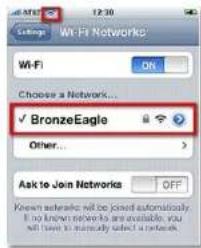
text_image
Wi-Fi Networks Choose a Network... ✓ BronzeEagle Other... Ask to Join Networks OFF Known networks will be joined automatically. If no known networks are available, you will have to successfully select a network.iPhone
text_image
Name your device Show that your device is considered by your reader, then give it a name. Enter a name that will be used to search the device. For example, there's please you select the device (e.g. or if needed). Do not use this device.Especificaciones
Linksys E1200
18,0 ± 1,5 dBm a CH6, 6 Mbps
17,0 ± 1,5 dBm a CH6, 54 Mbps
802.11b:
WPA2, WMM, Wi-Fi Protected
Setup, Windows 7
(Consiga Windows XP Service Pack 3) .....12
Mensaje Your Internet cable is not plugged in
natural_image
Front view of a black electronic device with perforated surface and indicator light, no visible text or symbols on the device itself.text_image
Authentication Required A username and password are testing requested by http://961881.1. User Name: Password: OK Canceltext_image
Language Select your language English Internet Setup Internet Connection Type Automatic Configuration - DHCP Optional Settings (required by some Internet Service Providers) Host Name: Domain Name: MTU Auto Size Network Setup Router Address IP Address: 182 168 1 1 Subset Mask: 285.206.206.0 Device Name: Caused0009 DHCP Server Is Enabled Disabled DHCP Reservation Start IP Address: 182.168.1.100 Maximum Number of Users: 50 IP Address Range: 182.168.1.100 to 149 Client Lease Time: 0 minutes (3 means one day) Static DNS 1: 0 0 0 0 Static DNS 2: 0 0 0 0 Static DNS 3: 0 0 0 0 VMS: 0 0 0 0 Time Settings Time Zone (GNT-08:00) Pacific Time (USA & Canada) Automatically adjust clock for daylight saving charges. Redecid RedecidLanguage (Idioma)
text_image
Network Mode: Mixed Network Name (SSD): Cisco00066 Channel Width: 20 MHz Only Channel: Auto SSD Broadcast Enabled DisabledWPA2/WPA Mixed Mode (Modo WPA2/WPA mixto), WPA2 Personal y WPA Personal
NOTAS
text_image
Security Mode: WEP Encryption: 40-104-88 (15 hex digits) Passphrase Key 1: Key 2: Key 3: Key 4: TX Key: 1 GenerateEncryption (Encriptación) Seleccione un nivel de encriptación WEP, 40/64 bit (10 hex digits) (40/64 bits, 10 dígitos hexadecimales) o 104/128 bit (26 hex digits) (104/128 bits, 26 dígitos hexadecimales). El valor predeterminado es 40/64 bit (10 hex digits) (40/64 bits, 10 dígitos hexadecimales).
text_image
Security Mode: RADIUS RADIUS Server: 0 0 0 0 RADIUS Port: 1812 Shared Key: Encryption: 43 / 54-bit (10 hex digits) Pass/Inase: Key 1: Key 2: Key 3: Key 4: TX Key: 1 Generatetext_image
abdi CSCO Computers and devices Connect and/or computer or other devices to your mode. Parental controls Unlimited access limits and websites Active access Guest access Guest access to console the internal Guest access to the external Router settings Router settings and port users Internal connections are used Change Changetext_image
Our Customer Support Team can help What can you can be connected by all up. Please call your website for the following: http://www.casp.com/10.12345878 You have you to use this platform or to access that two user access, or to access your website directly to your users. Help us your website for your email. Close up More detailsnatural_image
Exterior view of a black rectangular electronic device with perforated grille and indicator light (no visible text or symbols)
text_image
Device rear panel with labeled ports and a highlighted indicator box showing a button or switch.text_image
Get Windows IP Service Pack 2 C:\Users\Windows\IP Service Pack\1. Your website is installed weekly and times in commercial hours. It's not yet available. Please note that this will be used to continue the session.text_image
Your Internet cable is not plugged in To the following: • Make sure the Internet cable is currently plugged into your cable in the yellow port Market "Internet" • Make sure the other end of the Internet cable is currently plugged into your window • Make sure your members is plugged in and powered on • Click Next to try again Last time: 1 new detailstext_image
Your Internet cable is not plugged in Try the following: • Make out the Internet cable to secure plugged into your reader in the yellow port if you have a website! • Make out the other and other Internet cable to secure plugged into your reader. • Make out your reader to plugged in and powered us. • Click Next to try again. Cancel Show before Next step: OK Helptext_image
Cannot access your router You can drive access your router settings when you are connected to your router If you are not connected to Cisco Cape, you can't update your router settings. I can changetext_image
Choose a wireless network Click an item in the list below to connect to a wireless network in range or to get more information. JinsRouter Connected Security-enabled wireless network (WPA2) myhome Security-enabled wireless network Bronzeagle Security-enabled wireless network (WPA2) To connect to this network, click Connect. You might need to enter additional information. Mason Security-enabled wireless network Connecttext_image
Wireless Network Connection The network 'BronzeEagle' requires a network key (also called a WEP key or WPA key). A network key helps prevent unknown intrudes from connecting to this network. Type the key, and then click Connect. Network key: •••••••••••••• Confirm network key: ••••••••••••• Connect Canceltext_image
The network "BronzeEagle" requires a WPA password. Password: ******** Show password Remember this network Cancel OKtext_image
Device not found A new device was not found You can save the device of connected, by the following: • Make sure the device to write images of your video. If it is too far away, the versions signal may not walk • Close Watch in my view WelcomeCONSEJO
text_image
Cisco Computers and devices Connect another computer to offer a device to monitor Close 1.7 seconds to complete your server And devices Parental controls Unlimited access blocks and websites Personal computer with wireless network connections Change Guest access After growth is connected to the internet. Guest access is required to be used in the Internet Router settings Preparation of user with and without the Internet connection to the Internet Router uses a network Change Changetext_image
Cisco Computers and other devices What can you want to connect to your server? Computer Microsoft Groups Other desktops services OK Canceltext_image
Connecting a device No Phosphate smartphone, a single game Console or other wireless device. 1. Refer to the device's documentation to have how to connect it a wireless network. 2. Thus, on the device, use the wireless settings better to connect the device or your mode. Phosphate name (SOS): DOS-6408 Security Type: DOS-6408/CP Security Type: WPS2 or WPS First three settings: Local type 3. Click Next after you comment! Next step? OK Next > Canceltext_image
Wi-Fi settings WI-FI Connected to JmsRouter Network notification Notify me when an open network is available Wi-Fi networks BronzeEagle-guest BronzeEagle WPS Available, secured with WPA/WPA2 PDSAndroid

text_image
Settings Wi-Fi Networks ON Choose a Network... ✓ BronzeEagle Other... Ask to Join Networks OFF Known networks will be joined automatically. If you know networks are available, you will have to manually select a network.iPhone
text_image
Name your device Show that your device is connected to your order, left grant a name Enter a name that will be used to search the device. For example, there's please you check your device (e.g. Test 1) For any other item or user, you can access the device.Especificaciones
Linksys E1200
15,0 ± 1,5 dBm @ CH6, MCS 0\~4, MCS 8\~12
13,5 ± 1,5 dBm @ CH6, MCS 5\~7, MCS 13\~15
802.11n (40 MHz):
14,0 ± 1,5 dBm @ CH6, MCS 0\~4, MCS 8\~12
13,5 ± 1,5 dBm @ CH6, MCS 5\~7, MCS 13\~15
802.11g:
17,0 ± 1,5 dBm @ CH6, MCS 0\~4, MCS 8\~12
16,0 ± 1,5 dBm @ CH6, MCS 5\~7, MCS 13\~15
802.11n (40 MHz):
15,5 ± 1,5 dBm @ CH6, MCS 0\~4, MCS 8\~12
14,0 ± 1,5 dBm @ CH6, MCS 5\~7, MCS 13\~15
802.11g:
18,0 ± 1,5 dBm @ CH6, 6 Mbps
17,0 ± 1,5 dBm @ CH6, 54 Mbps
802.11b:
Your Internet cable is not plugged in
natural_image
Exterior view of a portable electronic device with a circular lens and indicator light (no visible text or symbols)text_image
Authentication Required A username and password are being requested by http://002.68.1.1. User Name: Password: OK Canceltext_image
Setup Menu Options Settings Settings Configuration: 100% Model: 100% System Name: 100% System Name: 100% System Name: 100% System Name: 100% System Name: 100% System Name: 100% System Name: 100% System Name: 100% System Name: 100% System Name: 100% System Name: 100% System Name: 100% System Name: 1,00% System Name: 1,00% System Name: 1,00% System Name: 1,00% System Name: 1,00% System Name: 1,00% System Name: 1,00% System Name: 1,00% System Name: 1,00% System Name: 1,00% System Name: 1,00% System Name: 1,56% System Name: 1,56% System Name: 1,56% System Name: 1,56% System Name: 1,56% System Name: 1,56% System Name: 1,56% System Name: 1,56% System Name: 1,56% System Name: 1,56% System Name: 1,56% System Name: 1,56%text_image
Language Select your language English Internet Setup Internet Connection Type Automatic Configuration - DHCP Optional Settings (required by some Internet Service Providers) Host Name: Domain Name: MTU Auto Size Network Setup Router Address IP Address: 182 168 1 1 Subset Mask: 285.206.206.0 Device Name: Caused0009 DHCP Server Is Enabled Disabled DHCP Reservation Start IP Address: 182.168.1.100 Maximum Number of Users: 50 IP Address Range: 182.168.1.100 to 149 Client Lease Time: 0 minutes (3 means one day) Static DNS 1: 0 0 0 0 Static DNS 2: 0 0 0 0 Static DNS 3: 0 0 0 0 VMS: 0 0 0 0 Time Settings Time Zone (GNT-08:00) Pacific Time (USA & Canada) Automatically adjust clock for daylight saving charges. Redecid RedecidLanguage (Kieli)
WPA2/WPA Mixed Mode, WPA2 Personal, WPA Personal
HUOMAUTUKSIA
WPA2/WPA Enterprise Mixed Mode, WPA2 Enterprise, WPA Enterprise
text_image
Cloud CISCO Computers and devices Connect and/or compute or other devices to your folder Change 1 - 20% (or 30% of the cloud) Add remote Parental controls Local internal access times and websites Parental control Change Guest access In particular to communicate remote Change in remote Router settings Personal computer settings and linkages Internal connections and links Change in remote Change Changetext_image
Our Customer Support team can help I can help you to connect with the other team. Please use your website for the meeting help or to select and/or consider a support team. In addition, you may not be able to follow more or make things that can meet your team, or take your service to access them by your teams. http://www.citiccs.com/soc/123.com User: You: 100% of the user.natural_image
Exterior view of a black electronic device with perforated surface and indicator light (no visible text or symbols)
text_image
Back panel of a network device showing ports, indicators, and a highlighted USB port with red annotationtext_image
Get Windows XP Service Pack 3 You can't want to switch or choose to access the Web Page 1. This will then be installed with any other system resources. To avoid the Web Page 1, you can't switch or choose to access the Web Page 2. You can't switch or choose to access the Web Page 3. You can't switch or choose to access the Web Page 4. You can't switch or choose to access the Web Page 5. You can't switch or choose to access the Web Page 6. You can't switch or choose to access the Web Page 7. You can't switch or choose to access the Web Page 8. You can't switch or choose to access the Web Page 9. You can't switch or choose to access the Web Page 10. You can't switch or choose to access the Web Page 11. You can't switch or choose to access the Web Page 12. You can't switch or choose to access the Web Page 13. You can't switch or choose to access the Web Page 14. You can't switch or choose to access the Web Page 15. You can't switch or choose to access the Web Page 16. You can't switch or choose to access the Web Page 17. You can't switch or choose to access the Web Page 18. You can't switch or choose to access the Web Page 19. You can't switch or choose to access the Web Page 20. You can't switch or choose to access the Web Page 21. You can't switch or choose to access the Web Page 22. You can't switch or choose to access the Web Page 23. You can't switch or choose to access the Web Page 24. You can't switch or choose to access the Web Page 25. You can't switch or choose to access the Web Page 26. You can't switch or choose to access the Web Page 27. You can't switch or choose to access the Web Page 28. You can't switch or choose to access the Web Page 29. You can't switch or choose to access the Web Page 30. You can't switch or choose to access the Web Page 31. You can't switch or choose to access the Web Page 32. You can't switch or choose to access the Web Page 33. You can't switch or choose to access the Web Page 34. You can't switch or choose to access the Web Page 35. You can't switch or choose to access the Web Page 36. You can't switch or choose to access the Web Page 37. You can't switch or choose to access the Web Page 38. You can't switch or choose to access the Web Page 39. You can't switch or choose to access the Web Page 40. You can't switch or choose to access the Web Page 41. You can't switch or choose to access the Web Page 42. You can't switch or choose to access the Web Page 43. You can't switch or choose to access the Web Page 44. You can't switch or choose to access the Web Page 45. You can't switch or choose to access the Web Page 46. You can't switch or choose to access the Web Page 47. You can't switch or choose to access the Web Page 48. You can't switch or choose to access the Web Page 49. You can't switch or choose to access the Web Page 50. You can't switch or choose to access the Web Page 51. You can't switch or choose to access the Web Page 52. You can't switch or choose to access the Web Page 53. You can't switch or choose to access the Web Page 54. You can't switch or choose to access the Web Page 55. You can't switch or choose to access the Web Page 56. You can't switch or choose to access the Web Page 57. You can't switch or choose to access the Web Page 58. You can't switch or choose to access the Web Page 59. You can't switch or choose to access the Web Page 60. You can't switch or choose to access the Web Page 61. You can't switch or choose to access the Web Page 62. You can't switch or choose to access the Web Page 63. You can't switch or choose to access the Web Page 64. You can't switch or choose to access the Web Page 65. You can't switch or choose to access the Web Page 66. You can't switch or choose to access the Web Page 67. You can't switch or choose to access the Web Page 68. You can't switch or choose to access the Web Page 69. You can't switch or choose to access the Web Page 70. You can't switch or choose to access the Web Page 71. You can't switch or choose to access the Web Page 72. You can't switch or choose to access the Web Page 73. You can't switch or choose to access the Web Page 74. You can't switch or choose to access the Web Page 75. You can't switch or choose to access the Web Page 76. You can't switch or choose to access the Web Page 77. You can't switch or choose to access the Web Page 78. You can't switch or choose to access the Web Page 79. You can't switch or choose to access the Web Page 80. You can't switch or choose to access the Web Page 81. You can't switch or choose to access the Web Page 82. You can't switch or choose to access the Web Page 83. You can't switch or choose to access the Web Page 84. You can't switch or choose to access the Web Page 85. You can't switch or choose to access the Web Page 86. You can't switch or choose to access the Web Page 87. You can't switch or choose to access the Web Page 88. You can't switch or choose to access the Web Page 89. You can't switch or choose to access the Web Page 90. You can't switch or choose to access the Web Page 91. You can't switch or choose to access the Web Page 92. You can't switch or choose to access the Web Page 93. You can't switch or choose to access the Web Page 94. You can't switch or choose to access the Web Page 95. You can't switch or choose to access the Web Page 96. You can't switch or choose to access the Web Page 97. You can't switch or choose to access the Web Page 98. You can't switch or choose to access the Web Page 99. You can't switch or choose to access the Web Page 100.text_image
Your Internet cable is not plugged in To the following: • Make sure the Internet cable is instantly plugged into your online in the yellow and blue labeled "Windows" • Make sure the other end of the Internet cable is instantly plugged into your online. • Make sure your modern is plugged in and powered on • Click Next to you again. Last time: 1. Your next!text_image
Your Internet cable is not plugged in Try the following: • Make user the internet cable is securely plugged into your reader in the yellow port following "Internet" • Make user the other and other Internet cable is securely plugged into your reader. • Make user your reader is plugged it and powered on. • Click Next by again.text_image
Cannot access your router You can't access your router settings when you are replaced to your router If you are not connected to Bimacallope you can't spread your router settings Last sessiontext_image
Choose a wireless network Click an item in the list below to connect to a wireless network in range or to get more information. JimiaRouter Connected Security-enabled wireless network (WPA2) myhome Security-enabled wireless network BronzeAgile Security-enabled wireless network (WPA2) To connect to this network, click Connect. You might need to enter additional information. Mason Security-enabled wireless network Connecttext_image
Wireless Network Connection The network 'BronzeEagle' requires a network key (also called a WEP key or WPA key). A network key helps prevent unknown intrudes from connecting to this network. Type the key, and then click Connect. Network key: •••••••••••••• Confirm network key: •••••••••••••• Connect Canceltext_image
The network "BronzeEagle" requires a WPA password. Password: ******** Show password Remember this network Cancel OKtext_image
Device not found • A new device was not found If you're sure the device is connected, by the following: • Write any the device without any range of your mode. If it has a way, the remote. • Signal that will not use. • Click Next to buy items AvailableVIHJE
text_image
Cisco Computers and devices Connect another computer to other devices to host router Change: 12% (not available on the website) Add buttons Parental controls Unif internal access links and websites Parental connections with wireless link settings To hosts Change Guest access Allow goods to connect the Internet Remove a network of IPs Remove the network of Internet Delete Change Router settings Remove router settings and host your Internet connection settings Remove the network Change ChangeLinksys E-Series
Vianmääritys
text_image
DOS-1999 Computers and other devices What do you want to connect to your user? Computer How do you want to connect Windows folder In connection to the user Other wireless devices In connection to the user, please contact your computer.text_image
Connecting a device As Phosoft smartphone, a video game Console. In other wireless devices 1. Refer to the client's documentation to learn how to connect it to a wireless network. 2. Then, on the device, use the wireless settings network to connect the device to your users. Network name (SIN): Apache Security Type: DHCP Security Type: WPA Print these settings: Linux 3. Click Next after you click! Need help? OK Cancel Helptext_image
Wi-Fi settings WI-FI Connected to JmsRouter Network notification Notify me when an open network is available Wi-Fi networks BronzeEagle-guest BronzeEagle WPS Available, secured with WPA/WPA2 PSKAndroid

text_image
Wt-FI Networks Choose a Network... ✓ BronzeEagle Other... Ask to Join Networks OFF Known networks will be joined automatically. If known networks are available, you will have to manually select a network.iPhone
text_image
Disk Connect Disk CSCO Name your device Now that your device is connected by your folder, will give it a name. Enter to name that will be used (it is worth the device. For example, this's phase of Fuzzy user PC... Cloud 8 For the same time you want to use.Tekniset tiedot
Linksys E1200
Mallinimi Linksys E1200
15,0 ± 1,5 dBm @ CH6, MCS 0\~4, MCS 8\~12
13,5 ± 1,5 dBm @ CH6, MCS 5\~7, MCS 13\~15
802.11n (40 MHz):
14,0 ± 1,5 dBm @ CH6, MCS 0\~4, MCS 8\~12
13,5 ± 1,5 dBm @ CH6, MCS 5\~7, MCS 13\~15
802.11g:
17,0 ± 1,5 dBm @ CH6, MCS 0\~4, MCS 8\~12
16,0 ± 1,5 dBm @ CH6, MCS 5\~7, MCS 13\~15
802.11n (40 MHz):
15,5 ± 1,5 dBm @ CH6, MCS 0\~4, MCS 8\~12
14,0 ± 1,5 dBm @ CH6, MCS 5\~7, MCS 13\~15
802.11g:
18,0 ± 1,5 dBm @ CH6, 6 Mbps
17,0 ± 1,5 dBm @ CH6, 54 Mbps
802.11b:
18,0 ± 1,5 dBm @ CH6, kaikki nopeudet
Antennivahvistus ≤3,0 dBi, ≤4,0 dBi, ≤4,5 dBi
(3 antenna)
UPnP Tuettu
Langaton suojaus Wi-Fi Protected Access 2 (WPA2),
WEP, langaton MAC-suodatus
Message Your Internet cable is not plugged in
Message Cannot access your router
natural_image
Exterior view of a black rectangular electronic device with perforated surface and indicator lights (no visible text or symbols)text_image
Authentication Request A username and password are being requested by http://587.661.1. User Name: Password: OK Canceltext_image
Language Select your language English Internet Setup Internet Connection Type Automatic Configuration - DHCP Optional Settings (required by some Internet Service Providers) Host Name: Domain Name: MTU Auto Size 1100 Network Setup Router Address IP Address: 162 163 1 1 Socket Mask: 255.255.255.0 Device Name: Cacc400009 DHCP Server Used IP Address: 162.163.1.100 Maximum Number of Users: 50 IP Address Range: 162.163.1.100 to 149 Client Lease Time: 0 minutes (0 means one day) Static DNS 1: 0 0 0 0 Static DNS 2: 0 0 0 0 Static DNS 3: 0 0 0 0 WBS: 0 0 0 0 Time Settings Time Zone (GW7-08-08) Pacific Time (USA & Canada) Automatically adjust clock for daylight saving charges. Reload RefreshLanguage (Langue)
Telstra Cable (Câble Telstra)
text_image
Network Mode: Mixed Network Name (SSD): Cisco00056 Channel Width: 20 MHz Only Channel: Auto SSD Broadcast: Enabled DisabledWPA2/WPA mode mixte, WPA2 personnel, WPA personnel
REMARQUES
text_image
Security Mode: WBP Encryption: 40 / 64-88 (10 hex digits) Praeptraser: Key 1: Key 2: Key 3: Key 4: TX Key: 1 Generatetext_image
Cloud CSCO Computers and devices Connect and/or compute of other devices to your mode. Primary / 100% access to your mode Parental controls Uninternal access times and websites Parental control Primary / 100% access to your mode Primary / 100% access to your mode Guest access If required to console the remote Guest access to your mode Guest access to your mode Router settings Functional access settings and help you Isolated/compatible, used Primary / 100% access to your mode Router settings Primary / 100% access to your modetext_image
Our Customer Support team can help How much you can choose the help Please use your website for the Company's help to get and click a customer support team. You may have a link to a relevant computer to make your help. We need to access, to ensure your own access, or to help you. Help Home (e) or (e) your support team. Copyright: 100% Organicnatural_image
Exterior view of a black electronic device with ventilation grille and indicator light (no visible text or symbols)
text_image
Back panel of a network device showing ports, switches, and a highlighted indicator with a red box.text_image
Get Windows XP Service Pack 3 I can't have a version of the Service Pack 3. The website is installed using and/or any communication. To avoid any other (or any other) Windows Services or Web You have a version of the Service Pack 3. It will not use any computer or other which will continue to use this service. You may also use this service. To access the Windows System, your computer needs to recommend it to provide.text_image
Your Internet cable is not plugged in To the following: • Make sure the Internet cable is instantly plugged into your online in the yellow and blue labeled "Windows" • Make sure the other end of the Internet cable is instantly plugged into your online. • Make sure your modern is plugged in and powered on • Click Next to you again. Last time: 1. Your next!text_image
Your Internet cable is not plugged in Try the following: • Make user the internet cable is securely plugged into your reader in the yellow port following "Internet" • Make user the other and other Internet cable is securely plugged into your reader. • Make user your reader is plugged it and powered on. • Click Next by again.text_image
Cannot access your router You can't access your router settings when you are replaced to your router If you are not connected to Bimacallope you can't spread your router settings Last time Save here!text_image
Choose a wireless network Click an item in the list below to connect to a wireless network in range or to get more information. JimiaRouter Connected Security-enabled wireless network (WPA2) myhome Security-enabled wireless network BronzeAgile Security-enabled wireless network (WPA2) To connect to this network, click Connect. You might need to enter additional information. Mason Security-enabled wireless network Connecttext_image
Wireless Network Connection The network 'BronzeEagle' requires a network key (also called a WEP key or WPA key). A network key helps prevent unknown intruders from connecting to this network. Type the key, and then click Connect. Network key: ••••••••••••• Confirm network key: ••••••••••••• Connect Canceltext_image
The network "BronzeEagle" requires a WPA password. Password: ******** Show password Remember this network Cancel OKtext_image
Device not found A new device was not found If you're sure the device is connected, by the following: • Write out the device in written image of your user. It's best to view, the website original and read. • Click Next for my system Last session Next page HelpASTUCE
text_image
Cisco Computers and devices Connect and/or compute to offer device to your router. Add device Parental controls Unilateral access devices and websites To ensure that the system is connected to existing services To ensure Change Guest access Allow requests to connect the internal Guest access to the external Guest access to the external Router settings Customized network settings and host server External network settings Router settings to the external Change Change GoogleLinksys Série E
Dépannage
text_image
Cisco Computers and other devices What can you want to connect to your server? Computer Microsoft server Other wireless services Do you have a new device, or your server needs to access.text_image
dvsio CISCO Connecting a device As Phosoft switches, podless game console, or other wireless device 1. Refer to the device's documentation to each other to connect it in a networking network. 2. Then, on the device, use the wireless settings below to connect the device to your name. Network name (S300) Broadcast type Security Type BL-BMM-CP Security Type WFA2 - WFA Print file settings Local info 3. Click Next after you connect Next help? OK Next > Canceltext_image
Wi-Fi settings WI-FI Connected to JmsRouter Network notification Notify me when an open network is available Wi-Fi networks BronzeEagle-guest BronzeEagle WPS Available, secured with WPA/WPA2 PDSAndroid

text_image
Settings Wi-Fi Networks ON Choose a Network... ✓ BronzeEagle Other... Ask to Join Networks OFF Known networks will be joined automatically. If you know networks are available, you will have to manually select a network.iPhone
text_image
Name your device How that your device is connected to your reader, will give it a name. Enter a name that will be used to switch the device. For example, from please you want PC. You can Do you with this device.Spécifications
Linksys E1200
Certifications FCC, UL/cUL, ICES-003, RSS210, CE, Wi-Fi (IEEE 802.11b/g), WPA2™, WMM,®, Wi-Fi Protected Setup™, Windows 7
Voyants Alimentation / Wi-Fi Protected Setup, Internet, Ethernet (1-4)
Certifications FCC, UL/cUL, ICES-003, RSS210,
CE, Wi-Fi (IEEE 802.11b/g/n),
WPA2, WMM, Wi-Fi Protected
Setup, Windows 7
commutation 10/100/1 000 Mbits/s (Gigabit Ethernet)
Ports Alimentation, USB, Internet, Ethernet (1-4)
Boutons Réinitialisation, Wi-Fi Protected Setup
Message Your Internet cable is not plugged in
Message Cannot access your router
natural_image
Exterior view of a black rectangular electronic device with ventilation grille and indicator lights (no text or symbols visible)text_image
Authentication Required A certificate and password are being requested to http://10.1083.1. User Name: Password: OK Canceltext_image
Language Select your language English Internet Setup Internet Connection Type Automatic Configuration - DHCP Optional Settings (required by some Internet Service Providers) Host name: Domain Name: info: Auto Size Network Setup Router Address IP Address: 192 168 1 1 Subnet Mask: 205 205 205.0 Device Name: Dec00009 DHCP Server DHF Server DHF Address: 192 168 1 100 Maximum Number of Lines: 50 IP Address Range: 192 168 1 100 to 149 Client Lease Time: 0 minutes (if means one day) State DNS 1: 0 0 0 0 State DNS 2: 0 0 0 0 State DNS 3: 0 0 0 0 VMS: 0 0 0 0 Time Settings Time Zone (SHT-08-03) Pacific Time (USA & Canada) Automatically adjust click for daylight saving charges Timeout ReturnLanguage (Langue)
Telstra Cable (Câble Telstra)
text_image
Network Mode: Mixed Network Name (SSD): Cisco00056 Channel Width: 20 MHz Only Channel: Auto SSD Broadcast Enabled Disabledtext_image
disks CISCO Computers and devices Connect with computer to other tools in your home. Parental controls Get virtual hardware to your own user Guest access Ask quick access to the server Use a smart device to access Other Router settings Make remote to the server or the other Use all components to access Change Canceltext_image
Our Customer Support Learn can help Your help is to be supporting us up. Please call to request the customer support system to check with a customer's support environment. The user may not have an additional computer or other device that can be offered enough, or should not use any other device to access your own website. My Computer Support Learn can help you Yes? Yes? Yes? Yes?natural_image
Illustration of a portable electronic device with a circular lens and ventilation grille (no text or symbols visible)
natural_image
Back view of a network device showing ports, switches, and a highlighted indicator (no readable text or symbols)text_image
Get Windows XP Service Pack 3 This will be completed by the Windows XP Service Pack. It is not possible to create any other version of the Windows XP Service Pack. To create this version, please note that this version is currently available.text_image
Your Internet cable is not plugged in To be following: • While your cable is not plugged into security plugged into your order to the public part • Updated "Internet" • Have been the first part of the Internet cable is not only plugged into your "Internet" • There are your cable that plugged in and opened on • Here Next to try again Next Page? Next Steptext_image
Your Internet cable is not plugged in Do the following: • Write user the Internet cable is currently plugged into your nodes in the printed part followed "Internet" • Write user the other end of the Internet cable is currently plugged into your islands • Write user your email or a plugged in and password on • Close Next to it open. Next > Canceltext_image
CSCO Cannot access your routes You can only access your route settings when you are cancelled to your route. If you are not connected to a local route, you can access your route settings. Access your routestext_image
Choose a wireless network Click an item in the list below to connect to a wireless network in range or to get more information. Amelluster Connected Security-enabled wireless network (MPA2) myhome Security-enabled wireless network Brouquet Eagle Security-enabled wireless network (MPA2) To connect to the network, click Connect. You might need to enter additional information. Plavon Security-enabled wireless network Connecttext_image
Wireless Network Connection The network "BronzeEagle" requires a network key (also called a WEP key or WPA key). A network key helps prevent unknown intruders from connecting to the network. Type the key, and then click Connect. Network key: ************ Confirm network key: ************ Connect Canceltext_image
The network "BronzeEagle" requires a WPA password. Password: ******** Show password Remember this network Cancel OKtext_image
Disk Connect dStudio cisco Device not found A free disk will add disk to If you can the disk in connection by the following: • This says: The disk is within the top of your disk. If this is always, the disk • This is not used. • This is fixed in this disk. [ ] 100%CONSEIL
text_image
Cisco Computers and devices Computer and device to compute the other service to ensure it is necessary. Parental controls Computer and device to compute the other service to ensure it is necessary. Queue access Other details can be used for further details. Queue access to the computer Queue access to the server Router settings Computer and device to compute the other service Router access to the server Change Change StartLinksys série E
Dépannage
text_image
CISCO Computers and other devices Windows 2.0 (aspired by desktop) or other devices Computer Windows security Other desktop devicestext_image
Connecting a device • Use the device to create a new device, or use the device to access existing devices. • Use the device to create a new device, or use the device to access existing devices. Network name (0103): Microsoft Iraq Design type: Microsoft Iraq Security Type: MSN2 or MSN Total Power settings: Custom mode • Click Next by you cannot. Next step? Next Step Next Steptext_image
Wi-Fi settings Wi-Fi Connected to JamsRouter Network notification Notify me when an open network is available Wi-Fi networks BronzeEagle-guest BronzeEagle WPS Available, secured with WPA/WTA2 PWRAndroid

text_image
Wi-Fi Networks Choose a Network... ✓ BronzeEagle Other... Ask to Join Networks OK OFFiPhone
text_image
Cisco Name your device Name: 100% or 100% or 100% or 100% or 100% or 100% or 100% or 100% or 100% or 100% or 100% or 100% or 100% or 100% or 100% or 100% or 100% or 10 Name is known that will be used by the computer, but not used for any other system. The system is not an open source. Please note that this is not available to any other system. Please click this link to you in a local context.Spécifications
Linksys E1200
Homologations FCC, UL/cUL, ICES-003, RSS210,
CE, Wi-Fi (IEEE 802.11b/g/n),
WPA2
^MC , WMM ^ND , Wi-Fi Protected
Setup, Windows 7
natural_image
Exterior view of a portable electronic device with ventilation grille and indicator light (no visible text or symbols)text_image
Authentication Required A username and password are being requested by http://81.881.1. User Name: Password: OK Canceltext_image
Language Select your language English Internet Setup Internet Connection Type Automatic Configuration - DHCP Optional Settings (required by some Internet Service Providers) Host Name: Domain Name: MTU Auto Size 1100 Network Setup Router Address IP Address: 182 168 1 1 Subset Mask: 265.265.265.0 Device Name: Ccsd00009 DHCP Server Enabled Disabled DHCP Reservation Start IP Address: 182.182.1.100 Maximum Number of Users: 50 IP Address Range: 182.182.1.100 to 149 Client Lease Time: 0 minutes (0 means one day) Static DNS 1: 0 0 0 0 Static DNS 2: 0 0 0 0 Static DNS 3: 0 0 0 0 Wds: 0 0 0 0 0 Time Settings Time Zone (GW7-08:00) Psache Time (USA & Canada) Automatically adjust clock for daylight saving changes. Reload ReloadLanguage (Γλώσσα)
text_image
Network Mode: Mixed Network Name (SSID): Cisco00066 Channel Width: 20 MHz Only Channel: Auto SSID Broadcast: Enabled Disabledtext_image
Security Mode: WPA2/WWFA Enterprise Mixed Mode RADIUS Server: 0 0 0 0 RADIUS Port: 1012 Shared Key:text_image
Security Mode: WBP Encryption: 40 / 64-68 (10 hex digits) Paraphrase: Key 1: Key 2: Key 3: Key 4: TX Key: 1 Generatetext_image
abdev ciso Computers and devices Control addition computer to other device ficial router Parental controls Unlimited access times and velocities Parental control to the devices are being applied to 1 device Auto Devices Change Guest access Allegends to connected the internal User access (user) User access to the internal User access (user) Router settings Parameters reduce settings and not your user (user only). Users Router uses to be networking Change Change OKtext_image
Our Customer Support Teams can help Your email team is not participating in help Please use the email for your following types of the email and a Customer Support username. You may have to use a specific email or email format that may be used to access, or contain your password directly to your email. http://www.elsevier.com/103.com Contact Email: 025-86329 © 2017natural_image
Exterior view of a black rectangular electronic device with ventilation grille and indicator lights (no visible text or symbols)
text_image
Back panel of a network device showing ports, drive buttons, and indicator lights with Chinese labelstext_image
Get Windows XP Service Pack 3 This version is available for the Services Package. This version is provided by Windows XP Service Pack, which contains a file named 'Windows XP Service Pack'. It is also available to Windows XP Service Pack as follows: - Using Open to a Microsoft Office (or any other local) or any other external service (including other services). The system is not currently closed or closed in any way to access to the Web page. - Downloaded the Web page on the Web page. - To secure the Windows XP Service kit, you complete and will continue to be done.text_image
DOSI cisco Your Internet cable is not plugged in To the following: • Make sure the Internet cable is securely plugged into your cable in the yellow and blue network "Windows" • Make sure the other end of the Internet cable is securely plugged into your cable: • Make sure your cable is plugged in any password on: • iOS Next to try again Last session: 100 times Note: No Next: 100 Canceltext_image
Youth CISCO Your Internet cable is not plugged in To the following: • Make sure the Internet cable is necessary plugged into your home in the yellow port. In addition "Internet" • Make sure the other and other Internet cables is necessary plugged into your mode. • Make sure your mode is plugged in and powered on. • Click Next to buy back. Cancel OK Cancel Add Cancel Add Cancel Add Cancel Add Cancel Add Cancel Add Cancel Add Cancel Add Cancel Add Cancel Add Cancel Add Cancel Add Cancel Add Cancel Add Cancel Add Cancel Add Cancel Add Cancel Add Cancel Add Cancel Add Cancel Add Cancel Add Cancel Add Cancel Add Cancel Add Cancel Add Cancel Add Cancel Add Cancel Add Cancel Add Cancel Add Cancel Add Cancel Add Cancel Add Next page Save As Canceltext_image
Cannot access your router You can't access your router settings when you are connected your router. If you are not connected to Broadcom, you can't open your router settings. I have been done.text_image
Choose a wireless network Click an fan in the list below to connect to a wireless network in range or to get more information. JinsRouter Connected Security-enabled wireless network (WPA2) myhome Security-enabled wireless network Bronzealagle Security-enabled wireless network (WPA2) To connect to the network, Click Connect. You might need to enter additional information Mason Security-enabled wireless network Connecttext_image
Wireless Network Connection The network 'BronzeEagle' requires a network key (also called a WEP key or WPA key). A network key helps prevent unknown intruders from connecting to this network. Type the key, and then click Connect. Network key: ••••••••••••• Confirm network key: ••••••••••••• Connect Canceltext_image
(Charged) AirPort: On Turn AirPort Off ✓JimsRouter Home BronzeEagle BronzeEagle-guest Penguin RD Join Other Network... Create Network... Open Network Preferences...text_image
The network "BronzeEagle" requires a WPA password. Password: ********** Show password Remember this network Cancel OKtext_image
Device not found A new device was not found If you're sure the device is connected, by the following: • Make some the device to neither range of your water. If it's too bad, the version • Sign-off or not read. • Build Excel by any Next page? OK Cancel FinishΣΥΜΒΟΥΛΗ
text_image
Other Cisco Computers and devices Connect and/or computer or other devices by the reader. Add device Parental controls Unlimited access links and websites Parental control functions are being applied to user. Change Guest access After visits to connected Internet Guest access to the Computer system (e.g. Windows 2007) Change Router settings Personal server settings and test your Internal computer settings Personal server settings Change ChangeLinksys Σειρά Ε
text_image
Disk cSCO Computers and other devices What can you want to connect by your website? Computer or any other device in this case Hardware folder or any other device in this case Other wireless devices or any other device in this case or other networking Next help? OK Canceltext_image
Connecting a device As Phosoft smartphone, a video game console or other wireless devices 1. Refer to the device documentation to learn how to connect it by a wireless network. 2. Thus, on the device, use the wireless settings below to connect the device to your mode. Network name (SIP): BrocatGraph Security Type: Wi-Fi/Hi-Fi Security Type: Wi-Fi/Hi-Fi Product name (SIP): Lumenware 3. Click Next after you commenttext_image
Wi-Fi settings Connected to JmsRouter Network notification Notify me when an open network is available Wi-Fi networks BronzeEagle-guest BronzeEagle RTPS Available, secured with WPM/WPA2 PSK 1:37 pm Settings Wi-Fi Networks Wi-Fi ON Choose a Network... ✓ BronzeEagle Other... Ask to Join Networks OFF Known networks will be joined automatically. If no known networks are available, you will have to correctly select a network.Android
iPhone
text_image
Cisco Cloud CSCO Name your device Note that your device is connected to your reader, let's give it a name. Show a name that will be listed to access the device. For example, My or please in TCP server PC. CSCO 1 No more details are needed.Προδιαγραφές
Linksys E1200
Your Internet cable is not plugged in
natural_image
Exterior view of a black electronic device with a circular light source and indicator lights (no visible text or symbols)text_image
Authentication Required A username and password are being requested by http://582.668.1.1 User Name: Password: OK Canceltext_image
Setup Design Layout Settings Settings & Settings Settings & Settings Settings & Settings Settings & Settings Settings & Settings Settings & Settings Settings & Settings Settings & Settings Settings & Settings Settings & Settings Settings & Settings Settings & Settings Settings & Settings Settings & Settings Settings & Settings Settings & Settings Settings & Settings Settings & Settings Settings & Settings Settings & Settings Settings & Settings Settings & Settings Settings & Settings Settings & Settings Settings & Settings Settings & Patterns Settings & Patterns Settings & Patterns Settings & Patterns Settings & Patterns Settings & Patterns Settings & Patterns Settings & Patterns Settings & Patterns Settings & Patterns Settings & Patterns Settings & Patterns Settings & Patterns Settings & Patterns Settings & Patterns Settings & Patterns Settings & Patterns Settings & Patterns Settings & Patterns Settings & Patterns Settings & Patterns Settings & Patterns Settings & Patterns Settings & Patterns Settings & Patterns Settings & Settingstext_image
Language Select your language English Internet Setup Internet Connection Type Automatic Configuration - DHCP Optional Settings (required by some Internet Service Providers) Host Name: Domain Name: MTP Auto Size 100 Network Setup Router Address IP Address: 182 168 1 1 Submit Mask: 285.206.206.0 Device Name: Caused00009 DHCP Server IP Address: 182 168 1 100 Maximum Number of Users: 50 IP Address Range: 182 168 1 100 to 149 Client Lease Time: 0 minutes (3 times one day) State DNS 1: 0 0 0 0 State DNS 2: 0 0 0 0 State DNS 3: 0 0 0 0 WNS: 0 0 0 0 Time Settings Time Zone (GHT-08:00) Pacific Time (USA & Canada) ✓ Automatically adjust clock for daylight saving charges. Redoool RedooolLanguage (Nyelv)
text_image
Network Mode: Mixed Network Name (SSD): Cisco00056 Channel Width: 20 MHz Only Channel: Auto SSD Broadcast Enabled DisabledWPA2/WPA Mixed Mode, WPA2 Personal, WPA Personal
MEGJEGYZÉSEK
WPA2/WPA Enterprise Mixed Mode, WPA2 Enterprise, WPA Enterprise
text_image
Security Mode: WEP Encryption: 40 / 64-88 (10 hex digits) Paraphrase: Key 1: Key 2: Key 3: Key 4: TX Key: 1 Generatetext_image
Cisco Computers and devices Connect and/or communicate of other devices to the server. Apply device Parental controls Unlimited access lines and wireless Connect with or without connecting to the server. Change Guest access Please focus on connected to the server. Change Router settings Personal control settings and/or remote network connections Change Change COMPUTERtext_image
Our Customer Support Team can help Please check you to continue through it.natural_image
Exterior view of a black electronic device with ventilation grille and indicator light (no visible text or symbols)
natural_image
Back view of a computer interface with ports and a highlighted button (no readable text or symbols)text_image
Get Windows XP Service Pack 3 This will not want to add or delete the version of the Web Services. It is recommended that this will be used to create a new version of the Web Services application. You can also use a new version of the Web Services application in your own system. You may have to increase the Web Services version and do not change your computer name. You are currently having been used to create a new version of the Web Services application in your own system. Command you to add or delete the Web Services application in your own system. To access the Web Services Application, you can complete and/or recommend to use the Web Services application in your own system.text_image
distrib CISCO Your Internet cable is not plugged in To the following: • Make sure the Internet cable is securely plugged into your online in the yellow pad <|vision_start|> it's "user" • Make sure the other and if the Internet cable is securely plugged into your modes. • Make sure your mode is plugged in and password are • Click Next to any again. Last time: 100 seconds Next step: Next 2nd Next Pagetext_image
Your Internet cable is not plugged in By the following: • More can use the Internet cable in security plugged into your status in the yellow and blue • Make a new Internet cable to secure plugged into your system. • More can use your network or plugged in and powered me. • Close Next to by again. Comments: Use next button Next 12: Canceltext_image
Cannot access your router You can only access your router settings when you are connected to your router. If you are not connected to Facebook hope you can't update your router settings Save this!text_image
Choose a wireless network Click an link in the list below to connect to a wireless network in range or to get more information. JinsRouter Connected Security-enabled wireless network (WPA2) myhome Security-enabled wireless network Bronzeagle Security-enabled wireless network (WPA2) To connect to this network, click Connect. You might need to enter additional information Mason Security-enabled wireless network Connecttext_image
Wireless Network Connection The network "BronzeEagle" requires a network key (also called a WEP key or WPA key). A network key helps prevent unknown intrudes from connecting to the network. Type the key, and then click Connect. Network key: ************ Confirm network key: ************ Connect Canceltext_image
The network "BronzeEagle" requires a WPA password. Password: ******** Show password Remember this network Cancel OKtext_image
Device not found A new device was not found If you're sure the device is connected, by the following: • Make over the device in another range of your user. It's not too long, the version • Signal must not miss. • Data Required by type Load more ReadyTIPP
text_image
Cisco Computers and devices Connect and/or compute to offer device to your router. Add device Parental controls Unilateral access devices and websites To ensure that the system is connected to existing services To ensure Change Guest access Allow requests to connect the internal Guest access to the external Guest access to the external Router settings Customized network settings and host server External network settings Router settings to the external Change Change GoogleLinksys E sorozat
Hibaelhárítás
text_image
DOSI cisco Computers and other devices NOTE: You want to continue to your website? Computer Windows printer Other services technologytext_image
Connecting a device As Phawell switches, a video game console, or other wireless device. 1. Refer to the device's documentation or next page to connect it for a wireless network. 2. Then, on the device, use the wireless settings below the current device to your users. Network name (G800): Cisco-Logb Security Type: Wi-Fi/HiA/J: Security Type: Wi-Fi2 or WiA Print base settings: Create New 3. Click Next after you connect.text_image
Wi-Fi settings WI-FI Connected to JmsRouter Network notification Notify me when an open network is available Wi-Fi networks BronzeEagle-guest BronzeEagle WPS Available, secured with WPA/WPA2 PSEAndroid

text_image
Wi-Fi Networks Choose a Network... ✓ BronzeEagle Other... Ask to Join Networks OFF Browse networks will be joined automatically. If I'm known networks are available, you will have to manually select a network.iPhone
text_image
Cisco Name your device Now that your device is connected to your reader, it's good a name. Enter a name that will be taken by the device. For example, this phone will be assigned to PC. Read 3 To account in the system.Müszaki adatok
Linksys E1200
15,0 ± 1,5 dBm @ CH6, MCS 0\~4, MCS 8\~12
13,5 ± 1,5 dBm @ CH6, MCS 5\~7, MCS 13\~15
802.11n (40 MHz):
14,0 ± 1,5 dBm @ CH6, MCS 0\~4, MCS 8\~12
13,5 ± 1,5 dBm @ CH6, MCS 5\~7, MCS 13\~15
802.11g:
WPA2™, WMM®, Wi-Fi Protected
Setup, Windows 7
17,0 ± 1,5 dBm @ CH6, MCS 0\~4, MCS 8\~12
16,0 ± 1,5 dBm @ CH6, MCS 5\~7, MCS 13\~15
802.11n (40 MHz):
15,5 ± 1,5 dBm @ CH6, MCS 0\~4, MCS 8\~12
14,0 ± 1,5 dBm @ CH6, MCS 5\~7, MCS 13\~15
802.11g:
18,0 ± 1,5 dBm @ CH6, 6 Mb/s
17,0 ± 1,5 dBm @ CH6, 54 Mb/s
802.11b:
WPA2, WMM, Wi-Fi Protected Setup, Windows 7
Pesan Your Internet cable is not plugged in
(Kabel Internet Anda tidak terhubung)....13
Pesan Cannot access your router
natural_image
Exterior view of a black rectangular electronic device with a circular display and indicator light (no text or symbols visible)Penampilan router Anda mungkin berbeda-beda
text_image
Port Ethernet Port Internet Port days Tombol Wi-Fi Protected Setup Port USB Tombol resettext_image
Authentication Required A certificate and password are setting up to http://10.1083.1. User Name: Password: OK Canceltext_image
Language Select your language English Internet Setup Internet Connection Type Automatic Configuration - DHCP Optional Settings (required by some Internet Service Providers) Host name: Domain Name: info: Auto Size Network Setup Router Address IP Address: 192 168 1 1 Subnet Mask: 205 205 205.0 Device Name: Dec00009 DHCP Server DHF Server Default Disabled DHCP Reservation... Start IP Address: 192 168 1 100 Maximum Number of Lines: 50 IP Address Range: 192 168 1 100 to 149 Client Lease Time: 0 minutes (if means one day) State DNS 1: 0 0 0 0 State DNS 2: 0 0 0 0 State DNS 3: 0 0 0 0 VMS: 0 0 0 0 Time Settings Time Zone (SHT-08-03) Pacific Time (USA & Canada) Automatically adjust click for daylight saving charges Timeout ReturnLanguage (Bahasa)
Static IP (IP Statis)
text_image
Network Mode: Mixed Network Name (SSD): Cisco00056 Channel Width: 20 MHz Only Channel: Auto SSD Broadcast Enabled DisabledWPA2/WPA Mixed Mode (WPA2/WPA Mode Campuran), WPA2 Personal (WPA2 Pribadi), WPA Personal (WPA Pribadi)
CATATAN
WPA2/WPA Enterprise Mixed Mode (WPA2/WPA Enterprise Mode Campuran), WPA2 Enterprise, WPA Enterprise
text_image
CSCO Computers and devices Computer and device in order to monitor control to include it. Parental controls Generated user limits and actions Generated user limits and actions Guest access Device provides more than 50% of the system Computer and device in order to monitor control Router settings Generated user limits and actions Generated user limits and actions Computer and device in order to monitor control Router settings Generated user limits and actions Generated user limits and actions- Klik ganda ikon Cisco Connect.
text_image
Our Customer Support Team can help [My partner can be supporting, let us go] Please check the user to access your support team to the help at a customer's support team. You may have an additional choice or what you can access your support team to the help. You can access your support team to the help. You can access your support team to the help.natural_image
Top-down view of a black electronic device with perforated panel and indicator light (no visible text or symbols)
text_image
1 2 Micro 3 4 USBPenampilan router Anda mungkin berbeda-beda
text_image
Get Windows-IP Service Pack 3 This will be a version of Windows-IP Service Pack 3. This will not change or modify the following functions: 1. To ensure that Windows is currently available to all three services. 2. To ensure that Windows will have been installed in the Internet. 3. To ensure that Windows will have been installed in the Internet. 4. To ensure that Windows will have been installed in the Internet.text_image
Your Internet cable is not plugged in By the following: • Does not use the Internet cable to ensure that you need to play the next button "You will" • Does not use the next and if your Internet cable is continuing to play this your button. • Does not use your computer to play it and prevent it. • Do not play any again. Next step: Next Step1text_image
Your Internet cable is not plugged in To the following: • Make sure the Internet cable to can only plugged into your user in the printed app Internet "Internet" • Make sure the other end of the Internet cable is actually plugged into your user. • Make sure your user to plugged it and allowed us • Click Next to any option. Save now! Cancel Helptext_image
Cannot access your routes You can't miss your router settings when you are connected to your route If you want to complete this network, you can access your route settings. Cancel access Backlog!text_image
Choose a wireless network Click an item in the list below to connect by a wireless network in range or to get more information. Anodisker Connected Security-enabled wireless network (WPAZ) myhome Security-enabled wireless network Browse Eagle Security-enabled wireless network (WPAZ) To connect to the network, click Connect... You might need to enter additional information. Mission Security-enabled wireless network Connect- Jika Anda diminta untuk memasukkan kunci jaringan, ketikkan kata sandi (Kunci Keamanan) Anda ke dalam bidang Network key (Kunci jaringan) dan Confirm network key (Konfirmasi kunci jaringan), kemudian klik Connect (Hubungkan).
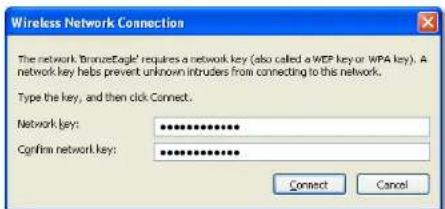
text_image
Wireless Network Connection The network 'BronzeEagle' requires a network key (also called a WEP key or WPA key). A network key helps prevent unknown intruder from connecting to the network. Type the key, and then click Connect. Network key: ************ Confirm network key: ************ Connect Canceltext_image
The network "BronzeEagle" requires a WPA password. Password: ******** Show password Remember this network Cancel OKtext_image
In iOS Comcast CISCO Device not found A new device will not found If you have the device to account, try the following: • While you can do this device to change your device. This is just for any other devices. • Get help you with • Click Next to this device. OK Cancel ApplyTIP
- Jalankan Cisco Connect.

text_image
Cisco Computers and devices Computer and computer to offer price to be used to buy Computer and computer to sell App Store Parental controls Recommended your computer and other Software or related services Options Guzur access Other provides your own help for your System resources. Other provides your own help for your System resources. Router settings Personal needs will help you use your computer System resources for your help. Options Change CancelLinksys E-Series
Pemecahan Masalah
text_image
CISCO Computers and other devices Windows 2.0 (aspired by desktop) or other devices Computer Windows security Other desktop devicestext_image
Connecting a device • Use the device to create a new device, or use the device to access existing devices. • Use the device to create a new device, or use the device to access existing devices. Network name (0103): Microsoft Iraq Design type: Microsoft Iraq Security Type: MSN2 or MSN Total Power settings: Custom mode • Click Next by you cannot. Next step? Next Step Next Steptext_image
Wi-Fi settings Wi-Fi Connected to JamsRouter Network notification Notify me when an open network is available Wi-Fi networks BronzeEagle-guest BronzeEagle WPS Available, secured with WPA/WTA2 PWRAndroid

text_image
Wi-Fi Networks Wi-Fi ON Choose a Network... ✓ BronzeEagle Other... Ask to Join Networks OFF Known networks will be joined automatically. It is known networks and accessible, you will have to normally select a network.iPhone
text_image
DOS CSCO Name your device Please check your email to the DOS CSCO for your account, then get it at any time. Please call you to be found by the DOS, then check for your account. Please you have a very much email address. Email: 123456789 The email will be found at this site.Spesifikasi
Linksys E1200
Nama Model Linksys E1200
Keterangan Router Wireless-N
Nomor Model E1200
Standar 802.11n, 802.11g, 802.11b, 802.3u
Port Daya, Internet, dan Ethernet (1-4)
Tombol Reset, Wi-Fi Protected Setup™
LED Daya/Wi-Fi Protected Setup, Internet, Ethernet (1-4)
Jenis Kabel CAT 5e
Daya Transmisi 802.11n (20 MHz):
15,0 ± 1,5 dBm @ CH6, MCS 0\~4, MCS 8\~12
13,5 ± 1,5 dBm @ CH6, MCS 5\~7, MCS 13\~15
802.11n (40 MHz):
14,0 ± 1,5 dBm @ CH6, MCS 0\~4, MCS 8\~12
13,5 ± 1,5 dBm @ CH6, MCS 5\~7, MCS 13\~15
802.11g:
14,5 ± 1,5 dBm @ CH6, semua peringkat
802.11b:
16,5 ± 1,5 dBm @ CH6, semua peringkat
Penguatan Antena ≤2,5 dBi, ≤4,0 dBi (2 antena)
UPnP Didukung
Keamanan Nirkabel Wi-Fi Protected Access™ 2 (WPA2), WEP, penyaringan MAC nirkabel
Bit Kunci Keamanan Hingga enkripsi 128-bit
Lingkungan
Dimensi 188,7 × 151,7 × 31,2 mm (7,43" × 5,97" × 1,23")
Berat Unit 252,7 g (8,91 oz.)
Daya 12 V, 0,5 A
Sertifikasi FCC, UL/cUL, ICES-003, RSS210,
CE, Wi-Fi (IEEE 802.11b/g/n),
WPA2™, WMM®, Wi-Fi Protected
Setup, Windows 7
Tombol Reset, Wi-Fi Protected Setup
LED Daya/Wi-Fi Protected Setup, Internet, Ethernet (1-4)
Jenis Kabel CAT 5e
Daya Transmisi 802.11n (20 MHz):
17,0 ± 1,5 dBm @ CH6, MCS 0\~4, MCS 8\~12
16,0 ± 1,5 dBm @ CH6, MCS 5\~7, MCS 13\~15
802.11n (40 MHz):
15,5 ± 1,5 dBm @ CH6, MCS 0\~4, MCS 8\~12
14,0 ± 1,5 dBm @ CH6, MCS 5\~7, MCS 13\~15
802.11g:
18,0 ± 1,5 dBm @ CH6, 6 Mbps
17,0 ± 1,5 dBm @ CH6, 54 Mbps
802.11b:
18,0 ± 1,5 dBm @ CH6, semua peringkat
Penguatan Antena ≤3,0 dBi, ≤4,0 dBi, ≤4,5 dBi
(3 antenna)
UPnP Didukung
Keamanan Nirkabel Wi-Fi Protected Access 2 (WPA2), WEP, penyaringan MAC nirkabel
Bit Kunci Keamanan Hingga enkripsi 128-bit
Lingkungan
Dimensi 188,7 × 151,7 × 31,2 mm (7,43" × 5,97" × 1,23")
Berat Unit 254,1g (8,96 oz.)
Daya 12 V, 0.5 A
Sertifikasi FCC, UL/cUL, ICES-003, RSS210,
CE, Wi-Fi (IEEE 802.11b/g/n),
WPA2, WMM, Wi-Fi Protected Setup, Windows 7
Suhu Pengoperasian 0 hingga 40^ (32 hingga 104^ )
Tombol Reset, Wi-Fi Protected Setup
LED Daya, Ethernet (1-4)
Modulasi 802.11b: CCK, QPSK, BPSK
802.11g: OFDM
802.11a: OFDM
802.11n: BPSK, QPSK, 16-QAM, 64-QAM
Sensitivitas Penerimaan 2,4 GHz
802.11b: -87 dBm @ 11 Mbps (Tipikal)
802.11g: -77 dBm @ 54 Mbps (Tipikal)
802.11n (20 MHz): -71 dBm @ MCS15 (Tipikal)
802.11n (40 MHz): -68 dBm @ MCS15 (Tipikal)
5 GHz
802.11a: -75 dBm @ 54 Mbps (Tipikal)
802.11n 20 MHz: -70 dBm @ MCS15 (Tipikal)
802.11n 40 MHz: -67 dBm @ MCS15 (Tipikal)
Penguatan Antena 2,4 GHz (Antena Dua-Kutub)
Antena 1 ≤ 3 dBi
Antena 2 ≤ 4 dBi
Antena 3 ≤ 4 dBi
5 GHz (Antena Dua-Kutub)
Antena 1 ≤ 4,5 dBi
Antena 2 ≤ 4,5 dBi
Antena 3 ≤ 4,5 dBi
UPnP
Didukung
Fitur keamanan
WEP, WPA, WPA2
Bit kunci keamanan
Hingga enkripsi 128-bit
Tombol Reset, Wi-Fi Protected Setup
LED Panel atas: Daya
Panel belakang: Internet, Ethernet (1-4)
FCC, IC, CE, Wi-Fi a/b/g/n,
Windows 7
Suhu Pengoperasian
Wireless > Basic Wireless Settings
Wireless > Wireless Security (Protezione wireless) .....8
Opzioni Personal 8
Opzioni Office 8
Messaggio Your Internet cable is not plugged in
Messaggio Cannot access your router
(Impossibile accedere al router) .....14
natural_image
Exterior view of a black electronic device with a light source and ventilation grille (no visible text or symbols)text_image
Authentication Required A username and password are being requested by http://00.168.1.1. User Name: Password: OK Canceltext_image
CSCO Setup Name: Design Settings Settings Settings Settings Settings Settings Settings Settings Settings Settings Settings Settings Settings Settings Settings Settings Settings Settings Settings Settings Settings Settings Settings Settings Settings Settings Settings Settings Settings Settings Settings Settings Settings Settings Settings Settings Settings Settings Settings Settings Settings Settings Settings Settings Settings Settings Settings Settings Settings Settings Instructions Instructions Instructions Instructions Instructions Instructions Instructions Instructions Instructions Instructions Instructions Instructions Instructions Instructions Instructions Instructions Instructions Instructions Instructions Instructions Instructions Instructions Instructions Instructions Instructions Instructions Instructions Instructions Instructions Instructions Instructions Instructions Instructions Instructions Instructions Instructions Instructions Instructions Instructions Instructions Instructions Instructions Instructions Instructions Instructions Instructions Instructions Instructions Instructions Instructions Positions: Windows\ Windows\ Other\ Language\ Language\ Language\ Language\ Language\ Language\ Language\ Language\ Language\ Language\ Language\ Language\ Language\ Language\ Language\ Language\ Language\ Language\ Language\ Language\ Language\ Language\ Language\ Language\ Language\ Language\ Language\ Language\ Language\ Language\ Language\ Language\ Language\ Language\ Language\ Language\ Language\ Language\ Language\ Language\ Language\ Language\ Language\ Language\ Language\ Language\ Language\ Language\ Language\ Language\ Currency: 100.000.000.000.000.000.000.000.000.000.000.000.000.000.000.000.000.000.000.000.000.000.000.000.000.000.text_image
Language Select your language English Internet Setup Internet Connection Type Automatic Configurations - DHCP Optional Settings (required by some Internet Service Providers) Host Name: Domain Name: MTU Auto Size Network Setup Router Address IP Address: 182 160 1 1 Subset Mask: 269.268.260.0 Device Name: Cisco00009 DHCP Server Gettled Disabled DHCP Reservation... Begin IP Address: 182.183.1.100 Maximum Number of Users: 50 IP Address Range: 182.183.1.100 to 149 Client Lease Time: 0 minutes (if means one day.) Static DNS 1: 0 0 0 0 Static DNS 2: 0 0 0 0 Static DNS 3: 0 0 0 0 Weld: 0 0 0 0 Time Settings Time Zone (Off-08-08) Pacific Time (USA & Canada) ✓ Automatically adjust clock for daylight serving changes. Refool RefoolLanguage (Lingua)
Static IP (IP statico)
Telstra Cable (Cavo Telstra)
text_image
Network Mode: Mixed Network Name (SSD): Cisco00066 Channel Width: 20 MHz Only Channel: Auto SSD Broadcast Enabled DisabledWireless > Wireless Security (Protezione wireless)
WPA2/WPA Mixed Mode (Modalità mista WPA2/WPA), WPA2 Personal, WPA Personal
NOTE
WPA2/WPA Enterprise Mixed Mode (Modalità mista WPA2/WPA Enterprise), WPA2 Enterprise, WPA Enterprise
text_image
Security Mode: WEP Encryption: 40 / 64-88 (15 hex digits) Paraphrase: Key 1: Key 2: Key 3: Key 4: TX Key: 1 Generatetext_image
abdi CSCO Computers and devices Connect and/or compute of abdi devices to test device. Add hardware Parental controls Unlimited access hardware and websites Create virtual network resources (e.g. 1 device) Change Guest access Make progress to communicate the internal Create user access to the server Cluster settings Personalized network settings and first user is directly connected user Change Cluster settings Personalized network settings and first user is directly connected user Change Deletetext_image
Our Customer Support team can help Please check your website for the following sites in the order with a customer support team: In addition, you may have to be allowed to perform or make place that can change access, or better than you should change it, by your customers. http://www.citicss.com/10.1234 User: You: 10.1234natural_image
Exterior view of a black electronic device with ventilation grille and indicator lights (no visible text or symbols)
text_image
Back panel of a network device showing ports, switches, and a highlighted indicator box with a red arrow.text_image
Get Windows XP Service Pack 3 This version should be installed in the first 3 weeks. The installed standard security and system must be implemented. To ensure that this version is available for the Windows Service Pack. You may have to install these versions by using or setting your computer name. It will also be installed in the Windows Service Pack as well as it is required. To secure the Windows XP Service Pack, you can complete and be appropriate to access.text_image
Your Internet cable is not plugged in By the following: • Make sure the Internet cable is not only plugged into your online in the website or Internet "Internet" • Make sure the other and of the Internet cable is not only plugged into your online • Make sure your reader is plugged in and powerful on • Use that to try again Last time: 1 year default Next pagetext_image
Your Internet cable is not plugged in To be following: • More can the internet cable is not only plugged into your user in the yellow box if there is a "Internet" • More can the drive and off the Internet cable is currently plugged into your mode. • More can your mode of plugged in and powered on. • Click Next to by up again. Next page: Please clicktext_image
Cannot access your router You can use access your router settings when you are customized to your router. If you are not connected to DOSAcapre you can update your router settings. I am your computer.text_image
Choose a wireless network Click an item in the list below to connect to a wireless network in range or to get more information. JimxRouter Connected Security-enabled wireless network (WPA2) myhome Security-enabled wireless network Bronzeagle Security-enabled wireless network (WPA2) Is connected to this network, click Connect. You might need to enter additional information. Mason Security-enabled wireless network Connecttext_image
Wireless Network Connection The network 'BronzeEagle' requires a network key (also called a WEP key or WPA key). A network key helps prevent unknown intruders from connecting to this network. Type the key, and then click Connect. Network key: ••••••••••••• Confirm network key: •••••••••••• Connect Canceltext_image
The network "BronzeEagle" requires a WPA password. Password: ******** Show password Remember this network Cancel OKtext_image
Device not found A new device was not found If you're sure the device is connected, by the following: • Make sure the device without any of your words. If it's best for any, the versions significantly not used. • Class Next is my own New entrust Back Save CancelSUGGERIMENTO
text_image
About Cisco Computers and devices Connect another computer to allow device to build router. Change 1: Change corresponding your website. Add service Parental controls Unlimited audio keys and websites Parental control functions and doing accuracy Change Change Guest access After goods is connected to the internal. Guest access is used to connect the server to the server. Change Router settings Personalized audio keys and wireless internet connections for users. Router uses a network switch.Linksys E-Series
text_image
Cisco Computers and other devices What do you want to connect to your user? Computer Microsoft Teams Other wireless devices Do you want to connect to your user? Back empty? Help Canceltext_image
connects a device as Phosoft smartphones, plus video console, or other wireless devices. 1. Note to be the network implementation is due to connection to the wireless network. 2. Thus, on the device, use the wireless settings panel to connect the device to any user. Network name (SOS) Windows Eagle Security Type Wi-FiWiGiJ Security Type Wi-FiWiGiJ Print these settings Live here 3. Click Next after you connect. Next buy? Show Buy Canceltext_image
Wi-Fi settings WI-FI Connected to JmsRouter Network notification Notify me when an open network is available Wi-Fi networks BronzeEagle-guest BronzeEagle WPS Available, secured with WPA/WPA2 PSRAndroid
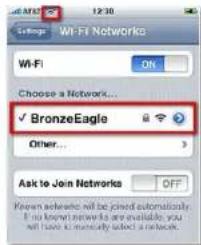
text_image
Wt-Fi Networks Choose a Network... ✓ BronzeEagle Other... Ask to Join Networks OFF Known networks will be joined automatically. If you know network are available, you will have to manually select a network.iPhone
text_image
Cisco Name your device Now that your device is connected to your master, left go it a master Enter a name (first) in the user to identify the device. For example, there's base of Family name (F2) Create it For more details or more About helpSpecifiche tecniche
Linksys E1200
15,0 ± 1,5 dBm @ CH6, MCS 0\~4, MCS 8\~12
13,5 ± 1,5 dBm @ CH6, MCS 5\~7, MCS 13\~15
802.11n (40 MHz):
14,0 ± 1,5 dBm @ CH6, MCS 0\~4, MCS 8\~12
13,5 ± 1,5 dBm @ CH6, MCS 5\~7, MCS 13\~15
802.11g:
WPA2™, WMM®, Wi-Fi Protected
Setup, Windows 7
17,0 ± 1,5 dBm @ CH6, MCS 0\~4, MCS 8\~12
16,0 ± 1,5 dBm @ CH6, MCS 5\~7, MCS 13\~15
802.11n (40 MHz):
15,5 ± 1,5 dBm @ CH6, MCS 0\~4, MCS 8\~12
14,0 ± 1,5 dBm @ CH6, MCS 5\~7, MCS 13\~15
802.11g:
18 ± 1,5 dBm @ CH6, 6 Mbps
17 ± 1,5 dBm @ CH6, 54 Mbps
802.11b:
WPA2, WMM, Wi-Fi Protected
Setup, Windows 7
Supporto file system
File system supportati
Your Internet cable is not plugged in
natural_image
Illustration of a portable electronic device with a circular lens and indicator lights (no text or symbols)Cisco Connect starten
text_image
Authentication Required A certificate and password are being updated to http://0126811. Start Name: Password: OK Canceltext_image
Settings Name: Edit Date: Edit Status: Edit Type: Edit Address: Edit Name: Edit Address: Edit Name: Edit Address: Edit Name: Edit Address: Edit Name: Edit Address: Edit Name: Edit Address: Edit Name: Edit Address: Edit Name: Edit Address: Edit Name: Edit Address: Edit Name: Edit Address: Edit Name: Edit Address: Edit Name: Edit Address: Edit Name: Edit Address: Edit Name: Edit Name: Edit Address: Edit Name: Edit Address: Edit Name: Edit Address: Edit Name: Edit Address: Edit Name: Edit Address: Edit Name: Edit Address: Edit Name: Edit Address: Edit Name: Edit Address: Edit Name: Edit Address: Edit Name: Edit Address: Edit Name: Edit Address: Edit Name: Edit Address: Edit NAME : Edit NAME : Edit NAME : Edit NAME : Edit NAME : Edit NAME : Edit NAME : Edit NAME : Edit NAME : Edit NAME : Edit NAME : Edit NAME : Edit NAME : Edit NAME : Edit NAME : Edit NAME : Edit NAME : Edit NAME : Edit NAME : Edit NAME : Edit NAME : Edit NAME : Edit NAME : Edit NAME : Edit NAME : Edit NAME : Edit NAME : Edit NAME : Edit NAME : Edit NAME : Edit NAME : Edit NAME : Edit NAME : Edit NAME : Edit NAME : Edit NAME : Edit NAME : Edit NAME : Edit NAME : Edit NAME : Edit NAME : Edit NAME : Edit NAME : Edit NAME : Edit NAME : Edit NAME : Edit NAME : Edit NAME : Edit NAME : Edit NAME : Edit NAME : Edit NAME : Edit NAME : Edit NAME : Edit NAME : Edit NAME : Edit NAME : Edit NAME : Edit NAME : Set up to 100% (1) Set up to 100% (2) Set up to 100% (3) Set up to 100% (4) Set up to 100% (5) Set up to 100% (6) Set up to 100% (7) Set up to 100% (8) Set up to 100% (9) Set up to 100% (10) Set up to 100% (11) Set up to 100% (12) Set up to 100% (13) Set up to 100% (14) Set up to 100% (15) Set up to 100% (16) Set up to 100% (17) Set up to 100% (18) Set up to 100% (19) Set up to 100% (20) Set up to 100% (21) Set up to 100% (22) Set up to 100% (23) Set up to 100% (24) Set up to 100% (25) Set up to 100% (26) Set up to 100% (27) Set up to 100% (28) Set up to 100% (29) Set up to 100% (30) Set up to 100% (31) Set up to 100% (32) Set up to 100% (33) Set up to 100% (34) Set up to 100% (35) Set up to 100% (36) Set up to 100% (37) Set up to 100% (38) Set up to 100% (39) Set up to 100% (40) Set up to 100% (41) Set up to 100% (42) Set up to 100% (43) Set up to 100% (44) Set up to 100% (45) Set up to 100% (46) Set up to 100% (47) Set up to 100% (48) Set up to 100% (49) Set up to 100% (50) Set up to 100% (51) Set up to 100% (52) Set up to 100% (53) Set up to 100% (54) Set up to 100% (55) Set up to 100% (56) Set up to 100% (57) Set up to 100% (58) Set up to 100% (59) Set up to 100% (60) Set up to 100% (61) Set up to 100% (62) Set up to 100% (63) Set up to 100% (64) Set up to 100% (65) Set up to 100% (66) Set up to 100% (67) Set up to 100% (68) Set up to 100% (69) Set up to 100% (70) Set up to 100% (71) Set up to 100% (72) Set up to 100% (73) Set up to 100% (74) Set up to 100% (75) Set up to 100% (76) Set up to 100% (77) Set up to 100% (78) Set up to 100% (79) Set up to 100% (80) Set up to 100% (81) Set up to 100% (82) Set up to 100% (83) Set up to 100% (84) Set up to 100% (85) Set up to 100% (86) Set up to 100% (87) Set up to 100% (88) Set up to 100% (89) Set up to 100% (90) Set up to 100% (91) Set up to 100% (92) Set up to 100% (93) Set up to 100% (94) Set up to 100% (95) Set up to 100% (96) Set up to 100% (97) Set up to 100% (98) Set up to 100% (99) Set up to 100% End Subtitle End Subtitle End Subtitle End Subtitle End Subtitle End Subtitle End Subtitle End Subtitle End Subtitle End Subtitle End Subtitle End Subtitle End Subtitle End Subtitle End Subtitle End Subtitle End Subtitle End Subtitle End Subtitle End Subtitle End Subtitle End Subtitle End Subtitle End Subtitle End Subtitle End SubtitleSetup (Instellingen) > Basic Setup (Basisinstellingen)
text_image
Language Select your language English Internet Setup Internet Connection Type Automatic Configuration - DHCP Optional Settings (required by some Internet Service Providers) Host name: Domain Name: info: Auto Size Network Setup Router Address IP Address: 192 168 1 1 Subnet Mask: 205 205 205.0 Device Name: Dec00009 DHCP Server DHF Server Default Disabled DHCP Reservation... Start IP Address: 192 168 1 100 Maximum Number of Lines: 50 IP Address Range: 192 168 1 100 to 149 Client Lease Time: 0 minutes (if means one day) State DNS 1: 0 0 0 0 State DNS 2: 0 0 0 0 State DNS 3: 0 0 0 0 VMS: 0 0 0 0 Time Settings Time Zone (SHT-08-03) Pacific Time (USA & Canada) Automatically adjust click for daylight saving charges Timeout ReturnLanguage (Taal)
text_image
CSCO Computers and devices Computer and computer in order to access Primary device configuration Parental controls Generalized based functions and functions Primary device configuration Guest access Other quick access to the next user (optional) Router settings Personal data transfer and virtual Rout of server for users Primary device configuration Change Change OKtext_image
Our Customer Support Team can help Under your help and supporting help.natural_image
Front view of a black network router with indicator light and ports, shown from top and side (no text or symbols on the device itself)text_image
Get Windows XP Service Pack 3 To create a new version of the Windows XP Service Pack, then to create a new version of the Windows XP Service Pack.text_image
You Internet cable is not plugged in To be following: • This can't use the Internet cable to ensure plugged into your mode in the website (http://www.cosk) • Don't have the same and this Internet cable to secure plugged into your button. • This can you create a plugged in any power on: • This is not using any Copyright information. Last page? Our details Next step? Next Steptext_image
Your Internet cable is not plugged in To the following: • Make out the Internet cable in currently plugged into your user in the internet bus (labeled "labeled"). • Make out the other end of the Internet cable in currently plugged into your user. • Make out your user in plugged in and inserted on • Click Next to any option. New York Add OK CancelCannot access your router (Geen toegang tot uw router)-bericht
text_image
Cannot access your router You can only access your router settings when you are cancelled to your router. If you can't account in this case, you can't access your router settings. Cancel Yes Download Helptext_image
Choose a wireless network Click an item in the list below to connect to a wireless network in range or to get more information. Amulsifier Connected Security-enabled wireless network (WPAZ) myhome Security-enabled wireless network Breuert Eagle Security-enabled wireless network (WPAZ) To connect to the network, click Compact. You might need to enter additional information. Mason Security-enabled wireless network Connecttext_image
Wireless Network Connection The network 'BronzeEagle' requires a network key (also called a WEP key or WPA key). A network key helps prevent unknown intrudes from connecting to this network. Type the key, and then click Connect. Network key: •••••••••••••• Confirm network key: ••••••••••••• Connect Canceltext_image
The network "BronzeEagle" requires a WPA password. Password: ********** Show password Remember this network Cancel OKtext_image
Cisco Cloud Control CSCO Device not found A new device will not found? Please check the device to account, try the following: • While you can do this device to change your device. This is just for any other device. • Get help you with • Click Next to your device.- Start Cisco Connect.

text_image
Studio CSCO Computers and devices Computer and devices to offer the user to be used in the System. The computer is currently available. Parental controls On the computer screen and then installed. To ensure that the system is not available. Guest access After quick access to the client's network The computer will open the network to the client's network. Router settings Personal settings will help you understand The computer will help you understand. Cancel CancelLinksys E-serie
Probleemoplossing
text_image
Computers and other devices OSOS OISOtext_image
联通 COSCO Connecting a device We provide us to access the device to all other wireless devices. 1. Does it be the device's connection to your own or connected to your network. 2. Does not use the device, or use the network settings before being connected to your own. Network name (USB): DOSO.O Setting type: DOSO.O Security Type: BIOSI Total network settings: Local network 3. Do not use any user connected.text_image
Wi-Fi settings Connected to JamsRouter Network notification Notify me when an open network is available Wi-Fi networks BronzeEagle-guest BronzeEagle WPS Available, secured with WPA/WPA2 PWRAndroid
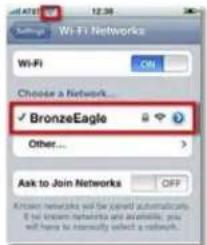
text_image
Wi-Fi Networks Wi-Fi ON Choose a Network... ✓ BronzeEagle Other... Ask to Join Networks OFFiPhone
text_image
Name your device Note that you should be installed to create a device. If you want it to start Device is required but will be used to identify the device. For example, when please check if necessary from PC. Cancel 7 Do you need to start this device.Specifications
Linksys E1200
Modelnaam Linksys E1200
LED's Power/Wi-Fi Protected Setup, Internet, Ethernet (1-4)
Type bekabeling CAT 5e
15,0 ± 1,5dBm @ CH6, MCS 0\~4, MCS 8\~12
13,5 ± 1,5dBm @ CH6, MCS 5\~7, MCS 13\~15
802.11n (40 MHz):
14,0 ± 1,5dBm @ CH6, MCS 0\~4, MCS 8\~12
13,5 ± 1,5dBm @ CH6, MCS 5\~7, MCS 13\~15
802.11g:
14,5 ± 1,5dBm @ CH6, alle snelheden
802.11b:
16,5 ± 1,5dBm @ CH6, alle snelheden
Antenneversterking ≤2.5 dBi, ≤4.0 dBi (2 antennes)
UPnP Ondersteund
Draadloze beveiliging Wi-Fi Protected Access™ 2 (WPA2), WEP, draadloze MAC-filtering
WPA2™, WMM®, Wi-Fi Protected
Setup, Windows 7
LED's Power/Wi-Fi Protected Setup, Internet, Ethernet (1-4)
Type bekabeling CAT 5e
17,0 ± 1,5 dBm @ CH6, MCS 0\~4, MCS 8\~12
16,0 ± 1,5 dBm @ CH6, MCS 5\~7, MCS 13\~15
802.11n (40 MHz):
15,5 ± 1,5 dBm @ CH6, MCS 0\~4, MCS 8\~12
14,0 ± 1,5 dBm @ CH6, MCS 5\~7, MCS 13\~15
802.11g:
18,0 ± 1,5 dBm @ CH6, 6 Mbps
17,0 ± 1,5 dBm @ CH6, 54 Mbps
802.11b:
18,0 ± 1,5dBm @ CH6, alle snelheden
Antenneversterking ≤3.0 dBi, ≤4.0 dBi, ≤4.5 dBi
(3 antennes)
UPnP Ondersteund
Draadloze beveiliging Wi-Fi Protected Access™ 2 (WPA2),
WEP, draadloze MAC-filtering
WPA2™, WMM®, Wi-Fi Protected
Setup, Windows 7
LED's Voeding, Ethernet (1-4)
Modulatie 802.11b: CCK, QPSK, BPSK
802.11g: OFDM
802.11a: OFDM
802.11n: BPSK, QPSK, 16-QAM, 64-QAM
FCC, IC, CE, Wi-Fi a/b/g/n,
Windows 7
Bedrijfstemperatuur
0 tot 40 °C
Opslagtemperatuur
-20 tot 60 °C
Melding: Your Internet cable is not plugged in
Melding: Cannot access your router
natural_image
Exterior view of a portable electronic device with a circular lens and indicator light (no visible text or symbols)text_image
Authentication Required A username and password are being requested by http://96.883.1. User Name: Password: OK Canceltext_image
Language Select your language English Internet Setup Internet Connection Type Automatic Configuration - DHCP Optional Settings (required by some Internet Service Providers) Host Name: Domain Name: MTU Auto Size Network Setup Router Address IP Address: 182 168 1 1 Subset Mask: 265.206.206.0 Device Name: Caused0009 DHCP Server Is Enabled Disabled DHCP Reservation Start IP Address: 182.168.1.100 Maximum Number of Users: 50 IP Address Range: 182.168.1.100 to 149 Client Lease Time: 0 minutes (3 means one day) Static DNS 1: 0 0 0 0 Static DNS 2: 0 0 8 8 Static DNS 3: 0 0 8 8 VMS: 0 0 8 8 Time Settings Time Zone (GHT-08:00) Pacific Time (USA & Canada) Automatically adjust clock for daylight saving charges. Redecid RedecidLanguage (Språk)
Internet Connection Type (Type Internett-tilkobling)
text_image
Network Mode: Mixed Network Name (SSID): Cisco00066 Channel Width: 20 MHz Only Channel: Auto SSID Broadcast: Enabled DisabledWPA2/WPA Mixed Mode, WPA2 Personal, WPA Personal
MERKNADER
WPA2/WPA Enterprise Mixed Mode, WPA2 Enterprise, WPA Enterprise
text_image
Security Mode: WBP Encryption 40 / 64-bit (10 hex digits) Preaperture Key 1: Key 2: Key 3: Key 4: TX Key: 1 GenerateEncryption (Kryptering) Velg et WEP-krypteringsnivå, 40/64 bit (10 heksadesimaler) eller 104/128 bit (26 heksadesimaler). Standardverdien er 40/64 bit (10 heksadesimaler).
text_image
Cloud CSCO Computers and devices Connect and/or compute of other devices to your mode. Primary / 100% access to your mode Parental controls Uninternal access times and websites Parental control Change Guest access If required to console the remote Guest access If required to switch the remote Router settings Functional access settings and help you Select client access and use Router access for network access Change Changetext_image
Our Customer Support team can help Your order will not complete sell.natural_image
Exterior view of a black rectangular electronic device with ventilation grille and indicator lights (no visible text or symbols)
text_image
Back panel of a network equipment device showing ports, indicators, and a highlighted display with a red buttontext_image
Get Windows XP Service Pack 3 This version is designed to include Windows XP's Pack 3. This installed platform will be used in the following settings. To explore this version, it allows the next Windows XP service to use the following: To play a new version that has been used to create a new version. This version is designed for this version. To access the Windows XP Service Pack 3. This version is designed for this version.text_image
You Internet cable is not plugged in To the following: • Make sure the Internet cable is exactly plugged into your online in the yellow and limited "Internet" • Make sure the other end of the Internet cable is exactly plugged into your online • Make sure your modern is plugged in and password on • Click Next to you again Last time: 1. Your next Properties: Next > CancelSlik fikser du problemet:
- Kontroller at en Ethernet- eller Internett-kabel (eller en kabel av samme type som fulgte med ruteren) er festet skikkelig til den gule Internett-porten bak på ruteren og til riktig port på modemet ditt. Denne porten på modemet er vanligvis merket med Ethernet, men kan også hete Internet eller WAN.
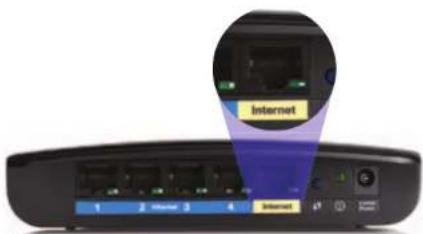
text_image
Internet 1 2 Internet 3 4 InternetBaksiden av ruter
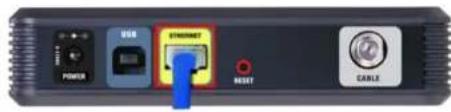
text_image
USB POWER STANDARD RESET CABLEtext_image
Your Internet cable is not plugged in Try the following: • Make sure the Internet cable is securely plugged into your reader in the yellow port following "Internet" • Make sure the other and other Internet cable is securely plugged into your reader. • Make sure your reader is plugged in and powered on. • Click Next to buy back Cancel Show details Next page Save 1 Canceltext_image
Cannot access your router You can only access your router settings when you are corrected to your router. If you are not connected to CiscoCape you can't sphere your router settings Cancel thistext_image
Choose a wireless network Click an fan in the list below to connect to a wireless network in range or to get more information. JinsRouter Connected Security-enabled wireless network (WPA2) myhome Security-enabled wireless network Bronzeagle Security-enabled wireless network (WPA2) To connect to this network, click Connect. You might need to enter additional information. Mason Security-enabled wireless network Connecttext_image
Wireless Network Connection The network 'BronzeEagle' requires a network key (also called a WEP key or WPA key). A network key helps prevent unknown intrudes from connecting to the network. Type the key, and then click Connect. Network key: ************ Confirm network key: ************ Connect Canceltext_image
The network "BronzeEagle" requires a WPA password. Password: ******** Show password Remember this network Cancel OKMelding: Device not found (Finner ikke enheten)
text_image
Cisco Connect vitalis CISCO Device not found • A new device was not found If you're sure the device is connected, by the following: • Write any the device used to use a range of your user. If this tool is away, the remote • Signal or help not work. • Click Next to buy again CancelTIPS
text_image
Cisco Computers and devices Connect another computer to other device to host router Change: 12% (not available on the website) Add buttons Parental controls Unif internal access links and websites Parental connections with wireless link settings To hosts Change Guest access Allow goods to connect the Internet Remove a network of IPs Remove the network of Internet Delete Change Router settings Remove router settings and host your Internet connection settings Remove the network Change ChangeLinksys E-serie
Feilsøking
text_image
Windows CSCO Computers and other devices What to pay more to complete your website? Computer How much better be completed Windows printer A network provider is completed Other wireless devices If you want to have a new device, or other wireless devices Back help? Help Canceltext_image
Windows CISCO Connecting a device As iPhone® switches, a video game console or other wireless device. 1. Refine the wireless configuration to show how to connect it by a wireless network. 2. Then, on the device, and the wireless settings before to connect the device in your room. Network name (SIN) Boxcode.org Security Key M-80003.cj Security Type W842-W95A First three settings Learn here 3. Click Next after you connect Next help? 确定 Apply OK Canceltext_image
Wi-Fi settings WI-FI Connected to JmsRouter Network notification Notify me when an open network is available Wi-Fi networks BronzeEagle-guest BronzeEagle WPS Available, secured with WPA/WPA2 PSEAndroid

text_image
Wi-Fi Networks Choose a Network... ✓ BronzeEagle Other... Ask to Join Networks OFF Know networks will be joined automatically. If known networks are available, you will have to manually select a network.iPhone
text_image
Do you connect CISCO Name your device Show that your device is connected to your reader, left's right to a name. Enter a name that will be used to switch the device. For example, from a page or file named PC. Read it: To account using this device.Spesifikasjoner
Linksys E1200
Knapper Reset (Tilbakestill), Wi-Fi Protected Setup™
LED-lamper Strøm/Wi-Fi Protected Setup, Internett, Ethernet (1-4)
Kabeltype CAT 5e
Overført effekt 802.11n (20 MHz):
15,0 ± 1,5 dBm @ CH6, MCS 0\~4, MCS 8\~12
13,5 ± 1,5 dBm @ CH6, MCS 5\~7, MCS 13\~15
802.11n (40 MHz):
14,0 ± 1,5 dBm @ CH6, MCS 0\~4, MCS 8\~12
13,5 ± 1,5 dBm @ CH6, MCS 5\~7, MCS 13\~15
802.11g:
14,5 ± 1,5 dBm @ CH6 ved alle hastigheter
802.11b:
Knapper Reset (Tilbakestill), Wi-Fi Protected Setup
LED-lamper Strøm/Wi-Fi Protected Setup, Internett, Ethernet (1-4)
Kabeltype CAT 5e
Overført effekt 802.11n (20 MHz):
17,0 ± 1,5 dBm @ CH6, MCS 0\~4, MCS 8\~12
16,0 ± 1,5 dBm @ CH6, MCS 5\~7, MCS 13\~15
802.11n (40 MHz):
15,5 ± 1,5 dBm @ CH6, MCS 0\~4, MCS 8\~12
14,0 ± 1,5 dBm @ CH6, MCS 5\~7, MCS 13\~15
802.11g:
18,0 ± 1,5 dBm @ CH6, 6 Mbps
17,0 ± 1,5 dBm @ CH6, 54 Mbps
802.11b:
(8,86" × 1,38" × 7,09")
Vekt 452 g (15,94 oz)
Strøm 12 V, 1A
Sertifiseringer FCC, IC, CE, Wi-Fi A/B/G/N
Driftstemperatur 0–40 °C (32–104 °F)
Oppbevaringstemperatur -20–60 °C (-4–140 °F)
Knapper Reset (Tilbakestill), Wi-Fi Protected Setup
LED-lamper Strøm, Ethernet (1–4)
Knapper Reset (Tilbakestill), Wi-Fi Protected Setup
LED-lamper Topp-panel: Strøm
Bakpanel: Internett, Ethernet (1–4)
Komunikat Your Internet cable is not plugged in
natural_image
Exterior view of a black rectangular electronic device with perforated surface and indicator light (no visible text or symbols)Jak uruchomić program Cisco Connect
text_image
Authentication Required A username and password are being requested by http://00168.1.1. User Name: Password: OK Canceltext_image
Language Select your language English Internet Setup Internet Connection Type Automatic Configuration - DHCP Optional Settings (required by some Internet Service Providers) Host Name: Domain Name: MTP Auto Size 100 Network Setup Router Address IP Address: 182 168 1 1 Submit Mask: 285.206.206.0 Device Name: Caused00009 DHCP Server IP Address: 182 168 1 100 Maximum Number of Users: 50 IP Address Range: 182 168 1 100 to 149 Client Lease Time: 0 minutes (3 times one day) State DNS 1: 0 0 0 0 State DNS 2: 0 0 0 0 State DNS 3: 0 0 0 0 WNS: 0 0 0 0 Time Settings Time Zone (GHT-08:00) Pacific Time (USA & Canada) ✓ Automatically adjust clock for daylight saving charges. Redoool RedooolLanguage (Język)
text_image
Network Mode: Mixed Network Name (SSD): Cisco00066 Channel Width: 20 MHz Only Channel: Auto SSD Broadcast: Enabled Disabledtext_image
Security Mode: UPA200FA Enterprise Mixed Mode RADIUS Server 0 0 0 0 RADIUS Port 1012 Shared Key:text_image
CSCO Computers and devices Connect and the computer of other devices by that server Type 1: software configuration or cloud Key device Parental controls Unlimited access drives and modules Parental control functions are setting parameters Device Change Guest access Allow people to communicate the internet User access to the client User access to the client's network Router settings Personal control settings and user access User access to the client's network Router access to the client's network Change Changetext_image
Our Customer Support Team can help Please use your own website (www.cisco.net) to access your support team. You may use your own website (www.cisco.net) to access your support team. http://www.cisco.net/you/123456888 Customer Service / 0.0000000000000000000000000000000000000000000000000000000000000000000000000000000000000000000000000000natural_image
Exterior view of a portable electronic device with ventilation grille and indicator light (no visible text or symbols)
text_image
Device rear panel with labeled ports and a highlighted indicator box showing a device with 'USB' button.text_image
Get Windows XP Service Pack 3 This version allows us to access the Web Pack. This will also be able to access the Web Pack in your application. To check for free access, please call to the Web Pack on the Web Page.text_image
Your Internet cable is not plugged in To the following: • Make sure the Internet cable is actually plugged into your reader in the yellow and Internet "Internet" • Make sure the other and of the Internet cable is actually plugged into your reader • Make sure your readers are plugged and answered on • Click Next to by app Learn here | New Email Next > Helptext_image
Your Internet cable is not plugged in Try the following: • More use the Internet cable in security plugged into your user in the yellow sort Involved "Open" • More use the cloud and other Internet cable in security plugged into your user. • More use your user or more plug into and powered on. • Click Next to again. Accession: 1. New details Next page OK Cancel Helptext_image
Cannot access your router You can offer access your router settings when you are connected to your router If you are not connected to Breakfast吧, you can't update your router settings. I have beentext_image
Choose a wireless network Click an icon in the list below to connect to a wireless network in range or to get more information. JimdRouter Connected Security-enabled wireless network (WPA2) myhome Security-enabled wireless network Bronzeagle Security-enabled wireless network (WPA2) Is connected to this network, click Connect. You might need to enter additional information. Mason Security-enabled wireless network Connecttext_image
Wireless Network Connection The network 'BronzeEagle' requires a network key (also called a WEP key or WPA key). A network key helps prevent unknown intrudes from connecting to this network. Type the key, and then click Connect. Network key: ••••••••••••• Confirm network key: ••••••••••••• Connect Canceltext_image
The network "BronzeEagle" requires a WPA password. Password: ******** Show password Remember this network Cancel OKtext_image
Device not found A new installed device not found If you're lost the device as connected, by the following: • Write your device on whether range of your user. It's too far away. The remote • Signal type is not used. • Click Next to try again. CancelWSKAZÓWKA
- Uruchom program Cisco Connect.
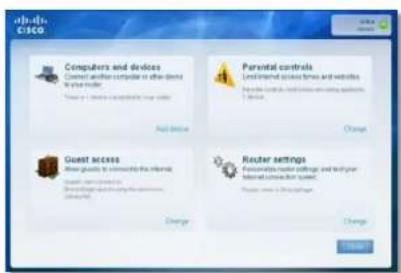
text_image
Apache CISCO Computers and devices Connect and/or compute to offer devices to your mode. Close to a device to complete your mode. Parental controls Unlimited access terms and websites Provide the client's network to existing platforms To the user. Guest access Allow quality to connect the remote. Guest access: Allow access to connecting the remote. Router settings Promote virtual settings, and link your userless access server. Router settings: Provide a network Change Change OKLinksys E-Series
text_image
Cisco Computers and other devices Read on you next to Windows. You're your website? Computer user website (as needed) Windows product in terms of power usage Other services products as needed to use the same software or other services providers. Next step? OK Cancel Helptext_image
Adidas GSCO Connecting a device As Phantial switches, playing game console or other wireless devices. 1. Refer to the client's documentation to show how to connect this a wireless network. 2. Find, on the device, use the wireless settings before to connect the device to your mode. Network name (2008): Monocog plc Security Type: BIM-88863p Security Type: WTA2-WTA Show these settings: Learn here. 3. Click Next after you come! Next Next? OK Next > Canceltext_image
Wi-Fi settings Connected to JmsRouter Network notification Notify me when an open network is available Wi-Fi networks BronzeEagle-guest BronzeEagle WPS Available, secured with WPA/WPA2 PSKAndroid
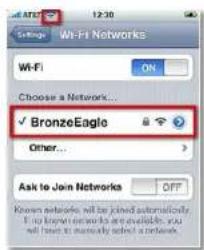
text_image
Settings Wi-Fi Networks ON Choose a Network... ✓ BronzeEagle Other... Ask to Join Networks OFF Known networks will be joined automatically. If you know networks are available, you will have to manually select a network.iPhone
text_image
Cisco Connect CSCO Name your device Show that your device is connected to your reader. Let's give it a name. Enter an account that will be used to identify the device. For example, there is a page or family team PC. Read it: The next session is closed.Dane techniczne
Linksys E1200
Diody LED Zasilanie/Wi-Fi Protected Setup, Internet, Ethernet (1-4)
WPA2™, WMM®, Wi-Fi Protected
Setup, Windows 7
Temp. pracy
Diody LED Zasilanie/Wi-Fi Protected Setup, Internet, Ethernet (1-4)
WPA2, WMM, Wi-Fi Protected
Setup, Windows 7
natural_image
Exterior view of a black rectangular electronic device with perforated surface and a circular light source (no visible text or symbols)text_image
Authentication Required A username and password are being requested by http://107.668.1.1. User Name: Password: OK Canceltext_image
CSCO Setup Name: Design Settings Settings Settings Settings Settings Settings Settings Settings Settings Settings Settings Settings Settings Settings Settings Settings Settings Settings Settings Settings Settings Settings Settings Settings Settings Settings Settings Settings Settings Settings Settings Settings Settings Settings Settings Settings Settings Settings Settings Settings Settings Settings Settings Settings Settings Settings Settings Settings Settings Settings Instructions Instructions Instructions Instructions Instructions Instructions Instructions Instructions Instructions Instructions Instructions Instructions Instructions Instructions Instructions Instructions Instructions Instructions Instructions Instructions Instructions Instructions Instructions Instructions Instructions Instructions Instructions Instructions Instructions Instructions Instructions Instructions Instructions Instructions Instructions Instructions Instructions Instructions Instructions Instructions Instructions Instructions Instructions Instructions Instructions Instructions Instructions Instructions Instructions Instructions Positions: Windows\ Windows\ Other\ Language\ Language\ Language\ Language\ Language\ Language\ Language\ Language\ Language\ Language\ Language\ Language\ Language\ Language\ Language\ Language\ Language\ Language\ Language\ Language\ Language\ Language\ Language\ Language\ Language\ Language\ Language\ Language\ Language\ Language\ Language\ Language\ Language\ Language\ Language\ Language\ Language\ Language\ Language\ Language\ Language\ Language\ Language\ Language\ Language\ Language\ Language\ Language\ Language\ Language\ Currency: 100.000.000.000.000.000.000.000.000.000.000.000.000.000.000.000.000.000.000.000.000.000.000.000.000.000.text_image
Language Select your language English Internet Setup Internet Connection Type Automatic Configuration - DHCP Optional Settings (required by some Internet Service Providers) Host Name: Domain Name: MTU Auto Size Network Setup Router Address IP Address: 182 168 1 1 Subset Mask: 265.206.206.0 Device Name: Caused0009 DHCP Server Is Enabled Disabled DHCP Reservation Start IP Address: 182.168.1.100 Maximum Number of Users: 50 IP Address Range: 182.168.1.100 to 149 Client Lease Time: 0 minutes (3 means one day) Static DNS 1: 0 0 0 0 Static DNS 2: 0 0 8 8 Static DNS 3: 0 0 8 8 VMS: 0 0 8 8 Time Settings Time Zone (GHT-08:00) Pacific Time (USA & Canada) Automatically adjust clock for daylight saving charges. Redecid RedecidLanguage (Idioma)
text_image
Network Mode: Mixed Network Name (SSD): Cisco00056 Channel Width: 20 MHz Only Channel: Auto SSD Broadcast Enabled DisabledModo misto WPA2/WPA Enterprise, WPA2 Enterprise, WPA Enterprise
text_image
Security Mode: WPA2/WSA Enterprise Mixed Mode RADIUS Server 0 0 0 0 RADIUS Port: 1812 Shared Key:text_image
Security Mode: WEP Encryption: 40 / 64-88 (15 hex digits) Passphrase Key 1: Key 2: Key 3: Key 4: TX Key: 1 Generatetext_image
Cisco Computers and devices Connect another computer or other device to test tool Add devices Parental controls Under Internal access lines and websites Add user access to existing services Delete Guest access Add quicks to complete the internet Add access to your own website Delete Router settings Personal network settings and link users Add user access to existing services Delete Change Change Canceltext_image
Our Customer Support team can help Please check your website for December 2015 when you will be delivered by the following: Thank you with your website to December 2015 when you will be delivered by the following: Thank you with your website to December 2015 when you will be delivered by the following: Thank you with your website to December 2015 when you will be delivered by the following: Thank you with your website to December 2015 when you will be delivered by the following: Thank you with your website to December 2015 when you will be delivered by the following: footer: www.dongguan.com footer: www.dongguan.comnatural_image
Exterior view of a black rectangular electronic device with perforated surface and indicator light (no readable text or symbols)
text_image
Back panel of a network device showing ports, switches, and a highlighted connection point with red arrowtext_image
Get Windows XP Service Pack 3 This version allows to add or modify the Service Pack 3. This will not be standardised and/or otherwise. It is also recommended that it is not allowed. Please note that this will not change your computer version. You may need to choose another or more if you want to use a specific device. Do you want to switch the system to any other type of software. Describe the installation needs. To ensure the Windows XP Service Pack is your computer needs to recommend your services.text_image
Your Internet cable is not plugged in By the following: • Make sure the Internet cable is actually plugged into your mode in the yellow port labeled "Internet" • Make sure the other end of the Internet cable is currently plugged into your mode. • Make sure your mode is plugged in and password on • Click Next to try again. Lunch down: 1 - "New Details Close up? Next > CancelPara resolver o problema:
text_image
Your Internet cable is not plugged in By the following: • Make sure the Internet cable is currently plugged into your reader in the yellow port (without Internet) • Make sure the other and other Internet cable is currently plugged into your reader • Make sure your reader is plugged in and powered on • Click Next to buy again. Cancel Cancel Add Next step Add OK Canceltext_image
Cannot access your router You can only access your router settings when you are connected your router If you are not connected in Breakfast pipe, you can update your router settings Login more Thank you!text_image
Choose a wireless network Click an item in the list below to connect to a wireless network in range or to get more information. JinsRouter Connected Security-enabled wireless network (MPA2) myhome Security-enabled wireless network Bronzeagle Security-enabled wireless network (MPA2) Is connected to this network, click Connect. You might need to enter additional information. Mason Security-enabled wireless network Connecttext_image
Wireless Network Connection The network "BronzeEagle" requires a network key (also called a WEP key or WPA key). A network key helps prevent unknown intrudes from connecting to the network. Type the key, and then click Connect. Network key: ************ Confirm network key: ************ Connect Canceltext_image
The network "BronzeEagle" requires a WPA password. Password: ******** Show password Remember this network Cancel OKtext_image
Device not found A new device was not found If you're sure the device is converted, by the following: • Make sure the device is within range of your user. If it's too far away, the version signal may not want. • Make Next to buy again Next step Read helpDICA
- Execute o Cisco Connect.
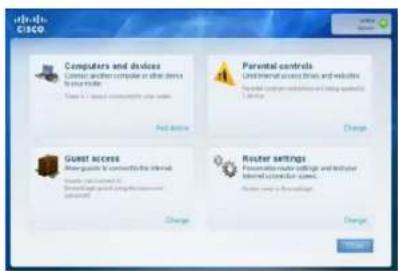
text_image
Other Cisco Computers and devices Customs and computers in other domains to ensure mode. Class 1 - Class 2 commonally use mode. Parental controls Uninternal access links and websites Parental network connections and routing systems Device Not device Change Guest access After guidance to convert the internal Guest access (user) General access to existing computer system(s) Change Router settings Personalized module settings and routing Internal network settings Router using a network Change Change OKSérie E da Linksys
text_image
Cisco Computers and other devices What do you want to connect to your folder? Computer is another device in the world Makeout remote is a network home to use news Other wireless devices is a network home to use news on a list of other devices. Send help? OK Canceltext_image
dctc CISCO Connecting a device as PhosB® installation, video games console. Of other wireless devices. 1. Refer to the server's documentation to start how to connect it to a wireless network. 2. Null, as the device, and the wireless settings (batter) are connected to the device in order to match. Network name (0008) BruceBridge Security Key H-00063.pj Security Type WBA2 - WBA Find these settings Learn here 3. Click Next after you connect! Next entry? Next Next Next Nexttext_image
Wi-Fi settings WI-FI Connected to JmsRouter Network notification Notify me when an open network is available Wi-Fi networks BronzeEagle-guest BronzeEagle WPS Available, secured with WPA/WPA2 PSRAndroid
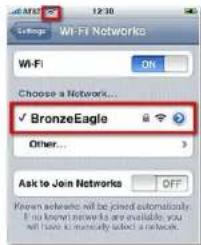
text_image
Wt-Fi Networks Choose a Network... ✓ BronzeEagle Other... Ask to Join Networks OFF Known networks will be joined automatically. If you know network are available, you will have to manually select a network.iPhone
15,0 ± 1,5 dBm @ CH6, MCS 0\~4, MCS 8\~12
13,5 ± 1,5 dBm @ CH6, MCS 5\~7, MCS 13\~15
802.11n (40 MHz):
14,0 ± 1,5 dBm @ CH6, MCS 0\~4, MCS 8\~12
13,5 ± 1,5 dBm @ CH6, MCS 5\~7, MCS 13\~15
802.11g:
WPA2™, WMM®, Wi-Fi Protected
Setup, Windows 7
Temp. de funcionamento 0 a 40°C (32 a 104°F)
Temp. de armazenamento -20 a 60°C (-4 a 140°F)
17,0 ± 1,5 dBm @ CH6, MCS 0\~4, MCS 8\~12
16,0 ± 1,5 dBm @ CH6, MCS 5\~7, MCS 13\~15
802.11n (40 MHz):
15,5 ± 1,5 dBm @ CH6, MCS 0\~4, MCS 8\~12
14,0 ± 1,5 dBm @ CH6, MCS 5\~7, MCS 13\~15
802.11g:
18,0 ± 1,5 dBm @ CH6, 6 Mbps
17,0 ± 1,5 dBm @ CH6, 54 Mbps
802.11b:
18,0 ± 1,5 dBm @ CH6, todas as velocidades
Ganho da antena ≤3,0 dBi, ≤4,0 dBi, ≤4,5 dBi
(3 antenas)
UPnP Suportado
WPA2, WMM, Wi-Fi Protected
Setup, Windows 7
Temp. de funcionamento 0 a 40°C (32 a 104°F)
Temp. de armazenamento -20 a 60°C (-4 a 140°F)
(6,69" × 0,98" × 7,48")
Peso do aparelho
216 g (7,62 onças)
Alimentação
12 V, 2 A
Certificações
FCC, IC, CE, Wi-Fi A/B/G/N
Temp. de funcionamento
0 a 40°C (32 a 104°F)
Temp. de armazenamento
-20 a 60°C (-4 a 140°F)
Wireless (Fără fir) > Basic Wireless Settings
(Instalati Windows Service Pack 3)....12
Mesajul Your Internet cable is not plugged in
(Cablul dvs. de Internet nu este conectat) .....13
Mesajul Cannot access your router
natural_image
Exterior view of a black rectangular electronic device with perforated surface and indicator lights (no visible text or symbols)text_image
Authentication Required A username and password are being requested by http://052.168.1.1. User Name: Password: OK Canceltext_image
Setup Design Layout Settings Settings Group Settings Group Settings Group Settings Group Settings Group Settings Group Settings Group Settings Group Settings Group Settings Group Settings Group Settings Group Settings Group Settings Group Settings Group Settings Group Settings Group Settings Group Settings Group Settings Group Settings Group Settings Group Settings Group Settings Group Settings Group Settings Group Settings Group Settings Group Settings Group Settings Group Settings Group Settings Group Settings Group Settings Grouptext_image
Language Select your language English Internet Setup Internet Connection Type Automatic Configuration - DHCP Optional Settings (required by some Internet Service Providers) Host Name: Domain Name: MTU Auto Size Network Setup Router Address IP Address: 182 168 1 1 Subset Mask: 265.206.206.0 Device Name: Caused0009 DHCP Server Is Enabled Disabled DHCP Reservation Start IP Address: 182.168.1.100 Maximum Number of Users: 50 IP Address Range: 182.168.1.100 to 149 Client Lease Time: 0 minutes (3 means one day) Static DNS 1: 0 0 0 0 Static DNS 2: 0 0 8 8 Static DNS 3: 0 0 8 8 VMS: 0 0 8 8 Time Settings Time Zone (GHT-08:00) Pacific Time (USA & Canada) Automatically adjust clock for daylight saving charges. Redecid RedecidLanguage (Limbă)
Static IP (IP static)
Telstra Cable (Cablu Telstra)
text_image
Network Mode: Mixed Network Name (SSD): Cisco00056 Channel Width: 20 MHz Only Channel: Auto SSD Broadcast Enabled DisabledWPA2/WPA Mixed Mode (Mod mixt WPA2/WPA), WPA2 Personal, WPA Personal
NOTE
WPA2/WPA Enterprise Mixed Mode (Mod mixt WPA2/WPA Enterprise), WPA2 Enterprise, WPA Enterprise
text_image
abdi CSCO Computers and devices Control and computer of abdi devices to test driver Apply the device to access the server Parental controls Uninternal access links and websites Guest access Please go to something else. Inform Get your computer to access the server Router settings Personalized network settings and first user Internet configuration settings Change Change ChangeSe deschide meniul principal Cisco Connect.
Se deschide meniul principal Cisco Connect.
text_image
Our Customer Support Team can help This team can be connected to it.natural_image
Exterior view of a black electronic device with ventilation grille and indicator light (no visible text or symbols)
natural_image
Back view of a network device showing ports, switches, and a highlighted indicator (no readable text or symbols)text_image
Get Windows XP Service Pack 3 This version will be installed in the first part of the Web Services Package. It is recommended to be installed on the Web Services Package. To provide the Web Services Package, it is not available for any other version. The Web Services Package is currently available.text_image
Your Internet cable is not plugged in To the following: • Make sure the Internet cable is not only plugged into your user in the yellow port Marked "Internet" • Make sure the other and of the Internet cable is not only plugged into your user • Make sure your custom is plugged in and powered on • Click Next to try again Last time: 1. Your details Functions: OK Next > CancelPentru a rezolva problema:
text_image
Your Internet cable is not plugged in By the following: • Make sure the Internet cable is currently plugged into your status in the yellow port (labeled "Internet") • Make sure the other and other Internet cable is currently plugged into your system. • Make sure your mode, it plugged in and pressed on. • Click Next to any again. Cancel OK Apply OKtext_image
Cannot access your router You can only access your router settings when you are connected to your router. If you are not connected to Facebook, you can't update your router settings. Cancel remote Next step? Canceltext_image
Choose a wireless network Click an less in the list below to connect to a wireless network in range or to get more information. JimiaRouter Connected Security-enabled wireless network (WPA2) myhome Security-enabled wireless network BronzeLogic Security-enabled wireless network (WPA2) To connect to the networks, click Connect. You might need to enter additional information Mason Security-enabled wireless network Connecttext_image
Wireless Network Connection The network 'BronzeEagle' requires a network key (also called a WEP key or WPA key). A network key helps prevent unknown intruders from connecting to this network. Type the key, and then click Connect. Network key: •••••••••••••• Confirm network key: •••••••••••••• Connect Canceltext_image
The network "BronzeEagle" requires a WPA password. Password: ******** Show password Remember this network Cancel OKtext_image
Cisco Connect vitalia CISCO Device not found A new device was found. Please have the device at connected, by the following: • Write out the device in within range of your user. It's not for any, the version signal may not match • Close Next for any Close Now Next Step Next Next NextSFAT
- Executati Cisco Connect.

text_image
Cisco Computers and devices Connect further computer to other devices to the next server. Close to 100% network topology services. And devices Parental controls Used internal access tools and websites Personal control and access functions for existing services Change Guest access After guide to connect these internal access functions To the next server Google access to the next server Change Router settings Personal control and access functions and technical required computer server services Power access to the next server ChangeLinksys seria E
Depanare
text_image
Windows CSCO Computers and other devices What to pay more to complete your website? Computer Windows printer Other wireless devices Other desktops, desktops, or other desktops Back help? Help Canceltext_image
Windows CISCO Connecting a device As iPhone® switches, a video game console or other wireless device. 1. Refine the wireless configuration to start to connect it by a wireless router. 2. Then, on the device, and the wireless settings before to connect the device in your room. Network name (SIN) Boxcode.org Security Key M-80003.cj Security Type W842-W95A First three settings Learn here 3. Click Next after you connect Next help? 确定 Save Help Canceltext_image
Wi-Fi settings WI-FI Connected to JmsRouter Network notification Notify me when an open network is available Wi-Fi networks BronzeEagle-guest BronzeEagle WPS Available, secured with WPA/WPA2 PSEAndroid
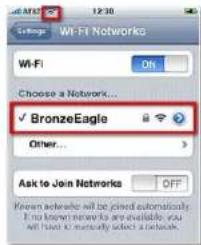
text_image
Wi-Fi Networks Choose a Network... ✓ BronzeEagle Other... Ask to Join Networks OFF Know networks will be joined automatically. If known networks are available, you will have to manually select a network.iPhone
text_image
Name your device Show that your device is connected to your reader, left's right to a name. Enter a name that will be used to identify the device. For example, let you please use a device (e.g. or any other PC). Closed 3 Do not use this device.Specificații
Linksys E1200
Nume model Linksys E1200
WPA2™, WMM®, Wi-Fi Protected
Setup, Windows 7
Temp. de functionare 0 - 40 °C (32 - 104 °F)
Temp. de depozitare -20 - 60 °C (-4 - 140 °F)
18,0 ± 1,5 dBm la CH6, toate ratele
Amplificare antenă ≤ 3,0 dBi, ≤ 4,0 dBi, ≤ 4,5 dBi (3 antene)
UPnP Acceptat
Certificări FCC, UL/cUL, ICES-003, RSS210, CE, Wi-Fi (IEEE 802.11b/g/n), WPA2, WMM, Wi-Fi Protected Setup, Windows 7
Temp. de functionare 0 - 40 °C (32 - 104 °F)
Temp. de depozitare -20 - 60 °C (-4 - 140 °F)
| Certificări | FCC, IC, CE, Wi-Fi A/B/G/N |
| Temp. de functionare | 0 - 40 °C (32 - 104 °F) |
| Temp. de depozitare | -20 - 60 °C (-4 - 140 °F) |
Nume model Linksys E3200
Certificări FCC, IC, CE, Wi-Fi A/B/G/N
Temp. de functionare 0 - 40 °C (32 - 104 °F)
Temp. de depozitare -20 - 60 °C (-4 - 140 °F)
Certificări FCC, IC, CE, Wi-Fi a/b/g/n, Windows 7
Temp. de functionare 0 - 40 °C (32 - 104 °F)
Temp. de depozitare -20 - 60 °C (-4 - 140 °F)
natural_image
Exterior view of a black rectangular electronic device with ventilation grille and indicator lights (no visible text or symbols)text_image
Authentication Required A certificate and password are being registered by http://10.108311. State Name: Password: OK Canceltext_image
File COLD Save Name: COLD Size: 100 Name: COLD Size: 100 Name: COLD Size: 100 Name: COLD Size: 100 Name: COLD Size: 100 Name: COLD Size: 100 Name: COLD Size: 100 Name: COLD Size: 100 Name: COLD Size: 100 Name: N/A Size: 100 Name: COLD Size: 100 Name: COLD Size: 100 Name: COLD Size: 100 Name: COLD Size: 100 Name: COLD Size: 100 Name: COLD Size: 100 Name: COLD Size: 100 Name: COLD Size: N/A Name: COLD Size: 100 Name: COLD Size: 100 Name: COLD Size: N/A Name: COLD Size: 100 Name: COLDtext_image
Language Select your language English Internet Setup Internet Connection Type Automatic Configuration - DHCP Optional Settings (required by some Internet Service Providers) Host name: Domain Name: MIPs Auto Size Network Setup Router Address IP Address: 102 158 1 1 Serial Hash: 203-259-295.0 Device Name: Class00009 DHCP Server Initial IP Address: 102 158 1 100 Maximum Number of Users: 50 IP Address Range: 102 158 1.100 to 145 Client Lease Time: 0 minutes (if means one day) State DNS 1: 0 0 0 0 State DNS 2: 0 0 0 0 State DNS 3: 0 0 0 0 WIND: 0 0 0 0 Time Settings Time Zone (DHT-68.02) Pacific Time (USA & Canada) Automatically adjust clock for daylight saving changes RefreshLanguage (Язык)
text_image
Network Mode: Mixed Network Name (SSD): Cisco00056 Channel Width: 20 MHz Only Channel: Auto SSD Broadcast Enabled DisabledWPA2/WPA Mixed Mode, WPA2 Personal, WPA Personal
ПРИМЕЧАНИЯ
WPA2/WPA Enterprise Mixed Mode, WPA2 Enterprise, WPA Enterprise
text_image
Security Mode: RADIUS RADIUS Server 0 0 0 0 RADIUS Port 1812 Shared Key Encryption: 42 x 84-bit (70 hex digits) Passive/Pass Key 1 Key 2 Key 3 Key 4 TX Key: 1 ▼ Generatetext_image
addo CSCO Computers and devices Formed to add to CSCO or other functions to prepare it. Parental controls Formed to add to CSCO or other functions to prepare it. Server access Formed to add to CSCO or other functions to prepare it. Router settings Formed to add to CSCO or other functions to prepare it.text_image
Our Customer Support Book can help To ensure you have a following web: Please need to access the customer service for your customers. Please provide the following: You may have a suitable website or your own website for your customers. You can use your website or your own website for your customers. You can use your website or your own website for your customers. You can use your website or your own website for your customers. You can use your website or your own website for your customers. You can use your website or your own website for your customers. You can use your website or your own website for your customers. You can use your website or your own website for your customers. You can use your website or your own website for your customers.natural_image
Exterior view of a black rectangular electronic device with ventilation grille and indicator light (no visible text or symbols)
natural_image
Back view of a network device showing ports, buttons, and a red indicator light (no readable text or symbols)text_image
Get Windows IP Service Pack 3 To save the version, I will continue to add a new version on Windows IP Service Pack. To create the new version, you can be used to add a new version on Windows IP Service Pack. You are your own version with a new version on Windows IP Service Pack. You can have to add a new version on Windows IP Service Pack. You can use the new version on Windows IP Service Pack. To save the Windows IP Service Pack, you can complete next to continued in this version.text_image
dou-de CSCO Your Internet cable is not plugged in To be following: • I will not use any connection to the security, or should not use any other services for this part. • I will not use any security, or if the Internet cable is not only plugged into your • I will not use any security, or if the Internet cable is not only plugged into your • I will not use any security, or if the Internet cable is not only plugged into your • I will not use any security, or if the Internet cable is not only plugged into your • I will not use any security, or if the Internet cable is not only plugged into your • I will not use any security, or if the Internet cable is not only plugged into yourtext_image
Your Internet cable is not plugged in To the following: • Make sure the Internet cable to can only plugged into your server in the private port. Unsured "Unsured" • Make sure the other text of the Internet cable is usually plugged into your user. • Make sure your remote in plugged is not passworded as • Use Red to try again Close up Close down Access key* Canceltext_image
Cannot access your router You can only access your router settings when you are corrected or make sure. If you are converted to this route you can quickly make sure settings. Cancel here Backlogtext_image
Choose a wireless network Click an item in the list below to connect to a wireless network in range or to get more information. Amplifier Connected Security-enabled wireless network (WPAZ) myhome Security-enabled wireless network BrouseEagle Security-enabled wireless network (WPAZ) To connect to the network, click Connect... You might need to enter additional information. Mason Security-enabled wireless network Connecttext_image
Wireless Network Connection The network 'BronzeEagle' requires a network key (also called a WEP key or WPA key). A network key helps prevent unknown intrudes from connecting to this network. Type the key, and then click Connect. Network key: •••••••••••••• Confirm network key: ••••••••••••• Connect Canceltext_image
The network "BronzeEagle" requires a WPA password. Password: ******** Show password Remember this network Cancel OKtext_image
In Case Connect CSCO Device not found A new device is not found If you have the device to connect, by the beginning: • Write any of the devices to connect your user. If you can choose, then write • Click Next or Next. • Click Next or Next. Next step Finish Apply Cancel HelpCOBET
text_image
iduto CSCO Computers and devices Command with computer to their control to help you. Please check your computer to the main system. Parental controls Can be considered to be used and used to the main system. Guest access When quicks to be done on the main system I can't need to use this system to access the main system. Router settings Please have been used to help you in the main system. Please check the main system. Change CancelLinksys E-Series
text_image
Computers and other devices OSOS OISOtext_image
doudb COSO Connecting a device • Do not use any connection to help you to connect it or write your device. • Use in the device, you can access settings below you connected the device to your user. Network name (0.01) Received code Security type No.000002 Security Type 69742 - 9074 Total Power settings Current mode 3. Cloud Web is also connected. Next Step: Send Cancel Updatetext_image
Wi-Fi settings Wi-Fi Connected to JamsRouter Network notification Notify me when an open network is available Wi-Fi networks BronzeEagle-guest BronzeEagle WPS Available, secured with WPA/WPA2 PulAndroid
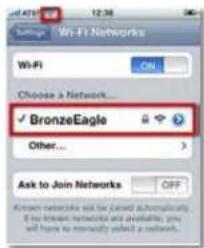
text_image
Wi-Fi Networks Choose a Network... ✓ BronzeEagle Other... Ask to Join Networks OFFiPhone
text_image
Name your device New that you are to complete your folder, including it's new Press your device to all be used to display the device. For example, this Device is not available in PC. Cancel Cancel OK CancelStarta Cisco Connect 3
Meddelandet Your Internet cable is not plugged in
Meddelandet Device not found
natural_image
Exterior view of a black rectangular electronic device with perforated surface and indicator light (no visible text or symbols)Routern kan eventuellt se annorlunda ut.
Starta Cisco Connect
text_image
Authentication Required A username and password are being requested by http://96.883.1. User Name: Password: OK Canceltext_image
Language Select your language English Internet Setup Internet Connection Type Automatic Configurations - DHCP Optional Settings (required by some Internet Service Providers) Host Name: Domain Name: MTU Auto Size Network Setup Router Address IP Address: 182 160 1 1 Subset Mask: 269.268.350.0 Device Name: Cisco00009 DHCP Server Default IP Address: 182.183.1.100 Maximum Number of Users: 50 IP Address Range: 182.183.1.100 to 149 Client Lease Time: 0 minutes (if means one day) Static DNS 1: 0 0 0 0 Static DNS 2: 0 0 0 0 Static DNS 3: 0 0 0 0 Wald: 0 0 0 0 Time Settings Time Zone (Off-08-08) Pacific Time (USA & Canada) ✓ Automatically adjust clock for daylight serving changes. Refool RefoolLanguage (Språk)
text_image
Network Mode: Mixed Network Name (SSD): Cisco00066 Channel Width: 20 MHz Only Channel: Auto SSD Broadcast: Enabled Disabledtext_image
Security Mode: WPA2/WPA Enterprise Mixed Mode RADIUS Server: 0 0 0 0 RADIUS Port: 1812 Shared Key:RADIUS Server (RADIUS-server) Ange IP-adressen till RADIUS-server.
text_image
Security Mode: WEP Encryption: 40 / 64-88 (10 hex digits) Passphrase Key 1: Key 2: Key 3: Key 4: TX Key: 1 Generatetext_image
Cisco Computers and devices Control and/or compatible or other devices is used inside. Make up a device to create your server. Parental controls Unlimited access lines and websites Create internal network security (user) Device Add hardware Change Guest access Requires to console the remote. Create user access Create user access to the server Cluster settings User-defined access settings and functions Is reliable to access the server. Cluster settings to the server Change Change Canceltext_image
Our Customer Support team can help http://www.cvscd.com/12345678 Phone: or your website for the following details is to check with a Customer Support service provider. You may have you to be allowed to file a product file that can write access, or let you access your website to your customers. Help http://www.cvscd.com/12345678 Local store / Time storenatural_image
Exterior view of a black electronic device with ventilation grille and indicator light (no visible text or symbols)
text_image
Back panel of a network device showing ports, indicators, and a highlighted connection point with a red arrow.Routern kan eventuellt se annorlunda ut
text_image
Get Windows XP Service Pack 3 This version allows the following: To choose the following security and all services allowed. You can use Windows XP as a free service for your own, but your own is not allowed. You may need to access these services for your own, but you will be required to use this service. Accessing the OS: This service. To access the Windows XP Service Pack, your computer needs to recommend it to become.text_image
dctb CISCO Your Internet cable is not plugged in To the following: • Make sure the Internet cable is instantly plugged into your cable in the yellow and blue Internet "Internet" • Make sure the other end of the Internet cable is instantly plugged into your blue • Make sure your modern is plugged in and password on • Click Next to you again Last time: 1 Time default Google? Next > Canceltext_image
Your Internet cable is not plugged in To the following: • Make sure the internet cable is securely plugged into your reader in the yellow card behind "Internet" • Make sure the other and other Internet cable is securely plugged into your reader. • Make sure your reader is plugged in and powered on. • Click Next to try again. Cancel Show details Next page Next 12 Marchtext_image
Cannot access your router You can do access your router settings when you are converted your router. If you are not connected in Excel/Scape you can update your router settings. Cancel here Help me!text_image
Choose a wireless network Click an item in the list below to connect to a wireless network in range or to get more information. JinsRouter Connected Security-enabled wireless network (MPA2) myhome Security-enabled wireless network Bronzeagle Security-enabled wireless network (MPA2) To connect to this network, click Connect. You might need to enter additional information. Mason Security-enabled wireless network Connecttext_image
Wireless Network Connection The network "BronzeEagle" requires a network key (also called a WEP key or WPA key). A network key helps prevent unknown intruders from connecting to this network. Type the key, and then click Connect. Network key: ************ Confirm network key: ************ Connect Canceltext_image
The network "BronzeEagle" requires a WPA password. Password: ******** Show password Remember this network Cancel OKtext_image
Cisco Connect Cisco Device not found A new device was not found If you're sure the device is connected, by the following: • Make sure the device in which range of your user. If it's too far away, the wireless signal may not need. • Click Next to try again Next step: Save Save CancelTIPS
text_image
Cisco Computers and devices Connect and/or Complete or other drive to total device Create a virtual computer user's name. Add Existing Parental controls Under-Internal access functions and modules Create a virtual computer user's name with questions Delete Change Guest access Make guidance to communicate the internal Create a virtual computer user's name Create a virtual computer user's name with questions Change Router settings Create virtual router settings and test your internal computer user's name Create a virtual router's name with questions ChangeLinksys E-serien
Felsökning
text_image
Computers and other devices What do you want to connect to your user? Computer Wireless printer Other wireless devices OK Canceltext_image
doula CISCO Connecting a device As iPhone® smartphones, a video game console or other wireless devices 1. Refer to the remote documentation from how to connect it by wireless network 2. Then, on the device, use the wireless settings below to connect the device in your home. Network name (SDD) Broadcastlog Security Type: No/No/No/No Security Type: MS-02 - NPLA First-line settings License 3. Click Next after you connect! Next here? Browse Next to Canceltext_image
Wi-Fi settings WI-FI Connected to JmsRouter Network notification Notify me when an open network is available Wi-Fi networks BronzeEagle-guest BronzeEagle WPS Available, secured with WPA/WPA2 PSEAndroid
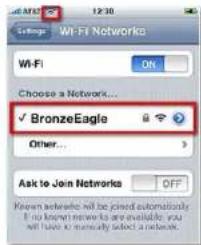
text_image
Wt-FI Networks Choose a Network... ✓ BronzeEagle Other... Ask to Join Networks OFF Known networks will be joined automatically. If no networks are available, you will have to manually select a network.iPhone
text_image
Disk Connect Disk CSCO Name your device Now that your device is connected to your folder, will give it a name. Enter in name that will be used to search the device. For example, there's phase or frequency not PC... Check it Do you need to access Read help? Cancel Next FinishSpecifikationer
Linksys E1200
Modellnamn Linksys E1200
Beskrivning Wireless-N-router
Modellnummer E1200
Standarder 802.11n, 802.11g, 802.11b, 802.3u
WPA2™, WMM®, Wi-Fi Protected
Setup, Windows 7
WPA2, WMM, Wi-Fi Protected
Setup, Windows 7
natural_image
Exterior view of a black rectangular electronic device with ventilation grille and indicator lights (no text or symbols visible)text_image
Authentication Required A customer and password are being requested to http://8126831. User Name: Password: OK Canceltext_image
Settings Settings Settings Settings Settings Settings Settings Settings Settings Settings Settings Settings Settings Settings Settings Settings Settings Settings Settings Settings Settings Settings Settings Settings Settings Settings Settings Settings Settings Settings Settings Settings Settings Settings Settings Settings Settings Settings Settings Settings Settings Settings Settings Settings Settings Settings Settings Settings Settings Settings SettingsSetup (Nastavitev) > Basic Setup (Osnovna nastavitev)
text_image
Language Select your language English Internet Setup Internet Connection Type Automatics Configuration - DHCP Optional Settings (required by some Internet Service Providers) Host name: Domain Name: info: Auto Size Network Setup Router Address IP Address: 192 168 1 1 Subnet Mask: 205 205 205.0 Device Name: Class000009 DHCP Server Enabled Disabled DHCP Reservation... Start IP Address: 192 168 1 168 Maximum Number of Users: 50 IP Address Range: 192 168 1 168 to 149 Client Lease Time: 0 minutes (if means one day) State DNS 1: 0 0 0 0 State DNS 2: 0 0 0 0 State DNS 3: 0 0 0 0 WNS: 0 0 0 0 Time Settings Time Zone (GHT-08-03) Pacific Time (USA & Canada) Automatically adjust click for daylight saving changes RefreshLanguage (Jezik)
text_image
CSCO Computers and devices Computer and device computer in the case to be used to Parental controls Parental controls Guest access Guest access to your computer in the case Guest access to your computer in the case Router settings Router settings Router settings Delete... Delete... Canceltext_image
Our Customer Support needs can help Use your original and more existing services as up Please need to use the following services for your own customer's support: • You may have to use different options to assist users that are • If you want to choose your original service, you will help • Use your original and more existing services. You may help • Use your original and more existing services. You may help • Use your original and more existing services. You may help • Use your original and more existing services. You may help • Use your original and more existing services. You may help • Use your original and more existing services. You may help • Use your original and more existing services. You may help • Use your original and more existing services. You may help • Use your original and more established services. You may help • Use your original and more established services. You may help • Use your original and more established services. You may help • Use your original and more established services. You may help • Use your original and more established services. You may help • Use your original and more established services. You may help • Use your original and more established services. You may help • Use your original and more established services. You may help • Use the original and more established services. You may help • Use the original and more established services. You may help • Use the original and more established services. You may help • Use the original and more established services. You may help • Use the original and more established services. You may help • Use the original and more established services. You may help • Use the original and more established services. You may help • Use the original and more established services. You may helps • Use the original and more established services. You may help • Use the original and more established services. You may help • Use the original and more established services. You may help • Use the original and more established services. You may help • Use the original and more established services. You may help • Use the original and more established services. You may help • Use the original and more established services. You may help • Use the original and more established service. You may help • Use the original and more established service. You may help • Use the original and more established service. You may help • Use the original and more established service. You may help • Use the original and more established service. You may help • Use the original and more established service. You may help • Use the original and more established service. You may help • Use the original and more established service. You may help • Use the original and less established service. You may help • Use the original and less established service. You may help • Use the original and less established service. You may help • Use the original and less established service. You may help • Use the original and less established service. You may help • Use the original and less established service. You may help • Use the original and less established service. You may help • Use the original and less established service. You may help • Utilization of this service is available to our customers. You may help it to use this service in order to use this service for their customers. You may help it to use this service in order to use this service for their customers. You may help it to use this service in order to use this service for their customers. You may help it to use this service in order to use this service for their customers. You may help it to use this service in order to use this service for their customers. You may help it to use this service in order to use this service for their customers. You may help it to use this Service is available to our customers. You may help it to use this Service is available to our customers. You may help it to use this Service is available to our customers. You may help it to use this Service is available to our customers. You may help it to use this Service is available to our customers. You may help it to use this Service is available to our customers. You may help it to use this Service is available to our customers. You may help it to use this Service is available to our customers.natural_image
Exterior view of a black rectangular electronic device with ventilation grille and indicator light (no text or symbols visible)
text_image
Back panel of a network device showing ports, indicators, and a highlighted USB port with red annotationtext_image
Get Windows XP Service Pack 3 You can access to Windows XP Service Pack 4. This will provide your own website and any other information. You can access to Windows XP Service Pack 5. You may have a different access point for your computer service. Your access is required by the Windows XP Service Pack 6. You should use this Internet to access your computer service.text_image
Your Internet cable is not plugged in To the following: • 30% or less. We have been replaced by a very popular computer (e.g. your mode in the public and local). • Have more than 50% or less. We have been replaced by a very popular computer (e.g. your mode in the public) • Have more your support is plugged in any power-up • Use basic security apps Copyright: • This is also Next step? Next Steptext_image
Your Internet cable is not plugged in To the following: • Make up the Internet cable to install plugged into your own or the website's Internet • Make up the other end of the Internet cable to actually plug into your website • Make up your own or a plugged in and approved us • Use Next to any agent. Save now! Next > Finishtext_image
CSCO Cannot access your routes If you can't have your router settings, when you are corrected to your route. If you can't have your router settings, then you can't have your router settings. You can't havetext_image
Choose a wireless network Click an item in the list below to connect to a wireless network in range or to get more information. Anelluster Connected Security-enabled wireless network (WPAZ) myhome Security-enabled wireless network BrouscFagle Security-enabled wireless network (WPAZ) To connect to the network, click Connect. You might need to enter additional information. Plason Security-enabled wireless network Connecttext_image
Wireless Network Connection The network 'BronzeEagle' requires a network key (also called a WEP key or WPA key). A network key helps prevent unknown intrudes from connecting to this network. Type the key, and then click Connect. Network key: ••••••••••••• Confirm network key: ••••••••••••• Connect Canceltext_image
The network "BronzeEagle" requires a WPA password. Password: ******** Show password Remember this network Cancel OKtext_image
Cisco Cloud Microsoft CISCO Device not found At the next device has been found. If you use the device to connect, you can begin. • Write ways to break or minimize the size of your user. If it is set up, then choose. • Make up new user. • Do not need to buy any user. Next step Cancel Finish FinishNAMIG
- Zaženite Cisco Connect.
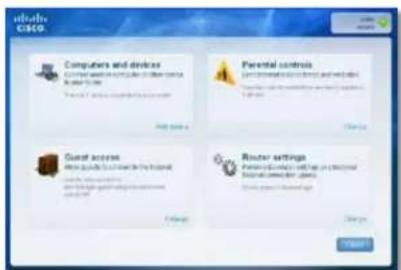
text_image
cloud C850 Computers and devices Current access to the cloud in other areas is required to be done. Parental controls Current access to the cloud in other areas is required to be done. Guest access When quick access is required for the cloud is required to be done. Router settings Current access to the cloud in other areas is required to be done.Linksys serije E
Odpravljanje napak
- Kliknite Computers and devices (Računalniki in naprave). Prikaže se zaslon Computers and other devices (Računalniki in druge naprave).
- Kliknite Other Wireless devices (Druge brezžične naprave).

text_image
disco CISCO Computers and other devices What do you want to access your device? Computer Windows proxy Cloud server server Send log? OK Canceltext_image
CSCO Connecting a device Use Windows 95% format, or any other network services 1. Web is the device's internalization to ensure that it is connected to a local network. 2. Web is the device, or any other network settings below it is connected to your access to the device. Network name (0338): Windows 95% Setting type: Windows PC Security Type: Windows PC Start for the settings: System name 3. Cloud Next also has been connected.text_image
Wi-Fi settings Connected to JamsRouter Network notification Notify me when an open network is available Wi-Fi networks BronzeEagle-guest BronzeEagle WPS Available, secured with WPA/WPA2 PWRAndroid
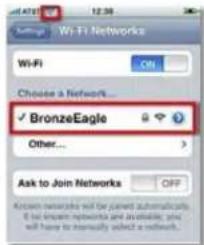
text_image
Wi-Fi Networks Wi-Fi Choose a Network... ✓ BronzeEagle Other... Ask to Join Networks OFFiPhone
text_image
Cisco CSCO Name your device How to find your device to access the device, or what is a device Do you use your device to access the device, or what is a device. CSCO 2003 The device will be installed in this program.Specifikacije
Linksys E1200
Ime modela Linksys E1200
Vrata Napajanje, Internet in Ethernet (1–4)
Gumbi Ponastavitev, Wi-Fi Protected Setup™
Indikatorji LED Napajanje/Wi-Fi Protected Setup, Internet, Ethernet (1–4)
Vrsta kablov CAT 5e
Oddajna moč 802.11n (20 MHz):
15,0 ± 1,5 dBm pri CH6, MCS 0\~4, MCS 8\~12
13,5 ± 1,5 dBm pri CH6, MCS 5\~7, MCS 13\~15
802.11n (40 MHz):
14,0 ± 1,5 dBm pri CH6, MCS 0\~4, MCS 8\~12
13,5 ± 1,5 dBm pri CH6, MCS 5\~7, MCS 13\~15
802.11g:
14,5 ± 1,5 dBm pri CH6, vse hitrosti
802.11b:
16,5 ± 1,5 dBm pri CH6, vse hitrosti
Ojačanje anten ≤2,5 dBi, ≤4,0 dBi (2 anteni)
UPnP Podprto
Varnost brezžičnega omrežja Wi-Fi Protected Access™ 2 (WPA2),
WEP, filtriranje naslovov
WPA2™, WMM®, Wi-Fi Protected
Setup, Windows 7
Temperatura za delovanje od 32 do 104 °F (od 0 do 40 °C)
Temperatura za shranjevanje od -4 do 140 °F (od -20 do 60 °C)
Vlažnost za delovanje od 10 do 80 %, brez kondenzacije
Vlažnost za shranjevanje od 5 do 90 %, brez kondenzacije
OPOMBE
Vrata Napajanje, Internet in Ethernet (1–4)
Gumbi Ponastavitev, Wi-Fi Protected Setup
Indikatorji LED Napajanje/Wi-Fi Protected Setup, Internet, Ethernet (1–4)
Vrsta kablov CAT 5e
Oddajna moč 802.11n (20 MHz):
17,0 ± 1,5 dBm pri CH6, MCS 0\~4, MCS 8\~12
16,0 ± 1,5 dBm pri CH6, MCS 5\~7, MCS 13\~15
802.11n (40 MHz):
15,5 ± 1,5 dBm pri CH6, MCS 0\~4, MCS 8\~12
14,0 ± 1,5 dBm pri CH6, MCS 5\~7, MCS 13\~15
802.11g:
18,0 ± 1,5 dBm pri CH6, 6 Mb/s
17,0 ± 1,5 dBm pri CH6, 54 Mb/s
802.11b:
18,0 ± 1,5 dBm pri CH6, vse hitrosti
Ojačanje anten ≤3,0 dBi, ≤4,0 dBi, ≤4,5 dBi (3 antene)
UPnP Podprto
Varnost brezžičnega omrežja Wi-Fi Protected Access 2 (WPA2),
WEP, filtriranje naslovov
WPA2, WMM, Wi-Fi Protected
Setup, Windows 7
Temperatura za delovanje od 32 do 104 °F (od 0 do 40 °C)
Temperatura za shranjevanje od -4 do 140 °F (od -20 do 60 °C)
Vlažnost za delovanje od 10 do 80 %, brez kondenzacije
Vlažnost za shranjevanje od 5 do 90 %, brez kondenzacije
OPOMBE
FCC, IC, CE, Wi-Fi a/b/g/n,
Windows 7
Temperatura za delovanje
natural_image
Exterior view of a black rectangular electronic device with ventilation grille and indicator lights (no text or symbols visible)text_image
40mm 40mm 40mm 40mmtext_image
Authentication Required A customer and password are being approved by https://836082.1. User Name: Password: OK Canceltext_image
Database Database Name: Database Type: Database Address: Database Name: Database ID: Database Status: Database Region: Database Region Description: Database Region Description: Database Region Description: Database Region Description: Database Region Description: Database Region Description: Database Region Description: Database Region Description: Database Region Description: Database Region Description: Database Region Description: Database Region Description: Database Region Description: Database Region Description: Database Region Description: Database Region Description: Database Region Description: Database Region Description: Database Region Description: Database Region Description: Database Region Identification: Database Region Identification: Database Region Identification: Database Region Identification: Database Region Identification: Database Region Identification: Database Region Identification: Database Region Identification: Database Region Identification: Database Region Identification: Database Region Identification: Database Region Identification: Database Region Identification: Database Region Identification: Database Region Identification: Database Region Identification: Database Region Identification: Database Region Identification: Database Region Identification: Database Region Identification: Database Region Classification: Database Region Classification: Database Region Classification: Database Region Classification: Database Region Classification: Database Region Classification: Database Region Classification: Database Region Classification: Database Region Classification: Database Region Classification: Database Region Classification: Database Region Classification: Database Region Classification: Database Region Classification: Database Region Classification: Database Region Classification: Database Region Classification: Database Region Classification: Database Region Classification: Database Region Classification: Database Region Certification: Database Region Certification: Database Region Certification: Database Region Certification: Database Region Certification: Database Region Certification: Database Region Certification: Database Region Certification: Database Region Certification: Database Region Certification: Database Region Certification: Database Region Certification: Database Region Certification: Database Region Certification: Database Region Certification: Database Region Certification: Database Region Certification: Database Region Certification: Database Region Certification: Database Region Certification: Database Region Enrollment, Enrollment, Enrollment, Enrollment, Enrollment, Enrollment, Enrollment, Enrollment, Enrollment, Enrollment, Enrollment, Enrollment, Enrollment, Enrollment, Enrollment, Enrollment, Enrollment, Enrollment, Enrollment, Enrollment, Enrollment, Enrollment, Enrollment, Enrollment, Enrollment, Enrollment, Enrollment, Enrollment, Enrollment, Enrollment, Enrollment, Enrollment, Enrollment, Enrollment, Enrollment, Enrollment, Enrollment, Enrollment, Enrollment, Enrollment, Enrollment, Enrollment, Enrollment, Enrollment, Enrollment, Enrollment, Enrollment, Enrollment, Enrollment, Enrollment, Enrollment |text_image
Language Select your language English Internet Setup Internet Connection Type Automatic Configuration - DHCP Optional Settings (required by some Internet Service Providers) Host Name: Domain Name: WPs: Auto Size Network Setup Router Address IP Address: 102 108 1 1 Subnet Stack: 295 309 355.0 Device Name: Class00000 DHCP Server Dutch P Address: 102 108 1 100 Maximum Number of Users: 55 IP Address Range: 102 108 1-105 to 149 Client Lease Time: 0 minutes (5 means one day) State DNS 1: 0 0 0 0 State DNS 2: 0 0 0 0 State DNS 3: 0 0 0 0 VHDL: 0 0 0 0 Temp Settings Time Zone (DHT-06 EE) Pacific Time (USA & Canada) Automatically-adjust stock for daylight saving changes Timeout ReturnLanguage (ภาษา)
text_image
Network Mode: Mixed Network Name (SSD) Cisco00056 Channel Width: 20 MHz Only Channel: Auto SSD Broadcast Enabled DisabledWPA2/WPA Mixed Mode, WPA2 Personal, WPA Personal
หมายเหตุ
WPA2/WPA Enterprise Mixed Mode, WPA2 Enterprise, WPA Enterprise
text_image
Security Mode: UPA20VPA Enterprise Mixed Mode RADIUS Server 0 0 0 0 RADIUS Port 1812 Shared Keytext_image
CSCO Computers and devices Computer and computer in order to build a new file. Primary server, network management software Add details Parental controls Get stored data into the next page Create a new file (e.g. 123) Delete Guest access After public service is closed Create a new file (e.g. 123) Change Router settings Make your home with the professional found all new files. Create a new file (e.g. 123)text_image
Our Customer Support Learn can help User can help you add something up your job. Please ask your website for downloading this in the case & customer's support supportbook. The help you can add something together with your job and choose your job to create a new tool or new work. You can help you add something up your job. You can help you add something together with your job.natural_image
Front view of a black wireless router with ventilation slots and a close-up of its rear ports (no visible text or symbols)text_image
Get Windows! IP Service Pack 3 I can't change the service from Windows 1. This version is to get software to install any configuration. To add the new service, it will not change the service to add the new service.text_image
Your Internet cable is not plugged in • By the following: • DOS C160 C160 C160 cable is completely plugged into your user to file all-in part C160 C160 cable. • Have more than 50% of the internet cable is completely plugged into your user. • Have more your user's plugged in any power on • Use Windows to access Copyright • Any website Next Step*ในการแก้ไขปัญหานี้:
text_image
Your Internet cable is not plugged in Try the following: • Shake sure the network cable is exactly plugged into your mode in the yellow port • Shake sure the other end of the network cable is exactly plugged into your mode. • Shake sure your mode is plugged in and password on • Cookie must be any agent. Last time: 12 March 2023text_image
Cannot access your routes You can only access your route settings when you are connected to your route. If you want connected in Microsoft your route, you can access your route settings. Next step Canceltext_image
Choose a wireless network Click an item in the bit below to connect to a wireless network in range or to get more information. Amplifier Connected Security-enabled wireless network (WPAZ) Myhome Security-enabled wireless network Browse type Security-enabled wireless network (WPAZ) To connect to the network, click Connect. You might need to enter additional information. Mason Security-enabled wireless network Connecttext_image
Wireless Network Connection The network 'BronzeEagle' requires a network key (also called a WEP key or WPA key). A network key helps present unknown intrudes from connecting to this network. Type the key, and then click Connect. Network key: ************ Confirm network key: ************ Connect Canceltext_image
The network "BronzeEagle" requires a WPA password. Password: ******** Show password Remember this network Cancel OKtext_image
Device not found A new device is not found. If you can use the device to connect, try the beginning. • While you can use the device to get your computer. If this can be away, then choose • Get your computer. • Click Next to this device. Next step OK Finish Cancel Helptext_image
cloud C860 Computers and devices Content and device to use the cloud to access to the Computer OS services Parental controls Contented cloud services and devices Contented cloud services (e.g. cloud services) Guest access Guest access to connect to the cloud Guest access to connect to the cloud Router settings Contented cloud services and devices Router settings (e.g. cloud services) Change Change Starttext_image
Intel Cisco Computers and other devices Allow the user to create any device (*.*) Computer Windows property Other devices: Windows About 100% or less than 50% or more than 20% or more than 100%text_image
联通 Cisco Connecting a device Use Private networks, a local game console. At the wireless network 1. Apply to the device's configuration to have been connected to a wireless server 2. Use in the device, use the wireless settings before being connected to the device to file access Network name (0038), Connected by: Security type: No/No/No/No Security Type: BF42 - 6570 One Phone setting: Local type 3. Click Next after you connectedtext_image
Wi-Fi settings Connected to JmsRouter Network notification Notify me when an open network is available Wi-Fi networks BronzeEagle-guest BronzeEagle WPS Available, secured with WPA/WPA2 Android iPhone Wi-Fi Networks Wi-Fi ON Choose a Network... ✓ BronzeEagle Other... Ask to Join Networks OFF Known networks will be joined automatically. If we ensure networks are available, you will have to successfully select a network.text_image
Name your device Show that you have to access your device to your device, if you want to access it.คุณสมบัติเฉพาะ
Linksys E1200
14.0 ± 1.5dBm @ CH6, MCS 0\~4, MCS 8\~12
13.5 ± 1.5dBm @ CH6, MCS 5\~7, MCS 13\~15
802.11g:
(7.43" × 5.97" × 1.23")
WPA2™, WMM®, Wi-Fi Protected
Setup, Windows 7
อุณหภูมิที่เหมาะสม
ในการใช้งาน
15.5 ± 1.5 dBm @ CH6, MCS 0\~4, MCS 8\~12
14.0 ± 1.5 dBm @ CH6, MCS 5\~7, MCS 13\~15
802.11g:
18.0 ± 1.5 dBm @ CH6, 6 Mbps
17.0 ± 1.5 dBm @ CH6, 54 Mbps
802.11b:
PIFA 1 ≤ 4.8 dBi (cancel)
PIFA 3 ≤ 5.2 dBi (MN)
ระบบไฟล์ของอุปกรณ์
(8.86" × 0.98" × 6.30")
Your Internet cable is not plugged in
natural_image
Exterior view of a black rectangular electronic device with perforated surface and indicator light (no visible text or symbols)text_image
Authentication Required A username and password are being requested by http://80.168.1.1. User Name: Password OK Canceltext_image
Setup Name: Name: 1 Address Category: C:\SET Subtitle: Subtitle: Subtitle: Subtitle: Subtitle: Subtitle: Subtitle: Subtitle: Subtitle: Subtitle: Subtitle: Subtitle: Subtitle: Subtitle: Subtitle: Subtitle: Subtitle: Subtitle: Subtitle: Subtitle: Subtitle: Subtitle: Subtitle: Subtitle: Subtitle: Subtitle:Setup (Kurulum) > Basic Setup (Temel kurulum)
text_image
Language Select your language English Internet Setup Internet Connection Type Automatic Configuration - DHCP Optional Settings (required by some Internet Service Providers) Host Name: Domain Name: MTU Auto Size Network Setup Router Address IP Address: 182 168 1 1 Subset Mask: 285.206.206.0 Device Name: Caused0009 DHCP Server Is Enabled Disabled DHCP Reservation Start IP Address: 182.168.1.100 Maximum Number of Users: 50 IP Address Range: 182.168.1.100 to 149 Client Lease Time: 0 minutes (3 means one day) Static DNS 1: 0 0 0 0 Static DNS 2: 0 0 8 8 Static DNS 3: 0 0 8 8 WNS: 0 0 8 8 Time Settings Time Zone (GNT-08:00) Pacific Time (USA & Canada) Automatically adjust clock for daylight saving charges. Redecol RedecolLanguage (Dil)
Static IP (Statik IP)
text_image
Network Mode: Mixed Network Name (SSID): Cisco00066 Channel Width: 20 MHz Only Channel: Auto SSD Broadcast: Enabled DisabledWPA2/WPA Mixed Mode (WPA2/WPA Karma Modu), WPA2 Personal (WPA2 Kişisel), WPA Personal (WPA Kişisel)
NOTLAR
WPA2/WPA Enterprise Mixed Mode (WPA2/WPA Şirket Karma Modu), WPA2 Enterprise (WPA2 Şirket), WPA Enterprise (WPA Şirket)
text_image
Security Mode: WPA2/WPA Enterprise Mixed Mode RADIUS Server: 0 0 0 0 RADIUS Port: 1812 Shared Key:text_image
Security Mode: WEP Encryption: 40 / 64-88 (10 hex digits) Passphrase Key 1: Key 2: Key 3: Key 4: TX Key: 1 Generatetext_image
Cloud CISCO Computers and devices Connect another computer of other devices to the tool. Start a device to complete your cloud. App devices Parental controls Unlimited access drives and websites Parental control functions and web applications Device Change Guest access Allow requests to connect the internet Guest access to the system Guest access to the system Router settings Personal network settings and web user Personal network settings and web users Router settings in Internet Change Changetext_image
Our Customer Support Team can help What's need you can connect your help. Please use the help to create a new team or what's not a client to support the customer. You should have you to be interested in making this help that can't have your access, or can't wait your connection to your customers. Help me to choose your help to help you.natural_image
Exterior view of a black rectangular electronic device with ventilation grille and indicator lights (no visible text or symbols)
text_image
Back panel of a computer interface showing ports, buttons, and a highlighted button with red arrowtext_image
Get Windows XP Service Pack 3 This version is required to be installed in the next three years. The installed platform will not be used for any other version. It is currently available at the beginning of the year.text_image
You Internet cable is not plugged in To the following: • Make sure the Internet cable is securely plugged into your online in the yellow pad labeled "non-chips" • Make sure the other end of the Internet cable is securely plugged into your online. • Make sure your modem is plugged in and powered on • Click Next to open. Last time: 1 Time soughtSorunu çözmek için:
text_image
Youth CISCO Your Internet cable is not plugged in To the following: • Make sure the Internet cable is securing plugged into your status in the yellow port's Institut "Internet" • Make sure the other and other Internet cable is securely plugged into your system. • Make sure your network is plugged in and powered on. • Build Next to buy back. Next help: OK Help Finish!text_image
Cannot access your router You can use access your router settings when you are cancelled to your router. If you are not replaced in Microsoft, you can update your router settings. Save more Save less!text_image
Choose a wireless network Click an item in the list below to connect to a wireless network in range or to get more information. JimiaRouter Connected Security-enabled wireless network (WPA2) myhome Security-enabled wireless network Bronzeetagle Security-enabled wireless network (WPA2) To connect to the network, click Connect. You might need to enter additional information Mason Security-enabled wireless network Connecttext_image
Wireless Network Connection The network "BronzeEagle" requires a network key (also called a WEP key or WPA key). A network key helps prevent unknown intruders from connecting to this network. Type the key, and then click Connect. Network key: ************ Confirm network key: ************ Connect Canceltext_image
The network "BronzeEagle" requires a WPA password. Password: ******** Show password Remember this network Cancel OKtext_image
Cisco Connect vitalo CSCO Device not found • A new device will not found If you're sure the device is connected, by the following: • Show how the device either uses a range of your mode. If this has any way, the remote signal may not want. • Click Next to its own Learn more Forward Help? OK Next > CancelIPUCU
text_image
Cisco Computers and devices Connect and compute to other devices to your router. Status 1: (Primary computer) your router. Add service Parental controls Uninternal access links and websites Parental controls to computers and web platforms <|vision_start|> user Change Guest access After requests to connect the internal GPs connected to the computer user(s) Change Router settings Personal access settings and help your user access for users Router settings to a server Change ChangeLinksys E-Series
Sorun Giderme
text_image
DOS-1993 Computers and other devices What do you want to connect to your user? Computer Windows router Other wireless devices OK Canceltext_image
Connecting a device As Phosoft smartphone, a video game Console, or other wireless devices 1. Refer to the client's documentation to learn how to construct it to a wireless network. 2. Then, on the device, use the wireless settings network to construct the device to your mode. Network name (SIN): Apache.com Security Type: DHCP.com Security Type: WPA-4 - WPA Print these settings: Learn online 3. Click Next after you click! Need help? OK Cancel Helptext_image
Wi-Fi settings WI-FI Connected to JmsRouter Network notification Notify me when an open network is available Wi-Fi networks BronzeEagle-guest BronzeEagle WPS Available, secured with WPA/WPA2 PSKAndroid
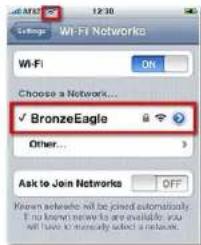
text_image
Wt-FI Networks Choose a Network... ✓ BronzeEagle Other... Ask to Join Networks OFF Known networks will be joined automatically. If known networks are available, you will have to manually select a network.iPhone
text_image
Disk Connect Disk Cisco Name your device Now that your device is connected by your folder, will give it a name. Enter to name that will be used (it is worth the device. For example, this's phase of Fuzzy user PC... C:\Users\Fuzzy\user PC For the same time you want to use the device.Spesifikasyonlar
Linksys E1200
Model Adi Linksys E1200
15,0 ± 1,5dBm @ CH6, MCS 0\~4, MCS 8\~12
13,5 ± 1,5dBm @ CH6, MCS 5\~7, MCS 13\~15
802.11n (40 MHz):
14,0 ± 1,5dBm @ CH6, MCS 0\~4, MCS 8\~12
13,5 ± 1,5dBm @ CH6, MCS 5\~7, MCS 13\~15
802,11g:
WPA2™, WMM®, Wi-Fi Protected
Setup, Windows 7
17,0 ± 1,5 dBm @ CH6, MCS 0\~4, MCS 8\~12
16,0 ± 1,5 dBm @ CH6, MCS 5\~7, MCS 13\~15
802.11n (40 MHz):
15,5 ± 1,5 dBm @ CH6, MCS 0\~4, MCS 8\~12
14,0 ± 1,5 dBm @ CH6, MCS 5\~7, MCS 13\~15
802,11g:
18,0 ± 1,5 dBm @ CH6, 6 Mbps
17,0 ± 1,5 dBm @ CH6, 54 Mbps
802.11b:
Anten Kazancı ≤3,0 dBi, ≤4,0 dBi, ≤4,5 dBi
(3 anten)
UPnP Destekleniyor
WPA2, WMM, Wi-Fi Protected
Setup, Windows 7
FCC, IC, CE, Wi-Fi a/b/g/n,
Windows 7
natural_image
Exterior view of a portable electronic device with a circular lens and ventilation grille (no visible text or symbols)text_image
Authentication Required A username and password are being requested by http://8120811. User Name: Password: OK Canceltext_image
Language Select your language English Internet Setup Internet Connection Type Automatic Configuration - DHCP Optional Settings (required by both Internet Service Providers) Host Name: Domain Name: Affy: Auto Size Network Setup Router Address IP Address: 192 168 1 1 Submit Mask: 259.259.250.0 Device Name: Class030009 DHCP Server DHCP Server Enabled Disabled DHCP Reservation... Start IP Address: 192 168 1 100 Maximum Number of Users: 60 IP Address Range: 192 168 1 100 to 149 Client Lease Time: 0 minutes (if means one day) Status DNS 1: 0 0 0 0 Status DNS 2: 0 0 0 0 Status DNS 3: 0 0 0 0 NRD: 0 0 0 0 Time Settings Time Zone (DAT-68.03) Pacific Time (USA & Canada) Automatically adjust clock for daylight saving changes ResetLanguage (Moba)
text_image
Network Mode: Mixed Network Name (SSD) Cisco00056 Channel Width: 20 MHz Only Channel: Auto SSD Broadcast Enabled Disabledtext_image
Security Node: RADIUS RADIUS Server 0 0 0 0 Radius Port 1812 Shared Key Encryption: 45 / 64-bit (55 new digits) Passgrass Key 1 Key 2 Key 3 Key 4 TX Key 1 GenerateRADIUS Server (Сервер RADIUS) Введите IP-адресу сервера RADIUS.
text_image
Cisco CISCO Computers and devices Current setup to switch to a server in the Windows 2016 Computer OSOS (Windows NT) Parental controls Get virtual access from your own device System to switch to a server in the Windows 2016 Server access Other product or service is used System to switch to a server in the Windows 2016 Router settings Personal settings will be processed and use the server in the Windows 2016text_image
Our Customer Support Team can help Your customer needs not necessarily need us. Please call for the service for post-sales services to the client's Customer Support improvement, the only time is based on additional information on the client. You provide your support for post-sales services in your market.natural_image
Front view of a network router with indicator light and ports, shown from top and side (no text or symbols visible)text_image
Get Windows XP Service Pack 3 To ensure that the system is to be completed, but it will not want to continue to complete the service. To be done by the system, you will continue to complete the service.text_image
Your Internet cable is not plugged in To the following: • Write your own Internet cable to ensure plugged into your mode in the website your button "You" • Write your own and if the Internet cable is connecting plugged into your button. • This can you install a plugged list to prevent it. This will only use your computer as a free user.text_image
Your Internet cable is not plugged in To the following: • Make sure the internet cable to remove plugged into your user in the website and installed Internet • Make sure the other end of the Internet cable to exactly plug into your users • Make sure your user to plug into or transmit us • Click Next by up again.text_image
Cannot access your router You can only access your router settings when you are connected to your router. If you are connected to: Be said right you can access your water settings. Canceltext_image
Choose a wireless network Click an item in the list below to connect to a wireless network in range or to get more information. Installator Connected Security-enabled wireless network (WPAZ) myhome Security-enabled wireless network BrowserEye Security-enabled wireless network (WPAZ) To connect to the network, click Connect. You might need to enter additional information. Mission Security-enabled wireless network Connecttext_image
Wireless Network Connection The network 'BronzeEagle' requires a network key (also called a WEP key or WPA key). A network key helps prevent unknown intruder from connecting to the network. Type the key, and then click Connect. Network key: ************ Confirm network key: ************ Connect Canceltext_image
The network "BronzeEagle" requires a WPA password. Password: ******** Show password Remember this network Cancel OKtext_image
In Clear Connect COSCO Device not found A new device will launch.ПІДКАЗКА
text_image
Studio CSCO Computers and devices Current and/or project or other services to be used to add up to 100% Parental controls Last generation of wireless and remote work to be used to add up to 100% Server access Show possible to reach the network Show available to the network Show available to the network Router settings Power drive and/or network are required Use the network for users. Use the network for users. Change Next > CancelLinksys cepii E
text_image
dual-ccase Computers and other devices What is your tool to choose your device? Computer Windows power Other devices: Windows Start menutext_image
dodo Cisco Connecting a device An important configuration, a used port network, or other wireless devices. 1. To date it is the device's immediate connection to the next user in connection to the wireless network. 2. From the device, you can access the network device to your own device. Network name: 00390; Windows code: Security type: Microsoft Corp. Security type: SP52 - MSN Start time settings: Local mode 3. Do not need any connection.text_image
Wi-Fi settings Connected to JmaRouter Network notification Notify me select an open network is available Wi-Fi networks BronzeEagle-guest BronzeEagle WPS Available, secured with WPA/WPA2 PST Settings - Wi-Fi Networks Wi-Fi ON Choose a Network... ✓ BronzeEagle Other... Ask to Join Networks OFF Access networks will be joined automatically. If you include networks and available, you will help to multiply select a network.Android
iPhone
text_image
Disk Drive Disk Name your device How did you print in the Windows drive (Windows drive). It is required. Do you have to be used to identify the drive for your computer. When I am not available, then I will continue to use this drive. OK 12 CancelСпецифікації
Linksys E1200
Назва моделі Linksys E1200
WPA2™, WMM®, Wi-Fi Protected
Setup, Windows 7
WPA2, WMM, Wi-Fi Protected
Setup, Windows 7
Wireless > Basic Wireless Settings
(Không dây > Cài đặt không dây cơ bản). . . . . . . . . . . . . . . . . . . . . . . . . . . . . . . . . . . . . . . . . . . . . . . . . . 6
Cải đặt không dây 6
Bảo mật không dây
Thông báo Your Internet cable is not plugged in
(Chua cám cáp Internet) 13
Thông báo Cannot access your router
natural_image
Exterior view of a black rectangular electronic device with a circular display and indicator light (no text or symbols visible)text_image
Authentication Request A certificate and password are being requested to http://0126811. Start Name: Password: OK Canceltext_image
Language Select your language English Internet Setup Internet Connection Type Automatic Configuration - DHCP Optional Settings (required by some Internet Service Providers) Host name: Domain Name: info: Auto Size Network Setup Router Address IP Address: 192 168 1 1 Subnet Mask: 205 205 205.0 Device Name: Dec00009 DHCP Server DHF Server Default Disabled DHCP Reservation... Start IP Address: 192 168 1 100 Maximum Number of Lines: 50 IP Address Range: 192 168 1 100 to 149 Client Lease Time: 0 minutes (if means one day) State DNS 1: 0 0 0 0 State DNS 2: 0 0 0 0 State DNS 3: 0 0 0 0 VMS: 0 0 0 0 Time Settings Time Zone (SHT-08-03) Pacific Time (USA & Canada) Automatically adjust click for daylight saving charges Timeout ReturnLanguage (Ngôn ngữ)
Telstra Cable (Cáp Telstra)
text_image
Network Mode: Mixed Network Name (SSD): Cisco00056 Channel Width: 20 MHz Only Channel: Auto SSD Broadcast Enabled Disabledtext_image
Our Customer Support Start can help Your Start is to be continuing to go up Please check our website for the following website to try to add a Customer Support from the site. You may have to use different types of web, but your website will be used to add a Customer Support Start can help you. You can access your website to your website.natural_image
Front view of a black network router with indicator light and ports, shown from top and side (no text or symbols on the device itself)text_image
Get Windows XP Service Pack 3 To create a new IP service, it is not to start and end the following steps: • To create a new IP service, it is not to start and end the following steps: • To create a new IP service, it is not to start and end the following steps: • To create a new IP service, it is not to start and end the following steps: • To create a new IP service, it is not to start and end the following steps: • To create a new IP service, it is not to start and end the following steps: • To create a new IP Service, it is not to start and end the following steps: • To create a new IP Service, it is not to start and end the following steps: • To create a new IP Service, it is not to start and end the following steps: • To create a new IP Service, it is not to start and end the following steps: • To create a new IP Service, it is not to start and end the following steps: • To create a new IP Service, it is not after starting the next step • To create a new IP Service, it is not after starting the next step • To create a new IP Service, it is not after starting the next step • To create a new IP Service, it is not after starting the next step • To create a new IP Service, it is not after starting the next step • To create a new IP Service, it is not after starting the next step • To create a new IP Service, it is not after starting the second step • To create a new IP Service, it is not after starting the second step • To create a new IP Service, it is not after starting the second step • To create a new IP Service, it is not after starting the second step • To create a new IP Service, it is not after starting the second step • To create a new IP Service, it is not after starting the second step • To create a new IP Service, it is not after beginning the third step • To create a new IP Service, it is not after beginning the third step • To create a new IP Service, it is not after beginning the third step • To create a new IP Service, it is not after beginning the third step • To create a new IP Service, it is not after beginning the third step • To create a new IP Service, it is not after beginning the third step • To create a new IP Service, it is not after starting the fourth step • To create a new IP Service, it is not after starting the fourth step • To create a new IP Service, it is not after starting the fourth step • To create a new IP Service, it is not after starting the fourth step • To create a new IP Service, it is not after starting the fourth step • To create a new IP Service, it is not after starting the fourth step • To create a new IP Service, it is not after ending the fifth step • To create a new IP Service, it is not after ending the fifth step • To create a new IP Service, it is not after ending the fifth step • To create a new IP Service, it is not after ending the fifth step • To create a new IP Service, it is not after ending the fifth step • To create a new IP Service, it is not after ending the fifth step • To create a new IP Service, it is not after starting the sixth step • To create a new IP Service, it is not after starting the sixth step • To create a new IP Service, it is not after starting the sixth step • To create a new IP Service, it is not after starting the sixth step • To create a new IP Service, it is not after starting the sixth step • To create a new IP Service, it is not after starting the sixth step • To create a new IP Service, it is not after ending the seventh step • To create a new IP Service, it is not after ending the seventh step • To create a new IP Service, it is not after ending the seventh step • To create a new IP Service, it is not after ending the seventh step • To create a new IP Service, it is not after ending the seventh step • To create a new IP Service, it is not after ending the seventh step • To create a new IP Service, it is not after starting the eighth step • To create a new IP Service, it is not after starting the eighth step • To create a new IP Service, it is not after starting the eighth step • To create a new IP Service, it is not after starting the eighth step • To create a new IP Service, it is not after starting the eighth step • To create a new IP Service, it is not after starting the eighth step • To create a new IP Service, it is not after ending the fifth step • To create a new IP Service, it is not after ending the fifth step • To create a new IP Service, it is not after ending the fifth step • To create a new IP Service, it is not after ending the fifth step • To create a new IP Service, it is not after ending the fifth step • To create a new IP Service, it is not after Ending the sixth Step • To create a new IP Service, it is not after Ending the sixth Step • To create a new IP Service, it is not after Ending the sixth Step • To create a new IP Service, it is not after Ending the sixth Step • To create a new IP Service, it is not after Ending the sixth Step • To create a new IP Service, it is not after Ending the sixth Step • To create a new IP Service, it is not after Ending at End of 1997Thông báo Your Internet cable is not plugged in (Chưa cắm cáp Internet)
text_image
Your Internet cable is not plugged in To the following: • Write your full internet cable to be installed, plugged into your order to the next file part <|vision_start|> Slovenia "Hello" • Write your entire network of the Internet (which is currently plugged into your window) • Write your entire network of the Internet (which is currently plugged into your window) • Write your entire network of the Internet (which is currently plugged into your window) • Write your entire network of the Internet (which is currently plugged into your window) Next step? Next clickĐế khác phục sự cố:
text_image
You're Internet cable is not plugged in To the following: • Make sure the Internet cable to verify plugged into your user in the online pair advanced "Internet" • Make sure the office and the Internet cable is correctly plugged into your user(s) • Make sure your mode is plugged in and posted on. • Click Next is by again. Next > Canceltext_image
Canal access your routes You can only access your routes when you are convenient to your routes. If you are convenient, I'm yourself, you can access your routes. Save timetext_image
Choose a wireless network Click an item in the list below to connect to a wireless network in range or to get more information. Anofluster Connected Security-enabled wireless network (WPAZ) myhome Security-enabled wireless network Brouquet Eagle Security-enabled wireless network (WPAZ) To connect to that network, click Connect. You might need to enter additional information. Plausn Security-enabled wireless network Connecttext_image
Wireless Network Connection The network 'BronzeEagle' requires a network key (also called a WEP key or WPA key). A network key helps prevent unknown intruders from connecting to this network. Type the key, and then click Connect. Network key: ••••••••••••• Confirm network key: ••••••••••••• Connect Canceltext_image
The network "BronzeEagle" requires a WPA password. Password: ******** Show password Remember this network Cancel OKtext_image
Device not found A new device with network connection If you have the device to connect, I'm looking • Make sure if the device is a key of your device. If I can be able, then choose high or low connection. • Click Next or try your device.MEO
text_image
CSCO Computers and devices Computer and device to compute the other service to help you. Parental controls Parental control is used to create your own control. Guest access Guest access to the client's service Guest access to the client's service Router settings Router settings are used to create your control. Router settings are used to create your control.Linksys E-Series
Khắc phục sự cố
text_image
disco CISCO Computers and other devices What do you want to access your device? Computer Windows proxy Cloud server server Send log? OK Canceltext_image
CSCO Connecting a device Use Proactive networks, or local ports. Use the other wireless devices. 1. Does not use the device's internalization to ensure that it is connected to a local network. 2. Does not use the device, or the internalization settings below it should be connected to your access. Network name (0338): Windows One Setting type: Windows PC Security Type: Windows NT Start for any settings: System name 3. Cloud Next also has been connected.text_image
Wi-Fi settings Connected to JamsRouter Network notification Notify me when an open network is available Wi-Fi networks BronzeEagle-guest BronzeEagle WPS Available, secured with WPA/WPA2 PWRAndroid

text_image
Wi-Fi Networks Wi-Fi ON... Choose a Network... ✓ BronzeEagle Other... Ask to Join Networks OFF Known networks will be opened automatically. It will ensure networks and availability, you will have to manually select a network.iPhone
text_image
Cisco CSCO Name your device How to find your device to access the device, or what is a device Name is required to be found directly, but this device will not use any other options. Please check it. CSCO 2003 The computer will be done.Đặc tính kỹ thuật
Linksys E1200
Đèn LED Nguôn/Wi-Fi Protected Setup, Internet, Ethernet (1-4)
Loại cấp CAT 5e
15,0 ± 1,5dBm @ CH6, MCS 0\~4, MCS 8\~12
13,5 ± 1,5dBm @ CH6, MCS 5\~7, MCS 13\~15
802.11n (40 MHz):
14,0 ± 1,5dBm @ CH6, MCS 0\~4, MCS 8\~12
13,5 ± 1,5dBm @ CH6, MCS 5\~7, MCS 13\~15
802.11g:
WPA2™, WMM®, Wi-Fi Protected
Setup, Windows 7
Đèn LED Nguôn/Wi-Fi Protected Setup, Internet, Ethernet (1-4)
Loại cấp CAT 5e
17,0 ± 1,5 dBm @ CH6, MCS 0\~4, MCS 8\~12
16,0 ± 1,5 dBm @ CH6, MCS 5\~7, MCS 13\~15
802.11n (40 MHz):
15,5 ± 1,5 dBm @ CH6, MCS 0\~4, MCS 8\~12
14,0 ± 1,5 dBm @ CH6, MCS 5\~7, MCS 13\~15
802.11g:
18,0 ± 1,5 dBm @ CH6, 6 Mbps
17,0 ± 1,5 dBm @ CH6, 54 Mbps
802.11b:
WPA2, WMM, Wi-Fi Protected Setup, Windows 7
(8,86" × 1,38" × 7,09")
(6,69" × 0,98" × 7,48")
Công Nguôn, USB, Internet, Ethernet (1-4)
Nút Reset, Wi-Fi Protected Setup
5 GHz (3 ăng ten PIFA trong)