Tenda TX2L Pro - Router

TX2L Pro - Router Tenda - Free user manual and instructions

Find the device manual for free TX2L Pro Tenda in PDF.

📄 80 pages English EN Download 💬 AI Question 11 questions ⚙️ Specs
Notice Tenda TX2L Pro - page 5
Pick your language and provide your email: we'll send you a specifically translated version.
Product Type WiFi Router
Brand Tenda
Model TX2L Pro
Connectivity WiFi (802.11ac) + Gigabit Ethernet
Ports 1 Gigabit WAN port, 3 Gigabit LAN ports (1 shared IPTV)
Wi-Fi Standard IEEE 802.11ac/b/g/n
Frequencies 2.4 GHz and 5 GHz
Wireless Speed Up to 1,200 Mbps (300 Mbps 2.4 GHz + 867 Mbps 5 GHz)
Antennas 2 adjustable external antennas
LED Indicator Multicolor LED (green, red, orange) for system and network status
Buttons WPS/RST (reset and WPS pairing)
Power Supply Power adapter (DC 9V, 0.6A)
Main Functions Internet access point, IPTV, WPS, factory reset, management via web interface tendawifi.com
Security WPA/WPA2-PSK, MAC filtering, firewall
Configuration Web configuration wizard accessible via tendawifi.com
Box Contents Router, power adapter, Ethernet cable, quick installation guide

Frequently Asked Questions - TX2L Pro Tenda

I can't connect to the web interface by visiting tendawifi.com. What should I do?
Make sure your smartphone or computer is connected to the router's WiFi network (default name Tenda_XXXXXX). For the first connection, use the WiFi indicated on the label. Disable mobile data. If using a wired device, ensure it is set to Automatic IP. If the problem persists, reset the router by holding the WPS/RST button for 8 seconds.
I cannot access the Internet after configuration. What should I do?
Check that the WAN cable is properly connected to the modem or Ethernet outlet. Log into the web interface (tendawifi.com) and go to Internet Settings to follow troubleshooting instructions. Ensure your WiFi devices are connected to the new network and that wired devices are set to Automatic IP.
How do I restore my device to factory settings?
While the router is on, press and hold the RST (or WPS/RST) button for about 8 seconds until the LED flashes orange quickly. Release it; after about 1 minute the router restarts with factory settings.
The device could not be detected by the Tenda WiFi app during first use. What should I do?
Make sure your smartphone is connected to the router's default WiFi network. Check that the Tenda WiFi app's network permission is enabled in your smartphone settings (Settings > Tenda WiFi). If the problem persists, reset the router and try again.
How do I change the WiFi password?
Log into the web interface via tendawifi.com. Go to WiFi Settings or Wireless. Modify the network name (SSID) and password in the corresponding fields. Confirm and restart the router if necessary.
The router is overheating abnormally, is this normal?
Slight heating is normal. Make sure the router is placed in a well-ventilated area away from heat sources and obstructions. If the temperature becomes excessive, check the power supply and operation.
Can I use the router with an internet box?
Yes, connect the router's WAN port to your box's LAN port using an Ethernet cable. Follow the configuration wizard to complete the setup.
How do I activate IPTV mode?
Log into the web interface. Go to Advanced Settings or IPTV. Enable the IPTV function and select the dedicated LAN port (usually the port marked 3/IPTV). Connect your set-top box to that port.
What should I do if the LED light stays orange?
A slowly flashing orange LED indicates that the WAN cable is not connected or the Internet configuration is incorrect. Check the Ethernet cable and Internet settings (connection type, credentials).
How do I update the router's firmware?
Log into the web interface. Go to System Settings or Maintenance. Click on Firmware Update. If a new version is available, follow the instructions to download and install it. Do not turn off the power during the update.

User questions about TX2L Pro Tenda

1 question about this device. Answer the ones you know or ask your own.

Ask a new question about this device

The email remains private: it is only used to notify you if someone responds to your question.

How do I restart or reset my Tenda TX2L Pro router?
Frequently Asked Questions - 14/05/2026
Response Notice-Facile

To restart or reset your Tenda TX2L Pro router, two approaches are possible depending on your situation.

Simple restart (to resolve connection issues without losing your settings): Simply unplug the power cable from the router, wait a few seconds, and then plug it back in. Wait for the LED indicator to light up solid green to confirm that the restart is complete and that the Internet connection is established.

Complete factory reset (recommended if you have forgotten the WiFi password or in case of persistent issues): Follow these steps.

  • Locate the WPS/RST button on the router (on the back or bottom depending on the model)
  • When the router is functioning normally, press and hold this button for about 8 seconds
  • Release it as soon as the LED indicator flashes quickly orange
  • Wait about 1 minute without unplugging the device (the restoration is in progress)
  • The router will automatically restart and all settings will revert to the default factory settings
  • You will need to reconfigure your Internet connection and WiFi network via the interface tendawifi.com

Important: Never unplug the router during the reset (when the indicator is flashing orange). If you have enabled the IPTV service, note that port 3/IPTV will revert to a standard LAN port after the reset.

Respond (be the first)

Download the instructions for your Router in PDF format for free! Find your manual TX2L Pro - Tenda and take your electronic device back in hand. On this page are published all the documents necessary for the use of your device. TX2L Pro by Tenda.

USER MANUAL TX2L Pro Tenda

Get support and services

Tenda TX2L Pro - Get support and services - 1

https://www.tendacn.com/service/default.html

English

For technical specifications, user guides and more information, please visit the product page or service page on www.tendacn.com. Multiple languages are available. You can see the product name and model on the product label.

Deutsch

I. Connect the router

The product appearance may vary with models. Please refer to the product you purchased.
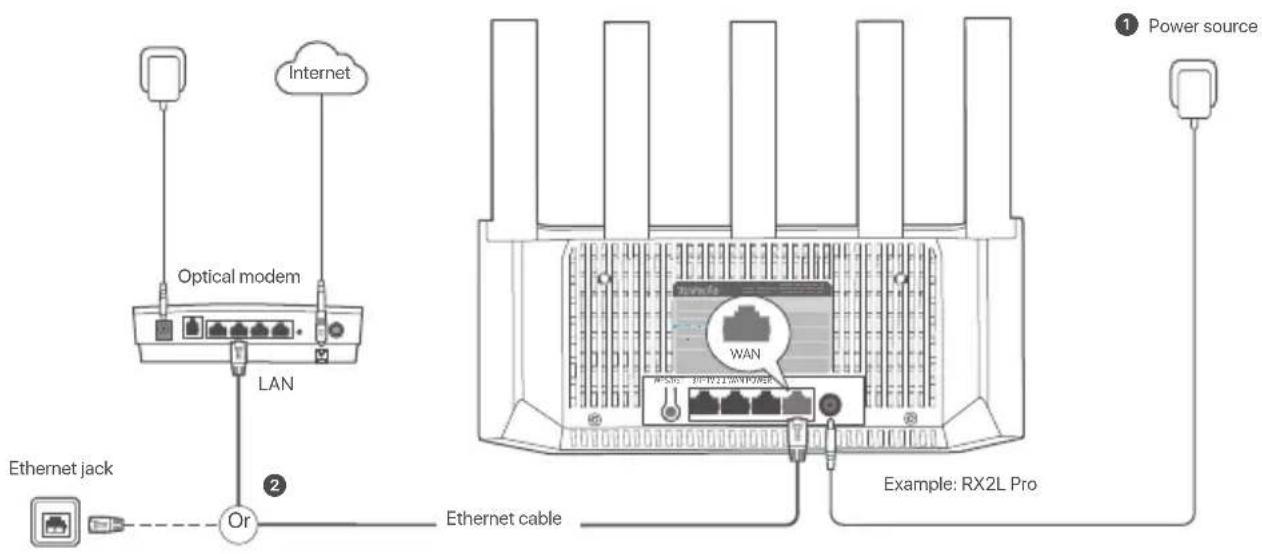
Internet Optical modem LAN Ethernet jack Or Ethernet cable Example: RX2L Pro ① Power source

Tenda TX2L Pro - Connect the router - 2

Tips

  • If you use the modem for internet access, power off the modem first before connecting the WAN port of the router to the LAN port of your modem and power it on after the connection.
  • Refer to the following relocation tips to locate the router to a proper position:

  • Place the router in a high position with few obstacles.

  • Unfold the antenna of the router vertically.
  • Keep your router away from electronics with strong interference, such as microwave ovens, induction cookers, and refrigerators.
  • Keep your router away from metal barriers, such as weak current boxes, and metal frames.

1 Power on the router.
2 Connect the WAN port of the router to the LAN port of your modem or the Ethernet jack using an Ethernet cable.

II. Connect the router to the internet

  1. Connect your smartphone or computer to the WiFi network of the router. The WiFi name can be found on the bottom label of the device.

  2. Start a web browser and enter tendawifi.com in the address bar to access the router's web UI.

  3. Follow the onscreen setup wizard to connect the router to the internet.

Tenda TX2L Pro - Connect the router to the internet - 1

Done. When the LED indicator is solid green, the network connection is successful.

To access the internet with:

  • WiFi-enabled devices: Connect to the new WiFi network you set.
  • Wired devices: Connect to a LAN port of the router using an Ethernet cable.

LED indicator

LED indicator ScenarioStatus Description
LED indicatorSolid green Startup The system is starting up.
Internet connectionSolid green The router is connected to the internet.
Blinking green slowly Not configured and the router is not connected to the internet.
Blinking red slowly Configured but the router failed to connect to the internet.
Blinking orange slowly Configured but no Ethernet cable is connected to the WAN port.
WPSBlinking green quickly Pending for or performing WPS negotiation (valid within 2 minutes)
Ethernet cable connectionBlinking green quickly for 3 seconds A device is connected to or disconnected from an Ethernet port of the router.
PPPoE user name and password importingBlinking green quickly for 8 seconds PPPoE user name and password are imported successfully.
Resetting Resetting to factory settings.

Jack, ports and buttons

The jacks, ports and buttons may vary with models. The actual product prevails.

Jack/Port/ButtonDescription
WPS/RSTUsed to start the WPS negotiation process, or to reset the router.- WPS: Through the WPS negotiation, you can connect to the WiFi network of the router without entering the password.Method: Press the button 1-3 seconds, and the LED indicator blinks green fast. Within 2 minutes, enable the WPS function of the other WPS-supported device to establish a WPS connection.- Reset method: When the router is working normally, hold the button down for about 8 seconds, and then relocate it when the LED indicator blinks orange fast. The router is restored to factory settings.
3/IPTVGigabit LAN/IPTV port.It is a LAN port by default. When the IPTV function is enabled, it can only serve as an IPTV port to connect to a set-top box.
1,2Cigabit LAN port.Used to connect to such devices as computers, switches and game machines.
WANCigabit WAN port.Used to connect to a modem or the Ethernet jack for internet access.
Power jack.POWER

FAQ

Q1: I cannot log in to the web UI by visiting tendawifi.com. What should I do?

A1: Try the following solutions:

  • Ensure that your smartphone or computer is connected to the WiFi network of the router.
  • For the first login, connect the WiFi name (Tenda_XXXXXX) on the bottom label of the device. XXXXXX is the last six digits of the MAC address on the label.
  • When logging in again after setting, use the changed WiFi name and password to connect to the WiFi network.
  • If you are using a smartphone, ensure that the cellular network (mobile data) of the client is disabled.
  • If you are using a wired device, such as a computer:
  • Ensure that tendawifi.com is entered correctly in the address bar, rather than the search bar of the web browser.
  • Ensure that the computer is set to Obtain an IP address automatically and Obtain DNS server address automatically.
    If the problem persists, reset the router by referring to Q3 and try again.

Q2: I cannot access the internet after the configuration. What should I do?

A2: Try the following solutions:

  • Check whether the WAN port of the router is connected to a modem or Ethernet jack properly.
  • Log in to the web UI of the router and navigate to the Internet Settings page. Follow the instructions on the page to solve the problem.
    If the problem persists, try the following solutions:

- For WiFi-enabled devices:

  • Check whether your WiFi-enabled devices are connected to the WiFi network of the router.
  • Visit tendawifi.com to log in to the web UI and change your WiFi name and WiFi password on the WIFI Settings page. Then try again.

- For wired devices:

  • Check whether your wired devices are connected to a LAN port properly.
  • Check whether wired devices are set to Obtain an IP address automatically and Obtain DNS server address automatically.

Q3: How to restore my device to factory settings?

A3: When your device is working properly, hold down the reset (marked RST, Reset or RESET) button of your device for about 8 seconds, and release it when the LED indicator blinks orange fast. After about 1 minute, the router is reset successfully and rebooted. You can configure the router again.

Q4: The device failed to be detected by the Tenda WiFi app upon my first time using the device. What should I do?

A4: Try the following solutions:

  1. Ensure that your smartphone is connected to the default WiFi network of the device.
  2. Ensure that the network permission of Tenda WiFi app is enabled, you can navigate to Settings > Tenda WiFi to enable it.
    If the problem persists, reset the router by referring to Q3 and try again.

Obtain DNS ) DNS (automatically .(server address automatically

Floor 6-8, Tower E3, No.1001, Zhongshanyuan Road, Nanshan District, Shenzhen, China. 518052

Website: www.tendacn.com

E-mail: support@tenda.com.cn

support.uk@tenda.cn (United Kingdom)

support.us@tenda.cn (North America Support)

© 2024 Shenzhen Tenda Technology Co., Ltd. All rights reserved.

V1.0 Keep for future reference.
Manual assistant
Powered by Anthropic
Waiting for your message
Product information

Brand : Tenda

Model : TX2L Pro

Category : Router