
Force GC20 - Controller MSI - Free user manual and instructions
Find the device manual for free Force GC20 MSI in PDF.
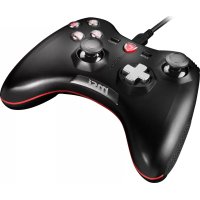



| Product type | Wired game controller |
| Brand | MSI |
| Model | Force GC20 |
| Interface | USB, 2 m cable |
| Number of buttons | 14 buttons (analog sticks, triggers, action buttons, D-pad, function buttons) |
| Compatible operating systems | Windows 10/8.1/8/7, Android 4.0 and later, PS3 |
| Control modes | Default mode, analog mode (DirectInput), digital mode (DirectInput), Android mode |
| Dimensions (L × W × H) | 156 × 105 × 62.5 mm |
| Power supply | Via USB port (cable included) |
| Weight | Approximately 280 g (estimated) |
| Package contents | Controller, USB cable, OTG cable (Android), additional D-pad cover, user manual |
| LED indicators | 4 mode LEDs indicating the selected mode |
| Sleep function | Sleep after 5 minutes of inactivity (wireless mode only, on GC30) |
| Maintenance and cleaning | Clean with a soft, dry cloth, avoid liquids |
| Safety | Do not expose to water, do not attempt to open or repair yourself |
| Spare parts and repairability | No spare parts available, contact MSI support in case of problem |
| Operating temperature | Not specified, use in standard home environment |
| Warranty | Refer to the warranty provided with the product |
Frequently Asked Questions - Force GC20 MSI
User questions about Force GC20 MSI
0 question about this device. Answer the ones you know or ask your own.
Ask a new question about this device
Download the instructions for your Controller in PDF format for free! Find your manual Force GC20 - MSI and take your electronic device back in hand. On this page are published all the documents necessary for the use of your device. Force GC20 by MSI.
USER MANUAL Force GC20 MSI
Thank you for choosing MSI Force GC30/GC20 to be your gaming companion. This exquisite gaming controller will surely give you a delightful and professional experience in PC games.
This guide provides instructions and illustrations to help you get the most from the controller, and it is recommended to read this guide before using it.
Package Contents
MSI GC30/GC20 Gaming Controller, USB Dongle x1 (GC30 only), USB Connector Cable x1, OTG Cable x1 (Android device only), Additional D-pad Cover, User Guide
System Requirements
PC with available USB port, Windows 10/8.1/8/7, PS3 platform, Android OS 4.1 and above
Specifications
Interface: USB. Operating System: Windows 10/8.1/8/7, Android 4.0 and above, PS3. Number of Keys: 14. Cable Length: 2M cable and 30cm OTG cable for Android device. Dimension: 156 x 105 x 62.5 mm. Operating Band (MHz): 2409MHz~2475MHz (GC30 only). Target output power: ≤ 1 mW (GC30 only)
Overview
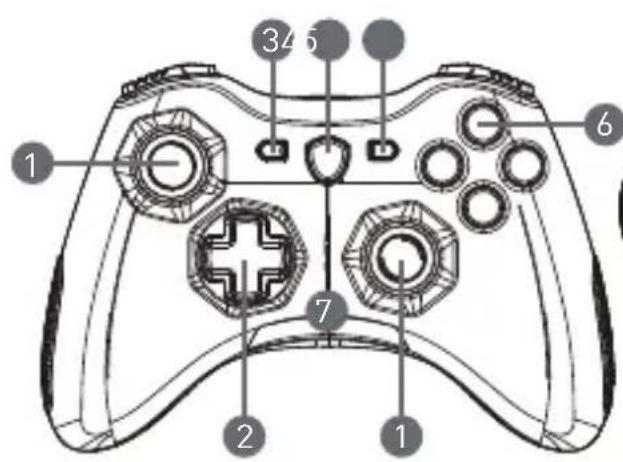
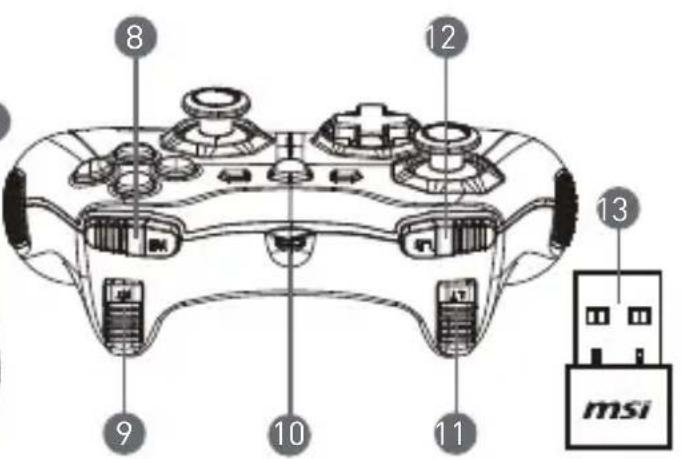
- Analog Stick
8. RB Button
- D-pad
- RT Button
- Back
- Micro USB Port
- Mode Switch Button
- LB Button
- Start
- LT Button
- Action Buttons
- USB Dongle (GC30 only)
- Mode LED Indicators
- Reset Hole (GC30 only)
Hardware Installation
Wireless Mode (GC30 only)
- Connect the USB dongle to your PC/PS3/Android device.
- The controller should be ready for use immediately.
- If the controller is not activated, first check if the battery of the controller is being charged.
- Second, check if a proper Controller Mode is selected for use. Refer to the Mode LED indicators may help users to learn which Controller Mode is selected.
- Third, insert a paperclip or a needle into the reset hole in the back side of the controller for a couple of seconds.
Wired / Charging Mode
- Connect the controller to your PC with a USB cable.
- The controller should be ready for use immediately.
- If the controller is not activated, check if a proper Controller Mode is selected for use. Refer to the Mode LED indicators may help users to learn which Controller Mode is selected.
NOTE
- Press B and Back keys to turn off the controller immediately.
- The controller will be switched to sleep mode in 5 minutes if there is no signal detected under pairing mode.
How to Recharge the Controller (GC30 only)
- Connect GC30 to your PC with a USB cable.
- The charging mode will be activated automatically, and four of the Mode LED Indicators will all be flashing while charging.
- The corresponding two Mode LED Indicators to the selected Controller Mode will be flashing while the battery is in low power capacity status.
- It may take roughly 2 to 3 hours to have GC30 fully recharged, depending on the power source connected to the controller.
How to Select the Controller Mode
- Default Mode
- Select this mode to use the default settings for the controller. The 1st and 2nd Mode LED indicators glow when this mode is selected.
- Analog Mode
- Select this mode for DirectX Input Analog Mode. Users are allowed to define the analog stick of the controller as their need.
- When Default Mode is selected, long press the Mode Switch Button for 3 seconds to select Analog Mode. The 1st and 3rd Mode LED indicators glow when this mode is selected.
- Digital Mode
- Select this mode for DirectInput Digital Mode. Users are allowed to define the D-pad of the controller as their need.
- When Analog Mode is selected, short press the Mode Switch Button for 1 second to select Digital Mode. The 1st and 4th Mode LED indicators glow when this mode is selected.
- Android Mode
- Select this mode while the controller is connected to an android device.
- When Digital Mode is selected, long press the Mode Switch Button for 3 seconds to select Android Mode. The 3rd and 4th Mode LED indicators glow when this mode is selected.
Introduction
- Connect the GC30 to your PC with a USB cable.
- Charging mode is automatically activated, and while charging, all four Mode LED indicators blink.
- When the battery is at actual power capacity, the two Mode LED indicators related to the selected Control Unit Mode blink.
- Fully charging the GC30 may take 2-3 hours.
Hardware Installation
Wireless Mode (GC30 only)
Wired / Charging Mode
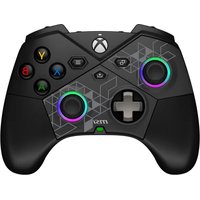
Brand : MSI
Model : Force GC20
Category : Controller