Actioncam 4s Plus - Camcorder ROLLEI - Free user manual and instructions
Find the device manual for free Actioncam 4s Plus ROLLEI in PDF.



User questions about Actioncam 4s Plus ROLLEI
0 question about this device. Answer the ones you know or ask your own.
Ask a new question about this device
Download the instructions for your Camcorder in PDF format for free! Find your manual Actioncam 4s Plus - ROLLEI and take your electronic device back in hand. On this page are published all the documents necessary for the use of your device. Actioncam 4s Plus by ROLLEI.
USER MANUAL Actioncam 4s Plus ROLLEI
- This product is a high-precision product, do not drop or hit it anyhow. Please use the underwater case which is included in the delivery to protect the camera.
- Do not place the camera near to strong magnetism, such as magnets and motors. Please avoid to place the product near anything emitting strong radio waves, a strong magnetic field may cause the product to malfunction or damage the image and sound.
- Do not place the camera at high temperatures or direct sunlight.
- Use brand Micro SD cards as ordinary cards do not guarantee the proper use.
- Do not use Micro SD cards in or near magnetic places to avoid loss of data.
- During the charging process, if there is overheating, smoke or odor, please unplug the power immediately and stop charging to avoid fire.
- Please keep away the camera and its accessories from children to avoid choking or electric shocks.
- Store the product in a cool and dry place.
- Do not use the camera when it is low power or in charging.
- Do not attempt to open the case of the camera or modify it in any way, the warranty will be lost."
Product Features
- 4K@30fps (interpolated), 2.7K@30fps, 1080P@60fps, 720p@90fps
- 2" TFT display screen
- Waterproof underwater housing to a depth of 40 meters
- Removable battery for easy replacement
- Supports Micro SD memory cards up to 64 GB
- WiFi connection by App to control the camera
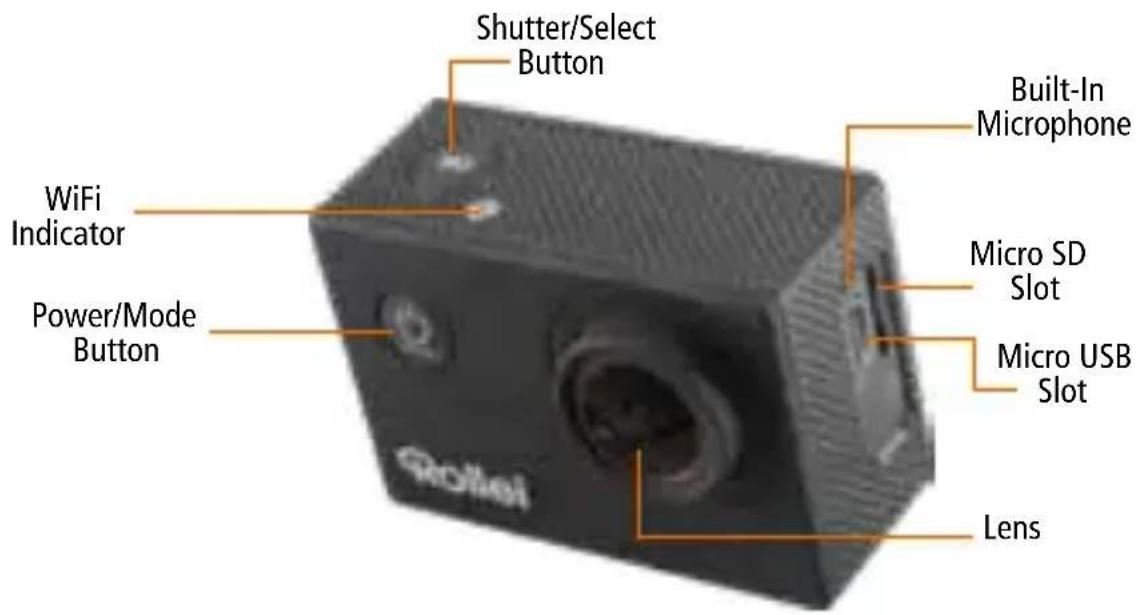
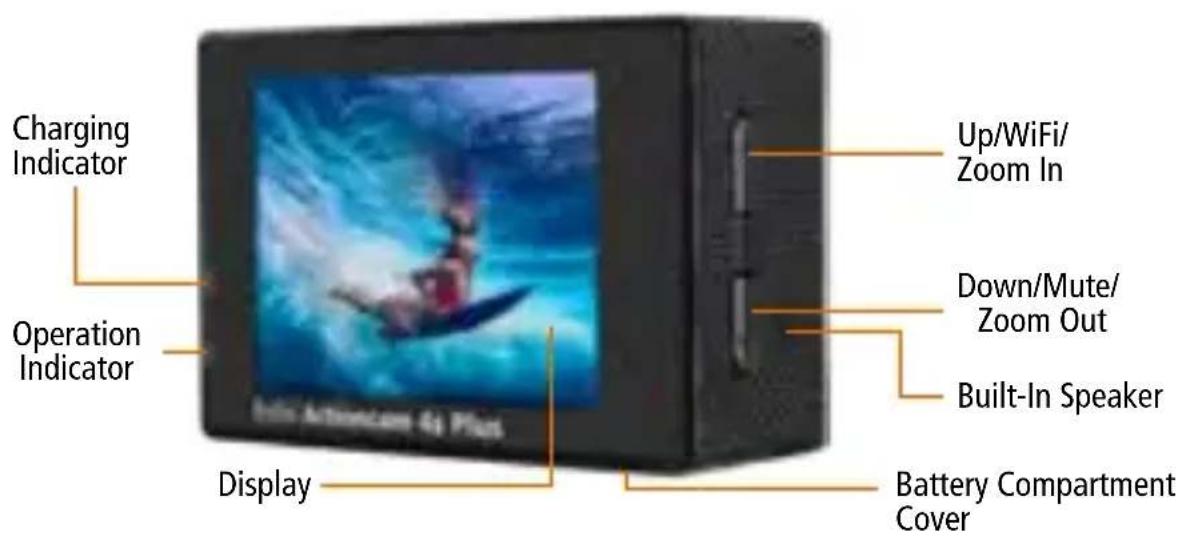
4 Camera Description
Waterproof Case
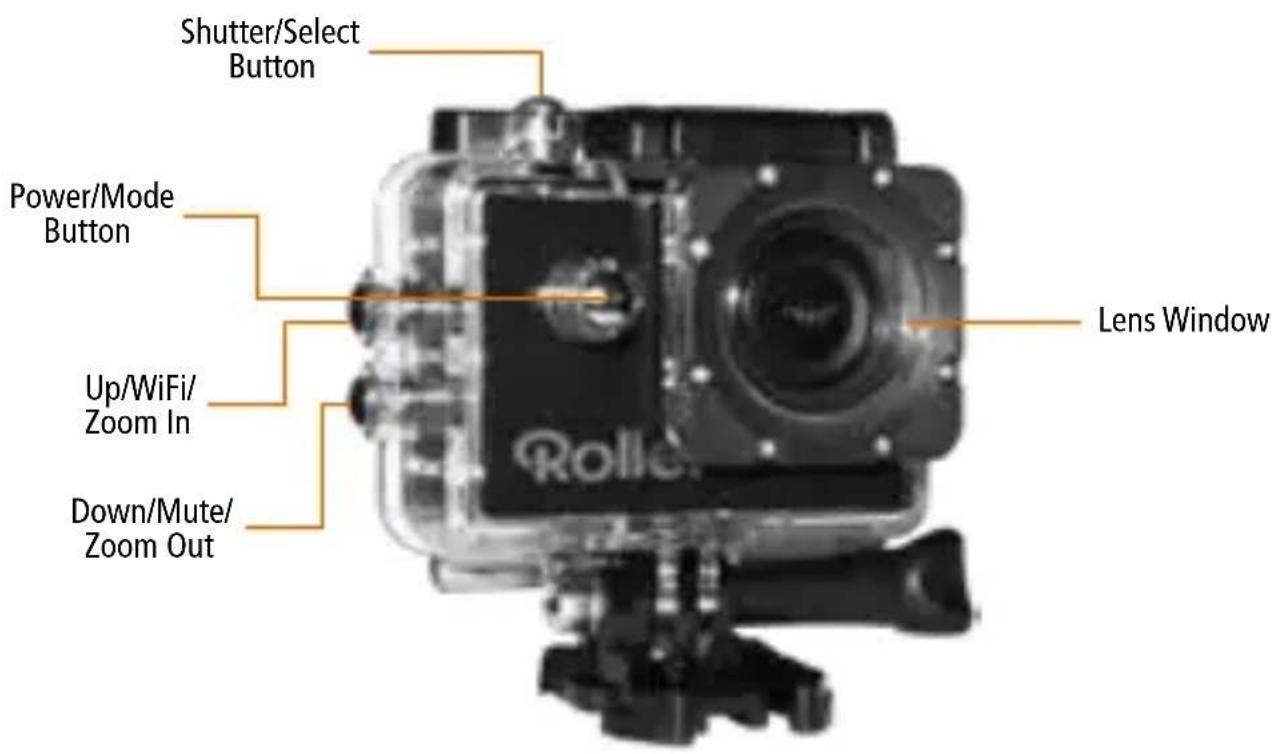
Insert Camera into Waterproof Case
- Ensure the case is dry and clean.
- Insert the camera and make sure the lens fits neatly in the lens cavity.
- Close the locking clamps.
- The camera can be mounted using the accessories provided.
Battery
Before using the device for the first time, you must fully charge the battery.
Charging the Battery
- Connect the camera to a computer or USB power supply (5V/1~2A recommended).
- The red charging status light remains flashing while the battery is charging.
- The red charging status light will light continuously when the battery is fully charged.
Changing the Battery
- To open the battery compartment, use the recess on the battery compartment cover. Use a fingernail, or a flat object, to lift the lid up.
- Remove the battery
- Insert the battery so the contacts line up with those of the camera.
Getting Started
Turn On
Press and hold the Power/Mode Button for 3 seconds. When the camera is turned on, the blue Operation Indicator turns on.
Turn Off
Press and hold the Power/Mode Button for 3 seconds.
Overview
Turn On
Turn camera on and repeatedly press the Power/Mode Button to cycle through camera modes and settings. The modes will appear in following order: Video Photo Slow Motion Video Playback video and photo Settings Video
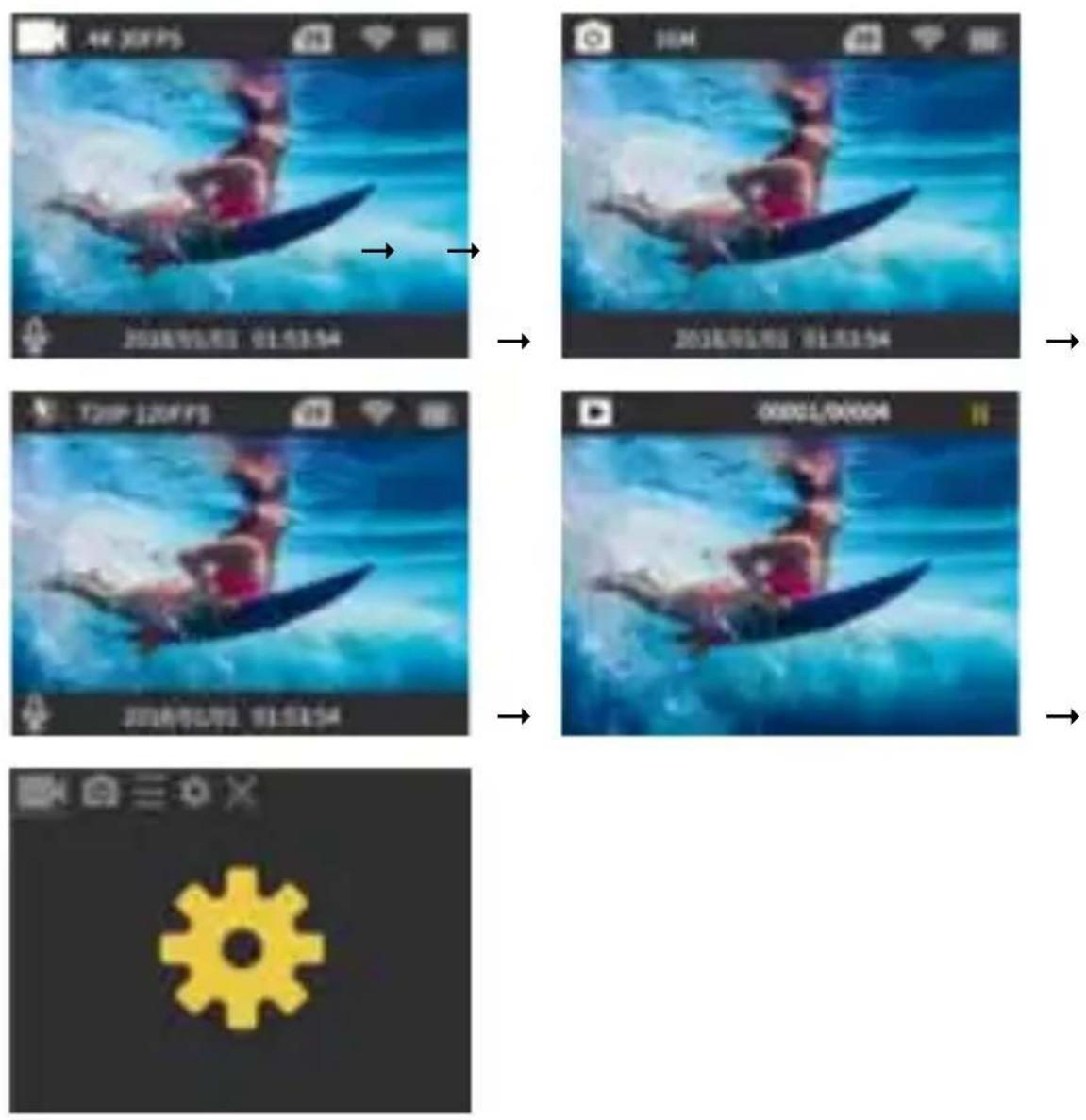
Video/Photo Recording
Video Recording
Press the Shutter/Select Button when power on to start recording. A red light on the screen will flash while recording. Press Shutter/Select Button again to stop recording. With the Down Button you can turn on or off the sound.
Note: Video files may be split. This restarts the recording time.
Photo Capturing
Press the Shutter/Select Button to take a single picture. Use the Up Button to zoom in and the Down Button to zoom out.
Slow Motion Video Recording
Press the Shutter/Select Button when power on to start recording. A red light on the screen will flash while recording. Press Shutter/Select Button again to stop recording. With the Down Button you can turn on or off the sound.
Playback/Delete Files
Playback Files on Camera
Make sure the camera is in Video or Photo Playback menu. Press the Up/Down Button to cycle the videos or photos, then press the Shutter/Select Button to playback and pause the videos. Press the Power/Mode Button to go back.
Delete Files on Camera
Press and hold the Shutter/Select Button for seconds to delete the optional file.
To exit playback mode, press the Power/Mode Button to the main preview menu, press the Power/Mode Button again to switch to setting menu.
Settings
Repeatedly press the Power/Mode Button to enter the Setting Menu, use the Up or Down Button to cycle through the various options, and press the Shutter/Select Button to select selected option.
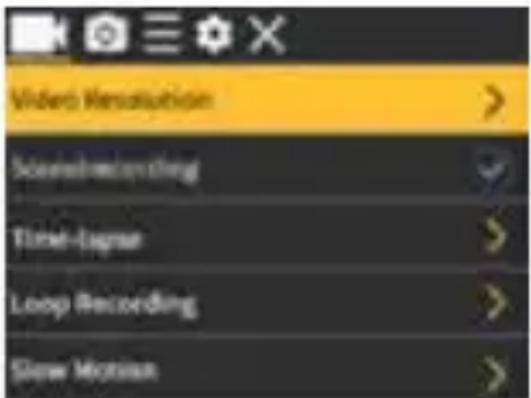
Video Setting:
Video Resolution: 4K@30fps (interpolated), 2.7K@30fps, 1080P@60fps, 1080P@30fps, 720P@90fps, 720P@60fps, 720P@30fps
Soundrecording: On/Off
Time-Lapse: Close/0.5 sec/1 sec/2 sec/5 sec/ 10 sec/30 sec/60 sec
Loop Recording: Close/2 min/3 min/5 min
Slow Motion: 1080P@60 fps/720p@90 fps
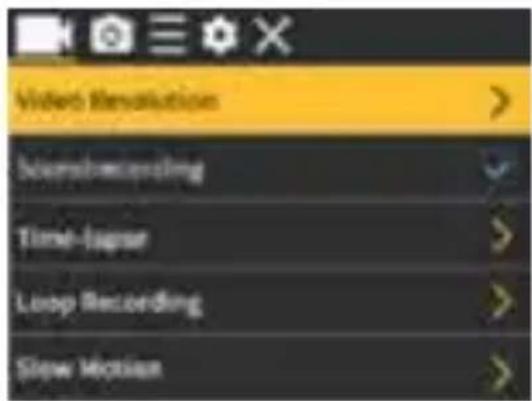
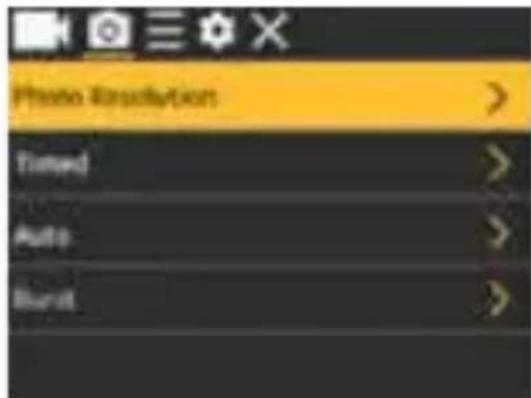
Photo Setting:
Photo Resolution:
16M (4640x3480) (interpolated)/
12M (4000x3000) (interpolated)/
8M (3264x2448)/5M (2592x1936)/
2M (1600x1200)
Timed: Close/3 sec/5 sec/10 sec/20 sec
Auto: Close/3 sec/10 sec/15 sec/20 sec/30 sec
Burst: Close/3 pic/5 pic/10 pic
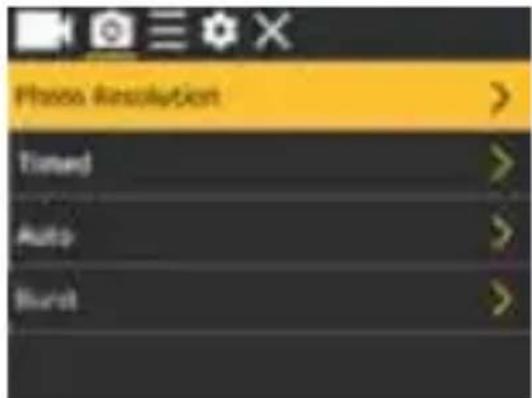
Settings
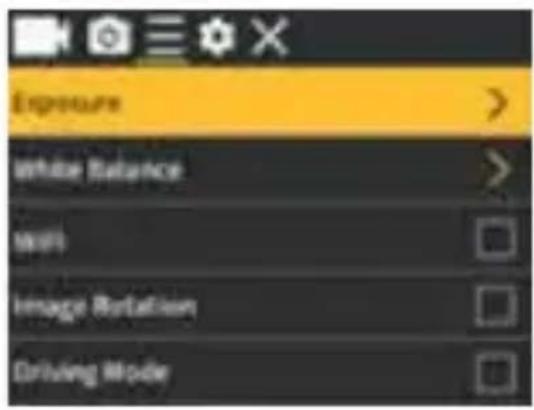
General Setting:
Exposure: +1 - 3 0
White Balance: Auto/Sunny/Cloudy/
Incandescent Light/Fluorescent Light
WiFi: On/Off. Press OK to activate the WiFi.
To deactivate the WiFi again, press the Up
Button. With the Up Button you can control
the WiFi function without entering the menu.
Image Rotation: On/Off
Driving Mode: On/Off
Light Source Frequency: Auto/50 Hz/60 Hz
LED Indicator Light: On/Off
Auto Screensaver: 10sec/20sec/30sec/close
Auto Shutdown: 1 min/3 min/5 min/close
Time Watermark: On/Off
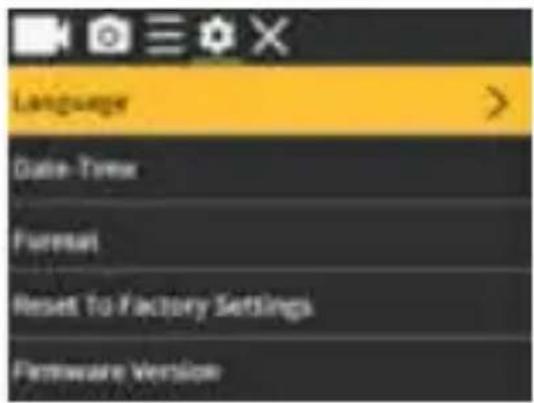
System Setting:
Language: English, French, German,
Italian, Czech, Portuguese, Spanish, Slovak,
Swedish, Danish, Norwegian, Dutch, Finnish,
Greek, Hungarian
Date & Time: YYYY/MM/DD hh:mm:ss
Format Memory Card: Yes/No
Reset: Yes/No
Firmware Version
Settings
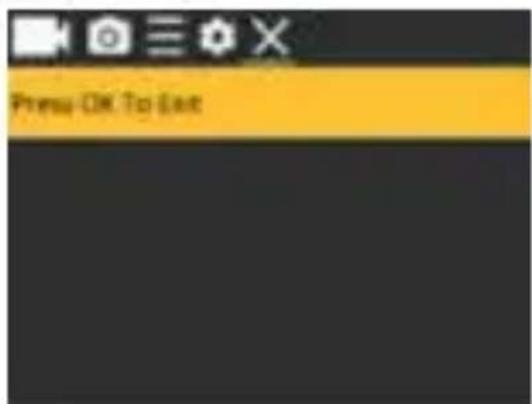
Exit:
Press the Shutter Button to exit.
Storage/Memory Cards
This camera is compatible with 8 GB, 16 GB, 32 GB and 64 GB capacity Micro SD and Micro SDXC memory card. You must use a micro SD card with a CLASS 10 (80M/S) speed rating at least. We recommend using brand-name memory cards for maximum reliability in high vibration activities.
Tips:
- Memory card is not included in the standard package, you will need to buy an extra memory card.
- Please format the Micro SD or Micro SDXC memory card on the camera before using.
- Please restart the camera after formatting.
- Please insert the memory card in correct way, otherwise the card slot maybe damaged.
12 WiFi Setting
You can connect your camera via the built-in WiFi connection with your smartphone. Open the camera menu and go to the third tab. Select the WiFi option and press OK, or just press the Up button. The WiFi network name "Action Cam" and the password "1234567890" will be displayed on the camera screen. The LED indicator lights up red. Connect your smartphone via the WiFi settings of the phone with the WiFi network "Action Cam". Download the free "Rollei 4s Plus" app from Google Play or the Apple App Store and install it on your smartphone. After the installation open the app. The WiFi network of the camera is displayed as the current WiFi connection. Tick on the current connection. The app will open to the live-view screen and you will see the camera picture of the camera on your smartphone. To exit the WiFi mode, press the Up Button on the camera.
Disposal

Dispose of packaging: For disposal, separate packaging into different types. Cardboard and board must be disposed of as paper and foil must be recycled.

Disposal of Waste Electrical and Electronic Equipment and/ or Battery by users in private households in the European Union. This symbol on the product or on the packaging indicates that this cannot be disposed of as a household waste. You must dispose
of your waste equipment and/or battery by handling it over to the applicable take-back scheme for the recycling of electrical and electronic equipment and/or battery. For more information about recycling of this equipment and/
or battery, please contact your city office, the shop where you purchased the equipment or your household waste disposal service. The recycling of materials will help to conserve natural resources and ensure that it is recycled in a manner that protects human health and environment.
Battery warning
- Never dismantle, crush, or pierce the battery, or allow the battery to short-circuit. Do not expose battery being placed in high temperature environment, if battery leaks or bulges, stop continue to use.
- Always charge using the charger. Risk of explosion if battery is replaced by an incorrect type.
- Keep the battery out of reach of children.
- Batteries may explode if exposed to naked fire. Never dispose of batteries in a fire.
- Disposed of used batteries observing local regulations.
- Before disposing the device, please remove the battery.
Conformity
The Rollei GmbH & Co. KG herewith declares, that the action camera "Rollei Actioncam 4s Plus" complies with the directive 2014/53/EU:
2011/65/EC RoHs Directive
2014/53/EU RED-Directive

The complete text of the EU Declaration of Conformity can be downloaded at the following Internet address: www.rollei.com/EGK/AC4sPlus
Achtung
Réinitialiser: Oui/Non
Stockage/Micro-cartes
Stockage/Micro-cartes
Des pourboires:
Slow Motion: 1080P@60 fps/720p@90 fps
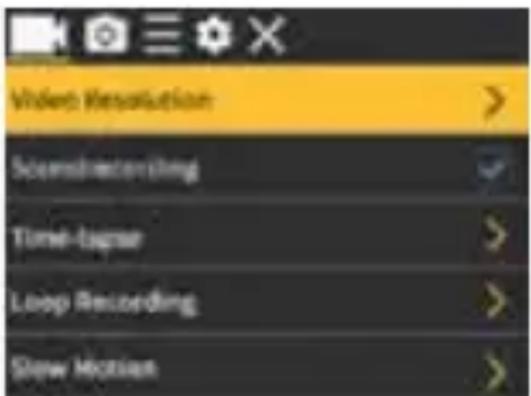
Impostazioni
Impostazione Foto:
Risoluzione Foto:
16M (4640x3480) (interpolato)/
12M (4000x3000) (interpolato)/
8M (3264x2448)/5M (2592x1936)/
2M (1600x1200)
Auto: Fechar/3/10/15/20/30 sec
Apyn kivnon: 1080P@60fps/720p@90 fps
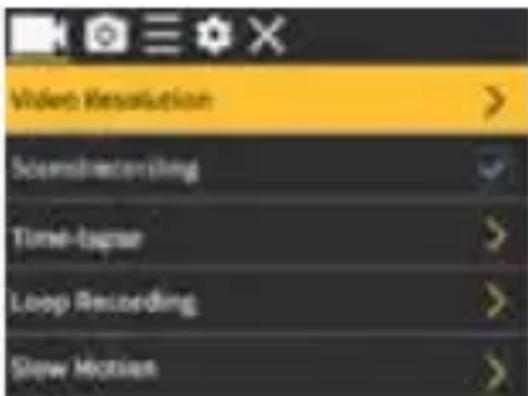
Puθμίσεις
5 sec/10 sec/30 sec/60 sec
Loop Recording: Sluiten/2 min/3 min/5 min
Slow Motion: 1080P@60 fps/720p@90 fps
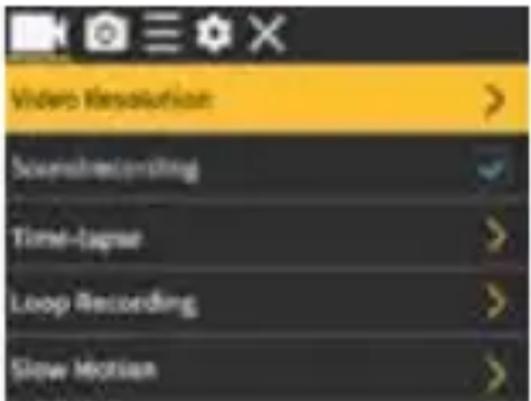
Installingen
Foto-installing:
Fotoresolutie:
Timing: Sluiten/3 sec/5 sec/10 sec/20 sec
Auto: Sluit/3 sec/10 sec/15 sec/20 sec/30 sec
Burst: Sluiten / 3 / 5 / 10 billed
Algemene installingen:
Bootstelling: +1 - 3 0
Witbalans: Auto/Zonnig/Bewolkt/
Gloeend Licht/Fluorescerend Licht
2,7000 km/s, 1080P@60snímkü/s,
Auto: Zavrit/3 s/10 s/15 s/20 s/30 s
Auto: Zatvorit/3 s/10 s/15 s/20 s/30 s
Vybuch: Zatvorte /3 / 5 / 10 fotografiai
Vseobecné nastavenia:
Expozicia: + / - 3 0
Kontrolka LED: Zapnute/Vypnute
Automatický šetric obrazovky: 10 s/20 s/30 s/Off
Slow Motion: 1080P@60 fps/720p@90 fps
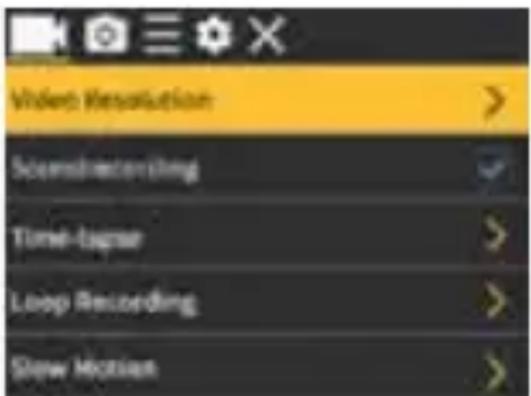
Inställningar
Fotoinstalling:
Fotoupplösning:
16M (4640x3480) (interpolerad)/
12M (4000x3000) (interpolerad)/
8M (3264x2448)/5M (2592x1936)/
2M (1600x1200)
Slow Motion: 1080P@60fps/720p@90 fps
Innstlinger
Fotoinnstilling:
Fotoopplønsning:
16M (4640x3480) (interpolert)/
12M (4000x3000) (interpolert)/
8M (3264x2448)/5M (2592x1936)/
2M (1600x1200)
Tidsbestemt: Lukk/3 sek/5 sek/10 sek/20 sek
Auto: Lukk/3 sek/10 sek/15 sek/20 sek/30 sek
Burst: Lukk / 3 / 5 / 10bilder
Generelle innstillinger:
Eksponering: +1 - 3 0
Slow Motion: 1080P@60fps/720p@90 fps
Indstillinger
Burst: Luk/3/5/10 billed
Generelle indstillinger:
Eksponering: +1 - 3 0
Hvidbalance: Auto/solrig/overskyet/
glodende lys/fluorescerende lys