
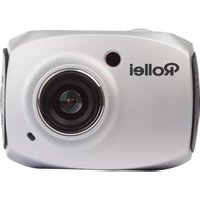
DashCam-408 - Camcorder ROLLEI - Free user manual and instructions
Find the device manual for free DashCam-408 ROLLEI in PDF.


| Product Type | Dashcam / Camcorder |
| Display | 2.7-inch TFT LCD |
| Lens | Wide angle: H 118°, V 61°, D 147.5° |
| Video Resolution | 1920x1080P at 30 fps |
| Video Format | MOV H.264 |
| Memory Card Support | Micro SD / TF card, up to 64 GB, Class 10 |
| Built-in Battery | Lithium-Ion 300 mAh |
| Power Input | 5V 1A via micro USB |
| GPS | Built-in GPS receiver |
| G-Sensor | Integrated 3-axis G-sensor for automatic emergency recording |
| Microphone / Speaker | Integrated microphone and speaker |
| Loop Recording | Yes, 1-minute segments |
| Emergency Recording | Manual via POWER button and automatic via G-sensor |
| Parking Monitor | Yes, triggered by shock |
| Motion Detection | Yes, starts recording when motion is detected (even when off) |
| Interface | USB 2.0, HDMI |
| Audio Recording | Can be turned ON/OFF |
| Languages | German, English, and others via menu |
| Operating Temperature | -20°C to 70°C |
| CE Compliance | 2011/65/EC, 2014/30/EU, 2012/19/EC, 2014/53/EU |
Frequently Asked Questions - DashCam-408 ROLLEI
User questions about DashCam-408 ROLLEI
0 question about this device. Answer the ones you know or ask your own.
Ask a new question about this device
Download the instructions for your Camcorder in PDF format for free! Find your manual DashCam-408 - ROLLEI and take your electronic device back in hand. On this page are published all the documents necessary for the use of your device. DashCam-408 by ROLLEI.
USER MANUAL DashCam-408 ROLLEI
Listenmenü
OK: Wiedergabe / Pause
- This product should be installed in a proper manner, without interfering the driver's eyesight or the airbag deployment. Otherwise it may easily cause an accident and personal injury.
- Keep the product away from strong magnetic fields, which may cause damage to this product.
- During formatting and use, do not disconnect the power supply, or insert/remove the TF card, otherwise it is likely to damage the TF card or cause program error.
- TF card in this product is not intended to store any other files. Before it is used, format the TF card, and promptly back up important videos and images.
-
To prevent electric shock, do not insert or remove the power plug with wet hands.
-
Do not use this product in places with high humidity or temperature above 70^ C or below -20^ C .
-
Only use the dedicated charger and related accessories compatible with this product.
-
Use TF memory card of Class10 and with 8GB or above.
II. Interface

① Screen ⑨ Down button
② Power ON/OFF ⑩ MIC
③ Micro USB for charger ⑪ MENU
④ Mount connector ⑫ MODE
⑤ Lens ⑬ OK
⑥ Speaker ⑭ RESET
⑦ SD Card slot ⑮ HDMI
⑧ Up button
III. Installation
- Please clean the windshield and remove the dust, where you would like to install the device.
-
Please take off the protection foil from the suction up. Fix the suction in the center on the windshield below the mirror.
-
Please adjust the angle and push up the closure of the suction cup until it is locked.
- Install the Dashcam-408 onto the car holder at the suction cup.
- Connect the device with the power cable and lay the power cable inside the car.
- Please connect charger port insert into the cigarette lighter, start the engine and adjust the view angle of the driving situation.
- Please check if the car holder and the device have been fixed properly, to make sure, no moving or dropping during the driving could happen.
IV. Switch
1. Automatic switch
a) After detecting the external power supply by car start, it will automatically boot and start video recording.
b) When the external power supply stops, the data is automatically saved and the camera turned off.
2. Manual switch
a) Short press POWER key to boot, long press POWER key to shutdown.
Attention: Please confirm that the TF card has been inserted before starting up.
3. Indicator light
a) Boot: When the car starts, the indicator light is on.
b) Video: When the machine is recording, the indicator lights keep flashing.
V. Driving record
1. Video
The video interface is shown below:

① Video status
⑤ TF card status
② GPS status
⑥ Battery status
③ Voice record
⑦ Emergency sign
④ Video resolution
⑧ System time
1) The system will record automatically when it starts up each time.
2) Loop recording: Recording time is 1 minute.
Note: the device will enter record interface automatically when it starts up.
ATTENTION: Videos are only saved in case of an accident!
1) Emergency recording:
a. Manual Emergency recording: In the recording mode, short press the POWER button, the current video and the previous video and the next video
of the current video are locked into emergency video.
After manually triggering an emergency recording, there will be a 5 minute delay before another manual recording can be made. This does not affect normal performance in the case of an emergency.
For privacy reasons, the emergency key may only be pressed in case of an emergency!
b. Automatic emergency recording: Upon vehicle impact and when the G-sensor sensor value reaches the setting value, the device will enter emergency recording and will save the video. The length of the current loop recording is 1 minute and it is not selectable. In case of emergency, one minute before and one minute after the G-Sensor had triggered will be stored automatically on the memory card.
3. Playback
In the menu of Video Mode, please press the button of "MODE" to choose the working mode. Press the OK button to enter the menu of movie emergency movie listings, to view videos that have been stored during emergency.
For example, the video listing menu is shown below:
![F/ FILE170724-184034F.MOV 2017/07/24 18:40:34 [00:00:13]](/content/2026/05/915441/images/a465146ec0af676ce0273c0e954954b491a8fcbd33a10add9b05290dd259006a.jpg)
Menu Lists
OK: Play/Pause
Next: The next file
Last: The last file
Video Menu
OK: Short-press to play/pause; long-press to delete the current file
MODE: Exit
VI. Menu settings
Use the [▼] and [▲] buttons to scroll through the options and use [●] to enter.
- Sound Recorder: Switch the internal mic ON / OFF.
- Volume: Set volume.
- Delete : Press [▼] and [▲] key to select delete single file/delete all files. Short press [●] key and confirm. Press again the [●] key to delete the file.
- Beep-Tone: Turn ON / OFF the keypad sound while scrolling the menu.
- Clock/Date setting: Press [▼] and [▲] buttons for adjustment, short press
[●] button to skip to next character.
-
Date format: Adjust the date format
-
Language: Press [▼] and [▲] key to select the language and short press [●] key to confirm.
- Flicker frequency: Adjust screen refresh rate (50Hz or 60Hz).
- Automatic LCD power save: Turns OFF the display after the selected time, recording will go on.
- Parking monitor: Starts recording a video when a shock is detected.
- Motion detect: Start recording a video when motion is detected in front of the camera (even if the device is turned OFF).
- GPS Status: Shows the status of the GPS signal.
- Time Zone Selection: Press [▼] and [▲] key to select corresponding time zone and press [●] key to finish settings.
-
Default: Reset the system to factory settings.
-
Format: Format the inserted TF card. ALL data will be deleted!
- Firmware version: Shows the firmware version.
VII. Main specifications and parameters
LCD: 2.7" TFT
Lens: H:118°, V:61°, D:147.5° wide angle lens
Language: German/English
Video resolution 1920x1080P/30 frames/s
Video format MOV H.264
Memory card Micro SD TF card, maximum 64GB, Class 10
Mic/Speaker Integrated
G-Sensor Integrated
USB interface USB2.0
Power input 5V 1A
Battery: Lithium-Ion battery (300 mAh)

Disposal
Disposal of Packaging: For disposal please separate packaging into different types. Cardboard and board must be disposed of as paper and foil must be recycled.

Disposal of Waste Electrical and Electronic Equipment and/or Battery by users in private households in the European Union.
This symbol on the product or on the packaging indicates that this cannot be disposed of as a household waste. You must dispose of your waste equipment and battery by handling it over to the applicable take-back scheme for the recycling of electrical and electronic equipment and battery. For more information about recycling of this equipment and battery, please contact your city office, the shop where you purchased the equipment or your household
waste disposal service. The recycling of materials will help to conserve natural resources and ensure that it is recycled in a manner that protects human health and environment.
Battery Warning
- Never dismantle, crush, or pierce the battery, or allow the battery to short-circuit. Do not expose battery being placed in high temperature environment, if battery leaks or bulges, stop continuing to use.
• Always charge using the charger. Risk of explosion if battery is replaced by an incorrect type. -
Keep the battery out of the reach of children.
-
Batteries may explode if exposed to fire. Never through batteries into the fire.
- Never exchange batteries by yourselves, please let it be done by the retailer.
- Dispose used batteries by observing local regulations.
• Before disposing the device, please remove the battery.
Attention: It is not allowed to exchange the battery independently!
Conformity
The Manufacturer hereby declares that the CE marking was applied to the Rollei DashCam-408 in accordance with the basic requirements and other relevant provisions of the following CE Directives:
• 2011/65/EC RoHs Directive
• 2014/30/EU EMC Directive
• 2012/19/EC WEEE Directive
• 2014/53/EU RED-Directive

The EC Declaration of Conformity can be requested from the address specified on the Warranty card.


- Interface
- Installation
- Switch
- Automatic switch
- Manual switch
- Indicator light
- Driving record
- Video
- ATTENTION: Videos are only saved in case of an accident!
- Playback
- Menu settings
- Main specifications and parameters
- Disposal
- Disposal of Waste Electrical and Electronic Equipment and/or Battery by users in private households in the European Union.
- Battery Warning
- Conformity
Brand : ROLLEI
Model : DashCam-408
Category : Camcorder