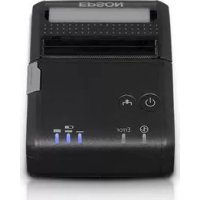
TMP20 - Printer EPSON - Free user manual and instructions
Find the device manual for free TMP20 EPSON in PDF.



| Product Type | Individual charger for TM-P20 printer and OT-BY20 battery |
| Model | OT-SC20 |
| Dimensions (W × D × H) | 110 × 133 × 64 mm |
| Weight | Approx. 0.3 kg |
| Power Supply | 24 VDC ± 7%, 1.5 A via dedicated AC adapter (model M235A or M235B) |
| Charging Voltage | Max. 8.4 VDC |
| Charging Current | Max. 0.75 A |
| Charging Time | Approx. 3 hours (for 0 to 100% charge at 25 °C) |
| Operating Temperature | 0 to 40 °C |
| Storage Temperature | -25 to 70 °C |
| Operating Humidity | 10 to 90% RH |
| Charging Indicator | Lights up during normal charging, turns off when charging is complete, flashes in case of error |
| Release Button | To remove the printer from the charger |
| Main Functions | Charging of TM-P20 printer and OT-BY20 battery |
| Maintenance and Cleaning | Clean with a dry or slightly damp cloth; do not use solvents; clean the charging terminals regularly (every 3 months recommended) |
| Safety | Use only the specified AC adapter; do not charge other devices; avoid high temperatures (≥60 °C) and flammable environments; follow handling precautions |
| Included Accessories | AC adapter, user manual, power cord (depending on printer model) |
| General Information | Class A product; may cause radio interference in a domestic environment; download drivers and manuals from Epson website |
Frequently Asked Questions - TMP20 EPSON
User questions about TMP20 EPSON
0 question about this device. Answer the ones you know or ask your own.
Ask a new question about this device
Download the instructions for your Printer in PDF format for free! Find your manual TMP20 - EPSON and take your electronic device back in hand. On this page are published all the documents necessary for the use of your device. TMP20 by EPSON.
USER MANUAL TMP20 EPSON
All rights reserved. No part of this publication may be reproduced, stored in a retrieval system, or transmitted in any form or by any means, electronic, mechanical, photocopying, recording, or otherwise, without the prior written permission of Seiko. Epson Corporation. No patent liability is assumed with respect to the use of the information contained herein. While every precaution has been taken in the preparation of this book, Seiko Epson Corporation assumes no responsibility for errors or omissions. Neither is any liability assumed for damages resulting from the use of the information contained herein.
Neither Seiko Epson Corporation nor its affiliates shall be liable to the purchaser of this product or third parties for damages, losses, costs, or expenses incurred by purchaser or third parties as a result of: accident, misuse, or abuse of this product or unauthorized modifications, repairs, or alterations to this product, or (excluding the U.S.) failure to strictly comply with Seiko Epson Corporation's operating and maintenance instructions.
Seiko Epson Corporation shall not be liable against any damages or problems arising from the use of any options or any consumable products other than those designated as Original Epson Products or Epson Approved Products by Seiko Epson Corporation.
NOTICE: The contents of this manual are subject to change without notice.
© Seiko Epson Corporation 2014. All rights reserved.
For American Users:
WARNING:
This product contains chemicals, including lead, known to the State of California to cause birth defects or other reproductive harm. Wash hands after handling.
Standards and Approvals
Product Name: OT-SC20
Model Name: M328A
The following standards are applied only to the battery chargers that are so labeled. (EMC is tested using EPSON power supplies.)
Europe: CE Marking
North America: FCC Class A, CAN ICES-3 (A)/NMB-3 (A)
Oceania: AS/NZS CISPR22 Class A
CE Marking
The battery charger conforms to the following Directives and Norms:
Directive 2004/108/EC EN 55022 Class A
EN 55024
IEC 61000-4-2
IEC 61000-4-3
IEC 61000-4-4
IEC 61000-4-5
IEC 61000-4-6
IEC 61000-4-11
WARNING
This is a Class A product. In a domestic environment this product may cause radio interference in which case the user may be required to take adequate measures.
The connection of a non-shielded printer interface cable to this printer will invalidate the EMC standards of this device. You are cautioned that changes or modifications not expressly approved by Seiko Epson Corporation could void your authority to operate the equipment.
FCC Compliance Statement For American Users
This equipment has been tested and found to comply with the limits for a Class A digital device, pursuant to Part 15 of the FCC Rules. These limits are designed to provide reasonable protection against harmful interference when the equipment is operated in a commercial environment.
This equipment generates, uses, and can radiate radio frequency energy and, if not installed and used in accordance with the instruction manual, may cause harmful interference to radio communications.
Operation of this equipment in a residential area is likely to cause harmful interference, in which case the user will be required to correct the interference at his own expense.
Indication of the manufacturer and the importer in accordance with requirements of directive 2011/65/EU (RoHS)
Manufacturer: SEIKO EPSON CORPORATION
Address: 3-5, Owa 3-chome, Suwa-shi, Nagano-ken 392-8502, Japan
Web site: http://www.epson.com/
Importer: EPSON EUROPE B.V.
Address: Atlas Arena, Asia Building, Hoogoorddreef 5,1101 BAAmsterdam Zuidoost The Netherlands
Web site: http://www.epson.com/europe.html
Illustration
B
C
1
2
3
English
Before Use
This product is a charger specialized for the TM-P20 printer and OT-BY20 battery. Please read this manual and the manuals supplied with the TM-P20 printer and OT-BY20 battery carefully before using this product.
Keep this manual at hand for immediate reference whenever necessary.
Safety Precautions
The symbols shown below are used in this manual in order to ensure safety and proper use of this product and to prevent danger to customers and other persons, and property damage.
The symbols indicate the precaution levels as described below. Be sure that you completely understand their meanings before reading this manual.
!DANGER:
Handling the product improperly by ignoring this symbol can result in immediate danger of death or serious injury.
WARNING:
Handling the product improperly by ignoring this symbol can lead to death or serious injury.
CAUTION:
Handling the product improperly by ignoring this symbol can lead to injury and property damage.
Cautions on Handling
DANGER:
Do not use or charge this product in high temperature places (60°C {140°F} or higher). Furthermore, do not leave or store this product in places that are 60°C {140°F} or higher. Doing so could lead to heat, smoke, ruptures, fire, or leaks. Be sure to use within the limits of the environmental temperature conditions.
WARNING:
Do not charge any device other than the TM-P20 printer or the OT-BY20 battery. Doing so may cause heat, explosion, fire, leaks, or other damage.
Dispos of used battery according to the OT-BY20 User's Manual.
Do not use this product in a location with volatile substances such as alcohol or paint thinner, or near fire. Doing so may cause electric shock or fire.
Shut down the product immediately if it produces smoke, a strange odor, or unusual noise. Continued use may cause electric shock or fire. When a fault or other problem occurs, immediately shut down the product and unplug the product. Then, contact your dealer or a Seiko Epson service center for advice.
Shut down the product immediately if water or other liquid spills into this product. Continued use may cause electric shock or fire. Immediately unplug the product, and contact your dealer or a Seiko Epson service center for advice.
Do not disassemble the areas other than those mentioned in this manual.
Never repair this product. Tampering with this product may result in injury or fire.
Do not use this product in an environment where flammable gas or explosive gas may exist. Do not use aerosol sprayers containing flammable gas inside or around this product. Doing so may cause fire.
Do not connect cables in ways other than those mentioned in this manual. Doing so may cause fire. It may also damage other devices.
Do not touch the areas inside the product other than those mentioned in this manual. Doing so may cause electric shock or burns.

CAUTION:
Do not install/store the product in an unstable location or in a location subject to vibration from other devices. Equipment may fall or collapse, causing breakage and possible injury.
Do not allow anyone to stand or place heavy objects on top of this product. Equipment may fall or collapse, causing breakage and possible injury.
Install the printer, cables and optional products in the proper direction according to the proper procedures. Failure to install correctly may cause fire or injury. Follow the instructions in this manual to install them properly.
Be sure to disconnect all the cables from the product before you move it. Otherwise the cables could be damaged, potentially resulting in electric shock or fire.
Cautions on the Power Supply
Read the manual supplied with the AC adapter carefully before using the accessory AC adapter. This product uses a listed power unit marked "Class 2" or "LPS," with the output voltage of maximum 1.5A at DC 24V .
With the optional AC adapter (Epson AC Adapter, C), the output voltage is maximum 1.5 A at DC 24 V, and the input voltage is AC 100 V to 240 V.

WARNING:
Be sure to use the specified AC adapter (Epson AC adapter C, model: M235A or M235B). Using any other power supply could cause faults, fire or electric shock.
Unpacking
When you unpack the charger, check that all its accessories are present and that there is no damage to it or the accessories. If there are any missing or faulty items, contact the dealer you bought the product from.
□ Single charger (OT-SC20)
ACadapter
OT-SC20 User's Manual (this manual) AC cable*
- May not be included depending on the printer model.
Part Names and Functions
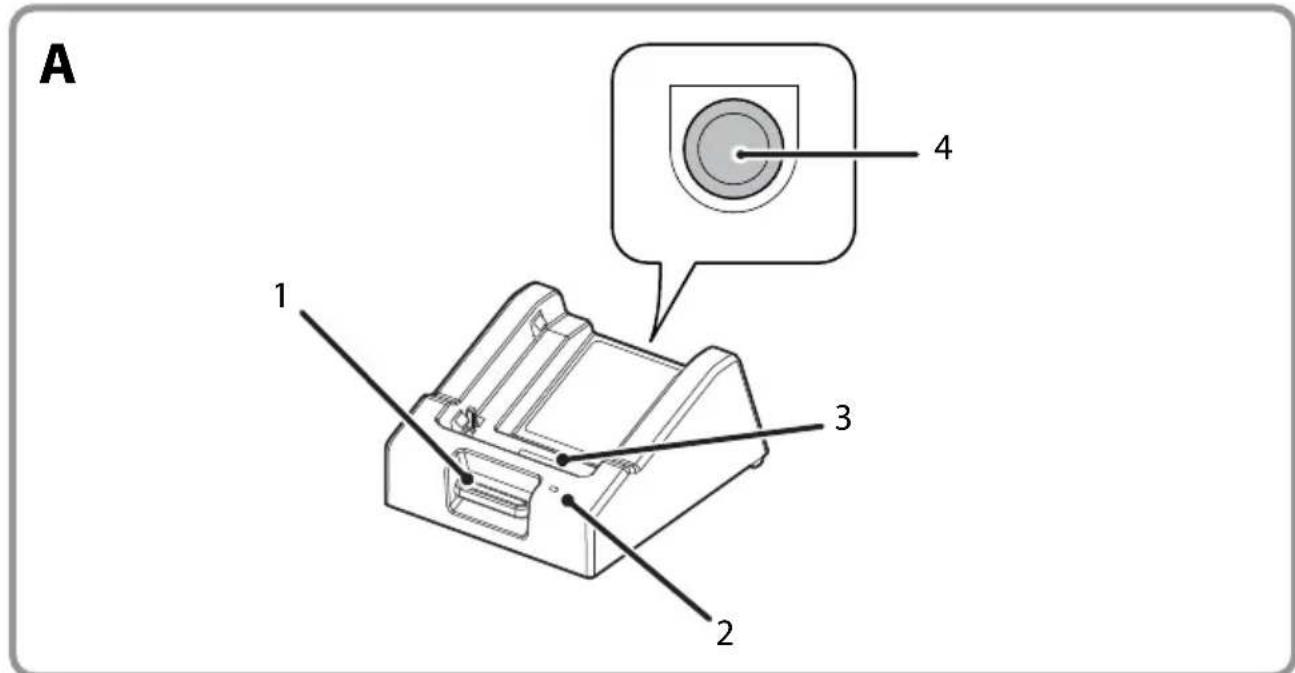
See illustration A on page 3.
1 Release Button
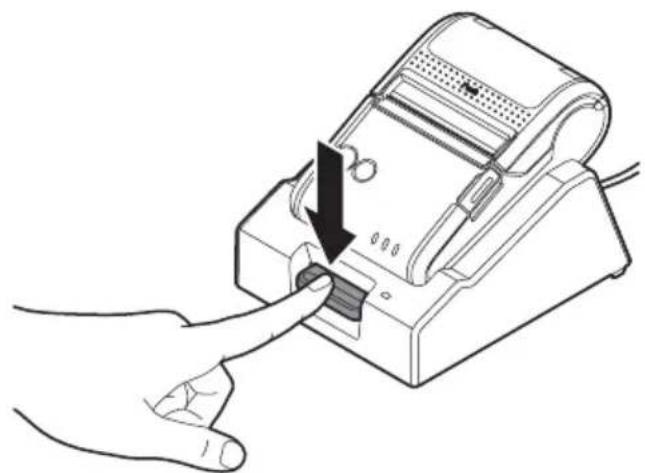
Press this button to remove the printer.
2 Charge LED
Lights when charging is proceeding normally. ( "Charge LED does not turn on" on page 8) Lights/Flashes when an abnormality occurs. ( "Charge LED is flashing" on page 8)
3 Charge Terminal
For connecting the printer and battery.
4 DC-in Connector
For connecting the AC adapter. ( "Connecting the AC adapter" on page 7)
Connecting the AC adapter
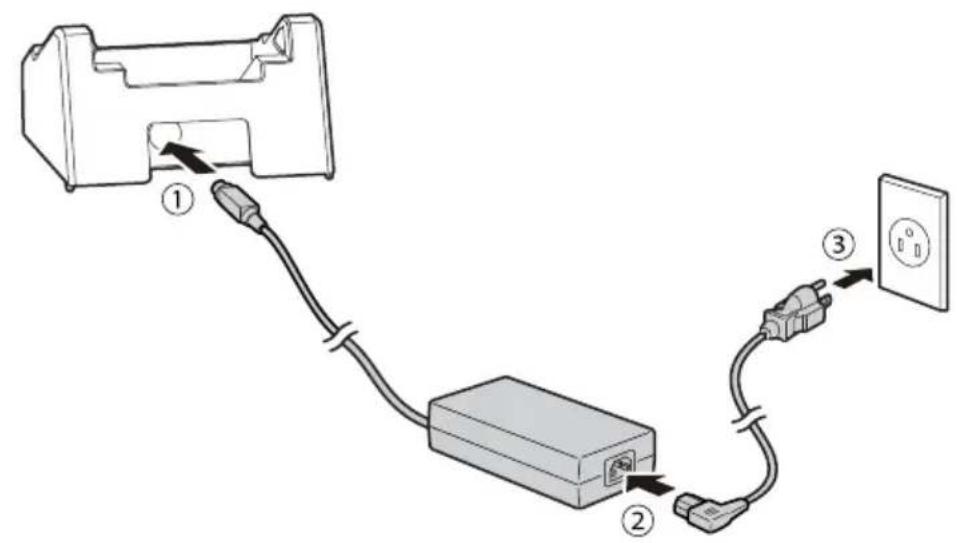
Follow the procedure below to connect the AC adapter to the single charger. See illustration B on page 4.
- Insert the DC connector of the AC adapter into the DC-in connector on the single charger securely to the bottom.
- Insert the AC cable connector into the AC inlet of the AC adapter securely to the bottom.
- Fully insert the power plug securely into the grounded outlet.
- Set the label side of the AC adapter facing down.
Charging the Printer
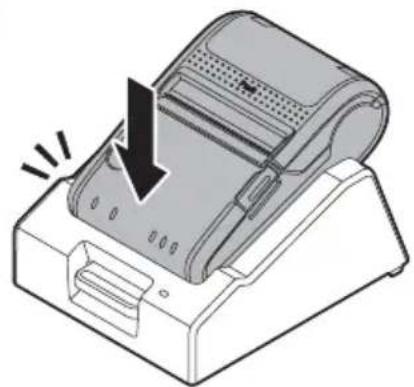
Charge the printer by following the steps below. See illustration C on page 4.
CAUTION:
Charge the printer at an ambient temperature between 10 and 30^ {50 and 86^ .
Make sure there is no foreign matter or grease, etc., adhering to the charging terminal.
- Set the printer in the single charger. Push down the printer until it clicks.
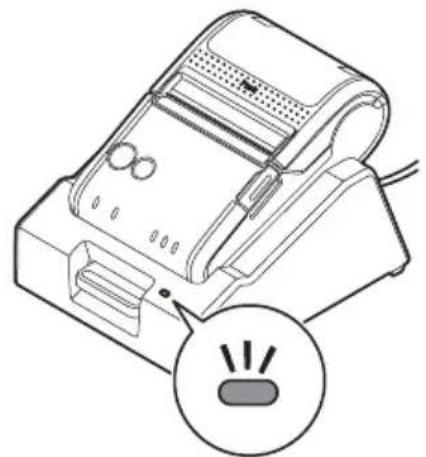
- Charging starts and the Charge LED turns on.
- When charging is complete, the Charge LED turns off. Press the Release button and remove the printer.
Cleaning the Single Charger
Before cleaning the single charger, unplug its AC cable from the outlet, without fail, and wipe off dirt with a dry or slightly wet cloth.
CAUTION:
Do not use solvents such as alcohol, benzine, or paint thinner. Using such solvents may transform or damage the plastic or rubber parts.
Cleaning the Charge Terminals
Charges may not be performed properly if there is dirt or foreign material on the charge terminals. Be sure to pull the AC cable from the outlet. Then, wipe off dirt with a dry cloth or cotton swab. Epson recommends cleaning the parts periodically (generally every 3 months).
CAUTION:
After charging, the charge terminals can be very hot. Be careful not to touch them and to let them cool before you clean them.
Do not damage the charge terminals by touching them with your fingers or any hard object.
Do not expose the charge terminals to water. Perform the cleaning using a dry cloth or cotton swab.
Troubleshooting
Charge LED does not turn on
Check that the AC adapter is properly installed. ( "Connecting the AC adapter" on page 7)
Check that the printer and battery are properly installed. (Charging the Printer" on page 7)
Charge LED is flashing
Turn the printer's power on. If the printer's Error LED stays unlit, the temperature is outside the range that charging is possible in. Charge the printer at an ambient temperature between 10 to 30^ {50 and 86^ }
If the printer's Error LED lights (when you turn the printer's power on), the battery is faulty. Replace the battery with a new one.
Specifications
| Item Specification | ||
| Power supply*1 | DC 24 V ± 7%, 1.5 A | |
| Output Charging voltage | Max. 8.4V DC | |
| Charging current | Max. 0.75A | |
| Charging duration*2 | Approx. 3 hours | |
| Temperature/humidity | During operation | 0 to 40°C {32 to 104°F}, 10 to 90% RH |
| During storage High | temperature and humidity: 50°C {122°F}, 90% RH for 120 hours High temperature: 70°C {158°F} for 120 hours Low temperature: -25°C (-13°F) for 120 hours | |
| External dimensions (W × D × H) | 110 × 133 × 64 mm {4.33 × 5.24 × 2.52"} | |
| Weight Approx. 0.3 kg {0.66 lb} | ||
1: Power supplied by dedicated AC adapter C (model: M235A or M235B)
2: For charging from 0 to 100% capacity when batteries are new and the environmental temperature is 25^77^ .
The actual charging duration may be different, depending on the charging environment, battery status and so forth.
Appendix
Downloading Drivers, Utilities, and Manuals
Printer drivers, utilities, and manuals can be downloaded from one of the following URLs:
For customers in North America, go to the following web site:
http://www.epsonexpert.com/
For customers in other countries, go to the following web site:
https://download.epson-biz.com/?service=pos
Restriction of Use
When this product is used for applications requiring high reliability/safety such as transportation devices related to aviation, rail, marine, automotive etc.; disaster prevention devices; various safety devices etc.; or functional/precision devices etc., you should use this product only after giving consideration to including fail-safes and redundancies into your design to maintain safety and total system reliability. Because this product was not intended for use in applications requiring extremely high reliability/safety such as aerospace equipment, main communication equipment, nuclear power control equipment, or medical equipment related to direct medical care etc., please make your own judgment on this product's suitability after a full evaluation.
Trademarks
EPSON is a registered trademark of Seiko Epson Corporation.
Exceed Your Vision is a registered trademark or trademark of Seiko Epson Corporation.
All other trademarks are the property of their respective owners and used for identification purpose only. Product information is subject to change without due notice.
François
AVERTISSEMENT
Levoyant de charge (Charge) clignote
https://download.epson-biz.com/?service=pos
Verwendungshinweise
https://download.epson-biz.com/?service=pos
https://download.epson-biz.com/?service=pos
https://download.epson-biz.com/?service=pos
https://download.epson-biz.com/?service=pos
Omejitev uporabe
https://download.epson-biz.com/?service=pos
Brugsbegrænsning
https://download.epson-biz.com/?service=pos
Käytön rajoitus
Lade (Charge) LED blinker
https://download.epson-biz.com/?service=pos
https://download.epson-biz.com/?service=pos
https://download.epson-biz.com/?service=pos
CBeToIIOHbI INHIIKaTOp Charge (3apIka) He 3aropaetc
Y6eIITecb B IpaBnIbHocTn IIOKJIoueHn 6IOKa IITaHnI IepMeHHoro Toka. ( «IoiKIIoueHne 6IOKa IITaHnI IepMeHHoro Toka.» Ha cTp. 84)
Y6eIITecb B IpaBnIbHocT IyCTaHOBKn IpnHTepa N 6aTapeN. (3apraKa npInTepa》Ha cTp.84)
CBeToIIOHbI INIIKaTOp Charge (3apIka) Mmraet
BknHouHTe HnTaHne npHTepa. Ecnn CBeToNDnHbN nHnKaTOp Error (oHn6ka) Ha npHtepe He 3aRopaeTc, To TeMnepaTypa BbIXOHT 3a DOIyCTmMbE IpeJebl dJa 3apJKn. 3apJXaTe npHtep Pn TEmpeType OkpykaIOSe cpebl 10 - 30^
Ecn 3a TopaeTc8 CBeToIOHbI HINKAtOp Error (OIIIN6ka) Ha IIpInHTpe (Ipr INBkIOueHn IITaHnI IIpInHTepa), To 6aTapeH HeNCIIpaBHa. 3aMeHNTe 6aTaapeHO HA HOByIO.
TexHuYeCKue xapaKmepucmuku
KJIeHTbI B IpyTnx CtpaHax MOryT BocIOJb3OBaTbcr CJIeIyIOIIIM aIpeCOM: https://download.epson-biz.com/?service=pos
OspaHueyHoe npumeHeue
Ecn 3Ta IpoIyKIIHn HcIOJIb3yeTcB YcIOBIMx, Tpe6yIOIHx ObecIeueHn BbICOKOуPOBnHaJeXHOCTn H (n) 6e3oIaCHOCn — HaIIpIMep, B COyeTAHN C ABNaIIOHHbIMN, JKeIe3HOJOpOXHBIMn, CyIOBIMn, aBTOMo6HbHbIMn IIPOUIMN TpaHCIOPTHBIMn CpeIcTBAMn, aBapINHbIMn YcTPOIcTBAMn OIOBEIeHn, pa3IINuHbIMn
IpeIOxPaHHTeJIbHbIMn YcTPOIcTBAMn NII ΦyHKIIOHAJIbHbIMn YcTPOIcTBAMn, BBIOJIHOIIUMM IIpeIIN3IOHHbIe OIIepAIIIN — IIpIMHeHne 3TOI IIPOyKIIIN
PEKOMeHJyETCToIbKO C UyeTOM HeO6XoIMMbIX CpeIcTB ObecIeueHn
OTKa3OyCTOJNUBOCTn IN pe3epBupOBaHn, IOIDepKINBAIOIIHX IOCTaTOUHO BVICOKN
YPOBeHb 6e3OIIaCHOCtN n HaJeXHOCTn Bce IIPOeKTnpyEmoCnCTeMbI. B CBz3n C TeM, YTO
3Ta IIPOyKIIIN He IIpeINa3HaueHa IIN HCIOJIb3OBAHnB yCIOBIAx, Tpe6yIOIIIX
06cIeueHn OeyHB BVICOKO r POBn HAJeXHOCTN n (n) 6e3OIIaCHOCtN — HaIPmep, B COYeTAHN C ABNAIIIOHO-KOCMIueCKIM O6OpYIOBaHNEM, BaXHeIIIMM
TeJIeKOMMyHNkaIIIOHHbIM O6OpYIOBaHNEM, O6OpYIOBAHNEM CNCTem YIpabJIeHn
aTomHbIMN 3JIeKTPoCTaHIImN IIN MEINIHNCKIM O6OpYIOBAHNEM, HeIOCPeIcCTBeHNO
HCIOJIb3yEMbIM B IIpoIeCE MeINIHNCKOTO O6ClyKIBAHNr — IIOKaIyIcTa, He 3a6bIBaITe
OTOM, YTO Bbl HeCeTe OTBETCTBeHHOCTb 3a BCEcTOPOHHIO OICIeHKY COOTBeTCTBNI 3TOI
IIPOyKIIIN KOHKPeTHbIM YcIOBIM M KCIJIpyATAIIIN N 3a ee IIpIMeHEHne B 3Tnx ycIOBIAx.
Tobaphe 3haku
EPSON YBIIeTc3apeHnCTpnpOBaHHbIM TOBapHBIM 3HaKOM KOpIopauuN Seiko Epson Corporation.
Exceed Your Vision YBIIeTc3apeHnCTpnpOBaHHbIM TOBapHBIM 3HaKOM IIN TOBapHBIM 3HaKOM KOpIopauuN Seiko Epson Corporation.
Bce ocTaJIbHbIE TOBapHbIE 3HaKn YBIAIOCTc CO6CTBeHHOCTbIO IX COOTBeTCTBYIOUX BlaJeJIbIeB IN HCIOJIb3yIOTc TOLbKO C IeJIbIO INeHTNuKaIuN. IHΦOpMaIuN O6 N3IeIIM MoKeT N3MeHrTbc8 6e3 IIpeIBaPntbHOro yBeIoMJIeHnJ.
yKpaHcbKa
Ipeod bukopumHЯm
IeJ npOyKT e 3apAHHM npnCTpoEM, cneiiaIbHOb npn3HaueHm IJI npnHTepa TM-P20 Ta 6aTapeiT OT-BY20. ByIb IacKa, yBaJxHO npoHTaIe Te IeJ nOci6HnK Ta Ioci6HnKn, IIO HAdaOTbcra IO npnHTepa TM-P20 Ta 6aTapeiT OT-BY20, IpeJ BnKOpncTaHHm IcboTO npOyKtY.
TpmaTe IeI Noci6HnK y IOctTuHOMy Mici Ha BnIaIOK Heo6xIHOCtI 3BepHyTncJIo HbOTo.
3axodu mexhiku 6e3neku
HaBeJeHi HIXKYe CnMBOJIH BIKOPNCTOBYOTbcy U IbOMy Noci6HNky IJIra rapaHTIi 6e3neHOro Ta BiINIOBIHORO BIKOPNCTAHHHIbOHO IPOJyKTy, a TAKoK IIyHnKHeHHaHeceHHI KOpNCTyBaUam Ta IHIIIM OcOBam I NIOIIKOJKeHHMaHa.
Pizhi cIMBOIIN BiIIIOBiaIOb piBnM He6e3neKn, JK OIIncaHO HIXue. IpekeHaITecb, IIIO Bn IO6pe po3yMiTe ix 3NaYeHHI DO O3HaNOMJIeHHI 3 IOCI6HNIKOM.

HEBE3NEKA:
HebiOnobide buKOpucmaHn npodykmy i HebuKoHaHH peKomehdaui niD um cumbolom MoKe npu3BecMu do HeauiHOJ 3a2p03u Xummio ma cepuo3hux mpa6M.

PONEPEJXEHHRA:
HeiOnoIe BuKOpucMaHn npodykmy i HeuKoHaHn peKomeHdaui ni dum cumbolom moKe npu3becmu do cepuO3hux mpaM ma Habimcmepmi.

yBARA:
HeiOnobiohe buKOpucmaHn npodykmy i HeuKoHaHH peKomeHdaui niD yum cumboIom moKe npu3Beemu do mpaM ma nowkoJehn MaHa.
3axodu 6e3neku npu bukopucmaHHI

HE6E3NEKA:
He bukopucmoye ma He 3apjdokaume ue npucmpiu B micyx 3 bucokoio memnepamypo (60°C {140°F} a6o buue). Kpim mozo, He 3aunwaume ma He 36epizaume uozo B micyx 3 memnepamypo 60°C {140°F} a6o buue. Lc me moke npuzbecmu do nepezpiBaHn, no8bu dumy, mpiuun, noxeki a6o bumikanhy pidunu. Bukopucmoye muue npu bka3aniu memnpamypi HaeKoluushb02o cepedobuua.

PONEPEJXEHHRA:
He 3apraJkaume iHwi npucmpoi, kpm npunmepa TM-P20 ma 6amapei OT-BY20. 3apraoka iHux npucmpo8 moKe npu3eemu do HaqpiBaHHa, bu6yxy, noxeki, bumikahnpaipduhu a6o iHux nowkodkeh.
Umuiyume bukopucmahi 6amapei biinobidno do pekomehdaui noci6Huka Kopucmybaya do 6amapei OT-BY20.
He bukopucmobyume ue npucmpiu 6 Micuax 3 HnBHCIO nemouux peoobun, maKux aanko20nb a6o po3uHnuk dna fap6u, amakox 6i8 BO2HIO. Lc moKe npu3becmu do ypaxenra enekmpuHm cmpymom a6o nokeki.
Bumkhimb npucmpiu HezaHno, kuo 3 Hbozo ue duM, bdyumHu HenpuemHua 3anax a6o He3buauH uym. Ipodobxehnpo6omu 3 Hum moxe npuzbecmu do ypaKeHH eeneKmpuHUM cmpyomam a6o nokeki. Kaoo buHkae 36i a6o iHwa np6nema, HeaHOBumKHmb npucmpiu ma bIDKnIOchmb uOzo Bid mepexi KUHeHH. Picra zu60z 3BepHmbcra no donomoy do dunepa a6o b cepbcHui uehmp Seiko Epson.
Bumukaume npucmpiu biipay, kkuo Ha hbozo nompannae boda a6o iha pida. Ipoobxehnpo6omu 3 HUM MOke npuzbecmu do ypaxenH enekmpuHm cmpymom a6o noxeki. Heauho biidknoyim npucpiu bid mepeksi xuehnerma 3bephimbcra no donomoy do dunepa a6o 8 cepichu uehmp Seiko Epson.
He po36upaume npucmpiu 3a buharmkom bunaadkiB, onucaHux y ubomy noci6Huky.
He pemohmyume npodykm camocmiuHo. HecankuioHObaHi di3 uum npodykmm oKymb npu3becmu do mpaMu a6o noKexi.
He bukopucmoyume npucmpiu bcepedobuui, de moxymb 6ymu npucymni ne2ko3aumcmi a6o bu6yxone6e3neuhi 2a3u. He bukopucmoyume aepo3o13 ne2ko3aumcmm 2a3om BCEpuHn npucmpo1o a6o 6iHa Hbozo. Lc moxe npu3becmu do noxeki.
He ndknoaume ka6eni b ihuu cnoci6, zo biip3nembcra bid onucy zuo20 noci6nka. Ie moxe npuzbecmu do noxeki. Lc moxe makok nowkodum npucmpiu.
He mopkaumecb demaneu BCEpeduni npucmpoio 3a buharmkom mux, uo onucahi b ubomy noci6nky. Ie moxe npuzbecmu do ypaKeHH eJeKmpuHUM cmpymom a6o onikib.

yBARA:
He bcmaHOBIOme/He 36epiaume npodykm Ha Hecmiukiu nobepxhi a6o y micui, uo niodaembcra bnnuby bi6pauii Bid iHux npucmpoi8. OblaadHaHHMa oKe enacmu a6o nepekuHymucra, uo moke npuzbecmu do u0zo nowkodxeHHma mpaMu.
He do3b0jme hikomy cmaamu Ha npucpiu ma knacmu baxki npeMemu Ha Hbo2o. YcmmkybaHH moKe bnacmu a6o nepebephymucr, uO moKe npu3becmu do noIOMku ma mpaBMu.
Iid yac niKIOHn npuHmepa ma doadamkoBux akcecyapib 3a donomozoIO Ka6JIb dompumyimecb npabunbHOi opieHmaui po3'EMIB. HebuKoHaHH peKOMeHdaui 3 ycmaHOku MoKe npuzbecmu do noxekia a60 mpaBMu. BuKohyu me peKOMeHdaui u6Ozo noci6Huka, u6o bcmaHOumix bipHo.
Ipepe nepecybaHnmpoHa iHwe Micue He 3a6ydbme BidKnluumu bci Ka6eni. IhaKwe moXHa nowkodmu Ka6eni, uO moXe npu3becmu do ypaXeHHra eekmpuHm cmpymom a6o noXeKi.
3acmepekeHHa odo dkepena eekmpoxuBneHHa
IpeBnKOpNCTaHHM MepeKeBOrO aHaTIpey yBaXHO IpoHtaiTe iHcTpyKIO IO HbOro.
IeI npOyKT BnKOpNCTOBYe Bka3aHn6IOK KNBIIeHHa 3 NOMITKOIO "Klanac 2" a6o "LPS," 3
BHXiINO HaIPyTOO MaKcMym 1,5 A IIpn IIOCTIHOMy cTpyMi 24 B.
IIpi BnKOpNCTaHHI OdaTkoBO r MepeKeBOrO aHaTIpepa (Epson AC Adapter, C) BHXiHa
HaIpyra cTaHOBHTb MaKc. 1,5 A IIpn IIOCTIHOMy cTpyMi 24 B, a BxIHHa HAnpyra - IIpn
3mIHOMy cTpyMi 100-240 B.

PONPEJXEHNA:
Bukopucmobyume nuwe bka3aHm mepekebu adanmep (Epson AC adapter C, ModeIb: M235A a6o M235B). BukopucmaHH iHwOzo dKepeHa KUBeHN MoKe npu3becmu do 36oio bpo6omi, noXeki a6o ypaKeHH enekmpuHUM cmpyMOM.
PoznakybaHHa
Ipi npo3nkyBaHHi 3apAINHO IpiNCTPOI nepeBipTe, uN Bci akcecyapn IpiCyTHi Ta He IIOIKoJKeH, a TAKOJ IIcAM 3apAINII pncTpiH He IIOIKoJKeH. JKIO BiCytHi a60 IIOIKoJKeH iKicb KOMIOHeHTN, 3BepHITbcI IO DInIepa, y JKOBO II pnpDabIIN PpOdyKT.
3apn npicpii nn oHie6atapei (OT-SC20)
AaIep 3MiHHoro cTpyMy
Iloci6HnKkopncTyBaHa do OT-SC20 (eienocici6HnK)
Ka6eIb 3MHHORO cTpyMy*
- Moike He xodumu do komnlekmy nocmabku dekux modenei npunhmepa.
Ha36u ma φyнкцüi demaunei
IIIB.MaJIIOHOKAHa cTOp.3.
He BMnKaetbcs iHmKaTop Charge (3apnka)
IpebeipTe, Hn BiPHO BcTaHOBJIeHm MepeKeBn aJaIaTep. ("PiIDKnIOueHHaAnTepa 3miHHoro CTpyMy" Ha cTOp.89)
Пe pebipre,чи Вірно BCTaHOBJIeni пиNTep Ta 6aTape. ("3apяДka пиNTepa"Ha cTOp.89)
IHHkaTop Charge (3apKa) MnroNTb
YbIMKnHtB npHTep. KIIO iHnKaTOp Error (IIOMnIka) npHTepa He rOpNTb, To TeMIIePaTypa 3HaXoJITbc8a MeKAMN IiaIa3OHy, B KOMy MOxHa BnKOHyBaTN 3apJkCy. 3apJkAte npHTep 3a Tempepatyn HabKoJIINHbOrO cepEOBIIa 10-30°C [50-86°F].
KIO TOpHTb iHnKaTOp PnHTepa Error (IOMIIka) (KoIN Bn BMnKaTe JKNBHeHHnPHTepa), Ie cbiuHTb Ipo HeCnPaBHicTh 6aTapei. 3amHITb II Ha HOby 6aTapeio.
Texhihi xapakmepucmuku
KyaT K03iHe KaTbICTbl caKTbIK eCKeptTyIep
KocbIMu aHbImaIbTOK aanTepi naiDanaHy aNbIHda OHbIMe 6ipre KaMTamacbl3 etJIrEH HcCKayIbIKtbl MyKNrT OKbln WbIFblB3.
EH K6i 1,5 A WbIbIC KepeHyi, 24 B TypaKtBt Tok, «2 cbHbIn» Hemece «LPS» den 6enrilleHren Ti3imderi Kyat Kypblfbcih naJaDaHaHaBl.
KocbIMsa aHbImaJIb Tok aadTepiHde (Epson AC Adapter, C), mbIFbc KepHey en Ke6i 1,5 A, 24 B TypaKTbI Tok 6oJaDbI XaHe Kipic KepHey 100 B - 240 B aHbImaJIb Tok 6oJaDbI.
! ECKEPTY:
KopceTinreH aHbImaIbI TOK aadantepiH naJaIaHaBbIb3 (Epson AC Adapter, C, yIri: M235A Hemece M235B). Ke3 KeIreH backa KyaT K03IH naJaIaHaY aKaynapra, optKe Hemece TOK cofybiHa aKeenyi MymKiH.
Opamadan wbfapy
3apraTafblbOpamadaH sbIFapcaHb3,6aplbK KocalkbI KypaIap 6ap ekeHH aHe OHda Hemece KocalkbI KypaIapda 3akbIM KOK ekeHH TeKcepHi3. Erep KeTicneiTH Hemece akaybl 3aTTap 6ap 6oNca, Ohimdi catkAn dInlepre xa6apnacblb3.
Bip 3apraTafbl (OT-SC20)
Bip 3apqTaFbIUtBi Ta3aJay
Bip 3apraTafblTb Ta3anay aIdbHda aHbImaJIb TOK Ka6eJIH po3eTKaHaH cybIpbl3
KHe Kipdi Kypfak HeMece a3dan bINFaJNbIb Wy6peKeNc H cyptin aJIbHbI3.

CAK BOJIbIHbI3:
Ankorolb, 6eH3HH HeMece 6oay cybblNTkbllc nraKTbI epiTkiWtepdi naaHahbI3. MyHdai epitKiwTePdi naDaanany nlaCTNK HeMece pe3eHKe 6oikTeepH niuHin 3repty i HeMece Onapdb3akbIMdaybl MymKiH.
3apdTay KIeMMaJIapbIH Ta3aJAY
3apTay KIeMMaIapbIHda Kip Hemece 6ege 3aTTap 6oJca, 3apTaynap dypbc opbHdAmnbl. AInbMaIb Tok Ka6eInp03eTKaDaH cybIpbHb3. Coad KeiH kipdi Kypfak WybepeKneH Hemece MaKTa dKeecimcH cyptin aJIbHb3. Epson 6eJIkTepei Ke3ehDi Tpyde (AeTTte 3 aI caBH) Ta3aIaydb I cybHaDbI.

CAK BOJIbIHbI3:
3apTaydaH KeiH 3apTay KneMaIapbl OTe bICTbIK 6onybl MymkiH. Ta3anay aHbHa OFaH TmEH3 XHe CaKbIHdaTbHbI3.
CaycaTapMeH Hemece Ke3 KeIreH KaTTbI 3aTneH TIO apKbInbI 3apraTay KEMMaJapBih 3aKbIMdAmHaB13.
3apayay KneemmaIapbHaCy acepH Tnir36eH3. Ta3aaydbi Kypfak WybepekTI Hemece MaKaTaNakeciH naJaHaHbINOpbHdaHbI3.
AkaaynbikTapdbI K01O
3apay KWDKocblMaIdbI
AinHbIMaIbI TOK aadantepi dypbIC opHaTbINFaHbIH TeKcepiHi3. ( «AinHbIMaIbI TOK aadantepiH xanFay», 94-6et-6eim)
□Пи ИНТЕ Рэне 6aTapeя Дурьс OрнathынfaHbH TeKcepiH3.(«ПиHTePdIЗapЯТay》,94-6et-6eim)
3apdTay KWDKbInbIbIKTayda
PnHTepH KyaTbH KocbHb3. PnHTepH Error XUd Jxah6a Typa 6epce, Tempeatypa 3apdTay MymKIn ayKbIMHaH TbIC. PnHTepi 10 - 30^ apacbHaFbI Kop7aFaH opTa TempeatypacbHa 3apdTahbI3.
p nHTepdiH Error KUd Jxahca (npntepdiH KyaTbIH KockaHa), 6atapea kaynbI. BaTapeaHbI JkaHaCbImeH aybICTbIPbIHbI3.
TexHnKaJIbIK cnNaTTaMaJap
https://download.epson-biz.com/?service=pos
Paindanahywekteyi
Bnyn eHimdi aye, Temip kOJ, TeHi3, ABTOKJIiriHe, T.6. KaTbICTb TaCbIMaN Kypblfblapbl, anaTTbIH anDbIH any Kypblfblapbl; Typni Kayinci3dk Kypblfblapbl, T.6. Hemece MaKCaTTbI/Danik Kypblfblapbl, T.6. CnAeKbTI KOFapbl ceHIMdiIKTI/Kayinci3dkTI TaIan eTeTIN KOJaHy YwIH naJaHaHFAH Ke3de Kayinci3dkTI XHe XaJIbI JxYe ceHIMdiIRIH KaMTaMaCbI3 eTy ywiH XacaKaTaMaFa aKaynbKTapFa KapcI XHe KocaKnbl WaPaIaPdbI KOCy MaceNecIH kapan WbIKKaHHaH KeiH FaHa OcbI eHIMdi NaJaIaHMy KaKeT. Byn EHMHiN aye-FabbiX Ja6DbIfbl, Herizr 6aIIaNbIC Xa6dbIfbl, aTom KyaTbIH BaCKApY Xa6DbIFbl Hemece TiKeJe MeINuHaNbIK Komeke KaTbICTbl MeINuHaNbIK Xa6DbIK CnAeKbTI eTe XOFapbl ceHIMdiIKTI/Kayinci3dkTI TaIan eTeTIN KOJaHy TyplepIe NaJaIaHaFy apHaImaFaBH IN cKepe OTbIPA, OcbI eHIMHI XapaMdbIbIFbl XOHInDi I XeKe NaBIMbIHb3Db ToJIbK 6aFaJaFaHHaH KeiH XacAHbI3.
Cayda 6enrinepi
EPSON - Seiko Epson Corporation komnaHnrcbHbT tipKeIreH cayda 6enrici.
Exceed Your Vision - Seiko Epson Corporation KOMnHaHnCbIHbH TipKeIreH cayda 6enrici Hemece cayda 6enrici.
Bapbik 6acka cayda 6elrinepi Tnicti nelepiHm Meuiri 60bln Ta6bIaIaJxHe Tek aKbIHday MaKcTaBHda naJaIaHbIaIaIbI. OhIM Typalb Iaknapat Tnicti eckepTyci3 63reptiny MyMKIN.
pIuusJUs
g .OT-BY20 8yBTLM-P20 8yBTLM
JIOI JIOI OTO-BY20 1bT M-P20 a
j_b = 7
glllglgllg g g g g g g g g g g g g g g g g g g g g g g g g
OQ = OB = 23,PQ = 23,HR = 1
1
.0 1
:
.
i 10
:bd
y. 1 y. (g) 60) a a a a a a a a a a a a a a a a a a a a a a a a a a a a a a a a a a a a a a a a a
a. ab a b c c c c c c c c c c c c c c c c c c c c c c c c c c c c c c c c c c c c c c c c
yoo
OT-BY20gTM-P20 1
1 1
OT-BY20 1
j 1
. 1
a 1
g 1 1 1 1 1 1 1 1 1 1 1 1 1 1 1 1 1 1
Seiko 25
.ogaiJgoadEpson
1
j 1 j 1 j 1 j 1 j 1 j 1 j 1 j 1 j 1 j 1 j 1 j 1 j 1 j 1 j 1 j 1 j 1 j 1 j 1 j 1 j 1 j 1 j 1 j 1 j 1 j 1 j 1 j 1 j 1 j 1 j 1 j 1 j 1 j 1 j
.0gall JgoadSeiko Epson 5j jil
1 1
.
g 1
y
.5r 11 0j
y
(3) a1 + a2 + a3 = 6,a4 + a5 + a6 = 12

1 1
a 2
a aaa aagaae aee aae aee aee
a
aal.aaal 1000000000000000000000000000000000000000
1 1
2000J5
命题
JUULUJUULU
a aallll llll lglgaoe eae ae eae ae eae ae eae ae eae ae
1.5 1 *LPS" 1 "Class 2" 1
24 0j 1 j
1.5 1 (C Eepson Joo
240 100 100 100 100 100 100 100 100 100 100 100 100

(M235B gM235A:JgolcAepson no 000) 000
a 1
(99 aaii j "aalj jw" ) . 2000 kkiy bllg yaiy l
(J) Charge LED
Jg 1000000000000000000000000000000000000000000000000
.°30 10 lo
J 1 J 1 J 1 J 1 J 1 J 1 J 1 J 1
:lllglgolng 1n no n l l l l l l l l l l l l l l l l l l l l l l l l l l l l l l l l l l l l l l l l l l l l l l l l l l l l l l l l l l l l l l l l l l l l l l l l l l l l l l l l l l l l l l l l l l l l ll
pUwU 0g
J 1 J 1 J 1 J 1 J 1 J 1 J 1 J 1 J 1 J 1 J 1 J 1 J 1 J 1 J 1 J 1 J 1 J 1 J 1 J 1 J 1 J 1 J 1 J 1 J 1 J 1 J 1 J 1 J 1 J 1 J 1 J 1 J 1 J 1 J
Jol511
y
. Seiko Epson Corporation 45
. Seiko Epson Corporation 45
.
Bahasa Inggris
Sebelum Menggunakan
2 LED Charge (Pengisian)
LED Charge (Pengisian) berkedip
Jauuunnnnnaaun nannnnaan anan nannnnnnaaunnnn nn nnuuuaaunnuaunnuuauuuu uuuuuu uuuuuu uuuuuu uuuuuu uuuuuu uuuuuu uuuuuu uuuuuu uuuuuu uuuuuu uuuuuu uuuuuu uuuuuu uuuuuu uuuuuu uuuuuu uuuuuu uuuuuu uuuuuu uuuuuu uuuuuu uuuuuu uuuuuu uuuuuu uuuuuu u
□ 1uauuuuunnuuaununnnaunnuu uuuu uuuu uuuu uuuuuuuuuuuuuuuuuuuuuuuuuuuuuuuuuuuuuuuuuuuuuuuuuuuuuuuuuuuuuuuuuuuuuuuuuuuuuuuuuuuuuuuuuuuuuuuuuuuuuuuuuuuuuuuuuuuuuuuuuuuuuuuuuuuuuuuuuuuuuuuuuuuuuuuuuuuuuuuuuuuuuuuuuuuuuuuuuuuuuUU
□
1 1
□ 1
□ aunnnaaannnnnnnnnnnnnnnnnnnnnnnnnnnnnnnnnnnnnnnnnnnnnnnnnnnnnnnnnnnnnnnnnnnnnnnnnnnnnnnnnnnnnnnnnnnnnnnnnnnnnnnnnnnnnnnnnnnnnnnnnnnnnnnnnnnnnnnnnnnn
□

20755
Wu/1nwnnnnuuunnuu uauu uuuu uuuuuuuuuuuuuuuuuuuuuuuuuuuuuuuuuuuuuuuuuuuuuuuuuuuuuuuuuuuuuuuuuuuuuuuuuuuuuuuuuuuuuuuuuuuuuuuuuuuuuuuuuuuuuuuuuuuuuuuuuuuuuuuuuuuuuuuuuuuuuuuuuuuuuuuuuuuuuuuuuuuuuuuUU
□ aunuunnunnuunnnnnnnnnnnnnnnnnnnnnnnnnnnnnnnnnnnnnnnnnnnnnnnnnnnnnnnnnnnnnnnnnnnnnnnnnnnnnnnnnnnnnnnnnnnnnnnnnnnnnnnnnnnnnnnnnnnnnnnnnnnnnnnnnnnnnnn
WuWuWuWuWuWuWuWuWuWuWuWuWuWuWuWuWuWuWuWuWuWuWuWuWuWuWuWuWuWuWuWuWuWuWuWuWuWuWuWuWuWuWuWuWuWuWuWuWuWuWwU
yuuuunuunuunnuununnunnuununuunuunuun
20755vlnnunnuW
aunnnnnaanannnnnnnnn w AC aannnnnnnnnnnnnauu uuaaunnnnnw AC
wannnnnnaaannnnnnae "Class 2" naa "LPS" nanaanauu u 1.5 A n DC 24 V
wAunuunwACnuaununau (Epson AC Adapter, C) uuuu 1.5 A DC 24 V uauuueu uwwuauu uAC 100 V 240V

A
ovuununnuuWACnssy (Epson AC adapter C, u: M235A wM235B) nIzuuwWauanwnwauwau
n75y7a2an7nu557nnu
nnnnnnnnnnnnnnnnnnnnnnnnnnnnnnnnnnnnnnnnnnnnnnnnnnnnnnnnnnnnnnnnnnnnnnnnnnnnnnnnnnnnnnnnnnnnnnnnnnnnnnnnnnn
□ 10
OT-SC20 (wAC*
nVwU2uWvWvWvWvWvWvWvWvWvWvWvWvWvWvWvWvWvWvWvWvWvWvWvWvWvWvWvWvWvWvWvWvWvWvWvWvWvWvWvWvWvWvWvWvWvWvWvWvWvWvW
4 u avia DC-in
w AC ( "nssaaaansaaaasaaa" w AC" 1unn 109)
WAC
nwnnnnnaaannnnaeWaiaaauuaanssuuwWAC nnnnnnnaaavvnaaavnu 1nwnnsnnn Bunu4
- 1D C A W AC 1DC-in
- 1AACAAACAAACAAACAAACAAACAAACAAACAAACAAACAAACAAACAAACAAACAAACAAACAAACAAACAAACAAACAAACAAACAAACAAACAAACAAACAAACAAACAAACAAACAAACAAACAAACAAACAAACAAACAAACAAACAAACAAACAAACAAACAAACAAACAAACAAACAAACAAACAAACAAACAAAC
- 1
- 4.4.4.4.4.4.4.4.4.4.4.4.4.4.4.4.4.4.4.4.4.4.4.4.4.4.4.4.4.4.4.4.4.4.4.4.4.4.4.4.4.4.4.4.4.4.4.4.4.4.4
775275WwW
wWwwwnuaaunau Cunu 4
1 20755
275?WwWwwWuWuaaunnauuswn 106V30C
□
- i
- nW LED Charge (w)
- 1an wWw WLED Charge (w) wauu uuaa an
nauunnaananaananaananaananaananaananaananaananaananaananaananaananaananaananaananaananaananaananaananaananaananaananaananaananaananaananaananaananaananaananaananaananaananaananaananaananaananaananaananaananaananaananaananaananaananaananaananaananaananaananaanaraannaa
!2075
y 172777777777777777777777777777777
7577777772777
nraanranaanranaanranaanranaanranaanranaanranaanranaanranaanranaanranaanranaanranaanranaanranaanranaanranaanranaanranaanranaanranaanranaanranaanranaanranaanranaanranaanranaanranaanranaanranaanranaanranaanrana an
1 20075
VW 27777777777777777777777777777777777
□
□
n75un'zuiJuyu
LED Charge (w)
□nanaa nnaa a naa w AC gnna ( "nnaaaanaaaannaaa W AC" 1unu 109)
□05 1
wLED Charge (wnra) nwwu
10 30C
nW LED Error (wawan) wavwawwwu (wauanrwww) uuvuuunuunuunu
2yW7
https://download.epson-biz.com/?service=pos
27777777
u
aunnnsuueeauauauauauauuauu u w eunnuu 191
https://download.epson-biz.com/?service=pos
使用限制
https://download.epson-biz.com/?service=pos
使用限制
WEEE (Waste Electrical and Electronic Equipment) Directive
This information only applies to customers in the European Union, according to Directive 2012/19/EU OF THE EUROPEAN PARLIAMENT AND OF THE COUNCIL OF 04 July 2012 on waste electrical and electronic equipment (WEEE) and legislation transposing and implementing it into various national legal systems, and to customers in countries in Europe, Middle East and Africa (EMEA) where they have implemented equivalent regulations.
For other countries, please contact your local government to investigate the possibility of recycling your product.

English
The crossed out wheeled bin label that can be found on your product indicates that this product should not be disposed of via the normal household waste stream. To prevent possible harm to the environment or human health please separate this product from other waste streams to ensure that it can be recycled in an environmentally sound manner. For more details on available collection facilities please contact your local government office or the retailer where you purchased this product.
Deutsch
- For American Users:
- WARNING:
- Standards and Approvals
- CE Marking
- WARNING
- FCC Compliance Statement For American Users
- Indication of the manufacturer and the importer in accordance with requirements of directive 2011/65/EU (RoHS)
- Illustration
- English
- Before Use
- Safety Precautions
- !DANGER:
- CAUTION:
- Cautions on Handling
- DANGER:
- Cautions on the Power Supply
- Unpacking
- Part Names and Functions
- Release Button
- Charge LED
- Charge Terminal
- DC-in Connector
- Connecting the AC adapter
- Charging the Printer
- Cleaning the Single Charger
- Cleaning the Charge Terminals
- Troubleshooting
- Charge LED does not turn on
- Charge LED is flashing
- Specifications
- Appendix
- Downloading Drivers, Utilities, and Manuals
- Restriction of Use
- Trademarks
- François
- AVERTISSEMENT
- Levoyant de charge (Charge) clignote
- Verwendungshinweise
- Omejitev uporabe
- Brugsbegrænsning
- Käytön rajoitus
- Lade (Charge) LED blinker
- CBeToIIOHbI INHIIKaTOp Charge (3apIka) He 3aropaetc
- CBeToIIOHbI INIIKaTOp Charge (3apIka) Mmraet
- TexHuYeCKue xapaKmepucmuku
- OspaHueyHoe npumeHeue
- Tobaphe 3haku
- yKpaHcbKa
- Ipeod bukopumHЯm
- 3axodu mexhiku 6e3neku
- HEBE3NEKA:
- PONEPEJXEHHRA:
- yBARA:
- 3axodu 6e3neku npu bukopucmaHHI
- HE6E3NEKA:
- 3acmepekeHHa odo dkepena eekmpoxuBneHHa
- PONPEJXEHNA:
- PoznakybaHHa
- Ha36u ma φyнкцüi demaunei
- He BMnKaetbcs iHmKaTop Charge (3apnka)
- IHHkaTop Charge (3apKa) MnroNTb
- Texhihi xapakmepucmuku
- KyaT K03iHe KaTbICTbl caKTbIK eCKeptTyIep
- ! ECKEPTY:
- Opamadan wbfapy
- Bip 3apqTaFbIUtBi Ta3aJay
- CAK BOJIbIHbI3:
- 3apdTay KIeMMaJIapbIH Ta3aJAY
- AkaaynbikTapdbI K01O
- 3apay KWDKocblMaIdbI
- 3apdTay KWDKbInbIbIKTayda
- TexHnKaJIbIK cnNaTTaMaJap
- Paindanahywekteyi
- Cayda 6enrinepi
- J 1 J 1 J 1 J 1 J 1 J 1 J 1 J 1
- Bahasa Inggris
- Sebelum Menggunakan
- LED Charge (Pengisian)
- LED Charge (Pengisian) berkedip
- 20755
- 20755vlnnunnuW
- A
- n75y7a2an7nu557nnu
- u avia DC-in
- WAC
- 775275WwW
- 20755
- !2075
- 7577777772777
- 20075
- n75un'zuiJuyu
- LED Charge (w)
- wLED Charge (wnra) nwwu
- 2yW7
- 27777777
- 使用限制
- WEEE (Waste Electrical and Electronic Equipment) Directive
- Deutsch
Brand : EPSON
Model : TMP20
Category : Printer