USER MANUAL Ture GXT 160 TRUST
Frequently asked questions: www.trust.com/22332/faq

Trust

natural_image
Black and orange neon-style computer mouse with a glowing red and yellow design (no text or symbols visible)

TURE
Gaming
Mouse
8
9
9
Index
| Language | Page |
| English | 2 |
| Deutsch | 7 |
| Français | 12 |
| Italiano | 17 |
| Español | 22 |
| Português | 27 |
| Nederlands | 32 |
| Dansk | 37 |
| Suomi | 42 |
| Norsk | 47 |
| Svenska | 52 |
| Polski | 57 |
| Česky | 62 |
| Slovenčina | 67 |
| Magyar | 72 |
| Română | 77 |
| Български | 82 |
| Русский | 87 |
| Еллнікă | 92 |
| Türkçe | 97 |
| Hrvatski | 102 |
| Slovenski | 107 |
| Brasileiro | 112 |
| україна | 117 |
GXT 160 Gaming Mouse - USER'S MANUAL
Trust
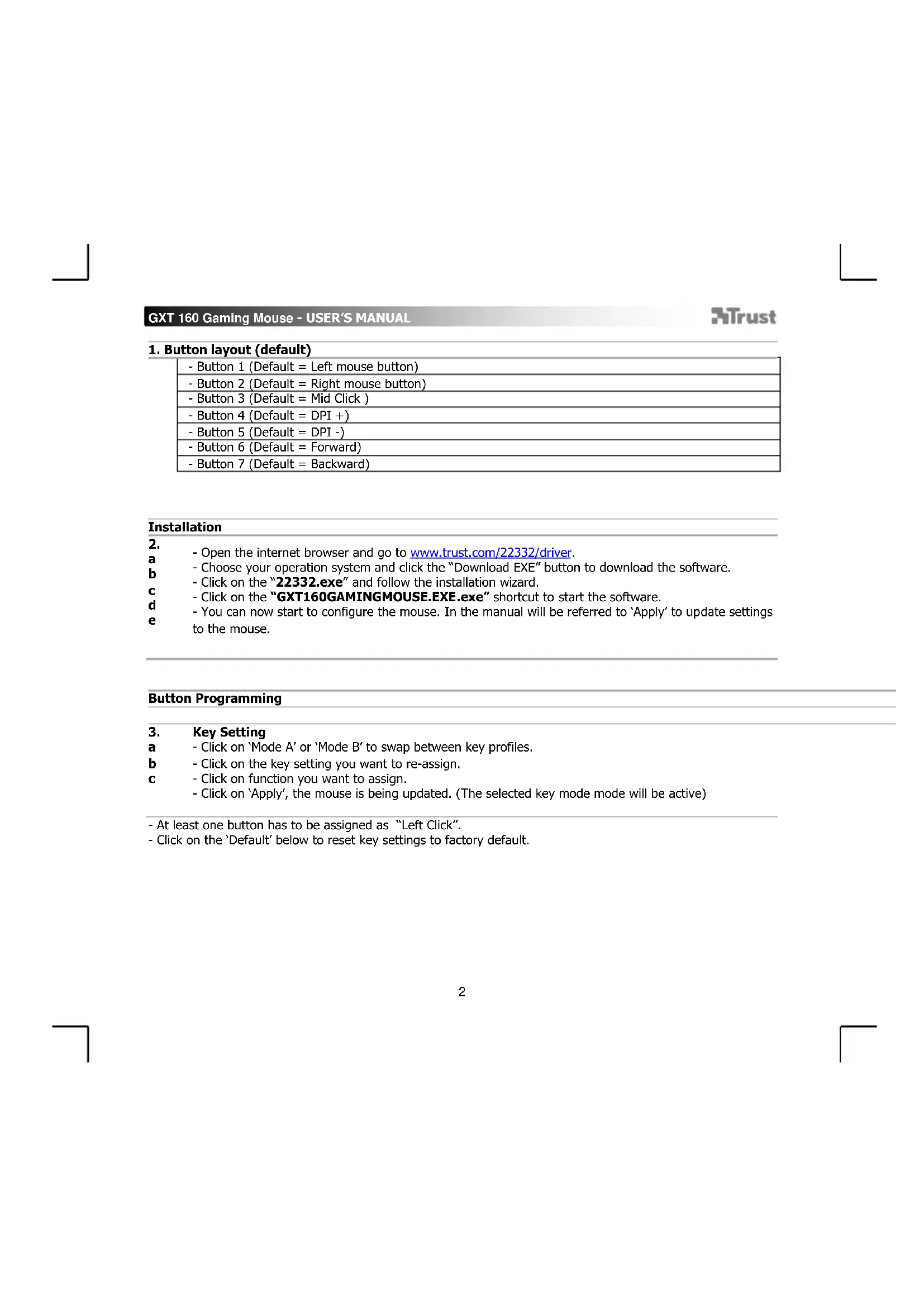
| - Button 1 (Default = Left mouse button) |
| - Button 2 (Default = Right mouse button) |
| - Button 3 (Default = Mid Click ) |
| - Button 4 (Default = DPI +) |
| - Button 5 (Default = DPI -) |
| - Button 6 (Default = Forward) |
| - Button 7 (Default = Backward) |
Installation
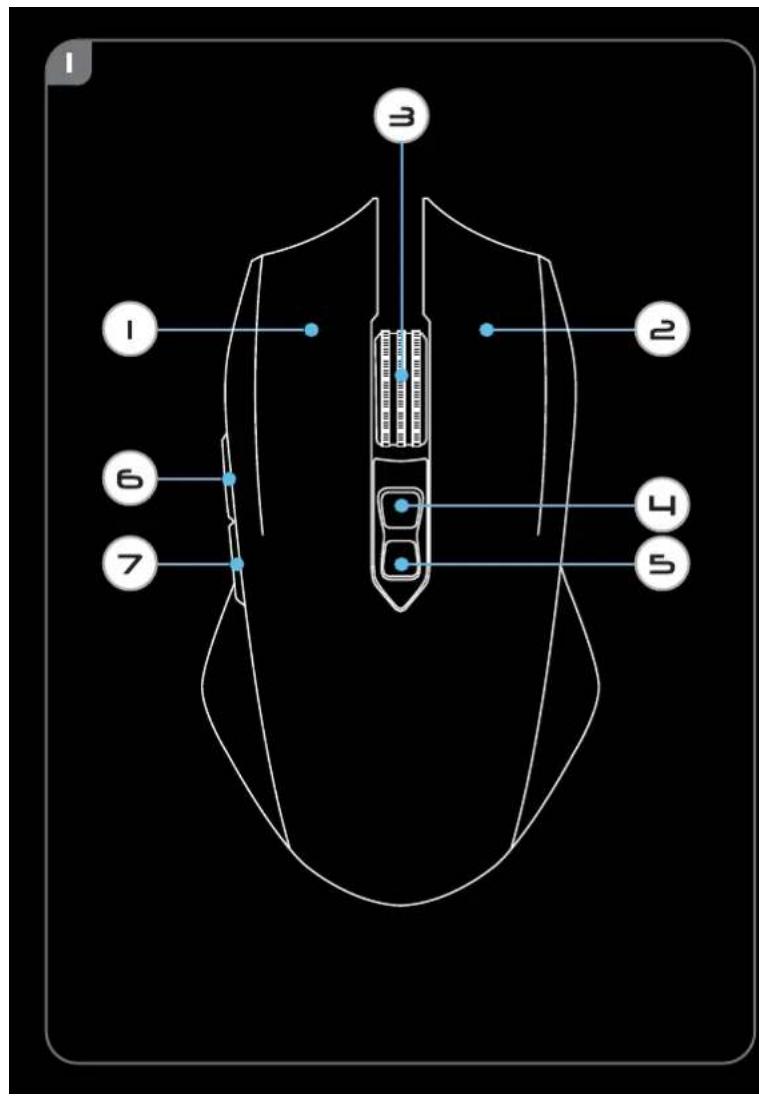
2.
- Choose your operation system and click the "Download EXE" button to download the software.
- Click on the "22332.exe" and follow the installation wizard.
- Click on the "GXT160GAMINGMOUSE.EXE.exe" shortcut to start the software.
- You can now start to configure the mouse. In the manual will be referred to 'Apply' to update settings to the mouse.
- Open the internet browser and go to www.trust.com/22332/driver.
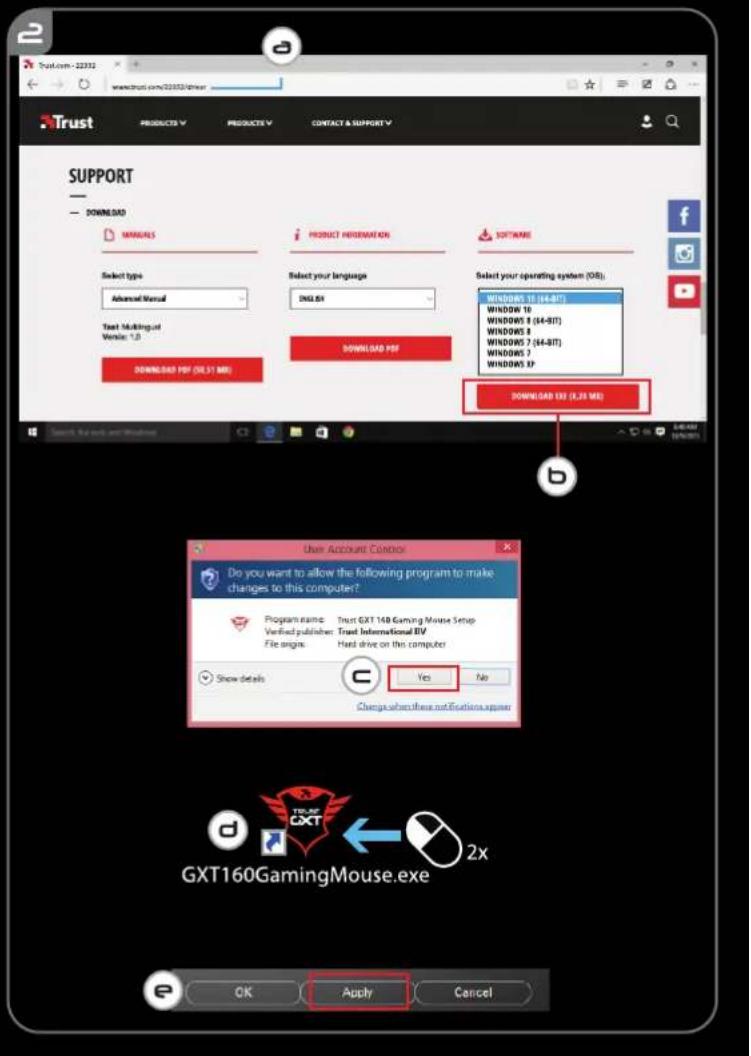
3. Key Setting
a - Click on 'Mode A' or 'Mode B' to swap between key profiles.
b - Click on the key setting you want to re-assign.
c - Click on function you want to assign.
- Click on 'Apply', the mouse is being updated. (The selected key mode mode will be active)
- At least one button has to be assigned as "Left Click".
- Click on the 'Default' below to reset key settings to factory default.
GXT 160 Gaming Mouse - USER'S MANUAL
Trust
Report rate, DPI settings & DPI Effect
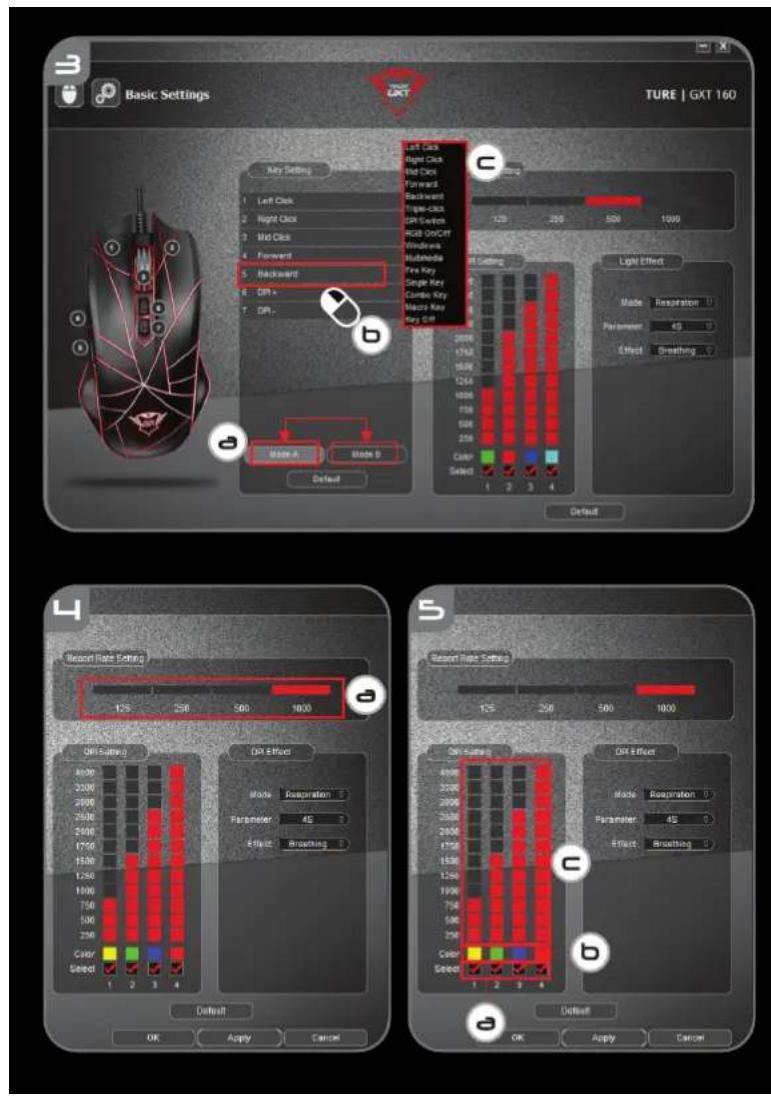
4. Report Rate
a - Pick your report rate between 125-1000Hz.
- Click on 'Apply', the mouse is being updated.
5. DPI Setting
a - Assign up to 4 DPI variables (Check/uncheck boxes).
b - Choose a LED color for each DPI setting.
c - Choose a DPI speed for each DPI setting (min 250 / max 4000 DPI).
- Click on 'Apply', the mouse is being updated.
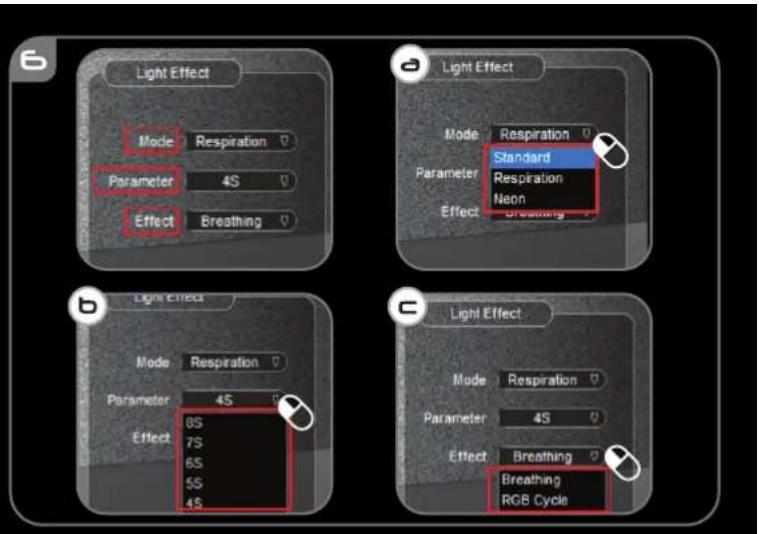
6. Light Effect
a Select between mode:
- Standard : Constant light according to assigned DPI color (step 5b).
- Respiration : Breathing lightmode according to assigned colors (step 5b).
- Neon : Blinking neon effect according to assigned colors (step 5b).
b Change parameter of mode:
- Standard : Choose LED brightness 5-100%.
- Respiration : Choose breathing interval time between 4-8 seconds.
- Neon : Choose RGB cycle time between 0.5-6.0 seconds.
c Change Effect of mode:
- Standard : Constant only
- Respiration : Choose between Breathing/RGB Cycle.
- Neon : RGB Flash.
- Click on 'Apply', the mouse is being updated.
GXT 160 Gaming Mouse - USER'S MANUAL
Trust
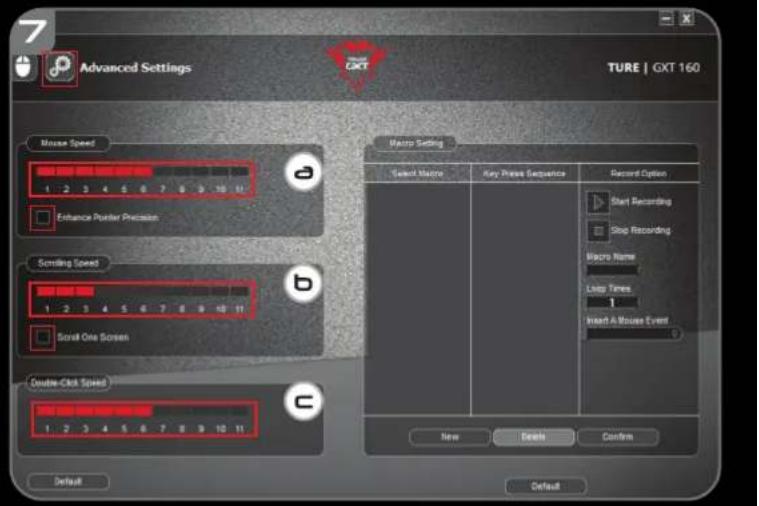
7.
- Click on the icon to switch to advanced settings.
a
Mouse Speed
- Click on box 1 (slow) to 11 (fast) to adjust windows mouse speed.
- Check the box to improve mouse pointer precision (software enhance).
b
- Click on box 1 (slow) to 11 (fast) to adjust windows scrolling speed.
- Check the box to scroll one screen view at a time while scrolling.
C
Double-click Speed
Click on box 1 (slow) to 11 (fast) to adjust windows double-click registration speed.
- Click on 'Apply', the mouse is being updated.
- Click on the 'Default' button below to reset the Mouse speed, Scrolling speed and Double-click speed.
Macro Settings
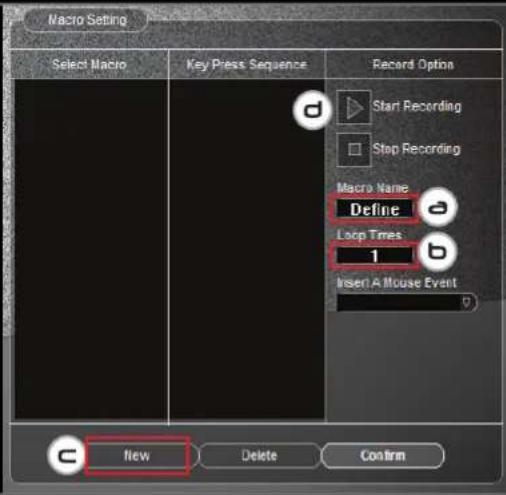
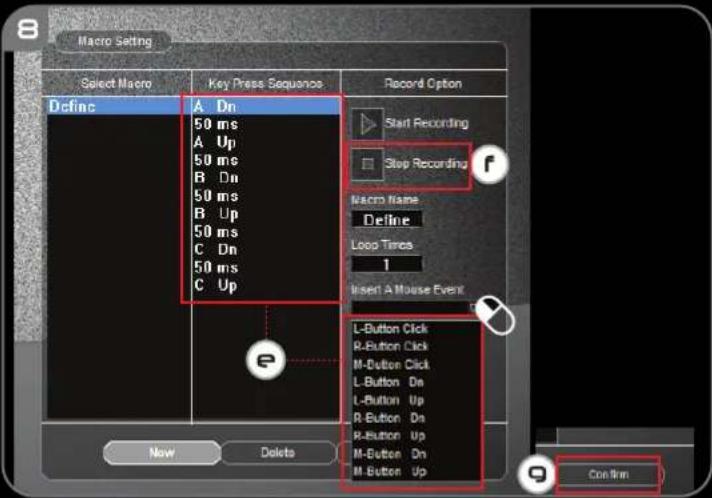
8. Create a Macro (Store a sequence of keys in the software)
a - Enter Macro Name
b - Enter the preferred loop times
c - Click on 'New'
d - Click on 'Start Recording' to start recording the macro.
e - Now enter your preferred macro sequence (Combine or choose between Keyboard or Mouse events) (max. 32 actions).
f - Click on 'Stop Recording' to stop recording the macro.
g - Click on 'Confirm' to save the macro.
- The next step shows how to assign your recorded macro.
GXT 160 Gaming Mouse - USER'S MANUAL

Assign a Macro
- Click on the icon to switch to basic settings.
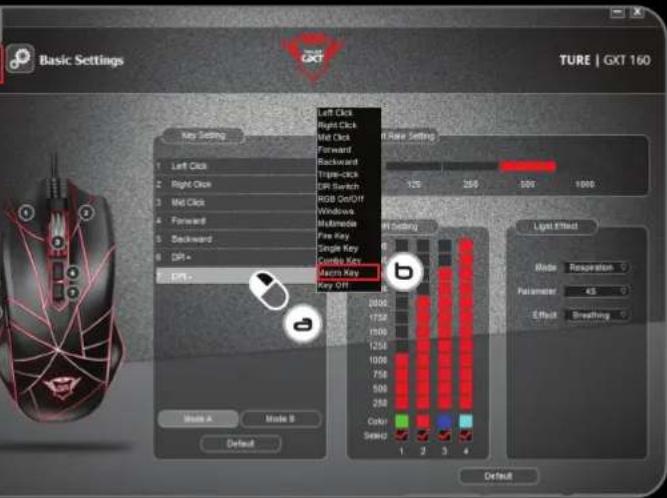
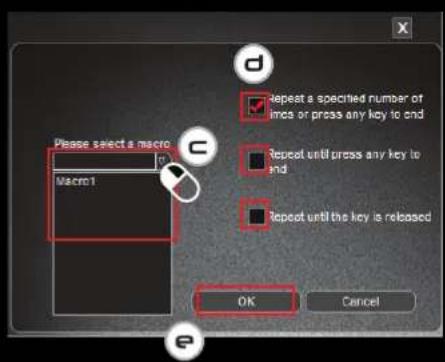
9. Assign a Macro (Store a sequence of keys in the software)
a - Click on the key you want to assign a macro.
b - Click on 'Macro Key'.
c - Select your preferred macro.
d - Pick your repeat setting.
e - Click on 'OK'.
- Click on 'Apply', the mouse is being updated.
GXT 160 Gaming Mouse - USER'S MANUAL

Trouble shooting
Problem
Solution
The software is not starting.
- Make sure the GXT160GAMINGMOUSE.EXE mouse is connected and try to start the software again.
If your problem is not solved, please contact the help desk at www.trust.com/22332/faq.
GXT 160 Gaming Mouse - USER'S MANUAL
Trust
Report rate, DPI settings & DPI Effect