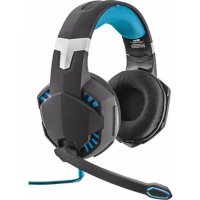
7.1 Bass Vibration Headset GXT 363 - Headphones TRUST - Free user manual and instructions
Find the device manual for free 7.1 Bass Vibration Headset GXT 363 TRUST in PDF.



| Brand | Trust |
| Model | 7.1 Bass Vibration Headset GXT 363 |
| Product type | Wired gaming headset with microphone |
| Connectivity | USB |
| Surround sound | 7.1 virtual (Xear Surround Max) |
| Bass vibration | Yes, activatable via remote control |
| Microphone | Integrated, removable, with mute function |
| Remote control | Integrated on cable: volume, mute, vibration, light, microphone mute |
| Lighting | Yes, activatable via remote control |
| Equalizer | Software with presets and customization |
| Audio effects | Environmental, channel inversion, vocal fade, magic voice |
| Sampling frequency | 44,1 kHz / 48 kHz |
| Power supply | USB (via computer) |
| Compatibility | Windows (with specific driver) |
| Cable length | Approximately 2 meters (estimate) |
| Weight | Approximately 350 g (estimate) |
| Maintenance | Clean with a dry, soft cloth |
| Precautions | Do not expose to moisture, avoid shocks |
Frequently Asked Questions - 7.1 Bass Vibration Headset GXT 363 TRUST
User questions about 7.1 Bass Vibration Headset GXT 363 TRUST
0 question about this device. Answer the ones you know or ask your own.
Ask a new question about this device
Download the instructions for your Headphones in PDF format for free! Find your manual 7.1 Bass Vibration Headset GXT 363 - TRUST and take your electronic device back in hand. On this page are published all the documents necessary for the use of your device. 7.1 Bass Vibration Headset GXT 363 by TRUST.
USER MANUAL 7.1 Bass Vibration Headset GXT 363 TRUST
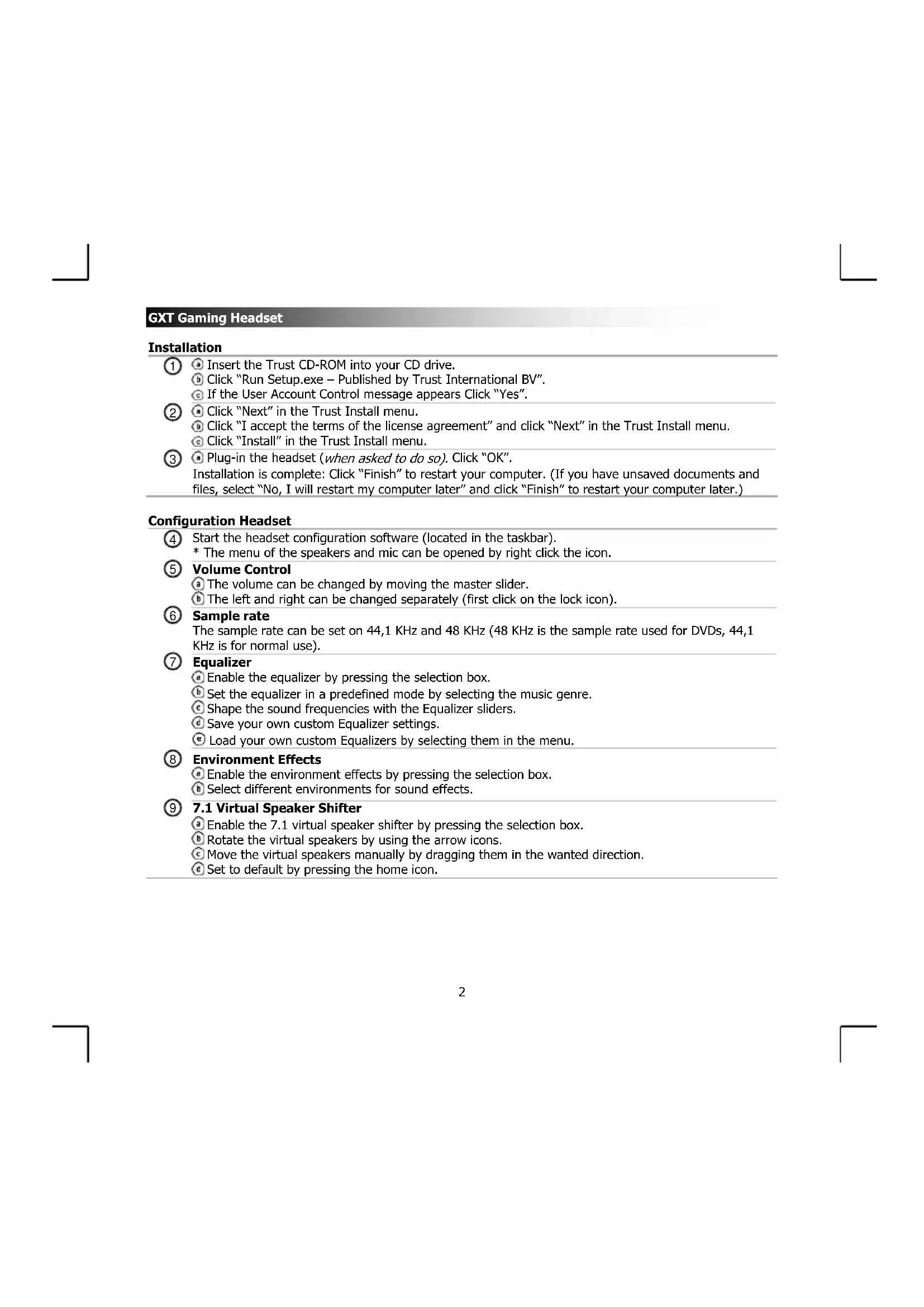
Insert the Trust CD-ROM into your CD drive.
Click "Run Setup.exe - Published by Trust International BV".
If the User Account Control message appears Click "Yes".
2 Click "Next" in the Trust Install menu.
Click "I accept the terms of the license agreement" and click "Next" in the Trust Install menu.
Click "Install" in the Trust Install menu.
Plug-in the headset (when asked to do so). Click "OK".
Installation is complete: Click "Finish" to restart your computer. (If you have unsaved documents and files, select "No, I will restart my computer later" and click "Finish" to restart your computer later.)
Configuration Headset
4 Start the headset configuration software (located in the taskbar).
- The menu of the speakers and mic can be opened by right click the icon.
⑤ Volume Control
The volume can be changed by moving the master slider.
The left and right can be changed separately (first click on the lock icon).
6 Sample rate
The sample rate can be set on 44,1 KHz and 48 KHz (48 KHz is the sample rate used for DVDs, 44,1 KHz is for normal use).
⑦ Equalizer
Enable the equalizer by pressing the selection box.
Set the equalizer in a predefined mode by selecting the music genre.
Shape the sound frequencies with the Equalizer sliders.
Save your own custom Equalizer settings.
Load your own custom Equalizers by selecting them in the menu.
Environment Effects
Enable the environment effects by pressing the selection box.
Select different environments for sound effects.
7.1 Virtual Speaker Shifter
Enable the 7.1 virtual speaker shifter by pressing the selection box.
Rotate the virtual speakers by using the arrow icons.
Move the virtual speakers manually by dragging them in the wanted direction.
Set to default by pressing the home icon.
GXT Gaming Headset
Year SingFX
Enable the Key shifting by pressing the selection box.
Change the pitch by moving the slider.
Enable the Vocal fading by pressing the selection box.
Filter out the voices by moving the slider.
Year Surround Max
Enable the Surround sound by pressing the selection box.
*Note: Year Surround Max can only be enabled when Speaker shifter is turned on.
Configuration Microphone
The microphone volume can be changed by moving the sliders.
The microphone monitor can be enabled by pressing the mute icon.
Enable the microphone echo by pressing the selection box.
Add an echo to your voice by moving the slider.
Enable the magic voice by pressing the selection box.
Deform your voice by pressing one of the icons.
Enable the microphone boost by pressing the selection box.
Remote control
1 Enable bass vibration
Volume +
Mute
(4) Volume -
Enable illumination
6 Microphone mute
GXT Gaming Headset
Trouble shooting
| Problem | Solution |
| No Sound. | - Press the mute button (see 3 at the remote control page). - Make the headset your default audio device. (See ‘15’) - Connect the headset to another USB port (preferred on the backside of the PC). |
| My movie/game is not in surround 7.1 sound. | · Configure your game or media player software to 5.1 output. · Enable the 7.1 virtual surround function. (See step 9.A) |
| Microphone is not working. | - Press the microphone mute button. (See 6 at the remote control page) - Make the headset your default recording device. (See ‘16’) - Increase the Microphone level in the Microphone properties. (Double click on your microphone in the recording properties) |
| Not enough or too much bass. | - Set the equalizer to your preference. (See step 7.C) - Press the vibration button. (See 1 at the remote control page) |
If your problem is not solved, please contact the helpdesk at www.trust.com/20407faq.
GXT Gaming Headset
Installation
4 Start de headset configuratie software op (in de taerkalk).
(Ako nMaTe He3anamTeHn DOKyMeHTn u faHNoB, 36epeTe ,No, I will restart my computer later" [,He, ue pectapTnpam KOMNIObTa pa No-KbCHO"] u paKHeTe ,Finish" [,KpaI", 3a da pectapTnpaTe CBOr KOMNIObTp no-KbCHO.)
KoHpyaunHa cnUaJIKeT
4 CtapnpaTe coOfTyepbT 3a KOHnHypaunHa cIywaKIne (HaMnpaC ce Ha JeHTaTa cBc 3aAun). MeHIOTo HA BnCOKOrOBopuTeJIne Tne MnkpofoHa MoKe da 6bJe OTBopeHo Upe3 UpaKaBaHe C DecHn8 ByTOH BbPxu IKoHaTa.
Volume Control [KoHTpOHa cnIaTa Ha 3Byka]
CnIata Ha 3Byka MoKe da 6bJe npomeHa Ype3 npemecTbaHe Ha rnaBnra
JIeBnT n deChnKaHaI MoaT da 6bDat npomeHn OTdJIHO (PbpBO upaKHe T Bpxy IKOHA73aKJIIOUcBaHe).
Sample rate [Yectota ha cemnlaipahe]
YeCToTaHa cemnnpaHe moKe da 6bJe hAcTpoeHa Ha 44,1 kHz n 48 kHz (48 kHz e yeCToHa cemnnpaHe, n3noJ3BaHa 3a DVD, 44,1 kHz e 3a HopMaJIHa yIOTpe6a).
⑦ Equalizer [EKBaIaI3ep]
AKTNBpuaTe eKbana3epa C HATnCKaHe Ha noneto 3a n36Op.
HacpoTe ekBaan3epa Ha npedBapntelno DePhiHHpaH pexm KaTo n36peTe My3nKaJIeH CTIN.
OΦopMeTe 3ByKOBnTe YecToTn Upe3 Nb3rauNTe Ha eKBaJai3epa.
3ana3eTe BaWnte NepcoHaHn3npaHn HactpoKn Ha eKBaJau3epa.
3apeTe CBOITe NOTpe6nteKcN EKBaIIN3epHN HAcTPOIK KATO Hn 36peTe OT MeHIOTo.
Environment Effects [EΦeKTH Ha OKoHHa Tcpega]
AKNBpaTe eFeKTNHe HA OKOJIHATA cpea KaTO HaTNCHETe NOJETo 3a N36Op.
N36epeTa3nHn Cpei 3a 3ykoBn ekeTn.
7.1 Virtual Speaker Shifter [PpeBknUcbTeJ 3a BnptyJIen BnCOKOROBOpHTe]
AknBpaTe 7.1 npeBKnOyBaTeIa 3a BnptyaneH BnCOKOrOBOpTeI KaTO HaTNCHe T NOJTo 3a n36op.
3aBbptTe BnPTyAHHN T BNCOKOROBOpNTe KaTO 3N0N3BaTe IKOHHTe CbC CTpeJIKN.
IpeMeCTe BnpyaHHTe BnCOKOROBOpNTe pBUHO KaTO H3TeRJIte B NCKaHaTa NOCoka.
HynipaTe KbM f6pNHTe HAcTPOkK NaTo HaTnCHeTe IKoHaTa HaJaNo.
GXT Gaming Headset
Xear SingFX
AKTINBnPaIe IpeBknHouBaHTo Ha KnaBmN KaTo HATNCHeI NOJIe To 3a N36Op.
CmeHete CtbNkata KATO pemeCTIe Nb3raa.
AknBpaTe 3aIyUbaHHeTo Ha rnaCobete KaTo HATNCHE Te NOJTo 3a 36Op.
ΦHnTpnpaTe rIacOBeTe KaTo npMeCTnTe nB3ra4a.
Year Surround Max
A KAtnBnpaTe O6eMeH 3ByK KaTo HaTnCHeTe NoJIeTo 3a n36Op.
*3a6eKka: Xear Surround Max Moke da 6bnde aKTHBpuH cAmO KOraTo npeBKnOuBaTeJrT 3a 3ByK e BKNUoyeh.
KoHnIpyaunMnKpOΦn
Cnata Ha 3Byka Ha MmKpOfoHa MoKe da 6bDe CmeHeHa C npeMeCTBaHe Ha Nlb3raHTe.
MoHITOpbT Ha MInKpOfoHa MoXe Da 6bDe aKTHBupaH C HATNCKaHe Ha NKOHaTa 3a 3aIyUbaAhe.
AKTNBnpaTe exo Ha MmKpOfoHa c HATNCKaHe Ha nolTo 3a n36op.
DobabeTe exo KbM CBOA Fnac KaTO npMeCTNTe TnB3raa.
AknBpaTe MaruueH rnaKaTo HATnCHe Tne IeTo 3a n36Op.
DepopMpaTRe rnaCn KATO HATNCHeTe eHa OT NKOHHTe.
AknBupaTe yCnBaHTo Ha MkPoOHa KaTo HATNCHe TNoTe 3a N36Op.
HnctaHnOHHOynpaBHeHne
AKnBnpaHHe HbN6paunHa 6aca
② Cnna Ha 3Byka +
3 13KIOUOBAHe Ha 3Byka
CnnaHa3Byka-
5 AktnbupaHa OcbTneHnE
⑥ 3aIywaBaHe Ha MkpofoH
GXT Gaming Headset
OCTpaHraBaHe Ha Hen3npaBHOCTn
Volume Control [PerynTOp ypOBn rpoMkoCTn]
aPOMKoCTb MOXHO N3MeHHTb,NEpeMeCTNB TnaBBhBn NOJ3yHOK.
bPOMKoCTb IeBOrO u npaBOrO dHaMnKOB MoXeT n3MeHArTcBc OTeNbHO Dpyr O T pyra
(Chaayana 电KHTe no 3aHky 6nKnpOBKn).
Sample rate [Yactota dnckpeTn3aun]
MoxhO yCTaHOBnTb YacToTy DnCKpeTn3aun 44,1 KfU n 48 KfU (kak npabnlo, yactota 48 KfU
7 nCnoB3yeTcA DnDVD-DnCKOB,44,1 KΓ- DnO6bHOro nCnoB3ObaHH).
Equalizer [3KbαIaIεp]
a BkIOuHTe 3KbAan3ep, HaxKaB Ha none BbI6opa.
UcTaHOBnTe OIN N3 CTaHApTbIx pexKIMOB 3KaBaIaIepa, Bbl6paB My3bIkaJIbHbI KaHp.
Otperynpyte yactoty 3Byka npn NOMOUNNON3yKOB 3KBaIaN3epa.
CoxpaHnTe CdeHaHHbIe Nolb3OBAteJIbCKne HAcTpoKn 3KBaIaN3epa.
3arpy3nte co6tBeHHbIe NOnb3OBaTeJIbckne 3KBaIaN3epbl, Bbl6paB IN B MeHIO.
Environment Effects [3ΦΦeKtbl OkpyKeHn]
BkIIOuHTe 0000KbIKoKpyKeHHaHaaBaHa NoJe Bb6opa.
BbIepeNTcpeyIa3ByKObIxΦΦeKTOB.
7.1 Virtual Speaker Shifter [IpepeknoaTeB BnptyAibHbIX dHaMkoB]
BkIIOUHTe nepeKIOUaTeB BnPtyaNbHbIX dINHaMIMKOB 7.1, Haxab Ha none bbl6opa.
TobopauHbAte BnpyaIbHbIe DnHaMnKn npn NOMOuN 3HaUKOB-CTpeNoK.
PepeBnraTe BnpyaIbHbIe DnHaMnKn BpyHyIO, NpeTgRnBa Ix B KjaEMOM HappaBneHN.
UcTaHOBnTe HAcTPOKn No yMonuHaHnIO, HaxaB Ha 3HaOK «DOMoN».
GXT Gaming Headset
Year SingFX
BkIouTe nepemeuenHaXaBaHa nOle Bb6opa.
H3MeHHTewar,nepeBnHyB NOJ3yHOK.
BkHouHe 3aTyxAHne rOloca, HaxBa Ha nOle Bbl6opa.
OToHbTpye roNoCa, nepeBnrae no3yHok.
Year Surround Max
BkIIOHTe 06bemHoe 3ByaHHe, Hax Kab Ha IIOJE BblOpa.
*ПиMueHnE: ФункцЯ Xear Surround Max MoXeT 6bIb BKIOUeHa TOnIbKO Пи BKIOUeHHOM nepeKIOuOteNe DInHaMnKOB.
Hactpoika MnkpofoHa
12 TpOMKoCTb MmKpoOHa MOXHO N3MeHHTb, NepeMeCTNB NOJ3yHKN.
MoHITop MmKpOoHa MoXHO BkIIOHTb, HaxKaB Ha 3HaQOK OTKIIIOHeHn 3ByKa.
BkIIOHTe 3xo MmKPOOHa, HaxBa Ha NoJe Bb6opa.
D06aBBTe 3Xo BAWeMy rOLOcy, NpeMeCTNB NOJ3yHOK.
BkHouTe dyHKUIO MaNueCKoro roIoca, HaxKaBa Ha nOle Bb6opa.
H3MeHnTe BaU rOIOc, HxKab Ha OINu 3HaKOB.
BkIIOHTe ycJIeHHe MmKpOfoHa, HaxaBa Ha none BbIbopa.
IyIbT dNCTaHcNoHHoro ynpaBneHn
BknioueHne 6ac-Bn6paun
2 POMKOCTb+
③ OTKIIOUeHHe 3ByKa
4 pOMKOCTb
5 BkJIIOUeHHe NOcBETKn
⑥ OTKJIouHeHne 3Byka MmKpOΦoHa
GXT Gaming Headset
UctpaHHeHnCnpaBHOCTe
EcnB O3HnKU np06nemy He ydaIocb peuNTb, 6paTntecb B cnjx6y TexHnuecko noepkwn www.trust.com/20407faq.
GXT Gaming Headset
EykataoTaon
EiaayTeTo Trust CD-ROM otn movda CD tou unoloyiotn.
KavTE KAIK OTo "Run Setup.exe - Published by Trust International BV" [EKTLEON TOU...].
6 Sample Rate [Puθμoc δειγματωv]
⑥ Sample rate [Örnek oran]
Environment Effects [Efaktokoline]
i Omogucite efekte okoline pritiskom na okvir za odabir.
Odabir razllicite okoline za zvučne efekte.
. www.trust.com/20407fag 8
GXT Gaming Headset
Inctlaia
BCTaBnTu KOMNaKT-DnCK Trust CD-ROM y DnCKOBOD.
KnaCytn «Run Setup.exe - Published by Trust International BV».
JaKIO 3'ABNTbCnOBIDOMHeHH CnyX6N KepyBaHHoBIOKOBm3aNNCaMn KopNCyBaHIB, KlaUHITb «Yes».
(2) Knauchytn «Next» [«Дani»] y MeHIO iHCTaJIuTl Trust.
Klaunytn «I accept the terms of the license agreement" [«Яnorodkyocb 3 yMOBaMn liueh3iHoi yroDn»] ta Klaunytn «Next» [«Дani»] y MeHIO inhctanuji Trust.
KnaCyTu «Install» [«IHCTaIIOBAtu»] y MeHIO iHCTaIaIy Trust.
③Пид' endа用电能用(KoII nporpama 3anpoHye ue 3poBHTN).KnaHyTN «OK»[«OK»].
Ihctanlaio 3aBepweho: KnaHyTu «Finish» [«FToBO»], 06 nepe3abaHTaxuTn KOMn'IOTeP. (Kkuo y Bac 3aIIuINiNC He36pejexHHi DOKyMeHTu Ta paJIn, Bn6epitb «No, I will restart my computer later» [«Hi, r pe3abaHTaxy KOMn'IOTep ni3HIe»] ta KnaHITb «Finish» [«FToBO»], 06 BnKoHaTI npe3abaHTaxeHHr Ni3HHe.)
KoNphiRpyaia raphHtypn
4 P03noaTu KOHphiIpyauio nporpamHoro 3abe3neueHHrahpHITpyn (po3taowBaHOro Ha naHeJI 3abDaHb). MeHIO DNHaMikIB Ta MIKPOFOHa BIDKPNBaCTbC KnaaHm 3HaUc Ka npABIO KHONKOIO MNiI.
Volume Control [rhyhictb]
PibeHb rYHOCTI 3MIHOETbCRA DOnOMORIO RONOBHOrO NOB3yHa.
日 rHyHicb IIBORO Ta npaboro DnHaMika MoKe 6yTu 3MiHeHa OKpeMo (CNoaTKy KlauHITb 3HaOK 6IoKvBaHH).
6 Sample rate [Yactota dNckpeTn3aui]
AchaToa dNckpeTn3auii BCTAHOBIOeTbca Ha pIBHi 44,1 KU Ta 48 KU (K npabuio, achaToa dNckpeTn3auii 48 KU BnKOpNCTOBvEbCra Dnla DVD-dnCKiB, achaToa 44,1 KU -Dnla 3BnuaiHoro KOpNCyBaHHa).
⑦ Equalizer [Ekbajain3ep]
yBIMKHiTb eKBaIaI3ep,HaTNCHbUIN noJe Bn6opy.
BcTaHOBITeKbAaH3epynonepEdhbo Bn3HaueHn peXHM, Bn6paBwN BiIDNOiHN My3uHn JkaHp.
Hactpoitn 3BykObi yactotn 3a donomoroIO NOB3yHKIB eKBaIaN3epa.
36epexkiBbnaChi HacTpoiKn EkBaIaI3epa.
3aabaHTaKyIte TaKoX BnAchi eKbAlaI3epu, B6paBwn x y MeHIO.
Environment Effects [EpeKtn OToeHHa]
aYbIMKHiTbe eFeKTn OTOeHHra,HaTNCHyBUN NOJI Bn6Opy.
66npaIte pi3Hi OTOUeHHN dIra 3ByKOBnx eOeKtIB.
7.1 Virtual Speaker Shifter [PerynTop BipyTaJbHnx dHaMikib]
aYbIMKHTb peryIaTOp BiPTyIaBHX dHaMikIB 7.1, HATNCHyBUN NOJE Bn6opy.
PobepTaIe BiptyaIbHi dHAmiK 3a DonomoroIO CTpINOK.
NepemictnBipTyalbHi DnHaMiKIN BpyHy MoXHa nepeTaryBaHHm IX y Heo6xHOMy HanpMky.
UcTaHOBUN3a npOMOBaHHaM 3a DonOMoROIO 3HaUka «DoMy».
GXT Gaming Headset
Xear SingFX
YbIMKHTb nepeKnIOueHHaTNCyBnNoIe BN6Opy.
3MInTN KpOK nepemieHnHn NOB3yHka.
YbIMKHyTN 3raCahHr rONoCy, HATnCHyBn none Bn60py.
BiDipinbtpyTe roNoCn nepemiuHnM NOB3yHaKa.
Year Surround Max
BbIMKHTb 06'EMHm 3Byk,HaTNCyBwN NOE Bn6OpY.
*Пуримитka: Фунштейх Xear Surround Max Moxна увимкhyт,在ише коли увимкhyto ретуларop duHaMikib.
KoNphiIpyaia MikoPocOHa
12 ⑨IyHictb MikpofoHa 3MHIoETbCn nepMeiueHHm NOB3yHKIB.
MoHITOP MIKPOOHa MOXHa YBIMKHyTN, HaTNCHYBUN 3HaOK BUMKHeHH 3ByKy.
yBIMKHYTN MIKPOOHOHHe BiDnyHHHaTNCYBUN NOE Bn6opy.
Dodatn BiIyHnBaWOMy roIoCy nepemieHHm NOB3yHaKa.
CybIMKHyTN MariHn rONoc, HATNCHyBn nOJe BN60py.
CNOTBOPTN BAA RONOC, HATNCHYBUN ODNHIN 3HaKIB.
YbIMKHyTNPiDcJIeHnHaMikPofoHa,HaTNCyBnI None Bn6opy.
AnctaunieKepyBaHH
YbIMKHyTN Bi6pauiO 6acB
②
BumkHyTN3ByK
4
5 YBMKHyTN NIDCBiYBaHHA
6 BmKHeHHa 3Byky MkiPpOHa
GXT Gaming Headset
BunpableneHn HenoJadok
| Helenajda | Písenhra |
| Bidcyrtni 3byk. | - Hatachyni Khonky Bumkhenehny 3byk (ДиВ. поэнчу 3 насторii достацii horo kepybaHHa). - BctahobuTn raphityrakay aydionpnctri 3a npomobuaHHaM. (ДиВ. поэнчу 15) - Пд'едни raphiTyPy do inshoro USB-nopty (pekomendobahno на заимпалел ПК). |
| Фільм/гра He BvdTbopUeTbcry y φорматi ob6'emHoro 3byk7.1. | - HactpoiTi rpy abo medianporpabauch Ha bixiD 5.1. - YbimKhyni Φункцию BiptyaalbHoro ob6'emHoro 3byk7.1. (ДиВ. крok 9.A) |
| Mikroфон He npaioue. | - Hatachyni Khonky BumkheneHny 3byk MikrofoHa. (ДиВ. поэнчу 6 насторii достацii horo kepybaHHa) - BctahobuTn raphityrakay prinstrij zanncybaHHa 3a npomobuaHHam. (ДиВ. поэнчу 16) - 36iIbushnPiBéH ryuhocti y pozdiJI napameTpiv MikrofoHa. (ПобdiЛе Кlaцань МikrofoHa y pozdiJI napameTpiv zaicCybaHHa) |
| Hedoctathbo a60 3a6arato 6acib. | - BctahobiTb ekbalaiZep 3rdNo bawix ynpodobAH. (ДиВ. крok 7.C) - Hatachyni Khonky Bifpaui. (ДиВ. поэнчу 1 насторii достацii horo kepybaHHa) |
YksoBAM He BdaIocBnPiHITn npo6IeMy,3BepHiTbcN do CnyK6n nIqTpumKn 3a aDpecoo www.trust.com/20407faq.
- Configuration Headset
- GXT Gaming Headset
- Year SingFX
- Year Surround Max
- Configuration Microphone
- Remote control
- Installation
- KoHpyaunHa cnUaJIKeT
- Xear SingFX
- KoHnIpyaunMnKpOΦn
- HnctaHnOHHOynpaBHeHne
- Sample rate [Yactota dnckpeTn3aun]
- Equalizer [3KbαIaIεp]
- Environment Effects [3ΦΦeKtbl OkpyKeHn]
- Virtual Speaker Shifter [IpepeknoaTeB BnptyAibHbIX dHaMkoB]
- Hactpoika MnkpofoHa
- IyIbT dNCTaHcNoHHoro ynpaBneHn
- EykataoTaon
- Inctlaia
- KoNphiRpyaia raphHtypn
- KoNphiIpyaia MikoPocOHa
- AnctaunieKepyBaHH
Brand : TRUST
Model : 7.1 Bass Vibration Headset GXT 363
Category : Headphones