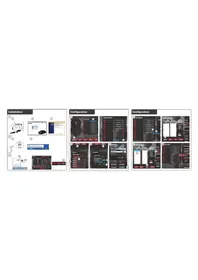
GXT 158 20324 - Mouse TRUST - Free user manual and instructions
Find the device manual for free GXT 158 20324 TRUST in PDF.



| Product Type | Wired Gaming Mouse |
| Brand | Trust |
| Model | GXT 158 (20324) |
| Connectivity | Wired USB |
| Number of Buttons | 8 Programmable Buttons |
| Resolution (DPI) | 5 Adjustable Levels via Software |
| Lighting | Customizable RGB LED (DPI Indicator) |
| Scroll Wheel | Scroll wheel with illuminated DPI indicator |
| Software | Trust Configuration Software (included on CD or downloadable) |
| Profiles | Up to 5 Saveable Profiles in Internal Memory |
| Internal Memory | Yes |
| Compatible Operating Systems | Windows 7/8/10/11 |
| Power | USB (5V, 100 mA) |
| Dimensions (approx.) | 126 x 68 x 42 mm |
| Weight (approx.) | 110 g |
| Care and Cleaning | Clean with a soft, dry cloth. Avoid liquids. |
| Safety | No special warnings. Use in accordance with standards. |
| Spare Parts and Repairability | Not applicable. Device not user-repairable. |
| General Information | Gaming mouse with 8 programmable buttons, RGB scroll wheel, 5 DPI levels, advanced configuration software. |
Frequently Asked Questions - GXT 158 20324 TRUST
User questions about GXT 158 20324 TRUST
0 question about this device. Answer the ones you know or ask your own.
Ask a new question about this device
Download the instructions for your Mouse in PDF format for free! Find your manual GXT 158 20324 - TRUST and take your electronic device back in hand. On this page are published all the documents necessary for the use of your device. GXT 158 20324 by TRUST.
USER MANUAL GXT 158 20324 TRUST
GXT 158 Gaming Mouse - USER'S MANUAL
Trust
Index
| Language | Page |
| English | 2 |
| Deutsch | 5 |
| Français | 8 |
| Italien | 11 |
| Espanol | 14 |
| Português | 17 |
| Nederland | 20 |
| Dansk | 23 |
| Suomi | 26 |
| Norsk | 29 |
| Svenska | 32 |
| Polski | 35 |
| Česky | 38 |
| Slovenčina | 41 |
| Magyar | 44 |
| Romānă | 47 |
| Бulgaripecs | 50 |
| Р�сский | 53 |
| Еλληνικᾶ | 56 |
| Türkçe | 59 |
| Hrvatski | 62 |
| Slovenski | 65 |
| сретский | 68 |
| Brasilheiro | 71 |
| الترجمة | 74 |
GXT 158 Gaming Mouse - USER'S MANUAL
ATrust
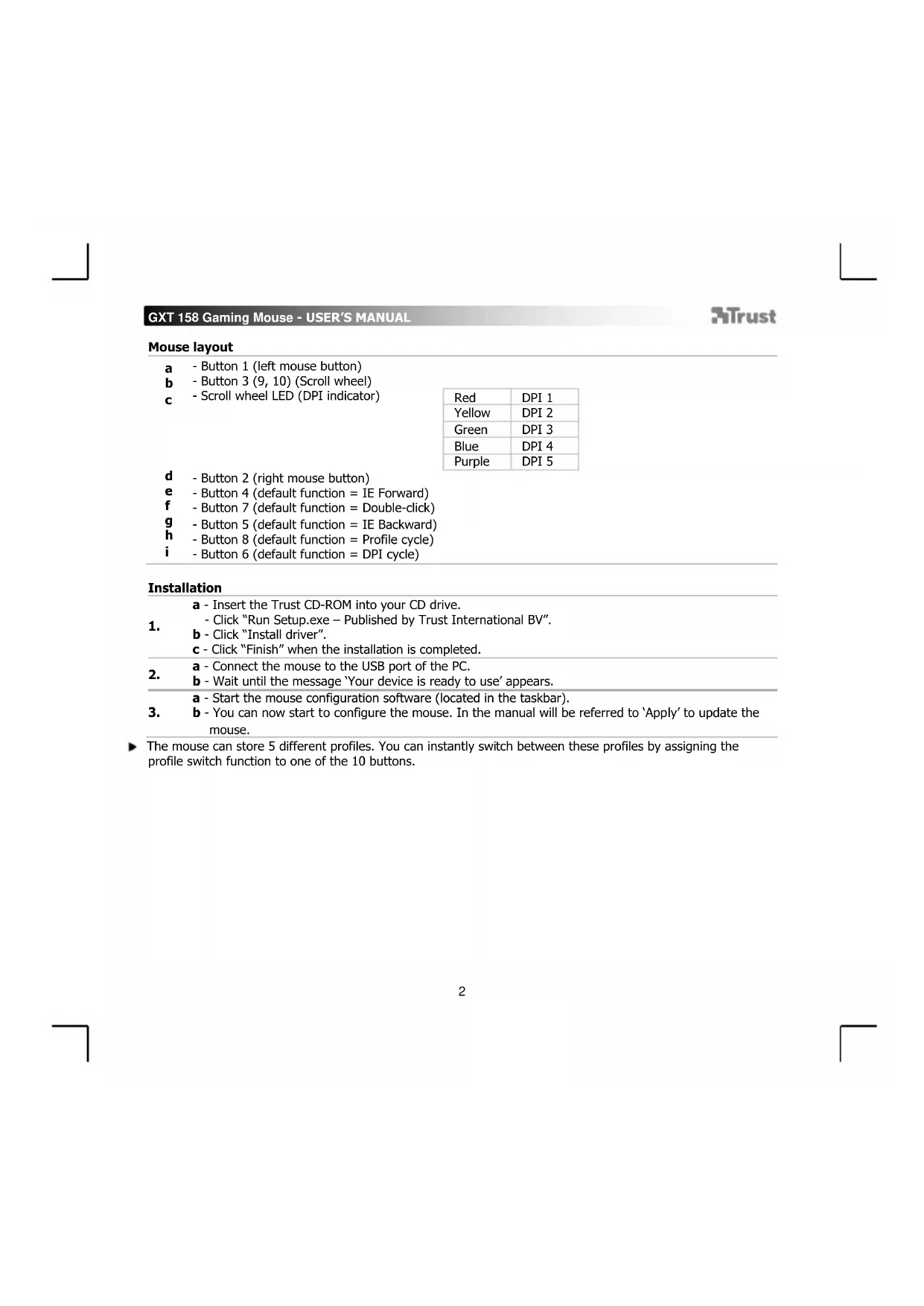
Mouse layout
a -Button 1 (left mouse button)
b -Button 3 (9,10) (Scroll wheel)
c - Scroll wheel LED (DPI indicator)
| Red | DPI 1 |
| Yellow | DPI 2 |
| Green | DPI 3 |
| Blue | DPI 4 |
| Purple | DPI 5 |
d -Button 2(right mouse button)
e -Button4(defaultfunction IEForward)
f -Button7(defaultfunction Double-click)
9 -Button 5(default function = IE Backward)
-Button8(defaultfunction Profilecycle)
- Button 6 (default function = DPI cycle)
Installation
a - Insert the Trust CD-ROM into your CD drive.
- Click "Run Setup.exe - Published by Trust International BV".
b-Click"Install driver".
c - Click "Finish" when the installation is completed.
a - Connect the mouse to the USB port of the PC.
2. b - Wait until the message 'Your device is ready to use' appears.
a - Start the mouse configuration software (located in the taskbar).
3. b - You can now start to configure the mouse. In the manual will be referred to 'Apply' to update the mouse.
The mouse can store 5 different profiles. You can instantly switch between these profiles by assigning the profile switch function to one of the 10 buttons.
GXT 158 Gaming Mouse - USER'S MANUAL
Trust
Button programming
4. Assign a function
a - Click on the 'Profile' tab.
b - Click on the button which you want to re-assign.
C - Click on the function that you want to assign.
- Click on 'Apply' → The mouse is being updated.
DPI Settings
- Change the DPI settings (profiles and DPI settings are linked)
a - Click on 'Sensitivity'.
b - Click the DPI number which you like to change.
c - Change the DPI settings by moving the sliders.
- Click on 'Apply' → The mouse is being updated.
Light Settings
6. Change the LED light
a - Click on 'Light settings'.
b - Change light effect to full lightened or breathing.
c - Select the desired LED color.
- Click on 'Apply' → The mouse is being updated.
Game Profile
7. Make a game profile
a - Click on 'Edit profile'.
b -Name the profile.
c - Choose an executable file on which the profile needs to be loaded.
- Click on 'Apply' → The mouse is being updated.
GXT 158 Gaming Mouse - USER'S MANUAL
ATrust
Macro Settings
-
Create a macro (Store a sequence of keys in the software)
-
Click on the button witch you want to re-assign.
a - Hover over 'Assign Macro'.
b - Click on 'Macro Manager'.
- Create an new macro by clicking on 'New'.
c - Enter the name of the new macro.
- Record a macro
a - Select a created macro.
b - Click on the 'start record' button to start recording the preferred keyboard sequence.
- When you're finished creating your macro. Click the 'stop record' button.
c - Close the 'macro manager' by clicking on 'OK'.
Assign a macro
-
- To assign a macro follow steps 8 a/b and choose the preferred macro from the function list.
-
Click on 'Apply' → The mouse is being updated.
Profile Settings
- Select a profile
a - Select one of the 5 profiles bij clicking on the preferred profile.
- Save or Load a custom setup
a - Click on 'Save Profile' to save a setup or 'Load File' to load a setup.
b - Enter a name for the mouse setup, or choose the preferred profile to load.
- Click on 'Save/Open'.
Your mouse setup is now saved/loaded.
a -Go to Advanced settings'.
- Click on 'Reset' to reset all profiles to factory default.
b - Click on 'OK' to reset all settings.
- Click on 'Apply' → The mouse is being updated.
GXT 158 Gaming Mouse - USER'S MANUAL
Trust
6. Andering at LED-lys
- Published by Trust International BV".
b- UpaKHeTe „Install driver" [,HnctaInpaI npaBep".
C-1paKHeTe"Finish"KpaN,KoratoHCTaIauyra npknIOu.
a-CbpxKeTe MmKkata KbM USB npTa Ha KOMnIOtbpa.
- b -Изчakайт, дokato ce поBN cboшениTo „Your device is ready to use" [„BaWEto yCTpoIcTBO e roTOBO 3a ynotpe6a"].
a - CtraptnpaTe coΦTyepa 3a KOHnHypauNHa MmKkata (OT JeHTaTa c6c 3aDaH). - b-Cera mokeTe da 3anoHHe KOhFHypaun Ha MmKata.B HapbHnka 6e 6de nocoheHo KaTo "Apply", 3a da akTuAnuPate MnKata.
Mnukata Moke da cbxpaHbA 5 pa3nUHn npoHna. Bne moKeTe da npeBKnOHTe He3a6abHO MeKdy Te3n npoHn KaTo Ha3HaNTe fynKcua 3a npEKBIOUbaHe Ha npoHn 3a HkON OT 10 6yToHa.
GXT 158 Gaming Mouse - USER'S MANUAL
Trust
Pporpamnpahe Ha 6ytoHn
- Ha3haabahe ha yHKun
a -IpaKHeTaHa pa3dEn „Profile".
b -IpaKHeHa 6yToH, KOTo NCKaTe Da npeHa3HaHTe.
C -LpaKHeTe Ha yHKUra, KOrTo NCKaTe Da Ha3HaCHte. - UpaKHeHa,Apply" → MUsKaTae ceakTuAn3npa.
DPI NaCTPOJKN
- Ppomehe DPI Hactpoiknte (npoipnnte n DPI hactpoiknte ca Cbbp3aHH)
a -LpaKHeT Bbpxy , Sensitivity".
b -IpaKHeTe 6poT DPI, KOTo nckaTe da CMeHnte.
C - CmeHeTe DPI HactpoKNTe KaTo DBNKeTne INb3raHnTe.
- LlpaKHe Ta,Apply" → Mmikata ceaktyaHn3npa.
HaCTpOKn Ha CBetJInHa
- CmeHeTe CBToOnNoHaTa LED CBeTImHa
a -LpaKHeTebpxy,Light settings".
b - CbeHeTe ekeKa Ha CBETnHaTa KbM NblHO OCBeTnaHe nnnyncipaHe.
c -ИЗбете ИСКАнгТ CBETODNOEN LED UВТ.
- LpakHeHa,Apply" → MnKkata ce akTuAn3npa.
PpoHnHaIrpa
- Hanpabete npoФин ha ngra
a -LpaKHeTebpxyEdit profile".
b -ImeHa npoФиа.
c -I36epete H3nblHIM faJl, 3a KoITo TpRA6Ba da 6bJe 3apeKdAn npOphiNa.
- LpakHeHa,Apply" → MnKkata ce akTuAn3npa.
GXT 158 Gaming Mouse - USER'S MANUAL
ATrust
MaKpo NaCTpOJKn
- Cb3daBaHe Ha MaKpoc (zanaMetete nocneDobateHnOCT Ha KtabHnB B coFpyepa)
-ⅢpaKHeTe Ha 6yToH, KOTo NCKaTe Da npeHa3HaHTe.
a - Nocouete Bbpxy, Assign Macro".
b -LpaKHeTe Ha, Macro Manager".
- Cb3daIte HOB MaKpOc KaTO UpaKaHHe Ha „New".
C -BbBeTe HeMoTe Ha HOBn MaKpOc.
9. 3aHHeTe MaKpoc
a -N36peTe cB3daeH MaKpOc.
b -LpaKHeTe Bbpy 6yToHa „Start record", 3a Da cTapTpape 3aNca Ha NcKaHaTa KJIaBnHa KaM6nHaucn.
-Korato npnknoute CbC sb3daBaHTo Ha BaWeTo MaKpo. ⅡpaKaHTe 6yToHa „Stop record".
c - 3aTbOpete ,Macro manager" ] kaTo upaKaHHe "OK".
Ha3haayabaHe Ha MaKpoc
-
- 3a Da Ha3NaHTe MaKPOc, CJIeBbAITe CTbIKN 8 a/b N I3bepeTe npEINoHTaHnT MaKPOc OT cInCbKa C fYHKUIN.
-
UpaKHeHa "Apply" → MwKaTa ce akTuAn3npa.
Haetpoukna npoФn
- 36op ha npoФн
a -Изберете edIN OT 5-Te npoФиа KaTo UpaKHeTe Bbpyx npednoHTaHnI npoФиI.
- 3anaMeTbaHe nIIN 3apeKdaHe Ha nepcoHaHa HAcToPka
a - UpaKHeTa Ha "Save Profile", 3a da 3anametnte HacTroKaTa nn "Load File", 3a da 3apeDuTe HAcTroKa.
b -BbBeTe Ime 3a HactpoKaTa Ha MmKkTa IIN I36peTe 3aapeKdane npednoHTan npoIIn.
- UpaKHeTbBpxy,Save/Open"
Cera Bawaeta HactpoKa Ha MmKata e 3anaMeTeHa/3apeDeHa.
- Bb3ctaHOBBAhe Ha hactpoKn no nopa36npaHe
a -ПремнHeTe KbM „Advanced settings".
- LpaKHe Na „Reset", 3a dHa Hynipate KbM f6pHnTe HactpoKN.
b -LpaKHeHa OK"3a da HynpaTe BCnHn HacToKn.
- LpakHeHa,Apply" → MnKata ce akTuAn3npa.
GXT 158 Gaming Mouse - USER'S MANUAL
Trust
Ha3haeHne KHOIOK MbiWi
a -KhONka 1 (neBaR KhONkaMbIuN)
b - Khonka 3 (9, 10) (koIeO npokpyTkU)
C - CBeToaNoKaKoNeCa npokpyTkN (nHnKaTOp DPI)
| Красны | DPI 1 |
| Жeелтын | DPI 2 |
| Зелены | DPI 3 |
| Сини | DPI 4 |
| Сирени | DPI 5 |
d - Khonka 2 (npabaa KhoNka Mblu)
e -KhONka 4 (fynkunno ymonuahnIO = cneyoua a strapua IE)
f -KHOIIKa 7 (ФУнКИЯ NO yMOЛЧАHи =ДBOИНо UIENOK)
g -KhONka 5 (Функци noуmonчани =прдыцастанca IE)
h -KHOIIKa 8 (ФункциЯ NO yMOJIuaHnIO = UnkI Profile)
- KhoNka 6 (Функция no yMOnJuaHnIO = LInKn DPI)
YCTaHOBKa
| 1. | a - Вставыд Trust CD-ROM B ривов д CD-д Book. |
| - Μe «Run Setup.exe - Published by Trust International BV» [«3anycntb φай Setup.exe - Published by Trust International BV»]. | |
| b - Μe «Install driver» [«Установы д Д请点击�р »]. | |
| c - Μe «Finish» [«ГотоBO»] пооча заевшия п у «UctpoiCTBO rOTOBOK. | |
| 2. | a - Посточи «Mbiiь K USB-nорту ПК. |
| b - Посточи «Noka по�игся-coob «Your device is ready to use» [«UctpoiCTBO rOTOBOK. | |
| c «N��льзовию»]. | |
| 3. | a - 3anycntb Д Д Д Д D D D D D D D D D D D D D D D D D D D D D D D D D D D D D D D D D D D D D D D D D D D D D D D D D D d D D D D D D D D D D D D D D D D D D D D D D D D D D D D D D D D D D D D D D D D D D D D D D D D D |
MbIb IMeET 5 pa3NHybIX npoΦJIneB. Bbl MoXeTe MRHOBeHHO nepeKJIIOUaTbcra MeJdy npoΦnJIaMn, Ha3HaUNB cyHKnIO nepeKJIIOUeHn npoΦJIeN oDHO n3 10 KHOIOK.
GXT 158 Gaming Mouse - USER'S MANUAL
Trust
PporpaMMNPOBaHne KHONoK
4. Ha3naeHne fynKcnn
a -UeIeKHTe BknaIky «Profile».
b -IeIKHnTe KHOINKy, KOtopyHo Heo6xOIMo nepeHa3HaHTb.
C -IeIKHnTe FyHKUHO, KOtOpYIO Heo6xOuMo Ha3HaHTb.
- LJIeKnHTe «Apply» → PporpaMMHoe o6ecneueHHe Mblu 6ydeT o6HOBNeHO.
NapaMeTpbDPI
- 3MeHnTb npaMetpbl DPI (npoΦHH n npaMetpbl DPI CB3aHb MeKdy co60)
a -LJIeIKHnTe «Sensitivity».
b - ΚεικΗΝΙΕ Σης ΣΟ DPI, Κοτορος Θεοδχούπου Μιήση Μιήμιν.
C -ИзменихастордP,петершаглолун.
- LJIeKnHTe «Apply» → PporpaMMHoe o6ecneueHHe MbIi 6ydt O6HOBNeHo.
NapaMetpbI NOcbETK
6.ИЗменипапаметрь LED-nODCBETKn
a -UeJIKNHTe «Light settings».
b -I3MeHHTe 3ΦΦeKT NOcBcTeKN OT NOHOCTBIO NOcBcYeHHORO Do eBa OCBeueHHORO.
C -Bb6epnte Heo6xOdmbu CBETnHdkaTopaLED.
- UeKnTe «Apply» → IporpaMMHoe 06cneueHne MbluN 6yTeT O6HOBHeHO.
HrpoboB npoΦnB
7. Co3daTe nrgpOBoI npoΦnIb
a -UeJIKNHTe «Edit profile».
b -3aainTe Nm npoDnIa.
C -Bb6epnte nCOnnHReMbl faI, B KOTopbl 6ydt3aRpyKeH npoΦnbl.
- LJIeKHNTe «Apply» → IporpaMMHoe o6ecneueHHe Mblu 6ydt O6HOBNeHo.
GXT 158 Gaming Mouse - USER'S MANUAL
Trust
NapaMeTpbI MaKpocOB
-
03daiTe MaKpoc (coxpaHHeHIOcneIOBATEbHOCTN KAnBnB IporpamMmHOM o6cepeHH)
-
ⅢeIKNHnTe KhONkY, KOtopyIO Heo6xOdmo npeHa3HaHTb.
a -HabeDnTe yKa3aTeJIb Ha «Assign Macro».
b -LJIeKnTe «Macro Manager».
-Co3daIte HObBI MaKpOc, UeJIKNHyB KHOIIKy «New».
C -BBeINTe NmHOBORo MaKpOca.
9. 3aHcMbakpoca
12. CoxpaHene Hn 3arpy3ka noIb3ObaTeIbcknx npaMeTpOB
a - Μεικητέ Κλονήκγ «Save Profile», Ατόβα coxραπήθν Ḥαστρούκη, έλην «Load File» ἀλη 3αργεκη Ḥαστροεκ.
b -BBeDnTe NmI dNHa HAcTpoK MbluN mN Bb6epnte Tpe6yEmbl npOunb Ia 3arpy3kn.
- LJIeIKHnTe «Save/Open».
- Pocne 3Toro 6ydyT coxaHEnbI/3arpyKeHb HacTpOKn MbIuN.
13. BocctahOBJIeHHe HAcTpoE KNo yMOnaHHIO
a -Першдenteк«Advanced settings>.
- LJIeKHe KHOJky «Reset»ДЯсбpoca Bexc npoФиелкnapaMeTpam no yMOnuHnIO.
b -LeKHTe OK ,TO6bIc6pocTb BCE npaMeTpbl.
- UeKHTe «Apply» → IporpaMMHoe 06ceueHne Mblu 6ydt O6HOBHeHO.
GXT 158 Gaming Mouse - USER'S MANUAL
Trust
AiataeTou novtikoi
a -PiNkTpo 1 (apiotepnNkTpo novTkiou)
b -PiNkTpo 3 (9,10) (TpoXoc kUaioC)
c -LED Tpoxou kuiionc (EvdiEg DPI)
| Kókkívo | DPI 1 |
| Kírpívo | DPI 2 |
| Πράσινo | DPI 3 |
| Mπλε | DPI 4 |
| Moβ | DPI 5 |
d -PiŋkTpo 2 (EεIó nnKtpo novTkiou)
e -PiKrpo 4 (npoeiIeVn Ieitoupyia = enouev n eaiO a e IE)
f -IaKtpo 7 (npoeiieyEvn aeitoupyia = 8inlo klik)
g -PiKtpo 5 (npoeiIeYmuEynAEToupyia = nponyoumuEyn oeiOeIE)
h -PiŋkTpo 8 (npoεπiεyμενn λειToupyia = kukλikη εναλayni Profile [Piopoφiλ])
- PAnktpo 6 (npoeiAevn Aetoupyia = Kukaiki Evaalayd DPI)
EykatdoTaon
.aaagabg aJ ."Run Setup.exe - Published by Trust International BV " Jc - ).Jeealll "Install driver"(sIc Jb - ) .Jlsl (e) "Finish"(sIc JLc
USB jaiw wglal Jwog a 2
Jj> "Your device is ready to use" (uUw jbi Uj b-
)olalb sgsgall) wglal aipj colo jiaa a-
Wglal (sAppl Apply' (Jl Jdll Ww gws wglal aipj sckab-
Jr lwl fll glalbgn bsblal 5 n 5 wglal
GXT 158 Gaming Mouse - USER'S MANUAL
Trust
a0,01
| . Profile' | ωgill | aolc | jul - | 4. |
| . aisi | ölsl | üj | jll | a |
| . piisii | üj | üj | jfl | b |
| . glssi | üj | üj | jfl | c |
| . ωglll | üj | üj | jfl | d |
DPI
| (ahwDPI wls/ucg bwl) DPI wls/ucg | | 5. |
| (.aaswusl) 'Sensitivity' | | a |
| . | b |
| . | c |
0y1y1y
| LED | sωgJl | oLl | j | 6. |
| .(oLl)l | (ωd)l | (lcl) | j | a |
| . | . | . | j | b |
| . | . | . | j | c |
| . | . | . | j | d |
| J.الله胱`الله胱`الله胱`الله胱`الله胱`الله胱`الله胱`الله胱`الله胱`الله胱`الله胱`الله胱`الله胱`الله胱`الله胱`الله胱`الله胱`الله胱`الله胱`الله胱`الله胱`الله胱`الله胱`الله胱`الله胱`الله胱 ` | 8. |
| .(عَسَن `مُّلْر `عَسَن `مُّلْر `عَسَن `مُّلْر `عَسَن `مُّلْر `عَسَن `مُّلْر `عَسَن `مُّلْر `عَسَن `مُّلْر `عَسَن `mُّلْر `عَسَن `mُّلْر `عَسَن `mُّلْر `عَسَن `mُّلْر `عَسَن `mُّلْر `عَسَن `mُّلْر `عَسَن `mُّلْر `عَسَن `mُّلْر `عَs```````````````````````````````````````````````````````````````````````````````````````````````````` | a |
| .'New' `عَسَن `مُّلْر `عَسَ�``````````````````````````````````````````````````````````````````````````````````````````````````` `c | b |
| \( {}^{\prime } \)glslaw```````````````````````````````````````````````````````````````````````````````````````````````````\` | c |
| \( {}^{\prime } \)glslaw````````````````````````````````````````````````````````````````````````````````````` | d |
| \( {}^{\prime } \)glslaw````````````````````````````````````````````````````````````````````````````````````` ` | e |
| \( {}^{\prime } \)glslaw`````````````````````````````````````````````````````````````````````````````````````- | f |
| \( {}^{\prime } \)glslaw`````````````````````````````````````````````````````````````````````````````````````’ | g |
| \( {}^{\prime } \)glslaw`````````````````````````````````````````````````````````````````````````````````````' | h |
| \( {}^{\prime } \)glslaw`````````````````````````````````````````````````````````````````````````````````````\` | i |
| \( {}^{\prime } \)glslaw`````````````````````````````````````````````````````````````````````````````````````* | j |
| \( {}^{\prime } \)glslaw``````````````````````````````* | k |
| \( {}^{\prime } \)glslaw``````````* | l |
| \( {}^{\prime } \)glslaw``* | m |
| \( {}^{\prime } \)glslaw`* | n |
| \( {}^{\prime } \)glslaw* | o |
| \( {}^{\prime } \)glslaw* | p |
| \( {}^{\prime } \)glslaw* | q |
| \( {}^{\prime } \)glslaw* | r |
| \( {}^{\prime } \)glslaw* | s |
| \( {}^{\prime } \)glslaw* | t |
| \( {}^{\prime } \)glslaw* | u |
| \( {}^{\prime } \)glslaw* | v |
| \( {}^{\prime } \)glslaw* | w |
GXT 158 Gaming Mouse - USER'S MANUAL
Trust
P03TaWyBaHHKHOHOK Mmwi
a -KhONka 1 (nIbA KhONKa Mm)
b -Khonka 3 (9,10) (koIeO npokpyuBaHHa
C - Cbitnoiok okea npokpyybaHH (iHdkatop DPI)
7. CTbopeHHI irpOBO rpoΦiH
a -Knauchnyt«Edit profile>.
b -BbeiItb im' npophiio.
c -Bn6paTn BnKOHyBaHn FaHn,do koro 6yde 3aBaHTaKeHn npoFjIb.
-KnauchnyT«Apply»→PporpamHe 3a6e3neueHnMnwi6yde OHOBnHo.
GXT 158 Gaming Mouse - USER'S MANUAL
ATrust
NapaMeTpMaKpocB
- CTbopeHHMAkpoCy (36epeXeHHcIOnyehHHKnabIiy nporpamHomy 3a6e3neeyHi)
-HaTnCHyTN KONkY, kY Heo6xIDHO NOBTOPO np3HaHTN.
a -HaBeCTn Bka3iBnK Ha «Assign Macro».
b - Klaunytn «Macro Manager».
-CTBOPNTN HOBN MaKPOC, HATNCHYBUN KHOJNY «New».
C -BBeiTb im'HOBOrO MaKpOcy.
9. 3aHcMaKpocy
a -Bn6paTN CTBOpeHm MaKpoc.
b -HaTnchTu KhoNkYKsTarecord]dIaIy Heo6xHoro cnoNyehn KlaBiu.
-Псгязавершени CTBOPEHн Маррocу КlaunHyт Кногк «Stop record».
c -3akpnTn «Macro manager», HATNCHyBUn KhONkY «OK».
PpH3HaueHHMaKpocy
-
- Ⅲo6 npn3HaHTM MaKpoc, BnKoHaIe KpOK 8 a/b, a noTIM BnBepiB nOtpi6Hm MaKpoc i3 nepeniky fynkui.
-Knauchnyt«Apply» → Pporpamhe 3a6e3neueHHMnii 6yde OHOBNeHc.
Iapametpn npophiio
11. Bn6ip npophiIIO
a -Bn6epiTb oDnH 35 npophiinib, klaunhyBn Horo.
12. 36epexeHHa6o 3aBaHTaxeHHKOpNCTyBaUkNXnapaMeTpib
a -HaTnCHyTn KhoNky «Save Profile», 36epeTn HanaWtYBaHn, a6o «Load File» nla3aBaHTaKeHHa HanaWtYBaHb.
b -BBeCTn im'Я Дгн HanaWtYBaHH Mniwi abo Bn6paTn npoФiNb dIra 3aBaHTaKeHH.
-Knauchytn «Save/Open»
-Писяцього 6удунь 3берекеи/3аразхекиnapaMeTpNi Mшi.
13. BiDHOJIeHNa napaMeTpib 3a 3aMOBcYBaHHaM
- GXT 158 Gaming Mouse - USER'S MANUAL
- Trust
- ATrust
- Mouse layout
- Installation
- Button programming
- Assign a function
- DPI Settings
- Light Settings
- Change the LED light
- Game Profile
- Make a game profile
- Macro Settings
- Assign a macro
- Profile Settings
- Andering at LED-lys
- Pporpamnpahe Ha 6ytoHn
- DPI NaCTPOJKN
- HaCTpOKn Ha CBetJInHa
- PpoHnHaIrpa
- MaKpo NaCTpOJKn
- 3aHHeTe MaKpoc
- Ha3haayabaHe Ha MaKpoc
- Haetpoukna npoФn
- Ha3haeHne KHOIOK MbiWi
- YCTaHOBKa
- PporpaMMNPOBaHne KHONoK
- Ha3naeHne fynKcnn
- NapaMeTpbDPI
- NapaMetpbI NOcbETK
- 6.ИЗменипапаметрь LED-nODCBETKn
- HrpoboB npoΦnB
- Co3daTe nrgpOBoI npoΦnIb
- NapaMeTpbI MaKpocOB
- 3aHcMbakpoca
- CoxpaHene Hn 3arpy3ka noIb3ObaTeIbcknx npaMeTpOB
- BocctahOBJIeHHe HAcTpoE KNo yMOnaHHIO
- AiataeTou novtikoi
- EykatdoTaon
- P03TaWyBaHHKHOHOK Mmwi
- CTbopeHHI irpOBO rpoΦiH
- NapaMeTpMaKpocB
- 3aHcMaKpocy
- PpH3HaueHHMaKpocy
- Iapametpn npophiio
- Bn6ip npophiIIO
- 36epexeHHa6o 3aBaHTaxeHHKOpNCTyBaUkNXnapaMeTpib
- BiDHOJIeHNa napaMeTpib 3a 3aMOBcYBaHHaM
Brand : TRUST
Model : GXT 158 20324
Category : Mouse