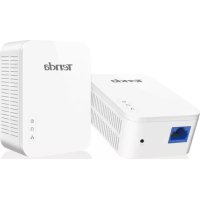
PH3 - Powerline Adapter Tenda - Free user manual and instructions
Find the device manual for free PH3 Tenda in PDF.



| Product Type | Powerline Adapter |
| Brand | Tenda |
| Model | PH3 |
| Technology | Powerline Communication (PLC) |
| PLC Standard | HomePlug AV |
| Maximum Theoretical Speed | Up to 200 Mbps |
| Ports | 1 Ethernet RJ45 port 10/100 Mbps |
| Buttons | Pair button (pairing/reset) |
| LED Indicators | Power (on/standby), PLC (network), Ethernet (connection) |
| Power Supply | 100-240 V AC, 50/60 Hz |
| Power Consumption | Approx. 2-3 W operation, < 1 W standby |
| Dimensions (approx.) | 60 × 40 × 30 mm |
| Weight (approx.) | 100 g |
| Operating Temperature | 0 °C to 40 °C |
| Operating Humidity | 10 % to 90 % RH (non-condensing) |
| Safety | Compliant with CE, RoHS standards |
| Package Contents | 2 Powerline adapters, 2 Ethernet cables, quick installation guide |
| Main Function | Extend the Internet network via electrical wiring, plug and play |
| Installation | Plug into a wall outlet, connect the Ethernet cable, pairing via Pair button |
| Compatibility | Routers, modems, set-top boxes, game consoles, any device with an Ethernet port; compatible with HomePlug AV Powerline adapters |
| Care and Cleaning | Unplug before cleaning; use a dry soft cloth; do not use chemical products |
| Spare Parts and Repairability | Not user-serviceable; contact Tenda support for any defect |
| General Information | 2-year warranty, technical support at www.tendacn.com |
Frequently Asked Questions - PH3 Tenda
User questions about PH3 Tenda
0 question about this device. Answer the ones you know or ask your own.
Ask a new question about this device
Download the instructions for your Powerline Adapter in PDF format for free! Find your manual PH3 - Tenda and take your electronic device back in hand. On this page are published all the documents necessary for the use of your device. PH3 by Tenda.
USER MANUAL PH3 Tenda
Quick Installation Guide
AV1000 Gigabit Powerline Adapter Kit PH3
CONTENTS
English 1
Italiano 5
Deutsch 9
Magyar 13
Español 17
Português 21
Français 25
Polski 29
Română 33
Nederlands 37
Čeština 41
Български 45
Ελληνικά 49
Slovenščina 53
Svenska 57
Hrvatski 61
Dansk 65
Eesti 69
Suomi 73
Latviešu 77
Lietuvių 81
Bahasa Indonesia 85
Port. (Amér.Lat.) 89
Türkçe 93
Русский 97
Українська 101
Slovenčina 105
عربي 109
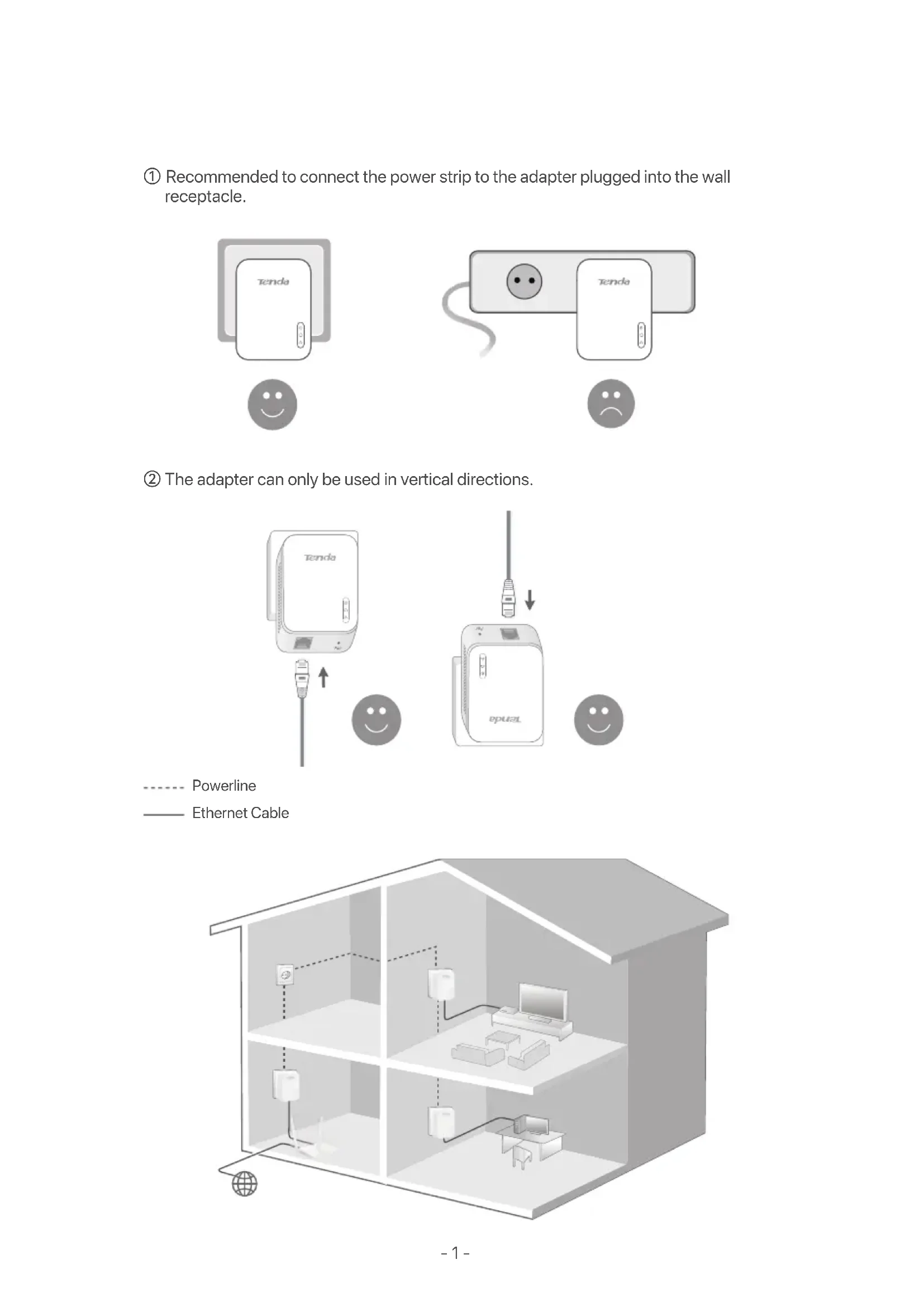
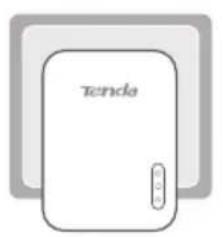
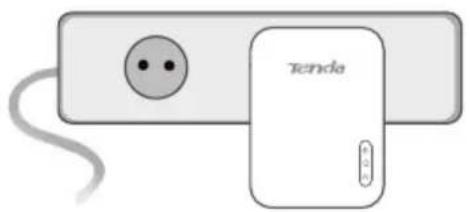
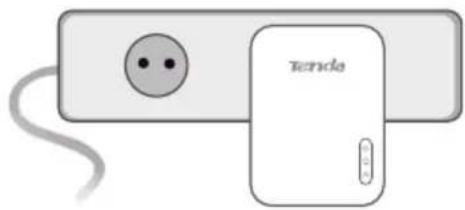
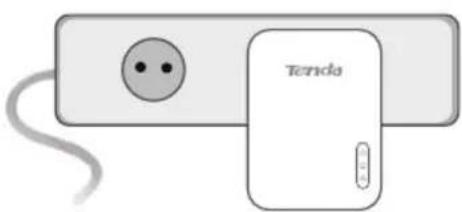
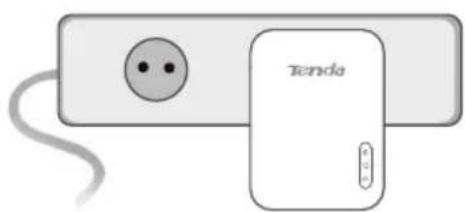
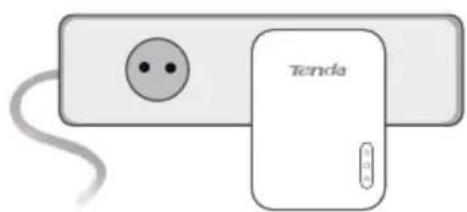
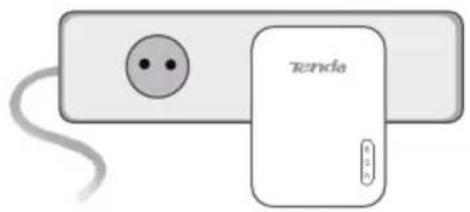
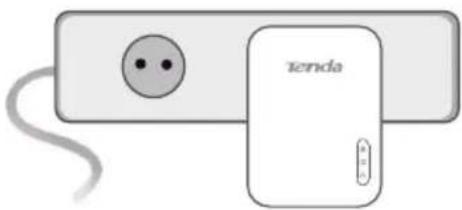
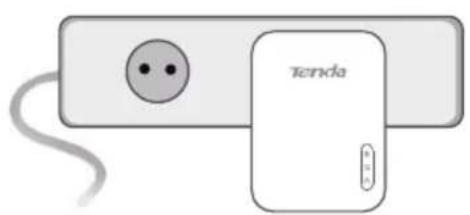
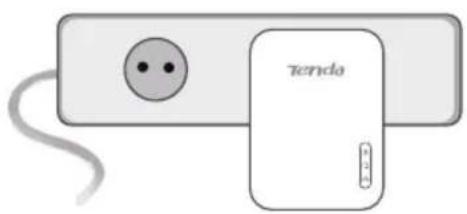
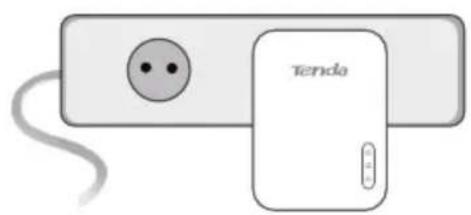
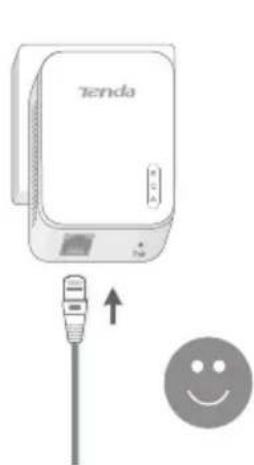
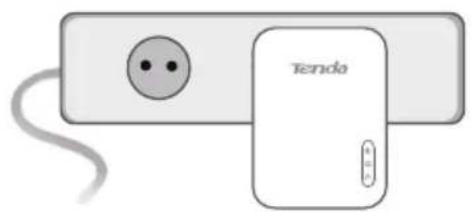
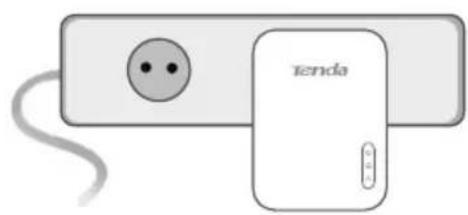
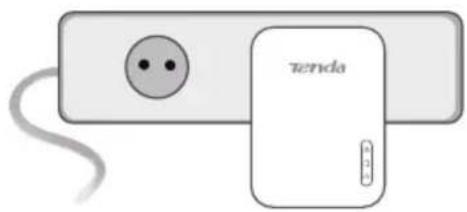
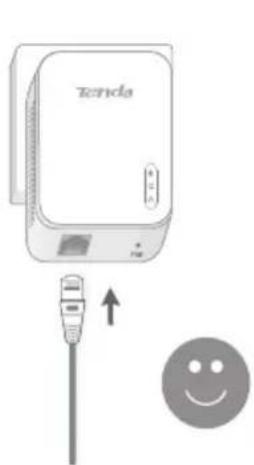
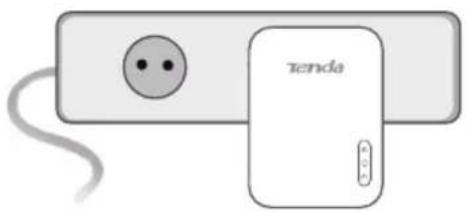
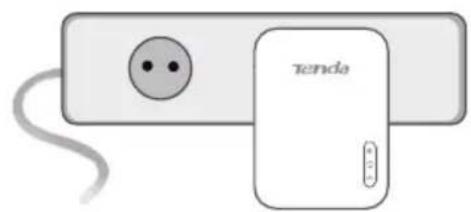
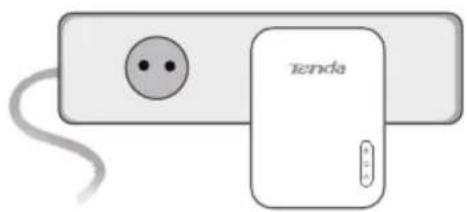
① Recommended to connect the power strip to the adapter plugged into the wall receptacle.

natural_image
Illustration of a Tende device connected to a power outlet (no text or symbols on the device itself)
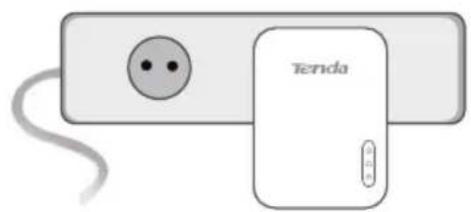
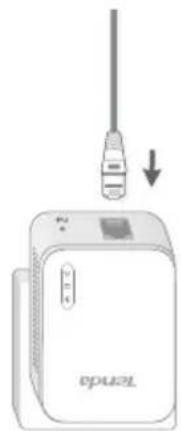
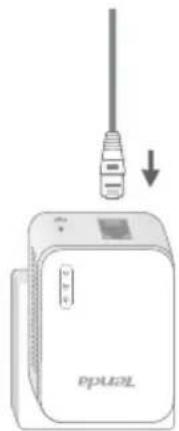
② The adapter can only be used in vertical directions.
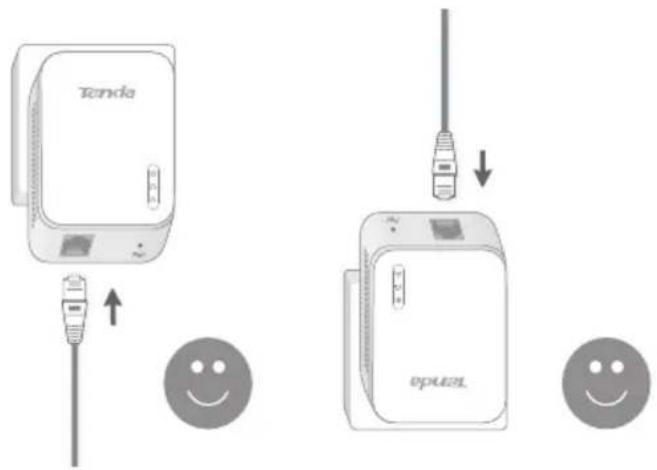
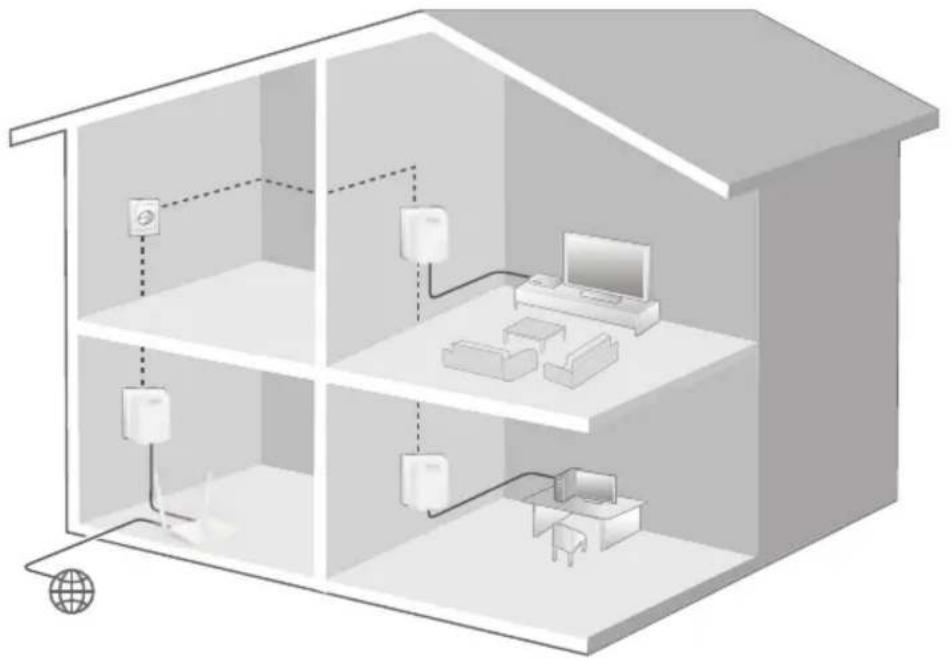
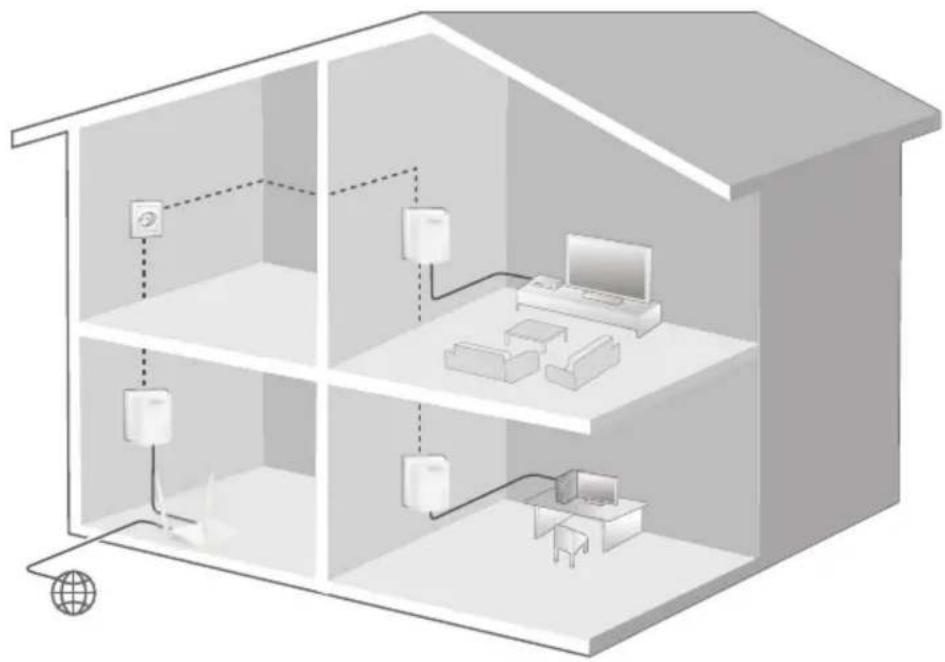
Powerline
Ethernet Cable
natural_image
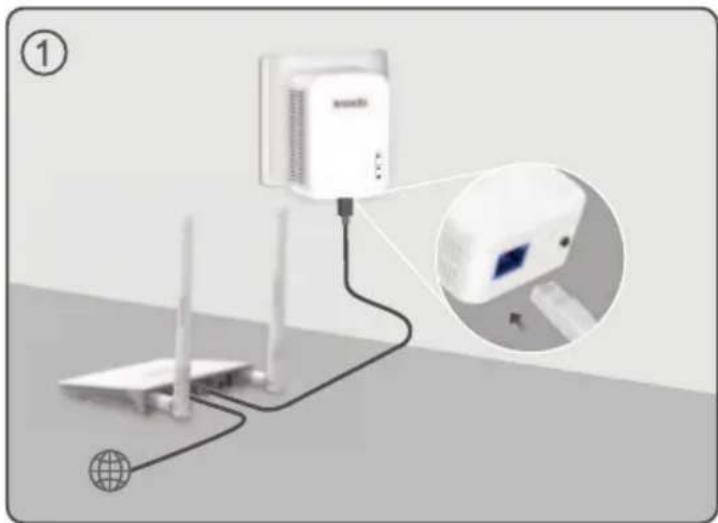
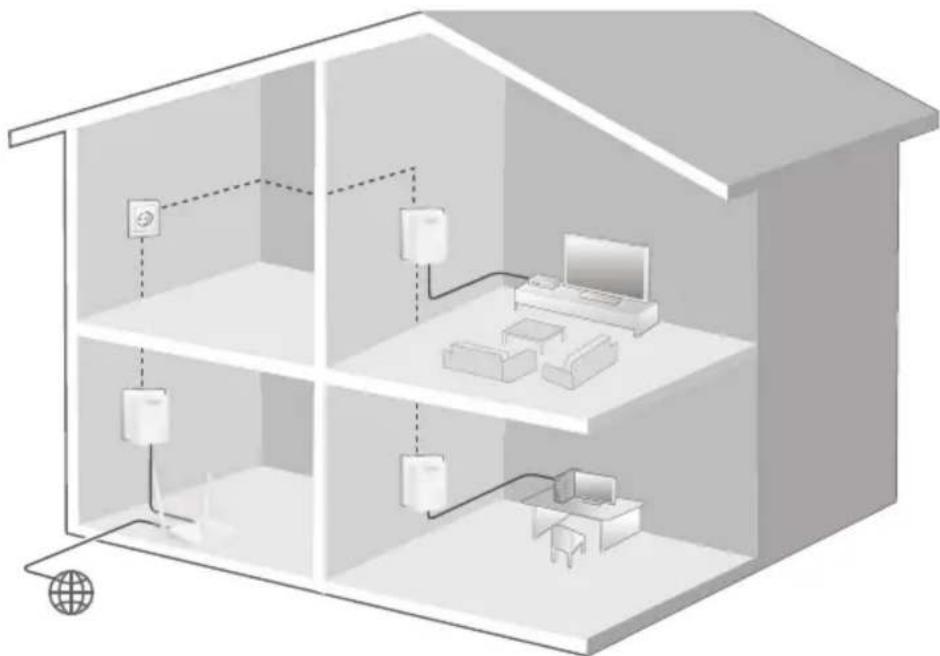
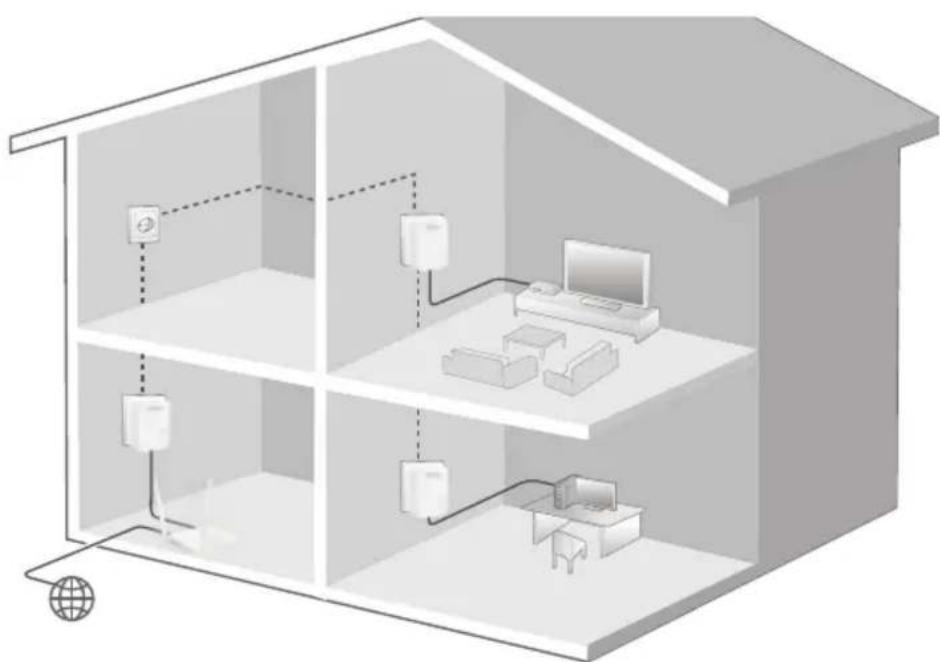
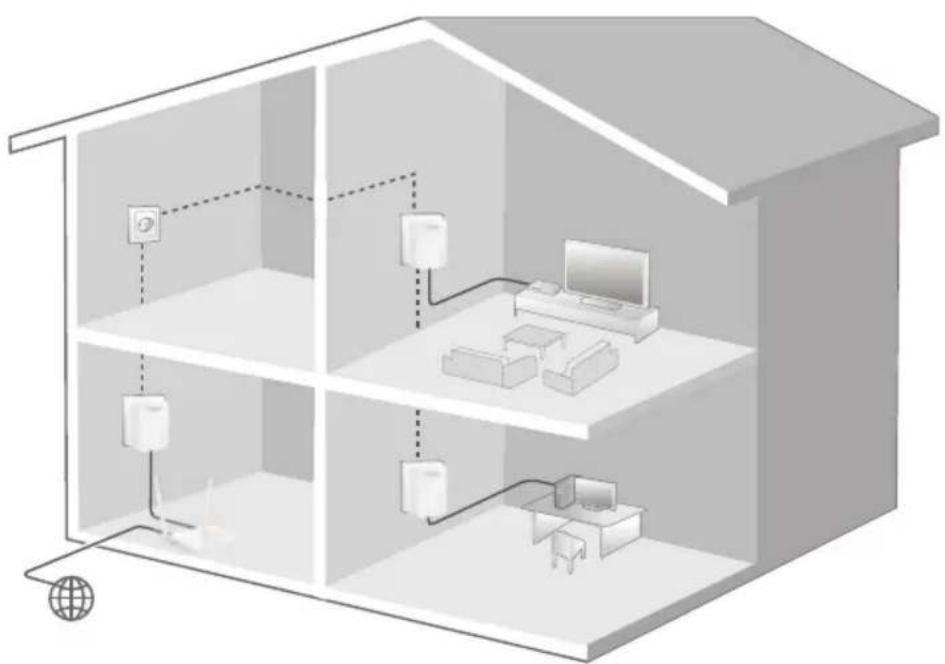
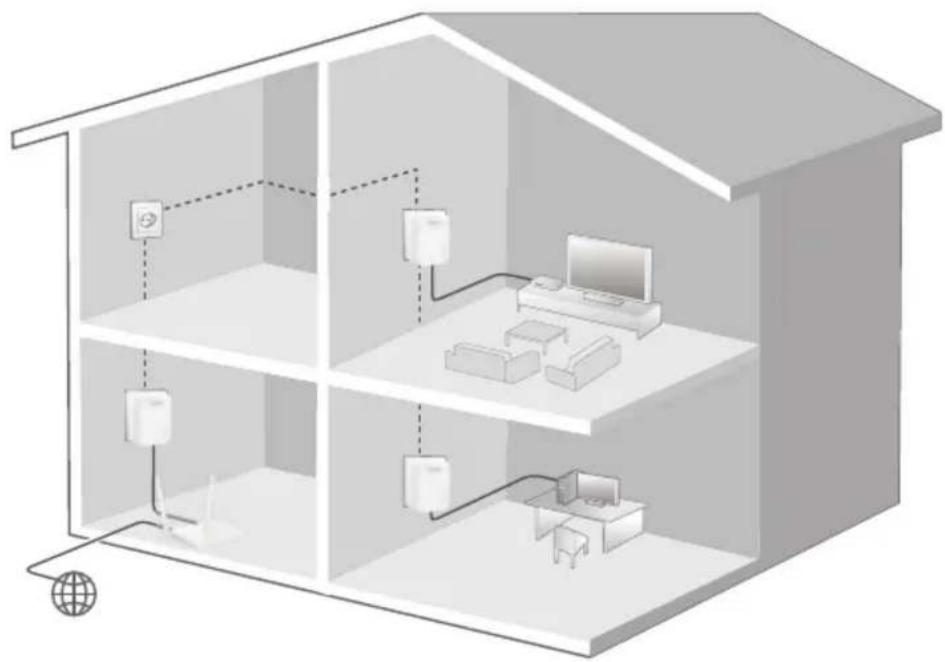
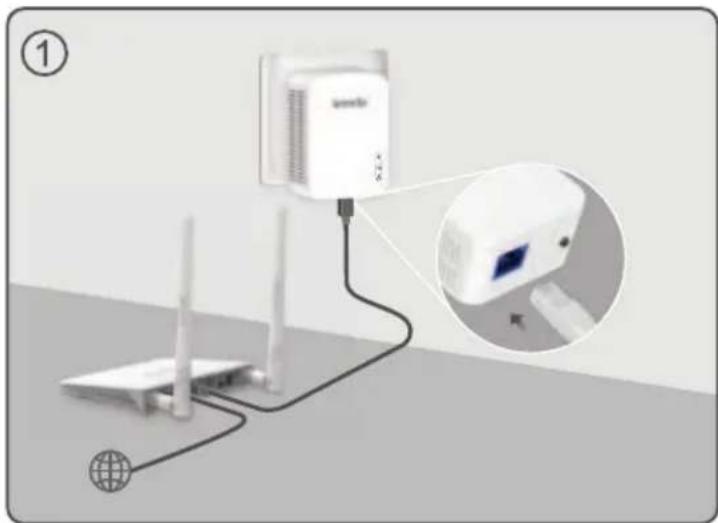
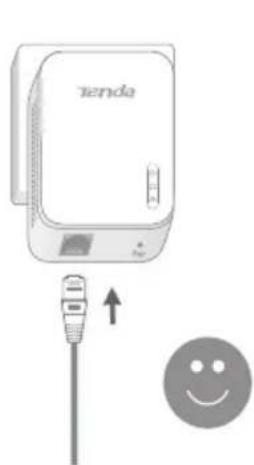
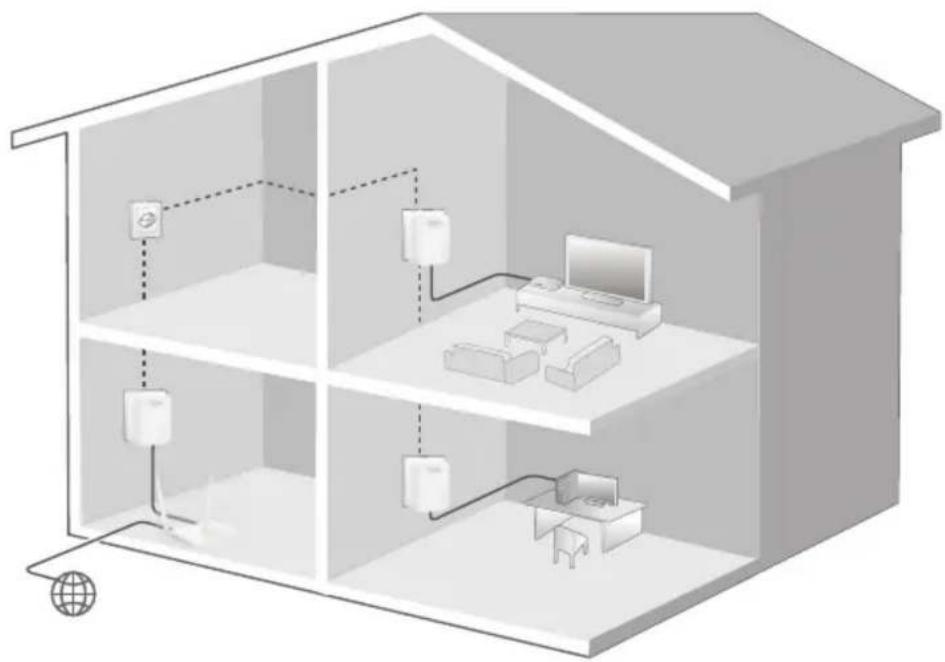
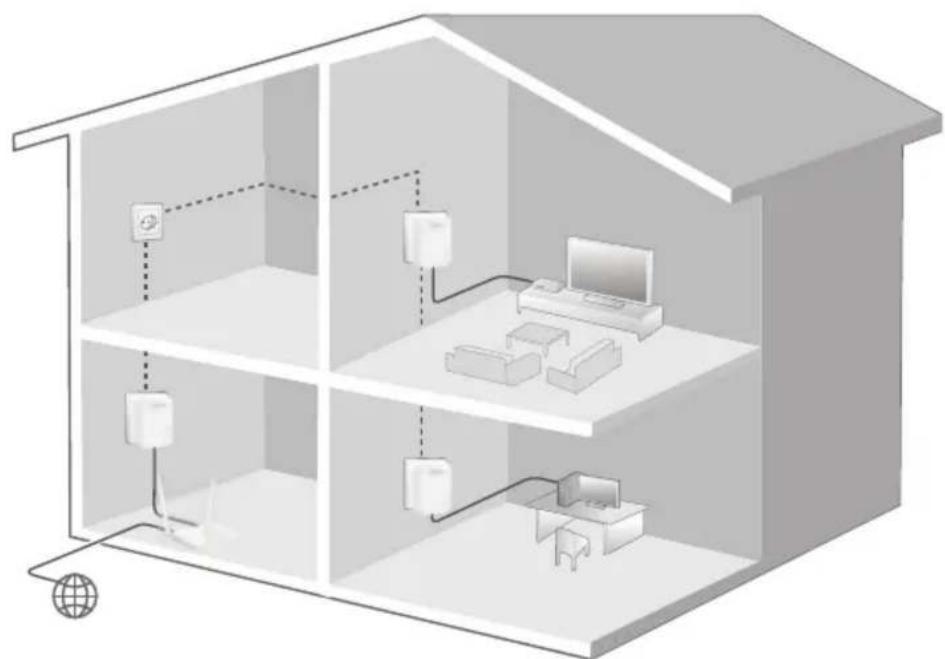
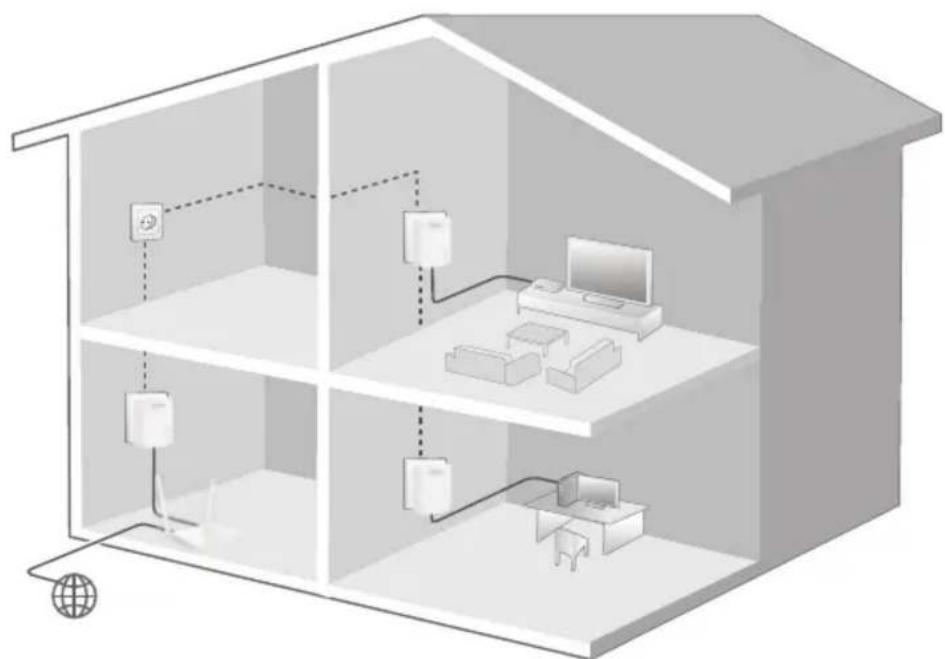
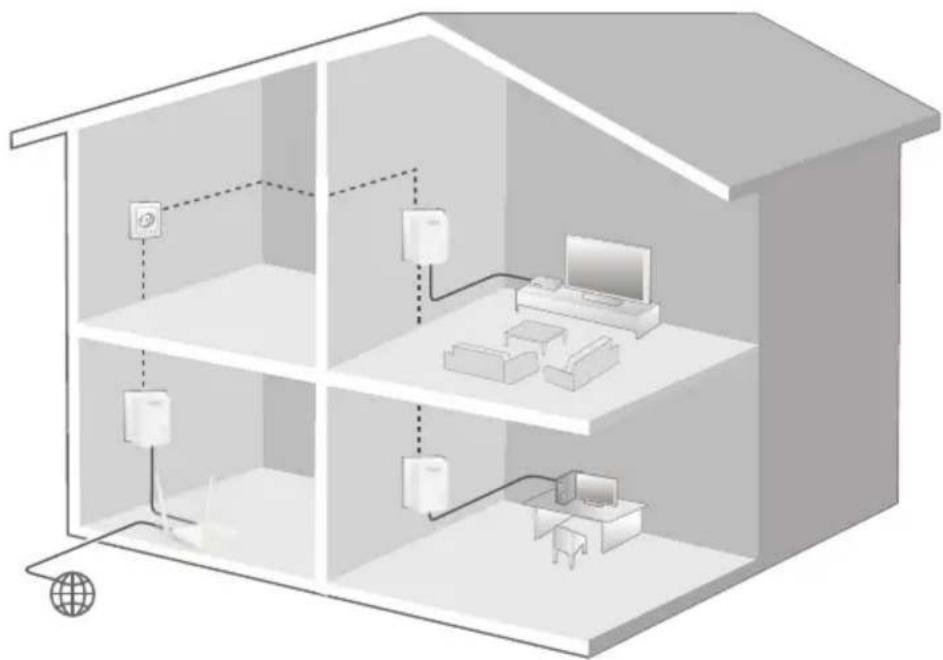
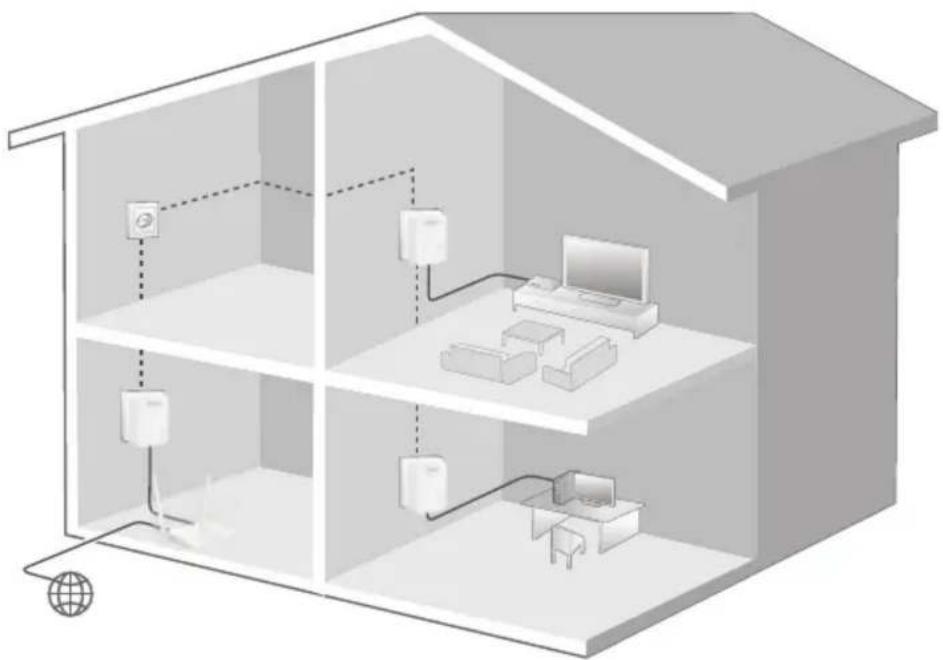
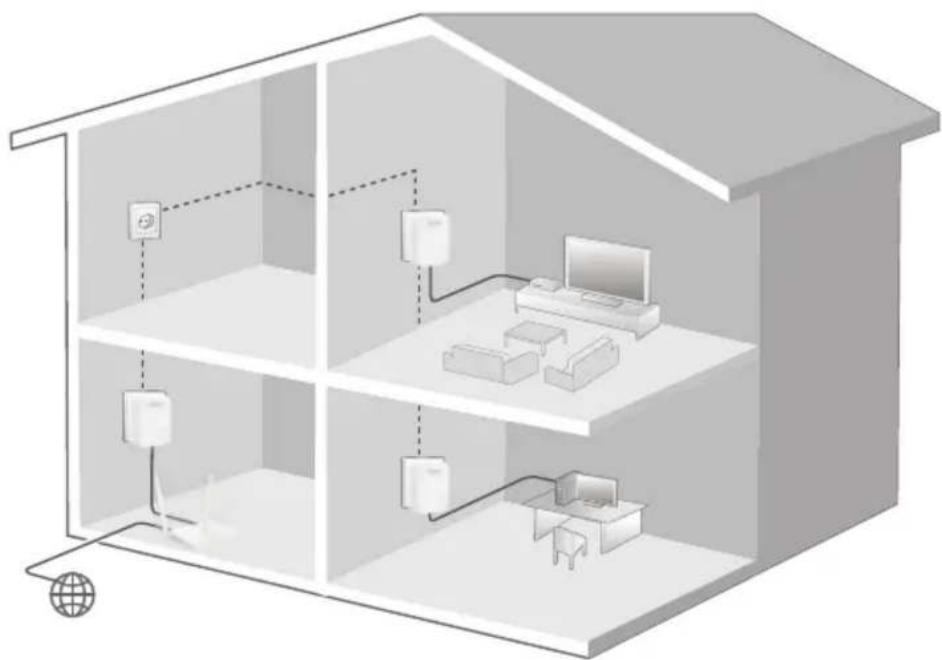
Isometric diagram of a multi-level room with connected appliances and devices, no text or symbols presentConnect an adapter to a LAN port of a router for internet access, and plug it into a wall receptacle nearby.
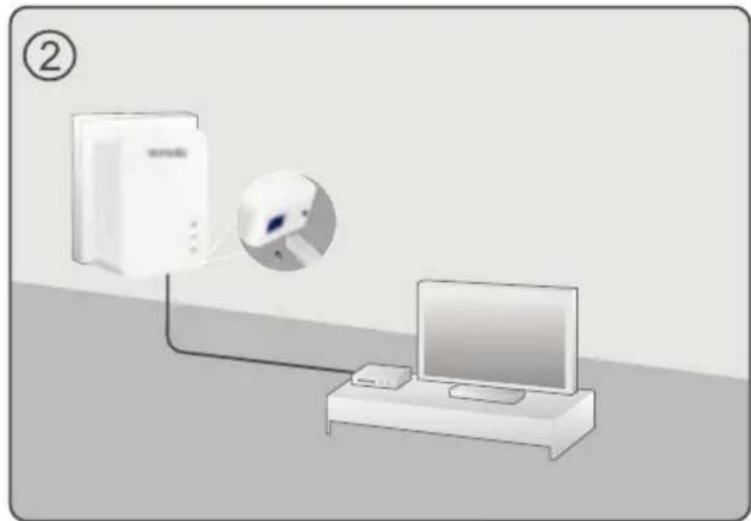
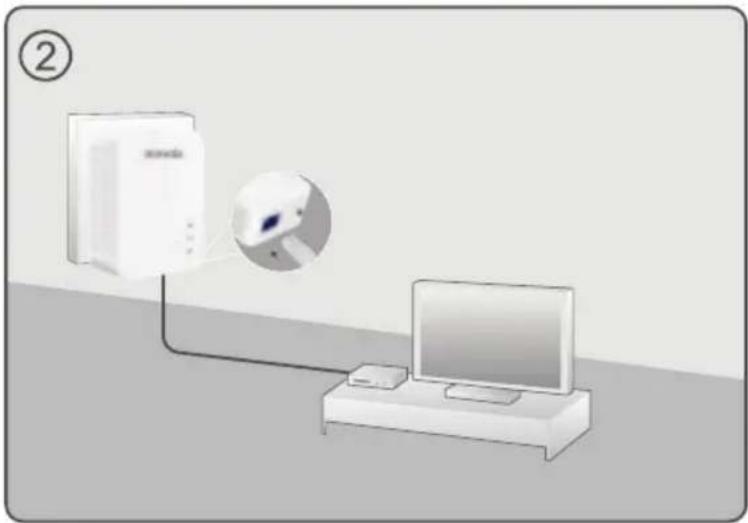
Connect the other adapter to a wired device such as a set-top box, and plug it to a wall receptacle.
natural_image
Illustration of a computer setup with a monitor, tower, and cable, connected to a device (no text or symbols visible)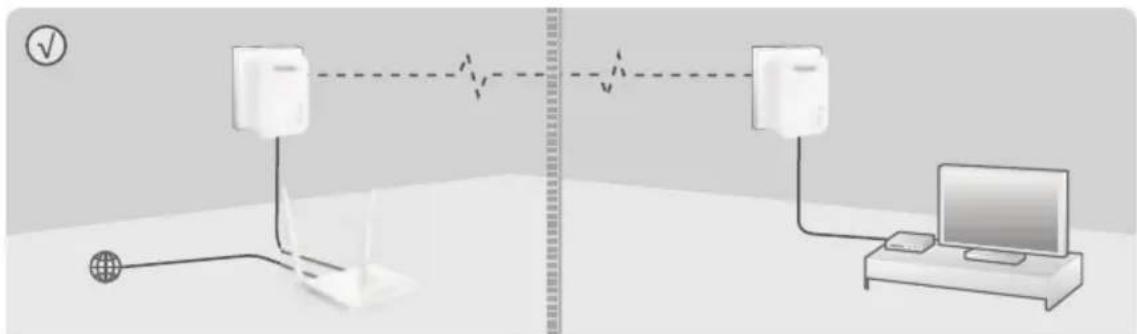
natural_image
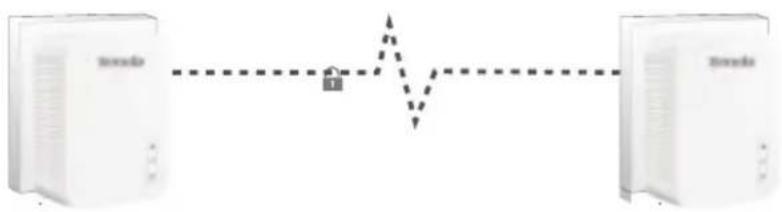
Diagram of a network device setup with two devices, a laptop, and a router connected by lines (no text or symbols present)Wait until the PLC LED indicators of the two adapters light solid on.
flowchart
graph TD
    A["Server 1"] -->|dashed arrow| B["Switch"]
    C["Server 2"] -->|dashed arrow| B
    B -->|dashed arrow| A
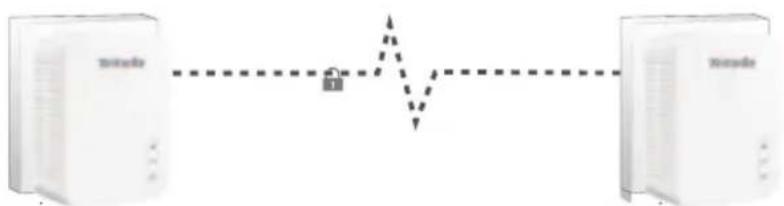
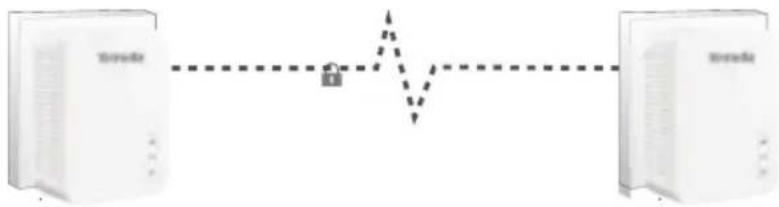
- Hold down the Pair button on an adapter for 1 second, and the PLC LED on the adapter starts blinking.
- Within 2 minutes, hold down the Pair button on the other adapter for 1 second. Observe the PLC LEDs 📋 on the two adapters until they light up and keep on.
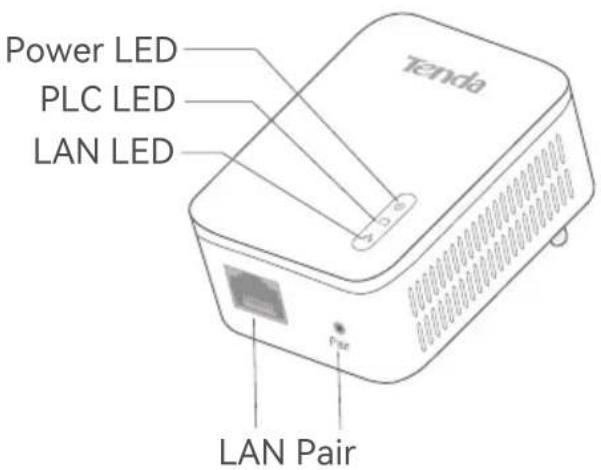
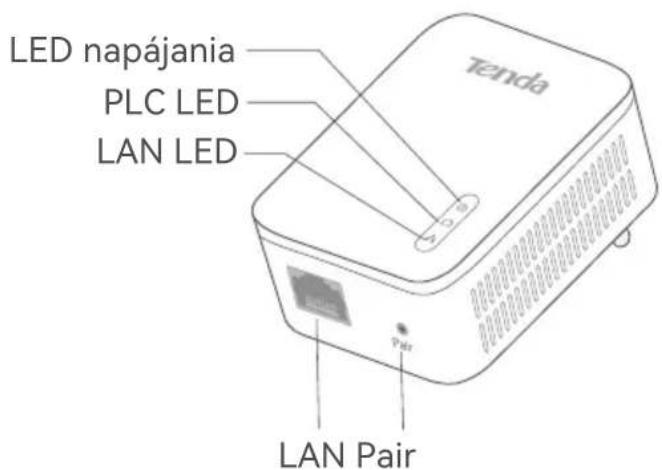
| LED Color Status Description | |||
| Off | The device is not connected to a power supply. | ||
| Green | Solid on | The device is powered on. | |
| Slow blinking | The device is in power saving mode. | ||
| Off | The device is not paired with another powerline device, or is powered off. | ||
| Green | Solid on | The device is connected to a powerline network. | |
| Fast blinking | The device is pairing with a powerline device. | ||
| Red | Solid on | The device is in poor condition. Try changing another wall receptacle until the LED indicator turns green. | |
| Off | No Ethernet cable is detected on the Ethernet port. | ||
| Green | Solid on | An Ethernet cable is connected properly. | |
| Button Description | |
| Pair | Hold it down for about 1 second to start pairing. |
| Hold it down for about 6 seconds (the Power LED will be turned off and then turned on again) to restore the adapter to factory settings. |
Q1: I cannot access the internet after finishing the installation. What should I do?
A1: Try the following methods:
- Verify that your router and the adapters are connected properly.
- Verify that you can access the internet normally by connecting your computer directly to the router or modem.
- Verify that your computer has been set to Obtain an IP address automatically.
- Verify that the PLC LEDs 📄 on the adapters are solid green. If they are not, reset all adapters and try again.
- Verify that all powerline adapters are on the same electrical circuit.
Q2: I cannot access the internet after finishing the operations in Secure Your Powerline Network. What should I do?
A2: Try the following methods:
- Verify that you can access the internet before using the Pair button to secure your powerline network.
- Verify that the PLC LEDs 📋 on the adapters are solid green. If they are not, reset all adapters and then use the Pair button to pair the adapters again.
- Verify that all powerline adapters are on the same electrical circuit.
Q3: An adapter failed to connect to the powerline network after I moved it to a new location. What should I do?
A3: Try the following methods:
- Verify that all powerline adapters are on the same electrical circuit.
- Verify that the PLC LED 📄 on the adapter is solid green before you move it to a new location.
- Use the Pair button to pair it with another adapter in the powerline network again.
natural_image
Illustration of a Tenda device with a control panel (no text or symbols on the device itself)
natural_image
Illustration of a remote control device connected to a power outlet, with no visible text or symbols on the device itself.
natural_image
Isometric diagram of a multi-level room with connected appliances and devices, no text or symbols presentnatural_image
Illustration of a computer setup with a monitor, tower, and cable, connected to a device via a cable (no text or symbols present)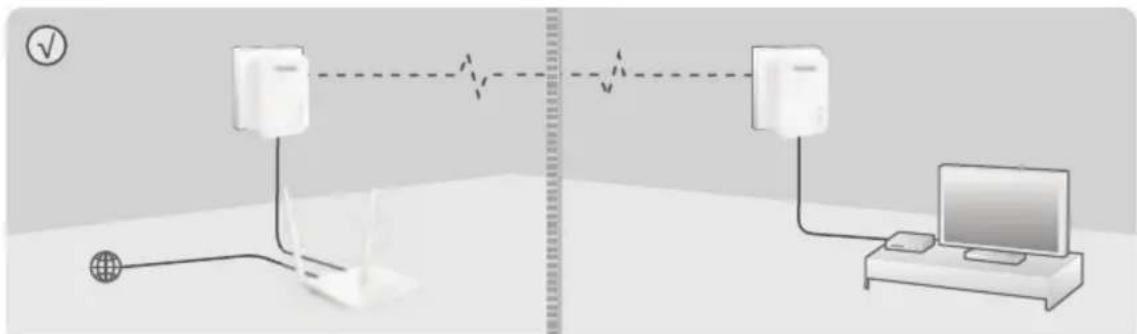
flowchart
graph TD
    A["Device 1"] -->|Dashed Line| B["Device 2"]
    C["Device 3"] -->|Dashed Line| B
    D["Device 4"] -->|Dashed Line| B
    B --> E["Computer"]
natural_image
Illustration of a Tenda device with a label and control knob (no text or symbols on the device itself)
natural_image
Illustration of a Tenda device connected to a power outlet (no text or symbols on the device itself)
natural_image
Illustration of a Tenda device connected to a USB cable with an upward arrow and smiley face icon (no text or symbols on device body)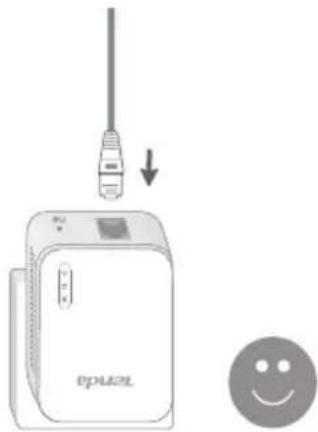
------ Stromleitung
Ethernet Kabel
natural_image
Isometric diagram of a multi-level room with connected appliances and devices, no text or symbols presentnatural_image
Diagram showing wireless router connected to a network device via cable, with an inset close-up of its cable detail (no text or symbols present)natural_image
Illustration of a computer setup with monitor, tower, and cable (no text or symbols)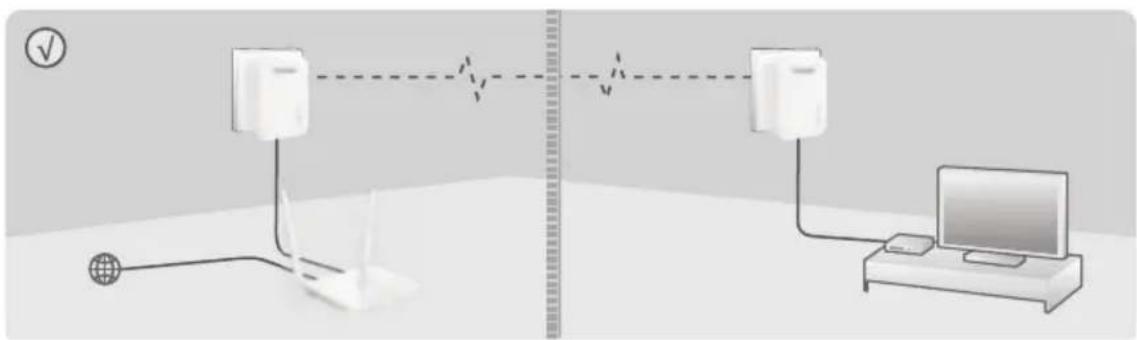
flowchart
graph TD
    A["Device 1"] --> B["Router"]
    C["Device 2"] --> B
    B --> D["Laptop"]
    style A fill:#f9f,stroke:#333
    style C fill:#f9f,stroke:#333
    style D fill:#ccf,stroke:#333
natural_image
Illustration of a Tenda device with a control panel (no text or symbols on the device body)
natural_image
Illustration of a Tenda device with a power outlet and connected ports (no text or symbols on the device itself)
---- Erővonal
Hálózati kábel
natural_image
Isometric diagram of a multi-level home with connected appliances and devices, no text or symbols presentnatural_image
Diagram showing wireless network connection with a device and two antennas, highlighting a close-up of its cable (no text or symbols present)natural_image
Illustration of a desktop computer connected to a monitor, showing a device with an inset image (no text or symbols present)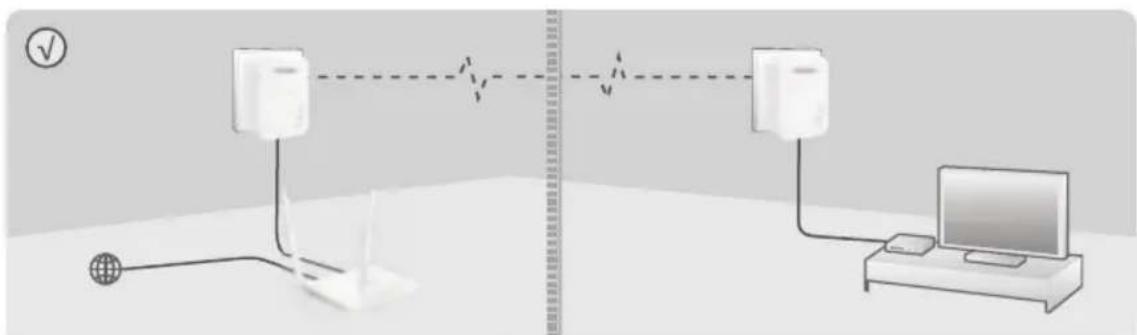
flowchart
graph TD
    A["Device 1"] -->|Dashed Line| B["Device 2"]
    C["Device 1"] -->|Dashed Line| D["Device 2"]
    E["Computer"] -->|Dashed Line| F["Phone"]
natural_image
Illustration of a Tenda device with a control panel (no text or symbols on the device itself)
natural_image
Illustration of a Tenda device with a power outlet and cable, no text or symbols present
natural_image
Isometric diagram of a multi-level home with connected appliances and devices (no text or symbols)natural_image
Illustration of a desktop computer connected to a monitor, showing a close-up of its screen (no text or symbols present)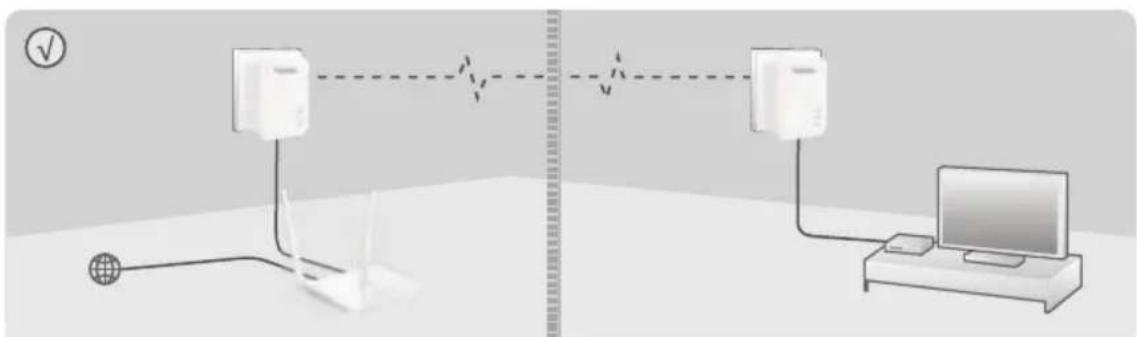
flowchart
graph TD
    A["Router"] -->|Wireless Signal| B["Desktop Computer"]
    B -->|Switch| C["Network Switch"]
    C -->|Signal| A
    style A fill:#f9f,stroke:#333
    style B fill:#ccf,stroke:#333
    style C fill:#cfc,stroke:#333
natural_image
Illustration of a Tenda device with a USB port, enclosed in a square frame (no text or symbols on the device itself)
natural_image
Illustration of a remote control unit connected to a Tenda device (no text or symbols on the device itself)
natural_image
Isometric diagram of a multi-level home electrical or living room layout with connected devices and equipment (no text or symbols)natural_image
Diagram showing wireless network connection with a device and two antennas, highlighting a magnified view of the device (no text or symbols present)natural_image
Illustration of a computer setup with a monitor and connected cable, no visible text or symbols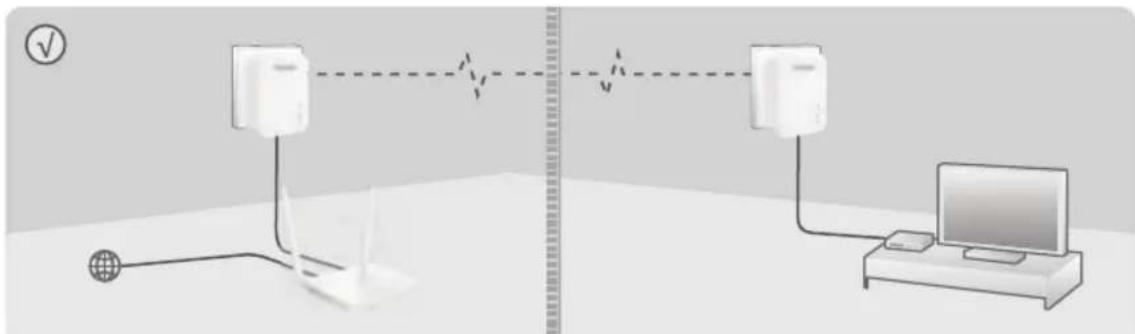
flowchart
graph TD
    A["Device 1"] -->|Dashed Line| B["Central Device"]
    C["Device 2"] -->|Dashed Line| B
    D["Computer"] -->|Dashed Line| B
    B -->|Feedback| A
    style A fill:#f9f,stroke:#333
    style C fill:#f9f,stroke:#333
    style D fill:#ccf,stroke:#333
natural_image
Isometric diagram of a multi-level home with connected appliances and devices, no text or symbols presentnatural_image
Illustration of a desktop computer connected to a monitor, showing a device with an inset image (no text or symbols present)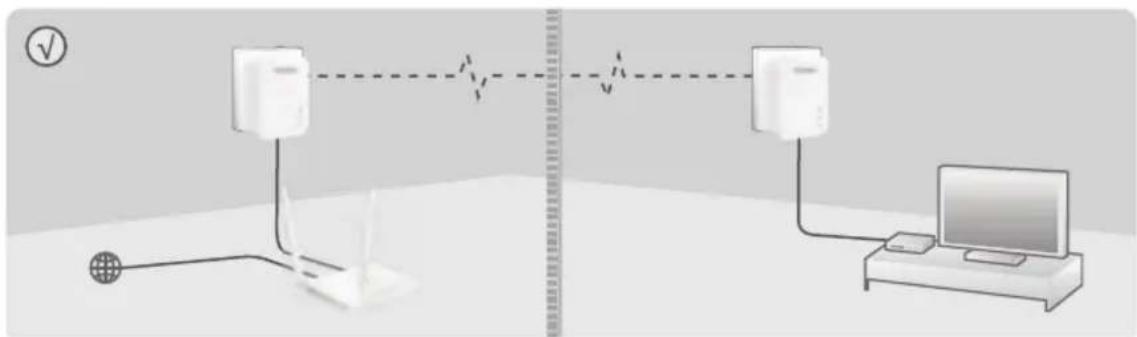
flowchart
graph TD
    A["Device 1"] -->|Dashed Line| B["Device 2"]
    C["Device 3"] -->|Dashed Line| B
    D["Computer"] -->|Dashed Line| B
    E["Coffee Cup"] -->|Dashed Line| B
    style A fill:#f9f,stroke:#333
    style B fill:#bbf,stroke:#333
    style C fill:#f9f,stroke:#333
    style D fill:#f9f,stroke:#333
    style E fill:#f9f,stroke:#333
natural_image
Illustration of a tenda device with a control panel (no text or symbols on the device itself)
natural_image
Illustration of a charging station connected to a device labeled 'tenda' (no text or symbols on the device itself)
natural_image
Isometric diagram of a multi-level home with connected appliances and devices, no text or symbols presentnatural_image
Diagram showing wireless network connection with a device and router, highlighting a close-up of its cable (no text or symbols present)natural_image
Illustration of a desktop computer connected to a monitor, with an inset showing a close-up of the device (no text or symbols present)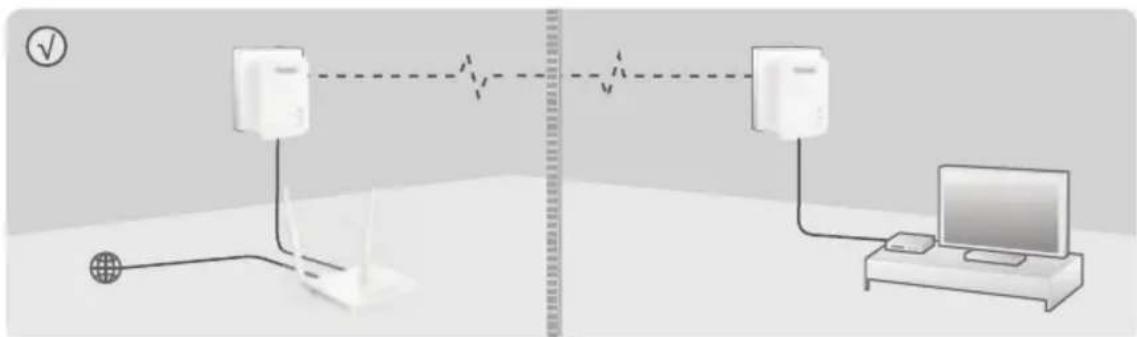
natural_image
Diagram of a network device with two devices connected via a dashed line, showing connections to a monitor and a router (no text or symbols present)natural_image
Illustration of a Tenda device with a control panel (no text or symbols on the device itself)
natural_image
Illustration of a remote control unit connected to a Tenda device (no text or symbols on the device itself)
natural_image
Isometric diagram of a multi-level home with connected appliances and devices, no text or symbols presentnatural_image
Diagram showing wireless router connected to a device via cable, with an inset close-up of its cable detail (no text or symbols present)natural_image
Illustration of a computer setup with monitor, tower, and cable (no text or symbols)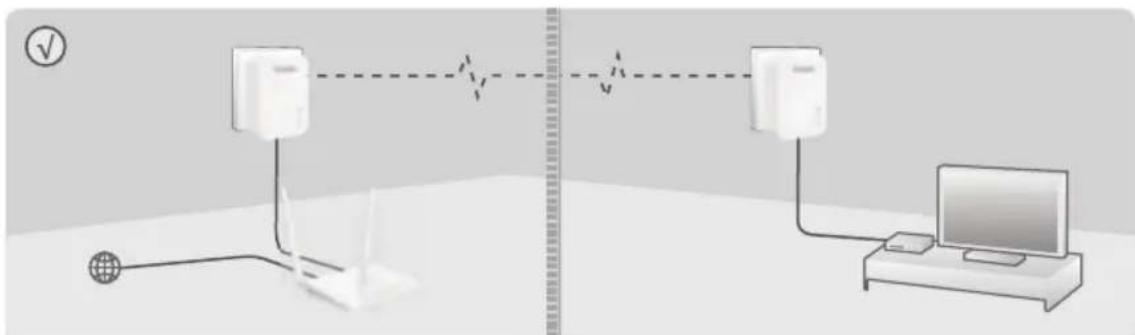
flowchart
graph TD
    A["Device 1"] -->|Dashed Line| B["Device 2"]
    C["Device 1"] -->|Dashed Line| D["Device 2"]
    E["Computer"] --> F["Printer"]
natural_image
Illustration of a Tenda device with a smiley face below (no text or symbols on the device itself)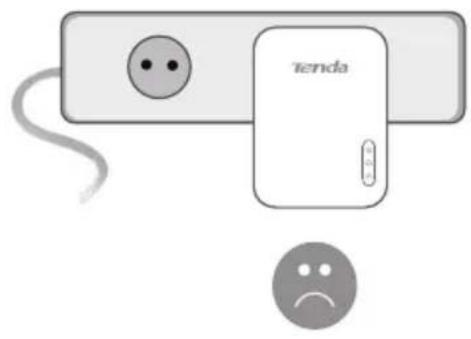
natural_image
Illustration of a charging device connected to a smiling face and a card labeled 'tenda', with no visible text or symbols beyond the device labels.natural_image
Isometric diagram of a multi-level home with connected appliances and living areas (no text or symbols)natural_image
Diagram showing wireless network connection with a device and two wireless devices, one connected to a router (no text or symbols visible)natural_image
Illustration of a desktop computer connected to a monitor, showing a device with an inset image of a mouse (no text or symbols present)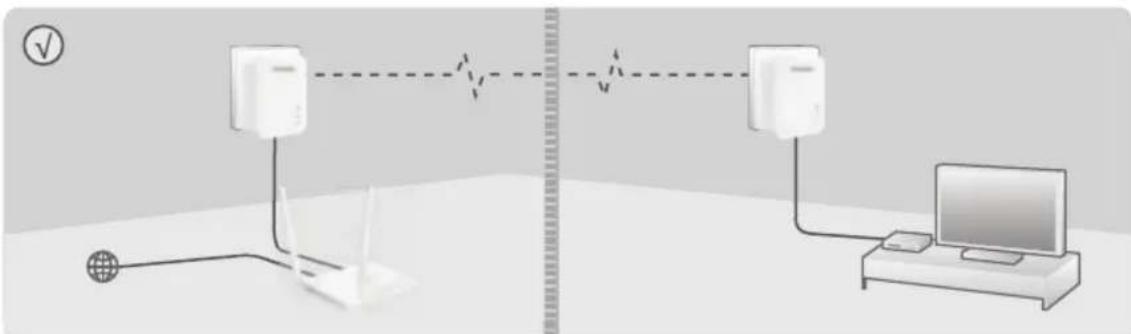
natural_image
Diagram showing two connected devices with wireless links, one connected to a laptop and the other via a dashed line (no text or symbols present)natural_image
Illustration of a Tenda device with a smiley face icon below (no text or symbols on the device itself)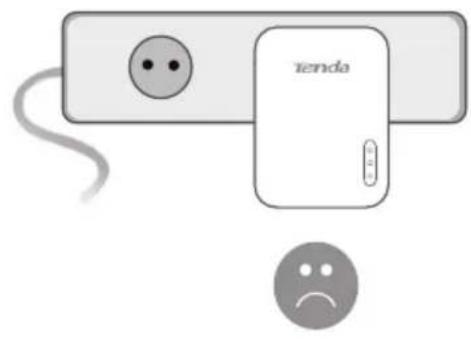
natural_image
Illustration of a charging device connected to a speaker and a sad face emoji (no text or symbols)natural_image
Isometric diagram of a multi-level home with connected appliances and devices, no text or symbols presentnatural_image
Diagram showing wireless router connected to a network device via cable, with an inset close-up of its cable detail (no text or symbols present)natural_image
Illustration of a desktop computer connected to a monitor, showing a device with an inset image (no text or symbols present)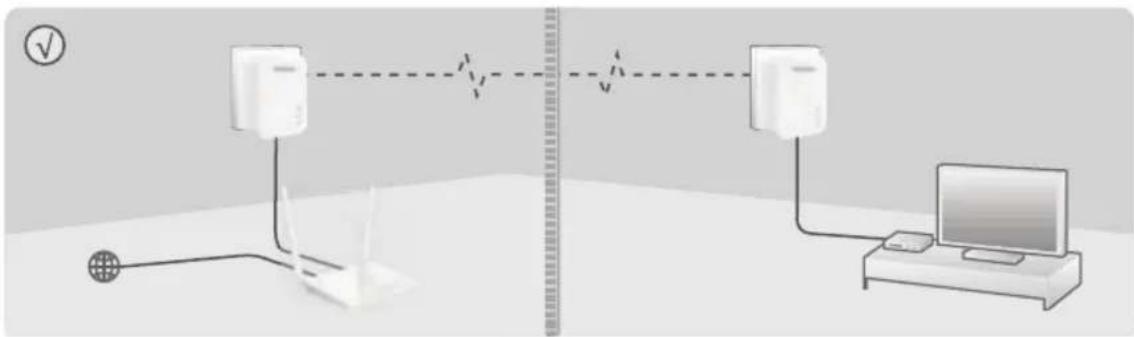
natural_image
Diagram of a network device setup with two devices, a router, and a monitor (no text or symbols present)flowchart
graph TD
    A["tender"] -->|dashed arrow| B["User"]
    B -->|dashed arrow| A
natural_image
Illustration of a Tenda device with a smiley face icon below (no text or symbols on the device itself)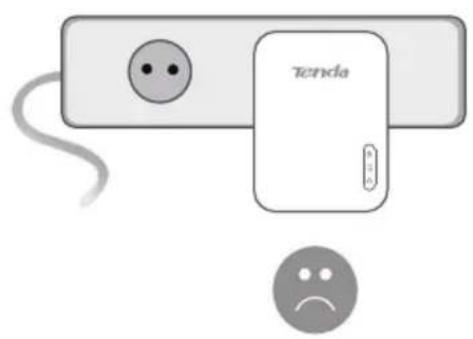
natural_image
Illustration of a remote control unit connected to a Tenda device with a sad face symbol (no text or labels)natural_image
Isometric diagram of a multi-level room with connected appliances and devices, no text or symbols presentnatural_image
Diagram showing wireless network connection with a device and two antennas, plus an inset close-up of its cable (no text or symbols)natural_image
Illustration of a desktop computer connected to a monitor, showing a close-up of the screen (no text or symbols present)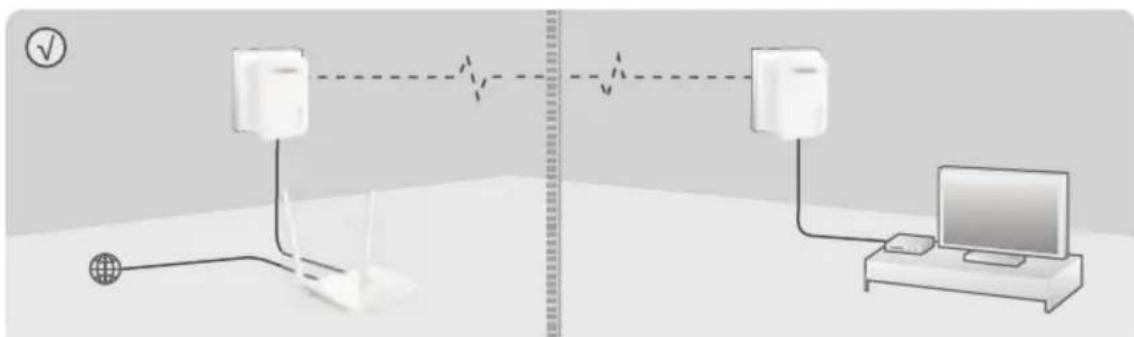
natural_image
Diagram showing two devices connected by a dashed line with wireless links, connected to a computer (no text or symbols present)flowchart
graph LR
    A["Tornado"] -->|dashed arrow| B["Other"]
    B -->|dashed arrow| A
natural_image
Illustration of a Tenda device with a smiling face icon below (no text or symbols on the device itself)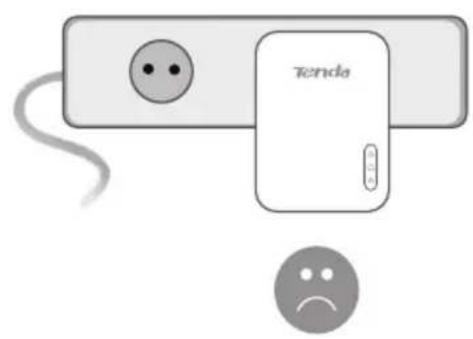
natural_image
Illustration of a cordless device connected to a Tende device with a sad face symbol (no text or labels)natural_image
Isometric diagram of a multi-level room with electrical and household connections (no text or symbols)natural_image
Diagram showing wireless network connection with a device and two antennas, highlighting a close-up of its cable (no text or symbols present)natural_image
Illustration of a desktop computer connected to a monitor, showing a cable and a magnified view of the screen (no text or symbols present)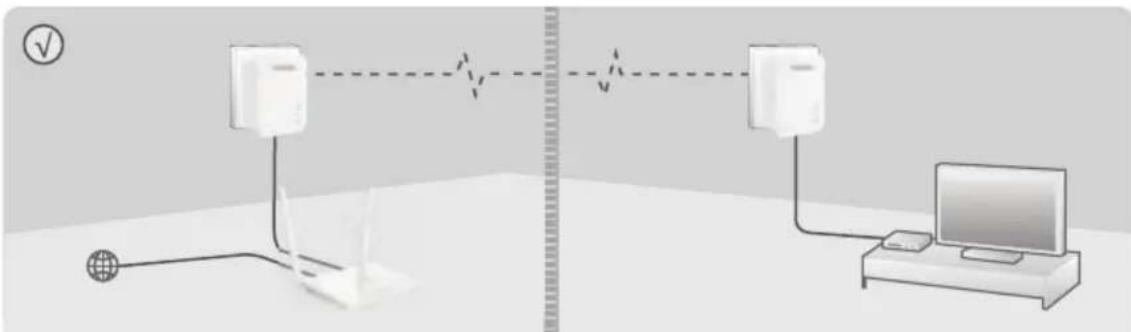
flowchart
graph TD
    A["Device 1"] -->|Dashed Line| B["Device 2"]
    C["Device 3"] -->|Dashed Line| B
    D["Device 4"] -->|Dashed Line| B
    E["Device 5"] -->|Dashed Line| B
    F["Device 6"] -->|Dashed Line| B
    G["Device 7"] -->|Dashed Line| B
    H["Device 8"] -->|Dashed Line| B
    I["Device 9"] -->|Dashed Line| B
    J["Device 10"] -->|Dashed Line| B
    K["Device 11"] -->|Dashed Line| B
    L["Device 12"] -->|Dashed Line| B
    M["Device 13"] -->|Dashed Line| B
    N["Device 14"] -->|Dashed Line| B
    O["Device 15"] -->|Dashed Line| B
    P["Device 16"] -->|Dashed Line| B
    Q["Device 17"] -->|Dashed Line| B
    R["Device 18"] -->|Dashed Line| B
    S["Device 19"] -->|Dashed Line| B
    T["Device 20"] -->|Dashed Line| B
    U["Device 21"] -->|Dashed Line| B
    V["Device 22"] -->|Dashed Line| B
    W["Device 23"] -->|Dashed Line| B
    X["Device 24"] -->|Dashed Line| B
    Y["Device 25"] -->|Dashed Line| B
    Z["Device 26"] -->|Dashed Line| B
    AA["Device 27"] -->|Dashed Line| B
    AB["Device 28"] -->|Dashed Line| B
    AC["Device 29"] -->|Dashed Line| B
    AD["Device 30"] -->|Dashed Line| B
    AE["Device 31"] -->|Dashed Line| B
    AF["Device 32"] -->|Dashed Line| B
    AG["Device 33"] -->|Dashed Line| B
    AH["Device 34"] -->|Dashed Line| B
    AI["Device 35"] -->|Dashed Line| B
    AJ["Device 36"] -->|Dashed Line| B
    AK["Device 37"] -->|Dashed Line| B
    AL["Device 38"] -->|Dashed Line| B
    AM["Device 39"] -->|Dashed Line| B
    AN["Device 40"] -->|Dashed Line| B
    AO["Device 41"] -->|Dashed Line| B
    AP["Device 42"] -->|Dashed Line| B
    AQ["Device 43"] -->|Dashed Line| B
    AR["Device 44"] -->|Dashed Line| B
    AS["Device 45"] -->|Dashed Line| B
    AT["Device 46"] -->|Dashed Line| B
    AU["Device 47"] -->|Dashed Line| B
    AV["Device 48"] -->|Dashed Line| B
    AW["Device 49"] -->|Dashed Line| B
    AX["Device 50"] -->|Dashed Line| B
natural_image
Illustration of a Tenda device with a control panel (no text or symbols on the device itself)
natural_image
Illustration of a Tenda device with a power outlet and connected ports (no text or symbols on the device itself)
natural_image
Illustration of a Tenda device with an attached cable and a smiley face icon (no text or symbols on the device itself)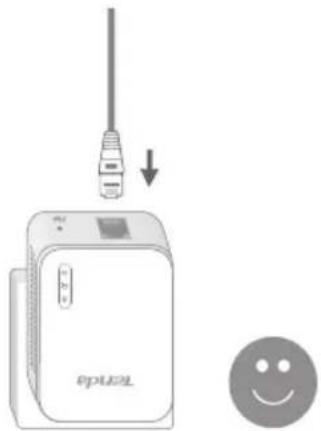
Powerline
Ethernet kabel
natural_image
Isometric diagram of a multi-level home electrical or living room layout with appliances and devices (no text or labels)natural_image
Illustration of a desktop computer connected to a monitor, showing a close-up of its cable (no text or symbols present)
flowchart
graph TD
    A["Device 1"] --> B["Router"]
    C["Device 2"] --> B
    B --> D["Computer"]
    style A fill:#f9f,stroke:#333
    style C fill:#f9f,stroke:#333
    style D fill:#ccf,stroke:#333
natural_image
Illustration of a Tenda device with a control panel (no text or symbols on the device itself)
natural_image
Illustration of a Tenda device connected to a power outlet (no text or symbols on the device itself)
---- Kraftledning
Ethernet-kabel
natural_image
Isometric diagram of a multi-level home with connected appliances and devices, no text or symbols presentnatural_image
Diagram showing wireless network connection with a device and cable, highlighting a close-up of its internal components (no text or symbols present)natural_image
Illustration of a desktop computer connected to a monitor, showing a device with an inset image (no text or symbols present)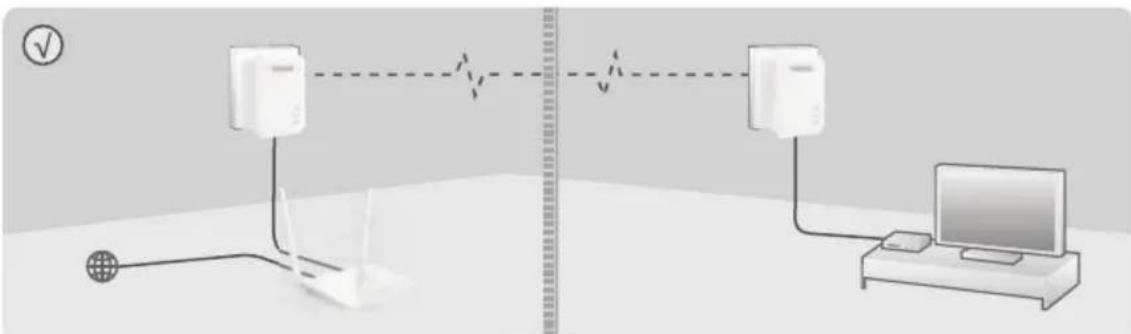
natural_image
Diagram showing two connected devices with a laptop and a device connected via a dashed line, no text or symbols present.natural_image
Illustration of a Tenda device with a control panel (no text or symbols on the device body)
natural_image
Illustration of a Tenda device with a power outlet and cable, no text or symbols present
② Adapter se može koristiti samo u okomitom smjeru.
natural_image
Diagram of a device with a cable and a switch, showing no text or symbols
---- Dalekovod
Ethernet kabel
natural_image
Isometric diagram of a multi-level home with connected appliances and devices, no text or symbols presentSpojite adapter na LAN priključak rutera za pristup internetu i uključite ga u zidnu utičnicu u blizini.
natural_image
Illustration of a computer setup with a monitor, tower, and an attached device (no text or symbols visible)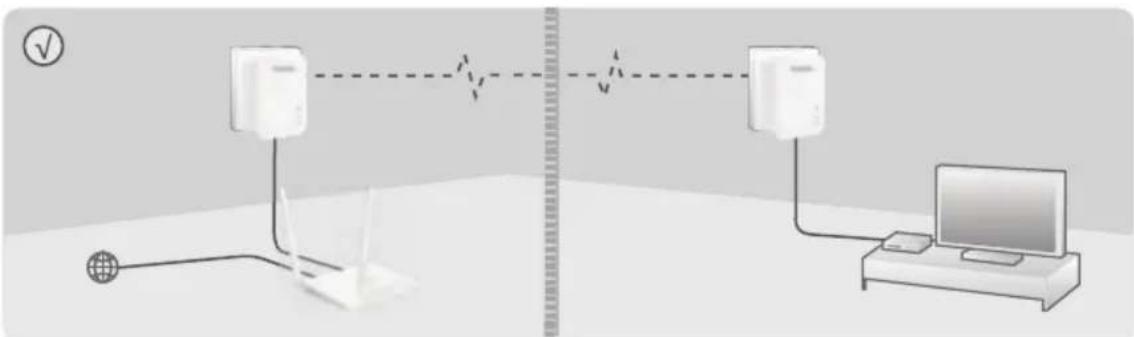
flowchart
graph TD
    A["Device 1"] -->|Data Flow| B["Device 2"]
    B -->|Data Flow| C["Laptop"]
    D["User Interface"] -->|Data Flow| B
    style A fill:#f9f,stroke:#333
    style B fill:#bbf,stroke:#333
    style C fill:#dfd,stroke:#333
natural_image
Illustration of a Tenda device with a control panel and indicator lights (no text or symbols on the device itself)
natural_image
Illustration of a Tenda device with a power outlet and cable, no text or symbols present
② Adapteren kan kun bruges i lodrette retninger.
natural_image
Illustration of a Tende device with an attached cable and a smiley face icon (no text or symbols on the device itself)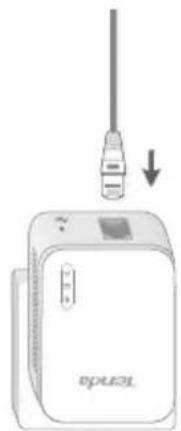
natural_image
Illustration of a device with a USB cable and a labeled 'TENDEA' on its side (no text or symbols on the device itself)
---- Strømkabel
Ethernet kabel
natural_image
Diagram of a multi-level smart home with connected devices and computers (no text or symbols)natural_image
Illustration of a desktop computer connected to a monitor, showing a device with an inset image (no text or symbols)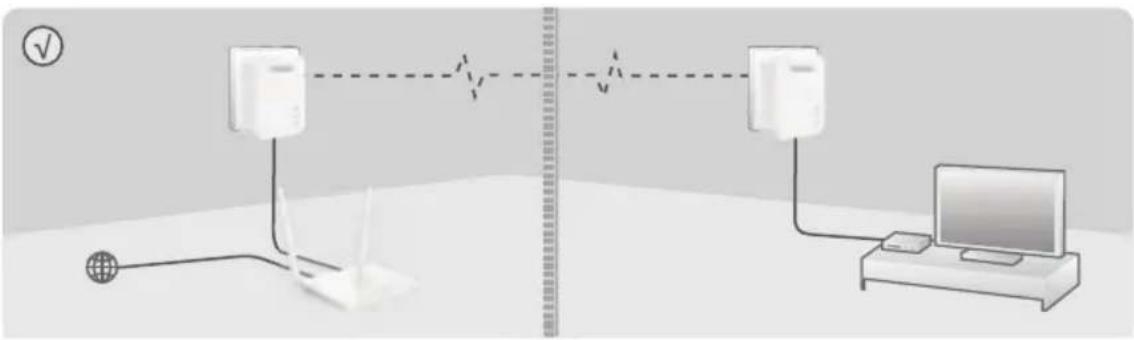
flowchart
graph TD
    A["Device 1"] --> B["Router"]
    C["Device 2"] --> B
    B --> D["Laptop"]
    style A fill:#f9f,stroke:#333
    style C fill:#f9f,stroke:#333
    style D fill:#ccf,stroke:#333
Vent, indtil PLC LED-indikatorerne på de to adaptere lyser konstant.
flowchart
graph TD
    A["twmada"] -->|dashed arrow| B["Swmada"]
    B -->|dashed arrow| A
natural_image
Illustration of a tenda device with a control knob (no text or symbols on the device body)
natural_image
Illustration of a charging device connected to a power outlet, with no visible text or symbols on the device itself.
natural_image
Isometric diagram of a multi-level home with connected appliances and devices, no text or symbols presentnatural_image
Illustration of a desktop computer connected to a monitor, showing a device with an inset image (no text or symbols present)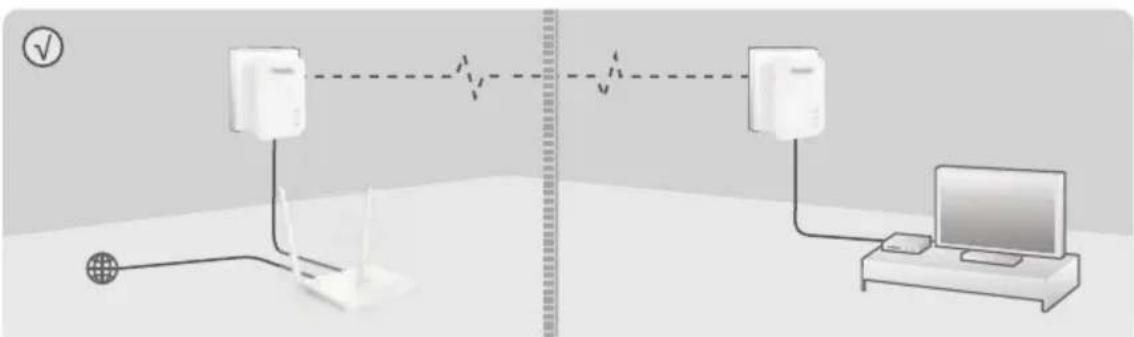
natural_image
Diagram of two connected devices with wireless links, one on a desk and the other on a computer (no text or symbols present)natural_image
Illustration of a Tenda device with a smiley face below (no text or symbols on the device itself)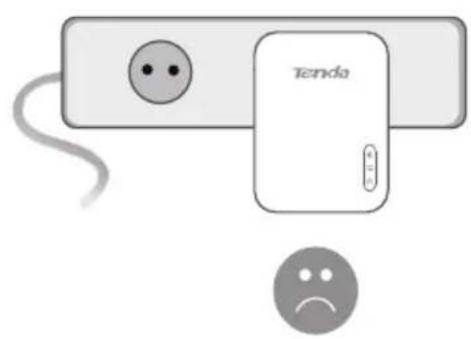
natural_image
Illustration of a charging station connected to a Tenda device with a sad face symbol (no text or labels)---- Voimalinja
Ethernet kaapeli
natural_image
Isometric diagram of a multi-level home with connected appliances and devices, no text or symbols presentnatural_image
Diagram showing a wireless router connected to a network device via cable, with an inset close-up of its cable detail (no text or symbols present)natural_image
Illustration of a desktop computer connected to a monitor, showing a close-up of its screen (no text or symbols present)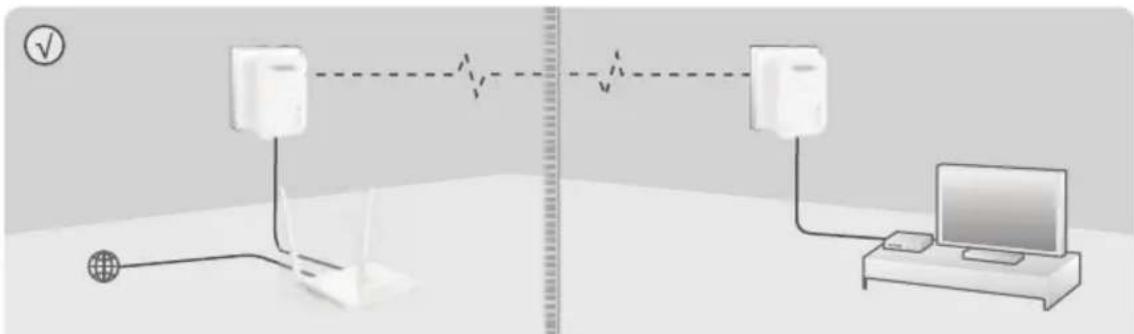
natural_image
Diagram showing two connected devices with a central device and a monitor, connected by wires (no text or symbols present)natural_image
Illustration of a Tenda device with a smiley face below (no text or symbols on the device itself)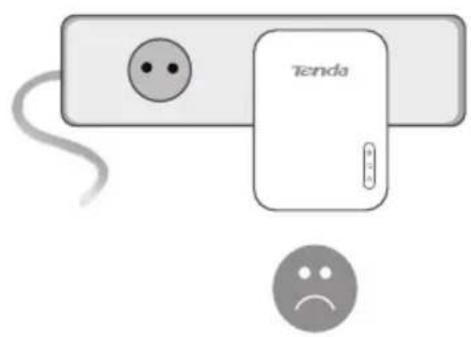
natural_image
Illustration of a remote control device connected to a speaker and a sad face emoji (no text or symbols)---- Elektrolinija
Ethernet kabelis
natural_image
Isometric diagram of a multi-level home with connected appliances and devices, no text or symbols presentnatural_image
Illustration of a desktop computer connected to a monitor, showing a device with an icon and a cable (no text or symbols present)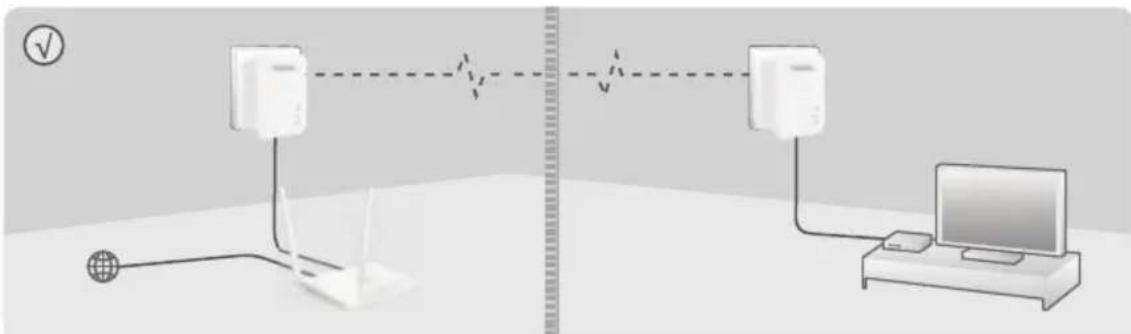
flowchart
graph TD
    A["Device 1"] -->|Wireless Signal| B["Device 2"]
    B -->|Signal| C["Computer"]
    D["User Interface"] -->|Wireless Signal| B
    style A fill:#f9f,stroke:#333
    style B fill:#ccf,stroke:#333
    style C fill:#cfc,stroke:#333
natural_image
Illustration of a Tenda electronic device with a control panel (no text or symbols on the device itself)
natural_image
Illustration of a charging device with a power outlet and a Tenda device (no text or symbols on the device itself)
② Adapterj galima naudoti tik vertikaliomis kryptimis.
natural_image
Diagram of a device with a cable and a switch, showing no text or symbols
---- Jégos linija
— Ethernet kabelis
natural_image
Diagram of a multi-level smart home with connected devices and computers (no text or symbols)natural_image
Illustration of a device connected to a monitor, showing a server and a cable (no text or symbols present)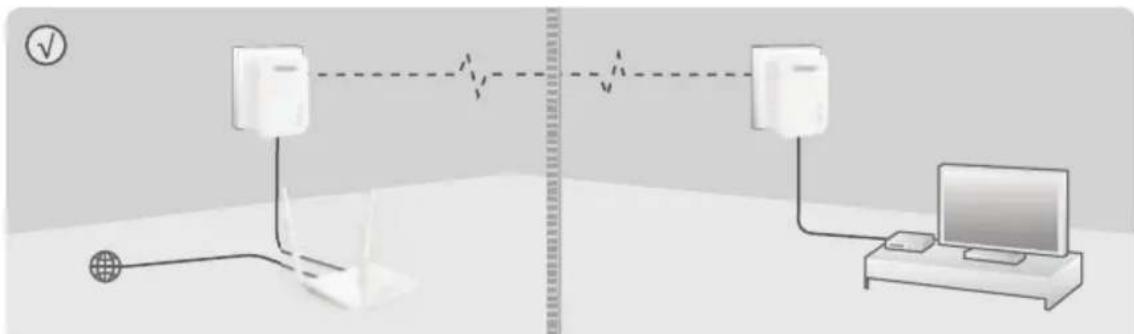
flowchart
graph TD
    A["Device 1"] --> B["Router"]
    C["Device 2"] --> B
    B --> D["Computer"]
    B -.-> E["Switch"]
    style A fill:#f9f,stroke:#333
    style C fill:#f9f,stroke:#333
    style D fill:#ccf,stroke:#333
natural_image
Illustration of a Tende device with a control panel (no text or symbols on the device itself)

natural_image
Illustration of a charging station connected to a Tenda device (no text or symbols on the devices themselves)
natural_image
Isometric diagram of a multi-level home with connected appliances and devices, no text or symbols presentnatural_image
Illustration of a desktop computer connected to a monitor, showing a close-up of the screen and cable (no text or symbols present)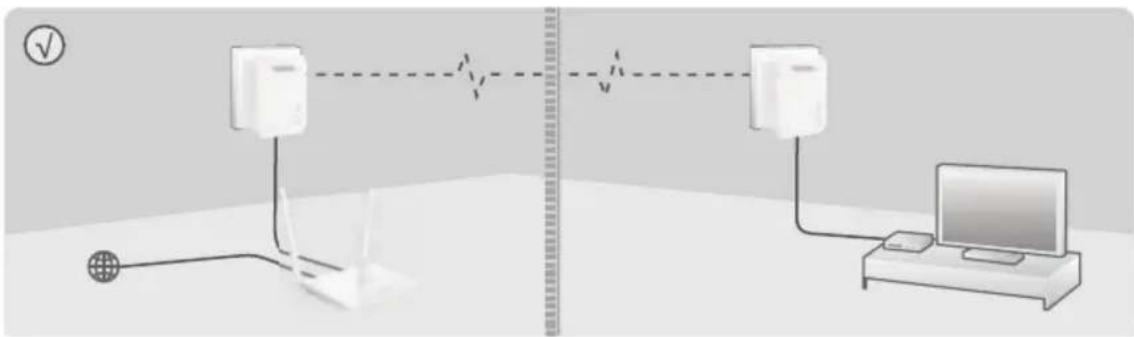
natural_image
Diagram of a network connection setup with two devices, a laptop, and a router, showing signal flow lines (no text or labels)natural_image
Illustration of a Tende device with a control panel (no text or symbols on the device itself)
natural_image
Illustration of a charging station connected to a Tenda device (no text or symbols on the device itself)
natural_image
Illustration of a Tendo electronic device with a connector and smiley face icon (no text or symbols on the device itself)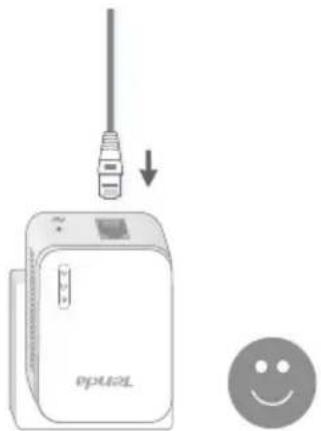
---- Linha elétrica
— Cabo Ethernet
natural_image
Isometric diagram of a multi-level room with electrical and network connections, no text or symbols presentnatural_image
Illustration of a computer setup with monitor, tower, and cable (no text or symbols)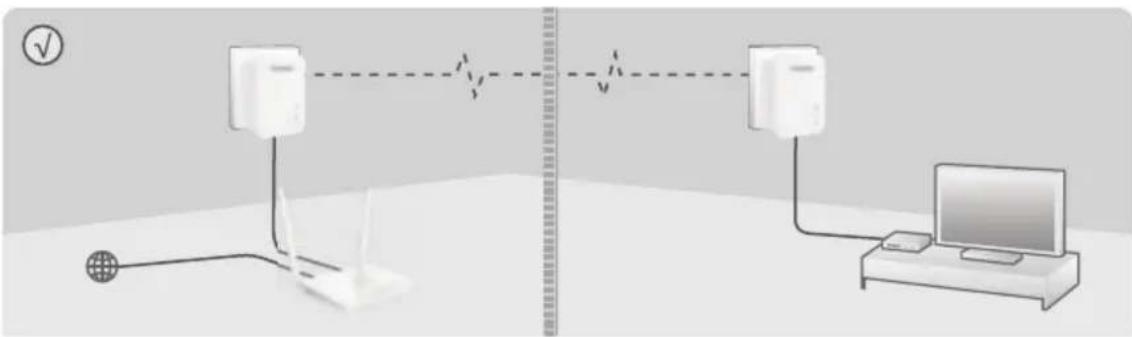
natural_image
Diagram showing two connected devices with a laptop and a router, connected by lines (no text or symbols present)natural_image
Illustration of a device labeled 'tenda' with a smiley face below (no text or symbols on the device itself)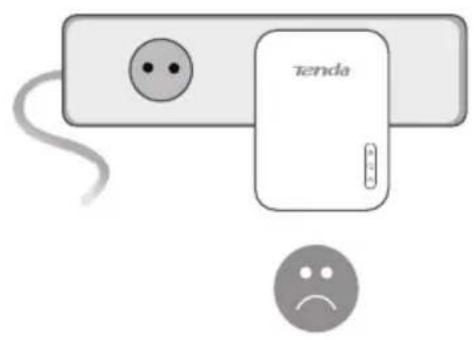
natural_image
Illustration of a charging station connected to a device labeled 'tenda' with a sad face symbol below (no text or symbols on the devices themselves)natural_image
Isometric diagram of a multi-level home with connected appliances and devices, no text or symbols presentnatural_image
Diagram showing wireless network connection with a device labeled 'Sanskio' and an inset magnified view of its internal components (no text or symbols on the device itself)natural_image
Illustration of a desktop computer connected to a monitor, showing a device with an inset image (no text or symbols present)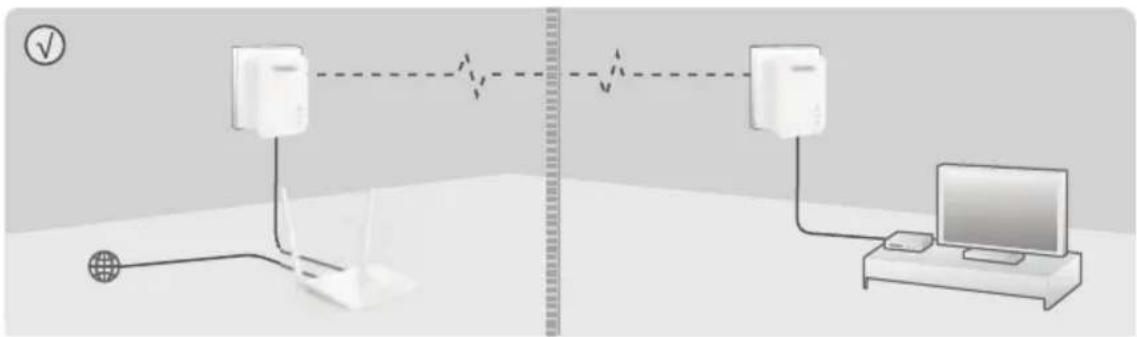
natural_image
Diagram showing two connected devices with a laptop and a router, connected by dashed lines (no text or symbols present)natural_image
Illustration of a Tenda device with a control panel (no text or symbols on the device itself)
natural_image
Illustration of a device with a power outlet and a Tende device, connected by a cable (no text or symbols on the devices themselves)
natural_image
Isometric diagram of a multi-level home with connected appliances and devices, no text or symbols presentnatural_image
Diagram showing wireless network connection with a device and two antennas, highlighting a magnified view of its internal components (no text or symbols present)natural_image
Illustration of a desktop computer connected to a monitor, showing a close-up of its screen (no text or symbols present)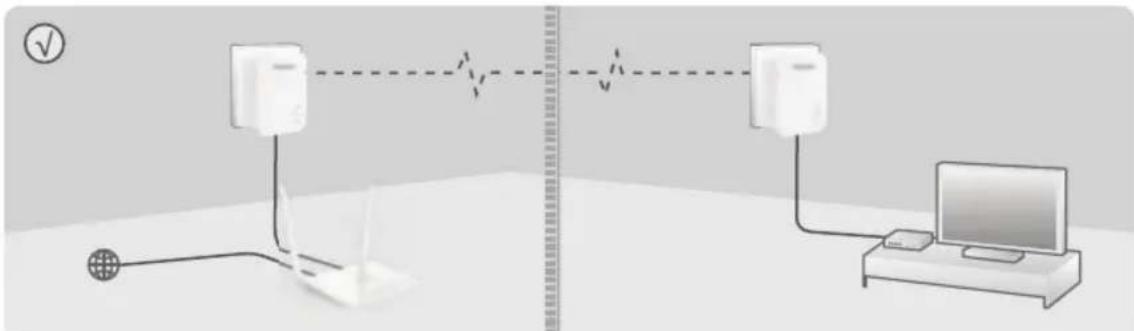
flowchart
graph TD
    A["Device 1"] --> B["Router"]
    C["Device 2"] --> B
    B --> D["Computer"]
    style A fill:#f9f,stroke:#333
    style C fill:#f9f,stroke:#333
    style D fill:#ccf,stroke:#333
natural_image
Illustration of a Tenda device connected to a sad face emoji (no text or symbols on the device itself)natural_image
Diagram of a multi-level smart home with connected devices and computers (no text or symbols)natural_image
Diagram showing a wireless device connected to a router, with an inset close-up of its cable (no text or symbols visible)natural_image
Illustration of a desktop computer connected to a monitor, showing a device with an inset image (no text or symbols present)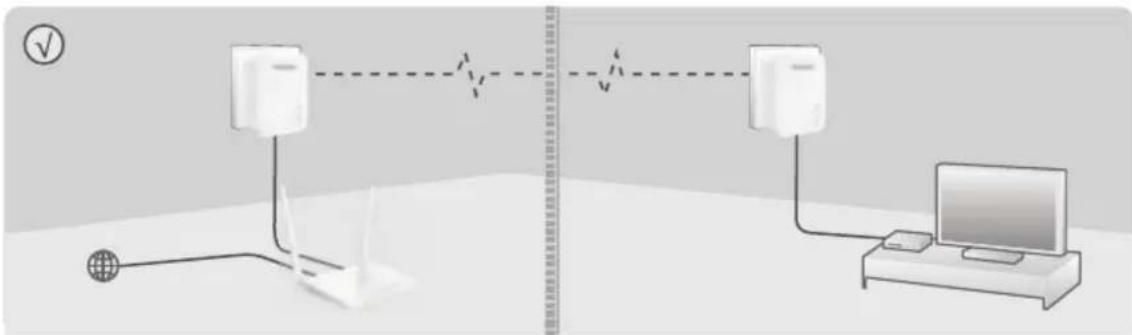
natural_image
Diagram showing two connected devices with a laptop and a router, connected by dashed lines (no text or symbols present)natural_image
Illustration of a Tenda device with a smiling smiley face below (no text or symbols on the device itself)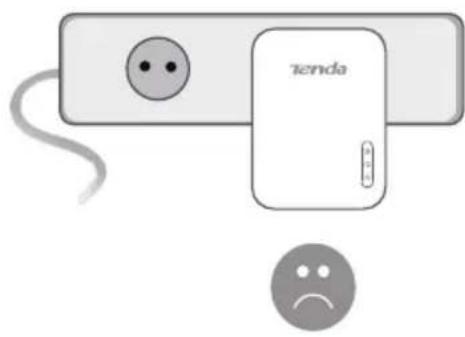
natural_image
Illustration of a remote control device connected to a sad face emoji (no text or symbols)natural_image
Isometric diagram of a multi-level home with connected appliances and devices, no text or symbols presentnatural_image
Diagram showing wireless router connected to a network device via cable, with an inset close-up of its cable detail (no text or symbols present)Pripojte druhý adaptér ku káblovému zariadeniu, ako je napríklad set-top box, a zapojte ho do zásuvky v stene.
natural_image
Illustration of a desktop computer connected to a monitor, showing a close-up of the screen (no text or symbols present)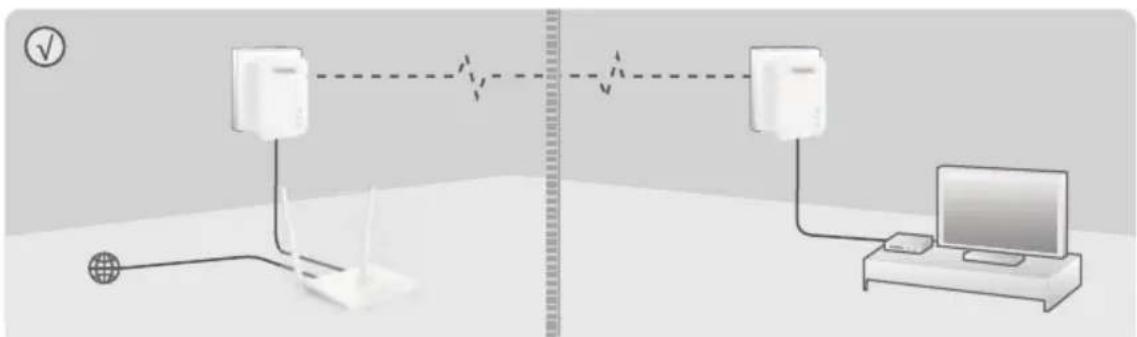
flowchart
graph TD
    A["Device 1"] --> B["Router"]
    C["Device 2"] --> B
    B --> D["Computer"]
    style A fill:#f9f,stroke:#333
    style C fill:#f9f,stroke:#333
    style D fill:#ccf,stroke:#333
Počkajte, kým sa PLC LED indikátory 📋 dvoch adaptérov nerozsvietia neprerušovane.
flowchart
graph TD
    A["Server"] --> B["Lock"]
    B --> C["Server"]
    style A fill:#f9f,stroke:#333
    style C fill:#f9f,stroke:#333
- Podržte stlačené tlačidlo Pair na adaptéri na 1 sekundu a PLC LED na adaptéri začne blikat'.
- Do 2 minút podržte tlačidlo Pair na druhom adaptéri na 1 sekundu.
Sledujte LED diódy PLC 📄 na dvoch adaptéroch, kým sa nerozsvietia a nezostanú svietit.
natural_image
Illustration of a Tenda electronic device with a control panel (no text or symbols on the device itself)
natural_image
Illustration of a charging station connected to a device labeled 'tenda' (no text or symbols on the device itself)
natural_image
Illustration of a Tenda device with a connector and smiley face icon (no text or symbols on the device itself)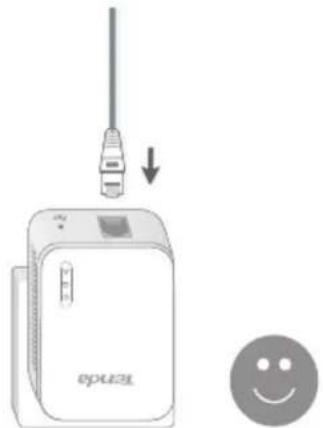
باورلاین
کابل إیثرنت —
natural_image
Isometric diagram of a multi-level home with connected appliances and devices, no text or symbols presentnatural_image
Illustration of a computer setup with a monitor, tower, and cable, connected to a device (no text or symbols visible)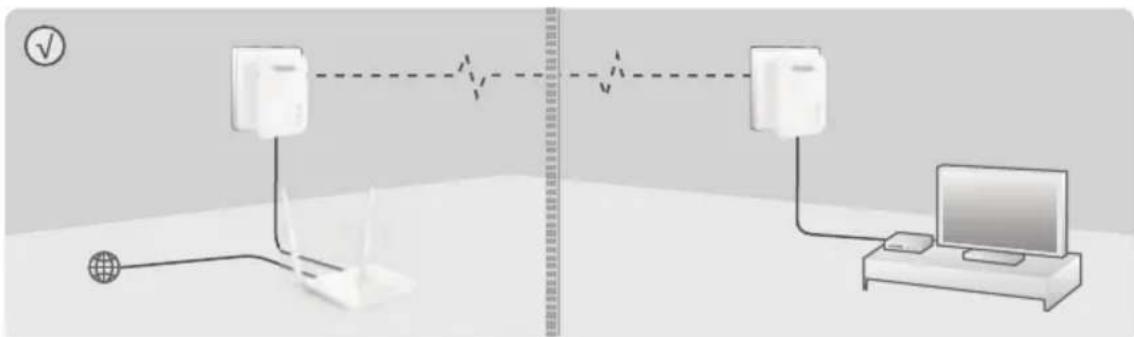
flowchart
graph TD
    A["Device 1"] --> B["Router"]
    C["Device 2"] --> B
    B --> D["Computer"]
    B --> E["Switch"]
    style A fill:#f9f,stroke:#333
    style C fill:#f9f,stroke:#333
    style D fill:#ccf,stroke:#333
    style E fill:#ccf,stroke:#333
https://www.tendacn.com/service/default.html
Get support and services
For technical specifications, user guides and more information, please visit the product page or service page on www.tendacn.com. Multiple languages are available.
You can see the product name and model on the product label.
Floor 6-8, Tower E3, No.1001, Zhongshanyuan Road, Nanshan District, Shenzhen,
China. 518052
Website: www.tendacn.com
E-mail: support@tenda.com.cn
support.uk@tenda.cn (United Kingdom)
support.us@tenda.cn (North America)
Copyright©2023 Shenzhen Tenda Technology Co., Ltd. All rights reserved.
- Quick Installation Guide
- CONTENTS
- Q1: I cannot access the internet after finishing the installation. What should I do?
- Q2: I cannot access the internet after finishing the operations in Secure Your Powerline Network. What should I do?
- Q3: An adapter failed to connect to the powerline network after I moved it to a new location. What should I do?
- Get support and services
Brand : Tenda
Model : PH3
Category : Powerline Adapter