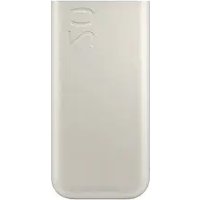
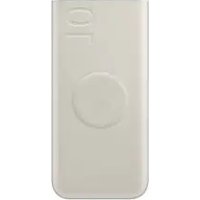
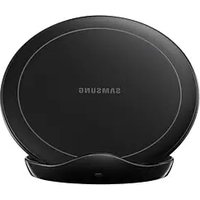
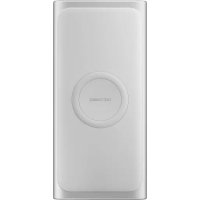
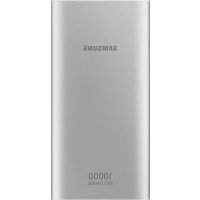
USER MANUAL EB-P4520 SAMSUNG
Wireless Battery Pack
USER GUIDE
EB-P4520
EB-U2510
08/2024. Rev.1.2
Table of Contents
| English | Ελληνικά |
| Français | Slovenščina |
| Deutsch | Slovenčina |
| Italiano | Čeština |
| Español | Українська |
| Magyar | Türkçe |
| Polski | Bahasa Indonesia |
| Română | العربية |
| Български | Русский |
| Hrvatski | Қазақ тілі |
| Srpski | 简体中文 |
| Português | 繁體中文 (台灣) |
| Latviešu | 日本語 |
| Lietuvių kalba | Français (Canada) |
| Eesti | Português (Brasil) |
| Nederlands | 한국어 |
| Svenska | |
| Norsk | |
| Suomi | |
| Dansk | |
Getting started
Device layout
▶ EB-P4520: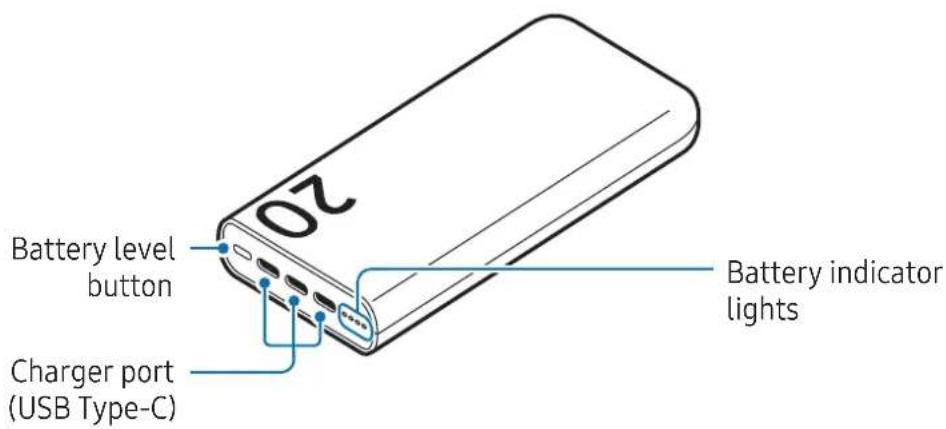
▶ EB-U2510: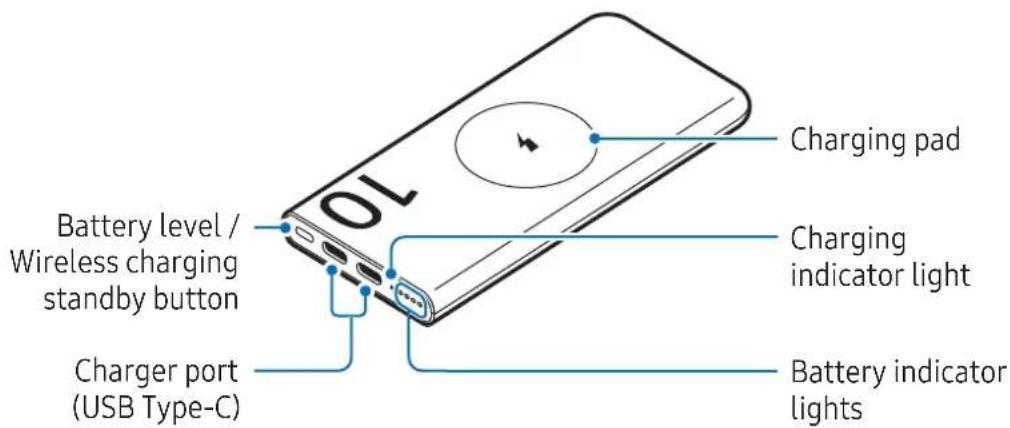
Charging the battery
Charge the battery before using the product for the first time or when the product has been unused for extended periods.
1 Connect the product to a charger.
When the charger is correctly connected to the product, the battery indicator lights will turn on and blink.
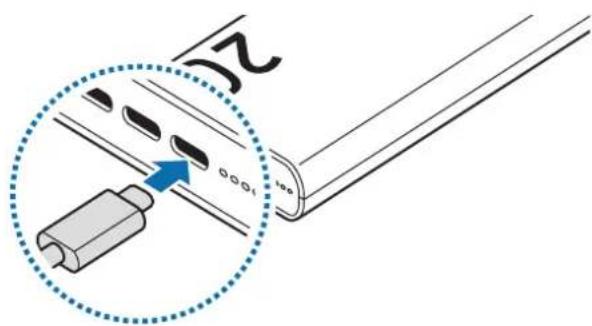
2 When the product is fully charged, disconnect the product from the charger.
Battery charging tips and precautions

Use only Samsung-approved charger and cable specifically designed for your product. Incompatible charger and cable can cause serious injuries or damage to your product.

- Connecting the charger improperly may cause serious damage to the product. Any damage caused by misuse is not covered by the warranty.
- Use only USB Type-C cable supplied with the product. The product may be damaged if you use Micro USB cable.
- If you charge the product while the charger port is wet, the product may be damaged. Thoroughly dry the charger port before charging the product.

- You can charge the product using the charger (sold separately).
- The product has several charger ports, and you can charge the product and other devices using whichever port you require.
- When using a charger, it is recommended to use an approved charger that guarantees the charging performance.
- Using a power source other than the charger, such as a computer, may result in a slower charging speed because of a lower electric current.
- The product can be used while it is charging, but it may take longer to fully charge the battery.
- While charging, the product may heat up. This is normal and should not affect the product's lifespan or performance. If the battery gets hotter than usual, the charger may stop charging.
- The actual capacity (Wh) is measured based on the battery's output current and voltage. It may differ from the capacity (Wh) indicated on the product, depending on the output power condition, the connected device's circuit configuration, and the operation environment.
- If the product is not charging properly, take the product and the charger to a Samsung Service Centre or an authorised service centre.
Checking the remaining battery power
The battery indicator lights inform you of the remaining battery power.
Check the remaining battery power by pressing the Battery level button or Battery level / Wireless charging standby button. Depending on the remaining battery power, the battery indicator lights will turn on and then turn off.
| Remaining battery power Battery indicator light |
| 70-100 % | Four battery indicator lights on |
| 40-70 % | Three battery indicator lights on |
| 20-40 % | Two battery indicator lights on |
| 5-20 % | One battery indicator light on |
| 0-5 % | One battery indicator light blinking |

- If the battery indicator lights do not operate properly or are recognised incorrectly, disconnect the charger and connect it again.
- The battery indicator lights may work differently depending on the device connected to the product.
Checking the wireless charging status (EB-U2510)
Check the wireless charging status of the product by looking at the indicator light's colour.
| Colour Status | |
| Continuously red | • Wireless charging |
| Continuously green | • Wireless charging complete |
| Blinking red → green → yellow (Once) | • Wireless charging standby mode |

- If the charging indicator light does not operate properly or is recognised incorrectly, disconnect the device you want to charge from the product and put it on the product again.
- The charging indicator light may work differently depending on the device you want to charge.
Using the product
Charging devices
Wired charging
1 Connect one end of the USB cable to the product's charger port. Then, plug the other end of the USB cable into the mobile device's multipurpose jack.
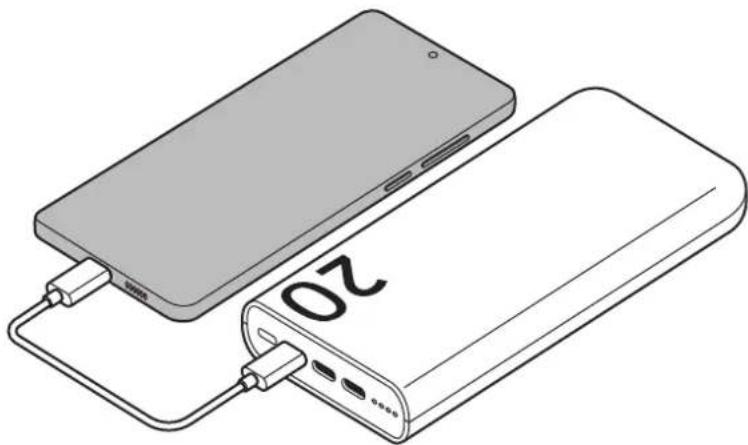
2 When the mobile device is fully charged, disconnect the USB cable from the product and the mobile device.

- If the multipurpose jack of the charger and the device you want to charge is the micro USB type, use a USB connector that is sold separately.
- Charging time may vary depending on the charging conditions.
- To begin fast charging, connect a device that supports fast charging to the product.
- If the device connected to the product is not charging, disconnect the USB from the product and reconnect it.
- The product is an auxiliary external battery. It may not fully charge some devices.
- If the product is exposed to extremely hot or cold temperatures or a problem occurs, the battery indicator lights will blink. Disconnect the device from the product and reconnect it.
Wireless charging (EB-U2510)
The product has a built-in wireless charging coil. You can charge devices that support wireless charging.
If the device you're trying to charge has a screen, the estimated charging time will appear on the device's screen. The estimated remaining charging time may differ from the actual time depending on the charging environment. The actual charging time may vary depending on the charging conditions.
1 Press the Battery level / Wireless charging standby button.
The product will enter wireless charging standby mode.
2 Place the device you want to charge on the product, aligning the wireless charging coil of the device with the centre of the product's charging pad. Wireless charging may not work smoothly with certain device accessories or covers. For stable wireless charging, it is recommended to separate the cover or accessory from the device you want to charge.
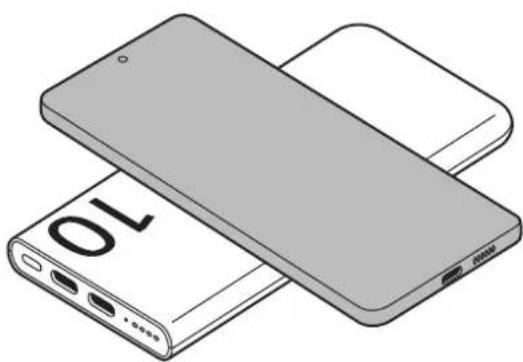
3 After fully charging, separate the device from the product.

Precautions for wireless charging
If you do not follow the precautions, the device may not charge properly or may overheat, or the phone and any cards may be damaged.
- Do not place the phone on the product with a credit card or radio-frequency identification (RFID) card (such as a transportation card or a key card) placed between the back of the phone and the phone cover.
- Do not place the phone on the product when conductive materials, such as metal objects and magnets, are placed between the phone and the product.
- If wireless charging does not start within approximately 1 minute after the product enters wireless charging standby mode, wireless charging standby mode will end.
- If you use the product in areas with weak network signals, you may lose network reception.
Usage notices
Precautions for using the product
Please read this guide when using the product to ensure safe and proper use.
- Images may differ in appearance from the actual product. Content is subject to change without prior notice.
Instructional icons
Warning: situations that could cause injury to yourself or others
Caution: situations that could cause damage to your product or other equipment
Notice: notes, usage tips, or additional information
Notes on package contents and accessories
Check the product box for the following items:
- Product
- USB cable
- Quick start guide

- The items supplied with the product and any available accessories may vary depending on the region or carrier.
- The supplied items are designed only for this product and may not be compatible with other devices.
- Appearances and specifications are subject to change without prior notice.
- You can purchase additional accessories from the Samsung website. Make sure they are compatible with the product before purchase.
- Use Samsung-approved accessories. Using unapproved accessories may cause performance problems and malfunctions that are not covered by the warranty.
- Availability of all accessories is subject to change depending entirely on manufacturing companies. For more information about available accessories, refer to the Samsung website.
Appendix
Removing the battery
- To remove the battery, contact an authorized service center. To obtain battery removal instructions, please visit www.samsung.com/global/ecodesign_energy.
- For your safety, you must not attempt to remove the battery. If the battery is not properly removed, it may lead to damage to the battery and device, cause personal injury, and result in the device being unsafe.
- Samsung does not accept liability for any damage or loss (whether in contract or tort, including negligence) which may arise from failure to precisely follow these warnings and instructions, other than death or personal injury caused by Samsung's negligence.
FCC Part 15.19 (Only some regions/countries)
This device complies with part 15 of the FCC Rules. Operation is subject to the following two conditions: (1) This device may not cause harmful interference, and (2) this device must accept any interference received, including interference that may cause undesired operation.
FCC Part 15.21 (Only some regions/countries) (EB-U2510)
Any changes or modifications (including the antennas) to this device that are not expressly approved by the manufacturer may void the user's authority to operate the equipment.
FCC Part 2.1093 RF Radiation Exposure Statement (Only some regions/countries) (EB-U2510)
This equipment complies with FCC RF radiation exposure limits set forth for an uncontrolled environment. This device and its antenna must not be co-located or operating in conjunction with any other antenna or transmitter.
This equipment should be installed and operated with a minimum distance of 20 cm between the radiator and your body.
FCC Part 15.105 (Only some regions/countries)
Note: This equipment has been tested and found to comply with the limits for a Class B digital device, pursuant to part 15 of the FCC Rules. These limits are designed to provide reasonable protection against harmful interference in a residential installation. This equipment generates, uses and can radiate radio frequency energy and, if not installed and used in accordance with the instructions, may cause harmful interference to radio communications. However, there is no guarantee that interference will not occur in a particular installation. If this equipment does cause harmful interference to radio or television reception, which can be determined by turning the equipment off and on, the user is encouraged to try to correct the interference by one or more of the following measures:
- Reorient or relocate the receiving antenna.
- Increase the separation between the equipment and receiver.
- Connect the equipment into an outlet on a circuit different from that to which the receiver is connected.
- Consult the dealer or an experienced radio/TV technician for help.
Model number: EB-U2510
FCC ID: ZCAEBU2510
(USA Only) WARNING! Never dispose of batteries in a fire because they may explode. Do not disassemble, crush, puncture, heat, burn or reuse batteries. For more information, visit call2recycle.org or call 1-800-822-8837. Alternatively, visit: www.samsung.com/recycling or call 1-800-SAMSUNG.
Copyright
Copyright © 2024 Samsung Electronics Co., Ltd.
Copyright © 2024 Samsung Electronics America, Inc.
This guide is protected under international copyright laws.
No part of this guide may be reproduced, distributed, translated, or transmitted in any form or by any means, electronic or mechanical, including photocopying, recording, or storing in any information storage and retrieval system.
Trademarks
- SAMSUNG and the SAMSUNG logo are registered trademarks of Samsung Electronics Co., Ltd.
- All other trademarks and copyrights are the property of their respective owners.
Getting Started
Copyright © 2024 Samsung Electronics Co., Ltd.
Copyright © 2024 Samsung Electronics Co., Ltd.
Copyright © 2024 Samsung Electronics Co., Ltd.
Copyright © 2024 Samsung Electronics Co., Ltd.
Copyright © 2024 Samsung Electronics America, Inc.
Copyright © 2024 Samsung Electronics Co., Ltd.
Copyright © 2024 Samsung Electronics Co., Ltd.
Copyright © 2024 Samsung Electronics Co., Ltd.
3 After the battery is fully charged, disconnect the device from the product.

Copyright © 2024 Samsung Electronics Co., Ltd.
2 When the mobile device is fully charged, disconnect the USB cable from the product and the mobile device.

- If the charger's multi-purpose connector and the device you want to charge are micro USB type, use a USB connector that is sold separately.
Copyright © 2024 Samsung Electronics Co., Ltd.
This manual is protected by international copyright laws.
No part of this manual may be reproduced, distributed, translated, or transmitted in any form or by any means, electronic or mechanical, including photocopying, recording, or storage in any information storage and retrieval system.
Trademarks
- SAMSUNG and the SAMSUNG logo are registered trademarks of Samsung Electronics Co., Ltd.
- All other trademarks and copyrights are the property of their respective owners.
Getting Started
Copyright © 2024 Samsung Electronics Co., Ltd.
This manual is protected by international copyright laws.
Copyright © 2024 Samsung Electronics Co., Ltd.
Copyright © 2024 Samsung Electronics Co., Ltd.
Copyright © 2024 Samsung Electronics Co., Ltd.
2 When the mobile device is fully charged, disconnect the USB cable from the product and the mobile device.

2 Once the mobile device is fully charged, disconnect the USB cable from the product and the mobile device.

3 After fully charging, disconnect the device from the product.

Wireless charging precautions
This guide is protected by international copyright laws.