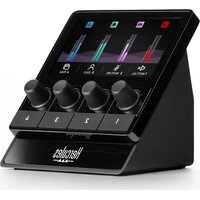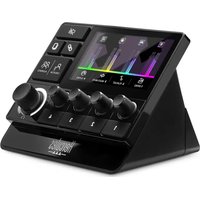
STREAM 200 XLR - Controller HERCULES - Free user manual and instructions
Find the device manual for free STREAM 200 XLR HERCULES in PDF.


| Product Type | Professional audio controller for streaming |
| Brand | Hercules |
| Model | STREAM 200 XLR |
| Power | USB (USB-A to USB-C cable included) |
| System Requirements | Windows 10 or later (64-bit), 4 GB RAM, USB 2.0 port |
| Audio Inputs | 1 XLR microphone input (with phantom power), 1 line input (3.5 mm jack), 1 optical input (Toslink) |
| Audio Outputs | 1 line output (3.5 mm jack), 1 headphone output (3.5 mm jack) |
| Number of controllable tracks | 8 tracks across 2 pages (screen display) |
| Action buttons | 4 assignable action buttons (shortcuts, mute, etc.) |
| Main functions | Volume control via encoders, Creator/Audience mixing, per-track mute, VU meters, mix link, master mute |
| Built-in microphone | No (XLR input for external dynamic or condenser microphone) |
| Included accessory | Mic Pre-Amp (for dynamic microphone), USB cable |
| Software connectivity | Hercules Stream Control application (compatible with OBS, Streamlabs) |
| Maintenance and cleaning | Unplug before cleaning; use a soft dry cloth; do not use solvents |
| Safety | Do not expose to moisture; do not open the casing; use only the provided adapter |
| Spare parts and repairability | Contact Hercules technical support; no user-serviceable parts available |
| General information | Weight: approx. 500 g; dimensions: not specified; color: black |
Frequently Asked Questions - STREAM 200 XLR HERCULES
User questions about STREAM 200 XLR HERCULES
0 question about this device. Answer the ones you know or ask your own.
Ask a new question about this device
Download the instructions for your Controller in PDF format for free! Find your manual STREAM 200 XLR - HERCULES and take your electronic device back in hand. On this page are published all the documents necessary for the use of your device. STREAM 200 XLR by HERCULES.
USER MANUAL STREAM 200 XLR HERCULES
natural_image
Black Hercules 4.44 console with touchscreen, rotary knobs, and a digital display (no readable text or symbols on main device)TABLE OF CONTENTS
- BOX CONTENTS......5
- TECHNICAL SPECIFICATIONS ......6
- INSTALLATION 7
Connecting Hercules Stream 200 XLR .....7
Downloading Hercules Stream Control......8
- FEATURES....9
Overview....9
Controlling tracks....11
Controlling actions 14
Advanced features....16
Connectors, brightness and accessories... 19
- HERCULES STREAM CONTROL......22
Main functions ......22
Mixer 22
Actions 26
Customization 29
Third-party apps ....30
OBS 30
Streamlabs....32
Settings....33
General settings....33
Graphic settings....34
Server access 36
XLR Microphone 38

STREAM 200 XLR
PRO AUDIO CONTROLLER
FOR DYNAMIC AND CONDENSER MICS
With the Hercules Stream 200 XLR audio controller and the dedicated Hercules Stream Control app, you can manage all your audio sources in real time, view and control the sound level of each audio track — for you, and for your audience!
1. Box contents
- Hercules Stream 200 XLR
- USB-A - USB-C power cable
- Mic Pre-Amp
- Link to download the Hercules Stream Control app (on the box flap)
– Hercules and Hercules Stream stickers - Warranty flyer
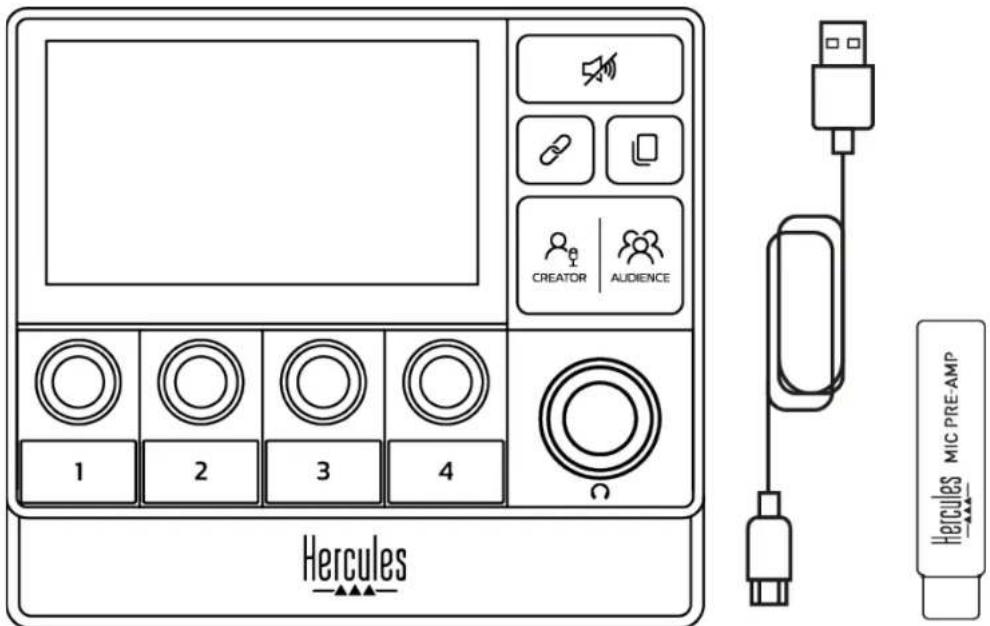

You can remove the protective films from the base and the screen of the Hercules Stream 200 XLR controller. You can also leave them on, as they won't interfere with use of the controller.
2. Technical specifications
System requirements for Hercules Stream Control:
- Windows® 10 or more recent (64-bit)
- 4 GB of RAM
- USB 2.0 port
3. Installation
Connecting Hercules Stream 200 XLR
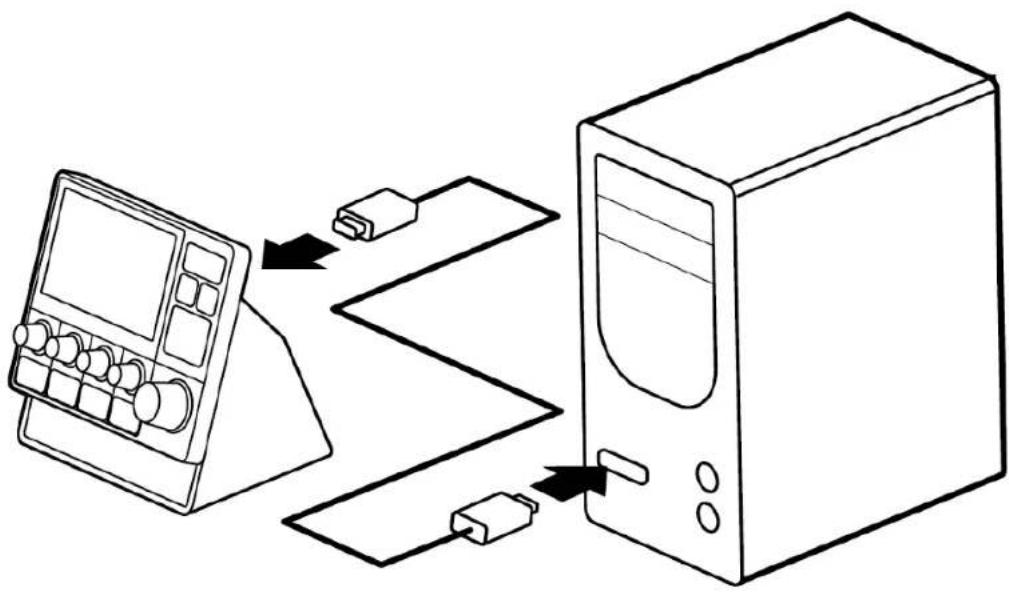
- Connect the USB cable to the USB port on the back of your Hercules Stream 200 XLR, then to a USB port on your computer.
- The Hercules logo and then the Hercules Stream 200 XLR logo appear on the screen of your Hercules Stream 200 XLR.
flowchart
graph TD
    A["Device with ports"] --> B["Computer"]
    B --> C["Switch"]
    C --> D["Port 1"]
    C --> E["Port 2"]

Do not connect Hercules Stream 200 XLR to a USB hub.
Downloading Hercules Stream Control
-
Make sure that your Hercules Stream 200 XLR is properly connected to your computer.
-
Visit:
https://support.hercules.com/product/stream200xlr.
-
Download and install Hercules Stream Control.
-
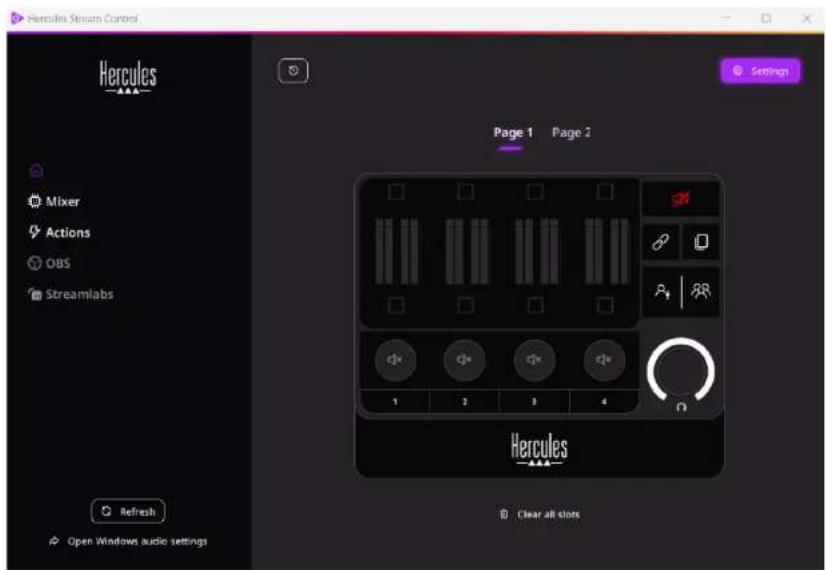
Open the Hercules Stream Control app to configure your Hercules Stream 200 XLR.
4. Features
Overview
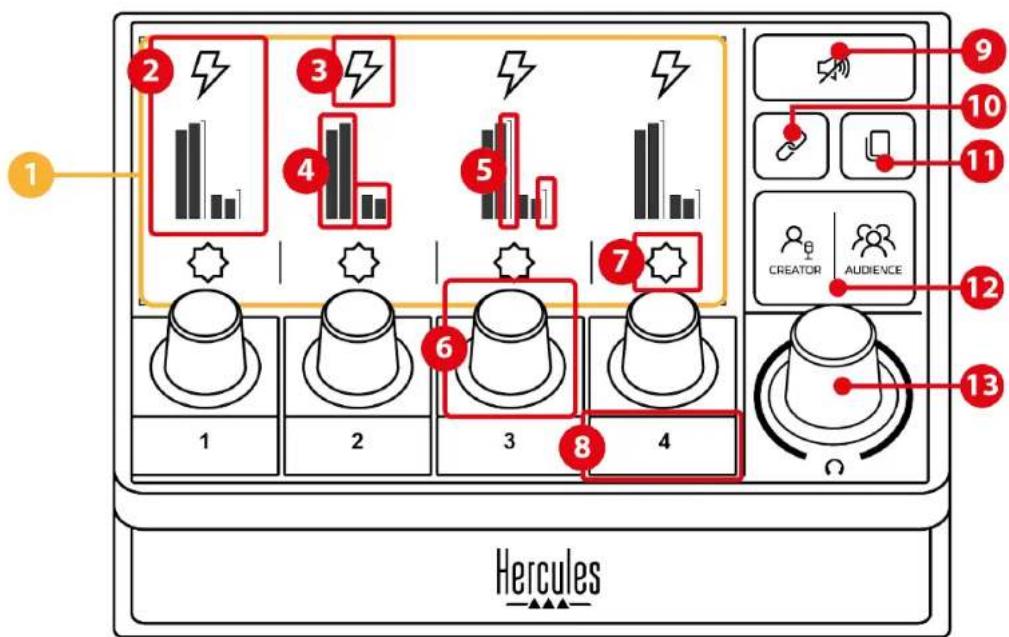
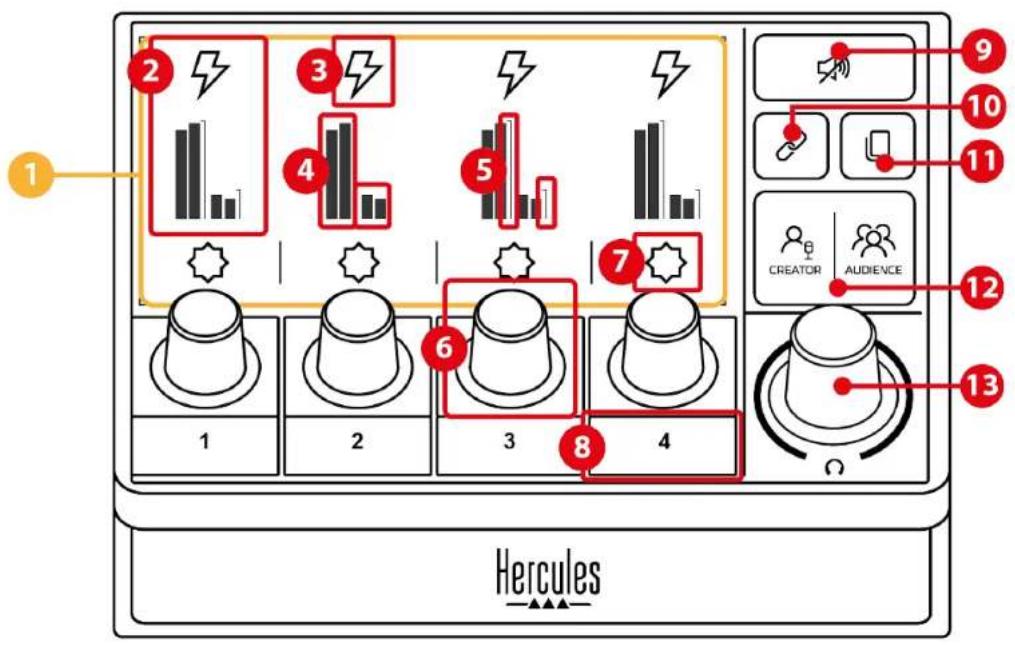
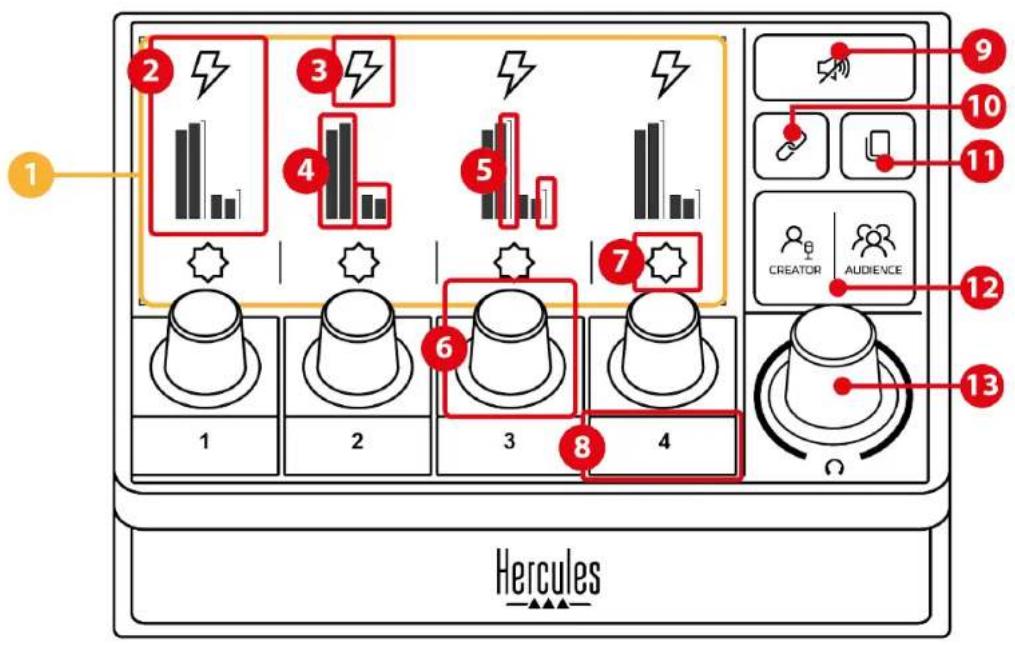
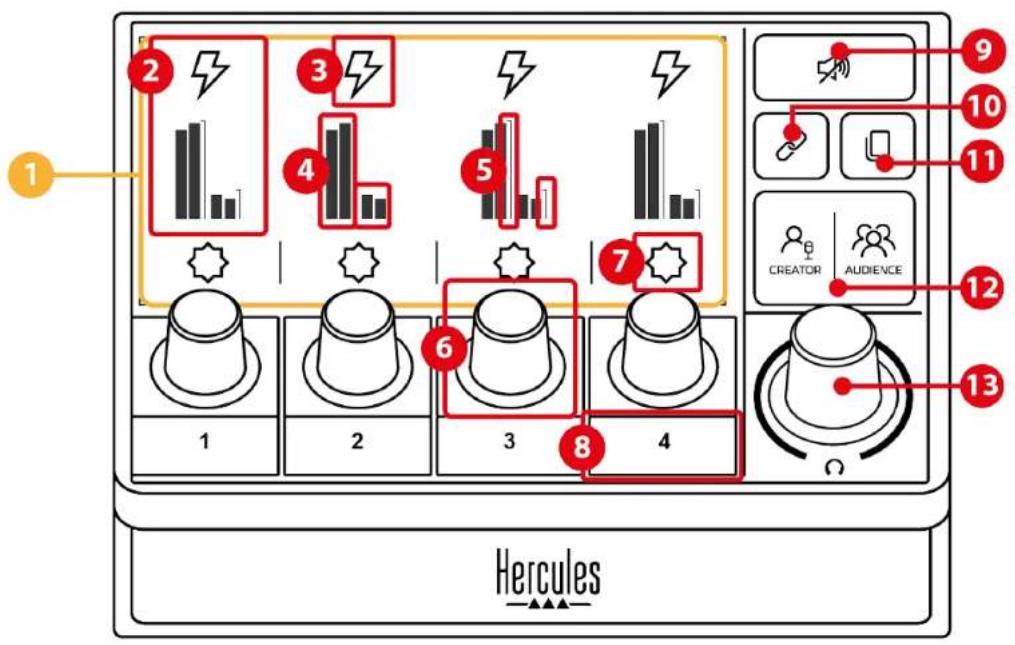
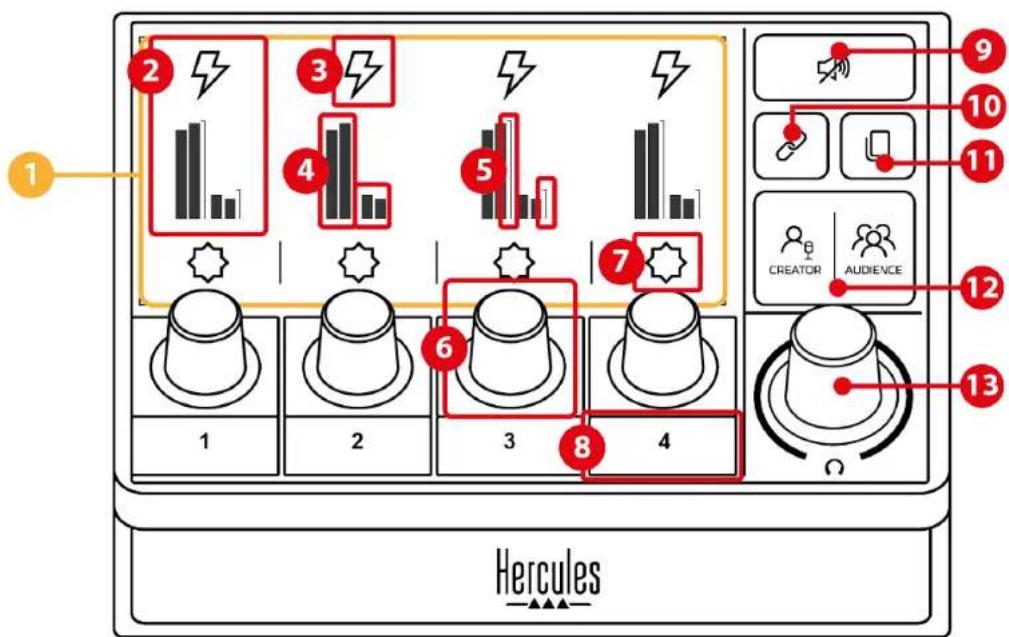
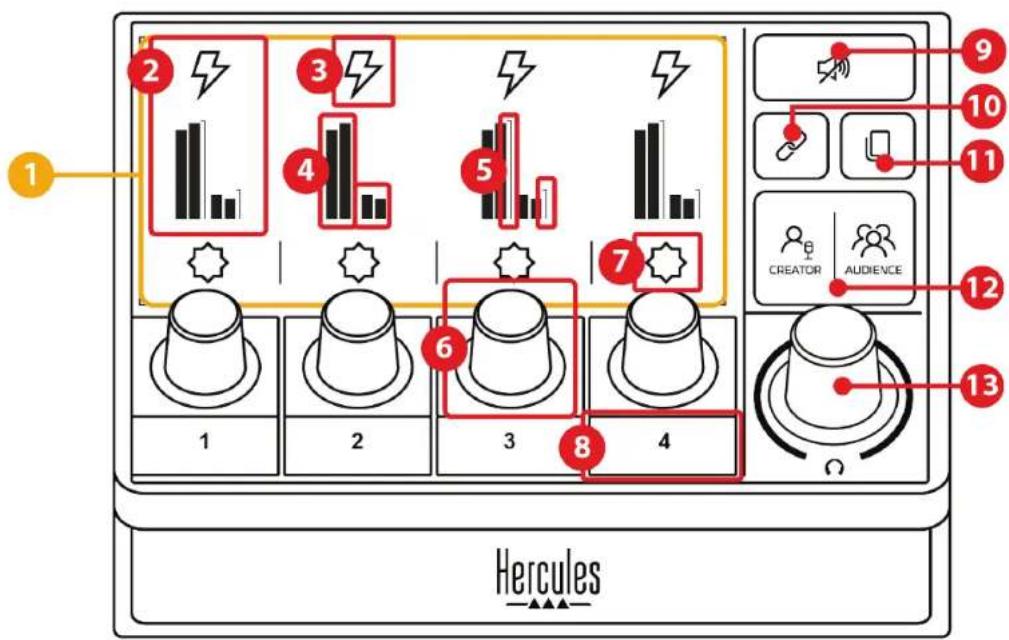
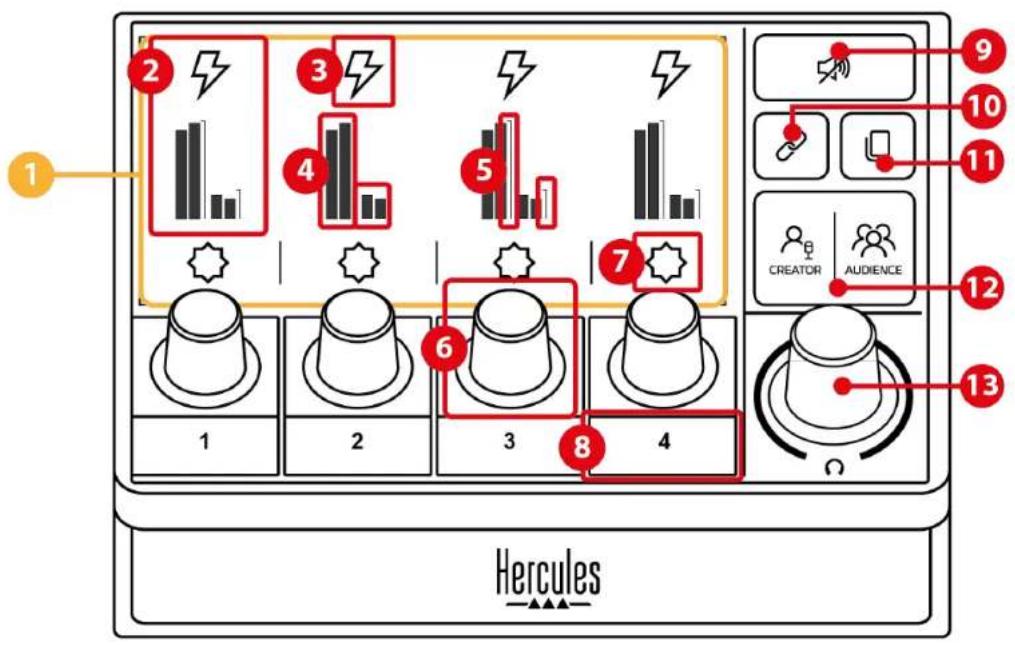
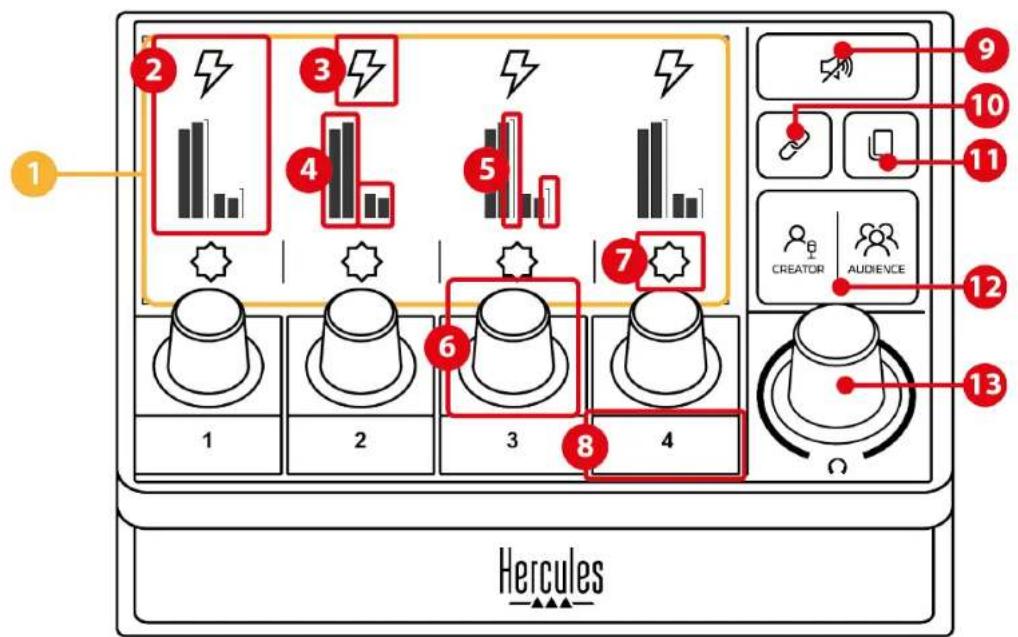
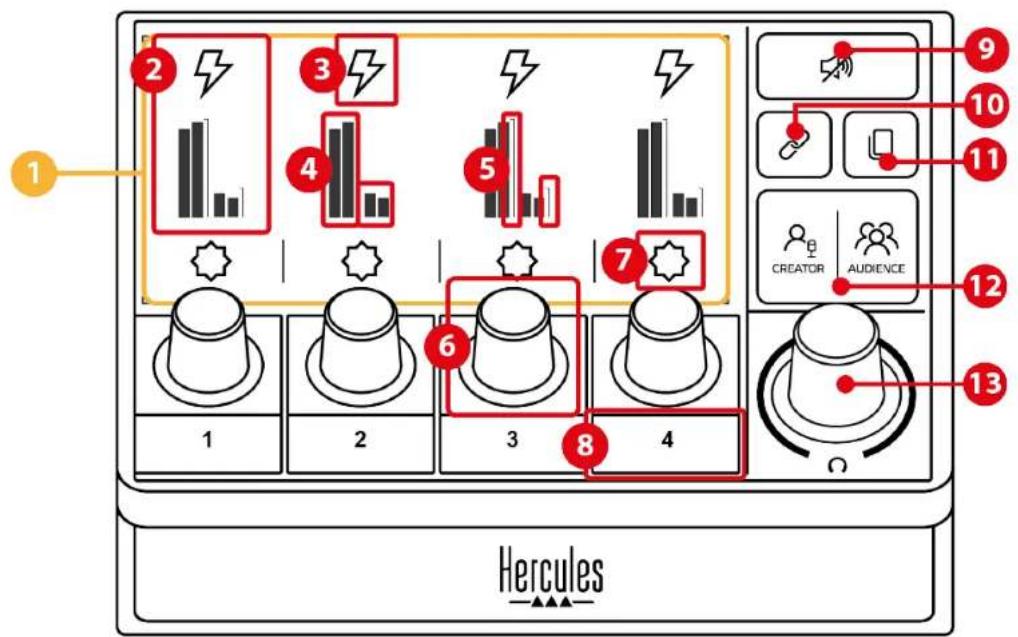
- Page (display)
- Track (display)
- Track icon (display)
- VU meters (display)
- Volume bar (display)
- Encoder
- Action icon (display)
- Action button
- Mute all button
- Link button
- Page change button
- Creator / Audience button
- Headphones volume encoder
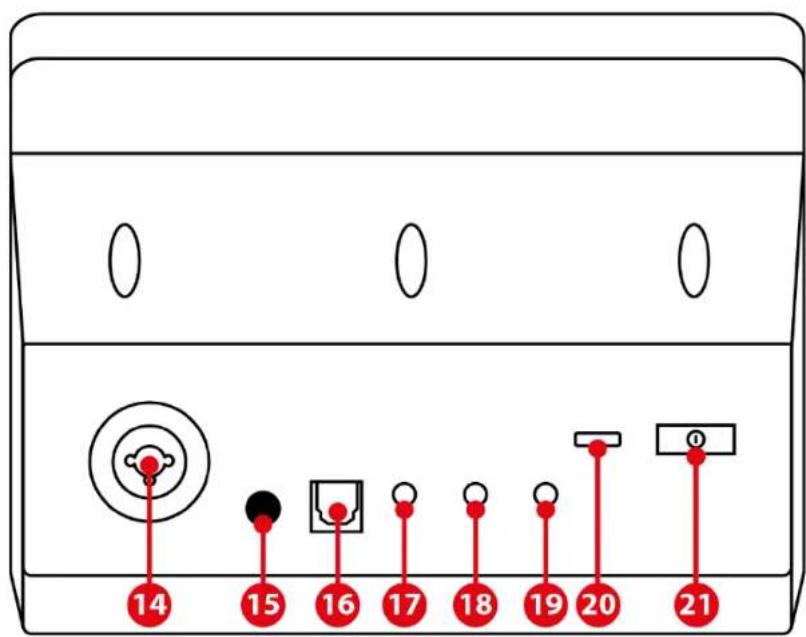
- XLR microphone input
- Phantom power button
- Optical connector
- Line output
- Headphones output
- Line input
- USB connector
- Brightness adjustment button

- Mic Pre-Amp
Controlling tracks
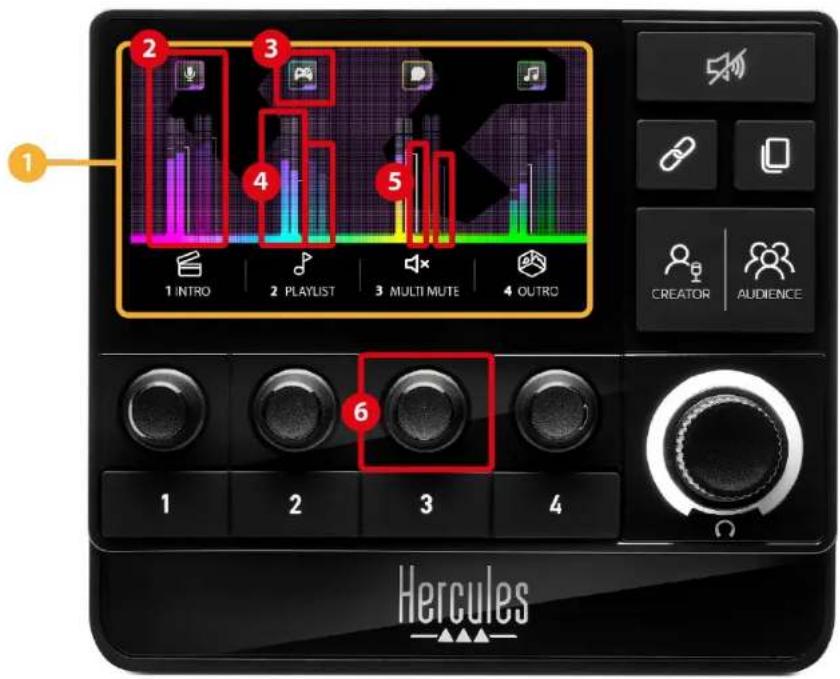
① Page (display): Hercules Stream 200 XLR has two display pages, each of which lets you view four tracks and four actions in the dedicated area.
The Page change button lets you switch from one page to the other.
② Track (display): one or more audio sources can be assigned to one of the following playback channels: Chat, Music, Game, System, Aux. Each channel can be assigned to a track. An encoder is associated with each track, allowing you to control that particular track. Hercules Stream 200 XLR has eight tracks, split up into two pages.
③ Track icon (display): lets you assign a visual cue to a track.
- Icon: by default, an icon is automatically assigned when a channel is added to a track. You can replace the default icon with another element from the icon library (predefined icon or user-added icon).
- Name: lets you name the track.
The track's volume percentage is displayed instead of text for 1.5 seconds when the corresponding encoder is used.
④ VU meters (display): displays the track's audio signal level for each of the two mixes.
The Creator mix is on the left-hand side, and the Audience mix is on the right-hand side.
⑤ Volume bars (display): indicate the track's volume for each of the two mixes.
The left volume bar (Creator mix) turns red when the track is muted in the Creator mix, and the right volume bar (Audience mix) turns red when the track is muted in the Audience mix. Both volume bars turn red when the track is muted in both mixes.
⑥ Encoder:
- Turn the encoder to adjust the track's volume.
- Press the encoder to enable or disable the track's sound for the active mix (the active mix is indicated by the Creator / Audience button's LED).
If Link mode is enabled (the Link button's LED is on), pressing the encoder enables or disables the track's sound for both mixes at the same time.
Controlling actions
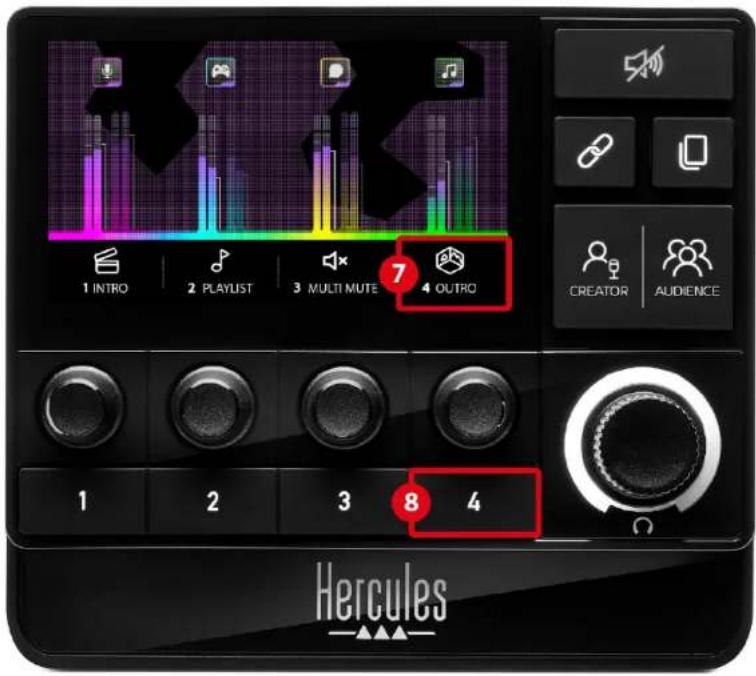
⑦ Action icon (display): lets you add a visual cue for the action assigned to the corresponding action button.
- Icon: by default, the icon is grayed out when the action is running.
If you use a custom icon, the OFF status icon is displayed when the action is executed. To find out how to define an ON status icon and an OFF status icon, refer to the Custom icon section.
- Name: lets you name the assigned action. The text is grayed out when the action is running.
⑧ Action button: lets you enable or disable the action assigned to this button.
The status of the action button is indicated by an LED:
- LED off: no action is assigned to the button.
- LED on: an action is assigned to the button.
- LED flashing: an action is running.
Advanced features
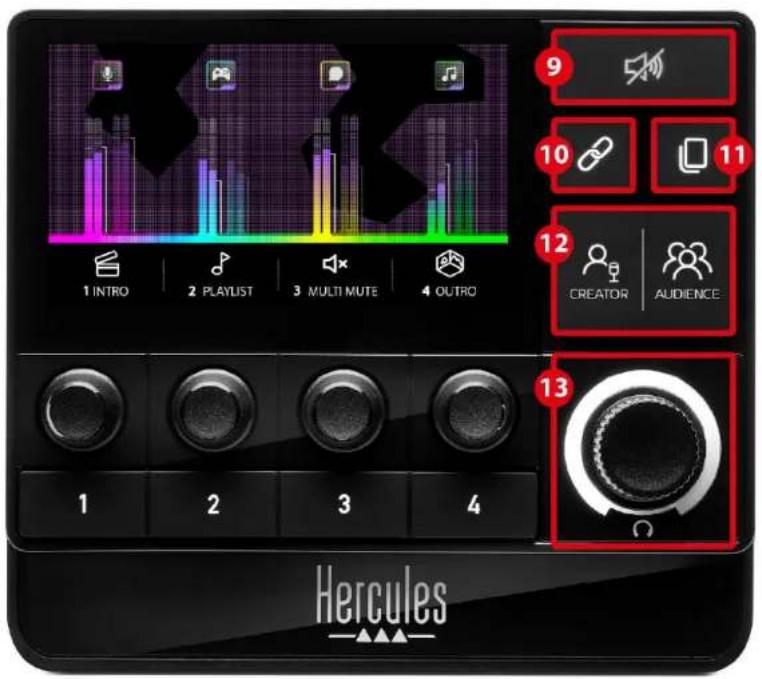
⑨ Mute all button: lets you mute all audio sources controlled by Hercules Stream 200 XLR.
When the function is enabled, the button's red LED is lit up and all volume bars are red. You can change the volume levels of tracks, but you can no longer enable or disable the sound of an individual track. To do this, you need to press the button again to disable the Mute all function.
⑩ Link button: lets you link the volume levels of the Creator and Audience mixes, and thereby control the volume levels at the same time for one particular track.
When enabled, the Link button's LED is on. To disable the Link function, press the Link button again.
To control the volume levels of a track:
- Turn the encoder to adjust the volume levels of both mixes. The volume bars move together, keeping the same audio level difference between them.
- Press the encoder to enable or disable the track's sound for both mixes at the same time.
⑪ Page change button: lets you switch from one page to the other.
- Page 1 displayed: LED off.
- Page 2 displayed: LED on.
⑫ Creator / Audience button: lets you switch between the Creator mix (dedicated to the user) and the Audience mix (dedicated to the audience). A white LED indicates which mix is active.
The active mix is played on the headphones connected to the headphones output. The VU meters and volume bars corresponding to the active mix appear in the foreground of the Hercules Stream 200 XLR display.
⑬ Headphones volume encoder:
- Turn the encoder to adjust the volume of the headphones output. A white ring indicates the volume level.
- Press the encoder to mute or unmute the headphones output. The white ring flashes when the sound is muted.
Connectors, brightness and accessories
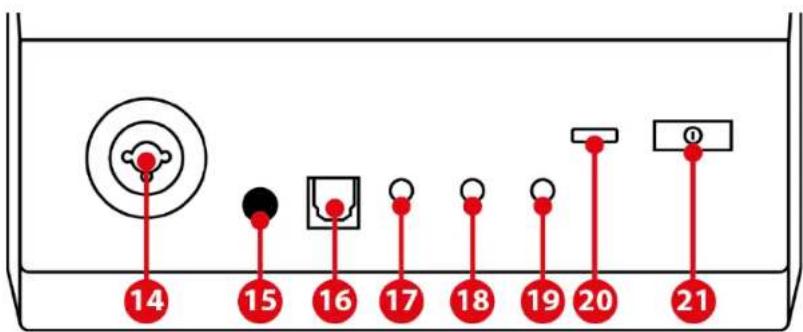
⑭ XLR microphone input: lets you connect an XLR (dynamic or condenser) microphone.
⑮ Phantom power button: lets you turn on the electronic power supply for a condenser microphone or the Hercules Mic Pre-Amp when connected.

- For optimum use of a condenser microphone, press the phantom power button (“pushed in” position) and tick the Condenser option in Hercules Stream Control (Settings menu / XLR Microphone).
- The phantom power button is very sensitive. Make sure that the button is pushed in when using a condenser microphone or the Hercules Mic Pre-Amp.
⑯ Optical connector: lets you connect a device with an optical input to Hercules Stream 200 XLR in order to use the device's audio.
⑰ Line output: lets you take the Hercules Stream 200 XLR audio output and play it on another device (speakers, headphones, another computer...).
In the Hercules Stream Control app's General settings, you can select the mix to be sent to the line output: Audience mix, Creator mix, Microphone, Line in.
⑱ Headphones output: lets you connect headphones and listen to the active mix.
⑲ Line input: lets you use audio from an external source.
⑳ USB connector: lets you connect Hercules Stream 200 XLR to a computer using the USB-A – USB-C power cable.
②1 Brightness adjustment button:
- Short press: increases the brightness of the screen. If the light intensity is set to maximum, a short press returns the light intensity to minimum.
- Long press: puts the screen to sleep, without switching off the audio functions.
② Mic Pre-Amp: lets you amplify the analog gain of dynamic microphones, for clearer vocals and reduced breathing noises.
Connect the Mic Pre-Amp to the XLR microphone input located on the back of Hercules Stream 200 XLR, or directly to the microphone.

Remember to switch on phantom power when using the Mic Pre-Amp amplifier for a dynamic microphone.
5. Hercules Stream Control

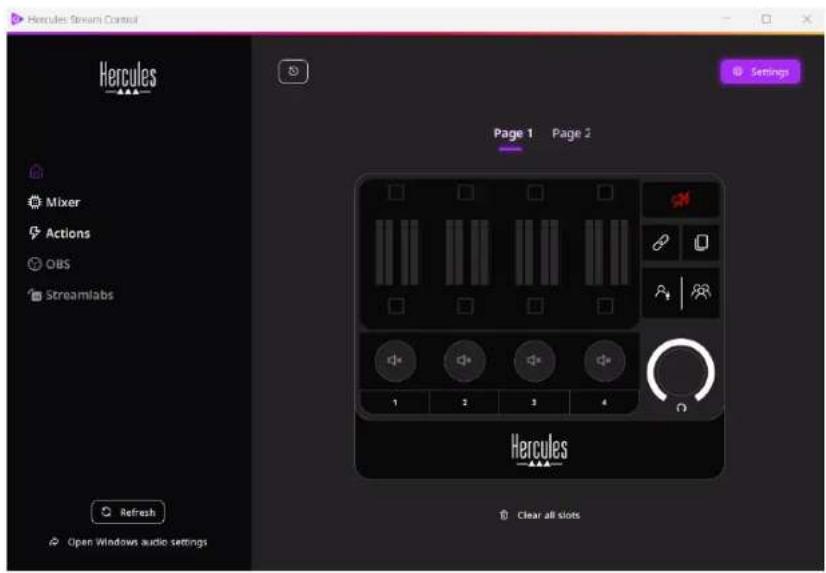
On first launch, a tutorial appears, showing you how to use Hercules Stream Control. To watch the tutorial again, click Settings, then Restart.
Main functions
Mixer

Mixer
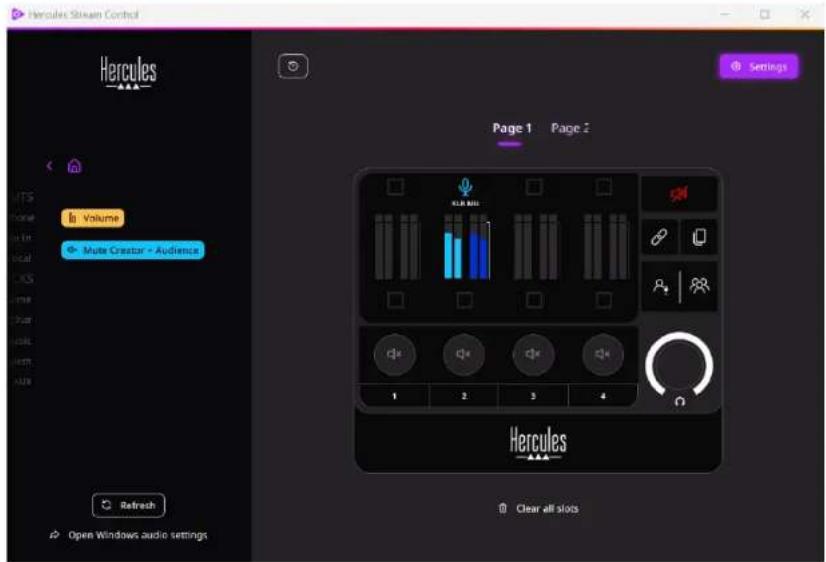
The Mixer menu lists the eight audio channels put out by Hercules Stream 200 XLR, through which you can control the sound of the various devices and apps that you use when livestreaming content on the Internet. They are grouped into two categories:
- INPUTS:
○ XLR Microphone: lets you control the volume of the XLR microphone input.
○ Line In: lets you control the volume of the line input.
- Optical: lets you control the volume of the optical input.
- PLAYBACKS:
○ Game: lets you control the volume of games and video game apps.
- Chat: lets you control the volume of apps used to chat and communicate with your gaming partners.
- Music: lets you control the volume of music apps.
- System: lets you control the volume of Windows sounds.
- AUX: lets you control the volume of the audio source of your choice.
To add a channel to Hercules Stream 200 XLR:
- Click on a channel in the list.
- Two labels are displayed:
○ : lets you control the volume. Drag
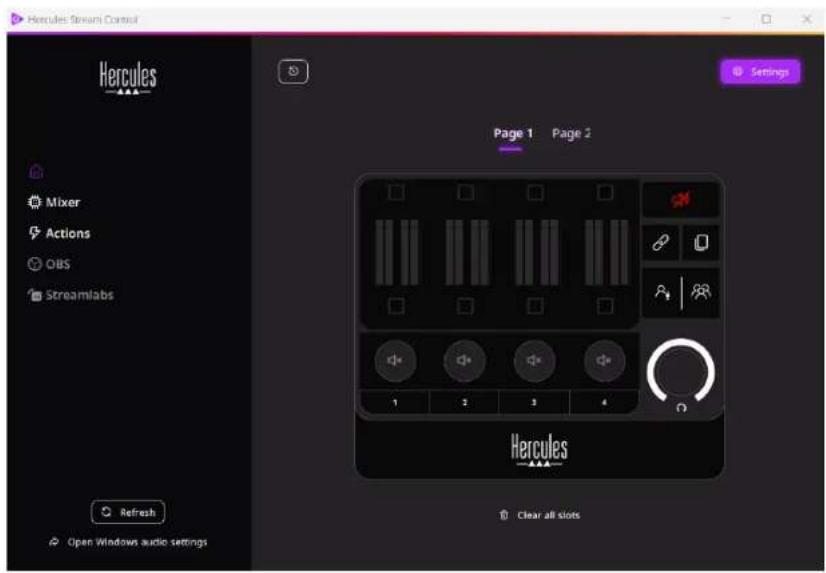
and drop the Volume label into a yellow-lit area on the image of Hercules Stream 200 XLR. You can adjust the volume and mute the track using the encoder corresponding to that track. If the Link function is enabled, both mixes will be muted at the same time.
o. . lets you simultaneously
mute the audio channel for both the Creator and Audience mixes. Drag and drop the label into a blue-lit area on the image of Hercules Stream 200 XLR.
- A panel opens on the right-hand side. You can name the track or action, assign an icon or change the color of the VU meter.
Next, to assign an audio source to a channel:
-
Click ↗ Open Windows audio settings
-
The Windows audio settings panel opens.
-
System (Hercules Stream 200 XLR) is the default output device.
○ Microphone (Hercules Stream 200 XLR) is the default input device. - For each audio source, open the Output device drop-down menu and select the channel in which you want your audio source to be played.
For example, you can select Chat (Hercules Stream 200 XLR) for Discord, and Music (Hercules Stream 200 XLR) for Spotify.
Actions
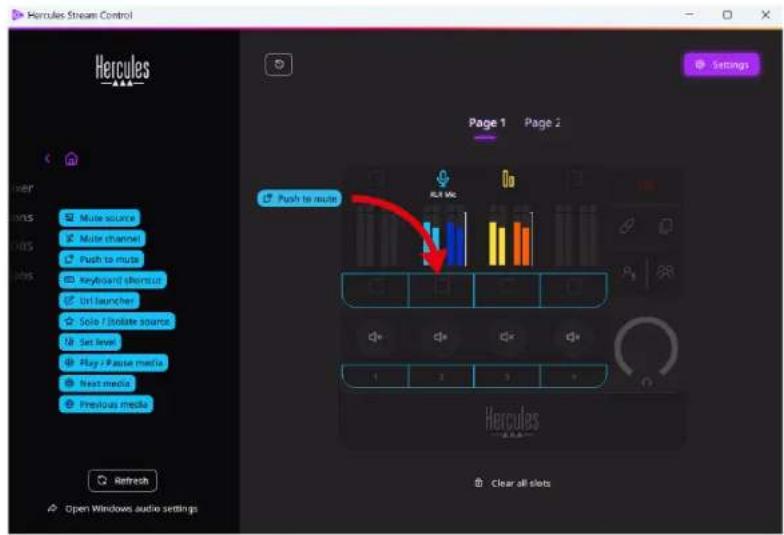
The Actions menu lists all the actions assignable to action buttons 1 to 4 on Hercules Stream 200 XLR.
To assign an action, simply drag and drop a label into a blue-lit area on the image of Hercules Stream 200 XLR.

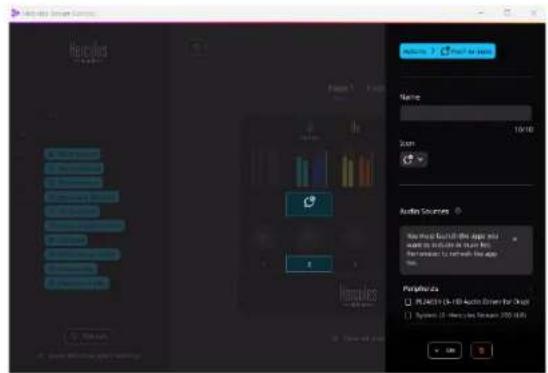
The panel on the right-hand side lets you assign a name and icon to the action and configure it (if the action can be configured).
Mute source : mutes all audio sources selected in the list.
Push to mute : mutes all audio sources selected in the list for as long as the corresponding action button is pressed.
Keyboard shortcut : launches a keyboard shortcut.
URL launcher: opens an Internet page and launches the URL that you have entered.
Solo / Isolate source : mutes all audio sources apart from the selected source.
Set level: sets the volume of selected audio sources or tracks to a preset level.
Play / Pause media : plays or pauses the track.
@ Next media : plays the next media track in the playlist.
@ Previous media : plays the previous media track in the playlist.
Customization
When an item is added to Hercules Stream 200 XLR, a customization and configuration menu appears on the right-hand side of the Hercules Stream Control app, allowing you to add or modify various features of the item.
Name: lets you assign a name (maximum 10 characters, both uppercase and lowercase letters allowed).
Icon: lets you assign an icon. Custom icons can be added to the icon library from Graphics settings.
VU meter color: for VU meters only, lets you select the VU meter's color and display solid or gradient levels.
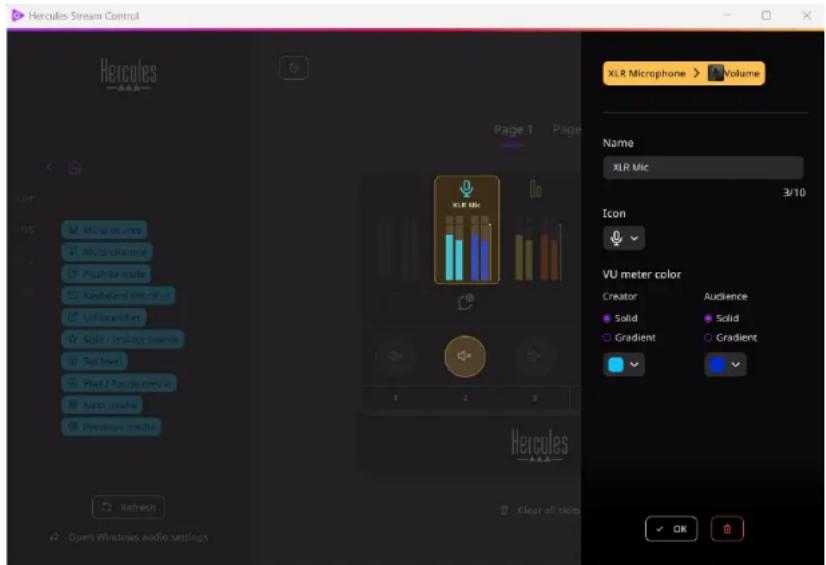
Other fields or characteristics can be completed or modified to configure the action.
Third-party apps
The Hercules Stream Control app can connect to various third-party apps to control certain elements.
To find out how to connect third-party apps to Hercules Stream Control, please refer to the Server access section.
OBS

OBS
OBS is a video recording and streaming app for managing multiple media sources via a system of scenes.
Actions in OBS:

Assigning an action
Drag and drop a blue label into a blue-lit area on the image of Hercules Stream 200 XLR. You can launch the action using the action button corresponding to that track.
- : lets you select an audio file from an OBS scene, and play it.
- : lets you select a scene previously created in the OBS app, and launch it.
- let's you select a filter to be associated with an OBS source, and enable it.
- .:lets you start and stop recording of the audio/video stream via the OBS app.
- : let's you start and stop livestreaming via the OBS app.
Streamlabs
Streamlabs is a video recording and streaming app for managing multiple media sources via a system of scenes.
Actions in Streamlabs:

Assigning an action
Drag and drop a blue label into a blue-lit area on the image of Hercules Stream 200 XLR. You can launch the action using the action button corresponding to that track.
- . lets you select a scene previously created in the Streamlabs app.
- .lets you start and stop recording of the audio/video stream via the Streamlabs app.
- :lets you start and stop livestreaming via the Streamlabs app.
Settings

Settings
The Settings menu lets you configure the Hercules Stream Control app.
General settings
This submenu lets you:
- select the app's language;
- watch the tutorial again;
- update the Hercules Stream Control app and the Hercules Stream 200 XLR firmware;
- select the mix or audio source to be played on the line output and adjust the volume;
- access links to legal information.
Graphic settings
This submenu lets you:
- adjust the screen brightness;
- select the display mode for the active mix;
- change the appearance of the VU meters and the action area;
- add icons and define the ON/OFF status icons (supported formats: .jpeg, .png and .svg; size: 32 x 32 pixels (icon), 480 x 272 pixels (background));
- add and change the background.
Custom icon:
By default, when you use an icon suggested by Hercules Stream Control, the action icon is grayed out when an action is triggered.
You can define icons to be displayed according to the status of the action:
- Action not triggered: ON status icon;
– Action in progress: OFF status icon.
To set the ON/OFF status icons:
- In My icon library, click Add new custom icon.
- Select an image. This image will be the ON status icon.
- To set the OFF status icon, click 🔒
- In the Edit icon window, click Add OFF state, then click +o select an image.
- Click Save.

Images must be in .jpeg, .png or .svg format and 32 x 32 pixels in size.
Server access
This submenu lets you connect third-party apps to Hercules Stream Control.
OBS:
- To link OBS to Hercules Stream Control, open the OBS app.
- In the Tools tab, select WebSocket Server Settings.
- In Plugin Settings, tick Enable WebSocket Server.
-
In Server settings:
-
enter "4455" in the Server Port box;
- tick Enable Authentication;
-
set a server password in the Server password box.
-
Click Apply, and then click Ok.
- In the OBS Access section of Hercules Stream Control, enter the same number and password in Server Port and Server password as in OBS.
- Click Save.
Streamlabs:
- To link Streamlabs to Hercules Stream Control, open the Streamlabs app.
- To open the settings, click ⚙ in the bottom-left menu.
- Select the Remote Control menu.
- Click Click to reveal to display the QR code, then click Show details.
- Copy the API token.
- In the Streamlabs Access section of Hercules Stream Control, enter the same number in Port as in Streamlabs and paste the API token in API token.
- Click Save.
XLR Microphone
This submenu lets you adjust the audio settings for Hercules Stream 200 XLR's XLR microphone input.
Microphone presets:
By default, four presets are integrated into the Hercules Stream Control app. Each preset modifies the audio settings of the XLR microphone.
You can also add new custom presets by clicking Save current settings as a new preset.
Audio settings:
- Mic Type: lets you select the type of microphone used (dynamic, condenser, dynamic + Pre-Amp).
- Gain: lets you adjust the intensity of the microphone's gain level.
A phantom-powered microphone, whether condenser or dynamic with preamplifier, needs less gain than a dynamic microphone alone.
- Noise Gate: lets you reduce ambient noise other than the voice.
- Compressor: lets you adjust the sound signal's gain level and automatically control the volume of the user's voice.
- Equalizer: lets you filter or amplify different frequency bands making up the microphone's audio signal.
Hercules

TECHNICAL SUPPORT
https://support.hercules.com



Trademarks
Microsoft® Windows® 10/11 is a registered trademark or trademark of Microsoft Corporation in the United States and/or other countries.
Open Broadcaster Software ^® (OBS) is a trademark of Wizards of OBS LLC.
Streamlabs ^® is a registered trademark of Logitech Services S.A.
All other trademarks and trade names are duly respected in this document and remain the property of their respective owners. Illustrations not binding. Contents, illustrations and specifications are subject to change without notice and may vary from one country to another.
Copyright
No part of this manual may be reproduced, summarized, transmitted, transcribed, stored in a retrieval system, or translated into any language or computer language, for any purpose or by any means, electronic, mechanical, magnetic, manual, photocopying, recording, or otherwise, without the express written permission of Guillemot Corporation S.A.

STREAM 200 XLR
PRO AUDIO CONTROLLER
FOR DYNAMIC AND CONDENSER MICS
https://support.hercules.com/product/stream200xlr.
Open Broadcaster Software ^® (OBS) is a trademark of Wizards of OBS LLC.
natural_image
Black Hercules 4.44 console with touchscreen, rotary knobs, and a digital display (no readable text or symbols on main device)INHALTSVERZEICHNIS
https://support.hercules.com/product/stream200xlr.
4. Funktionen
Überblick
○ (Creator + Audience

natural_image
Black Hercules 4.44 console with touchscreen, rotary knobs, and a digital display (no readable text or symbols on main device)INHOUDSOPGAVE
- INHOUD VAN DE VERPAKKING......5
- TECHNISCHE SPECIFICATIES......6
- INSTALLATIE 7
Hercules Stream Control downloaden......8
- FUNCTIONALITEIT ......9
Overzicht....9
Tracks beheren....11
Beheeracties....14
Mixer (Mengpaneel) 22
Actions (Acties)....26
Aanpassen....29
Apps van derden 30
OBS 30
Streamlabs....32
Settings (Instellingen)....33
General settings (Algemene instellingen)..33
Graphic settings (Grafische instellingen)...34
Server access (Servertoegang)....36
XLR Microphone (XLR-microfoon)....38

STREAM 200 XLR
PRO AUDIO CONTROLLER
FOR DYNAMIC AND CONDENSER MICS
https://support.hercules.com/product/stream200xlr.
-
Download en installeer Hercules Stream Control.
-
Open de Hercules Stream Control-app om de Hercules Stream 200 XLR te configureren.
4. Functionaliteit
Overzicht

Microphone presets (Microfoon-presets):
natural_image
Black Hercules 4.44 console with touchscreen, rotary knobs, and a digital display (no readable text or symbols on main device)INDICE
- CONTENUTO DELLA CONFEZIONE......5
- CARATTERISTICHE TECNICHE......6
- INSTALLAZIONE......7
https://support.hercules.com/product/stream200xlr.
- Scarica e installa Hercules Stream Control.
- Apri la app Hercules Stream Control per configurare il tuo Hercules Stream 200 XLR.
4. Funzionalità
Panoramica
○ (Silenzia Creator +

Azioni in Streamlabs:

Assegnare un'azione
natural_image
Black Hercules 4.44 console with touchscreen, rotary knobs, and a digital display (no readable text or symbols on main device)TABLA DE CONTENIDO
https://support.hercules.com/product/stream200xlr.

natural_image
Black Hercules 4.44 console with touchscreen, rotary knobs, and a digital display (no readable text or symbols on main device)ÍNDICE
- CONTEÚDO DA EMBALAGEM......5
- ESPECIFICAÇÕES TÉCNICAS ......6
- INSTALAÇÃO......7
Ligar o Hercules Stream 200 XLR......7
https://support.hercules.com/product/stream200xlr.

Mute source (Silenciar fonte): silencia todas as fontes de áudio seleccionadas na lista.
natural_image
Black Hercules 4.44 console with touchscreen, rotary knobs, and a digital display (no readable text or symbols on main device)СОДЕРЖАНИЕ

© Play / Pause media
natural_image
Black Mercedes audio recording device with control knobs and a touchscreen display (no readable text or symbols on main body)OBSAH
- OBSAH BALENÍ......5
- TECHNICKÉ SPECIFIKACE ......6
- INSTALACE......7
Actions (Akce)....26
Přizpůsobení 29
https://support.hercules.com/product/stream200xlr.
○ (Ztlumit Creator + Audience

natural_image
Black Hercules 4.44 console with touchscreen, rotary knobs, and a digital display (no readable text or symbols on main device)içİNDEKİLER
© Play / Pause media
https://support.hercules.com/product/stream200xlr.
4. Elementy
Widok ogólny

natural_image
Black Hercules 4.44 console with touchscreen, rotary knobs, and a digital display (no readable text or symbols on main device)INNEHÅLLSFÖRTECKNING
- INNEHÅLL I FÖRPACKNINGEN ....5
- TEKNISKA SPECIFIKATIONER......6
- INSTALLATION 7
Ansluta Hercules Stream 200 XLR ....7
Ladda ner Hercules Stream Control......8
- FUNKTIONER......9
Översikt....9
https://support.hercules.com/product/stream200xlr.

natural_image
Black Hercules 4.44 console with touchscreen, rotary knobs, and a digital display (no readable text or symbols on main device)SISÄLLYSLUETTELO
- LAATIKON SISÄLTÖ 5
- TEKNISET TIEDOT 6
- ASENNUS....7
○ (Vaimenna Creator +
natural_image
Black Hercules 4.44 console with touchscreen, rotary knobs, and a digital display (no readable text or symbols on main device)OBSAH
- OBSAH BALENIA ....5
- TECHNICKÉ ŠPECIFIKÁCIE ......6
- INŠTALÁCIA....7
Pripojenie Hercules Stream 200 XLR......7
Stiahnutie Hercules Stream Control ....8
- VLASTNOSTI......9
Prehl'ad 9
Actions (Actions)....26
Prispôsobenie 29
https://support.hercules.com/product/stream200xlr.
-
Stiahnite a nainštalujte Hercules Stream Control.
-
Otvorte aplikáciu Hercules Stream Control a nakonfigurujte svoj Hercules Stream 200 XLR.
4. Vlastnosti
Prehl'ad
Ďalej, ak chcete priradit' zdroj zvuku ku kanálu:
4. Jellemzők
Áttekintés

© Play / Pause media
natural_image
Black Mercedes VR headset with control knobs and a digital display showing camera settings (no readable text or symbols on device)תְרָה בּוֹתִי
-
1.
-
2.
-
3.
7......Hercules Stream 200 XLR
8......Hercules Stream Control
9......4.
9......הכלה 70
11
14
https://support.hercules.com/product/stream200xlr.
תְבָרִי הַלְה
(הכלה) 1
(הכלה)הכלה .2
(הכלה)הכלה 700 .3
(הכלה) VU τη .4
(הכלה) 5
תִרְּקָה .6
(הכלה)הכלה 700 .7
הכלה 8
תְרָה בַרִיָה אַל.9
תִרְשָׁה בַל.10
תְרָהוֹת אַל.11
Audience / Creator jxn7.12
,Hercules Stream 200 XLR-7 :(הכלה) ①
Creator :Audience /Creator 12
.(XLR ☐☐☐☐) XLR Microphone / (☐☐☐☐)
.Line in ,Microphone (הכלה)
Hercules Stream 200 XLR :USB ⑳
.USB-A-USB-C

21
- DN
.הכלההוּרָהוּרָהוּרָהוּרָהוּרָהוּרָהוּרָהוּרָהוּרָהוּרָהוּרָהוּרָהוּרָהוּרָהוּרָה
:הכלהה.2
Volume : (הכלה)
Volume
Microphone (Hercules Stream 200 XLR) ○
אַת (Hercules Stream 200 XLR)
Hercules Stream 200 ) (200 XLR
Hercules ) Music-ı ,Discord ı NSY XLR))
Hercules Stream ) (Stream 200 XLR
.Spotify אַרְבָר (200 XLR
(הכלה) Actions
הכלה (הכלה) Actions


)
.תְרָה
) 77777777
. Basketball Basketball : ( Basketball Basketball) Keyboard shortcut
(הכלהה) General settings
.הכלההוּרָהוּרָהוּרָהוּרָהוּרָהוּרָהוּרָהוּרָהוּרָהוּרָהוּרָהוּרָהוּרָהוּרָהוּרָה
.הכלהה,הכלהה,
Hercules 76 (OBS-7 76) OBS ACCESS 6 -הכלההוּרָהִיַעֹן,Stream Control
(XLR Negative) XLR Microphone
הכלההוּרָהוּרָהוּרָהוּרָהוּרָהוּרָהוּרָהוּרָהוּרָהוּרָהוּרָהוּרָהוּרָהוּרָהוּרָה: (בְבַעִי) Gain –
. וְרָהוֹתִים
הכלההוּרָהוּרָהוּרָהוּרָהוּרָהוּרָהוּרָהוּרָהוּרָהוּרָהוּרָהוּרָהוּרָהוּרָהוּרָה: (onת) Compressor –
natural_image
Black Hercules VR headset with digital display and control knobs (no readable text or symbols)جدول المحتويات
5 ...1...
.https://support.hercules.com/product/stream200xlr
.Hercules Stream Control 3.

Microphone (Hercules Stream 200 XLR) ○
Music و Discord (Stream 200 XLR
.Spotify ^↓ (Hercules Stream 200 XLR)
Actions

natural_image
Black Mercedes-Benz analog locomotor control console with touchscreen display and rotary knob (no readable text or symbols)目次
XLR Microphone (XLR マイク)......38

STREAM 200 XLR
PRO AUDIO CONTROLLER
FOR DYNAMIC AND CONDENSER MICS
https://support.hercules.com/product/stream200xlr.
4. 特長
概要

Actions (操作)......26
定制....29
第三方应用....30
OBS 30
Streamlabs....32
Settings (设置)....33
General settings (常规设置)....33
Graphic settings (图形设置)....34
Server access (服务器访问)......36
XLR Microphone (XLR 麦克风)....38

STREAM 200 XLR
PRO AUDIO CONTROLLER
FOR DYNAMIC AND CONDENSER MICS

General settings (常规设置)
通过此子菜单,您可以:
- 选择应用的语言;
- 再次观看教程;
- 更新 Hercules Stream Control 应用和 Hercules Stream 200 XLR 固件;
XLR Microphone (XLR 麦克风)
XLR Microphone (XLR 麥克風) 38

STREAM 200 XLR
PRO AUDIO CONTROLLER
FOR DYNAMIC AND CONDENSER MICS
https://support.hercules.com/product/stream200xlr

XLR Microphone (XLR 麥克風)
Actions (동작)......26
맞춤 설정....29
타사 앱 30
OBS 30
Streamlabs....32
Settings (설정) 33
General settings (일반 설정)......33
Graphic settings (그래픽 설정) 34
Server access (서버 액세스)......36
https://support.hercules.com/product/stream200xlr.
4. 기능
개요
○ (Creator + Audience

© Play / Pause media
(미디어 재생/일시 중지): 트랙을
재생하거나 일시 중지합니다.