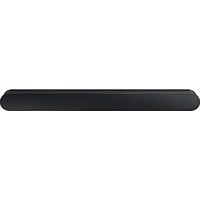
HW-S60D - Soundbar SAMSUNG - Free user manual and instructions
Find the device manual for free HW-S60D SAMSUNG in PDF.


| Product type | Soundbar |
| Brand | Samsung |
| Model | HW-S60D |
| Power supply | DC 19V via AC/DC adapter |
| HDMI input | 1 x HDMI (eARC) |
| Optical input | 1 x Optical (DIGITAL AUDIO IN) |
| Wireless connectivity | Bluetooth, Wi-Fi, Apple AirPlay |
| Audio functions | Adaptive Sound, DTS Virtual:X, Music, Game, Standard, Night Mode, Voice Enhancement |
| Surround technology | Dolby Atmos, Q-Symphony, SpaceFit Sound |
| Controls | Remote control, touch buttons on the bar, SmartThings app |
| Built-in microphone | Yes (for SpaceFit and voice assistant) |
| Software update | Automatic via internet or manual via USB (SERVICE port) |
| Wall mounting | Possible with supplied kit (wall mount, screws, guide) |
| Included accessories | Remote control, AAA batteries x2, AC/DC adapter, HDMI cable, wall mount kit |
| Power consumption | See label on product |
| Dimensions (approx.) | Not specified in the manual |
| Weight (approx.) | Not specified in the manual |
| Care and cleaning | Unplug before cleaning; use a soft dry cloth; avoid solvents |
| Safety | Install on a flat and stable surface; do not expose to moisture; keep away from heat sources |
| Spare parts and repairability | Subwoofer and rear speakers sold separately; contact Samsung support for repair |
| General information | Manual available in multiple languages; security updates at security.samsungtv.com |
Frequently Asked Questions - HW-S60D SAMSUNG
User questions about HW-S60D SAMSUNG
0 question about this device. Answer the ones you know or ask your own.
Ask a new question about this device
Download the instructions for your Soundbar in PDF format for free! Find your manual HW-S60D - SAMSUNG and take your electronic device back in hand. On this page are published all the documents necessary for the use of your device. HW-S60D by SAMSUNG.
USER MANUAL HW-S60D SAMSUNG
Thank you for purchasing this Samsung product.
To receive more complete service, please register your product at www.samsung.com
Figures and illustrations in this User Manual are provided for reference only and may differ from actual product appearance.
CONTENTS
01 Checking the Components 4
02 Product Overview 5
Front Panel / Top Panel of the Soundbar 5
Bottom Panel of the Soundbar 7
03 Using the Remote Control 8
Inserting Batteries before using the Remote Control (AAA batteries X 2) 8
How to Use the Remote Control 8
Setting the (Sound Control) 11
Using the Hidden Buttons (Buttons with more than one function) 12
Output specifications for the different sound effect modes 13
Adjusting the Soundbar volume with a TV remote control 14
04 Connecting the Soundbar 15
Connecting Electrical Power 15
Connecting the Samsung Wireless Rear Kit and Subwoofer to your Soundbar 15
05 Connecting to a TV 16
Connecting the TV that supports HDMI ARC (Audio Return Channel) 16
Connecting using an Optical Cable 18
Connecting via Bluetooth 19
Connecting via Wi-Fi 21
Connecting to a TV that supports Dolby Atmos® 22
Using the Q-Symphony Function 24
Using the SpaceFit Sound 25
06 Connecting an External Device 26
Connecting using an Optical Cable 26
07 Connecting a Mobile Device 27
Method 1. Connecting via Bluetooth 27
Method 2. Connecting via Wi-Fi (Wireless Network) 30
Using Group Play 31
Connecting via Apple AirPlay 32
Using the Tap Sound 33
08 Installing the Wall Mount 34
Installation Precautions 34
Wallmount Components 34
09 Installing the Soundbar in front of TV 36
10 Software Update 37
Auto Update 37
USB Update 37
Reset 38
Security updates information 38
11 Troubleshooting 39
12 Licence 41
01 CHECKING THE COMPONENTS
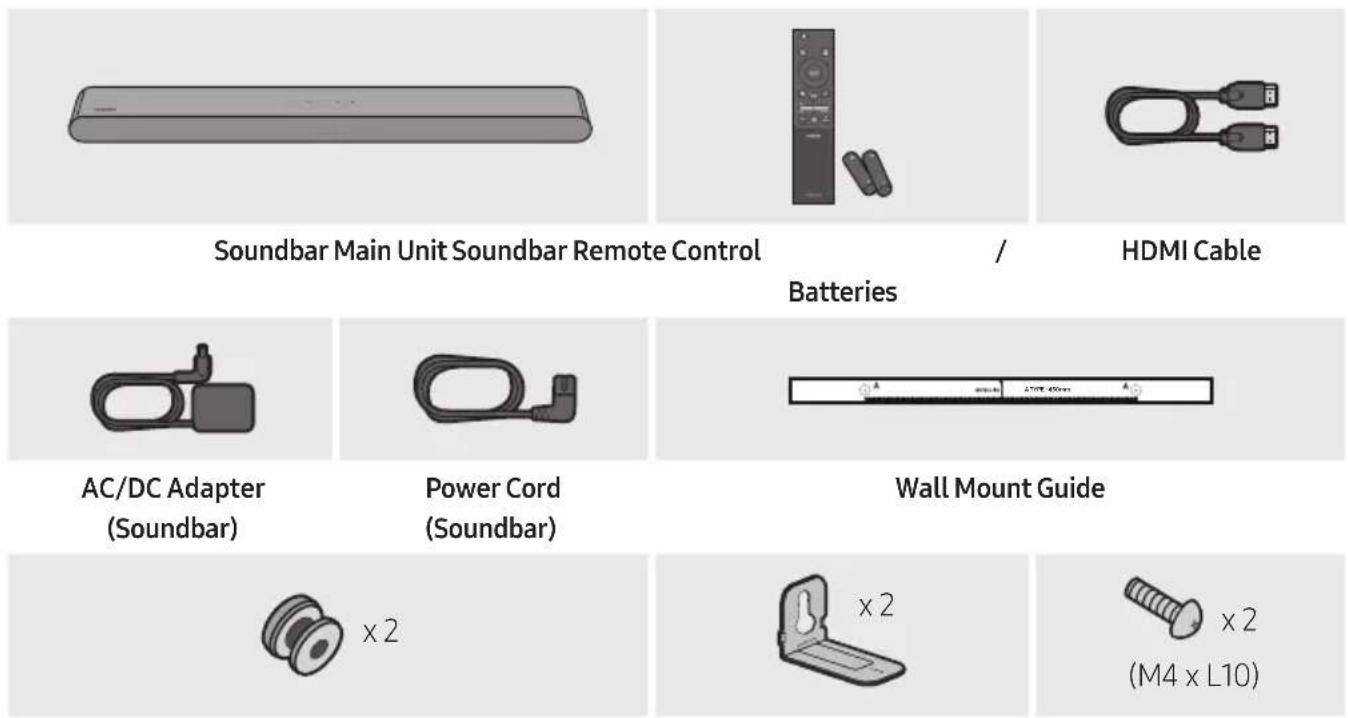
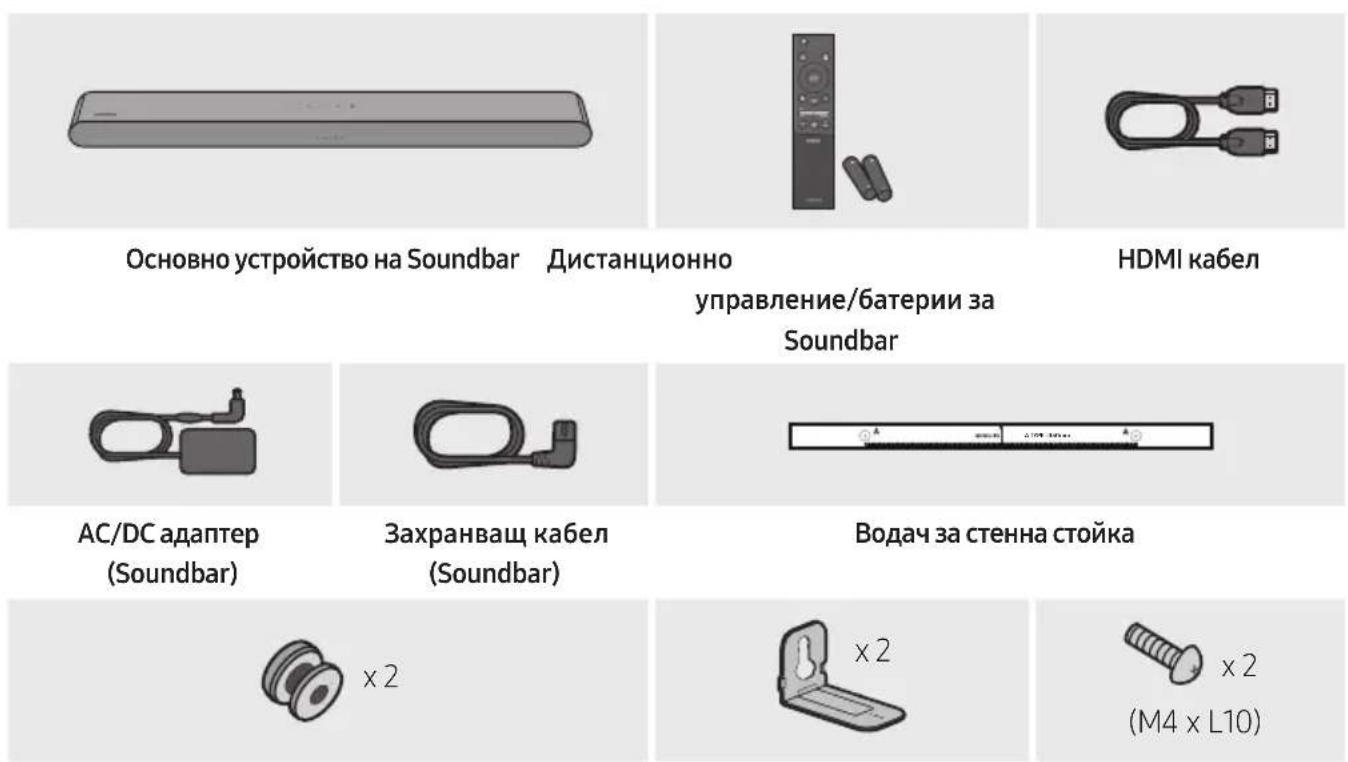
Holder-Screw Bracket-Wall Mount Screw
- For more information about the power supply and power consumption, refer to the label attached to the product. (Label: Bottom of the Soundbar Main Unit)
- To purchase additional components or optional cables, contact a Samsung Service Centre or Samsung Customer Care.
- For more information about the wallmount see page 34.
- Design, specifications, and App screen are subject to change without prior notice.
The appearance of the accessories may differ slightly from the illustrations above.
02 PRODUCT OVERVIEW
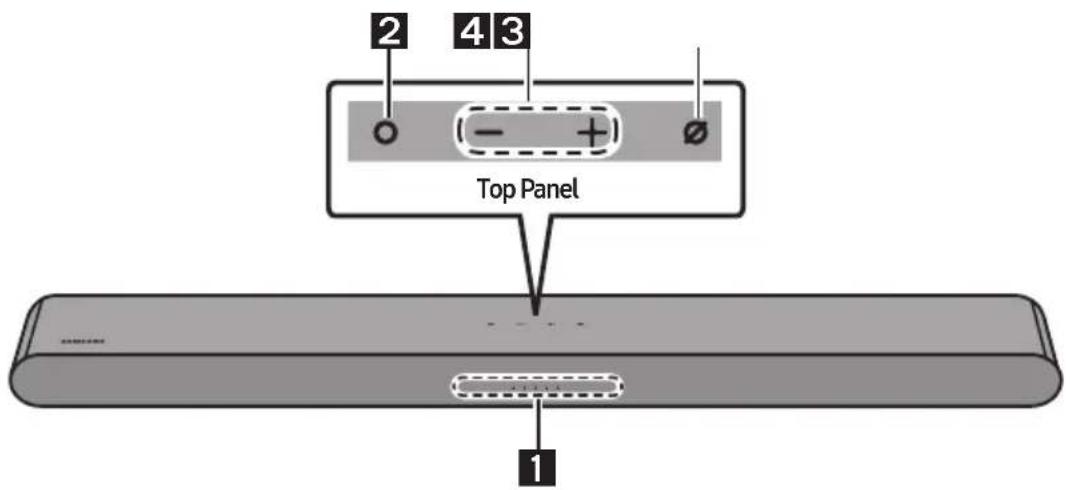
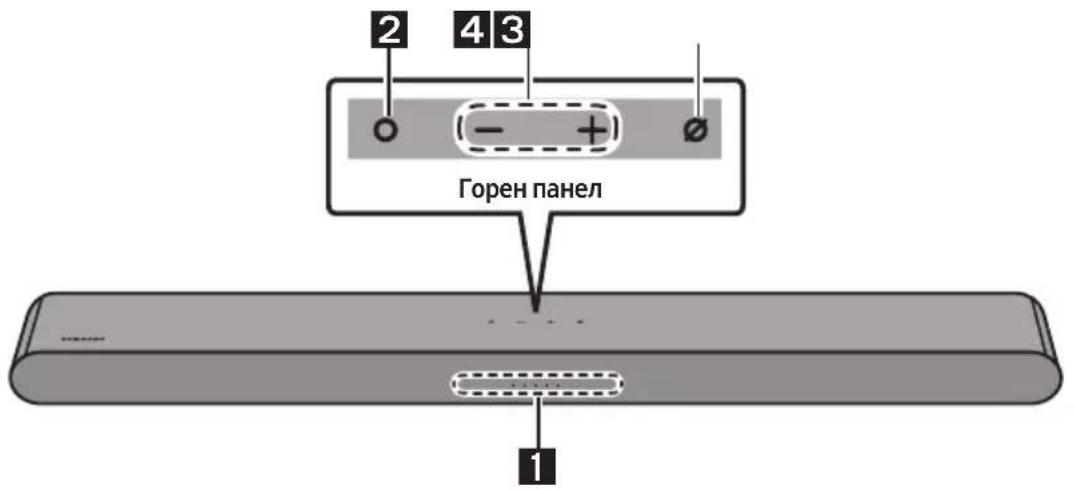
Front Panel / Top Panel of the Soundbar
| 1 | LED indicator | The LED Indicator flashes, glows, or changes colour depending on the Soundbar's current mode or status. The colour of the LED indicator and the number of lights indicate the active mode as described below. | ||||
| W White LED | W White LED | M Multicolour LED | W White LED | W White LED | ||
| ·The Multicolour LED changes to White, Cyan, Green, Red, and Blue depending on the mode or status. | ||||||
| 2 | Multi Function Button | ·In standby mode, press the (Multi Function) button to turn on the Soundbar. ·Press the (Multi Function) button to change the mode. Each time you change the mode, the LED lights in white and then turns off. | ||||
| LED Indicator | White On→Off White On→Off | |||||
| "TV ARC" or "eARC" | "Wi-Fi" | |||||
| LED Indicator | White On→Off White On→Off | |||||
| "Bluetooth" "Digital Audio In" | ||||||
| 3 | Volume Button | Press the (volume) button to adjust the volume. | ||||
| 4 | Mic On/Off Button | Press the Ⓞ (Mic On/Off) button to turn the microphone on or off. When the microphone is off, the LED Indicator will light red. | ||||
| LED Indicator | Red On | ○○○○○ | ||||
| "Mic Off" | "Mic On" | |||||
- When you plug in the AC cord, the power button will begin working in 4 to 6 seconds.
- When you turn on this unit, there will be a 4 to 5 second delay before it produces sound.
- If you hear sounds from both the TV and Soundbar, go to the Settings menu for the TV audio and change the TV speaker to External Speaker.
- You can turn on and off audio feedback by using SmartThings app. To learn about using the SmartThings app, refer to "Method 2. Connecting via Wi-Fi (Wireless Network)".
Bottom Panel of the Soundbar
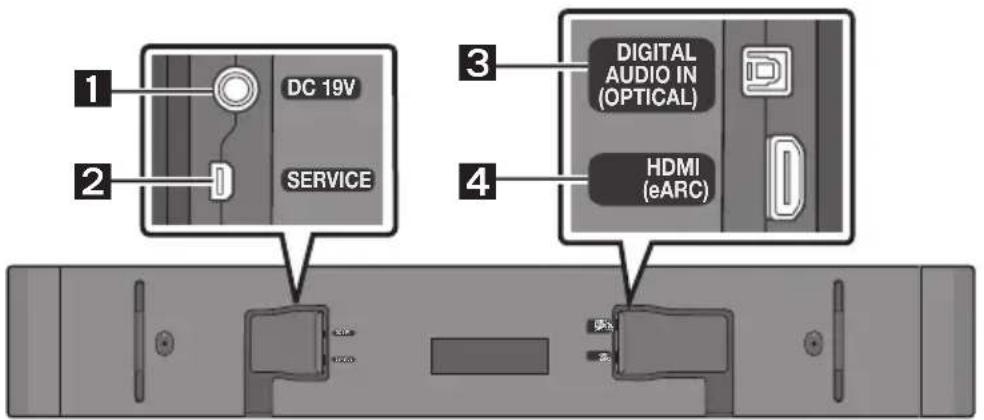
| 1 | DC 19V (Power Supply In) Connect the AC/DC power adapter. (See page 15) |
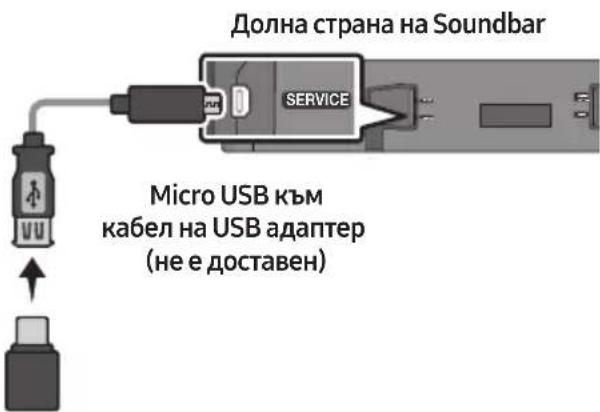
| 2 | SERVICE Connect a USB storage device to upgrade the product's software. |
| 3 | DIGITAL AUDIO IN (OPTICAL) Connect to the digital (optical) output of an external device. (See page 26) |
| 4 | HDMI (eARC) Connect to the HDMI (eARC) port on a TV. (See page 16) |
- When disconnecting the power cable of the AC/DC power adapter from a wall outlet, pull the plug. Do not pull the cable.
- Do not connect this unit or other components to an AC outlet until all connections between components are complete.
03 USING THE REMOTE CONTROL
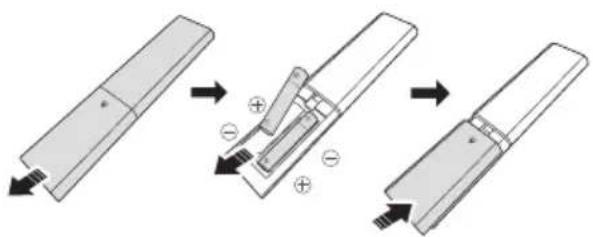
Inserting Batteries before using the Remote Control (AAA batteries X 2)
Slide the back cover in the direction of the arrow until it is completely removed.
Insert 2 AAA batteries (1.5V) oriented so that their polarity is correct. Slide the back cover back into position.
How to Use the Remote Control
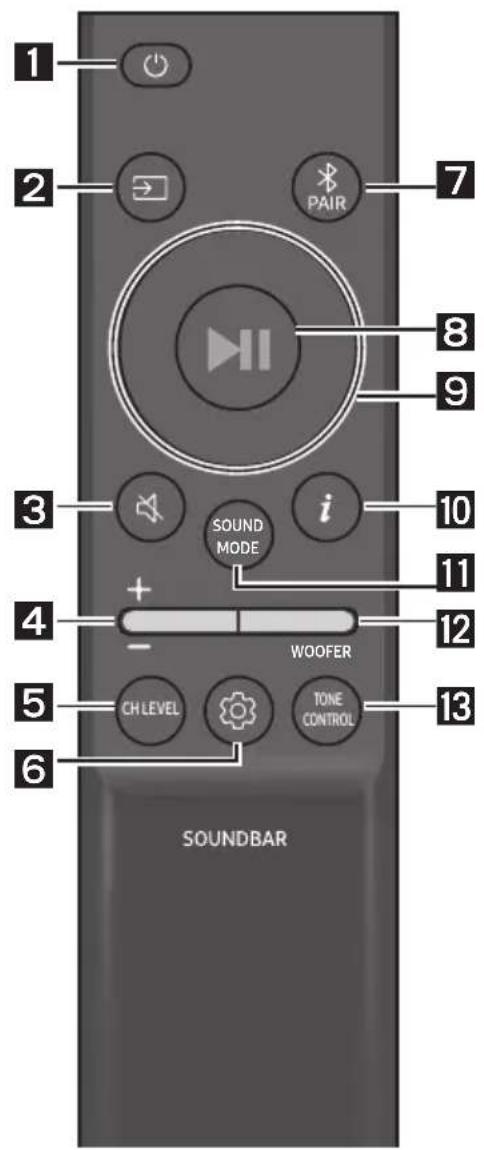
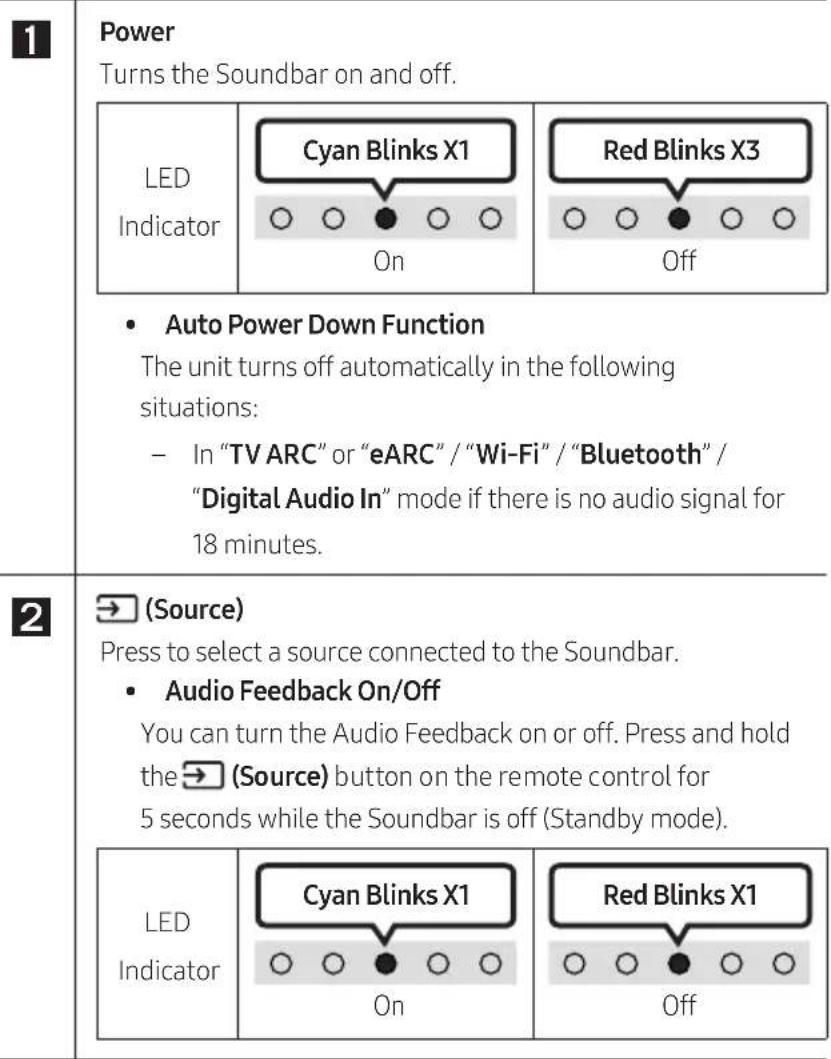
| 3 | (Mute) Press the (Mute) button to mute the sound. Press it again to unmute the sound. | |
| LED Indicator | Blinks X Repeatedly | |
| 4 | Volume Push the button up or down to adjust the volume. | |
| LED Indicator | White moves to right X1 Volume Up | White moves to left X1 Volume Down |
| 5 | CH LEVEL By pressing the button, you can adjust the volume of each speaker. | |
| LED Indicator | White Blinks X1 ○○●○○ | ○○○○●● |
| "Centre Level" → "Side Level" | ||
| 6 | (Sound Control) By pressing the button, you can set the audio function. The desired item can be adjusted using the Up/ Down buttons. Each time the mode changes, the Multicolour LED blinks in white. | |
| LED Indicator | White Blinks X1 ○○●○○ | ○○○●○○ |
| "SpaceFit Sound" → "Active Voice Amplifier" → "Voice enhancement" → "Night mode" → "Sync" → "Virtual" | ||
| Press and hold the (Sound Control) button for about 5 seconds to adjust the sound for each frequency band. 150Hz, 300Hz, 600Hz, 1.2kHz, 2.5kHz, 5kHz, and 10kHz are selectable using the Left/ Right buttons and each can be adjusted to a setting between -6 to +6 using the Up/Down buttons. (Make sure the Sound mode is set to "Standard"). | ||
| If the Rear Speakers (sold separately) are connected, the setting "Sound Grouping" and "Private Rear Sound" are supported. Refer to "Setting the (Sound Control)" on page 11. | ||
| 7 | Bluetooth PAIR Switch the Soundbar to Bluetooth pairing mode. When you press the button, the LED display changes as shown below. • Until pairing is complete, the Multicolour LED changes as Red → Green → Blue in turn. | |
| LED Indicator | Red → Green → Blue Blinks ○○●○○ Pairing → Cyan Blinks X3 Connection is complete | |
| "Ready to connect via Bluetooth." | ||
| 8 | II (Play / Pause) You can also play or pause music by pressing the button. | |
| 9 | Up/Down/Left/Right Press Up/Down/Left/Right on the button to select or set functions. • Music Skip Press the Right button to select the next music file. Press the Left button to select the previous music file. • ID SET Press and hold the Up button for 5 seconds to complete ID SET (when connecting to a wireless subwoofer or wireless rear speakers). | |
| 10 | i(Info) Press the button to display information about the current function. (See page 5.) When connected to Dolby Atmos®, the LED indicator blinks cyan 3 times. | |
| 11 | SOUND MODE By pressing the button, you can select the desired audio mode. Each time the mode changes, the Multicolour LED blinks in white. | |
| LED Indicator | White Blinks X1 ○○●○○ | |
| "Adaptive Sound Analyzes the content in real time and automatically provides the optimal sound field based on the characteristics of the content. • DTS Virtual:X Immersive 3D sound from any content. • Music Provides more natural and room filling sound for music content. • Game Provides stereoscopic sound to immerse you in the action while gaming. • Standard Outputs the original sound. | ||
12
WOOFER (BASS) LEVEL
Push the button up or down to adjust the level of the woofer (bass) to -12 or between -6 to +6. To set the woofer (bass) volume level to 0 (Default), press the button.
13
TONE CONTROL
By pressing the button, you can adjust the volume of the treble or bass sound. The desired item can be adjusted using the Up/Down buttons. (This feature is available in all sound modes except "Standard" mode.)
| LED Indicator | White Blinks X1 ○○●○○ |
| “Treble” → “Bass” |
Setting the Sound Control)
- SpaceFit Sound: This function analyzes the user's listening space with the Soundbar's microphone and provides optimal sound for the space. (Refer to "Using the SpaceFit Sound" on page 25.)
-
Active Voice Amplifier : Analyzes external noise in real time while Soundbar is playing so that voice audio can always be heard clearly.
-
No data is saved during the analysis.
Voice enhancement makes it easier to hear spoken dialog in movies and TV.
- Night mode is optimized for night time viewing with the settings adjusted to bring the volume down but keep the dialog clear.
- Sound Grouping: The Soundbar main unit and the Surround Speakers play the entire sound instead of surround sound, making it ideal for large groups of people listening to music in a large space.
-
This menu is initially activated when the Surround Speakers are connected, and then the menu remains activated regardless of the connection of the Surround Speakers.
-
If you enable this mode, there are no differences in sounds between the Sound modes.
-
Sound does not come out from all speaker units of the Soundbar main unit and the Surround speakers, but only from certain predetermined units, which varies by model.
-
Private Rear Sound : This mode sets the sound to come out from the Surround Speakers only, allowing you to listen without being disturbed by others.
-
If you enable this mode, sound does not come out from the Soundbar main unit and the subwoofer. Sound only comes out from the front channel of the Surround Speakers.
-
If you enable this mode, there are no differences in sounds between the Sound modes.
-
The function turns off when the power turns off or the Surround Speakers connection is lost.
- The menu is activated only when the Surround Speakers are connected.
-
This mode is automatically turned off and becomes unavailable when the Q-Symphony function turns on.
-
If the video on the TV and audio from the Soundbar are not synchronized, select Sync in Sound Control, and then set the audio delay between 0~300 milliseconds by using the Up/Down buttons.
-
Sync is only supported for some functions.
-
The Virtual function can be turned On/Off by using the Up/Down buttons.
Using the Hidden Buttons (Buttons with more than one function)
| Hidden Button | Reference page | |
| Remote Control Button Function | ||
| WOOFER (Up) | TV remote control On/Off (Standby) | page 14 |
| Up ID SET page 10 | ||
| (Sound Control) | 7 Band EQ page 9 | |
| (Source) | Audio Feedback On/Off (Standby) page 8 | |
Output specifications for the different sound effect modes
| Effect Input | Output | ||
| With Subwoofer Only | With Subwoofer & Wireless Rear Speaker Kit | ||
| Adaptive Sound | 2.0 ch 5.1 ch 7.1 ch | ||
| 5.1 ch 5.1 ch 7.1 ch | |||
| Dolby Atmos® 5.1 ch | 7.1 ch | ||
| DTS Virtual:X | 2.0 ch 5.1 ch 7.1 ch | ||
| 5.1 ch 5.1 ch 7.1 ch | |||
| Dolby Atmos® 5.1 ch | 7.1 ch | ||
| Music | 2.0 ch 5.1 ch 7.1 ch | ||
| 5.1 ch 5.1 ch 7.1 ch | |||
| Dolby Atmos® 5.1 ch | 7.1 ch | ||
| Game | 2.0 ch 5.1 ch 7.1 ch | ||
| 5.1 ch 5.1 ch 7.1 ch | |||
| Dolby Atmos® 5.1 ch | 7.1 ch | ||
| Standard | 2.0 ch 2.1 ch 2.1 ch | ||
| 5.1 ch 5.1 ch 5.1ch | |||
| Dolby Atmos® 5.1 ch | 7.1 ch | ||
- The Samsung Wireless Rear Speaker Kit, and Subwoofer can be purchased separately. To purchase a Kit or the Subwoofer, contact the vendor you purchased the Soundbar from.
- When the input source is Dolby Atmos® the Subwoofer-only setup provides 5.1 channel audio, while the Subwoofer & Wireless Rear Speaker Kit setup provides 7.1 channel audio.
Adjusting the Soundbar volume with a TV remote control
Adjust the Soundbar volume using the TV's remote control.
- This function can be used with IR remote controls only. Bluetooth remote controls (remote controls that require pairing) are not supported.
- Set the TV speaker to External Speaker to use this function.
-
Manufacturers supporting this function: Samsung, VIZIO, LG, Sony, Sharp, PHILIPS, PANASONIC, TOSHIBA, Hisense, RCA
-
Turn Off the Soundbar.
- Push up and hold the WOOFER button for 5 seconds.
Each time you push the WOOFER button up and hold it for 5 seconds, the mode switches in the following order: "Off-TV Remote" (Default mode), "Samsung-TV Remote", "All-TV Remote".
The LED indicator status changes each time the mode is changed, as shown below.
| Remote Control Button LED | Indicator Status | |
| 5 Sec | Red Blinks X1 "Off-TV Remote" (Default mode) | Disable the TV remote control. |
| 5 Sec | Cyan Blinks X1 "Samsung-TV Remote" | Enable a Samsung TV's IR remote control. |
| 5 Sec | Blue Blinks X1 "All-TV Remote" | Enable a third-party TV's IR remote control. |
04 CONNECTING THE SOUNDBAR
Connecting Electrical Power
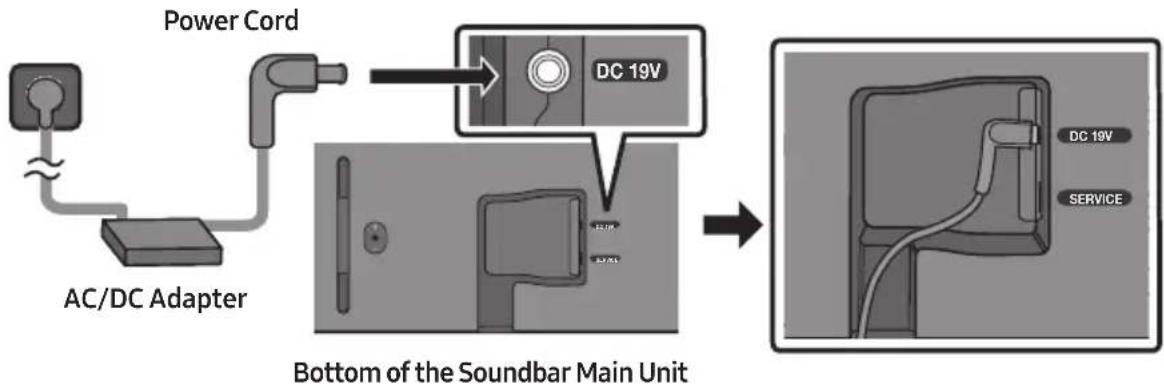
Use the power components to connect the Soundbar to an electrical outlet in the following order:
- For more information about the required electrical power and power consumption, refer to the label attached to the product. (Label: Bottom of the Soundbar Main Unit)
- First connect the power cable to the AC/DC adapter. Connect the AC/DC adapter (with the power cable) to the Soundbar.
- Connect the power cord to a wall socket.
NOTES
- If you unplug and reconnect the power cord when the product is turned on, the Soundbar turns on automatically.
- Make sure to rest the AC/DC Adapter flat on a table or the floor. If you place the AC/DC Adapter so that it is hanging with the AC cord input facing upwards, water or other foreign substances could enter the Adapter and cause the Adapter to malfunction.
Connecting the Samsung Wireless Rear Kit and Subwoofer to your Soundbar
Expand to true wireless surround sound by connecting the Samsung Wireless Rear Speaker Kit (SWA-9200S, sold separately) and Wireless Subwoofer (SWA-W510, sold separately) to your Soundbar. For detailed information on connections, see the Samsung Wireless Rear Speaker Kit and Wireless Subwoofer manual.
05 CONNECTING TO A TV
Connecting the TV that supports HDMI ARC (Audio Return Channel)

CAUTION
- When both the HDMI cable and optical cable are connected, the HDMI signal is received first.
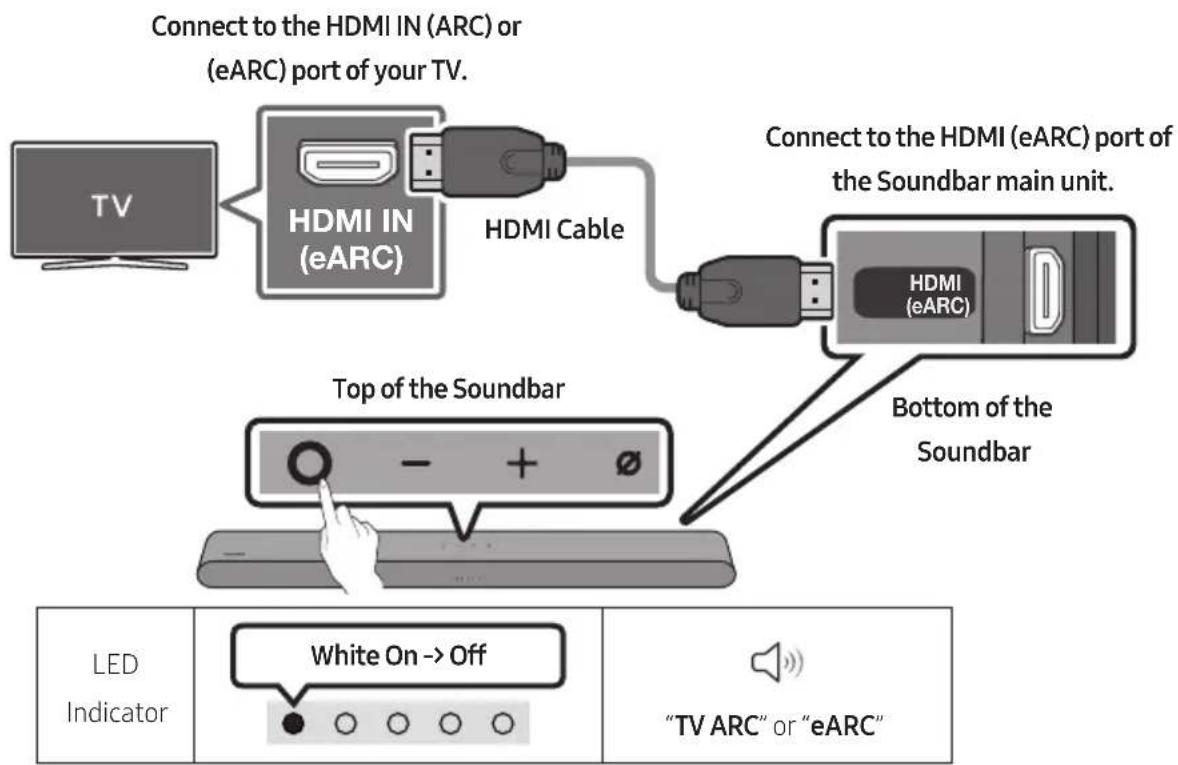
- To connect the HDMI cable between the TV and Soundbar, be sure to connect the terminals marked ARC. Otherwise, the TV sound may not be output.
- The recommended cable is an HDMI cable certified by HDMI.org.
-
With the Soundbar and TV turned off, connect the HDMI cable as shown in the figure.
-
Turn on the Soundbar and TV.
-
TV sound is output from the Soundbar.
-
When the TV sound is not output, press the (Multi Function) button at the top of the Soundbar or the (Source) button on the remote control to select the "TV ARC" or "eARC" mode.
- To connect with eARC, the eARC function in the TV menu should be set to On. Refer to the TV user manual for details on setting. (e.g. Samsung TV: Home () Menu Settings () All Settings () Sound Expert Settings HDMI-eARC Mode (Auto))
- When the sound is not output, check the HDMI Cable connection again.
- Use the volume buttons on the TV's remote control to change the volume on the Soundbar.
NOTES
- When you connect the TV that supports the HDMI ARC (Audio Return Channel) to the Soundbar with an HDMI cable, you can transmit the digital video and audio data without connecting a separate optical cable.
- We recommend you use a coreless HDMI cable if possible. If you use a cored HDMI cable, use one whose diameter is less than 14mm .
- This function is not available if the HDMI cable does not support ARC.
- When the audio in a broadcast is encoded in Dolby Digital and the "Digital Output Audio Format" on your TV is set to PCM, we recommend that you change the setting to Dolby Digital. When the setting on the TV is changed, you will experience better sound quality. (The TV menu may use different words for Dolby Digital and PCM depending on the TV manufacturer.)
Connecting using an Optical Cable
Pre-connection Checklist
- When both the HDMI cable and optical cable are connected, the HDMI signal is received first.
- When you use an optical cable and the terminals have covers, be sure to remove the covers.

| LED Indicator | White On→Off | “Digital Audio In” |
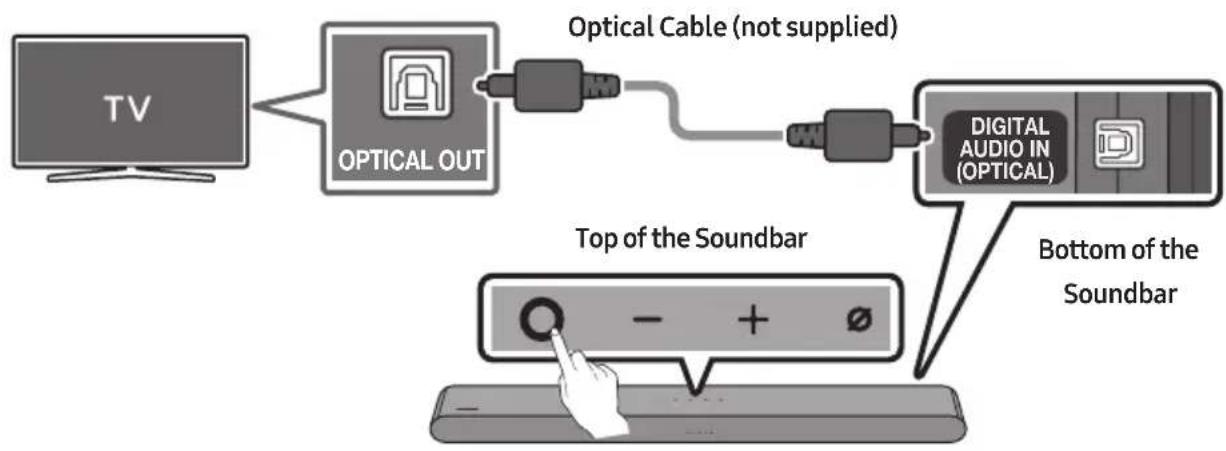
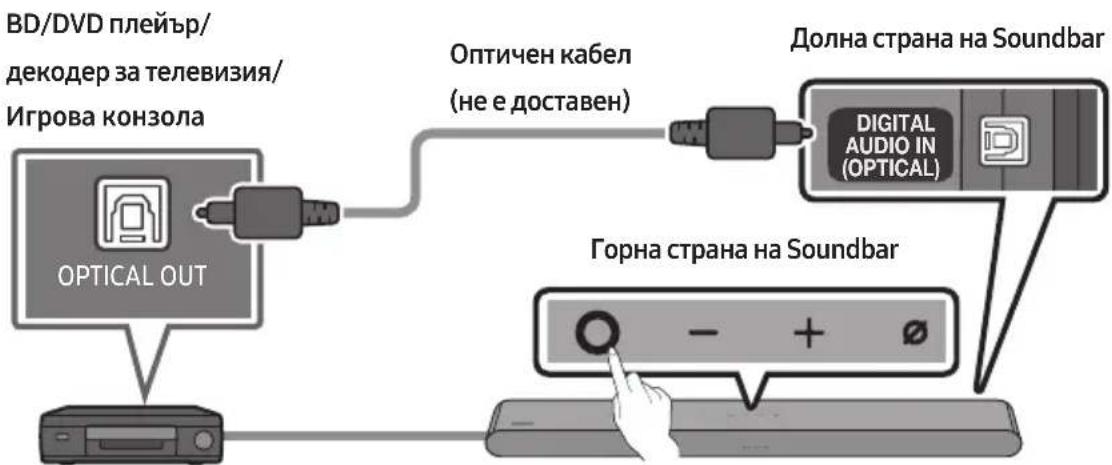
- With the TV and Soundbar turned off, connect the DIGITAL AUDIO IN (OPTICAL) port on the Soundbar and the OPTICAL output port on the TV with the optical cable (not supplied), as shown in the figure.
- Turn on the Soundbar and TV.
- Press the Multi Function) button at the top of the Soundbar or the (Source) button on the remote control and then select the "Digital Audio In" mode. Then the announcement, "Digital Audio In" is output.
- The TV sound is output from the Soundbar.
Connecting via Bluetooth
When a Samsung TV is connected using Bluetooth, you can hear stereo sound without the hassle of cable.
- Only one Samsung TV can be connected at a time.
Samsung TV that supports Bluetooth can be connected. Check the specifications of your TV.
The initial connection
1.
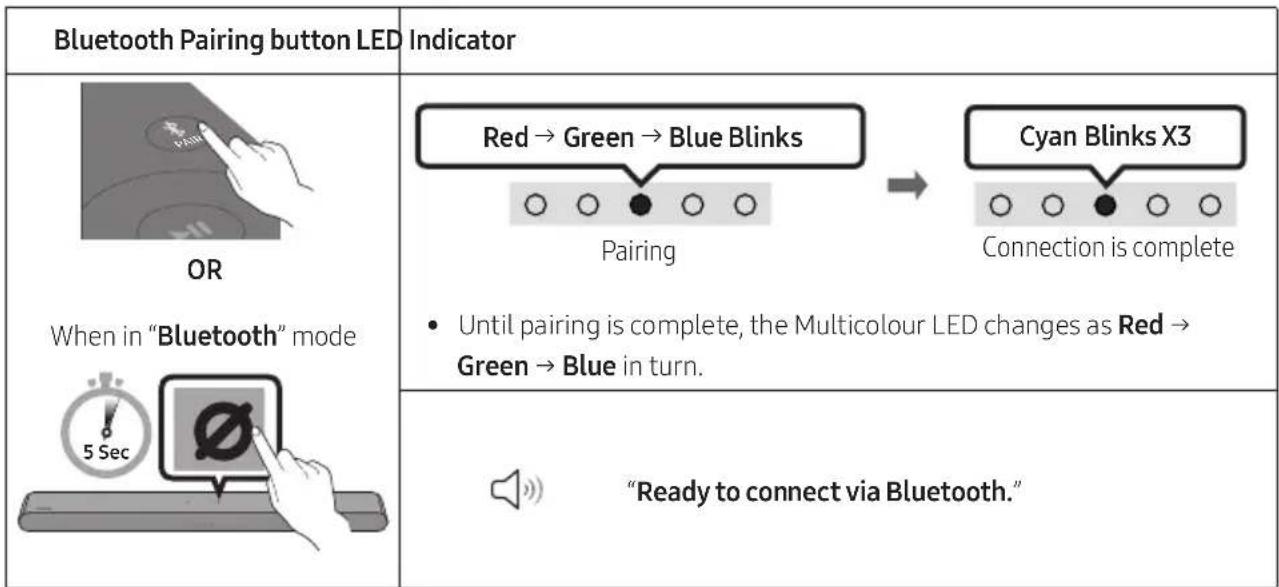
- Select Bluetooth mode on the Samsung TV.
(e.g. Home (Home) Menu Settings (Settings) All Settings (Sound) Sound Output Bluetooth Speaker List S-Series Soundbar (Bluetooth))
- Select "S-Series Soundbar" from the list on TV's screen.
An available Soundbar is indicated with "Need Pairing" or "Paired" on the TV's Bluetooth device list. To connect the Samsung TV to the Soundbar, select the message, and then establish a connection.
-
You can now hear Samsung TV sound from the Soundbar.
-
If there is a connection log between the Soundbar and Samsung TV, the Soundbar is automatically connected by changing its mode to "Bluetooth"
If the device fails to connect
- If you have an existing Soundbar (e.g., S-Series Soundbar) on the list of speakers on the Samsung TV, delete it.
- Then repeat steps 1 through 3.
Disconnecting the Soundbar from the Samsung TV
Press the (Multi Function) button at the top of the Soundbar or the (Source) button on the remote control to select the mode other than "Bluetooth".
- Disconnecting takes time because the Samsung TV must receive a response from the Soundbar. (The time required may differ, depending on the Samsung TV model.)
Notes on Bluetooth connection
- Locate a new device within 1m to connect via Bluetooth communication.
- If asked for a PIN code when connecting a Bluetooth device, enter <0000>.
- The Soundbar automatically turns off after 18 minutes in the Ready state.
-
The Soundbar may not perform Bluetooth search or connection correctly under the following circumstances:
-
If there is an electronic equipment or electric apparatus that can cause wireless interference around the Soundbar.
-
If several Bluetooth devices are simultaneously paired with the Soundbar.
-
If the Bluetooth device is turned off, not in place, or malfunctions.
-
Electronic devices may cause radio interference. Devices that generate electromagnetic waves must be kept away from the Soundbar main unit - e.g., microwaves, wireless LAN devices, etc.
-
Precaution : The Soundbar will restart automatically if you turn on/turn off Bluetooth.
-
Bluetooth Port deactivation method : Press the TONE CONTROL button on the remote control of the Soundbar for 30 seconds to turn Bluetooth On/Off.
Connecting via Wi-Fi
Pre-connection Checklist
- Wi-Fi connection is available only on Samsung TV.
- Check whether the wireless router (Wi-Fi) is turned on and the TV is connected to the router.
- The TV and Soundbar must be connected to the same wireless network (Wi-Fi).
- If your wireless router (Wi-Fi) uses a DFS channel, you will not be able to establish a Wi-Fi connection between the TV and Soundbar. Contact your Internet service provider for details.
- Because the menus may differ depending on the year of manufacture, refer to your TV manual.
-
To connect the TV to the Soundbar via Wi-Fi, connect the Soundbar to the wireless router first. See page 30, for details on how to establish a Wi-Fi connection.
-
For more information about Wi-Fi connection to the Soundbar, see page 30, "Method 2. Connecting via Wi-Fi (Wireless Network)".
- Change the input source of the TV by using the Audio menu to Soundbar.
Samsung TVs released in 2017 or later
Home () Menu Settings () All Settings () Sound Sound Output S-Series Soundbar (Wi-Fi)
NOTE
-
Precaution : The Soundbar will restart automatically if you turn on/turn off Wi-Fi.
-
Wi-Fi Port deactivation method: Press the CH LEVEL button on the remote control of the Soundbar for 30 seconds to turn Wi-Fi On/Off.
Connecting to a TV that supports Dolby Atmos®
Pre-connection Checklist
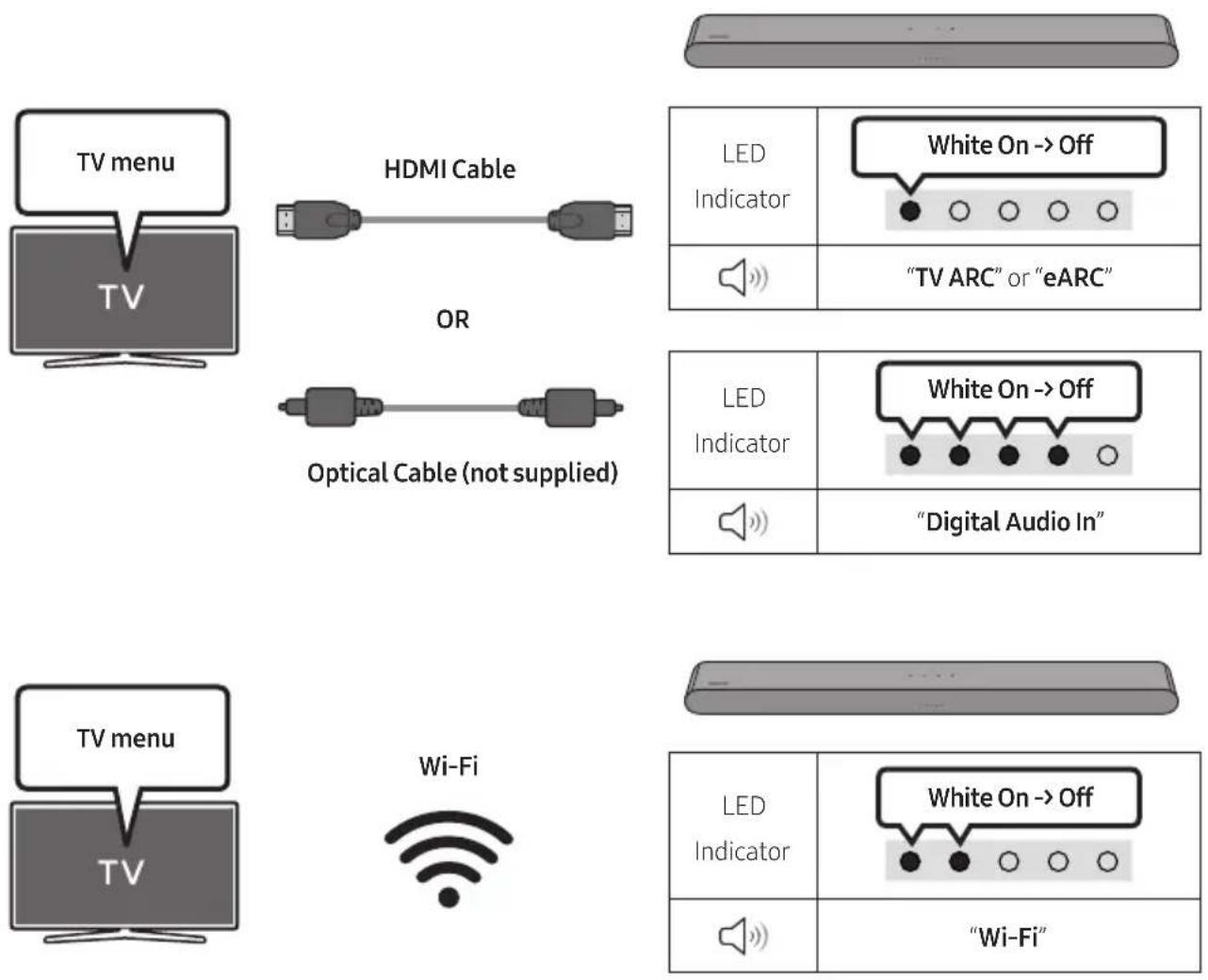
- Dolby Atmos® is supported in "TV ARC" or "eARC" or "Wi-Fi" mode.
- Make sure that the content supports Dolby Atmos®.
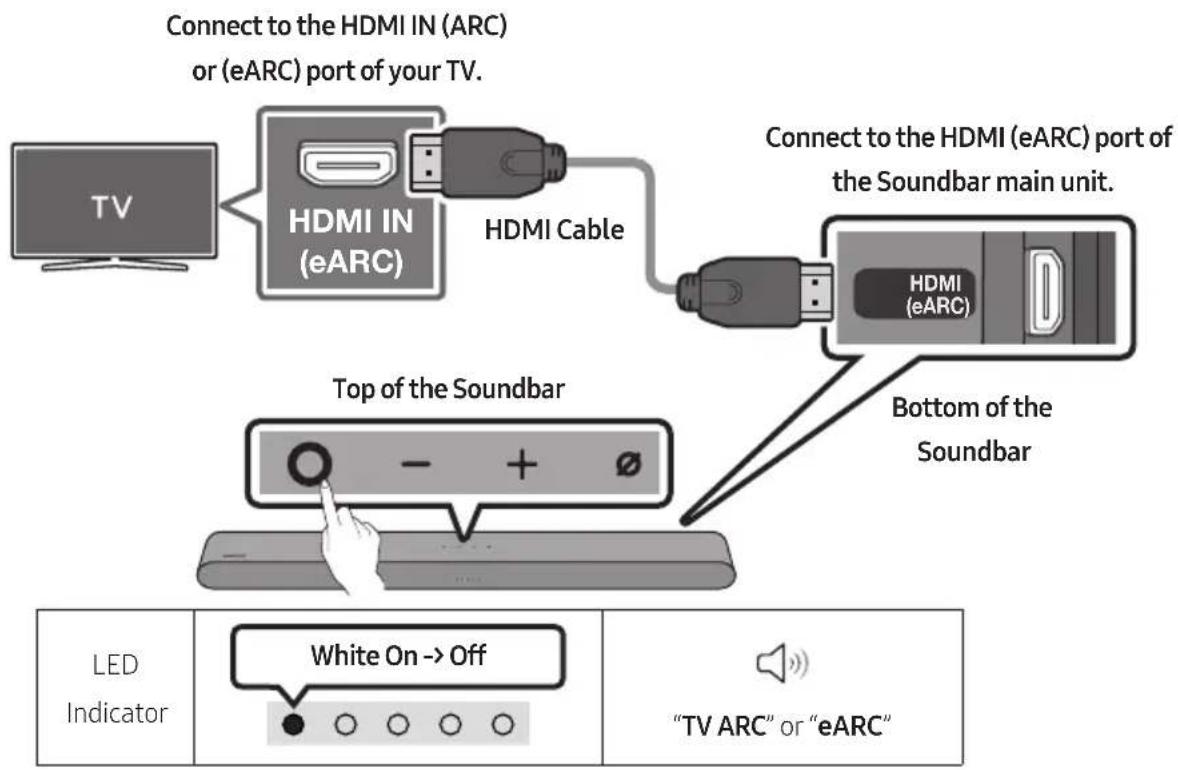
- With the Soundbar and TV turned off, connect the HDMI cable as shown in the figure.
- Turn on the Soundbar and TV.
- TV sound is output from the Soundbar.
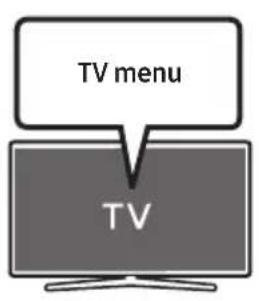

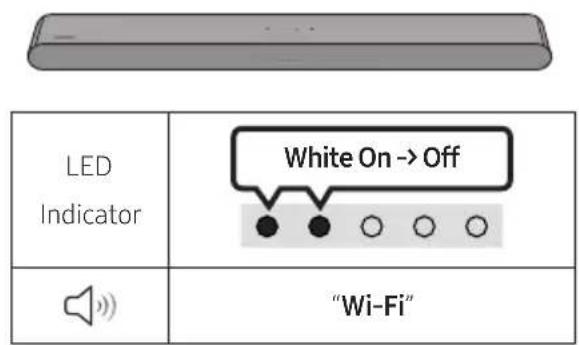
- Connect the Soundbar and TV to the same wireless network (Wi-Fi).
- For sound output of the TV, select Soundbar.
- TV sound is output from the Soundbar.
NOTES
- Configuring Dolby Atmos® on a BD player or other device connected to the TV.
Open the audio output options on the settings menu of your BD player or other device and make sure that "No Encoding" is selected for Bitstream. For example, on a Samsung BD Player, go to Home Menu Sound Digital Output and then select Bitstream (unprocessed).
- This function is available in some Samsung TVs and some Soundbar models.
Using the Q-Symphony Function
- When the Soundbar connects to a Samsung TV that supports the Q-Symphony function, you can play the sound simultaneously through the Soundbar and the TV. If you use the Q-Symphony function, the surround sound played on the TV allows you to enjoy a richer, more three-dimensional surround sound effect.
- When the Soundbar is connected, "Q-Symphony" menu appears on the TV.
Settings ( All Settings ( Sound Sound Output
- TV menu example: Q-Symphony
NOTES
- This function can be operated by the Codec supported by TV.
- This function is supported only when the HDMI Cable or Optical Cable (not supplied) or Wi-Fi is connected.
- The message displayed may differ with the TV model.
- Ensure that your TV and Soundbar are connected to the same wireless router/frequency.
- This function is available in some Samsung TVs and some Soundbar models.
Using the SpaceFit Sound
Provides optimized sound quality by analyzing the listening spaces.
Method 1. Connecting via Soundbar
To enable this function, turn on the SpaceFit Sound mode with the remote control of the Soundbar.
(Sound Control) "SpaceFit Sound Off" ▲ (Up) "SpaceFit Sound On")
- This is available in all Sound modes.
Method 2. Connecting via TV
To enable this function, turn on the Adaptive Sound+ mode on your Samsung TV menu.
(Home () Menu Settings () All Settings () General Intelligent Mode Settings Adaptive Sound+)
- The sound mode on your Soundbar will automatically change to Adaptive Sound+ if you enable the Adaptive Sound+ mode on your TV.
NOTE
- This function works when the Soundbar connects to some of the Samsung TVs.
06 CONNECTING AN EXTERNAL DEVICE
Connecting using an Optical Cable
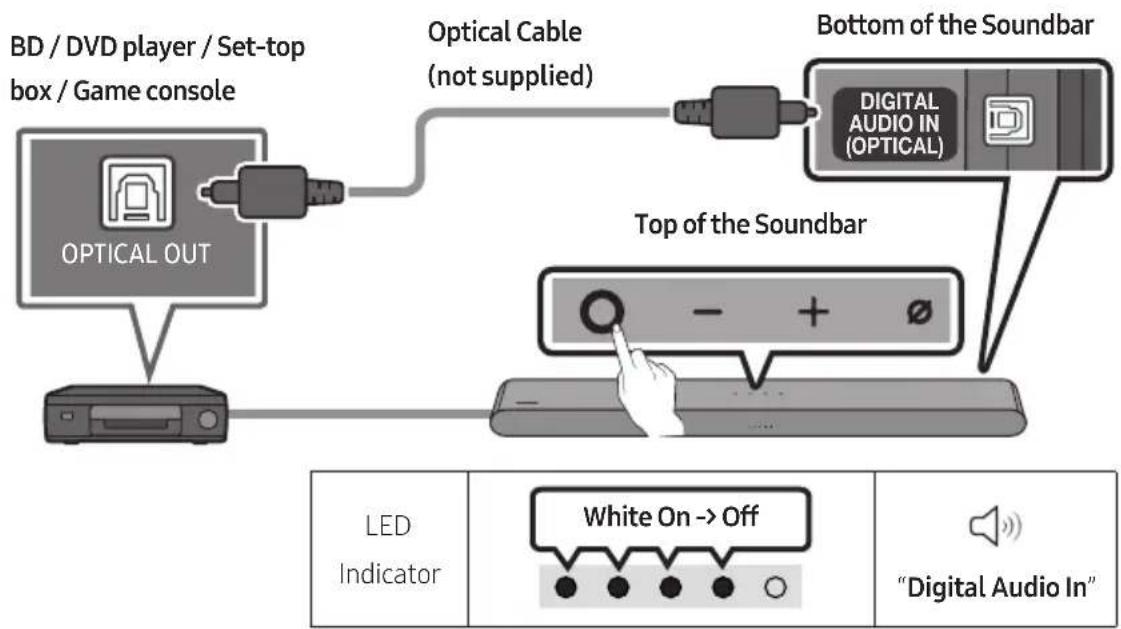
- With the external device and Soundbar turned off, connect the DIGITAL AUDIO IN (OPTICAL) port on the Soundbar and the OPTICAL output port on the external device with the optical cable (not supplied), as shown in the figure.
- Turn on the Soundbar and external device.
- Press the (Multi Function) button at the top of the Soundbar or the (Source) button on the remote control and then select the "Digital Audio In" mode. Then the announcement, "Digital Audio In" is output.
- The external device sound is output from the Soundbar.
07 CONNECTING A MOBILE DEVICE
Method 1. Connecting via Bluetooth
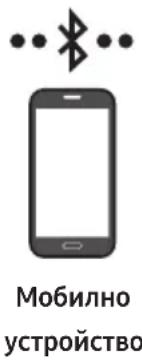
When a mobile device is connected using Bluetooth, you can hear stereo sound without the hassle of cable.
- When you connect a paired Bluetooth device with the Soundbar off, the Soundbar automatically turns on.
The initial connection
- When connecting to a new Bluetooth device, make sure the device is within 1m distance.
1.
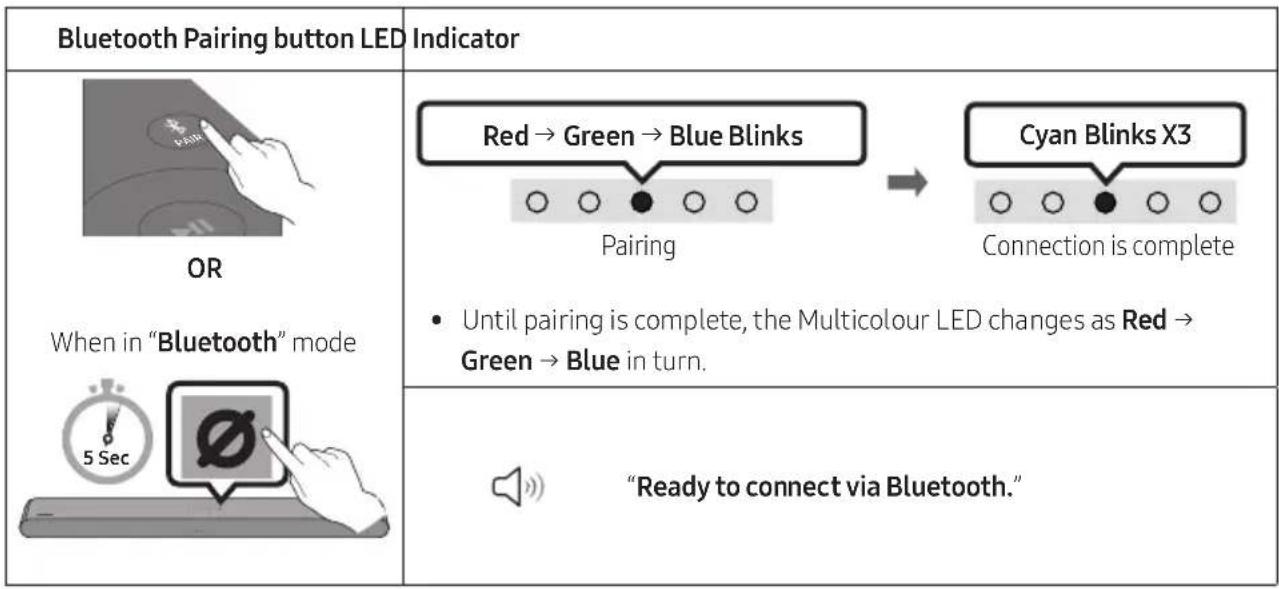
- On your device, select "S-Series Soundbar" from the list that appears.
- Play music files from the device connected via Bluetooth through the Soundbar.
If the device fails to connect
- If you have an existing Soundbar (e.g., S-Series Soundbar) on the list of speakers on the Mobile device, delete it.
- Then repeat steps 1 and 2.
Notes on Bluetooth connection
- Locate a new device within 1m to connect via Bluetooth communication.
- If asked for a PIN code when connecting a Bluetooth device, enter <0000>.
- The Soundbar automatically turns off after 18 minutes in the Ready state.
-
The Soundbar may not perform Bluetooth search or connection correctly under the following circumstances:
-
If there is a strong electrical field around the Soundbar.
- If several Bluetooth devices are simultaneously paired with the Soundbar.
-
If the Bluetooth device is turned off, not in place, or malfunctions.
-
Electronic devices may cause radio interference. Devices that generate electromagnetic waves must be kept away from the Soundbar main unit - e.g., microwaves, wireless LAN devices, etc.
The Soundbar supports SBC data (44.1kHz, 48kHz). - Connect only to a Bluetooth device that supports the A2DP (AV) function.
- When connecting the Soundbar to a Bluetooth device, place them as close to each other as possible.
- The farther the Soundbar and Bluetooth device are from each other, the lower the sound quality will become.
The Bluetooth connection may break when the devices are out of the effective range.
- The Bluetooth connection may not function as intended in areas with poor reception.
-
A Bluetooth device may experience noise or malfunction under in the following conditions:
-
When the body is in contact with the signal transceiver on the Bluetooth device or Soundbar
-
In corners or when there is an obstacle in proximity, such as a wall or partition, where electrical changes may occur.
-
When exposed to radio interferences by other products operating on the same frequency ranges, such as medical equipment, microwave ovens, and wireless LAN devices.
-
Obstacles such as doors and walls may still impact the sound quality even when the devices are within the effective range.
-
Note that your Soundbar cannot be paired with other Bluetooth devices while using the Bluetooth option.
- This wireless device may cause electrical interference during operation.
Disconnecting the Bluetooth device from a Soundbar
You can disconnect a Bluetooth device from the Soundbar. For instructions, see the Bluetooth device's user manual.
The Soundbar will be disconnected.
- If the Soundbar is disconnected from the Bluetooth device, the multicolour LED indicator on the Soundbar blinks "Red" three times.
Disconnecting the Soundbar from the Bluetooth device
Press the (Multi Function) button at the top of the Soundbar or the (Source) button on the remote control to select the mode other than "Bluetooth".
- Disconnecting takes time because the Bluetooth device must receive a response from the Soundbar. (Disconnection time may differ, depending on the Bluetooth device)
Method 2. Connecting via Wi-Fi (Wireless Network)
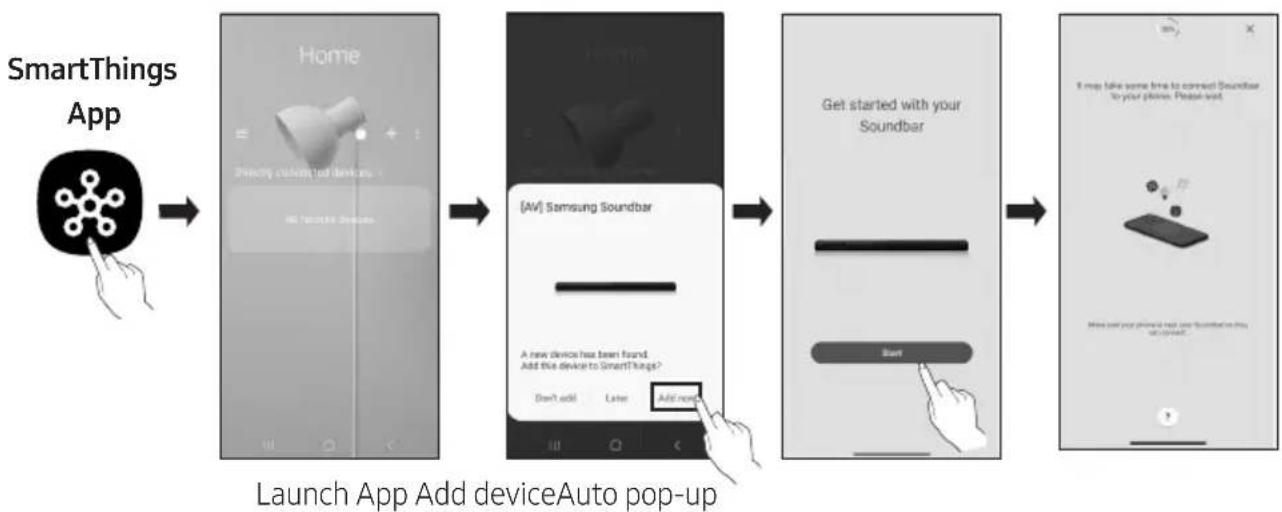
To connect a Soundbar to a mobile device via a wireless network (Wi-Fi), the SmartThings app is required.
The initial connection
-
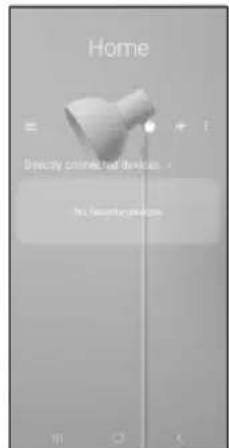
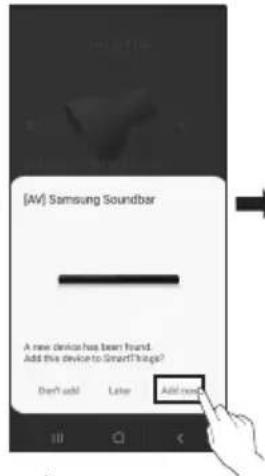
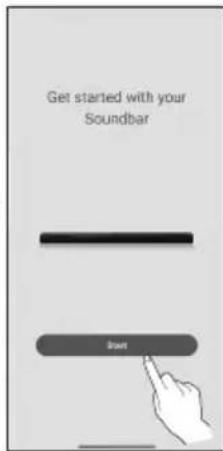
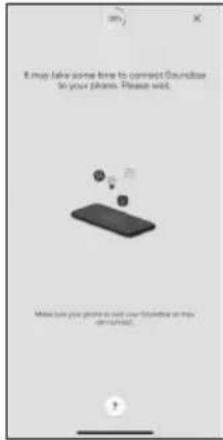
Install and launch the SmartThings app from your mobile device (smartphone or tablet).
-
On the app, follow the screen instructions to add the Soundbar.
-
The automatic pop-up (the second screenshot below) may not show on some devices. If the pop-up window does not appear, press “+” on the Home screen. The Soundbar is added to the app.
The illustration below may differ according to the app version.
To change your Wi-Fi connection
- Launch the SmartThings app from your mobile device (smartphone or tablet).
- On the app, delete the registered Soundbar, and then add it again.
Using Group Play
- To benefit from this feature, add your Soundbar to the SmartThings app.
To enable this, connect at least two audio devices to the same Wi-Fi network at 5 GHz.
This is available on Samsung Sound devices that support Wi-Fi released year 2024 or later. - This feature does not support TV sound.
Configuring Group Play
- Run the SmartThings app on your mobile device.
-
Add the Soundbar in the SmartThings app according to the instructions in the "Method 2. Connecting via Wi-Fi (Wireless Network)" "Steps 2 (Device registration)" section.
-
Tap the Soundbar's card.
-
On your mobile device, tap Create Group under the audio device icon.
-
Create Group button appears only when Soundbar is in Wi-Fi mode.
-
If the Soundbar is playing the TV sound, the connection to the TV is disconnected when creating a group.
-
Enable Group Play.
-
Select a desired device in the list, and tap Apply.
-
You can add a maximum of 4 devices.
- With Group Play, the audio will be output through the host device alone.
- When a device connected to the host device switches to a different source, the device will be deleted from the group automatically.
- When the host device is connected to a TV, the generated group will be deleted automatically.
Disabling Group Play
- Tap the audio device's card.
- On your mobile device, tap Edit Group under the audio device icon.
-
Disable Group Play.
-
To disable an individual device, uncheck the device from the list and tap Apply.
Connecting via Apple AirPlay
- This feature may not be available in some countries.
- This Samsung Soundbar supports AirPlay and requires iOS 13.4 or later.
- To enable AirPlay in your Soundbar, you must first register the device with the Samsung SmartThings app by agreeing with the app's terms and conditions.
- Make sure the Soundbar is powered on and connected to the same Wi-Fi network as your Apple device.
With AirPlay, you can stream music, podcasts, and other audio from your Apple devices to the Samsung Soundbar.
- Select from an AirPlay-supported app or Control Centre on your iPhone, iPad, or Mac.
- Select the Soundbar from the list of available devices to play the current audio to.
Using the Tap Sound
Tap the Soundbar with your mobile device to play audio from the mobile device through the Soundbar.
- This function may not be supported depending on the mobile device.
- This function is only compatible with Samsung mobile devices with Android 8.1 or later.
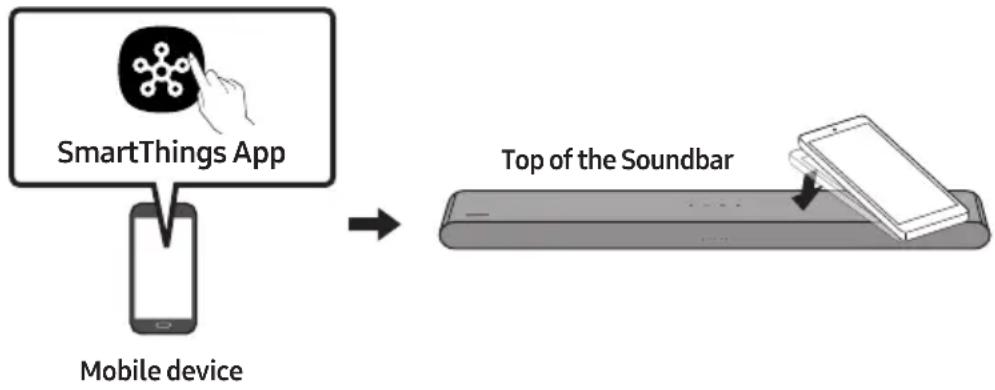
- Turn on the Tap Sound function on your mobile device.
- For details on how to turn on the function, refer to "Enable the Tap Sound function" below.
- Tap the Soundbar with the mobile device. Select "Start now" in the displayed message window. A connection is established between the mobile device and Soundbar via Bluetooth.
-
Play audio from the mobile device through the Soundbar.
-
This function connects a mobile device to the Soundbar via Bluetooth by detecting vibration that occurs when the device touches the Soundbar.
- Make sure the mobile device does not tap a sharp corner of the Soundbar. The Soundbar or mobile device may become scratched or damaged.
- It is recommended that the mobile device be covered with a case. Lightly tap the wide area in the upper portion of the Soundbar, without using excessive force.
- To use this function, update the SmartThings app to the latest version. The function may not be supported, depending on the app version.
Enable the Tap Sound function
Use the SmartThings app to turn on the Tap View, Tap Sound function.
- On the mobile device, run the SmartThings app.
- Select ( 必) in the SmartThings app screen displayed on the mobile device.
- Set "Tap View, Tap Sound" to On to allow the function to work when a mobile device moves close to the Soundbar.
NOTES
- When the mobile device is in power-saving mode, the Tap Sound function does not work.
- The Tap Sound function may not work if there are devices near the Soundbar that cause radio interference such as electric devices. Make sure devices that may cause radio interference are placed at a sufficient distance away from the Soundbar.
08 INSTALLING THE WALL MOUNT
Installation Precautions
Install on a vertical wall only.
- Do not install in a place with high temperature or humidity.
- Verify whether the wall is strong enough to support the product's weight. If not, reinforce the wall or choose another installation point.
Purchase and use the fixing screws or anchors appropriate for the kind of wall you have (plaster board, iron board, wood, etc.). If possible, fix the support screws into wall studs.
Purchase wall mounting screws according to the type and thickness of the wall you want to mount the Soundbar on.
Diameter: M5
Length: 35mm or longer recommended.
- Connect cables from the unit to external devices before you install the Soundbar on the wall.
- Make sure the unit is turned off and unplugged from the power source before you install it. Otherwise, it may cause an electric shock.
Wallmount Components

Wall Mount Guide


Holder-Screw Screw
Bracket-Wall Mount
-
Place the Wall Mount Guide against the wall surface.
-
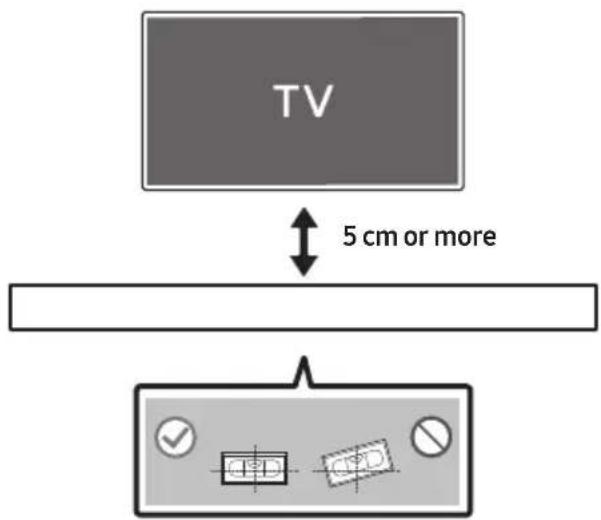
The Wall Mount Guide must be leveled.
If your TV is mounted on the wall, install the Soundbar at least 5 cm below the TV.
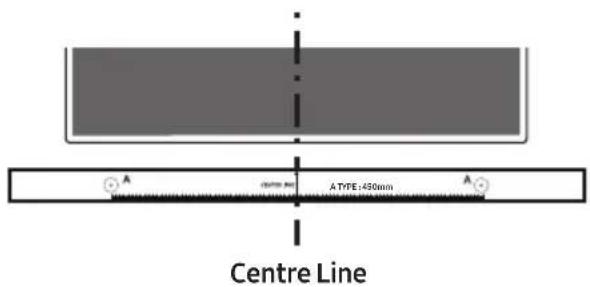
- Align the Wall Mount Guide's Centre Line with the centre of your TV (if you are mounting the Soundbar below your TV), and then fix the Wall Mount Guide to the wall using tape.
If you are not mounting below a TV, place the Centre Line in the centre of the installation area.
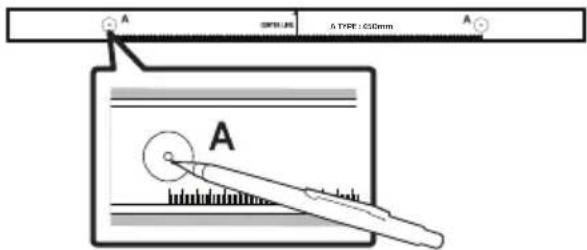
- Use a pen to mark the positions of the holes and remove the Wall Mount Guide.
-
Using an appropriately sized drill bit, drill a hole in the wall at each marking.
-
If the markings do not correspond to the positions of studs, make sure you insert appropriate anchors into the holes before you insert the support screws. If you use anchors, make sure the holes you drill are large enough for the anchors you use.
-
Push a screw (not supplied) through each Holder-Screw, and then screw each screw firmly into a support screw hole.

- Install the 2 Bracket-Wall Mounts in the correct orientation on the bottom of the Soundbar using 2 Screws.
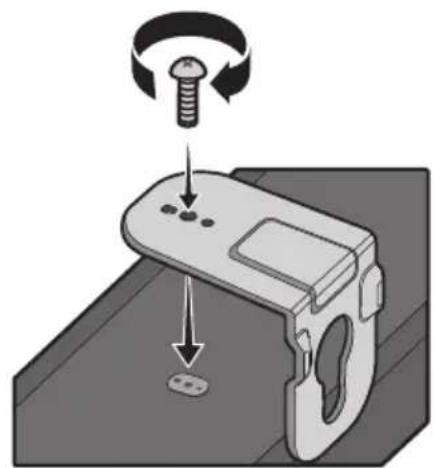
- When assembling, make sure the hanger part of the Bracket-Wall Mounts are located behind the rear of the Soundbar.
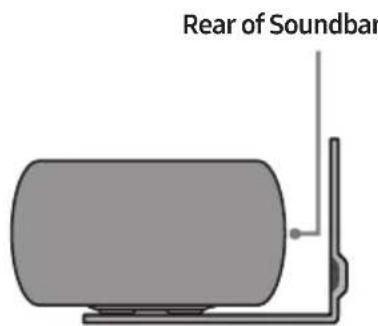
Right end of Soundbar
-
The actual product may look different from the above image, depending on the model.
-
Install the Soundbar with the attached Bracket-Wall Mounts by hanging the Bracket-Wall Mounts on the Holder-Screws on the wall.
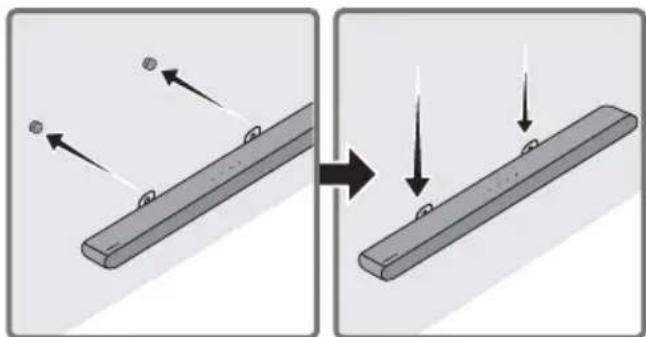
-
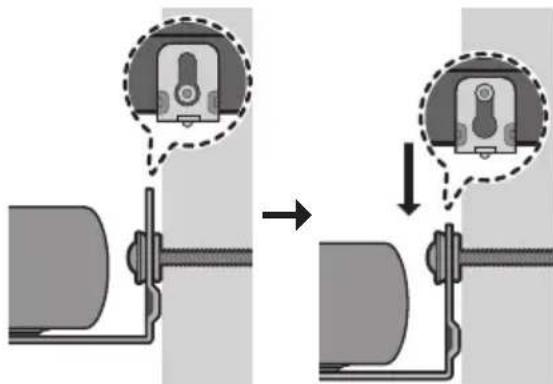
Slide the Soundbar down as shown below so that the Bracket-Wall Mounts rest securely on the Holder-Screws.
-
Insert the Holder-Screws into the wide (bottom) part of the Bracket-Wall Mounts, and then slide the Bracket-Wall Mounts down so that the Bracket-Wall Mounts rest securely on the Holder-Screws.
09 INSTALLING THE SOUNDBAR IN FRONT OF TV
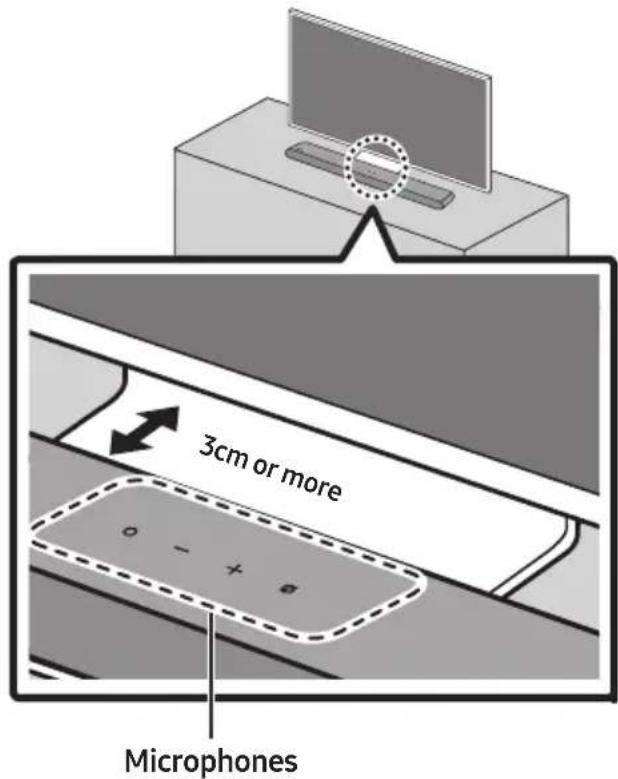
Align the centre of the Soundbar to the centre of the TV as illustrated in the image.
At the same time, place the Soundbar at least 3cm away from the TV so that there is no interference with voice recognition.
NOTES
- Make sure the Soundbar is placed on a flat and solid surface.
Insufficient gap between the TV and Soundbar may cause voice recognition and acoustic problems.
10 SOFTWARE UPDATE
Auto Update
When the Soundbar is connected to the Internet, software updates automatically occur even when the Soundbar is turned off.
- To use the Auto Update function, the Soundbar must be connected to the Internet. The Wi-Fi connection to the Soundbar will be terminated if the Soundbar's power cord is disconnected or the power is cut off. If the power is cut off, when the power comes back on or you reconnect the power cord, turn on the Soundbar, and then reconnect it to the Internet.
USB Update
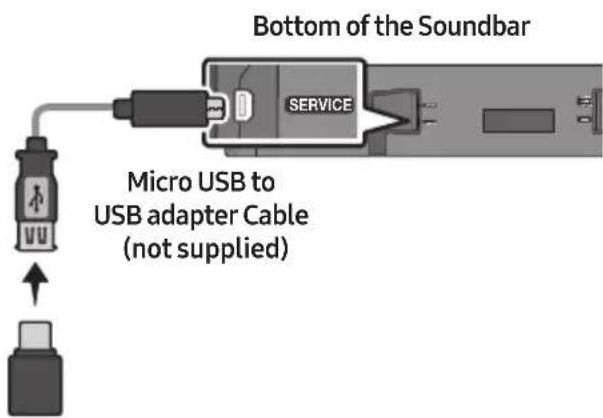
Samsung may offer updates for the Soundbar's system firmware in the future.
When an update is available, you can update the Soundbar by connecting the USB drive that contains the update firmware to the SERVICE port of the Soundbar.
- Go to (www.samsung.com) search for the model name from the customer support menu option.
- For more information about update, refer to Upgrade Guide.
- Download the upgrade file (USB type).
- Unzip the file to create a folder with the file name.
- Store the created folder in a USB and then connect it to the Soundbar.
- Turn on the Soundbar. Then the product is updated within 3 minutes.
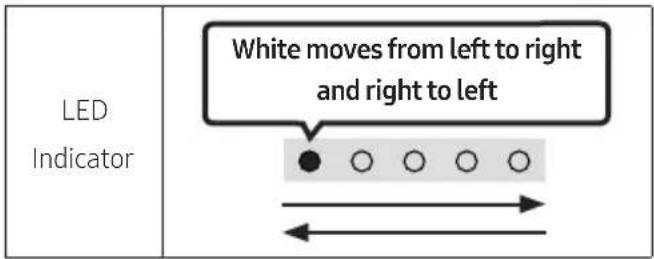
- During update, do not turn it off or remove the USB.
- If the yellow LED is on after the software update is completed, this means that an additional update is in progress. When this happens, don't turn off the power or remove the USB.
- If update does not proceed, reconnect the Soundbar power cord.
- When the latest version is installed, no update is performed.
Depending on the USB type, update may not be supported. - If there is no update file available
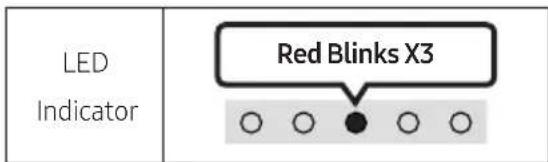
- If the update file is for the same version or lower
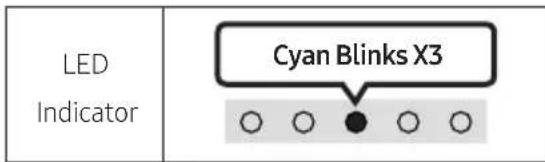
Reset
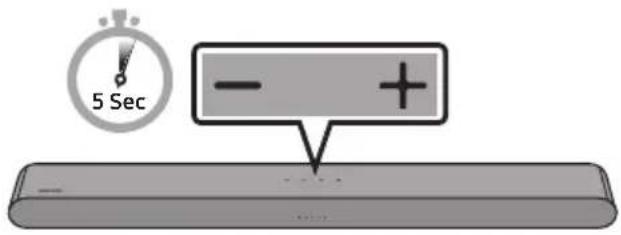
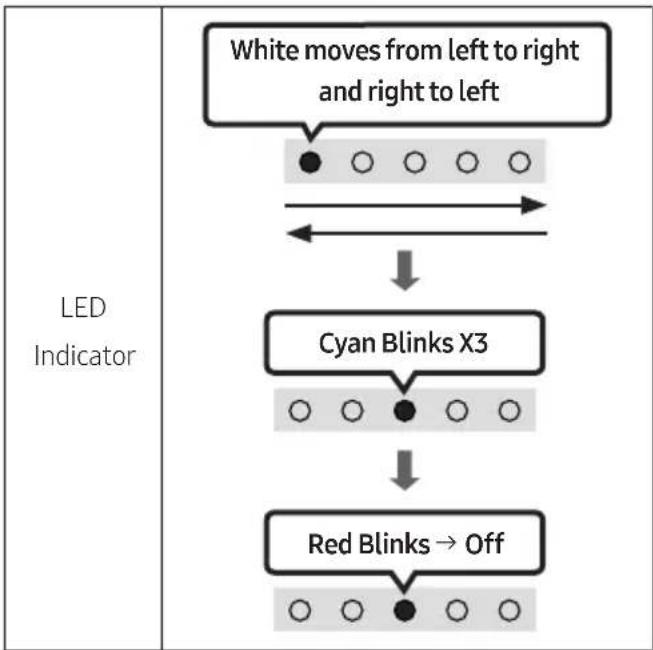
With the Soundbar on, press the - + (Volume) buttons on the body at the same time for at least 5 seconds. The LED display changes as shown below and then the Soundbar is reset.
CAUTION
- All the settings of the Soundbar are reset. Be sure to perform this only when a reset is required.
Security updates information
Security updates are provided to strengthen the security of your device and protect your personal information. For more information on security updates, visit https://security.samsungtv.com.
- The website supports only some languages.
11 TROUBLESHOOTING
Refer to the instructions below if this product does not function properly.
Soundbar does not turn on.
- Check whether the power cord of the Soundbar is correctly inserted into the outlet.
Soundbar works erratically.
After removing the power cord, insert it again.
Power cycle the external device and try again.
If there is no signal, the Soundbar automatically turns off after a certain period of time. Turn on the power. (See page 8.)
Remote control does not work.
Point the remote directly at the Soundbar.
Replace the batteries with new ones.
The red LED indicator light on the soundbar stays on.
→The microphone is turned off. Turn on the microphone. (See page 6.)
The Soundbar does not output any sound.
The volume of the Soundbar is too low or muted. Adjust the volume.
→When any external device (STB, Bluetooth device, mobile device, etc.) is connected, adjust the volume of the external device.
For sound output of the TV, select Soundbar. (Samsung TV: Home (m) Menu Settings (a) All Settings (c) Sound Sound Output Select Soundbar)
→The cable connection to the Soundbar may not be loose. Remove the cable and connect again.
Remove the power cord completely, reconnect, and turn the power on.
Reset the product and try again. (See page 38.)
If the TV is not connected via HDMI (eARC).
Check whether the HDMI cable is correctly connected to the eARC terminal. (See page 16)
Connection may not be possible due to the connected external device (set-top box, game console, etc.). Directly connect the Soundbar.
HDMI-CEC may not be activated on the TV. Turn on the CEC on the TV menu. (Samsung TV: Home () Menu Settings (·) All Settings () Connection External Device Manager Anynet+ (HDMI-CEC) ON)
There is no sound in when connecting to the TV in HDMI (eARC) mode.
→Your device is unable to play the input signal. Change the TV's audio output to PCM or Dolby Digital.
(For a Samsung TV: Home ( ) Menu Settings ( ) All Settings ( ) Sound
Expert Settings Digital Output Audio Format)
The Soundbar will not connect via Bluetooth.
→When connecting a new device, switch to Bluetooth Pairing for connection. (Press the
PAIR button on the remote control or press the (Mic On/Off) button on the body for at least 5 seconds.)
If the Soundbar is connected to another device, disconnect that device first to switch the device.
Reconnect it after removing the Bluetooth speaker list on the device to connect.
(Samsung TV: Home (m) Menu
Settings (品) All Settings ( )Sound Sound Output Bluetooth Speaker L
Remove and reconnect the power plug, then try again.
Reset the product and try again. (See page 38.)
The sound drops out when connected via Bluetooth.
Some devices can cause radio interference if they are located too close to the Soundbar. e. g. microwaves, wireless routers, etc.
If your device that is connected via Bluetooth moves too far away from the Soundbar, it may cause the sound to drop out. Move the device closer to the Soundbar.
If a part of your body is in contact with the Bluetooth transceiver or the product is installed on metal furniture, the sound may drop out. Check the installation environment and conditions for use.
Unable to connect to Wi-Fi.
Check whether your wireless router is on.
Turn off the router, turn it back on, and then try again.
The Soundbar will not connect if the wireless signal is too weak. Try moving the router closer to the Soundbar, or eliminating any obstacles that are between the Soundbar and the router, if possible.
If your wireless router is new, you will need to reconfigure the speaker's network settings.
Soundbar does not support Wi-Fi 6.
The Soundbar does not turn on automatically with the TV.
When you turn off the Soundbar while watching TV, power synchronization with the TV is disabled. First turn off the TV.
The AVA function is not available in the following cases.
The AVA function will not be available using Q-Symphony function.
→The AVA function will not be available when the microphone is turned off.
After connecting the TV to the Soundbar, I switched the Soundbar mode. Then no sound is output from the TV.
If you connect your Soundbar to a mobile device while the Soundbar is connected to the TV, the Soundbar outputs sound from the mobile device while keeping the TV connection. So the TV sound will not be delivered anywhere.
Disconnect the mobile device, and the TV sound will be output from the Soundbar again.
The Soundbar does not appear in AirPlay.
To enable AirPlay in your Soundbar, you must first register the device with the Samsung SmartThings app by agreeing with the app's terms and conditions. (See page 32.)
AirPlay does not operate if you delete the Soundbar from the Samsung SmartThings app.
Make sure that the Soundbar and the Apple device are connected to the same Wi-Fi network.
The Soundbar is compatible with AirPlay installed on iOS 13.4 or later.
Group Play is not enabled.
Check if the audio devices are newer models released year 2024 or later.
Check if the host device is connected to a Wi-Fi network as source.
Make sure that all audio devices are connected to the same Wi-Fi network (at 5 GHz).
12 LICENCE
Dolby
ATMOS
Dolby, Dolby Atmos, and the double-D symbol are registered trademarks of Dolby
Laboratories Licensing Corporation.
Manufactured under license from Dolby
Laboratories. Confidential unpublished works.
Copyright © 2012-2021 Dolby Laboratories.
All rights reserved.
dt.
For DTS patents, see http://patents.dts.com. Manufactured under license from DTS, Inc. or DTS Licensing Limited. DTS, Digital Surround, Virtual:X, and the DTS logo are registered trademarks or trademarks of DTS, Inc. in the United States and other countries. © 2021 DTS, Inc. ALL RIGHTS RESERVED.

The terms HDMI, HDMI High-Definition Multimedia Interface, HDMI Trade dress and the HDMI Logos are trademarks or registered trademarks of HDMI Licensing Administrator, Inc.

- Use your phone, tablet or computer as a remote control for Spotify. Go to Spotify.com/connect to learn how
- The Spotify Software is subject to third party licenses found here: https://www.spotify.com/connect/third-party-licenses.

Apple, AirPlay, iPad, iPhone, and Mac are trademarks of Apple Inc., registered in the U.S. and other countries and regions.

Being Roon Tested means that Samsung and Roon have collaborated to ensure you have the best experience using Roon software and Samsung equipment together, so you can just enjoy the music.
Open Source Licence Notice
Open Source used in this product can be found on the following webpage (http://opensource.samsung.com).
SOMMAIRE
02 VUE D'ENSEMBLE DU PRODUIT
Dolby, Dolby Atmos, and the double-D symbol are registered trademarks of Dolby
Laboratories Licensing Corporation.
Manufactured under license from Dolby
Laboratories. Confidential unpublished works.
Copyright © 2012-2021 Dolby Laboratories.
All rights reserved.
dts.
For DTS patents, see http://patents.dts.com. Manufactured under license from DTS, Inc. or DTS Licensing Limited. DTS, Digital Surround, Virtual:X, and the DTS logo are registered trademarks or trademarks of DTS, Inc. in the United States and other countries. © 2021 DTS, Inc. ALL RIGHTS RESERVED.
HOMI
The terms HDMI, HDMI High-Definition Multimedia Interface, HDMI Trade dress and the HDMI Logos are trademarks or registered trademarks of HDMI Licensing Administrator, Inc.

Works with Apple AirPlay
Apple, AirPlay, iPad, iPhone, and Mac are trademarks of Apple Inc., registered in the U.S. and other countries and regions.
ROON TESTED
Being Roon Tested means that Samsung and Roon have collaborated to ensure you have the best experience using Roon software and Samsung equipment together, so you can just enjoy the music.
Avis de Licence Libre
Dolby, Dolby Atmos, and the double-D symbol are registered trademarks of Dolby
Laboratories Licensing Corporation.
Manufactured under license from Dolby
Laboratories. Confidential unpublished works.
Copyright © 2012-2021 Dolby Laboratories. All rights reserved.
dt.
For DTS patents, see http://patents.dts.com. Manufactured under license from DTS, Inc. or DTS Licensing Limited. DTS, Digital Surround, Virtual:X, and the DTS logo are registered trademarks or trademarks of DTS, Inc. in the United States and other countries. © 2021 DTS, Inc. ALL RIGHTS RESERVED.

The terms HDMI, HDMI High-Definition Multimedia Interface, HDMI Trade dress and the HDMI Logos are trademarks or registered trademarks of HDMI Licensing Administrator, Inc.

Apple, AirPlay, iPad, iPhone, and Mac are trademarks of Apple Inc., registered in the U.S. and other countries and regions.

Being Roon Tested means that Samsung and Roon have collaborated to ensure you have the best experience using Roon software and Samsung equipment together, so you can just enjoy the music.
Dolby, Dolby Atmos, and the double-D symbol are registered trademarks of Dolby
Laboratories Licensing Corporation.
Manufactured under license from Dolby
Laboratories. Confidential unpublished works.
Copyright © 2012-2021 Dolby Laboratories.
All rights reserved.
dt.
For DTS patents, see http://patents.dts.com. Manufactured under license from DTS, Inc. or DTS Licensing Limited. DTS, Digital Surround, Virtual:X, and the DTS logo are registered trademarks or trademarks of DTS, Inc. in the United States and other countries. © 2021 DTS, Inc. ALL RIGHTS RESERVED.
HOMI
The terms HDMI, HDMI High-Definition Multimedia Interface, HDMI Trade dress and the HDMI Logos are trademarks or registered trademarks of HDMI Licensing Administrator, Inc.

Apple, AirPlay, iPad, iPhone, and Mac are trademarks of Apple Inc., registered in the U.S. and other countries and regions.

Being Roon Tested means that Samsung and Roon have collaborated to ensure you have the best experience using Roon software and Samsung equipment together, so you can just enjoy the music.
Dolby, Dolby Atmos, and the double-D symbol are registered trademarks of Dolby
Laboratories Licensing Corporation.
Manufactured under license from Dolby
Laboratories. Confidential unpublished works.
Copyright © 2012-2021 Dolby Laboratories.
All rights reserved.
dt.
For DTS patents, see http://patents.dts.com. Manufactured under license from DTS, Inc. or DTS Licensing Limited. DTS, Digital Surround, Virtual:X, and the DTS logo are registered trademarks or trademarks of DTS, Inc. in the United States and other countries. © 2021 DTS, Inc. ALL RIGHTS RESERVED.

The terms HDMI, HDMI High-Definition Multimedia Interface, HDMI Trade dress and the HDMI Logos are trademarks or registered trademarks of HDMI Licensing Administrator, Inc.

Apple, AirPlay, iPad, iPhone, and Mac are trademarks of Apple Inc., registered in the U.S. and other countries and regions.

Being Roon Tested means that Samsung and Roon have collaborated to ensure you have the best experience using Roon software and Samsung equipment together, so you can just enjoy the music.
Aviso de Licença de Open Source
Pode encontrar orowningo abertoutilizando neste,.
produo na segunte网页 (https://opensource.samsung.com).
INHOUD
01 De componenten controleren 4
Samsung-TV's van 2017 of later
Start () Menu Installingen () Alle installingen () Geluid Geluidsuitvoer S-Series Soundbar (Wi-Fi)
OPMERKINGEN
11 PROBLEEMOPLOSSING
Dolby, Dolby Atmos, and the double-D symbol are registered trademarks of Dolby Laboratories Licensing Corporation. Manufactured under license from Dolby Laboratories. Confidential unpublished works. Copyright © 2012-2021 Dolby Laboratories. All rights reserved.
dt.
For DTS patents, see http://patents.dts.com. Manufactured under license from DTS, Inc. or DTS Licensing Limited. DTS, Digital Surround, Virtual:X, and the DTS logo are registered trademarks or trademarks of DTS, Inc. in the United States and other countries. © 2021 DTS, Inc. ALL RIGHTS RESERVED.

The terms HDMI, HDMI High-Definition Multimedia Interface, HDMI Trade dress and the HDMI Logos are trademarks or registered trademarks of HDMI Licensing Administrator, Inc.

Apple, AirPlay, iPad, iPhone, and Mac are trademarks of Apple Inc., registered in the U.S. and other countries and regions.

Being Roon Tested means that Samsung and Roon have collaborated to ensure you have the best experience using Roon software and Samsung equipment together, so you can just enjoy the music.
Kennisgeving Open Source-Licentie
Dolby, Dolby Atmos, and the double-D symbol are registered trademarks of Dolby
Laboratories Licensing Corporation.
Manufactured under license from Dolby
Laboratories. Confidential unpublished works.
Copyright © 2012-2021 Dolby Laboratories. All rights reserved.
dt.
For DTS patents, see http://patents.dts.com. Manufactured under license from DTS, Inc. or DTS Licensing Limited. DTS, Digital Surround, Virtual:X, and the DTS logo are registered trademarks or trademarks of DTS, Inc. in the United States and other countries. © 2021 DTS, Inc. ALL RIGHTS RESERVED.
HAMI
The terms HDMI, HDMI High-Definition Multimedia Interface, HDMI Trade dress and the HDMI Logos are trademarks or registered trademarks of HDMI Licensing Administrator, Inc.

Apple, AirPlay, iPad, iPhone, and Mac are trademarks of Apple Inc., registered in the U.S. and other countries and regions.

Being Roon Tested means that Samsung and Roon have collaborated to ensure you have the best experience using Roon software and Samsung equipment together, so you can just enjoy the music.
Dolby, Dolby Atmos, and the double-D symbol are registered trademarks of Dolby
Laboratories Licensing Corporation.
Manufactured under license from Dolby
Laboratories. Confidential unpublished works.
Copyright © 2012-2021 Dolby Laboratories.
All rights reserved.
dt.
For DTS patents, see http://patents.dts.com. Manufactured under license from DTS, Inc. or DTS Licensing Limited. DTS, Digital Surround, Virtual:X, and the DTS logo are registered trademarks or trademarks of DTS, Inc. in the United States and other countries. © 2021 DTS, Inc. ALL RIGHTS RESERVED.
HOMI
The terms HDMI, HDMI High-Definition Multimedia Interface, HDMI Trade dress and the HDMI Logos are trademarks or registered trademarks of HDMI Licensing Administrator, Inc.

Apple, AirPlay, iPad, iPhone, and Mac are trademarks of Apple Inc., registered in the U.S. and other countries and regions.

Being Roon Tested means that Samsung and Roon have collaborated to ensure you have the best experience using Roon software and Samsung equipment together, so you can just enjoy the music.
Licensmeddelande for open source
Dolby, Dolby Atmos, and the double-D symbol are registered trademarks of Dolby Laboratories Licensing Corporation. Manufactured under license from Dolby Laboratories. Confidential unpublished works. Copyright © 2012-2021 Dolby Laboratories. All rights reserved.
dts.
For DTS patents, see http://patents.dts.com. Manufactured under license from DTS, Inc. or DTS Licensing Limited. DTS, Digital Surround, Virtual:X, and the DTS logo are registered trademarks or trademarks of DTS, Inc. in the United States and other countries. © 2021 DTS, Inc. ALL RIGHTS RESERVED.
HOMI
The terms HDMI, HDMI High-Definition Multimedia Interface, HDMI Trade dress and the HDMI Logos are trademarks or registered trademarks of HDMI Licensing Administrator, Inc.

Apple, AirPlay, iPad, iPhone, and Mac are trademarks of Apple Inc., registered in the U.S. and other countries and regions.

Being Roon Tested means that Samsung and Roon have collaborated to ensure you have the best experience using Roon software and Samsung equipment together, so you can just enjoy the music.
Lisensmerknader om Åpen kildekode
Dette produititet inneholder apen kildekodesom er a finne pa(https://opensource.samsung.com).
SISÄLTÖ
01 Osien tarkastaminen 4
Dolby, Dolby Atmos, and the double-D symbol are registered trademarks of Dolby Laboratories Licensing Corporation. Manufactured under license from Dolby Laboratories. Confidential unpublished works. Copyright © 2012-2021 Dolby Laboratories. All rights reserved.
dt.
For DTS patents, see http://patents.dts.com. Manufactured under license from DTS, Inc. or DTS Licensing Limited. DTS, Digital Surround, Virtual:X, and the DTS logo are registered trademarks or trademarks of DTS, Inc. in the United States and other countries. © 2021 DTS, Inc. ALL RIGHTS RESERVED.
HOMI
The terms HDMI, HDMI High-Definition Multimedia Interface, HDMI Trade dress and the HDMI Logos are trademarks or registered trademarks of HDMI Licensing Administrator, Inc.

Apple, AirPlay, iPad, iPhone, and Mac are trademarks of Apple Inc., registered in the U.S. and other countries and regions.

Being Roon Tested means that Samsung and Roon have collaborated to ensure you have the best experience using Roon software and Samsung equipment together, so you can just enjoy the music.
Dolby, Dolby Atmos, and the double-D symbol are registered trademarks of Dolby Laboratories Licensing Corporation. Manufactured under license from Dolby Laboratories. Confidential unpublished works. Copyright © 2012-2021 Dolby Laboratories. All rights reserved.
dt.
For DTS patents, see http://patents.dts.com. Manufactured under license from DTS, Inc. or DTS Licensing Limited. DTS, Digital Surround, Virtual:X, and the DTS logo are registered trademarks or trademarks of DTS, Inc. in the United States and other countries. © 2021 DTS, Inc. ALL RIGHTS RESERVED.

The terms HDMI, HDMI High-Definition Multimedia Interface, HDMI Trade dress and the HDMI Logos are trademarks or registered trademarks of HDMI Licensing Administrator, Inc.

- Brug din Telefon, tablet erler computer som fjernbetjening til Spotify. Gå til Spotify.com/ connect for at &, hvordan du gør
- Spotify-softwaren er underlagt tredjepartslicenser. Få mere at vide her: https://www.spotify.com/connect/third-party-licenses.

Apple, AirPlay, iPad, iPhone, and Mac are trademarks of Apple Inc., registered in the U.S. and other countries and regions.

Being Roon Tested means that Samsung and Roon have collaborated to ensure you have the best experience using Roon software and Samsung equipment together, so you can just enjoy the music.
Dolby, Dolby Atmos, and the double-D symbol are registered trademarks of Dolby Laboratories Licensing Corporation. Manufactured under license from Dolby Laboratories. Confidential unpublished works. Copyright © 2012-2021 Dolby Laboratories. All rights reserved.
dt.
For DTS patents, see http://patents.dts.com. Manufactured under license from DTS, Inc. or DTS Licensing Limited. DTS, Digital Surround, Virtual:X, and the DTS logo are registered trademarks or trademarks of DTS, Inc. in the United States and other countries. © 2021 DTS, Inc. ALL RIGHTS RESERVED.
HOMI
The terms HDMI, HDMI High-Definition Multimedia Interface, HDMI Trade dress and the HDMI Logos are trademarks or registered trademarks of HDMI Licensing Administrator, Inc.

Apple, AirPlay, iPad, iPhone, and Mac are trademarks of Apple Inc., registered in the U.S. and other countries and regions.

Being Roon Tested means that Samsung and Roon have collaborated to ensure you have the best experience using Roon software and Samsung equipment together, so you can just enjoy the music.
08 MoHTiPaHe Ha CTeHHaTa CToiKa 34
IpeDynpexKdeneHnBbB Bp3Ka C MoHTaKa 34
KOMnoHeHTn 3a CteHeH MOHTaX 34
09 IhctaIipaHe Ha Soundbar nped TeleBn3Op 36
ABTomatnHaakTyauin3aun 37
AkyaI3aIype3 USB 37
Hyalipane 38
HOpMaua 3aakTyauHa cnrgpHocTta 38
11 OTeTpaHЯBaHe Ha Hen3IpaBHOCTn 39
12 IinceH3 41
01 ПЮBEРКА HA KOMПОHEHTNTE
Bbpxkau-BnHT Cko6a3aCTeHHa cToiKa BnHT
3a donbHnTeHa HOpMaun OTHoCHO 3axpaHbaHeTo n Notpe6JeHneTo Ha eKeTpoEheprna HappaBeTe cnpaBka C etNkeTa, NoCTaBeH Ha npOyKta. (EtKeT: dOnHa cTpHa Ha ochOBHOTO yctpoiCTBO Ha Soundbar)
- 3aДаЗкупг Te ДОпьнHтелн KOMноHENTи ИИ He3aДьЖнТелн Ka6eI, CBbpxTe ce C
LeHTbp 3a 06cnyKBaHe Ha Samsung ИИс c LeHTbp 3a 06cnyKBaHe Ha KIneHTn Ha Samsung.
- 3a noBueHnΦopMaζη OTHOCHO CTeHHa TcOιKa BnKTe CtpaHnla 34.
-Дизайнг,спесификадит e ekpaНьТ ha npilokhenяТа noДлжКТ ha npomЯHa 6e3 npedn3BecTne.
BnIbT Ha akcecoapnte MoKe Ia ce pa3nUaBa O TnpedTaBeHna HnIOCTpaunTe no-rope.
02ОпиcaнеHAПОДУКТА
YeHen paHen / TopeH paHen Ha Soundbar
HMBO HA WOOFER (BAC)
HaTnchTe 6yToHa HaRope nnHaDoNy, 3a da peryInpate HNBOTo Ha 3Byka Ha yfepa (6acnte) do -12 nn MeKdy -6 n +6. 3a da 3aJaTe HNBO O (no noDpa3bnpaHe) 3a cnilata Ha 3Byka Ha yfepa (6acnte), HATnchTe 6yToHa.
13
TONE CONTROL
HaTnCKaIKN 6yToHa, MoKTe Da peRyInpate CnJaTa Ha 3ByKa Ha BnCOKITE NIn HnCKITE YeCTOTN. XeJahnIeIemEnT MoKe Da ce peRyInpa C nOMOuTa Ha 6yToHnTE Harope/HaDony. (Ta3n FyHKUe e HaJIuHa BB BCNUKN peKIMn Ha 3ByK, C n3KnUoYeHne Ha peKIma „Standard".)
| СbvetoДиоДeн ИндиКаТор | Мига В SFЯло X1 O O ● O O |
| "Treble" → "Bass" |
HacrtpoiKaHa (KoHTpoI Ha 3Byka)
SpaceFitSound: Ta3nФункця anaHnI3npa npoctpaHCTBOTo 3a CnyuHaHe Ha nOtpe6nteIc nOMoUta Ha MInKpOfoHa Ha Soundbar n Ocnrpyra ONTmJaIeH 3Byk 3a TOBa npoctpaHCTBO. (BnxTe „N3noJ3BaHe Ha SpaceFit Sound" Ha cTpaHnca 25.)
Active Voice Amplifier: AhaJIIN3Ipa BbHsHnI yM BpeaHNo BpeMe,doKaTo Soundbar Bb3IpOu3BExJa CbIbPkaHne, TaKa Ye IlaCobOTo ayDIO BnHaIc Ce CyBa JcHO. -Po BpeMe Ha aHaJIIn3a He ce 3aNcBaT daHHn.
Voice enhancement npaBn NO-JeCHO CnyuHaHeTo Ha dnaIIO3N BbB fHIMN I NO TeJIeBu3NuTa.
Night mode e ONTUMN3npan 3a rIeJaHe npe3 HOuTa C HAcTpOuKn, peryInpaHn TaKa, Ye da HamaJIaTcnilata Ha 3Byka, Ho dHaJOrbT da OCTaHe JcEH.
Sound Grouping: OchoBnT Moyn Ha Soundbar n cbpayHd BncoKOrOBopnte TeBb3npOn3BexkDaT ceIyIa 3ByK BMeCTO cbpayHd 3ByK, KoETo Tn npaBN IpealHn 3a rOJIeMn rpynnXopa, KOnTO cnyuat My3Nka B rOJAMo pOcTpaHCTBO.
- ToBa MeHIO Ce aKTHBnPa PbPBOHaUaJIHo, KOraTO Ca CBbp3aHcBpaayHd BnCOKOROBOpNTeIte, I CneI TOBa MeHIOTo OCTaBa aKTHBnPaHO He3aBnCmO OT CBbp3BaHeTo Ha CbpayHd BnCOKOROBOpNTeIte.
-AkO aKTHBnPaTe To3N peXIM, HЯMa pa3JIKN B 3ByCHTe MeJxNy peXIMnTe Ha 3Byka.
- 3ByKbT He ce n3JIbUba OT BCnUckn BnCOKOrOBOpuTeIHa OChOBHna MoyI Ha Soundbar n CbpayNd BnCOKOrOBOpuTeIte, a cAmO OT HЯКОI ppeBapuTeIHO ONpeJeIeHn MoyI, KOnTO Ce pa3JInuBaT B 3aBnCmOCT OT MOneIa.
- Private Rear Sound:В тои ржим 3Byкьт се ИЗльчы само OT сьpayнд ВИСОКОВОРпЕЛNTe, KOETO BИ ПОЗВОЛЯBA да с lyшate, 6e3 Да 6bДeTe 06e3ПОКОВАнИ OT Дугл Лцa.
-AkoakTNBnPaTeTo3nPexHMM,3ByKbTHe Ce n3JIbUBAOT OCHOBHnMaOdyHaSoundbar n Cb6yΦbpa.3ByKbTce n3JIbUBa cAmO OT npEHNKaHa Ha CbpayHn BnCOKOrOBOpnteIte.
-AkoakTNBnPaTeTo3nPexKIM,HaMa pa3JIKNB 3ByUHTeMeKJypeKIMNTeHa3Byka.
-Функцята ce n3KlIOUBA npn n3KlIOUBaHe Ha 3axpaHbAHeTo nll npn 3aIy6a Ha Bpb3KaTa CbO CbpavHd BNCOKOROBOpNTeJIte.
-MeHIOTo Ce aKTHBnpa CaMo KOraTO CbpayHn BnCOKOROBOpNTeJIte Ca Cbbp3aHn.
- To3n pejkm Ce n3KJIIOUba aBTOMaTNUHO i CTaba HeIOCTbpeH, KOrato fynkunra Ta Q-Symphony Ce BkIIOuH.
-
Ako KaptniHaTa Ha TeIeBn3Opa n ayInoto ot Soundbar He ca cnHxpoHn3npaHn, n36epete Sync B "KoHTpOHa 3Byka" n cIeT TOBa 3aJaTe 3a6abAHeTo Ha ayInoto MeJy O~300 MmInceKuHn, KaTO n3POn3BaTe 6yToHnte 3a Nocoka Harope/HaDoV.
-
Sync ce noДьрka caMo 3a HяКон ФУнки.
-Функцятavirtual moke da 6bde hactpoeha ha Bkn./N3kn.ype3 6yToHnte 3a nocoka harope/ HandoIy.
I3noJI3BaHe Ha cKpNTte 6yToHn (6yToHn C nObuee OT eJHa fYHKzna)
Ako yctpoiCTBOTO He ycnee da ce Cbbpke
- Ako ImaTe cBueCTbByBaU Soundbar (HapnMpE S-Series Soundbar) B cnncbKa O BnCOKOrOBOpIeN Ha TeleBn3opa Samsung, n3tpnIte ro.
Cnei TOBa NOBTOpe CTbNKn OT 1do3.
- PeximbT Ha 3Byka Ha Soundbar ue ce cMeHn aBtOMaTHUHO Ha AaantNBeH 3ByK+, aKO aKTbnpatepekMa AaantNBeH 3ByK+ Ha Baunr TeJeBu3Op.
3ABEJIEXKKA
- Ta3n φункця pa6otn, korato Soundbar ce cBbpxke кьm Няkon TeJIeBn3Opn Samsung.
06 CBbP3BAHE KbMBbHlHO yCTPOICTBO
Cbbp3BaHe c nOmoUta Ha onTnueH ka6eJ
| Светodusдени Инthus可靠 | Баял Вкл.→Изкл. | Digital Audio In" |
- Пи ИЗКИюец Вьншно устpoи CTBO n Soundbar CBbpxKeTe nopTa ha Soundbar DIGITAL AUDIO IN (OPTICAL) и ИЗхODЯшно поТ OPTICAL Ha Bьншноустpoи CTBO c ONTNHINа Ka6eI (He e ДостаBER), КakTO e NOKA3aHo Ha ФигypаТa.
- BkIIOUeTe Soundbar N BbHsHOTO yCTpoiCTBO.
- Hatnche 6ytoHa (MynnФyHKuHaoHe) 6yToH B rohpTa cTpaHa Ha Soundbar nnn 6yToHa (N3TOUHK) Ha nCTaHcNoHHOTO ynpaBneHne, CneI KoETo n36peTe peKIM „Digital Audio In". CneI TOBa ce Bb3Pon3BexJa cbo6ueHneTo „Digital Audio In".
- 3ByKbT OT BbHJHOTo yCTPOINCTBO Ce Bb3npoIN3BeJda ot Soundbar.
07 CBbP3BAHE KbM MOBnJIHO yCTPOICTBO
MeToI 1. Cbbp3BaHe npe3 Bluetooth
Korato mo6nH0 yctpoiCTBO e Cbbp3aH0 npe3 Bluetooth, moKeTe da chyeTe ctepeo 3Byka, 6e3 npi TOBa da ce HxkdaTe ot Ka6en.
Korato cBbpxeTe cDBoeHo Bluetooth yctpoiCTBO npn n3KnUoyen Soundbar, NocleHnIrT Ce n3KnUoyBa aBTOMaTnUHO.
PbboHaayalHo CBbp3BaHe
- Korato ce cBbpxkTe KbM HOBO Bluetooth yctpoiCTBO, yBepTe ce, ye yctpoiCTBOTo e ha pa3ctoHne ot 1 m.
1.
PbboHaayalHo Cbbp3BaHe
1.Инсталарайе и руножениTo SmartThingsпpeЗ Baшeto мбинho устpoйстBO (смарфон по tabлел).
2. CnEaBaiTe HNCTpyKuNTe Ha ekpaHa Ha npInoXeHneTo, 3a da do6abnte Soundbar.
Bb3MOxHcHa HAcON yCTpOcTBa Da He Ce NOBn ABTomuHnT N3CKaUe (BTOPATA ekpaHHa CHIMKa No-DOy).
Ako n3ckaaynT np03opeu He ce noaBn, HATNCheTe + HaekpaH Home. Soundbar e do6abEn KbM npiloxeHneTo.
- NlIOCTpaUraTnO-dOly moKeJa ce pa3JIuHaBaB 3aBNCIMoCt OT BepcraTa Ha npIIOJKeHHeTo.
Прилобжени SmartThings

CtapTnpaHeHa npIIOxKeHnTo

A B T O M a T n u e h n3 c k a y a u np03 opeu


Добаваян ha yctpoicTBO
3a npomraHa Ha BaWata Wi-Fi Bpb3kata
- CsapnpaTe npnoKeHneTo SmartThings OT BaIeTo MO6uINHO yCTpOcTBO (CmapTFOH nn Ta6net).
- B npnloxneHnto n3tpnIte pernctppahnaSoundbar n cne ToBa ro do6aBeTe oTHOBO.
I3noI3BaHe Ha ,Bb3npOIN3BexKdaHe B rpyna"
- 3a da ce Bb3noJ3BaTe OT Ta3n φyHKuŋ,До6aBeTe CBOr Soundbar KbM npIIOJKeHneTo SmartThings.
- 3aДаakTINBnPaTe TOBa,CbByKeTe NOHe DBe ayDnO yCTpoNCTBa KbM eHa N CbUa Wi-Fi mpeka Ha 5 GHz.
- Toba e hàn yu hó Na 3BykoBn yctpoiCTBa Samsung, kOHTo noDdbpxkT Wi-Fi, nychATn Ha na3apa npe3 2024 r. nIIN NO-KbCHO.
- Ta3n ΦyHKcIa He nOДьрka 3ByK OT TeJIeBn3opa.
KoHfIgypipaHa, Bb3npOn3BexkaHe B rpyna"
- CtaptnpaIte npinloxeHneTo SmartThings Ha MObInHOTo cn yCTPOINCTBO.
2.До6abeteSoundbarВпрложенetoSmartThingscbrlaCHOINHCTpykuniteВpa3dEN „MeToD 2.Cbbp3BaHe npe3Wi-Fi(6e3xuHa mpeka)“ ,Ctbnka2(PernctpaunHa yctpoiCTBOTO)"
3.Дokochete KapTaHa Soundbar.
4. Ha mo6nHOTo cn yCTpoiCTBO DOKOCHe Tc3dAbaHe Ha rpyna nOД NKOHaTa Ha ayDIOyCTPOICTBO.
- BytOnbT Cb3dAbaHe Ha rpyna ce noRyBa cmo kOrato Soundbar e B peKm Wi-Fi.
-
Ako Soundbar Bb3npo3BexJa 3Byka OT TeIeBn30pa, Bpb3KaTa KbM TeIeBn30pa Ce npekbcBa npi Cb3daBaHeTo Ha rpyna.
-
AKTINBIPAHe Ha Bb3npOn3BExkDaHe Brpyna.
-
136epete JekalHOTo yCTPOINCTBO B CNICbKa I DOKOCHeTe PpnoJxN.
-
MojkeTeДа ДобавиTe МксИмУm 4устpoICTBa.
C Bb3npoN3BexJaHe B rpya aydnoTo ige Ce n3JIbYBa cAmO ype3 Xoc TcPOICTBOTO.
Korato yctpoiCTBO, Cbbp3aHO KbM XOCT yctpoiCTBOTO, IpemHHe KbM npyI IN3TOUHNK, yctpoiCTBOTO 6bJe n3TpITO aBTOMaTnH0 OT rpynata.
Korato xocT yctpoiCTBOTO e Cbbp3aHO c TeIeBn3Op, reHepnpaHaTa rpyna ige 6bnde n3Tpnta ABTOMATNUHO.
ДeakтИВиразеHa „Бьзпpon3ВexкданБ Гуна"
1.Дokochete KapTaHa hyayno yctpoiCTBOTo.
2. Ha MôbúnHOTO CN yCTPOICTBO DOKOCHETe PeJaKTIpaHe Ha rpyna POn IKohata Ha aydno yCTPOICTBO.
3.ДeakTbBpaITe Bb3npOn3BExKaHcB rpyna.
- 3a Да DeakTNbIpaTe OTdEJIHO yCTpoIcTBO, MaxHeTe OTMeTKaTa Ha yCTpoIcTBOTO OT cNcBka NdoKoCHeTe PpIoJxN.
ABTOMaTnUHa aKtyaIIN3aIIN
Korato npe3 Soundbar ce yctaHOBn Bpb3ka c INHTepHET,coftyePHNte akTuAn3aunCe I3BbPWBat aBTOMaTHNo,doPi Korato Soundbar e N3KJIIOUeH.
- 3a da ce n3no13Ba yHKuIra Auto Update (A BtOMaTHHa aKtyaIIaua),Soundbar Tp6Ba Da e C yCTaHOBeHa Bpb3Ka C nHTepHET. Wi-Fi Bpb3kata cBc Soundbar ue 6bJe npekbcnata npn n3KnIOUbaHe Ha 3axpaHbau Ka6eHa Soudbar nn npn npkebCBAHe Ha 3axpaHbAHTo.AKO 3axpaHbAHeto 6bJe npekbcnato, KOrato Ce Bb3CTaHOBn Nll KOrato BKIOUHTe OTHOBO 3axpaHbau Ka6e, BKIOUHTe Soudbar n cIeT TOBa yCTaHOBeTe OTHOBO Bpb3ka C nHTepHET.
Aктуаллзаша реэ USB
Bb3MOxHoe B6bDeeSamsung da npednara aKtyaIIN3aun 3a fbpMyepa Ha cnCTeMaTa Soundbar.
Korato nma haInuHa aKtyaIIN3aun, MoKeTe da aKtyaIIN3npe Soundbar Upe3 CbP3BaHe Ha USB fnau nAmETTa, cBDbpxkaa aKtyaIIN3npanHn Fbpyep, KbM IopTa SERVICE Ha Soundbar.
- OTnndeTe Ha (www.samsung.com) nOTbpcTe mMeTo Ha MoJeNa OT OngnraHa MeHIOTo 3a NpDpBxKa Ha KIneHTN.
3a NOBueHnΦOpMaUra OTHOCHOaKtuaIIN3aUNTe BIXTe PbKOBOCTBOTO 3aHaIrpaaKaJaHe.
- Ⅱ3terJIeTe ΦaIJa 3a NaIrpαKaJdaHe (USB TnI).
- Pa3apxNBpaIte foAIIa, 3a da cb3daTe npka C mETo Ha foAIIa.
- 3ana3eTe c63daJeHaTa nanka Ha USB hocnten I cnE TOBa rO CBpbKte KbM Soundbar.
- BkIoUoyTe Soundbar.Toraba npOdyKbT ce aKtyaIIN3npaBpAMKInTe Ha 3 MmHyTu.
→BaIeTo yCTpoiCTBO He MoJKe Da Bb3PpOuN3BeDe BXoHnA CnHaI.
Помеlete aydno Ихда на телевизора на PCM и Dolby Digital. (3a telевизop
Samsung: Hachano (H) → MeHIO →
Dolby, Dolby Atmos, and the double-D symbol are registered trademarks of Dolby Laboratories Licensing Corporation. Manufactured under license from Dolby Laboratories. Confidential unpublished works. Copyright © 2012-2021 Dolby Laboratories. All rights reserved.
dt.
For DTS patents, see http://patents.dts.com. Manufactured under license from DTS, Inc. or DTS Licensing Limited. DTS, Digital Surround, Virtual:X, and the DTS logo are registered trademarks or trademarks of DTS, Inc. in the United States and other countries. © 2021 DTS, Inc. ALL RIGHTS RESERVED.
HOMI
HIGH-DEFINITION MULTINOMA INTERFAC
The terms HDMI, HDMI High-Definition Multimedia Interface, HDMI Trade dress and the HDMI Logos are trademarks or registered trademarks of HDMI Licensing Administrator, Inc.

- Изпольайе телега, tabлета илл
komпютьра си КATO ДИСТАнцИОНно
у网络传播ни за Spotify. Отудente на Spotify.
com/connect, за за пазбереше кak
CoΦTyερbT Ha Spotify noДлěжи Ha JIицЕнЗИрапе OT TrpeТи CTpaHи,ПОсоуен Тук: https://www.spotify.com/connect/ third-party-licenses

Apple, AirPlay, iPad, iPhone, and Mac are trademarks of Apple Inc., registered in the U.S. and other countries and regions.

Being Roon Tested means that Samsung and Roon have collaborated to ensure you have the best experience using Roon software and Samsung equipment together, so you can just enjoy the music.
Dolby, Dolby Atmos, and the double-D symbol are registered trademarks of Dolby Laboratories Licensing Corporation. Manufactured under license from Dolby Laboratories. Confidential unpublished works. Copyright © 2012-2021 Dolby Laboratories. All rights reserved.
dt.
For DTS patents, see http://patents.dts.com. Manufactured under license from DTS, Inc. or DTS Licensing Limited. DTS, Digital Surround, Virtual:X, and the DTS logo are registered trademarks or trademarks of DTS, Inc. in the United States and other countries. © 2021 DTS, Inc. ALL RIGHTS RESERVED.

The terms HDMI, HDMI High-Definition Multimedia Interface, HDMI Trade dress and the HDMI Logos are trademarks or registered trademarks of HDMI Licensing Administrator, Inc.

Apple, AirPlay, iPad, iPhone, and Mac are trademarks of Apple Inc., registered in the U.S. and other countries and regions.

Being Roon Tested means that Samsung and Roon have collaborated to ensure you have the best experience using Roon software and Samsung equipment together, so you can just enjoy the music.
Dolby, Dolby Atmos, and the double-D symbol are registered trademarks of Dolby Laboratories Licensing Corporation. Manufactured under license from Dolby Laboratories. Confidential unpublished works. Copyright © 2012-2021 Dolby Laboratories. All rights reserved.
dt.
For DTS patents, see http://patents.dts.com. Manufactured under license from DTS, Inc. or DTS Licensing Limited. DTS, Digital Surround, Virtual:X, and the DTS logo are registered trademarks or trademarks of DTS, Inc. in the United States and other countries. © 2021 DTS, Inc. ALL RIGHTS RESERVED.
HOMI
The terms HDMI, HDMI High-Definition Multimedia Interface, HDMI Trade dress and the HDMI Logos are trademarks or registered trademarks of HDMI Licensing Administrator, Inc.

Apple, AirPlay, iPad, iPhone, and Mac are trademarks of Apple Inc., registered in the U.S. and other countries and regions.

Being Roon Tested means that Samsung and Roon have collaborated to ensure you have the best experience using Roon software and Samsung equipment together, so you can just enjoy the music.
11 RIESENIE PROBLEMOV
Dolby, Dolby Atmos, and the double-D symbol are registered trademarks of Dolby Laboratories Licensing Corporation. Manufactured under license from Dolby Laboratories. Confidential unpublished works. Copyright © 2012-2021 Dolby Laboratories. All rights reserved.
dt.
For DTS patents, see http://patents.dts.com. Manufactured under license from DTS, Inc. or DTS Licensing Limited. DTS, Digital Surround, Virtual:X, and the DTS logo are registered trademarks or trademarks of DTS, Inc. in the United States and other countries. © 2021 DTS, Inc. ALL RIGHTS RESERVED.
HOMI
The terms HDMI, HDMI High-Definition Multimedia Interface, HDMI Trade dress and the HDMI Logos are trademarks or registered trademarks of HDMI Licensing Administrator, Inc.

Apple, AirPlay, iPad, iPhone, and Mac are trademarks of Apple Inc., registered in the U.S. and other countries and regions.

Being Roon Tested means that Samsung and Roon have collaborated to ensure you have the best experience using Roon software and Samsung equipment together, so you can just enjoy the music.
Soundbar also panel 7
WOOFER (BASSZUS) SZINT
Dolby, Dolby Atmos, and the double-D symbol are registered trademarks of Dolby Laboratories Licensing Corporation. Manufactured under license from Dolby Laboratories. Confidential unpublished works. Copyright © 2012-2021 Dolby Laboratories. All rights reserved.
dts.
For DTS patents, see http://patents.dts.com. Manufactured under license from DTS, Inc. or DTS Licensing Limited. DTS, Digital Surround, Virtual:X, and the DTS logo are registered trademarks or trademarks of DTS, Inc. in the United States and other countries. © 2021 DTS, Inc. ALL RIGHTS RESERVED.
HOMI
The terms HDMI, HDMI High-Definition Multimedia Interface, HDMI Trade dress and the HDMI Logos are trademarks or registered trademarks of HDMI Licensing Administrator, Inc.

Apple, AirPlay, iPad, iPhone, and Mac are trademarks of Apple Inc., registered in the U.S. and other countries and regions.

Being Roon Tested means that Samsung and Roon have collaborated to ensure you have the best experience using Roon software and Samsung equipment together, so you can just enjoy the music.
Dolby, Dolby Atmos, and the double-D symbol are registered trademarks of Dolby Laboratories Licensing Corporation. Manufactured under license from Dolby Laboratories. Confidential unpublished works. Copyright © 2012-2021 Dolby Laboratories. All rights reserved.
dt.
For DTS patents, see http://patents.dts.com. Manufactured under license from DTS, Inc. or DTS Licensing Limited. DTS, Digital Surround, Virtual:X, and the DTS logo are registered trademarks or trademarks of DTS, Inc. in the United States and other countries. © 2021 DTS, Inc. ALL RIGHTS RESERVED.

The terms HDMI, HDMI High-Definition Multimedia Interface, HDMI Trade dress and the HDMI Logos are trademarks or registered trademarks of HDMI Licensing Administrator, Inc.

- Koristite telegram, tablet ili računalo kao daljinski upravljac za Spotify. Idite na Spotify.com/ connect da biste sznali kako
- Spotyev softver podložan je licencijama trečih strana koje možete pronaci ovdje: https://www.spotify.com/connect/third-party-licenses.

Apple, AirPlay, iPad, iPhone, and Mac are trademarks of Apple Inc., registered in the U.S. and other countries and regions.

Being Roon Tested means that Samsung and Roon have collaborated to ensure you have the best experience using Roon software and Samsung equipment together, so you can just enjoy the music.
Dolby, Dolby Atmos, and the double-D symbol are registered trademarks of Dolby Laboratories Licensing Corporation. Manufactured under license from Dolby Laboratories. Confidential unpublished works. Copyright © 2012-2021 Dolby Laboratories. All rights reserved.
dts.
For DTS patents, see http://patents.dts.com. Manufactured under license from DTS, Inc. or DTS Licensing Limited. DTS, Digital Surround, Virtual:X, and the DTS logo are registered trademarks or trademarks of DTS, Inc. in the United States and other countries. © 2021 DTS, Inc. ALL RIGHTS RESERVED.
HOMI
The terms HDMI, HDMI High-Definition Multimedia Interface, HDMI Trade dress and the HDMI Logos are trademarks or registered trademarks of HDMI Licensing Administrator, Inc.

- Koristite Telefon, tablet ili računar kao daljinski upravljac za Spotify. Idite na Spotify.com/connect da biste saznali kako
- Spotify softver podleže licencama trece strane koje se nalaze ovde: https://www.spotify.com/connect/third-party-licenses.

Apple, AirPlay, iPad, iPhone, and Mac are trademarks of Apple Inc., registered in the U.S. and other countries and regions.

Being Roon Tested means that Samsung and Roon have collaborated to ensure you have the best experience using Roon software and Samsung equipment together, so you can just enjoy the music.
Obavestenje o Licenci Otvorenog Izvornog Koda
Obavešenje o licenciranju za softver otvorenog koda dostupno je na Web stranici navedenoj ispod (https://opensource.samsung.com).
VSEBINA
01 Preverjanje component 4
02 Pregled izdelka 5
Dolby, Dolby Atmos, and the double-D symbol are registered trademarks of Dolby Laboratories Licensing Corporation. Manufactured under license from Dolby Laboratories. Confidential unpublished works. Copyright © 2012-2021 Dolby Laboratories. All rights reserved.
dt.
For DTS patents, see http://patents.dts.com. Manufactured under license from DTS, Inc. or DTS Licensing Limited. DTS, Digital Surround, Virtual:X, and the DTS logo are registered trademarks or trademarks of DTS, Inc. in the United States and other countries. © 2021 DTS, Inc. ALL RIGHTS RESERVED.

The terms HDMI, HDMI High-Definition Multimedia Interface, HDMI Trade dress and the HDMI Logos are trademarks or registered trademarks of HDMI Licensing Administrator, Inc.

- Uporabi Telefon, tablico ali računalnik kot daljinski upravljalnik za Spotify. Obišci Spotify.com/connect in izvedji vec.
- Za programsko opremo Spotify veljajo licence drugih ponudnikov: https://www.spotify.com/connect/third-party-licenses.

Apple, AirPlay, iPad, iPhone, and Mac are trademarks of Apple Inc., registered in the U.S. and other countries and regions.

Being Roon Tested means that Samsung and Roon have collaborated to ensure you have the best experience using Roon software and Samsung equipment together, so you can just enjoy the music.
Dolby, Dolby Atmos, and the double-D symbol are registered trademarks of Dolby Laboratories Licensing Corporation. Manufactured under license from Dolby Laboratories. Confidential unpublished works. Copyright © 2012-2021 Dolby Laboratories. All rights reserved.
dts.
For DTS patents, see http://patents.dts.com. Manufactured under license from DTS, Inc. or DTS Licensing Limited. DTS, Digital Surround, Virtual:X, and the DTS logo are registered trademarks or trademarks of DTS, Inc. in the United States and other countries. © 2021 DTS, Inc. ALL RIGHTS RESERVED.
HOMI
The terms HDMI, HDMI High-Definition Multimedia Interface, HDMI Trade dress and the HDMI Logos are trademarks or registered trademarks of HDMI Licensing Administrator, Inc.

Xpnouoioe to tnaepwo, to taanntovuoloayotn oou wctnlexipiotnpoiyia to Spotify.
Ihyauve oTo Spotify.com/connect yia va aTheic nwo
To loyiou Ko Spotify unoketal oE aedie tsitw, tC onoic mnpoeic va 8ic 8aw: https://www.spotify.com/connect/third-party-licenses.

Works with
Apple AirPlay
Apple, AirPlay, iPad, iPhone, and Mac are trademarks of Apple Inc., registered in the U.S. and other countries and regions.

TESTED
Being Roon Tested means that Samsung and Roon have collaborated to ensure you have the best experience using Roon software and Samsung equipment together, so you can just enjoy the music.
Eioiogyia Tc aediec xpnoC loyoikou avoixto kwdka
To loyio k o avoixtou kwdska T ov
xnooioitea o auto to npoiov mnpeiTE
va to 8p9te otyn npakatw lotooeia (http://opensource.samsung.com).
SATURS
WOOFER (BASI) LIMENA
Nospiediet pogu uz augsu vai uz leju, lai pielagotu zemfrekvencu (basa) skalru na skalumu uz -12 vai no -6 lidz +6. Lai iestatitu zemfrekvencu (basa) skalru na skalumu uz 0 (noklusejums), nospiediet so pogu.
13
TONE CONTROL
Nospiéžot pogu, varat pielagot diskanta vai basu skaluma limeni. Vajadzigo vienumu var pielagot, izmantojot pogas Uz augšu/Uz leju. (Ši funkcija ir pieejama visos skanas režimos, iznemot režimu "Standard".)
11 PROBLEMU NOVER'SANA
Dolby, Dolby Atmos, and the double-D symbol are registered trademarks of Dolby Laboratories Licensing Corporation. Manufactured under license from Dolby Laboratories. Confidential unpublished works. Copyright © 2012-2021 Dolby Laboratories. All rights reserved.
dt.
For DTS patents, see http://patents.dts.com. Manufactured under license from DTS, Inc. or DTS Licensing Limited. DTS, Digital Surround, Virtual:X, and the DTS logo are registered trademarks or trademarks of DTS, Inc. in the United States and other countries. © 2021 DTS, Inc. ALL RIGHTS RESERVED.

The terms HDMI, HDMI High-Definition Multimedia Interface, HDMI Trade dress and the HDMI Logos are trademarks or registered trademarks of HDMI Licensing Administrator, Inc.

- Izmanto tālruni, plansetdatoru vai datorukā Spotify tālvadibas pulti. Apmekle vietnispotify.com/ connect un uzzini, kā
- Uz Spotify programmaturu attiecas treso pusu licences, kas atrodamas seit: https://www.spotify.com/connect/third-party-licenses.

Apple, AirPlay, iPad, iPhone, and Mac are trademarks of Apple Inc., registered in the U.S. and other countries and regions.

Being Roon Tested means that Samsung and Roon have collaborated to ensure you have the best experience using Roon software and Samsung equipment together, so you can just enjoy the music.
Pazinojums par atverta pirmkoda licenci
Šaja izstradajumā izmantoto atverto kodu var
atrast šadā timekla vietne
(https://opensource.samsung.com).
SISUKORD
01 Komponentide kontrollimine 4
02 Toote ülevaade 5
Soundbari alumine panel 7
Dolby, Dolby Atmos, and the double-D symbol are registered trademarks of Dolby Laboratories Licensing Corporation. Manufactured under license from Dolby Laboratories. Confidential unpublished works. Copyright © 2012-2021 Dolby Laboratories. All rights reserved.
dt.
For DTS patents, see http://patents.dts.com. Manufactured under license from DTS, Inc. or DTS Licensing Limited. DTS, Digital Surround, Virtual:X, and the DTS logo are registered trademarks or trademarks of DTS, Inc. in the United States and other countries. © 2021 DTS, Inc. ALL RIGHTS RESERVED.

The terms HDMI, HDMI High-Definition Multimedia Interface, HDMI Trade dress and the HDMI Logos are trademarks or registered trademarks of HDMI Licensing Administrator, Inc.

- Kasuta telefoni, tahvelarvutit voi arvutit Spotify kaugjuhtimispuldina. Uuri selle kohta teavet saidilt Spotify.com/connect
- Spotify tarkvara suhtes kehtivad kolmanda osapoole litsentsid, mille leiad siit: https:// www.spotify.com/connect/third-party- licenses.

Apple, AirPlay, iPad, iPhone, and Mac are trademarks of Apple Inc., registered in the U.S. and other countries and regions.

Being Roon Tested means that Samsung and Roon have collaborated to ensure you have the best experience using Roon software and Samsung equipment together, so you can just enjoy the music.
Dolby, Dolby Atmos, and the double-D symbol are registered trademarks of Dolby Laboratories Licensing Corporation. Manufactured under license from Dolby Laboratories. Confidential unpublished works. Copyright © 2012-2021 Dolby Laboratories. All rights reserved.
dt.
For DTS patents, see http://patents.dts.com. Manufactured under license from DTS, Inc. or DTS Licensing Limited. DTS, Digital Surround, Virtual:X, and the DTS logo are registered trademarks or trademarks of DTS, Inc. in the United States and other countries. © 2021 DTS, Inc. ALL RIGHTS RESERVED.

The terms HDMI, HDMI High-Definition Multimedia Interface, HDMI Trade dress and the HDMI Logos are trademarks or registered trademarks of HDMI Licensing Administrator, Inc.

- Naudok Telefoná ir planşetinj arba stalnj kompiuterj kaip „Spotify" nuotolinio valdymo pulta. Eik j Spotify.com/connect ir sužinok kaip
"Spotify"programmei jrangai taikomostreciuji saliu licencijos, kurias galima rasti cia:https://www.spotify.com/connect/ third-party-licenses.

Apple, AirPlay, iPad, iPhone, and Mac are trademarks of Apple Inc., registered in the U.S. and other countries and regions.

Being Roon Tested means that Samsung and Roon have collaborated to ensure you have the best experience using Roon software and Samsung equipment together, so you can just enjoy the music.
Atvirosios programinés jrangos licenciños pranesimas

- CONTENTS
- Checking the Components 4
- Product Overview 5
- Using the Remote Control 8
- Connecting the Soundbar 15
- Connecting to a TV 16
- Connecting an External Device 26
- Connecting a Mobile Device 27
- Installing the Wall Mount 34
- Installing the Soundbar in front of TV 36
- Software Update 37
- Troubleshooting 39
- Licence 41
- CHECKING THE COMPONENTS
- Holder-Screw Bracket-Wall Mount Screw
- PRODUCT OVERVIEW
- Bottom Panel of the Soundbar
- USING THE REMOTE CONTROL
- Inserting Batteries before using the Remote Control (AAA batteries X 2)
- How to Use the Remote Control
- 12
- WOOFER (BASS) LEVEL
- 13
- TONE CONTROL
- Setting the Sound Control)
- Using the Hidden Buttons (Buttons with more than one function)
- Output specifications for the different sound effect modes
- Adjusting the Soundbar volume with a TV remote control
- CONNECTING THE SOUNDBAR
- Connecting Electrical Power
- NOTES
- Connecting the Samsung Wireless Rear Kit and Subwoofer to your Soundbar
- CONNECTING TO A TV
- Connecting the TV that supports HDMI ARC (Audio Return Channel)
- CAUTION
- Connecting using an Optical Cable
- Pre-connection Checklist
- Connecting via Bluetooth
- The initial connection
- If the device fails to connect
- Disconnecting the Soundbar from the Samsung TV
- Notes on Bluetooth connection
- Connecting via Wi-Fi
- NOTE
- Connecting to a TV that supports Dolby Atmos®
- Using the Q-Symphony Function
- Using the SpaceFit Sound
- Method 1. Connecting via Soundbar
- Method 2. Connecting via TV
- CONNECTING AN EXTERNAL DEVICE
- CONNECTING A MOBILE DEVICE
- Method 1. Connecting via Bluetooth
- Disconnecting the Bluetooth device from a Soundbar
- Disconnecting the Soundbar from the Bluetooth device
- Method 2. Connecting via Wi-Fi (Wireless Network)
- To change your Wi-Fi connection
- Using Group Play
- Configuring Group Play
- Disabling Group Play
- Connecting via Apple AirPlay
- Using the Tap Sound
- Enable the Tap Sound function
- INSTALLING THE WALL MOUNT
- Installation Precautions
- Wallmount Components
- INSTALLING THE SOUNDBAR IN FRONT OF TV
- SOFTWARE UPDATE
- Auto Update
- USB Update
- Samsung may offer updates for the Soundbar's system firmware in the future.
- Reset
- Security updates information
- TROUBLESHOOTING
- Soundbar does not turn on.
- Soundbar works erratically.
- Remote control does not work.
- The red LED indicator light on the soundbar stays on.
- The Soundbar does not output any sound.
- If the TV is not connected via HDMI (eARC).
- There is no sound in when connecting to the TV in HDMI (eARC) mode.
- The Soundbar will not connect via Bluetooth.
- The sound drops out when connected via Bluetooth.
- Unable to connect to Wi-Fi.
- The Soundbar does not turn on automatically with the TV.
- The AVA function is not available in the following cases.
- After connecting the TV to the Soundbar, I switched the Soundbar mode. Then no sound is output from the TV.
- The Soundbar does not appear in AirPlay.
- Group Play is not enabled.
- LICENCE
- Dolby
- ATMOS
- dt.
- Open Source Licence Notice
- SOMMAIRE
- VUE D'ENSEMBLE DU PRODUIT
- dts.
- HOMI
- Works with Apple AirPlay
- ROON TESTED
- Avis de Licence Libre
- Aviso de Licença de Open Source
- INHOUD
- De componenten controleren 4
- OPMERKINGEN
- PROBLEEMOPLOSSING
- Kennisgeving Open Source-Licentie
- HAMI
- Licensmeddelande for open source
- Lisensmerknader om Åpen kildekode
- SISÄLTÖ
- Osien tarkastaminen 4
- MoHTiPaHe Ha CTeHHaTa CToiKa 34
- IhctaIipaHe Ha Soundbar nped TeleBn3Op 36
- OTeTpaHЯBaHe Ha Hen3IpaBHOCTn 39
- IinceH3 41
- ПЮBEРКА HA KOMПОHEHTNTE
- Bbpxkau-BnHT Cko6a3aCTeHHa cToiKa BnHT
- 02ОпиcaнеHAПОДУКТА
- HMBO HA WOOFER (BAC)
- HacrtpoiKaHa (KoHTpoI Ha 3Byka)
- I3noJI3BaHe Ha cKpNTte 6yToHn (6yToHn C nObuee OT eJHa fYHKzna)
- Ako yctpoiCTBOTO He ycnee da ce Cbbpke
- 3ABEJIEXKKA
- CBbP3BAHE KbMBbHlHO yCTPOICTBO
- Cbbp3BaHe c nOmoUta Ha onTnueH ka6eJ
- CBbP3BAHE KbM MOBnJIHO yCTPOICTBO
- MeToI 1. Cbbp3BaHe npe3 Bluetooth
- PbboHaayalHo CBbp3BaHe
- Прилобжени SmartThings
- 3a npomraHa Ha BaWata Wi-Fi Bpb3kata
- I3noI3BaHe Ha ,Bb3npOIN3BexKdaHe B rpyna"
- KoHfIgypipaHa, Bb3npOn3BexkaHe B rpyna"
- ДeakтИВиразеHa „Бьзпpon3ВexкданБ Гуна"
- ABTOMaTnUHa aKtyaIIN3aIIN
- Aктуаллзаша реэ USB
- Bb3MOxHoe B6bDeeSamsung da npednara aKtyaIIN3aun 3a fbpMyepa Ha cnCTeMaTa Soundbar.
- HIGH-DEFINITION MULTINOMA INTERFAC
- RIESENIE PROBLEMOV
- WOOFER (BASSZUS) SZINT
- Obavestenje o Licenci Otvorenog Izvornog Koda
- VSEBINA
- Preverjanje component 4
- Pregled izdelka 5
- Eioiogyia Tc aediec xpnoC loyoikou avoixto kwdka
- SATURS
- WOOFER (BASI) LIMENA
- PROBLEMU NOVER'SANA
- SISUKORD
- Komponentide kontrollimine 4
- Toote ülevaade 5
- Atvirosios programinés jrangos licenciños pranesimas
Brand : SAMSUNG
Model : HW-S60D
Category : Soundbar