P5623 - Thermostat Emos - Free user manual and instructions
Find the device manual for free P5623 Emos in PDF.


User questions about P5623 Emos
0 question about this device. Answer the ones you know or ask your own.
Ask a new question about this device
Download the instructions for your Thermostat in PDF format for free! Find your manual P5623 - Emos and take your electronic device back in hand. On this page are published all the documents necessary for the use of your device. P5623 by Emos.
USER MANUAL P5623 Emos
1
2
natural_image
3D model of a computer monitor with a stand and labeled component (no text or symbols on the device itself)3
4
natural_image
Simple line drawing of a rectangular enclosure with two internal doors (no text or symbols)1
natural_image
Line drawing of a portable electronic device with a screwdriver inserted (no text or symbols)2
natural_image
Line drawing of a device with a scroll wheel and directional arrow indicating rotation (no text or symbols)345
natural_image
Technical line drawing of an electrical switchgear box with screwdriver and terminal blocks (no text or symbols)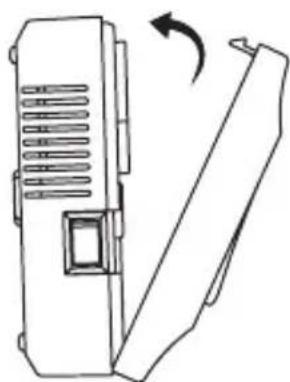
natural_image
Line drawing of a device with a scroll wheel and directional arrow indicating rotation (no text or symbols)5
flowchart
graph TD
    A["Demonstration"] --> B["Email Password"]
    B --> C{Remember Password}
    C --> D["Login"]
    D --> E["Register"]
    E --> F["Forgot Password?"]
    F --> G["Register"]
    G --> H["Nickname"]
    H --> I["Email"]
    I --> J["Password"]
    J --> K["Confirm password"]
    K --> L["Register"]
    L --> M["Already have an account?"]
    N["Forgot Password?"] --> O["Email"]
    O --> P["Verification code"]
    P --> Q["New password"]
    Q --> R["Confirm password"]
    R --> S["OK"]
    T["Get"] --> U["OK"]
flowchart
graph TD
    A["Heating controls"] --> B["Add new devices"]
    C["Heating controls"] --> D["Choice device"]
    D --> E["Add new devices"]
flowchart
graph TD
    A["Enter the 10 digits gateway ID or scan the barcode on the thermostat"] --> B["30180319"]
    B --> C{Choose the WiFi}
    C --> D["The current device does not support 5G WiFi. If you are using 5G WiFi, please connect to another network."]
    D --> E["WiFi Password"]
    E --> F["Remember Password"]
    F --> G["3%"]
    G --> H["Configuring WiFi now, please wait..."]
    H --> I["1. Search for devices ✓"]
    I --> J["Cancel"]
8
101112
9
10
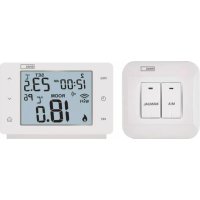
GB | Wireless Wi-Fi Thermostat
The P5623 wireless thermostat is designed for controlling heating systems.
Important
- Before the first use, make sure to read carefully the Operating Manual for the thermostat, but also for the boiler or air-conditioning equipment.
- Turn off power supply before installing the thermostat!
- Installation should be carried out by qualified personnel!
- During installation, observe the appropriate standards.
Technical specifications:
Switched load: max. 230 V AC; 16 A for resistive load; 4 A for inductive load
Clock accuracy: ±60 seconds/month
Temperature measurement: 0 °C to 40 °C with 0.1 °C resolution accuracy ±1 °C at 20 °C
Temperature setting: 5 °C to 35 °C in 0.5 °C increments
Temperature differential: 0.3 °C
Operating temperature: 0 °C to 40 °C
Storage temperature: -20 °C to 60 °C
Unit interconnection: via 868 MHz radio signal, 25 mW e.r.p. max.
Transmitter unit range: up to 100 m in open area
WiFi frequency: 2.4 GHz, 25 mW e.i.r.p. max.
Power supply:
Control unit (transmitter): 5 V/1.5 A
Switching unit (receiver): 230 V AC/50 Hz
Includes: USB adapter 5 V/1.5 A, micro USB cable 1.5 m
Dimensions and weight:
Control unit: 15 × 96 × 96 mm; 124 g
Switching unit: 26 × 86 × 86 mm; 146 g
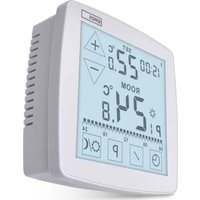
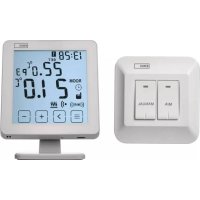
Thermostat (Transmitter) Screen Description – Icons
(see Fig. 1)
1 - WiFi signal reception
10 - HOLD function
2 - Manual control
11 - = Access settings
3 - Automatic control
Select function
4 - Setting
Buttons + -
5 - Time
12 - Vacation mode
6 - Day number
13 - Anti-freeze mode
7 - Set temperature
14 - Heating mode
8 – Heating programme number
15 - Wireless communication with receiver
9 – Current room temperature
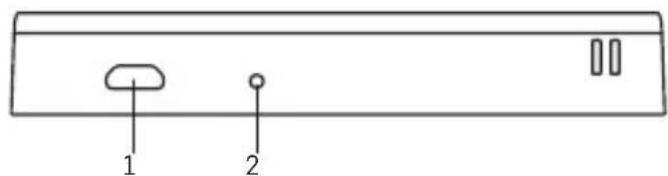
Description of the Bottom of the Thermostat
(see Fig. 2)
1 - Micro USB socket for connecting the power cable
2 - RESET button
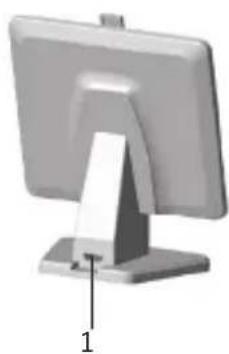
Thermostat Stand
(see Fig. 3)
1 - Micro USB socket for connecting the power cable
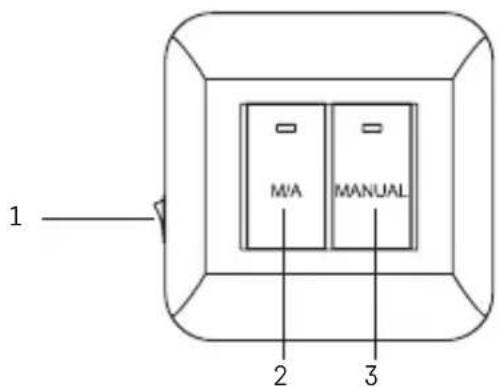
Receiver (Switching Unit) Description
(see Fig. 4)
1 - Main switch
2 - M/A button (red LED)
○ position - off
3 - MANUAL button (green LED)
position - on
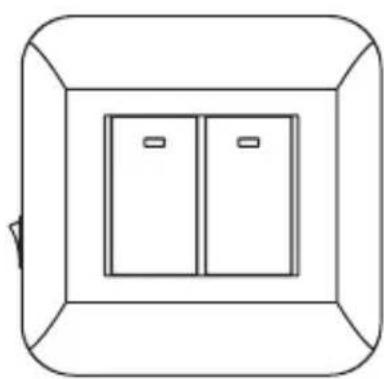
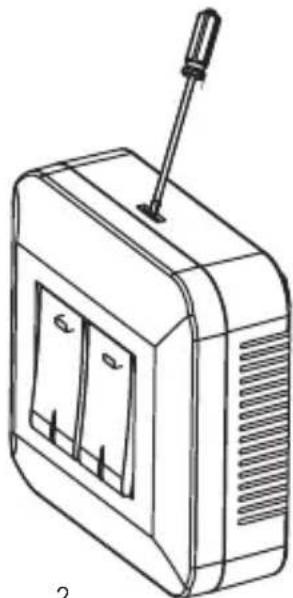
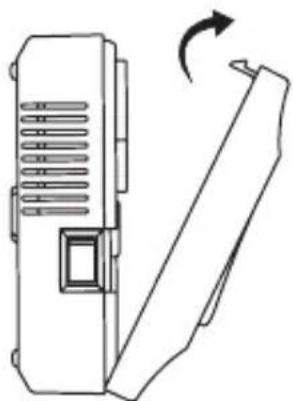
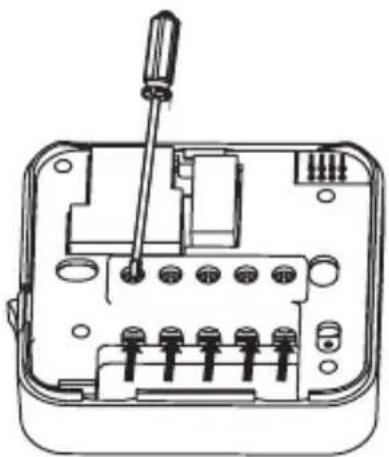
Procedure for Removing the Front of the Switching Unit
(see Fig. 5)
2, 3 - use a screwdriver to press down and hold the inner lock, remove the front cover
Mobile Application
The thermostat can be controlled using a mobile application for iOS or Android.
Download application SmartTherm ⏻ for your device.
QR code for downloading the Android app QR code for downloading the iOS app
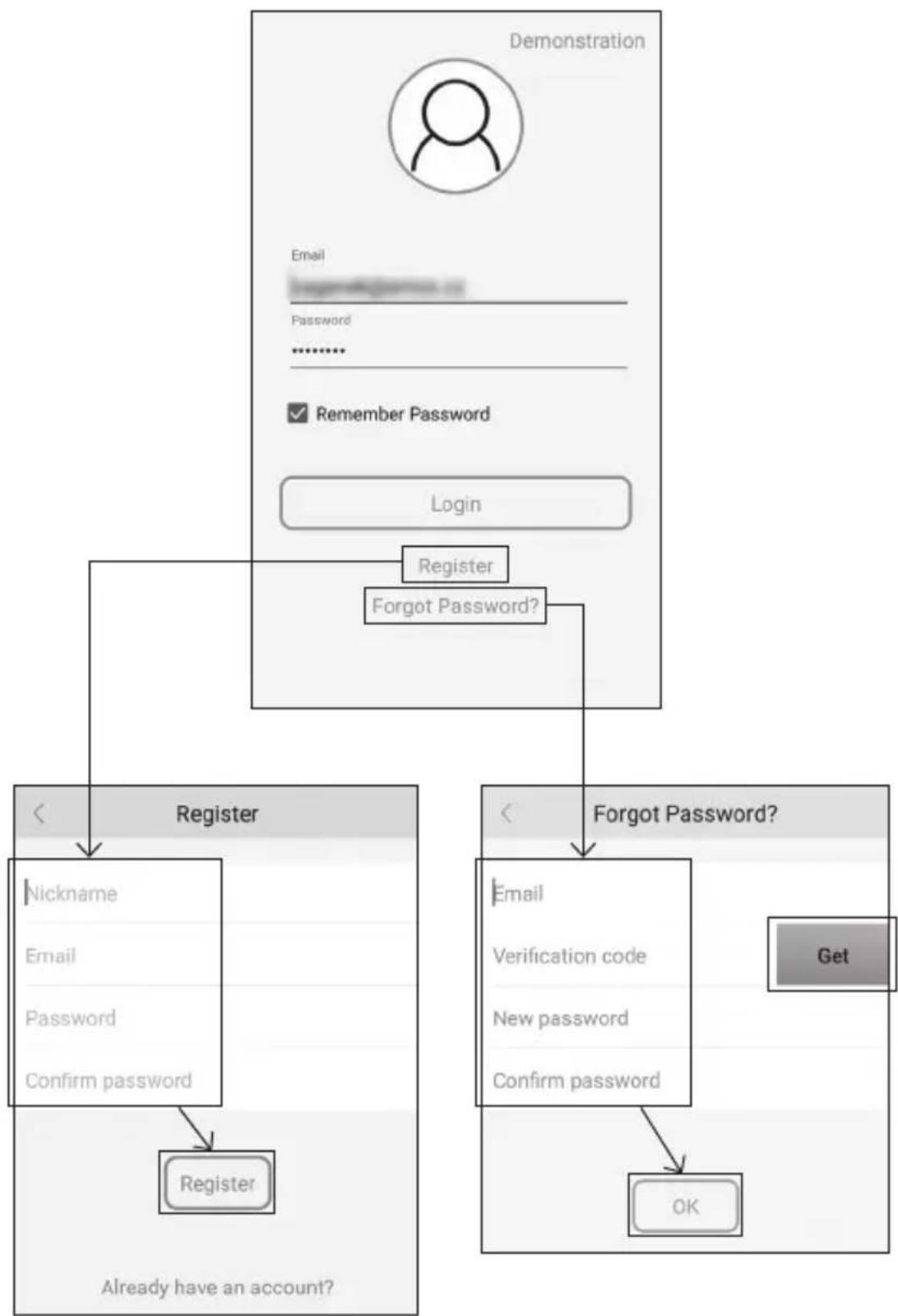
Description of Registration and Login to the Application
(see Fig. 6)
To use the mobile application, you must first register by clicking the Register button.
Fill in your login, e-mail and password and confirm with Register.
After successfully registering, you log in to the application by filling in your e-mail and password and clicking Login.
If you check the Remember Password field, the application will remember your login information. In case you forget your password, click Forgot Password.
Enter your e-mail and click Get.
You will receive a verification code to your e-mail which you then fill in the Verification code field. Then, enter a new password (New password, Confirm password) and confirm with OK.
Attention: The thermostat can only be controlled by 1 user at a time via the application. If another user wants to control the thermostat, the previous user must log out.
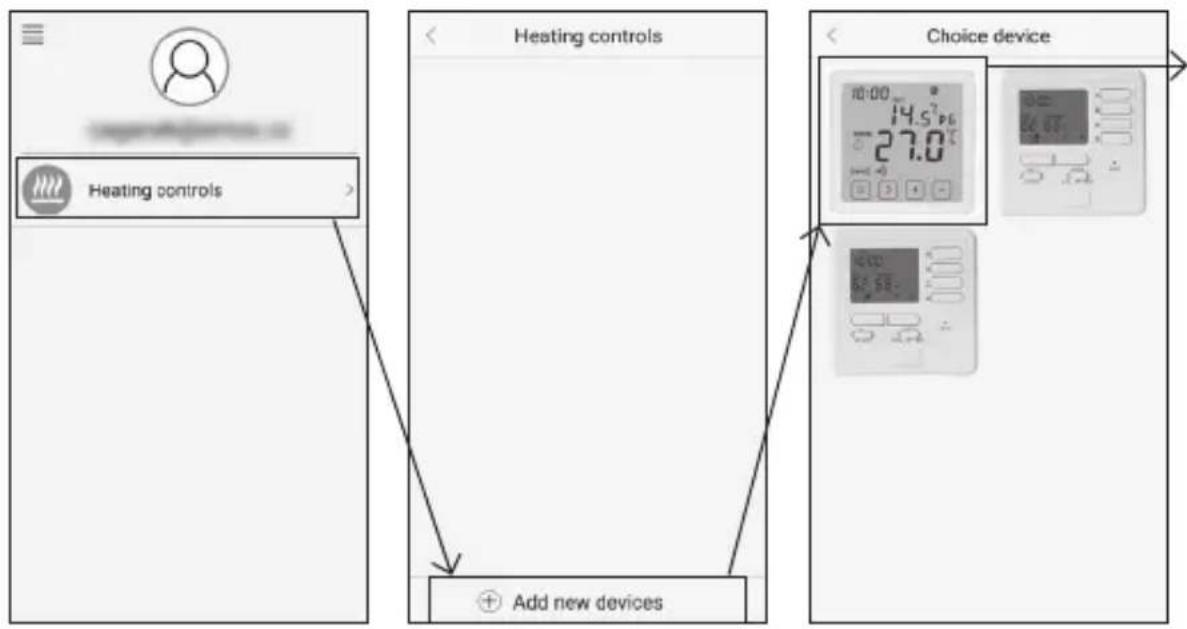
Connecting the Thermostat to a WiFi Network for Control via the Mobile Application
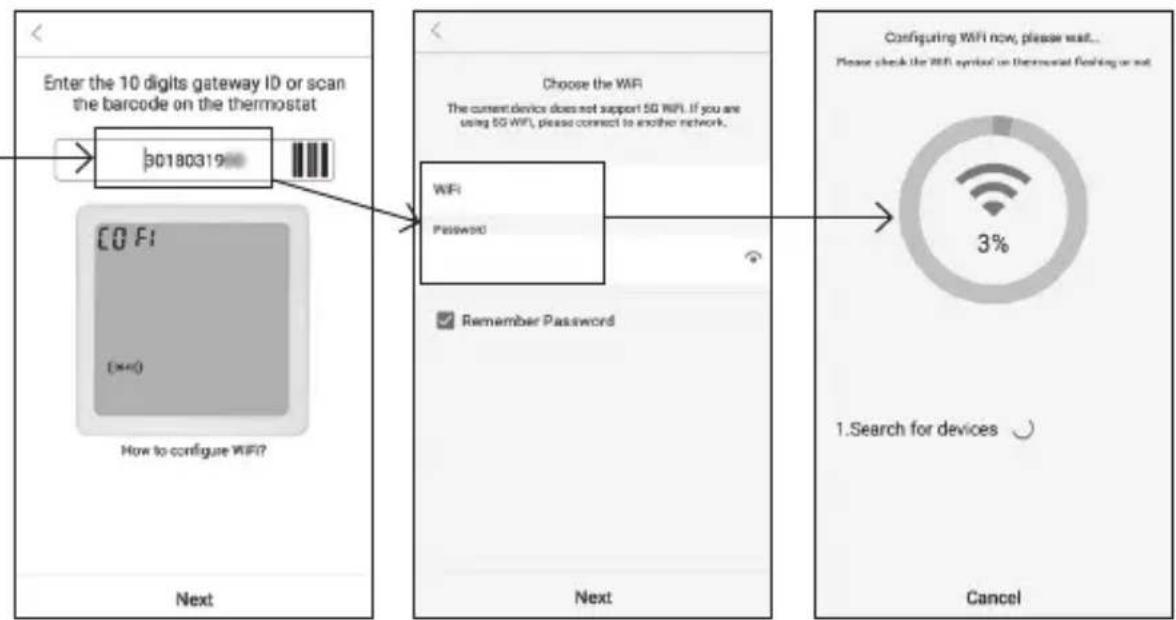
(see Fig. 7)
First, register to the application then log in by clicking Login.
Then, click on Heating controls, + Add new devices.
Select the type of your thermostat and enter (scan) its ID code.
The ID label is located on the back of the thermostat's stand. (Write down the ID code for the event of the ID label fading or getting damaged!)
Select your WiFi network, enter the password and click Next (ticking Remember Password saves the login information).
The application will begin connecting the WiFi network to the thermostat.
Press the button on the thermostat, followed by -, the arrow will indicate ; confron SET by pressing >.
The screen will display COFI, confirm by long-pressing >, the ((###) icon will begin flashing.
The thermostat will start searching for the WiFi network.
The device will pair with the network within 2 minutes, and the thermostat screen will show the icon.
If pairing is unsuccessful (icon will keep flashing), repeat the process.
Viewing Details/Deleting a Connected Thermostat
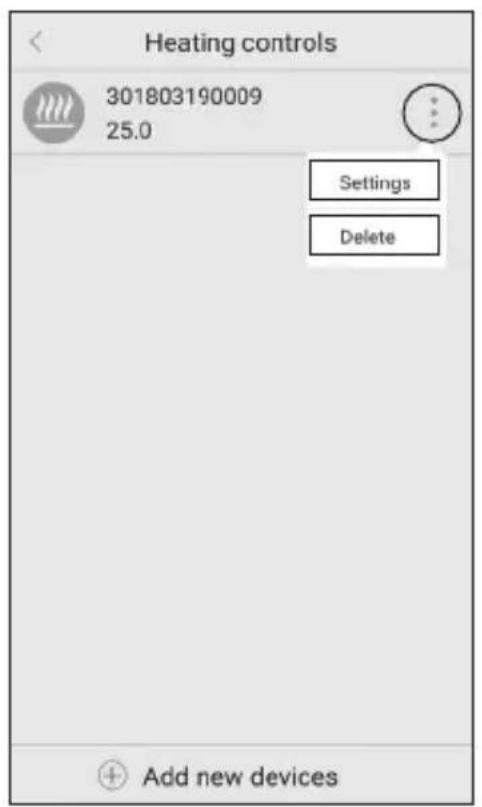
(see Fig. 8)
Click the 3 orange dots to display Settings, where you can view the details (IP address, MAC etc) of the connected thermostat.
Clicking Delete removes the connected thermostat from the app menu.
Mobile Application Menu Description
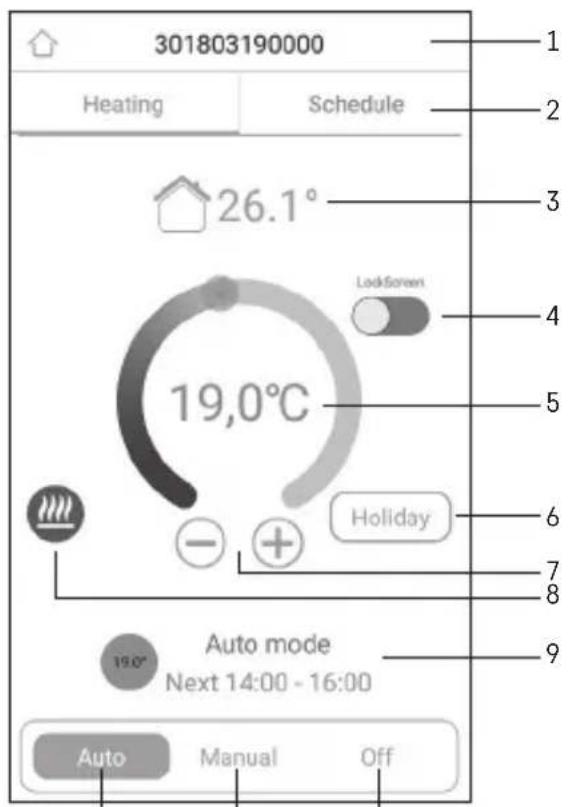
(see Fig. 9)
1 - Thermostat's ID Number
8 - Heating mode status
2 - Heating programme setting
orange icon – heating mode active
3 - Current room temperature
grey icon – heating mode inactive
4 - Menu lock - activation/deactivation
9 - Next temperature change in AUTO mode
5 - Set temperature
10 - Anti-freeze temperature 5 °C activation
6 - Vacation function
11 - Manual temperature setting mode
7 - Temperature decrease/increase
12 - AUTO mode
User Overview/Password Change/App Update
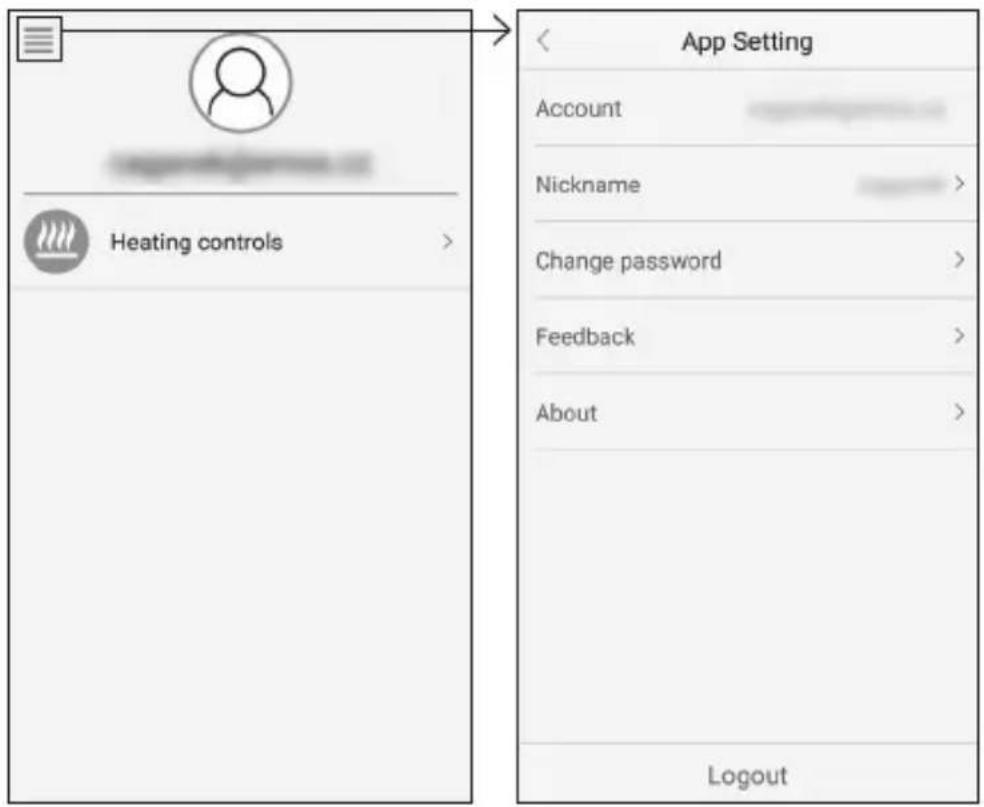
(see Fig. 10)
Click ≡ to view user details.
To change the user name, click Nickname and enter a new name.
To change the password, click Change password and enter the new information.
To update the application, click About and then Check for updates.
To log out of the application, click Logout.
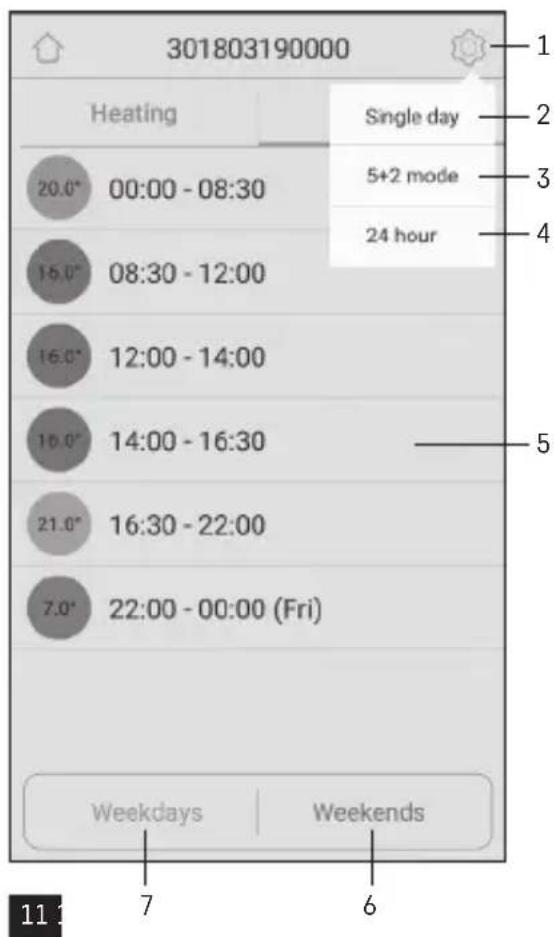
Heating Programme Menu
(see Fig. 11)
1 – Heating programme mode selection
4 – Setting a heating programme for 24 hours
2 – Setting heating programme separately for each day
5 – Overview of programmed temperature changes
3 – Setting heating programme for Monday through Friday + Saturday through Sunday
6 – Saturday to Sunday
7 – Monday to Friday
Clicking the line allows you to edit the temperature and time setting.
Time can be set in 10 minute increments using -/+ or by clicking the circle with temperature.
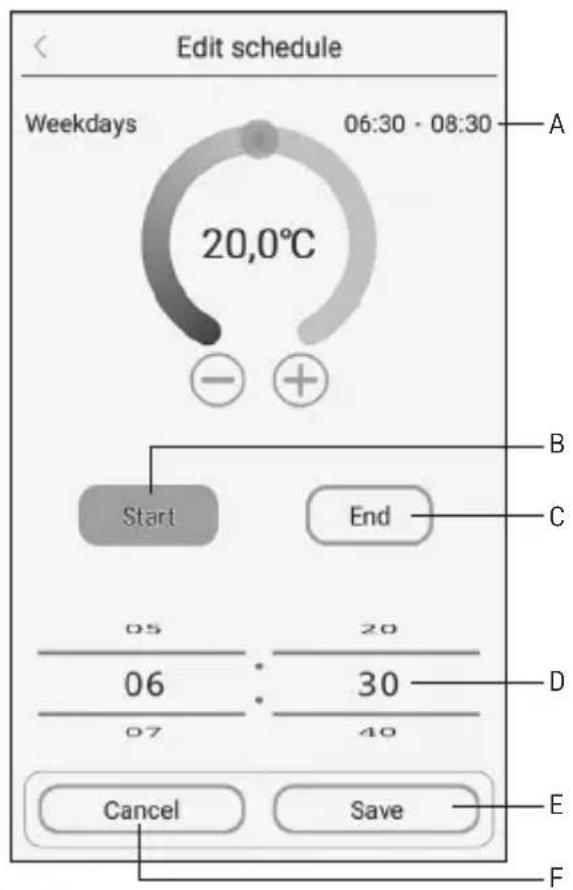
Heating Programme Menu
(see Fig. 12)
A - time span overview
D - change time setting
B - start of temperature change setting
E - save settings
C - end of temperature change setting
F-cancel settings
INSTALLATION
Attention:
Before changing the thermostat, disconnect the heating system from the mains power in your home. This will prevent potential injury by electric current.
Thermostat Installation
Place the thermostat in the stand included in the pack.
Connect the USB power supply (included) with the connected micro USB cable to 230 V mains.
Plug the micro USB cable into the bottom of the stand.
Thermostat Placement
The placement of the thermostat (transmitter unit) significantly affects its functioning.
Choose a location where members of the family spend most of their time, preferably near an inside wall where air circulates freely, with no direct sunlight.
Do not place the thermostat in the vicinity of heat sources (such as TV sets, radiators, fridges), or close to a door. Failure to comply with these recommendations will prevent proper control over room temperature.
Switching Unit Wiring Diagram
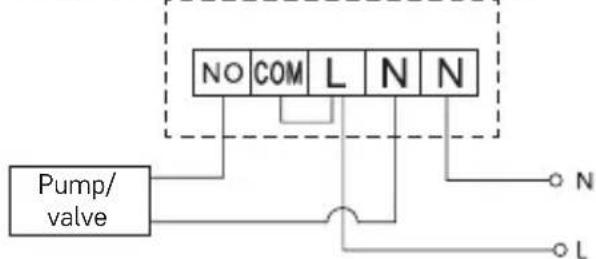
Pump/Motorised Valve Connection Diagram
flowchart
graph TD
    A["Pump/ valve"] --> B["NO"]
    A --> C["COM"]
    A --> D["L"]
    A --> E["N"]
    A --> F["N"]
    B --> G["Output"]
    C --> H["Output"]
    D --> I["Output"]
    E --> J["Output"]
    F --> K["Output"]
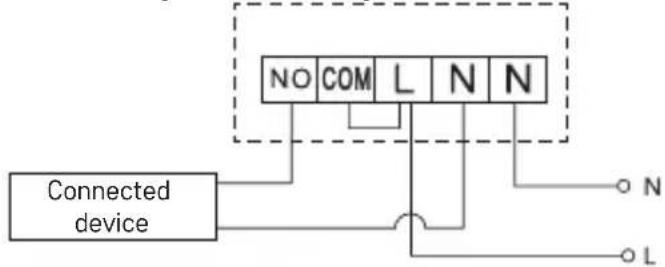
Floor Heating Connection Diagram
flowchart
graph TD
    A["Connected device"] --> B["NO"]
    A --> C["COM"]
    A --> D["L"]
    A --> E["N"]
    A --> F["N"]
    A --> G["L"]
    B --> H["Terminal N"]
    C --> I["Terminal O"]
    D --> J["Terminal L"]
    E --> K["Terminal N"]
    F --> L["Terminal O"]
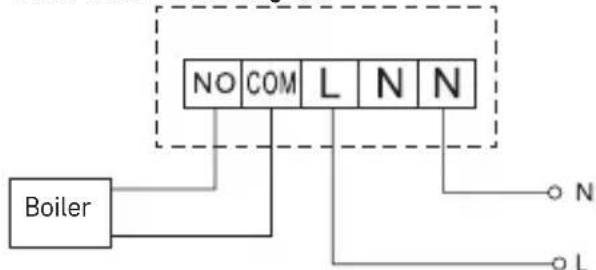
Boiler Connection Diagram
flowchart
graph TD
    Boiler["Boiler"] --> NO["NO"]
    NO --> COM["COM"]
    COM --> L["L"]
    L --> N["N"]
    N --> N2["N"]
    N2 --> L2["L"]
    style NO fill:#f9f,stroke:#333
    style COM fill:#ccf,stroke:#333
    style L fill:#cfc,stroke:#333
    style N fill:#fcc,stroke:#333
    style L2 fill:#cff,stroke:#333
Pre-installed wire coupler will not be connected.
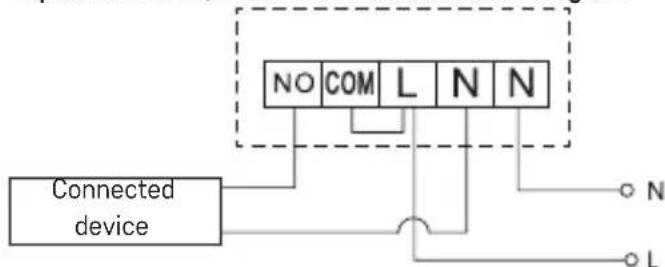
Expansion Valve/Electric Drive Connection Diagram
flowchart
graph TD
    A["Connected device"] --> B["NO"]
    A --> C["COM"]
    A --> D["L"]
    A --> E["N"]
    A --> F["N"]
    A --> G["L"]
    B --> H["Terminal"]
    C --> I["Terminal"]
    D --> J["Terminal"]
    E --> K["Terminal"]
    F --> L["Terminal"]
Pairing the Control Unit with the Switching Unit
Both thermostat units must be paired before first use.
Pairing enables transfer of information between the control unit and the switching unit.
Setting is done via automated pairing (self-learning).
- Fit the thermostat gently onto the stand.
Connect the USB power supply with micro USB cable to 230 V mains and plug the cable into the stand. - Correctly connect the switching unit to voltage supply, turn the main switch to the Iposition and long-press (for at least 10 seconds) the M/A button; a green diode will begin flashing.
- Press ≡ on the thermostat (transmitter), then press -, which sends you to TECH SET settings.
2× press the > button, so that LEAr appears on the screen.
Long press the > button; the ••• icon will begin flashing.
Both units will be paired within 1 minute and the green diode on the switching unit will stop flashing.
If you want to change the pairing code of the two units or the thermostat does not function properly, repeat the entire pairing procedure from step 1 – the pairing code will be rewritten automatically.
Testing Wireless Communication between the Units
- Use the + button on the thermostat to set a temperature several degrees higher than the current room temperature.
- The red LED on the switching unit will light up.
- If the LED does not light up, move the control unit closer to the switching unit.
The maximum range between the control and switching unit is 100 m in an open space.
The range may decrease indoors as the signal is blocked by walls and other obstacles.
Main Switch
To turn on the switching unit, set the switch to the position.
If the heating system is not used for an extended period of time, it is recommended to turn the switching unit off (switch the main switch to the ○ position).
LED Indicators
Automatic Mode
In automatic mode, a red LED will glow when the thermostat switches on the output relay.
Manual Mode
Press the MANUAL button; a green LED will light up.
To switch on the output relay, press the M/A button; a red LED will light up.
To turn off manual mode, press the MANUAL button again; the green LED will switch off.
Setting the Clock, Calendar
Press the button, the arrow will indicate ; confirm by pressing >.
Use the + / - buttons to set the following values (holding the button down accelerates the value change):
Hour – minute – year – month – day.
Confirm the set value by pressing >.
After setting is complete, the current day number will be displayed:
| 1 – Monday | 5 – Friday |
| 2 – Tuesday | 6 – Saturday |
| 3 – Wednesday | 7 – Sunday |
| 4 – Thursday |
Heating Modes
You can press the > button repeatedly to set the following heating modes: AUTO ⏻, OFF ✱, HOLD.
When in AUTO mode, you can set additional modes of Vacation , one-time change .
Vacation Mode
Sets a constant temperature for an extended period of time.
When in AUTO mode, long-press the > button; the day value d:01 will begin flashing.
Repeatedly press the +/- button to set the number of days (from 1 to 99).
Confirm the set number of days by pressing >; the temperature value will begin flashing.
Repeatedly press the +/- button to set the desired temperature.
Confirm by pressing >; the 📄icon will be displayed.
Cancel vacation mode by pressing > again.
One-Time Change Mode
Short-term manual change of temperature.
When in AUTO mode, repeatedly press the +/- button to change the temperature setting.
Wait a moment or press > to confirm the change.
The wicon will be displayed.
This mode will be cancelled automatically upon the first programmed temperature change or can be cancelled by pressing >.
OFF Mode
Anti-freeze mode, temperature set to a constant 5 °C.
When in AUTO mode, repeatedly press the > button; the icon will appear.
To cancel the function, press > again.
Press the ≡ button, the arrow will indicate ;confirm by pressing >.
HOLD Mode
Permanent temperature change.
When in AUTO mode, repeatedly press the > button; the HOLD icon will appear and the temperature value will be flashing.
Set the desired temperature value by pressing +/-
Press the > button to confirm the set temperature.
The set temperature will be maintained until HOLD mode is cancelled.
Any programmed temperature change will not be carried out.
To cancel the HOLD function, press > again.
Heating Programme Setting Mode
Sets temperature over the course of the whole day (6 temperature changes in the day).
Press the ≡ button, followed by +; the arrow will indicate → SET SCHED; confirm by pressing >. You can choose from various pre-set programmes by repeatedly pressing +/-.
Different each day programme – the number of the selected day flashes
Monday to Friday programme – 1 flastes 5
Saturday to Sunday programme – 6fl7shes
All week programme – 1fastes 567
Select your programme of choice and confirm with >.
The time of the first temperature change will be flashing; you can set the time by repeatedly pressing +/- (10 minute increments), then confirm with >.
The temperature value will begin flashing; set by repeatedly pressing +/-
Next to the temperature value, to the right, you will see P1 = 1st temperature change during the day. Confirm by pressing >. Continue to setting the start of the second temperature change (P2 will appear next to the temperature).
Set the time and temperature by following the same steps as when setting the 1st temperature change. Continue the process until all 6 temperature changes (P1 to P6) are set.
Factory pre-set times and temperatures are as follows:
Monday to Friday
| Temperature change Time Temperature | ||
| P1 6:30 20 °C | ||
| P2 8:30 16 °C | ||
| P3 12:00 16 °C | ||
| P4 14:00 16 °C | ||
| P5 16:30 21 °C | ||
| P6 22:30 7 °C | ||
Saturday to Sunday
| Temperature change Time Temperature | ||
| P1 7:30 20 °C | ||
| P2 9:30 20 °C | ||
| P3 11:30 20 °C | ||
| P4 13:30 20 °C | ||
| P5 16:30 20 °C | ||
| P6 22:30 15 °C | ||
Screen Illumination
Pressing any button will illuminate the screen for 15 seconds.
Other Technical Settings
Connecting the Thermostat to WiFi (COFI)
See instructions for Connecting the Thermostat to a WiFi Network for Control via the Mobile Application
Pairing the Receiver and Transmitter Unit (LEAr)
See instructions for Putting the Device into Operation
Update Software (uErS)
Press the button on the thermostat, followed by -, the arrow will indicate ; conffrom SET by pressing >.
Press the > button 2×, uErS and software version number will appear on the screen.
Long-press the > button; the thermostat will start searching for new software.
If new software is available, it will be downloaded.
The search process takes approximately 4 minutes; do not disconnect the power cable from the thermostat during this time.
Ambient Temperature Calibration (CAL)
The temperature sensor in the thermostat is calibrated from production, but additional calibration can be done to optimise the thermostat further, for instance by comparing the measured room temperature with a reference thermometer.
Press the button on the thermostat, followed by -, the arrow will indicate ; confrom SET by pressing >.
Press the > button 3×; CAL will appear on the screen and the temperature value will be flashing. Use the +/- buttons to set the desired temperature value in -3 to +3 °C spread (0.5 °C resolution).
Confirm by pressing >.
Resetting the Thermostat (rESE)
Press the button on the thermostat, followed by -, the arrow will indicate ; confrom SET by pressing >.
press the > button 4×, so that rESE appears on the screen.
Long-press the > button; the thermostat menu will reset.
You can also reset using the hole on the underside of the thermostat.
Use a long blunt object (e.g. a straightened paper clip).
Menu Lock
Simultaneously press the and > button on the thermostat for approximately 3 seconds.
All buttons will be locked and the thermostat screen will flash LOC on the top left.
To unlock the thermostat, press the ☐ and > buttons simultaneously again for approximately 3 seconds; UNLO will flash on the screen.
If you wish to activate the lock in the mobile application, click the LockScreen button; LLOC will flash on the screen.
To unlock, click LockScreen again; LOC will flash on the screen.
Attention:
If you activate the lock using the mobile application, it can only be deactivated through the mobile application! If you activate the lock directly on the thermostat, it can only be deactivated again on the thermostat!
Upkeep and Maintenance
The product is designed to serve reliably for many years if used properly. Here are some tips for proper operation:
- Read the manual carefully before using this product.
- Do not expose the product to direct sunlight, extreme cold and humidity, and sudden changes in temperature. This would reduce accuracy of detection.
- Do not place the product in locations prone to vibration and shocks – these may cause damage.
- Do not expose the product to excessive force, impacts, dust, high temperatures or humidity – these may cause malfunction, shorter battery life, damage to batteries and deformation of plastic parts.
- Do not expose the product to rain or high humidity, dropping or splashing water.
- Do not place any open flame sources on the product, e.g. a lit candle, etc.
- Do not place the product in places with inadequate air flow.
- Do not insert any objects in the product's vents.
- Do not tamper with the internal electric circuits of the product – doing so may damage the product and will automatically void the warranty. The product should only be repaired by a qualified professional.
- To clean the product, use a slightly moistened soft cloth. Do not use solvents or cleaning agents – they could scratch the plastic parts and cause corrosion of the electric circuits.
- Do not immerse the product in water or other liquids.
- In the event of damage or defect on the product, do not perform any repairs by yourself. Have it repaired in the shop where you bought it.
- This device is not intended for use by persons (including children) whose physical, sensory or mental disability or lack of experience and expertise prevents safe use, unless they are supervised or instructed in the use of the appliance by a person responsible for their safety. Children must always be supervised and must never play with the device.
WARNING: The contents of this manual may be changed without prior notice – due to printing limitations, the symbols shown may differ slightly from those on the display – the content of this manual may not be reproduced without the manufacturer's permission.

Do not dispose with domestic waste. Use special collection points for sorted waste. Contact local authorities for information about collection points. If the electronic devices would be disposed on landfill, dangerous substances may reach groundwater and subsequently food, where it could affect human health.
Hereby, EMOS spol. s r. o. declares that the radio equipment type P5623 is in compliance with Directive 2014/53/EU. The full text of the EU declaration of conformity is available at the following internet address: http://www.emos.eu/download.
Update software (uErS)
Potom kliknite na Heating controls, + Add new devices.
Update software (uErS)
Na termostate stlačte tlačidlo ≡ potom tlačidlo -, šípka bude označovat', potvrđite tlačidlom >.
- Stepwise in automotropy
4 = 1st snowierie 17 = 3rd wajarwiry
S - Fase
- Numerous doi
3 - 10.5 mm line 7 - 10.5 mm temperature
Update software (uErS)
Potem kliknite na Heating controls, + Add new devices.
Izberite tip svojega termostata in vnesite (skenirajte) ID kodo termostata.
2 - Gumb M/A (crveni LED)
3 - Gumb MANUAL (zeleni LED)
Postupak za skidanje prednje strane prekidačke jedinice
(vidi Sl. 5)
2, 3 – Koristite odvijač da biste pritisnuli i držali unutarnju zakačku, uklonite prednji poklopca
Mobilna aplikacija
Termostat se može kontrolirati putem mobilne aplikacije za iOS ili Android.
Zatim kliknite na Heating controls, + Add new devices.
Odaberite vrstu svojeg termostata i upišite (skenirajte) njegov ID broj.
Update software (uErS)
Update software (uErS)
2 - Poga RESET (ATIESTATIT)
Termostata statīvs
(skatīt 3. attēlu)
Vaadake juhiseid Connecting the Thermostat to a WiFi Network for Control via the Mobile Application
Voyants LED (diodes)
Mode automatique
Update software (uErS)
1 - Interruptor principal
Posición ○: apagado
Interruptor principal
4 - Menuvergrendeling - activering/deactivering
Programma Hele week – knippert 1234567