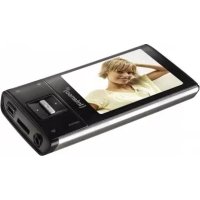
USER MANUAL Video Scooter BT INTENSO
natural_image
Simple line drawing of a USB connector (no text or symbols)
2
text_image
micro
SOSI
3
natural_image
Simple line drawing of a mechanical or biological structure with no text or symbols
4
natural_image
Simple circular diagram with two concentric rings and a vertical line at the bottom (no text or symbols)
5
text_image
(Intenso)*
1
2
3
4
5
6
7
8
9
10
11
12

natural_image
Icon of a person using a laptop inside a black circle (no text or symbols)
text_image
Warning symbol with a sine wave inside a triangle, indicating sound or sound pressure.
natural_image
Icon of a person using a laptop inside a black circle (no text or symbols)
Please read this manual carefully and observe and follow all instructions mentioned in it to ensure a long service life and reliable use of the device. Keep this manual handy and pass it on to other users of the device. You can find more detailed instructions in the download area of our website.
OPERATING INSTRUCTIONS
Security....2
Intended use 2
Safety instructions 2
Declaration of conformity 3
Simplified EU declaration of conformity ....3
Scope of delivery 4
Device overview 4
Use 4
Connecting to a computer 4
Battery 4
Operation 5
The main menu 6
Music/Audio Book/Video/Pictures/Folders 6
Bluetooth/Settings 7
Service/Distributors 7
Disposal 8
Technical data 8
SAFETY
Intended use
This device is designed to play media files via a previously inserted microSD card. This product is not intended for commercial use or medical and speciality applications where the failure of the product could result in injury, death, or significant property damage.
The warranty expires if the product is used in a manner that is not in accordance with its intended use. Do not open or modify the device or use any additional equipment or accessories that we have not approved.
Do not use the device under extreme ambient conditions and observe the safety instructions. Failure to observe the information and safety instructions in this manual is considered a failure to observe the intended use and will void the warranty and may result in personal injury or property damage.
Changes can be made to the firmware and/or hardware at any time without notice. For this reason, it is possible that parts of the instructions, technical data and pictures in this documentation may differ slightly from the product you have. All points described in this manual are only for the purpose of clarification and do not necessarily correspond to a specific situation. No legal claims can be made on the basis of these instructions.
Safety instructions
Hazards for children and persons with reduced physical, sensory or mental capabilities:
Children often underestimate dangers or do not recognise them at all. This device is not intended to be used by persons (including children) with reduced sensory, physical or mental capabilities or lack of experience and/or knowledge unless they are given supervision or instruction concerning the use of the device by a person responsible for their safety and they understand the hazards involved. Unsupervised children should not have access to the device. Ensure that children do not play with the device.
Risk of suffocation!
Children can put the packaging film or small parts in their mouths and choke on them.
Danger of short circuit!
To avoid injury, do not operate this device with wet hands.
Do not insert any objects not intended for use into the openings of the device. Doing so could result in injury from an electrical short circuit and/or a resulting fire.
Do not use the device if there is visible damage to it or the USB cable, as this may result in injury or damage.
Do not attempt to replace the device's battery on your own.
The device must not be exposed to splashing or dripping water.
Do not place objects filled with liquids (vases, glasses, etc.) on the device or in its immediate vicinity. There is a risk that the object will tip over, and the liquid will affect the electrical safety.
Damage!
Before using the device for the first time, please ensure that you fully charge the battery.
Keep the device away from any moisture and avoid dust, heat and direct sunlight.
Do not open the housing of the device and do not disassemble the device into its individual parts. Do not attempt to repair it yourself. The warranty will be voided in such cases.
Avoid using the device in highly magnetised fields, such as in close proximity to TV sets, speaker boxes, etc., to prevent data loss or other malfunctions.
Avoid harsh blows to the device.
Data loss!
Regularly perform data backups on another data storage device to avoid possible data loss in case of failure of this device.
Data recovery is not covered by the warranty and cannot be performed by our service centre!
natural_image
Warning symbol with a stylized ear inside a triangle (no text or numbers)
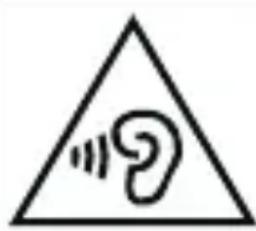
WARNING! Prolonged exposure to music played too loudly can cause temporary or permanent hearing damage or hearing loss. We do not recommend using the device in road traffic. It may cause the listener to become less aware of potential hazards, such as approaching vehicles. Also observe the legal requirements that apply to you!
CE
The CE marking indicates that this product meets the requirements of all EU directives applicable to it.
UK
CA
The UKCA marking says, that this product meets the requirements of all UK Directives applicable for this product.
Intenso International hereby declares that the radio equipment type MP3 Player Video Scooter BT is in compliance with Directive 2014/53/EU. The full text of the EU declaration of conformity is available at the following internet address: www.intenso.eu.
SCOPE OF DELIVERY
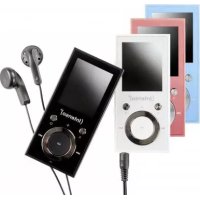
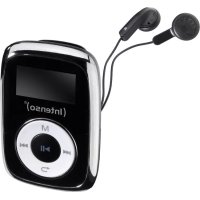
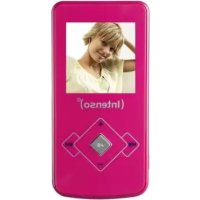
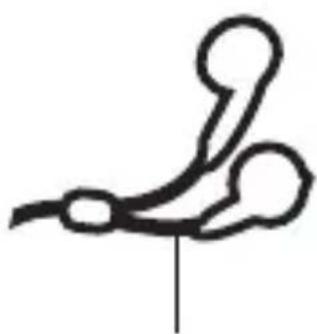
1 Intenso video Player Wired stereo headphones
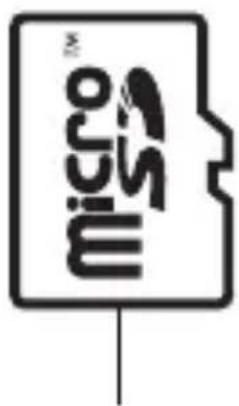
3 microSD card 16 GB Mini CD with conversion software
5 USB-A to microUSB cable Instruction manual
Please check whether the package contents (see also graphic at the beginning of these instructions) are complete and undamaged. If this is not the case, please contact the seller or our service: rma@intenso-international.de
DEVICE OVERVIEW
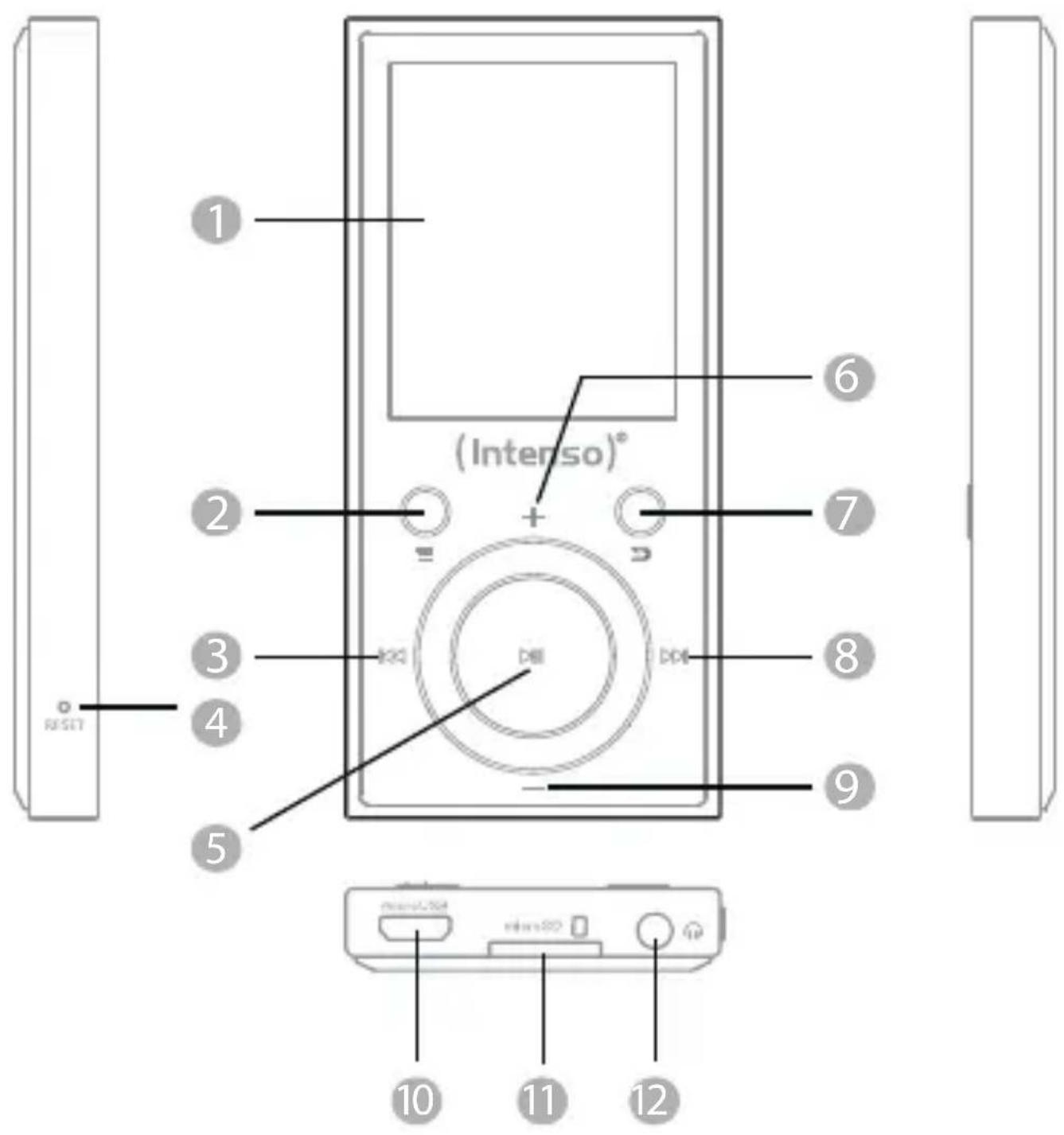
1 Display Menu button Back button 3
4 Reset Play/Pause button Volume(+) button 6
7 Back arrow key Forward button Volume(-) button 9
microUSB connector microSD slot Headphones input
USE
Connecting to a computer
Connecting the device
This device is compatible with devices equipped with Microsoft Windows 8 or later and macOS 10.x or later. First, insert a microSD card into the microSD slot. Then, to connect the player to a computer, plug the USB 2.0 connector of the USB cable into an available USB port on a computer that is turned on and connect the micro-USB connector of the cable to the player. It will now be recognised as a removable disk and ready to transfer data with your computer. You can now easily drag and drop or copy and paste the files you want from your computer to the memory card in the player.
Disconnecting the device
Before disconnecting the USB cable, be sure to disconnect the data connection between the devices! Do not remove the player from the computer while files are still being transferred between the devices. This can lead to data loss and damage to the data medium. Briefly press the menu button to disconnect the connection. The device will now return to the main menu, and the battery will continue to charge. The USB cable can now be safely removed from the player and computer at any time.
Battery
The player has a fixed and non-removable internal battery. Before using the device for the first time, please ensure that you fully charge the battery to ensure full performance and durability. This process usually takes up to 3 hours.
Charging the battery and battery symbol:
The battery must be used regularly for optimal performance. If this is not the case, fully charge it once a month. Please connect the player to a computer using the included USB cable to charge the battery. The charging process will start automatically. The connection indicator will appear on the device's display, and you will see the battery icon in the upper right corner. If the battery is charging, this is indicated by animated charging bars filling up, regardless of the current charge level. The animation stops when the battery is fully charged and all charging bars are permanently displayed. During use without a charging process in progress, a maximum of 4 charging bars are shown in the battery symbol with each charging bar representing 25% capacity.
Use during charging:
You can use the player while it is charging. Simply press the menu button, and the device switches to the main menu. Please note that this will disconnect the data connection to the computer. Please stop all copying processes and other accesses to the memory card beforehand.
Operation
Note: Please ensure that a microSD card is inserted in the player.
Use of headphones
This player plays music either via the 3.5 mm plug-in jack or via a Bluetooth connection. Before connecting, ensure that the player is set to a low volume level. Now connect the selected headphones to the device (for details on Bluetooth usage, see the Bluetooth section of this manual) and slowly adjust the volume to your desired level. Please also note the warning about the negative impact on your hearing when playing music at a high volume for a long time!
Switching the device on and off
Press and hold the Play/Pause button for about 3 seconds to turn on the player. To turn off the power, press and hold the Play/Pause button again for about 3 seconds. This player has a power saving function (Eco mode) which, in the default setting, automatically turns the device off if it has not been used for more than three minutes.
Navigate
Use the Forward and Back buttons to navigate through the different menu items. Use the Volume (+) and (-) buttons to navigate through the submenus. Use the Play/Pause button to open the desired menu item or start the desired function. Press the back arrow button to move up one level and back up to the main menu.
Key lock
The player has a key lock to prevent unintentional entries. To use this, press the menu button for approx. 3 seconds. A closed lock is now displayed as confirmation. To unlock, press the menu button again for approx. 3 seconds. An open lock will now be displayed as confirmation.
The main menu
After switching on the player, the main menu appears. It consists of 7 menu items (Music, Audiobook, Video, Pictures, Folders, Bluetooth and Settings).
The long manual partly explains individual functions and setting options in more detail. This can be found on the mini CD or our website in the download area.
Disconnecting the device
Before disconnecting the USB cable, be sure to disconnect the data connection between the devices! Do not remove the player from the computer while files are still being transferred between the devices. This can lead to data loss and damage to the data medium. Briefly press the menu button to disconnect the connection. The device will now return to the main menu, and the battery will continue to charge. The USB cable can now be safely removed from the player and computer at any time.
The main menu
After switching on the player, the main menu appears. It consists of 7 menu items (Music, Audiobook, Video, Pictures, Folders, Bluetooth and Settings).
The long manual partly explains individual functions and setting options in more detail. This can be found on the mini CD or our website in the download area.
Music
You can start music playback in two ways: via the "Music" item or by folder navigation through the "Folders" item in the main menu.
"Music"
If you have selected Music in the main menu, a submenu opens with the option of displaying your music sorted by “All tracks” (in alphabetical order), “Artists”, “Albums”, “Genres”, and “Playlists”. Artists, albums, and genres require that the corresponding ID3 tags of the MP3 files are available. You have the possibility to create up to three of your own playlists and can start the desired playlist directly here. With Update Playlist, the player searches for newly added titles on the memory card. If you have already listened to music, the “Current track” selection point also appears to continue playback.
"Folders"
If you prefer to start your music via the folder structure on your memory card, navigate to the item “Folders” in the main menu and open it via the Play/Pause button. All existing folders and audio files in the main directory will now be displayed. Now navigate through your folder structure to the desired title and start it with the Play/Pause button.
Audiobook
Save your audiobook files in the “AUDIOBOOK” folder on the memory card to have them displayed under the “Audiobook” menu item in the main menu. This way, you can play your music files and your audiobooks separately. Please note that also only MP3 and WMA files are playable here. Special files protected by licenses cannot be played for legal reasons.
Video
This player can play videos that have been previously converted using the software on the mini CD. You will also find instructions on how to do this on the mini CD.
Pictures
This player can handle JPEG, BMP and GIF format pictures.
Folders
Select the “Folders” item in the main menu to access the folder navigation for your audio files. This allows you to play music according to your own sorting. For videos or pictures, open the folder navigation by pressing the back arrow button in the corresponding playback mode.
If you want to use the folder-related playback modes (folder once, folder repeat and folder random), you must start the music playback via the folder navigation. If you start the play-back via the item “Music” in the main menu, these playback modes are unavailable to you since the sorting is done independently of the folder according to the ID3 tag data.
Bluetooth
This player supports connections via the Bluetooth 5.0 EDR (Enhanced Data Rate) standard. Simply connect your Bluetooth headphones or Bluetooth box via Bluetooth settings and listen to your music wirelessly.
a. Bluetooth on/off:
Here you can manually turn the Bluetooth function on and off. Note that for more convenient use, the device will automatically search for previously connected devices when turned on and when music playback is opened. If no known device that is ready to connect is nearby, Bluetooth will automatically turn off after about 2 minutes.
b. Device search:
Here you can start the search for Bluetooth devices in the vicinity. Please ensure that the device you want to pair with is in pairing mode and not already connected to another device; otherwise, it cannot be found. When the search is complete, select the desired device and confirm “Connect?” by pressing the Play/Pause button. The connection is established, and you can now play your media wirelessly via Bluetooth.
c. Device list:
Under this item, you will find all the Bluetooth devices that have already connected to the device at some time. Navigate to one of the devices and confirm with the Play/Pause button to get further options. If you have selected a device that is already connected, you can disconnect the connection here. This is mandatory if you want to connect another device from the list or a new device via the device search, as there can only be one connection at a time. You can undo the pairing via the list under “Cancel connection?”; a currently connected device must first be disconnected for this. If the pairing is cancelled, the devices no longer connect to each other automatically.
Settings
In Settings, you can make various basic settings for the player. You can find explanations of these in the long instructions in the download area of our website.
SERVICE/DISTRIBUTORS
INTENSO INTERNATIONAL GMBH I Kopernikusstraße 12-14 I D-49377 Vechta
Email (technical support): support@intenso-international.de
Email (RMA number): rma@intenso-international.de
Internet: www.intenso.eu
Telefon (technical support): +49 (0) 4441 – 999 111
(Mon. – Thurs. 9:00 – 16:30; Fri. 9:00 – 14:00)
DISPOSAL
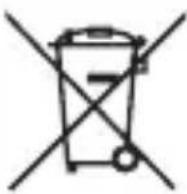 | Disposal of used rechargeable batteries and used batteries: Devices marked with this symbol are subject to European Directive 2006/66/EC. Therefore, all used rechargeable batteries and used batteries must be disposed of separately from household waste via the designated governmental agencies. You will avoid harming the environment by disposing of them properly. |
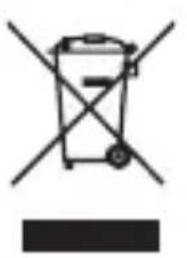 | Disposal of used electrical equipment: Equipment marked with this symbol is subject to European Directive 2012/19/EC. All used electrical and electronic equipment must be disposed of separately from household waste at designated governmental facilities. You will avoid harming the environment by correctly disposing of used electrical and electronic equipment. |
 | Packaging: Packaging is raw material. The packaging material of this product is suitable for recycling and can be reused. Please follow local recycling regulations when disposing of any materials. |
TECHNICAL DATA
| Dimensions 85 mm (H) x 40 mm (W) x 8.5 mm (D) |
| Weight ~28 gm | |
| LCD 4.5 cm (1.8 inch) colour display | Resolution: 128 x 160 pixels |
| PC connection USB 2.0 (PC) | microUSB connector (player) |
| Bluetooth standard 5.0 EDR (Enhanced Data Rate) |
| Bluetooth frequency 2.4 GHz - 2.480 GHz |
| Bluetooth range up to 10 m | |
| Battery Rechargeable Li-polymer batteryCapacity: 300 mAh |
| Frequency range 20 Hz to 20 KHz | |
| SNR > 85 dB | |
| Max. output of the headphones 10 mW + 10 mW |
| Music format MP3 / WMA 5 - 384 kbps |
| Video format | AVI, AMV 160 x 120 pixels(must be converted before) |
| Picture format JPEG / BMP / GIF | |
| Operating temperature | 0 to 40 degrees Celsius |
| Operating system | Windows 8 or newer andMacOS 10.x or newer |

natural_image
Icon of a person using a laptop inside a black circle (no text or symbols)
text_image
Warning symbol with a stylized 'e' inside a triangle, indicating sound or audio hazard.
natural_image
Icon of a person using a laptop inside a black circle (no text or symbols)
text_image
Warning symbol with a stylized 'e' inside a triangle, indicating sound or audio hazard.
natural_image
Icon of a person using a laptop inside a black circle (no text or symbols)
text_image
Warning symbol with a sine wave inside a triangle, indicating sound or sound pressure.
natural_image
Icon of a person using a laptop inside a black circle (no text or symbols)
natural_image
Warning symbol with a stylized ear inside a triangle (no text or numbers)
natural_image
Icon of a person using a laptop inside a black circle (no text or symbols)
text_image
Warning symbol with a sine wave inside a triangle, indicating sound or hearing hazard.
natural_image
Icon of a person using a laptop inside a black circle (no text or symbols)
natural_image
Warning symbol with a stylized 'e' inside a triangle (no text or numbers)
natural_image
Icon of a person using a laptop inside a black circle (no text or symbols)
text_image
Warning symbol with a sine wave inside a triangle, indicating sound or hearing hazard.
natural_image
Icon of a person using a laptop inside a black circle (no text or symbols)
natural_image
Warning symbol with a stylized ear inside a triangle (no text or numbers)
natural_image
Icon of a person using a laptop inside a black circle (no text or symbols)
text_image
Warning symbol with a sine wave inside a triangle, indicating sound or hearing hazard.
natural_image
Icon of a person using a laptop inside a black circle (no text or symbols)
text_image
Warning symbol with a triangle containing a stylized 'e' inside, indicating sound or noise.
natural_image
Icon of a person reading a book inside a black circle (no text or symbols)
text_image
Warning symbol with a stylized 'e' inside a triangle, indicating sound or noise hazard.