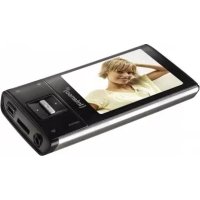
Music Waver - Mp3 player INTENSO - Free user manual and instructions
Find the device manual for free Music Waver INTENSO in PDF.


User questions about Music Waver INTENSO
0 question about this device. Answer the ones you know or ask your own.
Ask a new question about this device
Download the instructions for your Mp3 player in PDF format for free! Find your manual Music Waver - INTENSO and take your electronic device back in hand. On this page are published all the documents necessary for the use of your device. Music Waver by INTENSO.
USER MANUAL Music Waver INTENSO
text_image
Technical diagram of a device with numbered parts for identification and assembly reference.USB 2.0 (High Speed)
1. Contents
- Contents.... 1
- Notes 2
- Functions 2
- Contents of this pack 2
- Prior to use.... 3
- Operation 4
- Main menu 5
- Music 5
- Speech recording....7
- Playback speech recordings 7
- FM Radio 7
- System settings....9
- Troubleshooting 10
- Technical data.... 11
2. Notes
- Prevent the device from dropping.
- Do not use the device in extremely cold, hot, humid or dusty areas. Do not expose it to direct sunlight.
- Back up your device regularly to avoid possible data loss.
- Avoid using your player in strongly magnetic fields.
- Protect the device from moisture. Should moisture seep into the device, please switch it off immediately and clean and dry the device afterwards.
- Do not use any chemical solutions to clean the device. Use a dry cloth only.
- We are not liable for damages or data loss caused by malfunctions, incorrect operation, repairs done by you or changing of the battery.
- Please do not disassemble the device into components and do not try to repair it yourself as the warranty expires in this case.
- The use of earphones or headphones at high volume can cause permanent damage to your sense of hearing.
3. Functions
- Playback of MP3, WMA and ASF files
- Folder navigation
- Speech recording
- FM radio
• Built-in re-chargeable Li-polymer battery
4. Contents of this pack
- Intenso MP3-Player
- Stereo headphones
- USB cable
- User manual
- Warranty card
5. Prior to use
Connect to the PC
Please install a driver for OS Windows 98/SE prior to connecting the player with the PC. (download from www.intenso.de). No driver installation is required for OS WIN 2000/XP/ME/Windows7.
Please proceed as follows:
(1) Connect the player with the USB-port of the PC
(2) The window "Intenso" opens. Now you can store the data from your hard disk on the player.
Safe removal from PC
For Windows 2000/XP/ME/Vista/Windows7:
Click with the right mouse button bottom right in the task bar onto the symbol "safe removal of hardware". Select "remove USB flash drive" with the left mouse button from the appearing context menu. Please ensure that the data transfer has been finished completely.
Now you can remove the device.
For Windows 98/SE:
Select the device in the "device manager" using the left mouse button. Now click on the menu item "remove". Please also ensure here that the data transfer has been finished completely. The device can now be disconnected from the PC.
Charging the battery:
The device has a built-in re-chargeable Li-polymer battery. The battery is charged via the USB connection to your PC. Before using the device for the first time, please make sure that the battery is fully charged. This usually takes about 3 hours.
To charge the battery, connect the device to the PC using the USB cable. The charging procedure begins automatically.
To check the state of charge, control the symbol on the display of the MP3 player.
Note: for optimum performance, the re-chargeable Li-polymer battery must be used regularly. If this is not the case, fully charge the battery at least once per month.
Controls
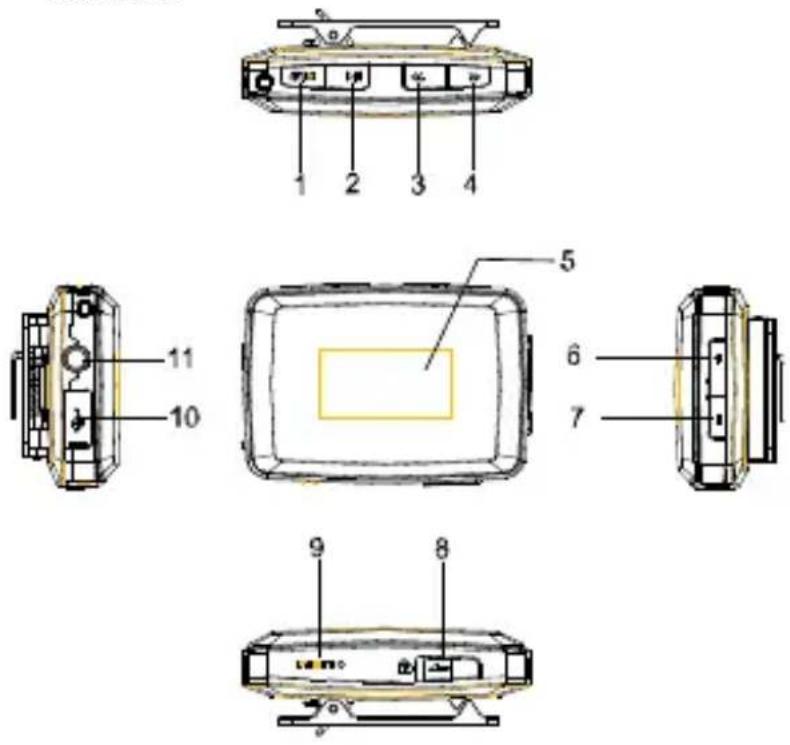
text_image
Technical diagram of a device with numbered components, showing front, top, and side views with labeled parts.(1) Menkey / Power buttons On/Off
(2) Play/Pause/Confirm button
(3) Left/Previous button; hold to fast rewind within a track
(4) Right/Next button; hold to fast forward within a track
(5) Screen display
(6) [ + ] Volume up
(7) [- ] Volume down
(8) [] Lock/Unlock all buttons
(9) Reset hole
(10) Mini-USB connection
(11) Headphones jack
6. Operation
On / Off
Press and hold the key until the Intenso logo is shown on the display.
To switch off press and hold the key until the Intenso logo is shown on the display. Now the device will switch off.
Play / Pause
Press the ▶ button for playback or stopping of a track.
Adjust volume
Press the [+] or [-] - button in order to increase or lower the volume.
Forward / Back
Press the ◀ button to go to the previous or to the next track.
Fast forward
Press and hold down the ▶ button to fast forward within the track.
Rewind
Press and hold down the button to rewind within the track.
Key lock
To lock the keys to protect them from accidental pressures, move the key into the direction of the symbol [中
7. Main menu
After switching on the MP3 player the main menu appears. Here you can choose between the functions music, recording, playback, radio and setup.
Press the ◀◀/▶▶buttons for selection and confirm your selection with the ▶|| button.
8. Music
Select Music from the main menu.
Now you can playback the stored tracks as described under "First steps".
- Call folder navigation
(1) If required, press the button to stop the current playback.
(2) Press the menu button to call the "setup" menu.
(3) Select "folder" and confirm your selection by pressing the button
(4) Select pressing the ◀◀ / ▶▶ buttons the required folder and confirm your selection by pressing the ▶ button.
(5) Confirm your selection with the button in order to start playback mode or press the menu button to close the selected folder afterwards and to exit the folder navigation.
- Delete track
To delete a single track do the following:
(1) If required, press the button to stop the current playback.
(2) Press the Menu button to call the "setup" menu.
(3) Select "delete file" and confirm with the button.
(4) Press the ◀◀/▶▶buttons to select Yes or No. Confirm your selection with the ▶▶ button or press the menu button to return to the sub-menu.
- Delete all tracks
To delete all stored tracks do the following:
(1) If required, press the button to stop the current playback.
(2) Press the menu buttons to call the "setup" menu.
(3) Select "delete all" and confirm with the button.
(4) Press the ◀◀/▶▶buttons to select Yes or No. Confirm your selection with the ▶▶ button or press the menu button to return to the sub-menu.
- Playback modes:
Normal - Plays all tracks once and stops the playback afterwards
Repeat track - repeats the current track
Repeat all - Plays all tracks and starts again from the beginning
Random - plays all tracks in random sequence
Intro - plays the first 10 sec. of each track
To select a playback mode do the following:
(1) During playback of a track press the menu button to go to the "play setup" menu.
(2) Press the ◀◀ / ▶▶ buttons to select "repeat" and confirm your selection with the ▶▶ button.
(3) Press the buttons to select the desired playback mode. Confirm your selection with the button or press the menu button to return to the sub-menu.
- Equalizer
You can choose from the following sound effects for playback: natural, rock, pop, classic, soft, jazz.
To select an equalizer setting do the following:
(1) During playback of a track press the menu button to go to the "play setup" menu.
(2) Press the ↕ buttons to select "equalizer" and confirm your selection with the ▶ button.
(3) Press the buttons to select the desired equalizer setting. Confirm your selection with the button or press the menu button to return to the sub-menu.
- Exit music mode
Keep the ▶ button pressed for 3 seconds to go to the main menu.
9. Speech recording
In the main menu select the function record.
You can record speech via the built-in microphone.
- record
(1) Press the button to start recording.
(2) During recording you can stop and/or resume the recording by pressing the button.
(3) Press the key until „Save“ appears on the display. Leave the key now and the registration is saved.
Attention: Do not switch off the device during recording. The recording will not be saved and is lost.
- Exit the function record
Keep the ▶ button pressed for 3 seconds to go to the main menu.
10. Playback speech recordings
In the main menu select the function playback.
You can playback previously recorded speech.
- playback
(1) Select the desired file using the ↕ buttons and start playback with the button.
- Exit playback function
Keep the ▶ button pressed for 3 seconds to go to the main menu.
11. FM Radio
In the main menu select the function radio.
You can receive radio stations with your MP3 player.
● Automatic station scanner
(1) Press the Menu button to call the "setup" menu.
(2) Press the ◀◀/▶▶buttons to select "station scan" and confirm your selection with the ▶button.
(3) The player starts the automatic search of the radio channels inside the adjusted frequency band. If it finds a radio station, the automatic search is interrupted shortly and the found channel is saved. After that the automatic search continues its search until it reaches the end of the frequency band. In this way all the received radio channels in your frequency band have been saved. Press the key and interrupt the search and the player will save all the channels found until that moment.
● Manual scan for radio stations
(1) Press the ↕ buttons to change the frequency.
- Save radio stations
(1) Press the Menu button to call the "setup" menu.
(2) Press the ◀◀/▶▶buttons to select "save and confirm your selection with the ▶II button.
(3) Press the /←buttons to select Yes or No and confirm your selection with the ▶button.
- Select saved radio stations
(1) Press the button to go to the next saved radio station.
- Delete saved radio stations
(1) Select the radio station to be deleted by pressing the button.
(2) Press the menu button to call the "setup" menu.
(3) Press the -buttons to select "delete" and confirm your selection with the button.
(4) Press the /←buttons to select Yes or No and confirm your selection with the ▶button.
- Record radio programmes
You can report the current radio programme on air.
(1) Select the radio station to be recorded by pressing the button.
(2) Press the Menu button to call the "setup" menu.
(3) Press the 1 button to select "record" and confirm your selection with the ▶II button.
(4) Press the button to start recording.
(5) During recording you can stop and/or resume recording by pressing the ▶II button.
(6) Press the key until "Save" appears on the display. Leave the key now and the registration is saved.
- Exit radio function
Keep the ▶ button pressed for 3 seconds to go to the main menu.
12. System settings
To set your MP3 player individually do the following:
(1) In the main menu select the function setup.
(2) Press the ◄◀/▶▶ buttons to select the desired setting (see table). Confirm your selection with the ▶|| button or press the menu button to return to the main menu.
| Setting | Description: |
| Display | LCD Off time – After the set time has elapsed, the display will be switched to dark in order to save energy. |
| Language | Select the desired language. |
| Save energy | Off time – The player switches itself off automatically after the preset time provided that the player is not in use.Sleep-Timer – After the set time has elapsed the player will be switched off. |
| Key lock | Move the sliding switch of the key lock into the desired position to switch on and off the key lock. |
| Memory info | Shows the memory used in percent |
| Firmware version | Shows the software version. |
| Firmware Upgrade | To upgrade the MP3 player firmware. |
| Default Setting | loads factory settings |
13. Troubleshooting
• The display is blank.
(1) The battery is empty. Charge the battery.
(2) The keys are locked. Move the sliding switch of the key lock away from the symbol [1]
- No sound during playback of a file.
(1) The volume is too low. Increase the volume.
(2) The audio file is defective. Please transfer the file again.
- No connection can be established with the PC.
(1) The driver was not installed properly. Re-install the driver.
(2) Please carry out a main board update.
(Please refer to the manufacturer's instructions)
- The track time displayed keeps on changing.
(1) The bit rate of the MP3 file changes during playback. Please use a universal bit rate for compression.
- The PC shows an error on connection with the player.
(1) The player was disconnected during data transfer from the PC. Never disconnect the player during data transfer.
- The memory indicated by the player does not match the actual memory.
(1) Part of the memory is used for software and display properties.
• MP3 data is not played properly.
(1) The MP3 data was compressed in a wrong format, e.g. in MPEG 1 or 2. Delete the file formats that are not supported.
14. Technical data
Item
OLED Display
Battery type
Battery run-time
Record format
Record duration (max.)
Supported music formats
Bit Rate
Output frequency
SNR
Channel separation
Frequency response
Output line headphones
USB port
Parameter
128 x 64 pixel
re-chargeable Li-polymer battery
12 hours
WAV
approx. 280 hours having 1GB free memory
MP3, WMA, ASF
MP3/WMA: 32kbps \~ 320 kbps
ASF: 8 kbps \~ 320 kbps
20Hz \~ 20kHz
= 80 dB
= 40dB
20Hz \~ 20kHz
L 1mW, R 1mW
USB 2.0 (High Speed)
(INTENSO)®
49377 Vechta
Germany
www.intenso.de
CE

1. Indice
text_image
Technical diagram of a device with numbered parts for identification and assembly reference.USB 2.0 (High Speed)
text_image
Technical diagram of a device with numbered parts for identification and assembly reference.Power buttons On/Off
USB 2.0 (High Speed)
(INTENSO) ^®
49377 Vechta
Germany
www.intenso.de
CE


1. Contenido
text_image
Technical diagram of a device rear panel with numbered components for identificationUSB 2.0 (High Speed)
1. Conteúdo
text_image
Technical diagram of a device with numbered components for identification and assembly reference.USB 2.0 (High Speed)
1. Zawartość
text_image
Technical diagram of a device with numbered parts for identification and assembly reference.USB 2.0 (High Speed)