Video Rider - Mp3 player INTENSO - Free user manual and instructions
Find the device manual for free Video Rider INTENSO in PDF.



| Product type | Video MP3 player |
| Brand | Intenso |
| Model | Video Rider |
| Supported audio formats | MP3, WMA, WAV |
| Supported video formats | MTV (128x128 pixels) |
| Supported image formats | JPEG, BMP |
| Screen | LCD 1.5 inches (3.81 cm) |
| Battery | Rechargeable Li-Polymer, battery life 10 hours |
| Power supply | Via USB port |
| Connectivity | USB 2.0 |
| Expandable memory | Micro SD card (not included) |
| Voice recording | Yes, with quality adjustment |
| Equalizer | Normal, Rock, Pop, Classic, Bass, Jazz, Custom |
| Other functions | Lyrics display, key lock, repeat, folder navigation |
| Maintenance | Clean with a dry cloth, avoid chemicals |
| Safety | Do not expose to moisture, magnetic fields, extreme temperatures. Do not disassemble. |
| Spare parts and repairability | Not user-serviceable, contact customer service |
| Package contents | Player, stereo earphones, USB cable, conversion software, manual |
Frequently Asked Questions - Video Rider INTENSO
User questions about Video Rider INTENSO
0 question about this device. Answer the ones you know or ask your own.
Ask a new question about this device
Download the instructions for your Mp3 player in PDF format for free! Find your manual Video Rider - INTENSO and take your electronic device back in hand. On this page are published all the documents necessary for the use of your device. Video Rider by INTENSO.
USER MANUAL Video Rider INTENSO
1. Table of contents
- Table of contents 1
- Instructions 2
- Functions 2
- Package content 2
- Before use.. 3
- Operation 5
- Music playback 5
- Photos 7
- Videos 7
- Speech recording 8
- Search all files 9
- System settings 9
- Troubleshooting 10
- Technical data 11
- Please observe what follows 12
2. Instructions
- Avoid a strong collision of the device.
- Do not use the device in extremely cold, hot, humid or dusty places. Do not expose it to direct insolation.
- Carry out frequent data backups to avoid a possible data loss.
- Avoid the use in strong magnetic fields.
- Protect the device from humidity. If humidity penetrates the device, please switch it off immediately and clean and dry the device.
- Please do not use chemical solutions to clean the device. In this case please use a dry cloth.
- We are not responsible for damages or data loss in case of a failure malfunction caused by a faulty operation, the reparation of the device by one's own hand or the battery change.
- Please do not decompose the device into smaller parts and do not try to repair it by yourself, because in this case the guarantee expires.
- If you use earphones or headsets on full blast you could cause a durable damage to your hearing.
3. Functions
MP3 & WMA Player
- MTV Video Player
- Picture display in JPEG / BMP
- Folder navigation
- Rechargeable Li-polymer battery
- Customized setting
4. Package content
Please check the package content for completeness
- Intenso Video Player
- Stereo headset
- Micro SD memory card
- Conversion software (MTV-format)
USB cable - Instruction manual + guarantee certificate
5.Before use
Please assure that the Micro SD card supplied is inserted.
Connect with the PC
Please go ahead as follows:
(1) Connect the player with the USB connection of the PC.
(2) The window "Intenso" will open. Now you can save the data from your hard disk on the removable medium.
Safe removal from the PC
For Windows XP/Vista/Windows 7:
Click with the right mouse button down right in the task bar on the symbol "Remove hardware securely". In the displayed context menu please select the point "Remove USB mass storage device driver" with the left mouse button. Please make sure that the data transmission has been completed.
Now you can remove the device.
Battery charge:
The device is equipped with an integrated li-polymer battery. The battery is charged by the USB connection with your PC.
At the first use of the device please pay attention that the battery is completely charged, in general this process takes 4 hours.
To charge the battery please connect the device with the PC by the USB cable. The charging process starts automatically.
If you would like to know the actual status of the charging process, please disconnect the device from the PC. On the display top right you can see a battery symbol. If the symbol flashes green, the battery is completely charged.
Instruction: To achieve an optimal performance the li-polymer battery must be regularly used. If this is not the case, charge the battery completely at least once per month.
Operation components
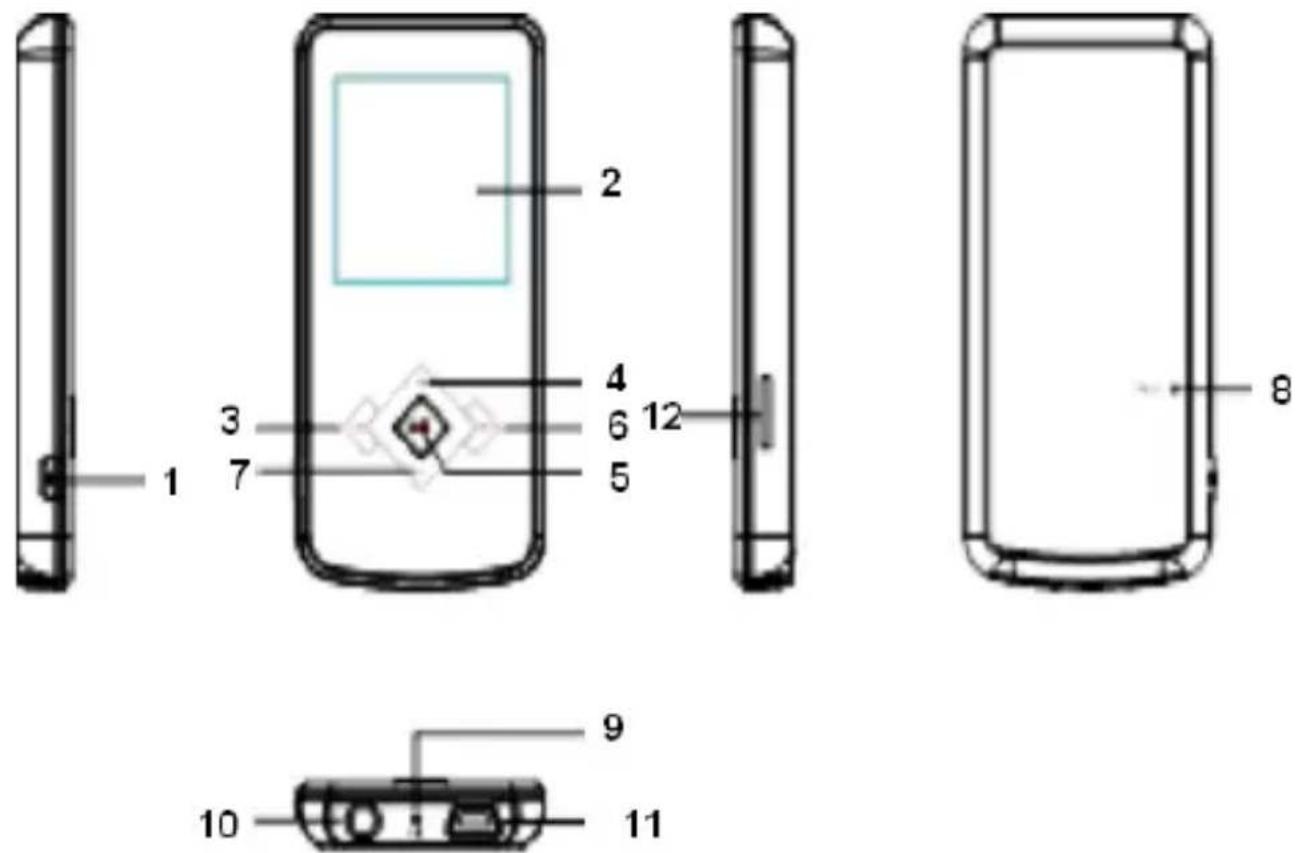
- [] Switch on / switch off / leave the selection menu of the respective functions
- Display
- [Back key
- [+] Raise the volume | Move upwards in the menu
- [] Play/Pause / confirmation key
- [Forward key]
- [-] Lower volume | Move downwards in the menu
- Reset
- Microphone
- Headset entry
- Mini USB connection
- Micro SD - Card
Switch on and switch off,
Press and keep pressed the key [ ] to switch the player on and off.
6. Operation
Play/Pause
[ ] May/Pause / confirmation key. Press and keep pressed this key to enter the main menu.
Volume of the playback of music and video
Press the key [+] or [-] to adjust the volume.
Selection of the previous track (previous title)
Short activation of the key [backwards).
Selection of the next track (next title)
Short activation of the key [ ] (onwards).
Rewind
Keep the key [k]pressed.
Fast-forward
Keep the key [ ] pressed.
Lock / unlock keys
Pase key. Press and keep pressed this key in order to remove the key lock.
Reset
Please confirm the reset key, if the player does not react to any entry.
7. Music playback
Select the function music in the main menu. Confirm your selection by shortly activating the key [HIMM
Options
(1) Press the key [FUNC] in the music mode to call up the option menu.
(2) With the key [+] or [-] you can select the desired function. With the key [ I / M] you confirm your selection.
Selection:
Repetition mode:
No repetition: All songs are played only once.
Repeat title: The selected song is played repeatedly.
Repeat all titles: Repeats all saved songs.
o Shuffle playback: Songs are played according to the random principle.
Simple folder: Repeats the titles of a selected folder once and then stops the playback.
Repeat folder: Repeats all the titles of the actual folder.
Folder random playback: All the songs saved in the folder are played according to the random principle.
Select equalizer
Normal, rock, pop, classic, bass, jazz, customized equalizer
Customized equalizer
(1) Press the key [K] or [B] to select the adjustment of the EQ.
(2) Activate the key [+] or [-] to set up the values.
(3) Confirm your entries with the key [ ]
3D
With this function you can give a local sound to the music.
Backwards
Press [ ] key to get back to music mode.
Lyric (song texts)
This player can display lyric texts during the play back of a song. To assign a lyric to a song, you have to proceed as follows:
(1) Save the lyric text and the corresponding song in the same register.
(2) Name the lyric file and the corresponding song exactly in the same way.
Exit the music function
Press and keep pressed the key Enter the main menu.
8. Photos
Select the function photo in the main menu. Confirm your selection by shortly pressing the key [HIMM
With the key [+] / [-] you can select the favored image from the list or choose the designated folder. With the key [ ] you confirm your selection. With the key [ ] you get back to the previous menu.
During the reproduction of the photos you can page forward / back with the key [+] or [-]
Activation of the photo function
Press and keep pressed the key [10] to the main menu.
9. Videos
Selection the function video in the main menu. Confirm your selection by shortly pressing the key [HIMM
With the key [+] /[-] you can select the designated video from the list or from the designated folder. With the key [you confirm your selection. With the key [you get back to the previous menu.
During the play back of the videos you can:
- Stop and continue the video: Press the key [ ] to stop the play back. To continue the play back, press the key [ ] again.
- With the key [▶] or [▶] you can go to the previous / next video.
- To rewind / fast-forward quickly within a video press and keep pressed the key [K] or [B].
- With the key [+] /[-] you can adjust the volume.
- To exit the play back of a video, press and keep pressed the key [ ].▶I/M
Exit of the video function
Press and keep pressed the key [ ] to get to the main menu.
10. Speech recording
Select the function recording in the main menu. Confirm your selection by shortly pressing the key [HIM
Start and stop the speech recording with the key [HUM]. With the key [O] you can save the recording and get back to the recording menu.
Instruction: The recorded voice files are saved in the folder "MIC.DIR" of the Card. The recording of a voice file is automatically exited and saved if the player has no memory capacity of if the battery has not enough performance.
Setting up the recording quality
Before you start with the speech recording, you have the opportunity to set up the recording quality.
(1) Press and keep pressed the key [ ] to go to the main menu. Select "Setup" and confirm by shortly pressing the key [HIM
(2) With the key [+] or [-] you can select the menu point recording quality. With the key [ ] you confirm your selection.
Menu items:
- Low quality: normal recording quality with low consumption of the memory capacity.
- Normal quality: good recording quality with low consumption of the memory capacity.
- High quality: very good recording quality with high consumption of the memory capacity.
Options
(1) Press the [FUNC] key in the recording mode to call up the option menu.
(2) With the key [+] or [-] you can select the desired function. With the key [ I / M] you confirm your selection.
Selection
Recording
Start the speech recording.
File Browse
Play back of the recorded voice files.
Exit the function speech recording
Press and keep pressed the key [Itoget to the main menu.
11. Search all files
Select the function folder in the main menu. Confirm your selection by shortly pressing the key [HIM
(1) With the key [+] /[-] you can move from one file and/or folder to the other. With the key [ ] you can open a file or a folder.
(2) By pressing the key [FUNC] the dialogue whether you would like to delete the selected file is displayed. Confirm your selection with the key [HIM
Exit the function folder
Press and keep pressed the key [ ] to get to the main menu.
12. System settings
Select the function settings in the main menu. Confirm your selection by shortly pressing the key [HIMM
Adjust the settings:
(1) Select the desired menu point with the key [K] or [B]. Confirm your selection by pressing the key.
(2) With the key + / - you can pass from a value to another.
(3) With the key [ ] you confirm your selection. With the key [ ] you get back to the previous menu without making any changes.
Setting possibilities
- Time: setting of the actual time and the valuable time zone.
- Switch off: setting of the time: if not used the player switches off automatically after that.
- Language: selection of the designated language.
- Display settings: selection of the brightness and the illumination duration of the display.
- Recording quality: setting of the recording quality during a speech recording.
- System settings: delete a file, format the player, reset the player, system information, update the music library and sort files.
- Key lock: time setting: after that the key lock is activated.
13. Troubleshooting
Problem - possible causes - problem solving
There is nothing on the display.
(1) The battery is empty. Charge the battery.
(2) The keys are locked. Unlock the key lock as described in the paragraph "6. Operation".
- The device does not react, if you press the play key.
(1) The keys are locked. Unlock the key lock as described in the paragraph "6. Operation".
There is no sound during the play back.
(1) The volume is too low. Raise the volume in the volume menu.
(2) The audio file is damaged Please transfer the files again
There is no connection with the PC.
(1) The driver was not installed correctly Install the driver again.
(2) Please carry out an update of the main board (In this context, observe the instructions of the main board producer)
- The displayed time value always changes.
(1) The bit rate of the MP3 files changes during the play back. Please use a unified bit rate for the compression.
The PC displays an error message during the connection with the device
(1) The player was disconnected from the PC during the data transmission. Please do not disconnect the device during the data transmission in any case.
The MP3 files are not reproduced properly.
(1) The MP3 files were compressed in a wrong format, for example in MPEG 1 or 2.
Delete the file formats if they are not supported.
Video data cannot be reproduced.
(1) The format is not supported. The video format must be MTV. If this is not the case, please convert it. Pay attention on the format size 128x128 Pixel.
(2) The video file is damaged. Transfer your video file again.
- The photos are not displayed.
(1) The file format is not supported. Please convert the photo into JPG or BMP format.
14. Technical data
Battery type
Rechargeable li-polymer battery
Battery duration
10 hours
LCD
Display of 1,5" inch (3,81cm)
Headset
5mW+5mW
Video format
MTV 128x128 Pixel
Audio formats
MP3, WMA, WAV
Photo format
JPEG, BMP
Bit rate
MP3: 8-320kbps;
WMA:5-320kbps
SNR
80dB
USB port
USB 2.0
Operational between
0 Celsius +45 Celsius
Operational at a relative air moisture of
< 80%
Fit for storage at a relative air moisture of
< 90%
15. Please observe what follows
(1) Please unlock the key lock in order to work with the device.
(2) Please charge the battery if it is indicated on the display.
(3) Please disconnect the device from the PC only as indicated in order to avoid an eventual data loss.
(4) If the file to be recorded is too big, the charge of the file takes longer.
(5) Support software per Windows XP, Windows Vista, Windows 7.
(INTENSO)
49377 Vechta
Germany
www.intenso.de


HaKMTe Ha KONky [O], yTo6bl BKNIOHTb INN BbIKIOHTb NEEP.
6.ОьслужиBaHne
Bocnpon3BeDHe/Nay3a
[ ]KhoKa dIy npOnrpbBaHnry/nay3bl/NoTBePxKeHnry. HaxMnte n depXnTe 3Ty KHOkky HaxaToi, YTO6bl nonactb B rIaNABHOe MeHIO.
rpoKocTb npn Bocnpo3BeDeHm My3bIKN/Bndeo HaxMnte Ha KhoNky [+] nIi [-], yTo6bl OTpeRyJnPoBaTb rpoMKocTb.
BbI6op npeIbIyUeTo TpeKa (foHOrpaMMbl) KopOTKoe HaxaTne KhoNkn [4] (Ha3a).
BbI6Op cIeMyoUoero TpeKa (foHOrpaMMbl) KopOTKoe HaxaTne KHOKN [▶] (Bnepεd).
PpokpyuBaHne Ha3aD
DepxTe KHonky [K] HaKaToi.
PpokpyuBaHne Bneped DePKTe KhoNky [▶] HaKaToi.
JInpika (TeKCTbI NceH)
Bo BpemBocnpOn3BeDeHnI pHeep MoKeT Noka3bIBaTb IInpuYeCKne TeKCTbl. UTo6bI yCTaHOBTb 3a OnpeJeHnOH neChen aJnC IInpIKoN:
(1) 3aIIuHTe IInpueckn TeKCT B Ty Xe NaIky, B KOTOpO HaxoDntcA OTHocIaJaC K HeMy NeChra.
(2) Ha3OBInTe 6aIc InpNKoTouHO TaK JKe, KaK Ha3bIBaETcR OTHocraJc K Hemy neChra.
BbIXoI n3 cyHKUN My3bIKN
YTo6bI nonactb B rnaBHOe MeHIO, HaxMnte KhoNky [IMm n depxnte eHaKaToN.
8.ФOTORpaФИA
BbI6epnte B rnaBHOM MeHIO cyHKUHO OToTpaqna. PoITBePnTe BaW bI6Op KOpOTKm HaxaTneM KHONK [IM
C nOMOJIbKHOJOK [+] / [-] MOxHOBbIbpaTb n3 nepeuHryKHyIO fOTOrpaΦnIO nJIHuyKHyIO npKy. PoiTBePdnte BbIbOp KHOJKOJ [IM. C nOMOJIbKHOJONKJ [IK] BblnonaTe Ha3aB bnpdeByUyue MeHIO.
Bo BpemBocnpo3BeDeHnA pOToRaΦn Bbl MoKeTe JnCTaTb CnUCOK B NOMOuK KhoNKn [+] nIi [-] BnpeD nIi Ha3aI.
BbIXoI3ФyHKcIIuΦOTOrpaΦn
YTo6bI nonactb B rnaBHOe MeHIO, HaxMnte KhoNky [HI/M n depxnte eHaXaToJ.
9. Bndeo
BbI6epnte B rnaBHOM MeHIO cyHKcHIO BnDeo. NOpTBePdTe BaW BbI6op KopoTKM HaxaTneM KhoNk [IM
C NOMOUI KHOKNI [+] / [-] MOXHO BbIbpaTb I3 nepeuHry HxKHOe BnDeo nII HxKHyIO npAnky. PoiTBePdnte Bbl6op KHOKNI [IM]. C NOMOUI KHOKNI [IK] Bbl nonaTe Ha3ad B ppeBldyUee MeHIO.
Bo Bpemr Bocnpn3BeHnBnDeo Bbl MoKeTe:
- OctaHOBtB n npoJoxHb BocnpOn3BeHe HnDeo: HaXmTe Ha KhoNky [II/M], yTo6bl OCTaHOBtB BOCpOn3BeHeHne. YTo6bl npOJxHb BOCpOn3BeHeHne, HaxMTe Ha [II/M] eue pa3.
C nOMOu KHOKN [K] nnn [BbIMoKeTe nepeeITN K npEdbIyUeMy / cJeDyUOeMy BnDeo.
-ДябICTporo npokpyuBaHnBnBdeOHa3aJ/BnepedHaxMnte n depxnte KhoNky [ ] nIIN [ ] - C nOMOuBIO KHOIN [+] / [-] MOXHO peYJnIPOBaTb rpOMKoCTb.
- YTo6bI OKOHHTb BocnpOn3BeDeHne BNdeO, HaxMnTe Ha KHOkKy [IM] n depKnTe e.
BbIXoI n3 fynKcunn BIndeo
YTo6bI nonactb B rnaBHOe MeHIO, HaxMnte KHonky [IMm n depxnte ee HaxaToN.
10. 3aincipbpeu
BbI6epnte B rnaBHOM MeHIO 0yHKUHO 3aNNcB. PoTBePnTe BaW bI6op KopoTKM HaxaTneM KHONK [IM
3aHcB peuHaHaetcN octaHaBnBaetcKHOKnO [IM]. C nOMoUbIO KHOKNMOxHO CoXpaHNTb 3aHcB N BepHyTbCra Ha3ad B MeHIO 3aHNCN.
3aMeuHue: 3aHcHbIe peYeBbIe daHbIe coXpaHJOTcB b PJIeepe B nAnKe «MICIN.DIR» . 3aHcB peYeBOrO faiJa OKaHnBaETCr N COxpaHJeTcA BTOMaTNUeCKN, KOrDa y pHeepa 6oJIbIe HeT MeCTa B nAmrTu nn Ecnn y 6aTapeN HeDoCTaTOUHO MOUHOCTN.
HactpoKa KaueCTBa 3aIncn
Ipejde yem haatab 3aInscb peu, y Bac eCTb BO3MOxHocTb npOBecTu HaCTpoiKy KaueCTBa 3aInscu.
(1) HaxmTe Ha KhoNky [HIM] n depKnTe e e HaxaToi, noka He nonaTe B rnaBHe meHIO. Bb6epTe «HaCtpoNka» n IOdTBepDnTe Bb6Op KOpOTKm HaxaTneM Ha KhoNky [HIM
(2) C nOMOuH KHOKN [+] Hn [-] B nyHKTe MeHIO MOxHO BbI6paTb KaueCTBO 3aHcN. PoTBePdnte BaW BbI6Op KHOKNoI [II/M].
Bo3MOxHocTH BbI6opa:
-ДолгoeВрем:HopMaJIbHoeKaueCTBO3aIINuHN3KoeNcNoJIb3OBaHne NaMRTN.
HopMaJIbHOe KaueCTBO: XopoUee KaueCTBO 3aIINn Hn3Koe IcNoJIb3OBAHne nAMrTn.
- BbICOKoe KaueCTBO: OyeHb XopoOee KaueCTBO 3aINcN IN BbICOKoe NCIOJIb3OBaHne NaMRTN.
Onznn
(1) HaxmTe B pexime 3aHnCn Ha KhoNky [O], YTo6bl Bbl3BaTb MeHIO OIcM.
(2) C nOMOuKHOKN [+] mN [-] Bb MoKeTe Bb6paTb XeJaEmyIO cyHKUIO. POnTBePnTe BaW Bb6op KHOKnOJ [HIM
Bb16op
3aanncb
HaunHe 3aInCb peu.
Bocnpon3BeDeHne
Bocnpo3BeDeHHe 3aIncAHbIX peYeBbIX paIIOB.
BbIXoI n3 cyHKcnn 3aInc peuN
Yto6bl nonactb B rnaBHOe MeHIO, HaxMnte KhoNky [IMM n depKnte ee HaxaToN.
- Yka3aHHbI OsbE M namrN np6opA He COOTBeTCTByeT DeiCTBnTeJbHomy obemy namrN.
(1) YacTb namrtn nCnoNb3yeTcra dnn nporpaMMHoro oBeceueHn, fOpMaTHPOBaHnI XapaKTePncTnKn N3O6paXeHn.
- Φαιль MP3 He npoɪrpɒbɑtca KaK Haɪd.
(1) Φайы MP3 6ылсжасы B He npabnblbнй ФорmaT, Hapnmep, B ФорmaT MPEG 1 nln 2.
Cotpinte Форmaы, KOTOpbie He noДeprxmbaIOTcra.
Bndeo-phiJbI He BocnpOn3BOJaTc.
(1)ΦopMaT He NOДePxNBAeTcra. BnIeO-ΦopMaT DoJxH e6bITb MTV.EcIIa 3To He TaK,pepeKoIpyuTe erO. O6paTInTe BnImaHHe Ha pa3MepΦopMaTa 128x128 nIKceJIeN.
(2) Bndeo-Φopmat noBpeKdEh. PpOBeIte npepaUy Bndeo-ΦaIne noBTOpHo.
- ΦOTorpaΦHn He NOKa3bIBaHOTc.