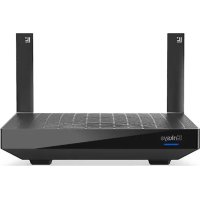
Hydra 6 - Router LINKSYS - Free user manual and instructions
Find the device manual for free Hydra 6 LINKSYS in PDF.

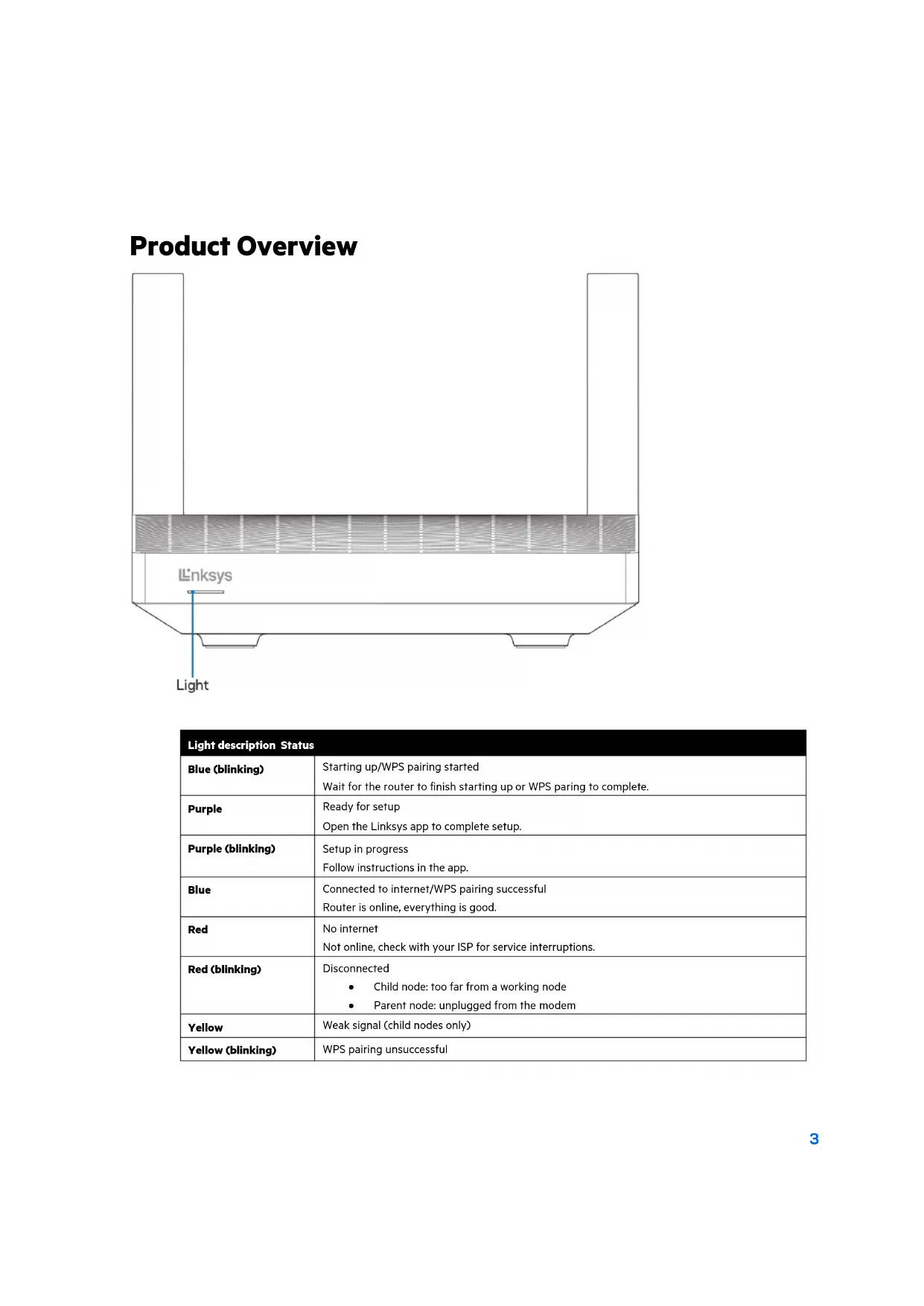


| Product Type | AX3000 Dual-Band WiFi 6 Router |
| Brand | Linksys |
| Model | Hydra 6 (MR2000, MR20EC, MR20MS, MR20WH) |
| Dimensions (L x W x H) | 215 mm x 155 mm x 56 mm |
| Weight | 687 g |
| Power Supply | 12 V, 1.5 A |
| Port Speed | 10/100/1000 Mbps (Gigabit Ethernet) |
| Radio Frequencies | 2.4 GHz and 5 GHz |
| Antennas | 2 adjustable external antennas (non-removable), 1 internal printed antenna |
| Ports | USB 3.0, Ethernet (1-4), Internet, Power |
| Buttons | Power, Reset, WPS |
| LEDs | Multicolor front panel (power/status), rear panel USB, Ethernet, Internet |
| Security | WPA2-Personal, WPA3-Personal, WPA2/WPA3 mixed, 128-bit encryption |
| Main Features | Dual-band WiFi 6, setup via Linksys app, parental controls, guest network, device prioritization, WPS, USB storage, speed test, Intelligent Mesh system |
| Care and Cleaning | Clean with a soft, dry cloth. Do not use chemicals. |
| Spare Parts and Repairability | Power adapter (12V/1.5A) available as spare part. No user-serviceable parts. |
| General Information | Mesh router compatible with Linksys Intelligent Mesh. Setup requires mobile app (iOS 14.1+ / Android 6.0+). Warranty and support at Linksys.com/support/MR2000. |
Frequently Asked Questions - Hydra 6 LINKSYS
User questions about Hydra 6 LINKSYS
0 question about this device. Answer the ones you know or ask your own.
Ask a new question about this device
Download the instructions for your Router in PDF format for free! Find your manual Hydra 6 - LINKSYS and take your electronic device back in hand. On this page are published all the documents necessary for the use of your device. Hydra 6 by LINKSYS.
USER MANUAL Hydra 6 LINKSYS
Where to find more help 5
Set Up 6
What you'll need 6
Linksys Whole Home Wi-Fi System Settings 8
Log in to the Linksys app 8
Navigation Menu 9
10
Devices 11
To view or change device details 12
Parental Controls 13
Wi-Fi Settings 14
Advanced Wi-Fi Settings 15
Connect a Device with WPS 16
Guest Network Access 17
Priority 18
Notifications 19
Network Administration 20
Advanced Settings 21
Internet Settings 21
Port Settings 22
Wi-Fi MAC Filters 23
External Storage 24
Speed Check 25
My Account 26
Feedback 27
Help 28
Connect Directly To Your Router 29
Router password 30
How to factory reset your router 31
How to mount your router on the wall 31
Specifications 32
Linksys Hydra 6 32
Environmental 32
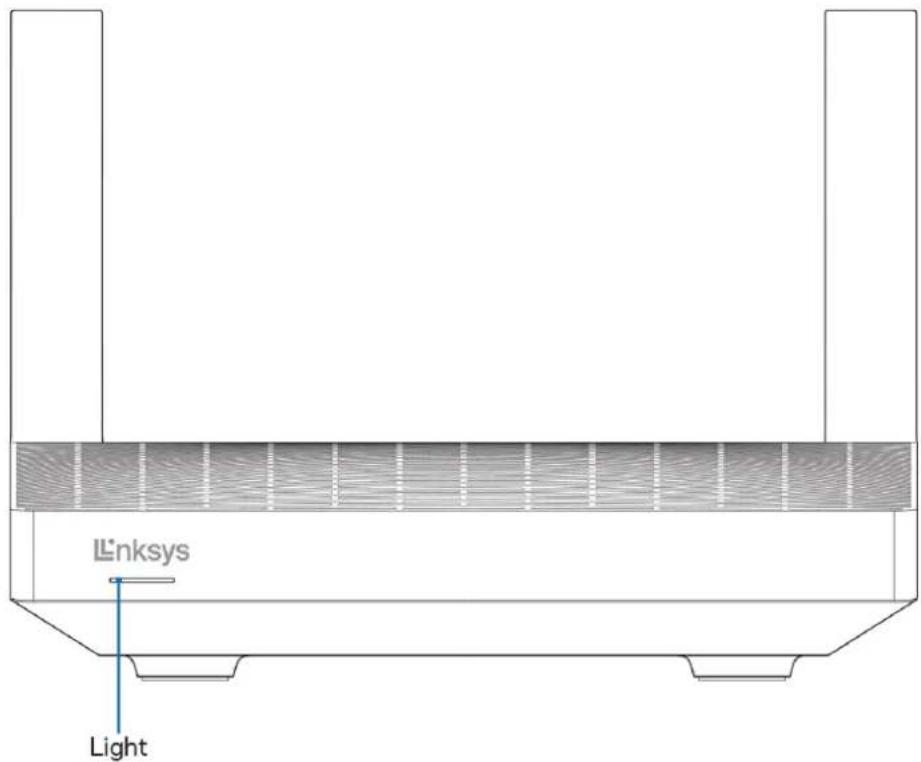
Product Overview
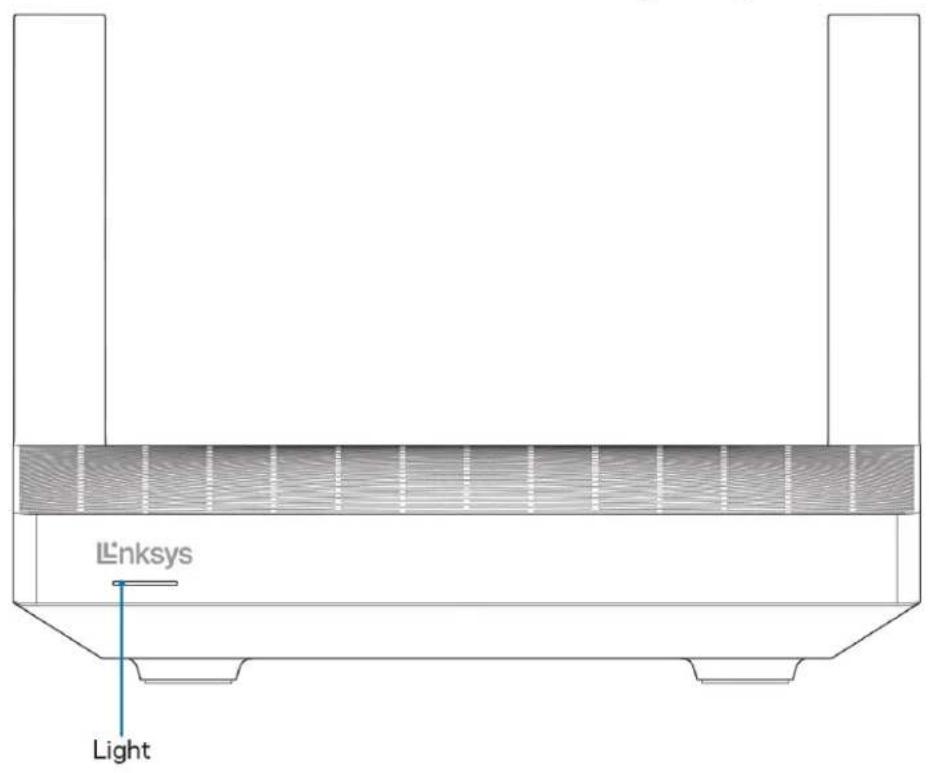
Light description Status
| Blue (blinking) | Starting up/WPS pairing startedWait for the router to finish starting up or WPS paring to complete. |
| Purple | Ready for setupOpen the Linksys app to complete setup. |
| Purple (blinking) | Setup in progressFollow instructions in the app. |
| Blue | Connected to internet/WPS pairing successfulRouter is online, everything is good. |
| Red | No internetNot online, check with your ISP for service interruptions. |
| Red (blinking) | DisconnectedChild node: too far from a working nodeParent node: unplugged from the modem |
| Yellow | Weak signal (child nodes only) |
| Yellow (blinking) | WPS pairing unsuccessful |
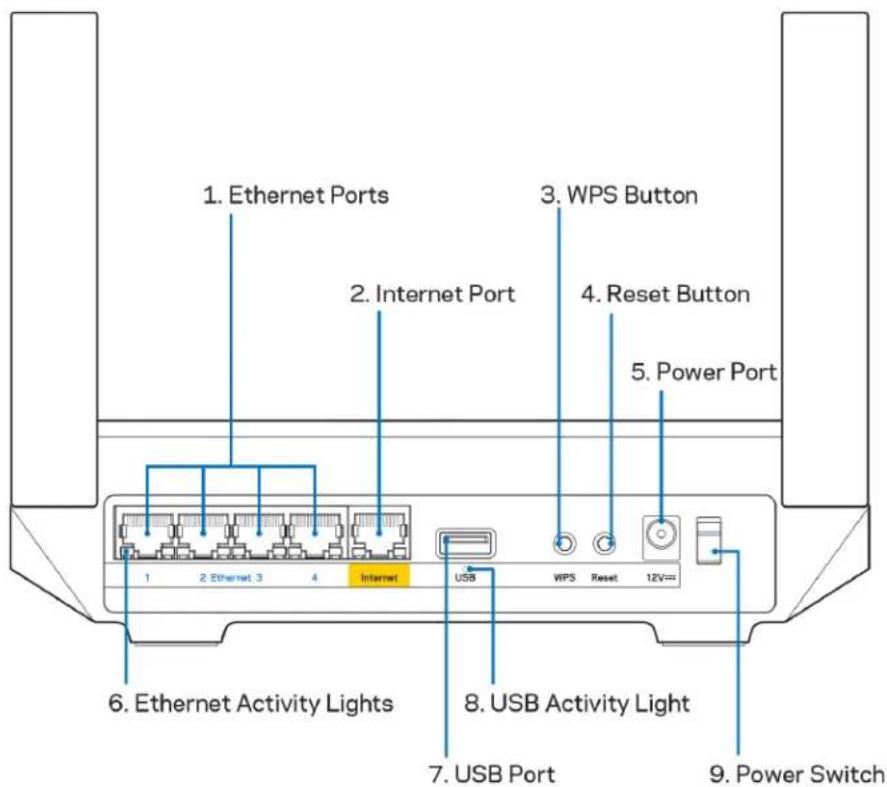
Ethernet ports (1) Connect ethernet cables to these blue gigabit (10/100/1000) ports, and to wired devices on your network.
Note—For best performance, use CAT5e or higher rated cables on the Ethernet ports.
Internet port (2)—Connect an ethernet cable to the yellow gigabit (10/100/1000) port, and to a broadband internet cable/DSL or fiber modem. If you are using this router as a child node in a mesh Wi-Fi system, you can use this port to create a wired connection to another node.
Note-For best performance, use CAT5e or higher rated cable on the Internet port.
Wi-Fi Protected Setup™ button (3)—Press to connect to WPS-enabled network devices.
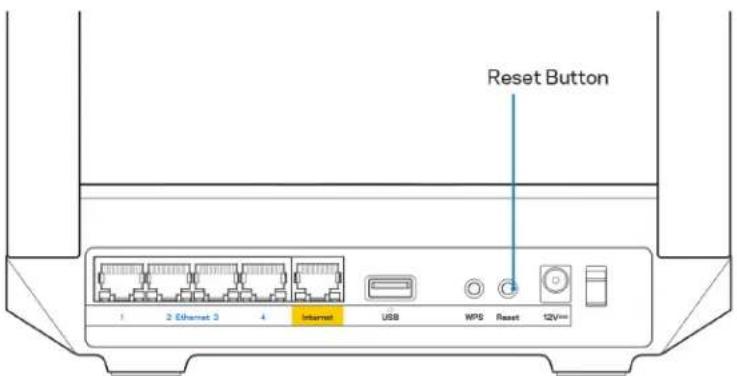
Reset button (4)—To factory reset your router, press and hold while the light on top of the router blinks red. Do not release the button until the light goes out and then turns bright red.
Power port (5)—Connect the included AC power adapter.
Ethernet activity lights (6)—Lights indicate data transfer over ethernet cable.
USB 3.0 port (7) Connect and share USB drives on your network or on the internet.
USB activity light (8)—Light indicates data transfer over USB connection.
Power switch (9)—Press I (on) to turn on the router.
Note - FCC regulations restrict the operation of this device to indoor use only.
Help
Where to find more help
- Linksys.com/support/MR2000
- Linksys app help (launch the app and click Help in the main navigation menu)
Note—Licenses and notices for third party software used in this product may be viewed on http://support.linksys.com/en-us/license. Please contact http://support.linksys.com/en-us/gplcodecenter for questions or GPL source code requests.
Set Up
IMPORTANT—Your MR2000 Series router can be set up as a parent node or a child in a whole home mesh Wi-Fi system. A parent node must be connected with an ethernet cable to your modem or modem-Router. Child nodes can be connected wirelessly or with ethernet cables.
If you are adding the router as the parent node for an existing Linksys whole home mesh Wi-Fi system, factory reset all nodes and add them to the system after your MR2000 Series router is setup and working.
Download the Linksys app. You need this app to set up your router.
Go to the app store for your device and search for Linksys. Look for this icon:
What you'll need
Install the app, open it and follow the instructions.
Note—The app works with iOS 14.1 and later, and Android 6.0 and later.
During setup you will create a Linksys Smart Wi-Fi account so you can use the app to view or change your router system settings from anywhere you have an internet connection.
Among the many things you can do with Linksys Smart Wi-Fi and the Linksys app:
- Change your Wi-Fi name and password
- Set up guest access
- Connect devices to Wi-Fi with WPS
- Block internet with parental controls
Test your internet connection speed
Note We'll send you a verification email. While connected to your home network, click the link in the email to link your router with your account.
Other than plugging in the power and the ethernet cable, the app-based setup process does the work for you. Once connected, use the app to personalize your Wi-Fi by giving it a name and password. You also can give your router and any child nodes names based on where they are so you can identify them in the rare case where things need attention.
If you want to add child nodes to create a whole home mesh Wi-Fi system, set them up within range of a working node. Only the parent node has to be wired to the modem or modem-router. Don't worry, the app will help you place your nodes.
Print this page, then record your Wi-Fi and account settings in the table as a reference. Store your notes in a safe place.
| Wi-Fi Name | |
| Wi-Fi Password | |
| Router Password | |
| Guest Network Name | |
| Guest Network Password | |
| Linksys App Login Email Address | |
| Linksys App Password |
Your login email address and password can also be used to log in at LinksysSmartWiFi.com on a computer. You can view or manage your Wi-Fi in an internet browser.
Linksys Whole Home Wi-Fi System Settings
Using your Linksys app, you can view or change Wi-Fi system settings including security and parental controls. You can access settings from anywhere in the world if you have an internet connection. You can also access your system directly from your home network, even if you don't have an internet connection.
Log in to the Linksys app
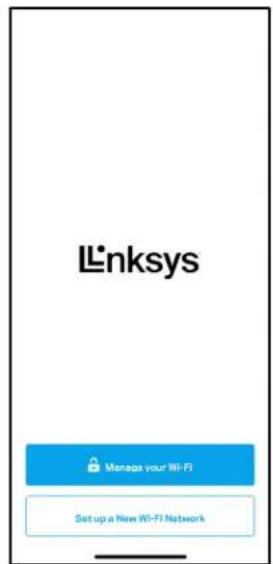
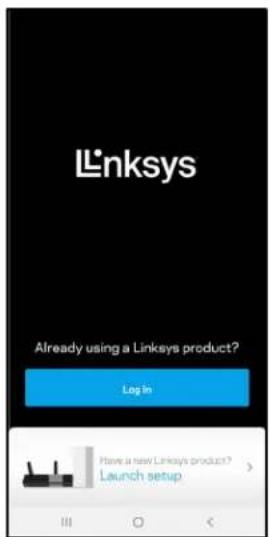
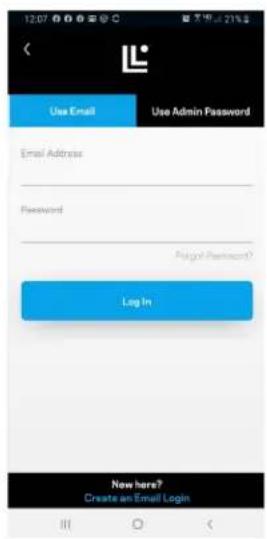
- Open the Linksys app, tap Log in. iPhone
Android
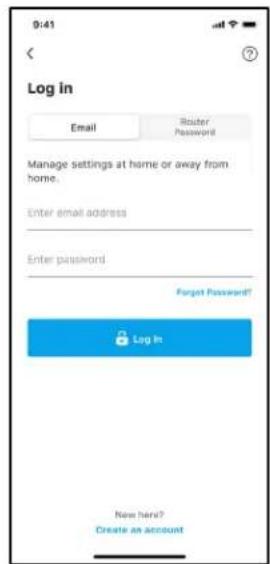
- Enter the email address you used when creating your account.
- Enter your account password.
- Tap Log In.
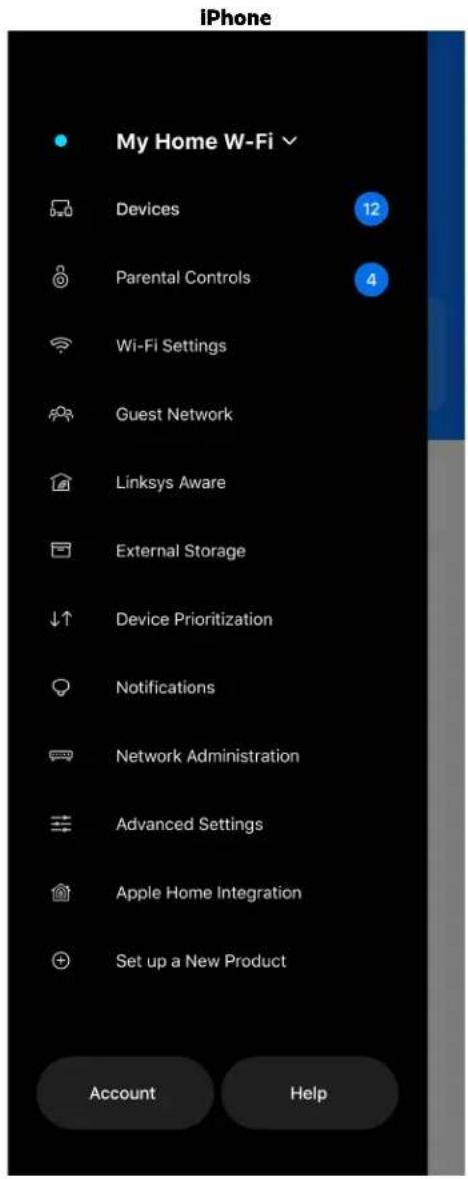
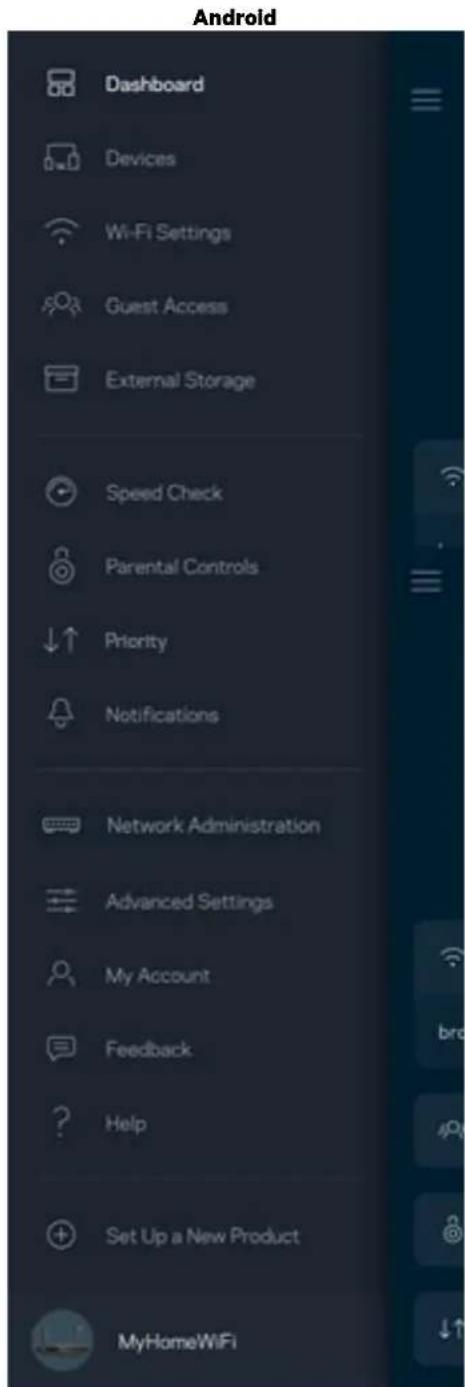
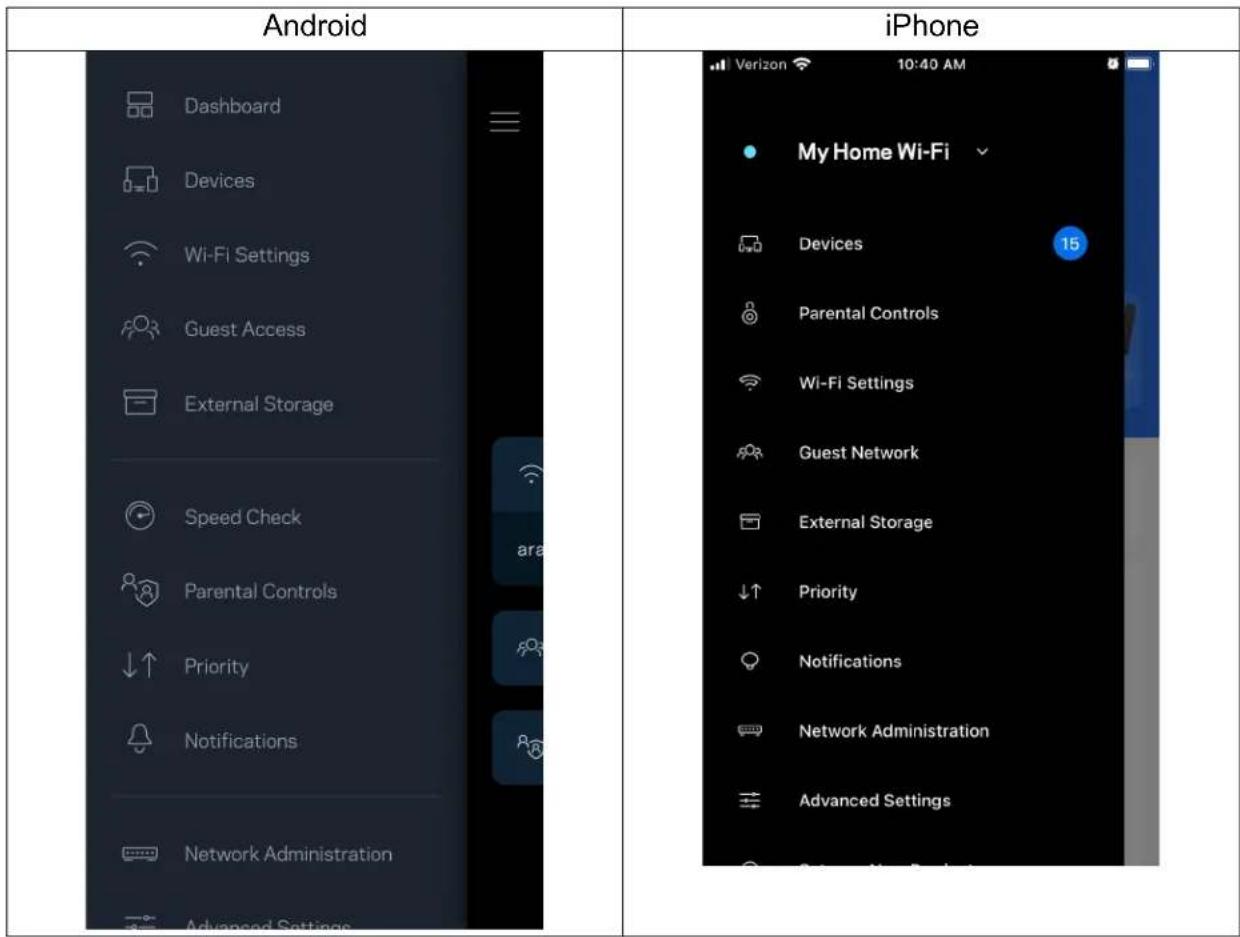
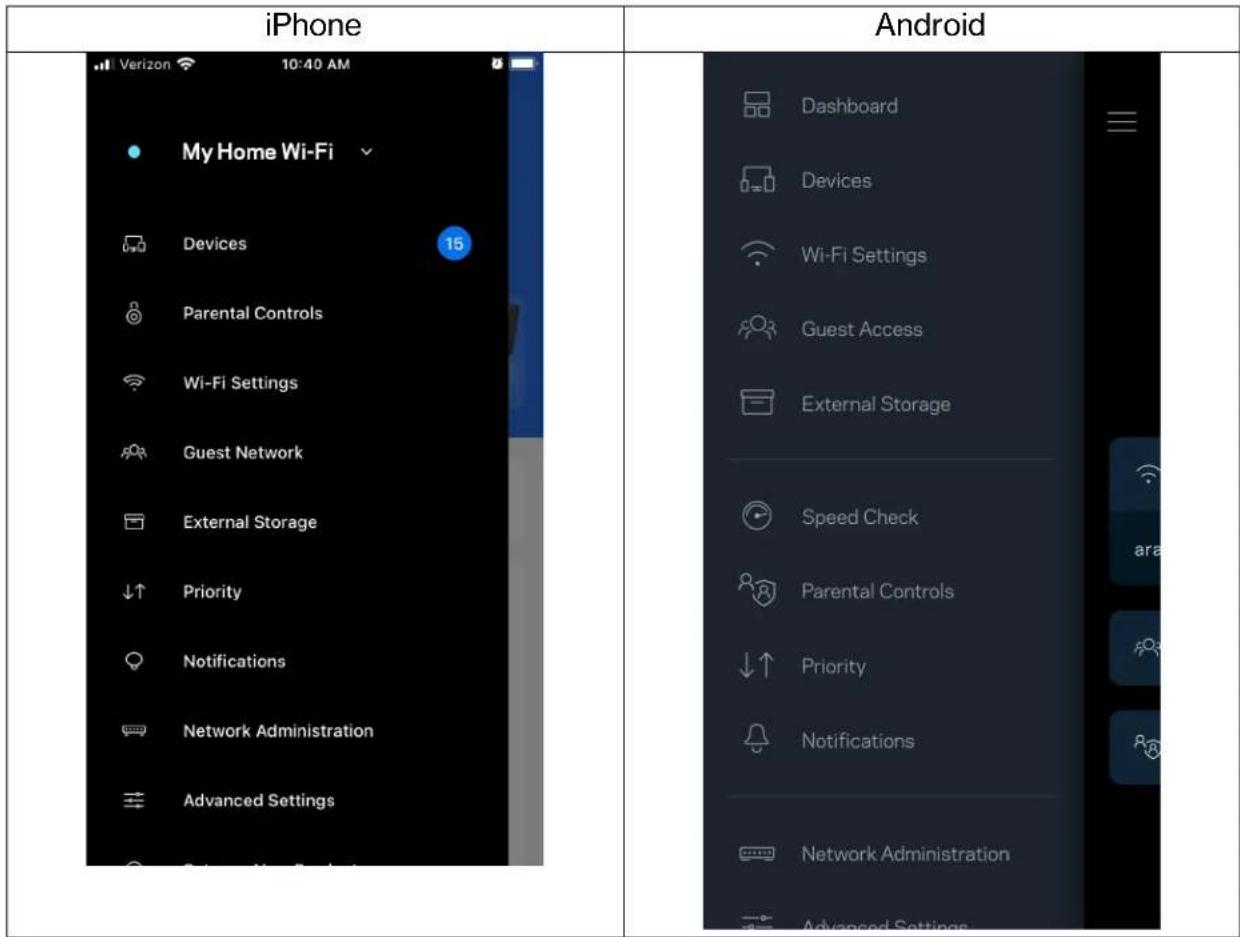
Navigation Menu
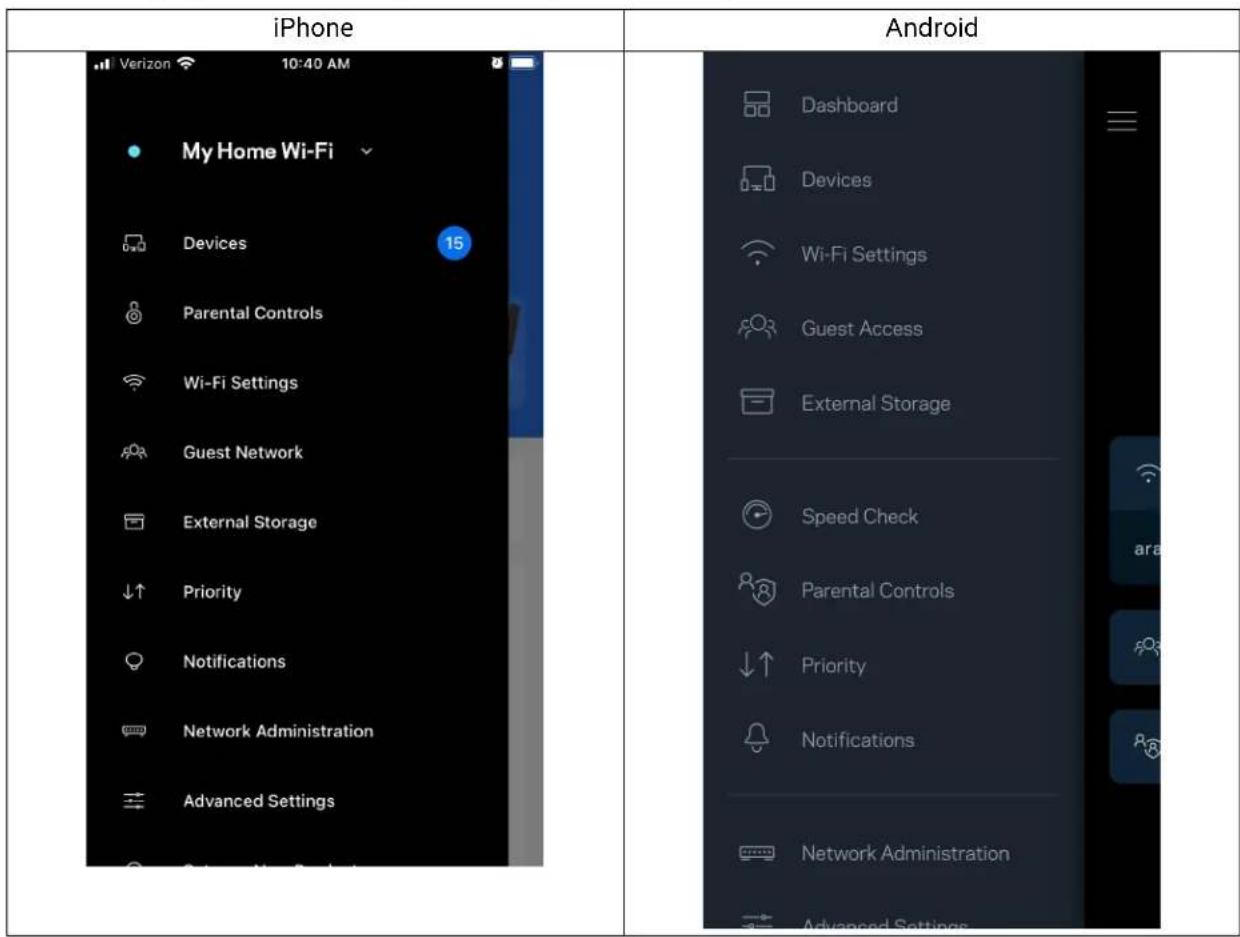
Tap the menu icon to navigate around the app.
Dashboard
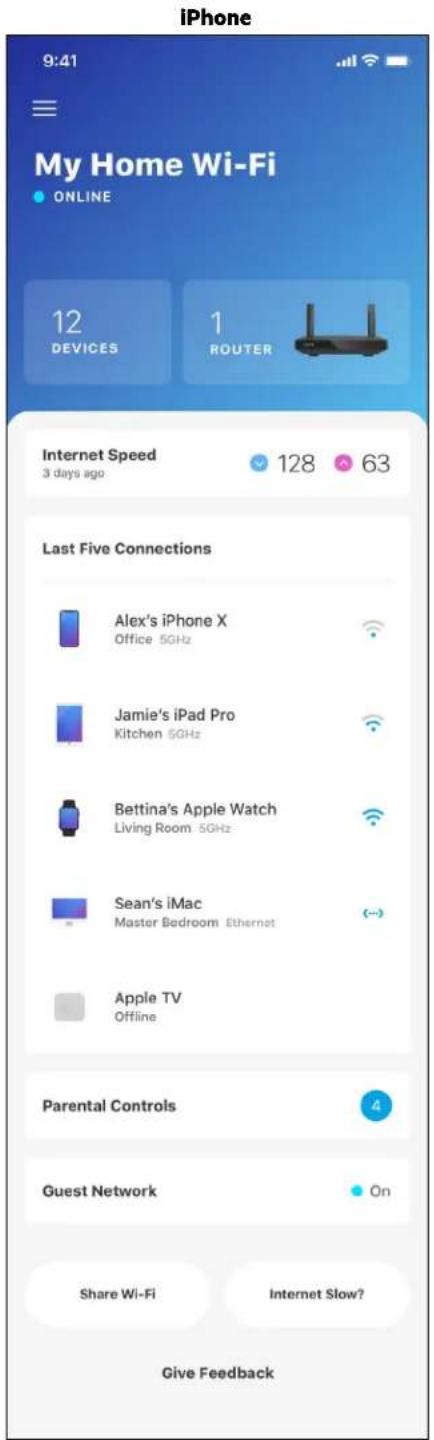
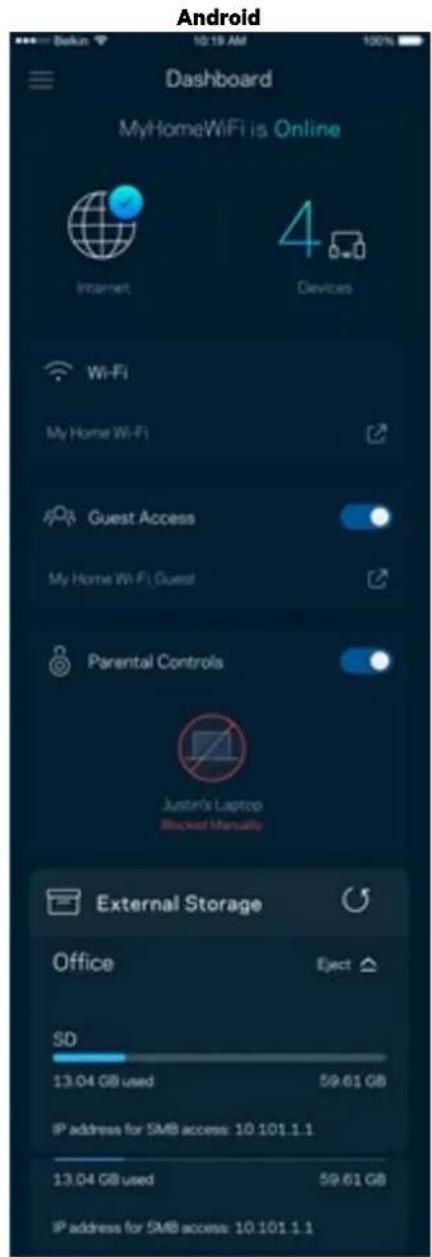
Dashboard is a snapshot of your Wi-Fi. See how many devices are connected to your system. From Dashboard you can share your Wi-Fi password and turn on guest access. Dashboard also shows you if any devices have parental controls on them or have been prioritized for Wi-Fi access.
Devices
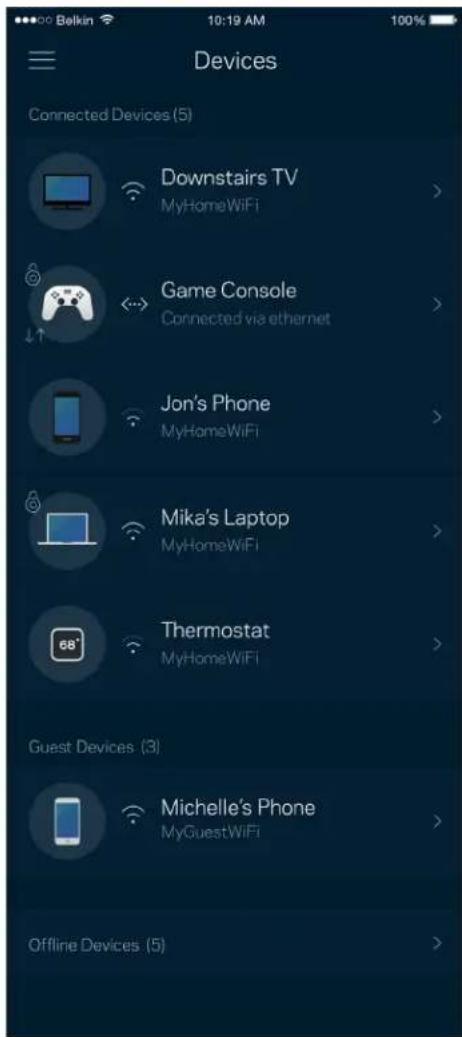
View and change details for all devices connected to your Wi-Fi. You can view devices on your main network and your guest network, or display information about each device.
To view or change device details
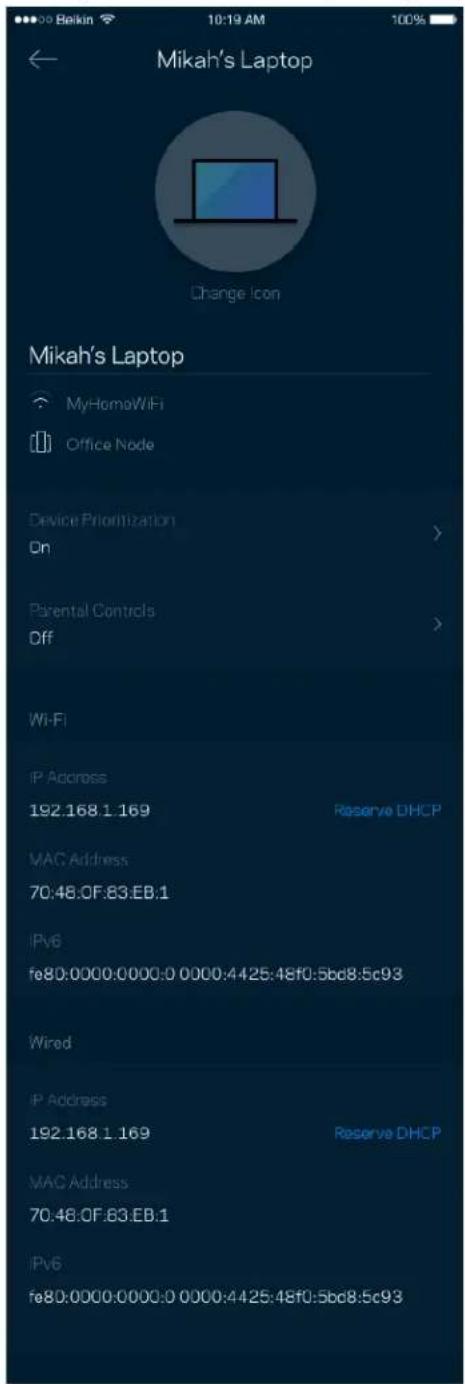
From the Devices screen you can edit device names and change the device icons. You also can prioritize devices, set parental controls, and see Wi-Fi details. Tap on any device to see details.
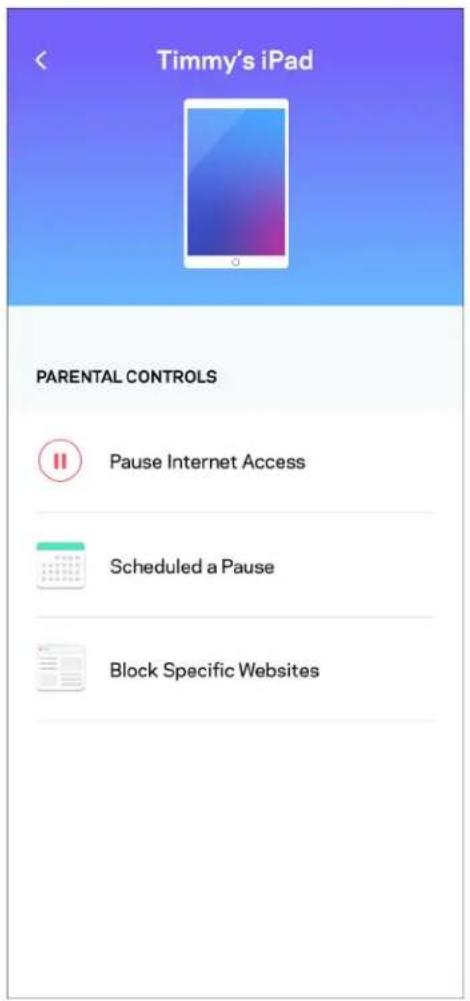
Parental Controls
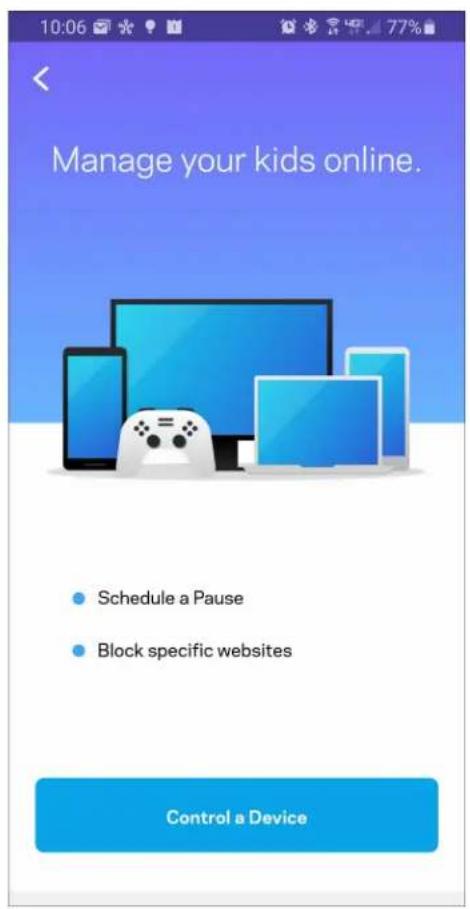
Parental controls allow you to control when your kids are online and what they're doing there. Pause internet to specific devices, or block specific websites.
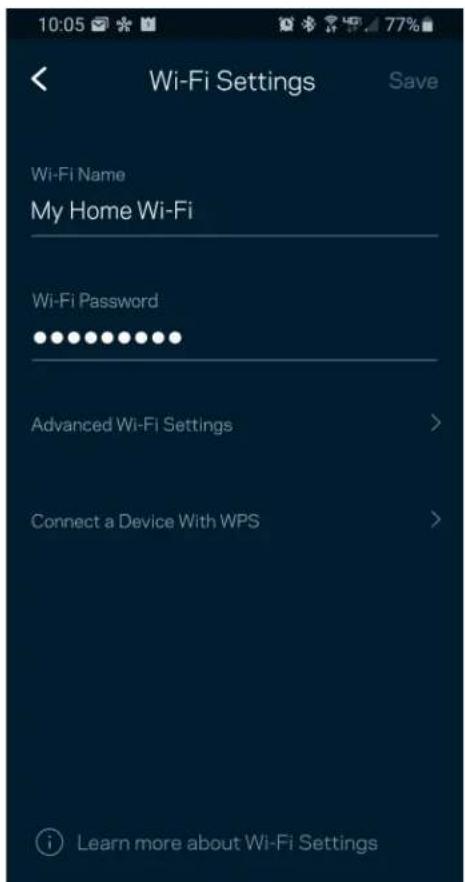
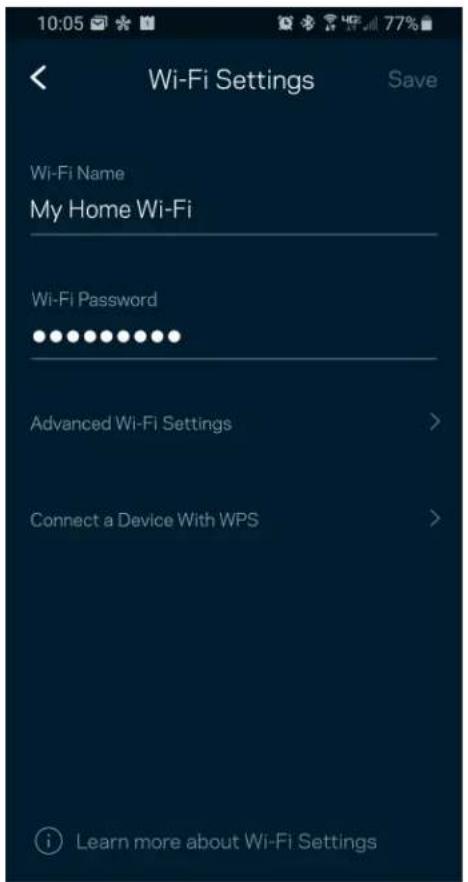
Wi-Fi Settings
View or change your Wi-Fi name and password and connect devices using Wi-Fi Protected Setup™.
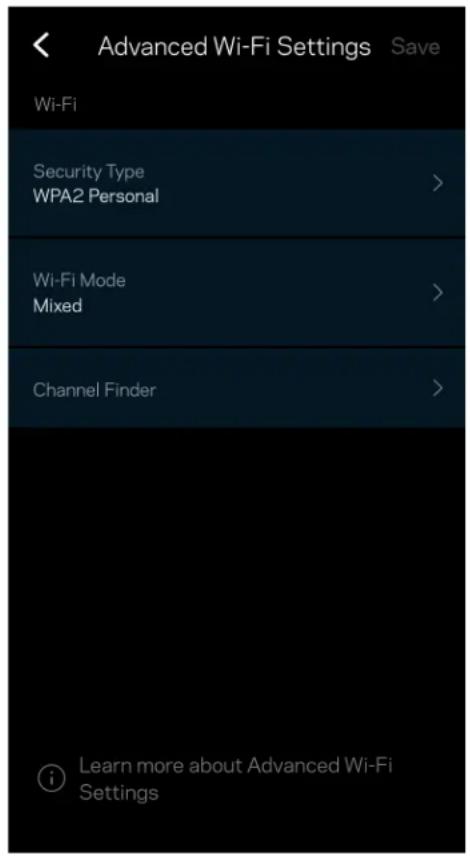
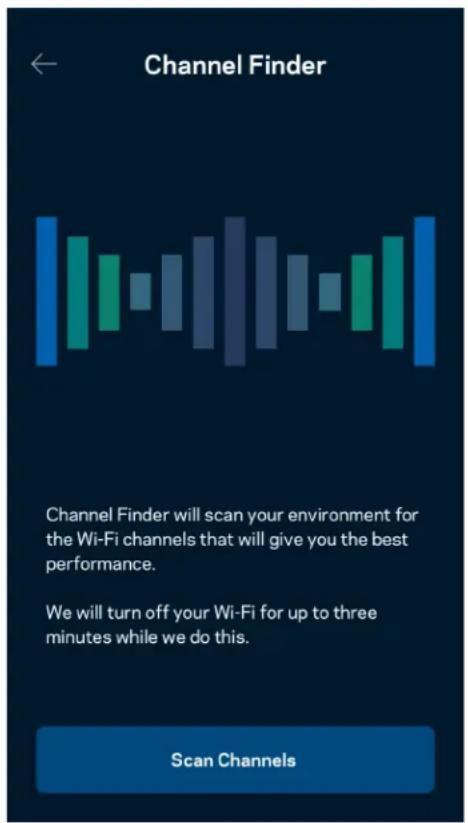
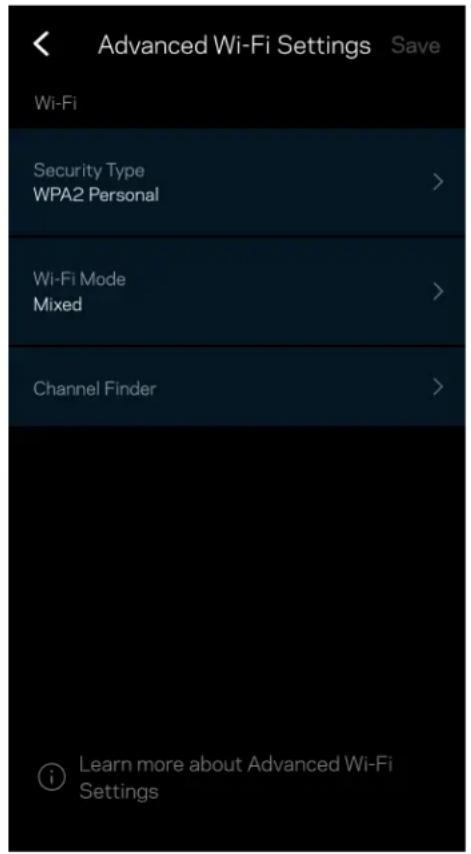
Advanced Wi-Fi Settings
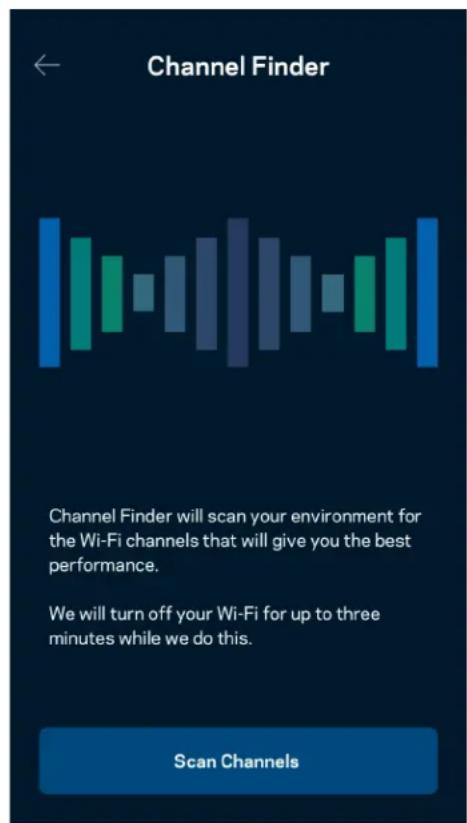
Advanced users can change the default security type and Wi-Fi mode. Do not change these unless you have a lot of experience with Wi-Fi networks. Channel Finder will search for the least populated Wi-Fi channels in your area to ensure you get the best performance from your system. If you have more than one node in your system, Channel Finder will find the best channel for each node.
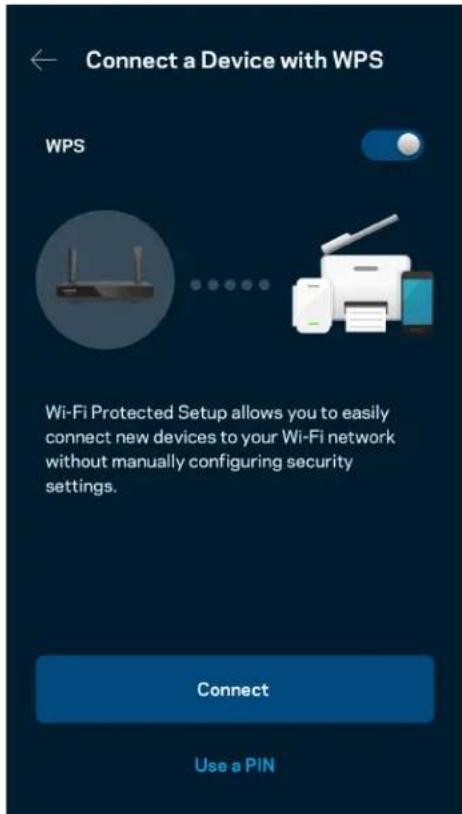
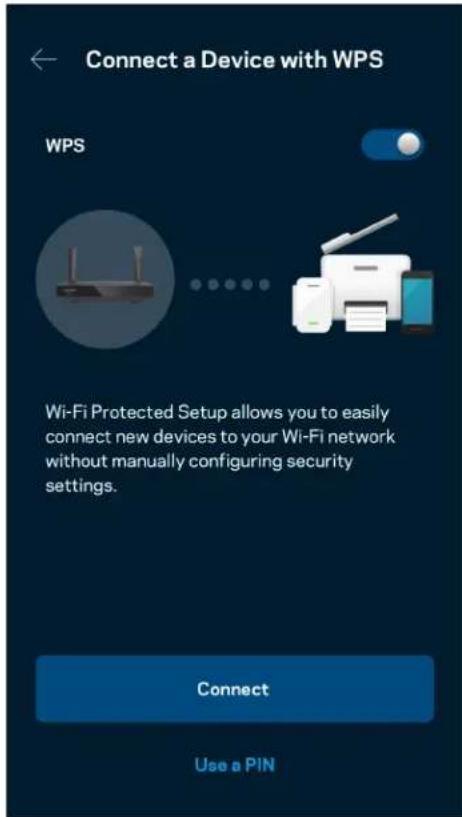
Connect a Device with WPS
Wi-Fi Protected Setup allows you to easily connect wireless devices to your Wi-Fi without manually entering security settings.
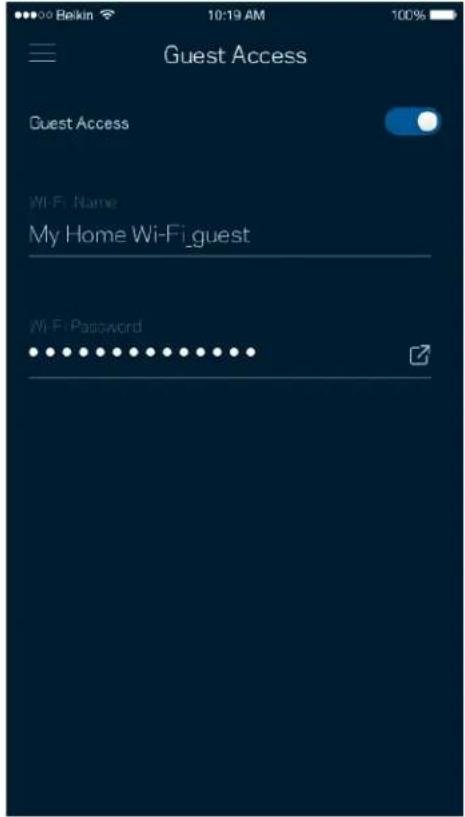
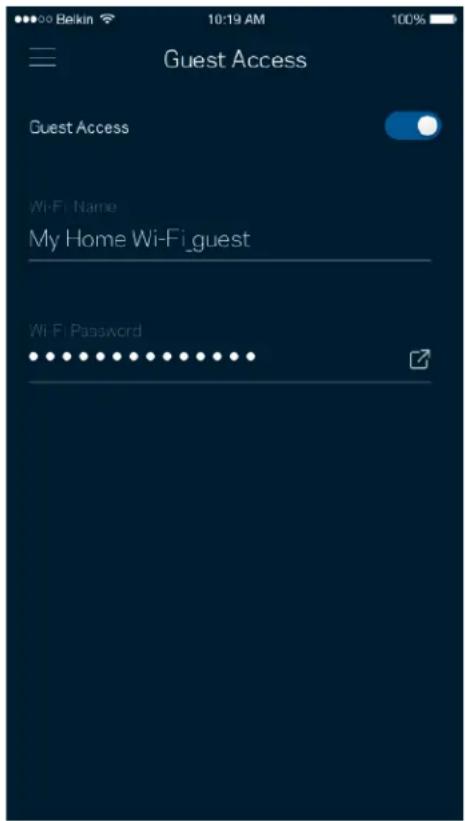
Guest Network Access
Use your Guest Access screen to allow guests to get online while restricting their access to other resources connected to your Wi-Fi. Send the password by text message or email.
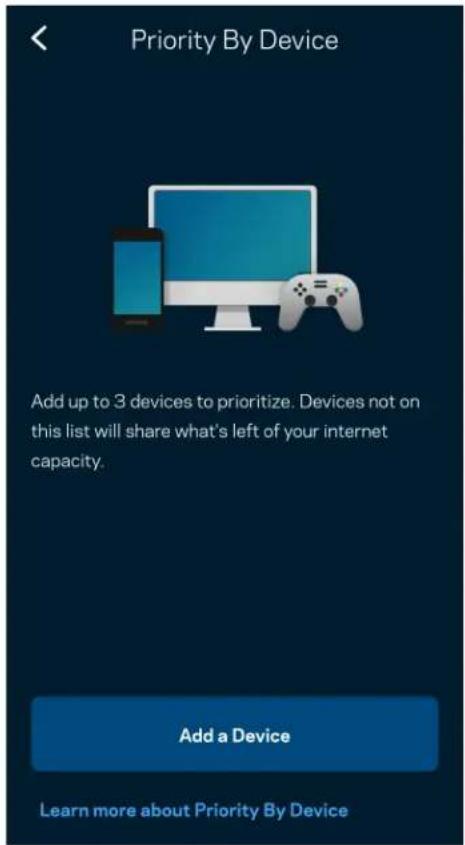
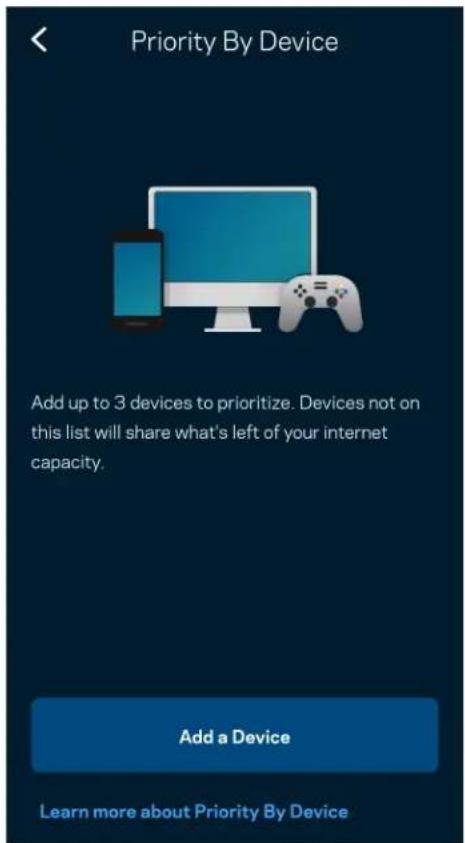
Priority
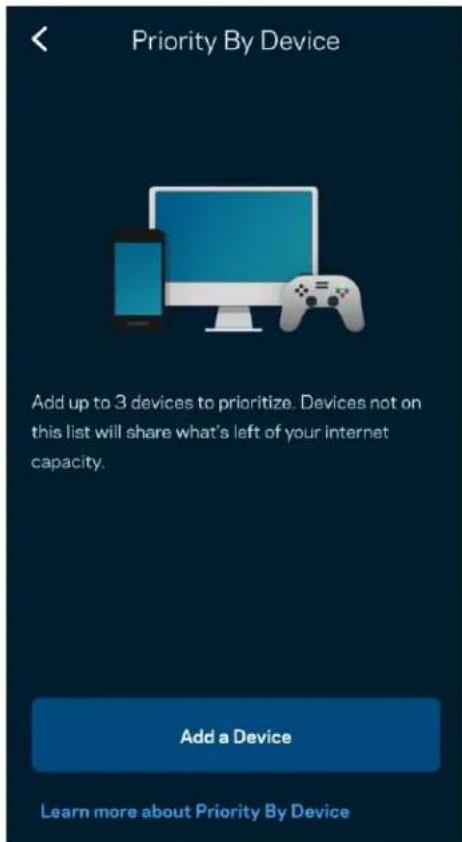
Choose up to three devices for priority usage of your internet connection. Those devices - wired and/or wireless - always will have the best access when connected. Your router runs a speed check to determine how to best distribute Wi-Fi to prioritized devices. Other devices will share the leftover capacity.
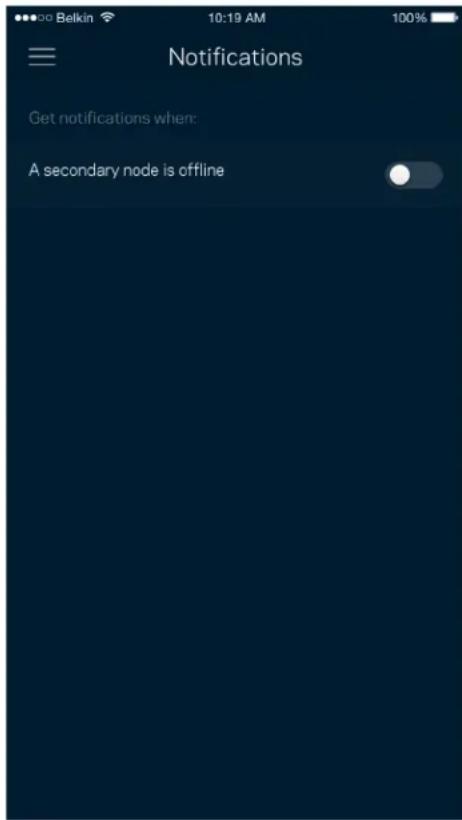
Notifications
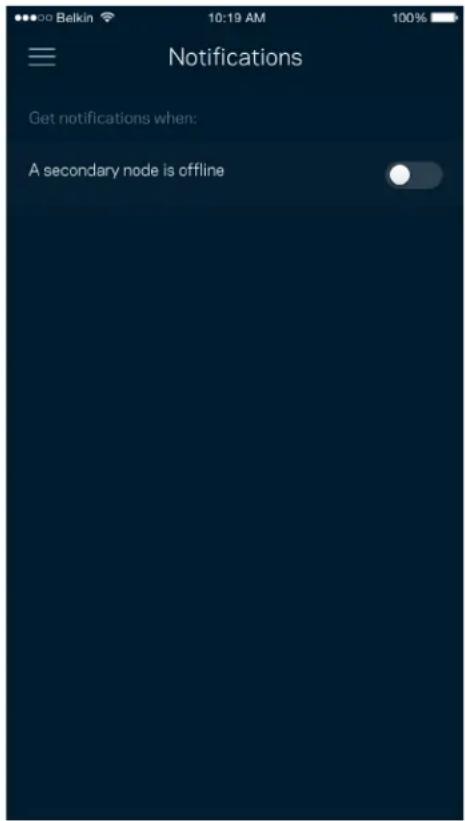
If you have more than one node, the app can notify you when child nodes in your system go offline. Child nodes are any that are not wired to your modem. You have to turn on notifications in your mobile device settings to allow the app to notify you.
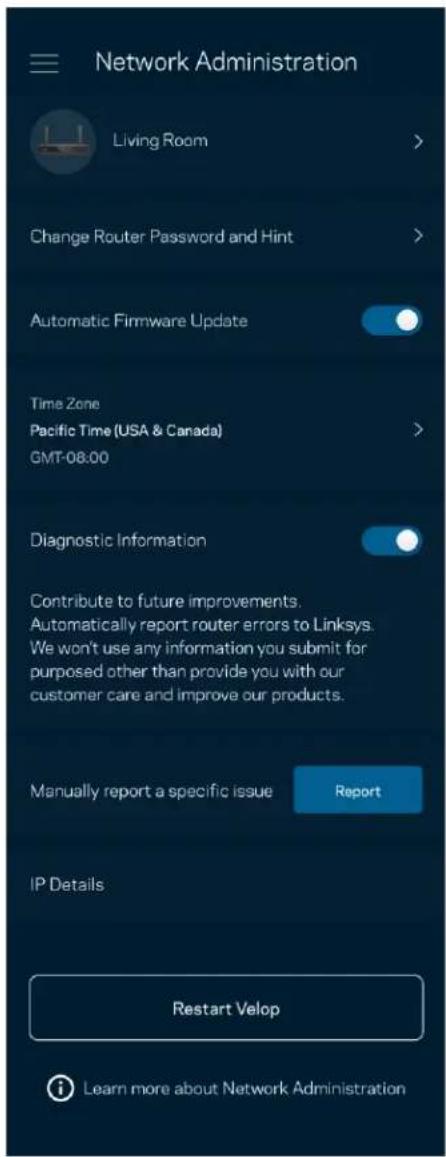
Network Administration
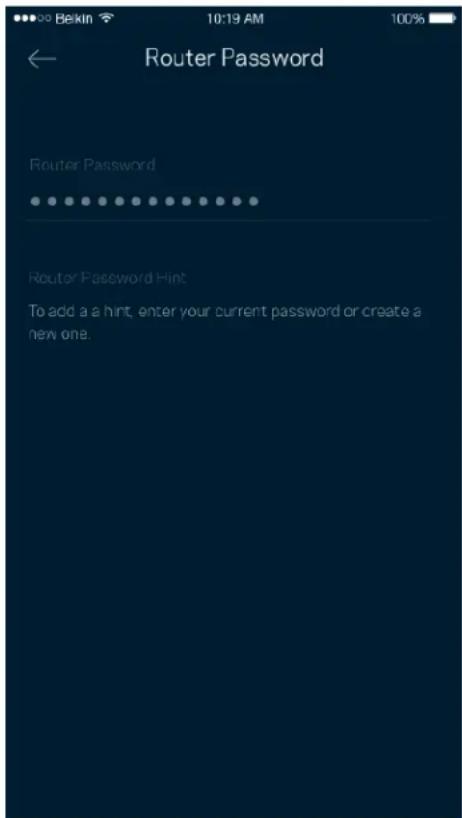
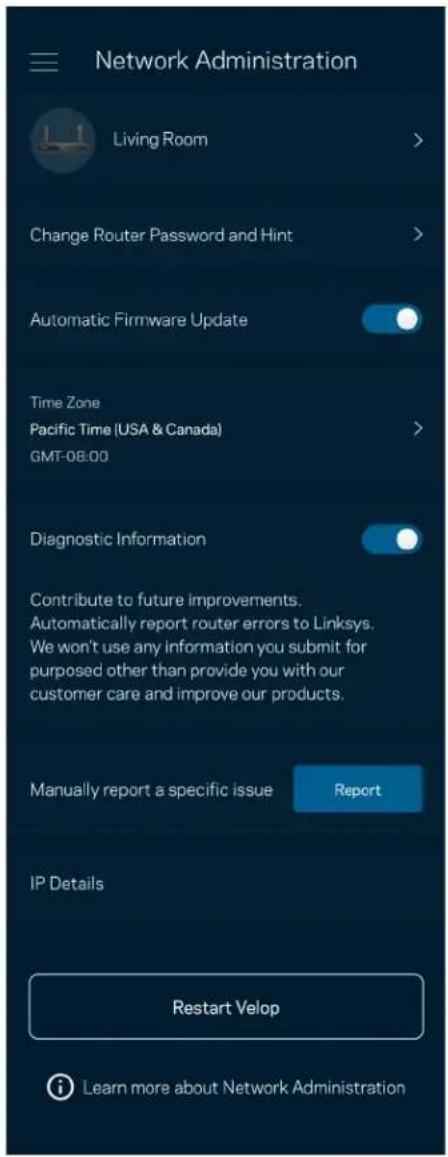
Use the Network Administration screen to change the router password and hint, and check various identifiers (model number, serial number, and IP details) for your router.
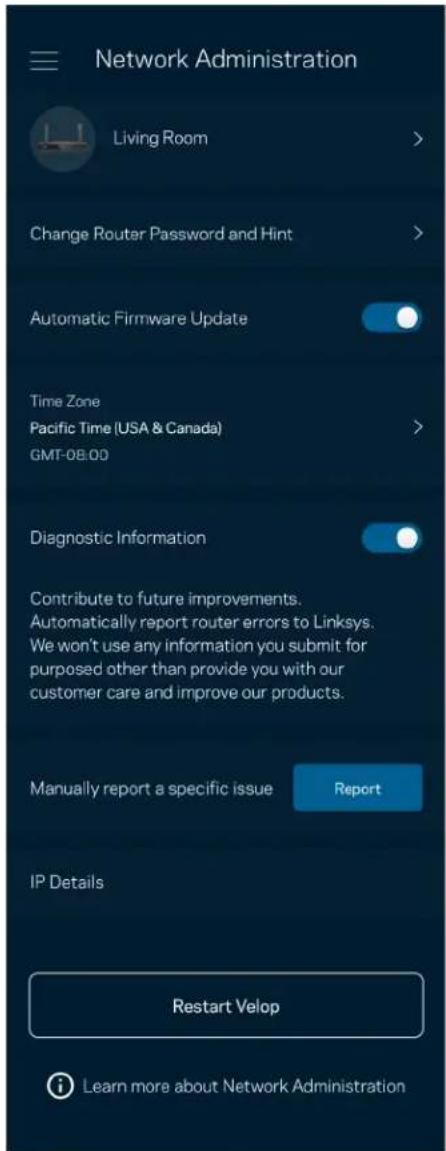
Opt in to automatically report crashes to Linksys and contribute to improving the Wi-Fi experience. You also can manually report specific issues to Linksys.
The following information will be sent with your description of the issue:
| • App version | • Login Type (cloud: show email address associated, local: display “Router admin”) |
| • Device model | • WAN Connection type (display Wi-Fi or ethernet) |
| • Device OS version | • Time: date (mo/day/year, time, time zone) |
Advanced Settings
Internet Settings
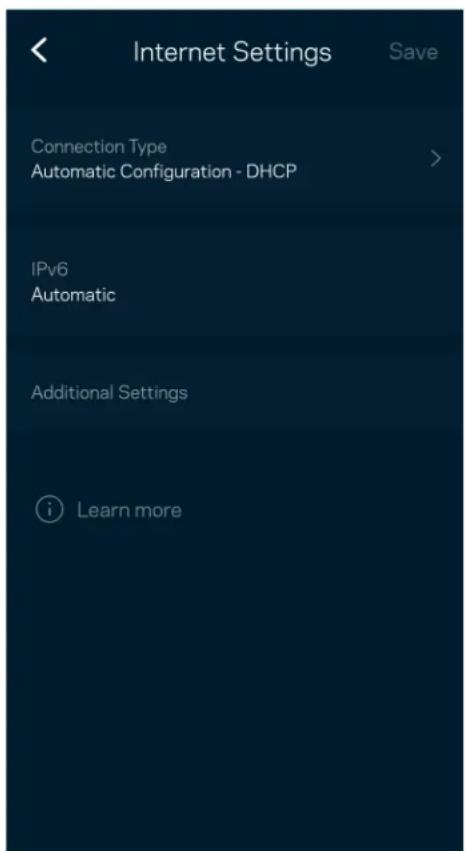
You can choose how your router connects to the internet. The default is Automatic Configuration - DHCP. Other connection types depend on your internet service provider or how you plan to use your router. Advanced users can use Additional Settings to clone MAC addresses and set MTU (maximum transmission unit).
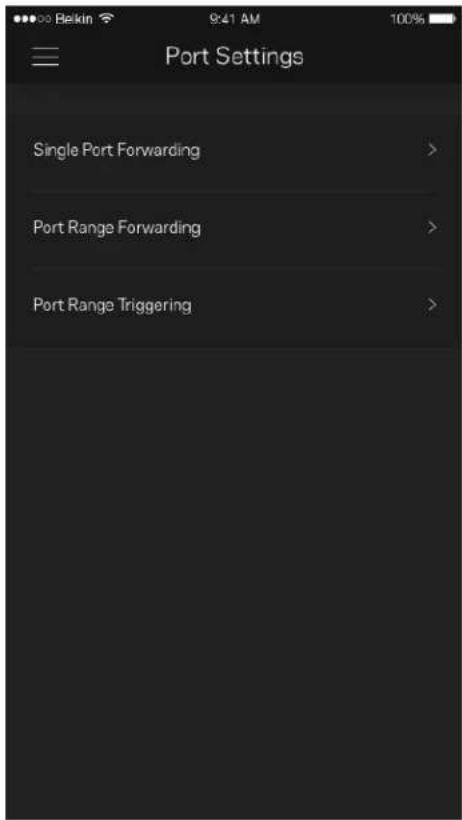
Port Settings
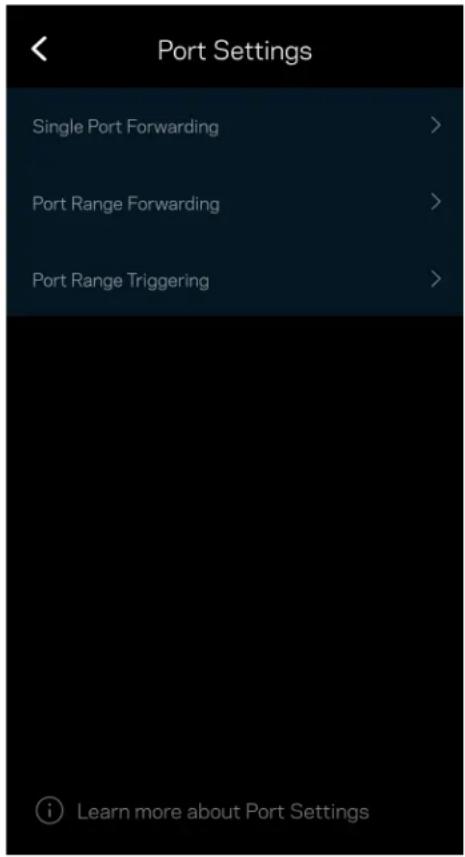
Port forwarding—for a single port, multiple ports or a range of ports—sends traffic inbound on a specific port or ports to a specific device or port on your Wi-Fi. In port range triggering, your router watches outgoing data for specific port numbers. Your router remembers the IP address of the device that requests the data so that when the requested data returns, it is routed back to the proper device.
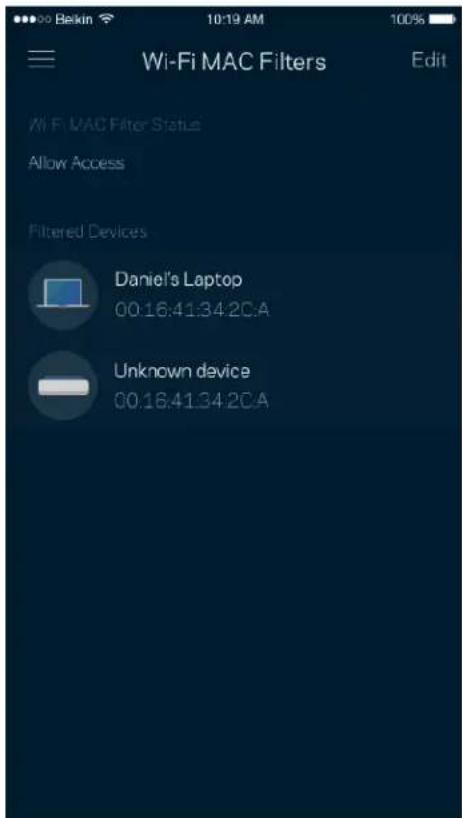
Wi-Fi MAC Filters
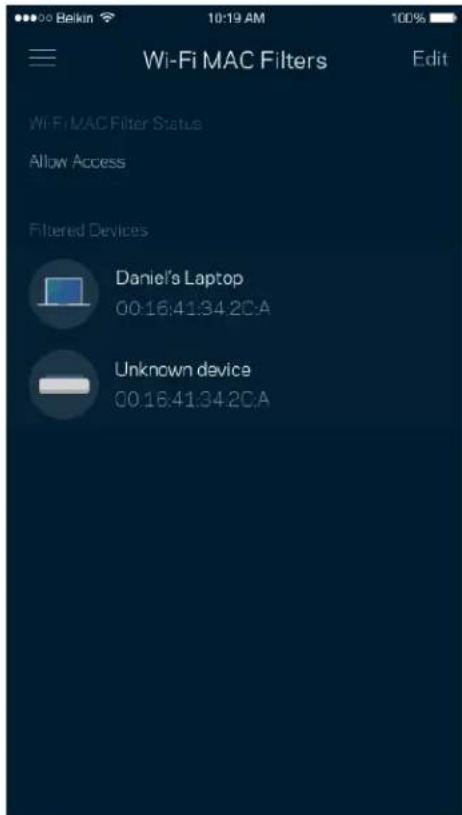
Every network device has a unique 12-digit MAC (media access control) address. You can create a list of MAC addresses, and then allow or deny those devices on your Wi-Fi.
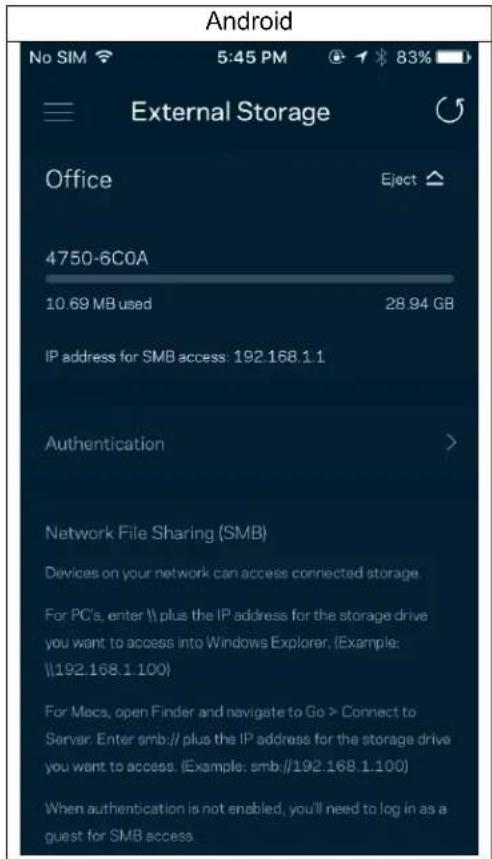
External Storage
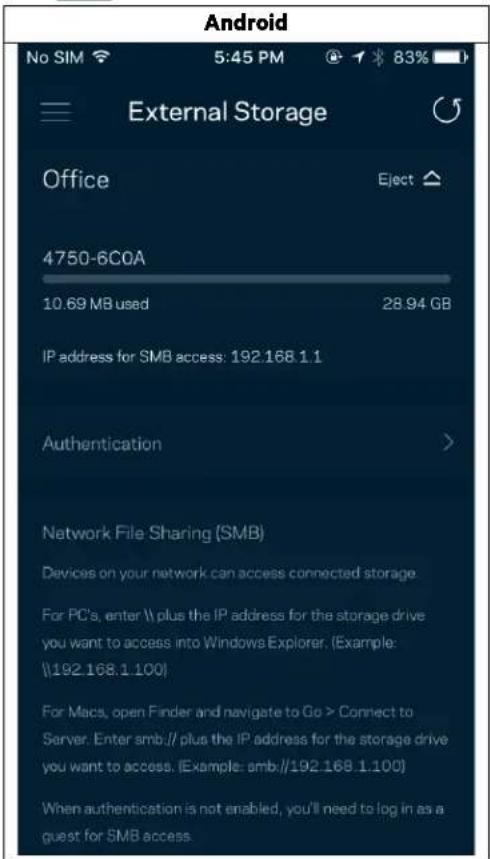
In the Dashboard, see which node an external drive is connected to, check the amount of free space left, and enable authentication by setting a username and password. (Only when a drive is plugged in to your router's USB port.) Be sure to tap Eject before removing a drive to avoid losing data.
Speed Check
Run a speed check to make sure you are getting the speeds you pay for. Speed check also helps in Device Prioritization because results determine how Wi-Fi is distributed to the prioritized devices.
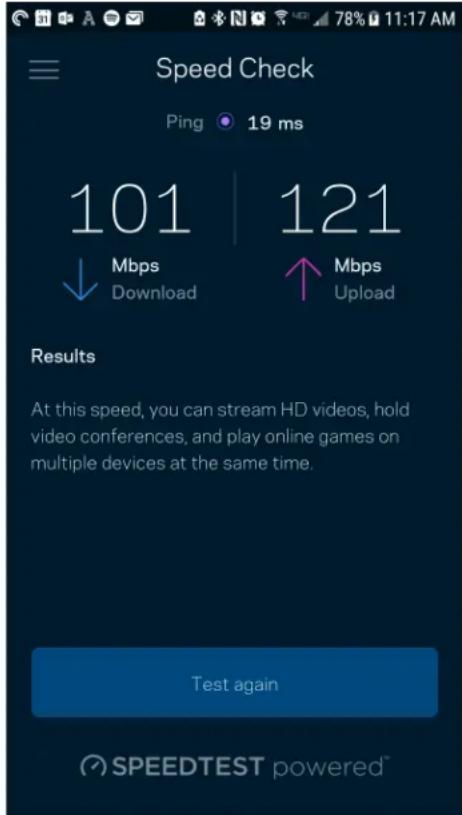
- Download speed is the rate at which internet content is transferred to your router.
- Upload speed is the rate at which you can upload content to the internet.
Note—Internet connection speeds are determined by a variety of factors, including ISP account type, local and worldwide internet traffic, and number of devices in your home that are sharing the internet connection.
My Account
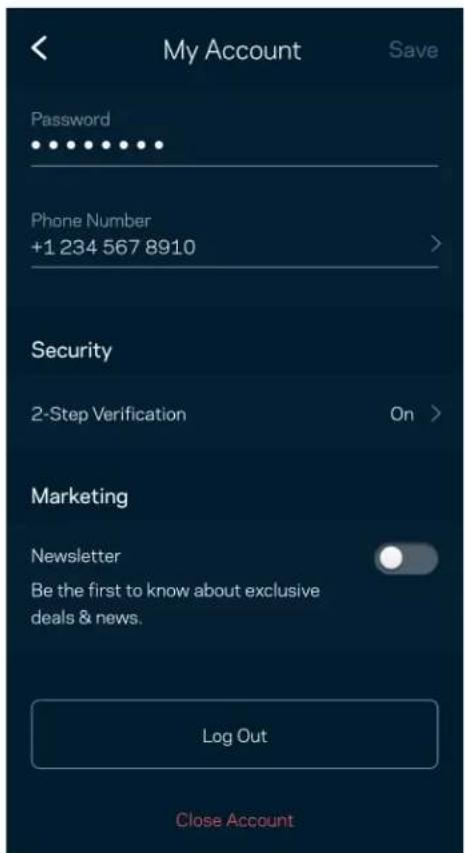
Change your Linksys app password and opt in to receive the latest news and deals from Linksys. Only available when logged into the app with your email address.
Feedback
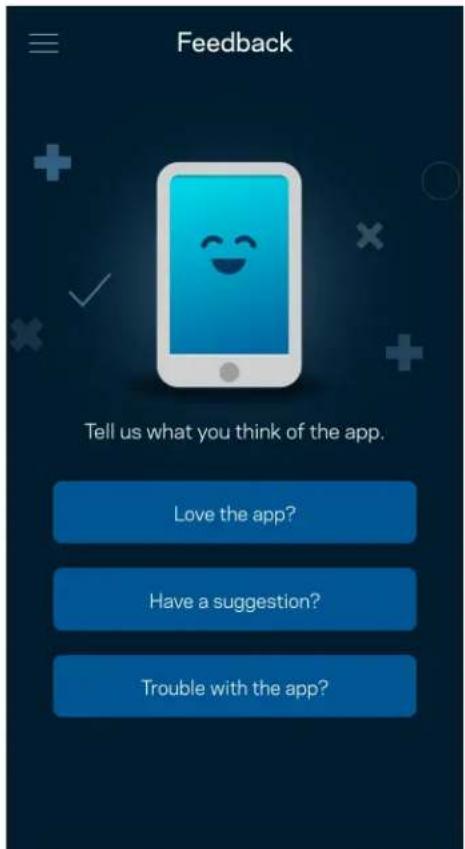
Here's your chance to tell us what you think. Rate the app at your app store, send us a suggestion, or report an issue that's keeping you from a great experience.
Help
Having trouble with the app? Just need a little more information about a feature? Tap Help for an explanation.
| Help |
| + Getting Started with Linksys Smart Wi-Fi |
| + Frequently Asked Questions |
| + Browse by Topic or Feature |
| + Subscription |
| + About |
| + Help and Support |
Connect Directly To Your Router
If you are not connected to the internet you still can access your router settings. Connect to your Wi-Fi name, launch the Linksys app and tap Log in with Router Password toward the bottom of the screen. You will not be able to access your Linksys Wi-Fi account when not online.
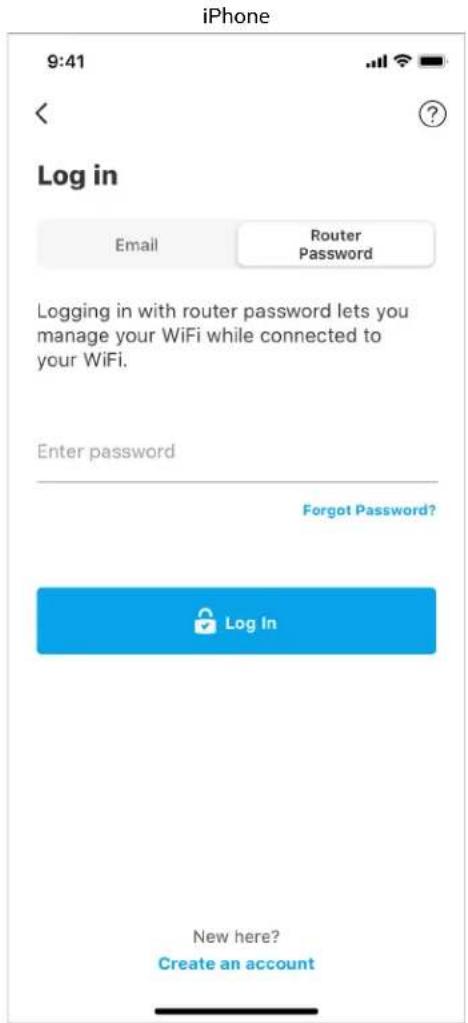
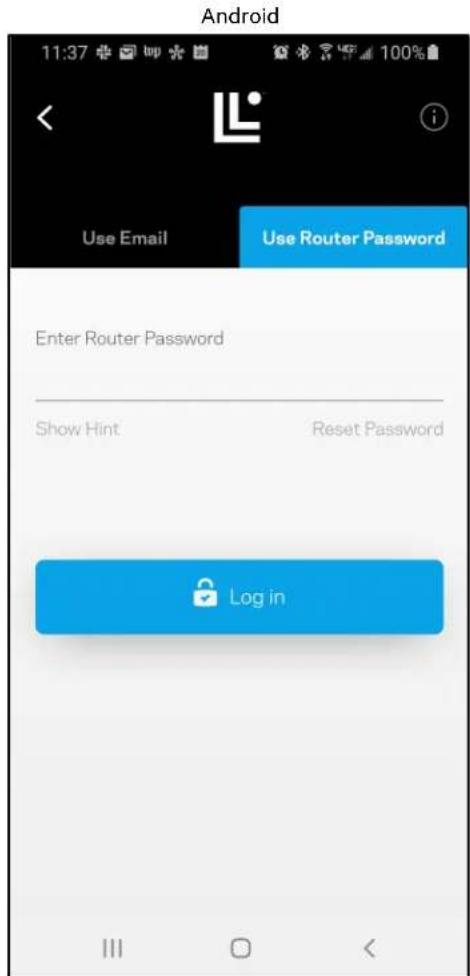
Router password
We created a secure admin password during setup. To change it, tap Network/Router Administration and Change Router Password and Hint.
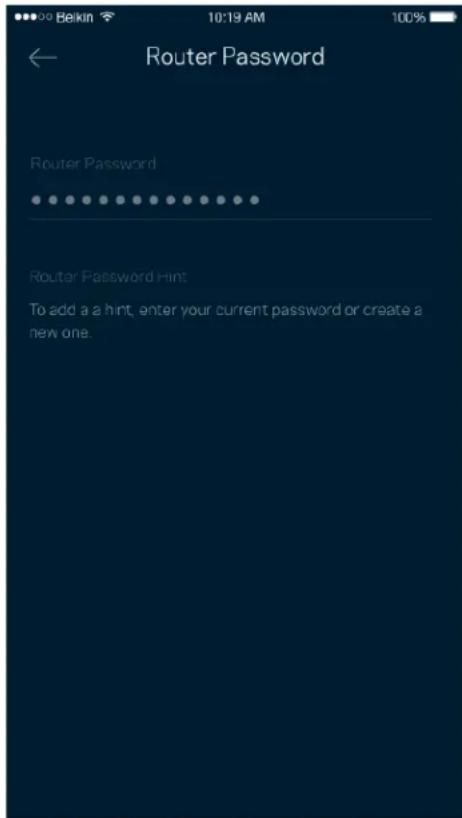
To keep your router secure, we'll send you an email if someone changes the router password.
How to factory reset your router
You should never need to factory reset your MR2000 Series router—a very disruptive process. A factory reset restores your router to the state it was when you took it out of its box, requiring you to go through the setup process again. All settings you have customized in setup and since – things such as Wi-Fi name, passwords, security type – will be erased. All wireless devices will disconnect from your Wi-Fi.
To factory reset :
- With your router connected to power and turned on, press and hold the Reset button on the back panel. The light on top of the router will blink red. Do not release the button until the light goes out and then turns bright red.
How to mount your router on the wall
Your MR5500 series router has holes on its underside for wall mounting.
Hang the router using M3 x 20 mm screws.
Specifications
Linksys Hydra 6
Model Name AX3000 Dual-Band WiFi 6 Router
Model Number MR2000, MR20EC, MR20MS, MR20WH
Switch Port Speed 10/100/1000 Mbps (Gigabit Ethernet)
Radio Frequency 2.4 GHz and 5 GHz
of Antennas 2 external adjustable antennas (non-detachable), 1 internal printed antenna
Ports USB 3.0, Ethernet (1-4), Internet, Power
Buttons Power, Reset, WPS
Lights Front panel: One, multicolor light for power and status
Back panel: USB, ethernet (1-4), internet
Security Features WPA2-Personal, WPA3-Personal, WPA2/WPA3-Personal Mixed
Security Key Bits Up to 128-bit encryption
Storage File System Support FAT 32, NTFS, HFS+, Samba
Environmental
Dimensions 8.46^ × 6.10^ × 2.20^ (215mm× 155mm× 56mm)
Unit Weight 1.51 lbs (687 g)
Power 12V/1.5A
Certifications FCC, IC, CE, Wi-Fi (IEEE 802.11a/b/g/n/ac/ax)
Operating Temp. 32^ to 104^ F (0 to 40^ C)
Storage Temp. -4° to 140° F (-20 to 60° C)
Operating Humidity 10% to 80% relative humidity, non-condensing
Storage Humidity 5% to 90% non-condensing
Notes:
For regulatory, warranty, and safety information, go to Linksys.com/support/MR2000.
Specifications are subject to change without notice.
Maximum performance derived from IEEE Standard 802.11 specifications. Actual performance can vary, including lower wireless network capacity, data throughput rate, range and coverage. Performance depends on many factors, conditions and variables, including distance from the access point, volume of network traffic, building materials and construction, operating system used, mix of wireless products used, interference and other adverse conditions.
Visit Linksys.com/support/MR2000 for award-winning technical support.
LINKSYS, Atlas, Hydra, Intelligent Mesh and many product names and logos are trademarks of Linksys Holdings, Inc. and/or its affiliates.. Third-party trademarks mentioned are the property of their respective owners.
© 2022 Linksys Holdings, Inc. and/or its affiliates. All rights reserved.
Linksys
GUIA DEL USUARIO
Linksys Hydra 6
Router 6 de Wi-Fi
Certifications FCC, IC, CE, Wi-Fi (IEEE 802.11a/b/g/n/ac/ax)
WiFi 6 d:11:11:11:11:11:AX300044
MR2000 Series
Lg2011
πiδδ/ε, e o o o o
C
Linksys JolSll jjll Wf-Fi p
Linksys 1 J
8 Linksys 1 JJ
10
OE = 23
la jie jie jie jie jie jie jie
y
Wi-Fi
a_i = 70%
WPS 1
17
a2 与 b
Loy
= ( x1,y1) , = ( x2,y_2)
i 1
.WPSLeJxJxJxJxJxJxJxJxJxJxJxJxJxJxJxJxJxJxJxJxJxJxJxJxJxJxJxJxJxJxJxJxJxJxJxJxJxJxJxJxJxJxJxJxJxJxJxJxJxJxJ
j j 1
aalll 11 11 11 11 11 11
Jaaal 5
.ethernet 6Ehernet (
12.10111111111111111111111111111111111111111111111
.USB
Jgall (j) |xalal-9) alal
- Linksys.com/su
(Anjil Jaiyai aHeli sclu g jai y jai li Ljai) Linksys
http://support.linksys.com/en-us/gplcodecentere
Wi-Fi Protected Setup
s s 1 1 1 1 1 1 1 1 1 1 1 1 1 1 1 1 1 1 1 1 1 1 1 1 1 1 1 1 1 1 1
gll gll gll gll gll gll gll gll gll gll gll gll gll gll gll gll gll gll gll gll gll gll gll gll gll gll gll gll gll gll gll gll gll gll gll gll gll gll gll gll gll gll gll gll gll gll gll gll gll gll gll
Wi-FIMAC yjglie Jolgc
MAC
y
12.0000
J 1
wi-Fs
J 1 J 1 1 1 1 1 1 1 1 1 1 1 1 1 1 1 1 1 1 1 1 1 1 1 1 1 1 1 1 1 1
Change Network/Router Administration
Router1 Password and IP Address
WPA2/WPA3-Personal, WPA3-Personal, WPA2-Personal Mixed
128 5
FAT 32, NTFS, HFS+, Samba
j
j
Jyjlll 1e jw
45
( 0,1) ,( 0,2) ,( 0,3)
1
julil
j
jiaill cldla pbioc.
auiuiiui
56× 产 155× 产 215) 2.20× 山 6.10x8.46
(
(687) 1.51
1.5/12
1
a.slljj
1
j
j 1
j
jzdsill 1
= 1 或 - 1
-Fi (IEEE 802.11a/b/g/n/ac/ax), CE, IC, FCC
(4000)10432
(6020-)140!4
85% 80 %10
( % ) · 90% > 0
aal aal alal alal alal alal alal alal alal alal alal alal
jLj 1e kJl Jn Jn Jn Jn Jn Jn Jn Jn Jn Jn Jn Jn Jn Jn Jn Jn Jn Jn Jn Jn Jn Jn Jn Jn Jn Jn Jn Jn Jn Jn Jn Jn Jn Jn Jn Jn Jn Jn Jn Jn Jn Jn Jn Jn Jn Jn Jn Jn Jn Jn J
Ls, /, Linksys Holdings Inc. 15, Intelligent Mesh, LINKSYS
aal 15la a yaiy aaiy aaiy aaiy aaiy aaiy aaiy aaiy
Holding, Linksys 2022
Linksys
PbKOBOdCTBO 3A NOTPEBNTEL
Linksys Hydra 6
Дынгов
WiFi 6 pyrep AX3000
Moen MR2000
CbDbpxkHne
O6u npesJeHa npodykma 3
Iomou 5
Kbde da Hamepnte ose nomou 5
IbpeohaynaHaHacmpouka 6
Kakbo 6e Bn 6bde Heo6xOIMO 6
Hacmpouku Ha cucmemama 3a ueuur dom Linksys Whole Home Wi-Fi 8
Bn3ane B npnojKeHneTo Linksys 8
MehIO 3a Habnraucia 9
TbpcTe Ta3n NkoHa: L
Cbbp3BaHe Ha yctpoNCTBO c WPS
Wi-Fi Protected Setup Bn Daba Bb3MOXHOCT Da CbBp3BaTe IecHO 6e3KuHN yCTpoiCTBa KbM BaWata Wi-Fi, 6e3 da BBBeJDAte pBuHO HAcTPOJKeIte 3a CNyPHoCT.
OocTbI Do MpeXkata 3a roCTn
I3noJI3BaIte ekpaHa Guest Access (IocTbI 3a roCTn), 3a da IdaTe Bb3MOKHOCT Ha roCTHc 3a Bpb3ka c INTEpHEt, KaTO cbIeBpeMeHHO orpaHInTe IOCTbna IM Do dpyrInTe pecypcn, CBbp3AH KbM BaIaTa Wi-Fi. N3npaTe TnapOIaTa C TeKCTOBcBo6UeHne nII no nIMeII.
Pnpopntet
I36peTe Do Tprn yctpoiCTBa, KOIO Ta H3NO3BAT C npnopitET Bp3kata BN C nHTepHET. Te3u yctpoiCTBa - Ka6eHN Hnn 6e3xNCH - BnHaN Nte HmT NaH-do6bp Doc7bn, KOraTO ca Cbbp3aHn. PytpbT cTAPtnpa npOBepKa Ha ckopocTTA, 3a Da onpeJen Kac Hn-do6pe Da pa3npedEn Wi-Fi Ha yctpoiCTbata C npnopitET. Dpyrnte yctpoiCTBa ue cn I0dJIrT octHaJIIN KanaunTe.
13BECTn
Ako mate noBeeOT eINn B3eI, npIoJKeHneTo MoKe Da BN yBeDomn, KOraTO DbIepHN B3In OT BaWata Cntema CTaHaT OfnaH. DbIepHN B3In ca BCnUKN Te3N, KOTo He ca CBp3AHc MoMe BA qpe3 Ka6Elnha Bpb3ka. Tpr6Ba da BKIOHTe N3BecTHaTBA HAcTPOIKITE Ha MObINHOTO cN yCTpoiCTBO, 3a Da MoKe npIoJKeHneTo Da BN yBeDomBa.
AdmnHnctpnpaHe Ha mpekaTa
I3no3BaTe ekpaHa Network Administration (AdmHnCTpnpaHe Ha MPexKaT), 3a Da cMeHnTe aDMnHnCTpaTopckata napola n noDcKa3ka n da npOBepnte pa3nnuHnTe ndHTnФkATOpN (Homep Ha MoDeLa, cepneH Homep N daHHn 3a IP) Ha pyTepa.
I36epete aBtOMaTHo CbO6uBaHe Ha OTka3nTe B Linksys n daTte CBO npHoc 3a noDoppahe Ha pa6oTaHa WiFi. MoKeTe cBto Taka da CbO6uaBe pTuHo Ha Linksys 3a HkON np6Jemn.
3aednoBaaweToOnncanHeHa npo6leMa 7e 6bde n3npaTeHa cneHaTa HOpMaun:
| • Версан на рripsложенeto | • Тип на влизанeto в сисмата (облак: поka3bahe на acоцшарна умей adpec, поално: поka3bahe на „Router admin" (Admuнuscmpupahe на румера) |
| • МODELAN на устroduствOTO | • Тип сбьрзвае с WAN (пoka3ba ce Wi-Fi unu ethernetnet) |
| • Версан на OC на устroduствOTO | • Уас: дatura (meceu/deh/zeoduna, уас, усobа зona) |
Pa3shpeHn HacTroKm
Knapper Strøm, nulstilling, WPS
Certificeringer FCC, IC, CE, Wi-Fi (IEEE 802.11a/b/g/n/ac/ax)
Switchport- 10/100/1000 Mbit/s (Gigabit Ethernet)
Geschwindigkeit
Dashboard (PiVakac epyaaleiwv) 10
Port Settings (Puθμiεις θυρών) 23
Devices (Appareils) 12
Guest Network Access (Réseau invite) 18
Priority (Gestion de la priorite) 19
Notifications 20
Guest Network Access (Réseau invite)
Gombok Power, Reset, WPS
Tombol Daya, Reset, WPS
Supporto file system di FAT 32, NTFS, HFS+, Samba
archivazione
Specifiche ambientali
Dimensioni 8,46^ × 6,10^ × 2,20^ (215 mm x 155 mm x 56 mm)
Hi-3iH 10000000000000000000000000000000000000000000000000000000000000000
InTeBEn 3AeHJ 3AeHJ.
日
哉然不德者有在,当无,人之。
NeTrWoK
NeTwK K 100000000000000000000000000000000000000000000000000000000000000000000000000000000
MR2000 SRIJZ RAUERI 1ARAJQE 1R 1R 1R 1R 1R 1R 1R 1R 1R 1R 1R 1R 1R 1R 1R 1R 1R 1R 1R 1R 1R 1R 1R 1R 1R 1R 1R 1R 1R 1R 1R 1R 1R 1R
#
Linksys Hydra 6
MOIAX3000I中告WIF6L
SwoiT foT h 10/100/1000 Mbp (iHaBt I d)
2.4GHz 5GHz
AnTeNa Su
FCC, IC, CE, Wi-Fi (IEEE 802.11a/b/g/n/ac/ax)
32^ ~ 104^ F (0 40^)
-4^ ~ 140^ (-20~60°C)
10% ~ 80% 盛大盛大,
5% ~ 90% プム
:
规,必中安通关网
☆韵是,
"Wi-Fi" MAC filtrai 24
Išoriné saugykla 25
Greicopatikra 26
Manopaskyra 27
Atiliepimai 28
Pagalba 29
| Help |
| + Getting Started with Linksys Smart Wi-Fi |
| + Frequently Asked Questions |
| + Browse by Topic or Feature |
| + Subscription |
| + About |
| + Help and Support |
Certificering FCC, IC, CE, WiFi (IEEE 802.11a/b/g/n/ac/ax)
Innstillinger for Linksys Whole Home Wi-Fi system
Knapper Strøm, Reset, WPS
Sikkerhetsfunksjoner WPA2-Personal, WPA3-Personal, WPA2/WPA3-Personal
Mixed
Sikkerhetsnokkelbiter Opptil 128-bitters kryptering
Stotte for FAT 32, NTFS, HFS+, Samba
fillagringssystem
Omgivelser
Mäl 215 mm x 155 mm x 56 mm
Vekt 687g
Strøm 12 V / 1,5 A
Sertifiseringer FCC, IC, CE, Wi-Fi (IEEE 802.11a/b/g/n/ac/ax)
Driftstemperatur 0 til 40^
Oppbevaringstemperatur -20 til 60^
Luftfuktiget for drift 10-80%, relativ fuktiget, ikke-kondenserende
| Help |
| + Getting Started with Linksys Smart Wi-Fi |
| + Frequently Asked Questions |
| + Browse by Topic or Feature |
| + Subscription |
| + About |
| + Help and Support |
Certificacoes FCC, IC, CE, Wi-Fi (IEEE 802.11a/b/g/n/ac/ax)
Temp. de funciona 0-40 °C (32°-104 F)
Temp. de -20~60 °C (-4°~140 F) armazenamento
Certificacoes FCC, IC, CE, Wi-Fi (IEEE 802.11a/b/g/n/ac/ax)
Temperatura de 0 a 40^ Funktionamento
Temperatura de -20 a 60^ C armazenamento
Numar model MR2000, MR20EC, MR20MS, MR20WH
Vitezã port switch 10/100/1000 Mbps (Gigabit Ethernet)
Frecventa radio 2,4 GHz s i 5 GHz
Certificari FCC, IC, CE, Wi-Fi (IEEE 802.11a/b/g/n/ac/ax)
Temp. de fonctionare intre 32^ si 104^ F (intre 0 s i 40^ C)
Temp. de depositare intre -4^ s1 140^ F (intre-20 s1 60^ C)
Umiditate in timpul intre 10% 日 80% umiditate relativă, fara condens functionarii
Umiditate spatiu de 5 - 90% ,fara condens stocare
Note:
Pentru inatmai de reglementare, garantie si siguranța, accasați Linksys.com/support/ MR2000.
BbKIOUOATEIb nHTAHN (9) - HAKMNTe | (BkL), yTO6bl BKNIOUOTb MapwpyTu3aTOp.
CnpaBka
Kya o6paTntbca 3a dOoJIHnTeIbHOHΦOpMaUnei
- Linksys.com/support/MR2000
CnpabKa B npnIOKeHH Linksys (aanyCTne npnIOKeHne HnHaKMITE «CnpabKa» B rIaNbHOM MeHO)
PnmuMeaHne. IuIeHNu yBeDOMLeHnaI CTOpOHHeRo nporpaMMHoro oecneueHna, nCnoJIb3OBaHHoro B 3TOM npOdyKte, moJHo npocMOrpeTb no aDpcy http://supportlinksys.com/en-us/license. 7To6bl 3aDaTb BOIPOc Hn3aIPocNtB NcXoHbHKOd GPL, nocetnte http://supportlinksys.com/en-us/gplcodecenter .
HacrtpoiKa
BAKHO! MapspuTn3aTop cepH MR2000 MoJHo HacpOnb T KaueCTBe poIteNbckOro y3la nn DoOpHeRo y3na B DomaHne OndopahroBo cnTeMe Wi-Fi. PoIteNbckn y3e IdoJIKeH 6bITb NdoKJIIOUeH K MoDEMn K MoDEMMyMapspuTn3aTopy c nOmoBko Ka6eA Ethernet. DooepHne y3bl MoKHO NdoKIIIOHTb K poIteNbckOMy y3ny C nOmoBko Ka6eJe Ethernetnnb6ecnpobODHO NOKIIIOUeHnA.
EcnBbI D6abJrte3OT MappyTu3aTOp B KaueCTBe poNTeJIbCKOrO y3Ja B CyUeCTByUoYIO DomaHIOO OndopAHROyIO CnCTeMy Wi-Fi Linksys, Heo6xOUMO BOCtAHOBuTb 3aBOdCKne HAcTpoK IN BCex y3IOB IN Do6aBtB IN B CnCTeMy nocLe ycTaHOBKn N HAcTpoKm MappyTu3aTopa cepnn MR2000.
3arpy3nte npiloxeHne Linksys. 3to npiloxeHne Heo6xOIMo In HacTPOKn MapupytnaTopa.
OTkpOte Mara3nH npInloKeHn dJa BaWero yCTpoiCTBa n HaNnte npInloKeHne Linksys. HauDte 3TOT 3HaYOK:
YTo Bam notpe6yeTcA
YcTaHOBnTe npInoJKeHne,OTKpoIte erO nCleDyIe INHCTpyKUmaM.
TObecbTe MappyTu3aTop c NOMOuB BuHTOB M3x20 MM
TexHnueckne xapaKTepeNCTnKn
Linksys Hydra 6
| Ha3BaHne MoDeJI N AX3000 - dBYxDnIa3OHHbI MauPpyTu3aTOp Wi-Fi 6 | |
| Homep MoDeJI MR2000, MR20EC, MR20MS, MR20WH | |
| Скорость пота: 10/100/1000 M6nt/c (Ethernet 1 Γ6nt/c) | |
| РадиочасToTa 2,4 έ5 Γις | |
| КоличесТВо aHTeHH 2 | Внешnéх поворOTьх aHTeHHы (HeCbemьe), 1ВнутpeHHа пechathая aHTeHHa |
| Порты USB 3.0, Ethernet (1-4), INTepHET, рNTaHne | |
| Кнорки | Питанные, сбpos, WPS |
| Индikatopы | Передnia паель:ОдIN MногоцBetьнй Иndikatop рNTaHna сocToHHa |
| Задnia паель:USB, Ethernet (1-4), INTepHET | |
| Бezоноасноctь | WPA2-Personal, WPA3-Personal, WPA2/WPA3-Personal Mixed |
| Разрадисть клоча | 128-6NThoeшфpoBaHne |
| Бezоноасноctи | |
| ПождөрχИваөмьe | FAT 32, NTFS, HFS+, Samba |
| Файlorье сиСTeMbI | |
© 2022 Linksys Holdings, Inc. //n/aφφnlpOBaHHbIe CtpyKTypbI KOMnHaHm. Bce npaba 3aunuehbl.
Linksys
《用户指南》
Linksys Hydra 6
AX3000 双频
WiFi6路由器
MR2000系列
目录
产品概览 3
帮助 5
哪里可找到更多帮助 5
设置 6
您需要进行的操作 6
Priorita (Priority) 18