USER MANUAL WiFi BE3 Pro HUAWEI
KpaTKoe pyKOBoIDCTBO NOIb3OBaTeJIa
Ynata 3a 6p3 noyeTOK
PbkoBODCTBO 3a 6bp3 cTapT
KpaTkoe pyKOBoIDCTBO noIb3OBaTeJIa 273
YnataCTBO3a6p3noyeToK 291
PbKOBOCTBO3a6bp3 cTapT 305
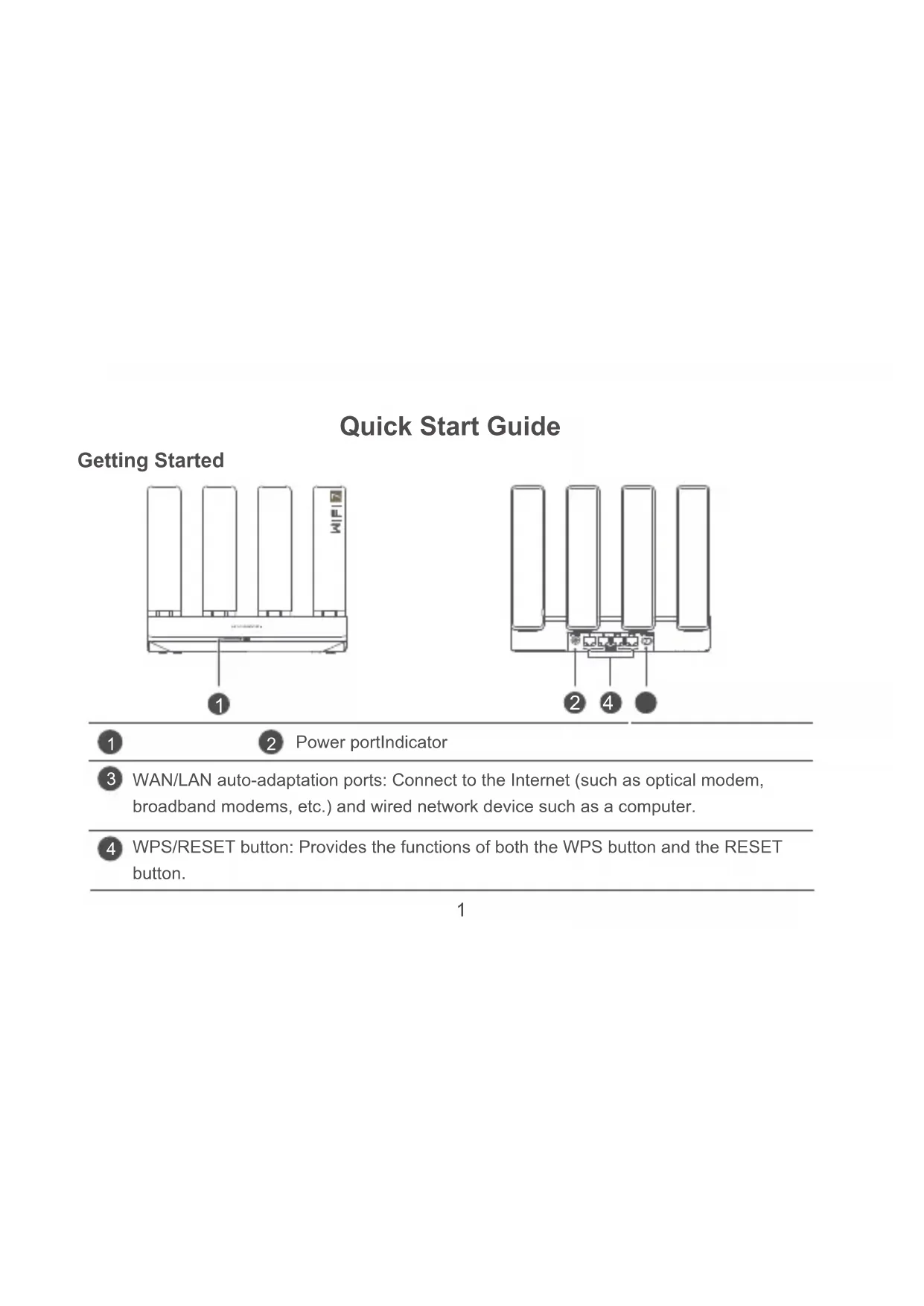
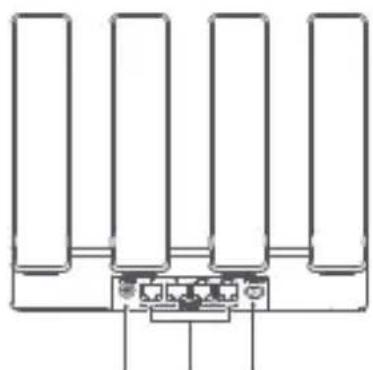
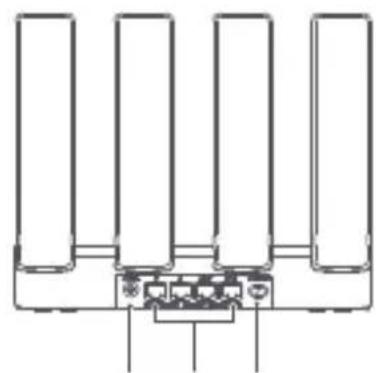
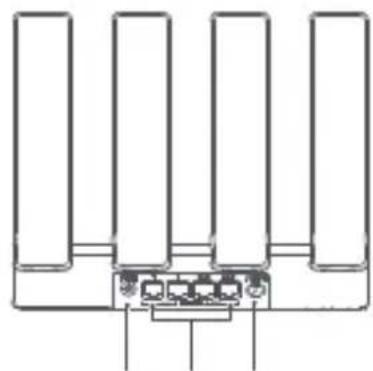
WAN/LAN auto-adaptation ports: Connect to the Internet (such as optical modem, broadband modems, etc.) and wired network device such as a computer.
4
WPS/RESET button: Provides the functions of both the WPS button and the RESET button.
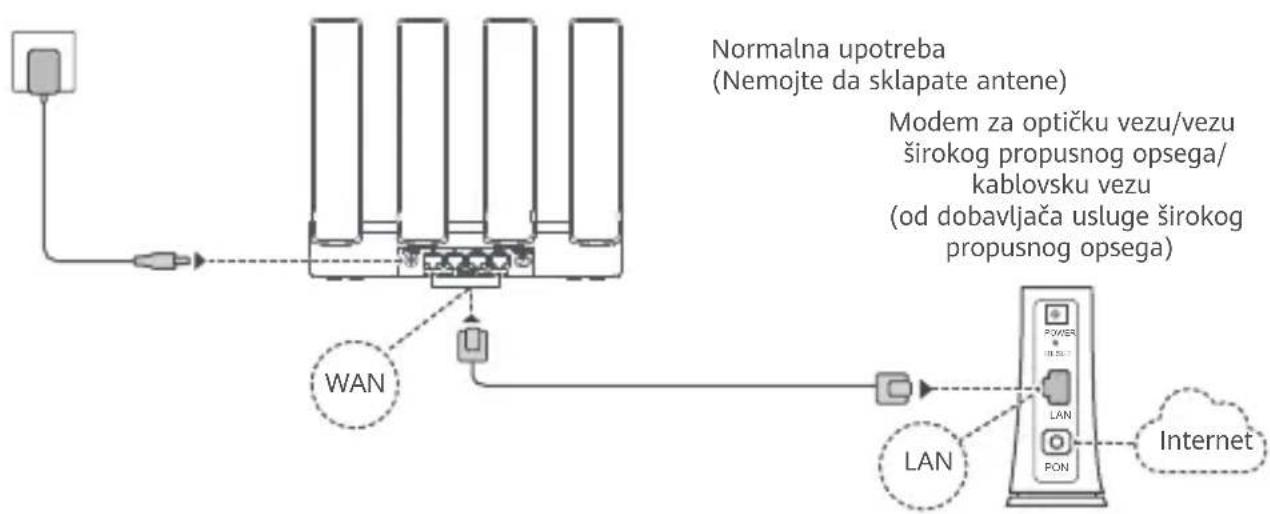
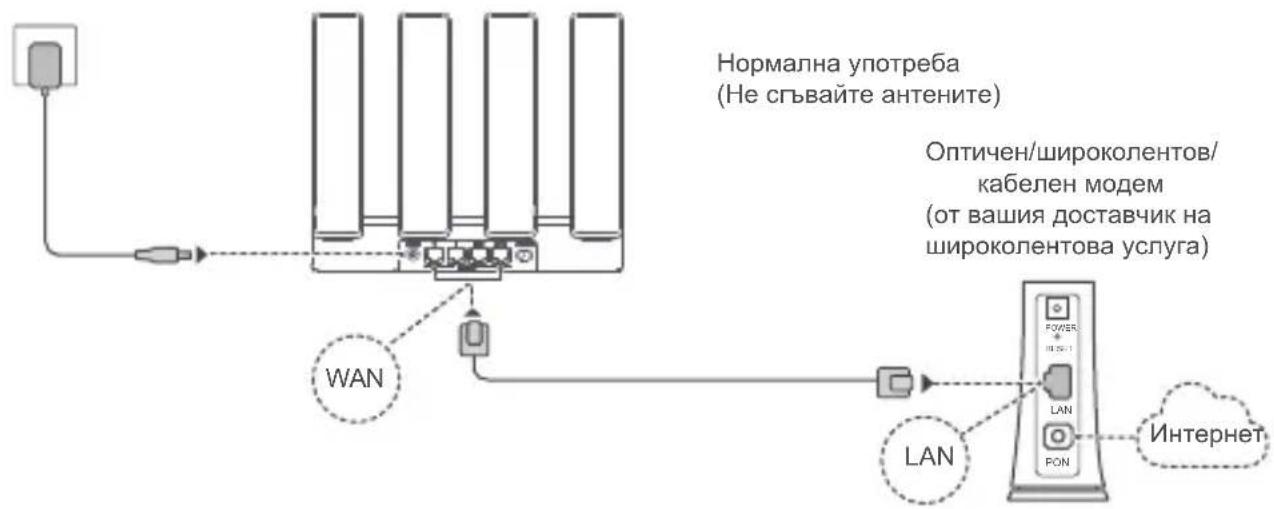
Step 1: Connecting the cables
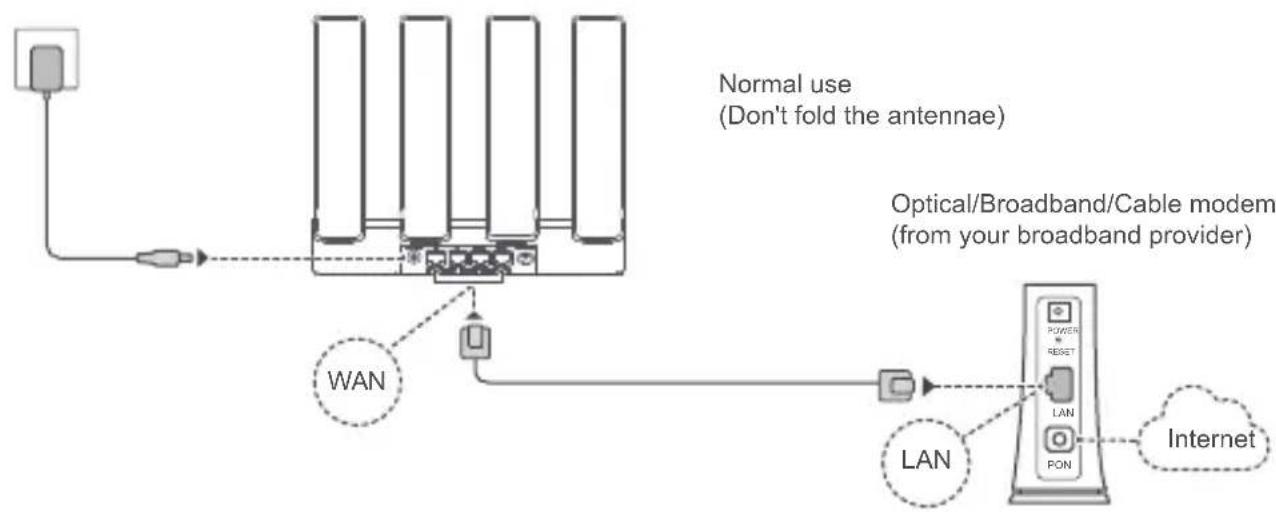
Erect all antennae upright to ensure optimised Wi-Fi signals.
- If the indicator stays red, this indicates that the router is not connected to the Internet. Please refer to "Step 2: Configuring the network settings".
- For routers that support WAN/LAN auto-adaptation, the network ports are WAN/LAN combo ports. You can also specify a fixed WAN port on the router's web-based management page.
Step 2: Configuring the network settings

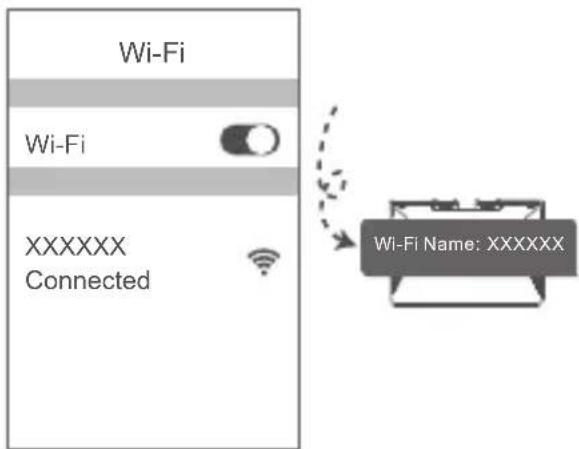
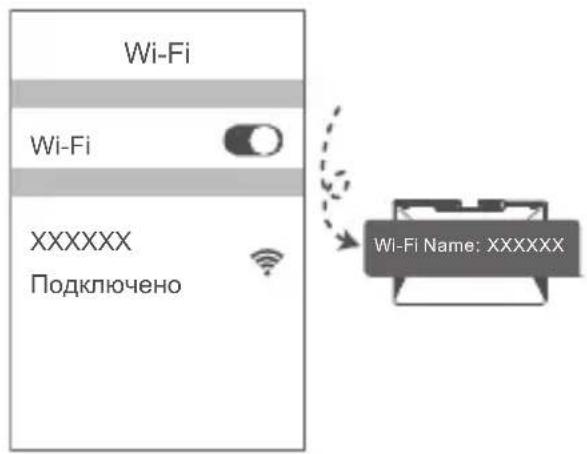
Connect your mobile phone or computer to the router's Wi-Fi network (no password required).
Check for the Wi-Fi name on the bottom of the new router.

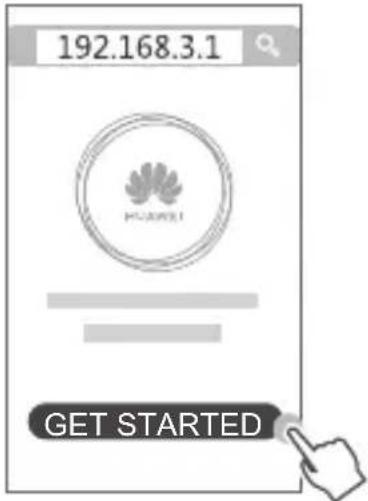
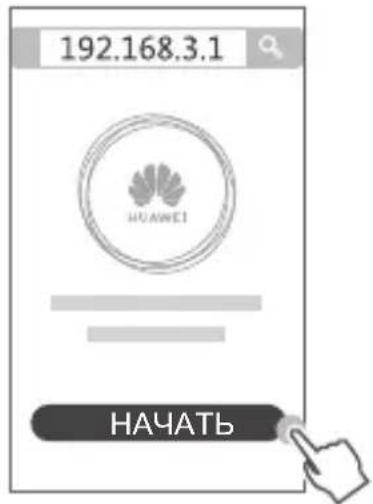
Open the browser, then you will be automatically redirected.
(If the page is not displayed automatically, enter 192.168.3.1).
Touch GET STARTED and choose Create a Wi-Fi network (skip this step if you cannot find such an option).
3
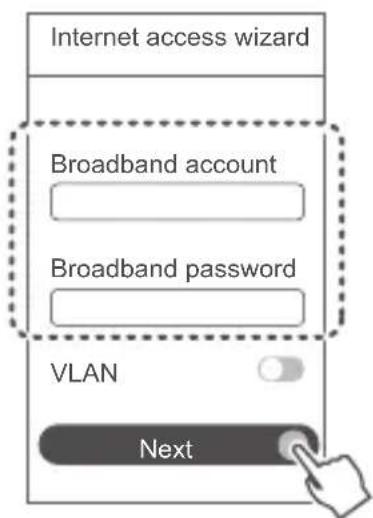
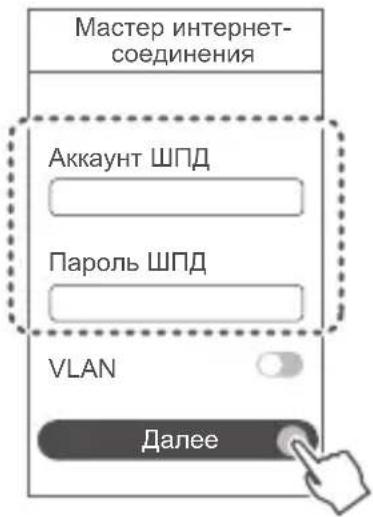
Enter your broadband account and password.
If your Internet connection does not require an account and password, please skip to the next step.

-
If you have forgotten your broadband account and password, contact your broadband network provider to obtain a broadband account and password.
-
If you need to configure VLAN on your network, contact your broadband network provider to confirm the VLAN parameters, and enable the VLAN switch on the screen.
4 Set a new Wi-Fi name, Wi-Fi password, and admin password for the new router.
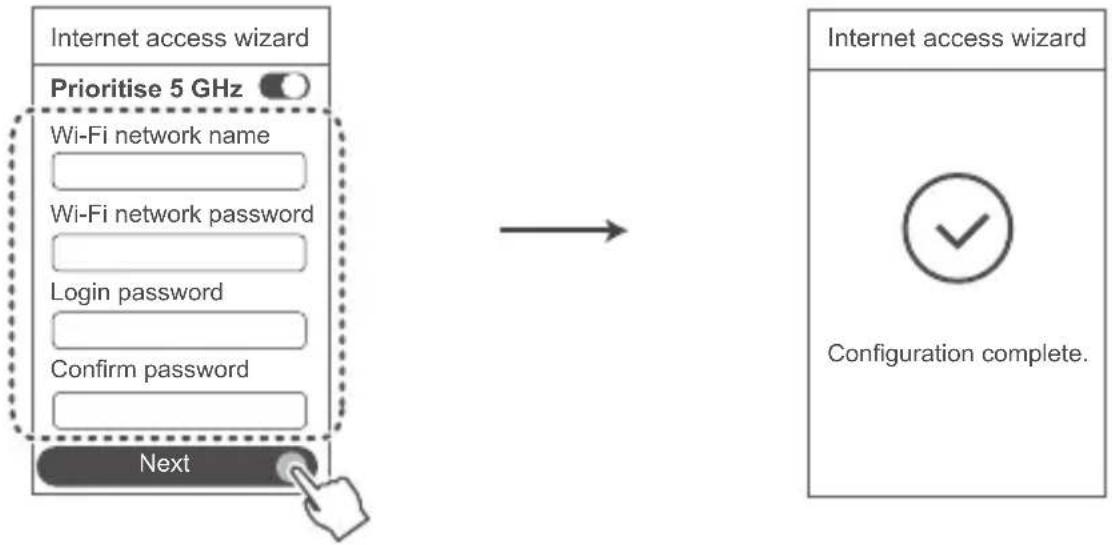
Enable Prioritise 5 GHz: Prioritize usage of 5 GHz Wi-Fi band over 2.4 GHz band when signal strength is equal to increase connection speeds.
Manage the router with our mobile app
Scan the QR code to download and install the HUAWEI AI Life App on your mobile phone or tablet. You can use the app to manage your router.
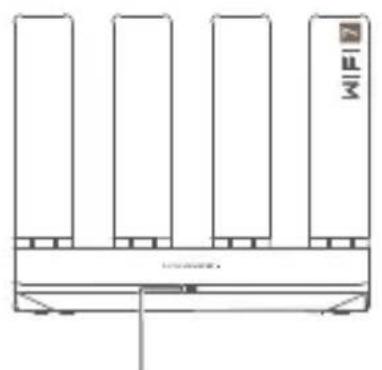
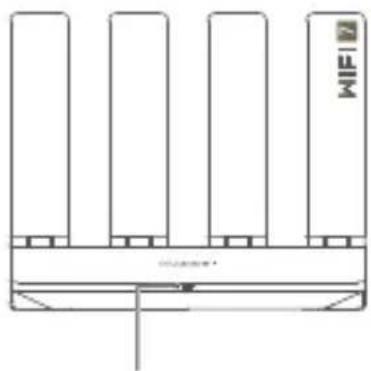
Indicator

| Steady green | Connected to the network |
| Steady red | Not connected to the network
• Loose cable or connect error. Check the cable connection.
• A broadband network error occurs. Contact your broadband carrier. |
| Flashing | The router has detected a pairable device.
When other HUAWEI devices (support HarmonyOS Connect) are detected, the indicator on the HUAWEI WiFi BE3 Pro will flash. When this happens, press the HUAWEI WiFi BE3 Pro's WPS/RESET button. The indicator should flash quickly, indicating that the pairable device is connecting to the HUAWEI WiFi BE3 Pro. The connection process is complete when the indicator stops flashing.
If you touched the WPS/RESET button by accident, wait for 2 minutes till the indicator returns to normal. |
Frequently Asked Questions (FAQs)
Q1: What can I do if I encounter any of the following issues when configuring the router?
- If your device did not detect the router's Wi-Fi network: Ensure that the router is powered on. Wait for a moment (till the router is started) and try to search again on your device.
- If you cannot visit the router's configuration page on your device: Ensure that your device is connected to the router's Wi-Fi network, and then enter 192.168.3.1 in the browser to visit this page on your device.
- If the page displays "Cable disconnected": Ensure that the router's WAN port is connected to the modem's LAN port, and the modem has Internet access. Check that all joints are securely connected and in good contact, and the network cables are in good condition.
If the issue persists, restore the router to the factory settings, and follow the guide to reconnect the cables and configure the router.
Q2: How do I restore the router to its factory settings?
Connect the router to the power supply and wait until the router completes the startup process. Press the WPS/RESET button on the router for more than 8 seconds until the indicator light turns off. Wait for the router to complete the restart process. When the indicator turns red, this indicates that the router has been restored to its factory settings.
You need to configure the router again after a factory reset.
Q3: How do I connect an add-on HUAWEI router to my HUAWEI WiFi BE3 Pro's network?
You can connect the router in either of the following ways:
- Wired connection. Connect the WAN port of the add-on router (new or restored to factory settings) to the LAN port of the configured HUAWEI WiFi BE3 Pro using an Ethernet cable.
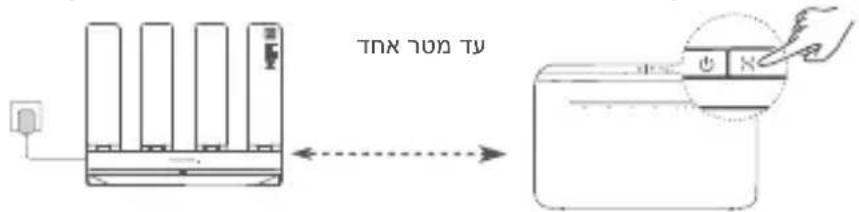
- Wireless connection. Step 1: Place the add-on router (new or restored to factory settings) within one metre of the configured HUAWEI WiFi BE3 Pro and connect it to the power supply. Step 2:
When the indicator on the HUAWEI WiFi BE3 Pro starts to flash, press the WPS/RESET button on it. Wait until the indicator on the add-on router shows it is connected to the network.
"HUWEI router" refers to routers that support HarmonyOS Mesh+. Please check if your device supports such feature.
Q4: How do I connect a Wi-Fi device to my router using WPS?
When your router is powered on, press its WPS/RESET button, and then touch the WPS button on the Wi-Fi device (such as a phone) within two minutes, to initiate standard WPS negotiation and connect the Wi-Fi device to the router's Wi-Fi network.
Q5: What should I do if I forget my login password for the app or the router's web-based management page?
Try using the router's Wi-Fi password to log in. If the issue persists, restore the router to the factory settings.
Q6: How do I connect my router to the HUAWEI CPE to expand the Wi-Fi network?
You can connect your router in either of the following ways:
Wired connection
Place your router in a room with weak or no signal strength, then connect the WAN port of your router to the LAN port of the HUAWEI CPE using an Ethernet cable.
- Wireless connection (using the WPS/RESET button)
Step 1: Place the router within one metre of the HUAWEI CPE and connect the power supply.
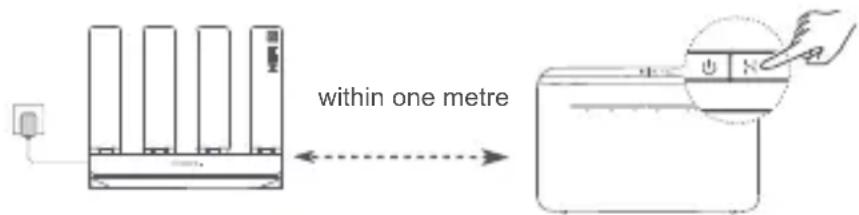
Step 2: When the indicator on the HUAWEI CPE starts to flash, press the WPS/RESET button on it. Wait until the indicator on the router shows that the router is connected to the network.
Step 3: Place the router in a room with weak signal strength and connect the power supply.

The figures are for reference only.
- Ensure that the HUAWEI CPE is connected to the Internet, and the router is new or restored to factory settings.
- Ensure that the HUAWEI CPE supports the HUAWEI HiLink function and CoAP protocol. Please consult the distributor for details.
- Ensure that the distance between your router and the HUAWEI CPE is less than 10 metres and there are no more than one wall in between.
Operation and safety

[Warning] Please read all of the safety information carefully before using your device to ensure its safe and proper operation and to learn how to dispose of your device properly.
- Do not use your device if using the device is prohibited. Do not use the device if doing so causes danger or interference with other electronic devices.
- Pacemaker manufacturers recommend that a minimum distance of 15cm be maintained between a device and a pacemaker to prevent potential interference with the pacemaker. If using a pacemaker, hold the device on the side opposite the pacemaker and do not carry the device in your front pocket.
- Avoid dusty, damp, or dirty environments. Avoid magnetic fields. Using the device in these environments may result in circuit malfunctions.
- Ideal operating temperatures are 0^ to 40^ . Ideal storage temperatures are -40^ to +70^ . Extreme heat or cold may damage your device or accessories.
- Keep the device and accessories in a well-ventilated and cool area away from direct sunlight. Do not enclose or cover your device with towels or other objects. Do not place the device in a container with poor heat dissipation, such as a box or bag.
- The device should be installed and operated with a minimum distance of 20~cm between the radiator and your body.
- Using an unapproved or incompatible power adapter, charger, or battery may damage your device, shorten its lifespan, or cause a fire, explosion, or other hazards.
- For pluggable devices, the socket-outlet shall be installed near the devices and shall be easily accessible.
- Unplug the power adapter from electrical outlets and the device when not in use.
- Do not touch the device or the power adapter with wet hands. Doing so may lead to short circuits,
malfunctions, or electric shocks.
- Ensure that the power adapter meets the requirements of IEC/EN 62368-1 and has been tested and approved according to national or local standards.
- The device should be installed at a position no more than 2m from the ground.

The symbol on the product, battery, literature, or packaging means that the products and batteries should be taken to separate waste collection points designated by local authorities at the end of the lifespan. This will ensure that EEE waste is recycled and treated in a manner that conserves valuable materials and protects human health and the environment.
For more information, please contact your local authorities, retailer, or household waste disposal or visit the website https://consumer.huawei.com/en/.
Reduction of hazardous substances
This device and its electrical accessories comply with local applicable rules on the restriction of the use of certain hazardous substances in electrical and electronic equipment, such as EU REACH regulation, RoHS and Batteries (where included) directive. For declarations of conformity about REACH and RoHS, please visit the website https://consumer.huawei.com/certification.
Statement
Hereby, Huawei Device Co., Ltd. declares that this device YGJN-BE33 is in compliance with the following Directive: RED 2014/53/EU, RoHS 2011/65/EU, ErP 2009/125/EC.
The full text of the EU declaration of conformity, the detailed ErP information and most recent information about accessories & software are available at the following internet address:
https://consumer.huawei.com/certification.
UK PSTI Compliance
This product meets the relevant security requirements specified in Schedule 1 of the Product Security
and Telecommunications Infrastructure (Security Requirements for Relevant Connectable Products) Regulations 2023. The full text of the PSTI Statement of Compliance is available at the following website: https://consumer.huawei.com/certification.
Restrictions in the 5 GHz band:
The 5150 to 5350 MHz frequency range is restricted to indoor use in: AT, BE, BG, CH, CY, CZ, DE, DK, EE, EL, ES, FI, FR, HR, HU, IE, IS, IT, LI, LT, LU, LV, MT, NL, NO, PL, PT, RO, SE, SI, SK, TR, UK(NI). In accordance with the relevant statutory requirements in the UK, the 5150 to 5350 MHz frequency range is restricted to indoor use in the United Kingdom.
Frequency Bands and Power
The frequency bands and transmitting power (radiated and/or conducted) nominal limits applicable to this radio equipment are as follows: Wi-Fi 2.4 GHz: 20 dBm, Wi-Fi 5 GHz: 5150-5350 MHz: 23 dBm, 5470-5600 MHz & 5650-5725 MHz: 30 dBm.
Guidance on how to enable and disable wireless networks
1.2.4 GHz Wi-Fi:
a. Connect your computer to the router's Wi-Fi network (or connect the computer to the router's LAN port using an Ethernet cable). Enter 192.168.3.1 in the browser's address bar and log in to your router's web-based management page.
b. Choose My Wi-Fi, toggle off Prioritise 5 GHz, and enable or disable 2.4 GHz Wi-Fi.
2.5 GHz Wi-Fi:
a. Connect your computer to the router's Wi-Fi network (or connect the computer to the router's LAN port using an Ethernet cable). Enter 192.168.3.1 in the browser's address bar and log in to your router's web-based management page.
b. Choose My Wi-Fi, toggle off Prioritise 5 GHz, and enable or disable 5 GHz Wi-Fi.
Legal Notice
Copyright © 2025 Huawei Device Co., Ltd. All Rights Reserved.
THIS DOCUMENT IS FOR INFORMATION PURPOSE ONLY, AND DOES NOT CONSTITUTE ANY KIND OF WARRANTY.
Trademarks and Permissions
Wi-Fi® the Wi-Fi CERTIFIED logo, and the Wi-Fi logo are trademarks of Wi-Fi Alliance.
Other trademarks, product, service and company names mentioned may be the property of their respective owners.
Version Update
In order to improve the security of the product and provide you with a better user experience, we will push version update information to you on a regular basis when an important update is released.
Privacy Policy
To better understand how we use and protect your personal information, please see the privacy policy at https://consumer.huawei.com/privacy-policy.
End User Licence Agreement
Please read and agree to the End User Licence Agreement (HUAWEI EULA) on the product's management page before using the product.
For More Help
Please visit https://consumer.huawei.com/en/support/hotline for recently updated hotline and email address in your country or region.
For more information on accessibility features, please visit the Huawei official website and refer to the Accessibility Guide of Access Point Products.
https://consumer.huawei.com/en/.
https://consumer.huawei.com/certification.
https://consumer.huawei.com/en/.
https://consumer.huawei.com/certification.
https://consumer.huawei.com/certification.
https://consumer.huawei.com/certification.
Hantera routern med.Var mobilapp
Skanna QR-koden for att hamta och installera HUAWEI AI Life App pa din mobiltelefon aller surfplatta. Du kan anvanda appen for att hantera din router.

Indikator
https://consumer.huawei.com/certification.
Begransingar i 5 GHz-bandet:
You can connect your router in either of the following ways:
Plasser ruteren i et rom med svakt ell er ingen signalstyrke, koble deretter WAN-porten pa ruteren til LAN-porten pa HUAWEI CPE med en Ethernet-kabel.
- Tradløs tilkobling (med WPS/TILBAKESTILL-knappen)
Trinn 1: Plasser ruteren innen en meter fra HUAWEI CPE, og koble til strømforsyningen.
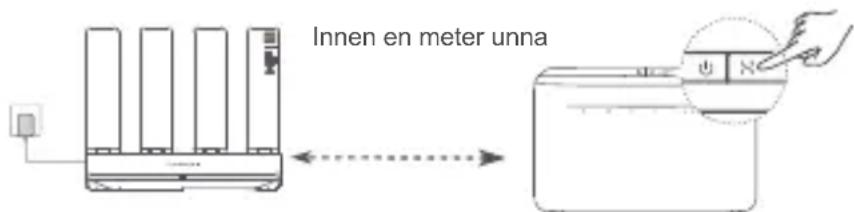
Trinn 2: Trykk på WPS/TILBAKESTILL-knappenningar indikatoren på HUAWEI CPE begyinner blinke.
https://consumer.huawei.com/certification.
https://consumer.huawei.com/certification.
DETTE DOKUMENT ER KUN TIL INFORMATION OG UDGØR INGEN FORM FOR GARANTI.
https://consumer.huawei.com/certification.
CNPOLUeHA DEKJIAPAUJIA
npo BIDNOBIDHicTB
cnpaBxHim Huawei Device Co., Ltd. 3aBnE, TOp Tnp paiooBnaHaHHa YGJN-BE33 Biinobinae
TexhiyHomy perIamEnTy paioooJaHaHHa;
NOBHN TeKCT DeKnapaui npo BiDnOBiHicTb DoctynnHa Be6-caTi 3a Takoio aDpecoIO:
https://consumer.huawei.com/certification.
Дя OTрманн Дддкоьи iHфорmaцп npo Функцс cneцьнх можлвocтей BiДыаite ophiцин Be6-caNT Huawei i 3BepHITbcra Do Посibнka 3i cneцьалbнх можлвocтей npodyktIB TOTOKdoCTyny (Accessibility Guide of Access Point Products).

Ghid de pornography rapida
1
2
4
https://consumer.huawei.com/certification.
Restricti in banda de 5 GHz:
Intervalul de freventa de la 5150 la 5350 MHz este limitat la utilizes area interioara in: AT, BE, BG, CH, CY, CZ, DE, DK, EE, EL, ES, FI, FR, HR, HU, IE, IS, IT, LI, LT, LU, LV, MT, NL, NO, PL, PT, RO, SE, SI, SK, TR, UK(NI).
Benzi de freventa 山 putere
Benzile de freventa s i limitele nominale ale puteri di transmisie (radiate si/sau conduse) aplicabile acestor echipamente radio sunt dupa cum urmeaz: Wi-Fi 2.4 GHz: 20 dBm, Wi-Fi 5 GHz: 5150-5350 MHz: 23 dBm, 5470-5600 MHz & 5650-5725 MHz: 30 dBm.
Ghid privind modul de activare Şidezactivare a retelelor wireless
https://consumer.huawei.com/certification.
Omezeni v pásmu 5 GHz:
Frekvencnirozsah 5 150 až 5 350 MHz je urcen k vinitnimi pouzivani v nasledujicich zemich: AT, BE, BG, CH, CY, CZ, DE, DK, EE, EL, ES, FI, FR, HR, HU, IE, IS, IT, LI, LT, LU, LV, MT, NL, NO, PL, PT, RO, SE, SI, SK, TR, UK(NI).
https://consumer.huawei.com/certification web sitesini ziyaret edin.
Daha Fazla Yardin lgin
Yakin zamanda guncellenmis oleh yardin hati icin https://consumer.huawei.com/en/support/hotline/adresini ziyaret edip ülke veya bolgeniz icinGPCERLI e-posta adresine ulasabilirsiniz.

No.2 of Xincheng Road, Songshan Lake Zone, Dongguan Guangdong 523808, P.R. China
Tel:0086-755-28780808
Web: www.huawei.com
E-mail: mobile.tr@huawei.com
Cin'de uretilmistir (Manufactured in China)
Web: www.huawei.com/tr/
E-posta: mobile.tr@huawei.com
KVK Teknik Servis Kartal
https://consumer.huawei.com/tr/support/warranty-policy/
https://consumer.huawei.com/tr/legal/privacy-policy/
Teknik Özellikler
| Ürün Adı | HUAWEI WiFi BE3 Pro (Model: YGJN-BE33) |
| Boyutlar 59.5 mm x 225 mm | m x 177.9 mm |
| Ağırkı about 526g (Without packaging and accessories) | |
| Çalışma sıçakkı 0°C to 40°C | |
| Humidity 5% to 95% RH (non-condensing) | |
| güç:tüketimi <12 W | |
| Güç kaynakı 100-240V AC | |
| WLAN/LAN otomatik uyumlu böglanti noktası | 10/100/1000 Mbit/s WAN/LAN auto-adaptation Ethernet port: 4 |
| Wi-Fi 802.11b/g/n/ax/be (2.4 GHz, wireless rates up to 688 Mbps)802.11a/n/ac/ax/be (5 GHz, wireless rates up to 2882 Mbps) |
| Wi-Fi Frekans Araliği 2.4 | GHz Wi-Fi: 2400 MHz - 2483.5 MHz5 GHz Wi-Fi: 5150 MHz - 5250 MHz; 5250 MHz - 5350 MHz; 5470 MHz - 5600 MHz & 5650 MHz - 5725 MHz |
Kratko uputstvo
1
2
4
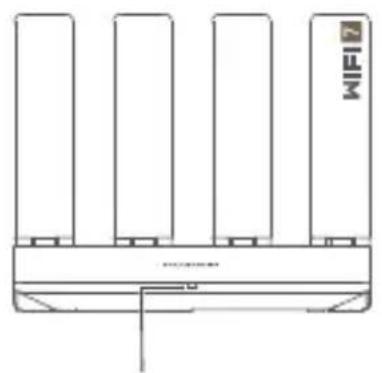
1 Indikator
2 Priključak za napajanje
3 WAN/LAN prikljucak za automatisku adaptaciju: povezije se na internet (kao opticki modem, modemi za mobilnu širokopojasnu vezu itd.) iŽicani mrežni urejad j kao sto je računar.
WPS/RESET taster: pruža funkcije i WPS tasteri RESET tastera.
1. korak: Povezivanje kablova
- Uspravite sve antene da biste obezbedili optimizovani signal Wi-Pmreze.
- Ako boa indicatora ostaje crvena, toPokazuje da ruter ici povezan na internet. Pogledajte pod ,2. korak: Konfigurisanje mreznih podešavanja".
- Za rutere koji podržavaju automatisku adaptaciju WAN/LAN mreze, mrežni priključci su kombinovani WAN/LAN priključci. Takode, možete da navedete fiksni WAN priključak na veb-stranici za upravljanje rutera.
2. korak: Konfigurisanje mrežnih podešavanja

Povežite mobilni Telefon iliracunar na Wi-Fi mrežu rutera
(lozinkaijke potrebna).
https://consumer.huawei.com/certification.
KpaTKoe pyKOBoDCTBO NOIb3OBaTeJIa
1
2
4
1
2
IopT NITaHnIHnKaTOp
3
Khonka WPS/RESET: Khonka BbINOJIHReT cyHKcN KhoNKn WPS n KhoNkn c6poca HacTpoEk.
War 1. Podknoyehne ka6eien
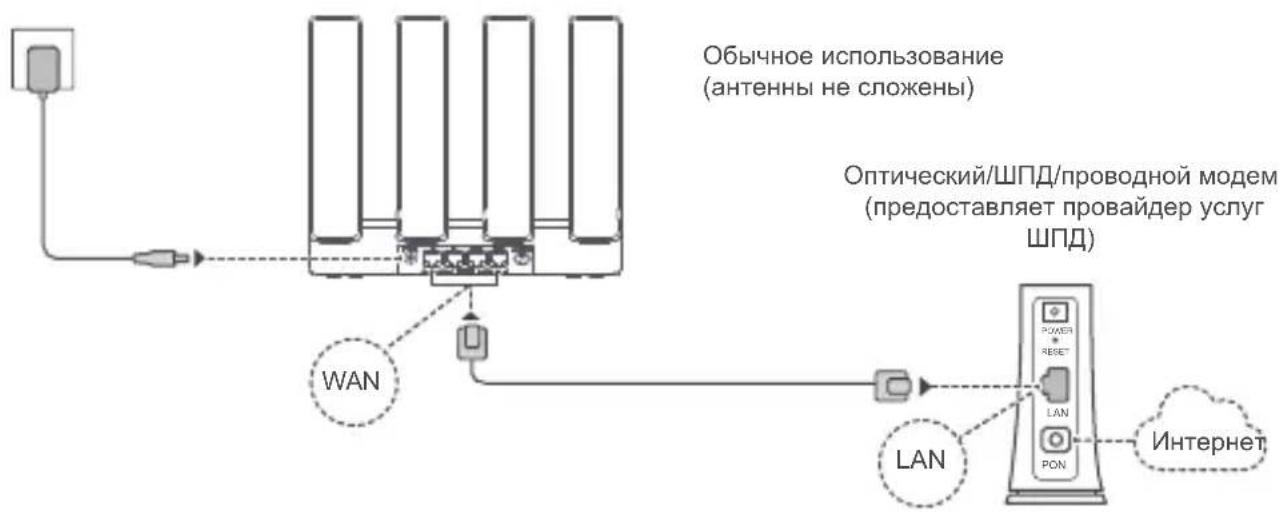
-
IOnHIMMTE BCE aHTeHHbI BepTnKaJIbHO dIa ONTmAbHOrO cHrHaWi-Fi
-
Ecnn INndnKaTOp ropnt KpaChbIM, poYTeP He noDkJIoueH K cEtN INHTepHeT.
CM. «Лаг 2. Нachtpoиka napametpoB cetu»
- PoyTepbI, IIOJIePJKINBAIOUHe ABTOMaTNUeCKn BbI6Op WAN/LAN, IMeOT KOM6HInPOBaHHbIE ceTeBbIe IopTbI WAN/LAN. Bbl TaKKe MOKeTe yCTaHOBNTb 0HKcNPOBaHHbI NOpT WAN Ha CTpaHnue ynpabNeHnra poyTepor.
Uar 2. Hacrtpoika napametpoB ceTn
1 IopKnIOuHTe TeNeoHnn KOMNbIOTep K cetN Wi-Fi poyTepa (napOB He Tpe6yeTc).
IocmOpnte nMa cetn Wi-Fi (Wi-Fi name)Ha HxKHe nnHEnn HOBOro poyTepa.
2 OtkpoTe 6pay3ep.БyET BbINOJIHeHa aBTOMaTnuecka nepeaDpecaun. (Ecnn CtpanuHa He OTo6paXaETcra aBTOMaTnueckn, BBeIte 192.168.3.1). Haxmnte HAATb n Bbl6epnte Co3daTb cetb Wi-Fi (nponyctnte 3tOT WaR, ecnn Bbl He MoKeTe HaHTN 3Ty ONUHO).
3
BVeDInTe NmI n napoJIBaWero aKKayHTa IIN.
Ecn nIy noKluueHn K NHTepHety He Tpe6yeTc BBOuNTb aKKayHT n napoIb, nepeiNTe K cneDyUoemy wary.
#
- EcIn BBi He NOMHnTE BaW aKKayHT n napoJIb ⅢI, o6paTntecb K BaWeMy npObaIdepy ycny IIN.
- Ecnn Bam Heo6xOIMO B BaWei Cetn HAcTpntb ceTb VLAN, noIyUHTe napaMeTpbl VLAN y BaWero npoBaainepa ycnyr lII n BkInouHTe nepeKInouaTeNb VLAN Ha ekpaHe.

HactpoIte HOBbie mЯ n napoiB cetu Wi-Fi, a taKke napoiB admHnctpaTopa dIra HOBoro poyTepa.
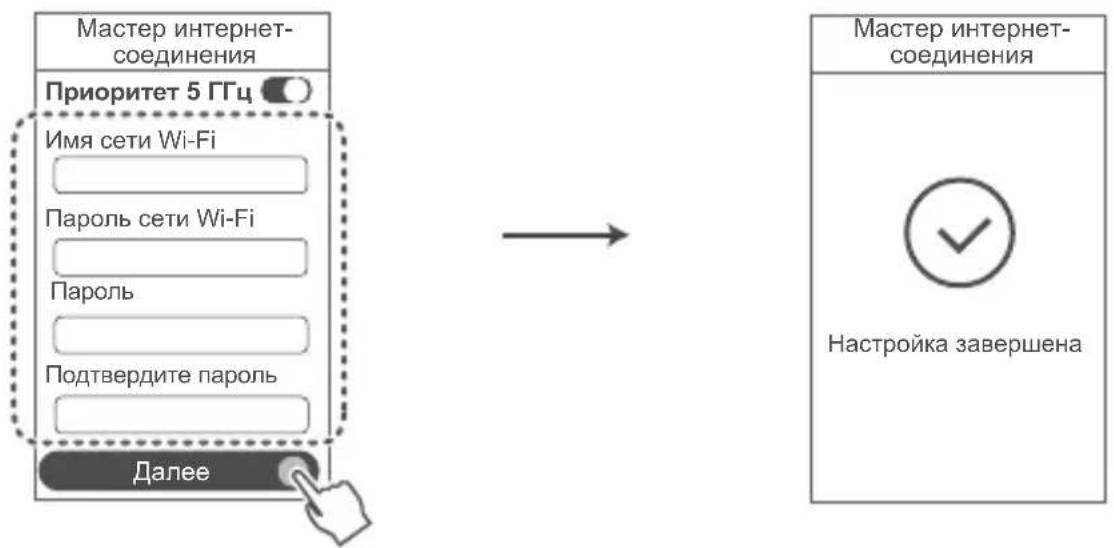
BknHueHne cyHKnPi npOpTeT 5 Tg. PnpOpTeTHoe nCNOb3OBaHne dnaana30Ha cetN WiFi 5 Tg BmecTo dnaana30Ha 2,4 Tg, npn OndnAkoBOM ypOHe cnHaI na nobblaaet ckopocTB coeHNHeHn.
UnpaBJIeHne poyTePOM c NOMOuMo6NJIbHO npNoJxHn
OtskaHpyuTe QR-ko, yTo6bI 3aRpy3nTb u yCTaHOBnTb npInnoXeHne HUAWE AI Life Ha TelefoH nnn nnAhnWet. Bbl moKeTe nCNoJb3OBaTb npInnoXeHne dny ynpabNeHn poyTePOM.

ИнданkaTOp
OrpaHnueHnB Dnana3OHe 5 T
ДианазончстOT 5150-5350 MГппедусмогренИСКПЮЧТЕЛБНОДЯ ИСПОЛБ3OBAHNYВ ПOMESEHINBX Cпeдуншхстрах: AT, BE, BG, CH, CY, CZ, DE, DK, EE, EL, ES, FI, FR, HR, HU, IE, IS, IT, LI, LT, LU, LV, MT, NL, NO, PL, PT, RO, SE, SI, SK, TR, UK(NI).
Dnana30HbI YactOT N MOUHOCTb
HominahbIbe nporobbe 3naehn dnaana30OB yactoN BbIXHO MoocHTN (n3nyaemoi (nII) nepedaBaemO), npimehernble K 3TOMy paiaoo6opdyobAHnIO: Wi-Fi 2.4 GHz: 20 dBm, Wi-Fi 5 GHz: 5150-5350 MHz: 23 dBm, 5470-5600 MHz & 5650-5725 MHz: 30 dBm.
PykoBooCTBO NO BkNoeHIO N BbIKNoeHIO 6ecnpoBODHO CETN
- Wi-Fi 2,4 ΓΓu;
a. Поблочи Комьтep K cetu Wi-Fi poutera (nno noKIOHTe kOMNbTOpek LAN-nopTy pouterpa c nomoou Ka6eIy Ethernet). BBeNTe B aDpeChOn CTpOke 6pay3epa aDPEC 192.168.3.1 n aBToPn3yTeCb Ha Be6-CTpanHue ynpablenenr poYepom.
b. Bb6epnte pa3dien Moa cetb Wi-Fi, BbIKIOHTe onuio PnpOpTe 5 Tt u BKIOHTe nn BBKIOHTe onuio Wi-Fi 2,4 Tt.
2.Wi-Fi5ΓU;
a. Пожклочи Te komьotep K ceTn Wi-Fi pouTepa (iHn noKlnouHte kOmnbHOTep K LAN-nOpTy pouTepa c nOmoBIO ka6eIy Ethernet). BBeinte B aDpeChOn CTpOke 6pay3epa aDpec 192.168.3.1 n aBtopn3yInTecb Na Be6-CTpanHeu ynpablenHa pouTeporm.
b. Bb6epnte pa3dien Moa cetb Wi-Fi, BbIKIOHTe ONUIO PnpOpTe 5 Tt u BKIOHTe NIN BBKIOHTe onuio Wi-Fi 5 Tt.
YBeDOMnHn
Copyright © Huawei Device Co., Ltd., 2025. Bce npaba 3aunuehbl.
DAHHBIOOKUMENT HOCNT CNPABOCHBI XAPAKTEP IN HE IOJPA3YMEBAET HIKAKNX TAPAHTNI.
TobapHbE 3HaKn
Wi-Fi, norotun Wi-Fi CERTIFIED n norotun Wi-Fi rBnTcra TOBapHbIMn 3HaKaMa n anbHca Wi-Fi Alliance.
Дугп.TOBAPHBIE 3нakи,HaIMeHOBAHnIu3dJIy,ycnyr KOMnaHn,ynomHyTbIe B HAcToIeM pykoBOIDCTBe, npHaJnEgKAT INx BlaJeIbIaM.
06HOBJIeHneBepn
C cIeIbIO NOBbIeHnE 6e3OaChocT DaHHOro ycTroPcTBa N KaueCTBa O6cIyXuBaHnKOMNaHn6 ByTe UBeDOMJIbT BAC O HOBbIX BepCnx PpN IN NOBJIeHN.
Ponntka KOHpndeHuaNbHOCTN
Mepbl, npHnmaemble KOMnaHneI 3aunbTaBaWe IuHOn HOpMaCIn, ONaCbIB NOJNTKe KOHndeHuaJIbHOCTn, Ony6nKOBaHNo Ha Be6-caiTe https://consumer.huawei.com/privacy-policy.
JIueH3noHHoe cornaaehne c KOHeHbIM NOJb3OBaTeJIeM
Ipeud nCnoNb3OBAHnem 3Toro yctpoiCTBa BHNMaTeNbHO npoTuTE u npuMnte noLoXeHnra IInueH3NoHHoro cornaaehn c KOHeuHbIM noIb3OBaTeJeM (HUAWEIEULA) Ha Be6-ctpaHnue KOnfHiypaunu ycTPOiCTBa.
DOnonHnTeIbHa IHHOpMaun
IHHopMaunIO TepeOHe ropuey IINHn n aDpece 3neKtpoHNoTbI cnyk6bl NOdepKKn B BaUeI CTpaH e nn pereNohe cm. Ha caIte https://consumer.huawei.com/en/support/hotline.
Iopno6Hyu HOpMaunO Bo3MoXHocTx DocTyna cm. Ha oPhiuaJIbHom Be6-caTe Huawei BpykoBODCTBe o yHKunx pacupeHHoro DocTyna dny ycTroPoiCTB DocTyna (Accessibility Guide of Access Point Products).

BknaDbIiK kpaTkomy pykoOcTBy noIb3OBaTeJIa
1.ИЗROTOВNTeJIb,аДPEC
Xyabéi DeBaic Ko., JI, KHP, 523808, r. DnyhryaHb, GyaHdUn, AdmnHcTpaTnBHOe 3daHne No2. (Huawei Device Company Limited, Administration Building No.2, Xincheng Road, Songshan Lake Zone, Dongguan, Guangdong, Kntai)
Ten.: +86-755-28780808
- Hanmehoan He MeCTOHAXOxDeHne yNOJHMOUeHHORo H3ROTOBtTeJIeM Nua (HMnOpTepa -ecnn napTna) B COOTBeTCTBnC Tpe6oBaHnMa TeXHnuecknx perIaMeHTOB TaMOxHeHHoro co103a OOO «Texkompana Xyab》,Poccnicka Fedepaun,121614,r.MockBa,yI.KpbIaTcKa,d.17, Kopnyc 2, OFPH 1027739023212.
3.Инфорmaцьдя CBa3N
CISSupport@huawei.com
+7 (495) 234-0686
4.ToproBár Mapka
HUAWEI
- HanmeHOBaHne n 06O3HaueHne
PoyTeP HUAWEI moDeny YGJN-BE33
- Ha3NaueHne
PoyTeP HUAWEI moIy YGJN-BE33 - 3TO 6ecnpoBODHO npoyTeP noIepxNBauOuIIN NOKIOueHne HeckoJIbKIX yCTPOIcTB-KIIneHTOB. PoyTeP MoXHO nCnONb3OBAbT B DoMAx I MaIbIX oFncax dIpy IpEIOCTaBJIeHn IOnb3OBAteJIam DOctyna B INTEpHET.
- XapaKTepeNCTnKn n npaMeTpbl
Wi-Fi 2,4 ΓΓu: 2x2 Wi-Fi 2.4 ΓΓu 11be
Wi-Fi 5 : 2x2 Wi-Fi 5 11be
8.Питанne
OT aanepa nntaanr O T cetn nepemehnro ToKa C npapamepamn nntahna:
HaBxoJe:100-240B,50/60T
Ha BbIXoJe: - 12 B DC, 1 A
- CtpaHa npOn3BODCTBa
Kntai
10. COOTBETCTBNE
YCTPOINCTBO COOTBECBYET:
Cpok xpaHnHa He npBbIaAeT cpoK cnJyX6bl.
14. ПравILA и усLOBWA ripeBO3Kn (Трансортуравань)
Ipebo3ka n TpaHcnpotnpOBka 06opydoBaHn IOnyckaetc ToIbKO B 3aBOdCKo ynaKOBke, JHO6bIMN Bnuamn TpaHCnpTa, 6e3 orpaHnueHn paCCTOraHn.
15. Правлaja и усlobna рализачи
Bez orpaHnueHn
—BbIKHouHTeObopyoBaHHe,
OTKJIIOHTeO6OpyIDOBAHNEOT3NeKtpnueckoCETN,
Data n3rotoblenya yctpoicTba yka3aHa ha ynaKOBke B fopmate MM/ΓΓ (MM-mecu, ΓΓ-ro).
- KompiJekTHoCTb
Poyrep-1wT.;
AanTep nHTaHn-1 wT.;
Cetebon kaebnb-1wt.;
3KcnnnyatauOHhBIE DOKyMeHTbl.
*KOMnIeKT NocTbKn MoKeT OTJIuHaTbcr B 3aBcNMOCTn OT cTpaHbI IIN peRHOaUN.
22.3hak COOTBcTCTBnA
EAC
YnataCTBO 3a 6p3 noyeTOK
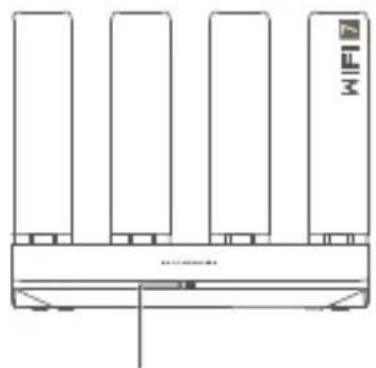
1
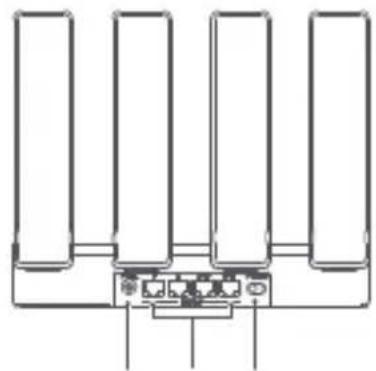
2
4
1 Noka3aTeI
2 PnKnyok 3a HanojyBaHbe
3 IopTa co aBTOMaTcKO npncnoc6yBaHBe 3a WAN/LAN: ce nobp3yBa Ha nHTepHeT (Kako wTo e oNTnUKN MoDem, uNpOKoJAcHN MoDemn nTH.) n ypeD 3a JxuYeHa MpeXa, KaKO wTo e KOMnjyTep.
4 Konye 3a WPS/RESET: ng o6e36eYBa cyHKcNITE n Ha konyeTo 3a WPS n Ha konyeTo RESET.
Чекор 1: монтуралье на ka6лente
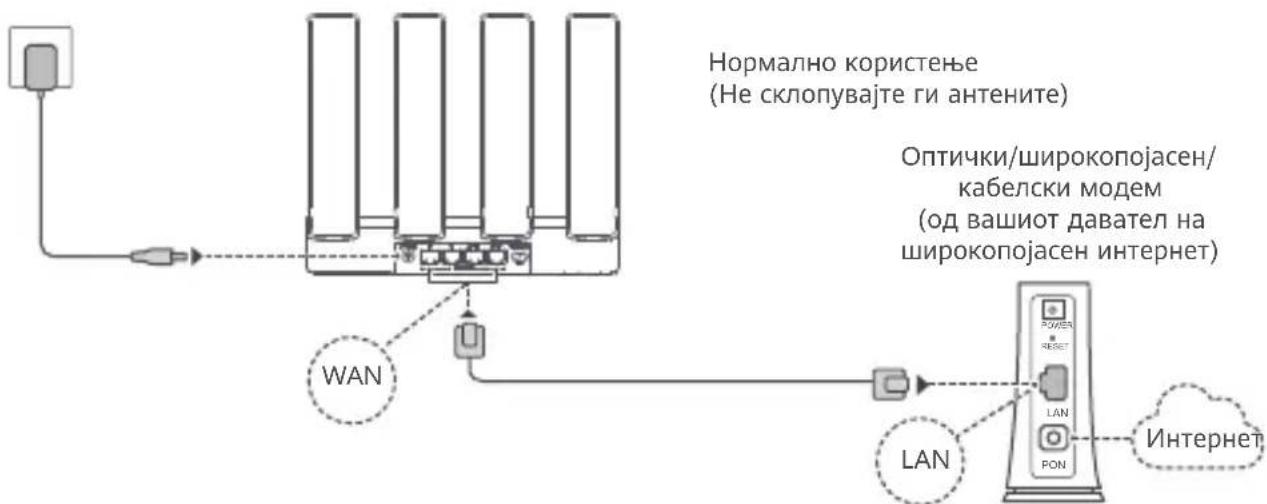
-
IcnpaBeTe rN cHTeAHTeHN 3a da 06e36eDnTe ONTUMn3npan HcHn Ha Wi-
-
Ako nokaTeNoT octaHe uPBeH, Toa 3NauN DeKa HAcouyBaUOT He e NOBp3aH Ha INHTepHET. NOrIeHete ro "Yekop 2: KOHcHpypuaHe Ha NoCTabKInTe 3a MpeXaTa."
3a HacouyBaun To NoDpKByBaat ABTOMATcko npncocobyBe Ha WAN/LAN,mpexHnTe nopTn Ce KombnHnpaHn nopTu WAN/LAN. NcTo TaKa, MoKe Da HabeTe fNkCha nopTa WAN Ha cTpaHnUaTa 3a ynpaBvBaHe co HacouyBaOT npeky Be6.
YeKOp 2: KOHΦnIpynpaHe Ha NoCTaBknte 3a MpeKaTa
1 NOBp3eTe ro Mo6nHnnot TelefoH nI KOMnjyTepoT co mpeXaTa Wi-Fi od hacouyBaOt (He e IOTpe6Ha lo3nHka).
IpoBepTe ro nMeTo Ha MpeXaTa Wi-Fi (Wi-Fi name) Ha donHnot DeI OJ HOBnOT HAcOyBaU.
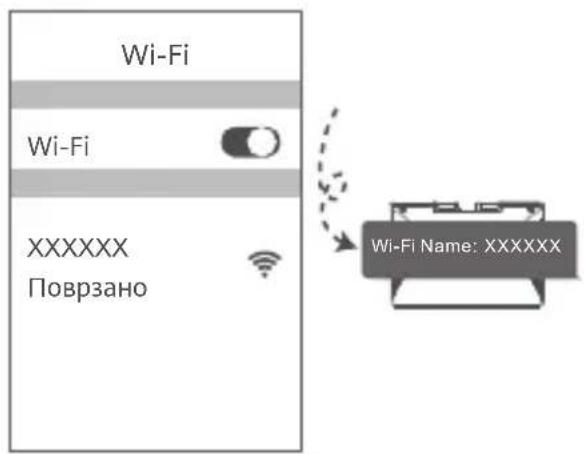
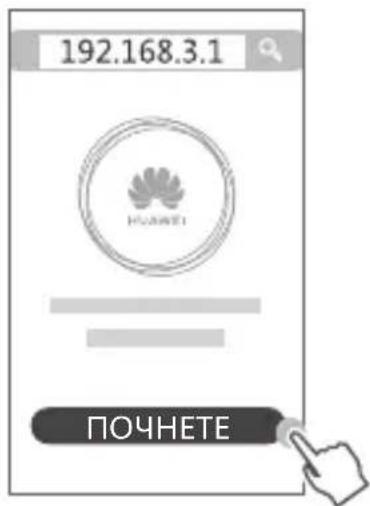
2 OTbopete ro npelnctyBaoh Ke 6nndeTe npehacoueHN aBTOMaTcKN. (Ako ctpaHncaTa He ce npkaKe aBTOMaTcKN, BHeceTe 192.168.3.1). IOnpeTe IOUHETE n n36epTe Co3daj MpeKa Wi-Fi (npecKoHete ro oOj uekop aKO He MoXeTe da HajDeTe TaKba OnuJa).
3
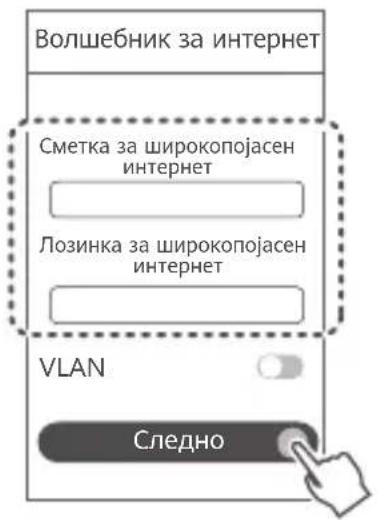
BheceTe rncmetkata n lo3nHKata 3a unpokonojaceh nHTepHET.
Ako 3a NOBp3yBaHbETo Ha INHTepHET He Ce NOTpe6HN CMeTKa IIO3nHKa, OJeTe Ha CNeDHNOT YekOp.
#
- Ako cTe rN 3a6opabnle cMeTkata n lo3nHkata 3a
- shupokonojaceh nHTepHeT, KOHTaKTnpajte co onepaTopoT
- Ha shupokonojaceh nHTepHeT 3a da rN do6neTe
- cMeTkata n lo3nHKata 3a shupokonojaceh nHTepHeT.
Ako Tpe6a da KOHcHpynpaTe VLAN Ha BaWaTa MpeXa, KOHTaKTPajTe co ONEpATOpOT Ha WnPoKoNojaceH INHTepHet 3a Da rN nOtBpDnte npaMeTpUte 3a VLAN n OBO3MOxete ro ppeKNHyBaOH 3a VLAN Ha ekpaHOT.
4
IocTaBeTe HOBO nme Ha Wi-Fi, lo3nHka 3a Wi-Fi n aDMnHnCTpaTopcka lo3nHka 3a HOBnOT HacOuyBaU.
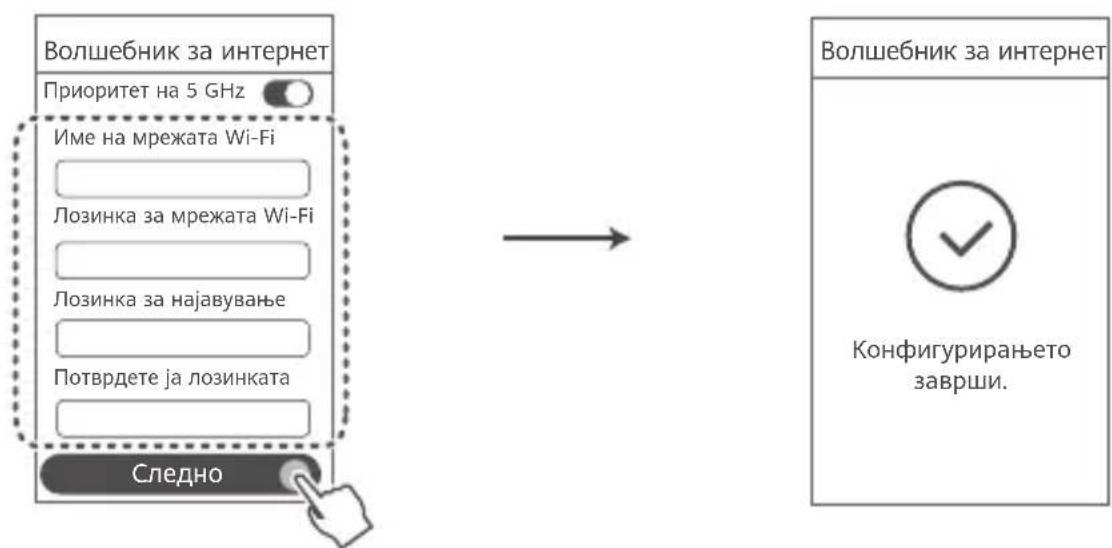
OBO3MOXeTe PnpOpTeHa 5 GHz: npOpTeTHo KOpCTeHb e Ha OncerOT Ha Wi-Fi Ha 5 GHz hameTo oncerot Ha 2,4 GHz kora jaunHata Ha cnHanoT e eHaKba 3a da ce 3roJeMn 6p3Hata Ha NOBp3yBaHeTo.
YnpaByBajTe co HacouyBaoy Co Haata Mo6nHa anlkaunja
CkeHnpajTe ro QR-koJOT 3a da ja npesMeTe n da ja HnCTaHnpate anNkaujata HUAWEI AI Life Ha Mo6nHNO7 TelepoH nn Ta6NeTOT. MoKe da ja Kopncntte anNkaujata 3a da ynpaByBaTe co HacOuyBaUOT.

Noka3aTeJ
| Свети зелени | Поврзан на мөхату |
| Свети црени | He e noВрзан Ha mөхату
·Разлбавен кавел ллгөшka Bo nobрзүүү.
·Тгөшka Ha shinpokontojaacha ta мөха. Контактүлүүоу опэрэнүүлүүү.
shinpokontojaachaen inteэнүүлүүү. |
| Трени | Hacouybaчot otкрnil ур徳што мөжд де с nanopи.
Kora ке ce otkprijsat дугий ур徳и HUAWEI (што полдрауьот HarmonyOS Connect),
показателот на HUAWEI WiFi BE3 Pro ке трени. Kora ке ce снын тоа, ригиншete
ro корчeto WPS/RESET на HUAWEI WiFi BE3 Pro. Показателот тpe6а де трени
6р30,што укалува дка ур徳otшто мөжд де с nanopи ce nobрзүүа co HUAWEI
WiFi BE3 Pro.iprocescot на nobрзүүаые завшиен кora покazателot ке пессан
да трени.
Ако сныajно ro догрete корчeto WPS/RESET, поекajte okoly 2 minhytɪ
дodeka покazателot ce врази BOHopmaлнatura состoj6a. |
YecTo noCTaByBaHn npaShaHa (yPi)
П1: Sto da HanpaBam ako ce nojabat Hekon od cneHnBe np6IeMn Kora ro KOHФИгурпam HacouyBaoy?
Ako ypeoT He ja otKpne Mpejata Wi-Fi Ha HacouyBaoy: yBepete ce deka hacouybaot e Bknyuen. Nooekajte MaKy (doeka HacouyBaoy Ta cTapTyBa) n obnTe ce nobTOHO da npebapate Ha ypeoT.
- Ako He Moxe Ta ja Iocetnte CtpaHncaTa 3a KOHcHypnpaHbe Ha HacOyBaUOT Ha ypeDoT: yBepTe ce deKa ypeDTo e NOBp3aH Ha MpeKata Wi-Fi Ha HacOyBaUOT, na BHeCte 192.168.3.1 BO IpeJIncTyBaUOT 3a Da ja Iocetnte CtpaHncaTa Ha ypeDoT.
Ako Ha cTpaHnUcTa Ce npKakyBa, Ka6eIOT e ncknyueh": yBepTe ce deKa nopTaTa WAn Ha HacouyBaOte eoBp3aHa co npTata LAN ha moEmOt n deKa moEmOt mHa npCTan Ha INHTepHe. IpoBepTe daHn cHTe npKnyuOuCe 6e36eHNO nobp3aHn nMaat do6ap KOHTAKe MpeKnHte Ka6Jn Ce BO do6pa cocto6a.
Ako npo6nemot He e peweH, BpaTe Te Ho HacoyBaOT Ha 46pNknte NoCTaBKn n CneJeTe rynatCTBOTO 3a NOBtOHO da rno NobPte Ka6nnte N da ro KOHnpynPate HacoyBaOT.
BytoH WPS/RESET: cnjxk kaKTo 3a WPS 6yToH, TaKa n 3a RESET 6yToH.
CTbPkca 1: Cbbp3BaHe Ha ka6eInte
Pa3nBHeTe BCNUKn aHTeHb B n3npaBeHO NOLOXKeHne, 3a Da Ocnpynte ONTUMN3npaH Wi-FicrHaJ.
- Ako INДиКaTOpBbOCTaHe YepBeH, TOBa O3HaUaBA, Ye pyTePbT He e Cbbp3aH KbM INHTepHeT. KoHcyIITnpaIte ce cbc ,CTbNka 2: KOnФИrpypuaHа МpeKOBITE HAcTpOuKn".
3a pyTePN, KOnto NOpIbpxaT ABTOMaTHUHO aanTnpaH e Ha WAN/LAN, MpeKOBnTe npToBe ca KombHnpaHn 3a WAN/LAN. MoKeTe cBIO da 3aadte Te pKcnpaH WAN npT ha ye6 6aHpaHaTa CTpaHnca 3a ynpabHe H e Ha pyTePA.
YeCTOTHNJeHTNMOUHOCT
Hominahnnte rpaHnHa YecToTHne IINnn N MoUHocTta Ha npedabahe (n3JIbueHa n/nn npoBeHe), npINOxMn 3a ToBa paAnoo6OpyDbaHe, ca cneHNte: Wi-Fi 2.4 GHz: 20 dBm, Wi-Fi 5 GHz: 5150-5350 MHz: 23 dBm, 5470-5600 MHz & 5650-5725 MHz: 30 dBm.
Yka3aHn 3a akTbnpaHe n DeakTbnpaHe Ha 6eXmHn MpeKn
1.2,4GHzWi-Fi:
a. CbpxeTe KOMnOtbpa cn KbM Wi-Fi mpeXaTa ha pyTepa (nJIn CbpxeTe KOMnOtbpa KbM LAN nopta Ha pyTepa c nomoxta Ha Ethernet ka6en). BbBeDeTe 192.168.3.1 B aDpeChata neHTa Ha 6pay3bpa n BJe3Te B ye6-6a3npaHaTa cTpaHnca 3a ynpabHeHne Ha Baunr pyTep.
b. ɪn36epeTe MoT Wi-Fi,ɪn3KNHoyeteIpnOpNTu3npaH e Ha 5 GHz n aKTbBpaJTe nɪn deakTNbpaJTe 2.4 GHz Wi-Fi.
2.5 GHz Wi-Fi:
a. CbpxeTe kOMnIObpa cn KbM Wi-Fi mpeXaTa ha pyTepa (nJIN CbpxeTe kOMnIObpa KbM LAN npTa Ha pyTepa c nOmoTt ha Ethernet ka6en). BBeDeTe 192.168.3.1 B aIpeChata JENTHa 6pay3bpa n BJe3TE B ye6-6a3npaHata cTpaHnca 3a ynpabHeHne Ha Baun pyTep.
b. 36epeTe MoT Wi-Fi, n3KIOUcTe PnpOpTu3nPaHe Ha 5 GHz uAKTNBpuaTe UIN deakTNBpaTe 5 GHz Wi-Fi.
PpaBna nHΦopMaζηa
Abtopcko npaBo © 2025 Huawei Device Co., Ltd. BcnuKn npaba 3ana3eHn.
HACTOUII T OKUMEHT E CAMO 3A INHOPMAUIN HE IPEICTABJIBA KAKBATO I DA E IAPAHLJ.
TbproBckn Mapkn npa3peWeHn
Wi-Fi, noroto Ha Wi-Fi CERTIFIED and noroto Ha Wi-Fi ca TBproBckn Mapkn Ha Wi-Fi Alliance.
Bcnyn npuyn tbprobckn Mapkn, npdyktn, ycnyn n memaHa KaomnaHn MoKe da ca co6ctBeHOCT Ha CbOTBEHTHne IM npTeKaTeJI.
Akyaun3aunHaBepnTa
3a da mojem da noodobpraBaHe cnrgyHocTtHa npodykTa n da Bn rapaHTnpame no-do6po yceuahe, ue Bn n3npaUme peoOBHO INΦOpMaζη 3a akTyαJN3uPaHe npn n3JN3aHeTo Ha BaxHa akTyαJN3aζη.
Ponntka 3a nobepntelnoct
3a da pa36epe Te no-Do6pe KaK n3noJ3BaMe n 3aunTabeMe JnHata Bn INΦopMaζη, npoγeTe TOniTuKa 3a nobepuTeJIHoCT Ha https://consumer.huawei.com/privacy-policy.
JIuIeH3nOHNOcnpa3yMeHne cKpaHHNnnoTpe6nteI
Moi, npoTeTe n daIte cbrnacneTo cn C IunceH3noHHOTcnpa3yMeHne C kpaHnra notpe6nte (HUAWEI EULA) Ha ctpaHncaTa 3a ynpabNeHne Ha npOdykTa, npedn da ro n3noJ3BaTe.
OoI IOMOuHa HOpMaun
Iocete https://consumer.huawei.com/en/support/hotline 3a akTuJHa uHΦopMaζra 3a „ropeuata IHHNIA " I MEmI aDpeca 3a noIdpbKka BbB BaWAta IbPkAba IINI perNoH.
3a noBue He HOpMaucn 3a fHyKcHnTe 3a DocTbNHOCT nOceTe Te OfncuHaHnaYe6caHT Huawei n BxKTe PboDCTBOTo 3a DoctbNHOCT do npOyKTn Ha Tockn 3a DoCTbn (Accessibility Guide of Access Point Products).
https://consumer.huawei.com/certification.
Ograničenja za pojas od 5 GHz:
Raspon frekvencije od 5150 do 5350 MHz ogranicen je na uporabu u zatvorenim prostorima u: AT, BE, BG, CH, CY, CZ, DE, DK, EE, EL, ES, FI, FR, HR, HU, IE, IS, IT, LI, LT, LU, LV, MT, NL, NO, PL, PT, RO, SE, SI, SK, TR, UK(NI).
https://consumer.huawei.com/certification.
Omejitve v 5-GHz pasu:
Frekvenčni razpon med 5150 in 5350 MHz je omejen na notranjo uporabo v naslednjih državah: AT, BE, BG, CH, CY, CZ, DE, DK, EE, EL, ES, FI, FR, HR, HU, IE, IS, IT, LI, LT, LU, LV, MT, NL, NO, PL, PT, RO, SE, SI, SK, TR, UK(NI).
Koupi WPS/RESET: Napexi tic itoupyiec too tou Koupiou WPS ooo kal tou Koupiou RESET.
n nn nnn nnn nnn nnn nnn nnn nnn nnn nnn
.
?n n n nn nn nn nn nn nn nn nn nn nn nn nn nn nn nn nn nn nn nn nn nn nn nn nn nn nn nn nn nn nn nn nn nn nn nn nn nn nn nn nn nn nn nn nn nn nn nn nn nn nn nn nn nn nn nn nn nn nn nn nn nn nn nn nn nn nn nn nn nn nn nn nn nn nn nn nn
WPS/RESET yynn nn nnnn nn nn nn nn nn nn nn nn nn nn nn nn nn nn nn nn nn nn nn nn nn nn nn nn nn nn nn nn nn nn nn nn nn nn nn nn nn nn nn nn nn nn nn nn nn nn nn nn nn nn nn nn nn nn nn nn nn nn nn nn nn nn nn nn nn nn nn nn nn nn nn nn nn nn nn nn nn nn nn nn nn nn nn nn nn nn nn nn nn nn nn nn nn
n nn nnnnnnnnnnnnnnnnnnnnnnnnnnnnnnnnnnnnnnnnnnnnnnnnnnnnnnnnnnnnnnnnnnnnnnnnnnnnnnn
ynnn nn yiy nynnnn nn anon
?HUAWEI WiFi BE3 Pro nwnn qon HUAWEI nnnn 3
LAN- n (n nn nnnn nn n nn) n nn nn nn nn nn nn
Ethernet HUAWEI WiFi BE3 Pro-n Tn n 2 w.nnnn nn n n n n n n n n n n n n n n n n n n n n n n n n n n n n n n n n n n n n n n n n n n n n n n n n n n n n n n n n n n n n n n n n n n n n n n n n.
HarmonyOS Mesh+-- on"HuAWEI
?WPS nynnnn nn by Wi-Fi nnnnnnnn nn 4 nnn
WPS WPS/RESET y n, wps/nn Wi-Fi-n nwn Wi-Fi-n nnnn nnnn nnnn nnnn nnnn nnnn nnnn nnnn nnnn nnnn nnnn nnnn nnnn nnnn nnnn nnnn nnnn nnnn nnnn nnnn nnnn nnnn nnnn nnnn nnnn nnnn nnnn nnnn nnnn nnnn nnnn nnnn nnnn nnnn nn
w nn nnnn nn nnnn nn nnnn nn nn nn nn nn nn nn nn nn nn nn nn nn nn nn nn nn nn nn nn nn nn nn nn nn nn nn nn nn nn nn nn nn nn nn nn nn nn nn nn nn nn nn nn nn nn nn nn nn nn nn nn nn nn nn nn nn nn nn nn nn nn nn nn nn nn nn nn nn nn nn nn nn nn nn nn nn nn nn nn nn nn nn nn nn nn nn nn nn nn nn nn nn nn nn nn
n nn nnnn nn nnnn nn nn nn nn nn nn nn nn nn nn nn nn nn nn nn nn nn nn nn nn nn nn nn nn nn nn nn nn nn nn nn nn nn nn nn nn nn nn nn nn nn nn nn nn nn nn nn nn nn nn nn nn nn nn nn nn nn nn nn nn nn nn nn nn nn nn nn nn nn nn nn nn nn nn nn nn nn nn nn nn nn
?Wi-Fi-n nwn nn HUWEICPE-n nn nn nn nn 6
:nnn nn nnnn nn nnnn
in
WAN- n nn nn nn nn nn nn nn nn nn nn nn nn nn nn nn nn nn nn nn nn nn nn nn nn nn nn nn nn nn nn nn nn nn nn nn nn nn nn nn nn nn nn nn nn nn nn nn nn nn nn nn nn nn nn nn nn nn nn nn nn nn nn nn nn nn nn nn nn nn nn nn nn nn nn nn nn nn nn nn nn nn nn
Ethernet HUWEI CPE-n LAN-n
(WPS/RESET nnnn nn) nnnn
n nn n 90x nx n HUAWEI CPE-nn n x ton ty ynnn nn nx npn : 1
WPS/RESET HUWEICPE-2
yinnnnn nn nnnnnnnnnnnnnnnnnnnnnnnnnnnnnnnnnnnnnnnnnnnnnnnnnnnnnnnnnnnnnnnnnnnnnnnnnnnnnnnnnnnnnnnnnnn
n nn n790x nx nni nynnnynnn nn nnnn 3
100
HUAWEICPE-
.
10- n HUAWEI CPE-7 7n nn
nin'ouytn
ninn
nniin nnnn nnnn nn nnnn nn nnnn nn nnnn nn nnnn nn nnnn nn nnnn nn nnnn nn nnnn nn nnnn nn nnnn nn nnnn nn nnnn nn nnnn nn nnnn nn nnnn nn nnnn nn nnnn nn nnnn nn nnnn nn nnnn nn nnnn nn nnnn nn nnnn nn nnnn nn nnnn

y nnnn nn nnnn
DNNN D'INN N D'INN
15 10
170111111111111111111111111
y 17x y 17y 17y 17y 17y 17y
7nnn nn n
n. 40C+20g nTnn Iionnn nn 40oC 0oC nnn nn
IN IN
noon 1nnn nn nnnn nn nnnn nn nnnn nn nnnn nn nnnn
11111111111111111111111111
12n n 20 nn nnnn nn nn nn nn nn
, n7n7 n7 n7 n7 n7 n7 n7 n7 n7 n7 n7 n7 n7 n7 n7
JINNNNIO INY
.1771
.
.
10
.
nnn nn nnnn y
n nn nnnn nn nnnn nn nnnnn nnnnn nnnnn nnnnn nnnnn nnnnn nnnnn nnnnn nnnnn nnnnn nnnnn nnnnn nnnnn nnnnn nnnnn nnnnn nnnnn nnnnn nnnnn nnnnn nnnnn nnnnn nnnnn nnnnn nnnnn nnnn nn
n nn nnnnnnnnnnnnnnnnnnnnnnnnnnnnnnnnnnnnnnnnnnnnnnnnnnnnnnnnnnnnnnnnnnnnnnnnnnnnnnnnnnnnnnnnnnnnnnnnnnnnnnnnnnnnnnnnn
.https://consumer.huawei.com/en/
DION DnIN DIyN
on nnnn nn (n) RoHS, EU REACH , RoHS- REACH
(EU)
:YGJN-BE33 nr nHuawei Device Co., Ltd.
ErP 2009/125/EC,RoHS 2011/65/EU,RED 2014/53/EU
n nn nnnn erP-n nnnn nn nnnn nn nnnn nn nnnn nn nnnn nn nnnn nn nnnn nn nnnn nn nnnn nn nnnn nn nnnn nn nnnn nn nnnn nn nnnn nn nnnn nn nnnn nn nnnn nn nnnn nn nnnn nn nnnn nn nnnn nn nnnn nn nnnn nn nnnn nn nnnn nn nnnn nnnn nn nnnn nn nnnn nn nnnn nn nnnn nn nnnn nn nnnn nn nnnn nn nnnn nn nnnn nn nnnn nn nnnn nn nnnn nn nnnn nn nnnn nn nnnn nn nnnn nn nnnn nn nnnn nn nnnn nn
:5GHz092n
,EE ,DK ,DE ,CZ ,CY ,CH ,BG ,BE ,AT : 530 MHz 5,150 nii UK(NI),TR ,SK ,SI ,SE ,RO ,PT ,PL ,NO ,NL ,MT ,LV ,LU ,LT ,LI ,IT ,IS ,IE ,HU ,HR ,FR ,FI ,ES ,EL
7901 109
nTNTyDnW (noiin / n) 1000
Wi-Fi 2.4 GHz: 20 dBm, Wi-Fi 5 GHz: 5,150-5,350 MHz: 23 dBm, 5,470-5,725 MHz: 30 dBm
ninnnnn nn nnnn nn nnnn
:2.4GHzWi-Fi.1
Wi-Fi-nn nn nnnnnnnnnnnnnnnnnnnnnnnnnnnnnnnnnnnnnnnnnnnnnnnnnnnnnnnnnnnnnnnnnnnnnnnnnnnnnnnnnnnnnnnnnnnnnnnnn
(Ethernet n nn nn LAN-n nn nn nn nn nn) an nn nn
192.168.3.1 m 2.4 GHz Wi-Fi nx nwn n,5 GHz-7 nnnn nn n nn ,Wi-Fi-n nnnn nn .:5 GHz Wi-Fi .2 Wi-Fi-n nnnn nn . (Ethernet nnnn nn LAN-n nn nnnn nn nnnn nn nnnn nn nnnn nn nnnn nn nnnn nn nnnn nn nnnn nn nnnn nn nnnn nn nnnn nn nnnn nn nnnn nn nnnn nn nnnn nn nnnn nn nnnn nn nnnn nn nnnn nn nnnn nn nnnn nn nnnn nn nnnn nn nnnn nn nnnn nn nnnnn nn nnnn nn nnnn nn nnnn nn nnnn nn nnnn nn nnnn nn nnnn nn nnnn nn nnnn nn nnnn nn nnnn nn nnnn nn nnnn nn nnnn nn nnnn nn nnnn nn nnnn nn nnnn nn nnnn nn nnnn nn nnnn nn
nuiun nnn
Huawei Device Co., Ltd 2025
DNON