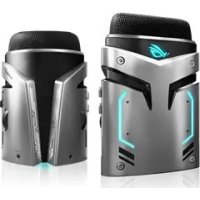
ROG Strix Magnus - Microphone ASUS - Free user manual and instructions
Find the device manual for free ROG Strix Magnus ASUS in PDF.
 FR
FR
 BG
BG
 CS
CS
 DA
DA
 DE
DE
 EL
EL
 EN
EN
 ES
ES
 ET
ET
 FI
FI
 HU
HU
 IT
IT
 JA
JA
 KO
KO
 LV
LV
 NL
NL
 PL
PL
 PT
PT
 RO
RO
 RU
RU
 SK
SK
 SL
SL
 SV
SV
 TH
TH
 TR
TR
 UK
UK
 VI
VI
 ZH
ZH
| Product Type | Condenser Gaming Microphone |
| Brand | ASUS |
| Model | ROG Strix Magnus |
| Number of Capsules | 3 x 14 mm Condensers |
| Power Supply | USB 3.0 Bus (5 V, 900 mA) |
| Connectivity | USB 3.0 (Type A), 3.5 mm Headphone Jack, 3.5 mm AUX Input, USB 2.0 Hub |
| Recording Modes | Cardioid, Stereo, ENC (Noise Cancellation) |
| RGB Lighting | Yes, 16.8 million colors, AURA Sync compatible |
| Functions | Mute/Unmute Button, Volume Adjustment, Sensitivity Adjustment, Lighting Control, Mode Switch |
| Headphone Output | Low Latency Monitoring |
| AUX Input | Mix with Mobile Device, Instrument, Audio Player |
| External USB Hub | Supports USB 2.0 Peripherals |
| Dimensions (Approx.) | Height 150 mm, Diameter 100 mm |
| Weight (Approx.) | 500 g |
| Material | Metal and Plastic |
| Operating Temperature | 0°C to 40°C |
| Operating Humidity | 20% to 80% RH |
| Security | Kensington Lock Slot for Anti-Theft |
| Maintenance | Clean with a soft, dry cloth. Avoid liquids. |
| Included Accessories | USB 3.0 Cable, Stand (Built-in) |
Frequently Asked Questions - ROG Strix Magnus ASUS
User questions about ROG Strix Magnus ASUS
0 question about this device. Answer the ones you know or ask your own.
Ask a new question about this device
Download the instructions for your Microphone in PDF format for free! Find your manual ROG Strix Magnus - ASUS and take your electronic device back in hand. On this page are published all the documents necessary for the use of your device. ROG Strix Magnus by ASUS.
USER MANUAL ROG Strix Magnus ASUS
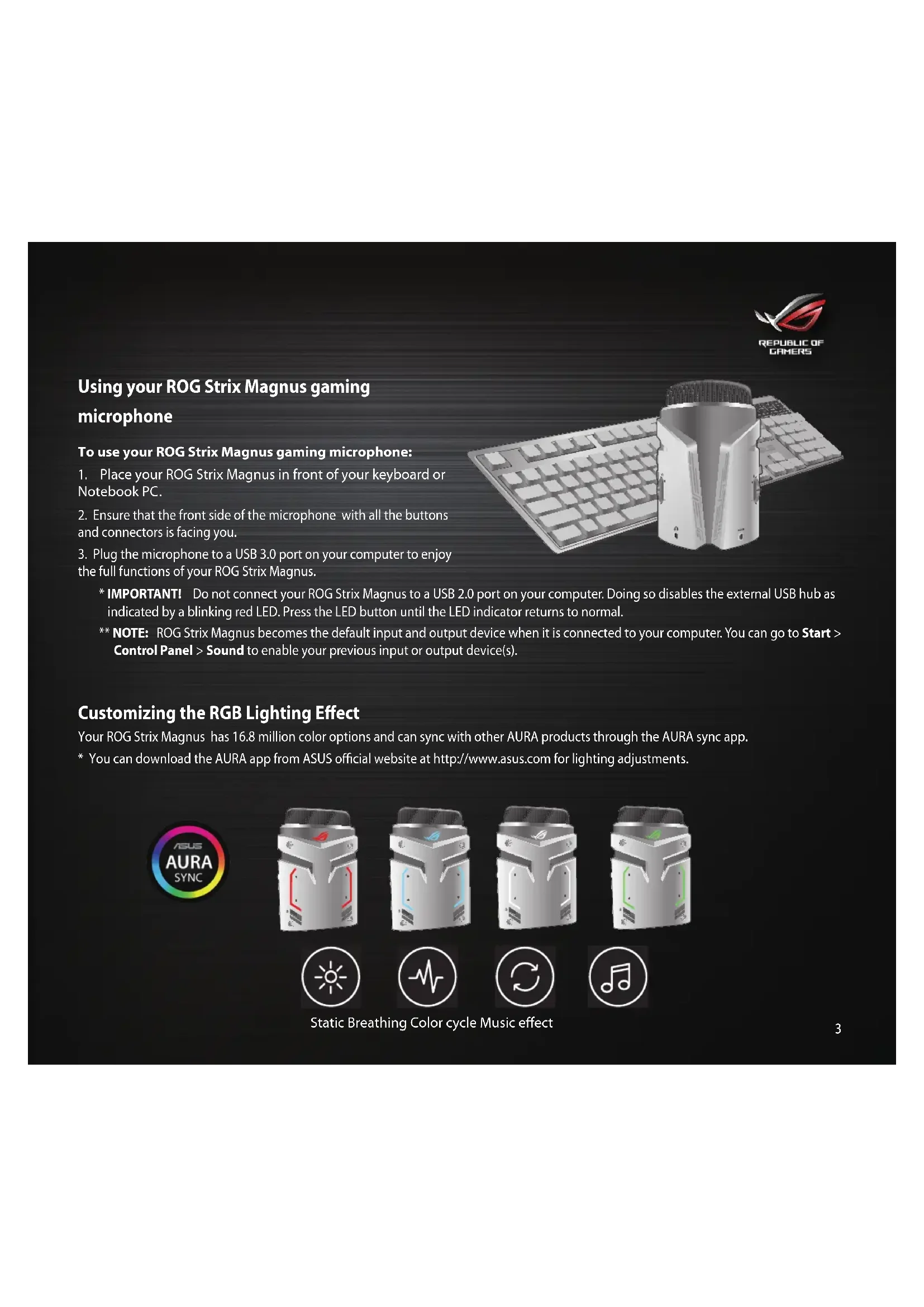
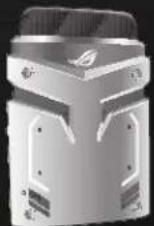
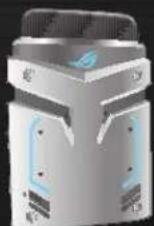
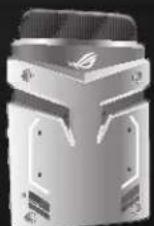
Using your ROG Strix Magnus gaming microphone
To use your ROG Strix Magnus gaming microphone:
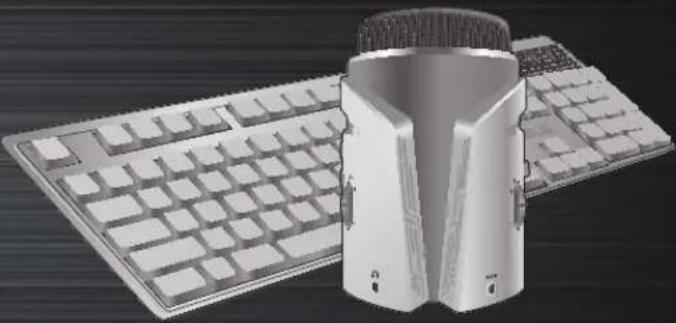
- Place your ROG Strix Magnus in front of your keyboard or Notebook PC.
- Ensure that the front side of the microphone with all the buttons and connectors is facing you.
- Plug the microphone to a USB 3.0 port on your computer to enjoy the full functions of your ROG Strix Magnus.
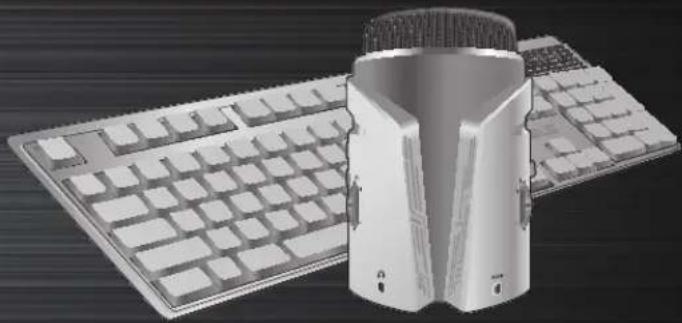
*IMPORTANT! Do not connect your ROG Strix Magnus to a USB 2.0 port on your computer. Doing so disables the external USB hub as indicated by a blinking red LED. Press the LED button until the LED indicator returns to normal.
** NOTE: ROG Strix Magnus becomes the default input and output device when it is connected to your computer. You can go to Start > Control Panel > Sound to enable your previous input or output device(s).
Customizing the RGB Lighting Effect
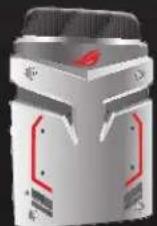
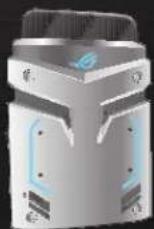
Your ROg Strix Magnus has 16.8 million color options and can sync with other AURA products through the AURA sync app.
- You can download the AURA app from ASUS official website at http://www.asus.com for lighting adjustments.

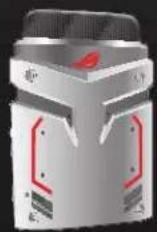
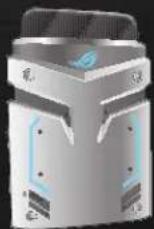
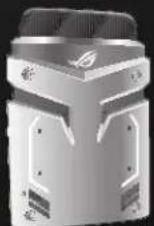
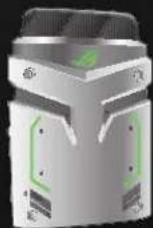




Static Breathing Color cycle Music effect

REPUBLIC OF GAMERS

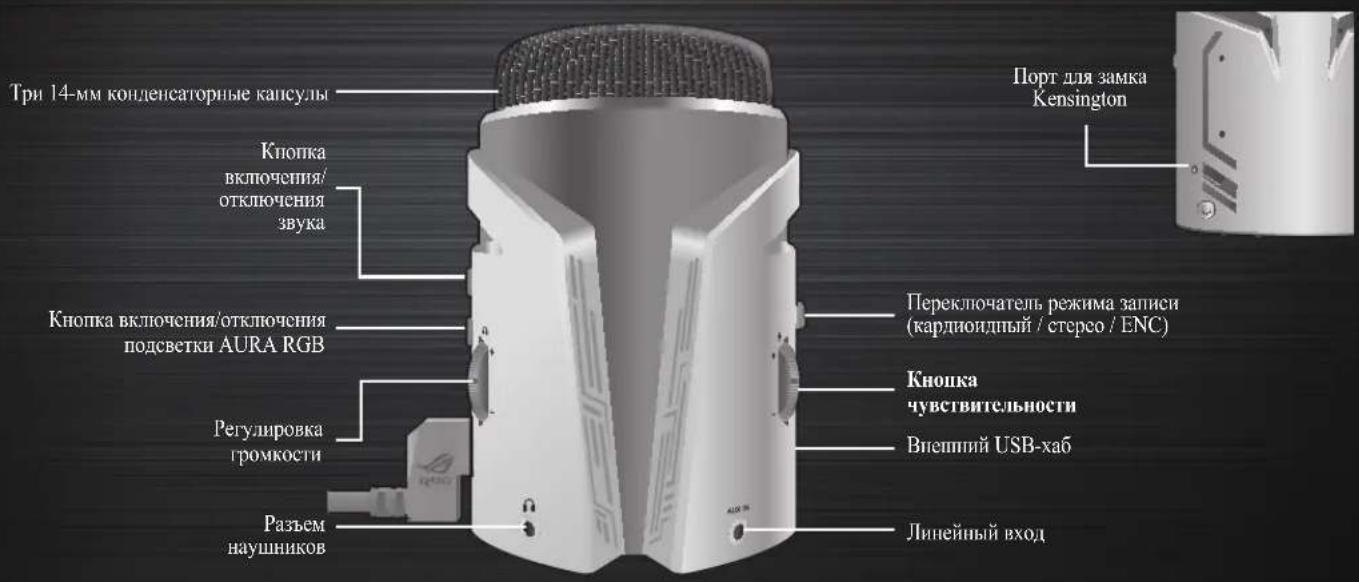
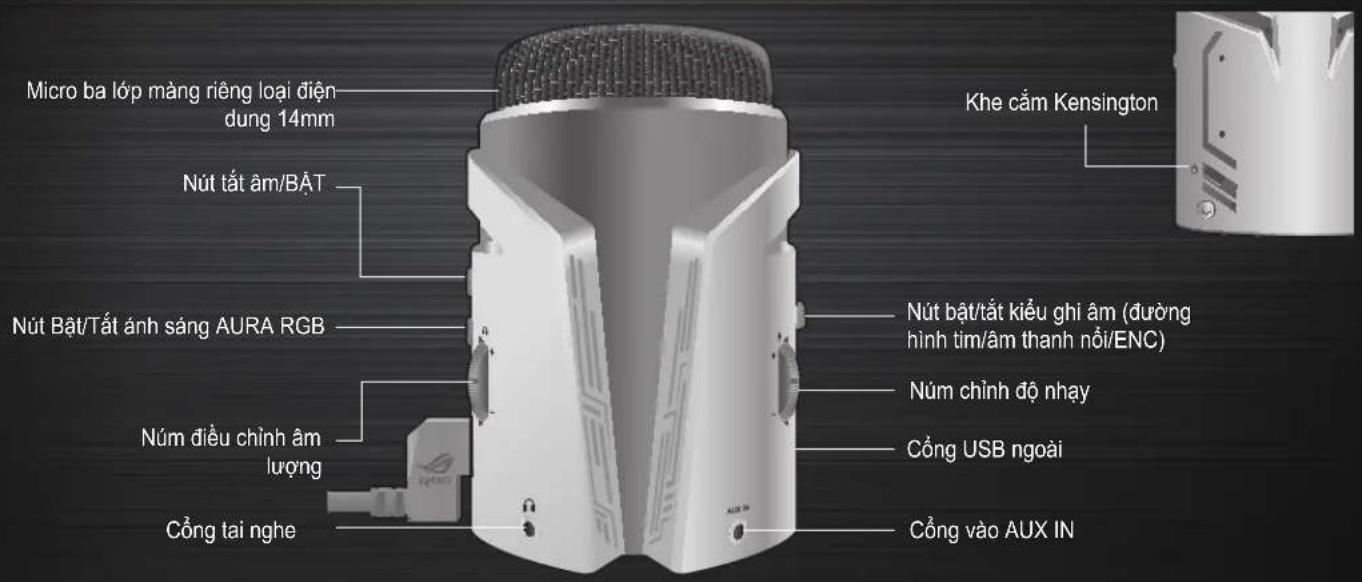
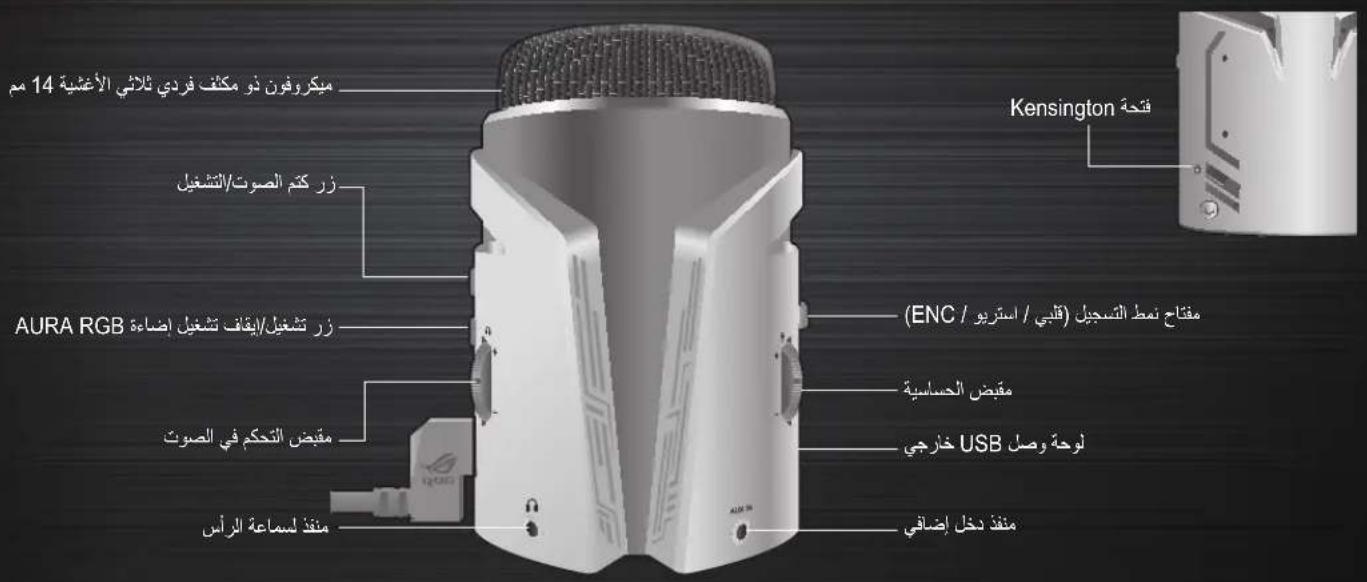
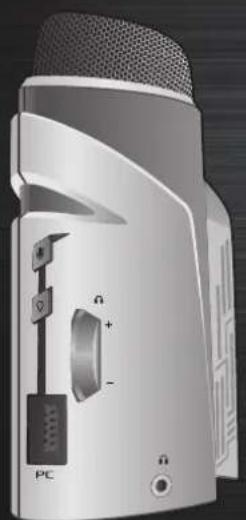
Mute/ON button
Presses the button to mute/unmute the microphone.
- The LED indicator of the mute button lights up to show the status of the microphone.

AURA RGB light On/Off button
Presses the button to switch the LED lighting mode.
- Press this button to switch On/Off the light and the color cycle mode.
** The lighting effect can be controlled via the AURA app.

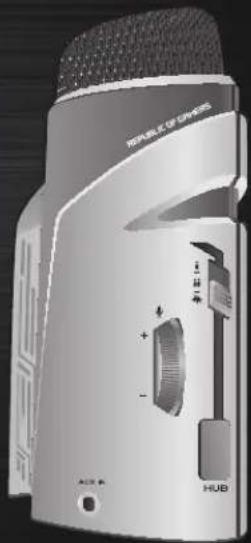
Volume control knob
Moves up to increase the volume and down to decrease the volume.
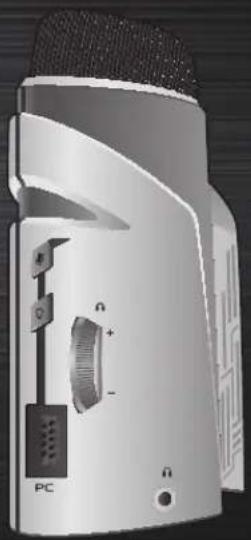
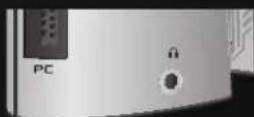
PC
Connects to a USB 3.0 port on your PC.
- To fully enjoy the full functions of your ROG Strix Magnus, connect it to a USB 3.0 port on your computer.
**IMPORTANT! Do not connect your ROG Strix Magnus to a USB 2.0 port on your computer. Doing so disables the external USB Hub due to insufficient power supply.


Sensitivity knob
Moves up to increase the sensitivity and down to decrease the sensitivity.

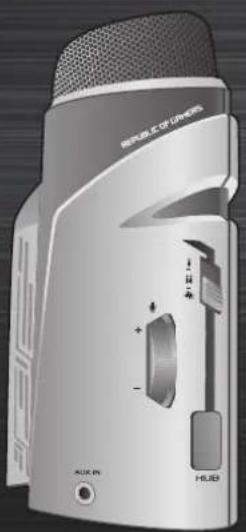
External USB hub
Supports up to USB 2.0 devices such as a keyboard / mouse / USB2.0 flash drive and other devices.
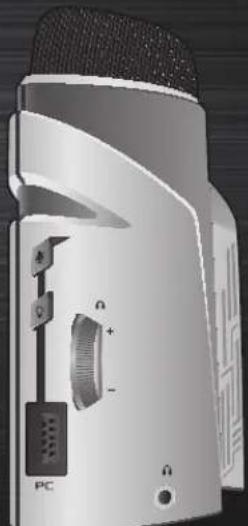
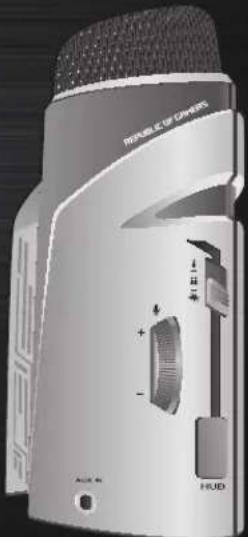
Recording pattern switch Switches the button to select the recording patterns (Cardioid, Stereo and ENC).

One Person (Cardioid) mode:Records sound sources that are directly in front of the microphone.

Stereo mode: Uses the center, left and right microphones to record the sound sources for wider recording range, so that you or the audience can hear the stereo sound effect.

ENC mode: Eliminates all the background noises such as mouse clicks, keyboard keystrokes, or computer's fan noises and records the desired sound only.

REPUBLIC OF GAMERS
HcnoJb30BaHne HpOBoTo MmKpOfoHa
HnHOJb30BaHHn HpOBoMnKpOfoHa:
I. IomeeHTHe MHKpOoH NpeJ KJIaBHaTyPoH HHOY6yKOM.
2. Y6eHHTecb, HTO JINIEBaC TcPOHa MHKpOHa c KHOIIKaMn H pa3bEmAMn HAIIpaBHeHa K Bam.
3.ДИЯ NCIOIb3OBAHIMBCExФyHKiIN MHKpOHa IIOKJIIOHTe ero K NOpTy USB 3.0 KOMIbIbOtepa.
* BAXHO! He IIOJIKIOHauTe MHKpOFOH KIOPTy USB 2.0 KOMIIbKoTepa. 3TO OTKIOOHHT BHeIHIN USB-xa6,HaYTO yKaKeT MHRHHe KpaCHOrI HIIHkAtOpA. HApKMITE KIOHky IIHnKAtOpA JIA BO3Bpata ERO B HOPMaJIbHOe COCTOAHNE.
**PpHmueaHHe: PnH nIOKIOUcHH ROG Strix Magnus K KOIMbIOTepy OH yctaHaJIINBaTcB KAcCTBe BXOHO H BxOHO rO YoTPOeCTBa IIO yMOTHAHHo. IITBA BKIOHcHIIpeIbIHyIeero 3ByKOBOrO yeTOeTBa IpcEIIITc IIyek>IIaIIe, ynpab.IeHH>3Byk.
Hactpoika noDCBETKN RGB
YcTpoCTBO IO3BOJET OTo6paKaTb IIO 16,8MIMIIBeTOB H MOKeT CHHXPOHIN3HPOBAtbC cIpyTHMN AURA-coBMeCTHMbIMN yCTpOCTBaMH C HOMOIIIO IIpHIOJOKEHN AURA.
* IaHacTpoiKnIOXCBETKN MOKHO cKaaHT bPiHIOKeHHc AURA c oΦHuaJIbHorO caHTa ASUS http://www.asus.com.






My3bikaJIbHBH 0ΦΦcK
CtHueckn DbHaunuN UcTeBOB
H
3HaKOMCTBO c HrpoBbIM MHKpOphiom ROG Strix Magnus

REPUBLIC OF GAMERS
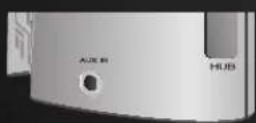
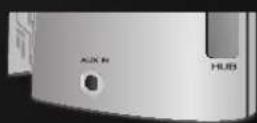
AUX IN
IIOKIOHHeN K MO6HbHOMy yctpoCTBy, My3bikaJIbHOMy HHeTpMyHTy HIN IIeepy c IHOOMIIbO ayHOKa6eTc pa3bEMOM 3,5-MM.
- ROG Strix Magnus IpeoctabIeT cpeCTBa dIa MHKIIHPOBAHH H MOHTOPHHra. TaKHM 6pa3OM MOKHO cJIbIIaTB 3ByK 6e3 hckaeHH.

Pa3bem HayHHKOB
PiKJIIOUeHHe hayIHHKOc pa3beMOM 3,5-MM.
BbHsEN USB KOHcEHTpaTop
POnDbpXa USB 2.0 yctpoiCTBa KaTo KnaBnAtypa/MnWka/USB2.0 fNaW yctpoiCTBO IN dpyrN yctpoiCTBa.
KIOU3a 6JIOH Ha 3anMC
Ппевклоча 6утона 3а n36op ha sha6юн 3a 3annc (Cardioid, Stereo n ENC).

Pexim 3a einn HOBek (Cardioid):3aHnCba n3TOHnI Ha 3ByK,HaMnpaIe HeNocepDCTBeHO npE d MnkpofoHa.

Ctepeo peXIM: IV3NON3BaIe TcEHTPaHIN,JIeBn IN DeCHN MIKPOOHOH 3a 3aInc Ha I3TOUHN Ha 3BYK 3a NO-WhPOK DnaNa3OH Ha 3aInc, TaKa Ye Bne nn aYdNTOPnraTb N da MoKeTe Da ChyBaTe ctepeo eEeKTA.

ENCpeKIM:EnMMHnPa BCnUKN foHOBNuymoBe KaTO upaKaBaNHa MmKaTa,HaTnCKaHe Ha KlaBNaTypaTnIIN yMOT BeHTnJaTopa Ha KOMNIObPa n 3aNNcBa CaMo XeJaNHn 3ByK.

REPUBLIC OF GAMERS
Uporaba ROG Strix Magnus mikrofona za igre
Uporaba ROG Strix Magnus mikrofona za igre:
Xistys/PÄÄLLE-painike
wwwaa: ?WwWwWwWvauu wuu uuaaunwnnnaanennnnnnaeauauauuueauuueauuuuuuuuuuuuuuuuuuuuuuuuuuuuuuuuuuuuuuuuuuuuuuuuuuuuuuuuuuuuuuuuuuuuuuuuuuuuuuuuuuuuuuuuuuuuuuuuuuuuuuuuuuuuuuuuuuuuuuuuuuuuuuuuuuuuuuuuuuuuuuuuuuuuuuuuuuuuuuuuuuuuuuuuuuuuuuuuuuuuuuuUU

ENC: 2nwnnnn nn nnnnnae 1nne nnnnne nnnnne nnnnne nnnnne nnnnne nnnnne nnnnne nnnnne nnnnne nnnnne nnnnne nnnnne nnnnne nnnnne nnnnne nnnnne nnnnne nnnnne nnnnne nnnnne nnnnne nnnnne nnnnne nnnnne nnnnne nennnne nnnnne nnnnne nnnnne nnnnne nnnnne nnnnne nnnnne nnnnne nnnnne nnnnne nnnnne nnnnne nnnnne nnnnne nnnnne nnnnne nnnnne nnnnne nnnnne nnnnne nnnnne nnnnne nnnnne nnnnne nannnee

REPUBLIC OF GAMERS
3obhihi KOHcHTpaTop USB
Плгимуп пистpoi USB 2.0, тaki якknabiaраза, миша, Фnew-hakonuhyвч USB 2.0 touso.

Pepemkauwa6noHIBzanncy
Hadae Bn6ip wa6noHIB 3aHncy (kapdoi, ctepeo Ta ENC).

Pexim oDiHi oco6n (kapDioi):3aIncye Dxepena 3Byky, po3TaIOWaH i npA Mo HABnpOTM MikpofoHa.

Pexmm ctepeo: 3actocobye zentpabhni, nibni i npabni mikpofoHN dna 3aNcy i3 dxpeen 3bky, a6n otpmaTn uipwn diana3oh 3aNcy, ta BN Ta Bawi ci cyxayi noyetye ctepeo3bky.

Pexm ENC:BuaanBcI yMn foHy,taKi knaaHa HMIi,3Byk HaTnCKaHHa KlaBi i a6o yM KomNIOtePHoro BENTnATopa, i 3aNNcy I niue 6axAHNI 3ByK.

REPUBLIC OF GAMERS
Sù dùng micro chói game ROG Strix Magnus
Dé sù dung micro choi game ROG Strix Magnus:
Tim hieu micro choi game ROG Strix Magnus

REPUBLIC OF GAMERS
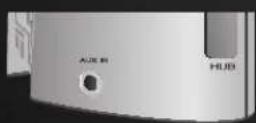
AUX IN
Két不好意思 di dong, dung cu nghe nhac hoac trinh phat bang cap am thanh 3,5mm.
- ROG Strix Magnus hó tro chuc nang giam sat hoa am va do tré thap. Cà ban va khán già co the nghe duroc am thanh trung thuc.
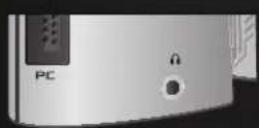

Congtai nghe
Két nôi vôt tai nghe 3,5mm.
Aa aalaae aalaae aalaae aalaae aalaae aalaae aalaae aalaae aalaae
RGB 5e1z!
AURA 16.8 ROG Strix Magnus
http://www.asus.com AURA



中


a


g

REPUBLIC OF GAMERS
ROG Strix Magnus
ALXIN
p 10. Cg s j d j j j j j j j j j j j j j j j j j j j j j j j j j j j j j j j j j j j j j j j j j j j j j j j j j j j j j j j j j j j j j j j j j jj

wslwlsl
m r.o 10, 10
Jg 100000000000000000000000000000000000000000000000000000000

Kensington
pssssssssssssssssssssssssssssssssssssssssssssssssssssssssssssssssssssssssssssssssss


REPUBLIC OF GAHERS
jaii /cys
s


AURA RGB 150000000000000000000000000000000000000000000000
aagaiy jgill giali jiai jiai jil
AURA 3

gall

aaii i 1
PC
.
10 USB 3.0 ROG Strix Magnus
山
USB 2.0 ROG Strix Magnus
aBbI bI I I I I I I I I I I I I I
jaiillbai jia
.ENC,
jail jall jll jll jll jll jll jll jll jll
y
clllall lglal:glal gssgall oagals:ENC
- Using your ROG Strix Magnus gaming microphone
- To use your ROG Strix Magnus gaming microphone:
- Customizing the RGB Lighting Effect
- Presses the button to mute/unmute the microphone.
- AURA RGB light On/Off button
- Volume control knob
- PC
- Connects to a USB 3.0 port on your PC.
- Sensitivity knob
- External USB hub
- Recording pattern switch Switches the button to select the recording patterns (Cardioid, Stereo and ENC).
- HcnoJb30BaHne HpOBoTo MmKpOfoHa
- Hactpoika noDCBETKN RGB
- 3HaKOMCTBO c HrpoBbIM MHKpOphiom ROG Strix Magnus
- AUX IN
- Pa3bem HayHHKOB
- BbHsEN USB KOHcEHTpaTop
- Uporaba ROG Strix Magnus mikrofona za igre
- Uporaba ROG Strix Magnus mikrofona za igre:
- 3obhihi KOHcHTpaTop USB
- Pepemkauwa6noHIBzanncy
- Sù dùng micro chói game ROG Strix Magnus
- Tim hieu micro choi game ROG Strix Magnus
- Congtai nghe
- ALXIN
Brand : ASUS
Model : ROG Strix Magnus
Category : Microphone