159010 - Scientific calculator Milan - Free user manual and instructions
Find the device manual for free 159010 Milan in PDF.



| Technical Features | Details not available |
|---|---|
| Usage | Details not available |
| Maintenance and Repair | Details not available |
| Safety | Details not available |
| General Information | Details not available |
Frequently Asked Questions - 159010 Milan
User questions about 159010 Milan
0 question about this device. Answer the ones you know or ask your own.
Ask a new question about this device
Download the instructions for your Scientific calculator in PDF format for free! Find your manual 159010 - Milan and take your electronic device back in hand. On this page are published all the documents necessary for the use of your device. 159010 by Milan.
USER MANUAL 159010 Milan
Organizational Order - Organizational Order - Organization Structure - Organizational Structure
No occurs error when the result is already in the range.
No occurs error when the result is already in the range.
No occurs error when the result is already in the range.
No occurs error when the result is already in the range.
Disposal of Waste Equipment by Users in Private Household in the European Union
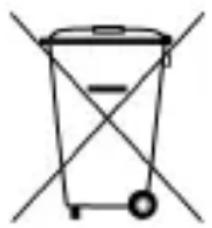
This symbol on the calculator or on its packaging indicates that this product must not be disposed of with your other household waste. Instead, it is your responsibility to dispose of your waste equipment by handing it over to a designated collection point for the recycling of waste electrical and electronic equipment. The separate collection and recycling of your waste equipment at the time of disposal will help to conserve natural resources and ensure that it is recycled in a manner that protects human health and the environment. For more information about where you can drop off your waste equipment for recycling, please contact your household waste disposal service or the shop where you purchased this calculator.
Table of Contents
Before using the calculator 1
Handling Precautions. 1
Turning the Calculator On and Off 2
Removing the Hard Case 3
Power Supply. 3
How to replace the batteries? 5
About the Keyboard 5
Acoustic feedback 6
About the Display 6
7
7
Making Corrections during Input 9
Basic Calculations 9
Arithmetic Calculations. 10
When to use parentheses? 10
Precedence Order of the Operations. 11
Percentage Calculations 12
Fraction Calculations 13
Decimal / Fraction Conversion 13
Operating with Fractions 14
Improper Fraction / Mixed Fraction Conversion 15
Sexagesimal/Decimal Conversion 16
Constant Calculations. 16
Memory Calculations. 18
Scientific Function Calculations. 20
Trigonometric/Inverse Trigonometric
Functions 20
Hyperbolic/Inverse Hyperbolic Functions..... 21
Common and Natural Logarithms,
Exponents 22
Square Roots, Cube Roots, Squares,
Reciprocals and Factorials 24
FIX,SCI,NORM,RND,RAN#,ENG
Calculations 25
Polar/Rectangular Coordinate Conversion ... 26
Permutation and Combination 27
Exponential Display Formats 28
NORM 1. 29
NORM 2. 29
Switching between NORM 1 and
NORM 2. 29
Statistical Calculations (SD Mode) 30
Data Input Considerations 30
Population Standard Deviation 32
Sample Standard Deviation 32
Arithmetic Mean 32
Making Corrections during Data Input 32
Technical Information. 33
Key Summary 33
General 33
Memory 33
Special 34
Scientific Functions 34
Statistics (SD Mode) 35
Input Ranges. 36
Calculation Capacity 39
Handling Errors 39
Overflow or Error Check 40
When you have a problem 41
Before using the calculator
Handling Precautions
Press the RESET button on the back of the calculator before using it for the first time.
- Even if the calculator is operating normally, replace the battery at least once every three years. Dead battery can leak, causing damage to and malfunction of the calculator. Never leave the dead battery in the calculator.
- Avoid use and storage in areas subject to extreme temperatures. Very low temperatures can cause slow display response, total failure of the display, and shortening of battery life. Also avoid leaving the calculator in direct sunlight, near a window, near a heater or anywhere else it might become exposed to very high temperatures. Heat can cause discoloration or deformation of the calculator's case, and damage to its internal circuitry.
-
Avoid use and storage in areas subject to humidity or dust. Never to leave the calculator where it might be splashed by water or exposed to large humidity or dust. These adverse conditions may damage its internal circuitry.
-
Avoid any strong impact on the calculator, e.g. prevent it from dropping onto the floor.
- Never twist or bend the calculator. Avoid carrying the calculator in the pocket of your trousers or other tight-fitting clothing where it might be subject to twisting or bending.
- Never try to disassemble the calculator.
- Avoid pressing the keys of the calculator with a ballpoint pen or other pointed object.
- Use a soft, dry cloth to clean the exterior of the unit. If the calculator becomes very dirty, wipe it off with a cloth moistened in a week solution of water and a mild neutral household detergent. Bring out all excess moisture before wiping the calculator. Never use thinner, benzine or other volatile agents to clean the calculator. Doing so may remove printed markings and damage the case.
Turning the Calculator On and Off
To turn the calculator on, press ON.
To turn the calculator off, press SHIFT ON (OFF), that is, press and release the SHIFT key, and then press ON (which has OFF printed in orange above it). Since the calculator has Static Memory, turning it off does not affect any information you have stored.
To save energy, the calculator turns itself off after 6 minutes of no use.
Removing the Hard Case
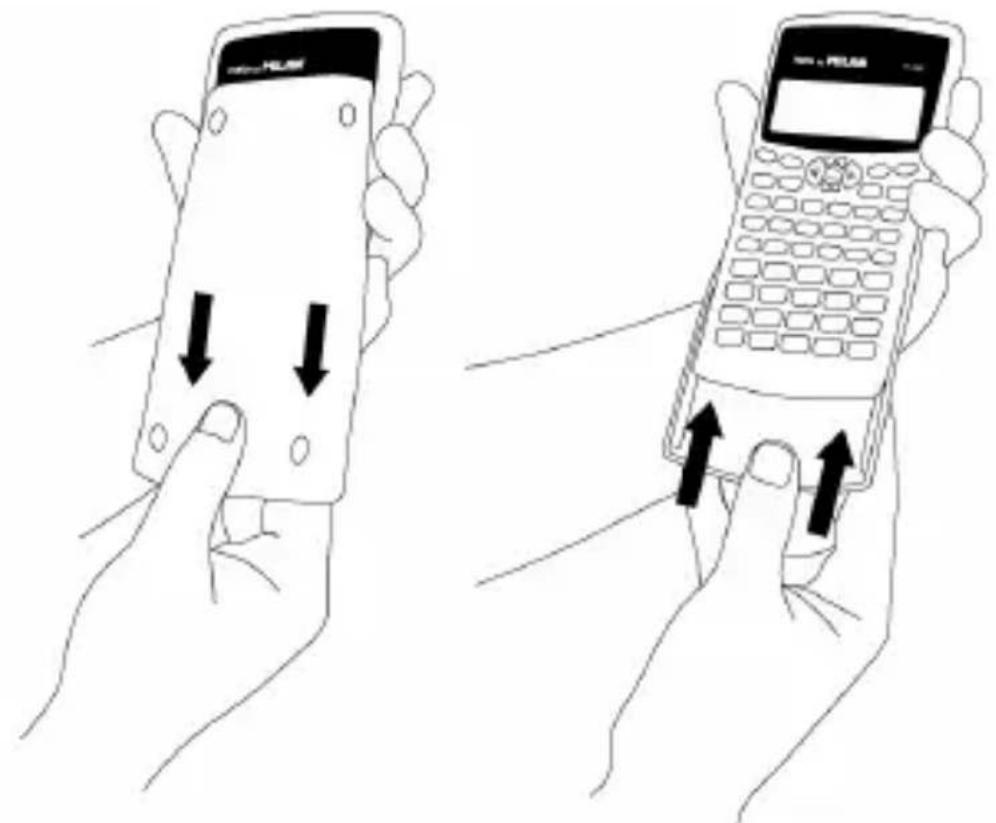
The hard case should be removed by sliding it downwards. It can then be affixed to the back of the calculator as shown below.
Power Supply
This calculator is powered by two AAA batteries. In order to preserve battery life, a plastic tape protects the batteries during shipment, preventing them from closing the circuit and avoiding discharge. Make sure to remove the plastic tape before using the calculator for the first time. To remove the plastic tape, just pull it out. There is no need to unscrew the battery cover to remove the plastic tape.

Regarding batteries, take into account the following comments:
- Low battery power can cause any stored information to become corrupted or completely lost. Always keep written records of all important data.
- All data stored in memory is lost when you replace the batteries. Write down important data before replacing the batteries.
- Never charge batteries, try to take batteries apart, or allow batteries to become shorted. Do not expose batteries to direct heat or dispose of them by incineration.
- Replace the batteries at least once every three years, regardless of how much the calculator is used. Old batteries may leak, causing serious damage to the interior of the calculator.
- Never mix batteries of different types, nor should your mix new batteries with old ones.
- Keep batteries out of the reach of small children.
- Remove the batteries if you do not plan to use the calculator for a long time.
How to replace the batteries?
Replace batteries as soon as possible when display characters become dim and difficult to read.
- Press SHIFT ON (OFF) to switch the calculator off.
- Remove the screw that holds the battery cover in place and then remove the battery cover.
- Remove the old batteries.
- Wipe off the sides of the new batteries with a dry, soft cloth.
- Load them into the calculator. Always make sure that the positive (+) and negative (-) terminals of the batteries are facing correctly when you load them into the calculator.
- Put the battery cover back in place and secure it in place with the screw.
- Press ON to turn power on.
About the Keyboard
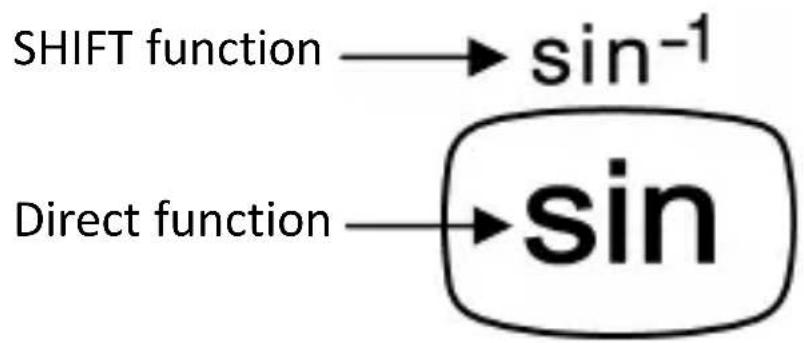
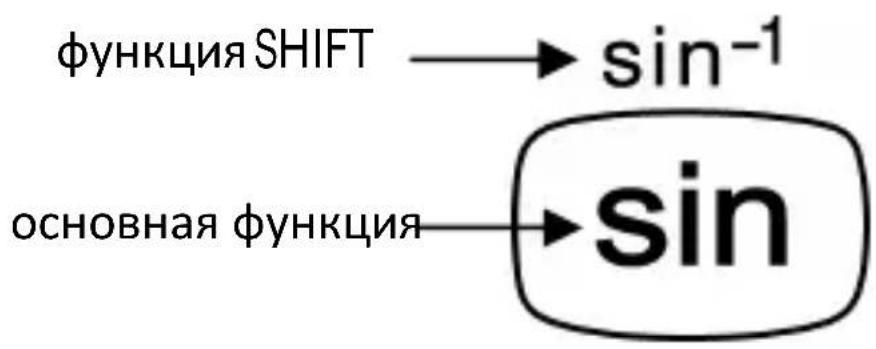
Each key may have up to two functions: one printed on its face, and a SHIFT function printed above the key. Press the SHIFT key before pressing the key for the desired function.
For instance, to use the ^-1 function, press and release the SHIFT key, then press . In this manual, this type of operations will be summarized as SHIFT sin sin^-1
Acoustic feedback
Acoustic feedback of the keyboard can be switched on and off by alternatively pressing

About the Display
This calculator has a 10-digit display. On the top part of the display, the calculator may show different annihilators, which illustrate the current state of the calculator.
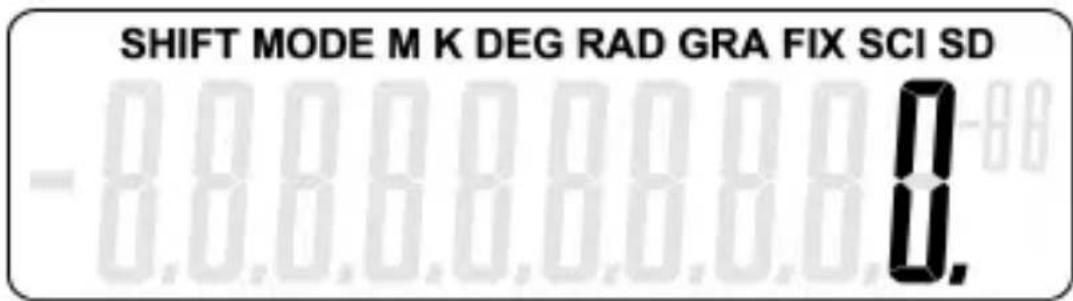
| Annunciator | Description |
| SHIFT | The SHIFT key is active. At the moment you press a key the keypad will unshift, and the SHIFT annunciator will disappear. |
| MODE | The MODE key is has been pressed. After pressing a numeric key to choose a new mode, this annunciator |
| will disappear. | |
| M | The independent memory is storing a value. |
| K | A constant is being used. |
| DEG | The default angle unit is set to degrees. |
| RAD | The default angle unit is set to radians. |
| GRA | The default angle unit is set to grads. |
| FIX | A fixed number of decimal places has been set. |
| SCI | A fixed number of significant digits has been set. |
| SD | The calculator is in the “statistical” mode. |
Calculator Setup
Calculator Modes
It is important to enter the correct mode before starting a calculation. The table below details the available modes.
| Type of calculation | Key operations to switch to the correct mode | Selected mode (*) |
| Standard deviation calculations | MODE | SD |
| Normal calculations | MODE | COMP |
| Calculations using degrees | MODE | DEG |
| Calculations using radians | MODE 5 | RAD |
| Calculations using grads | MODE 6 | GRA |
| Number of decimal place specification | MODE 7 | FIX |
| Number of significant digit specification | MODE 8 | SCI |
| Cancels FIX and SCI settings | MODE 9 | NORM |
(*) Display annihilators show current mode setting. Absence of display annihilator indicates COMP Mode.
Remember! A mode guide is located below the display screen:
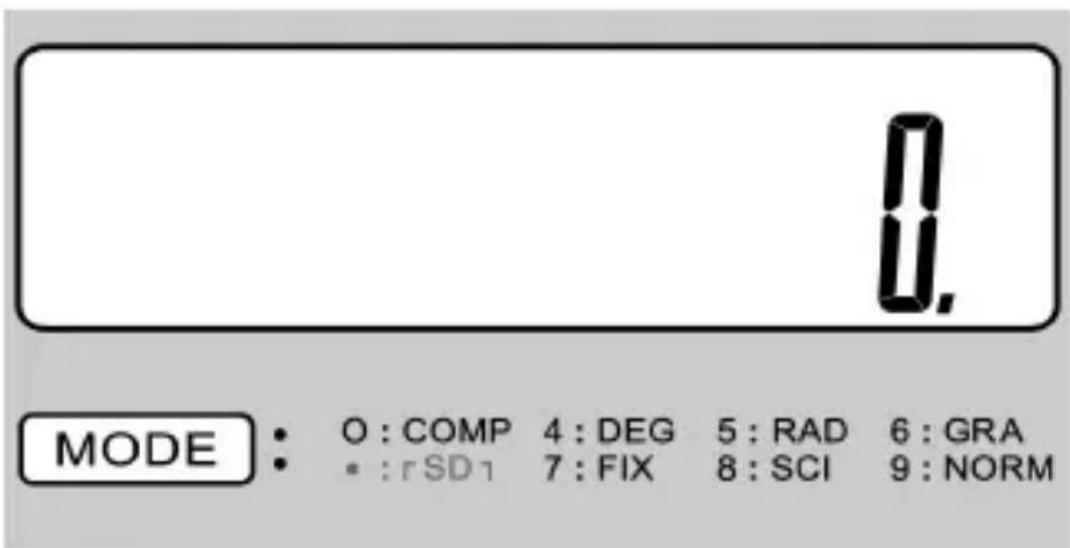
The angular modes DEG, RAD, and GRA can be used in combination with the COMP and SD modes. Always press AC before entering DEG, RAD, and GRA modes. Remember to always set the operating mode and angular unit (DEG, RAD, GRA) before starting your calculation.
Additional considerations:
-
MODE 9 does not exit SD mode.
-
exits SD mode.
- MODE 0 does not clear SCI or FIX specifications.
Making Corrections during Input
If you make a mistake when introducing a value (but did not yet press an arithmetic operator key), press to clear the value and then input the correct one.
In a series of calculations, press C while an intermediate result is displayed to clear only the last calculation performed.
After you press an operator key (+, -, x, + (SHIFT x x x' SHIFT ÷ x), etc.) you can still change it by pressing the correct operator key. In this case, the operator of the last key you press is used, but the operation retains the order of precedence of the operation for the first key you pressed.
Basic Calculations
Use the COMP mode for basic calculations. To enter the COMP Mode press MODE 1
Arithmetic Calculations
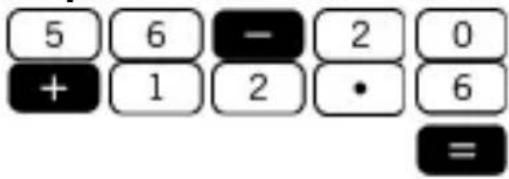
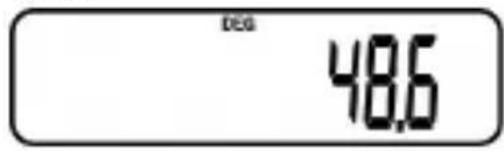
Example 1: 56 - 20 + 12.6 = 48.6
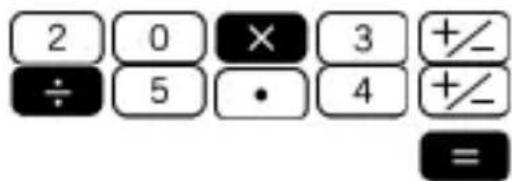
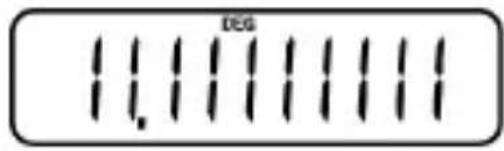
Example 2: 20 × (-3) ÷ (-5.4) = 11.1111111
Example 3: 5 ÷ 6 × (1 × 10^15) = 8.333333333^14
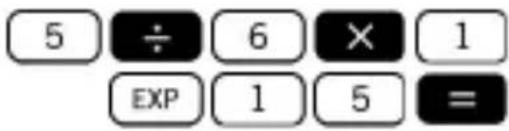
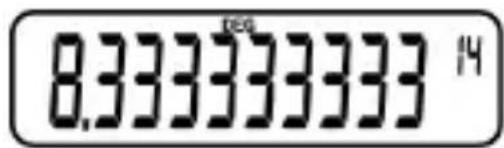
Example 4: x - x = 83926
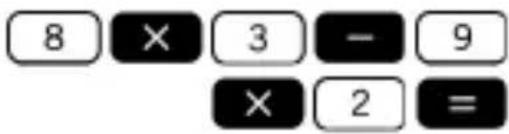
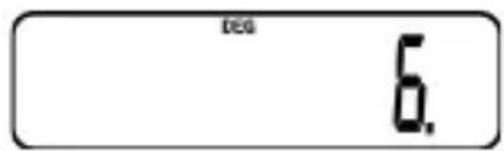
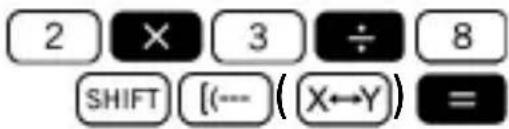
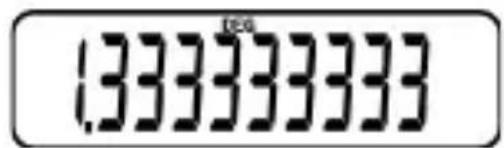
Example 5: 82 × 3 = 1.33333333
When to use parentheses?
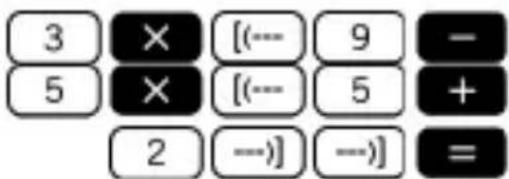
Any operations enclosed in parentheses are performed first.
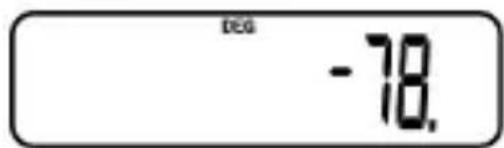
Example: 3 × [9 - 5 × (5 + 2)] = -78
You can skip all operations before the key.
Precedence Order of the Operations
The following order of precedence applies to all calculations:
Operations with the same precedence are performed from left to right. Those operations enclosed in parentheses are performed first. In the case of nested parentheses, the operations enclosed in the innermost set of parentheses are performed first.
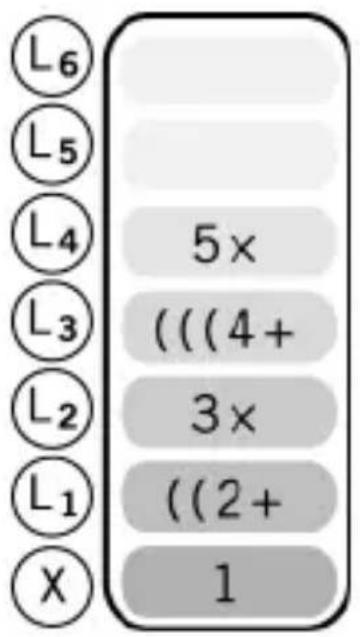
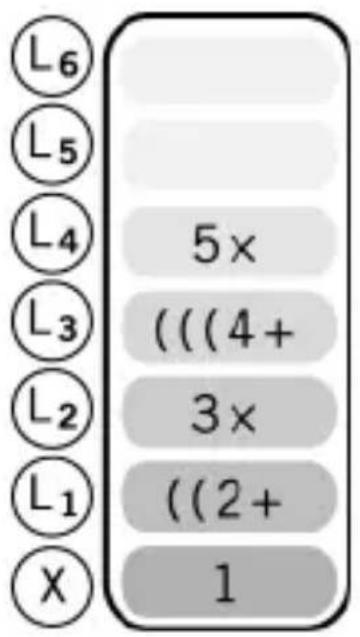
Six registers, from L1 to L6 are used to store operations. Provided that there are six registers, calculations up to six levels can be stored. Each level can contain up to three open parentheses, so parentheses can be nested up to 18 times.
Example: The following operation uses 4 levels and 5 nested parentheses.
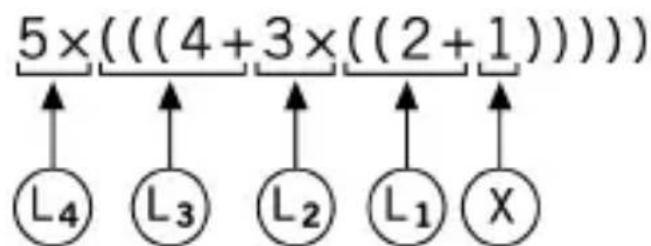
Corresponding key operations:

The table below shows register contents following the above input.
Percentage Calculations
Percentage means "parts per hundred". It can also be expressed as a fraction with a denominator of 100. Thus, a 10 percent solution may be expressed as 10% , 10/100, 0.10, or 10 parts per 100 parts.
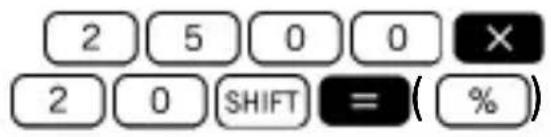
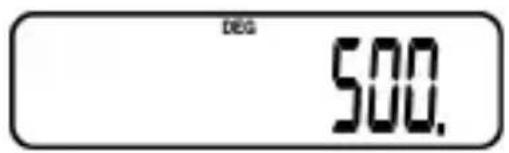
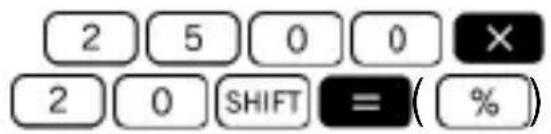
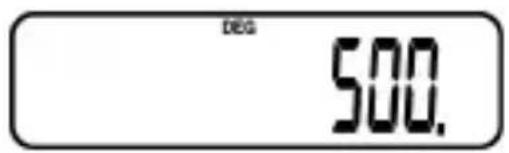
Example 1: Calculate 20% of 2500
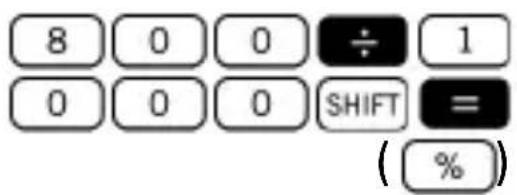
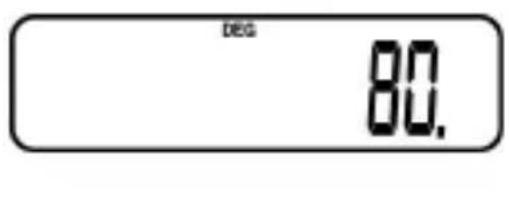
Example 2: Calculate what percentage of 1000 is 800
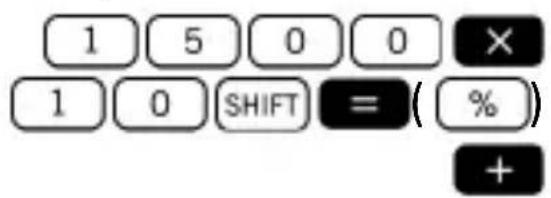
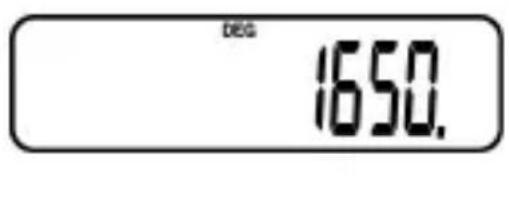
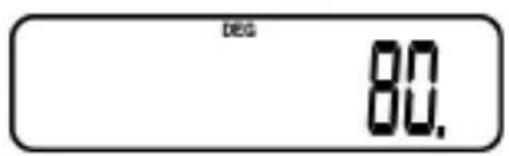
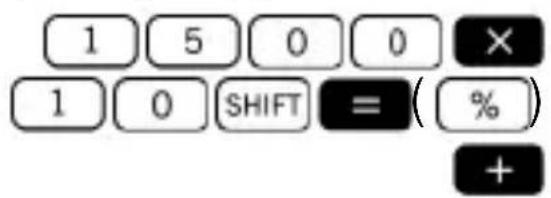
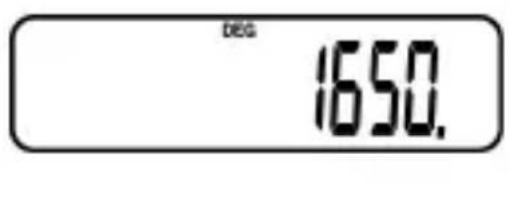
Example 3: Add 10% onto 1500
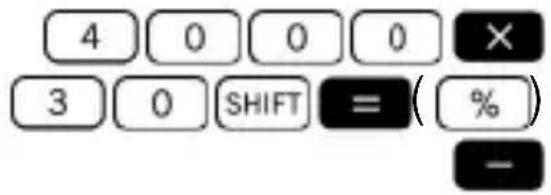
Example 4: Discount 4000 by 30%

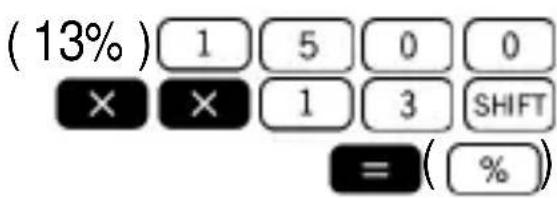
Example 5: To calculate the following, using a constant.
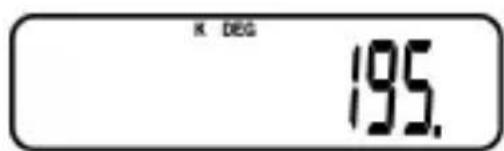
13% of 1500 = 195
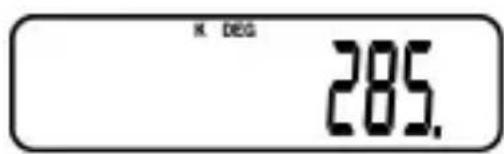
19% of 1500 = 285
21% of 1500 = 315



Fraction Calculations
Decimal / Fraction Conversion
This calculator can work directly with fractions. Fractions can be classified according to 3 groups:
- Proper Fractions: The numerator is smaller than the denominator
E.g. 13, 37 , etc.
- Improper Fractions: The numerator is greater than (or equal to) the denominator
E.g. 43, 137 , etc.
- Mixed Fractions: A combination of an integer number and a proper fraction to express the decimal part.
This calculator allows using any of these 3 types of fractions. To input an improper or proper fraction, you should key in the numerator, then press _12 , and next enter the denominator. The symbol is displayed in the screen to separate one number from another (e.g. numerator from denominator).
As stated above, mixed fractions are formed by an integer number and a fraction combined into one "mixed" number. Again, to enter a mixed fraction you should first key in the integer number, then press % , enter the numerator, press % again, and next enter the denominator.
Remember: The total number of digits (including division marks) cannot exceed 10.
Operating with Fractions
Example 1: calculations with mixed fractions
$$ 5 \frac {6}{7} + 3 \frac {2}{4} = 9 \frac {5}{1 4} $$

Example 2: simplifying a fraction 36 = 12
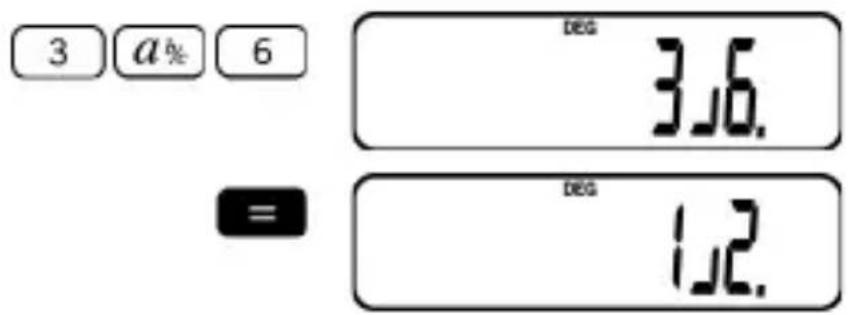
Example 3: 25 + 2.4 = 2.8

Fraction/decimal calculation result is always decimal.
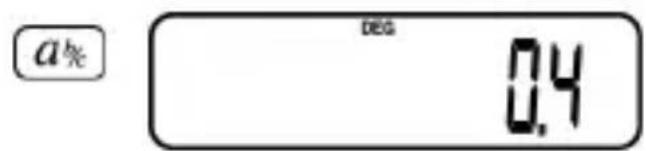
Example 4: decimal/fraction conversion 25 = 0.4
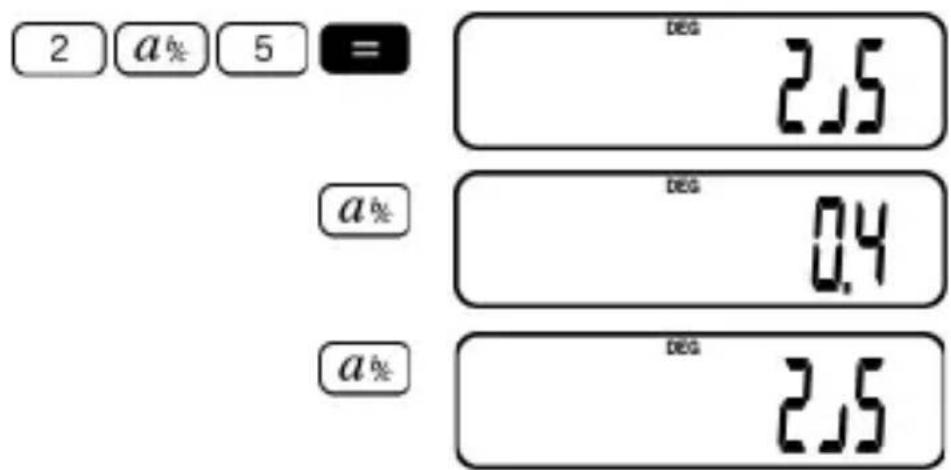
Improper Fraction / Mixed Fraction Conversion
The same amount can be represented either with an improper fraction or a mixed fraction. This conversion can be carried out simply pressing _全 and
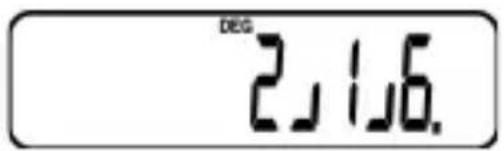
Example 1: 2 12 52

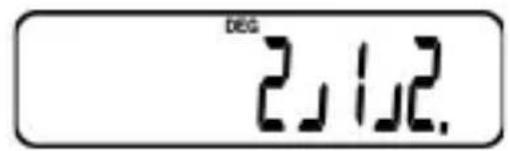
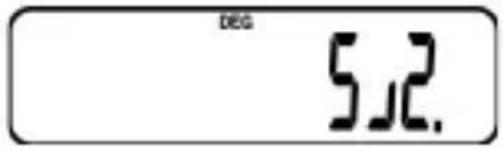
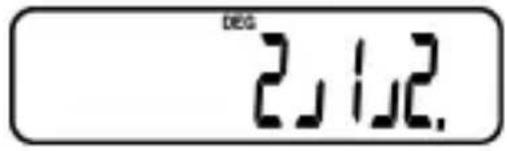
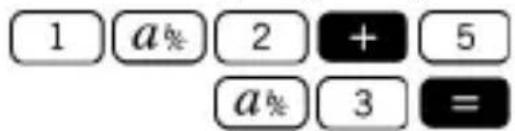
Example 2: 12 + 53 = 216
Sexagesimal/Decimal Conversion
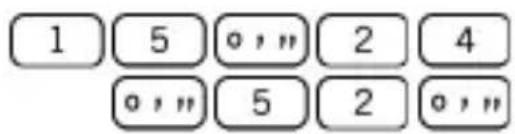
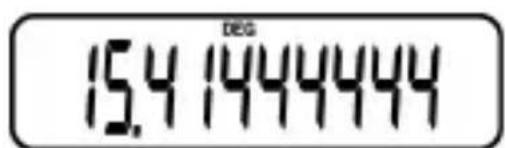
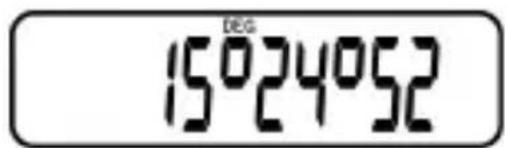
This calculator can carry out sexagesimal calculations using degrees (or hours), minutes, and seconds, converting between sexagesimal and decimal values.
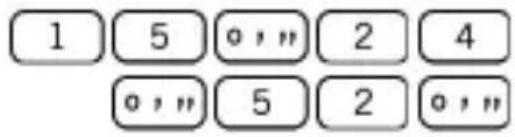
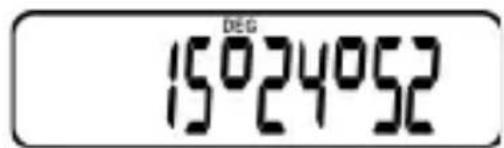
Example: 15^24'52'' = 15.41444444

Constant Calculations
Use the COMP mode for constant calculations. To enter the COMP Mode press MODE 1
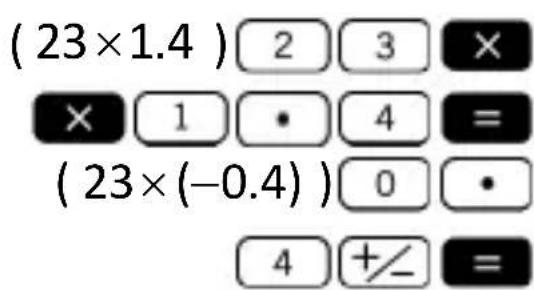
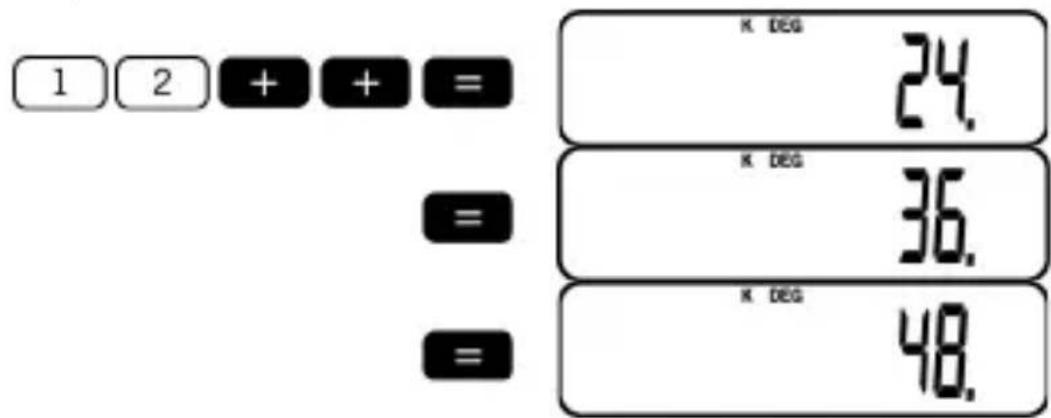
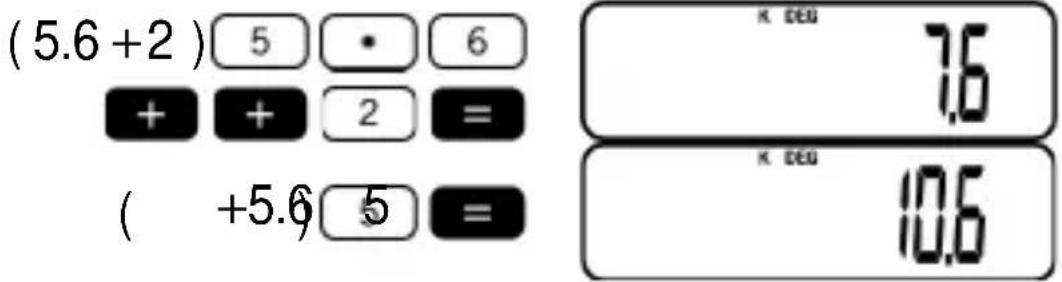
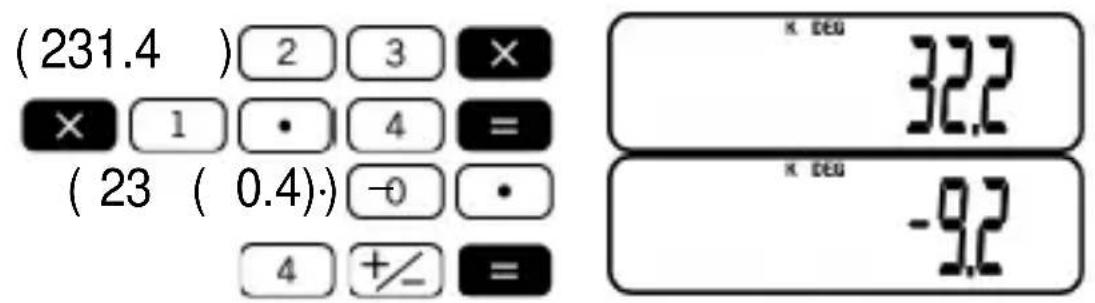
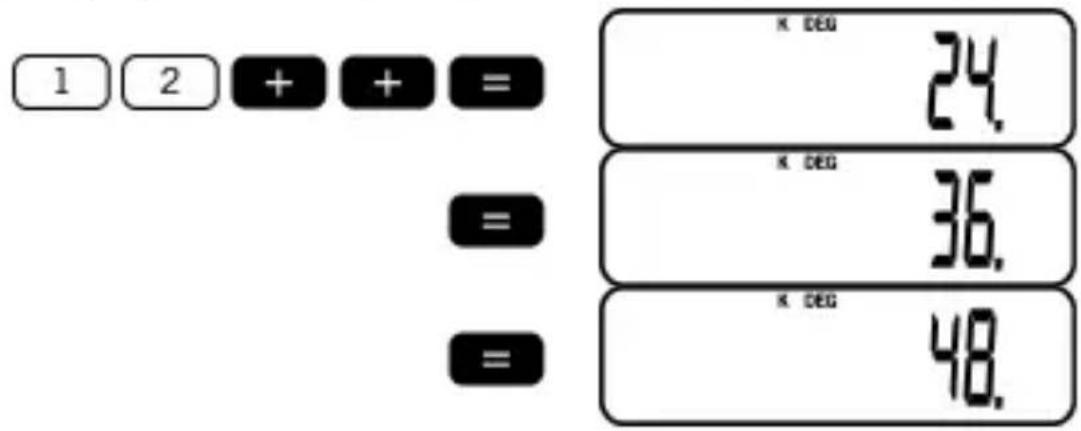
Press + , - , × , or ÷ twice after inputting a number to set that number as a constant.
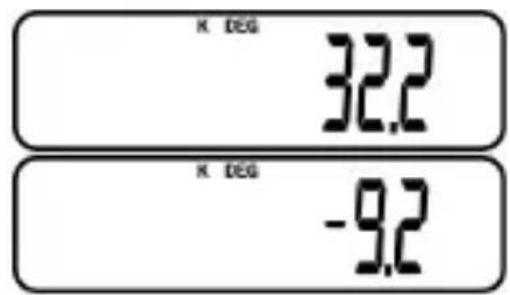
K is on the display while a constant is being used.
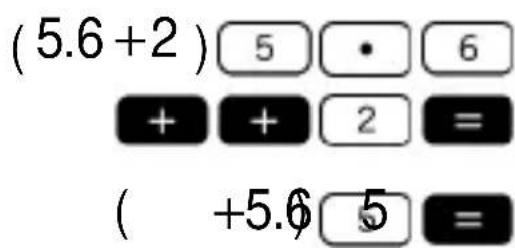
Example 1: +5.6 then +5.6 5
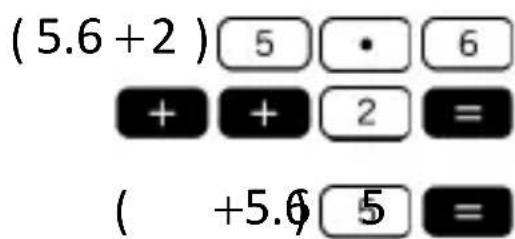

Example 2: × 23 ,1tAn 23× (-0.4)
Example 3: 12 + 12 + 12 + 12 = 48
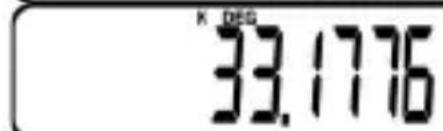
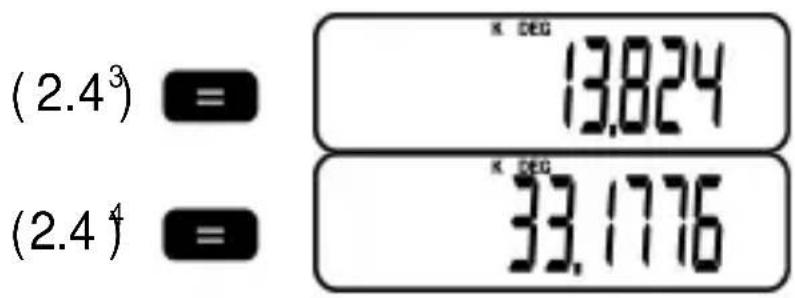
Example 4: 2.4^4 = 33.1776
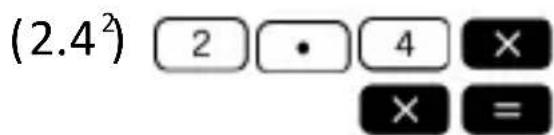
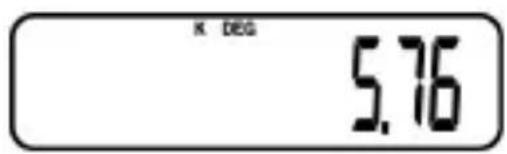
$$ (2. 4 ^ {3}) $$

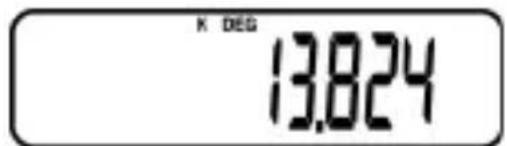
$$ (2. 4 ^ {4}) $$
Memory Calculations
Use the COMP mode for memory calculations. To enter the COMP Mode press MODE 1
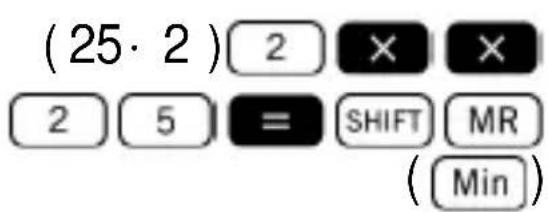
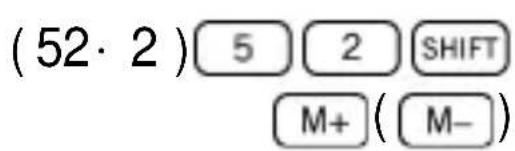
Use SHIFT MR (Min), M+, SHIFT M+ (M-) and MR for memory calculations. SHIFT MR (Min) replaces current memory contents.
M appears when there is a value in memory.
To clear memory, press 0 SHIFT MR (Min) or AC SHIFT MR (Min)
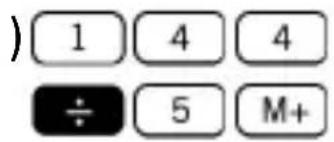
Example 1:
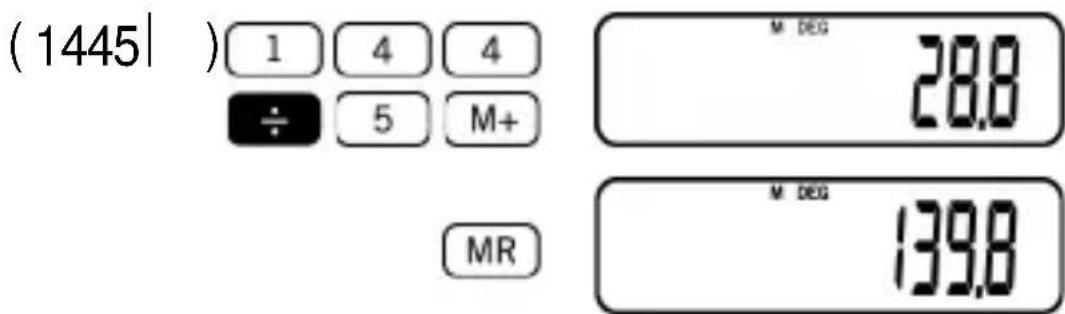
$$ (1 2 + 4) + (5 2 - 1 3) + (2 8 \times 2) + (1 4 4 \div 5) = 1 3 9. 8 $$
$$ (1 2 + 4) $$


$$ (5 2 - 1 3) $$
$$ (2 8 \times 2) $$
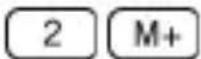

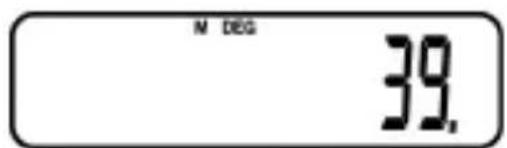
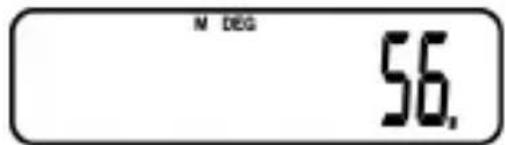
(1445:
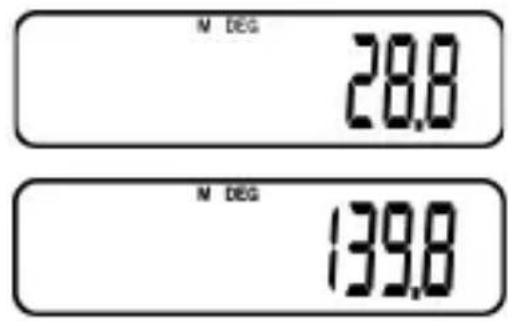
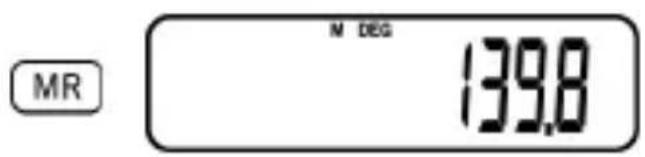
Example 2: Calculate the following formula.
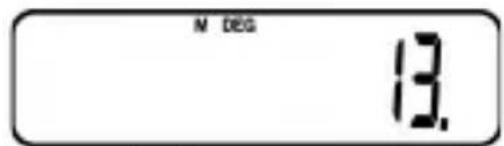
$$ 5 + 5 - 5 + (4 \times 2) + (4 \times 2) - (4 \times 2) = 1 3 $$
However, instead of introducing the formula as written in the example, use memory as illustrated below:
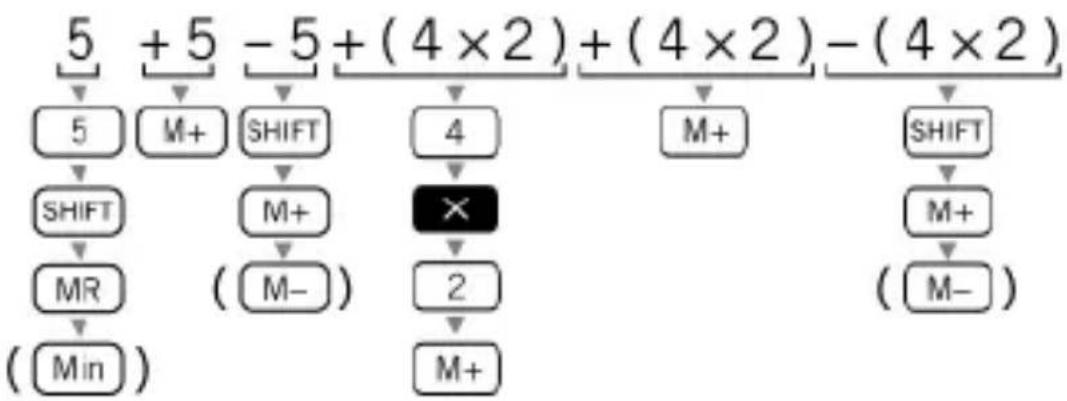
Once the operation has been introduced, press MR. Therefore, you will obtain the result after following the sequence: 5 SHIFT MR ( Min) M+

Example 3: To calculate the following using memory and a constant:
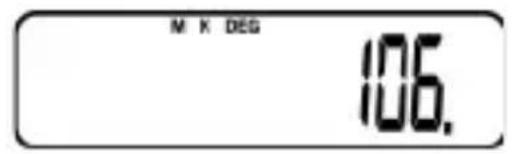
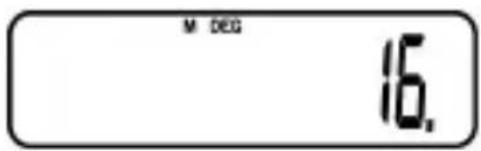
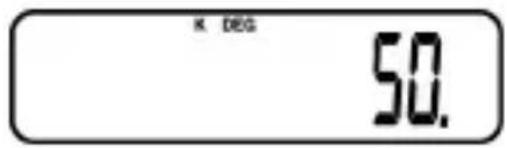
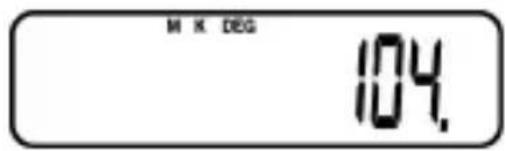
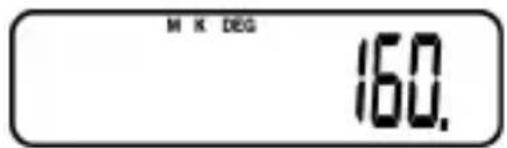
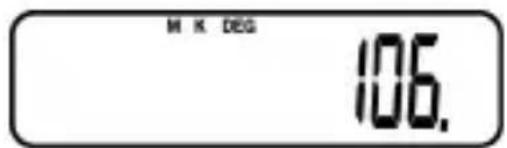
$$ (2 5 \times 2) - (5 2 \times 2) + (8 0 \times 2) = 1 0 6 $$
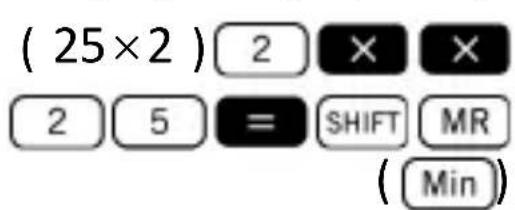
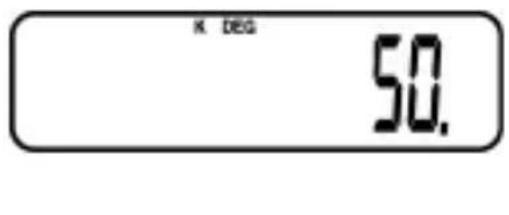
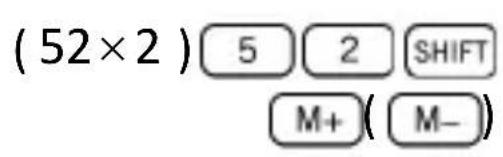
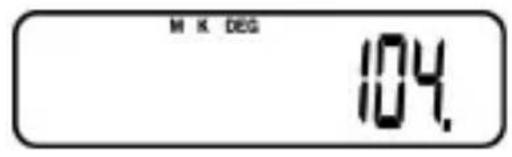

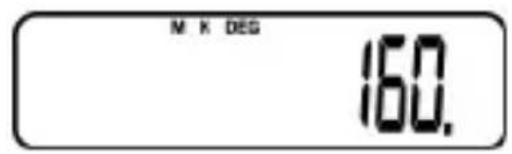
(Memory recall) MR
Scientific Function Calculations
Use the COMP mode for scientific function calculations. Enter the COMP Mode by pressing MODE 1
Some calculations may take a long time to complete. You should wait for result before starting next calculation.
$$ \pi = 3. 1 4 1 5 9 2 6 5 3 6 $$
Trigonometric/Inverse Trigonometric Functions
This calculator can operate with trigonometric functions using either degrees, radians or grads.
$$ \left(9 0 ^ {\circ} = \frac {\pi}{2} \text {r a d i a n s} = 1 0 0 \text {g r a d s}\right) $$
Example 1: (2 rad) = 1 (RAD mode)

Example 2: 15^ 20' 45'' = 0.964346026 (DEG mode)

Example 3: (-50gr) = -1 (GRA mode)

Example 4: ^-1(22 rad) = 0.785398163 (RAD
mode)

Hyperbolic/Inverse Hyperbolic Functions
The hyperbolic functions are analogs of the ordinary trigonometric functions: Just as the points ( , ) define a circle, the points
( , ) define the right half of a rectangular hyperbola.
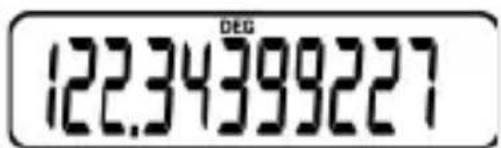
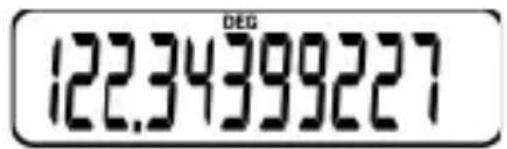
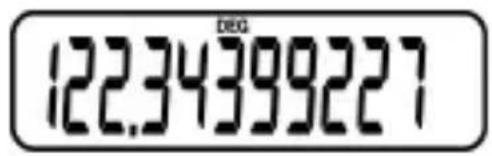
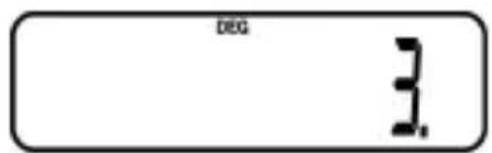
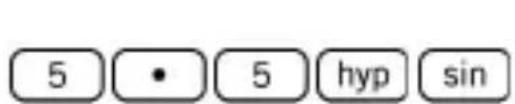
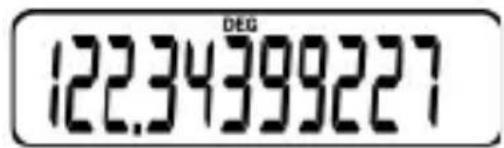
Example 1: sinh 5.5 = 122.3439227

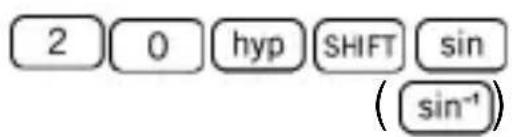
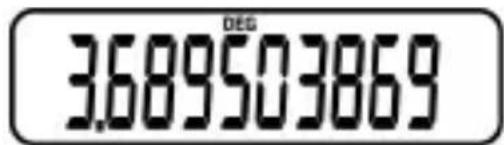
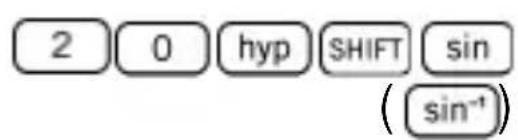
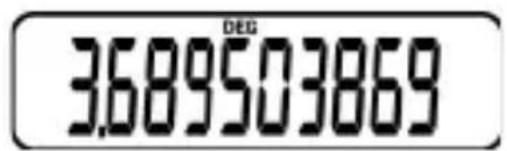
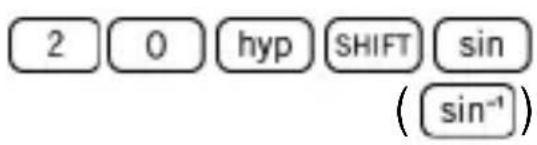
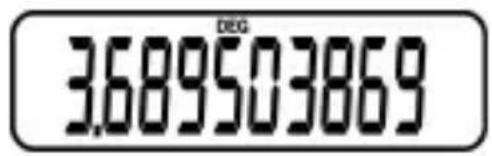
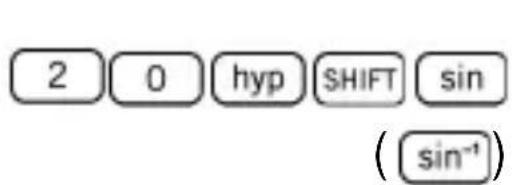
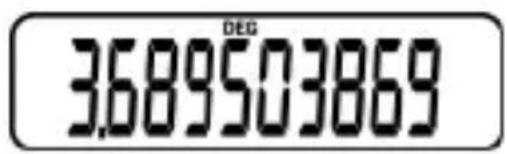
Example 2: ^-1 20 = 3.689503869

Common and Natural Logarithms, Exponents
This calculator allows dealing with logarithms in an easy way. The base-10 logarithm of a given number is the power or exponent to which the base must be raised in order to produce the given number.
Example 1: 3.12 = 0.494154594

Another widely used base for logarithms (beyond 10) is the mathematical constant e ≈ 2.7183 . This type of logarithm is known as natural logarithm (ln), and can be easily used as illustrated below in the example.
Example 2: 45 (= _e 45) = 3.80666249

Example 3: 30 15 = 1.255958025
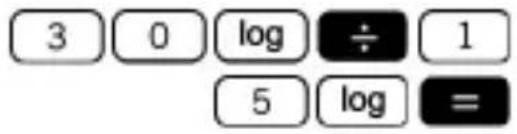
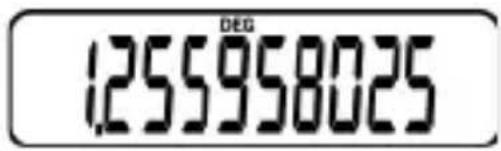
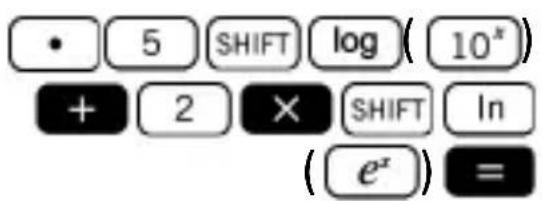
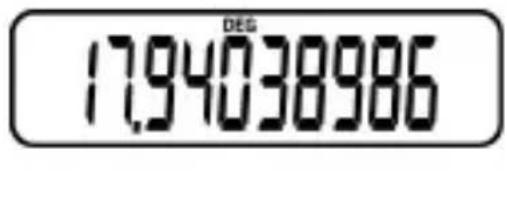
Example 4: 10^0.54 + 2e^- = 17.94038986
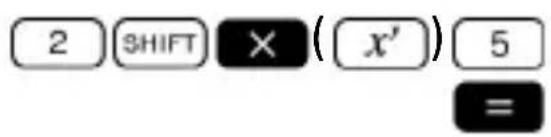
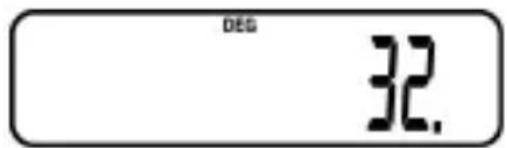
Example 5: 2^5 = 32
Example 6: 2^-5 = 0.03125
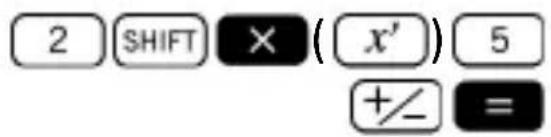
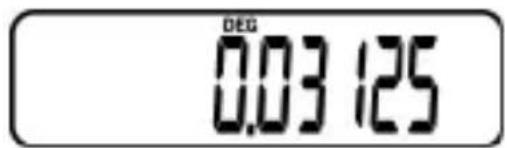
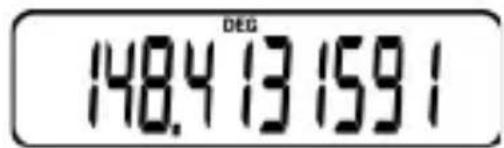
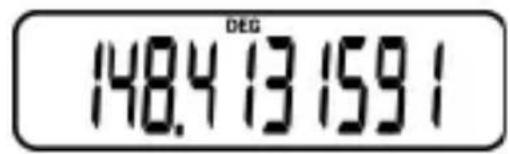
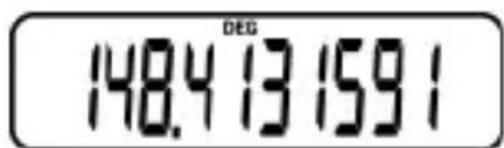
Example 7: e^5 = 148.4131591

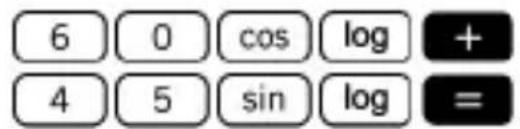
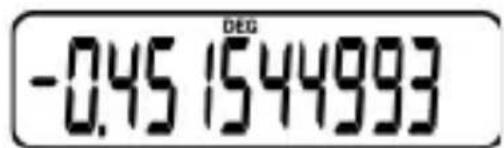
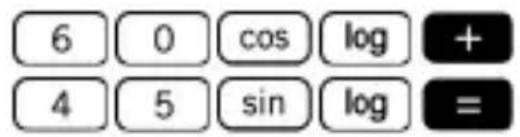
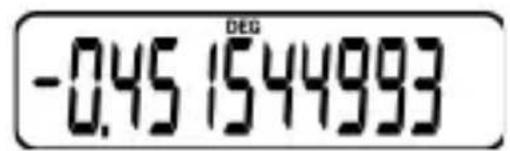
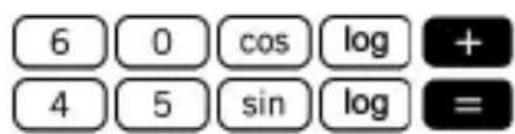
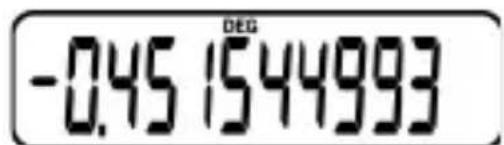
Example 8: 60^ + 45^ =
-0.451544993 (DEG mode)
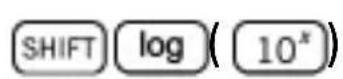
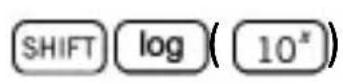
To convert to antilogarithm:
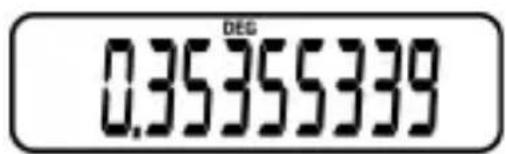
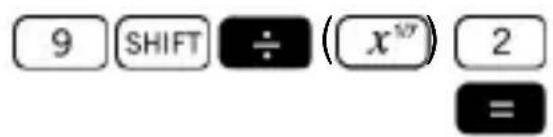
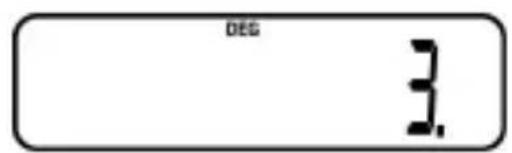
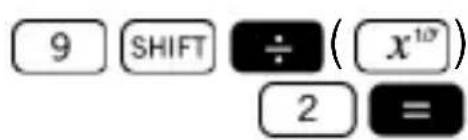
Example 9: 9^12 = 3

Square Roots, Cube Roots, Squares, Reciprocals and Factorials
Example 1: 3 + 4 × 2 = 4.560477932

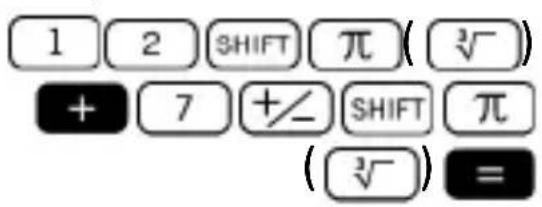
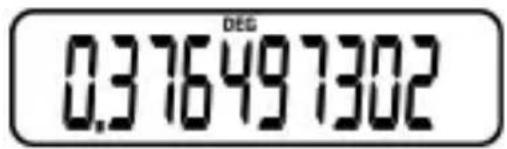
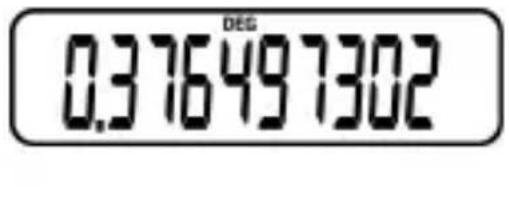
Example 2: [3]12 +[3]-7 = 0.376497302
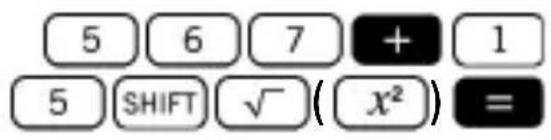
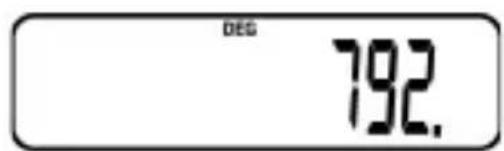
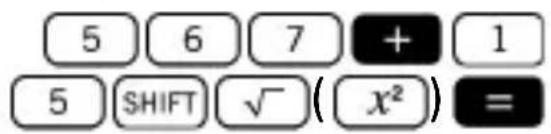
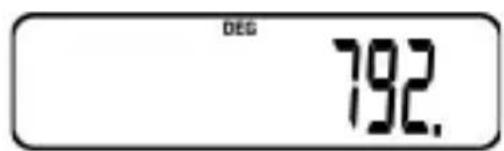
Example 3: 567 + 15^2 = 792
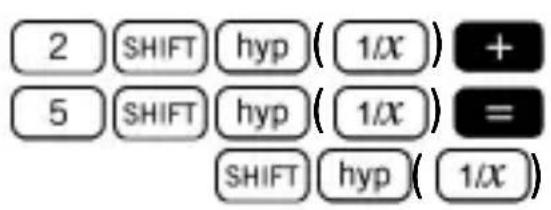
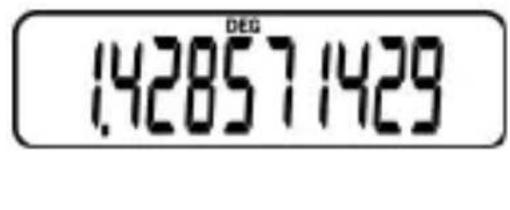
Example 4: 112 + 15 = 1.428571429

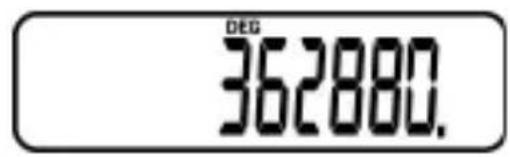
Example 5: 9! = 362880

FIX, SCI, NORM, RND, RAN#, ENG Calculations
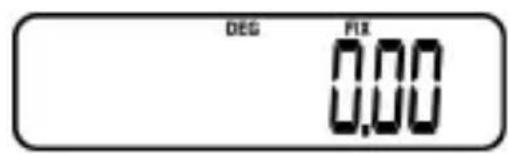
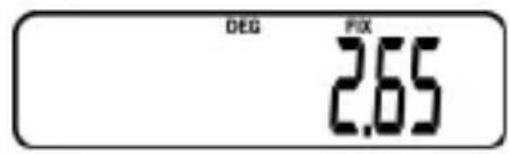
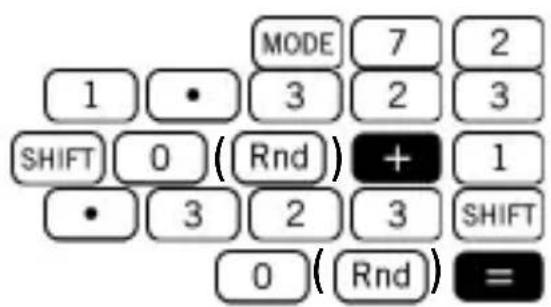
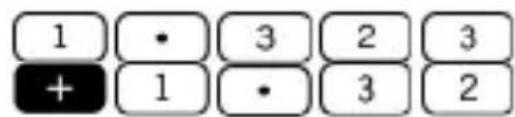
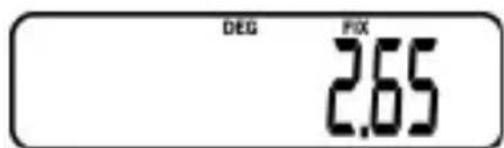
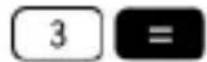
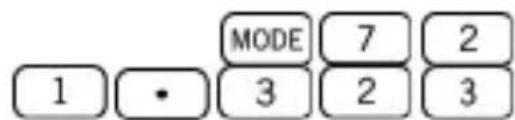
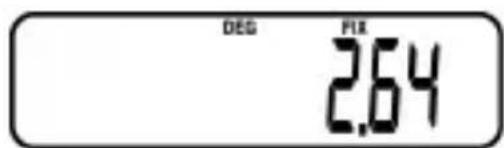
Example 1: 1.323 + 1.323 , rounding results to two places (FIX 2).
MODE
7
2
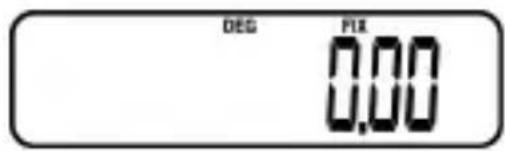
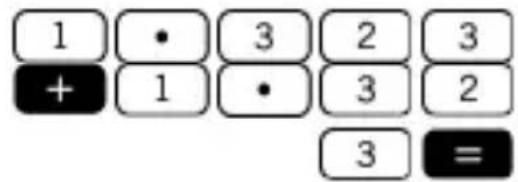
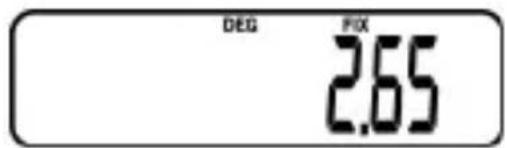
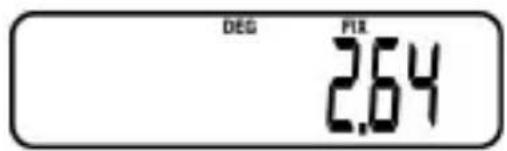
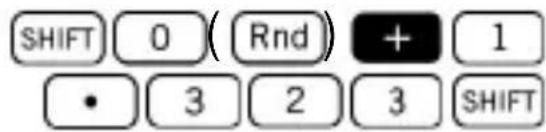
Example 2: 1.323 + 1.323 , rounding input to two places.
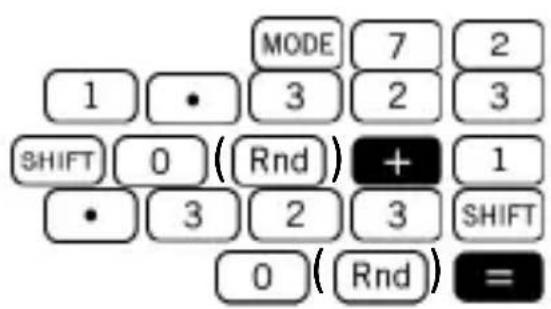
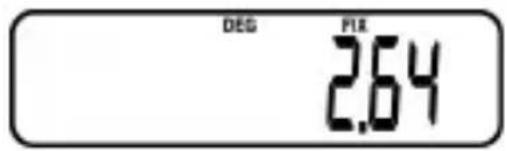
Press MODE 9 to clear FIX specification.
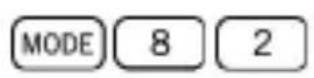
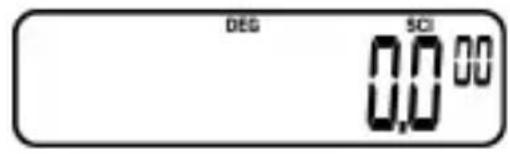
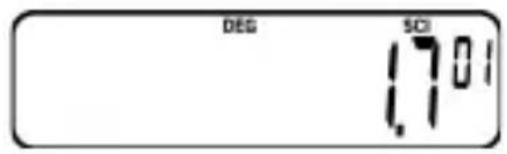
Example 3: 1 ÷ 6 , displaying result with two significant digits (SCI 2).
MODE
8
2
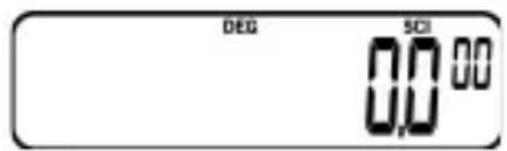

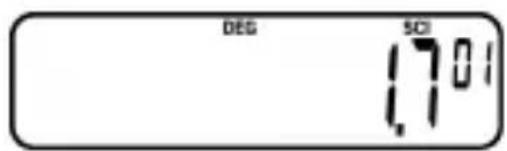
Press MODE 9 to clear SCI specification.
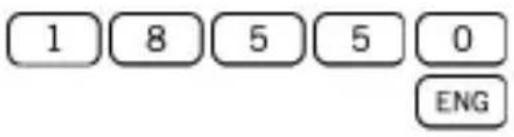
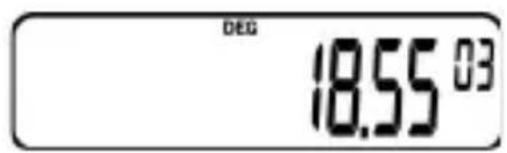
Example 4: To convert 18550 meters to kilometers.
Example 5: To convert 0.05216 grams to milligrams.
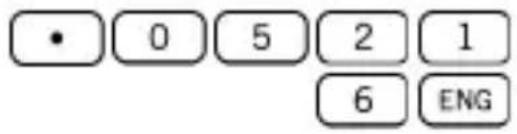
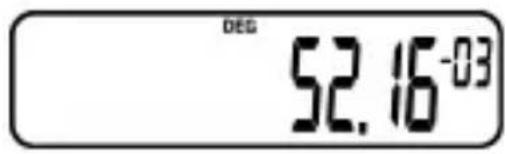
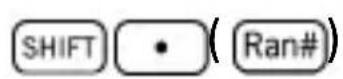
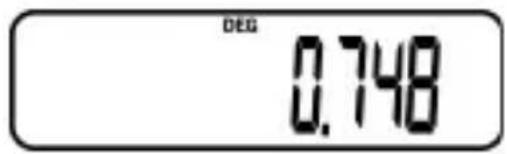
Example 6: To generate a random number between 0.000 and 0.999.
Example (results differ each time)
Polar/Rectangular Coordinate Conversion
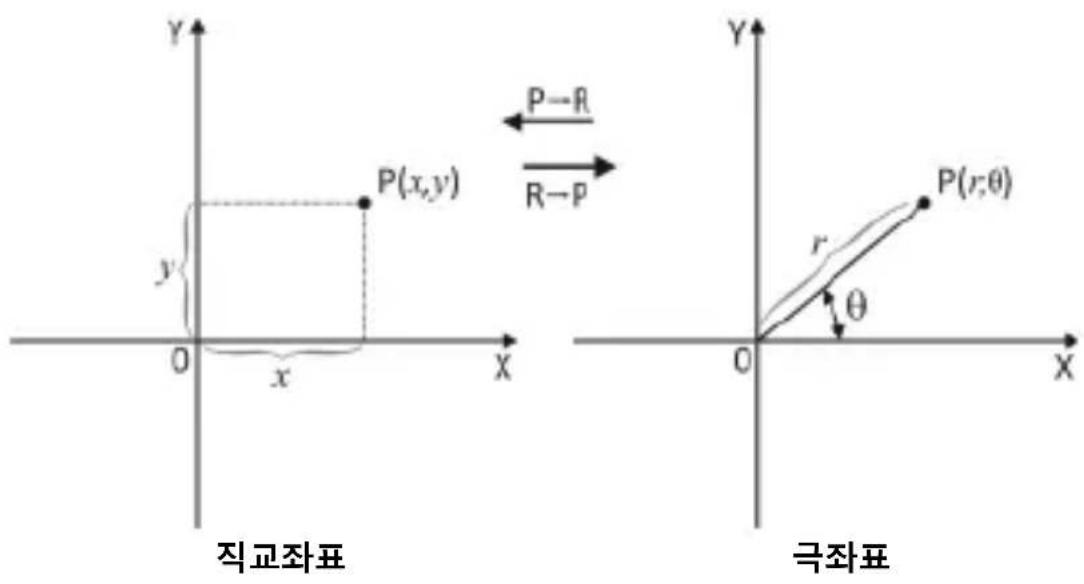
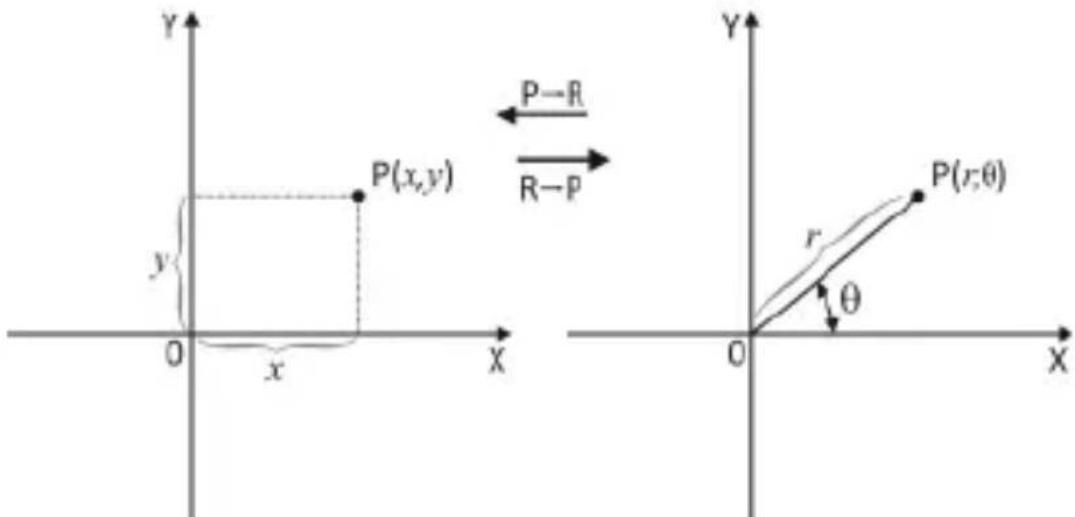
Coordinates can be expressed in many different spaces. This calculator allows mutual conversion between rectangular (also known as Cartesian) and Polar coordinates.
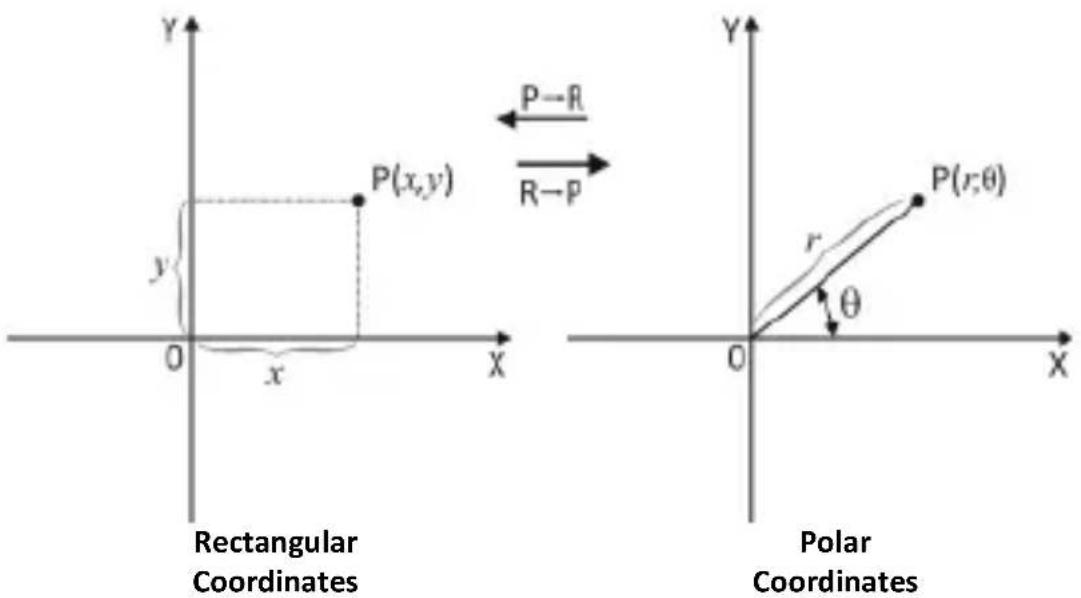
With polar coordinates, can be calculated within a range of -180^ < ≤ 180^ . The calculation range is the same for radians and grads.
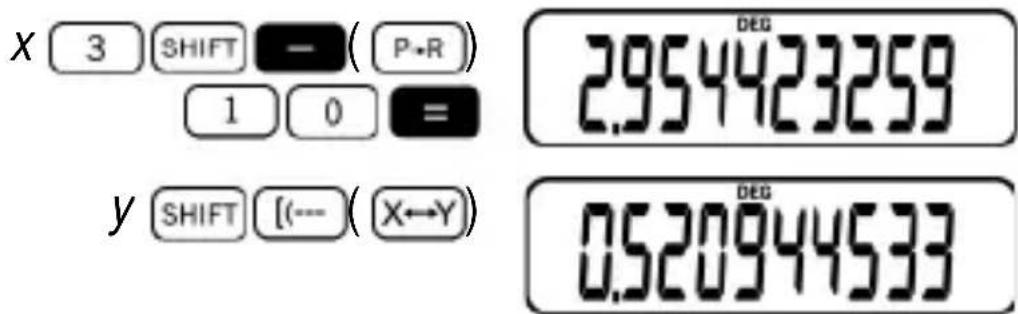
Example 1: Convert polar coordinates (r = 3, = 45^) to rectangular coordinates (x, y) . (DEG mode)
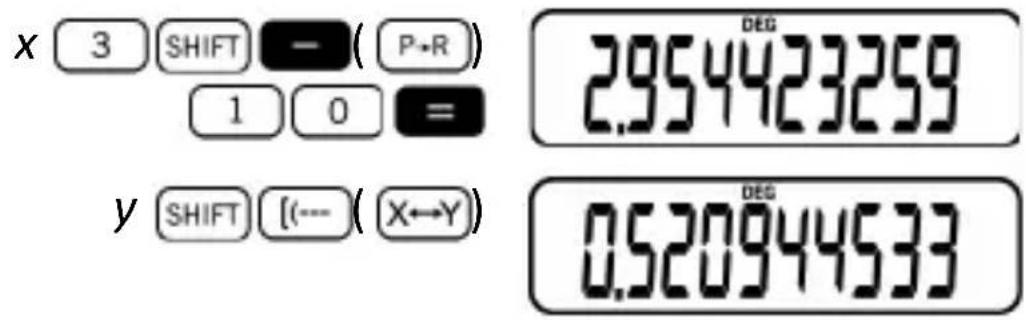
SHIFT [(-) (X→Y) swaps displayed value with value in memory.
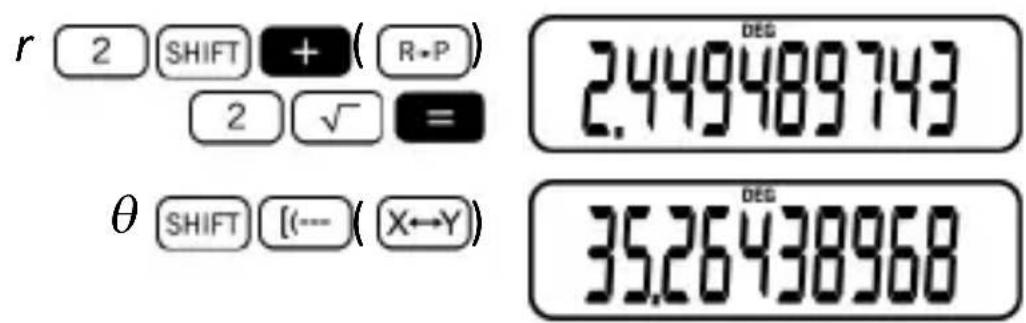
Example 2: To convert rectangular coordinates (2, 2) to polar coordinates (r, ) . (RAD mode)
Permutation and Combination
Given a set of n elements, a permutation (also called an "arrangement number" or "order") is the number of ways of obtaining an ordered subset of r elements from the original set of n elements. Obviously, n ≥ r ≥ 0 , with n and r : being natural numbers. Permutation is defined by the following formula:
$$ n P _ {r} = \frac {n !}{(n - r) !} $$
where “!” is the factorial operator.
On the other hand, a combination is an unordered collection of r distinct elements, taken from a given set of n elements (again with n ≥ r ≥ 0 ; and n, r being natural numbers). The number of r combinations is given by:
$$ n C _ {r} = \binom {n} {r} = \frac {n !}{n ! (n - r) !} $$
Example 1: Permutation. Determine how many different 4-digit values can be produced using the numbers 1 through 6.

Example 2: Combination. Determine how many different 4-member groups can be organized in a group of 8 individuals.

Exponential Display Formats
As already explained, the calculator can display up to 10 digits. Larger values are automatically displayed using exponential notation. In the case of decimal values, you can select between NORM 1 and NORM 2 formats, which determine at what point exponential notation is used.
NORM 1
Using NORM 1, exponential notation is automatically used for integer values with more than 10 digits and decimal values with more than two decimal places.
NORM 2
With NORM 2, exponential notation is automatically used for integer values with more than 10 digits and decimal values with more than nine decimal places.
Switching between NORM 1 and NORM 2
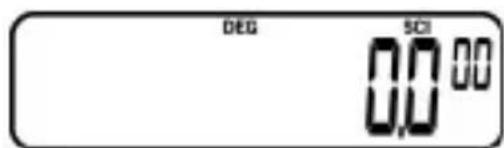
Press MODE 9 for switching between NORM 1 and NORM 2. Although there is no indication on the display of which format is currently in effect, it is possible to determine the setting by performing the following calculation:
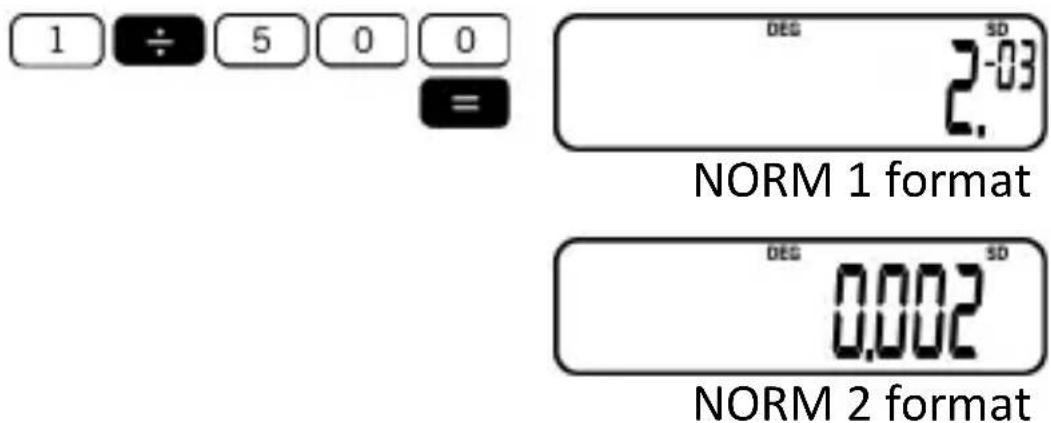
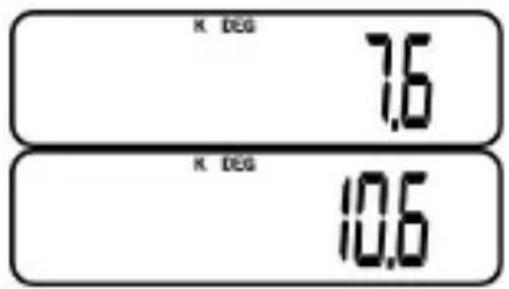
All of the examples in this manual show calculation results using the NORM 2 format.
Statistical Calculations (SD Mode)
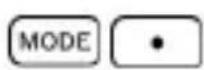
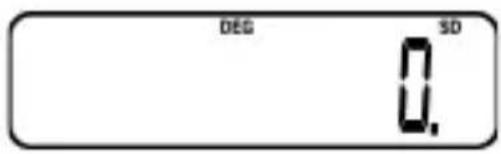
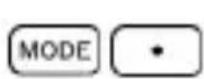
Press MODE to enter the SD Mode for statistical calculations using standard deviation. If FIX or SCI is on the display, press MODE first.
Data Input Considerations
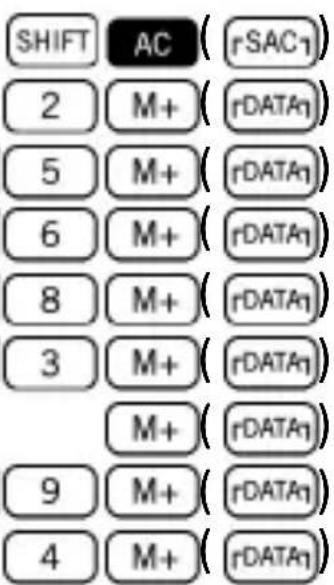
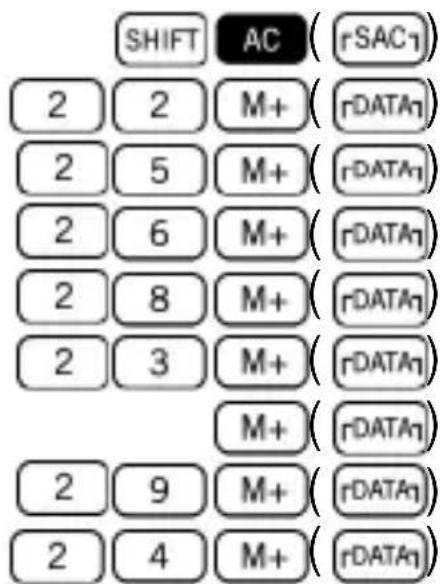
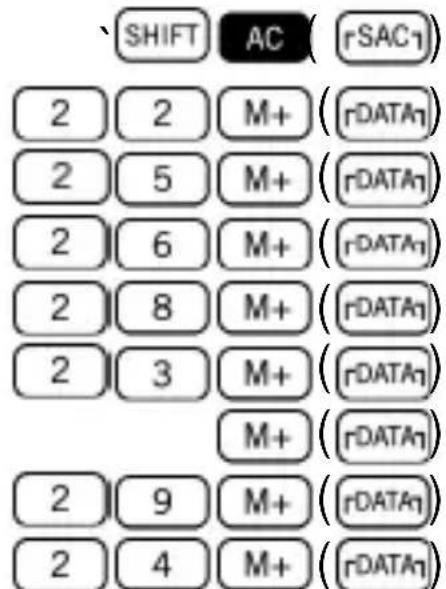
- Data input always starts with SHIFT AC (rSAC1). This operation also clears all previous data.
- In the SD Mode the + key operates as data input (DATA)
- When entering data for statistical calculations, pressing + + (rDATA1) rDATA1) inputs the same data twice.
You can also input multiple entries of the same data using × . To input the data 30 five times, for example, press 3 0 X 5 M+ (DATA)
To delete the data you have just input, press SHIFT M+ (DEL)
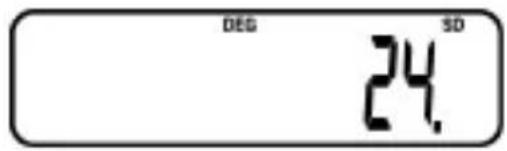
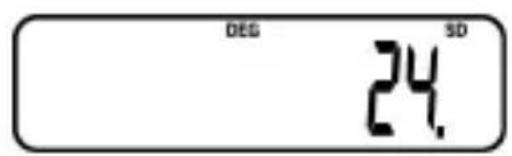
Example: Follow the indications below to calculate _n-, _n, , n, x and x^2 for the following data: 22, 25, 26, 28, 23, 23, 29, 24.
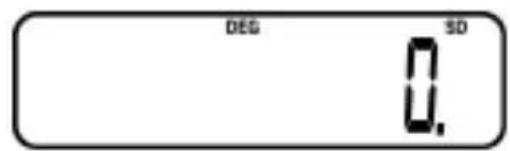
Enter SD Mode:
Input data:
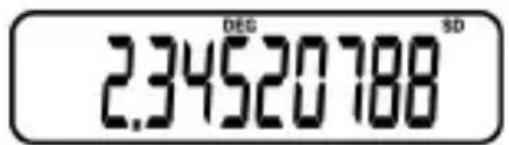
Sample standard deviation:
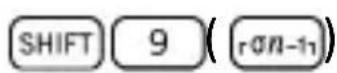
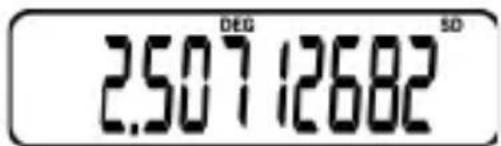
Population standard deviation:
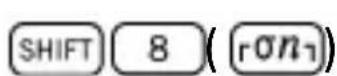
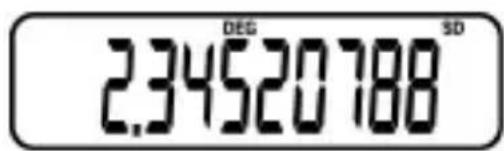
Arithmetic mean:
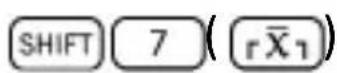
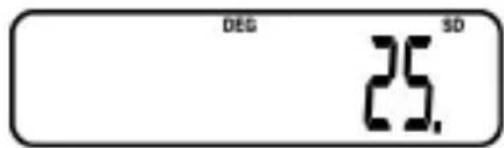
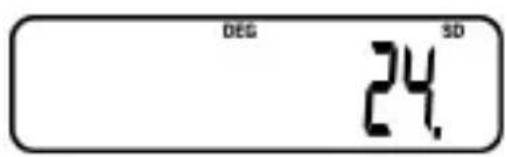
Number of data:
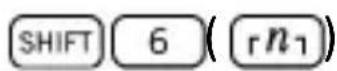
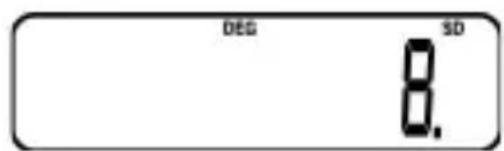
Sum of values:
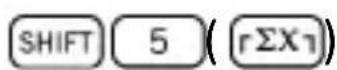
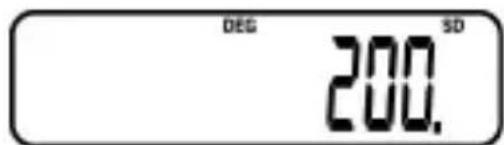
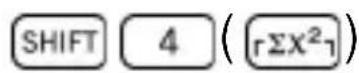
Sum of squares of values:
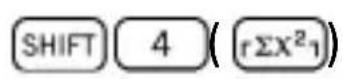
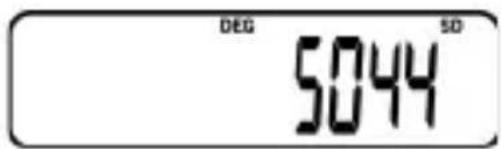
The previous results can be obtained in any order, and not necessarily that shown above.
| Population Standard Deviation | Sample Standard Deviation |
| σn=√∑i=1n(xi-x2/n) | σn-1=√∑i=1n(xi-x2/n-1 |
| Arithmetic Mean | |
| Σni/Σj=1nX/n | |
Making Corrections during Data Input
Example 1: How to change the data you have just input.
| Correct | Actual | Correction |
| 3 2 M+ (rDATA) | 3 1 M+ (rDATA) | SHIFT M+ (rDEL) 3 2 M+ (rDATA) |
| 1 2 3 X 2 0 M+ (rDATA) | 1 2 0 X | AC 1 2 3 X 2 0 M+ (rDATA) |
| 1 2 3 X 2 0 M+ (rDATA) | 1 2 0 X 2 0 | AC 1 2 3 X 2 0 M+ (rDATA) |
Example 2: How to change the data you previously introduced.
| Correct | Actual | Correction |
| 3 2 M+ (rDATA) | 3 1 M+ (rDATA) | 3 1 SHIFT M+ (DEL) 3 2 M+ (rDATA) |
| 1 2 3 X 2 0 M+ (rDATA) | 1 2 0 X 2 1 M+ (rDATA) | AC 1 2 3 X 2 1 SHIFT M+ (rDEL) 1 2 3 X 2 0 M+ (rDATA) |
Technical Information
Key Summary
General
| + - X = | Arithmetic calculations |
| C | Clear (retains memory) |
| 0 - 9, • | Number input |
| SHIFT ON (OFF) | Power off |
| ON | Power on; All clear |
| +/- | Sign change |
Memory
| SHIFT MR (Min) | Memory in |
| SHIFT M+ (M-) | Memory minus |
| M+ | Memory plus |
| MR | Memory recall |
Special
| SHIFT 0 , " | Decimal-to-sexagesimal |
| SHIFT [(-) (X←Y) SHIFT (-)] (X→M) | Display/memory swap |
| EXP | Exponent |
| SHIFT 0 (Rnd) | Internal rounding |
| [(-) (-)] | Parentheses |
| π | Pi (3.1415926536) |
| MODE | Select mode |
| 0 , " | Sexagesimal-to-decimal |
| SHIFT | Shifts key functions |
| SHIFT 3 ( | Key beep function |
Scientific Functions
| SHIFT cos ( cos' ) | Arc cosine |
| SHIFT sin ( sin') | Arc sine |
| SHIFT tan ( tan') | Arc tangent |
| SHIFT log ( 10^x ) | Common antilogarithm |
| log | Common logarithm |
| COS | Cosine |
| SHIFT π ( √ ) | Cube root |
| ENG, SHIFT, ENG ( ← ) | Engineering |
| SHIFT EXP (x!) | Factorial |
| a% | Fraction |
| SHIFT a% (d/c) | Fraction |
| hyp | Hyperbolic |
| SHIFT In (ex) | Natural antilogarithm |
| In | Natural logarithm |
| SHIFT = (%) | Percent |
| SHIFT - (P·R) | Polar-to-rectangular |
| SHIFT X (x') | Power |
| SHIFT • (Ran#) | Random number |
| SHIFT hyp (1/x) | Reciprocal |
| SHIFT - (R·P) | Rectangular-to-polar |
| SHIFT ÷ (x") | Root |
| sin | Sine |
| SHIFT √ (x²) | Square |
| √ | Square root |
| tan | Tangent |
| SHIFT 1 (nPr) | Permutation |
| SHIFT 2 (nCr) | Combination |
Statistics (SD Mode)
| M+ (rDATA) | Data input |
| SHIFT M+ (rDEL) | Data delete |
| SHIFT 4 (rΣX2) | Sum of squares of values |
| SHIFT 5 (rΣX1) | Sum of values |
| SHIFT 6 (r n) | Number of data |
| SHIFT 7 (r X) | Arithmetic mean |
| SHIFT 8 (r Ω) | Population standard deviation |
| SHIFT 9 (r Ω-1) | Sample standard deviation |
| SHIFT AC (r SAC) | Statistical register clear |
Input Ranges
| Functions | Input Range |
| sinx | (DEG)|x|<9×10^9 |
| cosx | (RAD)|x|<9×10^7π rad |
| tanx | (GRA)|x|<1×10^10 grad |
| However, for tanx : |x| 90(2n 1):DEG + |x|≠π/2·(2n+1):RAD | |
| |x| 100(2n 1):GRA + | |
| sin-1x | |x|≤1 |
| cos-1x | |
| tan-1x | |x|<1×10^100 |
| sinhxcoshx | |x|<230.2585092 | For sinhxand tanhx,errors arecumulative andaccuracy isaffected ata certainpoint whenx=0 |
| tanhx | |x|<1×10100 | |
| sinh-1x | |x|<5×1099 | |
| cosh-1x | 1 x≤ 5<1099 | |
| tanh-1x | |x|<1 | |
| logx/lnx | 1×10-99≤ x<1×10100 | |
| 10x | 1 10100 x-100 < < | |
| ex | 1 10100 x-230.2585092 | |
| √x | 0 x≤ 1<10100 | |
| x2 | |x|<1×1050 | |
| 1/x | |x|<1×10100; x≠0 | |
| 3√x | |x|<1×10100 | |
| x! | 0≤ x≤69 (x is an integer) | |
| nPr/nCr | 0≤ r≤ n | |
| n <1×10¹⁰ | ||
| (n and r are integers) | ||
| R→P | √x2 y2 1+ 10-1× | |
| P→R | 0 r≤ 1<10100 (DEG) |θ|<9×10⁹ (RAD) |θ|<5×10⁷π rad (GRA) |θ|<1×10¹⁰grad However, for tanθ : |θ|≠90(2n+1) : DEG |θ|≠π/2·(2n+1):RAD |θ|≠100(2n+1):GRA | |
| ○○○ | Sexagesimal : |a|,b,c<10100 0≤b,c Decimal : |x|≤2.7777777777×1096 | |
| xy | x>0:-1×10100<ylog x<100 x=0:y>0 x<0:y=n; 1/2n+1 (n is an integer) However: 1 10100 ylog|x| 100× < | |
| x1/y | x>0: y≠0 1 10100 1/y log x 100× x=0:y>0 | |
| x<0:y=2n+1; 1/n (n≠0;n is an integer) However: 1 10100 1/y log|x| 10θ × | ||
| a+b/c | Total of integer, numerator and denominator, must be 10 digits or less (including division marks) | |
| SD | |x|<1×1050 |n|<1×10100 σn, x̄: n≠0 σn-1: n≠0, 1 | |
Errors are cumulative with such internal continuous calculations as x^y, x^1 / y, x! and [3]x , so accuracy may be adversely affected.
Calculation Capacity
Input/ Basic Calculations: 10-digit mantissa; or 10-digit mantissa plus 2-digit exponent up to 10^± 99 .
Handling Errors
Overflow or Error Check
The following conditions make further calculation impossible:
- When a result (whether intermediate or final) or a total accumulated in memory is greater than ± 9.999999999 × 10^99 ("-E-" annunciator appears on the display.)
- When function calculations are performed using a value that exceeds the input range. ("-E-" annunciator appears on the display.)
- When an illogical operation (such as an attempt to calculate and _n while n = 0 ) is performed during statistical calculations. ("-E-" annunciator appears on the display.)
- When an illegal mathematical operation is performed, e.g. division by zero. ("-E-" annunciator appears on the display.)
- The total number of nested parentheses levels exceeds six, or when more than 18 pairs of parentheses are used. ("-[-" appears on the display.)
To clear any of the above conditions, press AC and perform the calculation from the beginning.
When “-[-” appears on the display, it is also possible press C. This clears the intermediate result just prior to the overflow, so you can continue with the calculation from that point.
No error occurs when the result is within the range of +(1 × 10^-99) to -(1 × 10^-99) . Instead, the display shows all zeros.
When you have a problem…
If calculation results are not what you expect or if an error occurs, perform the following steps.
- MODE 0 (COMP mode)
- MODE 4 (DEG mode)
- MODE 9 (NORM mode)
- Check the formula you are working with to confirm it is correct.
- Enter the correct modes to perform the calculation and try again.
This page has been left blank intentionally.
MILAN
since 1918, SPAIN
www.MILAN.es
MILAN
Engineered in Spain
M 139
Example 1: sinh 5.5 = 122.3439227

Example 2: ^-1 20 = 3.689503869
Example 7: e^5 = 148.4131591

Example 8: 60^ + 45^ = -0.451544993 (mode DEG)
Example 9: 9^1/2 = 3
| Correct | Réel | Correction | ||||||
| 3 | 2 | 3 | 1 | SHIFT | M+ | (rDEL) | 3 | |
| M+ | (rDATA) | M+ | (rDATA) | 2 | M+ | (rDATA) | ||
| 1 | 2 | 1 | 2 | AC | 1 | 2 | 3 | X |
| 3 | X | 0 | X | 2 | 0 | M+ | (rDATA) | |
| 2 | 0 | |||||||
| M+ | (rDATA) | |||||||
| 1 | 2 | 1 | 2 | AC | 1 | 2 | 3 | X |
| 3 | X | 0 | X | 2 | 0 | M+ | (rDATA) | |
| 2 | 0 | 2 | 0 | |||||
| M+ | (rDATA) | |||||||
n-1, n, X, n, x eσ∑s para o s增值服务: 22, 25, 26, 28, 23, 23, 29, 24.
Inicie o Modo SD:
Introduza os dados:
Consideraciones additionals:
- MODE 9 no existe en el mode SD.
MODE 0 existex en el mode SD. - MODE 0 no esborra las specifications SCI o FIX.
Example 1: 56 - 20 + 12, 6 = 48, 6

Example 2: 20 × (-3) ÷ (-5, 4) = 11, 1111111

Example 3: 5 ÷ 6 × (1 × 10^15) = 8,333333333^14

Example 4: × - × = 83926

Example 5: 82 × 3 = 1, 333333333

Quan utilizes parèntesis?
Example: 15^ 24' 52'' = 15,41444444

Example 7: e^5 = 148,4131591

Example 8: 60^ + 45^ =
-0,451544993 (mode DEG)
Per a convertir-lo a antilogaritme:
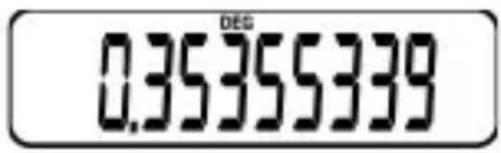
Example 9: 9^1/2 = 3

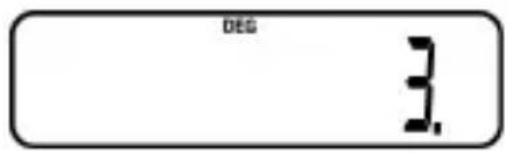
Arrels Quadrades, Arrels Cubiques, Quadrats, Recíprocs i Factorials
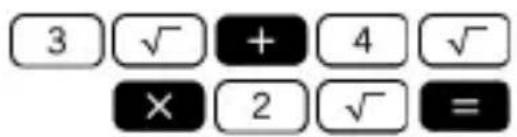
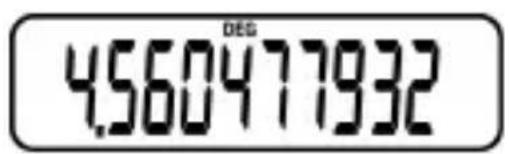
Example 1: 3 + 4 × 2 = 4,560477932
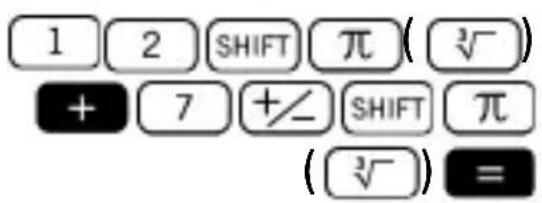
Example 2: [3]12 + [3]-7 = 0, 376497302
Example 3: 567 + 15^2 = 792
Example 4: 112 + 15 = 1,428571429
Example 5: 9! 362880 =

Calculs FIX, SCI, NORM, RND, RAN#, ENG
Example 1: 1,323 + 1,323 , arrodonint els resultats a dosDigits decimals (FIX 2).

Exemple 2: 1,323 + 1,323 , arrodonint les entrades a dos digits decimals.
Esemblio 1: +5.6 0i +5.6 5
JecTeTnHo/DeceTnHo PpeBpTaHe..18
N3uNCJIeHnC KOHCTaHTa 19
I3qucJIeHnC nametTa 20
I3yncJIeHn cHayuHn yHKcHn 22
TpuroHometpnuH/06paTHn TpuroHometpnuHn yHKcnn 23
Xnep6oJnHn/O6paTHN Xnep6oJnHn
fynKznn 24
DeceTnueH n ecTeCtBeH IorapNTbM, CTepeHHn noka3aTeI.. 24
KbadaTn KopeH, Kybuchn KopeH,
KbadaTn, peunpoHn cToHocTn n akTopneI.. 26
Изчесенья FIX,SCI,NORM,RND,RAN#, ENG. 27
IpeBpbShaHe MeJdy PJIpaHn I npaBoBbHa KoOpdInHaTHN CnCTeMn 29
Pepmytaun KOM6nHaun 30
IpeidctabYHe B eKcNoHnauJe H oOpMaT...31 NORM 1. 31 NORM 2. 32 IpeBkIIOUbaHe MeJy NORM 1 B NORM 2 n o6paTHo 32
Ctntnueckn n3yncJIeHn (Pexm SD) 33
KaKa Da BbBexKdame DaHHN 33
CtahapTHO OTKIOHHe Ha cBbKynHOCT 35
I3BbprBaHe Ha KopeKcnn npn BbBeJdaHe Ha daHn 35
TexHnuecka nHΦopMaζη. 37
OncaHne Ha 6yToHnTe 37
OCHOBHn 6yToHN 37
BytoHn 3a namet 37
CneuaJIHn 6yToHn 37
HayuHn yHKcnn 38
Ctatactnueckn n3uIncJIeHna (Pexm SD) 39
Грани Na вьвекдане на стойости ......... 40
KanauntetHa n3yncleHne. 43
OrcpaHbHe Ha rpeuKn. 44
IpoBepka 3a npenbIbaHe nIi 3a rpeuKn ... 44
Korato nmaTe npo6JIem 45
Пре徳и ИЗПОЛЗВане На
kaIkyIaTopa
MODE 9 He Bn n3Bexka ot pexkm SD.
MODE 0 Bn n3Bexka oT pejkm SD.
MODE O He n3yncTba HacTpOyKeTe Ha SCI nn FIX.
Ta6ncaTa NO-dOly NOKa3Ba CbDbPkaHneTo Ha perncTbpa BcIeIcTBnE Ha BbBeJeHOTo No-rope.
Празецни NGCJIeHnA
Пюцент OзначаВа „eДна CTOTна чаСТ OT eДночис". To сьшо може дa 6ьдe ИЗразецкato Дрб сьс зhamehatel ot 100. Taka, che peшенe ot 10 пюцента може дa 6ьдe пOKаЗано кATO 10%, 10/100, 0.10, nlln 10Части Ha 100Части.
Приимер 1: Изунсте 20% ot 2500
Приимер 2: Изweis te KoIko npoцenta ot 1000 e 800

Приимер 3: Добаlete 10% Ксым 1500
Приимер 4:Намалente 4000 c 30%

Pe3yIaTbT OT n3YncJIeHHe Ha dpo6 n DeceTuHo YnCNo e BnHaRn DeceTuHo YnCNo.
Приметр 4: Десетино/дробно преьшане
$$ \frac {2}{5} = 0. 4 $$

HactpoynKeTe Ha FIX.
Приимер 3:1 |6, поkaЗвае на peзултата с дve 3начеци сфprn (SCI 2).

HaTnchete

3a da
n3TpneTe
HactpoNKeHa SCl.
IpeBpbUaHe MeJdy PJIaRHa I npaBoYbJIHa KoOpdINHaTHN CnCTeMn
KoopdInHaTnte MoRaT Da 6bDaT n3pa3eHn Ha MHO pa3IuHn MeCTa. To3n KaKLyIaTOP I03BOJRA B3aIMHO npeBpbUaHe MeJdy IpaBObIbJIHaTa (OSe I03HaTa KaTO DeKapTOBaTa KOOPdInHaTHa CnCTema) N PoJIaPHaTa KOOPdInHaTHN CNCTeMn.
Ppabobrbln KoopdHaTn
PoiarH KoopDnHaTn
Upe3 nojarpHnTe KoopdInHaTn, 0 MoKe da 6bDe n3quncIeHa B rpaHnIte ot -180°<0≤180°. rpaHnIte Ha n3quncIeHne ca cbIte 3a paDnAHn I rpaDN.
Приимер 1: Празвьр overhe полярни Te KoopДиНаТN (r = 3, = 45^) Bпразвовгьлн КООрДиНaTn (x,y) (peжим DEG)
Pokyny pro obsluhu 1
Zapnutia vypnuti kalkulatoru 2
| SHIFT | 0 | 1 |
| SHIFT | [(-) | (X←Y) |
| SHIFT | ---] | (X←M) |
| EXP | ||
0 SHIFT MR (Isau AC SHIFT MR Min
Exemplul 1:
$$ (1 2 + 4) + (5 2 - 1 3) + (2 8 \cdot 2) + (1 4 4 \mid 5) = 1 3 9. 8 $$
(12+4)





(52 -13 )



(28·2)


13 % 2 1500 = 195
19 % 2 1500 = 285
21 ‰ 1500=315
Przykjad 1: sinh 5.5 = 122.3439227

Przykstad 2: ^-120 = 3.689503869
n-1, n, X, n, x_i x^2 8la nastepujacych dansch: 22, 25, 26, 28, 23, 23, 29, 24.
Węcz Tryb SD:
Wprowadzone dane:
He cIeJyET npOn3BODnTb yTNJIIN3aCNUO
nnpoDhblX pecypcoB n rapaHTnpyIOT,
UTo 0opMa nepepa6OTKn He
IpeDCTaBlaeT ONaCHOCTN IJI
3dopobb yelOBeka COCTOHN
okpykaioe cpebl. IJIa nolyeHnA
dONoHnTeIbHoHΦOpMaun O
nyHKtax npnema BTOPCbIpba
o6paaaiTecb B clyx6y 10
yTNIN3aun 6bITOBbIX OTXoOBOI O
MeCy XHTeIbCTBa IIN B MaRa3H, rDe
6bI npno6peTeH daHHbI npOdyKT.
CodelpkaHne
Ipeed nauanom nCnoB3OBAHnra 1
MepblnpedoctopoXHocTn 1
BkIIOueHne n BbIKIOueHne nTaHnra 3
ChraTne JecTKoK KpbIwKn 3
NCTOCHNK NITaHnA 4
Kak npo3Bectn 3aMeHy 6aTaapeek?.....6
KlauBnata 6
3BykoBoi HndnKaTOp paKlaAdKn KlaBnaTypbl. 7
Диспел … 7
HacrpoKa KaIbKyJrTopa 9
Pexnmbi BbIuNcJIeHni 9
IcnpaBleHnBa BOpBpeMa BbOda daHHbIX.....10
Ba30BbIe BbIuNCJIeHnra 11
ApnΦMeTnueckne BbIuNcJIeHn. 11 KOrda nCnoJb3OBAtB cKo6Kn? 12
IpnopnteHbI nopraOK BblOpJHeHnBaBlyncJIeHn 13
PacyeTbI npoceHTOB 14
BbivcIeHnC npo6mN 16
Ppeo6pa3OBaHne deCrtuHOn fOpMbIB
dpo6HyO 16
Oepaunncdo6m17
Ipeo6pa3ObaHne HeinpabInbNoi Dro6n B CmeaHnyu 18
Ipeo6pa3OBAHnMaJxJy
IeCTnIeScTepuHOn I deCtTuHOn
CnCTeMaMn nCunCleHna 19
BbivncJIeHnC KOHCTaHTamn 19
BbIuHcJIeHnC nCNoJIb3OBaHHeM nAMrTn
KakbkyjTopa 21
BbivcIeHne yHKcHn 23
TpnoHometpnuecKne/O6paTHbIe
TpHroHometprnueckne yHKcnn 24
HnkOrda He 3apJkaIte H He pa36npaIte 6atapeiKn, n36eraIte KOpOTKoro 3aMbikHna. He noDbepraIte nx BO3dEICTBIO BbICOKNX Tempeatyp H He cXnraIte.
3aMeHnTe 6aTapeKn KaK MnHmym pa3Вtpn rOda, He3aBnCnMo OT TORo, KaK YacTo nCNoIb3yETcKaIbKyJrTOp. CTapbIe 6aTapeKn MoYr IOTeYb N cepBe3HO IOBpeDnTb KaIbKyJrTOp.
HnkOrda He cMeuBaTe pa3HbIe Tnbl 6aTaapeek, a TaKxe HOBbie n CTapble 6aTaapeiKn.
XpaHnte 6aTapeeKN B MeCTax, HeIOCTyINHBIX dIaTei.
- YdJInte 6aTapeKn, ecn Bbl PlaHpyeTe He NOLb3OBaTbcra KaIbkyJrTOpOM B TeueHne DlnteJbHO rpoMeJyTKa BpeMeHn.
Kak npon3Bectn 3aMeHy 6aTaapeek?
EcIn BbIBOIMbIe Ha DnCnJIe JdAHHbIe CTaHOBATc TycKlbIMN N Bbl3bIBaHT TpydHOCTn Iprn IpOHTeHN, Heo6xOJIMO KaK MOJHo cKOpee 3aMeHnTb 6aTaapeiKn.
- Haxmte KlaBnsh SHIFT ON (OFF), yTo6bl BbIKIIOHTb KaIbKyJrTOp.
- Bbikpytnte BnHT, PndepknaHounn KpbIshky otceka dIy 6aTaapeek, n cHmnte ee.
- BbItauntcTapbIe 6aTapeKn.
4.Протрие оba конца HOвьix 6aTaapeek cyxoJ Mягков Тkaнью. - BctaBbTe nx B kalbkyIaTOp, co6IoJa IoJIaRHOCTb.
- YctaHOBInTe KpbIshky OTceKa dIy 6aTaapeek n 3aKpeINTe ee c NOMOuBIO BNHTa.
7.HaJMMTe KlaBnSy ON, YTO6bI BKJIHouHTb KaIbKyJrTOp.
Klábnatypa
Kajda KlaBnHa MoKeT NMeTb DBe FyHKuN: OHa Yka3aHa HeNoCpeDCTBeHHO Ha KlaBnHe, BToPA (FyHKuN SHIFT) OTmueHa HAd KlaBnWe. HaxMnte KlaBnUy SHIFT nepeD Bbl6Opom Heo6xOdImoFyHKuN.
Hanpimep,ДЯ BbIbopaФyHKuN sin-1 HaxMMTe N OTnyCTnTe KlaBnU W SHIFT N 3aTeM HaxMMTe sin. B DaHHOM pyKOBoDCTBe NOlb3OBaTeJI NOO6HbI TnI Opepaui npedctablen CneDyHOuIM o6pa3oM SHIFT sin (sin
3BykoBoH nHdNKaTOP paKlaAdKN KlaBnaTypbl
BkIIOueHne N BbIKIOueHne 3BYKOBORO
HdNKaTopa pacKlaAdKn KlaBnAtypbl
Ipon3BOJNTcHaKaTneM KlaBnSHIFT 3
(
Дистпей
Kakylatop ochaeni 10-3nauhbIM dincneem. B BepxHeJ qactn dncnpej MOyT NOBtbcra pa3nHbIe INdNKaTOPbl, yKa3bBaIOuane Ha COCTOHNHe, B KOtOpom pa6oTaet KaIbKylatop B DaHHbIM MOMENT.
SHIFT MODE MK DEG RAD GRA FIX SCI SD
(25. 2) - (52. 2) + (80. 2) = 106


Выцленихкции
Ipn pa6oTe B opMaTe NORM 1 3KcNoHnauHa 3aPiNcB NcNoJIb3YeTcra ABToMaTuYeCKn DnA BbIOda ZeIbIX 3NaueHn, coDepeKaunx 6Olee 10 3NaKOB, n DeceTnUHbIX 3NaueHn, y KOTOpbIX KOJIuYeCTBO DeceTnUHbIX pa3pIaOB 6OJIbWe DByX.
NORM2
Ipn pa6ote B opMaTe NORM 2 3KcnoHnauhnaBHa 3aHncb nCNoJb3yeTcra ABTOmatNueckn dJa BbIBOda ceIbIX 3NaueHni, coedePkaunx 6oJIe 10 3NaKOB, n DeceTnUhbIX 3NaueHni, y KOTOpbIX KOINueCTBO DecaTnUhbIX pa3pdoB ppeBbIwaet DeBraTb.
IpekeJIoueHne MeJdy fOpMaTOM NORM 1 n NORM 2
HaKmTe MODE 9, yTo6bI nepeiTu n3 fOpMaTa NORM 1 B NORM 2 n o6paTHo. NockoBky HnDnKaTOp fOpMaTa He OTo6paJxAeTcra Ha DnCpIee, IJa OnpeJeHEny TeKuSei HacTpoiKn MOxHO BblONHTb CLeDuOuO OpeaunIO:

Ctahdapthoe OTKIOHHeB NOnyIaIIN:
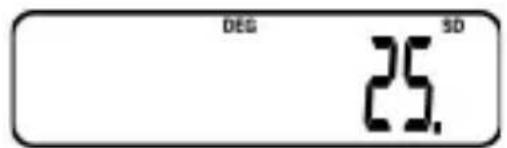
CpeiHee apnΦmeTnueckoe:
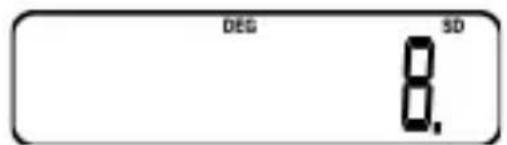
06ee koIueCTBO daHHbIX:
Cymma 3NaueHn:
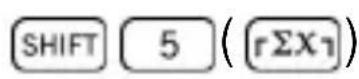
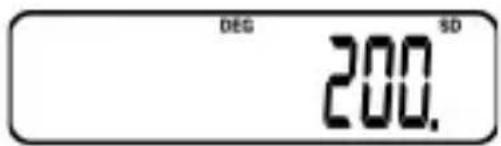
Cymma KBaIpaTOB 3HaueHn:
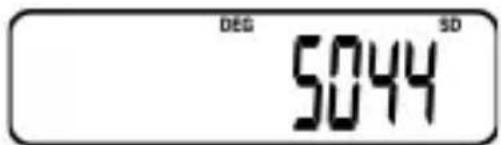
Yka3aHHbIe BblIe pe3yIbTaTbI MOxHOb NOlyuHTbB IIO6oM nopAKe.
Piv xpnouoioe tov Ynooyoiotn 1
PpOuλεic KAtaTo Xεiρioó 1
Eevvtauac/2hovotac toy Ynooyoiotn 3
Baoikoi Ynoooyiouoi 12
Apiountikoi Ynoooyiouoi 12
Tpiywoeepkec Suvapntnoic 24
FIX,SCI,NORM,RND,RAN#,ENG
Ynooyioi 28
Noooiaoi Ynoooyiouoi
Örnek 1: +5.6 sozra +5.6 5
Örnek 2: · 23 ,1sønra 23 (0.4)·
Örnek 3: + + + = 1212 1 2 12 4 8
Örnek 4: 2.4^4 33.1776

Örnek 1: sinh 5.5 = 122.3439227

Örnek 2: ^-1 20 = 3.689503869
Örnek 9: 9^1/2 = 3
FIX,SCI,NORM,RND,RAN#,ENG
/ 28
30
Ji 31
NORM 1 31
NORM 2. 31
NORM 1 NORM 2 NORM 2 31
通程程 (SD MoD) 32
daiTeIeRg 32
Moklun 34
丑本 丑平 34
1 35
DaiTe IeRy 35
吉専格 36
KJ 36
136
M# 36
导全 37
和解 37
通策 (SD MoD) 39
imLk. 39
程 43
OJ 43
Overflow 888 Error Check 43
* 44
개선기 사목선 유의사형
尅鑰視용의사형
重启RESET的主键都可使用。
SARe 2: dAeMgJiJiJiJiJiJiJiJiJiJiJiJiJiJiJiJiJiJiJiJiJiJiJi
$$ 5 + 5 - 5 + (4 \cdot 2) + (4 \cdot 2) - (4 \cdot 2) = 1 3 $$
1: sinh 5.5 = 122.3439227
2: ^-1 20 = 3.689503869
상용로고와자료로고,지수
FIX, SCI, NORM, RND, RAN#,
ENG enko
1: 1.323+1.323
Tue자리로 출울심 (FIX 2).
経と呂 空き撮

例 2: 1.323 + 1.323
Tue자리로
imL

MODE 9 1 #
例 3: 1 | 6 步进制数列 a_n = 12^n + 1 a_n + 1 = 12^n + 2 a_n + 2 = 12^n + 3 a_n + 3 = 12^n + 4 a_n + 4 = 12^n + 5 a_n + 5 = 12^n + 6 a_n + 6 = 12^n + 7 a_n + 7 = 12^n + 8 a_n + 8 = 12^n + 9 a_n + 9 = 12^n + 10 a_n + 10 = 12^n + 11 a_n + 11 = 12^n + 12 a_n + 12 = 12^n + 13 a_n + 13 = 12^n + 14 a_n + 14 = 12^n + 15 a_n + 15 = 12^n + 16 a_n + 16 = 12^n + 17 a_n + 17 = 12^n + 18 a_n + 18 = 12^n + 19 a_n + 19 = 12^n + 20 a_n + 20 = 12^n + 21 a_n + 21 = 12^n + 22 a_n + 22 = 12^n + 23 a_n + 23 = 12^n + 24 a_n + 24 = 12^n + 25 a_n + 25 = 12^n + 26 a_n + 26 = 12^n + 27 a_n + 27 = 12^n + 28 a_n + 28 = 12^n + 29 a_n + 29 = 12^n + 30 a_n + 30 = 12^n + 31 a_n + 31 = 12^n + 32 a_n + 33 = 12^n + 33 a_n + 34 = 12^n + 34 a_n + 35 = 12^n + 35 a_n + 36 = 12^n + 36 a_n + 37 = 12^n + 37 a_n + 38 = 12^n + 38 a_n + 39 = 12^n + 39 a_n + 40 = 12^n + 40 a_n + 41 = 12^n + 41 a_n + 42 = 12^n + 42 a_n + 43 = 12^n + 43 a_n + 44 = 12^n + 44 a_n + 45 = 12^n + 45 a_n + 46 = 12^n + 46 a_n + 47 = 12^n + 47 a_n + 48 = 12^n + 48 a_n + 49 = 12^n + 49 a_n + 50 = 12^n + 50 a_n + 51 = 12^n + 51 a_n + 52 = 12^n + 52 a_n + 53 = 12^n + 53 a_n + 54 = 12^n + 54 a_n + 55 = 12^n + 55 a_n + 56 = 12^n + 56 a_n + 57 = 12^n + 57 a_n + 58 = 12^n + 58 a_n + 59 = 12^n + 59 a_n + 60 = 12^n + 60 a_n + 61 = 12^n + 61 a_n + 62 = 12^n + 62 a_n + 63 = 12^n + 63 a_n + 64 = 12^n + 64 a_n + 65 = 12^n + 65 a_n + 66 = 12^n + 66 a_n + 67 = 12^n + 67 a_n + 68 = 12^n + 68 a_n + 69 = 12^n + 69 a_n + 70 = 12^n + 70 a_n + 71 = 12^n + 71 a_n + 72 = 12^n + 72 a_n + 73 = 12^n + 73 a_n + 74 = 12^n + 74 a_n + 75 = 12^n + 75 a_n + 76 = 12^n + 76 a_n+87.



MODE 9 9 9 9 9 9 9 9 9 9 9 9 9 9 9 9 9 9 9 9 9 9 9 9 9 9 9 9 9 9 9 9 9 9 9 9 9 9 9 9 9 9
자료는 썸로다운 majority in the case of the case of the case of the case of the case of the case of the case of the case of the case of the case of the case of the case of the case of the case of the case of the case of the case of the case of the case of the case of the case of the case of the case of the case of the case of the case of the case of the case of the case of the case of the case of the case of the case of the case of