159110GRBL - Calculator Milan - Free user manual and instructions
Find the device manual for free 159110GRBL Milan in PDF.



User questions about 159110GRBL Milan
0 question about this device. Answer the ones you know or ask your own.
Ask a new question about this device
Download the instructions for your Calculator in PDF format for free! Find your manual 159110GRBL - Milan and take your electronic device back in hand. On this page are published all the documents necessary for the use of your device. 159110GRBL by Milan.
USER MANUAL 159110GRBL Milan
1200 X 10 SHIFT (%) +
Resultado: 1320
Ejempio 3:
$$ 2 4, 3 \times 4 = 9 7, 2 $$
$$ \frac {2 4 , 3}{5} = 4, 8 6 $$
24.3 SHIT(1)RC4 STO (-) A X
Resultado: 97.2
ALPHA A5
Resultado: 4.86
$$ 2 3 0 0 0 0 0 0 = 2, 3 \times 1 0 ^ {8} $$
Disposal of Waste Equipment by Users in Private Household in the European Union

This symbol on the calculator or on its packaging indicates that this product must not be disposed of with your other household waste. Instead, it is your responsibility to dispose of your waste equipment by handing it over to a designated collection point for the recycling of waste electrical and electronic equipment. The separate collection and recycling of your waste equipment at the time of disposal will help to conserve natural resources and ensure that it is recycled in a manner that protects human health and the environment. For more information about where you can drop off your waste equipment for recycling, please contact your household waste disposal service or the shop where you purchased this calculator.
Table of Contents
Before using the calculator 1
Handling Precautions 1
Removing the Hard Case 3
Turning the Calculator On and Off............ 3
Power Supply. 4
About the Keyboard 5
Acoustic feedback. 6
About the Display 6
Cursor keys 7
Display Annunciators 7
9
9
Making Corrections during Input 10
Replay a Calculation 11
Multi-statements. 12
Basic Calculations. 13
Arithmetic Calculations. 13
Precedence Order of the Operations 13
When to use parentheses? 14
Percentage Operations 15
Fraction Calculations. 16
Decimal/Fraction Conversion. 16
Operating with Fractions. 17
Improper Fraction/Mixed Fraction Conv. 18
Sexagesimal calculations 19
FIX,SCI,RND 20
Memory Calculations 21
Answer Memory 21
Independent Memory 22
Registers. 23
Scientific Function Calculations. 24
Trigonometric/Inverse Trigonometric
Functions 24
Hyperbolic/Inverse Hyperbolic Functions 26
Logarithms 26
Roots and Exponents 27
Permutations and Combinations 28
Random Numbers 28
Factorials 29
Angle Unit Conversion 29
Conversion Polar/Rectangular coordinates ....30
Engineering Notation 31
Statistical Calculations 33
Data Input Considerations 33
Memory Limit. 35
Standard Deviation mode 35
Regression Calculations 38
Linear Regression 41
Logarithmic, Exponential, Power, Inverse and
Quadratic Regression 43
Handling Errors 44
When you have a problem. 44
Error Messages 45
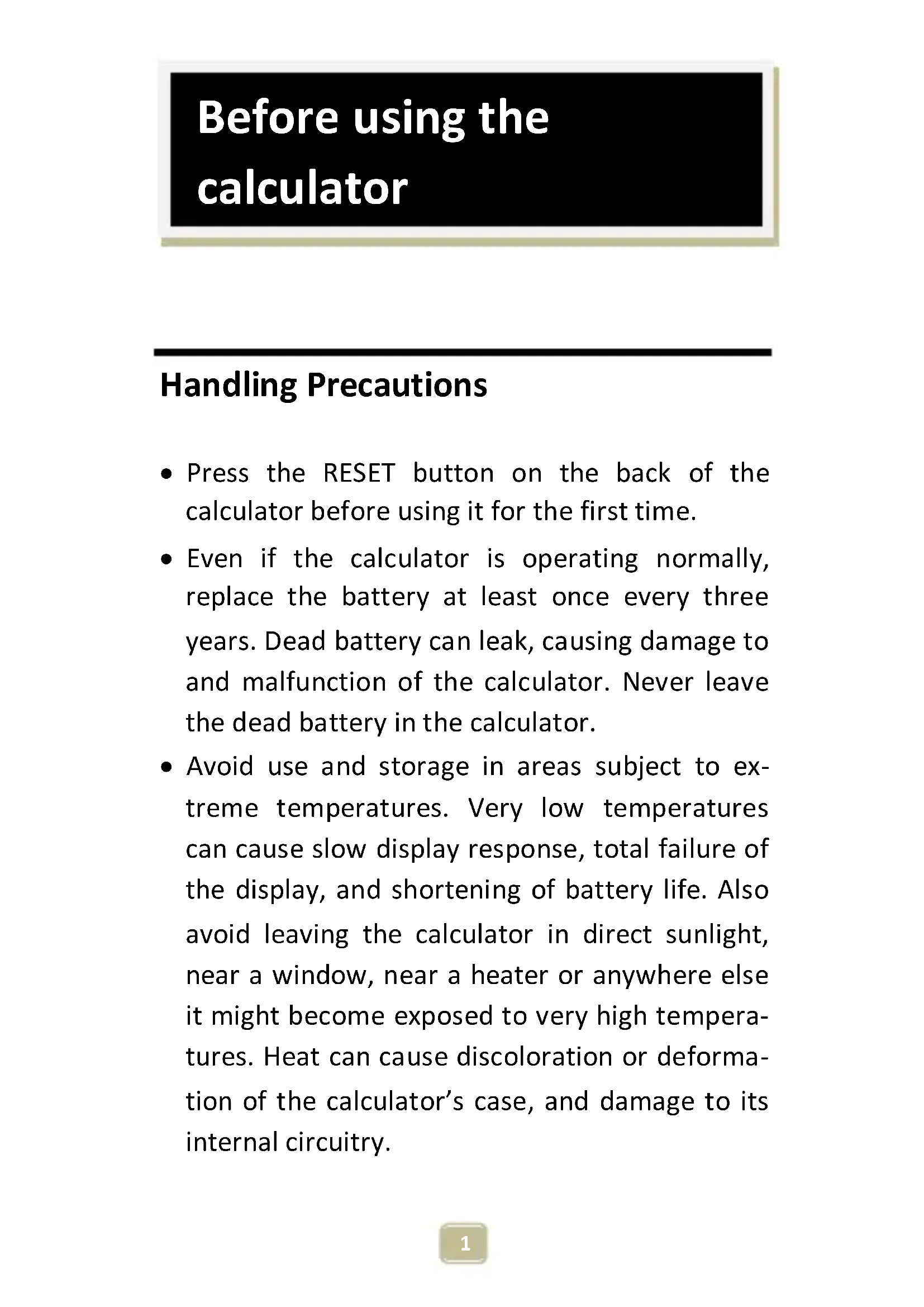
Before using the calculator
Handling Precautions
- Press the RESET button on the back of the calculator before using it for the first time.
- Even if the calculator is operating normally, replace the battery at least once every three years. Dead battery can leak, causing damage to and malfunction of the calculator. Never leave the dead battery in the calculator.
-
Avoid use and storage in areas subject to extreme temperatures. Very low temperatures can cause slow display response, total failure of the display, and shortening of battery life. Also avoid leaving the calculator in direct sunlight, near a window, near a heater or anywhere else it might become exposed to very high temperatures. Heat can cause discoloration or deformation of the calculator's case, and damage to its internal circuitry.
-
Avoid use and storage in areas subject to humidity or dust. Never to leave the calculator where it might be splashed by water or exposed to large humidity or dust. These adverse conditions may damage its internal circuitry.
- Avoid any strong impact on the calculator, e.g. prevent it from dropping onto the floor.
- Never twist or bend the calculator. Avoid carrying the calculator in the pocket of your trousers or other tight-fitting clothing where it might be subject to twisting or bending.
- Never try to disassemble the calculator.
- Avoid pressing the keys of the calculator with a ballpoint pen or other pointed object.
- Use a soft, dry cloth to clean the exterior of the unit. If the calculator becomes very dirty, wipe it off with a cloth moistened in a week solution of water and a mild neutral household detergent. Bring out all excess moisture before wiping the calculator. Never use thinner, benzine or other volatile agents to clean the calculator. Doing so may remove printed markings and damage the case.
Removing the Hard Case
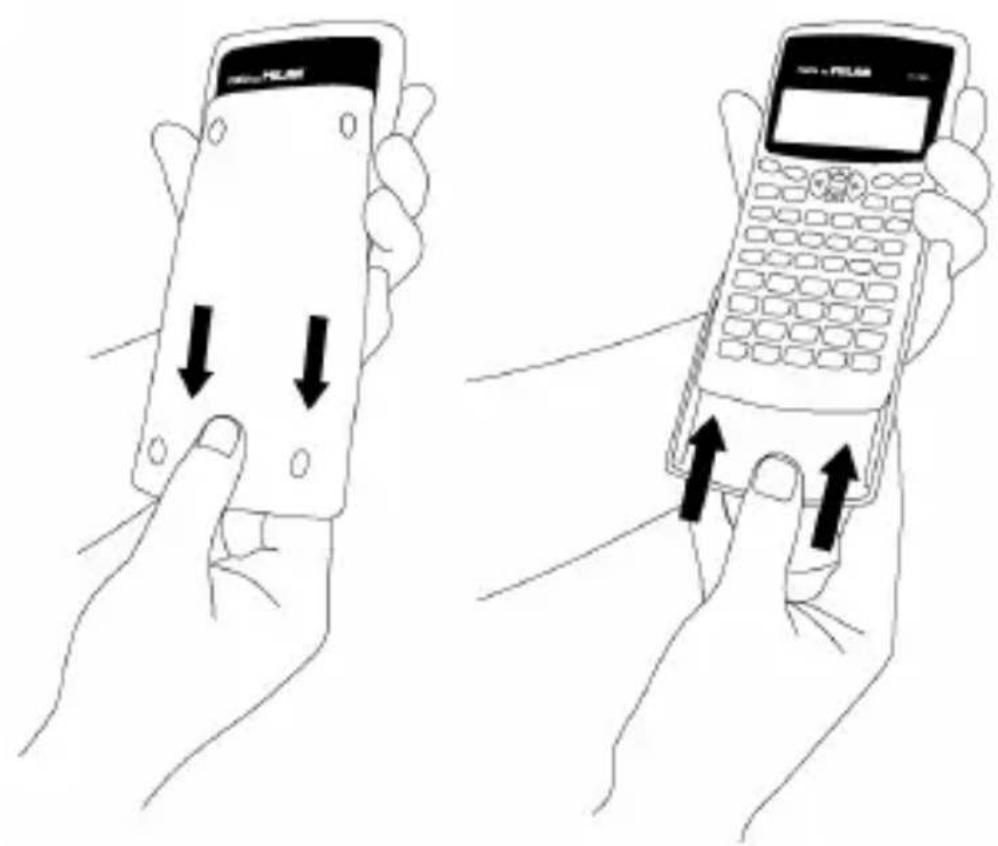
The hard case should be removed by sliding it downwards. It can then be affixed to the back of the calculator as shown below.
Turning the Calculator On and Off
To turn the calculator on, press ON.
To turn the calculator off, press SHIFT AC (OFF), that is, press and release the SHIFT key, and then press AC (which has OFF printed in orange above it). Since the calculator has Static Memory,
turning it off does not affect any information you have stored.
To save energy, the calculator turns itself off after 10 minutes of no use.
Power Supply
- This calculator is powered by two AAA batteries. Always make sure that the positive (+) and negative (-) terminals of the batteries are facing correctly when you load them into the calculator.
- Low battery power can cause any stored information to become corrupted or completely lost. Always keep written records of all important data.
- Never charge batteries, try to take batteries apart, or allow batteries to become shorted. Do not expose batteries to direct heat or dispose of them by incineration.
- Remove the batteries if you do not plan to use the calculator for a long time
How to replace the battery?
-
Press SHIFT AC (OFF) to switch the calculator off.
-
Remove the screw that holds the battery cover in place and then remove the battery cover.
-
Remove the old batteries.
-
Wipe off the sides of the new batteries with a dry, soft cloth.
-
Load them into the calculator.
-
Put the battery cover back in place and secure it in place with the screw.
-
Press ON to turn power on.
About the Keyboard
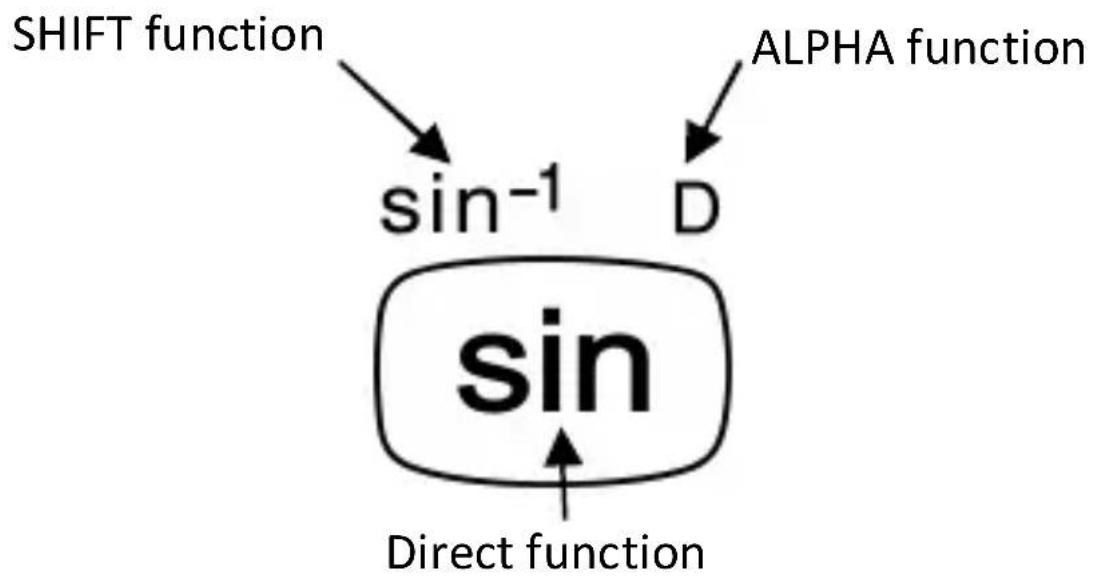
Each key may have up to three functions: one printed on its face, a shifted function (in orange), and an ALPHA function (in blue). Press the appropriate function key (SHIFT or ALPHA) before pressing the key for the desired function.
For instance, to use the ^-1 function, press and release the SHIFT key, then press sin. In this manual, this type of operations will be summarized as SHIFT sin (sin).
Acoustic feedback
Acoustic feedback of the keyboard can be switched on and off by alternatively pressing (SHIFT)
About the Display
This calculator has a two-line display. It allows viewing both the calculation formula and its result at the same time.
The first line can simultaneously display 12 characters. However, entries up to 79 characters can be entered for a single calculation. In this case, entries with more than 12 characters will scroll to the left. When an entry reaches the 73^rd character, the cursor will change from “_” to “■” to let you know that only 7 more characters can be entered.
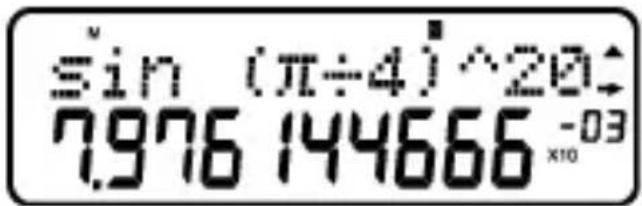
For numbers bigger or equal than 1,000 a separator symbol facilitates reading the result by placing the separator “,” among every set of three digits.
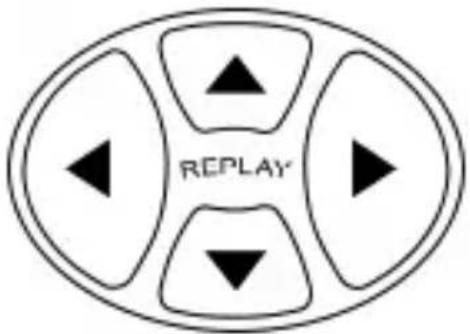
Cursor keys
The cursor keys allow you to move around on the screen.
Display Annunciators
The display may show different indicators, which illustrate the current state of the calculator.
| Annunciator | Description |
| S | The SHIFT key is active. At the moment you press a key the keypad will unshift, and the S |
| annunciator will disappear. | |
| A | The ALPHA key is active. At the moment you press a key the alpha mode will be exited, and the A annunciator will disappear. |
| M | The independent memory is storing a value. |
| STO | The calculator is waiting for the user to input a variable name. Then a value will be assigned to this variable. This annunciator appears after keying in SHIFT (RCL) (STO) |
| RCL | The calculator is waiting for the user to input a variable name to recall the variable's value. This annunciator appears after pressing RCL. |
| SD | The calculator is in the "statistical" mode. |
| D | The default angle unit is set to degrees. |
| R | The default angle unit is set to radians. |
| G | The default angle unit is set to grads. |
| FIX | A fixed number of decimal places has been set. |
| SCI | A fixed number of significant |
| digits has been set. | |
| ▲or▼ | Calculation history memory data is available. This allows browsing over previous formulas and replay them. |
| Disp | The display is showing an intermediate result in a multi-statement calculation. |
Calculator Setup
Calculator Modes
It is important to enter the correct mode before start a calculation. The table below details the available modes.
| Type of calculation | Key operations to switch to the correct mode | Selected mode |
| Basic arithmetic calculations | MODE 1 | COMP |
| Statistical calculations | MODE 2 | SD |
| Regression calculations | MODE 3 | REG |
Pressing the MODE key more than once sequentially displays additional setup screens.
In all the sections below, the main title of each section is preceded by the required mode to perform the described calculations.
Important note!
If you want to restore the initial default calculator mode, press SHIFT CLR 2 MODE
| Item | Default value |
| Calculation Mode | COMP |
| Angle units | Deg |
| Exponential Display Format | Norm 1 |
| Fraction Display Format | a b/c |
| Decimal Point Character | Dot |
Making Corrections during Input
One of the first things you need to know is how to correct numbers and delete or insert characters.
| Key | Description |
| and | Move the cursor to the desired location |
| IDEL | Erase the character immediately to the left of "_". If the cursor is placed at on top of a character, it deletes the number or function at the current cursor position. |
| SHIFT IDEL (INS) | The first time it is pressed, it changes to an insert cursor. Inputting something when the insert cursor is on the display insert the input at the insert cursor position. Pressing SHIFT IDEL (INS) or = when the insert cursor is "on" returns the cursor to its default behavior. |
Replay a Calculation
When you press a calculation is performed, and the calculation formula is stored in the replay memory. You may know that there is something in the replay memory because the annunciator appears in the LCD. When you key in , the previous formula and result is displayed. Pressing again back steps sequentially from the newest to the oldest calculations.
If you are viewing a replay memory calculation, pressing l or l makes the display change into editing mode. On the other hand, if you press
the or key immediately after you finish a calculation, the editing screen for that calculation is displayed.
Multi-statements
A multi-statement is an expression that is made up of two or more smaller expressions, which are joined using a colon (:).
Example: Multiply 3 × 3 and then use the result as exponent of 2^A n s .
3 X ( ) SHIFT x^2 : X' Ans
The following screen illustrates this example:
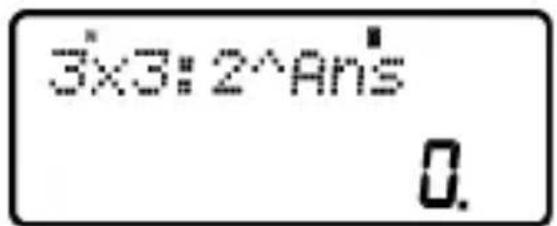
Next, you should press = , and the screen changes to:
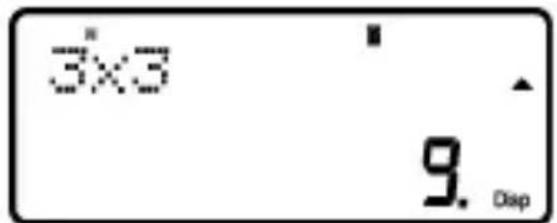
Note that this shows the first statement, and the annunciator Disp appears in the screen to indicate that this is just an intermediate result. Pressing we can view the second statement and the final result:
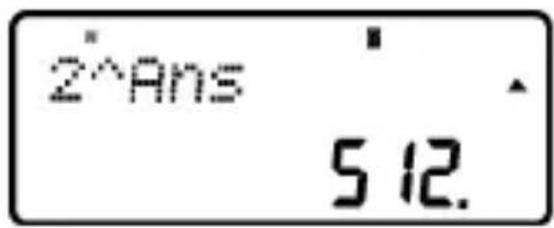
Basic Calculations
In order to perform basic calculations press the MODE key, and then press 1 to set the calculator into the COMP mode:
COMP MODE 1
Arithmetic Calculations
Precedence Order of the Operations
The following order of precedence applies to all calculations:
- Coordinate transformation: from polar to rectangular or vice versa (P*R or R-P).
- Type A functions. These are all functions in which the user first enters a value, and then the function key is pressed. E.g.: ! , ^3 , ^4 , ^-1 , 0, , etc. Angle unit conversions (QRG)
- Powers: ^2 , ^3 , ^7 .
-
_%
-
Abbreviated multiplication format in front of , ^x , , memory name, or variable name: 4, 2e, 2A, B , etc.
- Type B functions. With these functions, the user first enters a function key and then the value is entered. E.g.: In, log, √, √, e, 10, sin cos tan sin tan sinh cosh tanh sinh cosh tanh (-)
- Abbreviated multiplication format in front of Type B functions, e.g. A 2 , etc.
- Permutations and combinations: , .
- × ÷
-
- -
All operations are performed from left to right. However, if you concatenate operations of the same precedence, they will be carried out from right to left. E.g.:
$$ \left.\begin{array}{l}\log\\sin\end{array}\right] \theta \rightarrow \log \left(\sin (\sqrt {\theta})\right) $$
When to use parentheses?
Any operations enclosed in parentheses are performed first.
Example:
$$ \begin{array}{l} 5 \times 3 + 4 = 1 9 \ 5 \times (3 + 4) = 3 5 \ \end{array} $$
All operations before can be neglected, since the calculator understands that the user aimed to close all pending parentheses before computing the result.
Negative numbers within a calculation must be enclosed within parentheses. The negative sign () is treated as a Type B function, so when the calculation includes a high-priority Type A function (or power or root operations), parentheses are required to ensure a correct result.
Example:
$$ \begin{array}{l} (- 2) ^ {2} = 4 \ - 2 ^ {2} = - 4 \ \end{array} $$
Remember: Any negative numbers within an expression should be enclosed within parentheses.
However, it is not necessary to enclose negative exponents within parentheses. E.g.:
$$ 4. 5 5 \times 1 0 ^ {- 3} \rightarrow 4. 5 5 \boxed {\times} \boxed {\exp} \boxed {(-)} = $$
Percentage Operations
Percentage means "parts per hundred". It can also be expressed as a fraction with a denominator of 100. Thus, a 10 percent solution may be expressed as 10% , 10/100, 0.10, or 10 parts per 100 parts.
Example 1:
To calculate 10% or 1200
1200 X 10 SHIFT (%)
Result: 120
Example 2:
To increase 1200 by 10%
1200 X 10 SHIFT (%) +
Result: 1320
Example 3:
To find out what percentage of 1200 is 120
120 1200 (%)
Result: 10%
Example 4:
To reduce 1200 by 20%
Fraction Calculations
Decimal / Fraction Conversion
This calculator can work directly with fractions. Fractions can be classified according to 3 groups:
- Proper Fractions: The numerator is smaller than the denominator
E.g. 13, 37 , etc.
- Improper Fractions: The numerator is greater than (or equal to) the denominator
E.g. 43, 137 , etc.
- Mixed Fractions: A combination of an integer number and a proper fraction to express the decimal part.
This calculator allows using any of these 3 types of fractions. To input an improper or proper fraction, you should key in the numerator, then press % , and next enter the denominator. The symbol is displayed in the screen to separate one number from another (e.g. numerator from denominator).
As stated above, mixed fractions are formed by an integer number and a fraction combined into one "mixed" number. Again, to enter a mixed fraction you should first key in the integer number, then press _% , enter the numerator, press _% again, and next enter the denominator.
Operating with Fractions
Example 1: calculations with proper fractions
$$ \frac {1}{3} + \frac {2}{5} = \frac {1 1}{1 5} $$
1 3
+
2 5
=
Result: 11 15
This fraction can be converted into a decimal number by pressing % .
Example 2: conversions decimal / fraction
$$ \frac {3}{4} = 0. 7 5 $$
3

Result: 3 4
Example 3: calculations with mixed fractions
$$ 2 \frac {1}{3} + 1 \frac {1}{2} = 3 \frac {5}{6} $$
2a 1 a3 + 1 a1 1 a2
Result: 3 5 6
Example 4: simplifying a fraction
$$ \frac {2}{4} = \frac {1}{2} $$
2 4
Result: 1 2
Operations involving fractions and decimal values result always in a decimal number.
Example 5: a / c
$$ \frac {3}{4} + 1. 5 = 2. 2 5 $$
3 4 + 1.5 =
Result: 2.25
It should be noted that when the total number of digits of a fractional value (i.e. integer + numerator + denominator + separator marks) exceeds 10 characters, the values are automatically displayed in decimal format.
Improper Fraction / Mixed Fraction Conversion
The same amount can be represented either with an improper fraction or a mixed fraction. This
conversion can be carried out simply pressing _% and
Example 1:
$$ 1 \frac {3}{4} = \frac {7}{4} $$
1 3%4 a%
Result: 1 3 4
SH 1 a d/c
Result: 7 4
SHIFT 4 d/c
Result: 1 3 4
Sexagesimal calculations
This calculator can carry out sexagesimal calculations using degrees (or hours), minutes, and seconds, converting between sexagesimal and decimal values.
Example 1: convert the decimal value 3.24 to a sexagesimal value and then back to a decimal value.
3.24
Result: 3.24
Result: 3^ 14^ 24
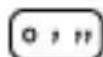
Result: 3.24
We can carry out arithmetic operations that involve sexagesimal numbers.
Example 2:
$$ 3 ^ {\circ} 2 8 ^ {\prime} 5 4 ^ {\prime \prime} \times 2. 2 = 7 ^ {\circ} 3 9 ^ {\prime} 3 4. 8 ^ {\prime \prime} $$

Result: 7^ 39^ 34.8
FIX,SCI,RND
Some of the settings of the calculator can be changed at any time, depending on the user preferences. Thus, you can adjust the number of decimal positions, the number of significant digits, or the exponential display format. These settings are adjusted by pressing the MODE key a number of times until you reach the following setup screen:
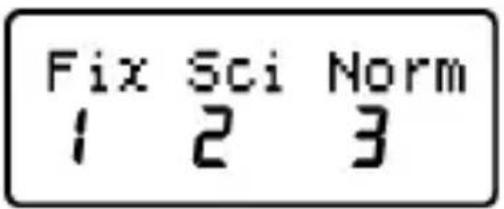
Once in this screen, press number 1, 2 or 3 to adjust the desired setting:
| Item | Description |
| 1 (Fix) | Number of decimal places |
| 2 (Sci) | Number of significant digits |
| 3 (Norm) | Exponential display format |
Memory Calculations
In order to perform basic calculations press the MODE key, and then press 1 to set the calculator into the COMP mode:
COMP MODE 1
Answer Memory
Every time the calculator computes the result of an expression, the result is automatically stored in the Answer Memory.
Therefore, the Answer Memory is updated whenever the user presses any of the following keys:
| Function | Keys |
| Carry out current operation | = |
| Add to memory | M+ |
| Subtract from memory | M- |
| Percentage calculation | SHIFT = (i.e. %) |
| Store in memory | SHIFT STO followed by a variable name (A through F, X, Y or M) |
You can recall Answer Memory contents by pressing Ans. The contents of Answer Memory do not change if the operation performed by any of the above key operations results in an error.
Answer Memory can store up to 12 digits for the mantissa and 2 digits for the exponent.
Independent Memory
Variable M is used as independent memory. Thus, you can input a value directly into memory with SHIFT RCL (STO), add it to memory pressing + or subtract it from memory with SHIFT + (M-). Independent memory is convenient for calculating cumulative totals.
To clear independent memory M, press 0 SHIFT RCL (STM) M+
Example:
| 15×3=45 | 15 | X) | SHIFT | RCL | STO | M+ | |
| (+) | 48 -6 =42 | 48 | M+ | ||||
| (-) | 82+8=90 | 82 | +(-) | SHIFT | M+ | M- | |
| (total) | -3 | RCL | M+ |
Registers
The calculator has nine general purpose registers that can be accessed as program variables (A through F, M, X and Y). These registers can be used to store data, constants, results, etc.
Data stored in a particular register (e.g. A) can be deleted by pressing 0 SHIFT RCL(STO) (-) ()A
All the registers can be cleared at once by keying in SHIFT MODE (CLR) 1 (Mcl) =
Example:
$$ 2 4. 3 \times 4 = 9 7. 2 $$
$$ \frac {2 4 . 3}{5} = 4. 8 6 $$
24.3 SHIFT( )RCL4 STO (-) A X =
Result: 97.2

Result: 4.86
Scientific Function
Calculations
In order to perform scientific function calcula-
tions press the MODE key, and then press 1
to set the calculator into the COMP mode:
COMP MODE 1
When using scientific functions, certain types of calculations may require some time to be completed. Before starting the next calculation, wait for the result of the previous formula to appear on the display.
The following constants will be used below:
$$ \pi \approx 3. 1 4 1 5 9 2 6 5 \dots $$
$$ e \approx 2. 7 1 8 2 8 1 8 3 \dots $$
Trigonometric / Inverse Trigonometric Functions
This calculator can operate with trigonometric functions using either degrees, radians or grads.
$$ \left(9 0 = \frac {\pi}{2} \text {r a d i a n s} = 1 0 0 \text {g r a d s}\right) $$
You can set the default angle unit (degrees, radians or grads), by pressing the MODE key twice until you reach the following angle unit setup screen:
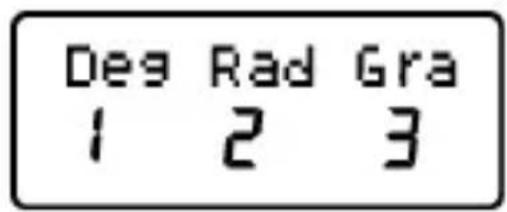
Press the number key (1, 2, 3) that corresponds to the angle units you want to use.
Example 1:
$$ \cos (2 3 ^ {\circ} 3 5 ^ {\prime} 2") = 0. 9 1 6 4 7 5 2 6 8 $$

Result: 0.916475268
Example 2:
$$ \sin^ {- 1} \left(\frac {\sqrt {2}}{2}\right) = 0. 7 8 5 3 9 8 1 6 3 $$

Result: 0.785398163
Example 3:
$$ \sin^ {- 1} \left(\frac {\sqrt {2}}{2}\right) = 0. 2 5 \pi (\text {r a d}) $$

Result: 0.25
Example 4: 2 = 6.283185307
Hyperbolic / Inverse Hyperbolic Functions
The hyperbolic functions are analogs of the ordinary trigonometric functions: Just as the points ( , ) define a circle, the points ( , ) define the right half of a rectangular hyperbola.
Example 1:
$$ \sinh (1. 5) = 2. 1 2 9 2 7 9 4 5 5 $$

Result: 2.129279455
Example 2:
$$ \sinh^ {- 1} 1 0. 0 2 = 3. 0 0 0 2 1 1 0 5 7 $$

Result: 3.000211057
Logarithms
This calculator allows dealing with logarithms in an easy way. The base-10 logarithm of a given number is the power or exponent to which the
base must be raised in order to produce the given number.
Example 1: 1000 = 3

Result: 3
Another widely used base for logarithms (beyond 10) is the mathematical constant e ≈ 2.7183 . This type of logarithm is known as natural logarithm (ln), and can be easily used as illustrated below in the example.
Example 2:
In e = 1

Result: 1
Roots and Exponents
The keyboard arrangement of this calculator disposes roots and exponents in a single row for their easy localization. Using them is quite intuitive:
Example 1:
$$ \sqrt [ 3 ]{1 2 5} + \sqrt [ 3 ]{- 6 4} = 1 $$
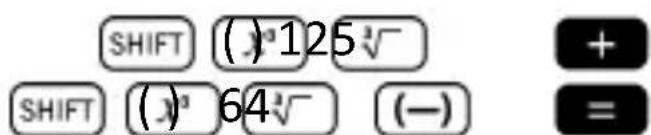
Result: 1
Example 2:
$$ 3 ^ {4} + 2 ^ {7} - 4 ^ {3} = 1 4 5 $$
3x4+2x7-4x=
Result: 145
Permutations and Combinations
Example 1: Determine how many different 4-digit values can be produced using the numbers 1 through 5, taking into account that numbers cannot be duplicated within the same 4-digit value (i.e. 1234 is allowed, but 1123 is not).
5 SH(F)4 X nPr
Result: 120
Example 2: Determine how many different 3-member groups can be organized in a group of 8 individuals.
8 SHF)3 nCr
Result: 56
Random Numbers
Example: Generate a random number between 0.000 and 0.999.
SHIFT Ran#
Result (this result differs each time): 0.513
Factorials
Example: Compute the factorial of 10.
10

Result: 3628800
Angle Unit Conversion
To access the angle unit conversion menu, press SHIFT (A)S DRG
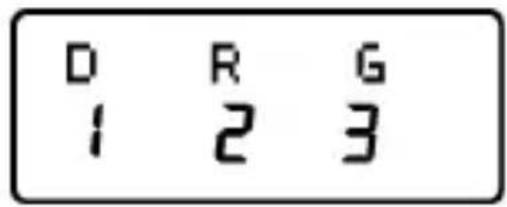
Pressing the number key 1, 2 or 3 converts the displayed value to the corresponding angle unit.
Example 1: Convert 2.25 radians to degrees.
First of all, we should set the calculator in Deg. mode (which corresponds to the final units we want to obtain):
(Deg. mode)
Next, we introduce the value (2.25) followed by the specification of the units in which the number is expressed (radians).
2.25


Result: 128.9155039
Example 2: Convert 45 degrees to radians.


(to set Rad. mode)
And if you want to convert this into a factor:

Result: 0.25
Example 3: Convert 2 radians to degrees.

Result: 90
Conversion Polar / Rectangular coordinates
Coordinates can be expressed in many different spaces. This calculator allows mutual conversion between Rectangular (also known as Cartesian) and Polar coordinates.
Calculation results are automatically assigned to registers E and F. These registers are accessible by pressing RCL COS (E) and RCL tan (F), respectively.
Example 1: Convert polar coordinates r = 2a and = 40^ into rectangular coordinates (x, y) .

Result: 2.221528885
This result corresponds to the x coordinate, and has been stored in register E. To recall the value of coordinate y , press:

Result: 1.864084068
If you want to see again the x coordinate, you must recall register E by pressing RCL cos ()E
Example 2: Convert rectangular coordinates (2, 2) into polar coordinates (r, ) .

Result: 2.449489743

Result: 35.26438968
Engineering Notation
When we have to express very big or very small numbers, it is useful to use scientific notation, that is, instead of typing all the zeros, the number is expressed as a coefficient multiplied by a power of ten:
$$ 2 3 0 0 0 0 0 0 0 = 2. 3 \times 1 0 ^ {8} $$
Normally, the coefficient can be any real number (2.3 in the previous example), and the exponent is an integer (8).
The only difference between engineering notation and scientific notation is that in engineering
notation the exponent is restricted to multiples of 3. Therefore, the previous number would be expressed as:
$$ 2 3 0 0 0 0 0 0 = 2 3 0 \times 1 0 ^ {6} $$
Using only the exponents that are multiples of 3 allows to memorize a number of prefixes associated to every exponent:
| Magnitude prefix | Metric Symbol | Power of Ten |
| tera T | 1012 | |
| giga G | 109 | |
| mega M | 106 | |
| kilo k | 103 | |
| unit | - | 100 |
| milli m | 10-3 | |
| micro | μ | 10-6 |
| nano n | 10-9 | |
| pico p | 10-12 | |
| femto f | 10-15 |
Example 1: Convert 0.00238 meters into millimeters.
0.00238
Result: 2.38 × 10^-3
To go back to the magnitude in meters:
Example 2: Convert 12320 meters into kilometers.
12320
ENG
Result: 12.32 × 0^3
Statistical Calculations
Data Input Considerations
- In the two statistical modes (SD and REG), the + key operates as data input ( ).
- Make sure you clear statistical memory by means of SHIFT MODE (CLR) 1 before starting any data input.
- To input data you should follow the key sequence:
[...]
<M+DT
- Be careful! If you press + + , this will input the same data twice.
- Multiple entries of the same data can also be introduced by means of , (;) .
Example: Input the data 25 ten times:
25 SHIFT10( ; M+ DT
- The existing data can be viewed by means of the cursor keys:
- To delete a data value, you should look for it using the cursor keys and then key in SHIFT + M+ (LCLJ). Deleting a data value causes all following values to be shifted up.
- When scrolling through data, the calculator shows both the data item and a separate screen for the data frequency (Freq) in the case you introduced multiple entries of the same data using SHIFT to specify the number items of the same data values.
It is possible to replace a data value while scrolling through data by entering the new value, and then pressing the key to replace the old value with the new one. This also means that if you want to carry out some other operation (e.g. execute a statistical calculation, etc.), you should always press the AC key first to exit data display.
- After changing a value on the display, if you press + (DT) instead of the key, the value you input is registered as a new data item, and the old value is leaved as it was.
Memory Limit
All data values are stored in the calculator memory. If there is no memory left for data storage, the calculator will show the screen:
Data Full
If this happens, you will not be able to input any more data. In this case, press the key, to display the following screen:
EditOFF ESC 1 2
Press 1 if you want to register the value you just input, without saving it in memory. If you do this, however, you will not be able to display or edit any of the data you have input. On the contrary, press 2 to exit data input without storing the value you just input.
Standard Deviation mode
To perform statistical calculations using standard deviation press the MODE key, and then press 2 to set the calculator into the SD mode: SD MODE 2
The MILAN M-240 calculator allows you to perform statistical calculations on raw data.
Once data is stored in memory, several operations can be carried out in SD mode. These operations are reached through two menus (S-SUM and S-VAR):
SHIFT 1 (SUM)
- 1 sum of squares of values
- 2 sum of values
number of samples
SHIFT 2 VAR
- 1 = mean
- 2 population standard deviation
- 3 = sample standard deviation
Once you reach any of these two menus, you should press the number key (1, 2, 3) that corresponds to the function you want to compute, followed by the key .
| Statistical Calculus | ||
| key | operation | formula |
| 1 | sum of squares of values | ∑x2i |
| 2 | sum of values | ∑xi |
| 3 | number of samples | n |
| 1 | mean | X̅ = 1/n ∑i=1n xi |
| 2 | standard deviation | σn = √1/n ∑i=1n (xi - x̅)2 |
| 3 | sample standard deviation | σn-1 = √1/n - 1 ∑i=1n (xi - x̅)2 |
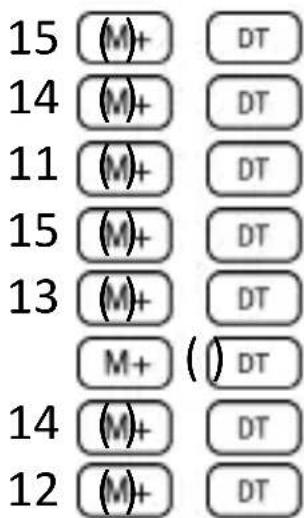
Example: Consider the following data that corresponds to the readings of different temperature sensors covering an area to be monitored: 15, 14, 11, 15, 13, 13, 14, 12.
Calculate _n,_n - 1,,n, x and x^2
You should first set the SD Mode pressing MODE 2, and then clear statistical memory by means of SHIFT MODE (CLR) 1. Then, data can be already input following the key sequence:
Population standard deviation:

Result: 1.316956719
Sample standard deviation:

Result: 1.407885953
Arithmetic mean:

Result: 13.375
Number of data:

Result: 8
Sum of values:

Result: 107
Sum of squared of values:

Result: 1445
Regression Calculations
In order to enter in the REG mode to carry out statistical operations using regression, press the MODE key and then press 3:
REG MODE 3
Different types of regression can be selected in the menus that appear after entering the REG mode:
| key | operation | |
| 1 | Lin | Linear regression |
| 2 | Log | Logarithmic regression |
| 3 | Exp | Exponential regression |
| 1 | Pwr | Power regression |
| 2 | Inv | Inverse regression |
| 3 | Quad | Quadratic regression |
Always press SHIFT MODE (CLR) 1 = before starting any data input.
To input data you should follow the key sequence:
<x-data_1> <y-data_1> M+ (DT)
<x-data_2> <y-data_2> M+ (DT)
<x-data_3> <y-data_3> M+ (DT)
[...]
<x-data_n> <y-data_n> M+ (DT)
Be careful! If you press + + , this will input the same data twice.
Use the following key operations to carry out the desired regression calculation:
| Key operation | Calculation |
| SHIFT 1 (SUM) 1 | Σx2 |
| SHIFT 1 (S-SUM) 2 | Σx |
| SHIFT 1 (S-SUM) 3 | n |
| SHIFT 1 (S-SUM) ▶ 1 | Σy² |
| SHIFT 1 (S-SUM) ▶ 2 | Σy |
| SHIFT 1 (S-SUM) ▶ 3 | Σxy |
| SHIFT 2 (S-VAR) 1 | X̄ |
| SHIFT 2 (S-VAR) 2 | Xσn |
| SHIFT 2 (S-VAR) 3 | Xσn-1 |
| SHIFT 2 (S-VAR) ▶ 1 | Y |
| SHIFT 2 (S-VAR) ▶ 2 | yσn |
| SHIFT 2 (S-VAR) ▶ 3 | yσn-1 |
| SHIFT 2 (S-VAR) ▶ 1 | Regression coefficient A |
| SHIFT 2 (S-VAR) ▶ 2 | Regression coefficient B |
For statistical regressions other than quadratic regression:
| Key operation | Calculation |
| SHIFT 2 (S-VAR 3 | Correlation coefficient r |
| SHIFT 2 (S-VAR 1 | X |
| SHIFT 2 (S-VAR 2 | Y |
In the case of quadratic regression, use the key operations of the table below:
| Key operation | Calculation |
| SHIFT 1 (S-SUM) | Σx3 |
| SHIFT 1 (S-SUM) | Σx2y |
| SHIFT 1 (S-SUM) | Σx4 |
| SHIFT 2 (S-VAR) | Regression coefficient C |
| SHIFT 2 (S-VAR) | X1 |
| SHIFT 2 (S-VAR) | X2 |
| SHIFT 2 (S-VAR) | Y |
Linear Regression
The regression formula for linear regression is: y = A + B
Example: Consider the following table with the annual average temperature and latitude of some European capitals.
| City | Temperature (° Celsius) | Latitude (°) |
| Amsterdam | 13 | 54 |
| Athens | 24 | 37 |
| Bonn | 13 | 52 |
| Brussels | 14 | 52 |
| Copenhagen | 11 | 54 |
| Dublin | 13 | 53 |
| Lisbon | 19 | 39 |
| London | 14 | 53 |
| Luxemburg | 14 | 50 |
| Madrid | 19 | 40 |
| Paris | 15 | 49 |
| Rome | 22 | 42 |
Determine the equation of the regression line of the average temperature (x) with respect to the latitude (y) , and the correlation coefficient for both variables. Next, use the regression formula to estimate the expected average temperature for a city located at latitude 44^ North.
First of all, we should enter the data:
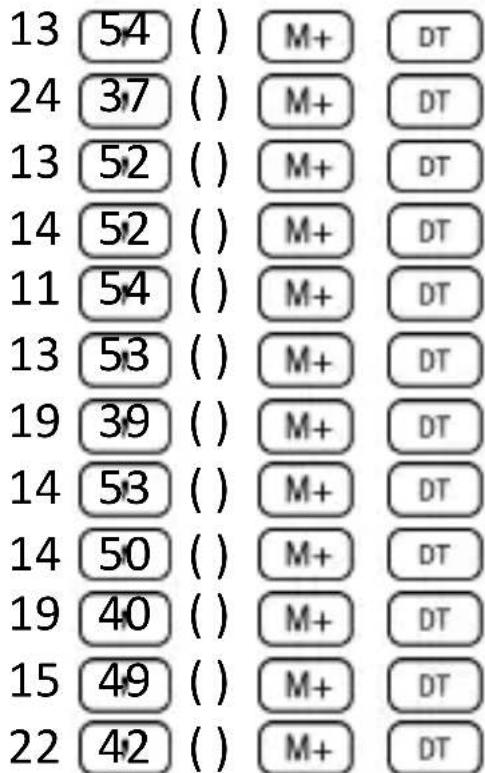
Now, we can already compute the Regression Coefficient A (as described in the table above):

Result: 71.67927107
Regression Coefficient B:

Correlation coefficient r :

Result: -0.940496859
Expected average temperature for a city at latitude 44^ North:

Result: 18.54012817
Logarithmic, Exponential, Power, Inverse and Quadratic Regression
The table below shows the regression formulas for each type of regression.
| Logarithmic Regression | y = A + B · ln x |
| Exponential Regression | y = A · eB·x |
| Power Regression | y = A · xB |
| Inverse Regression | y = A + B · 1/x |
| Quadratic Regression | y = A + B · x + C · x2 |
All the types of regression described in the previous table can be recalled using the same key operations as those of linear regression.
Warning:
After introducing statistical data in the calculator's memory under the SD or REG modes, it is not allowed to display or edit individual data items any longer. Therefore, to display individual data items, you should either (1) change to another mode; or (2) change the regression type (Lin, Log, Exp, Pwr, Inv, Quad).
Handling Errors
When you have a problem…
If calculation results are incorrect or if an error occurs, carry out the following steps:
- Press SHIFT MODE(CLRR) 2 (Mode), to initialize all modes and settings.
- Check the formula you are working with to confirm it is correct.
- Check if you have entered the correct mode and try performing the calculation again.
If the above steps do not correct the problem, press the key ON, which makes the calculator perform a self-check operation and delete all data stored in memory if any abnormality is detected.
Error Messages
The calculator is locked up while an error message is on the display. Press AC to clear the error, or press 4 or to display the calculation and correct the problem.
Math ERROR
Causes:
- The result of a formula is outside the allowable calculation range.
- Attempt to perform a function calculation using a value that exceeds the allowable input range.
- Attempt to perform an illogical operation (e.g. division by zero, etc.)
Action:
- Check your input values and make sure they are all within the allowable ranges. Pay special attention to values stored in the registers A through F, X, Y or M.
Stack ERROR
Cause:
- The capacity of any of the two memory stacks has been exceeded.
Action:
- Simplify the calculation. The numeric stack has 10 levels and the operator stack has 24 levels.
- Divide your calculation into two or more separate parts.
Syntax ERROR
Cause:
- Attempt to perform an illegal mathematical operation.
Action:
- Press + or > to display the calculation with the cursor located at the location of the error and make the required corrections.
Arg ERROR
Cause:
- Improper use of an argument.
Action:
- Press < or to display the location of the cause of the error and make sure you use the arguments as required.
MILAN
Engineered in Spain
M 240
Multi-instructions 13
Calculusbasiques 15
Calculs arithmetiques 15
1200 X 20 SHIFT = (%) -
Résultat : 960
MODE MODE 1 (mode Deg.)
MODE MODE 1 (mode Deg.)
$$ 2 3 0 0 0 0 0 0 = 2, 3 \times 1 0 ^ {8} $$
$$ 2 3 0 0 0 0 0 0 = 2 \quad 3 0 1 0 ^ {6} $$
| Touches | Calcul |
| SHIFT 2 (S-VAR 3 | Coefficient corrélation r |
| SHIFT 2 (S-VAR 1 | X |
| SHIFT 2 (S-VAR 2 | Y |
Multi-instructions 12
Calculus basics 13
Calculus Arimntics 13
Polars/Rectangulars 30
$$ 2 4, 3 \times 4 = 9 7, 2 $$
$$ \frac {2 4 , 3}{5} = 4, 8 6 $$
24.3 SHIT(ROC4 STO (-) A X
Resultat: 97.2
MODE MODE 1 (mode Deg.)
$$ 2 3 0 0 0 0 0 0 = 2, 3 \times 1 0 ^ {8} $$
$$ 2 3 0 0 0 0 0 0 = 2 3 0 \times 1 0 ^ {6} $$
$$ 1200 \times 20 \text {SHIFT} = (\%) - $$
Wynik: 960
$$ 2 4, 3 \times 4 = 9 7, 2 $$
$$ \frac {2 4 , 3}{5} = 4, 8 6 $$
24.3 SHIFT RCL (STO) (-) A) X 4 =
Wynik: 97.2
ALPHA A5
Wynik: 4.86
$$ 2 3 0 0 0 0 0 0 = 2, 3 \times 1 0 ^ {8} $$
$$ 2 3 0 0 0 0 0 0 = 2 3 0 \times 1 0 ^ {6} $$