
ZOOM IN Multi Wireless Charger Tray EPPA710 - Cellphone SAMSUNG - Free user manual and instructions
Find the device manual for free ZOOM IN Multi Wireless Charger Tray EPPA710 SAMSUNG in PDF.
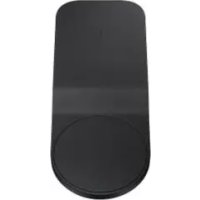
 FR
FR
 BG
BG
 CS
CS
 DA
DA
 DE
DE
 EL
EL
 EN
EN
 ES
ES
 ET
ET
 FI
FI
 HU
HU
 IT
IT
 KK
KK
 KO
KO
 LT
LT
 LV
LV
 NL
NL
 NO
NO
 PL
PL
 PT
PT
 RO
RO
 RU
RU
 SK
SK
 SL
SL
 SV
SV
 TR
TR
 UK
UK
 ZH
ZH
| Product type | Wireless charging station |
| Brand | Samsung |
| Model | ZOOM IN Multi Wireless Charger Tray EPPA710 |
| Dimensions (approx.) | 150 x 80 x 20 mm |
| Weight (approx.) | 200 g |
| Power input | 12 V / 2.1 A (Samsung approved charger) |
| Wireless output | Up to 15 W (fast charging compatible) |
| Wired output | Up to 15 W (via built-in USB port) |
| Number of charging surfaces | 2 (left and right) |
| Built-in fan | Yes, for cooling during fast charging |
| LED indicator | Multi-color LED (blue, green, cyan) indicating charging status |
| Main features | Simultaneous wireless charging of two devices, wired charging via USB port, foreign object detection, overheat protection |
| Compatibility | WPC (Wireless Power Consortium) certified devices, Samsung wireless charging cases (optional) |
| Box contents | Wireless charging station, power adapter, quick start guide |
| Optional accessories | Wireless charging cases (sold separately) |
| Care and cleaning | Wipe with a dry cloth; do not use abrasive products |
| Safety | Do not place metal or magnetic objects; use only a Samsung 12 V/2.1 A charger; do not block the vents |
| Spare parts and repairability | Not user-repairable; no replaceable parts available |
| General information | Designed for use with Samsung and other Qi-certified devices; fast wireless charging activates the fan |
Frequently Asked Questions - ZOOM IN Multi Wireless Charger Tray EPPA710 SAMSUNG
User questions about ZOOM IN Multi Wireless Charger Tray EPPA710 SAMSUNG
0 question about this device. Answer the ones you know or ask your own.
Ask a new question about this device
Download the instructions for your Cellphone in PDF format for free! Find your manual ZOOM IN Multi Wireless Charger Tray EPPA710 - SAMSUNG and take your electronic device back in hand. On this page are published all the documents necessary for the use of your device. ZOOM IN Multi Wireless Charger Tray EPPA710 by SAMSUNG.
USER MANUAL ZOOM IN Multi Wireless Charger Tray EPPA710 SAMSUNG
Serbian English (USA)
Portuguese Spanish (Castellano)
Latvian Simplified Chinese
Please read this manual before using the device to ensure safe and proper use.
- Images may differ in appearance from the actual product. Content is subject to change without prior notice.
- Before using the wireless charger, make sure it is compatible with your device.
Instructional icons

Warning: situations that could cause injury to yourself or others

Caution: situations that could cause damage to your device or other equipment

Notice: notes, usage tips, or additional information
Getting started
Package contents
Check the product box for the following items:
- Wireless charger
- Charger
- Quick start guide

- Wireless charging covers are sold separately.
- The items supplied with the device and any available accessories may vary depending on the region or service provider.
- The supplied items are designed only for this device and may not be compatible with other devices.
- Appearances and specifications are subject to change without prior notice.
- You can purchase additional accessories from your local Samsung retailer. Make sure they are compatible with the device before purchase.
- Use only Samsung-approved accessories. Using unapproved accessories may cause performance problems and malfunctions that are not covered by the warranty.
- Availability of all accessories is subject to change depending entirely on manufacturing companies. For more information about available accessories, refer to the Samsung website.
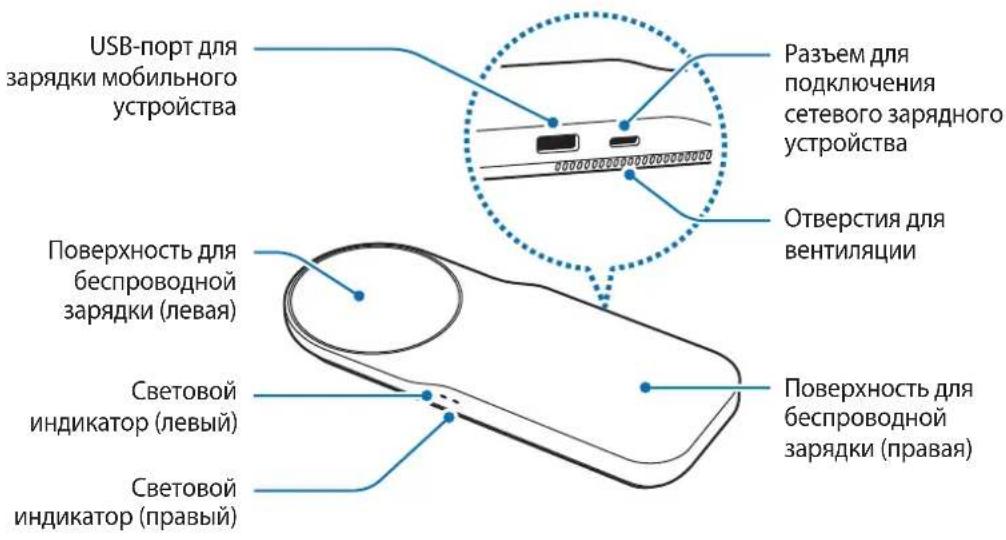
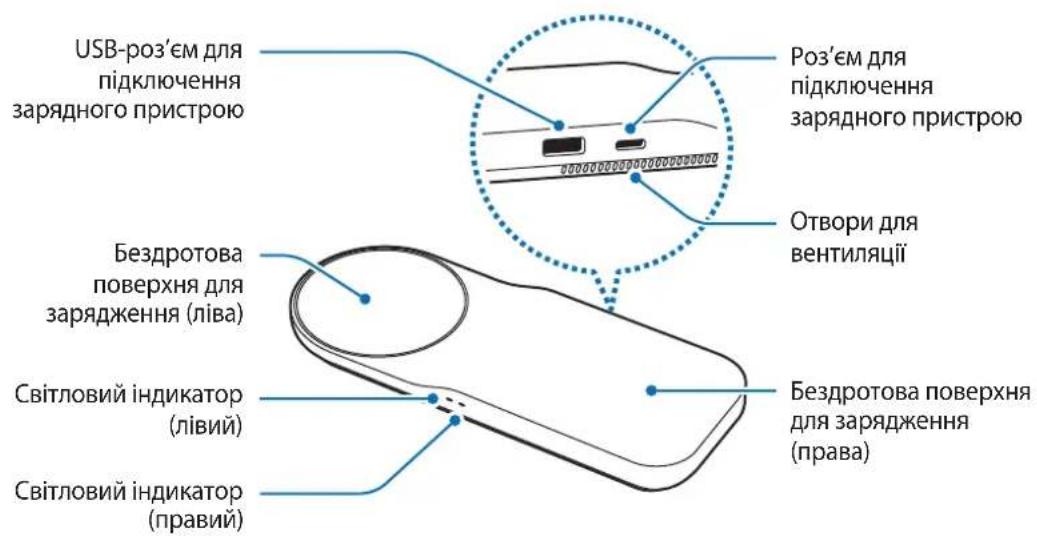
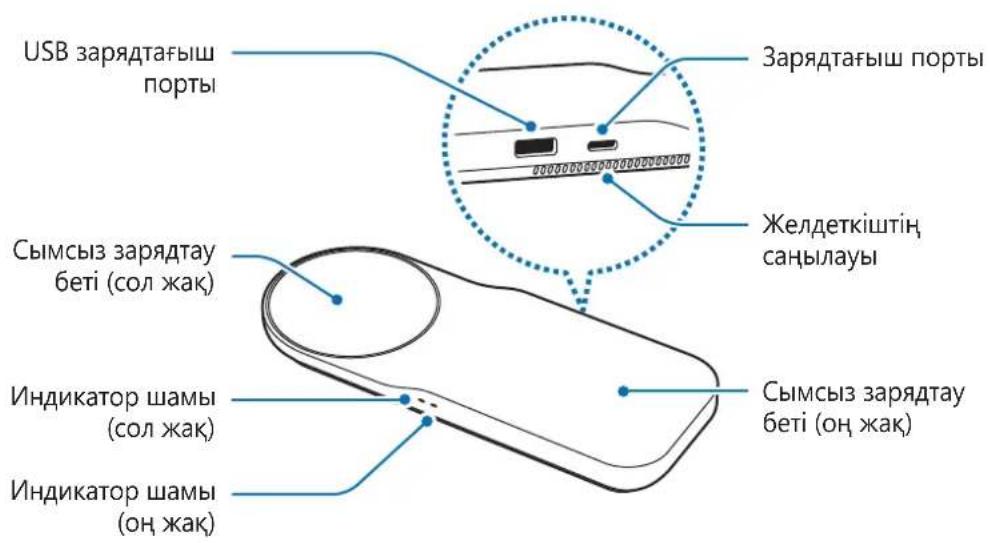
Device layout
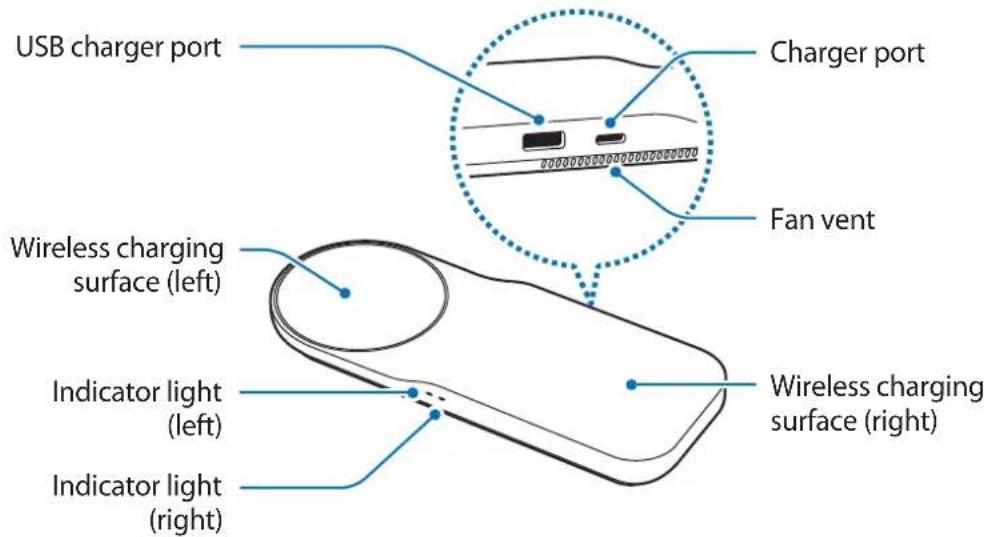
Using the wireless charger
Charging your mobile device
Wireless charging
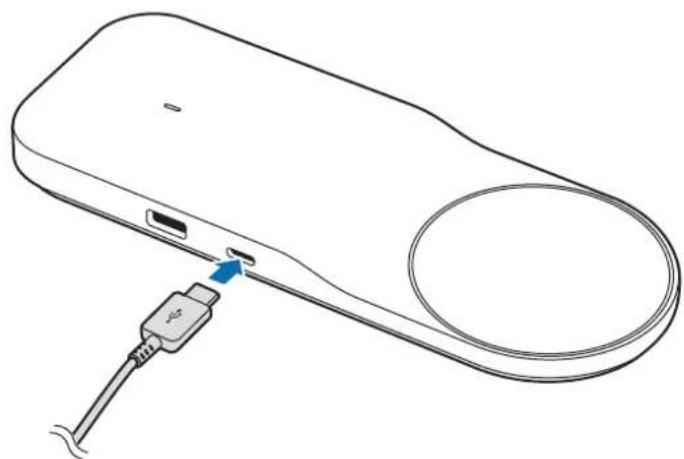
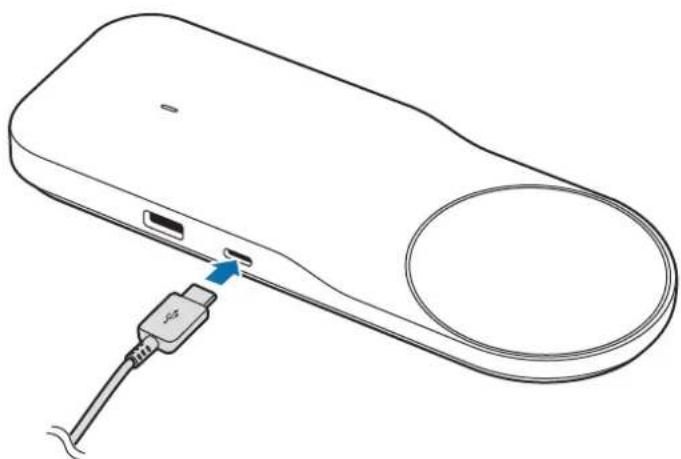
1 Connect the charger to the wireless charger.
When the charger is correctly connected to the wireless charger, the indicator light flashes blue, green, and cyan, and then turns off.
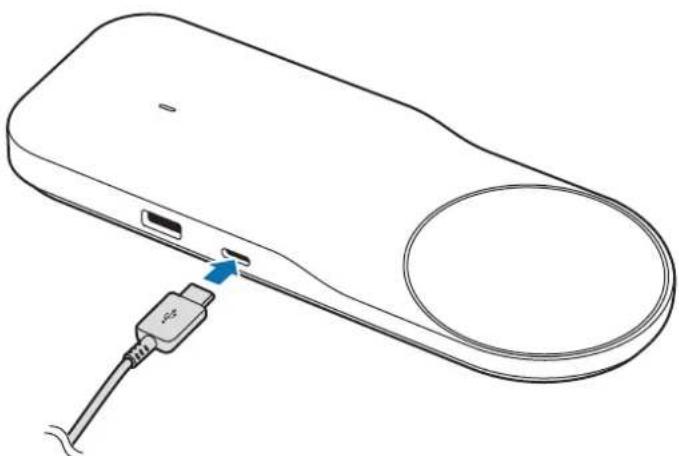

Use only Samsung-approved chargers (12 V/2.1 A). Unauthorized chargers may cause damage or the wireless charger may malfunction.
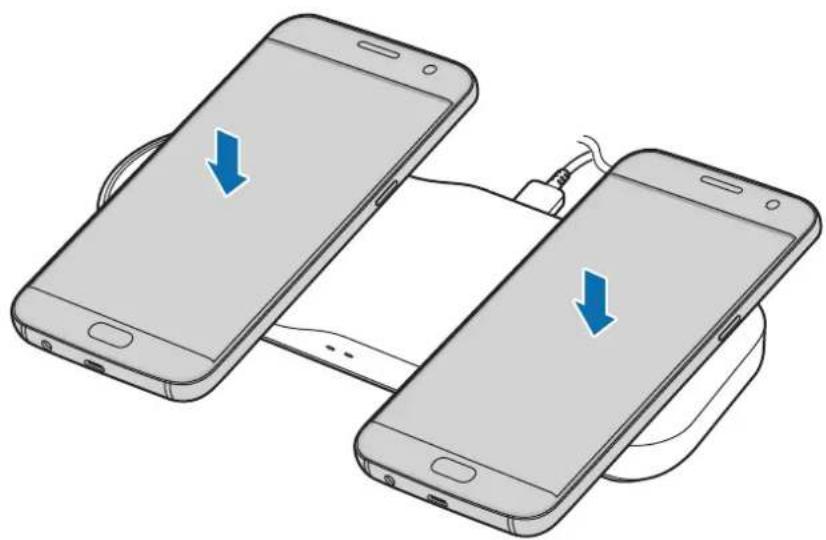
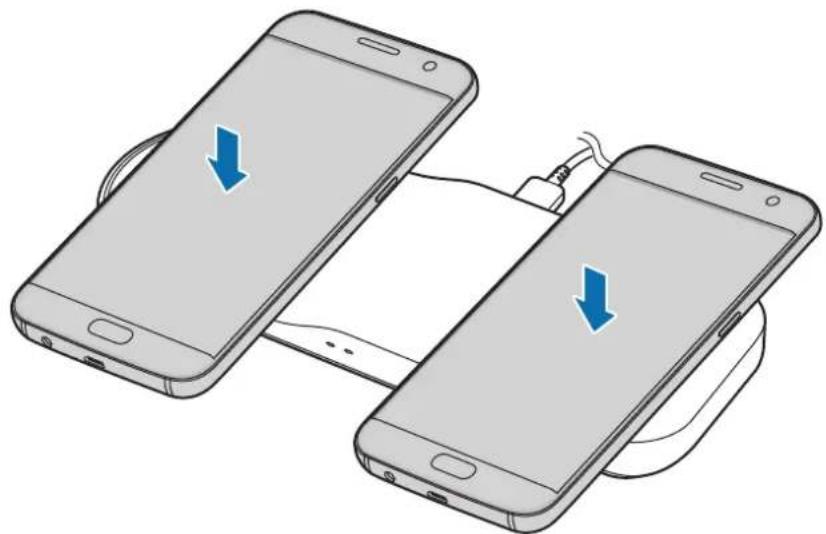
2 Place a supported mobile device on the wireless charging surface (left) or wireless charging surface (right).
Check the charging icon displayed on the mobile device's screen for the charging status.
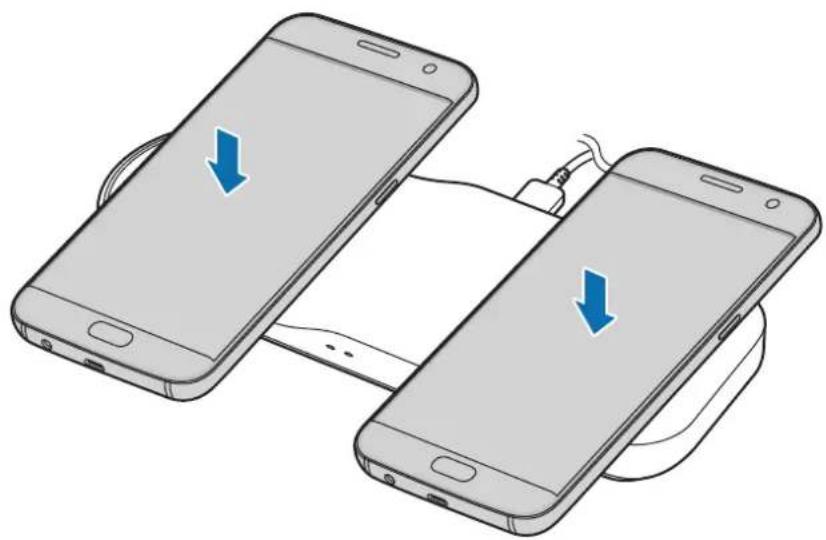

- Do not place the wireless charging cover solely on the wireless charger. Doing so may overheat the wireless charger and cause a fire. It may also result in serious burn or device malfunction.
- If you place a mobile device on the wireless charger for an extended period, the wireless charger may overheat and the fan inside it may turn on.
- Do not cover or block the wireless charger's fan vent.

To charge a mobile device that does not have a built-in wireless charging coil, attach a wireless charging cover to the mobile device. Then, place the mobile device on the wireless charger.
3 When the mobile device is fully charged, remove it from the wireless charger.

Do not place foreign materials, such as metal objects, magnets, and magnetic stripe cards, between the mobile device and the wireless charger. The mobile device may not charge properly or may be damaged due to overheating.

- When the mobile device is not placed on the charging surface properly, or depending on the location of the mobile device's wireless charging coil, your mobile device may not charge properly.
- Wireless charging may not work properly if you have attached a thick case to your mobile device. If your case is thick, remove it before placing your mobile device on the wireless charger.
- If you use the wireless charger in areas with weak network signals, you may lose network reception.
- If you connect a charger to the mobile device during wireless charging, the wireless charging feature will be unavailable.
- The wireless charger is compatible with Wireless Power Consortium (WPC) certified devices.
- The fan inside the wireless charger may operate during wireless charging.
- To save energy, unplug the charger when not in use. The charger does not have a power switch, so you must unplug the charger from the electric socket when not in use to avoid wasting power. The charger should remain close to the electric socket and be easily accessible while charging.
- The socket-outlet shall be installed near the equipment and shall be easily accessible.
Wired charging
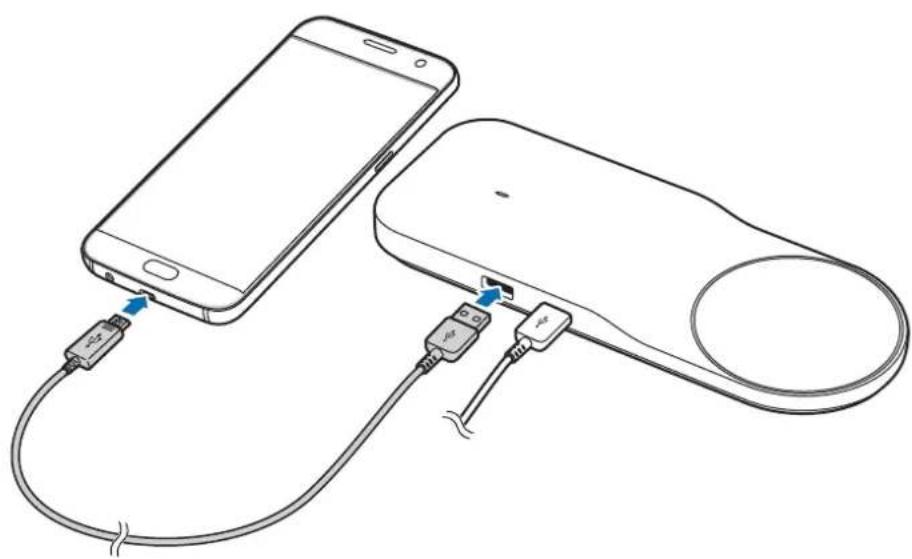
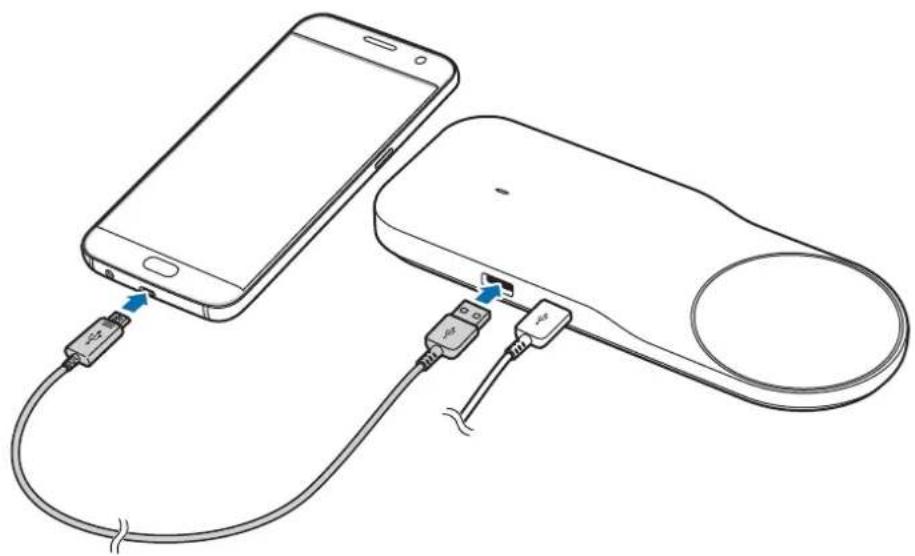
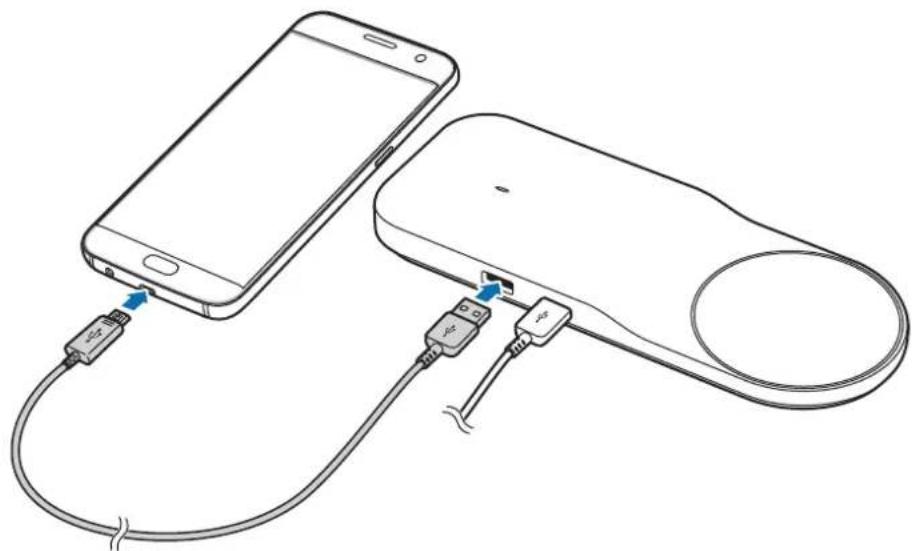
1 Connect one end of the USB cable to the wireless charger's USB charger port. Then, plug the other end of the USB cable into the mobile device's multipurpose jack.
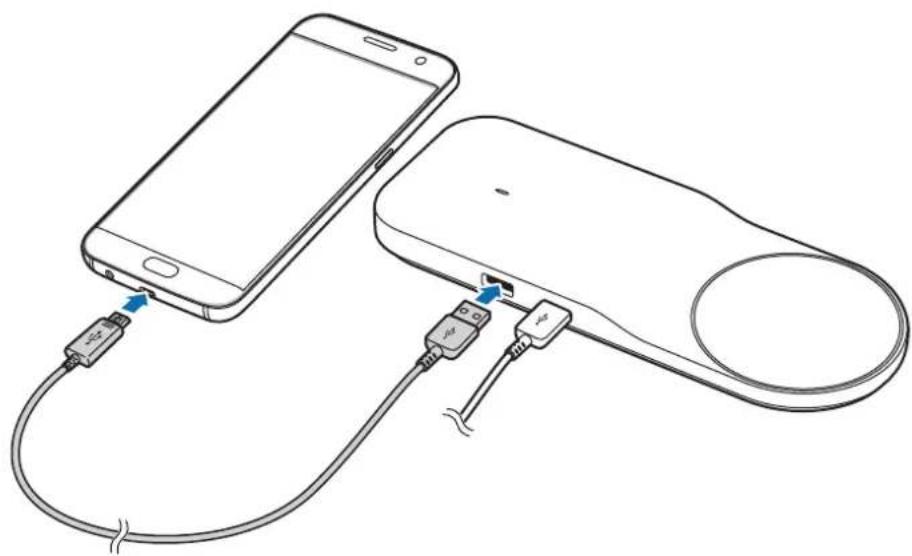
2 When the mobile device is fully charged, remove the USB cable from the wireless charger and the mobile device.

Do not cover or block the wireless charger's fan vent.

- You may experience a slower wired charging speed when using the wireless charger.
- To save energy, unplug the charger when not in use. The charger does not have a power switch, so you must unplug the charger from the electric socket when not in use to avoid wasting power. The charger should remain close to the electric socket and be easily accessible while charging.
Indicator light identification
The indicator light alerts you to the wireless charger's status.
| Colour Status | |
| Blue → Green → Cyan | ·When connected to a power outlet |
| Blue | ·When charging |
| Green | ·When fully charged |
| Flashing blue | ·When not charging properly due to a general error |
| Flashing cyan | ·When using a charger other than Samsung-approved chargers (12 V/2.1 A) and charging is not supported |
| Off | ·When the mobile device is removed from the wireless charger or when the wireless charger is not connected to a power outlet |

- If the indicator light does not work as described, disconnect the charger from the wireless charger and reconnect it.
- The indicator light may work differently depending on the mobile device or the wireless charging cover.
Copyright
Copyright © 2016 Samsung Electronics
This manual is protected under international copyright laws.
No part of this manual may be reproduced, distributed, translated, or transmitted in any form or by any means, electronic or mechanical, including photocopying, recording, or storing in any information storage and retrieval system, without the prior written permission of Samsung Electronics.
Trademarks
SAMSUNG and the SAMSUNG logo are registered trademarks of Samsung Electronics. All other trademarks and copyrights are the property of their respective owners.
Copyright © 2016 Samsung Electronics
Copyright © 2016 Samsung Electronics
Copyright © 2016 Samsung Electronics
Copyright © 2016 Samsung Electronics
Copyright © 2016 Samsung Electronics
Copyright © 2016 Samsung Electronics
Copyright © 2016 Samsung Electronics
This manual is protected by international copyright law.
This product cannot be manufactured, distributed, translated, or reproduced in any form or by any means, electronic or mechanical, including photocopying, recording, or storage in any information retrieval system, without the prior permission of Samsung Electronics.
Trademarks
SAMSUNG and the SAMSUNG logo are trademarks of Samsung Electronics. All other trademarks and copyrights are the property of their respective owners.
Read this first
Before using the device, carefully read this manual to ensure safe and proper use.
Copyright © 2016 Samsung Electronics
This manual is protected by international copyright laws.
No part of this manual may be reproduced, distributed, translated, or transmitted in any form or by any means, electronic or mechanical, including photocopying, recording, or storing in any information storage and retrieval system, without the prior written permission of Samsung Electronics.
Trademarks
SAMSUNG and the SAMSUNG logo are registered trademarks of Samsung Electronics. All other trademarks and copyrights are the property of their respective owners.
Read this first
Before using the device, read this manual to ensure safe and correct use.
- Images may differ from the actual product. Content is subject to change without prior notice.
- Before using the wireless charger, make sure it is compatible with your device.
Instruction icons

Copyright © 2016 Samsung Electronics
This manual is protected by international copyright laws.
No part of this manual may be reproduced, distributed, translated, or transmitted in any form or by any means, electronic or mechanical, including photocopying, recording, or storing in any information storage and retrieval system, without the prior written permission of Samsung Electronics.
Trademarks
- SAMSUNG and the SAMSUNG logo are registered trademarks of Samsung Electronics. All other trademarks and copyrights are the property of their respective owners.
Read first
Copyright © 2016 Samsung Electronics
Copyright © 2016 Samsung Electronics
Copyright © 2016 Samsung Electronics
Copyright © 2016 Samsung Electronics
Copyright © 2016 Samsung Electronics
Copyright © 2016 Samsung Electronics
Identification of indicators
Copyright © 2016 Samsung Electronics
Copyright © 2016 Samsung Electronics
Copyright © 2016 Samsung Electronics

1
J 1
a111 1
A
L 1
.(WPC)
.
J 1


USB


Therefore, the area of triangle APQ is equal to the area of triangle AQP plus the area of triangle QPQ.
s
Copyright © 2016 Samsung Electronics
.
J 14 j j j j j j j j j j j j j j j j j
s
Samsung Electronics
Device User Manual
© Samsung Electronics, 2016.
This manual is protected by international copyright laws.
No part of this manual may be reproduced, distributed, translated, or transmitted in any form or by any means, electronic or mechanical, including photocopying, recording, or storage in any information storage and retrieval system, without the prior written permission of Samsung Electronics.
Trademarks
SAMSUNG and the SAMSUNG logo are registered trademarks of Samsung Electronics. Other trademarks and trade names are the property of their respective owners.
Please read this manual before using the product.
For safe and reliable use of the device, please read this manual carefully before first use.
The appearance of the product may differ from the image. The content may change without prior notice. - Before using the wireless charger, make sure it is compatible with your device.
Symbols

Warning: situations that may cause injury to yourself or others

Caution: situations that may cause damage to the device or other equipment

Note: notes, usage tips, or additional information
Getting started
Package contents
Check the package for the following components:
- Wireless charger, charging pad, quick start guide

The cable for the wireless charger is not included in the package. Components included in the package may vary depending on the country or operator. Components supplied with the package are designed specifically for this device and may be incompatible with other devices. The appearance and specifications may change without prior notice. Additional accessories can be purchased from your local Samsung dealer. Before purchasing, make sure they are compatible with the device. Use only accessories recommended by Samsung. Using non-recommended accessories may cause problems and malfunctions that are not covered by the warranty. Availability of accessories may vary depending on the country.
Device layout
© Samsung Electronics, 2016
This user manual is protected under international copyright laws.
Reproduction, distribution, translation, or transmission of this manual in any form or by any means, electronic or mechanical, including photocopying, recording, or storage in any information retrieval system, is prohibited without the prior written permission of Samsung Electronics.
Trademarks
SAMSUNG and the SAMSUNG logo are registered trademarks of Samsung Electronics. All other trademarks and copyrights are the property of their respective owners.
Safety instructions
Read the safety instructions carefully before using the product.
The appearance of the product may differ from the images. The contents of this manual are subject to change without prior notice. We are not responsible for any errors that may appear in this manual.
Safety warnings

Warning: situations that could cause injury to yourself or others

Caution: situations that could cause damage to the product or other equipment

Note: notes, tips, or additional information
Safety instructions
Product overview
Check the product package for the following items:
Product, quick start guide, warranty card

The items supplied with the product may vary. You can purchase additional accessories separately from the retailer. The supplied items are designed only for this product and may not be compatible with other products. The appearance and specifications are subject to change without notice. You can purchase additional accessories from the Samsung website. Before purchasing, check if they are compatible with your product. Only use Samsung-approved accessories. Using non-approved accessories may cause malfunctions or damage. The use of accessories is at your own risk. The accessories are only for use with compatible devices and are not for use with other devices. For more information, visit the Samsung website.
Product exterior
Charging accessories
Charging the mobile device
Wireless charging
1 Connect the wireless charger to a power source.
After connecting the wireless charger to a power outlet, the indicator light will turn on, then the charging pad and the device will be ready.

Use only Samsung-approved (12 V/2.1 A) chargers.
Using non-approved chargers may cause the wireless charger to malfunction or overheat.
2 Place the mobile device on the center of the wireless charger or on the charging pad.
The mobile device will display the charging status on the screen, showing the remaining battery level.

The wireless charger is only compatible with wireless charging-enabled devices. This may cause the wireless charger to heat up or the device to charge slowly. However, this is normal and does not affect the device's lifespan. - If you remove the mobile device from the wireless charger for an extended period, the wireless charger may heat up and the device may charge slowly. Do not use the wireless charger with non-certified cables or adapters.

To charge a mobile device that is not compatible with wireless charging, place the mobile device on the wireless charger. Then, connect the mobile device to the wireless charger.
3 If the mobile device is fully charged, disconnect it from the wireless charger.

Do not place metal objects, magnets, or cards with magnetic strips between the mobile device and the wireless charger. The mobile device may not charge properly or may overheat and cause damage.

- The mobile device may not charge properly if it is placed on the wireless charger with a thick case or if the mobile device is placed on the wireless charger with a metal object attached to it.
- If the mobile device has a thick case, the wireless charger may not work properly. If the case is thick, remove it from the mobile device before placing it on the wireless charger. The charger may overheat or the charging may be interrupted in some cases.
- If the device is not charging, the wireless charging function may not be working.
- Wireless charging is compatible with devices certified by the Wireless Power Consortium (WPC).
- During wireless charging, it is possible to use the device. To preserve battery life, unplug the charger when not in use. To avoid battery damage, unplug the charger from the electrical outlet when not in use. After charging, the charger should be unplugged from the electrical outlet and its plug should be clean and dry.
Charging with cable
1 To charge the mobile device, connect the USB cable to the USB wireless charger port. Then connect the other end of the USB cable to the mobile device's charging port.
2 If the mobile device is charging with the adapter, disconnect the USB cable from the wireless charger and from the mobile device.

Do not use the device with wet hands.

- When using wireless charging, the cable charging function may be unavailable.
To preserve battery life, unplug the charger when not in use. To avoid battery damage, unplug the charger from the electrical outlet when not in use. After charging, the charger should be unplugged from the electrical outlet and its plug should be clean and dry.
Indicator lights
The indicator light shows the charging status.
| Тус Күй | |
| КөК → Хасын → Kөгдір | · Өл ektrпік розета-fа косkan keзde |
| КөK | · Зардтал жатkaнда |
| Жасын | · Толыftымен зардталfaнда |
| Көн түсөн Xьлblыктay | · Хаillы кaterе байlaныICTы дурьс зардталын жатпafанда |
| Kөгдір түсөн Xьлblыктay | · Samsung 6eкитпereн зардтавштары (12 B/2,1 A) колданfaнда кэн зардтавшka колдay керсетilmerенde |
| Өшірлі | · Мбильді курьlflыны сblmсьl3 зардтавштан ожырatkaн ke3de HeMece сblmсьl3 зардтавш ол ektrрік розета-fa Косылmafah Ke3de |

- The indicator light turns on when the device is placed on the wireless charger and charging begins.
- The indicator light may blink if the mobile device or wireless charger is not properly aligned.
EAC
Copyright
Copyright © 2016 Samsung Electronics
This manual is protected by international copyright laws.
No part of this publication may be reproduced, distributed, or transmitted in any form or by any means, including photocopying, recording, or other electronic or mechanical methods, without the prior written permission of Samsung Electronics, except in the case of brief quotations embodied in critical reviews and certain other noncommercial uses permitted by copyright law.
Trademarks
SAMSUNG and the SAMSUNG logo are trademarks of Samsung Electronics. All other trademarks and copyrights are the property of their respective owners.
Read me first
Please read this manual before using the device to ensure safe and proper use.
- Images may differ in appearance from the actual product. Content is subject to change without prior notice.
- Before using the wireless charger, make sure it is compatible with your device.
Instructional icons

Warning: situations that could cause injury to yourself or others

Caution: situations that could cause damage to your device or other equipment

Notice: notes, usage tips, or additional information
Getting started
Package contents
Check the product box for the following items:
- Wireless charger
- Charger
- Quick start guide

- Wireless charging covers are sold separately.
- The items supplied with the device and any available accessories may vary depending on the region or service provider.
- The supplied items are designed only for this device and may not be compatible with other devices.
- Appearances and specifications are subject to change without prior notice.
- You can purchase additional accessories from your local Samsung retailer. Make sure they are compatible with the device before purchase.
- Use only Samsung-approved accessories. Using unapproved accessories may cause performance problems and malfunctions that are not covered by the warranty.
- Availability of all accessories is subject to change depending entirely on manufacturing companies. For more information about available accessories, refer to the Samsung website.
Device layout
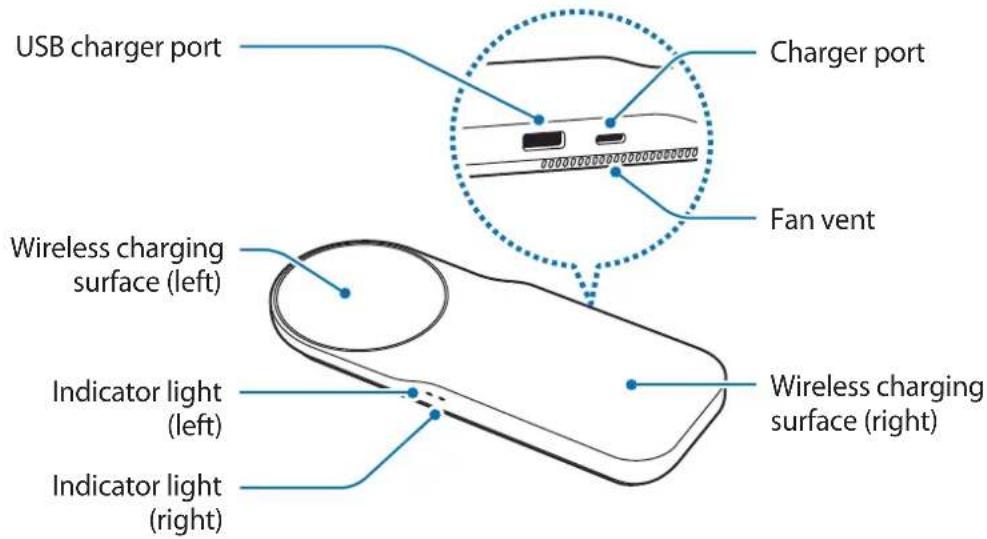
Using the wireless charger
Charging your mobile device
Wireless charging
1 Connect the charger to the wireless charger.
When the charger is correctly connected to the wireless charger, the indicator light flashes blue, green, and cyan, and then turns off.
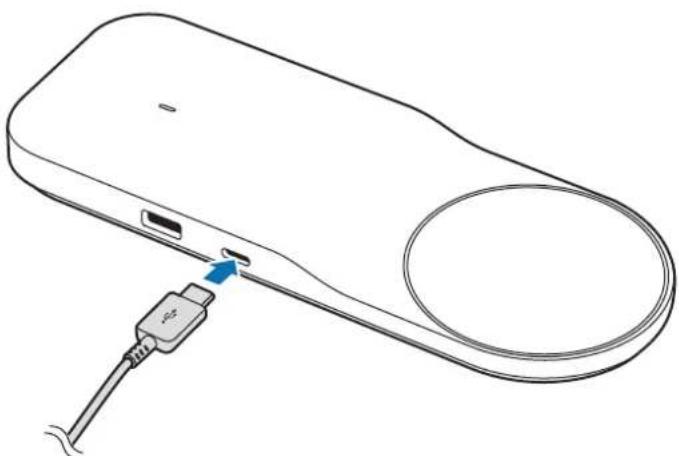

Use only Samsung-approved chargers (12 V/2.1 A). Unauthorized chargers may cause damage or the wireless charger may malfunction.
2 Place a supported mobile device on the wireless charging surface (left) or wireless charging surface (right).
Check the charging icon displayed on the mobile device's screen for the charging status.
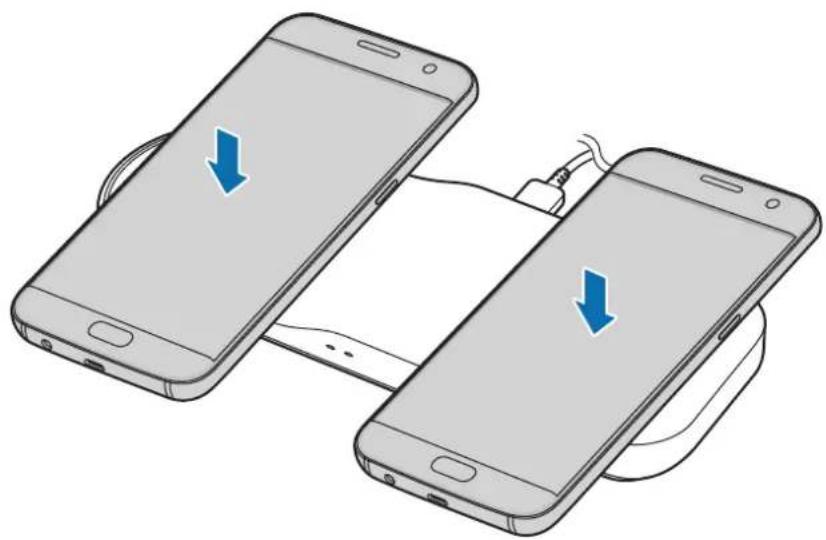

- Do not place the wireless charging cover solely on the wireless charger. Doing so may overheat the wireless charger and cause a fire. It may also result in serious burn or device malfunction.
- If you place a mobile device on the wireless charger for an extended period, the wireless charger may overheat and the fan inside it may turn on.
- Do not cover or block the wireless charger's fan vent.

To charge a mobile device that does not have a built-in wireless charging coil, attach a wireless charging cover to the mobile device. Then, place the mobile device on the wireless charger.
3 When the mobile device is fully charged, remove it from the wireless charger.

Do not place foreign materials, such as metal objects, magnets, and magnetic stripe cards, between the mobile device and the wireless charger. The mobile device may not charge properly or may be damaged due to overheating.

- When the mobile device is not placed on the charging surface properly, or depending on the location of the mobile device's wireless charging coil, your mobile device may not charge properly.
- Wireless charging may not work properly if you have attached a thick case to your mobile device. If your case is thick, remove it before placing your mobile device on the wireless charger.
- If you use the wireless charger in areas with weak network signals, you may lose network reception.
- If you connect a charger to the mobile device during wireless charging, the wireless charging feature will be unavailable.
- The wireless charger is compatible with Wireless Power Consortium (WPC) certified devices.
- The fan inside the wireless charger may operate during wireless charging.
- To save energy, unplug the charger when not in use. The charger does not have a power switch, so you must unplug the charger from the electric socket when not in use to avoid wasting power. The charger should remain close to the electric socket and be easily accessible while charging.
Wired charging
1 Connect one end of the USB cable to the wireless charger's USB charger port. Then, plug the other end of the USB cable into the mobile device's multipurpose jack.
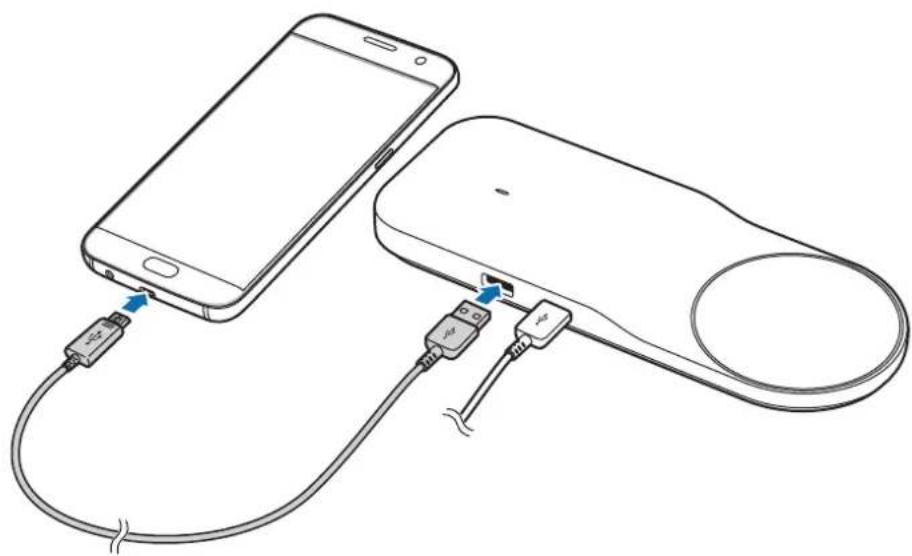
2 When the mobile device is fully charged, remove the USB cable from the wireless charger and the mobile device.

Do not cover or block the wireless charger's fan vent.

- You may experience a slower wired charging speed when using the wireless charger.
- To save energy, unplug the charger when not in use. The charger does not have a power switch, so you must unplug the charger from the electric socket when not in use to avoid wasting power. The charger should remain close to the electric socket and be easily accessible while charging.
Indicator light identification
The indicator light alerts you to the wireless charger's status.
| Color Status | |
| Blue → Green → Cyan | ·When connected to a power outlet |
| Blue | ·When charging |
| Green | ·When fully charged |
| Flashing blue | ·When not charging properly due to a general error |
| Flashing cyan | ·When using a charger other than Samsung-approved chargers (12 V/2.1 A) and charging is not supported |
| Off | ·When the mobile device is removed from the wireless charger or when the wireless charger is not connected to a power outlet |

- If the indicator light does not work as described, disconnect the charger from the wireless charger and reconnect it.
- The indicator light may work differently depending on the mobile device or the wireless charging cover.
Copyright
Copyright © 2016 Samsung Electronics
This manual is protected under international copyright laws.
No part of this manual may be reproduced, distributed, translated, or transmitted in any form or by any means, electronic or mechanical, including photocopying, recording, or storing in any information storage and retrieval system, without the prior written permission of Samsung Electronics.
Trademarks
SAMSUNG and the SAMSUNG logo are registered trademarks of Samsung Electronics. All other trademarks and copyrights are the property of their respective owners.
Copyright © 2016 Samsung Electronics
Copyright © 2016 Samsung Electronics
This manual is protected under international copyright laws.
© Samsung Electronics, 2016.


- INSTRUCTIONAL ICONS
- GETTING STARTED
- PACKAGE CONTENTS
- DEVICE LAYOUT
- USING THE WIRELESS CHARGER
- CHARGING YOUR MOBILE DEVICE
- WIRELESS CHARGING
- WIRED CHARGING
- INDICATOR LIGHT IDENTIFICATION
- COPYRIGHT
- TRADEMARKS
- READ THIS FIRST
- INSTRUCTION ICONS
- READ FIRST
- IDENTIFICATION OF INDICATORS
- DEVICE USER MANUAL
- PLEASE READ THIS MANUAL BEFORE USING THE PRODUCT
- SYMBOLS
- SAFETY INSTRUCTIONS
- SAFETY WARNINGS
- PRODUCT OVERVIEW
- PRODUCT EXTERIOR
- CHARGING ACCESSORIES
- CHARGING THE MOBILE DEVICE
- CHARGING WITH CABLE
- INDICATOR LIGHTS
- EAC
- READ ME FIRST
Brand : SAMSUNG
Model : ZOOM IN Multi Wireless Charger Tray EPPA710
Category : Cellphone