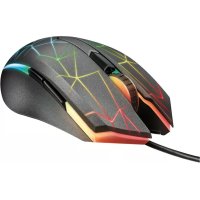
Heron GXT 170 - Mouse TRUST - Free user manual and instructions
Find the device manual for free Heron GXT 170 TRUST in PDF.

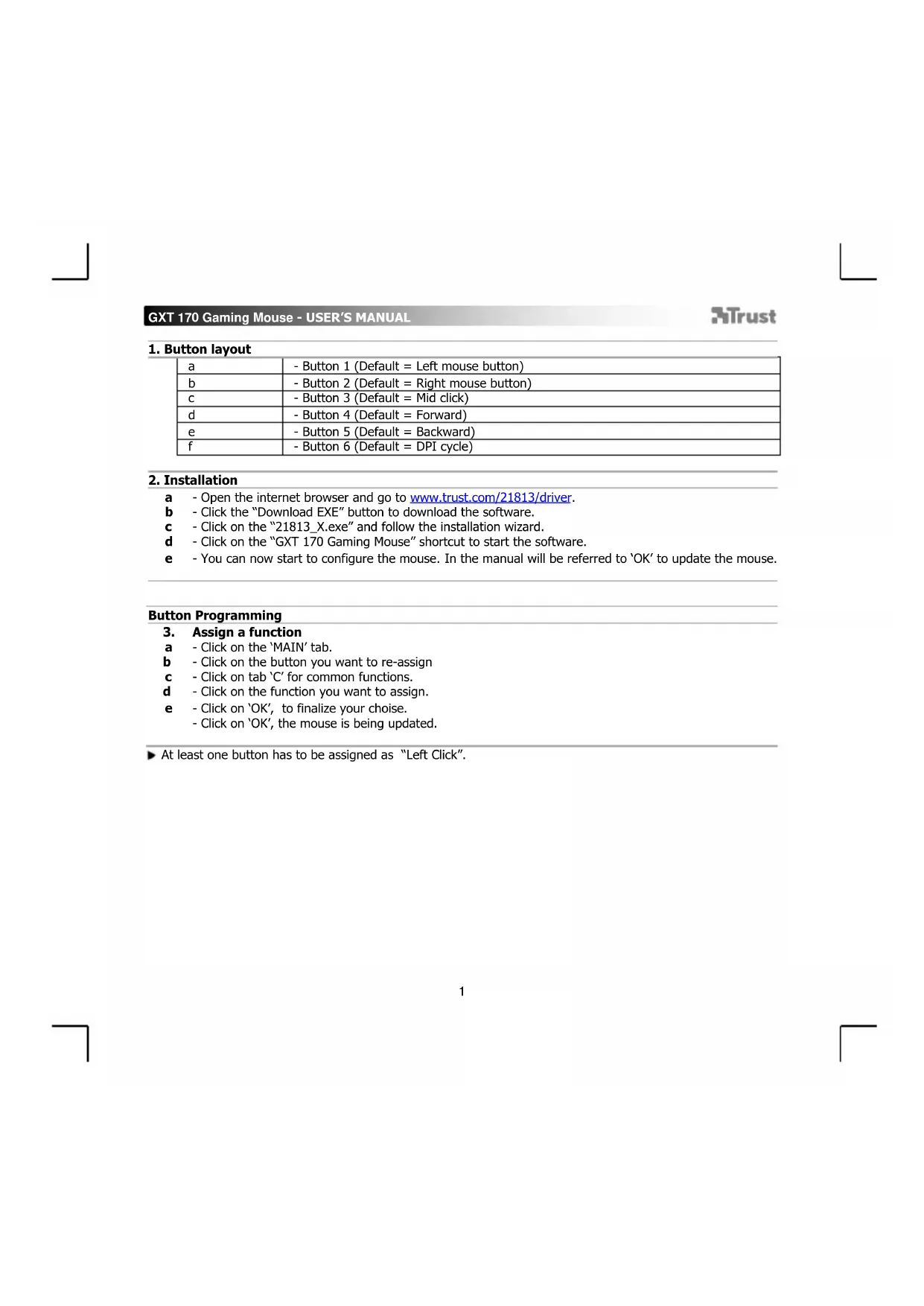


| Product Type | Wired gaming mouse |
| Brand | Trust |
| Model | Heron GXT 170 |
| Number of Buttons | 6 (including clickable scroll wheel) |
| Resolution (DPI) | 7 configurable levels (red, orange, yellow, green, turquoise, blue, purple) |
| Lighting | Customizable RGB (3 zones, breathing, spectrum, apm effects, etc.) |
| Power | USB port |
| Software | Trust GXT 170 Gaming Mouse (downloadable at trust.com/21813/driver) |
| Main Functions | Button assignment, macros, DPI settings, response rate, scroll speed, lighting effects, click statistics |
| Maintenance and Cleaning | Clean with a soft, dry cloth |
| Safety | No specific safety instructions |
| General Information | Wired gaming mouse with 7 DPI levels, 6 programmable buttons, RGB lighting and configuration software |
Frequently Asked Questions - Heron GXT 170 TRUST
User questions about Heron GXT 170 TRUST
0 question about this device. Answer the ones you know or ask your own.
Ask a new question about this device
Download the instructions for your Mouse in PDF format for free! Find your manual Heron GXT 170 - TRUST and take your electronic device back in hand. On this page are published all the documents necessary for the use of your device. Heron GXT 170 by TRUST.
USER MANUAL Heron GXT 170 TRUST
Frequently asked questions:
www.trust.com/21813/FAQ

Trust
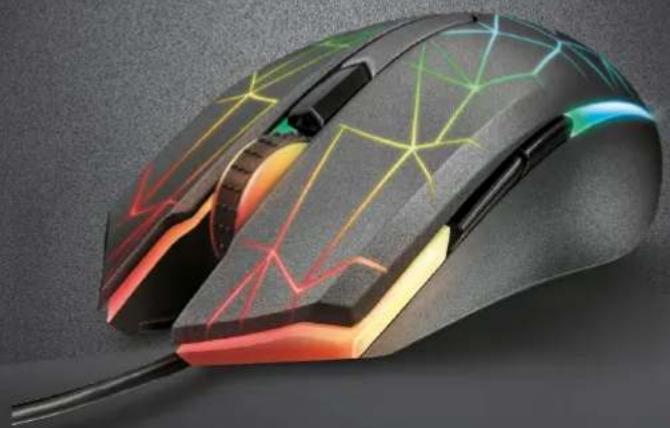

HERON
PC LAPTOP
RGB
GXT 170 Gaming Mouse - USER'S MANUAL
Trust
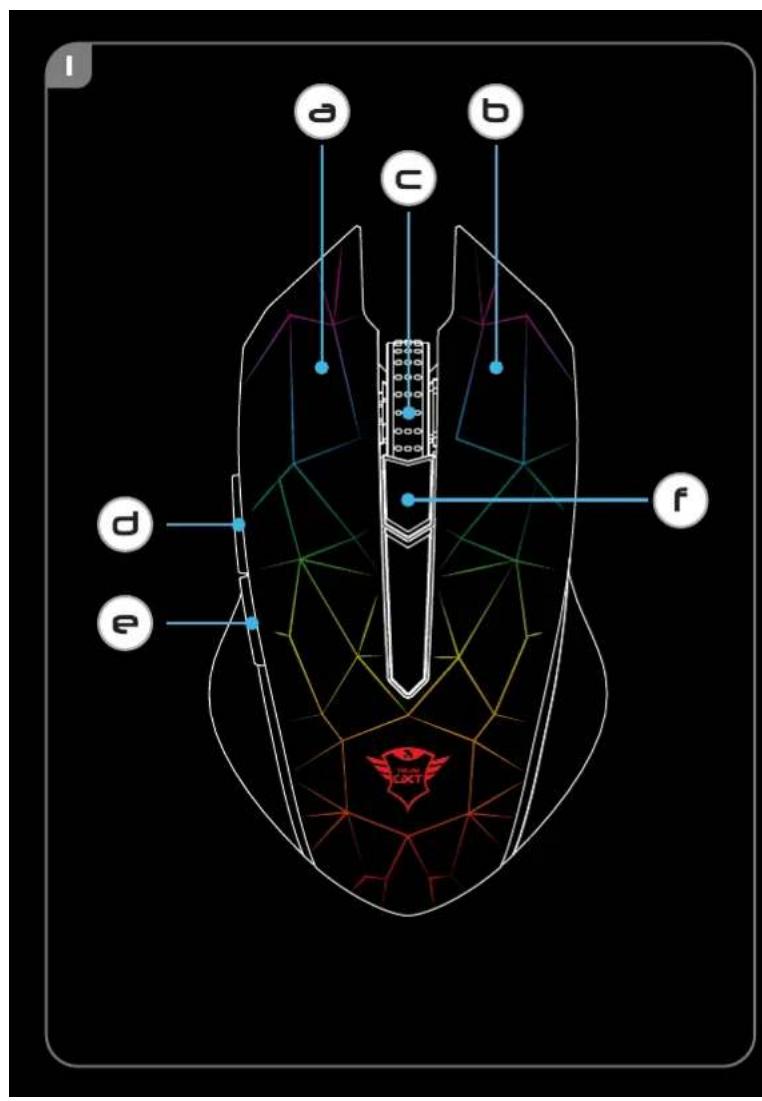
1. Button layout
| a | - Button 1 (Default = Left mouse button) |
| b | - Button 2 (Default = Right mouse button) |
| c | - Button 3 (Default = Mid click) |
| d | - Button 4 (Default = Forward) |
| e | - Button 5 (Default = Backward) |
| f | - Button 6 (Default = DPI cycle) |
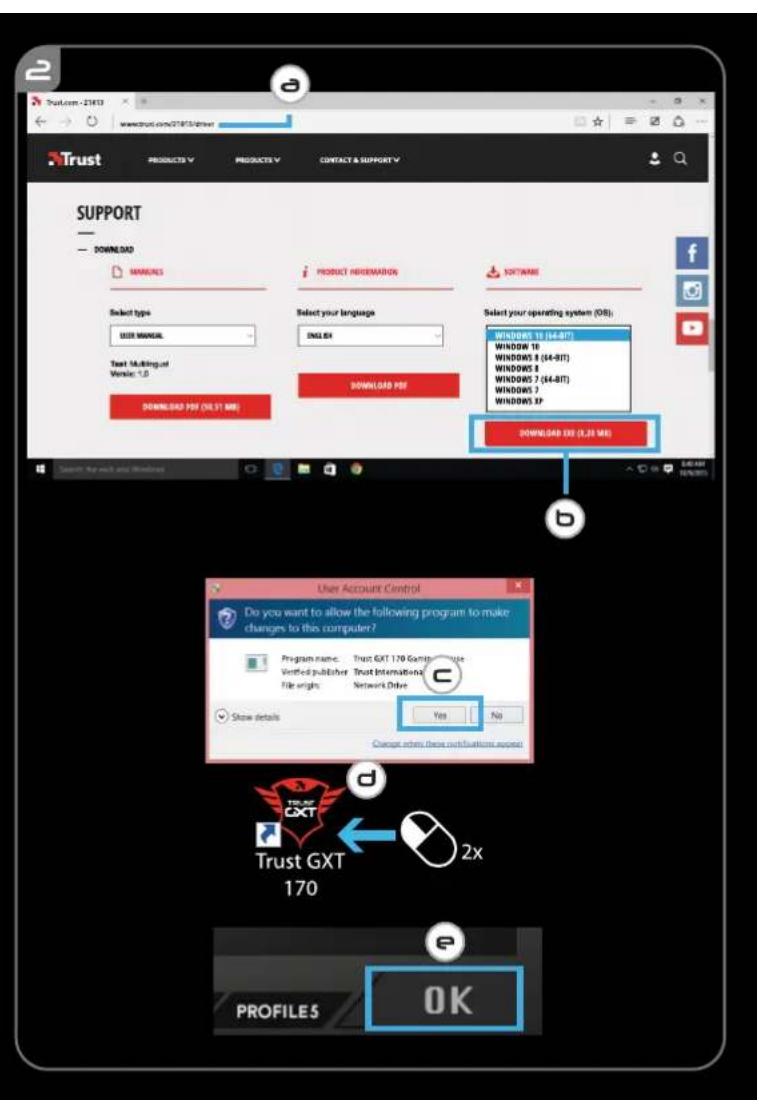
2. Installation
a - Open the internet browser and go to www.trust.com/21813/driver.
b - Click the "Download EXE" button to download the software.
c - Click on the "21813_X.exe" and follow the installation wizard.
d - Click on the "GXT 170 Gaming Mouse" shortcut to start the software.
e - You can now start to configure the mouse. In the manual will be referred to 'OK' to update the mouse.
Button Programming
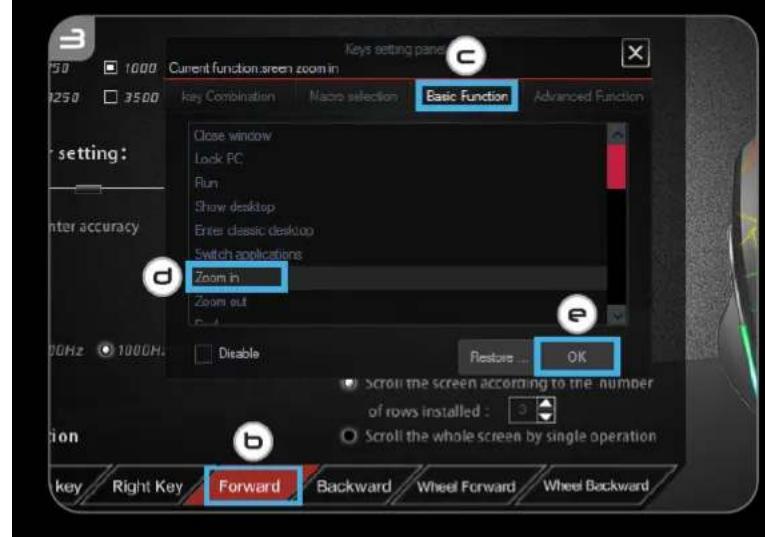
3. Assign a function
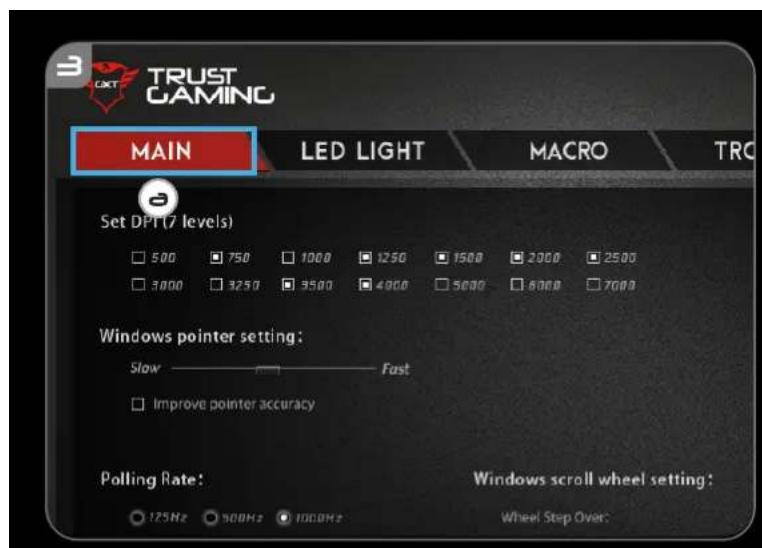
a - Click on the 'MAIN' tab.
b - Click on the button you want to re-assign
c - Click on tab 'C' for common functions.
d - Click on the function you want to assign.
e -Click on OK, to finalize your choice.
- Click on 'OK', the mouse is being updated.
At least one button has to be assigned as "Left Click".
Mouse Movement Settings
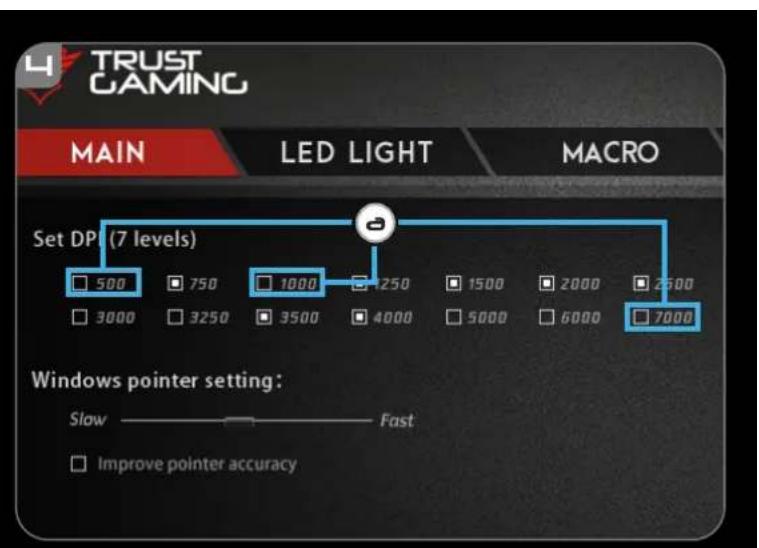
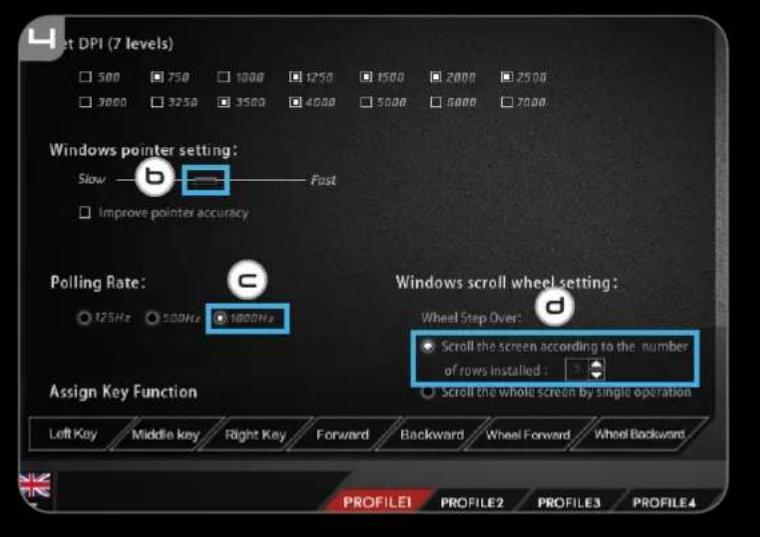
- DPI, Pointer, Polling rate and Scroll wheel settings.
a - Click on the DPI levels you want to activate or disable.*
b - Change the windows pointer settings.
c - Change the polling rate.
d - Change the windows scrolling speed..
- Click on 'OK', the mouse is being updated.
LED colours indicate which DPI level is currently These indication colours cannot be changed;
。 RED =Level1
ORANGE = Level 2
YELLOW = Level 3
○ GREEN = Level 4
TUROOISE = Level 5
。BLUE = Level 6
PURPLE = Level 7
- Maximum 7 DPI levels
Light Settings
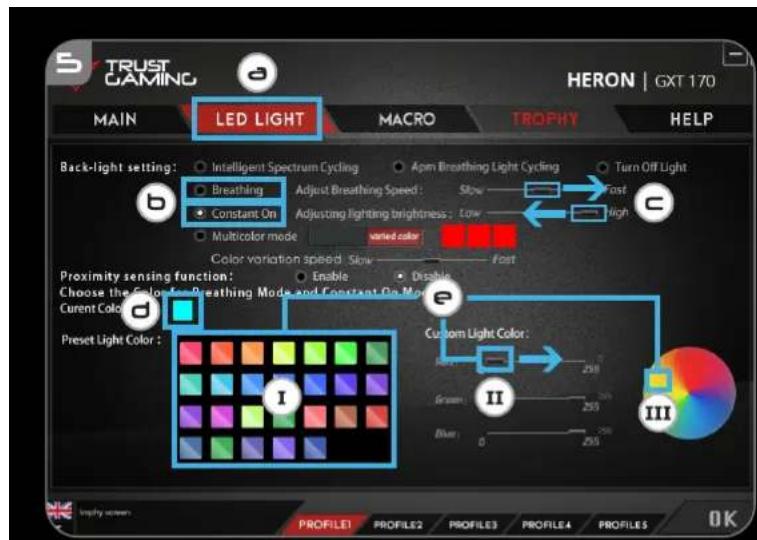
5. Basic Light Effect
a - Click on the 'LED LIGHT' tab.
b - Click on 'Breathing' for a breathing LED effect, Click on 'Constant On' for a constant LED effect.
c - You can move the sliders to adjust the breathing speed or LED brightness.
d - 'Breathing' + 'Constant On' current colour indicator.
e - Change the colour by one of three options;
I Click on the desired color from the preset box.
II Dragging the Red, Green or Blue slider.
III Click on one spot on the color wheel.
- Click on 'OK', the mouse is being updated.
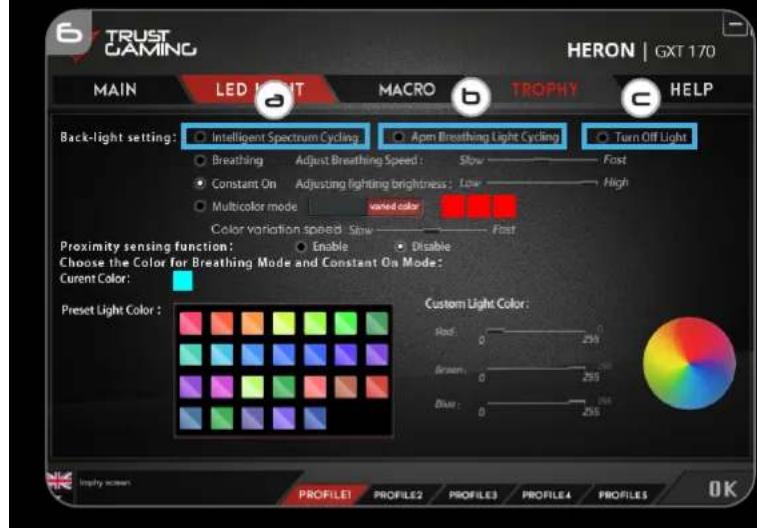
6. Advanced Light Effects
a - Click on the 'Intelligent Spectrum Cycling' LED mode to cycle the full LED color spectrum.
b - Click on the 'Apm Breathing Light Cycling' LED mode to adjust the LED color on every mouse click.
c - Click on 'Turn Off Light' to disable the LED.
- Click on 'OK', the mouse is being updated.
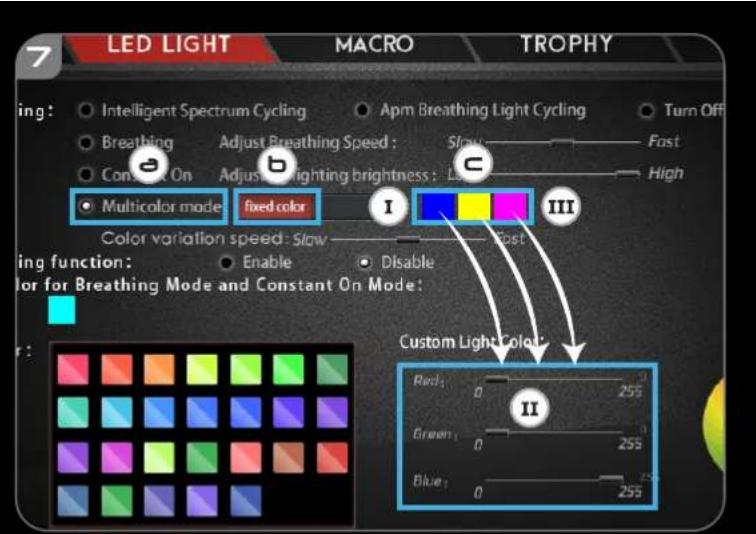
7. LED Zones, fixed colors
a - Click on the Multicolor mode' to individually set each of the 3 LED zones.
b -Activate the 'fixed color' mode.
c -To select each colour;
I Click on the colour box
II Click on the desired colour
III Repeat this until all zones are selected
- Click on 'OK', the mouse is being updated.
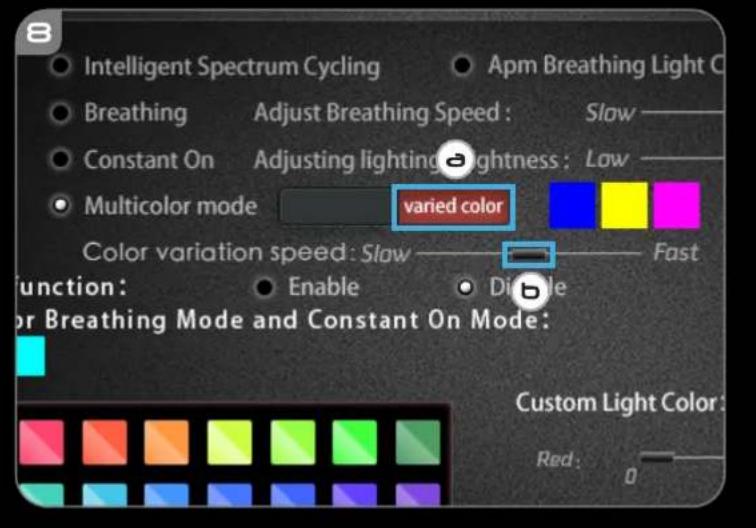
8. LED Zones, varied colors
a - Activate the 'varied color' to activate the rainbow wave effects.
b -Move the slider to change the animation speed.
- Click on 'OK', the mouse is being updated.
Macro Settings
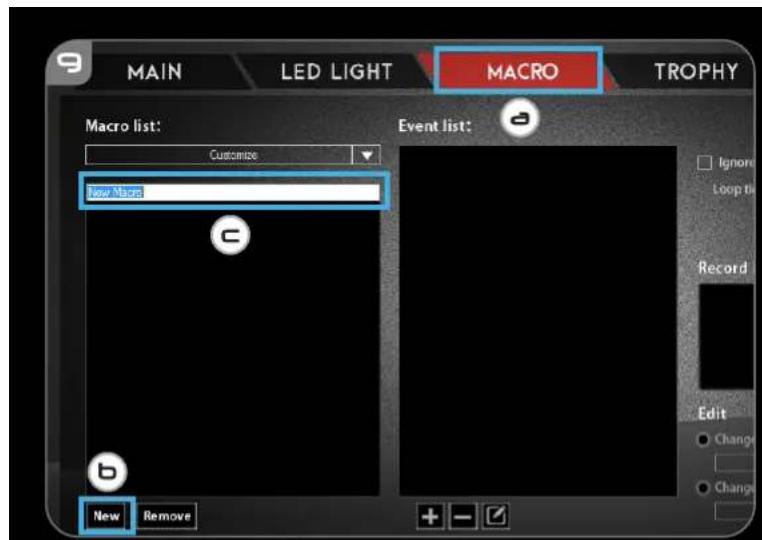
- Create a Macro (Store a sequence of keys in the software)
a - Click on the 'MACRO' tab.
b - Click on 'NEW' to create a new macro.
C - Fill in the name of the macro.
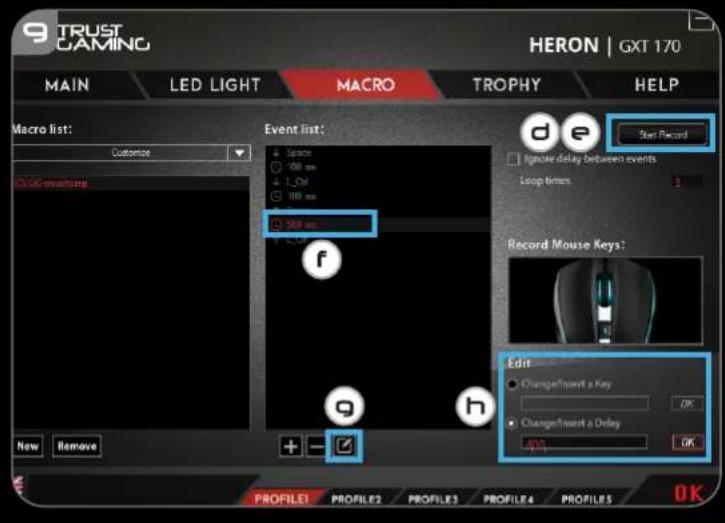
d - Click 'Start Record' to start recording the macro. Now enter your preferred macro sequence.
e - Click 'Stop Record' ones you finished recording the macro. (max. 100 actions)
f - To modify your recorded macro, click on the required step you want to modify.
g - Click on the button to activate the edit panel.
h - Change the key or delay and press 'OK' next to the entry field.
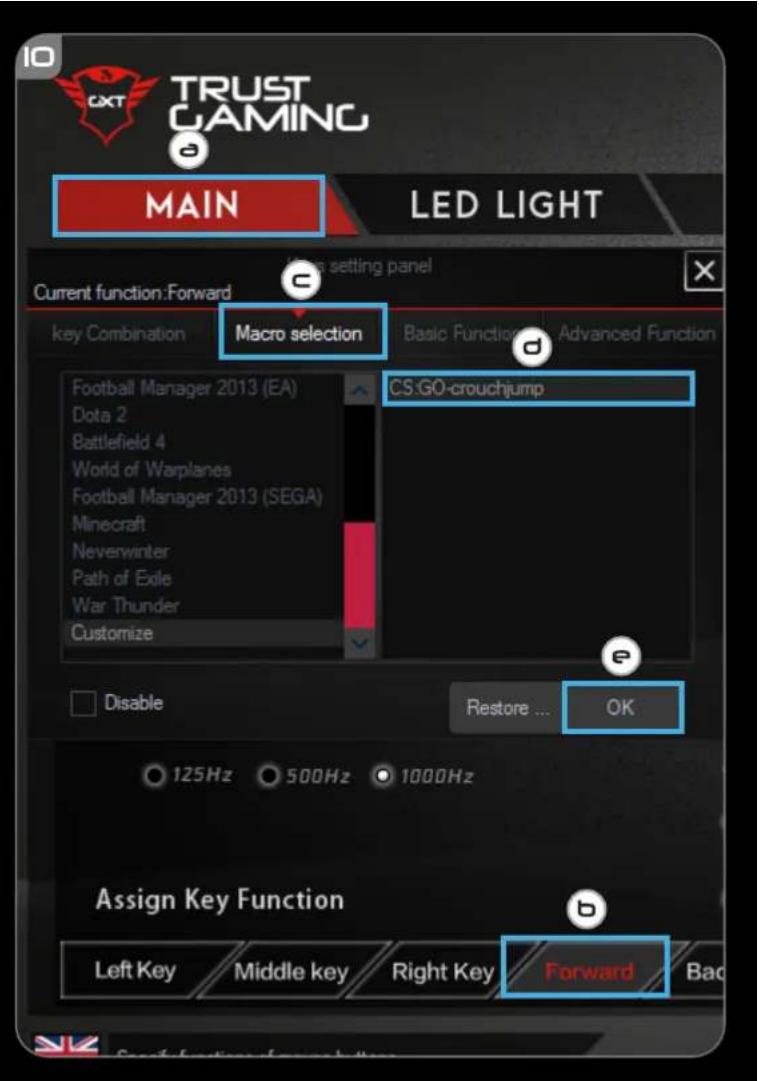
10. Assign a Macro
a - Click on the 'MAIN' tab.
b - Click on the button to which you want to assign the macro to.
- Click on the 'Macro selection' tab.
d - Click on the desired macro.
e - Click on 'OK' to select the macro.
- Click on 'OK', the mouse is being updated.
Trophies, Profiles, Firmware update & Factory reset
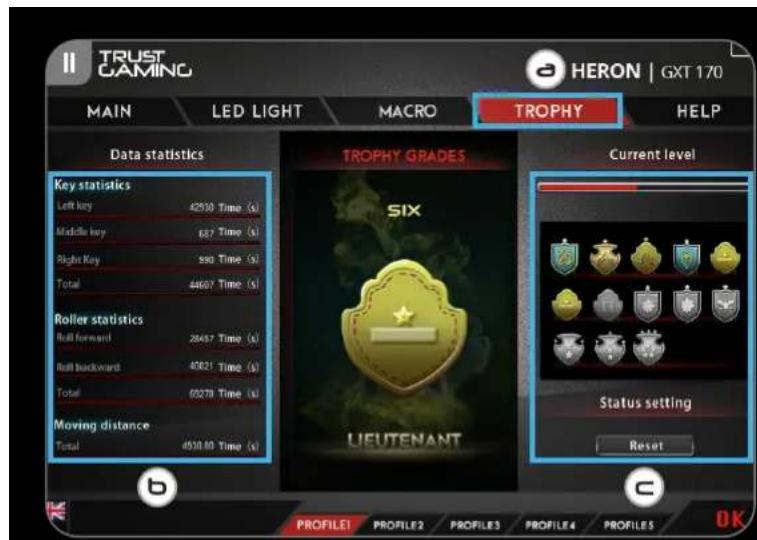
11. Data statistics & Trophies
a - Click on the 'TROPHY' tab.
b - Mouse statistics
c -Current level
RANKING SYSTEM:
| Total clicks: | Ranking: | |
| 0 - 100 | Private | |
| 100 - 1.000 | Corporal | |
| 1.000 - 5.000 | Sergeant | |
| 5.000 - 20.000 | Staff Sergeant | |
| 20.000 - 50.000 | Second Lieutenant | |
| 50.000 - 100.000 | Lieutenant | |
| 100.000 - 200.000 | Captain |
| Total clicks: | Ranking: | |
| 200.000 – 300.000 | Major | |
| 300.000 – 400.000 | Lieutenant Colonel | |
| 400.000 – 500.000 | Colonel | |
| 500.000 – 750.000 | Major General | |
| 750.000 – 1.000.000 | Lieutenant General | |
| 1.000.000+ | General |
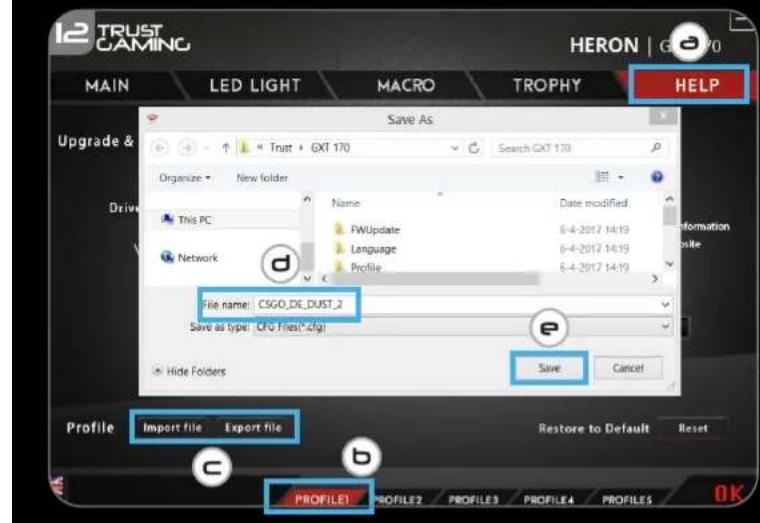
12. Save or Load Profiles
a - Click on the 'HELP' tab.
b - Click on 'Import file' to load a setup, click on 'Export file' to save a setup.
c - Enter the desired name for your setup, or search the previously saved setup.
d - Click on 'Save/Open' to save/load your setup.
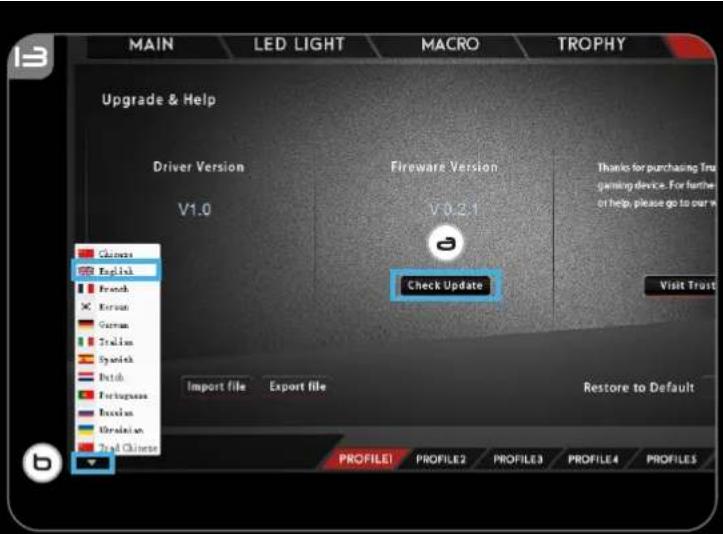
13. Software update & language settings
a - Click on the 'Check Update' button check the latest software.
b - Click on the language menu to select the preferred language.
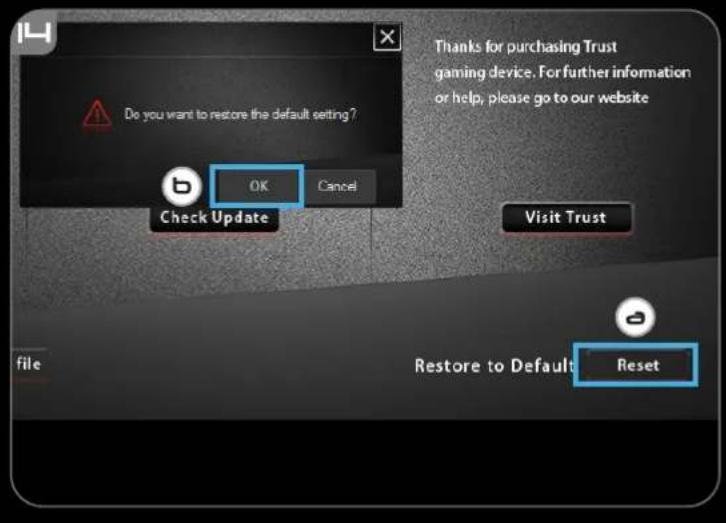
14. Factory reset
a - Click on the 'Reset' button.
b - Click on the OK button to reset all settings to factory default.
GXT 170 Gaming Mouse - USER'S MANUAL
Trust
ZELENA = uroven 4
○ TYRKYSOVA = uroven 5
○ MODRA = uroven 6
O FIALOVA = uroven 7
CERVENA = uroven 1
ORANZOVA = uroyen 2
ZLTA = uroven 3
ZELENA = uroven 4
○ TYRKYSOVA = uroven 5
○ MODRA = uroven 6
O PURPUROVÁ = uroven 7
6. Efected luminoase avansate
MaKcMmaJIHo 7 DPI HnBa
HaCtpoKn Ha CBeTInHa
5. OCHOBHn CBETINHHH eEeKTH
a -IpaKHeTe Bbpxy pa3en ,LED LIGHT'.
b -UpaKHeTe Bbpy,InyIcauM 3a nynCnpau eefKT Ha CBeToOnoNDte, UpaKHeTe Bbpxy ,Constant On" 3a NOCTOReH eefKT Ha CBeToOnoDa.
C - MoXeTe Da npemecNTe Nlb3rauHTe, 3a da perylnpate CKOpocTTa Ha nyIcaunn IIN npKocTtHa CBETOIOda.
d -Breathing" + Constant On" Tekyu zBeTobN INHnKaTOp.
e - CmraHa Ha cBaTa c edHa ot Tpnte onu; I UpaKHeTe BbPxy NcKaHn yCBaT OT KyTnaTa C HAnuHn. II N3TeIJIHe Ha YepBeHnT, 3eJIeHn NIn CNN pIb3raq. III UpaKHeTe BbPxy eHa ToUka Ha cBtHaTa cKaJa. - UpaKHeTe Ha ,OK", MIIkata ce AKTyAIn3npa.
6. Pa3wnpen CBeTnHHn efekTu
a - UpaKHe T BbpypeKIM Ha CBeToDIOo, "Intelligent Spectrum Cycling", 3a da npemHeTe npes zuBETe H cKeTbp Ha CBeToDIOOa.
b - UpaKHeTe BbpypeKIM Ha CBeToIOo ,Apm Breathing Light Cycling", 3a da peryInpate cBeta Ha CBeToIOoDA npn BcAko UpaKBaHe Ha MMkata.
c -UpaKHeTe BbpyxTurn Off Light,3a da deakTnBnpate CBeToMDnoa. -UpaKHeTe Ha OKMnKaTa ce akTyanImpa.
30HN Ha CBeTOIDNO,ΦHKCnpaHn UBeTObE
-
- UpaKHeTbBpyu "Multicolor mode", 3a da 3adaTe INHDbNduJnHO HAcTpoKa 3a BCa Ka OT 3 Te 3OH
Ha CBETODNOI:
D -AKTINBIMaItepeXUMfixed color".
c -3a da n36peTe BCEKN UBRT; I ⅢpaKHeTe Bbpxu CBeTHOTo NOJI II ⅢpaKHeTe Bbpxu NCKAHnT UCBRT III IOBTOpe TOBa DOKATo He n36peTe BCNUKN 3OHN -IpaKHeTe Ha OK" MIIskata ce aKtyaJIIN3IPA.
- UpaKHeTbBpyu "Multicolor mode", 3a da 3adaTe INHDbNduJnHO HAcTpoKa 3a BCa Ka OT 3 Te 3OH
8. 3OHNHa CBeToNDIO, pPOMeHnBn ZBETOBE
a - AktnBupaTe, varied color", 3a da aktnbupaTe efeKt Ha dbra.
b -PpemecTePeIb3raa,3a Da CmEHte CKOpOCTTa Ha aHIMau.
- LpakHeHa OKMnKata ce akTuAn3npa.
MaKpo NaCTpoiKu
- Cb3daBaHe Ha Makpoc (3anaMetete nocneobateHOCHT Ha KnaBnB B cofoyepa)
a -LpaKHeTe Bbpxy pa3dEn ,MACRO".
b -UpaKHeTe Bbpxy New, 3a da cb3daTe HOB MaKpoc.
C -NonbJIHeTe IMeTo Ha MaKpOca.
d - UpaKHeTe „Start Record", 3a da CTapTnpate 3anca Ha MaKpoc. Cera BBBeJeTe NcKaHata OT Bac NocJeIOBaTeJIHOCT Ha MaKpoc.
e -LpaKHeTe "Stop Record" cIe KaTo cTe npKluOuHn CbC 3aNica Ha MaKpOca. (MaKc. 100 deNCTBna)
f - 3a da npomeHnte IMeTo Ha 3aIncAHnT MaKpoc, UpaKHeTe Bbpxy NcKaHaTa CTbNka, KOrTO nCKaTe da npomeHnte.
g -UpaKHeTe 6yToHa,3a Da aKTbBnPaTe nHaEna 3a peDaKuJa.
h -IpaKHeTe KIOUa NIN 3a6ABRe H NaTcHete,OK Do IonoTe 3a BbBexKahe.
10. Ha3NaYaBaHe Ha MaKpoc
a -LpaKHeTe Bbpxy pa3dEn ,MAIN"
b -IpaKHeHa 6yToH, KOITo NCKaTe Da Ha3HaHTe 3a MaKpOca.
C -LpaKHeHa pa3deNa „Macro selection".
d -LpaKHeTe Bbpxu NcKaHnT MapKoc.
e -LpaKHeTe,OK"3a da n36peTe MaKpoca.
-ⅢpaKHeTaHa,OK,MnUkata ceakTayn3npa.
Tpofo, IpofoHn, AkryaHn3aunna H foBpyep n Hylnpahe KbM fao6pnuHn Hacptoikn
11. CtaTnCTnueckn daHHn n TpoΦeN
a -LpaKHeTe Bbpxy pa3deN, TROPHY".
b -CTaTnCTnKaHa MMnKkata
Tekyo HNBO
CNCTEMA3A KATEROPN3AUIN:
| Овsville цракваши: | Катерор изаць: | |
| 0- 100 | Редник | |
| 100 - 1.000 | Младши сөрхаNT | |
| 1.000 - 5.000 | СөрхаNT | |
| 5.000 - 20.000 | Старши сөрхаNT | |
| 20.000 - 50.000 | Младши лүйтөнгnt | |
| 50.000 - 100.000 | Лүйтөнгnt | |
| 100.000 - 200.000 | Калитан |
KPACHbI =ypoBeHb1
OPAHKEBbl =ypoBeHb2
XEJIbI =ypoBeHb3
3EJIENbIy =ypoBeHb4
BNIPO3OBbI =ypoBeHb5
CINH =ypoBeHb6
CMPEHEBbI =ypoBeHb7
- MaKcIMyM 7 ypoBHeN DPI
NapaMeTpbl nOcbETkn
5. OCHOBHOn CBETOBOn 3ΦΦeKT
a - Φεικητe Bκλακγ «LED LIGHT».
b - Κεηκητe «Breathing», ΚιθυλίνροBaT ἄφΦεKT ηπήβας έCebτούποδa. Κεηκητe «Constant On», ΚιθυλίνροBaT ἄφΦεKT ΘεπρερβίBΗΟ έCbeύηση Cβετούποδa.
c -BblMOKeTe nepemeaaTb NOn3yHKn, YTO6bl OTpeYlnpObaTb CKOpOCTb NylbcauHm IIN JRPKocTb CBeToDnOda.
d -Функш «Breathing» +«Constant On» Tekyшero UBeToboro HndkaTopa.
e -N3MeHHTe LBeT C NOMOUIO OHOI IN Tpex ONUIN;
I HaxMnte Ha hyxHbI cBET B noI ne ppeBaPHTeJbHO 3aHaHHbIX HAcTpoEK.
II EpetaunTe non3yHok KpaCHoro, 3eJeHoro nnCnHero UBeTa.
III HaKMnTe Ha ODoHO MeCTO Ha LBeTOBOM Kpyre.
- LJIeKNHTE «OK», npOgrpAMMHOe o6ecneueHHe mbln 6ydt O6HOBNeHo.
6. PacunpeHHbc CBETObbe 300
a -Haxmnte Ha cBeToNDnDhpieKIM «Intelligent Spectrum Cycling» nlaakTbauu uKJIueckoro 3MeHeHnB CERO UBeTOBOrO CNEKTPa CBeToNDoA.
b -HaKMTe Ha cBeToNDnHbI peKIM «Apm Breathing Light Cycling» dIa HacTpoiKn ZBeta cBeToNDoA npKakDom ⅢeJIyKeMbIuN.
C -Haxmnte Ha «Turn Off Light», yTo6bI OTKJIIOHTb CBeToIDNoI.
- ⅢeIKNHnTe «OK», nporpaMMHOe 06ecneueHne Mblu 6ydt O6HOBJIeHO.
7. 30HbI CBeToDnOda, Hen3MeHReMbIe cBETA
a -HaKmTe Ha «Multicolor mode», yTo6bI oTdJIbHo 3aJaTb KaKdYIO n3 30H CBeToDnOda.
b - AkTnBpyuIte peKmM «fixed color».
C -YTo6bBbIbpaTbKaXdbIuBE;
I HaxmTe Ha UBeTOBoe NOJI
II HaxMnte Ha hyKbI uBET
III IOBTOPRAIe 3TO DeiCTBne, NOKa He 6ydyT BbIbpaHb BCE 30HbI
-IIeJIKNHtE OK》,npoIpaMMHoe 06ecneueHHe Mblu 6yTe 06HOBNeHo.
8. 30HbI CBeToNDoHa, n3MeHReMble CBeTa
a - AkTNBpyuTe «varied color», уTo6bl BKNIOUHTb 3ффeKtbl paDyXHoi BOJIhI.
b -IpepeMeCTHTe noJ3yHOK,HTO6bI N3MeHHTb CKOpOCTb aHIMaUIN.
- LJIeKNHtE 0K , npoPamMHOe o6ceueHneMbIi 6yTe tOBHeNo.
NapaMeTpbMakpocOB
- Co3aHne MaKpOca (coXpaHeHne nocJeobatbHOCTn KnaBn B nporpaMMHom o6ecneHH)
a -LeJHKHnTe BknaIky «MACRO».
b -LJIeKHTe NEW> nra co3aHnHOBOrO MaKpOca.
C -BBeDHTe NMa MaKpOca.
d - Μελκητε «Start Record», Κτόβα ὄλαθα Απις Μακρος. Teneρν Bνειπε Πτρεδγεμύ ΠοσζηδΟβατέλνθοις Μακρος.
e - Κεικητε «Stop Record» nocne okohuaHna 3aHnC MaKpOca. (MaKc. YncNo DeIcTbN - 100)
f -YTO6bI N3MeHHTb 3aNcAHbIMaKpOc, HaxMNTe Ha HyXhbl WaR, KOTOpBb Bbl XOTnTe N3MeHHTb.
g -HaXMMTE Ha KHOKNy, YTO6bI aKTbNbPOBaTb NaHeJIb peaKtnpoBaHnI.
h -I3MeHnTe KnaBnUy nn 3aepKky n Haxmnte OK pRdOM c noJeM BBOda.
10. Ha3naueHne MaKpoca
a -LJIeIKHnTe BkJaAnky MAIN
b - Μεικητε ΚΚΟΝΚγ, Ḁλ ΚΟΤΟΥ Θεοδχούπου ΜαλΗΑγήνΤβ MaΚρος.
C - Μεικητε Bκλακγ «Macro selection».
d -HaXMMTE Ha HxKbIM MaKPOC.
e -LJenKnTe 0K nBbI6opaMaKpoca.
- LJIeIKHnTe «OK», nporpaMMHoe o6ecneueHne Mblu 6ydt O6HOBHeHO.
Tpofo, npofoHn, 6hOBHeHne BCTpoeHHoro I0 n c6poc do 3aBODcknx HacTpoek
11. CtaTnCTnueckne daHHbIe n Tpofoen
a -LeKHTe BknaKy «TROPHY>.
b -CTaTnCTnKaMbIu
c -Tekyünn ypoBeHb
PAHROBAR CNTCTEMA:
I KnaHyTu noJe KoNbOpy.
II Klaunytn notip6hni KoJip.
III IOBTOPOBATN 3a3NaueH eii, nOKn He 6ydyb Bn6paH bci 30HN.
Tpopei, npophi, OHOBHeHH mikponporpaM Ta cKnDaHH do 3aBODcbKHX HanaHTyBaHb
11. CtaTnCTnHi dani ta Tpopei
a -KnauchnyTN BknaIky «TROPHY>.
b -CtAnCTnKa Mm
C -ItoTuHn piBeHb
CNCTEMA PAHKKUPBAHHJ:
- Trust
- GXT 170 Gaming Mouse - USER'S MANUAL
- Button layout
- Installation
- Button Programming
- Assign a function
- Mouse Movement Settings
- Light Settings
- Basic Light Effect
- Advanced Light Effects
- LED Zones, fixed colors
- LED Zones, varied colors
- Macro Settings
- Assign a Macro
- Trophies, Profiles, Firmware update & Factory reset
- Data statistics & Trophies
- Save or Load Profiles
- Software update & language settings
- Factory reset
- Efected luminoase avansate
- HaCtpoKn Ha CBeTInHa
- OCHOBHn CBETINHHH eEeKTH
- Pa3wnpen CBeTnHHn efekTu
- 30HN Ha CBeTOIDNO,ΦHKCnpaHn UBeTObE
- 3OHNHa CBeToNDIO, pPOMeHnBn ZBETOBE
- MaKpo NaCTpoiKu
- Ha3NaYaBaHe Ha MaKpoc
- Tpofo, IpofoHn, AkryaHn3aunna H foBpyep n Hylnpahe KbM fao6pnuHn Hacptoikn
- CtaTnCTnueckn daHHn n TpoΦeN
- NapaMeTpbl nOcbETkn
- OCHOBHOn CBETOBOn 3ΦΦeKT
- PacunpeHHbc CBETObbe 300
- 30HbI CBeToDnOda, Hen3MeHReMbIe cBETA
- 30HbI CBeToNDoHa, n3MeHReMble CBeTa
- NapaMeTpbMakpocOB
- Ha3naueHne MaKpoca
- Tpofo, npofoHn, 6hOBHeHne BCTpoeHHoro I0 n c6poc do 3aBODcknx HacTpoek
- CtaTnCTnueckne daHHbIe n Tpofoen
- Tpopei, npophi, OHOBHeHH mikponporpaM Ta cKnDaHH do 3aBODcbKHX HanaHTyBaHb
- CtaTnCTnHi dani ta Tpopei
Brand : TRUST
Model : Heron GXT 170
Category : Mouse