USER MANUAL XT420 MOTOROLA
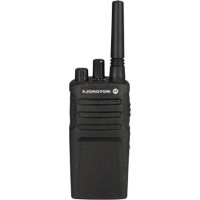
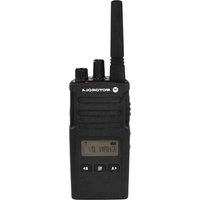
XT420 Non-Display Model
Open Source Software Legal Notices:
This Motorola product contains Open Source Software. For information regarding licenses, acknowledgements, required copyright notices and other usage terms, refer to the documentation for this Motorola product at:
http://businessonline.motorolasolutions.com
Go to: Resource Center > Product Information > Manual > Accessories.
CONTENTS
Contents. 1
Computer Software Copyrights .4
Safety 5
Batteries and Chargers Safety Information. 6
Operational Safety Guidelines. 7
Radio Overview 8
Parts Of The Radio 8
On/Off/Volume Knob. 9
On/Off/Volume Knob. 9
Channel Selector Knob 9
Accessory Connector 9
Model Label 9
Microphone 9
Antenna 9
LED Indicator 9
Side Buttons 9
The Lithium-Ion (Li-Ion) Battery 9
Batteries and Chargers 11
Battery Features And Charging Options 11
About the Li-Ion Battery 11
Installing the Lithium-Ion (Li-Ion) Battery 12
Removing the Lithium-Ion (Li-Ion) Battery 12
Power Supply and Drop-in Tray Charger 13
Power Supply and Drop-in Tray Charger 13
Holster 14
Charging with the Drop-in Tray Charger (SUC). 14
Drop-in Tray Charger LED Indicators . . 16
Estimated Charging Time 17
Multi-Unit Charger LED Indicators 19
Getting Started 20
Turning radio ON/OFF 20
Adjusting Volume 20
Selecting a Channel 20
Talking and Monitoring. 20
Receiving a Call 21
Talk Range. 22
RadioLEDIndicators. 23
Hands-Free Use/VOX 24
With Compatible VOX Accessories 24
Setting iVOX Sensitivity 24
Hands Free without Accessories (iVOX). 25
Microphone Gain. 25
Toggle Voice Prompt in User Mode . . .25
Power Up - Tone Mode. 25
Reset to Factory Defaults. 25
Programming Features. 26
Advanced Configuration Mode 26
Entering Advanced Configuration Mode 27
Entering Frequencies Values 27
Reading CTCSS / DPL Values 28
Reading Auto-Scan Values. 28
Saving Settings. 28
Programming Values Example 30
Example of Programming a Frequency 30
Example of Programming a Code 31
Example of Programming Auto-Scan 31
Other Programming Features 32
Scan 32
Editing Scan List 32
Nuisance Channel Delete 33
Customer Programming Software (CPS). 33
Time-Out Timer 34
Call Tones 34
Scramble 34
ReverseBurst 35
Cloning Radios. 36 Cloning with a Multi-Unit Charger (MUC) 36
CPS and Cloning Cables (Optional Accessory) 38
Cloning Radio using the Radio to Radio (R2R) Cloning Cable (Optional Accessory) 39
Cloning using the Customer Programming Software (CPS) 41
Troubleshooting 42
Use and Care 46
Frequency and Code Charts 47
CTCSS and PL/DPL Codes 48
Motorola Limited Warranty 53
Accessories 55 Audio Accessories 55 Battery 55 Cables 55 Chargers 55 Carry Accessories 55
COMPUTER SOFTWARE
The Motorola products described in this manual may include copyrighted Motorola computer programs stored in semiconductor memories or other media. Laws in the United States and other countries preserve for Motorola certain exclusive rights for copyrighted computer programs, including, but not limited to, the exclusive right to copy or reproduce in any form the copyrighted computer program. Accordingly, any copyrighted Motorola computer programs contained in the Motorola products described in this manual may not be copied, reproduced, modified, reverse-engineered, or distributed in any manner without the express written permission of Motorola.
Furthermore, the purchase of Motorola products shall not be deemed to grant either directly or by implication, estoppel, or otherwise, any license under the copyrights, patents or patent applications of Motorola, except for the normal non-exclusive license to use that arises by operation of law in the sale of a product.
English
SAFETY
PRODUCT SAFETY AND RF EXPOSURE COMPLIANCE

Caution
Before using this product, read the operating instructions and RF energy awareness information contained in the Product Safety and RF Exposure booklet enclosed with your radio.
ATTENTION!
This radio is restricted to occupational use only to satisfy FCC / ICNIRP RF energy exposure requirements.
For a list of Motorola-approved antennas, batteries and other accessories, visit the following website which lists approved accessories:
www.motorolasolutions.com/XTseries
This document contains important safety and operating instructions. Read these instructions carefully and save them for future reference. Before using the battery charger, read all the instructions and cautionary markings on
the charger, the battery, and the radio using the battery.
- To reduce risk of injury, charge only the rechargeable Motorola-authorized batteries. Other batteries may explode, causing personal injury and damage.
- Use of accessories not recommended by Motorola may result in risk of fire, electric shock, or injury.
- To reduce risk of damage to the electric plug and cord, pull by the plug rather than the cord when disconnecting the charger.
- An extension cord should not be used unless absolutely necessary. Use of an improper extension cord could result in risk of fire and electric shock. If an extension cord must be used, make sure that the cord size is 18AWG for lengths up to 100 feet (30.48 m), and 16AWG for lengths up to 150 feet (45.72 m).
- To reduce risk of fire, electric shock, or injury, do not operate the charger if it has been broken or damaged in any way. Take it to a qualified Motorola service representative.
- Do not disassemble the charger; it is not repairable and replacement parts are not available. Disassembly of the charger may result in risk of electrical shock or fire.
- To reduce risk of electric shock, unplug the charger from the AC outlet before attempting any maintenance or cleaning.
OPERATIONAL SAFETY GUIDELINES
- Turn the radio OFF when charging battery.
- The charger is not suitable for outdoor use. Use only in dry locations/conditions.
- Connect charger only to an appropriately fused and wired supply of the correct voltage (as specified on the product).
- Disconnect charger from line voltage by removing main plug.
- The outlet to which this equipment is connected should be nearby and easily accessible.
- In equipment using fuses, replacements must comply with the type and rating specified in the equipment instructions. Maximum ambient temperature around the power supply equipment must not exceed 40°C (104°F).
- Power output from the power supply unit must not exceed the ratings stated on the product label
located at the bottom of the charger.
- Make sure that the cord is located where it will not be stepped on, tripped over, or subjected to water, damage, or stress.
RADIO OVERVIEW
PARTS OF THE RADIO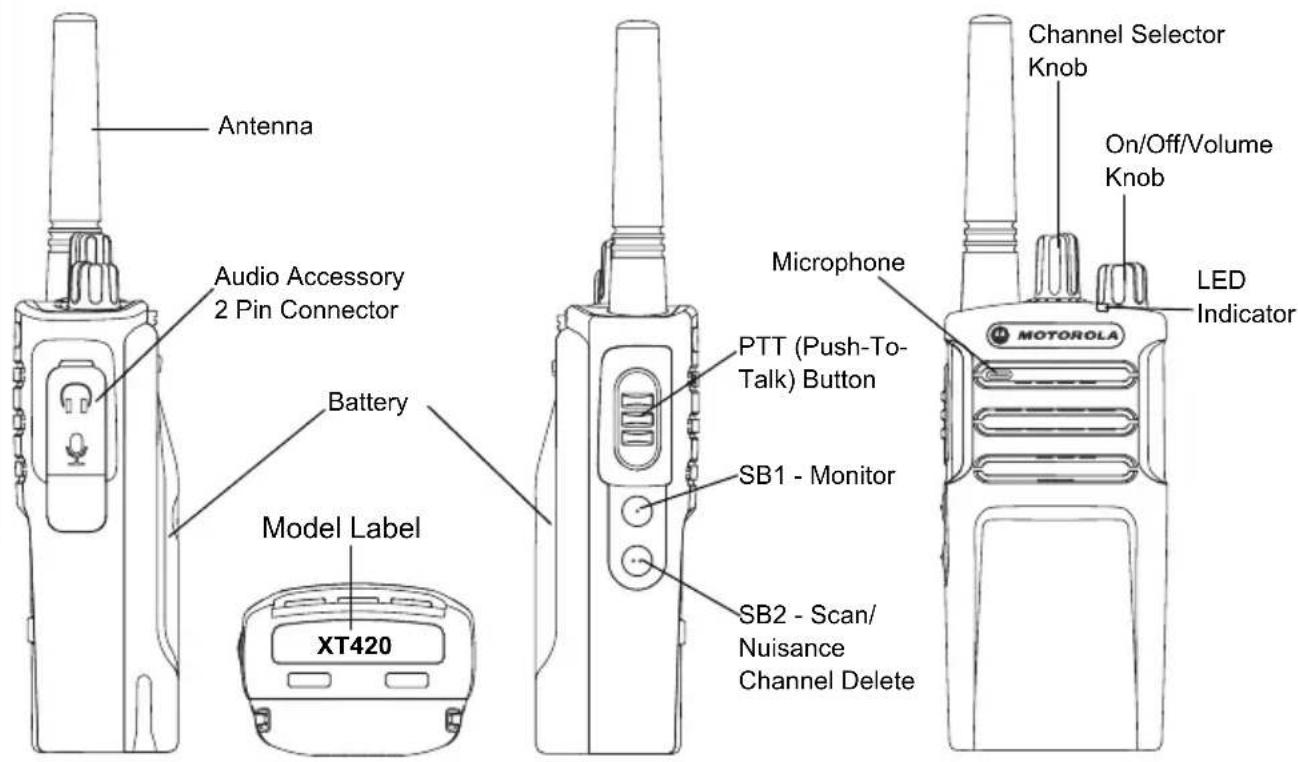
English
On/Off/Volume Knob
Used to turn the radio ON or OFF and to adjust the radio's volume.
Channel Selector Knob
Used to switch the radio to different channels.
Accessory Connector
Used to connect compatible audio accessories.
Model Label
Indicates the model of the radio.
Microphone
Speak clearly into the microphone when sending a message.
Antenna
For model XT420 the antenna is non-removable.
LED Indicator
Used to give battery status, power-up status, radio call information and scan status.
- Press and hold down this button to talk, release it to listen.
- The Side Button 1 is a general button that can be configured by the Customer Programming Software (CPS). The SB1 default setting is 'Monitor'.
- The Side Button 2 is a general button that can be configured by the CPS. The SB2 default setting is 'Scan/Nuisance Channel Delete'.
The Lithium-Ion (Li-Ion) Battery
XT Series comes with a Standard Capacity Li-Ion battery. Other batteries may be available.
For more information, see "Battery Features
And Charging Options" on page 11.
English
This User Guide covers the XT420 Series models. The radio's model is shown on the bottom of the radio and provides the following information:
Table 1: XT420 Radio Specifications
| Model | Frequency Band | Transmit Power (Watts) | Number of Channels | Antenna |
| XT420 PMR446 0.5 16 Non-removable | | |
BATTERIES AND CHARGERS
XT Series radios provide Lithium-Ion batteries that come in different capacities that define the battery life.
BATTERY FEATURES AND CHARGING OPTIONS
About the Li-Ion Battery
The XT Series radio comes equipped with a rechargeable Li-Ion battery. This battery should be fully charged before initial use to ensure optimum capacity and performance.
Battery life is determined by several factors. Among the more critical are the regular overcharge of batteries and the average depth of discharge with each cycle. Typically, the greater the overcharge and the deeper the average discharge, the fewer cycles a battery will last. For example, a battery which is overcharged and discharged 100% several
times a day, lasts fewer cycles than a battery that receives less of an overcharge and is discharged to 50% per day. Further, a battery which receives minimal overcharging and averages only 25% discharge, lasts even longer.
Motorola batteries are designed specifically to be used with a Motorola charger and vice versa. Charging in non-Motorola equipment may lead to battery damage and void the battery warranty. The battery should be at about 77°F (25°C) (room temperature), whenever possible. Charging a cold battery (below 50°F [10°C]) may result in leakage of electrolyte and ultimately in failure of the battery. Charging a hot battery (above 95°F [35°C]) results in reduced discharge capacity, affecting the performance of the radio.
Motorola rapid-rate battery chargers contain a temperature-sensing circuit to ensure that batteries are charged within the temperature limits stated above.
Installing the Lithium-Ion (Li-Ion) Battery
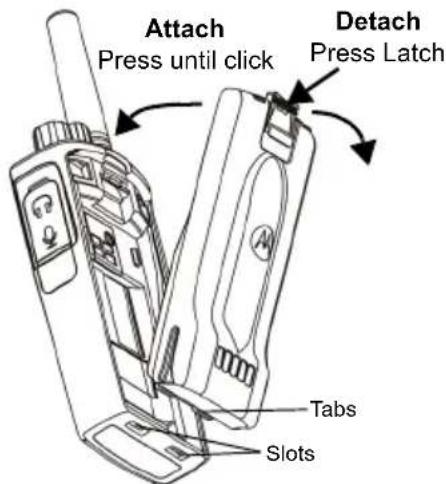
- Turn OFF the radio.
- With the Motorola logo side up on the battery pack, fit the tabs at the bottom of the battery into the slots at the bottom of the radio's body.
- Press the top part of the battery towards the radio until a click is heard.
Note: To learn about the Li-Ion Battery Life features, refer to "About the Li-Ion Battery" on page 11
Removing the Lithium-Ion (Li-Ion) Battery
- Turn OFF the radio.
- Push down the battery latch and hold it while removing the battery.
- Pull the battery away from the radio.
Table 1: Li-Ion Battery Life with Tx Power 0.5 Watts
| Battery Type | Battery Save OFF | Battery Save ON |
| Standard 16 Hours 20 Hours | |
| High Capacity N/A N/A | |
English
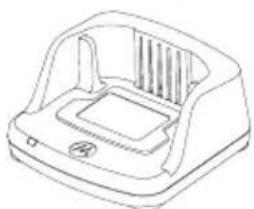
Power Supply and Drop-in Tray Charger
Drop-in Tray Charger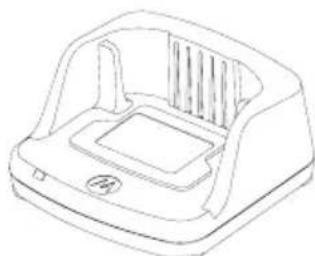
Power Supply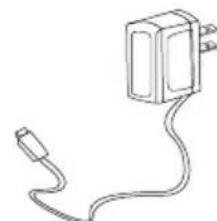
Your radio comes with one Drop-in Tray Charger, one Power Supply (also known as Transformer), and a set of adaptors.
Your Power Supply is capable of switching to suit any of the adaptors that come with your radio package.
The adaptor you install depends on the region you're located in.
Once you have identified the adaptor that matches your electrical outlet, proceed to install it as follows:
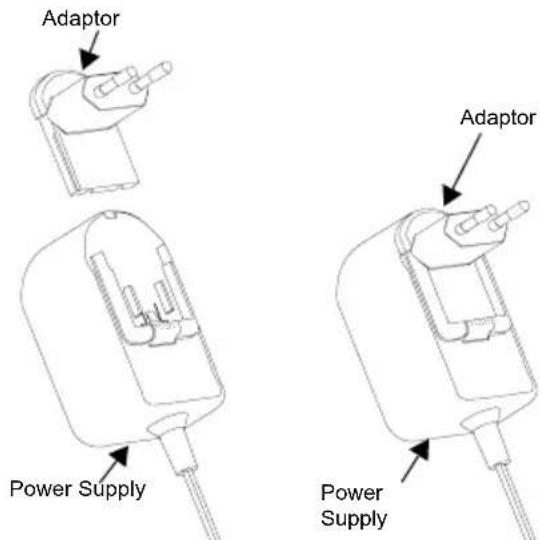
- Slide the adaptor grooves into the Power Supply until it snaps into place.
- Slide the adaptor upward to remove.
Note: The adaptors shown in the pictures are for illustration purposes only. The adaptor you install may be different.
When acquiring an additional Charger or Power Supply, make sure you have a similar Drop-in Tray Charger and Power Supply set.
Holster
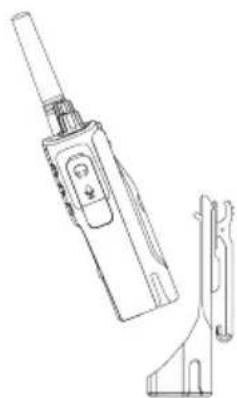
- Insert the radio into the base of the holster at an angle. Press the radio against the back of the holster until the hooks on the holster are inserted into the top recesses of the battery.
- To remove, use the top tab on the holster to detach the hooks of the holster from the top recesses of the battery. Slide the radio at an angle and remove it from the holster.
Note: To charge the battery (with the radio attached), place it in a Motorola approved Charger or Multi Unit Charger.
Charging with the Drop-in Tray Charger (SUC)
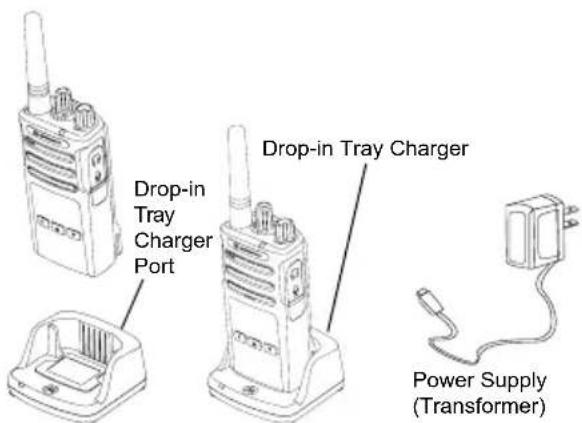
- Place the Charger on a flat surface.
- Insert the connector of the Power Supply into the port on the side of the Charger.
- Plug the AC Adaptor into a power outlet.
- Insert the radio into the Charger with the radio facing the front, as shown.
Note: When charging a battery attached to a radio, turn the radio OFF to ensure a full charge. See "Operational Safety Guidelines" on page 7 for more information.
Charging A Stand-Alone Battery
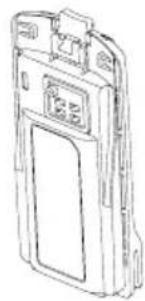
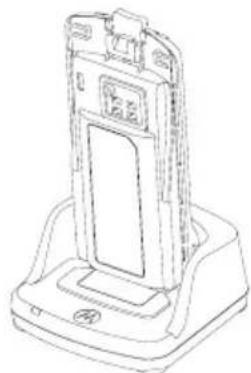
To charge only the battery - at step 4 on page 14, insert the battery into the tray, with the inside surface of the battery facing the front of the Drop-in Tray Single Unit Charger as shown above. Align the slots in the battery with the alignment ribs in the Drop-in Tray Single Unit Charger.
Table 2: Motorola Authorized Batteries
| Part Number Description |
| PMNN4434_R Standard Li-Ion Battery |
| PMNN4453_R | High Capacity Li-Ion Battery |
Drop-in Tray Charger LED Indicators
Table 3: Charger LED Indicator
| Status LED Indicator Comments |
| Power On | Green for approximately 1 second | |
| Charging | Steady Red | |
| Charging Complete | Steady Green | |
| Battery Fault (*) | Red Fast Flash | |
| Waiting to Charge (**) | Amber Slow Flash | |
| Battery Level Status | N/A Battery empty | |
| Flash Red 1 Time | Battery low |
| Flash Amber 2 Times | Battery medium |
| Flash Green 3 Times | Battery High |
( ) Normally, re-positioning the battery pack will correct this issue. ( *) Battery temperature is too warm or too cold or wrong power voltage is being used.
If there is NO LED indication:
English
- Check if the radio with battery, or the battery alone, is inserted correctly. (Refer to step 4 of "Charging with the Drop-in Tray Charger (SUC)" on page 14)
- Ensure that the power supply cable is securely plugged into the charger socket using an appropriate AC outlet and there is power to the outlet.
- Confirm that the battery being used with the radio is listed in Table 2 on page 15.
Estimated Charging Time
The following table provides the estimated charging time of the battery. For more information, see "Batteries and Chargers Safety Information" on page 6.
Table 4: Battery Estimated Charging Time
| Charging Solutions | Estimated Charging Time |
| Standard Battery High Capacity Battery |
| Standard ≤ 4.5 Hours N/A | | |
| Rapid ≤ 2.5 Hours N/A | | |
Charging a Radio and Battery using a Multi-Unit Charger - MUC (Optional Accessory)
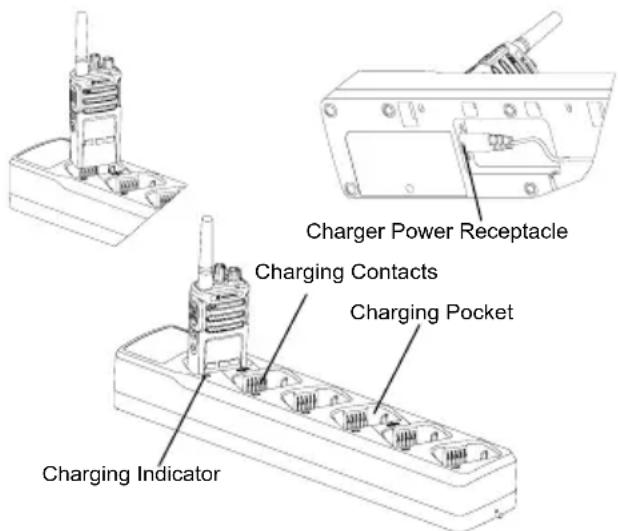
The Multi-Unit Charger (MUC) allows drop-in charging of up to 6 radios or batteries. Batteries can be charged with the radios or removed and placed in the MUC separately. Each of the 6 charging pockets can hold a radio (with or without the Holster) or battery, but not both.
- Place the MUC on a flat surface.
- Insert the power cord plug into the MUC's dual pin connector at the bottom of the MUC.
- Plug the power cord into an AC outlet.
- Turn the radio OFF.
- Insert the radio or battery into the charging pocket with the radio or battery facing away from the contacts.
Note:
- This MUC clones up to 2 radios (2 Source radios and 2 Target radios). Refer to "Cloning with a Multi-Unit Charger (MUC)" on page 36 for more information.
- More information on the MUC's operation is available in the Instruction Sheets provided with the MUC. For more information on the parts and their part numbers, refer to "Accessories" on page 55.
Multi-Unit Charger LED Indicators
Table 5: Charger LED Indicator
| Status LED Status Comments |
| Power On Green for approx. 1 sec | ● | |
| Charging Steady red | ● | |
| Charge Complete Steady | green | ● |
| Battery Fault (*) | Red fast flash | ● |
| Waiting to charge (**) | Amber slow flash | ● |
| Battery Level Status | Flash red 1 time | ● Battery low |
| Flash amber 2 times | ● Battery medium |
| Flash green 3 times | ● Battery high |
Normally re-positioning the battery pack will correct this issue. Battery temperature is too warm or too cold or wrong power voltage is being used. If there is NO LED indication:
- Check if the radio with battery, or the battery alone, is inserted correctly. (refer to "Charging a Radio and Battery using a Multi-Unit Charger - MUC (Optional Accessory)" on page 18)
- Ensure that the power supply cable is securely plugged into the charger socket using an appropriate AC outlet and there is power to the outlet.
- Confirm that the battery being used with the radio is listed in Table 2 on page 15.
GETTING STARTED
For the following explanations, refer to "Parts Of The Radio" on page 8.
To turn ON the radio, rotate the On/Off/Volume Knob clockwise. The radio plays one of the following:
- Power up tone and channel number announcement, or
- Battery level and channel number announcements, or
- Silent (Audible tones disabled)
The LED blinks red briefly.
To turn the radio OFF, rotate the On/Off/Volume Knob counterclockwise until you hear a 'click' and the radio LED Indicator turns OFF.
ADJUSTING VOLUME
Turn the On/Off/Volume Knob clockwise to increase the volume, or counterclockwise to decrease the volume.
Note: Do not hold the radio too close to the ear when the volume is high or when adjusting the volume.
SELECTING A CHANNEL
To select a channel, turn the Channel Selector Knob until you reach the desired channel. An audible voice indicates the selected channel.
Each channel has its own Frequency, Interference Eliminator Code and Scan Settings.
TALKING AND MONITORING
It is important to monitor for traffic before transmitting to avoid 'talking over' someone who is already transmitting.
To monitor, long press and hold the SB1(*) button to access channel traffic. If no activity is present, you will hear 'static'. To release, press SB1 again. Once channel traffic has cleared, proceed with your call by pressing the PTT button. When transmitting, the LED Indicator stays solid red.
Notes:
- To listen to all activity on a current channel, short press the SB1 to set the CTCSS/DPL code to 0. This feature is called 'CTCSS/DPL Defeat (Squelch set to SILENT)'.
- (*) This assumes SB1 is not being programmed for a different mode.
RECEIVING A CALL
- Select a channel by rotating the Channel Selector Knob until you reach the desired channel. An audible voice indicates the selected channel.
- Make sure the PTT button is released and listen for voice activity.
- The LED Indicator stays solid red when the radio is receiving a call.
- To respond, hold the radio vertically 1 to 2 inches (2.5 to 5 cm) from your mouth. Press the PTT button to talk; release it to listen.
Note:
- Interference Eliminator Codes are also referred to as CTCSS/DPL codes or PL/DPL codes.
TALK RANGE
XT Series radios have been designed to maximize performance and improve transmission range in the field. It is recommended that you do not use the radios closer than 1.5 meters apart to avoid interference. XT460 coverage is 16,250 square meters, 13 floors, and 9 km in flat areas.
Talk range depends on the terrain. It will be affected by concrete structures, heavy foliage, and by operating radios indoors or in vehicles. Optimal range occurs in flat, open areas with up to 9 kilometers of coverage. Medium range occurs when buildings and trees are in the way.
To establish proper two-way communication, the Channel, Frequency, and Interference
Eliminator Codes must be the same on both radios. This depends on the stored profile that has been pre-programmed on the radio:
- Channel: Current channel that the radio is using, depending upon radio model.
- Frequency: The frequency the radio uses to transmit/receive.
- Interference Eliminator Code: These codes help minimize interference by providing a choice of code combinations.
- Scramble Code: Codes that make the transmissions sound garbled to anyone listening who is not set to that specific code.
For details on how to set up frequencies and CTCSS/DPL codes in the channels, refer to "Entering Advanced Configuration Mode" on page 27.
RADIO LED INDICATORS
| RADIO STATUS LED INDICATION |
| Channel Busy Solid Orange | |
| Cloning Mode Double Orange Heartbeats | |
| Cloning In Progress Solid Orange | |
| Fatal Error at Power up | One Green Blink, One Orange Blink, One Green Blink, then repeat for 4 seconds |
| Low Battery Orange Heartbeat | |
| Low Battery Shutdown Fast Orange Heartbeat | |
| Monitor LED is OFF | |
| Power-Up Solid Red for 2 seconds | |
| ‘Idle’ Programming Mode / Channel Mode | Green Heartbeat |
| Scan Mode Fast Red Heartbeat | |
| Transmit (Tx)/Receive (RX) Solid Red | |
| VOX/iVOX Mode Double Red Heartbeats | |
HANDS-FREE USE/VOX
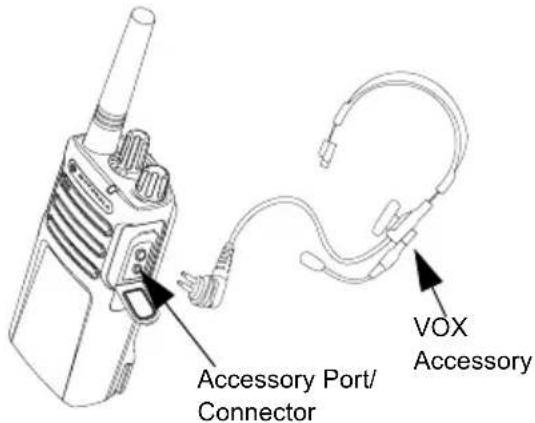
Motorola XT series radios can operate hands-free (VOX) when used with compatible VOX accessories.
With Compatible VOX Accessories
The default factory setting for VOX sensitivity level is Medium (level '2'). Before using VOX, set VOX level to a level different from '2' via the Customer Programming Software (CPS). Then, perform the following steps:
- Turn the radio OFF.
- Open accessory cover.
- Insert the audio accessory's plug firmly into accessory port.
- Turn radio ON. The LED Indicator will blink double red.
- Lower radio volume BEFORE placing accessory near ear.
- To transmit, speak into accessory microphone and to receive, stop talking.
- VOX can be temporarily disabled by pressing the PTT button or by removing the audio accessory.
Note: To order accessories, contact your Motorola point of purchase.
Setting iVOX Sensitivity
The sensitivity of the radio's accessory or microphone can be adjusted to suit different operating environments. iVOX sensitivity can be programmed via the CPS.
Default value is '3'. You can set iVOX to any value as listed below:
- 1 = Low sensitivity
- 2 = Medium sensitivity
- 3 = High sensitivity
Hands Free without Accessories (iVOX)
- Enable iVOX by pressing the PTT Button while turning ON the radio.
- iVOX can be temporarily disabled by pressing the PTT button.
- A short press of the PTT Button re-enables iVOX.
- There is a short delay between the time when you start talking and when the radio transmits.
Microphone Gain
The sensitivity of the microphone can be adjusted to fit different users or operating environments.
This feature can be adjusted only through the CPS. Microphone default setting is set to level 2 (medium gain).
Toggle Voice Prompt in User Mode
Short press the SB1 Button while turning ON the radio to enable/disable the Voice Prompt in User Mode. (Default is set to ON).
Power Up - Tone Mode
To enable/disable power up tone mode, press SB1 and SB2 buttons simultaneously for 2-3 seconds while powering up the radio until you hear the pre-programmed power up tone. 3 different power-up tones are available.
Reset to Factory Defaults
Reset to Factory Defaults will set back all radio features to the original factory default settings. To do so, press PTT, SB2 and SB1 simultaneously while turning ON the radio until you hear a high tone chirp.
TROUBLESHOOTING
| Symptom Try This... |
| No Power | Recharge or replace the Li-1on battery.
Extreme operating temperatures may affect battery life.
Refer to “About the Li-Ion Battery” on page 11 |
| Hearing other noises or conversation on a channel | Confirm Interference Eliminator Code is set.
Frequency or Interference Eliminator Code may be in use.
Change settings: either change frequencies or codes on all radios.
Make sure radio is at the right frequency and code when transmitting.
Refer to “Talking and Monitoring” on page 20 |
| Message Scrambled | Scramble Code might be ON, and/or setting does not match the other radios' settings. |
| Audio quality not good enough | Radio settings might not be matching up correctly. Double check frequencies, codes and bandwidths to make sure they are identical in all radios |
| Limited talk range | Steel and/or concrete structures, heavy foliage, buildings or vehicles decrease range. Check for clear line of sight to improve transmission.
Wearing radio close to body such as in a pocket or on a belt decreases range.
Change location of radio. To increase range and coverage, you can reduce obstructions or increase power. UHF radios provides greater coverage in industrial and commercial buildings. Increasing power provides greater signal range and increased penetration through obstructions.
Refer to “Talking and Monitoring” on page 20 |
| Message not transmitted or received | Make sure the PTT button is completely pressed when transmitting.
Confirm that the radios have the same Channel, Frequency, Interference Eliminator Code and Scramble Code settings. Refer to “Talking and Monitoring” on page 20 for further information.
Recharge, replace and/or reposition batteries. Refer to “About the Li-Ion Battery” on page 11.
Obstructions and operating indoors, or in vehicles, may interfere. Change location. Refer to “Talking and Monitoring” on page 20.
Verify that the radio is not in Scan. Refer to “Scan” on page 32 and “Nuisance Channel Delete” on page 33. |
| Heavy static or interference | Radios are too close; they must be at least five feet apart. Radios are too far apart or obstacles are interfering with transmission. Refer to “Talking and Monitoring” on page 20. |
| Low batteries | Recharge or replace Li-1on battery. Extreme operating temperatures affect battery life. Refer to “About the Li-1on Battery” on page 11. |
| Drop-in Charger LED light does not blink | Check that the radio/battery is properly inserted and check the battery/charger contacts to ensure that they are clean and charging pin is inserted correctly. Refer to “Charging with the Drop-in Tray Charger (SUC)” on page 14, “Drop-in Tray Charger LED Indicators” on page 16 and “Installing the Lithium-1on (Li-1on) Battery” on page 12. |
| Low battery indicator is blinking although new batteries are inserted | Refer to “Installing the Lithium-1on (Li-1on) Battery” on page 12, and “About the Li-1on Battery” on page 11. |
| Cannot activate VOX | VOX feature might be set to OFF.Use the CPS to ensure that the VOX Sensitivity level is not set to ‘0’.Accessory not working or not compatible.Refer to “Hands-Free Use/VOX” on page 24. |
| Battery does not chargealthough it has been placed inthe drop-in charger for a while | Check drop-in tray charger is properly connected and correspond to acomppatible power supply.Refer to “Charging with the Drop-in Tray Charger (SUC)” on page 14 and“Charging A Stand-Alone Battery” on page 15CHECK the charger's LEDs indicators to see if the battery has a problem. Referto “Drop-in Tray Charger LED Indicators” on page 16. |
Note: Whenever a feature in the radio seems to not correspond to the default or preprogrammed values, check to see if the radio has been programmed using the CPS with a customized profile.
PROGRAMMING FEATURES
To easily program all the features in your radio, it is recommended to use the Customer Programming Software (CPS) and the programming cable.
CPS software download is available for free at www.motorolasolutions.com/XTSeries.
Advanced Configuration is a configuration mode that allows the customization of additional features via the radio's front panel.
For non-display model radios, the navigation is guided by an audible voice prompt.
When the radio is set to Advanced Configuration, you are able to read and modify three features:
Frequency Selection, - Codes (CTCSS/DPL), and
English
The Frequencies Select feature allows you to choose frequencies from a pre-defined list.
The Interference Eliminator Code (CTCSS/DPL) helps minimize interference by providing you with a choice of code combinations that filter out static, noise, and unwanted messages.
The Auto-Scan feature allows you to set a particular channel to automatically enable Scan each time you switch to that channel.
Entering Advanced Configuration Mode
Note: Before configuring the features, make sure your radio is set to the channel you wish to program. You can do so before entering Advanced Configuration Mode or at any time during the Advanced Configuration Mode by rotating the Channel Selector Knob until you reach the desired channel.
To read or modify Frequencies, Codes and Auto-Scan, set the radio to 'Advanced Configuration Mode' by long pressing both the PTT and the SB1 button simultaneously for 3 to 5 seconds while turning ON the radio until you hear an audible voice saying "Programming Mode" and "Channel Number". The LED Indicator starts blinking a green heartbeat.
Note: 'Idle' Programming Mode is the stage in the Programming Mode where the radio waits for the user to start the radio programming cycle.
Once you are in the 'Idle' Programming Mode, you will be able to hear the Frequencies,
Codes and Auto-Scan settings by short pressing the PTT button to navigate along the different programmable features.
Entering Frequencies Values
XT Series radios use PMR446 band that has 8 frequencies available.
In 'Idle' Programming mode, the Channel number becomes the first changeable value. Select the desired channel by turning the Channel Selector Knob. An audible voice indicated the selected channel to configure. Short pressing the PTT button allows you to cycle through the other features available for configuration. Use the SB1 and SB2 button to change the values. An audible voice indicates the value selected.
Reading CTCSS / DPL Values
Cycle through the features available for configuration by short pressing the PTT button until you hear the current code. The radio moves to the programming CTCSS/PL codes mode.
Enter a new code value using the SB1 and SB2 buttons.
The XT Series radios have up to 219 codes available. For more information, refer to "Frequency and Code Charts" on page 47.
Reading Auto-Scan Values
After hearing the CTCSS/DPL codes, short pressing the PTT button moves you to AutoScan mode.
Auto-Scan has only two values:
Modify Auto-Scan values using SB1 and SB2 buttons.
Saving Settings
Once you are satisfied with the settings, you can either:
- short press the PTT button to continue programming,
- long press the PTT button to save and return to 'Idle' Programming Mode, or
- long press the PTT button twice to exit 'Idle' Programming Mode and return to the normal radio operation.
Note:
- To exit the programming mode without saving, turn OFF the radio.
- If you 'roll-over' to the beginning of 'Idle' Programming Mode, you will hear "Channel Number" and the LED Indicator blinks green again. All changed values will be automatically saved.
Programming Mode FAQ
- I got distracted while programming and forgot which feature I was programming. What should I do?
Return to 'Idle' Programming Mode and start over. You will not be able to return to Programming Mode (the radio does not provide further way to let you know the specific stage you are at in the Programming Mode).
Therefore you can:
- Long press the PTT button. The radio will return to 'Idle' Programming Mode or,
- Turn OFF the radio and enter Programming Mode again. (Refer to "Entering Advanced Configuration Mode" on page 27 for more information)
- I am trying to program a frequency (or a code) value but the radio would not do it. It rolled over and took me back to value '0'.
The radio disallows you to program any value that is not available in the frequencies and
codes pool. For example, if you try to program code 220, the radio would not accept it as the maximum value allowed is 219. Same goes for the frequencies. Refer to the "Frequency and Code Charts" on page 47 to make sure you are programming a valid value. 3. I am trying to enter the Programming Mode but the radio would not do it.
The radio may be locked using the CPS to disallow Front Panel Programming. To re-enable, use the CPS.
- I programmed the wrong value when I was programming. How can I erase or re-program the value?
If you programmed the wrong value, you can either:
- 'Roll-over' the radio. The radio 'roll-over' each time it reaches the maximum value allowed. Keep increasing (short press the SB1 button) or decreasing (short press the SB2 button) until you get the desired value or,
- Turn OFF the radio and start over.
- I just programmed the value I wanted. How do I exit the Programming Mode?
You can either:
- long press the PTT button twice to exit if you're in the Programming Mode or,
- Long press the PTT button once if you are already in the 'Idle' Programming mode.
- I am done programming the features in this channel. How do I program another channel?
Short press the PTT button several times until you hear "Channel Number". Switch channel by rotating the Channel Selector Knob. If you wish to save the changes, make sure you are in the 'Idle' Programming Mode before switching the channel, otherwise you will lose the changes made.
PROGRAMMING VALUES EXAMPLE
Example of Programming a Frequency
Assuming current frequency value is set to Channel 1, with the PMR446 default frequency set to '02' (equivalent to 446.03125 MHz), and you want to change it to Frequency Number = '13' (which is mapped to 466.05625 MHz), follow this sequence:
- Enter Advanced Configuration Mode.
- Short press the PTT button to enter Frequency Mode. The radio audible voice announces that the current value is '2'.
- Press the SB1 button eleven times to increase frequencies and you will hear frequency "One, three" (13).
- Long press the PTT button. LED Indicator shows a green heartbeat to indicate 'Idle' Programming Mode.
- Long press the PTT button again to exit Programming Mode or turn OFF the radio.
Example of Programming a Code
Assuming the current code value is set to factory default '001', and you want to change it to CTCSS/DPL Code = 103. Follow the sequence indicated below:
- Enter Advanced Configuration Mode.
- Short press the PTT button twice. The radio audible voice announced "Code Number" (Entering CTCSS/DPL Programming Selection Mode).
- Pressing and holding SB1 or SB2 button fast forwards / rewrites the value at the nearest 10's. When released, the radio audible voice announces the first, second and third digit in full. Keep pressing the SB1 or SB2 button several times until you hear "103".
- Long press the PTT button. LED Indicator shows a green heartbeat to indicate 'Idle' Programming Mode.
- Long press the PTT button again to exit Programming Mode or turn OFF the radio.
Example of Programming Auto-Scan
Auto-Scan is the third available feature in the Programming Mode and can be set to either ON or OFF on a particular channel.
To set Auto-Scan to ON:
- Enter Advanced Configuration Mode and select the desired channel.
- Short press the PTT button three times to enter the Active Channels Programming Selection Mode. The audible voice in the radio announces "Auto-Scan" and the setting (Enabled or Disabled).
- To change the setting, press SB1 or SB2.
- Long press the PTT button. LED Indicator shows a green heartbeat to indicate 'Idle' Programming Mode.
- Long press the PTT button again to exit Programming Mode or turn OFF the radio.
OTHER PROGRAMMING FEATURES
Scan
Scan allows you to monitor other channels to detect conversations. When the radio detects a transmission, it stops scanning and goes to the active channel. This allows you to listen and talk to people in that channel without having to change channel. If there is valid channel activity on Channel 2, the radio stays on Channel 1 and you will not hear Channel 2. After the talking has stopped in Channel 1, the radio waits for 5 seconds before resuming scan again.
- To start scanning, press the SBx (x=1 or 2) button. (Scan is defaulted on SB2 but can be programmed to either SB1 or SB2 button via CPS). When the radio detects channel activity, it stops on that channel until the activity ends. You can respond on that channel without having to switch channels by pressing the PTT button. If no transmission occurs within 5 seconds, scanning resumes.
- To stop scanning, short press the SB1 or SB2 button (programmed for scan) again.
- If you want to scan a channel without the Interference Eliminator Codes (CTCSS/DPL), set the code settings for the channels to '0' in the CTCSS/DPL Programming Selection Mode.
Note: Whenever the radio is set to Scan, the LED Indicator blinks a Red Heartbeat.
Editing Scan List
Scan List can be edited by using the CPS. For more information refer to "Customer Programming Software (CPS)" on page 33.
Nuisance Channel Delete
Nuisance Channel Delete allows you to temporarily remove channels from the Scan List. This feature is useful when irrelevant conversations on a 'nuisance' channel ties up the radio's scanning feature.
To delete a channel from the Scan List:
- Start Scan mode by short pressing the SB1 or SB2 (programmed for scan) button.
- Wait until the radio stops receiving at the channel you wish to eliminate. Long press the SB2 button to delete it. You cannot delete the channel with scan enabled (home channel).
- The channel will not be scanned again until you exit the Scan mode by short pressing the SB1 or SB2 (programmed for scan) button again or by turning OFF the radio and back ON.
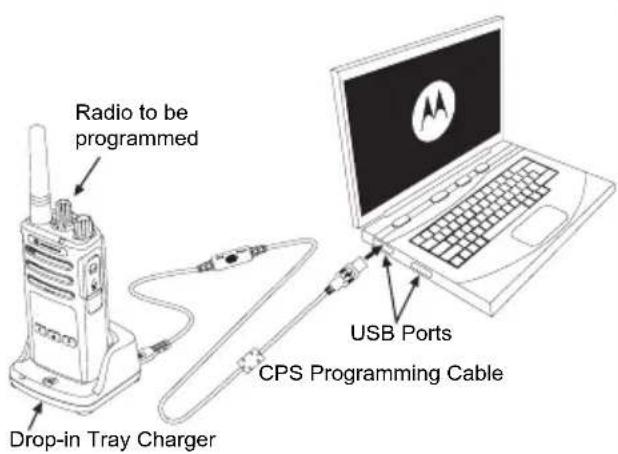
CUSTOMER PROGRAMMING SOFTWARE (CPS) Figure 1: Setting up the radio to the CPS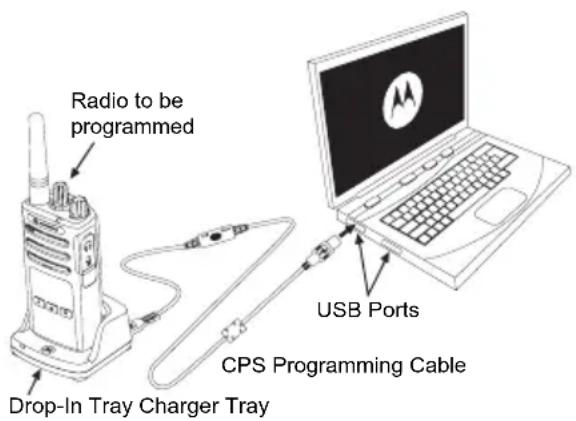
The easiest way to program or change features in your radio is by using the Customer Programming Software (CPS) and the CPS Programming Cable*. CPS Software is available for free as web based downloadable software at:
www.motorolasolutions.com/XTseries
To program, connect the XT Series radio via the Drop-in Charger Tray and CPS Programming Cable as shown in Figure 1 on page 33. Toggle the cable switch of the CPS Programming Cable to 'CPS Mode'.
CPS allows you to program frequencies, PL/ DPL Codes as well as other features such as: Time-out Timer, Scan List, Call Tones, Scramble, Reverse Burst, etc. CPS is a very useful tool as it can also lock the Front-Panel Radio Programming or restrict any specific radio feature to be changed (to avoid accidentally erasing the preset radio values). It also provides security by giving the option to set up a password for profile radio's management. For more information, refer to Features Summary Chart Section at the end of the User Guide.
Note: (*) CPS Programming Cable P/N# HKKN4027_ is an accessory sold separately. Please contact your Motorola point of purchase for more information.
Time-Out Timer
This timer sets the amount of time that the radio can continuously transmit before the transmission is automatically terminated. The default setting is 60 seconds and can be changed using the CPS.
Call Tones
Call Tones feature allows you to transmit an audible tone to other radios on the same channel to alert them that you are about to talk or to alert them without speaking.
To use this feature, the Call Tones must be programmed to either SB1 or SB2 and 1 of the 3 pre-recorded tones is selected.
Scramble

The Scramble feature makes transmissions sound garbled to anyone listening without the same code. Scramble default value is OFF. To change the scramble code during radio's normal operation, the Scramble feature must be programmed to either SB1 or SB2.
Reverse Burst
Reverse Burst eliminates unwanted noise (squelch tail) during loss of carrier detection. You can select values of either 180 or 240 to be compatible with other radios. The default value is 180.
Notes:
- The features described in previous pages are just some of the features CPS has. CPS offers more capabilities. For more information refer to the HELP file in the CPS.
- Some of the features available with the CPS software may vary depending on the radio model.
CLONING RADIOS
You can clone XT Series radio profiles from one Source radio to a Target radio by using any one of these 3 methods:
- Using a Multi Unit Charger (MUC-optional accessory),
- Using two Single Unit Chargers (SUC) and a Radio-to-Radio cloning cable (optional accessory),
- the CPS (free software download)
Cloning with a Multi-Unit Charger (MUC)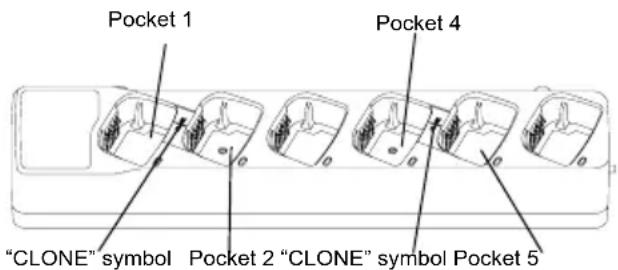
To clone radios using the MUC, there must be at least two radios:
- a Source radio (radio which profiles will be cloned or copied from) and
- a Target radio (the radio which profile will be cloned from the source radio.)
The Source radio has to be in Pocket 1 or 4 while the Target radio has to be in Pocket 2 or 5, matching in the MUCs pockets by pairs as follows:
1 and 2 or, 4 and 5.
When cloning, the MUC does not need to be plugged into a power source, but ALL radios require charged batteries.
- Turn ON the Target radio and place it into one of the MUC Target Pockets
- Power the Source radio following the sequence below:
- Long press the PTT button and SB2
simultaneously while turning the radio ON.
- Wait for 3 seconds before releasing the buttons until the audible tone "Cloning" is heard.
- Place the Source radio in the source pocket that pairs with the target pocket you chose in step 1. Press and release the SB1 button.
- After cloning is completed, the Source radio will announce either "successful" (cloning is successful) or "fail" (cloning has failed). If the Source radio is a display model, it will either show 'Pass' or 'Fail' on the display (a tone will be heard within 5 seconds).
- Once you have completed the cloning process, turn the radios OFF and ON to exit the 'cloning' mode.
Further details on how to clone radios are explained in the Instructions Sheet provided with the MUC.
When ordering the MUC, refer to P/N# PMLN6384_.
Notes:
- If cloning fails, refer to "What To Do If Cloning Fails" on page 40.
- Paired Target radios and Source radios must be of the same band type in order for the cloning to run successfully.
- MUC pockets numbers should be read from left to right with the Motorola logo facing front.
CPS and Cloning Cables (Optional Accessory)
- Both CPS and Cloning Cables are made to work either with XT Series radios or XTNi Series radios. Cloning cable supports a mix of XT and XTNi series radios.
- CPS cable programs XT series radios. Make sure the cable switch is in "Flash" or "CPS" position. To program a XTNi radio with the CPS cable, make sure the cable switch is in "CPS" position and the USB converter provided in the CPS cable kit is attached to the cable.
- Cloning cable allows you to clone:
-XT Series radios. Make sure the switch is in "Cloning" or "Legacy" position. -XTNi Series radios. Make sure the switch is in "Legacy" position with one USB converter on each end of the cloning cable. -XT Series and XTNi Series radios. Make sure the switch is in "Legacy" position and use a USB converter to the XTNi Single-Unit Charger. The Cloning Cable Kit provides 1 USB converter.
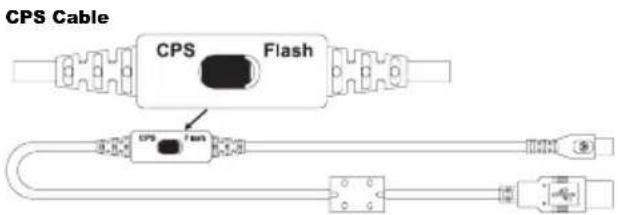
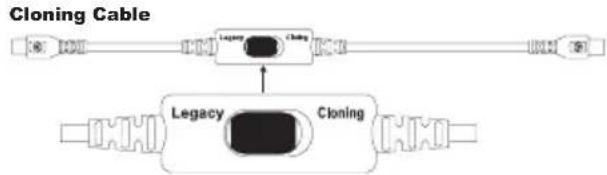
USB Converter
Cloning Radio using the Radio to Radio (R2R) Cloning Cable (Optional Accessory)
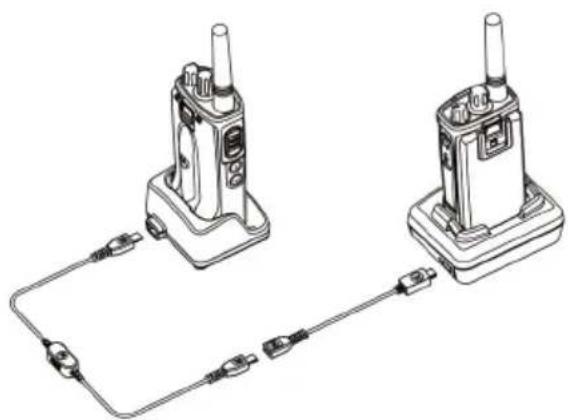
Operating Instructions
- Before starting the cloning process, make sure you have:
- A fully charged battery on each of the radios.
- Two Single-Unit Chargers (SUC), or 2 SUC for cloning XT Series radios, or 1 SUC for XT Series radio and 1 SUC for XTNi Series radio.
- Turn OFF the radios and,
- Unplug any cables (power supply or USB cables) from the SUCs.
- Plug one side of the cloning cable mini USB connector to the first SUC and the other end to the second SUC.
Note: During the cloning process, no power is being applied to the SUC. The batteries will not be charged. Only data communication is being established between the two radios.
- Turn ON the Target Radio and place it into one of the SUCs.
- For the Source Radio, power ON the radio with the following sequence:
- Long press the PTT button and the SB2 button simultaneously while turning the radio ON.
- Wait 3 seconds before releasing the buttons and you hear a distinctive audible tone saying the word "Cloning".
- Place the Source Radio in its SUC. Press and release the SB1 button.
- When the cloning is completed, the Source Radio audible voice will announce either
"successful" (cloning is successful) or "fail" (cloning process has failed). If the Source Radio is a display model radio, it will either show 'Pass' or 'Fail' on the display (a tone will be heard within 5 seconds).
- Once the cloning process is completed, turn the Radios OFF and ON again to exit "Clone" mode.
What To Do If Cloning Fails
The radio audible voice will announce "Fail" indicating that the cloning process has failed. In the event that the cloning fails, perform each of the following steps before attempting to start cloning process again:
- Ensure that the batteries on both radios are fully charged.
- Check the cloning cable connection on both SUCs.
- Ensure that the battery is engaged properly on the radio.
- Ensure that there is no debris in the charging tray or on the radio contacts.
- Ensure that the Target radio is turned ON.
- Ensure that the Source radio is in cloning mode.
- Ensure that the two radios are both from the same frequency band, same region and have the same transmission power.
Note: This cloning cable is designed to operate only with compatible Motorola SUC RLN6175 and PMLN6394
When ordering Cloning Cable, please refer to P/N# HKKN4028_. For more information about the accessories, refer to "Accessories" on page 55.
Cloning using the Customer Programming Software (CPS)
When cloning using this method, you need the CPS software, a Drop-In Tray Charger and the CPS Programming Cable.
To order the CPS Programming Cable, please refer to P/N# HKKN4028_.
Information on how to clone using the CPS is available either in:
- the CPS Help File -> Content and Index -> Cloning Radios, or
- in the CPS Programming Cable Accessory Leaflet.
USE AND CARE
Use a soft damp cloth to clean the exterior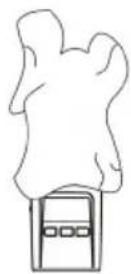
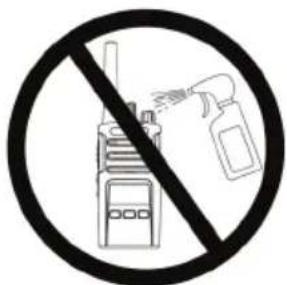
Do not immerse in water Do not use alcohol or cleaning solutions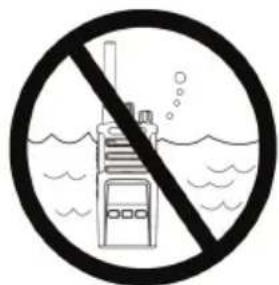
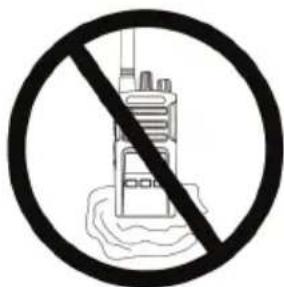
If the radio is submerged in water...
Turn radio OFF and remove batteries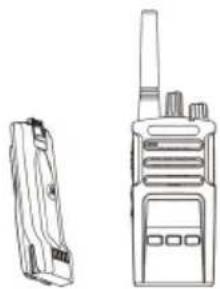
Dry with soft cloth. Do not use radio until completely dry.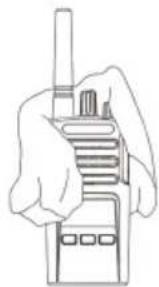
FREQUENCY AND CODE CHARTS
The charts in this section provide Frequency and Code information. These charts are useful when using the Motorola XT Series two-way radios with other business radios. Most of the frequency positions are the same as the XTNi Series frequency positions.
Default Channel Frequency and Interference Eliminator Code
| Channel # Frequency (MHz) Code Bandwidth C |
| 1 446.00 | 625 67.0 Hz 12.5 kHz | |
| 2 446.01 | 875 67.0 Hz 12.5 kHz | |
| 3 446.03 | 125 67.0 Hz 12.5 kHz | |
| 4 446.04 | 875 67.0 Hz 12.5 kHz | |
| 5 446.05 | 625 67.0 Hz 12.5 kHz | |
| 6 446.06 | 875 67.0 Hz 12.5 kHz | |
| 7 446.08 | 125 67.0 Hz 12.5 kHz | |
| 8 446.09 | 875 67.0 Hz 12.5 kHz | |
Note: Code 754 corresponds to DPL 121
| nnel # | Frequency (MHz) | Code Bandwidth |
| 9 | 446.00625 754 12.5 kHz |
| 10 | 446.01875 754 12.5 kHz |
| 11 | 446.03125 754 12.5 kHz |
| 12 | 446.04375 754 12.5 kHz |
| 13 | 446.05625 754 12.5 kHz |
| 14 | 446.06875 754 12.5 kHz |
| 15 | 446.08125 754 12.5 kHz |
| 16 | 446.09375 754 12.5 kHz |
CTCSS AND PL/DPL CODES
CTCSS Codes
| CTCSS Hz | CTCSS Hz |
| 1 67.0 | 14 107.2 27 167.9 |
| 2 71.9 | 15 110.928 173.8 |
| 3 74.4 | 16 114.8 29 179.9 |
| 4 77.0 | 17 118.830 186.2 |
| 5 79.7 | 18 123.31 192.8 |
| 6 82.5 | 19 127.3 32 203.5 |
| 7 85.4 | 20 131.8 33 210.7 |
| 8 88.5 | 21 136.5 34 218.1 |
| 9 91.5 | 22 141.3 35 225.7 |
| 10 94.8 | 23 146.2 36 233.6 |
| 11 97.4 | 24 151.4 37 241.8 |
| 12 100.0 | 25 156.7 38 250.3 |
| 13 103.5 | 26 162.2 |
Note: (*) New CTCSS code.
PL/DPL Codes
| DPL Code DPL Code |
| 39 23 55 116 71 243 |
| 40 25 56 125 72 244 |
| 41 26 57 131 73 245 |
| 42 31 58 132 74 251 |
| 43 32 59 134 75 261 |
| 44 43 60 143 76 263 |
| 45 47 61 152 77 265 |
| 46 51 62 155 78 271 |
| 47 54 63 156 79 306 |
| 48 65 64 162 80 311 |
| 49 71 65 165 81 315 |
| 50 72 66 172 82 331 |
| 51 73 67 174 83 343 |
| 52 74 68 205 84 346 |
| 53 114 69 223 85 351 |
| 54 115 70 226 86 364 |
PL/DPL Codes (Continued)
| DPL Code | DPL Code |
| 87 365 | 104 565 121 754 | | |
| 88 371 | 105 606 123 645 | | |
| 89 411 | | 106 612 12 Customized Customized Customized Customized Customized Customized Customized Customized Customized Customized Customized Customized Customized Customized Customized Customized Customized Customized Customized Customized Customized Customized Customized Customized Customized Customized Customized Customized Customized Customized Customized Customized Customized Customized Customized Customized Customized Customized Customized Customized Customized Customized Customized Customized Customized Customized Customized Customized Customized Customized CustomIZED CustomIZED CustomIZED CustomIZED CustomIZED CustomIZED CustomIZED CustomIZED CustomIZED CustomIZED CustomIZED CustomIZED CustomIZED CustomIZED CustomIZED CustomIZED CustomIZED CustomIZED CustomIZED CustomIZED CustomIZED CustomIZED CustomIZED CustomIZED CustomIZED CustomIZED CustomIZED CustomIZED CustomIZED CustomIZED CustomIZED CustomIZED CustomIZED CustomIZED CustomIZED CustomIZED CustomIZED CustomIZED CustomIZED CustomIZED CustomIZED CustomIZED CustomIZED CustomIZED CustomIZED CustomIZED CustomIZED CustomIZED CustomIZED CustomIZED CustomIZE DPL PL 47 | |
| 90 412 | 107 624 125 Customized Customized Customized Customized Customized Customized Customized Customized Customized Customized Customized Customized Customized Customized Customized Customized Customized Customized Customized Customized Customized Customized Customized Customized Customized Customized Customized Customized Customized Customized Customized Customized Customized Customized Customized Customized Customized Customized Customized Customized Customized Customized Customized Customized Customized Customized Customized Customized Customized Custom化 DPL PL 39 | | |
| 91 413 | 108 627 126 Customized Customized Customized Customized Customized Customized Customized Customized Customized Customized Customized Customized Customized Customized Customized Customized Customized Customized Customized Customized Customized Customized Customized Customized Customized Customized Customized Customized Customized Customized Customized Customized Customized Customized Customized Customized Customized Customized Customized Customized Customized Customized Customized Customized Customized Customized Customized Customized Customized Customization DPL 40 | | |
| 92 423 | 109 631 127 Customized Customized Customized Customized Customized Customized Customized Customized Customized Customized Customized Customized Customized Customized Customized Customized Customized Customized Customized Customized Customized Customized Customized Customized Customized Customized Customized Customized Customized Customized Customized Customized Customized Customized Customized Customized Customized Customized Customized Customized Customized Customized Customized Customized Customized Customized Customized Customized Customized Customize DPL 41 | | |
| 93 431 | 110 632 128 Customized Customized Customized Customized Customized Customized Customized Customized Customized Customized Customized Customized Customized Customized Customized Customized Customized Customized Customized Customized Customized Customized Customized Customized Customized Customized Customized Customized Customized Customized Customized Customized Customized Customized Customized Customized Customized Customized Customized Customized Customized Customized Customized Customized Customized Customized Customized Customized Customized Customizd DPL 42 | | |
| 94 432 | 111 654 129 Customized Customized Customized Customized Customized Customized Customized Customized Customized Customized Customized Customized Customized Customized Customized Customized Customized Customized Customized Customizd DPL 43 | | |
| 95 445 | 112 662 130 Inverted DPL 44 | | |
| 96 464 | 113 664 131 Inverted DPL 40 | | |
| 97 465 | 114 703 132 Inverted DPL 41 | | |
| 98 466 | 115 712 133 Inverted DPL 42 | | |
| 99 503 | 116 723 134 Inverted DPL 43 | | |
| 100 506 | 117 731 135 Inverted DPL 44 | | |
| 101 516 | 118 732 136 Inverted DPL 45 | | |
| 102 532 | 119 734 137 Inverted DPL 46 | | |
| 103 546 | 120 743 138 Inverted DPL 47 | | |
PL/DPL Codes (Continued)
| DPL Code DPL Code |
| 139 | Inverted DPL 48 |
| 140 | Inverted DPL 49 |
| 141 | Inverted DPL 50 |
| 142 | Inverted DPL 51 |
| 143 | Inverted DPL 52 |
| 144 | Inverted DPL 53 |
| 145 | Inverted DPL 54 |
| 146 | Inverted DPL 55 |
| 147 | Inverted DPL 56 |
| 148 | Inverted DPL 57 |
| 149 | Inverted DPL 58 |
| 150 | Inverted DPL 59 |
| 151 | Inverted DPL 60 |
| 152 | Inverted DPL 61 |
| 153 | Inverted DPL 62 |
| 154 | Inverted DPL 63 |
| 155 | Inverted DPL 64 |
| ode |
| 156 | Inverted DPL 65 |
| 157 | Inverted DPL 66 |
| 158 | Inverted DPL 67 |
| 159 | Inverted DPL 68 |
| 160 | Inverted DPL 69 |
| 161 | Inverted DPL 70 |
| 162 | Inverted DPL 71 |
| 163 | Inverted DPL 72 |
| 164 | Inverted DPL 73 |
| 165 | Inverted DPL 74 |
| 166 | Inverted DPL 75 |
| 167 | Inverted DPL 76 |
| 168 | Inverted DPL 77 |
| 169 | Inverted DPL 78 |
| 170 | Inverted DPL 79 |
| 171 | Inverted DPL 80 |
| 172 | Inverted DPL 81 |
| 173 | Inverted DPL 82 |
| 174 | Inverted DPL 83 |
| 175 | Inverted DPL 84 |
| 176 | Inverted DPL 85 |
| 177 | Inverted DPL 86 |
| 178 | Inverted DPL 87 |
| 179 | Inverted DPL 88 |
| 180 | Inverted DPL 89 |
| 181 | Inverted DPL 90 |
| 182 | Inverted DPL 91 |
| 183 | Inverted DPL 92 |
| 184 | Inverted DPL 93 |
| 185 | Inverted DPL 94 |
| 186 | Inverted DPL 95 |
| 187 | Inverted DPL 96 |
| 188 | Inverted DPL 97 |
| 189 | Inverted DPL 98 |
| DPL | Code |
| 190 | Inverted DPL 99 |
| 191 | Inverted DPL 100 |
| 192 | Inverted DPL 101 |
| 193 | Inverted DPL 102 |
| 194 | Inverted DPL 103 |
| 195 | Inverted DPL 104 |
| 196 | Inverted DPL 105 206 |
| 197 | Inverted DPL 106 |
| 198 | Inverted DPL 107 208 |
| 199 | Inverted DPL 108 |
| DPL Code |
| 200 | Inverted DPL 109 |
| 201 | Inverted DPL 110 |
| 202 | Inverted DPL 111 |
| 203 | Inverted DPL 112 |
| 204 | Inverted DPL 113 |
| 205 | Inverted DPL 114 |
| ed DPL | 115 216 Customize |
| 207 | Inverted DPL 116 |
| ed DPL | 117 218 Customize |
| 209 | Inverted DPL 118 |
| DPL | Code |
| 210 | Inverted DPL 119 |
| 211 | Inverted DPL 120 |
| 212 | Inverted DPL 121 |
| 213 | Inverted DPL 123 |
| 214 | Customized DPL |
| 215 | Customized DPL |
| |
| 217 | Customized DPL |
| |
| 219 | Customized DPL |
MOTOROLA LIMITED WARRANTY
The authorised Motorola dealer or retailer where you purchased your Motorola two-way radio and/or original accessories will honour a warranty claim and/or provide warranty service. Please return your radio to your dealer or retailer to claim your warranty service. Do not return your radio to Motorola. To be eligible to receive warranty service, you must present your receipt of purchase or a comparable substitute proof of purchase bearing the date of purchase. The two-way radio should also clearly display the serial number. The warranty will not apply if the type or serial numbers on the product have been altered, deleted, removed or made illegible.
WHAT IS NOT COVERED BY THE WARRANTY
- Defects or damage resulting from use of the Product in other than its normal and customary manner or by not following the instructions in this user guide.
- Defects or damage from misuse, accident or neglect.
- Defects or damage from improper testing, operation, maintenance, adjustment or any alteration or modification of any kind.
- Breakage or damage to aerials unless caused directly by defects in material or workmanship.
- Products disassembled or repaired in such a manner as to adversely affect performance or prevent adequate inspection and testing to verify any warranty claim.
- Defects or damage due to moisture, liquid or spills.
- All plastic surfaces and all other externally exposed parts that are scratched or damaged due to normal use.
ACCESSORIES
AUDIO ACCESSORIES
| Part No. Description |
| 00115 Remote Speaker Mic BR |
| 00117 Headset w/Swivel Boom Mic |
| 00118 Earbud w/Clip PTT Mic BR |
| 00168 Lightweight headset |
BATTERY
| Part No. Description |
| PMNN4434_R Standard Li-Ion Battery |
| PMNN4453_R High Capacity Li-Ion Battery |
CABLES
| Part No. Description |
| HKKN4028_Radio to Radio Cloning Cable |
| HKKN4027_CPS Programming Cable |
CHARGERS
| Part No. Description |
| PMLN6385_ | Standard Drop-In Tray Single Unit Charger UK/EU Kit |
| PMLN6393_ | Standard Drop-In Tray Multi-Unit Charger INT UK/EU |
CARRY ACCESSORIES
| Part No. Description |
| HKLN4510_Swivel Holster |
Note: Certain accessories may or may not be available at the time of purchase. Please contact your Motorola Point of Purchase or visit www.motorolasolutions.com/XTSeries or www.motorolasolutions.com/radios/business for latest information on accessories.
Notes
MOTOROLA, MOTO, MOTOROLA SOLUTIONS and the Stylized M logo are trademarks or registered trademarks of Motorola Trademark Holdings, LLC and are used under license. All other trademarks are the property of their respective owners.
© 2013 Motorola Solutions, Inc. All rights reserved.
Customer Programming Software (CPS) 34
www.motorolasolutions.com/XTseries
Customer Programming Software (CPS) 42
www.motorolasolutions.com/XTseries
SAFETY INSTRUCTIONS FOR BATTERIES AND CHARGERS
PTT (Push-to-Talk) Button
RECEIVING A CALL
CUSTOMER PROGRAMMING SOFTWARE (CPS)
www.motorolasolutions.com/XTseries
PL/DPL codes (continued)
PL/DPL codes (continued)
| DPL Code | DPL Code |
| 139 | DPL inversé 48 |
| 140 | DPL inversé 49 |
| 141 | DPL inversé 50 |
| 142 | DPL inversé 51 |
| 143 | DPL inversé 52 |
| 144 | DPL inversé 53 |
| 145 | DPL inversé 54 |
| 146 | DPL inversé 55 |
| 147 | DPL inversé 56 |
| 148 | DPL inversé 57 |
| 149 | DPL inversé 58 |
| 150 | DPL inversé 59 |
| 151 | DPL inversé 60 |
| 152 | DPL inversé 61 |
| 153 | DPL inversé 62 |
| 154 | DPL inversé 63 |
| 155 | DPL inversé 64 |
| ode |
| 156 | DPL inversé 65 |
| 157 | DPL inversé 66 |
| 158 | DPL inversé 67 |
| 159 | DPL inversé 68 |
| 160 | DPL inversé 69 |
| 161 | DPL inversé 70 |
| 162 | DPL inversé 71 |
| 163 | DPL inversé 72 |
| 164 | DPL inversé 73 |
| 165 | DPL inversé 74 |
| 166 | DPL inversé 75 |
| 167 | DPL inversé 76 |
| 168 | DPL inversé 77 |
| 169 | DPL inversé 78 |
| 170 | DPL inversé 79 |
| 171 | DPL inversé 80 |
| 172 | DPL inversé 81 |
| 173 | DPL inversé 82 |
| 174 | DPL inversé 83 |
| 175 | DPL inversé 84 |
| 176 | DPL inversé 85 |
| 177 | DPL inversé 86 |
| 178 | DPL inversé 87 |
| 179 | DPL inversé 88 |
| 180 | DPL inversé 89 |
| 181 | DPL inversé 90 |
| 182 | DPL inversé 91 |
| 183 | DPL inversé 92 |
| 184 | DPL inversé 93 |
| 185 | DPL inversé 94 |
| 186 | DPL inversé 95 |
| 187 | DPL inversé 96 |
| 188 | DPL inversé 97 |
| 189 | DPL inversé 98 |
PL/DPL codes (continued)
| DPL | Code |
| 190 | DPL inversé 99 |
| 191 | DPL inversé 100 |
| 192 | DPL inversé 101 |
| 193 | DPL inversé 102 |
| 194 | DPL inversé 103 |
| 195 | DPL inversé 104 |
| 196 | DPL inversé 105 206 |
| 197 | DPL inversé 106 |
| 198 | DPL inversé 107 208 |
| 199 | DPL inversé 108 |
TRANSPORT ACCESSORIES
www.motorolasolutions.com/XTseries
www.motorolasolutions.com/XTSeries.
ADVANCED CONFIGURATION MODE (ADVANCED CONFIGURATION)
www.motorolasolutions.com/XTseries
HKLN4510_Swivel holster
CPS (Customer Programming Software) 36
Timeout timer 37
Call tones 37
Encoding 38
Burst inverso 38
(Customer Programming Software) 44
www.motorolasolutions.com/XTseries
PTT (Push-to-Talk) button
www.motorolasolutions.com/XTSeries.
CPS (CUSTOMER PROGRAMMING SOFTWARE)
www.motorolasolutions.com/XTseries
| N. canale | Frequenza (MHz) | Codice | Larghezza di banda |
| 1 | 446,00625 | 67,0 Hz | 12,5 kHz |
| 2 | 446,01875 | 67,0 Hz | 12,5 kHz |
| 3 | 446,03125 | 67,0 Hz | 12,5 kHz |
| 4 | 446,04375 | 67,0 Hz | 12,5 kHz |
| 5 | 446,05625 | 67,0 Hz | 12,5 kHz |
| 6 | 446,06875 | 67,0 Hz | 12,5 kHz |
| 7 | 446,08125 | 67,0 Hz | 12,5 kHz |
| 8 | 446,09375 | 67,0 Hz | 12,5 kHz |
© 2013 Motorola Solutions, Inc.
Open Source Software Legal Notices:
www.motorolasolutions.com/XTseries
www.motorolasolutions.com/XTseries
© 2013 Motorola Solutions, Inc.
Customer Programming Software
(CPS - Customer Programming Software) 34
Time-Out Timer 35 Call Tones 35 Scramble 35 ReverseBurst 35
Push-to-Talk button (PTT)
www.motorolasolutions.com/XTseries
CPS (Customer Programming Software) 33
Time-out timer 34
Call tones 34
Scramble 34
ReverseBurst 35
ADJUSTING THE VOLUME
Turn the on/off/volume knob clockwise to increase the volume and counterclockwise to decrease it.
www.motorolasolutions.com/XTseries
WHAT IS NOT COVERED BY THE WARRANTY
© 2013 Motorola Solutions, Inc.
Customer Programming Software (CPS) 33
Timeout timer 34
Call signals 34
Encryption 34
Burst transmission 35
Cloning a radio 36
COMPUTER SOFTWARE COPYRIGHT
www.motorolasolutions.com/XTseries
Push-to-Talk button (PTT)
www.motorolasolutions.com/XTseries
To program, connect your XT series radio via the charger with the CPS programming cable as shown in Figure 1 on page 33. Set the cable switch on the CPS programming cable to "CPS Mode".
© 2013 Motorola Solutions, Inc.
All rights reserved.
(Microphone Gain) 25
www.motorolasolutions.com/XTseries
© 2013 Motorola Solutions, Inc.
Nuisance Channel Delete 33
Customer Programming Software (CPS) . . . 34
Timeout Timer 35
Ring Tones 35
Encryption 35
Noise Suppression 35
Clone Radios 36
Cloning with a Multi-Unit Charger (MUC) 36
PRODUCT SAFETY AND RF EXPOSURE COMPLIANCE

Before using this product, read the operating instructions and the RF energy information provided in the product safety and RF exposure booklet that came with the radio.
NOTE!
www.motorolasolutions.com/XTseries
PTT button (Push-to-Talk)
Nuisance Channel Delete
With Nuisance Channel Delete, you can temporarily remove channels from the scan list. This feature is useful when irrelevant conversations on a 'nuisance' channel occupy the radio's scanning function.
www.motorolasolutions.com/XTseries
© 2013 Motorola Solutions, Inc.
All rights reserved.
Lithium-Ion (Li-Ion) Battery .9
Batteries and Chargers 11
Installing the Lithium-Ion (Li-Ion) Battery...12
Removing the Lithium-Ion (Li-Ion) Battery 12
www.motorolasolutions.com/XTseries
BATTERY AND CHARGER SAFETY INFORMATION
Lithium-Ion (Li-Ion) Battery
Installing the Lithium-Ion (Li-Ion) Battery
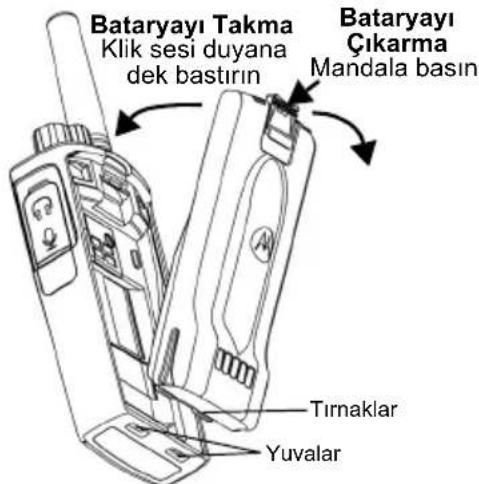
Removing the Lithium-Ion (Li-Ion) Battery
- TURN THE RADIO OFF.
- While removing the battery, press the battery latch and push it downward.
- Remove the battery from the radio.
www.motorolasolutions.com/XTseries
| 173 | Ters Çevrilm)iş DPL 82 |
| 174 | Ters Çevrilm)iş DPL 83 |
| 175 | Ters Çevrilm)iş DPL 84 |
| 176 | Ters Çevrilm)iş DPL 85 |
| 177 | Ters Çevrilm)iş DPL 86 |
| 178 | Ters Çevrilm)iş DPL 87 |
| 179 | Ters Çevrilm)iş DPL 88 |
| 180 | Ters Çevrilm)iş DPL 89 |
| 181 | Ters Çevrilm)iş DPL 90 |
| 182 | Ters Çevrilm)iş DPL 91 |
| 183 | Ters Çevrilm)iş DPL 92 |
| 184 | Ters Çevrilm)iş DPL 93 |
| 185 | Ters Çevrilm)iş DPL 94 |
| 186 | Ters Çevrilm)iş DPL 95 |
| 187 | Ters Çevrilm)iş DPL 96 |
| 188 | Ters Çevrilm)iş DPL 97 |
| 189 | Ters Çevrilm)iş DPL 98 |
PL/DPL Codes (Continued)
© 2013 Motorola Solutions, Inc.
www.motorolasolutions.com/XTseries
Push-to-Talk (PTT) Button
www.motorolasolutions.com/XTSeries.
ADVANCED CONFIGURATION MODE
www.motorolasolutions.com/XTseries
© 2013 Motorola Solutions, Inc.
Channel Selection Knob 9
Accessory Connector 9
Model Name Label 9
Mikpooh. 9
AHTeHa 9
CbitnoioHn iHdkaTOp. 9
BiHNI KhoNKn 9
Jitii-ioHHn (Li-Ion) akymyIaTOp . . . . .9
AkymyaTOpTa 3apndhi npncTroi . . .11
XapakTepeNCTnKn akymyIaTOpIB ta cnocobn
3apxkanna 11
JIiTiI-oIHnI aKymyJrToPn 11
BcTaHOBJIeHHN iTii-iOHHoro (Li-Ion)
akymyITopa 12
BnMaHHa NiiH-iOHHoro (Li-Ion)
akymyITopa 13
JNTKOM DnB BCTaBnaHn npnNay. 13
Ko6ypa. 14
Using the battery
Device with connector
Selecting the radio channel. 21
Ukrainian
With notifications and monitoring .21
Turning on/off 22
Display operation 23
Light indicator for radio station . . .24
Restoring standard
Settings .27
Programmed functions.28
«Advanced Configuration Mode»
(Extended capabilities mode
Settings. 28
Switching modes
«Advanced Configuration Mode»
(Extended capabilities)
Settings 29
Frequency input 30
Checking the values of codes
CTCSS/DPL. 30
Checking the values
Auto-scan 30
Saving settings. 31
Programming values 33
Programming frequencies 33
Programming codes 34
Programming
Auto-scan 34
Programming functions 35
Scanning 35
Editing the scan list 36
Deleting unneeded channels 37
Computer software for programming
Individual programming
(CPS) 37
Time-out timer 38
Tonal calls 38
Scrambling 39
Accessory jack 40
Cables for CPS and cloning
CTCSS and PL/DPL codes .54
Limited warranty
Motorola 59
Accessories 61
Battery 61
Charger 61
Cable 61
Charging 62
Accessories for the device 62
COPYRIGHT FOR COMPUTER PROGRAMS
The products described in this manual may include copyrighted computer programs stored in semiconductor memories or other media. The laws of the United States and other countries reserve for Motorola certain exclusive rights for copyrighted computer programs, including, among others, the exclusive right to copy or reproduce in any form the copyrighted computer programs. Accordingly, any copyrighted computer programs of Motorola contained in the products described in this manual may not be copied, reproduced, modified, reverse-engineered, or distributed in any manner without the express written permission of Motorola. Furthermore, the purchase of Motorola products shall not be deemed to grant, either directly or by implication, estoppel, or otherwise, any license under the copyrights, patents, or patent applications of Motorola, except for the normal non-exclusive license to use that arises by operation of law in the sale of a product.
Ukrainian
Described in this manual, without prior written consent of Motorola. Furthermore, the purchase of Motorola products shall not be deemed to grant, either directly or by implication, estoppel, or otherwise, any license under the copyrights, patents, or patent applications of Motorola, except for the normal non-exclusive license to use that arises by operation of law in the sale of a product.
SAFETY INFORMATION
PRODUCT COMPLIANCE WITH SAFETY AND RADIO FREQUENCY ENERGY REQUIREMENTS
Before using this product, read this manual and familiarize yourself with the safety and radio frequency energy information provided in the booklet "Safety and Radio Frequency Energy" that is included with the radio.
WARNING!
This device complies with the Federal Communications Commission (USA) requirements for radio frequency energy exposure and is intended for occupational/controlled use.
For a list of Motorola-approved batteries, chargers, and other accessories, visit the website:
www.motorolasolutions.com/XTseries
SAFETY AND OPERATION INFORMATION FOR BATTERY CHARGERS
Read this document and the instructions for safety and operation. Carefully read these instructions and keep them for future use.
Before using the battery charger for the battery, familiarize yourself with all instructions and warnings on the
charger, the battery, and
the radio that operates from the battery.
- To reduce risk of injury, use only the batteries that are approved by Motorola. These batteries are explosion-proof and may cause fire or property damage.
- Use of accessories not recommended by Motorola may result in damage, electric shock, or injury.
- To avoid electric shock and fire, when unplugging the charger from the outlet, pull by the plug, not by the cord.
- Use of an extension cord is allowed only in case of extreme necessity. Use of an extension cord that does not meet the requirements may cause damage or electric shock. If an extension cord is necessary, make sure it is used with a cord of 18 AWG up to 30.48 m (100 ft), and 16 AWG up to 45.72 m (150 ft).
- To reduce risk of damage, electric shock, or injury, do not use a damaged or injured charger. Return them to a certified Motorola representative for service.
- Do not disassemble the charger; it is not repairable and replacement of faulty parts is not possible. Disassembling the charger is associated with risk of electric shock and damage.
- To reduce the risk of electric shock, before performing any maintenance or cleaning, disconnect the charger from the AC outlet.
OPERATING INSTRUCTIONS
When charging the battery, the charger may become warm. The charger is not intended for use by persons (including children) with reduced physical, sensory, or mental capabilities, or lack of experience and knowledge, unless they have been given supervision or instruction concerning use of the appliance by a person responsible for their safety. Children should be supervised to ensure that they do not play with the appliance. Connect the charger only to AC power sources that are properly installed and have the appropriate voltage level (as indicated on the product).
To disconnect the charger from the mains voltage, pull the main plug out of the socket. The socket to which this equipment is connected must be located nearby and be easily accessible. If the fuse is blown, replace it only with a new fuse of the same type and rating as specified in the instructions. The maximum ambient temperature of the power source must not exceed 40°C (104°F). The rated power of the power source must not exceed the value indicated on the label on the bottom of the charger. The device must be placed in a location where it cannot come into contact with water, moisture, or rain, and where it is impossible to step on or trip over it.
GENERAL RADIO STATION
Button 2 (SB2)
Button 2 with the general purpose button is activated using CPS. The SB2 button is programmed by default as "Scan/Delete unwanted channels".
Lithium-ion (Li-Ion) battery
The XT series radios are supplied with Li-Ion batteries of standard capacity. Other types of batteries may be used. See "Battery Characteristics and Charging" on page 11 for more information.
This user manual describes several models of the XT420 series. The model name and its technical characteristics are indicated in the lower part of the radio.
Table 1: XT420 radio characteristics
BATTERIES AND CHARGERS
The XT series radios are equipped with Li-Ion batteries of different capacities and, accordingly, different service life.
BATTERY CHARACTERISTICS AND CHARGING
Lithium-ion battery radios are supplied complete with lithium-ion batteries. To ensure maximum capacity and optimal operating characteristics, before first use, the battery must be fully charged.
Battery life is determined by several factors. The most important factors are regular full charging of batteries and avoiding deep discharge in each cycle. Generally, the more fully charged and the less deeply discharged, the fewer charge-discharge cycles the battery will withstand. For example, a battery that receives a full charge and is fully discharged several times a day will have a shorter life than a battery that is recharged more often and only discharged to 50%. In addition, a battery that receives a full charge and is discharged on average no more than 25% will last longer.
Motorola batteries are designed specifically for use with Motorola chargers, which are intended for charging these batteries. Using chargers from other manufacturers may damage the batteries and void the battery warranty. The optimal operating temperature for batteries is room temperature, i.e., 25°C (77°F). Charging a cold battery (below 10°C [50°F]) may cause electrolyte leakage, and in some cases even battery failure. Charging a hot battery (above 35°C [95°F]) will reduce its capacity and adversely affect the operating characteristics of the radio. To ensure optimal charging conditions in accordance with the specified temperature conditions, Motorola chargers are equipped with temperature sensors.
Installing the Lithium-Ion (Li-Ion) Battery
Turn off the radio.
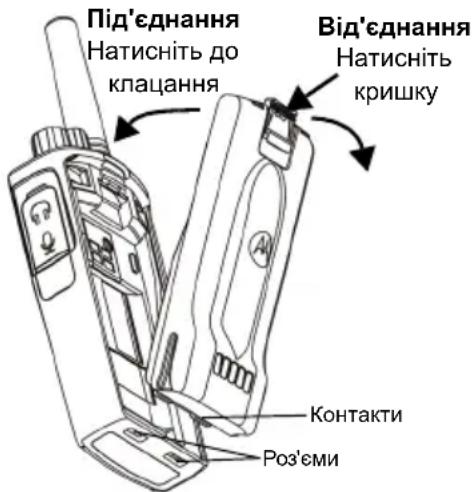
- Place the battery pack on the back of the Motorola radio and align the battery contacts with the contacts on the back of the radio.
- Press the battery down from the top edge until it snaps into place.
- Note: For more information on the life of Li-Ion batteries, see the section "Lithium-Ion Batteries" on page 11.
Removing the Lithium-Ion (Li-Ion) Battery
Turn off the radio.
- Press the battery latch down while holding it pressed.
- Pull the battery away from the radio.
- Table 1: Battery life for 0.5-watt radios in the XT series
Table 1: Resource of the ion battery with a power of 0.5 watts of the TX series flashlights
| Тип
akумлаятора | Реким
ekономii
Зapаду
ВИМК. | Реким
ekономii
Зapаду
УВIMK. |
| Стондану | 16 говин | 20 говин |
| Підвицени
емностi | H/D H/D | |
Calculated charging time
The table shows the calculated charging time for the accumulator. More information can be found in the 'Safety information for working with accumulators and charging devices' on page 6.
Table 4: Calculated charging time for the accumulator
Restoring standard settings
Checking CTCSS / DPL code values
Briefly press the PTT button to switch from one programmed function to another until the desired code is found. The radio switches to the CTCSS/PL code programming mode.
Using the SB1 and SB2 buttons, enter the new code value.
In XT series radios, up to 219 codes can be used. More details about this are in the 'Frequency and code table' on page 53.
Checking autoscan values
After setting the CTCSS/DPL code values, briefly press the PTT button to switch to autoscan mode.
The autoscan mode has two states:
Changes to autoscan values are made using the SB1 and SB2 buttons.
Saving settings
After selecting the desired values, perform one of the following actions:
To set the PTT button and hold it during programming, press and hold the PTT button, save the settings, and return to the programming mode. Press and hold the PTT button, exit the programming mode, and return to normal operation of the radio station.
Note.
- To exit programming mode without saving changes, turn off the radio. If you return to the beginning of the programming mode, all changes will be discarded. You will receive a message "Channel Number" and the indicator will blink green. All changed values will be automatically saved.
Questions and answers about programming mode
1. During programming, I pressed the wrong button and I don't know which function is being programmed. What should I do?
Return to the programming mode and start again. Returning to the programming mode is not possible (the radio does not save information about which stage of programming you are in). So, try one of the options:
Press and hold the PTT button. The radio will return to the programming mode. Or, turn off the radio and enter programming mode again. (More details about this are in "Transition to 'Advanced Configuration Mode' (Extended settings mode) on page 29")
- I try to program a value (or code), but the radio does not execute the command. It returns to the initial value 0
The radio does not allow programming any values except those within the allowed range of frequencies and codes. For example, if you try to enter code 220, the radio will not accept it, as the maximum allowed value is 219. The same applies to frequency values. You can check the allowed values in the "Frequency and Code Table" on page 53.
- I try to enter programming mode, but nothing happens.
The radio may be locked using CPS software to prevent unwanted programming from the front panel. You can unlock it with CPS software.
4. During programming, I entered the wrong value by mistake. Can I correct it or reprogram it?
If you have programmed an incorrect value, do one of the following:
- Go through all options and return to the beginning. After reaching the maximum allowed value, the radio will return to the beginning each time. Decrease (short press SB1) or increase (short press SB2) the value until you reach the desired one, or turn off the radio and start again.
- I have programmed the desired value. How do I exit programming mode?
Quick setup method:
- While in programming mode, press and hold the PTT button, repeat this, or
If you are already in programming mode, press and hold the PTT button once. 6. The programming of the channel is complete. How to program functions for another channel?
Briefly press the PTT button several times until the display shows "Channel Number". Switch to another channel by turning the channel selector knob. The changes will be saved before switching channels if you are in programming mode; otherwise, the changes will be lost.
PROGRAMMING EXAMPLES
Programming example:
www.motorolasolutions.com/XTseries
To start programming, install the radio battery charger and connect it to the computer using the CPS programming cable, as shown in Figure 1 on page 37. Set the switch on the programming cable to "CPS Mode".
The programming software allows you to program frequencies, PL/DPL, and functions such as transmit time-out timer, scan lists, call tones, squelch, Reverse Burst function, and more. The CPS is a user-friendly tool that allows you to program with a password or restrict the ability to change any specified function (for example, to prevent unauthorized programming). In addition, it provides a higher level of security, allowing you to set a password for programming the radio. Detailed information can be found in the
"Radio Functions" section at the end of this user guide.
Note: (*) Each programming via CPS requires the accessory kit NKN4027_, sold separately. For more information, contact your local Motorola sales representative.
Transmit time-out timer
This timer sets the maximum duration of continuous transmission before automatic shutdown. The default time-out value is 60 seconds, but this setting can be changed using the CPS.
Call tones
The call tones function allows you to transmit audio signals to other radios operating on the same channel to alert them of your desire to speak with them, or simply to attract their attention without transmitting a voice message.
To use this function, you need to program one of the buttons SB1 or SB2 for a long press and select one of the recorded variants of the press.
Cloning

Cables for CPS and Cloning (Optional Equipment)
The cable for CPS and the cable for cloning are intended for use with radios of the XT or XTN series. The cloning cable can be used to connect interchangeable pairs of radios of the XT and XTN series. The CPS cable is used for programming radios of the XT series. It is recommended that the switch on the cable be in the "Flash" or "CPS" position. Before starting to program radios of the XTN series using the CPS cable, make sure that the switch on the cable is in the "CPS" position, and the USB adapter from the CPS cable kit is connected to the cable.
The cloning cable allows cloning:
- XT series radios. It is recommended that the switch on the cable be in the Cloning or "Legacy" position.
- XTN series radios. It is recommended that the switch on the cable be in the "Legacy" position, and both cloning cables have one USB adapter each.
- XT and XTN series radios. It is recommended that the switch on the cable be in the "Legacy" position, and on the charging device for one XTN device, a USB adapter is installed. The cloning cable kit includes 1 USB adapter.
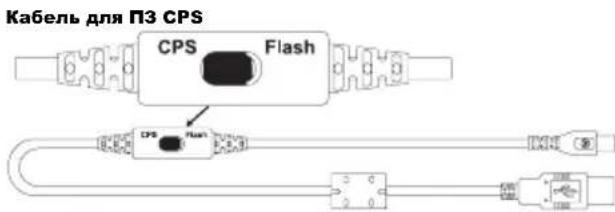
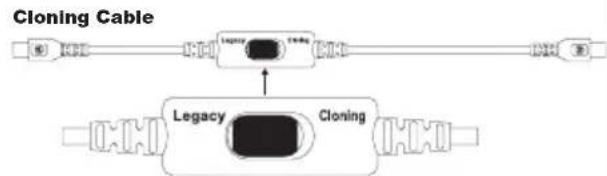
USB adapter
Cloning radios using the cable for connecting radios (R2R) (Optional Equipment)
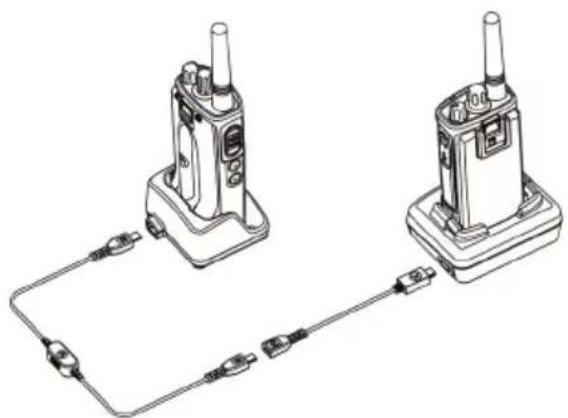
Operating Instructions
TROUBLESHOOTING
Do not use alcohol or solvents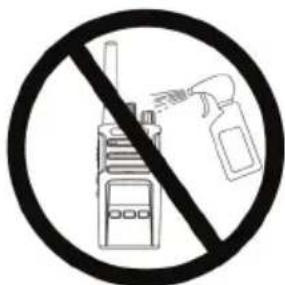
If water gets into the radio...
Turn off the radios and remove the batteries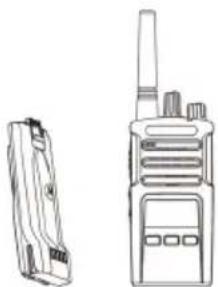
Do not use the radio until it is completely dry.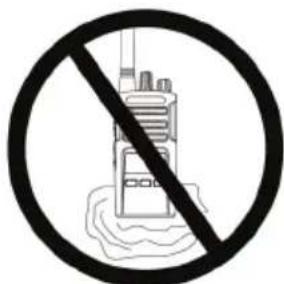
FREQUENCY TABLES AND CODES
This section provides tables with frequency and code data. The data from these tables is needed to establish communication between the two-way radio and other Motorola XT series radios and other compatible radios. The frequency channels coincide with the channels of the XTN series radios.
Standard frequency chart and signaling codes
© 2013 Motorola Solutions, Inc.
All rights reserved.
Legal notice regarding open source software
This Motorola publication contains open source software.
For notices regarding copyrights and other terms of use, see the documentation for this Motorola product on the website
CM. Documentation for this product Motorola on the website
See the Resource Center section > Product Information
(Information about products) > Manual (Guide) > Accessories (Accessories).
CONTENTS
Contents 1
Copyright
Computer Software
Provision 4
Safety 5
Safety Instructions for
Handling
Batteries
and Charging Devices .6
Safety Instructions for Operation .8
Radio Overview.. 9
External View and Controls .9
Volume Control On/Off .10
Channel Selection Knob 10
Accessory Connector 10
3TnkeTka MoJeN 10
MinkpofoH 10
AHTeHHa 10
CBeToIIOHbI INHnKaTOp. 10
Bokobbie KhoIkn 10
Литун-ионны (Li-Ion) akkyмлгтор... 11
AkkymyIaTopbI
I 3apArdHbIe ycTpoiCTBa. 12
XapakTepeNCTnKn 3apRJa
aKKymyTopa 12
JIHTM-NOHHbIe aKKyMylrTopbl. 12
YCTaHOBkaJIHTn-NOHOro aKKymyIaTopa 13
I3BneHHeJIHTN-NOHHO aKKyMylTopa 14
CBeToIIOHbIE INdNkAToPbI
paiooctaHcnn 28
Operation in hands-free/VOX mode. 29
Using compatible
VOX accessories. 29
Setting the sensitivity level
iVox. 30
Hands-free mode without
using accessories
(iVox) 30
Reducing noise. 30
Turning on or off
voice announcements in
user mode 31
Tonal signal for turning on
and off 31
Reset to factory settings. 31
Programming Functions 32
Advanced Configuration Mode
(Extended Configuration Mode). 32
Enabling the Extended Configuration Mode
Advanced Configuration Mode 33
Setting Frequencies 34
Reading CTCSS/DPL Values...34
Reading Values
Auto Scan 34
Saving Settings 35
Programming Example Values. 38
Programming Example
Frequency 38
Programming Example
Programming principle
KoDa 39
Programming
Scanning 40
Removing the interfering channel .42
User programming (CPS) .43
User programming (CPS) .43
Power-off timer 44
Call signals 44
Scrambling 44
Reverse pulse 45
Cloning radio stations .45
Cloning with
multi-place charging
device 46
CPS cables and cables
COPYRIGHT
The products described in this manual may include copyrighted computer programs of Motorola Solutions, stored in semiconductor memories or other media. Laws in the United States and other countries preserve for Motorola Solutions certain exclusive rights for copyrighted computer programs, including, among others, the right to copy or reproduce in any form the copyrighted computer programs. Accordingly, any copyrighted computer programs of Motorola Solutions contained in the Motorola products described in this manual may not be copied, reproduced, modified, reverse-engineered, or distributed in any manner without the prior written permission of Motorola Solutions.
Furthermore, the purchase of Motorola products shall not be deemed to grant either directly or indirectly, by implication or otherwise, any license under the copyrights, patents, or patent applications of Motorola, except for the normal non-exclusive license to use that arises by law in the sale of a product.
SAFETY
www.motorolasolutions.com/XTseries
INFORMATION FOR SAFETY WHEN HANDLING BATTERIES AND CHARGERS
This document contains important instructions for safe operation. Read these instructions carefully and keep them for future reference.
Before using the battery charger, read all instructions and warnings on
the charger, the battery, and the radio in which the battery is installed.
- 1. To reduce the risk of injury, use the charger only for charging Motorola-approved batteries. Charging other types of batteries may cause an explosion, resulting in injury and property damage. 2. Use of accessories not recommended by Motorola Solutions may cause fire, electric shock, or injury. 3. To reduce the risk of electric shock from the plug or cable, disconnect the charger from the electrical outlet by pulling the plug, not the cable.
Use extension cords only when absolutely necessary. Use of extension cords with improper parameters may cause fire and electric shock. If it is necessary to use an extension cord, make sure that the cord is of the appropriate size. If the cord length does not exceed 30.48 m, a cord of size >1 mm must be used, and for cord lengths up to 45.72 m, a cord of size >1.5 mm must be used.
- Use extension cords only when it is truly necessary. Using an extension cord with improper parameters can cause a fire or electric shock. If it becomes necessary to use an extension cord, make sure that a cord of the appropriate size is used. If the cord length does not exceed 30.48 m, a cord of size >1 mm should be used, and for cord lengths up to 45.72 m, a cord of size >1.5 mm should be used.
- To reduce the risk of fire, electric shock, or injury, do not use the charging device if it has any malfunctions or damage. Return it to a qualified representative of the Motorola Solutions service department.
- Do not disassemble the charging device: it is not repairable, and spare parts for it are not provided. Disassembling the charging device may lead to electric shock or fire.
- To reduce the risk of electric shock, disconnect the device before performing any maintenance operations.
Channel selector knob
Used to switch between different channels on the radio.
Accessory connector
Used to connect compatible accessories.
Model label
Indicates the radio model.
Microphone
When sending messages, speak into the microphone clearly and distinctly.
Antenna
On the XT420 radio, the antenna is not removable.
The display shows the battery status, power on, call information, and scanning status.
Side buttons
PTT (Push-To-Talk) button
Press and hold the PTT button to talk, and release it to listen.
Side button 1 (SB1)
- Side button 1 is a programmable button that can be configured using the Customer Programming Software (CPS). By default, SB1 is set to the "Monitor" function.
Side button 2 (SB2)
Side button 2 is a programmable button that can be configured using the CPS. By default, SB2 is set to the "Scan/Delete Nuisance Channel" function.
Installing the lithium-ion battery
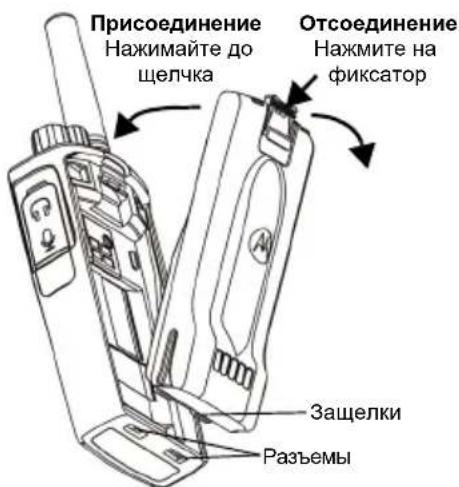
- Turn off the radio.
- Position the battery so that the Motorola logo faces up, and insert the tabs at the bottom of the battery into the slots at the bottom of the radio body.
- Press the top of the battery until it clicks into place in the radio body.
Note: For more details on the use of lithium-ion batteries, see "Lithium-Ion Batteries" on page 12.
Removing the lithium-ion battery
- Remove the radio station.
- Press the battery latch and hold it in this position.
- Remove the battery from the radio station.
Table 1: Specifications of the lithium-ion battery with a transmission power of 0.5 W
Table 3: Battery LED indicator
The LED indicator is off:
- Check that the radio station with the battery or the battery alone is correctly installed in the charging device. (See step 4 in the section "Charging using the home charging device with the power supply" on page 16)
-
- Make sure that the battery used in the device is the one indicated in Table 2 on page 17.
Approximate charging time
Table 5: Battery LED indicator
The LED indicator is off:
- Check that the radio station with the battery or the battery alone is correctly installed in the charging device. (See "Charging the radio station and batteries using the multi-charging device (optional accessory)" on page 20)
- Make sure that the power cable is securely connected to the charging device's socket and to the corresponding AC outlet, and that the outlet is powered.
- Make sure that the battery used in the device is the one indicated in Table 2 on page 17.
Start of operation
The indicator lights up red once.
To turn off the radio station, turn the VOLUME control counterclockwise until you hear a click, and the indicator light will turn off.
VOLUME ADJUSTMENT
To increase the volume, turn the VOLUME control clockwise; to decrease the volume, turn the VOLUME control counterclockwise.
Caution. Do not hold the radio station too close to your ear when it is set to high volume or during volume adjustment.
CHANNEL SELECTION
To select a channel, turn the channel selector knob until you find the desired channel number. Channel switching is accompanied by a voice announcement.
Each channel has its own frequency settings, when the device is used for interference suppression and scanning.
MONITORING
Before starting a transmission, it is necessary to monitor the traffic to avoid a "parallel conversation" with a user who is already transmitting.
To access the channel traffic and start monitoring, press and hold the SB1 button (*). If there is no activity, you will hear static noise. To stop monitoring, press the SB1 button again. After checking the channel traffic, continue your call by pressing the PTT button. During transmission, the indicator light is constantly red.
Note:
- To listen to all activity on the current channel, briefly press the SB1 button to set the value "0" for the CTCSS/DPL code. This function is called "CTCSS/DPL detection (value "OFF" for squelch setting)." (*) It is assumed that the SB1 button is not programmed for another mode.
RECEIVING A CALL
- Select the desired channel by turning the channel selector knob. Channel switching is accompanied by a voice announcement.
- Make sure the PTT button is released, then speak into the microphone.
- During call reception, the LED indicator lights up red.
- To make a call, hold the radio vertically at a distance of about 2.5-5 cm from your mouth. Press the PTT button to talk and release it to listen.
Note.
Codes for squelch and interference elimination may also be called CTCSS/DPL or PL/DPL.
RANGE OF CONVERSATION
The NT series radios are designed to provide maximum performance and improved transmission range in field conditions. To avoid interference, it is not recommended to use the radios at a distance closer than 1.5 meters. The coverage area of the XT420 radio is 16.25 square kilometers, on the 13th floor and 9 km on flat terrain.
The range of conversation depends on the terrain. In addition, concrete structures, dense foliage, and operation of radios indoors or in vehicles may affect it. The optimal range is designed for use in open flat areas and is up to 9 kilometers. If buildings or trees are encountered on the way, the range will be reduced.
To establish correct two-way communication and channel settings, the frequency and squelch codes must be the same on both radios. This depends on the saved profile that was programmed into the radios:
- Channel. The current channel that the radio uses, depending on the radio model.
- Frequency. The frequency used by the radio for transmission and reception.
- Squelch codes. These codes help minimize interference by selecting different combinations of codes.
- Scrambling code. Codes that allow distorting the transmitted signal so that it cannot be listened to by radios not set to that code.
For more detailed information on setting the CTCSS/DPL frequency codes on channels, see "Advanced Configuration Mode" on page 33.
LED INDICATORS OF THE RADIO
Setting the VOX sensitivity level
The sensitivity of the microphone accessories of the radio can be changed depending on the operating conditions of the device. The VOX sensitivity can be programmed via CPS.
By default, the VOX sensitivity level is 3. It is necessary to change the VOX sensitivity level.
1 = Low sensitivity level 2 = Medium sensitivity level 3 = High sensitivity level
Hands-free mode without using accessories (VOX)
Enable VOX by pressing the PTT button when turning on the radio. VOX can be temporarily disabled by pressing the PTT button. A short press of the PTT button activates VOX again. There is a short delay between the moment the user starts speaking and the moment the radio starts transmitting.
Microphone gain
The sensitivity of the radio microphone can be changed according to the needs of the user or the operating conditions of the device.
This function can only be configured via CPS. By default, the microphone is set to level 2 (medium gain).
Enabling or disabling voice prompts in user mode
A short press of the SB1 button when the radio is turned on enables or disables voice prompts in user mode (by default, voice prompts are enabled).
Keypad tone signal
To enable or disable the keypad tone signal, simultaneously press and hold the SB1 and SB2 buttons for 2-3 seconds when turning on the radio, until you hear the pre-programmed keypad tone signal. You can choose one of the available sound signals.
This function allows you to restore all original factory settings of the transceiver. To reset the settings, simultaneously press the PTT, SB1, and SB2 buttons while turning on the transceiver, and hold them until you hear a high-pitched tone.
- Frequency selection,
- Codes (CTCSS/DPL),
- Auto-scan.
The Frequency Select function allows you to select the lower frequencies from a pre-defined list.
The Interference Eliminator Code (CTCSS/DPL) function helps minimize interference by offering a selection of code combinations that filter out atmospheric noise, static, and unwanted messages.
The Auto-Scan function allows you to set automatic scan activation on a specific channel each time it is selected.
Enabling the Advanced Configuration Mode
Editing the scan list
The scan list can be
defined using the CPS. For additional information, see "User Programming Software (CPS)" on page 43.
Deleting a nuisance channel
The nuisance channel deletion function allows you to temporarily remove channels from the scan list. This function is useful in situations where unimportant transmissions on a "nuisance" channel interfere with effective scanning.
To delete a channel from the scan list:
3. Any channel programmed to scan can be deleted. - Wait until the radio stops receiving on the channel you want to delete. Press and hold the SB2 button to delete the channel. You cannot delete a channel associated with scanning (home channel). - Scanning on the channel will not be performed until you exit scan mode by pressing the SB1 or SB2 button again (programmed for scanning), or until the radio is turned off and on again.
FOR USER PROGRAMMING (CPS) Fig.1: Radio setup for CPS programming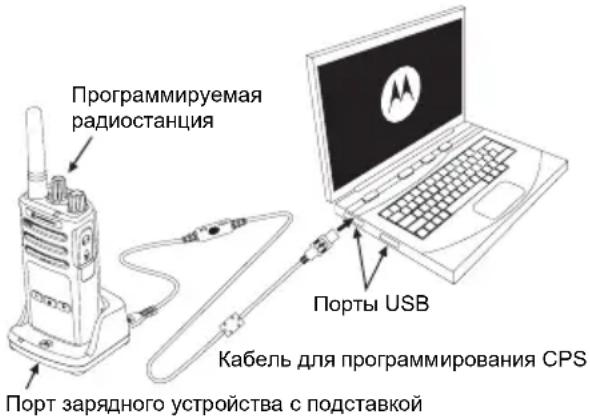
www.motorolasolutions.com/XTseries
More detailed information about the buttons can be found in the instructions supplied with the multi-unit charger.
When using the multi-unit charger, use the PMLN6384_ accessory.
Note:
In case of unsuccessful cloning, see "If Cloning is Unsuccessful" on page 51. - For cloning to be successful, the source and target radios must be in the same frequency band. The connector numbers of the multi-unit charger are numbered from left to right from the Motorola logo.
CPS cable and cloning cable (optional accessory)
The CPS cable and cloning cable are intended for use with XT series or XTNi series radios. The cloning cable supports different models of the XT and XTNi series. The CPS cable is intended for programming radios. Ensure that the cable switch is in the "Flash" or "CPS" position. For programming XTNi radios with the CPS cable, ensure that the cable switch is in the "CPS" position and connect the USB converter from the CPS cable kit.
The cloning cable supports cloning:
- XT series radios. Ensure that the cable switch is in the "CLONING" or "COMPATIBILITY" position. - XTNi series radios. Ensure that the cable switch is in the "COMPATIBILITY" position, and connect a USB converter to each end of the cloning cable. - XT and XTNi radios. Ensure that the cable switch is in the "COMPATIBILITY" position, and use the USB converters from the XTNi multi-unit charger. The cloning cable kit includes 1 USB converter.
CPS cable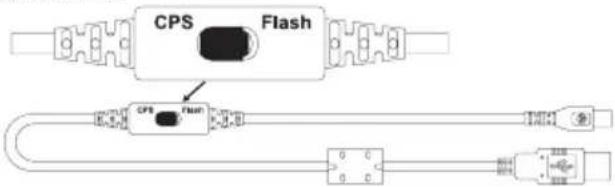
Cloning cable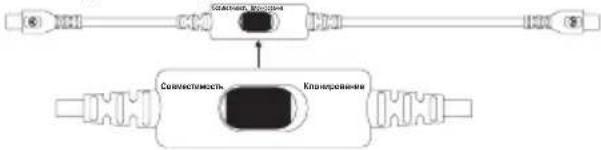
USB converter
Cloning radios using the cloning cable (optional accessory)
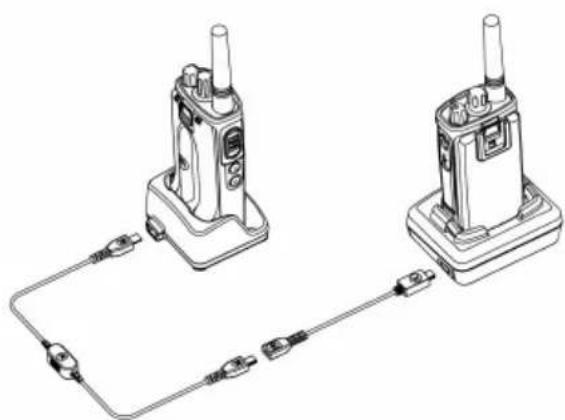
Do not immerse the device in water.
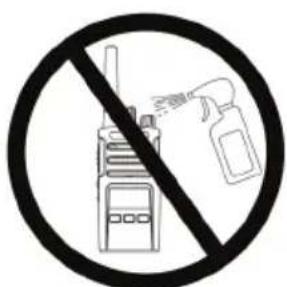
Do not use sprays or liquid cleaning agents.
If the radio is submerged in water...
Turn off the radio and remove the batteries.
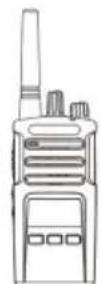
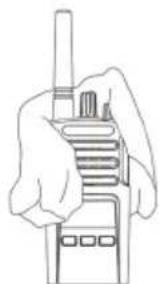
Dry it with a dry cloth.
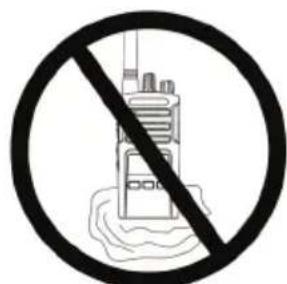
Do not use the device until it is completely dry.
TABLE OF CODES AND FREQUENCIES
This section provides information about frequencies and codes. It is intended for use with Motorola XT series radios and other corporate radios. Most frequency values coincide with those for the XTNi series radios.
Channel frequency and device code to avoid interference by default
FOREIGN DEVICES
| Homep no
kaTalony | OnncaHne |
| PMLN6385_ | Стадартуй компльekt
ОдномecтHoro зapяд Horo
устриства с постов(
(Bелкообр发布时间/EC) |
| PMLN6393_ | Стадартуй компльekt
МногомecтHoro зapяд Horo
устриства с постов INT
(Bелкообр发布时间/EC) |
ACCESSORIES AND CHARGERS
Motorola Solutions, Inc.
1303 E. Algonquin Rd.
Schaumburg, IL 60196-1078, U.S.A.
http://www.motorolasolutions.com

68012009070-A