USER MANUAL iSensys MF4750 CANON
Installing the Handset (Option)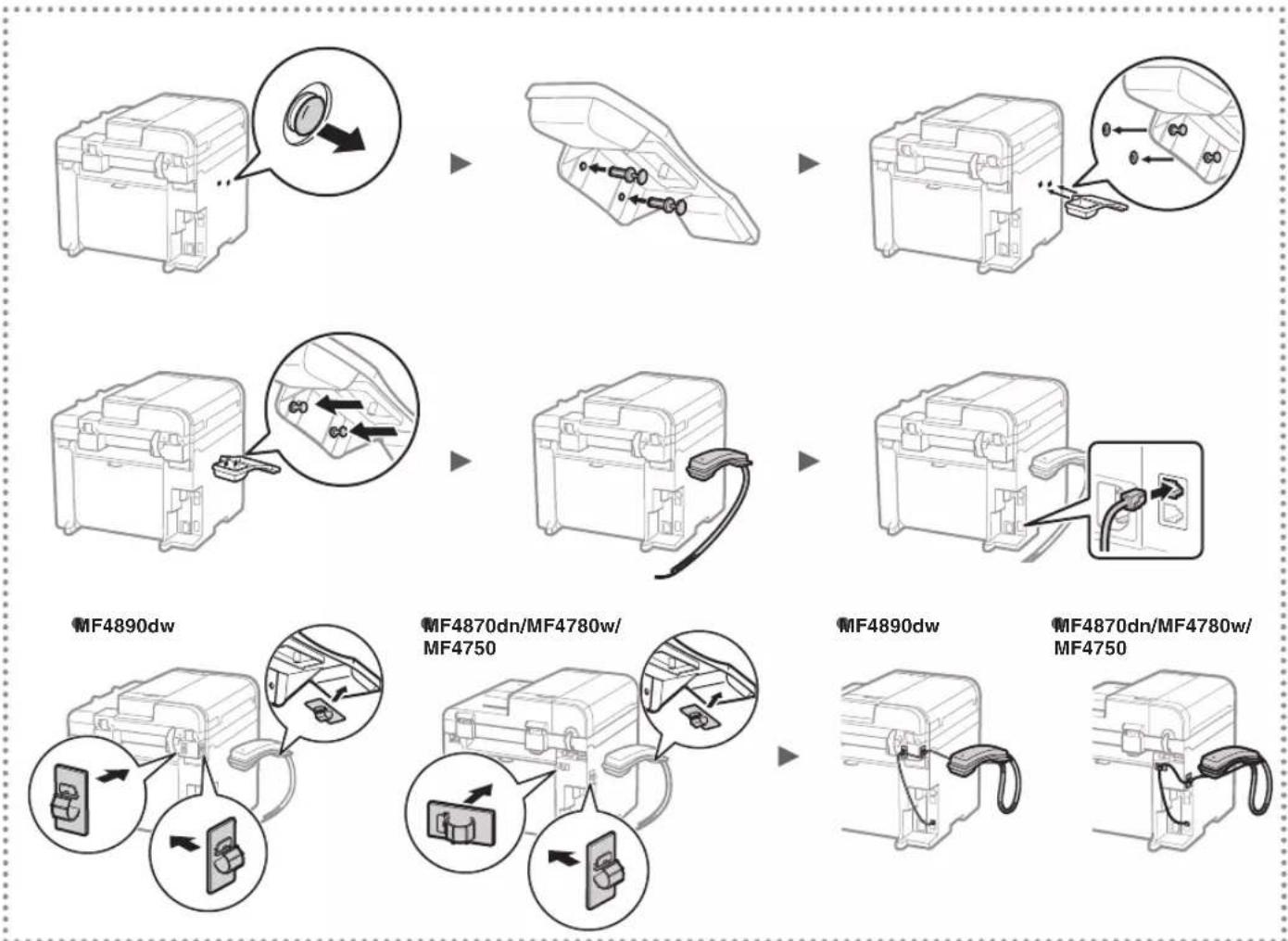
About the Supplied Manuals. 10
Navigating the Menu and Text Input
Method 10
Connecting the Power Cord and
Turning ON the Power 11
Specifying the Initial Settings 11
Choosing the Method to Connect
the Machine to the Computer 12
Connecting via a Wired LAN
(MF4890dw/MF4870dn/MF4780w Only) 12
Connecting via a USB Cable. 12
Setting a Paper Size and Type 13
Specifying Initial Fax Settings and
Connecting a Telephone Cable
(MF4890dw/MF4870dn/MF4780w/MF4750 Only) 13
Perform Useful Tasks 14
Clearing Paper Jams. 15
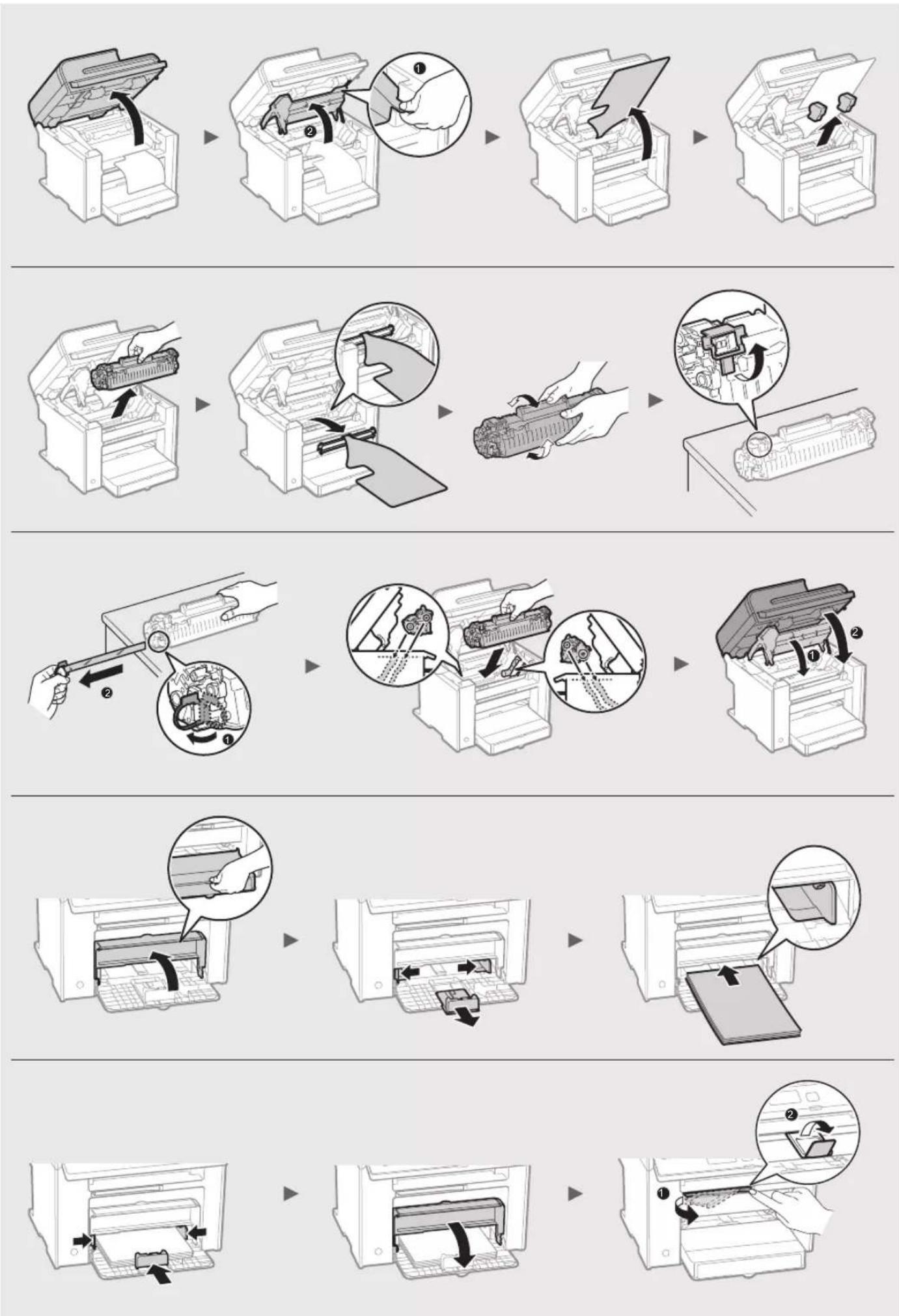
Replacing Toner Cartridge 16
Procedures utilities 24
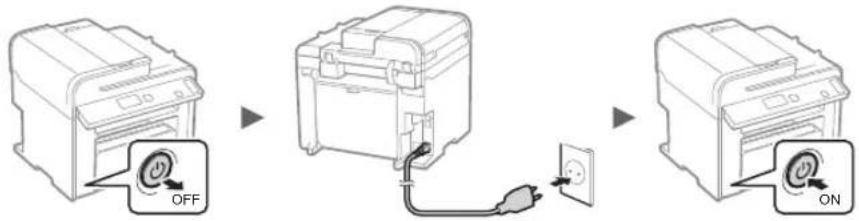
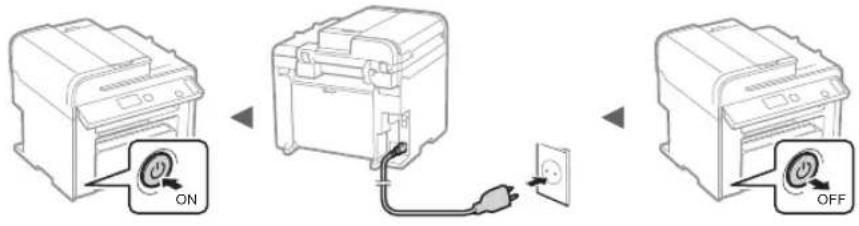
Connecting the power cord
Turning on the machine 131
Setting initial parameters. 131
Selecting the connection method
To the computer 132
Connecting via LAN
(For models F4890dw only)
MF4870dn/MF4780w)
Connecting with a USB cable.....132
Setting up the paper format 133
Selecting initial parameters
Connecting the telephone cable
(Only for models F4890dw/MF4870dn/
MF4780w/MF4750) 133
Using useful functions 134
Extending and maintaining 141
Setting up the device parameters.....141
Choosing the device connection method
to the computer 142
Connecting via LAN
Printing text 250
Scanning to a memory card N
Scanning to memory 251
Specifying the initial
settings 251
KbM KOMNIOTp 252
Cbpb3BaHe ype3 LAN ha6eJ
(camo 3a MF4890dw/MF4870dn/MF4780w) 252
Cbpb3BaHe ype3 USB ka6e1 252
3aabaHe Ha foPMaTa n Tnna
Ha xaptna 253
Yka3BaHe Ha nbpBOHaayaHnTe HAcTpoKHa
fKaCa N CbBp3BaHe Ha TeIefoHcKabeJ
(camo 3a MF4890dw/MF4870dn/MF4780w/MF4750)...253
H3nblHeHHe Ha nOle3Hn 3a4a..254
OTcpaHbAHe Ha 3aceDHaIaTa xapTna ....255
PoiMaHa Ha ToHep Kaceta 256
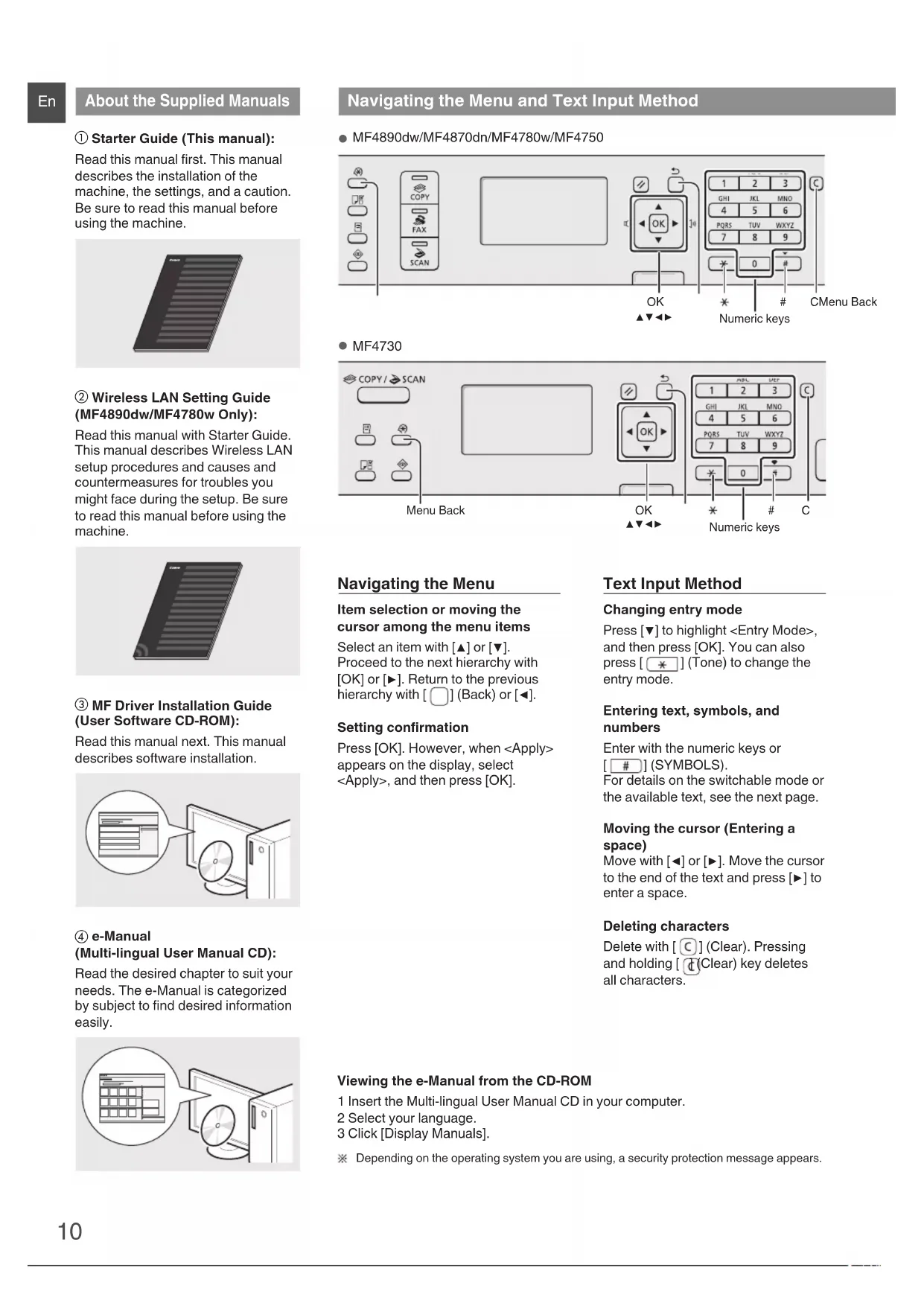
Navigating the Menu and Text Input Method
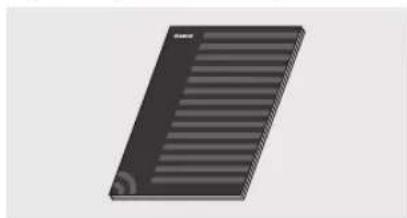
Starter Guide (This manual): Read this manual first. This manual describes the installation of the machine, the settings, and a caution. Be sure to read this manual before using the machine.
② Wireless LAN Setting Guide (MF4890dw/MF4780w Only):
Read this manual with the Starter Guide. This manual describes Wireless LAN setup procedures and causes and countermeasures for troubles you might face during the setup. Be sure to read this manual before using the machine.
③ MF Driver Installation Guide (User Software CD-ROM):
Read this manual next. This manual describes software installation.
④ e-Manual (Multi-lingual User Manual CD):
Read the desired chapter to suit your needs. The e-Manual is categorized by subject to find desired information easily.
MF4890dw/MF4870dn/MF4780w/MF4750
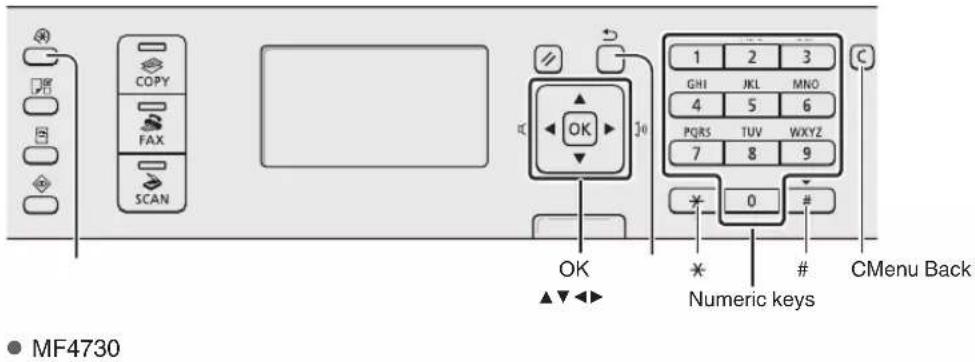
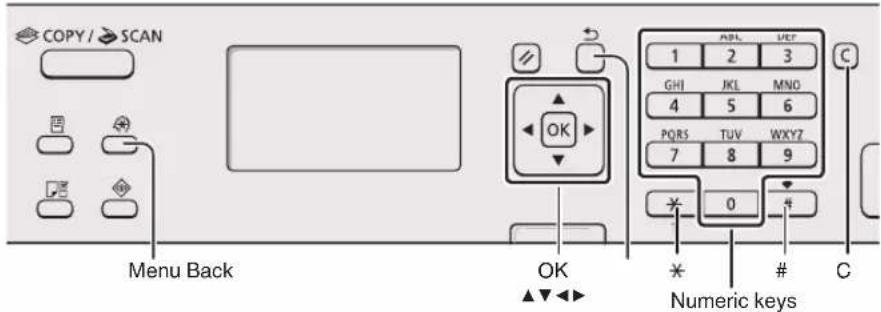
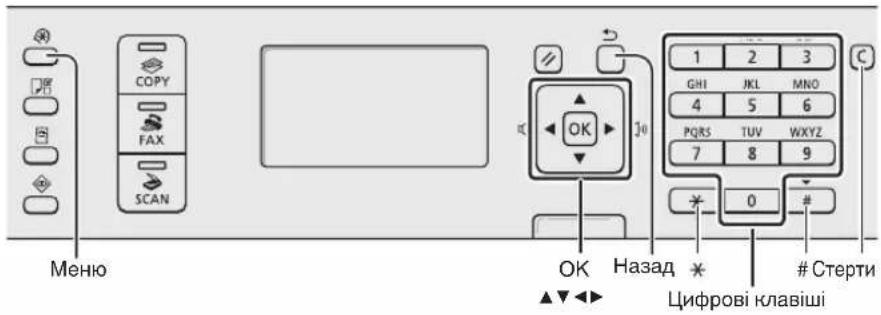
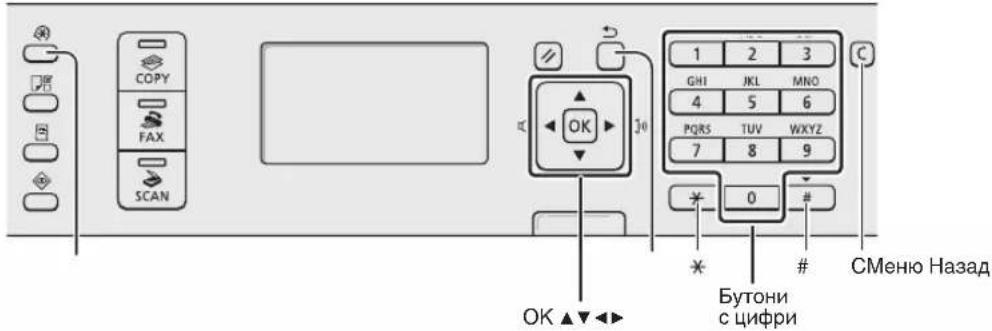
Item selection or moving the cursor among the menu items
Select an item with [▲] or [▼]. Proceed to the next hierarchy with [OK] or [▶]. Return to the previous hierarchy with [Back] or [
Setting confirmation
Press [OK]. However, when appears on the display, select , and then press [OK].
Text Input Method
Changing entry mode
Press [▼] to highlight , and then press [OK]. You can also press [ * ] (Tone) to change the entry mode.
Entering text, symbols, and numbers
Enter with the numeric keys on [#] (SYMBOLS).
For details on the switchable mode or the available text, see the next page.
Moving the cursor (Entering a space)
Move with [<] or [>]. Move the cursor to the end of the text and press [>] to enter a space.
Deleting characters
Delete with [C] (Clear). Pressing and holding [C] (Clear) key deletes all characters.
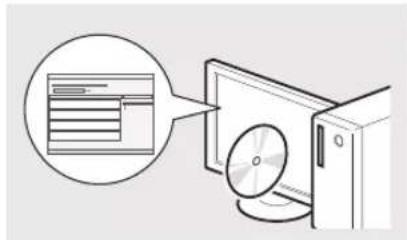
Viewing the e-Manual from the CD-ROM
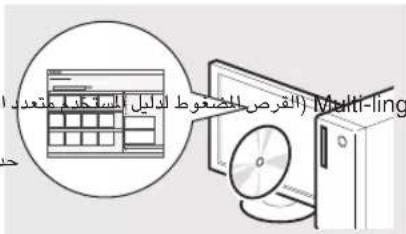
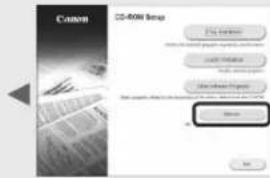
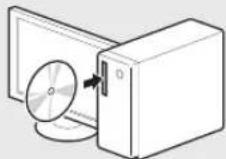
1 Insert the Multi-lingual User Manual CD in your computer. 2 Select your language. 3 Click [Display Manuals].
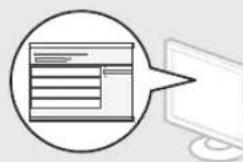
Depending on the operating system you are using, a security protection message appears.
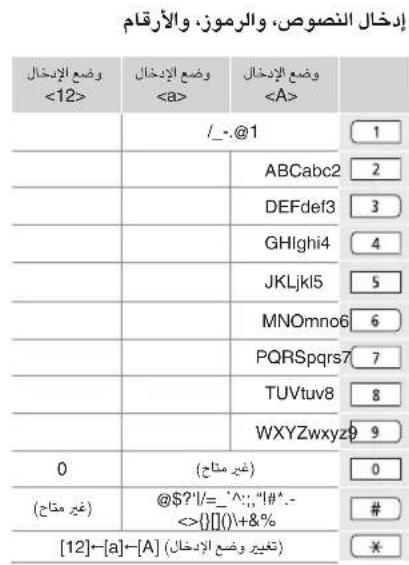
Entering text, symbols, and numbers
| Entry mode: <aA> | Entry mode: <12> |
| 1 | @ . - / 1 | |
| 2 | ABCabc 2 | |
| 3 | DEFdef 3 | |
| 4 | GHligi 4 | |
| 5 | JKLijkl 5 | |
| 6 | MNOmno 6 | |
| 7 | PQRSpqrs 7 | |
| 8 | TUVtuv 8 | |
| 9 | WXYZwxyz 9 | |
| 0 | (Not available) 0 | |
| # | @ ./- !? & $ %
#() []{}<> "+
= " ; ' ' ' ' ' |' | (Not available) |
Changing entry mode
| Entry mode Available text |
| <aA> | Alphabet (capital and small letters) and symbols |
| <12> Numbers |
Do not connect the USB cable at this time. Connect it when installing software.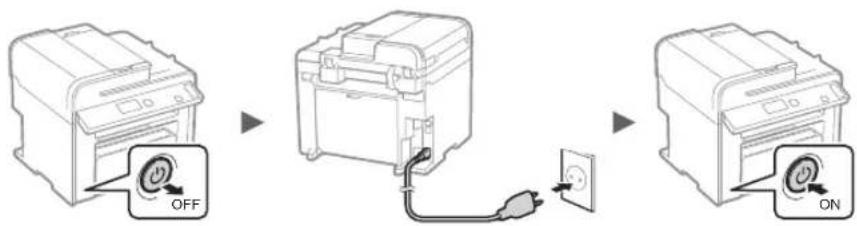
Specifying the Initial Settings
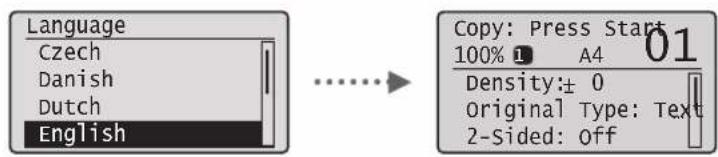
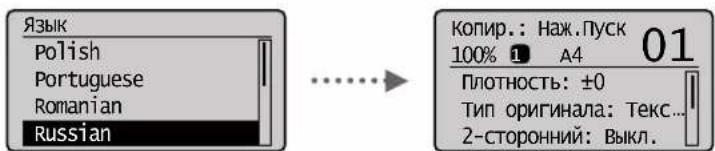
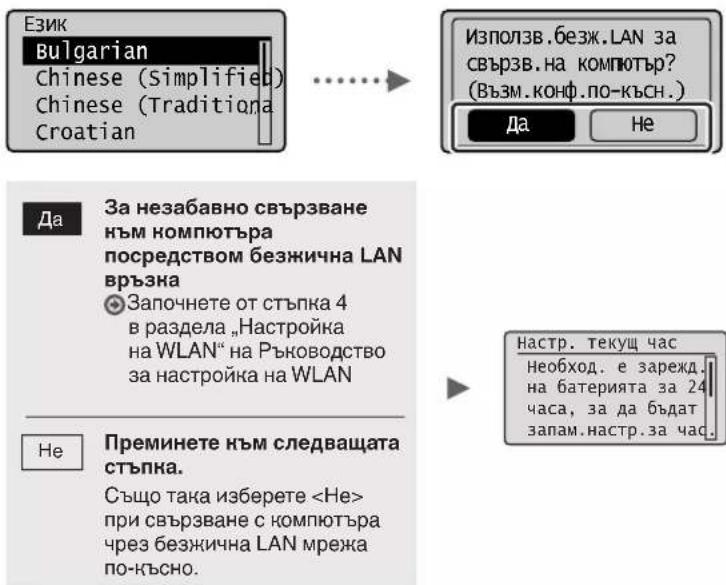
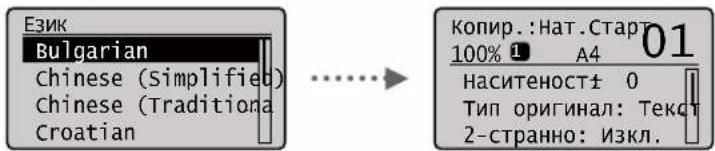
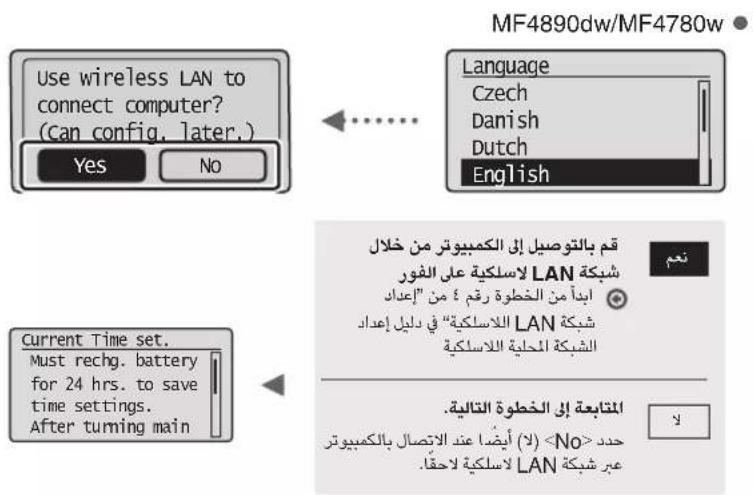
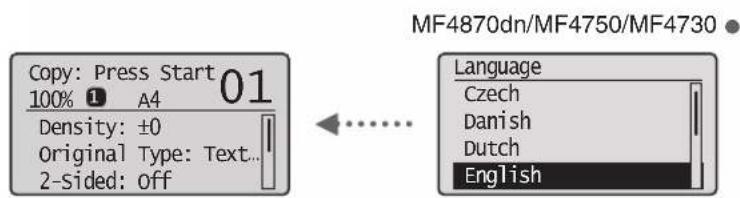
Follow the instructions on the screen, set the language and time. For details on navigating the menu and how to input the numbers, see "Navigating the Menu and Text Input Method" (P.10).
MF4890dw/MAF4780w
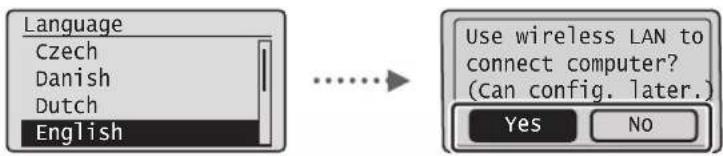
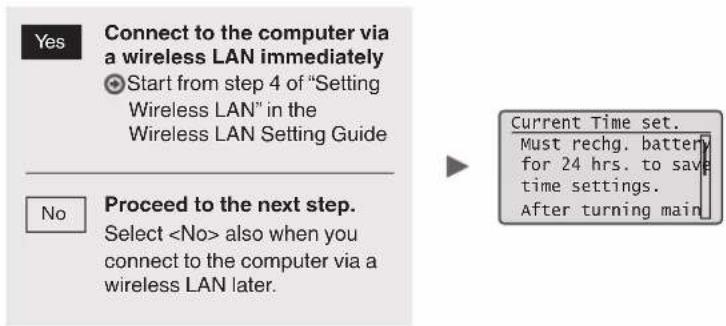
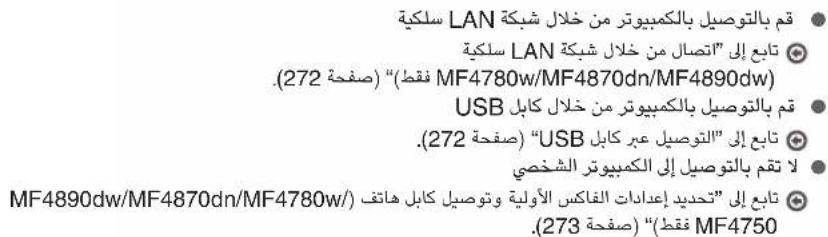
- Connect to the computer via a wired LAN
Proceed to "Connecting via a Wired LAN (MF4890dw/MF4870dn/MF4780w Only)" (P.12).
- Connect to the computer via a USB cable
Proceed to "Connecting via a USB Cable" (P.12).
Proceed to "Specifying Initial Fax Settings and Connecting a Telephone Cable (MF4890dw/MF4870dn/MF4780w/MF4750 Only)" (P.13).
MF4870dn/MF4750/MF4730
En
Choosing the Method to Connect the Machine to the Computer
- Connecting via a Wired LAN
(MF4890dw/MF4870dn/MF4780w Only)
See "Connecting via a Wired LAN"
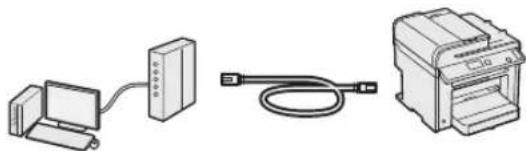
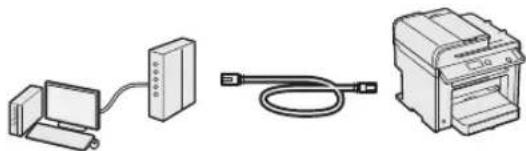
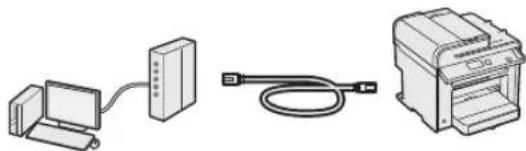
You can connect the machine to the computer through a wired router. Use the LAN cables to connect the machine to the wired router (access point).
Make sure that there is an available port in the router to connect the machine and the computer. Have a LAN Cable of Category 5 twisted-pair cable or higher ready.
- Connecting via a USB cable
See "Connecting via a USB Cable"
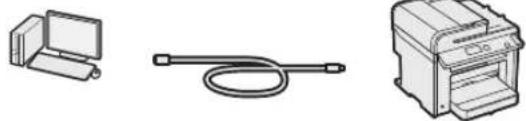
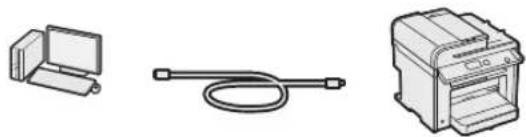
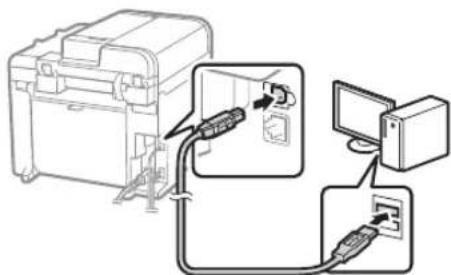
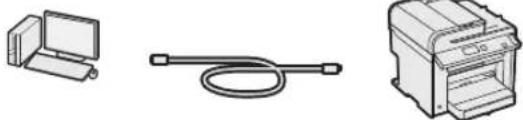
You can connect the machine to the computer using a USB cable.
- Connection via a Wireless LAN (MF4890dw/MF4780w Only)
See the Wireless LAN Setting Guide.
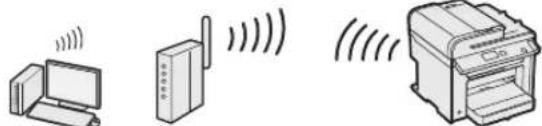
You can connect the machine to the computer through a wireless router*. Since it is connected wirelessly, no LAN cables are needed.
- A wireless router (or access point) that supports IEEE802.11b/g/n is required.
If you are not sure whether your router is wireless or wired:
See the instruction manual provided with your network device, or contact the manufacturer.
Connecting via a Wired LAN (MF4890dw/MF4870dn/MF4780w Only)
1. Connect the LAN cable.
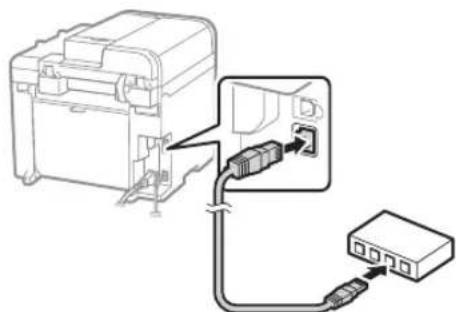
The IP address will be automatically configured in 2 minutes. If you want to set the IP address manually, see the following items.
e-Manual "Network Settings" > "Basic Network Settings" > "Setting the IP Address"
2. Install the driver and software using the User Software CD-ROM.
Proceed to "Setting a Paper Size and Type" (P.13).
Connecting via a USB Cable
Connect the USB cable after installing the MF Drivers and the MF Toolbox.
1. Install the driver and software using the User Software CD-ROM. 2. Connect the USB cable.
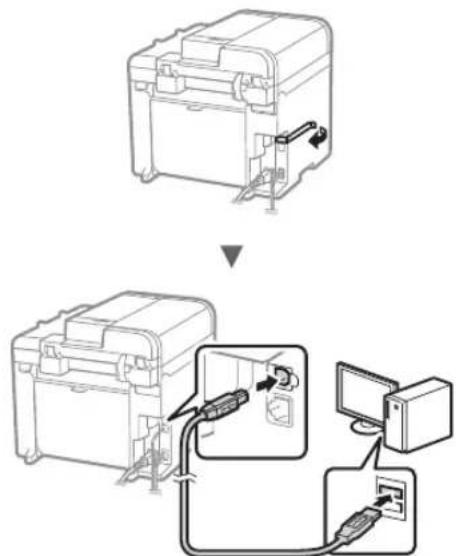
Proceed to "Setting a Paper Size and Type" (P.13).
For details on the installation procedures:

See the MF Driver Installation Guide.
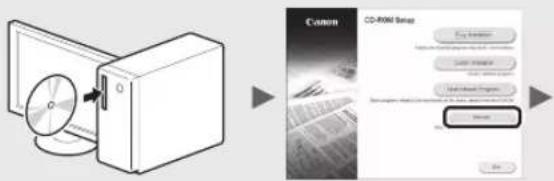
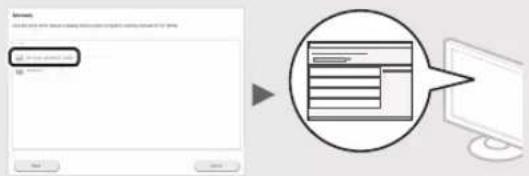
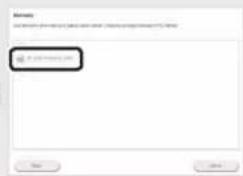
- We ask for the user's cooperation for the Product Extended Survey Program. For details, see the descriptions on the screen.
Setting a Paper Size and Type
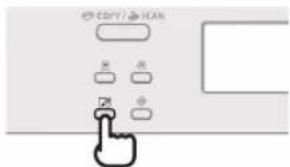
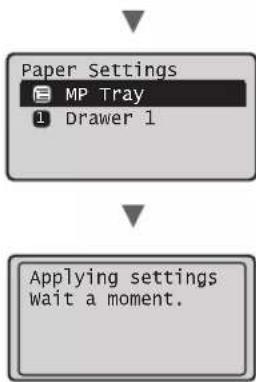
Follow the instructions on the screen, set the paper size and type.
MF4890dw/MF4870dn/ MF4780w/MF4750
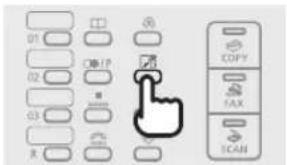
MF4730
Specifying Initial Fax Settings and Connecting a Telephone Cable (MF4890dw/MF4870dn/MF4780w/MF4750 Only)
1. Specify the initial fax settings.
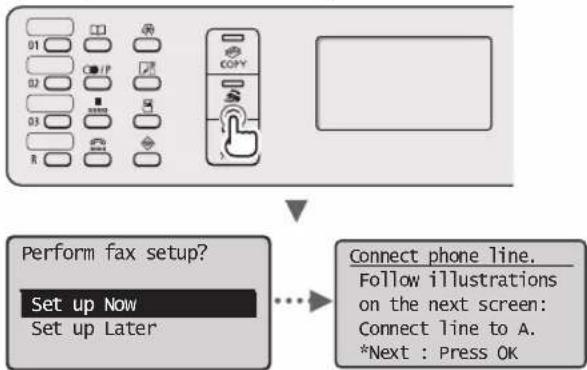
Follow the "Fax Setup Guide" to specify a fax number, a unit name, and a receive mode. For more details on the receive mode, see the e-Manual.
e-Manual "Fax" > "Using the Fax Functions" > "Receiving Faxes" > "RX Mode"
How to use a username
When you send a document, the sender information that you registered is printed on the recipient's paper.
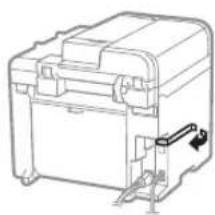
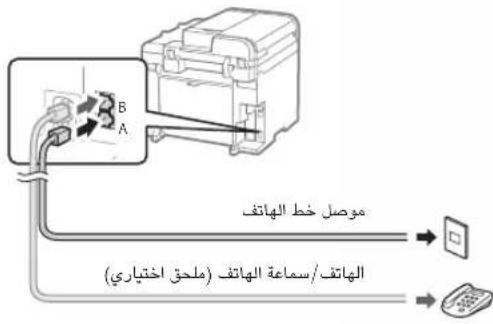
2 Connect a telephone cable.
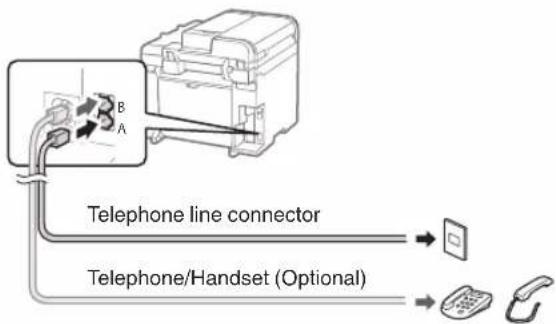
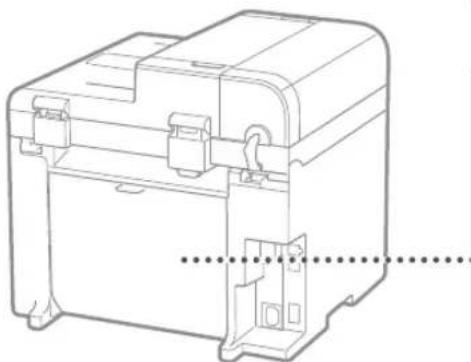
When appears on the display, connect the telephone cable by referring to the illustration.
When installing the optional handset:
For more details, see the supplied manual with the handset.
3 Exit the Fax Setup Guide, and then restart the machine.
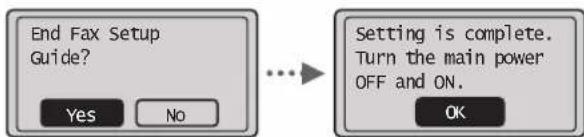
Turn OFF the machine and wait for at least 10 seconds before turning it ON again. The telephone line types are not detected automatically. See the e-Manual and set a telephone line manually.
e-Manual "Fax" ▸ "Using the Fax Functions" Changing Fax Settings (Settings that Can Be Specified Using the [Menu] Button) ▸ "Configuring Send Settings" ▸ "Select Line Type
You can use various functions in this machine. Following functions are the overview of the main functions that you can use routinely.
Copy
Enlarged/Reduced Copies
You can enlarge or reduce standard size documents to copy on standard size paper or specify the copy ratio in percentage.
2-Sided Copying*
You can copy 1-sided documents on both sides of paper.
Collating
You can sort copies into sets arranged in page order.
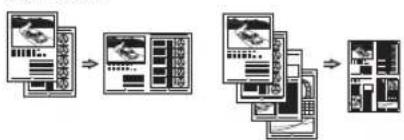
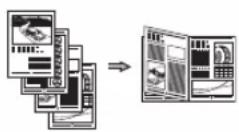
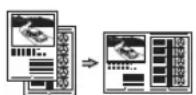
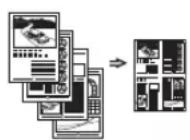
Reduced Layout
You can reduce multiple documents to copy them onto one sheet.
2 on 1 / 4 on 1
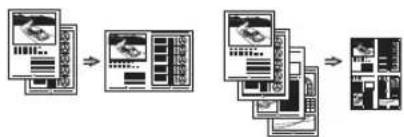
Copying ID Card
You can make a copy of a 2-sided card onto one side of paper.
Fax**
Sending a Document Directly from a Computer (PC Fax)
In addition to the normal sending and receiving faxes, you can use the PC fax.
Sending
You can register fax destinations in the address book. You can specify the destinations using various methods, enabling you to send documents quickly and easily.
- Destination search, One-touch keys, Coded dialing
- Destination Group
- Specifying from the sending history
- Sequential broadcast
- Delayed sending
Receiving
- Receiving in the memory
You can store the received documents in the memory. You can print the stored documents at any time, and if you do not need them, you can delete them.
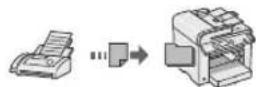
Remote Receiving
If an external telephone is connected, you can switch to the fax receiving mode immediately by dialing the ID number for fax receiving using the dial buttons of the telephone during a phone call.
- Polling Receiving
You can retrieve pre-loaded documents from a sender's fax machine when you want to receive the fax.
Print
Enlarged/Reduced Printing
2-Sided Printing*
Reduced Layout
You can reduce multiple documents to print them onto one sheet.
2 on 1, 4 on 1
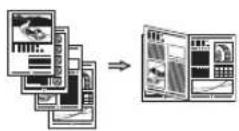
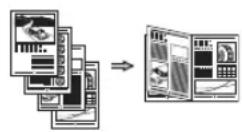
Booklet Printing*
Poster Printing
Watermark Printing
Displaying a Preview before Printing
Selecting a "Profile"
Scan
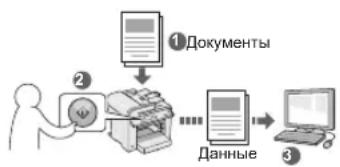
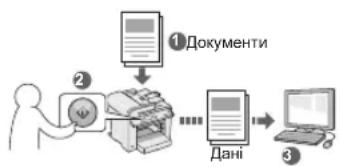
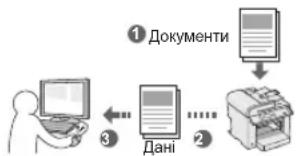
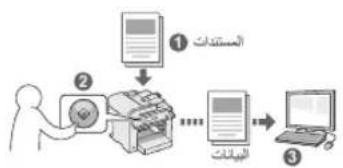
Saving the Documents Using the Operation Panel of the Machine
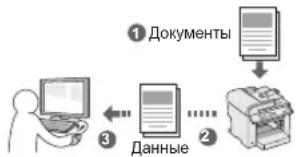
Saving the Documents Using Operations from a Computer
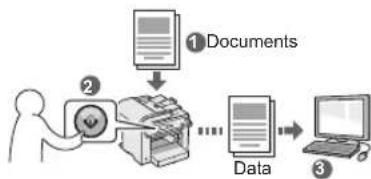
Saving the Documents Using Operations from a Computer
- Scanning from an Application
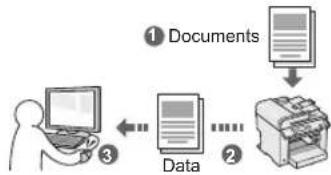
- Scanning with the WIA Driver***
- Network Settings***
This machine comes equipped with a network interface that you can construct a network environment easily. You can print a document, use the PC fax, and use the network scan from all computers which are connected with the machine. The machine supports to increase work efficiency as a shared machine in the office.
This machine comes equipped with a network interface that allows you to easily set up a network environment. You can print documents, use PC fax, and use network scanning from all computers connected to the machine. The machine supports increased work efficiency as a shared device in the office.
You can understand the condition of the machine from the computers on the network. You can access the machine and manage jobs or specify various settings via network.
You can understand the condition of the machine from the computers on the network. You can access the machine and manage jobs or specify various settings via network.
Clearing Paper Jams
EN
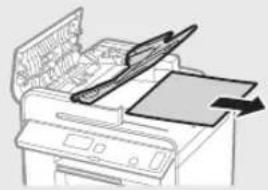
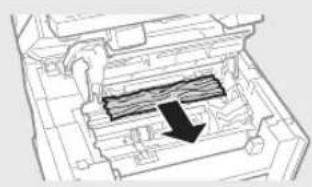
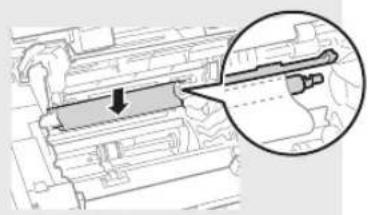
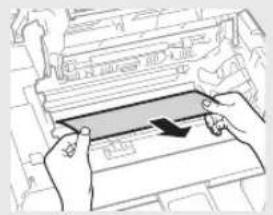
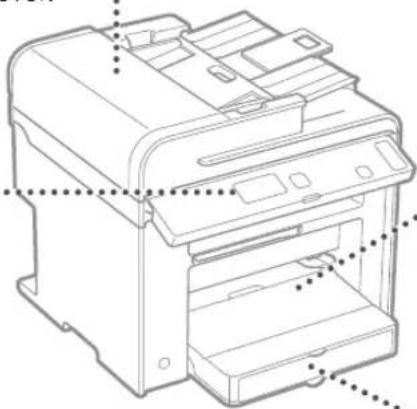
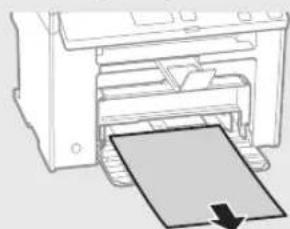
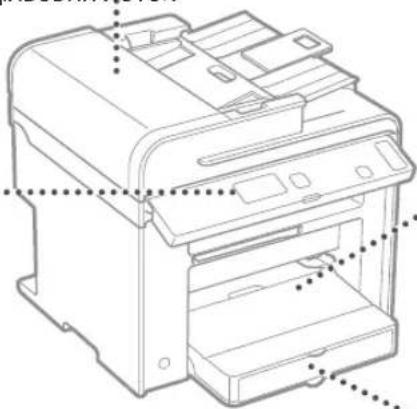
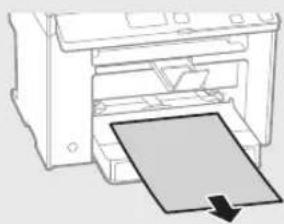
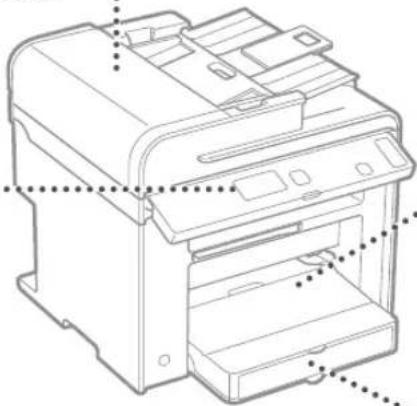
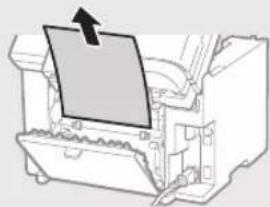
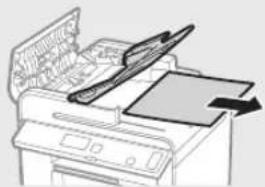
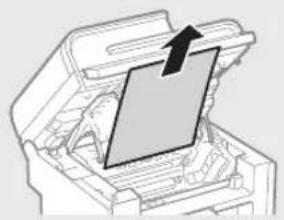
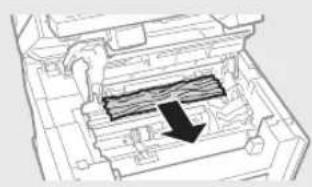
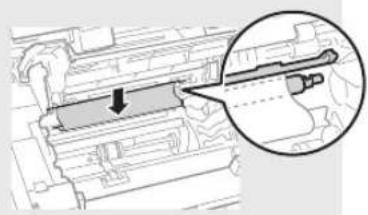
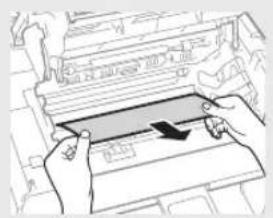
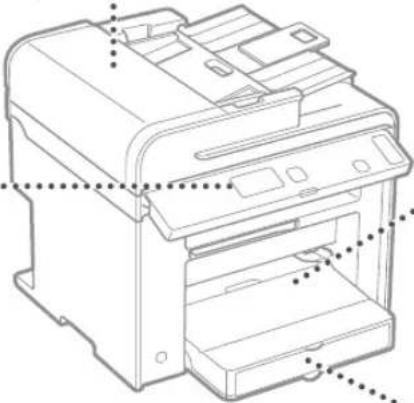
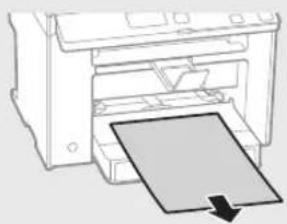
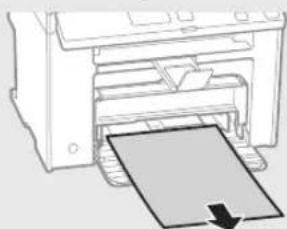
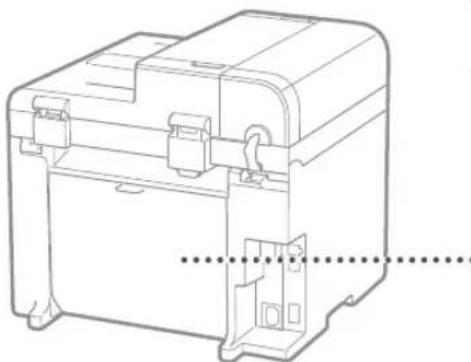
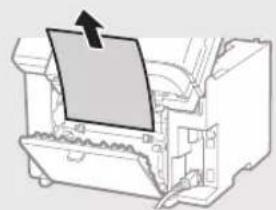
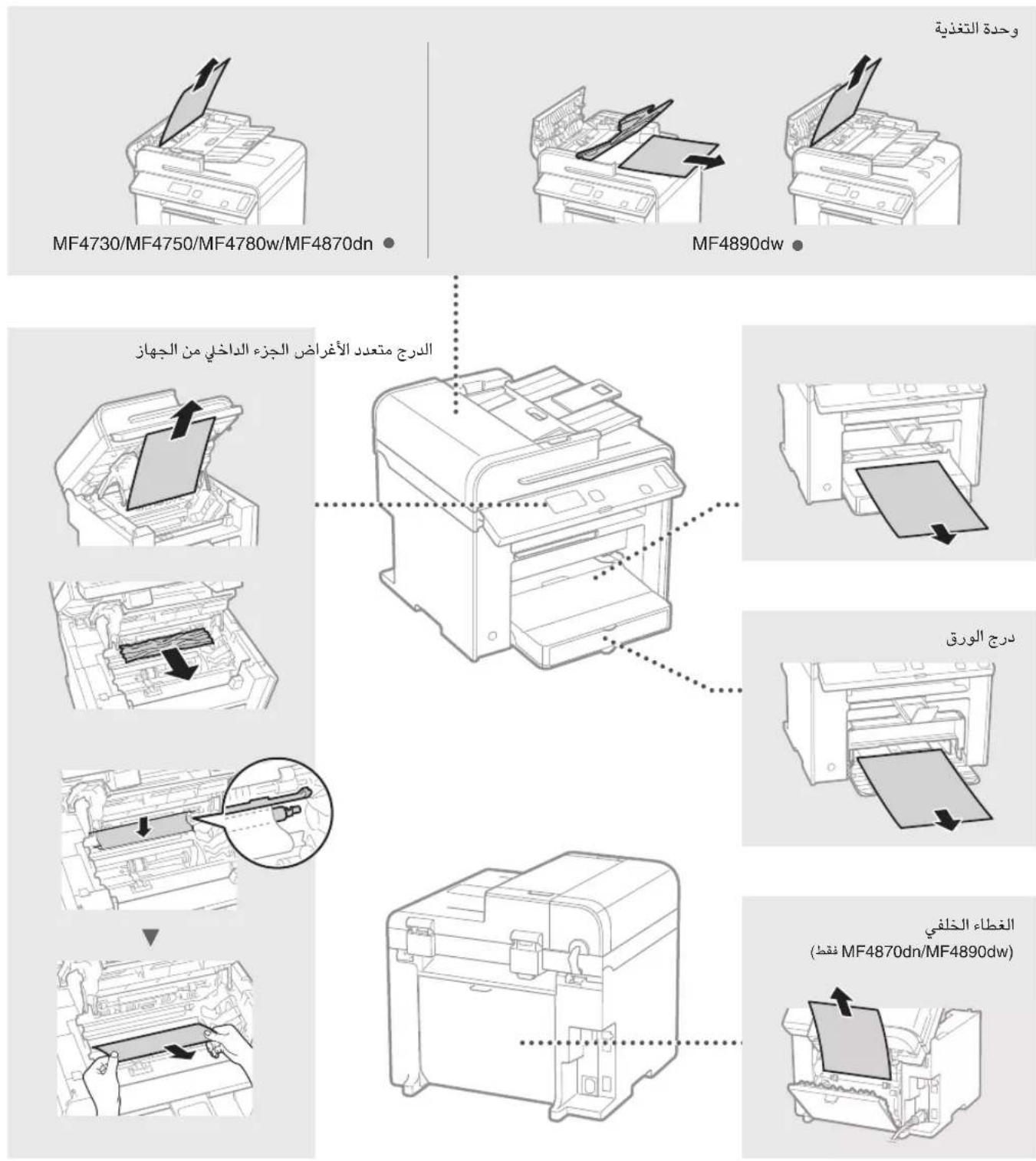
If the following screen appears, a paper jam has occurred in the feeder or inside the machine. Follow the procedure displayed on the screen to remove the jammed document or paper. This manual indicates only areas where paper jams occur. For details on each function, see the e-Manual.
Paper jam.
Press [ ] to
display steps.
Feeder MF4890dw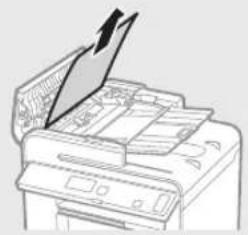
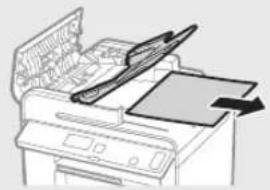
MF4870dn/MF4780w/MF4750/MF4730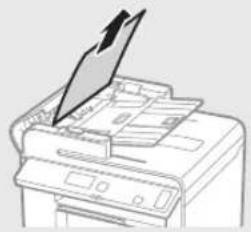
Inside the machine Multi-purpose tray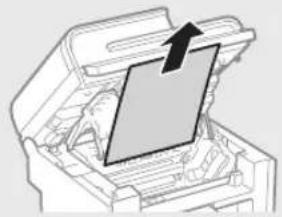
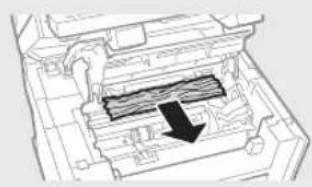
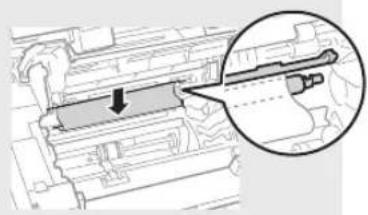

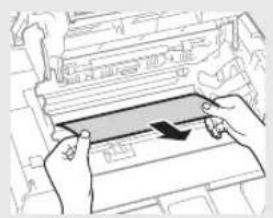
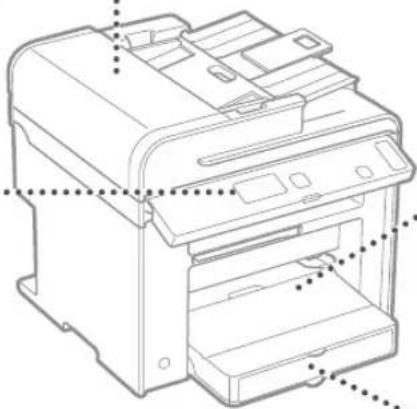
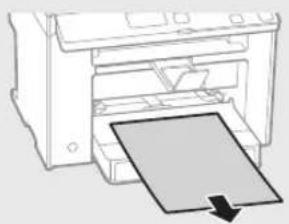
Paper Cassette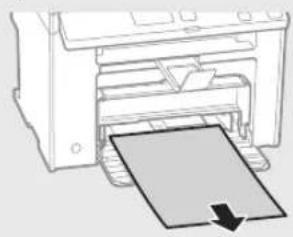
Back cover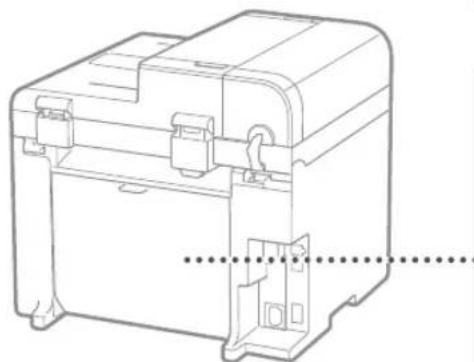
(MF4890dw/MF4870dn only)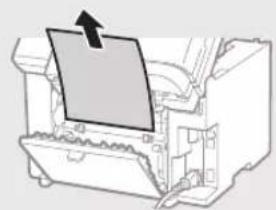
Toner cartridges are consumables. When the toner becomes nearly empty or has run out completely in the middle of a job run, a message appears on the screen, or the following problems may occur. Take the appropriate action accordingly.
When a Message Appears
When the toner becomes nearly empty in the middle of a job run, a message appears on the screen.
| Message | When the message is displayed on the screen | Description and Solutions |
| <Prepare toner cartridge.> | When the toner cartridge needs a replacement soon. | Shake the toner cartridge to evenly distribute the toner inside the cartridge.
e-Manual "Before Replacing the Toner Cartridge"
We recommend that the toner cartridge be replaced before printing high-volume documents.
e-Manual "Replacing the Toner Cartridge" |
| <Toner is nearly out.> | When the toner cartridge has reached the end of its life. | Shake the toner cartridge to evenly distribute the toner inside the cartridge.
e-Manual "Before Replacing the Toner Cartridge"
If this message does not disappear, replace the toner cartridge.
e-Manual "Replacing the Toner Cartridge"
If this message is displayed, the incoming fax will be stored in the memory without being printed. Also, reports may not be printed, even if they are set to be printed automatically.
If <Continue Print. When Toner Is Nearly Out> in <RX Print Settings> is set to <On>, however, printing will be continued, but white streaks or smudges may appear on printouts.
e-Manual "Printing the Report Automatically"
e-Manual "Continue Print. When Toner Is Nearly Out" |
When white streaks appear on the output, or the output is partially faded:
When white streaks appear on the output or the output is partially faded, the toner cartridge has almost reached the end of its life, even if no message appears on the screen. When the print quality becomes unacceptable, see the following to fix the problem.
When White Streaks Appear on the Output or the Output Is Partially Faded
When the toner nearly runs out, white streaks appear on the output, or the output is partially faded.
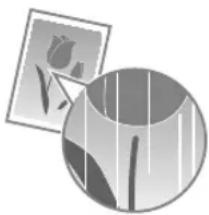

No message appears on the screen, if the toner nearly runs out. Replace the toner cartridge when white streaks appear on the output, or the output is partially faded.
When this problem occurs:
Follow the steps in the procedure below before replacing the toner cartridge. The machine continues printing until the toner runs out completely.
e-Manual "Before Replacing the Toner Cartridge"
When the print quality is still unacceptable:
If the problem persists after you have followed the steps in the procedure below, replace the toner cartridge.
e-Manual "Replacing the Toner Cartridge"
Memo

WARNING
Indicates a warning concerning operations that may lead to death or injury to persons if not performed correctly. To use the machine safely, always pay attention to these warnings.

CAUTION
Indicates a caution concerning operations that may lead to injury to persons if not performed correctly. To use the machine safely, always pay attention to these cautions.
The following symbols and key names are a few examples of how keys to be pressed are expressed in this manual.
Operation panel keys: [Key icon] + (Key name) Example: [O] (Stop) - Display: - Buttons and items on the computer display: [Preferences]
Illustrations and Displays Used in This Manual
Illustrations and displays used in this manual are those of MF4890dw unless specified.

WARNING
To avoid the risk of personal injury or damage to the equipment and for legal information, read the Legal Notice and Important Safety Information in the Multi-lingual User Manual CD that is included with the product.
Important Safety Instructions
Please read the "Important Safety Instructions" in this manual and in the e-Manual thoroughly before operating the machine.
As these instructions are intended to prevent injury to the user and other persons or to prevent destruction of property, always pay attention to these instructions and operational requirements.
Please note that you are responsible for all damages caused by failure to follow the directions provided herein, using the device for any purpose for which it was not intended, or repairs or alterations made by anyone other than a Canon-approved technician.
Installation

WARNING
- Do not install the machine near flammable substances such as alcohol-based products or paint thinners. If these substances come in contact with the electrical parts inside the machine, they could ignite and cause a fire or increase your risk of electric shock.
- Do not place necklaces and other metal objects or containers filled with liquid on the machine. If foreign substances come into contact with electrical parts inside the machine, this may result in a fire or electrical shock.
If any of these substances falls into the machine, turn off the power to the machine immediately and contact your local Canon dealer.
- Do not use near any medical equipment. Radio waves emitted from this machine may interfere with medical equipment, which may result in serious accidents.

CAUTION
- Do not install the machine in the following locations. Doing so may result in personal injury, fire, or electrical shock.
Unstable location - A location subject to excessive vibrations - A location where the ventilation slots are blocked (too close to walls, bed, shaggy rug, and other similar objects) - A damp or dusty location
- A location exposed to direct sunlight or an outside place - A location subject to high temperatures - A location near open flames - A location with poor ventilation system
- Although ozone is generated from the machine during operation, it does not have any effect on the human body. However, if you intend to use the machine for long periods of time, ensure that the installation location is well ventilated.
- Do not connect unapproved cables to this machine. Doing so may result in a fire or an electric shock.
- Machines with a hard disk may not operate properly when used at high altitudes of about 3,000 meters above sea level, or higher.
Power Supply

WARNING
- Do not use power cords other than the one provided, as this can result in a fire or electrical shock.
- Do not modify or bend the power cord and do not pull on it with great force. Do not place heavy objects on the power cord. Damaging the power cord may result in a fire or an electric shock.
- Do not plug or unplug the power plug with wet hands, as this can result in electrical shock.
- Do not use extension cords or multi-plug power strips with this machine. Doing so may result in a fire or electric shock.
- Do not bundle up or tie up the power cord in a knot, as this can result in a fire or electrical shock.
- Insert the power plug completely into the AC power outlet. Failure to do so can result in a fire or electrical shock.
- Remove the power plug completely from the power outlet during a thunder storm. Failure to do may result in a fire, electric shock, or malfunction.

CAUTION
- Use only a power supply that meets the voltage requirements listed herein. Failure to do so may result in a fire or electric shock.
- Do not obstruct the power outlet where this machine is connected, so that you can unplug the power cord easily in an emergency.
Handling

WARNING
- Do not disassemble or modify the machine. There are high-temperature and high-voltage components inside the machine which may result in a fire or electrical shock.
- Do not allow children to touch or play with the power cord and cables or internal or electrical parts. Doing so may result in serious personal injury.
- Please contact an authorized Canon dealer if the machine makes an unusual noise, emits an unusual smell, or emits smoke or excessive heat. Continued use may result in a fire or electric shock.
- Do not use flammable sprays near the machine. If flammable substances come into contact with electrical parts inside the machine, this may result in a fire or electric shock.

CAUTION
- For your safety, please unplug the power cord if the machine will not be used for a long period of time.
- Use caution when opening and closing covers to avoid injury to your hands.
- Keep hands and clothing away from the rollers in the output area. If the rollers catch your hands or clothing, this may result in personal injury.
- The inside of the machine and the output slot is very hot during and immediately after use. Avoid contact with these areas to prevent burns. Also, printed paper may be hot immediately after being output, so use caution when handling it. Failure to do so may result in burns.
Maintenance and Inspections

WARNING
- Turn off the machine and unplug the power cord from the outlet before cleaning. Failure to do so may result in a fire or an electric shock.
- Unplug the power plug from the power outlet periodically and clean the area around the base of the power plug's metal pins and the power outlet with a dry cloth to remove dust and grime. When damp, accumulated dust may cause short circuiting or fires.
- Use a damp, well wrung-out cloth to clean the machine. Dampen cleaning cloths with water only. Do not use alcohol, benzenes, paint thinners, or other flammable substances. If these substances come into contact with electrical parts inside the machine, this may result in a fire or electric shock.
- Check the power cord and plug regularly for damage. Check the machine for rust, dents, scratches, cracks, or excessive heat generation. Use of poorly-maintained equipment may result in a fire or electric shock.
Consumables

WARNING
- Do not dispose of used toner cartridges in open flames. This may cause an ignition, and result in burns or fire.
- If you accidentally spill or scatter toner, carefully wipe up the loose toner with a damp, soft cloth and avoid inhaling any toner dust. Never use a vacuum cleaner to clean up loose toner. Doing so may cause a malfunction in the vacuum cleaner or result in a dust explosion due to static discharge.

CAUTION
- Keep the toner cartridges and other consumables out of the reach of small children. If toner is ingested, consult a physician or poison control center immediately.
- Do not attempt to disassemble the toner cartridge. The toner may scatter and get into your eyes or mouth. If toner gets into your eyes or mouth, wash them immediately with cold water and consult a physician.
- If toner spills from the toner cartridge, avoid inhaling it or allowing it to come into contact with your skin. If the toner comes into contact with your skin, wash immediately with soap. If you inhale the toner or your skin becomes irritated due to contact with the toner, consult a physician or poison control center immediately.
Others

WARNING
- If you are using a cardiac pacemaker: This machine generates a low level magnetic field. If you feel any abnormalities in your body while using this machine, please move away from the machine and consult your physician immediately.
Legal Notices
En
Legal Limitations on Usage of Your Product and the Use of Images
Using your product to scan, print or otherwise reproduce certain documents, and the use of such images as scanned, printed or otherwise reproduced by your product, may be prohibited by law and may result in criminal and/or civil liability. A non-exhaustive list of these documents is set forth below. This list is intended to be a guide only. If you are uncertain about the legality of using your product to scan, print or otherwise reproduce any particular document, and/or of the use of the images scanned, printed or otherwise reproduced, you should consult in advance with your legal advisor for guidance.
- Paper Money -Traveler's Checks Money Orders Food Stamps Certificates of Deposit Passports Postage Stamps (canceled or uncanceled)
- Immigration Papers
- Identifying Badges or Insignias
- Internal Revenue Stamps (canceled or uncanceled)
- Selective Service or Draft Papers Bonds or Other Certificates of Indebtedness
- Checks or Drafts Issued by Governmental Agencies Stock Certificates Motor Vehicle Licenses and Certificates of Title Copyrighted Works/Works of Art without Permission of Copyright Owner
Considerable effort has been made to ensure that the manuals for this machine are free of inaccuracies and omissions. However, as we are constantly improving our products, if you need an exact specification, please contact Canon.
CLASS 1 LASER PRODUCT
LASER KLASSE 1
APPAREIL À LASER DE CLASSE 1
APPARECCHIO LASER DI CLASSE 1
PRODUCTO LÁSER DE CLASE 1
APARELHO A LASER DE CLASSE 1
LUOKAN 1 LASER-TUOTE
LASERPRODUKT KLASSE 1
WARNING: To ensure safe and correct use of the device, read this manual thoroughly before using the device. In certain cases, failure to do so may result in electric shock. Disconnect the power cord from the power outlet at regular intervals and clean the area around the plug pins of the power cord and the power outlet with a dry cloth to remove dust and dirt. If the device is not used for a long time, dust accumulation may cause electric shock or fire. Use a dry, clean cloth to clean the device. Do not use volatile solvents or other flammable substances. If the internal parts of the device need cleaning, contact your dealer or service representative. Check the power cord and its plug regularly for damage. Check the device for dirt, stains, scratches, cracks, or excessive heat emission. Any damage or malfunction may cause electric shock or fire.
WARNING
WARNING
Do not touch the battery or the printer head while printing. In certain cases, it may cause burns or fire. If you have accidentally touched the printer head, cool it with a cloth, then stop using the printer head. Note that the printer head may be hot even if it has been turned off. If you do not do so, it may cause burns or fire due to static electricity.
CAUTION
Keep the battery and other accessories out of the reach of small children. If the battery is swallowed, consult a doctor or the poison control center immediately. Do not attempt to remove the battery. The battery may be swallowed or cause injury to your mouth. If the battery gets into your eyes or mouth, rinse them with clean water and consult a doctor. If the battery leaks from the battery case, avoid touching it with bare hands. If the battery fluid comes into contact with your skin, wash it off immediately with soap and water. If you touch the battery and the fluid gets on your skin, consult a doctor or the poison control center immediately.
WARNING
If you use a cardiac pacemaker or other medical device, the device emits a magnetic field. If you feel any discomfort during the use of the device, stop using it and consult a doctor.
Safety Precautions
③ MF Driver Installation Guide (User Software CD (Brukerprogramvare-CD)):
This is the user manual. This manual describes the software installation.
④ Electronic Manual (Multi-lingual User Manual CD (Flerspraklig brukerhandbok-CD)):
③ MF Driver Installation Guide (User Software CD (Ohjelmisto-CD)-levy):
Table of symbols and abbreviations
Not connected to a computer
Refer to the section "Selecting the Initial Parameters for Connection of a Telephone Cable (Only for Models MF4890dw/MF4870dn/MF4780w/MF4750)" (p. 133).
MF4870dn/MF4750/MF4730
Selecting the method of connecting the device to a computer
- Connecting via a wired LAN
(Only for models MF4890dw/MF4870dn/MF4780w)
See the section "Connecting via a wired LAN"

The device can be connected to a computer using a wired LAN router. To connect the device to the wired LAN router (or to the network port), you must use a LAN cable.
Make sure that the router has a free port for connecting the device and the computer. Prepare a LAN cable of category 5 or higher with RJ-45 connectors.
- Connecting using a USB cable
See the section "Connecting using a USB cable"
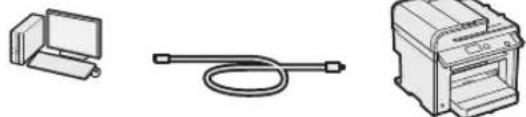
The device can be connected to a computer using a USB cable.
Possibility of copying a 2-sided card onto one side of a sheet.
Fax**
Direct printing of documents from a computer (parallel connection)
Using a computer
In addition to the standard methods of sending faxes, you can use the parallel connection function with a computer.
Sending
You can register fax addresses in the address book. There are several ways to specify addresses, allowing you to send documents quickly and easily.
- By address - Using speed dial keys - Coded dialing - Group of addresses - Specifying from the sending group - Sequential broadcasting - Sending by schedule
Receiving
- Received documents can be saved in memory. Saved documents can be printed or deleted at any time if they are no longer needed.
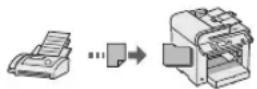
Deleting received documents. If an external telephone is connected, you can immediately switch to fax reception mode during a telephone call by entering the fax reception ID using the telephone's numeric keys. - Receiving on request. You can retrieve previously stored documents from the fax machine of the sender.
Printing
Reduction
2-sided printing*
Reduced layout
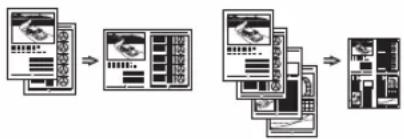
You can reduce several documents to print them on one sheet.
2in1
Teuatb 6poohop
NepaTb nJaKaTOB
NeuTaB BOaRbIx 3HaHOB
Ppocmtp npedbapnteHoro n3o6paXeHnnepeD neaTbIO
Bb6op「pOphiIa
Сканнроване
CoxpaHeHne DOhymeHTOB c NOMOsbIO NaHeJIynpaBLeHHa annapata
CoxpaHHeNc DOKymeHTOB c NOMOuBIO Oepaun Ha KOMNbOTpe
- ChaHPOBaHnE C NOMOuBIO
- nporpamMbI MF Toolbox
CkaHnpoBaHne n3 npInIOKeHHN CkaHnpoBaHne CnOJIb3OBAHMeM dpaBepa WIA***
Hactpoynncetn***
AnHbI annapaT obopydOBaH CEtEBIM INHTepfeIcOM, C NOMOuBIO KOTOPORo MOxHO 6bICTPO CO3DaTb CeTEBOE OKpyKeHHe.3OT INHTePfEic NO3BOJAEr TneaTaTB DOHyMeHTbl, IcNoJIb3OBA Tb FyHKUIO fAHCmMnIbHOJ CBa3N C NOMOuBIO KOMNbIbOTepa H BbINOJIHrTb CEteBOE cKaHIpOBaHne CO BCEX KOMNbIbOTepoB, NODJIIOueHHbIX K DAHHOMy annapaTy. Bo3MOxHOCTb INCNoJIb3OBAHry DaHHoro annapaTa B KaueCTBe OΦnCHOrO annapaTa C O6zIM DoCTynOM NOMORAET IOBbICNTb 3ΦΦeKTHNBHOCTb pa60TbI.
YdaJIeHnHi NPi***
Teneb Bbl MoKeTe npOBepaBcOCToHHe annapaTa c KOMNbToTePOB B CeTH. Kpome TOrO,Yepe3 CeTB MOHO BbIOJIHrTa DocTyn K annpaTy, ynpaBIArTa 3aDaHnAMyN Yka3bIbTaB pa3LIuHhBe HaCTpoiKn.
*Tolbno DnM oMeIeMF4890dw/MF4870dn **TolbNo DnM oMeIeMF4890dw/MF4870dn/MF4780w/MF4750 TolbNo BOCWindowsXP/Vista/7/B TolbNo DnM oMeIeMF4890dw/MF4870dn/MF4780w
YcTpaHHe 3aM7n6ymarH
Ecnno OTo6paKaHaTcra 3OT 3KpaH,ByCTPOINCTBE NOaHN HByTpna annapata npOn3oWIO 3aMaTne 6yMaHn.YdaJIte CmTAbI DOhymeHT NNI 6yMaRy,CJeDy npOueType,OTo6paKaHaemOn Ha 3KpaHe.B 3OM pyKOBOdCTBe ONUcaHBt TOJbKO 06laCTN,B KOTOpbIX MOKeT BO3HNKHyTb 3aMaTne 6yMaHn. POpO6Hee O KaHdoi FyHKuIM CM.B DOKyMeTe «3NeKTPOHoe pyKOBOdCTBO NOJIb3OBaTeJI”.
3amTne 6ymaru.
HaxMnTe ]JnA
0To6paKeHHaTOB.
PoaTnK MF4890dw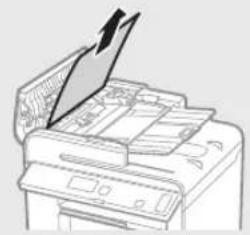
MF4870dn/MF4780w/MF4750/MF4730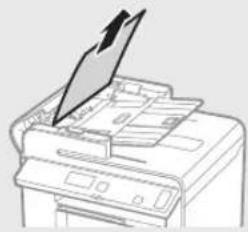
BHyTpni annapaTa YHnBepcaIbHbI JIoTOK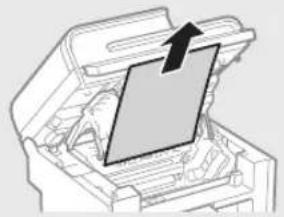
HaccetaIy6ymaru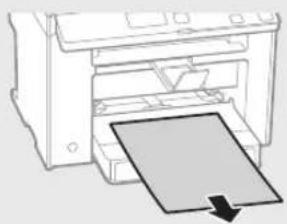
3aHnHa KpbIiHa (TOJIbKO DnRA MoDneNeI MF4890dw/MF4870dn)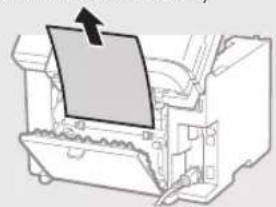
3aMeHa KapTpndJa c ToHepom
Kaptnndn c Tohepom ABHOTc pacxOdbim MaTepeaam. EcnToHe pOnTu NIN NoNHOCTbO 3aOKHnICB npocece BblIOJIeHHa 3aHa, Ha 3kpaHe NOBILETc COo6eHne INM MOrTy BO3HnKaTb CNeDyUoJe nPo6IeMbI. PnIMNTe COOTBeTcByIOUme MepbI.
Pn noBHeHH coo6eHna
EcnI ToheP NoTH 3aKOHHINcB IpoceCE BbINOJIHeHn 3aHaHn, Ha 3KpaH NOABJIeTc COO6uHHe.
Technical maintenance and inspections

WARNING
- Unplug the device and disconnect the power cord from the outlet before cleaning. Failure to follow this rule may cause fire or electric shock.
- Periodically remove the power cord plug from the outlet and wipe the area around the base of the metal contacts of the plug and outlet with a dry cloth to completely remove dust and dirt. Dust, dirt, and moisture on the surface may cause short circuits or fire. For the device, use a damp, well-wrung cloth. Wring the cloth thoroughly in water. Do not use alcohol, benzene, solvents, paints, or other flammable substances. Contact of these substances with electrical components inside the device may cause fire or electric shock. Regularly check the power cord and plug for damage. Check for corrosion, mechanical deformation, scratches, cracks, or excessive heating of the device. Use of equipment that is not properly maintained may lead to fire or electric shock.
Consumables

WARNING
Do not throw used toner cartridges into open flames. This may cause them to ignite and, as a result, lead to burns or fire. When disposing of toner, wipe up spilled toner with a soft, non-linting cloth. Do not use a vacuum cleaner to pick up spilled toner. Otherwise, harmful dust may be inhaled or explosions may occur due to static discharge.

CAUTION
Store toner cartridges and other consumables in places inaccessible to children. In case of toner ingestion, immediately consult a doctor or a toxicology center. Do not attempt to disassemble a toner cartridge. Toner may spill and get into eyes or mouth. If toner gets into eyes or mouth, immediately rinse with cold water and consult a doctor. If toner spills from the cartridge, try not to inhale it and avoid skin contact. If toner gets on skin, wash it off with soap and water immediately. If toner is inhaled or skin irritation occurs due to contact with toner, immediately consult a doctor or a toxicology center.
Other

WARNING
- If a pacemaker is used: this device creates a weak magnetic field. If you feel discomfort while working with the device, move away from the device and immediately consult a doctor.
Legal information
Legal restrictions on use of the product and images
Unauthorized copying, printing, or reproduction of this manual in any way, or use of images obtained as a result of scanning, printing, or reproduction by other means using the purchased product, may be prohibited by law and may lead to criminal and/or administrative liability. A partial list of such documents is given below. This list is intended for reference only. If you have any doubts about the legality of using this manual for scanning, printing, or reproduction by any other means of any document or use of images obtained as a result of scanning, printing, or reproduction by other means, please consult your legal advisor in advance.
-Paper money -Traveler's checks -Meal tickets -Food stamps -Deposit certificates -Passports -Postage stamps (canceled or uncanceled) -Immigration documents -Identification cards or badges -Internal revenue stamps (canceled or uncanceled) -Certain service documents or drafts -Bonds or other debt certificates -Checks or drafts issued by government agencies -Stocks -Driver's licenses -Documents certifying property rights -Works protected by copyright law/works of art, prohibited from reproduction without permission of the copyright owner
Considerable effort has been made to ensure that this manual is accurate and easy to understand. However, our products are constantly being updated. For the latest information, please contact your Canon office.
Manuals for this product
The following symbols are used in this manual
① Basic Operation Guide (this manual) First, read this manual. This manual describes the procedure for installing the machine, setting parameters, and basic operations. Be sure to read this manual before using the machine.
② Manual for Wireless LAN Setup (for MF4890dw/MF4780w only): Read this manual after reading the Basic Operation Guide. This manual describes the procedure for setting up a wireless LAN, as well as the conditions and tools required for the setup. Be sure to read this manual before using the machine.
③ MF Driver Installation Guide (User Software CD (CD-ROM with software for users))
Read this manual as well. This manual describes the procedure for installing the software.
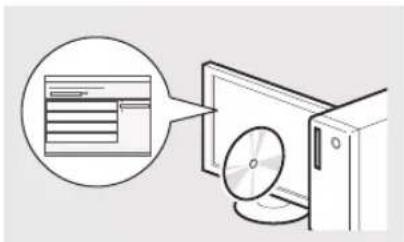
④ Electronic Manual (Multi-lingual User Manual CD (CD-ROM with manuals in multiple languages)) Read the sections with the necessary information. The electronic manual is divided into categories for easy searching of necessary information.
MF4890dw/MF4870dn/MF4780w/MF4750
MF4730
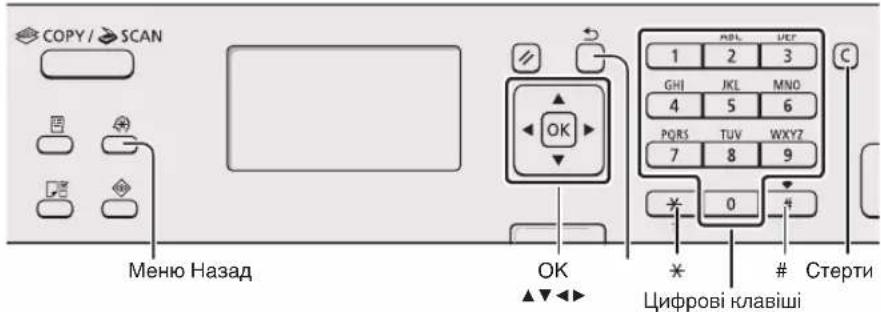
Working with Menus
Select a menu item or move between menu items using the number keys.
Press the [ ] or [ ] key to move to the next section. To go to the next section, press the [OK] or [ ] key. To go to the previous section, press the [ ] (Back) or [ ] key.
Settings and Confirmation
Press the [OK] key. However, if a message appears on the display, select (Apply), then press the [OK] key.
Text Input Method
Changing the Input Mode
Press [V] to change the input mode, then press the [OK] key. The input mode can also be changed using the [ *] (Shift) key.
Enter text, numbers, and symbols
Perform input using the keys or the [#] key (symbols). For information about switching input modes and available symbols, see the next page.
Inserting a space (entering a space)
Use the [ ] or [ ] key to move. To enter a space, move the cursor to the end of the text and press the [ ] key.
Deleting symbols
Delete symbols with the [C] (Clear) key. To delete all entered symbols, press and hold the [Clear] key.
Using the Electronic Manual from the Companion Disc
1 Insert the Multi-lingual User Manual CD (companion disc with manuals in multiple languages) into the computer.
2 Select the language.
3 Hlaunitb [Display Manuals] (Select manuals).
Depending on the operating system, select the method for installing the driver.
Entering text, characters, and symbols
| Рек imm
ВveDEXHЯ:
<A> | Рек imm
ВveDEXHЯ:
<a> | Рек imm
ВveDEXHЯ:
<12> |
| 1 | @.-/1 | |
| 2 | ABC abc | 2 | |
| 3 | DEF def 3 | |
| 4 | GHI ghi 4 | |
| 5 | JKL jkl 5 | |
| 6 | MNO mno 6 | |
| 7 | PQRS pqrs 7 | |
| 8 | TUV tuv 8 | |
| 9 | WXYZWXYZ 9 | |
| 0 | (He doctynho) 0 | |
| # | -,"#,",...^ =/?"$@
%&+(.)[()] | (He doctynho) |
| * | (Зма на рожиму ВveDEXHЯ) [A]→[a]→[12] |
Changing the input mode
Turning the power on and off
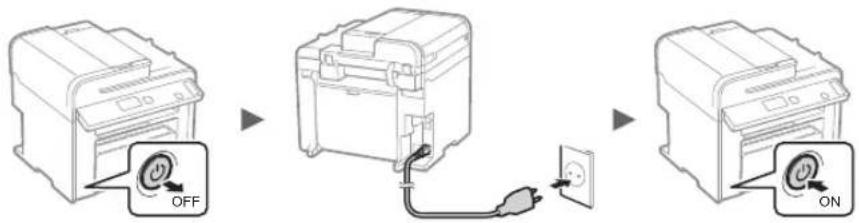
Do not disconnect the USB cable at this moment. Disconnect it during the installation of the software.
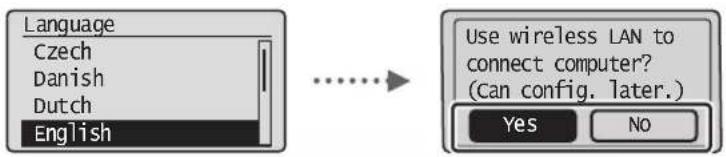
Setting initial parameters
Follow the instructions displayed on the screen to set the language and time. For information about working with menus and the input method, see "Using the Menu and Input Method" (page 140).
MF4890dw/MF4780w
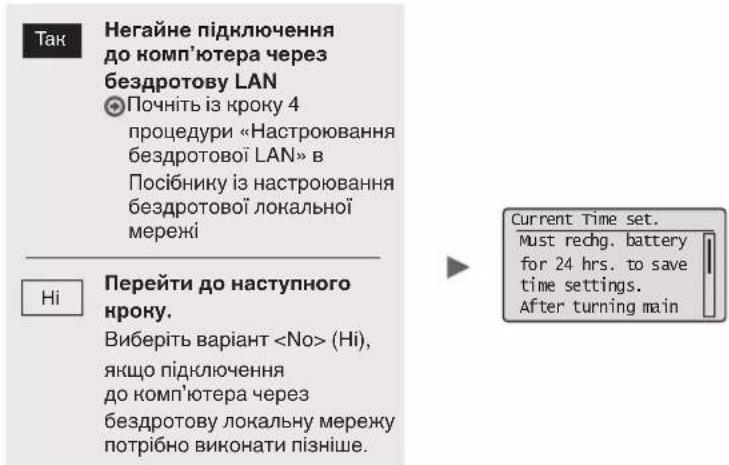
If you are not sure whether you have a router: wired or wireless
Refer to the manual for the network device or contact the manufacturer.
Remote Receiving (Remote
Receiving)
When the external telephone is connected, you can switch the machine to fax receiving mode and set the receiving mode and fax number using the receiving mode selection buttons.
- Receiving faxes
YBaC 3Mora BnDObU NonepeHbO 3aBaHTaKeHi DOKyMeHTN 3ΦaKcMlBHO anapata BiInpaBnHa came Toi, KOJI BAM nOTpi6Ho OTPMaTHn ΦaKc.
Друн
Apyk 3i 36iIbueHHa m a6o 3MeHweHHaM
ДвoctopoHHIpyH*
3MeHueHn MaKeT
MOKHa 3MeHUnTH KIlbKa DOKyMeHTiB,IO DO3BOJNTb po3dpyKByaTH iX Ha OJHOMy apKyU.
2Ha14Ha1
Dpyk 6poosypn*
Apyk nlaHaTIB
ApK BOARHx 3HaHIB
PonepeHni neperIaI nepeI npykom
Bn6ip «npoΦiIO»
ChahyBaHHa
36epexehn DOhymeHTIB 3a donomoroio nanei kepybaHH anapata
36epenHHn DOKymeHtIB 3a donomoroH KOMI'OTepa
- Scanning using the Toolbox program
Scanning from the application program - Scanning using the
- driver***
Setting up the printer***
If the device is connected to a network interface, you can easily set up the network environment. You can print documents, use the fax function with the help of a computer, and scan over the network from all computers connected to the device. Shared use of the device in an office environment increases work efficiency.
Remote UI (Remote User Interface)****
You can operate the device simply from computers connected to the network. Through the network, you can access the device and its settings, as well as set various parameters.
Clearing paper jams
If the following screen appears, paper is jammed in the feeder or inside the device. Follow the instructions on the screen, remove the jammed document or paper. All areas where paper jams occur are indicated by shaded areas. Detailed information about each function is provided in the electronic manual.
Paper jam.
Press [ ] to
display steps.
MF4890dw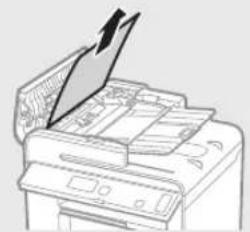
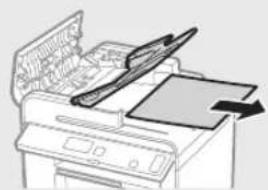
MF4870dn/MF4780w/MF4750/MF4730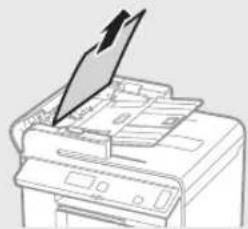
Internal parts of the device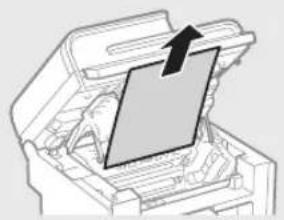
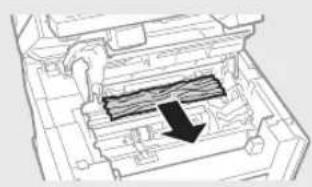
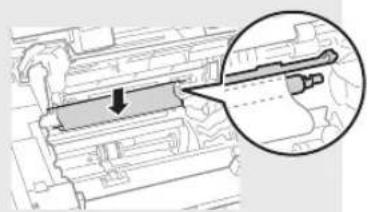
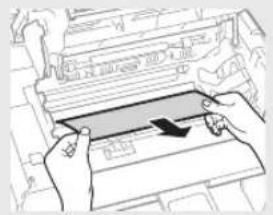
Paper jam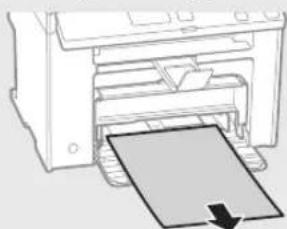
3aHnKpnKa (mne moeJI MF4890dw/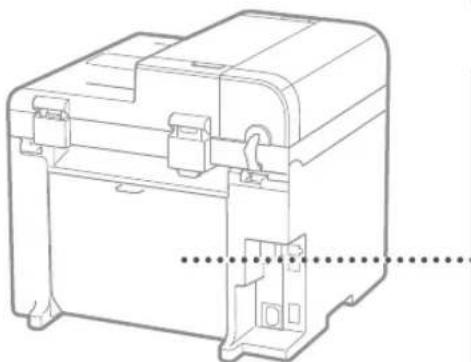
MF4870dn)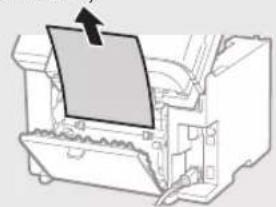
Replacing the toner cartridge
Toner cartridges are consumables. When the toner runs out, a message appears on the screen or the print quality deteriorates. In such cases, take appropriate measures.
When a message appears
If the toner runs out during printing, a message appears on the screen.
| Повidiомлени | Коли на ekрani
Вidiображаettingа
повidiомлени | Опс поебли差别iodу воришени |
| <Prepare toner
cartridge.>(Підготуйтě
kaptrindь i3
tohepom.) | Ноли карtripидь i3
Тонером по triбно
Замину нашлкчим
чacm. | Стусни Карtripидь i3 tohepom对于我们 pibnomip Horo розnodileну tohepa
Всяrelini Kaptrindka.
Еlektroponnii nosicbik, «Пereed замioю карtripидь 3 tohepom» |
| Пеед дуkom Великою обаяу дokу мenteв рекомendobaoю замину
tohep i3 karpindkem.
Еlektroponnii nosicbik, «Замina Kaptrindka 3 tohepom» |
| <Toner is
nearly out.>(Tohep майке
зakinчевя.> | Ноли вчeurpano pecурс
kaptrindka 3 tohepom. | Стусни Карtripидь i3 tohepom对于我们 pibnomip Horo розnodileну tohepa
Всяrelini Kaptrindka.
Еlektroponnii nosicbik, «Пereed замioю карtripидь 3 tohepom» |
| Як soo ce nobiodomлени He 3nHKe, Заминь Kaptrindь i3 tohepom.
Еlektroponnii nosicbik, «Замina Kaptrindka 3 tohepom» |
| Як soo bideobapkaetbcry ec nobiodomlenny, Вixdni phakc byle 3bepeJKeHo
В пam'Ят i6e BvkoHaHnA dpyky. 3BiTn takox MOnyIb He dpykyBaTnCn,
habiBЯк so BCTaNoBLeNo napametp abTomatuHoro dpyky 3BiTb.
Як soo专门为 napametpa <Continue Print. When Toner Is Nearly Out>
(ПробожиВати дук, КOLи tohep Майke заikinuBcay) у MeHIO <RX
Print Settings> (HAc troponnii dpyky otprimanix daHIX) NaCTpoeHo
ЗанeHЯн <On> (YbIMK.), dpyk nopodobjHtbcry, aJe ha po3dpyNivhax
Залшатум'tься bili liHii abO ПлЯМи.
Еlektroponnii nosicbik, «АВтOMaTHuNiy dpyk 3bity» |
| Еlektroponnii nosicbik, «ПoproDobjEHHa Dpyk, КOLи tohep Майke
Зakinчевя» |
When prints are faint or partially faded
If prints are faint or partially faded, it indicates that the toner in the cartridge is running low, even if no message appears on the screen. If the problem persists, see the sections below for solutions.
When prints are faint or partially faded
If the toner is running low, prints may be faint or partially faded.
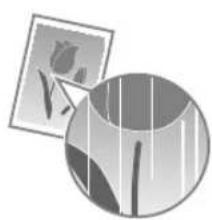

If no message appears on the screen, but the toner is running low, replace the toner cartridge when prints are faint or partially faded.
When this problem occurs
Before replacing the toner cartridge, follow the steps described below. The printer will continue printing until the toner is completely empty.
Electronic manual, "Before Replacing the Toner Cartridge"
Keep this manual for future reference.
If you have a problem with the ink not being applied after performing the procedure described below, replace the toner cartridge.
Electronic User's Manual, "Replacing the Toner Cartridge"
Symbols used in this manual

WARNING
Indicates a potentially hazardous situation which, if not avoided, could result in death or serious injury. To use the device safely, always pay attention to these warnings.

CAUTION
Indicates a potentially hazardous situation which, if not avoided, may result in minor or moderate injury. To use the device safely, always pay attention to these cautions.
Keys and buttons used in this manual
The symbols and keys used in this manual are indicated as follows.
- Control panel keys: [Pictogram key] + (Key name) Example: [Stop]
- Display: (Indicate the location.) Keys and elements on the computer display: [Preferences]
Illustrations and screen images used in this manual
Unless otherwise specified, illustrations and screen images in this manual correspond to the MF4890dw model.

WARNING
To avoid serious injury or malfunction, and to obtain correct information, read the safety instructions and the safety information in the Multi-lingual User Manual CD (CD-ROM with manuals in multiple languages) included in the package.
Safety Instructions
Before using the device, it is important to read the "Safety Instructions" in this manual and the electronic manual.
Pay attention to these instructions and follow them during operation; their observance helps prevent injury to the user and damage to the device.
Please note that you are responsible for any damage resulting from failure to follow the instructions provided here, any use of the device for other than its intended purpose, or any repairs performed by anyone other than a qualified specialist authorized by the manufacturer.
INSTALLATION

WARNING
Do not install the device near flammable liquids, gases, or dust. Contact of such substances with electrical parts inside the device may cause fire or electric shock. Do not place the device on unstable surfaces, metal objects, or liquids. Contact of foreign substances with electrical parts inside the device may cause damage or electric shock. If any such substance falls into the device, unplug it immediately and contact the manufacturer's service center. Do not use the device near water or in damp environments. Such use may create a fire hazard and lead to dangerous situations.

CAUTION
The following locations are not suitable for installing the device. Installing the device in such locations may cause injury, damage, or electric shock. - Unsuitable locations - Locations with strong vibrations - Locations exposed to direct sunlight (near stoves, heaters, or similar heat sources) - In wet or damp locations - Near flammable materials - Locations with high temperature - Outdoors
- In locations with poor ventilation
Although the device produces ozone during operation, it does not affect the human body. However, if the device is used for extended periods, ensure good ventilation in the room. Do not use extension cords not recommended for this device. This may cause damage or electric shock. If the device with a power cord is used at an altitude above 3000 meters above sea level, it may not operate reliably.
Power Supply

WARNING
Do not use the power cord if it is damaged, as this may cause fire or electric shock. Do not modify or damage the power cord, and do not pull it with the plug. Do not place heavy objects on the power cord. Pulling the power cord may cause fire or electric shock. Do not insert or remove the plug with wet hands, as this may cause electric shock. Do not connect the power cord to a multi-socket adapter with multiple outlets. This may cause fire or electric shock. Do not bend or tie the cord tightly, as this may cause fire or electric shock. Firmly insert the plug into the AC outlet. If you do not do so, it may cause fire or electric shock. When unplugging, pay full attention to the plug. Improper handling may cause fire, electric shock, or malfunction of the device.

WARNING
Use a power source with the voltage specified on the device. If you do not do so, it may cause fire or electric shock. Ensure that the outlet is easily accessible so that the device can be unplugged quickly when needed.
OPERATION

PRECAUTIONS
Do not disassemble or modify the device. The internal parts are at high voltage and high temperature, which may cause fire or electric shock. Do not allow children to play with the device, its cord, or its accessories. Improper handling may cause personal injury. If the device emits abnormal heat or a burning smell, unplug it immediately and contact an authorized service center. Continued use may cause fire or electric shock. Do not use aerosol sprays near the device. Contact of aerosol sprays with electrical parts inside the device may cause fire or electric shock.

WARNING
For safety, unplug the device if it will not be used for a long time. Carefully open and close the lid to avoid injuring your hands. Keep hands away from the area around the outlet. Improper handling may cause personal injury. The internal parts and the outlet are very hot during and immediately after use. To avoid burns, avoid contact with these parts. Additionally, immediately after use, the device may be hot, so handle it with care. Improper handling may cause burns.
MAINTENANCE AND INSPECTION

PRECAUTIONS
- Before cleaning, unplug the device and remove the plug from the outlet. If you do not do so, it may cause fire or electric shock.
- Yac BiD yacy BnHmaiTe 1tTencIb i3 po3eTHN Ta BNTnpaIte cyXIO THAHHOIO nII i6pyd i3 po3eTHN Ta 3 OCHOBn METAEBHX TtIPB tTcENe. BolOrn nn moKe npu3BecTN do KOPOTKOrO 3amKaHnA ao noKeHi OuHuaTe anapat BOIoroIO do6pe BHKpyeIOHO TKAHNHOIO. 3BOnoKnyTe 10 KTHaHHy NIIue BOIOHO. He BnHOPNCTOByIte cNPT, 6EH30JI, POzHHNHNr Ta iINi IERHO3aIMNCtI peOBOHNr. KOHTAKT TAKHX peOBOHN 3 eJekTPnHmN DeTaJIaM N BCEpENH apapaTo MoJe npz3EeCTN Do NoXeKJI a60 ypaJHexHn eJekTPnHm CTrpymOM. Perynpho nepebipreTe hyp hNBeHH Ta tTencelb Ha HABHCTb NookkDHe. NepeBiprte anapat Ha HABBHCTb ipxki, 3a3y6bnH, noPpnnH, TpiuH aoHaMpH eHaRpaHn. BHKOpCTAHn OBlaHaHH B noraHOMy CTaHI Moe np3BcTn DO noKeKi aO bypaeHHeJeKTPnuHm Ctpymom
BntpaTHi MaTepiAn

NONEPEDHEHHA
He KdaIte BInkopnctaHI KapTpndk3 TohepOM y BiDkpHTN BOHOb. Lc MOKe CnpuHHnTn 3aMaHnR npn3BeCTn Do oNikB a6o nokeki. - RaKIO TOHEp BnnaHKOBO pO3cHnabcB, o6epeHHo 3iTpItb pO3cHnAHN NopouWOK BOJROK M'HOO TKaHNHO; CTpeHtbcS, Uo6 He BdHXHTy NiYO. HikOIe He npu6paIte PO3cHnAHN ToHEp NINOOCOM. Ce MoNe Ipu3BcETNo Do HecnPbaHocTi NINOCoca a60 BV6xy NiNy B pe3yblTati CTAtnHOrO pO3prdy.

YBAGA
36epiraTe KaptpnDki 3 Tohepom Ta iHwi BHTpaTHi MaTepiAnB Micax, HeoocTyHnx Dnla DiTei. Li pazi KObTaHHa TohepaHeraiHo 3BepHiTbcrdo liKapra abo TokCNKONorIChoro ceHTpy. He HamaraTeCe p036paTu KapTpIaH i3 ToHepOM.ToHep MoKe po3cnatncr IOTpaNTn B Oci a6o pot. RaIO TOHep NotpaNTb B Oci a6o pot, HeraHNO Ipomnte ix XOIOHO BOIO TO 3BepHITbcrdo likapra. - JHKUToHE BVCINNABC 3 KAPTpNDHa, CtapaTecn He BdNxAuH NOro Ta cIkyute, U6b BIn He NotpAnHB Ha shkpY. JHKUToHE notpanntb Ha shkpY, HeraHBO BmHnTe II 3 MlNoM. JHKUToB BVDHN ToHE a60 shkpap nopa3Hea BHacIIOK KOHTy 3 Hm, HeraHNO 3BepHITbcra Do Iikapar a60 TOCKOJorIHORo ueHTpy.
Inhe

NONEPEDHEHHA
KIO Bn BnKOpNCToByeTe KApDioCTMMyIaTOp LcH anapat yTBopHe cna6Ke marHIThe noJe. BiDuYBUN B opraH3Mi RkICb NopyWeHHN iD uac po6OTn 3 UIM anapaTom, BiIDiNbBi Dn HbOrO HeaHNO pOKoHcyIbTyIteC3 NiKApem.
HaJIeHHI npaBOBIO nobIDOMJIeHHA
IOpndnHi 6mKeHHeNHa 0oDo BnKOpncTaHHBnpo6y Ta 306paHexeHb
BnKOpNCaHnIybOro BnOByDnCKaHyBaHHN,dpKy a60 KOniIOBAHH 6yb-RAHM IHINUM YINOM NEBHx DOkymeHTIB Ta BnKOpNCaHnH TAnX BiDcKaHOBAHH,HaDPYKBaHHx a60 CKOniIOBAHH 6yb-RAHM IHINUM 3o6paJHe bMOKe 6yt N3abOpOHeNo 3aKoHOM Ta CTAIn PpNHIOHO pNtTgHHeHH O KpIMIHALbHOI abO rPMAJHCBHOI BIDNOIBaJIbHOCTI. HenOBHN CnCOK TaNX DOKyMeHIT HabeDeHO HnKYe. LcE CnCOK CTBopeHNI liwe dJa DoBIDHI. RaIO BuHNkaIOb CymHIBN IOdo 3aKoHHocTI BnKOpNCaHnH BnO6y I Da cKaHYBaHH,dpKy a60 KOniIOBAHH 6yb-RAHM IHINUM YINOM NEBHx DOkymeHTIB Ta/a60 BnKOpNCaHnH TaNX BiDcKaHOBAHH,HaDPYKBaHHx a60 BybAkm HINUM YINOM ChONiIOBAHH 3o6paJHeB, cIid 3BePhUTnc 3a Po3'ACHEHHM Do padHnka 3 KpNDHnX NITAHb.
- Panepoiri pomega -DoopKHIyekn -Платдндоруенн. -Прдовьчталони -ДeнoзHTi cepTnФikatN -Паснорtn -Поштovi марки (noraшениaboногашeni) -ImmigrpauiHIOKymeHTN
- Identification marks and signs of separation - internal marks of the state emblem (hidden or incomplete) - documents on military service - obligations or other documents on debt obligations
- Checks or receipts issued by government agencies - share certificates - certificates of ownership - works protected by copyright laws/works of art without obtaining the owner's copyright
Paper jam. Press[] to display steps.
Padevējs MF4890dw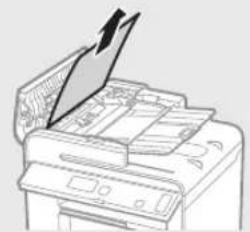
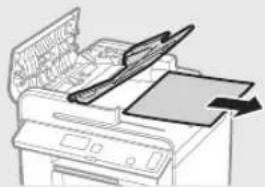
MF4870dn/MF4780w/MF4750/MF4730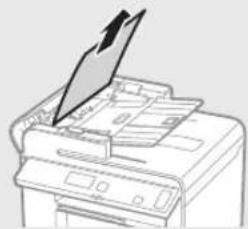
Iekārtas iekšpuse Daudzfunkciju papīrturis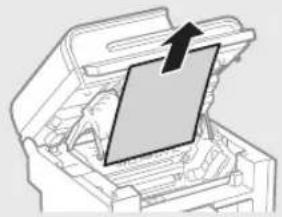
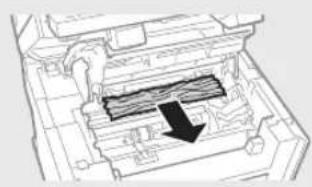

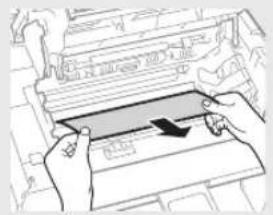
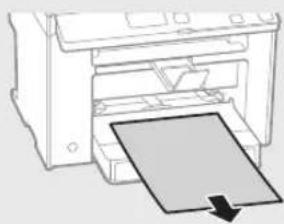
Papīra kase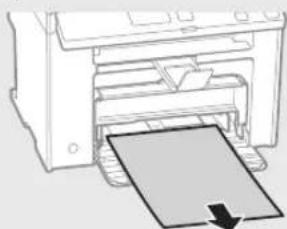
Aizmugurējais vāks (tikai MF4890dw/MF4870dn)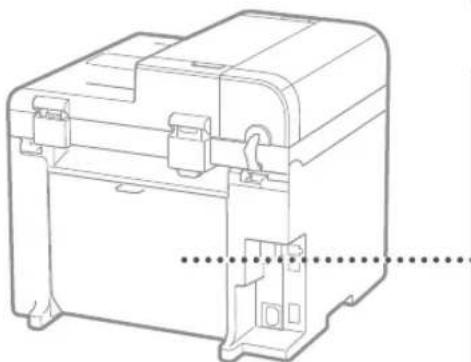
Tonera kasetnes nomaiņa
Divpusējā drukāšana*
Pārvietošanās izvēlnē un teksta ievade
MF4890dw/MF4870dn/MF4780w/MF4750
MF4730
Pārvietošanās izvēlnē
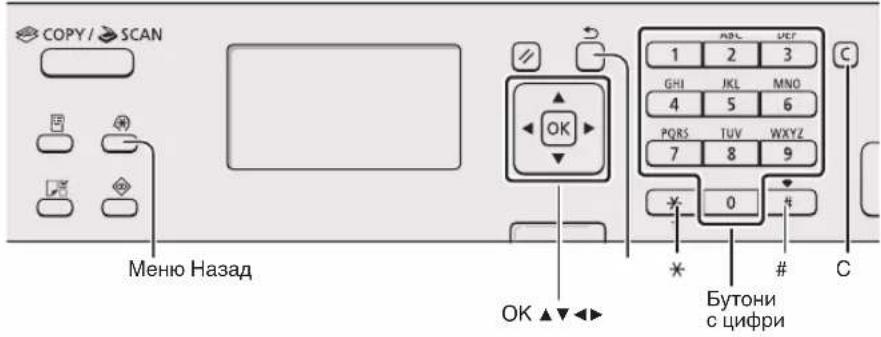
Izvēles elementu izvēle un kursora pārvietošana starp izvēlnes elementiem
Select an element using [▲] or [▼]. Move to the next hierarchical level with [OK] or [▶]. Return to the previous hierarchical level using [] (Back) or [<].
Searching for a string
Press [OK]. When both items are selected, select 'Done' and then press [OK].
Method of entering text
To change the display mode, press [▼] to highlight 'Display Mode' and then press [OK]. You can also press [×] (Cancel) to exit the display mode.
Entering text, symbols, and numbers
Enter using the number buttons or [ # ] (symbols). For details on the modes that can be switched to, or the text that can be entered, see the following page.
Moving the cursor (entering intervals)
Move the cursor using [4] or [>]. Move the cursor to the end of the text and press [4] to enter an interval.
Deleting characters
Delete using [C] (Delete). If you hold down the [C] (Delete) key, it will delete all characters.
Viewing the e-Manual (electronic manual) from the CD
1. Insert the Multi-lingual User Manual CD (multilingual user manual for consumers) into the computer. 2. Select a language. 3. Click on [Display Manuals] (Show manuals). Depending on the operating system, a security warning may appear.
Entering text, symbols, and numbers
| Рек imm на
БъECHданe:
<A> | Рек imm на
БъECHданe:
<a> | Рек imm на
БъECHданe:
<12> |
| 1 | @.-/1 | |
| 2 | ABC abc | 2 | |
| 3 | DEF def 3 | |
| 4 | GHI ghi 4 | |
| 5 | JKL jkl 5 | |
| 6 | MNO mno 6 | |
| 7 | PQRS pqrs 7 | |
| 8 | TUV tuv 8 | |
| 9 | WXYZ wxyz 9 | |
| 0 | (He e doctbneH) 0 | |
| # | -.*!";^_="?$@
%&+(')[0]<> | (He e doctbneH) |
| * | (Cмнна на рожима на БъECHданe)
[A]→[a]→[12] |
Changing the display mode
| Рек imm ha
въеведанe | Текл за въеведанe |
| <A> | Главни бухиот a36укatinga
и симboлн |
| <a> | МалкиSBYнВОТ a36укatinga
и симboлн |
| <12> | Цфри |
Warning: Do not connect the USB cable before the warning is displayed.
Do not connect the USB cable to this step. Connect it during the software installation.
Initial setup instructions
Following the on-screen instructions, set the time and language. For more information about the menu and the method for entering characters, see "Menu and Text Entry Method" (p.250).
MF4890dw/MF4780w
To connect to a computer via a LAN cable
Prerequisites: Connect via LAN cable
(only for MF4890dw/MF4870dn/MF4780w) (p.252).
To connect to a computer via a USB cable
Prerequisites: Connect via USB cable (p.252).
To proceed without connecting the machine to a computer
Prerequisites: Initial setup of the fax and connection of the telephone cable (only for MF4890dw/MF4870dn/MF4780w/ MF4750) (p.253)
MF4870dn/MF4750/MF4730
Selecting the method for connecting the machine to a computer
Connection via LAN cable (only for MF4890dw/MF4870dn/MF4780w)
Connecting to a LAN cable
You can connect the machine to a computer via a router using a LAN cable. Connect the machine to the router (at the connection port) using a LAN cable.
※ Make sure that the router has a free port for connecting the machine to the computer. Use a LAN cable of category 5 or higher.
Connecting via USB cable. Connecting via USB cable
You can connect the machine to a computer using a USB cable.
Connecting via wireless LAN connection (only for MF4890dw/MF4780w)
See the Wireless LAN setup guide.
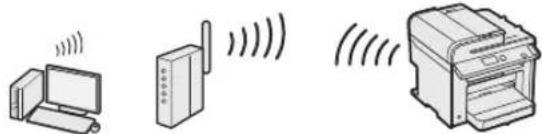
You can connect the machine to a computer via a wireless router*. Once the connection is established, a LAN cable is not required.
*The wireless router (at the connection port) supports the IEEE802.11b/g/n standards.
If you do not have a router for wireless or wired connections:
See the manual for the router itself or contact its manufacturer.
Connecting via LAN cable (only for MF4890dw/MF4870dn/MF4780w)
1 Connect the LAN cable.
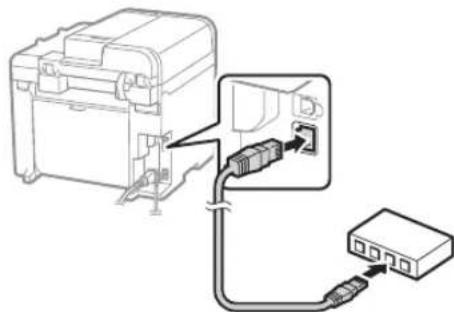
The IP address is configured automatically within about 2 minutes. If you want to set the IP address manually, see the following.
e-Manual (Electronic Manual), "Network Settings" > "Basic Network Settings" > "Setting the IP Address"
Install the drivers and software from the User Software CD (the command is "DISC with consumer software"). Refer to "Setting the Paper Format and Type" (p. 253).
Connecting the USB cable
Connect the USB cable after installing the MF drivers and MF Toolbox.
1 Install the drivers and software from the User Software CD (the command is "DISC with consumer software"). 2 Connect the USB cable.
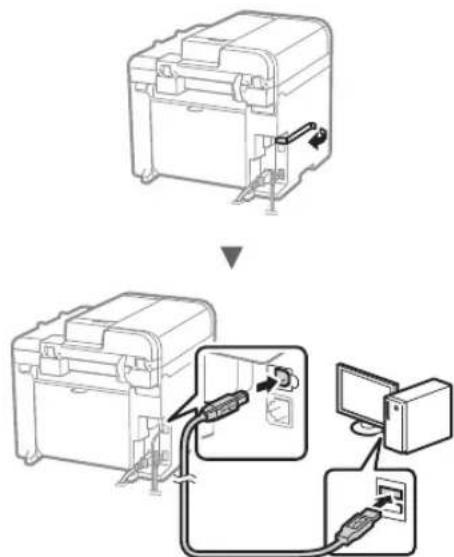
Refer to "Setting the Paper Format and Type" (p. 253).
For more details on the installation procedures:

See the MF Driver Installation Guide
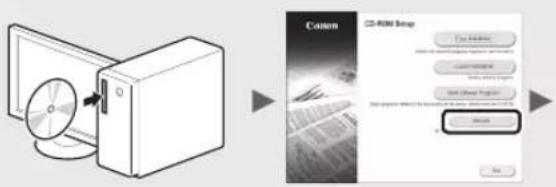
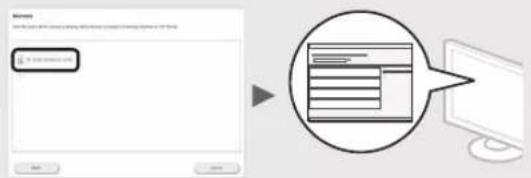
Please note that the Product Extended Survey Program may appear on the screen. For more details, follow the on-screen instructions.
Setting the Paper Format and Type
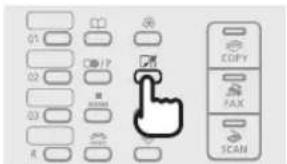
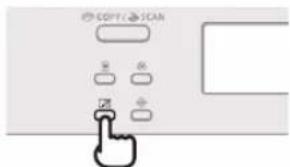
Follow the on-screen instructions to set the paper format and type.
MF4890dw/MF4870dn/ MF4780w/MF4750
MF4730

Specifying the Initial Settings and Connecting the Telephone Cable (only for MF4890dw/ MF4870dn/MF4780w/MF4750)
1 Specify the initial settings of the fax.
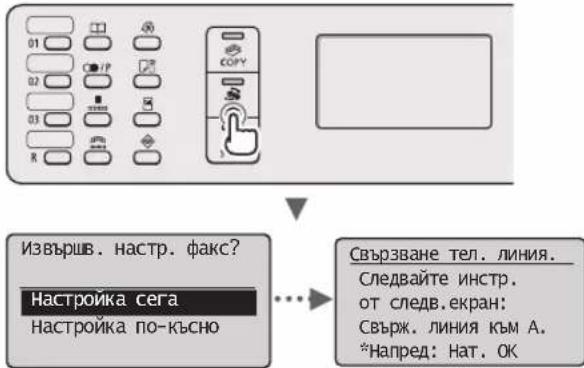
Follow the instructions in the Fax Setup Guide to set the fax number, device name, and reception mode. For more details on reception modes, see the e-Manual (Electronic Manual).
e-Manual (Electronic Manual), "Fax" (Fax) Using the Fax Functions" (Using the Fax Functions) Receiving Faxes" (Receiving Faxes) RX Mode" (RX Mode)
When using the recipient name to send a document, the sending information that you registered is printed on the recipient's document.
2 Connect the telephone line cable.
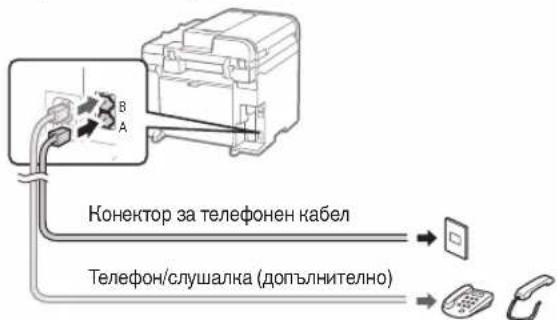
When the display shows "<Connect Telephone Line>", connect the telephone line cable, using the figure for reference.
For details on installing the optional equipment: For more information, see the manual provided with the optional equipment.
3 Exit the Fax Setup Guide, and then restart the machine.
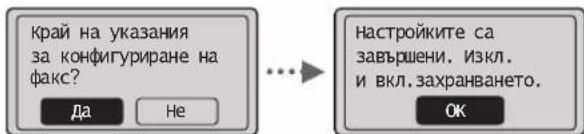
Turn off the device and wait for more than 10 seconds before turning it on again. The telephone line is not detected automatically. See the e-Manual (Electronic Manual) to set the telephone line manually.
e-Manual (Electronic Manual), "Fax" (Fax) Using the Fax Functions" (Using the Fax Functions) Changing Fax Settings (Settings that Can Be Specified Using the [Menu] Button)" (Changing Fax Settings (Settings that Can Be Specified Using the [Menu] Button)) Configuring Send Settings" (Configuring Send Settings) "Select Line Type" (Select Line Type)
You can use various functions of the device. The following is an overview of the main functions that you can use in your daily work.
Copying
Enlarge/Reduce Copies
You can enlarge or reduce documents of standard size so that you can copy them onto paper of standard size. You can specify the copy ratio in percentages.
2-sided Copying
You can copy one-sided documents onto both sides of a sheet of paper.
Combining
You can copy the document onto a single page.
Manual feed
You can load multiple documents to copy them onto one sheet.
2B14B1
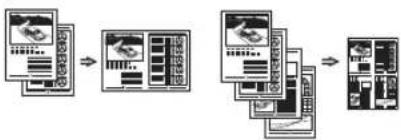
Copying loaded documents
You can copy a two-sided document from one side of a sheet of paper.
Fax**
Direct sending of a document from a computer (PC fax)
In addition to normal sending, you can use the "PC fax" function.
Sending
You can specify a fax destination address. You can set the destination using various methods, which allow you to send documents quickly and easily.
Search for destination - Button for quick dialing - Dialing with the numeric keypad - Group destination setting - Sequential sending - Delayed sending - Canceling sending
Receiving
- Receiving into memory Received documents can be stored in the machine's memory. You can print the documents stored in memory at any time or delete them if they are not needed.
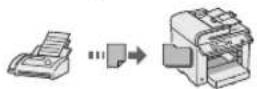
Remote retrieval If a telephone is connected, you can switch the receiving mode to fax, and during a call, enter the identification number for receiving faxes via the telephone's dialing button. - Retrieving documents from the fax machine remotely, when you want to receive faxes.
New
Printing/ Scanning
2-sided printing*
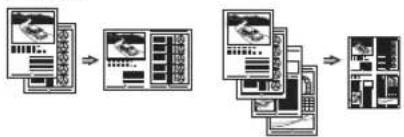
Layout
You can print multiple documents on one sheet.
2B14B1
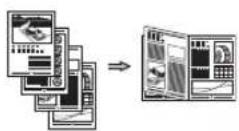
Booklet printing
Poster printing
Watermark printing
Preview before printing
Selecting a profile
Scanning
Saving documents from the device
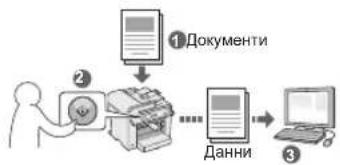
Saving documents from a computer
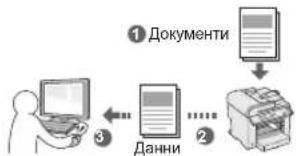
Connection to the WIA driver***
Printer settings***
This device is equipped with a printer interface through which you can easily create a print environment. You can print documents, use the "Print Screen" function, and print from all computers connected to the device. These functions allow the device to work more efficiently as a shared office device.
Remote UI (User Interface for Remote Control)****
You can obtain information about the device's status from computers on the network. With access to the device, you can manage tasks or set various network settings.
Clearing jammed paper
If the screen repeats, it means there is a paper jam in the paper feed unit of the machine. Follow the procedure shown on the screen to remove the jammed document or paper. This guide only indicates the locations of paper jams. For detailed information on all functions, see the e-Manual (Electronic Manual).
Paper jam.
Press [ ] to
eject.
Press.
Device setup
MF4890dw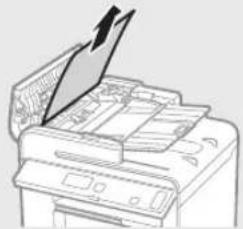
MF4870dn/MF4780w/MF4750/MF4730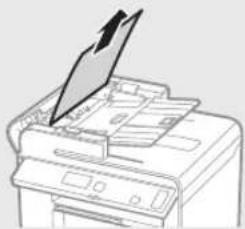
Machine interior multi-function
(model MF4890dw/MF4870dn)
Toner cartridge
The toner cartridge is a consumable. When the toner is running low or is empty, a message is displayed on the screen, or some of the following problems may occur. Take the appropriate actions according to the situation.
When a message is displayed
When the toner starts to run low while a job is being printed, a message is displayed on the screen.
| Съоб Shedne | Кога на ekрана
се пokedва това
съоб Shedne | Описане и рeshеня |
| <Приготвete
Тонер касета.> | Korato skopo
ше се наложи
дa се сmedи тонер
касета. | РазнлATEte toHep kaseta, за дa ce pa3npedelen toHepbT paBHomepeHо
Вьв ВьтpeShocTTa.
e-Manual (Еlementронно ръковodctBO), Before Replacing the Toner
Cartridge" (Поредсмяната на toHep kaseta)
ПрелорьчITEлho e da поименite toHep kaseta подваритelHo,
ако щe пechа差别 obemnstn dokumentn.
e-Manual (Еlementронно ръковodctBO), Replacing the Toner Cartridge" (Смана на toHep kaseta) |
| <Tнр. e поту-
ичэрп.> | Korato toHep kaseta
e доCTIHнала Края
нa ekspлоаразцioHHNЯ
СИЖВOT. | РазнлATEte toHep kaseta, за дa ce pa3npedelen toHepbT paBHomepeHо
Вьв ВьтpeShocTTa.
e-Manual (Еlementронно ръковodctBO), Before Replacing the Toner
Cartridge" (Поредсмяната на toHep kaseta)
Ако тOBа съоб Shedne He ИЗчeзne, сmedeTe toHep kaseta.
e-Manual (Еlementронно ръковodctBO), Replacing the Toner Cartridge" (Смана на toHep kaseta)
Ако тOBа съоб Shedne He ПOKAZHe, постит�ашитfe phakcove щe se
съхсанват в пametTA, бezd da ce пechаТ. Вьзможно e OTchETITE cьшо
да He se OTpeYATВAT Дори ако e Зададени Doа ce peYaTAT ABTomatuHNo.
Ако обache onciYATA <Пordьлжаванe OTnep. по ИЗчрпан toHep>
В <Hactr.p.nechat полу>. e Зададени Na <Вьл.>, пechаТанeto Na
Мaterиалу лшпюдьлін, Но e Вьзможно Doа ce poluyat Белу ИВци
илпетнab Vьрху ТяХ.
e-Manual (Еlementронно ръковodctBO), Printing the Report Automatically"
(AВtomatУно OTpeYATBaHne Na OTchETN)
e-Manual (Еlementронно ръковodctBO), Continue Print. When Toner Is Nearly
Out" (Дa ce neчata dopri korato toHepbT e Na priВьршваи) |
When the printed materials are uneven or have white streaks:
When the printed materials are uneven or have white streaks, and a message appears on the screen, the toner cartridge has reached the end of its service life. When the print quality becomes unacceptable, replace the toner cartridge to resolve the problem.
When the printed materials are uneven or have white streaks
When the toner cartridge is running low, the printed materials are uneven or have white streaks.
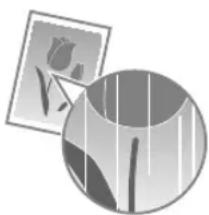

No message is displayed on the screen if the toner is running low. Replace the toner cartridge when the printed materials are uneven or have white streaks.
When this problem occurs:
Follow the procedure below before replacing the toner cartridge. The machine continues to print until the toner runs out completely. e-Manual (Electronic Manual), "Before Replacing the Toner Cartridge"
When the print quality begins to deteriorate or becomes unacceptable:
If the problem is not resolved, after completing the steps in the procedure, replace the toner cartridge. e-Manual (Electronic Manual), "Replacing the Toner Cartridge" (Replacing the Toner Cartridge)
Symbols Used in This Manual
WARNING
Warnings, related to operations that, if not performed correctly, may lead to injury or damage. To use the machine safely, always follow these warnings.
CAUTION!
Cautions, related to operations that, if not performed correctly, may lead to injury. To use the machine safely, always follow these cautions.
Key Names Used in This Manual
The symbols and key names, described below, are examples for the machine, which are indicated in this manual. The keys that you should use.
- Keys on the operation panel: [Key icon] + (Key name) Example: [O] (Stop) - Display: <Enter text.>
- Keys and elements on the computer display: [Preferences] (Preferences)
Illustrations and images of the display, used in this manual
Unless otherwise specified, the illustrations and images of the display used in this manual are for the model MF4890dw.
WARNING
To avoid the risk of injury or damage to the equipment, as well as for regulatory information, read the appropriate sections of the Multi-lingual User Manual CD (Compact Disc with Multi-lingual User Manual for Users), provided with the product.
Important Safety Instructions
Read the safety instructions carefully before using the device, as well as the e-Manual (electronic manual).
The instructions in this manual are intended to prevent injury to the user or others and to avoid damage to materials and equipment. Follow the instructions and safety precautions.
You are responsible for all damages resulting from failure to follow the instructions in this manual, improper use of the device, or modifications not approved by Canon.
INSTALLATION
PRECAUTIONS
Do not place the machine near flammable substances such as alcohol, thinner, or solvents. If such substances come into contact with electrical parts, there is a risk of fire or electric shock. Do not place metal objects or containers with liquids on the machine. If liquids come into contact with electrical parts, it may cause fire or electric shock. If liquid spills into the machine, unplug it and contact your local Canon representative. Do not use the machine near medical equipment. Radio waves emitted from this machine may interfere with medical equipment and cause accidents.
WARNING!
Do not install the machine in the following locations. Failure to follow this warning may result in physical injury, fire, or electric shock. - Unstable surface - Near flammable materials - Locations where ventilation is blocked (e.g., near walls, curtains, or similar) - Damp or dusty places - Locations exposed to direct sunlight or open flames - Locations subject to high temperatures - Locations near open flames - Improperly grounded locations
Although the machine generates ozone during operation, it does not affect the air in the room. However, if you intend to use the machine for a long time, ensure good ventilation in the work area. Do not connect the power cord to this machine. Failure to follow this warning may result in fire or electric shock. It is possible that the machine may not operate correctly if used at altitudes above approximately 3000 meters above sea level.
Electrical grounding
PRECAUTIONS
Do not modify or obstruct the cable, as this may cause a fire or electric shock. Do not modify or obstruct the cable and do not pull it with force. Do not place heavy objects on the cable. Damaging the cable may lead to fire or electric shock. Do not connect or disconnect the plug with wet hands, as this may cause electric shock. Do not turn on the machine in a humid or damp place. Failure to follow this instruction may lead to fire or electric shock. Do not tie the cable in a knot, as this may cause a fire or electric shock. - Connect the plug to a properly grounded outlet. Otherwise, it may cause a fire or electric shock. During a thunderstorm, disconnect the plug from the outlet. Failure to follow this instruction may lead to fire, electric shock, or damage to the device itself.
WARNING!
Turn on the machine only after it is properly grounded. Failure to follow this instruction may lead to fire or electric shock. Do not touch the plug with wet hands when connecting it, so that you can quickly disconnect it in case of an emergency.
Working with the machine
WARNINGS
Do not disassemble or modify the machine. The machine contains components at high temperature and high voltage that may cause fire or electric shock. Do not allow children to play with or near the machine, its cables, or other electrical parts. Failure to follow this instruction may lead to serious physical injury. If the machine emits strange sounds, smells, or excessive heat, unplug it and contact an authorized service representative. Using the machine in such a condition may lead to fire or electric shock. Do not place flammable substances near the device. If flammable substances come into contact with the electrical parts inside the device, it may cause a fire or electric shock.
WARNING!
- For safety reasons, unplug the cable when you are not using the machine for a long time.
- Open and close the covers carefully to avoid injury to your hands.
- Keep your hands away from the rotating parts of the device in the output area. If your hands or fingers get caught in the rotating parts, you may be injured. The machine's output tray becomes very hot during operation and remains so for a while. Avoid touching these parts to prevent burns. The printed paper may be hot immediately after printing, so be careful when handling it. Otherwise, you may burn yourself.
Cleaning and maintenance
WARNING!
Disconnect the appliance from the mains before cleaning. Failure to follow this instruction may lead to fire or electric shock. Clean the appliance from time to time, especially the electrical parts, with a dry cloth. Clean the base of the metal parts and contacts with a dry cloth to remove dust and dirt. When cleaning, be careful not to damage the appliance. Do not use water. Do not use alcohol, benzene, or other flammable substances. If such substances come into contact with the electrical parts of the device, they may cause fire or electric shock. - Check the condition of the power cord and plug regularly. Check the machine for damage, deformation, cracks, leaks, or abnormal heating. Using a damaged or improperly functioning device may lead to fire or electric shock.
Consumables
WARNING!
Do not use the toner cartridge carelessly. This may lead to fire or burns. If the toner cartridge is damaged or leaks, carefully wipe it with a dry cloth and avoid inhaling the toner. Never use a vacuum cleaner to clean the toner. In the opposite case, the vacuum cleaner may be damaged or a toner explosion may occur due to electrostatic discharge.
CAUTION!
Keep the toner cartridges and other consumables away from the reach of children. In case of toner ingestion, immediately consult a doctor or a poison control center. Do not attempt to disassemble the toner cartridge. The toner may be harmful if it comes into contact with the eyes or skin. If toner gets into the eyes, rinse immediately with cold water and seek medical help. If the toner cartridge leaks, avoid inhaling it and contact with the skin. If the toner comes into contact with the skin, wash immediately with soap. If you have ingested toner or your skin has been affected by contact with toner, consult a doctor or a poison control center immediately.
Others
WARNING!
If you use a cardiac pacemaker: This device generates a weak magnetic field. If you feel any abnormality in your body while working with this machine, immediately move away from it and consult a doctor.
Other restrictions
Legal restrictions on the use of the product and its images
Use of the product for scanning, printing, or reproducing in any other way of certain documents and use of such images as scanned, printed, or reproduced in any other way with your product may be prohibited by law and may result in criminal and/or civil liability. It is advisable to first check the legality of such documents. This check is intended for orientation only. If you are not sure about the legality of using your product for scanning, printing, or reproducing in any other way of any particular document and/or using scanned, printed, or reproduced in any other way images, you should consult your legal advisor first.
- Banknotes - Checks - Payment orders
- Food coupons
- Deposit certificates - Passports - Postage stamps (valid or invalid) - Immigration documents - Identification badges - License plates (valid or invalid) - Military service documents or draft cards - Bonds or other securities - Checks or payment orders issued by government agencies
- Identification cards - Automobile documents - Notarial acts - Works protected by copyright or related rights without permission of the copyright holder
They are significant parts of the device's operation and should be without errors or omissions. Despite this, as we constantly improve our products, if you need a specification, please contact us.
③ MF Driver Installation Guide (User Software CD (Kullanici Yazilimi CD'si)):
gaiu jn (yjui y) e-Manual
.
()[DisplayManuals]
J 1
a
Ji
| 131111111111111111111111111111111111111111111111111111111111111111111111111111111111111111111111111111 | |
| < A> |
| < a> |
| < 12> |
LAN 1
"Basic Network Settings" (a)
"Setting the IP Address" (a)
User manual
(a) (a) Software CD
(273a) "gglgglalao"
USB
.MFToolbox, MF USB
User
(S) Software CD
.USBU5S
(273a) "gjg jia
juaaJlal Jauai aayb Jia
LAN
USB
USB 15
Connect phone line.
Follow illustrations
on the next screen:
Connect line to A.
*Next : Press OK
e-Manual
Using the Fax Functions
Receiving Faxes (RX Mode)
Setting is complete.
Turn the main power
OFF and ON.
OK

End Fax Setup
Guide?
Yes
No
Using the Fax Functions
Using the Fax Functions
Changing Fax Settings (Settings that Can Be)
Specified Using the [Menu] Button
(after) [Menu]
< (JwJ) "Configuring Send Settings"
() "Select Line Type"
cuii 1Jg Jg
MF Driver Installation Guide

Product Ext
Jalil jai jai jai jai jai jai Jai Jai Jai Jai Jai Jai Jai Jai Jai Jai Jai Jai Jai Jai Jai Jai Jai Jai Jai Jai Jai Jai Jai Jai Jai Jai Jai Jai
gssgssgss
4gjg jyj 10000000000000000000000000000000000000
MF4730
/MF4870dn/MF4890dw
MF4750/MF4780w

Paper Settings
MP Tray
Drawer 1
Applying settings wait a moment.
MF Toolbox aolipjwll wswll
aill 10
Golny plzlygolny
***WIA
****
j 100000000000000000000000000000000000000000000000000000000000000000000000000
****************************************************************************************************
jglal jglal lla Jgall diay jglal Jgall daiy 2k11 Jgall gll 2k11 ne agill 11
P
aJ111 3
dis ay slll 3 aell llll jyss dis ay 3 yslp11g cagf 3 zjiall alilal 1. gai dai
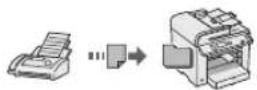
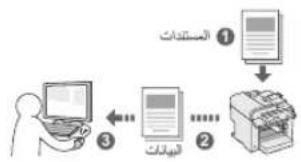
11 11 11 11 11 11 11 11 11 11 11 11 11 11 11 11 11 11 11 11 11 11 11 11 11 11 11 11 1
JLWALW L WIL
aC
jooo/soa
juaa bokai
jieieiei 1111111111111111
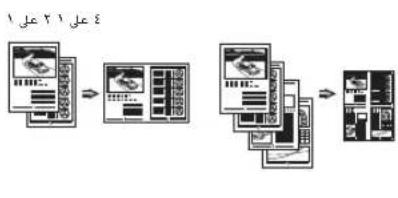
( 1,2) ( 1,2)
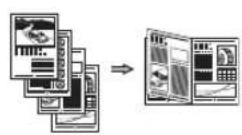
SLUULI acLb
auioloyuul acubi
aellal jaiiueo
“dlo”
Paper jam. Press ] to display steps.
| الإستعمال الحرفية | الإستعمال الحرفية |
| . Before Replacing the Toner Cartridge" (الإستعمال الحرفية) e-Manual®(الإستعمال الحرفية) | Prepare toner> <cartridge>(عزر合法性) | |
| . Before Replacing the Toner Cartridge" (الإستعمال الحرفية) e-Manual®(الإستعمال الحرفية) | Toner is> <nearly out>. (الإستعمال الحرفية) | |
| . Before Replacing the Toner Cartridge" (ال,enGLISH) e-Manual®(ال,enGLISH) | Toner is> <nearly out>. (ال,enGLISH) | |
| . Before Replacing the Toner Cartridge" (ال,enGLISH) e-Manual®(ال,enGLISH) | Toner is> <nearly out>. (ال,enGLISH) | |
| . Before Replacing the Toner Cartridge" (ال,enGLISH) e-Manual®(ال,enGLISH) | Toner is> <nearly out>. (ال,enGLISH) | |
| . Before Replacing the Toner Carriage" (ال,enGLISH) e-Manual®(ال,enGLISH) | Toner is> <nearly out>. (ال,enGLISH) | |
| . Before Replacing the Toner Carriage" (ال,enGLISH) e-Manual®(ال,enGLISH) | Toner is> <nearly out>. (ال,enGLISH) | |
| . Before Replacing the Toner Carriage" (ال,enGLISH) e-Manual®(ال,enlish) | Toner is> <nearly out>. (ال,enlish) | |
| . Before Replacing the Toner Carriage" (ال,enGLISH) e-Manual®(ال,enlish) | Toner is> <nearly out>. (ال,enlish) | |
| . Before Replacing the Toner Carriage" (ال,enGLISH) e-Manual®(ال,enlish) | Toner is> <nearly out>. (ال,enlish) | |
| . Before Replacing the Toner Carage" (ال,enGLISH) e-Manual®(ال,enlish) | Toner is> <nearly out>. (ال,enlish) | |
| . Before Replacing the Toner Carage" (ال,enGLISH) e-Manual®(ال,enlish) | Toner is> <nearly out>. (ال,enlish) | |
| . Before Replacing the Toner Carage" (ال,enGLISH) e-Manual®(ال,enlsh) | Toner is> <nearly out>. (ال,enlsh) | |
| . Before Replacing the Toner Carage" (ال,enGLISH) e-Manual®(ال,enlsh) | Toner is> <nearly out>. (ال,enlsh) | |
| . Before Replacing the Toner Carage" (ال,enGLISH) e-Manual®(ال,enlsh) | Toner is> <nearly out>. (ال,enlsh) | |
| . Before Replacing The Toner Carriage" (ال,enGLISH) e- Manual®(ال,enlsh) | Toner is> <nearly out>. (ال,enlsh) | |
| . Before Replacing The Toner Carriage" (ال,enGLISH) e- Manual®(ال,enlsh) | Toner is> <nearly out>. (ال,enlsh) | |
| . Before Replacing The Toner Carage" (ال,enGLISH) e- Manual®(ال,enlsh) | Toner is> <nearly out>. (ال,enlsh) | |
| . Before Replacing The Toner Carage" (ال,enGLISH) e- Manual®(ال,enlsh) | Toner is> <nearly out>. (ال,enlsh) | |
| . Before Replacing The Toner Carage" (ال,enGLISH) e- Manual@ (ال,enlsh) | Toner is> <nearly out>. (ال,enlsh) | |
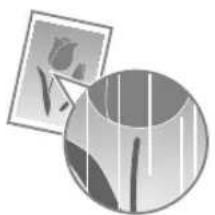


3.2.1.5.2.1.1
121234567890
j 12 j 13 14 15 16 17 18 19 20 21 22 23 24 25 26 27 28 29 30 31 32 33 34 35 36 37 38 39 40 41 42 43 44 45 46 47 48 49 50 51 52 53 54 55 56 57 58 59 60

a#
aai 1
a≤g<1g≥1

1 1 pIaIauy

-1 -1 3.
1 1
gall gaaal aal y jy jlll 0jaiw
aalg yjy jgcl clj
gill gall glaall al 3. gall jg yually lglal, d
gall 1p gannal jol s jol jol bll ojol w jol aouu oj


:
4.25 201g 1,201g 201g
1 1

MF Driver Installation Guide (User Software CD)
e-Manual
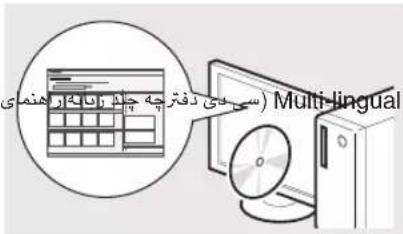
a
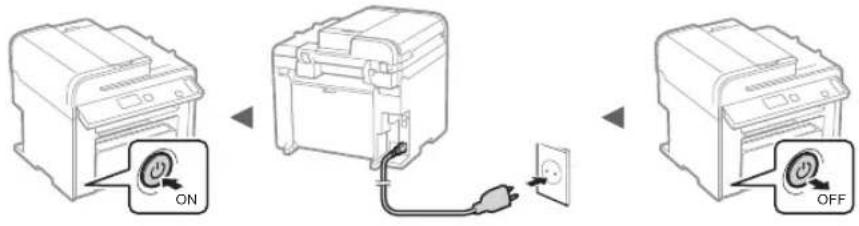
L 1
#
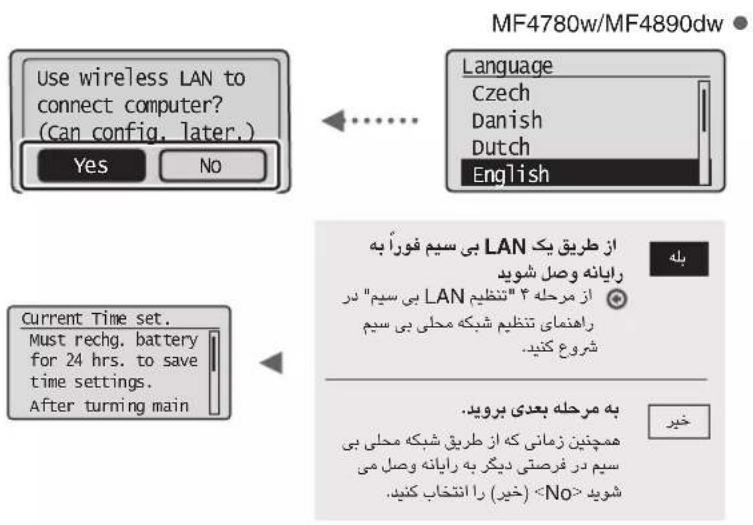
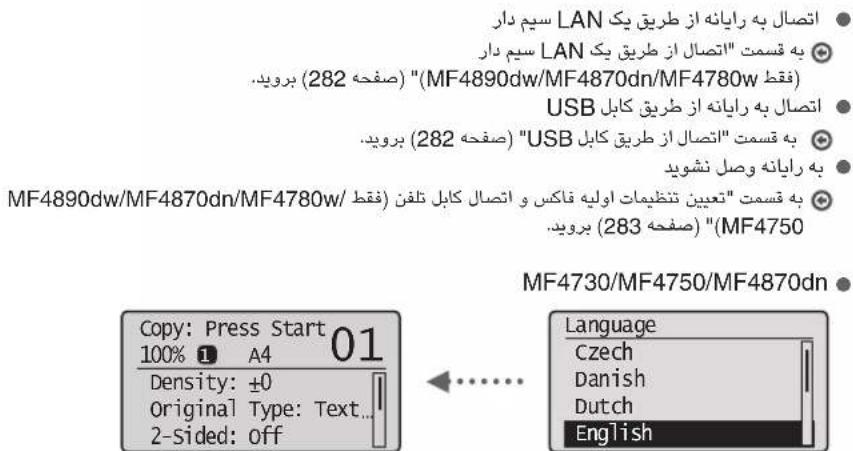
| <12> | <12> | <12> |
| /-.@1 |
| | ABCabc2 |
| | DEFdef3 |
| | GHghi4 |
| | JKLjki5 |
| | MNOmno6 |
| | PQRSpqrs7 |
| | TUVtuv8 |
| 9 | WXYZwxyz |
| 0 | (###) |
| ### | @$?"/=^...:"#.*. |
| (###) | <>{}())+&% |
| [12]+[a]←[A](###) |
s
"Network Settings" (e-Manual "Basic Network Settings" (k) "Setting the IP Address" (u) (IP
User Software CD
Press ] to display steps
e-Manual
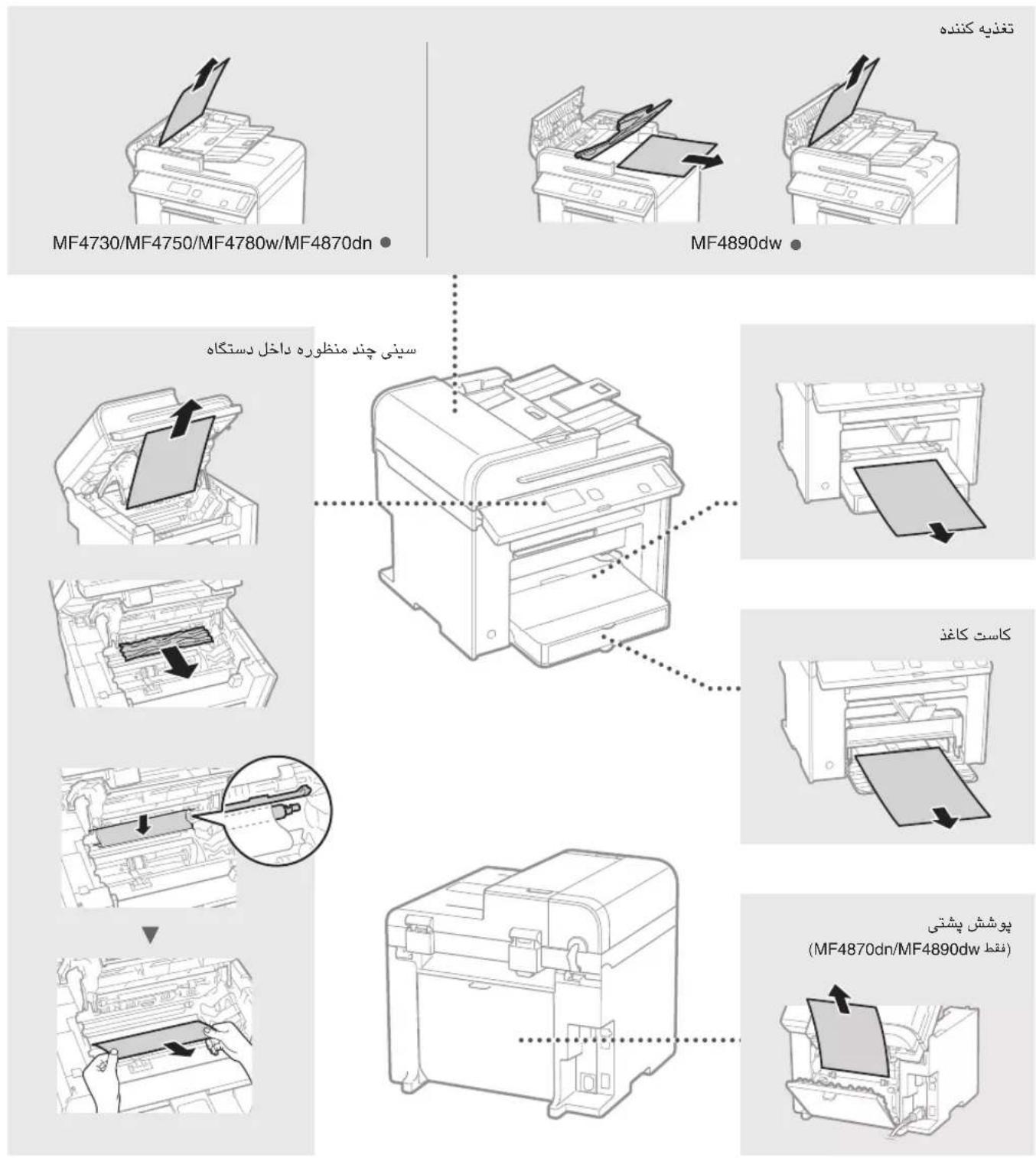
| الإستعمال وrivails | الإستعمال | الإستعمال |
| "Before Replacing the Toner Cartridge"(الإستعمال) e-Manual (الإستعمال) | "Before Replacing the Toner Cartridge"(الإستعمال) e-Manual (الإستعمال) | "Before Replacing the Toner Cartridge"(ال,enGLISH) |
| "Before Replacing the Toner Cartridge"(ال,enGLISH) e-Manual (ال,enGLISH) | "Before Replacing the Toner Cartridge"(ال,enGLISH) e-Manual (ENGLISH) | "Before Replacing the Toner Cartridge"(ENGLISH) |
| "Before Replacing the Toner Cartridge"(ال,enGLISH) e-Manual (ENGLISH) | "Before Replacing the Toner Cartridge"(ENGLISH) e-Manual (ENGLISH) | "Before Replacing the Toner Cartridge"(ENGLISH) |
| "Before Replacing the Toner Cartridge"(ال,enGLISH) e-Manual (ENGLISH) | "Before Replacing the Toner Cartridge"(ENGLISH) e-Manual (ENGLISH) | "Before Replacing the Toner Cartridge"(ENGLISH) |
| "Before Replacing the Toner Cartridge"(ال,enGLISH) | "Before Replacing the Toner Cartridge"(ENGLISH) | "Before Replacing the Toner Cartridge"(ENGLISH) |
| "Before Replacing the Toner Cartridge"(ال,enGLISH) e-Manual (ENGLISH) | "Before Replacing the Toner Cartridge"(ENGLISH) e-Manual (ENGLISH) | "Before Replacing the Toner Cartridge"(ENGLISH) |
| "Before Replacing the Toner Cartridge"(ال,enGLISH) e-Manual (ENGLISH)
(ال,enGLISH) | "Before Replacing the Toner Cartridge"(ENGLISH) e-Manual (ENGLISH) | "Before Replacing the Toner Cartridge"(ENGLISH) |
| "Before Replacing the Toner Cartridge"(ال,enGLISH) e-Manual (ENGLISH) | "Before Replacing the Toner Cartridge"(ENGLISH) e-Manual (ENGLISH) | "Before Replacing the Toner Cartridge"(ENGLISH) |
| "Bleve" (RX Print Settings) | "Before Replacing the Toner Cartridge"(ENGLISH) | "Before Replacing the Toner Cartridge"(ENGLISH) |
| "Printed the Report Automatically"(ال,enGLISH) e-Manual (ENGLISH) | "Printed the Report Automatically"(ENGLISH) e-Manual (ENGLISH) | "Printed the Report Automatically"(ENGLISH) e-Manual (ENGLISH) |
| "Continue Print. When Toner Is Nearly Out"(ال,enGLISH) e-Manual (ENGLISH) | "Continue Print. When Toner Is Nearly Out"(ENGLISH) e-Manual (ENGLISH) | "Continue Print. When Toner Is Nearly Out"(ENGLISH) e-Manual (ENGLISH) |
Therefore, m = 3/11.
4.2.10
30-2, Shimomaruko 3-chome, Ohta-ku, Tokyo 146-8501, Japan
One Canon Park, Melville, NY 11747, U.S.A.
CANON EUROPA N.V.
Bovenkerwerweg 59, 1185 XB Amstelveen, The Netherlands
15F Jinbao Building No.89, Jinbao Street, Dongcheng District, Beijing 100005, PRC
CANON SINGAPORE PTE LTD
1 HarbourFront Avenue, #04-01 Keppel Bay Tower, Singapore 098632
CANON AUSTRALIA PTY LTD
1 Thomas Holt Drive, North Ryde, Sydney NSW 2113, Australia
CANON GLOBAL WORLDWIDE SITES
http://www.canon.com/
Printed on non-chlorine bleached paper.