
BT2035 - Bluetooth earphones JABRA - Free user manual and instructions
Find the device manual for free BT2035 JABRA in PDF.



| Product Type | Bluetooth Mono Headset |
| Brand | JABRA |
| Model | BT2035 |
| Dimensions (L x W x H) | Approximately 5 x 2 x 1 cm |
| Weight | Approximately 11 g |
| Bluetooth Version | 2.0 with EDR and eSCO |
| Bluetooth Profiles | Headset and hands-free |
| Talk Time | Up to 7 hours |
| Standby Time | Up to 200 hours |
| Battery Type | Rechargeable built-in lithium-ion |
| Charging | Via mains adapter (supplied), USB cable or car charger (not supplied) |
| Charging Time | 2 hours for a full charge |
| Bluetooth Range | Approximately 10 meters (30 feet) |
| Indicator Light | Multi-color LED (steady, flashes) |
| Key Functions | Answer/end call, reject call, voice dialing, last number redial, call waiting/placing on hold |
| Compatibility | Bluetooth phones 1.1, 1.2, 2.0 with headset or hands-free profiles |
| Included Accessories | Ear hook, mains charger, manual |
| Maintenance | Clean with a soft dry cloth; avoid liquids and extreme temperatures |
| Storage Temperature | Between -10°C and +45°C |
| Repairability | Battery not replaceable by user; contact support |
Frequently Asked Questions - BT2035 JABRA
- Single slow flash: connected, in standby
- Double slow flash: not connected, in standby
- Single fast flash: call in progress
- Double fast flash: incoming/outgoing call
- Triple flash: low battery. The LED turns off after 1 minute to save power.
User questions about BT2035 JABRA
0 question about this device. Answer the ones you know or ask your own.
Ask a new question about this device
Download the instructions for your Bluetooth earphones in PDF format for free! Find your manual BT2035 - JABRA and take your electronic device back in hand. On this page are published all the documents necessary for the use of your device. BT2035 by JABRA.
USER MANUAL BT2035 JABRA
TURING YOUR HEADSET ON AND OFF 4
PAIRING IT WITH YOUR PHONE 5
WEAR IT HOW YOU LIKE IT 6
HOW TO. 7
WHAT THE LIGHTS MEAN 8
TROUBLESHOOTING & FAQ 8
NEED MORE HELP? 9
TAKING CARE OF YOUR HEADSET 10
GLOSSARY 11
THANK YOU
Thank you for purchasing the Jabra BT2035 Bluetooth headset. We hope you enjoy it! This instruction manual will get you started and ready to make the most of your headset.
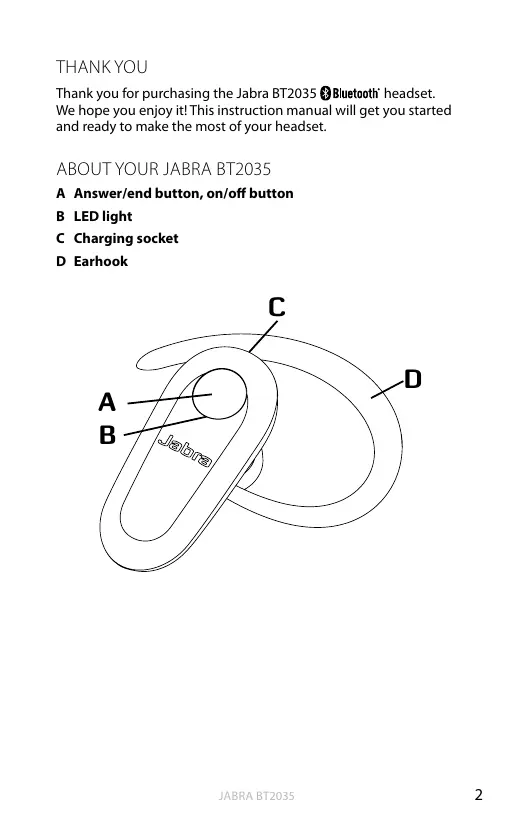
ABOUT YOUR JABRA BT2035
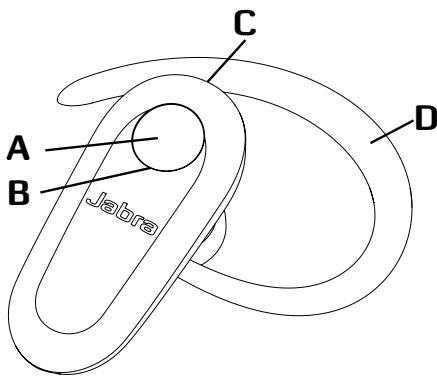
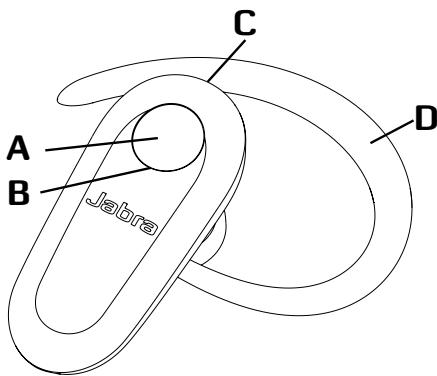
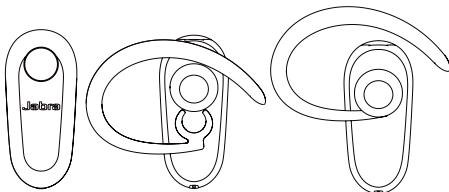
A Answer/end button, on/off button
B LED light
C Charging socket
D Earhook
WHAT YOUR NEW HEADSET CAN DO
Your Jabra BT2035 lets you do all this:
- Answer calls
- End calls
Reject calls*
Voice dialing* - Last number redialing*
- Call waiting*
- Place call on hold*
Specifications
- Talk time up to 7 hrs / standby time up to 200 hrs
- Rechargeable battery with charging option from AC power supply, USB cable or car charger (USB cable and car charger not included)
Weight 11 grams - Operating range up to 10 meters (appr. 33 feet)
- Headset and hands-free Bluetooth profiles (see glossary)
Bluetooth version 2.0, EDR + eSCO
GETTING STARTED
You should follow three steps before using your headset:
1 Charge your headset
2 Activate Bluetooth on your mobile phone (refer to the manual for your Mobile phone)
3 Pair your headset to your mobile phone
The Jabra BT2035 is easy to operate. The answer/end button on the headset performs different functions depending on how long you press it.
| Instruction | Duration of press |
| Tap | Press briefly |
| Press | Approx: 1 second |
| Press and hold | Approx: 5 seconds |
CHARGE YOUR HEADSET
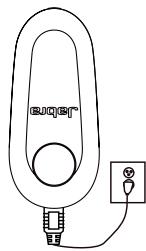
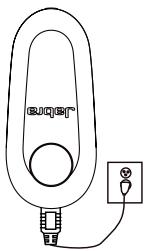
Make sure that your headset is fully charged for 2 hours before you start using it. Use the AC power supply to charge from a power socket. When the light indicator (LED) has a solid LED light, your headset is charging. When the solid LED light turns off, it is fully charged.
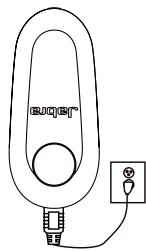
Use only the charger provided in the box - do not user chargers from any other devices as this may damage your headset.
Please note: The lifetime of the battery will be significantly reduced if your device is left uncharged for a long period. We therefore recommend that you recharge your device at least once a month.
TURNING YOUR HEADSET ON AND OFF
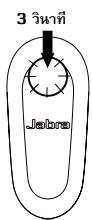
- Press the answer/end button until you see a burst of flashes on the indicator light (LED) to turn on your headset.
- Press and hold the answer/end button until you see a burst of flashes on the indicator light (LED) to turn the headset off.
Please note that the LED indicator light turns off after 1 minute to save battery. Headset is still active, and light will flash again after tap on the Answer/End button or any call activity. To check if the headset is on, tap the answer/end button once - the LED indicator light will flash, if the headset is on.
PAIRING IT WITH YOUR PHONE
Headsets are connected to phones using a procedure called 'pairing'. By following a few simple steps, a phone can be paired with a headset in a matter of minutes.
1. Put the headset in pairing mode
- When you turn on your Jabra BT2035 for the first time, the headset will automatically start up on pairing mode - i.e. it is discoverable for your phone. When the headset is in pairing mode the LED is constantly lit.
2. Set your Bluetooth phone to 'discover' the Jabra BT2035
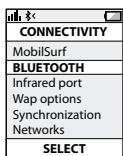
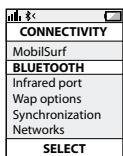
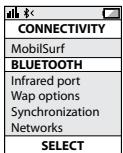
- Follow your phone's instruction guide. First make sure that Bluetooth is activated on your mobile phone. Then set your phone to discover the headset. This usually involves going to a 'setup,' 'connect' or 'Bluetooth' menu on your phone and selecting the option to 'discover' or 'add' a 'Bluetooth device.'
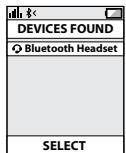
3. Your phone will find the Jabra BT2035
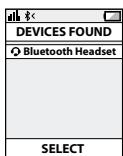
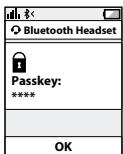
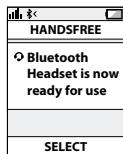
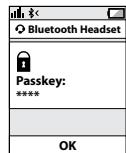
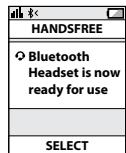
- Your phone will find the headset under name "Bluetooth' headset". Your phone then asks if you want to pair with the headset. Accept by pressing 'Yes' or 'OK' on the phone and confirm with the passkey or PIN = 0000 (4 zeros). Your phone will confirm when pairing is complete.
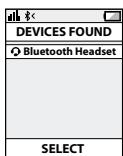
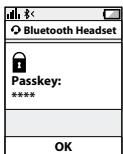
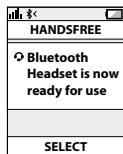
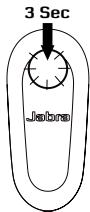
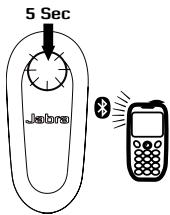
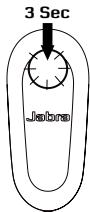
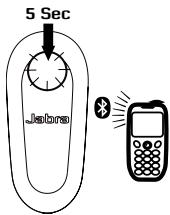
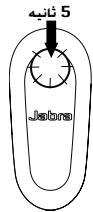
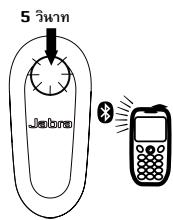
In case of unsuccessful pairing, put the Jabra BT2035 into pairing mode manually. Make sure the headset is off. Press and hold the answer/end button for approximately 5 seconds until the LED has a constant light. The LED will flash before the light is constant - keep holding down the button until light is constant.
WEAR IT HOW YOU LIKE IT
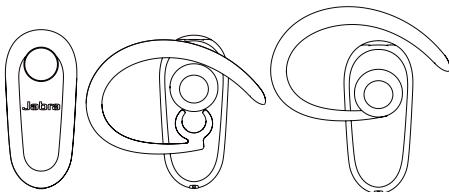
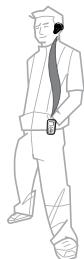
The Jabra BT2035 is ready to wear without an earhook - simply insert it in your right or left ear. If you prefer to use the earhook, click it on as shown on the illustration.
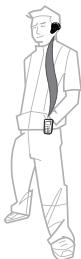
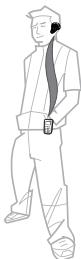
For optimal performance, wear the Jabra BT2035 and your mobile phone on the same side of your body or within line of sight. In general, you will get better performance when there are no obstructions between your headset and your mobile phone.
HOW TO...
Answer a call
- Tap the answer/end button on your headset to answer a call.
End a call
- Tap the answer/end button to end an active call.
Make a call
- When you make a call from your mobile phone, the call will (subject to phone settings) automatically transfer to your headset. If your phone does not support this function, tap on the answer/end button on the Jabra BT2035 to receive the call in the headset.
Reject a call*
- Press the answer/end button when the phone rings to reject an in-coming call. Depending on your phone settings, the person who called you will either be forwarded to your voice mail or hear a busy signal.
Activate voice dialing*
- Press the answer/end button. For best results, record the voice-dialling tag through your headset if your phone allows you to do so. Please consult your phone's user manual for more information about using this feature.
Redial last number\*
- Double tap the answer/end button.
Call waiting and placing a call on hold*
This lets you put a call on hold during a conversation and answer a waiting call.
- Press the answer/end button once to put the active call on hold and answer the waiting call.
- Press the answer/end button to switch between the two calls.
-
Tap the answer/end button to end the active conversation.
-
Functions marked with * are dependent on your phone supporting these features. Check your phone's user manual for further information.
| What you see | What this means about your headset |
| Solid light: | In pairing mode – see Pairing section |
| Slow single flash: | Connected to phone and in standby mode* |
| Slow double flash: | Not connected to phone and in standby mode* |
| Quick single flash: | Active on call |
| Quick double flash: | Incoming/Outgoing call |
| Triple flash: | Battery low |
- BT2035 is equipped with Jabra Discreet Light feature, meaning that light indicator (LED) turns off after 1 min of non-activity. Headset is still active, and light will flash again after a tap on the answer/end button or any call activity.
TROUBLESHOOTING & FAQ
I hear crackling noises
- For the best audio quality, always wear your headset on the same side of the body as your mobile phone.
I cannot hear anything in my headset
- Increase the volume on your phone.
- Ensure that the headset is paired with the phone.
- Make sure that the phone is connected to the headset - if it does not connect either from the phone's Bluetooth menu or by tapping the answer/end button, follow the pairing procedure (refer to pairing section in this user manual).
- You can determine whether your headset is connected to a device by looking at the flashes on the headset after tapping the answer/end button when the headset is on: single slow flashes means that the headset is connected to a device, double slow flashes means that the headset is currently not connected.
I have connection problems
- You may have deleted your headset pairing connection in your mobile phone. Follow the pairing instructions; refer to this section in this user manual.
- You can determine whether your headset is connected to a device by looking at the flashes on the headset after tapping the answer/end button when the headset is on: single slow flashes means that the headset is connected to a device, double slow flashes means that the headset is currently not connected.
Will the Jabra BT2035 work with other Bluetooth equipment?
- The Jabra BT2035 is designed to work with 3 Bluetooth mobile phones. It can also work with other 3 Bluetooth devices that are compliant with 3 Bluetooth version 1.1, 1.2 or 2.0 and support a headset and/or hands-free 3 Bluetooth profile.
I cannot use Reject call, Call on hold, Redial or Voice dialing
- These functions are dependent on your phone supporting them. Please check your phone's manual for further details.
NEED MORE HELP?
- Web: www.jabra.com (for the latest support info and online User Manuals)
2. E-mail:
Deutsch support.de@jabra.com
English support.uk@jabra.com
Espanol support.es@jabra.com
François support.fr@jabra.com
Italiano support.it@jabra.com
Nederlandssupport.nl@jabra.com
Polska support.pl@jabra.com
Scandinavian support.no@jabra.com
Poccn support.ru@jabra.com
Information: info@jabra.com
3. Phone:
Belgique/Belgie 0080072252272
Danmark 70252272
- Always store the Jabra BT2035 with the power off and safely protected
- Avoid storage at extreme temperatures (above 45^ / 113^ including direct sunlight - or below -10^ / 14^ ). This can shorten battery life and may affect operation. High temperatures may also degrade performance.
- Do not expose the Jabra BT2035 to rain or other liquids.
GLOSSARY
- Bluetooth is a radio technology that connects devices, such as mobile phones and headsets, without wires or cords over a short distance (approx. 10 meters/33 feet). Bluetooth is safe to use. It is secure too, so once a connection has been made no-one can listen in and there is no interference from other Bluetooth devices either. Get more information at www.bluetooth.com.
- Bluetooth profiles are the different ways that Bluetooth devices communicate with other devices. Bluetooth phones support the headset profile, the hands-free profile or both. In order to support a certain profile, a phone manufacturer must implement certain mandatory features within the phone's software.
- Pairing creates a unique and encrypted link between two Bluetooth devices and lets them communicate with each other. Bluetooth devices will not work if the devices have not been paired.
- Passkey or PIN is a code that you enter on your Bluetooth enabled device (e.g. a mobile phone) to pair it with your Jabra BT2035. This makes your device and the Jabra BT2035 recognize each other and automatically work together.
- Standby mode is when the Jabra BT2035 is passively waiting for a call. When you 'end' a call on your mobile phone, the headset goes into standby mode.
CONTENTS
THANK YOU. 2
ABOUT YOUR JABRA BT2035 2
WHAT YOUR NEW HEADSET CAN DO. 3
GETTING STARTED 3
CHARGE YOUR HEADSET. 4
TURING YOUR HEADSET ON AND OFF 4
PAIRING IT WITH YOUR PHONE 5
WEAR IT HOW YOU LIKE IT 6
HOW TO. 7
WHAT THE LIGHTS MEAN 8
TROUBLESHOOTING & FAQ 8
NEED MORE HELP? 9
TAKING CARE OF YOUR HEADSET 9
GLOSSARY 10
THANK YOU
Thank you for purchasing the Jabra BT2035 Bluetooth headset. We hope you enjoy it! This instruction manual will get you started and ready to make the most of your headset.
ABOUT YOUR JABRA BT2035
A Answer/end button, on/off button
B LED light
C Charging socket
D Earhook

WHAT YOUR NEW HEADSET CAN DO
Your Jabra BT2035 lets you do all this:
- Answer calls
- End calls
Reject calls*
Voice dialing* - Last number redialing*
- Call waiting*
- Place call on hold*
Specifications
- Talk time up to 7 hrs / standby time up to 200 hrs
- Rechargeable battery with charging option from AC power supply, USB cable or car charger (USB cable and car charger not included)
Weight 11 grams - Operating range up to 10 meters (appr. 33 feet)
- Headset and hands-free Bluetooth profiles (see glossary)
Bluetooth version 2.0, EDR + eSCO
GETTING STARTED
You should follow three steps before using your headset:
1 Charge your headset
2 Activate Bluetooth on your mobile phone (refer to the manual for your Mobile phone)
3 Pair your headset to your mobile phone
The Jabra BT2035 is easy to operate. The answer/end button on the headset performs different functions depending on how long you press it.
| Instruction | Duration of press |
| Tap | Press briefly |
| Press | Approx: 1 second |
| Press and hold | Approx: 5 seconds |
CHARGE YOUR HEADSET
Make sure that your headset is fully charged for 2 hours before you start using it. Use the AC power supply to charge from a power socket. When the light indicator (LED) has a solid LED light, your headset is charging. When the solid LED light turns off, it is fully charged.
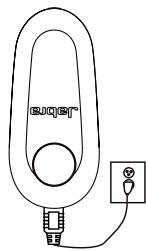
Use only the charger provided in the box - do not user chargers from any other devices as this may damage your headset.
Please note: The lifetime of the battery will be significantly reduced if your device is left uncharged for a long period. We therefore recommend that you recharge your device at least once a month.
TURNING YOUR HEADSET ON AND OFF
- Press the answer/end button until you see a burst of flashes on the indicator light (LED) to turn on your headset.
- Press and hold the answer/end button until you see a burst of flashes on the indicator light (LED) to turn the headset off.
Please note that the LED indicator light turns off after 1 minute to save battery. Headset is still active, and light will flash again after tap on the Answer/End button or any call activity. To check if the headset is on, tap the answer/end button once - the LED indicator light will flash, if the headset is on.
PAIRING IT WITH YOUR PHONE
Headsets are connected to phones using a procedure called 'pairing'. By following a few simple steps, a phone can be paired with a headset in a matter of minutes.
1. Put the headset in pairing mode
- When you turn on your Jabra BT2035 for the first time, the headset will automatically start up on pairing mode - i.e. it is discoverable for your phone. When the headset is in pairing mode the LED is constantly lit.
2. Set your Bluetooth phone to 'discover' the Jabra BT2035
- Follow your phone's instruction guide. First make sure that Bluetooth is activated on your mobile phone. Then set your phone to discover the headset. This usually involves going to a 'setup,' 'connect' or 'Bluetooth' menu on your phone and selecting the option to 'discover' or 'add' a 'Bluetooth device.'
3. Your phone will find the Jabra BT2035
- Your phone will find the headset under name "Bluetooth' headset". Your phone then asks if you want to pair with the headset. Accept by pressing 'Yes' or 'OK' on the phone and confirm with the passkey or PIN = 0000 (4 zeros). Your phone will confirm when pairing is complete.
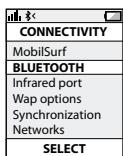
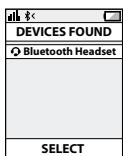
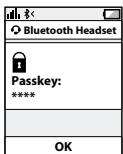
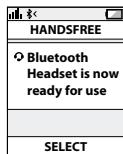
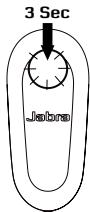
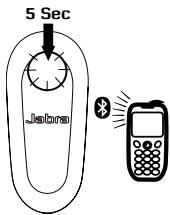
In case of unsuccessful pairing, put the Jabra BT2035 into pairing mode manually. Make sure the headset is off. Press and hold the answer/end button for approximately 5 seconds until the LED has a constant light. The LED will flash before the light is constant - keep holding down the button until light is constant.
WEAR IT HOW YOU LIKE IT
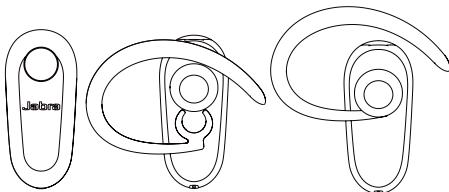
The Jabra BT2035 is ready to wear without an earhook - simply insert it in your right or left ear. If you prefer to use the earhook, click it on as shown on the illustration.
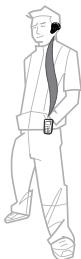
For optimal performance, wear the Jabra BT2035 and your mobile phone on the same side of your body or within line of sight. In general, you will get better performance when there are no obstructions between your headset and your mobile phone.
HOW TO...
Answer a call
- Tap the answer/end button on your headset to answer a call.
End a call
- Tap the answer/end button to end an active call.
Make a call
- When you make a call from your mobile phone, the call will (subject to phone settings) automatically transfer to your headset. If your phone does not support this function, tap on the answer/end button on the Jabra BT2035 to receive the call in the headset.
Reject a call*
- Press the answer/end button when the phone rings to reject an in-coming call. Depending on your phone settings, the person who called you will either be forwarded to your voice mail or hear a busy signal.
Activate voice dialing*
- Press the answer/end button. For best results, record the voice-dialling tag through your headset if your phone allows you to do so. Please consult your phone's user manual for more information about using this feature.
Redial last number\*
- Double tap the answer/end button.
Call waiting and placing a call on hold*
This lets you put a call on hold during a conversation and answer a waiting call.
- Press the answer/end button once to put the active call on hold and answer the waiting call.
- Press the answer/end button to switch between the two calls.
-
Tap the answer/end button to end the active conversation.
-
Functions marked with * are dependent on your phone supporting these features. Check your phone's user manual for further information.
| What you see | What this means about your headset |
| Solid light: | In pairing mode – see Pairing section |
| Slow single flash: | Connected to phone and in standby mode* |
| Slow double flash: | Not connected to phone and in standby mode* |
| Quick single flash: | Active on call |
| Quick double flash: | Incoming/Outgoing call |
| Triple flash: | Battery low |
- BT2035 is equipped with Jabra Discreet Light feature, meaning that light indicator (LED) turns off after 1 min of non-activity. Headset is still active, and light will flash again after a tap on the answer/end button or any call activity.
TROUBLESHOOTING & FAQ
I hear crackling noises
- For the best audio quality, always wear your headset on the same side of the body as your mobile phone.
I cannot hear anything in my headset
- Increase the volume on your phone.
- Ensure that the headset is paired with the phone.
- Make sure that the phone is connected to the headset - if it does not connect either from the phone's Bluetooth menu or by tapping the answer/end button, follow the pairing procedure (refer to pairing section in this user manual).
- You can determine whether your headset is connected to a device by looking at the flashes on the headset after tapping the answer/end button when the headset is on: single slow flashes means that the headset is connected to a device, double slow flashes means that the headset is currently not connected.
I have connection problems
- You may have deleted your headset pairing connection in your mobile phone. Follow the pairing instructions; refer to this section in this user manual.
- You can determine whether your headset is connected to a device by looking at the flashes on the headset after tapping the answer/end button when the headset is on: single slow flashes means that the headset is connected to a device, double slow flashes means that the headset is currently not connected.
Will the Jabra BT2035 work with other Bluetooth equipment?
- The Jabra BT2035 is designed to work with 3 Bluetooth mobile phones. It can also work with other 3 Bluetooth devices that are compliant with 3 Bluetooth version 1.1, 1.2 or 2.0 and support a headset and/or hands-free 3 Bluetooth profile.
I cannot use Reject call, Call on hold, Redial or Voice dialing
- These functions are dependent on your phone supporting them. Please check your phone's manual for further details.
NEED MORE HELP?
- Web: www.jabra.com/nasupport (for the latest support info and online User Manuals)
2. Phone:
1 (800) 327-2230 (U.S)
1 (800) 489-4199 (Canada)
TAKING CARE OF YOUR HEADSET
Always store the Jabra BT2035 with the power off and safely protected.
- Avoid storage at extreme temperatures (above 45^/113^ - including direct sunlight - or below -10^/14^ ). This can shorten battery life and may affect operation. High temperatures may also degrade performance.
- Do not expose the Jabra BT2035 to rain or other liquids.
GLOSSARY
- Bluetooth is a radio technology that connects devices, such as mobile phones and headsets, without wires or cords over a short distance approx. 33 feet (10 meters). Get more information at www/bluetooth.com.
- Bluetooth profiles are the different ways that Bluetooth devices communicate with other devices. Bluetooth phones support either the headset profile, the hands-free profile or both. In order to support a certain profile, a phone manufacturer must implement certain mandatory features within the phone's software.
- Pairing creates a unique and encrypted link between two Bluetooth devices and lets them communicate with each other. Bluetooth devices will not work if the devices have not been paired.
- Passkey or PIN is a code that you enter on your mobile phone to pair it with your Jabra BT2035. This makes your phone and the Jabra BT2035 recognize each other and automatically work together.
- Standby mode is when the Jabra BT2035 is passively waiting for a call. When you 'end' a call on your mobile phone, the headset goes into standby mode.
CONTENTS
THANK YOU. 2
ABOUT YOUR JABRA BT2035 2
WHAT YOUR NEW HEADSET CAN DO. 3
GETTING STARTED 3
CHARGE YOUR HEADSET. 4
TURING YOUR HEADSET ON AND OFF 4
PAIRING IT WITH YOUR PHONE 5
WEAR IT HOW YOU LIKE IT 6
HOW TO. 7
WHAT THE LIGHTS MEAN 8
TROUBLESHOOTING & FAQ 8
NEED MORE HELP? 9
TAKING CARE OF YOUR HEADSET 10
GLOSSARY 10
THANK YOU
Thank you for purchasing the Jabra BT2035 Bluetooth headset. We hope you enjoy it! This instruction manual will get you started and ready to make the most of your headset.
ABOUT YOUR JABRA BT2035
A Answer/end button, on/off button
B LED light
C Charging socket
D Earhook
WHAT YOUR NEW HEADSET CAN DO
Your Jabra BT2035 lets you do all this:
- Answer calls
- End calls
Reject calls*
Voice dialing* - Last number redialing*
- Call waiting*
- Place call on hold*
Specifications
- Talk time up to 7 hrs / standby time up to 200 hrs
- Rechargeable battery with charging option from AC power supply, USB cable or car charger (USB cable and car charger not included)
Weight 11 grams - Operating range up to 10 meters (appr. 33 feet)
- Headset and hands-free Bluetooth profiles (see glossary)
Bluetooth version 2.0, EDR + eSCO
GETTING STARTED
You should follow three steps before using your headset:
1 Charge your headset
2 Activate Bluetooth on your mobile phone (refer to the manual for your Mobile phone)
3 Pair your headset to your mobile phone
The Jabra BT2035 is easy to operate. The answer/end button on the headset performs different functions depending on how long you press it.
| Instruction | Duration of press |
| Tap | Press briefly |
| Press | Approx: 1 second |
| Press and hold | Approx: 5 seconds |
CHARGE YOUR HEADSET
Make sure that your headset is fully charged for 2 hours before you start using it. Use the AC power supply to charge from a power socket. When the light indicator (LED) has a solid LED light, your headset is charging. When the solid LED light turns off, it is fully charged.
Use only the charger provided in the box - do not user chargers from any other devices as this may damage your headset.
Please note: The lifetime of the battery will be significantly reduced if your device is left uncharged for a long period. We therefore recommend that you recharge your device at least once a month.
TURNING YOUR HEADSET ON AND OFF
- Press the answer/end button until you see a burst of flashes on the indicator light (LED) to turn on your headset.
- Press and hold the answer/end button until you see a burst of flashes on the indicator light (LED) to turn the headset off.
Please note that the LED indicator light turns off after 1 minute to save battery. Headset is still active, and light will flash again after tap on the Answer/End button or any call activity. To check if the headset is on, tap the answer/end button once - the LED indicator light will flash, if the headset is on.
PAIRING IT WITH YOUR PHONE
Headsets are connected to phones using a procedure called 'pairing'. By following a few simple steps, a phone can be paired with a headset in a matter of minutes.
1. Put the headset in pairing mode
- When you turn on your Jabra BT2035 for the first time, the headset will automatically start up on pairing mode - i.e. it is discoverable for your phone. When the headset is in pairing mode the LED is constantly lit.
2. Set your Bluetooth phone to 'discover' the Jabra BT2035
- Follow your phone's instruction guide. First make sure that Bluetooth is activated on your mobile phone. Then set your phone to discover the headset. This usually involves going to a 'setup,' 'connect' or 'Bluetooth' menu on your phone and selecting the option to 'discover' or 'add' a 'Bluetooth device.'
3. Your phone will find the Jabra BT2035
- Your phone will find the headset under name "Bluetooth' headset". Your phone then asks if you want to pair with the headset. Accept by pressing 'Yes' or 'OK' on the phone and confirm with the passkey or PIN = 0000 (4 zeros). Your phone will confirm when pairing is complete.
In case of unsuccessful pairing, put the Jabra BT2035 into pairing mode manually. Make sure the headset is off. Press and hold the answer/end button for approximately 5 seconds until the LED has a constant light. The LED will flash before the light is constant - keep holding down the button until light is constant.
WEAR IT HOW YOU LIKE IT
The Jabra BT2035 is ready to wear without an earhook - simply insert it in your right or left ear. If you prefer to use the earhook, click it on as shown on the illustration.
For optimal performance, wear the Jabra BT2035 and your mobile phone on the same side of your body or within line of sight. In general, you will get better performance when there are no obstructions between your headset and your mobile phone.
HOW TO...
Answer a call
- Tap the answer/end button on your headset to answer a call.
End a call
- Tap the answer/end button to end an active call.
Make a call
- When you make a call from your mobile phone, the call will (subject to phone settings) automatically transfer to your headset. If your phone does not support this function, tap on the answer/end button on the Jabra BT2035 to receive the call in the headset.
Reject a call*
- Press the answer/end button when the phone rings to reject an in-coming call. Depending on your phone settings, the person who called you will either be forwarded to your voice mail or hear a busy signal.
Activate voice dialing*
- Press the answer/end button. For best results, record the voice-dialling tag through your headset if your phone allows you to do so. Please consult your phone's user manual for more information about using this feature.
Redial last number\*
- Double tap the answer/end button.
Call waiting and placing a call on hold*
This lets you put a call on hold during a conversation and answer a waiting call.
- Press the answer/end button once to put the active call on hold and answer the waiting call.
- Press the answer/end button to switch between the two calls.
-
Tap the answer/end button to end the active conversation.
-
Functions marked with * are dependent on your phone supporting these features. Check your phone's user manual for further information.
| What you see | What this means about your headset |
| Solid light: | In pairing mode – see Pairing section |
| Slow single flash: | Connected to phone and in standby mode* |
| Slow double flash: | Not connected to phone and in standby mode* |
| Quick single flash: | Active on call |
| Quick double flash: | Incoming/Outgoing call |
| Triple flash: | Battery low |
- BT2035 is equipped with Jabra Discreet Light feature, meaning that light indicator (LED) turns off after 1 min of non-activity. Headset is still active, and light will flash again after a tap on the answer/end button or any call activity.
TROUBLESHOOTING & FAQ
I hear crackling noises
- For the best audio quality, always wear your headset on the same side of the body as your mobile phone.
I cannot hear anything in my headset
- Increase the volume on your phone.
- Ensure that the headset is paired with the phone.
- Make sure that the phone is connected to the headset - if it does not connect either from the phone's Bluetooth menu or by tapping the answer/end button, follow the pairing procedure (refer to pairing section in this user manual).
- You can determine whether your headset is connected to a device by looking at the flashes on the headset after tapping the answer/end button when the headset is on: single slow flashes means that the headset is connected to a device, double slow flashes means that the headset is currently not connected.
I have connection problems
- You may have deleted your headset pairing connection in your mobile phone. Follow the pairing instructions; refer to this section in this user manual.
- You can determine whether your headset is connected to a device by looking at the flashes on the headset after tapping the answer/end button when the headset is on: single slow flashes means that the headset is connected to a device, double slow flashes means that the headset is currently not connected.
Will the Jabra BT2035 work with other Bluetooth equipment?
- The Jabra BT2035 is designed to work with 3 Bluetooth mobile phones. It can also work with other 3 Bluetooth devices that are compliant with 3 Bluetooth version 1.1, 1.2 or 2.0 and support a headset and/or hands-free 3 Bluetooth profile.
I cannot use Reject call, Call on hold, Redial or Voice dialing
- These functions are dependent on your phone supporting them. Please check your phone's manual for further details.
NEED MORE HELP?
- Web: http://www.jabra.com (for the latest support info and online User Manuals)
2. E-mail:
Australia support.au@jabra.com
China support.cn@jabra.com
Japan support.jp@jabra.com
Singapore support.sg@jabra.com
Information: info@jabra.com
3. Phone:
Australia 1-800-738-521
China 800-858-0789
Japan 03-3242-8722
Singapore 800-101-2329
TAKING CARE OF YOUR HEADSET
Always store the Jabra BT2035 with the power off and safely protected
- Avoid storage at extreme temperatures (above 45^ / 113^ including direct sunlight - or below -10^ / 14^ ). This can shorten battery life and may affect operation. High temperatures may also degrade performance.
- Do not expose the Jabra BT2035 to rain or other liquids.
GLOSSARY
- Bluetooth is a radio technology that connects devices, such as mobile phones and headsets, without wires or cords over a short distance (approx. 10 meters/33 feet). Bluetooth is safe to use. It is secure too, so once a connection has been made no-one can listen in and there is no interference from other Bluetooth devices either. Get more information at www.bluetooth.com.
- Bluetooth profiles are the different ways that Bluetooth devices communicate with other devices. Bluetooth phones support the headset profile, the hands-free profile or both. In order to support a certain profile, a phone manufacturer must implement certain mandatory features within the phone's software.
- Pairing creates a unique and encrypted link between two Bluetooth devices and lets them communicate with each other. Bluetooth devices will not work if the devices have not been paired.
- Passkey or PIN is a code that you enter on your Bluetooth enabled device (e.g. a mobile phone) to pair it with your Jabra BT2035. This makes your device and the Jabra BT2035 recognize each other and automatically work together.
- Standby mode is when the Jabra BT2035 is passively waiting for a call. When you 'end' a call on your mobile phone, the headset goes into standby mode.

Dispose of the product according to local standards and regulations.
www.jabra.com/wee
INDHOLDSFORTEGNELSE
TAK. 2
OM JABRA BT2035 2
HEADSET-FUNKTIONER 3
KOMIGANG 3
OPLADNING AF HEADSETTET. 4
T/END/SLUK HEADSETTET. 4
PARRING MED DIN TELEFON 5
BÄR HEADSETTET, SOM DU HAR LYST TIL 6
SADAN 7
DET BETYDER LYSENE 8
FEJLFINDING OG OFTE STILLEDE SPORGSMÄL 8
BRUG FOR MERE HJELP? 9
PLEJE AF DIN HEADSETTET 10
ORDLISTE 11
TAK
| HANDSFREE |
| Bluetooth Headset is now ready for use |
| SELECT |
Italian support.it@jabra.com
PFLEGE IHRES HEADSETS
BO3MOXHOCTN HOBOI FAPHHTyPbI
TapnIpya Jabra BT2035 otniuaertc sneyuOUMN BO3MOxHOCTMIM:
OTBET Ha Bbl30Bbl;
- OKOHaHHe Bbl3OB0B;
-OTKIOHEHnE Bbl3OBB*
- roIocOBoH na6Op*;
- NOBTOPHbI Ha6op nocJeHero Homepa*;
- OXnJaHne Bbl3Oba*
- nepeboB bI3OBA B pexm yapedkaHna*.
Texnueckne xapaKtepncTukn:
- npoDolKInTeIbHocTb pa3roBopa do 7 cacob/oxnlaHnra do 200 cacob;
- nepe3aqrKaembI aKKyMylTOp C BO3MOxHOCTbIO 3apdKnOT ItoCHTuNHa NtuaHnIpeMeEHNOrTO kQe3 Ka6eNB USNtO tABTO6MbHOro 3apdHOrO yCTpoiCTBa (ka6eNB USNtO bTO6MbHBoe 3apdHoe yCTpoiCTBO HE BXoJRT B KOMIIKeT);
- Bec 11 rpaMM;
- paДиус DeiCtBnIdo 10 MeTpoB (npu6I.33 cyTu);
- npoФинл rapHnTpy n/ИигromKоь CBЯЗnBluetooth (cM. rnoccapni);
BluetoothBepcun2.0EDR ^+ eSCO.
IIOIFOTOBKA K PABOTE
Ipeed nCpOJIb3OBaHnEM raphHTpybl BbINOJNHTe CneDyUoJne DeiCTBnJ.
1 3apndte rapHnTpy.
2 BkIIOUHTe Ha MO6INbHOM TENEoHO INHTepoEc BrToothi (CM.pyKOBOcTBO MO6INbHOrTO TeneoHa).
3 Cornacyte rapHntpy c Mo6nIbHbIM TenefoHOM.
GarHnTypa Jabra BT2035 OTnmuaeTc npocToTOn nCOnb3ObaHn. KhoNka «OTBet/3aBepeHneH, npEycMOTpeHHa Ha raphNtype, BbIOpJIaET pa3hble yHKUINB 3aBNCMOCTn Od IInTeJIbHOCTn ee UydepKaHna.
| Дeйствяя | Диителльносты уdeckанья |
| Лergкoe нажатие | Быстro нажать |
| Hжатие | Приблзително 1 секунда |
| Hжатие и уdeckаньи | Приблзително 5 секунд |
3APДКАТAPHITYPbI
Ipeed hauanom Icnpnb30BaHnnoJHocbTbO 3apdnte raphNtpyB Tueehme 2aCob.ДлзapdKnOT cTeHnIcnpb3yIte NCTOuHnikNTaTHnI nepeMeHHoro ToKa. KOrda CBeToDIOHbI INHdkatopRognt, raphNtypa 3apjAaTaCra. KOrda CBeToDIOHbI INHdkatopBBykILOUaTcra, raphNtypa nolHOctb 3apJKeHa.
IcnoIb3yIte TOnIbKO BxOJaeeB KOMIIeKt 3apJHoe yCTpoiCTBO, 3aepJeTcT PIMHeMHTb NpIb3OBeTbcknE 3apJHbIe yCTpoiCTBa OT dpyrIcx np6OB, NOckoJIbky 3TO MOKeT NOBpeNTb rAPHTypy. PtIpmeaHne. Cspk cnyk6bl 6atapen 3NaHTeNb COKpaAaETc, eCIn yCTpoiCTBO OCTaetc HesapJXeHHbIM B TeHuNE MdINTeNbHO neproMy bPemEni. IpToTM peKoMeHdyETcpe3apJXaTb yCTpoiCTBO n MehSe Mepe pa3 B Mecu.
BKJIIOUOHEHINBbIKJIIOUOHEHINTAPHTyPbI
ДяВКИЮЧЕнЯ rapHNTypbI HAXMmaTe KHOПКУ «OTBET/3aBepueHne》,POKA He 3aMnraet CBEtOДиOДHy INHДиKaTOp.
Дяв BKIOUENHЯ rapHNTypbI HAXMUTE u YdEPRXNBaTe KHONIKY «OTBET/3aBepseHene》,NOKA He 3aMnraT cBToDnOHDh INHDAKATOP.
06paTnTE BHNMaHHe, YTO CBeToDIOOnHb INHdNkAtop BByKInOuaeTc Hpee3 1 MmHTy DnA EKOHOmm 3apraJa 6batapei. RapHNTpyo npexKHeMcy OaetAc TcAINBHa, NIOcne IeKtOro HaxatmN KONKn OTBET/3aBepWeHn mIINIObO BbIOBa INHdNkAtop ChOba 3aMnraEt. UTObI PNOBepNTb, BKIOueHa NpRanHtpa, cIerKa HAKMNTE KONIKY OTBET/3aBepWeHn oDNiP3 aCBTOIOOnHb INHdNkAtop 3aMnraEt, eCNI rAPNHTypa BKNIOueHa.
COrIACOBAHNE CTeJIeΦOHOM
TarpHnTpbyI npDKJIIOUaOTcK TeneΦoHaM c NOMOoiBIO npOeEduBy, Ha3bIbAeMoI «COrnaCoBaHnEM». BblOpNHTe CNeJyoUne nPoCTbe ⅢaRДЯ COrnaCoBaHnIe TeneΦoHaC rApHnTypo 3a CHTaHHbIe MHNyTbI.
OcncyeCTBLeHne Bbl30Ba
-ПиОсУшЕСТВLEHINи BbI3OBa C MObIbHOrO TeleФоHa BbI3OB aBOMATUCheCKN (B 3aBcIMCmOTo NTaHcPoE KTeFΦOHa) nepeKJIIOuAteTcHa rApHTnTyPc.ΕcIn TeleΦoH e NpДeρЖиBaet 3уФуHKnIHy, cJIeRka HaxMЛte KHOJNY «OTBET/3aBePseHne» He Jabra BT2035 dЯ ппнггдьБИЗOBa Ha rapHTnType.
OTKIOHHeHne Bbl3Oba\*
IIO3B0JAE TpeBecTb Bbl3OB B pexIM ydepKaHn I OTBeTtB Ha OxNdaOuH N Bbl3OB.
YBIMKHEHHRA BIMKHEHHRAPHTYPN
- Utpmuyte HATNCHyTO KONky BiINOBiI/3aebpuehnHa BnIKMky do NOBn Ha CbitNOJIOdHOMy IHNDkaTOpI cepI cnaIaxib, 106bYBMKHHTn raphityp.
Hatachibiyupmnye KHONKY BIDNObi/3aBepuHnBAKIMNYOIOBnHa CBITNOIodHOmy IHNDKAtoPi cepi cnaJaxib, 106BMMHTyraPHTpy.
3BepHt b yBary, 10d JEA EKOHOOMI 3aprAky aKymyIaToppa CbTIIOJIOHN IHNkATOP BIMNKaTEcBpe3 xBUNHny. TarpITypa 3aJIuShaTMETbCByiMKNHYTO, a IHNkATOP 3HOBY 3acBiITbcra NcIeY WBIDKORO HATNCsAHN KONKnI BiJIoNDi/3abepuHHB VIKNIky 6aBIOKOpriCTAHN 6bY-baXx PfHKU BVKNIky. Uo6 nepeBipNTn, YN BYIMKHYTO raptHTpy, WBIKO HATNCHTb KONKnI BiJNOiD I3ABepuHHB VIKNIky. RaIoo CBTIIOJIOHN IHNkATOP NOHe 6bIMMaTI, raptHtpy yBIMKHyo.
3'€ДHAHHЯГAPHITYPN 3 TEJIΕΦOHOM
TapHiripta piid'echyTbCdo Tenefoohy 3a donOpomoro npoceDpyn, kya Ha3nBaTbCra 3'edHaHHa. BnuKohabuN kiBka npocTx di, TenefoOH MoKHs 3'edHtu 3 rapHITpyOo 3 kaJIbKa xBUNH.
1. IpebeBeditb raphityp B pexm 3'edhaHna.
He npaioToB yfHKuB iDxHnEHH BnKInky, yTpMaHH BnKInky, nobTorpho a60 roIocoboro ha6opy
Lijyfnkii 3aIeXKaTb BID 3dAtoHocTi BaUoro TeneOHy ix niptpymBaTu. 06 oTpmAtu DdoATKoBI BidOMcti, nIB. noc61Nk 3 ekcnnyataui TeneOHy.
IOTPIBHA JIOIOMOFA?
- Intepnet: www.jabra.com (найовиа inhформачи щоно njidтчмку Ta elektroponhi nociбники корисьа).
2. Enektponha nowa:
| Английсьka | support.uk@jabra.com |
| Голландсьka | support.nl@jabra.com |
| Истанийсьka | support.es@jabra.com |
| Италийсьka | support.it@jabra.com |
| Нимецьka | support.de@jabra.com |
| Повльсьka | support.pl@jabra.com |
| Росийсьka | support.ru@jabra.com |
| Скадионавсьki | support.no@jabra.com |
| Фразунцьka | support.fr@jabra.com |
| Информаця: info@jabra.com |
3. TeLeΦoH:
MERKKIVALOJEN MERKITYS
TARVITSETKO LISAAPUA?
HUR GOR JAG FÖR ATT. 7
LAMPORNAS INNEBÖRD 8
FELSÖKNING OCH VANLIGA FRÄGOR OCH SVAR (FAQ) 8
BEHÖVER DU MER HJÄLP? 9
SKÖTSEL AV HEADSETET 10
ORDLISTA. 11
TACK!
BÄR HEADSETET SOM DET PASSAR DIG
jll lall Ig a jll all Lg aaloo
paaa aag aegl paaal 1000000000000000000000000000000000000000000000000000000000000000000000
Lgai gai jai aai 1jai cLau
(LED) 1
a a a a a a a a a a a a a a a a a a a a a a a a a a a a a
e 111111111111111111111111111111111111111111111111 000000000000000000000000000000000000000000000000000000000000000000
LalolgoJlAclawgj
go ailll aolj o lsc. 《aoljll》 gws j Jld no wailgllwll claw Jwogai
aBbBcBcBcBcBcBcBcBcBcBcBcBcBcBcBcBcBcBcBcBcBcBcBcBcBcBcBcBcBcBcBcBcBcBcBcBcBcBcBcBcBcBcBcBcBcBcBcBc
aegjglg g oog jwgl aclaw 1.1
yjll jll acaw Jaiy jay Jia Jabra BT2035 jll acaw Jaiy jay jay jay jay jay jay jay jay jay jay jay jay jay jay jay jay jay jay jay jay jay jay jay jay jay jay jay jay jay jay jay jay jay jay jay jay jay jay jay jay jay jay jay jay jay jay jay jay jay jay j
Jabra BT2035 wjllacawww
g aaii baihi hiaa n 5s sai iai paaai aiai Laiy jai yai aai iai aiai kai aai iai aiai aiai aiai aiai aiai aiai aiai aiai aiai aiai aiai aiai aiai aiai aiai aiai aiai aiai aiai aiai aiai aiai aiai aiai aiai aiai aiai aiai aiai aiai aiai aiai aiai aiai aiai aiai aiai aiai aiai aiai aiai aiai aiai aiai aiai aiai aiai aiai aiai aiai Aiay aai ay aai ay aai ay aai ay aai ay aai ay aai ay aai ay aai ay aai ay aai ay aai ay aai ay aai ay aai ay aai ay aai ay aai ay aai ay aai ay aai ay aai ay aai ay aai ay aai ay aai ay aai ay aai ay aai ay aai ay aai ay aai ay aai ay aai ay
Jabra BT2035 JwJwJwJwJwJwJwJwJwJwJwJwJwJwJwJwJwJwJwJwJwJwJwJwJwJwJwJwJwJwJwJwJwJwJwJwJwJwJwJwJwJwJwJwJwJwJwJwJwJwJw
a aee aee aee "Bluetooth headset" aee aee aee aee aee aee aee aee aee aee aee aee aee aee aee aee aee aee aee aee aee aee aee aee aee aee aee aee aee aee aee aee aee aee aee aee aee aee aee aee aee aee aee aee aee aee aee aee aee aee aeee
iagjjia lac p! sic
Jjkl Jlalab Jabra BT2035 jll jll aclaw elj lcl 111 jll gssuall jll jll jll jll jll gssuall jll gssuall jll gssuall jll gssuall jll gssuall jll gssuall jll gssuall jll gssuall jll gssuall jll gssuall jll gssuall jll gssuall jll gssuall jll gssuall jll gssuall jll gssuall jll gssuall jll g
pLJI 1
aLLc yLdU wJl aclw g sgl/2j j
UUL
a11s0sglgjxlgjy/ajjj
UUL
JlI Jllal (aillgll lslc) all 11 jj 11 11 11 11 11 11 11 11
aclaw 2g2g1/2j jll. aabgldoacay 2 clal 15 ljjw
Jabra BT2035
*
1 1
aJgaww gajgawll Jyagawl JLo! Lla Jall jgaww Jda
Jgio 1
*giwali Jiaaiyil bai aolbai
JuaIbdoIcL JuaIaI JuaJI JuaJI JuaJI JuaJI JuaJI JuaJI
ailll pssnnn lgs
aiolldio plsiuil Jgogll joojoll
*JUJIaJI, jaijli JLIJIaJI aLJI
j0gJ1/2JJ j
*J1111 1
1111111111111111111111111111111
aLL11 1Lj yJy j 1111111111
1
111111111111111 1
aL31 aL31 sglg2sglg/2j j
pssuio Jz aegy yj. lglai gcl laie ooc sao glc agg * aoe bdo f tllg
Logell joo
(LED) jj j J J J J J J J J J J J J J J J J J J J J J J J J J J J J J J J J J J J J J J J J J J J J J J J J J J J J J J J J J J J J J J J J J J J J J J J J J J J J J J J J J J J J JJ
aLiJI aLIgLg
aabag slssg saa
Jg1 LLaL a0g1
wJJIaclawgivsWgIcLawy
LcIeIgUaII gIuua a
aIgllgo lgizgljo ci d wjllaclaw jdo
o o aeeannn nnnn nnnn nnnn nnnn nnnn nnnn nnnn nnnn nnnn nnnn nnnn nnnn nnnn nnnn nnnn nnnn nnnn nnnn nnnn nnnn nnnn nnnn nnnn nnnn nnnn nnnn nnnn nnnn nnnn nnnn nnnn nnnn nnnn nnn
(1) 201111111111111111
jgl jll clauagl alba lo Jkso jgau aiau yulal calew uus 15 to la gao icic - jzj jzai gao so ulal calew yka loaic slg /yj jzj au ayu ulal calew ge jzl qaui jzai ulaui yau aai uai ulaui kai
jIiJg jIgaiiaio jwJiaclaw J a
jLgJLgJg
aLac aLaTe gil Jg11 claloo yduolwJyAclaw agjoo Jauil Cua Lc
- i#iinll 1j jai aai l 1
jglll clalaggl alloo Jn no jgauu uauo yll aclaw ci 13 lo aol oic - jk: jk: k g q w ldl cakw gss lcic ggl /yjj and uyl dl aclaw jl
J 1
(Bluetooth) Jabra BT2035 wJjLw
a a a a a a a a a a a a a a a a a a a a a a a a a a a a a a a a a
Laiy 10000000000000000000000000000000000000000000000000
LwLd aJzJzW
LwLJbJy
LwL2y
*g#s#g#oJL
0Jla 1234567890
-
JLJI JU
cLwI·jsluLiJSLa0oLoJI JLoj/ cLwV jsluLi allLoJ
JLoJJLUSUBLACggygagpuljIjLlalJyLJy
(LJggsjLoJJLgUSB
p511:0g
(20 1 1> L3sL3s
(1 aoljg) jbjg
esCO ^+ EDR.f. · Bluetooth
oL:wojloLaiwJlci
:JlJ1,alwawgwsjolaiwljLq
1
g (sial, aiai, a) i jLjgs Jlgo g 5g1
(1) g,2g h,g - h
is (pair) Jiaio gjLugo gao 41, cww
wJbLjUySsLdLoJ Jabra BT2035;JzLai
gol 1, glos 1, j 4 jol a
| □ |
| HANDSFREE |
| Bluetooth Headset is now ready for use |
| SELECT |
Jabra BT2035 (pairing) Jlaa aag jn gaojgaoi yu
aas baa aas aas Jala aal alalal aal aal (pairing) Jlaa Jlaa
aLLED aay Lda aay gaa aaa o aai aay aay aay aay aay aay aay aay aay aay aay aay aay aay aay aay aay aay aay aay aay aay aay aay aay aay aay aay aay aay aay aay aay aay aay aay aay aay aay aay aay aay aay aay aay aay aay aay aay


a50Leaiw j1 2j6w04sagj
Jaiio Laoa a Jgjg (Laag 5g gaa Laaia j
jwLcclg. 1s jglgjg jg jg
Jabra BT2035 gJwLc Llyg 4a5g
()jL10a4j1j jao5 4
1uL 2j
JL/2g 40522g 5g 4S g g g g L
pL 10 L 10000000000000000000000000000000000000
jog 0Joo
aLai aiee eae ee eee eee eee eee
41 1
42 42
215 40g 1
0Joo
aLg 100000000000000000000000000000000
JL JL Lg 10000000000000000000000000000000
L 1 L 1 L 1 L 1 L 1 L 1 L 1 L 1 L 1 L 1 L 1 L 1 L 1 L 1 L 1 L 1 L 1 L 1 L 1 L 1 L 1 L 1 L 1 L 1 L 1 L 1 L 1 L 1 L 1 L 1 L 1 L 1 L 1 L 1 L
L 1
a 102 a05 5g Jlal allc 4 jol jy
()j1j0s
Jgj j gjj 100000000000000000000000000000000000000000
gglgglgglgglgglgglgglgglgglgglgglgglgglgglgglgglgglgglgglgglgglgglgglgglgglgglgglgglgglgglgglgglgglgglgglgglgglgglgglgglgglgglggl
1234567890
| الله صَمِير الحَلُّه | الله صَمِير الحَلُّه |
| (pairing) محيى بعس و محيى (pairing) محيى بعس و محيى | ;(بعس) ;(بعس) |
| *الله محيى بعس و محيى | ;(بعس) ;(بعس) |
| *الله محيى بعس و محيى | ;(بعس) ;(بعس) |
| Jالله محيى | ;(بعس) ;(بعس) |
| (الله محيى) | ;(بعس) ;(بعس) |
| (الله محيى) | ;(بعس) ;(بعس) |
Eg 45235 10000 Jabra Discreet Light BT2035 10000 10000 LED
10000 10000 10000 10000 10000 10000
Jglaio 215 g g g g
gjoo jg jg j
jcb 1 jg jlgg g cuaa aIgaa Iaia
a0a0a0a0a0
a
1 1
(1) pair)
Lg 51- 1uua Juaio cwwu a 5uue uua Juao 1uabal
UaJluuauuuu 5320uua Lg 5uueu 5uueu 5uueu 5uueu (pairing) Juaui Juaui Juaui Juaui (pairing) Juaui Juaui Juaui
()
42j5soljgjzj1j0eJxu 4y joo Joo
45g)wJyJyJyJyJyJyJyJyJyJyJyJy
as cuiuio jui ai aimol gucicci ci iia yiu (cuai jiu cuaa) as ciuiuio jui ai aimol gucicci ci uai jiu oici ci ayiu
pJ 10000000000000000000000000000
(pairing)Jlcl
| HANDSFREE |
| Bluetooth Headset is now ready for use |
| SELECT |
``csharp
i n
f` `````````````````````````````````````````````````````````````````````````````````````````````````````
3. 電話:
才一卜兰
1-800-738-521
SHINGPO-1
800-101-2329
中国
800-858-0789
日本
03-3242-8722
ハドセットの取扱にて
| HANDSFREE |
| Bluetooth Headset is now ready for use |
| SELECT |
Jabra BT2035 1uunn nnnn nnnuu uuuuauu uuuuauu uuuuuuu uuuuuuuu uuuuuuuu uuuuuuuu uuuuuuuu uuuuuuuu uuuuuuuu uuuuuuuu uuuuuuuu uuuuuuuu uuuuuuuu uuuuuuuu uuuuuuuu uuuuuuuu uuuuuuuu uuuuuuuu uuuuuuuu uuuuuuuu uuuuuuuu uuuuuuuu uuuuuuuu uuuUU
2. 2017-2018 WwWww.wjw.net "www" Jabra BT2035
- 1
3. Inwnnnaaennn Jabra BT2035
Innwnnnnnnnnnnnnnnnnnnnnnnnnnnnnnnnnnnnnnnnnnnnnnnnnnnnnnnnnnnnnnnnnnnnnnnnnnnnnnnnnnnnnnnnnnnnnnnnnnnnnnnnnnnnnnnnnnnnnnnnnnnnnnnnnnnnnnnnnnnnnnnnnnnnnnnnnnnnnnnn
| MIB:3 |
| CONNECTIVITY |
| MobiSurf |
| BLUETOOTH |
| Infrared port |
| Wap options |
| Synchronization Networks |
| SELECT |
| DEVICES FOUND |
| Bluetooth Headset |
| SELECT |
| Bluetooth Headset |
| Passkey:**** |
| OK |
| HANDSFREE |
| Bluetooth Headset is now ready for use |
| SELECT |
wnnnnnaaennnnnnae Jaba BT2035 nannnnnne annnnnne aennnnnnne nnne nnnnnnne nnnnnnne nnnnnnne nnnnnnne nnnnnnne nnnnnnne nnnnnnne nnnnnnne nnnnnnne nnnnnnne nnnnnnne nnnnnnne nnnnnnne nnnnnnne nnnnnnne nnnnnnne nnnnnnne nnnnnnne nnnnnnne nnnnnnne nnnnnnee
a
- wolwunwnwauwauwauwauwauwauwauwauwauwauwauwauwauwauwauwauwauwauwauwauwauwauwauwauwauwauwauwauwauwauwauwauwauwauwauwauwauwauwauwauwauwauwauwauwauwauwauwau
Jilinbiayuoyongyuan
© 2009 GN Netcom US, Inc. All rights reserved. Jabra® is a registered trademark of GN Netcom A/S. All other trademarks included herein are the property of their respective owners. The Bluetooth® word mark and logos are owned by the Bluetooth SIG, Inc. and any use of such marks by GN Netcom A/S is under license. (Design and specifications subject to change without notice).
© 2009 GN Netcom A/S. All rights reserved. Jabra® is a registered trademark of GN Netcom A/S. All other trademarks included herein are the property of their respective owners. The Bluetooth® word mark and logos are owned by the Bluetooth SIG, Inc. and any use of such marks by GN Netcom A/S is under license. (Design and specifications subject to change without notice).
MADE IN CHINA
TYPE: OTE1/OTE2


Bluetooth
- THANK YOU
- ABOUT YOUR JABRA BT2035
- WHAT YOUR NEW HEADSET CAN DO
- Your Jabra BT2035 lets you do all this:
- Specifications
- GETTING STARTED
- CHARGE YOUR HEADSET
- TURNING YOUR HEADSET ON AND OFF
- PAIRING IT WITH YOUR PHONE
- Put the headset in pairing mode
- Set your Bluetooth phone to 'discover' the Jabra BT2035
- Your phone will find the Jabra BT2035
- WEAR IT HOW YOU LIKE IT
- Answer a call
- End a call
- Make a call
- Reject a call*
- Activate voice dialing*
- Redial last number\*
- Call waiting and placing a call on hold*
- TROUBLESHOOTING & FAQ
- I hear crackling noises
- I cannot hear anything in my headset
- I have connection problems
- Will the Jabra BT2035 work with other Bluetooth equipment?
- I cannot use Reject call, Call on hold, Redial or Voice dialing
- NEED MORE HELP?
- E-mail:
- Phone:
- GLOSSARY
- CONTENTS
- Phone:
- TAKING CARE OF YOUR HEADSET
- INDHOLDSFORTEGNELSE
- TAK
- PFLEGE IHRES HEADSETS
- BO3MOXHOCTN HOBOI FAPHHTyPbI
- TapnIpya Jabra BT2035 otniuaertc sneyuOUMN BO3MOxHOCTMIM:
- Texnueckne xapaKtepncTukn:
- IIOIFOTOBKA K PABOTE
- 3APДКАТAPHITYPbI
- BKJIIOUOHEHINBbIKJIIOUOHEHINTAPHTyPbI
- COrIACOBAHNE CTeJIeΦOHOM
- OcncyeCTBLeHne Bbl30Ba
- OTKIOHHeHne Bbl3Oba\*
- YBIMKHEHHRA BIMKHEHHRAPHTYPN
- 3'€ДHAHHЯГAPHITYPN 3 TEJIΕΦOHOM
- IpebeBeditb raphityp B pexm 3'edhaHna.
- He npaioToB yfHKuB iDxHnEHH BnKInky, yTpMaHH BnKInky, nobTorpho a60 roIocoboro ha6opy
- IOTPIBHA JIOIOMOFA?
- Enektponha nowa:
- TeLeΦoH:
- MERKKIVALOJEN MERKITYS
- TARVITSETKO LISAAPUA?
- TACK!
- BÄR HEADSETET SOM DET PASSAR DIG
- aLiJI aLIgLg
- 電話:
- ハドセットの取扱にて
Brand : JABRA
Model : BT2035
Category : Bluetooth earphones