
X4Pro - Mouse KeepOut - Free user manual and instructions
Find the device manual for free X4Pro KeepOut in PDF.


| Product Type | Wireless optical mouse |
| Model | KeepOut X4Pro |
| Brand | KeepOut |
| Dimensions (L x W x H) | 125 x 70 x 40 mm |
| Weight | 95 g |
| Power supply | 1 AA battery (not included) / rechargeable battery via USB-C |
| Battery life | Up to 30 days of continuous use |
| Connectivity | 2.4 GHz wireless with USB nano receiver |
| Optical resolution | 1600 DPI (switchable by button) |
| Number of buttons | 6 programmable buttons |
| Scroll wheel | Yes, with center click |
| Main functions | Navigation, left/right click, scroll wheel, forward/backward, DPI adjustment |
| Compatibility | Windows XP/Vista/7/8/10/11, macOS, Linux |
| Care and cleaning | Clean with a soft, slightly damp cloth; do not use solvents |
| Safety | Do not expose to moisture or extreme temperatures; keep out of reach of children |
| Spare parts and repairability | The battery can be replaced by a professional; other parts not available separately |
| Color | Black |
| Warranty | 2 years |
| General information | Manual available for free download on our website |
Frequently Asked Questions - X4Pro KeepOut
User questions about X4Pro KeepOut
0 question about this device. Answer the ones you know or ask your own.
Ask a new question about this device
Download the instructions for your Mouse in PDF format for free! Find your manual X4Pro - KeepOut and take your electronic device back in hand. On this page are published all the documents necessary for the use of your device. X4Pro by KeepOut.
USER MANUAL X4Pro KeepOut
USER GUIDE
Посетете нашия сайт, за да изтеглите нашият водач www.keep-out.eu потребителя Navštivte naše webové stránky a stáhněte si náš průvodce www.keep-out.eu uživatele Besuchen Sie unsere Website, um unsere Führung www.keep-out.eu Benutzer downloaden Епиокефθείτε την ιστοσελίδα μας για να κατεβάσετε τον οδηγό χρήσης μας www.keep-out.eu Külasta meie kodulehel laadida meie giid www.keep-out.eu kasutaja Visitez notre site pour télécharger notre www.keep-out.eu guide d’utilisation Posjetite našu web stranicu za download našeg vodiča www.keep-out.eu korisnika Látogasson el honlapunkra, hogy töltse le a vezető www.keep-out.eu felhasználó Visita il nostro sito per scaricare il manuale d’uso www.keep-out.eu Bezoek onze website om onze gids www.keep-out.eu gebruiker downloaden Odwiedź naszą stronę internetową, aby pobrać nasz przewodnik użytkownika www.keep-out.eu Visite o nosso site para baixar o nosso guia www.keep-out.eu usuário Vizitați site-ul nostru pentru a descărca ghidul nostru www.keep-out.eu de utilizare Navštívte naše webové stránky a stiahnite si náš sprievodca www.keep-out.eu užívatel’a Rehberimiz www.keep-out.eu kullanıcı indirmek için web sitemizi ziyaret

bar
| Category | Value | | -------- | ----- | | Category1 | 0.00% | | Category2 | 0.00% | | Category3 | 0.00% | | Category4 | 0.00% | | Category5 | 0.00% | | Category6 | 0.00% | | Category7 | 0.00% | | Category8 | 0.00% | | Category9 | 0.00% | | Category10 | 0.00% | | Category11 | 0.00% | | Category12 | 0.00% | | Category13 | 0.00% | | Category14 | 0.00% | | Category15 | 0.00% | | Category16 | 0.00% | | Category17 | 0.00% | | Category18 | 0.00% | | Category19 | 0.00% | | Category20 | 0.00% | | Category21 | 0.00% | | Category22 | 0.00% | | Category23 | 0.00% | | Category24 | 0.00% | | Category25 | 0.00% | | Category26 | 0.00% | | Category27 | 0.00% | | Category28 | 0.00% | | Category29 | 0.00% | | Category30 | 0.00% | | Category31 | 0.00% | | Category32 | 0.00% | | Category33 | 0.00% | | Category34 | 0.00% | | Category35 | 0.00% | | Category36 | 0.00% | | Category37 | 0.00% | | Category38 | 0.00% | | Category39 | 0.00% | | Category40 | 0.00% | | Category41 | 0.00% | | Category42 | 0.00% | | Category43 | 0.00% | | Category44 | 0.00% | | Category45 | 0.00% | | Category46 | 0.00% | | Category47 | 0.00% | | Category48 | 0.00% | | Category49 | 0.00% | | Category50 | 0.00% | | Category51 | 0.00% | | Category52 | 0.00% | | Category53 | 0.00% | | Category54 | 0.00% | | Category55 | 0.00% | | Category56 | 0.00% | | Category57 | 0.00% | | Category58 | 0.00% | | Category59 | 0.00% | | Category60 | 0.00% | | Category61 | 0.00% | | Category62 | 0.00% | | Category63 | 0.00% | | Category64 | 0.00% | | Category65 | 0.00% | | Category66 | 0.00% | | Category67 | 0.00% | | Category68 | 0.00% | | Category69 | 0.00% | | Category70 | 0.00% | | Category71 | 0.00% | | Category72 | 0.00% | | Category73 | 0.00% | | Category74 | 0.00% | | Category75 | 1 |BG
Въведение.
heatmap
DPI Setting | Color | Select 1 | Select 2 | Select 3 | Select 4 | |---|---|---|---|---| | 2500 | Green | Green | Green | Yellow | | 2000 | Green | Green | Green | Yellow | | 1500 | Green | Green | Green | Yellow | | 1250 | Green | Green | Yellow | Yellow | | 1000 | Yellow | Yellow | Yellow | Yellow | | 750 | Yellow | Yellow | Yellow | Yellow | | 500 | Yellow | Yellow | Yellow | Yellow | | 250 | Yellow | Yellow | Yellow | Yellow | Color: Red, Select: Green ✓BG
8. Mouse Speed
bar
| Mouse Speed | Value | | :--- | :--- | | 1 | Yellow bar | | 2 | Yellow bar | | 3 | Yellow bar | | 4 | Yellow bar | | 5 | Yellow bar | | 6 | Yellow bar | | 7 | Green bar | | 8 | Green bar | | 9 | Green bar | | 10 | Green bar | | 11 | Green bar | The label 'Enhance Pointer Precision' is marked with a green checkmark in the bottom-right corner. The 'Mouse Speed' axis is labeled [ ] above the bars.9. Scrolling Speed
| Select Macro | Key Press Sequence | Record Option |
| Start Recording Stop Recording Macro Name Loop Times 1 Insert A Mouse Event |
![[Macro Setting] Select Macro Copiar Key Press Sequence Record Option Start Recording Stop Recording Macro Name Copiar Loop Times 1 Insert A Mouse Event New Delete Confirm](/content/2026/06/1275507/images/2a6e4022a6a7e7ef3f881f40aabe3ad147459a6bddb004b8bc39621f76094369.jpg)
BG

BG
heatmap
DPI Setting | Color | Select 1 | Select 2 | Select 3 | Select 4 | |---|---|---|---|---| | 2500 | Green | Green | Green | Yellow | | 2000 | Green | Green | Green | Yellow | | 1500 | Green | Green | Yellow | Yellow | | 1250 | Green | Green | Yellow | Yellow | | 1000 | Yellow | Yellow | Yellow | Yellow | | 750 | Yellow | Yellow | Yellow | Yellow | | 500 | Yellow | Yellow | Yellow | Yellow | | 250 | Yellow | Yellow | Yellow | Yellow | Color: Red, Select: Green ✓ Color: Blue, Select: Green ✓ Color: Orange, Select: Green ✓CS
8. Mouse Speed
bar
| Mouse Speed | Value | | :--- | :--- | | 1 | Yellow bar | | 2 | Yellow bar | | 3 | Yellow bar | | 4 | Yellow bar | | 5 | Yellow bar | | 6 | Yellow bar | | 7 | Green bar | | 8 | Green bar | | 9 | Green bar | | 10 | Green bar | | 11 | Green bar | The label 'Enhance Pointer Precision' is marked with a green checkmark in the bottom-right corner. The 'Mouse Speed' axis is labeled [ ] above the bars.9. posuvu
| Select Macro | Key Press Sequence | Record Option |
| Start Recording Stop Recording Macro Name Loop Times 1 Insert A Mouse Event |
![[Macro Setting] Select Macro Copiar Key Press Sequence Record Option Start Recording Stop Recording Macro Name Copiar Loop Times 1 Insert A Mouse Event New Delete Confirm](/content/2026/06/1275507/images/84b62a6fcdd77d266aedc98c59c628219ca9301efef83f4a59fa3bbec8fdbee7.jpg)
CS

CS
CS
heatmap
DPI Setting | Color | Select 1 | Select 2 | Select 3 | Select 4 | |---|---|---|---|---| | 2500 | Green | Green | Yellow | Yellow | | 2000 | Green | Green | Yellow | Yellow | | 1500 | Green | Green | Yellow | Yellow | | 1250 | Green | Green | Yellow | Yellow | | 1000 | Yellow | Yellow | Yellow | Yellow | | 750 | Yellow | Yellow | Yellow | Yellow | | 500 | Yellow | Yellow | Yellow | Yellow | | 250 | Yellow | Yellow | Yellow | Yellow | Color: Red, Select: Green/✓6. Mode B button (Mode 10 Buttons)
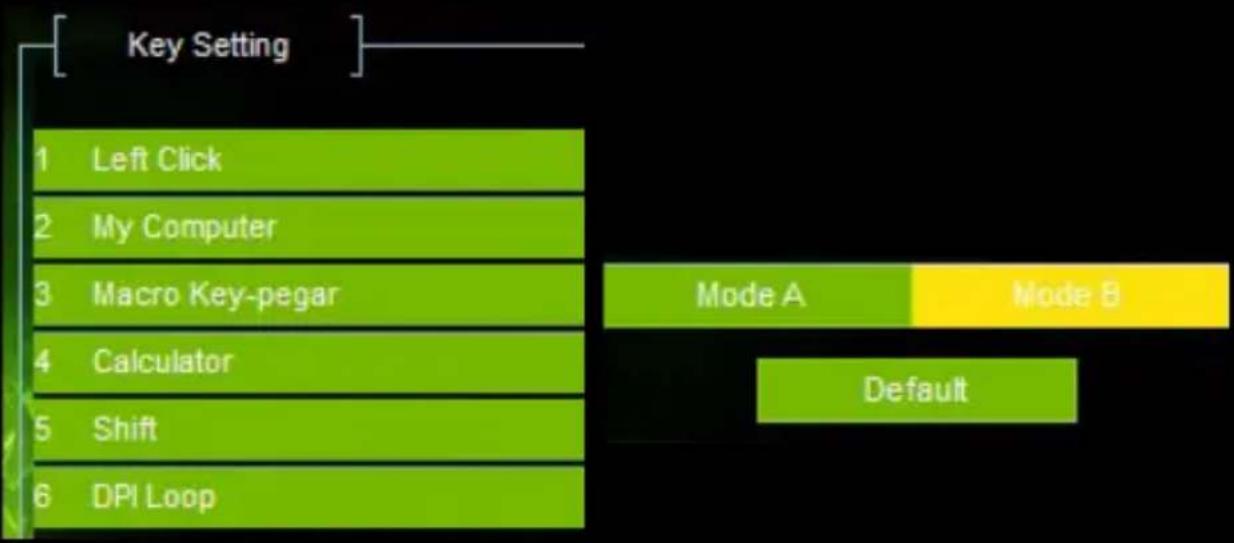
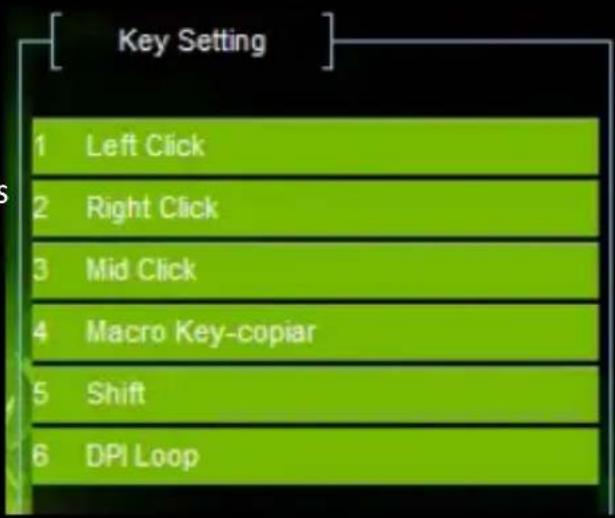
The Mode B button allows you to have 10 buttons at a time with only 5 buttons, you first have to configure the Shift function on a button, now configure the other buttons as desired in Mode B, if you do not press the configured button With the Shift function, all the buttons work as configured in Mode A, pressing the button set to Shift + any of the buttons set in Mode B will perform the function set in Mode B.
DE
flowchart
graph TD
    A["1 Left Click"] --> B["2 My Computer"]
    B --> C["3 Macro Key-pegar"]
    C --> D["4 Calculator"]
    D --> E["5 Shift"]
    E --> F["6 DPI Loop"]
    G["Mode A"] --> H["Default"]
    I["Mode B"] --> H
DE
| Select Macro | Key Press Sequence | Record Option |
| Start Recording Stop Recording Macro Name Loop Times 1 Insert A Mouse Event |
![[Macro Setting] Select Macro Copiar Key Press Sequence Record Option Start Recording Stop Recording Macro Name Copiar Loop Times 1 Insert A Mouse Event New Delete Confirm](/content/2026/06/1275507/images/dd852906cbc13ad1272e158120b7e7c65cba0a100d704ba182631a9f79965179.jpg)
DE

Click on that icon to make the change and the font color change window will open.
DE
bar
DPI Setting | DPI Setting | Color | Select | | :--- | :--- | :--- | | 2500 | Green | 1 | | 2000 | Green | 2 | | 1500 | Green | 3 | | 1250 | Green | 4 | | 1000 | Yellow | 1 | | 750 | Yellow | 2 | | 500 | Yellow | 3 | | 250 | Yellow | 4 | Color: Red, Select: Green, Select: OrangeEL
8. Повтікі Speed
bar
| Mouse Speed | Value | | :--- | :--- | | 1 | Yellow bar | | 2 | Yellow bar | | 3 | Yellow bar | | 4 | Yellow bar | | 5 | Yellow bar | | 6 | Yellow bar | | 7 | Green bar | | 8 | Green bar | | 9 | Green bar | | 10 | Green bar | | 11 | Green bar | The label 'Enhance Pointer Precision' is marked with a green checkmark in the bottom-right corner. The 'Mouse Speed' label appears above it.9. Scrolling Speed
bar
| Scrolling Speed | Value | | :--- | :--- | | 1 | Yellow | | 2 | Yellow | | 3 | Yellow | | 4 | Green | | 5 | Green | | 6 | Green | | 7 | Green | | 8 | Green | | 9 | Green | | 10 | Green | | 11 | Green | Scroll One Screen| Select Macro | Key Press Sequence | Record Option |
| Start Recording Stop Recording Macro Name Loop Times 1 Insert A Mouse Event |
![[Macro Setting] Select Macro Copiar Key Press Sequence Record Option Start Recording Stop Recording Macro Name Copiar Loop Times 1 Insert A Mouse Event New Delete Confirm](/content/2026/06/1275507/images/4d390abce1061b8ffc3d2c612c2213d7951c55b7e9469729c486046ee6a3e057.jpg)
EL

EL
Thank you for choosing Keep Out's gaming mouse X4PRO.
PRODUCT DESCRIPTION
The X4PRO is an Optical Gaming Mouse that focuses on the essential needs of gamers who require programmable buttons to be the best in games. It works with the extreme quality Avago 5050 optical sensor, adjustable DPI in 4 levels (its values are between 250-2500DPI) which can be easily changed with its DPI selection button. With its 6 programmable buttons, users can save different macros. This information is stored in the internal memory of the X4PRO, which allows users to use their preferred settings on different computers without reinstalling the software or reconfiguration. The X4PRO is ambidextrous and suitable for all types of players. Includes software to customize all settings.
PACKAGE CONTENTS
- Gaming Mouse X4PRO
- Quick installation guide in multiple languages.
- Software download card.
Note: Make sure that your packaging contains the items described above. If any item is missing or damaged, please contact your dealer
INSTALLATION
- Connection: Plug the X4PRO into a free USB port on your pc, the computer will recognize the device.
- Software installation in Windows: Download the installation software from the address provided on the software download card.
- Restart your pc.
SOFTWARE
1. Basic Settings
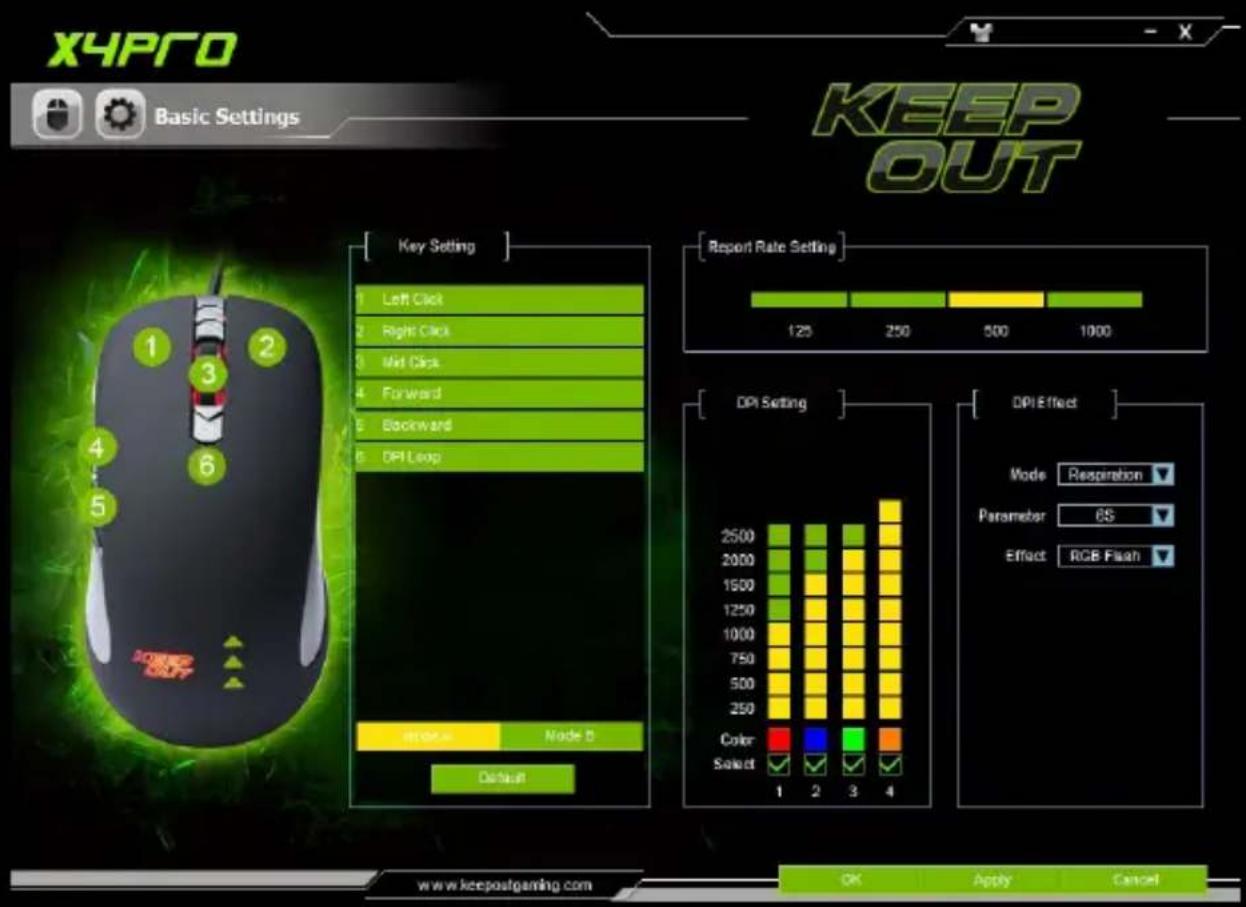
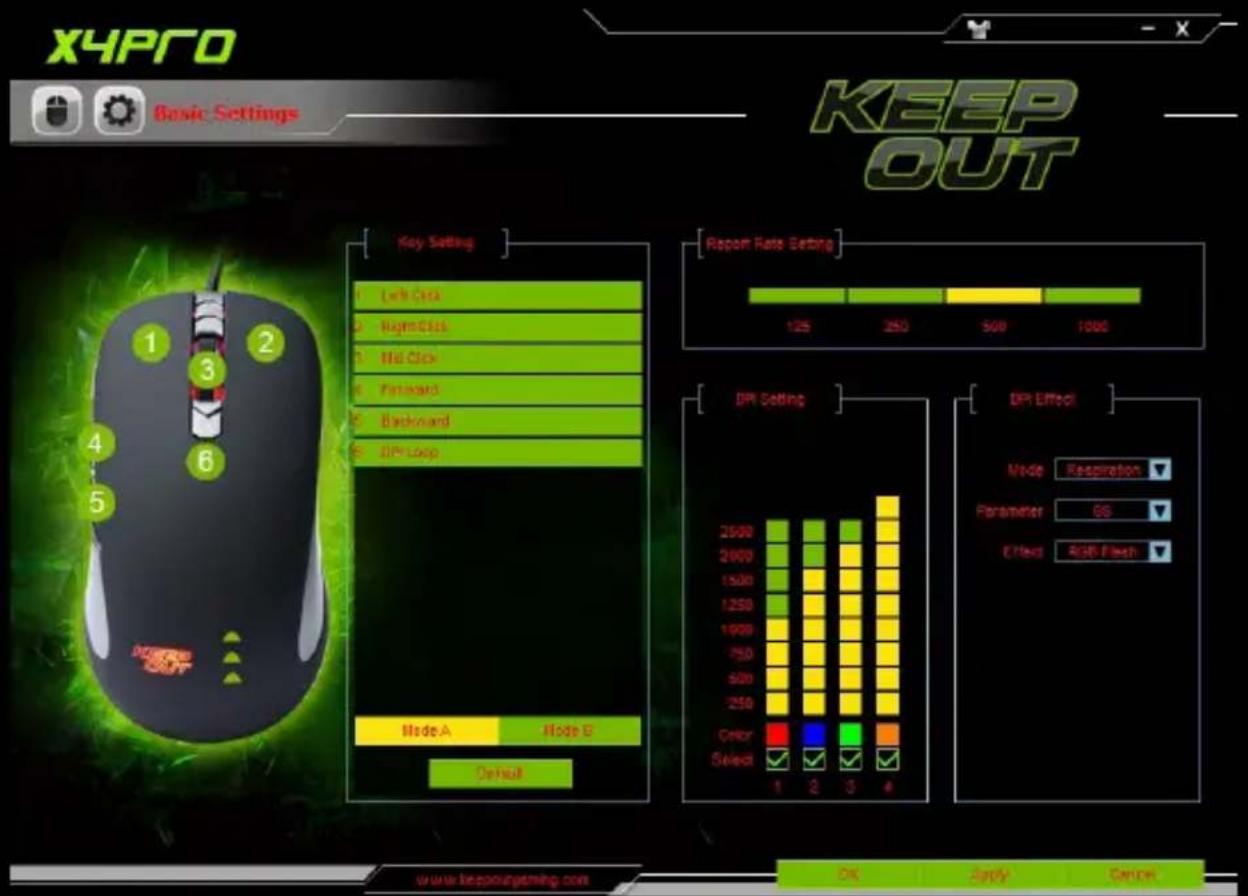
Open the software from Start - Programs or the taskbar icon in the lower right corner of the desktop. The Basic Settings menu will appear.
2. Simple key programming (Key Setting)
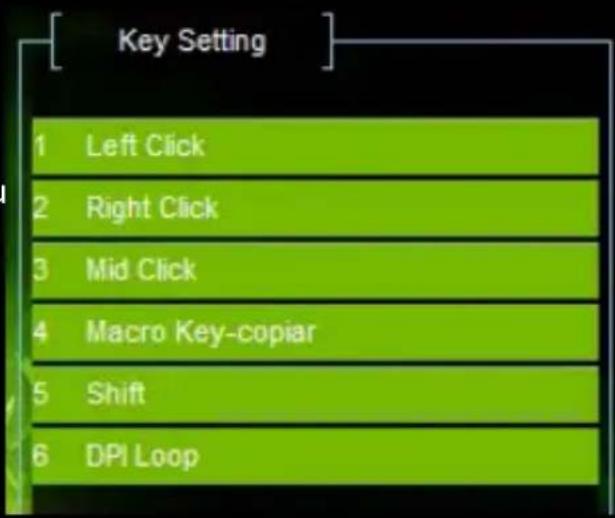
Select Mode A and a button, and assign the desired function, finally click the APPLY button and then OK. Press the Default button to restore the buttons to their factory functions.
EN

3. Polling Rate Programming (Report Rate Setting)
Select the desired Polling Rate, 125, 250, 500, 1000, finally click the APPLY button and then OK.

bar
[Report Rate Setting] | Report Rate Setting | Value | | :--- | :--- | | 125 | 125 | | 250 | 250 | | 500 | 500 | | 1000 | 1000 |4. DPI Selection and Backlight Color (DPI Setting)
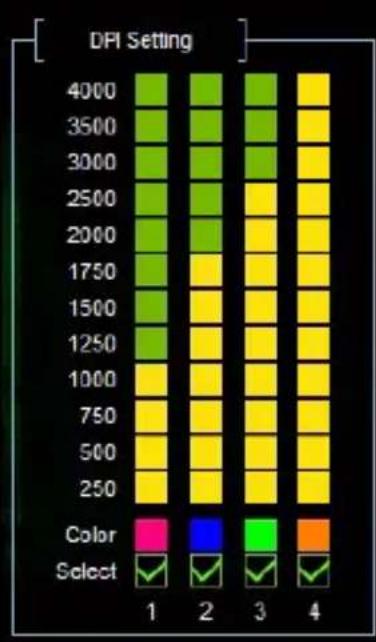
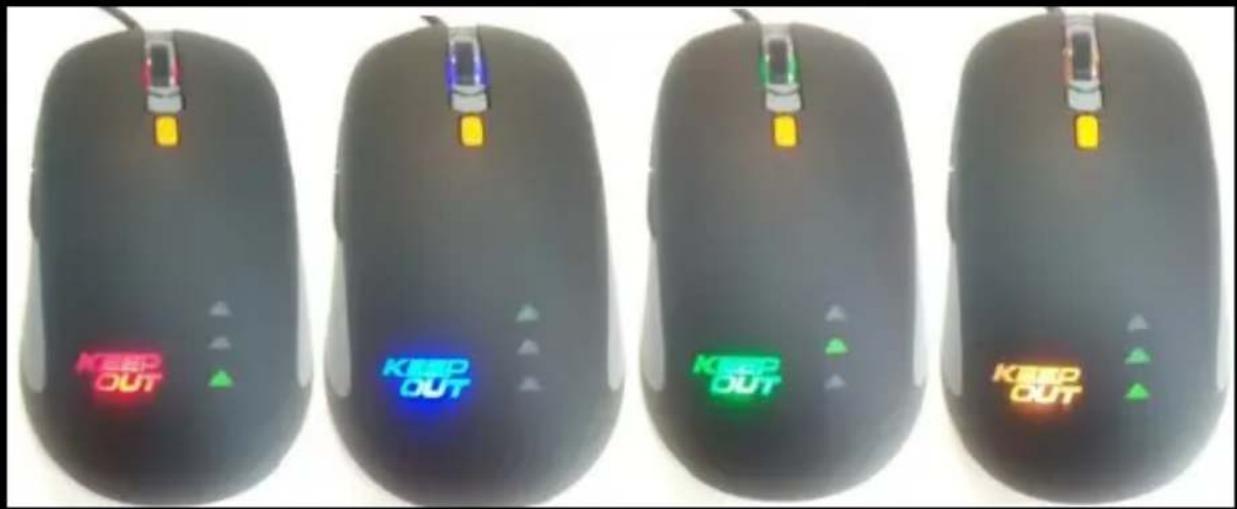
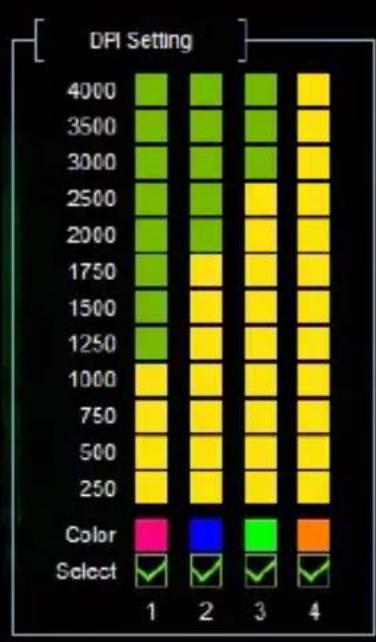
This mouse allows you to select 4 different DPI levels. Select the desired DPI according to the number of the DPI button click.
The DPI level can be associated with a Base and Logo Backlight color by clicking on the desired color and selecting it and clicking OK.

heatmap
DPI Setting | Color | Select 1 | Select 2 | Select 3 | Select 4 | |---|---|---|---|---| | 2500 | Green | Green | Green | Yellow | | 2000 | Green | Green | Green | Yellow | | 1500 | Green | Green | Yellow | Yellow | | 1250 | Green | Green | Yellow | Yellow | | 1000 | Yellow | Yellow | Yellow | Yellow | | 750 | Yellow | Yellow | Yellow | Yellow | | 500 | Yellow | Yellow | Yellow | Yellow | | 250 | Yellow | Yellow | Yellow | Yellow | Color: Red, Select: Green ✓ Color: Blue, Select: Green ✓ Color: Orange, Select: Green ✓Finally click on the APPLY button and then on OK.
heatmap
DFI Setting | | 4000 | 3500 | 3000 | 2500 | 2000 | 1750 | 1500 | 1250 | 1000 | 750 | 500 | 250 | |---|---|---|---|---|---|---|---|---|---|---|---|---| | Color Select | 1 | 2 | 3 | 4 | 4 | 4 | 4 | 4 | 4 | 4 | 4 | 4 |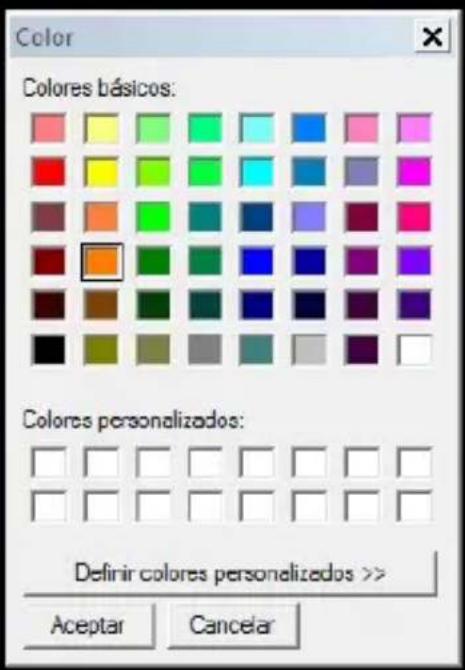
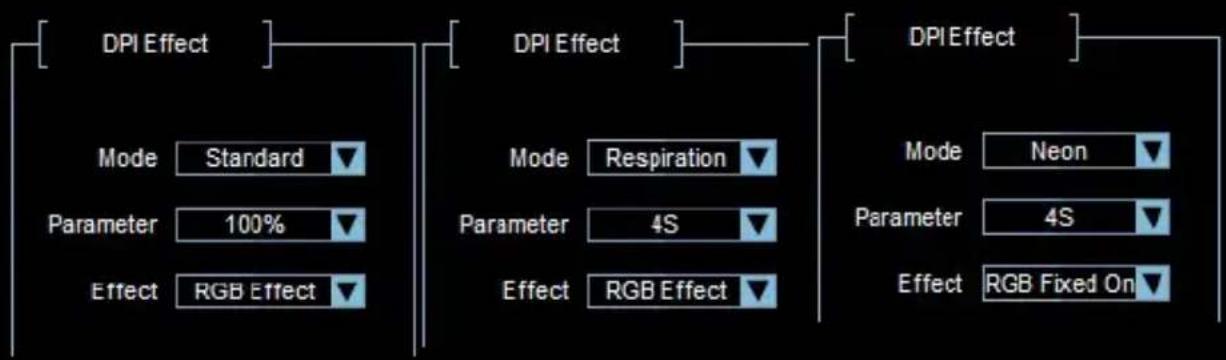
Allows you to set the lighting effect based on the selected DPI.
It has several configuration combinations.
In Mode you can select Standard, Respiration, and Neon.
In Parameter you can select different parameters based on the selected mode.
In Effect you can select different RGB Effects.
flowchart
graph LR
    A["DPI Effect"] --> B["Mode: Standard"]
    A --> C["Parameter: 100%"]
    A --> D["Effect: RGB Effect"]
    E["DPI Effect"] --> F["Mode: Respiration"]
    E --> G["Parameter: 4S"]
    E --> H["Effect: RGB Effect"]
    I["DPI Effect"] --> J["Mode: Neon"]
    I --> K["Parameter: 4S"]
    I --> L["Effect: RGB Fixed On"]
Finally click on the APPLY button and then on OK
6. Mode B button (Mode 10 Buttons)
The Mode B button allows you to have 10 buttons at a time with only 5 buttons, you first have to configure the Shift function on a button, now configure the other buttons as desired in Mode B, if you do not press the configured button With the Shift function, all the buttons work as configured in Mode A, pressing the button set to Shift + any of the buttons set in Mode B will perform the function set in Mode B.

flowchart
graph TD
    A["1 Left Click"] --> B["2 My Computer"]
    B --> C["3 Macro Key-pegar"]
    C --> D["4 Calculator"]
    D --> E["5 Shift"]
    E --> F["6 DPI Loop"]
    G["Mode A"] --> H["Default"]
    I["Mode B"] --> H
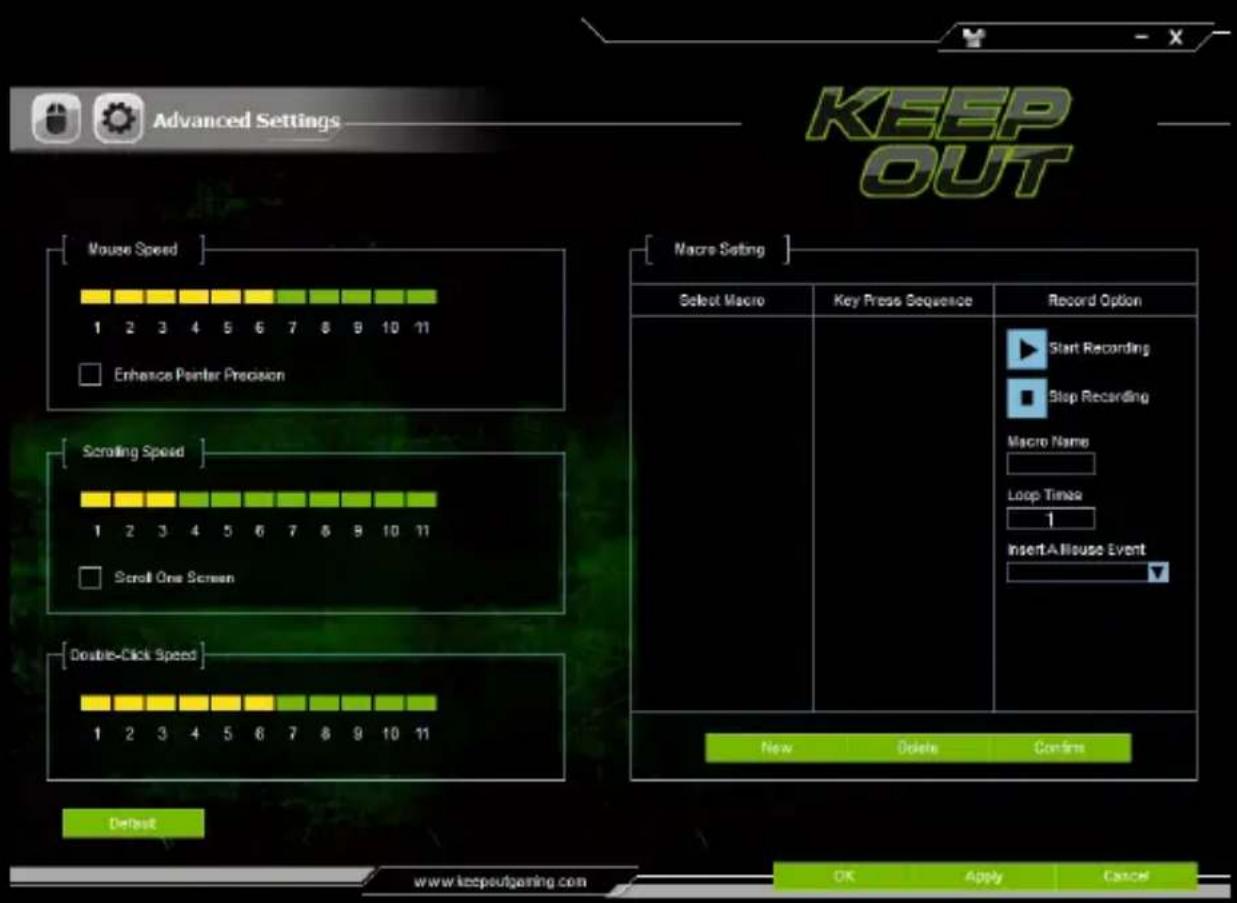
7. Advanced Settings
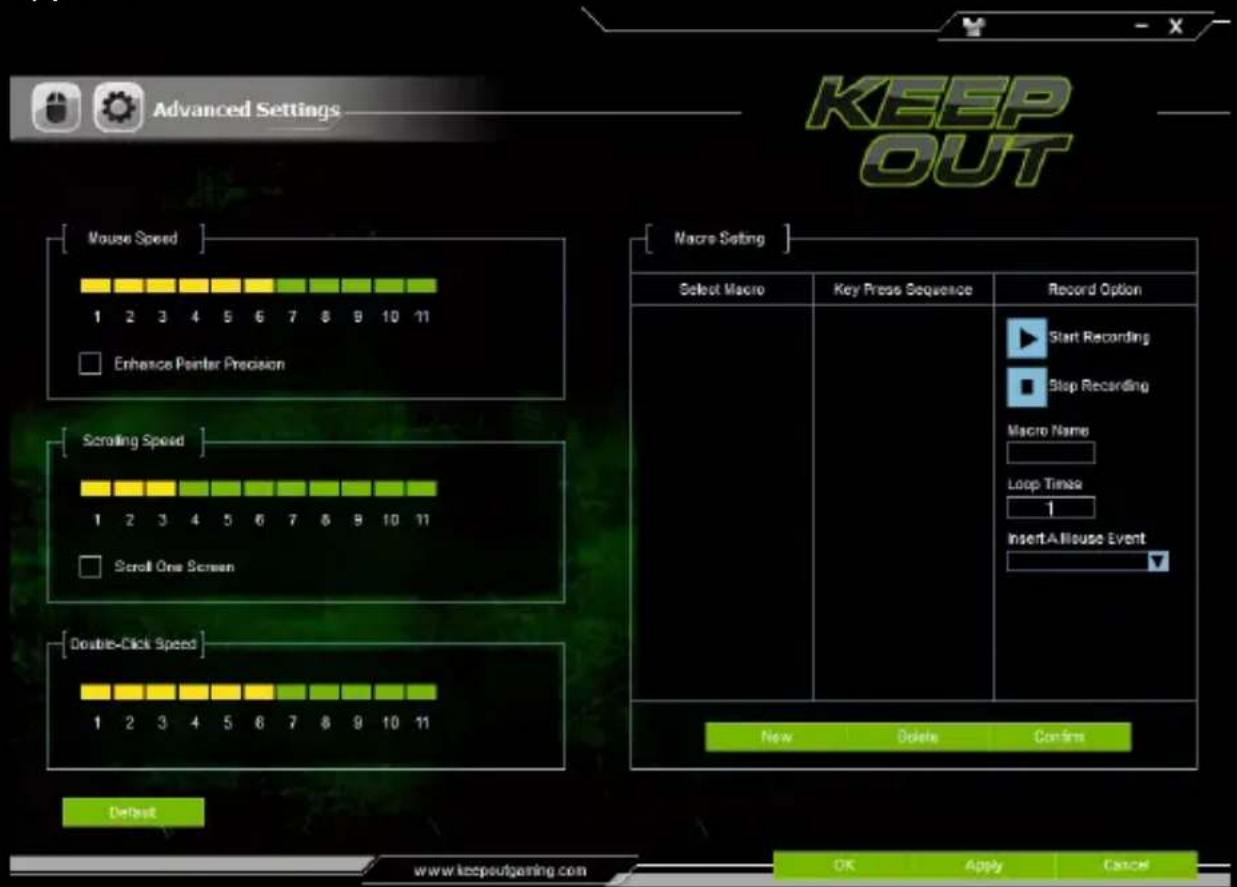
Under Advanced Settings you can access it by clicking on the settings icon in the upper left.
EN
8. Mouse Speed
In Mouse Speed you can adjust the speed of the mouse pointer by clicking on the scale from 1 to 11, with 1 being slower and 11 being faster.

bar
| Mouse Speed | Value | | :--- | :--- | | 1 | Yellow bar | | 2 | Yellow bar | | 3 | Yellow bar | | 4 | Yellow bar | | 5 | Yellow bar | | 6 | Yellow bar | | 7 | Green bar | | 8 | Green bar | | 9 | Green bar | | 10 | Green bar | | 11 | Green bar | The label 'Enhance Pointer Precision' is marked with a green checkmark in the bottom-right corner. The 'Mouse Speed' axis is labeled [ ] above the bars.9. Scrolling Speed
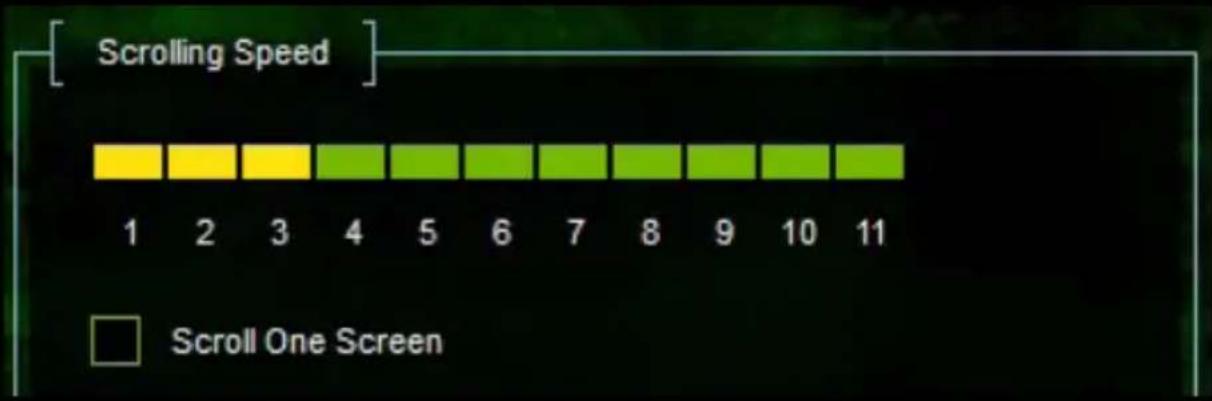
In Scrolling Speed you can adjust the scroll speed of the mouse by clicking on the scale from 1 to 11, with 1 being the slowest and 11 being the fastest.

bar
| Scrolling Speed | | :--- | | 1 | | 2 | | 3 | | 4 | | 5 | | 6 | | 7 | | 8 | | 9 | | 10 | | 11 |10. Double-Click Speed
In Double Click Speed you can adjust the speed of the double click of the mouse button by clicking on the scale from 1 to 11, with 1 being the slowest and 11 being the fastest.

bar
[Double-Click Speed] | Double-Click Speed | | :--- | | 1 | | 2 | | 3 | | 4 | | 5 | | 6 | | 7 | | 8 | | 9 | | 10 | | 11 |Macro Setting
11. Macro Setting
In this setting you can create Macros.
To create a new Macro, enter a macro name in Macro Name and press the New button.
| Select Macro | Key Press Sequence | Record Option |
| Start Recording Stop Recording Macro Name Loop Times 1 Insert A Mouse Event |

To create a new Macro, enter a macro name in Macro Name and press the New button.
![[Macro Setting] Select Macro Copiar Key Press Sequence Record Option Start Recording Stop Recording Macro Name Copiar Loop Times 1 Insert A Mouse Event New Delete Confirm](/content/2026/06/1275507/images/e080fbc1c70fd1341526224b6c1527701aea1bedfa8d4a71d4d34e4ea027addc.jpg)
EN
Press the Start Recording button and a warning message appears, press OK.

Perform the function and it will be saved in Key Press Sequence.
| Macro Setting | ||
| Select Macro | Key Press Sequence | Record Option |
| copiar | CTRL Dn 50 ms C Dn 50 ms C Up 50 ms CTRL Up | Start Recording Stop Recording Macro Name copiar Loop Times 1 Insert A Mouse Event |
| New | Delete | Confirm |
Press the Stop Recording button to finish creating the macro.
The following message will appear.

Finally press the button Confirm
12. Macro Programming on Button
In Basic Settings, select the desired button, click Macro Key.

EN
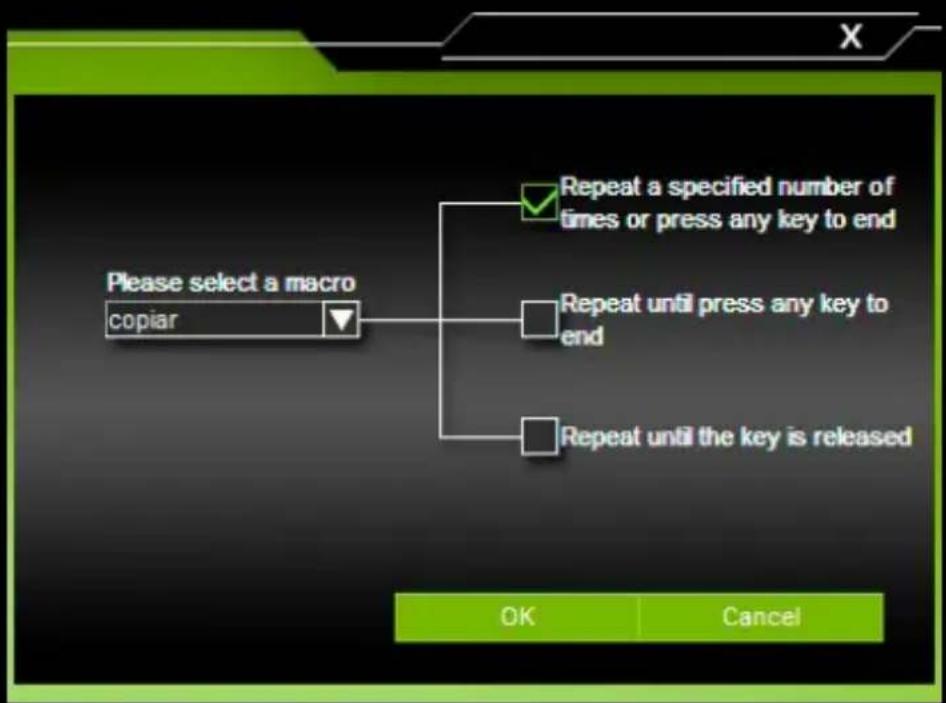
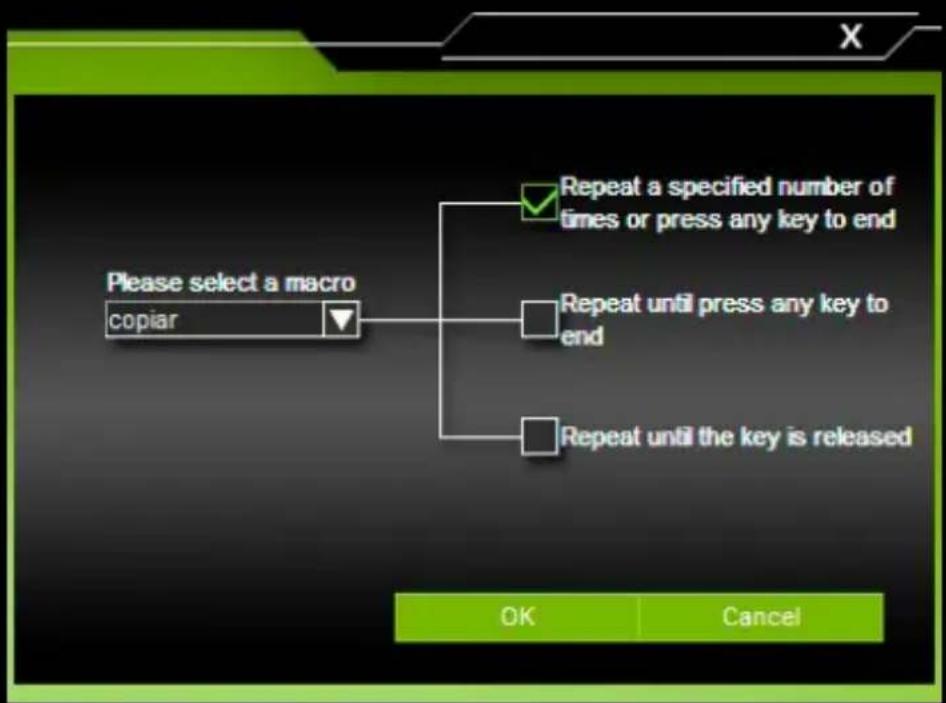
It will open the macro selection window, click on Please select a macro (please select a macro) and select the name of the created macro and press OK.


Finally the Macro will be saved in its corresponding button.
Press the Apply button to apply the changes.
13. Change the Font color of the software in general.
In the upper right corner, there is an icon that allows to change the font of the software in general

Click on that icon to make the change and the font color change window will open.

EN
Click on "Please click to set the UI text color" (click to adjust the text color of the user interface), select the desired color from the color palette and click on the OK button

TECHNICAL SUPPORT
For more information on the installation and configuration of this product please go to our website www.keep-out.eu or write an email to the following address: support@keep-out.eu.
ES
INTRODUCCIÓN
bar
[Report Rate Setting] | Segment | Value | |---|---| | Green Segment | 125 | | Yellow Segment | 250 | | Light Green Segment | 500 | | Dark Green Segment | 1000 |ES
heatmap
DPI Setting | Color | Select | |---|---| | 1 | ✓ | | 2 | ✓ | | 3 | ✓ | | 4 | ✓ |ES
bar
| Mouse Speed | Value | | :--- | :--- | | 1 | Yellow bar | | 2 | Yellow bar | | 3 | Yellow bar | | 4 | Yellow bar | | 5 | Yellow bar | | 6 | Yellow bar | | 7 | Green bar | | 8 | Green bar | | 9 | Green bar | | 10 | Green bar | | 11 | Green bar | The label 'Enhance Pointer Precision' is marked with a green checkmark in the bottom-right corner. The 'Mouse Speed' axis is labeled [ ] above the bars.| Select Macro | Key Press Sequence | Record Option |
| Start Recording Stop Recording Macro Name Loop Times 1 Insert A Mouse Event |

![[Macro Setting] Select Macro Copiar Key Press Sequence Record Option Start Recording Stop Recording Macro Name Copiar Loop Times 1 Insert A Mouse Event New Delete Confirm](/content/2026/06/1275507/images/522c7d22cc2359516bd5815c1c33682092bd52beb4d89d9fd2e0072f438dd815.jpg)
ES
ES
ES
3. Polling Rate Programming (Report Rate Setting)
heatmap
| | Color | Select | |---|---|---| | 1 | Red | ✓ | | 2 | Blue | ✓ | | 3 | Green | ✓ | | 4 | Orange | ✓ |ET
8. Hiire kiirus
bar
| Mouse Speed | Value | | :--- | :--- | | 1 | Yellow bar | | 2 | Yellow bar | | 3 | Yellow bar | | 4 | Yellow bar | | 5 | Yellow bar | | 6 | Yellow bar | | 7 | Green bar | | 8 | Green bar | | 9 | Green bar | | 10 | Green bar | | 11 | Green bar | The label 'Enhance Pointer Precision' is marked with a green checkmark in the bottom-right corner. The 'Mouse Speed' axis is labeled [ ] above the bars.9. liikumiskiirus
| Select Macro | Key Press Sequence | Record Option |
| Start Recording Stop Recording Macro Name Loop Times 1 Insert A Mouse Event |

Uue Macro, sisestage makro nime Macro nimi ja vajutage nupule Uus.
![[Macro Setting] Select Macro Copiar Key Press Sequence Record Option Start Recording Stop Recording Macro Name Copiar Loop Times 1 Insert A Mouse Event New Delete Confirm](/content/2026/06/1275507/images/96d34882df45facdb3c44072aeb8d45ea5d2bbd282a53fc025df6b010213805d.jpg)
ET
Vajutage Start Recording nuppu ja ilmub hoiatusteade, vajutage OK.
Start Recording
Aceptar

ET
ET
heatmap
DPI Setting | | Color | Select | |---|---|---| | 1 | Red | ✓ | | 2 | Blue | ✓ | | 3 | Green | ✓ | | 4 | Orange | ✓ |6. Bouton Mode B (Mode 10 Boutons)
FR
8. Vitesse de la souris (Mouse Speed)
bar
| Mouse Speed | Value | | :--- | :--- | | 1 | Yellow bar | | 2 | Yellow bar | | 3 | Yellow bar | | 4 | Yellow bar | | 5 | Yellow bar | | 6 | Yellow bar | | 7 | Green bar | | 8 | Green bar | | 9 | Green bar | | 10 | Green bar | | 11 | Green bar | The label 'Enhance Pointer Precision' is marked with a green checkmark in the bottom-right corner. The 'Mouse Speed' axis is labeled [ ] above the bars.10. Vitesse double clic (Double-Clic Speed)
| Select Macro | Key Press Sequence | Record Option |
| Start Recording Stop Recording Macro Name Loop Times 1 Insert A Mouse Event |
![[Macro Setting] Select Macro Copiar Key Press Sequence Record Option Start Recording Stop Recording Macro Name Copiar Loop Times 1 Insert A Mouse Event New Delete Confirm](/content/2026/06/1275507/images/4fb3a215b95b40a480ae6678322f1e8659574f39ac25bd17168d9f330a2818f4.jpg)
FR

FR
2. Jednostavno programiranje ključ (ključ postavka)
Odaberite način rada i gumb i dodijeliti željenu funkciju, na kraju kliknite na gumb, a zatim U redu PRIJAVITI. Pritisnite gumb Zadano za vraćanje tipke na tvorničke funkcije.
HR

3. Polling stopa programiranje (Prijavi Rate Setting)
Odaberite željeni Polling rate, 125, 250, 500, 1000, na kraju kliknite na gumb, a zatim U redu PRIJAVITI.

bar
[Report Rate Setting] | Report Rate Setting | Value | | :--- | :--- | | 125 | 125 | | 250 | 250 | | 500 | 500 | | 1000 | 1000 |4. DPI Izbor i Boja pozadinskog osvjetljenja (DPI postavka)
heatmap
DPI Setting | Color | Select 1 | Select 2 | Select 3 | Select 4 | |---|---|---|---|---| | 2500 | Green | Green | Green | Yellow | | 2000 | Green | Green | Green | Yellow | | 1500 | Green | Green | Yellow | Yellow | | 1250 | Green | Green | Yellow | Yellow | | 1000 | Yellow | Yellow | Yellow | Yellow | | 750 | Yellow | Yellow | Yellow | Yellow | | 500 | Yellow | Yellow | Yellow | Yellow | | 250 | Yellow | Yellow | Yellow | Yellow | Color: Red, Select: Green ✓ Color: Blue, Select: Green ✓ Color: Orange, Select: Green ✓Na kraju kliknite na gumb Primijeni, a zatim U redu.
heatmap
DFI Setting | | 4000 | 3500 | 3000 | 2500 | 2000 | 1750 | 1500 | 1250 | 1000 | 750 | 500 | 250 | |---|---|---|---|---|---|---|---|---|---|---|---|---| | Color Select | 1 | 2 | 3 | 4 | 4 | 4 | 4 | 4 | 4 | 4 | 4 | 4 |
6. Način rada Tipka B (mod 10 tipki)
Gumb Način B vam omogućuje da imaju 10 tipki u isto vrijeme sa svega 5 gumba, prvo morate konfigurirati funkciju Shift na gumb, sada konfigurirati druge gumbe po želji u Načinu B, ako ne pritisnete konfiguriran gumb s funkcija Shift, sve tipke rade kao konfiguriran u načinu rada A, pritiskom na tipku sET za Shift + bilo koji gumb postavljenih u Načinu B će obavljati funkciju postavljen u načinu rada B.

flowchart
graph TD
    A["1 Left Click"] --> B["2 My Computer"]
    B --> C["3 Macro Key-pegar"]
    C --> D["4 Calculator"]
    D --> E["5 Shift"]
    E --> F["6 DPI Loop"]
    G["Mode A"] --> H["Default"]
    I["Mode B"] --> H
7. Napredne postavke
Pod Advanced Settings možete mu pristupiti klikom na ikonu Postavke u gornjem lijevom kutu.
HR
8. Miš Speed
bar
| Mouse Speed | Value | | :--- | :--- | | 1 | Yellow bar | | 2 | Yellow bar | | 3 | Yellow bar | | 4 | Yellow bar | | 5 | Yellow bar | | 6 | Yellow bar | | 7 | Green bar | | 8 | Green bar | | 9 | Green bar | | 10 | Green bar | | 11 | Green bar | The label 'Enhance Pointer Precision' is marked with a green checkmark in the bottom-right corner. The 'Mouse Speed' label appears above it.9. Pomicanje brzina
U Brzina pomicanja možete podesiti brzine pomicanja miša klikom na skali od 1 do 11, 1 predstavlja najsporiji i 11 biti najbrži.
bar
| Scrolling Speed | | :--- | | 1 | | 2 | | 3 | | 4 | | 5 | | 6 | | 7 | | 8 | | 9 | | 10 | | 11 |10. Dvaput kliknite Speed
U dvostruko kliknuti Speed možete prilagoditi brzinu dvostrukog klikom miša kliknete na skali od 1 do 11, 1 predstavlja najsporiji i 11 biti najbrži.

bar
[Double-Click Speed] | Double-Click Speed | | :--- | | 1 | | 2 | | 3 | | 4 | | 5 | | 6 | | 7 | | 8 | | 9 | | 10 | | 11 |Macro Setting
11. Makro podešavanja
| Select Macro | Key Press Sequence | Record Option |
| Start Recording Stop Recording Macro Name Loop Times 1 Insert A Mouse Event |

Za stvaranje novog makro, unesite naziv makronaredbe u Macro ime i pritisnite gumb Novo.
![[Macro Setting] Select Macro Copiar Key Press Sequence Record Option Start Recording Stop Recording Macro Name Copiar Loop Times 1 Insert A Mouse Event New Delete Confirm](/content/2026/06/1275507/images/576259579fc2087e1fafdf2fe378868f3c6ae6100e12e8704ff43832194ad0da.jpg)
HR
Pritisnite gumb Start Recording i pojavi poruka upozorenja, pritisnite OK.
Start Recording
Aceptar
Obavlja funkciju, a to će biti spremljena u Key Press Sequence.
| Macro Setting | ||
| Select Macro | Key Press Sequence | Record Option |
| copiar | CTRL Dn 50 ms C Dn 50 ms C Up 50 ms CTRL Up | Start Recording Stop Recording Macro Name copiar Loop Times 1 Insert A Mouse Event |
| New | Delete | Confirm |

Konačno Makro će biti spremljena u odgovarajućem gumbu.
Pritisnite gumb Primijeni da biste primijenili promjene.
13. Change boju slova softvera u cjelini.
HR
2. Jednostavno programiranje ključ (ključ postavka)
Odaberite način rada i Gumb i dodijeliti željenu funkciju, na kraju kliknite na Gumb egy zatim U Redu PRIJAVITI. Pritisnite Gumb Zadano za vraćanje Tipke na tvorničke Funkcije.
HU

3. Polling Rate Programming (Report Rate Setting)
heatmap
| | Color | Select | |---|---|---| | 1 | Red | ✓ | | 2 | Blue | ✓ | | 3 | Green | ✓ | | 4 | Orange | ✓ |6. B mód Gomb (Mode 10 gömbök)
HU
8. Mouse Speed
bar
| Mouse Speed | Value | | :--- | :--- | | 1 | Yellow bar | | 2 | Yellow bar | | 3 | Yellow bar | | 4 | Yellow bar | | 5 | Yellow bar | | 6 | Yellow bar | | 7 | Green bar | | 8 | Green bar | | 9 | Green bar | | 10 | Green bar | | 11 | Green bar | The label 'Enhance Pointer Precision' is marked with a green checkmark in the bottom-right corner. The 'Mouse Speed' axis is labeled [ ] above the bars.bar
| Scrolling Speed | Value | | :--- | :--- | | 1 | Yellow | | 2 | Yellow | | 3 | Yellow | | 4 | Green | | 5 | Green | | 6 | Green | | 7 | Green | | 8 | Green | | 9 | Green | | 10 | Green | | 11 | Green | Scroll One Screen10. Kattintson duplán Speed
HU
heatmap
DPI Setting | Color | Select | |---|---| | 1 | ✓ | | 2 | ✓ | | 3 | ✓ | | 4 | ✓ |IT
bar
| Mouse Speed | Value | | :--- | :--- | | 1 | Yellow bar | | 2 | Yellow bar | | 3 | Yellow bar | | 4 | Yellow bar | | 5 | Yellow bar | | 6 | Yellow bar | | 7 | Green bar | | 8 | Green bar | | 9 | Green bar | | 10 | Green bar | | 11 | Green bar | The label 'Enhance Pointer Precision' is marked with a green checkmark in the bottom-right corner. The 'Mouse Speed' axis is labeled [ ] above the bars.| Select Macro | Key Press Sequence | Record Option |
| Start Recording Stop Recording Macro Name Loop Times 1 Insert A Mouse Event |
New
Delete
Confirm

3. Polling Rate Programming (Report Rate Setting)
heatmap
DPI Setting | Color | Select 1 | Select 2 | Select 3 | Select 4 | |---|---|---|---|---| | 2500 | Green | Green | Green | Yellow | | 2000 | Green | Green | Green | Yellow | | 1500 | Green | Green | Yellow | Yellow | | 1250 | Green | Green | Yellow | Yellow | | 1000 | Yellow | Yellow | Yellow | Yellow | | 750 | Yellow | Yellow | Yellow | Yellow | | 500 | Yellow | Yellow | Yellow | Yellow | | 250 | Yellow | Yellow | Yellow | Yellow | Color: Red, Select: Green ✓ Color: Blue, Select: Green ✓ Color: Orange, Select: Green ✓6. Modus B-knop (Modus 10 knoppen)
NL
8. Mouse Speed
bar
| Mouse Speed | Value | | :--- | :--- | | 1 | Yellow bar | | 2 | Yellow bar | | 3 | Yellow bar | | 4 | Yellow bar | | 5 | Yellow bar | | 6 | Yellow bar | | 7 | Green bar | | 8 | Green bar | | 9 | Green bar | | 10 | Green bar | | 11 | Green bar | The label 'Enhance Pointer Precision' is marked with a green checkmark in the bottom-right corner. The 'Mouse Speed' axis is labeled [ ] above the bars.9. Scrollsnelheid
| Select Macro | Key Press Sequence | Record Option |
| Start Recording Stop Recording Macro Name Loop Times 1 Insert A Mouse Event |
![[Macro Setting] Select Macro Copiar Key Press Sequence Record Option Start Recording Stop Recording Macro Name Copiar Loop Times 1 Insert A Mouse Event New Delete Confirm](/content/2026/06/1275507/images/11274c1317bdfb65c3917a8d004622e50f31f57c654601c7a132cd70bb55acee.jpg)
NL

heatmap
DPI Setting | | Color | Select | |---|---|---| | 2500 | Green | 1 | | 2000 | Green | 2 | | 1500 | Green | 3 | | 1250 | Green | 4 | | 1000 | Yellow | 1 | | 750 | Yellow | 2 | | 500 | Yellow | 3 | | 250 | Yellow | 4 | Color: Red Select: ✓PL
8. Prędkość Mouse
bar
| Mouse Speed | Value | | :--- | :--- | | 1 | Yellow bar | | 2 | Yellow bar | | 3 | Yellow bar | | 4 | Yellow bar | | 5 | Yellow bar | | 6 | Yellow bar | | 7 | Green bar | | 8 | Green bar | | 9 | Green bar | | 10 | Green bar | | 11 | Green bar | The label 'Enhance Pointer Precision' is marked with a green checkmark in the bottom-right corner. The 'Mouse Speed' axis is labeled [ ] above the bars.| Select Macro | Key Press Sequence | Record Option |
| Start Recording Stop Recording Macro Name Loop Times 1 Insert A Mouse Event |
![[Macro Setting] Select Macro Copiar Key Press Sequence Record Option Start Recording Stop Recording Macro Name Copiar Loop Times 1 Insert A Mouse Event New Delete Confirm](/content/2026/06/1275507/images/7dc149b13bfa9faf339550b78aec4b8682e1541ebbee60b33dea6f00dc319dda.jpg)
PL

PL
heatmap
DPI Setting | | Color | Select | |---|---|---| | 1 | Red | ✓ | | 2 | Blue | ✓ | | 3 | Green | ✓ | | 4 | Orange | ✓ |PT
bar
| Mouse Speed | Value | | :--- | :--- | | 1 | Yellow bar | | 2 | Yellow bar | | 3 | Yellow bar | | 4 | Yellow bar | | 5 | Yellow bar | | 6 | Yellow bar | | 7 | Green bar | | 8 | Green bar | | 9 | Green bar | | 10 | Green bar | | 11 | Green bar | The label 'Enhance Pointer Precision' is marked with a green checkmark in the bottom-right corner. The 'Mouse Speed' axis is labeled [ ] above the bars.| Select Macro | Key Press Sequence | Record Option |
| Start Recording Stop Recording Macro Name Loop Times 1 Insert A Mouse Event |
![[Macro Setting] Select Macro Copiar Key Press Sequence Record Option Start Recording Stop Recording Macro Name Copiar Loop Times 1 Insert A Mouse Event New Delete Confirm](/content/2026/06/1275507/images/9226a98d6f1629ac3f7fc0878bf7ed654608e061e86c552b310a8c540d895840.jpg)
PT

PT
heatmap
DPI Setting | Color | Select | |---|---| | 1 | ✓ | | 2 | ✓ | | 3 | ✓ | | 4 | ✓ |RO
bar
| Mouse Speed | Value | | :--- | :--- | | 1 | Yellow bar | | 2 | Yellow bar | | 3 | Yellow bar | | 4 | Yellow bar | | 5 | Yellow bar | | 6 | Yellow bar | | 7 | Green bar | | 8 | Green bar | | 9 | Green bar | | 10 | Green bar | | 11 | Green bar | The label 'Enhance Pointer Precision' is marked with a green checkmark in the bottom-right corner. The 'Mouse Speed' axis is labeled [ ] above the bars.9. Defilare Viteză
| Select Macro | Key Press Sequence | Record Option |
| Start Recording Stop Recording Macro Name Loop Times 1 Insert A Mouse Event |
![[Macro Setting] Select Macro Copiar Key Press Sequence Record Option Start Recording Stop Recording Macro Name Copiar Loop Times 1 Insert A Mouse Event New Delete Confirm](/content/2026/06/1275507/images/c93af3e487e628e4873f46aac0baf4f3791b4058484e36efddd3a04f1d294d4a.jpg)
RO

RO
2. Jednoduché programovanie tlačidiel (Key Setting)
Vyberte režim a tlačidlo, a priradit požadovanú funkciu a nakoniec kliknite na tlačidlo OK a potom VZŤAHOVAŤ. Stlačte tlačidlo Predvolené obnovit tlačidiel na továrenské funkcie.
SK

3. Polling Rate programovanie (Report Rate Setting)
Vyberte požadovaný Polling Rate, 125, 250, 500, 1000, nakoniec kliknite na tlačidlo OK a potom VZŤAHOVAŤ.

bar
[Report Rate Setting] | Category | Value | |---|---| | 125 | 125 | | 250 | 250 | | 500 | 500 | | 1000 | 1000 |heatmap
DPI Setting | Color | Select | Value | |---|---|---| | 1 | ✓ | Green | | 2 | ✓ | Blue | | 3 | ✓ | Green | | 4 | ✓ | Orange |SK
8. Mouse Speed
bar
| Mouse Speed | Value | | :--- | :--- | | 1 | Yellow bar | | 2 | Yellow bar | | 3 | Yellow bar | | 4 | Yellow bar | | 5 | Yellow bar | | 6 | Yellow bar | | 7 | Green bar | | 8 | Green bar | | 9 | Green bar | | 10 | Green bar | | 11 | Green bar | The label 'Enhance Pointer Precision' is marked with a green checkmark in the bottom-right corner. The 'Mouse Speed' axis is labeled [ ] above the bars.9. posuvu
| Select Macro | Key Press Sequence | Record Option |
| Start Recording Stop Recording Macro Name Loop Times 1 Insert A Mouse Event |
![[Macro Setting] Select Macro Copiar Key Press Sequence Record Option Start Recording Stop Recording Macro Name Copiar Loop Times 1 Insert A Mouse Event New Delete Confirm](/content/2026/06/1275507/images/938cc01ba3342e2163d75cfe3ba3f35e4a33844bbc325defc8c6aee231c91f66.jpg)
SK

Stlačte tlačidlo Apply, aby sa zmeny.
SK
Kliknutím na "Kliknite pre nastavenie UI farbu textu" (kliknite pre nastavenie farby textu užívatelského rozhrania), vyberte požadovanú farbu z palety farieb a kliknite na OK
TECHNICKÁ PODPORA
heatmap
DPI Setting | Color | Select 1 | Select 2 | Select 3 | Select 4 | |---|---|---|---|---| | 2500 | Green | Green | Green | Yellow | | 2000 | Green | Green | Green | Yellow | | 1500 | Green | Green | Yellow | Yellow | | 1250 | Green | Green | Yellow | Yellow | | 1000 | Yellow | Yellow | Yellow | Yellow | | 750 | Yellow | Yellow | Yellow | Yellow | | 500 | Yellow | Yellow | Yellow | Yellow | | 250 | Yellow | Yellow | Yellow | Yellow | Color: Red, Select: Green ✓ Color: Blue, Select: Green ✓ Color: Orange, Select: Green ✓
heatmap
DFI Setting | | 4000 | 3500 | 3000 | 2500 | 2000 | 1750 | 1500 | 1250 | 1000 | 750 | 500 | 250 | |---|---|---|---|---|---|---|---|---|---|---|---|---| | Color Select | 1 | 2 | 3 | 4 | 4 | 4 | 4 | 4 | 4 | 4 | 4 | 4 |
TR
8. Fare Hizi
bar
| Mouse Speed | Value | | :--- | :--- | | 1 | Yellow bar | | 2 | Yellow bar | | 3 | Yellow bar | | 4 | Yellow bar | | 5 | Yellow bar | | 6 | Yellow bar | | 7 | Green bar | | 8 | Green bar | | 9 | Green bar | | 10 | Green bar | | 11 | Green bar | The label 'Enhance Pointer Precision' is marked with a green checkmark in the bottom-right corner. The chart is labeled 'Mouse Speed' on the left side.9. Kaydırma Hızı
TR

TR
AEE REI-RAEE 5548 In this manual, the container (bin) symbol indicates that the product is subject to the European directive 2002/96 / EC, electrical and electronic products, batteries, and batteries and other accessories must necessarily be subject to a selective collection.
At the end of the life of the device, make use of the recycling bins. This gesture Will help reduce the health risks and preserve the environment.
Municipalities and distributors, Will provide essential details on recycling your old device. If this device carries an internal battery, it must be removed and deposited separately for proper management.
Recyclage
natural_image
Symbol of a trash bin with crossed lines indicating no waste or discharge (no text or numbers present)Safety, Maintenance and Recycling Instructions
- Caution: Never open the device, the internal parts are danger, electrical shock.
- Do not install this unit near water, for example, in a wet basement, in an unprotected outdoor installation or in any area classified as a wet.
- Do not insert objects of any kind into this unit through openings as they may touch voltage points and short out parts that could result in fire or electric shock. Do not spill any liquid on the unit.
- Be sure to connect the connectors to the respective outputs of the device to be connected.
- Clean the product with a soft and dry cloth.
- Follow local regulations for disposing of the product.
APPROX IBERIA S.L. CIF: B-91202499
Keep Out is a registered brand of Approx Iberia. S.L. C/Tecnología 5, PO Box 15, 41120 Gelves, Sevilla (Spain). Keep Out is not associated to any manufacturer. All brands and registered trademarks are the property of their respective owners and are used for descriptive purposes only. Made in PCR
Soporte técnico/Technical support/ Support technique/ Technischer Support: support@keep-out.eu
El contenido de esta guía está sujeto a errores tipográficos The content of this guide is subject to typographical errors Le contenu de ce guide est sujette à des erreurs typographiques Der Inhalt dieser Anleitung unterliegt typographische Fehler


- BG
- Въведение.
- Mouse Speed
- Scrolling Speed
- CS
- posuvu
- Mode B button (Mode 10 Buttons)
- DE
- EL
- Повтікі Speed
- PRODUCT DESCRIPTION
- PACKAGE CONTENTS
- INSTALLATION
- SOFTWARE
- Basic Settings
- Simple key programming (Key Setting)
- Polling Rate Programming (Report Rate Setting)
- DPI Selection and Backlight Color (DPI Setting)
- Advanced Settings
- EN
- Double-Click Speed
- Macro Setting
- Macro Programming on Button
- Change the Font color of the software in general.
- TECHNICAL SUPPORT
- ES
- INTRODUCCIÓN
- ET
- Hiire kiirus
- liikumiskiirus
- Bouton Mode B (Mode 10 Boutons)
- FR
- Vitesse de la souris (Mouse Speed)
- Vitesse double clic (Double-Clic Speed)
- Jednostavno programiranje ključ (ključ postavka)
- Polling stopa programiranje (Prijavi Rate Setting)
- DPI Izbor i Boja pozadinskog osvjetljenja (DPI postavka)
- Način rada Tipka B (mod 10 tipki)
- Napredne postavke
- HR
- Miš Speed
- Pomicanje brzina
- Dvaput kliknite Speed
- Makro podešavanja
- Change boju slova softvera u cjelini.
- B mód Gomb (Mode 10 gömbök)
- HU
- Kattintson duplán Speed
- IT
- Modus B-knop (Modus 10 knoppen)
- NL
- Scrollsnelheid
- PL
- Prędkość Mouse
- PT
- RO
- Defilare Viteză
- Jednoduché programovanie tlačidiel (Key Setting)
- Polling Rate programovanie (Report Rate Setting)
- SK
- TECHNICKÁ PODPORA
- TR
- Fare Hizi
- Kaydırma Hızı
- Recyclage
- Safety, Maintenance and Recycling Instructions
Brand : KeepOut
Model : X4Pro
Category : Mouse