
ICONIA W510-27602G06ASS - 2-in-1 Tablet ACER - Free user manual and instructions
Find the device manual for free ICONIA W510-27602G06ASS ACER in PDF.
 FR
FR
 BG
BG
 CS
CS
 DA
DA
 DE
DE
 EL
EL
 EN
EN
 ES
ES
 ET
ET
 FI
FI
 HR
HR
 HU
HU
 ID
ID
 IT
IT
 KO
KO
 LT
LT
 LV
LV
 NL
NL
 NO
NO
 PL
PL
 PT
PT
 RO
RO
 RU
RU
 SK
SK
 SL
SL
 SV
SV
 TH
TH
 TR
TR
 ZH
ZH
| Product Type | 2-in-1 tablet with detachable dock keyboard |
| Brand | Acer |
| Model | ICONIA W510-27602G06ASS |
| Dimensions (tablet) | 262.5 x 180 x 9.9 mm |
| Weight (tablet) | 580 g |
| Dimensions (with keyboard) | 262.5 x 180 x 25 mm (estimate) |
| Weight (with keyboard) | Approximately 1.2 kg |
| Operating System | Windows 8 |
| Display | 10.1 inches, multi-touch |
| Processor | Intel Atom Z2760 (estimate) |
| RAM Memory | 2 GB (estimate) |
| Internal Storage | 64 GB eMMC (estimate) |
| Rear Camera | 8 megapixels with LED flash |
| Front Webcam | Yes, for video conferencing |
| Wireless Connectivity | Wi-Fi 802.11 b/g/n, Bluetooth 4.0, NFC (optional) |
| Ports | 1 x micro USB, 1 x micro HDMI, 1 x headphone jack, 1 x microSD reader, 1 x SIM card slot (depending on model) |
| Battery | Built-in lithium-ion, 2 cells, approximately 30 Wh (estimate) |
| Power Supply | Power adapter 19 V, 2.1 A (estimate) |
| Battery Life | Up to 8 hours (estimate) |
| Main Features | Touch screen, detachable keyboard, fingerprint reader (no), Acer clear.fi, G-sensor, HDMI output, USB host via adapter |
| Maintenance and Cleaning | Turn off the device, disconnect the adapter, use a slightly damp soft cloth. Do not use any liquid or aerosol. |
| Security | Supervisor and user password in BIOS, SIM card lock, orientation lock |
| Spare Parts and Repairability | Built-in battery not user-replaceable. Power adapter available. Contact an authorized service center for any repairs. |
| General Information | International Travelers Warranty (ITW). Class B, complies with NMB-003. Operating temperature: 5 °C to 35 °C. |
Frequently Asked Questions - ICONIA W510-27602G06ASS ACER
User questions about ICONIA W510-27602G06ASS ACER
0 question about this device. Answer the ones you know or ask your own.
Ask a new question about this device
Download the instructions for your 2-in-1 Tablet in PDF format for free! Find your manual ICONIA W510-27602G06ASS - ACER and take your electronic device back in hand. On this page are published all the documents necessary for the use of your device. ICONIA W510-27602G06ASS by ACER.
USER MANUAL ICONIA W510-27602G06ASS ACER
© 2012. All Rights Reserved.
ICONIA W510 / W511 User's Manual
Model: W510
First issue: 6 November 2012
TABLE OF CONTENTS
Safety and comfort
5 Micro USB
30
First things first
15 HDMI Micro
31
Your guides 15
Basic care and tips for using your
computer 15
Turning your computer on and off. 15
Taking care of your computer 16
Taking care of your AC adapter 17
Cleaning and servicing. 17
Your Acer tablet PC tour
18 Navigating me
Tablet PC 18
Top view 18
Bottom view 19
Front view 20
Back view 21
Left/right views 22
Installing a SIM card (only for selected
models) 23
Using the network connection 23
SIM card lock 24
Removing the SIM card 24
Connect the tablet to the keyboard dock. 25
Secure the tablet to the keyboard dock 25
Keyboard dock 26
Front view 26
Top view 27
Left view 28
Right view 28
Bottom view 29
HDMI Micro
31
Using the virtual keyboard
32
Wireless networks
34
Connecting to the Internet 34
Wireless networks 34
Acer clear.fi
36
36
Navigating media and photos 36
Shared files 37
Which devices are compatible? 37
Playing to another device 38
Screen orientation
and G-sensor
39
Power management
40
Saving power. 40
Battery pack
43
Battery pack characteristics. 43
Charging the battery. 43
Optimizing battery life 45
Checking the battery level 45
Battery-low warning 45
Securing your computer
47
Using passwords 47
Entering passwords 48
Frequently asked questions
49
Requesting service 51
Tips and hints for using Windows 8. 53
Three concepts you might want to keep in mind. 53
How do I access the charms? 53
How do I get to Start? 53
How do I jump between apps? 54
How do I turn off my computer? 54
Why is there a new interface? 54
How do I unlock my computer? 54
How do I personalize my computer? 55
I want to use Windows in the way that I'm used to - give me my desktop back! 56
Where are my apps? 56
What is a Microsoft ID (account)? 58
How do I add a favorite to Internet Explorer? 58
How do I check for Windows updates? 59
Where can I get more information? 59 Troubleshooting 60
Troubleshooting tips 60
Error messages 60
Recovering your system 62
Recovery from a supplied recovery DVD 62
Recovery 63
Creating a recovery backup. 63
Creating a drivers and applications backup.... 66
Recovering your system 69
Reinstalling drivers and applications 70
Returning to an earlier system snapshot. 73
Returning your system to its factory condition 74
Recovering from Windows 75
Recovering from a recovery backup 79
BIOS utility 83
Boot sequence 83
Setting passwords 83
Regulations and safety notices 84
SAFETY AND COMFORT
SAFETY INSTRUCTIONS
Read these instructions carefully. Keep this document for future reference. Follow all warnings and instructions marked on the product.
Turning the product off before cleaning
Unplug this product from the wall outlet before cleaning. Do not use liquid cleaners or aerosol cleaners. Use a damp cloth for cleaning.
WARNING
Accessing the power cord
Be sure that the power outlet you plug the power cord into is easily accessible and located as close to the equipment operator as possible. When you need to disconnect power to the equipment, be sure to unplug the power cord from the electrical outlet.
Disconnecting the power source
Observe the following guidelines when connecting and disconnecting power to the power supply unit:
Install the power supply unit before connecting the power cord to the AC power outlet.
Unplug the power cord before removing the power supply unit from the computer.
If the system has multiple sources of power, disconnect power from the system by unplugging all power cords from the power supplies.
Using electrical power
- This product should be operated from the type of power indicated on the marking label. If you are not sure of the type of power available, consult your dealer or local power company.
-
Do not allow anything to rest on the power cord. Do not locate this product where people will walk on the cord.
-
If an extension cord is used with this product, make sure that the total ampere rating of the equipment plugged into the extension cord does not exceed the extension cord ampere rating. Also, make sure that the total rating of all products plugged into the wall outlet does not exceed the fuse rating.
-
Do not overload a power outlet, strip or receptacle by plugging in too many devices. The overall system load must not exceed 80% of the branch circuit rating. If power strips are used, the load should not exceed 80% of the power strip's input rating.
-
This product's AC adapter is equipped with a three-wire grounded plug. The plug only fits in a grounded power outlet. Make sure the power outlet is properly grounded before inserting the AC adapter plug. Do not insert the plug into a non-grounded power outlet. Contact your electrician for details.
-
Warning! The grounding pin is a safety feature. Using a power outlet that is not properly grounded may result in electric shock and/or injury.
-
Note: The grounding pin also provides good protection from unexpected noise produced by other nearby electrical devices that may interfere with the performance of this product.
-
The system can be powered using a wide range of voltages; 100 to 120 or 220 to 240 V AC. The power cord included with the system meets the requirements for use in the country/region where the system was purchased. Power cords for use in other countries/regions must meet the requirements for that country/region. For more information on power cord requirements, contact an authorized reseller or service provider.
Protecting your hearing
- Warning! Permanent hearing loss may occur if earphones or headphones are used at high volume for prolonged periods of time.

To protect your hearing, follow these instructions.
- Increase the volume gradually until you can hear clearly and comfortably.
- Do not increase the volume level after your ears have adjusted.
-
Do not listen to music at high volumes for extended periods.
-
Do not increase the volume to block out noisy surroundings.
- Decrease the volume if you can't hear people speaking near you.
Bundled dummy cards
- Note: Information in this section may not apply to your computer.
Your computer shipped with plastic dummies installed in the card slots. Dummies protect unused slots from dust, metal objects or other particles. Save the dummies for use when no cards are in the slots.
General
- Do not use this product near water.
- Do not place this product on an unstable cart, stand or table. If the product falls, it could be seriously damaged.
- Slots and openings are provided for ventilation to ensure reliable operation of the product and to protect it from overheating. These openings must not be blocked or covered. The openings should never be blocked by placing the product on a bed, sofa, rug or other similar surface. This product should never be placed near or over a radiator or heat register, or in a built-in installation unless proper ventilation is provided.
- Never push objects of any kind into this product through cabinet slots as they may touch dangerous voltage points or short-out parts that could result in a fire or electric shock. Never spill liquid of any kind onto or into the product.
- To avoid damage of internal components and to prevent battery leakage, do not place the product on a vibrating surface.
- Never use it under sporting, exercising, or any vibrating environment which will probably cause unexpected short current or damage rotor devices, HDD, Optical drive, and even exposure risk from lithium battery pack.
- The bottom surface, areas around ventilation openings and AC adapter may get hot. To avoid injury, ensure they do not come in contact with your skin or body.
- Your device and its enhancements may contain small parts. Keep them out of the reach of small children.
Product servicing
Do not attempt to service this product yourself, as opening or removing covers may expose you to dangerous voltage points or other risks. Refer all servicing to qualified service personnel.
Unplug this product from the wall outlet and refer servicing to qualified service personnel when:
- The power cord or plug is damaged, cut or frayed.
- Liquid was spilled into the product.
- The product was exposed to rain or water.
- The product has been dropped or the case has been damaged.
- The product exhibits a distinct change in performance, indicating a need for service.
- The product does not operate normally after following the operating instructions.
- Note: Adjust only those controls that are covered by the operating instructions, since improper adjustment of other controls may result in damage and will often require extensive work by a qualified technician to restore the product to normal condition.
Guidelines for safe battery usage
This computer uses a Lithium-ion or Lithium-polymer battery. Do not use it in a humid, wet or corrosive environment. Do not put, store or leave your product in or near a heat source, in a high temperature location, in strong direct sunlight, in a microwave oven or in a pressurized container, and do not expose it to temperatures over 60° C (140°F). Failure to follow these guidelines may cause the battery to leak acid, become hot, explode or ignite and cause injury and/or damage.
Do not pierce, open or disassemble the battery. If the battery leaks and you come into contact with the leaked fluids, rinse thoroughly with water and seek medical attention immediately.
For safety reasons, and to prolong the lifetime of the battery, charging will not occur at temperatures below 0° C (32° F) or above 40° C (104° F).
The full performance of a new battery is achieved only after two or three complete charge and discharge cycles. The battery can be charged and discharged hundreds of times, but it will eventually wear out. When the operation time becomes noticeably shorter than normal, refer to qualified service personnel. Use only the approved batteries, and recharge your battery only with the approved chargers designated for this device.
Never use any charger or battery that is damaged.
The capacity and lifetime of the battery will be reduced if the battery is left in hot or cold places, such as in a closed car in summer or winter. Always try to keep the battery between 15°C and 25°C (59°F and 77°F). A device with a hot or cold battery may not work temporarily, even when the battery is fully charged. Battery performance is especially limited in temperatures well below freezing.
Do not dispose of batteries in a fire as they may explode. Batteries may also explode if damaged. Dispose of batteries according to local regulations. Please recycle when possible. Do not dispose as household waste.
- Note: Please refer to www.acer.com for battery shipping documents.
- Warning! Batteries may explode if not handled properly. Do not disassemble or dispose of them in fire. Keep them away from children. Follow local regulations when disposing of used batteries.
- Warning! For safety reasons, turn off all wireless or radio transmitting devices when using your laptop under the following conditions. These devices may include, but are not limited to: wireless LAN (WLAN), Bluetooth and/or 3G.
Remember to follow any special regulations in force in any area, and always switch off your device when its use is prohibited or when it may cause interference or danger. Use the device only in its normal operating positions. This device meets RF exposure guidelines when used normally, and it and its antenna are positioned at least 1.5 centimeters (5/8 inch) away from your body. It should not contain metal and you should position the device the above-stated distance from your body. To successfully transmit data files or messages, this device requires a good quality connection to the network. In
some cases, transmission of data files or messages may be delayed until such a connection is available. Ensure that the above separation distance instructions are followed until the transmission is completed. Parts of the device are magnetic. Metallic materials may be attracted to the device, and persons with hearing aids should not hold the device to the ear with the hearing aid. Do not place credit cards or other magnetic storage media near the device, because information stored on them may be erased.
MEDICAL DEVICES
Operation of any radio transmitting equipment, including wireless phones, may interfere with the functionality of inadequately protected medical devices. Consult a physician or the manufacturer of the medical device to determine if they are adequately shielded from external RF energy or if you have any questions. Switch off your device in health care facilities when any regulations posted in these areas instruct you to do so. Hospitals or health care facilities may be using equipment that could be sensitive to external RF transmissions.
Pacemakers. Pacemaker manufacturers recommend that a minimum separation of 15.3 centimeters (6 inches) be maintained between wireless devices and a pacemaker to avoid potential interference with the pacemaker. These recommendations are consistent with the independent research by and recommendations of Wireless Technology Research. Persons with pacemakers should do the following:
- Always keep the device more than 15.3 centimeters (6 inches) from the pacemaker
- Not carry the device near your pacemaker when the device is switched on.
If you suspect interference, switch off your device, and move it.
Hearing aids. Some digital wireless devices may interfere with some hearing aids. If interference occurs, consult your service provider.
VEHICLES
RF signals may affect improperly installed or inadequately shielded electronic systems in motor vehicles such as electronic fuel injection systems, electronic anti-skid (anti-lock) braking systems, electronic speed control systems, and air bag systems. For more information, check with the manufacturer, or its representative, of your vehicle or any
equipment that has been added. Only qualified personnel should service the device, or install the device in a vehicle. Faulty installation or service may be dangerous and may invalidate any warranty that may apply to the device. Check regularly that all wireless equipment in your vehicle is mounted and operating properly. Do not store or carry flammable liquids, gases, or explosive materials in the same compartment as the device, its parts, or enhancements. For vehicles equipped with an air bag, remember that air bags inflate with great force. Do not place objects, including installed or portable wireless equipment in the area over the air bag or in the air bag deployment area. If in-vehicle wireless equipment is improperly installed, and the air bag inflates, serious injury could result. Using your device while flying in aircraft is prohibited. Switch off your device before boarding an aircraft. The use of wireless teledevices in an aircraft may be dangerous to the operation of the aircraft, disrupt the wireless telephone network, and may be illegal.
POTENTIALLY EXPLOSIVE ENVIRONMENTS
Switch off your device when in any area with a potentially explosive atmosphere and obey all signs and instructions. Potentially explosive atmospheres include areas where you would normally be advised to turn off your vehicle engine. Sparks in such areas could cause an explosion or fire resulting in bodily injury or even death. Switch off the device at refueling points such as near gas pumps at service stations. Observe restrictions on the use of radio equipment in fuel depots, storage, and distribution areas; chemical plants; or where blasting operations are in progress. Areas with a potentially explosive atmosphere are often, but not always, clearly marked. They include below deck on boats, chemical transfer or storage facilities, vehicles using liquefied petroleum gas (such as propane or butane), and areas where the air contains chemicals or particles such as grain, dust or metal powders. Do not switch the computer on when wireless phone use is prohibited or when it may cause interference or danger.
EMERGENCY CALLS
- Warning! You cannot make emergency calls through this device. To make an emergency call you shall dial out through your mobile phone or other telephone call system.
DISPOSAL INSTRUCTIONS
Do not throw this electronic device into the trash when discarding. To minimize pollution and ensure utmost protection of the global environment, please recycle. For more information on the Waste from Electrical and Electronics Equipment (WEEE) regulations, visit www.acer-group.com/public/Sustainability/sustainability01.htm

TIPS AND INFORMATION FOR COMFORTABLE USE
Computer users may complain of eyestrain and headaches after prolonged use. Users are also at risk of physical injury after long hours of working in front of a computer. Long work periods, bad posture, poor work habits, stress, inadequate working conditions, personal health and other factors greatly increase the risk of physical injury.
Incorrect computer usage may lead to carpal tunnel syndrome, tendonitis, tenosynovitis or other musculoskeletal disorders. The following symptoms may appear in the hands, wrists, arms, shoulders, neck or back:
- Numbness, or a burning or tingling sensation.
- Aching, soreness or tenderness.
- Pain, swelling or throbbing.
- Stiffness or tightness.
- Coldness or weakness.
If you have these symptoms, or any other recurring or persistent discomfort and/or pain related to computer use, consult a physician immediately and inform your company's health and safety department.
The following section provides tips for more comfortable computer use.
Finding your comfort zone
Find your comfort zone by adjusting the viewing angle of the monitor, using a footrest, or raising your sitting height to achieve maximum comfort. Observe the following tips:
- Refrain from staying too long in one fixed posture.
-
Avoid slouching forward and/or leaning backward.
-
Stand up and walk around regularly to remove the strain on your leg muscles.
- Take short rests to relax your neck and shoulders.
- Avoid tensing your muscles or shrugging your shoulders.
- Install the external display, keyboard and mouse properly and within comfortable reach.
- If you view your monitor more than your documents, place the display at the center of your desk to minimize neck strain.
Taking care of your vision
Long viewing hours, wearing incorrect glasses or contact lenses, glare, excessive room lighting, poorly focused screens, very small typefaces and low-contrast displays could stress your eyes. The following sections provide suggestions on how to reduce eyestrain.
Eyes
- Rest your eyes frequently.
- Give your eyes regular breaks by looking away from the monitor and focusing on a distant point.
- Blink frequently to keep your eyes from drying out.
Display
- Keep your display clean.
- Keep your head at a higher level than the top edge of the display so your eyes point downward when looking at the middle of the display.
- Adjust the display brightness and/or contrast to a comfortable level for enhanced text readability and graphics clarity.
- Eliminate glare and reflections by:
- placing your display in such a way that the side faces the window or any light source, minimizing room light by using drapes, shades or blinds,
- using a task light,
- changing the display's viewing angle,
using a glare-reduction filter,
using a display visor, such as a piece of cardboard extended from the display's top front edge.
- Avoid adjusting your display to an awkward viewing angle.
- Avoid looking at bright light sources for extended periods of time.
Developing good work habits
The following work habits make computer use more relaxing and productive:
- Take short breaks regularly and often.
- Perform some stretching exercises.
- Breathe fresh air as often as possible.
Exercise regularly and maintain a healthy body. - Warning! We do not recommend using the computer on a couch or bed. If this is unavoidable, work for only short periods, take breaks regularly, and do some stretching exercises.
- Note: For more information, please refer to "Regulations and safety notices" on page 84.
ENVIRONMENT
Temperature
- Operating: 5°C to 35°C
Non-operating: -20°C to 65°C
Humidity (non-condensing)
- Operating: 20% to 80%
Non-operating: 20% to 80%
FIRST THINGS FIRST
We would like to thank you for making an Acer notebook your choice for meeting your mobile computing needs.
Your guides
To help you use your Acer notebook, we have designed a set of guides:
First off, the setup poster helps you get started with setting up your computer.
The Quick Guide introduces you to the basic features and functions of your new computer. For more on how your computer can help you to be more productive, please refer to the User's Manual. This guide contains detailed information on such subjects as system utilities, data recovery, expansion options and troubleshooting. In addition it contains general regulations and safety notices for your notebook. It is available from Desktop; double-click the Help icon and click User's Manual in the menu that opens.
Basic care and tips for using your computer
Turning your computer on and off
To turn the power off, do any of the following:
- Use the Windows shutdown command: Press the Windows key +
, click Settings > Power then click Shut Down.
If you need to power down the computer for a short while, but don't want to completely shut it down, you can put it into Hibernate by pressing the power button.
Note: If you cannot power off the computer normally, press and hold the power button for more than four seconds to shut down the computer. If you turn off the computer and want to turn it on again, wait at least two seconds before powering up.
Taking care of your computer
Your computer will serve you well if you take care of it.
- Do not expose the computer to direct sunlight. Do not place it near sources of heat, such as a radiator.
- Do not expose the computer to temperatures below 0° C ( 32° F) or above 50° C ( 122° F).
- Do not subject the computer to magnetic fields.
- Do not expose the computer to rain or moisture.
- Do not spill water or any liquid on the computer.
- Do not subject the computer to heavy shock or vibration.
- Do not expose the computer to dust or dirt.
- Never place objects on top of the computer.
- Do not slam the computer display when you close it.
- Never place the computer on uneven surfaces.
Taking care of your AC adapter
Here are some ways to take care of your AC adapter:
- Do not connect the adapter to any other device.
- Do not step on the power cord or place heavy objects on top of it. Carefully route the power cord and any cables away from foot traffic.
- When unplugging the power cord, do not pull on the cord itself but pull on the plug.
- The total ampere ratings of the equipment plugged in should not exceed the ampere rating of the cord if you are using an extension cord. Also, the total current rating of all equipment plugged into a single wall outlet should not exceed the fuse rating.
Cleaning and servicing
When cleaning the computer, follow these steps:
- Turn off the computer.
- Disconnect the AC adapter.
- Use a soft, moist cloth. Do not use liquid or aerosol cleaners.
If either of the following occurs:
- The computer has been dropped or the body has been damaged;
- The computer does not operate normally
Please refer to "Frequently asked questions" on page 49.
After setting up your computer as illustrated in the setup poster, let us show you around your new Acer computer.
You can enter information into you new computer with the touchscreen.
Tablet PC
Your tablet computer has two components: the tablet and an optional keyboard dock. The following images will show you both of these.
Top view

| No. | Item | Description |
| 1 | Headset/speaker jack | Connects to audio devices (e.g., speakers, headphones) or a headset with microphone. |
| 2 | Lock switch | Locks the screen orientation. |
| 3 | Power button | Press to turn the tablet on; press again to place the tablet in Sleep mode. Press and hold to turn the tablet off. |
| Battery LED | Indicates the tablet's power status. |
Note: Display orientation may be fixed when apps designed for a specific orientation are running. These include games and other full-screen apps.
When making video calls, you should always hold the tablet in landscape orientation.
LED Indicators
Bottom view
| LED color | State | Description |
| Blue | Steady | The computer is fully charged and plugged in. |
| Amber | Steady | The computer is charging and plugged in. |

| No. | Item | Description |
| 1 | Slot for keyboard dock | Fastens to the keyboard dock. |
| 2 | Dock connector / DC-in | Connects to an AC adapter or the keyboard dock. |
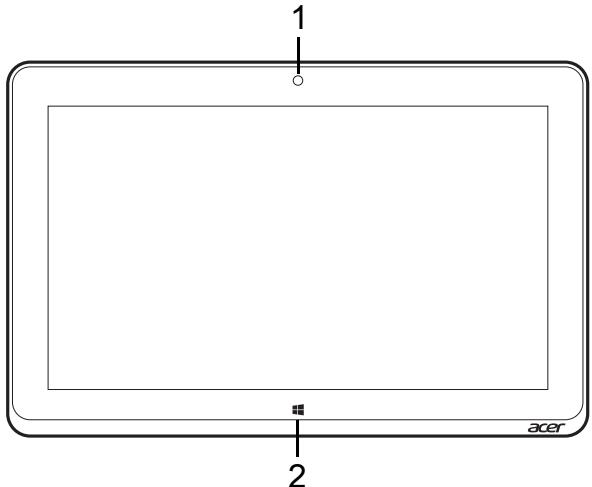
| No. | Item | Description |
| 1 | Integrated webcam | Web camera for video communication. |
| 2 | Windows key | Press once to open the Start menu. |
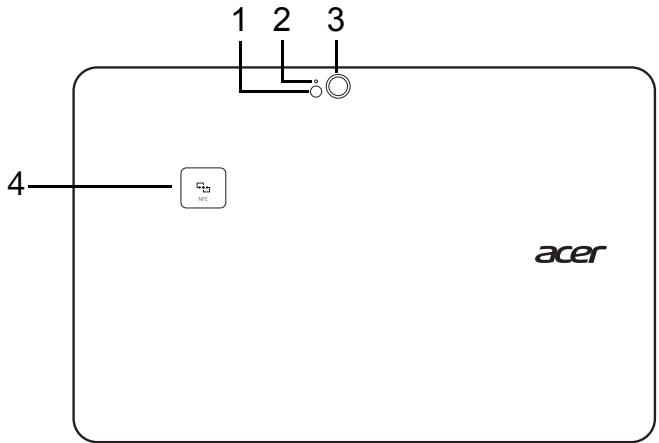
| No. | Item | Description |
| 1 | Flash | LED flash for camera. |
| 2 | Camera indicator light | Lights up when camera is active. |
| 3 | Camera | 8-megapixel camera for taking high-resolution images. |
| 4 | NFC (optional) | NFC contact area. Not available on all models. |
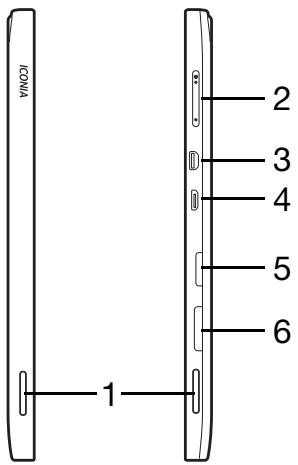
| No. | Item | Description |
| 1 | Speakers | Delivers stereo audio output. |
| 2 | Volume key | Press to increase or decrease volume. |
| 3 | Micro HDMI port | Supports high-definition digital video connections. |
| 4 | Micro USB connector | Connects to USB devices.A Micro USB to USB adapter is needed to connect to USB devices.When using a USB port, it is recommended to plug in the power adapter. |
| 5 | MicroSD card slot | Insert a microSD card into this slot. |
| 6 | SIM card slot* | Insert a SIM card into this slot. * - only for selected models. |
Installing a SIM card (only for selected models)
Certain computers include a SIM slot for Internet access. To take full advantage of your computer's Internet capabilities, you should install a SIM card with data subscription before turning on your computer.
- Make sure your computer is turned off.
- Insert the SIM card. When fully inserted, the SIM card will click into place.
- Turn on your computer.
Note: Ensure that the SIM card is inserted all the way into the card slot. Caution: Turn off your computer before installing or removing a SIM card. You may damage the card or your computer if power it still on.
Using the network connection
Open the desktop and tap the network icon in the taskbar.
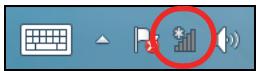
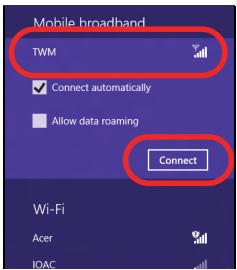
Select your data connection from the list of networks.
Select Connect, then Next.
SIM card lock
Your computer may come with a SIM card lock, i.e., you will only be able to use the SIM card provided by your network operator.
To cancel the SIM lock, contact your network provider.
Removing the SIM card
- Make sure your computer is turned off.
- Press the SIM card into the slot then carefully release. The SIM card will be pushed out of the slot.
Connect the tablet to the keyboard dock
The keyboard dock is optional.
Align the tablet with the dock connector and two pins on the keyboard dock. Press the tablet down until the release latch clicks into place.
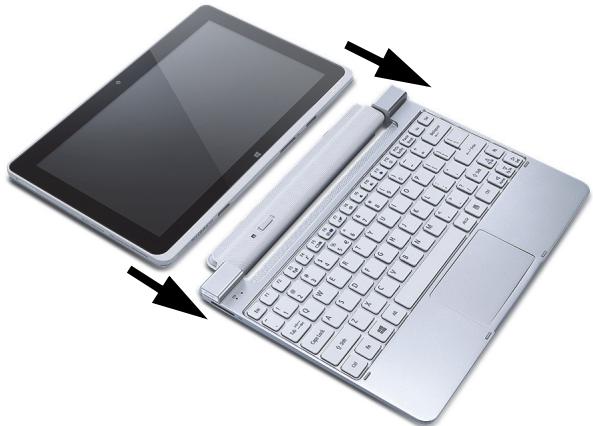
Secure the tablet to the keyboard dock
Place the tablet on the dock, ensuring it clicks into place.
Note: Push the release latch to the left and lift the tablet to remove it from the keyboard dock.
Keyboard dock
The following set of images show you the optional keyboard dock.
Front view
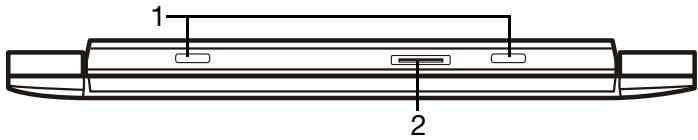
| No. | Item | Description |
| 1 | Pin for keyboard dock | Secures the tablet to the dock. |
| 2 | Dock connector | Connects to the dock connector on the tablet. |
Top view
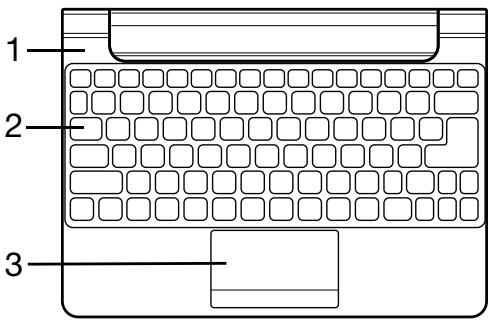
| No. | Item | Description |
| 1 | Battery and power indicators | Indicates the tablet's power status. |
| 2 | Keyboard | For entering data into your tablet. |
| 3 | Touchpad | Touch-sensitive pointing device. |
Note: The additional internal battery is not available in all models of the keyboard dock.
LED Indicators
| LED color | State | Description |
| Blue | Steady | The computer is fully charged and plugged in. |
| Amber | Steady | The computer is charging and plugged in. |

| No. | Item | Description |
| 1 | DC-in | Connects to an AC adapter. |
Right view

| No. | Item | Description |
| 1 | USB 2.0 port | Connect to USB devices. |
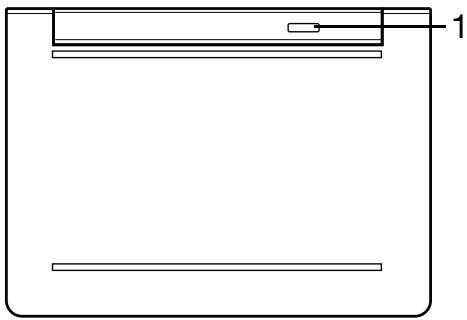
| No. | Item | Description |
| 1 | Release latch | Secures the tablet to the keyboard dock until opened. |
MICRO USB
The USB (Universal Serial Bus) port is a high-speed serial bus which allows you to connect USB peripherals without taking up system resources.
The Micro USB port provides a compact port that is fully compatible with USB 2.0 devices.
Note: A Micro USB to USB adapter is needed to connect to USB devices that use a full-sized connector.
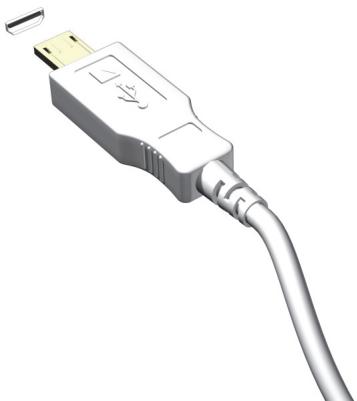
Note: A Micro USB to USB adapter is only included with certain models.
HDMI MICRO
HDMI (High-Definition Multimedia Interface) is an industry-supported, uncompressed, all-digital audio/video interface. HDMI provides an interface between any compatible digital audio/video source, such as a set-top box, DVD player, and A/V receiver and a compatible digital audio and/or video monitor, such as a digital television (DTV), over a single cable.
Use the HDMI Micro port on your computer to connect with high-end audio and video equipment. Single cable implementation allows tidy setup and fast connection.
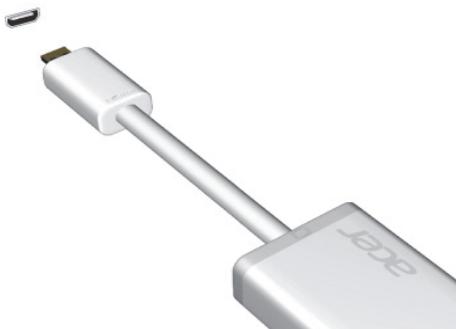
Note: A HDMI Micro to HDMI adapter is only included with certain models.
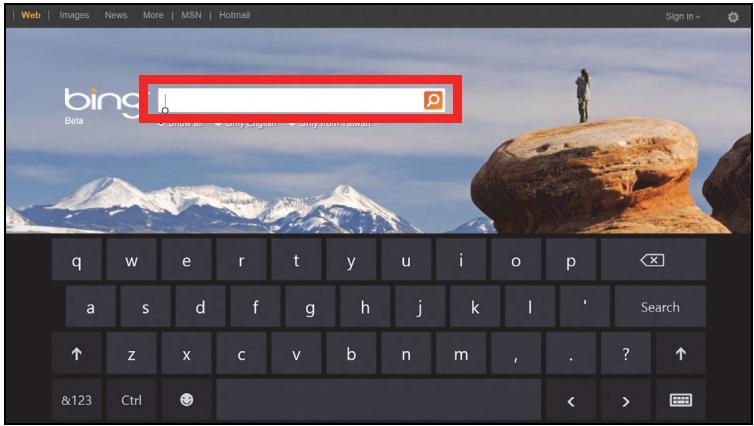
Microsoft Windows provides a convenient virtual keyboard for entering data. There are several ways to display the keyboard:
Tap inside any text field to display the Windows virtual keyboard.
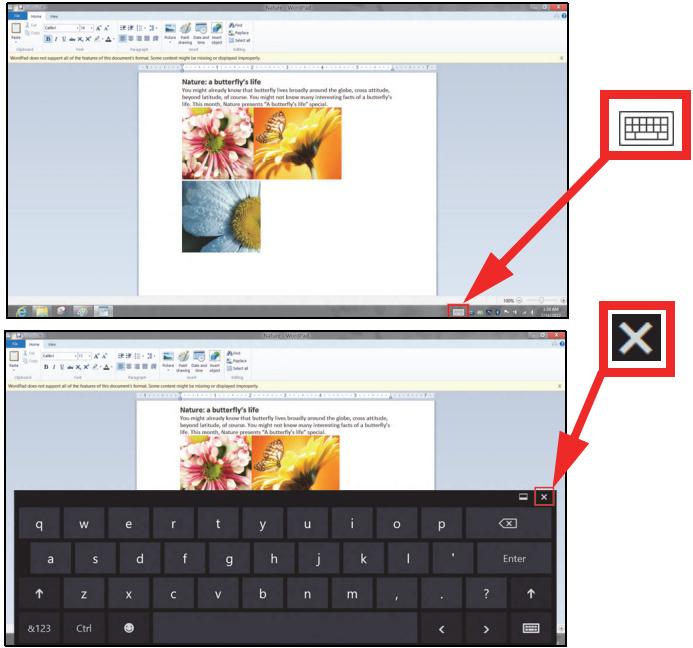
From Desktop, tap the Keyboard icon in the system tray to display the keyboard. Tap the "x" in the keyboard's top-right corner to close the keyboard.
WIRELESS NETWORKS
Connecting to the Internet
Your computer's wireless connection is turned on by default.
Windows will detect and display a list of available networks during setup. Select your network and enter the password if required.
Otherwise, open Internet Explorer and follow the instructions.
Please refer to your ISP or router documentation.
Wireless networks
A wireless LAN or WLAN is a wireless local area network, which may link two or more computers without using wires. Setting up a wireless network is easy and allows you to share files, peripheral devices and an Internet connection.
What are benefits of a wireless network?
Mobility
Wireless LAN systems allow you and other users of your home network to share access to files and devices connected to the network, for example a printer or scanner.
Also you can share an internet connection with other computers in your home.
Installation speed and simplicity
Installing a wireless LAN system can be fast and easy and eliminates the need to pull cables through walls and ceilings.
Components of a wireless LAN
To set up your Wireless network at home you need to have the following:
Access point (router)
Access points (routers) are two-way transceivers that broadcast data into the surrounding environment. Access points act as a mediator between wired and wireless network. Most routers have a built-in DSL modem that will allow you access to a high speed DSL internet connection. The ISP (Internet Service Provider) you have chosen normally supplies a modem/rodter with the subscription to their services. Read carefully the documentation supplied with your Access point/rodter for detailed setup instructions.
ACER CLEAR.FI
Note: Only for certain models.
With Acer clear-fi, you can enjoy videos, photos and music. Stream media from, or to, other devices with Acer clear-fi installed.
Note: All devices must be connected to the same network.
To watch videos or listen to music open clear-fi Media, to browse photos open clear-fi Photo.
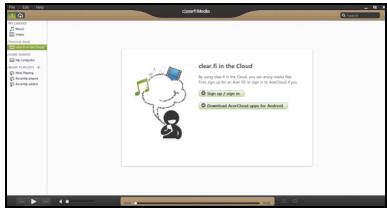
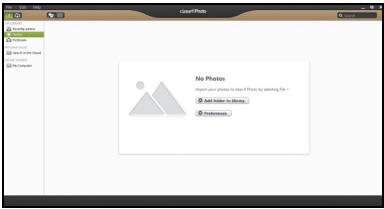
Important: When you first open a clear-fi application, Windows Firewall will ask for permission to allow clear-fi to access the network. Select Allow Access in each window.
Navigating media and photos
The list in the left panel shows your computer ('My Library'), then other devices if any are connected to your network ('Home Shared').
To view files on your computer, select one of the categories under 'My Library', then browse the files and folder on the right.
Shared files
Devices connected to your network are shown in the Home Shared section. Select a device, then select the category to explore.
After a short delay, shared files and folders are shown on the right. Browse to the file you want to play, then double-click to start playback.
Use the media controls in the bar across the bottom of the screen to control playback. For example, when music is selected, you can play, pause or stop playback, and adjust the volume.

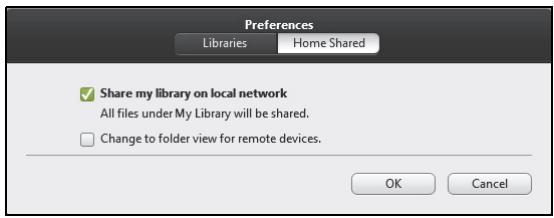
Note: You must activate sharing on the device that stores the files. Open clear.fi on the device that stores the files, select Edit then make sure Share my library on local network is active.
Which devices are compatible?
Most devices with clear-fi or DLNA software can be used with the clear-fi software. These include DLNA-compliant PCs, smartphones, and NAS (Network Attached Storage) devices.
Note: DLNA is an standard that allows devices connected to a home network to communicate and share files.
Playing to another device
If you want to play the media on another device, you need to do the following:
- In the bottom right corner, select Play to.
- Select the remote device that will be used to play the file.
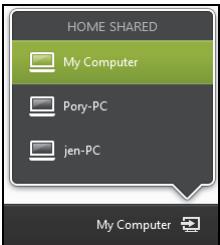
Note: Only devices optimised for playback are available in this list, certain PCs and storage devices will not appear. To add a Windows PC to this list, open Windows Media Player, select Stream and Allow remote control of my Player...
- Select a file in the main window, then use the media controls in the bar across the bottom of the screen to control the remote device.
For more help, go to http://www.acer.com/clearfi/download/.
SCREEN ORIENTATION AND G-SENSOR
Your computer has a built-in accelerometer that detects the tablet's orientation and automatically rotates the screen to suit the orientation.
You can lock the screen orientation by using the lock switch. The orientation may also be locked at other times, including:
- When the tablet is attached to a dock or cradle.
- With an HDMI cable is plugged in.
- When programs designed for a specific orientation are running.
Note: You are advised to keep your tablet in landscape orientation with the webcam above the screen while you are making a video call. Please rotate your display to the landscape orientation and use the lock switch to set the orientation before starting a video call.
The screen orientation lock status will be indicated via icons briefly displayed onscreen when the status changes.
POWER MANAGEMENT
This computer has a built-in power management unit that monitors system activity. System activity refers to any activity involving one or more of the following devices: keyboard, mouse, hard disk, peripherals connected to the computer, and video memory. If no activity is detected for a period of time, the computer stops some or all of these devices in order to conserve energy.
Saving power
Disable Fast startup
Your computer uses Fast startup to start quickly, but also uses a small amount of power to check for signals to start. These checks will slowly drain your computer's battery.
If you prefer to reduce your computer's power requirements and environmental impact, turn off Fast startup:
Note: If Fast startup is off, your computer will take longer to start from Sleep. If your computer features Acer Instant On or Acer Always Connect, these will also be turned off.
Your computer will also not start if it receives an instruction to start over a network (Wake on LAN).
- Open the Desktop.
- Click Power Options in the Notification area.
- Select More Power Options.
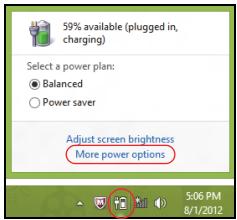
- Select Choose what the power buttons do.
- To access Shutdown Settings, select Change settings that are currently unavailable.
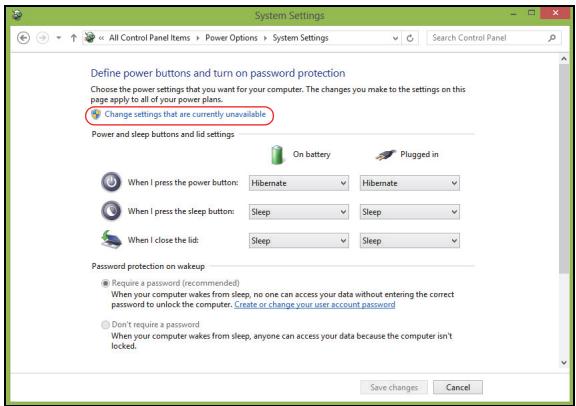
6. Scroll down and disable Turn on fast startup.
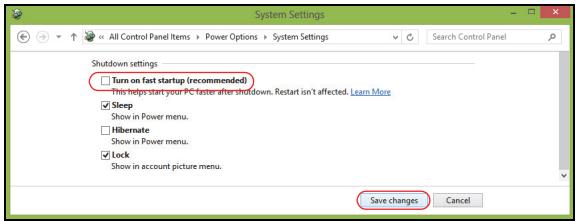
7. Select Save changes.
BATTERY PACK
The computer uses an embedded battery pack that gives you long use between charges.
Battery pack characteristics
The battery is recharged whenever you connect the computer to the AC adapter. Your computer supports charge-in-use, enabling you to recharge the battery while you continue to operate the computer. However, recharging with the computer turned off results in a significantly faster charge time.
Charging the battery
Plug the AC adapter into the computer, and connect to a mains power outlet. You can continue to operate your computer on AC power while your battery is charging. However, charging the battery with the computer turned off results in a significantly faster charge time.
Note: You are advised to charge the battery before retiring for the day. Charging the battery overnight before traveling enables you to start the next day with a fully charged battery.
Conditioning a new battery pack
Before you use a battery pack for the first time, there is a conditioning process that you should follow:
-
Connect the AC adapter and fully charge the battery.
-
Disconnect the AC adapter.
- Turn on the computer and operate using battery power.
- Fully deplete the battery until the battery-low warning appears.
- Reconnect the AC adapter and fully charge the battery again.
Follow these steps again until the battery has been charged and discharged three times.
Use this conditioning process for all new batteries, or if a battery hasn't been used for a long time.
Warning! Do not expose battery packs to temperatures below 0° C (32° F) or above 45° C (113° F). Extreme temperatures may adversely affect the battery pack.
By following the battery conditioning process you condition your battery to accept the maximum possible charge. Failure to follow this procedure will prevent you from obtaining the maximum battery charge, and will also shorten the effective lifespan of the battery.
In addition, the useful lifespan of the battery is adversely affected by the following usage patterns:
Using the computer on constant AC power.
- Not discharging and recharging the battery to its extremes, as described above.
- Frequent use; the more you use the battery, the faster it will reach the end of its effective life. A standard computer battery has a life span of about 300 charges.
Optimizing battery life
Optimizing battery life helps you get the most out of battery operation, prolonging the charge/recharge cycle and improving recharging efficiency. You are advised to follow the suggestions set out below:
- Use AC power whenever possible, reserving battery for mobile use.
- Remove accessories that are not being used (e.g. a USB disk drive), as they can continue to draw power.
- Store your PC in a cool, dry place. The recommended temperature is 10°C ( 50°F ) to 30°C ( 86°F ). Higher temperatures cause the battery to self-discharge faster.
- Excessive recharging decreases the battery life.
- Look after your AC adapter and battery.
Checking the battery level
The power meter indicates the current battery level. Rest the cursor over the battery/power icon on the taskbar to see the battery's present charge level.
Battery-low warning
When using battery power pay attention to the power meter.
Warning! Connect the AC adapter as soon as possible after the battery-low warning appears. Data may be lost if the battery is allowed to become fully depleted and the computer shuts down.
When the battery-low warning appears, the recommended course of action depends on your situation:
| Situation | Recommended Action |
| The AC adapter and a power outlet are available. | 1. Plug the AC adapter into the computer, and then connect to the main power supply. 2. Save all necessary files. 3. Resume work. Turn off the computer if you want to recharge the battery rapidly. |
| The AC adapter or a power outlet is unavailable. | 1. Save all necessary files. 2. Close all applications. 3. Turn off the computer. |
SECURING YOUR COMPUTER
Your computer is a valuable investment that you need to take care of. Learn how to protect and take care of your computer.
Using passwords
Passwords protect your computer from unauthorized access. Setting these passwords creates several different levels of protection for your computer and data:
- Supervisor Password prevents unauthorized entry into the BIOS utility. Once set, you must enter this password to gain access to the BIOS utility. See "BIOS utility" on page 85.
- User Password secures your computer against unauthorized use. Combine the use of this password with password checkpoints on boot-up and resume from Hibernation (if available) for maximum security.
- Password on Boot secures your computer against unauthorized use. Combine the use of this password with password checkpoints on boot-up and resume from Hibernation (if available) for maximum security.
Important: Do not forget your Supervisor Password! If you forget your password, please get in touch with your dealer or an authorized service center.
Entering passwords
When a password is set, a password prompt appears in the center of the display screen.
- When the Supervisor Password is set, a prompt appears when you enter the BIOS utility.
- Type the Supervisor Password and press
to access the BIOS utility. If you enter the password incorrectly, a warning message appears. Try again and press . - When the User Password is set and the password on boot parameter is enabled, a prompt appears at boot-up.
- Type the User Password and press
to use the computer. If you enter the password incorrectly, a warning message appears. Try again and press .
Important: You have three chances to enter a password. If you fail to enter the password correctly after three tries, the system halts. Press and hold the power button for four seconds to shut down the computer. Then turn on the computer again, and try again.
Frequently Asked Questions
The following is a list of possible situations that may arise during the use of your computer. Easy solutions are provided for each one.
I turned on the power, but the computer does not start or boot up.
Look at the power indicator:
-
If it is not lit, no power is being supplied to the computer. Check the following:
-
If you are using on the battery, it may be low and unable to power the computer. Connect the AC adapter to recharge the battery pack.
- Make sure that the AC adapter is properly plugged into the computer and to the power outlet.
If it is lit, check the following:
- Do you have a USB storage device (USB disk or smartphone) plugged into your computer? Unplug it and press <Ctrl> + <Alt> + <Del> to restart the system.
Nothing appears on the screen.
The computer's power management system automatically blanks the screen to save power. Press any key to turn the display back on.
If pressing a key does not turn the display back on, three things might be the cause:
- The brightness level might be too low. Press <Fn> + <> (increase) to adjust the brightness level.
- The display device might be set to an external monitor. Press the display toggle hotkey <Fn> + <F5> to toggle the display back to the computer.
- If the Sleep indicator is lit, the computer is in Sleep mode. Press and release the power button to resume.
No audio is heard from the computer.
Check the following:
- The volume may be muted. In Windows, look at the volume control (speaker) icon on the taskbar. If it is crossed-out, click the icon and deselect the Mute all option.
- The volume level may be too low. In Windows, look at the volume control icon on the taskbar. You can also use the volume control buttons to adjust the volume.
- If headphones, earphones or external speakers are connected to the line-out port on the computer, the internal speakers automatically turn off.
The keyboard does not respond
Try attaching an external keyboard to a USB port on the computer. If it works, contact your dealer or an authorized service center as the internal keyboard cable may be loose.
The printer does not work
Check the following:
- Make sure that the printer is connected to a power outlet and that it is turned on.
- Make sure that the printer cable is connected securely to a USB port and the corresponding port on the printer.
Requesting service
International Travelers Warranty (ITW)
Your computer is backed by an International Travelers Warranty (ITW) that gives you security and peace of mind when traveling. Our worldwide network of service centers are there to give you a helping hand.
An ITW passport comes with your computer. This passport contains all you need to know about the ITW program. A list of available, authorized service centers is in this handy booklet. Read this passport thoroughly.
Always have your ITW passport on hand, especially when you travel, to receive the benefits from our support centers. Place your proof-of-purchase in the flap located inside the front cover of the ITW passport.
If the country you are traveling in does not have an Acer-authorized ITW service site, you can still get in contact with our offices worldwide. Please visit www.acer.com.
Before you call
Please have the following information available when you call Acer for online service, and please be at your computer when you call. With your support, we can reduce the amount of time a call takes and help solve your problems efficiently. If there are error messages or beeps reported by your computer, write them down as they appear on the screen (or the number and sequence in the case of beeps).
You are required to provide the following information:
Name:
Address:
Telephone number:
Machine and model type:
Serial number:
Date of purchase:
Tips and hints for using Windows 8
We know this is a new operating system that will take some getting used to, so we've created a few pointers to help you get started.
Three concepts you might want to keep in mind
1. Start
The Start button is no longer available; you can launch apps from the Start screen.
2. Tiles
Live tiles are similar to thumbnails of the apps.
3. Charms
Charms allow you to perform useful functions, such as sharing content, turning off your PC or changing settings.
How do I access the charms?
Swipe the right-hand edge of the screen inwards.
How do I get to Start?
Press the Windows key; or swipe the right-hand edge of the screen inwards and tap the Start charm.
How do I jump between apps?
Swipe the left-hand edge of the screen inwards to cycle through apps that are currently running.
How do I turn off my computer?
Swipe the right-hand edge of the screen inwards, tap Settings > Power and select the action you'd like to take. Alternatively, from Desktop, tap Acer Power Button and select the action you'd like to take.
Why is there a new interface?
The new interface for Windows 8 is designed to work well with touch input. Windows Store apps will automatically use the whole screen and don't require closing in the traditional way. Windows Store apps will be displayed on Start using live-tiles.
What are 'live tiles?'
Live tiles are similar to thumbnails of the app that will be updated with new content whenever you're connected to the Internet. So, for example, you can view weather or stock updates without needing to open the app.
How do I unlock my computer?
Swipe the lock screen upwards and tap a user account icon to unlock the computer. If your account has a password set, you will need to enter the password to continue.
Tap and hold the preview icon to see the characters you've entered to ensure the password is correct.
How do I personalize my computer?
You can personalize Start with a different background image or by arranging the tiles to suit your personal needs.
To change the background, swipe the right-hand edge of the screen inwards and tap Settings > Change PC settings > Personalize. Tap Start screen at the top of the page and select a color and image.
How do I move tiles?
Tap and hold a tile to select it, then drag it to the place on Start that you want it to appear. Other tiles will be moved to accommodate the tile in its new location.
Can I make tiles bigger or smaller?
Tap and drag the tile downwards and release it. Select Smaller or Larger from the menu that appears at the bottom of the screen.
How do I personalize the Lock screen?
You can personalize the lock screen with a different image or to show you quick status and notifications to suit your personal needs.
To change the background, swipe the right-hand edge of the screen inwards and tap Settings > Change PC settings > Personalize. Tap Lock screen at the top of the page and select the image and apps you would like to see on the lock screen.
So, how do I close an app?
Swipe the window downwards from the top to the bottom of the screen.
Can I change the screen resolution?
Swipe the right-hand edge of the screen inwards and tap Search, tap the text box to open the onscreen keyboard and start typing 'Control Panel' to display the results; tap Control Panel > Adjust screen resolution.
I want to use Windows in the way that I'm used to - give me my desktop back!
From Start tap the Desktop tile to see a traditional desktop. You can pin apps you frequently use to the taskbar to easily open them.
If you click an app that is not a Windows Store app, Windows will automatically open the app using Desktop.
Where are my apps?
Swipe the right-hand edge of the screen inwards and tap Search, type the name of the app you would like to open using the pop-up keyboard. Results will be displayed on the left-hand side of the screen.
To view the complete list of apps, swipe upwards from the bottom of the screen and tap All apps.
How do I make an app appear on Start?
If you're in All apps and you want to make an app appear on Start, tap and drag the app downwards and release it. Tap Pin to Start from the menu that appears at the bottom of the screen.
How do I remove a tile from Start?
Tap and drag the app downwards and release it. Tap Unpin from Start from the menu that appears at the bottom of the screen.
How do I make an app appear on my taskbar in Desktop?
If you're in All apps and you want to make an app appear on the taskbar in Desktop, tap and drag the app downwards and release it. Select Pin to taskbar from the menu that appears at the bottom of the screen.
How do I install apps?
You can download Windows Store apps from Store. You will need to have a Microsoft ID to purchase and download apps from Store.
I can't find apps like Notepad and Paint! Where are they?
Swipe the right-hand edge of the screen inwards and tap Search, type the name of the app you would like to open using the pop-up keyboard. Alternatively, open All apps and scroll to 'Windows Accessories' to see the list of legacy programs.
What is a Microsoft ID (account)?
A Microsoft account is an email address and password that you use to sign in to Windows. You can use any email address, but it is best if you choose the one you already use to communicate with friends and sign in to your favorite websites. When you sign in to your PC with a Microsoft account, you'll connect your PC to the people, files, and devices you care about.
Do I need one?
You do not need a Microsoft ID to use Windows 8, but it makes life easier because you can sync data across different machines you sign in to using a Microsoft ID.
How do I get one?
If you've already installed Windows 8 and didn't sign in with a Microsoft account or you don't have a Microsoft account and want to get one, swipe the right-hand edge of the screen inwards and tap Settings > Change PC settings > Users > Switch to a Microsoft account, and follow the onscreen instructions.
How do I add a favorite to Internet Explorer?
Internet Explorer 10 doesn't have traditional favorites, instead you can pin shortcuts to Start. Once you have the page open, swipe upwards from the bottom edge of the screen to open the menu at the bottom of the screen. Tap Pin to Start.
How do I check for Windows updates?
Swipe the right-hand edge of the screen inwards and tap Settings > Change PC settings > Windows Updates. Tap Check for updates now.
Where can I get more information?
For more information please visit the following pages:
- Windows 8 tutorials: www.acer.com/windows8-tutorial
- Support FAQs: www.acer.com/support
Troubleshooting
This chapter shows you how to deal with common system problems.
Read it before calling a technician if a problem occurs. Solutions to more serious problems require opening up the computer. Do not attempt to open the computer yourself; contact your dealer or authorized service center for assistance.
Troubleshooting tips
This computer incorporates an advanced design that delivers onscreen error message reports to help you solve problems.
If the system reports an error message or an error symptom occurs, see "Error messages" below. If the problem cannot be resolved, contact your dealer. See "Requesting service" on page 51.
Error messages
If you receive an error message, note the message and take the corrective action. The following table lists the error messages in alphabetical order together with the recommended course of action.
| Error messages | Corrective action |
| CMOS battery bad | Contact your dealer or an authorized service center. |
| CMOS checksum error | Contact your dealer or an authorized service center. |
| Disk boot failure | Insert a system (bootable) disk, then press <Enter> to reboot. |
| Equipment configuration error | Press <F2> (during POST) to enter the BIOS utility, then press Exit in the BIOS utility to reboot. |
| Hard disk 0 error | Contact your dealer or an authorized service center. |
| Hard disk 0 extended type error | Contact your dealer or an authorized service center. |
| I/O parity error | Contact your dealer or an authorized service center. |
| Keyboard error or no keyboard connected | Contact your dealer or an authorized service center. |
| Keyboard interface error | Contact your dealer or an authorized service center. |
| Memory size mismatch | Press <F2> (during POST) to enter the BIOS utility, then press Exit in the BIOS utility to reboot. |
If you still encounter problems after going through the corrective measures, please contact your dealer or an authorized service center for assistance.
RECOVERING YOUR SYSTEM
Depending on the storage space available in your computer, your computer either uses the Acer Recovery Management program, or is supplied with one or more system recovery DVDs. To use a system recovery DVD, please see the instructions below, otherwise see "Recovery" on page 63.
Recovery from a supplied recovery DVD
If your computer comes with system recovery DVDs, obtain an external optical disc drive (ODD) and complete the following steps to recover your computer to factory conditions:
- Shutdown the computer by tapping the Settings charm > Power > Shutdown.
- Connect the ODD to your computer.
- Enter the computer's BIOS - press and hold the volume down key before pressing the power button.
- Select the Boot option in the left pane.
- Under "Boot priority order", use the arrows to move USB CDROM to the number one position.
- Select Exit in the left pane and then select Exit Saving Changes.
- Insert the recovery DVD, restart your computer, and follow the onscreen instructions.
RECOVERY
If you are having trouble with your computer, and the frequently asked questions (see page 49) do not help, you can 'recover' your computer - i.e. return it to an earlier state.
This section describes the recovery tools available on your computer. Acer provides Acer Recovery Management, which allows you to create a recovery backup, a drivers and applications backup, and to start recovery options, either using Windows tools, or the recovery backup.
Note: Acer Recovery Management is only available with a preinstalled Windows operating system.
Important: We recommend that you create a Recovery Backup and Drivers and Applications Backup and as soon as possible. In certain situations a full recovery will require a USB recovery backup.
Creating a recovery backup
To reinstall from a USB storage drive, you must first create a recovery backup. The recovery backup includes the entire original contents of your computer's hard drive, including Windows and all factory-loaded software and drivers. Using this backup will restore your computer to the same state as when you purchased it, while giving you an option to retain all settings and personal data.
Note: Make sure you have a USB drive with a capacity of at least 16 GB.
- From Start, type 'Recovery' and then click Acer Recovery Management in the list of apps.

Acer Recovery Management
?X
Welcome to Acer Recovery Management
Acer Recovery Management enables you to restore your system. To begin, select the task you want to perform. Please DO NOT remove the USB device while proceeding.

Reinstall Drivers or Applications
Reinstalls factory default drivers or applications.

Customized Restore (Retain User Data)

Reinstall Drivers or Applications

Make a back-up before you restore (Recommended).

Create Factory Default Backup
Create Drivers and Applications Backup
acer
- Click Create Factory Default Backup. The Recovery Drive window opens.
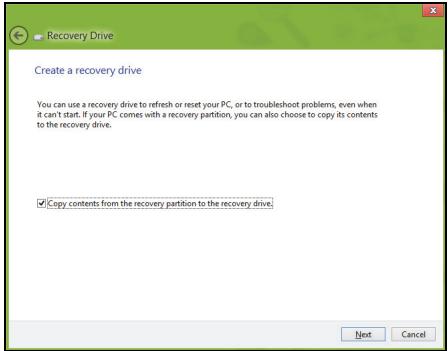
Make sure Copy contents from the recovery partition to the recovery drive is selected. This provides the most complete and safest recovery backup.
-
Plug in the USB drive then click Next.
-
Make sure your USB drive has enough capacity before continuing. The recovery backup requires at least 16 GB of storage
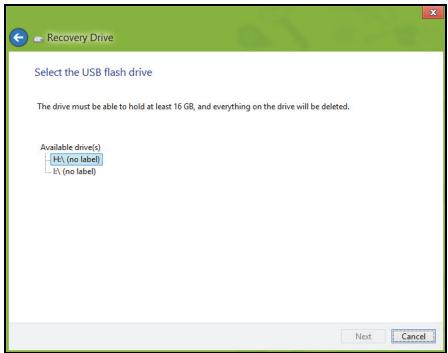
- You will be shown the backup progress on the screen.
- Follow the process until it completes.
- After creating the recovery backup, you can choose to delete the recovery information on your computer. If you delete this information, you can only use the USB recovery backup to restore your computer, if you lose or erase the USB drive, you cannot restore your computer.
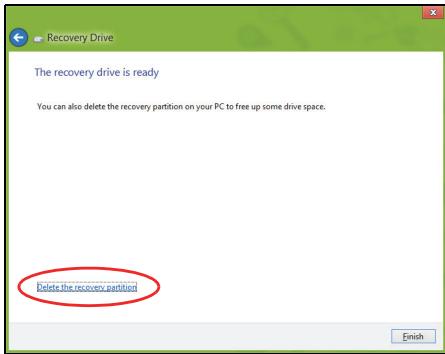
- Unplug the USB drive and label it clearly.
Important: Write a unique, descriptive label on the backup, such as 'Windows Recovery Backup'. Make sure you keep the backup in a safe place that you will remember.
Creating a drivers and applications backup
To create a Drivers and Applications Backup, that contains the factory-loaded software and drivers needed by your computer, you may use either a USB storage drive or, if your computer features a DVD recorder, one or more blank recordable DVDs.
- From Start, type 'Recovery' and then click Acer Recovery Management in the list of apps.

Acer Recovery Management
?X
Welcome to Acer Recovery Management
Acer Recovery Management enables you to restore your system. To begin, select the task you want to perform. Please DO NOT remove the USB device while proceeding.

Reinstall Drivers or Applications
Reinstalls factory default drivers or applications.

Customized Restore (Retain User Data)

Reinstall Drivers or Applications

Make a back-up before you restore (Recommended).

Create Factory Default Backup
Create Drivers and Applications Backup
acer
- Click Create Drivers and Applications Backup.
Plug in the USB drive or insert a blank DVD into the optical drive, then click Next.
- If you are using a USB drive, make sure your USB drive has enough capacity before continuing.
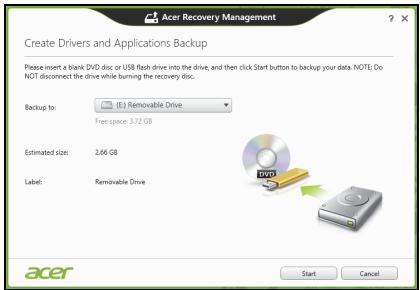
- If using DVDs, it will also show the number of blank, recordable discs you will need to complete the recovery discs. Make sure that you have the required number of identical, blank discs.
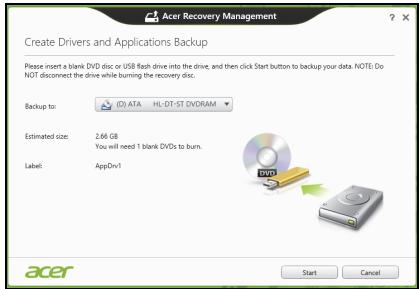
-
Click Start to copy files. You will be shown the backup progress on the screen.
-
Follow the process until it completes:
-
If you are using optical discs, the drive ejects each disc as it completes burning it. Remove the disc from the drive and mark it with a permanent marker.
If multiple discs are required, insert a new disc when prompted, then click OK. Continue until the process is complete.
- If you are using a USB drive, unplug the drive and label it clearly.
Important: Write a unique, descriptive label on each backup, such as 'Drivers and Applications Backup'. Make sure you keep the backup in a safe place that you will remember.
Recovering your system
To recover your system:
- Perform minor fixes.
If only one or two items of software or hardware have stopped working correctly, the problem may be solved by reinstalling the software or the device drivers.
To reinstall software and drivers that were pre-installed at the factory, see "Reinstalling drivers and applications" on page 70.
For instructions on reinstalling software and drivers that were not preinstalled, see that product's documentation or support Web site.
- Revert to a previous system condition.
If reinstalling software or drivers does not help, then the problem may be
solved by returning your system to a previous state when everything was working correctly.
For instructions, see "Returning to an earlier system snapshot" on page 73.
- Reset your operating system.
If nothing else has solved the problem and you want to reset your system, but keep your user information, see "Returning your system to its factory condition" on page 74.
- Reset your system to its factory condition.
If nothing else has solved the problem and you want to reset your system to factory condition, see "Returning your system to its factory condition" on page 74.
Reinstalling drivers and applications
As a troubleshooting step, you may need to reinstall the applications and device drivers that came pre-installed on your computer from the factory. You can reinstall using either your hard drive or the backup you have created.
- Other applications - If you need to reinstall software that did not come pre-installed on your computer, you need to follow that software's installation instructions.
- New device drivers - If you need to reinstall device drivers that did not come pre-installed on your computer, follow the instructions provided with the device.
If you are reinstalling using Windows and the recovery information stored on your computer:
- From Start, type 'Recovery' and then click Acer Recovery Management in the list of apps.
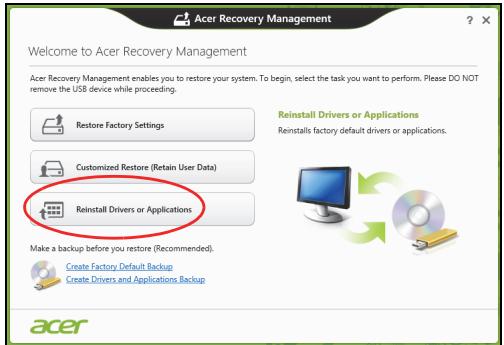
-
Click Reinstall Drivers or Applications.
-
You should see the Contents section of the Acer Resource Center.
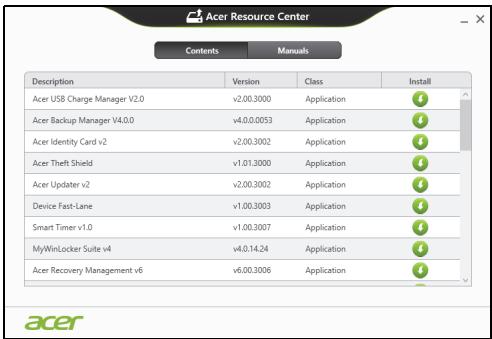
- Click the install icon for the item you want to install, then follow the onscreen instructions to complete the installation. Repeat this step for each item you want to reinstall.

If you are reinstalling from a Drivers and Applications Backup on a DVD or USB drive:
-
Insert the Drivers and Applications Backup into the disc drive or connect it to a free USB port.
-
If you inserted a DVD wait for Acer Resource Center to start.
-
If Acer Resource Center does not start automatically, press the Windows key +
, then double-click on the optical drive icon. -
If you are using a USB drive, press the Windows key +
, then double-click on the drive that contains the backup. Double-click on ResourceCenter.
2. You should see the Contents section of the Acer Resource Center.
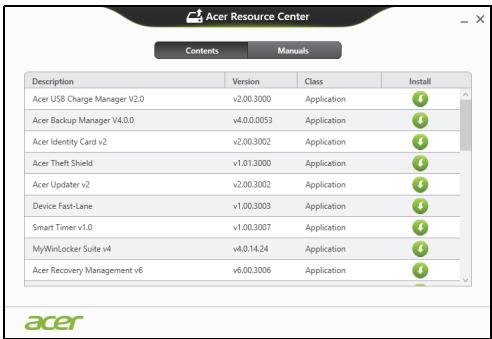
- Click the install icon for the item you want to install, then follow the onscreen prompts to complete the installation. Repeat this step for each item you want to reinstall.

Returning to an earlier system snapshot
Microsoft System Restore periodically takes a 'snapshot' of your system settings and saves them as restore points. In most cases of hard-to-resolve software problems, you can return to one of these restore points to get your system running again.
Windows automatically creates an additional restore point each day, and also each time you install software or device drivers.
Note: For more information about using Microsoft System Restore, from Start, type 'Help' and then click Help and Support in the list of
apps. Type 'Windows system restore' in the Search Help box, then press Enter.
Returning to a restore point
- From Start, type 'Control Panel' and then click Control Panel in the list of apps.
- Click System and Security > Action Center, then click Recovery at the bottom of the window.
- Click Open System Restore, then Next.
- Click the latest restore point (at a time when your system worked correctly), click Next, then Finish.
- A confirmation window appears; click Yes. Your system is restored using the restore point you specified. This process may take several minutes, and may restart your computer.
Returning your system to its factory condition
If your computer experiences problems that are not recoverable by other methods, you may need to reinstall everything to return your system to its factory condition. You can recover from either your hard drive or the recovery backup you have created.
- If you can still run Windows and have not deleted the recovery partition, see "Recovering from Windows" on page 75.
- If you cannot run Windows, your original hard drive has been completely re-formatted or you have installed a replacement hard drive, see "Recovering from a recovery backup" on page 79.
Recovering from Windows
Start Acer Recovery Management:
- From Start, type 'Recovery' and then click Acer Recovery Management in the list of apps.
Two options are available, Restore Factory Settings (Reset my PC) or Customized Restore (Refresh my PC).
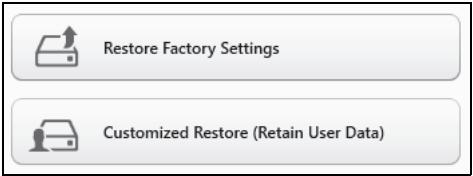
Restore Factory Settings deletes everything on your hard drive, then reinstalls Windows and all software and drivers that were pre-installed on your system. If you can access important files on your hard drive, back them up now. See "Restore Factory Settings with Acer Recovery Management" on page 76.
Customized Restore will attempt to retain your files (user data) but will reinstall all software and drivers. Software installed since you purchased your PC will be removed (except software installed from the Windows Store). See "Customized Restore with Acer Recovery Management" on page 78.
1. Click Restore Factory Settings.
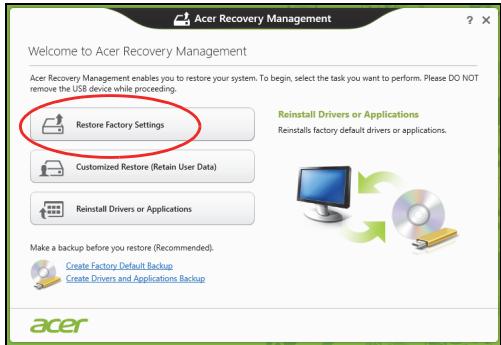
Caution: 'Restore Factory Settings' will erase all files on your hard drive.
- If your computer is configured with two operating systems (only available on certain systems), a window opens with the option to restore either Windows 7 or Windows 8. If you choose Windows 7, your computer will restart and restore Windows 7. If you choose Windows 8, Reset your PC opens, as described below.
Note: To fully enjoy Windows 8 features after changing from Windows 7, enter the BIOS (press <F2> when starting your computer) and change Boot Mode to EFI. If you reinstall Windows 7, you must change Boot Mode back to Legacy before restarting your computer.
- The Reset your PC window opens.
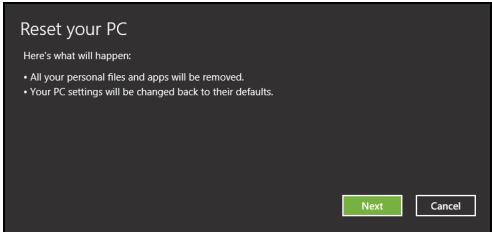
Images for reference only.
- Click Next, then choose how to erase your files:
a. Just remove my files quickly erases all files before restoring your computer and takes about 30 minutes.
b. Fully clean the drive completely cleans the drive after each file is erased, so no files can be viewed after the recovery. Cleaning the drive takes much longer, up to 5 hours, but is much more secure as old files are completely removed.
- Click Reset.
- The recovery process begins by restarting your computer, then continues by copying files to your hard drive.
- After the recovery has finished, you can start using your computer by repeating the first-start process.
Customized Restore with Acer Recovery Management
1. Click Customized Restore (Retain User Data).

Acer Recovery Management
?X
Welcome to Acer Recovery Management
Acer Recovery Management enables you to restore your system. To begin, select the task you want to perform. Please DO NOT remove the USB device while proceeding.

Reinstall Drivers or Applications
Reinstalls factory default drivers or applications.

Customized Restore (Retain User Data)

Reinstall Drivers or Applications

Make a backup before you restore (Recommended).

Create Factory Default Backup
Create Drivers and Applications Backup

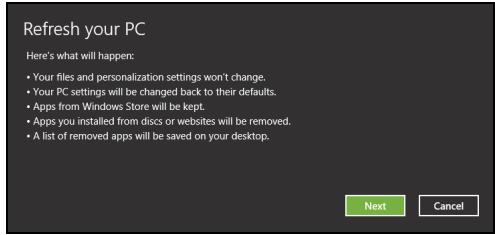
2. The Refresh your PC window opens.
Refresh your PC
Here's what will happen:
- Your files and personalization settings won't change.
- Your PC settings will be changed back to their defaults.
- Apps from Windows Store will be kept.
- Apps you installed from discs or websites will be removed.
- A list of removed apps will be saved on your desktop.
Next
Cancel
3. Click Next, then Refresh.
4. The recovery process begins by restarting your computer, then continues by copying files to your hard drive. This process takes about 30 minutes.
Recovering from a recovery backup
To recover from a recovery backup on a USB drive:
- Find your recovery backup.
- If your computer does not have a built-in keyboard, make sure a keyboard is attached to your computer.
- Plug in the USB drive and turn on your computer.
- If it is not already enabled, you must enable the F12 Boot Menu:
a. Press <F2> when starting your computer.
b. Use the left or right arrow keys to select the Main menu.
c. Press the down key until F12 Boot Menu is selected, press
d. Use the left or right arrow keys to select the Exit menu.
e. Depending on the type of BIOS your computer uses, select Save Changes and Exit or Exit Saving Changes and press Enter. Select OK or Yes to confirm.
f. Your computer will restart.
- During startup, press
to open the boot menu. The boot menu allows you to select which device to start from, select the USB drive.
a. Use your arrow keys to select USB Device, then press Enter.
b. Windows starts from the recovery backup instead of the normal startup process.
-
Select your keyboard type.
-
Select Troubleshooting and then choose the type of recovery to use:
a. Click Advanced then System Restore to start Microsoft System Restore:
Microsoft System Restore periodically takes a 'snapshot' of your system settings and saves them as restore points. In most cases of hard-to-resolve software problems, you can return to one of these restore points to get your system running again.
b. Click Reset your PC to start the reset process:
Reset your PC deletes everything on your hard drive, then reinstalls Windows and all software and drivers that were pre-installed on your system. If you can access important files on your hard drive, back them up now. See "Reset your PC from the recovery backup" on page 81.
c. Click Refresh your PC to start the refresh process:
Refresh your PC will attempt to retain your files (user data) but will reinstall all software and drivers. Software installed since you purchased your PC will be removed (except software installed from the Windows Store). See "Refresh your PC from the recovery backup" on page 82.
Reset your PC from the recovery backup
Caution: Reset your PC will erase all files on your hard drive.
- The Reset your PC window opens.
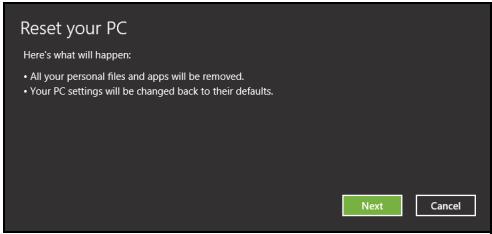
Images for reference only.
- Click Next.
- Select the operating system to recover (normally only one option is available).
- Choose to keep any changes to the hard drive:
a. If you have deleted the recovery partition or otherwise changed the partitions on the hard drive and want to keep these changes, select No.
b. To completely restore your computer to Factory Settings, select Yes.
- Choose how to erase your files:
a. Just remove my files quickly erases all files before restoring your computer and takes about 30 minutes.
b. Fully clean the drive completely cleans the drive after each file is erased, so no files can be viewed after the recovery. Cleaning the
drive takes much longer, up to 5 hours, but is much more secure as old files are completely removed.
- Click Reset.
- After the recovery has finished, you can start using your computer by repeating the first-start process.
Refresh your PC from the recovery backup
- The Refresh your PC window opens.
- Click Next.
- Select the operating system to recover (normally only one option is available).
- Click Refresh.
- The recovery process begins by restarting your computer, then continues by copying files to your hard drive. This process takes about 30 minutes.
BIOS UTILITY
The BIOS utility is a hardware configuration program built into your computer's BIOS.
Your computer is already properly configured and optimized, and you do not need to run this utility. However, if you encounter configuration problems, you may need to run it.
To activate the BIOS utility, turn your computer off, then press and hold the volume down key before pressing the power button.
Boot sequence
To set the boot sequence in the BIOS utility, activate the BIOS utility, then select Boot from the categories listed at the top of the screen.
Setting passwords
To set a password on boot, activate the BIOS utility, then select Security. Set a supervisor password, then enable Password on boot.
REGULATIONS AND SAFETY NOTICES
FCC STATEMENT
This device has been tested and found to comply with the limits for a Class B digital device pursuant to Part 15 of the FCC rules. These limits are designed to provide reasonable protection against harmful interference in a residential installation. This device generates, uses, and can radiate radio frequency energy and, if not installed and used in accordance with the instructions, may cause harmful interference to radio communications.
However, there is no guarantee that interference will not occur in a particular installation. If this device does cause harmful interference to radio or television reception, which can be determined by turning the device off and on, the user is encouraged to try to correct the interference by one or more of the following measures:
- Reorient or relocate the receiving antenna.
- Increase the separation between the device and receiver.
- Connect the device into an outlet on a circuit different from that to which the receiver is connected.
- Consult the dealer or an experienced radio/television technician for help.
Notice: Shielded cables
All connections to other computing devices must be made using shielded cables to maintain compliance with FCC regulations.
NOTICE: PERIPHERAL DEVICES
Only peripherals (input/output devices, terminals, printers, etc.) certified to comply with the Class B limits may be attached to this equipment. Operation with non-certified peripherals is likely to result in interference to radio and TV reception.
Caution: Changes or modifications not expressly approved by the manufacturer could void the user's authority, which is granted by the Federal Communications Commission, to operate this computer.
NOTICE FOR CANADA
This Class B digital apparatus complies with Canadian ICES-003.
The LCD unit is produced with high-precision manufacturing techniques. Nevertheless, some pixels may occasionally misfire or appear as black or red dots. This has no effect on the recorded image and does not constitute a malfunction.
RADIO DEVICE REGULATORY NOTICES
Note: Below regulatory information is for models with wireless LAN and / or Bluetooth only.
To prevent radio interference to the licensed service, this device is intended to be operated indoors.
This product complies with the radio frequency and safety standards of any country or region in which it has been approved for wireless use. Depending on configurations, this product may or may not contain wireless radio devices (such as wireless LAN and/or Bluetooth modules). Below information is for products with such devices.
Declaration of Conformity for EU countries
Hereby, Acer, declares that this computer is in compliance with the essential requirements and other relevant provisions of Directive 1999/5/EC.
Wireless operation channels for different domains
N. America
2.412-2.462 GHz
Ch01 through Ch11
Japan
2.412-2.484 GHz
Ch01 through Ch14
Europe ETSI
2.412-2.472 GHz
Ch01 through Ch13
France: Restricted wireless frequency bands
Some areas of France have a restricted frequency band. The worst case maximum authorized power indoors is:
- 10 mW for the entire 2.4 GHz band (2400 MHz - 2483.5 MHz)
- 100 mW for frequencies between 2446.5 MHz and 2483.5 MHz
Note: Channels 10 through 13 inclusive operate in the band 2446.6 MHz to 2483.5 MHz.
There are few possibilities for outdoor use: On private property or on the private property of public persons, use is subject to a preliminary authorization procedure by the Ministry of Defense, with maximum authorized power of 100mW in the 2446.5 - 2483.5 MHz band. Use outdoors on public property is not permitted.
In the departments listed below, for the entire 2.4 GHz band:
Maximum authorized power indoors is 100mW
Maximum authorized power outdoors is 10mW
Departments in which the use of the 2400 - 2483.5 MHz band is permitted with an EIRP of less than 100mW indoors and less than 10mW outdoors:
| 01 Ain Orientales | 25 Doubs | 59 Nord | 71 Saone et Loire |
| 02 Aisne | 26 Drome | 60 Oise | 75 Paris |
| 03 Allier | 32 Gers | 61 Orne | 82 Tarn et Garonne |
| 05 Hautes Alpes | 36 Indre | 63 Puy Du Dome | 84 Vaucluse |
| 08 Ardennes | 37 Indre et Loire | 64 Pyrenees | 88 Vosges |
| 09 Ariege | 41 Loir et Cher | Atlantique | 89 Yonne |
| 11 Aude | 45 Loret | 66 Pyrenees | 90 Territoire de |
| 12 Aveyron | 50 Manche | 67 Bas Rhin | Belfort |
| 16 Charente | 55 Meuse | 68 Haut Rhin | 94 Val de Marne |
| 24 Dordogne | 58 Nievre | 70 Haute Saone |
This requirement is likely to change over time, allowing you to use your wireless LAN card in more areas within France.
Please check with ART for the latest information (www.artelecom.fr).
Note: Your WLAN Card transmits less than 100 mW, but more than 10 mW.
List of national codes
This equipment may be operated in the following countries:
| Country | ISO 3166 | Country | ISO 3166 |
| 2 letter code | 2 letter code | ||
| Austria | AT | Malta | MT |
| Belgium | BE | Netherlands | NT |
| Cyprus | CY | Poland | PL |
| Czech Republic | CZ | Portugal | PT |
| Denmark | DK | Slovakia | SK |
| Estonia | EE | Slovenia | SL |
| Finland | FI | Spain | ES |
| France | FR | Sweden | SE |
| Germany | DE | United Kingdom | GB |
| Greece | GR | Iceland | IS |
| Hungary | HU | Liechtenstein | LI |
| Ireland | IE | Norway | NO |
| Italy | IT | Switzerland | CH |
| Latvia | LV | Bulgaria | BG |
| Lithuania | LT | Romania | RO |
| Luxembourg | LU | Turkey | TR |
CANADA - LOW-POWER LICENSE-EXEMPT RADIO COMMUNICATION DEVICES (RSS-210)
Exposure of humans to RF fields (RSS-102)
The computer employs low gain integral antennas that do not emit RF field in excess of Health Canada limits for the general population; consult Safety Code 6, obtainable from Health Canada's website at www.hc-sc.gc.ca/rpb.
This device complies with RSS210 of Industry Canada.
This Class B digital apparatus complies with Canadian ICES-003, Issue 4, and RSS-210, No 4 (Dec 2000) and No 5 (Nov 2001).
"To prevent radio interference to the licensed service, this device is intended to be operated indoors and away from windows to provide maximum shielding. Equipment (or its transmit antenna) that is installed outdoors is subject to licensing."
Caution: When using IEEE 802.11a wireless LAN, this product is restricted to indoor use due to its operation in the 5.15- to 5.25-GHz frequency range. Industry Canada requires this product to be used indoors for the frequency range of 5.15 GHz to 5.25 GHz to reduce the potential for harmful interference to co-channel mobile satellite systems. High power radar is allocated as the primary user of the 5.25 to 5.35 GHz and 5.65 to 5.85-GHz bands. These radar stations can cause interference with and/or damage to this device.
The maximum allowed antenna gain for use with this device is 6 dBi in order to comply with the E.I.R.P limit for the 5.25- to 5.35 and 5.725 to 5.85 GHz frequency range in point-to-point operation.
Cartes factices fournies
www.acer-group.com/public/Sustainability/sustainability01.htm


CONSEILS ET INFORMATIONS POUR UNE UTILISATION CONFORTABLE
Acer Recovery Management
?X
Welcome to Acer Recovery Management
Acer Recovery Management enables you to restore your system. To begin, select the task you want to perform. Please DO NOT remove the USB device while proceeding.

Reinstall Drivers or Applications
Reinstalls factory default drivers or applications.

Customized Restore (Retain User Data)

Reinstall Drivers or Applications
Make a back-up before you restore (Recommendated).

Create Factory Default Backup
Create Drivers and Applications Backup
acer

Acer Recovery Management
?X
Welcome to Acer Recovery Management
Acer Recovery Management enables you to restore your system. To begin, select the task you want to perform. Please DO NOT remove the USB device while proceeding.

Customized Restore (Retain User Data)

Reinstall Drivers or Applications
Make a backup before you restore (Recommended).

Create Factory Default Backup
acer
Reinstall Drivers or Applications
Reinstalls factory default drivers or applications.

Here's what will happen:
- Your files and personalization settings won't change.
- Your PC settings will be changed back to their defaults.
- Apps from Windows Store will be kept.
- Apps you installed from discs or websites will be removed.
- A list of removed apps will be saved on your desktop.
Next
Cancel
This Class B digital apparatus complies with Canadian ICES-003.
This Class B digital apparatus complies with Canadian ICES-003, Issue 4, and RSS-210, No 4 (Dec 2000) and No 5 (Nov 2001).
"To prevent radio interference to the licensed service, this device is intended to be operated indoors and away from windows to provide maximum shielding. Equipment (or its transmit antenna) that is installed outdoors is subject to licensing."
Acer Recovery Management
?X
Welcome to Acer Recovery Management
Acer Recovery Management enables you to restore your system. To begin, select the task you want to perform. Please DO NOT remove the USB device while proceeding.

Reinstall Drivers or Applications
Reinstalls factory default drivers or applications.

Customized Restore (Retain User Data)

Reinstall Drivers or Applications
Make a backup before you restore (Recommended).

Create Factory Default Backup
Create Drivers and Applications Backup
acer

Here's what will happen:
- All your personal files and apps will be removed.
- Your PC settings will be changed back to their defaults.
Next
Cancel
Acer Recovery Management
?X
Welcome to Acer Recovery Management
Acer Recovery Management enables you to restore your system. To begin, select the task you want to perform. Please DO NOT remove the USB device while proceeding.

Customized Restore (Retain User Data)

Reinstall Drivers or Applications
Make a backup before you restore (Recommended).

Create Factory Default Backup
Create Drivers and Applications Backup
acer
Reinstall Drivers or Applications
Reinstalls factory default drivers or applications.

Here's what will happen:
- Your files and personalization settings won't change.
- Your PC settings will be changed back to their defaults.
- Apps from Windows Store will be kept.
- Apps you installed from discs or websites will be removed.
A list of removed apps will be saved on your desktop.
Next
Cancel
ITW (International Traveler's Warranty)
Come arriv o a Start?
Acer Recovery Management
?X
Welcome to Acer Recovery Management
Acer Recovery Management enables you to restore your system. To begin, select the task you want to perform. Please DO NOT remove the USB device while proceeding.

Reinstall Drivers or Applications
Reinstalls factory default drivers or applications.

Customized Restore (Retain User Data)

Reinstall Drivers or Applications

Make a back-up before you restore (recommended).

Create Factory Default Backup
Create Drivers and Applications Backup
acer
Acer Recovery Management
?X
Welcome to Acer Recovery Management
Acer Recovery Management enables you to restore your system. To begin, select the task you want to perform. Please DO NOT remove the USB device while proceeding.

Reinstall Drivers or Applications
Reinstalls factory default drivers or applications.

Customized Restore (Retain User Data)

Reinstall Drivers or Applications


Make a backup before you restore (Recommended).

Create Factory Default Backup
Create Drivers and Applications Backup

Here's what will happen:
- Your files and personalization settings won't change.
- Your PC settings will be changed back to their defaults.
- Apps from Windows Store will be kept.
- Apps you installed from discs or websites will be removed.
- A list of removed apps will be saved on your desktop.
Next
Cancel
Acer Recovery Management
?X
Welcome to Acer Recovery Management
Acer Recovery Management enables you to restore your system. To begin, select the task you want to perform. Please DO NOT remove the USB device while proceeding.

Reinstall Drivers or Applications

Customized Restore (Retain User Data)
Reinstalls factory default drivers or applications.

Reinstall Drivers or Applications

Make a backup before you restore (Recommended).

Create Factory Default Backup
Create Drivers and Applications Backup
acer
Here's what will happen:
- Your files and personalization settings won't change.
- Your PC settings will be changed back to their defaults.
- Apps from Windows Store will be kept.
- Apps you installed from discs or websites will be removed.
A list of removed apps will be saved on your desktop.
Next
Cancel
www.acer-group.com/public/Sustainability/sustainability01.htm
Inicie AcerRecovery Management:
- A partir de Iniciar, introduza 'Recovery' e depuis clique em Acer Recovery Management na lista de aplicacoes.
This Class B digital apparatus complies with Canadian ICES-003.
www.acer-group.com/public/Sustainability/sustainability01.htm
TIPS EN INFORMATIE VOOR GEBRUIGSGEMAK
LTW (International Travelers Warranty)
Acer Recovery Management
?X
Welcome to Acer Recovery Management
Acer Recovery Management enables you to restore your system. To begin, select the task you want to perform. Please DO NOT remove the USB device while proceeding.

Reinstall Drivers or Applications
Reinstalls factory default drivers or applications.

Customized Restore (Retain User Data)

Reinstall Drivers or Applications

Make a back-up before you restore (Recommended).

Create Factory Default Backup
Create Drivers and Applications Backup

Start AcerRecovery Management
This Class B digital apparatus complies with Canadian ICES-003.
INNHOLDSFORTEGNESELL
BEGYNNE MED BEGYNNELSEN
Vi vil gjerne takke deg for at du har valgt en Acer-notisbokmaskin til dine mobile databehandlingsbehov.
Dine veiledere
Deaktiver hurtigoppstart
International Travelers Warranty (ITW)
Datamaskinen er sikret med en garantiordning som kalles "International Travelers Warranty" (ITW), som gir deg trygghet og sjelefred nár du er på reise. Vårt verdensomspennende nettverk av servicesentre er der forå gi deg en hjelpende.Hand.
Et ITW-pass følger med datamaskinen. Dette passet inneholder alt du behov er vite om ITW-programmet. En liste over tilgengelige, autorisierte servicesentre finner du i dette praktiske heftet. Les grundig gjennom dette passet.
Acer Recovery Management
?X
Welcome to Acer Recovery Management
Acer Recovery Management enables you to restore your system. To begin, select the task you want to perform. Please DO NOT remove the USB device while proceeding.

Reinstall Drivers or Applications
Reinstalls factory default drivers or applications.

Customized Restore (Retain User Data)

Reinstall Drivers or Applications

Make a back-up before you restore (recommended).

Create Factory Default Backup
Create Drivers and Applications Backup

Start Acer Recovery Management:
Acer Recovery Management
?X
Welcome to Acer Recovery Management
Acer Recovery Management enables you to restore your system. To begin, select the task you want to perform. Please DO NOT remove the USB device while proceeding.

Reinstall Drivers or Applications

Customized Restore (Retain User Data)
Reinstalls factory default drivers or applications.

Reinstall Drivers or Applications

Make a backup before you restore (Recommended).

Create Factory Default Backup
Create Drivers and Applications Backup
acer
Acer Recovery Management
?X
Welcome to Acer Recovery Management
Acer Recovery Management enables you to restore your system. To begin, select the task you want to perform. Please DO NOT remove the USB device while proceeding.

Reinstall Drivers or Applications
Reinstalls factory default drivers or applications.

Customized Restore (Retain User Data)

Reinstall Drivers or Applications


Make a backup before you restore (Recommended).

Create Factory Default Backup
Create Drivers and Applications Backup
acer
Here's what will happen:
- Your files and personalization settings won't change.
- Your PC settings will be changed back to their defaults.
- Apps from Windows Store will be kept.
- Apps you installed from discs or websites will be removed.
- A list of removed apps will be saved on your desktop.
Next
Cancel
This Class B digital apparatus complies with Canadian ICES-003.
www.acer-group.com/public/Sustainability/sustainability01.htm


TIPS OG OPLYSNINGER FOR KOMFORTABEL BRUG
Start Acer Recovery Management:
- Fra Start indtaster du 'Recovery', hvorefter du klikker på AcerRecovery Management i listen over apps.
Acer Recovery Management
?X
Welcome to Acer Recovery Management
Acer Recovery Management enables you to restore your system. To begin, select the task you want to perform. Please DO NOT remove the USB device while proceeding.

Reinstall Drivers or Applications

Customized Restore (Retain User Data)
Reinstalls factory default drivers or applications.

Reinstall Drivers or Applications

Make a backup before you restore (Recommended).

Create Factory Default Backup
Create Drivers and Applications Backup
acer
Acer Recovery Management
?X
Welcome to Acer Recovery Management
Acer Recovery Management enables you to restore your system. To begin, select the task you want to perform. Please DO NOT remove the USB device while proceeding.

Reinstall Drivers or Applications
Reinstalls factory default drivers or applications.

Customized Restore (Retain User Data)

Reinstall Drivers or Applications


Make a backup before you restore (Recommended).

Create Factory Default Backup
Create Drivers and Applications Backup

- Vinduet Opdater din pc abnes.
Refresh your PC
Here's what will happen:
- Your files and personalization settings won't change.
- Your PC settings will be changed back to their defaults.
- Apps from Windows Store will be kept.
- Apps you installed from discs or websites will be removed.
- A list of removed apps will be saved on your desktop.
Next
Cancel
This Class B digital apparatus complies with Canadian ICES-003.
www.acer-group.com/public/Sustainability/sustainability01.htm
TIPS OCH INFORMATION FÜR KOMFORTABEL ANVÄNDNING
Acer Recovery Management
?X
Welcome to Acer Recovery Management
Acer Recovery Management enables you to restore your system. To begin, select the task you want to perform. Please DO NOT remove the USB device while proceeding.

Reinstall Drivers or Applications
Reinstalls factory default drivers or applications.

Customized Restore (Retain User Data)


Reinstall Drivers or Applications
Make a back-up before you restore (Recommended).
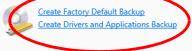

Acer Recovery Management
?X
Welcome to Acer Recovery Management
Acer Recovery Management enables you to restore your system. To begin, select the task you want to perform. Please DO NOT remove the USB device while proceeding.

Reinstall Drivers or Applications
Reinstalls factory default drivers or applications.

Customized Restore (Retain User Data)

Reinstall Drivers or Applications
Make a back-up before you restore (Recommended).

Create Factory Default Backup
Create Drivers and Applications Backup

acer
Starta Acer Recovery Management:
Acer Recovery Management
?X
Welcome to Acer Recovery Management
Acer Recovery Management enables you to restore your system. To begin, select the task you want to perform. Please DO NOT remove the USB device while proceeding.

Reinstall Drivers or Applications

Customized Restore (Retain User Data)
Reinstalls factory default drivers or applications.

Reinstall Drivers or Applications

Make a backup before you restore (Recommended).

Create Factory Default Backup
Create Drivers and Applications Backup
acer
Acer Recovery Management
?X
Welcome to Acer Recovery Management
Acer Recovery Management enables you to restore your system. To begin, select the task you want to perform. Please DO NOT remove the USB device while proceeding.

Reinstall Drivers or Applications
Reinstalls factory default drivers or applications.

Customized Restore (Retain User Data)

Reinstall Drivers or Applications


Make a backup before you restore (Recommended).

Create Factory Default Backup
Create Drivers and Applications Backup
acer
Here's what will happen:
- Your files and personalization settings won't change.
- Your PC settings will be changed back to their defaults.
- Apps from Windows Store will be kept.
- Apps you installed from discs or websites will be removed.
- A list of removed apps will be saved on your desktop.
Next
Cancel
This Class B digital apparatus complies with Canadian ICES-003.
Acer Recovery Management
?X
Welcome to Acer Recovery Management
Acer Recovery Management enables you to restore your system. To begin, select the task you want to perform. Please DO NOT remove the USB device while proceeding.

Reinstall Drivers or Applications
Reinstalls factory default drivers or applications.

Customized Restore (Retain User Data)

Reinstall Drivers or Applications

Make a back-up before you restore (recommended).

Create Factory Default Backup
Create Drivers and Applications Backup
acer
Acer Recovery Management
?X
Welcome to Acer Recovery Management
Acer Recovery Management enables you to restore your system. To begin, select the task you want to perform. Please DO NOT remove the USB device while proceeding.

Reinstall Drivers or Applications
Reinstalls factory default drivers or applications.

Customized Restore (Retain User Data)

Reinstall Drivers or Applications

Make a backup before you restore (Recommended).

Create Factory Default Backup
Create Drivers and Applications Backup
acer
KakdoabnTb cblny Ha n3paHhble
Be6-caTbI B 6pay3epe Internet
Explorer? 68
Kak npoBepntb hajnue o6HOBJeHm
ДJa Windows? 68
Tne MoXHO nOlyuHTb DOONHnTeJIbHyIO
HHopmaucnIO? 68
UctpaHHe HEnCnpabHocTei 69
CobetbI no noncky u yctpaHeHHo
HEnCnpaBHOCTe 69
CoooeneHn o6 ounibkax 70
BocctaHOBHeHne CnCTeMbI 72
BocctaHOBJIeHne c pnpJIraeMOrO
DVD-DnCKa BocCTaHOBJIeHnI 72
BocctaHOBJeHne 74
Cozdahne pe3epBHOI KOIIIN DII
BOCCTaHOBJIeHn7 75
C03dHne pe3ePBHO KOnn IpaBepOB n
πριλοχεή . 78
BocctaHOblneHne CnCTembl 81
IpeyectaHObKa dpaBepOBu
πριλοχεή . 82
Bo3BpAT K npébIyuεmγ
"MOMeHTaIbHomy CHIMKy" CNTEmbl. 86
BocctaHOBJIeHne CNTEmbl DO
nepbohaayabho rococtoHna 87
BocctahOBJIeHne n3 cAmO cnCTembl
Windows 88
BocctaHOBJIeHne n3 pe3epBHOI
KONNII BOCCTAHOBJIeHn 92
Ytuneta BIOS 97
IocneoBateBnHocTb NaaJbHo3 aRpy3Kn ... 97
3aandne naponei 97
COOTBETCTBNE HOpMaTnBhBIM
Tpe6oBaHnM n 3aMeuHaHnNo
6e3oNaChOCTN 98
Бezonaachoctb nydo6ctbo pa60tbl
PpabNlaTexnK6e3oNaChocTn
BhImateIbHo npOHTaTe cIeDyUoHne IHCTpyKuIN. CoxpaHnte 3TOT DOKyMeHT dIra IcNoIb3OBaHnBa B KaueCTBe cIpaBOuHOH INΦopMaun B 6dyUeM. Co6IIOJaTe BCE IHCTpyKuIN nIpeDyIpexJdeHn, HaHeceHHbIe Ha KOpNc 3TOr OYCTpoiCTBa.
BbIKJIouHeHne ycTpoIcTbA nepeq YnCTKoI
Ipeed nctk0 3t0r oycpoiCTBa otKIOUHTe erO ot po3ETKn 3neKTPoNTaHn.Bo Bpemn cNCTKN He npIMeHnTe JxIDKHe IIN a3pO3OJbHbIe MOIOUne cpeDcTBA.ДЯ nCTKN mONb3yIe BnAkJHyTO KaHb.
PpeDynpexkdeHn
DocTyn K wHpy nHTaHna
IocTyK p03eTke 3neKtpoNtAHnB, B KOTOpYb BCTabJIaTeC THyp NITAHnH, He DOnJKeH 6bItb 3aTpUdHeH, a Cama po3eTKa DOnJXHa HaxOJITcB MaKcImaJIbHO 6In3KO K nONb3OBaTeJIy UcTPOJCTBa. PIn Heo6xOJIMOCtN OTKJIouHTb NITAHnE OobopyDObAHnO 6OBaTeJIbHO BbIHMaJIte 5Hyp PtNTAHnI N3 po3eTKn 3NeKtpoNtAHnH.
OTKJIIOUeHHe NCTOUYHka NITaHnA
Pn npokluoyehnn n OTkluoyehnn nntaHn oNcTochNka Hnprjxehn coBnOdaTe cIeMyUoune IHCTpyKznm:
UctaHOBtne IcToCHNK PnTahNIA, npexde Yem NODKJIyOaTb UHyp PNTAHNIG K po3eTke CTeBOrO 3NeKTPoPITAHNIG.
OtknouaTe uHyp nHTAHnI nepeI OTcoeINHeHnEM nCTOUYHkA nHTAHnI OT KOMNbIOTepa.
EcIn CnCTema 3aINbIbaeTcOr HeCKoJIbKHX NcTOUHKnOB PtNaTHN,To OTKJIOHTe PtTaHne OT CnCTembl,OTCOeIMHNB BCE UHpybl PtTaHnO T6LOKOB PtTaHn.
3neKtponTaHne
- UcTpoIcTBO HUxHNO IOnkIIOuOaTb K NcTOOHKy 3NeKTpONITAHN, COOTBeCTBvIoUeMyMapKnIpOBKe Ha ycTpoIcTBe. EcnB bI He yBepenbI B TOM, KaKoI TnI PNTAHN y BacNCpOJIb3yETcA, O6paTntEcB K npOdaBHy INI B 3HePrcObblTOByIO KOMNaHIO.
- He nepekemai Te 7nhyp 3neKtponHtAnH nocToPOHHm npedMeTAM. He pa3meuaiTe 3TO yCTpoiCTBO B MeCe, Ie Ha 7hHy pNTaHn MOyT HacTyNtB.
-ПиИСПОЛБОВАHIMЗЕКРОДИНHTENJI CLENTe 3aTeM,ЧTOБысУМангСИlaToKa,Notpe6IЯEMORIO NOДКЛЮЧЕНБIMK HeMy yCTPOnIcTBAMn,He nPEBbIaIa3HaYeHne,MakCImaJIbHO DOnyUcTmOe DnIy yDIIINHtENJI.TaKKe CLENTe 3aTeM,CHTOБысУМангСИla ToKa BCEx yCTPOnIcTB,NOДКЛЮЧЕНБIX K pO3eTke3JIeKTPoNITaHЯ,He nPEBbIaIa HOMInHaJIbHyO CINy TOKa npeDoXpAHntEJIa. -
YTo6bI He npBbICITb DoynCTMMyo Harpy3ky Ha po3eTKn CeTeBO 3JeKTPoNTaHnra, pa3BETBNTeTI INN ISTeNCJIeNbHbIe KOIOdKN, He NOkJIIOuHaJTE K HIM CInuKOM MHOrO yCtPOiCTB. O6UaHarpy3ka CnCTeMbI He DOJXHa NpeBbIaTa 80% ot HOMHaJIbHOrO 3NaueHnRA pacnPedeJInteHbHOn 9eIN. PnNcNoJIb3OBaHmN pa3BETBNTeTg NiTaHn (yDInHNTeJI) Harpy3ka He DoJxHa NpeBbIaTa 80% ero HOMHaHaJa.
-у зтоу устюства щадпор поемного тока Имeel Трхконтхувику сзаимлелем. 3Tu BnIky MoXHOb NOДКПЮЧТ ToIbKO K 3a3eMЛeHHbIMЗлкторoprostКам.пгждчemВставлгьВинку cTeBoRо щадпета поемного тока, убдntecb,чTO Злкторoprostka 3a3eMЛeHa NaДпесашm 6obpa3OM. HeBCTabлгийТБИКУВ He3a3eMЛeHHyO 3лкторoprostку.ОрразNTeCb 3a cnравков KBaJIINФицрованHomу 3лкторky.
-BHnMaHHe! 3a3eMnIooH NcHTAKT CnyKNT dJIg 6e3OnacHocTN. IcnoIb3OBAHHe 3JeKtpopo3eTKn, He 3a3eMJIeHHo HAdnEkaUIM o6pa3OM, MOKeT npNBecTn K nopaxKeHHO 3JeKtpuYeCKm TOkOM n/nn K TpaMe. -
PpumeyaHue: 3a3eMnIauu KoHmakm maKke oecneueaem xopouyo 3aummy om HnpedeUdeHbIX nomex om dpyaux 3neKmpueeckux ycmpoucme, uCnoJb3yEmbIX no coceOcmey, komopbIe Moaym Meuamb paBome 3mo20 ycmpoucmea.
-Донуckaetca nHTaHne CnCTeMb ot cTeBOrO HanpJxHeH na3bIX HOMHaIIOB:100- 120 nII n 220-240 B nepem. Toka. PpInlaraeMb IuHyp nTAtHn OToBeaET Tpe6oBaHnM, nPeIbYBnEMyB M TOI CTpaH/PerNoHE, rDe CnCTema 6blna npodaHa. lHnpbl nTAtHn DJI NcNtOBaHn B dpynX CTpaHax/perNoHax DoJHKbl OTBeuA Tb nPeIbYBnEMyB B HIX Tpe6oBaHnM. DoONHITeJIbHbIe CBeDeHnO Tpe6oBaHnX K UHypam nTAtHn MOxHO y3HaTb y aBTOPi3OBaHHoro npodaBuCa nII IN B cepBnCHOM ueHTpe.
3aunta cnyxa
-BHnMaHHe!ДЛNTeNbHoe npocnyuBbAHne 3Byka B TepeOhe nHn HayuHnKax C BBICOKoI rPOMKOcTBIO MOKeT pINBeCTN K 6e3BO3BpaTHoN oTepe cnyxa.

UTo6bI He NoBpeDnTb Cnyx, Co6NHOaJIe Te pINBeDeHbIe HIXke peKOMHeHaZIM.
- YbelenuBaIe rPOMKoCTb Do HxHxOro yPoBnHa NoCTeNoHNO.
- He ybeJIuIbIaIe YpOBeHb rPOMKoCTn nOcTe TOrO, KaY uN K HEmy npINBbIKHyT.
-He cnyuawTe My3bky Ha 6oJbwoI rpoMkoTn cInuKOM dOnro. - He yBelenuBaIe rPOMKocTb, YTO6bl IpeKePkbl TIm OkpyKaIOUeI cpeIbl.
- YmehbIshTe rpoMkoCTb, ecn He cblIshTe roIoca IIOdei, pa3roBaPnBaIoX npdOM C Bam.
Ppnilaraemble 3aynukn
- П汞мачиue: CeedeHua, npueedeHbIe 3mOM pa3deNe, moaym He omHocumbcr K eauemy KOMnbHomepy.
B KOMnIeK T NoCTabKn BaWero KOMNbIoTepa BxOaT PnAactNkoBle 3arLyuKn DnIg THe3d KapT. 3aunuK 3aunuauoT HeNCnONb3yEmbIe THe3da OT NOnaDaHn Ybln, MeTaanuCeKnX npEdMeTOB IN dpyrnx NoctOpOHnX qacTuC. CoxpaHnTe 3tn 3aRnuShk, YTo6bl BCTabJIb Tb IN B THe3da, KOrJa He nCnObn3yeTe KapTbI.
Obuie cBeDeHnA
- He nCnoJIb3yIte 3To yCTpoIcTBO pIaOM c BIoO.
- He cTaBbTe 3To yCtpoiCTBO Ha HeycTouHByU TeLeXKy, POncTbKy IIN CToI. PaJeHne yCtpoiCTBa MoKET npInBeCTn K erO cepbe3Hoi nONOMKe.
-Дя В entnlaци npedymotpehbl cneuaJIbHbIe na3bI n OTBepCTra, KOTOpble obecneuBAIoT hadexHyo paOby yctpoiCTBa u 3aunIauH erO to neperpeBa. Ix HeIb3a 3aropaxIBaT bIIN 3akpbIbTaB. HeIb3a 3aropaxIBaT bIIN OTBepCTra, KlaIaY cTPOIcTB Ho KPOBaTb, DInBaH, KObep IIN TOMy NIOobHbIe NOBepXHOCTN. HeIb3a KnaCTb 3TO YcTPOIcTB O B6n3bBatapeu OTOnPHeHry IIN HArpeBaTeIg IIN HaD HIMM, a TAKKe B HnSi NkaΦOB, ecIn B HnX He ObecneuBAeTcHaNdEkaaJaB eHTnlaIzra. - Henb3a npoTaanKnBaTb HnKaKne npedMeTb BHyTp b yCtpoCTBa uepe3 OTBepCTna B erO KOpnyce, TaK kAc OHN MOyT KOCHyTc TOneK C OnaChbIM HAnpJxHeHem IIN Bbl3BaTb KOpOTkoe 3AmbikaHne KOMNoHEHTOB, YTO, B CBOIO OuepeDb, MoXet npNbBeCTn K BoCnJaMaHeHnIO IIN NopaxHeHIO 3NeKtpuYeCKM TOKOM. He DonyckaIte NiopaAHHa XnDkOcTn Ha yCtpoCTBO IIN BHyTp b Hero.
- YTo6bI He NOBpeiNTb BHyTpeHnHe KOMNoHEtbl I NpeIoTBpaNTb yTeKy 3JIeKtpoiTa n3 aKKyMynrTopa, He KJaIte yCTpoiCTBO Ha BVbOpiPyUoIne IOBepxHOcTn.
- Hikorda He nCnojIb3yIte KOMNbIOpTe Ha cNopTnBbIX TpeHaKepax IIN Ha BnOprpyoUeien NobepxHocTn BO n36bexaHne CnyaHOrO KOPOTKOro 3ambKaHnaI NIN NOBpeJedHn yCTpOietCB vPaauIoUImncs YacTAMN, JecTKOrO DnCKa, PnIBoDa ONtUeCKNX dNcKOB IN IIN ppeIoTbpaIeHn OAnCHOCTn OblyeHn OT JInTneBOrO aKKymyIaTopa.
-Дише,учackTN BOKpyr BeHTnIaIIOHHbIX OTBepCTN n aIanTeP nepeMeHHoro TOKa moryHarpeBaTbcra. He npKacaiTeCb K Hm, YTO6bl He NOyUHTb OXOR nIITpaBMy.
-BBaWEm yctpoIcTBe I npHaIaIeXHocTEx K HeMy MoIyT HaxOuITbcS MeJIKeMe DeTaII. DepKInTe INx B MeCtAx, HeIOCTynbIX dIra MaIeHbKnx DeTei.
Texnueckoe 06cnykBaHne n3dennr
He nbTaIteCb npOBoHbO bc OcbnyKbAHne ycTpoiCTBa cAmocToTeBHO, TaK KaK OTkpblTne IIN CHrTne KOxyXa MOKeT NOBeprHyTB Bac ONaCHOCTn PpIKKOCHOBeHn K TOUkam COnaChbIM dIg JN3HN HnpanjRKeHem IIN INhBIM pNCAM. Bce BNbl TeHXueckoro 0cbnyKbAHn DOnJHbI npOBoHbTcNeuMaJIncTb cepBnCHOrO ueHTpa.
OtklnouHTe 3o yctpoiCTBO OT p03ETK 3JIeKTPoNTaHnI N o6paTntecb K cneuaJIncTy nO texHHueCKOMy 06cLnyKuBaHnIO, eCNI:
- Ka6eNb NiTaHnI NOBpeKdEh, O6OpBaH NII IN I3HOWeH;
-BHyTpbyucTpoiCTBa nonana KnIkoCTb;
-yctpoIcTBO nOJaIO nOД IOJXdb IINB BODY;
- yctpoiCTBO ynpo nIIN NOBpeKdEn erO KOpnyc;
Bpa6oTe yCtpoiCTBa BnHbIЯHbIe OTKIoHeHnI OTHOpMbI,CBnDeTeJIbCTByUOuIneO Heo6xOaIMoCTnTexHnueCKOrOObcnyKbAHnIa;
-
yctpoicTBO He pa6oTaET HopMaIbHo npn co6HJeHm INHcTpKcH NO 3KcNJIyatauH.
-
П汞мачанe: Дя реулupoьки пьзуimeсь мolyко memu opaанMu упраелену, реулupoьka komobixnpedycmompena uhcmpykuzmaMu no Зкплуamaцш, мak кak Нрраельhoe ucnlzh3o6anue dpyaux opaHOB ynpaelenu можem npubeecmu K nopexpdeHIO u3delenu u, ckopee eceao, nompebyem om cneuaunucmoe cepuechoo zuhmpa boIbux ycuiu dny oecsmahoeHEN HOPMaIbIbIX pa6oyux napamempoe u3delenu.
IpaBnla no 6e3oNaChOMy nCNoJIb3OBAHnIO aKkMyJrTOPOB
B 3TOM KOMNbHOTepe NcNtNb3yETcA JNTn-NOHHb NnN NTn-NOINMepHbAKKymJYTOP. He NpNb3yItecb e B YcIOBnX CbIpOCTn, BbICOKo BnaxKHOCTn NnB MeCTax, cNooc6TByUOxN KoppOznn. He NpomeaaiTe, He XpaHnTe n He octabnTe HoYt6yK pRdOM C INCTOCHNKOM TePnla, B MecTAX C BbICOKo Tempepatypoi, nD npraMbIM JlyaAMN
COINHua, B MINKPOBOJHOBOI Neu INI IN B KOHTeHHepe NOD DaBHeHMe, He NOBBePraTe erO BO3JeCTBnIO TEMpeaTpyb BiIe 60°C (140°F). HecobJIouDeHne 3TNx npabNIM MoKet npNBecTN K yTeUKe I3 aKKyMjYrTopa KcNtObl, ee nepeRpeBy, B3pbIBy INI BOCIIaMeHEnIO, YTO MOKET npNBecTN K TpaBMam IN/IN MaTepnaIbHOMy yUep6y.
He npotbkaite, He oKpbIbaIte n He pa36bpaiTe aKKymJIaTOp. EcIn n3 aKKymJIaTopa npOn3oUJa yTeUka JxNdkOCTn, n OHa nonana Ha KOKy, CMOte JxNdkOCTb BODoN HEMeDJIeHNO obpaTntecb 3a MeDnCINHCKO NOMOuBHO.
IIO COO6paXeHnM 6e3oNaChocTn u TTo6bI npOaNTb cPoK cnJy6bI aKkyMnyIaTopa er0 3apJd He npOn3BODnTC npi TempepaType Hnke 0°C (32°F) n BbIe 40°C (104°F)
IcnoIb3OBAHne IonoHoi EMcKoCTn HOBO aKKyMylToppa DoCTnraeTcnaocne DByx nItn Tpex UKNIOB NOHORO 3apraJa n pa3paJa. AKKyMylTOP MoKHO 3apJXaTB n pa3paJXaTB COTHn pa3, Ondako npn 3Tom erO eMKoCTb naJaet. Korda BpeMa pa60tbl cTaHET 3HaunTeNbHO MehSe HopMaJIbHoro, o6paNTecb B cepBnCHbI cHTp. CNeDuET IcNoIb3OBAbToIbKO peKOMeHDoBaHHbIe aKKyMylTOpbl n 3apJXaTB nTOlbKO 3apJNbIM yCTpoiCTBOM, peKOMeHDoBaHHbIM dIJI 3TORO yCTpoiCTBa.
Hikorda He nCnoB3yIe noBpeKdEHHoe 3apAaHOe yCTpoCTBO IINn AKKymJITop.
EMKOCbI cspk CnykbI akkyMnyIaTopa CHNkaOTc npn xpaHenn 6atape B yCIOBnX BbICOKO HIN HN3KO TeMnepaTybl, HApIMeR B 3akpbITOM ABTomOBnIe 3mOHN IETOM. Ctpemntecb DepKaTb AkkyMnyIaTOp B MecTx C TeMnpaTypoi 15-25°C (59-77°F). YcToPiCTBO, B KOTOpom yCTaHOBJIeH HarPeTbI INI XOnODHbI aKKMyIaTOp, MOKeT BpEmehHO He paBoTaB, DaXe ecIn aKKMyIaTOp NOnHOCTbIO 3apJKeH. 3ΦΦeKTHBocTh PbAObTI akMyIaTopa Oco6eHHO 3HaHTeNbHO NaJaet npn TemnepaTypax 3HaHTeNbHO HNKe Hynr.
He 6pocai Te akkymyIaTOpbl B orOhb - OHI MOrYB3pbIbTaBcA. OHn TaKKe MOrYB3OpBaTbCpiPi NOBpeXdEHH. AkkymyIaTOpbl CneJeTy TNIIN3IpOBaTb COOTBeCTBmNC MeCTHbIMN npabJlAmN. EcnN BO3MOxH, CdaBaIte Nx Ha nepepaBoTky. He bIb6pacbIbAIte akkymyIaTOpbl BmecTe C bItOBbIMN OTXdAMN.
- П汞сuaнe: ConpoeodumelbHbIe doKymehmbl Ha aKKymyIamop cm. Ha caime www.acer.com
-BHIMAHHe! Pn HnnpaBnBHom o6paueHm C aKKymJrTOpom OH MoKET B3OpBaTbCra. HeIb3a pa3bnpaTb aKKymJrTOpbl N 6pocat IN B OROHb. DePknTe aKKymJrTOpbl B HeNoctynHom dIe DetE MeCTe. Pn yTuNHaacnn OTPaBoTaHHoro aKKymJrTOpa Co6IHOaTe MeCThble npabuHa.
PaiaohoyactOThblie nomexn
BHHMaHHe! B cIeJx 6e3OaNacHcTn BbIKLIOuAte BCE 6ecnpoBOHbIe nIpaHOnpePaIoUe yCTpoiCTBa npn HcNoJIb3OBAHN HOyT6yKa B CneDyUOux YcNoBnX. B Yncno TAKnx yCTpoiCTB MOrY TBxOAnITb, 6e3 OrpaHnueHn Yka3aHbIM: aadantepbl 6ecnpoBOHoi JokalbHOH CETn (WLAN), Bluetooth n/ nIi CeTei 3-ro NOKoHENIA.
CobIouaTe Bce CneuIbHbIe npabIIa, DeIcTByUoiue B BaIe cTpaHe, I Bcerda BbIKNoUaIte yCTpoiCTBO, KOrDa erO nCnOJIb3OBaHHe 3aPpeJeHO ININ KOrDa OHO MoKet Bb3BaTb Nomexn ININ OAnchocB. NcNol3yIte yCTpoiCTBO TOnbKO B HopMaJIbHbIX dIra Hero paBooHx NIOJoxHenX. 3TO yCTpoiCTBO OTBeuaET rpeBoAHm HOpMaTINBO NO PUYn3LyUeHHIO pInn HopMaJIbHO 3KcNlPyatauIN; OHO n ERO aHTenHa DOnJXbI HaxOUnTBcA He 6bnke 1,5 caHTIMetPOB ot BaIwero TeNa. Ha BaIeM TeNe He DOnJXHO bblt MetaIIuuecknx npdeMetOB, a yCTpoiCTBO DOnJXHO HaxOUnTBcA He 6bnke yKa3aHnHO Bblse pacCToHHaOT BaIwero TeNa. lJa YcNeuHoi nepeaHn FaiJIOB daHNbIX ININ COo6uHem HyXHO oEocneHb TbcOKoKAueCTBeHHoe NODKLIQUeHne 3TORO yCTpoiCTBA K CETn. B HeKOTopbIX clyuayx nepeaHa faiIOB daHNbIX ININ COo6uHem MOKet 6blt 3aDepjXaHa Do Tex nop, noka He 6byet ycTaHOBNe Toake NODKLIQUeHne. CoBIOJaTe npBVeHHBe Bblse yKa3aHHa NO MInHMaJIbHOMy pacCToHHIO Do 3aBepShenr nepeaHn. Detaln 3TORO yCTpoiCTBa RaBnIoTcMArHnTHbIMN. UCTpoiCTBO MOKet npITraNBaTb K Ce6e MetaIIuueckne npdeMetBt, N03TOMy ILODn, NcNOJIb3YUoiue CnyXOBbIe annapatbI, He DOnJXbI IOdHocNT bTO yCTpoiCTBO K yxy, B KOtopoe BCTaBnEH CNYXOB0 annapat. He KlaJnte KpeiHThble KapTOuyN ININ MaHHTHBle HOCiTENI DaHHbx PardOM C yCTpoiCTBOM BO IN36ExaHne PnCKa CTnpAHn HA HNX INHΦopMaUIN.
MendeHcne yctpoiCTBa
3Kcnnyataa npaHnopepaIoIeOobopyoBaHnB, TOM qncIe 6ecnpoBOhbx TepeohOB, MoKet BbI3bIbAIBomexnB pa6oTe He 3aunuEHHbIX HAdIeXaIIM Oba30m MeunHcknx yctpoCTB. IocobetyteC bPcHOM nIN n3rOToBnteMe MeunHckoro yctpoCTBA, YTObbly3HaTb, HadeXHO INO 3kpanpOBAHO n 3auuIeHO OT n3nyehn BheHne Puy-3epnn. BbIKNoayte Baue yctpoCTBO, KOrda HaxoDInTeCB MmeunHcknx yUpeJxHeNax, rDe BbIBeWeHb COOTBETCTByIOune IHCTpyKUnn. B BoJIbHnax n MeunHcknx yUpeJxHeNAX MOKeT NcONlb3OBAtbcg ObopyoBaHne, yBCTBNTelhoe K BHeHemy n3nyeHnIO Puy-3epnn.
KapdnoctmymyIaTOpbl.N3rOToBnTeNn KapdnoCTmmyIaTOpOB peKOMeHdyUOT, YTObI paCCToTHe MExDy KapdnoCTmmyIaTOpOM N 6ecnpoBOhBM UcTPOINCTBOM 6blIO He MeHbIe 15,3 caHTmEtpOB, BO n36exKaHne CO3daHnB BO3MOxHbIX NOMex B pa60Te KapdnoCTmmyIaTOpA. 3TN peKOMeHdaaun CoBnaJaIoT C pe3yIbTaTAMN He3aBNCMbIX UCCNeOBoAHn IN peKOMeHdaaunMn OprAnH3aUnn Wireless Technology Research, npoBOJauSe IccLeNoBaHnB 6ecnpoBOhdByX TexHONorN. ILOuN, IcNoJIb3yUoUne KapdnoCTmmyIaTOpBl, DoJXHbI cO6IIOnDaT bCleDyUOune MeBp IpeNoCTOpOXHOCTN:
-BceIgda DepeKHTe yCTpOcTbO Ha paCtToHn He MeHee 15,3 caHTmEtpoB oT KapdnoctmUyIaTopa
- He поночite Bклчeyнhoe yctpoCTBO K karдиocTmnyIaTOpY. Пи подзрени на BOЗнКHOВЕпп e nomex BbIKHQuHte yctpoCTBO N OTJIOKHTe B cToPOHy.
Cnyxobbie annapatbI. HekoTOpBie uDpOBbIe 6ecnpoBoHbIe yCTpoiCTBa MoryT BblBaTb NOMEXI B paOte CnyxobIx annapaTOB. B clyuae Bo3HnKHOBeHnI NOMEX o6paTIteCb 3a COBtOM K BaUeMy NocTaBUnKy ycIyI.
ABTOMO6nJH
PCHINHnblMOyT BnIyHa pa6Oy HnnpaBnJIbHO yCTaHOBneHHbIX nIHNpBaNJIbHO 3KpaHnPOBaHHbIX 3NeKTKPOHHbIX CnCTEM B aBTOMoBnJIyx, HAnpIMep, 3NeKTKPOHHbIX CnCTeM BnPbICKa TOnJIbBA, TOPMo3HbIX CnCTeM npOTNbOCOJIbXeHnRA (npOTNb03aKJIInHbAHnRA, nepeKNIUChENr Npepeau N ynpabJIeHnRA BO3dYuSHbIMN
nodyuKamn 6e3oNaChOCTn. DOnoHnHTeBhBle CBeDeHnna MoXHO y3HaTb y npEcdaBntTeIa 3aBODa-n3rTOBNTeIy BaWero aBTOMoBnIy IINn DpyrOTo DOnoHnHTeBHO yCTaHOBnHEHORo B HEM o6OpDyOBAHn. PpOBoNtB TexHnueckoe OcClyKnBaHne UcTPOCTBa IINn YcTaHABNIBaTb Eero B aBTOMoBnIe DOJXhbl TOnbKO KBAInnФmUropoBaNHe bceNuaNtB. HenPabNtBnAry cTaNOBKa IINn OcClyKnBAHme MOrYt Co3dABy ONACHO t NcDenABy HeDeiCTBnTEbHO rapaTHIO Ha 3To yCtPOiCTBO. PeryIparHO npOBepeRte npaBnIbHOCTb MOHTaxa I pa60bI BCero paNIOOBOpDyOBAHn B BaWeM aBTOMoBnIe. He XpaHnte I NepeBo3Nte RopUOHe JxIDKOCtN, ra3OBbIe 6aIIHO bINN B3PbIBOONAcHbIe MaTePnAJIb I ODHOM OTcKe C 3TIM yCtPOiCTBOM, erO DeTAlAMN INN DOnoHnTbeMbIMnpHaNDHexHOCTMKN HeMy.Ecnn BaW aBTOMoBnIb 6ObyoBAn BO3dyShbIMN NOyUKAMN 6e3ONaCHOCTN, TO NOMHnte, YTO OHn packpbBaIOTc C OeyHb BoJbWoC nIoN. He NOMEsaIte PpeDMTeB, B TOM YNCsCe CMoHTnpoBaNHe bINN nepeHoCHbIe paADNoCYTPOCTBa, Na BD3dyUnHbIMN NOyUKAMN 6e3ONaCHOCTN IINn HA NyTN IX packpbITNA. B Cnyuae HENpABInbHOyCTaHOBKn 6ecnPobODHorO 6OpDyOBAHn B CaLoHe aBTOMoBIsPaCKpbITNe BO3dyShOH NOyUKN 6e3ONaCHOCTM NoKet npNBecTN K cepBe3HO TpaBMe. NcNoJIb3OBAHne DaHHoro yCtPOiCTBa H6OpTy CamoTea BO BpeM noneta 3aNPeeHo. BbIKNUOaJIte BaWe yCtPOICTBO Npeed NocAdKO B camoNET. NcNoJIb3OBAHne 6ecnPobODHBIX yCtPOiCTB CAMonTe MoXET BblBaTb ONACHbIe NomExn B pa60te CnCTEm CamoTe, HApUHTb PaNDOTePeOHHy C8ra3bN, KpOME TOTO, MoKet 6blTB 3aNPeeHo 3aKOHOM.
B3pbIbOonacHbIe ycNoBnA
Korda haxoIndteb B notehuialbHO B3pbIBOOnaChbIX cpeax, BbIKUoyaTe BaWe yctpoictbo u coBLOdaite BCE 3nKn u yka3aHn. K B3pbIBOOnaChbIM MeCTAM OTHocTcObnactn, rge MOryT nonpocntb BbIKIOuyt dBiratelb ABTomObui. Bo3NkHOBeHne NCKpbl TAKNX MeCTAX MOKeT pInBecTN K B3pbBy nIN IOxapy, YTO MOKeT Bb3BaTb TpaMbI INn daxe Cmeptb. BbIKIOuyaTe yctpoictBO Ha nyhKTax 3anpaBKN TOJIINBOM IN pyaDMC6EH30Ha HcTaHuaX 6cbnyiBaHn. CoBIOdaTe OrpanueHn HA NCNoIb3OBaHne padinoobopdyoBaHn Ha cTaHcyx 3anpaBkn XpaHeHn, HA TeppinTopm xImnueecknx 3abOobn B mCeTAX npObeHnE B3pbIBhix pa6ot. Mecta, B KOTopbIX IMeETcR onaCHOCTB B3pbIbA, qacto, Ho He BceTd, o6o3NaueHbX xpooio
3ametbIMn npdeynpekdozumn 3nakm. K taKIM MeCTAM OTHocntc nOndaLy6hoe npoctpaHCTBO KopaBne, MecTa XpaHEnn I paCnpedeJeHn XmNkaTob, ABTOMObIIN Ha CxJXeHHOM rae (npoane HIn BytaHe), a TaKke Oblactn, TRe B Bo3dyxe CoepKATcR XmMueckne BeSeCTBa INI YacNTuI, TaKne KAK MyKa, NblN IIN MetaJIINueckar nyDpa. He BKnUohai Te KOMbIoTeP B MeCTax, TRe 3anpeLHeo NOnb3OBAtbcr MoBnIbHbIMn TelefoHaMn INI INX NCNoJIb3OBAHnE MOKeT Bb3BaTb NOMExn INI ONaCHyO CNTyaLIO.
3KCTpeHHbI Bbl3OBbl
-BHImaHHe! BbIOnJIHeHHe 3KCTpeHHbIX BbI3OBB C NOMOuBIO 3TOrO ycTpoiCTBa HeBO3MOxHO. 3KCTpeHHbI BbI3OB HxKHO cDenaTb C BaWero MObNbHoro TelefoHa nll C NOMOuBIO dpyroI TelefoHHo CNCTeMbI.
Hnctpykun no ytnn3aun
He BbIbpaBbAte 3TO 3NeKtpoHnOe yCTpoiCTBO B Mycop. CdaIte OTCnykWBuee ycTPOiCTBO Ha nepepa6OTky, TTObI CBcETN K MINHMMy 3aqr3HeHne OkpyKaHOe cpebl. DOnOpHnteBhIe CBedeHnO npaBnIax YtINl3aun OTCnykWBJeO 3NeKtpoTeXnHuCeCKOrO n 3NeKtpoHnHO o6OpyDobAHn (Waste from Electrical and Electronics Equipment, WEEE) MOxHNo y3HaTb Ha Be-CTpaHnZe
www.acer-group.com/public/Sustainability/sustainability01.htm
CbeHnI COBtI dny yO6CTBa pa60TbI
HnOra nIb3oBaTeIn, npOBdAunie MHOr BpeMeHN 3a KOMlbOTepm, JAnyOTcHa
Upe3MepHoe HnpanjKeHne rna3 n roLoBHyIO 6onb. IOnb3oBaTeIN taKxte uacto pnckyot
nonuHT b hN3uYeCKyIO TpaBMy, ecIn 6dyT MHOr OacOB NOpJr d Cndet 3a
KOMbTOePOM. PpOJIgXtJIbHOe BpeMa paobToI, HeyIo6hna Po3a, HenpaBnJbHna
opraHn3aunip paOohero MeCTa, cTpeCC, HeNOxOJaune ycNoBNpaBoTBI, coCToHne
JIuHOrO 3DopOBbBy IN dpyrne PaKTOpbl 3NaHTeJbHO yBeINuHBAOT pNck IOnyuHnE
fN3uYeCKo TpaBMbl.
HenpaBnIbHna paBoTa 3a KOMNbIOTePOM MoKeT npBcETN K NOBHeHIO 3aIcTHOrO cyXoKnIbHorO CnHIpOMa, TeHNHHTy, BOCpAneHIO cyXoKnIIN M CnHOBnAIBHOm CyMkn IIN dpynx CkeNeTHO-MblIeuehByx 3aboneBaHIn. B KncCTrx pyK, 3aIpcTbAx, PIIeayx, PpeDnIpebEx, Iwe IIN CNHHe MOrT NOBtbcra CneDuYIOune CmIMTombi:
- OHemehne, XKHeHne NIN NOKaNbBaHne;
- JOMOTa, 60JIe3HHeHoe OuUeHne NJIcIa6OCTb;
- 60nb, onyxoJIb nII nIybaIaIyra;
- OuCenHeNoctb HnHnHaPjaKeHne;
-cyXOCTbIIMCJIa6OCTb
Bbipap60ka npabnIbHoro ctnla pa60tbI
CneIyUoIe npINbIuKn paOToI 3a KOMNbIOTePOM IO3BOJAT MeHbIe yCTaBaTb I paOToIb 6OJIe npOduKTNUBHO:
-ДелайтКорOTКичacTыперрьИВьразоTe.
-ДелайтЕ КAKHe-NH6yIb yypaxKHeHЯ Длpa3MHKn.
- KaK MoXHO yAaSe BbIXOAnTe NObIbIaTb YInCTbIM, CBExHM Bo3DyXOM.
- PernyarpoHo DeaTe Φn3nueckyU 3apKky, ykpenJIIOuIyU TeNo.
-BHIMAHHe! He noIb3yIteCb KOMNbIOTepoMa nDnBaHe HnB NOCTeN.Ecnn 3TOrO HeJIb3a N36EkaTb,TO paObaTne TOnbKO KopoTKnMn nepNoaAMn, qacto DeJaTe nepepbIBbl N BblONHMyTe ynpaxKHeHn I da pA3MNHKn.
-П汞eанue:Дононumelьны ceedehua sm. e pa3deene "Coomeemcmeue Hopmamuehbl mpe6oeaunu m u 3ameuahn no 6e3oNaChocmu"Ha cmp.98.
YcIOBn3KcIpyaTUN
Temnepatypa:
- Pa6o7a: oT 5°C do 35°C
- Hespera: ot -20°C do 65°C
BnaxKHOCTb (6e3 06pa3OBaHIN KOnDeHcTa):
- Pa6o7a: ot 20% do 80%
- Hepa6o8a: ot 20% do 80%
Bhauane o rnaBHom
Блардам Вас TO,ЧTo Дпpeшени CBONX MObHbIX BByHCNTeIbHbIX 3aДач Вbl Bbl6paJn Hoyt6yK Acer.
Share my library on local network
All files under My Library will be shared.

Change to folder view for remote devices.
OK
Cancel
Kakne yctpoiCTBa COBmecTnMbI?
AkkymyJIaTOp 3apJxaeTc npn noDkIIOUeHIn aJaTepa ceTeBOro nITaHnK KOMNbIoTepy. AkkymyJIaTOp MOXHO 3apJxatb, He nppepbIBa pa60Ty c KOMNbIoTePOM dIy 3apJda aKKymyJIaTOpa. Tem He MeHee, npn BblKnUoyEHHom KOMNbIoTepe aKKymyJIaTOp 3apJxaeTc 3HaHTeJbHO 6bICTpee.
3apdkaakkymnyTopa
Поdkночи Te aanTep cTeBOrO nITaHnK KOMMbIOTepu n K cTeBOI pO3eTke. B npouecce 3apRAnK aKKymyIaTopa MOKHO npoDOnJkaTb pa6Oty C KOMMbIOTepom, PONUaHOnm NITaHne OT cETn. Tem He MeHee, pN BblKnHueHHOM KOMMbIOTepe aKKymyJIaTOp 3apRJaETcR 3HaHTeJbHO 6bICTpee.
Ipumeyue: Coemye 3apjxamb akymyramop nepeo 6bixodom u3 doma. 3apd akymyamopa houby nepeo hauanom noe3dku n03e0un um ympom hauamb paobomy c noJHocmbu 3apjxehhbim akymyramopom.
Iodaomoeka Hoso2o aKKyMnyamopa K UcnoJIb30eaHIO
Ipeed Naayanom IcnoJIb3OBAHnH IOBOr aKKyMylTOpa COBeTyEm npOBecTN npocecc ero noJroTOBKn pa6Ote:
1.Подсоевинеаадантep ceteBOrО nITaHЯи NOJIHOCTbIO 3apAДNTe aKKyMylrTOp.
2. OToeDInHte aanTep cTeBOro nItaHn.
3. BkIIOUHTe KOMMbIOTep I pa6OtaIte, INcNoJIb3yra 3JIeKTpOnITaHHe OTAKKymJrTopa.
4. Испόльтуйутей КOMьютей ДО ПОнHorо разяда akКумлгТора И повлиеня пеύнрждени O НИЗКOM уpoВе зapая.
5. Choba noДcoeДиHInTe aДanTep ceTeBOrO nITaHnI eUe pa3 noJIHOCTbI O 3apAДte aKKyMЛЯТOP.
BbIOpHnIe 3Ty npOeDpy PNOIROTOBKn IJRA BcEx HOBbIX aKKyMnyTOpOB n aKKyMnyTOpOB, KOToPbIe He NcNoJIb3OBAJIncb IJNTeJIbHOE BpeM.
BHHMaHHe! He noDBepraTe aKKyMylTOpbI BO3DeiCTBnIO Tempeatyp HnKe 0°C nIn BblSe 45°C. Bo3deiCTBne cNlXkOM BBICOKHX Hn3Knx Tempeatyp MoKeT He6laorponrTHo NOBnIaTb Ha aKKyMylTOp.
IpoceDypa noDrTOBKn aKKyMylTopa K IcNoJIb3OBAHnIO oObcneuNbaET MaKcImaJIbHbI yPoBeH b ero 3apJa. Ecnn He npoBoJntb npoceDpy nOtroBKN, To aKKyMylTOp He CMOKeT 3apXkTaBcRdo MaKcImaJIbHoRo yPoBnA, a cPOK erO cnYkObl cokpaTITcR.
Kpome TORO, cpoK cnIyXbbl aKKymJIaTOpa yMeHbJaaETcra n3-3a cIeIyUoIuXΦakTopoB.
- IcnoIb3OBAHHe KOMIbIOTepa npnIOCToHHOM NITAHIN OT CeTN.
- HeBbIOpJIHHeHne OINscAHHO BbIe IpoUeDpybl IOdROTOBKn aKKyMylTopa K NcPOnlb3OBAHNIO.
- INHTeHcNBHoe nCNoJIb3OBAHHe; Yem YaIe nCNoJIb3YeTcA kKymJyTOp, Tem 6bIcTpee cokpaIaETCra cPOK erO cIyXbI. Pecypc cTaHdApTHoro aKKymJyTopa dJa HOYt6yKa - Okono 300 uNKIOB 3apJa/pa3pJa.
OnTnMn3auncspoka cJyX6bI aKkymyJIaTopa
ОптUMиЗаци Ссрka Cnyжбbl aKKyMyЯТopa nOMOжe МakCIMaJIbHO 3фФeKTHBNOH NcNoIb3OBAt b aKKyMЛЯТOP, yBeINuHTb YNCLO ZIKNIOB 3apJa/pa3prJa n NOBbICNTb 3фФeKTHBHOCTb nOДзapяДК. Cobetyem CO6JIUDaTb CneDyUOUINE COBEtbl:
B3rJIaHInTe Ha nHdNkAToP Power (IITaHne):
- Ecni OH He CBeTnTcra, NiTaHne Ha KOMNbIOTep He IoJaHO. ПрOBepbTe cIeNyUOuee:
- Ecπi Bbl pa6oTaTe OT aKKymyIaTopa, 3TO MOKeT O3Haayb, yTO eRO 3apJn Hn3Km I HeCNoCo6eH NITaTB KOMNbIoTe. POnkJIIOuHTe aAnTep nepemehHOrO ToKa, YTObI 3apJnTb aKKymyIaTOp.
-
Поберъправиьhoeьи Наджhoeьи подюченя залтета пелемного тoka К komьЮтури К сетув розтke.
-
Ecnn nHdNkAToP cBETnTc#, npOBepbTe cNeDuOuEe:
-
BCTabIeH JI B KOMNbIoTeP USB-NaKoNtTeIb (USB-DnIck nIIcMaprTΦoH)? OToCoEДиHInTe erO n HαχMnte
+ + , ηTObI nepe3aRpy3ntb cIcTeMу.
Hem u3o6paXeHua Ha 3KpaHe
CnCTema ynpabJIeHnI\PntaHnEM KOMnbIOTepa aBTOMaTnueCKN OTKJIIOHaET DIncPJIe IJRA 3KOHOOMn 3JeKTPo3Heprn. Haxmnte NIO6yU KnaBnU, YTO6bI BKNIOHTb DIncPJIe.
Ecnnaatne KnaBnHn He Bo3Bpaaet Dncnpe B pa6oyn peKm, BO3MOXhbl DBe npuHbI:
- YpOBeHb JApKoCTn MoKet 6bIb CInuKOM Hn3Ok. HaxMnte
+ (yBEnuHTb), yTO6bI NOBbcITb ypOBeHb JApKoCTn.
B KaueCTBe ycTpoIcTBa OTo6paKeHnMa Mo6bITb BbI6paH BHeuHm MOHTOp. YTO6bl CHOBA nepeKJIIOHTbcra Ha DInCpJIe KOMNbIoTepa, HaxMnte KNaBnUHyU KOMbHaUIO nepeKJIIOUeHnnaDInCpJIe Fn> +. - Ecπιν ropιτ ένηκατορ pεχμma cha (Sleep), to 3TO 3NaHT, ζΤΟ KOMπβιθερ Ḁλοδιπτῶν B pεχμme cha. Πλγ ΒO30δHOBπeΗρηρ aβοθβιν ΒΟ𝑏ινHOM pεχμme HαχΜΙTE Ι ΟΤΝΥΤΙΝΕ ΚΚΟΝΚ ΠΠΑΤΗΝΙ.
Kombiopeh He 8ocnpou3o0dum 3eyk
PpOBepeTcneDyUouee:
- PpOMKoCTb MoKET 6bITb OTKIIOUeHa. B Windows, IocMOTpnte Ha 3NaOH peYJrTOpa rpOMKOcTN (DINHAMK) B NaHEn 3aJaUc. EcIn OH nepeuepkHyT, To HaxMMTe 3NaOH n CHNMMte pJnAOK BblKn. BCE.
-
UpoBHeHb rPOMKoCTn MoXeT 6bITb CJIuKOM Hn3Ok. B Windows, PocMOTpIte Ha 3NaUOK peYJrTOpa rPOMKoCTn B paHeN 3aJaU. OtperyJInPoBaTb rPOMKoCTb MOxHOb TaKKe KHOJkAmn peYJInPoBKn rPOMKoCTn.
-
Ecπn rɔlOBhblte TeneΦoHbI, HayuHnKn nJIn BHeuHne DnHaMnKn PoiKJIIOUeHbI K pa3bemy IINHeNHO BoBIXOda nepeDHeN KOMNbIoTepa, TO BHyTpEHHne DnHaMnKn aBTOMaTUnCeCKN OTKJIIOUaIOTcR.
Knaaamypa He peaaupyem
IopcoeHNHTe BHeuHIO KnaBnAtpy K npTy USB cnpaBa nn CneBa nanei KOMnbTepe. Ecn OHa 6yDet pa6oTab, o6patntecb K BaWeMy dJIepy IIN B aBTOp3OBAHHbI CepBnCHbI cEHTp - BO3MOxHO, He NOdkNIOueH BHyTpeHNI Ka6eNb KNaBnAtypbl.
IpuHmep He pa6omaem
PpOBepeTcneDyUouee:
- YДОСТОВЕРБТECь, чTO пprИNTep поДКЛЮЧЕн К сети И чTO erо пNTаHne BКЛЮЧЕН.
- Y6eIntecb,чToОdINH pa3bemKa6eI npINTepaHaJeXHO pOIOCoEINHeN Kpa3bemyUSBKOMnblOTepa,aDpyroI-KCOOTBeTCTByUoIeMy pa3bemy npINTepa.
Kak OTkpblb 3kpan Nyck?
Haxmnte KnaBnuy Windows nnn npotraHnte npabbK paay 3kpaHa K ceHTpy, 3aTeM Haxmnte 3Kcnpecc-KHONKy Pnyck.
Kak nepekeIIOUaTbcM MeKdI npJIIOKeHnA M?
IpoTaNHe IeBbI KpaI 3KpaHa K ceHTpy, YTO6bl ZIKNueCKn IpeKJIIOuAToBcM EKdy 3aNyUeHHbIMN CeYac PpNJIOXeHnMn.
Kak BbIKJIIOuHTb KOMNbIOTep?
ПрOTЯнTe ПраВьй Край ЭкраHAК сеHTpy,HаЖмITE HAcTpОн >ПиТанпe И ВblберпTe hyxHоe DeiCTBne.ДpyroI cnOCo6:Ha Pa6Oчem cmoJIe HaЖмITE KhONkу ПИТанИAcer I BblберпTe hyxHоe DeiCTBne.
3aHem Hxhen HOBbI INHTepeic?
Hob布局中TepfesDnaWindows8pa3pa6oTaHcneuaJIbHOIaCeHCOPHOrOynpabLeHn.IIpIIOXeHnI3Mara3HaWindows6byTAbTOMaTHueCKNICNOJb3OBaTBBeCb3KpaH,NIXHeHyxHO3aKpbIBaTB0bIuHBIMCNoCobm.IpIIOXeHnI3Mara3HaWindows6byOTobpaKaTbCaHa3KpaHePycB BInDe"DiHAmUeCKNXPiNTOK".
Umo makoe "duHaMuueckue nIumKu"?
"ДиHamnueckne nIITkn (Live tiles)" aHanoIurNHyI 3ckn3am npInIOxHeHn, OHI 6byUT oOBHbIaTbcra C HObblm COePXMblm KaKdbI pa3, KOrda Bbl IOdkJIIOyaeTecb K INTEpHety. IOnToMy Bbl cMOxKeTe, HAnpIMep, IPOcMaTPnbAtb oBHOJIeHHbIe MeTeOCBOJKn IIN bOpXeBbIe KOtnpOBKn, He 3aIpyckar COOTBeTCTByUOuIe npInIOxHeHn.
Kak pa36nokpoBaTb kOmnbIOTep?
YTo6bl pa36IOKIpOBaTb KOMNbIOpTe, npOBeIte No 3KpaHy 6IokIpOBKn BBePx n HaxMnte yUeTHyU 3aNcB nOlb30BaTeJ. Ecn n IyueTHoI 3aIncn yCTaHOBJIeH napOl, To dIpy npOdoJIKeHn HxKHO BBecTN 3TOT napOl.
Haxmnte u ydepkuaite 3naok npocmnp, YTObI BnDeTb BBODMble CnMBObl I He OwBntbcr npn BBOe napoJ.
Kak hactpontb KOMnbIOtep corlacho MOIM npednoTehnma?
Moxhno Hactpontb 3KpaH Pyck, yCTaHOBbBa3JIuHbIe FOHOBbIe N3O6paXeHnI, INy npoJIOUHTb PJIITKN B COOTBeTCTBn C BaIJIMN npedNoUTeHnAIMN.
UTo6bI N3MeHnTb FOHOBOE N3O6paXeHne, IPOTAHnTe IpaBbI KpaI 3KpaHa K ceHTpy N HaxMnTe HaCTpoiKn > N3MeHnTb HacTpoiKn PIK> IepcoHaJIIN3nPoBaTb. HaxMnTe 3KpAn PycK BBePxy CTpaHnCbl N Bbl6epnte CBeT n N3O6paXeHne.
Kak nepemewambnnumku?
Haxmnte u ydepkmbaTe pntky, tObbl bIbpaTbe ee, 3aTe m nepetauNTe ee Ha HxhHoe MeTo Ha 3KpaHe Pyc. Dpyrne pntkn CdbnHyTc, TTObI 3Ta pNTka BCTana Ha HOBOE MecTo.
Kak de lamb numku kpynhee unu mehye?
Haxmte n nepeTaunTe pIHTky Bn3 n OTnyCTne ee. B MeHIO, OTKpbBWeMcBn3y 3KpaHa, Bb6epuTe MeIbYe nn Kpynhee.
Kak nepcoHaunu3upo8amb 3kpan 6nokupo8ku?
3Kpah 6IIOKINPOBKN MOXHO NepcoHaJIIN3NPOBaTb, yCTaHOVB dpyroe I3O6paJxHHe, IIN NaCTPONB 6bICTpbI NOKa3 COCTOHN H INHTepecyUoXn BAC yBeDOMJIeHNI.
UTo6bI N3MeHnTb fOHOBoe N3o6paXeHne, npOTaHnTe npaBbI KpaI 3KpaHa K ceHTpy N HaxMnTe HaCTpoiKN > N3MeHnTb HAcTpoiKn K> IepcoHaIIINpOBaTB. HaxMnTe 3Kpan 6JIOkpOBKn BBepyx CtpaHnCbl I BbIbepNTe N3o6paXeHne N npINOKeHna, KOtOpbIe XOTnTe BnDeTb Ha 3KpaHe 6JIOkpOBKn.
Kak 3akpbmb npunoxeHue?
ПютянITE OKHO CBepxHa HnKhnКрай КраиаHa.
Kak u3MeHumb pa3peweHue 3kpaHa?
ПрOTЯНTE npaBый Краи Зкрана K ueHtpу, НжмITE ПОпСК, НжмITE TeKCTOBoe OKHO,ЧТобI OTKpbIb Tь ЗкранHyю KlaВиatypepy, И НaHNTe BBOДИТь "ПаHeЛь упrabлени", ChTOбI NOKa3aTb pe3yЛьТaТы; НжмITE ПаHeЛь упrabлени > OтperулmpoВаТь pa3peшениЗкранa.
XOuy HcNoIb30BaTb Windows npNbIyHbIM MHe cNooc6om.
Kak BepHyTb "pa6oyn cToJ"?
YtO6bI OTo6pa3nITb TpaDInzIOHHbI pa6OuN CToJ, Ha 3KpaHe NycK HaxMnte PnNTKy Pa6OuN CToJ. Yacto NcNoJIb3yEmbIe npNIIOKeHnMoXHO 3aKpeINITb Ha nAHeJN 3aJaU, YTO6bI BcTpo OTKpbIBaTb INX.
EcnI ⅢeJIKNHyTb npInIOxKeHne, KOTope He YBnIeTcR npInIOxKeHem I3 Mara3Ha Windows, To Windows aBTOMaTHueCKn 3aNyCTNT 3TO npInIOxKeHne B pexIme Pa6oHu cmol.
Ie mon npnloxheny?
YcTpaHHeHne HeNCnPaBHOCTeI
3Ta rIaBa nOMOKeT Bam cnpaBntbC hAn6oJIe paCnpoCTpaHHeHHbIMN npo6JIemAmu cnCTembl.
Ecni Bo3NikHET npo6Iema, To npoHTnte 3Ty rnaBy, npexJe yem o6paataBcB CepBnchbI ueHrp. NcpaBneHne 6Oone cepbe3hIx HeNoJadok Tpe6yET BCKpbITnKOMNbIOTepa. He nbTaNTEcb OTkpItb KOMNbIOTe camocToTJIbHO. O6paTnTEcb 3a NOMouK npOdaBuY nII IN B aBTOpN3OBaHHbI cepBnC-ueHtp.
Cobetbl no noncky uyctpaehnno HeucnpabHocte
B 3TOM KOMNbIOTepe peaJIIN3OBAHbI COBpeMeHHbIe pa3pa6OTKn, IO3BOJIAHOUIIe BbIBoDnITb COO6UeHnIy O6 OUn6Kax Ha 3KpaH dJa o6JIerueHnI noncKa HeNCnPabHocTn.
Ecnn cnctema coo6aet o6 own6ke nn npOraBJIOTc nMNTOMbl Own6kn, cm. "Co0o6eHn8 o6 own6kax". Ecnn HenoJaKa He MoKeT 6bItb ycTaPHeHa, CByKInTeCb c npOdaBcOm. Cm. Pa3dEn "ObpaSeHne 3a TeXnHueckon noDepKkoJ" Ha cTp. 60.
Coo6eHnO oOn6kax
Ecnn CnCTema BbIaet Coo6eHne 06 Own6ke, 3anuHTe erO n npmnte Mepbl dny UcTpaHEnn HncnpabNocTn. B cJeDyUoSei Tabnue nepueCIneHb Coo6eHn 06 Own6kax B aJfabNTHom nopAikke, a TaKKe peKomeHdyEmbIe DeiCTBn no nx ycTpaHEnIO.
EcnB KOMPJIeKT NOCTaBKn BaWero KOMNbHTepa BxoJaT DVD-DnCKN BOCCTaHOBJIeHn CnCTeMbI, TO DnJ BOCCTaHOBJIeHn 3aBODcKNX yCTaHOBOK B KOMNbHTepe NODKNOpHTe K Hemy BHeuHn npIBoD ONTNUeCKHX DNCKOB N BblONHIne CneDuOuYU pOueDpy:
- Bыкночпс комьютет, нажав чудо-Kногку Памерп > Питанne > 3аBERшени pa60тbl.
2.ПодклочиTe npвОД ONТИССКИ ДИСКOB K KOMЛьЮТepу.
3.BoiDnTe B cncTeMy BIOS KOMnbIOTepa;ДЯ 3TOrO HaxMITE KHOKNy UMeHbSeHnrg POMKoCTn N, He OTnycka ee, HaxMITE KHOKNy PtNTaHnY. -
Ha JIeBOI paHeIN BbI6epNTe pyHKT Boot.
-
B paazene "Boot priority order (Порядок приорпатонстарузки)" Нжаим EM Клавш CO StpeлkaMuп epemeCTNTe BapnaHT USB CDROM B NOLOЖЕне Homep 1.
- HabeBoi naneBbIbepuTe nyHKT Exit u 3aTeM BbIbepuTe nyHKT Exit Saving Changes.
- BcTaBbTe B npBOD DVD-DnCK BOCCTaHOBHeHn, nepe3anyctnte KOMNbIbTeP IN BbINOJHnTE OTObpaXaEMbIe Ha 3KpaHe yKa3aHnI.
BocstahOBJIeHne
B cnlyuae H enoIaIOK B pa6Ote KOMnbIoTepa, KOIa He NOMORAOT OTBeTbI Ha qacto 3aIaBaembIe BONpOcbl (CM. Ha cTp. 57), MoXHO "BOCCTaHOBnTB" KOMNbIoTeP, To eCTb BOcCTaHOBnTB erO ppeIbIyUJIe COCTOHNHe.
В заим радени описьагостя Имени в Вашем Комбютеге cpeсдва BOCSTahOBленя. Acer пedingaramet пиюженье Acer Recovery Management Дп соцдану pezeршов konuu ду bocsmанoeн,在 pezeршов konuu dpaueberog u npuokhenu,a takke Bblonн,在 BOCSTahOBленя ЛбОССССССССССССССССССССССССССССССССССССССССССССССССССССССССССССССССССССССССССCSCSCSCSCSCSCSCSCSCSCSCSCSCSCSCSCSCSCSCSCSCSCSCSCSCSCSCSCSCSCSCSCSCSCSCSCSCSCSCSCSCSCSCSCSCSCSCSCSCSCSCSCSCSCSCSCSCSCSCSCSCSCSCSCSCSCSCSCSCSCSCSCSCSCSCSCSCSCSCSCSCSCSCSCS
Птумецане: Acer Пюразамma Recovery Management docmynha moьк e MODEЯХ cпредусановенhoи оретацонносucmemoД Windows.
Baxho! CoBeTyem kak MOxHo cKopee co3daTb Pe3epEHyo KOnuO dIe BocCmaHoeJeHua n Pe3epEHyo KOnuO dpauBepoe u npulokHeu.
B HeKOTopbIX clyuayx dny IONHOrO BOCCTaHOBJIeHnI NOtpe6yEtCpe3epBHa KOnN y BOCCTaHOBJIeHnI, 3aIncAHHa Ha USB-hakonntene.
C03daHHe pe3epBHOJ KOHNДЯ BOCCTaHOBJIeHNA
Для nepeуctaHOBKc C USB-hakonnteJHyxho cHaayala co3daTb pe3epBHyU KOHN OДЯ BOCCTaHOBLeHry. Pe3epBHaJ KOHN DnI BOCCTaHOBLeHry CODEpxNT BCE φaIbI,ИЗнauJaBHO 3aNIsCaHbIe Ha JxecTkI NICK KOMIbIOTepa,В TOM YncIe Windowsи BCE 3aNIsCaHbIe npN I3rTOBLeHnnpOrpAmMbI n DpaIbEpy. 3Ta pe3epBHaJ KOHN BOCCTaHOBt KOMIbIOTep DO COCTOaHry HA MoneHT NOKyPkN. Pprn 3Tom y Bac 6ydeT Bo3MOxHocTb COxpaHnTb BCE HAcTpOyKn IInuHbIe DaHHbIe DnI BOCCTaHOBLeHry B daJIbHeiWeM.
Пи汞e: Поьерьм, чьбы Ha USB-нakонumene c8o6dH0zo Meema bIIO He MeHee 16 I6.
Acer Recovery Management
?X
Welcome to Acer Recovery Management
Acer Recovery Management enables you to restore your system. To begin, select the task you want to perform. Please DO NOT remove the USB device while proceeding.

Reinstall Drivers or Applications
Reinstalls factory default drivers or applications.

Customized Restore (Retain User Data)

Reinstall Drivers or Applications

Make a back-up before you restore (Recommended).

Create Factory Default Backup
Create Drivers and Applications Backup
acer
- HaxmTe Co3daTb pe3epBHyIO KOnHIO dpaBepOB IN npnIOKeHN.
Подкночи Te USB-нakоштел Ил Вставпч Chstbl DVD-Dnck B npINBOd ONTNueCKN X DnCKOBи HnAKMITE Danee.
- Ecπη nCποΠb3yete USB-hakoπteMb, TTo πepeπpOДоЛжehem ybeπteCb, qTo Na HEm DoCTaTOUHO CBOδOJHOrO MecTa.
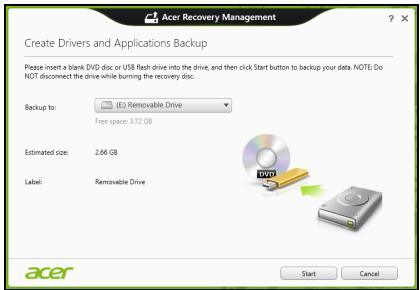
- Ecnn nCnoNb3yTe DVD-DnCKn, To nporpaMa ykKaKeT, cKoJIbKO HUxHNO YnCTbIX 3aINCbIbAeMbIX DnCKOB IJIg 3aINcN DnCKOB BOCCTaHOBJIeHn. PnpiroTOBbTe INx nepeH hauaIOM npOceIybl.
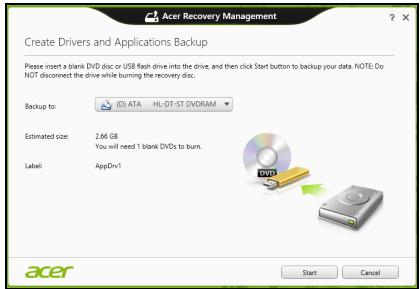
-
Haxmnte Nyck, TTo6bl cKOnIpoBaTb faIbl. Ha 3kpane 6yJeT OTo6paKaTbCxaO D BblONHeHnpe3epBHOrO KOnIpoBaHn.
-
BbInonHnTe yka3aHnI dIy 3aBepSeHnI npocecca:
-
Ecnn nCnOJIb3yTe ONTnueckne DNCK,TO JIoTOK npNBOda 6yDeT OTKpbIbATbcra Nocne 3aINcN kKaJDoRo DNCKa. N3BNeKInTe DNCK N3 npNBOda NOMeTBTe erO nepMaHeHThblM Mapkepom. Ecnn HuxH0 3aINcaTb HeCKOnbKO DNCKOB,TO,yBnDeB ppeJIOxKeHne Ha 3kpaHe, BCTaBbTe CLeDyUoNIM DNCK N HaxMITE OK. PpoJOnJaTe 3Tu DeIcTBn, NOka IpoUecC He 3aBePunTCra.
- Ecπn nCπoJb3yeTe USB-haKoπIeJIb, To OTcoEπHInTe erO nHaHeCnTe Ha Hero YeTkyo MapKnIpOBKy.
Baxho! HanuHnte Ha KaXdOM DnCKe NOHrTHbI TeKCT, HAnpImep, "Pe3epBHaJ KOnNJa DpaBepOB N npNJIOxKeHn". CoXpaHnte 3Ty pe3epBHyU KOInu B HaJeXHOM MecTe n 3aONMHte 3TO MeCTO.
BocctaHOBJeHne cIcTeMbI
IopraOK BOCCTaHOBHeHnCnCTeMbI:
- UctpaHnTe MeIknIe npo6IeMbI.
EcnB03HnKHyT HEnoJaKn B pa6Ote TOnbKO OndHO NIn DByX npOrpaMMhBix NIn annapaTHbIX KOMNoHErTOB, TO np6IeMy MOxHo peuNTb nepeycTaHOBko 3TNx npOrpAMM NIn dpaBepOB ycTroiCTB. IopraDOK BOCCTaHOBJeHn PO n DpaBepOB, PpeyctaHOBJeHHbIX Ha 3aBODe-E3rTOBHTeNe, CM. B pa3dene "PepeycTaHOBka dpaBepOB n npInloKeHn"Ha cTp.82.
Bo38pam K moyke boccaMaHoEneHua
- Ha экpane Hepyck BBeДиTe "PaHel ynpaBHeHn" n 3aTeM B CnIcKe npInIOxHeHn HaxMtTe PaHel ynpaBHeHn.
- HaxmTe Cnctema n 6e30nacHocTb > LcHTp noDpeKKn, 3aTeM BHN3y OKHa HaxmTe BocCTaHOBJeHne.
-
HaxmTe 3anyck BOCCTaHOBJeHnCnCTeMbI, 3aTeM DaJee.
-
Haxmnte camyio nocJeHHIO TOky BOCCTaHOBJIeHnra (Ha TOT MOMENT, KOrda Ba7a CnCTema pa6oTana npabUNbHO), Haxmnte Danee n 3aTeM FToTOBO.
5.B OTPbIbIeMcR OKHe c 3aIpOcOM Ha NOITBepKJdHne HauKMnTe Da. Pocne 3tOro CnCTema 6yDet BOCCTaHOBNeHa C NcNoJIb3OBAHNem yka3aHHo BamN TOUKN BOCCTaHOBNeHn. 3TOT IpoceCC MoKeT 3aHrTb HeCKoJIbKO MmHyT INOTpe6OBaTb nepe3arpy3Kn KOMNbIOTepa.
BocctaHOBJIeHne cncTeMbI do nepBOHaayJbHoro COCTOHNIA
EcnB KOMNbItepe BO3HKnHyT Ipo6JIembl, KOToPbIe He ydaCTcayCTpaHnTb DpyrIMN CnOCo6aMn, TO, BO3MOxH0, NOHaIO6bITcAnepeyCTaHOBnTb CNCTEmy ZeJINKOM, YTO6bl BOCCTaHOBnTb eeN3HaayalbHoe COCTOHNHe. JIBy BOCCTaHOBNeHMy MOXHO NcNoJIb3OBaTb JIbO JeCTkn DnCK, JIbO CO3DaHHbIe BamN pe3epBHbIe KOnm dJa BOCCTaHOBJIeHn.
- Ecni cnctema Windows eue 3aynckaetc, n BbI He ydaJIIN Ha JxecTKOM DnCKe pa3JeI BOCCTaHOBJIeHn, TO CM. pa3JeI "BocctaHOBJIeHne n3 camo cnCTembl Windows" Ha cTp. 88.
- Ecni cnctema Windows He 3anyckaetcra, a opinnaHbHbI JxecTkIn Dnck 6bl I ONHOCTbIO nepeopmatipobAH NIN 3aMeHeH, TO CM. pa3dJI "BOcTaHOBJeHne n3 pe3epBHOJ KOHN dJI BOCCTaHOBJeHnja" Ha ctp.92.
BocctaHOBHeHne n3 cAmO cnCTeMbI Windows
3anycntte npiloxeHne AcerRecovery Management:
- Ha захане Пусяк Ввашит e "Recovery"и 3aTeMВ спистe пиложени НжмITE Acer Recovery Management.
IpeDyucMOTpeHo DbA cnoc6a - BocCTaHOBJIeHne 3aBOIDcKHX yCTaHOBOK (C6poc PIK) nIIn HAcTpaINBaEMoe BOCCTaHOBJIeHne (O6HOBITb PIK).
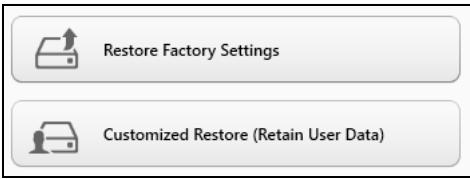
Функциь ВocstahOBJIeHne 3aObcknX yCTAHOBOK ydaJIIT BCE daHHbIe C JecTKORO DnCKa, 3aTEM nepeyctahOBHT Windows n BCE npdeYCTAHOBJIeHHbIe B KOMlbOTepe nporpaMMbl I dpaiBepbl. EcIn eUe MOxHOb OTKpbITb BaxKbIe PafNbl Ha JecTcOM dNcKe, To npraMo cEnuac CO3dAte INx pe3epBbIe KOIN. CM. pa3dJe "BocstahOBJIeHne 3aObcknX HAcTpoEk pRn NomOUs NpuiNoJx HAcER Recovery Management"Ha cTp.89.
Функця HabcTpaNbaEmoe BOCCTaHOBJIeHne NOIbITaeTcOxpaHHTb Baun paIbI (noIb3OBAteIbckne DaHHbIe), HO NepeyctaHOBNT BCE nporpamMbI n dpaIbEpbI. PporpamMbI, yCTaHOBJIeHHbIe Bamn NocJIe NOKynKII K, 6yDyT ydaJIeHbI (KpOME nporpamM, yCTaHOBJIeHHbIX C caTaN Mara3IN Windows). CM. pa3dEn "HacTpaNbaEmoe BOCCTaHOBJIeHne npi nomoi npinloKeHna Acer Recovery Management" Ha cTp. 91.
1. Haxmnte BocctaHOBNTb 3aBOckne HaCtpoKn.

Acer Recovery Management
?X
Welcome to Acer Recovery Management
Acer Recovery Management enables you to restore your system. To begin, select the task you want to perform. Please DO NOT remove the USB device while proceeding.

Reinstall Drivers or Applications
Reinstalls factory default drivers or applications.

Customized Restore (Retain User Data)

Reinstall Drivers or Applications
Make a backup before you restore (Recommended).

Create Factory Default Backup
Create Drivers and Applications Backup
acer

BHHMaHHe!ФункцЯ "BocctaHOBHTb 3aBOdCKne HacTPOiKN" cotpeT BCE paIJIbI Ha JxecTKOM DnCKe.
2. OTPpoeTc8 OKHO C6poc PIK.
Reset your PC
Here's what will happen:
- All your personal files and apps will be removed.
- Your PC settings will be changed back to their defaults.
Next
Cancel
Unnocmpaquu npueedehbl molko dner cnpaKa.
- Haxmnte Danee n BbIbepeTc cnooc ydaJIeHna qaiIOB:
a. YdaNTb TOnbKO MON faiJIbl - 6bICTpoe ydaJIeHne BCex faiIOB nepei BocCTaHOBJIeHnEM KOMNbIOTepa; TaKoe ydaJIeHne 3aHIMMaET OKJIO 30 MInHyT.
b.ПОЛHOCТьO OYNCTIbДNCK - NOJIHЯ OYNCTKa DnCKa NOCJe ydaJIeHnK KaxdOrO PhaIIa, YTO6bI NOCJIe BOCCTaHOBJIeHn Hn OdINH CTapbI ΦaII HeJIb3a 6bIIO npOuHTaTb. OYNCTKa DnCKa 3aHIMaET HamHoro 60nbIe BpemeHn (do 5 yacOB), Ho 3To HAMHoro 6oJee 6e3OnaChbI CnOCo6, TaK KaK CTapblcE PhaIIbI ydaJIaOTcR 6e3BO3BpaTHO.
4. Haxmnte C6poc.
5. B npocece BocctaHOBneHn CHaJaI npOn3OJTe npe3arpy3Ka KOMNbIOTepa, a 3aTeM NaHHeTcK OKnIpOBaHne faiIOB Ha JecTkN IINCK.
6. После заBERшеня BOCCTaHOBJIeHЯ Bbl CMOKeTe Hauatb pa60Tu c KOMNBIOTepom, NOBTOpNB DeiCTBnR, BblIOJHReMbIe Ppi nepBOM 3anycke.
HacmpaueaeMoe 6occmahOeHue npu nmoou npuIoxeHua Acer Recovery Management
1. Haxmnte
HactpanBaemoe bckne daHHbIe).
BOcCTaHOBJIeHne
(coxpaHntb

Acer Recovery Management
?X
Welcome to Acer Recovery Management
Acer Recovery Management enables you to restore your system. To begin, select the task you want to perform. Please DO NOT remove the USB device while proceeding.

Customized Restore (Retain User Data)

Reinstall Drivers or Applications
Make a backup before you restore (Recommended).

Create Factory Default Backup
Create Drivers and Applications Backup

Reinstall Drivers or Applications
Reinstalls factory default drivers or applications.

2. OTKpoeTcKHO O6HOBNTb PIK.
Refresh your PC
Here's what will happen:
- Your files and personalization settings won't change.
- Your PC settings will be changed back to their defaults.
- Apps from Windows Store will be kept.
- Apps you installed from discs or websites will be removed.
A list of removed apps will be saved on your desktop.
Next
Cancel
3. Haxmnte Danee, 3aTeM O6HOBnTB.
- B npocece BocctaHOBneHn CnaJaI npOn3OJTe npe3arpy3Ka KOMNbIOTepa, a 3aTeM NaHHeTc KOInpOBaHne PaJIIOB Ha JeCTKn IINCK. 3TO TnpoeeC 3aHmMaET OkOTo 30 MInHyT.
BocctaHOBJIeHne n3 pe3epBHOJ KOHN dJa BOCCTaHOBJIeHnA
ПорядOK ВOCCTAHOBLENIA ИЗ pe3eрВнй кОПИ, записно на USВ-hakопntе: [ \text{Свостavia} = \frac{\text{S}}{\text{S}} ]
- HaniTe pe3epBHyIO KOINIO JIa BOCCTaHOJIeHnIy.
- Ecni y BaIero KOMNbIOTepa HeT BCTpoEHHOn KJIaBnAtypbl, To IoIcOeINHInTe KHeMy BHeUHIO KJIaBnAtypy.
- BCTaBbTe USB-нakоитIEL N BKJIIOHTe KOMIbIOTep.
- BkIIOuHTe F12 Boot Menu (MeHIO 3aApy3ku F12), ecIn OHO eUe He BKJIIOUcHo:
a.BoBpeM3arpy3knKOMMbItepaHaxMnTe KnaBnUy
b. HaxaTneM KnaBnS CO CTeJIkAmN BHeBO NIn BnPaBO Bbl6epnte MeHIO Main (TnaBHOe).
c. HαkaTneM KJIaBùnùn CO CτpeIκOι BHN3 BbI6epNte F12 Boot Menu (MeHIO 3arpy3Kn F12), 3aTeM HαχMnte KJIaBùnùy
d. HaxaTneM KnaBnU CO CTpeJIkAmN BIneBO NIn BnpaBO BbIbepnte MeHIO Exit (BbIXoJ).
e. B 3aBnCmOCTn OT Tnna CnCTembl BIOS BaUero KOMNbIOTepa BbIbepnte Save Changes and Exit (CoXpaHHTb n3MeHeHn y N BbIITN) INI Exit Saving Changes (BbIHTn, coXpaHNB n3MeHeHn)
Pa3peeHbIe KaHaJIbI 6ecnpoBODHO CBa3n IJra pa3hblx cTpaH
Ceb. Ameprka 2,412-2,462 TgU KaHaJIb01-11
JnoHn 2,412-2,484 Tz KaHaJIb 01-14
Ebpona ETSI 2,412-2,472 TgU KaHaJIbI 01-13
"HopMbl 6e30nacHcOCTn 6" Ha Be6-caIte MmHncTePcTBA 3dpaBOoxpAnHeHna KaHaIbI www.hc-sc.gc.ca/rpb
3To yctpoiCTBO OTBeaet Tpe6oBaHnA m CtAndapTa RSS210 MmHnCTepcTba npomblIeHHocTn KaHaIbI.
3To uΦpOBoe yCtpoIcTBO KlaCCa B OTeBaeaT Tpe6oBaHnI M KaHaIckOrO CTaHdApTa ICES-003, peI. 4, RSS-210 N4 (deKa6pb 2000) n N5 (HO6pb 2001).
Acer Recovery Management
?X
Welcome to Acer Recovery Management
Acer Recovery Management enables you to restore your system. To begin, select the task you want to perform. Please DO NOT remove the USB device while proceeding.

Reinstall Drivers or Applications
Reinstalls factory default drivers or applications.

Customized Restore (Retain User Data)

Reinstall Drivers or Applications

Make a backup before you restore (Recommended).

Create Factory Default Backup
Create Drivers and Applications Backup
acer
Acer Recovery Management
?X
Welcome to Acer Recovery Management
Acer Recovery Management enables you to restore your system. To begin, select the task you want to perform. Please DO NOT remove the USB device while proceeding.

Reinstall Drivers or Applications
Reinstalls factory default drivers or applications.

Customized Restore (Retain User Data)

Reinstall Drivers or Applications
Make a backup before you restore (Recommended).

Create Factory Default Backup
Create Drivers and Applications Backup
acer

Here's what will happen:
- All your personal files and apps will be removed.
- Your PC settings will be changed back to their defaults.
Next
Cancel
Acer Recovery Management
?X
Welcome to Acer Recovery Management
Acer Recovery Management enables you to restore your system. To begin, select the task you want to perform. Please DO NOT remove the USB device while proceeding.

Reinstall Drivers or Applications
Reinstalls factory default drivers or applications.

Customized Restore (Retain User Data)

Reinstall Drivers or Applications


Make a backup before you restore (Recommended).

Create Factory Default Backup
Create Drivers and Applications Backup

Here's what will happen:
- Your files and personalization settings won't change.
- Your PC settings will be changed back to their defaults.
- Apps from Windows Store will be kept.
- Apps you installed from discs or websites will be removed.
A list of removed apps will be saved on your desktop.
Next
Cancel
Acer Recovery Management
?X
Welcome to Acer Recovery Management
Acer Recovery Management enables you to restore your system. To begin, select the task you want to perform. Please DO NOT remove the USB device while proceeding.

Reinstall Drivers or Applications
Reinstalls factory default drivers or applications.

Customized Restore (Retain User Data)

Reinstall Drivers or Applications

Make a backup before you restore (Recommended).

Create Factory Default Backup
Create Drivers and Applications Backup

Start Acer Recovery Management:
Acer Recovery Management
?X
Welcome to Acer Recovery Management
Acer Recovery Management enables you to restore your system. To begin, select the task you want to perform. Please DO NOT remove the USB device while proceeding.

Reinstall Drivers or Applications

Customized Restore (Retain User Data)
Reinstalls factory default drivers or applications.

Reinstall Drivers or Applications

Make a backup before you restore (Recommended).

Create Factory Default Backup
Create Drivers and Applications Backup
acer
Here's what will happen:
- Your files and personalization settings won't change.
- Your PC settings will be changed back to their defaults.
- Apps from Windows Store will be kept.
- Apps you installed from discs or websites will be removed.
A list of removed apps will be saved on your desktop.
Next
Cancel
Cojsouto.zeivedlazdice?"
Acer Recovery Management
?X
Welcome to Acer Recovery Management
Acer Recovery Management enables you to restore your system. To begin, select the task you want to perform. Please DO NOT remove the USB device while proceeding.

Reinstall Drivers or Applications
Reinstalls factory default drivers or applications.

Customized Restore (Retain User Data)

Reinstall Drivers or Applications

Make a back-up before you restore (recommended).

Create Factory Default Backup
Create Drivers and Applications Backup

Acer Recovery Management
?X
Welcome to Acer Recovery Management
Acer Recovery Management enables you to restore your system. To begin, select the task you want to perform. Please DO NOT remove the USB device while proceeding.

Reinstall Drivers or Applications
Reinstalls factory default drivers or applications.

Customized Restore (Retain User Data)

Reinstall Drivers or Applications

Make a back-up before you restore (recommended).

Create Factory Default Backup
Create Drivers and Applications Backup
acer
Acer Recovery Management
?X
Welcome to Acer Recovery Management
Acer Recovery Management enables you to restore your system. To begin, select the task you want to perform. Please DO NOT remove the USB device while proceeding.

Reinstall Drivers or Applications

Customized Restore (Retain User Data)
Reinstalls factory default drivers or applications.

Reinstall Drivers or Applications

Make a backup before you restore (Recommended).

Create Factory Default Backup
acer
Here's what will happen:
- Your files and personalization settings won't change.
- Your PC settings will be changed back to their defaults.
- Apps from Windows Store will be kept.
- Apps you installed from discs or websites will be removed.
- A list of removed apps will be saved on your desktop.
Next
Cancel
Sustainability/sustainability01.htm
Acer Recovery Management
?X
Welcome to Acer Recovery Management
Acer Recovery Management enables you to restore your system. To begin, select the task you want to perform. Please DO NOT remove the USB device while proceeding.

Reinstall Drivers or Applications
Reinstalls factory default drivers or applications.

Customized Restore (Retain User Data)

Reinstall Drivers or Applications

Make a back-up before you restore (recommended).

Create Factory Default Backup
Create Drivers and Applications Backup
acer
Acer Recovery Management
?X
Welcome to Acer Recovery Management
Acer Recovery Management enables you to restore your system. To begin, select the task you want to perform. Please DO NOT remove the USB device while proceeding.

Reinstall Drivers or Applications
Reinstalls factory default drivers or applications.

Customized Restore (Retain User Data)

Reinstall Drivers or Applications

Make a backup before you restore (Recommended).

Create Factory Default Backup
Create Drivers and Applications Backup
acer
-
Kliknite na Preinstalovat' ovladače alebo aplikácie.
-
Mali by stevidiet 'cast' Obsah v Acer Resource Center.
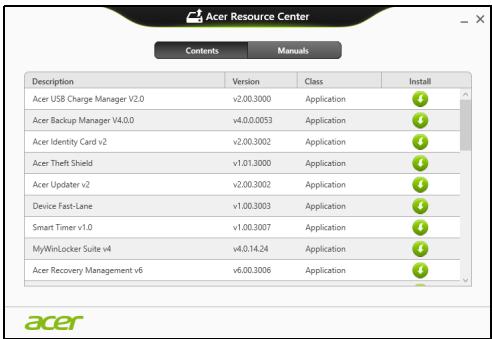
Spustite Acer Recovery Management:
- V Časti Štart napíste „Recovery“ a potom kliknite v zozname aplikácína Acer Recovery Management.
K dispozífii su dve možnosti: Obnovit' pôvodné nastavenia (Resetovat'moj PC) alebo Prispósobé obnovenie (Obnovit'moj PC).
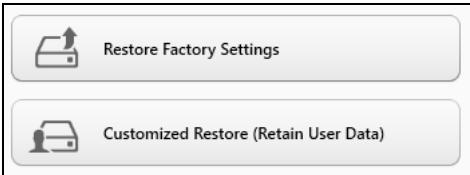
Acer Recovery Management
?X
Welcome to Acer Recovery Management
Acer Recovery Management enables you to restore your system. To begin, select the task you want to perform. Please DO NOT remove the USB device while proceeding.

Reinstall Drivers or Applications
Reinstalls factory default drivers or applications.

Customized Restore (Retain User Data)

Reinstall Drivers or Applications
Make a back-up before you restore (recommended).

Create Factory Default Backup
Create Drivers and Applications Backup
acer

Acer Recovery Management
?X
Welcome to Acer Recovery Management
Acer Recovery Management enables you to restore your system. To begin, select the task you want to perform. Please DO NOT remove the USB device while proceeding.

Customized Restore (Retain User Data)

Reinstall Drivers or Applications
Make a back-up before you restore (Recommended).

Create Factory Default Backup
Create Drivers and Applications Backup
Reinstall Drivers or Applications
Reinstalls factory default drivers or applications.

acer
ZaZenite Acer Recovery Management:
Acer Recovery Management
?X
Welcome to Acer Recovery Management
Acer Recovery Management enables you to restore your system. To begin, select the task you want to perform. Please DO NOT remove the USB device while proceeding.

Reinstall Drivers or Applications
Reinstalls factory default drivers or applications.

Customized Restore (Retain User Data)

Reinstall Drivers or Applications
Make a backup before you restore (Recommended).

Create Factory Default Backup
acer

Acer Recovery Management
?X
Welcome to Acer Recovery Management
Acer Recovery Management enables you to restore your system. To begin, select the task you want to perform. Please DO NOT remove the USB device while proceeding.

Reinstall Drivers or Applications
Reinstalls factory default drivers or applications.

Customized Restore (Retain User Data)

Reinstall Drivers or Applications


Make a backup before you restore (Recommended).

Create Factory Default Backup
Create Drivers and Applications Backup

Here's what will happen:
- Your files and personalization settings won't change.
- Your PC settings will be changed back to their defaults.
- Apps from Windows Store will be kept.
- Apps you installed from discs or websites will be removed.
- A list of removed apps will be saved on your desktop.
Next
Cancel
- Kliknite Naprej in nato Osvezi.
- Postopek obnovitve se bo pričel s ponovnim zagonom računalnika in nadaljeval s kopiranjem datotek na trdi disk. Ta postopek traja priblžno 30 minut.
International Travelers jamstvo (ITW)
Acer Recovery Management
?X
Welcome to Acer Recovery Management
Acer Recovery Management enables you to restore your system. To begin, select the task you want to perform. Please DO NOT remove the USB device while proceeding.

Reinstall Drivers or Applications
Reinstalls factory default drivers or applications.

Customized Restore (Retain User Data)

Reinstall Drivers or Applications

Make a backup before you restore (Recommended).

Create Factory Default Backup
Create Drivers and Applications Backup

- Kliknite na Stvori sigurnosnu kopiju tvornickih postavki. Otvorit ce se prozor Pogon za oporavak.
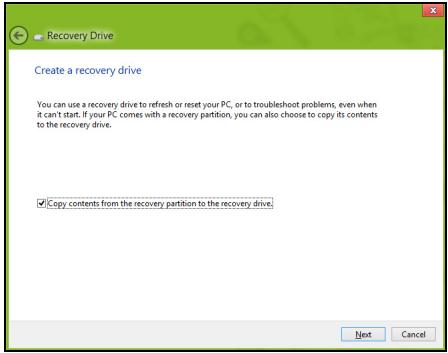
Provjerite je li označeno Kopiraj sadržaj particije za oporavak na pogon za oporavak. To osigurava njcvelovitiju sigurnosnu kopiju za oporavak.
-
Prikljucite USB pogon, a zatim kliknite na Dalje.
-
Osigurajte dovoljan kapacitet USB pogona prise nastavka postupka. Sigurnosna kopija za oporavak treba majmanje 16 GB memorije
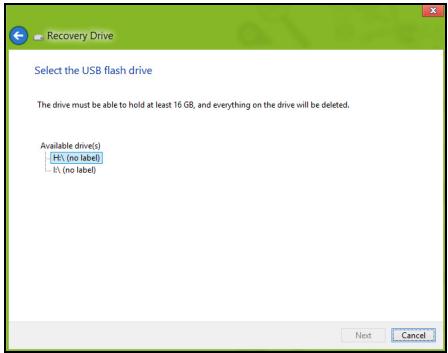
- Na zaslonu ce bitiPokazan napredak postupka stvaranja sigurnosne kopije.
-
Slijedite postupak do zavrsetka.
-
Nakon stvaranja sigurnosne kopije za oporavak, akaŽelite možete izbrisati informaciye za oporavak na vašem računalu. Ako izbrišete te informaciye, za oporavak računala možete koristiti samo USB sigurnosnu kopiju za oporavak, a ako izgubite ili nehotić no izbrišete USB pogon, necete moçi oporaviti računalo.
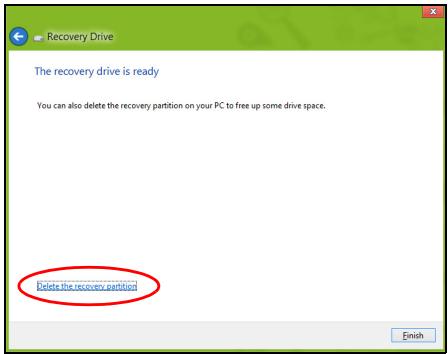
- Izvadite USB pogon i nedvosmisleno ga označite.
Vázno: Oznacite jeginstvenom, opisnom oznakom poput „Sigurnosna kopija za oporavak Windowsa". Sigurnosnu kopiju držite na sigurnom mestreu koje cete lako upamtiti.
Pokrenite Acer Recovery Management:
- U izborniku Početak, unesite "Recovery" i kliknite na Acer Recovery Management u popisu aplikacija.
Acer Recovery Management
?X
Welcome to Acer Recovery Management
Acer Recovery Management enables you to restore your system. To begin, select the task you want to perform. Please DO NOT remove the USB device while proceeding.

Reinstall Drivers or Applications
Reinstalls factory default drivers or applications.

Customized Restore (Retain User Data)


Reinstall Drivers or Applications
Make a backup before you restore (Recommended).

Create Factory Default Backup
Create Drivers and Applications Backup
acer
Acer Recovery Management
?X
Welcome to Acer Recovery Management
Acer Recovery Management enables you to restore your system. To begin, select the task you want to perform. Please DO NOT remove the USB device while proceeding.

Reinstall Drivers or Applications
Reinstalls factory default drivers or applications.

Customized Restore (Retain User Data)

Reinstall Drivers or Applications

Make a back-up before you restore (Recommended).

Create Factory Default Backup
Create Drivers and Applications Backup
acer
Lansati Acer Recovery Management:
- Din Start, tastati 'Recuperare'.si dati cli pe Acer Recovery Management in lista de aplicati.
Acer Recovery Management
?X
Welcome to Acer Recovery Management
Acer Recovery Management enables you to restore your system. To begin, select the task you want to perform. Please DO NOT remove the USB device while proceeding.

Reinstall Drivers or Applications
Reinstalls factory default drivers or applications.

Customized Restore (Retain User Data)

Reinstall Drivers or Applications
Make a backup before you restore (Recommended).

Create Factory Default Backup
Create Drivers and Applications Backup
acer

Atentie: „Restaurare la valorile implicite din fabrica" va sterge toate fisierele de pe hardisk.
- Se deschide fereastra Resetare PC.
Reset your PC
Here's what will happen:
- All your personal files and apps will be removed.
- Your PC settings will be changed back to their defaults.
Next
Cancel
Acer Recovery Management
?X
Welcome to Acer Recovery Management
Acer Recovery Management enables you to restore your system. To begin, select the task you want to perform. Please DO NOT remove the USB device while proceeding.

Reinstall Drivers or Applications

Customized Restore (Retain User Data)
Reinstalls factory default drivers or applications.

Reinstall Drivers or Applications

Make a backup before you restore (Recommended).

Create Factory Default Backup
Create Drivers and Applications Backup
acer
- Se deschide fereastra Reimprospatare PC.
Refresh your PC
Here's what will happen:
- Your files and personalization settings won't change.
- Your PC settings will be changed back to their defaults.
- Apps from Windows Store will be kept.
- Apps you installed from discs or websites will be removed.
- A list of removed apps will be saved on your desktop.
Next
Cancel
He npobuBaIte, He OTbapraIte n He pa3rno6BaIte 6aTepeyra. Ako 6atepyra npoteue n ce DOKOcHete Do n3TEKJIte TeHuOCTn, n3PnAkhete O6nHcO C BODa n He3a6abHO nOTbpcTe MeDnCUnHcKa pOMou.
OT cboobpaxenHna 3a 6e30nacnoct, a n 3a da ce ydbJnx Jxmbota ha baTeepnTa, Ta He ce 3apejda npi Tempepatypn npd 0°C (32°F) Innn Hnd 40°C (104°F)
Пьната eфektimbocHT ha HOBATA 6atepye ce noctura yapc cIeДBa IINI Tprпьни ZICKbna Ha 3apekdahe n pa3pekdahe.Бatepya Moke da ce 3apejda n pa3pekda CTOTnI PbTN, Ho Hakpar ue Ce n3TOU. Korato BpeMeTo 3a pa60Ta cTahe 3abeneKITeHNO NO-KpATKO OT HopmaJIHOTO, ObPheTe ce KBaINΦmIupan cepBn3eN nepcoHaI.N3non3BaIte camo Odo6peHn 6atepyu n Ppe3apeJdaIte 6atepyra cn camo C Odo6peHnTE 3apdHn yCTpoiCTBa, PpeHa3NaHeHn 3a TOBA yCTpoiCTBO.
Hnkora He n3non3BaIte noBpeDeHa 6aTepey nn 3apAHO yCTpoiCTBO.
KanaunTeTbTи JxboTbT ha 6atepnaTa ige HamaJeT, ako 6atepnaTa 6be octabeHa Ha ropeu nn cTydeHn MeCTa, Hanpimep B 3aTbopeHa KOla npe3 IJrTOTo nn 3Imata. BInar ngndaTe da nbpxknte 6atepnaTa Ha TempepaTypa MeKdy 15°C n 25°C (59°F n 77°F) . UcpoiCTBO c ropeua nn cTydeHa 6atepna MoKe BpeMeHNO da He npopabOn, dopn akO 6atepnaTa e HnblNHO 3apeDeHa. PaBoTata Ha 6atepnaTa e ocOBeHo HeeΦeKTHBnA pni TeMnepaTypn MHO rOIO Toykata Ha 3ampb3BaHe.
He n3xBpIyTe 6aTePInTe BOrb, TbK Kato MoKe Ja EKcNIOdpaT. BatePInTe Morat da EKcNIOdpaT CbIoo Taka N aKO Ca NOBpeHEn. I3xBpIyTe N3NO3BaHIne 6aTePnB CbOTBeCTBne C MeCTHIne 3aKoHOb Pa3NopeD6n. MoJr, peuNKIpaYTe rN BuHaR, KORATO E Bb3MOxHNo. He rN n3XBpIyTe C DOMAKINCKNTe OTNaDbU.
- 3a6eIeKka: Buxme www.acer.com 3a dokumehmu 3a mpaHcnpmuphe Ha 6amepuma.
-BHIMAHHe! BaTePnInTe MoarTa ekCnIIOuPaT, aKo He 6opabInTe C TEx npaBnHo. He rnaP3rno6BaIte n He rnaN3XBpIraTe B orbN. DpbXte rna daJeY ot Deca. Cb6JIouDaBaIte MeCTHInTe 3aKOHOb pa3nopeE6n, Korato N3XbPLnTe n3NoJ3BAHN 6aTePnN.
PapnoeCTOTHa mHTeppepeHnIa
-BHmAHHe!OT cbo6paXeHHa 3a 6e3OnacHOCT, H3KJIIOUyBaIte BCnUKN 6e3KNUHn nI npaINOppeBaTaENH yCTpoNcTBA,KORAto n3NON3BaTe IaNTOna npn CJIeHNTE yCIOBn. Te3n ycNOBn BkNIIOvBAT, Ho He ce orpaHuaBAT C: 6e3KNUeH LAN (WLAN), Bluetooth n/nn 3G.
He 3abpaBraTe Da cna3BaTe BcKaKbN CneuAaHn peYuaCmN B cnla Ha BCaKO MRCTO IN BnHaRn I3KnUyBaIte YcTpoiCTBOTo, KOrato I3NoJ3BaHeTo My e 3abpaHeHO INKorato MOKe Da npedn3Bvka INTheppeHcnI yIn OnaHocT. I3NoJ3BaIte YcTpoiCTBOTo Camo B HopMaJIHnTe 3a pa60ta NIOJooKHeHn IIO3uImN. Toba YcTpoiCTBOI3NbYBa B pAmKInTe Ha HOpMaTa 3a paINOChTeOTnHE Te IbYeHn, Korato Ce I3NoJ3Ba HopMaJIHo I To IN Herobata anTeHa ca hai-MaIKo Ha 1,5 cAnTMeTp a (5/8 nHua) ot BaWeTo TaJIIo. He 6NuBa Da CbIbPjKa MetaI In Tpr6Ba Da NoCTaBnTe YcTpoiCTBOTo Ha rOpenOCohEhOTO
pa3ctoHnEOTYItoCn.3a da npedabaФaIINoBEc DaHHN ININ CbOSeHnYcneUHO, yCTPOICTBOTOceHyKdAeOTdoBa,KaueCTBeHa Bpb3ka Cmpexata.B HraKo Cnyau, npExBpIHeToHaФaIINoBEc DaHHN ININ CbOSeHnMOKe Da ce 3abAsn, DOKaTO He CE noRbTakaba Bpb3ka.YbepeTeCe,Ye ropeNoocEHnTe Yka3aHnna 3a pa3CToHnETo Ce cna3BaT,doKATO npEXBpIHeTo He npIKInouh.HaKo Uactn OT yCTPOICTBOTo ca MaHTeTuH.NyCTPOICTBOTo MOKe Da npINBnua HRAKo METaJIHN PpeMmetn,A xopa Cbc CnyXOBn anapatTueta He bNaDa dIbPjKat yCTPOICTBOTo 6bn30 Do yXOTO,B KOEtOnMaT CnyXOB anapat.He nocTabaIte KpeDTHN Kaptn ININ dpTyrMaHNTN HocITen6bn30 Do yCTPOICTBOTo,TbKaTO INΦOpMaunTa Bbpx TRe MOKe Da 6bJe N3Tpnta.
MeDnHcN yctpoiCTBa
Pa6oTaTc BcKaKbVa paIOn3JIbYBaTeHNO obOpyDbAHe, BkJIouHTeHNO 6e3JNCHn TepeOHH MoKe Da IONpeuHa fynHKUHOaHNoCTTa Ha HeDocTaBHyOdo6pe 3aUHTeHm MeIiunHckn UcTpoCTBa. KOnCyIITpaIte Ce c Jekap IIN C npOn3BODHTeHn Ha MeIiunHCKOTO UcTpoCTBO, 3a Da pa36epete DaIIN To e HaNExHNO 3aUHTeHO OT BbHUnHa paAnOueCTOTHa eHepnra IIN aKO IMaTe Dpyr N BbIPcOcN, CBbp3aHN C Hero. N3KJIouHTeH YeTPOCTBOTo CN BzdpAHN 3aBeDeHn, KOrATO TAm IMa peryJaUN, KOtTO NCKAT TOBA OT Bac. BoIInuHTe IIN 3dpaBHnTe 3aBeDeHn MOKe da I3No13BaT o6OpyDbAHe, YCbTBnTEJIHO KbM BbHUnn PaIIOueCTOTHn TpaHCmncn.
PneCmeKbpn. PpOIN3BOIDTeJIte Ha neIcMeIKbpr npEipOpBvBAT MHNImaHOPa3CToRHe OTE 15,3 caHTIMeTpa (6 INHa) MEXdy neIcMeIKbpa IN BCaKaBn 63KUnHnyCtpoiCTBa, 3a da ce I3BeHRe BcKaKBA eBEHTyAHA INTEpFepEnCn C neIcMeIKbpa. Te3n npEipOpBkn Ca nOdkpeHEn OT He3aBNCIMITE INCSeDBAHn IN pEipOpBknte Ha INCTHTyTa 3a IN3CNEiBaHe Ha 63KUnHnTE TexHONOrn Wireless Technology Research. IInzata c neICMeIKbpr TpRbBa Da cNa3BAT CpeDNHe Yka3AnH:
- BInaHn DpBxTe yCTpoNCTBOTO Ha noHe 15,3 caHTmEtpa (6 nHua) ot neiCmeKbpa
- He Дрьжт eустpoиctBOTo 6ПИЗо до пeнсмeйКьpa, korato yctpoиctBOTo e BкЛIOUeHo.
Ako npednonarate, ye npabn cMyuenceHna3KlnOHeTe yctpoCTBOTo n ro npemecteTe.
Cnyxobn anapatn. Hjkon znpobv 6e3kuny yctpoCTBa npdeu3BnKBAntHepepeHnry hjkOn cnxyobn anapatn. Ppi TaKbB cnyaee Ce CbpxeTe cdoCTaBnuKa Ha cnxyobn anapat.
MotoPhn npBeBo3Hn cpeDCTBa
PapnoeCTOTnTe CnHaJI MoRat Da 3aceHrAT HenpaBnHO IHCTaInpaHIN IIN HnpaBnHO npEJa3EHN eekTPoHN CnCTeMn B MOTOPH INpeBO3Hn CpeCTBa, KaTO HApnpMeP, eekTPoHN CnCTeMn 3a BnPbckBaHe Ha rOpBtO, eekTPoHN CnCTeMn IpoTbB 6IoKpAne Ha CnIPAuKIne, eekTPoHN CnCTeMn 3a KOHTPOl Ha cKOpocTTa N CnCTeMn 3a Bb3dUshn Bb3rIabHnI. PoTpbcTe NoBce HnΦopMaunr npi Ipn3BODnte - nII HerOB npEcdTcABteJ - Ha BaWeTo ppeBO3HO CpeCTBO IIN Ha DObaBeHOTo OobpyDbaHe. Camo KBaIINФицPAn nepcoHAn Tp8Ba Da o6ClykBa YcTPOCTBO IIN Da INcTAIpa UcTPOCTBO B MOTOPHO npEBO3HO CpeCTBO. HnpaBnHNTe INcTanaZma IIN O6ClykBaHe MORat Da ca OnacHn I da anyIupat rapaHUnrTa HA yctPOCTBO. PediBHO npOBepraBte DaNN BCNUKN 63xNCHypeDN B MOTOPHO Bn PpeBO3HO CpeCTBO Ca MOThpAHN I FyHKUONHPaT npaBnHNO. He CbXpaHaNBeIe I ne IpeHacryte 3anaiIMN TeuHOCTN, Ra3OBe IIN EKCIIIO3NBHN MATEpHaIIN 6b130 Do yctPOCTBO, HerOBITE qactN IIN DonbJIHeHNI. Ppi MOTOPHN ppeBO3Hn CpeCTBA C Bb3dyuHa Bb3rIabHnIa - He 3abpaYte, Ye Bb3dyuHNTE Bb3rIabHnIe Ce NaYBaT C roJyMa Cnla. He NocTabre IpeDMETN, BKNUHTENHO INcTAIpaHO IIN npENoCIMo 63xNCHO OBOpyDbaHe, Ppi INxOda Ha Bb3dyuHaT A Bb3rIabHNa IIN TaM, KbDeTo CE pa3dyBaTЯ. AKO B MOTOPHO npEBO3HO CpeCTBO IMA HnpaBnHO INcTAIpaHO 63xNCHO OBOpyDbaHe I Bb3dyuHaT A Bb3rIabHNaIe Ce OTBOpN, MoKe Da Ce ONyut CepNo3Hn HapahBaHnIg. INon3BaHeTo HA yctPOCTBO IO Bpeme Ha camOnTeH NOET e 3abpaHeno. INKNUOVAIte yctPOCTBO, PpeDN Da CE KaCbate Ha camOnET. INon3BaHeTo Ha 63xNCHN yCtPOCTBA B camOnETm MoKe Da 3acTaPaWaba pa6oTaTa Ha camOneta IIN da cmUzaba 63xNCHATA TelefoHHa Mpeka, a CbIo Taka MoKe Da e He3aKOHHO.
BzpiBoOnaChcpeDa
I3KIIIOUHBAIte yCTPOIcTBOTo Cn BBB BCRA Ka 06IacT, KOaTO IMa B3PbBOONACHa ATMOCpepa, n CneIbAite BCNUKn 3Nau n Yka3aHn. B3PbBOONACnTa tAtMOCpepa BkIOUBa MeCTa, KbTeO O6NkoHOBeHO BV NHCtpyKtnpaT Da n3KIOUHTe DIBrAteJr Ha ABTomOBUNa Cn. NCKPte H a NOobHm MeCTa MOrat Da npuHnRt EKCIN03n rNl NoXap, KOeTo Nk MoKe Da npEdu3BvKA TeLEChn HapaHbAHnry NIn DOpn CMBpT. I3KIOUHBAIte yCTPOIcTBOTo Ha MeCTa 3a npEzapeKdAne C rOpINO KAto HapnPmEp BeHNHOCTAHmN rA3CTaHmN. Cna3BaIte OrpaHnueHnra T3a yNtpe6a Ha padNoOBopdyBaHe B ropNBn CKJaIOBe, 3Onn 3a cbxpanEHnne n pa3npedelenHnse; XMMUeCKn 3aBODn; INn Ha MeCTa, KbTeO Ce N3BbPbBAT B3PbBN DeHocTn. MeCTata C B3PbBOONACHa ATMOCpepa YecTo, HO He BnHa, Ca OTbeJz3AHn RaCHO. Te BkIOUBat NOMEeEHnra Tnd naNybaTa HA PIIABATEHN CBDOBe, NOMeSeHnra 3a cbxpanEHnne INn TpaHcFep Ha XIMNKaIN, ppeBO3HN cpeIcTBa, KOnTO IN3NOI3BAT BTEuHn ra3 (KATO npOanH INn ByTaH), KAKTO IN MeCTa, KbTeO Bb3dYxbT CbDbpKa XIMNKaIN INn YactNIc KATO 3pBnCa, INpax INN MetaJIH NpauHHKn. He BkIOUBAIte KOMIObTa, KbTeO e 3abpaneha Ynotpe6bata Ha 6e3KNUH TEleOpon INN KbTeO MOKe Da npEdu3BvKA INTepfepenu INn ONachOCT.
CneuH noobaxdAnn
- IpeDynpexdHne: He MoXeTe Da npaBnTe CneuHn ObaxDaHnue 3 ToBa yctpoiCTBO. 3a Da HnpaBnTe CneuHo ObaxDaHe, Tp6Ba Da Habepete OT MObUnHnCn TelefoHn nn Dpyra CnCTema 3a TelefoHn ObaKdHaHn.
Yka3aHn3a n3XbPpIHe
He n3xBpIyTe TOBa eNeKtpoHNo yCTpoIcTBO B 60knyka. 3a da HamaJInte 3ambpcBaHTo I da ce norpnKInTe 3a 3aunTaHa cBeTOBnAta npnpOda, MoIra peuKnipaiTe. 3a nobEue INΦopMaunr OTHOCHO pa3nopeJbTe 3a OtnaDbuN OT eNeKtpuYecko I eNeKtpoHNO obOpyDbaHe (Waste from Electrical and Electronics Equipment, WEEE), nocetete
www.acer-group.com/public/Sustainability/sustainability01.htm
CbBETn HnHOpMaun3a yD06No n3nOJ3BaHe
KOMNIOBpHnTe NOTpe6bnteYccto ce ONnakBaT OT 60nKn B OOnte N rnaBata CneI npOblnXnTeHa ynoTpe. Te cIto Taka ca n3IOnKeHN Ha pNCK ot fni3NuCeckyBvpeJdAnHcne IdbIgTuacObe paBoTa nped KOMNIOBp. DblnTe paBoTHuacObe, loWATA cToMa, loWlnte paBoTHu HabuCi, CTpeCt, HEnoDxOJaUHTe paBoTHu ycNoBn, liuHOTo 3dpabHO CbCToHHe N dpyrN fakTopu CINHO NOBuaBat PnCKa OT fni3NuCecko yBpeJdaHe.
HenpaBnHTo 3nON3BaHe Ha KOMNtBpa MoKe Da DOBede Do CnHDPom Ha KapnaHnTaYHe, TeHDoHnT, TeHDOcNHOBnT nI IN DpyrM MyCKyHNO-CKeJIeTHn 3a6OJIbAHn. MoKe daIMATE CNeDHNTE CmMTOMB BpUcTe, KNTKInTe, pAmEHeTe, Bpata IIN rBp6a:
- N3tpbHnAoCT nIIN napeO nIIN rBdeNnKkao yceuahe.
-БолkaилчувстBNTeHOCT.
-BoJka,poDyBaHe nn nynCnpaHe.
BkooyaHeHOCTIINCTERHaTOCT. - CtydeHnHa nnn cna6oct.
Ako ImaTe Te3n CmTTOMn INI Dpyr NocToHEn DnCKOMΦoP r N/INI 6OJIka, Cbþ3aHa c N3noN3BaHeTO Ha KOMnIOTp, He3a6abHO ce CbþKxeTc Jekap INHΦopMnpaIte 3dpaBnI OTDen H aHpMaTa CN.
CneHnT pa3dEbn DaBa CbBETn KaK NO-yO6Ho Da nI3NON3BaTe KOMNtbpa cn.
HamepeTe CBOrTa 30Ha Ha KOMΦoPT
Otkpinyte cboTa 30Ha Ha KOMΦoT, KaTo npomHeTe bIbIa Ha rIeJaHe Ha MOHITopa, I3NON3BaTe NOJIOKka 3a KpaKa IIIN NOBnIrate BInCOHNHa Ta H CTOna Cn, DOKATO He nocTHHete ONTMAMHOTO NIOJOKeHne. Bb3NON3BaIte ce O tCleDHnTe cbbEt:
-He cToIe TBbPde IbIro B eEDHO n CbIoo CTaTnH0 NIOXKeHne
- ɪn36ərbaɪte āa ce ḤæbɛkdaTe Ḥaŋpeɪ nɪn Ha3aɪd.
- CtabaIte n ce pa3xoxJaIte peIOBHO, 3a da obIeKuIte HanpeXeHneTo B MycKUInTe Ha KpaKaTa cN.
- B3eMaITe Cn KpaTkn NOpuBKn N OtnyckaIte BpaTa n paMeHeTe Cn.
- 1368baTe da cTgatMe McKyInTe cn nn da CbBaTe pameHeTe cn.
-Инсталарп Te BbHnHЯ Дисплел,КлавиатураТУ MИшkaТа павино Ha ydo6no pa3ctoHnE.
-AkoIpeate MOHITOPa NOBce,OTKoJIKOTo DOKyMeHTn Ha XapTna,NoCTaBeTe DmCIIeBaENTbpaHa 6OpOTo Cn,3a Da HAMaJIte HAnpexEHeTo Bbpxy Bpata CN.
- Pabotha: ot 20% do 80%
- 3a cxbxaHene: ot 20% do 80%
Пре德新 BCNUCKO
Бихме желалда ви бларогам, че стейзбрали HOуТБУК Ha Acer 3a Baшinte hyждиВ oblaactTа на мобинITE KMПНТрИ.
BaunTe p'koBOOCTBa
3a Da Bn NOMORHem npu ynoTe6aTa Ha Baunr HoyT6yK Acer, Hne n3rotBnxMe CNeHNTE pBkoBOIDCTBa:
BkIIOUBaHe n 3KJIIOUBaHe
3a da n3knHouHTe KOMHOTbpa, HAnpaBeTe HraKoe OT CneHNHeIa:
- Изпоглбайт ekomанда tа u3ключвае ha Windows: Hаншete Windows knaeuwa +
, урakhte Вьрху Habсгочи > 3axpaнвае, след koeto Вьрху ИЗлочаhe.
Ako Tpr6Ba Da n3KJIIOHTe KOMnHObpa 3a n3BeCTHO BpeMe, HO He NCKaTe Da rO n3KJIIOUBAte HAnbJIHO, MOKeTe Da rO NOCTaBtE B peXIM Xu6epHaucu KaTo HATNCHeTe 6yToHa 3a BKNIOUBAhe n n3KJIIOUBAHe.
3a6eIekka: B cnyau, ye He moKem e da u3KnUoyme KOMnHbpa 4pe3 HopMaIhume npoecdypu, Hamuche m u 3adpbkme bymoHa 3a 3axpaHbane 3a noBee om yemupu cekyHou, 3a da u3KnUoyme KOMnHbpa npunHydumenHO. Ako cme u3KnUoylu KOMnHbpa U uCKame da zo EknUoyume omHoBO, u3yakaume Hau-MaIIKO dBe cekyHou.
Гржа 3a компютьра
BawnaykomnIObIp 1e BN cnyKn Do6pe, aKO ce rpnKnte 3a Hero.
- He n3laarai Te KOMNIObpa Ha npra Ka CbHueBa CBeTInHa. He ro nocTaBryTe 6n3o Do n3TOUHnCi Ha TOnnHa KaTo HapnpMepe padnaTopn.
-
He n3naarTe kOMnHbpa Ha TeMnepaTpya noD 0°C (32°F) nnn Hnd 50°C (122°F).
-
Πa3eTe KOMNHTbpa OT MaHnTHn NOIeta.
- PanaTe KOMnIObpa O T DbXd NIN Bnara.
- He pa3JIbBaIe BOa IIN dpyrN TeuHocTn BbPxy KOMNIOtbpa.
- PanaTe KOMnIObpa OTo CInHn yIaPn IIn Bn6paCnN.
- PanaTe KOMnIObpa OT npax nIIN KaI.
- Hnkora He noctabray Te npyru ppeMeTu Bbpxu KOMnIOtba.
- He trpbkaite KOMHHTbphnIaIcIIe, KOrato ro 3aTbapTe.
- Hɪnkəræ He nocTabræ Te KOMnHtBpa Bbpxy HepaBHN nOBbpxHOCTn.
Гржи 3a Baшся AC aanTep
ETo HraKoNko NaunHa da ce rpnKInTe 3a cBor AC aanTep:
- He cBbP3BaIte aIaIaTepa c HnKaKbN dpyr yctpoiCTBa.
He cTbNbaIe Bbpxy 3axpaHbAaun Ka6en n He noCTabraIte TeKKn npEmdTe Bbpy Hero. NocTabe 3axpaHbAaun Ka6en n BCaKaBn dpyrN Ka6en HactpanH ot Mecta, NO KOnTO ce MInHaBa YecTo.
Korato OTKaayate 3axpaHbAunKa6en, He DbpnaTe camn Ka6en, a XBaAaTe UeenceJa.
B cnya, ye n3non3BaTe ydbJnxIeI, o6uata HOMHaJIHa MoUHOCT Ha BkJIIOueHOTo O6OpYDbAHe He 6nBa Da NaXbPnHOMHaJIHaT a MOUHOCT Ha Ka6eJa. CbTo Taka O6uata HOMHaJIHa MOUHOCT Ha BCNUKOTO O6OpYDbAHe, BKNIOueHo B eDIn N CbUeN KOHTaKT Ha CTeHaTa, He 6nBa Da NaXbPnMoUHOCTTa Ha 6yUOHa.
MOnr, BnKTe "YeTo 3aDaBaHbBnPoCn" Ha cTp. 55.
Перлед на Вашия tabлет Acer
Cne KaTo HacTpoTe KOMHOTbpa Cn, KaKTo e NOKa3aHo Ha NIIaKaTa C NaCTPOKn, ige Bn 3an03Haem c Baunr HOB TabJeT Acer.
Moxete da BbBexdaTe INΦopMaçnB HOBn Cn KOMnTbp Upe3 ceH3opeH ekpaH.
Ta6JIeT
Baunr TaBnT mMa DbA KOMNoHEnTa: TaBnT n DoNbHnTeHnHa naNy6a 3a KnabnaTpya. CneDaUcaT a rpyu n3O6paXeHnIe Bu 3an03Hae c T'x.
N3rpeo

| № | ЕLEMENT | Описанne |
| 1 | Жak 3a слшалки/ Високогорптел | Свьрзва с可不是 устюctва (hanр. ВисокогорптELи, Слшалки) ини слшалки с мNKрофон. |
| 2 | Преевлочвател ЗА зakлочванe | Зakлочва opиентацята на ekрана. |
| 3 | Бутон 3a Зхранвае | Натис Hedge 3a вклочаhe на tabлета; Натис Hedge OTHOBO, 3a за пемине tabлетВ реким „Дылбok сьн".Натис Hedge и за рьжты за ИЗлочаhe на tabлета. |
| Инданковор 3a Бастор | ПокаЗВСТATУСА на 3axхалванeto на tabлета. | |
| 3a6eLжka: Oр ueнmaцяма на дucлег можеда се Фчсupa, kozeamo paobomяnpuLOXeHURA, пreedha3NaChEuHu 3a конкremna opueнмаша. Te ekлочam uapu u dpyeu npuLOXeHURA на ул ekpan. Kozamo ocblшесмгаме eudeonoeUkeaHURA, buHazu mprЯбeaда dbypxume ma6lema e opueнмаша „пeльзack". |
LED uHoukamopu
HaTnucHeTe B pOn3B0JHO TeKCTOBO nOJe, 3a da ce nOKaKe BnPTyAnHaTa KlaBnaTypa (virtual keyboard) Ha Windows.
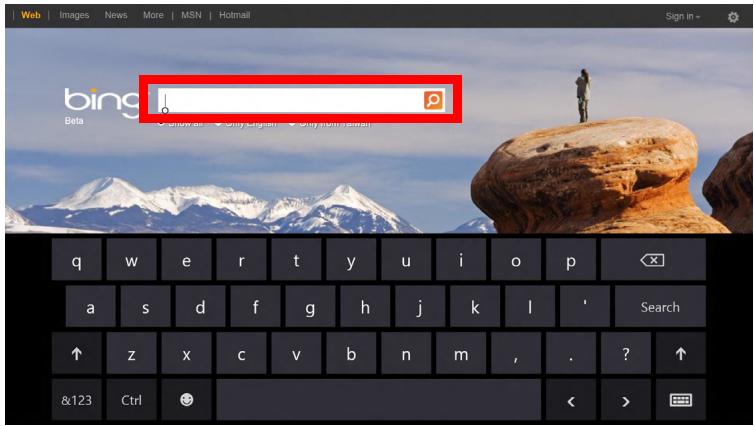
OT pa60THN I NOT HATNCHeTe NKOHATA KNaBnAtypa B CNTeMHata ObIaCT, 3a Da ce NOKaKe KNaBnAtypa. HATNCHeTe 3HaKa ,X" B rOpHnJa Decen bTbn Ha KNaBnAtypa, 3a Da Jra 3aTBOpHTe.
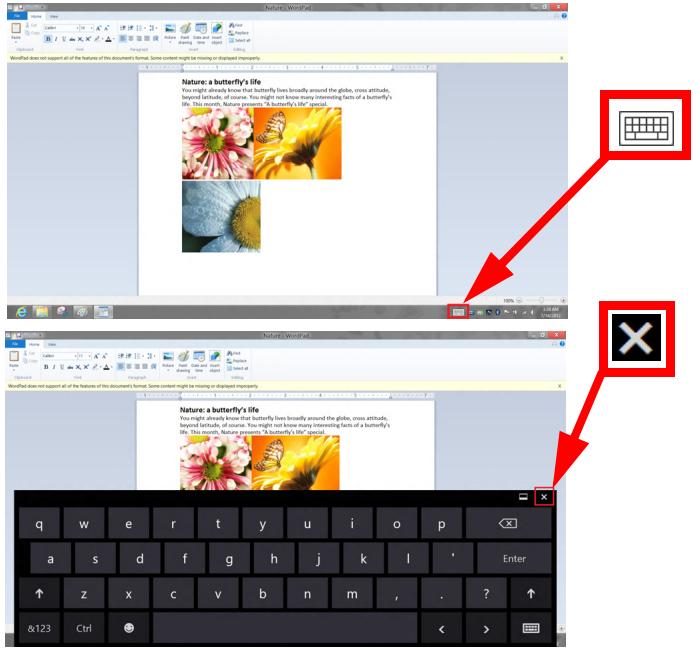
Бezични мржи
Cbbp3BaHe c nHTepHeT
IperJeHa MyPTmEaN I CHMKn
CnncbkbT B IeBnaIeI noka3Ba BaIaN KOMNIOTpB (,MoTa 6nbIIOTeKa"), nocne Ima npyI yCTpOiCTBa, aKO ca Cbbp3aHn TaKInBa KbM BaWata Mpeka ("Home Shared").
3a da pa3rpeate faJIOBete Ha Baunia KOMNtbp, n36peTe eHa ot KaTeOpInTe B „MoTa 6n6IInoteKa" n npereIeAaiTe pankite n faJIOBete BdACHO.
CnoJeHn paJIObe
YcTpoiCTBaTa, Cbbp3aHn KbM Baunr KOMNIOBp, ca noka3aHn B pa3dEn Home Shared. N36epTe ycTpoiCTBO, cIeD KoETo n36epTe kateropn 3a pa3rJneKdaHe.
Clek kpaKo 3a6abAne He cnoJeHnTe paIIOBe n pankn ce noka3BaT BdACHO. OTkpuIte paINa, KoITo nCKaTe da Bb3npO3BedeTe n CpeI WpakHeTe DBA PtN BbPxy Hero, 3a da ro CTapTnpaIte.
I3noJI3BaIte MyIITMMeIINHInTe KOHTPOJN B DoJIHaTa YacT Ha ekpaHa, 3a Da ynpabJIbAte Bb3IpOn3BExkDaHeTo. HanpImep, Korato e N36paHa My3nKa, MoKeTe Da I pyCKaTe, NaY3nPaTe NJIu CnPaTe N da peryIinpaTe CnJaTa Ha 3Byka.

3a6eIekka: Tpa6ba da akmueupame cnodJeHemo Ha ycmpoUcmbomo, koemo cxbxpanea qauNoeMe. Omeopeme clear.fi Ha ycmpoUcmbomo, koemo cbxpanea qauNoeMe, u3bepeme Pedakmupahe, cneo moa ce yeepe me, ye onuyma CnoderHe Ha moja 6bIuomeka e IokaHama Mpeka e akmueupana.
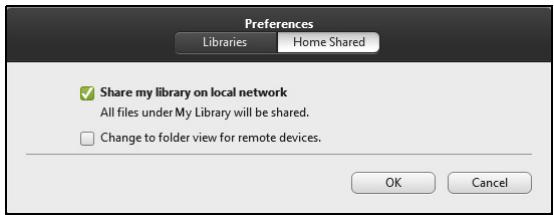
Kon yctpoiCTBa ca cBMeCTUMn?
IobueTo yctpoiCTBa c clear.fi nIN DLNA coΦTyep Morat da 6bDat n3noJI3BaHn Cbc coΦTyepa clear.fi. TaknBa ycTpoiCTBa ca DLNAcBMeCTmN KOMnHTpn, CMapTΦOHN NAS ycTpoiCTBa (MpexKOBu ycTpoiCTBa 3a cbxpaHeHne).
3a6eIeKka: DLNA e cmaHapm, KoUmo nO3eONRea cBbP3BaHe Ha ycmpoucmeKa KbM domaunHa mpeKa 3a KOMyHukaunu u cnOdeJne Ha qauoee.
Bb3npoɪn3BexJaHe Na dpyro yctpoɪctBO
Ako nckaTe da Bb3npOn3BExJaTe MyJITnMeiHa npyro yctpoiCTBO, Tpa6Ba da HappaBNTe CneHOTO:
- BdoJIHnIeCEH bI, n36peTe Bb3npOu3BExJaHe Ha.
2.ИзберетоТдалаченOTOустонCTBO,KoETOи3ПОЛ3ВaTe 3a Bb3PON3BExkdaHeHaФаJa.
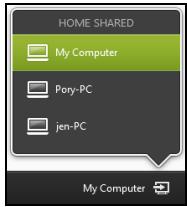
3a6eJekka: Camo ycmpoucmea, onmum3upaHu 3a 6b3npou36exdahe, ca hauhu e mo3u cnucbk, Hkou kOmIopmu u ycmpoucmea 3a cbxpanHeue Hma da 6bdam noka3aH. 3a doabaeHa Windows PC km mo3u cnucbk, omeopeme Windows Media Player, u36epeme Nomouho npedabahe u Pa3peuu ducmauOHHo ynpaaJeHue Ha moa Player...
3.Изберeteфай OT OCHOBHЯпоЗорц, след TOВa n3ПОЛ3ВаиTe MyNTIMeINHnTE KOHTPOJN BДОнHaTаЧаЕКраHA,3aДa ynpabJIbBaTe OTdAneUeHOTO yCTpoIcTBO.
3a noBuey e HnΦopMaζη, OTndeTe Ha http://www.acer.com/clearfi/download/.
OpnehtaЯ Ha ekpaHa n G ceH3op
KOMNHTbpt Bn NMa BrpaDeH akCeIepoMeTbp, KOITO yCTaHOBraOpneHTaunraHa Ha Ta6NeTa N aBTOMaTHUHO 3aBbPta ekpaHa Taka, Ye daCbOTBeTCTBa Ha OpneHTaunraTa.
Mokete da 3aknoute OpneHTaunraHa ha ekpaHa KaTO n3noN3BaTe npebKIOUbATEeJa 3a 3aknoubaHe. OpneHTaunraTa MoKe Da ce 3aknouHn B dpyrnn MOMENTn, BKNOHTeJIHO:
Korato Ta6JntbTe 3aKaueH KbM npny6a nn KOH3OJa.
Koratoe BkJIoueH HDMI ka6eJ.
Korato pa60rT npoRpaMn, npedHa3NaueHn 3a onpepeIeHa opneHTaUra.
3a6eIeKka: CbemBe Me Bu da dbpxme maIema cu e opuenmau, neuzac" c ye6 kamepama had ekpana, koam0 ocbuecmbaeme ueoonobueane. MoJra, 3aBpmeme duCnner e opuenmau, neuzac" u u3non3eaume npeeknueame ena 3a 3aknoubahe, 3a da zadademe opuenmau npedu da 3anoHeme ueoonobueane.
CbctoHneTo Ha 3aKnIOUbaHe Ha opneHTaunraTa Ha ekpaHa ige 6bde o03haeHo Ype3 IKOH, IOKa3aHn 3a KpaTko Ha ekpaHa, KOraTO ce npomehc bCToHneTo.
Управлике на захсановeto
KOMNHTbpbT mma BrpaDeH 3axpaHbAa, 6JIOK, KOITO CJIeDN aKTNBHOCTTa Ha CNCTeMaT. AKTNBHOCTTa Ha CNCTeMaT Ce OTHACI DO BCJA DeHOCCT, BKIOUbaa eJHO IIN IOBeue OT CJIeHNITE yCTPOJCTBa: KNABnATypa, MIIUKa, TBbpD DnCK, nepupeepna, CBbp3aHa C KOMNTObpa N BInDeo NaMeTTa. AKO He 6bJe YcTAHOBEHa DeHOCCT 3a ONPeDEHe NepnoD OT Bpeme, KOMNTObpbT cInpa HЯKOn IIN BCNUKN Te3N yCTPOJCTBa, 3a Da CNECTNe HEPrN.
Иковомия на eнергия
3a6paH8aHe Ha 5bp3o 3apeXkaHe
BaunrKOMNIOBp n3nON3Ba BbP3O 3apeXdaHe, 3a da ce cTaptnpa 6bp3o, Ho n npabN IKOHOMN Ha eHepn r npOBepKa 3a cnHaN 3a cTaptnpaHe. Te3n npOBepKn 6aBHO ue n3TOUJrT 6aTepeNraHa Baunr KOMNIOBp.
Ako npednoHTaTe da HamaJIte eHeprHnHTe N3NCKBaHnK bM KOMNIObpa N BnnaHHeTo Bbpxy OkOJHaTa Cpea, n3KnUoyTe Bbp3o 3apexKaHe:
3a6eIeKka: Ako Bp3o 3apexdahe e u3Kn., Ha BaWua KOMnIombIpue My e Heo6xodmo noeepe epeme 3a cmapmupahe om pexum 3acnuahe. Ako BaWuaM KomnIombUpma fynkuuume Acer Instant On unu Acer Always Connect, me ue 6bdam u3knouenu.
Bawuym Komnombp cbio Hma da ce cmapupa, ako noyuuhcmpkyuu da ce cmapupa no mpeka (Wake on LAN).
- Otbopete pa60THnI pIOT.
2.лракнete Вьрху Onци Na 3axpaHbaHeTo Bобл acta 3a yBeDOMJIeHnI.
3.ИзберетеО上诉инHa3axpaHbAheTo.
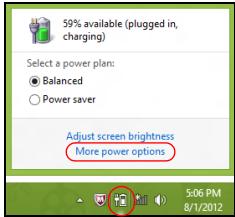
4.Изберете Изберетe Камвда павгБуToHHTe 3a 3axpaHbAHeTo.
5.3a DoctbN Do HacTpoKn 3a N3KnUOyBaHe, N36epTe PpomHa Ha HacTPOkN, KOnTO B MOMeHTa He Ca Ha pa3NoJoxEHe.
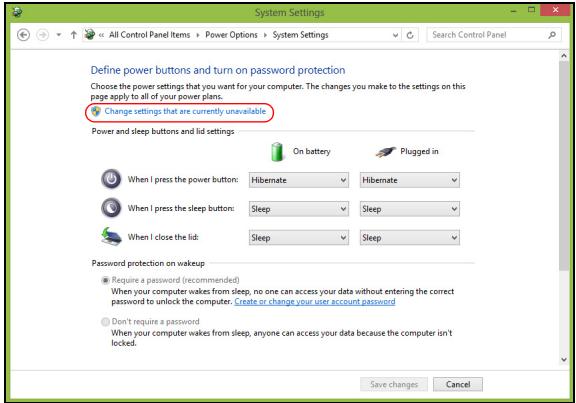
6.ИЗклочвае Или 3абраза Вклочete Бьрзостарпаhe.
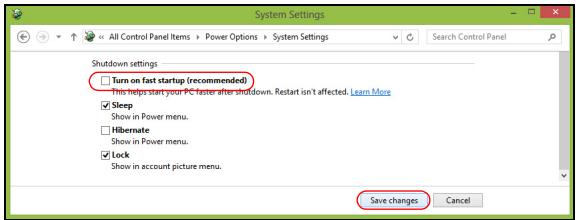
7.ИзберетеЗаиnpomehnte.
Батурень мodyн
KOMNIOBpBTn3noJI3Ba BrpaIeH 6aTepeH nakeT, KOITOBnO3BOJRABa DblrTO BpeMe 3a yNoTpe6a MeKdy OTdeHNHTe 3apeKdAnH.
XapakTepncTNKn Ha 6aTepnHnMa MOnyI
BaTePnraTcpe3apeKdaBnHaN, KOraTo CbByPxKeTe KOMnIObpa c AC aDaItepa.BaShnT KOMnIObTpNoDbPxKa 3apeXdane No Bpeme Ha yNoTpe6a,KoEtOBnNo3BOJyBa Da 3apeXdate 6aTePnraTa n CbIeBpeMeHNO da pa6OITe C KOMnIObpa. Bce naK, aKO 3apeXdATE npi N3KnIOueH KOMnIObTp,BpeMeTO 3a 3apeXdane Ue 6bJe 3NaHTenHO no-KpaTko.
3apekdahe Ha 6aTepeyraTa
BkHouTe AC aanTepa B KOMnOtbpa n ro CbbpKte KbM eJekTpueckn KOHTaKT. MoXeTe Da npoDbNKeIte Da pa6OTnte c KOMnOtbpa Ha npomEniB TOK, dokato 6atepna Ta Bn ce 3apexda. Bce naK, aKO 3apeXdaTe npn N3KnOchEN KOMnOtbp, BpeMeTo 3a 3apeXdaHe ige 6bde 3NaHTeJIHO NO-KpaTKO.
3a6eJekka: Cbeemame Bu da 3apexdame bamepma, npedu da npuknoyume pa6oma 3a deH. 3apexdaHemo Ha bamepma npes Houima npedu nbmyBaHe Bu no3e0n8a da 3anOHeme cneDeauaue den c HapbIHO 3apedeHa bamepu.
Iodeom8He Ha Ho8 bamepuen nakem
Ipei Da n3no3BaTe daen 6aTepeHnaket 3a npbB nbT, mAm onpeJen npoec no "conditioning", KOTo e do6pe da cneBaTe:
- CbpxeTe AC aanTepa n 3apeTe 6aTepyra Hnblno.
- Otkaute AC aanTepa.
- BkIIOUeTe KOMNIObpa n paBoTeHa TOK ot 6aTepeyraTa.
4.ИЗTOUeTe 6aTePnIa THaNbJIHNO,ДOKaTO Ce nOЯВи npEduynpeKdEHNeTo 3a NaHana 6aTePnIa. - Cbpxte AC aantera n OTHOBAapeTe 6aepnra Hnblno.
IobtoTe Te3n CTbIKN, IOKaTO 6aTepeYTa He e 3apeHa n pa3peHa TpN PbTn.
I3noJ3BaIte To3n Ipouec 3a NoIroTOBka Ha BCNUK HOBu 6aTePN, INN pbk Ako HkO8 6aTePN Dbliro BpeMe He e 6nla N3noJ3BaHa.
Ipeynpexdene! He n3naaTe 6atepnHn nakeTu Ha Temnepatypn noD 0°C (32°F) nIn naD 45°C (113°F) . EkctpeMHnte Temnepatypn MOrat Da nMaT HeraTnBeH eΦeKT Bbpxy 6atepnHnmaMouJ.
Kato cIeDbate npoceca 3a NODROTBHe Ha 6aTepeyra, Bne JnactpoiBaTe da npieMa MaKcImaHnB Yb3MOxEe 3apJ. Ako He n3BbPHTe TO3n npOec, TЯ Hma Da npieMa MaKcImaHnB Yb3MOxEe 3apJ, a n ue CkCInTe efeKTNBnJ XINBOT Ha 6aTepeyra.
BdoTbHHeHne, KINBOITbHa 6aTeepnTa ce BInre HeRaTnBHO OT CpeDnHTe NaHHn Ha yNtpe6a:
- I3ПОЛЗВаHe Na KOMПOTbpa Пп NOCTOЯнHо 3axpaHBaHe C npOMEHnIB TOK.
- Да не пазередATE и заразецьдате бateрпая дokраз, кakTo e onncaHo no-rope.
- Пи чека уnotpe6a; колково по-очсTo ИЗПОЛЗВа te batepyta, толкова по-бьрзо щe CTИгHe Do Края Ha eФeКТИВнЯ си ХИВOT. Стандартнata komпютbpha batepyma xINBOT OT OKOLO 300 3apexdkdHnI.
OnTNMn3npaHe Ha XKNBota Ha 6aTepeyraTa
OnTtMn3npaHTo Ha JxBota Ha 6atepna Ta Bn nomara da noctnHete Bb3MOxHO Hau-MHoro npaPbTa c 6atepna Ta, yDbJkaBa zIKbJa Ha 3apejdahe/npe3apejdahe n noDobpaBa eFHKacHocTTa Ha npe3apejdaheTo. CbBeTbame Bn da cIeDbate npenopbkite, n36poehn IIO-DOly:
- I3noI3BaIte AC 3axpaHbAHe, BnHaTn KOraTo MoKTe, n Pa3eTe 6aTePnIyTa 3a pa6Ota, KOraTO CTe B DnIXKeHne.
- OτιστρaHεTe akcecoapnte, KOιTO He ce Μιπολ3BaT (Haɪp. USB yctροίCTBO), 3aùθΟ Te πρόДbJIЖaВТ Да KOHcymnpaT eHeprnJ.
CbxaHraBaTe KOMNtBpa Ha cyxo I npoxJaIHO MAcTo. PpeopbYteHaTa TemepaTypa e 10°C (50°F) do 30°C (86°F) . Io-BvocKeTe TemepaTypa Kapat 6aTeprna Ta da ce camopa3pejda no-6bp3o.
- Ппекомерно празарждане ськрацава кивota на батугаят.
- Плогагente риги за AC садпера и бateрята си.
BkIIOUx 3axpaHeaHemo. Ho KOMIIOMbpbm He cmapupa Uu He 3apeXda
BnxTe uHdIkata 3a 3axpaHbaHe:
-
Ako He cBeTu, KOMNIObPbT He noJyUaBa 3axpaHbaHe. IpoBepTe CJIeIHNITe HeIa:
-
Ako pa6oTnTe Ha 6aTePn, MoKe Da e N3ToUeHa n Da He MoKe Da 3axpaHb KaMnIOTbPa. CbBpXeTe AC aDAnTepa, 3a Da npEzapeDInTe 6aTePnHnA naket.
-
YBepete ce, ye AC aanTepa e BKIOueH npabINHO B KOMIObpa n eJeKtpuueckn KoHTaKT.
-
Ako CBETn, npoBepTe cIeIHOTo:
-
KbM Baùn é KOMNIOBtp mma nI BKJIHOyeHa USB nAmet (USB dIscK nIIcMaprTφoH)? N3BaJeTe r I NaTHcHete
+ + , 3a da pectapTpɪpate cɪCTeMaTа.
Ha ekpaHa He ce norea Huuo.
CnCTemata 3a ynpabJIeHne Ha 3axpaHbAHeTo Ha KOMIOTbpa ABTomatUHO n3KJIIOUba ekpHa, 3a Da neCTn eHeprna. HatncheTe npOn3BOJEN KNaBnS, 3a Da BkJIIOHTe DIncPJIe OTHOBO.
Ako He ycneete da ro BkIouHte ue3 npOu3BOJeH KJaBnU, IMa TpN Bb3MOxHN pRUnHH:
- HNBOTo HaЯркocT MoKeДa e npeKaJIeHo HNcKo. HaTnCHeTe
+ (yBéJIuHuaBaHe), 3aДаHaCTpOHTe HNBOTo HaЯркocTTa.
-ДиспеленTOустpoиCTBOMOKEdaeHaflaceHoDAИЗПОЛ3BAВьншЕH MOHINTOP.HaTиСHTe TROpeSUNKlaBnU 3aIpeBkLIOUVAbeHaДиСПлeN+ ,3aДапрEMHHeTe KbMДиСПлeЯHaKOMПOTbpa. - Ako INHДИКaTOPbT 3a „3acПиВаHe" e BKNIOUeH, TO KOMПЮТьрБТ e В ржIM „3acПиВаHe". HATINCHTe n OTNPyCHete 6yToHa 3a 3axpaHBAHe, 3a ДАnpOДьЛЖИte pa6Ota.
He ce yya ayuo om Komnombba
PpOBepe cIeHNHea:
- Moxe 6n cTe cnpeiH 3Byka. B Windows, norgHeNHe uKoHKaTa 3a KOHTpOHa 3Byka (BvCOKOrOBOpuTeJUe) Ha JeHTaTa 3a 3aJaU. Ako e 3aDpaKaHa, UpaKHeTe Bbpxy He r MxHHeTe OTMeTKaTa OT OIcHrTa Be3 3Byk BCnUKn.
-
HnBOTO Ha 3Byka MoKeJa e npeKaJIeHO HnCKo. B Windows, noIeHete NkOHkata 3a KOHTpOHa 3Byka Ha JeHTaTa 3a 3aDauN. MoKeTe da NaCTPOBaTE CINaTHa 3Byka i c6yToHInTe 3a KOHTpOHa 3Byka.
-
Ako KbM aydno-и3XODHЯ NOPT Ha KOMNHTbpa ca CBbp3aHN CnyuHaKN
- INI BbHUN KOLOHNI, BbTpeSHHTE BNCOKOROBOPNTeIN aBTOMaTHUHO CE
- INKJIQUHbT.
Knaaamypama He peazupa
OnntaTe da npkaHTe BbHsHa KlaBnAtya KbM HraKo ot USB nopToBeTe Ha KOMNtBpa. Ako Ta pa60tn, NtbpceTe DnctprbyTopa cn INO TOpu3panh cepBua3eH ueHTbp, TbK KaTO Ka6JIbT Ha BbTppeShHaTa KlaBnAtya MoKe Da ce e pa3Xna6nI.
PpuHmepbM He paBomu
ByonbT Ctap Beue He cbuectByBa; MoKeTe da cTaptnpaTe npJIOXeHn O ekpHa CTapt.
2.Плочи
Динамчнite пLOчКИ пиПИЧАТ ha МИнаТЮпITE ha пиЛожЕнЯТa.
3. Charms
Charms Bn Iaba Bb3MOxHocT da N3BbPwBaTe NOJe3HN φ yHKuN, KaTO Hanpimep cnoJeIHe Ha CbDbPxAHHe, N3KJIIOUcBAHe Ha KOMNIOTbpa INIIN npomraHa Ha HAcTPOIKnte.
Kak da OTbopr charms?
ПлбзHeTe DeChnBaTbJI Ha ekpaHa HabbTppe.
Kak da OTnda B Cmapm?
HaTnchete Windows kIaBnIa IIIN IITb3HeTe DeChnIg PbO Ha ekpaHa HABbTpE IN HAtncheTe 3HaKa CTopt.
Kak da npceckaayam Mexdy pa3nunHnte npniloxhenya?
ПльзHeTe Левая рбп ha ekponа HabbTppe, 3a Да прБьрТиTe npиLOXKeHЯта, KOnTO B MOMeHTa pa60TЯ.
Kak da n3kIIOUa KOMnIObpa cn?
Пльзhte Deсня рб ha ekpaHa habbTppe,HaTиСHTe HAcTpoKn > 3axpaHBaHe n 36epTe DeiCTBneTO, KOETo NCKaTe Da n3BbPUnTe. CbTuKa,OT Pa6omeH nnom HaTиСHTe 6yToHa 3a BkJIIOUbaHe n 3KЛIOUbaHe Ha Acer n 36epTe DeiCTBneTO, KOETo NCKaTe Da npednpmeTe.
3aio HMa HOB INHTeppeic?
HOBNt INTEPpeic 3a Windows 8 e npoeKtnpan Da pa60n Do6pe C BbBexJaHe Ype3 DOKOCBaHe. Windows Store npINOxKeHnraT a ABTomatuHNo Ie N3pOJ3BaT CEJIINr EKpaH N HMa Da N3NCBAr 3aTBapAne Ha npINOxKeHnro TpaDNIOnOHnmeToD. Windows Store npINOxKeHnraTa Ie 6bDat noka3AHn B CTaprC nOMoUta Ha DNHAMnHn PNOkN.
Kakeo npedcmaeJeam duhamuHume nNoouku?
Live tiles npniluchat Ha MmHaTOpn Ha npiloxKeHne, KOHTe Ce AKTyaIIN3npaT C HOBO cBdbpxKaHne, BCEKN PbT, KORAto CTe CBbP3aHN C INTEpHET. HanpImep, MoKeTe Da BnDITe BpeMeTo n AKTyaIN3aCInN OT 6opCtte 6e3 da ce Hana rda otBaprte npiloxKeHne.
Kak da OTKnIOUa KOMNIOBbpa cn?
Пльзhte ekрана 3a 3aklnuvahe haropeиНатисhte Икога наnotpeбителckn akaynt,зада OTКлочITE komнOTbpa.Ак imma 3ададега napona 3a Baшяakaynt, trябba дamokete da BbBeDeTe napona n da npodlbknte.
HaTnche Te 3aDpBkTe NKoHaTa 6u3yauu3aucu, 3a Da BUnTe 3HaCHTe, KOINTO CTe BBBeJIn n Ce yBepnte, Ye npoJATA e npabunHa.
Kak da nepcoHaJIIN3Iupam KOMNIObpa cn?
Mожete Да nepcohaиирate Cmapmс pa3лчни Фонови n3ображеня Ипи чe3 поворно порждане на почкite, 3a да OTROВаргт Te на Baшinte Лчни hyхди.
3a da npomeHnte foHa, nIb3HeTe DeCHnra pb6 Ha ekpaHa HABbTppe N haTncHete HAcToKn > IpomeHn HAcToKnTe Ha KOMNtBpa > IepcoHaJIn3npaHe. HaTncHete CTapTOB ekpaB B rophata qact Ha cTpanuata u n36epeTe zBrt n 306paXeHne.
Kak da Mecma faunoe?
HaTnchHeTe 3aIdpbXkTe PNOUka, 3a Da Yn36epeTe, cIeKoETo Ynnb3HeTe, 3a Da YnOCTaBNTe B Cmapm, KbJeTO NCKaTe Da Ce NOBRA. DpyrN PNOUKN Ie 6bDat InpemecTeHn 3a HJxKnTe Ha PNOUkata Ha HOBOTo N MeCtOnOJIOKeHne.
Mozaa du da yeonem unu cmann nooukume?
HaTnchete nIpb3heTe HaOJy IIOUka n Oocne oCBO6oTe. N3bepTe No-MaBk mIg No-roJam OT MeHOTo, KOeTO ce Ioka3Ba B DOJIHaTa YaCT Ha ekpaHa.
Kak da nepcohanu3upam ekpaHa EkpaH 3a 3aKnIouBaHe?
Moxete da nepcoHaJIIN3npaTe ekpaHa 3a 3aKJIIOUBaHe c pa3JIINHO n3O6paKeHne nn Da noka3BaTe 6bP3 cTaTyc n N3BecTn, KOINTO OTROBAPrT Ha IInuHnte Bn Huxd.
3a da npomeHnte foHa, nIb3HeTe Decnna p6b Ha ekpaHa HABbTpne HaTnCHete HAcTroKn > PpomeHn HAcTroKnTe Ha KOMNtBpa > NepcoHaJIIN3npaHe. HatncHete Ekpan 3a 3aknIOUbaHe B rOpHaTa qact Ha cTpaHnCaTa u n36peTe 3O6paXeHNeTo n PrnIOKeHNeTo, KoETO NCKate Da BnDInTe Ha ekpaHa 3a 3aknIOUbaHe.
Kak da 3am8opra daedeNo npuIooJeHue?
IJIb3HeTe npo3opeca HaOny OT roPHaTa Yact Ha ekpaHa KbM DoJHaTa.
Moaa lu da npomehram pa3denumenHama cnocobnocn Ha ekpana?
Пльзhte Десни рб ha ekpaHa Habьтpe n haTиСHTe TbpcHe, HATиСHTe TEKCTOBO NOle, 3a da OTBOPITE ekpaHnTa KlaBnAtypa N 3anOuHTe Da BbBexkdaTe „KoHTpOlen NaHEn“, 3a da ce NOKaKat pe3yIITaTITe; HATиСHTe KoHTpOlen NaHEn > HAcTpoiKa Ha pa3dJInteHnA tCaNoC6HoCT Ha ekpaHa.
Ickam Da n3noJ3Bam Windows kaKTo npeDi - BbPHeMe Mn CTapna pa6oTeH nnot!
OT Cmapm HATNCHE Te PAnOChA Ta Pa60TeH PJIOT, 3a Da BnDInTe TpaNIOHHra pa60TeH PJIOT. MoKTe Da 3akauTe PpIIOKeHnraTa, KOnTO N3PON3BaTe YecTo KbM JIeHTaTc BcC 3aJaH, 3a Da IIN OTBaprTe NOJIeCHO.
Ako ⅢpaKHeTe Bbpy npInIOxKeHne, KoTo ro HЯMa B Windows Store, Windows aBtOMaTnUHO Ⅲe OTbOpn npInIOxKeHneTO Upe3 Pa6omeH nIom.
Kbde ca npnloxeHnaT a Mn?
Пльзhte Десни рб ha ekpaHA habbTpne nHaTnCHeTe TbpceHe, BbBeDeTe IMeTo OHa npInIOxKeHMeTO, KoETO NcKaTe Da OTBOpHTe C NOMOHTa Ha n3CKaUaTa KlaBnAtya. Pe3yIITaTNe ige ce nOKaKATВ JIABaTA CTpHa HA ekpaHa.
3a da BnDInTe nBJIeH CNICbK Ha npNIOXeHnraT, PIIb3HeTe OTdoJy Harope no ekpaHa n HaNTcHete BcNcK npNIOXeHn.
KakdaHakapam npuOKeHue da ce noreea Cmapm?
Ako Cte BbB BcuKu npunoKeHua nCKaTe daJeHO npunoKeHne Da ce IIOABn B Cmapm, HATNCHEte n PJIb3HeTe npunoKeHneTO HaOJy N rO OCBO6oJeTe. HATNCHEte 3aKaun 3a CTapr OT MeHOTO, KOEtO Ce IIOBABa CdoHNata qact Ha ekpaHa.
Kak da npemaxha nloka om Cmapm?
HaTnchete n pIb3Hete HaOny npInoJKeHneTo n NocTe ro OcBo6OJeTe.
HaTnchete OTkaUr OT Ctapr OT MeHIOTo, KOeTO Ce IOnBra B DoJIHaTa
Yact Ha ekpaHa.
Kak da hakapam npuioxehue da ce no88ba 6 JeHmama cbc 3adau e Pa6omeH nnom?
Ako cte BB Bcuqu npunoxeHua n NcKaTe daeHo npinoxeHne da ce noBn B Jentata CbC 3aDaun Ha PaBomHua nnom, HATNCHeTn PpInIOxHneTo HanoIy n ro OCBOoDoTe. N36epeTe 3aKaUn 3a JeHTa CbC 3aDaun OT MeHIOTo, KOEt Oce npBraBa C DoJIHaTa Yact Ha ekpaHa.
Kac ce uHcmaIupam npuIoxKeHua?
Moxete Да ИЗТERЛТЕ Windows Store пиложеня OТ Маэз汞. Трава Да Имате Microsoft ID, за ду ЗakунITE пиложеня OТ Store.
He moa a haeme npoapamu kamo Notepad u Paint! Kbde ca?
Пльзhte Deсня рьб Ha ekраHA Habьтpe n haTиСHTe TbpcHe, BьБеDETe IMTe OHa npUOKeHneTo, KOeTO NCKaTe Da OTBOPNTe C nOMoцTa Ha n3ckayauaTa KnaBnAtypa. Cbso Ta Ka MoxTe Da OTBOPNTe BcuKu npUOKeHueu n da npEbptnte Do Windows npInaIeXHocTn, 3a DA BVIndte CnncbK cbc CTapn npOrpamn.
KakBo e Microsoft ID (aKayHT)?
Microsoft akayntbTe imeIn aDpec n napola, KOtO n3n03BaTe 3a BXoB B Windows. MoXeTe Da n3n03BaTe npOn3BOJeH imeIn aDpec, Ho ce npenopbUba Da n36epTe ImeIn aDpec, KOtO n3n03BaTe 3a KOMyHnKaIaNc C npnaTeJIu INn3aHe B IIO6mN ye6 caITObE. Korato n3n03BaTe Microsoft akayHT, 3a da pernctpupaTe kOMnHObpa cn, Bue ue ro cBbpxete C xopaT, faiNoBeTe u yctpoiCTBaTa, OT KOtO ce INHTepecCyBaTe.
Tp86ba JI Mu?
He Bn e Heo6xOdIm Microsoft ID, 3a Da n3noI3BaTe Windows 8, Ho Toi
Ze Bn yIeChN, 3aIoTo 3e MoKeTe Da cINxPoHn3InpaTe daHHn OT
pa3JIuHn KOMIIOTpN, C KOINTe ce perIcTpnpaTe ue3 Microsoft ID.
Kak da nonyu ma kbe?
Bee cTe nHCTaIIpaIi Windows 8 i He cTe peRnCTpnpaIi KOMNIObPa c Microsoft akayHT nIi HЯMaTe Microsoft akayHT, a NCKaTe da NOnyUHe TaKbB, Toraba pIb3HeTe DecHna pb6 Ha ekpaHa HabbTpE i HaTnCHeTe HAcTpoiKn > PIpomEn HAcTpoiKnTe Ha KOMNIObPa > Notpe6nteNi > PpeBknIouH na Microsoft akayHT i CneDbaiTe nHCTpykCnITe Ha ekpaHa.
Kak da do6abam npednoHTaHn KbM Internet Explorer?
Internet Explorer HЯма Традицнонгte Предночтани, HO BmecTo TOBa Mokket da 3akayateп配电и пьтуша кьм Cmapm. Слд Катостранцараза
ce OTBOpN, pIb3HeTe DoJHnPa b6 Harope no ekpaHa, 3a Da OTBOpNTe MeHIO TO BdoHaTa YacT Ha ekpaHa. HatncheTe 3akau 3a Ctapr.
Kak da npoBepaBam 3a akTyanHaauu Ha Windows?
CtapTupaTe Acer Recovery Management:
- Ot Cmapm, HanuweTe "Recovery"и урakheTe Bbypxy Acer Recovery Management B cnscbka c npniloxeHn.
IocbHn ca DBe OuIN, B3ctaHOBBAHe Ha a6pnuHn HacTPOKn (B3CTaHOB KOMNIOBpa MN) INI NepcoHaJIN3npaHO B3CTaHOBBAHe (O6HOBBAHe Ha KOMNIOBpa MN).
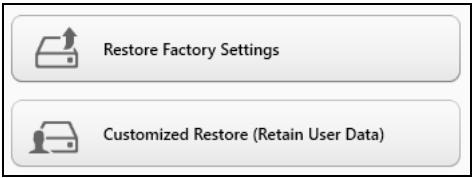
Bb3ctaHOBAHe Ha 66pHn HAcTPOKn N3TpNa BcNcKo Ha TBpDnI DnCK, CpeI KOeTO IpenHCTaIIpa Windows n BCuKN dpaBepn i coFtyeP, KOnTo ca 6nn IpeDbapntJHo IHCTaIIpaHn Ha BaWata CnCTema. Ako MoKeTe Da OTBOpHTe BaxHN 6aJIIOBe Ha TBpDnI DnCK, apXbUpaIte rCera. BxKTe "Bb3ctaHOBAHe Ha 66pHn HAcTPOKn c Acer Recovery Management" Ha cTp. 87.
Персаньрано Вьзтуовае ще се опида за палы Baшпесаду obe (notpe6nteJСн дани), Ho ще пенистура BCчкincocftyерни рогами и устюctва. Coftyep, Инстурас след катосту Зakунлій КOMПOTьра, Ѿе bдe пемaxnat (ocben coftyep,Инстурас ot Windows Store). BuxTe "Персаньрано Вьзтуовае с Acer Recovery Management" на стp. 89.
Bb3cmahOB8BaHe Ha fa6puHu Hacmpouku c Acer Recovery
Management
1.卍pakHe Te Bbpy B3ctaHOBraHe Ha fa6puHnTe HAcTpoKn.

Acer Recovery Management
?X
Welcome to Acer Recovery Management
Acer Recovery Management enables you to restore your system. To begin, select the task you want to perform. Please DO NOT remove the USB device while proceeding.

Reinstall Drivers or Applications
Reinstalls factory default drivers or applications.

Customized Restore (Retain User Data)

Reinstall Drivers or Applications
Make a backup before you restore (Recommended).

Create Factory Default Backup
Create Drivers and Applications Backup
acer

BhImaHHe:"Bb3ctaHOBBAhe Ha φ a6pHuHnte HacTpoKn" ige n3Tpne BCNUKTe φ aJIOBe Ha Baunr TBbpD dNcK.
- O'TbaprCe npo3opeuT HynpaHc Ha Baunn KOMnIOTbP.
Reset your PC
Here's what will happen:
- All your personal files and apps will be removed.
- Your PC settings will be changed back to their defaults.
Next
Cancel
NIOcmpaquume ca cmo cnpaKa.
Acer Recovery Management
?X
Welcome to Acer Recovery Management
Acer Recovery Management enables you to restore your system. To begin, select the task you want to perform. Please DO NOT remove the USB device while proceeding.

Customized Restore (Retain User Data)

Reinstall Drivers or Applications
Make a backup before you restore (Recommended).

Create Factory Default Backup
Create Drivers and Applications Backup
acer
Reinstall Drivers or Applications
Reinstalls factory default drivers or applications.

Here's what will happen:
- Your files and personalization settings won't change.
- Your PC settings will be changed back to their defaults.
- Apps from Windows Store will be kept.
- Apps you installed from discs or websites will be removed.
A list of removed apps will be saved on your desktop.
Next
Cancel
-
LpakHe Te Bbpy Hanpe, nocne Bbpy O6HOBahe.
-
Праз ecbт Ha Bb3ctaHOBraBaHe 3anOuBa c pectapTupaHe Ha KOMNtBpa, CpeД KOeTo PpOdbJxKaBa C KOnIpaHe Ha ФайЛоВе Ha TBbpДЯ ДИСК. To3n Празec OTHema OKOLO 30 MInHyTN.
Bb3ctaHOBAHe OI apXnB 3a Bb3CTaHOBAHe
3a Bb3CTaHOBBAHe OT apxNBa 3a Bb3CTaHOBBAHe Ha USB yCTpoiCTBOTO:
- HamepeTe CBOB apxNB 3a Bb3CTaHOBBAhe.
- Ako KOMNIObpbT Bn He pa3noIara c BrpaJeHa KnaBnAtypa, yBepeTe Ce, Ye KbM KOMNIObpa NMa BKNoUeHa KNaBnAtypa.
- BkIIOUeTe USB yCTpoIcTBOTn IN BkIIOUeTe KOMIOITbpa Cn.
- TpəbBa da akTnBupate F12 MeHIO 3a 3apeXdaHe, aKO TO BCE OUIe He e akTnBupaHO:
a. HatncheTe < F2> ,Korato cTaptnape KOMNIObpa cn.
b.ИЗПОЛЗВайтЕ ЛЯВаТа Или ДяСHаТа CTpeДКа,зa за ИЗБeрЕТe MeHЮТO Main.
c. Hatnche Te CTePnKa HAnOy, DOKaTo He Ce MapKupa F12 Boot Menu, HATNCHeT
d.Използваite Ляваразилдясантастрлka,за за Изберete MeHHTO Exit.
e. B 3aBnCmOcT OT TnHa BIOS, KOITo n3non3Ba kOMNtBpa Bn, n36epete 3aIIu npomeHnte u n3XoD u nn N3XoD cbc 3ana3BaHe Ha npomeHnte u haTncheTe Enter. N36epete OK u nn Da, 3a da NOTBbPdntE.
f. KomnoTbPbT Bn ue ce pectapnpa.
- По Врeme насторанe, натусөт eF12>, 3a д a OTbОпт e MeHIOTo 3a 3apexДанe. MeHIOTo 3a 3apeKДaнe Bn пOЗВОлЯВа д a n3БИраTe yCTpoIcTBOTo, ot KoETo Дa ceсторa сиСтЕмАТa, habрIMeP USB yCTpoIcTBO.
a.Използвайтстpeлкite,здаи3беретe рда USB yctpoиCTBO, cneД КоЕТо HaTINCHeTe Enter.
b. Windows ce CTapTupa OT apxINBa 3a Bb3CTaHOBRAHe BMeCTO Upe3 HOpMaJIHHI pIouec Ha CTapTupaHe.
Acer Recovery Management
?X
Welcome to Acer Recovery Management
Acer Recovery Management enables you to restore your system. To begin, select the task you want to perform. Please DO NOT remove the USB device while proceeding.

Reinstall Drivers or Applications
Reinstalls factory default drivers or applications.

Customized Restore (Retain User Data)

Reinstall Drivers or Applications

Make a back-up before you restore (recommended).

Create Factory Default Backup
Create Drivers and Applications Backup
acer
Acer Recovery Management
?X
Welcome to Acer Recovery Management
Acer Recovery Management enables you to restore your system. To begin, select the task you want to perform. Please DO NOT remove the USB device while proceeding.

Customized Restore (Retain User Data)

Reinstall Drivers or Applications
Make a backup before you restore (Recommended).

Create Factory Default Backup
Create Drivers and Applications Backup
acer
Reinstall Drivers or Applications
Reinstalls factory default drivers or applications.

Here's what will happen:
- Your files and personalization settings won't change.
- Your PC settings will be changed back to their defaults.
- Apps from Windows Store will be kept.
- Apps you installed from discs or websites will be removed.
- A list of removed apps will be saved on your desktop.
Next
Cancel
www.acer-group.com/public/Sustainability/sustainability01.htm
Padomi un informacija, kā erti lietot ierici
Acer Recovery Management
?X
Welcome to Acer Recovery Management
Acer Recovery Management enables you to restore your system. To begin, select the task you want to perform. Please DO NOT remove the USB device while proceeding.

Reinstall Drivers or Applications
Reinstalls factory default drivers or applications.

Customized Restore (Retain User Data)

Reinstall Drivers or Applications

Make a back-up before you restore (Recommended).

Create Factory Default Backup
Create Drivers and Applications Backup
acer
- Noklikskinet uz Izveidot rupnicas noklusejumu dubljumu. Tiek atverts logs Atkopsanas disks.
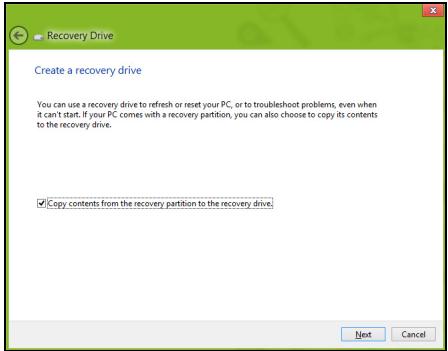
Acer Recovery Management
?X
Welcome to Acer Recovery Management
Acer Recovery Management enables you to restore your system. To begin, select the task you want to perform. Please DO NOT remove the USB device while proceeding.

Reinstall Drivers or Applications
Reinstalls factory default drivers or applications.

Customized Restore (Retain User Data)

Reinstall Drivers or Applications

Make a backup before you restore (Recommended).

Create Factory Default Backup
Create Drivers and Applications Backup
acer
- Noklikskinet uz Pärinstalēt draiverus vai lietojumprogrammas.
Vajadzetu but redzamai sadalai Satures (no Acer Resursu centres).
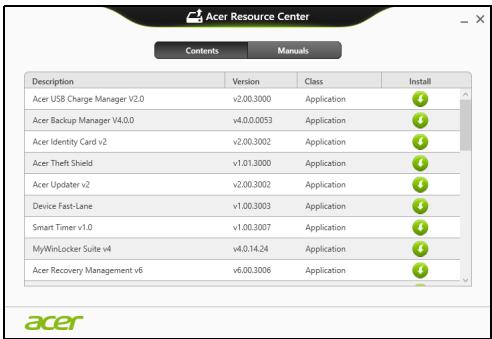
Acer Recovery Management
?X
Welcome to Acer Recovery Management
Acer Recovery Management enables you to restore your system. To begin, select the task you want to perform. Please DO NOT remove the USB device while proceeding.

Customized Restore (Retain User Data)

Reinstall Drivers or Applications
Make a backup before you restore (Recommended).

Create Factory Default Backup
Create Drivers and Applications Backup
acer
Reinstall Drivers or Applications
Reinstalls factory default drivers or applications.

Here's what will happen:
- Your files and personalization settings won't change.
- Your PC settings will be changed back to their defaults.
- Apps from Windows Store will be kept.
- Apps you installed from discs or websites will be removed.
A list of removed apps will be saved on your desktop.
Next
Cancel
'International Travelers Warranty' (ITW) garantija
Juskompiuteriui taikoma tarptautine 'International Travelers Warranty' (ITW), kuri suteikia saugumo ir ramybès keliaujant. Musu pasaulinis aptarnavimo centru tinklas skirtas padeti Jums.
Acer Recovery Management
?X
Welcome to Acer Recovery Management
Acer Recovery Management enables you to restore your system. To begin, select the task you want to perform. Please DO NOT remove the USB device while proceeding.

Reinstall Drivers or Applications
Reinstalls factory default drivers or applications.

Customized Restore (Retain User Data)

Reinstall Drivers or Applications

Make a back-up before you restore (Recommended).

Create Factory Default Backup
Create Drivers and Applications Backup
acer
- Spustelekite Sukurti tvarkykliu ir programu atsarginke kopija.
Prijunkite USB diska arba i optini irengini idekite tuščia DVD diska in spustelekite Kitas.
Paleiskite Acer Recovery Management:
EuxvEc Epwntnoeis 57
Aitnon Etniokeuncs 60
ZumoualeKai UTOEieEIGOxETIKa Tn XrnoT Twv Windows 8 62
YIAPXOUV TPEIS EVVOIE TIOU ΘEVE EVDEXOJEWOS VA Kpatnoe 62
Piocatoktwipoosaoon otynpauu Charms; 62
Pioc Tnyaivw oTo Evapxi; 62
Piw eTaiaivw aTio ia εapuoyn oE
aAa; 63
PiocatEeeyoTioiW Tov UToIooYIOiTn
pu; 63
IaTI UTIAPxE1 vEO TEPiBaalov Epyaoia;... 63
PiwS EKLeIDowv ToV UToIooYIOiT mou;....64
Pioc Eaotoukeuw tou UTOAOYIOIOTn oU;....64
Δ ω ν va xnpoiotoiaw Ta Windows µ TovTpOIOIouxwOuvnOiaei- θ Δ ω ν TiOwTIVETIIAPVDAEPyaoiacou! 65
Pou β pioKovTai oEapuoyc muou; 66
Téivai to avaywpiotikó
(λογαρισμός) Microsoft; 67
Pioc TpooEtw eva ayatnmevo 60
Internet Explorer; 68
Pioc λ γ ω yia evnuepwoeic Windows;... 69
Piouw va λ aBw TepiooTepeS
PAnpoopie; 69
AvtmeTomegaIpiOpaMAtwv 70
SigmaBouAeS avtiIeTuTianS TpoBnmuAtwv 70
Mnyuata opaalatov 71
ATOKataaTou ouotnauoos
Atokataaon atoTapexóevo DVD atokataaon
Atokaataoan 75
Anmuopyia avtipapou aoqaleia syia 76
Anmuoyia avtipapou aoaiaic npovpaumaw ohynans kai eapuoyw..... 80
Anokataoan Tou ouotmuoc a.. 83
EtnaveykaTataaTn TPOpymaTawOohnyanCai Eapapoyw 84
Etnavaopopa 0e Tnpoyoumuevo OTiymuTUTU OuOTnmuToc 87
ETIATPOPH TOU aountaoc aoc aotv EyoOATAiKaH TO KATAOaON 89
Atrokataaota atoTaWindows 89
AITOKaTaOaON aTó avTIypaO 0aOpaIεiac 94
Kavovioi kai oneiwoeic
aσφαλειας 100
Aσφάλεια και ἀνεση
Onyies περασφαλεις
AiaabaTe TPOOeTKIka autcTIG oNvies. DualeTe To TAPov yia eAAovTKI npapauoHTn. Akoouhote 0aes TIG POeIOOTIOINeic kai Tc oNvies TOU ONIeuovovTAt OTO TPOIOv.
AtevepyoToinTou pioovToPiv aToV kaapiao
Ato to Tpoiov aoTn Tnpoxn tou toixou piv to kaapieet. Mny xnoiioioite upa Kaapiotika n kaapiotik a eepofo. Xpnoiopoioe eva oeyvó upaogia tvkaiopioo.
Pnoeiooioeic
PpOaon OTo Kaawio tropoosocia
Bεβaiωθeite oti utápxéi duvatotnta éukoanss πpóαbaonstnvy tappox n peμatos otnv OTIOA ouvôete To kalwio tropofooiaç kai oti n napoxn βpioketai ooo To duvatov TLNaieopepa oto xeiipoiTou eGottlaoou. Otav aattieitai va biakóyete tvtropooboaia oToV EGTLIIO, Bεβaiωθeite oti anoouvóoate To kalwio tropofooiac ato tvnpoxn peμatos.
Anouvdeon nns npnrs rpoopooia
TnpnoTE TIC akolouOeC obnyieC kata Tn ouvdeon kai aTOoUvDeon TNS TAPoxns peuatoS OTN MOvaba Tou TPOPOOOTIKOU:
Eykaataotnate t n movda tou tropoobotikou piv aT o T ou kawoiou tropoobooia cTnv npoxn emuatoc AC.
AToouvOeTe To KaIomega TpoopooiaC Tpv ATO TnV apaipoeTns Movadac Tou TpoopooTikoU ATO TO VUToLoyiOtN.
Eav to ouotnma diaheTei nllac ts nyec tpoopooia, atoouvdeote tvpopo0oia atto soutnma aioouvdeovtac ola ta kaowda tpoopooia c atio ta tpoopoditka.
Xpno nAektpikou pEuiaos
www.acer-group.com/public/Sustainability/sustainability01.htm
Acer Recovery Management
?X
Welcome to Acer Recovery Management
Acer Recovery Management enables you to restore your system. To begin, select the task you want to perform. Please DO NOT remove the USB device while proceeding.

Reinstall Drivers or Applications
Reinstalls factory default drivers or applications.

Customized Restore (Retain User Data)

Reinstall Drivers or Applications

Make a back-up before you restore (Recommended).

Create Factory Default Backup
Create Drivers and Applications Backup
acer
Acer Recovery Management
?X
Welcome to Acer Recovery Management
Acer Recovery Management enables you to restore your system. To begin, select the task you want to perform. Please DO NOT remove the USB device while proceeding.

Reinstall Drivers or Applications
Reinstalls factory default drivers or applications.

Customized Restore (Retain User Data)

Reinstall Drivers or Applications
Make a backup before you restore (Recommended).

Create Factory Default Backup
Create Drivers and Applications Backup


KavTE KAIk OTO EAnaveyKataoTaon PpoypaMaTov ObynoNc n eapouvV.
EkkivnoTe to Acer Recovery Management:
- ATo To Evapx, TAnktpooynoTe 'AtokataoTaon' kai µ etá kavte klik oTo Acer Recovery Management otN liota εφαρογωv.
Customized Restore (Retain User Data)
- Avoiye to Tnpa@uO Avavewon tou PC.
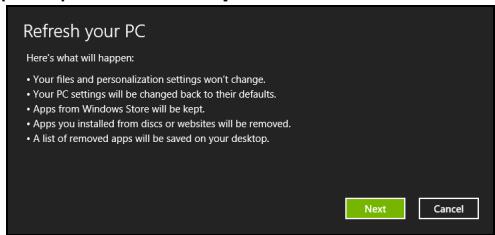
-
KávTE KλIK OTO Eπóμεvo KAI ΜΕΤΑ ΘΟ Avavewon.
-
H δiādkaioia attokataoans ΕEKIVa με εΠαveKKivnon tou utloayiotn kai ouvexicetai με ανιypaΦn apxiewv σTO σKλnpó δiακο oac. H δiādkaioia autn diapkei πeipitou 30 λεπτa.
AnokataoTaon aTó avtivpapo oopaleia
Tia atokataoan aTo avtipapo oaaaleia og ovaab diaokou USB:
| No. Üğe | Açıklama | |
| 1 | DC-girisi | AC adaptöré®,®,®,®,®,®,®,®,®,®,®,®,®,®,®,®,®,®,®,®,®,®,®,®,®,®,®,®,®,®,®,®,®,®,®,®,®,®,®,®,®,®,®,®,®,®,®,®,®,®,®,®,®,®,®,®,®,®,®,®,®,®,®,®,®,®,®,®,®,®,®,®,®,®,®,®,®,®,®,®,®,®,®,®,®,®,®,®,®,®,®,®,®,®,®,®,®,®,®,®,® |
Sag görünüm

| No. | Öğe | Açıklama |
| 1 | USB 2.0 portu | USB aygünlarına®,®,®,®,®,®,®,®,®,®,®,®,®,®,®,®,®,®,®,®,®,®,®,®,®,®,®,®,®,®,®,®,®,®,®,®,®,®,®,®,®,®,®,®,®,®,®,®,®,®,®,®,®,®,®,®,®,®,®,®,®,®,®,®,®,®,®,®,®,®,®,®,®,®,®,®,®,®,®,®,®,®,®,®,®,®,®,®,®,®,®,®,®,®,®,®,®,®,®,®,® |
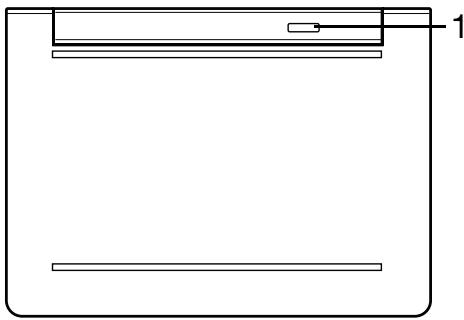
Acer Recovery Management
?X
Welcome to Acer Recovery Management
Acer Recovery Management enables you to restore your system. To begin, select the task you want to perform. Please DO NOT remove the USB device while proceeding.

Reinstall Drivers or Applications
Reinstalls factory default drivers or applications.

Customized Restore (Retain User Data)

Reinstall Drivers or Applications

Make a back-up before you restore (Recommended).

Create Factory Default Backup
Create Drivers and Applications Backup
acer
Acer Recovery Management
?X
Welcome to Acer Recovery Management
Acer Recovery Management enables you to restore your system. To begin, select the task you want to perform. Please DO NOT remove the USB device while proceeding.

Reinstall Drivers or Applications

Customized Restore (Retain User Data)
Reinstalls factory default drivers or applications.

Reinstall Drivers or Applications

Make a backup before you restore (Recommended).

Create Factory Default Backup
Create Drivers and Applications Backup
acer
Acer Recovery Management
?X
Welcome to Acer Recovery Management
Acer Recovery Management enables you to restore your system. To begin, select the task you want to perform. Please DO NOT remove the USB device while proceeding.

Reinstall Drivers or Applications
Reinstalls factory default drivers or applications.

Customized Restore (Retain User Data)

Reinstall Drivers or Applications

Make a backup before you restore (Recommended).

Create Factory Default Backup
Create Drivers and Applications Backup

Here's what will happen:
- Your files and personalization settings won't change.
- Your PC settings will be changed back to their defaults.
- Apps from Windows Store will be kept.
- Apps you installed from discs or websites will be removed.
- A list of removed apps will be saved on your desktop.
Next
Cancel
3. Ileri'yi, ardindan Yenile'yi tiklatin.
TaeBefLcuiKoiBnD DOnKoHgOeN 25
Korodin 26
甲 26
wifeparwnb. 27
真半歌 28
28
日 29
Micro USB
30
HDMI Micro
31
| LED点亮 | 光 | 亮 | |||
| 开ration | 개지상품류지 | 개지상품류지에 기재일 힠이 썸고 썸고 썸고 썸고 썸고 썸고 썸고 썸고 썸고 썸고 썸고 썸고 썸고 썸고 썸고 썸고 썸고 썸고 썸고 썸고 썸고 썸고 썸고 썸고 썸고 썸卫 썸고 썸고 썸고 썸고 썸고 썸고 썸고 썸고 썸고 썸고 썸고 썸고 썸고 썸고 썸고 썸고 썸고 썸고 썸고 썸고 썸고 썸고 썸고 썸고 썸ious 썸ious 썸ious 썸ious 썸ious 썸ious 썸ious 썸ious 썸ious 썸ious 썸ious 썸ious 썸ious 썸ious 썸ious 썸ious 썸ious 썸ious 썸ious 썸ious 썸ious 썸ious 썸ious 썸ious 썸ious 썸iosis 썸iosis 썸iosis 썸iosis 썸iosis 썸iosis 썸iosis 썸iosis 썸iosis 썸iosis 썸iosis 썸iosis 썸iosis 썸iosis 썸iosis 썸iosis 썸iosis 썸iosis 썸iosis 썸iosis 썸iosis 썸iosis 썸iosis 썸iosis 썸iosis 썸ious 썸ious 썸ious 썸ious 썸ious 썸ious 썸ious 썸ious 썸ious 썸ious 썸ious 썸ious 썸ious 썸ious 썸ious 썸ious 썸ious 썸ious 썸ious 썸ious 썸ious 썸ious 썸ious 썸ious 썸iously 썸ious 썸ious 썸ious 썸ious 썸ious 썸ious 썸ious 썸ious 썸ious 썸ious 썸ious 썸ious 썸ious 썸ious 썸ious 썸ious 썸ious 썸ious 썸ious 썸ious 썸ious 썸ious 썸ious 썸ious 썸ous 썸ious 썸ious 썸ious 썸ious 썸ious 썸ious 썸ious 썸ious 썸ious 썸ious 썸ious 썸ious 썸ious 썸ious 썸ious 썸ious 썸ious 썸ious 썸ious 썸ious 썸ious 썸ious 썸ious 썸ious 썸性疾病 | 光 | 光 | 光 |
| 开ration | 개지상품류지 | 개지상품류지에 기재일 힠이 썸고 썸고 썸고 썸고 썸고 썸고 썸고 썸고 썸고 썸고 썸고 썸고 썸고 썸고 썸고 썸고 썸고 썸고 光 | 光 | 光 | 光 |
| 開ration | 개지상품류지 | 개지상품류지에 기재일 힠이 썸고 썸고 썸고 썸고 썸고 썸고 썸고 光 | 光 | 光 | 光 |
| 光 | 光 | 光 | 光 | 光 | 光 |
| 开ration | 개지상품류지 | 개지상품류지에 기재일 힠이 썸고 썸고 썸고 썸고 光 | 光 | 光 | 光 |
| 開ration | 개지상품류지 | 개지상품류지에 기재일 힠이 光 | 光 | 光 | 光 |
| 光 | 光 | 光 | 光 | 光 | 光 |

日露
:MicroUSB-USB 云 越越越越越越越越越越越越越越越越越越越越越越越越越越越越越越越越越越越越越越越越越越越越越越越越越越越越越
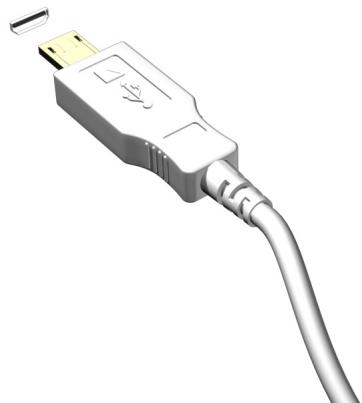
ACKS徒ZJ.)是DJIERiRiRiRiRiRiRiRiRiRiRiRiRiRiRiRiRiRiRiRiRiRiRiRiRiRiRiRiRiRiRiRiRiRiRiRiRiRiRiRiRiRiRiRiRiRiRiRiRiRiRi R1.
ACER CLEAR.FI
歌:歌
呂囍有聖詠歸之,有以用國國國國國國國國國國國國國國國國國國國國國國國國國國國國國國國國國國國國國國國國國國國國國國國國國國國國國國國國國國國國國國國國國國國國國國國國國國國國國國國國國國國國國國國國國國國國國國國國國國國國国
ITW (International Travelers Warranty)
ItW International Travelers Warranty) has wrrnlln .
曾藥藻藻藻藻藻藻藻藻藻藻藻藻藻藻藻藻藻藻藻藻藻藻藻藻藻藻藻藻藻藻藻藻藻藻藻藻藻藻藻藻藻藻藻藻藻藻藻藻藻藻藻
海闋的右上角的音节都由音节的音节来决定,如:"The sound of the音节 is a high, sharp, loud, and sweet."
Microsoft ID()夫末日尼?
Acer Recovery Management
?X
Welcome to Acer Recovery Management
Acer Recovery Management enables you to restore your system. To begin, select the task you want to perform. Please DO NOT remove the USB device while proceeding.

Reinstall Drivers or Applications
Reinstalls factory default drivers or applications.

Customized Restore (Retain User Data)

Reinstall Drivers or Applications

Make a back-up before you restore (Recommended).

Create Factory Default Backup
Create Drivers and Applications Backup
acer
SofinTewerNaDraHITBnRzEeHJrOJnJtJHcHJtJiJHcHJtJiJHcHJtJiJHcHJtJiJHcHJtJiJHcHJtJi
73 3019"
- 运动的,结束时停止。
这在范必之,是的,当。
Acer Recovery Management
?X
Welcome to Acer Recovery Management
Acer Recovery Management enables you to restore your system. To begin, select the task you want to perform. Please DO NOT remove the USB device while proceeding.

Reinstall Drivers or Applications
Reinstalls factory default drivers or applications.

Customized Restore (Retain User Data)

Reinstall Drivers or Applications
Make a backup before you restore (Recommended).

Create Factory Default Backup
Create Drivers and Applications Backup
acer

Acer Recovery Management
Acer Recovery Management
?X
Welcome to Acer Recovery Management
Acer Recovery Management enables you to restore your system. To begin, select the task you want to perform. Please DO NOT remove the USB device while proceeding.

Reinstall Drivers or Applications
Reinstalls factory default drivers or applications.

Customized Restore (Retain User Data)

Reinstall Drivers or Applications
Make a backup before you restore (Recommended).

Create Factory Default Backup
Create Drivers and Applications Backup
acer

Customized Restore (Retain User Data)
This Class B digital apparatus complies with Canadian ICES-003.
Memelihara computer 17
Memelihara adaptor AC. 18
DAHULUKAN, HAL PERTAMA
ITW (International Travelers Warranty)
Mulai Acer Recovery Management:
- Dari Mulai, ketik 'Pemulihan' lalu klik Acer Recovery Management di dalam.daftar aplikasi.
b. Klik Reset your PC until mulai proses reset:
n7y7y7u7u7u7u7u7u7u7u7u7u7u7u7u7u7u7u7u7u7u7u7u7u7u7u7u7u7u7u7u7u7u7u7u7u7u7u7u7u7u7u7u7u7u7u7u7u7u7u7u7u7
nntnnnntuunnuuau 45
45
nssaaauuaaataa 46
Jnilavaaawwaaawau 47
JauaauuusuiuuiuuiuuiuuiuuiuuiuuiuuiuuiuuiuuiuuiuuiuuiuuiuuiuuiuuiuuiuuiuuiuuiuuiuuiuuiuuiuuiuuiuuiuuiuuiuuiuuiuuiuuiuuiuuiuuiuuiuuiuuiuuiuuiuuiuuiuuiuuiuuiuuiuuiuuuuuuuuuuuuuuuuuuuuuuuuuuuuuuuuuuuuuuuuuuuuuuuuuuuuuuuuuuuuuuuuuuuuuuuuuuuuuuuuuuuuuuuuuuuuuuuuuuuuuuuuuuuuuuuuuuuuuuuuuuuuuuuuuuuuuuuuuuuuuuuuuuuuuuuuuuuuuuuuuuuuuuuuuuuuuuuuuuuuuuuuuuuuuuuuuuuuuuuuUUUUUUUUUUUUUUUUUUUUUUUUUUUUUUUUUUUUUUUUUUUUUUUUUUUUUUUUUUUUUUUUUUUUUUUUUUUUUUUUUUUUUUUUUUUUUUUUUUUUUUUUUUUUUUUUUUUUUUUUUUUUUUUUUUUUUUUUUUUUUUUUUUUUUUUUUUUUUUUUUUUUUUUUUUUUUUUUUUUUUUUUUUUUUUUUUUUUUUUU
waaananaaanaa WaaananaaennnWuu
nnaaannnnnnae
Vnannnnnnnnnnnnnnnnnnnnnnnnnnnnnnnnnnnnnnnnnnnnnnnnnnnnnnnnnnnnnnnnnnnnnnnnnnnnnnnnnnnnnnnnnnnnnnnn
waaananaaunwnanwAC
nnaaannnnnnaanennnnnnnnnnnnnnnnnnnnnnnnnnnnnnnnnnnnnnnnnnnnnnnnnnnnnnnnnnnnnnnnnnnnnnnnnnnnnnnnnn
- nnuuunnuuunnuuunnu, uviuui, uuaieiuuuu uunnuuauuWu
- 1
- 1
- wannnnaaennnnnnae nnnnnae nnne nnnnnae nnnnnae nnnnnae
- nuiuunuaaunu, aaninunu, uauununuunuunu
- 5wauu,wuuuuaaovaaovaaanr uauauauauACnauu uauuueauuauuuuuuuuuuuuuuuuuuuuuuuuuuuuuuuuuuuuuuuuuuuuuuuuuuuuuuuuuuuuuuuuuuuuuuuuuuuuuuuuuuuuuuuuuuuuuuuuuuuuuuuuuuuuuuuuuuuuuuuuuuuuuuuuuuuuuuuuuuuuuuuuuuuuuuuuuuuuuuuuuuuuuuuuuuuuuuuuuuuuuuuuuuuuuuuuuuuuuUU
- aunauuuaanauauauuuauauauauauauauauauauauauau
- aunuunuunuunuunuunuunuunuunuunuunuunuunuunuunuunuunuunu un uunuunuunuunuunuunuunuunuunuunu un uunuunuunuunu un uunuunuunu un uunuunu un uunuunu un uunu un uunu un uunu
nssaaunnuuau
nannnnnaananaananaananaananaananaananaananaananaananaananaananaananaananaananaananaananaananaananaananaananaananaananaananaananaananaananaananaananaananaananaananaananaananaananaananaananaananaananaananaananaananaananaananaananaananaananaananaananaananaananaanara
y
aannnnnnaeennnnneaaee nnnnnnne aen neaeey
- aunwaaenrnnnnaaennnnaeau
- トトトトトトトトトトト
- 1
- waiuuiuuiuuiuuiuuiuuiuuiuuiuuiuuiuui
- 155555555555555555555555555555555555555555555555555555555555555555
uunnnnns
nnaananaananaananaananaananaananaananaananaananaananaananaananaananaananaananaananaananaananaananaananaananaananaananaananaananaananaananaananaananaananaananaananaananaananaananaananaananaananaananaananaananaananaananaananaananaananaananaananaananaananaanaraannaa
aannnnnnaananaananaananaananaananaananaananaananaananaananaananaananaananaananaananaananaananaananaananaananaananaananaananaananaananaananaananaananaananaananaananaananaananaananaananaananaananaananaananaananaananaananaananaananaananaananaananaananaananaananaanara
104
aaiiianrnnn rnrnnnne nnnn nn nnnn nnnn nnnn nnnn nnnn
y
aauuauauauauauauauauauauauauauauauauauauauauauauauauauauuuuuuuuuuuuuuuuuuuuuuuuuuuuuuuuuuuuuuuuuuuuuuuuuuuuuuuuuuuuuuuuuuuuuuuuuuuuuuuuuuuuuuuuuuuuuuuuuuuuuuuuuuuuuuuuuuuuuuuuuuuuuuuuuuuuuuuuuuuuuuuuuuuuuuuuuuuuuuuuuuuuuuuuuuuuuuuuuuuUU
uuaaueauauuuuueaaeauauauauauauauauauauauauauauauauauauauauauauauauauauau
qunssnnnsuww
nntnnnnaaannnnne
y
Wu wu wu wu wu wu wu wu wu wu wu wu wu wu wu wu wu wu wu wu wu wu wu wu wu wu wu wu wu wu wu wu wu wu wu wu wu wu wu
unwnu
aayaaayaaayaaayaaayaaayaaayaaayaaayaaayaaayaaayaaayaaayaaayaaayaaayaaayaaayaaayaaayaaayaaayaaayaaayaaayaaayaaayaaayaaayaaayaaayaaayaaayaaayaaayaaayaaayaaayaaayaaayaaayaaayaaayaaayaaayaaayaaayaaayaaayaaayaaa
a a a a a a a a a a a a a a a a a a a a a a a a a
auaanuunwuwauananaananaananaananaananaananaananaananaananaanana
aannnnaananaananaananaananaananaananaananaananaananaananaananaananaananaananaananaananaananaananaananaananaananaananaananaananaananaananaananaananaananaananaananaananaananaananaananaananaananaananaananaananaananaananaananaananaananaananaananaananaananaananaan ana aaa
Innnaaannnnnnae annnne nnnnnaanennnnae annnnnae annnnnnae annnnae annnnae annnnae annnnae annnnae annnnae annnnae annnnae annnnae annnnae annnnae annnnae annnnae annnnae annnnae annnnae annnnae annnnae annnnae annnnae annnnae annnnae annnnae annnnae annnnae
NnuuuaunnuuunnuuunnuuunnuuuuuuuuuuuuuuuuuuuuuuuuuuuuuuuuuuuuuuuuuuuuuuuuuuuuuuuuuuuuuuuuuuuuuuuuuuuuuuuuuuuuuuuuuuuuuuuuuuuuuuuuuuuuuuuuuuuuuuuuuuuuuuuuuuuuuuuuuuuuuuuuuuuuuuuuuuuuuuuuuuuuuuuuuuuuuuuuuuuuuuuuuuuuuuuuuuuuuuuuuUU
nuaaayaaanannnnnnnnnnnn
nnaananaananaananaananaananaananaananaananaananaananaananaananaananaananaananaananaananaananaananaananaananaananaananaananaananaananaananaananaananaananaananaananaananaananaananaananaananaananaananaananaananaananaananaananaananaananaananaananaananaananaan ana anaaannnnnnnnnnnnnnnnnnnnnnnnnnnnnnnnnnnnnnnnnnnnnnnnnnnnnnnnnnnnnnnnnnnnnnnnnnnnnnnnnnnnnnnnnnnnnnnnnnnnnnnnnnnnnnnnnnnnnnnnnnnnnnnnnnnnnnnnnnnnnnnnnnannn nn nnaaannnnaaannnnaaannnnaaannnnaaannnnaaannnnaaannnnaaannnnaaannnnaaannnnaaannnnaaannnnaaannnnaaannnnaaannnnaaannnnaaannnnaaannnnaaannnnaaannnnaaannnnaaannnnaaannnnaaannnnaaannnnaaann
- トママママママママママママママママママママママママママママママママママママママママママママママママママママママママママママママママママママママママママママ
山 - 1
- auiwuauiu
wannnnnnaanrnnnnaaannn nanaanrnnnnaa /
wnnnnnnnnnnnnnnnnnnnnnnnnnnnnnnnnnnnnnnnnnnnnnnnnnnnnnnnnnnnnnnnnnnnnnnnnnnnnnnnnnnnnnnnnnnnnnnnnnnnnnnnnnnnnnnnnnnnnnnnnnnnnnnnnnnnnnnnnnnnnnnnnnnnnnnnnnn nn
nnuuunnnn
nunuayauyauyauyauyauyauyauyauyauyauyauyauyauyauyauyauyauyauyauyauyauyauyauyauyauyauyauyauyauyauyauyauyauyauyauyauyauyauyauyauyauyauyauyauyauyauyauyauyauy
uanaanqianyiznuiuyiyidao
7555555555555555555555555555555555555555555555555555555555555
nssaaanwauauau
i
Shutdown Windows n 1/Windows +
wnnnnnaanrnnnnaaannnnnnaaennnnnnnnnnnnnnnnnnnnnnnnnnnnnnnnnnnnnnnnnnnnnnnnnnnnnnnnnnnnnnnnnnnnnnnnnnnnnnnnnnnnnnnnnnnnnnnnnnnnnnnnnnnnnnnnnnnnnn
ywnu:wnnuynnuynnuynnuynnuynnuynnuynnuynnuynnuynnuynnuynnuynnuynnuynnuynnuynnuynnuynnuynnuynnuynnuynnuynnuynnuynnuynnuynnuynnuynnuynnuynnuynnuynnuynnuynnuynnuynnuynnuynnuynnuynnuynnuynnuynnuynnuynnuynnuynnuynnu
n75a#n77aW71a72a7
aannnnnnaanennnnnnnnnnnnnnnnnnnnnnnnnnnnnnnnnnnnnnnnnnnnnn
Wuunnunwunwnnnnunnuunnu
- wuWunwunwunwunwnn n0°C (32°F) wunwnn 50°C (122°F)
- 甲醇与乙醇的反应:甲醇与乙醇反应,生成的物质为二甲苯和二甲醇。
·
·
·
·
·
- wunnaanwuaaiaaa
- a
nssaaananaaataAC
| LED | # | # |
| W | # | # |
| # | # | # |
| # | # | # |

yuaanu
| iδuvi | iδuvi | iδuvi |
| 1 | iδuvi | iδuvi |
| iδuvi | iδuvi | |
| 2 | iδuvi | iδuvi |
| iδuvi | iδuvi |
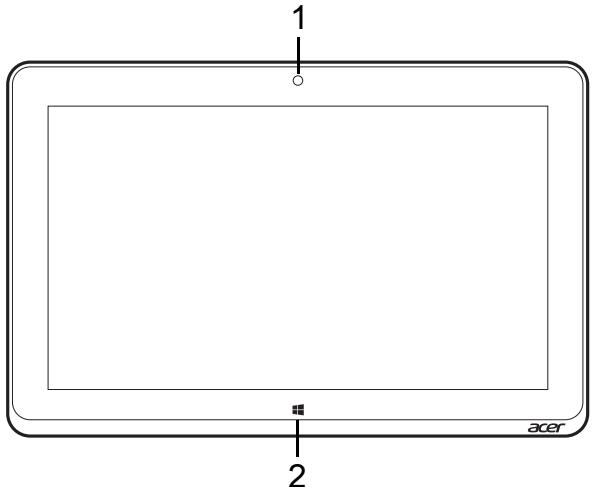
| 1 | tomorrow | tomorrow |
| 1 | tomorrow | tomorrow |
| 2 | tomorrow | tomorrow |
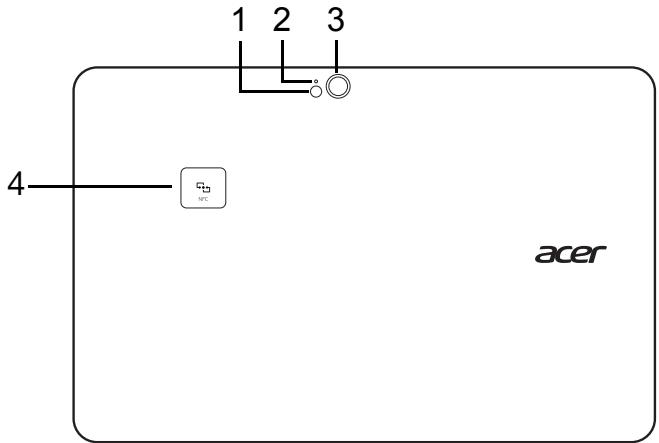
| 1 | ### | LED ### |
| 2 | ### | ### |
| 3 | ### | ### |
| 4 | NFC (###) | ### |
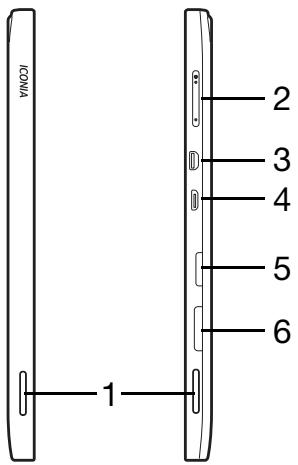
| 1 | ### | ### |
| 2 | ### | ### |
| 3 | ### | ### |
| 4 | ### | ### |
| SIM | SIM | SIM |
| 5 | Sim# | Sim# |
| 6 | Sim# | Sim# |
SIM (wunnuu)
nauw wunw uunw uunw uunw uunu SIM wunw uunu uunu uunu uunu uunu uunu uunu uunu uunu uunu uunu uunu uunu uunu uunu uunu uunu uunu uunu uunu uunu uunu uunu uunu uunu uunu uunu uunu uunu uunu uunu uunu uunu uunu
- 1
- 1nTsim SIM ydaedanunnu nTsim Sim aennnnnnnnn
3.
Wu: 11111111111111111111111111111111111111
2055: 10000000000000000000000000000000000000000000000000000000000000000000000000
n752777777777777777777777777777777777777777
nnaa
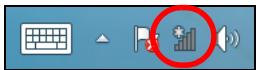
aannnnnnaananaananaananaananaananaananaananaananaananaananaananaananaananaananaananaananaananaananaananaananaananaananaananaananaananaananaananaananaananaananaananaananaananaananaananaananaananaananaananaananaananaananaananaananaananaananaananaananaananaananaanaraannaa
SIM
nauw waaanu ananwaaanannnnn aSIM uuu
nuaunranaanu annanrannsim
nuanu ananu ananu ananu ananu anu anu
nannanSIMaan
- 1
- nannn SIM uunuuaan uauanaaanaan ynuynnuynnu Sim
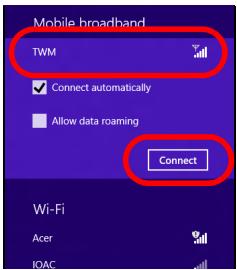
12aunauuuiuieiueyuaunau
| iawah | sulutul | sulutul |
| 1 | ywauwauwauwauwauwauwauwauwauwauwauwauwauwauwauwauwauwauwauwauwauwauwauwauwauwauwauwauwauwauwauwauwauwauwauwauwauwauwauwauwauwauwauwauwauwauwauwauwauwauwauuwauwauwauwauwauwauwauwauwauwauwauwauwauwauwauwauwauwauwauwauwauwauwauwauwauwauwauwauwauwauwauwauwauwauwauwauwauwauwauwauwauwauwauwauwauwauwauwauwauwAUW | |
| 2 | wauwauwauwauwauwauwauwauwauwauwauwauwauwauwauwauwauwauwauwauwauwauwauwauwauwauwauwauwauwauwauwauwauwauwauwauwauwauwauwauwauwauwauwauwauwauwauwauwauwuuwauwauwauwauwauwauwauwauwauwauwauwauwauwauwauwauwauwauwauwauwauwauwauwauwauwauwauwauwauwauwauwauwauwauwauwauwauwauwauwauwauwauwauwauwauwauwauwauwauw | |
| 3 | wauwauwauwauwauwauwauwauwauwauwauwauwauwauwauwauwauwauwauwauwauwauwauwauwauwauwauwauwauwauwauwauwauwauwauwauwauwauwauwauwauwauwauwauwauwauwauwauwauwuW |
HUYU: 1u10103u u u u u u u u u u u u u u u
iW LED uOVA
| LED | # | # |
| W | ### | ### |
| L | ### | ### |
| L | ### | ### |

yuaanu
| yw | sw | w |
| 1 | lw DC-in | yaaanauuuuuuAC |

yuaovu
| 1 | wast USB 2.0 | # |
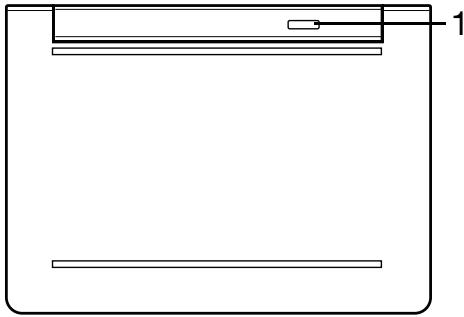
| 汶NV | 汶NV | 汶NV |
| 1 | 汶NV | 汶NV |
Micro USB
wana USB (Universal Serial Bus)
uuaaannnnnnaananaananaananaananaananaananaananaananaananaananaananaananaananaananaananaananaananaananaananaananaananaananaananaananaananaananaananaananaananaananaananaananaananaananaananaananaananaananaananaananaananaananaananaananaananaananaananaananaananaananaanaraannaa
wawuWUSBwaauwaauea 2.0 USB
WuWu: 2017.3.24 Micro USB v7n 2017.3.24 USB v7n 2017.3.24
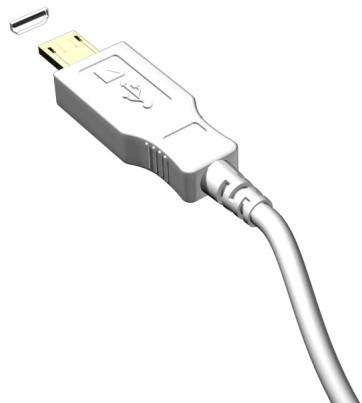
Hua: aui/10u/10u USB 1u USB uuiuuiuuiu
HDMI uuuuua
HDMI (High-Definition Multimedia Interface)
anrssaunrnnn rannnnnnae annnnn,
HDMI
yannrnnnnaeannnnnnnnnnnnnnnnnnnnnnnnnnnnnnnnnnnnnnnnnnnnnnnnnnnnnnnnnnnnnnnnnnnnnnnnnnnnnnnnnnnnnnnnnnnnnnnnnn
Taaauuuaaannnnaaunnnnnaan nanaan aauuuuauu DVD uauuauauuauuauu A/V nuuaaunau
aannnnnnaanennnnnnnnnnnnnnnnnnnnnnnnnnnnnnnnnnnnnnnnnnnnnnnnnnnnnnnnnnnnnnnnnnnnnnnnnnnnnnnnnnnnnnnnnnnnnnnnnnnnnnnnnnnnnnnn
17Vuaaunuauauauauauauauauuuuuuuuu
Acer clear-fi
HJ111: 1075777777
Acer clear.fi nauw waww uunu Acer clear.fi
WuTuWu: 115555555555555555555555555555555555555555555555555555555555555555555555555555555555555555555555555555
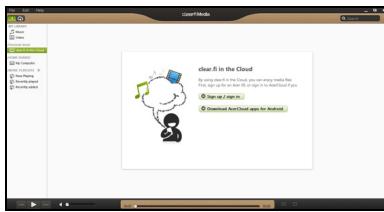
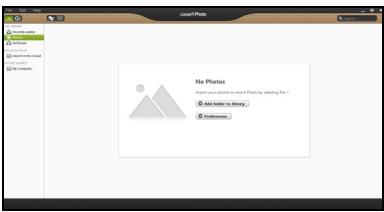
v: wannuwwu clear.fi uwn Windows Firewall aunauynwaaayn clear.fi nnnnnaaun
n75eanquiuuaaunw
aunauuun uauuuauuauuauuuuuuuuuuuuuuuuuuuuuuuuuuuuuuuuuuuuuuuuuuuuuuuuuuuuuuuuuuuuuuuuuuuuuuuuuuuuuuuuuuuuuuuuuuuuuuuuuuuuuuuuuuuuuuuuuuuuuuuuuuuuuuuuuuuuuuuuuuuuuuuuuuuuuuuuuuuuuuuuuuuuuuuuuuuuuuuuuuuuuuuuuuuUU
nwnnnnnae nwnnnnnae nnne nnnnne nnnnne nnnnne nnnnne nnnnne nnnnne nnnnne nnnnne nnnnne nnnnne nnnnne nnnnne nnnnne nnnnne nnnnne nnnnne nnnnne nnnnne nnnnne nnnnne nnnnne nnnnne nnnnne nnnnne nnnnne nnnnee
11u7y7u7y7u7y7u7y7u7y7u7y7u7y7u7y7u7y7u7y7u7y7u7y7u7y7u7y7u7y7u7y7u7y7u7y7u7y7u7y7u7y7u7y7u7y7u7y7u7y7u7y
nssuuluaunnsa
wnnnaaannnnnnaaunnnnnaaennnnnnaaannnnnnaaannnnnnaa:
- muaan
- ianaaunrnnnnae nannnne nnnuu
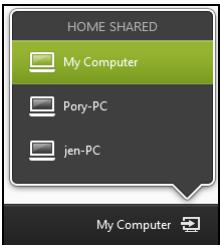
13786119
wwnrnnn nn nnnnnnnnnnnnnnnnnnnnnnnnnnnnnnnnnnnnnnnnnnnnnnnnnnnnnnnnnnnnnnnnnnnnnnnnnnnnnnnnnnnnnnnnnnnnnnnnnnnnnnnnnnnnnnnnnnnnnnnnnnnnnnnnnnnnnnnnnnnnnnnn nn
- iEanIwaiunuyn
n
http://www.acer.com/clearfi/download/
n G-sensor
TnVNTNNTNNTNNTNNTNNTNNTNNTNNTNNTNNTNNTNNTNNTNNTNNTNNTNNTNNTNNTNNTNNTNNTNNTNNTNNTNNTNNTNNTNNTNNTNNTNNTNNTNNTNNTNNTNNTNNTN
vivuuiuuaaiaaaauanauanauanauanau
nVivnVuaaunnnnnaeauuauauauauauauauauauauauauauauauauauauauauauauauau
yannan
- niiinnaaieaaeaeaaeeaaeeaaeeAAACnna
·WuJueHuaJIiIaIaIaIaIaIaIaIaIaIaIaIaIaIaIaIaIaIaIaIaIaIaIaIaIaIaIaIaIaIaIaIaIaIaIaIaI
yuuu uuuuuuuuuuuuuuuuuuuuuuuuuuuuuuuuuuuuuuuuuuuuuuuuuuuuuuuuuuuuuuuuuuuuuuuuuuuuuuuuuuuuuuuuuuuuuuuuuuuuuuuuuuuuuuuuuuuuuuuuuuuuuuuuuuuuuuuuuuuuuuuuuuuuuuuuuuuuuUU
n750a7y7n7?x7u7uaa
nunnnnnnnnnnnnnnnnnnnnnnnnnnnnnnnnnnnnnnnnnnnnnnnnnnnnnnnnnnnnnnnnnnnnnnnnnnnnnnnnnnnnnnnnnnnnnnnnnnnnnnnnnnnnnnnnnnnnnnnnnnnnnnnnnnnnnnnnnnnnnnnnnnnnnn nn nannn nn nannn nn nannn nn nannn nn nannn nn nannn nn nannn nn nannn nn nannn nn nannn nn nannn nn nannn nn nannn nn nannn nn nannn nn nannn nn nannn nn nannn nn nannn nn nannn nn nannn nn nannn nn nannn nn nannn nn nannn nn nennn nn nannn nn nannn nn nannn nn nannn nn nannn nn nannn nn nannn nn nannn nn nannn nn nannn nn nannn nn nannn nn nannn nn nannn nn nannn nn nannn nn nannn nn nannn nn nannn nn nannn nn nannn nn nannn nn nannn nn
WAC
nanaananaananaananaananaananaananaananaananaananaananaananaananaananaananaananaananaananaananaananaananaananaananaananaananaananaananaananaananaananaananaananaananaananaananaananaananaananaananaananaananaananaananaananaananaananaananaananaananaananaanana anana anana anana anana anana anana anana anana anana anana anana anana anana anana anana anana anana anana anana anana anana anana anana anana anana anana anana anana anana anana anana anana anana anana anana anana anana anana anana anana anana anana anana anana anana anana anana anana anana anana
- 10°C (50°F) 30°C (86°F)
- n#y#y#nunununununununununun
- nuaaunnaAC uauuunnau
7555555555555555555555555555555555555555555555555555555555555555
wnnnnnaaannnnnnae nnne nnnnnnnae nnne nnnnnnnae nnne nnnnnnnae nnne nnnnnnnae nnne nnnnnnnae nnne nnnnnnnae nnne nnnnnnnae nnne nnnnnnnae nnne nnnnnnnae nnne nnnnnnnae nnne nnnnnnnae nnne nnnnnnnae nnne nnnnnnnaee
iavnuuunauuaanauauauauauauauauau Windows
| accenture! accreteur accretor AC |
| l'accreter ne saient pas accreter accretier accretor accretor accretor accretor accretor accretor accretor accretor accretor accretor accretor accretor accretor accretor accretor accretor accretor accretor accretor accretor accretor accretor accretor accretor accretor accretor accretor accretor accretor accretor accretor accretor accretor accretor |
| davon ne saient pas accretor accretor accretor accretor accretor accretor accretor accretor accretor accretor accretor accretor accretor accretor accretor accretor accretor accretor accretor accretor accretor accretor accretor accretor accretor accretor accretor accretor accretor accretor accretor accretor accretor ac |
| n'accreter ne saient pas accretor accretor accretor accretor accretor accretor accretor accretor accretor accretor accretor accretor accretor accretor accretor accretor accretor accretor accretor accretor accretor accretor accretor accretor accretor accretor accretor accretor accretor accretor accretor accretion accretion accretion accretion accretion accretion accretion accretion accretion accretion accretion accretion accretion accretion accretion accretion accretion accretion accretion accretion accretion accretion accretion accretion accretion accretion accretion accretion accretion accretion accretion accretion accretion accretion |
i
yuiuunuaaununau
| bih帶來hoe | bih帶來hoe |
| bih帶來hoe AC bih帶來hoe LW | 1. bih帶來hoe AC bih帶來hoe W 2. bih帶來hoe W 3. bih帶來hoe bih帶來hoe W 4. bih帶來hoe W 5. bih帶來hoe W 6. bih帶來hoe W 7. bih帶來hoe W |
| bih帶來hoe AC bih帶來hoe LW | 1. bih帶來hoe W 2. bih帶來hoe W 3. bih帶來hoe W 4. bih帶來hoe W 5. bih帶來hoe W 6. bih帶來hoe W 7. bih帶來hoe W 8. bih帶來hoe W |
unuiuuauiiueauu
- 1747777777777777777777777777777777777777777777777777777777777777
aunuaauauuauauauauuuuuuuuuuuuuuuuuuuuuuuuuuuuuuuuuuuuuuuuuuuuuuuuuuuuuuuuuuuuuuuuuuuuuuuuuuuuuuuuuuuuuuuuuuuuuuuuuuuuuuuuuuuuuuuuuuuuuuuuuuuuuuuuuuuuuuuuuuuuuuuuuuuuuuuuuuuuuuuuuuuuuuuuuuuuuuuuuuuUU
WuWuaaanaer Sleep aunnnaaennnnnnaeauuueaSleep n
yio
山
a a a a a a a a a a a a a a a a a a a a a a a a a a a a a a a a a a a a
61200711117072
山
- 402191111111111111111111111111
- 452311111111111111111111111111111111111111111
752yuuny5y
n751/53u7n7u6un7u6v7u5u7n (ITW)
nWwWwWwWwWwWwWwWwWwWwWwWwWwWwWwWwWwWwWwWwWwWwWwWwWwWwWwWwWwWwWwWwWwWwWwWwWwWwWwWwWwWwWwWwWwWwWwWwWwWwW
WwJITW Wnunwnwnnnnwnnnn nn nnnn nn nnnnnnnnnnnnnnnnnnnnnnnnnnnnnnnnnnnnnnnnnnnnnnnnnnnnnnnnnnnnnnnnnnnnnnnnnnnnnnnnnnnnnnnnnnnnnnnnnnnnnnnnnnnnnnnnnnnnnnnnnnnnnnnnnnnnnnnnnnnnn
WNTITW WNTITW WNTITW WNTITW WNTITW WNTITW WNTITW WNTITW WNTITW WNTITW WNTITW WNTITW WNTITW WNTITW WNTITW WNTITW WNTITW WNTITW WNTITW WNTITW WNTITW WNTITW WNTITW WNTITW WNTITW WNTITW
nunnnnnnnnnnnnnnnnnnnnnnnnnnnnnnnnnnnnnnnnnnnnnnnnnnnnnnnnnnnnnnnnnnnnnnnnnnnnnnnnnnnnnnnnnnnnnnnnnnnnnnnnnnnnnnnnnnnnnnnnnnnnnnnnnnnnnnnnnnnnnnnnnnnnnnnnnn nn
www.acer.com
nauuua
15555555555555555555555555555555555555555555555555555555555555555555555555555555555555555555555555555
nnaaannnnnnaananaananaananaananaananaananaananaananaananaananaananaananaananaananaananaananaananaananaananaananaananaananaananaananaananaananaananaananaananaananaananaananaananaananaananaananaananaananaananaananaananaananaananaananaananaananaananaananaananaananaanaraannnna
(w)
aayanaaueauuuaanauauuuiu
1. 65y
山
nanaananaananaananaananaananaananaananaananaananaananaananaananaananaananaananaananaananaananaananaananaananaananaananaananaananaananaananaananaananaananaananaananaananaananaananaananaananaananaananaananaananaananaananaananaananaananaananaananaananaanana
xuaanwunanaovnuynn?
nnaaannnnnnaanennnnaanennnnaanennnnaanennnnaanennnnaanennnnaanennnnaanennnnaanennnnaanennnnaanennnnaanennnnaanennnnaanennnnaanennnnaanennnnaanennnnaanennnnaanennnnaanennnnaanennnnaanennnnaanennnnaanennnnaanennnnaanannnnnaanannnnnaanannnnnaanannnnnaanannnnnaanannnnnaanannnnnaanannnnnaanannnnnaanannnnnaanannnnnaanannnnnaanannnnnaanannnnnaanannnnnaanannnnnaanannnnnaanannnnnaanannnnnaanannnnnaanannnnnaanannnnnaanannnnnaanannnnnaanannnnnaanann
Wu?
yauuunuuuuuuuuuuuuuuuuuuuuuuuuuuuuuuuuuuuuuuuuuuuuuuuuuuuuuuuuuuuuuuuuuuuuuuuuuuuuuuuuuuuuuuuuuuuuuuuuuuuuuuuuuuuuuuuuuuuuuuuuuuuuuuuuuuuuuuuuuuuuuuuuuuuuuuuuuuuuuuuuuuuuuuuuuuuuUU
WuTuTuTuTuTuTuTuTuTuTuTuTuTuTuTuTuTuTuTuTuTuTuTuTuTuTuTuTuTuTuTuTuTuTuTuTuTuTuTuTuTuTuTuTuTuTuTuTuTuTuTuTuTuTuTuTuTuTuTuTuTuTuTuTuTuTuTuTuTuTuTuTuTuTuTuTuTuTuTuTuTuTuTuTuTuTuTuTuTuTuTuTuTuTuTuTuTuTuTu
wauuunnnn nn nnnnnnnnnnnnnnnnnnnnnnnnnnnnnnnnnnnnnnnnnnnnnnnnnnnnnnnnnnnnnnnnnnnnnnnnnnnnnnnnnnnnnnnnnnnnn
yauuuaanuunuauu uauuuuauuuuuuuuuuuuuuuuuuuuuuuuuuuuuuuuuuuuuuuuuuuuuuuuuuuuuuuuuuuuuuuuuuuuuuuuuuuuuuuuuuuuuuuuuuuuuuuuuuuuuuuuuuuuuuuuuuuuuuuuuuuuuuuuuuuuuuuuuuuuuuuuuuuuuuuuuuuuuuuuuuuuuuuuuuuuuuuuuuuuuuuuuuuUU
wnnnaan nuaawwwuauw uuuuawwwuWindowsStore 7uWindows uuaawwauuueu Desktop
uwwwalaiauaaigvaaauajnu?
nnaaannnnnnaanennnnnnaanennnnnnaeau nne Search
wnwwaaawwaaanennnnnnaanennnnnnaeau nneau nnneeauuunnnnnaeau uuuuauuauuauuauuauuauuauuauuauuauuauuuauuuuuuuuuuuuuuuuuuuuuuuuuuuuuuuuuuuuuuuuuuuuuuuuuuuuuuuuuuuuuuuuuuuuuuuuuuuuuuuuuuuuuuuuuuuuuuuuuuuuuuuuuuuuuuuuuuuuuuuuuuuuuuuuuuuuuuuuuuuuuuuuuuuuuuuuuuuuuuuuuuuuuuuuuuuuuuuuuuuuuuuUUUUUUUUUUUUUUUUUUUUUUUUUUUUUUUUUUUUUUUUUUUUUUUUUUUUUUUUUUUUUUUUUUUUUUUUUUUUUUUUUUUUUUUUUUUUUUUUUUUUUUUUUUUUUUUUUUUUUUUUUUUUUUUUUUUUUUUUUUUUUUUUUUUUUUUUUUUUUUUUUUUUUUUUUUUUUUUU
Juaeviluuaawwauu17naguyu Start 1aiv?
wnnnaa uAll apps uauanuauanrnuuunuunuunuunuunuun Start
uuuaanuaanuuaanwawuauuauuauuauuauuauuauu
Jauaunnnaanann Start n?
Windows 8 uauaovuauauauauuauu Microsoft
Microsoft uauauauauauuuuuuuuuuuuuuuuuuuuuuuuuuuuuuuuuuuuuuuuuuuuuuuuuuuuuuuuuuuuuuuuuuuuuuuuuuuuuuuuuuuuuuuuuuuuuuuuuuuuuuuuuuuuuuuuuuuuuuuuuuuuuuuuuuuuuuuuuuuuuuuuuuuuuuuuuuuuuuuuuuuuuuuuuUU
Change PC settings > Users > Switch to a Microsoft account
AnewwwnnntnnnnaaInternet Explorer 1
Internet Explorer 10
uunuaananaaunnnnnaeannnnn Start nnu
wua
iunrnnnnaaannnnaanennnnaanennnnaanennnnaan
Pin to Start
Windows
aayaaayaaayaaayaaayaaayaaayaaayaaayaaayaaayaaayaaayaaayaaayaaayaaayaaayaaayaaayaaayaaayaaayaaayaaayaaayaaayaaayaaayaaayaaayaaayaaayaaayaaayaaayaaayaaayaaayaa
Windows 8: www.acer.com/windows8-tutorial
- FAQ nāyān yān: www.acer.com/support
nunuun
Acer Recovery Management program
nuDVD 77777777777777777777777777777777
nraaannnnnnnnnnnnnnnnnnnnnnnnnnnnnnnnnnnnnnnnnnnnnnnnnnnnnnnnnnnnnnnnnnnnnnnnnnnnnnnnnnnnnnnnnnnnnnnnnnnnnnnnnnnnnnnnnnnnnnnnnnnnnnnnnn
Eunuusuuuunu DVD
wnnnnnaa aannnnnnnnnnnnnnnu DVD
wnanlwnwann (ODD) un
Acer Recovery Management
77777777777777777777777777777777777777
uuaWwauonannnnnunu uauauauauau Windows
vuaa
Acer Recovery Management
wnnnn nn nnnnnnnnnnnnnnnnnnnnnnnnnnnnnnnnnnnnnnnnnnnnnnnnnnnnnnnnnnnnnnnnnnnnnnnnnnnnnnnnnnnnnnnnnnnnnnnnn
Acer Recovery Management
?X
Welcome to Acer Recovery Management
Acer Recovery Management enables you to restore your system. To begin, select the task you want to perform. Please DO NOT remove the USB device while proceeding.

Reinstall Drivers or Applications
Reinstalls factory default drivers or applications.

Customized Restore (Retain User Data)

Reinstall Drivers or Applications

Make a back-up before you restore (Recommended).

Create Factory Default Backup
Create Drivers and Applications Backup
acer
2. nCreate Factory Default Backup wRecovery Drive
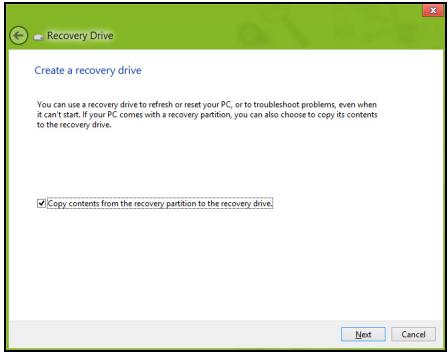
oprtaoaunuunuaunuunnauon Copy contents from the recovery partition to the recovery drive u
3. 1542 W USB u7000 Next
- 45000000000000000000000000000000000000000000000000000000000000000000000000000000000
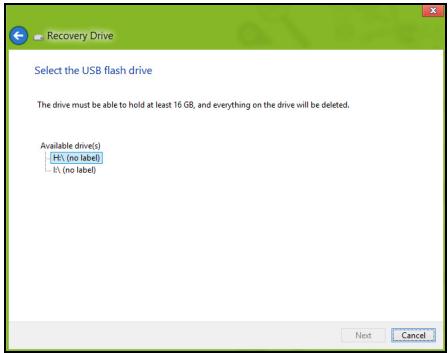
- quaawuunununununununununununun
- vii.
- nnuuunnuuunnuuunnuuunnuu u
nuuunnuuunnuuunnuuunnuuunnuu unnuuuuuuuuuuuuuuuuuuuuuuuuuuuuuuuuuuuuuuuuuuuuuuuuuuuuuuuuuuuuuuuuuuuuuuuuuuuuuuuuuuuuuuuuuuuuuuuuuuuuuuuuuuuuuuuuuuuuuuuuuuuuuuuuuuuuuuuuuuuuuuuuuuuuuuuuuuuuuuuuuuuuuuuuuuuuuuuuuuuuuuuuuuuuuuuuuuuuuuuUU
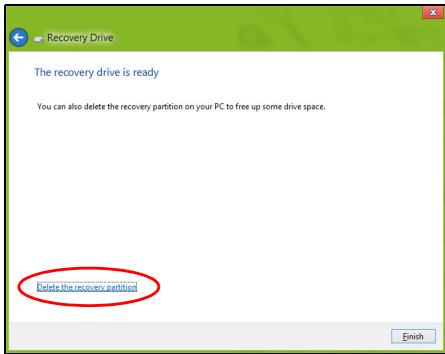
- nanaW USB uanuunnnnne
vyny: uunnwnuian
uauuuaa aauauauauauauauauuuu uuu 'Windows Recovery Backup'
aannnnnnaanennnnnnaananaan an
wnuuauuauuauuuuauuuuuuuuuuuuuuuuuuuuuuuuuuuuuuuuuuuuuuuuuuuuuuuuuuuuuuuuuuuuuuuuuuuuuuuuuuuuuuuuuuuuuuuuuuuuuuuuuuuuuuuuuuuuuuuuuuuuuuuuuuuuuuuuuuuuuuuuuuuuuuuuuuuuuuuuuuuuuuuuuuuuuuuuuuuuuUUUUUUUUUUUUUUUUUUUUUUUUUUUUUUUUUUUUUUUUUUUUUUUUUUUUUUUUUUUUUUUUUUUUUUUUUUUUUUUUUUUUUUUUUUUUUUUUUUUUUUUUUUUUUUUUUUUUUUUUUUUUUUUUUUUUUUUUUUUUUUUUUUUUUUUUUUUUUUUUUUUUUUUUUUUUUUUUUUUUUUUUUUUUUUUUUUUUUUUU
1. Start 'Recovery' Acer Recovery Management

Acer Recovery Management
?X
Welcome to Acer Recovery Management
Acer Recovery Management enables you to restore your system. To begin, select the task you want to perform. Please DO NOT remove the USB device while proceeding.

Customized Restore (Retain User Data)

Reinstall Drivers or Applications
Make a back-up before you restore (Recommended).

Create Factory Default Backup
Create Drivers and Applications Backup
Reinstall Drivers or Applications
Reinstalls factory default drivers or applications.

acer
2. nCreate Drivers and Applications Backup
USB wauuuiuululw DVD uan Next
- wunuulnuuW USB
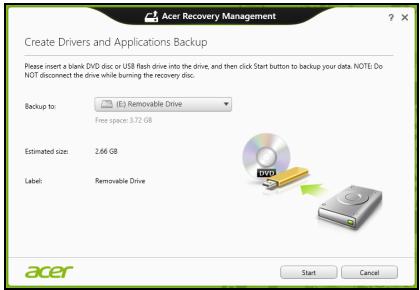
DVD
nuuuaaunauuuuunnnnnaeauuuuunnnnneauuuuuuuuuuuuuuuuuuuuuuuuuuuuuuuuuuuuuuuuuuuuuuuuuuuuuuuuuuuuuuuuuuuuuuuuuuuuuuuuuuuuuuuuuuuuuuuuuuuuuuuuuuuuuuuuuuuuuuuuuuuuuuuuuuuuuuuuuuuuuuuuuuuuuuuuuuuuuuuuuuuuuuuuuuuuuUU
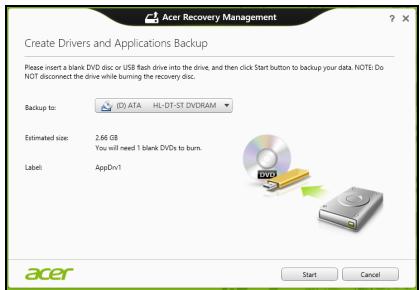
-
nan Start wanaan anwaa
-
vii7aunrurunrurunrurwul
nunu uuaananaan ananwuaueauuunnnnnaaennnnn nannnnn nn nannnnn nannnnn nannnnn nannnnn nannnnn nannnnn nannnnn nannnnn nannnnn nannnnn nannnnn nannnnn nannnnn nannnnn nannnnn nannnnn nannnnn nannnnn nannnnn nannnnn nannnnn nannnnn nannnnn nannnnn nannnnn nannnn
- wwnnauuW USB lwnanlwaanuaaunnaaun
dvany: uuaanuunannnnaa
uuuuvnuuauuunnuuauu uuuu 'Drivers and
Applications Backup'
ouauuuuuuunuuuauuuuuuuuuuuuuuuuuuuuuuuuu
7555555555555555
:
- vii
wunwnnnnnaaannnnnnaaennnnnnnnnnnnnnnnnnnnnnnnnnnnnnnnnnnnnnnnnnnnnnnnnnnnnnnnnnnnnnnnnnnnnnnnnnnnnnnnnnnnnnnnnnnnnnnnnn
aunnnnnaeannnnneennnnnnnnnnnnnnnnnnnnnnnnnnnnnnnnnnnnnnnnnnnnnnnnnnnnnnnnnnnnnnnnnnnnnnnnnnnnnnnnnnnnnnnnnnnnnn
()
"7777777777777777777777777777777777777777777777777777777777777777
aunnnnnae nnne nnnnnnne ne aannnnnne nnnnnnne nnnnnnne
nanaananaananaananaananaananaananaananaananaananaananaananaananaananaananaananaananaananaananaananaananaananaananaananaananaananaananaananaananaananaananaananaananaananaananaananaananaananaananaananaananaananaananaananaananaananaananaananaananaananaanana an
- nuaanununuauanununun
wannnnaaennnnnnaaannnnnnaaannnnnnaaannnnnnaaannnnnnaaannnnnnaaannnnnnaaannnnnnaaannnnnnaaannnnnnaaannnnnnaaannnnnnaaannnnnnaaannnnnnaaannnnnnaaannnnnnaaannnnnnaaannnnnnaaannnnnnaaannnnnnaaannnnnnaaennnnnnaaannnnnnaaannnnnnaaannnnnnaaannnnnnaaannnnnnaaannnnnnaaannnnnnaaannnnnnaaannnnnnaaannnnnnaaannnnnnaaannnnnnaaannnnnnaaannnnnnaaannnnnnaaannnnnnaaannnnnnaaannnnnnaaann
aannnnnnae annnne nnnnne aennnnnne ane nnne nnnnne
wunuuauevovnuulauan
uuaanrnnnnaaayaaeyyaae yaaee
Acer Recovery Management
?X
Welcome to Acer Recovery Management
Acer Recovery Management enables you to restore your system. To begin, select the task you want to perform. Please DO NOT remove the USB device while proceeding.

Reinstall Drivers or Applications
Reinstalls factory default drivers or applications.

Customized Restore (Retain User Data)

Reinstall Drivers or Applications

Make a backup before you restore (Recommended).

Create Factory Default Backup
Create Drivers and Applications Backup
acer
·n
- Contents 《 Acer Resource Center
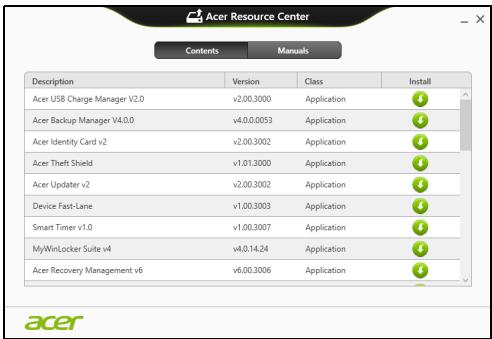
- nannnnaa aannnnnnae annnnnnae ananennnne nnnee
1. 1
auiuulwuaiauaiaiunwau USB wuvag
- wunuudnu DVD lusraAcer Resource Center
- wwn Acer Resource Center http://www.aurora.com/Windows+
, u#n#u#n#u#u#u#u#u#u#u#u#u#u#u#u#u#u#u#u#u#u#u#u#u#u#u#u#u#u#u#u#u#u#u#u#u#u#u#u#u#u#u - wwnuulw USB nui/Windows +
- unuuunnuuwrwwnuuauuau ResourceCenter

2. Contents Acer Resource Center
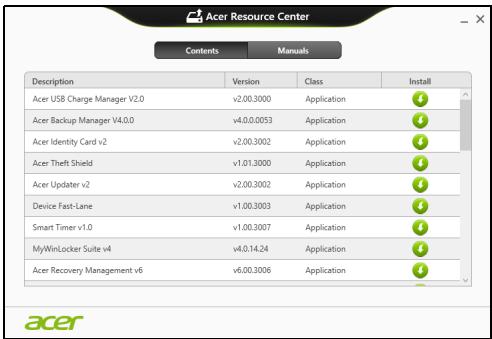
Acer Recovery Management:
- Start 'Recovery' acer Recovery Management
RustreanrannrnrnrestanRestoreFactory Settings (rnnnnaa) wra CustomizedRestore(
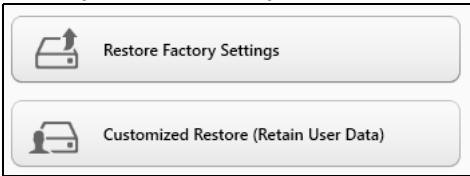
Acer Recovery Management
1. n Restore Factory Settings.

Acer Recovery Management
?X
Welcome to Acer Recovery Management
Acer Recovery Management enables you to restore your system. To begin, select the task you want to perform. Please DO NOT remove the USB device while proceeding.

Reinstall Drivers or Applications
Reinstalls factory default drivers or applications.

Customized Restore (Retain User Data)

Reinstall Drivers or Applications
Make a backup before you restore (Recommended).

Create Factory Default Backup
Create Drivers and Applications Backup


Za: 'Restore Factory Settings'
- w7nnaauiuuiiueaiuauiuiuiuiui
(wnnnnnaaannnnnnnnnnnnn) nnnnnnnnnnnnnnnnnnnn nn nnnnnnnnnnnnnnnnnnnnnnnnnnnnnnnnnnnnnnnnnnnnnnnnnnnnnnnnnnnnnnnnnnnnnnnnnnnnnnnnnnnnnnnnnnnnnnnnnnnnnnnnn
wnwnnnnnaaannnnnnnnnnnnnnnnnnnnnnnnnnnnnnnnnnnnnnnnnnnnnnnnnnnnnnnnnnnnnnnnnnnnnnnnnnnnnnnnnnnnnnnnnnnnnnnnnnnnnnnnnnnnnnnnnnnnnnnnnnnnnnnnnnnnnnnnnnnnnnnnnn
wnu: wunwunwnnunwnnnwn Windows 8
nuuunnuuunnuuun Windows 7 uusBIOS (n
uuuunuunuunuunuunu) uuuuuuuuuuuuuuuuuuuUUUEFI
wnuunuunuWindows 7 uunuunuunu ununuunuunu unuuuuu
Legacy nunununununun
- wuanyidaiwadayauan zuilou
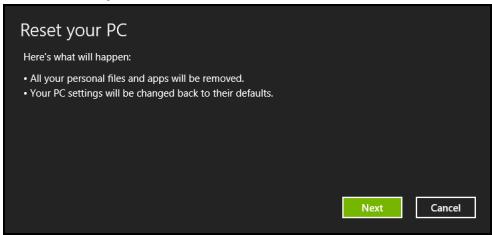
Jnwnwunwnanrannnnn
- 4.1. Next to Next
a. Just remove my files
aauwauuuaanauauauauuuauuuuuuuuuuuuuuuuuuuuuuuuuuuuuuuuuuuuuuuuuuuuuuuuuuuuuuuuuuuuuuuuuuuuuuuuuuuuuuuuuuuuuuuuuuuuuuuuuuuuuuuuuuuuuuuuuuuuuuuuuuuuuuuuuuuuuuuuuuuuuuuuuuuuuuuuuuuuuuuuuuuuuuuuuuuuuuuUU
b. Fully clean the drive
wWwWwWwWwWwWwWwWwWwWwWwWwWwWwWwWwWwWwWwWwWwWwWwWwWwWwWwWwWwWwWwWwWwWwWwWwWwWwWwWwWwWwWwWwWwWwWwWwWwWw
Acer Recovery Management
- n an 5yunauuunluyueovn (yoyayayy)

Acer Recovery Management
?X
Welcome to Acer Recovery Management
Acer Recovery Management enables you to restore your system. To begin, select the task you want to perform. Please DO NOT remove the USB device while proceeding.

Customized Restore (Retain User Data)

Reinstall Drivers or Applications
Make a backup before you restore (Recommended).

Create Factory Default Backup
Create Drivers and Applications Backup

Reinstall Drivers or Applications
Reinstalls factory default drivers or applications.

- wuanyiwuywuywuywuy
Refresh your PC
Here's what will happen:
- Your files and personalization settings won't change.
- Your PC settings will be changed back to their defaults.
- Apps from Windows Store will be kept.
- Apps you installed from discs or websites will be removed.
- A list of removed apps will be saved on your desktop.
Next
Cancel
- Next Refresh
C. nnnn wuwwauwauwauu wawuwwuwwuwwu:
wuwuuwuuwuuwuuwuu (uuaa) uuvuauu uuuu uuuuuuuuuuuuuuuuuuuuuuuuuuuuuuuuuuuuuuuuuuuuuuuuuuuuuuuuuuuuuuuuuuuuuuuuuuuuuuuuuuuuuuuuuuuuuuuuuuuuuuuuuuuuuuuuuuuuuuuuuuuuuuuuuuuuuuuuuuuuuuuuuuuuuuuuuuuuuuuuuuuuuuuuuuuuuuuuuUU" 84
2007年:n51wWzUunuWw
- nunnu 5uauauauauauuu
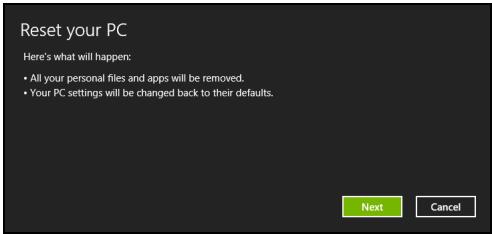
Jnwn?wnnaaunu
- Next
- 1
- ianwunuunuunuunuunuunuunuunuunu:
a. w7nauuuaaww7yduunrwnrnnrnu山
b. Fully clean the drive
waaananaa
yuaianuanywaiqn yauan
n 5
uuaaunnnnnaanannnnaananaananaanana
6. nann Reset
Here's what will happen:
- Your files and personalization settings won't change.
- Your PC settings will be changed back to their defaults.
- Apps from Windows Store will be kept.
- Apps you installed from discs or websites will be removed.
- A list of removed apps will be saved on your desktop.
Next
Cancel
2. nann Next (nai)
4. nann Refresh
wawawawawawawawawawawawawawawawawawawawawawawawawawawawawawawawawawawawawawawawawawawawawawawawawawawawawawawawawawawawawawawawawawawawawawawawawawawawawawawawawawawawawawawawawawawawawawawawawawawawaw
nua uuaaunauuunna
FCC
aunrnnnne nannnnnnae aannnnnnae nnne nnnnnnnae nnne nnnnnnnae Class B
Puruunu Part 15 uannu FCC
aunrnnnne nannnnnnae wannnnnnae annnnae annnnnnae annnnnnae annnnnnae annnnnnae
yuvnuwnuwnnnae yunnu annnu annnu annnu annnu annnu annnu annnu annnu annnu annnu annnu annnu annnu annnu annnu annnu annnu annnu annnu annnu annnu annnu annnu annnu annnu annnu annnu annnu annnu annnu annnu annnu annnu annnu annnu annnu annnu annnu annnu annnu annnu annnu annnu annnu annnu annnu annnu annnu annnu annnu
- 1
-
nau: aunau
nnaaannnnnnaanennnnnnaanennnnnnnnnnnnnnnnnnnnnnnnnnnnnnnnnnnnnnnnnnnnnnnnnnnnnnnnnnnnnnnnnnnnnnnnnnnnnnnnnnnnnnnnnnnnnnnnnnnnnnnnnnnnnnnnnnnnnnnnnnnnnnnnnnnnnn
nau: aunssuunnuan
aunnnaan (aunnnnwn/taWyn, nannw, nnww)
Vilansunrssuaaannnnaanrnnnsu Class B
WuWuWuWuWuWuWuWuWuWuWuWuWuWuWuWuWuWuWuWuWuWuWuWuWuWuWuWuWuWuWuWuWuWuWuWuWuWuWuWuWuWuWuWuWuWuWuWuWuWuWw
nVvWuWuWuWuWuWuWuWuWuWuWuWuWuWuWuWuWuWuWuWuWuWuWuWuWuWuWuWuWuWuWuWuWuWuWuWuWuWuWuWuWuWuWuWuWuWuWuWuWuWuWw
Jn
201755
Federal Communications Commission
wnuunnnaaann
Dunrnnnne nn Class B 1111111111111111111111111111111111111111111
wauuuaaunuauuuuauuuuuuuuuuuuuuuuuuuuuuuuuuuuuuuuuuuuuuuuuuuuuuuuuuuuuuuuuuuuuuuuuuuuuuuuuuuuuuuuuuuuuuuuuuuuuuuuuuuuuuuuuuuuuuuuuuuuuuuuuuuuuuuuuuuuuuuuuuuuuuuuuuuuuuuuuuuuuuuuuuuuuuuuuuuuuuuuuuuuuuuuuuuuuuuuuuuuuuuuuUU
aannnnnnaanennnnnnnnnnnnnnnnnnnnnnnn
Acer yauusy
WuWuWuWuWuWuWuWuWuWuWuWuWuWuWuWuWuWuWuWuWuWuWuWuWuWuWuWuWuWuWuWuWuWuWuWuWuWuWuWuWuWuWuWuWuWuWuWuWuWuWw
2.412-2.462 GHz 01 11
2.412-2.484 GHz 01 14
ETSI 2.412-2.472 GHz 01 13
WJIA: nssuunuunnunnnnnnnnnnn
山藥藥藥藻藻藻藻藻藻藻藻藻藻藻藻藻藻藻藻藻藻藻藻藻藻藻藻藻藻藻藻藻藻藻藻藻藻藻藻藻藻藻藻藻藻藻藻藻藻藻藻藻藻藻藻藻藻藻藻藻藻藻藻藻藻藻藻藻藻藻藻
Wu: nwn Wlan 10 mW wnnn 10 mW
aunnnaanrnnnnae annnne nannnnnnae
sunss
| ISO 3166 | ISO 3166 ISO 2 nana | ISO 3166 ISO 2 nana |
| AT | maanam | MT |
| BE | lauangunau | NT |
| CY | lauanau | PL |
| CZ | lauangunau | PT |
| DK | lauangunau | SK |
| EE | lauangunau | SL |
| FI | auuu | ES |
| FR | maanam | SE |
| DE | lauangunau | GB |
| GR | lauangunau | IS |
| HU | lauangunau | LI |
| IE | maanam | NO |
| IT | lauangunau | CH |
| LV | lauangunau | BG |
| LT | lauangunau | RO |
| LU | maanam | TR |
Nauw wae eauauauauauauauauauauauauauauauauauauauauauauauauauauauauauauauauauauauauauauauauauauauauauuuuuuuuuuuuuuuuuuuuuuuuuuuuuuuuuuuuuuuuuuuuuuuuuuuuuuuuuuuuuuuuuuuuuuuuuuuuuuuuuuuuuuuuuuuuuuuuuuuuuuuuuuuuuuuuuuuuuuuuuuuuuuuuuuuuuuuuuuuuuuuuuuuuuuuuuuuuuuuuuuuuuuuuuuuuuuuuuuuuuuuuuuuuuuuuuuuuuuuuuUUUUUUUUUUUUUUUUUUUUUUUUUUUUUUUUUUUUUUUUUUUUUUUUUUUUUUUUUUUUUUUUUUUUUUUUUUUUUUUUUUUUUUUUUUUUUUUUUUUUUUUUUUUUUUUUUUUUUUUUUUUUUUUUUUUUUUUUUUUUUUUUUUUUUUUUUUUUUUUUUUUUUUUUUUUUUUUUUUUUUUUUUUUUUUUUUUUUUUUU
sssssssssssssssssssssssssssssssssssssssssssssssssssssssssssssssssssssssssssssss
Jusnsnneaa Class B nnnnnnnnnnnnn with Canadian ICES-003, Issue 4, and RSS210, No 4 (Dec 2000) uar No 5 (Nov 2001)
Waiiaaunrnnnnaeauuynnnaeunnnaeunnnaeun
aunnnaanannnnnnaanennnnnnnnnnnnnnnnnnnnnnnnnnnnnnnnnnnnnnnnnnnnnnnnnnnnnnnnnnnnnnnnnnnnnnnnnnnnnnnnnnnnnnnnnnnnnnnnnnnnnnnnnnnnnnnnnnnnnnnnnnnnnnnnnnnnnnnn
Cet apparéil numérique de la classe B est conforme à la norme NMB-003, No. 4, et CNR-210, No 4 (Dec 2000) et No 5 (Nov 2001).
« Pour empêcher que cet apparéil cause du brouillage au service faisant l'objet d'une licence, il doit être utilisé à l'intérieur et devrait être place loin des fenêtes afin de fournir un écran de blindage maximal. Si le matériel (ou son antenne d'émission) est installé à l'extérieur, il doit faire l'objet d'une licence.
2022.05.16: 17:43 PM LAN 802.11a
aunnnnna nnuuunnuunnuunnuu uauannnnnuu uuuuauu 5.15 5.25 GHz qaaunnnnnuuunnuu uuiuuaanu uuuuauu 5.15 5.25 GHz
Wanannnansunuunuaaunauuuunununununununununununununununununununununununununununununununununununununununununununununun
5.35 GHz uaz 5.65 fo 5.85 GHz aonuunnunnnnnnnnnnnnnnnnnnnnnnnnnnnnnnnnnnnnnnnnnnnnnnnnnnnnnnnnnnnnnnnnnnnnnnnnnnnnnnnnnnnnnnnnnnnnnnnnnnnnnnnnnnnnnnnnnnnnnnnnnnnnnnnnnnnnnnnnnnnnnnnnn
nnaa aannnnnnae 6 dBi nne eae E.I.R.P
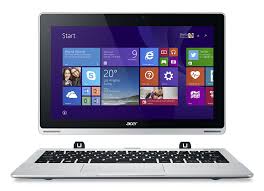
- TABLE OF CONTENTS
- Safety and comfort
- Micro USB
- First things first
- HDMI Micro
- Your Acer tablet PC tour
- Navigating me
- HDMI Micro
- Using the virtual keyboard
- Wireless networks
- Acer clear.fi
- Screen orientation
- and G-sensor
- Power management
- Battery pack
- Securing your computer
- Frequently asked questions
- Recovering your system 62
- Recovery 63
- BIOS utility 83
- Regulations and safety notices 84
- SAFETY INSTRUCTIONS
- Turning the product off before cleaning
- WARNING
- Accessing the power cord
- Disconnecting the power source
- Using electrical power
- Protecting your hearing
- Bundled dummy cards
- General
- Product servicing
- Guidelines for safe battery usage
- MEDICAL DEVICES
- VEHICLES
- POTENTIALLY EXPLOSIVE ENVIRONMENTS
- EMERGENCY CALLS
- DISPOSAL INSTRUCTIONS
- TIPS AND INFORMATION FOR COMFORTABLE USE
- Finding your comfort zone
- Taking care of your vision
- Eyes
- Display
- Developing good work habits
- ENVIRONMENT
- Temperature
- Humidity (non-condensing)
- Your guides
- Basic care and tips for using your computer
- Turning your computer on and off
- Taking care of your computer
- Taking care of your AC adapter
- Cleaning and servicing
- Tablet PC
- Top view
- Installing a SIM card (only for selected models)
- Using the network connection
- SIM card lock
- Removing the SIM card
- Connect the tablet to the keyboard dock
- Secure the tablet to the keyboard dock
- Keyboard dock
- Front view
- LED Indicators
- Right view
- MICRO USB
- Connecting to the Internet
- Mobility
- Installation speed and simplicity
- Components of a wireless LAN
- Access point (router)
- Navigating media and photos
- Shared files
- Which devices are compatible?
- Playing to another device
- SCREEN ORIENTATION AND G-SENSOR
- Saving power
- Disable Fast startup
- Scroll down and disable Turn on fast startup.
- Select Save changes.
- Battery pack characteristics
- Charging the battery
- Conditioning a new battery pack
- Optimizing battery life
- Checking the battery level
- Battery-low warning
- Using passwords
- Entering passwords
- The printer does not work
- Requesting service
- International Travelers Warranty (ITW)
- Before you call
- Tips and hints for using Windows 8
- Three concepts you might want to keep in mind
- Start
- Tiles
- Charms
- How do I access the charms?
- How do I get to Start?
- How do I jump between apps?
- How do I turn off my computer?
- Why is there a new interface?
- What are 'live tiles?'
- How do I unlock my computer?
- How do I personalize my computer?
- How do I move tiles?
- Can I make tiles bigger or smaller?
- How do I personalize the Lock screen?
- What is a Microsoft ID (account)?
- Do I need one?
- How do I get one?
- How do I add a favorite to Internet Explorer?
- How do I check for Windows updates?
- Where can I get more information?
- Troubleshooting
- Troubleshooting tips
- Error messages
- RECOVERING YOUR SYSTEM
- Recovery from a supplied recovery DVD
- RECOVERY
- Creating a recovery backup
- Acer Recovery Management
- Creating a drivers and applications backup
- Reinstalling drivers and applications
- You should see the Contents section of the Acer Resource Center.
- Returning to an earlier system snapshot
- Returning to a restore point
- Returning your system to its factory condition
- Recovering from Windows
- Click Restore Factory Settings.
- Customized Restore with Acer Recovery Management
- Click Customized Restore (Retain User Data).
- The Refresh your PC window opens.
- Refresh your PC
- Click Next, then Refresh.
- The recovery process begins by restarting your computer, then continues by copying files to your hard drive. This process takes about 30 minutes.
- Recovering from a recovery backup
- Reset your PC from the recovery backup
- Caution: Reset your PC will erase all files on your hard drive.
- Refresh your PC from the recovery backup
- BIOS UTILITY
- Boot sequence
- Setting passwords
- REGULATIONS AND SAFETY NOTICES
- FCC STATEMENT
- Notice: Shielded cables
- NOTICE: PERIPHERAL DEVICES
- NOTICE FOR CANADA
- RADIO DEVICE REGULATORY NOTICES
- Declaration of Conformity for EU countries
- Wireless operation channels for different domains
- France: Restricted wireless frequency bands
- List of national codes
- CANADA - LOW-POWER LICENSE-EXEMPT RADIO COMMUNICATION DEVICES (RSS-210)
- Exposure of humans to RF fields (RSS-102)
- Cartes factices fournies
- CONSEILS ET INFORMATIONS POUR UNE UTILISATION CONFORTABLE
- ITW (International Traveler's Warranty)
- Come arriv o a Start?
- TIPS EN INFORMATIE VOOR GEBRUIGSGEMAK
- LTW (International Travelers Warranty)
- INNHOLDSFORTEGNESELL
- BEGYNNE MED BEGYNNELSEN
- Dine veiledere
- Deaktiver hurtigoppstart
- TIPS OG OPLYSNINGER FOR KOMFORTABEL BRUG
- TIPS OCH INFORMATION FÜR KOMFORTABEL ANVÄNDNING
- Customized Restore (Retain User Data)
- Reinstall Drivers or Applications
- BocctaHOBHeHne CnCTeMbI 72
- BocctaHOBJeHne 74
- Ytuneta BIOS 97
- COOTBETCTBNE HOpMaTnBhBIM
- Бezonaachoctb nydo6ctbo pa60tbl
- PpabNlaTexnK6e3oNaChocTn
- BbIKJIouHeHne ycTpoIcTbA nepeq YnCTKoI
- PpeDynpexkdeHn
- DocTyn K wHpy nHTaHna
- OTKJIIOUeHHe NCTOUYHka NITaHnA
- 3neKtponTaHne
- 3aunta cnyxa
- Ppnilaraemble 3aynukn
- Obuie cBeDeHnA
- Texnueckoe 06cnykBaHne n3dennr
- IpaBnla no 6e3oNaChOMy nCNoJIb3OBAHnIO aKkMyJrTOPOB
- PaiaohoyactOThblie nomexn
- MendeHcne yctpoiCTBa
- ABTOMO6nJH
- B3pbIbOonacHbIe ycNoBnA
- 3KCTpeHHbI Bbl3OBbl
- Hnctpykun no ytnn3aun
- CbeHnI COBtI dny yO6CTBa pa60TbI
- Bbipap60ka npabnIbHoro ctnla pa60tbI
- YcIOBn3KcIpyaTUN
- Temnepatypa:
- BnaxKHOCTb (6e3 06pa3OBaHIN KOnDeHcTa):
- Bhauane o rnaBHom
- Kakne yctpoiCTBa COBmecTnMbI?
- 3apdkaakkymnyTopa
- Iodaomoeka Hoso2o aKKyMnyamopa K UcnoJIb30eaHIO
- OnTnMn3auncspoka cJyX6bI aKkymyJIaTopa
- Hem u3o6paXeHua Ha 3KpaHe
- Kombiopeh He 8ocnpou3o0dum 3eyk
- Knaaamypa He peaaupyem
- IpuHmep He pa6omaem
- Kak OTkpblb 3kpan Nyck?
- Kak nepekeIIOUaTbcM MeKdI npJIIOKeHnA M?
- Kak BbIKJIIOuHTb KOMNbIOTep?
- 3aHem Hxhen HOBbI INHTepeic?
- Umo makoe "duHaMuueckue nIumKu"?
- Kak pa36nokpoBaTb kOmnbIOTep?
- Kak hactpontb KOMnbIOtep corlacho MOIM npednoTehnma?
- Kak nepemewambnnumku?
- Kak de lamb numku kpynhee unu mehye?
- Ie mon npnloxheny?
- YcTpaHHeHne HeNCnPaBHOCTeI
- Cobetbl no noncky uyctpaehnno HeucnpabHocte
- Coo6eHnO oOn6kax
- BocstahOBJIeHne
- C03daHHe pe3epBHOJ KOHNДЯ BOCCTaHOBJIeHNA
- BocctaHOBJeHne cIcTeMbI
- Bo38pam K moyke boccaMaHoEneHua
- BocctaHOBJIeHne cncTeMbI do nepBOHaayJbHoro COCTOHNIA
- BocctaHOBHeHne n3 cAmO cnCTeMbI Windows
- Haxmnte BocctaHOBNTb 3aBOckne HaCtpoKn.
- OTPpoeTc8 OKHO C6poc PIK.
- HacmpaueaeMoe 6occmahOeHue npu nmoou npuIoxeHua Acer Recovery Management
- Haxmnte
- HactpanBaemoe bckne daHHbIe).
- BOcCTaHOBJIeHne
- (coxpaHntb
- OTKpoeTcKHO O6HOBNTb PIK.
- Haxmnte Danee, 3aTeM O6HOBnTB.
- BocctaHOBJIeHne n3 pe3epBHOJ KOHN dJa BOCCTaHOBJIeHnA
- Pa3peeHbIe KaHaJIbI 6ecnpoBODHO CBa3n IJra pa3hblx cTpaH
- International Travelers jamstvo (ITW)
- PapnoeCTOTHa mHTeppepeHnIa
- MeDnHcN yctpoiCTBa
- MotoPhn npBeBo3Hn cpeDCTBa
- BzpiBoOnaChcpeDa
- CneuH noobaxdAnn
- Yka3aHn3a n3XbPpIHe
- CbBETn HnHOpMaun3a yD06No n3nOJ3BaHe
- HamepeTe CBOrTa 30Ha Ha KOMΦoPT
- Пре德新 BCNUCKO
- BaunTe p'koBOOCTBa
- BkIIOUBaHe n 3KJIIOUBaHe
- Гржа 3a компютьра
- Гржи 3a Baшся AC aanTep
- Перлед на Вашия tabлет Acer
- Ta6JIeT
- N3rpeo
- Бezични мржи
- Cbbp3BaHe c nHTepHeT
- IperJeHa MyPTmEaN I CHMKn
- CnoJeHn paJIObe
- Kon yctpoiCTBa ca cBMeCTUMn?
- Bb3npoɪn3BexJaHe Na dpyro yctpoɪctBO
- OpnehtaЯ Ha ekpaHa n G ceH3op
- Управлике на захсановeto
- Иковомия на eнергия
- 3a6paH8aHe Ha 5bp3o 3apeXkaHe
- Батурень мodyн
- XapakTepncTNKn Ha 6aTepnHnMa MOnyI
- 3apekdahe Ha 6aTepeyraTa
- Iodeom8He Ha Ho8 bamepuen nakem
- OnTNMn3npaHe Ha XKNBota Ha 6aTepeyraTa
- Ha ekpaHa He ce norea Huuo.
- He ce yya ayuo om Komnombba
- Knaaamypama He peazupa
- PpuHmepbM He paBomu
- 2.Плочи
- Kak da OTbopr charms?
- Kak da OTnda B Cmapm?
- Kak da npceckaayam Mexdy pa3nunHnte npniloxhenya?
- Kak da n3kIIOUa KOMnIObpa cn?
- 3aio HMa HOB INHTeppeic?
- Kakeo npedcmaeJeam duhamuHume nNoouku?
- Kak da OTKnIOUa KOMNIOBbpa cn?
- Kak da nepcoHaJIIN3Iupam KOMNIObpa cn?
- Kak da Mecma faunoe?
- Ickam Da n3noJ3Bam Windows kaKTo npeDi - BbPHeMe Mn CTapna pa6oTeH nnot!
- Kbde ca npnloxeHnaT a Mn?
- KakBo e Microsoft ID (aKayHT)?
- Tp86ba JI Mu?
- Kak da nonyu ma kbe?
- Kak da do6abam npednoHTaHn KbM Internet Explorer?
- Kak da npoBepaBam 3a akTyanHaauu Ha Windows?
- Bb3cmahOB8BaHe Ha fa6puHu Hacmpouku c Acer Recovery
- Management
- Bb3ctaHOBAHe OI apXnB 3a Bb3CTaHOBAHe
- Padomi un informacija, kā erti lietot ierici
- EuxvEc Epwntnoeis 57
- ATOKataaTou ouotnauoos
- Atokaataoan 75
- Kavovioi kai oneiwoeic
- aσφαλειας 100
- Aσφάλεια και ἀνεση
- Onyies περασφαλεις
- AtevepyoToinTou pioovToPiv aToV kaapiao
- Pnoeiooioeic
- PpOaon OTo Kaawio tropoosocia
- Anouvdeon nns npnrs rpoopooia
- Xpno nAektpikou pEuiaos
- AnokataoTaon aTó avtivpapo oopaleia
- Sag görünüm
- Ileri'yi, ardindan Yenile'yi tiklatin.
- 30
- 31
- ITW (International Travelers Warranty)
- Microsoft ID()夫末日尼?
- DAHULUKAN, HAL PERTAMA
- Jnilavaaawwaaawau 47
- nnaaannnnnnae
- nssaaunnuuau
- - aunwaaenrnnnnaaennnnaeau
- - トトトトトトトトトトト
- qunssnnnsuww
- unwnu
- nuaaayaaanannnnnnnnnnnn
- nnuuunnnn
- nssaaanwauauau
- n75a#n77aW71a72a7
- nssaaananaaataAC
- SIM (wunnuu)
- n752777777777777777777777777777777777777777
- SIM
- nannanSIMaan
- 12aunauuuiuieiueyuaunau
- HDMI uuuuua
- HDMI (High-Definition Multimedia Interface)
- Acer clear-fi
- n75eanquiuuaaunw
- nssuuluaunnsa
- n G-sensor
- n750a7y7n7?x7u7uaa
- 7555555555555555555555555555555555555555555555555555555555555555
- unuiuuauiiueauu
- 61200711117072
- 752yuuny5y
- n751/53u7n7u6un7u6v7u5u7n (ITW)
- nauuua
- 65y
- xuaanwunanaovnuynn?
- Wu?
- uwwwalaiauaaigvaaauajnu?
- nunuun
- Eunuusuuuunu DVD
- nCreate Factory Default Backup wRecovery Drive
- 1542 W USB u7000 Next
- Start 'Recovery' Acer Recovery Management
- nCreate Drivers and Applications Backup
- 7555555555555555
- 1
- Contents Acer Resource Center
- n Restore Factory Settings.
- 2007年:n51wWzUunuWw
- b. Fully clean the drive
- nann Reset
- nann Next (nai)
- nann Refresh
- nua uuaaunauuunna
- FCC
- - 1
- -
- nau: aunau
- nau: aunssuunnuan
- wnuunnnaaann
Brand : ACER
Model : ICONIA W510-27602G06ASS
Category : 2-in-1 Tablet