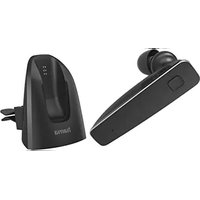
MyVoice2100 - Earphones HAMA - Free user manual and instructions
Find the device manual for free MyVoice2100 HAMA in PDF.


| Product type | Bluetooth headset |
| Brand | Hama |
| Model | MyVoice2100 |
| Weight | Approx. 26 g |
| Bluetooth technology | Bluetooth® v5.0 |
| Supported profiles | A2DP V1.3, AVRCP V1.5, HFP V1.6 |
| Bluetooth frequency | 2 402 - 2 480 MHz |
| Bluetooth range | < 10 m |
| Battery type | Lithium-polymer 3.7 V |
| Battery capacity | 48 mAh |
| Charging time | Approx. 2 h |
| Music playback time | Approx. 6 h |
| Talk time | Approx. 4.5 h |
| Standby time | Approx. 80 h |
| Power supply | 5 V 52 mA max. (via micro-USB) |
| Main functions | Hands-free, music control, voice assistant (Siri/Google), multipoint |
| Package contents | Headset, charging stand, micro-USB cable, 3 ear tips (S/M/L), 2 ear hooks (S/L), vent clip, manuals |
| Care and cleaning | Clean with a slightly damp, lint-free cloth; avoid harsh detergents |
| Safety instructions | Do not use while charging; protect from moisture, shocks, heat; do not open; built-in non-replaceable battery |
| Spare parts and repairability | Battery non-replaceable; no spare parts provided; repair by qualified technician |
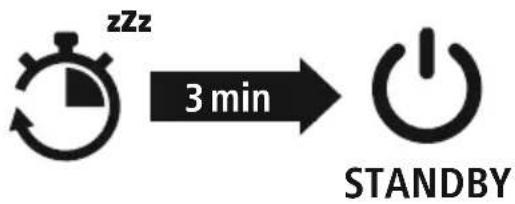
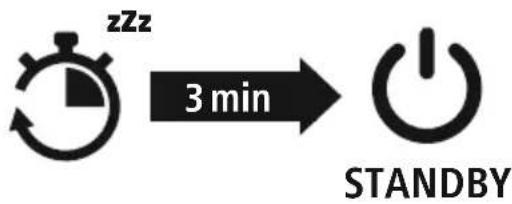
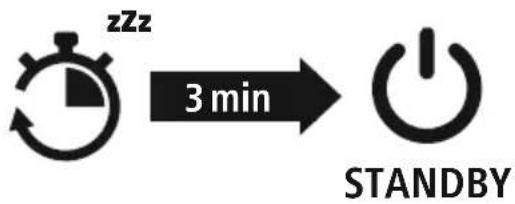
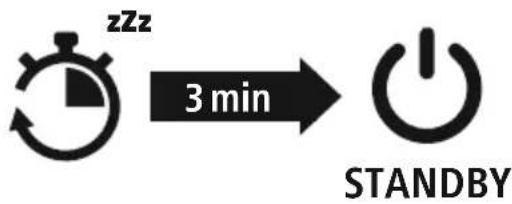
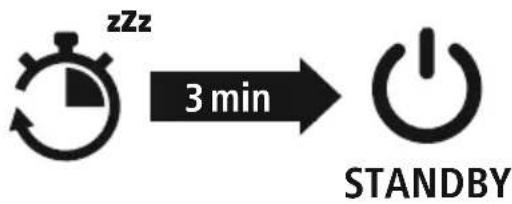
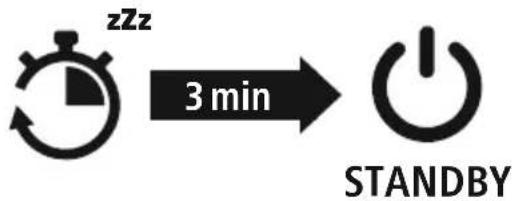
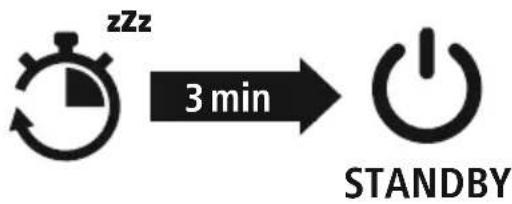
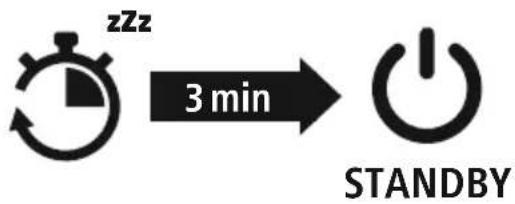
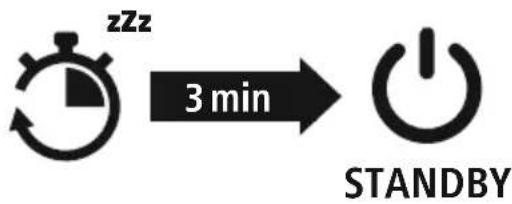
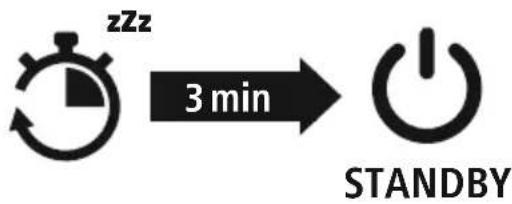
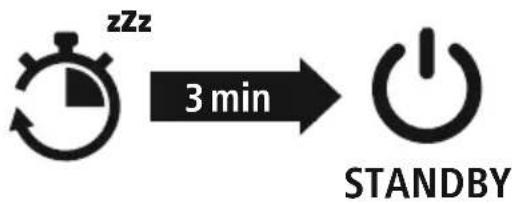
| General information | Domestic use; automatic shutdown after 3 min without connection; multipoint: simultaneous connection to 2 devices |
Frequently Asked Questions - MyVoice2100 HAMA
User questions about MyVoice2100 HAMA
0 question about this device. Answer the ones you know or ask your own.
Ask a new question about this device
Download the instructions for your Earphones in PDF format for free! Find your manual MyVoice2100 - HAMA and take your electronic device back in hand. On this page are published all the documents necessary for the use of your device. MyVoice2100 by HAMA.
USER MANUAL MyVoice2100 HAMA
BLUETOOTH® MONO HEADSET
"MyVoice2100"
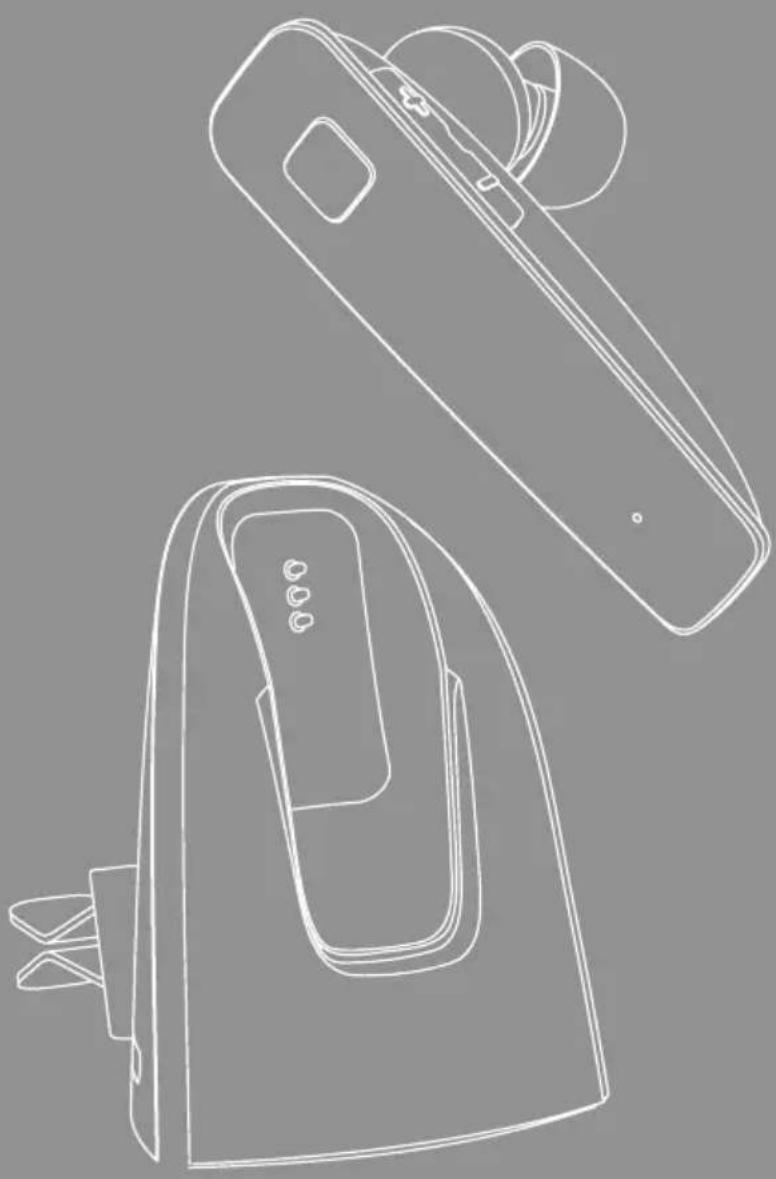
natural_image
Line drawing of two different types of household appliances, one with a handle and the other with a button (no text or symbols)GB Operating Instructions D Bedienungsanleitung F Mode d'emploi E Instrucciones de uso
NL Gebruiksaanwijzing I Istruzioni per l'uso PL Instrukcja obsługi H Használati útmutató
RO Manual de utilizare CZ Návod k použití SK Návod na použitie P Manual de instruções
GB Operating instructions
Thank you for choosing this
Hama product!
Take the time to read the following
instructions and information
all the way through .fir keep these operating instructions
in a safe place afterwards in order
to be able to refer to them again if .required
If you sell the device, pass these operating instructions
to the new owner
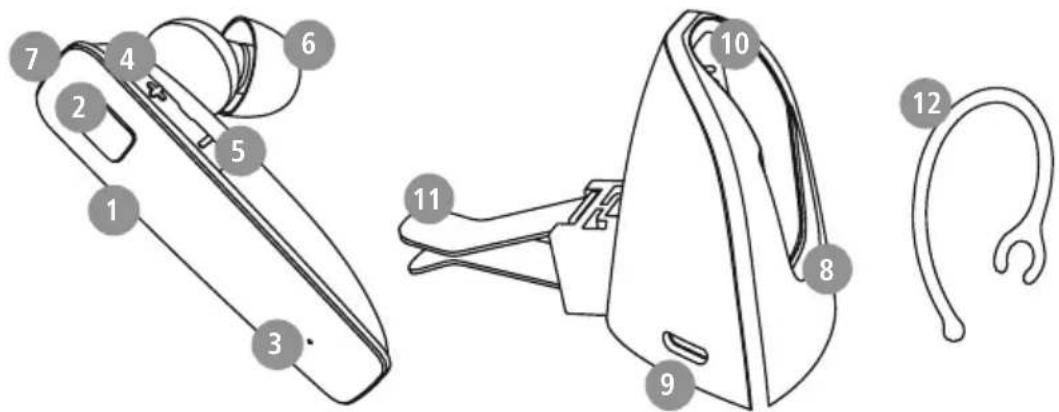
Controls and displays
-
On/Off switch
-
Multi-function button (MFB)
-
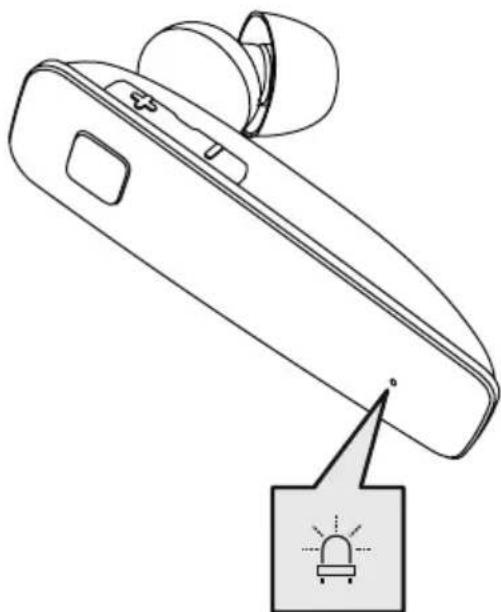
Status LED
-
- button
-
- button
-
Silicone ear pads
-
Headset micro-USB connection
-
Charger tray
-
Charger tray micro-USB connection
-
Charging contacts
-
Clip for car ventilation grille
-
Ear hooks
1. Explanation of warning symbols and notes
Warning

This symbol is used to indicate safety instructions or to draw your attention to specific hazards and
Note

This symbol is used to indicate additional information or important notes.
2. Package contents
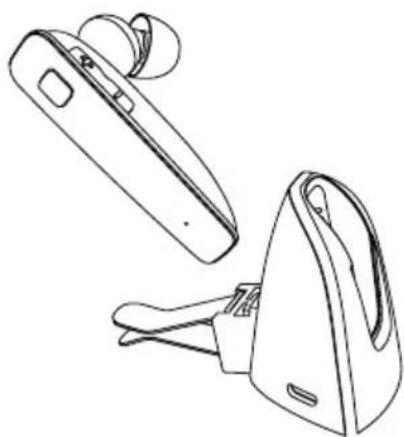
1x "MyVoice 2100" Bluetooth headset
1x charger tray
3x ear pads in various sizes (S/M/L)
1x micro-USB charging cable
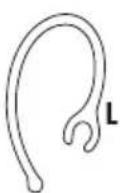
2x ear hooks (S/L)
1x quick guide
1x warning and safety instructions
1x clip for car ventilation grille



natural_image
Line drawing of two electronic devices with earbuds and connectors (no text or symbols)
3. Safety instructions
- The product is intended for private, non-commercial use only
- Use the product only for the intended purpose.
• Children should be supervised to ensure that they do not play with the product - Do not use the product in areas in which electronic products are not permitted
- Do not attempt to service or repair the product yourself. Leave any and all service work to qualified experts
- Do not open the device or continue to operate it becomes damaged
- Do not bend or crush the cable.
- Do not drop the product and do not expose it any major shocks.
- Dispose of packaging material immediately in accordance with the locally applicable regulations.
- Do not modify the product in any way. Doing voids the warranty
- Protect the product from dirt, moisture and overheating and use it in dry environments only
- Do not use the product in the immediate vicinity of heaters, other heat sources or in direct sunlight
- Only use the article under moderate climatic conditions.
• As with all electrical products, this device should be kept out of the reach of children - Do not operate the product outside the power limits given in the specifications
- Do not use the product in a damp environment and avoid splashing water
- While driving a car or using sports equipment, do not allow yourself to be distracted by your product and keep an eye on the traffic situation and your surroundings.
- The battery is permanently installed and cannot be removed; dispose of the product as a whole accordance with the statutory regulations
- Do not incinerate the battery or the product.
- Do not tamper with or damage/heat/disassemble the batteries/rechargeable batteries
- Do not use the product during the charging process!
Warning - rechargeable battery

- Only use suitable charging devices or USB ports to charge the product.
- Do not use defective chargers or USB ports by and do not attempt to repair .them
- Do not overcharge the product or allow the battery to completely discharge.
- Avoid storing, charging and using in extreme temperatures and at extremely low atmospheric pressures (such as at high italiftitudes).
- When stored over a long period of time, batteries should be charged regularly (at least it to every three months).
Warning - magnets

• This product generates magnetic fields. Individuals with cardiac pacemakers should
^so consult a doctor before using this product as it may affect the pacemaker's proper function
- Do not store bank or similar cards with magnetic strips near the charging box or earphones. The data on the cards could be damaged or completely deleted.
Warning - high volume

• High sound pressure!
• There is a risk of hearing damage.
• To prevent any loss of hearing, avoid listening at loud volumes for prolonged periods.
• Always keep the volume at a reasonable level.
do Loud volumes can damage hearing - even
oct over short periods.
• Using this product limits your perception of ambient noiseYou should therefore not
in operate
vehicles or
machines while using them
4. Switching on/off

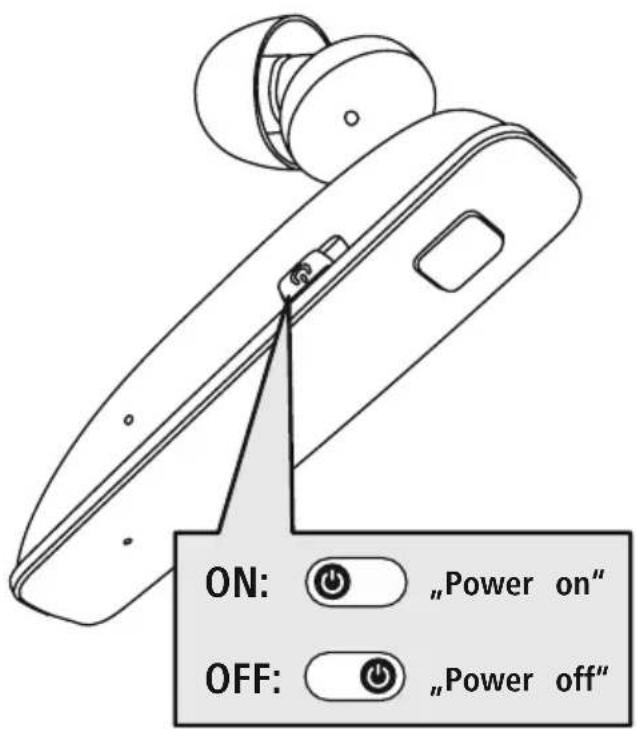
Switch the headset on using the On/Off switch (1).
You will hear the announcement "Power on" and the LED (3) flashes blue.

Switch the headset off using the On/Off switch (1).
The LED (3) briefly flashes red and the announcement "Power off" is heard.
flowchart
graph LR
    A[" stopwatch"] -->|3 min| B["Power Button"]
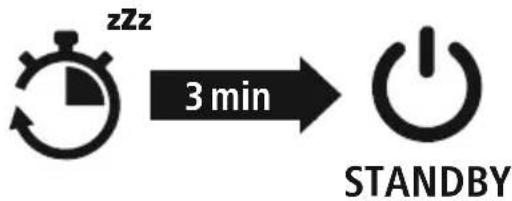
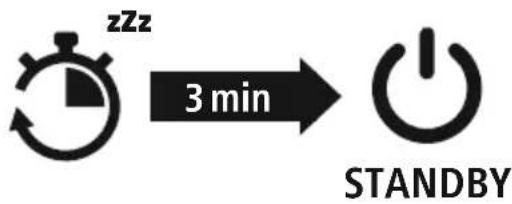
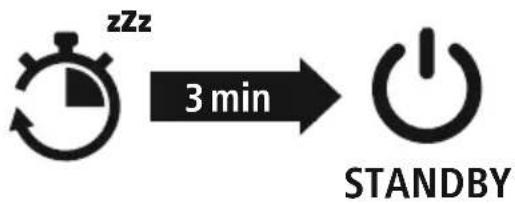
Note - Automatic product switch-off

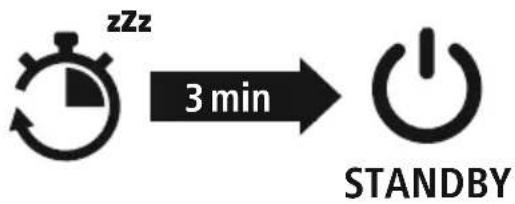
The product is equipped with an automatic switch-off mechanism here is no connection to your device within 3 minutes, it switches itself off automatically.

5. Charging
Fully charge the headset once before using it for the .first time
1 Switch off the headset and connect it
Ensure that the headset is switched off before charging it.
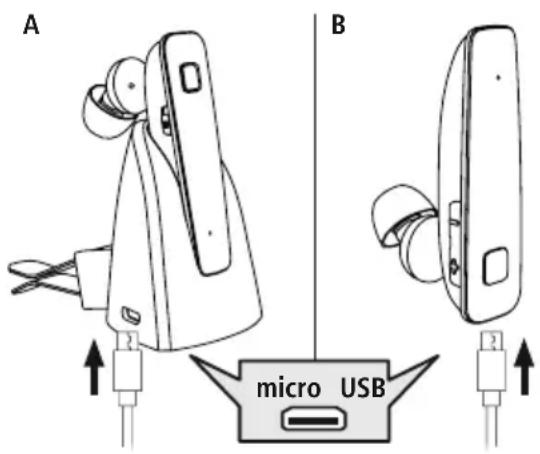
A: Place the headset in the charging tray (8). Connect the USB charging cable included to the charger tray charging socket (9). Connect the free plug on the micro-USB charging cable to a suitable USB charger. To do this, consult the operating instructions for the USB charger you are using
B: Connect the USB charging cable included to the charging socket of the headset (connect the free plug on the micro-USB charging cable to a suitable USB charger. To do this, consult the operating instructions for the USB charger you are using
2 Headset charging process
The status LED (3) lights up solid red during the charging process. Once the charging process is complete, the LED (3) lights up blue. It can take up to 2 hours for the battery to be fully charged.
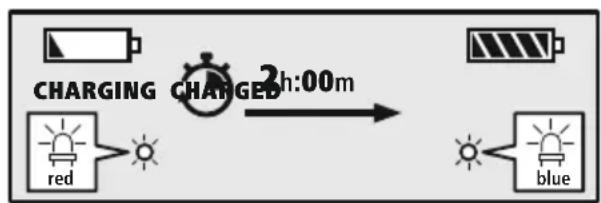
flowchart
graph LR
    A["Charging Light"] --> B["Blue Indicator"]
    C["Charging Light"] --> D["Red Indicator"]
    E["Charging Light"] --> F["Blue Indicator"]
    G["Charging Light"] --> H["Blue Indicator"]
    I["Charging Light"] --> J["Blue Indicator"]
    K["Charging Light"] --> L["Blue Indicator"]
    M["Charging Light"] --> N["Blue Indicator"]
    O["Charging Light"] --> P["Blue Indicator"]
    Q["Charging Light"] --> R["Blue Indicator"]
    S["Charging Light"] --> T["Blue Indicator"]
    U["Charging Light"] --> V["Blue Indicator"]
    W["Charging Light"] --> X["Blue Indicator"]
    Y["Charging Light"] --> Z["Blue Indicator"]
    AA["Charging Light"] --> AB["Blue Indicator"]
    AC["Charging Light"] --> AD["Blue Indicator"]
    AE["Charging Light"] --> AF["Blue Indicator"]
    AG["Charging Light"] --> AH["Blue Indicator"]
    AI["Charging Light"] --> AJ["Blue Indicator"]
    AK["Charging Light"] --> AL["Blue Indicator"]
    AM["Charging Light"] --> AN["Blue Indicator"]
    AO["Charging Light"] --> AP["Blue Indicator"]
    AQ["Charging Light"] --> AR["Blue Indicator"]
    AS["Charging Light"] --> AT["Blue Indicator"]
    AU["Charging Light"] --> AV["Blue Indicator"]
    AW["Charging Light"] --> AX["Blue Indicator"]
    AY["Charging Light"] --> AZ["2h:00m"]
3 Battery capacity
When the headset's battery capacity is low, the LED (3) flashes red and the announcement "Battery Low" is heard.
Note If you have not used the product for a few months, it can take up to 15 - 30 minutes until status LED (3) lights up red during the charging process.

6. Bluetooth® pairing
Note - pairing

- Ensure that the Bluetooth-enabled device is switched on and that the Bluetooth is activated.
- Please refer to the operating instructions of your device for more information.
The headset and the device should not be more than 1 metre apart.
The shorter the distance, the better.
Switch the headset on using the On/Off switch (1).
natural_image
Line drawing of a handheld electronic device with a warning symbol (no text or labels)1 Check the status of the status LED (3) and the announcements
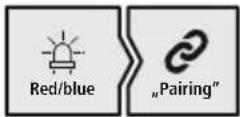
If the LED (3) is flashing quickly and the announcement is:
Headset searching for a Bluetooth connection.
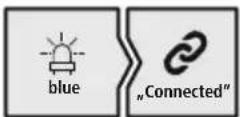
If the LED (3) is flashing slowly and the announcement is:
The headset is already paired with a Bluetoethre.
2 Search using your device for the headset (only required on the first connection)
Open the Bluetooth® settings on your device and wait until the list of found Bluetooth® devices shows Hama MyVoice2100. The announcement "Pairing" is heard.
Select Hama MyVoice2100 and wait until the headset is shown as connected in your device's Bluetoothsettings. The announcement "Connected" is heard.
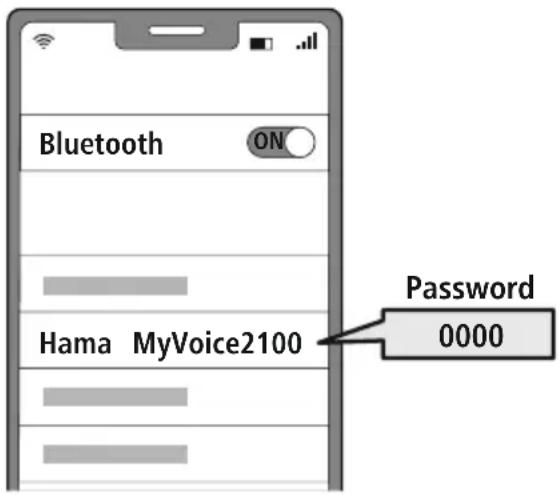
Note - Bluetoothpassword

Some devices require a password in order to connect to another © deviceeth
- If your device requests a password to connect to the product, enter 0000.
3 Multi-point technology
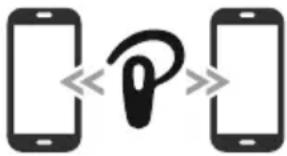
This headset can connect to two Bluetooth-based devices simultaneously (multi-point).
natural_image
Two smartphones with a stylized 'p' logo in the center, no text or symbols present- First connect the first device to the headset.
- Then deactivate the Bluetooth function on this device
- Then connect the second device to the headset.
- Activate the Bluetooth function on the first device against the headset then connects to this device too
7. Control elements
Note

- Please be aware that your terminal device must support some functions if they are to be used.
- Please refer to the operating instructions of your device for more information.
7.1 Voice assistant function
Siri/Google
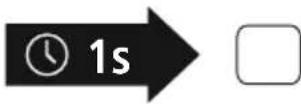
Press and hold the MFB button (2) for around 1 second to start communication with your Siri or Google Assistant. As soon as you hear a signal tone, your voice assistant is ready to assist you.
Note - Siri

Siri is only available on suitable devices running iOS 5 (iPhone 4s or later) or higher
Note - Google Assistant

- The Google Assistant is only available on suitable devices running Android 5.0 or higher with Google Play Services, >1.5 GB of free memory and a minimum screen resolution of 720P.
- The Google Assistant App must be available on your device and be set as the default voice assistant.
7.2 Hands-free function
It is possible to use the headset like a hands-free facility for your device.
1 Make a call
Dial the number directly via your device to make a call.
2 Accept a call
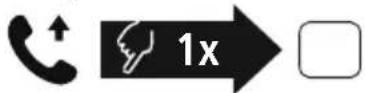
Press the MFB button (2) to accept an incoming call Alternatively, you can also remove the headset from the charger tray to accept the call.
3 Reject a call
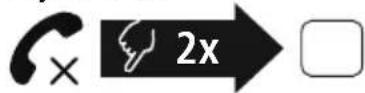
Press and hold the MFB button (2) twice or use your device to reject an incoming call. Alternatively, you can also place the headset in the charger tray to end the call
4 End a call
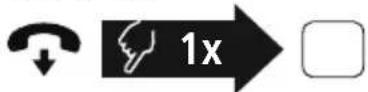
During the call, press the MFB button (2) once to end the call. Alternatively, you can also place the headset in the charger tray to end the call.
5 Last number redial
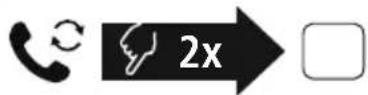
Press the MFB key (2) twice to redial the last number.
Note

The "Last number redial" function is only available for the device which was paired first with product in a multi-pairing situation.


7.3 Audio playback
1 Start playback on your device.
2 Play / Pause
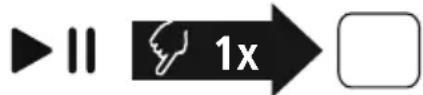
Press the MFB button (2) once to pause or start audio playback.
3 Next track
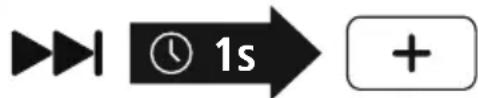
Press and hold the + button (4) for around 1 second to skip to the next track.
4 Previous track
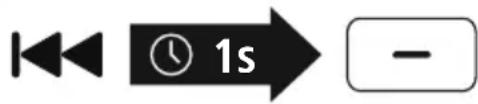
Press and hold the - button (5) for around 1 second to skip to the previous track.
7.4 Volume control
1 Increase volume
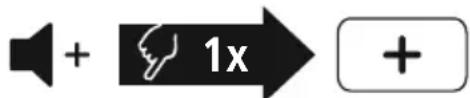
Press the + button (4) once to increase the volume.
Once the maximum volume is reached, "Max.
Volume" is heard.
2 Reduce volume
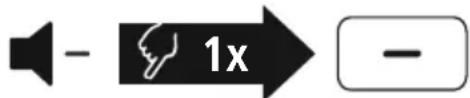
Press the button (5) once to reduce the volume.
Once the minimum volume is reached, "Min
Volume" is heard.

- Technical data
| Bluetooth® Headset | |
| Bluetooth technology Bluetooth | ® v5.0 |
| Supported profile A2DP V1.3, | AVRCP V1.5, HFP V1.6 |
| Frequency for Bluetooth Transfers | 2402 - 2480 MHz |
| Range < 10 m | |
| Battery | |
| Battery type 3 | .7 V Li polymer |
| Min. capacity 48 mAh | |
| Current consumption max | . 5 V 52 mA |
| Charging time ~ 2 | h |
| Standby * ~ 80 h | |
| Music playing * ~ 6 | h |
| Call time * ~ 4.5 h | |
| Weight approx | . 26 g |
* Once fully charged
9. Care and maintenance
Only clean this product using a lint-free, slightly damp cloth and do not use any harsh cleaners
10. Warranty disclaimer
Hama GmbH & Co KG assumes no liability and provides no warranty for damage resulting from imprint installation/mounting, improper use of the product or from failure to observe the operating instructions and/or safety notes
11. Service and support
Please contact Hama Product Consulting if you have any questions about this product.
Hotline: +49 9091 502-0 (German/English)
Further support information can be found here:.haw.com
12. Declaration of conformity
CE Hama GmbH & Co KG hereby declares that the radio equipment type [00184110] is in compliance with Directive 2014/53/EU. The full text of the EU declaration of conformity is available at the following Internet address:
www.hama.com->00184110->Downloads.
Frequency band(s) 2402MHz - 2480MHz
Maximum radio-frequency power transmitted 2.5 mW E.I.R.P.

natural_image
Line drawing of a pair of electronic devices, one open and one closed, with no visible text or symbols.

flowchart
graph LR
    A[" stopwatch"] -->|3 min| B["Power Button"]
    style A fill:#f9f,stroke:#333
    style B fill:#bbf,stroke:#333
flowchart
graph LR
    A["Charging Light"] --> B["Blue Light"]
    C["Charging Light"] --> D["Red Light"]
    E["Charging Light"] --> F["Blue Light"]
    G["Charging Light"] --> H["Blue Light"]
    I["2h:00m Duration"] --> J["Charging Light"]
3 Akkukapazität
natural_image
Line drawing of a handheld electronic device with a warning light icon (no text or symbols)natural_image
Two smartphones with a stylized 'p' logo between them, no text or symbols presentnatural_image
Line drawing of two electronic devices with connectors and a handle (no text or symbols)

flowchart
graph LR
    A[" stopwatch with 'zzz' icon"] -->|3 min| B["Power button symbol"]
flowchart
graph LR
    A["Charging Light"] --> B["Blue Light"]
    C["Charging Light"] --> D["Red Light"]
    E["Charging Light"] --> F["Blue Light"]
    G["Charging Light"] --> H["Blue Light"]
    I["2h:00m Duration"] --> J["Charging Light"]
natural_image
Line drawing of a handheld electronic device with a warning icon (no text or symbols)natural_image
Two smartphones with a stylized 'p' logo between them, no text or symbols presentRemarque – Assistant Google

natural_image
Line drawing of a portable electronic device with labeled buttons (M, L) and a handle, showing front, side, and top views without any text or symbols.
flowchart
graph LR
    A[" stopwatch"] -->|3 min| B["Power Button"]
flowchart
graph LR
    A["Charging Battery"] --> B["Charged Red & Blue Light"]
    B --> C["2h:00m Time"]
natural_image
Line drawing of a handheld electronic device with a warning light icon (no text or symbols)natural_image
Two smartphones with a stylized 'p' logo between them, no text or symbols presentnatural_image
Line drawing of two electronic devices with earbuds and connectors (no text or symbols)
flowchart
graph LR
    A[" stopwatch"] -->|3 min| B["Power Button"]
flowchart
graph LR
    A["Charging Light"] --> B["Blue Light"]
    C["Charging Light"] --> D["Red Light"]
    E["Charging Light"] --> F["Blue Light"]
    G["Charging Light"] --> H["Blue Light"]
    I["2h:00m Duration"] --> J["Charging Light"]
3 Accucapaciteit
natural_image
Line drawing of a handheld electronic device with a warning symbol (no text or labels)natural_image
Two smartphones with a stylized 'p' logo between them, no text or symbols present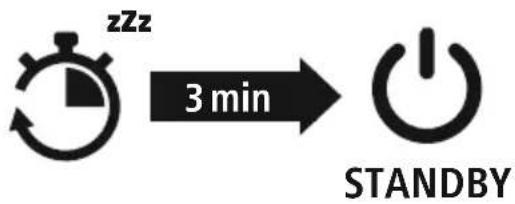
flowchart
graph LR
    A[" stopwatch"] -->|3 min| B["Power Button"]
flowchart
graph LR
    A["Charging Battery"] --> B["Blue Signal"]
    C["Charging Charge"] --> D["Blue Signal"]
    E["Red Signal"] --> F["Red Signal"]
    G["Blue Signal"] --> H["Blue Signal"]
    I["2h:00m Duration"] --> J["Blue Signal"]
natural_image
Line drawing of a handheld electronic device with a warning symbol (no text or labels)natural_image
Two smartphones with a stylized 'p' logo between them, no text or symbols presentnatural_image
Line drawing of two electronic devices with earphones and connectors (no text or symbols)

flowchart
graph LR
    A[" stopwatch with 'zzz' icon"] -->|3 min| B["Power button symbol"]
flowchart
graph LR
    A["Charging Light"] --> B["Blue Light"]
    C["Charging Light"] --> D["Red Light"]
    E["Charging Light"] --> F["Blue Light"]
    G["Charging Light"] --> H["Blue Light"]
    I["Charging Light"] --> J["Blue Light"]
    K["Charging Light"] --> L["Blue Light"]
    M["Charging Light"] --> N["Blue Light"]
    O["Charging Light"] --> P["Blue Light"]
    Q["Charging Light"] --> R["Blue Light"]
    S["Charging Light"] --> T["Blue Light"]
    U["Charging Light"] --> V["Blue Light"]
    W["Charging Light"] --> X["Blue Light"]
    Y["Charging Light"] --> Z["Blue Light"]
    AA["Charging Light"] --> AB["Blue Light"]
    AC["Charging Light"] --> AD["Blue Light"]
    AE["Charging Light"] --> AF["Blue Light"]
    AG["Charging Light"] --> AH["Blue Light"]
    AI["Charging Light"] --> AJ["Blue Light"]
    AK["Charging Light"] --> AL["Blue Light"]
    AM["Charging Light"] --> AN["Blue Light"]
    AO["Charging Light"] --> AP["Blue Light"]
    AQ["Charging Light"] --> AR["Blue Light"]
    AS["Charging Light"] --> AT["Blue Light"]
    AU["Charging Light"] --> AV["Blue Light"]
    AW["Charging Light"] --> AX["Blue Light"]
    AY["Charging Light"] --> AZ["2h:00m"]
natural_image
Line drawing of a handheld electronic device with a warning symbol (no text or labels)natural_image
Two smartphones with a stylized 'p' logo between them, no text or symbols presentnatural_image
Line drawing of two electronic devices with earphones and connectors (no text or symbols)

flowchart
graph LR
    A[" stopwatch icon with 'zzz' clock"] -->|3 min| B["Power button symbol"]
flowchart
graph LR
    A["Charging Light"] --> B["Blue Light"]
    C["Charging Light"] --> D["Red Light"]
    E["Charging Light"] --> F["Blue Light"]
    G["Charging Light"] --> H["Blue Light"]
    I["Charging Light"] --> J["Blue Light"]
    K["Charging Light"] --> L["Blue Light"]
    M["Charging Light"] --> N["Blue Light"]
    O["Charging Light"] --> P["Blue Light"]
    Q["Charging Light"] --> R["Blue Light"]
    S["Charging Light"] --> T["Blue Light"]
    U["Charging Light"] --> V["Blue Light"]
    W["Charging Light"] --> X["Blue Light"]
    Y["Charging Light"] --> Z["Blue Light"]
    AA["Charging Light"] --> AB["Blue Light"]
    AC["Charging Light"] --> AD["Blue Light"]
    AE["Charging Light"] --> AF["Blue Light"]
    AG["Charging Light"] --> AH["Blue Light"]
    AI["Charging Light"] --> AJ["Blue Light"]
    AK["Charging Light"] --> AL["Blue Light"]
    AM["Charging Light"] --> AN["Blue Light"]
    AO["Charging Light"] --> AP["Blue Light"]
    AQ["Charging Light"] --> AR["Blue Light"]
    AS["Charging Light"] --> AT["Blue Light"]
    AU["Charging Light"] --> AV["Blue Light"]
    AW["Charging Light"] --> AX["Blue Light"]
    AY["Charging Light"] --> AZ["2h:00m"]
3 Akkukapacitás
natural_image
Line drawing of a device with a warning light icon (no text or symbols)natural_image
Two smartphones with a stylized 'p' logo in the center, no text or symbols presentnatural_image
Line drawing of two electronic devices with clamps and earpieces (no text or symbols)
flowchart
graph LR
    A[" stopwatch icon with 'zzz' clock"] -->|3 min| B["Power symbol"]
    B --> C["STANDBY"]
flowchart
graph LR
    A["Charging Light"] --> B["Blue Light"]
    C["Charging Light"] --> D["Red Light"]
    E["Charging Light"] --> F["Blue Light"]
    G["Charging Light"] --> H["Blue Light"]
    I["Charging Light"] --> J["Blue Light"]
    K["Charging Light"] --> L["Blue Light"]
    M["Charging Light"] --> N["Blue Light"]
    O["Charging Light"] --> P["Blue Light"]
    Q["Charging Light"] --> R["Blue Light"]
    S["Charging Light"] --> T["Blue Light"]
    U["Charging Light"] --> V["Blue Light"]
    W["Charging Light"] --> X["Blue Light"]
    Y["Charging Light"] --> Z["Blue Light"]
    AA["Charging Light"] --> AB["Blue Light"]
    AC["Charging Light"] --> AD["Blue Light"]
    AE["Charging Light"] --> AF["Blue Light"]
    AG["Charging Light"] --> AH["Blue Light"]
    AI["Charging Light"] --> AJ["Blue Light"]
    AK["Charging Light"] --> AL["Blue Light"]
    AM["Charging Light"] --> AN["Blue Light"]
    AO["Charging Light"] --> AP["Blue Light"]
    AQ["Charging Light"] --> AR["Blue Light"]
    AS["Charging Light"] --> AT["Blue Light"]
    AU["Charging Light"] --> AV["Blue Light"]
    AW["Charging Light"] --> AX["Blue Light"]
    AY["Charging Light"] --> AZ["2h:00m"]
natural_image
Line drawing of a handheld electronic device with a warning light icon (no text or symbols)natural_image
Two smartphones with a stylized 'p' logo in the center, no text or symbols presentIndicatie – Google Assistant

natural_image
Line drawing of two electronic devices with clamps and earphones (no text or symbols)
flowchart
graph LR
    A[" stopwatch"] -->|3 min| B["Power Button"]
flowchart
graph LR
    A["Charging Light"] --> B["Blue Light"]
    C["Charging Light"] --> D["Red Light"]
    E["Charging Light"] --> F["Blue Light"]
    G["Charging Light"] --> H["Blue Light"]
    I["2h:00m"] --> J["Charging Process"]
natural_image
Line drawing of a handheld electronic device with a warning symbol (no text or labels)natural_image
Two smartphones with a stylized 'p' logo in the center, no text or symbols presentnatural_image
Line drawing of two electronic devices with earphones and connectors (no text or symbols)
flowchart
graph LR
    A[" stopwatch with 'zzz' icon"] -->|3 min| B["Power button symbol"]
natural_image
Line drawing of a handheld electronic device with a warning symbol (no text or labels)natural_image
Line drawing of a pair of electronic devices with clamps, no text or symbols present
flowchart
graph LR
    A[" stopwatch with 'zzz' icon"] -->|3 min| B["Power button symbol"]
flowchart
graph LR
    A["Charging Battery"] --> B["Charged Red Signal"]
    B --> C["Blue Signal"]
    D["2h:00m Duration"] --> E["Charging Charge"]
natural_image
Line drawing of a handheld electronic device with a warning symbol (no text or labels)natural_image
Two smartphones with a stylized 'p' logo between them, no text or symbols present.natural_image
Line drawing of two electronic devices with earphones and connectors (no text or symbols)

flowchart
graph LR
    A[" stopwatch"] -->|3 min| B["Power Button"]
natural_image
Line drawing of a device with a warning light icon (no text or symbols)natural_image
Two smartphones with a stylized 'p' logo in the center, no text or symbols present
flowchart
graph LR
    A[" stopwatch icon with 'zzz' clock"] -->|3 min| B["Power symbol"]
flowchart
graph LR
    A["Charging Battery"] --> B["Charged Red Signal"]
    B --> C["Blue Signal"]
    D["2h:00m Duration"] --> E["Charging Charge"]
natural_image
Line drawing of a handheld electronic device with a warning symbol (no text or labels)natural_image
Two smartphones with a stylized 'p' logo in the center, no text or symbols present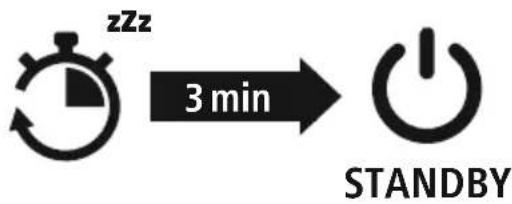
flowchart
graph LR
    A[" stopwatch"] -->|3 min| B["Power Button"]
flowchart
graph LR
    A["Charging Battery"] --> B["Charged Red Signal"]
    B --> C["Blue Signal"]
    D["2h:00m Duration"] --> E["Charging Charge"]
natural_image
Line drawing of a handheld electronic device with a warning symbol (no text or labels)natural_image
Two smartphones with a stylized 'p' logo between them, no text or symbols presentnatural_image
Line drawing of two electronic devices with clamps and connectors (no text or symbols)
flowchart
graph LR
    A[" stopwatch icon with 'zzz' clock"] -->|3 min| B["Power symbol"]
flowchart
graph LR
    A["Charging Light"] --> B["Blue Light"]
    C["Charging Light"] --> D["Red Light"]
    E["Charging Light"] --> F["Blue Light"]
    G["Charging Light"] --> H["Blue Light"]
    I["2h:00m Duration"] --> J["Charging Light"]
natural_image
Line drawing of a handheld electronic device with a warning symbol (no text or labels)natural_image
Two smartphones with a stylized 'p' logo between them, no text or symbols presentnatural_image
Line drawing of two electronic devices with earphones and connectors (no text or symbols)
flowchart
graph LR
    A[" stopwatch with 'zzz' icon"] -->|3 min| B["Power button symbol"]
natural_image
Line drawing of a handheld electronic device with a warning light icon (no text or symbols)natural_image
Two smartphones with a stylized 'p' logo between them, no text or symbols presentnatural_image
Line drawing of two electronic devices with earphones and connectors (no text or symbols)

flowchart
graph LR
    A[" stopwatch"] -->|3 min| B["Power Button"]
flowchart
graph LR
    A["Charging Battery"] --> B["Blue Signal"]
    C["Charging Charge"] --> D["Blue Signal"]
    E["Charging Charge"] --> F["Red Signal"]
    G["Charging Charge"] --> H["Blue Signal"]
    I["Charging Charge"] --> J["Blue Signal"]
    K["Charging Charge"] --> L["Blue Signal"]
    M["Charging Charge"] --> N["Blue Signal"]
    O["Charging Charge"] --> P["Blue Signal"]
    Q["Charging Charge"] --> R["Blue Signal"]
    S["Charging Charge"] --> T["Blue Signal"]
    U["Charging Charge"] --> V["Blue Signal"]
    W["Charging Charge"] --> X["Blue Signal"]
    Y["Charging Charge"] --> Z["Blue Signal"]
    AA["Charging Charge"] --> AB["Blue Signal"]
    AC["Charging Charge"] --> AD["Blue Signal"]
    AE["Charging Charge"] --> AF["Blue Signal"]
    AG["Charging Charge"] --> AH["Blue Signal"]
    AI["Charging Charge"] --> AJ["Blue Signal"]
    AK["Charging Charge"] --> AL["Blue Signal"]
    AM["Charging Charge"] --> AN["Blue Signal"]
    AO["Charging Charge"] --> AP["Blue Signal"]
    AQ["Charging Charge"] --> AR["Blue Signal"]
    AS["Charging Charge"] --> AT["Blue Signal"]
    AU["Charging Charge"] --> AV["Blue Signal"]
    AW["Charging Charge"] --> AX["Blue Signal"]
    AY["2h:00m"] --> AZ
3 Akun kapasiteetti
natural_image
Line drawing of a handheld electronic device with a warning light icon (no text or symbols)natural_image
Two smartphones with a stylized 'p' logo between them, no text or symbols present
- BLUETOOTH® MONO HEADSET
- "MyVoice2100"
- GB Operating instructions
- Controls and displays
- Explanation of warning symbols and notes
- Warning
- Note
- Package contents
- Safety instructions
- Warning - rechargeable battery
- Warning - magnets
- Warning - high volume
- Switching on/off
- Note - Automatic product switch-off
- Charging
- Switch off the headset and connect it
- Headset charging process
- Battery capacity
- Bluetooth® pairing
- Note - pairing
- Check the status of the status LED (3) and the announcements
- Search using your device for the headset (only required on the first connection)
- Note - Bluetoothpassword
- Multi-point technology
- Control elements
- Voice assistant function
- Note - Siri
- Note - Google Assistant
- Hands-free function
- Make a call
- Accept a call
- Reject a call
- End a call
- Last number redial
- Audio playback
- Volume control
- Care and maintenance
- Warranty disclaimer
- Service and support
- Declaration of conformity
- Akkukapazität
- Remarque – Assistant Google
- Accucapaciteit
- Akkukapacitás
- Indicatie – Google Assistant
- Akun kapasiteetti
Brand : HAMA
Model : MyVoice2100
Category : Earphones