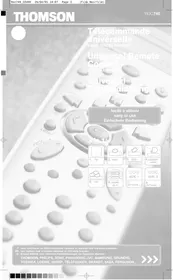
USER MANUAL ROC 740 THOMSON
3. VCR videorecorder
4. satellite cable
5. CD
6. AUDIO HI-FI
7. (2nd TV, VCR...)
8. (3rd TV, SAT...)
Respect the environment and the law! Before throwing away batteries, find out from your distributor if they are subject to special recycling and if they will dispose of them.
FRENCH
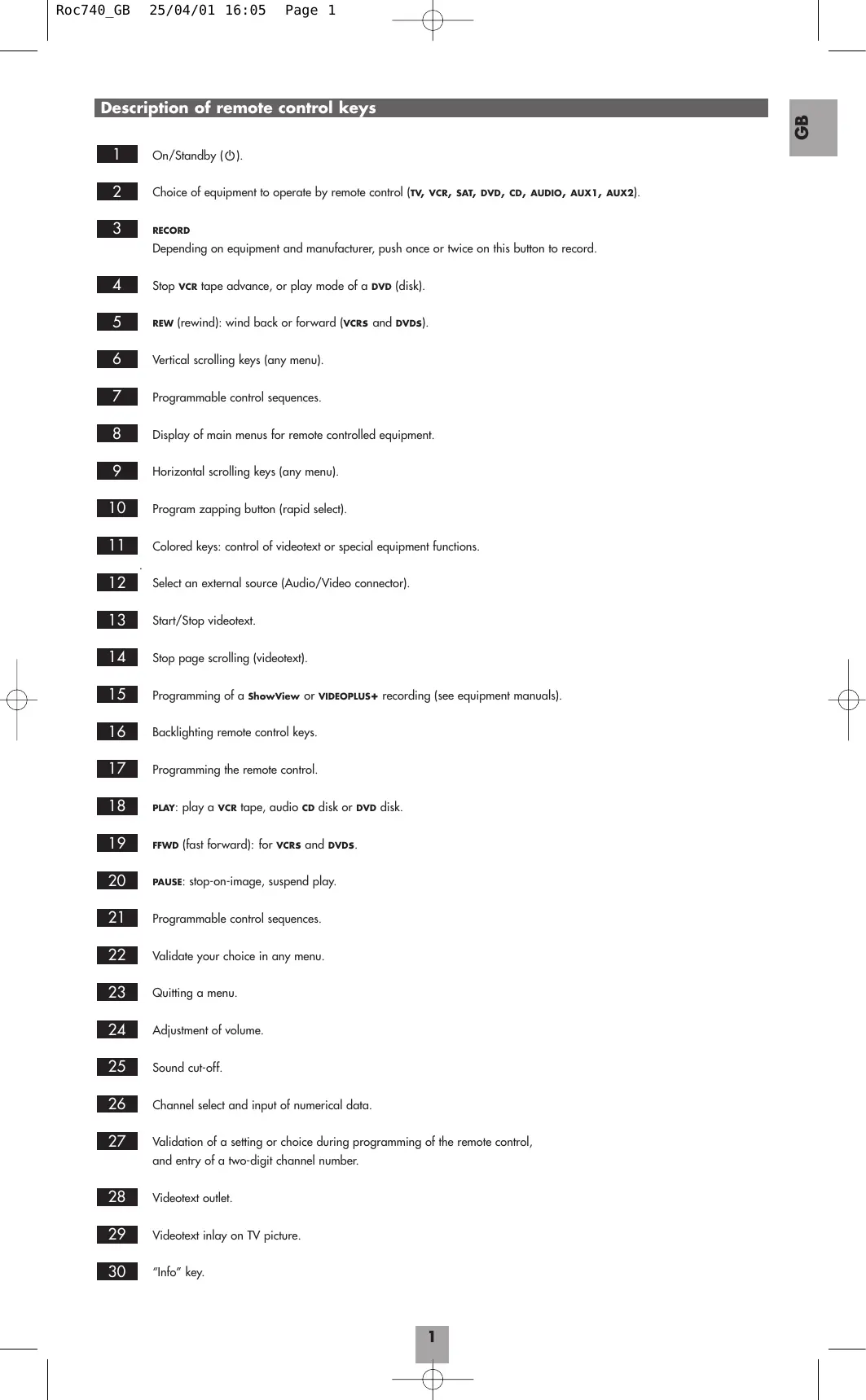
Description of remote control keys
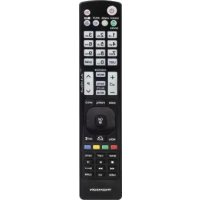
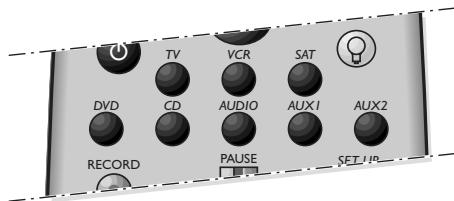
1 On/Standby (D). 2 Choice of equipment to operate by remote control (TV, VCR, SAT, DVD, CD, AUDIO, AUX1, AUX2). 3 RECORD
Depending on equipment and manufacturer, push once or twice on this button to record. 4 Stop VCR tape advance, or play mode of a DVD (disk). 5 REW (rewind): wind back or forward (VCRs and DVDs). 6 Vertical scrolling keys (any menu). 7 Programmable control sequences. 8 Display of main menus for remote controlled equipment. 9 Horizontal scrolling keys (any menu). 10 Program zapping button (rapid select). 11 Colored keys: control of videotext or special equipment functions. 12 Select an external source (Audio/Video connector). 13 Start/Stop videotext. 14 Stop page scrolling (videotext). 15 Programming of a ShowView or VIDEOPLUS+ recording (see equipment manuals). 16 Backlighting remote control keys. 17 Programming the remote control. 18 PLAY: play a VCR tape, audio CD disk or DVD disk. 19 FFWD (fast forward): for VCRs and DVDs. 20 PAUSE: stop-on-image, suspend play. 21 Programmable control sequences. 22 Validate your choice in any menu. 23 Quitting a menu. 24 Adjustment of volume. 25 Sound cut-off. 26 Channel select and input of numerical data. 27 Validation of a setting or choice during programming of the remote control, and entry of a two-digit channel number. 28 Videotext outlet. 29 Videotext inlay on TV picture. 30 "Info" key.
What is this remote control for?
Your ROC 740 remote control is a Universal Controller able to be used with most any domestic audio/video equipment you will find on sale (TV sets, VCRs, satellite receivers, hi-fi equipment, CD and DVD players, etc.). Using this remote controller can replace up to 8 others. There are 8 selection choices (2) for operating mode:
TV : control of a TV set, VCR : control of a VCR, SAT : control of a satellite receiver, DVD : control of a DVD player, CD : control of a CD player, AUDIO: control of an amplifier/tuner, AUX1 : control of a seventh item (e.g., a second VCR), AUX2 : control of an eighth item.
Before being utilized for controlling an equipment item you must enter the equipment-specific code for that item. Codes are as listed in the special documentation. Where the item's manufacturer is not listed you can "download" the right codes for such items, using that item's original remote control and thanks to ROC 740's learning capability. Your ROC 740 can acquire and store up to 3 other-equipment controllers having up to 50 separate keys or functions.
AUX1 and AUX2 are customizable. These functions can be programmed to store the code for 1 of the 6 other possible equipment items, such as TV, VCR, SAT, etc., making it possible to remote control a second item of the same type.
As a general rule, your ROC 740 remote control can operate any function that the item's original remote control can operate.
Inserting the batteries
Insert the 4 supplied AAA batteries as shown in the diagram. Make sure you insert the batteries the right way round, respecting polarity (negative battery base contact against the spring).
Backlighting the keys
Press once on key (16) and keys will be backlit for a period of 5 seconds. If, in that period, you press another key, the backlit period will be increased by 5 seconds. To increase for another 5 seconds, press again on the backlighting key (16).
Infrared signal
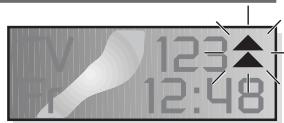
The () symbol will display whenever you control an equipment item. This symbol shows you the remote control is operating correctly. If by any chance a key remains in the command ("on") position, for example if the controller is firmly lodged between two cushions, infrared signals will automatically shut off to save battery power.
Code list
The code list for your remote controller has codes for a wide range of usual items. The code list is supplied as a separate document. Read the code list to find the code for your TV set, VCR, CD or DVD player, your satellite receiver, etc.
Sound volume
Keys indicated (24 and 25) can also adjust the volume of your TV set, even if you are using your remote control in VCR mode or DVD mode for operating a VCR or DVD player at the same time. You do not need to switch to TV mode to adjust TV sound settings.
To be able to make volume adjustment when using the AUX mode, you must program the AUX1 or AUX2 keys for VCR or DVD.
You cannot vary volume in CD mode with these keys.
Remote control display
When you use the remote control, the LCD display will show:
the selected mode ("TV", "VCR", "SRT", etc.), the day, and the time.
The LCD display will turn off about 1 minute after use (to save battery).
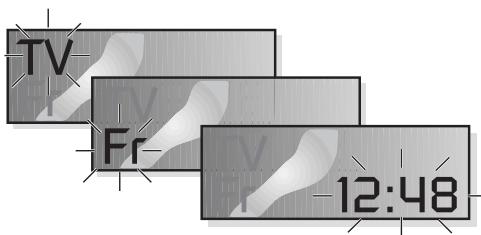
Setting date and time
- Press the SET UP key (17) until "Setup" appears on the LCD panel.
- Release the SET UP key.
- Press the SET UP key once again. "Time" will appear on the LCD panel, and the day display will blink.
- Press the FFWD key (19) to advance or the REV key (5) to go back until the correct day is displayed: "Ma" for Monday, "Tu" for Tuesday, "We" for Wednesday, "Th" for Thursday, "Fr" for Friday, "Sa" for Saturday, and "Su" for Sunday.
- Press OK (22) briefly to confirm. The hour display will now blink.
- Use the FFWD (19) or REV (5) keys to select the correct hour, then press OK (22) briefly to confirm. The minute display will now blink.
- Use the FFWD (19) or REV (5) keys to select the correct minute, then press OK (22) briefly to confirm.
- The setting is now complete: the display will show the day, hour, and minute you selected.
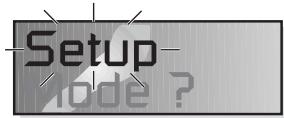
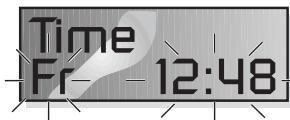
Storing listed codes in memory
The code list for various household devices you can control is provided separately from the ROC 740. Read the code list to find the code(s) you can use to control your equipment. Then follow this procedure:
- Keep the SET UP key (17) pressed until "Setup" appears on the LCD panel.
- Release the SET UP key.
- Press briefly on that key for the mode you want (TV, VCR, SAT, etc...). For AUX mode press briefly on the AUX1 or AUX2 keys, then on the desired mode key (TV, VCR, SAT, etc...).
- Enter the first code listed for the concerned equipment item. (For example 016 for a Thomson TV set). If the code is incorrect "Invalid" will display for a few seconds. Check the code you used from the code list and try again from Step 4.
- When you have the right code the day and time will display, confirming your choice.
- Entry of the equipment item code is now finished.
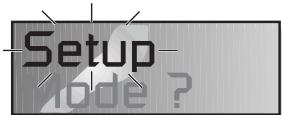
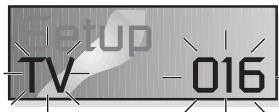
Note: When the list shows several equipment item codes for the same manufacturer this indicates that some codes in the list cover more equipment control functions than other codes listed (this also depends on the year the concerned item was first sold). In such case and after having entered a code, try to remote operate your equipment using the various function keys of your ROC 740. This will enable you to find out which functions can be controlled using a particular code. If you cannot operate all available functions, enter another code from the list. Where you do not find any usable code under the equipment manufacturer's name you will have to make a code search (see following paragraph), or load the right codes for each function from the original remote controller for your equipment item using the learning function (page 5).
Code search
If you were not able to find the right code for your equipment item in the separately available code list you can make a search for it, proceeding as follows:
- Turn on the equipment item you want to remote control using the front panel controls (On/Off switch or Standby switch).
- Press the SET UP (17) key until "Setup" displays.
- Release the SET UP key.
- Press SET UP briefly for the mode you require (TV, VCR, SAT, etc...). For the AUX, mode briefly press either of the AUX1 or AUX2 keys then that for the mode you want (TV, VCR, SAT, etc...).
- Press several times on the PROG + key (10) until the equipment item you want to control reacts, eg. by changing the channel selection. The display will show "Search" as well as the mode and the code you are trying out. Do not proceed too fast between each code you test to allow the equipment time for data interchange. If you went too fast and want to return you can use the REV key (5) to move back to a previous setting.
- Press briefly on the OK key to store the equipment item code you select. It may be useful to note the right code for later use. When you change the batteries it may be necessary to reprogram the remote control.
- Code search is now finished. The LCD panel will indicate the day and time.
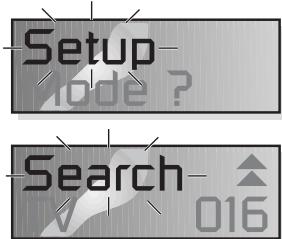
Note: if the original item's remote control does not have a key with a function similar to the PROG key for 'zapping' or rapid channel scrolling, you can make code search by using the PLAY key for a VCR or the ON key (1).
Code search will start with the last-stored code for the mode currently selected, for example if that mode has 100 codes and the stored code is 050 code search will start at 051 and range to 100, then restart from 000 through 050. This will ease your code selection task where several codes apply to your equipment item, by skipping any codes already tested.
After code search and when you manually select the code you must be sure you selected the right code, that one or ones giving control of all equipment item functions. Where you find that certain functions are still not able to be remote controlled because no code allows you to reproduce all capacities of the item's original remote control, your ROC 740 can load the missing functions through its learning mode.
Programming control for a COMBO (combined TV/VCR)
Programming the remote control for a COMBO breaks down to programming it once as a TV, and a second time as a VCR, these being the two main functions of a COMBO.
Before starting to program, find the right codes for the TV and the VCR functions of your COMBO, then follow the procedure in "Storage of listed codes in memory" in the previous paragraph.
Identification of stored codes
To find out which code controls functions of your equipment item, if one or more codes are already stored, follow these instructions:
- Keep pressing on the key for the type of equipment item for which you are trying to find a code, eg. TV, VCR, SAT, etc....
- Where there is a stored code, it will display on your ROC 740 LCD panel next to the equipment type and mode abbreviation TV, VCR, SAT, etc..
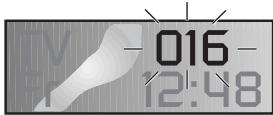
Second level utilization (with "SET UP" key)
Using the SET UP key (17) you can call a second utilization level for the various operating modes of your remote control (TV, VCR, SAT, etc...). This second level gives extra function controls, such as screen brightness or color adjustment. Availability of these possible extra functions depends on the year of manufacture and the type of the equipment you are remote controlling. Procedure:
- Press briefly on the mode key to choose TV, VCR, SAT, etc....
- Press the SET UP key (17), once, the letter "(S)" will display.
- Now try your remote control and note which keys control the setting of color, brightness, etc..
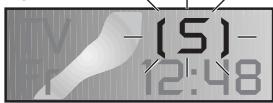
If, after first pressing the SET UP key, you make no further use of this function, your ROC 740 will wait 15 seconds then shift back to the last previous mode of operation you were using.
Note: If you hold down the SET UP key for more than 3 seconds you call the "Setup" mode (programming).
"AUX" keys
You can assign other equipment, such as TV sets, VCRs, hi-fi music players, cable or satellite receivers to the AUX keys for remote control operation. Also, functions and controls from original item remote controllers can be loaded to your ROC 740 using the AUX keys (see next page).
Programming a control sequence (M1 and M2 macroinstruction sequence)
The keys M1 (7) and M2 (21) allow you to store 2 sequences of 14 controls (KEYS) that you can utilize with a single press on M1 or M2, under which you programmed the 2 sequences.
If you have several equipment items these sequences can likely be very handy for you. For example, to turn on the TV set, the VCR, your hi-fi amplifier, or selecting a channel for VCR play or store, this can now be done by pressing once on M1 when before, and without your ROC 740, you had to go through up to 4 keys on each of 3 different equipment items.
Before programming the M1 and M2 keys make sure that you have stored the right equipment codes from the code list in your ROC 740. To do this see the above section 'Storage of listed codes in memory'. It is always better to first prepare your desired sequence, for example by noting it on paper, before you carry out the programming.
Programming a sequence:
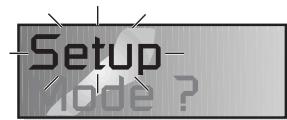
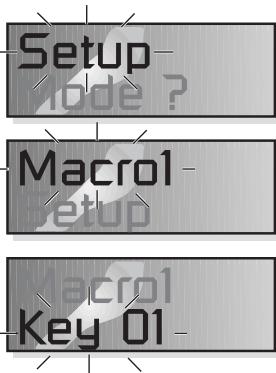
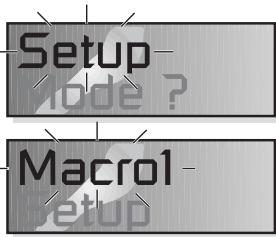
- Hold down the SET UP key (17) until "Setup" displays on the LCD panel.
- Release the SET UP key
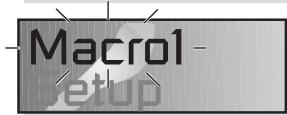
- Press once on M1 (or M2), the display will show "Macro 1" (or "Macro 2").
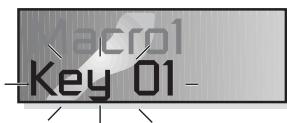
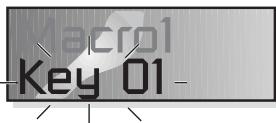
- Start your programming by pressing the key for the first equipment item to remote control (e.g., TV). The display "Key 01" confirms storage of this first command.
- Press that key you want as the second command in your sequence, for example ON for turning the item on. The display "Key D2" confirms storage of this second command.
- Continue like that and enter up to 14 other commands (14 keys) by first entering the mode (VCR, AUDIO, ...) of each equipment item you want to remote control.
- When you have entered the complete sequence, finish by pressing the M1 key.
- When the day and hour display, this confirms storage has taken place.
Note: The sample sequence shown below is for the following programming: SET UP, M1, TV, ON, AUDIO, ON, VCR, ON, 1, M1.
Erasing a sequence:
- Hold down the SET UP key (17) until "Setup" displays on the LCD panel.
- Release the SET UP key.
- Press once on M1 (or M2), the display will show "Macro 1" (or "Macro 2").
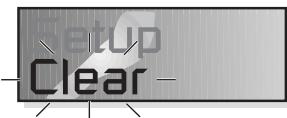
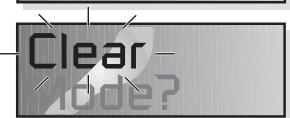
- Then to erase that key control sequence, press the SET UP key until you obtain "Clear" on the LCD panel.
- When the day and hour display, this confirms erasure has occurred.
Note: To program another sequence, you have to reprogram the desired sequence called by the M1 or M2 keys. Storing a new sequence erases the previous.
In some cases it is advisable to insert a delay in your sequence, giving time to the concerned equipment item to respond. This, for example, applies to TV sets which need a little time to come out of standby mode. Use the PAUSE key (24), followed by the number of seconds (maximum 9) for your delay. The sample sequence used above would now become: SET UP, M1, TV, ON, AUDIO, PAUSE, 5, ON, VCR, PAUSE, 5, ON, 1, M1. This gives a 5 second delay for response, typical for faster-reacting equipment.
Utilization of the M1 and M2 keys:
- Keep the remote control pointed at your equipment while the sequence plays out. This can take up to 14 seconds (one second for each command your sequence controls), or more if you have inserted delays using the PAUSE key.
Learning function
How does this work?
If you cannot find the correct code for your equipment item, or if one does not exist in the separately supplied list, you can have your ROC 740 learn the functions controlled and commanded by the original item's remote control, using the equipment mode (TV, VCR, SAT, etc.) you want to operate. To do this, you download key functions one by one to your ROC 740, allowing you to assign control functions to keys as you wish.
Your ROC 740 can learn up to 3 different remote controls, each having up to 50 keys. To keep usage simple, we recommend that you memorize only one remote control operation to be called by each mode key (TV, VCR, SAT, etc.). If you have already entered an equipment code under a certain mode, you can add other function controls by using other unassigned keys on your ROC 740.
Before starting:
- Make sure your ROC 740 and the equipment item's original remote control both have new batteries, and that the room you are in is not lit by neon tubes or energy-saving lamps. Emissions from such lighting will interfere with the download operation.
- Erase any existing codes by performing a reset. Follow the instructions on Page 5.
- Place the two remote controls on a flat surface, facing each other and less than 5 cm (2 inches) apart. Make sure the infrared-emitting surfaces of the two remote controls are directly facing each other (see diagram).
- Start by downloading 2 or 3 key function controls from the item's original remote control, then check that your ROC 740 has learned them by trying it out with the item. If this works, proceed to download the other key functions you want from the item's original remote control.
Note: When the memory is saturated, "Full" will blink on the display for a few seconds. At such times, you cannot download other key functions unless you reassign those key functions you already downloaded. If you try to download a prohibited 4th remote control, you will see the display "Error".
It can take a few seconds to download each key function control. Make sure you keep the key you are downloading from the original item's remote control firmly pressed until you get the display "OK" on your ROC 740's LCD panel.
Code downloading from other remote controls
Always place the two remote controls facing each other with their IR-emitting panels close to each other and aligned (see diagram).
- Press the SET UP key (17) until you get the "Setup" display on the LCD display.
- Release the SET UP key.
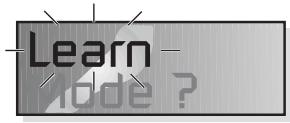
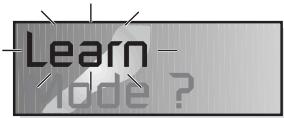
- Press several times on the SET UP key until "Learn" displays.
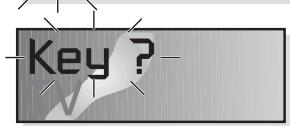
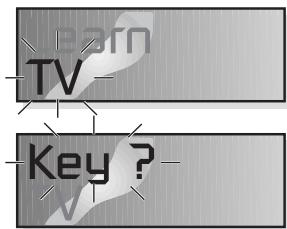
- Press the mode key (TV, VCR, SAT, etc.) for the remote control function on the original item's remote control that you want to download. "Key?" will then display on the LCD panel of your ROC 740.
- Press any key (e.g., 1), giving the display "Learn", and the ROC 740 will now "copy" the code for that key function from the item's original remote control (to make a "Shift" to another function first press the s key). Do not program the mode keys (TV, VCR, SAT, ...) and the SET UP keys.
- Keep the key (1 in the above example) of your item's original remote control pressed for a few seconds to transfer and store its correct code to your ROC 740. The LCD panel will display "Key ?" if the correct code has been stored in your ROC 740. If you get the display "Error" this indicates the transfer failed. In such case repeat procedures 5 and 6, above.
- Repeat procedures 5 and 6 until all the key functions to download are stored in your ROC 740.
- When you have finished all downloading press the -- key (27).
- You have now finished downloading, your ROC 740 will display the day and time.

Erasing codes for any particular mode (TV, VCR, SAT, etc.)
If you want to download another remote control, for example under "TV", you can erase all previous controlled functions and key settings learnt for that particular mode.
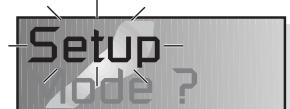
- Hold down the SET UP key (17) until "Setup" displays on the LCD panel.
- Release the SET UP key.
- Press the SET UP key several times until "Clear" (erase) displays.
- Press the mode key (TV, VCR, SAT, etc...) for the equipment item whose function codes you want to erase and then validate by OK.
- This will erase all stored controls in that mode.
- Erasure is now finished. Your ROC 740 will display the day and time.
Erasure of all stored codes (reset)
Before programming your ROC 740 the first time make sure any stored codes have been erased, in order to have the remote control ready to initialize.
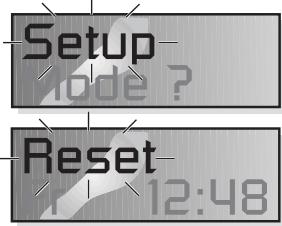
- Hold down the SET UP key (17) until "Setup" displays on the LCD panel.
- Release the SET UP key.
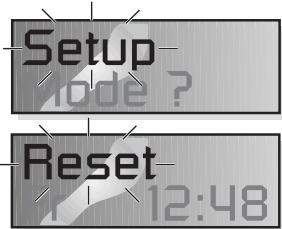
- Press the SET UP key several times until "Reset" displays.
- Press briefly on the OK key and "Confirm" will display.
- Make another validation with the OK key.
- Your ROC 740 is now reset and will display the day and time.
Programming timer-controlled function controls
The remote control allows automatic operation of two controls per mode, for example "On" and "Off" under the TV mode and for a given day.
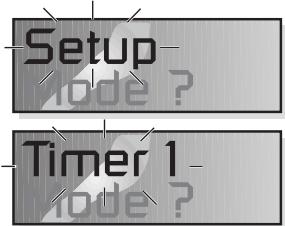
- Hold down the SET UP key (17) until "Setup" displays on the LCD panel.
- Release the SET UP key.
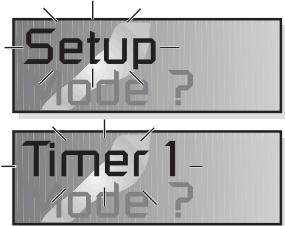
- Press several times on the SET UP key until "Timer 1", "2", "3" or "4" displays.
- Press the mode key (TV, VCR, SAT, etc...) for the equipment item you want to program for set-timed operations.
- Press the key for that control to be executed at a certain time, for example to shut off the TV set, if you chose TV mode. The time select display will blink on the ROC 740's LCD display panel.
- Program the time (hours, minutes) for auto shut off using the FFWD key (19) and first validate the hour number you selected, with the OK key (22). The minutes number will then blink.
- Select the required minutes number, and validate using the OK key. The next Timer operation will then be displayed for programming.
- The following Timer operation display can be aborted by pressing SET UP, or, where you want to program other Timer controls, repeat procedures 5 to 7 and validate any selection with the OK key.
- Timer programming is now finished. Your ROC 740 will display the day and time. The "[T]" display on the LCD panel shows that at least one timer program has been set.
Erasing all programmed selections and settings
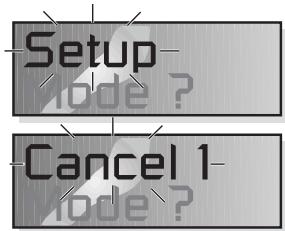
- Hold down the SET UP key (17) until "Setup" displays on the LCD panel.
- Release the SET UP key.
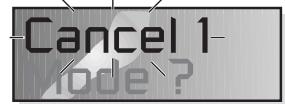
- Press several times on the SET UP key until "Cancel 1", "2", "3" or "4" display.
- Validate with the OK key.
- All programmed selections are now erased. Your ROC 740 will display the day and time.
NAVLIGHT navigation
The THOMSON NAVILIGHT browser function lets you easily access menus for any TV set or VCR equipment having THOMSON NAVILIGHT.
- Turn on the equipment item you want to control.
- Select the equipment item type by mode (TV, VCR or SAT). For a VCR first ensure the TV set is in AV mode (the Scart outlet selected).
- Press once on the MENU key (8).
- Navigate the setting menus by first pressing SET UP (17), then use the UP, DOWN, LEFT and RIGHT key (key 6 and 9).
- Validate any selection with SET UP + OK (22).
- Quit menu browsing by pressing once on the EXIT key (23).
Technical specifications
Operating voltage
Emission
Operating temperature
Dimensions
Maximum number of remote controls programmable
: 6 Volts / 4 x 1.5V AAA batteries : infrared : 0°C to 30°C : 215 x 82 x 30 mm : 3 remote controls of under 50 keys each.
C HELPLINE THOMSON
You can contact THOMSON by dialing: 0845 601 3093
(For Great-Britain, all calls will be charged at local rate)
www.thomson-europe.com
Technical specifications
Operating voltage
Emitter
Ambient temperature
Dimensions
Technical characteristics
Battery installation
SET UP, M1, TV, ON, AUDIO, ON, VCR, ON, 1, M1.
SET UP, M1, TV, ON, AUDIO, ON, VCR, ON, 1, M1.
Erasing a sequence:
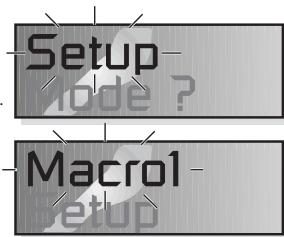
- Hold down the SET UP key until the message "Setup" appears on the display.
- Release the SET UP key.
- Press the M1 (or M2) key once. The display shows "Macro 1" (or "Macro 2"). To erase the recorded sequence, press and hold the SET UP key until the message "Clear" appears on the display.
- The appearance of the time and date confirms that the erasure has been performed correctly.


Note: To program another sequence, you only need to reprogram the sequence for the M1 or M2 key. This new sequence will erase the previous one.
In some cases, it may be useful to introduce a delay in your sequence for certain audiovisual equipment to allow for their activation. This may be necessary for the "warm-up" of some televisions. Use the PAUSE key (24), followed by the desired number of seconds (no more than 9). Thus, for example, the sequence will become: SET UP, M1, TV, ON, AUDIO, PAUSE, 5, ON, VCR, PAUSE, 5, ON, 1, M1. A delay of 5 seconds is introduced here for devices with slow response.
Using the M1 and M2 keys:
- Hold the remote control pointed towards your devices during the execution of the sequence, which may last up to 14 seconds (one second per command) or longer if you have introduced delays using the PAUSE key.
Function of the "learning" keys
What principle do they operate on?
If the brand of your device is not listed in the remote control's code list, you can "teach" your ROC 740 station control unit the functions of the station control unit of these devices and the desired (TV, VCR, SAT...) modes. To do this, you need to perform a station download of the codes behind the keys of your ROC 740 station control unit in such a way that it gives you the ability to assign functions to the keys of your choice.
The ROC 740 unit can "teach" up to 3 different station control units, which have more than 50 keys each. To avoid significant difficulties in using the devices, it is recommended to assign only one station control unit to each key mode (TV, VCR, SAT, etc.). If you have entered one code for the device in one mode, you can assign more functions, expressing them on the unused keys of your ROC 740 station control unit.
Before you start:
- It is necessary to make sure that the ROC 740 unit and the remote control unit are equipped with new batteries. This is important because the remote control and the station control unit use infrared light or lamps to transmit energy. These light sources can cause interference during the station download.
- Follow the entered codes, perform the programming of the keys. It is necessary to follow the instructions given in the paragraph on page 89.
- Place both station control units on a "table" at a distance of no more than 5 cm from each other. Then make sure that the IR (infrared) eyes of both station control units are facing each other or opposite each other (see figure).
- Start with the station download of 2 to 3 keys of the remote control unit of the station control unit, then perform a test of the operation of the station control unit 740 together with the controlled device. If the functioning is normal, you can continue and perform the station download of the other keys of the remote control unit of the station control unit.
Note: In the case when the possibilities of the memory device are used completely, the indication "Full" (FULL) starts to appear within a few seconds. You no longer have the possibility to perform the station download of other keys, except for the option to make changes to the assignments of keys that have already been downloaded. The indication "Error" (ERROR) appears in the case if you try to perform the station download of the station control unit.
The station download of the key codes can last for several seconds. It is necessary to keep the pressed key of your remote control unit of the station control unit until the indication "OK" appears on the display of the station control unit 740.
Transfer ("learning") of the codes of the station control unit
Place the station control unit opposite the other (the sides that are facing the controlled devices) (see figure).
1. Press and hold the SET UP key until the "Setup" message appears on the display. 2. Release the SET UP key. 3. Press the SET UP key several times until the "Learn" message appears on the display. 4. Press the key (TV, VCR, SAT, etc.) corresponding to the remote control unit you want to program. The display shows "Key 2". 5. Press the key (e.g., 1) on your ROC 740 block that you want to copy the code from the equivalent key of the original remote control. (For the "Shift" function, you must first press the S key.) Do not program the mode keys (TV, VCR, SAT, ...) or the SET UP key. 6. Hold down the equivalent key (1 in our example) of the original remote control until the code is copied to your ROC 740 block and key 1. After a few seconds, the "Key ?" message confirms that the key code has been stored in your ROC 740 block. The "Error" message on the display means that the transmission failed. You must repeat steps 1 to 6. 7. Repeat step 5 until all the keys to be copied are stored in your remote control unit ROC 740. 8. Then, when they are all stored, press the key -/-[27]. 9. Setup is complete: the display now shows the day and time.

Deleting codes for a specific mode (TV, VCR, SAT, ...)
If you want to store another remote control unit, for example on the "TV" key, you can first delete all the functions assigned to that mode.
- Press and hold the SET UP key (17) until the "Setup" message appears on the display.
- Release the SET UP key.
- Press the SET UP key several times until the "Clear" message appears on the display.
- Press the key (TV, VCR, SAT, etc.) corresponding to the device you want to delete, and confirm by pressing the OK key.
- All function keys stored in this mode will be deleted.
- Setup is complete: the display now shows the day of the week and time.

Deleting all codes (reset to zero)
Before starting to program the remote control for the first time, all stored codes must be
deleted in order to return your remote control to its original state before programming.
- Press and hold the SET UP key (17) until the "Setup" message appears on the display.
- Release the SET UP key.
- Press the SET UP key several times until the "Reset" message appears on the display.
- Quickly press (and release) the OK button. The "Confirm" message appears on the screen.
- Confirm by pressing the OK button.
- Setup complete: the display now shows the day of the week and time.
Programming the delayed action function
The remote control block allows you to automatically perform two functions in each mode, such as "On" and "Off" in IV mode, and exclusively on that day.
- Hold down the SET UP button (17) until the "Setup" message appears on the display.
- Release the SET UP button.
- Press the SET UP button several times until the "Timer 1", "2", "3" or "4" message appears on the display.
- Press the button (TV, VCR, SAT, AUX, etc.) corresponding to the device you want to program.
- Press the button corresponding to the function to be performed automatically, for example, to turn off the TV if you have selected IV mode. On the display of the remote control block, the indicator for the programming hour starts flashing.
- Program the hour using the FFWD button (19) and confirm by pressing the OK button (22). The indicator for the programming minute starts flashing.
- Program the minute using the FWD button and confirm by pressing the OK button. The next timer for programming another action appears.
- On the display, the programming of the next action appears. If you do not need to program further actions, you must press the SET UP button; otherwise, repeat steps 5 to 7 and confirm by pressing the OK button.
- Setup complete: the display now shows the day of the week and time. The indicator [T] reminds you that the programming was done normally.
Erasing all programming settings
- Press and hold the SET UP button (17) until the "Setup" message appears on the display device.
- Release the SET UP button.
- Press the SET UP button several times until "Cancel 1", "2", "3" or "4" appears on the display device. 4. Confirm by pressing the OK button.
- Setup complete: the display device now shows the day of the week and time.
NAVILIGHT function
The THOMSON NAVILIGHT navigation system allows you to easily access the settings of your television (TV) or video recorder (VCR) equipped with the THOMSON NAVILIGHT system.
- Turn on the device you wish to control.
- Select the type of corresponding device (TV, VCR or SAT). When working with a video recorder (VCR), make sure that the television is in AV mode (SCART - Peritel - connector selected on the TV).
- Press the MENU button (8) once.
- Navigate through the various settings menus using the up, down, left, and right buttons (6 and 9). Press the SET UP button (17) once. 5. Confirm with SET UP + OK (22).
- Exit the system of various menus by pressing the EXIT button (23) once.
Technical specifications
Operating voltage
Power consumption
Ambient temperature
Overall dimensions
Number of programmable blocks of the station control unit: 3 blocks of station control, each with no more than 50 keys.
Battery: 4 batteries (micro) for 1.5 V with infrared transmission: 0°C to 30°C; 215×82×30 mm
Programming the remote control
Programming the macros (keys M1 and M2)
Keys M1 (7) and M2 (21) allow you to store in memory 2 sequences of 14 commands (keys) that you can assign to a single press on keys M1 or M2, in which you have programmed the 2 sequences.
If you have many devices, this function will be very useful to you. For example, to turn on the TV, the video, the amplifier, and to start playing a video, and all that by pressing a single key M1 while pressing the keys of 3 different devices on the RC 740.
Before programming the keys M1 and M2, you must store in the memory of the RC 740 the codes of the different devices in the corresponding modes. For this, refer to the chapter "Storing the codes of the devices to be controlled". It will be easier to program your sequences if you have prepared the list of the sequence of commands that you want to store.
Programming a sequence: 1. Press and hold the SET UP key (17) until "Setup" (configuration) appears on the screen. 2. Release the SET UP key. 3. Press once the key M1 (or M2), the display shows "Macro 1" (or "Macro 2"). 4. Execute your sequence by pressing the key of the first device on which you give commands (e.g., TV). The indication "Key 01" confirms the recording of the first command. 5. Press the key you want for the second command (e.g., ON for the start). The indication "Key 02" confirms the recording of the second command. 6. Continue in the same way to enter up to 14 other commands (14 keys) by pressing the function keys (VCR, AUDIO,...) of other devices. 7. Store the sequence in memory by pressing the key M1 again. 8. The display of the time and date confirms the recording.
Note: The sequence given as an example above corresponds to the following programming: SET UP, M1, TV, ON, AUDIO, ON, VCR, ON, 1, M1.
Delete a sequence:
- Press and hold the SET UP key until "Setup" (configuration) appears on the screen.
- Release the SET UP key.
- Press once the key M1 (or M2), the display shows "Macro 1" (or "Macro 2").
- To delete the sequence of recorded keys, press the SET UP key until the indication "Clear" appears on the screen.
- The appearance of the color and the memory confirms the diagram.
To program a different sequence, you just need to reprogram the sequence on the M1 or M2 button. This new sequence will replace the previous one.
Using the M1 and M2 buttons:
- Press the corresponding button towards your devices during the sequence you want to record, which can take up to 14 seconds (one second per step) or more if you have set delays with the PAUSE button.
Erasing function
What is it?
If the device's remote control does not appear in the list of codes provided separately, you can use the ROC 740 to learn the functions of the buttons of the original remote control of this device in the desired function (TV, VCR, SAT...). To do this, you need to point the buttons of the ROC 740 at the original remote. This gives you the possibility to assign a function to the button of your choice.
The ROC 740 can learn up to 3 different remote controls with 50 buttons each. To avoid unnecessary use, we recommend that you store only one remote control per function (TV, VCR, SAT,...). If you have more than one device with the same function, you can add additional functions using buttons not used by the ROC 740.
Note:
- Make sure that the ROC 740 and the original remote control are equipped with new batteries and that the room where you are is not lit by direct sunlight or by fluorescent lamps. This light can interfere with the learning process.
- Delete the codes that have already been entered by performing a reset on the device. Follow the instructions in the paragraph on page 95.
- Place the two remote controls facing each other, at a distance of about 5 cm. Do not place the IR (infrared) windows of the two remote controls exactly opposite each other (see the diagram).
- Start by pressing 2 to 3 buttons of your original remote control and then test the operation of the ROC 740 with the device to which you are giving commands. If it works, continue and program the other buttons of the original remote control.
Note: When the memory is full, the indicator will flash for a few seconds. You cannot program other buttons unless you delete buttons that have already been programmed. The indicator appears if you try to program more than 40 remote controls.
Programming a control sequence
Universal remote control: TV/VCR/SAT/DVD/CD/AUDIO All brands pre-programmed.
All brands pre-programmed.
Universal remote control:
TV/VCR/SAT/DVD/CD/AUDIO
... and many other brands.