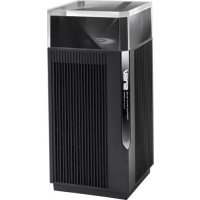
ZenWiFi Pro ET12 - Wireless Router ASUS - Free user manual and instructions
Find the device manual for free ZenWiFi Pro ET12 ASUS in PDF.



| Product Type | Wireless Router |
| Brand | ASUS |
| Model | ZenWiFi Pro ET12 |
| WiFi Standards | 802.11a/b/g/n/ac/ax (WiFi 6) |
| Frequency Bands | 2.4 GHz and 5 GHz |
| Ports | 1 WAN port 2.5G/1G, 2 LAN ports 2.5G/1G |
| Power Supply | DC power adapter: 19V/2.37A or 19.5V/2.31A |
| Operating Temperature | 0°C to 40°C |
| Storage Temperature | 0°C to 70°C |
| Operating Humidity | 50% to 90% |
| Storage Humidity | 20% to 90% |
| Main Features | AiMesh technology, WiFi 6, ASUS Router app |
| LED Indicators | Solid white (good signal), solid yellow (weak signal), solid red (no signal) |
| Safety | Minimum distance of 20 cm from body, avoid obstacles, indoor use for certain bands |
| Maintenance and Cleaning | Clean with a dry cloth, do not expose to moisture, do not block ventilation openings |
| General Information | Compliant with EU directive 2014/53/EU and Canadian ISED standards |
Frequently Asked Questions - ZenWiFi Pro ET12 ASUS
User questions about ZenWiFi Pro ET12 ASUS
0 question about this device. Answer the ones you know or ask your own.
Ask a new question about this device
Download the instructions for your Wireless Router in PDF format for free! Find your manual ZenWiFi Pro ET12 - ASUS and take your electronic device back in hand. On this page are published all the documents necessary for the use of your device. ZenWiFi Pro ET12 by ASUS.
USER MANUAL ZenWiFi Pro ET12 ASUS
U19132 / First Edition / September 2021
Table of Contents
English 3
BbIrapckn 12
Hrvatski 21
Cestina 30
Dansk 39
Nederland 48
Eesti 57
Francais 66
Suomi 75
Deutsch 84
Eaavikac 93
102
Magyar 111
Italiano 120
Lietuviu 129
Latviski 138
Norsk. 147
Portugues 156
Polski 165
Ryckn 174
Româna. 183
Espanol 192
Srpski 201
Slovensky. 210
Slovensčina 219
Svenska 228
Türkce 237
YkpaHcbKa. 246
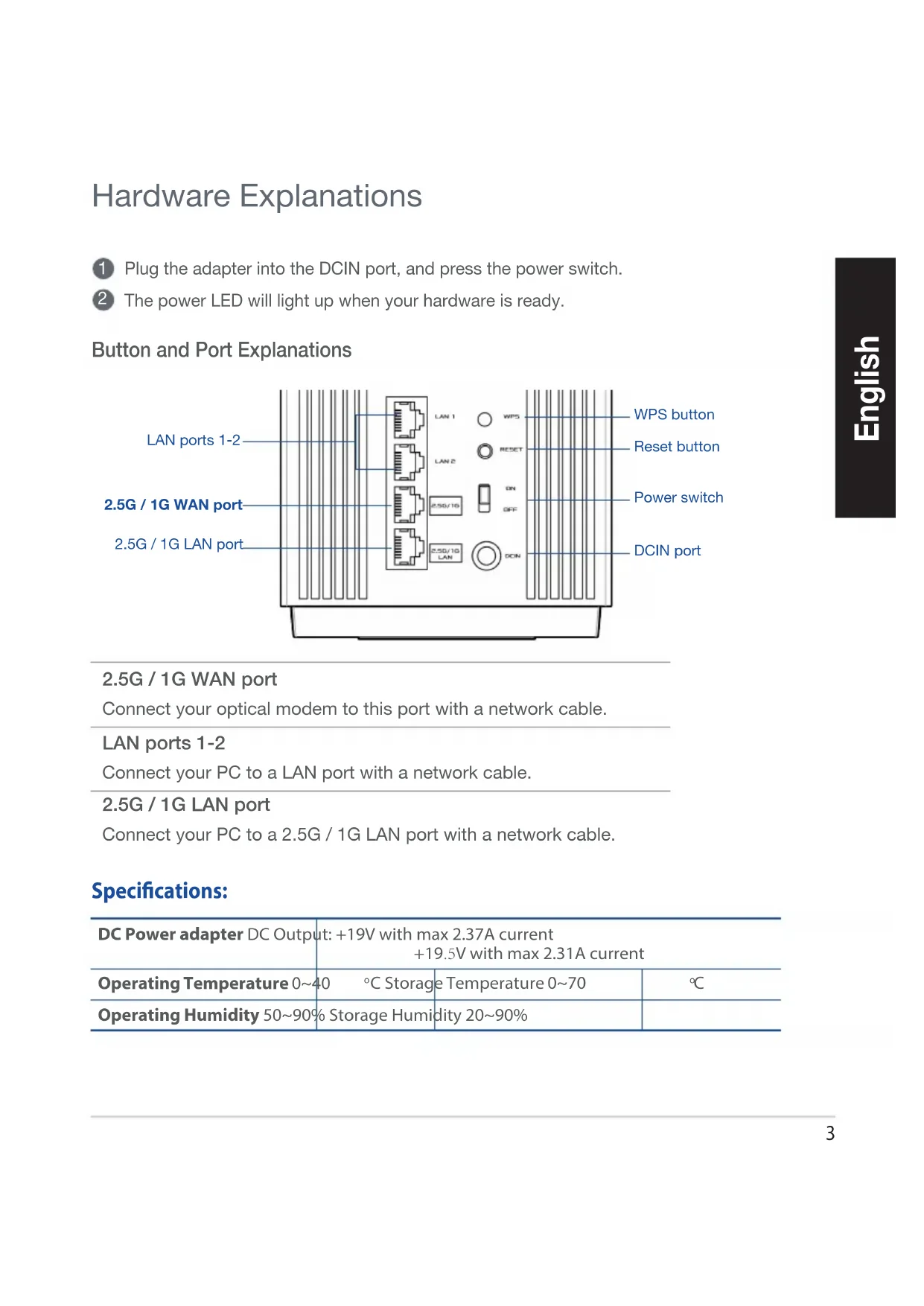
Hardware Explanations
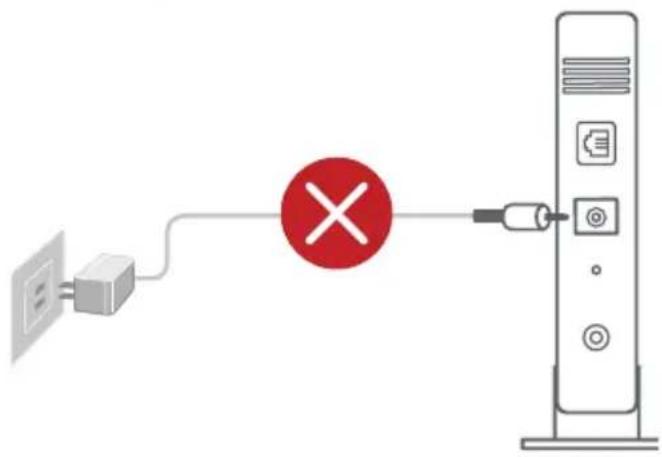
Plug the adapter into the DCIN port, and press the power switch.
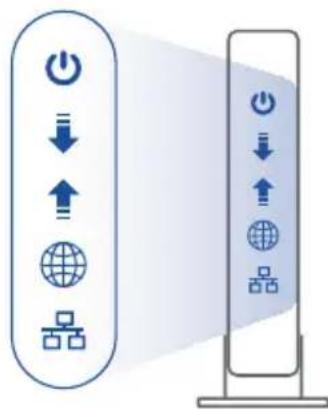
The power LED will light up when your hardware is ready.
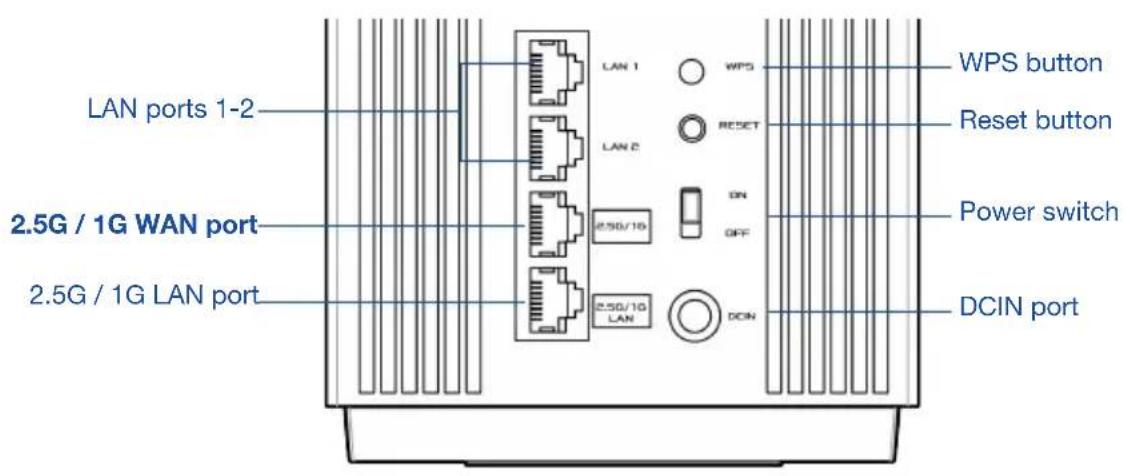
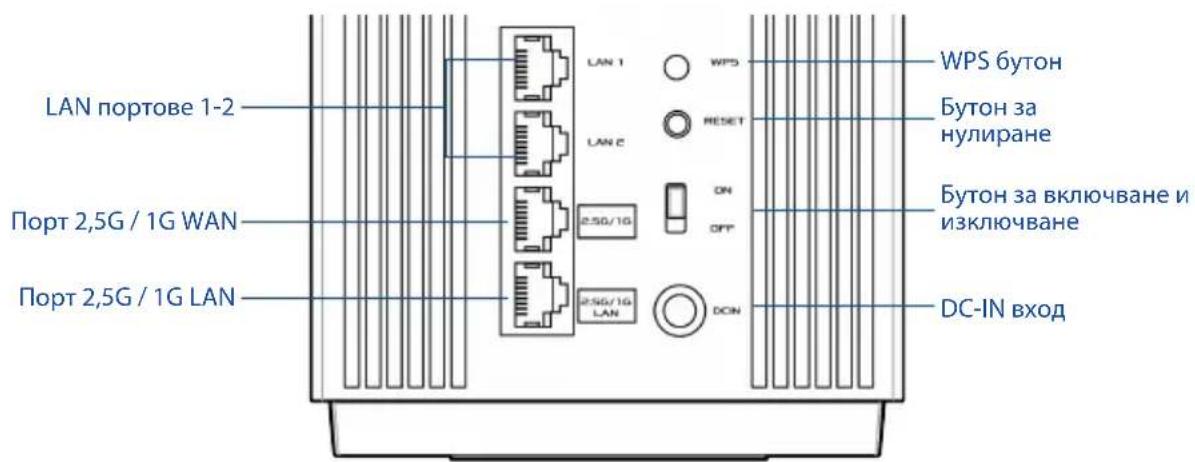
Button and Port Explanations
2.5G / 1G WAN port
Connect your optical modem to this port with a network cable.
LAN ports 1-2
Connect your PC to a LAN port with a network cable.
2.5G/1G LAN port
Connect your PC to a 2.5G / 1G LAN port with a network cable.
Specifications:
| DC Power adapter DC Output: +19V with max 2.37A current +19.5V with max 2.31A current | |||
| Operating Temperature 0~40 °C Storage Temperature 0~70 °C | |||
| Operating Humidity 50~90% Storage Humidity 20~90% |
Before Setup
01 Setting up a standalone router
1 Go to ONE ROUTER SETUP STEPS.
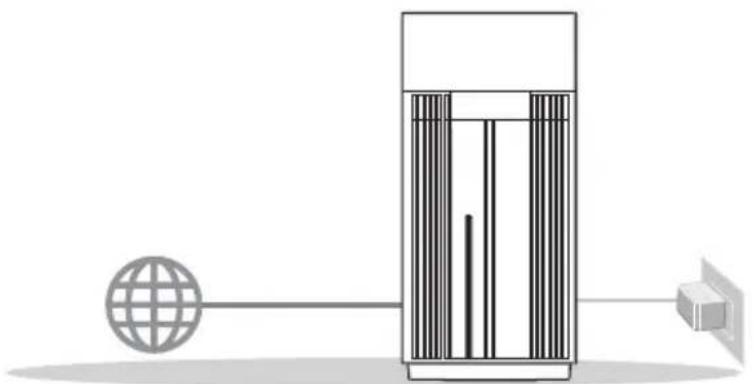
One RouterSetup
02 Setting up an AiMesh WiFi system
Prepare two or more ASUS routers supporting AiMesh.
2 Assign one as AiMesh router, and another one as AiMesh node.
** If you have multiple AiMesh routers, we recommend using the router with the highest specifications as your AiMesh router and the others as AiMesh nodes.
3 Go to AiMesh SETUP STEPS.

One Router Setup Steps
01 Prepare your Modem
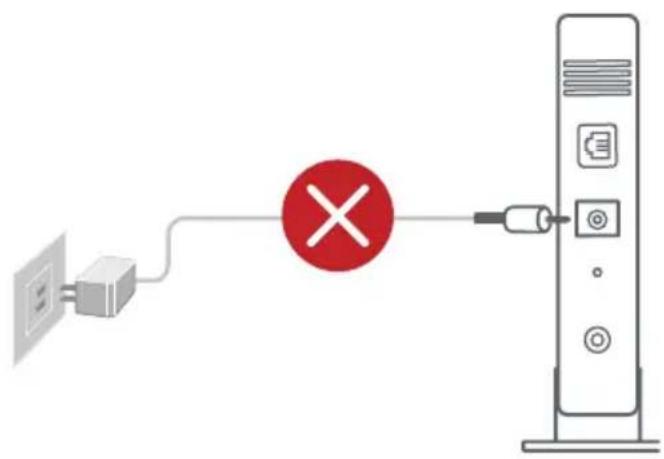
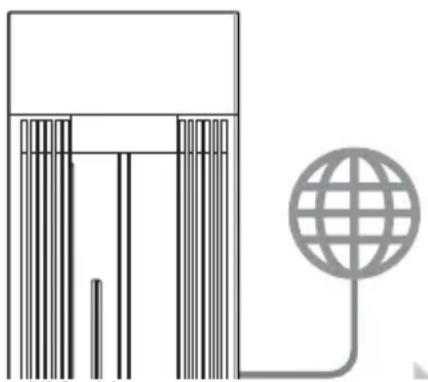
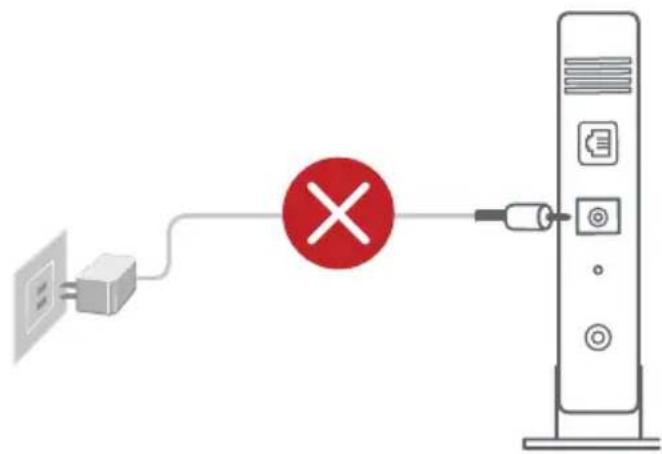
Unplug the power of cable / DSL modem. If it has a battery backup, remove the battery.
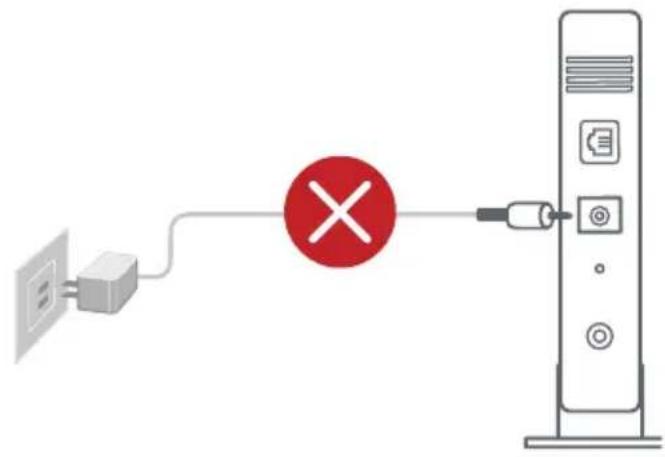
If you are using DSL for internet, you will need your username / password from your Internet service provider (ISP) to properly configure your router.
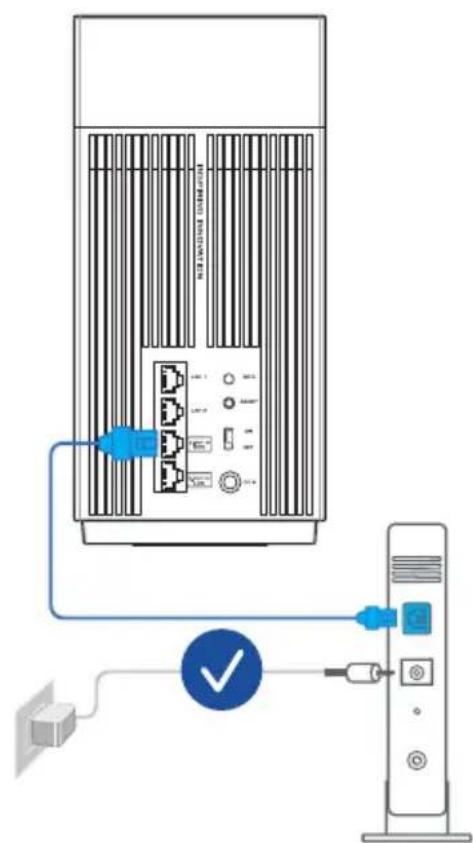
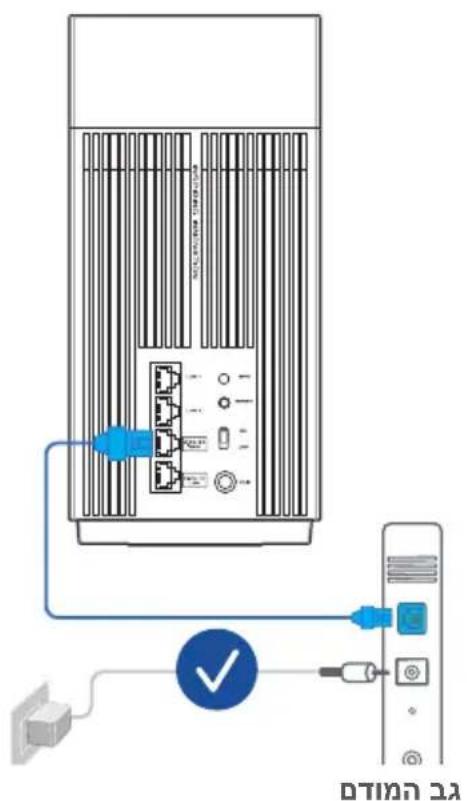
Connect your modem to the router with the network cable provided.
3 Power on the modem. Plug modem to the power outlet and power on.
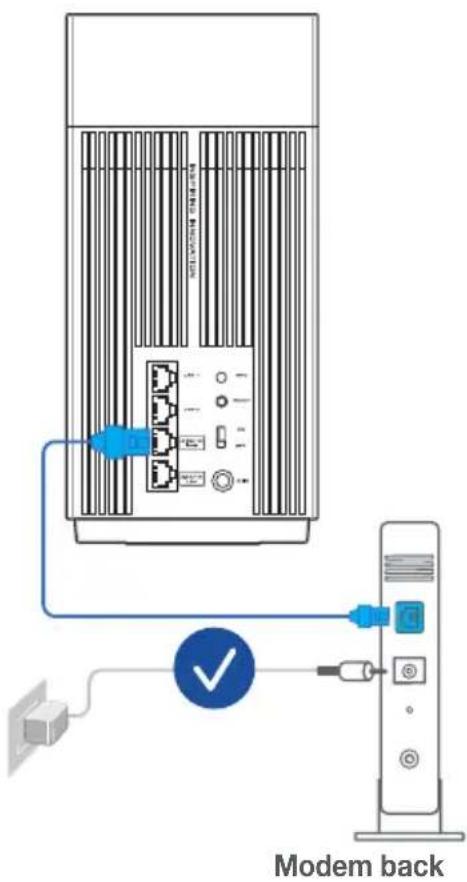
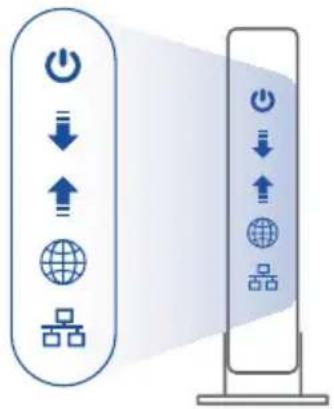
Check the modem LED lights to ensure the connection is active.
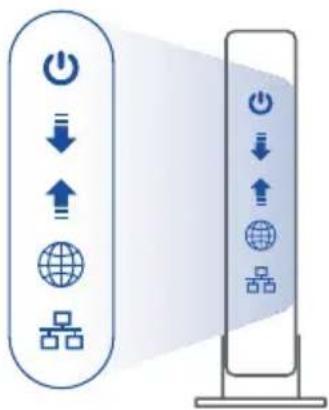
Modem front
02 Connect your Device
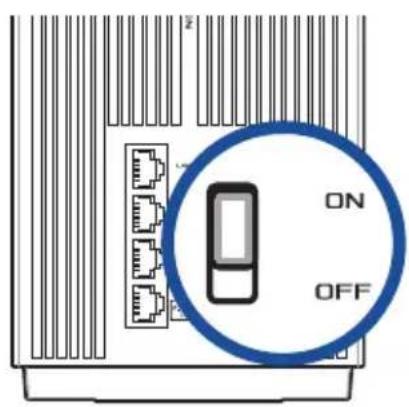
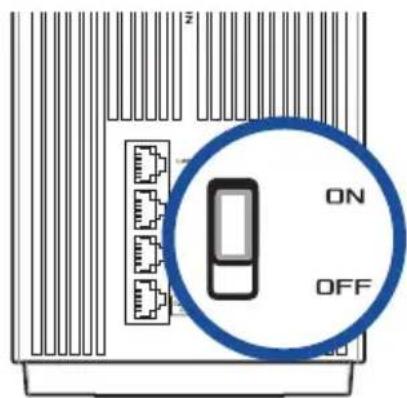
Power on the router.
Plug in and press the Power On/Off switch at the back of your router.
Check that the LED turns solid blue to indicate that the hardware connection is ready for setup.
[Web] Connect your PC to the router using an additional network cable.
[App] Or you can use a phone or pad to complete the setup via ASUS Router App.
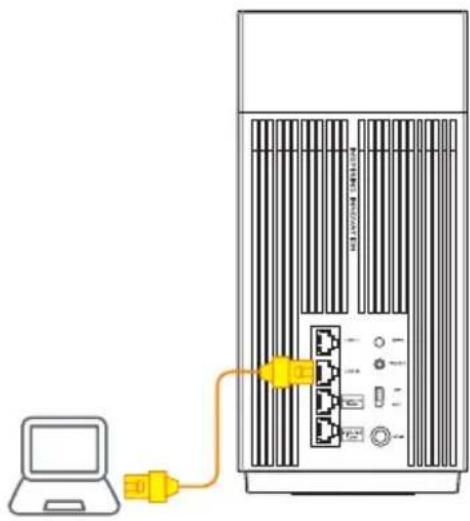
03 Login and Connect
[Web] Open a web browser.
You will be redirected to the ASUS Setup Wizard. If not, navigate to http://router.asus.com.

[App] Launch ASUS Router App and follow the instructions to complete the setup.
AiMesh Setup Steps
01 Prepare
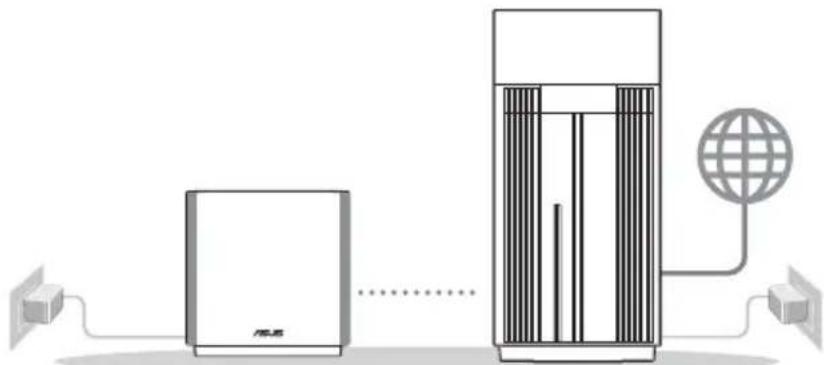
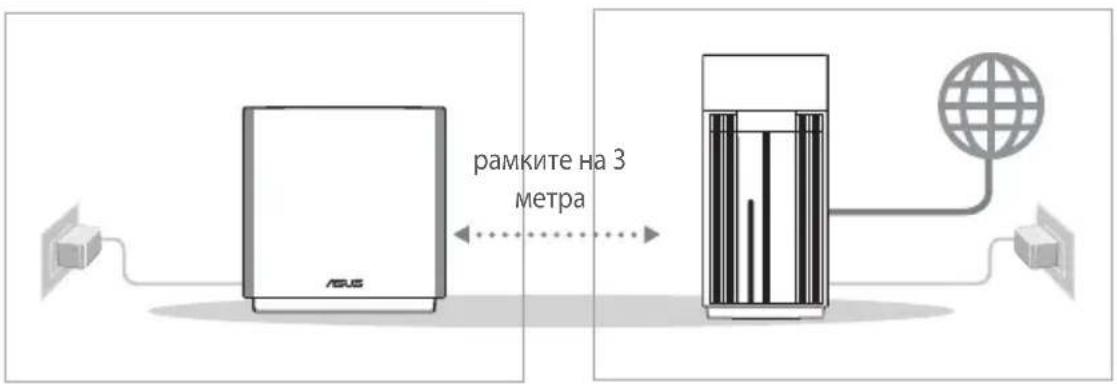
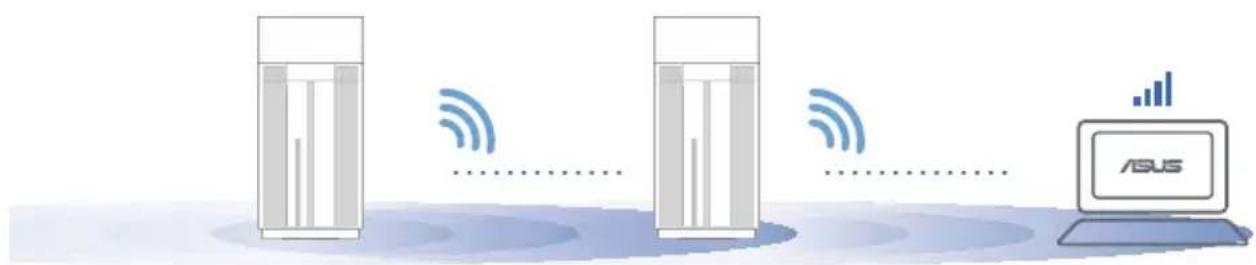
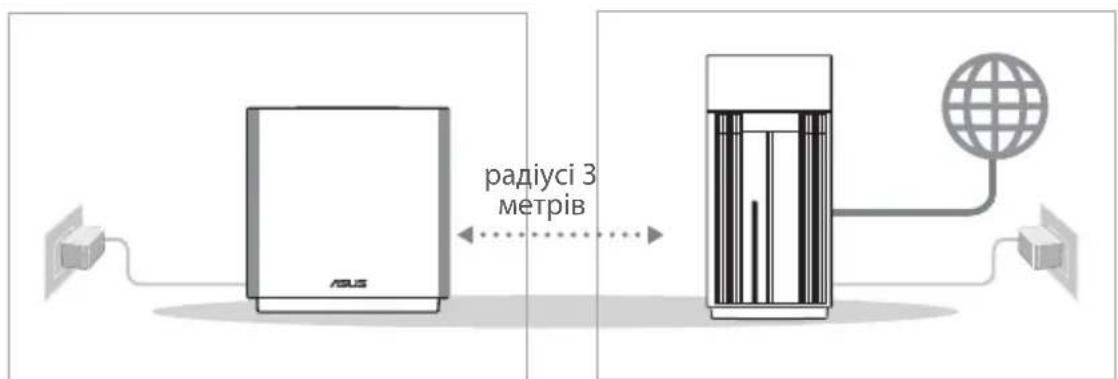
Place your AiMesh router and node within 3 meters of each other during the setup process.
02 AiMesh node
Keep your AiMesh node powered on and standby for AiMesh system settings.
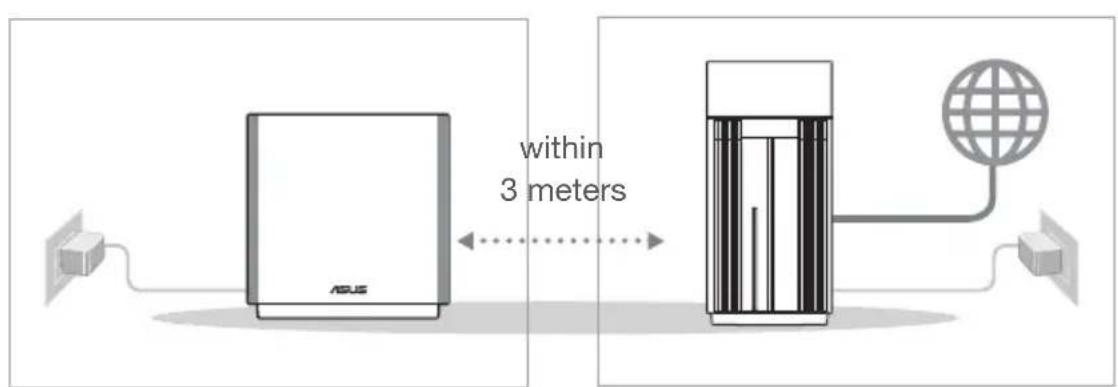
AiMesh routerAiMesh node
03 AiMesh router
[Web] 1 Refer to ONE ROUTER SETUP
STEPS to connect your AiMesh router to your PC and modem, and then log in into the web GUI.
![ASUS ZenWiFi Pro ET12 - [Web] 1 Refer to ONE ROUTER SETUP - 1](/content/2026/04/586517/images/464c989a381c04dfd0c58e33d69e039d78c8c0e4caa42fdcc5d7a8dfab3b8ada.jpg)
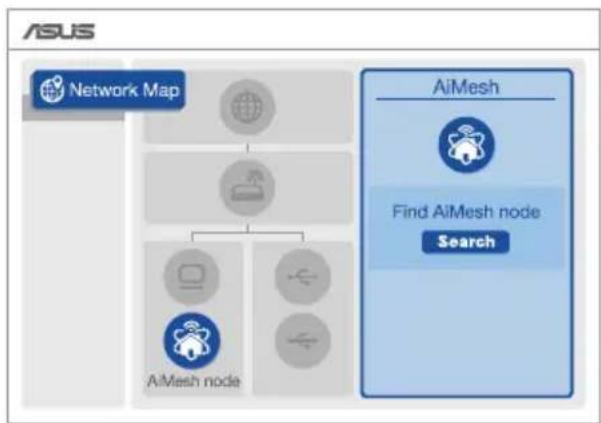
2 Go to Network Map page, click AiMesh icon and then Search for your extending AiMesh node.
![ASUS ZenWiFi Pro ET12 - [Web] 1 Refer to ONE ROUTER SETUP - 2](/content/2026/04/586517/images/d6b2f924bea4899b30e8a2580d2c5a0c9602a94b86bf07c71a410277ce70867f.jpg)
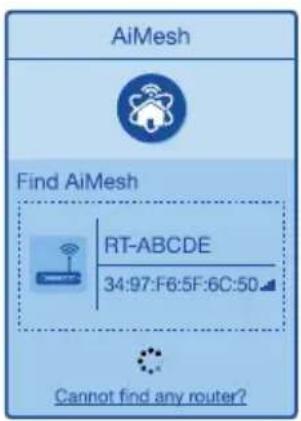
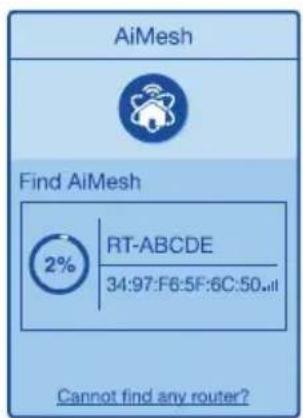
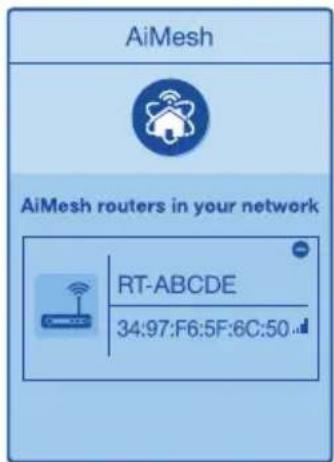
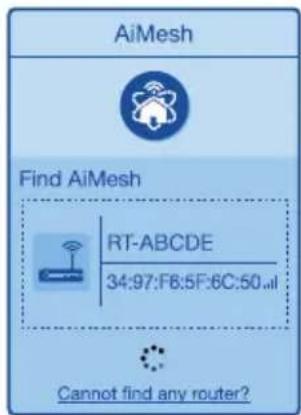
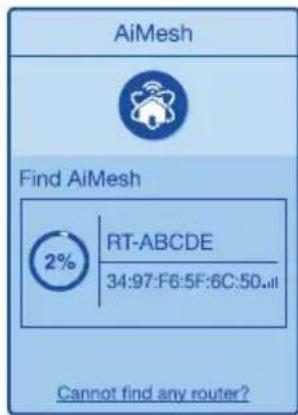
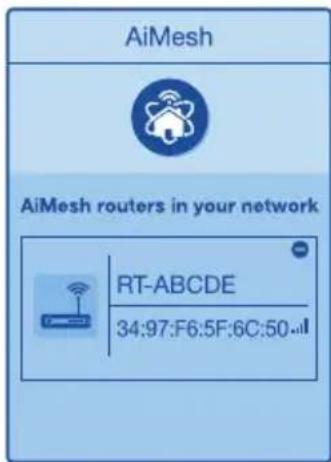
3 Click Search, it will automatically search for your AiMesh node nearby. When the AiMesh node shows on this page, click it to add it into the AiMesh system.
** If you cannot find any AiMesh node, please go to TROUBLESHOOTING.
![ASUS ZenWiFi Pro ET12 - [Web] 1 Refer to ONE ROUTER SETUP - 3](/content/2026/04/586517/images/692adef313d63c588a7955f3e83194ba8a0d0596013fd79023645c805dd6c448.jpg)
![ASUS ZenWiFi Pro ET12 - [Web] 1 Refer to ONE ROUTER SETUP - 4](/content/2026/04/586517/images/50d0d9797c8e256fc488cd078e81b9dfb4efa5334bebf4d4d2c80ac323a89631.jpg)
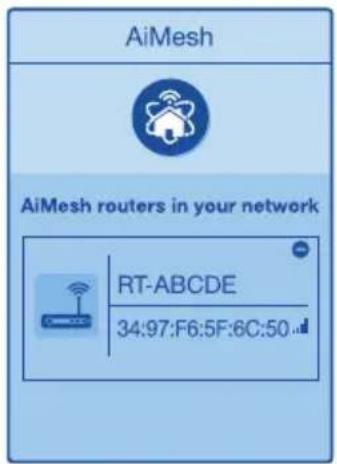
A message is displayed when synchronization is completed.
Successfully added RT-ABCDE to your AiMesh system, it will take awhile to show up as connected in the AiMesh router list.
OK
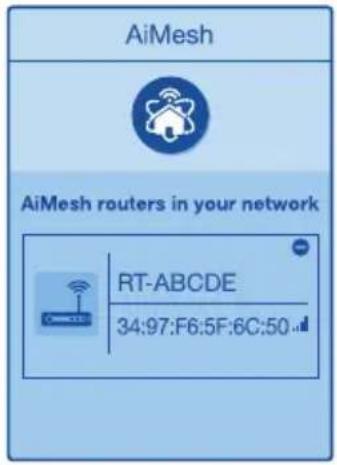
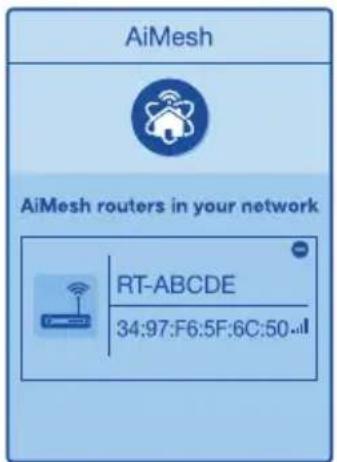
5 Congratulations! You will find the pages below show up when an AiMesh node has been successfully added to the AiMesh network.
![ASUS ZenWiFi Pro ET12 - [Web] 1 Refer to ONE ROUTER SETUP - 5](/content/2026/04/586517/images/76194a2a3f0e26d9c42a813440bc45a725b866979b159e8579a22794e2963965.jpg)
[App] Log in to your existing router via ASUS Router App and choose "Add AiMesh Node" to complete the setup.
ASUS RouterApp
Download free ASUS Router APP to set up and manage your router(s).

ASUS Router




Troubleshooting
If your AiMesh router cannot find any AiMesh node nearby or synchronization fails, please check the following and try again.
a Move your AiMesh node closer to the AiMesh router ideally. Ensure that it is within 3 meters.
b Your AiMesh node is powered on.
Relocation
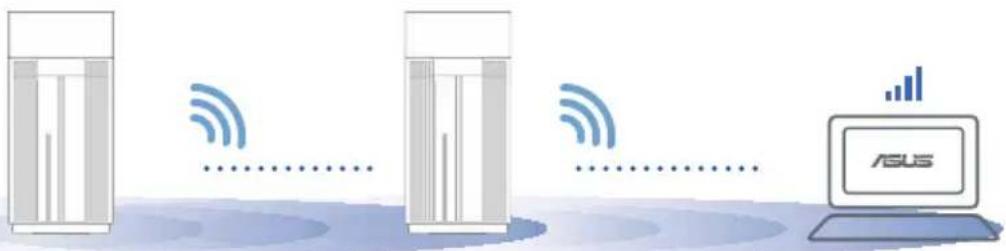
Locate the AiMesh router and node at the best place.
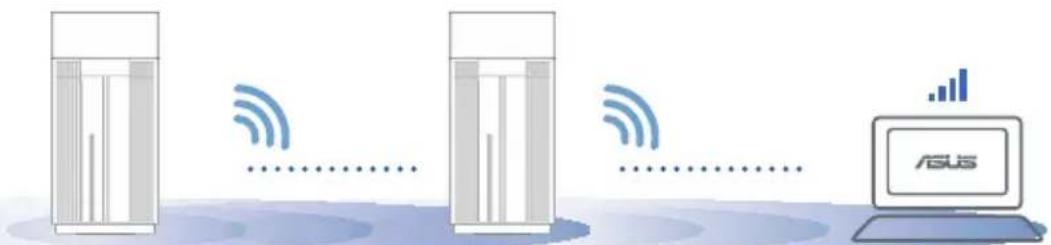
NOTES: To minimize interference, keep the routers away from devices like cordless phones, Bluetooth devices and microwave ovens.
We recommend that you place the routers in an open or spacious location.
ZenWiFi Pro ET12 LED indications

Solid white: Good signal

Solid yellow: Weak signal

Solid red: No signal
FAQ FREQUENTLY ASKED QUESTIONS
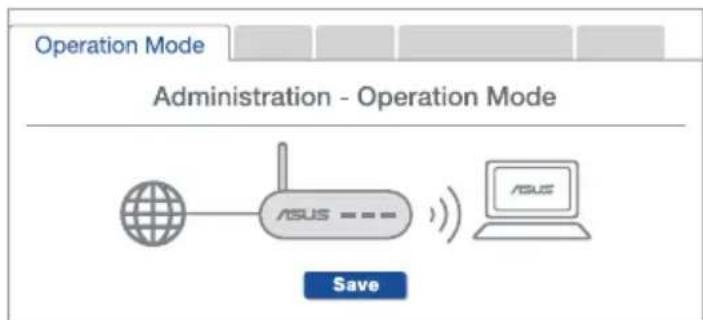
Q1: Does the AiMesh router support Access Point mode?
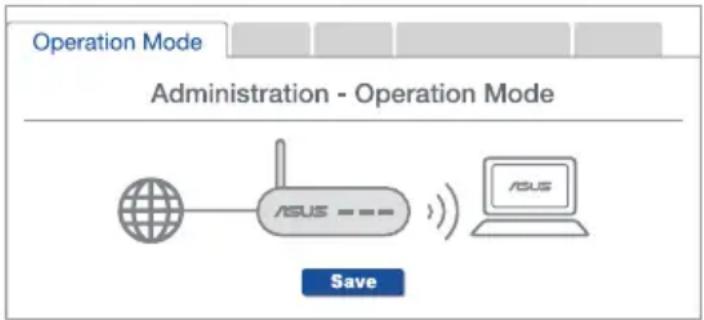
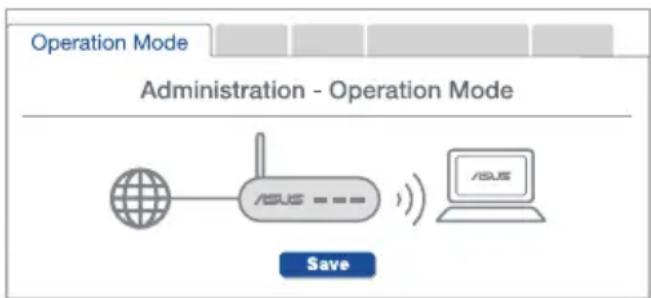
A: Yes. You can choose to set the AiMesh router as router mode or access point mode. Please go to web GUI (http://router.asus.com), and go to the page Administration > Operation Mode.

Q2: Could I setup wired connection between AiMesh routers (Ethernet backhaul)?
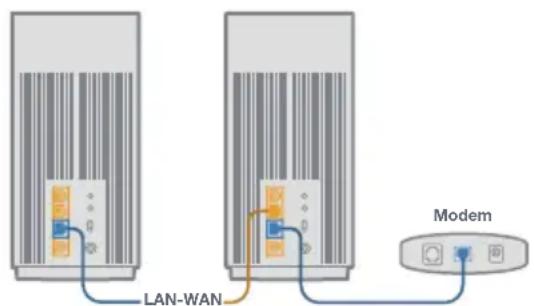
A: Yes. AiMesh system supports both wireless and wired connection between AiMesh router and node to maximize throughput and stability. AiMesh analyzes the wireless signal strength for each frequency band available, and then determines automatically whether a wireless or wired connection is best to serve as the inter-router connection backbone.
1 Follow the setup steps to establish a connection between the AiMesh router and node via WiFi first.
Place the node in the ideal locations for best coverage. Run an Ethernet cable from the LAN port of the AiMesh router to the WAN port of AiMesh node.

3 AiMesh system will auto-select the best path for data transmission, whether wired or wireless.
Oścchene na xapnyepa
1 BkIIOUeTe aadantepa B DC-IN npTa nHaTnCHete 6yToHa 3a BKIOUBaHe n N3KIOUBaHe.
2 LED INHINKATOpbT 3a 3axpaHbaHeTo ue CBeTHe, KOrato xapdyepbT Bne roTOB.
06aChenHa 6yToHnTe n nopToBete
```c Piopt 2,5G / 1G WAN
CbpxkeTe CBOI ONTNUeH MOEM KbM TO3N NOP Tpe3 MpeKOB Ka6eJ.
LAN nopToBe 1-2
CbpxkeTcBOKOMIOBpKbM LAN nopT ue3 mpekOB ka6en.
Nopt 2,5G / 1G LAN
Cbpxte cBor kOMnIOTp KbM 2,5G / 1G LAN npT ue3 mpekoB ka6en.
TexHnueckxapaKTepeNCTnKn:
| Адамер за зхраимвае с прав тok | Из:xoД за прав тOK: +19V с макс. 2,37A тOK +19,5V с макс. 2,31A тOK | ||
| РабOTнa Temпера typa 0~40 | °C CBхразане№-70 | °C | |
| Влajхост р�n pa6otinga 50~90 | 0% CBхразанe№ | 20~90% | |
ПЕДИ ИНСТАЛINРАСЕ
01 IoproTOBka 3a HnctaIipaHe Ha camOCToTeJIeH pyTeP
OtnndeHaCTbIKN3AINHCTAINPAHEHAEDINPYTEP.

ИНСТАЛПАЕ HA EДИH PYTEP
02 ПодгOTOBka 3a Инсталране на AiMesh WiFi cnCTeMa
1 IoproBeTe Dba nn noBuee MappyTu3aTopa ASUS, konTo npDbpxat AiMesh.
2 3aaiTe eHHnKaTo AiMesh pyTep, a dpyrna KaTo AiMesh b3eJ.
** Ako Imate hЯkonko AiMesh pytepa, npenopbubame Bn da n3noJI3BaTe pytepa c Hai-BucOKn xapaKTePuctuKn KaTO AiMesh pytep, a ocTaHaJInte kaTo AiMesh b3nn.
3 OtnideTe Ha CTbIKN 3A INHCTAJINPAHE HA AiMesh.
AiMesh Bb3eJ AiMesh pyrep
CTbПКИЗАИСHTАЛИРАЕHA AiMesh
CTbПКИЗАИHCTАЛИРАЕHAЕДИНPyTEP
01 ПодгOTOBаHaMoДема
1 N3KIOUeTe 3axpaHbAunKa6en/DSL Moema. Ako IMa pe3epBHO 3axpaHBaHe Ha 6aTePn, OTCTpaHete 6aTePnnte.
1 Ako n3no3BaTe DSL moEm 3a INHTepHeT, Tp6Ba Da NMaTe Notpe6uTeNcKO NMe/ napoA, npedocTaBEn O T Baunn INHTepHET DOCTaBUnK (ISP), 3a npabunHo KOHnrynpaHa pytepa.
2 CbpxKeTe Baunmaoem KbM pyTepa KaTo n3nO3BaTe npedocTaBeHm MpeXOB ka6en.
BkIIOyTe MoJaMa. BkIIOyTe MoJaMa B KOHTaKTa N BkIIOyTe 3axpaHbaHeTo.
3aen naneHa moema
4ПроверетeВашиякбел/LEDинdkatopnteHaDSLmoja3a da cte cnrypn,ye Bpb3kaTa e aKtNBHa.

Cbbp3BaHeHa pyTepa
02 CbpbjKeTe yctpoiCTBOTO cn
1 BkIIOUeTe pyTepa.
BkIoute B 3axpaHbAHeTo n HaTnCHeTe KIOUa Power On/Off (BkIOuBaHe/V3KIOUbaHe) Ha rbp6a Ha Baunr MappTytn3aTop.
2Поверете дani LEDинdkaTopbT 3anoyba da CBETN HENpeKbChato cHbO,3a da nokaxe,ye xapdyepHaTa Bpb3ka e rTOBa 3a INHCTaIInpaHe.
[Web] CbpxkeTe KOMnHOTbpa CN KbM pyTepa KaTo n3NoJ3BaTe dOnbHnHTeJeH MpeXOB Ka6en.
[App]Илл може ди ИЗпОзВаTe TELeФОн Илл pad yctpoIcTBO,3aДа 3aBbPшte INHCTaJInpaHETO ue3 npINOJKeHneTO ASUS Router App.

03 Cbbp3BaHe
[Web]OTcBbp3aHnKaBmpyTepaKOMnIObP,OTBopeTeye66pay3bp.
Ie 6bTe npehacouhen KbM ASUS Setup Wizard (CbBeTHNK 3a nHCTaIInpaHe Ha ASUS). Ako ToBa He cTaHe, BbVeTe B URL nonTo http://router.asus.com.

[App] CstaptnpaTe npnloxeHneTo ASUS Router App n cneBaIte nHcTpyKuInTe, 3a da 3aBbPwnte nHcTaIIpaHeTo.
CTbПКИ 3A ИСHTАЛИРАЕ HA AiMesh
01 Pndrotobka
IocTabe TaAiaMesh pyTep n AiMesh Ha pa3ctoHne ot 3 MeTp a eHn ot npyr no BpeMe Ha npouceca Ha nHcTaJaua.
02 AiMeshвьзел
ДрьхтЕ 3axpaHbHeTO BKlIOUeHOиВ rOTOBHocT 3a AiMesh cIcTeMHn HAcTpOiKN.
AiMesh Bb3eI AiMesh pysep
03 AiMesh pyrep
[Web] 1 BuxTe CTbIKN 3A NHCTAJINPAHE HA
EDINH PyTEP,3a Da CbpxKeTe CBOA AiMesh pyTep KbM KOMNtbp N MoDem, Cnei Koeto BNe3Te Bye6 Notpe6nteKnI INHTepfEic.

2 OTnTe Ha cTpaHncaTa Network Map (KapTa Ha mpeXnTe), upaKaHHe TBpxy IKoHaTa Ha AiMesh, cIeI KoETo upaKaHHe TBpxy Search (TbpcHe) 3a pa3wnpaBaHe Ha Baunr AiMesh Bb3en.

3UpaKHeTeBbpxySearch(Tbpche),to aBTOMaTnUHO 电 Tbpcn Baun Bb3en AiMesh,HaMnpaue Ce B6n3ocr.Korato AiMesh Bb3eJbT ce nOBn Ha Ta3n cTpaHua, UpaKHeTe Bbpxy Hero,3a da ro do6abnte B AiMesh cnCTemata.
** Ako He moKeTe da oTKpneTe AiMesh Bb3eI, OTnTe Ha OTCTPAHRAHE HA HEN3NPABHOCTN.
4 Ako cunxpoHn3npaHeTo Ha yctpoiCTBaTa e ycneuho, Ie ce nOBn CneHOTO cb06ueHne
Successfully added RT-ABCDE to your AiMesh system, it will take awhile to show up as connected in the AiMesh router list.
OK
5 I03dpabIeHn! Ako BnuIte n3o6paXeHneTo no-dony, to AiMesh Bb3eNa e NHCTaIIpaH n ycneuho do6aBeH KbM AiMeshMpexkata.

[App] Bne3Te B cBuecTByBaU mApwpyTu3aTOp ue3 npnloKeHneTO ASUS Router App n 36epete Add AiMesh Node (IobabAHe Ha AiMesh Bb3e) 3a 3aBpWbAHe Ha nHCTanuPaHeTo.
ПИЛОЖЕНЕ ASUS MAPПPyTu3ATOP
I3terne 6e3nnaTHo npnojKeHneTo ASUS Router (ASUS mappytnaTOp), 3a da hactponTe n ynpablaBate Baunr MappytnaTOp (Baunr MappytnaTOpn).

ASUS Router




Отстразнын на поблии
Ako Baunr MappuyntaTop AiMesh He moxe da Hamepn HkaKbB AiMesh Bb3en Ha6n3o nn aKO cINxpoHn3aunraTa e HeycneuHa, MoJ, npOBepTe CJeHOTOn OINTaTe OTHOBO.
a B ndealnna cnuyai, npemecTe cBor Bb3en AiMesh no-6n3o do mappuytn3atopa AiMesh. YbepeTe ce, ye To e B paMKnte Ha 3 MeTpa.
6 Baunr AiMesh b3eI e cbc 3axpaHbaHe.
Дe lokaизацnia
HAI-IOBPA IPOIN3BOIDTEJHOCT
HamepeTe pyTuHa Ha AiMesh n Bb3eJa Ha haN -do6pOTo MxCTo.
3A6EJIEXKU: 3a da cBeTe Do MUNHmym Cmyuene, DpbjTe Mapwpytn3aTopnTe dauey ot yctpoiCTBa KaTo 6e3xun Hn TenefoHN, Bentonite yctpoiCTBa N MKNpOBbHOBn FypHn.
PpenopbUbaMe Bn da noctabnte oTKpnto n npocToPO MrcTo.
ZenWiFi Pro ET12 LED uHdkaun

HenpeKbchato:6aNo Do6bp cnHnA

TbTeH XbNT:Cna6 cnHaJ

HenpeKbchato cepBeHo: Hma cnHa
Yecto
3aDaBaHn
Bbnpocn
YECTO 3AДАВAHи ВьПРОСи
B1:ПодьржаллмшутпатopAiMeshpeхинHaToUka3aДocТы?
A:Дa.Можete Да ИЗберete Дa HabстponTe МаршуTN3aTopa AiMesh kaTo peЖIM Ha маршуTN3aTopa ИПп ржим Ha TOUka 3a Дocтbn. OTиDEte B ye6 notpe6nteLckn Интepфсс Ha (http://router.asus.com), И OTиDEte Ha CTpaHnua ADMIstration (Аdmнисдаць) >Operation Mode (Pexim Ha pa6ota).
B2: Mora li na iHcTaInpam Ka6eHa Bpb3ka Mejdy AiMesh pytepiTe (Ethernet backhaul)?
A:Дa. AiMesh система тпдьрka n 6e3кчна, n Ka6eнha Bp3ka Мжdy AiMesh pytepa n Bb3eNa 3a MaKcImaJIHa CkOPOCT Ha npedabaHe n CTa6nHocT. AiMesh aHaJIIN3Ipa CInIaTa Ha 6e3ЖЧИЯ CInIHaN 3a BCa KaIInUHa YeCToTHa JIeHTa, cIeJ KOeTO aBtOMaTNUHO onpeJeIЯ dAn e no-Do6pe 6e3ЖчHa nII Na Ka6eHnHa Bp3ka da ce n3PON3Ba KaTO OCHOBHa Bp3Ka MEXdpy PyTePnte.
1 CnEJaIe CTbPknte 3a nHcTaInpaHe, 3a da yctaHOBInTe WiFi Bpb3ka Mexdy AiMesh pyTepa N Bb3ena.
2 IocTaBeTe Bb3eHa Ha NdeaHnTe MeCTa 3a Hau-Do6po nokpTne. IpokapaiTe Ethernet Ka6en ot LAN nopTa ha AiMesh pyTepa do WAN nopTa ha AiMesh Bb3eJa.
3 AiMesh cnctemata aBTomatnuHO ue n36epe hai-do6pna 3a nphe Hoc Ha daHHn, He3aBNCIMO daHn qpe3 Ka6e nn 6e3KNUHO.
Successfully added RT-ABCDE to your AiMesh system, it will take awhile to show up as connected in the AiMesh router list.
OK
Cestitamo! Kada se AiMesh modul uspjesno doda u AiMesh mrezu, pri Kazakhstan stranice.
[App] Prijavite se na postojeci usmjerivač preko aplikacije za ASUS usmjerivač i odaberite “Dodaj AiMesh Čvorište” za dovrsavanje podesavanja.
Successfully added RT-ABCDE to your AiMesh system, it will take awhile to show up as connected in the AiMesh router list.
Svitizlute:Slaby signal

Sviticervene:Nenisignal
CASTÉ DOTAZY OTÁZKA 1
CASTÉ DOTAZY
Successfully added RT-ABCDE to your AiMesh system, it will take awhile to show up as connected in the AiMesh router list.
OK
Successfully added RT-ABCDE to your AiMesh system, it will take awhile to show up as connected in the AiMesh router list.
OK
AiMeshi router
AiMeshi SEADISTUSTOIMINGUD
ÜHE RUTERI SEADISTUSTOIMINGUD
AiMeshi SEADISTUSTOIMINGUD
01 Ettevalmistus
Successfully added RT-ABCDE to your AiMesh system, it will take awhile to show up as connected in the AiMesh router list.
OK
[Rakendus] Log in to your existing router via ASUS Router App and choose "Add AiMesh Node" to complete the setup.
ASUS'E RUTERI RAKENDUS
Laadige alla ASUS'e ruuteri tasuta RAKENDUS, et omr ruuterit (ruutereid) halestada ja hallata.

ASUS Router





Törkeotsing
Successfully added RT-ABCDE to your AiMesh system, it will take awhile to show up as connected in the AiMesh router list.
OK
Successfully added RT-ABCDE to your AiMesh system, it will take awhile to show up as connected in the AiMesh router list.
OK
5 Suynxapntnpia! Oa β pTe Tic npakatw σ eai8ec nou eupaviciovtai otav evac kOBC AiMesh exi npootee iE enituxia oTo diktuo AiMesh.

[Epapuoyn] Suovvotovupiotaevo dpouoayntm eow tnc evapuoync ASUS Ruter ka EiEe "Add AiMesh Node" (Ppooohknojou AiMesh) yia va ook npwotet np uon.
Eφαρμογηn ASUS Router
Katebaote δωρ α vtnv eapauyn ASUS Router yia va puthetake kalva diaxepiotetov dpouooyntn oac.

ASUS Router




nDSL-wnnnn nn /wnnnnn n7, nnnn (ISP) nn nn nn noo

n nn nnnn nn nnnn nn nnnn nn

TINN NNN. DINN NNN 1INN PNTN

79nnnNTTNTNNN
DTINN
#
n nn n
n nn nnnnnnnnnnnnnnnnnnnnnnnnnnnnnnnnnnnnnnnnnnnnnnnnnnnnnnnnnnnnnnnnnnnnnnnnnnnnnnnnnnnnnnnnnnnnnnnnnnnnnnnnnnn
7 777777777777777
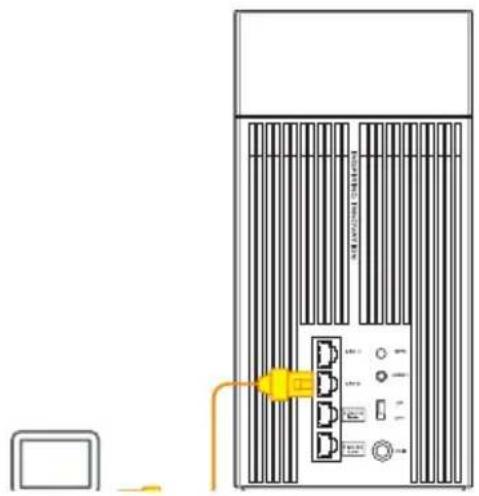
nynnnn nn [O]
.901nn
07x01 IN 1970wnwn IN [nXn]
ASUS nnnn nn nn
.Router App
03
.0701X 19T TNN [O]
ninnn, (ASUS wnnnnn) ASUS Setup Wizard- nnn
http://router.asus.com

nannnnnnnnnnnnnnn nn nnnn ASUS Router App nx nnn [nx]
AiMesh nnnn
pn 01
3 4 AImesh n nn n nn n nn
AiMesh 02
AiMesh noynnnn nn nnnn nn nn nn nn nn nn nn nn nn nn nn nn nn nn nn nn nn nn nn nn nn nn nn nn nn nn nn nn nn nn nn nn nn nn nn nn nn nn nn nn nn nn nn nn nn nn nn nn nn nn nn nn nn nn nn nn nn nn nn nn nn nn nn nn nn nn nn nn nn nn nn nn nn nn nn nn nn
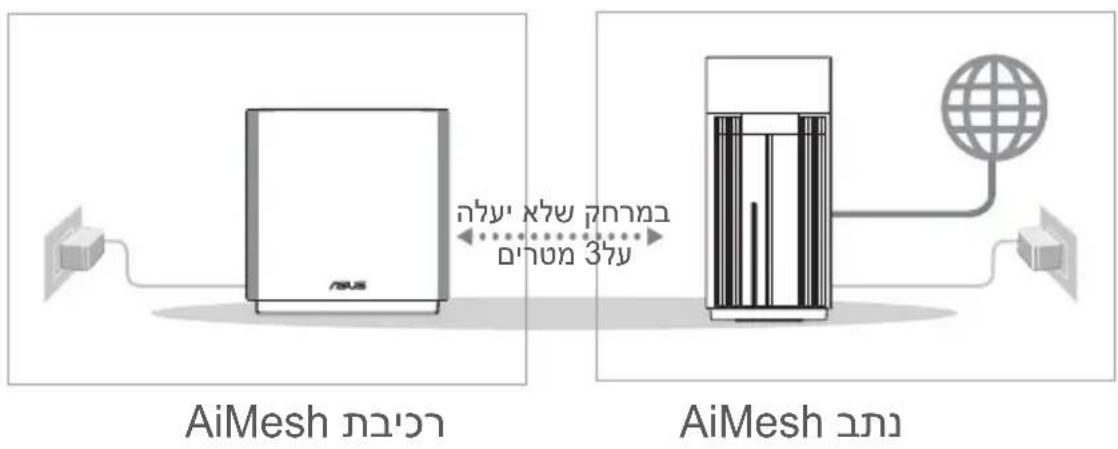
AiMesh
03
[wn] nnnn nn nnnn Aimesh .nnnnnnnnn

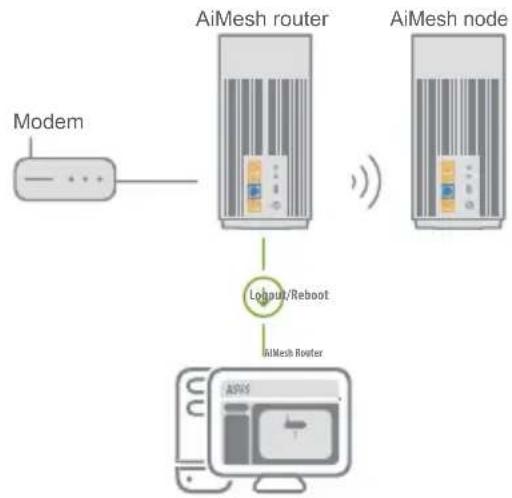
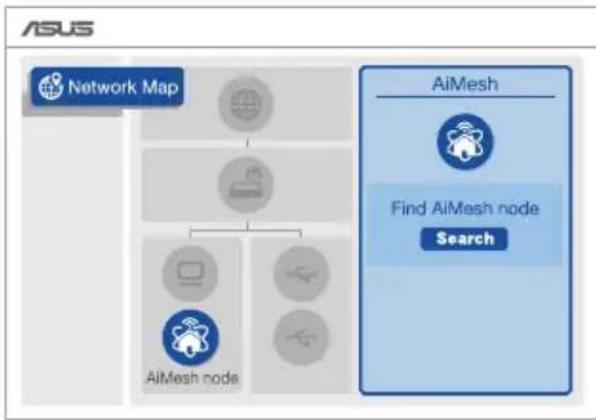
(nnn) Network Map nny
AiMesh no yn
Search AiMesh


nN, (wn)Search yyn
nn nn nn nn nn nn AImesh-n nn nn .AImesh
1007 1y n7 , n7 yin .AiMesh noyn
nnnnnnnnnnnnnnnnnnnnnnnnnnnnnnnnnnnnnnnnnnnnnnnnnnnnnnnnnnnnnnnnnnnnnnnnnnnnnnnnnnnnnnnnnnnnnnnnnnnnnnnnnnnnnnnnnnnnnnnnnnnnnnnnnnnnnnnnnnnnnnnnnnnnnnnnnn

Successfully added RT-ABCDE to your AiMesh system, it will take awhile to show up as connected in the AiMesh router list.
OK
nyin,ion nnyn
.

n nn nnnnnnnnnnnnnnnnnnnnnnnnnnnnnnnnnnnnnnnnnnnnnnnnnnnnnnnnnnnnnnnnnnnnnnnnnnnnnnnnnnnnnnnnnnnnnnnnnnnnnnnnnnnnnnnnnnnnnnnnnnnnnnnnnnnnnnn
AiMesh
Add AiMesh" by yn'1 ASUS Router App nixnx [n]
.77777777777"Node
ASUS ROUTER
ASUS Ruter mnn nn

ASUS Router


GET IT ON Google Play


Download on the
App Store
#
X 7 AIMesh 7 AIMesh
nnoiDnDn
y nnnn nn nnnn nn nnnn nn nnnn nn nnnn nn nnnn nn nnnn nn nnnn nn nnnn nn nnnn nn nnnn nn nnnn nn nnnn nn nnnn nn nnnn nn nnnn nn nnnn nn nnnn nn nnnn nn nnnn nn nnnn nn nnnn nn nnnn nn nnnn nn nnnn nn nnnn
AiMesh 3
AiMesh


D7
DIOIOIYIX
AiMesh nn nx
1970 12345678900000000000000000000000000000000000000
.
111111111111111
ZenWiFi Pro ET12 nnnn
TNNNIN:17y2n

ynnn nn ynnn

NINIXDITXy

nixi9n
NIXIINXU
?AP) nAimesh
:1w
n nnnn nn nnnn nn nnnn nn nnnn nn nnnn nn nnnn nn nnnn nn nnnn nn nnnn nn nnnn nn nnnn nn nnnn nn nnnn nn nnnn nn nnnn nn nnnn nn nnnn nn nnnn nn nnnn nn nnnn nn nnnn nn nnnn nn nnnn nn nnnn nn nnnn nn nnnn nnnn nn nnnn nn nnnn nn nnnn nn nnnn nn nnnn nn nnnn nn nnnn nn nnnn nn nnnn nn nnnn nn nnnn nn nnnn nn nnnn nn nnnn nn nnnn nn nnnn nn nnnn nn nnnn nn nnnn nn nnnn nn nnnn nn nnnn nn nnnn nn nnn
(nyn) Mode
AiMesh (wnxyn)?
:2w
AiMesh nnnn nn nnnn AiMesh nnnn .n nn nnnn nn nnnn nn nnnn nn nnnn nn nnnn nn nnnn nn nnnn nn nnnn nn nnnn nn nnnn nn nnnn nn nnnn nn nnnn nn nnnn nn nnnn nn nnnn nn nnnn nn nnnn nn nnnn nn nnnn nn nnnn nn nnnn nn nnnn nn nnnn nn nnnn nn nannn nn nnnn nn nnnn nn nnnn nn nnnn nn nnnn nn nnnn nn nnnn nn nnnn nn nnnn nn nnnn nn nnnn nn nnnn nn nnnn nn nnnn nn nnnn nn nnnn nn nnnn nn
. WiFi nivnX AiMesh nni nni nni nni nni nni nni nni nni nni nni nni nni nni nni nni nni nni nni nni nni nni nni nni nni nni nni nni nni nni nni nni nni nni nni nni nni nni nni nni nni nni nni nni nni nni nni nni nni nni nnnn nn

y

AiMesh nWAN-nnAiMesh nLAN-nnnnn

Modem
n nn nnnnnnnnnnnnnnnnnnnnnnnnnnnnnnnnnnnnnnnnnnnnnnnnnnnnnnnnnnnnnnnnnnnnnnnnnnnnnnnnnnnnnnnnn

Successfully added RT-ABCDE to your AiMesh system, it will take awhile to show up as connected in the AiMesh router list.
OK
Successfully added RT-ABCDE to your AiMesh system, it will take awhile to show up as connected in the AiMesh router list.
OK
Successfully added RT-ABCDE to your AiMesh system, it will take awhile to show up as connected in the AiMesh router list.
OK
5 Apsevicam! Jus redzesiet zemak paradigmto attelu, ja AiMesh mezglpunkts ir veiksmigi pievienots AiMesh tiklam.

[Lietotne] Piesakieties esosaj marsrutetaj, izmantojot ASUS marsrutetaja lietotni, un izvelieties "Add AiMesh Node" (Pievienot AiMesh mezglu), lai pajeigtu iestatisanu.
Nepartraukti balts: labs signals

Nepartraukti dzeltens: vajs signals

Nepartraukti sarkans: nav signala
Successfully added RT-ABCDE to your AiMesh system, it will take awhile to show up as connected in the AiMesh router list.
OK
OFTE STILTE SPØRSMÄL
Q1 Stotter AiMesh-ruteren tilgangspunktsmodus?
Sv.: Ja. Du kan velge Å sette AiMesh-ruteren i rutermodus ellertilgangspunktsmodus. Gå til web-grensesnittet (http://router.asus.com), og gàtil widen Administration (Administrasjon) > Operation Mode (Driftsmodus).

Q2 Kan jeg sette opp en kablet tilkobling mellom AiMesh-rutere (Ethernet backhaul)?
Successfully added RT-ABCDE to your AiMesh system, it will take awhile to show up as connected in the AiMesh router list.
Successfully added RT-ABCDE to your AiMesh system, it will take awhile to show up as connected in the AiMesh router list.
OK
01 POnrToOBbTe MoDcM
OTKIOUHTe PNTAHne ot Ka6eNbHoro / DSL-MoJaMa. Prn HAnuH pe3epBHoro aKKymyIaTopa, N3BJIeKNTe1rO.
Pn NcnoIb3OBAHn NOKIOUeHnDSL Bam nOTpe6yeTc BBeCTn mNnNoIb3OBaTeNa /napoJIb OT npObaIdepa (ISP).
2 PoiKIOUHTe poyTeR K MOdemy nIa Ka6eIIO npoBaipepa(ISP) c nOmoCbIO ceTeBOrO Ka6eIa.
BknIOHTe moDEM. POnKIOHTe moDEM K po3ETke IN BKNIOHTe erO.

4 IpoBepbTe HndnKaTopbMoDema N y6eHITcB HnHnN nOdkIoueHna.
IpeennaeMoema
02ПодключnteустpoиCTBO
1 BkIIOuHTe poyTepe.
Haxmnte Tym6nep nntaHa Ha 3aHei naHei poyTepa.
2 Y6eNTecb, yTO INHnKaTOP rOpNT CnHM uBeTOM, yTO O3Haayet rOToBHOCTb aAnnapaTHORo COeHNHeHn K NaCTpoiKe.
[Web]ПОДКЛIOUHTe KOMNbIOTep K pOyTepy C nOMOuBIO DOONHITeNbHOro CeTeBOrO Ka6eRn.
yIyuUeHnE IPOIN3BOIDNTbHOCTN
HaiDnte noxoaduee meTo npoyepa y3na AiMesh.

IPIMUEAHN: IymeHbWeHn Nomex paCnoJKeTpe oYteB bAJIOn OT 6ecnpoBOhBx yCTpoiCTB, HApumep 6ecnpoBOhBx TelefoHOB, yCTpoiCTB Bluetooth mIKpOBOHOBx nee.
Pekomehdyetcpa3MeCTbpoyTepbHaOTKpbITOMnIINIPOCTOPHOM MeTe.
Successfully added RT-ABCDE to your AiMesh system, it will take awhile to show up as connected in the AiMesh router list.
OK
Felicitàri! Vetī descoperi ā paginile de mai jos apar cānd un nod AiMesh a fost adäugat cu succes la reṭeaua AiMesh.
Alb constant: Semnal bun

Galben constant: Semnal slab

Rosu constant: Lipsa seminal
Intrebari freventa Intrebare
INTREBAI FRECVENTE
Accepta routerul AiMesh modul Access Point (Punct de acces)?
Successfully added RT-ABCDE to your AiMesh system, it will take awhile to show up as connected in the AiMesh router list.
OK
Successfully added RT-ABCDE to your AiMesh system, it will take awhile to show up as connected in the AiMesh router list.
OK
Successfully added RT-ABCDE to your AiMesh system, it will take awhile to show up as connected in the AiMesh router list.
OK
5 Blahoželáme! Po uspesnom pridani uzla AiMesh do siete AiMesh budú k disposzicii dolu zobrażné stranky.
Successfully added RT-ABCDE to your AiMesh system, it will take awhile to show up as connected in the AiMesh router list.
OK
Cestitke! Spodnje strani bodoprikazane, ce je bilo vozlišće AiMeshuspešno dodano v omrežje AiMesh.
[Aplikacija] Prijavite se v svoj obstojeci usmerjevalnik prek applikacije ASUS Router in izberite »Add AiMesh Node« (Dodaj vozlišće AiMesh), da dokonçate nastavitev.
APLIKACIJA ZA USMERJEVALNIK ASUS
Successfully added RT-ABCDE to your AiMesh system, it will take awhile to show up as connected in the AiMesh router list.
OK
Successfully added RT-ABCDE to your AiMesh system, it will take awhile to show up as connected in the AiMesh router list.
OK

Download on the App Store
Sorun Giderme
[InTepeHET] BiKpnIe Be6-6pay3ep.
Bac 6ynde nepeHaPbIeNo do nporpaMn-nomiuHnka hanaStyBaHHA ASUS.
Kso Hi, To nepeiTb 3a noCunnaHnM http://router.asus.com.

[Додатok] 3aanyctiTb Додатok ASUS Router i ВиконуITEiHCTpykci,Io6 3aBepuHTn HanaSTyBaHHa.
Kpokn HalaustyBaHHaMesh
01ПiДrOToBka
Пд часпосясу наштувань розашистматop i ByzOn AiMesh ha BiicTaHi 3 mОdNH BiOndHoro.
02 By3oJ AiMesh
BukopncObytbcra 6a6pnuHi hanaTuBaHHa. IhaHaTuBaHHcNCTeMH AiMesh npncptpi Ma6bTy BBIMKHeHm i nepe6yBatn B pexkmi ouikyBaHHa.
Mapшутузатop AiMeshByzoI AiMesh
03 Mapшрутугтstop AiMesh
[IHTepHeT] 1 CkopnctaTecb ONE ROUTER
SETUP STEPS (KpOKn HanaTuBaHHa
ODHOro MapwpyTu3atopa), 06
PiKJIouHTu MapwpyTu3atOp AiMesh
do PI K i MoJaMa, a notim yBiIITb do
CnCTeMn Chepe3 rpaΦiUHn Be6-
iHTepFeic.

2 IpeeniTb Ha ctopiNky Network Map (KapTa mepeXi),HaTncHiTb Ha niktorpamy AiMesh i Search (NoyK) Ira nouyky HOBOro By3na AiMesh.
3 Hatncihb Search (Noyk), BOHO aBTOMaTHUHO uYkaTUME ha6nKuH By3oN AiMesh. KOnn Ha ciI cToPiHci 3'ABNTbcRBy3oN AiMesh, HATNCiB Ha HbOmy, o6 doatn Ioro Do cnCTem AiMesh.
** RaKuo He 3NaXoUntbCra XoHOrO Byzla AiMesh, nepenDITb DO TROUBLE SHOOTING (YcyHeHHa HeCnpabHocTei).

4 Konn cnHxpoHiauio 3aBepseHo, 3'ABnEcbcnoBIDOMneHH.
Successfully added RT-ABCDE to your AiMesh system, it will take awhile to show up as connected in the AiMesh router list.
OK
5 BitaeMo! HnKcHepoJani cTopiHKn 3'ABJIaTBcR, KOJIbByzOJ AiMesh 6yJe ycniuHO OdaHO Do Mepeksi AiMesh.
[Додатok] Ybiinbdo Do doataky ASUS Routeri Bn6epitb Add AiMesh Node (Додаи By3oI AiMesh), 063abepuHTn HanaTuBaHHa.
Прорlama Марш用自己的Topа ASUS
3aBaHTaXTe 6e3KoUToBHy nporpaMy MapuTyI3aTopa ASUS, 06 KepyBaTn MapuTyI3aTopoM(am).


UcynHeHnHeCnpaBHOCTeI
KoMapuTn3atop AiMesh He moke 3naTn npuy kOndoro Byzla AiMesh, a60 TpanIeTbcra NOMILka cHxpoHizaui, nepeBipTe hAcTyHne i NobTopitb cnpo6y.
aB iJeani BapTo nepecyHytn By3oI AiMesh 6nJxue do MapwpyTn3atopa AiMesh. IpekoHaItec, 0o BiN 3naXoDnTbcry y paDiYci 3 MeTpIB.
b YbIMKHeHO KnBHeHHy By3na AiMesh.
Переміцень
LIOB OTPIMATN HAIKPAIPOBOOIXAPAKTEPNTIKI
3haɪdɪt b haɪkpaʊe mɪcɛ dʒa Mapwpytn3aTopa i By3na AiMesh.

PIMITK: 3BcTIO DO mHmMy iTepeepuio, po3MuyTe mappytnaToPi noani BID TAKnx npictpoB J6e3npoTob TelefoHn, npictpoi Bluetooth i MikpOxBnboi neui.
Papmo po3miuBaTu MapuTy3aTopu Ha Bdkpntomy a6o B npoctopomy micui.
ZenWiFi Pro ET12 3haeHncaBtIoDnHex iHdkatopib

IocTinHn 6iinn: XopoWn cnHan

IocTiHnJXOBtN:Cna6Kn cnHa

IocTiHn YepBoHn: CnrHaJ BiDcyTHi
Pozno Yacti 3aПNTaHHa
BcIouJkeHi nITaHn
1: Yu niTpmye MapwpyTu3atop ASUS peXm TouKn doctuyn?
B: Ták. Môxha BCTaHOBnTn MapþryTn3aTOp AiMesh y pěkɪm MapþryTn3aTopa
abo B pěkɪm Točkn Doctуny. Čepeɪdɪt b do rpaɪchoro Be6-iHTEpɛney (http://
router.asus.com) i Čepeɪdɪt b Na CTopiHky Administration (AdmɪiCtpaɪz) >
Operation Mode (Pěkɪm po6oTn).
ASUS recycling and takeback programs come from our commitment to the highest standards for protecting our environment. We believe in providing solutions for you to be able to responsibly recycle our products, batteries, other components, as well as the packaging materials. Please go to http://csr.asus.com/english/Takeback.htm for the detailed recycling information in different regions.
REACH
Complying with the REACH (Registration, Evaluation, Authorisation, and Restriction of Chemicals) regulatory framework, we published the chemical substances in our products at ASUS REACH website at http://csr.asus.com/english/REACH.htm
Federal Communications Commission Statement
This device complies with Part 15 of the FCC Rules. Operation is subject to the following two conditions:
- This device may not cause harmful interference.
- This device must accept any interference received, including interference that may cause undesired operation.
This equipment has been tested and found to comply with the limits for a class B digital device, pursuant to part 15 of the FCC Rules. These limits are designed to provide reasonable protection against harmful interference in a residential installation.
This equipment generates, uses and can radiate radio frequency energy and, if not installed and used in accordance with the instructions, may cause harmful interference to radio communications. However, there is no guarantee that interference will not occur in a particular installation. If this equipment does cause harmful interference to radio or television reception, which can be determined by turning the equipment off and on, the user is encouraged to try to correct the interference by one or more of the following measures:
- Reorient or relocate the receiving antenna.
- Increase the separation between the equipment and receiver.
- Connect the equipment into an outlet on a circuit different from that to which the receiver is connected.
- Consult the dealer or an experienced radio/TV technician for help.

WARNING! Any changes or modifications not expressly approved by the party responsible for compliance could void the user's authority to operate the equipment.
Prohibition of Co-location
This device and its antenna(s) must not be co-located or operating in conjunction with any other antenna or transmitter.
IMPORTANT NOTE:
Radiation Exposure Statement: This equipment complies with FCC radiation exposure limits set forth for an uncontrolled environment. End users must follow the specific operating instructions for satisfying RF exposure compliance. To maintain compliance with FCC exposure compliance requirement, please follow operation instruction as documented in this manual.

WARNING! This equipment must be installed and operated in accordance with provided instructions and the antenna(s) used for this transmitter must be installed to provide a separation distance of at least 20 cm from all persons and must not be co-located or operating in conjunction with any other antenna or transmitter.
Compliance Statement of Innovation, Science and Economic Development Canada (ISED)
This device complies with Innovation, Science and Economic Development Canada licence exempt RSS standard(s). Operation is subject to the following two conditions: (1) this device may not cause interference, and (2) this device must accept any interference, including interference that may cause undesired operation of the device.
Operation in the band 5150-5250 MHz is only for indoor use to reduce the potential for harmful interference to co-channel mobile satellite systems.
CANICES-003(B)/NMB-003(B)
Radio Frequency (RF) Exposure Information
The radiated output power of the ASUS Wireless Device is below the Innovation, Science and Economic Development Canada radio frequency exposure limits. The ASUS Wireless Device should be used in such a manner such that the potential for human contact during normal operation is minimized.
This equipment should be installed and operated with a minimum distance of 20cm between the radiator any part of your body.
This device has been certified for use in Canada. Status of the listing in the Innovation, Science and Economic Development Canada's REL (Radio Equipment List) can be found at the following web address:
http://www.ic.gc.ca/eic/site/ceb-bbst.nsf/eng/h_tt00020.html
Additional Canadian information on RF exposure also can be found at the following web: https://www.ic.gc.ca/eic/site/smt-gst.nsf/eng/sf08792.html
Precautions for the use of the device
a. Pay particular attention to the personal safety when use this device in airports, hospitals, gas stations and professional garages.
b. Medical device interference: Maintain a minimum distance of at least 15cm (6 inches) between implanted medical devices and ASUS products in order to reduce the risk of interference.
c. Kindly use ASUS products in good reception conditions in order to minimize the radiation's level.
d. Keep the device away from pregnant women and the lower abdomen of the teenager.
UK support e-mail: network_support_uk@asus.com
For more information, visit the ASUS support site at: https://www.asus.com/support
UKCA statement
Simplified UKCA Declaration of Conformity
ASUSTek Computer Inc. hereby declares that this device is in compliance with the essential requirements and other relevant provisions of The Radio Equipment Regulations 2017 (S.I. 2017/1206). Full text of UKCA declaration of conformity is available at https://www.asus.com/support/.
The frequency, channel and the maximum transmitted power in UK are listed below:
2.4GHz: 802.11b, 802.11g, 802.11n (HT20), 802.11n (HT40), 802.11ac(VHT20), 802.11ac (VHT40), 802.11ax(HE20), 802.11ax(HE40)
5GHz: 802.11a, 802.11n (HT20), 802.11n (HT40), 802.11ac (VHT20), 802.11ac(VHT40), 802.11ac(VHT80), 802.11ac(VHT160), 802.11ax(HEW20), 802.11ax(HEW40), 802.11ax(HEW80), 802.11ax(HEW160)
6GHz: 802.11ax(HEW20), 802.11ax(HEW40), 802.11ax(HEW80), 802.11ax(HEW160)
The frequency, channel and the maximum transmitted power in EU are listed below:
2400-2483.5MHz (1-13): OFDM: 19.9dBm(97.7mW); CCK: 17.9dBm(61.7mW)
5150-5250MHz (36-48): 22.9dBm(195mW)
5250-5350MHz (52-64): 22.9dBm(195mW)
5470-5725MHz (100-140): 29.9dBm(977mW)
5945-6425MHz:22.9dBm(195mW)
The device is restricted to indoor use only when operating in the 5150 to 5350 MHz and 5945 to 6425 MHz frequency range.
The adapter shall be installed near the equipment and shall be easily accessible.
The WiFi operating in the band 5150-5350 MHz and 5945-6425 MHz shall be restricted to indoor use for the country listed below:

Authorized representative in United Kingdom:
ASUSTEK (UK) LIMITED
Address:1 st Floor, Sackville House, 143-149 Fenchurch Street, London, EC3M 6BL, England, United Kingdom
Tel: +44-01442-202-700
Fax: +44-01442-245-882
Support mail: network_support_uk@asus.com
http://uk.asus.com

English
CE statement
Simplified EU Declaration of Conformity
ASUSTek Computer Inc. hereby declares that this device is in compliance with the essential requirements and other relevant provisions of Directive 2014/53/EU. Full text of EU declaration of conformity is available at https://www.asus.com/Networking-IoT-Servers/Whole-Home-Mesh-WiFi-System/ZenWiFi-WiFi-Systems/ASUS-ZenWiFi-Pro-ET12/HelpDesk_Manual/.
Declaration of Conformity for Ecodesign directive 2009/125/EC
Testing for eco-design requirements according to (EC) No 1275/2008 and (EU) No 801/2013 has been conducted. When the device is in Networked Standby Mode, its I/O and network interface are in sleep mode and may not work properly. To wake up the device, press the WiFi on/off, LED on/off, reset, or WPS button. This equipment complies with EU radiation exposure limits set forth for an uncontrolled environment. This equipment should be installed and operated with minimum distance 20cm between the radiator & your body. All operational modes:
2.4GHz: 802.11b, 802.11g, 802.11n (HT20), 802.11n (HT40), 802.11ac(VHT20), 802.11ac (VHT40), 802.11ax(HE20), 802.11ax(HE40)
5GHz: 802.11a, 802.11n (HT20), 802.11n (HT40), 802.11ac (VHT20), 802.11ac(VHT40), 802.11ac (VHT80),
802.11ac(VHT160), 802.11ax(HEW20), 802.11ax(HEW40), 802.11ax(HEW80), 802.11ax(HEW160)
6GHz: 802.11ax(HEW20), 802.11ax(HEW40), 802.11ax(HEW80), 802.11ax(HEW160)
The frequency, channel and the maximum transmitted power in EU are listed below:
2400-2483.5MHz (1-13): OFDM: 19.9dBm(97.7mW); CCK: 17.9dBm(61.7mW)
5150-5250MHz (36-48): 22.9dBm(195mW)
5250-5350MHz (52-64): 22.9dBm(195mW)
5470-5725MHz (100-140): 29.9dBm(977mW)
5945-6425MHz:22.9dBm(195mW)?
The adapter shall be installed near the equipment and shall be easily accessible.
The WiFi operating in the band 5150-5350MHz and 5945-6425 MHz shall be restricted to indoor use for countries listed in the table below:
| AT BE BG CZ DK EE FR | ||||||
| DE IS IE IT EL ES CY | ||||||
| LV | LI | LT | LU | HU | MT | NL |
| NO | PL | PT | RO | SI | SK | TR |
| FI | SE CH HR | UK(NI) UA | ||||
Safety Notices
- Use this product in environments with ambient temperatures between 0°C(32°F) and 40°C(104°F) .
Refer to the rating label on the bottom of your product and ensure your power adapter complies with this rating. - DO NOT place on uneven or unstable work surfaces. Seek servicing if the casing has been damaged.
- DO NOT place or drop objects on top and do not shove any foreign objects into the product.
DO NOT expose to or use near liquids, rain, or moisture. DO NOT use the modem during electrical storms. - DO NOT cover the vents on the product to prevent the system from getting overheated.
- DO NOT use damaged power cords, accessories, or other peripherals.
If the Adapter is broken, do not try to fix it by yourself. Contact a qualified service technician or your retailer. - To prevent electrical shock hazard, disconnect the power cable from the electrical outlet before relocating the system.
Danish
CE-erklæring
Forenklet EU-overensstemmelseserklaeringen
ASUSTek Computer Inc. erklær herved, at denne enhed er i overensstemmelse med hovedkravene og øvrige relevante bestemmelser i direktiv 2014/53/EU. Hele EU-overensstemmelseserklaeringen kan findes pa https:// www.asus.com/Networking-IoT-Servers/Whole-Home-Mesh-WiFi-System/ZenWiFi-WiFi-Systems/ASUSZenWiFi-Pro-ET12/HelpDesk_Manual/.
Overensstemmelseserklaering for miljovenlicht design i direktiv 2009/125/EC
- TABLE OF CONTENTS
- HARDWARE EXPLANATIONS
- 2.5G / 1G WAN PORT
- LAN PORTS 1-2
- 2.5G/1G LAN PORT
- BEFORE SETUP
- 01 SETTING UP A STANDALONE ROUTER
- 02 SETTING UP AN AIMESH WIFI SYSTEM
- ONE ROUTER SETUP STEPS
- 01 PREPARE YOUR MODEM
- 02 CONNECT YOUR DEVICE
- 03 LOGIN AND CONNECT
- AIMESH SETUP STEPS
- 01 PREPARE
- 02 AIMESH NODE
- 03 AIMESH ROUTER
- [WEB] 1 REFER TO ONE ROUTER SETUP
- ASUS ROUTERAPP
- TROUBLESHOOTING
- RELOCATION
- ZENWIFI PRO ET12 LED INDICATIONS
- FAQ FREQUENTLY ASKED QUESTIONS
- Q1: DOES THE AIMESH ROUTER SUPPORT ACCESS POINT MODE
- Q2: COULD I SETUP WIRED CONNECTION BETWEEN AIMESH ROUTERS (ETHERNET BACKHAUL)
- OŚCCHENE NA XAPNYEPA
- 06ACHENHA 6YTOHNTE N NOPTOBETE
- ```C PIOPT 2,5G / 1G WAN
- LAN NOPTOBE 1-2
- NOPT 2,5G / 1G LAN
- TEXHNUECKXAPAKTEPENCTNKN
- ПЕДИ ИНСТАЛINРАСЕ
- 01 IOPROTOBKA 3A HNCTAIIPAHE HA CAMOCTOTEJIEH PYTEP
- 02 ПОДГOTOBKA 3A ИНСТАЛРАНЕ НА AIMESH WIFI CNCTEMA
- CTBПКИЗАИHCTАЛИРАЕHAЕДИНPYTEP
- 01 ПОДГOTOBАHAMOДЕМА
- 02 CBPBJKETE YCTPOICTBOTO CN
- 03 CBBP3BAHE
- CTBПКИ 3A ИСHTАЛИРАЕ HA AIMESH
- 01 PNDROTOBKA
- 02 AIMESHВЬЗЕЛ
- 03 AIMESH PYREP
- ПИЛОЖЕНЕ ASUS MAPПPYTU3ATOP
- ОТСТРАЗНЫН НА ПОБЛИИ
- ДE LOKAИЗАЦNIA
- HAI-IOBPA IPOIN3BOIDTEJHOCT
- ZENWIFI PRO ET12 LED UHDKAUN
- YECTO 3AДАВAHИ ВЬПРОСИ
- CASTÉ DOTAZY OTÁZKA 1
- CASTÉ DOTAZY
- ÜHE RUTERI SEADISTUSTOIMINGUD
- AIMESHI SEADISTUSTOIMINGUD
- 01 ETTEVALMISTUS
- ASUS'E RUTERI RAKENDUS
- TÖRKEOTSING
- EΦΑΡΜΟΓΗN ASUS ROUTER
- 03
- AIMESH NNNN
- AIMESH 02
- AIMESH
- ASUS ROUTER
- D7
- DIOIOIYIX
- NIXI9N
- NIXIINXU
- OFTE STILTE SPØRSMÄL
- Q1 STOTTER AIMESH-RUTEREN TILGANGSPUNKTSMODUS
- Q2 KAN JEG SETTE OPP EN KABLET TILKOBLING MELLOM AIMESH-RUTERE (ETHERNET BACKHAUL)
- 01 PONRTOOBBTE MODCM
- 02ПОДКЛЮЧNTEУСТPOИCTBO
- YIYUUEHNE IPOIN3BOIDNTBHOCTN
- INTREBARI FREVENTA INTREBARE
- INTREBAI FRECVENTE
- APLIKACIJA ZA USMERJEVALNIK ASUS
- SORUN GIDERME
- KPOKN HALAUSTYBAHHAMESH
- 01ПIДROTOBKA
- 02 BY3OJ AIMESH
- 03 MAPШРУТУГТSTOP AIMESH
- ПРОРLAMA МАРШ用自己的TOPА ASUS
- UCYNHEHNHECNPABHOCTEI
- ПЕРЕМІЦЕНЬ
- LIOB OTPIMATN HAIKPAIPOBOOIXAPAKTEPNTIKI
- ZENWIFI PRO ET12 3HAEHNCABTIODNHEX IHDKATOPIB
- POZNO YACTI 3AПNTAHHA
- BCIOUJKEHI NITAHN
- REACH
- FEDERAL COMMUNICATIONS COMMISSION STATEMENT
- PROHIBITION OF CO-LOCATION
- IMPORTANT NOTE
- COMPLIANCE STATEMENT OF INNOVATION, SCIENCE AND ECONOMIC DEVELOPMENT CANADA (ISED)
- RADIO FREQUENCY (RF) EXPOSURE INFORMATION
- PRECAUTIONS FOR THE USE OF THE DEVICE
- UKCA STATEMENT
- SIMPLIFIED UKCA DECLARATION OF CONFORMITY
- AUTHORIZED REPRESENTATIVE IN UNITED KINGDOM
- ENGLISH
- CE STATEMENT
- SIMPLIFIED EU DECLARATION OF CONFORMITY
- DECLARATION OF CONFORMITY FOR ECODESIGN DIRECTIVE 2009/125/EC
- SAFETY NOTICES
- DANISH
- CE-ERKLÆRING
- FORENKLET EU-OVERENSSTEMMELSESERKLAERINGEN
- OVERENSSTEMMELSESERKLAERING FOR MILJOVENLICHT DESIGN I DIREKTIV 2009/125/EC
Brand : ASUS
Model : ZenWiFi Pro ET12
Category : Wireless Router