URC4916 - Remote control ONE FOR ALL - Free user manual and instructions
Find the device manual for free URC4916 ONE FOR ALL in PDF.



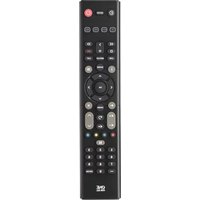
| Product type | Universal remote control |
| Brand | One For All |
| Model | URC4916 |
| Dimensions (approx.) | 20 x 5 x 2 cm |
| Weight (with batteries) | Approximately 120 g |
| Power supply | 2 AAA batteries (alkaline recommended) |
| Main functions | Infrared control of devices, code or learning setup, app shortcuts (Netflix, YouTube, etc.), teletext, subtitles, favorite channels list |
| Number of keys | Approximately 50 keys |
| Infrared range | Up to 10 meters (depending on device) |
| Compatibility | Most TVs, set-top boxes, and infrared audiovisual devices |
| Code setup | Enter a 4-digit code (list provided in the manual) |
| Learning function | Copy functions from another remote control via infrared |
| App shortcuts | 6 programmable keys to launch streaming apps |
| Maintenance and cleaning | Clean with a soft, dry cloth. Do not use liquids or abrasive products. |
| Safety | Risk of explosion if batteries are not of the correct type. Use alkaline batteries. |
| Spare parts and repairability | Batteries not included. No spare parts available. In case of failure, replace the remote control. |
| General information | Manual available in several languages. Warranty and recycling: see separate sheet. |
Frequently Asked Questions - URC4916 ONE FOR ALL
User questions about URC4916 ONE FOR ALL
0 question about this device. Answer the ones you know or ask your own.
Ask a new question about this device
Download the instructions for your Remote control in PDF format for free! Find your manual URC4916 - ONE FOR ALL and take your electronic device back in hand. On this page are published all the documents necessary for the use of your device. URC4916 by ONE FOR ALL.
USER MANUAL URC4916 ONE FOR ALL
natural_image
Simple line drawing of a rectangular object with a central shaded area, no text or symbols present.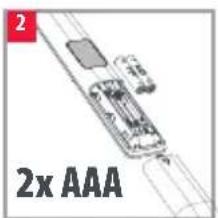
text_image
2x AAA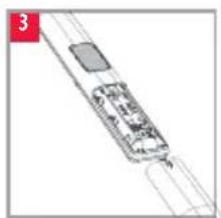
natural_image
Diagram of a vehicle interior with no visible text or symbols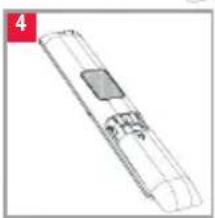
natural_image
Technical line drawing of a mechanical component with no visible text or symbols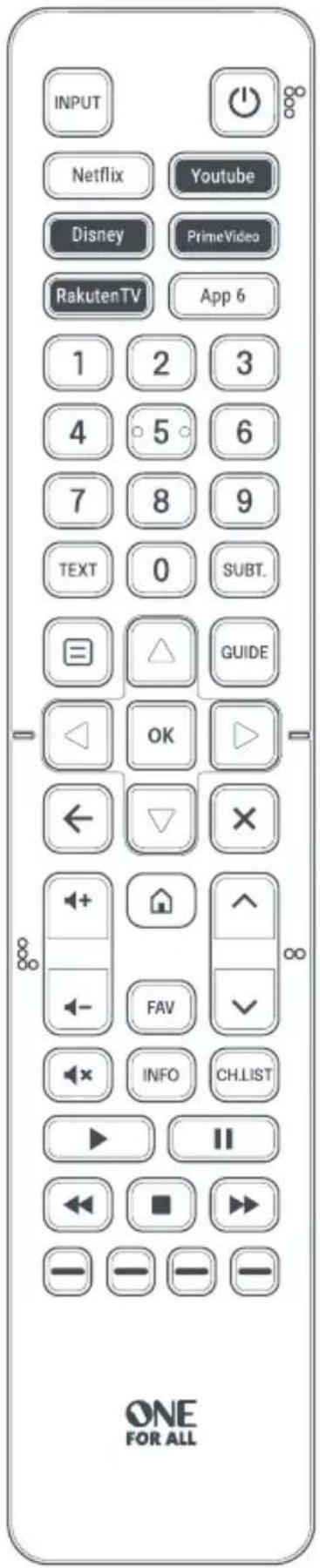
text_image
INPUT Netflix Youtube Disney PrimeVideo RakutenTV App 6 1 2 3 4 5 6 7 8 9 TEXT 0 SUBT. GUIDE OK ← △ × FAV INFO CH.LIST ▶ II ← ■ >> — — — — ONE FOR ALLKEY DESCRIPTIONS
text_image
INPUT Netflix Youtube Disney PrimeVideo RakutenTV App 6 1 2 3 4 5 6 7 8 9 TEXT 0 SUBT. 3 4 8 GUIDE 5 OK 9 10 ← × 11 7 13 ← + FAV ∞ 14 15 INFO CH.LIST 19 20 18 12 6 ONE FOR ALL
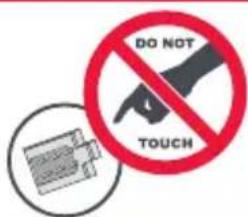
CAUTION: Risk of explosion if battery is replaced by an incorrect type. Use quality Alkaline batteries.
text_image
DO NOT TOUCHKEY DESCRIPTIONS
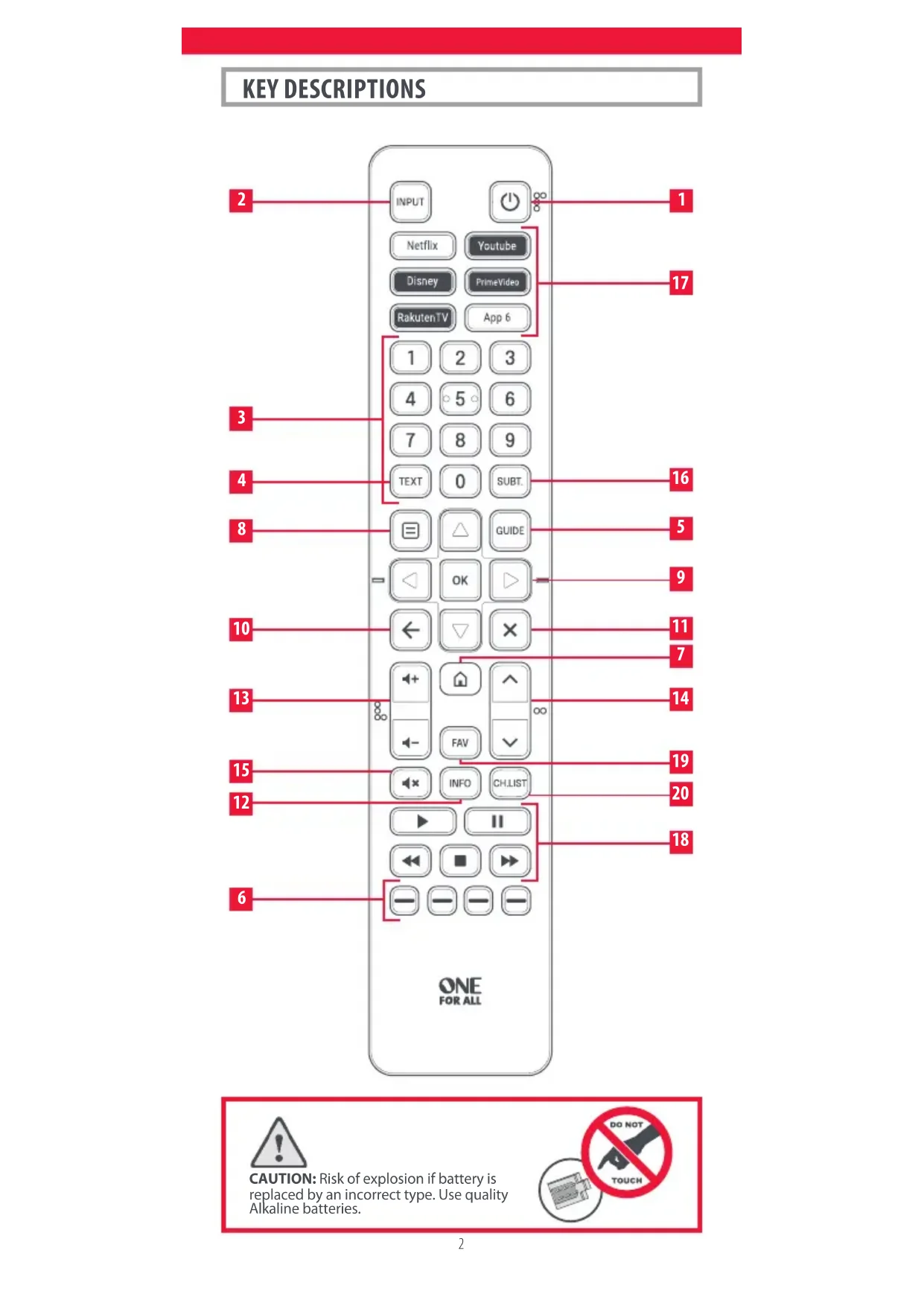
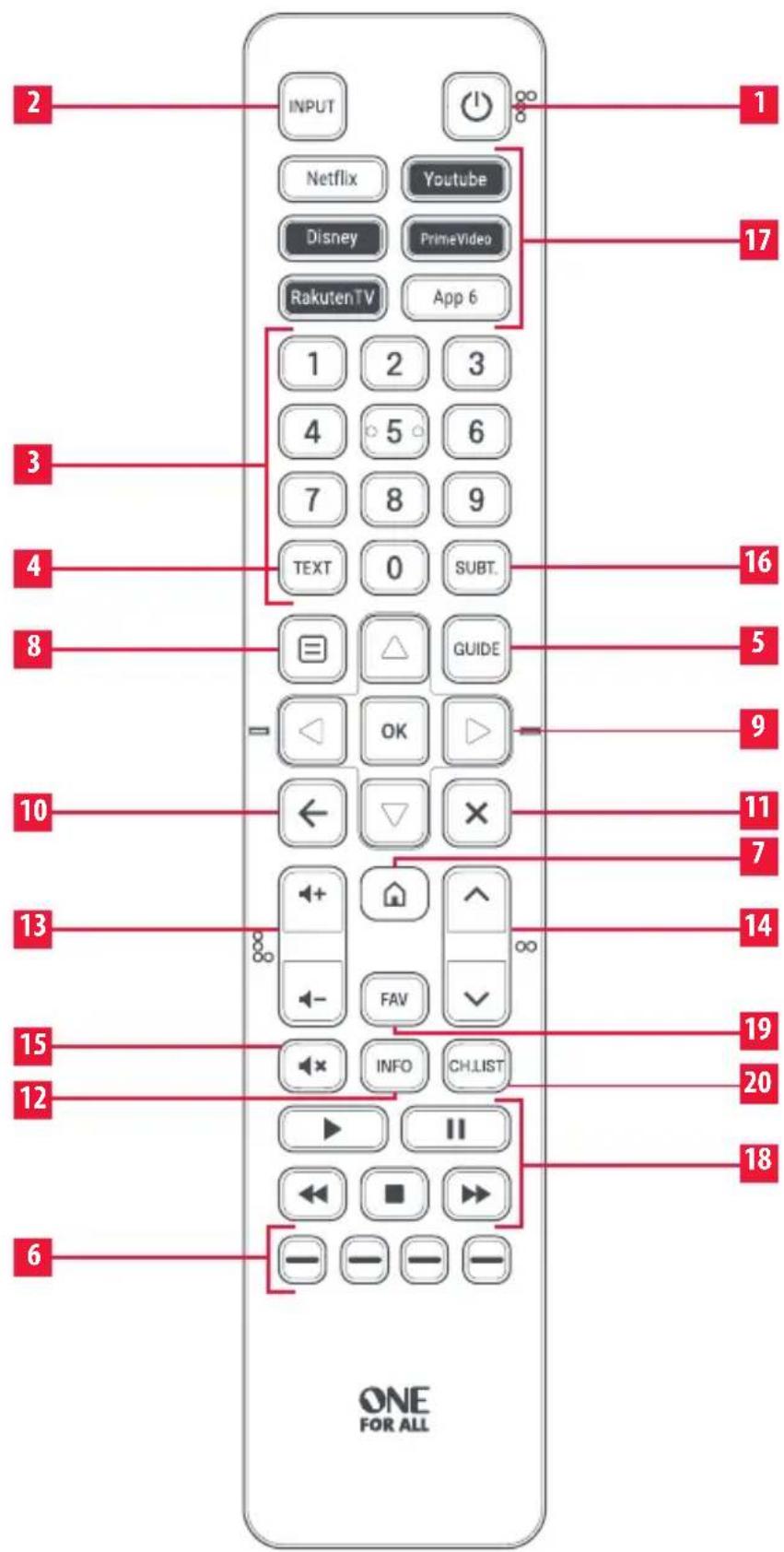
1 Power Switches your devices on and off.
2 Input Used to select Input on devices.
3 Digits Select channels on the current device.
4 Text Teletext on and off
5 Guide TV Guide.
6 RGYB keys Quick access buttons for the menu of the current device.
7 Home Displays the Home Menu.
8 Menu Access the installation menu of the TV.
9 Menu Directions and OK
Control the menu of the current device.
10 Back Back one step in the Menu.
11 Exit Exits the menu.
12 Info Displays information about the current programmes or channel.
13 Volume Up and Down
Control the volume of the current device.
14 Channel Up & Down
Change channels on the current device.
15 Mute Mutes the volume of the current device.
16 Subt. Subtitle.
17 App Shortcut Keys
Keys for starting streaming apps. See the App Shortcut Keys section for details.
18 Playback Keys Control the playback of movies, music and TV.
19 FAV Favourite Channels.
20 CH. LIST Channel List
SET UP YOUR TELEVISION
THE MAJORITY OF HISENSE TVs SHOULD WORK DIRECTLY.
After putting batteries in, just test some of the keys, and if they work, your remote is ready. If not, follow the next steps:
SETUP BY CODE
-
Turn on your device (not on standby) and point the OFA remote towards it.
-
Hold down Red + Blue until the LED behind the Power Key blinks twice.
-
Enter the first 4 digit code (e.g. 4903). The codes are listed in order of popularity from top to bottom and there are 4 columns from left to right. Most TVs will work with a code from the first few codes of column 1. (Codelist, Page 107).
-
The LED will blink twice on the last digit of the code.
-
Now aim the remote towards your device and press the Power key.
-
If the device turns off your remote is ready to use. If not, repeat steps 2-6 with the next code in the list.
LEARNING
Your OFA remote control can learn any function from any other working remote control. This is a quick and easy one-time setup that allows to control any infrared controlled device you have in your living room. It also allows you to add a key or keys that may be missing to a spare key on the OFA.
To do this, firstly make sure you have all your original remote controls to hand, and that they have working batteries in.
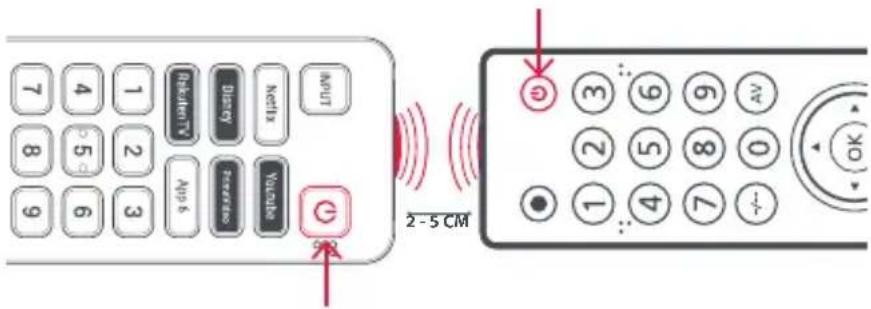
To learn functions, the original remote should be approximately 3cm from the OFA remote, pointing towards it:
text_image
7 8 9 1 2 3 4 5 6 7 8 9 10 11 12 13 14 15 16 17 18 19 20 21 22 23 24 25 26 27 28 29 30 31 32 33 34 35 36 37 38 39 40 41 42 43 44 45 46 47 48 49 50 51 52 53 54 55 56 57 58 59 60 61 62 63 64 65 66 67 68 69 70 71 72 73 74 75 76 77 78 79 80 81 82 83 84 85 86 87 88 89 90 91 92 93 94 95 96 97 98 99 100-
Hold down Red + Blue until the LED behind the Power Key blinks twice.
-
Press 975—the LED should blink twice.
-
Press and release the key you want to learn a function onto (for example the TV Power key) – the LED will begin to flash rapidly.
-
Press and release* the corresponding key on the original remote, for example Power.
SET UP YOUR TELEVISION
- The LED will blink twice to indicate the key has been learned correctly.
- Repeat steps 3 and 4 for each key you want to learn – remember you can learn from multiple remotes, but only one function per key.
- When you have learned all the functions you require, press and hold OK key until the LED blinks twice.
* Some remotes send commands differently. If you find a function cannot be learned, try holding down the key on the original remote instead of pressing and releasing.
Hints:
- If the LED shows one long blink at step 5, the function was not learned correctly, please try again from step 4.
- If you find one or more keys don't work properly after set up, you can re-enter the learning mode at any time by repeating the procedure from step 1.
Deleting a learned function
If you want to delete a learned function and return that keys to its original state, you can use the following procedure:
- Hold down Red + Blue until the LED behind the Power Key blinks twice.
- Press 976 – the LED should blink twice
- Press the key you want to reset twice – the LED should blink twice and the learned function has been deleted.
APP SHORTCUT KEYS
Netflix
Youtube
Disney
PrimeVideo
RakutenTV
App 6
The OFA features six App Shortcut Keys which can be used to open apps on your Smart Devices. If your original remote control has a Netfix, YouTube or Freeview Play key, these keys will perform the same function.
However if you did not have a key like this, but still had the ability to watch a streaming service, you can use this key as a shortcut by programming a macro on it. Most AV devices which are connected to the internet, such as Smart TVs or streaming Set Top Boxes have one or more applications they can run to access TV viewing via the internet. Examples of these would be Netflix, YouTube, Amazon Prime or similar.
APP SHORTCUT KEYS
To program the macro, you first need to know the device you use to access the service, and then the sequence of keys you need to press to always bring up the service you prefer. For example, some TVs will start Netflix by pressing the Apps key, then Menu Down Twice, and finally the OK key.
Once you have determined the sequence for your device, follow these steps:
- Sit in front of your device with It switched on (not on standby).
- Hold down the App Shortcut key until the LED blinks twice and stays lit.
- Now perform the sequence of keys exactly as would normally. The remote will operate your device and the macro is recorded in real time - so if it normally takes a few seconds for your device to react don't worry.
- Once you have finished the sequence - and the Streaming Service has started on your device - hold down the App Shortcut key until the LED blinks twice and goes out. The macro is now stored.
Tips
- Make sure the OFA remote Is operating the device in question before programming.
- If you find the Macro doesn't work as expected, you can just repeat the same sequence to reprogram.
- When programming, wait for your device to respond first, the remote will remember the timing.
- The App Shortcut macro is tied to one device, remember to make sure you are watching the correct device.
Connect with us

facebook.com/ @oneforall.worldwide linkedin.com/ youtube.com/ oneforallworldwide company/one-for-all-worldwide/ user/oneforallproducts


BESCHRIJVING KNOPPEN
SETTE OPP TV-APPARATET
FLESTEPARTEN AV NYERE TV-APPARATER FRA HISENSE VIL VIRKE DIREKTE.
SETTE OPP TV-APPARATET
text_image
7 8 9 4 5 6 1 2 3 Relativity Destroy Netch Avg 6 Performance Vuzette G 2-5 CM ⑤ ③ ② ④ ⑤ ⑥ ⑦ 0 OKhttps://www.oneforall.com/documents
ENGLISH - For safety precautions, product disposal, recycling and warranty information please see the separate sheet included.