OPD 910 - DVD player OK - Free user manual and instructions
Find the device manual for free OPD 910 OK in PDF.



| Product type | Portable DVD player with TFT LCD screen |
| Supported disc formats | DVD, DVD+R/+RW, DVD-R/-RW, SVCD, VCD, CD, CD-R/-RW, JPEG |
| Supported USB formats | MP3, MPEG4 (up to 800x600), XVID |
| Video output | 1 Vp-p (75 Ω) |
| Audio output | 1.2 Vrms (1 kHz, 0 dB) |
| Audio frequency response | 20 Hz - 20 kHz |
| Audio signal-to-noise ratio | 80 dB |
| Total harmonic distortion | < 3% |
| Power supply | AC/DC adapter (DC IN input), 12V car charger |
| Built-in battery | Rechargeable, initial charging time at least 4 hours |
| Remote control | Yes, with CR2025 battery |
| Main functions | Play, pause, search, zoom, subtitles, angle, repeat, programming, parental control |
| Screen rotation | Clockwise rotation, switch to tablet mode |
| Cleaning | With a soft cloth, avoid alcohol and chemicals |
| Safety | Do not expose to rain or moisture, do not open, laser risk |
| Video standard | NTSC / PAL |
| USB input | Up to 32 GB |
Frequently Asked Questions - OPD 910 OK
User questions about OPD 910 OK
0 question about this device. Answer the ones you know or ask your own.
Ask a new question about this device
Download the instructions for your DVD player in PDF format for free! Find your manual OPD 910 - OK and take your electronic device back in hand. On this page are published all the documents necessary for the use of your device. OPD 910 by OK.
USER MANUAL OPD 910 OK
E&o8oc (avtauopac AC/DC):9V = = = 1,0 A
ENΣΩMATΩMENH MNATAPIA : Lithium ion battery
THAEXEPIIETPHIO:1xCR2025,3V

USB
Thanks for your purchase of an ok. product. Please read this manual carefully and keep it for future reference.
IMPORTANT SAFETY INSTRUCTIONS. READ CAREFULLY AND KEEP FOR FUTURE REFERENCE.
- For safety reasons, this class II device is provided with double or reinforced insulation as indicated by this symbol.
-
The lightning flash with arrowhead within an equilateral triangle is intended to alert the user to the presence of uninsulated "dangerous voltage" inside the enclosure of this device, which may be of sufficient magnitude to constitute a risk of electric shock to persons.
-
The exclamation point within an equilateral triangle is intended to alert the user to the presence of important operating and maintenance instructions in the literature accompanying this device.
- DANGER! Invisible laser radiation when open and safety interlock failed or defeated. Avoid direct exposure to the beam. Do not touch the lens.
- For household use only. Do not use outdoors.
- DANGER! Excessive sound pressure from earphones and headphones can cause hearing loss. If you listen to loud music for a long time, your hearing may be impaired. Set to a moderate volume.
- Danger of suffocation! Keep all packaging material away from children.
- Only use under normal room temperature and humidity conditions.
- The product is only suitable for use at moderate degrees of latitude. Do not use in the tropics or in particularly humid climates.
- Do not move the product from cold into warm places and vice versa. Condensation can cause damage to the product and electrical parts.
- Do not use attachments or accessories other than recommended by the manufacturer or sold with this product. Install in accordance with this user manual.
- When installing the product, leave sufficient space for ventilation. Do not install in bookcases, built-in cabinets or of the sort.
- Do not impede ventilation by covering the ventilation openings with items, such as newspapers, table-cloths, curtains, etc. Do not insert any objects.
- Do not install near any heat sources such as radiators, heat registers, stoves or other products (including amplifiers) that produce heat.
- Do not shift or move the product when powered on.
- Do not touch, push or rub the surface of the product with any sharp or hard objects.
- Danger! To reduce the risk of fire or electric shock, do not expose this product to rain or moisture.
- The product shall not be exposed to dripping or splashing and no objects filled with liquids, such as vases, shall be placed on the product.
- Care should be taken so that no objects or liquids enter the enclosure through openings.
- No naked flame sources, such as lighted candles, should be placed on the product.
- Refer all servicing to authorised service agent. Do not attempt to repair the product yourself. Servicing is required when the product has been damaged in any way, such as the supply cord or plug are damaged, liquid has been spilled, objects have fallen into the product, the enclosure is damaged, the product has been exposed to rain or moisture, does not operate normally, or has been dropped.
- Before connecting the product to a socket outlet, make sure the voltage indicated on the product corresponds to your local mains.
- If the supply cord is damaged, it must be replaced by the manufacturer or its service agent or similarly qualified person in order to avoid hazard.
- Regularly check if the supply cord, product or extension cable is defective. If found defective, do not put the product into operation. Immediately pull the plug.
- Place the supply cord and, if necessary, an appropriate extension cable in such away that pulling or tripping over it is impossible. Do not allow the supply cord to hang down within easy reach.
- Do not jam, bend or pull the supply cord over sharp edges.
- Only use the provided adaptor.
EN
24
- The adaptor power plug is used as the disconnect device; the disconnect device shall remain readily operable. To completely disconnect the power input, disconnect the adaptor power plug.
- The product may not function properly or not react to the operation of any control due to electrostatic discharge. Switch off and disconnect the appliance; reconnect after a few seconds.
- Protect the supply cord from being walked on or pinched particularly at the plug, convenience receptacles and the point where it exits from the product.
- Disconnect the adaptor power plug in case of faults during use, during lightening storms, before cleaning and when not using the product for a longer period of time.
- Danger! Before cleaning, switch the product off and disconnect the adaptor power plug from the socket.
- When the product has reached the end of its service life, make it defective by disconnecting the adaptor power plug from the socket and cutting the cord in two.
- Caution! There is danger of explosion from improper replacement of the batteries. Replace batteries only with the same or equivalent type of battery.
- Always change the entire battery pack. Do not mix old and new batteries, or batteries with different charge state.
- Make sure the batteries are correctly inserted. Observe the polarity (+) plus / (-) negative on the battery and the housing. Improperly inserted batteries can lead to leakage or, in extreme cases, a fire or an explosion.
- Never expose batteries to excessive heat (e.g. bright sun, fire), and never throw them into fire. The batteries could explode.
- Remove used batteries. Remove the batteries if you know that the product will not be used for a longer period of time. Otherwise, the batteries could leak and cause damage.
- Keep batteries out of reach of small children. If batteries have been swallowed, seek immediate medical attention.
- Non-rechargeable batteries must not be recharged.
- If the batteries leak, remove them with a cloth and dispose of them accordingly. Prevent battery acid from coming into contact with skin and eyes. If you do get battery acid in your eyes, flush them thoroughly with lots of water and consult a physician immediately. If battery acid comes into contact with your skin, wash the affected area with lots of water and soap.
- Warning! Do not ingest the battery, Chemical Burn Hazard.
- This product (remote control) contains a coin/button cell battery. If the coin/button cell battery is swallowed, it can cause severe internal burns in just 2 hours and can lead to death.
- Keep new and used batteries away from children.
- If the battery compartment does not close securely, stop using the product and keep it away from children.
- If you think batteries might have been swallowed or placed inside any part of the body, seek immediate medical attention.
- Attention! In the event of a malfunction as a result of electrostatic discharge and momentary electrical surges, unplug the appliance and plug it in again or remove the batteries and install it again.
INTENDED USE
This product is intended for audio and video entertainment only. Any other use may result in damage to product or injuries.
The Imtron GmbH assumes no liability for damage to the product, for property damage or for personal injury due to careless or improper usage of the product, or usage of product which does not meet the manufacturer's specified purpose.
COMPONENTS
Main Unit
A. TFT LCD Display
B. Speaker
C. Rotatable and flip over joint
D. button (Open disc compartment)
E. Charge LED
F. Disc compartment
G. Navigation buttons (press once)
VOL- button (press and hold)- decrease volume
VOL+ button (press and hold) - increase volume
▶按钮 (press) - skip to next chapter/track
按钮 (press) - skip to previous chapter/track
H. Button - play/pause
1. SETUP button - system setup menu
J. SOURCE button - DVD or USB mode selection
K. USB port
L. Headphone jack
M. AUDIOVIDEO output
N. ON/OFF switch
O. DC IN jack
P. AC/DC adaptor and charger
Q. Car bag
R.RCA/3.5mm cable
S. Car charger
T. Earphone
U. Remote control
EN
26
COMPONENTS
Remote Control
1 SEARCH button
Go to time point, title or chapter (DVD mode).
2 STEP button
Playback of single frames
3 Numeric keypad 0-9/10+
Select a numbered item in the menu
4 SUBTITLE button
Press during playback repeatedly to display or change subtitles
5 ANGLE button
Change the view angle (DVD mode)
6 TITLE button
Return to DVD title menu
7 Navigation buttons
8 ENTER button
Confirm selection
9 SETUP button
Enter the system setup menu
10 REPEAT button
Repeat playback sequences
DVD Repeat a chapter/title or all
VCD/CD Repeat a track or all
MP3 Repeat one/Repeat folder/
ALL play mode
11 SLOW button
Slow motion playback
12 PROGRAM button
Repeat playback/program playback sequences
13 ZOOM button
Zoom in/out the picture in following order: 2x
→3x-4x 1/2 1/3-1/4 full screen
JPEG: Use ZOOM to enlarge or shrink the picture
- Press ZOOM
2.Use tolenlarge,or tod shorten the picture
Use the button to move through the zoomed picture
14 Battery compartment
15 / button
Fast reverse/forward during playback
16 / button
Skip to previous/next chapter or track
17 VOL+ button
Increase volume
18 VOL- button
Decrease volume
19 MODE button
Set LCD parameter - adjust brightness, contrast and saturation - during video playback
20 11 button
Play/pause the playback
21 button
Press once to pause and twice to stop/cancel playblack
22 MENU button
Go to menu (DVD mode)
PBC on/off switch for VCD
23 AUDIO button
DVD Press during playback to hear a different audio language or audio track, if available.
VCD/CD Press during playback to hear a different audio channel (Stereo, Left, or Right).
24 DISPLAY button
Press repeatedly to show the elapsed playing time, languages, etc. depending on the disc inserted.
25 SOURCE button
Change to DVD or USB mode
26 MUTE button
Disable the sound
BEFORE FIRST TIME USE
- Remove the product and accessories carefully from the original packaging.
- Inspect the delivery contents for completeness and damages.
- Should the delivery contents be incomplete or damaged, contact your sales outlet immediately.
- The remote control battery is already inserted and protected by a battery divider. Before using the remote control remove the battery divider stripe by simply pulling it out.
REPLACING REMOTE CONTROL BATTERY
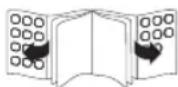
Push in direction of arrow and slide battery holder out.
2 Remove old battery if any. Insert 1× battery (Type CR2025) in the battery compartment. Make sure the polarity is correct as indicated.
HEADPHONES
3 Connect earphones to the headphone jack if desired.
VOLUME ADJUSTING
4 Set desired volume on the DVD player or remote control.
CHARGING BATTERY
Make sure the power switch is set to OFF.
Plug the power adapter cable into the DC IN jack.
7 Connect the adapter to a suitable power outlet.
8 During charging: Charge LED is flashing green. Full battery: Charge LED will turn green.
Note: Charge battery for at least 4 hours before using first time! If the built-in battery power is low. Low Battery is shown flashing on screen, then the player will turn itself off automatically. The DVD player can also be permanently powered by the AC/DC adapter and charger independent from the battery charging level.
CONNECTING TO A TV
9 Use AV cable to connect AUDIO and VIDEO outputs to respective inputs of TV.
USING THE CAR ADAPTER
The product is supplied by 12 V only. DO NOT connect to 24 V on board power supplies or adapters.
SCREEN ROTATION
11 Rotate the screen clockwise. Flip over the screen to use as a tablet.
DISC PLAYBACK
12 Slide the ON/OFF switch to ON position to turn on the DVD player.
13 Press button to open the disc compartment and insert a DVD.
14 Close disc compartment. Playback will start automatically.
Note: Some discs may start automatically. If no disc is inserted, the display will show No disc. If the playback does not start automatically, press SOURCE button and choose DVD mode.
EN
28
SETUP MENU SETTING
Press SETUP button to get the setup menu. Use direction buttons to select the preferred item and confirm selection by pressing ENTER. After finishing settings, press SETUP again to normal display.
The following menu items can be changed:
GENERAL : selects the GENERAL PAGE menu.
AUDIO : selects the AUDIO PAGE menu.
VIDEO : selects the VIDEO PAGE menu.
PREFERENCE : selects the PREFERENCE PAGE menu.
password : selects the PASSWORD PAGE menu.
GENERAL SETUP PAGE
15 TV DISPLAY: selects the aspect ratio of the playback picture.
4:3 PANSCAN: if you have a normal TV and want both sides of the picture to be trimmed or formatted to fit your TV screen.
4:3 LETTERBOX: if you have a normal TV. In this case, a wide picture with black bands on the upper and lower portions of the TV screen will be displayed.
16:9: wide screen display.
WIDE SQUEEZE: Set screen mode to 4:3.
ANGLE MARK
Displays current angle setting information on the right hand corner of the TFT screen if available on the disc.
OSD LANGUAGE
You can select your own preferred language settings.
CLOSED CAPTIONS
Closed captions are data that are hidden in the video signal of some discs. Before you select this function, please ensure that the disc contains closed captions information and your TV set also has this function.
SCREENSAVER
This function is used to turn the screen saver On or Off
AUTO STANDBY
This function is used to select auto standby settings after 3 or 4 hours.
3 HOURS: the unit will turn to standby mode after 3 hours if there is no interaction from user within this period of time.
4 HOURS: the unit will turn to standby mode after 4 hours if there is no interaction from user within this period of time.
OFF: the auto standby function is disabled, and unit will stay in "on" mode even if no interaction from user.
AUDIO SETUP PAGE
16DOWNMIX
This options allows you to set the stereo analog output of your DVD Player.
LT/RT : Select this option if your DVD Player is connected to a Dolby Pro Logic decoder.
Stereo : Select this option when output delivers sound from only the two front speakers.
DOLBY DIGITAL
The options included in Dolby Digital Setup are: DUAL MONO and DYNAMIC.
DUAL MONO
Stereo: Left mono sound will send output signals to Left speaker and Right mono sound will send output signals to Right speaker.
L-Mono: Left mono sound will send output signals to Left speaker and Right speaker.
R-Mono: Right mono sound will send output signals to Left speaker and Right speaker.
Mix-Mono: Left and Right mixed mono sound will send output signals to Left and Right speakers.
DYNAMIC
Dynamic range compression.
VIDEO SETUP PAGE

Brightness, Contrast, Hue, Saturation: setting the video quality.
PREFERENCE PAGE
TVTYPE
Selecting the colour system that corresponds to your TV when AV outputs. This DVD Player is compatible with both NTSC and PAL.
PAL - Select this if the connected TV is PAL system. It will change the video signal of a NTSC disc and output in PAL format.
NTSC - Select this if the connected TV is NTSC system. It will change the video signal of a PAL disc and output in NTSC format.
Auto: Change the video signal output automatic according to the playing disk format.
AUDIO: Selects a language for audio (if available).
SUBTITLE: Selects a language for subtitle (if available).
DISC MENU: Selects a language for disc menu (if available).
PARENTAL
Some DVDs may have a parental level assigned to the complete disc or to certain scenes on the disc. This feature lets you set a playback limitation level. The rating levels are from 1 to 8 and are country dependent. You can prohibit the playing of certain discs that are not suitable for your children or have certain discs played with alternative scenes.
DEFAULT: back to factory settings
EN
30
password setup PAGE

password MODE
Set password mode on/off. If set to off, change parental level will not check password.

Password: select the menu password change page.
OLD PASSWORD
Enter the OLD password, (Factory setting is 1369), and the cursor will jump automatically to NEW PASSWORD.
NEW PASSWORD
Enter the NEW password. Enter 4 digits from the remote control unit numeric buttons, and the cursor will automatically jump to CONFIRM PASSWORD.
CONFIRM PASSWORD
Confirm the NEW password by entering it again. If the confirmation is incorrect, the cursor will stay in this column. After entering, the correct new password again, the cursor will jump automatically to OK.
OK
When cursor is on this button, press ENTER key to confirm setting.
Note: If the password has been changed, the parental and disc lock code will also be changed. The default password (1369) is always active even the password has been changed.
USB PLAYBACK
Insert a USB device with media in the USB port. Playback will start automatically.
If the playback does not start automatically, press SOURCE button and choose USB mode.
Not all USB device can be supported by this DVD Player. Only support USB device up to 32 GB.
Note: Connect the USB device directly to the USB port of the unit. Using an extension cable is not recommended and may cause interference and failure of data transfer.
USB MENU
Press the SOURCE button and select MEDIA and USB.
Compatible files and folders of the USB stick are shown.
Use the navigation keys to select a file or folder and confirm with ENTER button. The selected file or folder will be opened.
For leaving subfolder and to get back to next parent folder select .. and press ENTER.
AudioPlayback
Press or button to choose the desired music files and confirm with ENTER button.
View Pictures
- Press or button to choose the desired image files and confirm with ENTER button.
Press or button to rotate the image.
To leave the picture viewer press MENU/PBC button.
Watch videos
Supported format: MPEG 2 (not higher than 720 X 576), MPEG 4 (not higher than 800 X 600), XVID format
CLEANING AND CARE
Unplug the DVD player before cleaning.
- Clean the DVD player with a soft cloth. Never use substances such as alcohol, chemicals or household cleaners on the DVD player.
- To avoid deformations and color fading, wipe off water drops as soon as possible.
TROUBLESHOOTING
If there are any problems during operation, please refer to the following table. If problems cannot be solved as indicated under Solution, please contact your manufacturer.
| Symptom Possible Causes and | what you should do |
| No picture or sound · Ensure the power button is on. · Ensure the power outlet is operational. · Ensure the power cord is not damaged. · Ensure the power plug is connected firmly to the outlet. | · Ensure the power outlet is operational. · Ensure the power cord is not damaged. · Ensure the power plug is connected firmly to the outlet. |
| Poor picture or sound · Ensure you have set the player's AUDIO settings correctly. · Ensure the disc is not scratched or stained. | · Ensure the disc is not scratched or stained. |
| BAD DISC displayed | · Ensure the disc is not warped, damaged or deformed. · Ensure the disc is not badly stained or damaged. · Ensure the disc format is compatible with the player. · Please check whether you have tried to play a software CD. If so, please restart the player. |
| Remote not working · Make sure the Main units POWER button is on. · Ensure the remote battery are working. · Point the remote control directly at the player's IR sensor. · Remove any obstacles between the remote and the IR sensor. | · Ensure the main units POWER button is on. · Ensure the remote battery are working. · Point the remote control directly at the player's IR sensor. · Remove any obstacles between the remote and the IR sensor. |
| Unit not working · Turn off the power, and then turn it on again. | · Power, and then turn it on again. |
| NO DISC displayed · Ensure you have put the disc on the tray. · Ensure the disc is not upside down. · Ensure the disc is not distorted, stained or scratched. | · Ensure the disc is not upside down. · Ensure the disc is not distorted, stained or scratched. |
EN
32
SPECIFICATION
DISPLAY FEATURES
Video standard: NTSC / PAL
Discs Compatibility : DVD, DVD+R / +RW, DVD-R / -RW, SVCD / VCD, CD, CD-R / -RW, JPEG
VIDEO OUT:1 Vp-p (75Ω)
AUDIO OUT
Audio out level : 1.2 Vrms (1 kHz, 0 dB)
Frequency response: 20Hz - 20kHz
S/N ratio : 80 dB
Total harmonic distortion: < 3%
ADAPTOR
Input (AC/DC adaptor): 100 - 240 V~, 50 / 60 Hz
Output (AC/DC adaptor):9V
INTEGRATED BATTERY: Lithium ion battery
REMOTE CONTROL: 1 x CR2025, 3 V

USB
Playback media : MP3, MPEG 4 (not higher than 800 X 600), XVID
DISPOSAL
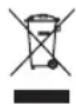
Do not dispose of this product as unsorted municipal waste. Return it to a designated collection point for the recycling of WEEE. By doing so, you will help to conserve resources and protect the environment. Contact your retailer or local authorities for more information.

Please dispose of batteries in an environmentally friendly manner. Do not put batteries into the household waste. Please use the return and collection systems in your community or contact the dealer where you purchased the product.
ENHORABUENA
Se做不到 all the databases in the database.
Entrée (adaptateur CA/CC): 100 - 240 V~, 50 / 60 Hz
Sortie (adaptateur CA/CC): 9 V
BATTERIE INTÉGREE : Lithium ion battery
TELECOMMANDE:1xCR2025,3V
USB
14 Compartmento battery
Interruptions PBC on/off per VCD
23 Tasto AUDIO
14 Batterijcompartment
15 / 10p
16 / 12 yckk
Skip to previous/next chapter or track
17 Przycisk VOL+ Zwiekszanie poziomu glosnosci
PASSWD:wybormenuSTRONYHASLA
STRONA OGOLNEJ KONFIGURACJI
Sáida (transformador de CA/CC):9V = = = 1,0 A
BATERIA INTEGRADA : Lithium ion battery
CONTROLO REMOTO: 1 × CR2025, 3 V
USB
Suporte de reproducao: MP3, MPEG 4 (nao superior a 800 X 600),XVID
ELIMINACAO
1.ZOOM tu'suna basin