MaxStream MR8300 - Router LINKSYS - Free user manual and instructions
Find the device manual for free MaxStream MR8300 LINKSYS in PDF.



| Brand | Linksys |
| Model | MaxStream MR8300 |
| Product type | Tri-band AC2200 mesh Wi-Fi router |
| Frequency bands | 2.4 GHz and 5 GHz (x2) |
| Wi-Fi standards | IEEE 802.11a/b/g/n/ac |
| Number of antennas | 4 adjustable external antennas |
| Ports | 4 Gigabit Ethernet ports (10/100/1000), 1 Gigabit Internet port, 1 USB 3.0 port |
| Buttons | Power, Reset, WPS |
| Power | 12 V, 2 A |
| Dimensions (without antennas) | 213.7 mm x 161.8 mm x 54.8 mm |
| Weight | 608 g |
| Wireless security | WPA2/WPA mixed, WPA2 Personal |
| Encryption | Up to 128-bit |
| Software features | Parental controls, device prioritization, guest access, speed test, notifications |
| Mobile app | Linksys (iOS 9.0+, Android 4.1+) |
| Certifications | FCC, IC, CE, Wi-Fi |
| Operating temperature | 0 to 40 °C |
| Operating humidity | 10% to 80% non-condensing |
| Maintenance and cleaning | Use a soft dry cloth. Do not use chemicals. |
| Spare parts and repairability | No user-serviceable parts. Contact Linksys support for repairs. |
Frequently Asked Questions - MaxStream MR8300 LINKSYS
User questions about MaxStream MR8300 LINKSYS
0 question about this device. Answer the ones you know or ask your own.
Ask a new question about this device
Download the instructions for your Router in PDF format for free! Find your manual MaxStream MR8300 - LINKSYS and take your electronic device back in hand. On this page are published all the documents necessary for the use of your device. MaxStream MR8300 by LINKSYS.
USER MANUAL MaxStream MR8300 LINKSYS
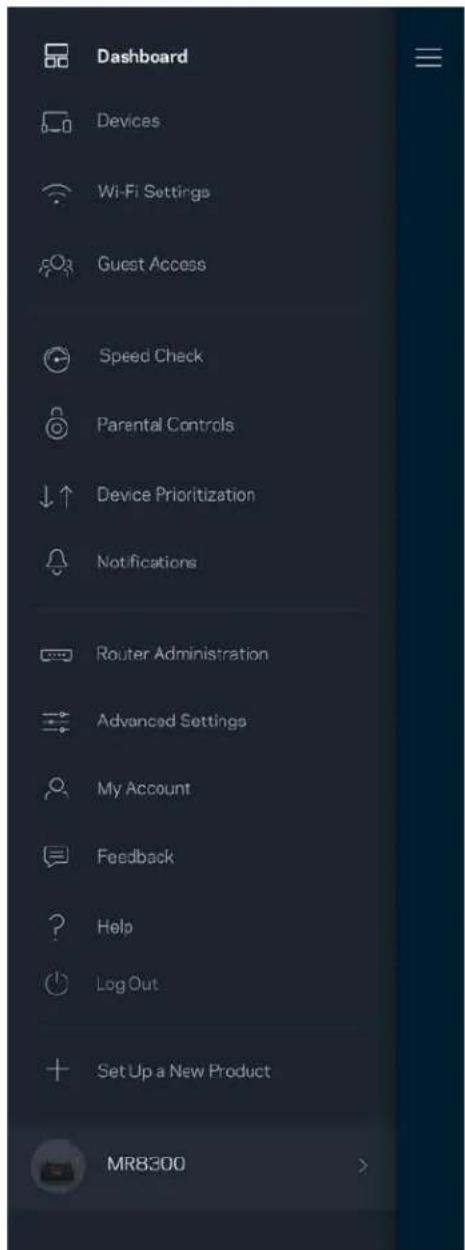
Where to find more help 7
Set Up 8
What you'll need 8
Linksys Whole Home Wi-Fi System Settings 12
Log in to the Linksys app 12
Dashboard 13
Devices 14
To view or change device details 15
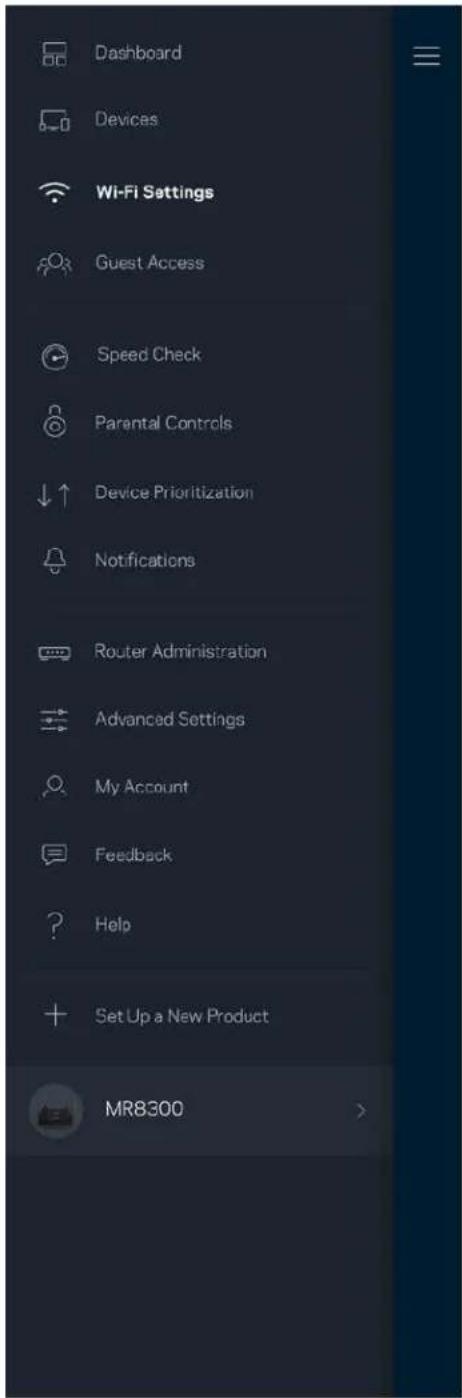
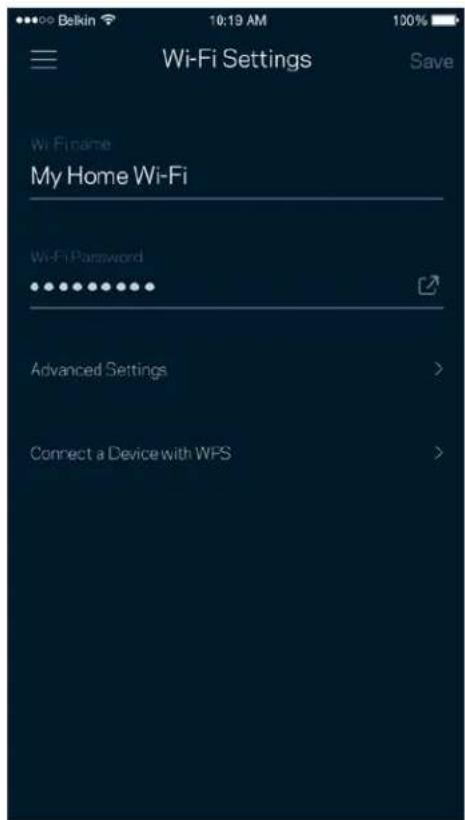
Wi-Fi Settings 16
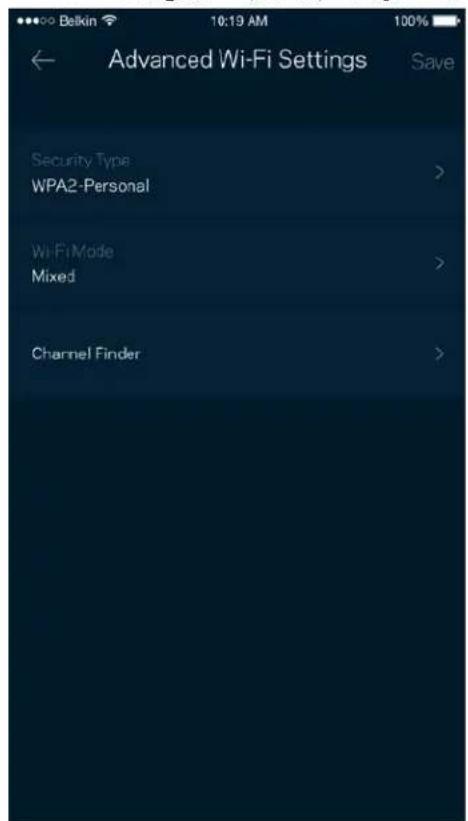
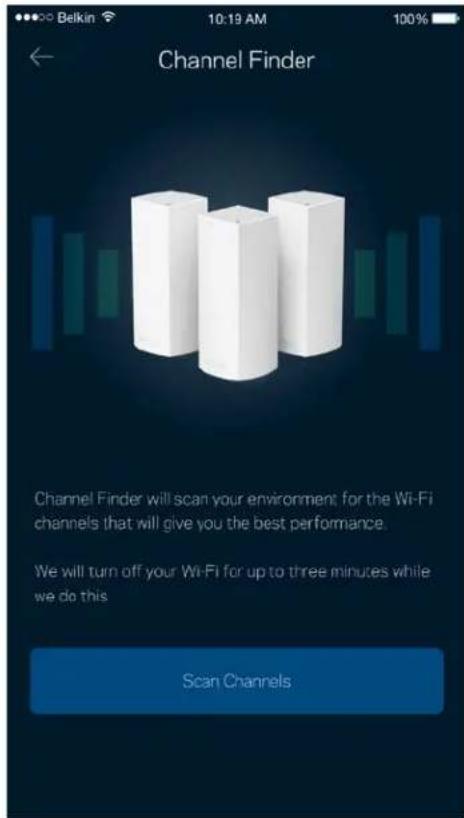
Advanced Settings 17
Connect a Device with WPS 18
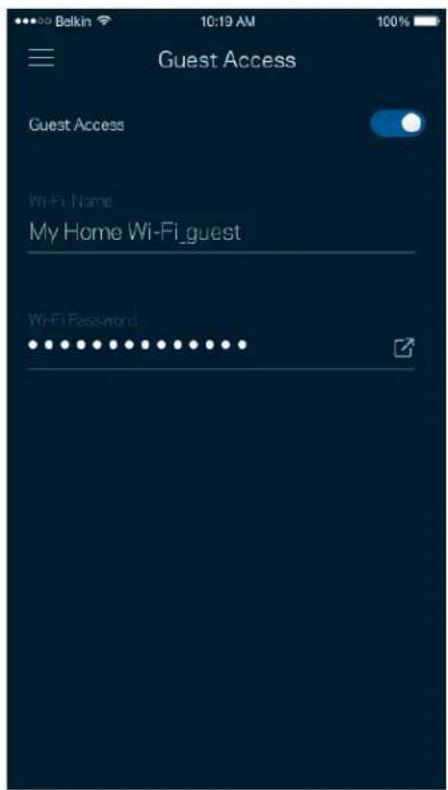
Guest Access 19
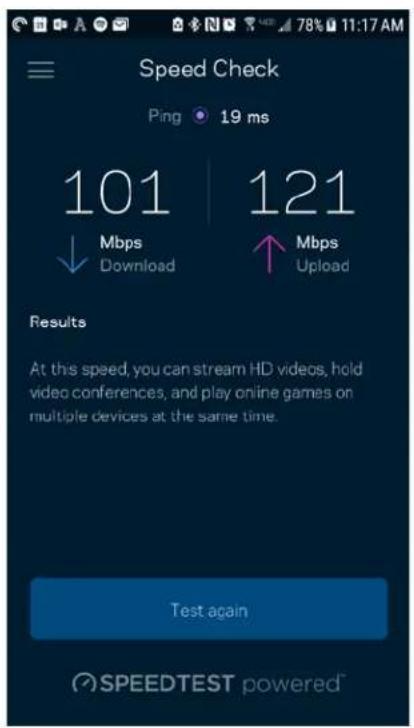
Speed Check 20
Parental Controls 21
Device Prioritization 22
Notifications 23
Router Administration 24
Advanced Settings 26
Internet Settings 26
Port Settings 27
Wi-Fi MAC Filters 28
My Account 29
Feedback 30
Help 31
Connect Directly To Your Router 32
Router password 33
How to factory reset your router \_\_\_\_ 34
Specifications 35
Linksys MR8300 35
Environmental 35
Product Overview
Front/top
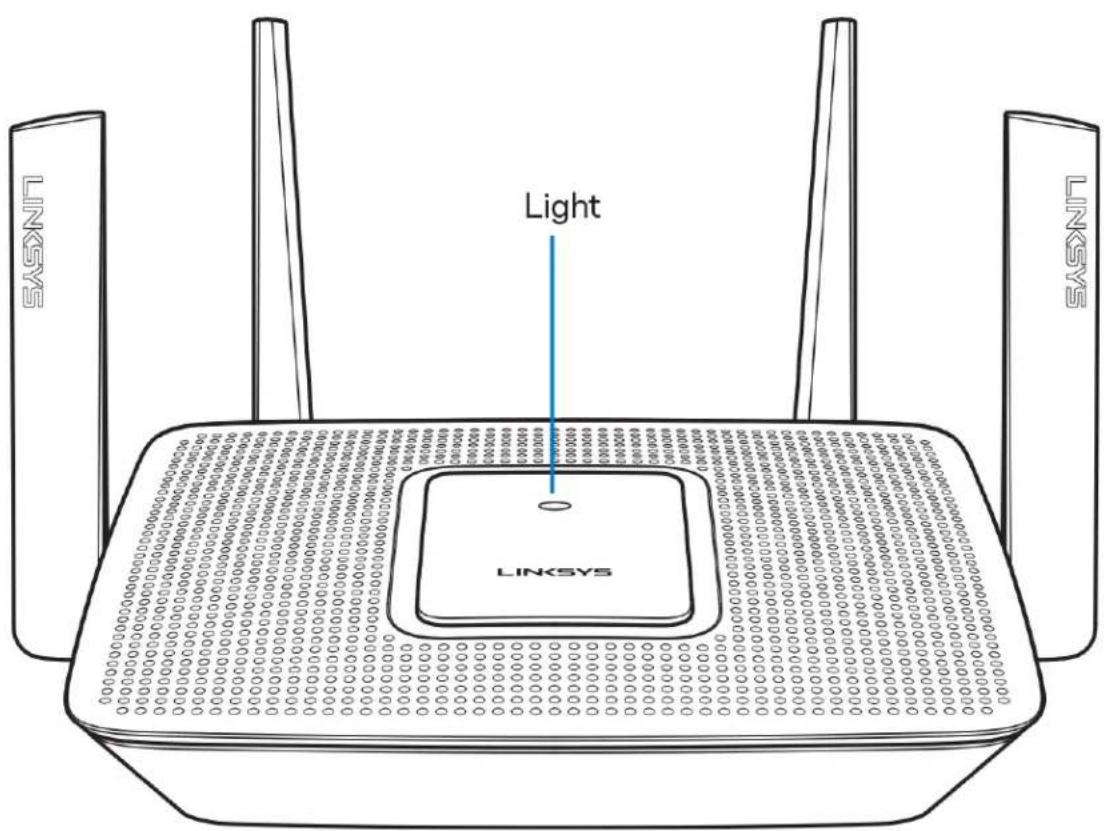
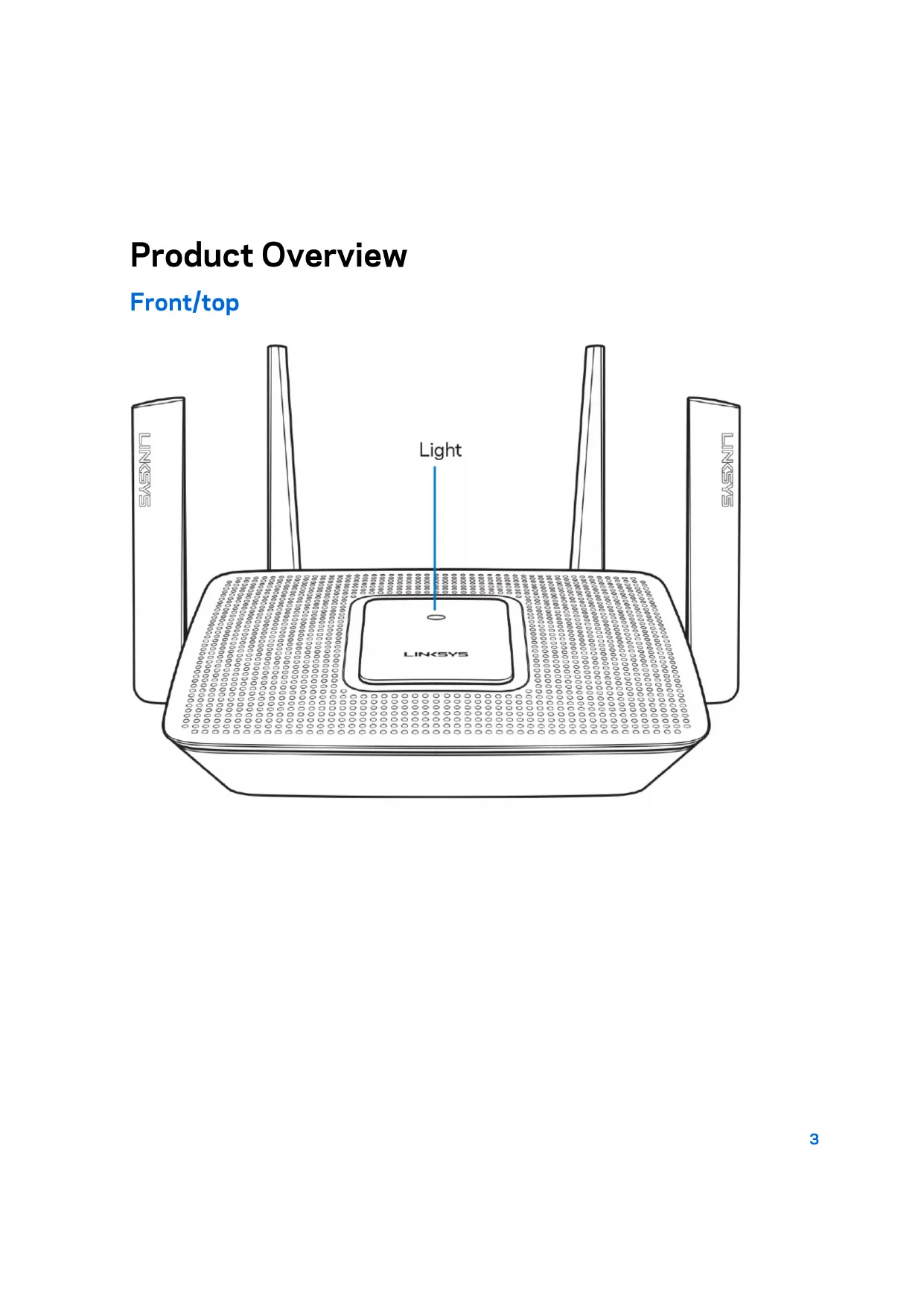
The light on the top of your router gives you information about the router's operation.
Normal Operation
| Light description Status | |
| Blue (blinking) | Starting upWait for the router to finish starting up. |
| Purple | Ready for setupOpen the Linksys app to complete setup. |
| Purple (blinking) | Setup in progressFollow instructions in the app. |
| Blue | Connected to internetRouter is online, everything is good. |
| Red | No internetNot online, check with your ISP for service interruptions. |
| Red (blinking) | Not plugged in to modemMake sure your router is firmly connected to the modem. |
WPS
| Blue (blinking) Pairing started | |
| Yellow (blinking) Pairing unsuccessful | |
| Blue Pairing successful |
Back
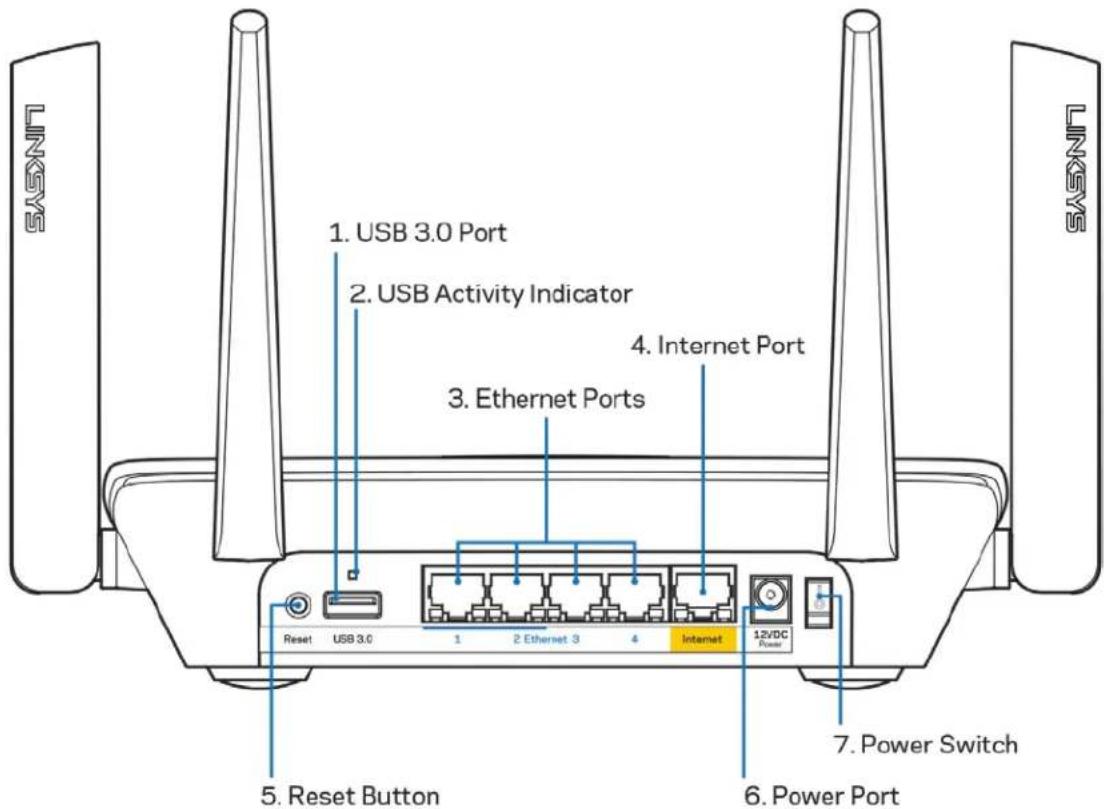
USB 3.0 port (1)— Connect and share USB drives on your network or on the internet.
Note—You might need to update your router firmware to use this port.
USB activity indicator (2)—Lights indicate data transfer to/from external devices.
Ethernet ports (3)—Connect ethernet cables to these blue gigabit (10/100/1000) ports, and to wired devices on your network.
Note—For best performance, use CAT5e or higher rated cables on the Ethernet ports.
Internet port (4)—Connect an ethernet cable to this yellow gigabit (10/100/1000) port, and to a broadband internet cable/DSL or fiber modem.
Note—For best performance, use CAT5e or higher rated cable on the Internet port.
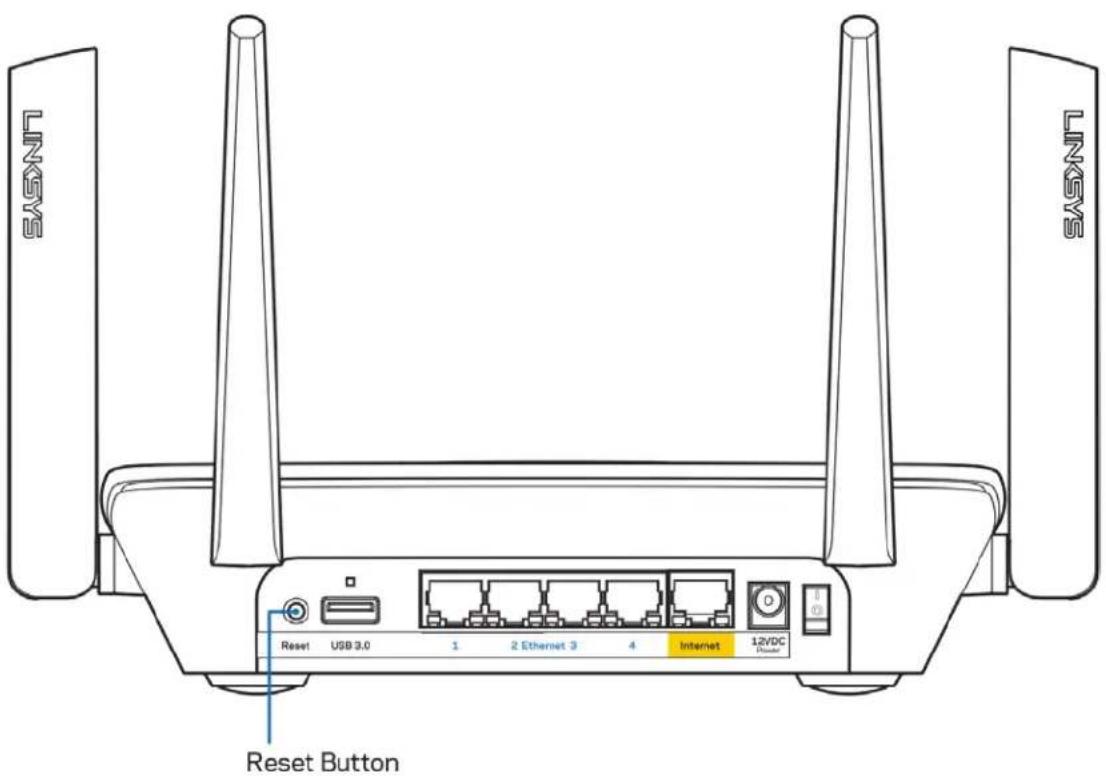
Reset button (5)— To factory reset your router, press and hold while the light on top of the router blinks red. Do not release the button until the light goes out and then turns bright red.
Power port (6)—Connect the included AC power adapter.
Power switch (7)—Press | (on) to turn on the router.
Side
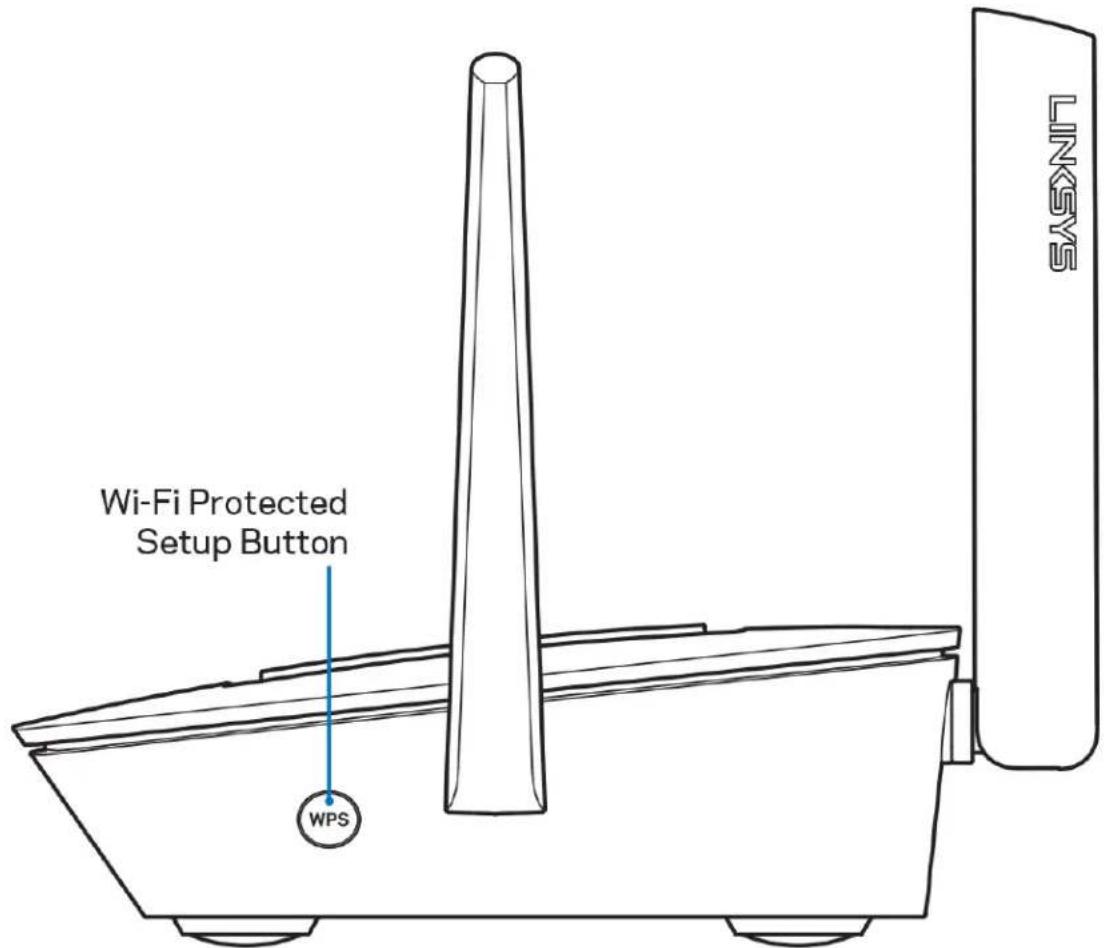
Wi-Fi Protected Setup™ button—Press to connect to WPS-enabled network devices.
Help
Where to find more help
- Linksys.com/support/MR8300
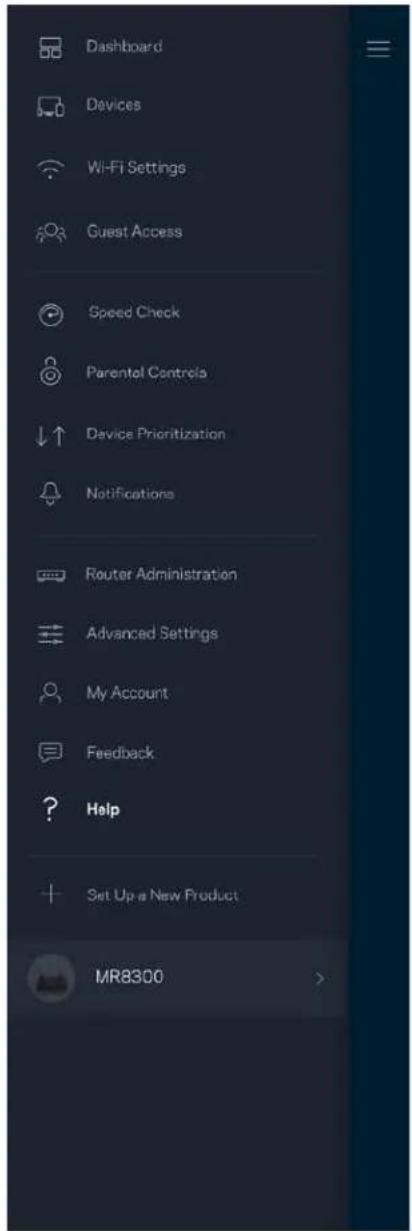
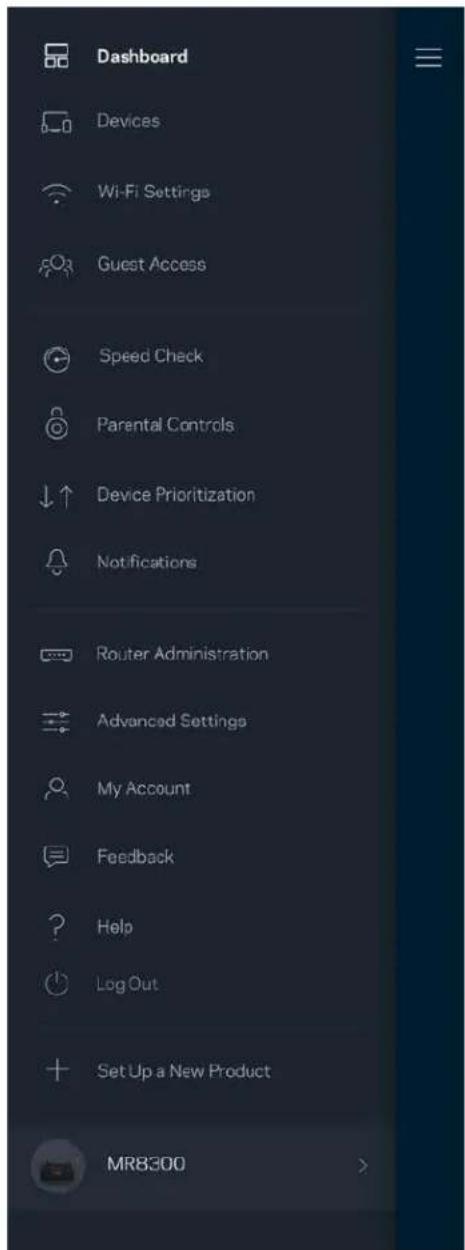
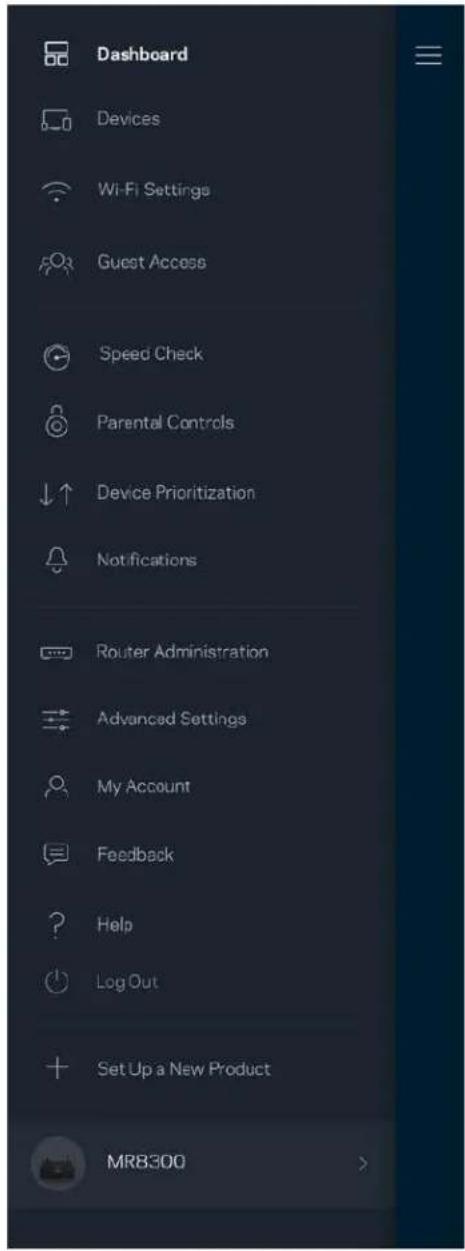
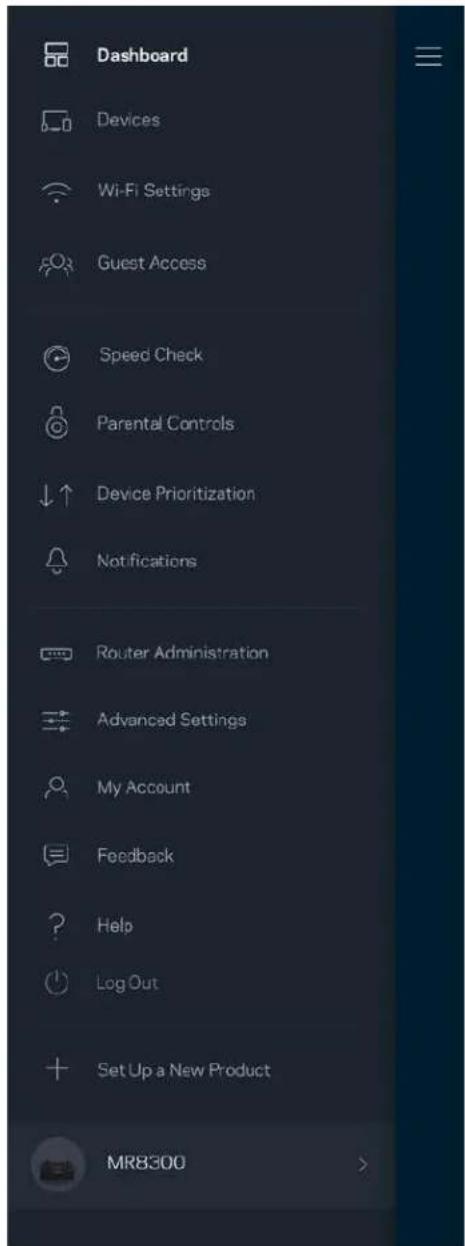
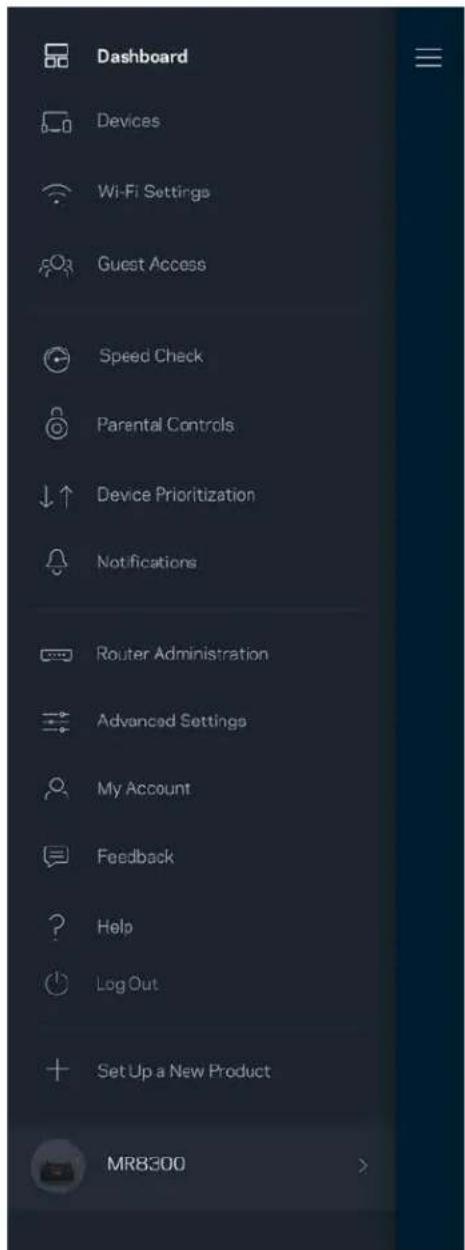
- Linksys app help (launch the app and click Help in the main navigation menu)
Note—Licenses and notices for third party software used in this product may be viewed on http://support.linksys.com/en-us/license. Please contact http://support.linksys.com/en-us/gplcodecenter for questions or GPL source code requests.
Set Up
IMPORTANT—Your MR8300 can only be set up as a primary node in a whole home mesh Wi-Fi system. A primary node must be connected with an ethernet cable to your modem or modem router. Secondary nodes can be connected wirelessly or with ethernet cables.
If you are adding the router to an existing Velop whole home mesh Wi-Fi system, factory reset all nodes and add them to the system after your MR8300 is setup and working.
Download the Linksys app. You need this app to set up your router.
Go to the app store for your device and search for Linksys.

What you'll need
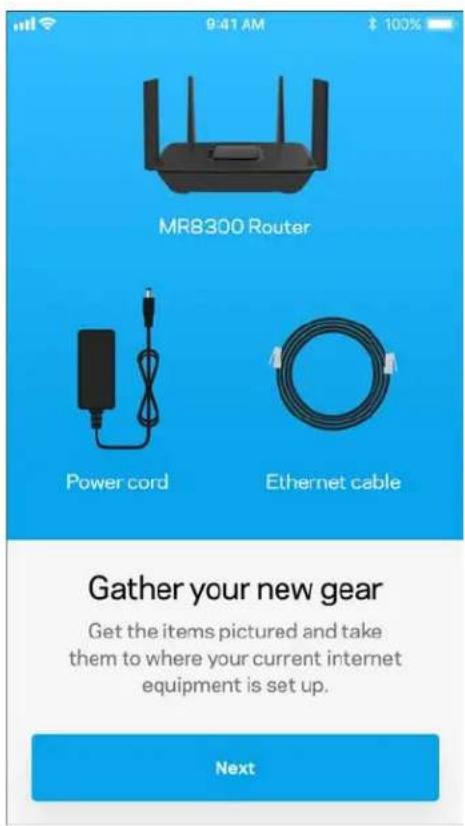
Install the app, open it and follow the instructions.
Note—The app works with iOS 9.0 and later, and Android 4.1 and
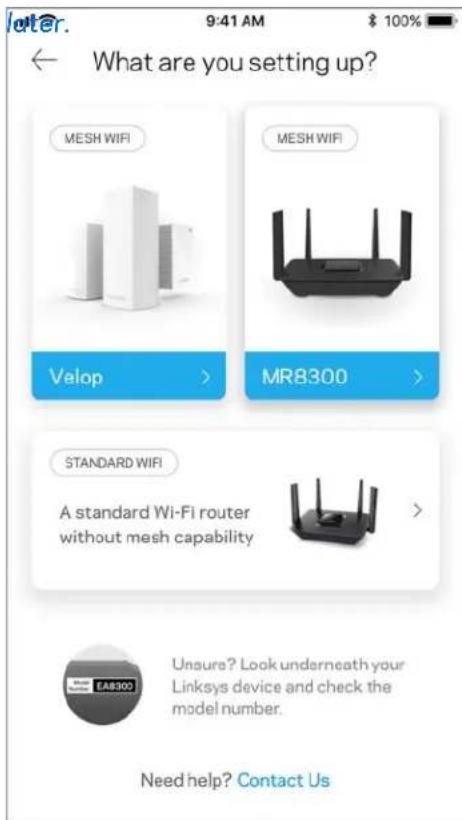
During setup you will create a Linksys Smart Wi-Fi account so you can use the app to view or change your router system settings from anywhere you have an internet connection.
Among the many things you can do with Linksys Smart Wi-Fi and the Linksys app:
• Change your Wi-Fi name and password
- Set up guest access
- Connect devices to Wi-Fi with WPS
• Block internet with parental controls
• Test your internet connection speed
Note—We'll send you a verification email. From your home network, click the link in the email to connect your router with your account.
Other than plugging in the power and the ethernet cable, the app-based setup process does the work for you. Once connected, use the app to personalize your Wi-Fi by giving it a name and password. You also can give your router and any secondary nodes names based on where they are so you can identify them in the rare case where things need attention.
If you intend to add Velop nodes to create a whole home mesh Wi-Fi system, they can be set up anywhere within range of a working node. Only the MR8300 has to be wired to the modem or modem router. Don't worry, the app will help you place your nodes.
Print this page, then record your Wi-Fi and account settings in the table as a reference. Store your notes in a safe place.
| Wi-Fi Name | |
| Wi-Fi Password | |
| Router Password | |
| Guest Access Name | |
| Guest Access Password | |
| Linksys App Login Email Address | |
| Linksys App Password |
Your Linksys app login email address and password can also be used to log in at LinksysSmartWiFi.com. You can view or manage your Wi-Fi in an internet browser.
Linksys Whole Home Wi-Fi System Settings
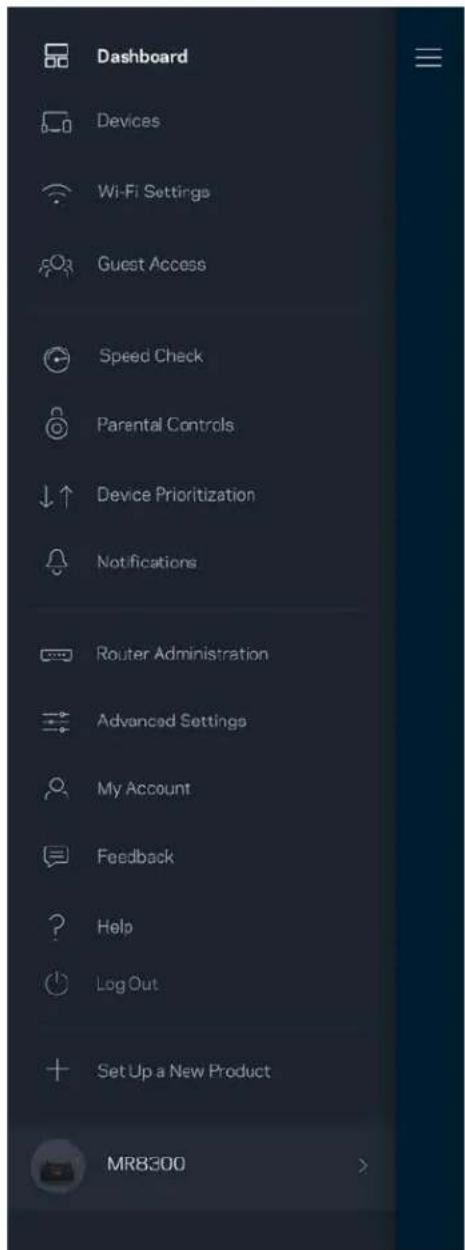
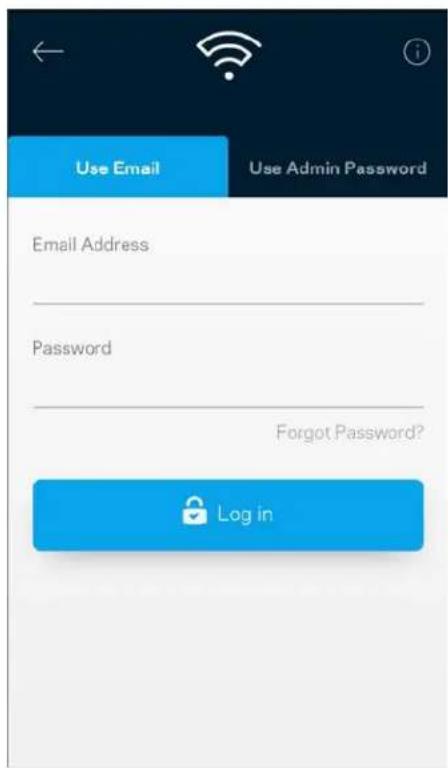
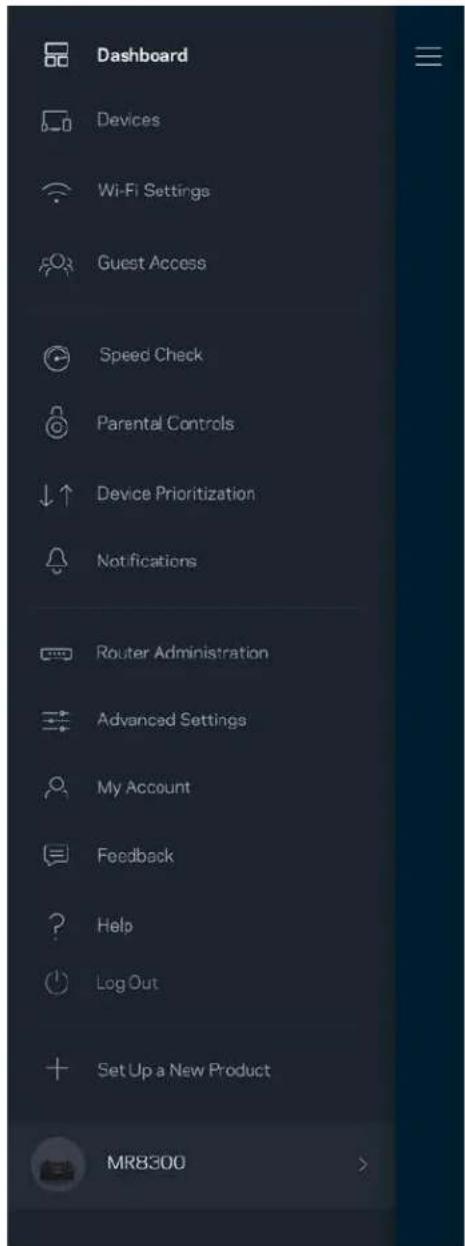
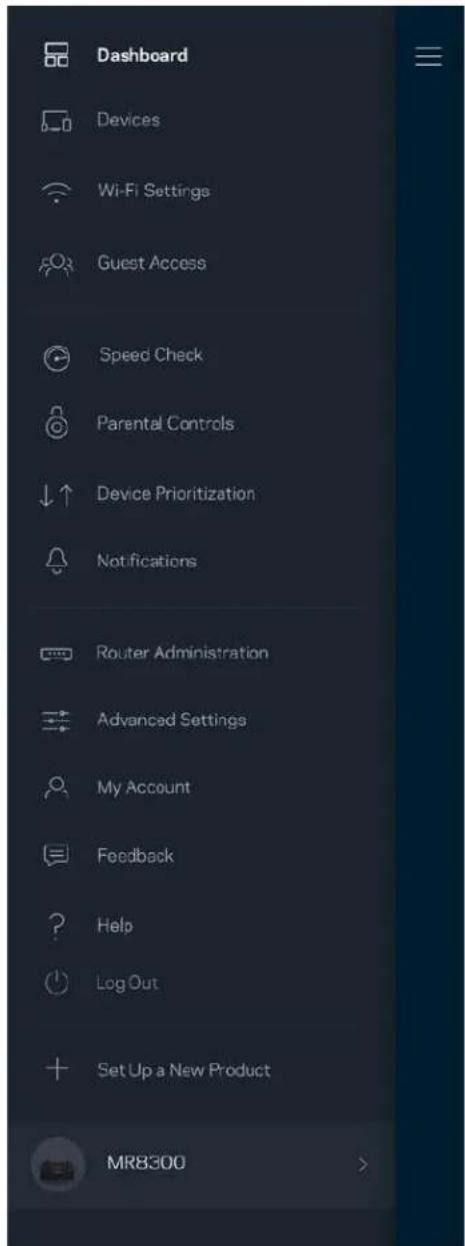
Using your Linksys app, you can view or change Wi-Fi system settings including security and parental controls. You can access settings from anywhere in the world if you have an internet connection. You can also access your system directly from your home network, even if you don't have an internet connection.
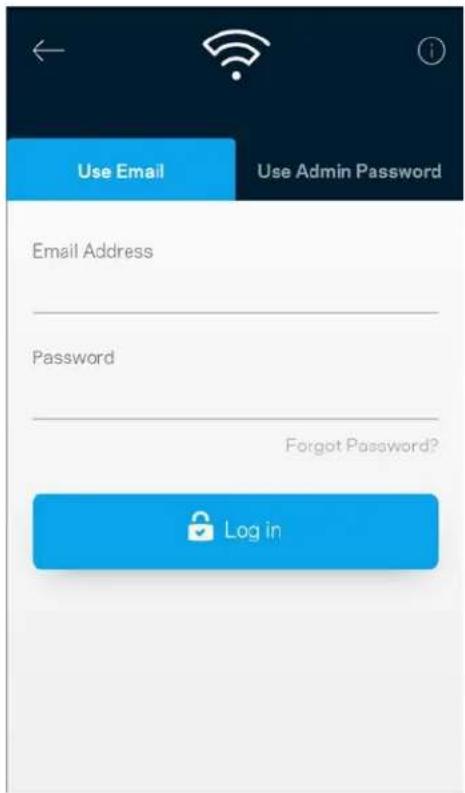
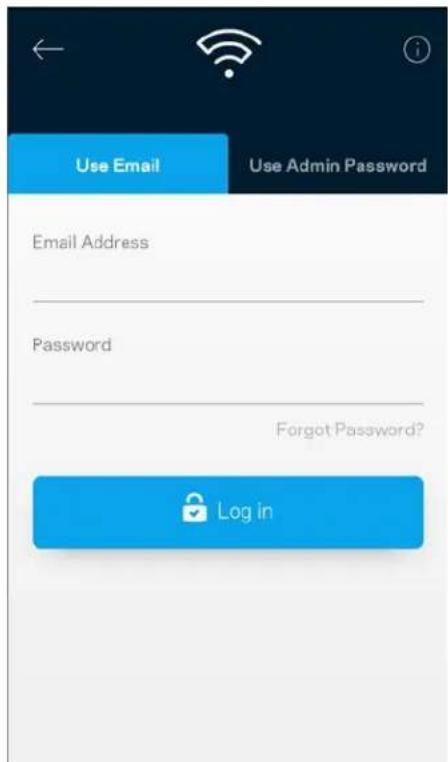
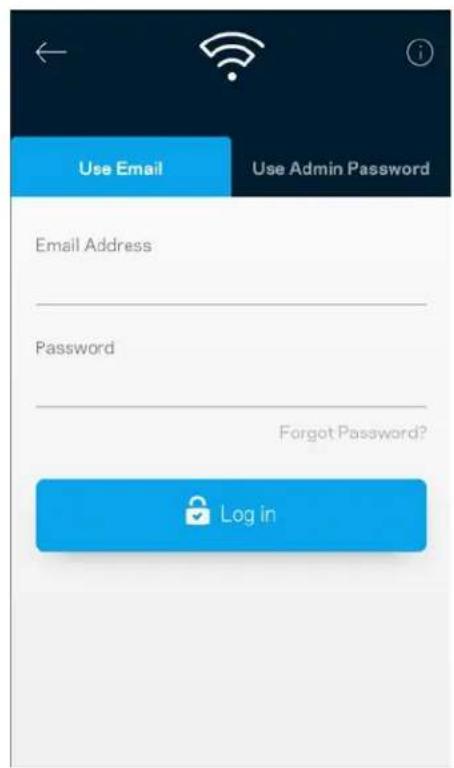
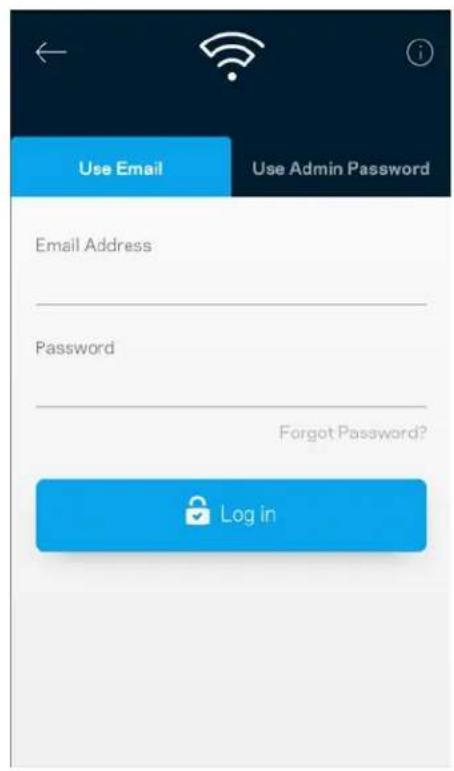
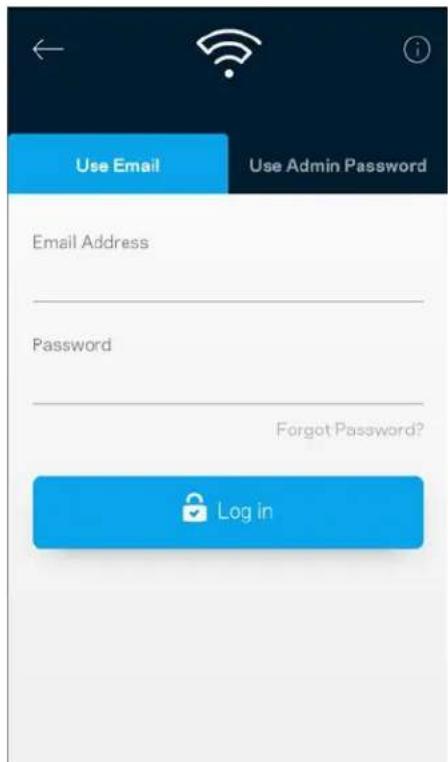
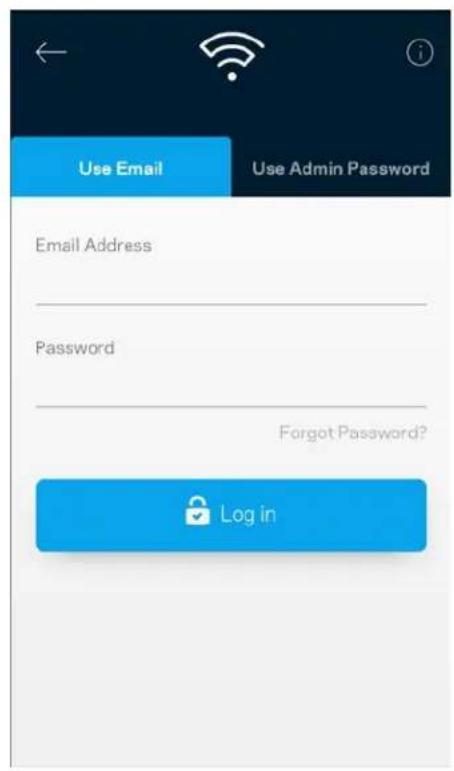
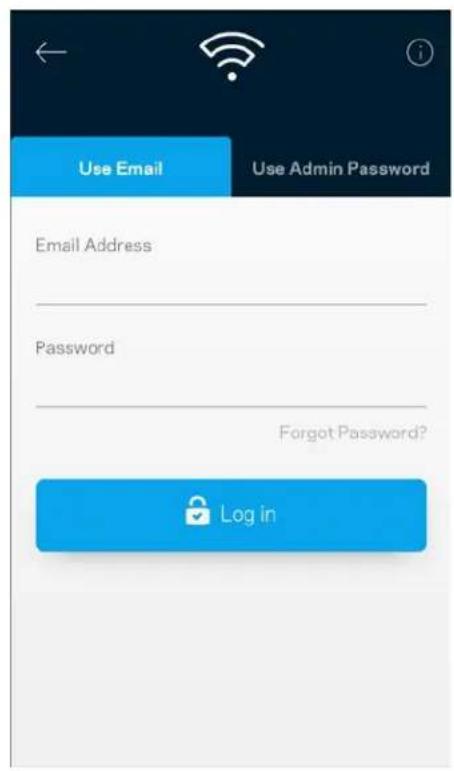
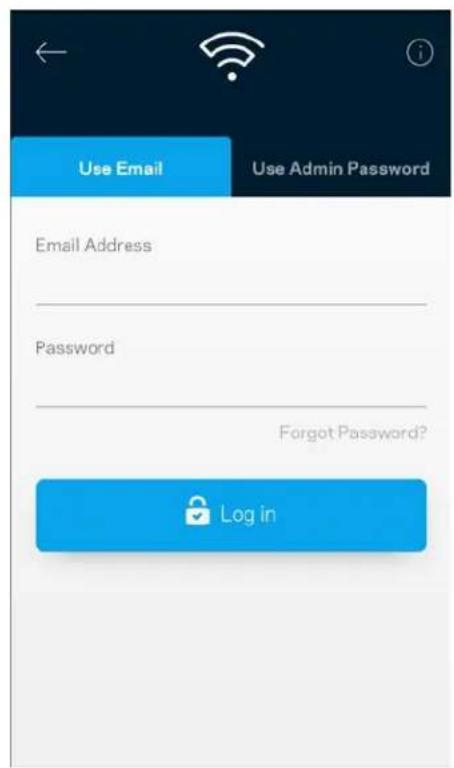
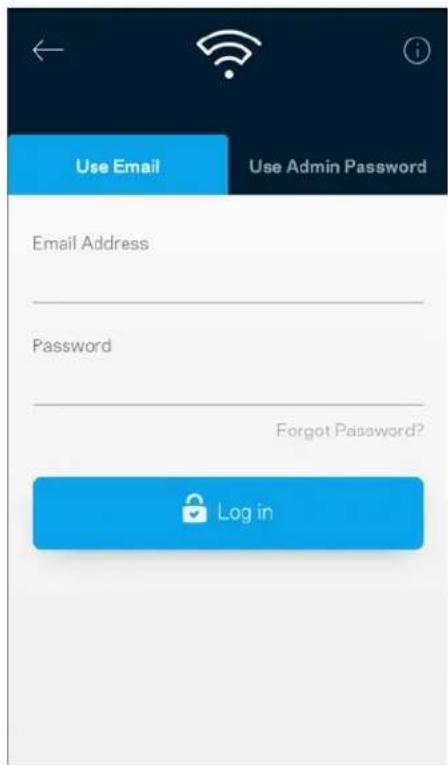
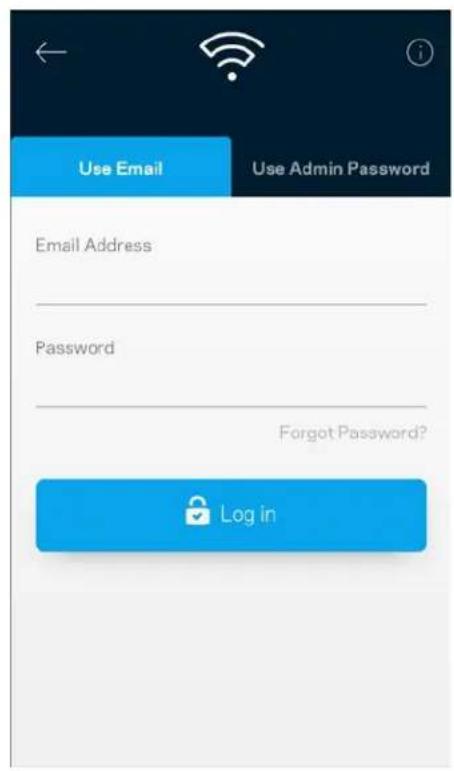
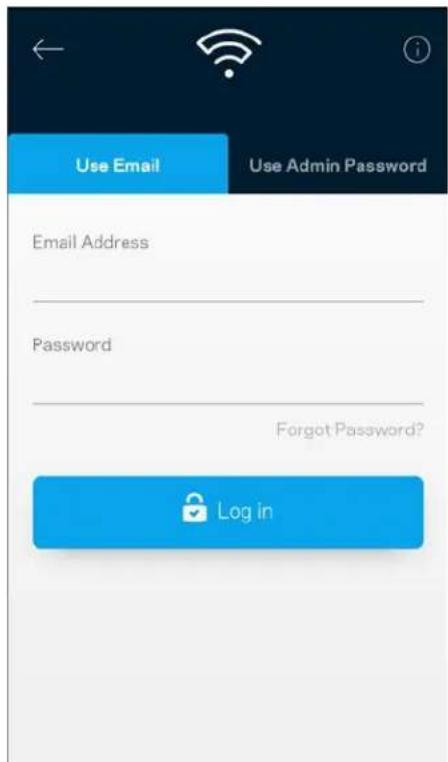
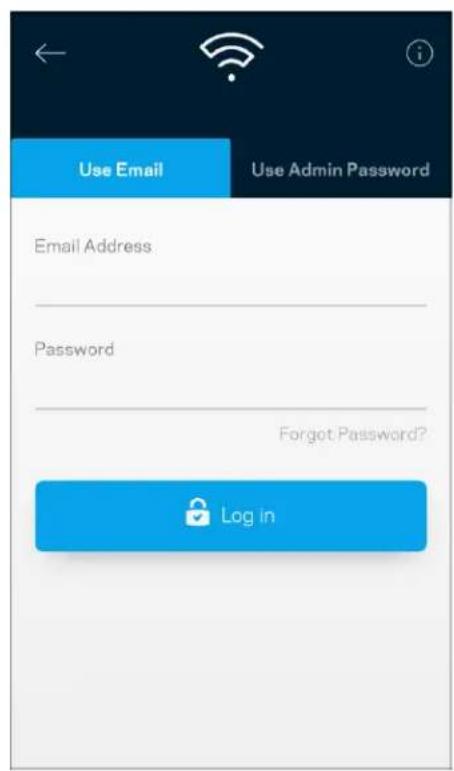
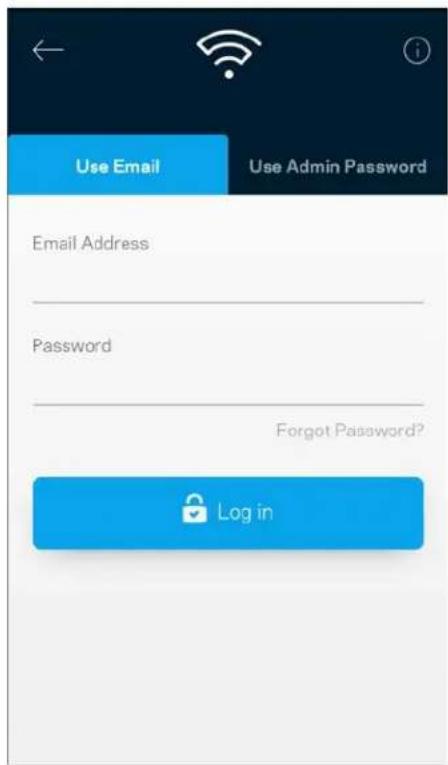
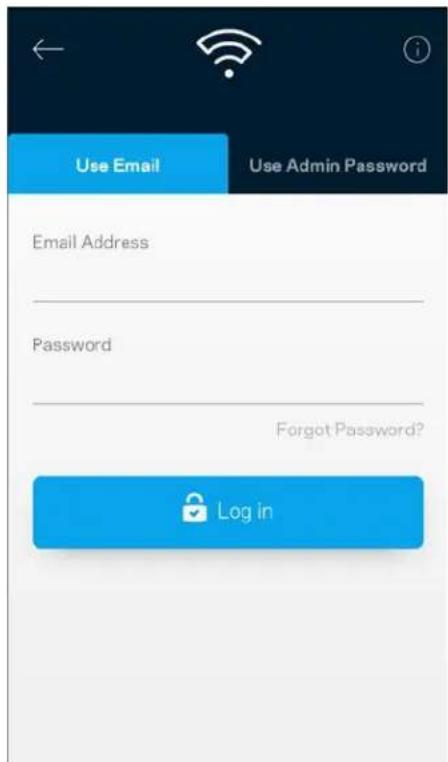
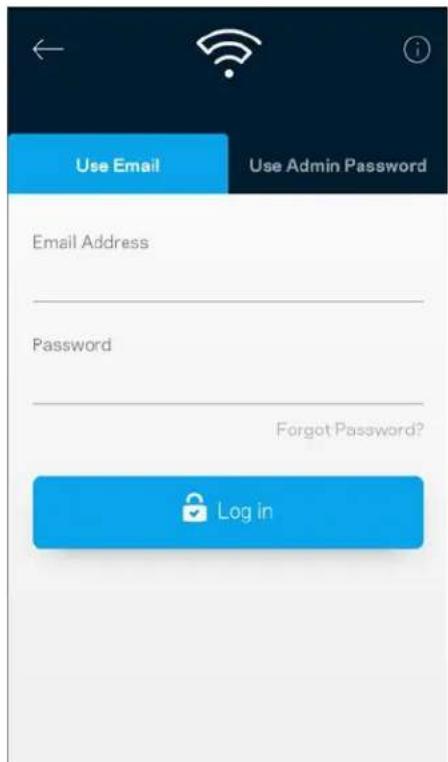
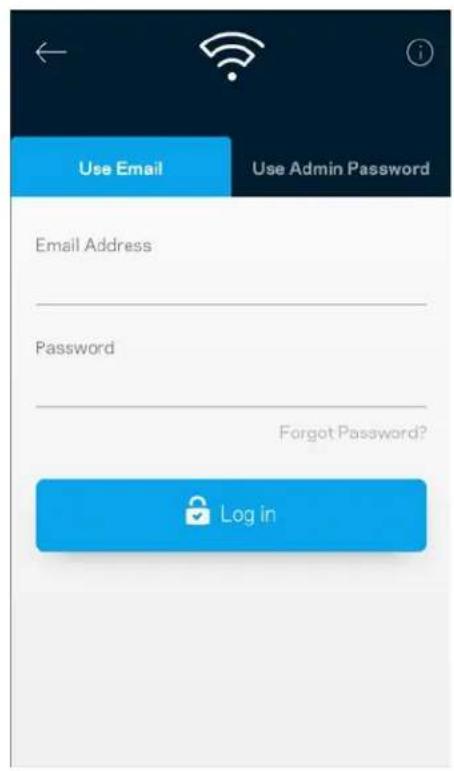
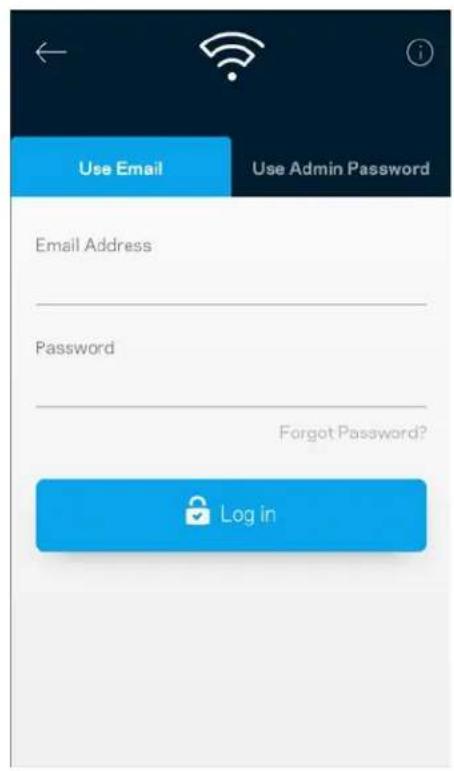
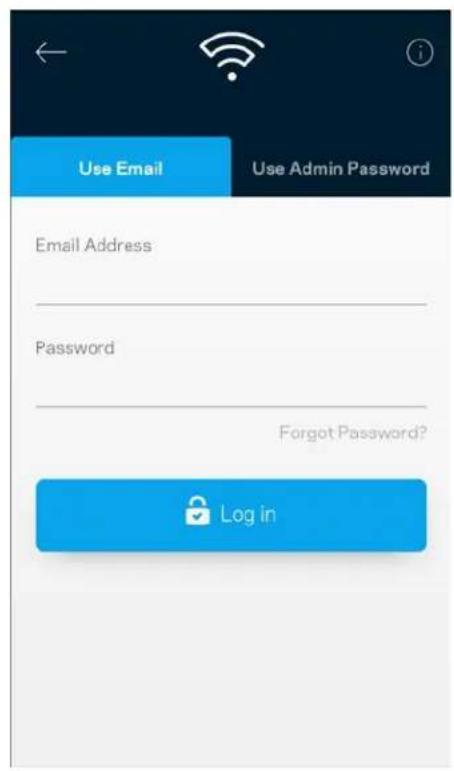
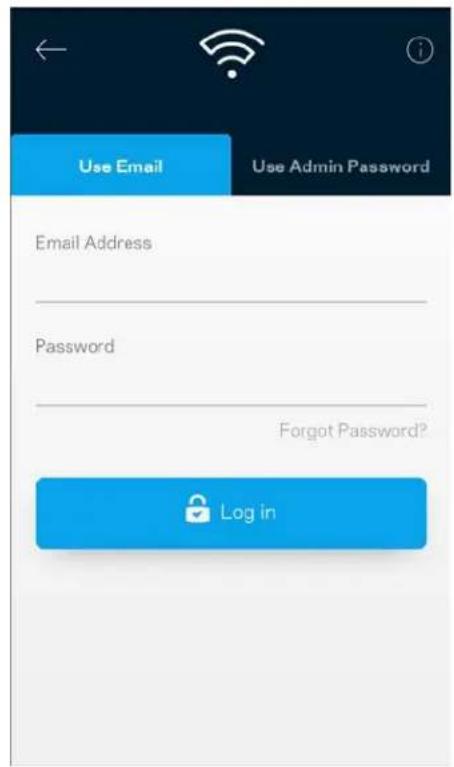
Log in to the Linksys app
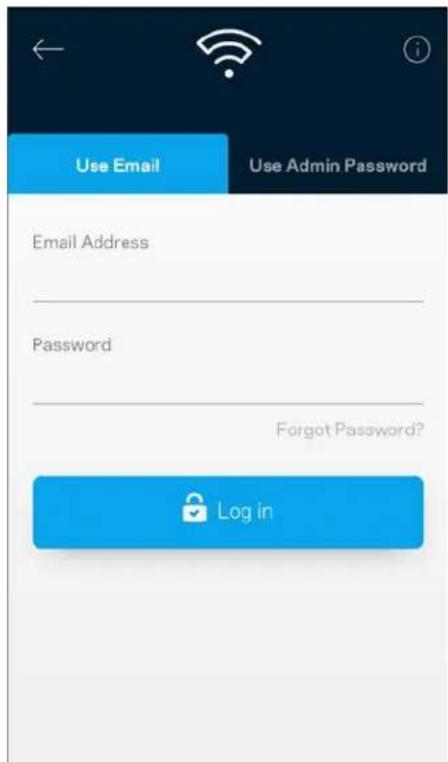
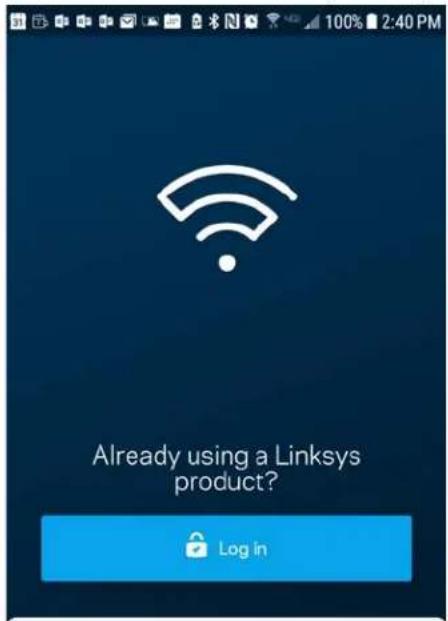
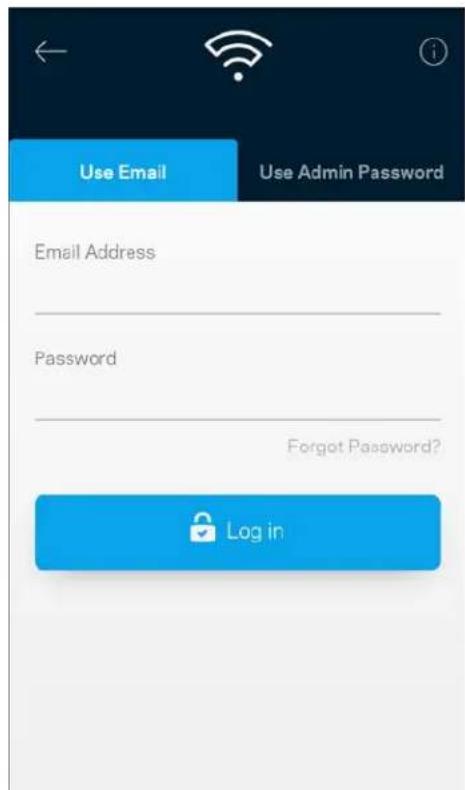
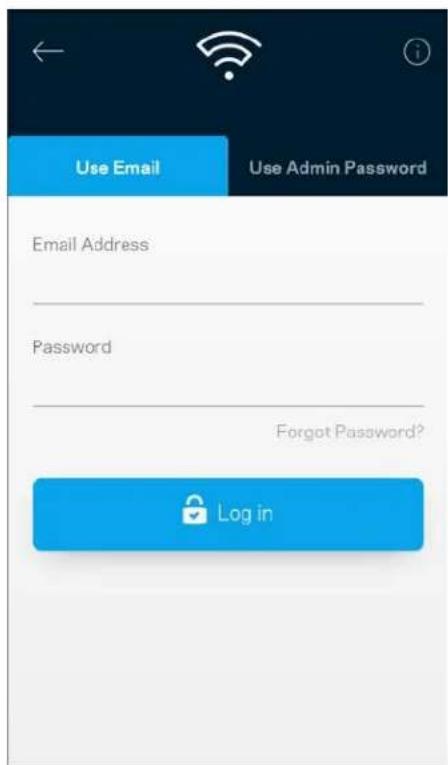
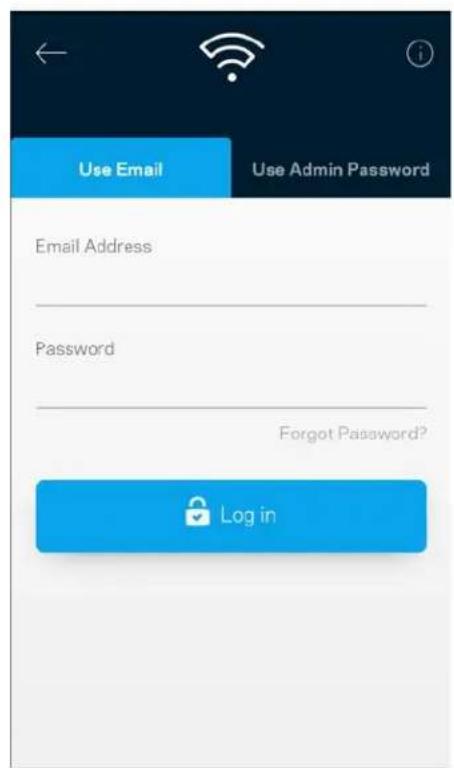
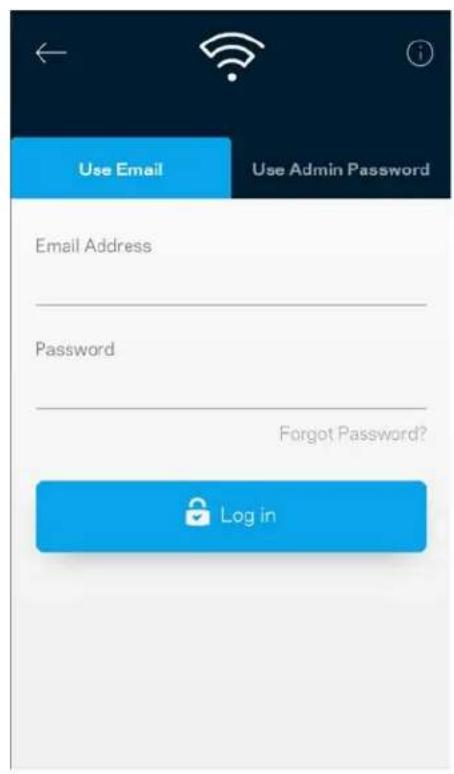
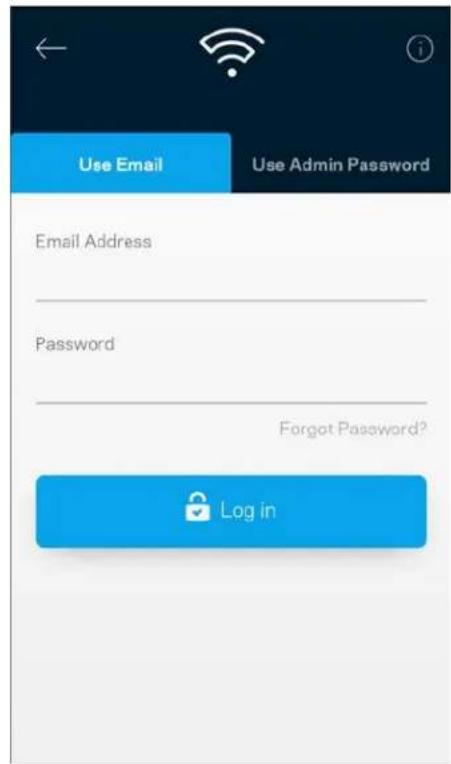
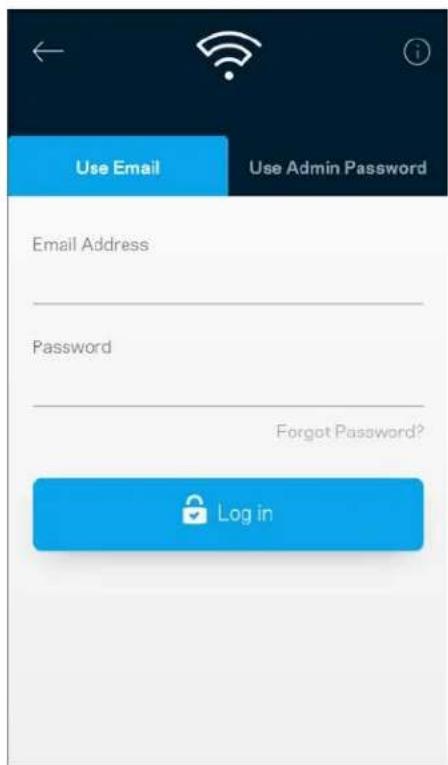
1. Open the Linksys app.
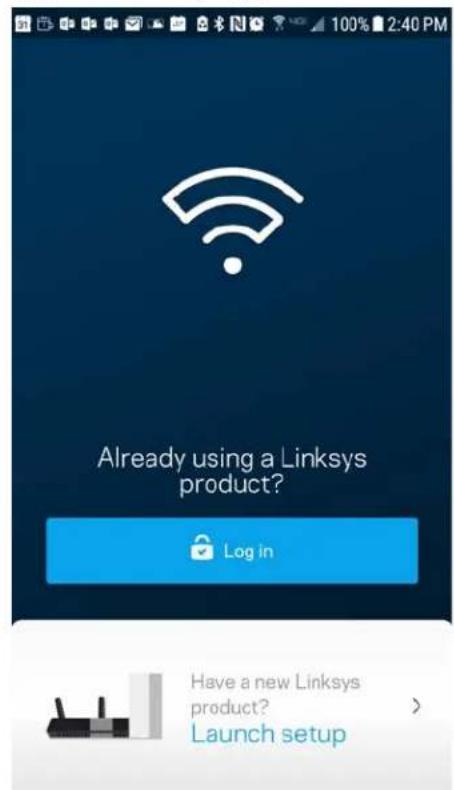
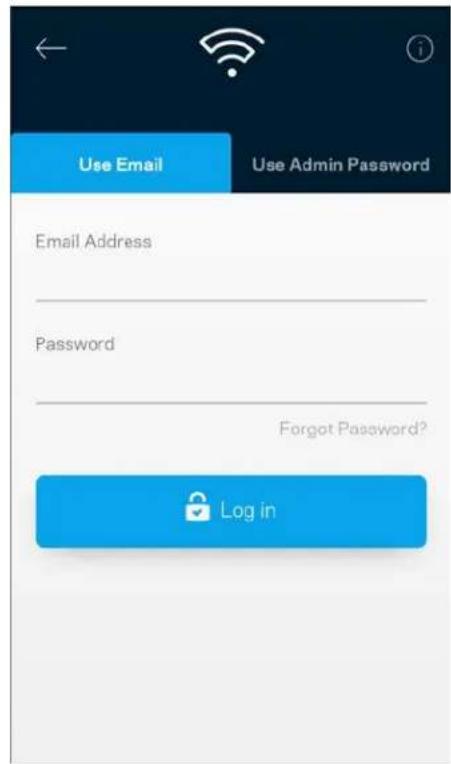
- Enter the email address you used when creating your account.
- Enter your account password.
- Tap Log in.
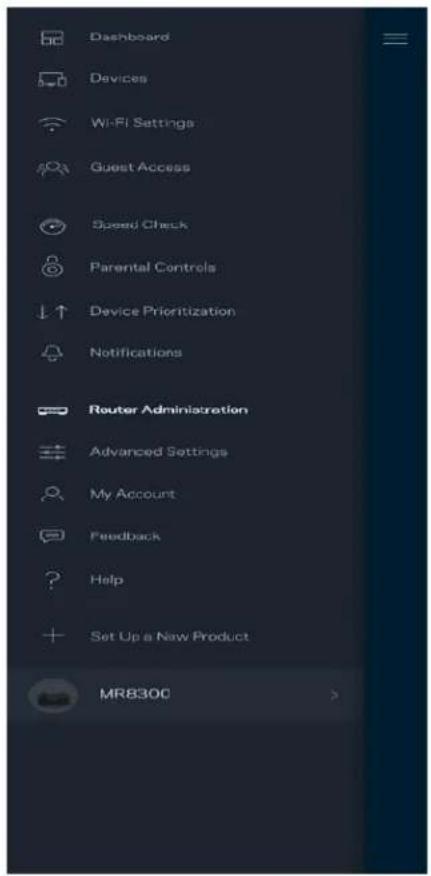
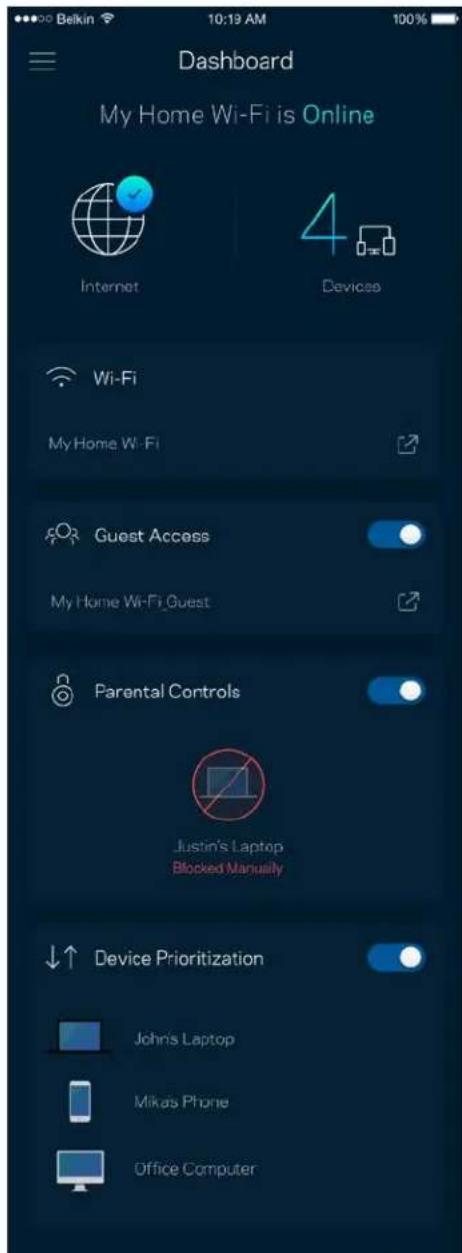
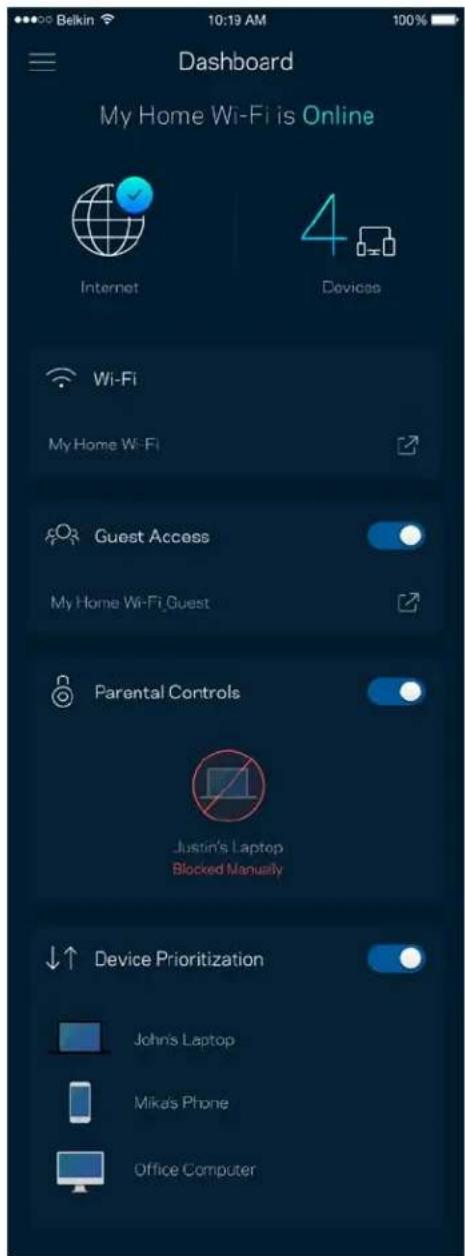
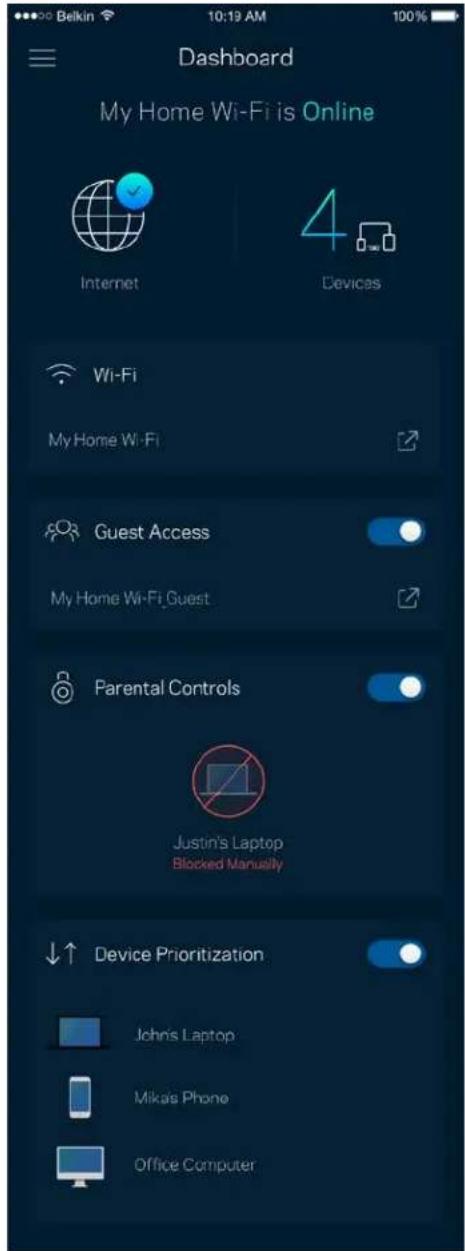
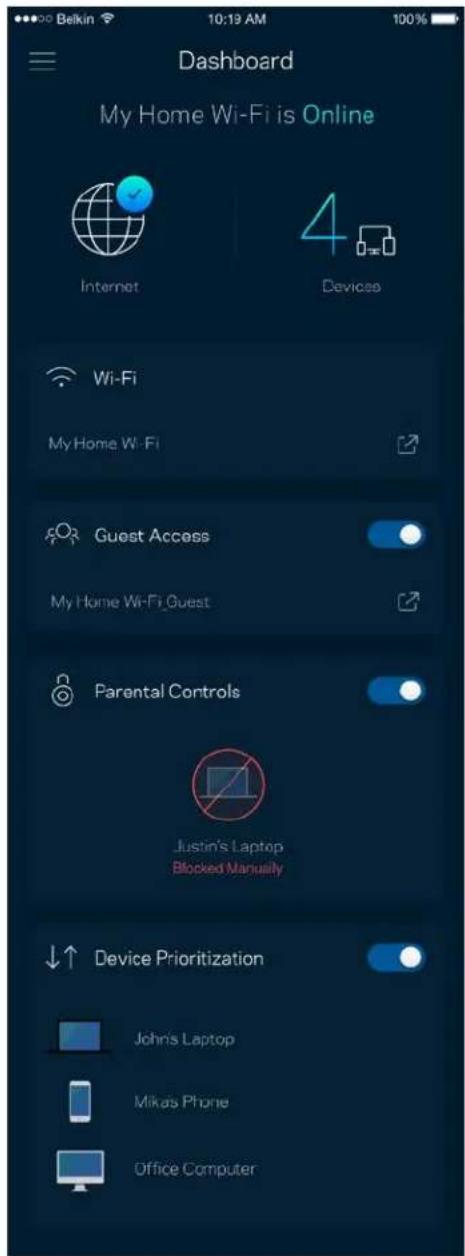
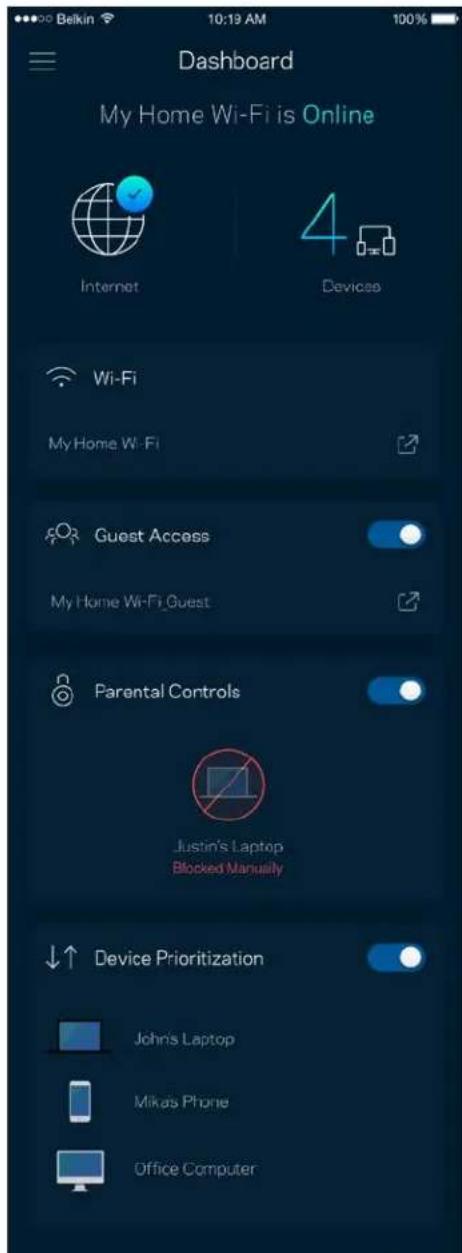
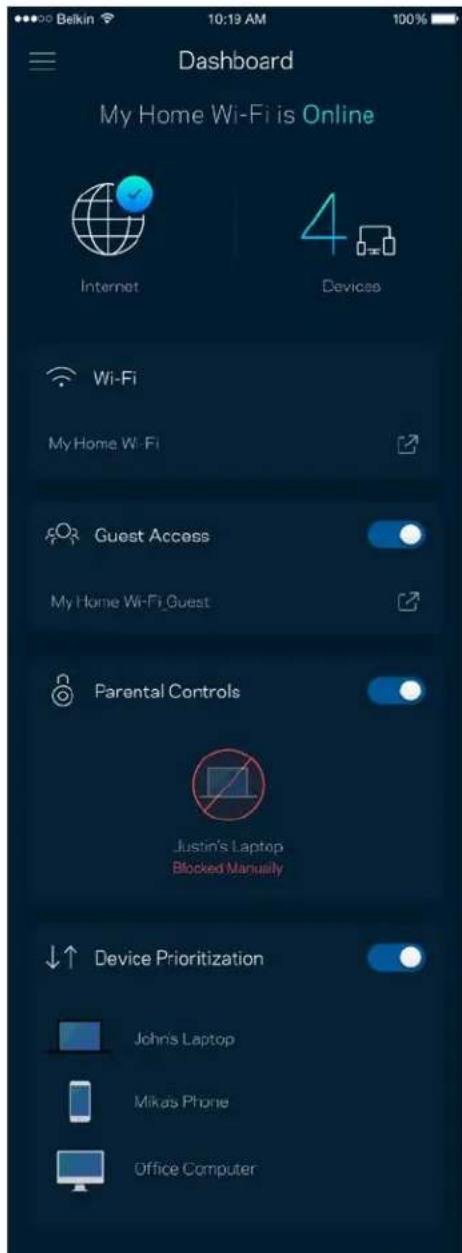
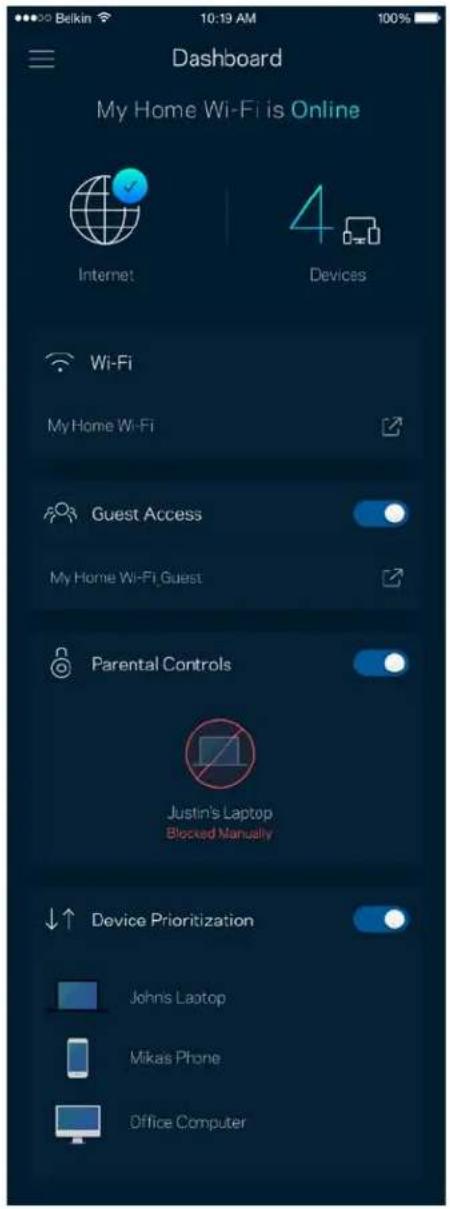
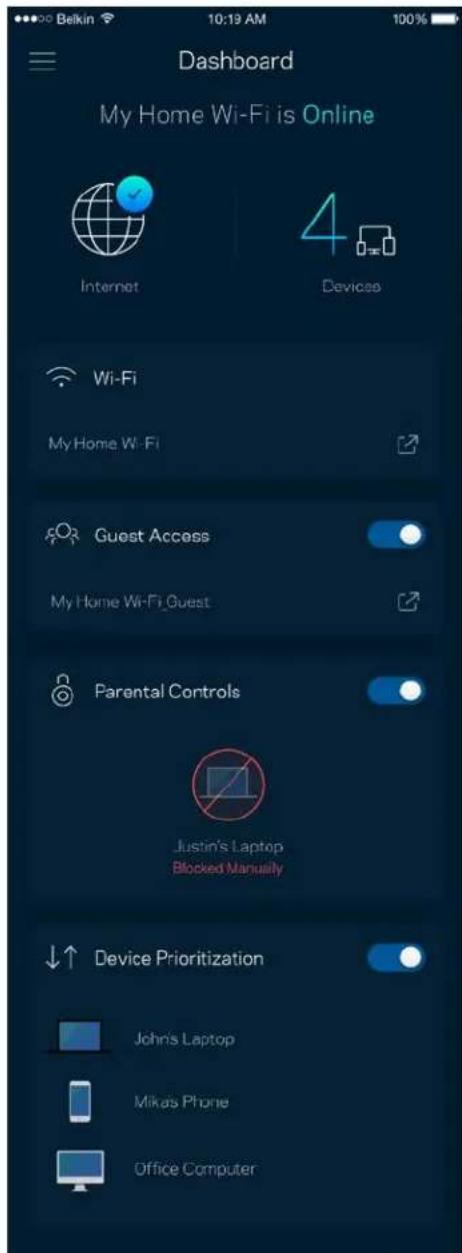
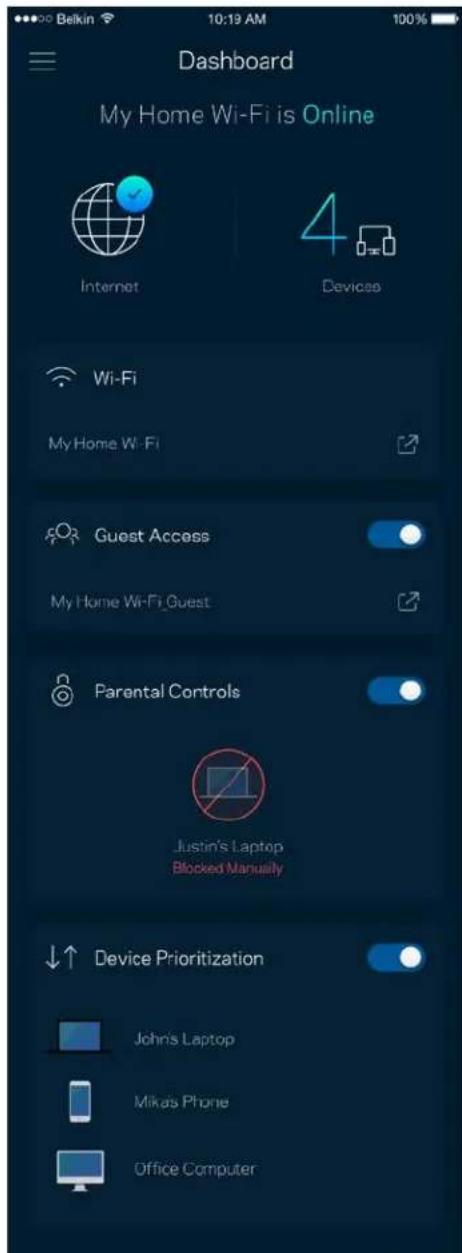
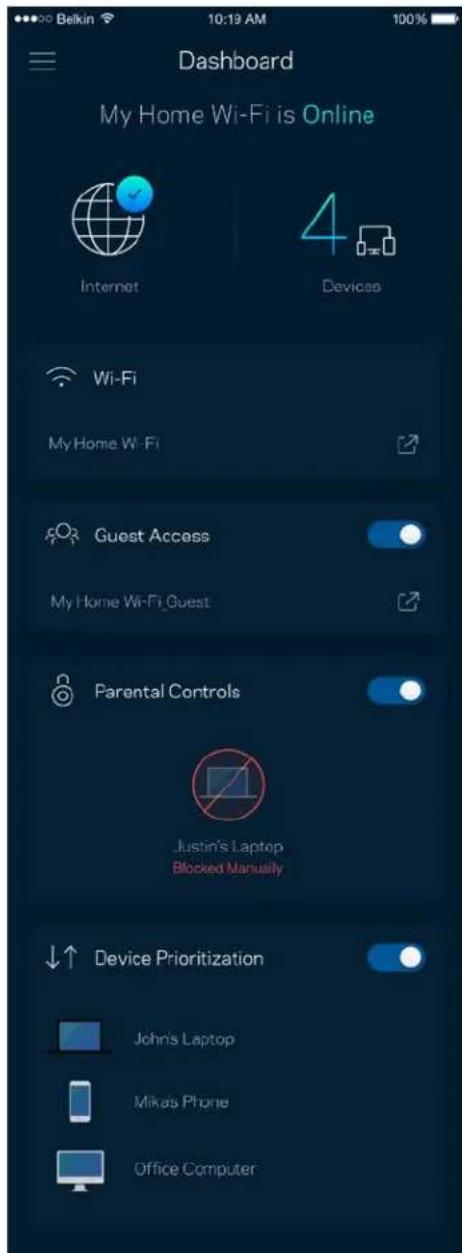
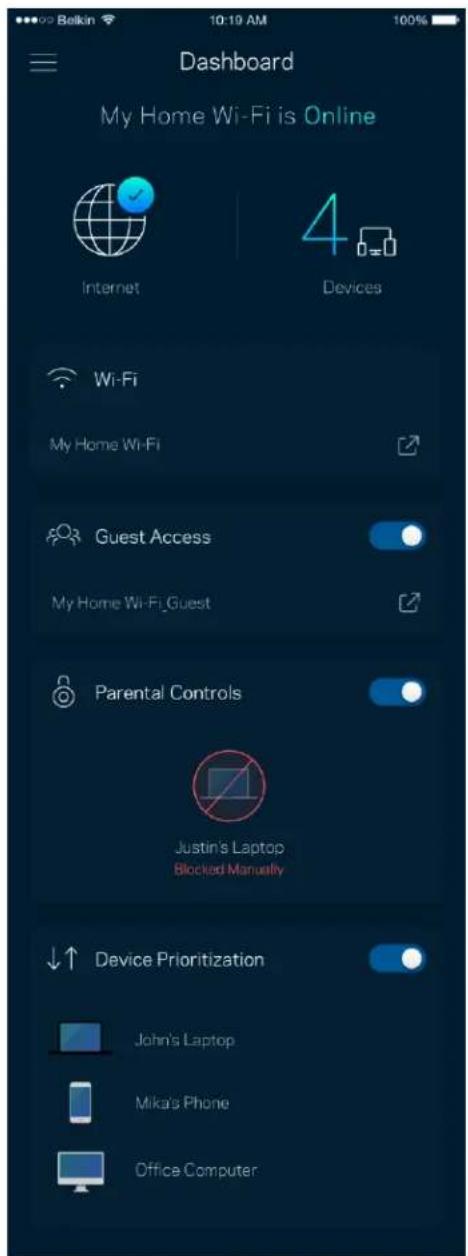
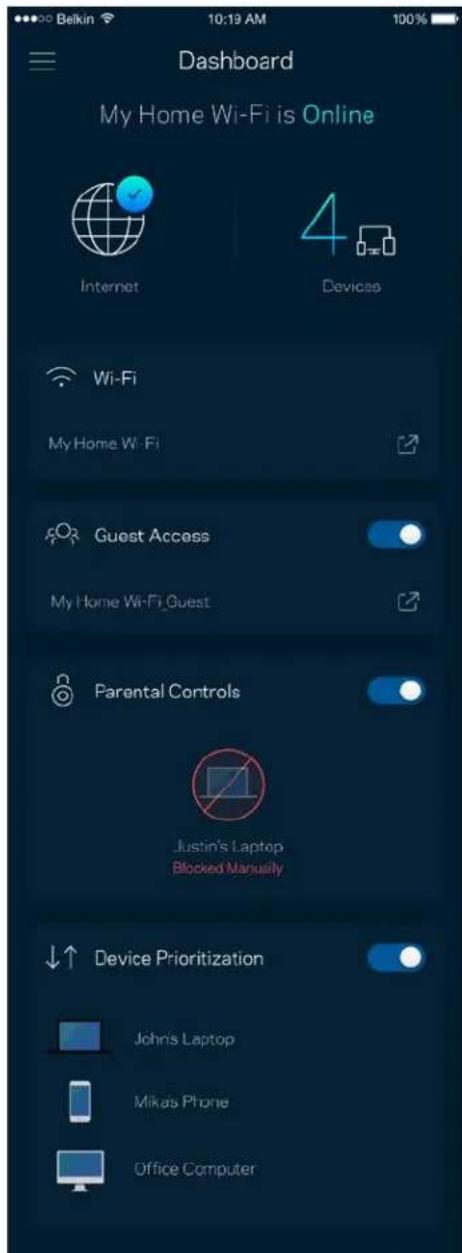
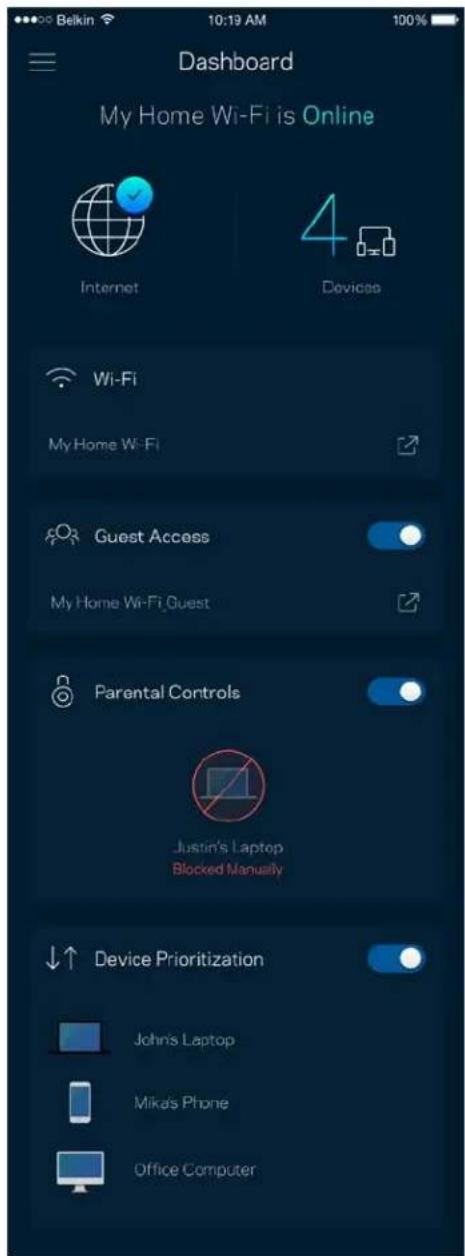
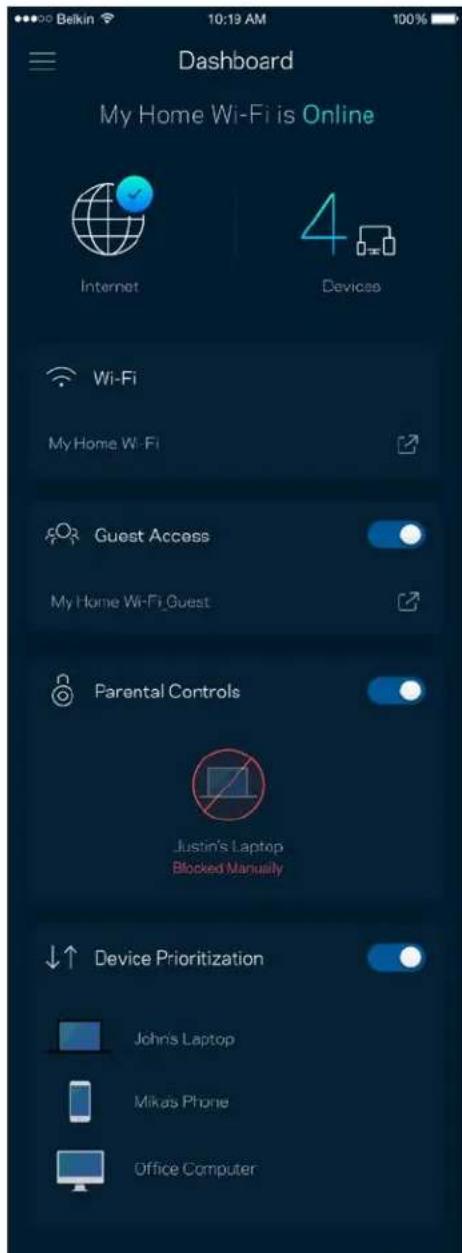
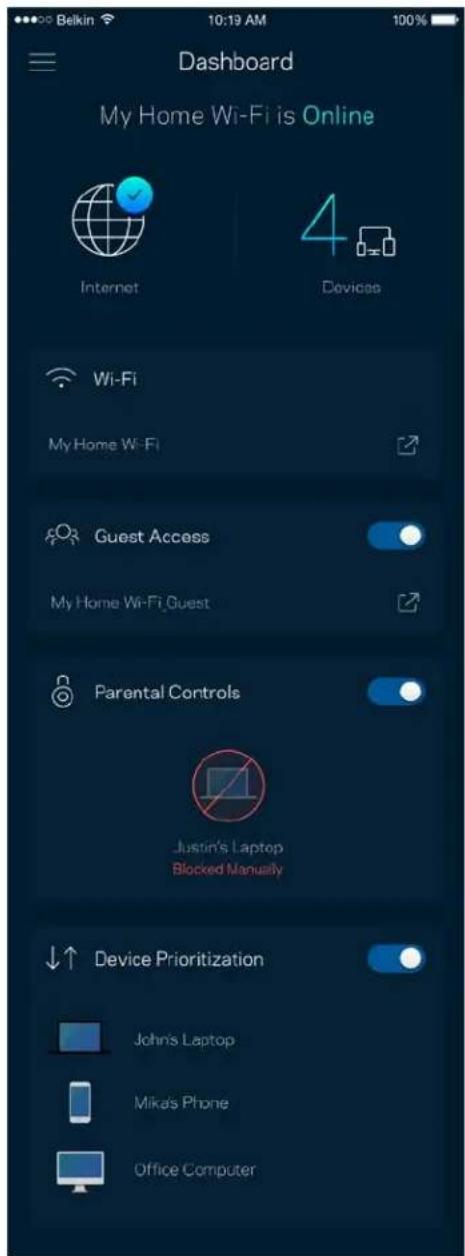
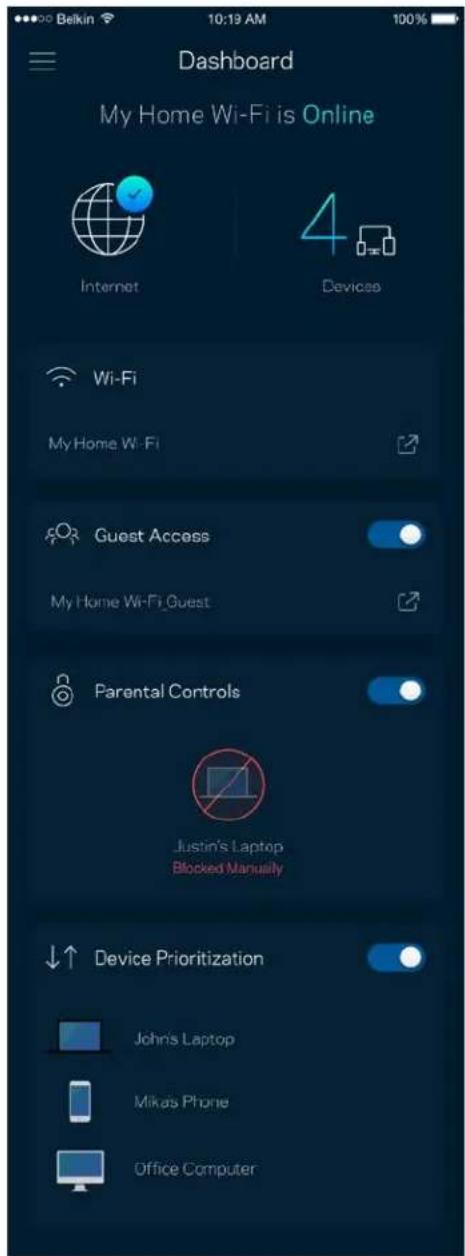
Dashboard
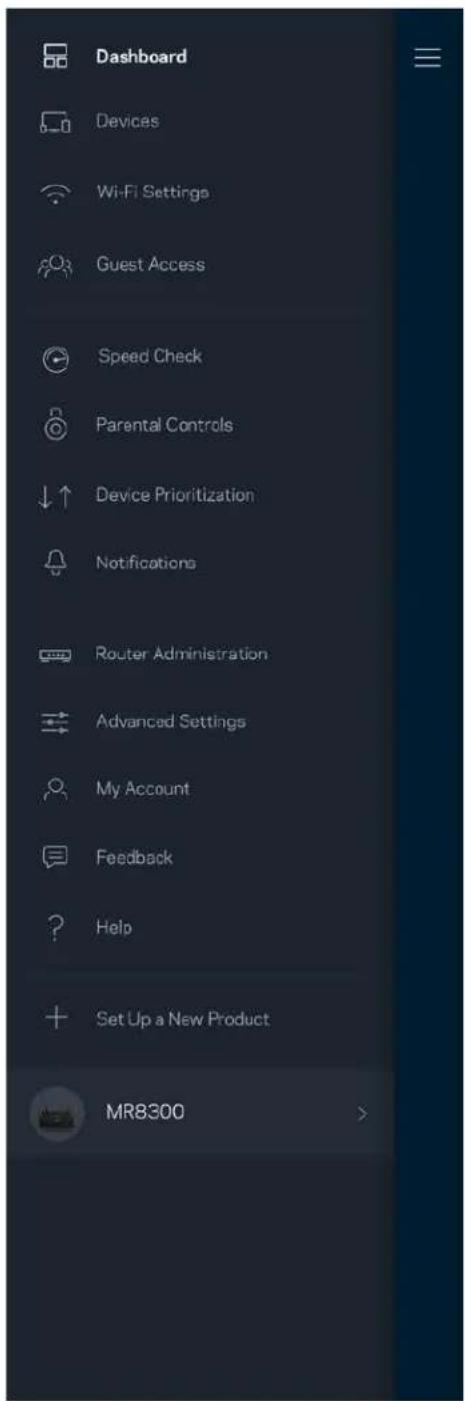
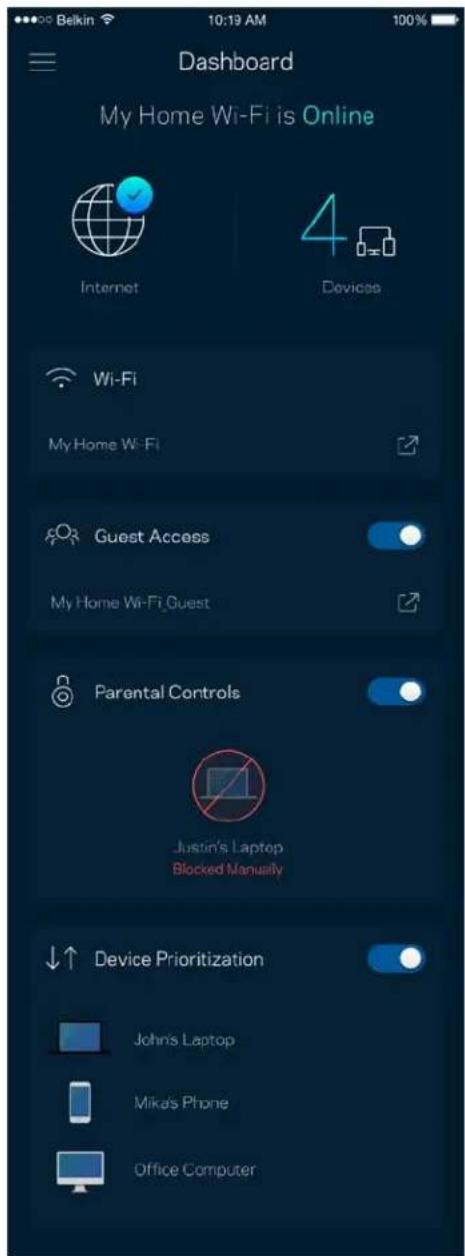
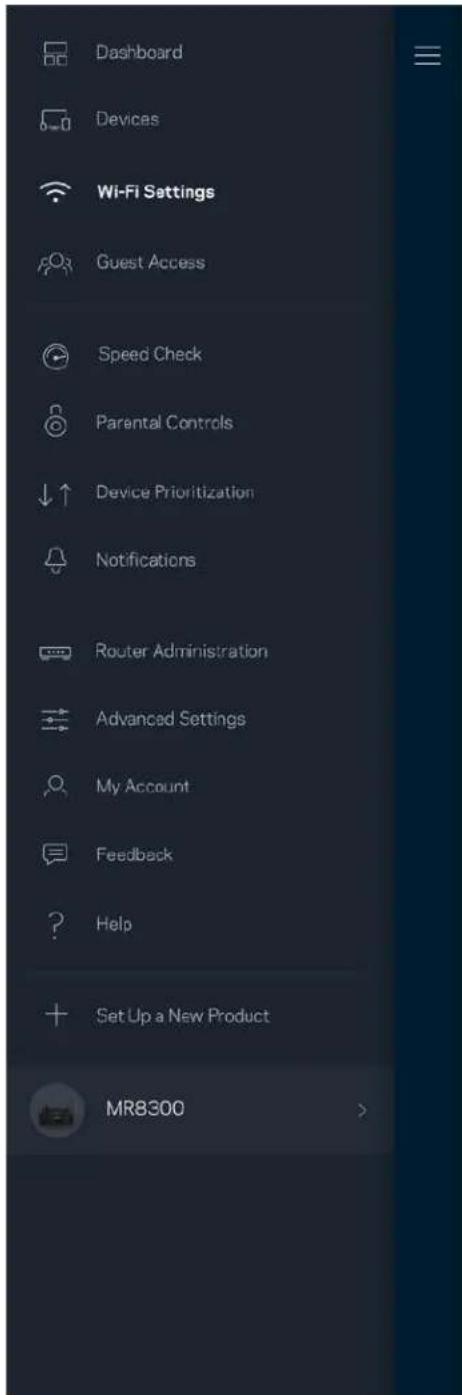
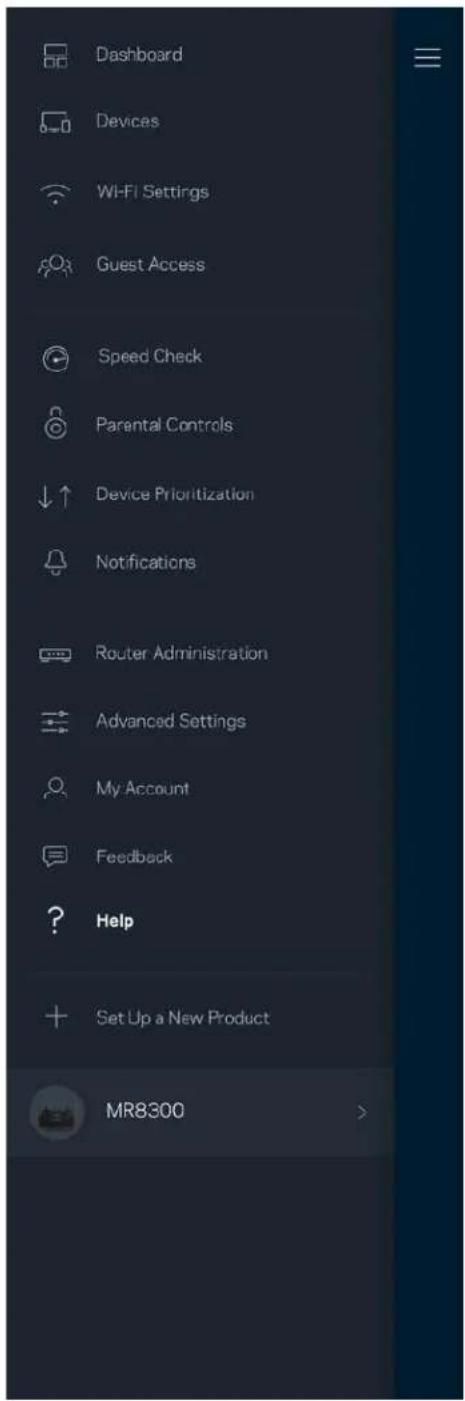
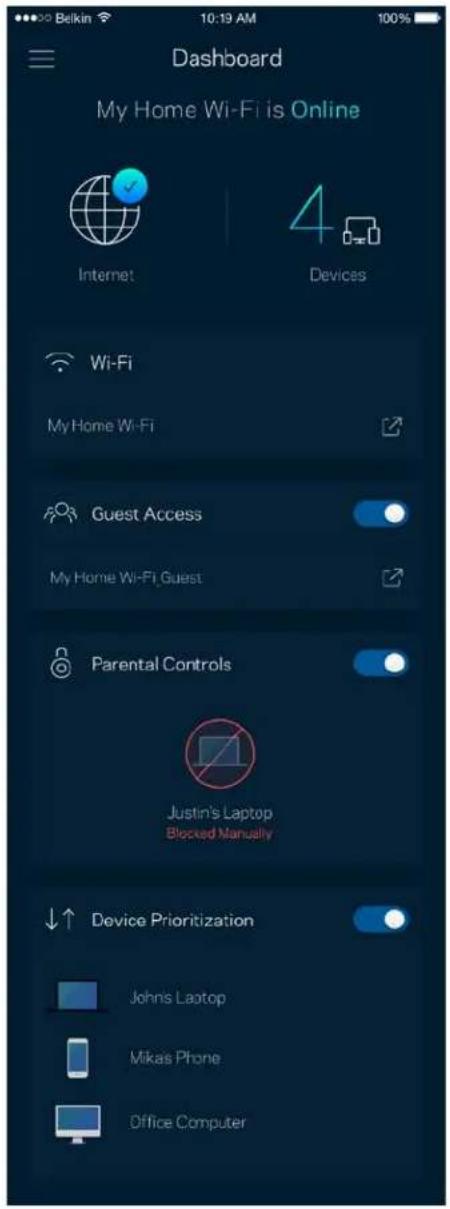
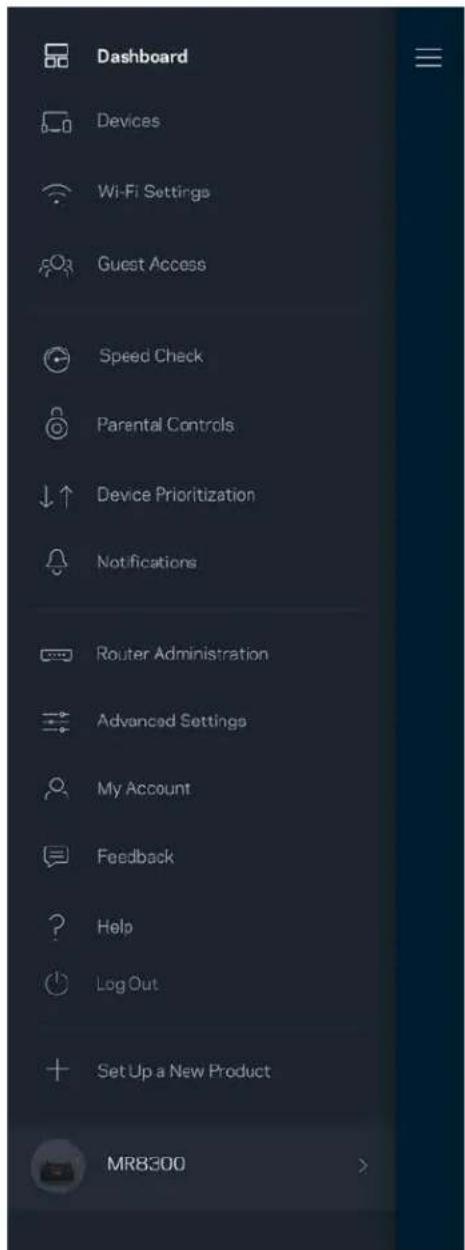
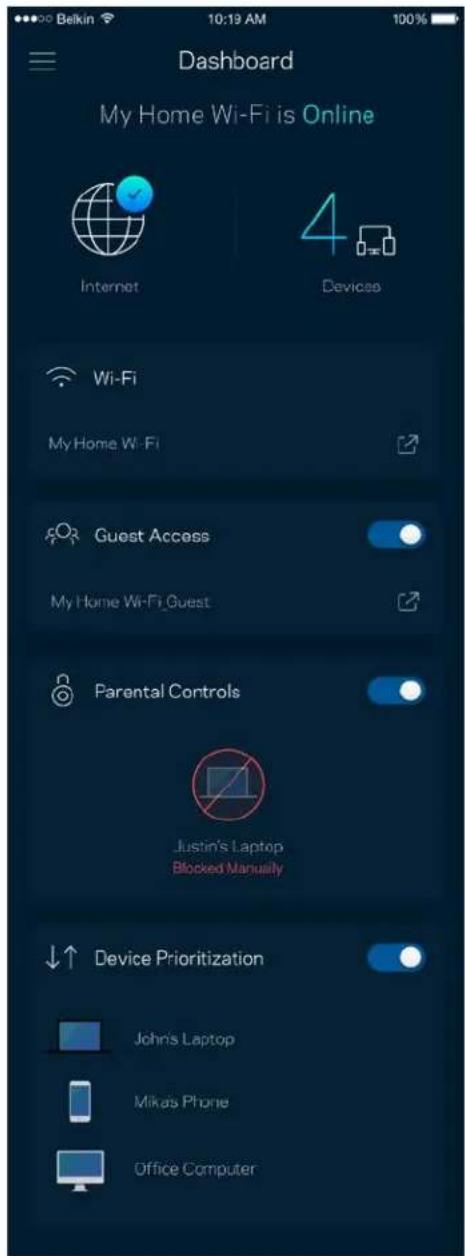
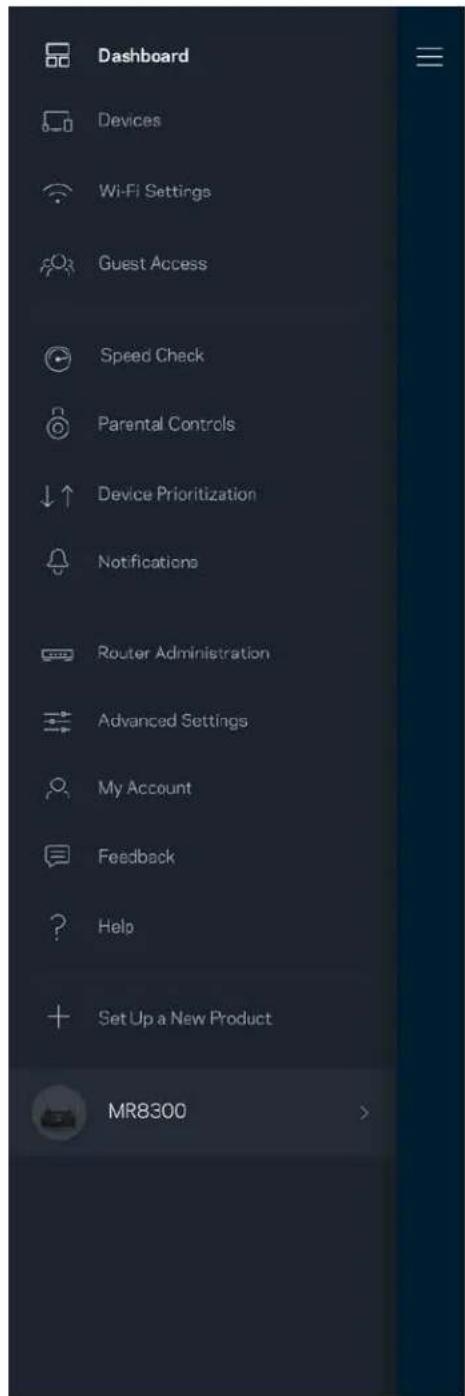
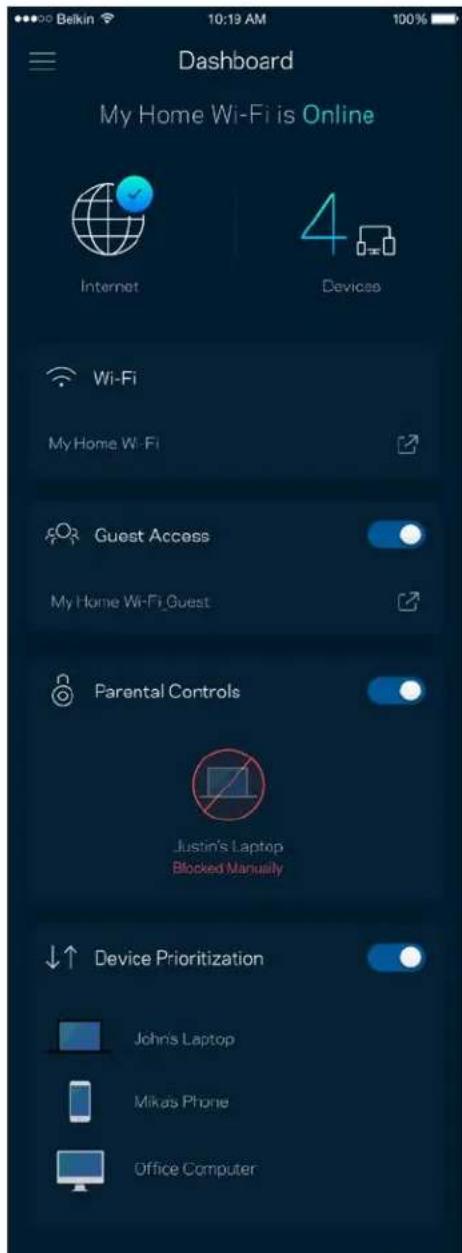
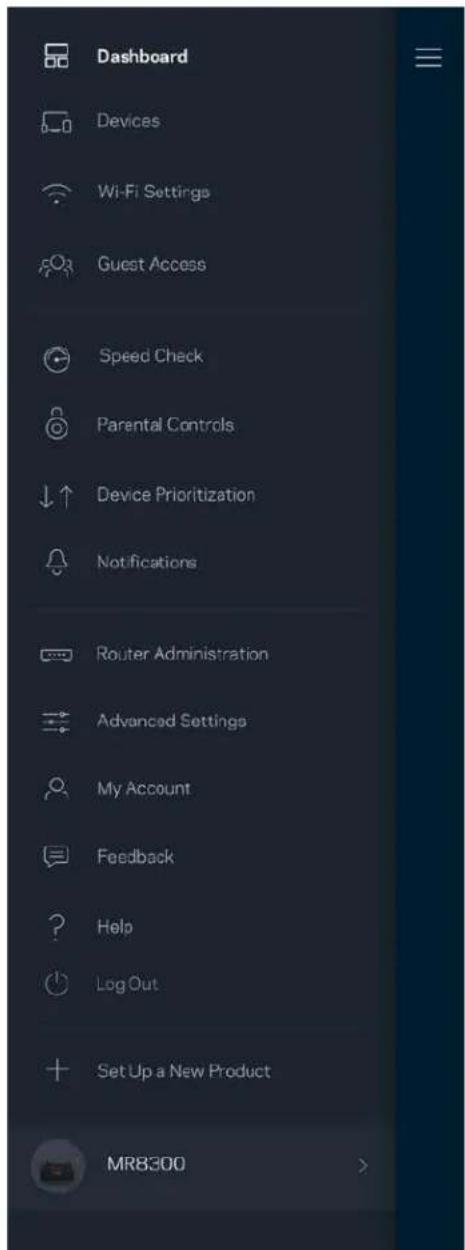
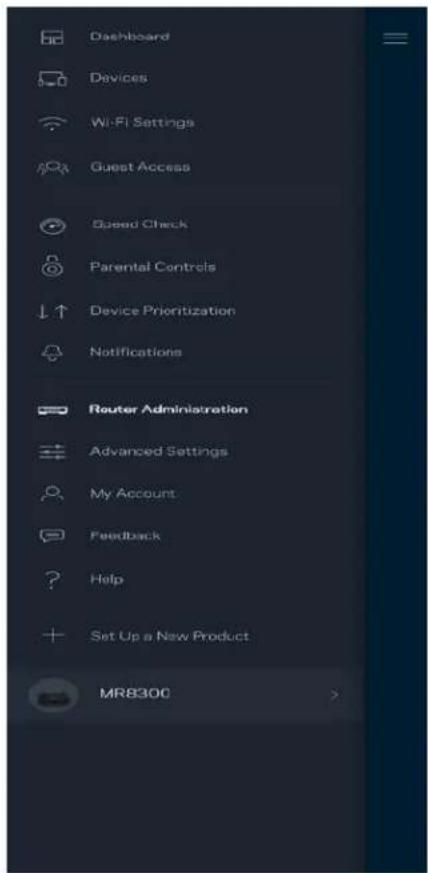
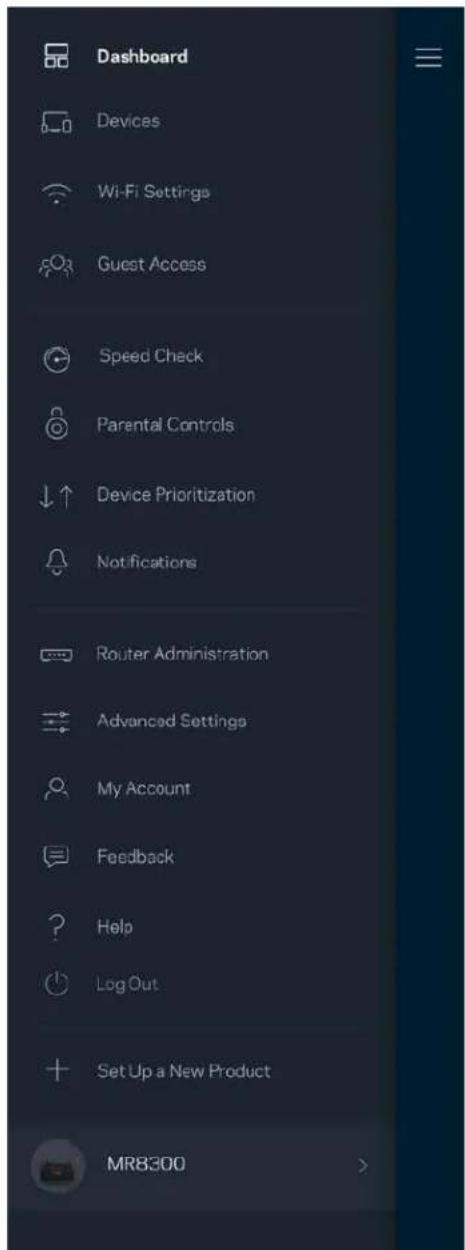
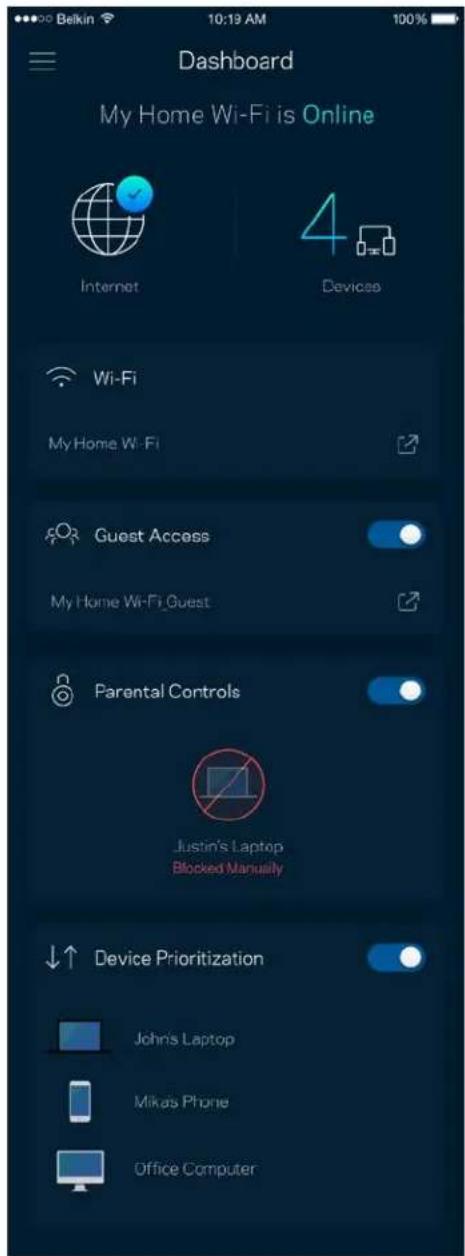
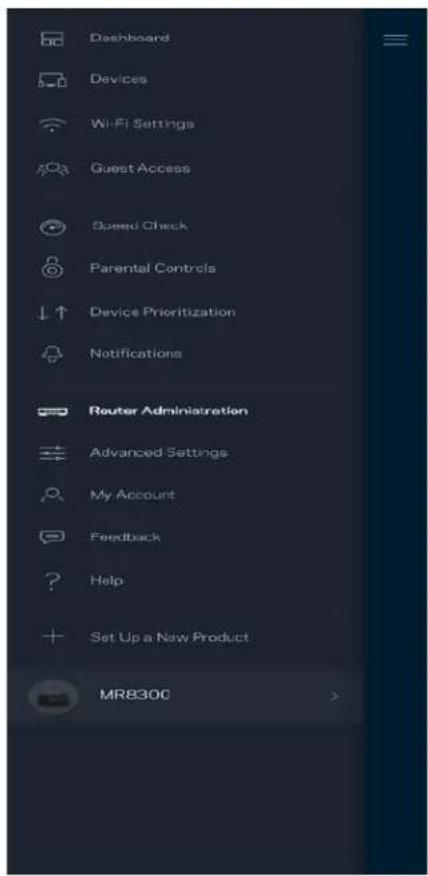
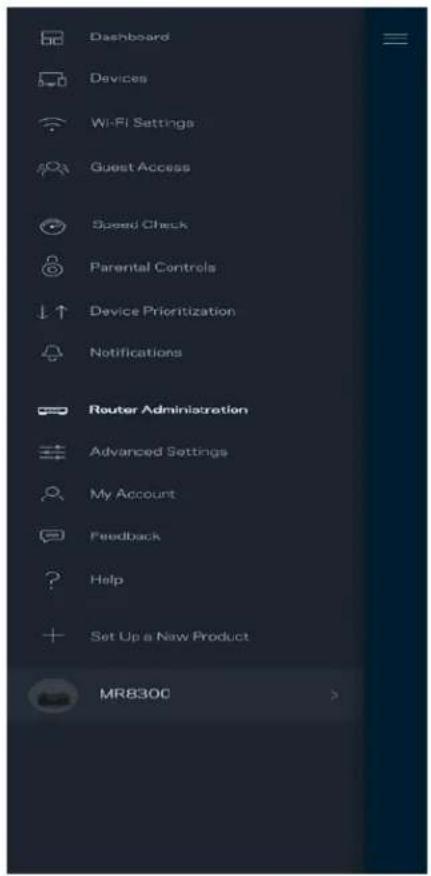
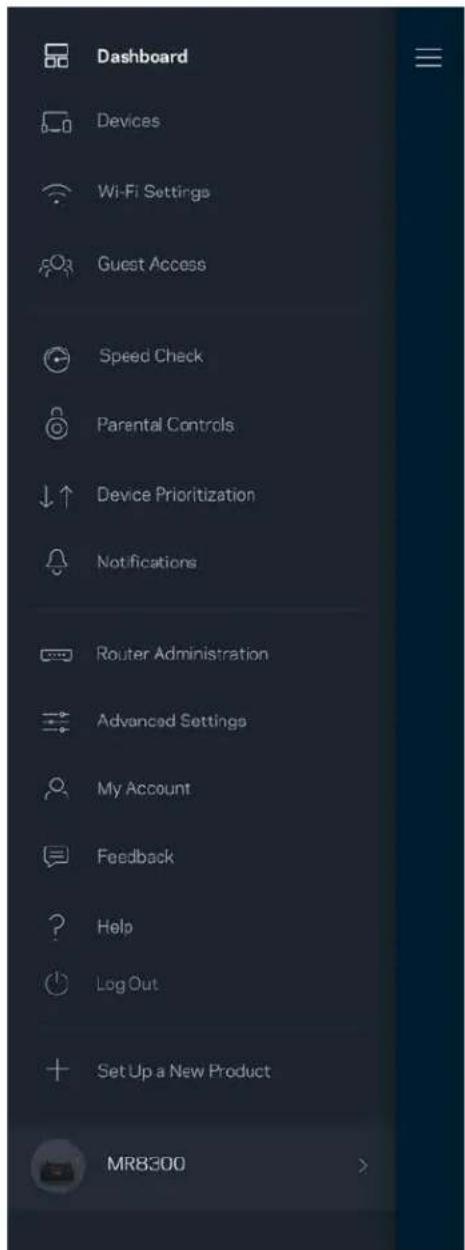
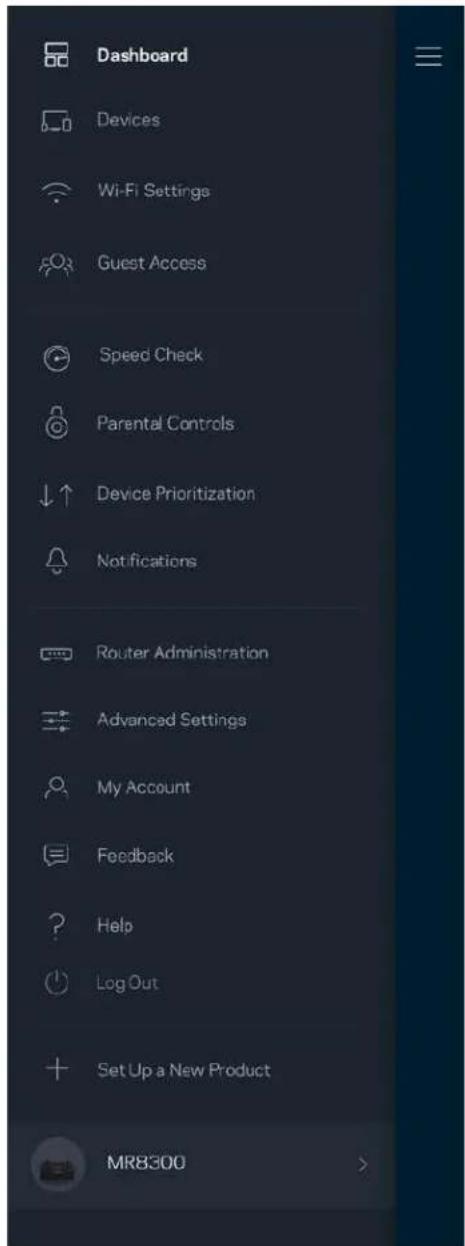
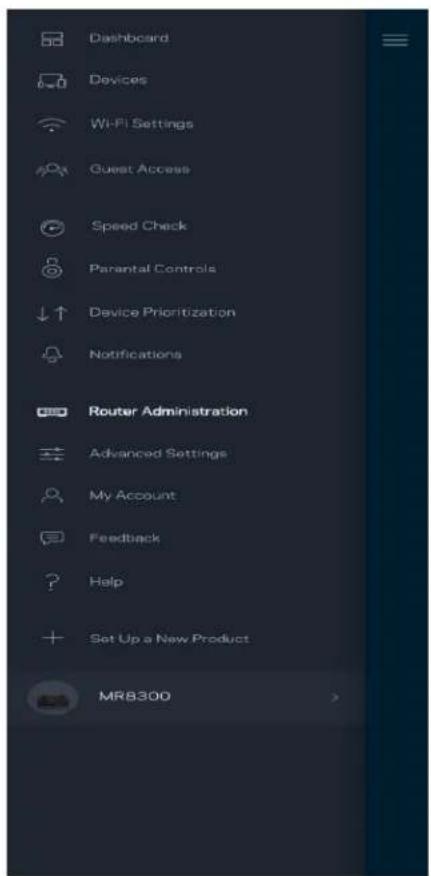
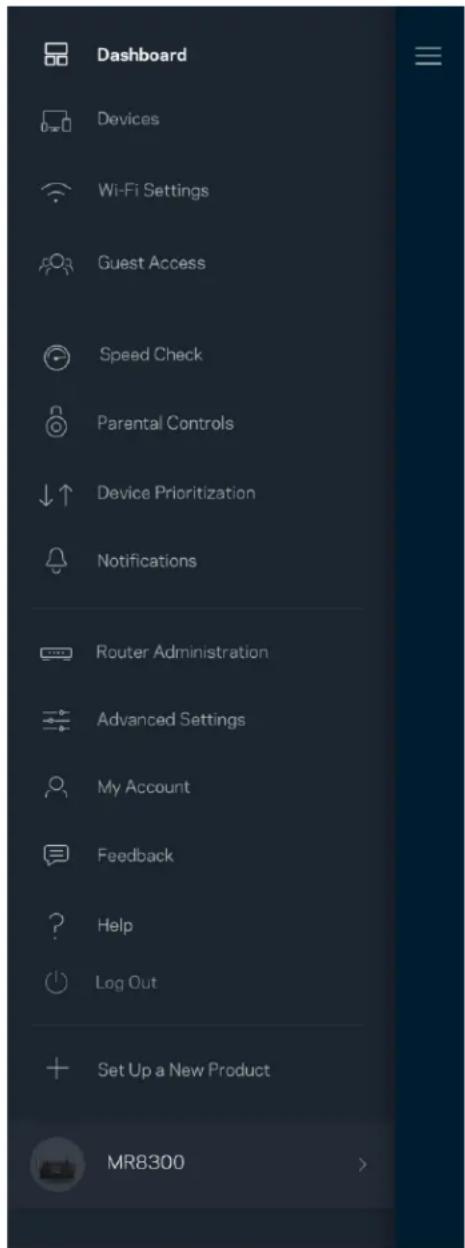
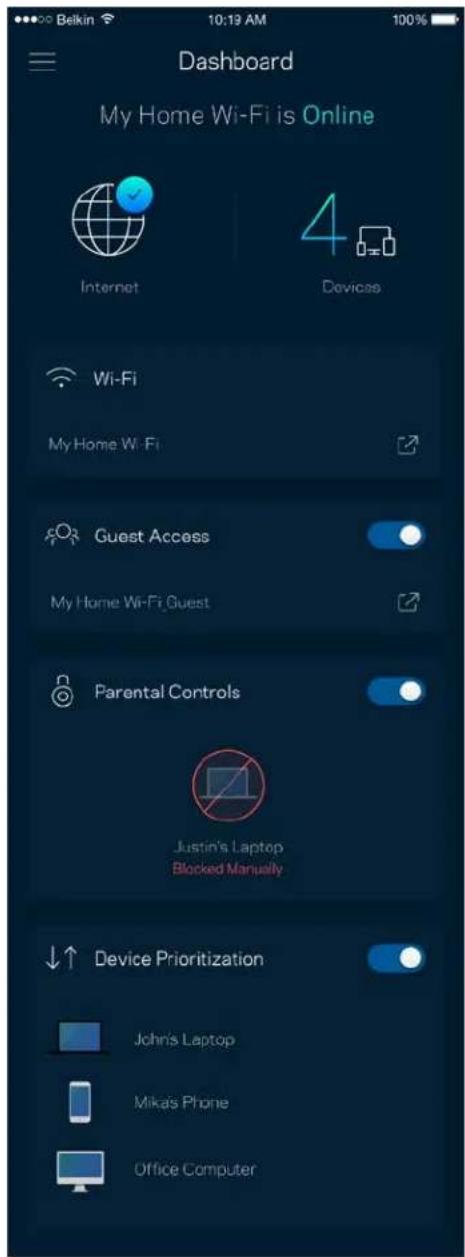
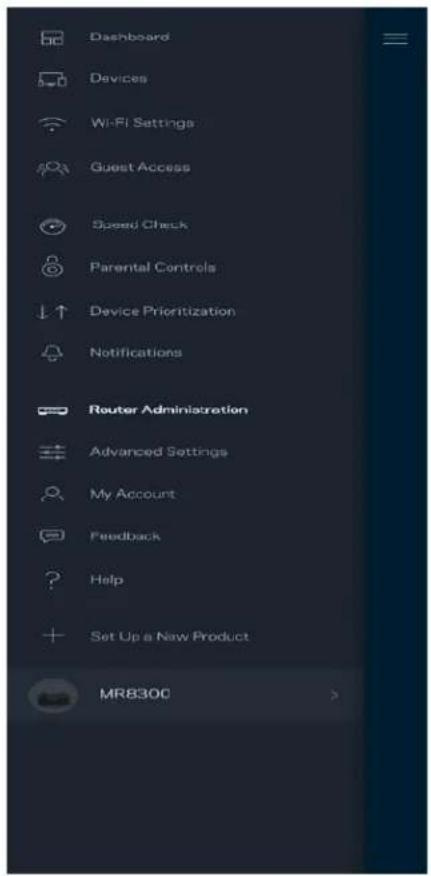
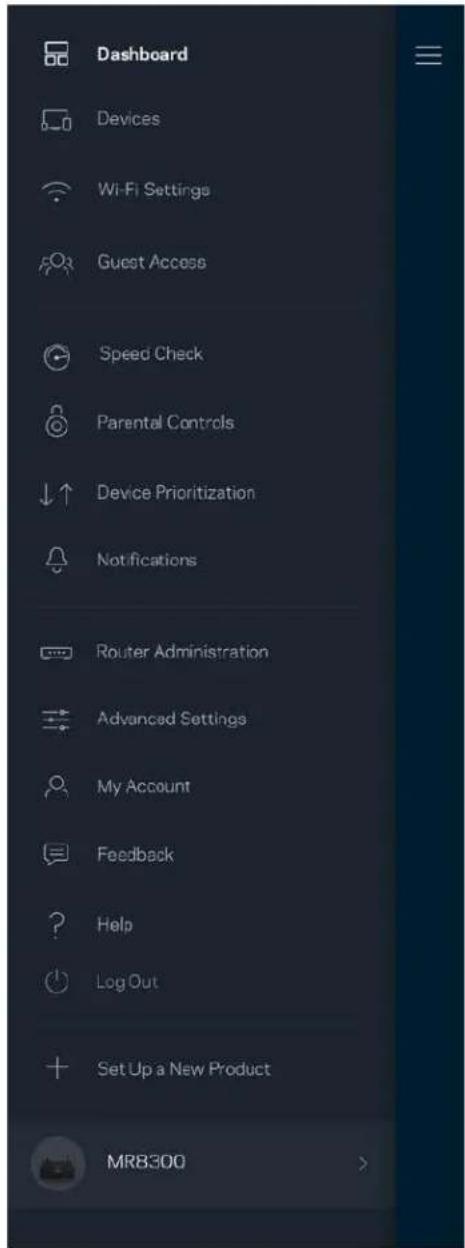
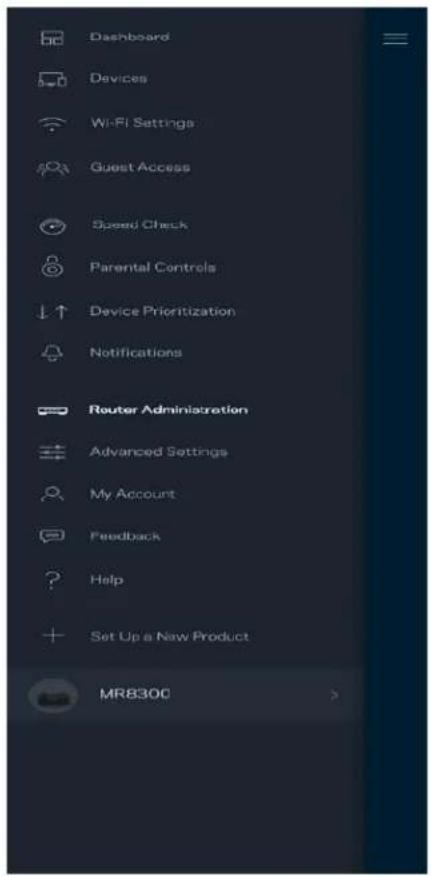
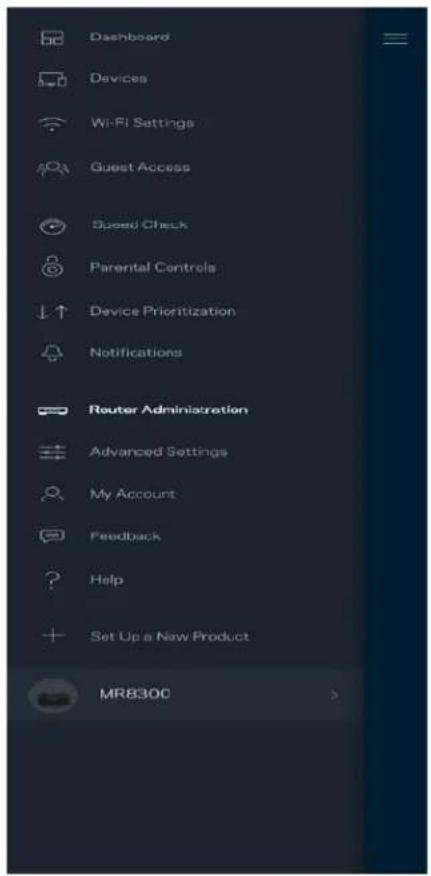
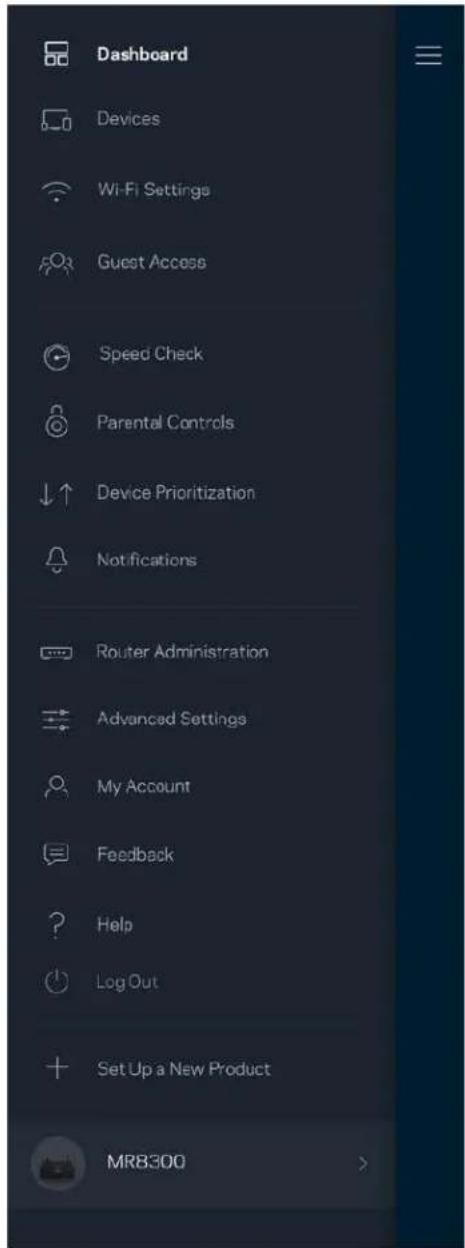
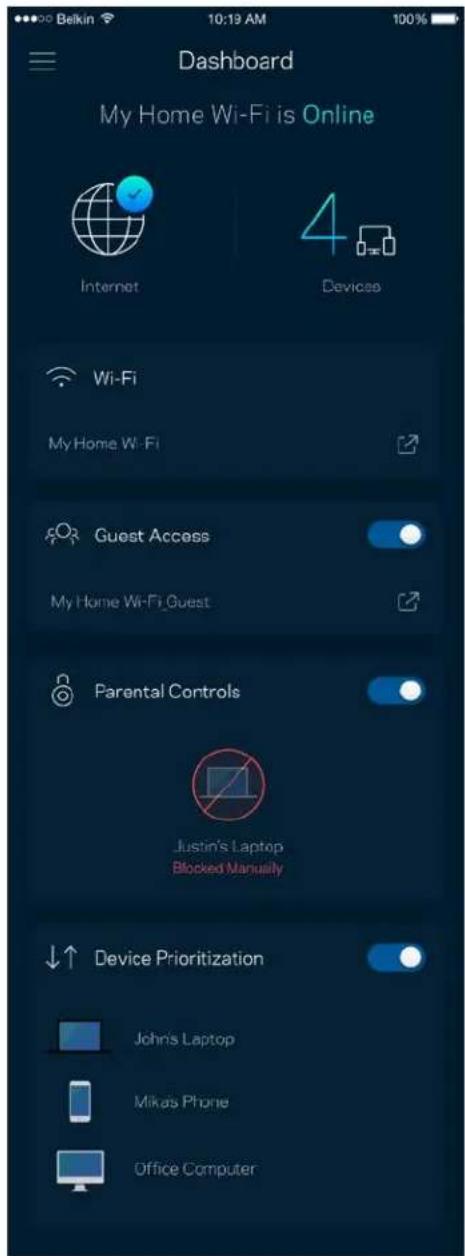
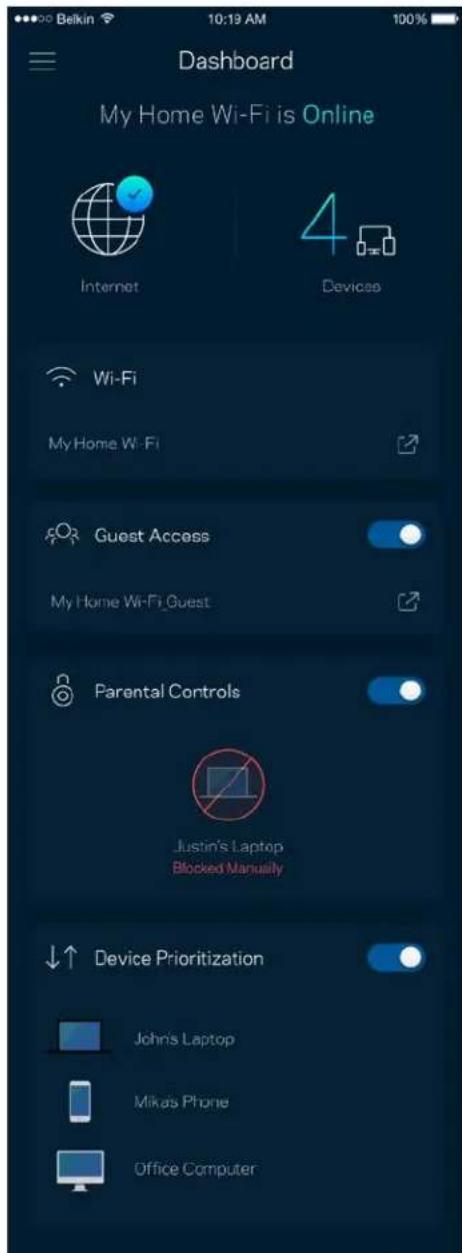
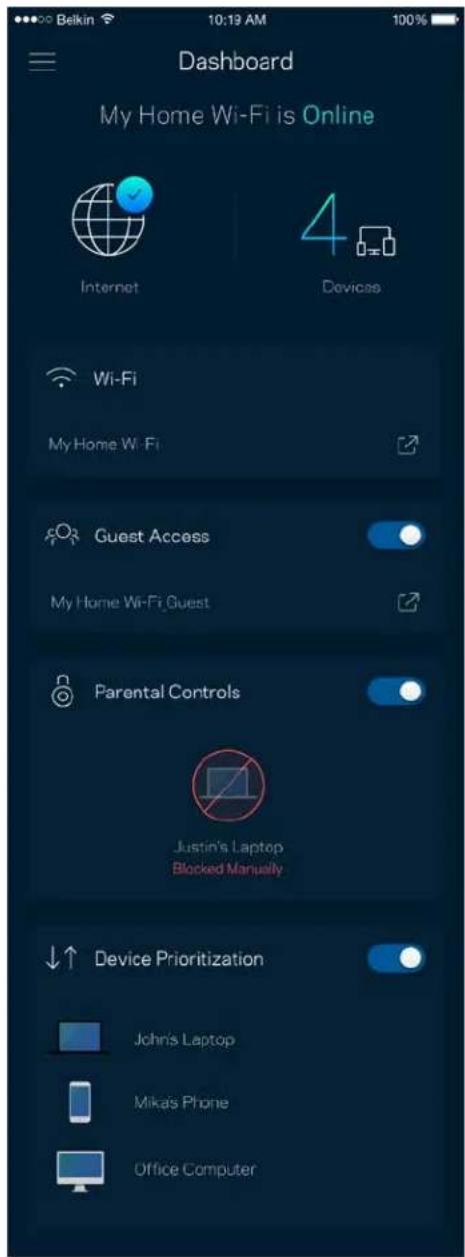
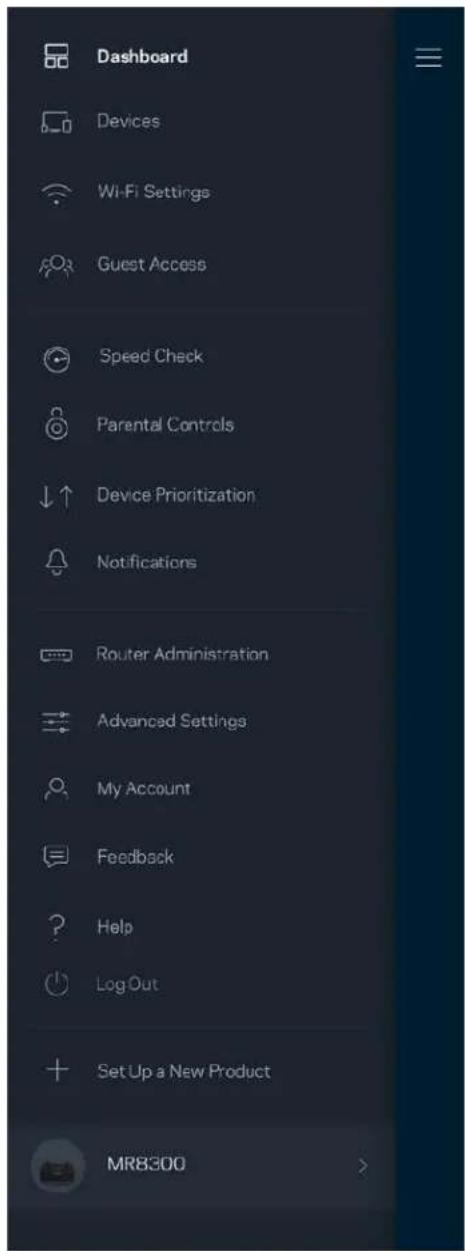
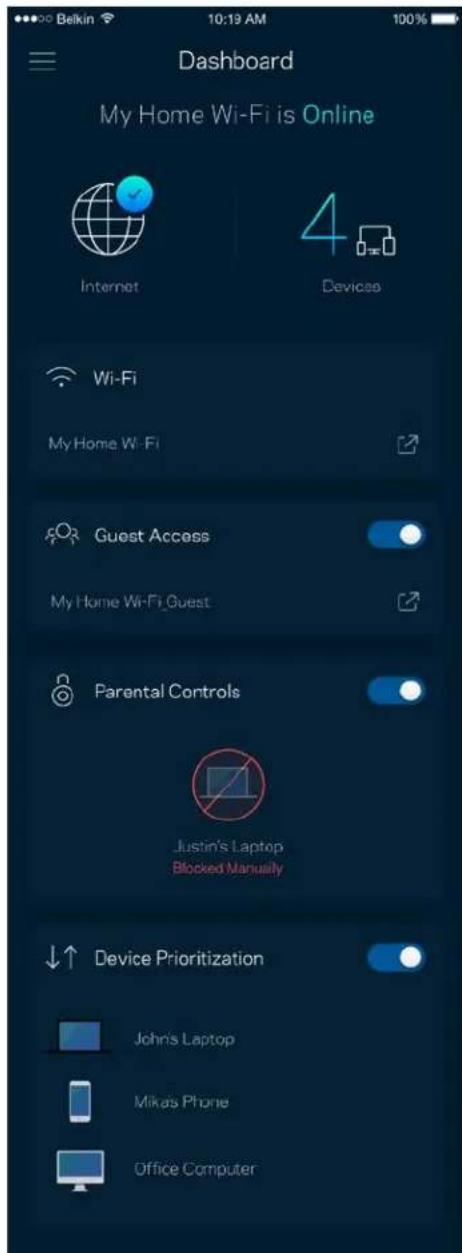
Dashboard is a snapshot of your Wi-Fi. See how many devices are connected to your system. From Dashboard you can share your Wi-Fi password and turn on guest access. Dashboard also shows you if any devices have parental controls on them or have been prioritized for Wi-Fi access.
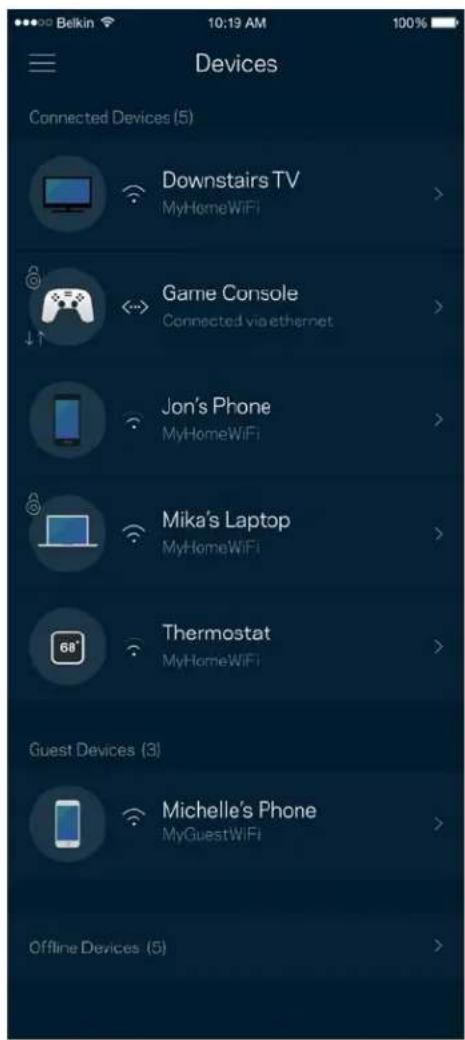
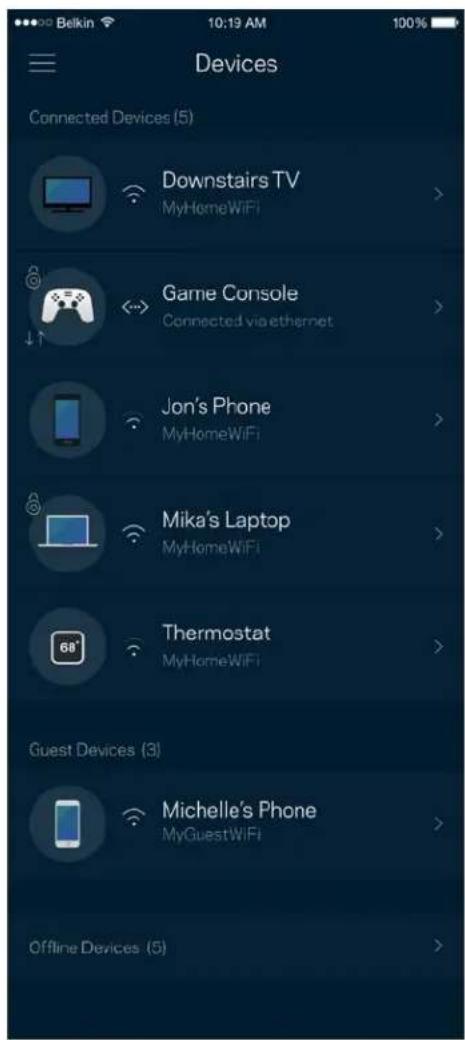
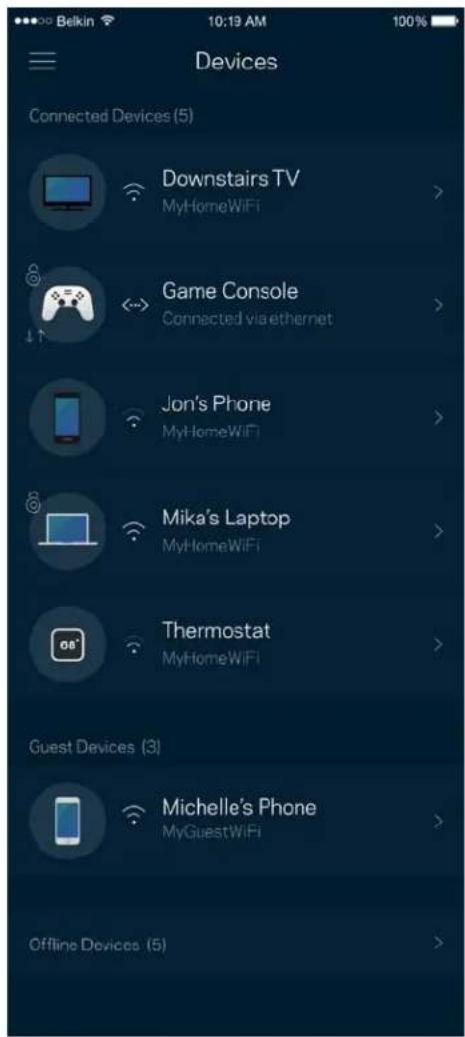
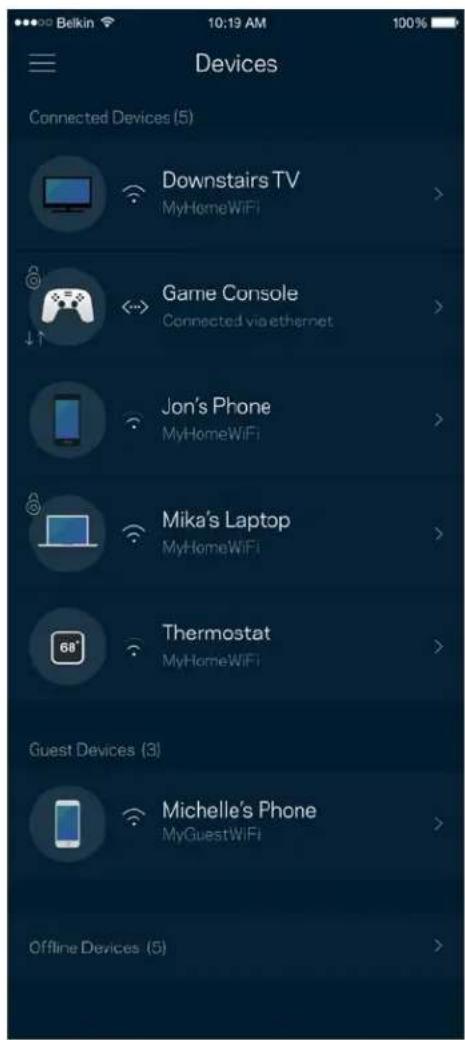
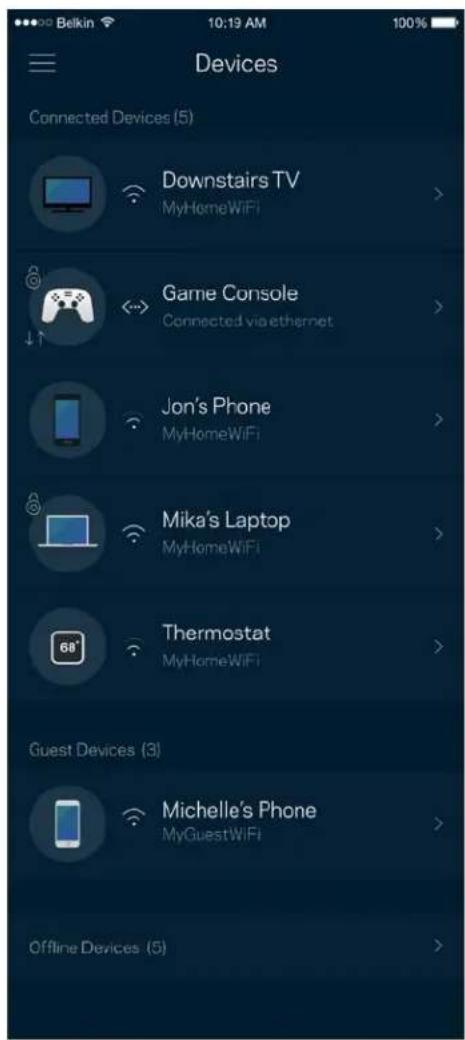
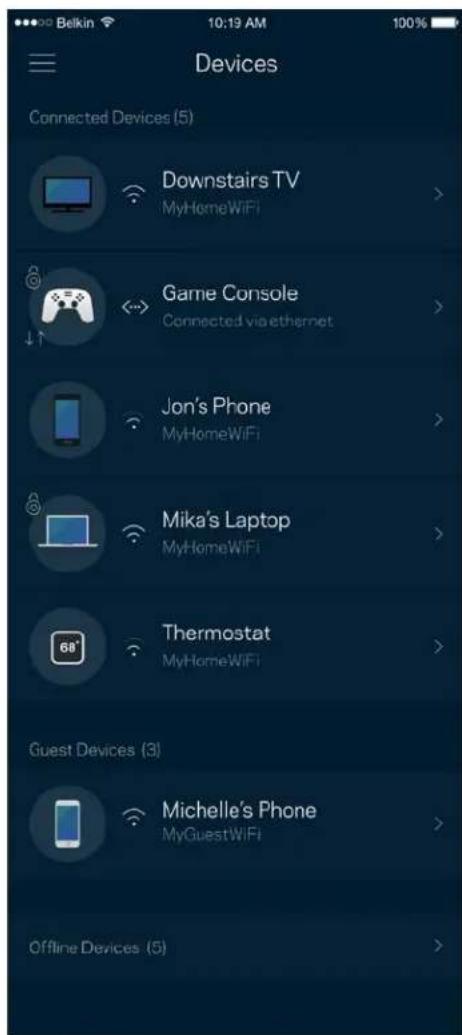
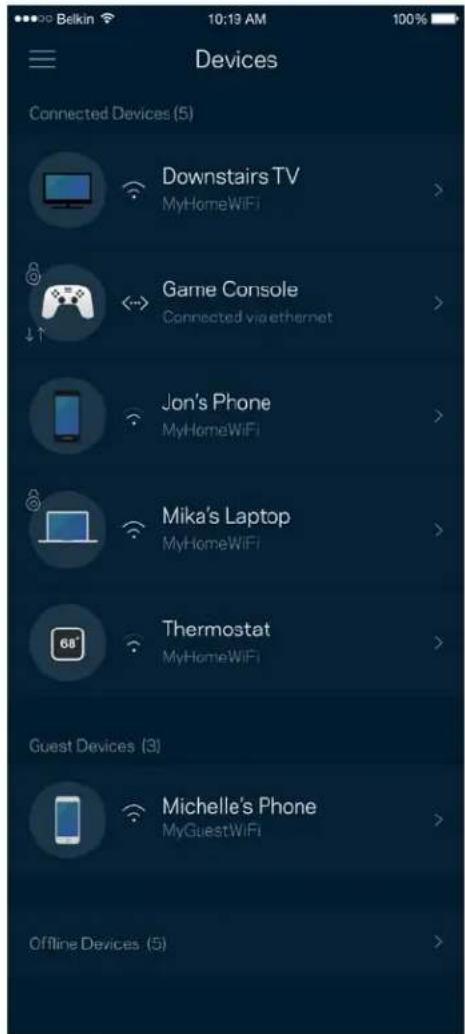
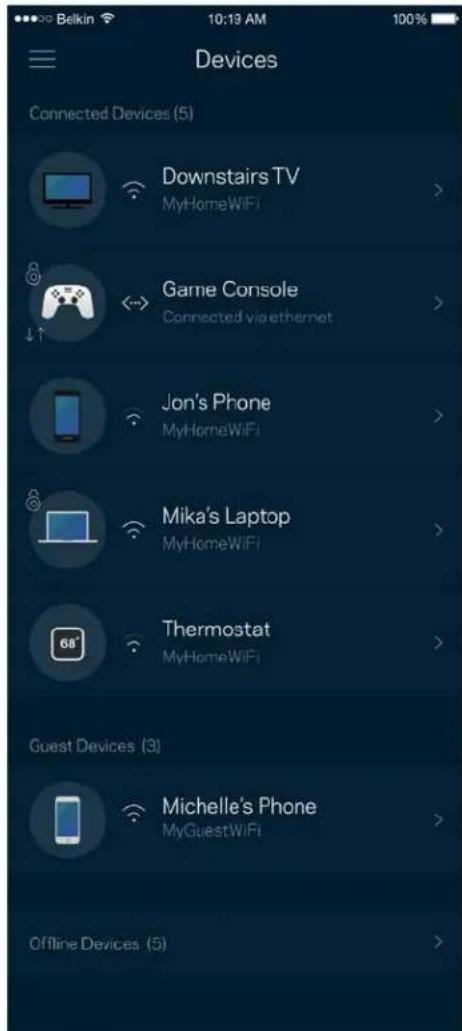
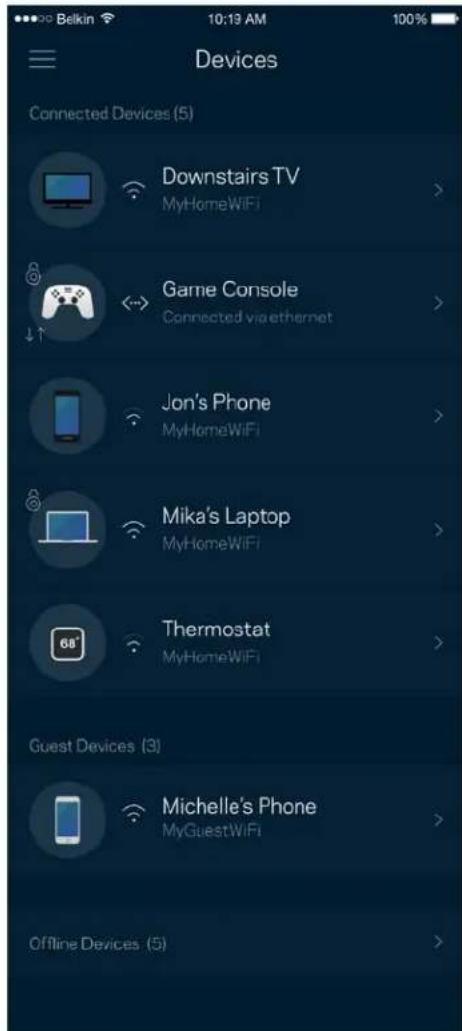
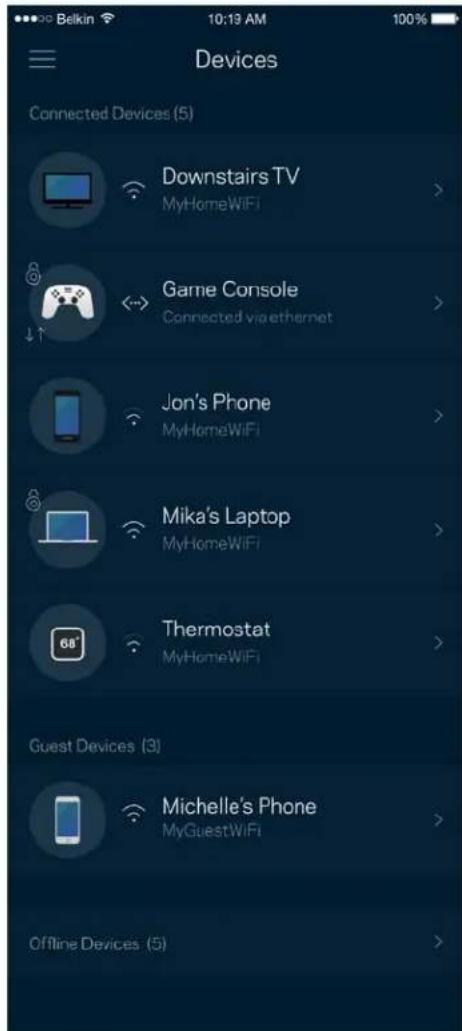
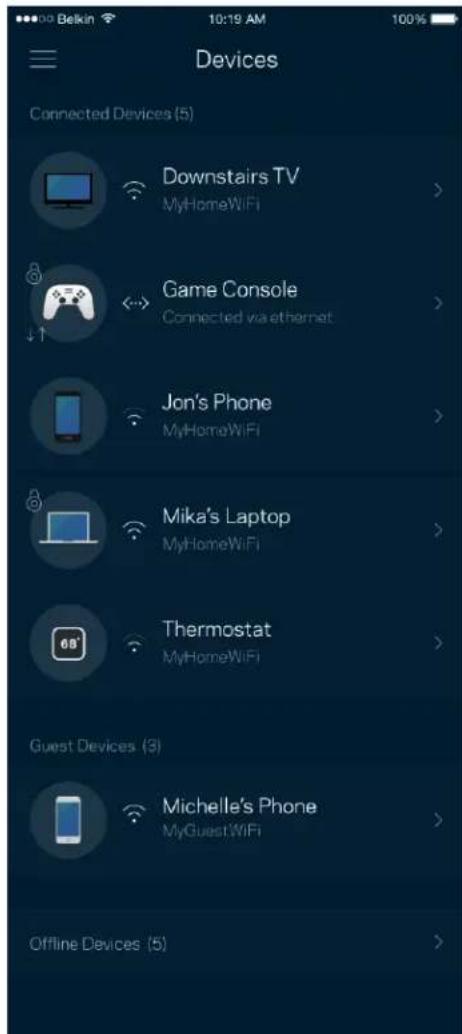
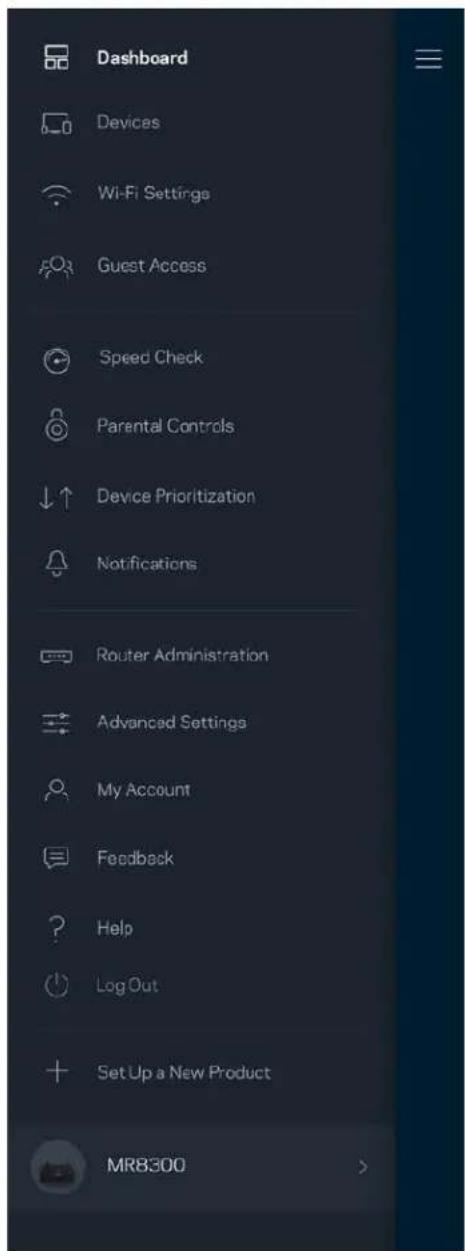
Devices
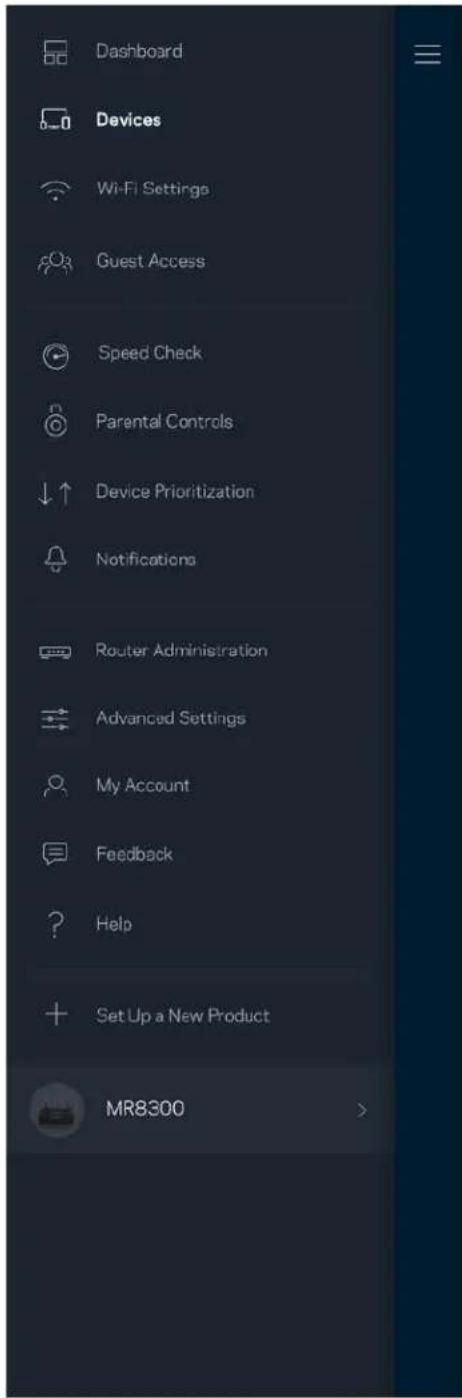
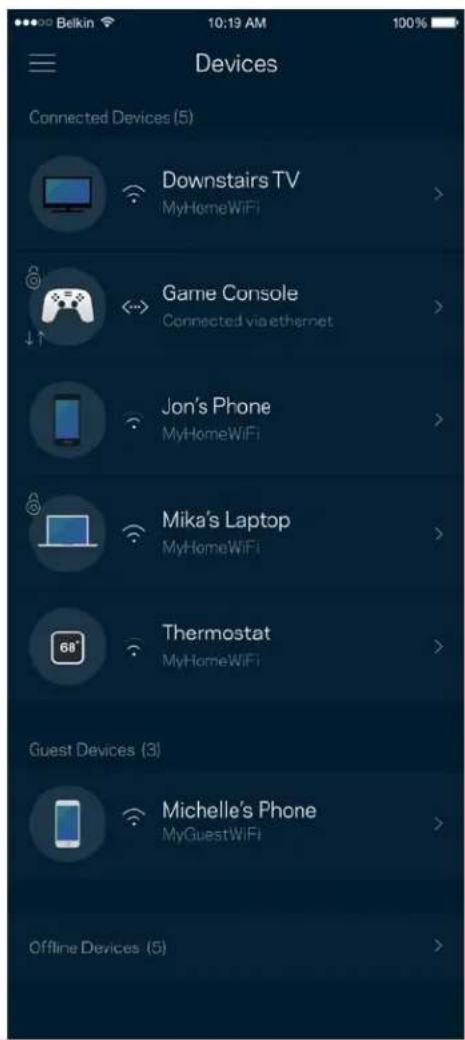
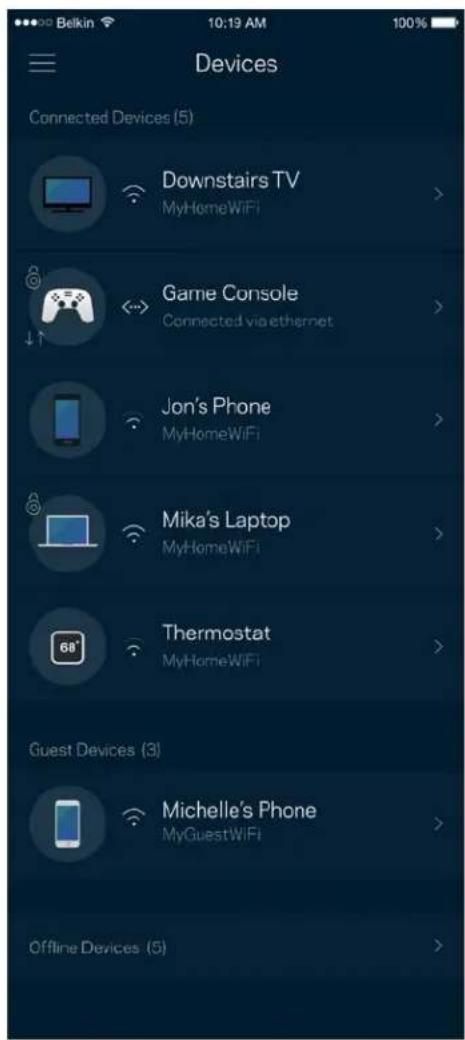
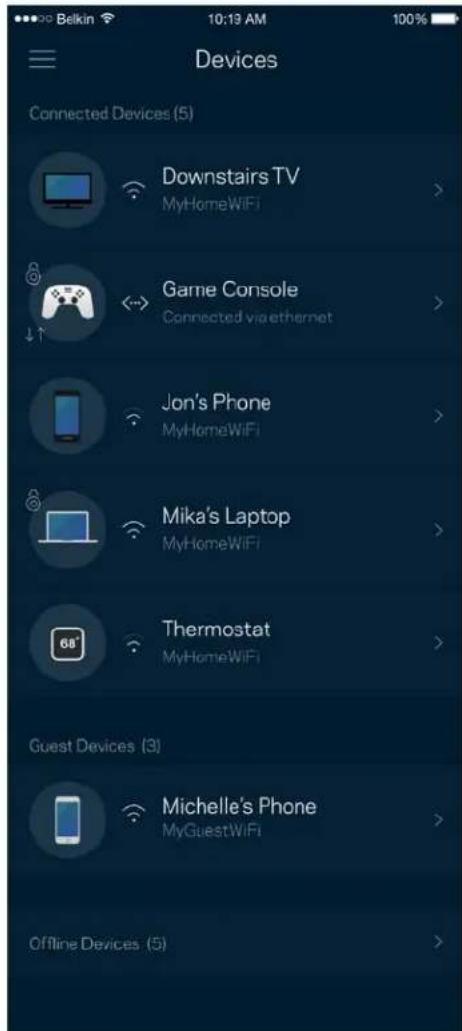
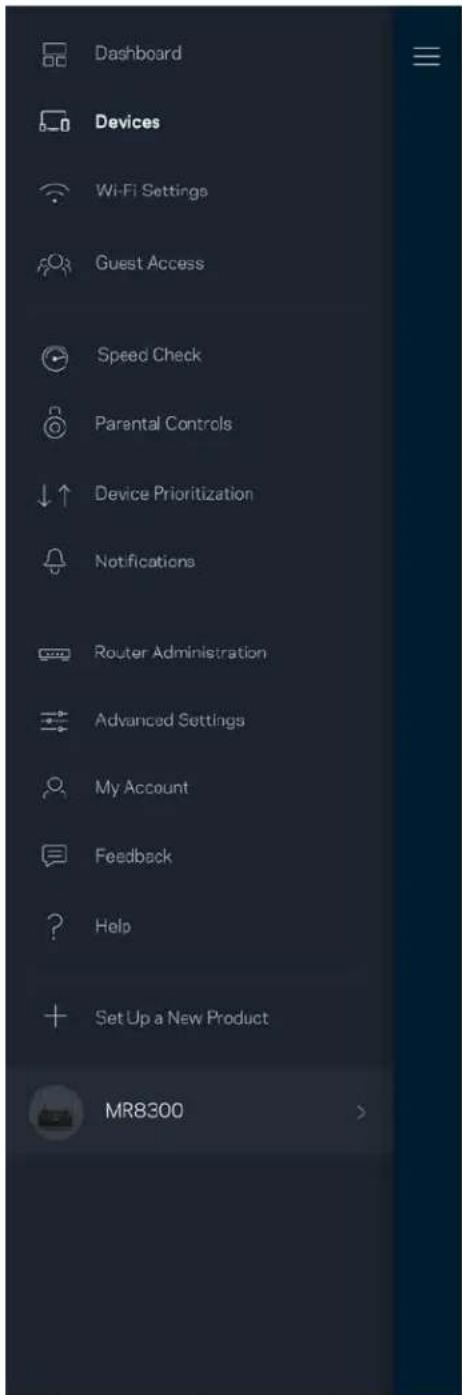
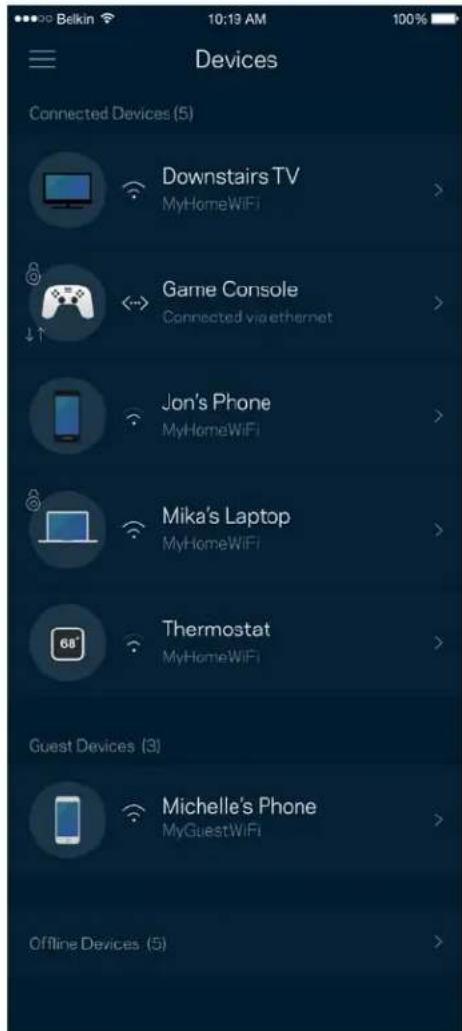
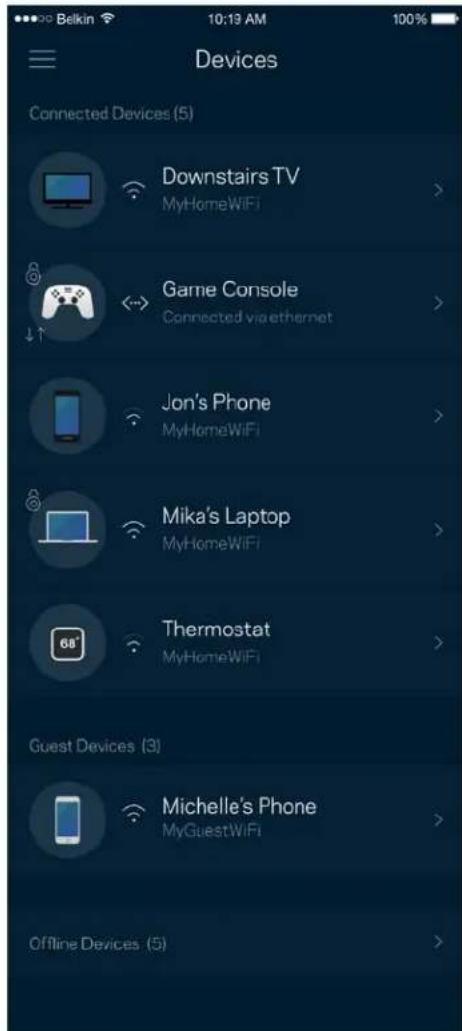
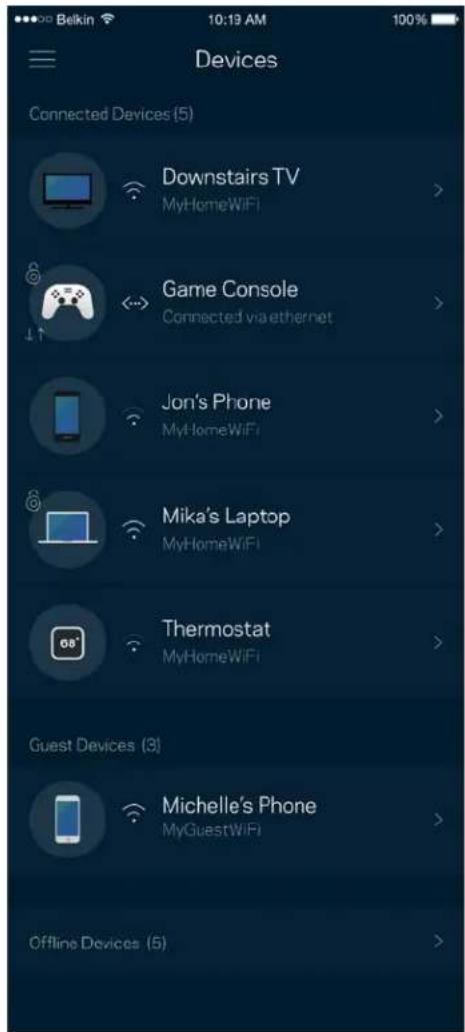
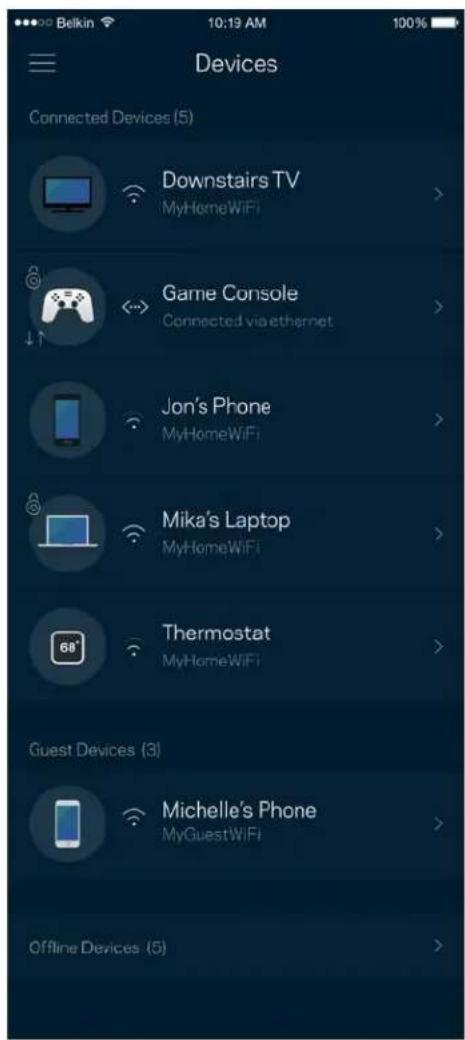
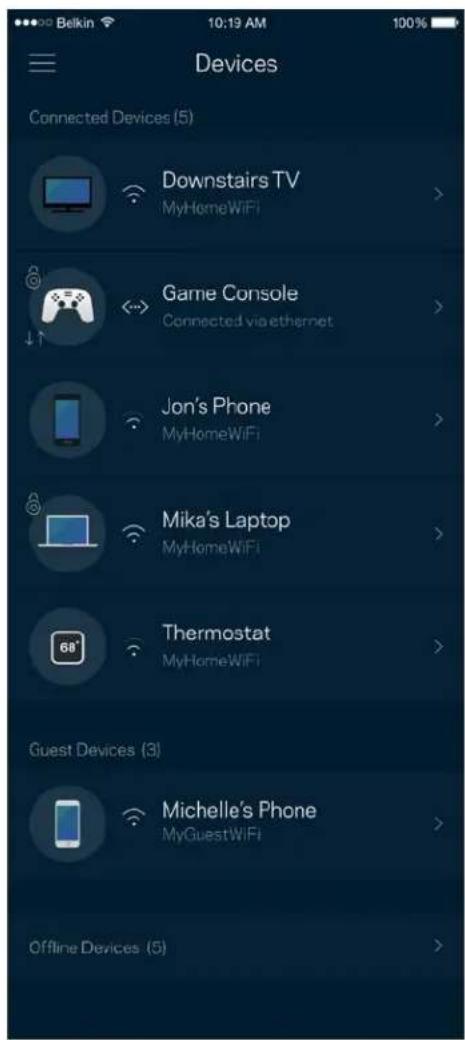
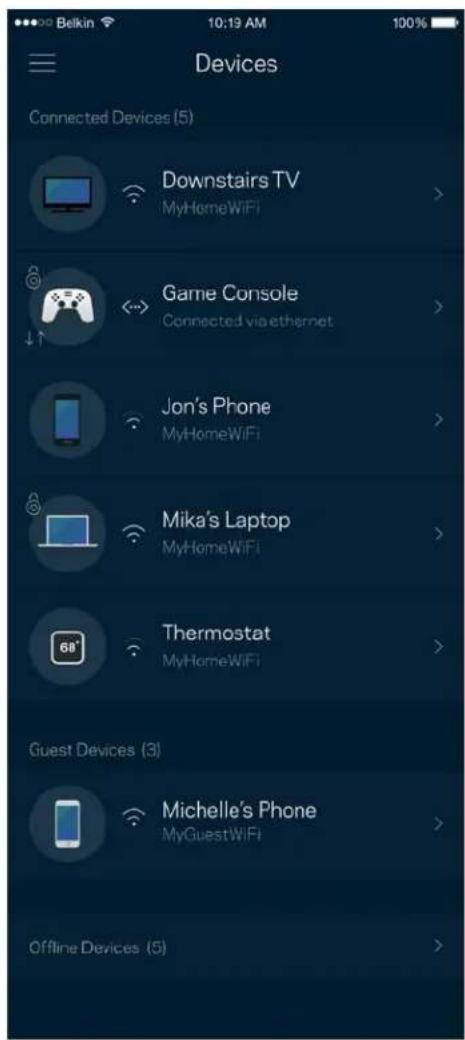
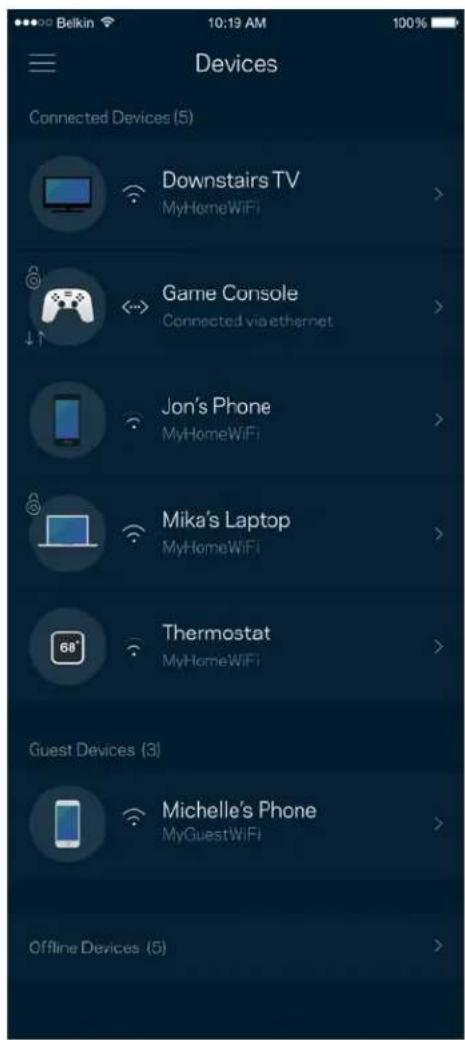
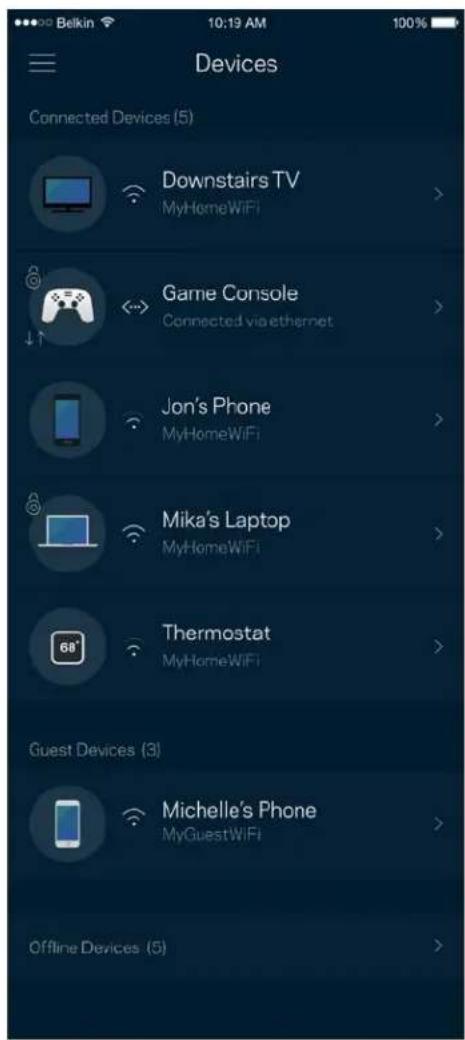
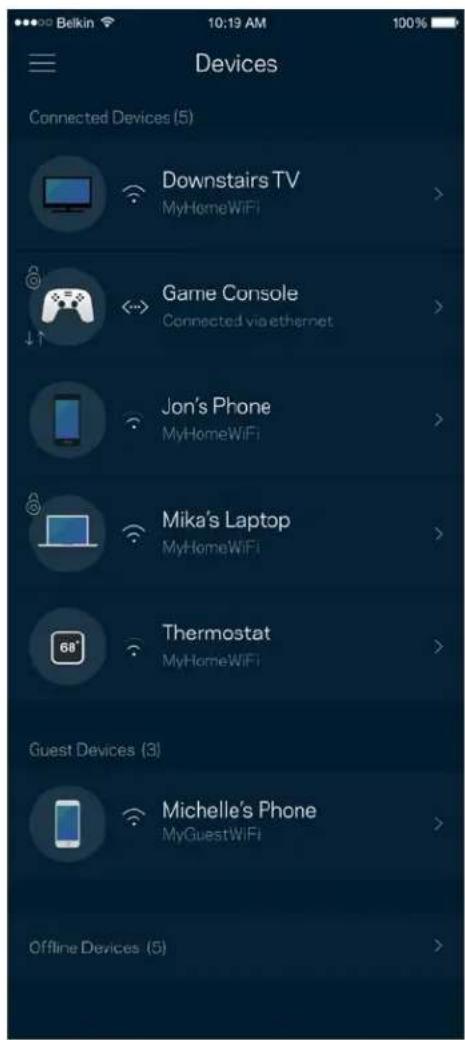
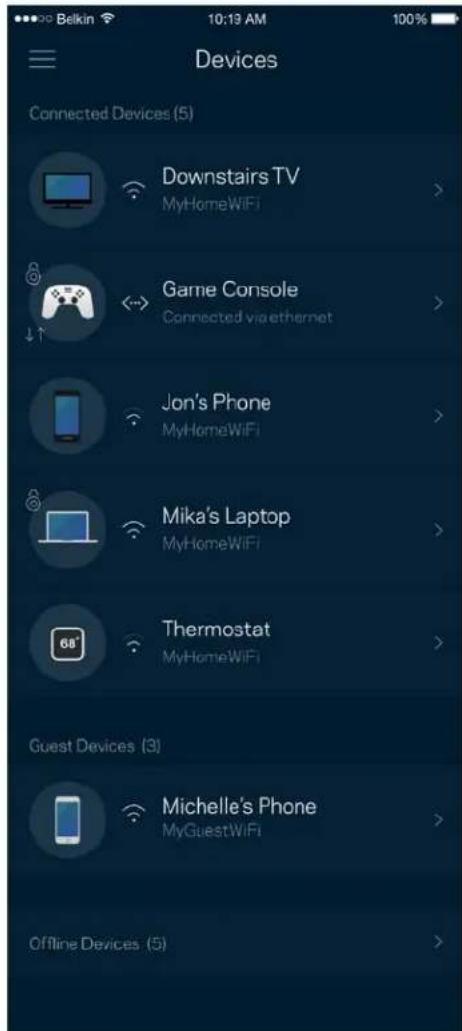
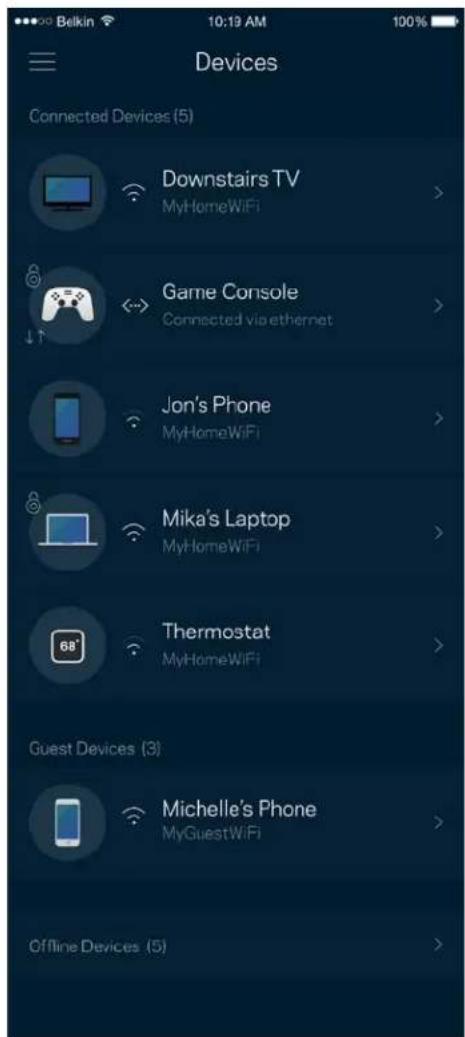
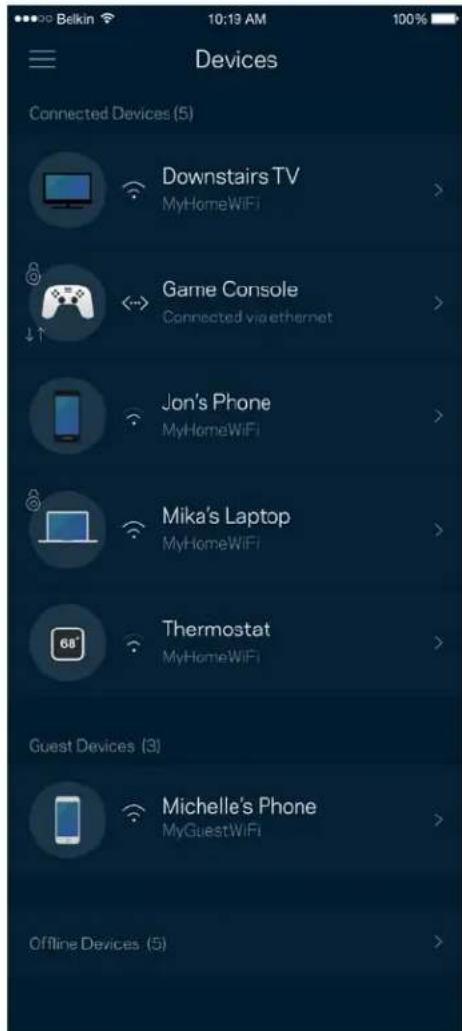
View and change details for all devices connected to your Wi-Fi. You can view devices on your main network and your guest network, or display information about each device.
To view or change device details
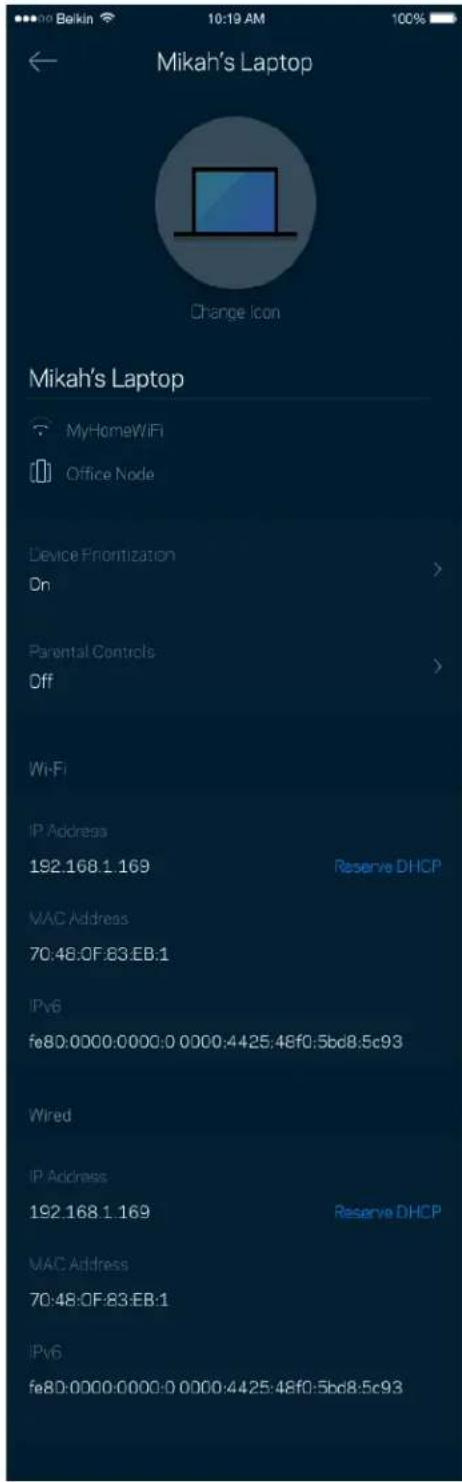
From the Devices screen you can edit device names and change the device icons. You also can prioritize devices, set parental controls, and see Wi-Fi details. Tap on any device to see details.
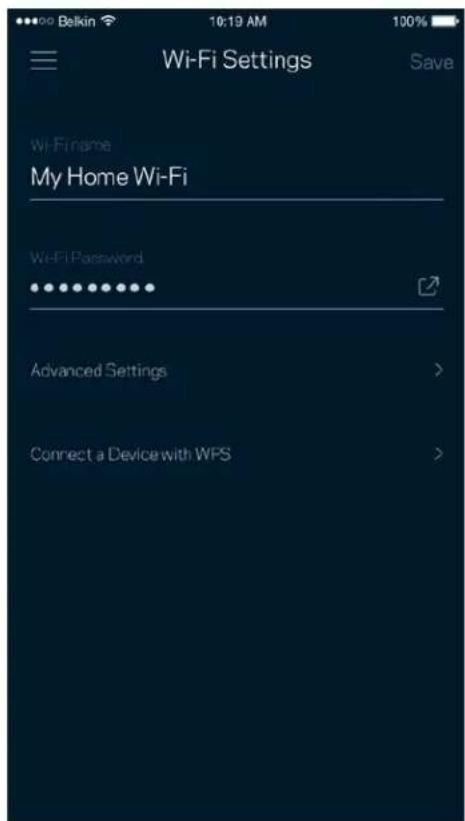
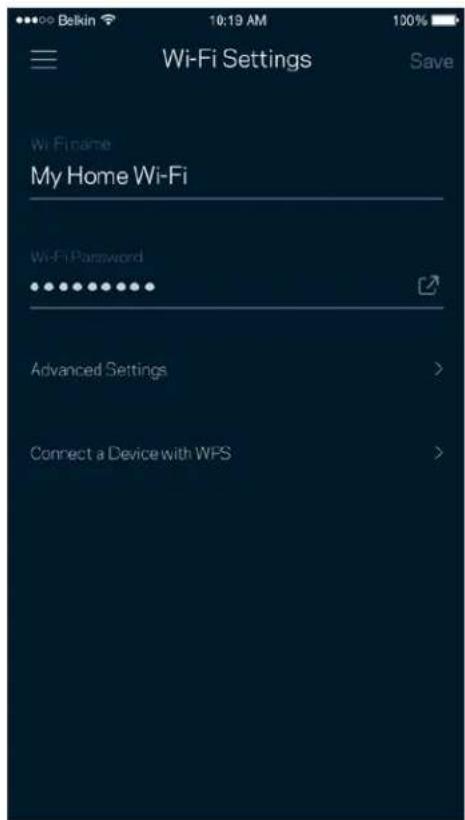
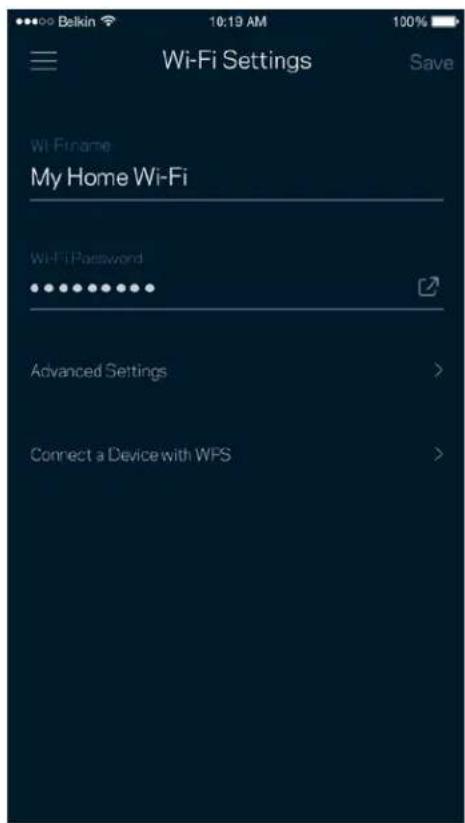
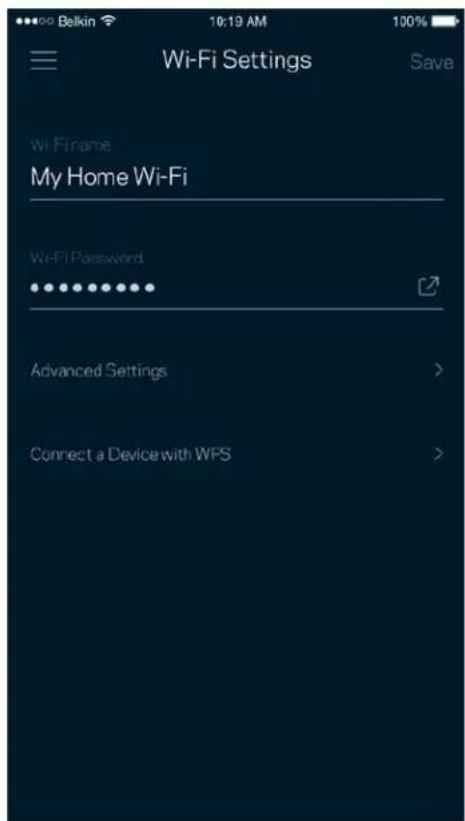
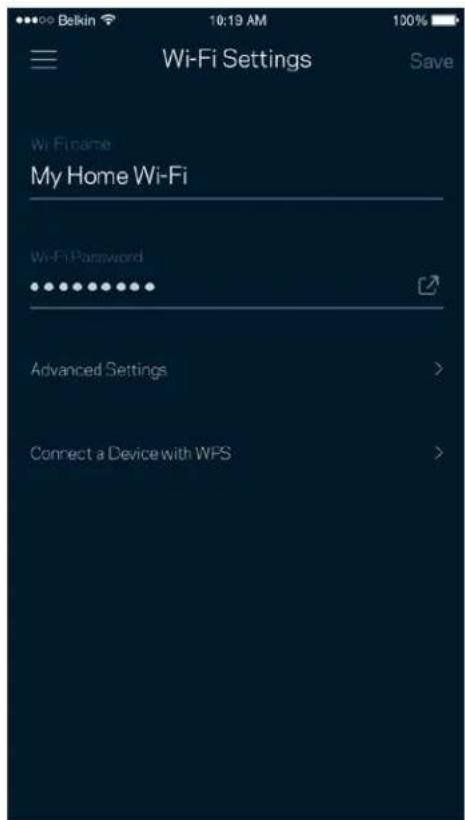
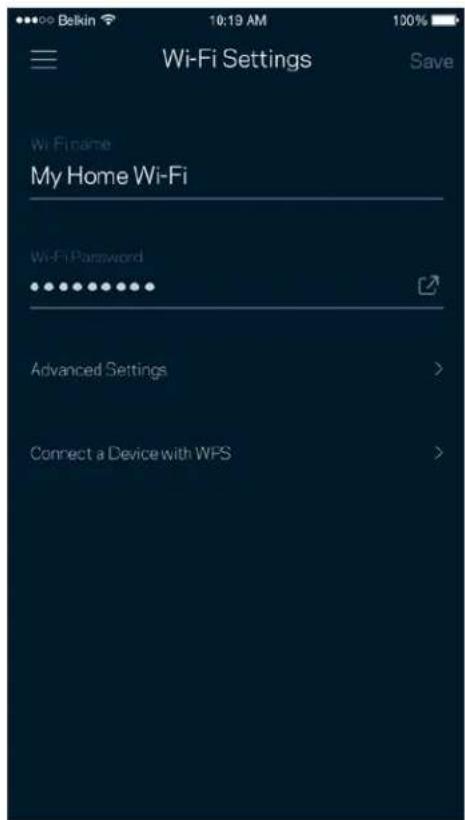
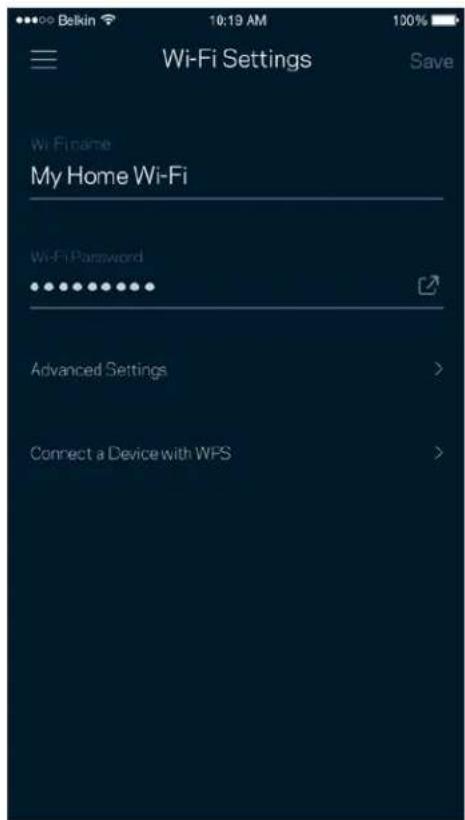
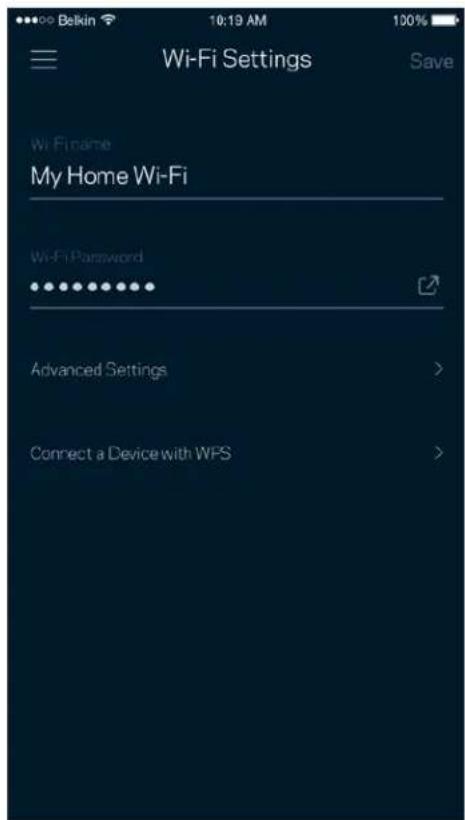
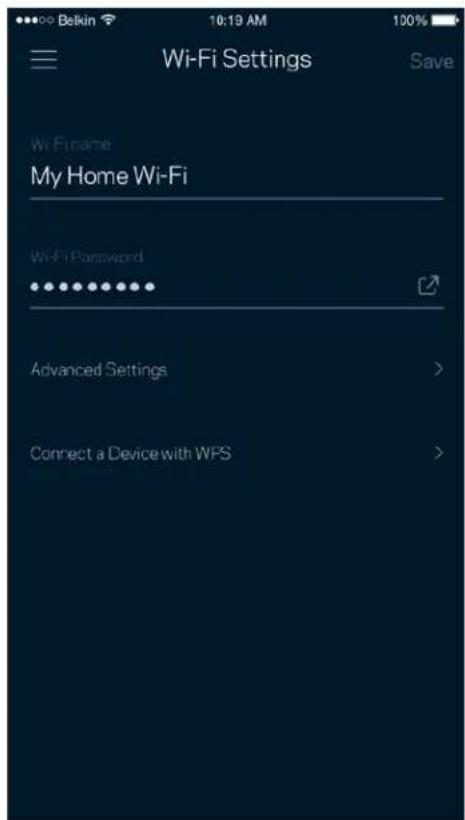
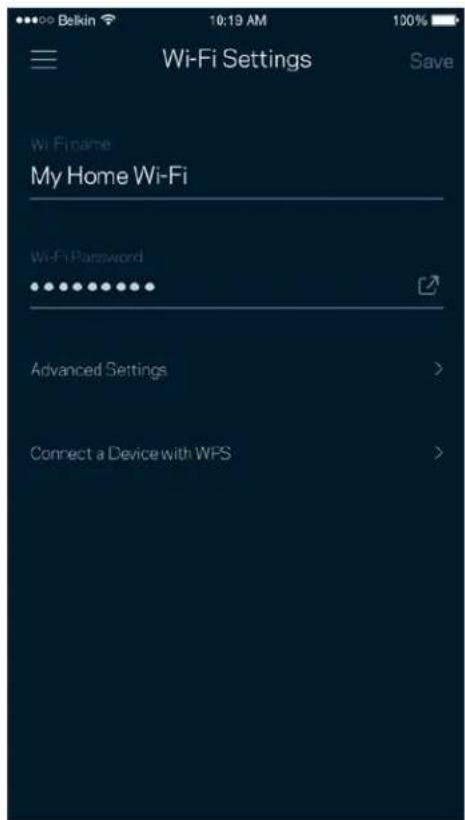
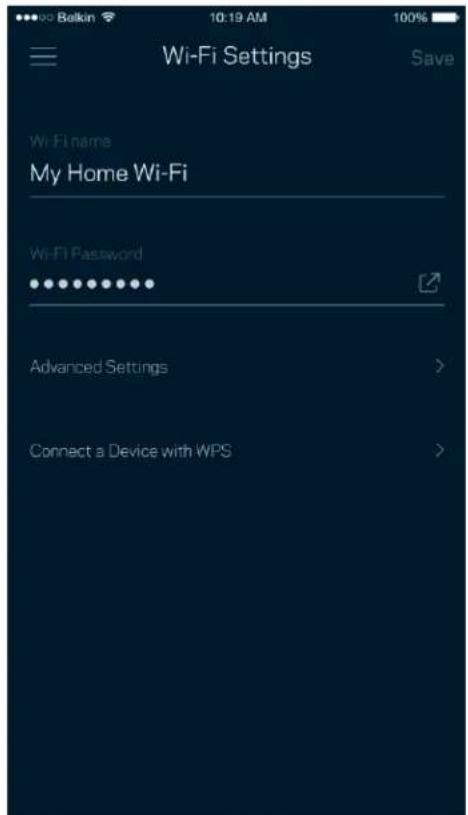
Wi-Fi Settings
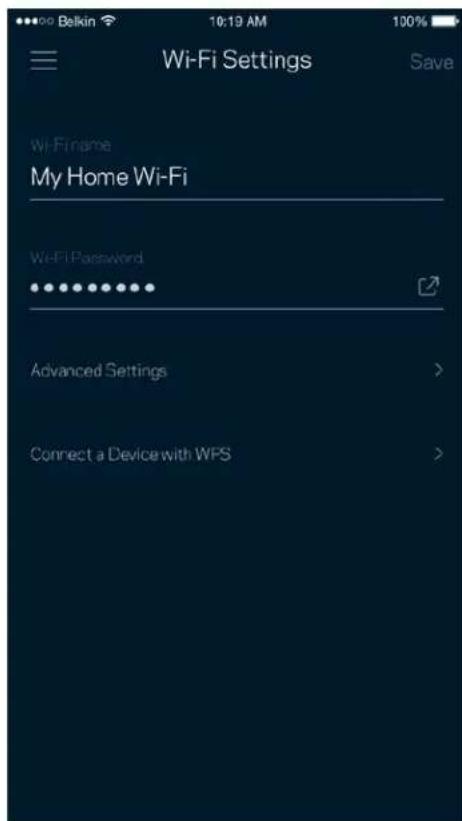
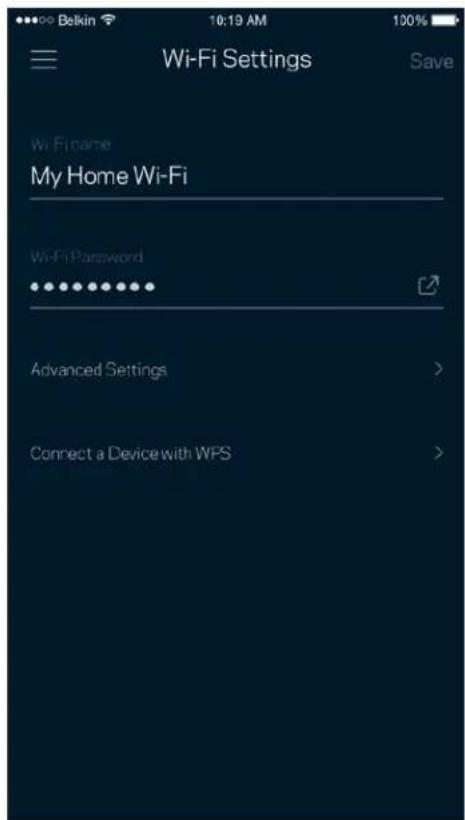
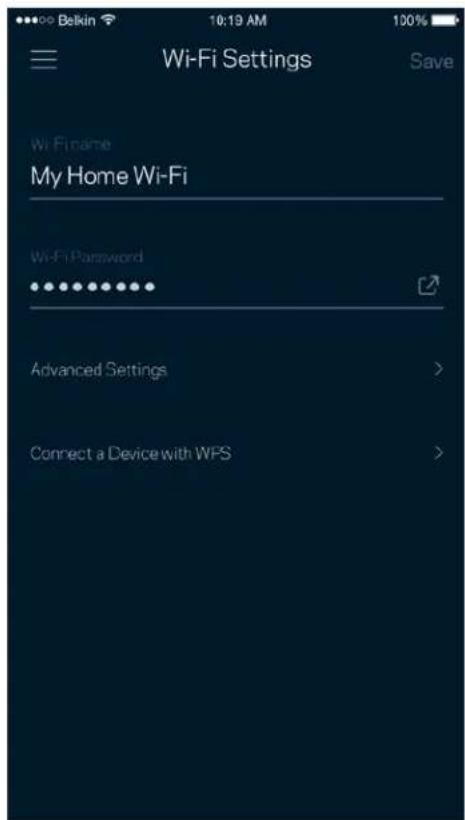
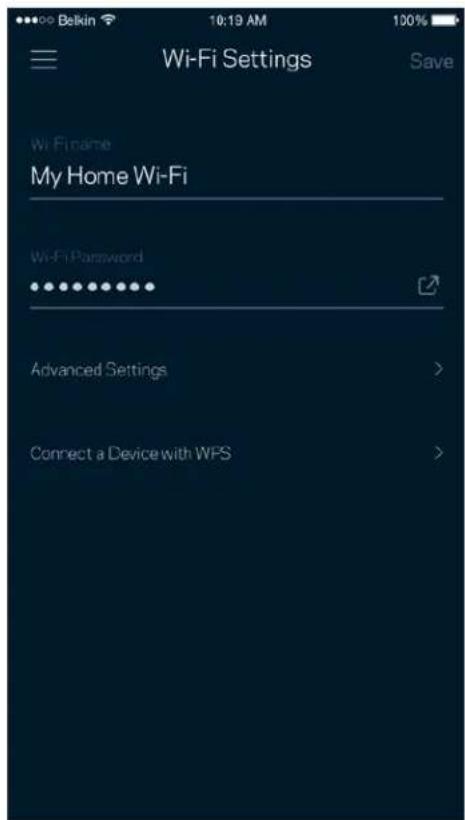
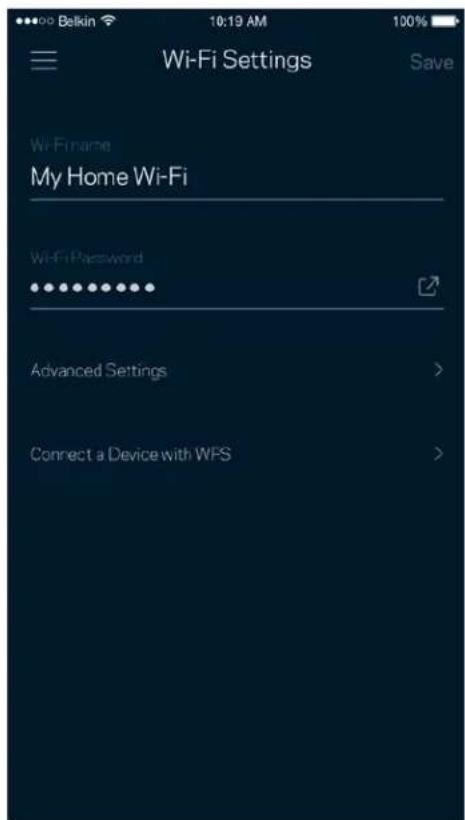
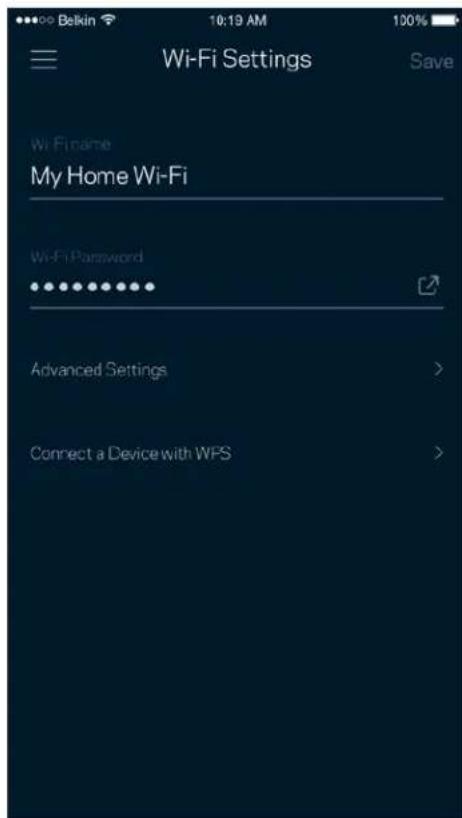
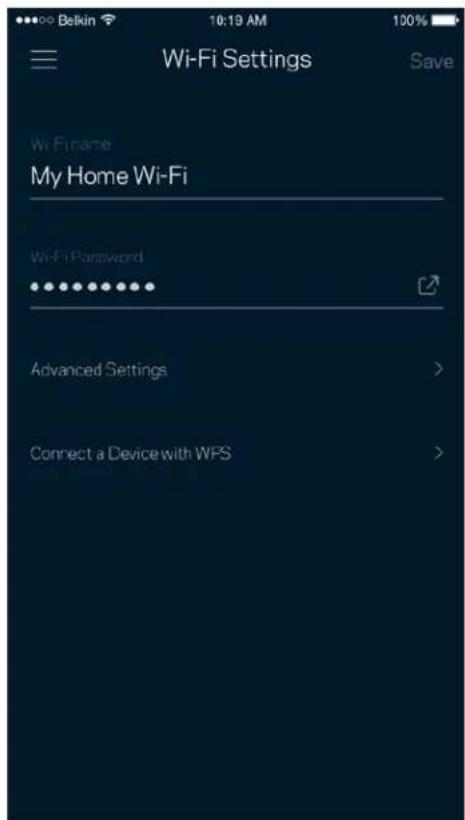
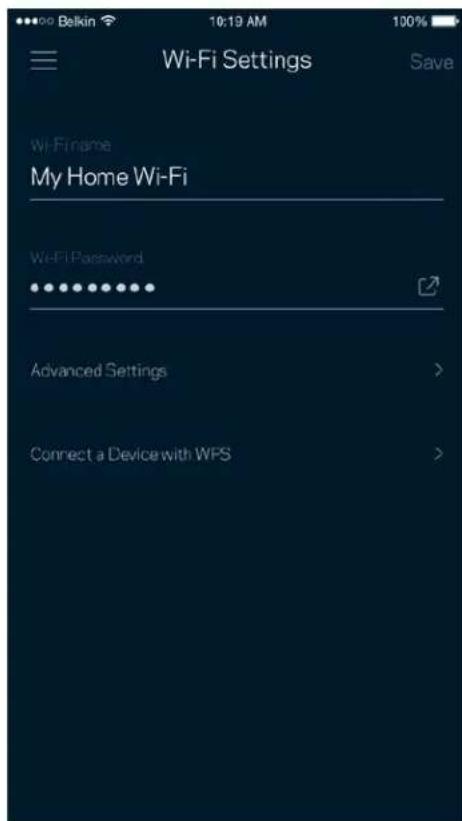
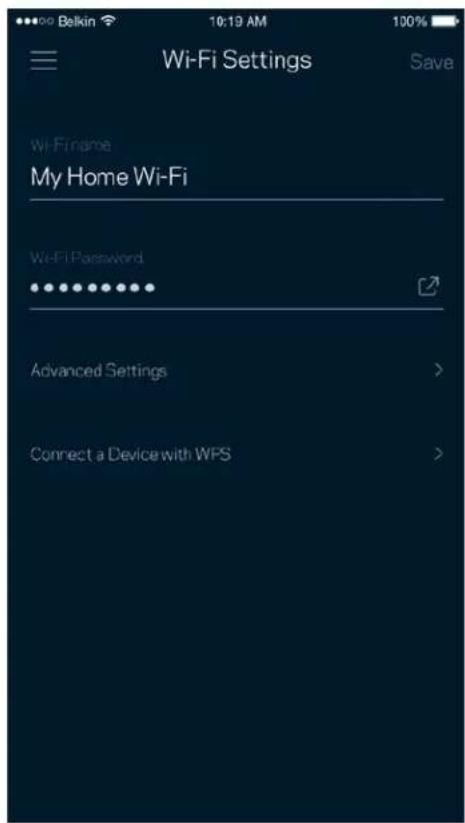
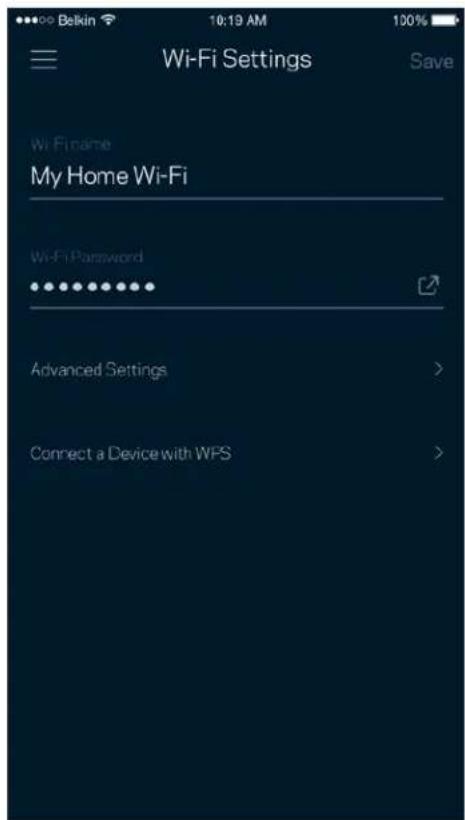
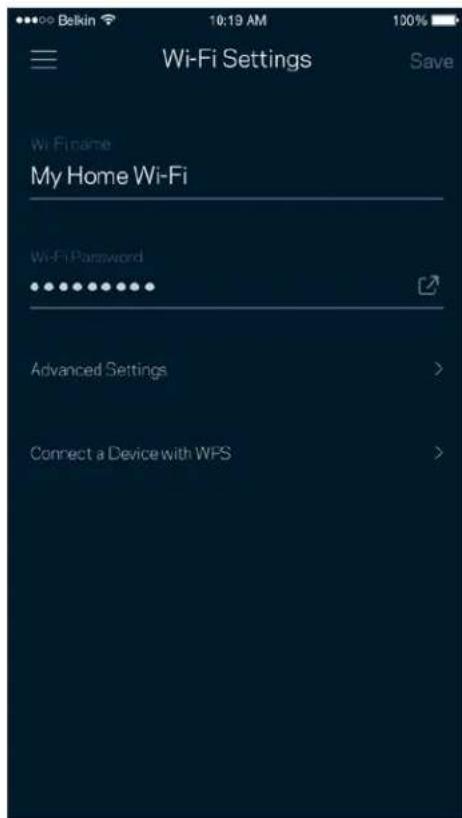
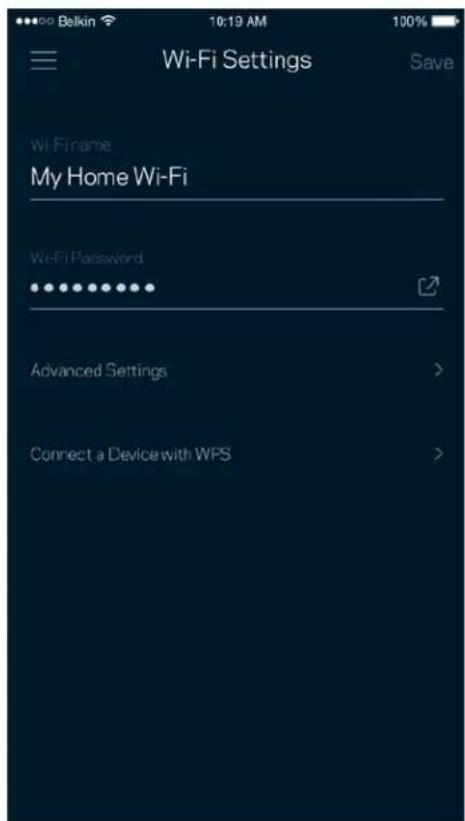
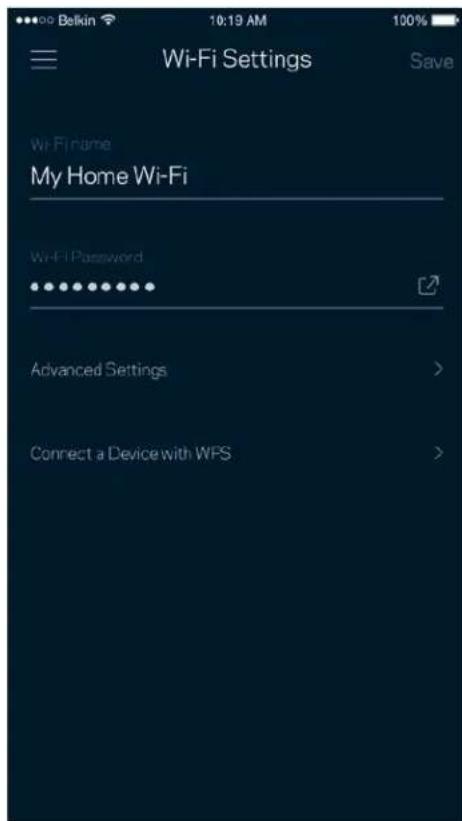
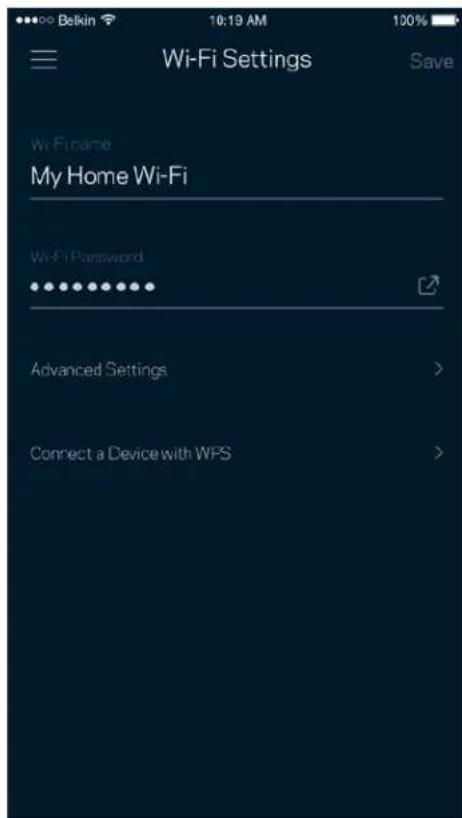
View or change your Wi-Fi name and password and connect devices using Wi-Fi Protected Setup™.
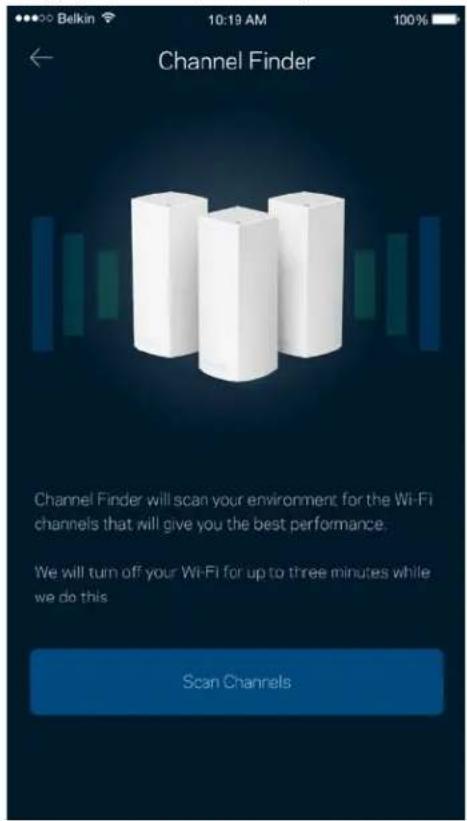
Advanced Settings
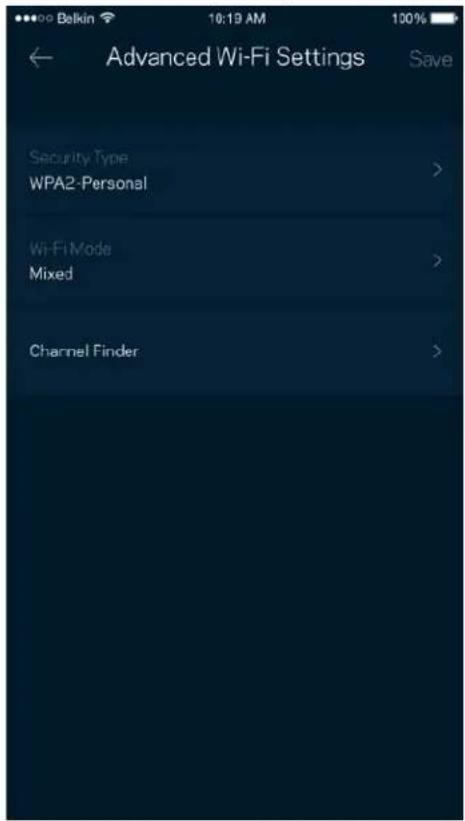
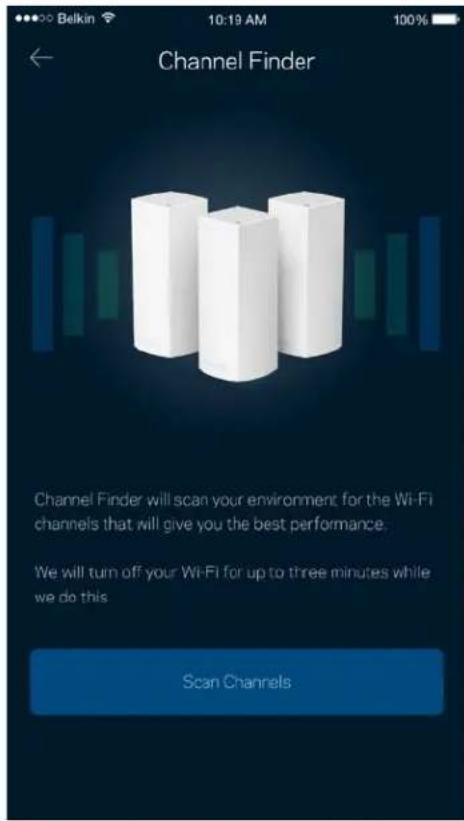
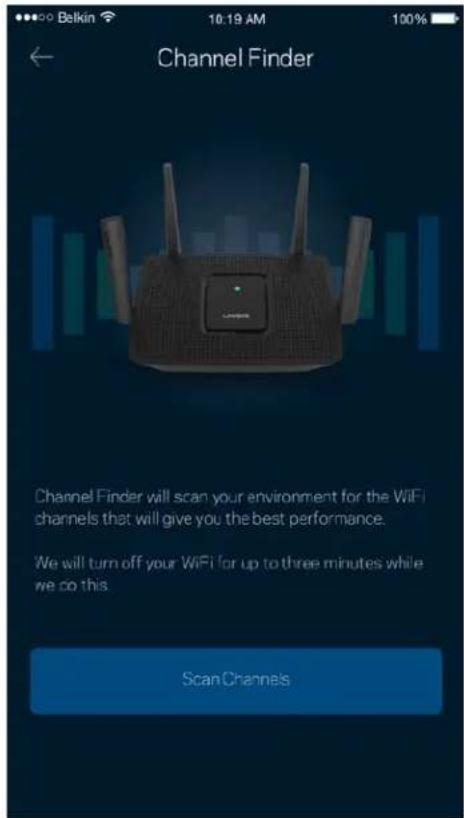
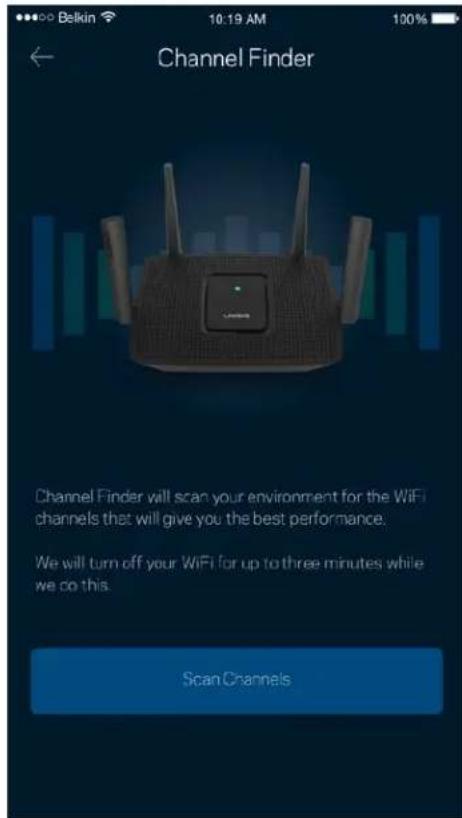
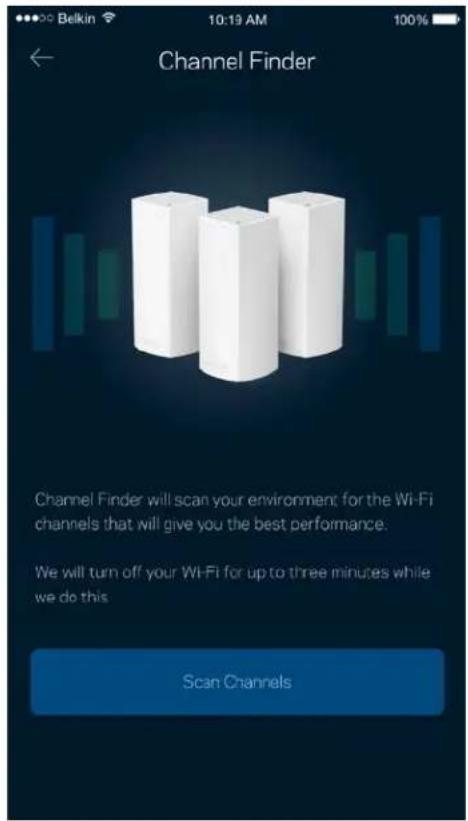
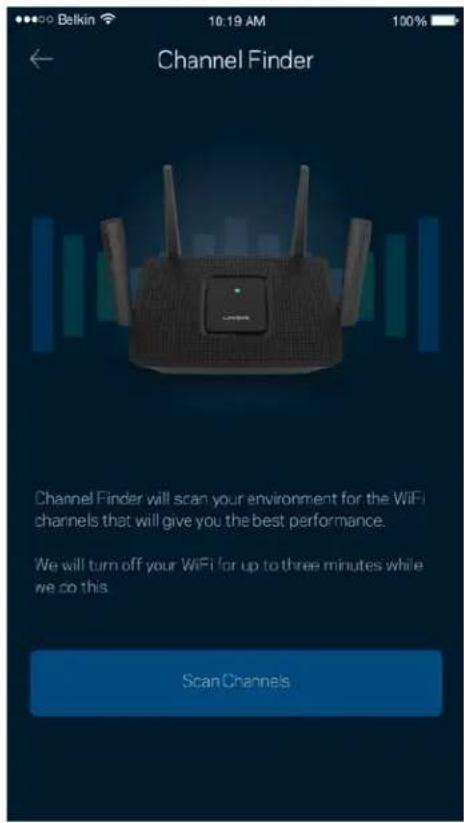
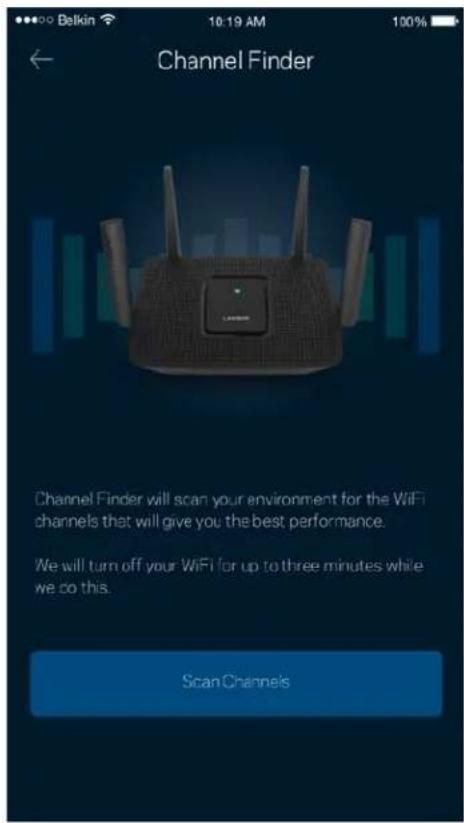
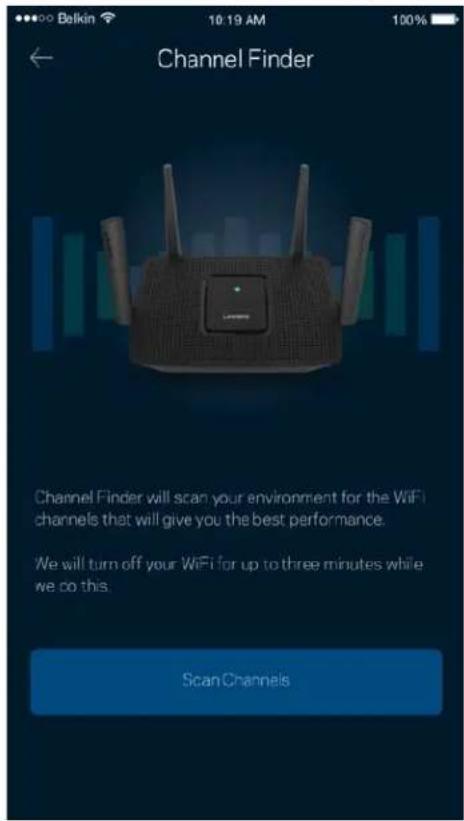
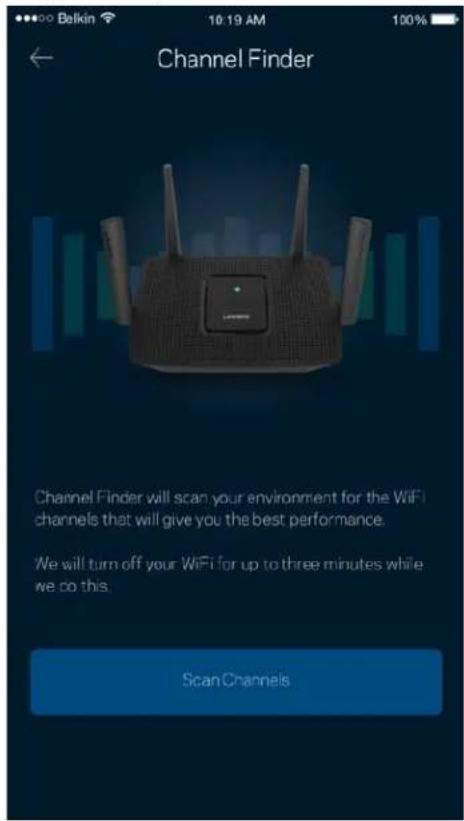
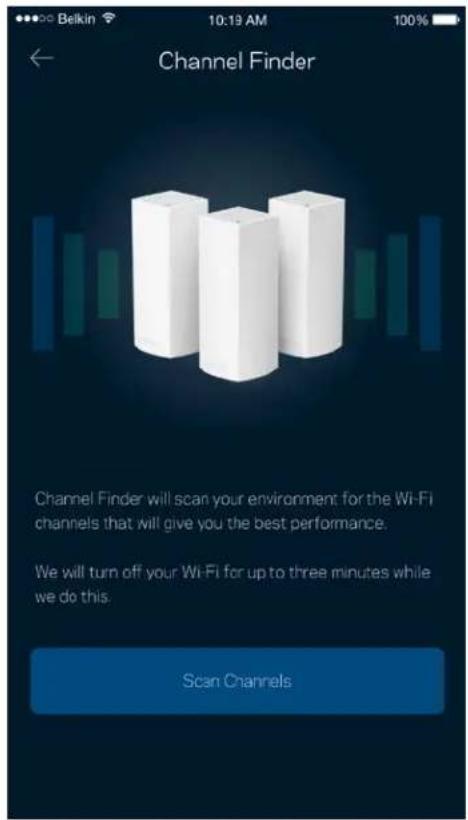
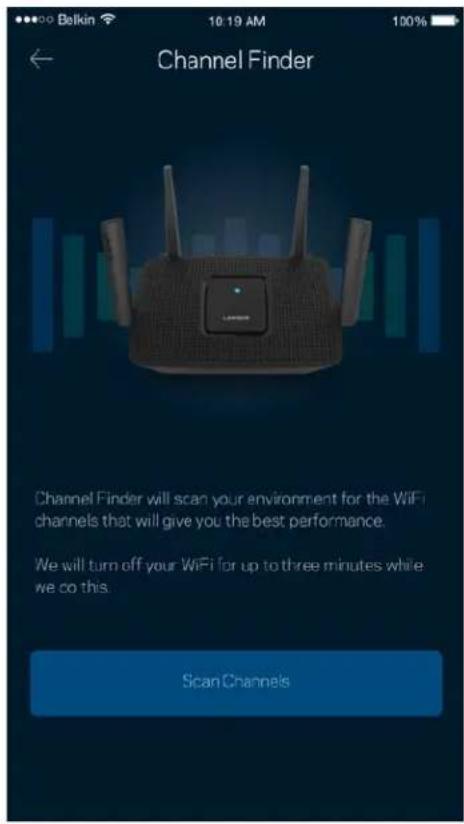
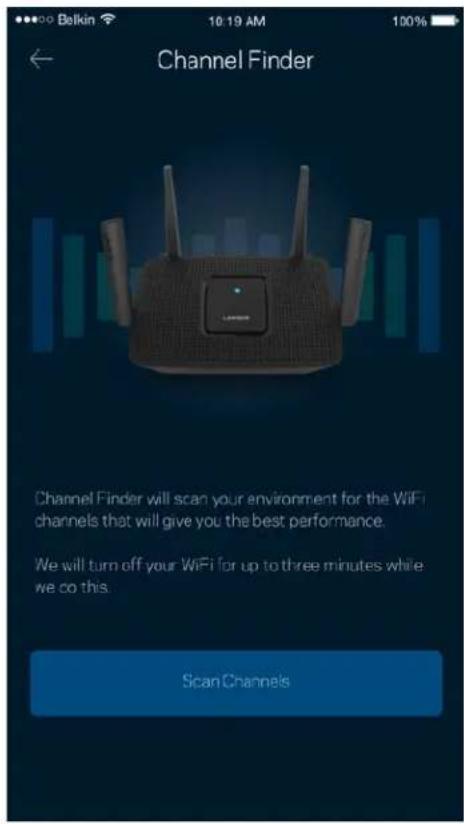
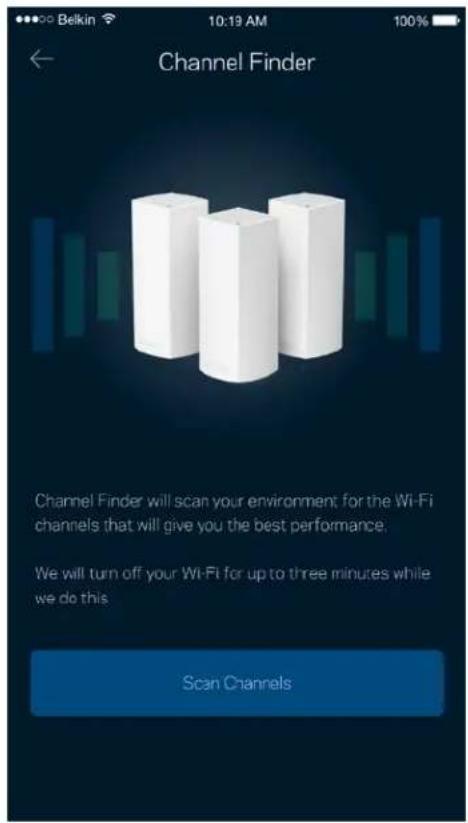
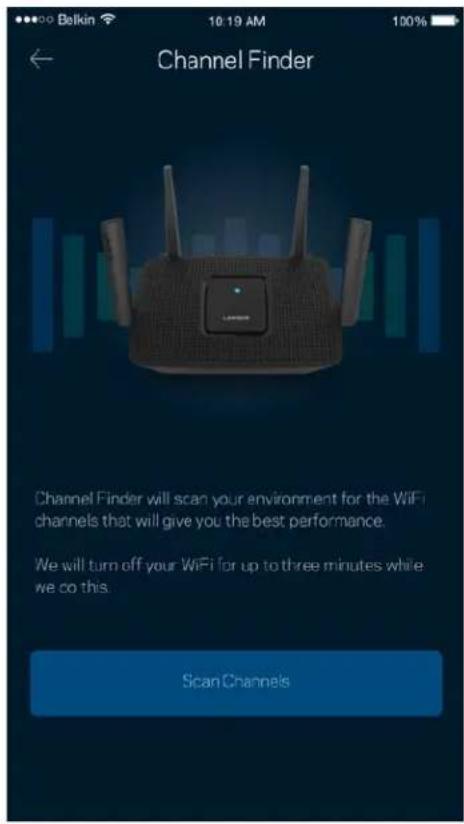
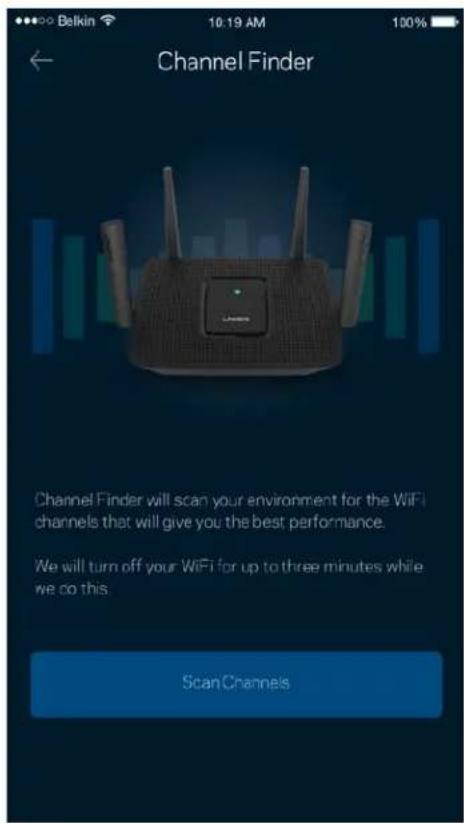
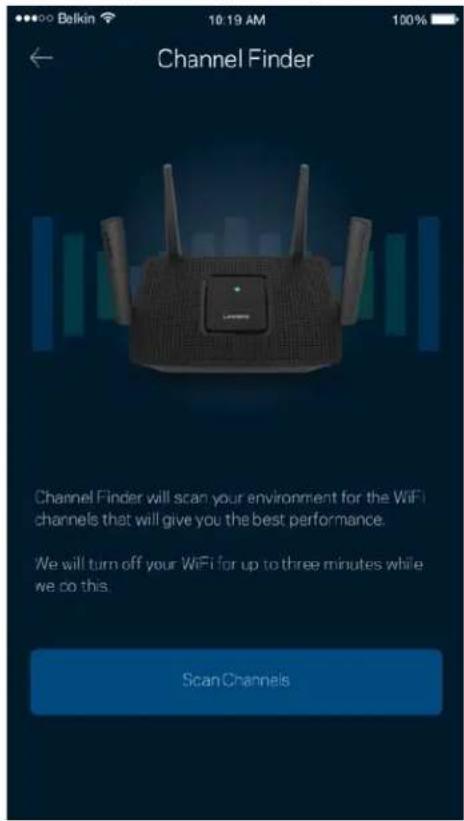
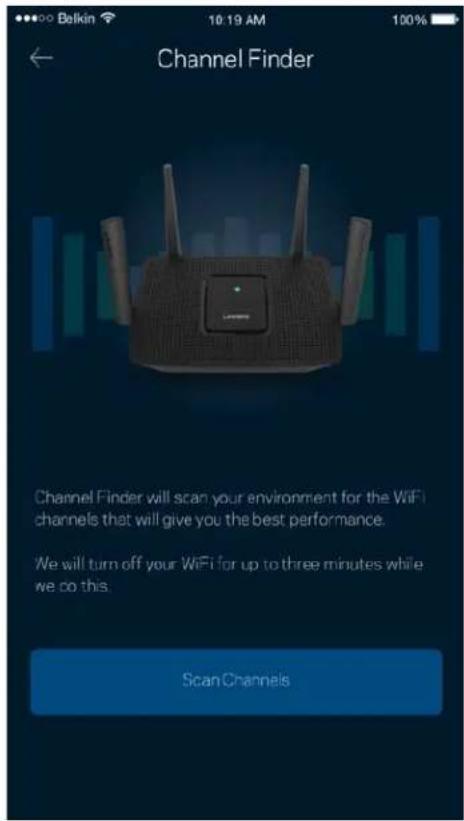
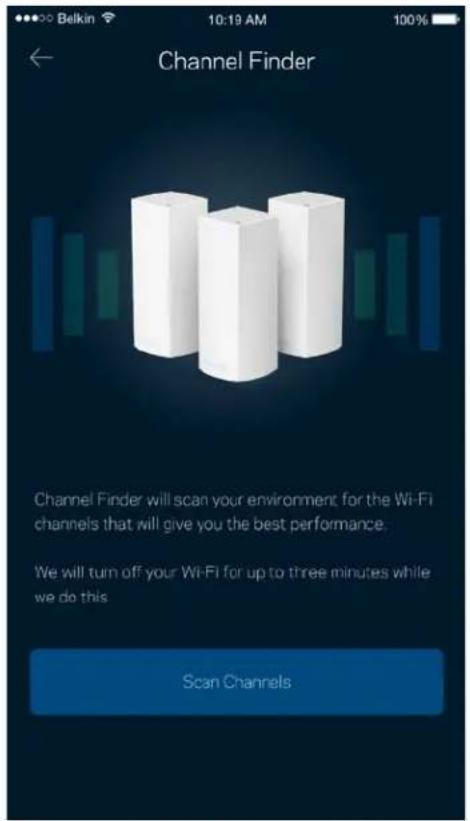
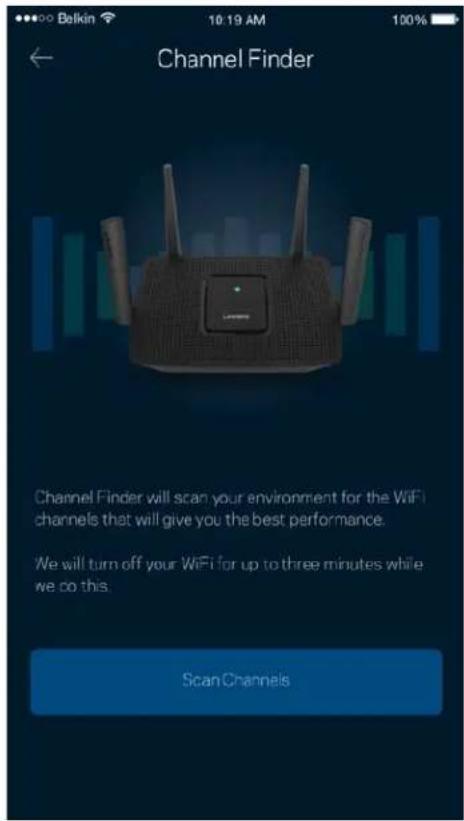
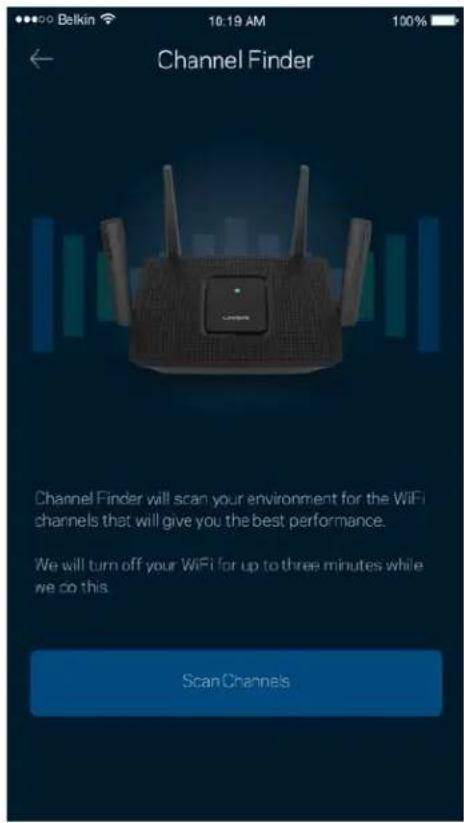
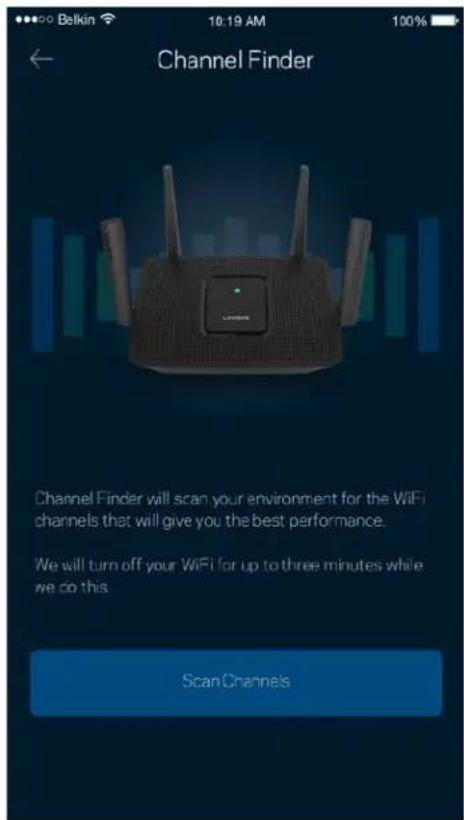
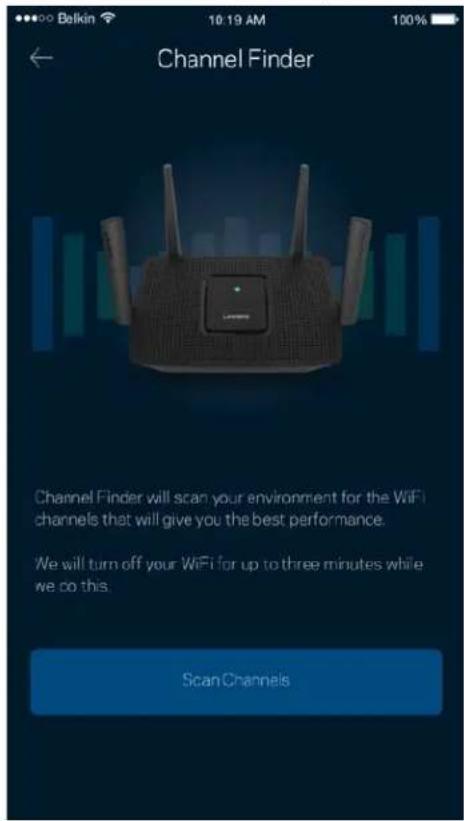
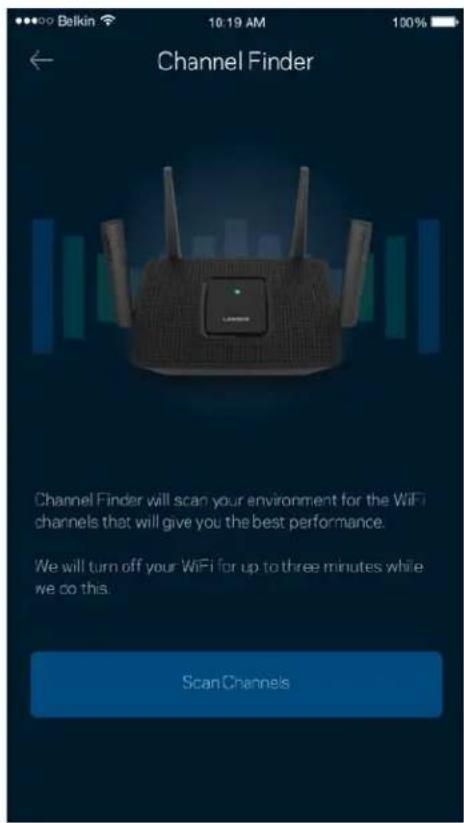
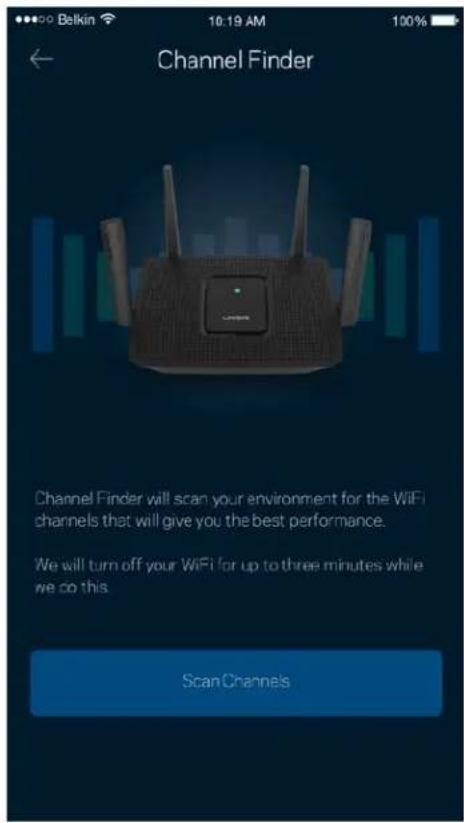
Advanced users can change the default security type and Wi-Fi mode. Do not change these unless you have a lot of experience with Wi-Fi networks. Channel Finder will search for the most-open Wi-Fi channels in your area to ensure you get the best performance from your system. If you have more than one node in your system, Channel Finder will find the best channel for each node.
Connect a Device with WPS
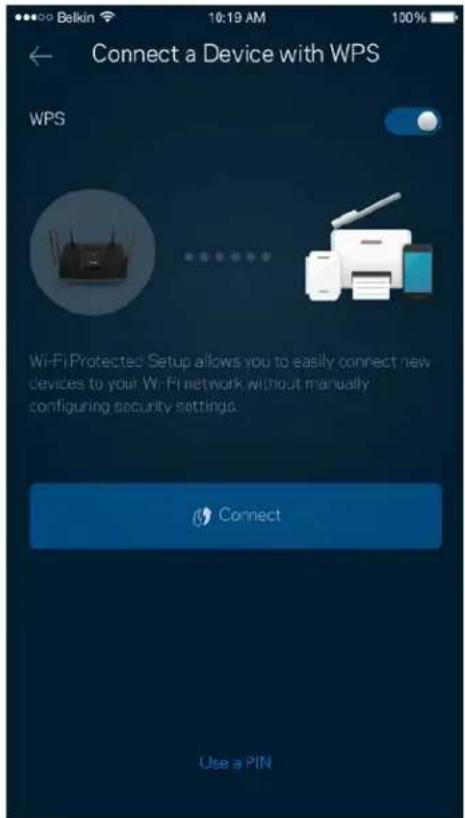
Wi-Fi Protected Setup allows you to easily connect wireless devices to your Wi-Fi without manually entering security settings.
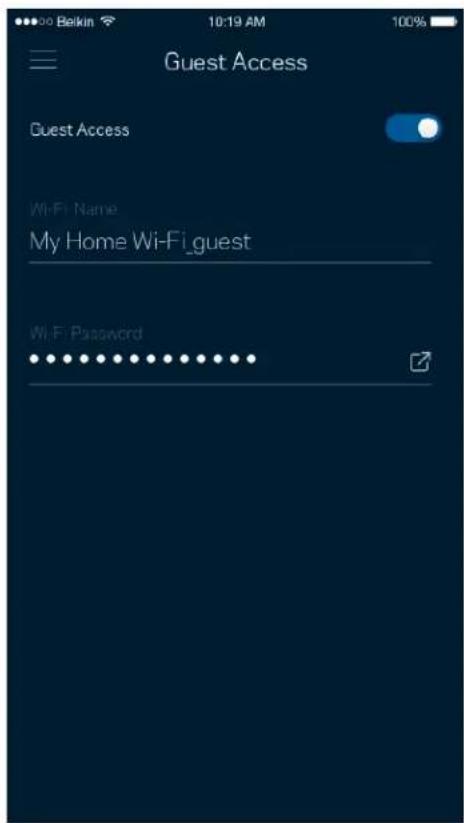
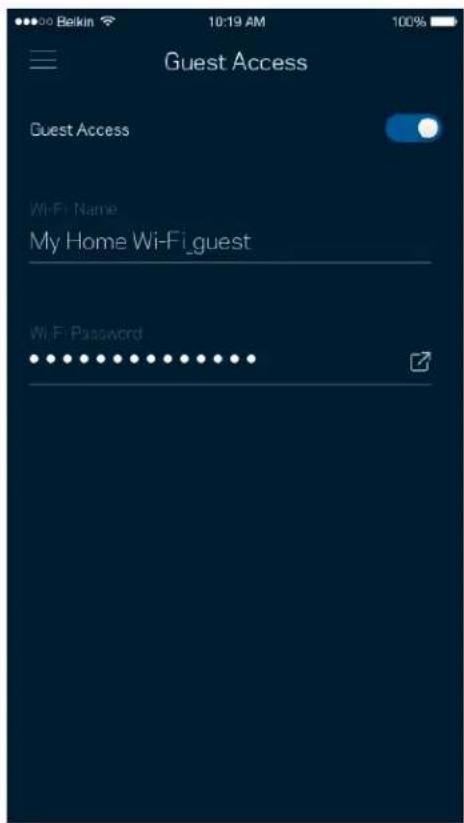
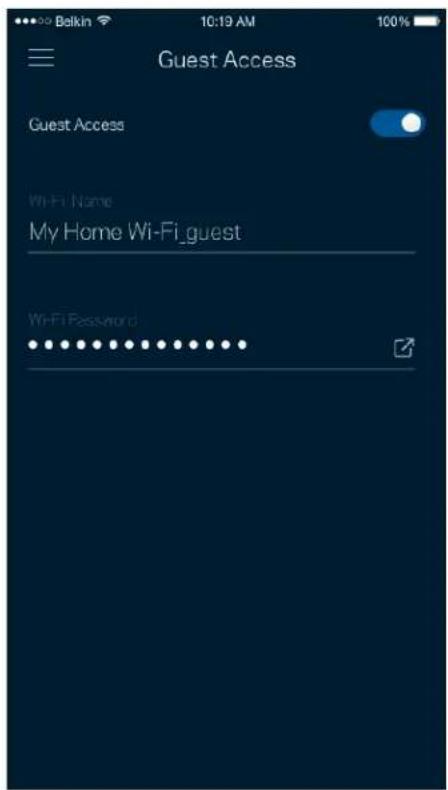
Guest Access
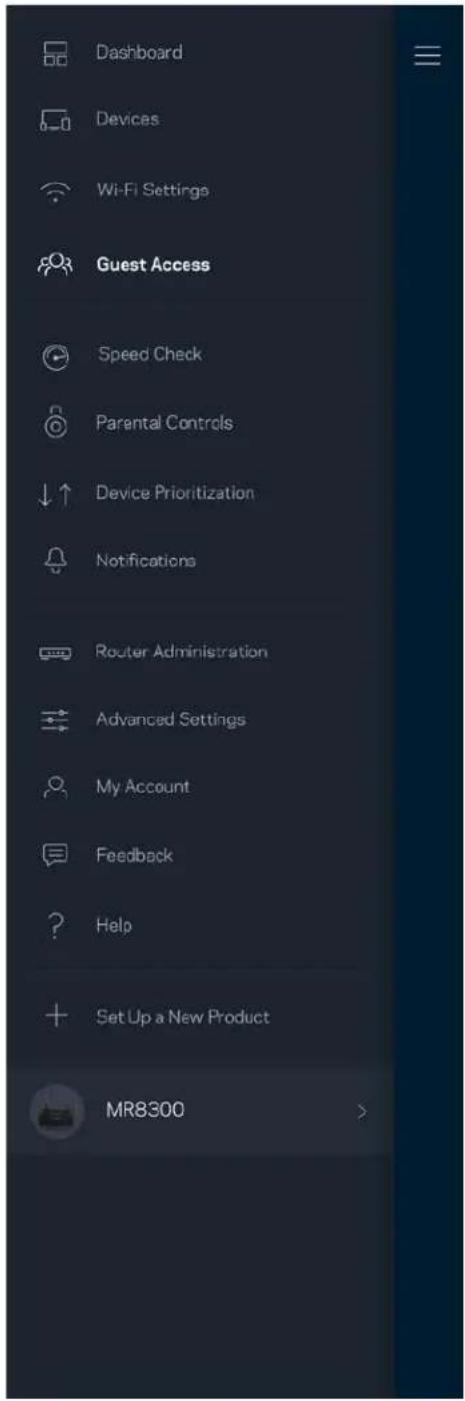
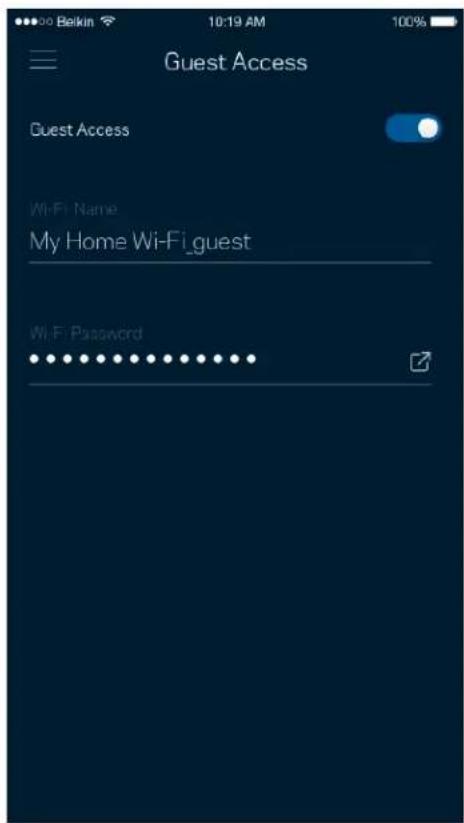
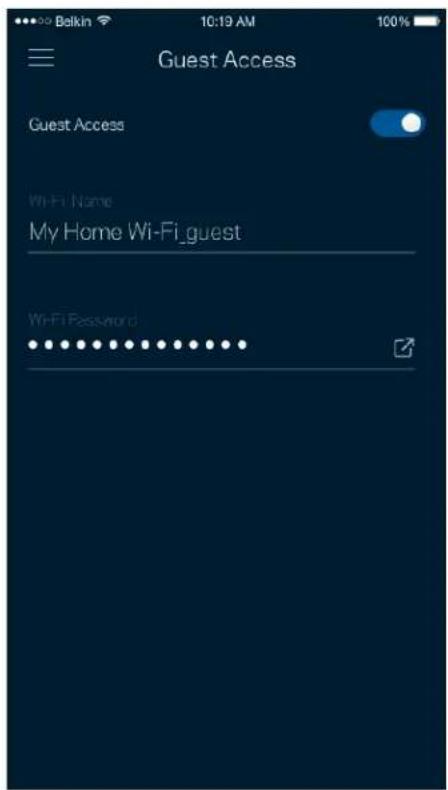
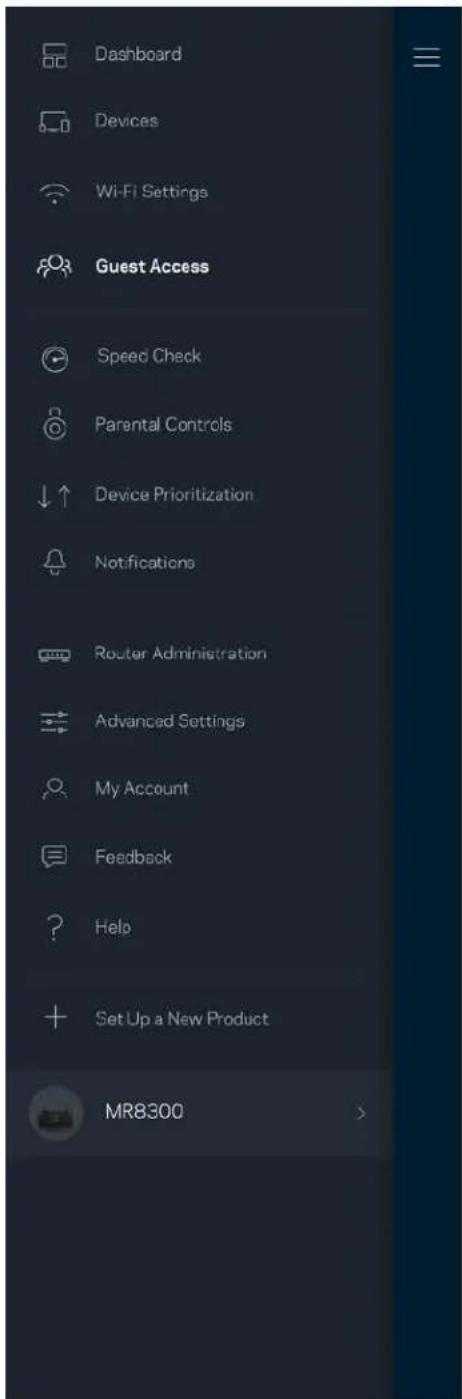
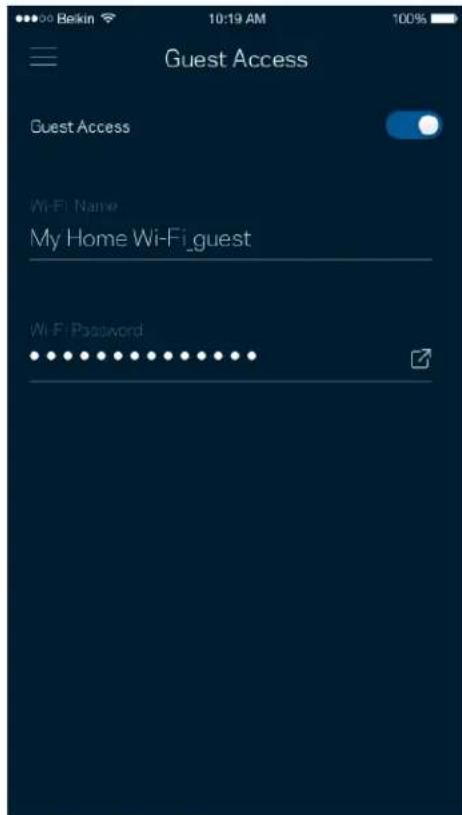
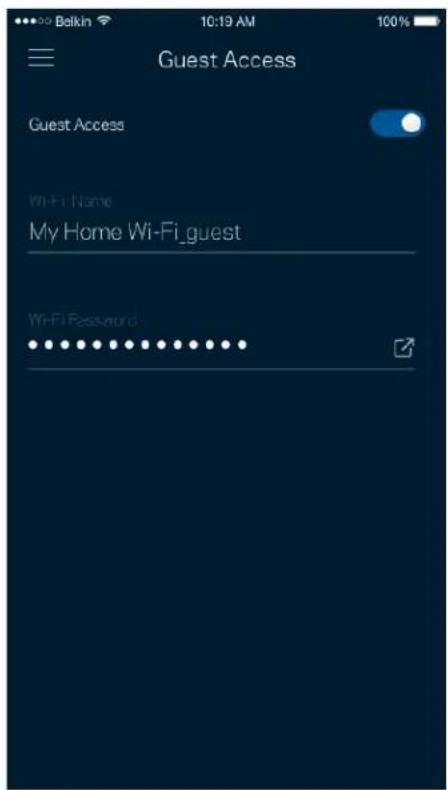
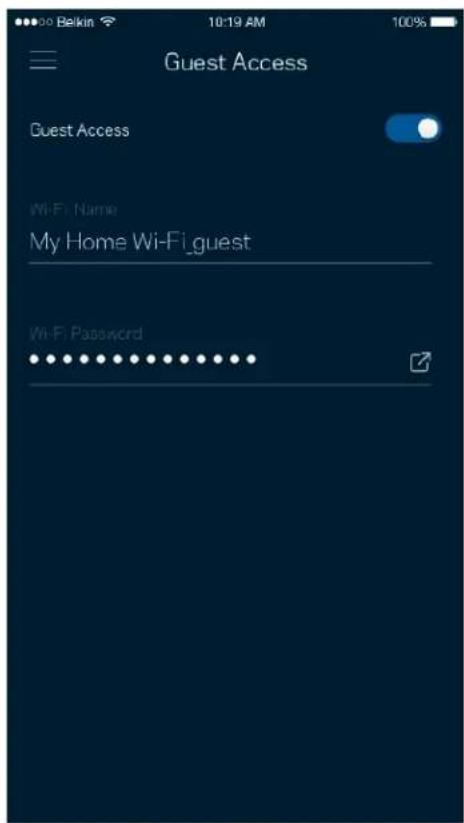
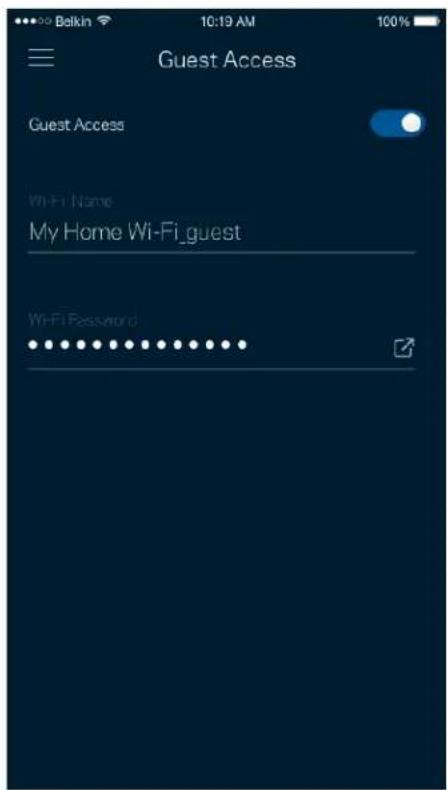
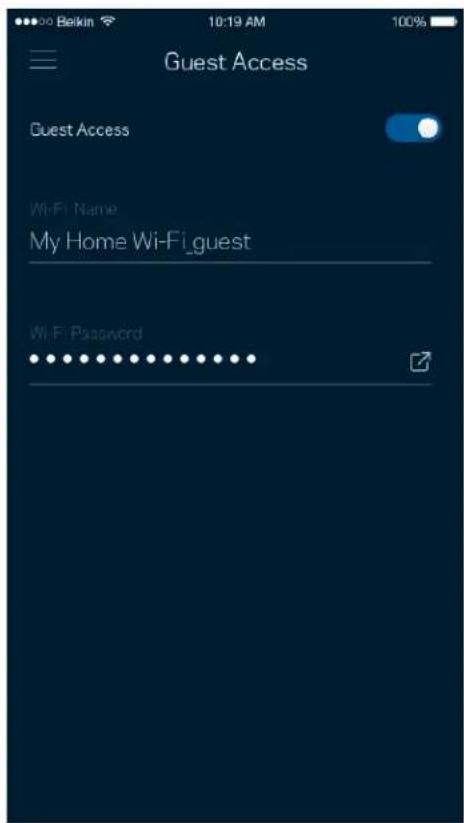
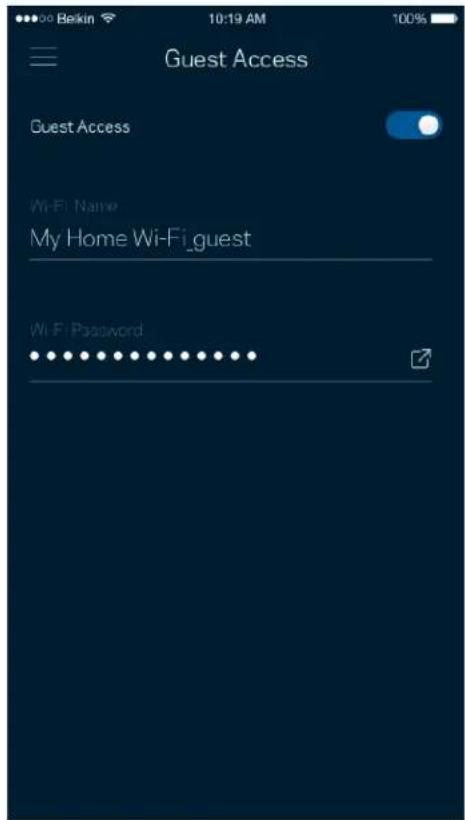
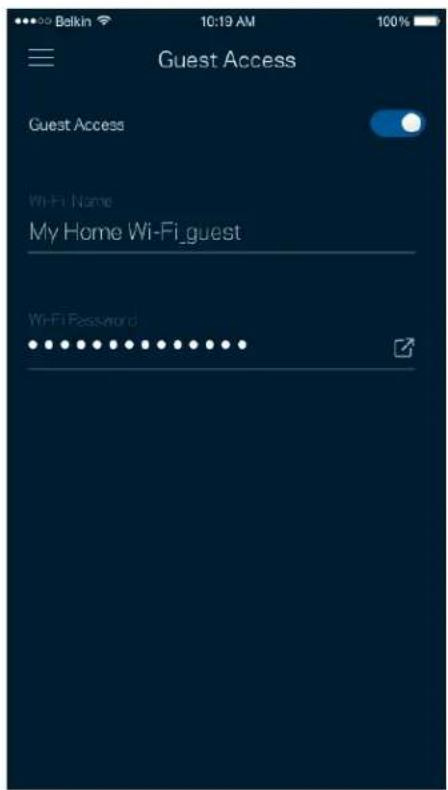
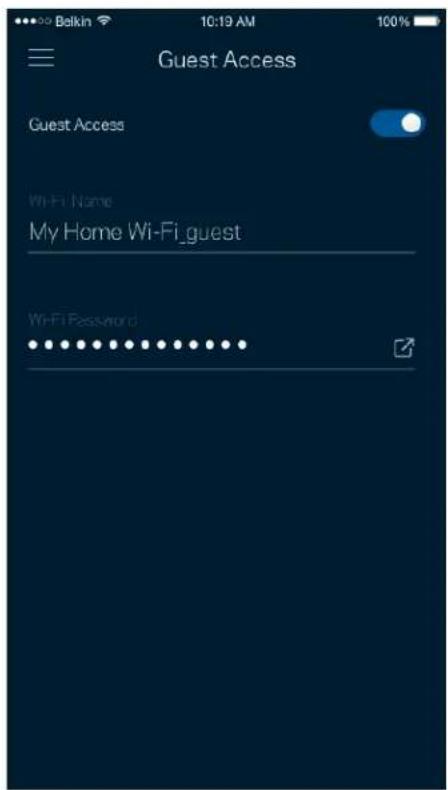
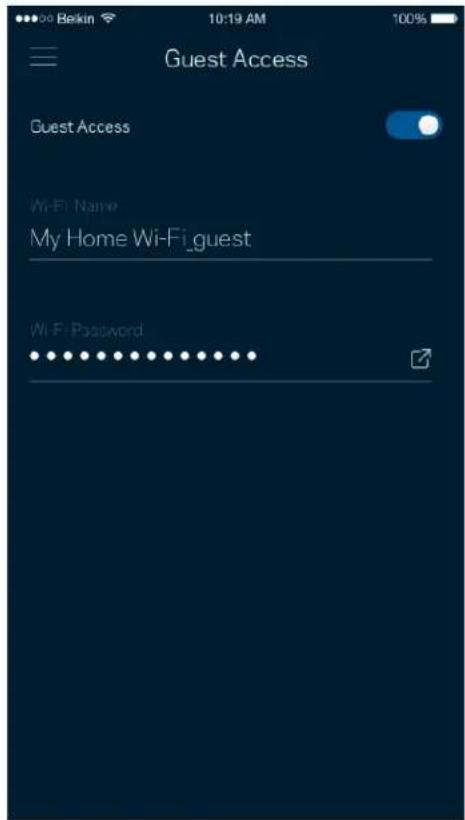
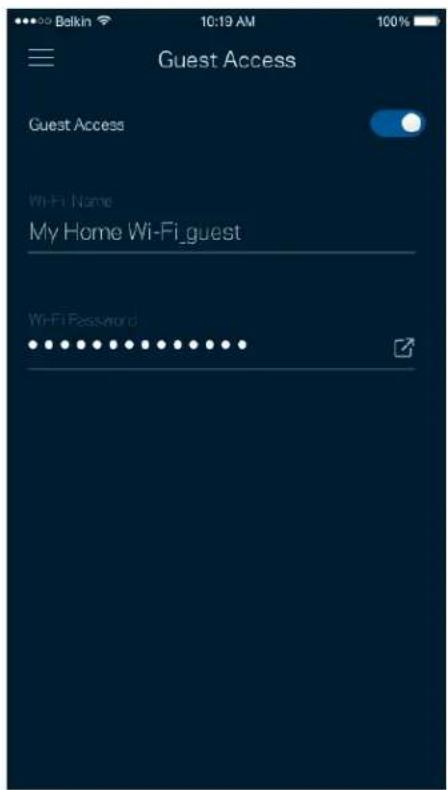
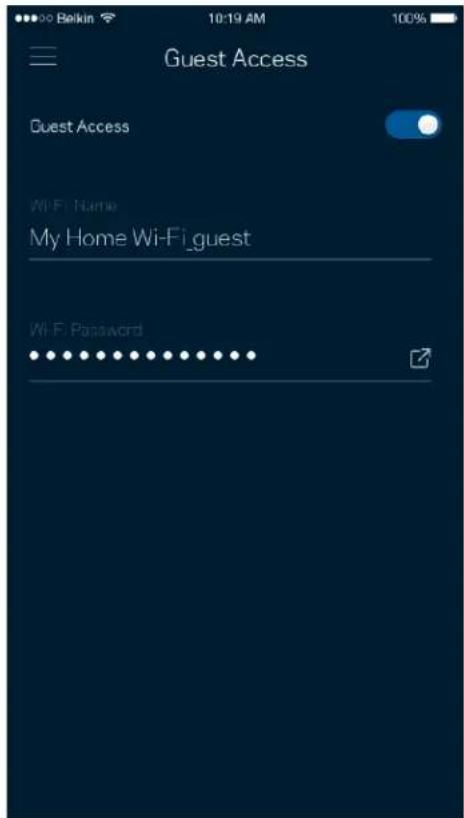
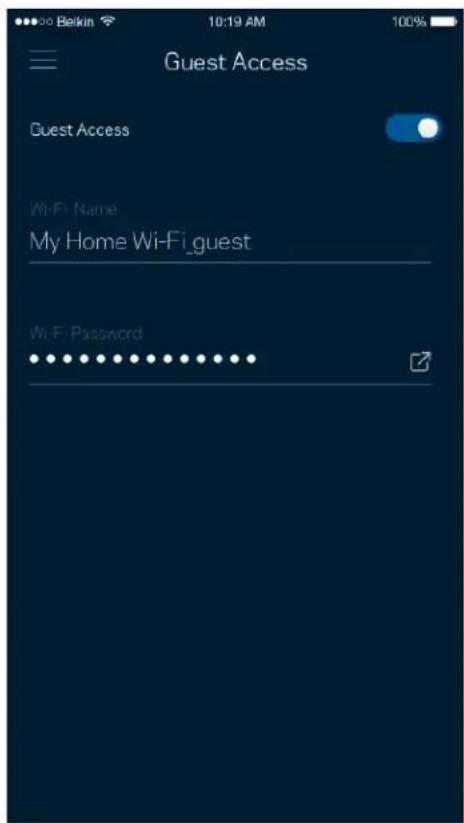
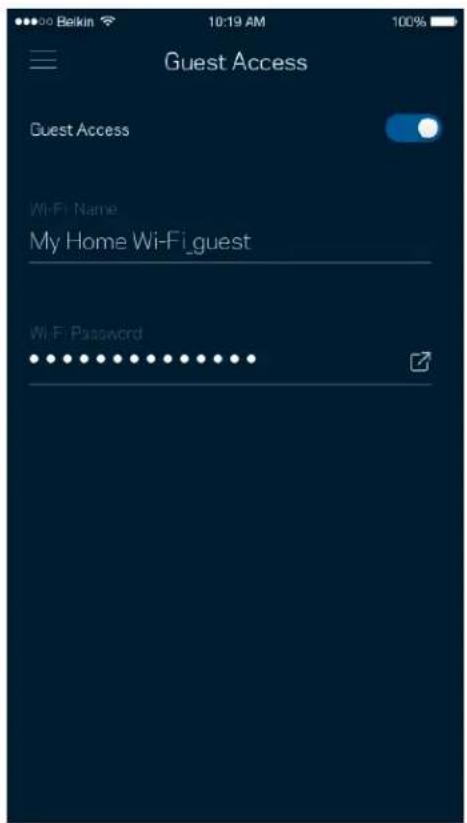
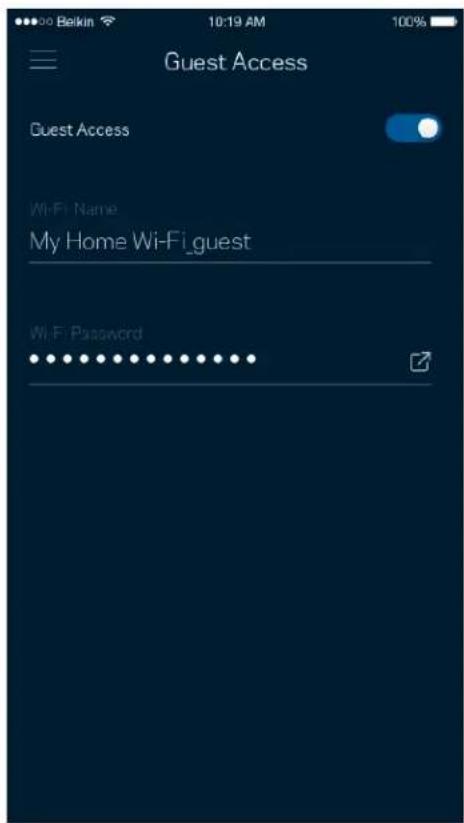
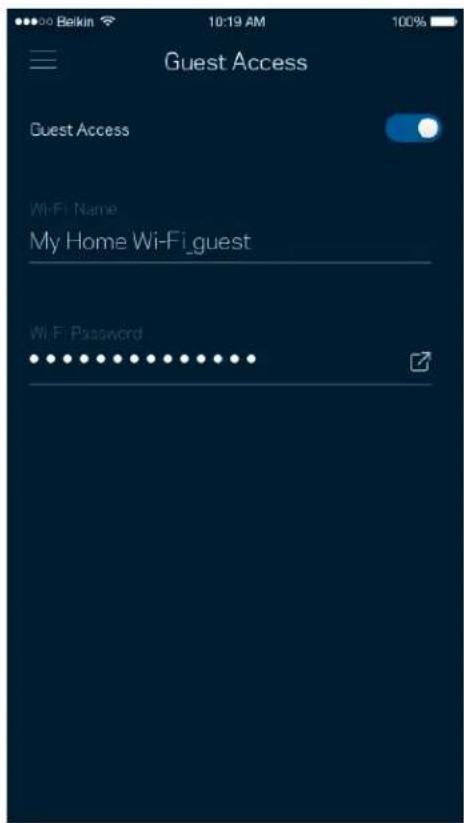
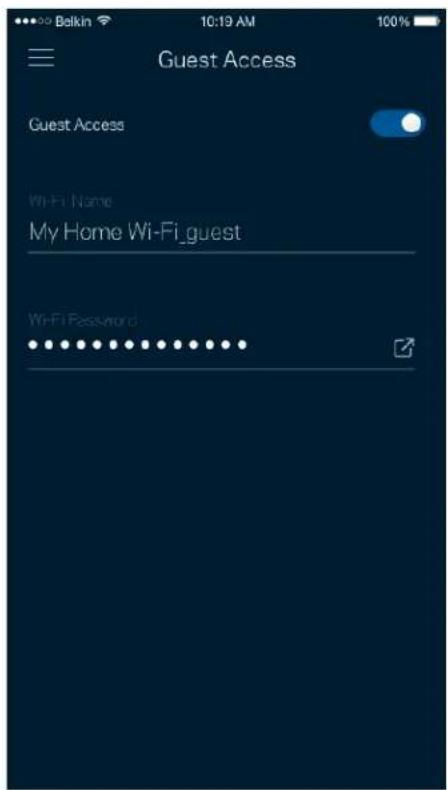
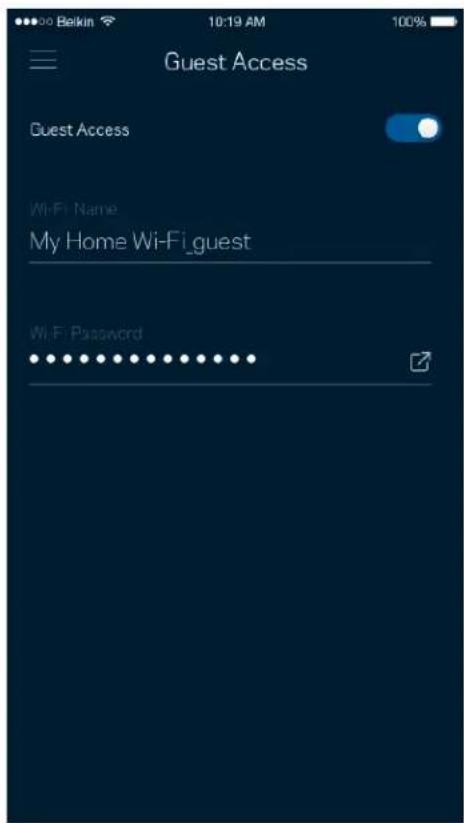
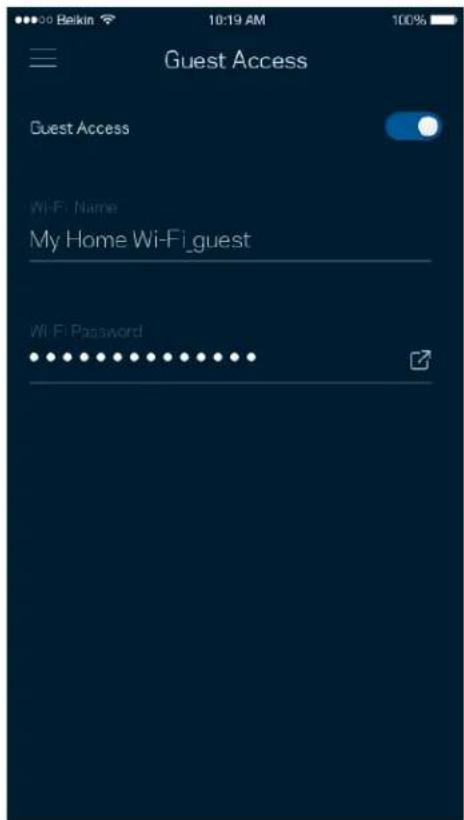
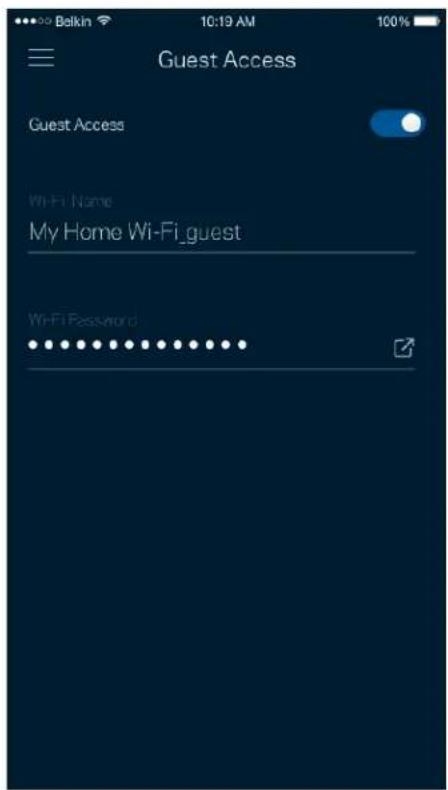
Use your Guest Access to allow guests to get online while restricting their access to other resources connected to your Wi-Fi. Send the password by text message or email.
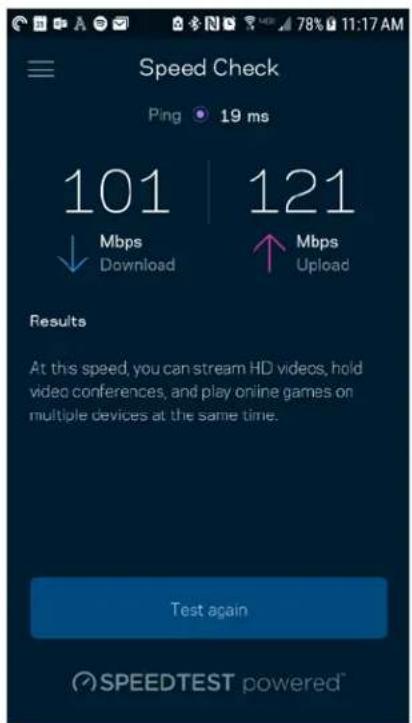
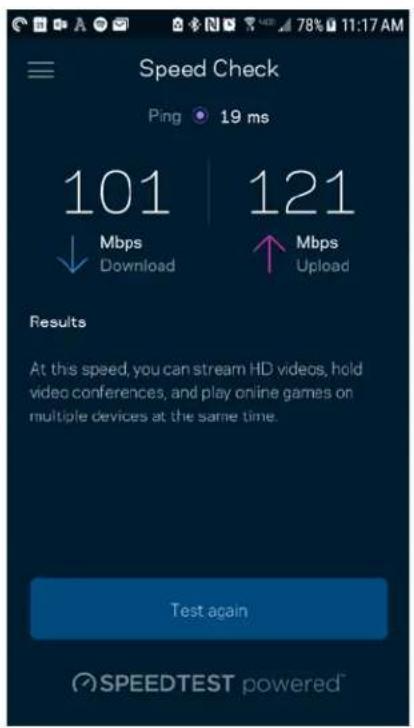
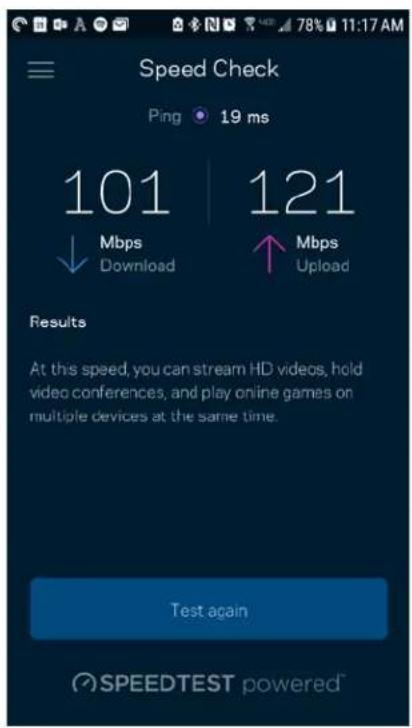
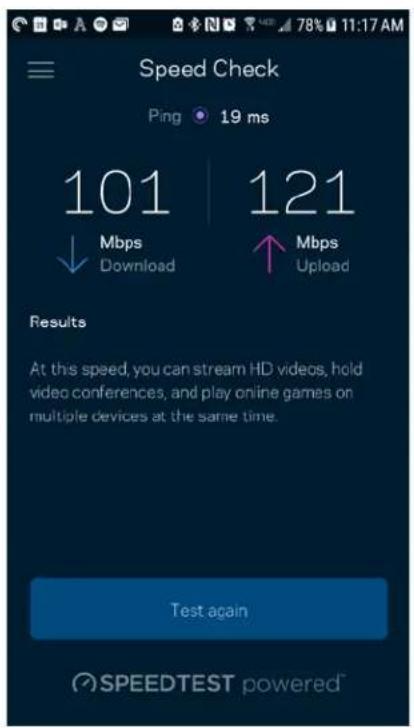
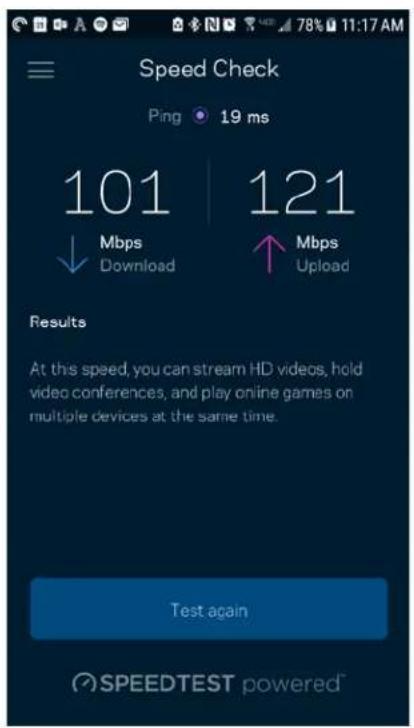
Speed Check
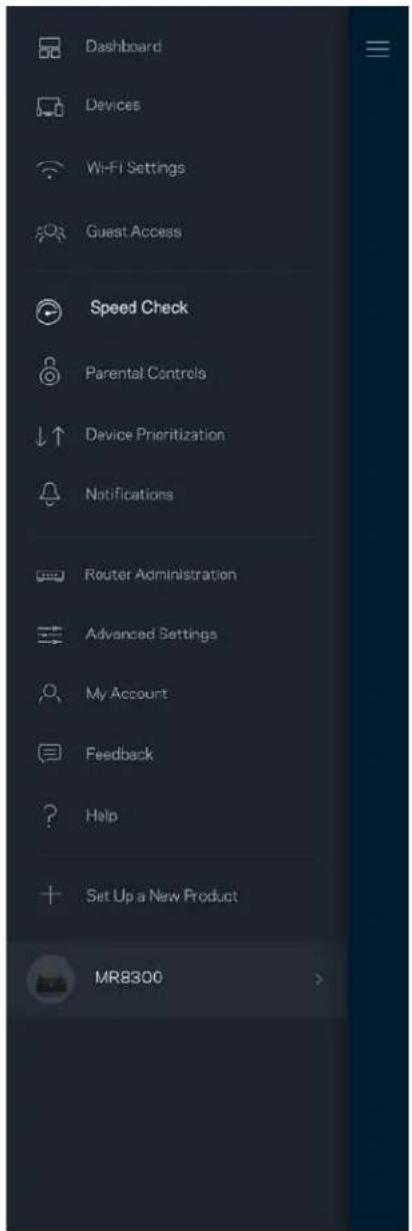
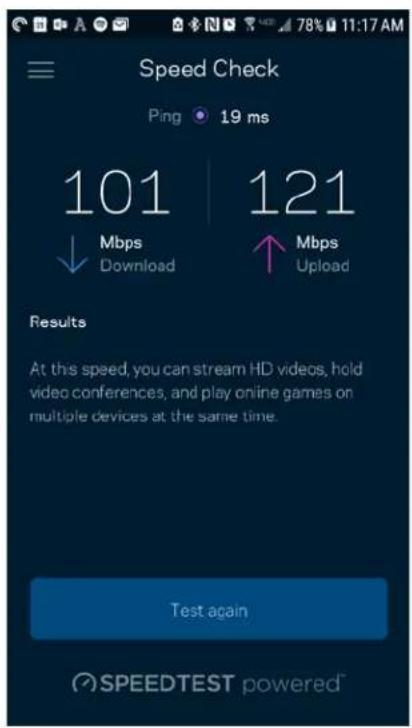
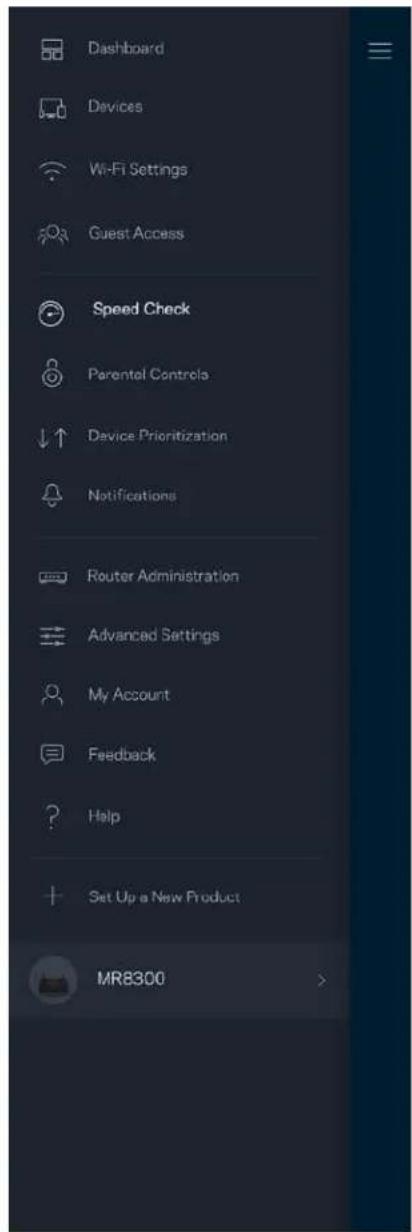
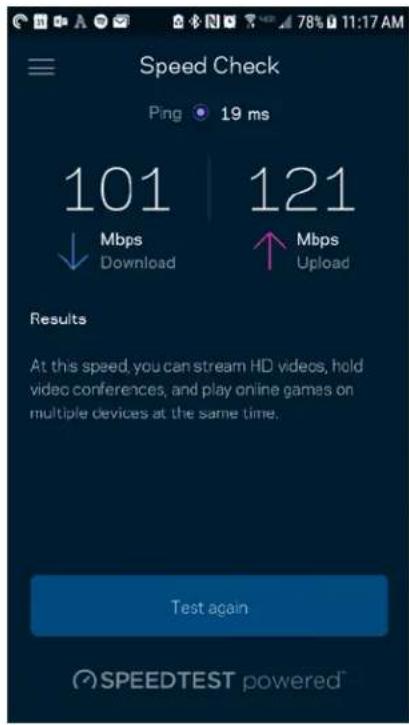
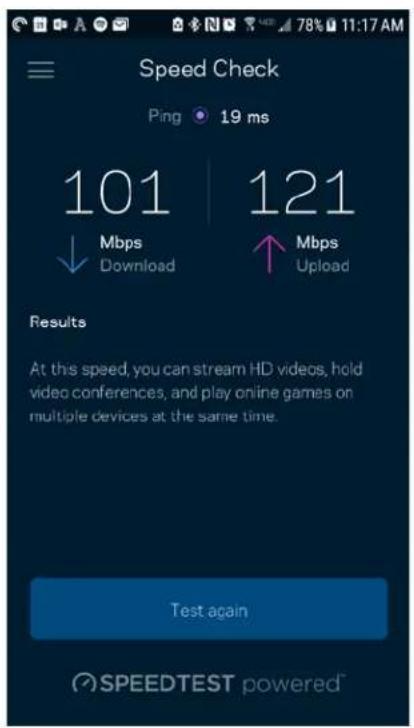
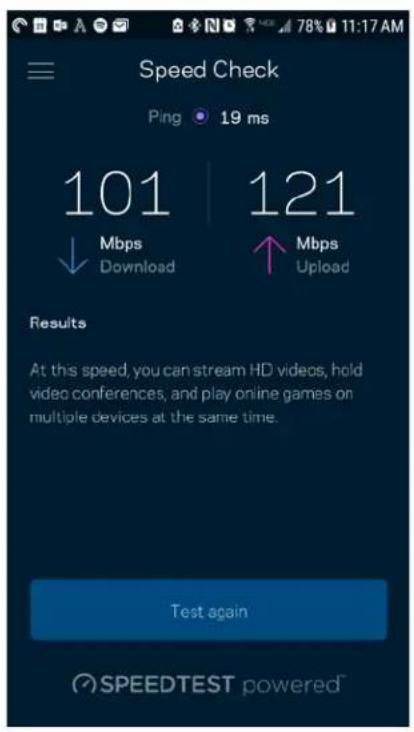
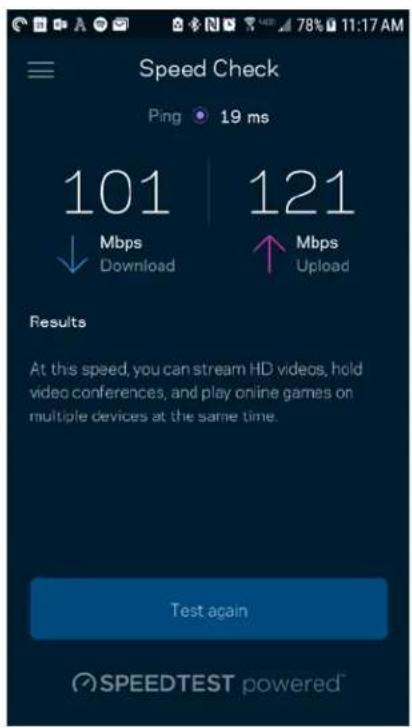
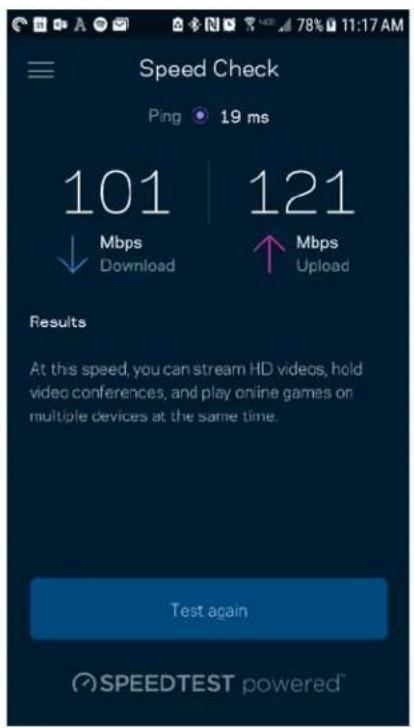
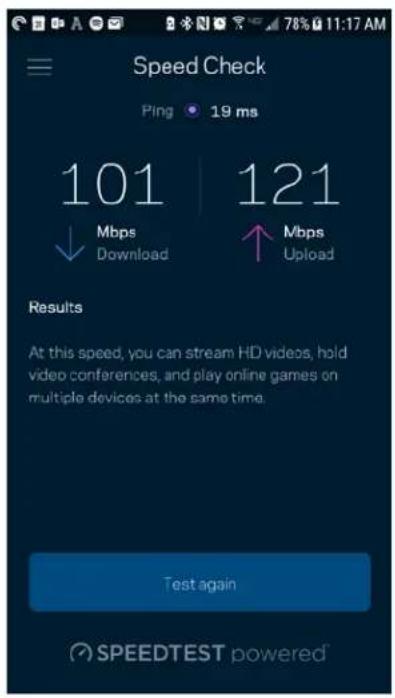
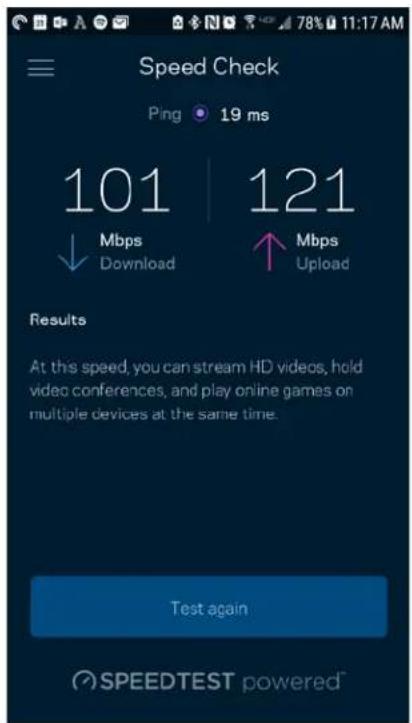
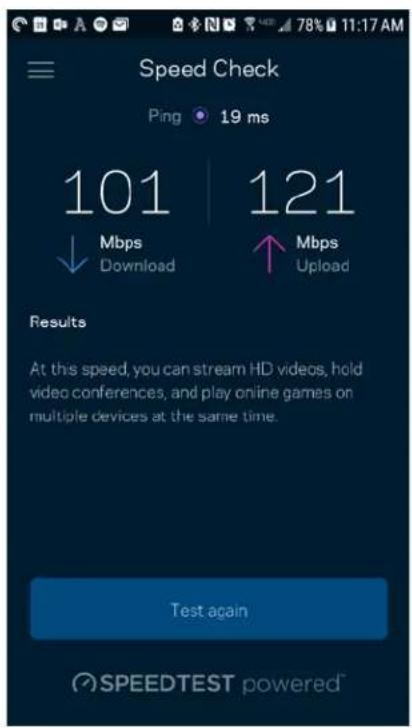
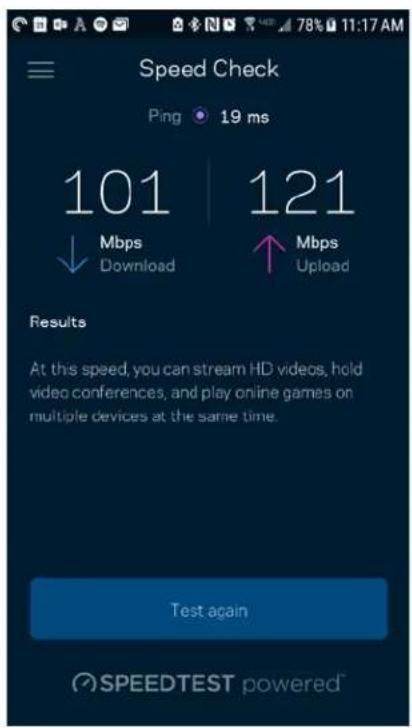
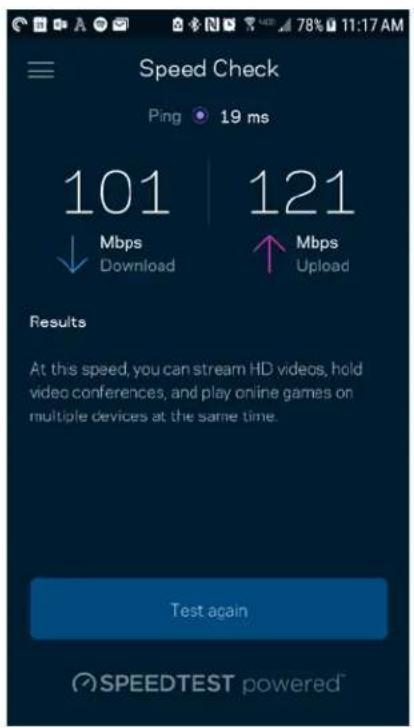
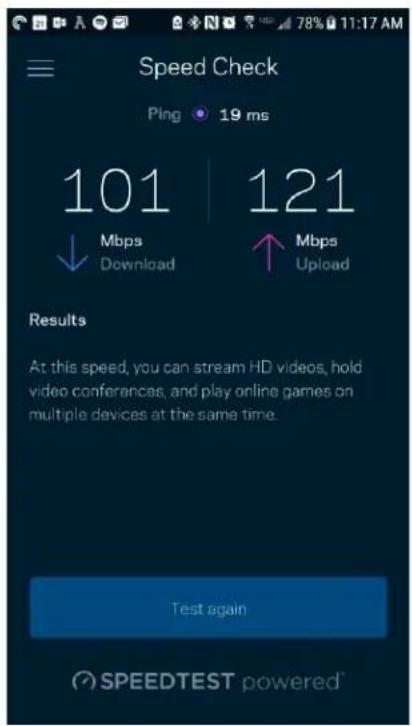
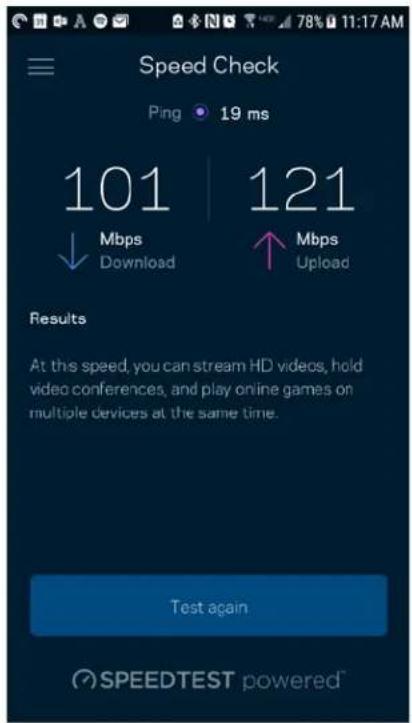
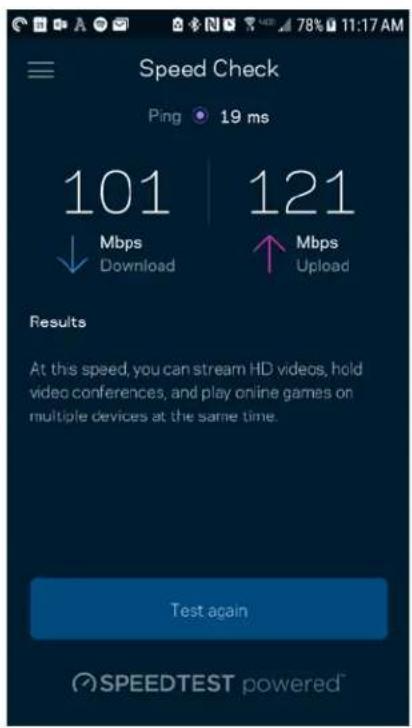
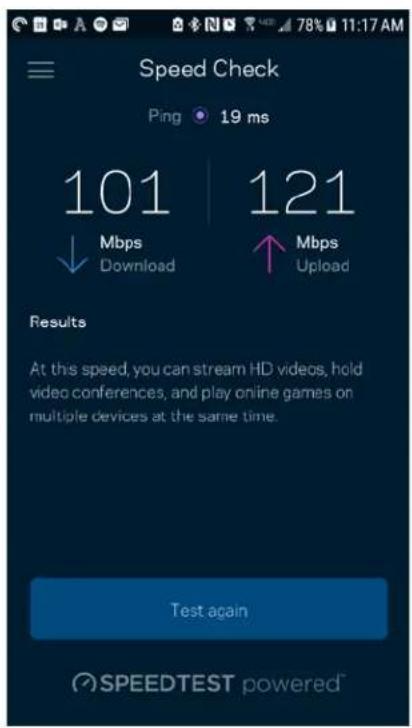
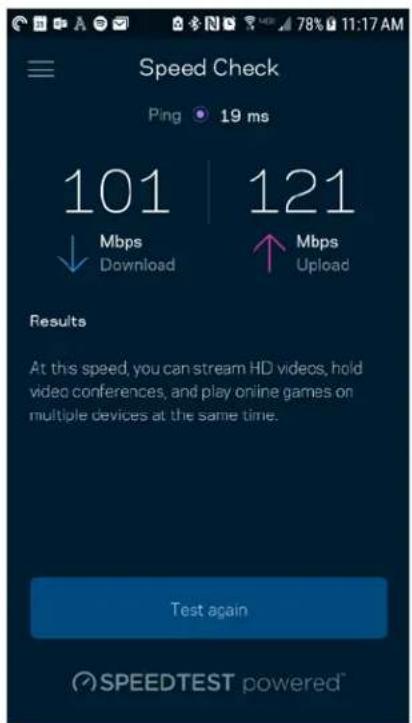
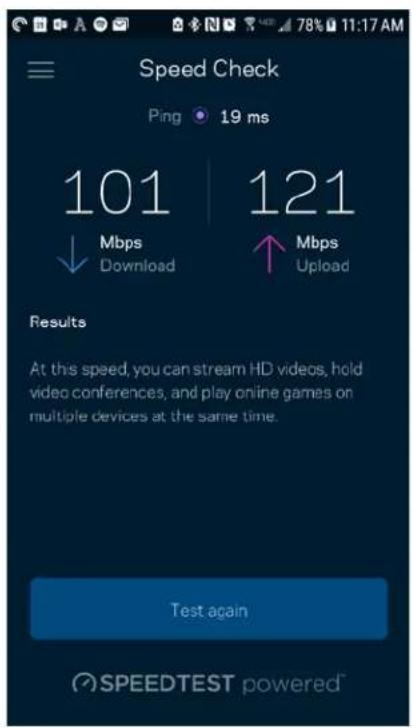
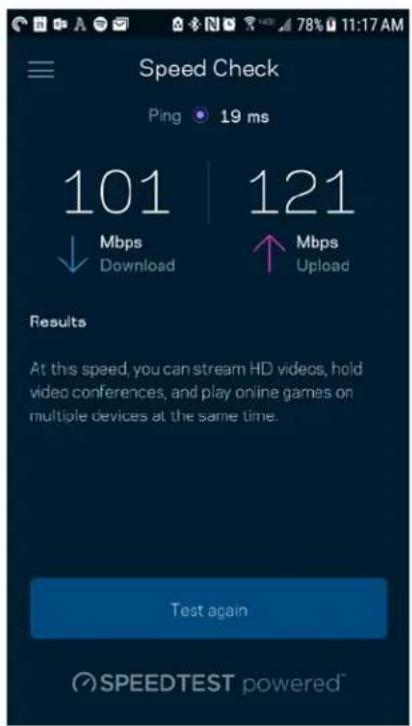
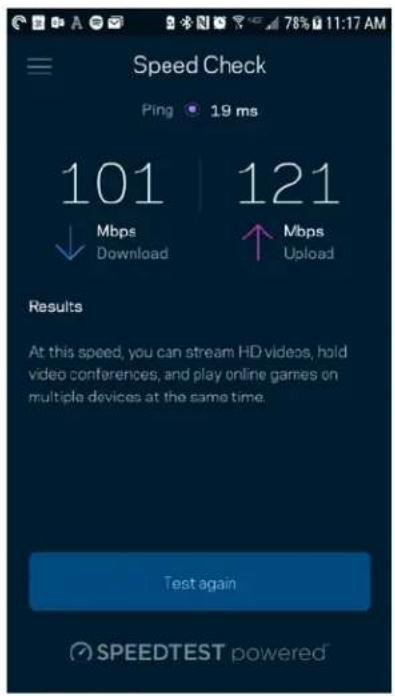
Run a speed check to make sure you are getting the speeds you pay for. Speed check also helps in Device Prioritization because results determine how Wi-Fi is distributed to the prioritized devices.
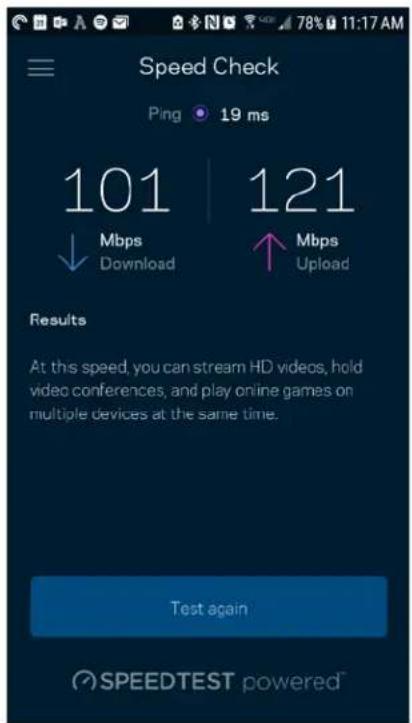
- Download speed is the rate at which internet content is transferred to your router.
- Upload speed is the rate at which you can upload content to the internet.
Note—Internet connection speeds are determined by a variety of factors, including ISP account type, local and worldwide internet traffic, and number of devices in your home that are sharing the internet connection.
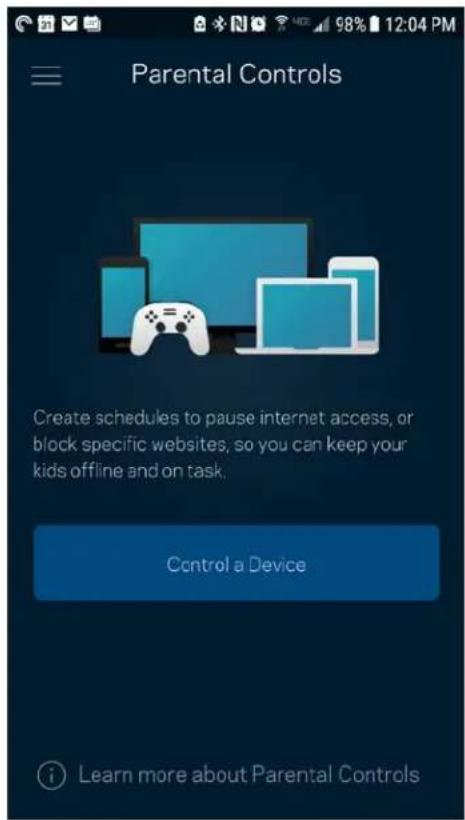
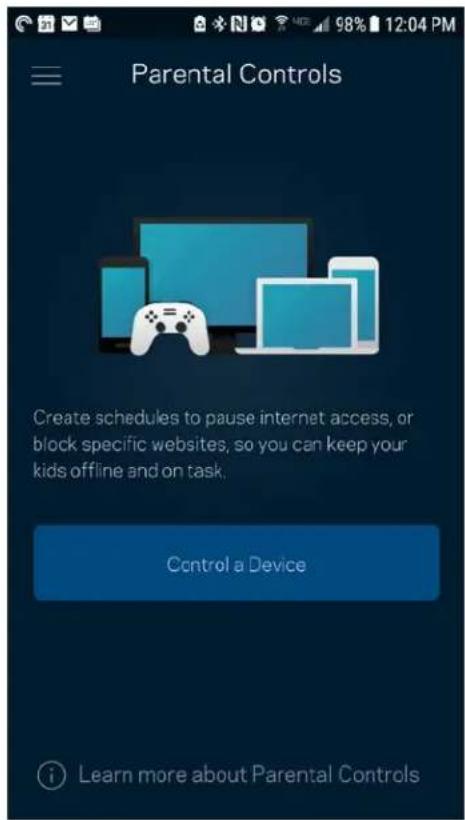
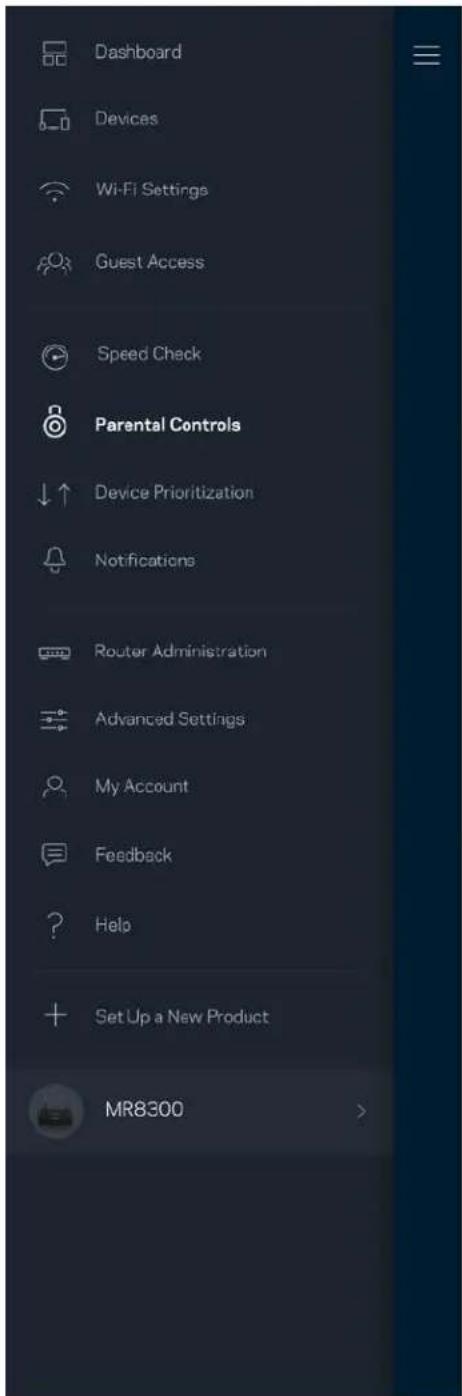
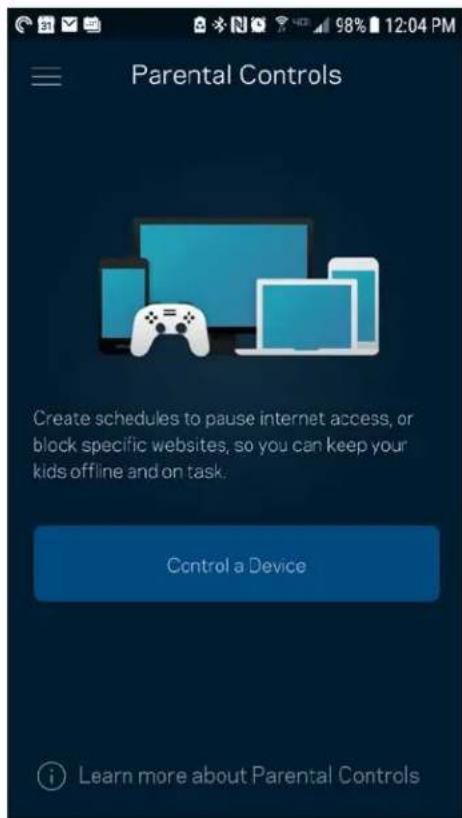
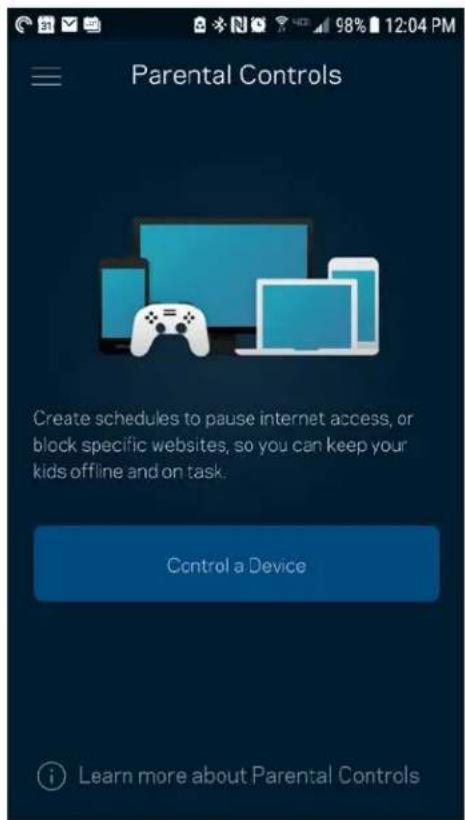
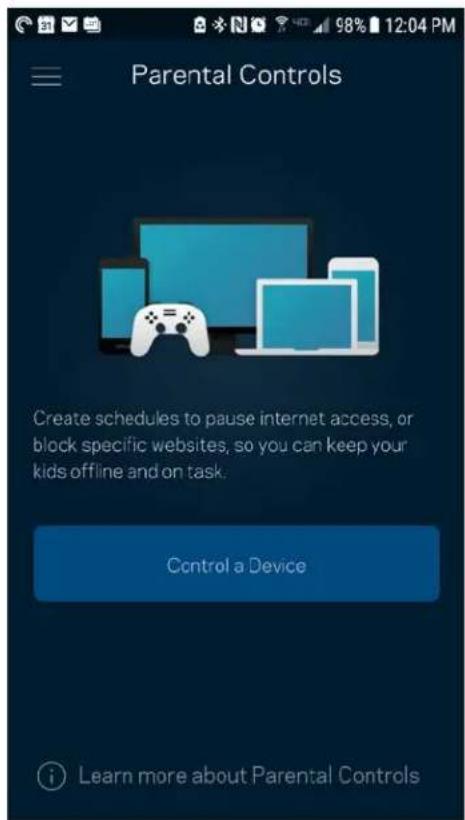
Parental Controls
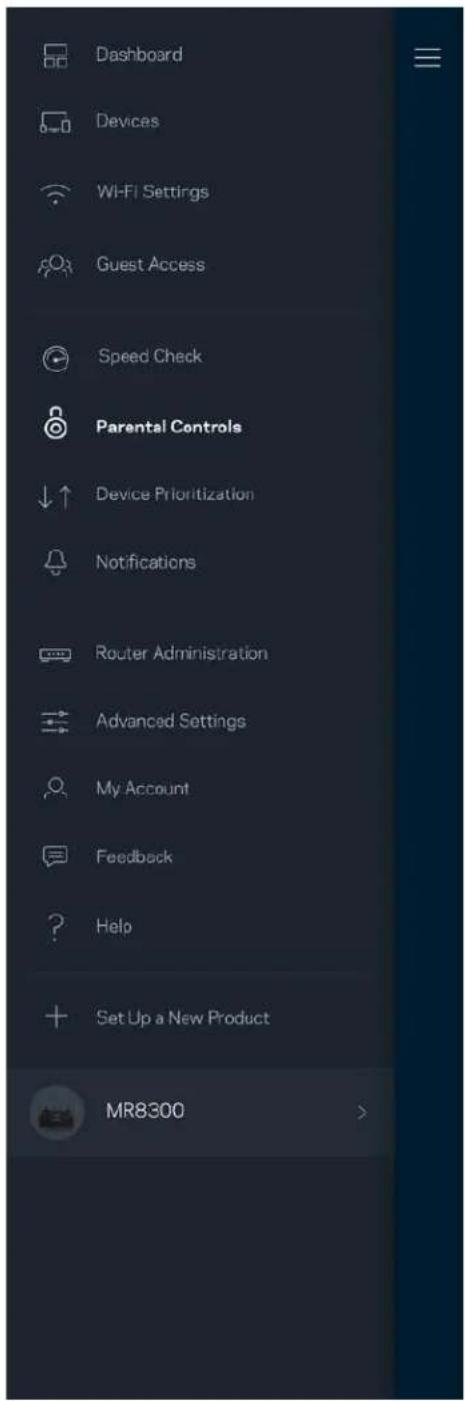
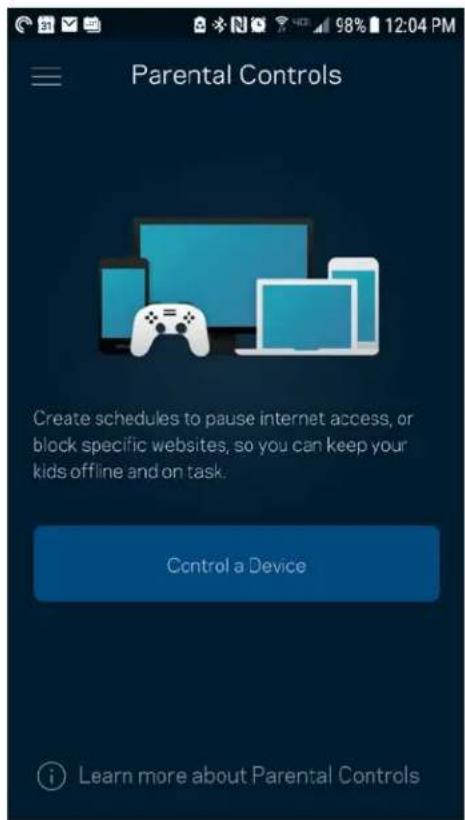
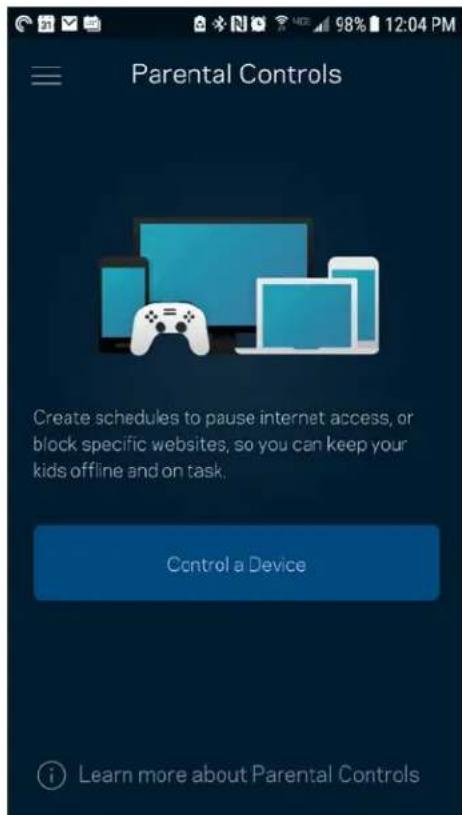
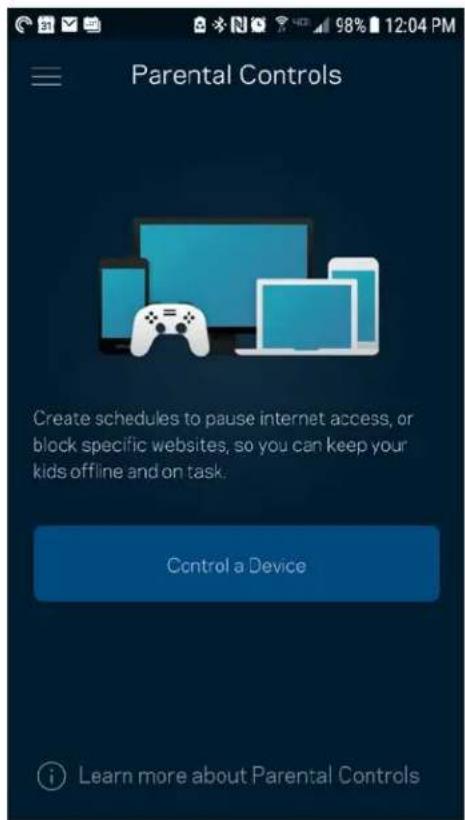
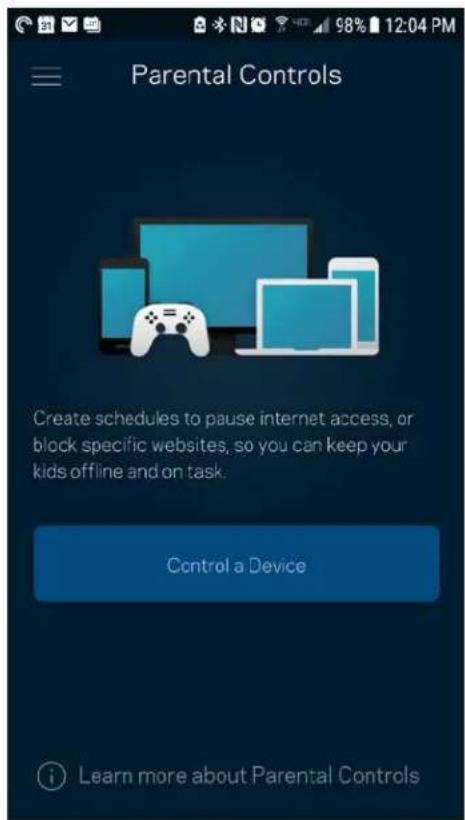
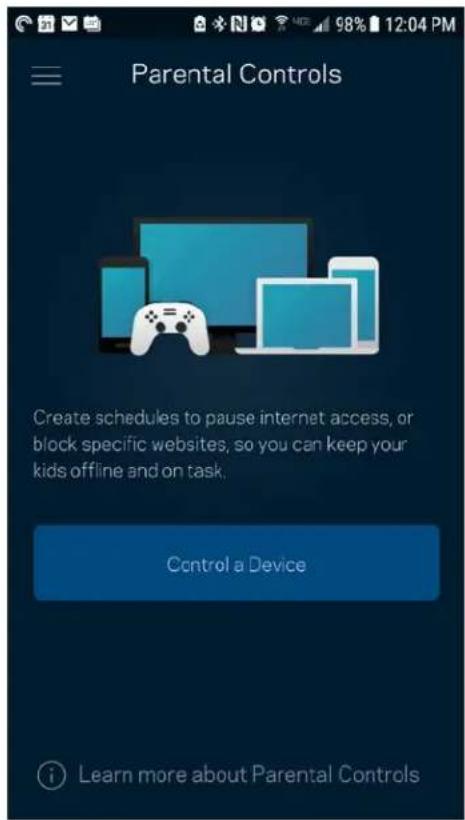
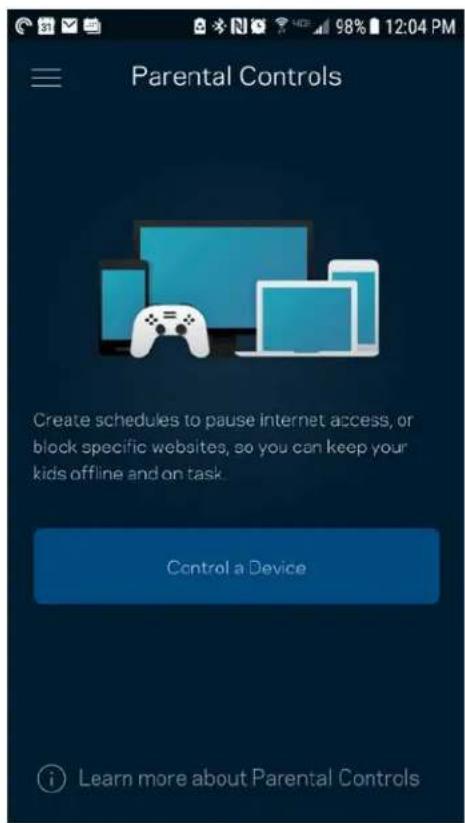
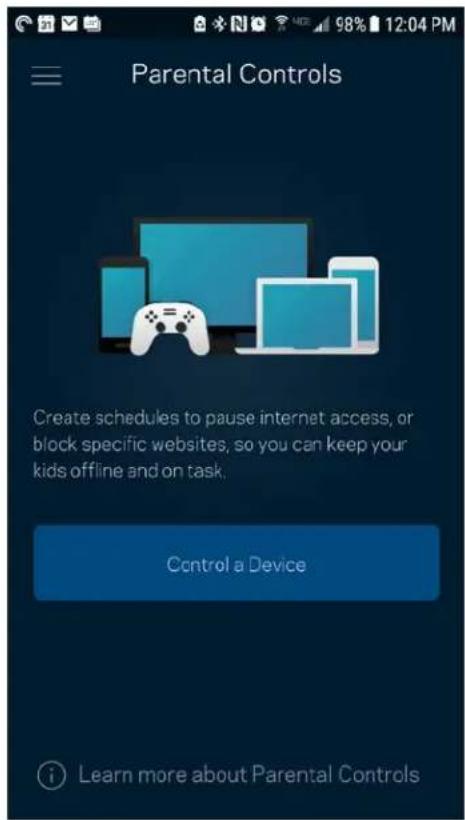
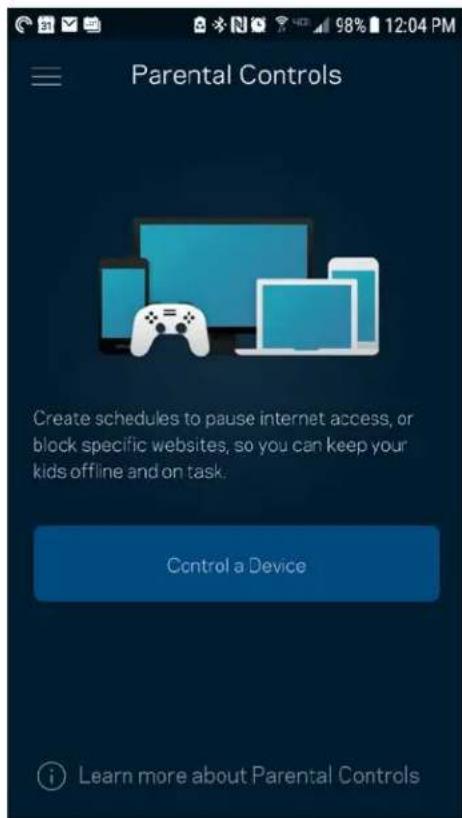
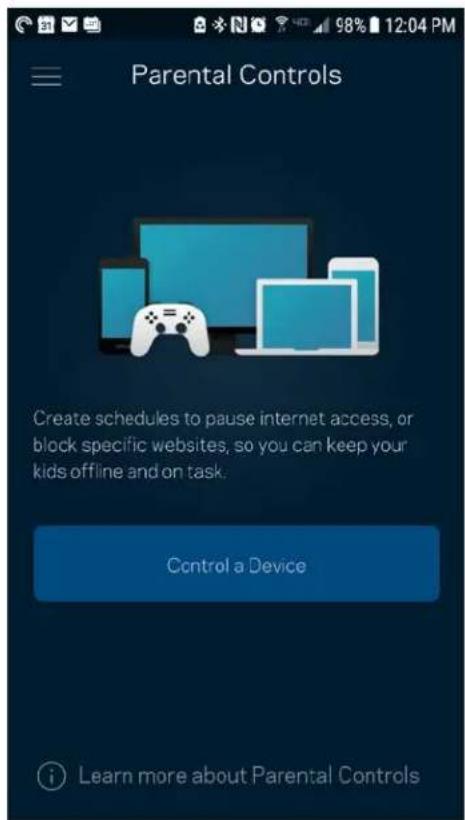
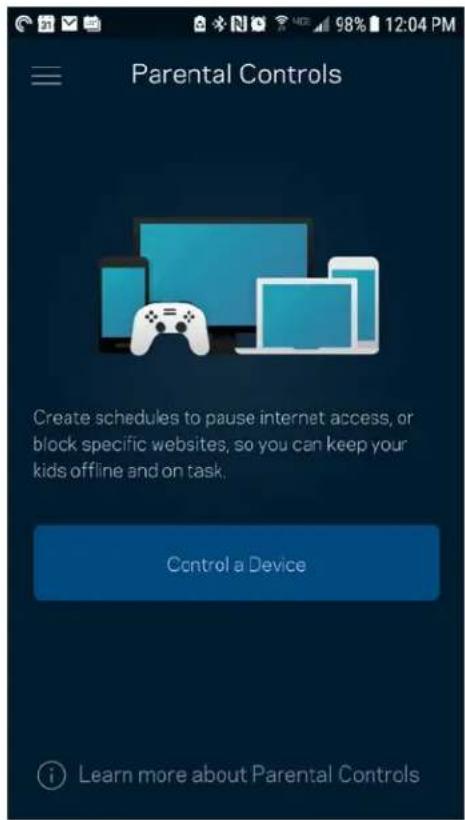
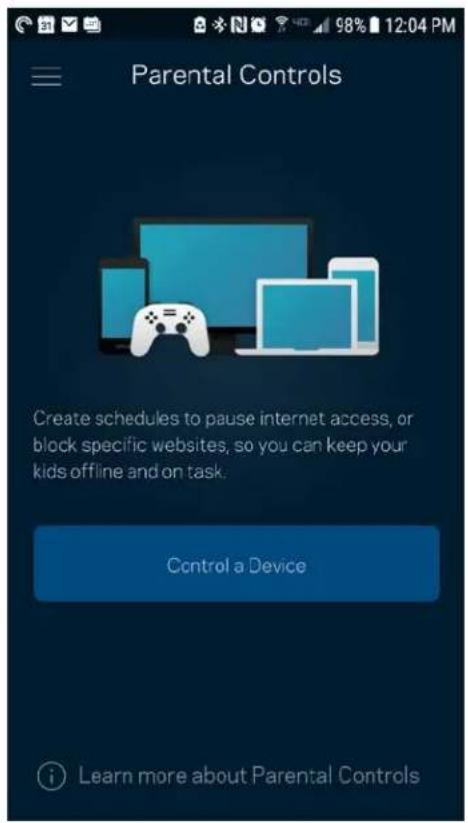
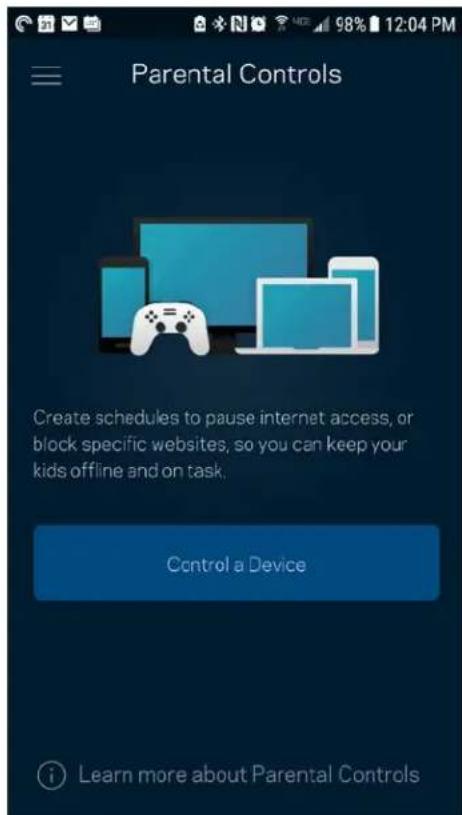
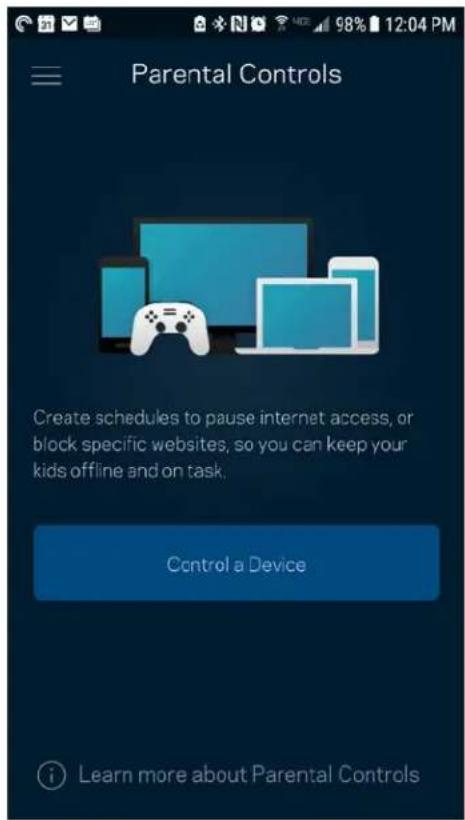
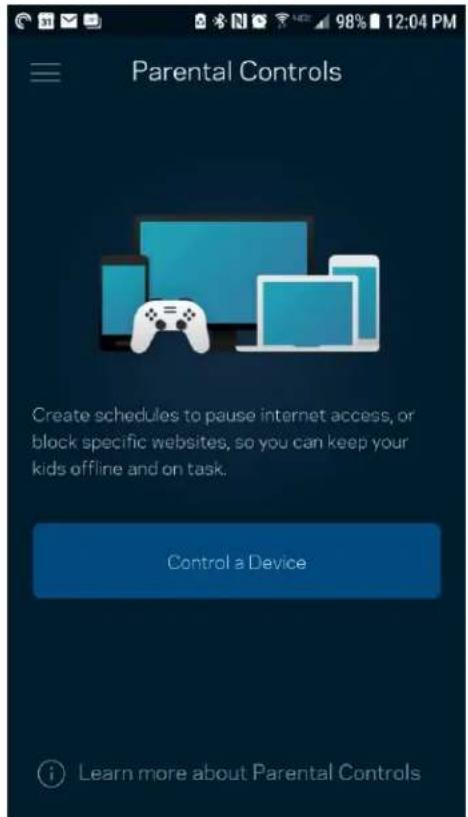
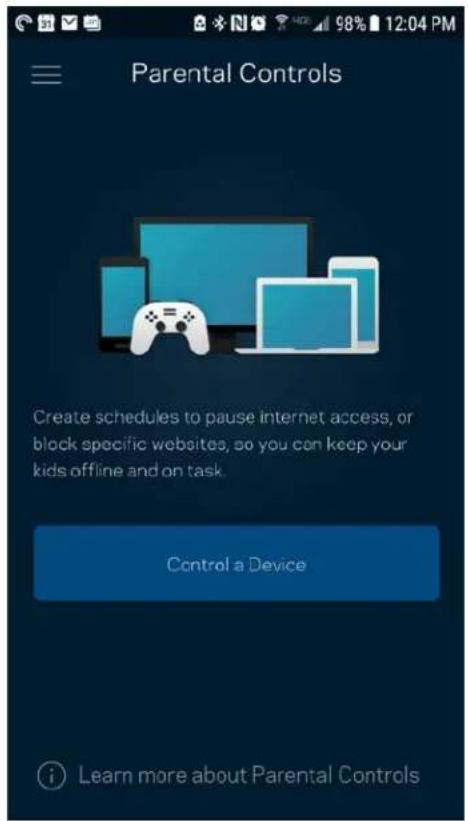
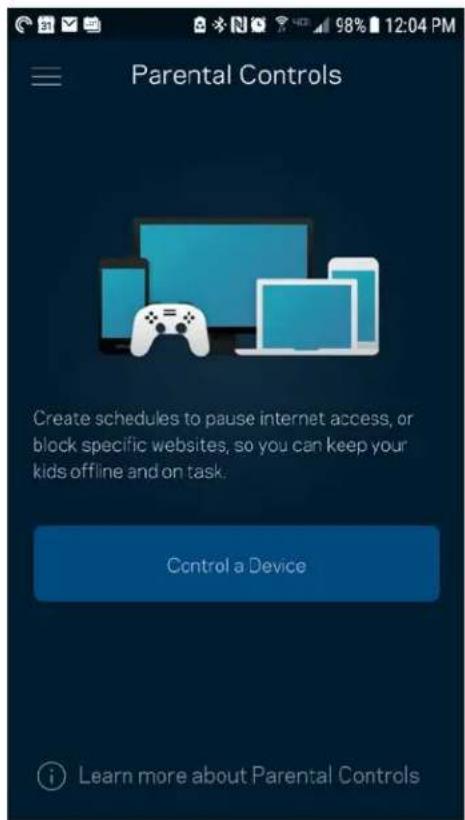
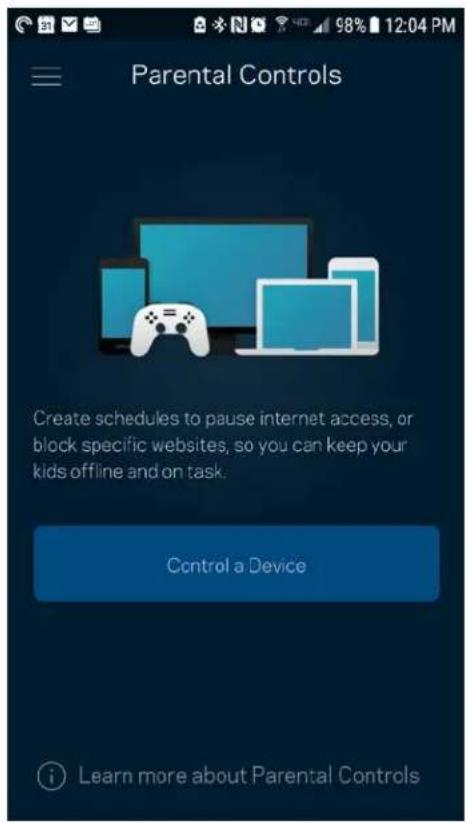
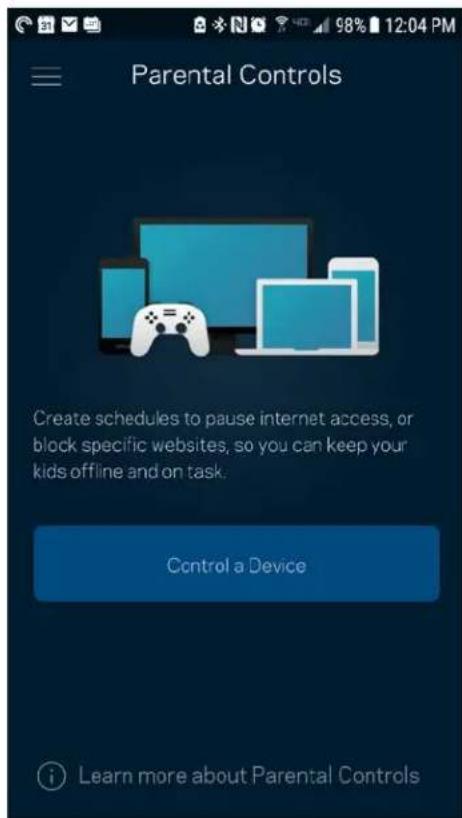
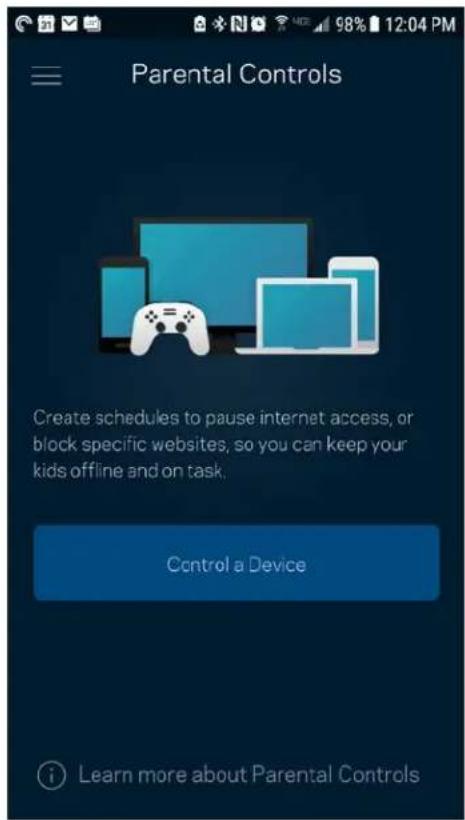
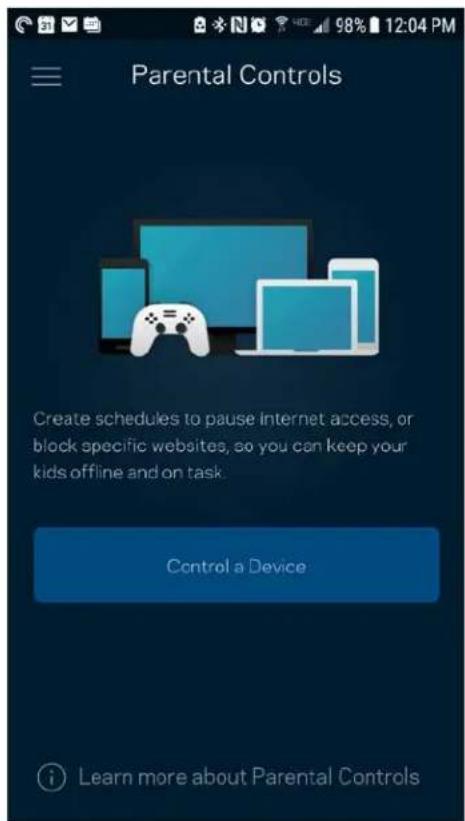
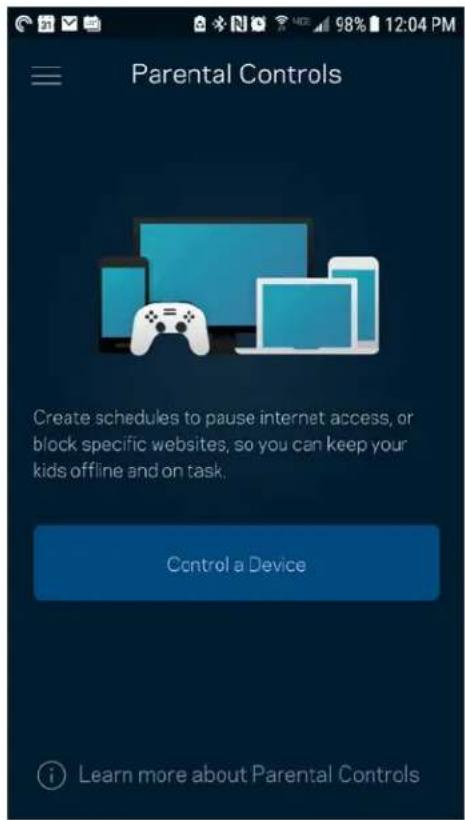
Parental controls allow you to control when your kids are online and what they're doing there. Pause internet to specific devices, or block specific websites.
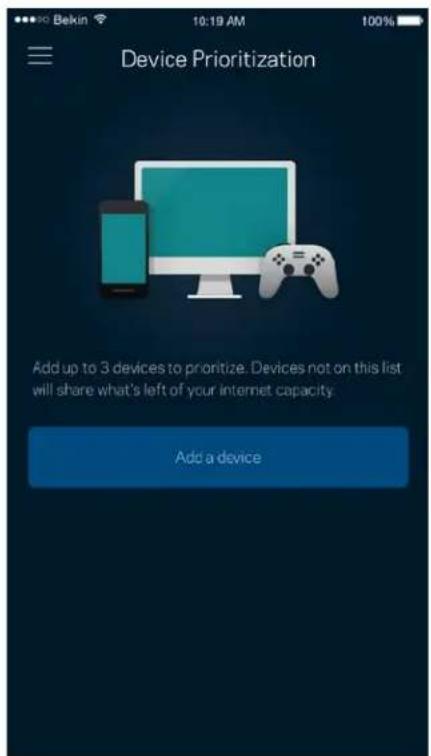
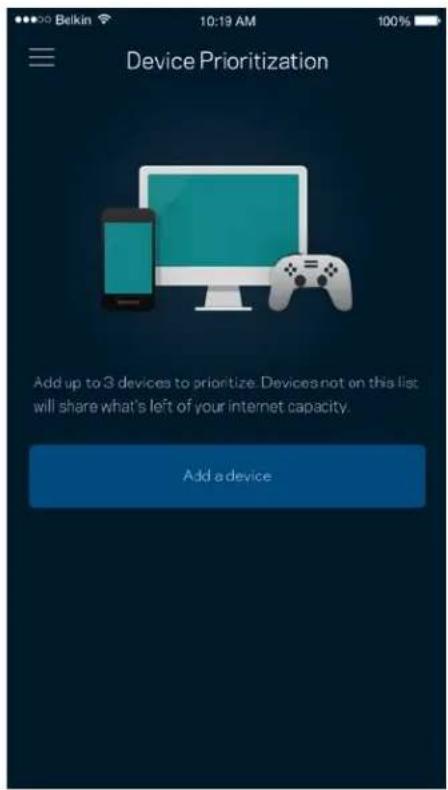
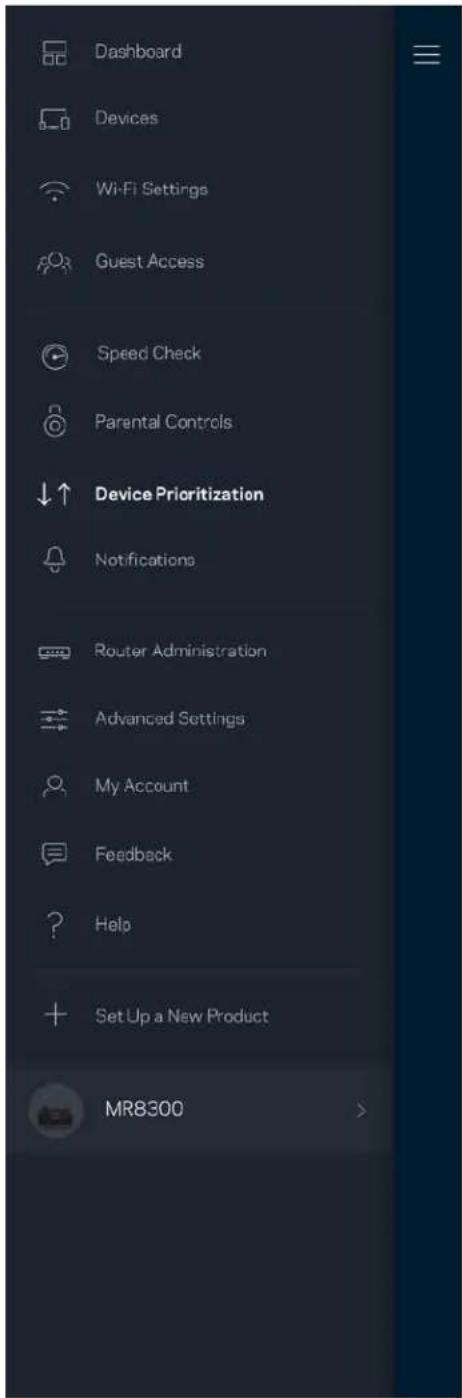
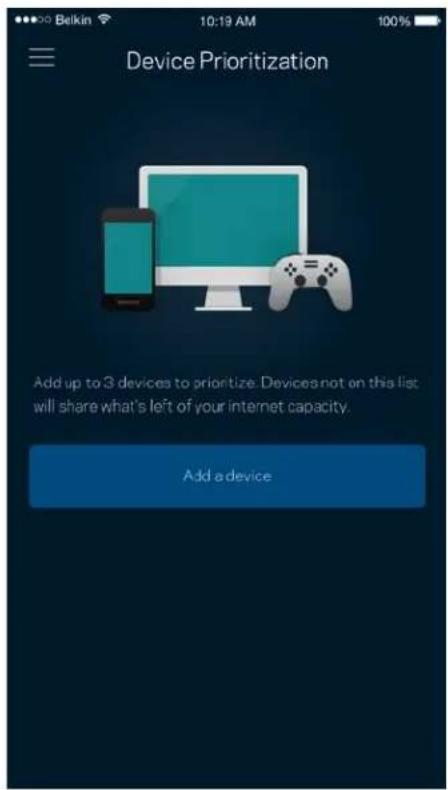
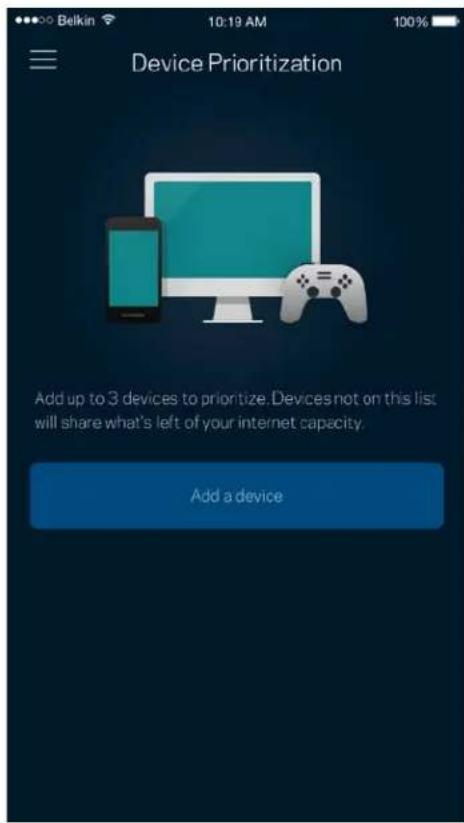
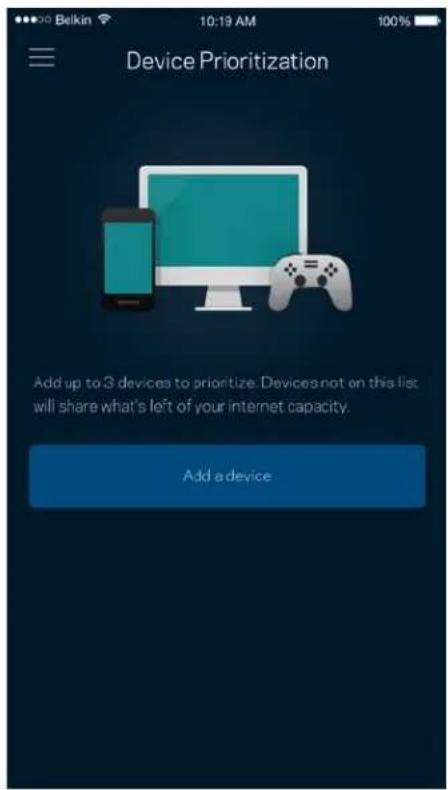
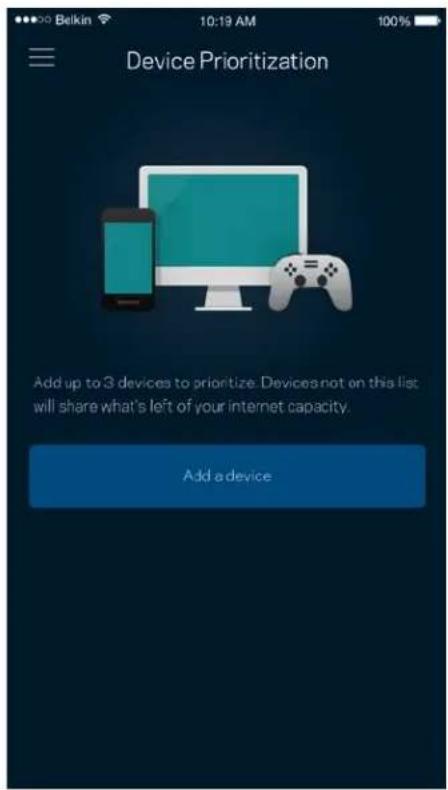
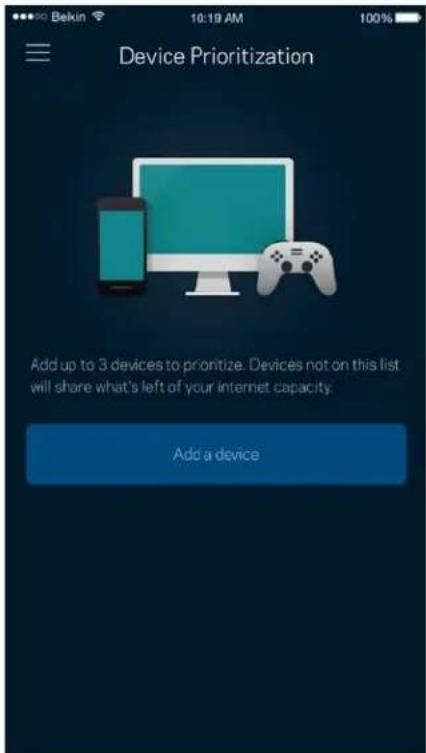
Device Prioritization
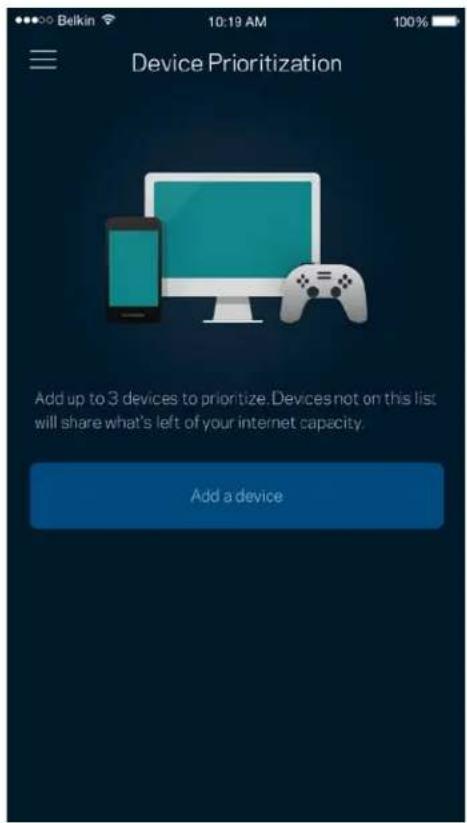
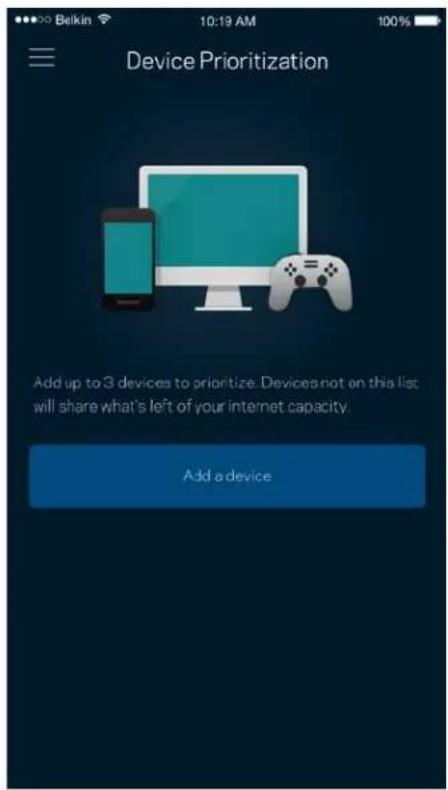
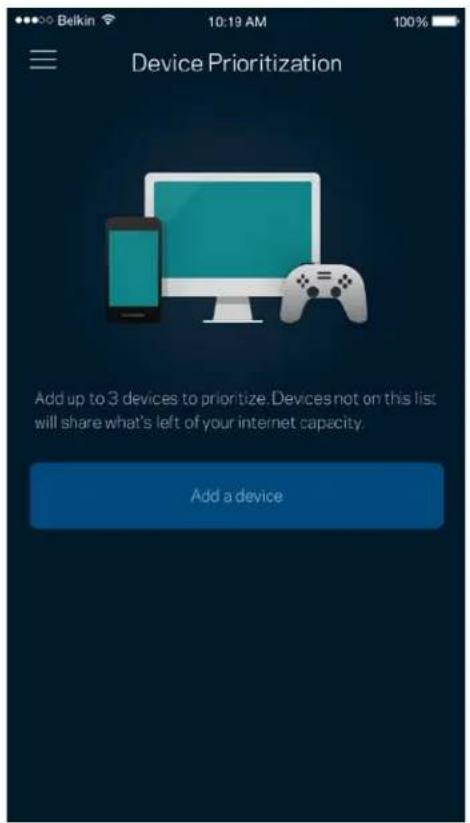
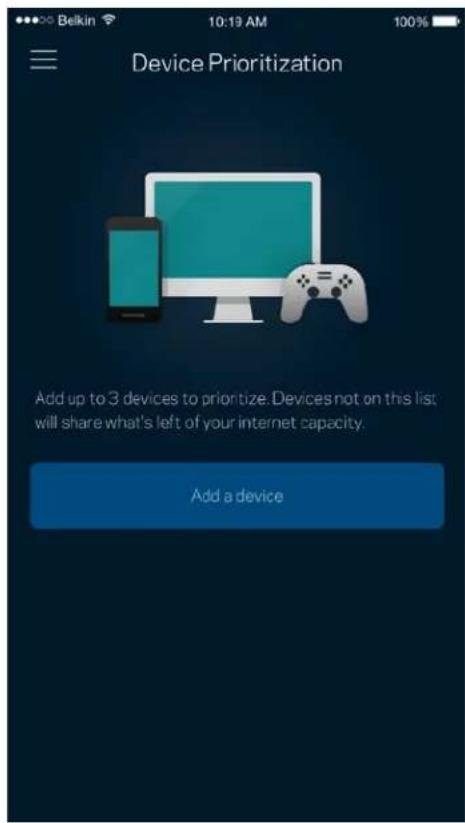
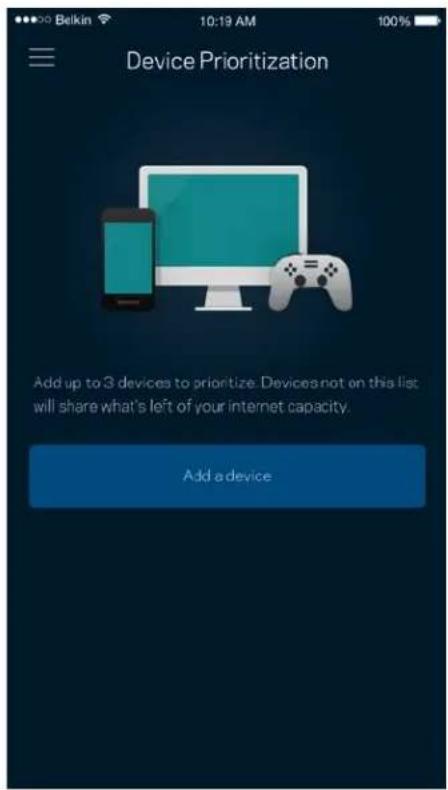
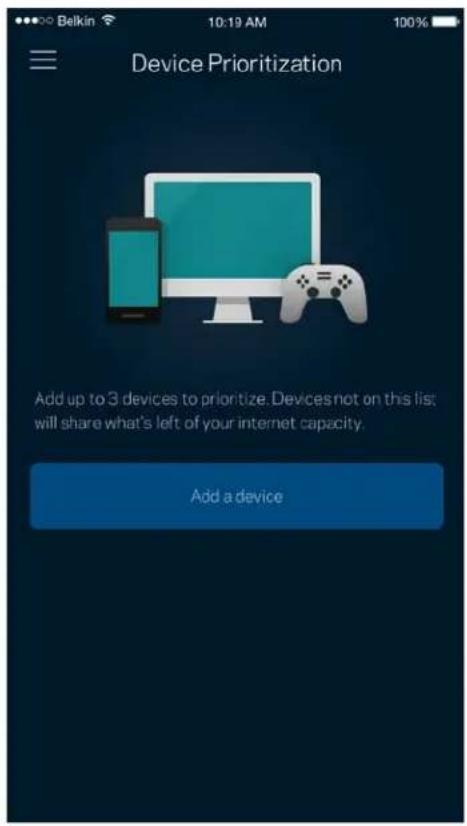
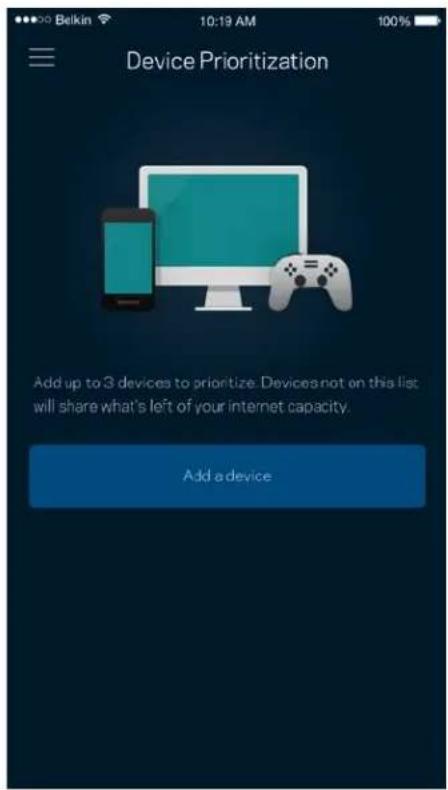
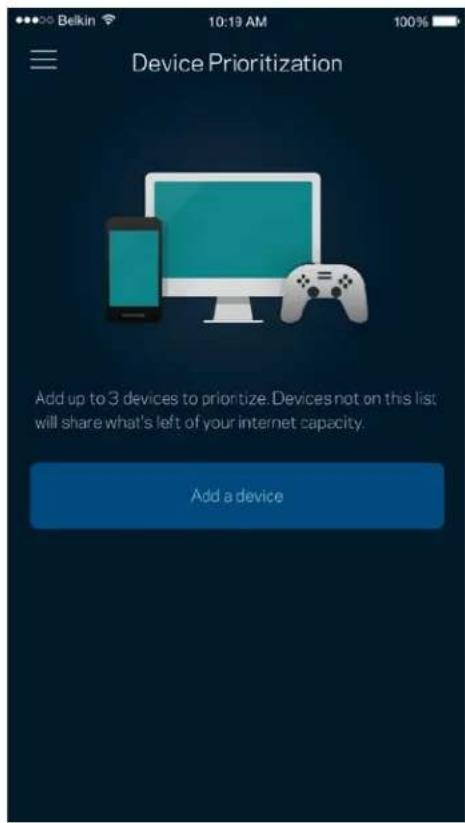
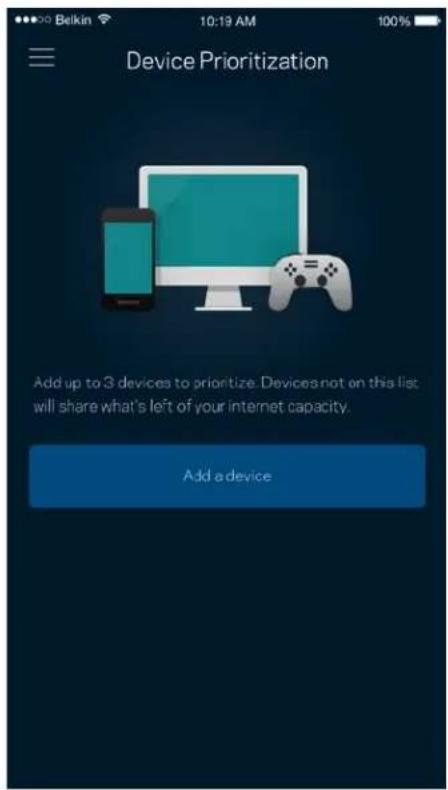
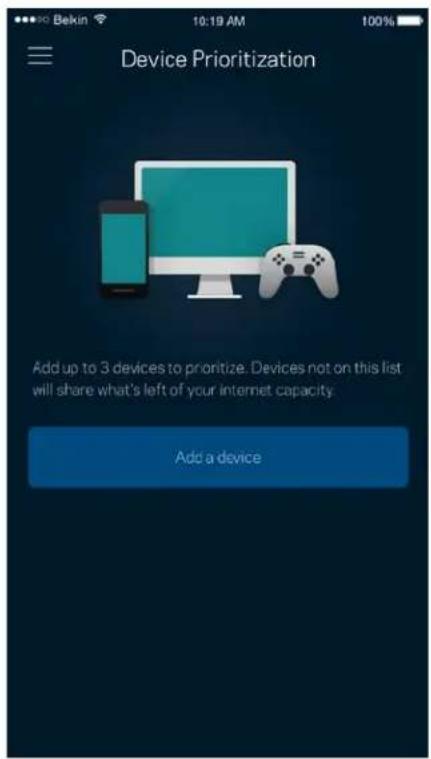
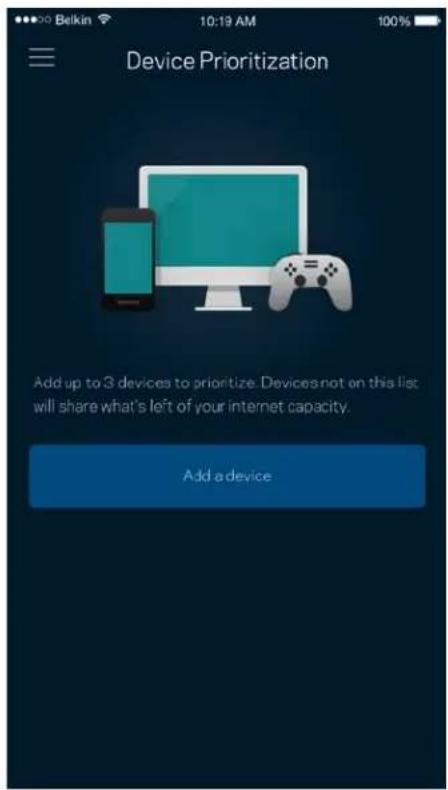
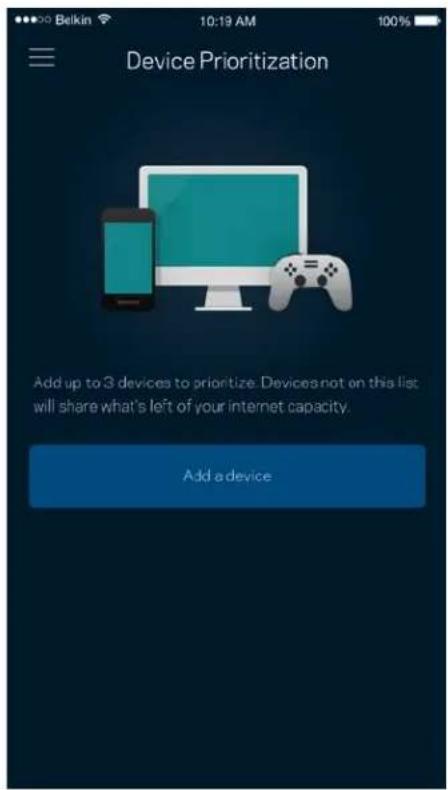
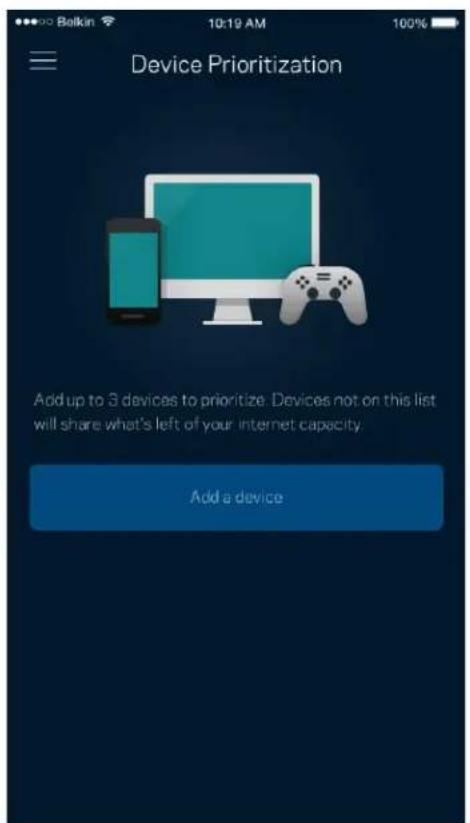
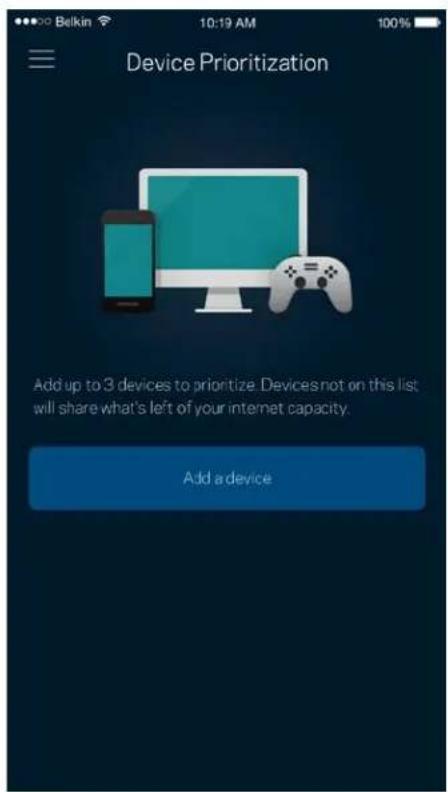
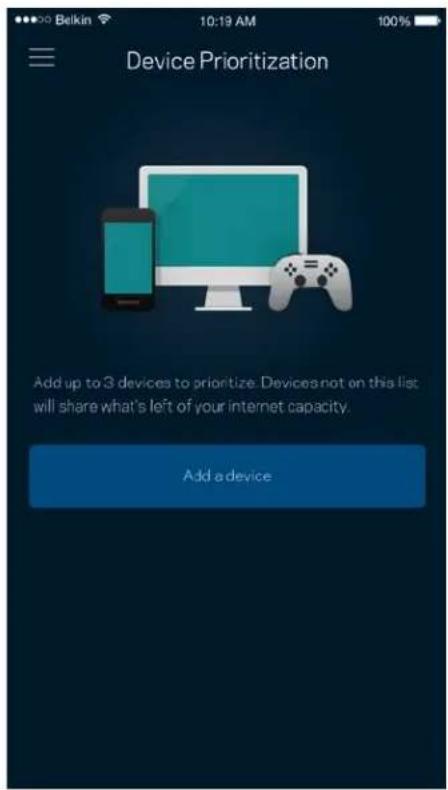
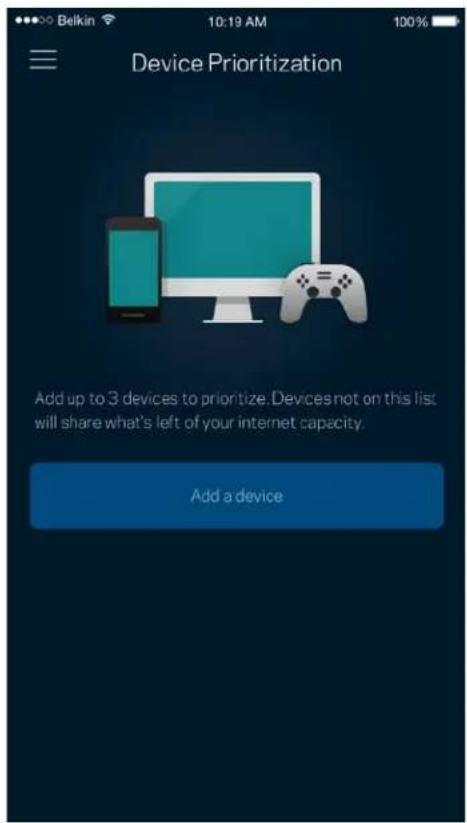
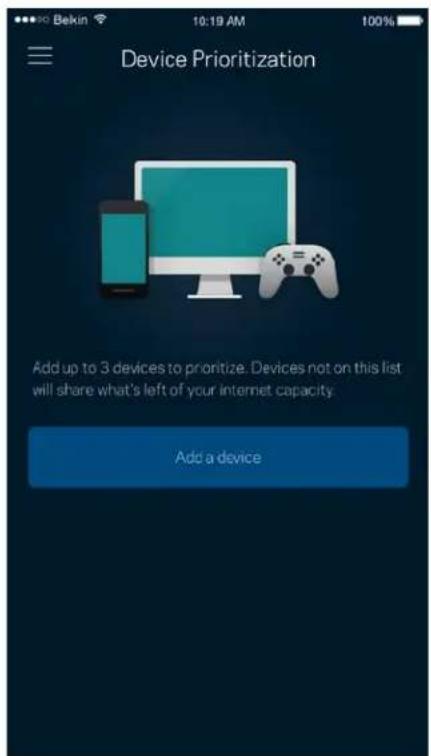
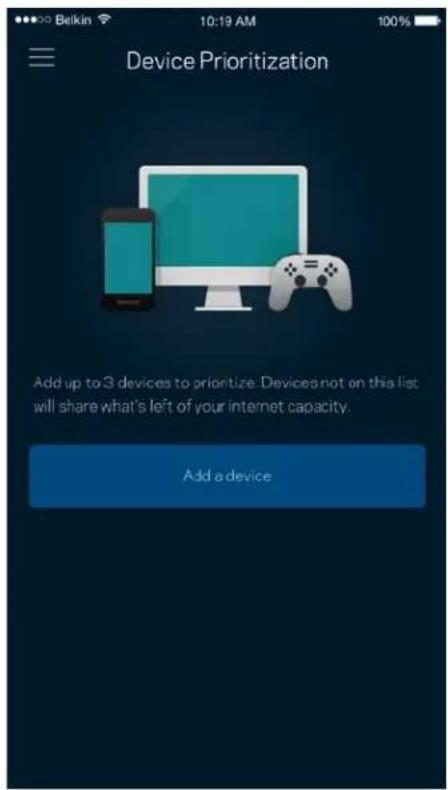
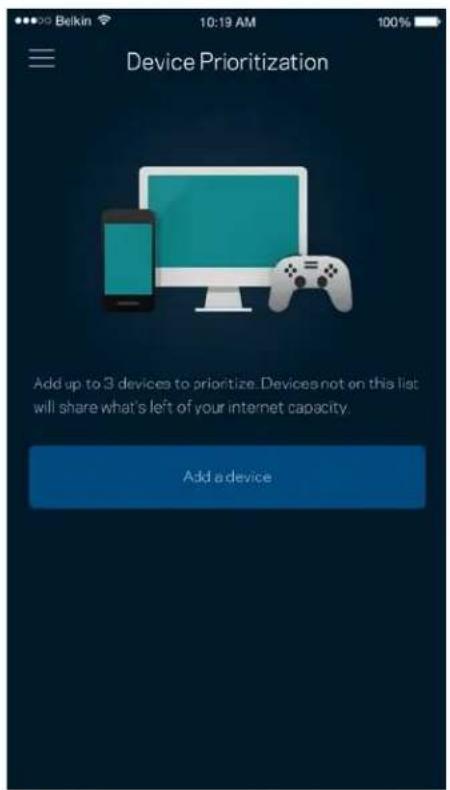
Choose up to three devices for priority usage of your internet connection. Those devices - wired and/or wireless - always will have the best access when connected. Your router runs a speed check to determine how to best distribute Wi-Fi to prioritized devices. Other devices will share the leftover capacity. Prioritized devices appear on Dashboard.
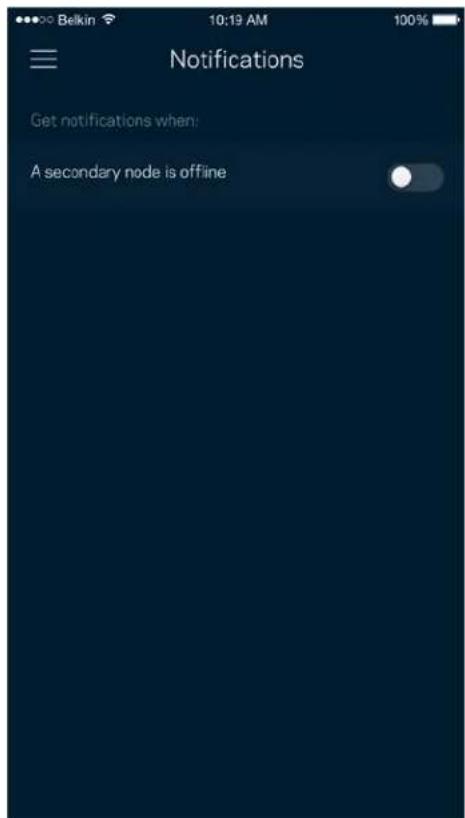
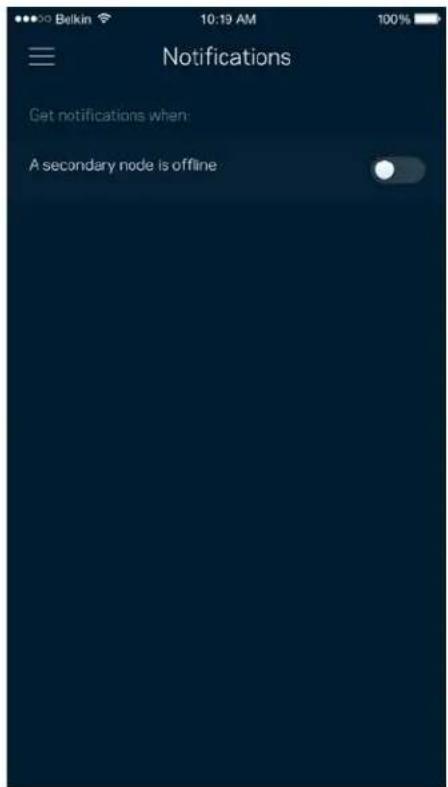
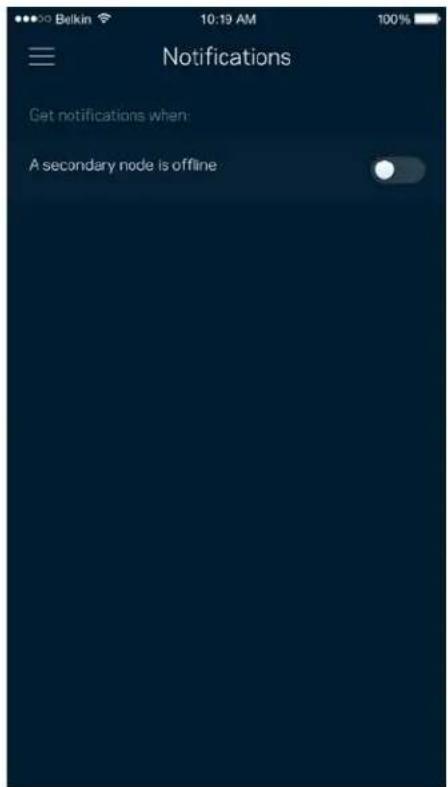
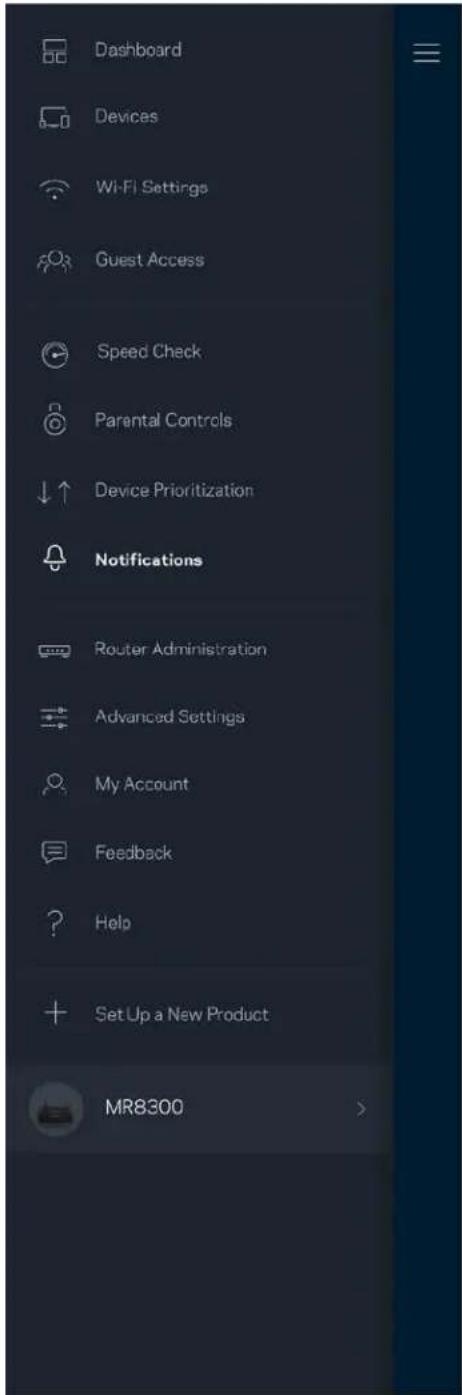
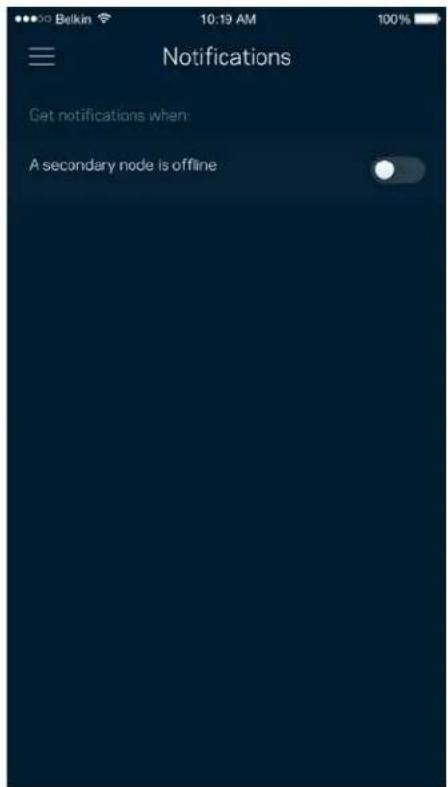
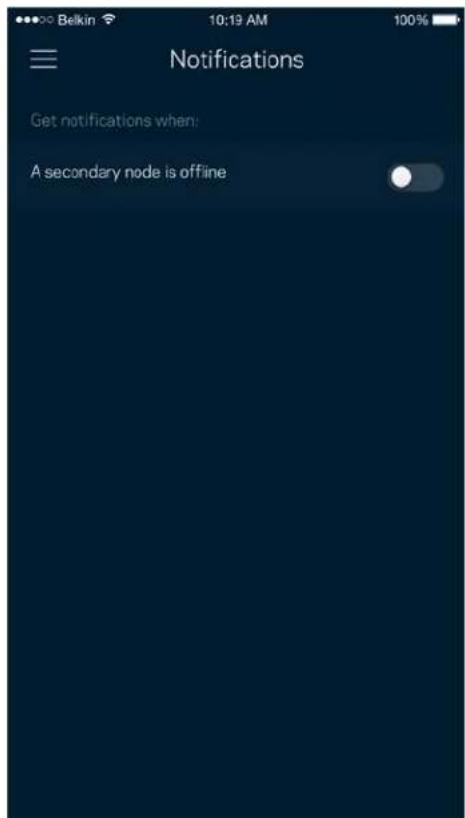
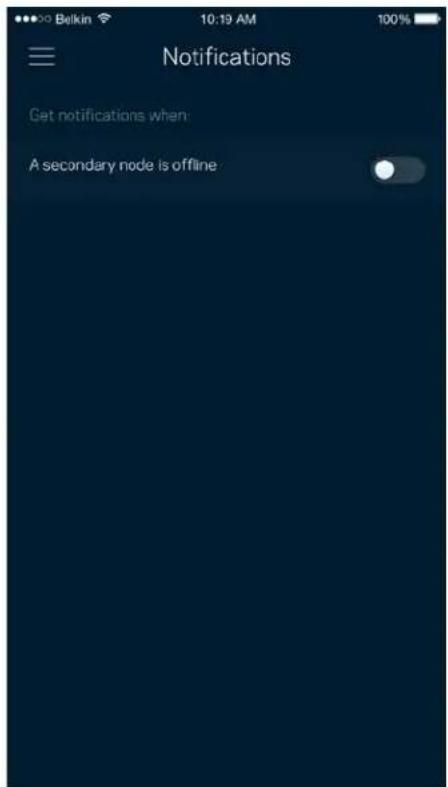
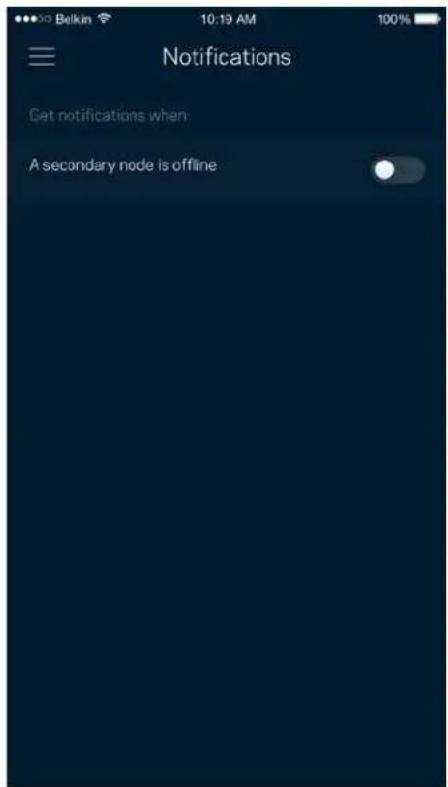
Notifications
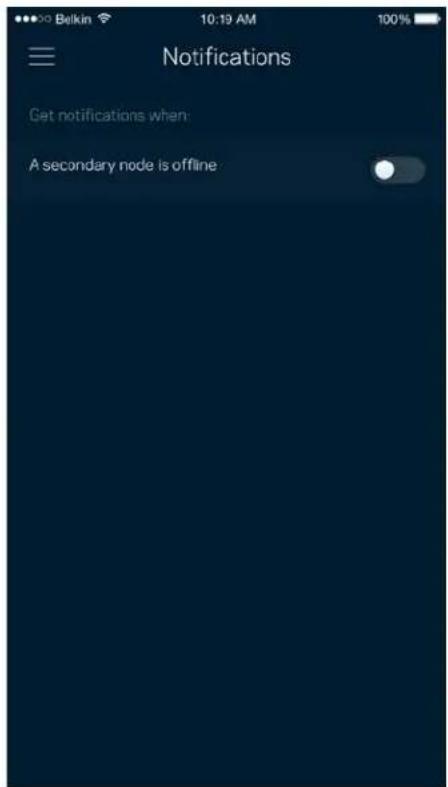
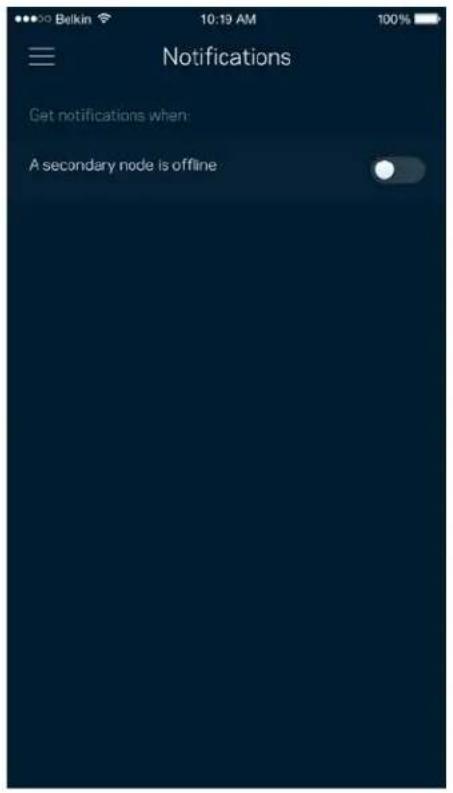
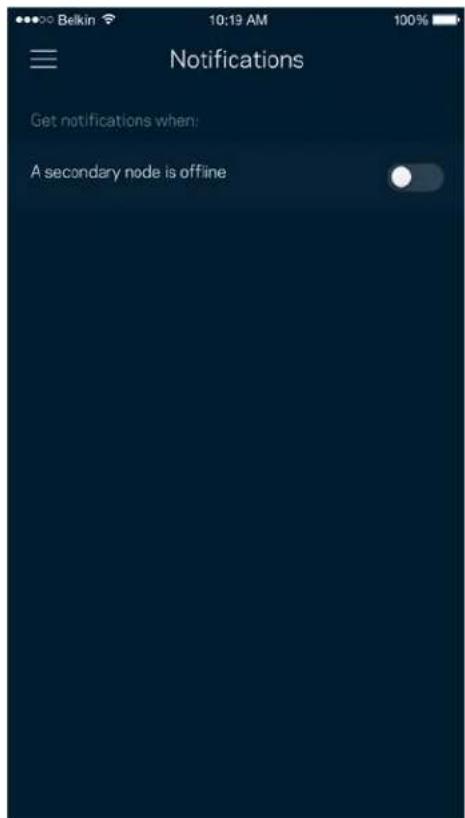
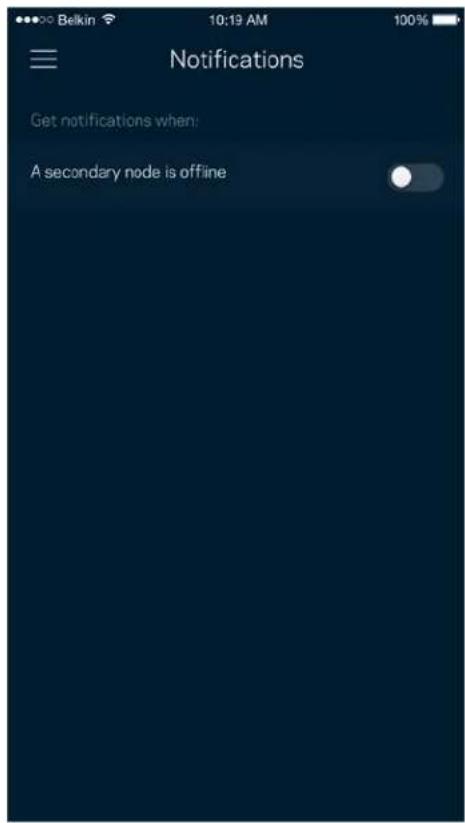
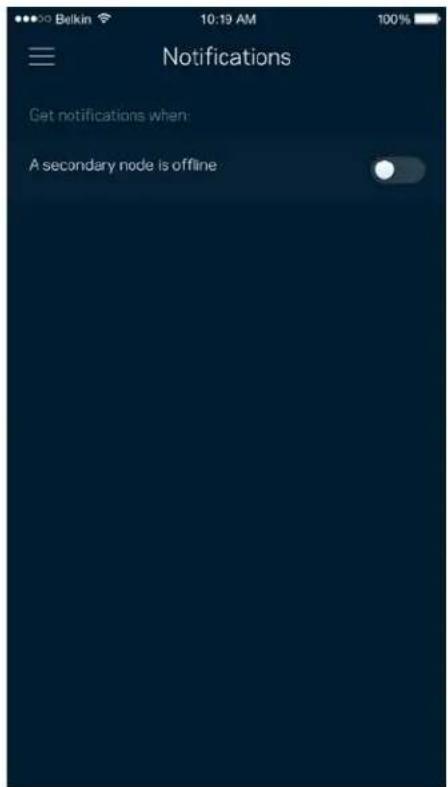
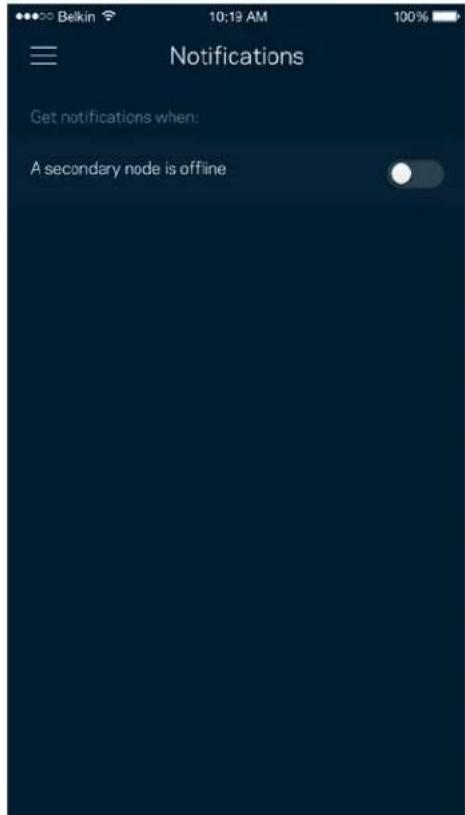
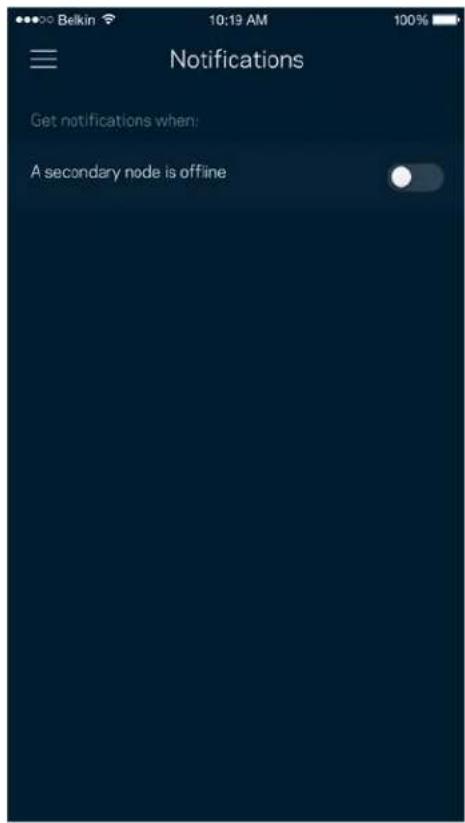
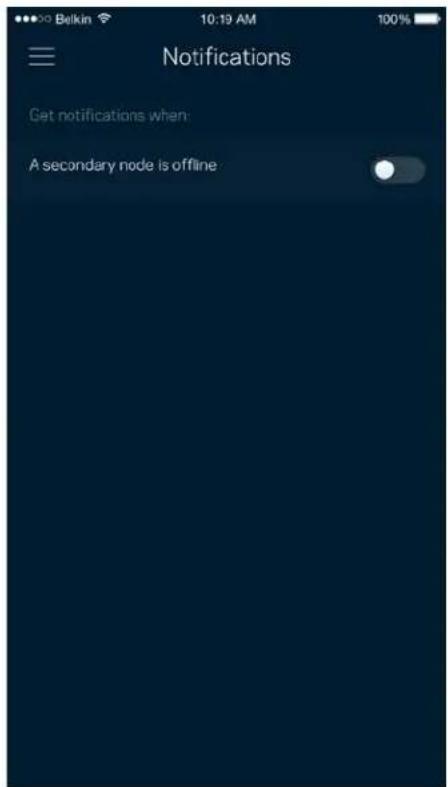
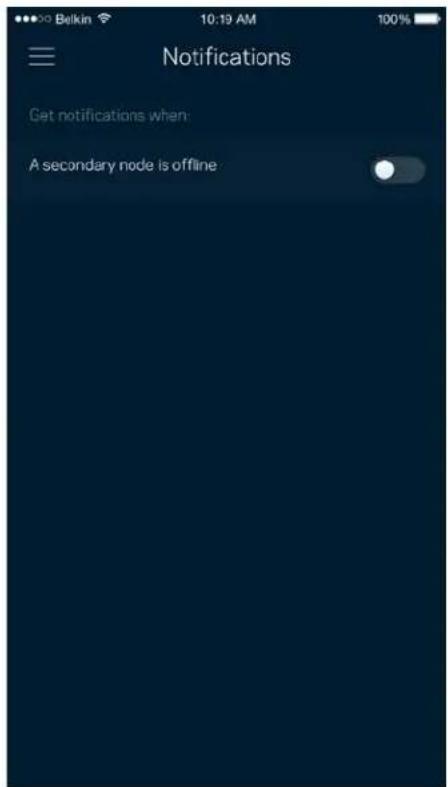
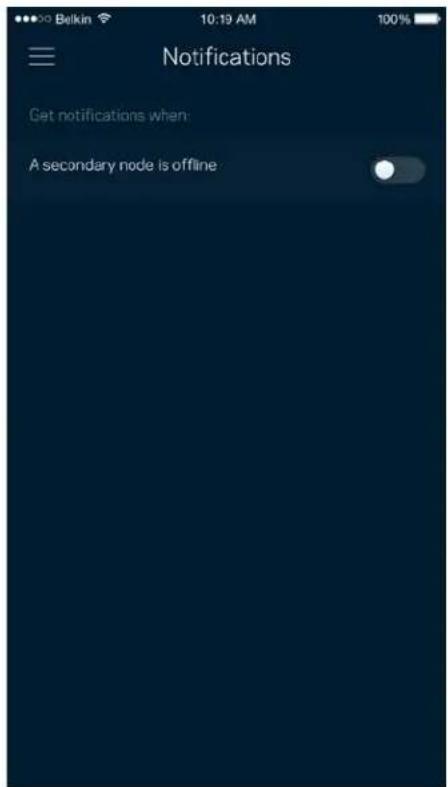
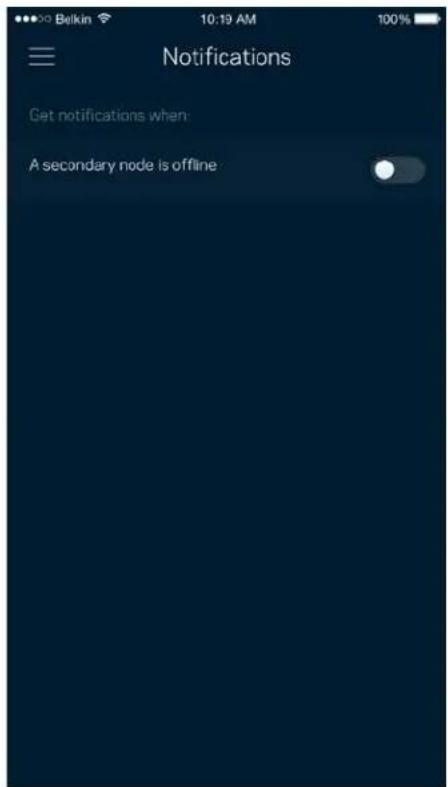
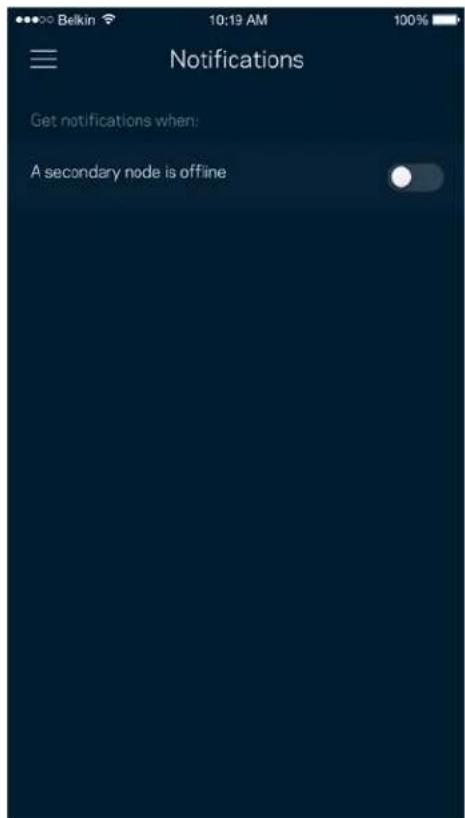
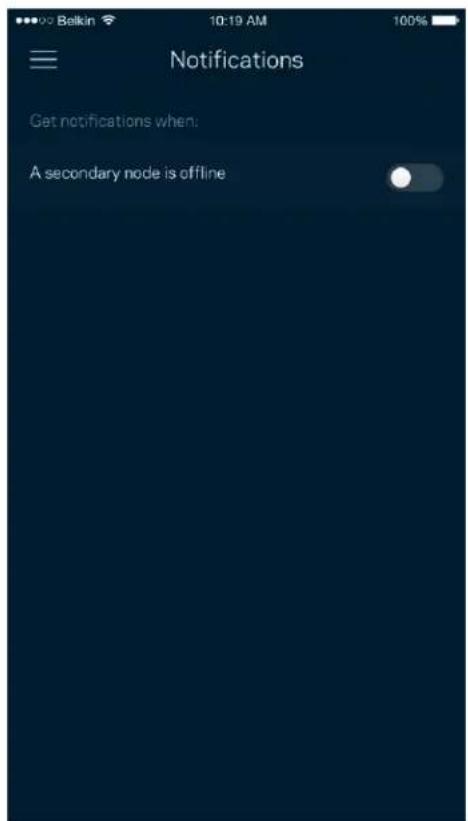
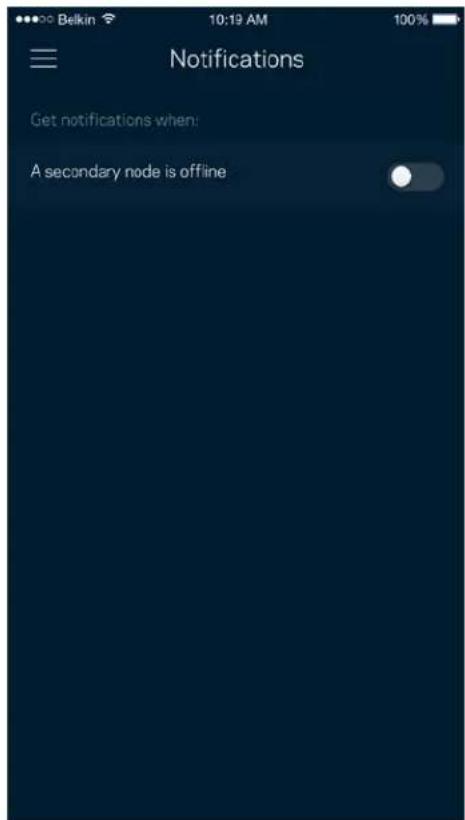
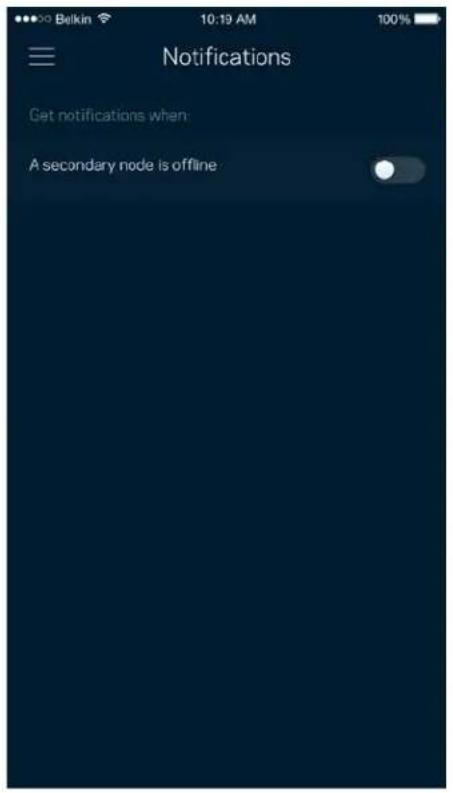
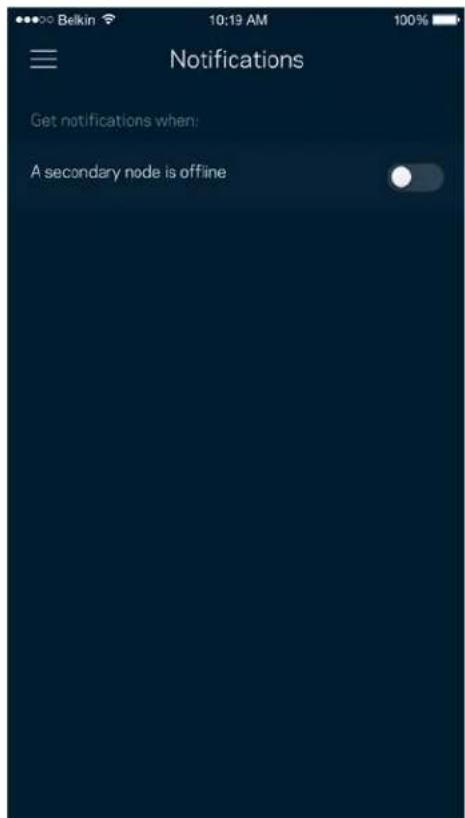
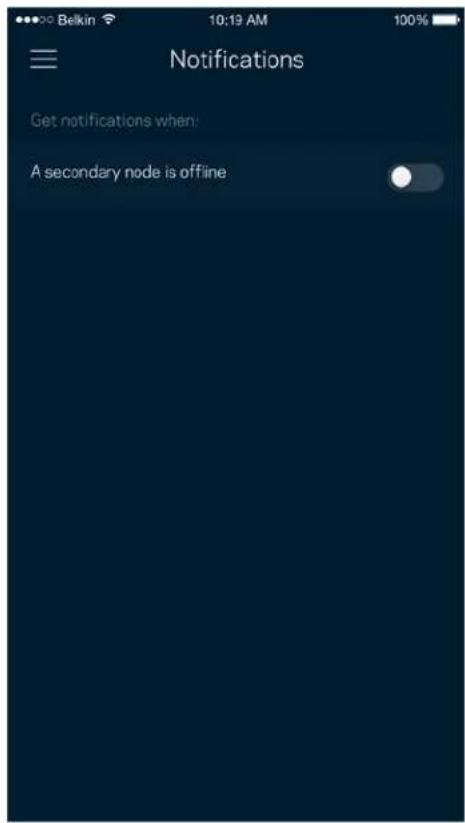
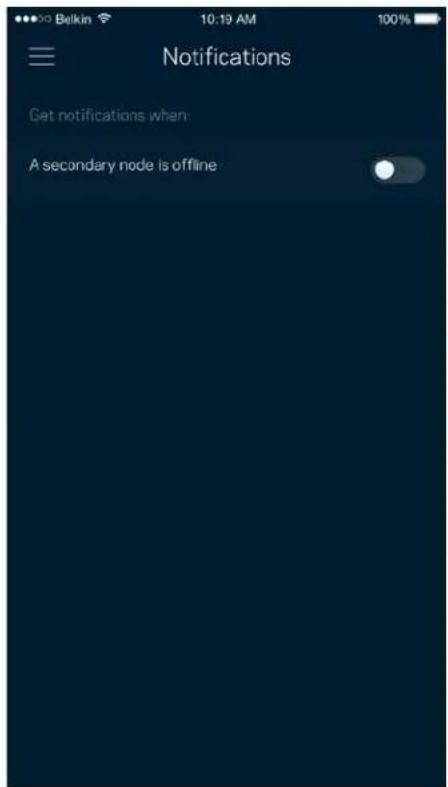
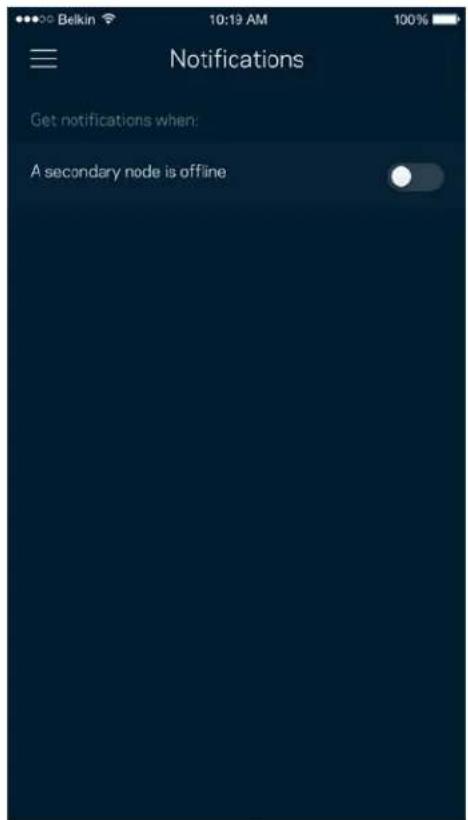
If you have more than one node, the app can notify you when secondary nodes in your system go offline. Secondary nodes are any that are not wired to your modem. You have to turn on notifications in your mobile device settings to allow the app to notify you.
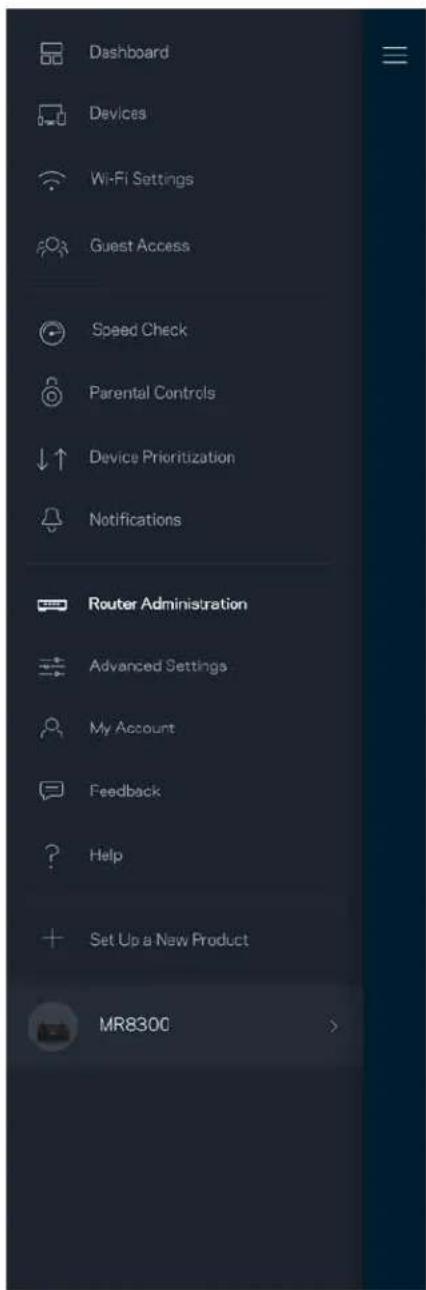
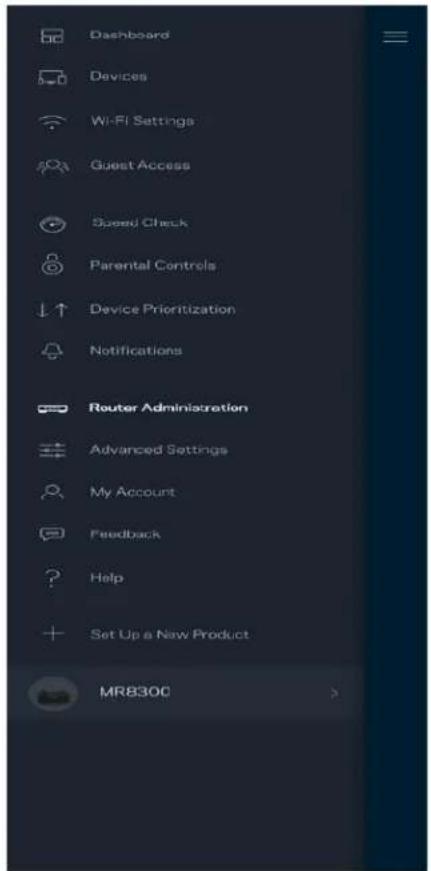
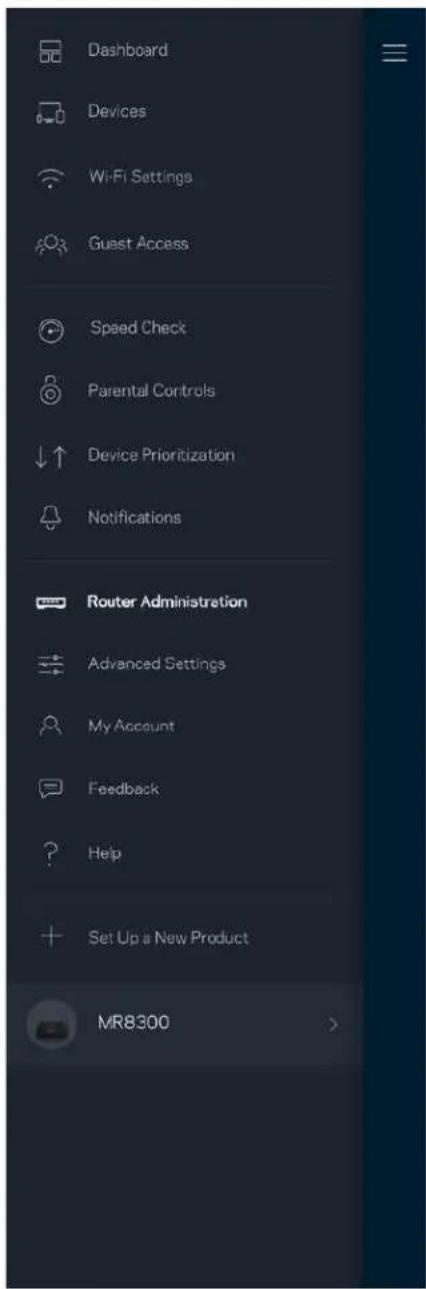
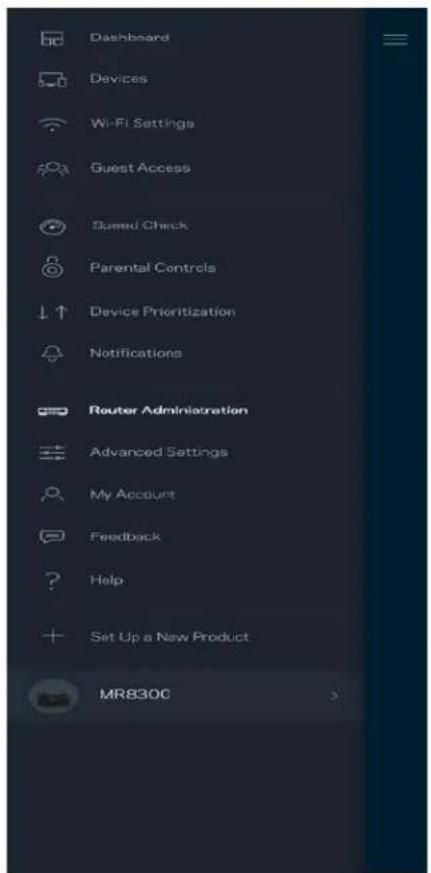
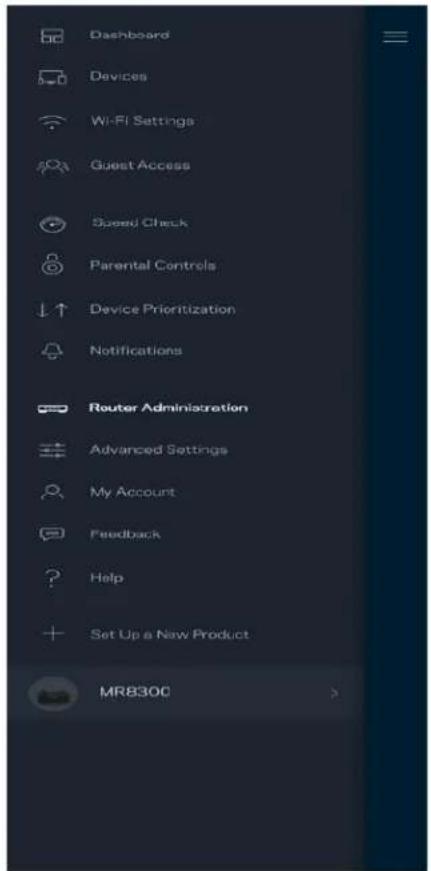
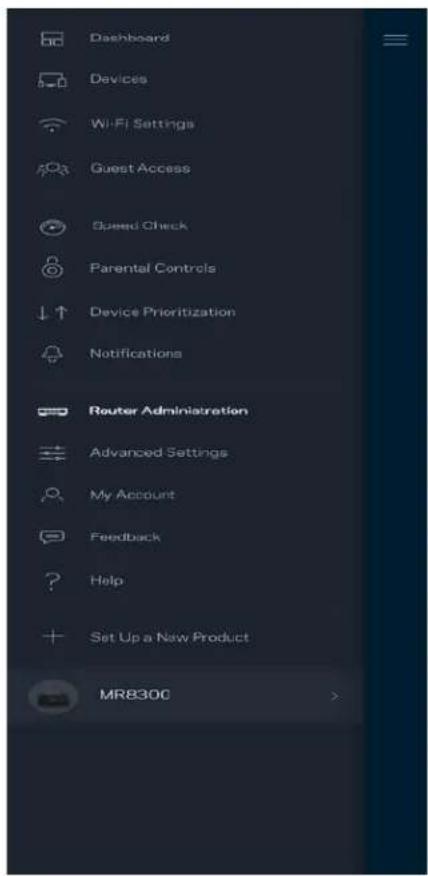
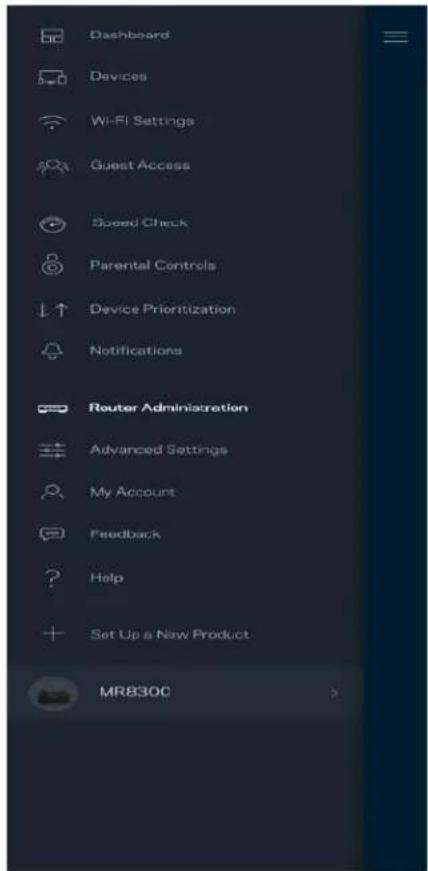
Router Administration
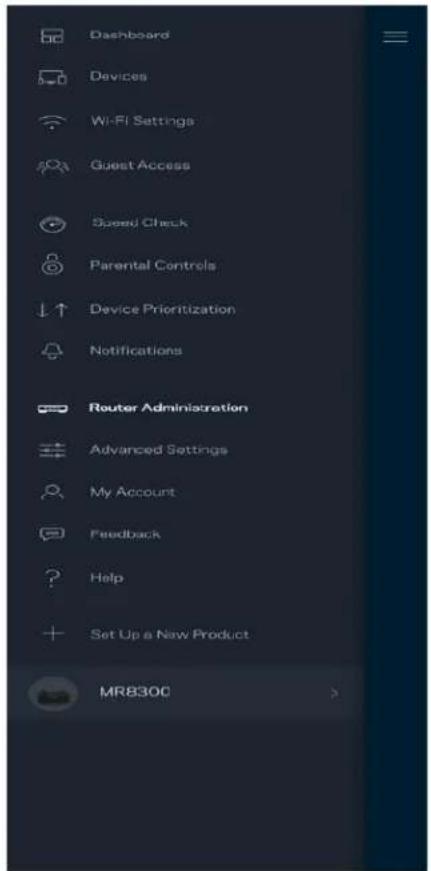
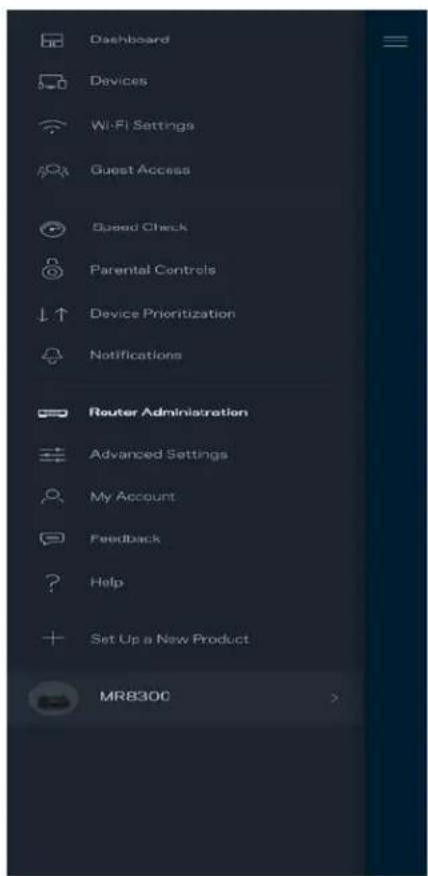
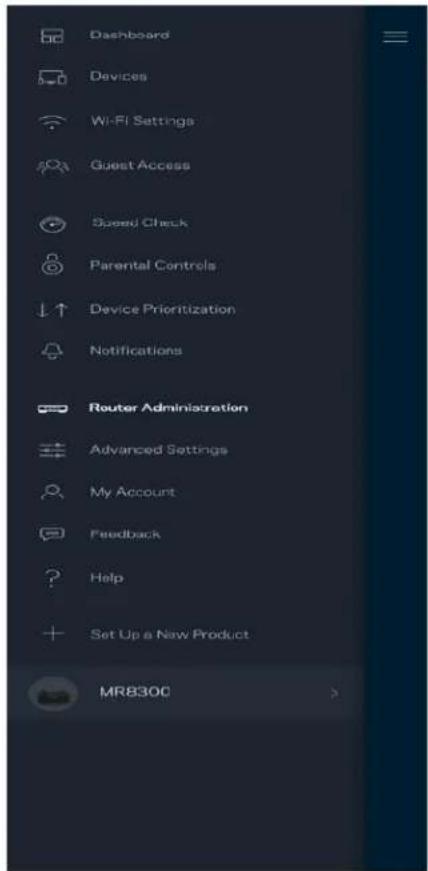
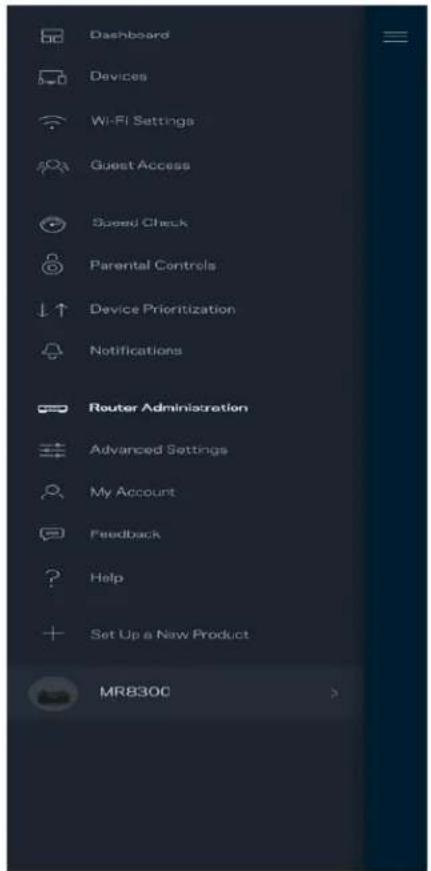
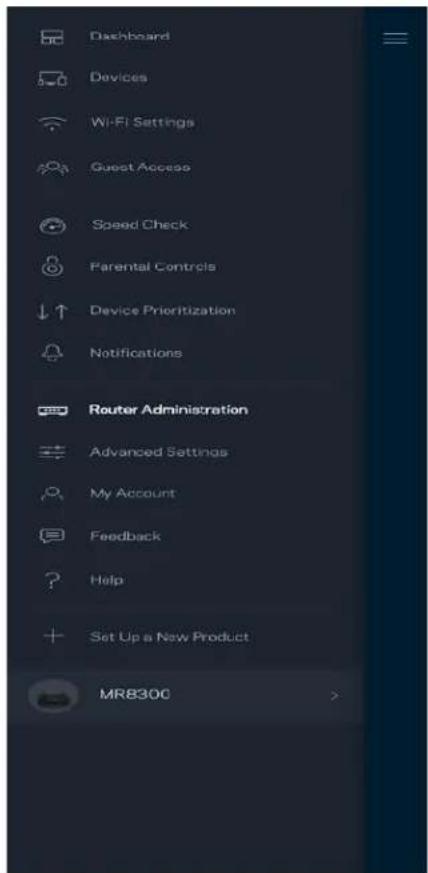
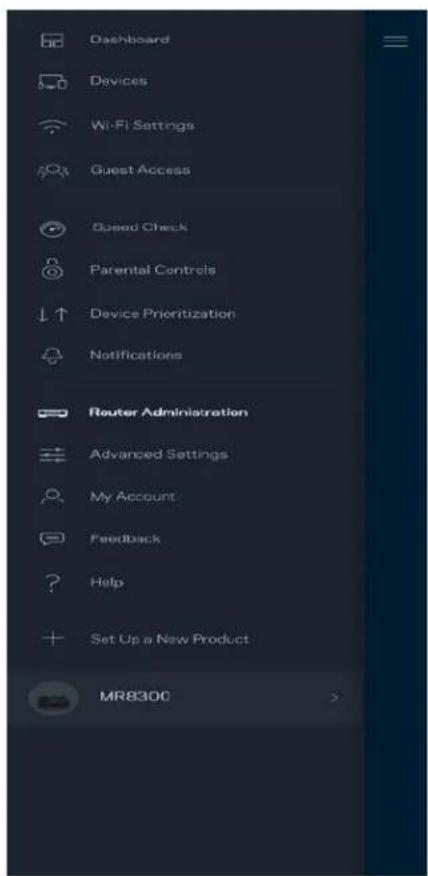
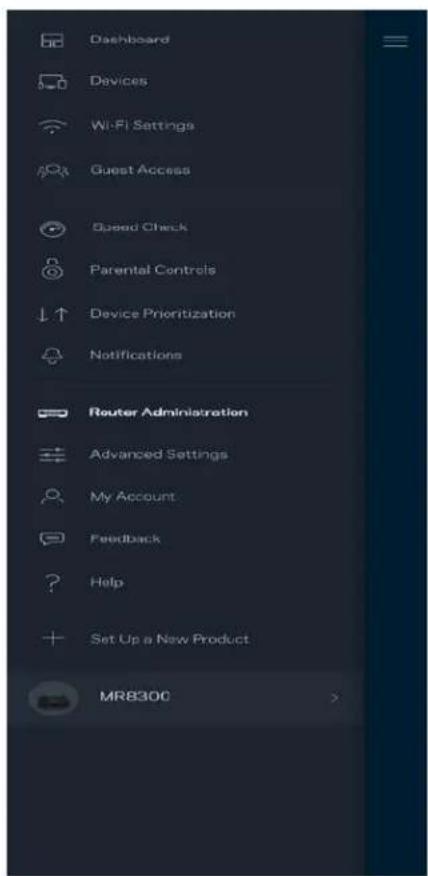
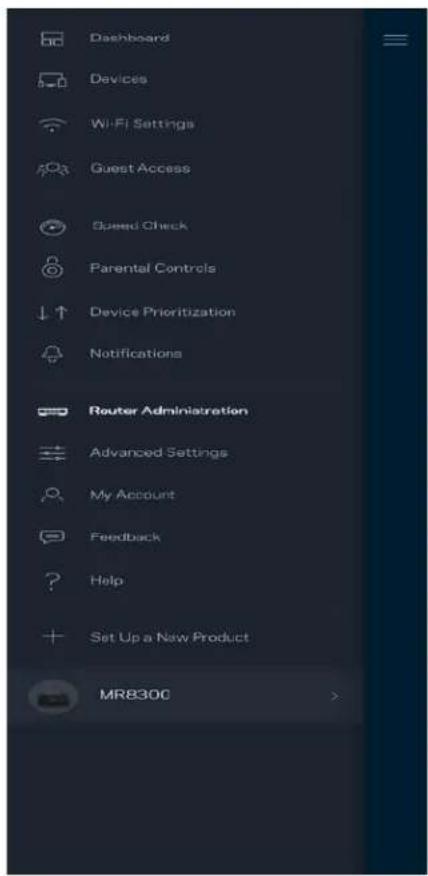
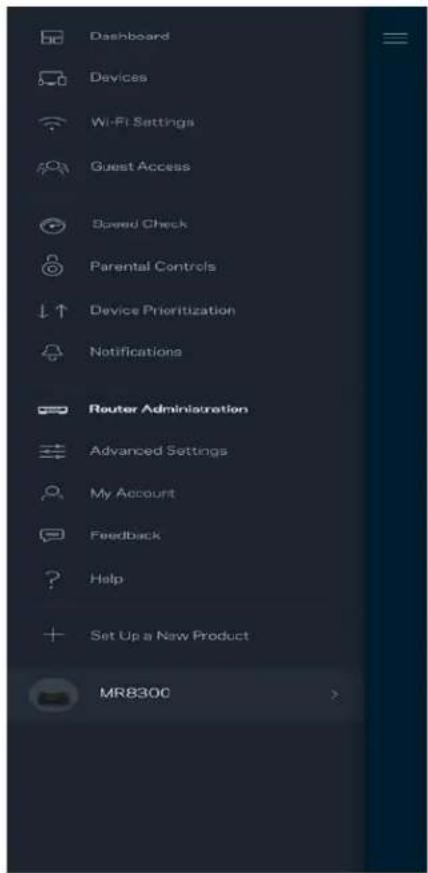
Use the Router Administration screen to change the router password and hint, and check various identifiers (model number, serial number, and IP details) for your router.
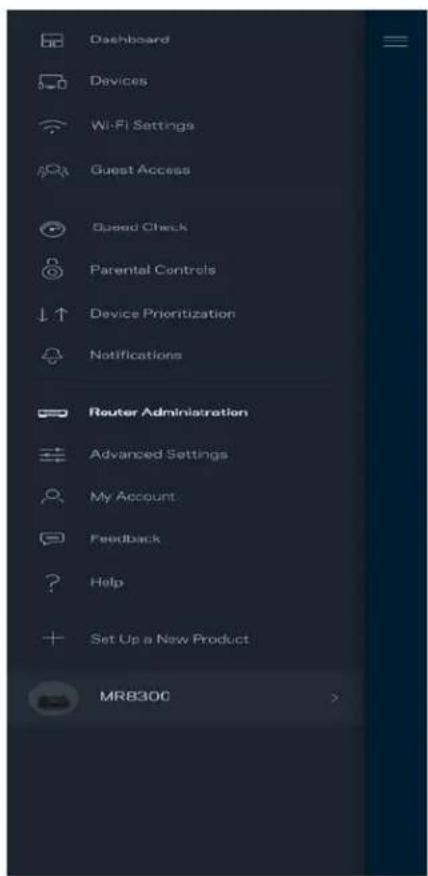
Opt in to automatically report crashes to Linksys and contribute to improving the Wi-Fi experience. You also can manually report specific issues to Linksys.
The following information will be sent with your description of the issue:
| App version | Login Type (cloud: show email address associated, local: display "Router admin") |
| Device model | WAN Connection type (display Wi-Fi or ethernet) |
| Device OS version | Time: date (mo/day/year, time, time zone) |
Advanced Settings
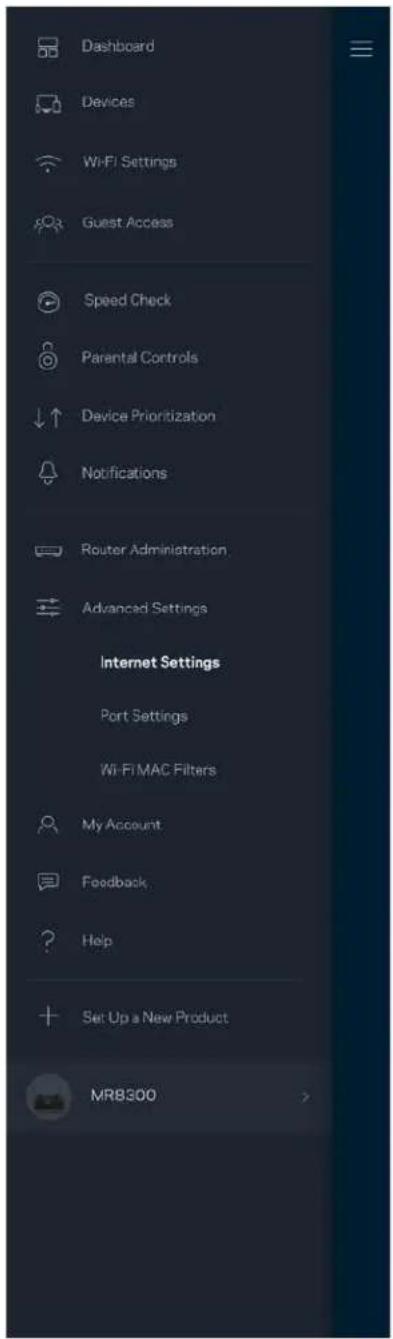
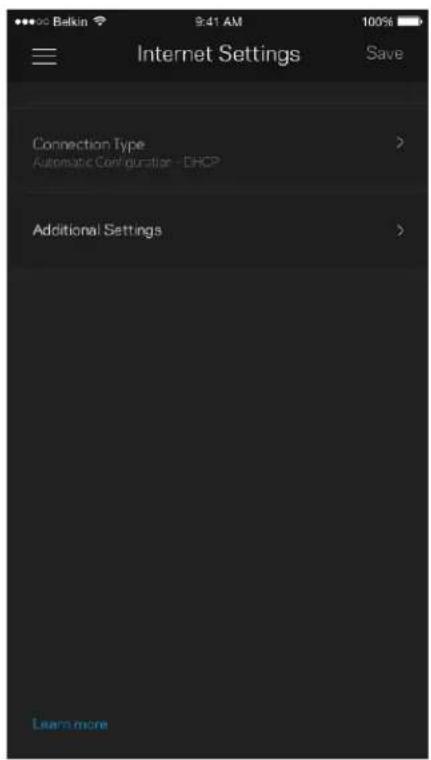
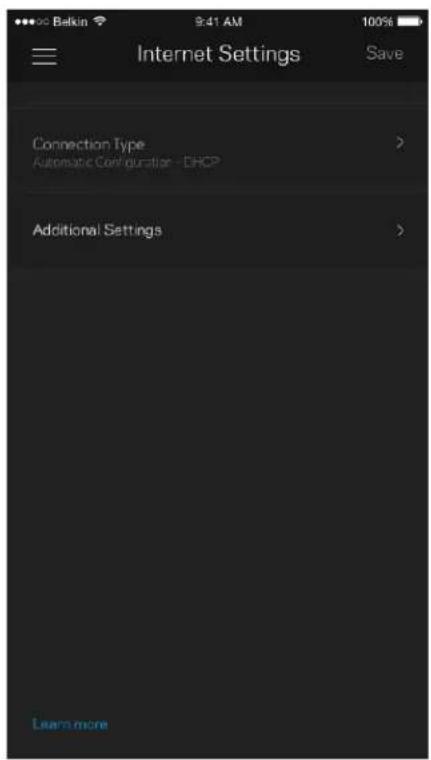
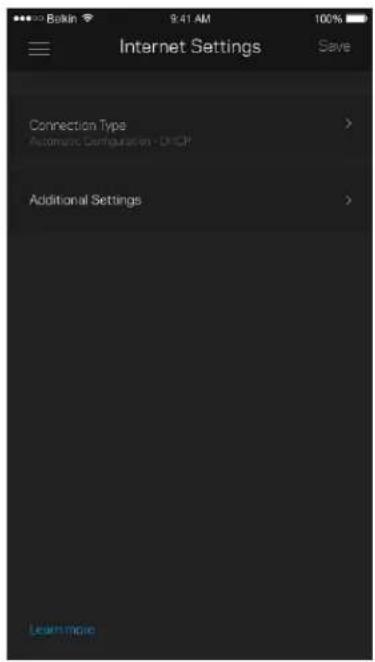
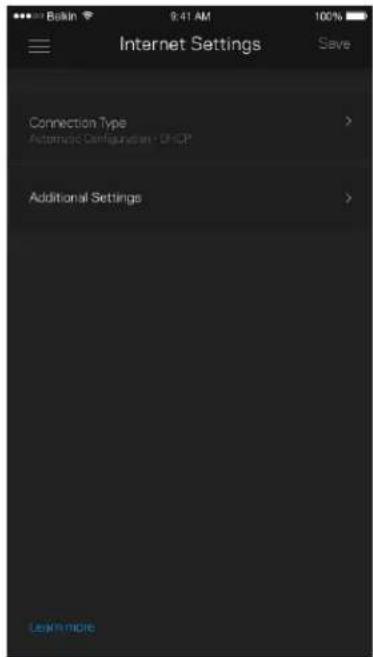
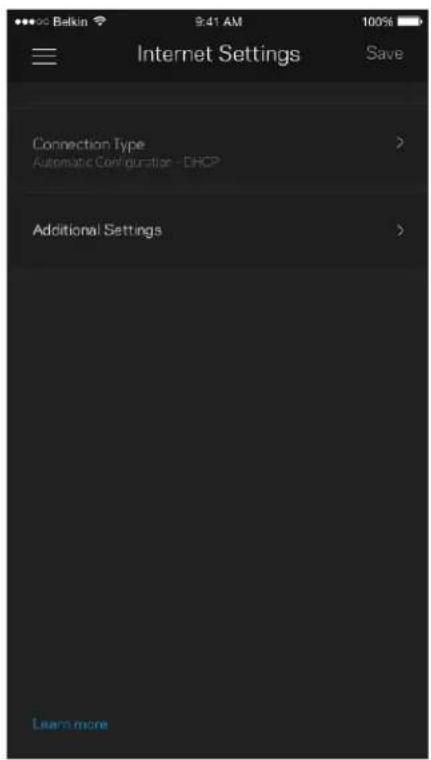
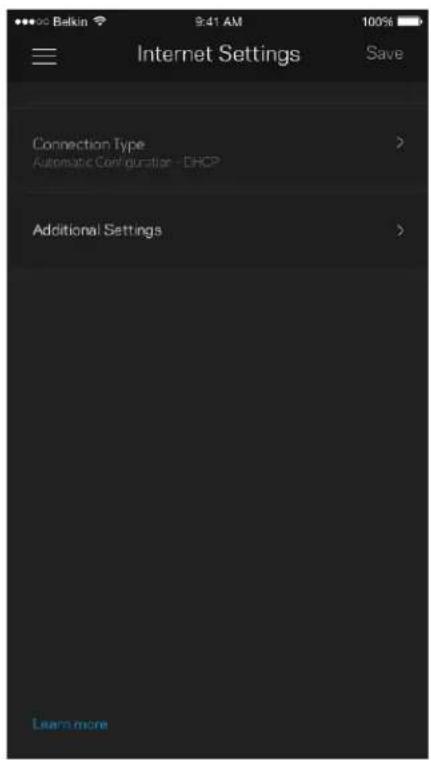
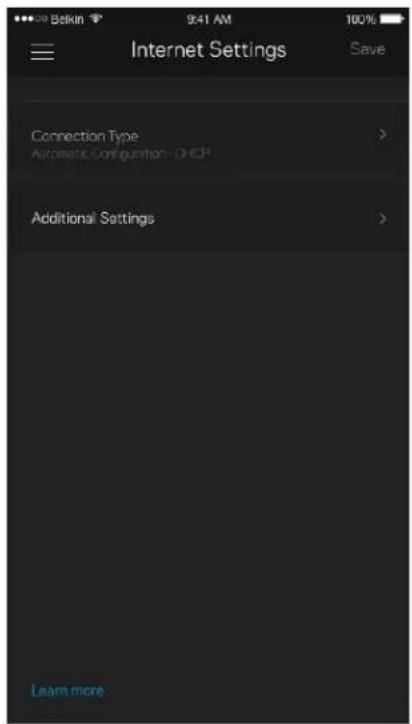
Internet Settings
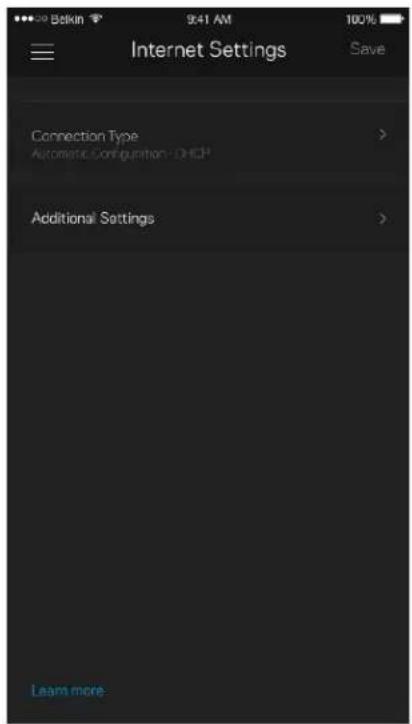
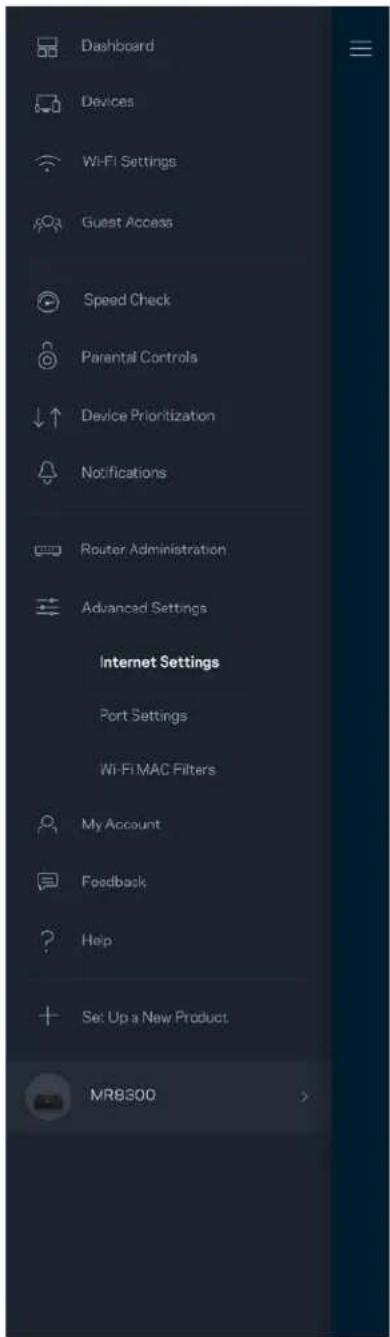
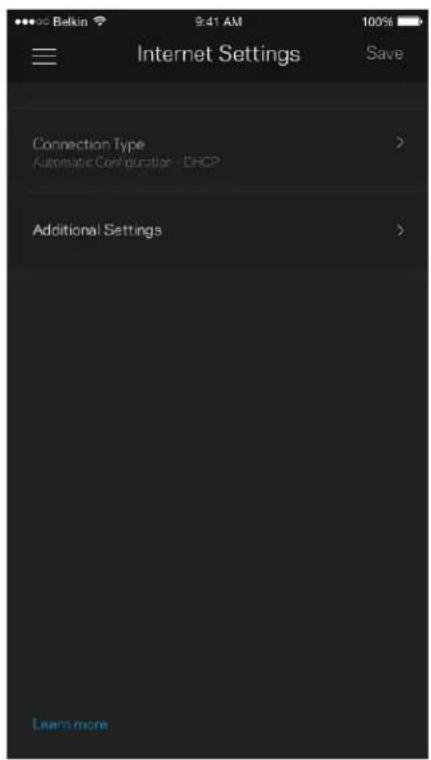
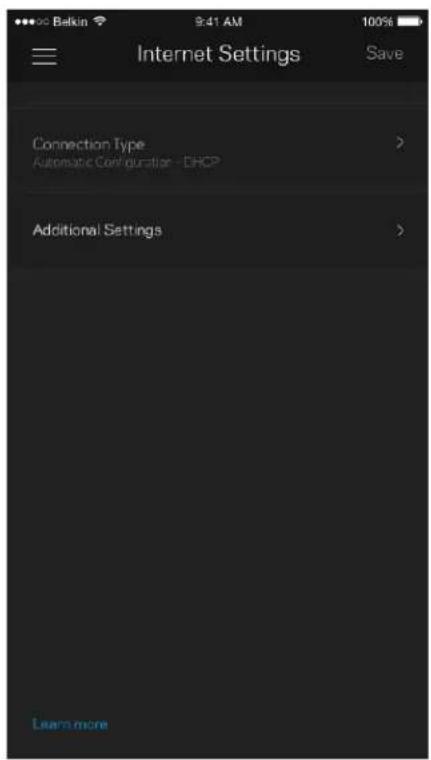
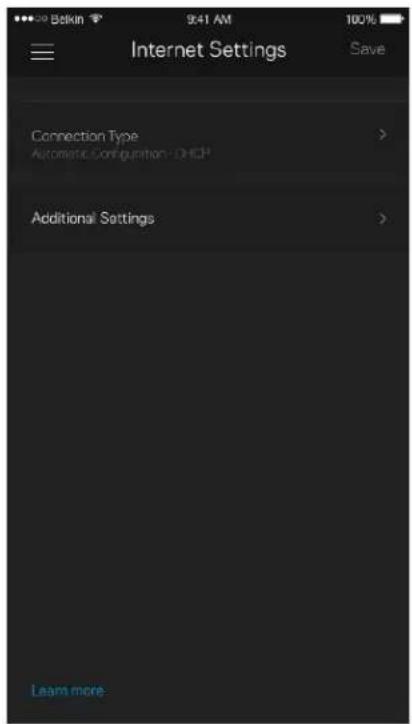
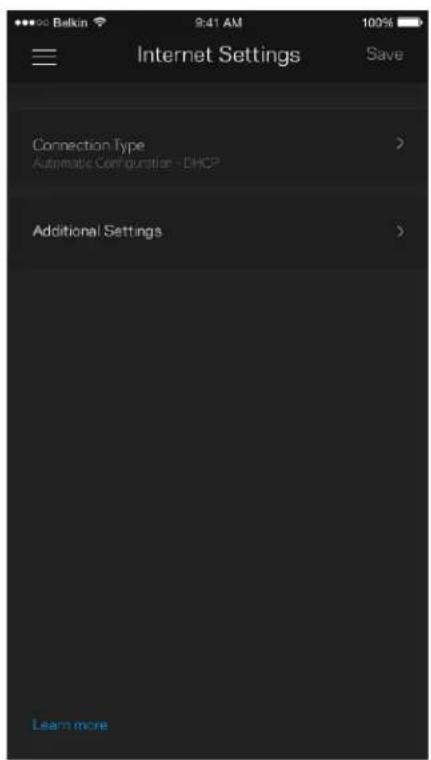
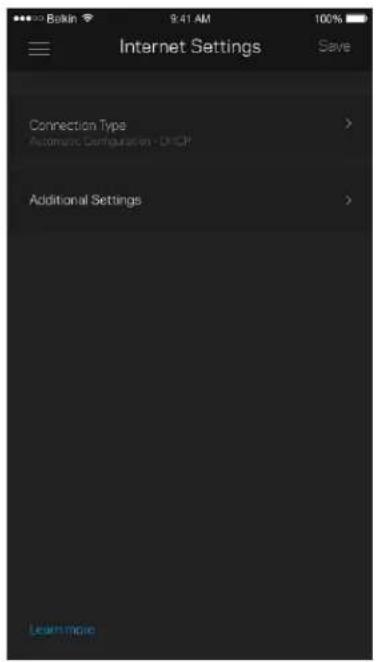
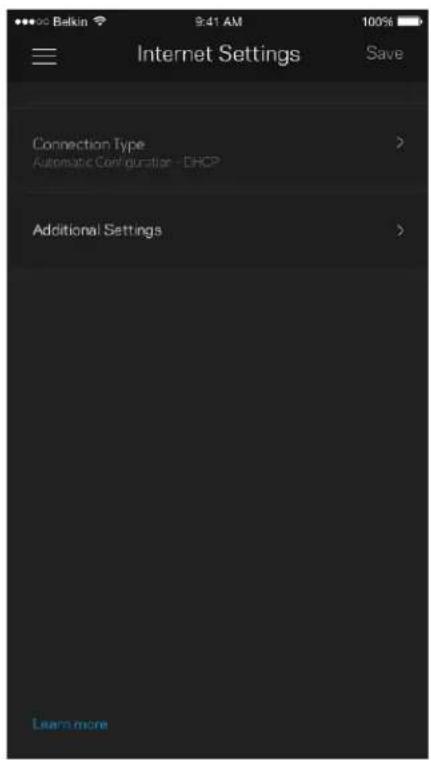
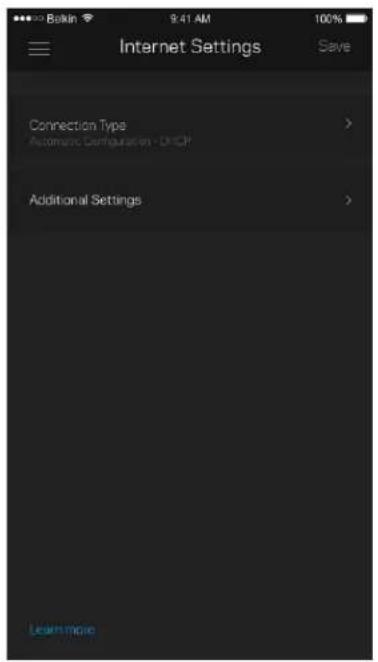
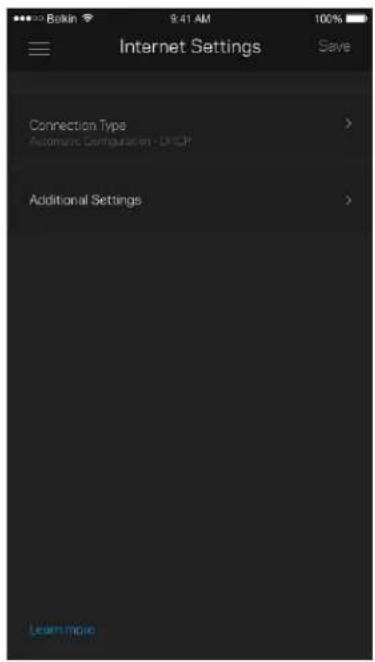
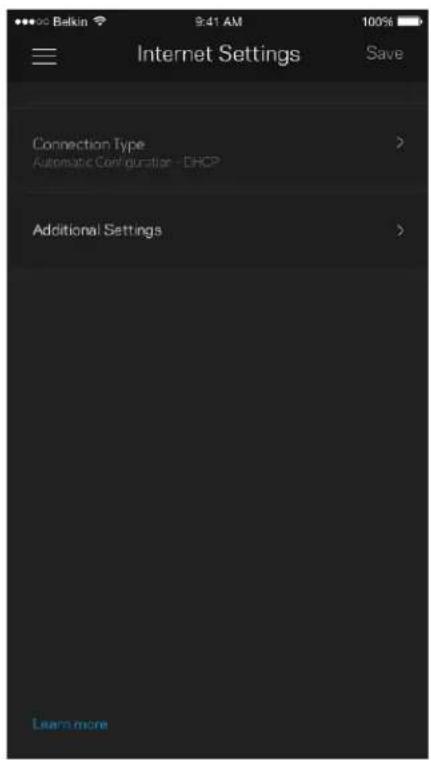
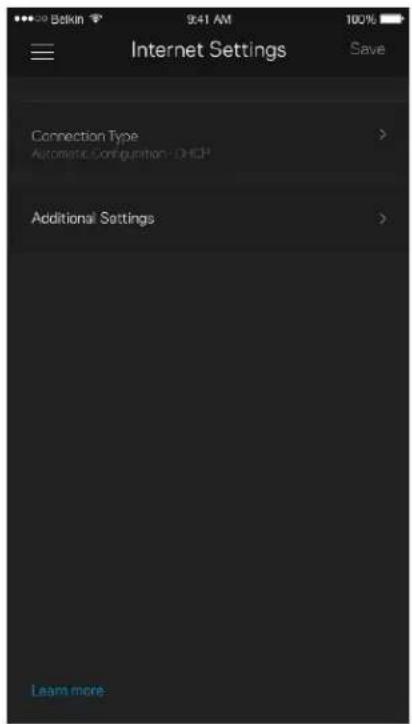
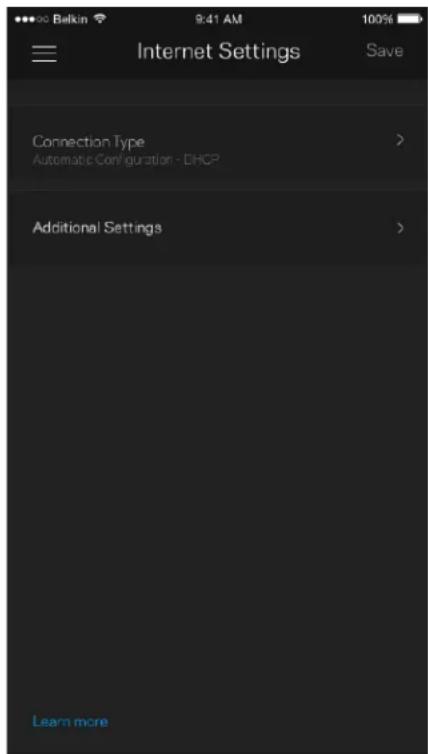
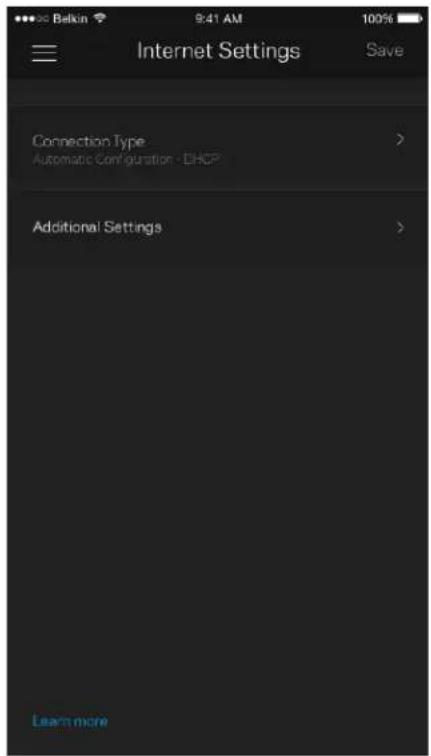
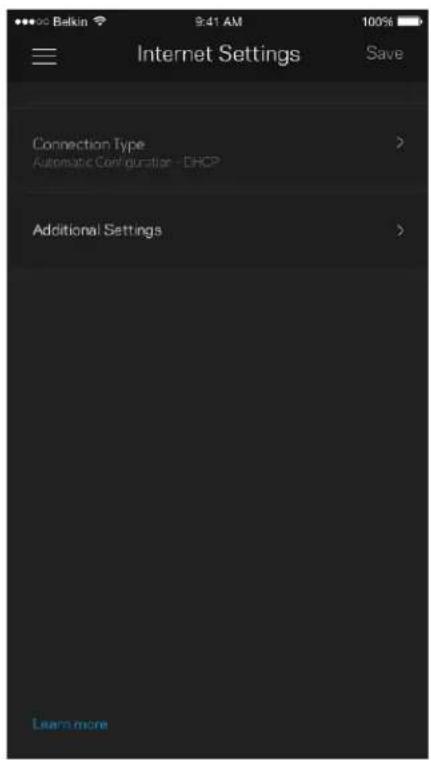
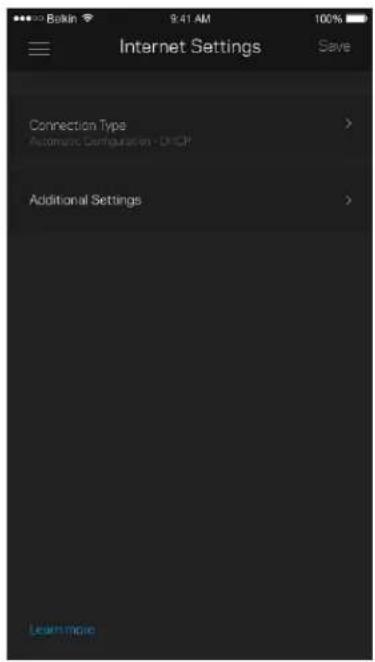
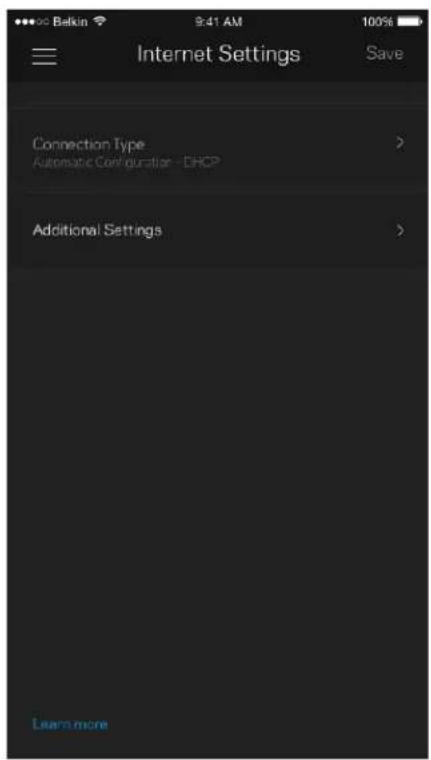
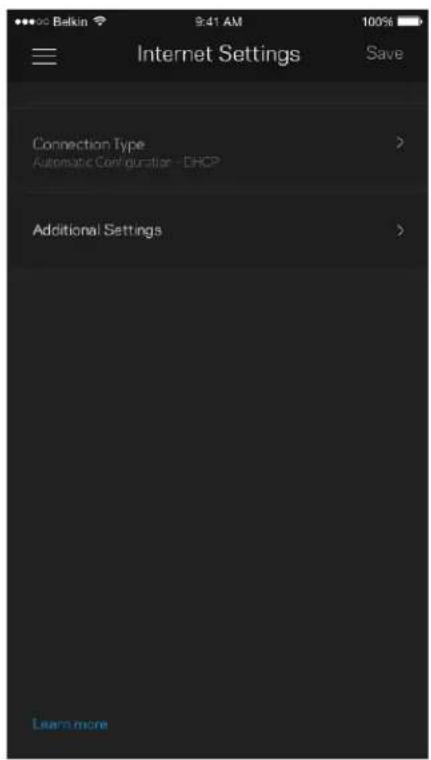
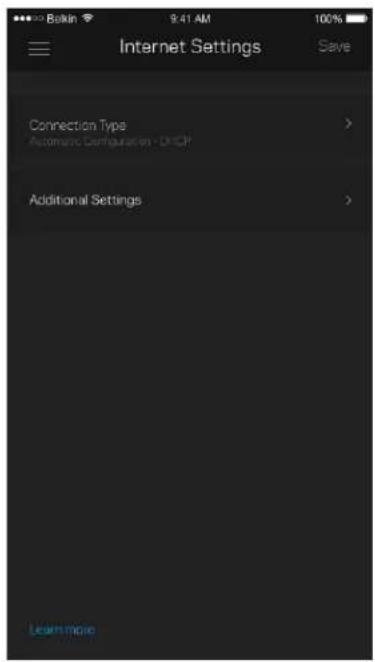
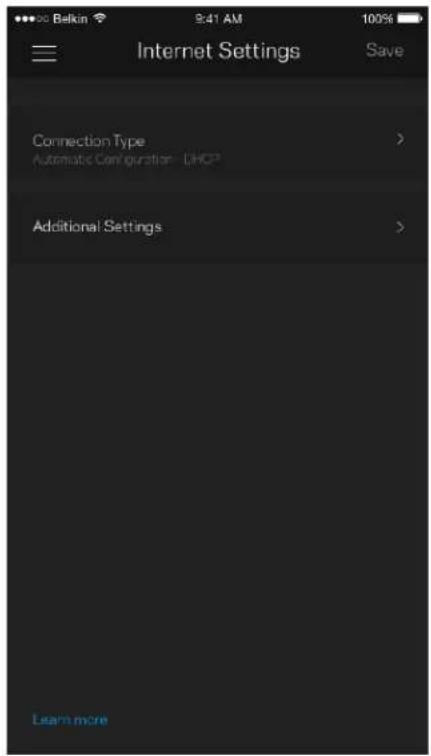
You can choose how your router connects to the internet. The default is Automatic Configuration - DHCP. Other connection types depend on your internet service provider or how you plan to use your router. Advanced users can use Additional Settings to clone MAC addresses and set MTU (maximum transmission unit).
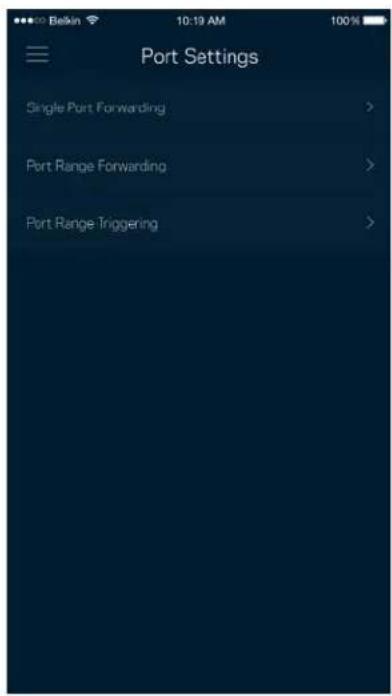
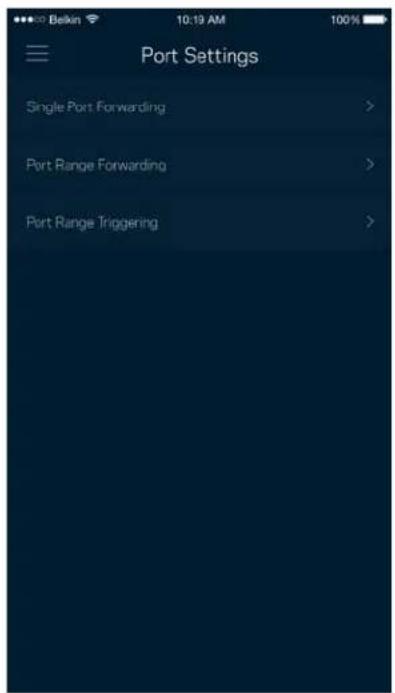
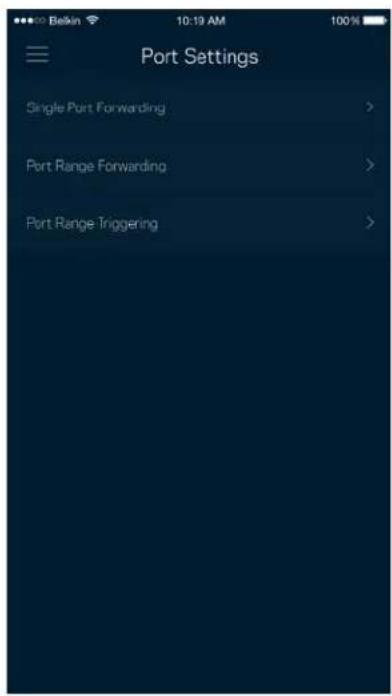
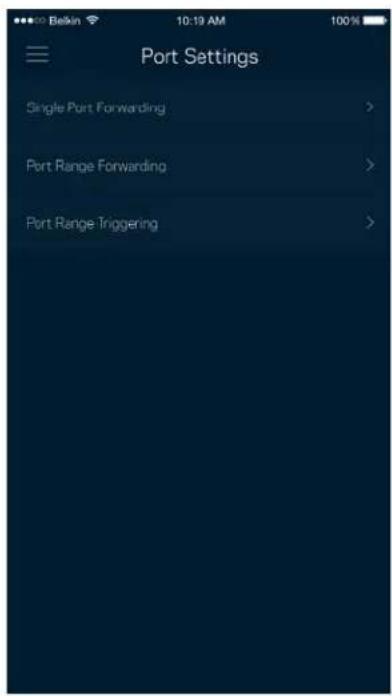
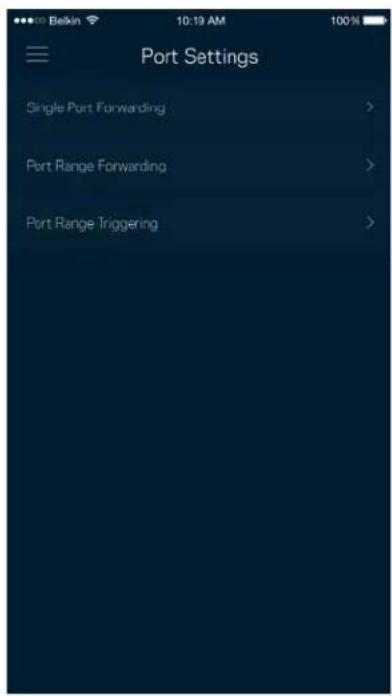
Port Settings
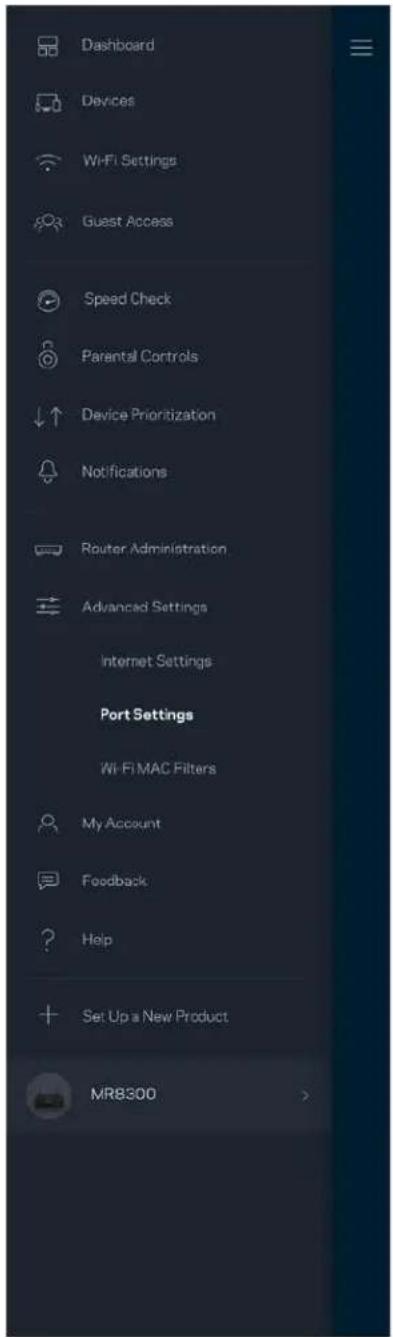
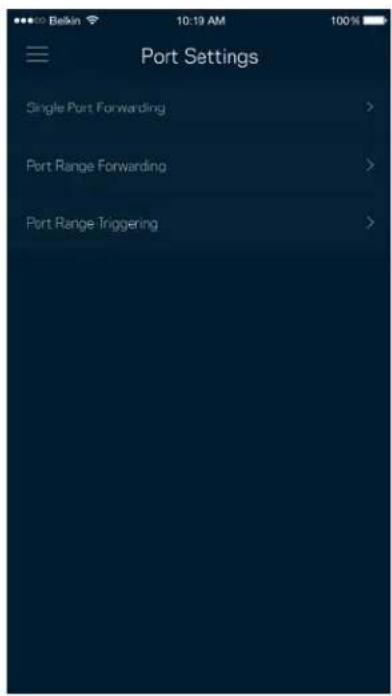
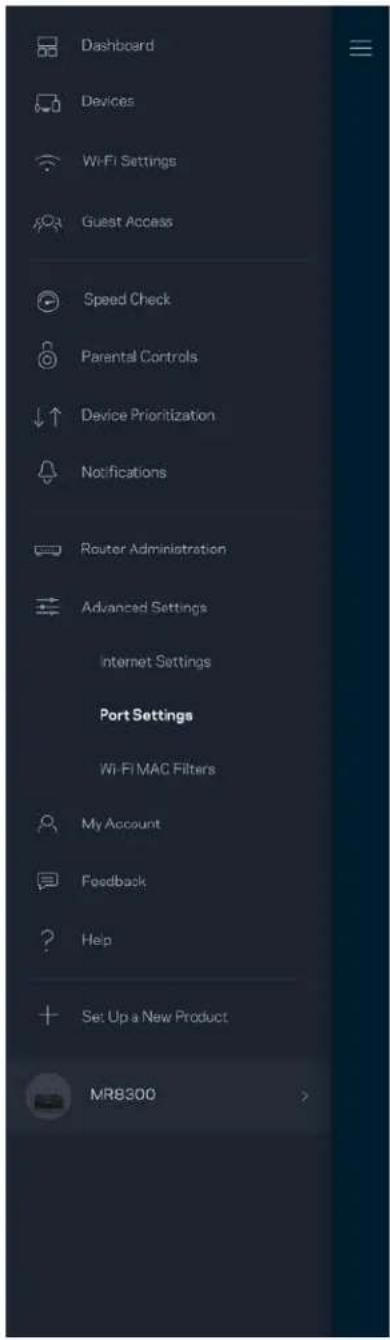
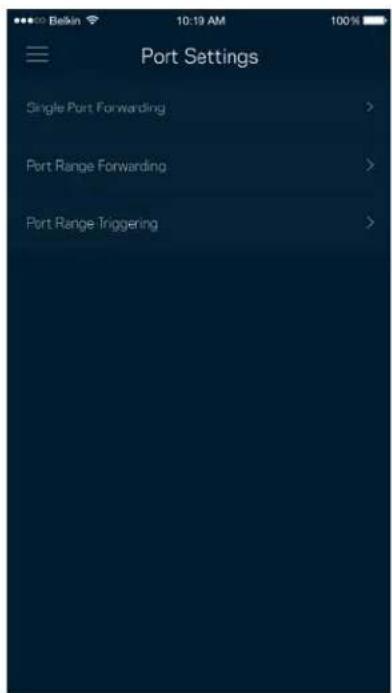
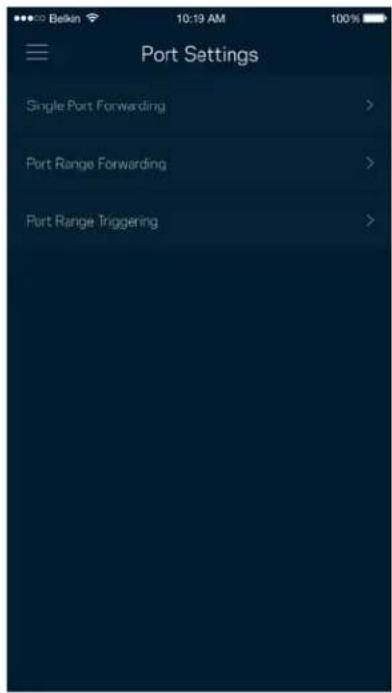
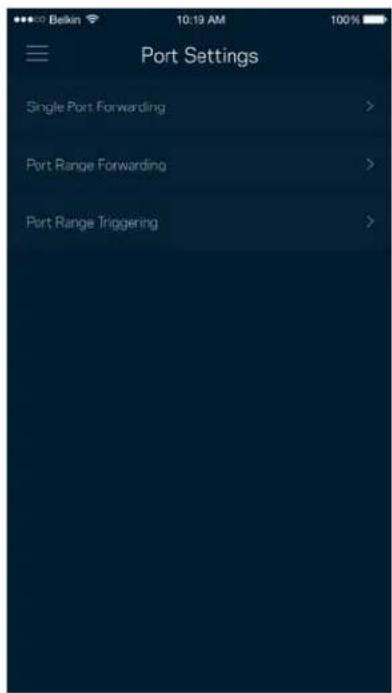
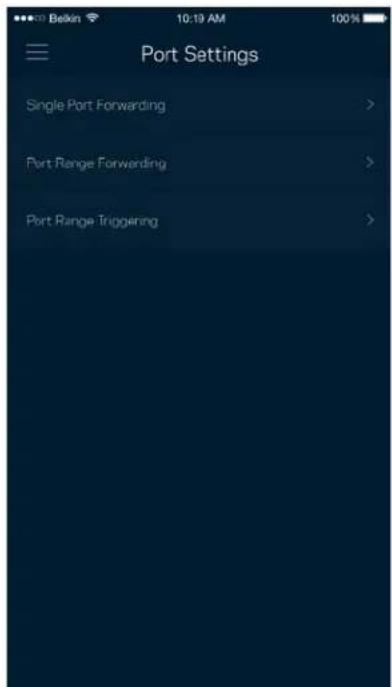
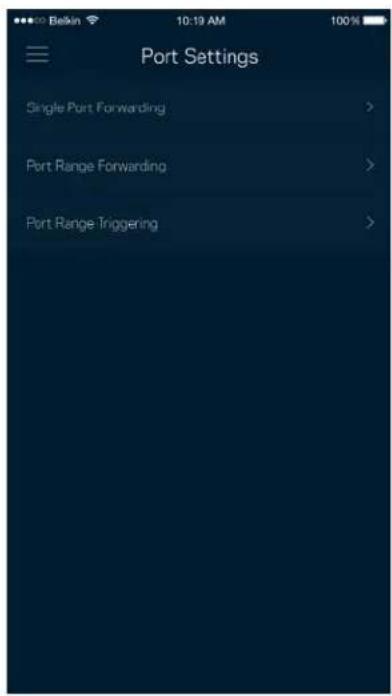
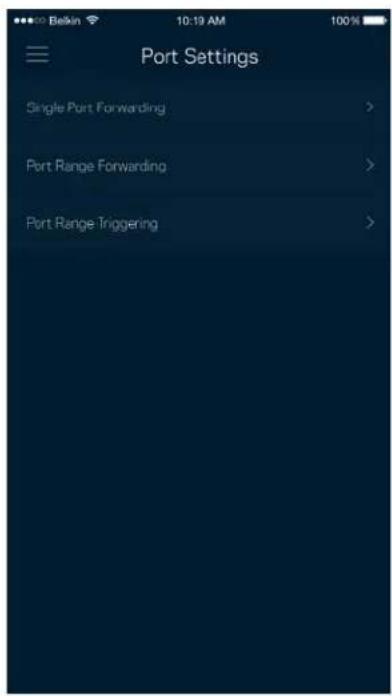
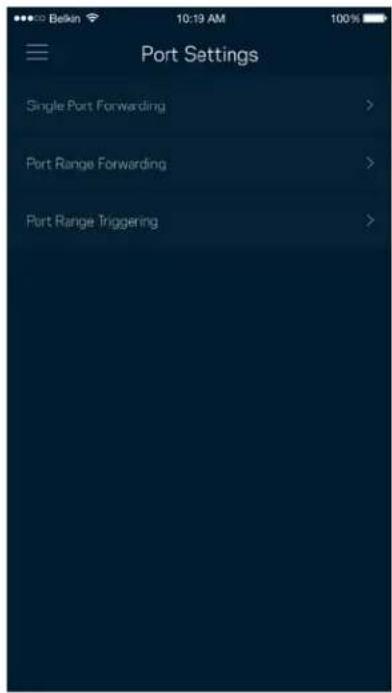
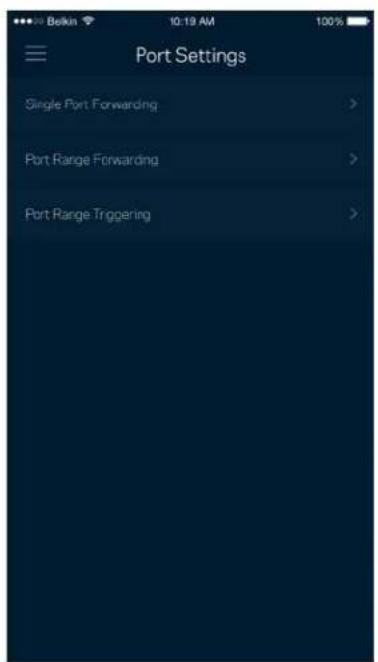
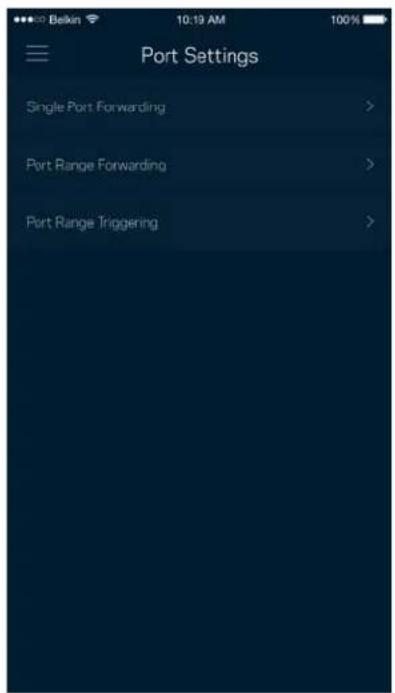
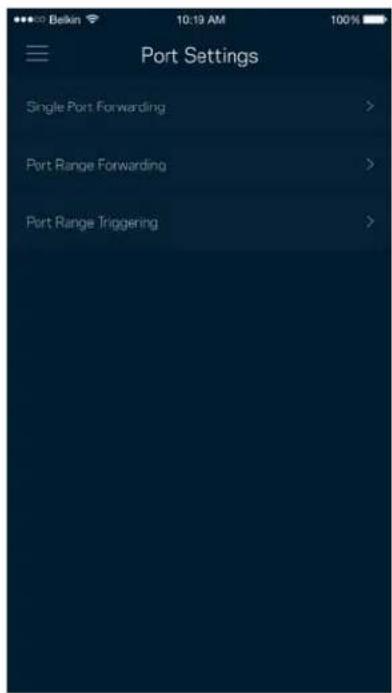
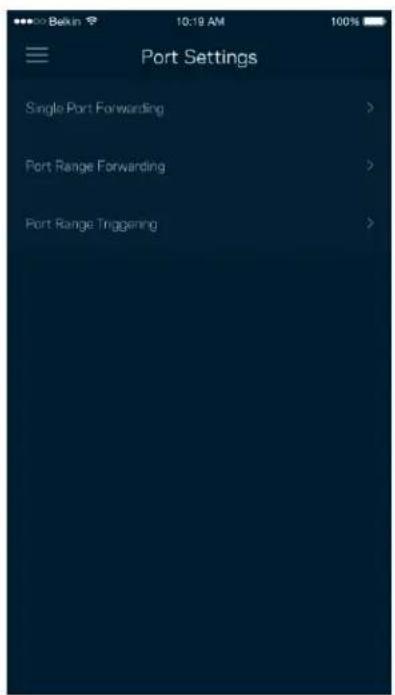
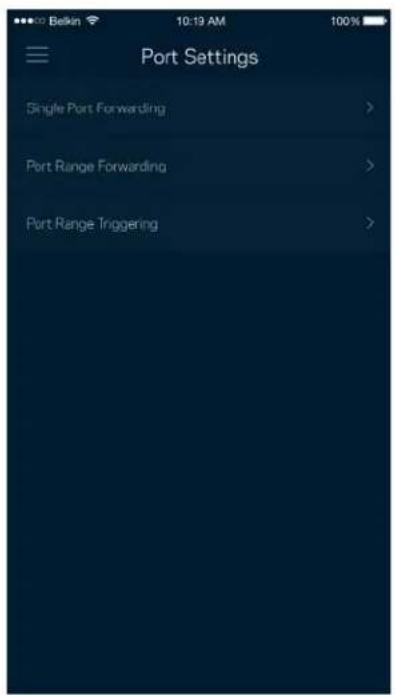
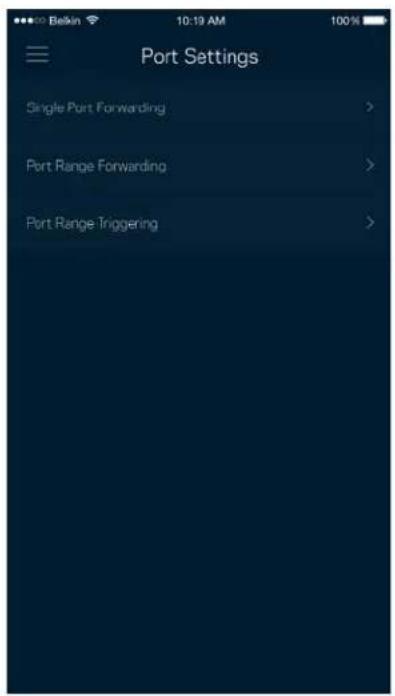
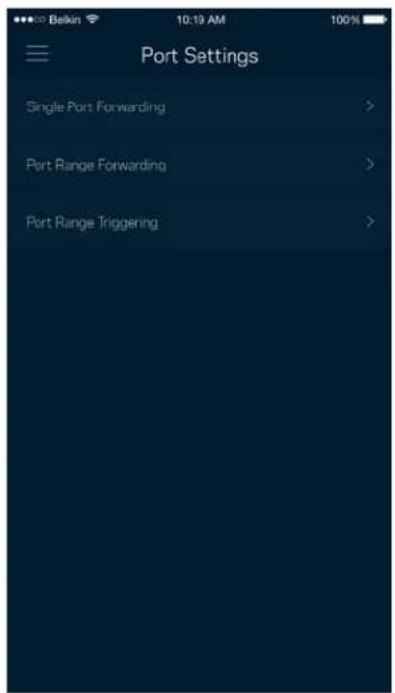
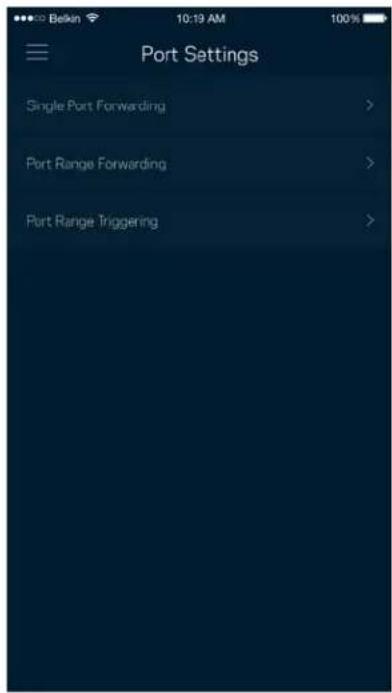
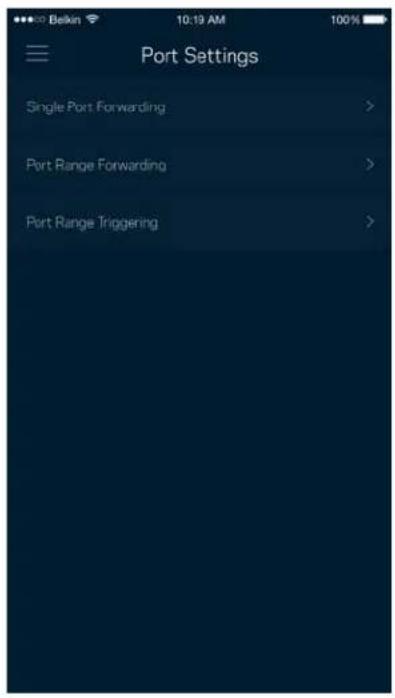
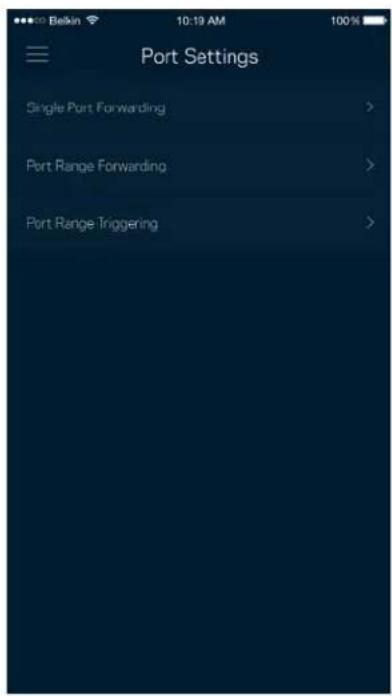
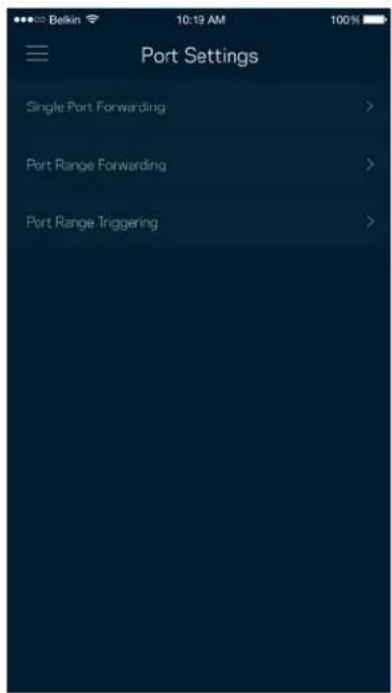
Port forwarding—for a single port, multiple ports or a range of ports—sends traffic inbound on a specific port or ports to a specific device or port on your Wi-Fi. In port range triggering, your router watches outgoing data for specific port numbers. Your router remembers the IP address of the device that requests the data so that when the requested data returns, it is routed back to the proper device.
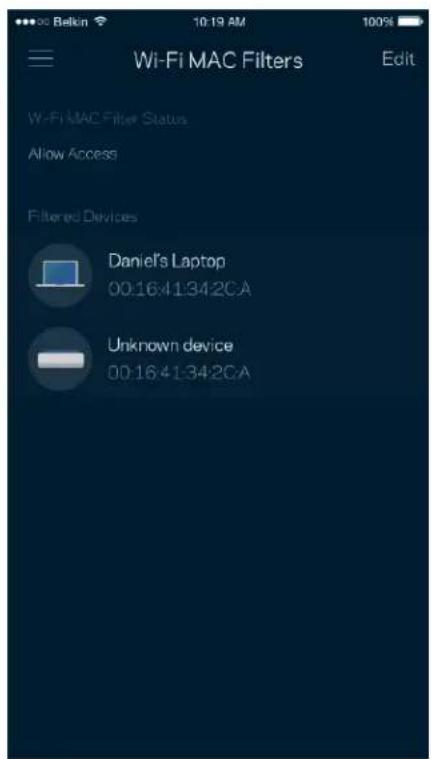
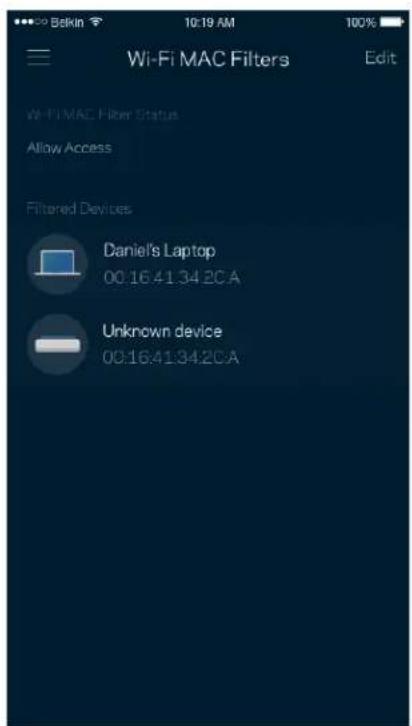
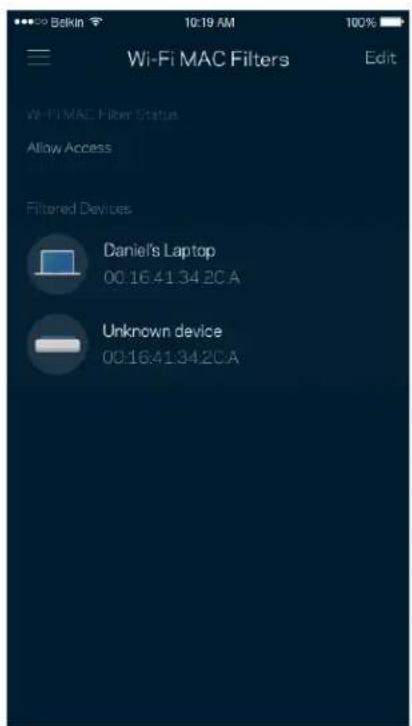
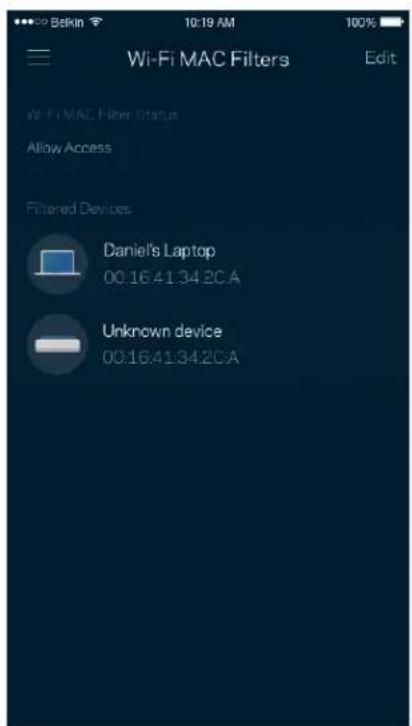
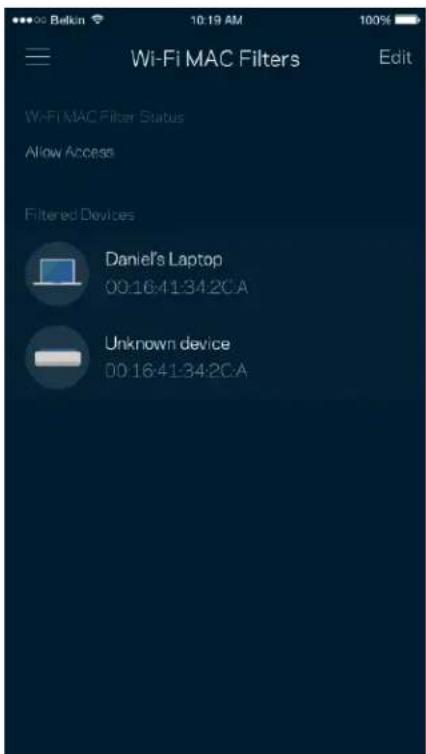
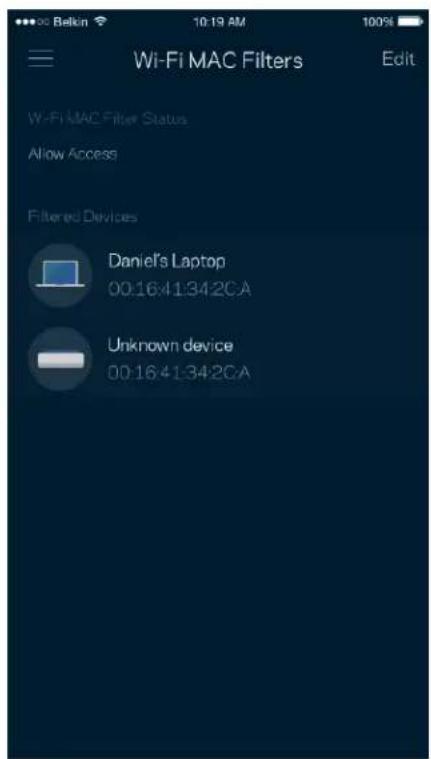
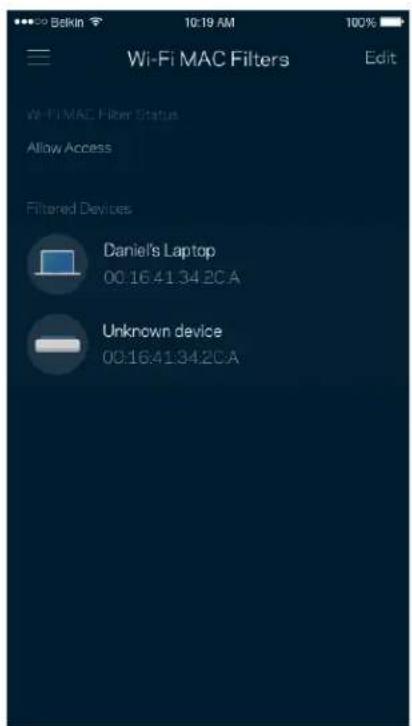
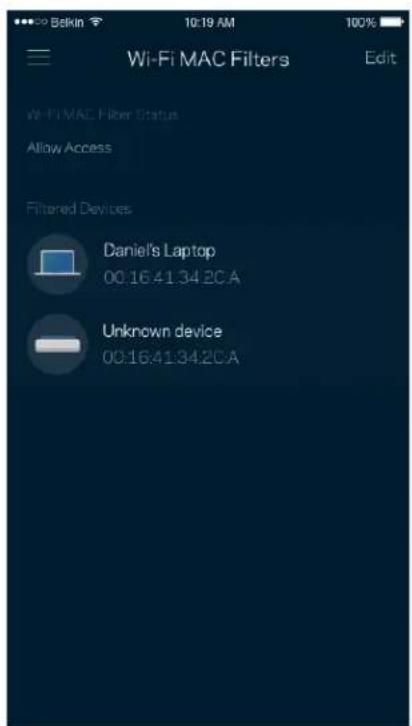
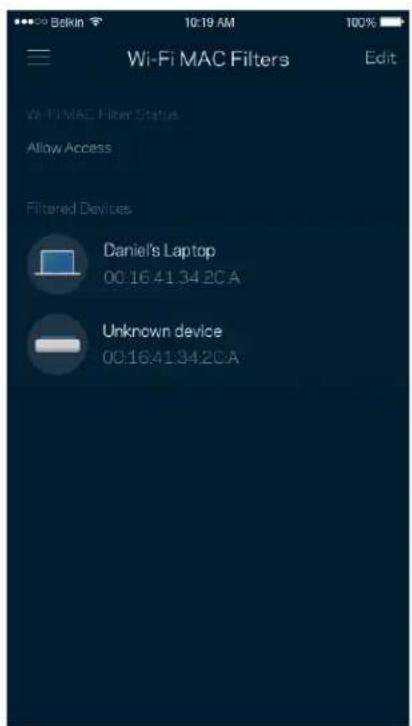
Wi-Fi MAC Filters
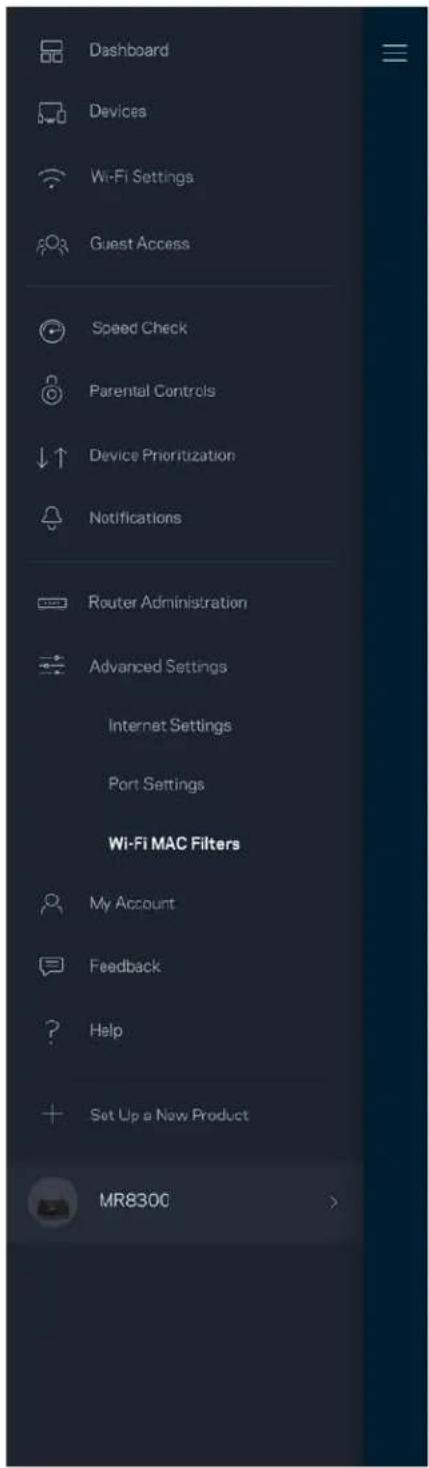
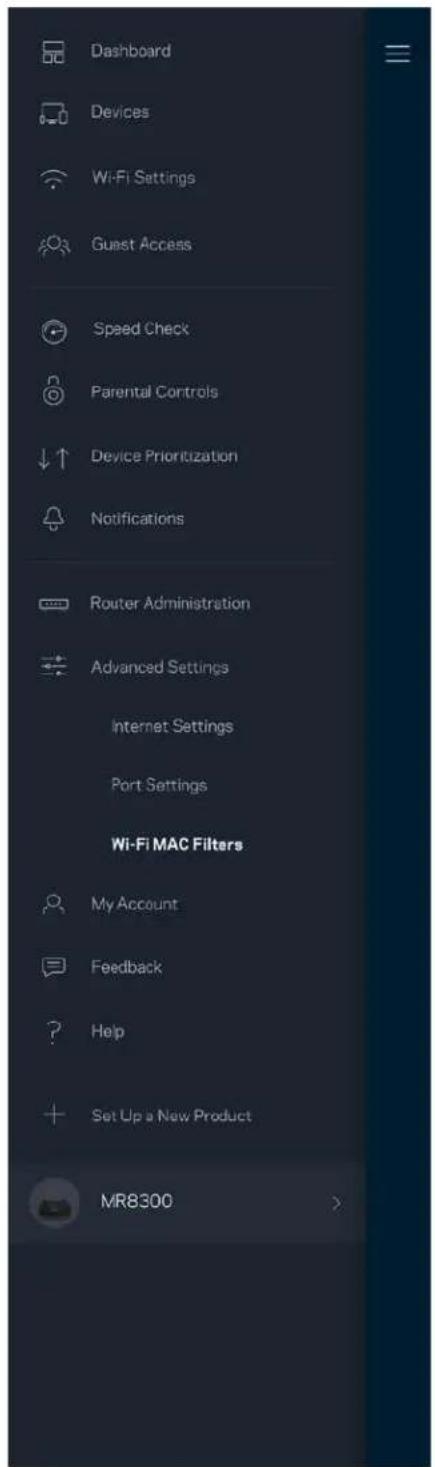
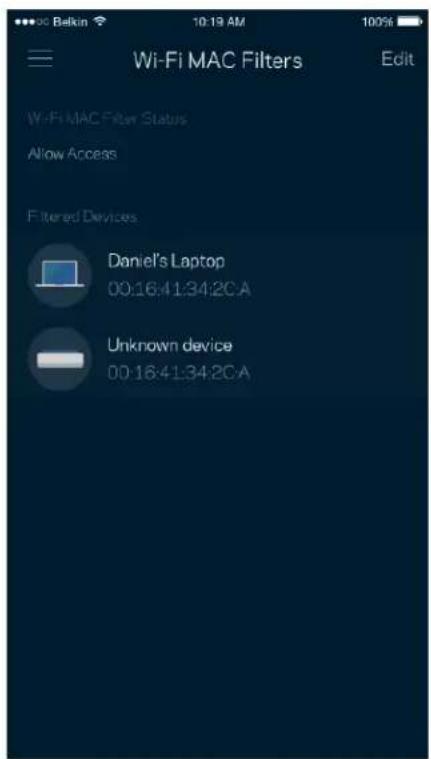
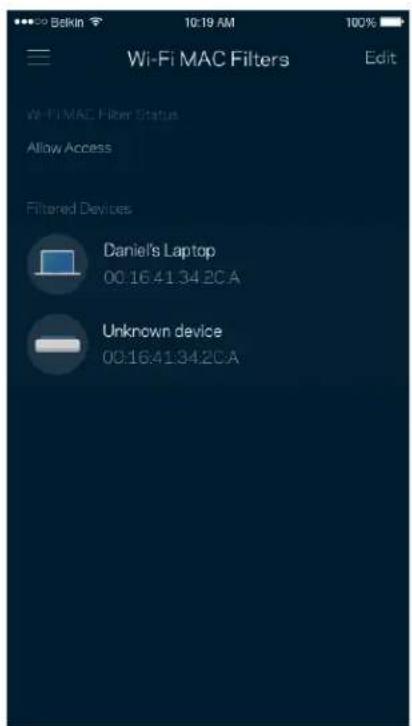
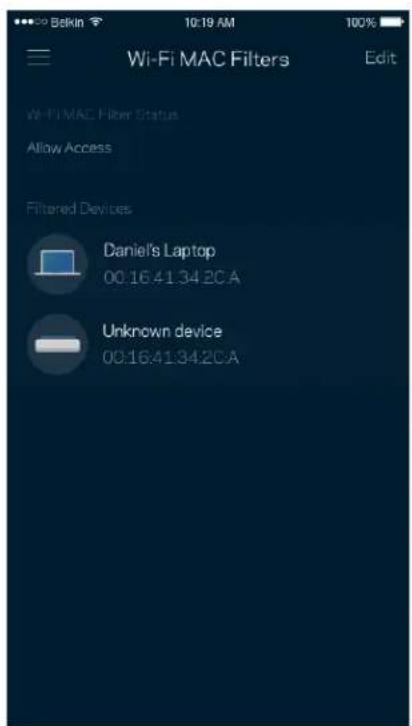
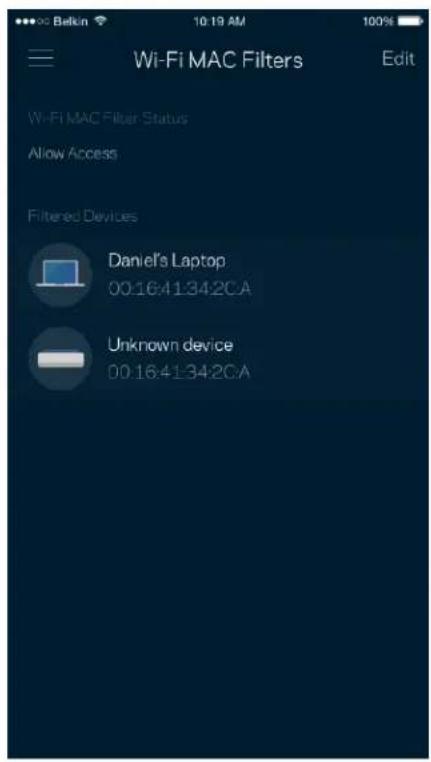
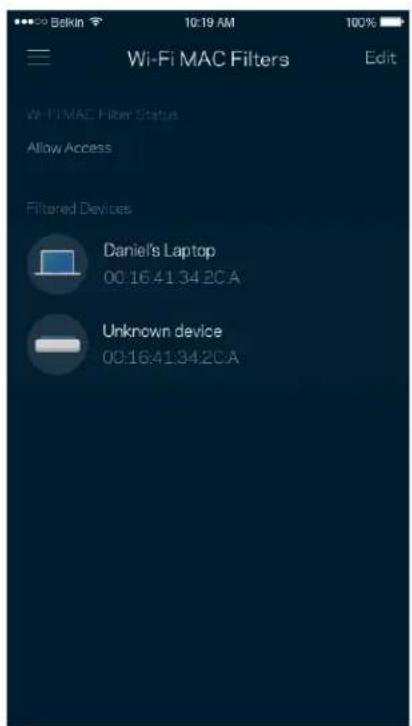
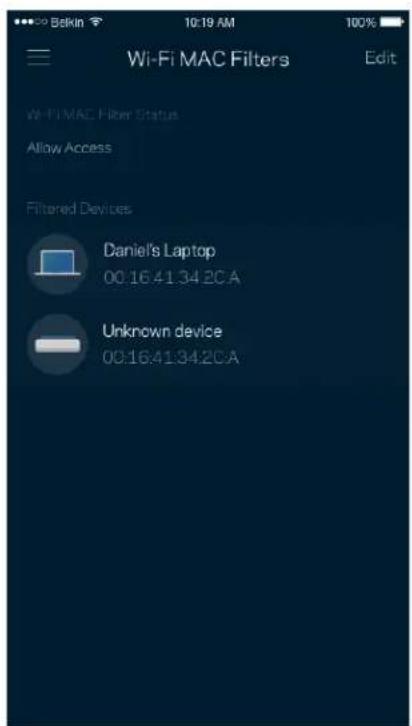
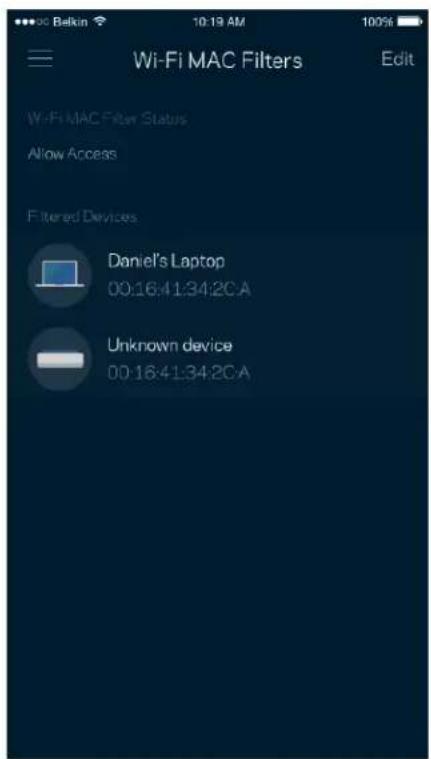
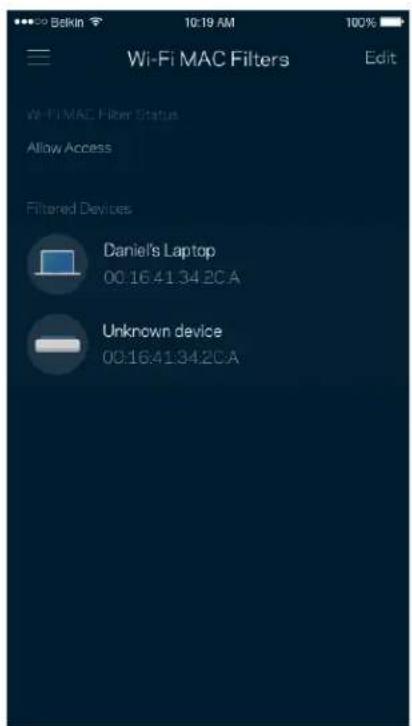
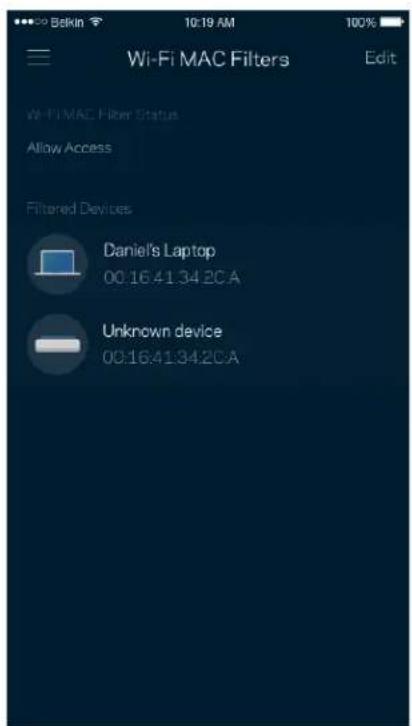
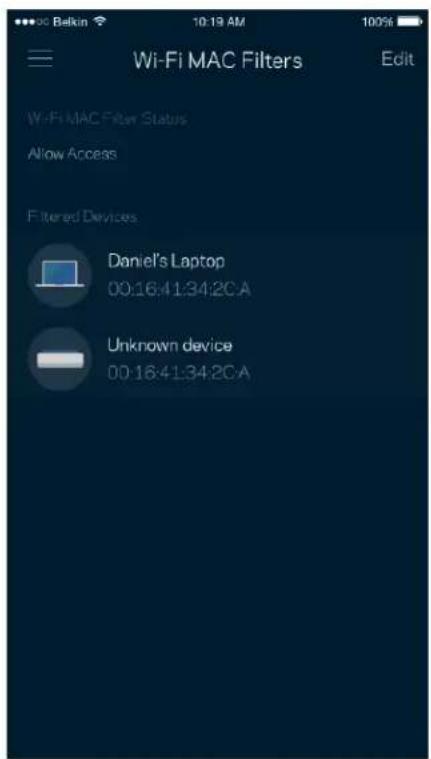
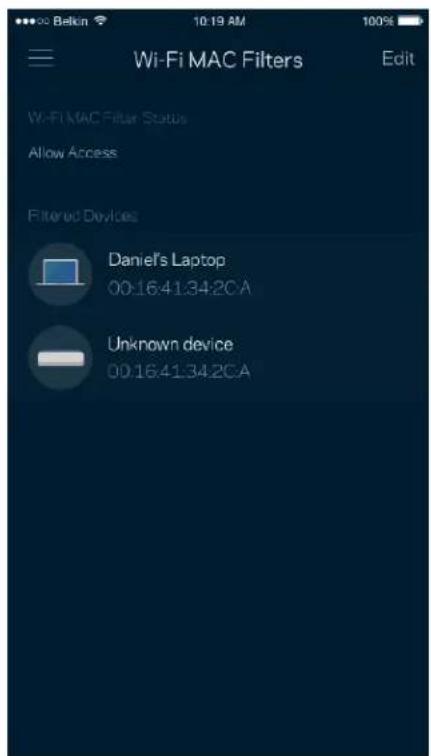
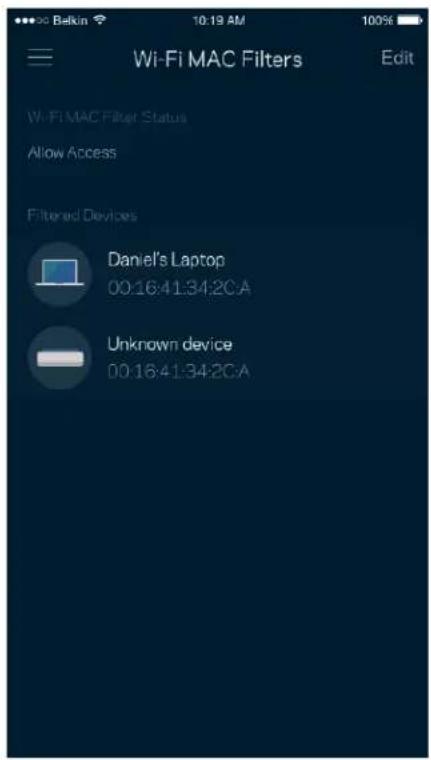
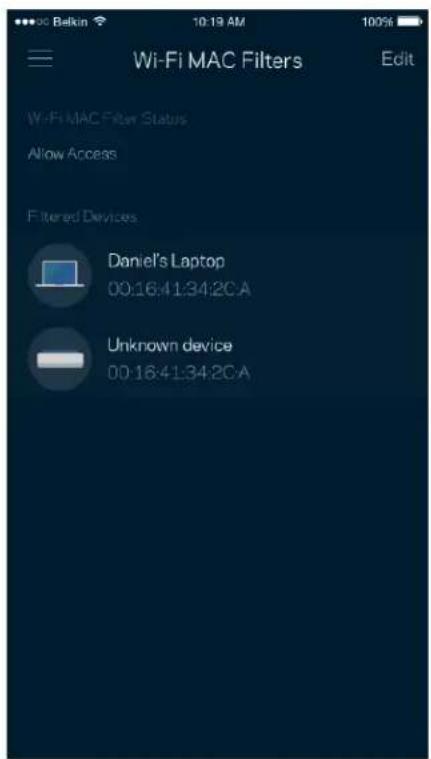
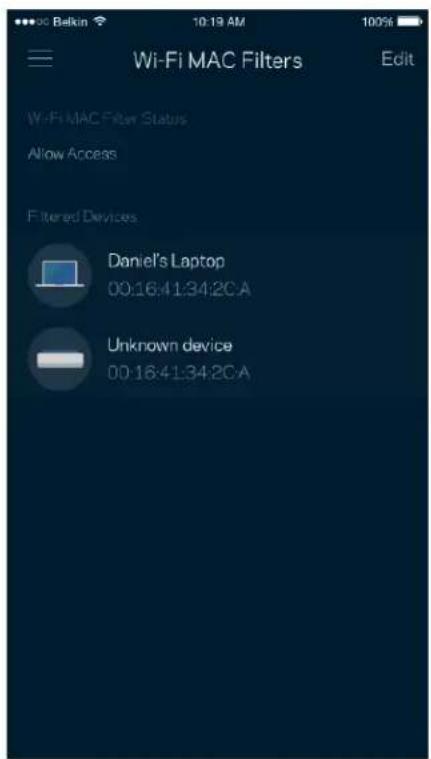
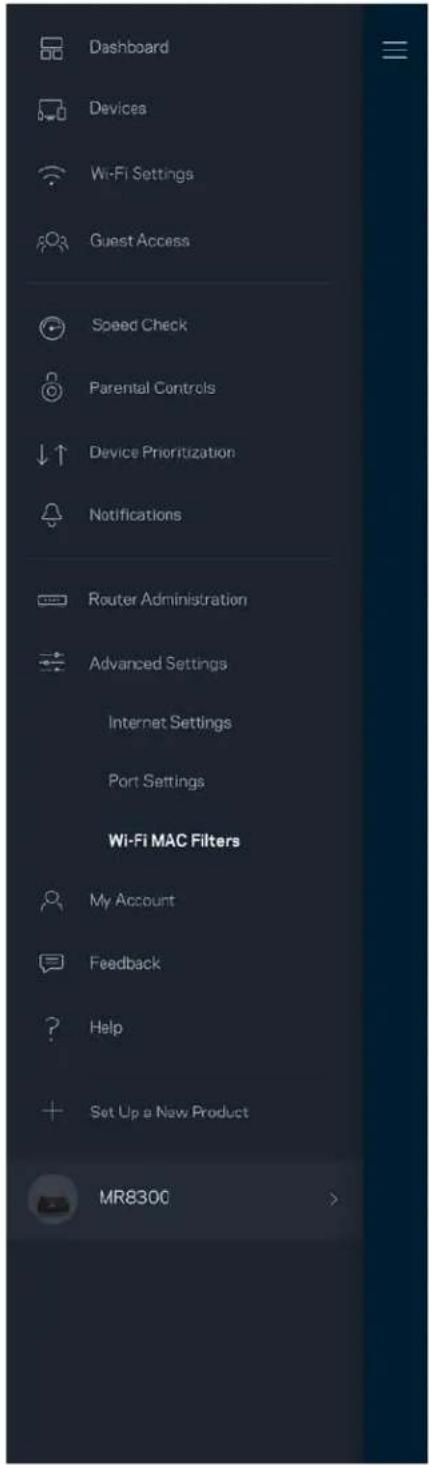
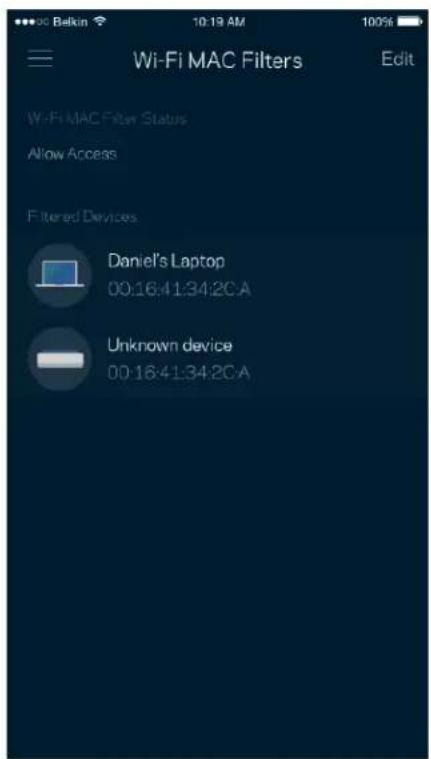
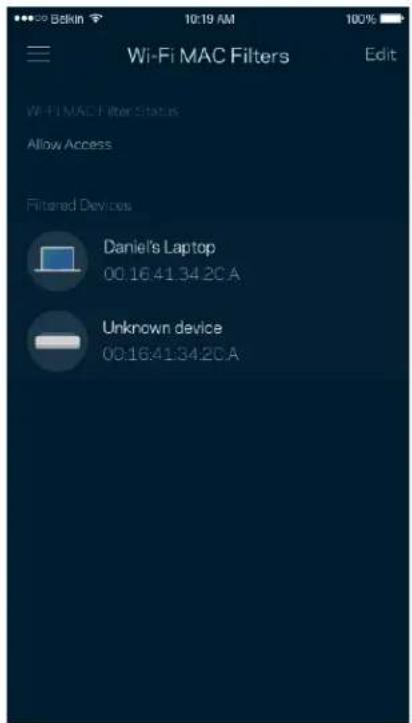
Every network device has a unique 12-digit MAC (media access control) address. You can create a list of MAC addresses, and then allow or deny those devices on your Wi-Fi.
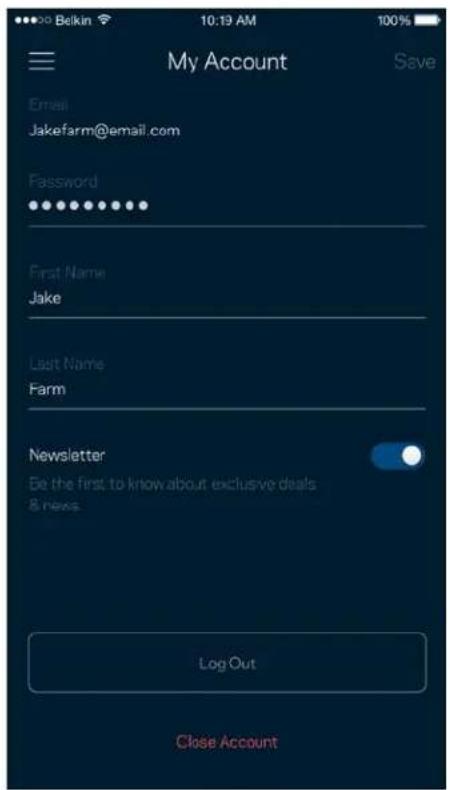
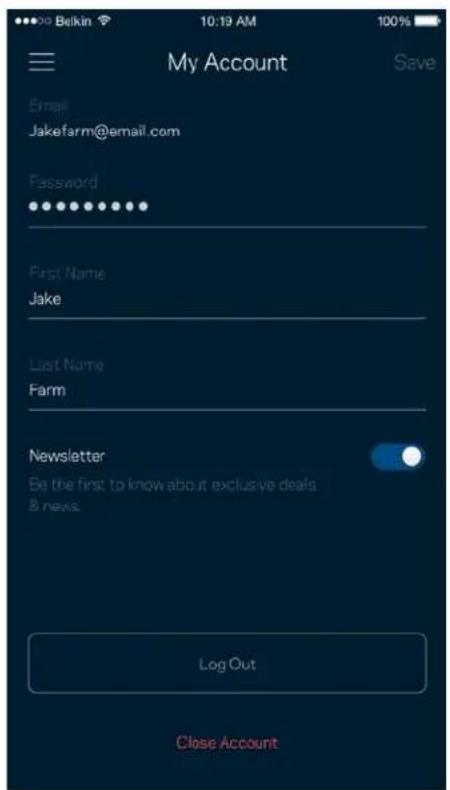
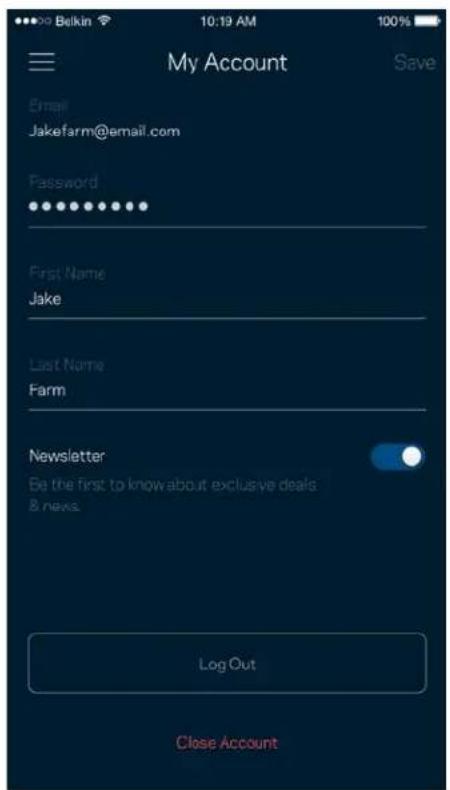
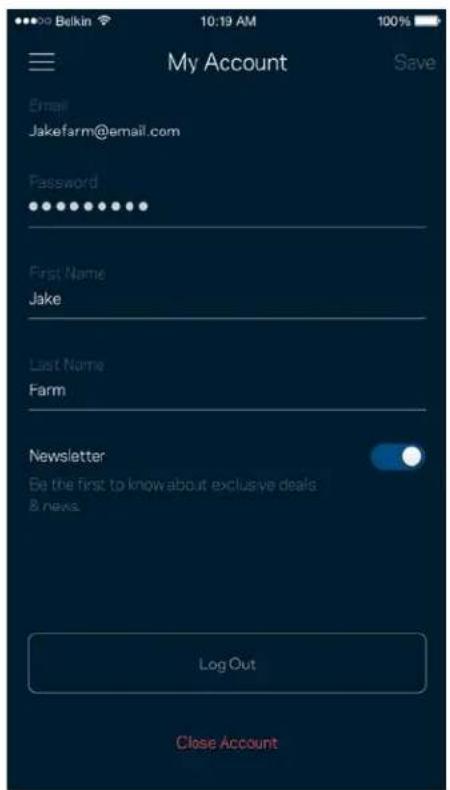
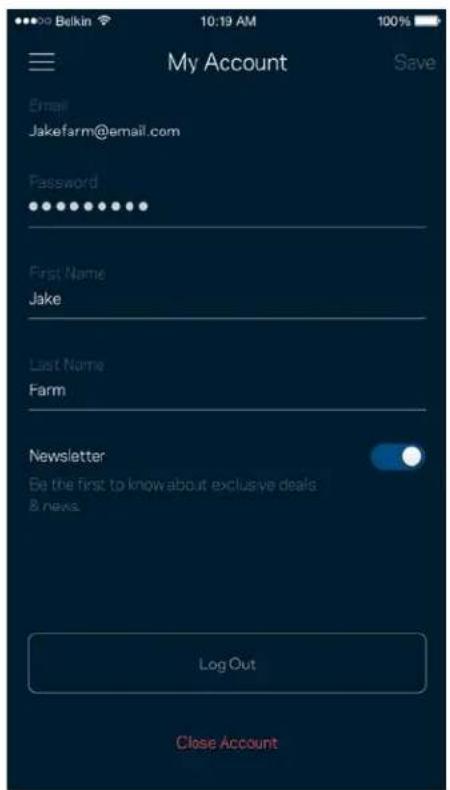
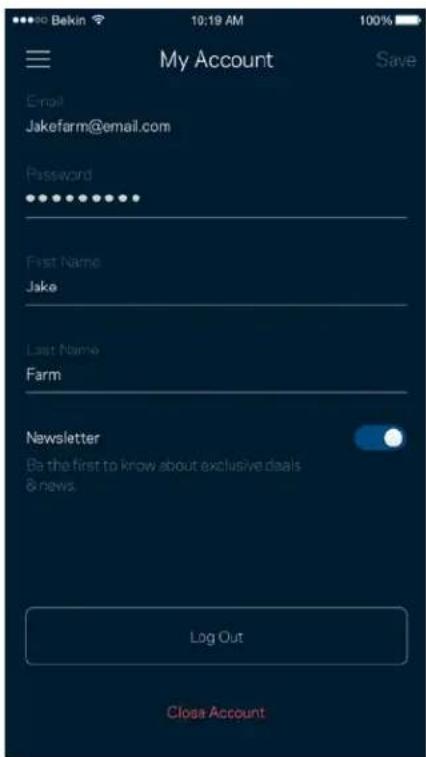
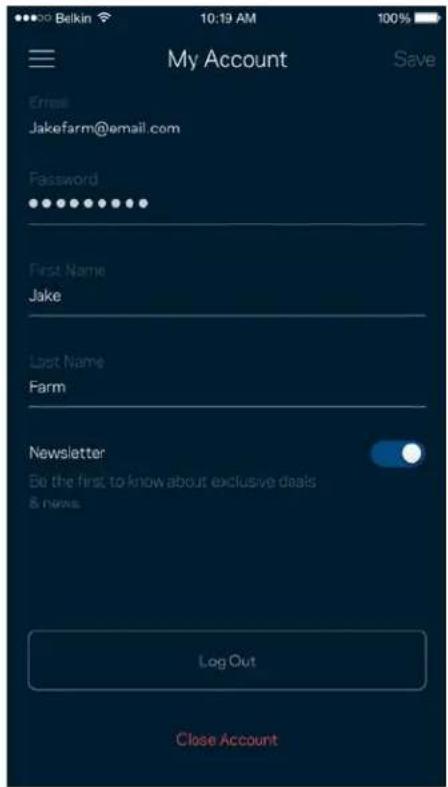
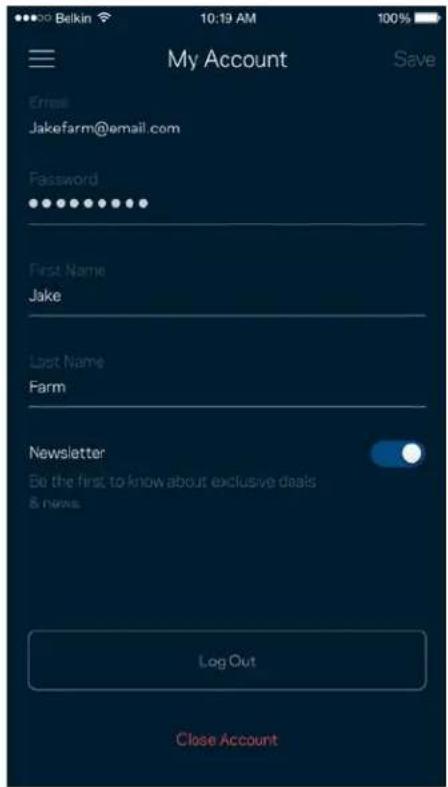
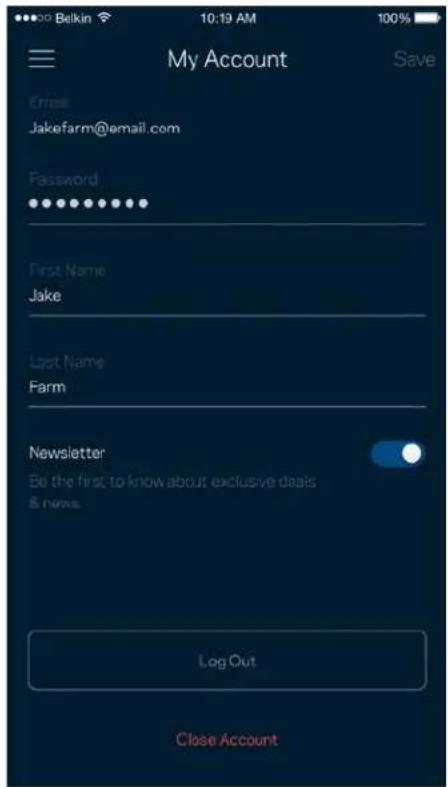
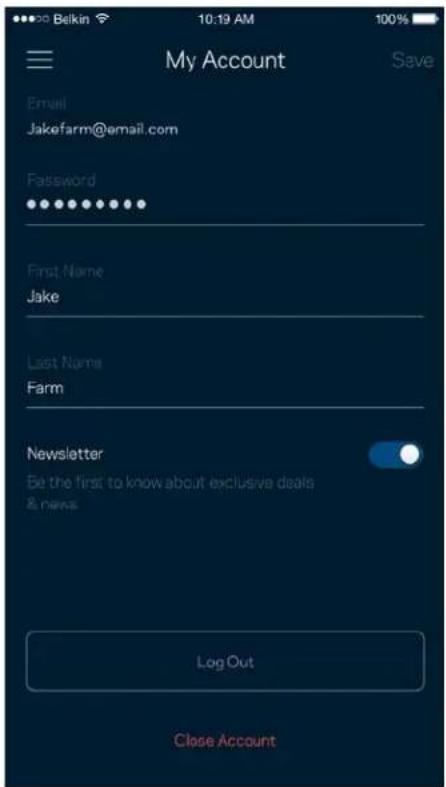
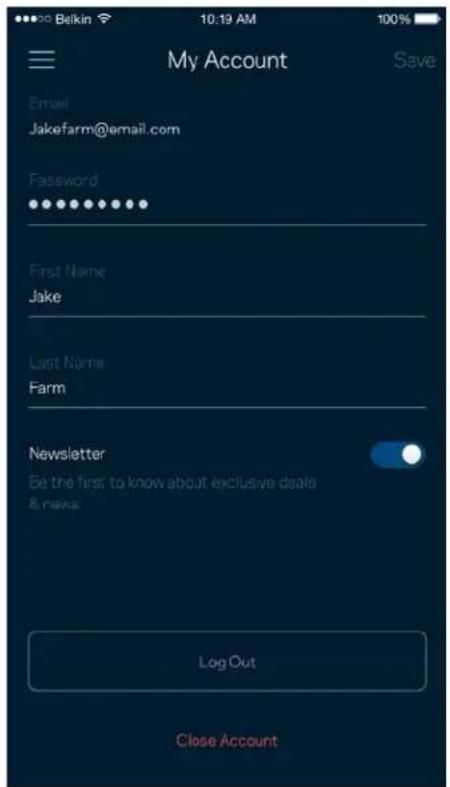
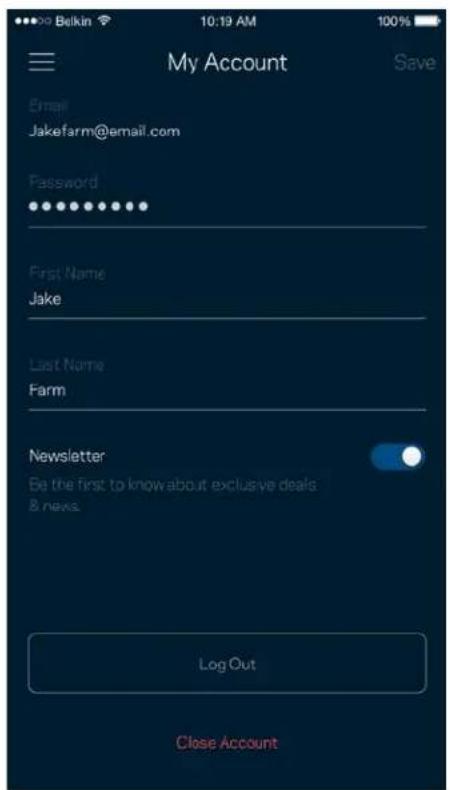
My Account
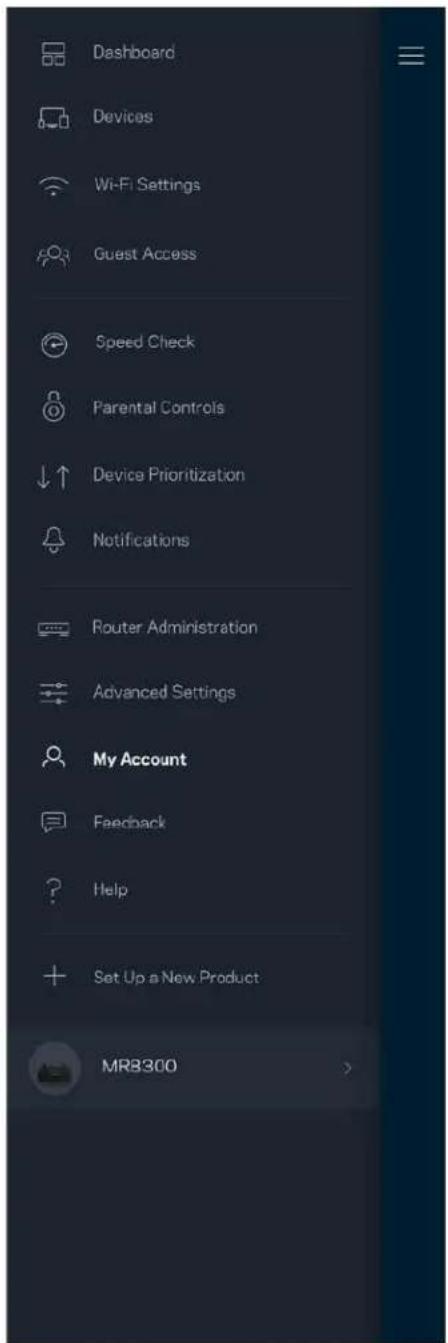
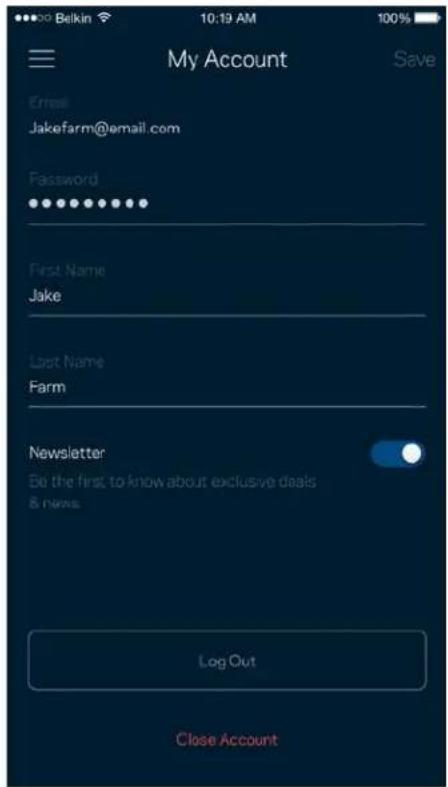
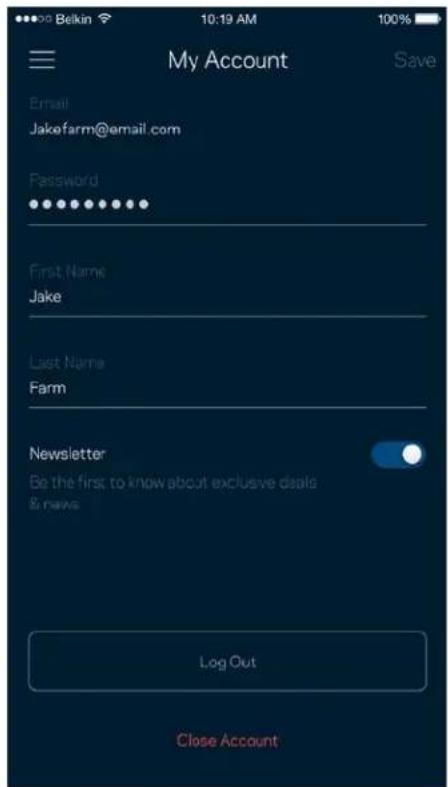
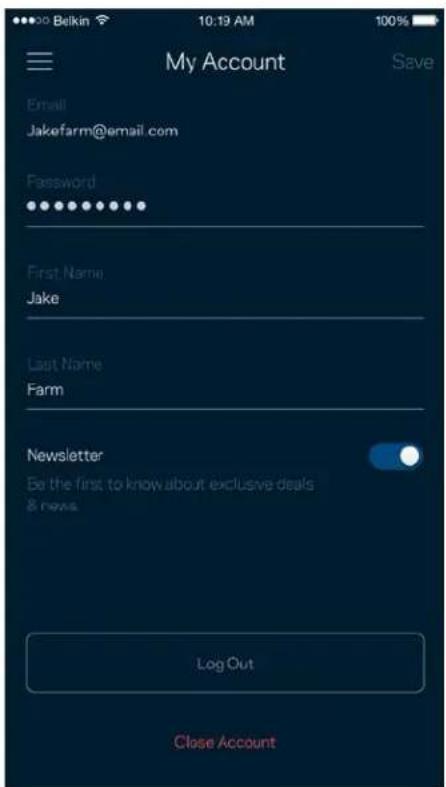
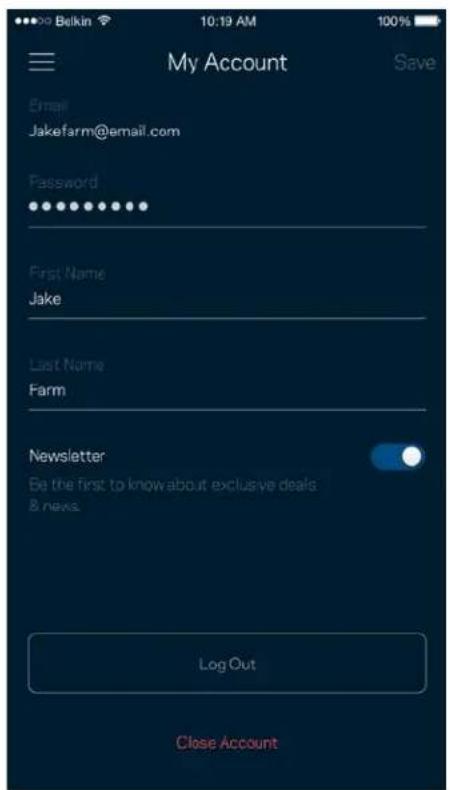
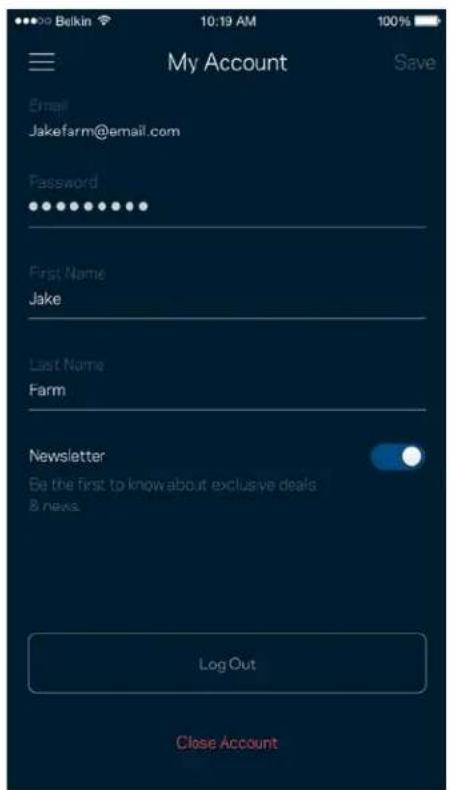
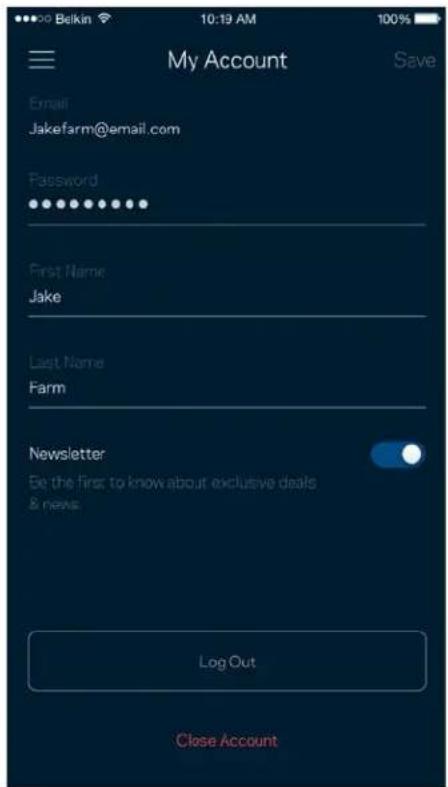
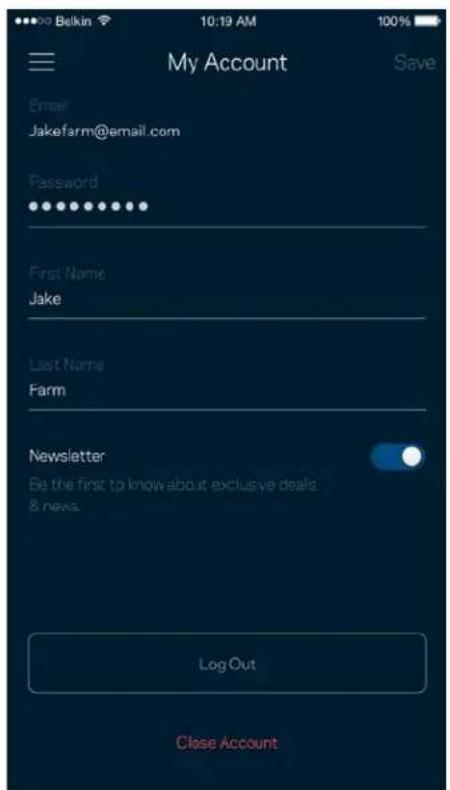
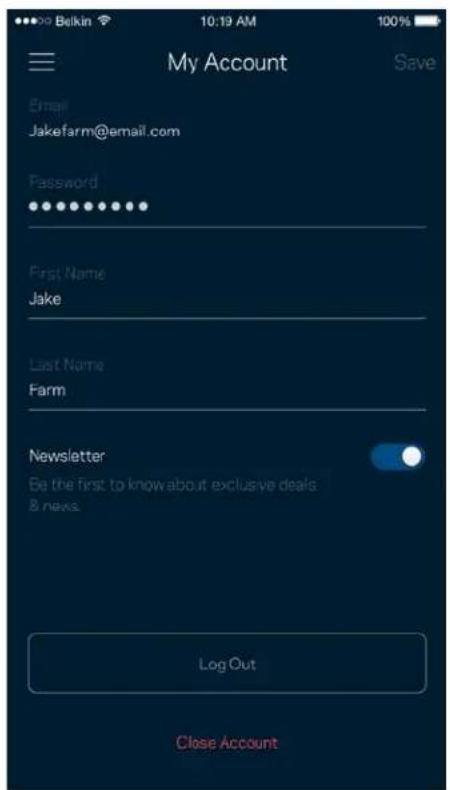
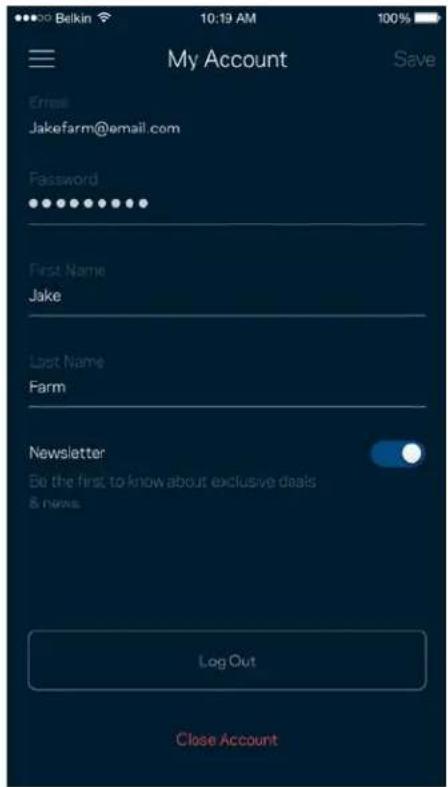
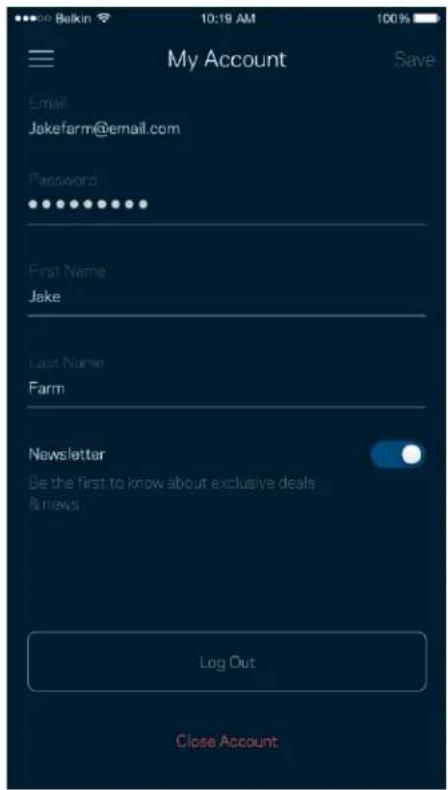
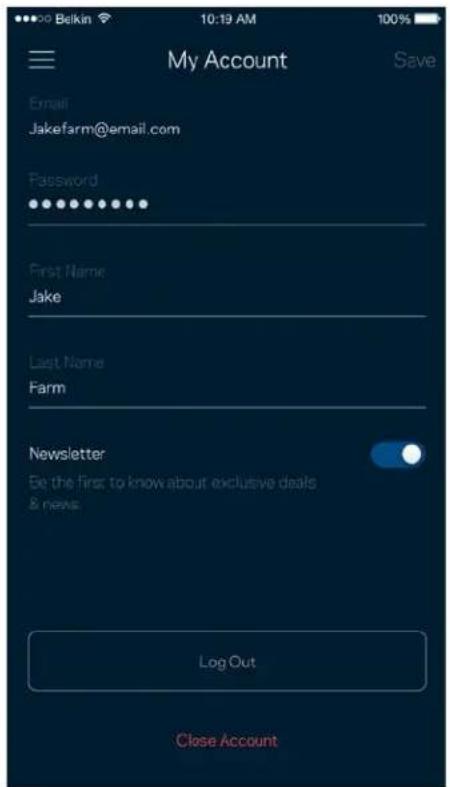
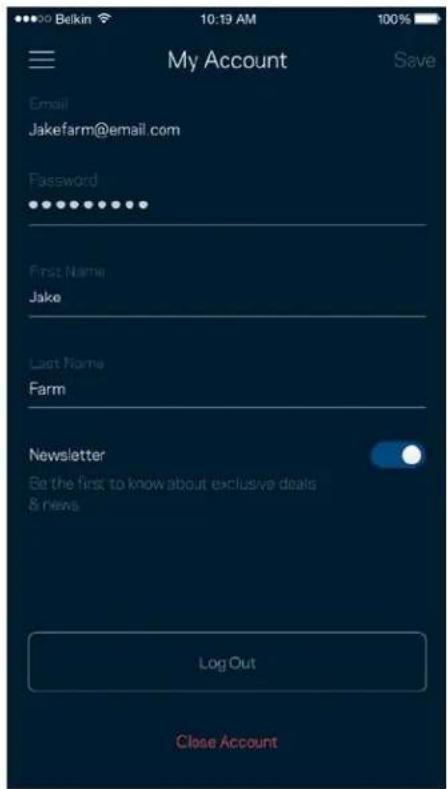
Change your Linksys app password and opt in to receive the latest news and deals from Linksys.
Feedback
Here's your chance to tell us what you think. Rate the app at your app store, send us a suggestion, or report an issue that's keeping you from a great experience.
Help
Having trouble with the app? Just need a little more information about a feature? Tap Help for an explanation.
Connect Directly To Your Router
If you are not connected to the internet you still can access your router settings. Connect to your Wi-Fi name, launch the Linksys app and tap Log in with Router Password toward the bottom of the screen. You will not be able to access your Linksys Wi-Fi account when not online.
Router password
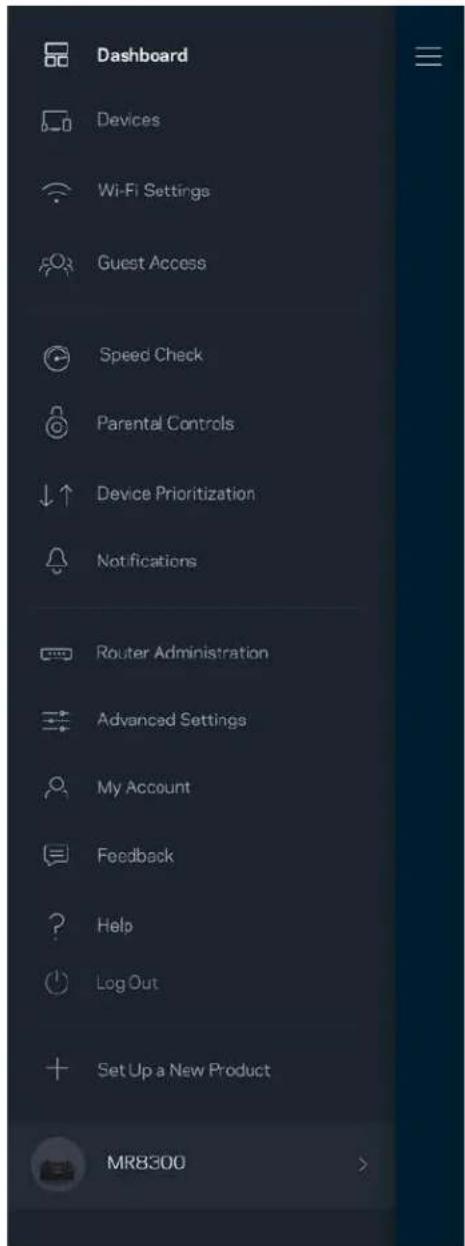
We created a secure admin password during setup. To change it, tap Router Administration and Change Router Password and Hint.
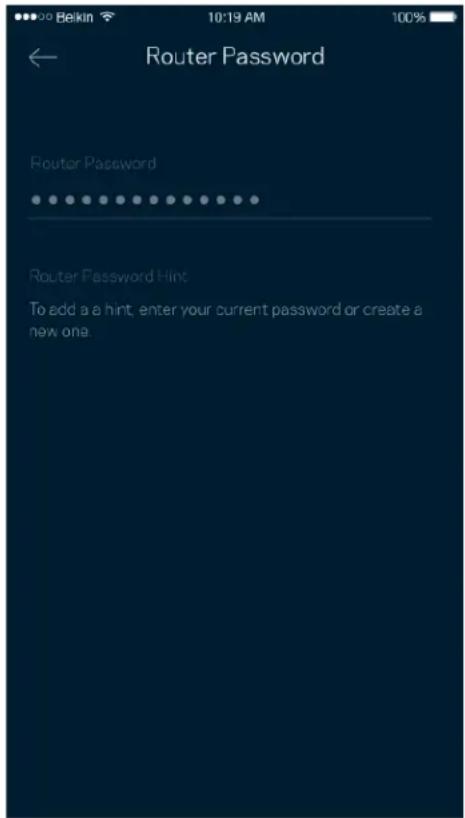
To keep your router secure, we'll send you an email if someone changes the router password.
How to factory reset your router
You should never need to factory reset your MR8300 router—a very disruptive process. A factory reset restores your router to the state it was when you took it out of its box, requiring you to go through the setup process again. All settings you have customized in setup and since - things such as Wi-Fi name, passwords, security type - will be erased. All wireless devices will disconnect from your Wi-Fi.
To factory reset :
- With your router connected to power and turned on, press and hold the Reset button on the back panel. The light on top of the router will blink red. Do not release the button until the light goes out and then turns bright red.
Specifications
Linksys MR8300
| Model Name | Tri-Band Mesh Wi-Fi Router, AC2200 |
| Model Number | MR8300 |
| Switch Port Speed | 10/100/1000 Mbps |
| Radio Frequency | 2.4 GHz and 5 GHz (x2) |
| # of Antennas | 4 external adjustable antennas |
| Ports | USB 3.0, Ethernet (1-4), Internet, Power |
| Buttons | Power, Reset, WPS |
| Lights | Top panel: One, multicolor light for power and statusBack panel: USB, Ethernet (1-4), Internet |
| Security Features | WPA2/WPA-Mixed, WPA2-Personal |
| Security Key Bits | Up to 128-bit encryption |
Environmental
| Dimensions | 213.7mm x 161.8mm x 54.8mm (without antennas) |
| Unit Weight | 608 g |
| Power 12V, 2.0A | |
| Certifications | FCC, IC, CE, Wi-Fi (IEEE 802.11a/b/g/n/ac) |
| Operating Temp. | 32° to 104° F (0 to 40°C) |
| Storage Temp. | -4° to 140° F (-20 to 60°C) |
| Operating Humidity | 10% to 80% relative humidity, non-condensing |
| Storage Humidity | 5% to 90% non-condensing |
Notes:
For regulatory, warranty, and safety information, go to Linksys.com/support/MR8300.
Specifications are subject to change without notice.
Maximum performance derived from IEEE Standard 802.11 specifications. Actual performance can vary, including lower wireless network capacity, data throughput rate, range and coverage.
Performance depends on many factors, conditions and variables, including distance from the access point, volume of network traffic, building materials and construction, operating system used, mix of wireless products used, interference and other adverse conditions.
Visit linksys.com/support/MR8300 for award-winning technical support.
BELKIN, LINKSYS and many product names and logos are trademarks of the Belkin group of companies. Third-party trademarks mentioned are the property of their respective owners.
© 2018 Belkin International, Inc. and/or its affiliates. All rights reserved.
LINKSYS
Guía del usuario
MAX-STREAM™
Router Wi-Fi en malla tribanda AC2200
MR8300
Tabla de contenidos
Dispositivos
Acceso de invitados
Prueba de velocidad
Notificaciones
Filtros MAC Wi-Fi
Mi cuenta
Valoración
Ayuda
Appareils
Paramètres avancés
Accès d'invité
Contrôle de vitesse
Notifications
Paramètres de ports
Mon compte
Commentaires
Aide
17 WPS Household Management
18 وصول الإضيوف
WPS Protected Setup™Wi-Fi
Gather your new gear
Get the items pictured and take them to where your current internet equipment is set up.
Next
| V | |
| A | |
| B | |
| C | |
| D | |
| E | |
| F | |
| G | |
| H | |
| I | |
| J |
. LinksysSmartWiFi.com . . . . . . . . . . . . . . . . . . . . . . . . . . . . . . . . . . . . . . . . . . . . . . . . . . . . . . . . . . . . . . . . . . . . . . . .
Have a new Linksys product? Launch setup
مقالإعدادات الإمتقد
يُمْنَ لِلِّالْمُسْتَمِيمُ الْمَاتِّدِمِينَ تَغَيْرِ نُوعَ الْأَمْانَ الْقَرْتَ اِضِيَ وَكَذَاكَ تَغَيْرِ وَضَلَةِ W\WFi- F لا. كَفَّةِ الْعَادِدَاتِ مَا لِامِ تَكَنْ لِإِكِي خَرَة كَيْرَة بُشِبِكَات الِإِحْتَ عَنْ قُوَاتٌ تَوَزِيعُ الِإِحْتَ عَنْ قُوَاتٌ تَوَزِيعُ Channel Finder يُقُمٌم
إعدادات المنفر
كلمة مرور الإموجه
Change Router
Gather your new gear
Get the items pictured and take them to where your current internet equipment is set up.
Next
Устройства
Разширени настройки
Достъп за гости
Известия
Wi-Fi MAC филтри
Моят акаунт
Обратна връзка
Помощ
Парола на рутера:
Zařízení
Pokročilá nastavení
Rychlostní test
Priorita zařízení
Oznámení
Správa routeru
Nastavení portů
Filtry MAC pro Wi-Fi
Můj účet
Zpětná vazba
Nápověda
Heslo směrovače
Wi-Fi-router, AC2200
MR8300
Indhold
Produktoverblik 3
Front/fra oven 3
Bagsiden 5
Side 6
Hjælp 7
Lyset oven på din router giver dig oplysninger om routerens drift.
Normal drift
Enheder
Avancerede indstillinger
Gæsteadgang
Hastighedstjek
Enhedsprioritering
Beskeder
Routeradministration
Portindstillinger
Wi-Fi MAC-filtre
Min konto
Tilbagemelding
Hjælp
Geräte
Gastzugriff
Benachrichtigungen
Routerverwaltung
Port-Einstellungen
WLAN-MAC-Filter
Mein Konto
Hilfe
Routerkennwort
Συσκευές
Πρόσβαση επισκεπτών
Δοκιμή Ταχύτητας
Ειδοποιήσεις
Διαχείριση router
Ρυθμίσεις θύρας
Ο λογαριασμός μου
Σχόλια
Βοήθεια
Dispositivos
Acceso de Invitados
Prueba de velocidad
Notificaciones
Filtros MAC Wi-Fi
Mi cuenta
Su opinión
Ayuda
Wi-Fi Protected Setup™-i nupp - vajutage, et luua ühendus vörguseadmetes, kus on WPS lubatud.
Abi
Kust leida lisaabi?
Seadmed
Täpsemad seaded
Külalise juurdepääs
Kiirustest
Teated
Ruuteri haldamine
Pordi seaded
Wi-Fi MAC-filtrid
Minu konto
Tagasiside
Abi
Ruuteri parool
Laitteet
Lisäasetukset
Vieraskäyttö
Nopeustarkistus
Ilmoitukset
Reitittimen hallinta
Porttiasetukset
Wi-Fi-verkon MAC-suodattimet
Oma tili
Palaute
Ohje
Reitittimen salasana
Paramètres avancés
Test de vitesse
Notifications
Wi-Fi MAC Filters (Filtres MAC Wi-Fi)
Help (Aide)
Devices (Eszközök)
Sebességteszt
Help (Súgó)
Jelszó a routerhez
Perangkat
Pengaturan Lanjutan
Akses Tamu
Uji Kecepatan
Notifikasi
Administrasi Router
Pengaturan Port
Filter MAC Wi-Fi
Akun Saya
Masukan
Bantuan
Kata Sandi Router
Router Wi-Fi mesh Tri- band, AC2200 MAX-STREAM™
MR8300
Indice
Dispositivi
Accesso ospite
Test della velocità
Notifiche
Gestione router
Impostazioni porta
Filtri MAC Wi-Fi
Il mio account
Feedback
Guida
Password del router
デバイス
高度な設定
デバイスを WPS に接続
ゲストアクセス

速度検査
デバイスの優先順位付け
通知
ルーター管理
ポート設定
Wi-Fi MAC フィルタ
マイ アカウント
フィードバック
ヘルプ
ルーターに直接接続
ルーターパスワード
장치
고급 설정
WPS와장치연결
게스트 액세스
속도 점검
장치 우선 순위 지정
알림
라우터 관리
포트 설정
Wi-Fi MAC 필터
내 계정
피드백
도움말
사용자의 라우터에 직접 연결
라우터 암호
Irenginiai
Jrenginio prijungimas naudojant WPS
Svečio prieiga
Greičio patikra
Pranešimai
Prievado nuostatos
„Wi-Fi“ MAC filtrai
Mano paskyra
Atsiliepimai
Pagalba
lerices
İpaši iestatījumi
Ātruma pārbaude
Zinojumi
Wi-Fi MAC filtri
Mans konts
Atsauksmes
Palīdzība
Maršrutētāja parole
tri-band Mesh Wi-Fi-router,
AC2200
MR8300
Inhoudsopgave
Productoverzicht 3
Devices (Apparaten)
Gasttoegang
Snelheidscontrole
Apparaatprioritering
Meldingen
Routerbeheer
Port Settings (Poortinstellingen)
Wi-Fi MAC-filters
Mijn account
Feedback
Help
Routerwachtwoord
- Skriv inn e-postadressen du brukte när du opprettet kontoen.
- Skriv inn kontopassordet ditt.
- Trykk på Logg inn.
Dashbord
Enheter
Avanserte innstillinger
Gjestetilgang
Hastighetssjekk
Enhetsprioritering
Varslinger
Ruteradministrasjon
Portinnstillinger
Wi-Fi MAC-filtre
Hver nettverksenhet har en unik 12-sifret MAC-adresse (Media Access Control). Du kan lage en liste over MAC-adresser, deretter tillate eller nekte disse enhetene tilgang til ditt Wi-Fi.
Min konto
Tilbakemelding
Hjelp
Koble direkte til ruteren
Ruterpassord
Urządzenia
Powiadomienia
Ustawienia portu
Moje konto
Opinie
Pomoc
Hasło routera
Dispositivos
Notificações
Filtros MAC Wi-Fi
A minha conta
Comentários
Ajuda
Dispositivos
Notificações
Filtros MAC do Wi-Fi
Minha conta
Opinião
Ajuda
Senha do roteador
Dispositive
Setări avansate
Acces invitați
Verificare viteză
Notificări
Setări port
Filtre MAC Wi-Fi
Contul meu
Feedback
Ajutor
Conectati-vă direct la routerul dvs.
Parolă router
Устройства
Гостевой доступ
Измерение скорости
Приоритет устройств
Уведомления