
Cloud Orbit S - Headphones HYPERX - Free user manual and instructions
Find the device manual for free Cloud Orbit S HYPERX in PDF.
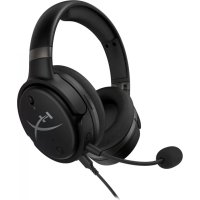



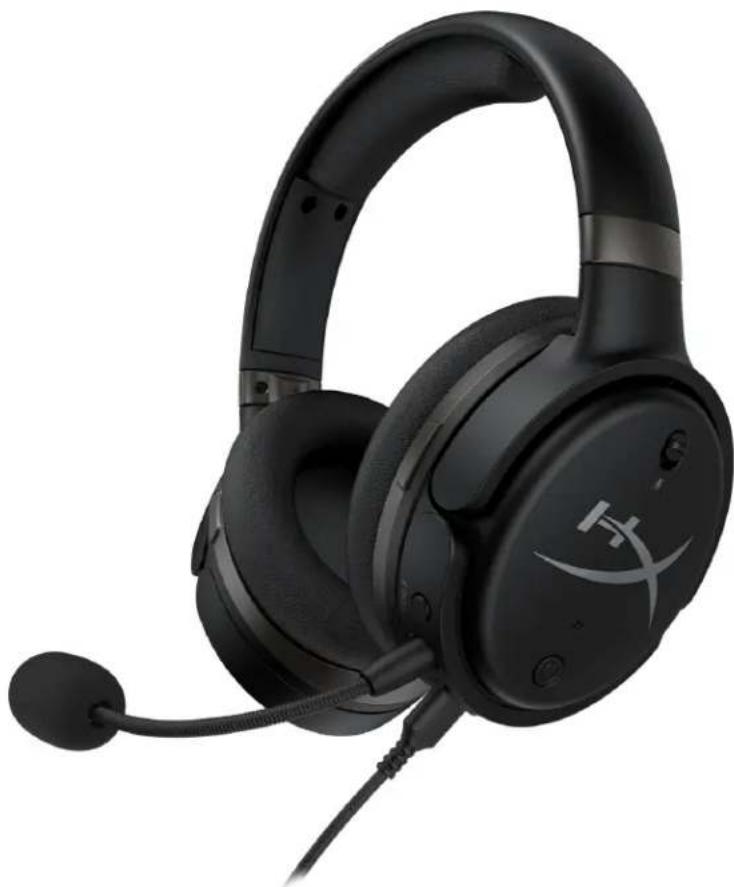
| Product Type | Closed-back circumaural gaming headset |
| Brand | HyperX |
| Model | Cloud Orbit S |
| Transducer Type | 100mm Planar magnetic |
| Frequency Response | 10 Hz – 50,000 Hz |
| Sound Pressure Level | >120 dB |
| Total Harmonic Distortion | <0.1% (1 kHz, 1 mW) |
| Weight | 368 g |
| Microphone | Electret condenser, unidirectional |
| Battery Life | 10 hours (analog 3.5 mm mode) |
| USB Type-C to Type-A Cable Length | 3 m |
| USB Type-C to Type-C Cable Length | 1.5 m |
| 3.5 mm (4-pole) Cable Length | 1.2 m |
| USB Audio Modes | 7.1 channels, 2 channels, Hi-Res |
| 3D Modes | Manual, Automatic, On, Off (head tracking available) |
| EQ Presets | Default, Step, Gunshots, Music, Racing, RPG, Warm, Flat |
| Additional Features | Head tracking, 3D audio |
| Power Type | Rechargeable battery via USB-C |
| Charge Indicator | Red LED (charging), off (full) |
| Maintenance | Clean with a soft, dry cloth. Do not use chemicals. |
| Safety | Avoid prolonged listening at high volume to protect your hearing. |
| Spare Parts | Detachable microphone, USB and 3.5 mm cables included. Contact HyperX support for replacement parts. |
Frequently Asked Questions - Cloud Orbit S HYPERX
User questions about Cloud Orbit S HYPERX
0 question about this device. Answer the ones you know or ask your own.
Ask a new question about this device
Download the instructions for your Headphones in PDF format for free! Find your manual Cloud Orbit S - HYPERX and take your electronic device back in hand. On this page are published all the documents necessary for the use of your device. Cloud Orbit S by HYPERX.
USER MANUAL Cloud Orbit S HYPERX
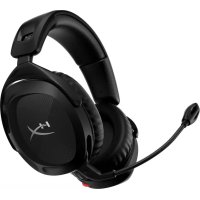
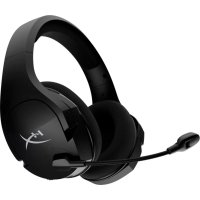
HyperX Cloud Orbit™ Headset HyperX Cloud Orbit S™ Headset
Find the language and latest documentation for your HyperX Cloud Orbit™ headset / HyperX Cloud Orbit S™ headset here.
HyperX Cloud Orbit™ Headset / HyperX Cloud Orbit S™ Headset User Manual
For instructions in English Para instrucciones en Español Für Anleitungen in Deutsch Pour des instructions en Français ...... Per le istruzioni in Italiano Por as instruções em Português Instrukcje w języku Polskim Для инструкции на Русском Turkce talimatlar icin 日本語マニュアル用 한국어 안내 ......คำแนะนำภาษาไทย Đế xem hướng dẫn bằng tiếng Việt
Simplified Chinese ..... 简体中文说明书
Traditional Chinese .... 繁體中文說明
HyperX Cloud Orbit™ HyperX Cloud Orbit S™
Part Numbers
HX-HSCO-GM/WW
HX-HSCOS-GM/WW
TABLE OF CONTENTS
Overview ....3
Specifications 4
Using the Headset....5
USB Mode 5
PC USB Setup 5
PlayStation 4 USB Setup 7
Nintendo Switch USB Setup 8
Analog 3.5mm Mode 9
Controls 10
USB Audio Modes 12
3D Modes 13
EQ Presets 14
Charging the Headset 14
Overview
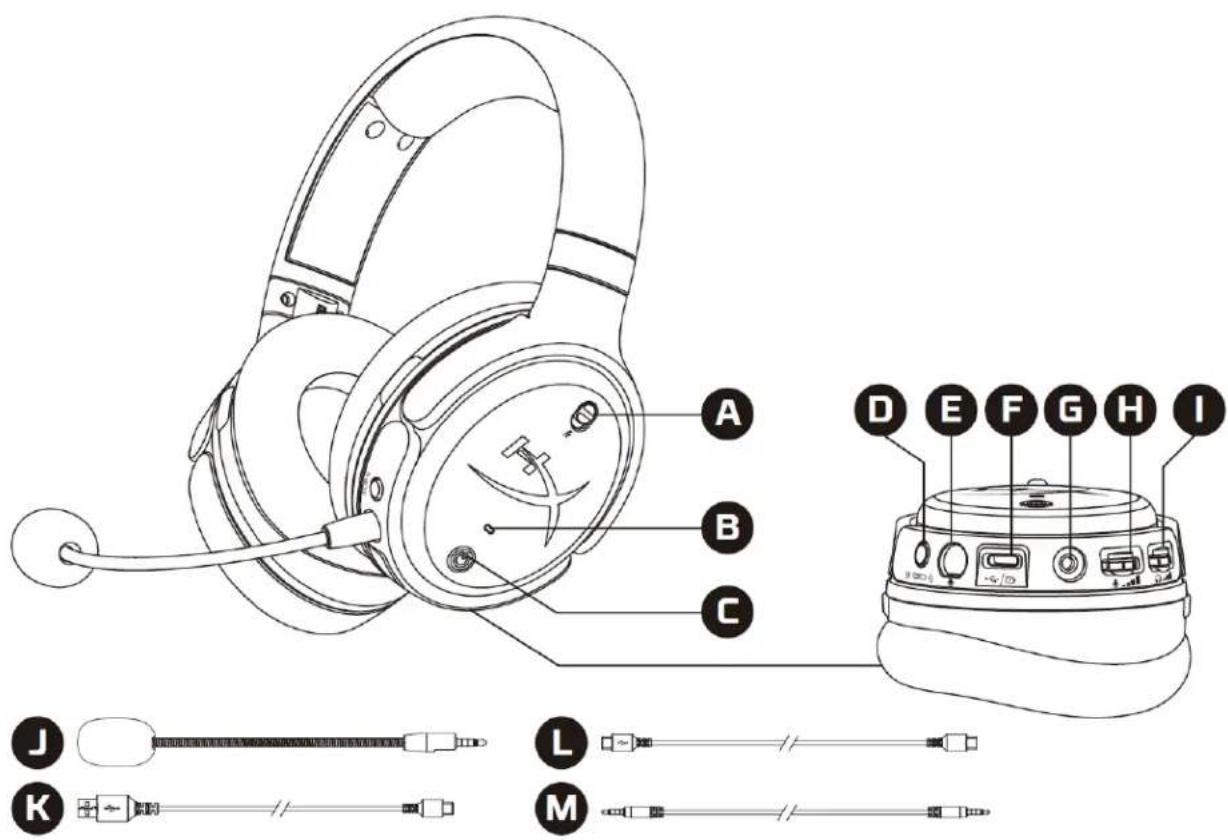
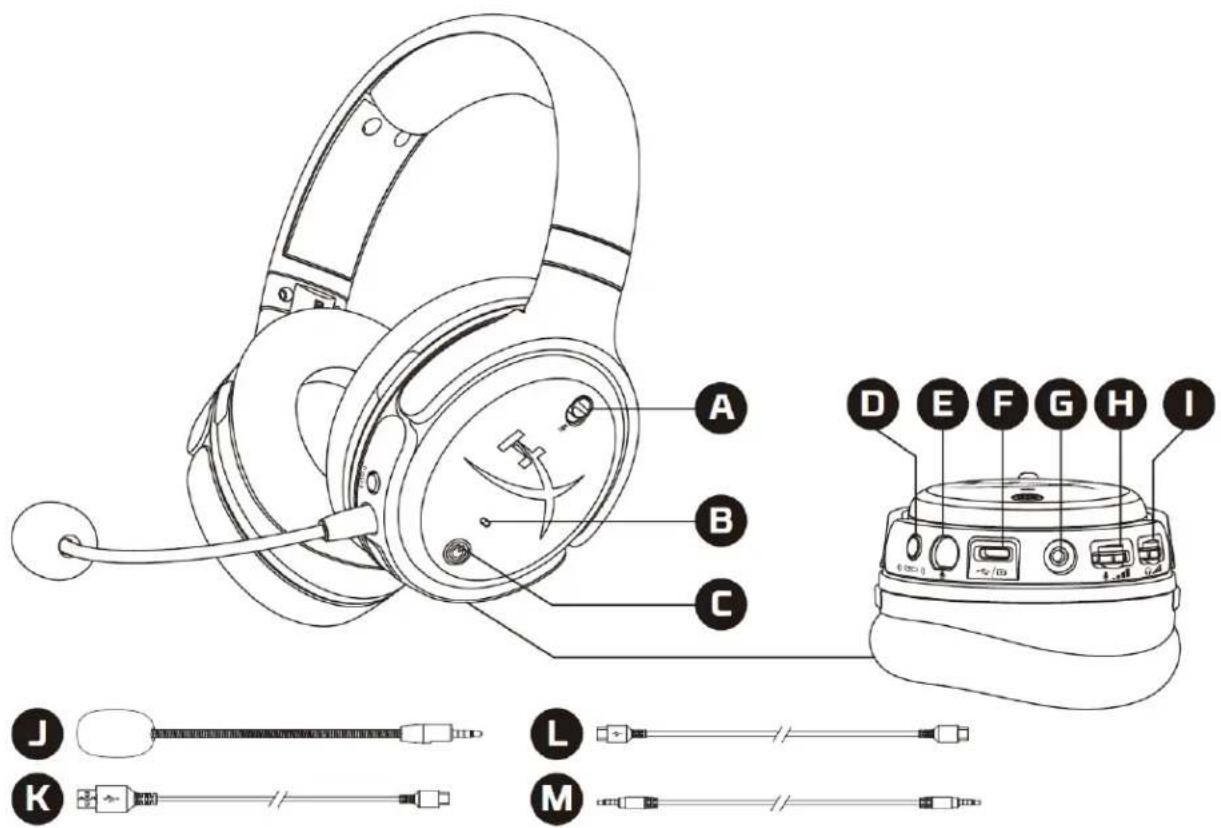
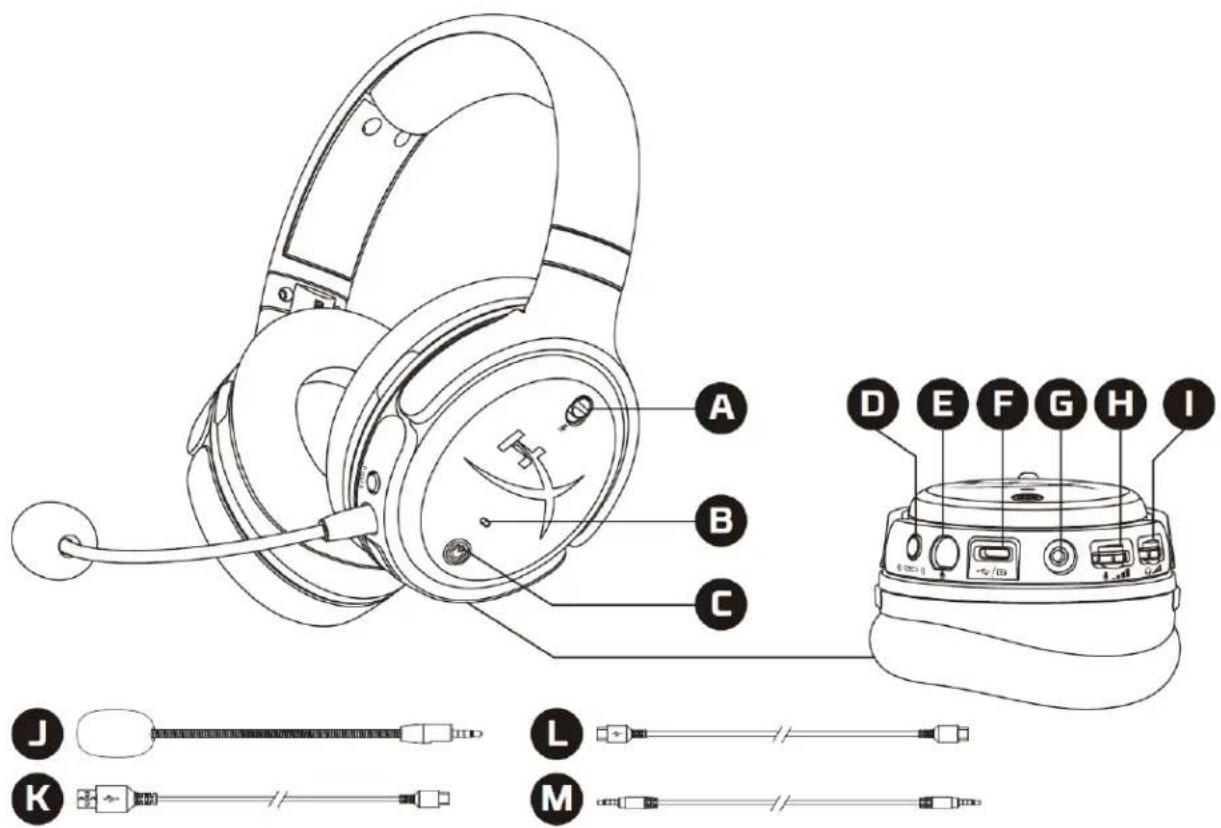
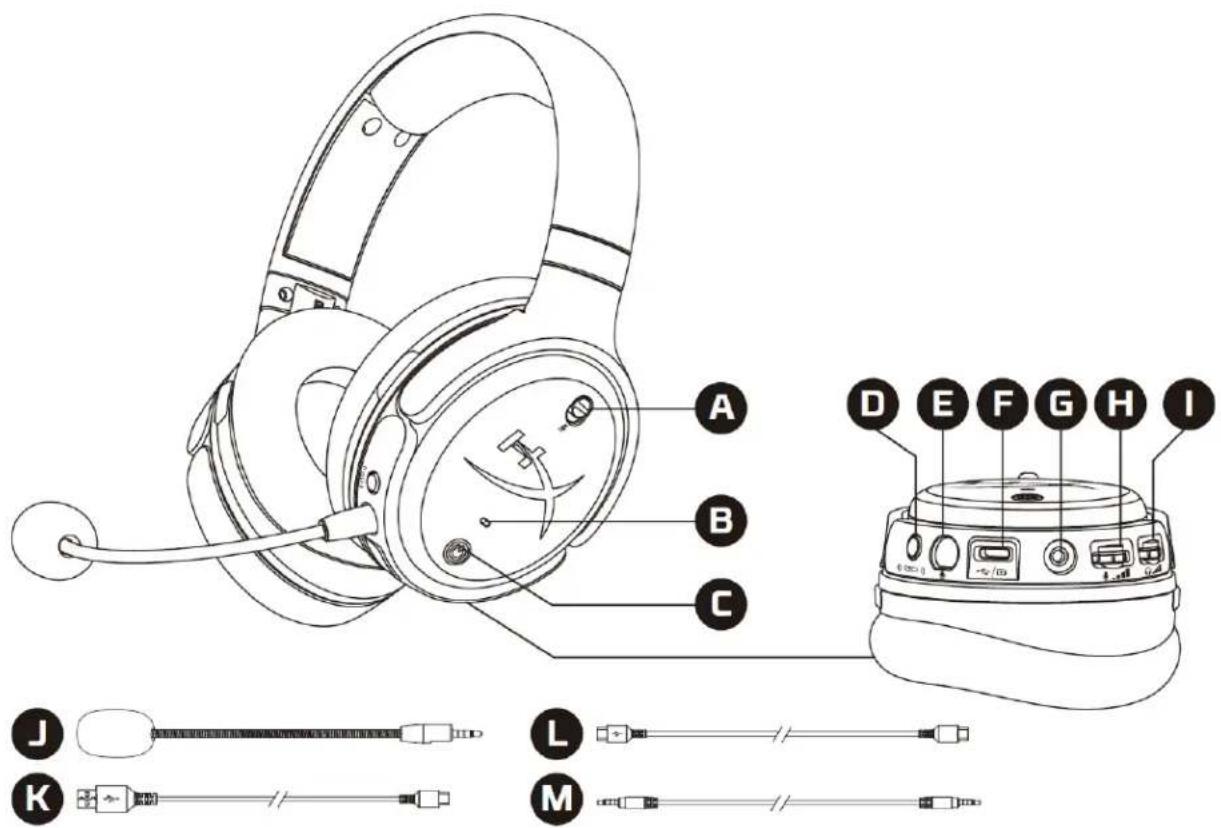
A. Microphone mute B. Status LED C. Power button D. 3D button E. Microphone port F. USB Type-C port G. 3.5mm port
H. Microphone volume wheel I. Headphone volume wheel J. Detachable boom microphone K. USB Type-C to USB Type-A cable L. USB Type-C to USB Type-C cable M. 3.5mm cable (4-pole)
Specifications
Headphone
Driver: Planar transducer, 100 mm
Type: Circumaural, Closed back
Frequency response: 10Hz–50,000Hz
Sound pressure level: >120 dB
T.H.D.: < 0.1% (1 kHz, 1 mW)
Weight: 368g
Modes:
- Orbit: 3D audio
- Orbit S: 3D audio with head tracking
Cable length:
• USB Type-C to USB Type-A: 3m • USB Type-C to USB Type-C: 1.5m • 3.5mm plug (4-pole): 1.2m
Microphone
Element: Electret condenser microphone
Polar pattern: Uni-directional
Battery life*
Analog 3.5mm mode: 10 hours
*Tested at 50% headphone volume
Using the Headset
USB Mode
![graph TD A["PC"] --> B["PlayStation 4*"] B --> C["Nintendo Switch dock*"] C --> D["Headset with power switch"] D --> E["Power Switch"]](/content/2026/03/458745/images/e95c1487408634ae9867aa3c3f0dd0dc9f37ec231107ebe7e0ff3ba86f121427.jpg)
*Compatible only in 2 Channel audio mode. Microphone output is not supported on Nintendo Switch.
PC USB Setup
- Power on the headset.
- Connect the headset to the PC with the USB Type-C to USB Type-A cable.
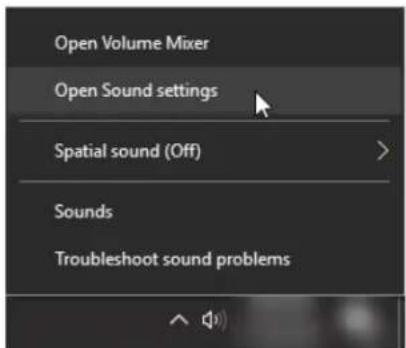
- Right click speaker icon > Select Open Sound settings > Select Sound control panel
- Under Playback tab, click on "HyperX Cloud Orbit" / "HyperX Cloud Orbit S" and click on Set Default.
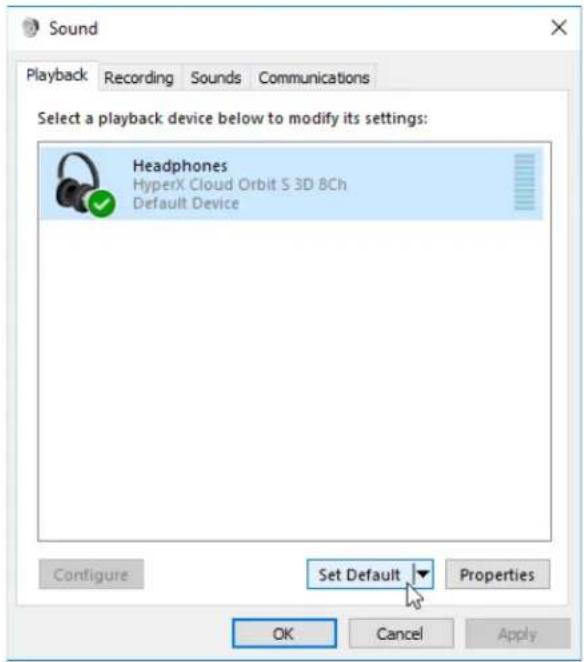
- Under Recording tab, click on "HyperX Cloud Orbit" / "HyperX Cloud Orbit S" and click on Set Default.

PlayStation 4 USB Setup
- Power on the headset.
- Hold down the microphone volume wheel for 2 seconds to change audio modes. Repeat this step until the headset plays the voice prompt "2 Channel".
- Connect the headset to the PlayStation 4 console with the USB Type-C to USB Type-A cable.
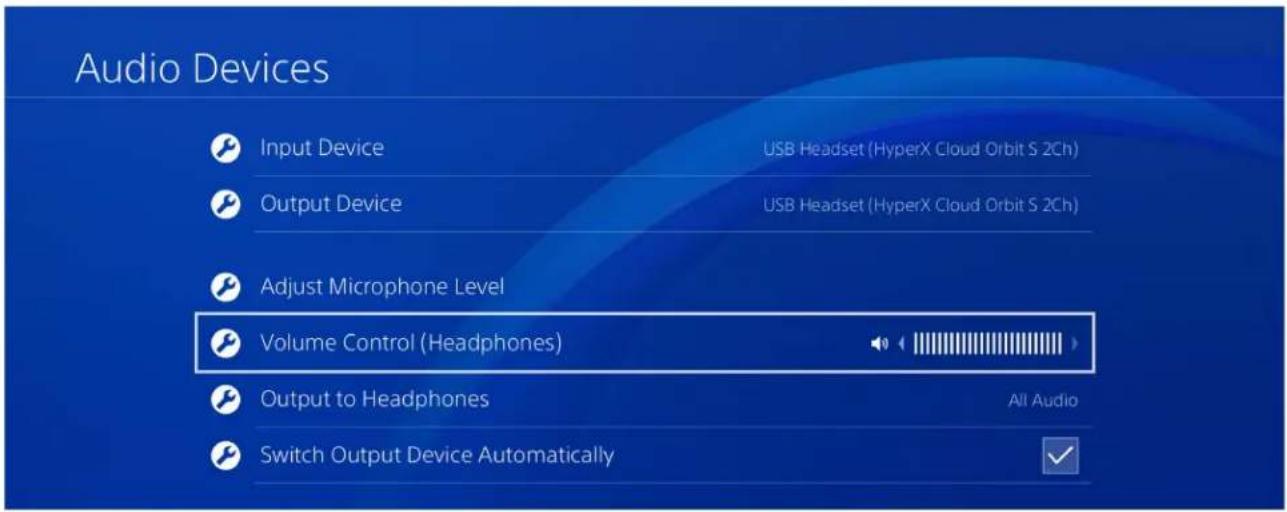
- From the PS4 main menu, go to Settings > Devices > Audio Devices
- Set Input Device to USB Headset (HyperX Cloud Orbit 2Ch) or USB Headset (HyperX Cloud Orbit S 2Ch)
- Set Output Device to USB Headset (HyperX Cloud Orbit 2Ch) or USB Headset (HyperX Cloud Orbit S 2Ch)
- Set Output to Headphones to All Audio
- Set Volume Control (Headphones) to maximum.
Nintendo Switch USB Setup
- Power on the headset.
- Hold down the microphone volume wheel for 2 seconds to change audio modes. Repeat this step until the headset plays the voice prompt "2 Channel".
- Connect the headset to the Nintendo Switch dock via the USB Type-C to Type-A cable.
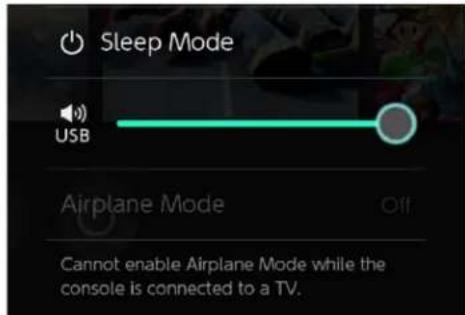
- Hold the HOME button on the controller for 1 second to access the Quick Settings menu.
- Go to the USB volume control and set the level to maximum.
Analog 3.5mm Mode![graph TD A["Xbox One"] --> D["Link"] B["PS4"] --> D C["Nintendo Switch"] --> D E["Mobile"] --> D D --> F["Headset with Power Hub"]](/content/2026/03/458745/images/5baf22be7b506cf1b0c1ee847457d9b61b27af24546d28879d69d61267adbac8.jpg)
- Power on the headset.
- Connect the headset to the device's 3.5mm port with the 3.5mm (4-pole) cable.
Controls
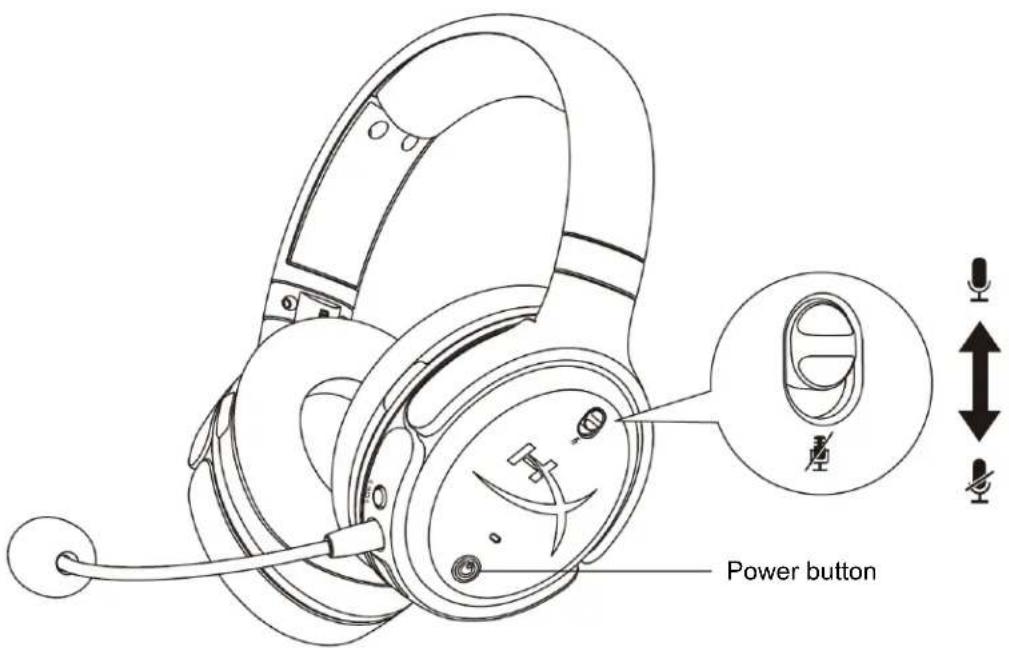
| Button/Control | Action | Function |
| Power button | Hold down for 3 seconds | Power on headset |
| Hold down for 5 seconds | Power off headset | |
| Press once | Play/pause audio | |
| Microphone mute | Move switch up | Disable microphone mute |
| Move switch down | Enable microphone mute |
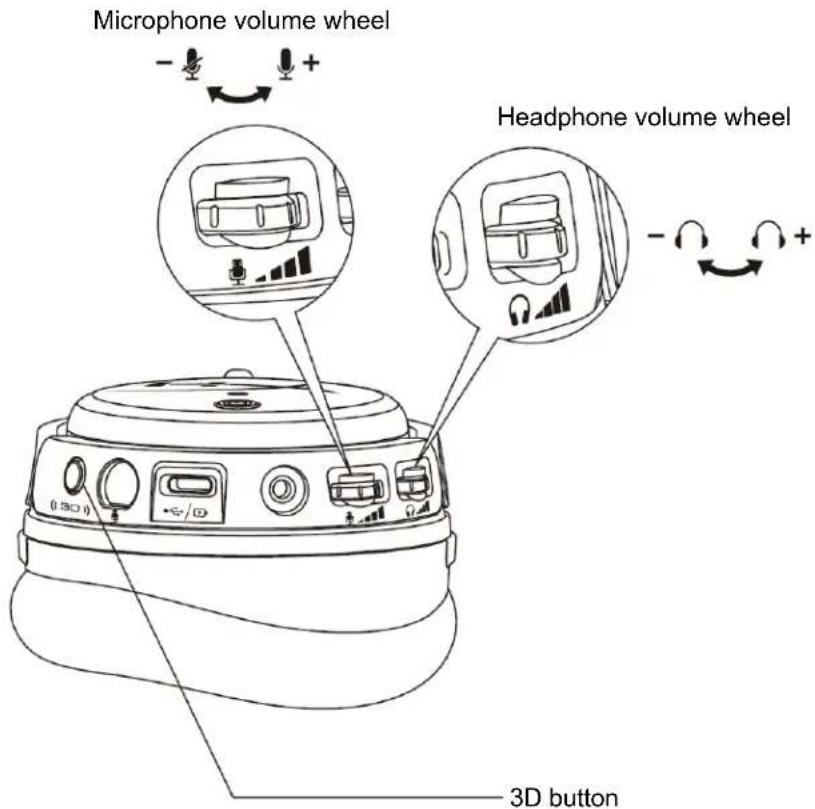
| Button/Control | Action | Function |
| Microphone volume wheel | Scroll | Adjust microphone volume level |
| Short press and scroll | Change EQ preset | |
| Hold down for 2 seconds | Change audio mode | |
| Headphone volume wheel | Scroll | Adjust headphone volume level |
| Short press and scroll | Change to next/previous track | |
| Hold down for 2 seconds | Disable USB charging | |
| 3D button | Press once | Set new center point |
| Double press | Select input mode (USB and analog) | |
| Hold down for 2 seconds | Change 3D mode |
USB Audio Modes
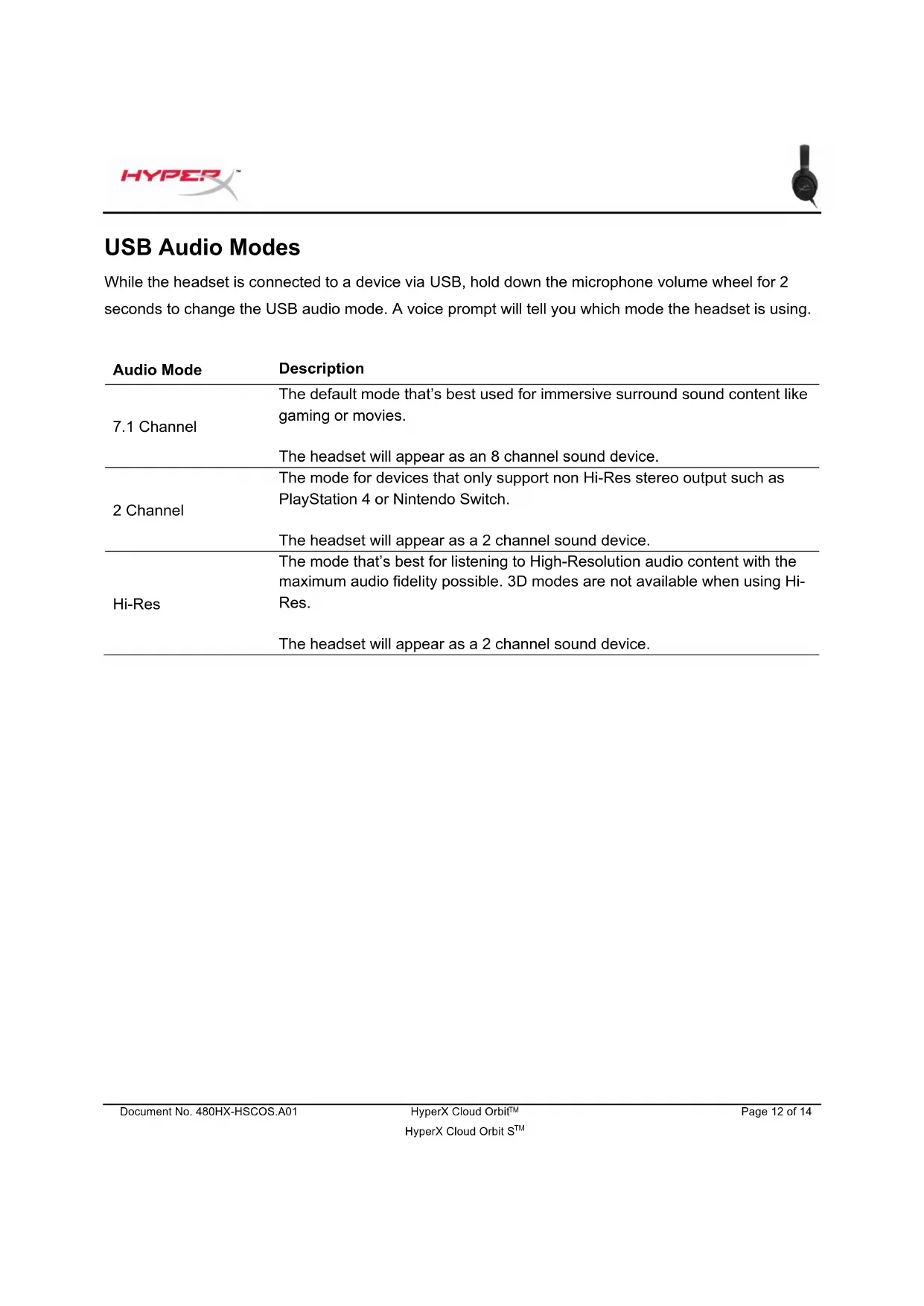
While the headset is connected to a device via USB, hold down the microphone volume wheel for 2 seconds to change the USB audio mode. A voice prompt will tell you which mode the headset is using.
| Audio Mode | Description |
| 7.1 Channel | The default mode that's best used for immersive surround sound content like gaming or movies.The headset will appear as an 8 channel sound device. |
| 2 Channel | The mode for devices that only support non Hi-Res stereo output such as PlayStation 4 or Nintendo Switch.The headset will appear as a 2 channel sound device. |
| Hi-Res | The mode that's best for listening to High-Resolution audio content with the maximum audio fidelity possible. 3D modes are not available when using Hi-Res.The headset will appear as a 2 channel sound device. |
3D Modes
Hold down the 3D button for 2 seconds to change the 3D mode. A voice prompt will tell you which 3D mode the headset is using.
| 3D Mode | Description |
| 3D Manual* | 3D audio and head tracking are enabled.This mode is best used when sitting down and looking at a stationary display, such as when you're playing on a PC or console.Press the 3D button once to set a new center point manually. |
| 3D Automatic* | 3D audio and head tracking are enabled. Center point is set automatically as you move your head.This mode is best used when your head may move often, such as when you're on the go.Press the 3D button once to set a new center point manually. |
| 3D On | 3D audio is enabled. Head tracking is disabled. |
| 3D Off | 3D audio is disabled. |
*Available only on Orbit S
EQ Presets
Short press and scroll the microphone volume wheel up or down to change the EQ preset. A voice prompt will tell you which EQ preset the headset is using.
| EQ Preset | Description |
| Default | Tuned to the Audeze House curve. |
| Foot Steps | Enhances sounds of foot steps. |
| Ballistics | Enhances gunshots and other ballistic sounds in FPS games. |
| Music | Optimized for listening to music. |
| Racing | Optimized for racing games. |
| RPG | Optimized for RPGs and immersive games. |
| Warm | Treble is cut and bass is boosted slightly. |
| Flat | No EQ applied. |
Charging the Headset
When the charge cable is connected the LED will indicate the status.
| Status LED | Headset Status |
| LED solid red | Charging |
| LED off | Fully charged |
"Battery low" voice prompt plays at 15% battery.
To disable USB charging, hold down the headphone volume wheel for 2 seconds.
Questions or Setup Issues?
Contact the HyperX support team at: hyperxgaming.com/support/
HyperX Cloud Orbit™ HyperX Cloud Orbit S™
Adjust Microphone Level

Volume Control (Headphones)



Output to Headphones
All Audio

Switch Output Device Automatically

Part Numbers
HX-HSCO-GM/WW
HX-HSCOS-GM/WW
TABLE OF CONTENTS
Summary 3
Specifications 4
Adjust Microphone Level

Volume Control (Headphones)

1

Output to Headphones
All Audio

Switch Output Device Automatically

Part numbers
HX-HSCO-GM/WW
HX-HSCOS-GM/WW
CONTENTS
Overview 3
Specifications 4
Adjust Microphone Level

Volume Control (Headphones)

1

Output to Headphones
All Audio

Switch Output Device Automatically

Product references
HX-HSCO-GM/WW
HX-HSCOS-GM/WW
TABLE OF CONTENTS
Overview.... 3
Specifications 4
A. Microphone mute B. LED status indicator C. Power button D. 3D button E. Microphone port F. USB Type-C port G. 3.5mm port
Analog 3.5mm mode
![graph TD A["Xbox One"] --> D["Mobile Device"] B["PS4"] --> D C["Nintendo Switch"] --> D E["Portable"] --> D D --> F["Headphones with USB port"]](/content/2026/03/458745/images/659dd8165f1d50b65ac801bdc0b58d25a3b17401305cc91e7d1f3bec2a0dc244.jpg)
Part numbers
HX-HSCO-GM/WW
HX-HSCOS-GM/WW
INDEX
Product code
HX-HSCO-GM/WW
HX-HSCOS-GM/WW
INDEX
Overview 3
Specifications....4
Using the Headset 5
USB Mode....5
Adjust Microphone Level

Volume Control (Headphones)

1

Output to Headphones
All Audio

Switch Output Device Automatically

Analog 3.5mm Mode
![graph TD A["Xbox One"] --> D["Dispositivo"] B["PS4"] --> D["Dispositivo"] C["Nintendo Switch"] --> D["Dispositivo"] E["Dispositivo"] --> F["Headset with Power Hub"]](/content/2026/03/458745/images/86b4cd293f908bfd2281da24b960642c52343f3876cb126a22e8f9d5b3948e7a.jpg)
- Turn on the headset.
- Connect the headset to the device's 3.5mm port using the 3.5mm cable (4-pole).
Controls
Part Numbers
HX-HSCO-GM/WW
HX-HSCOS-GM/WW
TABLE OF CONTENTS
Presentation.... 3
Technical data 4
Part numbers
HX-HSCO-GM/WW
HX-HSCOS-GM/WW
CONTENTS
Overview 3
Part Numbers
HX-HSCO-GM/WW
HX-HSCOS-GM/WW
CONTENTS
PlayStation 4 USB Setup
Nintendo Switch USB Setup
Analog 3.5 mm Mode![graph TD A["Xbox One"] --> D["Central Node"] B["PS4"] --> D C["Nintendo Switch"] --> D E["Mobil"] --> D D --> F["Headset with Power Hub"]](/content/2026/03/458745/images/434b1924cf43d9e3add78b53e21a871eb5a74bb4da538de1f2c162882e681bd4.jpg)
Part number
HX-HSCO-GM/WW
HX-HSCOS-GM/WW
Table of contents
Overview 3
Specifications 4
How to use the headset......5
USB mode....5
Analog 3.5mm mode
![graph TD A["Xbox One"] --> D["Headphones"] B["PS4"] --> D C["Nintendo Switch"] --> D E["Mobile Phone"] --> D D --> F["Power Hub"]](/content/2026/03/458745/images/0b979c083a35c1805f74df6a691eb44a0fd7e9827b28a1135cf8d418094b9b62.jpg)
Part number
HX-HSCO-GM/WW
HX-HSCOS-GM/WW
Table of contents
Overview 3
Specifications 4
Using the Headset 5
USB Mode ....5
PC USB Setup ....5
PlayStation 4 USB Setup....7
Nintendo Switch USB Setup....8
Analog 3.5mm Mode....9
Controls 10
USB Audio Mode 12
3D Mode 13
EQ Presets....14
Charging the Headset....14
Overview
PlayStation 4 USB Setup
Analog 3.5mm Mode
![graph TD A["Xbox One"] --> D["Link"] B["PS4"] --> D C["Nintendo Switch"] --> D E["Mo바일"] --> D D --> F["Headset with Power Hub"]](/content/2026/03/458745/images/585a3bf6a0cd9fb79a8b74b62054c6c95a9f4d8cfbfb32448f32c71c2d0d7d8f.jpg)
Part Numbers
HX-HSCO-GM/WW
HX-HSCOS-GM/WW
Table of Contents
Overview 3
Product Code
HX-HSCO-GM/WW
HX-HSCOS-GM/WW
Table of Contents
Overview 3
Adjust Microphone Level

Volume Control (Headphones)

←

Output to Headphones
All Audio

Switch Output Device Automatically

Product Model
HX-HSCO-GM/WW
HX-HSCOS-GM/WW
Table of Contents
Overview 3
Specifications 4
Using the Headset 5
USB Mode ....5
PC USB Setup....5
PlayStation 4 USB Setup....7
Nintendo Switch USB Setup....8
Analog 3.5mm Mode ..... 9
Controls 10
USB Audio Mode.... 12
3D Mode.... 13
EQ presets.... 14
Charging the headset 14
Overview
PlayStation 4 USB setup
Nintendo Switch USB setup
Analog 3.5 mm mode![graph TD A["Xbox One"] --> D["移动设备"] B["PS4"] --> D C["Nintendo Switch"] --> D E["Mobile Device"] --> D](/content/2026/03/458745/images/f14d7d0cc1cb9d054151817aa208a3bb3aae4945481990f3ad34c3f5daa1d4f4.jpg)
Model number
HX-HSCO-GM/WW
HX-HSCOS-GM/WW
Table of contents
Overview 3
Product specifications 4
Using the headset 5
USB mode ....5
PC USB setup....5
PlayStation 4 USB Settings....7
Nintendo Switch USB Settings....8
Analog 3.5mm Mode..... 9
Function Controls 10
USB Audio Mode.... 12
3D Mode.... 13
EQ Presets.... 14
Headphone Charging 14
Overview
Analog 3.5mm Mode![graph TD A["Xbox One"] --> D["Power Pin"] B["PS4"] --> D C["Nintendo Switch"] --> D E["Smartphone"] --> F["Action Device"] G["Headphones"] --> H["Power Button"] I["Desktop"] --> H style A fill:#f9f,stroke:#333 style B fill:#f9f,stroke:#333 style C fill:#f9f,stroke:#333 style E fill:#f9f,stroke:#333…](/content/2026/03/458745/images/b64c928efeb1edd1f4a9001620bdd1fdeb4f80e88bb5ba91b2d7cc8d47f3b877.jpg)
- HYPERX CLOUD ORBIT™ HEADSET HYPERX CLOUD ORBIT S™ HEADSET
- HYPERX CLOUD ORBIT™ HEADSET / HYPERX CLOUD ORBIT S™ HEADSET USER MANUAL
- HYPERX CLOUD ORBIT™ HYPERX CLOUD ORBIT S™
- PART NUMBERS
- TABLE OF CONTENTS
- OVERVIEW
- SPECIFICATIONS
- HEADPHONE
- MICROPHONE
- BATTERY LIFE
- USING THE HEADSET
- USB MODE
- PC USB SETUP
- PLAYSTATION 4 USB SETUP
- NINTENDO SWITCH USB SETUP
- CONTROLS
- USB AUDIO MODES
- D MODES
- EQ PRESETS
- CHARGING THE HEADSET
- QUESTIONS OR SETUP ISSUES
- CONTENTS
- PRODUCT REFERENCES
- ANALOG 3.5MM MODE
- INDEX
- PRODUCT CODE
Brand : HYPERX
Model : Cloud Orbit S
Category : Headphones