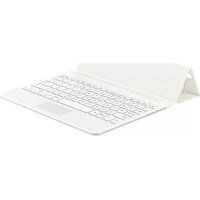
EJFT810UWE - Keyboard SAMSUNG - Free user manual and instructions
Find the device manual for free EJFT810UWE SAMSUNG in PDF.



| Product Type | Bluetooth Keyboard |
| Brand | Samsung |
| Model | EJ-FT810 |
| Power | Built-in rechargeable battery (charger sold separately) |
| Connection | Bluetooth 2.4 GHz, 10 m range |
| Compatibility | Mainly SAMSUNG Galaxy Tab S2 |
| Main Functions | Bluetooth connection, touchpad, function keys (back, home, recent, etc.), switch between 2 devices |
| Lighting | Multicolor LED indicator (battery and connection status) |
| Included Accessories | Keyboard, quick start guide |
| Care and Cleaning | Clean with a soft, dry cloth. Avoid liquids. |
| Safety | Contains magnets. Keep away from medical devices. Use only Samsung approved chargers. |
| Spare parts and repairability | Battery not user-replaceable. Removal only at an authorized center. |
| General Information | Manufactured by Samsung Electronics. Copyright and trademarks. |
Frequently Asked Questions - EJFT810UWE SAMSUNG
User questions about EJFT810UWE SAMSUNG
0 question about this device. Answer the ones you know or ask your own.
Ask a new question about this device
Download the instructions for your Keyboard in PDF format for free! Find your manual EJFT810UWE - SAMSUNG and take your electronic device back in hand. On this page are published all the documents necessary for the use of your device. EJFT810UWE by SAMSUNG.
USER MANUAL EJFT810UWE SAMSUNG
Please read this manual before using the device to ensure safe and proper use.
- Images may differ in appearance from the actual product. Content is subject to change without prior notice.
- The keyboard is optimised to connect with the SAMSUNG Galaxy Tab S2 and may not be compatible with other devices. Before connecting the keyboard with devices other than the SAMSUNG Galaxy Tab S2, make sure they are compatible with the keyboard.
Instructional icons

Warning: situations that could cause injury to yourself or others

Caution: situations that could cause damage to your device or other equipment

Notice: notes, usage tips, or additional information
Getting started
Package contents
Check the product box for the following items:
- Keyboard
- Quick start guide

- The items supplied with the device and any available accessories may vary depending on the region or service provider.
- The supplied items are designed only for this device and may not be compatible with other devices.
- Appearances and specifications are subject to change without prior notice.
- You can purchase additional accessories from your local Samsung retailer. Make sure they are compatible with the device before purchase.
- Use only Samsung-approved accessories. Using unapproved accessories may cause the performance problems and malfunctions that are not covered by the warranty.
- Availability of all accessories is subject to change depending entirely on manufacturing companies. For more information about available accessories, refer to the Samsung website.
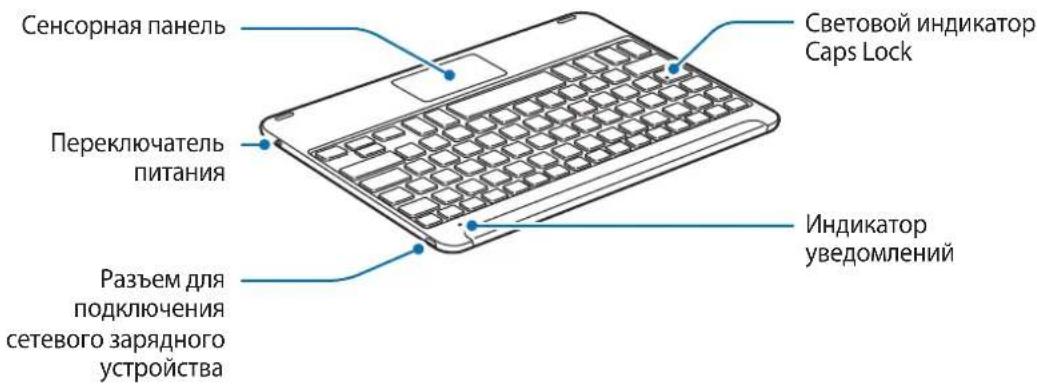
Device layout
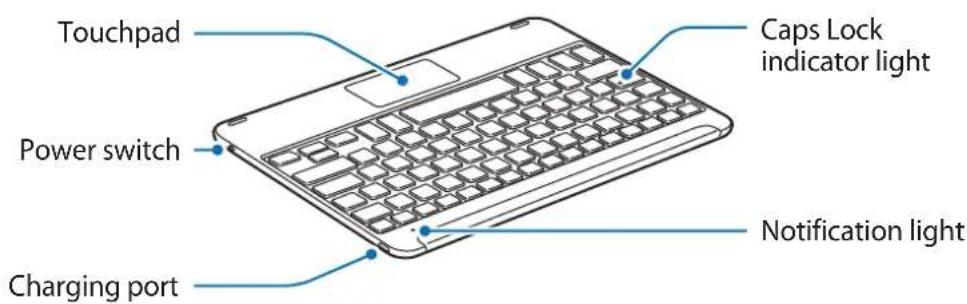
Charging the battery
Charge the battery before using the keyboard for the first time or when the keyboard has been unused for extended periods.

Use only Samsung-approved chargers, batteries, and cables. Unapproved chargers or cables can cause the battery to explode or damage the keyboard.

If the battery is completely discharged, the keyboard cannot be turned on immediately when the charger is connected. Allow a depleted battery to charge for a few minutes before turning on the keyboard.
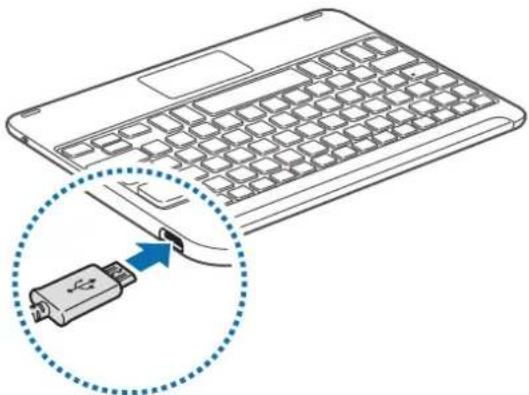
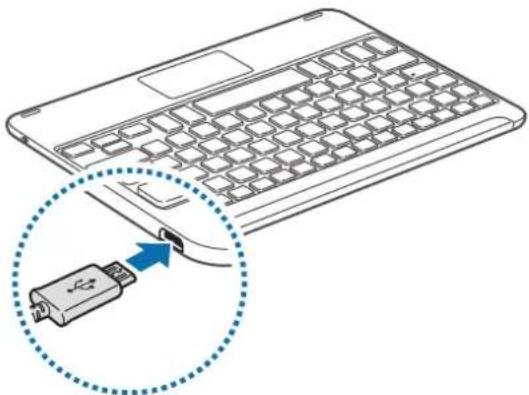
Connect the keyboard to a charger.
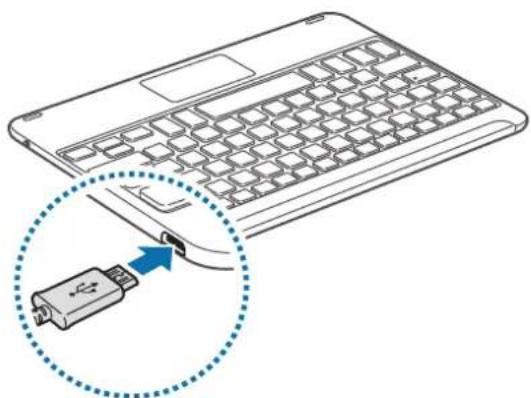

Connecting the charger improperly may cause serious damage to the keyboard. Any damage caused by misuse is not covered by the warranty.

- Chargers are sold separately.
- The keyboard can be used while it is charging, but it may take longer to fully charge the battery.
- While charging, the keyboard may heat up. This is normal and should not affect the keyboard's lifespan or performance. If the battery gets hotter than usual, the charger may stop charging.
- If the keyboard is not charging properly, take the keyboard to a Samsung Service Centre.
After fully charging, disconnect the keyboard from the charger.

- To save energy, unplug the charger when not in use. The charger does not have a power switch, so you must unplug the charger from the electric socket when not in use to avoid wasting power. The charger should remain close to the electric socket and easily accessible while charging.
- The socket-outlet shall be installed near the equipment and shall be easily accessible.
Checking the battery charging status
Press and hold the Ctrl key for approximately three seconds. The notification light will flash three times in different colours depending on the charging status.
| Status Colour | |
| Less than 30% | • Red |
| 30–60% | • Yellow |
| More than 60% | • Green |
Turning the keyboard on and off
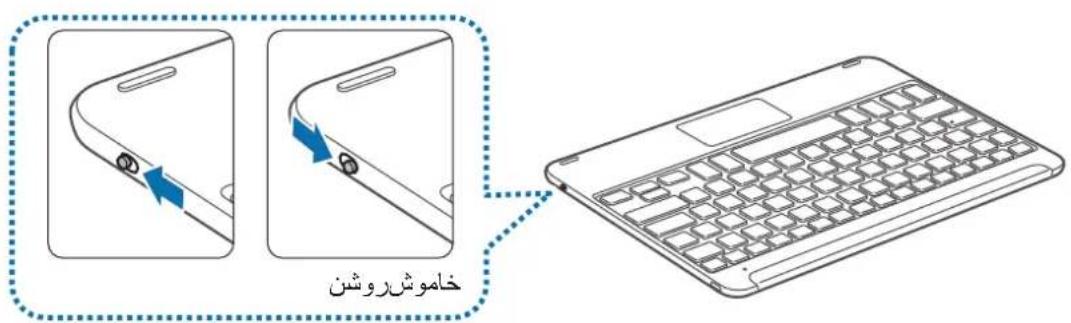
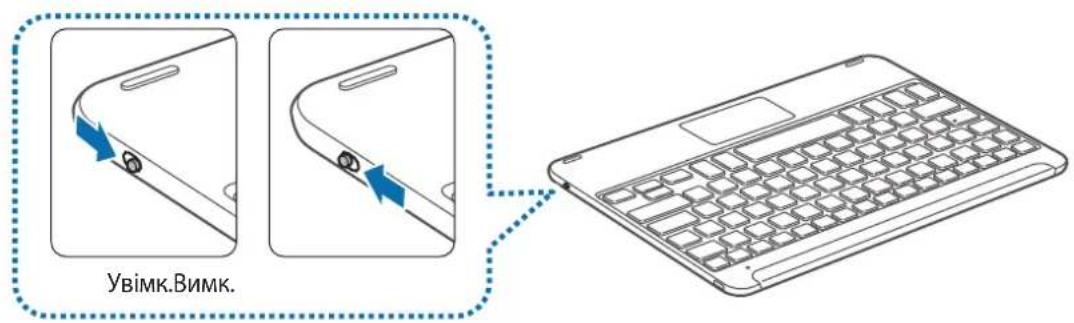
Slide the Power switch to turn on or off the keyboard.
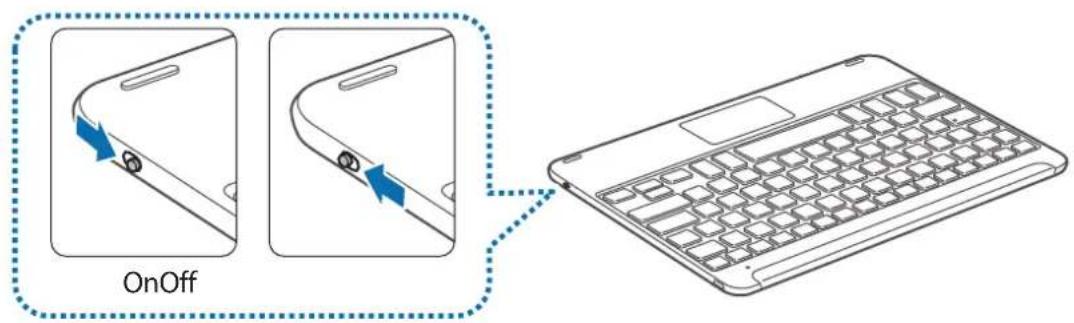

Follow all posted warnings and directions from authorised personnel in areas where the use of wireless devices is restricted, such as aeroplanes and hospitals.
Notification light identification
The notification light alerts you to the keyboard's status.
| Status Colour | |
| Power on | • Flashes blue three times |
| Power off | • Flashes red three times |
| Bluetooth pairing mode | • Flashes red, green, and then blue |
| Connected via Bluetooth | • F11 key: Quickly flashes blue three times, and then flashes blue three times • F12 key: Quickly flashes white three times, and then flashes white three times |
| During use or in Sleep mode | • Off |

- If the notification light does not work as described, disconnect the charger from the keyboard and reconnect it.
- The notification light may work differently depending on the connected device.
Bluetooth connections
Bluetooth
About Bluetooth
Bluetooth is a wireless technology standard that uses a 2.4 GHz frequency to connect to various devices over short distances. It can connect and exchange data with other Bluetooth enabled devices, such as mobile devices, computers, printers, and other digital home appliances, without connecting via cables.
Notices for using Bluetooth
- To avoid problems when connecting your keyboard to another device, place the devices close to each other.
- Ensure that your keyboard and the other Bluetooth device are within the Bluetooth connection range (10 m). The distance may vary depending on the environment the devices are used in.
- Ensure that there are no obstacles between the keyboard and a connected device, including human bodies, walls, corners, or fences.
- Do not touch the Bluetooth antenna of a connected device.
- Bluetooth uses the same frequency as some industrial, scientific, medical, and low power products and interference may occur when making connections near these types of products.
- Some devices, especially those that are not tested or approved by the Bluetooth SIG, may be incompatible with the keyboard.
- Do not use the Bluetooth feature for illegal purposes (for example, pirating copies of files or illegally tapping communications for commercial purposes).
Connecting devices via Bluetooth
This keyboard is optimised to connect with the SAMSUNG Galaxy Tab S2. When connecting to devices other than the SAMSUNG Galaxy Tab S2, the keyboard may not work properly or some of its features may not be available.
1 Keyboard Slide the Power switch to turn on the keyboard.
2 Keyboard Press and hold the key ( F11 or F12) for approximately three seconds to enter Bluetooth pairing mode.
The notification light will flash red, green, and blue.
When you turn on the keyboard for the first time, it automatically enters Bluetooth pairing mode.
3 Other device Activate the Bluetooth feature and search for Bluetooth devices.
For more information, refer to the other device's user manual.
4 Other device Tap Samsung Tab S2 Keyboardfrom the list of available devices.
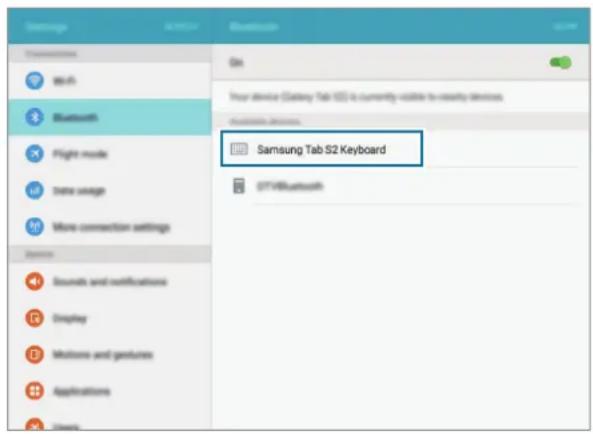
5 Keyboard Enter the passkey displayed on your other device's screen and press the Enter key.
The other device will be registered to the selected key (F11 or F12) and the connection will be made.

- If the Bluetooth connection fails or the other device cannot locate the keyboard, remove the device's information from the other device's list. Then, try to connect again.
- If the keyboard does not work properly, restart it or try to pair the devices again.
When re-pairing your device, previous pairing history will need to be cleared in order to pair the keyboard and tablet again
1 From tablet Bluetooth menu, select the Unpair option. Then, press the F11 key for about 3 seconds (until the LED starts blinking) to delete the paired device first.
2 Turn off the Bluetooth keyboard.
3 Turn on the Bluetooth keyboard again and set the keyboard to pairing mode by pressing and holding the F12 key.
4 Scan through tablet Bluetooth menu, then select the Samsung Tab S2 Keyboard in order to find and pair the device.
Pairing with multiple devices
Pair with up to two Bluetooth-enabled devices and easily switch connections between the keyboard and the paired devices.
Pairing with an additional device
1 Pair and connect the keyboard to a device via Bluetooth.
2 Press and hold the key ( F11 or F12) that you did not use to register the previous device for approximately three seconds to enter Bluetooth pairing mode.
The connection between the keyboard and the previously connected device will end.
3 Follow the same connection procedure used for connecting the previous device to connect the keyboard to an additional device.
Switching connections
Press the key (F11 or F12).
If the keyboard is currently connected to the device registered to the F11 key, press the F12 key to switch to the device registered to it.
If the keyboard is currently connected to the device registered to the F12 key, press the F11 key to switch to the device registered to it.

This feature may not be available depending on the paired device.
Reconnecting or disconnecting from another device
Reconnecting the device
When your keyboard is disconnected from the connected device due to the distance between the devices, bring the devices closer together. Then, press the key (F11 or F12) that the disconnected device is registered to in order to reconnect the devices. Or, you can use the Bluetooth menu on the disconnected device to connect the devices.
Disconnecting the device
Press and hold the key ( F11 or F12) for approximately three seconds. The current connection will end and the keyboard will enter Bluetooth pairing mode.
You can also end the connection by turning off the keyboard. When you turn on the keyboard again and the devices are in range, the keyboard automatically connects with the most recently connected device.
Using the keyboard
Using keyboard features

The device contains magnets. The American Heart Association (US) and the Medicines and Healthcare Products Regulatory Agency (UK) both warn that magnets can affect the operation of implanted pacemakers, cardioverters, defibrillators, insulin pumps or other electro medical devices (collectively, "Medical Device") within the range of 15cm (6 inches). If you are a user of any of these Medical Devices, DO NOT USE THIS DEVICE UNLESS YOU HAVE CONSULTED WITH YOUR PHYSICIAN.

Do not store your device near magnetic fields. Magnetic stripe cards, including credit cards, phone cards, passbooks, and boarding passes, may be damaged by magnetic fields.
Using the keyboard
Before using the keyboard, select a display language on the connected device. For more information about language settings, refer to the user manual of the connected device.
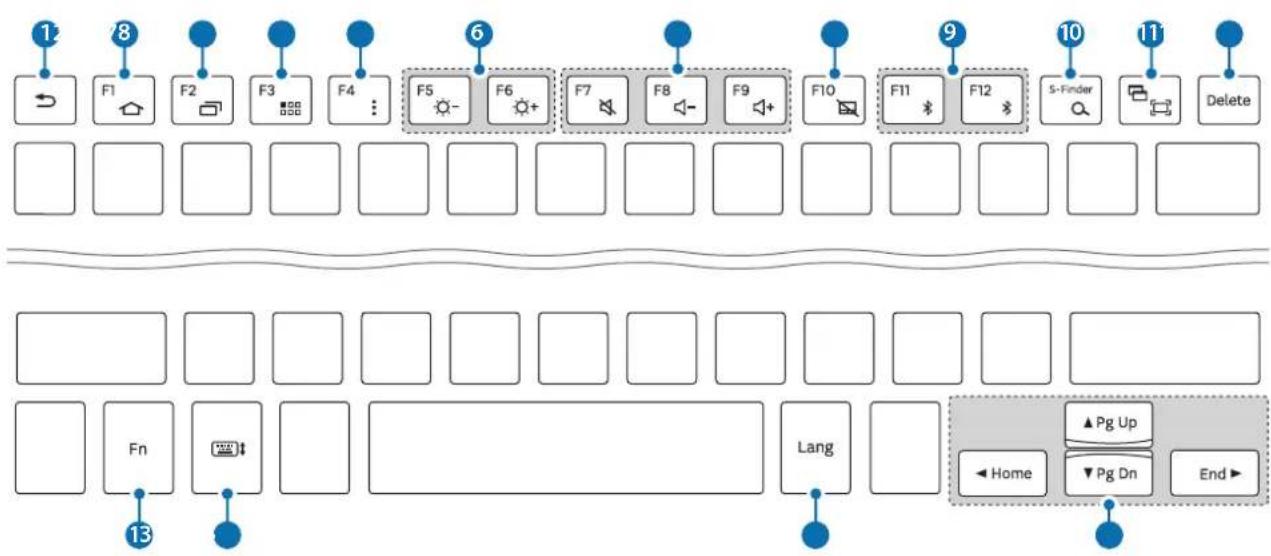
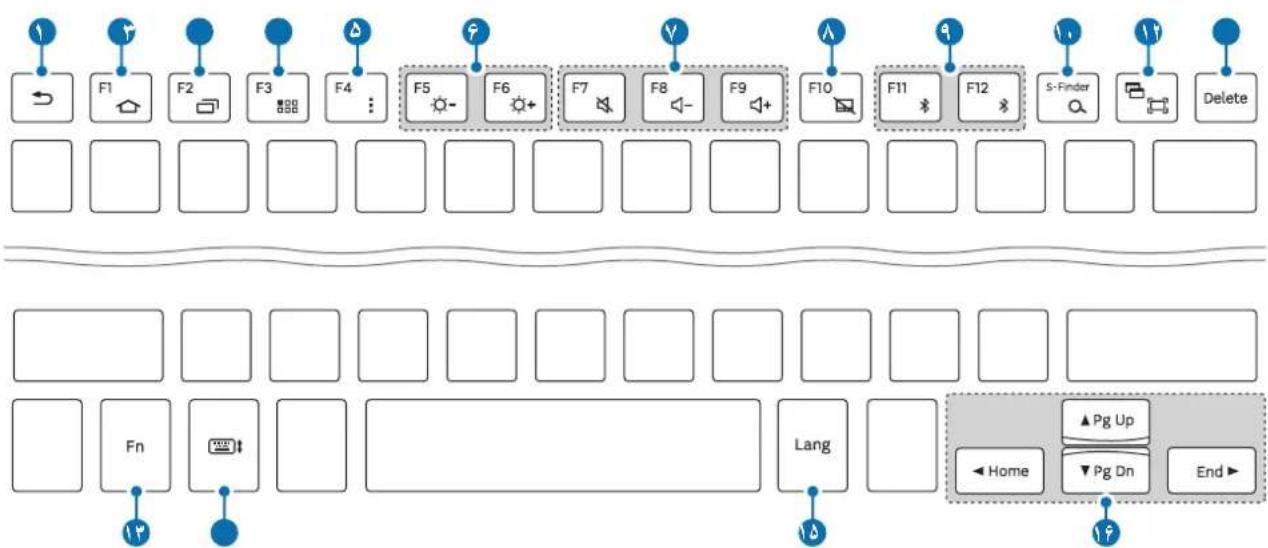
| Key Function | |
| 1 | • Press to return to the previous screen. • Press and hold to access additional options for the current screen. |
| 2 | • Press to return to the Home screen. • Press and hold to launch Google. |
| 3 | • Press to open the list of recent apps. • Press and hold to launch the split screen view. |
| 4 | • Press to open the Apps screen. |
| 5 | • Press to access additional options for the current screen. • Press and hold to launch S Finder. |
| 6 | • Press to adjust the brightness. |
| 7 | • Press to adjust the volume. |
| 8 | • Press to enable or disable the touchpad. |
| 9 | • Press to switch connections between the keyboard and the paired devices. • Press and hold to enter Bluetooth pairing mode. |
| 10 | • Press to launch Google. • Press with the Fray to launch S Finder. |
| 11 | • Press to capture a screenshot. • Press with the Fray to launch the split screen view. |
| 12 | • Press to delete characters following the cursor. |
| 13 | • Press with other keys to perform additional actions. |
| 14 | • Press to show or hide the keyboard on the touchscreen. |
| 15 | • Press to change the input language. |
| 16 | • Press to move the cursor or page. Fn+▲Scroll up the page. Fn+▼Scroll down the page. Fn+→Move the cursor to the start of the current row. Fn+→Move the cursor to the end of the current row. |

Some key functions may not work properly depending on the connected device and the software version of the connected device. For more information about updating device software, refer to each device's user manual.
Using the touchpad
Control the screen of the connected device using the touchpad. You can perform various actions, such as moving the mouse pointer or selecting a desired item.
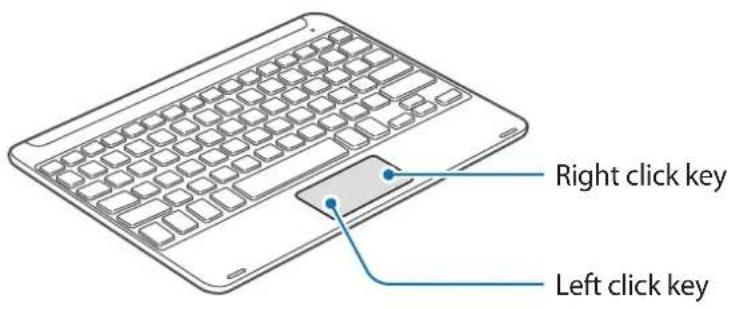
- Drag your finger on the touchpad to move the mouse pointer. To adjust the mouse speed, go to the connected device. Then, tap Apps Settings Language and input Pointer speed and drag the bar to the left or right.
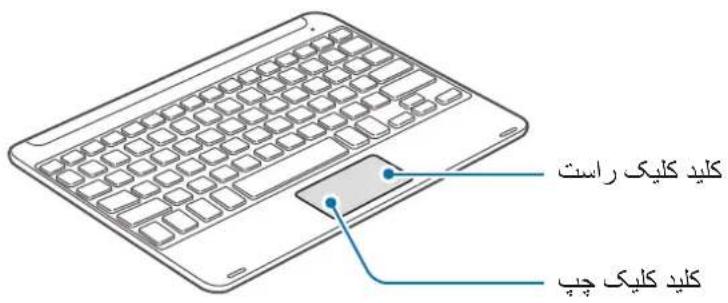
- Place the mouse pointer over an item and tap the touchpad, or press the left click key, to open or launch the item.
- Place the mouse pointer over an item, double-tap and hold the touchpad, and then drag the item to a new location. You can also press and hold the left click key and then drag another finger on the touchpad.
- Press the right click key to return to the previous screen.
- Press and hold the right click key to access additional options for the current screen.

This feature may not work while using some apps.
Using the cover
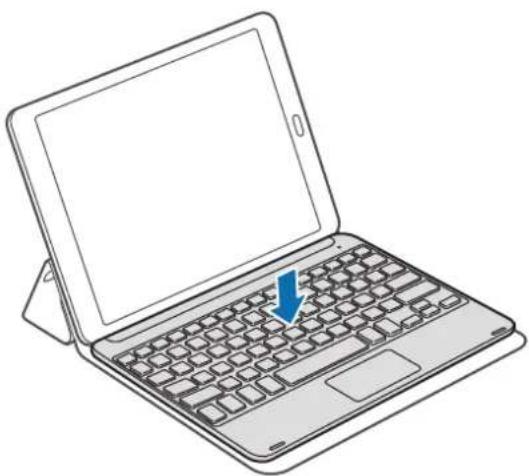
Attach the cover to your tablet and use it as a stand.
1 Open the cover.
2 Align and connect the cover's push clips to the push clips on the back of your tablet.
3 Fold the back of the cover into a triangular shape. Then, stand the tablet in landscape orientation.
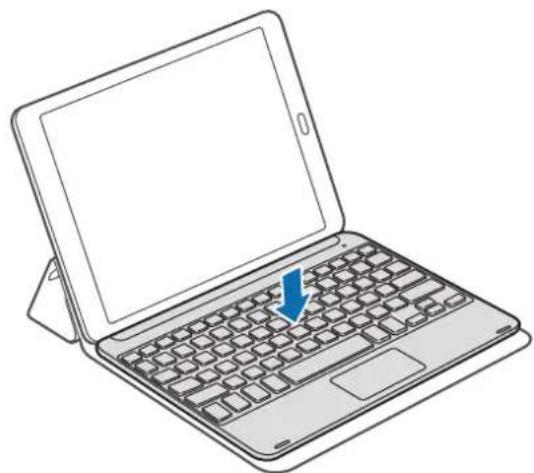
4 Place the keyboard on the front of the cover as shown in the image.
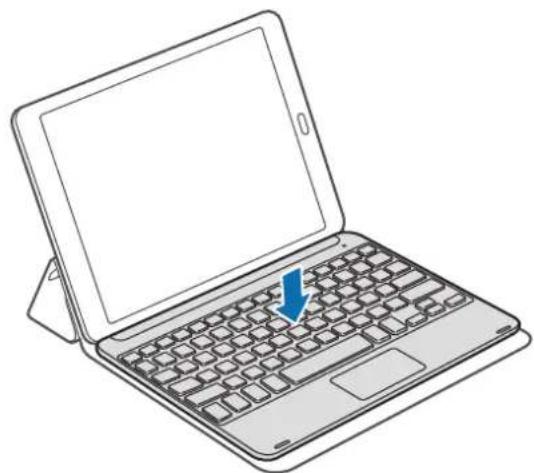

- When you close the cover while the keyboard is placed on it, the Bluetooth connection between the devices will end.
- Make sure to detach the cover and the keyboard from the tablet before using apps that require the gyroscope sensor, such as the map and compass. Gyroscope-related functions may not work properly due to the magnets embedded in the cover and the keyboard.
To detach the cover from the tablet, pull the cover away from the tablet while holding the tablet. Make sure to completely detach the push clips from each other.

Detaching the cover improperly may cause damage to the tablet or the cover.
Appendix
Troubleshooting
Before contacting a Samsung Service Centre, please attempt the following solutions. Some situations may not apply to your keyboard.
Your keyboard does not turn on
When the battery is completely discharged, your keyboard will not turn on. Charge the battery completely before turning on the keyboard.
Your keyboard does not work
If the keyboard does not work properly, try to resolve it by turning off the keyboard and then turning it on again.
If the keyboard is still unresponsive, end the Bluetooth connection and reconnect it. To do this, press the key (F11 or F12) for approximately three seconds. When the keyboard enters Bluetooth pairing mode, connect the devices again, and then check the operation of the keyboard.
If the problem is still not resolved, contact a Samsung Service Centre.
The battery does not charge properly (For Samsung-approved USB cables and chargers)
Ensure that the USB cable or the charger is connected properly.
If the problem is still not resolved, contact a Samsung Service Centre.
Another Bluetooth device cannot locate your keyboard
- Ensure that your keyboard is in Bluetooth pairing mode.
- Restart your keyboard and search for the keyboard again.
- Ensure that your keyboard and the other Bluetooth device are within the Bluetooth connection range (10 m).
If the tips above do not solve the problem, contact a Samsung Service Centre.
Your keyboard is not connected to another Bluetooth device
- Ensure that your keyboard and the other Bluetooth device are within the maximum Bluetooth range (10 m).
- On the device you want to connect with, disconnect all paired devices and try to connect again.
Bluetooth connection is often disconnected
- If there are obstacles between the devices, the operating distance may be reduced.
- Ensure that your keyboard and the other Bluetooth device are within the maximum Bluetooth range (10 m).
- When using the keyboard with other Bluetooth devices, the connection may be affected by electromagnetic waves. Use the keyboard in environments with fewer wireless devices present.
The keyboard works differently as described in the manual
Available functions may differ depending on the connected device.
The battery depletes faster than when first purchased
- When you expose the keyboard or the battery to very cold or very hot temperatures, the useful charge may be reduced.
- The battery is consumable and the useful charge will get shorter over time.
Removing the battery
- To remove the battery, you must visit an authorised service centre with the provided instructions.
- For your safety, you must not attempt to remove the battery. If the battery is not properly removed, it may lead to damage to the battery and device, cause personal injury, and/or result in the device being unsafe.
- Samsung does not accept liability for any damage or loss (whether in contract or tort, including negligence) which may arise from failure to precisely follow these warnings and instructions, other than death or personal injury caused by Samsung's negligence.
1 Turn the keyboard over and remove four rubber feet.
2 Loosen and remove the four screws.
3 Use a flat-edged tool between the keyboard and back cover to pry them apart.
4 Gently lever the battery away from the main body of the unit.
5 Use a nipper to cut the connections between the battery and the circuit board.

Do not short-circuit the keyboard by cutting the black and red wires at the same time. Doing so may cause electric shock or fire, or the battery may malfunction or explode.
Copyright
Copyright © 2015 Samsung Electronics
This manual is protected under international copyright laws.
No part of this manual may be reproduced, distributed, translated, or transmitted in any form or by any means, electronic or mechanical, including photocopying, recording, or storing in any information storage and retrieval system, without the prior written permission of Samsung Electronics.
Trademarks
SAMSUNG and the SAMSUNG logo are registered trademarks of Samsung Electronics.
- Bluetooth® is a registered trademark of Bluetooth SIG, Inc. worldwide.
- All other trademarks and copyrights are the property of their respective owners.
Blackbushe Business Park D'APPOSITION DU
Saxony Way, Yateley, Hampshire MARQUAGE CE: 2015)
GU46 6GG, UK
shldodoy
Copyright © 2015 Samsung Electronics
Copyright © 2015 Samsung Electronics
Blackbushe Business Park INIZIARE AD APPORRE
Saxony Way, Yateley, Hampshire LA MARCATURA CE 2015)
GU46 6GG, UK
Copyright © 2015 Samsung Electronics
Copyright © 2015 Samsung Electronics
Copyright © 2015 Samsung Electronics
Copyright © 2015 Samsung Electronics
Blackbushe Business Park APLICARE MARCA
Saxony Way, Yateley, Hampshire CE 2015)
GU46 6GG, UK
shldodoy
21 mai 2015 Stephen Colclough / Reprezentant UE
(Locali data eliberarii) (Numele si semnatura personei autorizate)
KnaBnataTypa
KpaTko pBKOBOCTBO

- EnemHTte n HaJIuHInTe npHaIeXHOCTn, DOCTaBeHN C yCTPOIcTBOTo, MoKe da ce pa3JIuHaBt B 3aBNCIMOcT OT perNoHa IIN DoCTaBUnKa Ha ycIyrN.
- Доставец са пedingаизуши само за TOBA усточь може на He ссвмостимс дугусточь.
BbHnHnT Bn n CneuNkauNTe ca npedMeHa npomHa 6e3 npdun3BeCTne. - MojkeTe Da 3aKyNITe DoIbHHTeHNn AkceCoapn OT BaIINaMeCTeH npOdaBaH Na Samsung. IpeDN 3aKyIyBaHc Ce yBepTe, Ye Te Ca CbBMeCTUMn CyCTPOJCTBOTO.
I3no3BaTe cmo oO6peHn ot Samsung akcecoapn. I3no3BaHeTo Ha HeoO6peHn akcecoapn MOKe Ja npuHH npo6JIemC npou3BOJNTeHOCCTTa n Heu3PpABHOCTN, KOHTo He ce NOKpNBaT OT rapaHcUraTa.
HaHnUHOCTTa Ha BCnKn akcecoapn nOJIeKn Ha npOMaHa 3aBNCUMoCT OT npOn3BOJNTeJIte. 3a NOBeue INHΦOpMaζηr 3a HaIINuHHTe akcecoapn ce o6bPHeTe KbM ye6 caɪTa Ha Samsung.
Copyright © 2015 Samsung Electronics
ToBa pBkoBOdCTBO e 3aUHTeHO OT MeKdyHapOHN 3aKOHN 3a ABTOpCKn npaba.
HnKoAactOT pBKOBOCTBOTO He MoKe da 6bJe Bb3POn3BExJaHa, pa3npocTaPaHbHa, npeBeXdaHa
III npexBbPraHa NOk KaBATO I Da e oopMa IIIN IO KaKbBTO I Da e NaUnH, eNeKTpOHeH IIIN
MexAHueH, B TOBa YncNo oToKOpNipaHe, 3aIc NII CNbXpaHeHne B KaKbATO I Da e CnCTema 3a
IHOpMaunHO cBxaHeHne IN 3BnuHahe, 6e3 npedBapntelHoto pa3peSeHne Ha Samsung
Electronics.
TbproBckn Mapkn
SAMSUNG n noroto Ha SAMSUNG ca perncptpupaH TbproBckn Mapkn Ha Samsung Electronics.
- Bluetooth® e périçtrpùpaHa TbproBcka Mapka Ha Bluetooth SIG, Inc. 3a ÇeɪnəcBЯT.
- Bcnyn npytn Tbprobckn Mapkn n aBTopckn npaba ca co6ctbeHOCT Ha CbOTBeHTHe IM co6ctBeHnCn.
Najprije pročitajte
Pije uporabe uredaja pažljivo procitajte ovaj prisucnik kako bist esigurali sigurnu i pravilnu uporabu.
Veze putem Bluetooth
Bluetooth
Blackbushe Business Park STAVLJANJA
Saxony Way, Yateley, Hampshire CE OZNAKA 2015.)
GU46 6GG, UK
Copyright © 2015 Samsung Electronics
Ovaj je prisucnik zasticen medunarodnim zakonima o zastiti autorskih prava.
Niti jegan dio ovog prisučnika ne smije se reproducirati, distribuirati, prevoditi ili prenositi u bilokojem obliku, ni na koji način, elektronici ili mehanički, ukljućujuci fotokopiranje, snimanje ili pohranjivanje na bilo kojem mediju za pohranu informacije i sustavu dohvata podataka, bez prethodnog pisanog dopusteŋa Samsung Electronicsa.
Zašitni znakovi
Copyright © 2015 Samsung Electronics
Ovaj prisucnik je zasticen medunarodnim zakonima o autorskim pravima.
Nijedan deo ovog prisučnika se ne sme reprodukovati, distribuirati, prevoditi niti prenositi ni u Jednom obliku niti bilo kojim putem, elektronskim niti mehaničkim, što podrazumeva fotokopiranje, snimanje i skladistenje u okviru bilo kog skladišta informacija i sistemas za preuzimanje, bez prethodne dozvole kompanije „Samsung Electronics" u pisanom obliku.
Trgovačke marke
- SAMSUNG i SAMSUNG logotip su registrovane trgovache marke kompanije „Samsung Electronics".
- Bluetooth® je registrovana trgovačka marka kompanije Bluetooth SIG, Inc. širom sveta.
Sve ostale trgovačke marke i autorska prava su vlasništro njihovih vlasnika.
Leia primeiro
Copyright © 2015 Samsung Electronics
Blackbushe Business Park AFIKS
Saxony Way, Yateley, Hampshire CE-MARGISTUS 2015)
GU46 6GG, UK
- mai 2015. a Stephen Colclough / EL-i volinik
Copyright © 2015 Samsung Electronics
Blackbushe Business Park CE-MARKERING 2015
Saxony Way, Yateley, Hampshire MOET WORDEN TOEGEVOEGD)
GU46 6GG, UK
Shelodogh
Copyright © 2015 Samsung Electronics
Copyright © 2015 Samsung Electronics
Blackbushe Business Park DET TILFOYES
Saxony Way, Yateley, Hampshire CE-MERKING 2015)
GU46 6GG, UK
- mai 2015 Stephen Colclough / EU-representant
Copyright © 2015 Samsung Electronics
Blackbushe Business Park LIITTÄMISEN
Saxony Way, Yateley, Hampshire ALKAMISVUOSI 2015)
GU46 6GG, UK
Copyright © 2015 Samsung Electronics
Blackbushe Business Park PABEGYNDELSE
Saxony Way, Yateley, Hampshire AF CE-MERKNING 2015)
GU46 6GG, UK
- maj 2015 Stephen Colclough / EU-repraesentant
Blackbushe Business Park ENIKOANH∑TH∑
Saxony Way, Yateley, Hampshire ENIISHMANSHCE 2015)
GU46 6GG, UK
21 Máioc 2015 Stephen Colclough / Avtínpóωπος E.E.
(ToioC kai nepounvia ekdooc) (Ovoa kai unoypapn Eouoiodotnevou atou)
- Autév éivai n dieuθuvon tou Kévtpou επιοkeuwν tnc Samsung. Tia πλnpoopiec oxetiká με tn dieuθuvon n to tηλέφωνo tou Kévtpou επιοkeuwν tnc Samsung, δεITE tvv kαρτa εγγύŋç n επιοivωνnote με to εμπopiko katáσtnμa ano to onio aγopáσate to npoiov.
Samsung Electronics EANAAE
AOHNA:
TMHMA EYINHPETHZH NEAATON SAMSUNG:
Blackbushe Business Park 2015 SE JE ZACELO
Saxony Way, Yateley, Hampshire OZNAÇEVAÑJE Z OZNAKO CE)
GU46 6GG, UK
Telif hakki © 2015 Samsung Electronics
J 1 J 1 J 1 J 1 J 1 J 1 J 1 J 1 J 1 J 1 J 1 J 1 J 1 J 1 J 1 J 1 J 1 J 1 J 1 J 1 J 1 J 1 J 1 J 1 J 1 J 1 J 1 J 1

s
Crl 1
| العربية | |
| الجَن · | %. 4. 31. 45 |
| الجَن · | %. 4. 31. 45 |
| الجَن · | %. 9. 31. 45 |
15 4
1
olj jolai 45 jilj jay g la jia jia jia jia jia jia jia jia jia jia jia jia jia jia jia jia jia jia jia jia jia jia jia jia jia jia jia jia jia jia jia jia jia jia jia jia jia jia jia jia jia jia jia jia jia jia jia jia jia jia j

i
2021 2021
| الله��فَسُّهِي | الله��فَسُّهِي |
| الله��فَسُّهِي مَلْدُ بَرْنَةِ | الله��فَسُّهِي |
| الله��فَسُّهِي مَلْدُ بَرْنَةِ | الله��فَسُّهِي |
| الله��فَسُّهِي مَلْدُ بَرْنَةِ | الله��fَسُّهِي |
| الله��fَسُّهِي مَلْدُ bَرْنَةِ | الله��fَسُّهِي |
| الله��fَسُّهِي مَلْدُ bَرْنَةِ | الله��fَسُّهِي |
| الله��fَسُّهِي مَلْdُ bَرْنَةِ | الله��fَسُّهِي |
| الله��fَسُّهِي مَلْdُ bَرْnَةِ | الله��fَسُّهِي |
| الله��fَسُّهِي مَلْdُ bَرْnَteِ | الله��fَسُّهِي |
| الله��fَسُّهِي مَلْdُ bَرْnَteِ | الله��fَسُّهِي |
| الله��fَسُّهِي مَلْdُ bَرْnَteِ | الله��fَسُّهِي |
| الله�� fَسُّهِي | الله��fَسُّهِي |
.

.15 JAc Cgaiio j 1j
#
#
#
J 1 J 1 J 1 J 1 J 1 J 1 J 1 J 1 J 1 J 1 J 1 J 1 J 1 J 1 J 1 J 1 J 1 J 1 J 1 J 1 J 1 J 1 J 1 J 1 J 1 J 1 J 1 J 1 J 1 J 1 J 1 J 1 J 1 J 1 J
oluiu Juaai
(F12 F11)
g 2jgl jw jla
1 1
15 aao jolai
1
i 1

15 15

15 10
J 1 J
| . JIJI KIJI KIJI KIJI KIJI KIJI KIJI KIJI KIJI KIJI KIJI KIJI KIJI KIJI KIJI KIJI KIJI KIJI KIJI KIJI KIJI KIJI KIJI KIJI KIJI KIJI KIJI KIJI KIJI KIJI KIJI KIJI KIJI KIJI KIT JIKI KIJI KIJI KIJI KIJI KIJI KIJI KIJI KIJI KIJI KIJI KIJI KIJI KIJI KIJI KIJI KIJI KIJI KIJI KIJI KIJI KIJI KIJI KIJI KIJI KIJI KIJI KIJI KIJI KIJI KIJI KIJI KIJI KIJI JIKI KIJI KIJI KIJI KIJI KIJI KIJI KIJI KIJI KIJI KIJI KIJI KIJI KIJI KIJI KIJI KIJI KIJI KIJI KIJI KIJI KIJI KIJI KIJI KIJI KIJI KIJI KIJI KIJI KIJI KIJI KIJI KIJS JIKI KIJI KIJI KIJI KIJI KIJI KIJI KIJI KIJI KIJI KIJI KIJI KIJI KIJI KIJI KIJI KIJI KIJI KIJI KIJI KIJI KIJI KIJI KIJI KIJI KIJI KIJI KIJI KIJI KIJI KIJI KIJI KIJ JIKI KIJI KIJI KIJI KIJI KIJI KIJI KIJI KIJI KIJI KIJI KIJI KIJI KIJI KIJI KIJI KIJI KIJI KIJI KIJI KIJI KIJI KIJI KIJI KIJI KIJI KIJI KIJI KIJI KIJI KIJI KIJI KIJP JIKI KIJI KIJI KIJI KIJI KIJI KIJI KIJI KIJI KIJI KIJI KIJI KIJI KIJI KIJI KIJI KIJI KIJI KIJI KIJI KIJI KIJI KIJI KIJI KIJI KIJI KIJI KIJI KIJI KIJI KIJI KIJI KIJC JIKI KIJI KIJI KIJI KIJI KIJI KIJI KIJI KIJI KIJI KIJI KIJI KIJI KIJI KIJI KIJI KIJI KIJI KIJI KIJI KIJI KIJI KIJI KIJI KIJI KIJI KIJI KIJI KIJI KIJI KIJI KIJI KIJO JIKI KIJI KIJI KIJI KIJI KIJI KIJI KIJI KIJI KIJI KIJI KIJI KIJI KIJI KIJI KIJI KIJI KIJI KIJI KIJI KIJI KIJI KIJI KIJI KIJI KIJI KIJI KIJI KIJI KIJI KIJI KIJI KIJK JIKI KIJI KIJI KIJI KIJI KIJI KIJI KIJI KIJI KIJI KIJI KIJI KIJI KIJI KIJI KIJI KIJI KIJI KIJI KIJI KIJI KIJI KIJI KIJI KIJI KIJI KIJI KIJI KIJI KIJI KIJI KIJI KIJJ JIKI KIJI KIJI KIJI KIJI KIJI KIJI KIJI KIJI KIJI KIJI KIJI KIJI KIJI KIJI KIJI KIJI KIJI KIJI KIJI KIJI KIJI KIJI KIJI KIJI KIJI KIJI KIJI KIJI KIJI KIJI KIJI KIJD JIKI KIJI KIJI KIJI KIJI KIJI KIJI KIJI KIJI KIJI KIJI KIJI KIJI KIJI KIJI KIJI KIJI KIJI KIJI KIJI KIJI KIJI KIJI KIJI KIJI KIJI KIJI KIJI KIJI KIJI KIJI KIJI KIJE JIKI KIJI KIJI KIJI KIJI KIJI KIJI KIJI KIJI KIJI KIJI KIJI KIJI KIJI KIJI KIJI KIJI KIJI KIJI KIJI KIJI KIJI KIJI KIJI KIJI KIJI KIJI KIJI KIJI KIJI KIJI KIJI KI JIKI KIJI KIJI KIJI KIJI KIJI KIJI KIJI KIJI KIJI KIJI KIJI KIJI KIJI KIJI KIJI KIJI KIJI KIJI KIJI KIJI KIJI KIJI KIJI KIJI KIJI KIJI KIJI KIJI KIJI KIJI KIJI KIWI JIKI KIJI KIJI KIJI KIJI KIJI KIJI KIJI KIJI KIJI KIJI KIJI KIJI KIJI KIJI KIJI KIJI KIJI KIJI KIJI KIJI KIJI KIJI KIJI KIJI KIJI KIJI KIJI KIJI KIJI KIJI KIJI KI |
| .السلامي بعسّة صحيى لجِبْهُ بعسَة بِيرِلِي · . .دَرْبُورَة : ▲ Fn - .دَرْبُورَة : ▼ Fn - .دَرْبُورَة بعسَة بِيرِلِي بعسَة بِيرِلِي : ▲ Fn - .دَرْبُورَة بعسَة بِيرِلِي بعسَة بِيرِلِي : ▲ Fn - |
J 1 J 1 J 1 J 1 J 1 J 1 J 1 J 1 J 1 J 1 J 1 J 1
a 1
J 1 J 1
.
j5 10 j j j j j j j j j j j j

J 1
1
1
J 1
1
1
10

2g 1
.
1
125 1j 105
2 1

J 1 J
JGAA Jaua Ia 15
1
1J 1
S OBC = S AOB + S_ BOC
iis jis 1
J 1
它恰好 x,y 且 1.5 < y_0 < 2
15
(12 F11)
1 1
J 1
uusususususususususususususususususususususususususususususususususususususususus
(
. USB
J 1
15 15
.
1 1
()
.
.
Jaaia 8g jgglb Jaaa a laa 4
()gjglg jgldgolgglgglgglg
.
115 20
它恰好 x,y ≥ 0 ,且 y ≥ 0
Jg
1
Copyright © 2015 Samsung Electronics
.
Samsung Electronics j 1j 0j 0j 0j 0j 0j 0j 0j 0j 0j 0j 0j 0j 0j 0j 0j 0j 0j 0j 0j 0j 0j 0j 0j 0j 0j 0j
J 14 j j j j j j j j j j j j j j j j j j
sJgsl
Samsung Electronics
Bluetooth SIG, Inc.
.
KlaBnataTypa
KpaTKoe pyKOBOCTBO

KoMnIeKT nOCTaBKn i Ha6Op DoCTyHbIX aKceccyapOB MOryt pa3NnUaTbcra B pa3HbIX perNoHax I ONpeDJIeIOTc r NocTaBUnKOM ycnyr.
- IocTabIaEmbIe akceccyapbl npedHa3HaueHbI NCKIIOHTeNbHO dJa daHHoro yCTPOiCTBa mOryT 6bITb HecOBMeCTMbI c DpyrIMN yCTPOiCTBaMn.
BHeHn BnI3eNn I TexHnueckne XapaKTePncTnK MoYr 6bITb N3MeHeHbI 6e3 npEdBaPnteHoro yBeDOMJeHn.
-Дононгельнгьаakceccyapbl moxknO npno6peCTn y MeCThblx dInlepoB KOMnaHnSamsung.пeped nokynkO y6eNTecb,yTO OHN COBMcTnMbIC BaUIM YCTPOINCTBOM.
- Пименяп Te Tolyko akceccyapbl, pekomehdoBaHHbIe KOMnHaHnei Samsung. Испльзоване HepekomehdOBAHHbIX akceccyapOB MoKET npuBecTи K npo6JIeMaMВ pa6Ote n c6oM, Ha KOToPbIe He pacnpocTpHaReTcra rapaHTnIa.
- Доступноctь лioбых akceccуapob цeиkom И понoctью 3aBnCIT OT поиЗБODHTeЯ. Довлптельные сбeteгия о достуньх akceccyapax cm. на Be6-caite Samsung.
BHeHnBn yCTpoIcTba
3apяdka aKKymyTopa
Ipeed nepBbIM nCnOJIb3OBaHHeM KlaBnaTpybl NIIIN NOcne npoJOnKHTeHbHO nepNoDa, B TeueHne KOtOporo OHa He NCnOJIb3OBaJAcB, Heo6XoJMo 3apAaNTb aKKyMylAToP.

IcnoJIb3yIe ToIbKO aKKymJrTOpbl, 3apdHbIe yCTpoiCTBa n Ka6JI, Odo6peHHbIe KOMnHaHne Samsung. IcnoJIb3OBAHHe HecOBMeCtMbIX 3apdHbIX yCTpoiCTB n Ka6eJe MoKet npNBecTI K B3pblBy aKKymJrTOpa nII NIOBpeXdeHIO KlaBnAtypbl.

Pn noHno pa3pIKe aKKymyIToPA BkIIOHTb KnaBnAtpy cpa3y nocne noKIOUeHnK 3apAnHomy yCTpoIcTBy HeBO3MOxHO. YTO6bI BkIOHTb KnaBnAtpy, cJeNyET noIOXdaTb HeCKoIbKO MInHyT, NOKa aKKymyIaTOp HEMHOrO 3apIITcR.
IopknIOUHTe KJIaBnATpy K 3apAHOmy yCTpoiCTBY.

HenpaBnIbHOe NOKluyeHne 3apJNHO yCTpoiCTBa MoKeT npUBeCTu K cepbe3HOMy NOBpeKdEHHIO BaWe KlaBnaTypb. IapaHTn He paCnpOcTpaHreTc H NaIO6bIe NOBpeXdEHn, BO3NHkUHe B pe3yIbTaTe HENpaBnIbHOro NcNoJIb3OBAHHy UCTpoiCTBa n AkceccyapOB.

3apnHbIy yCTpoiCTBa He BXOaT B KOMPJIeKT NOCTaBKn.
Bo Bpem 3apdKn aKKymyIaTopa MoXHo NOnb30BaTbcKnabNaTypoH, Ho 3TO 3ameJnE npOeCC 3apdKn.
Bo Bpem 3apnKn KnaBnAtpa MoKeT HarpBaTbCra. To HopMaIbHoe AblneHne, He BlnoOee Ha npOn3BODntelbHocTb n cpoK cnJxkbI KnaBnAtpybl. Ecnn AkkymyIaTOp Harpeetc 6oJIbWe o6bUHoro, ceTeBOe 3apnHOe yCTpoNCTBO MoKeT PpeKpaTITb CBOIO pa60ty.
- Ecln KlaBnaTypa He 3apJkaetc, o6paTntecb B cepBncbI ueHtp Samsung.
IIO OKOHuaHn 3apAKn OTKnIOuHTe KlaBnaTpy O T apAHO rCTBa.

B ueJx 3KOHOMn 3JIeKTPo3Heprnn OTKIIouaIte cTeBoe 3apJdHoe yCTpoiCTBO,ecN OHO He nCnoJIb3yETc. CTeBoe 3apJdHoe yCTpoiCTBO He OChaIeHo nepeKJIouaTeIeM NITAHIN, IO3TOMy erO HuxHO OTKIOUaTb OT 3JIeKTPuuecko p03eTKI, YTO6bl IpePbaT b IPOceCC 3apJdKN I C3KOHOMtB 3JIeKTPo3Heprnn. Ppr INcNoJIb3OBAHN cTeBoe 3apJdHoe yCTpoiCTBO DOJXHO PIIOTHO pInJeRaTb K 3JIeKTPuuecko po3eTke N 6bItb IeKo DoCTynHbIM.
Поберka coctoHna akKymyIaTopa
Haxmte u yepknaTe KnaBnuy Ctrl B TeueHne Tpex cekynd. HndkaTOp ybeomneu TprxkbI MnrHET pa3hblMN UBeTaM N 3aBNCMOCTN OT COCTOHN 3apdKn aKKymyJTopa.
INHnKaTOp yBeDOMJIeHN COO6aET O COCTOHN KJabNaTypbl.
KlaBnaTypa He BkIouaETc
Klabnataype He BkIouHTc, ecnn aKKymyIaTOp nonHoctbio pa3pJxKeH. 3apAInTe aKKymyIaTOp nepei BkIouHeHem KlaBnaTpybl.
KlaBnaTypa He pa6oTaet
Ecn knabnaTpy He pa6oTaET nAdIeXaUm o6pa3OM, IJIpeuHnI np6nembl nonpo6ynte BbIKIOHTb KnaBnaTpy IN BKIOHTb ee CHOBA.
Ecn knabnata He pearnpyet Ha deiCTBn, 3aBepuTe noKluoyene nO Bluetooth n noKnouHTe ee noBtopno. Ira 3toro haxmnte KnaBnuy (F11 nn F12) u ydepXnBaIte ee B teueHne Tpex cekynd. Ecn knabnatapeienet B pexim copjxehnno Bluetooth, noBtopno yctahOBnTe noKnioyeHne Mexdy yCTpoiCTBaMn n npobepbTe, pa6oTaET nn KnaBnata.
Ecnn HeonlaKa He yctpaHeHa, o6paTntecb B cepBncbI ueHtp Samsung.
AkkymyIaTOP He 3apjkaeTcra (pnp nCnoJIb3OBAHn Odo6peHHbIX Ka6eJIe USB n 3apJdNbIX yCTpoiCTB Samsung)
Y6eIITecb, yTO Ka6eJIb USB nll 3apAHOe ycTPOiCTBO NOKIOUOHeB1 npaBnIbHO.
Ecnn HeNoJaKa He yctpaHeHa, o6patntecb B cepBncbI ueHtp Samsung.
© Samsung Electronics, 2015.
Ipeq nepuim BnKOpNCTaHnM KnaBiaTyPn nOtpi6Ho 3apAaHTn aKymyTAp, a TaKoX JaKIO BOHa He BnKOpNCTOBvBaJACr IpOTaROM TpNBaIoro Yacy.

BnKOpNCTOBuIe Iiue 3apAHi npNcTpoi, akymyIaTopn i Ka6eni, peKoMeHIOBaHI KOMNaHicIO Samsung. BnKOpNCTAHH HepeKoMeHDoBAHnx 3apAHHx npNcTpoIB a60 Ka6eJIb MoKe npN3BeCTn Do BV6Uxy AkymyIaTopa YI NOsKOJXeHHaKlaBiaTypn.

JaKIO aKymyIaTOp NOBHeCTO PO3PraJKeHNI, DnRA BBIMKHeHHN KnaBiaTypn iICnIiKnIoueHHa 3apAHO rnpCTPOO 3HaIo6bTcBcN neBHN qac. Nepu HIX II BMNKATN, 3aueKaTe deKINbKa XBNH, DOKN aKymyIaTOp TPOXN 3apAaNTbcN.
Пикlioчыknabiaotypуdo3apdHOro npictpoi.

HenpaBnIbHe nikKIOueHn 3apdHOro npcTpoO MOKe npu3BeCTn Do cepNo3HOro
noSKoJKeHHn KlaiaTypn. IapaHTi He nouNpIOeTbcra Ha noSKoJKeHHn npcTpoU,
cnpuHHeHi HenpaBnIbHM BkOpNCtAHNM.

3apnI npntpoI He BXOaTb B KOMJIeKT NOCTaBKn.
- Пд часзарджени Клабiaтур мохна Використовыт,在аеВ takomy pa3i akymлгетор зарджатиметьс довш.
-Пдчсзарджени Клбота може harpibatnc.ЛeHopmaьн He BnIBa€ Ha po60Tu
ЧИ Терmin сныжи Клботур.Якsoakymлгop harpibaetbcra cnlbHiwe HIX 3BuaHOb,
Зарджени 3a ДОПOMOrIo 3apdHorO npicToPo MOже prpinHHTncr.
- YKsqo KnaBiaTypa He 3apAJaTaHaJeXHm HAnEeHnM YInHom, 3BepHiTbCra Do cepBicHoro ceHTpy Samsung.
Picna nobHoro 3apJxKeHHaKymyIaTopa BiE'EnHaIe 3apJHn npIcTpiB iD KlaBiaTyPi.

Дя 3aoцаджehня ekeTpoeheprii Bi'd'EDHyIe 3apRdHn npicpti, kso npicpti He BVKOpNCTOBvETbcra. Kaio Ha 3apRdHomy npicctpoi HemaK KHOKN JxNBHeHH, Ioro cnid BInMaTn 3 ekeTpnuHoi po3eTK, KOIN BIn He BVKOpNCTOBvETbcra, dJa 3aozadJxehnreEkeTpoeheprii.Пд чac 3apRdJxehnha 3apRdHn npicctpiMaE qinbHo npinraTn do rhi3da Ta 6ytn nerko doCTynHM.
IpeBipka cTaHy 3apJxKeHnA kymyITopa
HaTnCHiB i yTpmyIte KnaBiIy Ctrl npotrarom npu6n3Ho 3 cekyHd. IndkaTOp cnoBiuHHe Tpnui 6IImHe pi3HmK KOJIbOpAMN 3aJIeXHO BiD CTaHy 3apJxKeHHaKMyIaTopa.
| С发布时间 | • Доступness |
| Мени 30% | • Рер党支部 |
| 30-60% | • Ковский |
| Б二十年 60% | • Зеленny |
YbIMKHeHЯ Ta BmKHeHЯ KlaBiaTpyn
3cYbTe BIMnKaU XINBHeHHa, 06 yBIMKHyTu a6o BIMKHyTu KlaBiaTpy.

IOTpmyntecb ycix nonepedxkeHb i Bka3iBOK nepcohany B micyx, de obmxeHo BNkOpnCTaHH 6e3npoBOOBoX npncTpoIB, HanpNKnaD y litaKax i IikapHx.
KlaBiaTypa He BMnKa€TbCra
Якwo akymyntop nobHicTIO po3prJxehn, knaiaTypa He yBIMKHeTbCra. NobHicTIO 3apRiTb aKymyIaTOp, nepw hIX yBIMKHyTu KnaiaTypy.
KlaBiaTypa He npaioe
Kkso KlaiaTypa He npaioe HalexHm YINOM, DnBnpiweHH npo6nem Cnpo6yTe BIMKHyTn KlaiaTypy Ta BBimKHyTn ii 3HOBy.
Kkso KnaiaTypa Bce ue He pearye Ha dii 3 Heo, 3abepwiTb niknoueHnn 3a donomoro Ju Bluetooth i nd KluuTb ii NOBTOPO. Dnla cboRo HATNCHiTb i ytpmUyTe Knaibuy (F11 a6o F12) npotraom npn6n3HO 3 cekynd. Kaio dny KnaiaTypn 3anyucho pexm 3'edHaHH 3a donomoro Ju Bluetooth, NOBTOPO BCTAHOBiTb nd KluuHHe Mx npncToPMn Ta nepeBipTe, nn npauoE KnaiaTypa.
Якwo npo6nemy He Bdaetbca ycyhTu, 3BepHitbcra do cepBicHoro ueHtpy Samsung.
AkymyIaTOp He 3apJxkaEbCra HaJeXHm YInHom (Ja Ka6eJIb USB i 3apJHnX pIncTpoiB, peKoMeHDoBaHnx KOMnaHiEIO Samsung)
IpekeKaHaTeCe, 0 Ka6eJIb USB a6o 3apAHy npucTpi nikHoueHo HaneKHM qHOM.
JaKIO npo6IeMy He Bdaetbca yCyHyTu, 3BepHiTbc4 do cepBicHoro ueHTpy Samsung.
Bupi6:KnabiaTypa Bluetooth
MOnenb(-i):EJ-FT810

Blackbushe Business Park PIK OTPMAMHH
Saxony Way, Yateley, Hampshire MAPKYBAHHA CE: 2015)
GU46 6GG, UK
21 TpabHЯ 2015 p. Stephen Colclough / Ппсдтавик EC
(mucTe Ta daTa Bnuaui) (im'ra Ta niinnc ynoBHOaKeHoOc6n)
- Ze He apeca cepbichoro uehtpy Samsung. AApecy abo TelefoHHn Homep cepbichoro uehtpy Samsung moxha 3HaHTB rapaHTiHOMy TaIOnHi. 3BepHITbcr TaKoJdo npOdaBua BInpo6y.
Abtopcbke npaBO
Samsung Electronics, 2015
Ley nociHK KopnctyBaHa 3axuheo 3rIHO 3 MIXHapOnHMn 3aKOHAMn 0do ABTOPCbKnX npab.
3a6opoheno BiTbOpOBaTu, po3noBcOJkyBaTu, nepeKnaIaTu a6o nepeDaBaTu B 6ydb-akii fOpMi a6o 6yb-kaIMN 3ac06aMn, eJeKTpoHHmN a6o MexaHicNHmN, BKIOUHO i3 KcepOKoIIOBaHHM,
3aHcYBaHHa 36epirAHnHa 6ydb-akomy npncTrooi dIra 36epiraHnaHx uB iHOpMaiziHO- noUykoBicuCTeMi, KoHy qacTInHy cboRo noci6Hnka 6e3 nonepedhboro rncbMOBoro do3BOny KompaHii Samsung Electronics.
Tobaphi 3HaKn
- SAMSUNG i norotin SAMSUNG € 3apeectrobaHIMN TOBAPHIMN 3HaKaAMN KOMnaii Samsung Electronics.
- Bluetooth® € 3apeectpoBaHIM TOBAPHIM 3HaKOM KOMnaii Bluetooth SIG, Inc. Bycby My cBiTi.
- Yci iHsi TOBapHi 3HaKn i ABTOPcbKi npaba HaLeXkaTb BiIDIOBIDHM BlaChHKaM.
АлдыIMен MeHi OKbl
Kayinci3 api dypbic naaalaHy ywiH kypbilfbihbl naaalaH6ac 6ypbIH OcbI HcKaybIKTbI OKbIN WblfbHbI3.
CypetepdiH cbiptkbl typi haKtbi eHimHeH epeKweJeHyi MymKiH. Ma3myn aIdbH aIaeceptyci3 03reptinyi MymKiH.
- PerheTaKaTaNAMSGALGYTabS2KypbIbIMeH Kocy ywiH OHtaNHaHBipBlnfAn XaHe 6acaKa KypbIbIbApMeH YJIecIMdi eMec. NepHeTaKaTaNbI SAMSUNG Galaxy Tab S2 KypbIbICbIHAn 6acaKa KypbIbIbApMeH KocyaH 6ypbIH OJap NepHeTaKaTAmEH YJIecIMdi EkeHIne K03 XeTKi3iH3.
Hycayb6eIriwelep

Eckepty: 3iHizn HeMece 6aKaIapdbH XapaKaT aIybiHa eKeyi MymKiH KaFdaJap

A6aIaHbI3: KypblfblHbI HeMece 6aca Xa6dbkTbI 3akbldaybl MymkiH XaFdaIap

Eckepim: eckepTuJIep, naДaIaNy TpyaJIbI KeHecTeP HEmeC KocbIMwa aKnapaT
KymbICTbi 6actay
Opama Kypambl
BaKa Kypblfbl TaHdaIraH NepHere (F11 Hemece F12) TipKeJei XaHe KocblbIM opHaTbIlaDbI.

- Bluetooth Kocblmbi cTci3 aKtaIca Hemece ekHwi Kypblfbi nepHeTaKaTahbI aHbIKaI aImaca, ekHwi KypblfbiHbIH ti3iMHeH KypblfbiHbIH aKnapaTbIH XOHybIbI. CodaH Kein Kocblny apekeTIH KaITalaHbI3.
- Erep nepheTaKaTaNpybIC Kymblc icTeMece, KaTaNcKocblHbI3 Hemece Kypblfblapbl Jyntactbipy apekeTIh TaBb KaNtalaHbI3.
IepHeTaKaTa KəHe PlaHwET apacbIHda KxPTAcTbIpydbI KaTAdaH opHaTy ywiH KypblfbiHbIH KaTAt KxPTAcTbIpybl YwiH aIdbIHfbl KxPTAcTbIpyIapDbIH TapNXbIH Ta3apTy KepeK
1 Bluetooth məzipiHde KyncbI3aHbIpy OIuIcBt TaHdaHbI3. CoaH KeiH, KytTactbIpFah KypblfblHbI XOIO yUH F11 nepheCIn IaMaMeH 3 cekyHd (XapbIK dIOd XblbIKTaFaHwa deiH) 6acblbI3.
2 Bluetooth nepheTaKaTacbH eWipiHi3.
3 Bluetooth nepHeTaK TaBn KaTaN KaTaN KocBnB3 XaHe F12 nepHecin 6acbIn Typy apKbbln nepHeTaKaTbHbI XyNTAcTbPy peXMMHe aybICTbIPbIHbI3.
4 ПланшетпнBluetooth мэзірін каразиьгьь, садан Кірьгььтабу ёа He OныменЖПТбудь opHaTy yшн Samsung Tab S2 KeyboardTaHdaHbI3.
BipHeWe KypbIaFbIMeH KyPTaCTbIPy
Eki Bluetooth-Kocblfah Kypblffa DeiH XyntactbipbIb3 XaHe nepheTaKaMeH Xyntactbipblfah Kypblfblap apacblHaftb KocblbIMapdbOHaayblCTbIPbHb3.
KocbIMwa KypblfblMeH KynTactbipy
1 NepheTaKaTahbI Kypblfba Bluetooth apKblbI XyntactbipbHb3 XaHaHb3.
2 Bluetooth kytactbipy peximine kipy ywiH aIdbihfbl Kypblfblhbl Tipkey ywiH KOJaHa6aHaN nepheciH (F11 Hemece F12) wamameh yw cekyHdTan 6acbln typbHb3.
IepHeTaMeH aIbIHfbl Kocblfah Kypblfbl apacblHaftbl 6aJIaHbIC aKaTalaDbI.
3 NepheTaKaTahbI KocbIMwa KypblfbiHa KaIfay ywiH aIdbIHfbi KypblfbiHbI XaIfay ywiH KoJaHbIHaH 6ipdeN KocblbIM ic pacimH opbHaB13.
KocbIbIMdapdbiayblcTbipy
NepheciH (F11 HeMece F12) 6acbHbI3.
Erep nepheTaF11 nepheine TipkeIreh afbIMdaIbI Kypblfba XaIraHraH 6oIca, oHaT tipkeIreH Kypblfba aYbICy ywiH F12 nepheci 6acbiB3.
Erep nepheTaF12 nepheCine tipkeIreH aFBIMdaFbIKypbilfbifa XaJFaHfah 6oJca, oHaH tipkeIreH Kypblfbfa aybicy ywiH F11 nepheCih 6acbHb3.

ByI MymKInDik KytTactbipbIfa Kypblfba 6aJIaHbictbI KOJI XeTIIdi 6oJMaBly MymKiH.
EkHsi KypblfblbI KaIta Kocy Hemece aKbipaty
KypbIfblHbi KaTaNocy
NepheTa Ka KpbIbIbIap apacBHaBka KaBbIKbIKKa 6aJbIbICTbl Kocblfah KpbIbIdaH axbipatbIcA, KpbIbIbIapdbI 6ip 6ipiHe XaKbIHdaTbHb3. OdaH KeiH, KpbIbIbIapdbI KaITa Kocyfa axbipatbIbFAn KpbIbIFbHbI tipkey ywiH NepheciH (F11 HeMece F12) 6acblb3. Ra 6oImaca, KpbIbIbIapDbI Kocy ywiH axbipatbIbFAn KpbIbIFbIdaFbl Bluetooth m3ipin naJaIaHyFa 6oJaBl.
KypblfblHbI aXkbIpaTy
Nepheci (F11 Hemece F12) Wamameh yw cekyHdTai 6acbI IN TypbIHbI3. AfbIMdafti KocblbIM aKaTalaBxHe nepHeTaKaTl Bluetooth kYPTactbipy pexmIhe eTeidi.
CoHdai-aK, KocblbIMdbI nepHeTaKaTahbl eWipy apkblb aayTayfa 6oJaDbI. NepHeTaKaTahbl KaTAt KockaHda JAnHe Kypblfblap aykbimda 6oJFaHda nepHeTaKaTata KaKbIHda JaHaHFAH Kypblfbla ABTomaTTb Tpyde KocblalabI.
PepHeTaKaTbI3 KocblMaIbI
BatapeHbIH KyaTbI ToJIkTa TayCbIHaH Ke3De, nepHeTaKaTt KoCblMaTbIH 6OlaDbI.
NepheTaKaTbHb KocydbH aNbBHa 6aTapeaHbToIbK Ta3apAaTaHb3.
NepheTaKtahbI3 Kymblc icTeMeiDi
Erep nepheTaAtpbic icTeMece, MHybl nepheTaKaTahbl eWipy, coaH KeiH KaTadaH Kocy apKblbl uewin KepiH3.
NepheTaKaTaNi KAYAN 6ePMe JKAtCa, Bluetooth KocblbIMbIH aKTA, KaTaN KocblbI3. MyHbI opBnDay yuH NepHeCIN (F11 HeMece F12) WAMaMeH YU CEkyHdTa BacblbI3. NepHeTaKaTa Bluetooth xynTay pexmIne KipreHDe KypblfblapdbI KaTaN H KocblbI3, codAH KeiH nepHeTaKaTahBnH XyMbICbIH TeKcepH3.
ErepakaybIK aJI de ueiIme Xatca, Samsung cepBnc opTaIbIFbHa xa6aplaCbHb3.
Blackbushe Business Park KAJIFAY KOCY
Saxony Way, Yateley, Hampshire BACTAJFAH XblI - 2015)
GU46 6GG, UK
21 Mambip 2015 x.
Stephen Colclough / EO ekiji
(6epiIreH opHbXkHe KyHi)
(ekIeTTyJFaHbIH aTbI-JXHMeH KOJItaH6acbl)
* ByI Samsung Kbi3Met optaIbIbIH MekeH-xaIbI 6oIbI Ta6bImaIbI. Samsung Kbi3Met optaIbIbIH MekeH-xaIBH HeMece TelefoH Hemipih Ta6y yuH KeiIqik KapTaCbIH KapaHbI HeMece TelefoHbIHbIcBtI catbI anfah catyuBImeXa6aplaCbiHBi3.
EAC
ABTOPbIK KyKbIK
Copyright © 2015 Samsung Electronics
Bny HcyckaybIK XaIbIKapaIbIK aBTOPbIK KkybIKTap TpaIbI 3aHapMeH KopfaiHaH.
Samsung Electronics KOMnHaHcBbH, aIbH aIa Xa36aHa pyKcTaHcB13, 6yI HycKaYbIKbH e6ip 6eJIirH Ke3 KeIreH TypDe Hemece Ke3 KeIreH aDic, 3JeKtpoHdbIK, Hemece MexaHnKaIbIK, coBH, iwiHde, fotoKeWipy, Xa3y Hemece Ke3 KeIreH aKnapaTbIK KOImada XaHe IbIfapBIn any JxynecHnde caTay apKbIbI KWeipyre, TapaTyfa, aydapyfA Hemece TaCbIMaJdAyfA 6OImaNDbI.
Cayda 6eIrilepi
SAMSUNG XaHe SAMSUNG Iorotnpi — Samsung Electronics KOMnaHnrcbInh, tipKeIreH cayda 6eIriepi.
- Bluetooth® — Bluetooth SIG koprnapauncbln anemderi tipkejre h cayda 6enrici.
- BapIbIK 6acKa cayda 6eIriIepi XaHe aBTOpIbIK KYKbIKTap caKeC NeJIepiHi, MeHwiRi 6oIbIn Ta6blnAdbI.
Read me first
Please read this manual before using the device to ensure safe and proper use.
- Images may differ in appearance from the actual product. Content is subject to change without prior notice.
- The keyboard is optimized to connect with the SAMSUNG Galaxy Tab S2 and may not be compatible with other devices. Before connecting the keyboard with devices other than the SAMSUNG Galaxy Tab S2, make sure they are compatible with the keyboard.
Instructional icons

Warning: situations that could cause injury to yourself or others

Caution: situations that could cause damage to your device or other equipment

Notice: notes, usage tips, or additional information
Getting started
Package contents
Check the product box for the following items:
- Keyboard
Quick start guide

- The items supplied with the device and any available accessories may vary depending on the region or service provider.
- The supplied items are designed only for this device and may not be compatible with other devices.
- Appearances and specifications are subject to change without prior notice.
- You can purchase additional accessories from your local Samsung retailer. Make sure they are compatible with the device before purchase.
- Use only Samsung-approved accessories. Using unapproved accessories may cause the performance problems and malfunctions that are not covered by the warranty.
- Availability of all accessories is subject to change depending entirely on manufacturing companies. For more information about available accessories, refer to the Samsung website.
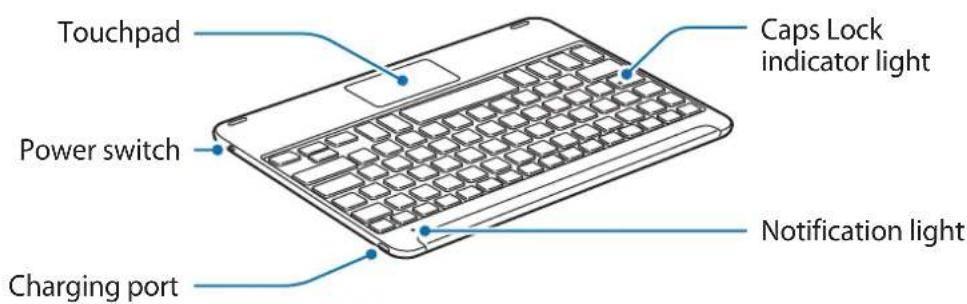
Device layout
Charging the battery
Charge the battery before using the keyboard for the first time or when the keyboard has been unused for extended periods.

Use only Samsung-approved chargers, batteries, and cables. Unapproved chargers or cables can cause the battery to explode or damage the keyboard.

If the battery is completely discharged, the keyboard cannot be turned on immediately when the charger is connected. Allow a depleted battery to charge for a few minutes before turning on the keyboard.
Connect the keyboard to a charger.
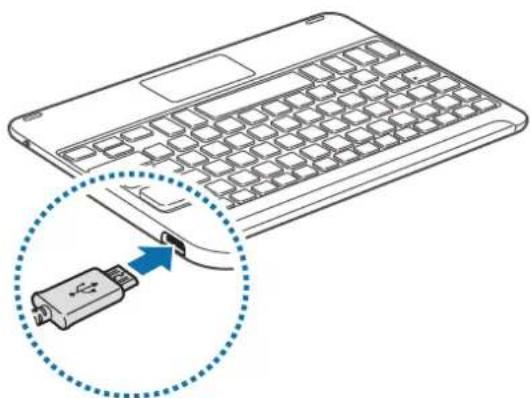

Connecting the charger improperly may cause serious damage to the keyboard. Any damage caused by misuse is not covered by the warranty.

- Chargers are sold separately.
- The keyboard can be used while it is charging, but it may take longer to fully charge the battery.
- While charging, the keyboard may heat up. This is normal and should not affect the keyboard's lifespan or performance. If the battery gets hotter than usual, the charger may stop charging.
- If the keyboard is not charging properly, take the keyboard to a Samsung Service Center.
After fully charging, disconnect the keyboard from the charger.

To save energy, unplug the charger when not in use. The charger does not have a power switch, so you must unplug the charger from the electric socket when not in use to avoid wasting power. The charger should remain close to the electric socket and easily accessible while charging.
Checking the battery charging status
Press and hold the Ctrl key for approximately three seconds. The notification light will flash three times in different colors depending on the charging status.
| Status Color | |
| Less than 30% | • Red |
| 30–60% | • Yellow |
| More than 60% | • Green |
Turning the keyboard on and off
Slide the Power switch to turn on or off the keyboard.
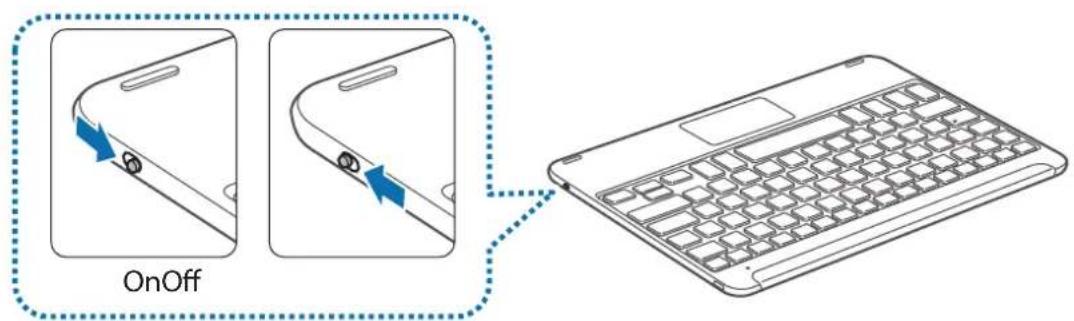

Follow all posted warnings and directions from authorized personnel in areas where the use of wireless devices is restricted, such as airplanes and hospitals.
Notification light identification
The notification light alerts you to the keyboard's status.
| Status Color | |
| Power on | • Flashes blue three times |
| Power off | • Flashes red three times |
| Bluetooth pairing mode | • Flashes red, green, and then blue |
| Connected via Bluetooth | • F11 key: Quickly flashes blue three times, and then flashes blue three times • F12 key: Quickly flashes white three times, and then flashes white three times |
| During use or in Sleep mode | • Off |

- If the notification light does not work as described, disconnect the charger from the keyboard and reconnect it.
- The notification light may work differently depending on the connected device.
Bluetooth connections
Bluetooth
About Bluetooth
Bluetooth is a wireless technology standard that uses a 2.4 GHz frequency to connect to various devices over short distances. It can connect and exchange data with other Bluetooth enabled devices, such as mobile devices, computers, printers, and other digital home appliances, without connecting via cables.
Notices for using Bluetooth
- To avoid problems when connecting your keyboard to another device, place the devices close to each other.
- Ensure that your keyboard and the other Bluetooth device are within the Bluetooth connection range (10 m). The distance may vary depending on the environment the devices are used in.
- Ensure that there are no obstacles between the keyboard and a connected device, including human bodies, walls, corners, or fences.
- Do not touch the Bluetooth antenna of a connected device.
- Bluetooth uses the same frequency as some industrial, scientific, medical, and low power products and interference may occur when making connections near these types of products.
- Some devices, especially those that are not tested or approved by the Bluetooth SIG, may be incompatible with the keyboard.
- Do not use the Bluetooth feature for illegal purposes (for example, pirating copies of files or illegally tapping communications for commercial purposes).
Connecting devices via Bluetooth
This keyboard is optimized to connect with the SAMSUNG Galaxy Tab S2. When connecting to devices other than the SAMSUNG Galaxy Tab S2, the keyboard may not work properly or some of its features may not be available.
1 Keyboard Slide the Power switch to turn on the keyboard.
2 Keyboard Press and hold the key ( F11 or F12) for approximately three seconds to enter Bluetooth pairing mode.
The notification light will flash red, green, and blue.
When you turn on the keyboard for the first time, it automatically enters Bluetooth pairing mode.
3 Other device Activate the Bluetooth feature and search for Bluetooth devices.
For more information, refer to the other device's user manual.
4 Other device Tap Samsung Tab S2 Keyboardfrom the list of available devices.
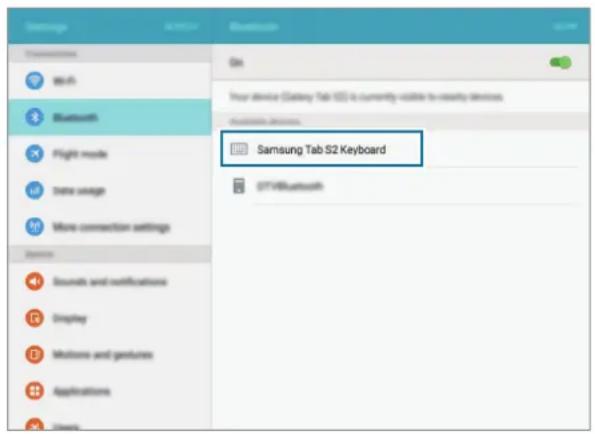
5 Keyboard Enter the passkey displayed on your other device's screen and press the Enter key.
The other device will be registered to the selected × key (F11 or F12) and the connection will be made.

- If the Bluetooth connection fails or the other device cannot locate the keyboard, remove the device's information from the other device's list. Then, try to connect again.
- If the keyboard does not work properly, restart it or try to pair the devices again.
When re-pairing your device, previous pairing history will need to be cleared in order to pair the keyboard and tablet again
From tablet Bluetooth menu, select the Unpair option. Then, press the F11 key for about 3 seconds (until the LED starts blinking) to delete the paired device first.
2 Turn off the Bluetooth keyboard.
3 Turn on the Bluetooth keyboard again and set the keyboard to pairing mode by pressing and holding the F12 key.
4 Scan through tablet Bluetooth menu, then select the Samsung Tab S2 Keyboard in order to find and pair the device.
Pairing with multiple devices
Pair with up to two Bluetooth-enabled devices and easily switch connections between the keyboard and the paired devices.
Pairing with an additional device
1 Pair and connect the keyboard to a device via Bluetooth.
2 Press and hold the key ( F11 or F12) that you did not use to register the previous device for approximately three seconds to enter Bluetooth pairing mode.
The connection between the keyboard and the previously connected device will end.
3 Follow the same connection procedure used for connecting the previous device to connect the keyboard to an additional device.
Switching connections
Press the key (F11 or F12).
If the keyboard is currently connected to the device registered to the F11 key, press the F12 key to switch to the device registered to it.
If the keyboard is currently connected to the device registered to the F12 key, press the F11 key to switch to the device registered to it.

This feature may not be available depending on the paired device.
Reconnecting or disconnecting from another device
Reconnecting the device
When your keyboard is disconnected from the connected device due to the distance between the devices, bring the devices closer together. Then, press the key (F11 or F12) that the disconnected device is registered to in order to reconnect the devices. Or, you can use the Bluetooth menu on the disconnected device to connect the devices.
Disconnecting the device
Press and hold the key ( F11 or F12) for approximately three seconds. The current connection will end and the keyboard will enter Bluetooth pairing mode.
You can also end the connection by turning off the keyboard. When you turn on the keyboard again and the devices are in range, the keyboard automatically connects with the most recently connected device.
Using the keyboard
Using keyboard features

The device contains magnets. The American Heart Association (US) and the Medicines and Healthcare Products Regulatory Agency (UK) both warn that magnets can affect the operation of implanted pacemakers, cardioverters, defibrillators, insulin pumps or other electro medical devices (collectively, "Medical Device") within the range of 15cm (6 inches). If you are a user of any of these Medical Devices, DO NOT USE THIS DEVICE UNLESS YOU HAVE CONSULTED WITH YOUR PHYSICIAN.

Do not store your device near magnetic fields. Magnetic stripe cards, including credit cards, phone cards, passbooks, and boarding passes, may be damaged by magnetic fields.
Using the keyboard
Before using the keyboard, select a display language on the connected device. For more information about language settings, refer to the user manual of the connected device.
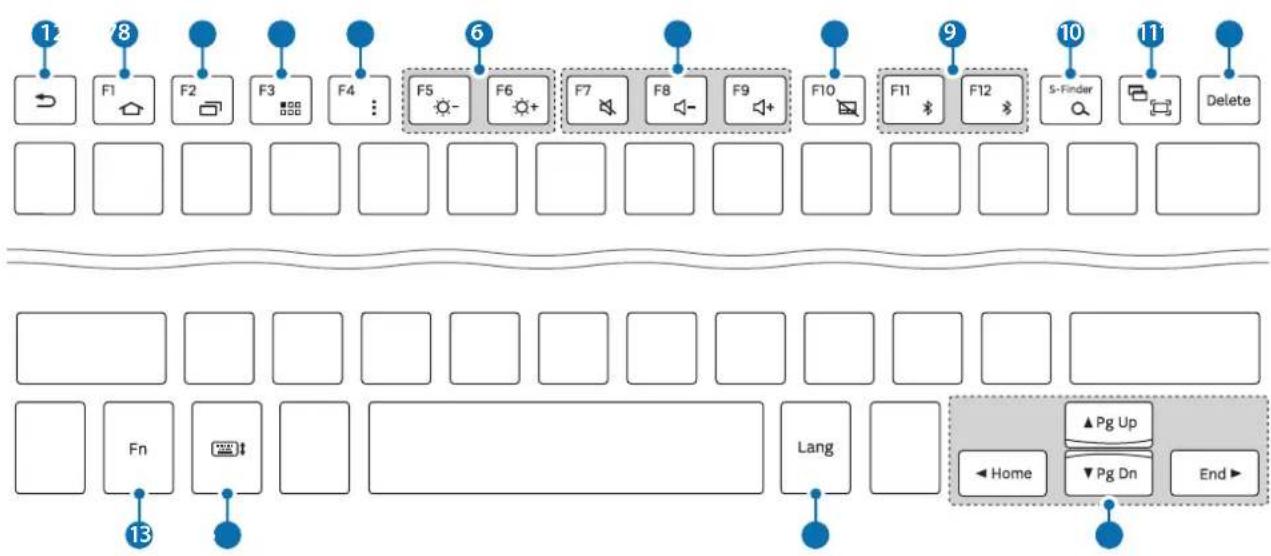
| Key Function | |
| 1 | • Press to return to the previous screen. • Press and hold to access additional options for the current screen. |
| 2 | • Press to return to the Home screen. • Press and hold to launch Google. |
| 3 | • Press to open the list of recent apps. • Press and hold to launch the split screen view. |
| 4 | • Press to open the Apps screen. |
| 5 | • Press to access additional options for the current screen. • Press and hold to launch S Finder. |
| 6 | • Press to adjust the brightness. |
| 7 | • Press to adjust the volume. |
| 8 | • Press to enable or disable the touchpad. |
| 9 | • Press to switch connections between the keyboard and the paired devices. • Press and hold to enter Bluetooth pairing mode. |
| 10 | • Press to launch Google. • Press with the Frey to launch S Finder. |
| 11 | • Press to capture a screenshot. • Press with the Frey to launch the split screen view. |
| 12 | • Press to delete characters following the cursor. |
| 13 | • Press with other keys to perform additional actions. |
| 14 | • Press to show or hide the keyboard on the touchscreen. |
| 15 | • Press to change the input language. |
| 16 | • Press to move the cursor or page. Fn+▲Scroll up the page. Fn+▼Scroll down the page. Fn+→Move the cursor to the start of the current row. Fn+→Move the cursor to the end of the current row. |

Some key functions may not work properly depending on the connected device and the software version of the connected device. For more information about updating device software, refer to each device's user manual.
Using the touchpad
Control the screen of the connected device using the touchpad. You can perform various actions, such as moving the mouse pointer or selecting a desired item.
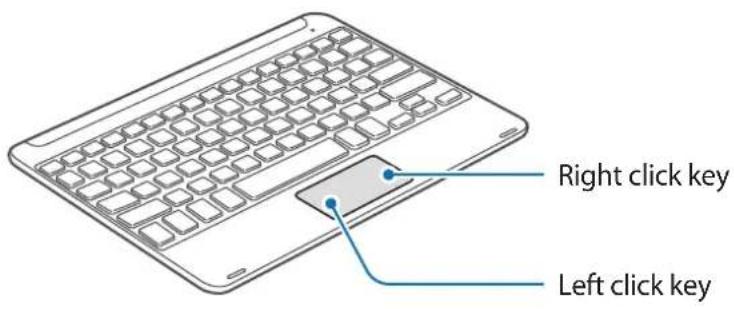
- Drag your finger on the touchpad to move the mouse pointer. To adjust the mouse speed, go to the connected device. Then, tap Apps Settings Language and input Pointer speed and drag the bar to the left or right.
- Place the mouse pointer over an item and tap the touchpad, or press the left click key, to open or launch the item.
- Place the mouse pointer over an item, double-tap and hold the touchpad, and then drag the item to a new location. You can also press and hold the left click key and then drag another finger on the touchpad.
- Press the right click key to return to the previous screen.
- Press and hold the right click key to access additional options for the current screen.

This feature may not work while using some apps.
Using the cover
Attach the cover to your tablet and use it as a stand.
1 Open the cover.
2 Align and connect the cover's push clips to the push clips on the back of your tablet.
3 Fold the back of the cover into a triangular shape. Then, stand the tablet in landscape orientation.
4 Place the keyboard on the front of the cover as shown in the image.

- When you close the cover while the keyboard is placed on it, the Bluetooth connection between the devices will end.
- Make sure to detach the cover and the keyboard from the tablet before using apps that require the gyroscope sensor, such as the map and compass. Gyroscope-related functions may not work properly due to the magnets embedded in the cover and the keyboard.
To detach the cover from the tablet, pull the cover away from the tablet while holding the tablet. Make sure to completely detach the push clips from each other.

Detaching the cover improperly may cause damage to the tablet or the cover.
Troubleshooting
Before contacting a Samsung Service Center, please attempt the following solutions. Some situations may not apply to your keyboard.
Your keyboard does not turn on
When the battery is completely discharged, your keyboard will not turn on. Charge the battery completely before turning on the keyboard.
Your keyboard does not work
If the keyboard does not work properly, try to resolve it by turning off the keyboard and then turning it on again.
If the keyboard is still unresponsive, end the Bluetooth connection and reconnect it. To do this, press the key (F11 or F12) for approximately three seconds. When the keyboard enters Bluetooth pairing mode, connect the devices again, and then check the operation of the keyboard.
If the problem is still not resolved, contact a Samsung Service Center.
The battery does not charge properly (For Samsung-approved USB cables and chargers)
Ensure that the USB cable or the charger is connected properly.
If the problem is still not resolved, contact a Samsung Service Center.
Another Bluetooth device cannot locate your keyboard
- Ensure that your keyboard is in Bluetooth pairing mode.
- Restart your keyboard and search for the keyboard again.
- Ensure that your keyboard and the other Bluetooth device are within the Bluetooth connection range (10 m).
If the tips above do not solve the problem, contact a Samsung Service Center.
Your keyboard is not connected to another Bluetooth device
- Ensure that your keyboard and the other Bluetooth device are within the maximum Bluetooth range (10 m).
- On the device you want to connect with, disconnect all paired devices and try to connect again.
Bluetooth connection is often disconnected
- If there are obstacles between the devices, the operating distance may be reduced.
- Ensure that your keyboard and the other Bluetooth device are within the maximum Bluetooth range (10 m).
- When using the keyboard with other Bluetooth devices, the connection may be affected by electromagnetic waves. Use the keyboard in environments with fewer wireless devices present.
The keyboard works differently as described in the manual
Available functions may differ depending on the connected device.
The battery depletes faster than when first purchased
- When you expose the keyboard or the battery to very cold or very hot temperatures, the useful charge may be reduced.
- The battery is consumable and the useful charge will get shorter over time.
Copyright
Copyright © 2015 Samsung Electronics
This manual is protected under international copyright laws.
No part of this manual may be reproduced, distributed, translated, or transmitted in any form or by any means, electronic or mechanical, including photocopying, recording, or storing in any information storage and retrieval system, without the prior written permission of Samsung Electronics.
Trademarks
SAMSUNG and the SAMSUNG logo are registered trademarks of Samsung Electronics.
- Bluetooth® is a registered trademark of Bluetooth SIG, Inc. worldwide.
- All other trademarks and copyrights are the property of their respective owners.
Copyright © 2015 Samsung Electronics
Copyright © 2015 Samsung Electronics
本手册受國際版權法保護。
© Samsung Electronics, 2015.
1 嵌臥捲斯能藥用依用者,賊和尅,贝,
2 基基基基基基基基基基基基基基基基基基基基基基基基基基基基基基基基基基基基基基基基基基基基基基基基基基基基基基基基基基基基基基基基基基基基基基基基基基基基基基基基基基基基基基基基基基基基基基基基基基基基基
3 越越越越越越越越越越越越越越越越越越越越越越越越越越越越越越越越越越越越越越越越
完结 走 进
F11 F12)
F11 kIe 3kIe 3kIe F12 kIe 3kIe F12 kIe 3kIe F12 kIe 3kIe F12 kIe 3kIe F12 kIe 3kIe F12 kIe 3kIe F12 kIe 3kIe F12 kIe 3kIe F12 kIe 3kIe F12 kII e F12 kII e F12 kII e F12 kII e F12 kII e F12 kII e F12 kII e F12 kII e F12 kII e F12 kII e F12 kII e F12 kII e F12 kII e F12 kII e F12 kII e F12 kII e F12 kII e F12

日部之能士,
新关联/关联处理
新
丛理的子,
対策は
F11 F12) 30n3.
재几乎所有
재几乎所有법


- Instructional icons
- Getting started
- Package contents
- Device layout
- Charging the battery
- Checking the battery charging status
- Turning the keyboard on and off
- Notification light identification
- Bluetooth connections
- Bluetooth
- About Bluetooth
- Notices for using Bluetooth
- Connecting devices via Bluetooth
- When re-pairing your device, previous pairing history will need to be cleared in order to pair the keyboard and tablet again
- Pairing with multiple devices
- Pairing with an additional device
- Switching connections
- Reconnecting or disconnecting from another device
- Reconnecting the device
- Disconnecting the device
- Using the keyboard
- Using keyboard features
- Using the touchpad
- Using the cover
- Appendix
- Troubleshooting
- Your keyboard does not turn on
- Your keyboard does not work
- The battery does not charge properly (For Samsung-approved USB cables and chargers)
- Another Bluetooth device cannot locate your keyboard
- Your keyboard is not connected to another Bluetooth device
- Bluetooth connection is often disconnected
- The keyboard works differently as described in the manual
- The battery depletes faster than when first purchased
- Removing the battery
- Copyright
- Trademarks
- TbproBckn Mapkn
- Najprije pročitajte
- Veze putem Bluetooth
- Zašitni znakovi
- Trgovačke marke
- Leia primeiro
- i
- #
- aao jolai
- 1
- Jaaia 8g jgglb Jaaa a laa 4
- Jg
- BHeHnBn yCTpoIcTba
- 3apяdka aKKymyTopa
- Поберka coctoHna akKymyIaTopa
- KlaBnaTypa He BkIouaETc
- KlaBnaTypa He pa6oTaet
- AkkymyIaTOP He 3apjkaeTcra (pnp nCnoJIb3OBAHn Odo6peHHbIX Ka6eJIe USB n 3apJdNbIX yCTpoiCTB Samsung)
- IpeBipka cTaHy 3apJxKeHnA kymyITopa
- YbIMKHeHЯ Ta BmKHeHЯ KlaBiaTpyn
- KlaBiaTypa He BMnKa€TbCra
- KlaBiaTypa He npaioe
- AkymyIaTOp He 3apJxkaEbCra HaJeXHm YInHom (Ja Ka6eJIb USB i 3apJHnX pIncTpoiB, peKoMeHDoBaHnx KOMnaHiEIO Samsung)
- Abtopcbke npaBO
- Tobaphi 3HaKn
- АлдыIMен MeHi OKbl
- Hycayb6eIriwelep
- KymbICTbi 6actay
- Opama Kypambl
- IepHeTaKaTa KəHe PlaHwET apacbIHda KxPTAcTbIpydbI KaTAdaH opHaTy ywiH KypblfbiHbIH KaTAt KxPTAcTbIpybl YwiH aIdbIHfbl KxPTAcTbIpyIapDbIH TapNXbIH Ta3apTy KepeK
- BipHeWe KypbIaFbIMeH KyPTaCTbIPy
- KocbIMwa KypblfblMeH KynTactbipy
- KocbIbIMdapdbiayblcTbipy
- EkHsi KypblfblbI KaIta Kocy Hemece aKbipaty
- KypbIfblHbi KaTaNocy
- KypblfblHbI aXkbIpaTy
- PepHeTaKaTbI3 KocblMaIbI
- NepheTaKtahbI3 Kymblc icTeMeiDi
- EAC
- ABTOPbIK KyKbIK
- Cayda 6eIrilepi
- Read me first
- 完结 走 进
- 新关联/关联处理
- 新
- 対策は
- 재几乎所有
- 재几乎所有법
Brand : SAMSUNG
Model : EJFT810UWE
Category : Keyboard