DeX Station EEMG950 - Cellphone SAMSUNG - Free user manual and instructions
Find the device manual for free DeX Station EEMG950 SAMSUNG in PDF.
 FR
FR
 BG
BG
 CS
CS
 DA
DA
 DE
DE
 EL
EL
 EN
EN
 ES
ES
 ET
ET
 FI
FI
 HU
HU
 IT
IT
 KK
KK
 KO
KO
 LT
LT
 LV
LV
 NL
NL
 NO
NO
 PL
PL
 PT
PT
 RO
RO
 RU
RU
 SK
SK
 SL
SL
 SV
SV
 TR
TR
 UK
UK
 ZH
ZH
Frequently Asked Questions - DeX Station EEMG950 SAMSUNG
User questions about DeX Station EEMG950 SAMSUNG
0 question about this device. Answer the ones you know or ask your own.
Ask a new question about this device
Download the instructions for your Cellphone in PDF format for free! Find your manual DeX Station EEMG950 - SAMSUNG and take your electronic device back in hand. On this page are published all the documents necessary for the use of your device. DeX Station EEMG950 by SAMSUNG.
USER MANUAL DeX Station EEMG950 SAMSUNG
Srpski English (USA)
Portugues Espanol (Castellano)
Latviešu 简体中文
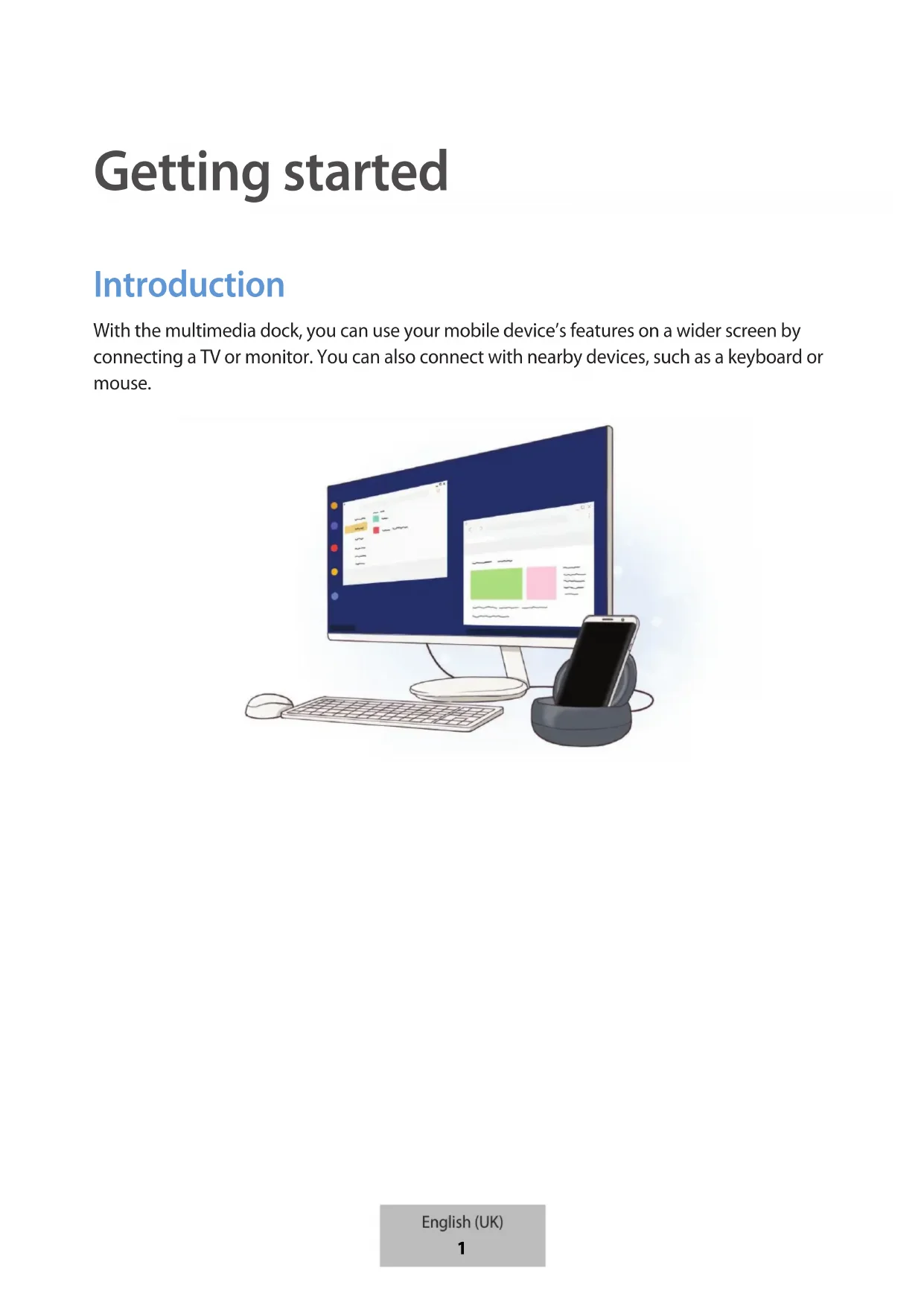
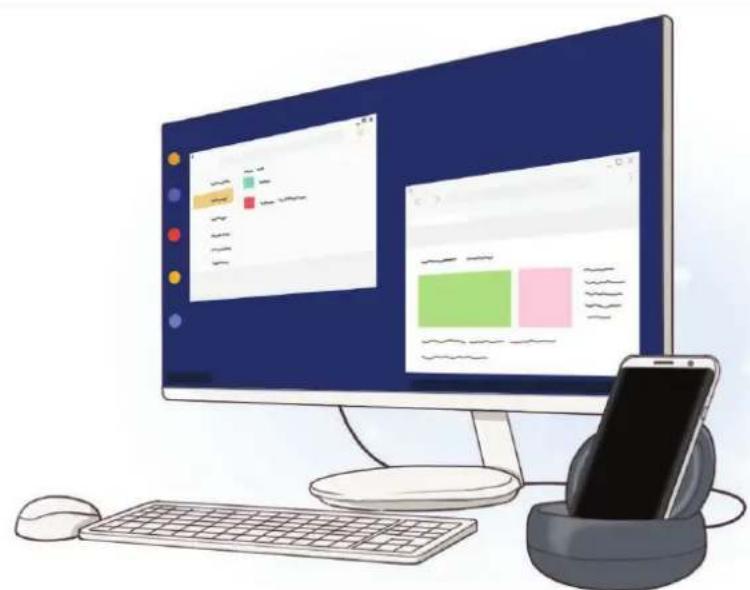
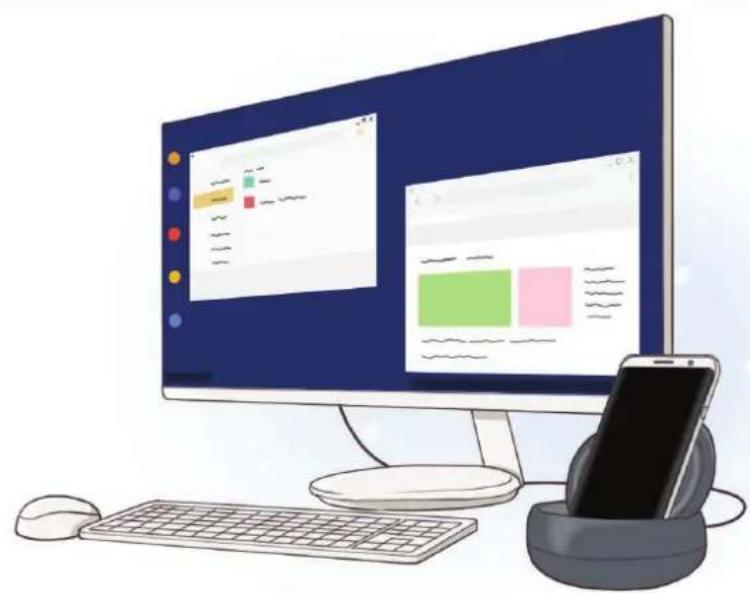
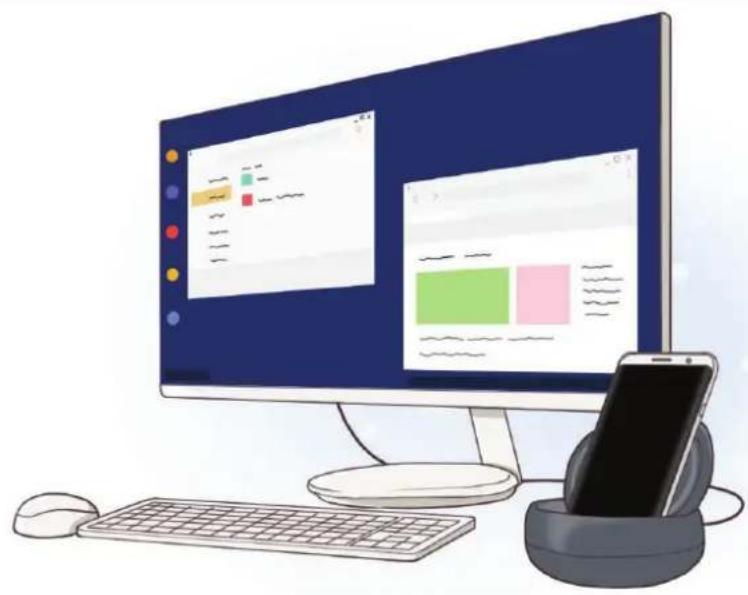
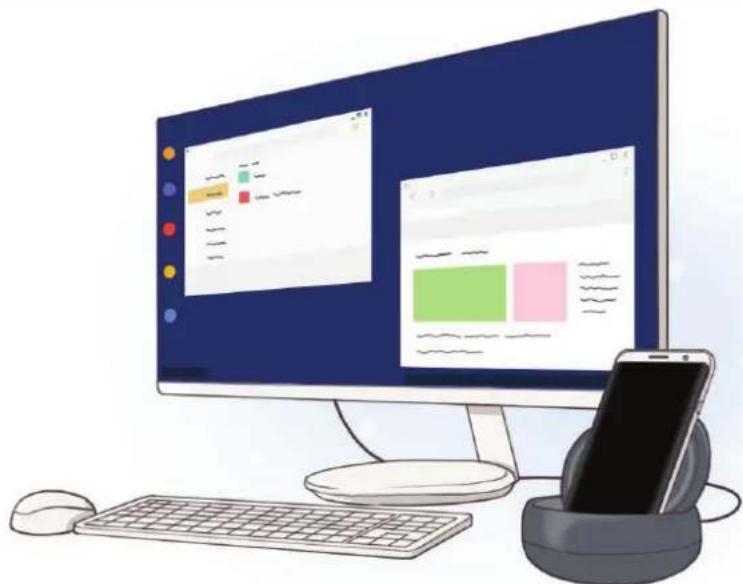
With the multimedia dock, you can use your mobile device's features on a wider screen by connecting a TV or monitor. You can also connect with nearby devices, such as a keyboard or mouse.
Read me first
Please read this manual before using the device to ensure safe and proper use.
- Images may differ in appearance from the actual product. Content is subject to change without prior notice.
- Before using the multimedia dock, make sure it is compatible with your device.
Instructional icons

Warning: situations that could cause injury to yourself or others

Caution: situations that could cause damage to your device or other equipment

Notice: notes, usage tips, or additional information
Package contents
Check the product box for the following items:
Multimedia dock
Quick start guide

- The items supplied with the device and any available accessories may vary depending on the region or service provider.
- The supplied items are designed only for this device and may not be compatible with other devices.
- Appearances and specifications are subject to change without prior notice.
- You can purchase additional accessories from your local Samsung retailer. Make sure they are compatible with the device before purchase.
- Use only Samsung-approved accessories. Using unapproved accessories may cause the performance problems and malfunctions that are not covered by the warranty.
- Availability of all accessories is subject to change depending entirely on manufacturing companies. For more information about available accessories, refer to the Samsung website.
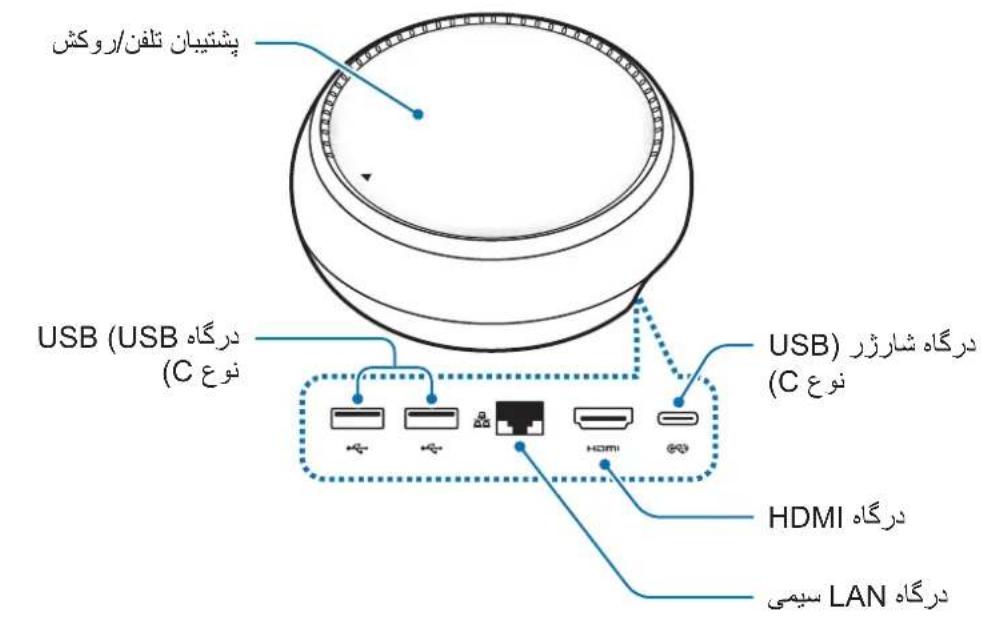
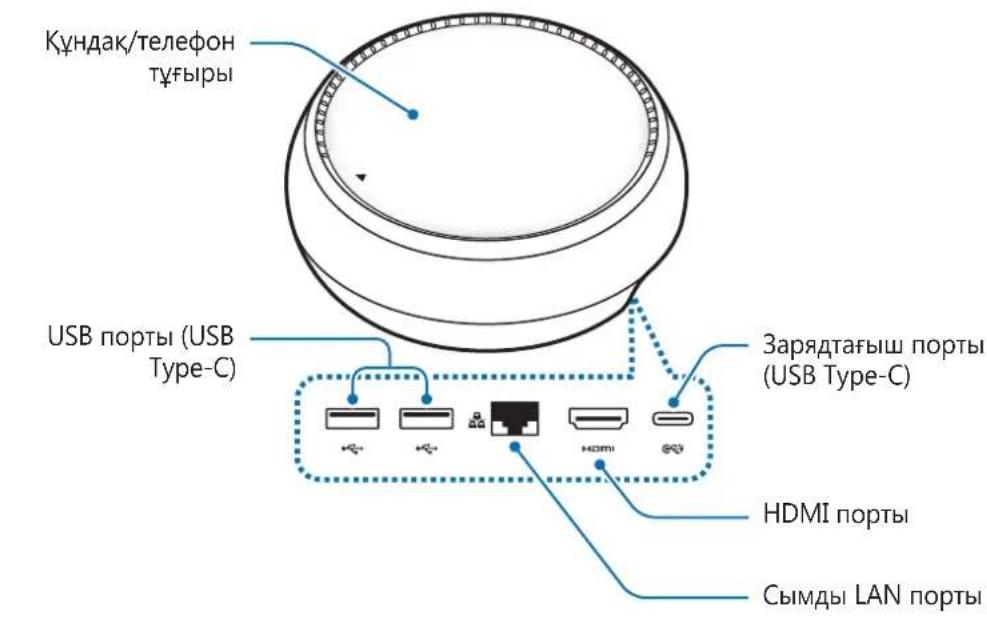
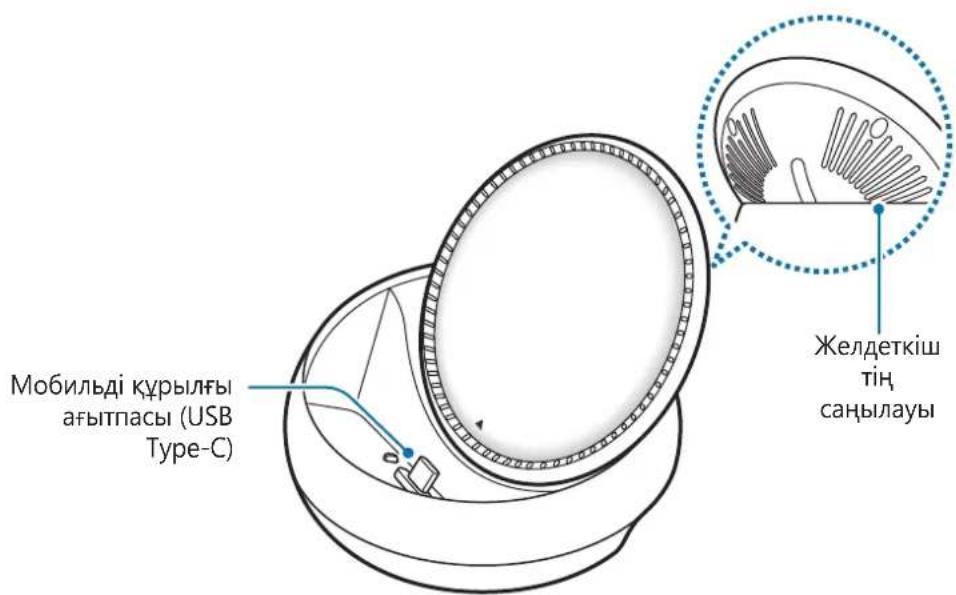
Device layout
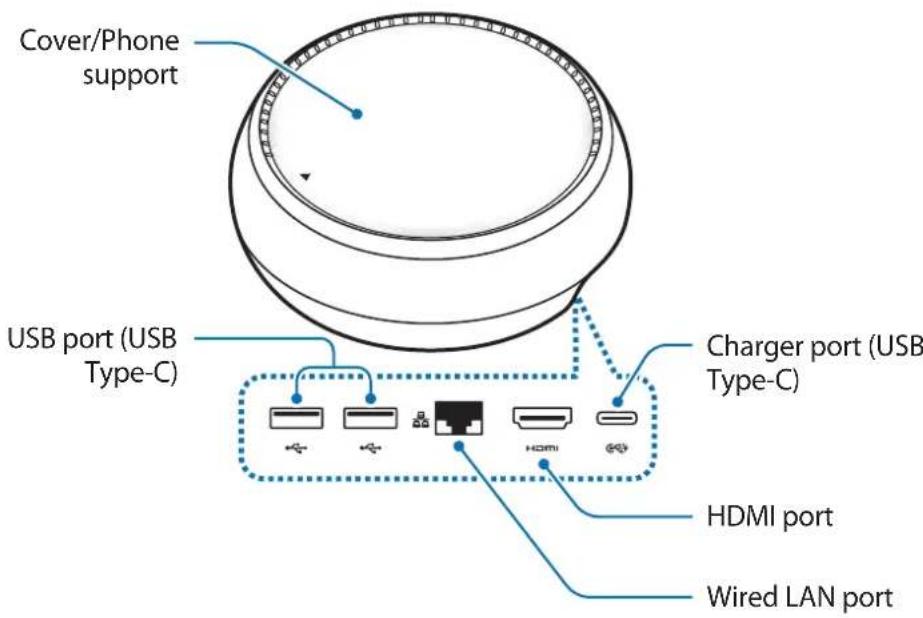
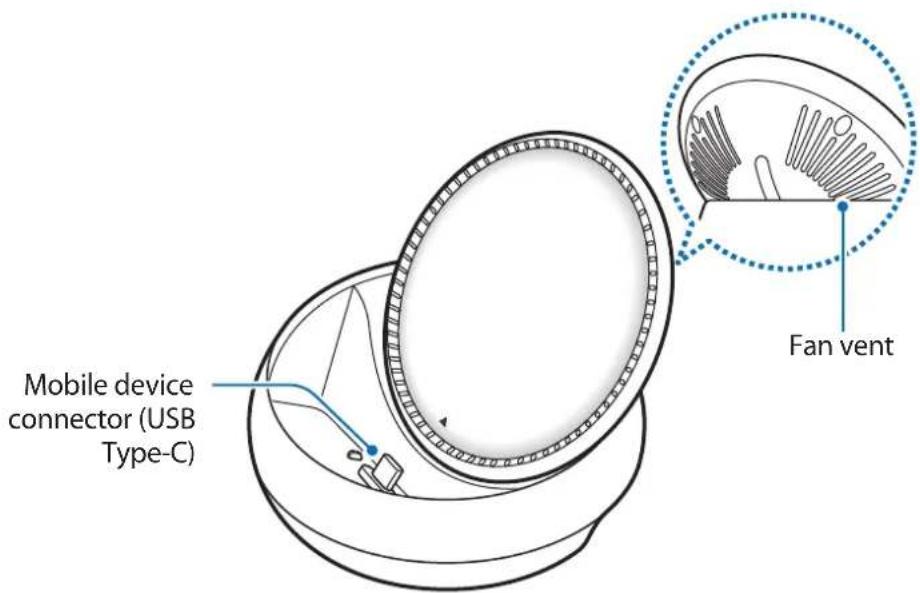

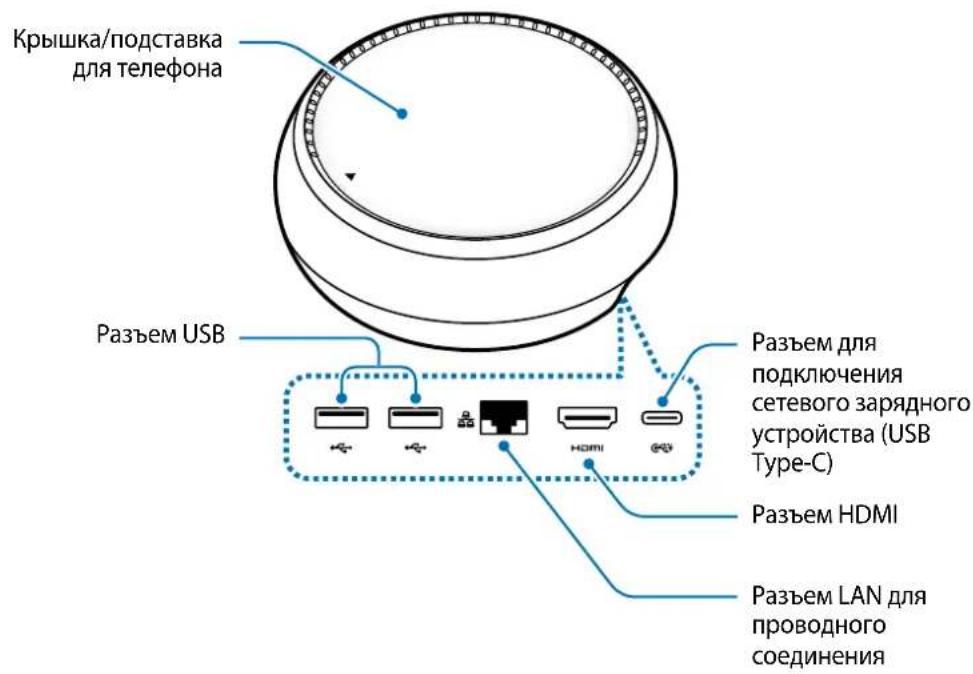
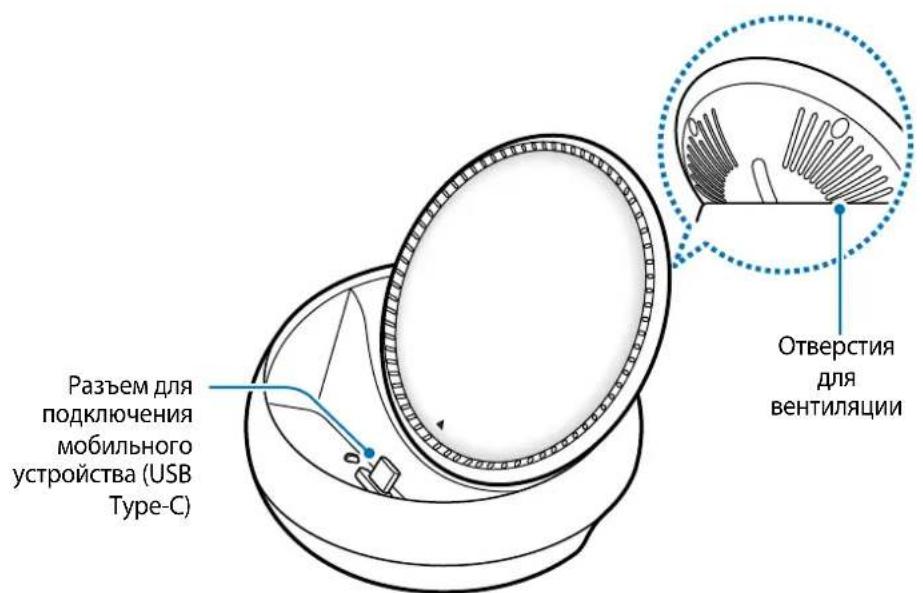
Be sure to use a USB Type-C cable. If you connect a Micro USB cable, the multimedia dock may malfunction.
Using the multimedia dock
Connecting the multimedia dock and a mobile device
1 Connect the charger to the multimedia dock's charger port (USB Type-C).

- Use only Samsung-approved chargers (9 V/1.67 A, 9 V/2 A, 12 V/2.1 A).
- If you want fast charging, use only Samsung-approved chargers that support fast charging (12 V/2.1 A).

- You may need to purchase a charger separately depending on the multimedia dock you bought.
- Depending on the type of charger you are using, you may need to use the Micro USB connector.
- To save energy, unplug the charger when not in use. The charger does not have a power switch, so you must unplug the charger from the electric socket when not in use to avoid wasting power. The charger should remain close to the electric socket and easily accessible while charging.
- The socket-outlet shall be installed near the equipment and shall be easily accessible.
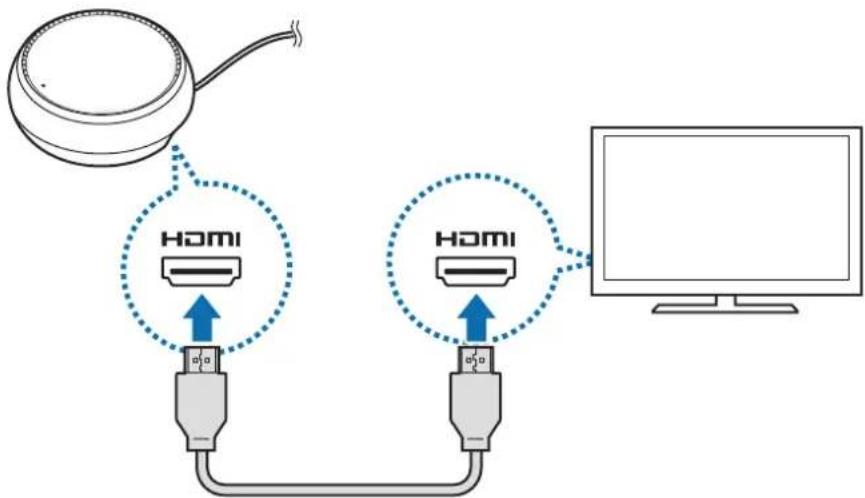
2 Connect one end of an HDMI cable to the multimedia dock's HDMI port, and plug the other end of the cable into a TV or monitor's HDMI port.
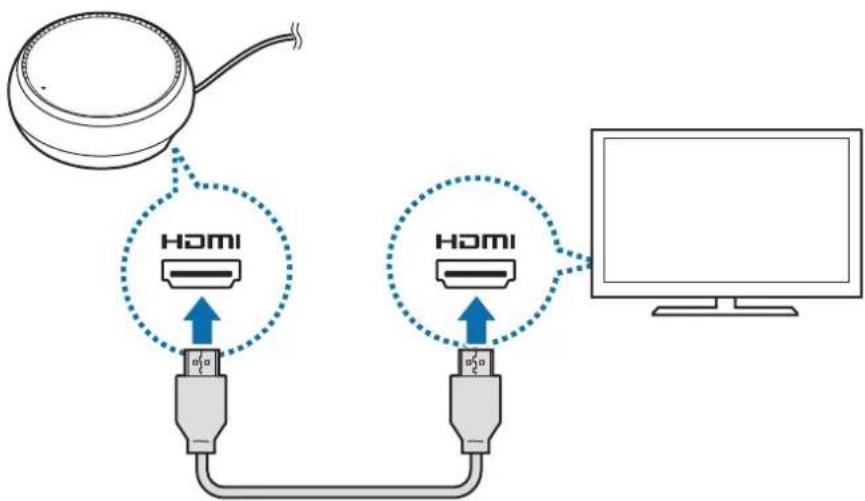

The HDMI cable is sold separately.
3 Use a wired network by connecting the wired LAN to wired LAN port, if you do not want to use a Wi-Fi network or your mobile device's wireless data.
You can use the mobile network connected to your mobile device without a wired LAN.
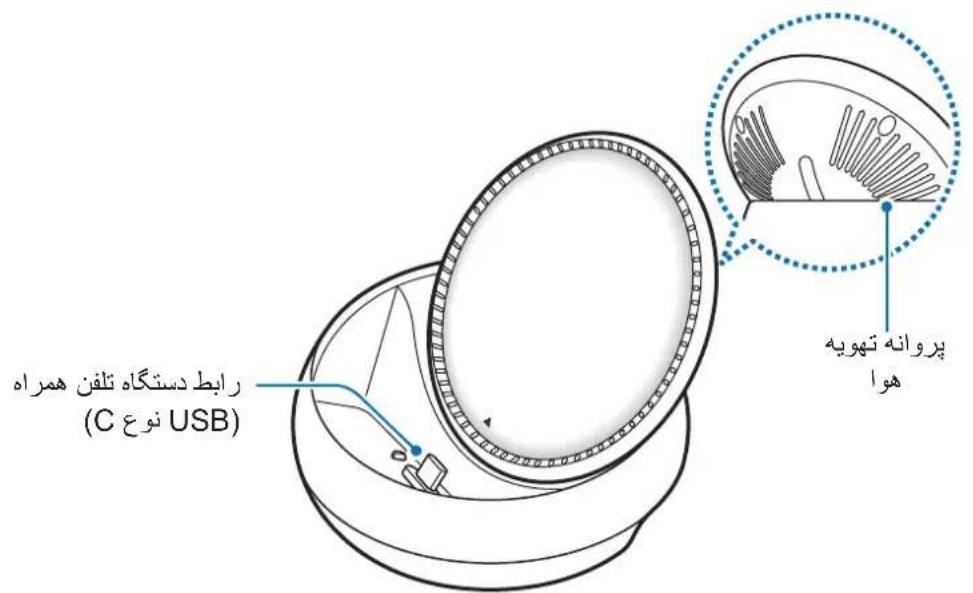
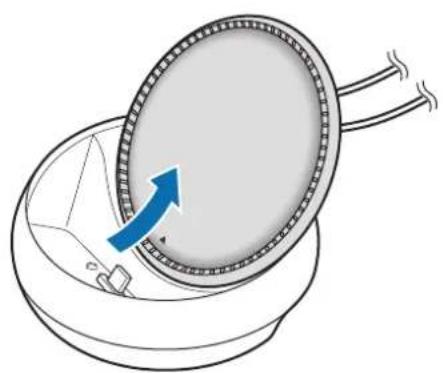
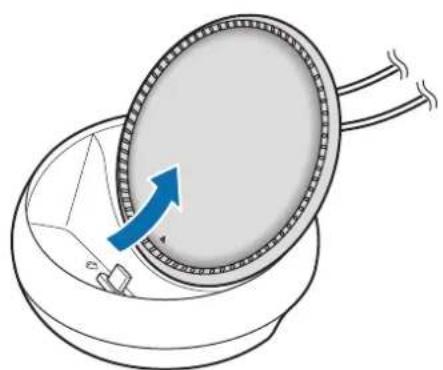
4 Press the front of the cover to use the cover as a phone support.
The mobile device connector will appear.
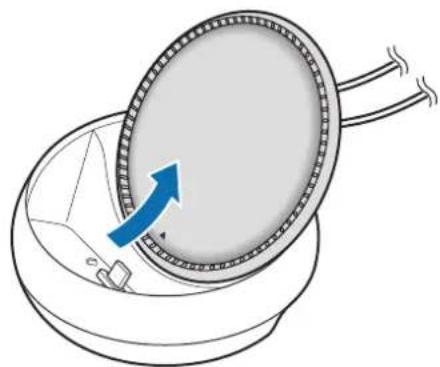

Be careful not to hurt your fingers when changing the angle of the phone support.
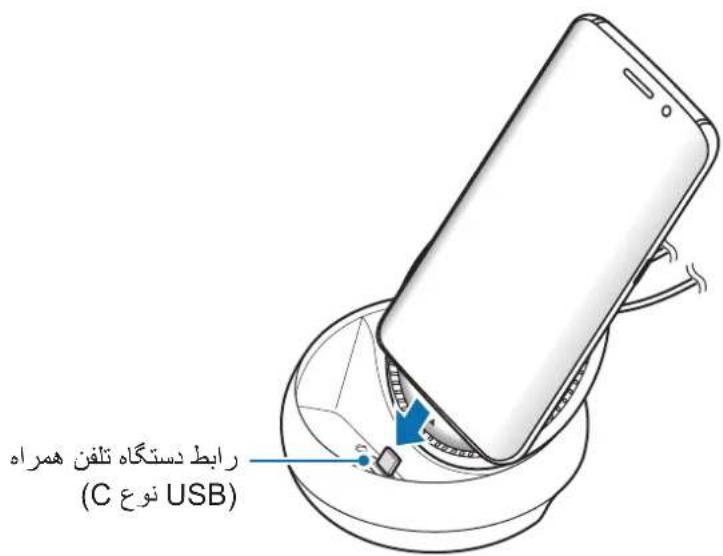
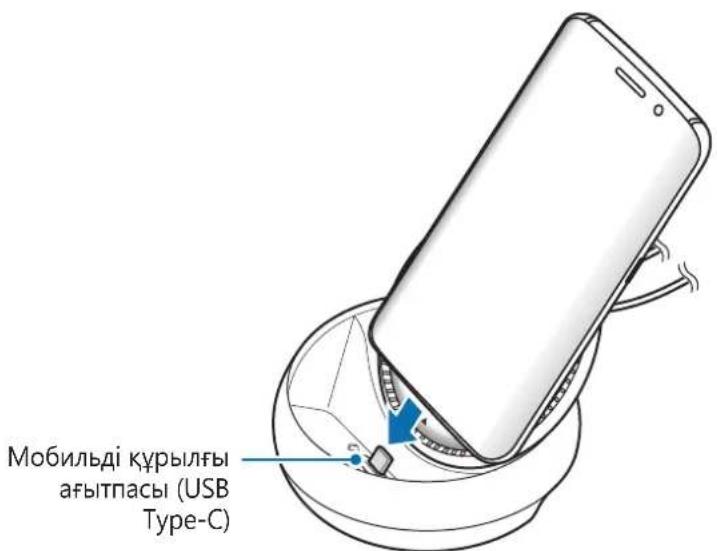
5 Connect the mobile device's multipurpose jack to the mobile device connector on the multimedia dock.
Samsung DeX will launch on the mobile device.
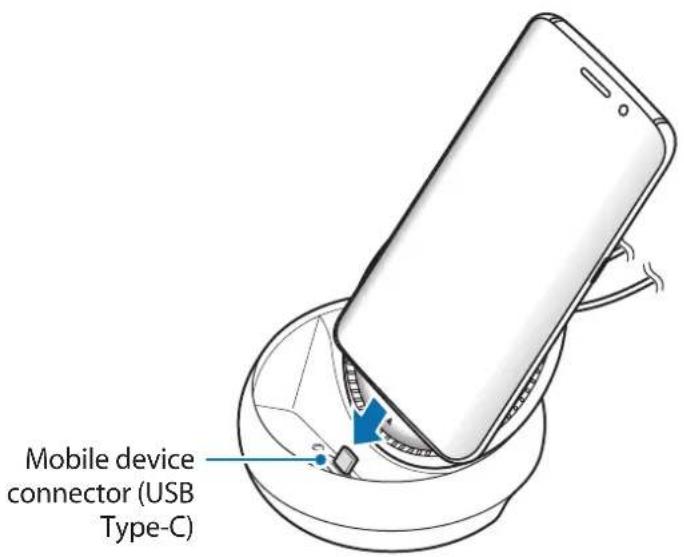

You may not use the multimedia dock if you have attached a certain type of case, such as a flip cover or a hard case cover to your mobile device.
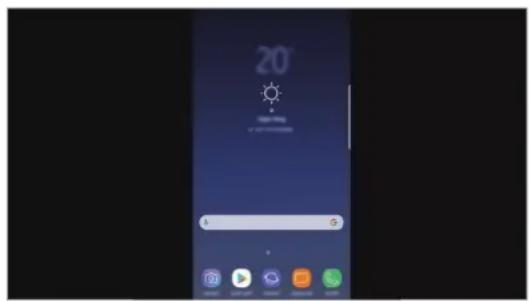
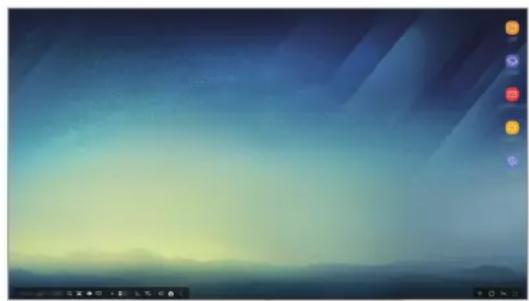
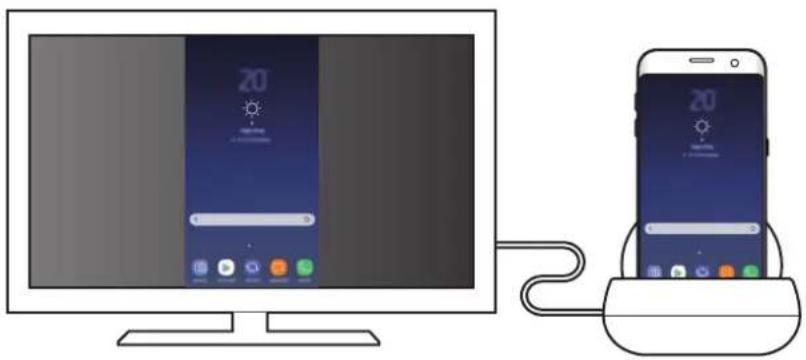
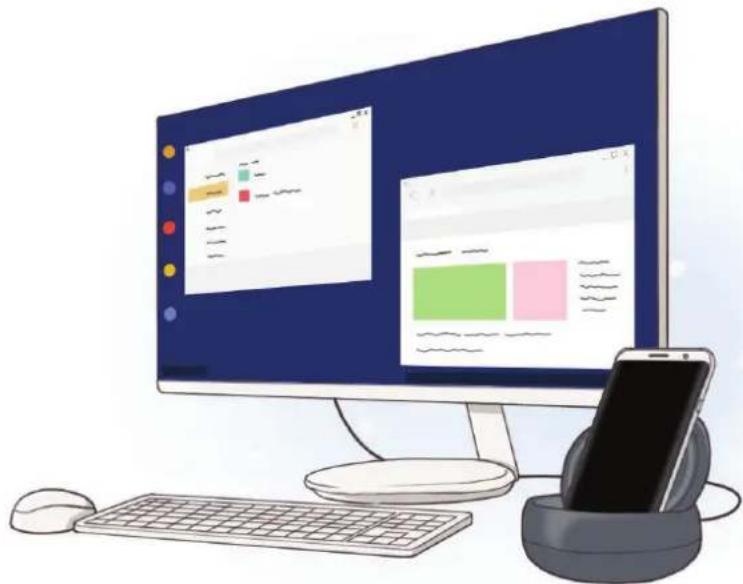
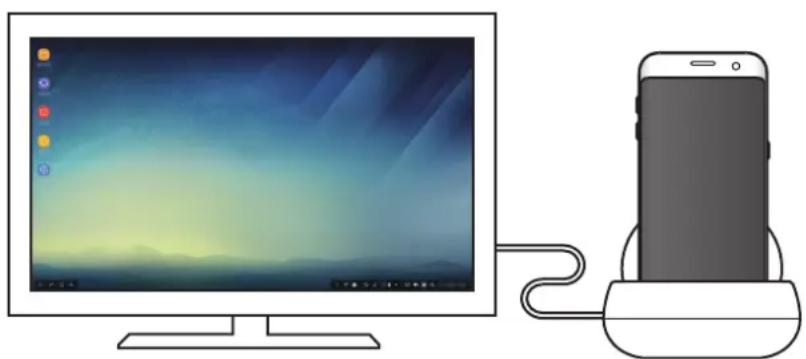
6 Select the screen mode you want to use. You can select Samsung DeX mode or Screen mirroring mode.
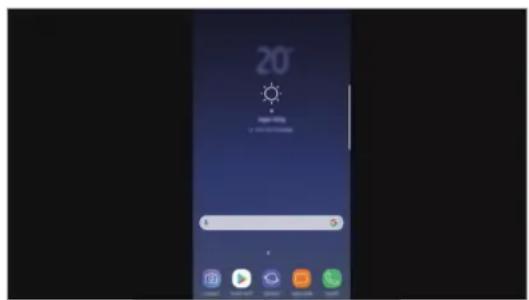
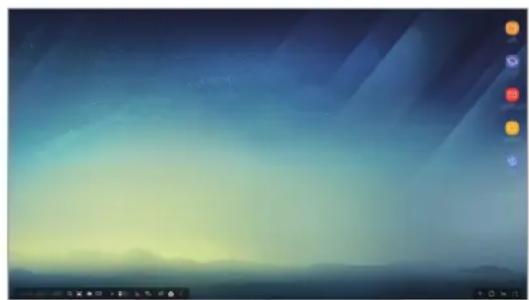
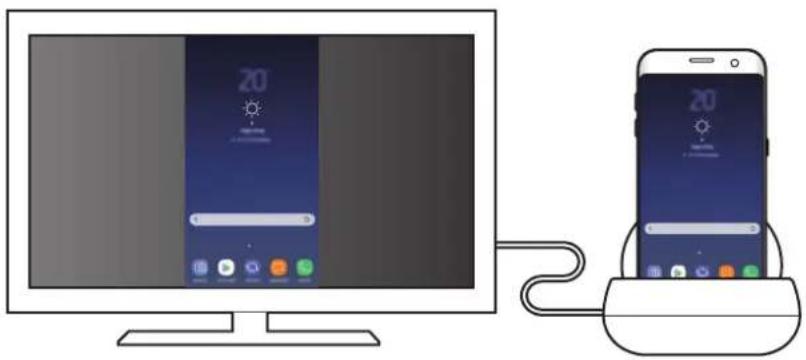
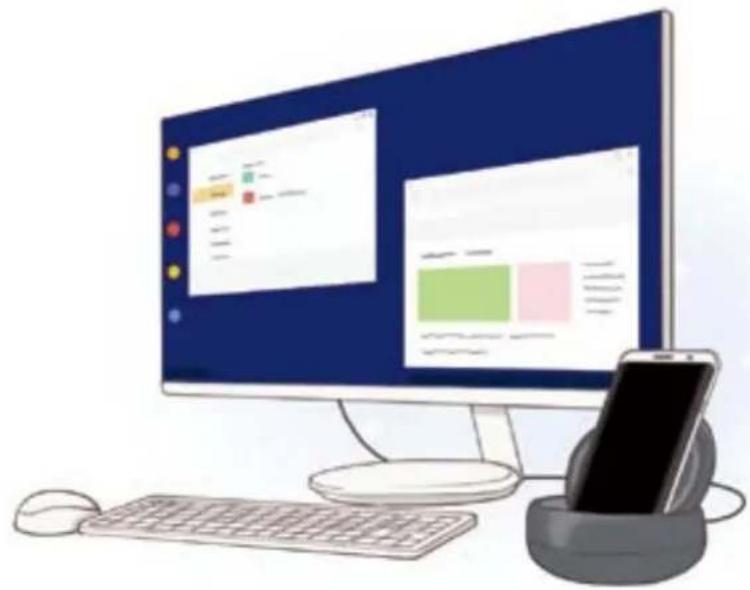
- START SAMSUNG DeX: The mobile device's screen will turn off and appear on the connected TV or monitor in desktop mode.
- SWITCH TO SCREEN MIRRORING The same screen as the mobile device will appear on the connected TV or monitor.
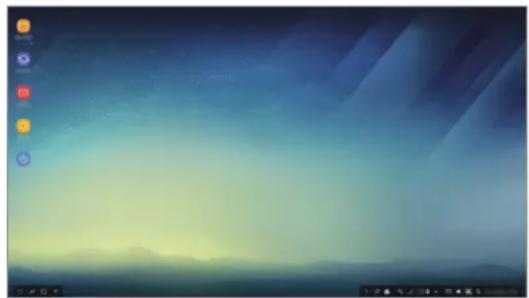
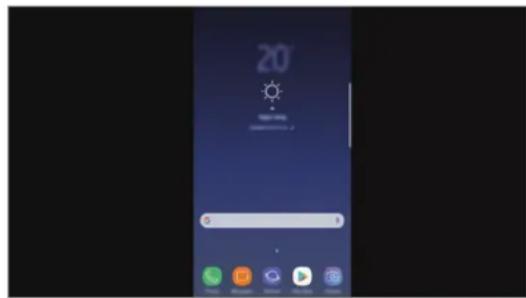
Samsung DeX mode Screen mirroring mode

- The screen mode you first select will be applied for subsequent connections. Refer to Changing the screen mode for more information.
- If you want to control the Samsung DeX mode screen, you must connect a mouse. Refer to Connecting a keyboard or mouse for more information.
Precautions for connecting the device
- You can use the multimedia dock only when you connect it to a charger.
- Connect only a keyboard, mouse, or an USB storage device to the multimedia dock's USB ports. Charging devices or connecting high-capacity devices with these ports may not work properly.
- Prevent the fan vent and mobile device connector inside from coming into contact with liquids or dust. Exposure to liquid or dust may cause the multimedia dock not to work properly.
- Do not move the mobile device while it is connected to the multimedia dock. Doing so may damage the mobile device connector.
- When you use the mobile device's voice recognition after connecting the multimedia dock to your mobile device, the voice recognition may not perform well.
Ending the device connection
Remove the mobile device from the multimedia dock to end the connection between the mobile device and TV or monitor.
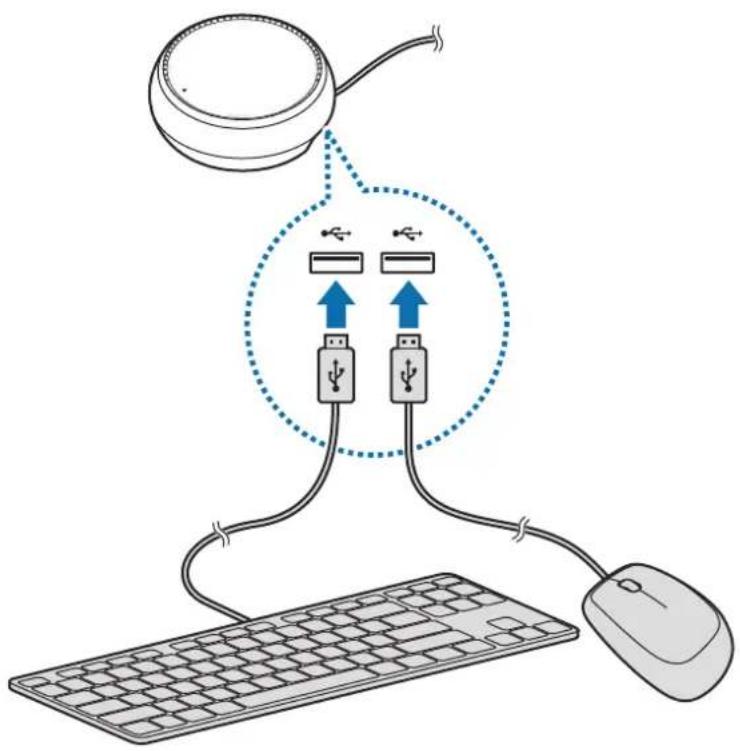
Connecting a keyboard or mouse
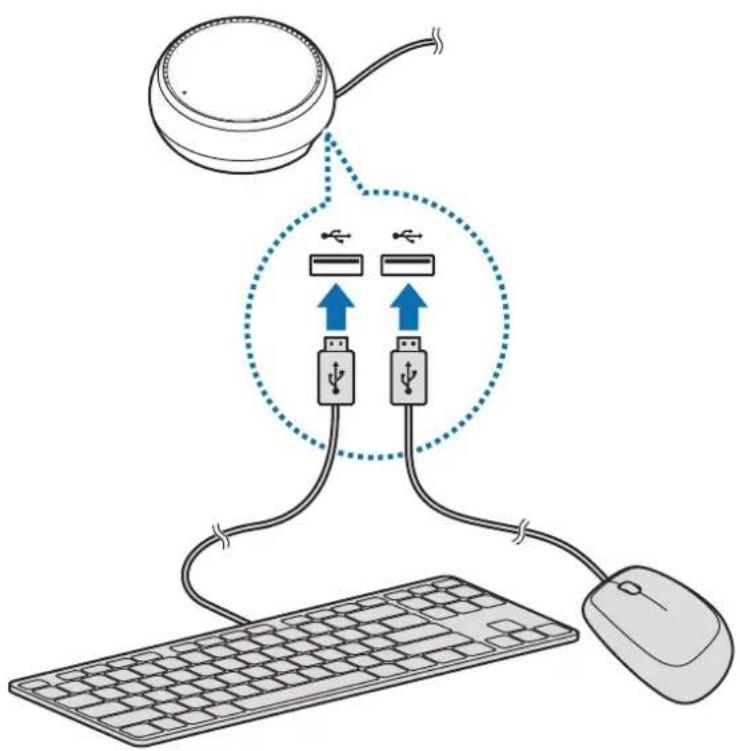
Connect a mouse to use Samsung Dex mode. Connect a wired mouse and keyboard to the multimedia dock's USB port or connect a wireless mouse and keyboard with the Bluetooth feature of the connected mobile device.

If you connect a keyboard, the virtual keyboard is not displayed on the screen. On the Settings app, select Samsung DeX Show virtual keyboard in Samsung DeX switch to activate it to display the virtual keyboard on the screen.
Connecting via cable
If you want to use a wired keyboard or wired mouse, connect their USB cables to the multimedia dock's USB ports.
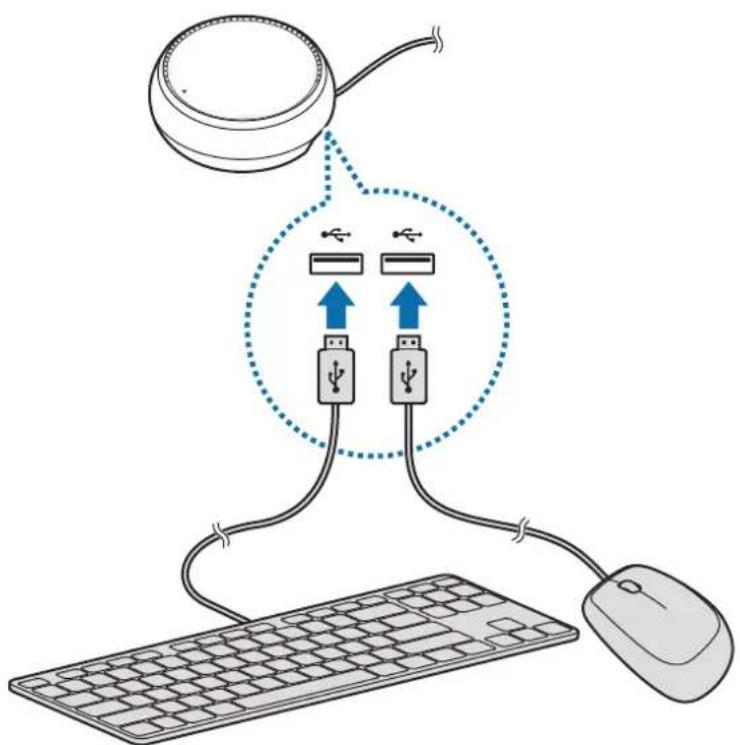
Connecting via wireless or Bluetooth
You can connect a wireless mouse and keyboard or Bluetooth mouse and keyboard. For more information about the devices, refer to the device's user manual.
- Wireless mouse and keyboard: Insert a wireless receiver into the USB port.
- Bluetooth mouse and keyboard: Connect to a mobile device via Bluetooth.
Using Samsung DeX mode
You can use your mobile device's features in an interface environment similar to a computer. You can launch the mobile device's apps and check the mobile device's notifications and status.
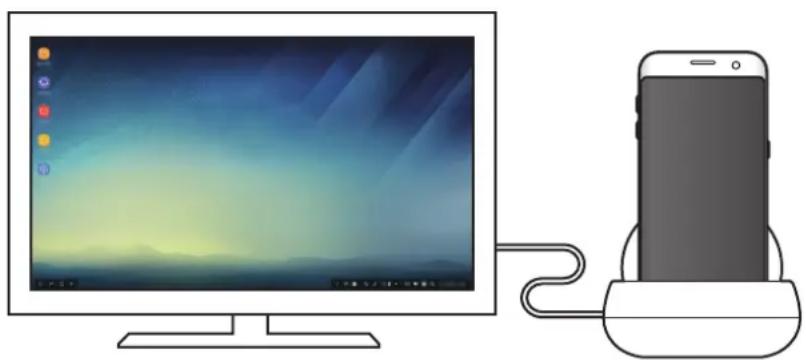

- If you want to control the Samsung DeX mode screen, you must connect a mouse. Refer to Connecting a keyboard or mouse for more information.
- Some apps or features may not be available when using Samsung DeX mode.
Precautions for launching Samsung DeX mode
- When you launch or disconnect Samsung DeX mode, the currently running apps will close except some apps.
-
You cannot launch Samsung DeX mode if your mobile device is in the following modes: the power saving mode, ultra power saving mode, performance mode, emergency mode, and safe mode.
-
If the TV or monitor do not support HDCP (High-bandwidth Digital Content Protection), the Samsung DeX mode screen may not be displayed.
- Samsung DeX mode only supports Full HD resolution, and some content on your mobile device may be displayed differently on the TV or monitor.
- The available time for battery usage can be reduced when you use Samsung DeX mode.
- If you change the settings on Samsung DeX mode, the mobile device's settings will be changed as well. Some settings of the mobile device may not be changed even if you change the settings on Samsung DeX mode.
- Download the firmware from the server to update Samsung DeX mode to the latest version. It is available only when connected to a Wi-Fi network.
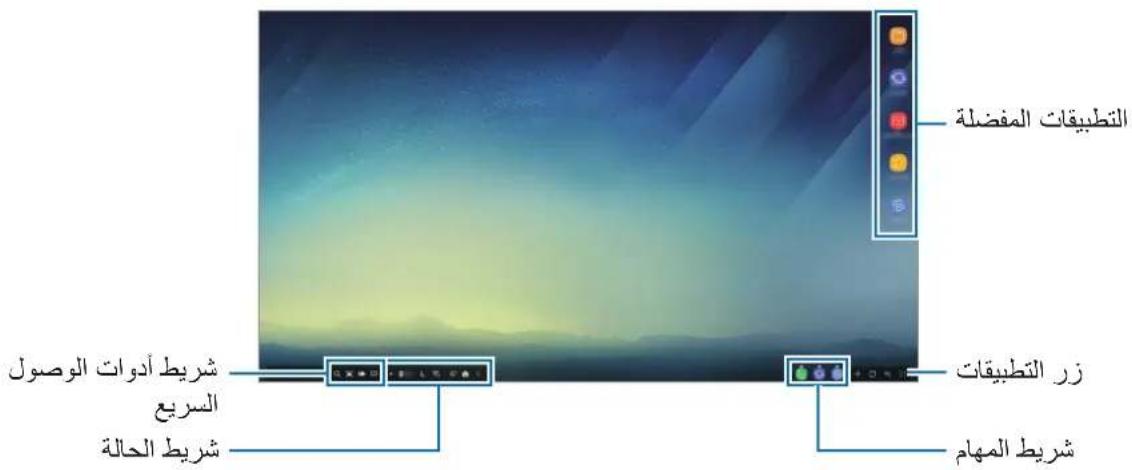
Using the Home screen
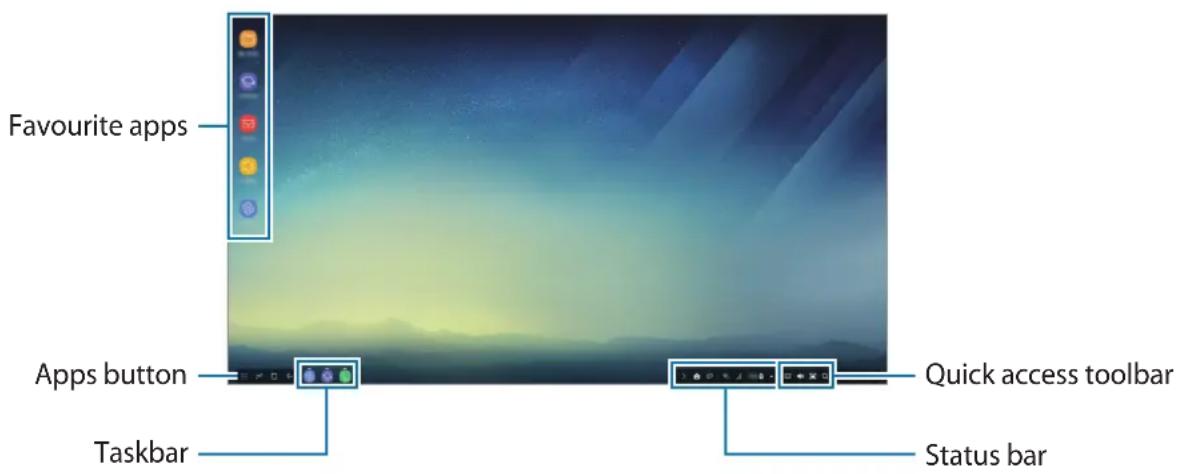
- Favourite apps: Add frequently used apps to the Home screen and launch them quickly.
- Apps button: View or launch apps installed on your mobile device.
- Taskbar: View the apps that are currently running.
- Status bar: View your mobile device's status or notifications. The displayed icons may differ depending on your mobile device's current status. Select and turn on and off your mobile device's various features on the quick settings list.
- Quick access toolbar: Use the virtual keyboard, volume, screenshot, and finder features quickly.
Receiving an incoming call
You can receive an incoming call with the connected TV or monitor while using Samsung DeX mode.
If you receive a phone call, select the incoming call menu from the connected TV or monitor. The mobile device's speaker is used for answering the call.

Remove your mobile device from the multimedia dock to use the mobile device instead of the speaker phone to receive an incoming call. It may take a few seconds for the incoming call screen to appear on your mobile device.
Adding app shortcuts
Select the Apps button, select the app you want to create a shortcut to, and then drag it to the Home screen. A shortcut to the app will be added on the Home screen.
Setting the speakers
You can change the default speakers from your mobile device's speakers to the TV's or monitor's speakers or other audio devices.
On the taskbar, select Audio output and select the device you want.
Using the quick access toolbar
:Display the virtual keyboard.
- Adjust the volume level for call ringtones, music and videos, notifications, and system sounds.
- Capture a screenshot and use the captured screen in various ways, such as drawing on, writing on, cropping, or sharing it.
- Q: Search for content on your mobile device by entering a keyword in the search field. To get more refined results, selectFilter under the search field, and then select filter details.
Home screen options
On the Home screen, when you press the connected mouse's right button, you can use the home screen options.
- Arrange by: Select the arrangement method for apps on the Home screen.
- Clean up: Arrange apps or folders on the Home screen based on your selected arrangement method.
- Wallpapers for Samsung DeX: Change the Samsung DeX mode wallpaper settings for the Home screen and the locked screen.
Launching apps
Launch apps installed on the mobile device on the Samsung DeX mode.
When selecting the Apps button, your mobile device's apps list will appear. Select an app and launch it. You can open several apps and launch them at the same time and multitask as you use the computer.

Some apps may not be available when using Samsung DeX mode.
Launching exclusive apps
Download or launch exclusive apps for Samsung DeX. Select the Apps button and then select Apps for Samsung DeX.
Configuring the settings
Configure your Samsung DeX mode settings.
Launch the Settings app on the connected TV or monitor and select Samsung DeX.
- Screen timeout for Samsung DeX: Set how long Samsung DeX mode waits before turning off the display's backlight.
- Wallpapers for Samsung DeX: Change the Samsung DeX mode wallpaper settings for the Home screen and the locked screen.
- Pointer speed: Adjust the pointer speed for the mouse.
- Show virtual keyboard in Samsung DeX: Show a virtual keyboard on the connected screen when you connect the keyboard.
- About Samsung DeX: View the Samsung DeX software information and update your Samsung DeX's software.

The Samsung DeX's setting options only appear when launching Samsung DeX.
Using Screen mirroring mode
The mobile device's screen will remain on and appear on the connected TV or monitor. View your mobile device's various content on the wide screen of the connected TV or monitor.
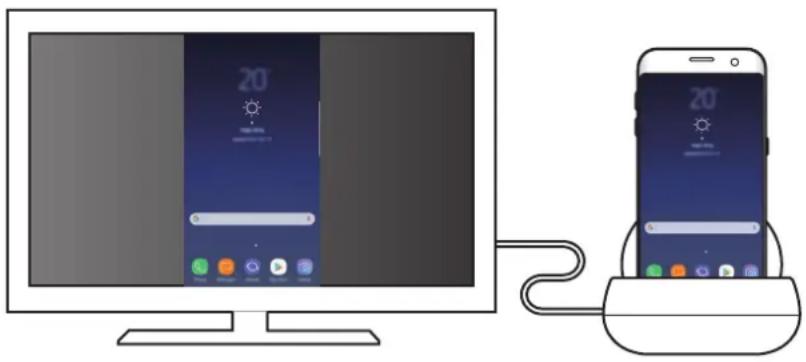

You can use Screen mirroring mode without connecting a keyboard or mouse. Control the screen with the connected mobile device.
Changing the screen mode
To change the screen mode, launch the Settings app on the connected TV, monitor, or mobile device and select Connections More connection settings HDMI mode, and then select Samsung DeX or Screen Mirroring.
The screen mode you select will be applied for subsequent connections.
Appendix
Troubleshooting
Before contacting a Samsung Service Centre, please attempt the following solutions.
Your multimedia dock or connected devices freezes
If the multimedia dock or connected devices freezes or hangs, try to resolve it by turning off the connected mobile device and then turning it on again.
If the multimedia dock or connected devices are still unresponsive, disconnect devices from the multimedia dock and reconnect them.
If the problem is still not resolved, contact a Samsung Service Centre.
The multimedia dock works differently as described in the manual
Available functions may differ depending on the connected device.
The screen ratio is incorrect
Adjust the screen ratio from the menu of the connected TV or monitor.
Copyright
Copyright © 2017 Samsung Electronics
This manual is protected under international copyright laws.
No part of this manual may be reproduced, distributed, translated, or transmitted in any form or by any means, electronic or mechanical, including photocopying, recording, or storing in any information storage and retrieval system, without the prior written permission of Samsung Electronics.
Trademarks
- SAMSUNG and the SAMSUNG logo are registered trademarks of Samsung Electronics.
- All other trademarks and copyrights are the property of their respective owners.
Démarriage
Introduction
Copyright © 2017 Samsung Electronics
Copyright © 2017 Samsung Electronics
Copyright © 2017 Samsung Electronics
Copyright © 2017 Samsung Electronics
Copyright © 2017 Samsung Electronics
Copyright © 2017 Samsung Electronics
Baata myTmEiHa DOKnHr CTaHcIy IIN CBbP3aHn yCTpoiCTBa 3aMpb3BaT
Ako MyntmeiHaTa DOKnHr CTAHcNn IIN CBbp3aHn yCTpOcTBA CtHaT HeaKTNBn IIN YBnCHaT, ONNTaTe ce da pa3peWnte TOBa, KaTO N3KJIouHTe MObInHOTo yCTPOcTBO I RO BKIOHTe OTHOBO.
Ako MyTmMeiHaTa DOKInr CTaHcNn NIN Cbbp3aHn yCTpoiCTBa BCE OSe He OTROBapr, pa3eHHeTe yCTPOICTBaTA OT MyTmMeiHaTa DOKInr CTaHcNn I n CBbpXeTe OTHOBO.
Ako npo6nembT He ce pa3peu, ce cBpXeTe cbc cepBn3eH eHTbp Ha Samsung.
MylntmepnHaTa DOKnHr CtAHcNHe pa6OTn KaKTo e OINcaHO B pBKOBOdCTBOTO
HaHnHTe yHKUIM MoKe da ce pa3LIuAbaT B 3aBnCIMoCT OT Cbbp3aHOTO yCTPOINCTBO.
CboTHoWeHneTo Ha ekpaHa e HeToUHO
PergunpaTe cbotHOweHneTo Ha ekpaHa OT MeHIOTo Ha Cbbp3aHn TaIeBn3Op NIn MOHTop.
ABTOpCKn npaBa
Copyright © 2017 Samsung Electronics
ToBa pBkoBOIDCTBO e 3aunTeHO OT MekdyHapOHN 3aKOHn 3a ABTOPCKn npaba.
Hikoract ot pboKOoCTBOTo He moke da 6bde Bb3npOn3BexJaHa, pa3npocTpaHbHa, npeBekdaHa nn npexBpna Hoi KaKBaTO Ja e oopma nn no KaKbBTO Ja e Naun, eJeKTPOHeH nn MexaHueH, B TOBa YnCNo oToKoPiPae, 3aInc nn CbXpaHeHne B KaKBaTO Ja e CnCTema 3a INoOpMaunHO CbXpaHeHne Nn3BnUaHe, 6e3 npedBapntelHOTo pa3peSeHne Ha Samsung Electronics.
TbproBcN MapKn
SAMSUNG n Ioroto ha SAMSUNG ca pernctpupaH TbproBckn MapKn Ha Samsung Electronics.
- Bcunkn npyrn TbproBckn MapKn n aBtOpckn npaba ca co6CTBeHOCT Ha cbOTBeHTHe m co6CTBeHnCi.
Kako započeti
Uvod
Copyright © 2017 Samsung Electronics
Ovaj je prisuCnik zasticen meunarodnim zakonima o zastiti autorskih prava.
Niti jegan dio ovog prisučnika ne smije se reproducirati, distribuirati, prevoditi ili prenositi u bilo kojem obliku, ni na koji način, elektronici ili mehanički, uključujuci fotokopiranje, snimanje ili pohranjivanje na bilo kojem mediju za pohranu informacije i sustavu dohvata podataka, bez prethodnog pisanog dopustejena Samsung Electronicsa.
Zašitni znakovi
SAMSUNG i SAMSUNG logotip su registrarani zašitni znakovi tvrtke Samsung Electronics.
- Svi su ostali zašitni znakovi i autorska prava vlasništro svojih odgovarajućih vlasnika.
Prvi koraci
Uvod
Uz multimedijalnu bazu, možete da koristite funkcjte mobilnog Telefona na širem ekranu povezivanjem TV-a ili monitora. Takode možete da povežete sa obližnjim uredağima/opremom, kao što je tastatura ili miš.
Prvo pročitajte
Copyright © 2017 Samsung Electronics
Ovaj prisucnik je zasticen medunarodnim zakonima o autorskim pravima.
Nijedan deo ovog prisučnika se ne smerodukovati, distribuirati, prevoditi niti prenositi ni u Jednom obliku niti bilo kojim putem, elektronskim niti mehanickim, što podrazumeva fotokopiranje, snimanje i skladistenje u okviru bilo kog skladista informacija i systemd za preuzimanje, bez prethodne dozvole kompanije Samsung Electronics u pisanom obliku.
Trgovačke marke
- SAMSUNG i SAMSUNG logotip su registrovane trgovace marke kompanije Samsung Electronics.
Sve ostale trgovačke marke i autorska prava su vlasništro njihovih vlasnika.
Começar
Introdução
Copyright © 2017 Samsung Electronics
Copyright © 2017 Samsung Electronics
Copyright © 2017 Samsung Electronics
Multimediedocka.
- Snabbstartsguide.

Anvanda multimediedockan
Ansluta multimediaediedockan till en mobil enchet
1 Anslut laddaren till multimediedockans laddningsport (USB typ-C).

Copyright © 2017 Samsung Electronics
Copyright © 2017 Samsung Electronics
Copyright © 2017 Samsung Electronics
TMHMA EYINHPETHZH NEAATON SAMSUNG:
Copyright © 2017 Samsung Electronics
Copyright © 2017 Samsung Electronics
Telif hakki © 2017 Samsung Electronics
aLalab aylab1 aywulb 126
Samsung DeX
J 1 J 1 J 1 J 1 J 1 J 1 J 1 J 1 J 1 J 1 J 1 J 1 J 1 J 1
wglg j
Samsung Dex bai y Sg Jy.
Samsung DeX
a

J 1
g 13
g
J 1
jlll llll lllllllllllllllllllllll
.USB 1
.
Samsung DeX bei p
Jgssll jgsll laiuui Jy 1sik y, jyssll aalaa gajg jgssll
aaii g i jgaii gaii gaii gaii gai
HDCP 2
Samsung DeX
Samsung DeX bai pc
ailll jolll lcl 1s Jgall
Samsung DeX baiy
Samsung DeX bai 1
Samsung DeX bai dLd jg
Samsung DeX
.Wi-Fi
auiuui
.
Jg 1000000000000000000000000000000000000000
ailllll llll l l l l l l l l l l l l l l l l l l
y
A( 1,0) .B( -12,34)
aalilalabol, g wllg sssg aiae jyjai jaii jai jai jai jai jai jai jai jai jai jai
.
aalaa
. Samsung DeX bai piai iiaiaiaiaiaiaiaiaiaiaiaiaiaiaiaiaiaiaiaiaiaiaiaiaiaiaiaiaiaiaiaiaiaiaiaiaiaiaiaiaiaiaiaiaiaiaiaiaiaiaiaiaiaiaiaiaiaiaiaiaiaiaiaiaiaiaiaiaiaiaiaiaiaiaiaiaiaia
J 1

cilll lla
Jaiil aal! paaa aaii jll aaii aaii aai i aaii aaii aaii aai i aai i aai i aai i aai i aai i aai i aai i aai i aai i aai i aai i aai i aai i aai i aai i aai i aai i aai i aai i aai i aai i aai i aai i aai i aai i aai i aai i aai i aai i aai i aai i aai i aai i
aalal aal al 100000000000000000000000000000000000000000000000000000000
ylllglgolp
:
Jgall Jg jgl Jg jg Jg Jg Jg Jg Jg Jg Jg Jg Jg Jg Jg Jg Jg Jg Jg Jg Jg Jg Jg Jg Jg Jg Jg Jg Jg Jg Jg Jg Jg Jg Jg Jg Jg Jg Jg
a
a a a a a a a a a a a a a a a a a a a a a a a a a a a a
aaii jil aill lcll bll i jyj yj
1
Samsung DeX
aio gall
i
. Samsung DeX hoi jgaoall jge all aaiil clabill juiy e y
Samsung DeX bai piai iie 1

y
Jt 1
Samsung DeX
#
Samsung DeX 1
Samsung DeX 1
Samsung DeX :Samsung DeX
auii
Samsung DeX Samsung DeX
aia gall aill
.
Samsung DeX
1
Samsung DeX :Samsung DeX
Samsung DeX
Samsung DeX Samsung DeX

aaii iiaal bai ai
alilall gaiall jie ciay. alaiial auiill gaiial lalill jaliil ie jbiw Jaii Jgall jaii Jaii
aill 5iill iikay. wlo g jg lgs aagl bs yll aill bai jaiil ai kaiy

auiui bai
← Clll 12345678901234567890123456789012345678901234567890
Screen Mirroring Samsung DeX HDMI
ylll lgl 4111 bai qbi
Ailll lglal alglgclg jy gwsol s yj
i 1
aiee eae! p Jaaaii Jgaoaill jgeell Jiae iabw y aLw! Jgl aegj g wall 50
.
Lg
iogwalw 1oJy JuaIa, Jn nn yai
JdI Ie gagag Lc aia Jai jai dai bilwgl 1
Jiaai jie jie iai liai ai bai jai
a aai
aaiiaaii i jililil aila jaiilil aaii bui
g
J 1V
a 1
y
i 1
a
J 1
oJai

a 1
i
1 1 1 1 1 1 1 1 1 1 1 1 1 1 1 1 1 1 1 1 1
1g2a. 1111111111111111111111111111
.15
JlJlW Lai oL 1y jI Jj
gai gai slalai
j 1

j 1 j 1 1 1 1 1 1 1 1 1 1 1 1 1 1 1

L 1

Jgaaa aagaa
:d 1
Sd
()

jL jL Jy 100000000000000000000000000000000000000
i
15
j 1 j 1
iiis j5jw o0i jy jy 4
a b 1000000000000000000000000000000000000000000
i 1
1 45
1 1
Oo
UBB JILS JIIT C EJ USB 5 j 45 jiaab

a
115
.(CgUSB)
(y/1/1g 17.201/1g9.201.9V/1g9)sogolwodjslzjzjgl
L

i 1
- 155 0.151 (yol y.l/1g 19)
.
USB 1
1
1r j 1j j j j j j j j j j j j j j j j j j j j j j j j j j j j j j j j j j j j j j j j j j j j
.
HDMI HDMI
HDMI

HDMI

45 1
. 1
LALAN
1
201 1
i j 15

Samsung DeX
a 1000000000000000000000000000000000000000000

Samsung DeX 5
SAMSUNG DeX
.
:Screen mirroring 4y
joldo oikai ciblo
Samsung DeX Cabe
B
Jai j 1 Jai j 1 Jai j 1 Jai j 1 Jai j 1 Jai j
.
Samsung DeX
24 × 2 = 小 ( 12 + 2) × 2 = 小 ( 1 + 2)
laalji jilil
Samsung DeX 10000000000000000000000000000000000000000000000000000000000000000000
Samsung DeX j Jd j Jj

J 1
Samsung DeX
Samsung DeX
Samsung DeX 5
Samsung DeX:Samsung DeX
15 1
Samsung DeX :Samsung DeX
1 2
i 1
Samsung DeX
S ACD = S COD + S BDO - S CDA
Samsung DeX :Samsung DeX
Samsung DeX
Samsung DeX Samsung DeX

i 1
aaii iiaai iiaiaiaiaiaiaiaiaiaiaiaiaiaiaiaiaiaiaiaiaiaiaiaiaiaiaiaiaiaiaiaiaiaiaiaiaiaiaiaiaiaiaiaiaiaiaiaiaiaiaiaiaiaiaiaiaiaiaiaiaiaiaiaiaiaia
Jis Jis. jis oaiui iai ai aia uil 1i j wgl a y lss aia juaill b y g laia .jai dai oai ia oai j

#
< 1 Screen Mirroring Samsung DeX HDMI <
J 1
J 1 J
iis jis Jia 5a oikui Lai iil
i 1
1
1 1
1
1
Cuii iia 00000000000000000000000000000000000000000000
.
wuiu juii
i 1
s
Copyright © 2017 Samsung Electronics
1
Samsung Electronics jj jj jai jai laia jai jai jai jai jai jai jai jai jai jai jai jai jai jai jai jai jai jai jai jai jai jai jai jai jai jai jai jai jai jai jai jai jai jai jai jai jai jai jai
J 1
s
Samsung Electronics
1
HauaNo pa60TbI
В级以上
MylbTmEiHnA JOK-CTaHcIy NO3BOJAE TNOJIb3OBAbCra yHKUaMIM MObIbHO rO yCTpoIcBa Ha 6oJIbWOM 3KpaHe, POnKJIIOuNt TeLEBUN3Op IIN MoHITOp. KpOme TORO, MoXHO NODKIIQUHTb HaxOJaIuNecr pIaOM yCTPOIcTBa, TaKHe KaK KlaBNaTpy IIN MbIWB.
ПразутITE поед ИспOLTБОВАнем
Ioxayncta, B cetax npabunbHoro n 6e3oNaCHoro nCnOJb3OBaHna yCTpoiCTBa, npexde yem npucTyNaTb K pa6ote c Hm, n3yUte pyKOBODCTBO.
BHeuHn BnD yCTpoiCTBa MoKeT OTnuaTbcra OT n3o6paKeHn B DaHHOM pyKOBoIcTBe. CoepKIMoe MoKeT n3MeHraTbcra 6e3 npedBapntelbHoro yBeOmJeHn.
- Пара И спосьовим Myльтимедию DOK-CTAHUN y6eINTEcB, YTO OHa COBmecTUMa C BaSHIM yCTpoiCTBOM.
06o3haueHn, nCpOlb3yEmbIe B daHHOM pyKOBOIDCTBe

IpeoctepexeHne — CNTyaun, KOtOpbIE MOyT npuBcTn K NOJyueHIO TpaBMbl Bamn nnKem-ll60 n3 Okpykaoux

BnmaHne — cnTyaun, KOTOpbIe MOryT npNBecTN K NOBpeKdEHNIO yCTpOcTBA nn dpyrOTo 6obopyoBaHn

PpmeaHne -npMeaHn,coBeTbI JINI DOnoNHTeJbHbIe CBeDeHn
KoMnJIeKT NOcTaBKn
B KOMPJIeKT NocTaBKn BXOJaT CneIyUoIue KOMNoHeHTbI:
MynbTmmeHnHaJ DOK-CTaHcNIA
KpaTkoepykoBOOCTBO

- Komплесг Достаьки И набор дocуньх akceccуаров могут раэлчысь в раэньх PernoHax И onpeделяются поствшКOM услг.
- Поставлиемble akceccyapbl npedha3HaueHbI NCKLIOHTeIbHO dIaHHoro yCTPOICTBa mOryT 6bITb HecOBMeCTUMbl C dpYrIMN yCTPOICTBAMn.
BHeHn BnI3eNn I TexHnueckne XapaKTePnCTnK MoYr 6bITb N3MeHeHbI 6e3 npEaBapntelbHOrO yBeDOMHeHn. - Доннельные akceccyapbl MOxHо пиоб畴у MeCThblx Длелров KOMnaHn Samsung.перд покйоубeДntecb,чTO OHI COBMeCTmblc BaIIM yCTpoICTBOM.
- Пименяп Te Tolbko akceccyapbl, pekomehdoBaHHbIe KOMnHaHnei Samsung. Испльзоване HepekomehdOBAHHbIX akceccyapOB MOnKET npuBecTи K npo6JIeMaMВ pa6Ote n c6oM, Ha KOToPbIe He pacnpocTpahReTcraPaHTnIa.
- Доступноctь лioбых akceccуapob цeиkom И понocью 3aBnCt OT npoN3BOJNTeЯ. Доронпеловные сөдөнгя о достуньх akceccyapax сM. на Be6-caite Samsung.
BHeuHn BvI yCTpoIcTba

O6a3aTeIbHo nCnoIb3yIte Ka6eIb USB Type-C. Ecnn noKIOuHTb Ka6eIb Micro USB, MyIbTmEiHnHa DOK-CTaHcIg MoKeT pa6oTaTb HnPaBnIbHO.
MylbTmEiHaj DOK-CTaHcIy IJI NIOKJIIOUeHHbIe yCTpoIcTbA He pearnpuyot Ha deIcTBn
Ecn MyIbTmMeiHnA DOK-CTaHcIy IIN NIOKJIIOUeHHbIe yCTpOietBa He pearpyIOT Ha deIcTBnI INN 3aBncaIOT》,IIN peSeHnI np6Iembl IOnpo6yIte BbIKJIIOuHTb IOnKJIIOUeHHoe MObIbHOe yCTpOietBO I CHOBA BKJIIOUHTb erO.
Ecn MylbTmEmnHaJ DOK-CTaHnIy IIN NODKIOUeHHbIe yCTpOcTBa BCE eIe He pearnpyIOT, OTKIOHTe yCTPOcTBa OT MylbTmEmnHOJ DOK-CTaHnIy I NOKIOUHTe IN CHOBA.
Ecnn HenoJaKa He ycTpaHeHa, o6patntecb B cepBncbI ueHtp Samsung.
© Samsung Electronics, 2017.
Данhoe рукововсBO 3aшишени мждуновим зakohamOб abTOPСИХ прах.
3a nppeuaetc BocnpoH3BOJntb, paCnpocTpaHraTb, nepeBoDHTb nnnepeDaBaTb KaKne-Jn6o qactn DaHHoro pukOBODCTBa B IIO6oF oOpMe n IIO6bIM cNoCobOM, 3JeKTPoHbIM nnMexaHnueckm, BKJIouaY aTOkOIpOBaHne, 3aNcB n XpaHeHne B IIO6oB CNCTeMe XpaHeHn y NOncKa INHΦopMaun, 6e3 npedBapNTbHO rncBMeHHOrpoa3peSeHn KOMPahnn Samsung Electronics.
TobapHbIe 3HaKn
SAMSUNG andorotin SAMSUNG 3apeHCTpnpOBaHHbIMN TOBapHbIMN 3HaKaMn KOMpaHm Samsung Electronics.
OctaIbHbIe aBTOpCKn IpaBa I TOBapHbIe 3HaKn ABJIOTc CO6CTBeHHOCtBIO XN BlaJeNbUeB.
Початок роботи
Bctyn
3 MyIbTmEiHIO DOK-CTaHcIeIO BN MOKeTe KOpNCTyBaTnCg yHKnIaMIMo6IbHO rnpCTpOHa HINPOKOMy ekpaH I nIckIoueHH Do TeJIeBIsOpa a6o MoHITopa. Bu TAKoX MoKeTe NIKIouHTu PO3TaUOBaHI nopAID npNCTpoI, Taki Jk KnaBiaTypa a6o MIIa.
O3haIOMTeCЯпешд поаTKOM BИКОпСТаHHЯ
Дя 6e3neuHOro Ta HanexKHoro KOpNcTyBaHHЯ npnCTpoE M nepw 3a BCE yBaXHo O3HaIOMTeC8 3 cIM noci6HnKOM.
Samsung Electronics, 2017
Ie noci6nK KopncTyBaHa 3axnueHo 3riHc 3 MxHapOnHM 3aKoHaMn 0do aBTOpcbKnX npaB.
3a6oponeho BiTbOpOBaTN, po3noBcIouKyBaTN, nepeKlaadatn a6o nepeJaBaTN B 6yd-b-akii fOpMi
a6o 6ydb-akm3ac06amn,eneKtpoHHmna6o MexaHicHHmN, BKIOUHO i3 KcepOKoioBaHHM,
3aNcYBaHnM a6o 36epirAHnM Ha 6yNb-akomy npncptoi dny 36epiraHn DaHnx uB iHopMaciHNoIykoBiy cIcTeMi, KOnHy qactInHy cboRo noci6Hnka 6e3 nonepedhboro nncbMOBOro do3BOy KomnaHii Samsung Electronics.
Tobaphi 3HaKn
SAMSUNG i norotin SAMSUNG e 3apeectrobaHIMn TOBAPHIMN 3HaKaAMN KOMNaHii Samsung Electronics.
- Yci iHsi TOBAPHi 3HaKn i ABTOPcbKi npaba HaLeXaTb BiINOBiHNM BlaChHKaM.
KymbICTbi 6actay
Kipicne
MylbTmEaIbIK DOK-CTaHcIyHbIH KEmeIMeH MObIbI KypblfblHbIH MymKHeIKeTIH TeJeIaIapFa HeMece MOHTOpfa KaIfay apKbIbI. CoHbImeH KaTAp, nepHeTaKaTa HeMece TiHTyip CnAKTbl XaKbIH KypblfblapDbI Koca aIacbl3.
Kymbictbi 6actamac 6ypbIH OKbIHbl3
Kayinci3 opi dypbc naindaanhy ywiH KypblfblHbI naaandaH6ac 6ypbIH OcbI HcKayltbIOkbIN WblfbIHbI3.
CypeTep HaKtbl eHIMHeH epeKWeJeHyi MymKiH. Ma3MvH aIbIH ana eckepTyci3 e3reptiIyI MymKiH.
- MylbTmMeDnAaBk DOK-CTaHcIyHbI NaIdaHaHydbiH aIbH DA, OHbIH KypblfbiHbI36eH yIecimDi ekeHH TeKcepH3.
HycaybIK 6elriwepep

EckepTy: 03iHizH HeMece 6aKaIapdbH JapaKaT aIybiHa eKeJyIMyMKiH KaFdaIap

A6aIaHbI3: KpyblfblHbI HeMece 6aca Ka6dbIKtbi 6yIipyi MymKIn KaFdaIap

Eckepim: eckepTylepe, naDalaHy TpyaIbI KeHeCTep Hemece KocbIMsa aKnapaT
KopantbIn iwiHderici
KypblfblbIHcblpTKbl KepiHici

USB Type-C ka6eH naiDalaHaBbIb3. Erep MmKpo USB ka6eI Kocblca, MylbTmMeHaNbIK DOK-CTaHcna aKaaybI 6OlybIMyMKiH.
MylbTmMeHaJaBik Dok-CTaHcIaNbI naJaIaHy
MylbTmEaHaBik DOK-CTaHcNyaHbI XaHe Mo6nbldi KypblfblHbI KaJfay
1 3apraTafbIbI MyIbTImMeIaJIbIK DOK-CTaHcIaHbIH, 3apraTafbIu npTbHa (USB Type-C) XaJIFaHbI3.

Samsung tapanbihanh 6ekitilreh 3apraTaBltapdbI rHa KaJdaHbIHbI3 (9 B/1,67 A, 9 B/2 A, 12 B/2,1 A).
- ErepЖылдамзаргтaykepek60la,ЖылдамзаргтayfaKoJaay KepceTeiH Samsung TapanbHaHбeKitilreHЗaprdTaftaftapdbfHaHaKoJaHbIb13(12B/2,1A).

- CaTbI aIbIHfAH MyIbTImeMaIbIK DOK-CTaHcIyfa 6aIlaHbICTbl TaftI da 6ip 3aprTaftbIuTbI caTbI any KaXeT 6OlybIMyMKiH.
- Пайдалалынлалын зараятаби typine каразшafын USВ aftnacbн пайдалалу kepeк 6olybl Mymkih.
KyaTbI yHemDey ysiH naJaIaHaBImMaFaH Ke3e 3apraTaBtBi JxJIiJeH axbipTaBtB13. 3apraTaBtBtIH KyaT KocBtBi JOK, COHbIKTaH Kyat bICbIPa6BH 6OJIbIPMay ysiH naJaIaHa6afAH Ke3e 3apraTaBtBi 3JleKtp po3eTKacBHaH axbipAtyKepek. 3apraTay Ke3iHdE 3apraTaBtBtI 3JleKtp po3eTKa YAcBHa XaKbIH XHe OHa NcJXeTIMDi 6OlybI Kepek.
2HDMI ka6eJIiH 6ip weTIN MyIbTmEaIbIK DOK-CTaHcIaHbIH HDMI nopTBHa KocBIn, Ka6eJIbDIn 6acka weTIN Td HeMece MOHITOP HDMI nopTBHa TbIfbIHbI3.

HDMI ka6eJI 6eJIeK caTbIaIbI.
3 Erep Wi-Fi xeniciH hemec Mo6nIbdi KypblfblHbIH cbIMcbI3 depeKtepiH naJaIaIHy Kepek 6oJmaca, cbIMdbI LAN xeniciH cbIMdbI LAN npTbHa Kocy apkbIbI cbIMdbI xeJIHi NaJaIaHaBbI3.
CbIMDbI LAN Xeicihci3 Moibdi KypblfbiFa KaIHaTaBH Moibdi XeJIiH naJaHaHa aJacbi3.
4 KyHdaKtbI TelefoHHbIH Tyfbipbi petiHde naaHaHy yuH KyHdaKtbIH aHbHdaFbl Tymecin 6acbIHb3.
Mo6nIbdi Kypblfbl aftbnacbl naJa 60naIbI.

Teneoh TyfbipbHbH 6ypblbH 03repty Ke3iHde caycaKTabbIb3db Kyuipin aMaHbI3.
5 Mo6nJIbdi KypblfblHbIH KeI MaKcattbI yacblH MyJIbTImMeHaJIbIK DOK-CTaHcIraJdaFbIMo6nJIbDi Kypblfbl aftlNaCbiHa KocblHbI3.
Mo6nJIbdi Kypblfblda Samsung DeX icke kocblaIbI.

Erep Mo6nIbdi Kypblfba KaibpMaJIb KyHdaK Hemece KaTbI KyHdaK CnaKTbI 6eIrii 6ip KyHdaKtBI KNr3ceH3, MylbTmMeDnAblk DOK-CTaHcNHaPi NaJaHa aImaCbI3.
KypbIfbl KocblbIMbIH aKaTay
MobnIbI Kypblfbl MeH Td Hemece MOHITOP apacbIHdafbI 6aJIaHbICTbl aayTay ywiH, MoBnIbI Kypblfbl MylbTmMeHaJIbIK DOK-CTaHcIyDaH aJIbIHbl3.
NepheTaKaTa Hemece TiHTyip KaIfay
Samsung Dex peximn naiaaany yin, tiHTyipdi xalfaHB3. CbIMdbi TiHTyipdi xhe nepheTaKaTahbl MylbTmmeHaJIbIK DOK-CTaHcIraHbIH USB nopTBHa xalfaHB3 HeMece cbIMcb13 tiHTyipdi xhe nepheTaKaTahbl xalfaHfAH MobnbID KypbIFbIHbIH Bluetooth MymkiHirine Kocblbl3.

Erep nepHeTaKaTc Kocblca, BnptyaIbI nepHeTaKaTc 3KpaHda KepceTIImeIi. 3KpaHda BnptyaIbI nepHeTaKaTc KepceTy ywiH, KOH-lap KoJdaH6acblHaH Samsung DeX Samsung DeX Bnpt. nepHeTaKaTc Kcpcty KocblbH 6eJIeHdipy wH TaHaHbI3.
Ka6eIb apKbIbI JkaIfay
Erep cIIMdbI nepheTaKaTa Hemece TiHTyip naJaalany Kepek 6oJca, USB ka6eJIbApHIN MylbTmMeHaJIbIK DOK-CTaHcIaHbIH, USB nopTTapbHa KocbIHbI3.
CbIMcbI3 Hemece Bluetooth apKbIbI XkaIfay
CbIMcbI3 tiHTyipDi JxHe nepHeTaKaTahBi Hemece Bluetooth tiHTyipiH xHe nepHeTaKaTacBn HjaFai aIacbi. Kypblfblap TypaIbI KOcBIMwa aKnapaTTbI KypblfblHbIH, naJaIaNHyMbI HycKayIbIFbIHan KaPahbi3.
- CbIMcbl3 tiHTyip xəHe nepHeTaKa: cbIMcbl3 ka6blJaftb1 USB nopTbHa caly.
- Bluetooth TiHTyipi xəHe nepHeTaKtacbl: Bluetooth apKbIbI MobnIbdi Kypblfifa XaJIfay.
Samsung DeX pexkmin naДалану
KOMnbIOTepre yKcac nHTeppeic opTacbHda Mo6nJIbdi Kypblfbl MymKiHdikTepiH naJaHa aIacbi. Mo6nJIbdi Kypblfbl KOJaH6aIapbIH icKe Kocyfa XaHe Mo6nJIbdi Kypblfbl xa6aplaHdbIpylapbl MeH KyiH TeKcepyre 60Jabi.

- Erep Samsung DeX pexnmi ěkpaHbIn 6aCKapy kepek 6oJca, tiHTyipdi JxalfaybHbI3 KaXeT. KocbIMsa aKnapaTTbI NepHeTaKaTa Hemece tiHTyip JxalFay 6OJIIMiHeN KapaHbI3.
Kei6ip KoiJaH6aIap Hemece MymKiHikTepe Samsung DeX pexmIn naJaIaIHy Ke3iHde KojXeTImci3 6OlybIMyMkiH.
Samsung DeX peЖиmin icke kocy wapalapbl
Samsung DeX peximin icke kockaHa He mece axbipatKaHda, Keibp KOndaH6aIapdbieckepMereHde afbIMdaFbl Kocylbl KOndaH6aIap XablaIaIbI.
- Erep mobnlbdi kypblfki keleci peximdepde naaanahbnca, Samsung DeX peximin icke Kocy Mymkih emec: kyat yhemdey peximi, ylbtpa kyat yhemdey peximi, ehimdiik peximi, TeTeHwe pexim xane Kayinci3 pexim.
- Erep TД-да Неме соннлорда HDCP (KeH колakтbi caHдыК Мa3Mнды Корfay) ку necihe
колдay керсетиce, Samsung DeX ржими дралы керсетлмeyi муMKiH.
Samsung DeX peximHde Tek Full HD axbipatmbdbfbHa kOJay Kepcetilejix He Mo6nJIbdi Kypblfdafti Keibip Ma3myn Td-da Hemece MOHTOPa aP typi Kepcetiyi MymkiH.
Samsung DeX pexmH naJaHaHy Ke3iHHe 6aTapeKoJaHbICbIHa KOnKeTIMdi yaKbIT KbickapByI MymKiH. - Erep Samsung DeX pexmihn napameptpei 3reptince, moibnbik cypbilfbi npametplep i de 3reptiledi. Erep Samsung DeX pexmihn napameptpei 3reptince, moibnbik kypbilfbihn keibip npameetplep ie3rep Meyi MymkiH.
Samsung DeX pexmih en coHfbl HycKacbHa XaHapTy ywiH, cepBepdeH MKNpO6aFdapIaMaHbI KYKTen aIbIHb3. ByI Tek Wi-Fi JxeliciHe KocblFaH Ke3De KOnJKeTIMdi.
Kipic KoHbIpaybIH Ka6blJday
Samsung DeX pexmin nai daa hy ke3iHde, kalfanfah TД hemec MOHITOP Kemerim Hen Kipic KOhbpay Ka6bIJa aIacbl3.
Erep TelefoH KOhbpayb Ka6bldaHc, KaIFaHraH TД-DAH Hemece MOHITOpdH Kipic KOhbpay M3iPih TaHaHbI. Mo6nIbdi Kypblfbl DnHAMrI KOhbpayfa Xayan 6epyre naJaHaNblaDbI.

Kipic konbipay ka6blday yushi, cnkepfoh opbHa MObIbI Kypblfbln naJaIaHy ywiH MoBnlbdI KypblfbHb MylbTmMednaIbIK DOK-CTaHcIraH aIbHb3. Kipic konbipay ekpaHbIHMO6nbdi Kypblfbla da naJa 6OlybHa 6ipHeWe cekyHd KeTyi MymkIn.
KoIaH6a TaH6aIaIapbIn Kocy
KoJaHa6aIap Tymecin TaHdAn, TaHbAwa Xacay KepeK KoJaHa6aHbI TaHdAn, Ohbl BaCTaNkbl EKpaHra cyupeHiz. KoJaHa6a TaHbAwacbl BactaNkbl EKpaHra KocbIaIbI.
ДиHamNKTepei opHaTy
Mo6nIbdi Kypblfbl dHAmNKTepiHe Td Hemece MOHTOP dHAmNKTepiHe Hemece 6aKa ayDnO KypblfblapbHa e3repTyre 6oJaBl.
TancbipMa K0JafbIHah 1b6bICTbIH WbIFybl TapMaftbIH TaHdaI, KaXeTTI KypblfbiHbI TaHaHbI3.
KbIJaM KaTbIHac KypaIap TaKTacbH naJaIaHy
:BnptyaIdbI nepHeTaKaTahbI KepceTy.
: KOhbpay pHHTOHaPbI, My3bika XaHe 6eHHeIep, xa6aplaHdbIpUap XaHe Kyyne db6bictapbl db6bc DeHReiH peTey.
:ckpnHwOTka Tycipy XaHe TycipilreH 3KpaHdbI aP TypJI K0JdapMeH naJaHaHy, MbicalbI cypet caly, kazy, Knbln any Hemece 6eIicy.
Q: i3dey epicihe kiIITc03 eHri3yMeH MO6nIbdi KypblfblDaH Ma3MvH i3dey. HaKtbpak HAtnHexeJIepdi any ywiH i3dey epiciHH actbIHdaFbl Cy3ri ONuRcBt H TaHdAn, cy3ri MJIIMeTTepiH TaHdaHbI3.
BactanKbI 3KpaH onuJapbl
BactanKbI 3kpaHda Kocblfah TiHTyipdiH OH Jka Tymecin BacKaH Ke3de BactanKbI 3kpaH OpiJapbIH NaJaHa aJacbl3.
Petrey aici: 6aTaKbI eKpaHda KoJaHa6aIapDbI OPhaIacTbIpy aiciH TaHday.
Tataay. TaHdaIraH opHaIacTbipy aicHe caikec bactanKbi kpaHfKaoldaH6aIap HeMece KaItaIap opHaIacTbipy.
Samsung DeX Tycka3apb: 6actanKbl 3kpan XaHe KylbntalraH 3kpan ysiH Samsung DeX peKmih Tycka3 napametplepH e3reptiH3.
KoIdaH6aIapdbI icKe Kocy
Samsung DeX pexuMihderi mo6nbdi KypblfcbiHa opHaTbifah KOlaH6aIapdbi icke KocBhl3.
KoIdaH6aIap tyImei taHaIca, MoIbI Kypblfbl KoJaH6aIapbl Ti3imi naJa 60laIbI.
KoIaH6aHbI TaHdI icKe KocbIHbI. BipHeWe KoIaH6aHbI aHbIN, OIapDbI bip yaKaBITTa icKe KocyFa XHe KOMNbHTep NaIdaIaNHy Ke3IHDe KeN TaNCbIPMaHbI opbIHdayFa 6OlaDbI.

Kei6ip kOlaH6aIap Samsung DeX peximn naJaIaNy ke3iHne kOJIkeTImci3 60nybIMyMKiH.
Epeke KoIdaH6aIapdbI icKe Kocy
Samsung DeX epeke KOnJaH6aIapbIn KyKTeI aIbIHb3 Hemece icKe Kocblb3. KOnJaH6aIap TyMecin TaHdaI, Samsung DeX KOnJaH6acbl TapMaftbIH TaHaHb3.
Параметрелді теншey
Samsung DeX peximi napametprlepH TeHweHiz.
KocbIHaH KOnJaH6aJap HeMece MOHITOpdaH KoJaH6aJap KoJaH6acbIH icKe Kocbl, Samsung DeX TaHaHbI3.
Samsung DeX ekpan yaKbIbI 6iTTi: AnCnJIeNdiH apTKbl XapbIFbIH eWipy aIbHda Samsung DeX pexmki KyTu yaKbITbIH opHaTy.
Samsung DeX yckaFa3dapb: 6actaKbI eKpaH XeHe KyblntaHaH eKpaH ysiH Samsung DeX pexmHtYcKaF3 npaMeTppeiH e3reptiH3.
MeH3ep KbIaMdbIbI: TiHTyipDiH MeH3ep KbIaMdbIbIh peTey.
Samsung DeX Bnpt. nepHeTaKaTka KepceTy: nepHeTaKaTaHbI Kocy Ke3iHde Kocblfah 3KpaHaB a BnptyaIdbI nepHeTaKaTaHbI KepceTy.
Samsung DeX Typalb: Samsung DeX 6aFapamaIbIK xacaKaTamacbl TpyaIb aKnapaTbI Kepy XaHe Samsung DeX 6aFapamaIbIK xacaKaTamacbl XaHapTy.

Samsung DeX napametpiH onuJapbI tek Samsung DeX icke kocy keiHde naJa 6oJaBl.
Copyright © 2017 Samsung Electronics
Bny HcyckaybIK XaIbIKapaIbIK ABToplbIK KkykbIKTap TpaIbI 3aHapMeH KopfaiHaH.
Samsung Electronics KOMnHaHcBbIH aIbIH aIa Jx36aHa pyKCaTbIHcB13 6yI HycKaYbIKTBiH e6ip 6eJIirH Ke3 KeIReH Tpyde HeMece Ke3 KeIReH aDic, 3JeKTPOHdbIK HeMece MExAHNKaJIbIK, coBH iWiHde, fOToKeWipy, Jx3y HeMece Ke3 KeIReH aKnapaTTbIK KoIMada JxHe IbIFapbIn aIy JxynecHnde caTay apKbIbI Kewipyre, TapaTyfa, aydapyfA HeMece TaCbImaJdAyfA BoImaNDbI.
Cayda 6eIrilepi
SAMSUNG XaHe SAMSUNG Iorotnpi — Samsung Electronics KOMpaHnrcbHbIn TipKeJIreH cayda 6eIriepi.
- BapIbIK 6acKa cayda 6enrIepi XaHe aBTOpIbIK KYKbIKTap Tnicti nelepiHmehwiRi 6oJIbIn Ta6blJaBl.
Getting started
Introduction
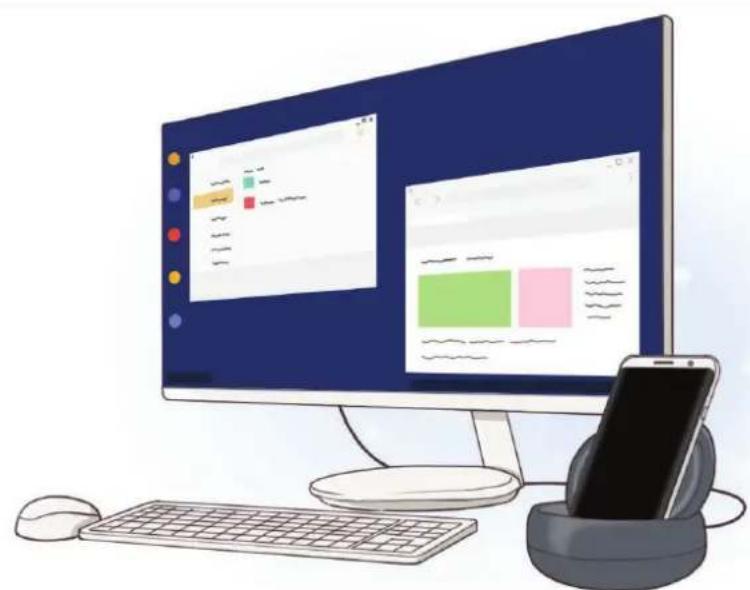
With the multimedia dock, you can use your mobile device's features on a wider screen by connecting a TV or monitor. You can also connect with nearby devices, such as a keyboard or mouse.
Read me first
Please read this manual before using the device to ensure safe and proper use.
- Images may differ in appearance from the actual product. Content is subject to change without prior notice.
- Before using the multimedia dock, make sure it is compatible with your device.
Instructional icons

Warning: situations that could cause injury to yourself or others

Caution: situations that could cause damage to your device or other equipment

Notice: notes, usage tips, or additional information
Package contents
Check the product box for the following items:
Multimedia dock
Quick start guide

- The items supplied with the device and any available accessories may vary depending on the region or service provider.
- The supplied items are designed only for this device and may not be compatible with other devices.
- Appearances and specifications are subject to change without prior notice.
- You can purchase additional accessories from your local Samsung retailer. Make sure they are compatible with the device before purchase.
- Use only Samsung-approved accessories. Using unapproved accessories may cause the performance problems and malfunctions that are not covered by the warranty.
- Availability of all accessories is subject to change depending entirely on manufacturing companies. For more information about available accessories, refer to the Samsung website.
Device layout
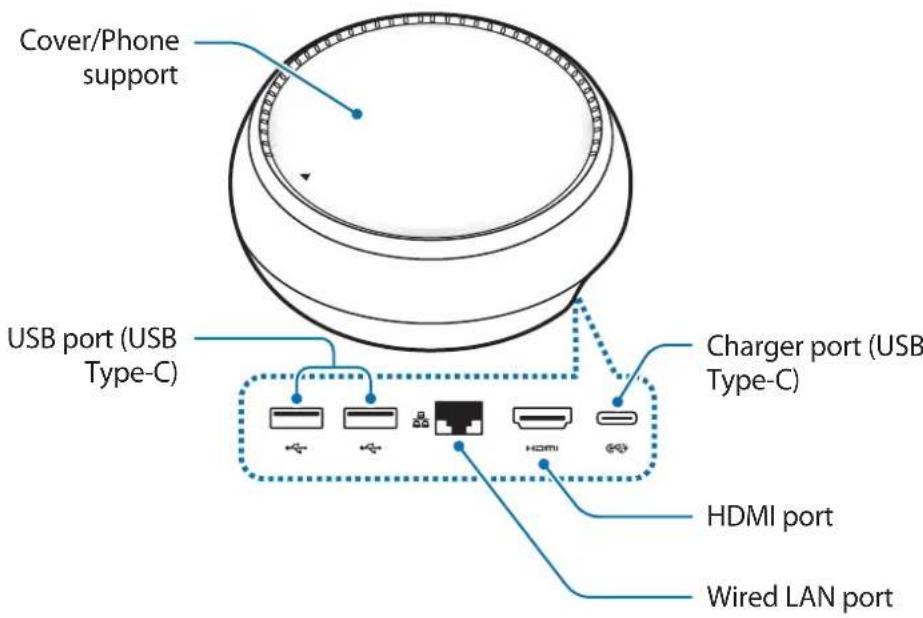
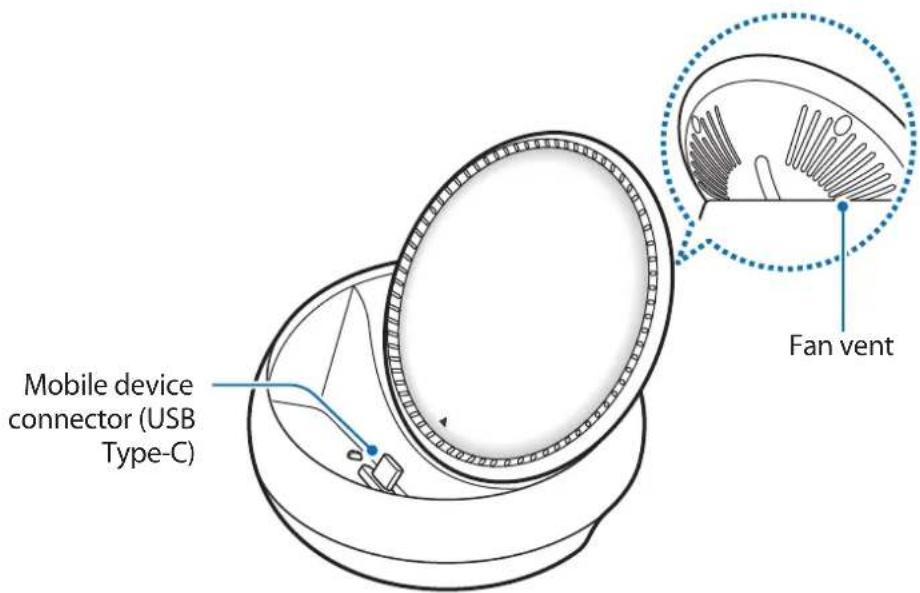

Be sure to use a USB Type-C cable. If you connect a Micro USB cable, the multimedia dock may malfunction.
Using the multimedia dock
Connecting the multimedia dock and a mobile device
1 Connect the charger to the multimedia dock's charger port (USB Type-C).

- Use only Samsung-approved chargers (9 V/1.67 A, 9 V/2 A, 12 V/2.1 A).
- If you want fast charging, use only Samsung-approved chargers that support fast charging (12 V/2.1 A).

- You may need to purchase a charger separately depending on the multimedia dock you bought.
- Depending on the type of charger you are using, you may need to use the Micro USB connector.
- To save energy, unplug the charger when not in use. The charger does not have a power switch, so you must unplug the charger from the electric socket when not in use to avoid wasting power. The charger should remain close to the electric socket and easily accessible while charging.
2 Connect one end of an HDMI cable to the multimedia dock's HDMI port, and plug the other end of the cable into a TV or monitor's HDMI port.
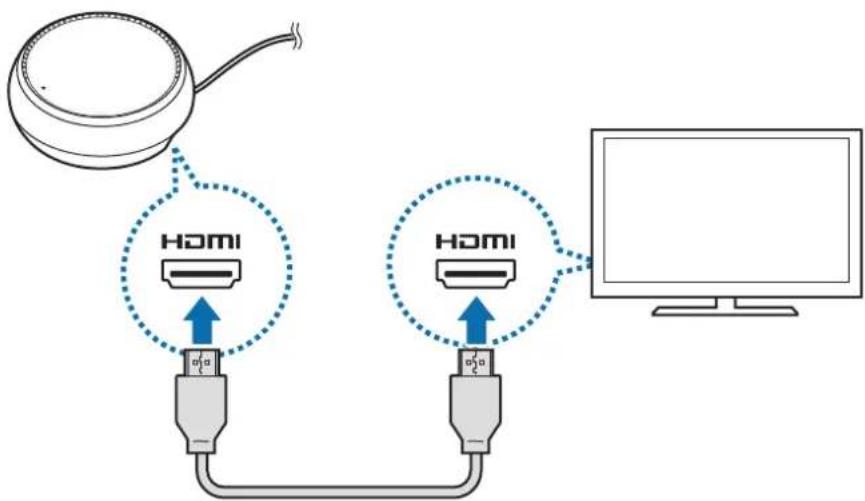

The HDMI cable is sold separately.
3 Use a wired network by connecting the wired LAN to wired LAN port, if you do not want to use a Wi-Fi network or your mobile device's wireless data.
You can use the mobile network connected to your mobile device without a wired LAN.
4 Press on the front of the cover to use the cover as a phone support.
The mobile device connector will appear.
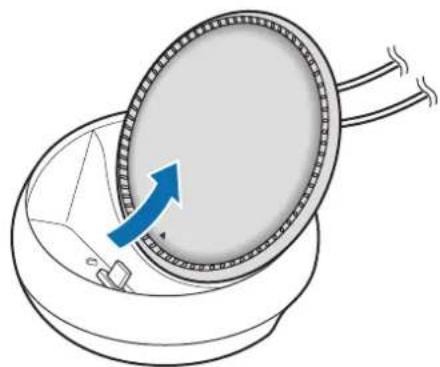

Be careful not to hurt your fingers when changing the angle of the phone support.
5 Connect the mobile device's multipurpose jack to the mobile device connector on the multimedia dock.
Samsung DeX will launch on the mobile device.
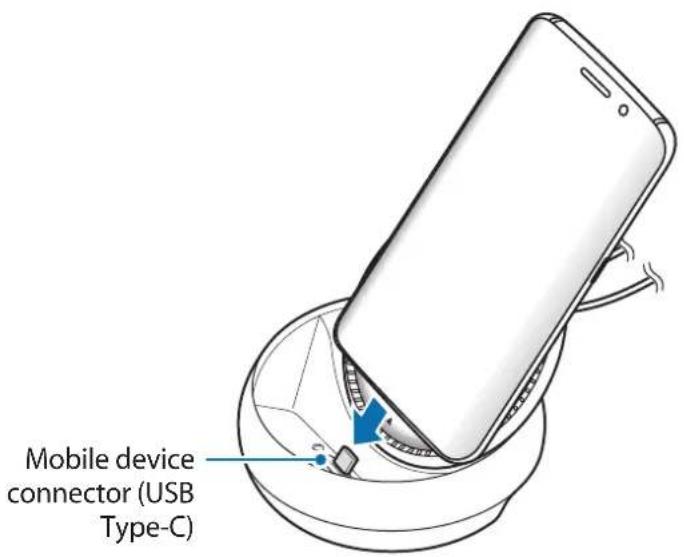

You may not use the multimedia dock if you have attached a certain type of case, such as a flip cover or a hard case cover to your mobile device.
6 Select the screen mode you want to use. You can select Samsung DeX mode or Screen mirroring mode.
- START SAMSUNG DeX: The mobile device's screen will turn off and appear on the connected TV or monitor in desktop mode.
- SWITCH TO SCREEN MIRRORING The same screen as the mobile device will appear on the connected TV or monitor.
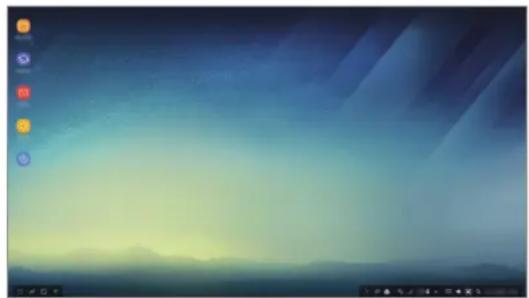
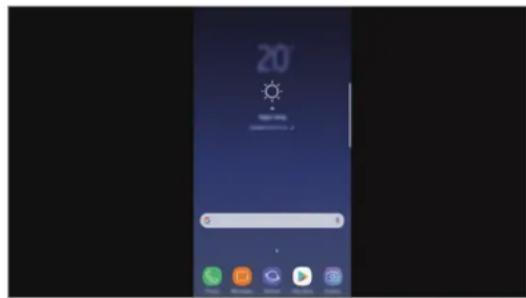
Samsung DeX mode Screen mirroring mode

- The screen mode you first select will be applied for subsequent connections. Refer to Changing the screen mode for more information.
- If you want to control the Samsung DeX mode screen, you must connect a mouse. Refer to Connecting a keyboard or mouse for more information.
Precautions for connecting the device
- You can use the multimedia dock only when you connect it to a charger.
- Connect only a keyboard, mouse, or an USB storage device to the multimedia dock's USB ports. Charging devices or connecting high-capacity devices with these ports may not work properly.
- Prevent the fan vent and mobile device connector inside from coming into contact with liquids or dust. Exposure to liquid or dust may cause the multimedia dock not to work properly.
- Do not move the mobile device while it is connected to the multimedia dock. Doing so may damage the mobile device connector.
- When you use the mobile device's voice recognition after connecting the multimedia dock to your mobile device, the voice recognition may not perform well.
Ending the device connection
Remove the mobile device from the multimedia dock to end the connection between the mobile device and TV or monitor.
Connecting a keyboard or mouse
Connect a mouse to use Samsung Dex mode. Connect a wired mouse and keyboard to the multimedia dock's USB port or connect a wireless mouse and keyboard with the Bluetooth feature of the connected mobile device.

If you connect a keyboard, the virtual keyboard is not displayed on the screen. On the Settings app, select Samsung DeX Show virtual keyboard in Samsung DeX switch to activate it to display the virtual keyboard on the screen.
Connecting via cable
If you want to use a wired keyboard or wired mouse, connect their USB cables to the multimedia dock's USB ports.
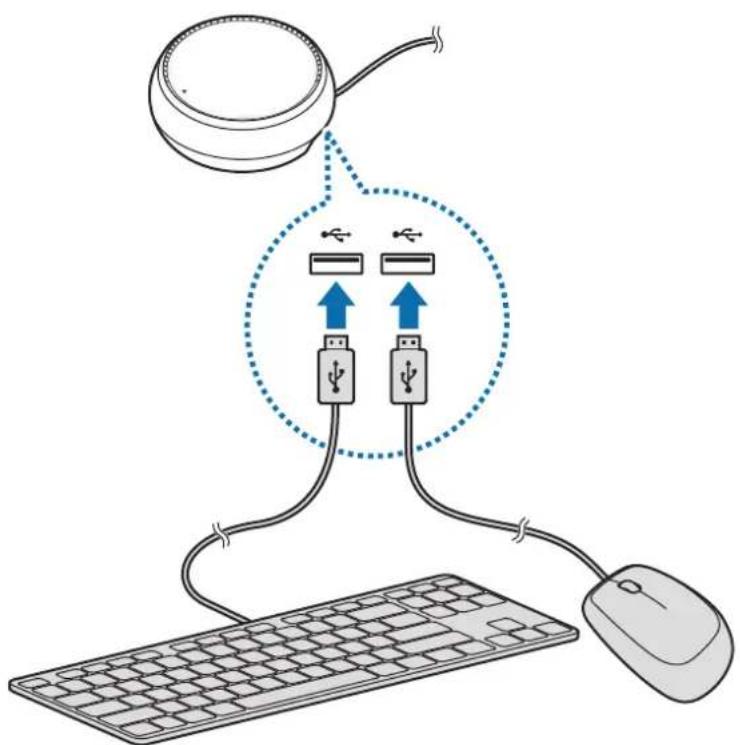
Connecting via wireless or Bluetooth
You can connect a wireless mouse and keyboard or Bluetooth mouse and keyboard. For more information about the devices, refer to the device's user manual.
- Wireless mouse and keyboard: Insert a wireless receiver into the USB port.
- Bluetooth mouse and keyboard: Connect to a mobile device via Bluetooth.
Using Samsung DeX mode
You can use your mobile device's features in an interface environment similar to a computer. You can launch the mobile device's apps and check the mobile device's notifications and status.
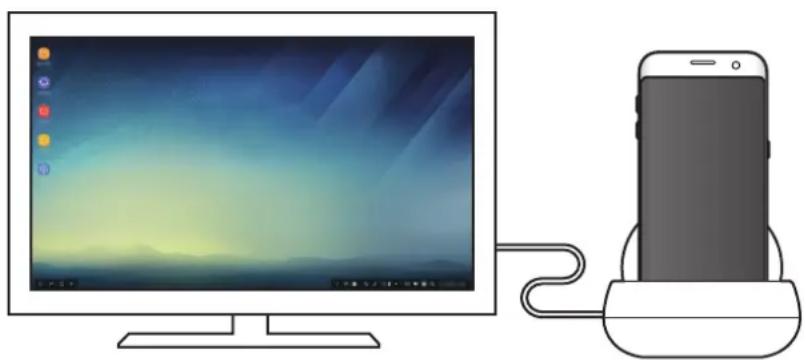

- If you want to control the Samsung DeX mode screen, you must connect a mouse. Refer to Connecting a keyboard or mouse for more information.
- Some apps or features may not be available when using Samsung DeX mode.
Precautions for launching Samsung DeX mode
- When you launch or disconnect Samsung DeX mode, the currently running apps will close except some apps.
-
You cannot launch Samsung DeX mode if your mobile device is in the following modes: the power saving mode, ultra power saving mode, performance mode, emergency mode, and safe mode.
-
If the TV or monitor do not support HDCP (High-bandwidth Digital Content Protection), the Samsung DeX mode screen may not be displayed.
- Samsung DeX mode only supports Full HD resolution, and some content on your mobile device may be displayed differently on the TV or monitor.
- The available time for battery usage can be reduced when you use Samsung DeX mode.
- If you change the settings on Samsung DeX mode, the mobile device's settings will be changed as well. Some settings of the mobile device may not be changed even if you change the settings on Samsung DeX mode.
- Download the firmware from the server to update Samsung DeX mode to the latest version. It is available only when connected to a Wi-Fi network.
Using the Home screen
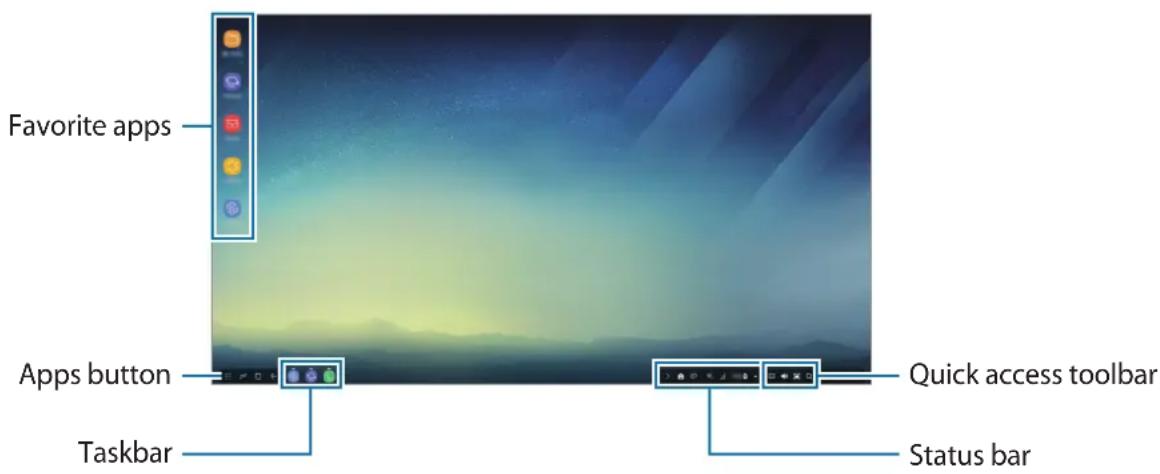
- Favorite apps: Add frequently used apps to the Home screen and launch them quickly.
- Apps button: View or launch apps installed on your mobile device.
- Taskbar: View the apps that are currently running.
- Status bar: View your mobile device's status or notifications. The displayed icons may differ depending on your mobile device's current status. Select and turn on and off your mobile device's various features on the quick settings list.
- Quick access toolbar: Use the virtual keyboard, volume, screenshot, and finder features quickly.
Receiving an incoming call
You can receive an incoming call with the connected TV or monitor while using Samsung DeX mode.
If you receive a phone call, select the incoming call menu from the connected TV or monitor. The mobile device's speaker is used for answering the call.

Remove your mobile device from the multimedia dock to use the mobile device instead of the speaker phone to receive an incoming call. It may take a few seconds for the incoming call screen to appear on your mobile device.
Adding app shortcuts
Select the Apps button, select the app you want to create a shortcut to, and then drag it to the Home screen. A shortcut to the app will be added on the Home screen.
Setting the speakers
You can change the default speakers from your mobile device's speakers to the TV's or monitor's speakers or other audio devices.
On the taskbar, select Audio output and select the device you want.
Using the quick access toolbar
:Display the virtual keyboard.
- Adjust the volume level for call ringtones, music and videos, notifications, and system sounds.
- Capture a screenshot and use the captured screen in various ways, such as drawing on, writing on, cropping, or sharing it.
- Q: Search for content on your mobile device by entering a keyword in the search field. To get more refined results, selectFilter under the search field, and then select filter details.
Home screen options
On the Home screen, when you press the connected mouse's right button, you can use the home screen options.
- Arrange by: Select the arrangement method for apps on the Home screen.
- Clean up: Arrange apps or folders on the Home screen based on your selected arrangement method.
- Wallpapers for Samsung DeX: Change the Samsung DeX mode wallpaper settings for the Home screen and the locked screen.
Launching apps
Launch apps installed on the mobile device on the Samsung DeX mode.
When selecting the Apps button, your mobile device's apps list will appear. Select an app and launch it. You can open several apps and launch them at the same time and multitask as you use the computer.

Some apps may not be available when using Samsung DeX mode.
Launching exclusive apps
Download or launch exclusive apps for Samsung DeX. Select the Apps button and then select Apps for Samsung DeX.
Configuring the settings
Configure your Samsung DeX mode settings.
Launch the Settings app on the connected TV or monitor and select Samsung DeX.
- Screen timeout for Samsung DeX: Set how long Samsung DeX mode waits before turning off the display's backlight.
- Wallpapers for Samsung DeX: Change the Samsung DeX mode wallpaper settings for the Home screen and the locked screen.
- Pointer speed: Adjust the pointer speed for the mouse.
- Show virtual keyboard in Samsung DeX: Show a virtual keyboard on the connected screen when you connect the keyboard.
- About Samsung DeX: View the Samsung DeX software information and update your Samsung DeX's software.

The Samsung DeX's setting options only appear when launching Samsung DeX.
Using Screen mirroring mode
The mobile device's screen will remain on and appear on the connected TV or monitor. View your mobile device's various content on the wide screen of the connected TV or monitor.
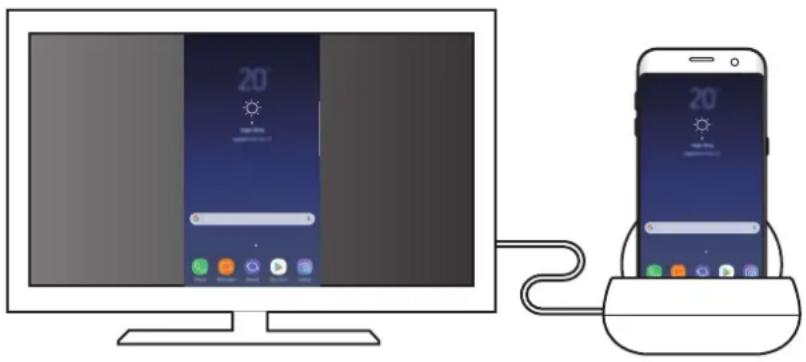

You can use Screen mirroring mode without connecting a keyboard or mouse. Control the screen with the connected mobile device.
Changing the screen mode
To change the screen mode, launch the Settings app on the connected TV, monitor, or mobile device and select Connections More connection settings HDMI mode, and then select Samsung DeX or Screen Mirroring.
The screen mode you select will be applied for subsequent connections.
Appendix
Troubleshooting
Before contacting a Samsung Service Center, please attempt the following solutions.
Your multimedia dock or connected devices freezes
If the multimedia dock or connected devices freezes or hangs, try to resolve it by turning off the connected mobile device and then turning it on again.
If the multimedia dock or connected devices are still unresponsive, disconnect devices from the multimedia dock and reconnect them.
If the problem is still not resolved, contact a Samsung Service Center.
The multimedia dock works differently as described in the manual
Available functions may differ depending on the connected device.
The screen ratio is incorrect
Adjust the screen ratio from the menu of the connected TV or monitor.
Copyright
Copyright © 2017 Samsung Electronics
This manual is protected under international copyright laws.
No part of this manual may be reproduced, distributed, translated, or transmitted in any form or by any means, electronic or mechanical, including photocopying, recording, or storing in any information storage and retrieval system, without the prior written permission of Samsung Electronics.
Trademarks
- SAMSUNG and the SAMSUNG logo are registered trademarks of Samsung Electronics.
- All other trademarks and copyrights are the property of their respective owners.
Para comenzar
Presentación
Copyright © 2017 Samsung Electronics
Copyright © 2017 Samsung Electronics
本手册受國際版權法保護。
Samsung Electronics, 2017.
IeRnge hao 3oHai iHaeJit JnOJnJnJnJnJnJnJnJnJnJnJnJnJnJnJnJnJnJnJnJnJnJnJnJnJnJnJnJnJnJnJnJnJnJnJnJnJnJnJnJnJnJnJnJnJnJnJnJnJnJnJ
的