GXT 31 18188 - Mouse TRUST - Free user manual and instructions
Find the device manual for free GXT 31 18188 TRUST in PDF.



| Product Type | Wired Gaming Mouse |
| Brand | Trust |
| Model | GXT 31 18188 |
| Programmable Buttons | 7 buttons (left click, right click, scroll wheel, back, forward, triple click, mode) |
| Number of Profiles | 5 saveable profiles |
| DPI Range | 100 to 3000 DPI, adjustable by X/Y axis |
| Report Rate | 125 Hz, 250 Hz, 500 Hz, 1000 Hz |
| Macros | Recording and assignment of keyboard/mouse macros |
| Power | Computer USB port |
| Adjustable Weight | Weight system |
| Configuration Software | Trust Config software, installation via CD-ROM |
| Cable Length | Approximately 1.8 m (estimated) |
| Compatibility | Windows (unspecified) |
| Dimensions | Approximately 125 x 70 x 40 mm (estimated) |
| Care | Clean with a soft, dry cloth |
| Weight (without cable) | Approximately 120 g (estimated) |
Frequently Asked Questions - GXT 31 18188 TRUST
User questions about GXT 31 18188 TRUST
0 question about this device. Answer the ones you know or ask your own.
Ask a new question about this device
Download the instructions for your Mouse in PDF format for free! Find your manual GXT 31 18188 - TRUST and take your electronic device back in hand. On this page are published all the documents necessary for the use of your device. GXT 31 18188 by TRUST.
USER MANUAL GXT 31 18188 TRUST
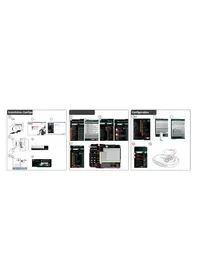
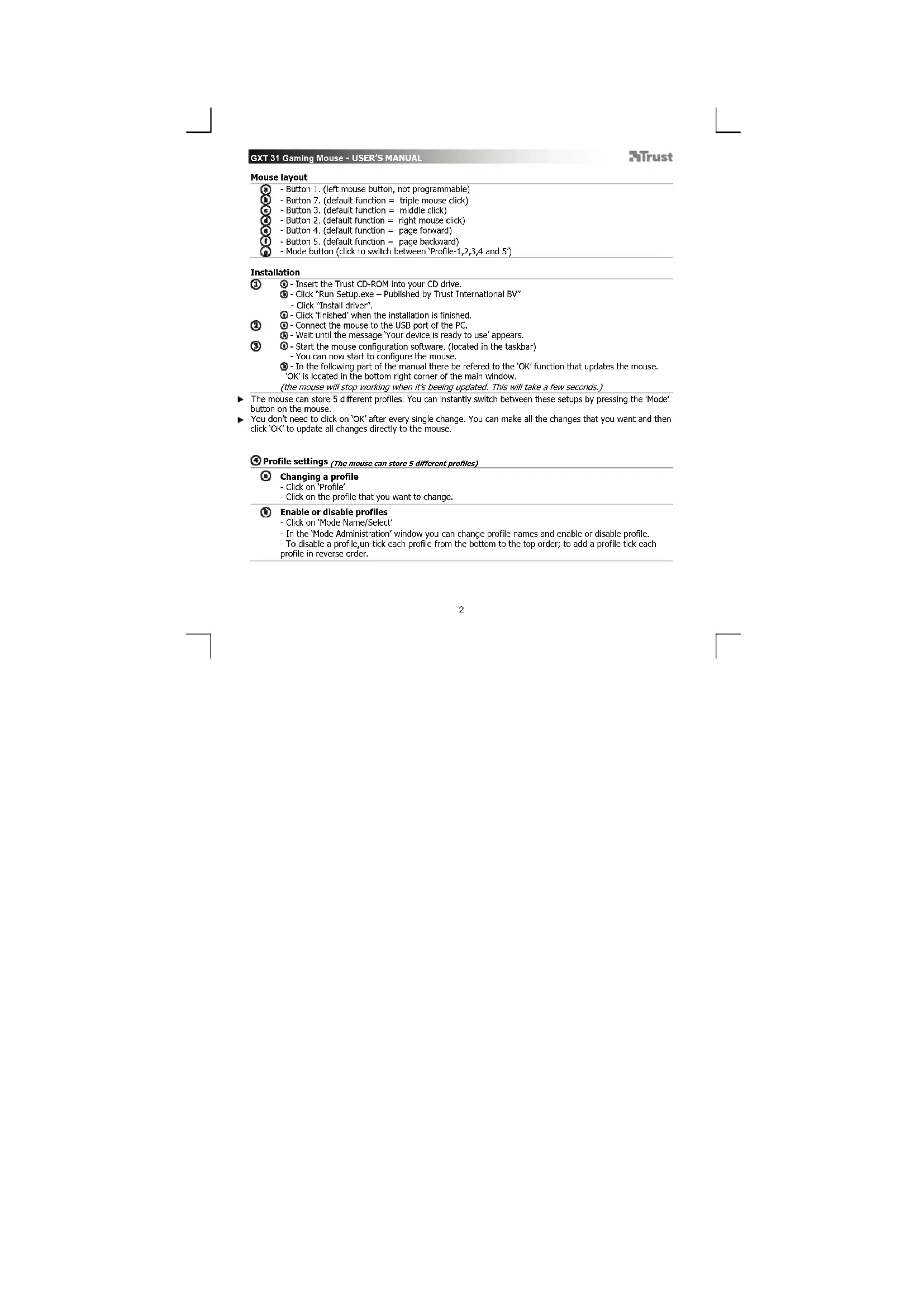
Insert the Trust CD-ROM into your CD drive.
- Click "Run Setup.exe - Published by Trust International BV"
-
Click "Install driver".
-
Click 'finished' when the installation is finished
-
Connect the mouse to the USB port of the PC.
-
Wait until the message "Your device is ready to use" appears.
-
Start the mouse configuration software. (located in the taskbar)
-
You can now start to configure the mouse.
-
In the following part of the manual there be referred to the 'OK' function that updates the mouse.
'OK' is located in the bottom right corner of the main window.
(the mouse will stop working when it's bee ing updated. This will take a few seconds.)
The mouse can store 5 different profiles. You can instantly switch between these setups by pressing the 'Mode' button on the mouse.
You don't need to click on 'OK' after every single change. You can make all the changes that you want and then click OK' to update all changes directly to the mouse.
Profile settings (The mouse can store 5 different profiles)
Changing a profile
- Click on 'Profile'
- Click on the profile that you want to change.
Enable or disable profiles
-
Click on 'Mode Name/Select'
-
In the 'Mode Administration' window you can change profile names and enable or disable profile.
-
To disable a profile, un-tick each profile from the bottom to the top order; to add a profile tick each
profile in reverse order.
Configuration
Assign a function.
- Click on the button which you want to re-assign.
- Hover over the function type you want to assign. (Mouse, Internet, Multimedia, etc. etc.)
- Click on the function that you want to assign.
- Click on 'OK' → The mouse is beeing updated.
Assign a Keyboard function.
- Click on the button witch you want to re-assign.
- Click on 'Keyboard'
-
Click on the virtual keyboard key that you whish to assign.
-
Click on OK' → The mouse is beeing updated.
Assign launch a program.
- Click on the button witch you want to re-assign.
- Click on 'Execute Program'
- Double click the .exe file that you want to launch.
- Click on 'OK' → The mouse is beeing updated.
Advanced Mouse configuration
Create a macro function. (Store a sequence of keys in the software)
- Click on the button witch you want to re-assign.
- Click on 'Macro Manager.'
There are 3 ways to create an macro:
-
Insert functions from top and left panels.
-
Record both mouse and keyboard movements using the record button.
-
Input with either keyboard panel below or your actual keyboard.
-
When you're finished creating your macro. Click
- Here you can:
- Open an existing macro.
-
Save your macro.
* Rename your macro. -
Close the 'macro manager' when your done creating macros.
Assign a macro function. (Store a sequence of keys in the software)
- Click on the button witch you want to re-assign.
- Select the macro you whish to assign from the 'Select Macro File' list
- Click on 'OK' → The mouse is beeing updated.
Change the DPI settings (every profile has his own DPI setting, profiles and DPI are linked)
- Click on 'DPI Setting'.
- You can change the DPI setting for both X and Y axis separately. (100 - 3000)
- Click on 'OK'
GXT 31 Gaming Mouse - USER'S MANUAL
Trust
- Click on 'OK' → The mouse is beeing updated.
Change the report rate (every profile has his own report rate profiles and report rate are linked)
-
Click on 'Report Rate'.
-
Select the desired report rate (125Hz, 250Hz, 500Hz, 1000Hz)
-
Click on 'OK'
-
Click on 'OK' → The mouse is beeing updated.
Mouse setup
Save a setup
-
Click on 'File'
-
Click on Save as
-
Enter a name for the mouse setup.
-
Click on 'Save'
-
Your mouse setup is now saved.
Restore default settings or load own setting
-
Click on 'File'
-
Click on 'Open'
-
Select for default settings 'Default settings.ASC' or your own saved settings.
-
Click on 'Open'
-
Click on 'OK' → The mouse is beeing updated.
Changing the weights
-
Remove the back cover of the mouse by turning it.
-
Place or remove the weights.
- Haga clc en "Run Setup.exe - Published by Trust International BV".
Haga dic en "Install driver" [Instalar controlador].
- Clique em "Executor Setup.exe - Published by Trust International BV".
- Klik på"Run Setup.exe - Published by Trust International BV" ("Kor Setup.exe - Udglvet at Trust International BV").
Klik pa "Installer driver".
Kliknite na Run Setup.exe - Published by Trust International BV".
- Kliknite na Install driver" [Instalovat ovladac].
- Kattintsonerre: Run Setup.exe - Published by Trust International BV".
6yToHaMode" [PexMM] Ha MHJikata
He e HOKHO hipakBaTe OK" cien BCa Ka OTenHa POMa Ha MoXe Ta HAPaBte BCuKn POMeHn KOnTO
NCKATE, a cne TOBa da upaKaHete OK" 3a da aKtyaun3nPaTe BCMHN nPOMEHn DnpekTHO B MIIuKATA.
HactpoKHa npoqnn (MnKATA MoNE da cbxpann 5paanHH npofoa)
CmHaHaPpOu
-ppakheTeprofile"[,Pnpo#n").
-UpaKHeTe Bbpxy npoHnla, KOHTO nCKaTe da CMeHInTe.
AKTUBPaeHnDeaKTHBpaHeHa npoHn
- UpaHHe "Mode Name/Select" [,Hme Ha npoPun/U36op]
-B npo3opeua "Mode Adminstration" [AdminncptpaHnpoPn] MoKTe Da CMeHNTe HmTo Ha
npoHn n da aKTbHpate Nn DeaKTbHpate npoHn.
-3a da deakmbapate npofo,otMapkpaiTe Bcekn npofo nOToNy Harope; 3a da doabnte npofo,
MapKpaIe Bocn npoHnB o6pateh p
KoHKnFHypaua
Ha3haabaH a yHKunr
- ⅢpaKHeHa 6yToH, KOTo NCKaTe Da npEha3HaHTe.
-ПочсometriceСКУрсая МИИКЕТНИАФДУКИ,ΚΟΤΑΝΥΚΑΤΑ ДАЗHAЗЧЕТе (Mouse, Internet, Multimedia [МИИКИ, ИNTEHETР, МЛТПМДЕС] и T.H.). -
ⅢpaKHeTaHaФyHKUHTa, KOrToNCKaTe Da Ha3HaHTe.
-
UpaKaHETe,OK",→MnUkata e aKtyaHIN3NpHa.
Ha3haeTe yHKnna Ha KlaBnTaPaTa
-ⅢpaKaHHeHa 6yToH, KOTo HCKaTe Da npeHa3HaHTe.
- UpaKHeTe „Keyoard" [„KnabNAtypa"]
- ⅢpaKHeTe Bbpyx KnabHnHa H BnpyaHnTa KnaBnAtpa, KoITo NcKte Da Ha3NaHTe.
Ha3Ha4BaHe cTapt Ha nporpaMa
- UpaKHeHa 6yToH, KOTo NCKaTe Da npEHa3HaHTe.
- UpaKHeTe,Execute Program" [M3nBnH nporpama].
-ppakheTe DBykpaTHo Bbpyx paIaIc pa3wnpeHne .exe, KoITo NCKaTe da 6bde CTAPtnpaH.
6 Pa3wnpeha KOHnHypauaHa MMskata
Cb3daBaHe Ha MaKpo FyHKnra (cbxpaHete nocneobateHHoCT Ha KnaBnBn B coFpyepa)
-ⅢpaKHeHa 6yToH, KOTo NCKaTe Da npEha3Ha4HTe.
- UpaKHeTe Bbpxy Macro Manager" [MaKpo MeHnKb..]
Ima 3 Haunha 3a cB3daBaHe Ha MaKpo:
-BMbKHeTe FyHKUa OT rOpHn N neBnaHn.
- 3aHnueTe DBNKeHnra Ha MnKata H NaKnBaHtPaTa, Kato n3non3BaTe 6yToHa 3a Record [3anm].
-BbBedeTe nnn c naHena Ha knaBnataypata no-dony, nn c peaHaTa cn knaBnataypa.
-Korato npnkHouHTe cbc cb3daBaHETo Ha BaWeto MaKPO. LpaKaHTe
-Typ moxete
PAPKPO
*Да загаметиTe CBOE.
*DnPENMEHYBATE CBOEOTMAKO
-Korato npnKIOUHTe CbC cb3dABaHETo Ha MaKPOcN, 3aTBOpTe Macro manager""[MaKpo
MeHwJxKbpa"
Ha3haabaHe Ha MaKpo FyHKUNa (cbxpaHete nocneqobateHHoT OR KnaBnB B cofopepa)
-ⅢpaKHeTe Ha 6yToH, KOITo NCKaTe Da npeHa3HaHTe.
- H36epTe MaKpO, KOeTO HCKaTe Da Ha3HaUHTe OT CNHcBka „Select Macro File" I, H36op Ha MaKpO
paan
- Lpakhe,OK". → Mnukatae aKtyannpaHa.
CMHa Ha DPI HACTpoKn (BCEKN npoHn Hm CBOH DPI NaCTPOHN, npoHnHTe n DPI ca cbbp3AH)
GXT 31 Gaming Mouse - USER'S MANUAL
Trust
-ⅢpaKHeTBeBpyxDPI Setting"[,DPI HacrpoKn"
-MoKTe Da CMeHHTe DPI HactpoKHTe n 3a ocTa X n 3a Y oTdEnHo (100-3000).
-UpaKHeTe,OK
- UpaKHeTe,OK".→MnUkTa e aKtyaHn3npaHa.
CmeHeTe YecToTaHa MoyNaUg(BcEH npOphH HMa CBOB YecToTa Ha MoyNaUH, a npoPhnHa
yecTOTATA HA MODYNAHCA CBBp3AHN
- UpaKHe TbpyxReport Rate" [,YecToHa Moynaua].
-Ⅲ6epeteNCKaHaTa YecToA Ha Moynauu(125Hz,250Hz,500Hz,1000Hz).
LpaKHeTe,OK". - UpaKHeTe,OK".→MnUkTa e aKtyaHn3npaHa.
HaCtpoKa Ha MmIka
3ana3BaHe Ha HAcTPOJKa
- UpaKHeTe "File" [Фaɪn].
- トpaKHeTe Bbpyx Save as" [3anaa KaTo]
-BbBedeTe HMe 3a HAcTpoKaTa Ha MHkata.
-llpaKHeTe bpyx Save[3anaa]
-Cera BaWata HAcTpoKa Ha MMuKaTa e 3aNa3eHa.
Bb3aHOBBaHe Ha HAcTpoKn no Nopa36upaHe nI 3apeXkaHe Ha BaHn HAcTpoKn
- UpaKHeTe „File" [,PhiIn".
-UpaKHeTe,Open"[]OTBOpn".
-ИЗбэретаэнгсрйкno noopa3bmpaHedDefault settings.ASC"mNCBON 3ana3eHn HAcTpoKn.
-UpaKHeTe,OpEn"[,OTBOpN". - LpakHeTe OK".→MnKataeakTyannHpaHa.
CmHa Ha TeXeCTH
-OTCTpaHETe 3aHnK Kanak Ha Mmukata KaTo r0 3aBbTpTe.
-NotaBeTe HN OTCpaHeTe TeKecTn.
Ha3haueHne KhoNOKMbIIN
KHONka 1. (neBaH KOnKaMbIuH, HEnporpaMMpyEma)
-KHOrka7.(fynKmno no ymonuHaHNO = TponHO uenokMbwn)
-KhONKa 3. (Фунн no yMonuaHIO = ueHOK cpedHek HONKO MbluH)
-KHONKa 2.(ФункиюуMONuaHIO=ueNpyOK npaBOI KHOKoi)
-KHONKa 4.(yHKnna no ymonhaHHIO = cTpaHnua BnepeN)
-KhONKa 5. (Функию no yMonuaHnIO = cTpaHnua Ha3aI)
- Khonka Mode [Pekm] (πεκλητη Πηα περκλονευση Mεκήν «Profile-1,2,3,4 and 5» [Προφινι-1,2,3,4,5])
YCTAHOBKa
BCTABBeDnCKTrustBpIMBOIDJN KOMNAKT-DnCKOB.
- - Run Setup.exe - Published by Trust International BV.
-UeKHnTe《Install driver》[《YcTaHOBnTbDpaBcP]
- -UeIeKHTe 已 finished] [3aBepuTb] nocne oKOHaHnYcTaHOBKn.
-NotKIOHHTMeMbIbKUSB-npTyIK.
-NoDoxnTe, noka noBHTcra coo6eHne «Your device is ready to use» [«YCTPOIcTB0 rTOBOK
HIOJIb3OBAHIMO
-3anyctnte nporpammy Hactpoikn Mbwn (KOTOPaHaxoDITcHa nHaHei 3aJa).
- Tenepb MoXHO HauaTb HAcTpOki Myi
B-CbJeDyIeMwPaeIePyKOBoDCTBaYkA3HaФyNKJIaKHOJIKKOKKOTOPaN0BONJE06OBHHTNACPOKBIuHs.
Khonka OK pacnooxkeha B npabom HxHem ytny rnaBHoro OKHa.
(MuHHe 6yEeT pabotb 80 Bpema BnnonneHb OBHOeHH. 3OT npuecc 3aiMeT HeckoJIko cekHa.
MIIIMIeMeT5paJIHbIaIPOpIHnB. BbMOXETepeKHOHTcR MeKdy3THMMHACPTPOKaMn, HAKAB KHOIKY
HETeXoOxIMOnCTN HAKMnTb OK NOcNE BHeCEHNa KAZQOrO HMeHENB. Bly MOKTe BCTB NcEHOxDMbIe MHeHENH, a 3atam HAcKbTb OK dIN xHnEOpcDBeHHoO b6HObENHnI DnBmH.
4 NapametprnpoHn (MbH HmeeT 5 paaHHbEx npoHne)
N3MeHeHne npOHHa
-IIenKnHTe «Profile» [«Порфы»].
-ⅢeKHTHe Ha npOoHb, KOToBpI cIeDyET H3MeHHTb
BknHueHHe HnO tKIOUeHne npoHne
- 《Mode Name/Select》[«IMpeKIma/Bb6paTb》].
-BokHe 已 ModeAdministration][YnpaBneHnepeKIMOM]MOxHO hMEnHb mI npOuIaTakke
BkIOHTb Nn BbIKIOHTb eO.
-ДАг NOПКЕИЗ NOПСИЙ БУРЕТЕ NOПСИЙ BOANTE KAKJOIO NOПСИЙ B NOJPKE ChIN3Y BBEIX;чОБь IOBABAHI NOPICHNIB, NOCTABTE NOJIHOKO BOANE KAKJOIO NOPICHNIB B OSHPANTOH NOPJIXE.
GXT 31 Gaming Mouse - USER'S MANUAL
Trust
HacrpoKa
Ha3naeHne cyHKcun
- ⅢeπKHTe KONky, KOtopyIO Heo6xOIMn OpeHa3HaHTb.
- HabeDInTe Ha TnH FyHKuMn, KOTOpYIO Heo6xOdMnHOaHaNauHb (Mouse, Internet, Multimedia [MuIb,
INHTepHET,MybTMnMa]nT.) - ⅢeKNHnTe ΦyHKuHIO, KOtopyIO Heo6xOdmo Ha3HaHTb.
- ⅢeJIKNHTE «OK», → HAcTpOuKIMbIaN 06HOBJI
HaHaueHne FyHKmN KnaBnATpyb
-JIENKHTe KHOHky, KOtopyIO Heo6xOIMNO npeHa3HaHTb.
-UeKnHHe «Keyoard》[«KnaBnAtypa]
- 5eJKNHnTe KnaBnWb BnpyaIbHO KnabnAtypbl, KOtOpyo Heo6xOIMo Ha3HaHTb.
-JIeKHTe OK),→HAcTpoKIMbIaN 06HOBIAOTCA.
Ha3haueHne 3aVcKa nporpaMMbl
- ⅢEKNHTE KONKY, KOToPvIO Heo6xOdmo NpeHa3HaHTb.
-UnenKHTte «Execute Program» [«BbnonHHTb nporpammy]
-DbaxdbIeKHNTe PaHn.EXe,KOToPbI Heo6xOaMIO 3anyCTNTb. - ⅢeKNHHe «OK», → HactpoiMnMbIuO6HOBIAIOCTCA.
DOnonHHTenBHeIe HAcTPOKnMbUH
Функия co3daHHaMaKpOca (coxpaHHeHneNoCnepoBATEbHOCTNKnabu pIg NO)
- ⅢeIKNHnTe KhONkY, KOtopyIO Heo6xOJIMo nepeHa3HaHTb.
- ⅢeIeKHTe «Macro Manager...» [«ДиСNETчЕР МкрocOB»].
CyueCTByeT 3 cnooc6a co3dHaHn MaKpOca:
BCTABBe yHKm C bepxHn neBO nahene.
-3annnte nepemueenrMbunnKnabNAtpyc nomoukbKhONkRerord [3anncb].
-
BBeDInTe C NOMOUsbIO NaHEn KNaBnATyPb CHN3Y HNN NOHOPa3MePHoKlaBnATypbl.
-
Pocne 3aBepHHeHH Co3HaHH MaKPOCA HENKHHTe
-3neB,MOKHO - OTYDHTH CIVIECTRYOUUM MAKDOC
- Coxyphth MakoPc
*Пелейменоваы Маррoc.
-3akpoTe «Macro Manager» [«ДиСNETЧЕР МАКРСОВ» ]пocne заевшия COЗдAnHЯ МАКРСОВ.
7)ФУHKUЯ Ha3HaueHЯ MaKpOcA (coXpaHENHe nocdOBaTeBbNcTH KJIaBHHI ANI PO)
- ⅢeJIKNHTe KHOHKy, KOtOpYIO Heo6xOIMo NepeHa3HaHTb.
- Bùbèpèrè Mākρoc Ún Cπικα [«Select Macro File» [«Bùbèp oφ ληλa Mākρος», KOTOPβ ΜeθδxOДмΟ H3AHAuYtB.
-ILCNKHNTE«OK》,→HACTPOKMBIIMN6HOBJIOTCA.
Hnmehehna hactpoek DPI (kaxbni npoohnl meeet cno hactpokn DPI npoohnn n DPI cbaa
MENAY CO608)
- Μεικηντησε «DPI Setting» [«Hactpoynu DPI»].
GXT 31 Gaming Mouse - USER'S MANUAL
Trust
-BbMOKeTe NmMeHHTb HAcTpoKn DPI OTeJIbHO IIN OCN X IN Y (100-3000).
-ENKHTe OK
- 1eKHTe OK . → HactpoiM Mbln O6HOBJHOCTCA.
Hnme HtOPOB (Kamdu npoHmH Meet CBOO YACTOTy ONPOOB, npoHm H YACTOTa onpocBaemdy Mekdy coob)
- ⅢeKHTe «Report Rate» [«YacToTa onpocOB»].
-BbIbepnTe Heo6xOuMmyo qactoty onpocob (125Hz, 250Hz, 500Hz, 1000Hz) [125 Fu, 250 Fu, 500 Fu,
1000TJ].
-UeKHNTe OK
-JIENKHTE,→HAcTPOuKNMbIIN06HOBIAHOTCA.
HaCtpoKmMbIa
CoXpaHeHHe HAcTPOeK
- WENKHnTe «File» [«Фаин»].
- UenKHTe «Save as» [«CoxpaHnTb KaK»].
-BBeHTe HMA HaCTPOKIN MBIUN.
-LIeNkHnTe[CoxpaHnTb].
-TenepbHacTPOKIMMbUcOxpaHeHb.
BocTaHOBHeHnepapaMeTpOB no yMOJIaHaHHIO Hn3arpy3ka CBOHX HAcTpoEK
-UeKnHTe «File» [«Фаи»].
-JENKHTe
- Bb6epnte hactpoikn no ymonaHIO «Default settings.ASC» nI cBON coxpaHeHHbe HAcTPOIKN.
-UeJIKHnTe《Open》[OtKpbTb].
-JIeKHTE
H3meHeHne BEcaMbIIM
-NoBcPhyB 3aHIOKpblkkyMbI,CHMNTecc.
- YCTaHOBNTe HNN CMeHHTe rpy3NK.
AiTaEgTou novTKIOU
8- IepiEvete jxvi pa eupavotel to yuvua Your device is ready to use (H oukeun oac elvai etoiun xynon)
-
Ekkivnto loyioikdoiaoppwocou novtkiou (piaoketai otyn ypaum npyaov).
-
Mnopeire Twpa va EekivnoeTe Tn diaoppwon Tou novtikou
-
5TnV enoevn evotra Tou Exyeiipoiu xpionc, unapxouv avapopec otn aeitoupyia tou koupiou
'OK' yia tvv evnpepon tou novtkiou
To koujnl OK'pIeKETaI OTNv KATw dEgla yWVa Tou kupou npapuou.
(H AETOUPYIA TOU NOVTIKIOI DIAKONTETAI KATA TIV EVNPEPOWOT TOU. ATRIT N DIAKIOA OAnTeIpePika
deurepenta.)
To novtki exi duvatotnta anoKeuoc 5 diapopetikov npoxia. Mnpoeite vq eaalaoote aea e
autowtoqioopoeeynntovtac to nhtkpo Mode oTo novtki.
AEY xpeioctai va kavete kIK OTO OK'muo KTo ano kOe aalayn. Mnopeite va kavete oec Tc aalayec nou balete
KAI KATONIV VA KAVETE KAK OT OK'VA VA EVNUEPWOETE ANEUeIAC TO NOVTIKI ME OEC TIC AAAAYEC.
4 Puθμioεic npoipai (To novriki xsi duvaroteta anoohjueuoc 5 diaopopetikov npoipai)
Alambda n evoc npoqla
-KavTE KAIK OTo 'Profile' (NpopiA).
-KavTE KAIK OTO npopia nou Bete vdaAaEETe.
Evpyonoinn anevpyonoin npopia
-Kave Klik oTo Mode Name/Select'(Ovojo/Eni loyj katoaoc)
- Στο napαθυρο 'Mode Administration' (Διαχερίση καταστασεων) μηρεῖτε σαλλάζετε το αύουσα των
npoipkKaBockai va evpeponoiieTanevepyonoiite npoipla.
- Tia va anevpyonoinaete ev npoipik, katapynoTe nvi enioyn Tou naioiou eayxou Tou, e aip ano
KATW npoc Ta enav. Tia va npoosoeEva npopia, ENIAEETo nlaioio eayxou Tou, akoauBovrtac
@iaopppwn
Avtioxion piae Aetoupyiag
KAVTE KAIOTO nAHTPO TOU ONIOU BAEETE VA aAAeETETNV AVTIOTOIXION.
-TONOETnOte TO DEIKTN OU NOVIKIO ENAVOW ano TOno TnC LEIToupyia c nou 0EeTe VO
dvTIOxioTe (Mouse, Internet, Multimedia k.λn.).
-KavTE KAI OTH AIToupyia NOU ΘAETe Va AVTIOIyoTe.
-KavTE kIK OTO OK'.To novtIK evnepuwetai.
AvTioToxionmuacAeIToupyiaaNkTpOaoylou
-KavTE KAIK OTO nAHTPO TOU ONIOU BAAETE VA aAAaEETe TIV aVTIOIXION.
-KavTE kIK oTo 'Keyboard' (nAnktpoLoyio)
Kavte kik oTO nAnktpo TOU EIKOVIKO uN ANktpoAoyiou nou έλeTe VA vTIOxioE.
AvioToiOxion TnEKKlvNoNc Evoc npoypaMaTos
-KavTE KAI OTO NAnKPTo Tou onoiu BcEte V aaaaEETe TIV AVTIOTOIXION.
-KavTe KAIK OTo 'Execute Program' (EKTLEeON npoypaMaTOc).
KavTe 01nO KIK OTo apxlo .exe nou BcEe va EKKVeI.
品 aipoppnoaou tou novtkiou ia npoxwnEvouc
Anioupyia iac aeitoupyiac pakoEvToIc (anOjkeunn paac aokoubia nAiktpaw oAoipko)
KAVTE KAIK OTO nAnktpo Tou onoiou Beteve va aAaeTe Tny avtiotoxion.
-Kavte kik oTo Macro Manager... (Aioxepian paKpoevtoov).
Ynapxouv 3 Tponoi yia th ndioupyla pia paakpoevtohC
-Eiaywyn λ eitoupyiw ano To enaw Kai to apioTepo naveA.
- Kataypaipn kivnaewu me to novtkai nAnktpoaynoeawxponionoiovrtac to koumi Record.
-Eiaywy nite e to npakata naevnankpooyiou, e t e to npaypntoanktpooyio.
-OTav olokpanoETn 0nmuoyia Tnc kapoeVToAIC. KaTE KAIK OTO
-Edowunopelteva:
* AvoiEte pia unapxouoa paKpoEvToA.
*AnObnKeuOeTe Tn paKpoeVToaac
* METOVUOAOETI NAPKOEVTOI OAC
- 'OTAV TELEWOTAETN 8nMIoupyia pKpOeVToAov, kEIOTe To Macro manager'.
Avtioxian iac aeitoupyiaqakpoevtoh(c anoikueon iaac aokoubiaa nktpwv oayoiinko)
-KavTe kAIk OTo nAHTpo Tou onoiou BéAETe va aAaEETe TIVvTIOIxyion.
- EniEre T m paKpoEvToH nou BcAeTe va aVIOtoXioTe anT AIOta 'Select Macro File' (EniEre
apxio paKpoeVToaHc)
-KavTe kAIK oTo 'OK'. To novriK evnmupeWETai.
GXT 31 Gaming Mouse - USER'S MANUAL
Trust
A Aanyu Tovpuoioeov DPI (kde npoiiaexei dink toupuonnpDPI kaT npoiia daouvovrui pe ouoieckDP1)
- KávTE kλiK oTo 'DPI Setting' (PüBμion DPI).
-Mnopeite va aalaeene t npoue npDPI aveapnta yia kote eva ano touc oEvoc X kai Y (100-3000).
-KavTE KAIK OTo OK
-KavTe kAIK OTo 'OK'. → To novrki evnmupeovetai.
AALayuTu puBou avapopac (Kabe npoipia eXei dko Tu puBou avapopoc kai Ta npoipia daovvoeovr ta upuoivc ovapooic)
KavTe Klik OTo Report Rate (PuOmuoc ayapopac).
-EniEETov enBunTo puBoo avapopac (125Hz, 250Hz, 500Hz, 1000Hz).
-KAVTE KAIK OTO OK
-KavTe KAIK OTo OK. → To novtki Evnepuwetai.
1 Diapoppon Tou novtkiou
Ano8hkeuaonmuacdiapoppwong
-KavTe kAIk OTo 'File' (Apxio).
-KavTe KAIK OTo Save as' (AnObnKeuOn ωc
Eicayete eva ovopa yia tn diapoppwon Tou novtkiou.
-KavTe Kuk OTo Save' (AnoBnKeuon).
Enavaopopa tow emileypeuwpuoipieew npopotwn npoounikawpuoipoeow
-KavTE kAIK oTo File' (ApXeio).
KavTE kIK oTo'Open (Avoiμa).
- Eπλεξτe to apxεio Default settings.ASC' yia va enavaapepeTe o ixuT npoenlEyμενεc puθμioeic n emiδε
Eva Sikoc ac apexio pubilacew. -Kavte Kauk kro An' Open (Awoyiqa).
-KAVTE KAKO OK,TO novtik evnepovetai.
Alambdaiyi Tov Bapav
-ApaipoeTo niow kaiumuTou novtkiou nepiotpovtacTo.
-TonoBETnTe n apaipeote Bapn.
GXT 31 Gaming Mouse - USER'S MANUAL
Trust
Fare atamalarli
- Dugme 1. (solfare duğmesi, programlanamaz)
- Dugme 7. (varsayilan islev = üc fare bklatmasi)
- Dugme 3. (varsayilan islev = ortaklatmasi)
Dugme 2. (varsaylan islev = saq fare tklatmasi) - Dugme 4. (varsayilan islev = sayfa ileri)
Dügme 5. (varsaylan islev = sayfa geri)
Mode [Mod] duğmesi ("Profile-1,2,3,4 and 5" ["Profil-1,2,3,4,5"]arasindaGPCIg yapmak icin tiklatn)
Kurulum
-
Trust CD-ROM'unu CD sürucünüe yerleştin.
-
"Run Setup.exe - Published by Trust International BV" ögesini tsklatn.
"Install driver"[Suru:cuyu yukle]secenejini tiklatn.
- Kurulum bittiginde "Finished" [Bitti] ögesini tsklatn.
Fareyi PC'nin USB baglantn noktasina takin.
Kliknite na Run Setup.exe - Published by Trust International BV".
Kliknite na „Install driver“, [Instaliraj upravljacki program].
2 - Prikjucite misa na USB prikrjucak na raacunalu.
- Pricekajte dok se ne pojavi poruka „Your device is ready to use" [„Vaš uredal je spreman za
uporabu"
-
Pokrenite program za konfiguraciju miša (nalazi se na traci sa zadacima).
-
Sada mozete zapoceti konfiguriranjemisa.
-
U nastavku priručnika spominjat ce se funkcija „OK“ koja azurira miša.
- PROFILE SETTINGS (THE MOUSE CAN STORE 5 DIFFERENT PROFILES)
- CONFIGURATION
- ADVANCED MOUSE CONFIGURATION
- HACTPOKHA NPOQNN (MNKATA MONE DA CBXPANN 5PAANHH NPOFOA)
- KOHKNFHYPAUA
- HA3HAABAH A YHKUNR
- HA3HAETE YHKNNA HA KLABNTAPATA
- HA3HA4BAHE CTAPT HA NPORPAMA
- 6 PA3WNPEHA KOHNHYPAUAHA MMSKATA
- HA3HAABAHE HA MAKPO FYHKUNA (CBXPAHETE NOCNEQOBATEHHOT OR KNABNB B COFOPEPA)
- CMHA HA DPI HACTPOKN (BCEKN NPOHN HM CBOH DPI NACTPOHN, NPOHNHTE N DPI CA CBBP3AH)
- GXT 31 GAMING MOUSE - USER'S MANUAL
- TRUST
- HACTPOKA HA MMIKA
- CMHA HA TEXECTH
- HA3HAUEHNE KHONOKMBIIN
- YCTAHOBKA
- 4 NAPAMETPRNPOHN (MBH HMEET 5 PAAHHBEX NPOHNE)
- HACRPOKA
- DONONHHTENBHEIE HACTPOKNMBUH
- HACTPOKMMBIA
- H3MEHEHNE BECAMBIIM
- AITAEGTOU NOVTKIOU
- 4 PUΘΜIOΕIC NPOIPAI (TO NOVRIKI XSI DUVAROTETA ANOOHJUEUOC 5 DIAOPOPETIKOV NPOIPAI)
- IAOPPPWN
- AVTIOXION PIAE AETOUPYIAG
- AVTIOTOXIONMUACAEITOUPYIAANKTPOAOYLOU
- AVIOTOIOXION TNEKKLVNONC EVOC NPOYPAMATOS
- 品 AIPOPPNOAOU TOU NOVTKIOU IA NPOXWNEVOUC
- AVTIOXIAN IAC AEITOUPYIAQAKPOEVTOH(C ANOIKUEON IAAC AOKOUBIAA NKTPWV OAYOIINKO)
- 1 DIAPOPPON TOU NOVTKIOU
- ALAMBDAIYI TOV BAPAV
- FARE ATAMALARLI
- KURULUM
Brand : TRUST
Model : GXT 31 18188
Category : Mouse