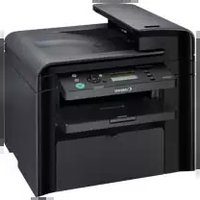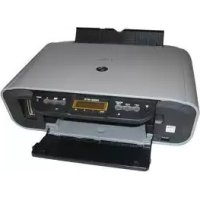
Pixma MP170 - Printer CANON - Free user manual and instructions
Find the device manual for free Pixma MP170 CANON in PDF.
Download the instructions for your Printer in PDF format for free! Find your manual Pixma MP170 - CANON and take your electronic device back in hand. On this page are published all the documents necessary for the use of your device. Pixma MP170 by CANON.
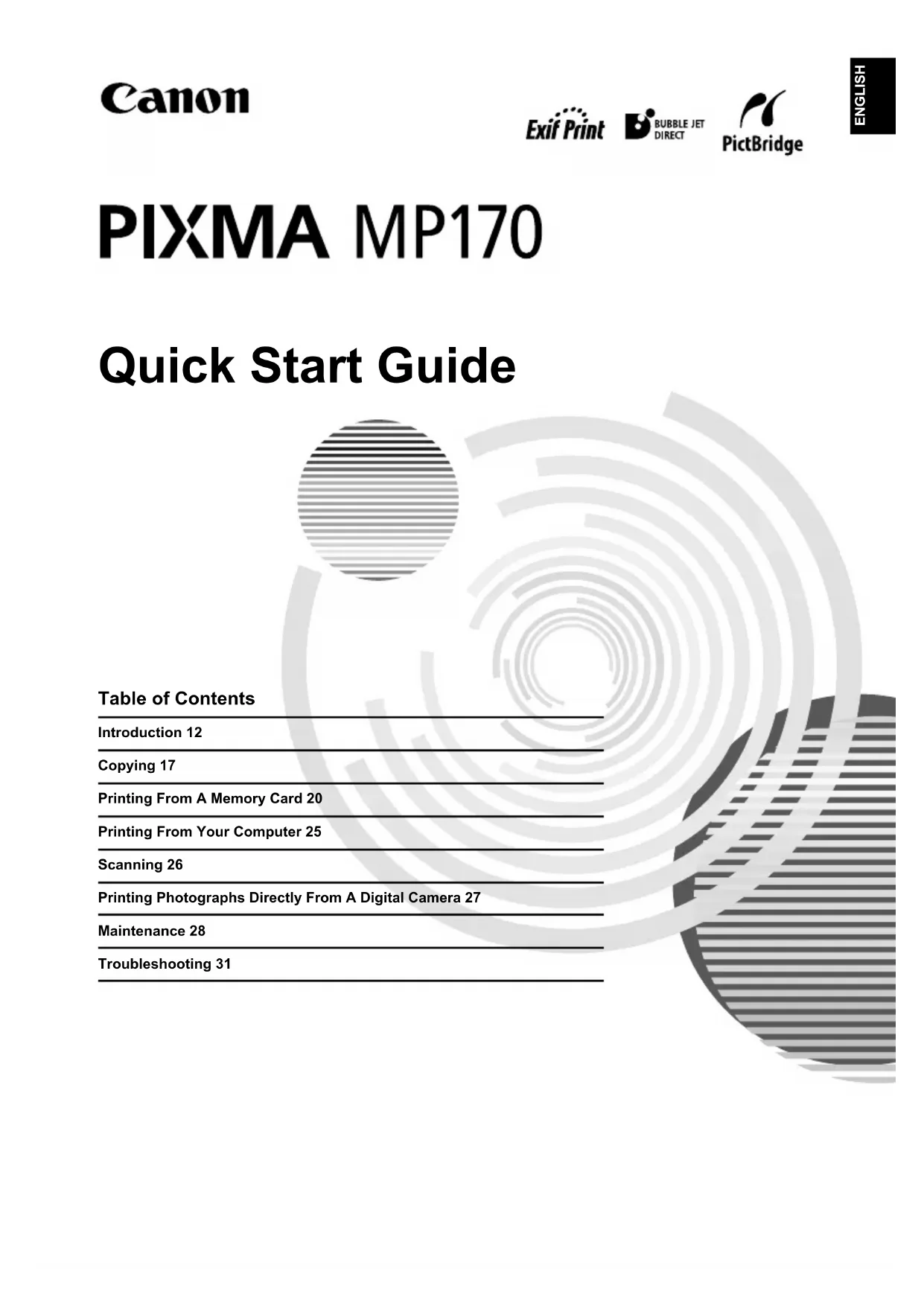
USER MANUAL Pixma MP170 CANON
- Do not connect the USB cable until after the software is installed.
- A printer cable is not included. You must purchase a USB cable (less than 10 ft. / 3 m) to connect your machine to a computer. 1 Turn ON the machine.
- The language setting is only available for some countries.
- If you have an undesired language selection, refer to the User’s Guide. 2 Prepare the FINE Cartridges (ink cartridges).
- If the Scanning Unit (Printer Cover) is left open for more than 10 minutes, the FINE Cartridge Holder moves to the right. Close and reopen the Scanning Unit (Printer Cover) to return the Holder to the center.
- Do not reattach the Protective Tape once you have removed it. 3 Install the FINE Cartridge.
- Ensure that all the FINE Cartridges are installed in the order directed by the label. The machine cannot be used unless all the FINE Cartridges are installed.
- For safety reasons, store FINE Cartridges out of the reach of small children.
- Do not drop or shake FINE Cartridges as this may cause the ink to leak out and stain your clothes and hands.
- The Alarm Lamp still lights orange if a FINE Cartridge is not installed properly. Open the Scanning Unit (Printer Cover) and make sure that all the FINE Cartridges are installed in the correct order directed on the label. Lis2QSG_GB.book Page 2 Thursday, July 14, 2005 3:01 PM3 ENGLISH X Install the software Select Easy Install in order to install the application software, On-screen Manual and MP drivers. Select Custom Install in order to choose the options you would like to install. IMPORTANT
- Temporarily disable any firewall software and close any open applications, including anti-virus software. Computer security programs can be re-started after software installation. Installing the Printer Driver - Windows
- If you have an earlier version of the MultiPASS Suite software installed on your computer, uninstall this version before installing the new version. For instructions on uninstallation, refer to the guides for that version of MultiPASS Suite.
- You must log on as an administrator or have administrative privileges in order to install the software in Windows XP or Windows 2000.
- If the following screen appears, the USB cable is connected. Perform the following steps.
- Do not switch users during the installation process. Installing the Printer Driver - Macintosh
- Do not connect the machine to Mac OS 9 or Mac OS X Classic environments since they are not supported.
- Enter the name and password for an Administrator Account. Perform the following to make sure the driver has been installed correctly:
1. Select [Applications] from the [Go] menu.
2. Double-click the [Utilities] folder, then the [Printer Setup Utility] ([Print Center] when
using Mac OS X v.10.2.x) icon. If the printer is displayed in the [Printer List], the printer driver is installed. If the printer is not displayed in the [Printer List], click [Add] in the [Printer List] and select [USB] from the pop-up menu. Select [MP170] from the [Product] list and click [Add]. When connecting from Mac OS X v.10.3.3 or earlier: Restarting the computer while connected to the machine may cause the machine not to be detected. To resolve this, either unplug the USB cable then plug it back in again, or turn the machine OFF then back ON again. Lis2QSG_GB.book Page 3 Thursday, July 14, 2005 3:01 PM4 ENGLISH Disclaimer Canon Inc. has reviewed this manual thoroughly in order that it will be an easy-to-use guide to your Canon MP170 Series. All statements, technical information and recommendations in this manual and in any guides or related documents are believed reliable, but the accuracy and completeness thereof are not guaranteed or warranted, and they are not intended to be, nor should they be understood to be, representation or warranties concerning the products described. Specifications are subject to change without notice. As an ENERGY STAR® partner, Canon Inc. has determined that this product meets the ENERGY STAR® guidelines for energy efficiency. This machine supports Exif 2.21 (also called “Exif Print”). Exif Print is a standard for enhancing the communication between digital cameras and printers. By connecting to an Exif Print-compliant digital camera, the camera’s image data at the time of shooting is used and optimized, yielding extremely high quality prints. Trademark Notices
- Windows is a registered trademark of Microsoft Corporation in the United States and other countries.
- Macintosh and Mac are trademarks of Apple Computer, Inc., registered in the United States and other countries.
- CompactFlash is a registered trademark of SanDisk Corporation.
- MEMORY STICK and Memory Stick DUO™ are registered trademarks of Sony Corporation.
- SmartMedia is a registered trademark of Toshiba Corporation.
- MultiMediaCard™ is a trademark of the MultiMediaCard Association.
- xD-Picture Card™ is a trademark of Fuji Photo Film Corporation.
- SD, miniSD and SD Secure Digital are trademarks of SD Association. Copyright ©2005 CANON INC. All rights reserved. No part of this publication may be transmitted or copied in any form whatsoever without expressed written permission from Canon Inc. Lis2QSG_GB.book Page 4 Thursday, July 14, 2005 3:01 PM5 ENGLISH X How To Use The Documentation Provided The on-screen manuals may not be installed depending on the country of purchase. If not, the on-screen manuals may be copied from the “Manual” folder in the Setup CD-ROM to your computer's hard disk. Easy Setup Instructions (Printed documentation): Be sure to read this sheet first. This sheet includes instructions for setting up your machine and getting it ready for use. Follow all steps in this sheet before using your machine. Quick Start Guide (This guide): Read this guide when starting to use the machine. After following the instructions in the Easy Setup Instructions, we recommend that you read this guide to familiarize yourself with the basic operation of all functions that can be performed by your machine. User’s Guide (On-screen manual): This guide is available on the Setup CD-ROM. This guide includes instructions on printing from your computer, direct photo printing from a digital camera, and copying. Refer to this guide for in-depth instructions not included in the Quick Start Guide, or if you want to learn more about advanced features. Printer Driver Guide/Scan Guide (On-screen manual): These guides are available on the Setup CD-ROM. Refer to these guides for full instructions on printing and scanning from your computer. These guides describe the details of each function, as well as how to use the MP Drivers and MP Navigator. Photo Application Guide (On-screen manual): This guide is available on the Setup CD-ROM. This guide describes the utility software on the Setup CD-ROM, such as Easy-PhotoPrint and Easy-WebPrint, including instructions on how to scan data, various printing methods, and details of functions. Lis2QSG_GB.book Page 5 Thursday, July 14, 2005 3:01 PM6 ENGLISH X Displaying On-screen Manual Stored On The Setup CD-ROM You can install the on-screen manuals using the Setup CD-ROM by either of the following.
- Select “Easy Install” to install the on-screen manuals along with the printer driver and applications.
- Select “On-screen Manual” from “Custom Install” to install the on-screen manuals. If you have not installed or have deleted the on-screen manuals, use either method above to install them.
- A start-up icon for the On-screen manual will be placed on the desktop after installing the software with Easy Install.
- Double-click the icon, then from the pop-up menu, click the title of each manual you want to open. Various Web browsers are available for viewing HTML content, and therefore the same text or image may appear different depending on which browser you use. The on-screen manuals have been prepared on the assumption that they are displayed and read under the following conditions: For Windows:
- Browser: Windows HTML Help Viewer
- Note: Microsoft Internet Explorer 5.0 or later must be installed.
- The on-screen manuals may not be displayed properly depending on your operating system or Internet Explorer version. We recommend that you keep your system up to date with Windows Update. For Macintosh:
- Browser: Help Viewer
- Note: The on-screen manuals may not be displayed properly depending on your operating system. We recommend that you keep your system up to date. Lis2QSG_GB.book Page 6 Thursday, July 14, 2005 3:01 PM7 ENGLISH X Reading The Document Symbols Used In This Guide Buttons Used In This Guide Terms Used In This Guide CAUTION Indicates a caution concerning operations that may lead to injury to persons or damage to property if not performed correctly. In order to use the machine safely, always pay attention to these cautions. IMPORTANT Indicates operational warnings and restrictions. Be certain to read these items to operate the machine correctly, and to avoid damage to the machine. Indicates notes for operation or additional explanations. Reading these is highly recommended. Indicates the description of the machine when connected to a computer. Read this when the machine is connected to a Windows system. Read this when the machine is connected to a Macintosh system. z(Operation branch title) Used for an operation that can be performed in branch procedures.
1. (Operation branch-step) Used to explain each operation of a branch procedure.
[button name] Text enclosed in these brackets indicates a button on the Operation Panel of the machine or an item on the computer to be manipulated. Example: [Color] <message> Text enclosed in these brackets indicates a message or selectable menu item which appears on the LCD (Liquid Crystal Display). Example: <PHOTO PAPER PRO>, <OFF> machine General term used to represent the MP170. default A setting that remains in effect unless you change it. document The original sheets of paper, pages of a book, or photographs that you copy or scan with the machine. paper Paper on which you can print with the machine. Lis2QSG_GB.book Page 7 Thursday, July 14, 2005 3:01 PM8 ENGLISH X Safety Precautions Please read the safety warnings and cautions provided in this guide to ensure that you use your machine safely. Do not attempt to use the machine in any way not described in this guide. For detailed safety information, refer to the User’s Guide. WARNING You may cause an electric shock/fire or damage the machine if you ignore any of these safety precautions. z Location
- Do not place the machine close to flammable solvents such as alcohol or thinners. z Power supply
- Never attempt to plug or unplug the machine from the power supply when your hands are wet.
- Always push the plug all the way into the power outlet.
- Never damage, modify, stretch or excessively bend or twist the power cord. Do not place heavy objects on the power cord.
- Never plug the machine into a power socket that is shared with other equipment (extension lead/cord, 2- or 3-way adapter, etc.).
- Never use the machine if the power cord is bundled or knotted.
- If you detect smoke, unusual smells or strange noises around the machine, immediately unplug the machine at the power supply and contact your local authorized Canon dealer or the Canon help line. Using the machine in such conditions may result in fire or electrical shock.
- Periodically, unplug the machine and use a dry cloth to wipe off any dust or dirt collected on the plug and the power outlet. If the machine is placed at a location exposed to a lot of dust, smoke, or high humidity, the dust collected on the plug absorbs moisture and may cause insulation failure and fire. Lis2QSG_GB.book Page 8 Thursday, July 14, 2005 3:01 PM9 ENGLISH z Maintenance
- Use a damp cloth to clean the machine. Never use flammable solvents such as alcohol, benzene or thinners. If flammable solvents come in contact with electrical components inside the machine, it could cause a fire or electrical shock.
- Always turn OFF the power and unplug the machine from the power outlet before cleaning the machine. If you leave ON or accidentally switch the machine ON while cleaning it, it may result in injury or damage the machine. z Handling
- Do not attempt to disassemble or modify the machine. There are no user serviceable parts inside the machine. The machine contains high-voltage components. Never attempt any maintenance procedure not described in this guide. Incorrect maintenance procedures may damage the machine, or cause a fire or electrical shock.
- Do not use flammable sprays near the machine. This could cause a fire or electrical shock if the spray comes into contact with electrical components inside the machine. z Others
- This product emits low level magnetic flux. If you use a cardiac pacemaker and feel abnormalities, please move away from this product and consult your doctor.
- When setting the machine near electric products with fluorescent lighting, separate the machine at least 5.9 inches (15 cm) from electric products equipped with fluorescent lighting. If you place it near to them, the machine may malfunction as a result of the noise emitted by the fluorescent lighting.
- When turning OFF the power, be sure to press [ON/OFF] and confirm that the Alarm Lamp has shut off. If you pull the power plug out of the wall outlet while the Alarm Lamp is on, the FINE Cartridge is not protected, and you may not be able to print later. Lis2QSG_GB.book Page 9 Thursday, July 14, 2005 3:01 PM10 ENGLISH CAUTION You may cause injury or damage the machine if you ignore any of these safety precautions. z Location
- Place the machine on a flat, stable, vibration-free surface that is strong enough to support its weight.
- Do not install the machine in a location that is very humid or dusty, in direct sunlight, outdoors, or close to a heating source. Installing in such a location may result in fire or electrical shock. To avoid the risk of fire or electrical shocks, install the machine in a location with an ambient temperature range of 41°F to 95°F (5°C to 35°C) and humidity of 10% to 90% (condensation free).
- Do not place the machine on a thick rug or carpet. If fibers or dust come inside the machine, it could cause a fire. z Power supply
- Never remove the plug by pulling on the cord. Pulling on the power cord may damage the cord and cause a fire or electrical shock.
- Do not use an extension cord as this may result in fire or electrical shock.
- Ensure that the area around the power outlet is kept clear at all times so you can easily unplug the power cord if necessary. Otherwise you will be unable to disconnect the power plug in case of an emergency.
- Never use a power supply source other than the one rated for the machine in the country where you purchased the machine as it may result in fire or electrical shock. The operating requirement of this machine is as follows: 110-127V AC, 50/60 Hz or 200-240V AC, 50/60 Hz (depending on local electrical requirements)
- The socket-outlet shall be installed near the equipment and shall be easily accessible. Lis2QSG_GB.book Page 10 Thursday, July 14, 2005 3:01 PM11 ENGLISH z Handling
- Close the Document Cover gently to avoid catching your hand. Failing to do so may result in personal injury.
- Do not press down hard on the Document Cover when using the Platen Glass to scan thick books. This may damage the Platen Glass and Document Cover, and/or result in personal injury.
- When moving the machine, carry the machine at both ends.
- Do not insert your hands into the machine while it is printing. Parts inside the machine are moving and this may result in injury.
- Do not turn the machine upside down. Ink may leak out and stain clothing or the surrounding area. z FINE Cartridges (Ink Cartridges)
- For safety reasons, store FINE Cartridges (Ink Cartridges) out of the reach of small children. If a child ingests any ink, consult a doctor immediately.
- Do not shake FINE Cartridges (Ink Cartridges). Ink may leak out and stain clothing or the surrounding area.
- Never touch the nozzle and the gold terminal. X Legal Limitations On Use Of Your Product And Use Of Images It may be unlawful to make copies of, scan, print or use reproductions of the following documents. The list provided is non-exhaustive. When in doubt, check with a legal representative in your jurisdiction.
- Certificates of deposit
- Postage stamps (canceled or uncanceled)
- Identifying badges or insignias
- Selective service or draft papers
- Checks or drafts issued by governmental agencies
- Motor vehicle licenses and certificates of title
- Internal revenue stamps (canceled or uncanceled)
- Copyrighted works/works of art without permission of copyright owner Lis2QSG_GB.book Page 11 Thursday, July 14, 2005 3:01 PM12 Introduction Chapter 1 ENGLISH 1Introduction X Features Of Your Machine Thank you for purchasing the Canon MP170. Your machine incorporates the following functions in one simple-to-operate device: You may select to use your machine as a stand-alone device for copying, and photo printing. Alternatively, connect your machine to a computer and you will have a fully integrated desktop printer/copier/scanner. The utility software supplied with your machine enables you to perform a variety of tasks from your computer effortlessly and efficiently. Desktop photo printer Prints photo-quality images from a digital camera or a memory card, without using a computer. Copier Makes color or black & white copies. Also, applies advanced copy features to your copies. Printer Prints photographs, vivid color and crisp black and white documents from your computer. Scanner Scans high-resolution images to your computer and processes them easily using the utility software supplied. Lis2QSG_GB.book Page 12 Thursday, July 14, 2005 3:01 PMChapter 1 Introduction 13 ENGLISH X Machine Parts And Their Functions Machine z Exterior (1) Document Cover Covers the Platen Glass. Open this cover when loading a document on the Platen Glass. (2) Paper Support Supports paper loaded in the Auto Sheet Feeder. Open it before loading paper. (3) Paper Support Extension Supports paper loaded in the Auto Sheet Feeder. Pull it out before loading paper. (4) Paper Guide When loading paper, ensure the left edge of the paper just touches this guide. (5) Auto Sheet Feeder Load paper here. Paper feeds automatically, one sheet at a time. (6) Paper Output Tray Printouts are output to this tray. Open the tray before you start copying or printing. When not being used, keep it closed in the machine. (7) Direct Print Port Used to connect a PictBridge-compliant or Canon Bubble Jet Direct-compatible device to the machine when printing images directly from the camera. (8) Platen Glass Used to load a document to be processed. (9) Operation Panel Displays the operational status of the machine. It is also used to change or check the settings of each function. For details, see page 15. (1) (2) (3) (4) (6)(7) (5) (9) (8) Lis2QSG_GB.book Page 13 Thursday, July 14, 2005 3:01 PM14 Introduction Chapter 1 ENGLISH z Rear view and interior (10) FINE Cartridge Holder Install the FINE Cartridges here. (11) FINE Cartridges (Ink Cartridges) Replaceable cartridges that comprise an integrated Print Head and ink tank. (12) Scanning Unit Used to scan a document. (13) Card Slots Insert a memory card or card adapter containing a memory card into these slots for photo printing. The machine is equipped with two kinds of Card Slot. (14) Access Lamp Lights when a memory card is inserted into the Card Slots. This lamp flashes while the machine is reading data from the memory card. (15) Scanning Unit Support Used to hold the Scanning Unit being opened. (16) Paper Thickness Lever Used to adjust the gap between the FINE Cartridge and surface of the printing paper. (17) Power Connector Used to connect the power cord to the machine. (18) USB Port Used to connect a computer to the machine when printing from or scanning to the computer. IMPORTANT
- While the machine is printing from or scanning images to the computer, or the computer is in the sleep mode or standby mode, do not disconnect and connect the USB cable. (10) (11) (12) (13) (14) (16) (15) (17) (18) Lis2QSG_GB.book Page 14 Thursday, July 14, 2005 3:01 PMChapter 1 Introduction 15 ENGLISH Operation Panel (1) [Photo Index Sheet] Button Switches the machine to Photo Index Sheet mode. (2) [COPY] Button Switches the machine to copy mode. (3) [SCAN] Button Switches the machine to scan mode. In scan mode, the machine scans a document to your computer according to the settings selected. To use this button, the machine must be connected to a computer. (4) [MEMORY CARD] Button Switches the machine to memory card mode. (5) LCD (Liquid Crystal Display) Displays messages, menu selections, and the operational status. (6) [Black] Button Starts black & white copying. (7) [Color] Button Starts color copying. (8) [Stop/Reset] Button Cancels operations and returns the machine to standby mode. (9) [ON/OFF] Button Turns the machine ON and OFF. Before turning ON the machine, make sure the Document Cover is closed. (1) (2) (3) (4) (5) (9)(6) (7) (8) (10) (11) (12) (13) (14) Lis2QSG_GB.book Page 15 Thursday, July 14, 2005 3:01 PM16 Introduction Chapter 1 ENGLISH (10) Alarm Lamp Lights if an error occurs, or when the paper or ink runs out. (11) [Menu] Button Accesses the settings to customize operation of your machine. (12) [W(–)] and [(+)X] Buttons Scroll through menu selections, and increase or decrease the number of copies or the image file number. (13) [OK] Button Selects or confirms settings. Also, press this button to return to standby mode after correcting paper jams and other errors that interrupt the printing. (14) [Back] Button Allows you to return to the previous screen. Lis2QSG_GB.book Page 16 Thursday, July 14, 2005 3:01 PMChapter 2 Copying 17 ENGLISH 2 Copying X Loading Paper 1 Open the Paper Support (1), then pull out the Paper Support Extension (2). 2 Place a stack of paper (print side up) in the Auto Sheet Feeder (1), pinch the Paper Guide (A) and adjust it to the left side of the stack (2).
- Make sure the stack does not exceed the Load Limit Mark (B).
- For details on loading paper, see the User’s Guide. X Recommended Paper
- Indicates Canon specialty media. For details on the general paper guidelines, see the User’s Guide. (1) (2) (2) (A) (B) (1) Lis2QSG_GB.book Page 17 Thursday, July 14, 2005 3:01 PM18 Copying Chapter 2 ENGLISH X Setting The Paper Size And Type For copying or photo printing, on the Operation Panel, you need to set the size and type of paper loaded in the Auto Sheet Feeder. (See page 17) 1 Press [COPY]. 2 Press [Menu] repeatedly until <PAGE SIZE> appears. 3 Use [W] or [X] to select the paper size, and then press [OK]. 4 Press [Menu] repeatedly until <MEDIA TYPE> appears. 5 Use [W] or [X] to select the paper type, and then press [OK]. X Loading Documents 1 Lift the Document Cover. 2 Load your document.
- Place your document face down on the Platen Glass.
- Align the upper left corner of your document with the alignment mark on the lower right corner of the Platen Glass. 3 Gently close the Document Cover. X Making Copies 1 Press [COPY]. 2 Use [W] or [X] to select the number of copies (max. 99 copies). 3 Adjust the settings for your document as necessary. (See page 19) 4 Press [Color] for color copying, or [Black] for black & white copying. Lis2QSG_GB.book Page 18 Thursday, July 14, 2005 3:01 PMChapter 2 Copying 19 ENGLISH Adjusting Image Quality 1 Press [Menu] repeatedly until <IMAGE QUALITY> appears. 2 Use [W] or [X] to select the image quality, and then press [OK]. Adjusting Intensity 1 Press [Menu] repeatedly until <INTENSITY> appears. 2 Use [W] or [X] to select <MANUAL ADJUST> or <AUTO ADJUST (A)>, and then press [OK]. 3 If you selected <MANUAL ADJUST> in step 2, use [W] or [X] to select the intensity, and then press [OK]. Reducing Or Enlarging A Copy (Using Preset Copy Ratios) 1 Press [Menu] repeatedly until <ENLARGE/REDUCE> appears. 2 Use [W] or [X] to select <PRESET RATIO>, and then press [OK]. 3 Use [W] or [X] to select the copy ratio, and then press [OK]. Reducing Or Enlarging A Copy (Using Custom Copy Ratios) 1 Press [Menu] repeatedly until <ENLARGE/REDUCE> appears. 2 Use [W] or [X] to select <ZOOM>, and then press [OK]. 3 Use [W] or [X] to select a copy ratio between 25% and 400%, and then press [OK]. X Advanced Copy Features For details on advanced copy features, see the User's Guide. Sticker copying Copies photos or graphics onto stickers. Borderless copying Copies the images so that they fill the entire page without borders. Image repeat Copies an image multiple times onto a single page. Lis2QSG_GB.book Page 19 Thursday, July 14, 2005 3:01 PM20 Printing From A Memory Card Chapter 3 ENGLISH 3 Printing From A Memory Card There are several ways you can print photos directly from a memory card, without using a computer. 1 Make sure the machine is turned ON. 2 Load paper in the Auto Sheet Feeder. (See page 17) 3 Insert a memory card. (See page 21) 4 Select the printing method. Three main methods are:
- Printing by using the Photo Index Sheet (See page 22)
- When using a Memory Stick DUO, miniSD Card, or an xD-Picture Card, make sure to insert these cards into a card adapter (must be purchased separately) before inserting it into the Card Slots of the machine. Left Card Slot Right Card Slot CompactFlash Type I/II MEMORY STICK MultiMediaCard™ Microdrive Memory Card SmartMedia SD Secure Digital Memory Card Must be inserted into a card adapter xD-Picture Card™ Memory Stick DUO™ miniSD Lis2QSG_GB.book Page 20 Thursday, July 14, 2005 3:01 PMChapter 3 Printing From A Memory Card 21 ENGLISH X Inserting/Removing A Memory Card Inserting A Memory Card 1 Make sure the machine is turned ON. 2 Insert the memory card or the card adapter containing the memory card into the appropriate Card Slot.
- Install the memory card with the appropriate adapter attached.
- Do not try to insert the memory card into the Card Slot furthermore than as it stops; otherwise the machine and/or the memory card will be damaged. Removing A Memory Card CAUTION
- If an error occurs during printing from the memory card (e.g. paper runs out), do not remove the memory card or card adapter containing a memory card as this may damage the data on the memory card.
- While the Access Lamp is flashing, do not remove the memory card or a card adapter containing the memory card as this may damage the data on the memory card. 1 Hold the exposed portion of the memory card with your fingers and remove the memory card from the Card Slot. Type of card How to install
- xD-Picture Card* Install these cards into the left card slot.
- SmartMedia Card Install this card into the right card slot.
- MultiMedia Card Install these cards into the right card slot. Lis2QSG_GB.book Page 21 Thursday, July 14, 2005 3:01 PM22 Printing From A Memory Card Chapter 3 ENGLISH X Printing By Using The Photo Index Sheet With this machine, you can easily print photographs using a Photo Index Sheet, by filling in the appropriate circles to select print options and photographs you want to print. Simply scanning a Photo Index Sheet prints the selected photographs according to the selections you have made. 1 Turn ON the machine, and load A4-sized paper in the Auto Sheet Feeder. 2 Insert a memory card into the Card Slot. (See page 21) 3 Press [Photo Index Sheet]. 4 Use [W] or [X] to select <PRINT>, and then press [OK]. 5 Use [W] or [X] to select the range of photographs to print on the Photo Index Sheet.
2. Use [W] or [X] to select how many recent photographs to print.
2. Use [W] or [X] to select the first recorded date of photographs you want to print,
and then press [OK].
3. Use [W] or [X] to select the last recorded date of photographs you want to print.
Lis2QSG_GB.book Page 22 Thursday, July 14, 2005 3:01 PMChapter 3 Printing From A Memory Card 23 ENGLISH 6 Press [OK]. The machine prints the Photo Index Sheet. 7 Fill in the appropriate circles ( ) with a dark pencil to select the photographs to be printed and the print settings. 8 Load the paper selected on the Photo Index Sheet into the Auto Sheet Feeder. 9 Load the Photo Index Sheet on the Platen Glass. CAUTION
- Be sure to load the Photo Index Sheet in the correct orientation on the Platen Glass. 10Press [Photo Index Sheet]. 11Use [W] or [X] to select <SCAN>, and then press [OK]. X Printing All Images This printing method creates individual prints of all photographs stored on a memory card. 1 Insert the memory card into the Card Slot. (See page 21) 2 Press [MEMORY CARD], and then press [Menu]. 3 Use [W] or [X] to select <PRINT ALL PHOTOS>, and then press [OK]. 4 Adjust the print settings as necessary, then press [OK]. (See the User’s Guide) 5 Press [Color]. X Index Printing With the MP170, you can print an index to check all the image data on the memory card. 1 Insert the memory card into the Card Slot. (See page 21) 2 Press [MEMORY CARD], and then press [Menu]. 3 Use [W] or [X] to select <INDEX>, and then press [OK]. 4 Adjust the print settings as necessary, then press [OK]. (See the User’s Guide) 5 Press [Color]. Lis2QSG_GB.book Page 23 Thursday, July 14, 2005 3:01 PM24 Printing From A Memory Card Chapter 3 ENGLISH Printing According To The Selected Photo Print Mode 1 Insert the memory card into the Card Slot. (See page 21) 2 Press [MEMORY CARD], and then press [Menu]. 3 Use [W] or [X] to select <SELECT RANGE>, and then press [OK]. 4 Use [W] or [X] to select <PHOTO NO.> or <DATE>, and then press [OK]. 5 Use [W] or [X] to select the earliest photo number or shooting date to print, and then press [OK]. 6 Use [W] or [X] to select the latest photo number or shooting date to print, and then press [OK]. 7 Adjust the print settings as necessary, then press [OK]. (See the User’s Guide) 8 Press [Color]. Lis2QSG_GB.book Page 24 Thursday, July 14, 2005 3:01 PMChapter 4 Printing From Your Computer 25 ENGLISH 4 Printing From Your Computer X Printing Documents The print procedure varies slightly depending on the application software. The basic print procedure is explained here. 1 Load paper in the Auto Sheet Feeder. (See page 17) 2 Create a document or open a file to print. 3 Select [Print] from the application software's [File] menu.
- Make sure that your machine is selected as a printer. 4 Adjust the settings for your document as necessary, then click [OK]. 5 Click [Print] or [OK]. 1 Load paper in the Auto Sheet Feeder. (See page 17) 2 Create a document or open a file to print. 3 Select [Page Setup] from the application software's [File] menu.
- Make sure that your machine is selected as a printer. 4 Select the desired paper size from [Paper Size], then click [OK]. 5 Select [Print] from the application software's [File] menu. 6 Adjust the settings for your document as necessary, then click [OK]. 7 Click [Print]. Lis2QSG_GB.book Page 25 Thursday, July 14, 2005 3:01 PM26 Scanning Chapter 5 ENGLISH 5 Scanning X Scanning Methods Scanning using the MP Navigator Using the MP Navigator, you can scan, process and save documents to your computer. For details on using the MP Navigator, see the Scan Guide. On the Windows desktop, double-click [MP Navigator 2.0] icon to open the MP Navigator. On the [Go] menu, select [Applications], then double-click the [MP Navigator 2.0] icon to open the MP Navigator. You can launch the following application software from the MP Navigator.
- Easy-PhotoPrint (Photo Printing)
- ArcSoft PhotoStudio (Photo image editing)
- ScanSoft OmniPage SE* (Converting scanned document to text)
- ScanSoft OmniPage SE does not support Windows 98 first edition. If you performed the [Custom Install] and only installed the MP Driver and MP Navigator, these application software were not installed and thus cannot be launched. To launch any of the above application software from MP Navigator, perform the [Custom Install] once again to install them. Scanning with the operation panel of the machine By pressing [Black] or [Color] on the machine, the MP Navigator opens and you can change the settings for the scanning operations. (See the Scan Guide) 1 Load the document on the Platen Glass. (See page 18) 2 Press [SCAN].
- The machine switches to scan mode. 3 Press [Black] or [Color].
- The MP Navigator opens. The subsequent procedure varies depending on your settings. For details, see the Scan Guide. Scanning from an application software You can scan an image from a TWAIN- or WIA- (Windows XP only) compliant application software and use the image in that application software. This procedure varies depending on the application software. For the detailed procedure, refer to the manual of the application software you are using. Lis2QSG_GB.book Page 26 Thursday, July 14, 2005 3:01 PMChapter 6 Printing Photographs Directly From A Digital Camera 27 ENGLISH 6 Printing Photographs Directly From A Digital Camera X Connecting To A PictBridge-Compliant Device Connecting a PictBridge-compliant device such as digital camera, camcorder or mobile phone to the machine allows you to print recorded images directly without using a computer. 1 Turn ON the machine. 2 Load paper in the Auto Sheet Feeder. (See page 17) 3 Connect the PictBridge-compliant device to the machine.
- Ensure that the device is turned off.
- Connect the device to the machine using the USB cable (for connection to a computer) supplied with the device. 4 Turn ON and set up the device for direct printing. Some types of PictBridge-compliant devices turn on automatically when connected to the machine. For devices that do not turn on automatically, do so manually. 5 You are now ready to print images from the camera. Lis2QSG_GB.book Page 27 Thursday, July 14, 2005 3:01 PM28 Maintenance Chapter 7 ENGLISH 7 Maintenance X Replacing A FINE Cartridge When replacing a FINE Cartridge, check the model number very carefully. The FINE Cartridge PG-50 Black (High Yield) and CL-51 Color (High Yield) are also compatible with this machine. 1 Make sure the power is turned ON. 2 Lift the Scanning Unit and pull the Scanning Unit Support down into place. CAUTION
- Do not try to manually move or stop the FINE Cartridge Holder.
- Do not touch any metal parts. 3 Push down the empty FINE Cartridge on the tab to release it, then pull out the FINE Cartridge. CAUTION
- Do not touch the transparent film (A), film cable (B), ink absorber (sponge part) (C), or any metal parts. (A) (B) (C) Lis2QSG_GB.book Page 28 Thursday, July 14, 2005 3:01 PMChapter 7 Maintenance 29 ENGLISH 4 Remove a new FINE Cartridge from its packaging. Then hold the FINE Cartridge as shown and remove the Protective Tape (A). CAUTION
- Do not touch the gold terminals (B) or nozzles (C).
- Do not shake or drop the FINE Cartridge as the ink may leak and stain your clothes or hands.
- Do not attempt to reattach the Protective Tape once you remove it.
- Do not place the nozzles in contact with any other surface. 5 Insert the FINE Cartridge at a slight angle into the empty slot. 6 Push up the FINE Cartridge until it clicks into place. (A) (B) (C) Lis2QSG_GB.book Page 29 Thursday, July 14, 2005 3:01 PM30 Maintenance Chapter 7 ENGLISH 7 If you need to replace another FINE Cartridge, repeat steps 3 to 6. 8 Lift the Scanning Unit and put the Scanning Unit Support and the Scanning Unit back to its original position. X Cleaning The FINE Cartridge If the printed nozzle check pattern is incomplete, omitted, or a specific color is not printed, clean the FINE Cartridge. 1 Press [Menu] repeatedly until <MAINTENANCE> appears. 2 Use [W] or [X] to select <CLEANING> or <DEEP CLEANING> as necessary. 3 Press [OK]. <CLEANING>: Performs normal FINE Cartridge cleaning. <DEEP CLEANING>: Performs deep FINE Cartridge cleaning. Lis2QSG_GB.book Page 30 Thursday, July 14, 2005 3:01 PMChapter 8 Troubleshooting 31ENGLISH 8 Troubleshooting X Removing Jammed Paper If <PAPER JAMMED/CLEAR PAPER JAM AND PRESS [OK]> is displayed on the LCD, follow the procedure below to clear the paper jam. Clearing Jams In The Paper Output Tray 1 Gently pull any jammed paper out of the Paper Output Tray. 2 Press [OK]. Clearing Jams From The Auto Sheet Feeder 1 Gently pull out any jammed paper from the Auto Sheet Feeder. 2 Press [OK]. Clearing Jams From Inside The Machine 1 Open the Scanning Unit. 2 Gently pull out any jammed paper from the rollers. CAUTION• Be careful not to touch the components inside the machine at this time, otherwise, print quality may be reduced. 3 Close the Scanning Unit. 4 Press [OK]. X More Information For details on other troubleshooting, see the User’s Guide. Lis2QSG_GB.book Page 31 Thursday, July 14, 2005 3:01 PMENGLISH The following FINE Cartridges are compatible with this machine. The following FINE Cartridges (High Yield) are also compatible with this machine. For details on FINE Cartridge replacement, refer to “Replacing A FINE Cartridge” in this guide. Lis2QSG_GB.book Page 32 Thursday, July 14, 2005 3:01 PMFRANÇAIS Guide de démarrage rapide Table des matières Introduction 12 Copie 17 Impression depuis une carte mémoire 20 Impression à partir de votre ordinateur 25 Numérisation 26 Impression de photographies directement à partir d’un appareil photo numérique 27 Entretien 28 Dépannage 31 Lis2QSG_GB.book Page 1 Thursday, July 14, 2005 3:01 PM2 FRANÇAIS X Préparation de la machine Déballez la machine Veuillez vérifier le contenu en vous reportant à l’illustration imprimée sur la partie rabattue du couvercle de la boîte. IMPORTANT
Lis2QSG_GB.book Page 2 Thursday, July 14, 2005 3:01 PM3
Lis2QSG_GB.book Page 8 Thursday, July 14, 2005 3:01 PM9
ManualGo.com